ComponentOne


GridView for ASP.NET
               AJAX
Copyright  1987-2010 ComponentOne LLC. All rights reserved.
Corporate Headquarters
ComponentOne LLC
201 South Highland Avenue
3rd Floor
Pittsburgh, PA 15206 ∙ USA


Internet:     info@ComponentOne.com
Web site:     http://www.componentone.com
Sales
E-mail: sales@componentone.com
Telephone: 1.800.858.2739 or 1.412.681.4343 (Pittsburgh, PA USA Office)


Trademarks
The ComponentOne product name is a trademark and ComponentOne is a registered trademark of ComponentOne LLC. All
other trademarks used herein are the properties of their respective owners.

Warranty
ComponentOne warrants that the original CD (or diskettes) are free from defects in material and workmanship, assuming
normal use, for a period of 90 days from the date of purchase. If a defect occurs during this time, you may return the defective
CD (or disk) to ComponentOne, along with a dated proof of purchase, and ComponentOne will replace it at no charge. After
90 days, you can obtain a replacement for a defective CD (or disk) by sending it and a check for $25 (to cover postage and
handling) to ComponentOne.
Except for the express warranty of the original CD (or disks) set forth here, ComponentOne makes no other warranties, express
or implied. Every attempt has been made to ensure that the information contained in this manual is correct as of the time it was
written. We are not responsible for any errors or omissions. ComponentOne’s liability is limited to the amount you paid for the
product. ComponentOne is not liable for any special, consequential, or other damages for any reason.

Copying and Distribution
While you are welcome to make backup copies of the software for your own use and protection, you are not permitted to make
copies for the use of anyone else. We put a lot of time and effort into creating this product, and we appreciate your support in
seeing that it is used by licensed users only.


This manual was produced using ComponentOne Doc-To-Help™.
Table of Contents
 ComponentOne GridView for ASP.NET AJAX Overview............................................................. 1
    What's New in GridView for ASP.NET AJAX.........................................................................................1
    Revision History.......................................................................................................................................2
    What's New in 2010 v1.............................................................................................................................2
    What's New in 2009 v3.............................................................................................................................5
    What's New in 2009 v2.............................................................................................................................6
    Installing GridView for ASP.NET AJAX .................................................................................................6
    GridView for ASP.NET AJAX Setup Files...............................................................................................6
    System Requirements ...............................................................................................................................7
    Installing Demonstration Versions ............................................................................................................7
    Uninstalling GridView for ASP.NET AJAX.............................................................................................7
    Deploying your Application in a Medium Trust Environment ..................................................................8
    End-User License Agreement .................................................................................................................11
    Licensing FAQs .....................................................................................................................................11
    What is Licensing? .................................................................................................................................11
    How does Licensing Work? ....................................................................................................................11
    Common Scenarios ................................................................................................................................12
    Troubleshooting .....................................................................................................................................14
    Technical Support ..................................................................................................................................15
    Redistributable Files ...............................................................................................................................16
    About This Documentation ....................................................................................................................16
    Namespaces ...........................................................................................................................................17
    Creating an AJAX-Enabled ASP.NET Project........................................................................................18
    Adding the C1GridView Component to a Project ...................................................................................20
    Upgrading From WebGrid for ASP.NET ...............................................................................................21
    Column Changes....................................................................................................................................21
    Renamed Members ................................................................................................................................21
    New Members........................................................................................................................................23
    Removed Members ................................................................................................................................25
 Key Features.......................................................................................................................26
 GridView for ASP.NET AJAX Quick Start ...............................................................................29
    Step 1 of 3: Binding C1GridView to a DataSource ..................................................................................29
    Step 2 of 3: Customizing the C1GridView Control..................................................................................30
    Step 3 of 3: Running the Application ......................................................................................................31
 Design-Time Support............................................................................................................37
    C1GridView Smart Tag ..........................................................................................................................37
    C1GridView Context Menu....................................................................................................................39
    Property Builder .....................................................................................................................................39
    General Tab ...........................................................................................................................................41
    Columns Tab..........................................................................................................................................41
    Paging Tab .............................................................................................................................................43
    Format Tab ............................................................................................................................................45
    Grouping Tab.........................................................................................................................................45
 Using GridView for ASP.NET AJAX ......................................................................................46
     Visual Styles ...........................................................................................................................................47
     Changing the Visual Style.......................................................................................................................49
     Customizing the Control's Appearance ...................................................................................................49
     Keyboard Navigation .............................................................................................................................50


                                                                                                                                                             iii
Editing Rows..........................................................................................................................................51
          Grouping................................................................................................................................................51
          Setting Grouping Properties at Design Time ...........................................................................................51
          Setting Grouping Properties at Run Time ...............................................................................................52
          Collapsing and Expanding Groups .........................................................................................................53
          Sorting ...................................................................................................................................................54
          Filtering .................................................................................................................................................55
          Paging ....................................................................................................................................................56
          Using AJAX...........................................................................................................................................57
     Client-Side Functionality.......................................................................................................57
         Client-Side Properties .............................................................................................................................58
     GridView for ASP.NET AJAX Samples ...................................................................................59
     GridView for ASP.NET AJAX Task-Based Help ........................................................................59
        Binding the Grid to a Data Source ..........................................................................................................60
        Binding the Grid in a Web Site Project ...................................................................................................60
        Binding the Grid in a Web Application Project .......................................................................................61
        Automatically Updating the Data Source ...............................................................................................61
        Using the Property Builder .....................................................................................................................62
        Setting Properties Using the Property Builder .........................................................................................62
        Adding Columns Using the Property Builder ..........................................................................................64
        Formatting the Grid's Content ................................................................................................................64
        Customizing Columns Using DataFormatString.....................................................................................65
        Customizing Columns Using ValueLists.................................................................................................66
        Automatically Sorting Columns..............................................................................................................67
        Hiding Specified Columns ......................................................................................................................68
        Setting the Footer Text ...........................................................................................................................68
        Creating Column Header Bands .............................................................................................................69
        Formatting a Column as Currency..........................................................................................................72
        Adding a Caption to the Grid .................................................................................................................73
        Adding Controls to a Column.................................................................................................................73
        Adding Template Columns.....................................................................................................................73
        Binding Template Columns ....................................................................................................................74
        Adding CheckBox or ListBox Controls to a Column...............................................................................76
        Adding ComponentOne Input for ASP.NET AJAX Controls .................................................................77
        Customizing the Grid's Appearance........................................................................................................79
        Adding Borders and Gridlines to the Grid ..............................................................................................79
        Setting Column Width............................................................................................................................81
        Formatting Rows and Cells Meeting Specific Criteria .............................................................................81
        Changing the Color of Column Headers .................................................................................................83
        Using Aggregates and Grouping .............................................................................................................84
        Merging Rows ........................................................................................................................................84
        Grouping Properties ...............................................................................................................................85
        Adding Outlook-Style Grouping.............................................................................................................86
        Creating a Pageable Grid........................................................................................................................87
        Adding Paging........................................................................................................................................87
        Changing Paging Types and Styles .........................................................................................................88
        Using Client-Side Scrolling .....................................................................................................................89
        Creating a Scrollable Grid ......................................................................................................................89
        Creating a Non-Scrollable Column .........................................................................................................90
        Creating a Non-Scrollable Row ..............................................................................................................91
        Updating the Grid with AJAX................................................................................................................92
        Moving Columns....................................................................................................................................92
        Editing a Record.....................................................................................................................................93
        Paging the Grid ......................................................................................................................................93


iv
Selecting a Record ..................................................................................................................................94
Sorting Columns ....................................................................................................................................94
Filtering Columns...................................................................................................................................95


                                                                                                                                                     v
ComponentOne GridView for
ASP.NET AJAX Overview
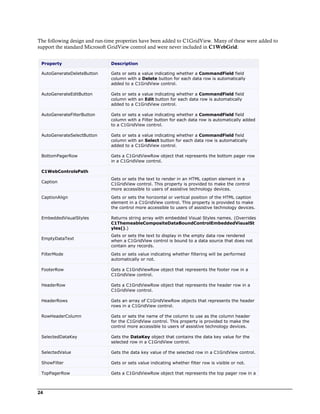
ComponentOne GridView for ASP.NET AJAX is a flexible,                   Getting Started
Microsoft GridView compatible, ASP.NET grid control used to
display items from a data source in an interactive, fully            Get started with the
customizable table.                                                  following topics:

ComponentOne GridView for ASP.NET AJAX includes one                  - Key Features (page
control, C1GridView, which is used to generate a table of            26)
items, allowing users to select, edit, delete, sort, filter, and     - Quick Start (page 29)
group data at run time. GridView for ASP.NET AJAX
provides the compelling ability to display data across multiple      - Samples (page 59)
pages and provide user interactivity with default or                 - Upgrading From
customizable navigation controls. GridView for ASP.NET               WebGrid for
AJAX is AJAX standards-compliant and AJAX enhanced.                  ASP.NET (page 21)
This means that run-time data can be formatted, manipulated
or reloaded easily by the UI.
Manage the C1GridView column collection, paging behavior,
and edit the control design without code using the C1GridView
control's extensive design-time support. Microsoft GridView
compatibility allows you to quickly convert existing projects
and integrate productively with GridView for ASP.NET
AJAX right away – so get started with GridView for
ASP.NET AJAX today!


What's New in GridView for ASP.NET AJAX
This documentation was last revised for 2010 v2 on June 28, 2010. This section describes the new features and
members added in this release, as well as breaking changes that were made. In the 2010 v2 release the following
enhancements were made to GridView for ASP.NET AJAX:
       Keyboard Support
        Additional keyboard support was added to the C1GridView control. At run time, users can now enter the
        client-side editing mode on a cell by pressing any alphanumeric key. Users can also now navigate through
        the grid by using the arrow and navigation keys (such as Home, End, and so on). See Keyboard
        Navigation (page 50) for details.
       New Members
        New members, including some replacing deprecated members, were added to GridView for ASP.NET
        AJAX in the 2010 v2 release. For details see the new member table and the list of breaking changes below.
New Members
The following members were added to the C1GridView control's object model in the 2010 v2 release:


                                                                                                                  1
Type                  Member                          Description

    C1GridView            ErrorText property              Gets or sets the text to display if an error occurs
                                                          during a callback to the server.

    C1HyperLinkField      DataNavigateUrlFields           Using the DataNavigateUrlFields property you can
                          property                        combine multiple fields from the data source to
                                                          create hyperlinks for the C1HyperLinkField
                                                          column.

    C1ImageField          DataAlternateTextField          Gets or sets the name of the column from the
                          property                        data source that contains the values to bind to
                                                          the AlternateText property of each image in a
                                                          C1ImageField object.

                          DataImageUrlField property      Gets or sets the name of the column from the
                                                          data source that contains the values to bind to
                                                          the ImageUrl property of each image in a
                                                          C1ImageField object.

Breaking Changes
The following breaking changes were made to GridView for ASP.NET AJAX in the 2010 v2 release:
          The C1ImageField class' DataAlternateTextColumn and DataImageUrlColumn properties were
           deprecated and replaced with the DataAlternateTextField and DataImageUrlField properties accordingly.
          The C1HyperLinkField class' DataNavigateUrlField property has been deprecated and replaced with the
           DataNavigateUrlFields property.


       Tip: A version history containing a list of new features, improvements, fixes, and changes for each product is
    available on HelpCentral at http://helpcentral.componentone.com/VersionHistory.aspx.


Revision History
The revision history details recent enhancements to ComponentOne GridView for ASP.NET AJAX.

What's New in 2010 v1
In the 2010 v1 release the following enhancements were made to GridView for ASP.NET AJAX:
          Client-Side Selection
           You can now implement client-side selection of grid cells, columns, and rows depending upon the
           selection mode you set. New members were added to provide CSOM access to selected elements.
          Client-Side Cell Editing
           You can now implement the editing of grid cells on the client side. New client-side members were added
           to implement this functionality.
New Types
The following types were added to the C1GridView control's server-side object model in the 2010 v1 release:


    Type                           Description

    C1GridViewBeginRowUpdat        Provides data for the BeginRowUpdate event of the C1GridView control.
    eEventArgs class


2
C1GridViewEndRowUpdated       Provides data for the EndRowUpdated event of the C1GridView control.
 EventArgs class

 C1GridViewSelectionMode       Specifies client-side selection behavior of the C1GridView control.
 enumeration

New Members
The following server-side members were added to the C1GridView control's object model in the 2010 v1 release:


 Type                 Member                            Description

 C1GridView           AllowClientEditing property       Gets or sets a value that determines whether
                                                        client editing is enabled. The default value is
                                                        False. In client editing mode grid does not update
                                                        underlying dataset automatically. You should
                                                        implement dataset update using
                                                        BeginRowUpdate, RowUpdating, and
                                                        EndRowUpdated event handlers.

                      BeginRowUpdate event              Occurs in client editing mode when edits done by
                                                        user should be persisted to underlying dataset.

                                                        Fires at the very beginning of the update
                                                        procedure. You can perform any actions
                                                        preceding update here, for example, establish
                                                        database connectivity.

                      ClientOnAfterCellEdit property    Gets or sets the method to be called after сell
                                                        editing is completed.

                      ClientOnAfterCellUpdate           Gets or sets the method to be called after the сell
                      property                          is updated.

                      ClientOnBeforeCellEdit            Gets or sets the method to be called before a cell
                      property                          enters edit mode.

                      ClientOnBeforeCellUpdate          Gets or sets the method to be called before the
                      property                          сell is updated.

                      ClientOnSelectionChanged          Gets or sets the method to be called after
                      property                          selection is changed.

                      EndRowUpdated event               Occurs in client editing mode when edits done by
                                                        user should be persisted to underlying dataset.

                                                        Fires at the end of the update procedure. You can
                                                        perform finalization steps of update procedure
                                                        here, for example, close database connection.

                      SelectionMode property            Gets or sets a C1GridViewSelectionMode
                                                        enumeration member that represents grid's
                                                        client-side selection behavior. The default value
                                                        SingleRow.

                      WaitImagePosition property        Gets or sets the position of the wait image.

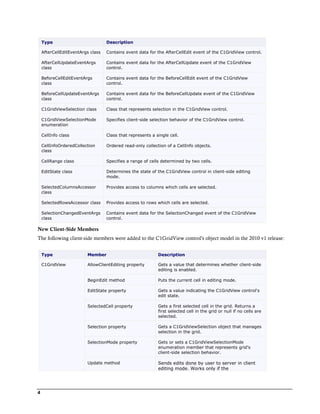
New Client-Side Types
The following client-side types were added to the C1GridView control's client-side object model in the 2010 v1
release:


                                                                                                                 3
Type                           Description

    AfterCellEditEventArgs class   Contains event data for the AfterCellEdit event of the C1GridView control.

    AfterCellUpdateEventArgs       Contains event data for the AfterCellUpdate event of the C1GridView
    class                          control.

    BeforeCellEditEventArgs        Contains event data for the BeforeCellEdit event of the C1GridView
    class                          control.

    BeforeCellUpdateEventArgs      Contains event data for the BeforeCellUpdate event of the C1GridView
    class                          control.

    C1GridViewSelection class      Class that represents selection in the C1GridView control.

    C1GridViewSelectionMode        Specifies client-side selection behavior of the C1GridView control.
    enumeration

    CellInfo class                 Class that represents a single cell.

    CellInfoOrderedCollection      Ordered read-only collection of a CellInfo objects.
    class

    CellRange class                Specifies a range of cells determined by two cells.

    EditState class                Determines the state of the C1GridView control in client-side editing
                                   mode.

    SelectedColumnsAccessor        Provides access to columns which cells are selected.
    class

    SelectedRowsAccessor class     Provides access to rows which cells are selected.

    SelectionChangedEventArgs      Contains event data for the SelectionChanged event of the C1GridView
    class                          control.

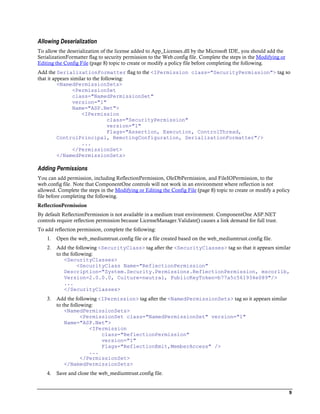
New Client-Side Members
The following client-side members were added to the C1GridView control's object model in the 2010 v1 release:


    Type                 Member                             Description

    C1GridView           AllowClientEditing property        Gets a value that determines whether client-side
                                                            editing is enabled.

                         BeginEdit method                   Puts the current cell in editing mode.

                         EditState property                 Gets a value indicating the C1GridView control's
                                                            edit state.

                         SelectedCell property              Gets a first selected cell in the grid. Returns a
                                                            first selected cell in the grid or null if no cells are
                                                            selected.

                         Selection property                 Gets a C1GridViewSelection object that manages
                                                            selection in the grid.

                         SelectionMode property             Gets or sets a C1GridViewSelectionMode
                                                            enumeration member that represents grid's
                                                            client-side selection behavior.

                         Update method                      Sends edits done by user to server in client
                                                            editing mode. Works only if the


4
AllowClientEditing property is set to True.


What's New in 2009 v3
In the 2009 v3 release the following enhancements were made to GridView for ASP.NET AJAX:
       Currency was improved (current column and row selection and current cell marquee). You can now better
        change the current cell at run time using key keyboard navigation. For more details and a list of keyboard
        navigation shortcuts, see Keyboard Navigation (page 50).
       You can now further customize the loading wait image element by setting where it should be positioned.
        You can set the WaitImagePosition property to an ElementPosition enumeration value to determine
        where the image should appear.
New Enumerations
The following enumerations were added to the C1GridView control's client and server-side object models in the
2009 v3 release:


 Type                         Description

 TabNavigation enumeration    Specifies the tab navigation behavior. See
                              Keyboard Navigation (page 50) for more
                              information.

 ElementPosition              Specifies the position of the element.
 enumeration

New Members
The following server-side members were added to the C1GridView control's object model in the 2009 v3 release:


 Type                 Member                           Description

 C1GridView           AllowKeyboardNavigation          Gets or sets a value that determines whether
                      property                         keyboard navigation is enabled.

                      ClientOnCurrencyChanging         Get or sets the method to be called before
                      property                         currency is changed.

                      TabNavigation property           Gets or sets a value indicating how control
                                                       handles the tab key in order to change currency.
                                                       See Keyboard Navigation (page 50) for more
                                                       information.

                      WaitImagePosition property       Gets or sets the position of the wait image.

New Client-Side Members
The following client-side members were added to the C1GridView control's object model in the 2009 v3 release:


 Type                 Member                           Description

 C1GridView           ClientOnCurrencyChanging         Get or sets the method to be called before
                      property                         currency is change.

                      ColumnWidthChanged event         Fires after column width is changed.

                      CurrencyChanged event            Fires after the currency is changed.

                      CurrencyChanging event           Fires before the currency is changed.


                                                                                                                 5
CurrentCell property            Gets the current cell.

                      CurrentColumn property          Gets the current column.

                      CurrentCellIndex property       Gets or sets the index of the current cell.

                      CurrentRowIndex property        Gets or sets the index of the current row.

                      TabNavigation property          Gets or sets a value indicating how control
                                                      handles the tab key in order to change currency.

                      WaitImagePosition property      Gets or sets the position of the wait image.


What's New in 2009 v2
In the 2009 v2 release the following enhancement was made to GridView for ASP.NET AJAX:
         GridView for ASP.NET AJAX now supports grouping templated columns.


Installing GridView for ASP.NET AJAX
The following sections provide helpful information on installing GridView for ASP.NET AJAX.

GridView for ASP.NET AJAX Setup Files
The ComponentOne Studio for ASP.NET AJAX installation program will create the following directory:
C:Program FilesComponentOneStudio for ASP.NET. This directory contains the following subdirectories:
    Bin                               Contains copies of all binaries (DLLs, Exes) in the
                                      ComponentOne Visual Studio ASP.NET package.

    H2Help                            Contains documentation for Studio for ASP.NET AJAX
                                      components.

    C1WebUi                           Contains files (at least a readme.txt) related to the product.

    C1WebUiVisualStyles              Contains all external file themes.

Samples
Samples for the product are installed in the ComponentOne Samples folder by default. The path of the
ComponentOne Samples directory is slightly different on Windows XP and Windows 7/Vista machines:
Windows XP path: C:Documents and Settings<username>My DocumentsComponentOne Samples
Windows 7/Vista path: C:Users<username>DocumentsComponentOne Samples
The ComponentOne Samples folder contains the following subdirectories:


    Common                 Contains support and data files that are used by many of the demo
                           programs.

    Studio for             Contains samples and tutorials for GridView for ASP.NET AJAX.
    ASP.NETC1WebUi


Samples can be accessed from the ComponentOne Sample Explorer. To view samples, on your desktop, click the
Start button and then click All Programs | ComponentOne | Studio for ASP.NET | Samples | Palomino
Samples.


6
System Requirements
System requirements include the following:


 Operating Systems:     Windows 2000

                        Windows Server® 2003

                        Windows Server® 2008

                        Windows XP SP2

                        Windows Vista™

                        Windows 7
 Web Server:            Microsoft Internet Information Services (IIS) 5.0 or later

 Environments:          .NET Framework 2.0 or later

                        Visual Studio 2005 or later

                        Internet Explorer® 6.0 or later

                        Firefox® 2.0 or later

                        Safari® 2.0 or later

 Disc Drive:            CD or DVD-ROM drive if installing from CD

  Note: GridView for ASP.NET AJAX requires Microsoft ASP.NET AJAX Extensions installed and a ScriptManager on
  the page before the C1GridView control is placed on the page. You must create an ASP.NET AJAX-Enabled Project
  so that the ScriptManager and Microsoft AJAX Extensions are included on the page. For more information, see
  Creating an AJAX-Enabled ASP.NET Project (page 18). For more information about Microsoft ASP.NET AJAX Extensions,
  see http://ajax.asp.net/. For information about the ScriptManager, see MSDN.


Installing Demonstration Versions
If you wish to try GridView for ASP.NET AJAX and do not have a serial number, follow the steps through the
installation wizard and use the default serial number.
The only difference between unregistered (demonstration) and registered (purchased) versions of our products is
that registered versions will stamp every application you compile so a ComponentOne banner will not appear
when your users run the applications.

Uninstalling GridView for ASP.NET AJAX
To uninstall Studio for ASP.NET AJAX:
    1.   Open the Control Panel and select Add or Remove Programs or Programs and Features (Windows
         7/Vista).
    2.   Select ComponentOne Studio for ASP.NET AJAX and click the Remove button.
    3.   Click Yes to remove the program.


                                                                                                                      7
Deploying your Application in a Medium Trust Environment
Depending on your hosting choice, you may need to deploy your Web site or application in a medium trust
environment. Often in a shared hosting environment, medium trust is required. In a medium trust environment
several permissions are unavailable or limited, including OleDbPermission, ReflectionPermission, and
FileIOPermission. You can configure your Web.config file to enable these permissions.

    Note: ComponentOne controls will not work in an environment where reflection is not allowed.


ComponentOne ASP.NET controls include the AllowPartiallyTrustedCallers() assembly attribute and will work
under the medium trust level with some changes to the Web.config file. Since this requires some control over the
Web.config file, please check with your particular host to determine if they can provide the rights to override these
security settings.

Modifying or Editing the Config File
In order to add permissions, you can edit the exiting web_mediumtrust.config file or create a custom policy file
based on the medium trust policy. If you modify the existing web_mediumtrust.config file, all Web applications
will have the same permissions with the permissions you have added. If you want applications to have different
permissions, you can instead create a custom policy based on medium trust.
Edit the Config File
In order to add permissions, you can edit the exiting web_mediumtrust.config file. To edit the exiting
web_mediumtrust.config file, complete the following steps:
     1.   Locate the medium trust policy file web_mediumtrust.config located by default in the
          %windir%Microsoft.NETFramework{Version}CONFIG directory.
     2.   Open the web_mediumtrust.config file.
     3.   Add the permissions that you want to grant. For examples, see Adding Permissions (page 9).
Create a Custom Policy Based on Medium Trust
In order to add permissions, you can create a custom policy file based on the medium trust policy. To create a
custom policy file, complete the following steps:
     1.   Locate the medium trust policy file web_mediumtrust.config located by default in the
          %windir%Microsoft.NETFramework{Version}CONFIG directory.
     2.   Copy the web_mediumtrust.config file and create a new policy file in the same directory.
          Give the new a name that indicates that it is your variation of medium trust; for example,
          AllowReflection_Web_MediumTrust.config.
     3.   Add the permissions that you want to grant. For examples, see Adding Permissions (page 9).
     4.   Enable the custom policy file on your application by modifying the following lines in your web.config file
          under the <system.web> node:
             <system.web>
             <trust level="CustomMedium" originUrl=""/>

              <securityPolicy>
                             <trustLevel name="CustomMedium"
             policyFile="AllowReflection_Web_MediumTrust.config"/>
                       </securityPolicy>
                       ...
             </system.web>

    Note: Your host may not allow trust level overrides. Please check with your host to see if you have these rights.


8
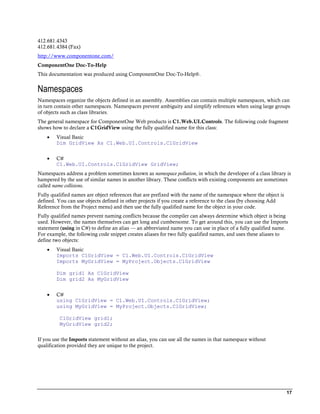
Allowing Deserialization
To allow the deserialization of the license added to App_Licenses.dll by the Microsoft IDE, you should add the
SerializationFormatter flag to security permission to the Web.config file. Complete the steps in the Modifying or
Editing the Config File (page 8) topic to create or modify a policy file before completing the following.
Add the SerializationFormatter flag to the <IPermission class="SecurityPermission"> tag so
that it appears similar to the following:
          <NamedPermissionSets>
                 <PermissionSet
                 class="NamedPermissionSet"
                 version="1"
                 Name="ASP.Net">
                     <IPermission
                                  class="SecurityPermission"
                                  version="1"
                                  Flags="Assertion, Execution, ControlThread,
          ControlPrincipal, RemotingConfiguration, SerializationFormatter"/>
                     ...
                 </PermissionSet>
          </NamedPermissionSets>

Adding Permissions
You can add permission, including ReflectionPermission, OleDbPermission, and FileIOPermission, to the
web.config file. Note that ComponentOne controls will not work in an environment where reflection is not
allowed. Complete the steps in the Modifying or Editing the Config File (page 8) topic to create or modify a policy
file before completing the following.
ReflectionPermission
By default ReflectionPermission is not available in a medium trust environment. ComponentOne ASP.NET
controls require reflection permission because LicenseManager.Validate() causes a link demand for full trust.
To add reflection permission, complete the following:
    1.   Open the web_mediumtrust.config file or a file created based on the web_mediumtrust.config file.
    2.   Add the following <SecurityClass> tag after the <SecurityClasses> tag so that it appears similar
         to the following:
             <SecurityClasses>
                   <SecurityClass Name="ReflectionPermission"
             Description="System.Security.Permissions.ReflectionPermission, mscorlib,
             Version=2.0.0.0, Culture=neutral, PublicKeyToken=b77a5c561934e089"/>
             ...
             </SecurityClasses>
    3.   Add the following <IPermission> tag after the <NamedPermissionSets> tag so it appears similar
         to the following:
             <NamedPermissionSets>
                     <PermissionSet class="NamedPermissionSet" version="1"
             Name="ASP.Net">
                        <IPermission
                            class="ReflectionPermission"
                            version="1"
                            Flags="ReflectionEmit,MemberAccess" />
                        ...
                     </PermissionSet>
             </NamedPermissionSets>
    4.   Save and close the web_mediumtrust.config file.


                                                                                                                    9
OleDbPermission
By default OleDbPermission is not available in a medium trust environment. This means you cannot use the
ADO.NET managed OLE DB data provider to access databases. If you wish to use the ADO.NET managed OLE
DB data provider to access databases, you must modify the web_mediumtrust.config file.
To add OleDbPermission, complete the following steps:
     1.   Open the web_mediumtrust.config file or a file created based on the web_mediumtrust.config file.
     2.   Add the following <SecurityClass> tag after the <SecurityClasses> tag so that it appears similar
          to the following:
              <SecurityClasses>
                    <SecurityClass Name="OleDbPermission"
              Description="System.Data.OleDb.OleDbPermission, System.Data,
              Version=2.0.0.0, Culture=neutral, PublicKeyToken=b77a5c561934e089"/>
              ...
              </SecurityClasses>
     3.   Add the following <IPermission> tag after the <NamedPermissionSets> tag so it appears similar
          to the following:
              <NamedPermissionSets>
                      <PermissionSet class="NamedPermissionSet" version="1"
              Name="ASP.Net">
                         <IPermission class="OleDbPermission" version="1"
              Unrestricted="true"/>
                         ...
                      </PermissionSet>
              </NamedPermissionSets>
     4.   Save and close the web_mediumtrust.config file.
FileIOPermission
By default, FileIOPermission is not available in a medium trust environment. This means no file access is
permitted outside of the application's virtual directory hierarchy. If you wish to allow additional file permissions,
you must modify the web_mediumtrust.config file.
To modify FileIOPermission to allow read access to a specific directory outside of the application's virtual
directory hierarchy, complete the following steps:
     1.   Open the web_mediumtrust.config file or a file created based on the web_mediumtrust.config file.
     2.   Add the following <SecurityClass> tag after the <SecurityClasses> tag so that it appears
          similar to the following:
             <SecurityClasses>
                    <SecurityClass Name="FileIOPermission"
             Description="System.Security.Permissions.FileIOPermission, mscorlib,
             Version=2.0.0.0, Culture=neutral, PublicKeyToken=b77a5c561934e089"/>
             ...
             </SecurityClasses>
     3.   Add the following <IPermission> tag after the <NamedPermissionSets> tag so it appears similar
          to the following:
              <NamedPermissionSets>
                    <PermissionSet class="NamedPermissionSet" version="1"
              Name="ASP.Net">
                    ...
                    <IPermission class="FileIOPermission" version="1"
              Read="C:SomeDir;$AppDir$" Write="$AppDir$" Append="$AppDir$"
              PathDiscovery="$AppDir$" />
                 ...


10
</PermissionSet>
            </NamedPermissionSets>
    4.   Save and close the web_mediumtrust.config file.


End-User License Agreement
All of the ComponentOne licensing information, including the ComponentOne end-user license agreements,
frequently asked licensing questions, and the ComponentOne licensing model, is available online at
http://www.componentone.com/SuperPages/Licensing/.


Licensing FAQs
This section describes the main technical aspects of licensing. It may help the user to understand and resolve
licensing problems he may experience when using ComponentOne WinForms and ASP.NET products.

What is Licensing?
Licensing is a mechanism used to protect intellectual property by ensuring that users are authorized to use software
products.
Licensing is not only used to prevent illegal distribution of software products. Many software vendors, including
ComponentOne, use licensing to allow potential users to test products before they decide to purchase them.
Without licensing, this type of distribution would not be practical for the vendor or convenient for the user.
Vendors would either have to distribute evaluation software with limited functionality, or shift the burden of
managing software licenses to customers, who could easily forget that the software being used is an evaluation
version and has not been purchased.

How does Licensing Work?
ComponentOne uses a licensing model based on the standard set by Microsoft, which works with all types of
components.

  Note: The Compact Framework components use a slightly different mechanism for run-time licensing than the
  other ComponentOne components due to platform differences.


When a user decides to purchase a product, he receives an installation program and a Serial Number. During the
installation process, the user is prompted for the serial number that is saved on the system. (Users can also enter
the serial number by clicking the License button on the About Box of any ComponentOne product, if available, or
by rerunning the installation and entering the serial number in the licensing dialog box.)
When a licensed component is added to a form or Web page, Visual Studio obtains version and licensing
information from the newly created component. When queried by Visual Studio, the component looks for
licensing information stored in the system and generates a run-time license and version information, which Visual
Studio saves in the following two files:
        An assembly resource file which contains the actual run-time license
        A "licenses.licx" file that contains the licensed component strong name and version information
These files are automatically added to the project.
In WinForms and ASP.NET 1.x applications, the run-time license is stored as an embedded resource in the
assembly hosting the component or control by Visual Studio. In ASP.NET 2.x applications, the run-time license
may also be stored as an embedded resource in the App_Licenses.dll assembly, which is used to store all run-time
licenses for all components directly hosted by WebForms in the application. Thus, the App_licenses.dll must
always be deployed with the application.


                                                                                                                    11
The licenses.licx file is a simple text file that contains strong names and version information for each of the
licensed components used in the application. Whenever Visual Studio is called upon to rebuild the application
resources, this file is read and used as a list of components to query for run-time licenses to be embedded in the
appropriate assembly resource. Note that editing or adding an appropriate line to this file can force Visual Studio
to add run-time licenses of other controls as well.
Note that the licenses.licx file is usually not shown in the Solution Explorer; it appears if you press the Show All
Files button in the Solution Explorer's Toolbox, or from Visual Studio's main menu, select Show All Files on the
Project menu.
Later, when the component is created at run time, it obtains the run-time license from the appropriate assembly
resource that was created at design time and can decide whether to simply accept the run-time license, to throw an
exception and fail altogether, or to display some information reminding the user that the software has not been
licensed.
All ComponentOne products are designed to display licensing information if the product is not licensed. None will
throw licensing exceptions and prevent applications from running.

Common Scenarios
The following topics describe some of the licensing scenarios you may encounter.

Creating components at design time
This is the most common scenario and also the simplest: the user adds one or more controls to the form, the
licensing information is stored in the licenses.licx file, and the component works.
Note that the mechanism is exactly the same for Windows Forms and Web Forms (ASP.NET) projects.

Creating components at run time
This is also a fairly common scenario. You do not need an instance of the component on the form, but would like
to create one or more instances at run time.
In this case, the project will not contain a licenses.licx file (or the file will not contain an appropriate run-time
license for the component) and therefore licensing will fail.
To fix this problem, add an instance of the component to a form in the project. This will create the licenses.licx file
and things will then work as expected. (The component can be removed from the form after the licenses.licx file
has been created).
Adding an instance of the component to a form, then removing that component, is just a simple way of adding a
line with the component strong name to the licenses.licx file. If desired, you can do this manually using notepad or
Visual Studio itself by opening the file and adding the text. When Visual Studio recreates the application resources,
the component will be queried and its run-time license added to the appropriate assembly resource.

Inheriting from licensed components
If a component that inherits from a licensed component is created, the licensing information to be stored in the
form is still needed. This can be done in two ways:
        Add a LicenseProvider attribute to the component.
         This will mark the derived component class as licensed. When the component is added to a form, Visual
         Studio will create and manage the licenses.licx file, and the base class will handle the licensing process as
         usual. No additional work is needed. For example:
               [LicenseProvider(typeof(LicenseProvider))]
               class MyGrid: C1.Win.C1FlexGrid.C1FlexGrid
               {
         // ...
               }


12
    Add an instance of the base component to the form.
         This will embed the licensing information into the licenses.licx file as in the previous scenario, and the
         base component will find it and use it. As before, the extra instance can be deleted after the licenses.licx
         file has been created.
Please note, that C1 licensing will not accept a run-time license for a derived control if the run-time license is
embedded in the same assembly as the derived class definition, and the assembly is a DLL. This restriction is
necessary to prevent a derived control class assembly from being used in other applications without a design time
license. If you create such an assembly, you will need to take one of the actions previously described create a
component at run time.

Using licensed components in console applications
When building console applications, there are no forms to add components to, and therefore Visual Studio won't
create a licenses.licx file.
In these cases, create a temporary Windows Forms application and add all the desired licensed components to a
form. Then close the Windows Forms application and copy the licenses.licx file into the console application
project.
Make sure the licenses.licx file is configured as an embedded resource. To do this, right-click the licenses.licx file in
the Solution Explorer window and select Properties. In the Properties window, set the Build Action property to
Embedded Resource.

Using licensed components in Visual C++ applications
There is an issue in VC++ 2003 where the licenses.licx is ignored during the build process; therefore, the licensing
information is not included in VC++ applications.
To fix this problem, extra steps must be taken to compile the licensing resources and link them to the project. Note
the following:
    1.   Build the C++ project as usual. This should create an .exe file and also a licenses.licx file with licensing
         information in it.
    2.   Copy the licenses.licx file from the application directory to the target folder (Debug or Release).
    3.   Copy the C1Lc.exe utility and the licensed DLLs to the target folder. (Don't use the standard lc.exe, it has
         bugs.)
    4.   Use C1Lc.exe to compile the licenses.licx file. The command line should look like this:
         c1lc /target:MyApp.exe /complist:licenses.licx /i:C1.Win.C1FlexGrid.dll
    5.   Link the licenses into the project. To do this, go back to Visual Studio, right-click the project, select
         Properties, and go to the Linker/Command Line option. Enter the following:
         /ASSEMBLYRESOURCE:DebugMyApp.exe.licenses
    6.   Rebuild the executable to include the licensing information in the application.

Using licensed components with automated testing products
Automated testing products that load assemblies dynamically may cause them to display a license dialog box. This
is the expected behavior since the test application typically does not contain the necessary licensing information,
and there is no easy way to add it.
This can be avoided by adding the string "C1CheckForDesignLicenseAtRuntime" to the AssemblyConfiguration
attribute of the assembly that contains or derives from ComponentOne controls. This attribute value directs the
ComponentOne controls to use design-time licenses at run time.
For example:
#if AUTOMATED_TESTING
       [AssemblyConfiguration("C1CheckForDesignLicenseAtRuntime")]


                                                                                                                        13
#endif
          public class MyDerivedControl : C1LicensedControl
          {
                // ...
          }
Note that the AssemblyConfiguration string may contain additional text before or after the given string, so the
AssemblyConfiguration attribute can be used for other purposes as well. For example:
        [AssemblyConfiguration("C1CheckForDesignLicenseAtRuntime,BetaVersion")]
THIS METHOD SHOULD ONLY BE USED UNDER THE SCENARIO DESCRIBED. It requires a design
time license to be installed on the testing machine. Distributing or installing the license on other computers is a
violation of the EULA.

Troubleshooting
We try very hard to make the licensing mechanism as unobtrusive as possible, but problems may occur for a
number of reasons.
Below is a description of the most common problems and their solutions.

I have a licensed version of a ComponentOne product but I still get the splash screen when I run my
project.
If this happens, there may be a problem with the licenses.licx file in the project. It either doesn't exist, contains
wrong information, or is not configured correctly.
First, try a full rebuild (Rebuild All from the Visual Studio Build menu). This will usually rebuild the correct
licensing resources.
If that fails follow these steps:
     1.   Open the project and go to the Solution Explorer window.
     2.   Click the Show All Files button on the top of the window.
     3.   Find the licenses.licx file and open it. If prompted, continue to open the file.
     4.   Change the version number of each component to the appropriate value. If the component does not
          appear in the file, obtain the appropriate data from another licenses.licx file or follow the alternate
          procedure following.
     5.   Save the file, then close the licenses.licx tab.
     6.   Rebuild the project using the Rebuild All option (not just Rebuild).
Alternatively, follow these steps:
     1.   Open the project and go to the Solution Explorer window.
     2.   Click the Show All Files button on the top of the window.
     3.   Find the licenses.licx file and delete it.
     4.   Close the project and reopen it.
     5.   Open the main form and add an instance of each licensed control.
     6.   Check the Solution Explorer window, there should be a licenses.licx file there.
     7.   Rebuild the project using the Rebuild All option (not just Rebuild).
For ASP.NET 2.x applications, follow these steps:
     1.   Open the project and go to the Solution Explorer window.
     2.   Find the licenses.licx file and right-click it.


14
3.   Select the Rebuild Licenses option (this will rebuild the App_Licenses.licx file).
    4.   Rebuild the project using the Rebuild All option (not just Rebuild).

I have a licensed version of a ComponentOne product on my Web server but the components still
behave as unlicensed.
There is no need to install any licenses on machines used as servers and not used for development.
The components must be licensed on the development machine, therefore the licensing information will be saved
into the executable (.exe or .dll) when the project is built. After that, the application can be deployed on any
machine, including Web servers.
For ASP.NET 2.x applications, be sure that the App_Licenses.dll assembly created during development of the
application is deployed to the application bin directory on the Web server.
If your ASP.NET application uses WinForms user controls with constituent licensed controls, the run-time license
is embedded in the WinForms user control assembly. In this case, you must be sure to rebuild and update the user
control whenever the licensed embedded controls are updated.

I downloaded a new build of a component that I have purchased, and now I'm getting the splash screen
when I build my projects.
Make sure that the serial number is still valid. If you licensed the component over a year ago, your subscription
may have expired. In this case, you have two options:
Option 1 – Renew your subscription to get a new serial number.
If you choose this option, you will receive a new serial number that you can use to license the new components
(from the installation utility or directly from the About Box).
The new subscription will entitle you to a full year of upgrades and to download the latest maintenance builds
directly from http://prerelease.componentone.com/.
Option 2 – Continue to use the components you have.
Subscriptions expire, products do not. You can continue to use the components you received or downloaded while
your subscription was valid.


Technical Support
ComponentOne offers various support options. For a complete list and a description of each, visit the
ComponentOne Web site at http://www.componentone.com/Support.
Some methods for obtaining technical support include:
        Online Support via HelpCentral
         ComponentOne HelpCentral provides customers with a comprehensive set of technical resources in the
         form of FAQs, samples, Version Release History, Articles, searchable Knowledge Base, searchable Online
         Help and more. We recommend this as the first place to look for answers to your technical questions.
        Online Support via our Incident Submission Form
         This online support service provides you with direct access to our Technical Support staff via an online
         incident submission form. When you submit an incident, you'll immediately receive a response via e-mail
         confirming that you've successfully created an incident. This email will provide you with an Issue
         Reference ID and will provide you with a set of possible answers to your question from our
         Knowledgebase. You will receive a response from one of the ComponentOne staff members via e-mail in
         2 business days or less.
        Peer-to-Peer Product Forums and Newsgroups
         ComponentOne peer-to-peer product forums and newsgroups are available to exchange information, tips,
         and techniques regarding ComponentOne products. ComponentOne sponsors these areas as a forum for


                                                                                                                    15
users to share information. While ComponentOne does not provide direct support in the forums and
          newsgroups, we periodically monitor them to ensure accuracy of information and provide comments
          when appropriate. Please note that a ComponentOne User Account is required to participate in the
          ComponentOne Product Forums.
         Installation Issues
          Registered users can obtain help with problems installing ComponentOne products. Contact technical
          support by using the online incident submission form or by phone (412.681.4738). Please note that this
          does not include issues related to distributing a product to end-users in an application.
         Documentation
          ComponentOne documentation is installed with each of our products and is also available online at
          HelpCentral. If you have suggestions on how we can improve our documentation, please email the
          Documentation team. Please note that e-mail sent to the Documentation team is for documentation
          feedback only. Technical Support and Sales issues should be sent directly to their respective departments.

     Note: You must create a ComponentOne Account and register your product with a valid serial number to
     obtain support using some of the above methods.


Redistributable Files
ComponentOne GridView for ASP .NET is developed and published by ComponentOne LLC. You may use it to
develop applications in conjunction with Microsoft Visual Studio or any other programming environment that
enables the user to use and integrate the control(s). You may also distribute, free of royalties, the following
Redistributable Files with any such application you develop to the extent that they are used separately on a single
CPU on the client/workstation side of the network:
         C1.Web.UI.2.dll
         C1.Web.UI.Controls.2.dll
         C1.Web.UI.3.dll
         C1.Web.UI.Controls.3.dll
         C1.Web.UI.4.dll
         C1.Web.UI.Controls.4.dll
Site licenses are available for groups of multiple developers. Please contact Sales@ComponentOne.com for details.


About This Documentation
Acknowledgements
Microsoft, Windows, Windows 7, Windows Vista, Windows Server, and Visual Studio are either registered trademarks or
trademarks of Microsoft Corporation in the United States and/or other countries. Firefox is a registered trademark of the Mozilla
Foundation. Safari is a trademark of Apple Inc., registered in the U.S. and other countries.
ComponentOne
If you have any suggestions or ideas for new features or controls, please call us or write:
Corporate Headquarters
ComponentOne LLC
201 South Highland Avenue
3rd Floor
Pittsburgh, PA 15206 • USA


16
412.681.4343
412.681.4384 (Fax)
http://www.componentone.com/
ComponentOne Doc-To-Help
This documentation was produced using ComponentOne Doc-To-Help®.


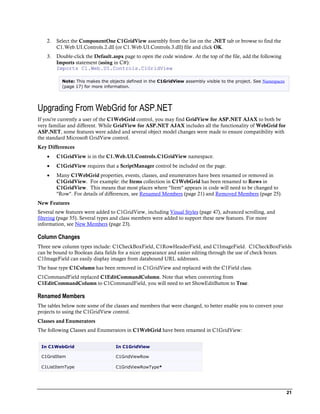
Namespaces
Namespaces organize the objects defined in an assembly. Assemblies can contain multiple namespaces, which can
in turn contain other namespaces. Namespaces prevent ambiguity and simplify references when using large groups
of objects such as class libraries.
The general namespace for ComponentOne Web products is C1.Web.UI.Controls. The following code fragment
shows how to declare a C1GridView using the fully qualified name for this class:
       Visual Basic
        Dim GridView As C1.Web.UI.Controls.C1GridView

       C#
        C1.Web.UI.Controls.C1GridView GridView;
Namespaces address a problem sometimes known as namespace pollution, in which the developer of a class library is
hampered by the use of similar names in another library. These conflicts with existing components are sometimes
called name collisions.
Fully qualified names are object references that are prefixed with the name of the namespace where the object is
defined. You can use objects defined in other projects if you create a reference to the class (by choosing Add
Reference from the Project menu) and then use the fully qualified name for the object in your code.
Fully qualified names prevent naming conflicts because the compiler can always determine which object is being
used. However, the names themselves can get long and cumbersome. To get around this, you can use the Imports
statement (using in C#) to define an alias — an abbreviated name you can use in place of a fully qualified name.
For example, the following code snippet creates aliases for two fully qualified names, and uses these aliases to
define two objects:
       Visual Basic
        Imports C1GridView = C1.Web.UI.Controls.C1GridView
        Imports MyGridView = MyProject.Objects.C1GridView

        Dim grid1 As C1GridView
        Dim grid2 As MyGridView

       C#
        using C1GridView = C1.Web.UI.Controls.C1GridView;
        using MyGridView = MyProject.Objects.C1GridView;

         C1GridView grid1;
         MyGridView grid2;

If you use the Imports statement without an alias, you can use all the names in that namespace without
qualification provided they are unique to the project.


                                                                                                                   17
Creating an AJAX-Enabled ASP.NET Project
ComponentOne GridView for ASP.NET AJAX requires you to create an ASP.NET AJAX-Enabled project so
that Microsoft ASP.NET AJAX Extensions and a ScriptManager control are included in your project before the
C1GridView control is placed on the page. This allows you to take advantage of ASP.NET AJAX and certain
features such as partial-page rendering and client-script functionality of the Microsoft AJAX Library.
When creating AJAX-Enabled ASP.NET projects, Visual Studios 2008 and 2005 both give you the option of
creating a Web site project or a Web application project. MSDN provides detailed information on why you would
choose one option over the other.
If you are using Visual Studio 2008 with .NET Framework 2.0 or .NET Framework 3.0 or if you are using Visual
Studio 2005, you must install the ASP.NET AJAX Extensions 1.0, which can be found at http://ajax.asp.net/.
Additionally for Visual Studio 2005 users, creating a Web application project requires installation of a Visual
Studio 2005 update and add-in, which can be found at http://msdn.microsoft.com/; however, if you have Visual
Studio 2005 SP1, Web application project support is included and a separate download is not required.
If you are using Visual Studio 2008 and .NET Framework 3.5, you can easily create an AJAX-enabled ASP.NET
project without installing separate add-ins because the framework has a built-in AJAX library and controls.

     Note: If you are using Visual Studio 2010, see http://www.asp.net/ajax/ for more information on creating an AJAX-
     Enabled ASP.NET Project.


The following table summarizes the installations needed:


 Visual Studio Version                              Additional Installation Requirements

 Visual Studio 2008, .NET Framework 3.5             None

 Visual Studio 2008 and .NET Framework 2.0          ASP.NET AJAX Extensions 1.0
 or 3.0
                                                    http://www.asp.net/ajax/downloads/archive/
 Visual Studio 2005 Service Pack 1

 Visual Studio 2005                                 ASP.NET AJAX Extensions 1.0

                                                    Visual Studio update and add-in (2 installs for Web
                                                    application project support)


The following topics explain how to create both types of projects in Visual Studio 2008 and 2005.
          Creating an AJAX-Enabled Web Site Project in Visual Studio 2008
           To create a Web site project in Visual Studio 2008, complete the following steps:
           1.   From the File menu, select New | Web Site. The New Web Site dialog box opens.
           2.   Select .NET Framework 3.5 or the desired framework in the upper right corner. Note that if you choose
                .NET Framework 2.0 or 3.0, you must install the extensions first.
           3.   In the list of templates, select AJAX 1.0-Enabled ASP.NET 2.0 Web Site.
           4.   Click Browse to specify a location and then click OK.

                Note: The Web server must have IIS version 6 or later and the .NET Framework installed on it. If you
                have IIS on your computer, you can specify http://localhost for the server.


18
A new AJAX-Enabled Web Site is created at the root of the Web server you specified. In addition, a
         new Web Forms page called Default.aspx is displayed and a ScriptManager control is placed on the
         form. The ScriptManger is needed to enable certain features of ASP.NET AJAX such as partial-page
         rendering, client-script functionality of the Microsoft AJAX Library, and Web-service calls.


   Creating an AJAX-Enabled Web Application Project in Visual Studio 2008
    To create a new Web application project in Visual Studio 2008, complete the following steps.
    1.   From the File menu, select New | Project. The New Project dialog box opens.
    2.   Select .NET Framework 3.5 or the desired framework in the upper right corner. Note that if you choose
         .NET Framework 2.0 or 3.0, you must install the extensions first.
    3.   Under Project Types, choose either Visual Basic or Visual C# and then select Web. Note that one of
         these options may be located under Other Languages.
    4.   Select AJAX 1.0-Enabled ASP.NET 2.0 Web Application from the list of Templates in the right pane.
    5.   Enter a URL for your application in the Location field and click OK.

         Note: The Web server must have IIS version 6 or later and the .NET Framework installed on it. If you
         have IIS on your computer, you can specify http://localhost for the server.


         A new Web Forms project is created at the root of the Web server you specified. In addition, a new
         Web Forms page called Default.aspx is displayed and a ScriptManager control is placed on the form.
         The ScriptManger is needed to enable certain features of ASP.NET AJAX such as partial-page
         rendering, client-script functionality of the Microsoft AJAX Library, and Web-service calls.


   Creating an AJAX-Enabled Web Site Project in Visual Studio 2005
    To create a Web site project in Visual Studio 2005, complete the following steps:
    1.   From the File menu in Microsoft Visual Studio .NET, select New Web Site. The New Web Site dialog box
         opens.
    2.   Select ASP.NET AJAX-Enabled Web Site from the list of Templates.
    3.   Enter a URL for your site in the Location field and click OK.

         Note: The Web server must have IIS version 6 or later and the .NET Framework installed on it. If you
         have IIS on your computer, you can specify http://localhost for the server.


         A new Web Forms project is created at the root of the Web server you specified. In addition, a new
         Web Forms page called Default.aspx is displayed and a ScriptManager control is placed on the form.
         The ScriptManger is needed to enable certain features of ASP.NET AJAX such as partial-page
         rendering, client-script functionality of the Microsoft AJAX Library, and Web-service calls.


   Creating an AJAX-Enabled Web Application Project in Visual Studio 2005
    To create a new Web application project in Visual Studio 2005, complete the following steps.
    1.   From the File menu in Microsoft Visual Studio 2005, select New Project. The New Project dialog box
         opens.


                                                                                                                 19
2.   Under Project Types, choose either Visual Basic Projects or Visual C# Projects. Note that one of these
               options may be located under Other Languages.
          3.   Select ASP.NET AJAX-Enabled Web Application from the list of Templates in the right pane.
          4.   Enter a URL for your application in the Location field and click OK.

               Note: The Web server must have IIS version 6 or later and the .NET Framework installed on it. If you
               have IIS on your computer, you can specify http://localhost for the server.


               A new Web Forms project is created at the root of the Web server you specified. In addition, a new
               Web Forms page called Default.aspx is displayed and a ScriptManager control is placed on the form.
               The ScriptManger is needed to enable certain features of ASP.NET AJAX such as partial-page
               rendering, client-script functionality of the Microsoft AJAX Library, and Web-service calls.


Adding the C1GridView Component to a Project
When you install ComponentOne Studio for ASP.NET AJAX, the Create a ComponentOne Visual Studio
Toolbox Tab check box is checked, by default, in the installation wizard. When you open Visual Studio, you will
notice a ComponentOne Studio for ASP.NET AJAX tab containing the ComponentOne controls has
automatically been added to the Toolbox.
If you decide to uncheck the Create a ComponentOne Visual Studio Toolbox Tab check box during installation,
you can manually add ComponentOne controls to the Toolbox at a later time.
ComponentOne GridView for ASP.NET AJAX provides the C1GridView control. C1GridView is the
component used to generate a table of items that can be selected, edited, deleted and sorted.
To use C1GridView, add it to the form or add a reference to the C1.Web.UI.Controls.C1GridView assembly to
your project.
Manually Adding a C1GridView Component to the Toolbox
To add C1GridView to the Visual Studio Toolbox:
     1.   Open the Visual Studio IDE (Microsoft Development Environment). Make sure the Toolbox is visible
          (select Toolbox in the View menu, if necessary) and right-click it to open the Toolbox context menu.
     2.   If you want the C1GridView component to appear on its own tab in the Toolbox, select Add Tab from the
          context menu and type in the tab name, C1GridView, for example.

     3.   Right-click the tab where the component is to appear and select Choose Items from the context menu.
          The Choose Toolbox Items dialog box opens.
     4.   In the Choose Toolbox Items dialog box, select the .NET Framework Components tab. Sort the list by
          Namespace (click the Namespace column header) and check the check box for the component belonging to
          namespace C1.Web.UI.Controls.C1GridView.

Adding a C1GridView Component to the Form
To add C1GridView to a form:
     1.   Add it to the Visual Studio Toolbox.
     2.   Double-click the control or drag it onto your form.
Adding a Reference to the Assembly
To add a reference to the C1.Web.UI.Controls.C1GridView.2 assembly:
     1.   Select the Add Reference option from the Project menu of your Web application project. This option is
          on the Website menu for Web site projects.


20
2.   Select the ComponentOne C1GridView assembly from the list on the .NET tab or browse to find the
         C1.Web.UI.Controls.2.dll (or C1.Web.UI.Controls.3.dll) file and click OK.
    3.   Double-click the Default.aspx page to open the code window. At the top of the file, add the following
         Imports statement (using in C#):
         Imports C1.Web.UI.Controls.C1GridView

           Note: This makes the objects defined in the C1GridView assembly visible to the project. See Namespaces
           (page 17) for more information.


Upgrading From WebGrid for ASP.NET
If you're currently a user of the C1WebGrid control, you may find GridView for ASP.NET AJAX to both be
very familiar and different. While GridView for ASP.NET AJAX includes all the functionality of WebGrid for
ASP.NET, some features were added and several object model changes were made to ensure compatibility with
the standard Microsoft GridView control.
Key Differences
        C1GridView is in the C1.Web.UI.Controls.C1GridView namespace.
        C1GridView requires that a ScriptManager control be included on the page.
        Many C1WebGrid properties, events, classes, and enumerators have been renamed or removed in
         C1GridView. For example: the Items collection in C1WebGrid has been renamed to Rows in
         C1GridView. This means that most places where "Item" appears in code will need to be changed to
         "Row". For details of differences, see Renamed Members (page 21) and Removed Members (page 25).
New Features
Several new features were added to C1GridView, including Visual Styles (page 47), advanced scrolling, and
filtering (page 55). Several types and class members were added to support these new features. For more
information, see New Members (page 23).

Column Changes
Three new column types include: C1CheckBoxField, C1RowHeaderField, and C1ImageField. C1CheckBoxFields
can be bound to Boolean data fields for a nicer appearance and easier editing through the use of check boxes.
C1ImageField can easily display images from databound URL addresses.
The base type C1Column has been removed in C1GridView and replaced with the C1Field class.
C1CommandField replaced C1EditCommandColumn. Note that when converting from
C1EditCommandColumn to C1CommandField, you will need to set ShowEditButton to True.

Renamed Members
The tables below note some of the classes and members that were changed, to better enable you to convert your
projects to using the C1GridView control.
Classes and Enumerators
The following Classes and Enumerators in C1WebGrid have been renamed in C1GridView:


 In C1WebGrid                      In C1GridView

 C1GridItem                        C1GridViewRow

 C1ListItemType                    C1GridViewRowType*


                                                                                                                    21
GridUpdateBinding                C1GridViewUpdateBinding

 C1BaseColumn                     C1BaseField

 C1BoundColumn                    C1BoundField

 C1ButtonColumn                   C1ButtonField

 C1CommandColumn                  C1CommandField

 C1Column                         C1Field

 C1HyperLinkColumn                C1HyperLinkField

 C1TemplateColumn                 C1TemplateField

 C1BaseColumnCollection           C1BaseFieldCollection

 GroupMoveEnum                    GroupMove

 GroupPositionEnum                GroupPosition

 OutlineModeEnum                  OutlineMode

 RowMergeEnum                     RowMerge


* The C1ListItemType enumerator is commonly used to identify rows in C1WebGrid at runtime. In C1GridView
this enumerator has been renamed C1GridViewRowType and has the following differences:
        The AlternatingItem, EditItem, and Item members are now all combined in the
         C1GridViewRowType.DataRow member.
        Two new members of C1GridViewRowType are EmptyDataRow and Filter.
C1WebGrid Members
The following C1WebGrid properties have been renamed in C1GridView:


 In C1WebGrid                     In C1GridView

 CurrentPageIndex                 PageIndex

 EditItemIndex                    EditIndex

 DataKeyField                     DataKeyNames

 PagerStyle-Mode                  PagerSettings.Mode


The following C1WebGrid styles have been renamed in C1GridView:


 In C1WebGrid                     In C1GridView

 AlternatingItemStyle             AlternatingRowStyle

 EditItemStyle                    EditRowStyle

 ItemStyle                        RowStyle


22
SelectedItemStyle                 SelectedRowStyle


The following C1WebGrid events have been renamed in C1GridView:


 In C1WebGrid                      In C1GridView

 CancelingCommand                  RowCancelingEdit

 DeletedCommand                    RowDeleted

 DeletingCommand                   RowDeleting

 EditingCommand                    RowEditing

 ItemCommand                       RowCommand

 ItemCreated                       RowCreated

 ItemDataBound                     RowDataBound

 SortedCommand                     Sorted

 SortingCommand                    Sorting

 UpdatedCommand                    RowUpdated

 UpdatingCommand                   RowUpdating


New Members
The tables below note some of the classes and members that were added to C1GridView. The new members were
primarily added to either enable compatibility with the standard Microsoft GridView control or to support new
features such as filtering.
New Events
Two new events have been added to support the filter bar feature:


 Event                           Description

 Filtered                        Occurs after filter expression is applied to the underlying
                                 DataView's RowFilter property.

 Filtering                       Occurs when the preparation for filtering is started but before the
                                 C1GridView instance handles the filter operation.

New Enumerators
Two new enumerators have been added to support the filter bar feature:


 Enumerator                      Description

 FilterMode                      Gets or sets value indicating whether filtering will be performed
                                 automatically or not.

 FilterOperator                  Gets or sets filter operator used for filtering.

New Properties


                                                                                                            23
The following design and run-time properties have been added to C1GridView. Many of these were added to
support the standard Microsoft GridView control and were never included in C1WebGrid:


 Property                      Description

 AutoGenerateDeleteButton      Gets or sets a value indicating whether a CommandField field
                               column with a Delete button for each data row is automatically
                               added to a C1GridView control.

 AutoGenerateEditButton        Gets or sets a value indicating whether a CommandField field
                               column with an Edit button for each data row is automatically
                               added to a C1GridView control.

 AutoGenerateFilterButton      Gets or sets a value indicating whether a CommandField field
                               column with a Filter button for each data row is automatically added
                               to a C1GridView control.

 AutoGenerateSelectButton      Gets or sets a value indicating whether a CommandField field
                               column with an Select button for each data row is automatically
                               added to a C1GridView control.

 BottomPagerRow                Gets a C1GridViewRow object that represents the bottom pager row
                               in a C1GridView control.

 C1WebControlsPath
                               Gets or sets the text to render in an HTML caption element in a
 Caption
                               C1GridView control. This property is provided to make the control
                               more accessible to users of assistive technology devices.
 CaptionAlign                  Gets or sets the horizontal or vertical position of the HTML caption
                               element in a C1GridView control. This property is provided to make
                               the control more accessible to users of assistive technology devices.

 EmbeddedVisualStyles          Returns string array with embedded Visual Styles names. (Overrides
                               C1ThemeableCompositeDataBoundControlEmbeddedVisualSt
                               yles().)
                               Gets or sets the text to display in the empty data row rendered
 EmptyDataText
                               when a C1GridView control is bound to a data source that does not
                               contain any records.
 FilterMode                    Gets or sets value indicating whether filtering will be performed
                               automatically or not.

 FooterRow                     Gets a C1GridViewRow object that represents the footer row in a
                               C1GridView control.

 HeaderRow                     Gets a C1GridViewRow object that represents the header row in a
                               C1GridView control.

 HeaderRows                    Gets an array of C1GridViewRow objects that represents the header
                               rows in a C1GridView control.

 RowHeaderColumn               Gets or sets the name of the column to use as the column header
                               for the C1GridView control. This property is provided to make the
                               control more accessible to users of assistive technology devices.

 SelectedDataKey               Gets the DataKey object that contains the data key value for the
                               selected row in a C1GridView control.

 SelectedValue                 Gets the data key value of the selected row in a C1GridView control.

 ShowFilter                    Gets or sets value indicating whether filter row is visible or not.

 TopPagerRow                   Gets a C1GridViewRow object that represents the top pager row in a


24
C1GridView control.

 UseAccessibleHeader             Gets or sets a value indicating whether a C1GridView control
                                 renders its header in an accessible format. This property is provided
                                 to make the control more accessible to users of assistive technology
                                 devices.

 UseEmbeddedVisualStyles

 VisualStyle                     Gets or sets the visual style name used by the control. (Overrides
                                 C1ThemeableCompositeDataBoundControlVisualStyle().)

 VisualStylePath                 Gets or sets the path to the visual style folder. (Overrides
                                 C1ThemeableCompositeDataBoundControlVisualStylePath().)

New Styles and Settings
The following styles and settings are now available in C1GridView:


 Property                        Description

 EmptyDataRowStyle               Gets a reference to the TableItemStyle object that enables you to
                                 set the appearance of the empty data row rendered when a
                                 C1GridView control is bound to a data source that does not contain
                                 any records.

 FilterStyle                     Gets a reference to the TableItemStyle object that enables you to
                                 set the appearance of the filter row in a C1GridView control.

 PagerSettings*                  Gets a reference to the C1GridViewPagerSettings object that
                                 enables you to set the properties of the pager buttons in a
                                 C1GridView control.

 ResizeSettings                  Gets the ResizeSettings object that defines the resizing behavior
                                 of the columns on client-side.

 RowHeader                       Gets a C1RowHeaderField object that represents the row header
                                 in a C1GridView control.

 ScrollSettings                  Gets the scroll setting for the C1GridView control.


* C1WebGrid's PagerStyle class has now been broken up into C1GridView's PagerStyle and the new
PagerSettings. The commonly used property, Mode, is now found under PagerSettings and contains the following
differences:
       Support for two new modes: NextPreviousFirstLast and NumericFirstLast.
       Support for custom navigation link images. Four new properties have been added for this feature:
        FirstPageImageUrl, LastPageImageUrl, NextPageImageUrl, and PreviousPageImageUrl.

Removed Members
The following list notes some of the properties that were removed to better enable you to convert your projects to
using the C1GridView control:
       BackColor
       BorderColor
       BorderStyle
       BorderWidth


                                                                                                                     25
   Font
        ForeColor
        HScrollbarStyle*
        ImageGroup+
        ImageSortAscending+
        ImageSortDescending+
        ImageUngroup+
        VScrollBarStyle*


* HScrollBarStyle and VScrollBarStyle were used in C1WebGrid to set scrollbar settings. C1GridView has a new
ScrollSettings class which handles everything C1WebGrid could do and more. To simply turn scroll bars on set
the ScrollSettings.ScrollMode property to ScrollBar. To specify orientation set ScrollSettings.ScrollOrientation
to Both, Horizontal, or Vertical.
+ The Image file paths required for C1WebGrid are no longer required for C1GridView as the images are built-in
by default and can be customized using a CSS theme.
The remaining properties that were removed are all styling properties that should now be set on a deeper level in
the control. For example, to set a background color you could set the RowStyle.BackColor property.


Key Features
In addition to the standard Microsoft GridView features, ComponentOne GridView for ASP.NET AJAX
includes advanced features that enable developers to build intuitive, professional-looking Web applications quickly
and easily:
        Built-in AJAX Support
         Reload your grid on demand with C1GridView's built-in AJAX support. With GridView for ASP.NET
         AJAX, editing, paging, and sorting, and more can be handled through callbacks with partial page
         refreshing. For more information, see Using AJAX (page 57) and Updating the Grid with AJAX (page
         92).
        Customized Grid Formatting
         Intuitive formatting allows the developer to automatically customize any grid including creating columns,
         displaying borders and gridlines, allowing editing within the grid, customizing sorting data and much
         more.
        Built-in Visual Styles
         Style your grid application with built-in Office 2007 and Vista visual style themes and the ability to
         completely customize your own theme. See Visual Styles (page 47) for more information.
        CSS Styling
         GridView for ASP.NET AJAX includes CSS supported styling so that you can use cascading style sheets
         to easily style the C1GridView control to match the design of your current Web site.
        Microsoft GridView Compatibility
         GridView for ASP.NET AJAX is completely compatible with the standard Microsoft GridView control
         so that you can easily convert your existing projects.


26
   Customized Paging
    You can determine how to display C1GridView data on multiple pages and how the pagers appear. Pagers
    can be displayed numerically, as Next and Previous buttons or you can create your own style. See Paging
    (page 56) and Creating a Pageable Grid (page 87) for more information.
   Outlook-style grid, run-time features
    You can implement interactive run-time features such as Outlook-style grouping, which allows you to
    drag and drop a column to group on that column. For an example, see Adding Outlook-Style Grouping
    (page 86).
   Grouping with Aggregates
    You can group data, create trees with expandable and collapsible nodes, and automatically calculate data
    aggregates to be placed in the group header and footer rows. See Grouping (page 51) and Using
    Aggregates and Grouping (page 84) for more information.
   Built-In Filtering
    C1GridView supports a built-in, data-entry row below the column headers for custom end-user operations
    such as searching and filtering records. For more information, see Filtering (page 55).
   Row Merging
    The RowMerge property allows you to merge rows containing identical text. This feature can be used to
    create a neat and well-organized grid. See Merging Rows (page 84) for an example.
   ValueLists
    By creating a ValueList dictionary and setting the ValueList property, you can replace the text appearing
    in a grid with your own. For an example, see Customizing Columns Using ValueLists (page 66).
   Client-Side Scrolling
    The ScrollSettings property of C1GridView allows you to create a client-side grid that supports both
    horizontal and vertical scrolling. You can determine whether your columns and rows are fixed to the grid
    when it is scrolled using the Fixed property of the C1BaseField and the C1GridViewRow classes,
    respectively. See Using Client-Side Scrolling (page 89) for more information.
   Advanced Scrolling
    C1GridView supports advanced scrolling features, such as buttons and automatic scrolling when the user
    hovers near the edge of the grid, as well as standard scroll bars in either direction.
   Browser Support
    GridView for ASP.NET AJAX includes support for Internet Explorer (6.0 or later), Firefox (2 or later),
    and Safari Web browsers.
   Template Support
    You can easily create timesaving grid templates with the same look and feel that can be used throughout a
    project.
   Client-Side Script
    GridView for ASP.NET AJAX's client side functionality is provided by JavaScript included in the
    product.
   C1Input for ASP.NET AJAX Integration
    Attach ComponentOne Input for ASP.NET AJAX controls to Edit Templates to enhance data entry.
   Column Control Integration


                                                                                                             27
Easily display check boxes, list boxes, buttons, and images in a column. See Adding Controls to a Column
         (page 73) for more information.
        XHTML Compliant
         C1GridView provides complete XHTML compliance. The output that is generated is fully XHTML 1.1
         compliant.
        Samples and Task-Based Help
         GridView for ASP.NET AJAX includes sample projects and task-based help to give you a better
         understanding of how GridView for ASP.NET AJAX works.
            The sample projects (page 59) demonstrate the techniques for using groups and aggregates,
             customizing columns and pagers, and sorting and editing data.
            The task-based help topics walk you step-by-step through specific tasks, such as binding C1GridView
             to a data source, merging rows, and adding a column. For additional information, see GridView for
             ASP.NET AJAX Task-Based Help (page 59).
         Try running the projects, examining the code, and experimenting with your own modifications. Running
         the samples and using the task-based help is the best and quickest way to realize the full potential of the
         C1GridView control. You'll find that GridView for ASP.NET AJAX is very easy to use, and it enables
         you to create powerful applications.


28
GridView for ASP.NET AJAX Quick
Start
In this quick start you'll explore the functionality of ComponentOne GridView for ASP.NET AJAX. In the
following steps you'll create a simple bound grid application using the C1GridView control. You'll add the
C1GridView control to a project, bind the control to a datasource, customize the grid's appearance and behavior,
and explore some of the run-time interactions possible with the control.


Step 1 of 3: Binding C1GridView to a DataSource
In this step you'll begin the quick start by creating a new project and adding the C1GridView control to your
project. You'll then bind the C1GridView control to a datasource. Note that in this example, you'll be using the
standard Northwind database, Nwind.mdb, installed by default in the ComponentOne SamplesCommon folder
installed in your MyDocuments folder (Documents in Vista).
Complete the following steps to begin:
    1.   Create a new ASP.NET Ajax-Enabled Web site project. See Creating an AJAX-Enabled ASP.NET
         Project (page 18) for details.
         Note that you should have a ScriptManager control on the page.
    2.   Navigate to the Visual Studio Toolbox and double-click the C1GridView icon to add the control to your
         project.
    3.   In the Solution Explorer window, right-click the App_Data folder and select Add Existing Item in the
         context menu.
    4.   In the Add Existing Item dialog box, navigate to where the Northwind database is located, by default in
         the samples directory, select Nwind.mdb, and click Add to close the dialog box and add the file to your
         project.
    5.   Click the C1GridView control's smart tag to open the C1GridView Tasks menu.
    6.   Click the Choose Data Source drop-down arrow, and select <New data source>:


         The Data Source Configuration Wizard will open.
    7.   On the Choose a Data Source Type screen, select Access Database. Leave the default ID entered,
         AccessDataSource1, and click OK.
    8.   On the Choose a Database screen, click the Browse button to locate a database.
    9.   In the Select Microsoft Access Database dialog box, click the App_Data folder in the Project folders list,
         select the Nwind.mdb file in the Contents of folder pane, and click OK.


                                                                                                                   29
10. The Nwind.mdb database should now be listed on the Choose a Database screen. Click Next to
         continue.
     11. On the Configure the Select Statement screen, confirm that the Specify columns from a table or view
         radio button is selected, under name choose Products from the drop-down list, and in the Columns pane
         choose the asterisk (*) check box to select all the columns. Click Next to continue.
     12. You can test the query on the Test Query page, and select Finish to close the wizard and complete
         binding the grid.
          Note that the grid columns now reflect the datasource:


That's all you need to do to create a simple grid application! The grid is now bound Northwind database. If you
run your project now, you'll have a fully-functional grid application where you can interact with data in a tabular
form and you'll be able to access and interact with the data from the Products table of the database. In the next
steps of this quick start you'll customize the grid's appearance and behavior and explore the grid's run-time
interactions.


Step 2 of 3: Customizing the C1GridView Control
In the previous step of the quick start you created a simple grid application and bound the grid to a datasource. In
this step you'll customize the initial grid application further by changing the grid's appearance and behavior
settings.
Complete the following steps to continue:
     1.   Click once on the C1GridView control to select it and navigate to the Properties window.
     2.   Click the drop-down arrow next to the VisualStyle property and select Vista in the list of themes. For
          more information, see the Visual Styles (page 47) topic.
     3.   Click the C1GridView control's smart tag, and in the C1GridView Tasks menu, select Property builder.
          The C1GridView Properties dialog box will open.
     4.   On the General tab, click the Allow sorting check box.
     5.   Click the Paging tab, and click the Allow paging check box. Note that, by default, Bottom is selected for
          the position of the navigation, and the Numeric mode is selected.
     6.   Click the Columns tab in the C1GridView Properties dialog box. Here you can add and remove columns
          and change column settings.


30
7.   In the Selected columns list, choose any columns you wish to remove and press the button. For
         example, remove the ProductID, SupplierID, and CategoryID, UnitsOnOrder, and ReorderLevel
         columns.
    8.   In the Selected columns list, choose the UnitPrice column.
    9.   In the Column properties grid, click the drop-down arrow next to the DateFormatString property and
         select {0:c}. This will set the column to appear as currency at run time.
    10. Click Apply to apply your changes, and click OK to close the C1GridView Properties dialog box.
    11. Click once on the C1GridView control and, in the Properties window, set the AllowGrouping property
        to True.
    12. In the Properties window, set the AllowColMoving property to True.
You've now completed binding the C1GridView control and customizing the grid's appearance and behavior
settings. In the next, and final, step you'll run your application to observe the changes you made.


Step 3 of 3: Running the Application
In the previous steps of the quick start you created a simple grid application, bound the grid to a datasource, and
customized the grid's appearance and behavior. In this step you'll run the grid application and explore some of the
run-time interactions possible with the C1GridView control.
Complete the following steps to continue:
    1.   In Visual Studio, select Debug | Start Debugging to run your application.
         The grid will look similar to the following at run time:


                                                                                                                  31
2.   To group a column's data, click on a column header and drag it to the grouping area at the top of the grid;
          arrow indicators will appear indicating the column can be grouped. For example, group the UnitPrice
          column:


          Note that that the grid will be grouped by that column:


32
3.   Ungroup the grid by clicking the column in the grouping area, and dragging it back to the grid header.
4.   Sort a column, by clicking the LinkButton in a column's header. In the following image, the ProductName
     column has been sorted:


                                                                                                              33
Note that an arrow sort indicator appears in the header of the sorted column.
     5.   Move a column by clicking on a column header once and dragging it to another location in the grid's
          header. Note that arrow icons will appear indicating that the column can be dropped at that location:


34
6.   Page forward in the grid, by clicking once on a page indicator at the bottom of the grid:


Congratulations! You've completed the C1GridView quick start. If you'd like to continue exploring GridView for
ASP.NET AJAX, see the GridView for ASP.NET AJAX Samples (page 59) and take a look at the GridView for
ASP.NET AJAX Task-Based Help (page 59) topics.


                                                                                                             35
Design-Time Support
GridView for ASP.NET AJAX provides visual editing to make it easier to create a grid application. The following
sections describe how to use C1GridView's design-time environment to configure the C1GridView control:
Tasks Menu
A smart tag represents a shortcut tasks menu that provides the most commonly used properties in each control.
You can invoke each control's tasks menu by clicking on the smart tag ( ) in the upper-right corner of the control.
For more information on how to use the smart tag in C1GridView, see C1GridView Smart Tag (page 37).
Context Menu
The context menu represents a shortcut menu that provides common Visual Studio commands, as well as
commands specific to the C1GridView control. You can display the C1GridView context menu by right-clicking
anywhere on the grid. For more information on how to use the context menu in C1GridView, see C1GridView
Context Menu (page 39).

Property Builder
Quickly customize the appearance and behavior of the C1GridView control using the C1GridView Properties
dialog box. For more information on how to access and use the Property builder in C1GridView, see Property
Builder (page 39).

Properties Window
You can also easily configure C1GridView at design time using the Properties window in Visual Studio. You can
access the Properties window by right-clicking the control and selecting Properties.


C1GridView Smart Tag
A smart tag ( ) represents a short-cut Tasks menu that provides the most commonly used properties of a
component.
To access the C1GridView Tasks menu, click the smart tag in the upper-right corner of the C1GridView control.
The C1GridView Tasks menu appears.


Note that when the grid is bound to a data source, the Tasks menu lists additional options and appears similar to
the following:


                                                                                                                    37
Choose Data Source
Choose an existing data source or create a new connection through the Data Source Configuration Wizard. See
Binding the Grid to a Data Source (page 60) for more information.
Configure Data Source
This option invokes the Data Source Configuration Wizard to configure the data source. This option only
appears if the C1GridView control is bound to a data source.
Refresh Schema
This option refreshes the data source's schema. This option only appears if the C1GridView control is bound to a
data source.
Property builder
Opens the Property builder where you can set properties and customize the grid. See Using the Property Builder
(page 62) for more information.
Opens the About ComponentOne Studio for ASP.NET AJAX dialog box which displays the version number as
well as licensing, registration and purchasing information, and additional online resources.
VisualStylePath
The VisualStylePath property specifies the location of the visual styles used for the control. By default, embedded
visual styles are located in ~/C1WebControls/VisualStyles. If you create a custom style, add it to this location
~/VisualStyles/StyleName/C1GridView/styles.css, set the VisualStylePath property to ~/VisualStyles, and set
the VisualStyle property to StyleName (assuming that StyleName is the name used to define the style in the
style.css file). Uncheck the UseEmbeddedVisualStyles property.
UseEmbeddedVisualStyles
This check box is checked by default so that the internal visual styles, such as ArcticFox and Vista can be used. If
you want to use your own custom styles, uncheck this check box and specify the location of your visual styles
using the VisualStylePath property.
Visual style
The Visual style drop-down box allows you to set the VisualStyle property and change the C1GridView control's
appearance to one of the predefined themes. By default this is set to the ArcticFox theme.
Edit Templates
Clicking this option invokes Template Editing Mode.


38
About
Opens the About ComponentOne Studio for ASP.NET AJAX dialog box which displays the version number as
well as licensing, registration and purchasing information, and additional online resources.


C1GridView Context Menu
Right-click anywhere on the grid to display the C1GridView context menu, which is a context menu that Visual
Studio provides for all .NET controls, although the C1GridView context menu has a few extra features.


The context menu commands operate as follows:
Show Smart Tag
This option shows the smart tag for the C1GridView control. For more information on how to use the smart tag
and available features, see C1GridView Smart Tag (page 37).
Edit Template
Select Edit Template to edit the EmptyData Template or Pager Template. Choosing one of these options will
invoke Template Editing Mode.
End Template Editing
This option ends Template Editing Mode if you're currently editing a template. If you're not in Template Editing
Mode, this option will not be available.


Property Builder
The Property builder allows you to easily customize the appearance and behavior of the C1GridView control. To
access the Property builder, select Property builder from the C1GridView Tasks menu:


                                                                                                               39
The C1GridView Properties dialog box appears:


The C1GridView Properties window consists of five tabs:


Tab               Description

General           Displays the data source and allows you to set headers, footers, and
                  sorting properties.

Columns           Allows you to specify the types of columns that appear and set the
                  properties for each.


40
Paging             Lets you determine whether paging is used, and allows you to customize
                   how and where it appears.

Format             Allows you to set the font, color and alignment of the grid and
                   everything within it, including the headers, footers, the pager, specific
                   items, and columns.

Grouping           Lets you set column grouping properties and determine how the group
                   header and footer rows should be formatted and displayed.


General Tab
The General tab of the Property builder displays the data source and allows you to set headers, footers, and
sorting properties. The General tab consists of Data, Header and Footer, and Behavior settings:


The General tab includes the following options:
        DataSource: Displays the current data source. For information about data binding, see Binding the Grid
         to a Data Source (page 60).
        DataMember: Displays the current data member.
        Show header: When this check box is selected (default) the ShowHeader property is set to True and the
         grid's header is visible.
        Show footer: When this check box is selected the ShowFooter property is set to True and the grid's header
         is visible. For an example, see Setting the Footer Text (page 68). By default, this check box is not selected
         and ShowFooter is False.
        Allow sorting: When this check box is selected the AllowSorting property is set to True and users can sort
         the grid at run time. By default, this check box is not selected and AllowSorting is False. For more
         information about sorting, see the Sorting (page 54) topic.

Columns Tab
The Columns tab of the Property builder allows you to specify the types of columns that appear and set the
properties for each. The Columns tab consists of Column generation, Column list, and Column properties
sections:


                                                                                                                   41
The Columns tab includes the following options and sections:
        Create columns automatically at run time: When this check box is selected (default) the
         AutoGenerateColumns property is set to True and column objects are generated and displayed
         automatically. Note that when the grid is bound, this option may be automatically deselected.
        Available columns: This window lists the available column types. Available column types include:
            C1Band: displays a banding column used to create multilevel column headers.
            C1BoundField: displays a column bound to a field in a data source.
            C1ButtonField: displays a command button for each item.
            C1CheckBoxField: displays a Boolean check box for each item.
            C1CommandField: displays a column containing editing commands for each item.
            C1HyperLinkField: displays each item as a hyperlink.
            C1TemplateField: displays each item in the column following a specified template.
         When the grid is bound to a data source, the columns available from that data source will be listed under
         the Data Fields option in the Available columns window.
        Selected columns: This window lists the current selected columns. When the grid is bound to a data
         source, the bound columns will appear in this window.
         To add a columns to the Selected columns list, choose a column in the Available columns list and click
         the Move arrow button to move the item to the Selected columns list.
         To move the order of columns, select the Up and Down arrows to the right of the window. To remove a
         column from the list, click the Delete button to the right of the window.


42
   Column properties: This list displays the available properties for a column. To change a column's
        properties, click on that column in the Selected columns list and click the text box or drop-down arrow
        next to a property in the Column properties window to modify its value.

Paging Tab
The Paging tab of the Property builder allows you to determine whether paging is used and lets you customize
how and where it appears. For more information about paging, see the Paging (page 56) topic. The Paging tab
includes the Paging and Page Navigation sections:


The Paging tab includes the following options:
       Allow paging: When this check box is selected the AllowPaging property is set to True and paging is
        included in the grid. See the Adding Paging (page 87) topic for an example. By default this check box is
        unchecked and AllowPaging is False.
       Allow custom paging: When the Allow paging check box is selected, this option is available. When this
        check box is selected the AllowCustomPaging property is set to True and custom paging is allowed. By
        default this check box is unchecked and AllowCustomPaging is False.
       Page size: When the Allow paging check box is selected, this option is available. The Page size text box
        sets the PageSize property and allows you to choose how many items are visible on the grid on each page.
        By default, PageSize is 10.
       Show navigation: This option is available when the Allow paging check box is selected. When this check
        box is selected (default) the PagerSettings.Visible property is set to True and paging controls appear on the
        grid.


                                                                                                                   43
   Position: This option is available when the Allow paging and Show navigation check boxes are selected.
         This option sets the PagerSettings.Position property and lets you determine where the pager controls will
         appear in the grid. Options include:
            Bottom: Paging controls will appear at the bottom of the grid. This is the default setting.
            Top: Paging controls will appear at the top of the grid.
            TopAndBottom: Paging controls will appear both at the top and bottom of the grid.
        Mode: This option is available when the Allow paging and Show navigation check boxes are selected.
         This option sets the PagerSettings.Mode property and lets you determine what kind of pager controls
         should appear on the grid. Options include:
            NextPrevious: Previous and Next button pager controls will used.
            Numeric: Numbered link button pager controls that allow users to access pages directly will be used .
             This is the default setting.
            NextPreviousFirstLast: Previous, Next, First, and Last button pager controls will be used.
            NumericFirstLast: Numbered and First, and Last button pager controls will be used.
        Buttons count: This option is only available when the Numeric or NumericFirstLast Mode is selected
         and it sets PagerSettings.PageButtonCount property and determines the number of page buttons to display
         in the pager control. By default, PageButtonCount is 10.
        First page text, First page image URL, Last page text, and Last page image URL: These options are
         only available when the NextPreviousFirstLast or NumericFirstLast Mode is selected:
            The First page text option sets the FirstPageText property and determines the text to display for the
             First page button.
            The First page image URL option sets the FirstPageImageUrl property and determines the image to
             display for the First page button. Click the button next to the First page image URL text box to select
             an image.
            The Last page text option sets the LastPageText property and determines the text to display for the
             Last page button.
            The Last page image URL option sets the LastPageImageUrl property and determines the image to
             display for the Last page button. Click the button next to the Last page image URL text box to select
             an image.
        Next page text, Next page image URL, Previous page text, and Previous page image URL: These
         options are only available when the NextPrevious or NextPreviousFirstLast Mode is selected:
            The Next page text option sets the NextPageText property and determines the text to display for the
             Next page button.
            The Next page image URL option sets the NextPageImageUrl property and determines the image to
             display for the Next page button. Click the button next to the Next page image URL text box to select
             an image.
            The Previous page text option sets the PreviousPageText property and determines the text to display
             for the Previous page button.
            The Previous page image URL option sets the PreviousPageImageUrl property and determines the
             image to display for the Previous page button. Click the button next to the Previous page image URL
             text box to select an image.


44
Format Tab
The Format tab of the Property builder allows you to set the font, color and alignment of the grid and everything
within it, including the headers, footers, the pager, specific items, and columns. The Format tab includes the
Objects, Columns, and Column properties sections:


The Format tab includes the following sections:
       Objects: Displays the available objects. Choose a object to set it's formatting properties in the Column
        properties window.
       Columns: Displays the list of available columns. If the grid is bound, the bound columns will appear in
        this list. Choose a column to set it's formatting properties in the Column properties window.
       Column properties: When an object or column is selected from the appropriate pane, the Column
        properties window displays the available formatting properties that can be set for that object or column.

Grouping Tab
The Grouping tab of the Property builder allows you to set column grouping properties and determine how the
group header and footer rows should be formatted and displayed. For more information about grouping, see the
Grouping (page 51) topic. The Grouping tab includes the Column list and Grouping properties sections:


                                                                                                                    45
The Grouping tab includes the following sections:
          Column list: Displays the list of available columns. If the grid is bound, the bound columns will appear in
           this list. Choose a column to set it's grouping properties in the Grouping properties window.
          Grouping properties: When an column is selected from Column list, the Grouping properties window
           displays the available grouping properties that can be set for that column. You can customize grouping
           behavior and set how the group header and footer rows should be formatted and displayed.


Using GridView for ASP.NET AJAX
ComponentOne GridView for ASP.NET AJAX allows you to select, edit, delete, filter, and sort the items
displayed in the table generated by the C1GridView component. GridView for ASP.NET AJAX also supports
paging, so data can be displayed across multiple pages, which are accessed by default or customized navigation
buttons.
The columns of a table created using the C1GridView component correspond to the fields in a data source. You
can control which columns are displayed, the types of columns to display, and the appearance of the whole table.
Using the AutoGenerateColumns property, you can generate columns automatically, manually, or both. Setting
this property to True (default) creates a C1BoundField for each field in the data source. Setting this property to
False allows you to specify the columns to display, which are added to the Columns collection.

     Note: Explicitly declared columns are rendered first, followed by automatically generated columns. Automatically
     generated columns are not added to the Columns collection.


Class Hierarchy


46
The following list summarizes the class relationships between the more important classes included in the
GridView for ASP.NET AJAX:
        C1.Web.UI.Controls.C1GridView.C1GridView : System.Web.UI.WebControls.WebControl
         Encapsulates most of the grid functionality. This component is shown in the Visual Studio's Toolbox.
        C1.Web.UI.Controls.C1GridView.C1Field : System.Object
         Base class for columns.
        C1.Web.UI.Controls.C1GridView.C1GridViewRow : System.Web.UI.WebControls.TableRow
         Grid items.
        C1.Web.UI.Controls.C1GridView.C1GridViewRowCollection : System.Collections.CollectionBase
         Collection of items.
        C1.Web.UI.Controls.C1GridView.PagerStyle : System.Web.UI.WebControls.TableItemStyle
         Style of the Pager. Determines if and how the pager is displayed.
        C1.Web.UI.Controls.C1GridView.GroupInfo : System.Object
         Used to determine how and where grouped header and footer rows are displayed.


Visual Styles
C1GridView includes Visual Styles allowing you to easily change the control's appearance. The control includes
several built-in visual styles, including Vista and Office 2007 styles, to quickly style your application. You can
easily change Visual Styles from the Properties window and in code. For more information on changing Visual
Styles see the Changing the Visual Style (page 49) topic.
The following Visual Styles are included in GridView for ASP.NET AJAX:


 Theme                             Description

 ArcticFox (default)               The default ArcticFox theme.

 Office2007Black                   Mimes the Office 2007 black theme.

 Office2007Blue                    Mimes the Office 2007 blue theme.

 Office2007Silver                  Mimes the Office 2007 silver theme.

 Vista                             Mimes the Vista theme.

ArcticFox
The following image displays the ArcticFox theme. This is the default appearance of C1GridView:


                                                                                                                     47
Office2007Black
The following image displays the Office2007Black theme:


Office2007Blue
The following image displays the Office2007Blue theme:


Office2007Silver


48
The following image displays the Office2007Silver theme:


Vista
The following image displays the Vista theme:


Changing the Visual Style
You can change the theme of a C1GridView at design time using the Properties window:
    1.   Click the C1GridView control once to select it, and navigate to the Properties window.
    2.   In the Properties window, click the VisualStyle drop-down arrow and select a style, for example Vista.
         The VisualStyle property is set to the option you selected and the theme is applied to your grid.

Customizing the Control's Appearance
If you choose to completely customize the appearance of the C1GridView control you may not wish to use any of
the available built-in Visual Styles. In that case, to override any visual styles with your own custom appearance,
you will need to set the UseEmbeddedVisualStyles property to False and create your own visual style using CSS.
To create your own visual style using CSS, you will need to do three things: add a custom style sheet to your
project, set the UseEmbeddedVisualStyles property to False, and set the VisualStylePath and VisualStyle
properties.
Step 1: Add a Custom Style Sheet


                                                                                                                  49
In order to create your own custom style, you must add a style sheet to your project. The VisualStylePath property
determines the location of your visual style.
Step 2: Set the UseEmbeddedVisualStyles Property
The UseEmbeddedVisualStyles property allows you to override built-in visual styles with your own custom
appearance. By default C1GridView.UseEmbeddedVisualStyles property is True and Visual Styles are used. Any
customizations you make while using Visual Styles will simply set specific elements in the control's appearance on
top of the current Visual Style. To start customizing the control's appearance from scratch set
C1GridView.UseEmbeddedVisualStyles to False and set your own styles.
Step 3: Set the VisualStylePath and VisualStyle Properties
Once you have created a custom visual style and set the UseEmbeddedVisualStyles to False you must assign the
C1GridView control's the VisualStylePath and VisualStyle properties to the visual style directory and the visual
style name that you are using. For example, the VisualStylePath should be set to ~/VisualStyles and the
VisualStyle property should be set to StyleName (assuming that StyleName is the name used to define the style in
the styles.css file.


Keyboard Navigation
At run time you can navigate through the grid using keyboard navigation. Available keyboard navigation is similar
to products like Microsoft Excel, to make it easier for users to intuitively navigate the grid. Keyboard navigation
also allows greater accessibility in navigating and manipulating the grid.
The following table describes the possible interactions:


 Option                  Description

 Up Arrow                Moves the current cell in focus, indicated by the currency marquee, one cell up.
 Down Arrow              Moves the current cell in focus, indicated by the currency marquee, one cell down.
 Left Arrow              Moves the current cell in focus, indicated by the currency marquee, one cell to the
                         left.
 Right Arrow             Moves the current cell in focus, indicated by the currency marquee, one cell to the
                         right.
 Home                    Moves the current cell in focus, indicated by the currency marquee, to the first cell
                         of the current row.
 End                     Moves the current cell in focus, indicated by the currency marquee, to the last cell
                         of the current row.
 Enter                   Moves the current cell in focus, indicated by the currency marquee, one cell down.
 Page Up                 Moves the current cell in focus, indicated by the currency marquee, to the first cell
                         of the current column.
 Page Down               Moves the current cell in focus, indicated by the currency marquee, to the last cell
                         of the current column.
 Tab                     If the TabNavigation property is set to ControlNavigation, current cell navigation
                         will follow the input focus of the controls in the grid (if there are any). If
                         TabNavigation is TabNavigation, the current cell will cycle from the left to the right
                         and from the top to the bottom. When navigation reaches the bottom right most cell
                         pressing the Tab key will jump the current cell to the upper left most grid cell.
 Alphanumeric key        When a cell is selected, typing any alphanumeric key enters the client-side editing
                         mode on the cell.


50
Editing Rows
Each row in the C1GridView component represents a record in the data source. You can select, edit, delete, and
apply different styles to your rows.
If you are creating data manually, by adding a C1ButtonField and code for the RowEditing,
C1GridView.UpdateCommand and RowCancelingEdit events, you can select each row to be edited or deleted. If
you connect to the data source control, this is all taken care for you automatically.
The EditRowStyle property allows you to determine the appearance of the rows. For additional information on
editing rows, see GridView for ASP.NET AJAX Task-Based Help (page 59).
The RowMerge property allows you to merge rows containing identical text. You can use the Property builder to
specify which rows to merge and how they are merged. For additional information, see Merging Rows (page 84).
You can use AJAX to update the grid when the user edits a record at run time by setting the CallbackOptions
property. For more information, see Editing a Record (page 93).


Grouping
The C1GridView data grouping features allow you to automatically calculate data aggregates and create trees with
nodes that can be collapsed and expanded.
At run time, users can group data if the AllowGrouping property has been set to True (by default it is set to False).
If AllowGrouping had is True, a grouping area will appear at the top of the grid:


To group at run time, simply drag a column header into the grouping area. Note that you may need to set the
AllowColMoving property to True to allow run-time column manipulation.
The C1GridView data grouping features are controlled by two properties of the C1Field class:
       The GroupInfo property determines whether a group should be created for the column, as well as the
        appearance, position, and content of the group header and group footer rows.
       The Aggregate property determines the type of aggregate that should be calculated for this column and
        included in the group header and footer rows.
Typically, you will set the GroupInfo property for columns that contain categories that you would like to group on
(for example, OrderYear, Country, and so on). You will set the Aggregate property for columns that contain the
values that you want to aggregate on (for example, Amount, Sales, Expenses, and so on).
You can customize the text that appears in the grouping area by setting the GroupByCaption property.

Setting Grouping Properties at Design Time
You can set up the Grouping properties at design time using the Property builder. You will use three tabs in the
C1GridView Properties dialog box to set up each aspect of data grouping:


                                                                                                                   51
   Grouping tab: This tab contains a list of columns. For each column that you want to group on, set the
         Position property to determine where the group header and footer rows should be displayed (set Position
         to None to remove grouping for a column). Also set the HeaderText (and/or FooterText) property to
         determine what will be displayed in the group header/footer rows. Optionally, set up the group header
         and footer styles. See Grouping Tab (page 45) for more information.
        Columns tab: Set the Aggregate property on each column that you want to aggregate on. Usually, these
         will be columns that contain numeric values, and will not be grouped on. See Columns Tab (page 41) for
         more information.
        Format tab: Select each column that you are grouping on and set the styles for the group header and
         group footer rows. Typically, you will set the background color so the group headers and footers stand out
         from the regular rows. See Format Tab (page 45) for more information.
For additional information on the Property builder, see Using the Property Builder (page 62).

Setting Grouping Properties at Run Time
You can also set the Grouping properties at run time. This gives you extra flexibility because you can set up the
grouping based on user selections.
For example, the code below configures the grid to display the same data in one of four modes selectable by the
user (the full sample is available in the distribution package):
        Visual Basic
         Private Sub _rblView_SelectedIndexChanged(ByVal sender As Object, ByVal e
         As System.EventArgs)
              ' set up grouping/merging
              Dim col As C1.Web.UI.Controls.C1GridView.C1Field =
         C1GridView1.Columns(0)
              Select Case _rblView.SelectedItem.Text
                    ' Traditional Mode: no grouping or merging
                    Case "Traditional"
                        col.Visible = True
                        col.RowMerge = C1.Web.UI.Controls.C1GridView.RowMerge.None
                        col.GroupInfo.Position =
         C1.Web.UI.Controls.C1GridView.GroupPosition.None

                 ' Merged: no grouping, similar values merged down the columns
                 Case "Merged"
                     col.Visible = True
                     col.RowMerge = C1.Web.UI.Controls.C1GridView.RowMerge.None
                     col.GroupInfo.Position =
         C1.Web.UI.Controls.C1GridView.GroupPosition.None

                 ' Grouped: grouped with collapsible headers, grouped values merged.
                 Case "Grouped"
                     col.Visible = True
                     col.RowMerge = C1.Web.UI.Controls.C1GridView.RowMerge.None
                     col.GroupInfo.Position =
         C1.Web.UI.Controls.C1GridView.GroupPosition.Header

                 ' Summary: grouped with collapsible headers, grouped values hidden.
                 Case "Summary"
                     col.Visible = False
                     col.RowMerge = C1.Web.UI.Controls.C1GridView.RowMerge.None
                     col.GroupInfo.Position =
         C1.Web.UI.Controls.C1GridView.GroupPosition.Header
             End Select


52
End Sub
         C#
          private void _rblView_SelectedIndexChanged(object sender, System.EventArgs
          e)
          {
              // set up grouping/merging
              C1.Web.UI.Controls.C1GridView.C1Field col = C1GridView1.Columns[0];
              switch (_rblView.SelectedItem.Text)
              {
                  // Traditional Mode: no grouping or merging
                  case "Traditional":
                      col.Visible = true;
                      col.RowMerge = C1.Web.UI.Controls.C1GridView.RowMerge.None;
                      col.GroupInfo.Position =
          C1.Web.UI.Controls.C1GridView.GroupPosition.None;
                      break;

                  // Merged: no grouping, similar values merged down the columns
                  case "Merged":
                      col.Visible = true;
                      col.RowMerge = C1.Web.UI.Controls.C1GridView.RowMerge.None;
                      col.GroupInfo.Position =
          C1.Web.UI.Controls.C1GridView.GroupPosition.None;
                      break;

                     // Grouped: grouped with collapsible headers, grouped values
          merged.
                  case "Grouped":
                      col.Visible = true;
                      col.RowMerge = C1.Web.UI.Controls.C1GridView.RowMerge.None;
                      col.GroupInfo.Position =
          C1.Web.UI.Controls.C1GridView.GroupPosition.Header;
                      break;

                     // Summary: grouped with collapsible headers, grouped values
          hidden.
                  case "Summary":
                      col.Visible = false;
                      col.RowMerge = C1.Web.UI.Controls.C1GridView.RowMerge.None;
                      col.GroupInfo.Position =
          C1.Web.UI.Controls.C1GridView.GroupPosition.Header;
                      break;
              }
          }

        Sample Project Available


  For the complete sample, see the Grouping sample located on the ComponentOne HelpCentral Sample page.


Collapsing and Expanding Groups
GridView for ASP.NET AJAX generates client-side script that allows users to collapse and expand the groups
without round trips to the server.


                                                                                                             53
If you set the OutlineMode property to StartCollapsed or StartExpanded, the grid will display
expanded/collapsed icons next to each group header row. The users can click these icons to collapse and expand
the groups to see the overall structure or the details of the data.
The behavior for the outline nodes is as follows:
        Click:
         - If the node is currently expanded, it becomes collapsed. All subordinate group headers and data are
         hidden.
         - If the node is currently collapsed, it becomes expanded. If there are any subordinate group headers, they
         are displayed in the collapsed state. If there are no subordinate group headers, the data is displayed.
        SHIFT-Click:
         - All nodes and data below the node that was clicked are displayed.
You can select different icons for the group headers using the CollapsedImageUrl and ExpandedImageUrl
properties.
For additional information on grouping, see the GridView for ASP.NET AJAX Task-Based Help (page 59).


Sorting
The C1GridView control provides built-in sorting functionality without requiring any coding. You can further
customize the sort functionality of the C1GridView control by using custom SortExpression property values for
columns as well as by using the Sorting and Sorted events.
You can enable the default sorting behavior in the C1GridView control by setting its AllowSorting property to
True. When AllowSorting is True, the C1GridView control renders a LinkButton control in the column headers
and implicitly sets the SortExpression property of each column to the name of the data field to which it is bound.
For example, if the grid contains a column that displays the City column of the Employees table in the Northwind
sample database, the SortExpression of that column will be set to City. You can determine or set the sort direction
with the SortDirection property (Ascending, Descending, or None).
At run time, users can click the LinkButton control in a column heading to sort by that column. Clicking the link
causes the page to perform a postback and raises the C1GridView control's Sorting event. After the query has
executed, the grid's Sorted event is raised. Finally, the data source control rebinds the C1GridView control to the
results of the resorted query. When a column is sorted, the column header will display a sort indicator at run time
(an arrow icon) indicating the direction of the sort.
In the following image, the Price column was sorted:


54
Note that if the data source control does not support sorting and a sorting operation is performed in the
C1GridView control, the C1GridView control throws the NotSupportedException exception. You can catch this
exception in a handler for the Sorting event and check the data source to determine whether sorting is supported,
or by using your own sorting logic.
You can use AJAX to update the grid when the user sorts a column at run time by setting the CallbackOptions
property. For an example, see Sorting Columns (page 94).


Filtering
The C1GridView control provides built-in data filtering functionality without requiring any coding. To be able to
filter data at run time, the ShowFilter property must be set to True (by default this is False). When ShowFilter is
True a filter bar appears at the top of the grid just under the grid's column headings.
To filter data in the grid at run time, simply type text in the filter bar and press ENTER. To remove the filter,
delete the text in the filter bar and press ENTER. In the following image, the ProductName column of the Products
table has been filtered by the word "sauce":


You can choose what the filter condition should be by setting the FilterOperator property (note that you can set
this property in the Columns tab of the Property builder). By default FilterOperator is set to Contains, but you can
set the FilterOperator to the following options:


 Option                  Description

 NoFilter                No filter is applied.
 Contains (default)      The filter term is contained in the column.
 NotContain              The filter term is not contained in the column.
 BeginsWith              Items in the column begin with the filter term.
 EndsWith                Items in the column end with the filter term.
 Equals                  Items in the column equal the filter term exactly.
 NotEqual                Items in the column do not equal the filter term exactly.
 Greater                 Items in the column are less than the (numeric) filter term.
 Less                    Items in the column are greater than the (numeric) filter term.
 GreaterOrEqual          Items in the column are greater than or equal to the (numeric) filter term.
 LessOrEqual             Items in the column are less than or equal to the (numeric) filter term.
 IsEmpty                 Items in the column are empty.
 NotIsEmpty              Items in the column are not empty.
 IsNull                  Items in the column are null.
 NotIsNull               Items in the column are not null.
 Custom                  Custom filter is applied.


                                                                                                                      55
You can customize the appearance of the filter bar by setting the FilterStyle property. To show a filter button, you
should either set AutoGenerateFilterButton to True or manually create a C1CommandField and set its
ShowFilterButton property to True. If no filter button is visible, the user can trigger the filter by pressing the
ENTER key.
You can use AJAX to update the grid when the user filters columns at run time by setting the CallbackOptions
property. For more information, see Filtering Columns (page 95).


Paging
The C1GridView control provides built-in data paging functionality without requiring any coding. By default the
grid is displayed in one continuous window. If you choose, you can display the grid on multipage "pages". If
paging is set, at run time users can navigate each page of the grid through buttons or links at the top or bottom of
the grid. For an example of adding paging, see the Adding Paging (page 87) topic.
To be able to page data at run time, the AllowPaging property must be set to True (by default this is False). When
AllowPaging is True paging navigation appears by default at the bottom of the grid in the grid's footer. You can
change the position of the paging controls, if you choose, by setting the Position property. By default, 10 items
appear on each page of the grid. You can change this number, by setting the PageSize property. For example, in
the image below the PageSize has been set to 4.
By default the paging controls appear as numeric links:


You can change the appearance of the paging controls by setting the Mode property. You can set the Mode
property to the following options:


 Mode                       Description

 NextPrevious               A set of pagination controls consisting of Previous and Next buttons.
 Numeric (default)          A set of pagination controls consisting of numbered link buttons to access pages
                            directly.
 NextPreviousFirstLast      A set of pagination controls consisting of Previous, Next, First, and Last buttons.
 NumericFirstLast           A set of pagination controls consisting of numbered and First and Last link buttons.


To customize the style of the pager controls, you can set the PagerStyle property. For an example of changing the
pager mode and style, see the Changing Paging Types and Styles (page 88) topic. Note that the paging properties
are easily accessed at design time on the Paging tab of the Property builder (the C1GridView Properties dialog
box).


56
You can use AJAX to update the grid when the user pages the grid at run time by setting the CallbackOptions
property. For more information, see Paging the Grid (page 93).


Using AJAX
Asynchronous JavaScript and XML (AJAX) provides a very effective way of communicating with data which
resides on a server. This means that Web pages (ASP.NET Web applications) can execute server-side logic and
update various page elements without reloading the entire page. This is a highly efficient way to present data via
Web applications. It saves page reloading time and provides a more streamlined user experience.
AJAX allows GridView for ASP.NET AJAX to load data without having to do a postback to the server,
minimizing load time and greatly improving the end-user experience. Using C1GridView's Callback feature, the
grid calls back to the server to retrieve only the information that is requested, unlike with a server postback, where
the whole page must be reloaded to update the grid. End-users can quickly modify a grid without that annoying
flicker of the screen during load time.
You can use the Callback feature for editing the grid, grouping and outlook grouping, paging, row selection,
sorting, and scrolling the grid by simply setting C1GridView's CallbackOptions property to one of the following
options:

       None: All actions are performed via postback.
       ColMove: Column moving is performed via callbacks.
       Editing: Editing is performed via callbacks.
       Paging: Paging is performed via callbacks.
       Selection: Row selection is performed via callbacks.
       Sorting: Sorting is performed via callbacks.
       Filtering: Filtering is performed via callbacks.
       All: All actions on the grid are performed via callbacks.
For more information on using GridView for ASP.NET AJAX and AJAX, see the Updating the Grid with AJAX
(page 92) topic.


Client-Side Functionality
GridView for ASP.NET AJAX has a very rich client-side object model as it is similar to the object model in the
server-side control.
When a C1GridView control is rendered, an instance of the client-side grid will be created automatically. This
means that you can enjoy the convenience of accessing any property and method of the C1GridView control
without having to postback to the server.
For example, suppose a C1GridView control with name C1GridView1 is hosted on Web page; When the page is
rendered, a corresponding client-side grid object will be created. Use the following syntax to get the client-side
object on a Web page:
        $get("C1GridView1").control
        OR
        $find("C1GridView1")
By using GridView for ASP.NET AJAX's client-side code, you can implement many features in your Web page
without the need to take up time by sending information to the Web server. Thus, using client-side code can
increase the efficiency of your Web site.


                                                                                                                     57
Client-Side Properties
The following conventions are used when accessing the client object properties:
        Server properties on the client are implemented as a pair of Get- and Set- methods.
        Method names must start with "get_" (Get-method) and "set_" (Set-method) followed with the server
         property name. The first letter of the server property name must be lowercase.
For example in the code below the C#, Visual Basic, and JavaScript examples are equivalent:
            Visual Basic
             Dim mov As String = C1GridView1.AllowColMoving
             C1GridView1.AllowColMoving = mov
            C#
             string mov = C1GridView1.AllowColMoving;
             C1GridView1.AllowColMoving = mov;
            JavaScript
             grid = $get("C1GridView1").control;
             var mov = grid.get_allowColMoving();
             set_allowColMoving(mov);


58
GridView for ASP.NET AJAX Samples
Please be advised that this ComponentOne software tool is accompanied by various sample projects and/or
demos, which may make use of other ComponentOne development tools included with the ComponentOne
Studios.
Samples can be accessed from the ComponentOne Sample Explorer. To view samples, on your desktop, click the
Start button and then click All Programs | ComponentOne | Studio for ASP.NET | Samples | Palomino
Samples.
C# Samples
ComponentOne GridView for ASP.NET AJAX includes several C# samples; the following pages within the
ControlExplorer sample installed with ComponentOne Studio for ASP.NET AJAX detail the C1GridView
control's functionality:


 Sample                  Description

 Aggregates              This sample demonstrates automatic row spanning, grouping and, aggregates.
                         The grouped and summary views can be collapsed or expanded with the
                         mouse. Totals are calculated automatically by the grid.

 Columns                 This sample demonstrates column settings and interactions. C1GridView
                         supports bands to organize columns into hierarchical structure implementing
                         multilevel column headers. You can re-arrange columns using drag-and-drop
                         operations, resize columns, and sort a column by clicking its header.

 Currency                This sample demonstrates how the C1GridView control's currency (current
                         chosen cell) can be changed by mouse and keyboard interaction.

 Editing                 This sample shows how you can edit data using C1GridView.

 Filtering               This sample shows how you can filter data using C1GridView, and
                         demonstrates filter options.

 OutlookGrouping         This sample shows Outlook-style grouping using drag-and-drop operations on
                         the client-side.


 Paging                  This sample shows how you can customize paging.

 Scrolling               This sample shows different scrolling options with fixed rows and column.

 VisualStyles            Details the visual styles supported by C1GridView.


GridView for ASP.NET AJAX Task-
Based Help
The task-based help assumes that you are familiar with programming in Visual Studio .NET, know what a DataSet
is, and know how to use bound controls in general. By following the steps outlined in the help, you will be able to
create projects demonstrating a variety of C1GridView features and get a good sense of what C1GridView can do.


                                                                                                                59
The help uses the standard Northwind Access database, Nwind.mdb, for bound data, which is installed by default
in the ComponentOne SamplesCommon folder in your MyDocuments folder (Documents in Vista). The
database is referred to by filename instead of the full pathname for the sake of brevity.

     Note: Depending on where you store the projects and database files, you may need to change the location of the
     Nwind.mdb reference in the projects.


Each task-based help topic also assumes that you have created a new ASP.NET project, have placed a bound
C1GridView control on the form, and have used the Imports (Visual Basic) or using (C#) statement for the
C1.Web.UI.Controls.C1GridView namespace and relevant System namespaces. For additional information, see
Creating an AJAX-Enabled ASP.NET Project (page 18), Binding the Grid to a Data Source (page 60), and
Namespaces (page 17).

     Note: GridView for ASP.NET AJAX requires Microsoft ASP.NET AJAX Extensions installed and a ScriptManager on
     the page before the C1GridView control is placed on the page. You must create an ASP.NET AJAX-Enabled Project
     so that the ScriptManager and Microsoft AJAX Extensions are included on the page. For more information, see
     Creating an AJAX-Enabled ASP.NET Project (page 18). For more information about Microsoft ASP.NET AJAX Extensions,
     see http://ajax.asp.net/. For information about the ScriptManager, see MSDN.


Binding the Grid to a Data Source
The following topics demonstrate how to bind C1GridView to a data source control. The steps for binding
C1GridView to a data source are slightly different in a Web site project from a Web application project.

Binding the Grid in a Web Site Project
To bind C1GridView to a data source control in a Web Site project, complete the following steps:
      1.   In the Solution Explorer, right-click the App_Data folder, and then click Add Existing Item.

      2.   Locate the Nwind.mdb file, installed by default in the samples folder.
      3.   In the Add Existing item dialog box, click the Nwind.mdb file, and then click Add.
      4.   Go back to the Default.aspx page.
      5.   Select the C1GridView control, and click the Smart Tag (page 37) to open the C1GridView Tasks menu.
      6.   Click the Choose Data Source drop-down arrow and select <New data source>.
      7.   In the Data Source Configuration Wizard, select Access Database and click OK.
      8.   Click Browse and select App_Data under Project folders in the Select Microsoft Access Database dialog
           box.
      9.   Choose Nwind.mdb in the Contents of folder pane on the right-hand side and click OK.
      10. Click Next. The Configure the Select Statement window appears.
           a.   Confirm that the Specify columns from a table or view option is selected.
           b.   In the Name drop-down list, select Products.
           c.   In the Columns box, select ProductID, ProductName, QuantityPerUnit, and UnitsInStock or
                desired other check boxes.

      11. Click Next. The Test Query page appears. Optionally, click Test Query to test your query.
      12. Click Finish to close the wizard and add the data source.


60
Binding the Grid in a Web Application Project
To bind C1GridView to a data source control in a Web Application project, complete the following steps:
    1.   In the project, select Project | Add Existing Item.
    2.   Locate and select the Nwind.mdb file, installed by default in the samples folder, and click Add. The Data
         Source Configuration Wizard appears.
    3.   Check the Tables check box and click Finish.
    4.   Right-click the C1GridView control and then click Show Smart Tag.
    5.   On the C1GridView Tasks menu, click the Choose Data Source drop-down arrow and select <New data
         source…>. The Data Source Configuration Wizard appears.
    6.   Select Access Database and click OK.
    7.   Click the Browse button and select the Nwind.mdb that appears under Contents of folder.

    8.   Click OK and then Next. The Configure the Select Statement window appears.
         a.   Make sure the Specify columns from a table or view option is selected.
         b.   In the Name drop-down list, select Products.
         c.   In the Columns box, select ProductID, ProductName, QuantityPerUnit, and UnitsInStock or other
              desired check boxes.
    9.   Click Next. The Test Query page appears. Optionally, click Test Query to test your query.
    10. Click Finish to close the wizard and add the data source.

Automatically Updating the Data Source
This topic illustrates how to create an editable grid using templates and a DataSource control. Complete the
following steps:
    1.   Create a grid and bind it to a DataSource control; see Binding the Grid to a Data Source (page 60) topic
         for details. Use the Suppliers table in the Northwind database and retrieve the SupplierID, CompanyName,
         ContactName, and Address fields.
    2.   Configure UpdateQuery:
         a. Right-click the AccessDataSource1 component and then click Properties. In the Properties tab click the
            ellipsis button next to UpdateQuery. The Command and Parameter Editor dialog box appears.
         b. Click Query Builder, select the Suppliers table and click Add.
         c. Insert the following text in UPDATE command and click OK to close the Query Builder:
              UPDATE Suppliers SET CompanyName = ?, ContactName = ?, Address = ?
              WHERE (SupplierID = ?)
         d.   Click the Add Parameter button and rename the parameter "SupplierID".
         e.   Click Show advanced properties and set the Type property to Int32
         f.   In the same way, add CompanyName, ContactName, Address parameters, but set their Types to String.
         g.   Click OK to close the Command and Parameter Editor dialog box.
    3.   Right-click the C1GridView control and then click Show Smart Tag.
    4.   On the C1GridView Tasks menu, in the Choose Data Source box, click AccessDataSource1, if
         necessary.
    5.   Right-click the C1GridView control and click Properties. In the Properties window set the
         DataKeyNames value to SupplierID.

     Sample Project Available


                                                                                                                  61
For the complete sample, see the SimpleEdit sample located on the ComponentOne HelpCentral Sample page.


Using the Property Builder
The Property builder allows you to easily customize the appearance and behavior of the C1GridView control.
Using the Property builder, you can determine whether to show headers and footers, customize paging and page
navigation, and format the appearance of the C1GridView control.
To access the Property builder, select Property builder from the C1GridView Tasks menu:


The C1GridView Properties dialog box appears. For more information about the Property builder and the
available options, see the Property Builder (page 39) topic.

Setting Properties Using the Property Builder
The C1GridView Properties dialog box allows you to easily set properties to customize the C1GridView control's
appearance and behavior. To set properties using the Property builder, complete the following steps:
      1.   Right-click C1GridView and select Show Smart Tag from the context menu. Select Property builder from
           the C1GridView Tasks menu.


           The C1GridView Properties dialog box appears.
      2.   From the C1GridView Properties dialog box, select one of the following tabs in the left column. For this
           example, the Columns tab is selected.

           The C1GridView Properties dialog box includes five tabs as follows:


            Tab                Description

            General            Displays the data source and allows you to set headers, footers, and
                               sorting properties. See General tab (page 41) for more information.


62
Columns            Allows you to specify the types of columns that appear and set the
                             properties for each. See Columns tab (page 41) for more information.

          Paging             You can determine whether paging is used, and you can customize how
                             and where it appears. See Paging tab (page 43) for more information.

          Format             Allows you to set the font, color and alignment of the grid and
                             everything within it, including the headers, footers, the pager, specific
                             items, and columns. See Format tab (page 45) for more information.

          Grouping           You can determine whether a column is grouped on and how the group
                             header and footer rows should be formatted and displayed. See
                             Grouping tab (page 45) for more information.


    3.   Choose one of the columns in the list of Selected columns.
    4.   Set the desired properties under Column properties and click Apply.

    5.   Once you are finished setting the properties, click OK.


Alternatively, C1GridView properties can be set using the Properties window at design time.


                                                                                                         63
1.   Select the C1GridView control.
     2.   Select Properties Window from the View menu on the Visual Studio toolbar.
     3.   In the Properties window, set any of the desired properties.


Adding Columns Using the Property Builder
Using the C1GridView Properties dialog box, you can also add and remove columns and determine the types of
columns to display. Available column types include:
         C1Band: displays a banding column used to create multilevel column headers.
         C1BoundField: displays a column bound to a field in a data source.
         C1ButtonField: displays a command button for each item.
         C1CheckBoxField: displays a Boolean check box for each item.
         C1CommandField: displays a column containing editing commands for each item.
         C1HyperLinkField: displays each item as a hyperlink.
         C1TemplateField: displays each item in the column following a specified template.
To add columns, complete the following steps:
     1.   Right-click C1GridView control and select Show Smart Tag from the context menu. Select Property
          builder from the C1GridView Tasks menu. The C1GridView Properties dialog box appears.

     2.   Click the Columns tab in the left pane. For more information about the Columns tab, see the Columns tab
          (page 41) topic.
     3.   Under Column List, select the desired column from the list of Available columns.

     4.   Click the arrow button between the column lists to create a column under the list of Selected columns. In
          the image below a HyperLink column was added:


            Note: When the check box next to Create columns automatically at run time is checked (default),
            bound columns are automatically created. If you uncheck the box, you must manually create columns.


Formatting the Grid's Content
The following task-based help topics explain how to format your grid, including customizing the grid's content,
column headers, footers, and more.


64
Customizing Columns Using DataFormatString
This topic demonstrates how to customize a column using the DataFormatString property.
In the Designer
Complete the following steps to set a column's DataFormatString property in the Property builder:
    1.    Right-click the C1GridView control and then click Show Smart Tag. On the C1GridView Tasks menu,
          click Property builder. The C1GridView Properties window appears.
    2.    Select the Columns tab and choose a column in the Selected columns list. In this example, the
          UnitsInStock column of the Northwind Products table was selected.
    3.    In the Column properties grid, set the DataFormatString property to "{0:N0} unit(s)".


In Source View
Switch to Source view and set the DataFormatString property by adding DataFormatString = "{0:N0}
unit(s)" to a C1BoundField column definition, so it appears similar to the following:
        <cc1:C1BoundField DataField="UnitsInStock" HeaderText="Stock"
        SortExpression="UnitsInStock" DataFormatString = "{0:N0} unit(s)">
In Code
Add the following code to the Page_Load event to format the column:
         Visual Basic
          ' Format the UnitsInStock column.
          CType(C1GridView1.Columns.ColumnByName("UnitPrice"),
          C1.Web.UI.Controls.C1GridView.C1BoundField).DataFormatString = "{0:N0}
          unit(s)"
         C#
          // Format the UnitsInStock column.
          ((C1.Web.UI.Controls.C1GridView.C1BoundField)C1GridView1.Columns.ColumnByNa
          me("UnitPrice")).DataFormatString = "{0:N0} unit(s)";
  What You've Accomplished
This example formats the data in the column as numbers followed by "unit (s)":


                                                                                                            65
Note that when column data type is Date, DataFormatString is set to {0:d} for displaying the date in short date.
You can also set the DataFormatString property in the Columns tab of the Property builder.

       Sample Project Available


     For the complete sample, see the DataFormatString sample located on the ComponentOne HelpCentral Sample page.


Customizing Columns Using ValueLists
This topic demonstrates how to change the display of cell data using the ValueList property.
The ValueList property sets the object that implements the IDictionary interface used for textual substitution. In
order to substitute text, a dictionary containing replacement text must be created.
      1.   To create a ValueList dictionary, add the following code to the Page_Load event:
              Visual Basic
               'Prepare ValueList dictionary
               Dim ht As New Hashtable()
               ht.Add("1", "Beverages")
               ht.Add("2", "Condiments")
               ht.Add("3", "Confections")
               ht.Add("4", "Dairy Products")
               ht.Add("5", "Grains/Cereals")
               ht.Add("6", "Meat/Poultry")
               ht.Add("7", "Produce")
               ht.Add("8", "Seafood")
              C#
               //Prepare ValueList dictionary
               Hashtable ht = new Hashtable();
               ht.Add("1", "Beverages");
               ht.Add("2", "Condiments");
               ht.Add("3", "Confections");ht.Add("4", "Dairy Products");
               ht.Add("5", "Grains/Cereals");
               ht.Add("6", "Meat/Poultry");
               ht.Add("7", "Produce");
               ht.Add("8", "Seafood");
      2.   Assign the column, CategoryID in this example, that contains the items to be replaced by the items in the
           ValueList dictionary:
              Visual Basic
               CType(C1GridView1.Columns.ColumnByName("CategoryID"),
               C1.Web.UI.Controls.C1GridView.C1BoundField).ValueList = ht


66
   C#
             ((C1.Web.UI.Controls.C1GridView.C1BoundField)C1GridView1.Columns.ColumnB
             yName("CategoryID")).ValueList = ht;
   What You've Accomplished
The items in the CategoryID column of the grid are replaced with the items in the ValueList dictionary and appear
in the CategoryID column of the C1GridView.
The initial grid without substituted text appears similar to the following:


The grid with the substituted text appears similar to the following:


     Sample Project Available


  For the complete sample, see the ValueLists sample located on the ComponentOne HelpCentral Sample page.


Automatically Sorting Columns
To configure the grid to automatically sort a column, complete the following steps:
    1.   Select the C1GridView control and set the AllowSorting property to True.
            Visual Basic
             C1GridView1.AllowSorting = True
            C#
             C1GridView1.AllowSorting = true;
    2.   Set the C1GridView.DataSourceID property.


                                                                                                                67
3.   Run your application and click the HeaderText of the column you want to sort.

       Sample Project Available


     For the complete sample, see the Sorting2 sample located on the ComponentOne HelpCentral Sample page.


Hiding Specified Columns
You can choose to hide columns in the C1GridView control by setting the Visible property for those columns to
False. To specify the columns to be displayed in C1GridView, complete the following steps:
      1.   Right-click C1GridView and select Show Smart Tag from the context menu.
      2.   Select Property builder from the C1GridView Tasks menu. The C1GridView Properties dialog box
           appears.

      3.   Click the Columns tab in the left pane.
      4.   Uncheck Create columns automatically at run time if it is checked.
      5.   Select a column that you do not want to appear from the list of Selected columns.
      6.   Under Column properties, set the Visible property to False. Do this for any column in the data source
           that you do not want to appear in the grid.
           Note that you can also remove columns from being displayed by selecting the column in the Selected
           columns list and clicking the Delete button ("X").
      7.   Click OK to save your settings and close the C1GridView Properties dialog box.
     What You've Accomplished
Run your application and observe that the columns that you changed the visibility for do not appear in the grid at
run time.

Setting the Footer Text
This topic demonstrates how to show a footer and set its text in C1GridView at design time and programmatically.
In the Designer
Complete the following steps:
      1.   Right-click the C1GridView control and then click Show Smart Tag. On the C1GridView Tasks menu,
           click Property builder. The C1GridView Properties window appears.
      2.   On the General tab, check the Show footer check box.
      3.   Select the Columns tab and uncheck Create columns automatically at run time.
      4.   Choose a column in the list of Selected columns.
      5.   Enter the desired text in the FooterText property.

In Source View
Switch to Source view and complete the following: steps:
      1.   Set the following text to the <cc1:C1GridView> tag::
              Set the AutoGenerateColumns property to False.
              Set the ShowFooter property to True.


68
It will appear similar to the following:
              <cc1:C1GridView ID="C1GridView1" runat="server"
              AutoGenerateColumns="False" ShowFooter="True" DataKeyNames="ProductID"
              DataSourceID="AccessDataSource1"
              VisualStylePath="~/C1WebControls/VisualStyles">
    2.    Set the footer text for individual columns using the FooterText property by adding the following
          <GroupInfo> tag within a <cc1:C1BoundField> tag, so it appears similar to the following:
               <cc1:C1BoundField DataField="ProductName" HeaderText="Product"
               SortExpression="ProductName" DataFormatString="{0:c}">
                    <GroupInfo FooterText="Footer">
                    </GroupInfo>
               </cc1:C1BoundField>
          This will set the FooterText property.
In Code
Open the Code Editor and set the following properties in code:
         Set the AutoGenerateColumns property to False.
         Set the ShowFooter property to True.
         Set the footer text for individual columns using the FooterText property. This property must be set before
          the DataBind method is called.
For example, add the following code to the Page_Load event:
         Visual Basic
          C1GridView1.AutoGenerateColumns = False
          C1GridView1.ShowFooter = True
          C1GridView1.Columns(0).FooterText = "Footer"
         C#
          C1GridView1.AutoGenerateColumns = false;
          C1GridView1.ShowFooter = true;
          C1GridView1.Columns[0].FooterText = "Footer";
   What You've Accomplished
This example sets the footer text for the first column to "Footer":


  Note: The footer text can only be set for columns that are not automatically generated.


Creating Column Header Bands
This topic demonstrates how to create multi-column headers using C1Band at design time and programmatically.


                                                                                                                   69
In the Designer
Complete the following steps:
     1.   Right-click the C1GridView control and then click Show Smart Tag. In the C1GridView Tasks menu,
          click Property builder. The C1GridView Properties window appears.
     2.   Select the Columns tab and uncheck the Create columns automatically at run time check box if it is
          checked.
     3.   Choose the Band column from the list of Available columns.
     4.   Click the arrow button between the column lists to move a Band column to the list of Selected columns.

     5.   Select the new Band column and enter some text in the HeaderText property. In this example, we entered
          "Products" in the HeaderText property.
     6.   To place the band above the ProductID and ProductName columns, select the Band column and click the
          Up arrow to place it at the top of the list of Selected columns.

     7.   Select the ProductID column and click the Up arrow until it appears on a level within the Band column.
          Do the same for the ProductName column.


     8.   Click OK.

In Code
Add the following code to the Page_Load event to add dynamic band headers:
         Visual Basic
          ' Disable the automatic creation of C1BoundField objects.
          Me.C1GridView1.AutoGenerateColumns = False

          ' Create the Band column.
          Dim band As New C1.Web.UI.Controls.C1GridView.C1Band

          ' Set the header text to Products.
          band.HeaderText = "Products"

          ' Add the ProductID column to the Band column.
          Dim col As New C1.Web.UI.Controls.C1GridView.C1BoundField
          col.HeaderText = "ProductID"
          col.DataField = "ProductID"
          band.Columns.Add(col)


70
' Add the ProductName column to the Band column.
        col = New C1.Web.UI.Controls.C1GridView.C1BoundField
        col.HeaderText = "ProductName"
        col.DataField = "ProductName"
        band.Columns.Add(col)

        ' Remove the existing ProductID and ProductName columns in the grid.
        Me.C1GridView1.Columns.RemoveAt(0)
        Me.C1GridView1.Columns.RemoveAt(0)

        ' Insert the Band column in the grid.
        Me.C1GridView1.Columns.Insert(0, band)
       C#
        // Disable the automatic creation of C1BoundField objects.
        C1GridView1.AutoGenerateColumns = false;

        // Create the Band column.
        C1Band band = new C1Band();

        // Set the header text to Products.
        band.HeaderText = "Products";

        // Add the ProductID column to the Band column.
        C1BoundField col = new C1BoundField();
        col.HeaderText = col.DataField = "ProductID";
        band.Columns.Add(col);

        // Add the ProductName column to the Band column.
        col = new C1BoundField();
        col.HeaderText = col.DataField = "ProductName";
        band.Columns.Add(col);

        // Remove the existing ProductID and ProductName columns in the grid.
        this.C1GridView1.Columns.RemoveAt(0);
        this.C1GridView1.Columns.RemoveAt(0);

        // Insert the Band column in the grid.
        this.C1GridView1.Columns.Insert(0, band);
  What You've Accomplished
When you run the project, the ProductID and ProductName columns appear under the Products Band column.


                                                                                                         71
Formatting a Column as Currency
You can easily format the display of a column in the C1GridView control. For example, in this topic you'll format
the UnitPrice column of the Products table to appear as currency. For more information about customizing column
formatting, see the description of the DataFormatString property.
In the Designer
Complete the following steps:
      1.   Click the C1GridView control's smart tag and select Property builder in the C1GridView Tasks menu.
           The C1GridView Properties dialog box will appear.
      2.   Select the Columns tab in the left pane.
      3.   Click the UnitPrice column in the Selected columns list.
      4.   In the Column properties window, scroll down to the DataFormatString property.
      5.   Click the drop-down arrow next to DataFormatString and select {0:c}.
      6.   Click OK to save your settings and close the C1GridView Properties dialog box.
In Source View
Switch to Source view and add DataFormatString="{0:c}" to the <cc1:C1BoundField> tag, so it
appears similar to the following:
        <cc1:C1BoundField DataField="UnitPrice" GroupPos="-1"
        HeaderText="UnitPrice" SortExpression="UnitPrice" DataFormatString="{0:c}">
In Code
Add the following code to the Page_Load event to format the column:
          Visual Basic
           ' Format the UnitPrice column.
           CType(C1GridView1.Columns.ColumnByName("UnitPrice"),
           C1.Web.UI.Controls.C1GridView.C1BoundField).DataFormatString = "{0:c}"
          C#
           // Format the UnitPrice column.
           ((C1.Web.UI.Controls.C1GridView.C1BoundField)C1GridView1.Columns.ColumnByNa
           me("UnitPrice")).DataFormatString = "{0:c}";
     What You've Accomplished
Run your application and observe that the UnitPrice column appears formatted as currency:


72
Adding a Caption to the Grid
You can easily add a caption to the top of the grid by setting the Caption property. The following example sets the
grid's caption to "Products".
In the Designer
Complete the following steps:
    1.    Click the C1GridView control once to select it.
    2.    Navigate to the Properties window and locate the Caption property.
    3.    In the Caption property's text box, enter a string, for example "Products".
In Source View
Switch to Source view and add Caption="Products" to the <cc1:C1GridView> tag, so it appears similar to
the following:
     <cc1:C1GridView ID="C1GridView1" runat="server" AutoGenerateColumns="False"
     DataSourceID="AccessDataSource1"
     VisualStylePath="~/C1WebControls/VisualStyles" Caption="Products">
In Code
Add the following code to the Page_Load event to add a caption to the grid:
         Visual Basic
          ' Set the caption.
          C1GridView1.Caption = "Products"
         C#
          // Set the caption.
          C1GridView1.Caption = "Products";
   What You've Accomplished
Run your application and observe that a caption now appears at the top of the grid:


Adding Controls to a Column
Adding arbitrary controls to grid columns is simple using template columns. The following task-based help topics
will walk you through adding templates columns, adding controls to template columns, and binding controls in
template columns.

Adding Template Columns
To add template columns to C1GridView, complete the following steps:


                                                                                                                 73
1.   Right-click the C1GridView control and then click Show Smart Tag. On the C1GridView Tasks menu,
          click Property builder. The C1GridView Properties window appears.
     2.   Click the Columns tab.

     3.   Click the    button to remove all columns from the Selected columns list.
     4.   Select Template Column from the Available columns list.
     5.   Click the arrow button between the column lists to copy the Template Column to the Selected columns
          list. Repeat this task three times to create three more (and a total of four) Template Columns.
     6.   Under Column properties, set each column's HeaderText property to "Supplier #", "Contact name",
          "Company name", and "Address" respectively.

            Note: To view changes to each Template Column, you must click the Apply button.


     7.   From the Available columns list, expand the Command Column node and select Edit, Update, Cancel.
     8.   Click the arrow button between the column lists to copy the Edit, Update, Cancel into the Selected
          columns list.
          The Selected columns list should look like this:


          Click OK to close the C1GridView Properties dialog box.

Binding Template Columns
This topic explains how to bind the following to a data source: a non-editable template column and a template
column that can be edited at run time.
Binding a non-editable template column
To bind a non-editable template column Supplier # to a data source, complete the following steps:
     1.   Right-click the C1GridView control and then click Show Smart Tag.
     2.   On the C1GridView Tasks menu, click Edit Templates. The template editor appears:


74
3.   Click the C1GridView Smart Tag and select Column[0] – Supplier # from the Display drop-down list.
     The template editor appears:


4.   From the Standard tab in the Toolbox, drag a Label control into the Item Template section.
5.   If the Label Tasks menu does not appear, click the Label1 Smart Tag, and then click Edit DataBindings.
     The Label1 DataBindings window appears.
6.   Select Text in the Bindable properties list, and then select the SupplierID field from the Bound to box.
7.   Click OK.
8.   Click the C1GridView Smart Tag, and select End Template Editing from the C1GridView Tasks menu.


                                                                                                                75
Binding editable template columns
To bind editable template columns Contact name, Company name, and Address to a data source, complete the
following steps:
      1.   Click C1GridView's smart tag and select Edit Templates.
      2.   Select Column[1] – Contact name from the Display drop-down list.
      3.   From the Standard tab in the Toolbox, drag a Label control into the Item Template section.
      4.   If the Label Tasks menu does not appear, click the Label2 Smart Tag, and then click Edit DataBindings.
           The Label2 DataBindings window appears.
      5.   Select Text in the Bindable properties list, and then select the ContactName field from the Bound to combo
           box.
      6.   Click OK.
      7.   From the Standard tab in the Toolbox, drag a TextBox control into the EditItem Template section.
      8.   If the TextBox Tasks menu does not appear, click the TextBox1 Smart Tag, and then click Edit
           DataBindings.
      9.   Select Text in the Bindable properties list, and then select the ContactName field from the Bound to check
           box.
      10. Make sure that the Two-way databinding check box is checked and click OK.
      11. Click the C1GridView Smart Tag and select End Template Editing from the C1GridView Tasks menu.
      12. Repeat the steps above for the Company name and Address columns. Bind them to the CompanyName and
          Address fields accordingly.
     What You've Accomplished
Run the project. When you click the Edit button in the first row, an editable text box appears for each column.
You can edit the information, and click Update to update the database or click Cancel to ignore any edits you
made.

Adding CheckBox or ListBox Controls to a Column
To use the standard ASP.NET CheckBox and ListBox controls to display data for a column, complete the
following steps:
      1.   Right-click C1GridView and select Show Smart Tag from the context menu. From the C1GridView
           Tasks menu, select Property builder. The C1GridView Properties dialog box appears.
      2.   Click the Columns tab in the left pane.
      3.   Under Column List, select Template Column from the list of Available columns.
      4.   Click the arrow button between the column lists to copy the Template Column to the list of Selected
           columns.

      5.   Select the new Template Column and set the desired properties under Column properties. This might
           include adding a header or footer to the column, fixing the column's size or position, and so on.
      6.   Click OK to return to the form.
      7.   Click the C1GridView Smart Tag and select Edit Templates from the C1GridView Tasks menu.
      8.   Click the Display drop-down arrow and choose the new Template Column you created.

           The template editor Document appears.


76
9.   Select the ItemTemplate section.
    10. Double-click the CheckBox or ListBox control in the Visual Studio Toolbox to add it to the ItemTemplate
        section. Note that you can format the CheckBox or ListBox using the Properties window.
    11. Click the C1GridView Smart Tag and select End Template Editing from the C1GridView Tasks menu.

     Sample Project Available


  For the complete sample, see the Booleans sample located on the ComponentOne HelpCentral Sample page.


Adding ComponentOne Input for ASP.NET AJAX Controls
ComponentOne GridView for ASP.NET AJAX is fully compatible with ComponentOne Input for ASP.NET
AJAX controls. Using the Input for ASP.NET AJAX controls, you can easily add in data validation to your grid,
including masked, date, numeric, percent, and currency editing.

  Note: For more information about ComponentOne Input for ASP.NET AJAX, see the Input for ASP.NET
  AJAX documentation.


In the following steps you'll create template columns in the C1GridView control and add the C1NumericInput and
C1CurrencyInput controls to those columns. Note that in the follow steps it is assumed that you have created a
C1GridView control and bound it to the Products table of the NorthWind database.
Complete the following steps:
    1.   Right-click C1GridView and select Show Smart Tag from the context menu. From the C1GridView
         Tasks menu, select Property builder. The C1GridView Properties dialog box appears.
    2.   Click the Columns tab in the left pane.
    3.   In the Selected columns list, remove the following columns by selecting the column and clicking the
         Delete button: ProductID, SupplierID, CategoryID, UnitPrice, UnitsInStock, UnitsOnOrder, and
         ReorderLevel.
         Note that you'll add template columns to replace most of these columns.
    4.   In the Available columns list, select Template Column from the list of Available columns.
    5.   Click the arrow button between the column lists to copy the Template Column to the list of Selected
         columns. Repeat this step two more times, so that you've added a total of three template columns.

    6.   Set the HeaderText property for each template column to "Price", "Stock", and "Ordered", respectively.
    7.   Using the Down arrow button, move the Discontinued column to the bottom of the Selected columns
         list.
    8.   Click OK to return to close the C1GridView Properties dialog box and return to the form.
         Your page should look similar to the following:


                                                                                                                  77
9.   Click the C1GridView Smart Tag and select Edit Templates from the C1GridView Tasks menu.
     10. Add the C1CurrencyInput control to the Price column:
          1.   In the C1GridView Tasks menu, click the Display drop-down arrow and under Column[2] – Price,
               choose Item Template.
          2.   The Item Template editor appears.
          3.   Click in the body area of the template, navigate to the Visual Studio Toolbox, and double-click the
               C1CurrencyInput control to add it to the ItemTemplate.
          4.   Click the C1CurrencyInput control's smart tag, and select Edit DataBindings from the
               C1CurrencyInput Tasks menu. This will open the C1CurrencyInput DataBindings dialog box.
          5.   In the C1CurrencyInput DataBindings dialog box, select Value in the list of Bindable properties,
               choose the Field binding radio button, and in the Bound to drop-down list, select UnitPrice.
          6.   Click OK to save your settings and close the C1CurrencyInput DataBindings dialog box.
          7.   Click once on the C1CurrencyInput control to select it and in the Properties window set the Width
               property to "60px".
     11. Add the C1NumericInput control to the Stock column:
          1.   Click the C1GridView Smart Tag, click the Display drop-down arrow, and under Column[3] – Stock,
               choose Item Template.
          2.   Click in the body area of the template, navigate to the Visual Studio Toolbox, and double-click the
               C1NumericInput control to add it to the ItemTemplate.
          3.   Click the C1NumericInput control's smart tag, and select Edit DataBindings from the C1NumericInput
               Tasks menu. This will open the C1NumericInput DataBindings dialog box.
          4.   In the C1NumericInput DataBindings dialog box, select Value in the list of Bindable properties, choose
               the Field binding radio button, and in the Bound to drop-down list, select UnitsInStock.
          5.   Click OK to save your settings and close the C1NumericInput DataBindings dialog box.
          6.   Click once on the C1NumericInput control to select it and in the Properties window set the Width
               property to "60px".
          7.   Click the C1NumericInput control's smart tag and, in the C1NumericInput Tasks menu, enter "0" in the
               DecimalPlaces text box.
     12. Add the C1NumericInput control to the Ordered column:


78
1.   Click the C1GridView Smart Tag, click the Display drop-down arrow, and under Column[4] – Ordered,
             choose Item Template.
        2.   Click in the body area of the template, navigate to the Visual Studio Toolbox, and double-click the
             C1NumericInput control to add it to the ItemTemplate.
        3.   Click the C1NumericInput control's smart tag, and select Edit DataBindings from the C1NumericInput
             Tasks menu. This will open the C1NumericInput DataBindings dialog box.
        4.   In the C1NumericInput DataBindings dialog box, select Value in the list of Bindable properties, choose
             the Field binding radio button, and in the Bound to drop-down list, select UnitsOnOrder.
        5.   Click once on the C1NumericInput control to select it and in the Properties window set the Width
             property to "60px".
        6.   Click OK to save your settings and close the C1NumericInput DataBindings dialog box.
        7.   Click the C1NumericInput control's smart tag and, in the C1NumericInput Tasks menu, enter "200" in
             the MaxValue text box.
    13. Click the C1GridView Smart Tag and select End Template Editing from the C1GridView Tasks menu.
  What You've Accomplished
Run your application and observe that the grid now uses ComponentOne Input for ASP.NET AJAX controls in
the Price, Stock, and Ordered columns:


Customizing the Grid's Appearance
The following task-based help topics explain how to customize the appearance of your grid, including adding
borders, changing row and font colors, and setting styles.

Adding Borders and Gridlines to the Grid
This topic demonstrates how to add borders and spacing to C1GridView programmatically, using the following
properties:


         Property                      Data Type

         BorderColor                   System.Drawing.Color

         BorderStyle                   BorderStyle (enum)

         BorderWidth                   System.Web.UI.WebControls.Unit


                                                                                                                   79
CellPadding                  Integer

          CellSpacing                  Integer

          GridLines                    System.Web.UI.WebControls.GridLines

Border Color
The following code changes the color of the grid border to blue:
        Visual Basic
         C1GridView1.BorderColor = System.Drawing.Color.Blue
        C#
         C1GridView1.BorderColor = System.Drawing.Color.Blue;
Border Style
The following code gives the grid a dashed border:
        Visual Basic
         C1GridView1.BorderStyle = BorderStyle.Dashed
        C#
         C1GridView1.BorderStyle = BorderStyle.Dashed;
Border Width
The following code makes the grid border width five pixels:
        Visual Basic
         C1GridView1.BorderWidth = System.Web.UI.WebControls.Unit.Pixel(5)
        C#
         C1GridView1.BorderWidth = System.Web.UI.WebControls.Unit.Pixel(5);
Cell Padding
This code makes the padding within cells five pixels:
        Visual Basic
         C1GridView1.CellPadding = 5
        C#
         C1GridView1.CellPadding = 5;
Cell Spacing
This code makes the cell spacing of the grid ten pixels:
        Visual Basic
         C1GridView1.CellSpacing = 10
        C#
         C1GridView1.CellSpacing = 10;
Grid Lines
This code gives the grid horizontal lines but not vertical lines:
        Visual Basic
         C1GridView1.GridLines = GridLines.Horizontal
        C#
         C1GridView1.GridLines = GridLines.Horizontal;


80
Setting Column Width
This topic demonstrates how to set the width of a column in C1GridView.
A column's width can be specified in code if the column is not automatically generated. To set the column width:
    1.   Set the AutoGenerateColumns property of C1GridView to False.
    2.   Specify the columns to appear in C1GridView. See Hiding Specified Columns (page 68) for more
         information.
    3.   Set the width of the third column, for example, via the Code Editor or at design time:
             Add the following code after the DataBind method is called:
                 Visual Basic
                  C1GridView1.Columns(2).ItemStyle.Width = New Unit(500)
                 C#
                  C1GridView1.Columns[2].ItemStyle.Width = new Unit(500);
         OR
             From the Property builder, select Format tab in the left pane and select a column from the list of
              Columns on the right. Change the Width property to 500 Pixels, and click OK.

   What You've Accomplished
In this topic you learned how to change the width of a column. In this example, the third column is 500 pixels:


Formatting Rows and Cells Meeting Specific Criteria
While changing styles will change the general appearance of the grid, you may want to change the grid's
appearance based on conditions. You can change the appearance of grid rows and cells matching specific criteria
using the RowDataBound event.
To change the color of a specific row or a cell's font using the RowDataBound event, complete the following steps:
    1.   Specify the number of the row you want to change using the RowIndex property.
    2.   Set the desired color of the C1GridViewRow.BackColor property.
         For example, add the following code to the RowDataBound event:
             Visual Basic
              Protected Sub C1GridView1_RowDataBound(ByVal sender As Object, ByVal e
              As C1.Web.UI.Controls.C1GridView.C1GridViewRowEventArgs) Handles
              C1GridView1.RowDataBound


                                                                                                                   81
If (e.Row.RowIndex = 2) Then
                 e.Row.BackColor = System.Drawing.Color.Red
             End If
         End Sub
        C#
         private void C1GridView1_RowDataBound(object sender,
         C1.Web.UI.Controls.C1GridView.C1GridViewRowEventArgs e)
         {
           if ((e.Row.RowIndex == 2)) {
             e.Row.BackColor = System.Drawing.Color.Red;
           }
         }
     This code changes the background color of the third row to red.


     You can change the color of the font used in a specific cell by specifying the text in the cell and the desired
     color.
     For example, add the following code to the RowDataBound event:
        Visual Basic
         Protected Sub C1GridView1_RowDataBound(ByVal sender As Object, ByVal e
         As C1.Web.UI.Controls.C1GridView.C1GridViewRowEventArgs) Handles
         C1GridView1.RowDataBound
              If (e.Row.Cells(0).Text = "Chang") Then
                    e.Row.Cells(0).ForeColor = System.Drawing.Color.Green
              End If
         End Sub
        C#
         private void C1GridView1_RowDataBound(object sender,
         C1.Web.UI.Controls.C1GridView.C1GridViewRowEventArgs e)
         {
           if ((e.Row.Cells[0].Text == "Chang")) {
             e.Row.Cells[0].ForeColor = System.Drawing.Color.Green;
           }
         }
     Note that you may need to change the column index in the above code. This code changes the font color
     of the cell consisting of the text "Chang" to green.


82
What You've Accomplished
In this topic you learned how to change the color of a specific row or a cell's font using the RowDataBound event.
You can now further customize the appearance of the grid based on specific criteria.

Changing the Color of Column Headers
You can easily use styles to customize the grid's appearance. For more information about styles and available
styles, see the Visual Styles (page 47) and Customizing the Control's Appearance (page 49) topics. In the following
steps, you'll customize the appearance of one of the built-in styles to change the color of the column headers.
Complete the following steps:
    1.   Click once on the C1GridView control to select in, and navigate to the Properties window.
    2.   In the Properties window, set the VisualStyle property to Office2007Black.
    3.   Click the Source button to switch to Source view.
    4.   Add the following <style> tag to the <head> tag on your page, so that it looks like the following:
         <head runat="server">
         ...
         <style>
         .C1GridView_Office2007Black .C1Heading TH
         {
              background: #ffff66;
              height: 27px;
              text-align: -moz-center;
              border: solid 1px #4c535c;
              vertical-align: middle;
              border-right: none;
              font-weight: normal;
              color: #000;
              border-top: none;
         }
         </style>
         </head>
         This will modify the background color of the grid's heading area so that it appears yellow.
   What You've Accomplished
Run your application and observe that the column headers now appear yellow:


                                                                                                                 83
Using Aggregates and Grouping
The following task-based help items explain how to merge rows with identical text, how to use the GroupInfo and
Aggregate properties to create grouping within C1GridView, and how to create Outlook-style grouping. For more
information about grouping, see the Grouping (page 51) topic.

Merging Rows
This topic demonstrates how to merge rows containing identical text in C1GridView.
The RowMerge property allows the selected column to merge rows with the same text. For example, all of the
products below belong to various categories:


Setting the RowMerge property to Free allows the Category column to merge the rows with the same text:


84
Use the RowMerge property of the C1GridView class to determine if and how rows are merged:
         Visual Basic
          CType(C1GridView1.Columns(1),
          C1.Web.UI.Controls.C1GridView.C1Field).RowMerge =
          C1.Web.UI.Controls.C1GridView.RowMerge.Free
         C#
          ((C1.Web.UI.Controls.C1GridView.C1Field)C1GridView1.Columns[0]).RowMerge =
          C1.Web.UI.Controls.C1GridView.RowMerge.Free;
The RowMerge property can also be accessed in the Property Builder. Simply select a column from the list of
Selected columns, click the drop-down arrow next to the RowMerge property and choose Free or Restricted. The
default is None.

        Sample Project Available


  For the complete sample, see the Merging sample located on the ComponentOne HelpCentral Sample page.


Grouping Properties
The example below shows a typical grid and how you would set the GroupInfo and Aggregate properties for the
columns.

  Note: This example uses the Grouping sample and an Access database, WebGridDemo.MDB, provided with
  C1GridView.


To group orders by year and show the sales totals, set the following properties:
    1.    The DataSource should be sorted by OrderYear (for example, 'SELECT OrderDate, YEAR(OrderDate)
          AS OrderYear, Country, Salesperson, OrderID, ExtendedPrice FROM Invoices ORDER BY
          YEAR(OrderDate) DESC, Country, Salesperson, OrderID, ExtendedPrice DESC').
    2.    The GroupInfo property of the OrderYear column should be set as follows (these properties can be set at
          design time by choosing Grouping from the Property builder):
             Set the Position property to Header (group rows will appear before the data).
             Set the HeaderText property to "Orders in <i>{0}</i>". (This is the text on group header rows; {0} is
              replaced with the value being grouped on).
             Expand the HeaderStyle property and set it. (This is the style for the group header rows; you will
              usually set at least the HeaderStyle.BackColor).

    3.    The Aggregate property of the ExtendedPrice column should be set to Sum. This will cause the grid to add
          the sales for each group and display the aggregate value in the group header (and footer) rows. To set this
          property:
             Select Columns from the Property builder.
             Choose ExtendedPrice from the list of Selected columns.

             Set the Aggregate property to Sum.
    4.    To make the grid appear neatly and organized, you can use the GroupIndent property to indent each
          group a specific number of points or pixels. To set this property:
             Click the C1GridView control once to select it.


                                                                                                                    85
   In the Properties window, set GroupIndent to 15px or the desired amount of space.

               You can have as many group and aggregate columns as you want. For example, you could show
               totals for sales, and group data by country, salesperson, and order number.

       Sample Project Available


     For the complete sample, see the Grouping sample located on the ComponentOne HelpCentral Sample page.


Adding Outlook-Style Grouping
This topic demonstrates Outlook-style grouping using a drag-and-drop operation on the client side. Complete the
following steps:
      1.   Import the following namespaces:
              Visual Basic
               Imports C1.Web.UI.Controls.C1GridView
               Imports System.Drawing
              C#
               using C1.Web.UI.Controls.C1GridView;
               using System.Drawing;
      2.   Set the AllowColMoving, AllowGrouping and AllowSorting properties to True by adding the following
           code to the Page_Load event:
              Visual Basic
               C1GridView1.AllowColMoving = True
               C1GridView1.AllowGrouping = True
               C1GridView1.AllowSorting = True
              C#
               C1GridView1.AllowColMoving = true;
               C1GridView1.AllowGrouping = true;
               C1GridView1.AllowSorting = true;
      3.   Set the C1GridView.DataSourceID property.
      4.   Add the following code for the GroupColumnMoved event:
              Visual Basic
               Protected Sub C1GridView1_GroupColumnMoved(ByVal sender As Object, ByVal
               e As C1.Web.UI.Controls.C1GridView.C1GridViewGroupColumnMovedEventArgs)
               Handles C1GridView1.GroupColumnMoved
                    If e.GroupMove <> C1.Web.UI.Controls.C1GridView.GroupMove.FromGroup
               Then
                          e.Column.HeaderStyle.BackColor =
               C1GridView1.GroupingStyle.BackColor
                          e.Column.HeaderStyle.ForeColor = Color.Black
                    End If
               End Sub
              C#
               protected void C1GridView1_GroupColumnMoved(object sender,
               C1GridViewGroupColumnMovedEventArgs e)
               {
                   if (e.GroupMove !=
               C1.Web.UI.Controls.C1GridView.GroupMove.FromGroup)


86
{
                     e.Column.HeaderStyle.BackColor =
             C1GridView1.GroupingStyle.BackColor;
                     e.Column.HeaderStyle.ForeColor = Color.Black;
                 }
             }
  What You've Accomplished
Run your application and observe that dragging and dropping a column allows you to group by that column.

     Sample Project Available


  For the complete sample, see the OutlineGrouping sample located on the ComponentOne HelpCentral Sample page.


Creating a Pageable Grid
The following task-based help items show you how to set up paging, change the paging style, and create
customized paging within C1GridView. Paging is simply adding navigation, either Next or Previous links or
arrows, page numbers, or some other customized paging item, to your pages so users can view contents that span
multiple pages by flipping through each page. For more information, see the Paging (page 56) topic.

Adding Paging
This topic demonstrates how to display the contents of C1GridView on multiple pages, navigate through those
pages and set the number of items to be displayed on each page.
In the Designer
Complete the following steps:
    1.   Right-click the C1GridView control and then click Show Smart Tag. On the C1GridView Tasks menu,
         click Property builder. The C1GridView Properties window appears.
    2.   Select the Paging tab and check the Allow paging check box. This sets the AllowPaging property to True.
    3.   Specify the number of rows to appear on the page in the Page size text box, for example "4".
    4.   The Show navigation check box under Page navigation is checked by default. This places the page
         navigation buttons on the page. You can specify their location on the page by clicking the Position drop-
         down arrow and selecting Bottom, Top, or TopAndBottom. The Mode property is set to Numeric by
         default, so numeric navigation buttons appear on the page.
In Source View
Complete the following steps:
    1.   Add AllowPaging="True" and PageSize="4" to the <cc1:C1GridView> tag to set the
         AllowPaging property to True and the PageSize property to move through the pages of data from the data
         source four items at a time:
             <cc1:C1GridView ID="C1GridView1" runat="server"
             AutoGenerateColumns="False" DataSourceID="AccessDataSource1"
             VisualStylePath="~/C1WebControls/VisualStyles" AllowPaging="True"
             PageSize="4">
         The Mode property is set to Numeric by default, so numeric navigation buttons appear on the page.
    2.   If you want to change the position of the navigation buttons, set the Position to Top or TopAndBottom
         by adding <PagerSettings Position="TopAndBottom"/> or <PagerSettings
         Position="TopAndBottom"/> between the <cc1:C1GridView> and </cc1:C1GridView> tags.


                                                                                                                     87
In Code
Complete the following steps:
      1.   Set AllowPaging property to True and PageSize to 4 to move through the pages of data from the data
           source four items at a time. The Mode property is set to Numeric by default, so numeric navigation
           buttons appear on the page.
              Visual Basic
               C1GridView1.AllowPaging = True
               C1GridView1.PageSize = 4
              C#
               C1GridView1.AllowPaging = true;
               C1GridView1.PageSize = 4;
      2.   If you want to change the position of the navigation buttons, set the Position to Top or TopAndBottom.
     What You've Accomplished
Run your application and observe that paging controls appear at the bottom of the grid, and that 4 items are
displayed on each page:


Changing Paging Types and Styles
This topic demonstrates how to set the pager style at design time and programmatically.
In the Designer
Complete the following steps:
      1.   In the Property Builder on the Paging tab, click the Mode drop-down arrow and select NextPrevious for
           < > navigation buttons or Numeric for numbered pages.
      2.   Select the Format tab and choose Pager under Objects.
      3.   Set the appearance of the pager by setting the ForeColor, BackColor, FontName, FontSize and
           Alignment properties.
In Source View
Use the Mode property to set numeric paging. Use additional PagerStyle properties to set the style of the pager.
For example, add the following tags between the <cc1:C1GridView> and </cc1:C1GridView> tags:
    <PagerSettings Mode="Numeric"/>
    <PagerStyle BackColor="DarkBlue" BorderColor="Red"/>
Set the Mode property to use Next and Previous < > buttons rather than numeric paging. Use additional
PagerStyle properties to set the style of the pager. For example, add the following tags between the
<cc1:C1GridView> and </cc1:C1GridView> tags:
     <PagerSettings Mode="NextPrevious"/>


88
<PagerStyle Height="50px" HorizontalAlign="Center"/>
In Code
Use the Mode property to set numeric paging. Use additional PagerStyle properties to set the style of the pager.
For example:
         Visual Basic
          C1GridView1.PagerSettings.Mode = PagerMode.NumericPages
          C1GridView1.PagerStyle.BackColor = Drawing.Color.DarkBlue
          C1GridView1.PagerStyle.ForeColor = Drawing.Color.Red
         C#
          C1GridView1.PagerSettings.Mode = PagerMode.NumericPages;
          C1GridView1.PagerStyle.BackColor = Drawing.Color.DarkBlue;
          C1GridView1.PagerStyle.ForeColor = Drawing.Color.Red;
Set the Mode property to use Next and Previous < > buttons rather than numeric paging. Use additional
PagerStyle properties to set the style of the pager:
         Visual Basic
          C1GridView1.PagerSettings.Mode = PagerMode.NextPrev
          C1GridView1.PagerStyle.HorizontalAlign = HorizontalAlign.Center
          C1GridView1.PagerStyle.Height = 50
         C#
          C1GridView1.PagerSettings.Mode = PagerMode.NextPrev;
          C1GridView1.PagerStyle.HorizontalAlign = HorizontalAlign.Center;
          C1GridView1.PagerStyle.Height = 50;

        Sample Project Available


  For the complete sample, see the CustomPaging sample located on the ComponentOne HelpCentral Sample page.


   What You've Accomplished
Run your application and observe that the style of the paging controls reflects the changes that you made.


Using Client-Side Scrolling
The following task-based help topics explain how to create a C1GridView control that can be scrolled, as well as
how to fix a column and row within the grid so they cannot be scrolled even when the rest of the grid is scrollable.

Creating a Scrollable Grid
To enable vertical and horizontal scrolling in a C1GridView control, select the C1GridView control and set the
ScrollSettings.ScrollMode property to ScrollBar and set the ScrollSettings.ScrollOrientation property.
For example, use the following code:
         Visual Basic
          ' Set the grid's height and width.
          C1GridView1.Height = 250
          C1GridView1.Width = 450
          ' Turn scrolling on.
          C1GridView1.ScrollSettings.ScrollMode = C1.Web.UI.DOMScrollMode.ScrollBar
          ' Set both horizontal and vertical scrolling.
          C1GridView1.ScrollSettings.ScrollOrientation =
          C1.Web.UI.DOMScrollOrientation.Both


                                                                                                                   89
     C#
            // Set the grid's height and width.
            C1GridView1.Height = 250;
            C1GridView1.Width = 450;
            // Turn scrolling on.
            C1GridView1.ScrollSettings.ScrollMode = C1.Web.UI.DOMScrollMode.ScrollBar;
            // Set both horizontal and vertical scrolling.
            C1GridView1.ScrollSettings.ScrollOrientation =
            C1.Web.UI.DOMScrollOrientation.Both;
The grid will have both horizontal and vertical scrollbars. Note that the Height and Width properties must be
specified in order for the scrollbars to appear and scroll properly.

          Sample Project Available


     For the complete sample, see the Scrollable sample located on the ComponentOne HelpCentral Sample page.


Creating a Non-Scrollable Column
You can lock a column to prevent it from scrolling by setting the column's Fixed property to True. The following
example fixes the first column in the grid so that it will not scroll.
In the Designer
Complete the following steps:
      1.    Create a scrollable grid. For an example, see Creating a Scrollable Grid (page 89).
      2.    Click the C1GridView Smart Tag and select Property builder from the C1GridView Tasks menu.
      3.    In the C1GridView Properties dialog box, click the Columns tab and choose a column from the list of
            Selected columns, for example choose the first column.
      4.    Set the column's Fixed property to True.
      5.    Click OK to save your setting and close the C1GridView Properties dialog box.
In Source View
Complete the following steps:
      1.    Create a scrollable grid. For an example, see Creating a Scrollable Grid (page 89).
      2.    Switch to Source view.
      3.    Set the first column's Fixed property to True by adding Fixed="True" to the <cc1:C1BoundField>
            tag, so it appears similar to the following:
                 <cc1:C1BoundField DataField="ProductName" HeaderText="Product"
                 SortExpression="ProductName" Fixed="True">
            This keeps the column fixed to the left side of the grid when it is scrolled horizontally.
In Code
Complete the following steps:
      1.    Create a scrollable grid. For an example, see Creating a Scrollable Grid (page 89).
      2.    Set the first column's Fixed property to True. This keeps the column fixed to the left side of the grid when
            it is scrolled horizontally.
               Visual Basic
                C1Grid1View.Columns(0).Fixed = True


90
   C#
             C1GridView1.Columns[0].Fixed = true;
   What You've Accomplished
Run your application and scroll the grid. Note that the column does not scroll to the right with the other columns.

     Sample Project Available


  For the complete sample, see the Scrollable sample located on the ComponentOne HelpCentral Sample page.


Creating a Non-Scrollable Row
To fix a row in the grid so that it will not scroll, complete the following steps:
    1.   Add the following code to the Page_Load event to allow scrolling and fixed rows:
            Visual Basic
             ' Set the grid's height and width.
             C1GridView1.Height = 250
             C1GridView1.Width = 450
             ' Turn scrolling on.
             C1GridView1.ScrollSettings.ScrollMode =
             C1.Web.UI.DOMScrollMode.ScrollBar
             ' Set both horizontal and vertical scrolling.
             C1GridView1.ScrollSettings.ScrollOrientation =
             C1.Web.UI.DOMScrollOrientation.Both
            C#
             // Set the grid's height and width.
             C1GridView1.Height = 250;
             C1GridView1.Width = 450;
             // Turn scrolling on.
             C1GridView1.ScrollSettings.ScrollMode =
             C1.Web.UI.DOMScrollMode.ScrollBar;
             // Set both horizontal and vertical scrolling.
             C1GridView1.ScrollSettings.ScrollOrientation =
             C1.Web.UI.DOMScrollOrientation.Both;
    2.   Add the following code to the C1GridView's RowDataBound event which contains the information for
         the rows to be fixed:
            Visual Basic
             Protected Sub C1GridView1_RowDataBound(ByVal sender As Object, ByVal e
             As C1.Web.UI.Controls.C1GridView.C1GridViewRowEventArgs) Handles
             C1GridView1.RowDataBound
                  ' Fix the top three rows of the grid when scrolling horizontally.
                  If e.Item.ItemIndex <= 2 Then
                      e.Item.Fixed = True
                  End If
             End Sub
            C#
             private void C1GridView1_RowDataBound(object sender,
             C1.Web.UI.Controls.C1GridView.C1GridViewRowEventArgs e)
                {
                      // Fix the top three rows of the grid when scrolling
             horizontally.


                                                                                                                  91
if( e.Item.ItemIndex <= 2 )
                                  e.Item.Fixed=true;
                    }
     What You've Accomplished
Run your application and scroll the grid. Note that the first three rows do not scroll down with the other rows.

          Sample Project Available


     For the complete sample, see the Scrollable sample located on the ComponentOne HelpCentral Sample page.


Updating the Grid with AJAX
The following task-based help items demonstrate setting C1GridView properties to use AJAX to update the grid,
including moving columns, paging, sorting, filtering and more.
Note that multiple CallbackOptions may be selected for a grid, or you can set the CallbackOptions property to All
for all actions on the grid to be performed via callbacks.

Moving Columns
You can use AJAX to update the grid when the user moves columns at run time. For example, you can update the
grid with AJAX on column move in the Designer, in Source view, and in code.
In the Designer
To enable AJAX when moving a column, complete the following steps:
      1.    Select the C1GridView control and set the AllowColMoving property to True in the Properties window.
            If you run the program now, you will notice that the whole page refreshes when you move a column.
      2.    In the project, with C1GridView still selected, click the drop-down arrow next to the CallbackOptions
            property in the Properties window and check the ColMove check box.
In Source View
Switch to Source view and add AllowColMoving="True" and CallbackOptions="ColMove" to the
<cc1:C1GridView> tag, so it appears similar to the following:
        <cc1:C1GridView ID="C1GridView1" runat="server" AutoGenerateColumns="False"
        DataSourceID="AccessDataSource1"
        VisualStylePath="~/C1WebControls/VisualStyles" AllowColMoving="True"
        CallbackOptions="ColMove">
In Code
To enable AJAX when moving a column, add the following code to the Page_Load event:
           Visual Basic
            C1GridView1.AllowColMoving = True
            C1GridView1.CallbackOptions = CallbackOptions.ColMove
           C#
            C1GridView1.AllowColMoving = true;
            C1GridView1.CallbackOptions = CallbackOptions.ColMove;
     What You've Accomplished
Run the program and move a column. You will notice only the grid refreshes, not the entire page.


92
Editing a Record
You can use AJAX to update the grid when the user edits a record at run time. For more information about editing
records, see the Editing Rows (page 51) topic.
To enable AJAX when editing a record, complete the following steps:
    1.    Select the C1GridView control and click the Smart Tag to open the C1GridView Tasks menu.
    2.    Select Property builder. The C1GridView Properties dialog box (the Property builder) appears.
    3.    Click the Columns tab and expand the Command Column node in the list of Available columns.

    4.    Click Edit, Update, Cancel and then click the arrow button to add the Edit, Update, Cancel button
          column to the list of Selected columns.
    5.    Click OK to close the Property builder.
    6.    With the C1GridView control still selected, click the drop-down arrow next to the CallbackOptions
          property in the Properties window and check the Editing check box.
  What You've Accomplished
Run the program and notice that only the grid refreshes when you click the Edit button. The entire page does not
have to reload.

Paging the Grid
You can use AJAX to update the grid when the user pages the grid at run time. For example, you can update the
grid with AJAX on grid paging in the Designer, in Source view, and in code. For more information about paging,
see Paging (page 56) and Creating a Pageable Grid (page 87).
In the Designer
To enable AJAX when paging through a C1GridView, complete the following steps:
    1.    Select the C1GridView control and click the Smart Tag to open the C1GridView Tasks menu.
    2.    Select Property builder. The C1GridView Properties dialog box (the Property builder) appears.
    3.    Click the Paging tab and select the Allow paging check box in the Paging section.

    4.    Click OK to close the Property builder.
    5.    With the C1GridView control still selected, click the drop-down arrow next to the CallbackOptions
          property in the Properties window and check the Paging check box.
In Source View
Switch to Source view and add AllowPaging="True" and CallbackOptions="Paging" to the
<cc1:C1GridView> tag, so it appears similar to the following:
        <cc1:C1GridView ID="C1GridView1" runat="server" AutoGenerateColumns="False"
        DataSourceID="AccessDataSource1"
        VisualStylePath="~/C1WebControls/VisualStyles" AllowPaging="True"
        CallbackOptions="Paging">
In Code
To enable AJAX when filtering a column, add the following code to the Page_Load event:
         Visual Basic
          C1GridView1.AllowPaging = True
          C1GridView1.CallbackOptions = CallbackOptions.Paging
         C#
          C1GridView1.AllowPaging = true;


                                                                                                               93
C1GridView1.CallbackOptions = CallbackOptions.Paging;
     What You've Accomplished
Run the program and click the paging navigation at the bottom of the grid. Notice that only the grid refreshes as
you page through it. The entire page is not reloaded.

Selecting a Record
You can use AJAX to update the grid when the user selects a record at run time. To enable AJAX when selecting a
record, complete the following steps:
      1.   Select the C1GridView control and click the Smart Tag to open the C1GridView Tasks menu.
      2.   Select Property builder. The C1GridView Properties dialog box (the Property builder) appears.
      3.   Click the Columns tab and expand the Command Column node in the list of Available columns.

      4.   Click Select and then click the arrow button to add a Select button column to the list of Selected columns.
      5.   Click the Format tab and choose Selected Items in the list of Objects.

      6.   Click the Back color drop-down arrow and choose a color. This will highlight the selected record in the
           grid.
      7.   Click OK to close the Property builder.
      8.   With the C1GridView control still selected, click the drop-down arrow next to the CallbackOptions
           property in the Properties window and check the Selection check box.
     What You've Accomplished
Run the program and notice that only the grid refreshes when you select a record in the grid.

Sorting Columns
You can use AJAX to update the grid when the user sorts a column at run time. For example, you can update the
grid with AJAX on column sort in the Designer, in Source view, and in code. For more information about sorting,
see the Sorting (page 54) topic.
In the Designer
To enable AJAX when sorting on a column, complete the following steps:
      1.   Select the C1GridView control and click the Smart Tag to open the C1GridView Tasks menu.
      2.   Select Property builder. The C1GridView Properties dialog box (the Property builder) appears.
      3.   Click the General tab and select the Allow sorting check box in the Behavior section.

      4.   Click OK to close the Property builder. If you run the program now, you will notice that the whole page
           refreshes when you sort a column.

      5.   In the project, with the C1GridView control still selected, click the drop-down arrow next to the
           CallbackOptions property in the Properties window and check the Sorting check box.
In Source View
Switch to Source view and add AllowSorting="True" and CallbackOptions="Sorting" to the
<cc1:C1GridView> tag, so it appears similar to the following:
        <cc1:C1GridView ID="C1GridView1" runat="server" AutoGenerateColumns="False"
        DataSourceID="AccessDataSource1"
        VisualStylePath="~/C1WebControls/VisualStyles" AllowSorting="True"
        CallbackOptions="Sorting">


94
In Code
To enable AJAX when filtering a column, add the following code to the Page_Load event:
         Visual Basic
          C1GridView1.AllowSorting = True
          C1GridView1.CallbackOptions = CallbackOptions.Sorting
         C#
          C1GridView1.AllowSorting = true;
          C1GridView1.CallbackOptions = CallbackOptions.Sorting;
  What You've Accomplished
Now when you run the program and sort a column, you will notice that only the grid, and not the entire page,
refreshes.

Filtering Columns
You can use AJAX to update the grid when the user filters columns at run time. For example, you can update the
grid with AJAX on filtering in the Designer, in Source view, and in code. For more information about filtering
columns, see the Filtering (page 55) topic.
In the Designer
To enable AJAX when filtering a column, complete the following steps:
    1.    Select the C1GridView control and navigate to the Properties window.
    2.    In the Properties window, set the ShowFilter property to True.

    3.    If you run the program now, you will notice that the whole page refreshes when you filter a column.

    4.    In the project, with the C1GridView control still selected, click the drop-down arrow next to the
          CallbackOptions property in the Properties window and check the Filtering check box.
In Source View
Switch to Source view and add ShowFilter="True" and CallbackOptions="Filtering" to the
<cc1:C1GridView> tag, so it appears similar to the following:
        <cc1:C1GridView ID="C1GridView1" runat="server" AutoGenerateColumns="False"
        DataSourceID="AccessDataSource1"
        VisualStylePath="~/C1WebControls/VisualStyles" ShowFilter="True"
        CallbackOptions="Filtering">
In Code
To enable AJAX when filtering a column, add the following code to the Page_Load event:
         Visual Basic
          C1GridView1.ShowFilter = True
          C1GridView1.CallbackOptions = CallbackOptions.Filtering
         C#
          C1GridView1.ShowFilter = true;
          C1GridView1.CallbackOptions = CallbackOptions.Filtering;
  What You've Accomplished
Now when you run the program and filter a column, you will notice that only the grid refreshes.


                                                                                                                95
96

Aspnet.grid view

  • 1.
  • 2.
    Copyright  1987-2010ComponentOne LLC. All rights reserved. Corporate Headquarters ComponentOne LLC 201 South Highland Avenue 3rd Floor Pittsburgh, PA 15206 ∙ USA Internet: info@ComponentOne.com Web site: http://www.componentone.com Sales E-mail: sales@componentone.com Telephone: 1.800.858.2739 or 1.412.681.4343 (Pittsburgh, PA USA Office) Trademarks The ComponentOne product name is a trademark and ComponentOne is a registered trademark of ComponentOne LLC. All other trademarks used herein are the properties of their respective owners. Warranty ComponentOne warrants that the original CD (or diskettes) are free from defects in material and workmanship, assuming normal use, for a period of 90 days from the date of purchase. If a defect occurs during this time, you may return the defective CD (or disk) to ComponentOne, along with a dated proof of purchase, and ComponentOne will replace it at no charge. After 90 days, you can obtain a replacement for a defective CD (or disk) by sending it and a check for $25 (to cover postage and handling) to ComponentOne. Except for the express warranty of the original CD (or disks) set forth here, ComponentOne makes no other warranties, express or implied. Every attempt has been made to ensure that the information contained in this manual is correct as of the time it was written. We are not responsible for any errors or omissions. ComponentOne’s liability is limited to the amount you paid for the product. ComponentOne is not liable for any special, consequential, or other damages for any reason. Copying and Distribution While you are welcome to make backup copies of the software for your own use and protection, you are not permitted to make copies for the use of anyone else. We put a lot of time and effort into creating this product, and we appreciate your support in seeing that it is used by licensed users only. This manual was produced using ComponentOne Doc-To-Help™.
  • 3.
    Table of Contents ComponentOne GridView for ASP.NET AJAX Overview............................................................. 1 What's New in GridView for ASP.NET AJAX.........................................................................................1 Revision History.......................................................................................................................................2 What's New in 2010 v1.............................................................................................................................2 What's New in 2009 v3.............................................................................................................................5 What's New in 2009 v2.............................................................................................................................6 Installing GridView for ASP.NET AJAX .................................................................................................6 GridView for ASP.NET AJAX Setup Files...............................................................................................6 System Requirements ...............................................................................................................................7 Installing Demonstration Versions ............................................................................................................7 Uninstalling GridView for ASP.NET AJAX.............................................................................................7 Deploying your Application in a Medium Trust Environment ..................................................................8 End-User License Agreement .................................................................................................................11 Licensing FAQs .....................................................................................................................................11 What is Licensing? .................................................................................................................................11 How does Licensing Work? ....................................................................................................................11 Common Scenarios ................................................................................................................................12 Troubleshooting .....................................................................................................................................14 Technical Support ..................................................................................................................................15 Redistributable Files ...............................................................................................................................16 About This Documentation ....................................................................................................................16 Namespaces ...........................................................................................................................................17 Creating an AJAX-Enabled ASP.NET Project........................................................................................18 Adding the C1GridView Component to a Project ...................................................................................20 Upgrading From WebGrid for ASP.NET ...............................................................................................21 Column Changes....................................................................................................................................21 Renamed Members ................................................................................................................................21 New Members........................................................................................................................................23 Removed Members ................................................................................................................................25 Key Features.......................................................................................................................26 GridView for ASP.NET AJAX Quick Start ...............................................................................29 Step 1 of 3: Binding C1GridView to a DataSource ..................................................................................29 Step 2 of 3: Customizing the C1GridView Control..................................................................................30 Step 3 of 3: Running the Application ......................................................................................................31 Design-Time Support............................................................................................................37 C1GridView Smart Tag ..........................................................................................................................37 C1GridView Context Menu....................................................................................................................39 Property Builder .....................................................................................................................................39 General Tab ...........................................................................................................................................41 Columns Tab..........................................................................................................................................41 Paging Tab .............................................................................................................................................43 Format Tab ............................................................................................................................................45 Grouping Tab.........................................................................................................................................45 Using GridView for ASP.NET AJAX ......................................................................................46 Visual Styles ...........................................................................................................................................47 Changing the Visual Style.......................................................................................................................49 Customizing the Control's Appearance ...................................................................................................49 Keyboard Navigation .............................................................................................................................50 iii
  • 4.
    Editing Rows..........................................................................................................................................51 Grouping................................................................................................................................................51 Setting Grouping Properties at Design Time ...........................................................................................51 Setting Grouping Properties at Run Time ...............................................................................................52 Collapsing and Expanding Groups .........................................................................................................53 Sorting ...................................................................................................................................................54 Filtering .................................................................................................................................................55 Paging ....................................................................................................................................................56 Using AJAX...........................................................................................................................................57 Client-Side Functionality.......................................................................................................57 Client-Side Properties .............................................................................................................................58 GridView for ASP.NET AJAX Samples ...................................................................................59 GridView for ASP.NET AJAX Task-Based Help ........................................................................59 Binding the Grid to a Data Source ..........................................................................................................60 Binding the Grid in a Web Site Project ...................................................................................................60 Binding the Grid in a Web Application Project .......................................................................................61 Automatically Updating the Data Source ...............................................................................................61 Using the Property Builder .....................................................................................................................62 Setting Properties Using the Property Builder .........................................................................................62 Adding Columns Using the Property Builder ..........................................................................................64 Formatting the Grid's Content ................................................................................................................64 Customizing Columns Using DataFormatString.....................................................................................65 Customizing Columns Using ValueLists.................................................................................................66 Automatically Sorting Columns..............................................................................................................67 Hiding Specified Columns ......................................................................................................................68 Setting the Footer Text ...........................................................................................................................68 Creating Column Header Bands .............................................................................................................69 Formatting a Column as Currency..........................................................................................................72 Adding a Caption to the Grid .................................................................................................................73 Adding Controls to a Column.................................................................................................................73 Adding Template Columns.....................................................................................................................73 Binding Template Columns ....................................................................................................................74 Adding CheckBox or ListBox Controls to a Column...............................................................................76 Adding ComponentOne Input for ASP.NET AJAX Controls .................................................................77 Customizing the Grid's Appearance........................................................................................................79 Adding Borders and Gridlines to the Grid ..............................................................................................79 Setting Column Width............................................................................................................................81 Formatting Rows and Cells Meeting Specific Criteria .............................................................................81 Changing the Color of Column Headers .................................................................................................83 Using Aggregates and Grouping .............................................................................................................84 Merging Rows ........................................................................................................................................84 Grouping Properties ...............................................................................................................................85 Adding Outlook-Style Grouping.............................................................................................................86 Creating a Pageable Grid........................................................................................................................87 Adding Paging........................................................................................................................................87 Changing Paging Types and Styles .........................................................................................................88 Using Client-Side Scrolling .....................................................................................................................89 Creating a Scrollable Grid ......................................................................................................................89 Creating a Non-Scrollable Column .........................................................................................................90 Creating a Non-Scrollable Row ..............................................................................................................91 Updating the Grid with AJAX................................................................................................................92 Moving Columns....................................................................................................................................92 Editing a Record.....................................................................................................................................93 Paging the Grid ......................................................................................................................................93 iv
  • 5.
    Selecting a Record..................................................................................................................................94 Sorting Columns ....................................................................................................................................94 Filtering Columns...................................................................................................................................95 v
  • 7.
    ComponentOne GridView for ASP.NETAJAX Overview ComponentOne GridView for ASP.NET AJAX is a flexible, Getting Started Microsoft GridView compatible, ASP.NET grid control used to display items from a data source in an interactive, fully Get started with the customizable table. following topics: ComponentOne GridView for ASP.NET AJAX includes one - Key Features (page control, C1GridView, which is used to generate a table of 26) items, allowing users to select, edit, delete, sort, filter, and - Quick Start (page 29) group data at run time. GridView for ASP.NET AJAX provides the compelling ability to display data across multiple - Samples (page 59) pages and provide user interactivity with default or - Upgrading From customizable navigation controls. GridView for ASP.NET WebGrid for AJAX is AJAX standards-compliant and AJAX enhanced. ASP.NET (page 21) This means that run-time data can be formatted, manipulated or reloaded easily by the UI. Manage the C1GridView column collection, paging behavior, and edit the control design without code using the C1GridView control's extensive design-time support. Microsoft GridView compatibility allows you to quickly convert existing projects and integrate productively with GridView for ASP.NET AJAX right away – so get started with GridView for ASP.NET AJAX today! What's New in GridView for ASP.NET AJAX This documentation was last revised for 2010 v2 on June 28, 2010. This section describes the new features and members added in this release, as well as breaking changes that were made. In the 2010 v2 release the following enhancements were made to GridView for ASP.NET AJAX:  Keyboard Support Additional keyboard support was added to the C1GridView control. At run time, users can now enter the client-side editing mode on a cell by pressing any alphanumeric key. Users can also now navigate through the grid by using the arrow and navigation keys (such as Home, End, and so on). See Keyboard Navigation (page 50) for details.  New Members New members, including some replacing deprecated members, were added to GridView for ASP.NET AJAX in the 2010 v2 release. For details see the new member table and the list of breaking changes below. New Members The following members were added to the C1GridView control's object model in the 2010 v2 release: 1
  • 8.
    Type Member Description C1GridView ErrorText property Gets or sets the text to display if an error occurs during a callback to the server. C1HyperLinkField DataNavigateUrlFields Using the DataNavigateUrlFields property you can property combine multiple fields from the data source to create hyperlinks for the C1HyperLinkField column. C1ImageField DataAlternateTextField Gets or sets the name of the column from the property data source that contains the values to bind to the AlternateText property of each image in a C1ImageField object. DataImageUrlField property Gets or sets the name of the column from the data source that contains the values to bind to the ImageUrl property of each image in a C1ImageField object. Breaking Changes The following breaking changes were made to GridView for ASP.NET AJAX in the 2010 v2 release:  The C1ImageField class' DataAlternateTextColumn and DataImageUrlColumn properties were deprecated and replaced with the DataAlternateTextField and DataImageUrlField properties accordingly.  The C1HyperLinkField class' DataNavigateUrlField property has been deprecated and replaced with the DataNavigateUrlFields property. Tip: A version history containing a list of new features, improvements, fixes, and changes for each product is available on HelpCentral at http://helpcentral.componentone.com/VersionHistory.aspx. Revision History The revision history details recent enhancements to ComponentOne GridView for ASP.NET AJAX. What's New in 2010 v1 In the 2010 v1 release the following enhancements were made to GridView for ASP.NET AJAX:  Client-Side Selection You can now implement client-side selection of grid cells, columns, and rows depending upon the selection mode you set. New members were added to provide CSOM access to selected elements.  Client-Side Cell Editing You can now implement the editing of grid cells on the client side. New client-side members were added to implement this functionality. New Types The following types were added to the C1GridView control's server-side object model in the 2010 v1 release: Type Description C1GridViewBeginRowUpdat Provides data for the BeginRowUpdate event of the C1GridView control. eEventArgs class 2
  • 9.
    C1GridViewEndRowUpdated Provides data for the EndRowUpdated event of the C1GridView control. EventArgs class C1GridViewSelectionMode Specifies client-side selection behavior of the C1GridView control. enumeration New Members The following server-side members were added to the C1GridView control's object model in the 2010 v1 release: Type Member Description C1GridView AllowClientEditing property Gets or sets a value that determines whether client editing is enabled. The default value is False. In client editing mode grid does not update underlying dataset automatically. You should implement dataset update using BeginRowUpdate, RowUpdating, and EndRowUpdated event handlers. BeginRowUpdate event Occurs in client editing mode when edits done by user should be persisted to underlying dataset. Fires at the very beginning of the update procedure. You can perform any actions preceding update here, for example, establish database connectivity. ClientOnAfterCellEdit property Gets or sets the method to be called after сell editing is completed. ClientOnAfterCellUpdate Gets or sets the method to be called after the сell property is updated. ClientOnBeforeCellEdit Gets or sets the method to be called before a cell property enters edit mode. ClientOnBeforeCellUpdate Gets or sets the method to be called before the property сell is updated. ClientOnSelectionChanged Gets or sets the method to be called after property selection is changed. EndRowUpdated event Occurs in client editing mode when edits done by user should be persisted to underlying dataset. Fires at the end of the update procedure. You can perform finalization steps of update procedure here, for example, close database connection. SelectionMode property Gets or sets a C1GridViewSelectionMode enumeration member that represents grid's client-side selection behavior. The default value SingleRow. WaitImagePosition property Gets or sets the position of the wait image. New Client-Side Types The following client-side types were added to the C1GridView control's client-side object model in the 2010 v1 release: 3
  • 10.
    Type Description AfterCellEditEventArgs class Contains event data for the AfterCellEdit event of the C1GridView control. AfterCellUpdateEventArgs Contains event data for the AfterCellUpdate event of the C1GridView class control. BeforeCellEditEventArgs Contains event data for the BeforeCellEdit event of the C1GridView class control. BeforeCellUpdateEventArgs Contains event data for the BeforeCellUpdate event of the C1GridView class control. C1GridViewSelection class Class that represents selection in the C1GridView control. C1GridViewSelectionMode Specifies client-side selection behavior of the C1GridView control. enumeration CellInfo class Class that represents a single cell. CellInfoOrderedCollection Ordered read-only collection of a CellInfo objects. class CellRange class Specifies a range of cells determined by two cells. EditState class Determines the state of the C1GridView control in client-side editing mode. SelectedColumnsAccessor Provides access to columns which cells are selected. class SelectedRowsAccessor class Provides access to rows which cells are selected. SelectionChangedEventArgs Contains event data for the SelectionChanged event of the C1GridView class control. New Client-Side Members The following client-side members were added to the C1GridView control's object model in the 2010 v1 release: Type Member Description C1GridView AllowClientEditing property Gets a value that determines whether client-side editing is enabled. BeginEdit method Puts the current cell in editing mode. EditState property Gets a value indicating the C1GridView control's edit state. SelectedCell property Gets a first selected cell in the grid. Returns a first selected cell in the grid or null if no cells are selected. Selection property Gets a C1GridViewSelection object that manages selection in the grid. SelectionMode property Gets or sets a C1GridViewSelectionMode enumeration member that represents grid's client-side selection behavior. Update method Sends edits done by user to server in client editing mode. Works only if the 4
  • 11.
    AllowClientEditing property isset to True. What's New in 2009 v3 In the 2009 v3 release the following enhancements were made to GridView for ASP.NET AJAX:  Currency was improved (current column and row selection and current cell marquee). You can now better change the current cell at run time using key keyboard navigation. For more details and a list of keyboard navigation shortcuts, see Keyboard Navigation (page 50).  You can now further customize the loading wait image element by setting where it should be positioned. You can set the WaitImagePosition property to an ElementPosition enumeration value to determine where the image should appear. New Enumerations The following enumerations were added to the C1GridView control's client and server-side object models in the 2009 v3 release: Type Description TabNavigation enumeration Specifies the tab navigation behavior. See Keyboard Navigation (page 50) for more information. ElementPosition Specifies the position of the element. enumeration New Members The following server-side members were added to the C1GridView control's object model in the 2009 v3 release: Type Member Description C1GridView AllowKeyboardNavigation Gets or sets a value that determines whether property keyboard navigation is enabled. ClientOnCurrencyChanging Get or sets the method to be called before property currency is changed. TabNavigation property Gets or sets a value indicating how control handles the tab key in order to change currency. See Keyboard Navigation (page 50) for more information. WaitImagePosition property Gets or sets the position of the wait image. New Client-Side Members The following client-side members were added to the C1GridView control's object model in the 2009 v3 release: Type Member Description C1GridView ClientOnCurrencyChanging Get or sets the method to be called before property currency is change. ColumnWidthChanged event Fires after column width is changed. CurrencyChanged event Fires after the currency is changed. CurrencyChanging event Fires before the currency is changed. 5
  • 12.
    CurrentCell property Gets the current cell. CurrentColumn property Gets the current column. CurrentCellIndex property Gets or sets the index of the current cell. CurrentRowIndex property Gets or sets the index of the current row. TabNavigation property Gets or sets a value indicating how control handles the tab key in order to change currency. WaitImagePosition property Gets or sets the position of the wait image. What's New in 2009 v2 In the 2009 v2 release the following enhancement was made to GridView for ASP.NET AJAX:  GridView for ASP.NET AJAX now supports grouping templated columns. Installing GridView for ASP.NET AJAX The following sections provide helpful information on installing GridView for ASP.NET AJAX. GridView for ASP.NET AJAX Setup Files The ComponentOne Studio for ASP.NET AJAX installation program will create the following directory: C:Program FilesComponentOneStudio for ASP.NET. This directory contains the following subdirectories: Bin Contains copies of all binaries (DLLs, Exes) in the ComponentOne Visual Studio ASP.NET package. H2Help Contains documentation for Studio for ASP.NET AJAX components. C1WebUi Contains files (at least a readme.txt) related to the product. C1WebUiVisualStyles Contains all external file themes. Samples Samples for the product are installed in the ComponentOne Samples folder by default. The path of the ComponentOne Samples directory is slightly different on Windows XP and Windows 7/Vista machines: Windows XP path: C:Documents and Settings<username>My DocumentsComponentOne Samples Windows 7/Vista path: C:Users<username>DocumentsComponentOne Samples The ComponentOne Samples folder contains the following subdirectories: Common Contains support and data files that are used by many of the demo programs. Studio for Contains samples and tutorials for GridView for ASP.NET AJAX. ASP.NETC1WebUi Samples can be accessed from the ComponentOne Sample Explorer. To view samples, on your desktop, click the Start button and then click All Programs | ComponentOne | Studio for ASP.NET | Samples | Palomino Samples. 6
  • 13.
    System Requirements System requirementsinclude the following: Operating Systems: Windows 2000 Windows Server® 2003 Windows Server® 2008 Windows XP SP2 Windows Vista™ Windows 7 Web Server: Microsoft Internet Information Services (IIS) 5.0 or later Environments: .NET Framework 2.0 or later Visual Studio 2005 or later Internet Explorer® 6.0 or later Firefox® 2.0 or later Safari® 2.0 or later Disc Drive: CD or DVD-ROM drive if installing from CD Note: GridView for ASP.NET AJAX requires Microsoft ASP.NET AJAX Extensions installed and a ScriptManager on the page before the C1GridView control is placed on the page. You must create an ASP.NET AJAX-Enabled Project so that the ScriptManager and Microsoft AJAX Extensions are included on the page. For more information, see Creating an AJAX-Enabled ASP.NET Project (page 18). For more information about Microsoft ASP.NET AJAX Extensions, see http://ajax.asp.net/. For information about the ScriptManager, see MSDN. Installing Demonstration Versions If you wish to try GridView for ASP.NET AJAX and do not have a serial number, follow the steps through the installation wizard and use the default serial number. The only difference between unregistered (demonstration) and registered (purchased) versions of our products is that registered versions will stamp every application you compile so a ComponentOne banner will not appear when your users run the applications. Uninstalling GridView for ASP.NET AJAX To uninstall Studio for ASP.NET AJAX: 1. Open the Control Panel and select Add or Remove Programs or Programs and Features (Windows 7/Vista). 2. Select ComponentOne Studio for ASP.NET AJAX and click the Remove button. 3. Click Yes to remove the program. 7
  • 14.
    Deploying your Applicationin a Medium Trust Environment Depending on your hosting choice, you may need to deploy your Web site or application in a medium trust environment. Often in a shared hosting environment, medium trust is required. In a medium trust environment several permissions are unavailable or limited, including OleDbPermission, ReflectionPermission, and FileIOPermission. You can configure your Web.config file to enable these permissions. Note: ComponentOne controls will not work in an environment where reflection is not allowed. ComponentOne ASP.NET controls include the AllowPartiallyTrustedCallers() assembly attribute and will work under the medium trust level with some changes to the Web.config file. Since this requires some control over the Web.config file, please check with your particular host to determine if they can provide the rights to override these security settings. Modifying or Editing the Config File In order to add permissions, you can edit the exiting web_mediumtrust.config file or create a custom policy file based on the medium trust policy. If you modify the existing web_mediumtrust.config file, all Web applications will have the same permissions with the permissions you have added. If you want applications to have different permissions, you can instead create a custom policy based on medium trust. Edit the Config File In order to add permissions, you can edit the exiting web_mediumtrust.config file. To edit the exiting web_mediumtrust.config file, complete the following steps: 1. Locate the medium trust policy file web_mediumtrust.config located by default in the %windir%Microsoft.NETFramework{Version}CONFIG directory. 2. Open the web_mediumtrust.config file. 3. Add the permissions that you want to grant. For examples, see Adding Permissions (page 9). Create a Custom Policy Based on Medium Trust In order to add permissions, you can create a custom policy file based on the medium trust policy. To create a custom policy file, complete the following steps: 1. Locate the medium trust policy file web_mediumtrust.config located by default in the %windir%Microsoft.NETFramework{Version}CONFIG directory. 2. Copy the web_mediumtrust.config file and create a new policy file in the same directory. Give the new a name that indicates that it is your variation of medium trust; for example, AllowReflection_Web_MediumTrust.config. 3. Add the permissions that you want to grant. For examples, see Adding Permissions (page 9). 4. Enable the custom policy file on your application by modifying the following lines in your web.config file under the <system.web> node: <system.web> <trust level="CustomMedium" originUrl=""/> <securityPolicy> <trustLevel name="CustomMedium" policyFile="AllowReflection_Web_MediumTrust.config"/> </securityPolicy> ... </system.web> Note: Your host may not allow trust level overrides. Please check with your host to see if you have these rights. 8
  • 15.
    Allowing Deserialization To allowthe deserialization of the license added to App_Licenses.dll by the Microsoft IDE, you should add the SerializationFormatter flag to security permission to the Web.config file. Complete the steps in the Modifying or Editing the Config File (page 8) topic to create or modify a policy file before completing the following. Add the SerializationFormatter flag to the <IPermission class="SecurityPermission"> tag so that it appears similar to the following: <NamedPermissionSets> <PermissionSet class="NamedPermissionSet" version="1" Name="ASP.Net"> <IPermission class="SecurityPermission" version="1" Flags="Assertion, Execution, ControlThread, ControlPrincipal, RemotingConfiguration, SerializationFormatter"/> ... </PermissionSet> </NamedPermissionSets> Adding Permissions You can add permission, including ReflectionPermission, OleDbPermission, and FileIOPermission, to the web.config file. Note that ComponentOne controls will not work in an environment where reflection is not allowed. Complete the steps in the Modifying or Editing the Config File (page 8) topic to create or modify a policy file before completing the following. ReflectionPermission By default ReflectionPermission is not available in a medium trust environment. ComponentOne ASP.NET controls require reflection permission because LicenseManager.Validate() causes a link demand for full trust. To add reflection permission, complete the following: 1. Open the web_mediumtrust.config file or a file created based on the web_mediumtrust.config file. 2. Add the following <SecurityClass> tag after the <SecurityClasses> tag so that it appears similar to the following: <SecurityClasses> <SecurityClass Name="ReflectionPermission" Description="System.Security.Permissions.ReflectionPermission, mscorlib, Version=2.0.0.0, Culture=neutral, PublicKeyToken=b77a5c561934e089"/> ... </SecurityClasses> 3. Add the following <IPermission> tag after the <NamedPermissionSets> tag so it appears similar to the following: <NamedPermissionSets> <PermissionSet class="NamedPermissionSet" version="1" Name="ASP.Net"> <IPermission class="ReflectionPermission" version="1" Flags="ReflectionEmit,MemberAccess" /> ... </PermissionSet> </NamedPermissionSets> 4. Save and close the web_mediumtrust.config file. 9
  • 16.
    OleDbPermission By default OleDbPermissionis not available in a medium trust environment. This means you cannot use the ADO.NET managed OLE DB data provider to access databases. If you wish to use the ADO.NET managed OLE DB data provider to access databases, you must modify the web_mediumtrust.config file. To add OleDbPermission, complete the following steps: 1. Open the web_mediumtrust.config file or a file created based on the web_mediumtrust.config file. 2. Add the following <SecurityClass> tag after the <SecurityClasses> tag so that it appears similar to the following: <SecurityClasses> <SecurityClass Name="OleDbPermission" Description="System.Data.OleDb.OleDbPermission, System.Data, Version=2.0.0.0, Culture=neutral, PublicKeyToken=b77a5c561934e089"/> ... </SecurityClasses> 3. Add the following <IPermission> tag after the <NamedPermissionSets> tag so it appears similar to the following: <NamedPermissionSets> <PermissionSet class="NamedPermissionSet" version="1" Name="ASP.Net"> <IPermission class="OleDbPermission" version="1" Unrestricted="true"/> ... </PermissionSet> </NamedPermissionSets> 4. Save and close the web_mediumtrust.config file. FileIOPermission By default, FileIOPermission is not available in a medium trust environment. This means no file access is permitted outside of the application's virtual directory hierarchy. If you wish to allow additional file permissions, you must modify the web_mediumtrust.config file. To modify FileIOPermission to allow read access to a specific directory outside of the application's virtual directory hierarchy, complete the following steps: 1. Open the web_mediumtrust.config file or a file created based on the web_mediumtrust.config file. 2. Add the following <SecurityClass> tag after the <SecurityClasses> tag so that it appears similar to the following: <SecurityClasses> <SecurityClass Name="FileIOPermission" Description="System.Security.Permissions.FileIOPermission, mscorlib, Version=2.0.0.0, Culture=neutral, PublicKeyToken=b77a5c561934e089"/> ... </SecurityClasses> 3. Add the following <IPermission> tag after the <NamedPermissionSets> tag so it appears similar to the following: <NamedPermissionSets> <PermissionSet class="NamedPermissionSet" version="1" Name="ASP.Net"> ... <IPermission class="FileIOPermission" version="1" Read="C:SomeDir;$AppDir$" Write="$AppDir$" Append="$AppDir$" PathDiscovery="$AppDir$" /> ... 10
  • 17.
    </PermissionSet> </NamedPermissionSets> 4. Save and close the web_mediumtrust.config file. End-User License Agreement All of the ComponentOne licensing information, including the ComponentOne end-user license agreements, frequently asked licensing questions, and the ComponentOne licensing model, is available online at http://www.componentone.com/SuperPages/Licensing/. Licensing FAQs This section describes the main technical aspects of licensing. It may help the user to understand and resolve licensing problems he may experience when using ComponentOne WinForms and ASP.NET products. What is Licensing? Licensing is a mechanism used to protect intellectual property by ensuring that users are authorized to use software products. Licensing is not only used to prevent illegal distribution of software products. Many software vendors, including ComponentOne, use licensing to allow potential users to test products before they decide to purchase them. Without licensing, this type of distribution would not be practical for the vendor or convenient for the user. Vendors would either have to distribute evaluation software with limited functionality, or shift the burden of managing software licenses to customers, who could easily forget that the software being used is an evaluation version and has not been purchased. How does Licensing Work? ComponentOne uses a licensing model based on the standard set by Microsoft, which works with all types of components. Note: The Compact Framework components use a slightly different mechanism for run-time licensing than the other ComponentOne components due to platform differences. When a user decides to purchase a product, he receives an installation program and a Serial Number. During the installation process, the user is prompted for the serial number that is saved on the system. (Users can also enter the serial number by clicking the License button on the About Box of any ComponentOne product, if available, or by rerunning the installation and entering the serial number in the licensing dialog box.) When a licensed component is added to a form or Web page, Visual Studio obtains version and licensing information from the newly created component. When queried by Visual Studio, the component looks for licensing information stored in the system and generates a run-time license and version information, which Visual Studio saves in the following two files:  An assembly resource file which contains the actual run-time license  A "licenses.licx" file that contains the licensed component strong name and version information These files are automatically added to the project. In WinForms and ASP.NET 1.x applications, the run-time license is stored as an embedded resource in the assembly hosting the component or control by Visual Studio. In ASP.NET 2.x applications, the run-time license may also be stored as an embedded resource in the App_Licenses.dll assembly, which is used to store all run-time licenses for all components directly hosted by WebForms in the application. Thus, the App_licenses.dll must always be deployed with the application. 11
  • 18.
    The licenses.licx fileis a simple text file that contains strong names and version information for each of the licensed components used in the application. Whenever Visual Studio is called upon to rebuild the application resources, this file is read and used as a list of components to query for run-time licenses to be embedded in the appropriate assembly resource. Note that editing or adding an appropriate line to this file can force Visual Studio to add run-time licenses of other controls as well. Note that the licenses.licx file is usually not shown in the Solution Explorer; it appears if you press the Show All Files button in the Solution Explorer's Toolbox, or from Visual Studio's main menu, select Show All Files on the Project menu. Later, when the component is created at run time, it obtains the run-time license from the appropriate assembly resource that was created at design time and can decide whether to simply accept the run-time license, to throw an exception and fail altogether, or to display some information reminding the user that the software has not been licensed. All ComponentOne products are designed to display licensing information if the product is not licensed. None will throw licensing exceptions and prevent applications from running. Common Scenarios The following topics describe some of the licensing scenarios you may encounter. Creating components at design time This is the most common scenario and also the simplest: the user adds one or more controls to the form, the licensing information is stored in the licenses.licx file, and the component works. Note that the mechanism is exactly the same for Windows Forms and Web Forms (ASP.NET) projects. Creating components at run time This is also a fairly common scenario. You do not need an instance of the component on the form, but would like to create one or more instances at run time. In this case, the project will not contain a licenses.licx file (or the file will not contain an appropriate run-time license for the component) and therefore licensing will fail. To fix this problem, add an instance of the component to a form in the project. This will create the licenses.licx file and things will then work as expected. (The component can be removed from the form after the licenses.licx file has been created). Adding an instance of the component to a form, then removing that component, is just a simple way of adding a line with the component strong name to the licenses.licx file. If desired, you can do this manually using notepad or Visual Studio itself by opening the file and adding the text. When Visual Studio recreates the application resources, the component will be queried and its run-time license added to the appropriate assembly resource. Inheriting from licensed components If a component that inherits from a licensed component is created, the licensing information to be stored in the form is still needed. This can be done in two ways:  Add a LicenseProvider attribute to the component. This will mark the derived component class as licensed. When the component is added to a form, Visual Studio will create and manage the licenses.licx file, and the base class will handle the licensing process as usual. No additional work is needed. For example: [LicenseProvider(typeof(LicenseProvider))] class MyGrid: C1.Win.C1FlexGrid.C1FlexGrid { // ... } 12
  • 19.
    Add an instance of the base component to the form. This will embed the licensing information into the licenses.licx file as in the previous scenario, and the base component will find it and use it. As before, the extra instance can be deleted after the licenses.licx file has been created. Please note, that C1 licensing will not accept a run-time license for a derived control if the run-time license is embedded in the same assembly as the derived class definition, and the assembly is a DLL. This restriction is necessary to prevent a derived control class assembly from being used in other applications without a design time license. If you create such an assembly, you will need to take one of the actions previously described create a component at run time. Using licensed components in console applications When building console applications, there are no forms to add components to, and therefore Visual Studio won't create a licenses.licx file. In these cases, create a temporary Windows Forms application and add all the desired licensed components to a form. Then close the Windows Forms application and copy the licenses.licx file into the console application project. Make sure the licenses.licx file is configured as an embedded resource. To do this, right-click the licenses.licx file in the Solution Explorer window and select Properties. In the Properties window, set the Build Action property to Embedded Resource. Using licensed components in Visual C++ applications There is an issue in VC++ 2003 where the licenses.licx is ignored during the build process; therefore, the licensing information is not included in VC++ applications. To fix this problem, extra steps must be taken to compile the licensing resources and link them to the project. Note the following: 1. Build the C++ project as usual. This should create an .exe file and also a licenses.licx file with licensing information in it. 2. Copy the licenses.licx file from the application directory to the target folder (Debug or Release). 3. Copy the C1Lc.exe utility and the licensed DLLs to the target folder. (Don't use the standard lc.exe, it has bugs.) 4. Use C1Lc.exe to compile the licenses.licx file. The command line should look like this: c1lc /target:MyApp.exe /complist:licenses.licx /i:C1.Win.C1FlexGrid.dll 5. Link the licenses into the project. To do this, go back to Visual Studio, right-click the project, select Properties, and go to the Linker/Command Line option. Enter the following: /ASSEMBLYRESOURCE:DebugMyApp.exe.licenses 6. Rebuild the executable to include the licensing information in the application. Using licensed components with automated testing products Automated testing products that load assemblies dynamically may cause them to display a license dialog box. This is the expected behavior since the test application typically does not contain the necessary licensing information, and there is no easy way to add it. This can be avoided by adding the string "C1CheckForDesignLicenseAtRuntime" to the AssemblyConfiguration attribute of the assembly that contains or derives from ComponentOne controls. This attribute value directs the ComponentOne controls to use design-time licenses at run time. For example: #if AUTOMATED_TESTING [AssemblyConfiguration("C1CheckForDesignLicenseAtRuntime")] 13
  • 20.
    #endif public class MyDerivedControl : C1LicensedControl { // ... } Note that the AssemblyConfiguration string may contain additional text before or after the given string, so the AssemblyConfiguration attribute can be used for other purposes as well. For example: [AssemblyConfiguration("C1CheckForDesignLicenseAtRuntime,BetaVersion")] THIS METHOD SHOULD ONLY BE USED UNDER THE SCENARIO DESCRIBED. It requires a design time license to be installed on the testing machine. Distributing or installing the license on other computers is a violation of the EULA. Troubleshooting We try very hard to make the licensing mechanism as unobtrusive as possible, but problems may occur for a number of reasons. Below is a description of the most common problems and their solutions. I have a licensed version of a ComponentOne product but I still get the splash screen when I run my project. If this happens, there may be a problem with the licenses.licx file in the project. It either doesn't exist, contains wrong information, or is not configured correctly. First, try a full rebuild (Rebuild All from the Visual Studio Build menu). This will usually rebuild the correct licensing resources. If that fails follow these steps: 1. Open the project and go to the Solution Explorer window. 2. Click the Show All Files button on the top of the window. 3. Find the licenses.licx file and open it. If prompted, continue to open the file. 4. Change the version number of each component to the appropriate value. If the component does not appear in the file, obtain the appropriate data from another licenses.licx file or follow the alternate procedure following. 5. Save the file, then close the licenses.licx tab. 6. Rebuild the project using the Rebuild All option (not just Rebuild). Alternatively, follow these steps: 1. Open the project and go to the Solution Explorer window. 2. Click the Show All Files button on the top of the window. 3. Find the licenses.licx file and delete it. 4. Close the project and reopen it. 5. Open the main form and add an instance of each licensed control. 6. Check the Solution Explorer window, there should be a licenses.licx file there. 7. Rebuild the project using the Rebuild All option (not just Rebuild). For ASP.NET 2.x applications, follow these steps: 1. Open the project and go to the Solution Explorer window. 2. Find the licenses.licx file and right-click it. 14
  • 21.
    3. Select the Rebuild Licenses option (this will rebuild the App_Licenses.licx file). 4. Rebuild the project using the Rebuild All option (not just Rebuild). I have a licensed version of a ComponentOne product on my Web server but the components still behave as unlicensed. There is no need to install any licenses on machines used as servers and not used for development. The components must be licensed on the development machine, therefore the licensing information will be saved into the executable (.exe or .dll) when the project is built. After that, the application can be deployed on any machine, including Web servers. For ASP.NET 2.x applications, be sure that the App_Licenses.dll assembly created during development of the application is deployed to the application bin directory on the Web server. If your ASP.NET application uses WinForms user controls with constituent licensed controls, the run-time license is embedded in the WinForms user control assembly. In this case, you must be sure to rebuild and update the user control whenever the licensed embedded controls are updated. I downloaded a new build of a component that I have purchased, and now I'm getting the splash screen when I build my projects. Make sure that the serial number is still valid. If you licensed the component over a year ago, your subscription may have expired. In this case, you have two options: Option 1 – Renew your subscription to get a new serial number. If you choose this option, you will receive a new serial number that you can use to license the new components (from the installation utility or directly from the About Box). The new subscription will entitle you to a full year of upgrades and to download the latest maintenance builds directly from http://prerelease.componentone.com/. Option 2 – Continue to use the components you have. Subscriptions expire, products do not. You can continue to use the components you received or downloaded while your subscription was valid. Technical Support ComponentOne offers various support options. For a complete list and a description of each, visit the ComponentOne Web site at http://www.componentone.com/Support. Some methods for obtaining technical support include:  Online Support via HelpCentral ComponentOne HelpCentral provides customers with a comprehensive set of technical resources in the form of FAQs, samples, Version Release History, Articles, searchable Knowledge Base, searchable Online Help and more. We recommend this as the first place to look for answers to your technical questions.  Online Support via our Incident Submission Form This online support service provides you with direct access to our Technical Support staff via an online incident submission form. When you submit an incident, you'll immediately receive a response via e-mail confirming that you've successfully created an incident. This email will provide you with an Issue Reference ID and will provide you with a set of possible answers to your question from our Knowledgebase. You will receive a response from one of the ComponentOne staff members via e-mail in 2 business days or less.  Peer-to-Peer Product Forums and Newsgroups ComponentOne peer-to-peer product forums and newsgroups are available to exchange information, tips, and techniques regarding ComponentOne products. ComponentOne sponsors these areas as a forum for 15
  • 22.
    users to shareinformation. While ComponentOne does not provide direct support in the forums and newsgroups, we periodically monitor them to ensure accuracy of information and provide comments when appropriate. Please note that a ComponentOne User Account is required to participate in the ComponentOne Product Forums.  Installation Issues Registered users can obtain help with problems installing ComponentOne products. Contact technical support by using the online incident submission form or by phone (412.681.4738). Please note that this does not include issues related to distributing a product to end-users in an application.  Documentation ComponentOne documentation is installed with each of our products and is also available online at HelpCentral. If you have suggestions on how we can improve our documentation, please email the Documentation team. Please note that e-mail sent to the Documentation team is for documentation feedback only. Technical Support and Sales issues should be sent directly to their respective departments. Note: You must create a ComponentOne Account and register your product with a valid serial number to obtain support using some of the above methods. Redistributable Files ComponentOne GridView for ASP .NET is developed and published by ComponentOne LLC. You may use it to develop applications in conjunction with Microsoft Visual Studio or any other programming environment that enables the user to use and integrate the control(s). You may also distribute, free of royalties, the following Redistributable Files with any such application you develop to the extent that they are used separately on a single CPU on the client/workstation side of the network:  C1.Web.UI.2.dll  C1.Web.UI.Controls.2.dll  C1.Web.UI.3.dll  C1.Web.UI.Controls.3.dll  C1.Web.UI.4.dll  C1.Web.UI.Controls.4.dll Site licenses are available for groups of multiple developers. Please contact Sales@ComponentOne.com for details. About This Documentation Acknowledgements Microsoft, Windows, Windows 7, Windows Vista, Windows Server, and Visual Studio are either registered trademarks or trademarks of Microsoft Corporation in the United States and/or other countries. Firefox is a registered trademark of the Mozilla Foundation. Safari is a trademark of Apple Inc., registered in the U.S. and other countries. ComponentOne If you have any suggestions or ideas for new features or controls, please call us or write: Corporate Headquarters ComponentOne LLC 201 South Highland Avenue 3rd Floor Pittsburgh, PA 15206 • USA 16
  • 23.
    412.681.4343 412.681.4384 (Fax) http://www.componentone.com/ ComponentOne Doc-To-Help Thisdocumentation was produced using ComponentOne Doc-To-Help®. Namespaces Namespaces organize the objects defined in an assembly. Assemblies can contain multiple namespaces, which can in turn contain other namespaces. Namespaces prevent ambiguity and simplify references when using large groups of objects such as class libraries. The general namespace for ComponentOne Web products is C1.Web.UI.Controls. The following code fragment shows how to declare a C1GridView using the fully qualified name for this class:  Visual Basic Dim GridView As C1.Web.UI.Controls.C1GridView  C# C1.Web.UI.Controls.C1GridView GridView; Namespaces address a problem sometimes known as namespace pollution, in which the developer of a class library is hampered by the use of similar names in another library. These conflicts with existing components are sometimes called name collisions. Fully qualified names are object references that are prefixed with the name of the namespace where the object is defined. You can use objects defined in other projects if you create a reference to the class (by choosing Add Reference from the Project menu) and then use the fully qualified name for the object in your code. Fully qualified names prevent naming conflicts because the compiler can always determine which object is being used. However, the names themselves can get long and cumbersome. To get around this, you can use the Imports statement (using in C#) to define an alias — an abbreviated name you can use in place of a fully qualified name. For example, the following code snippet creates aliases for two fully qualified names, and uses these aliases to define two objects:  Visual Basic Imports C1GridView = C1.Web.UI.Controls.C1GridView Imports MyGridView = MyProject.Objects.C1GridView Dim grid1 As C1GridView Dim grid2 As MyGridView  C# using C1GridView = C1.Web.UI.Controls.C1GridView; using MyGridView = MyProject.Objects.C1GridView; C1GridView grid1; MyGridView grid2; If you use the Imports statement without an alias, you can use all the names in that namespace without qualification provided they are unique to the project. 17
  • 24.
    Creating an AJAX-EnabledASP.NET Project ComponentOne GridView for ASP.NET AJAX requires you to create an ASP.NET AJAX-Enabled project so that Microsoft ASP.NET AJAX Extensions and a ScriptManager control are included in your project before the C1GridView control is placed on the page. This allows you to take advantage of ASP.NET AJAX and certain features such as partial-page rendering and client-script functionality of the Microsoft AJAX Library. When creating AJAX-Enabled ASP.NET projects, Visual Studios 2008 and 2005 both give you the option of creating a Web site project or a Web application project. MSDN provides detailed information on why you would choose one option over the other. If you are using Visual Studio 2008 with .NET Framework 2.0 or .NET Framework 3.0 or if you are using Visual Studio 2005, you must install the ASP.NET AJAX Extensions 1.0, which can be found at http://ajax.asp.net/. Additionally for Visual Studio 2005 users, creating a Web application project requires installation of a Visual Studio 2005 update and add-in, which can be found at http://msdn.microsoft.com/; however, if you have Visual Studio 2005 SP1, Web application project support is included and a separate download is not required. If you are using Visual Studio 2008 and .NET Framework 3.5, you can easily create an AJAX-enabled ASP.NET project without installing separate add-ins because the framework has a built-in AJAX library and controls. Note: If you are using Visual Studio 2010, see http://www.asp.net/ajax/ for more information on creating an AJAX- Enabled ASP.NET Project. The following table summarizes the installations needed: Visual Studio Version Additional Installation Requirements Visual Studio 2008, .NET Framework 3.5 None Visual Studio 2008 and .NET Framework 2.0 ASP.NET AJAX Extensions 1.0 or 3.0 http://www.asp.net/ajax/downloads/archive/ Visual Studio 2005 Service Pack 1 Visual Studio 2005 ASP.NET AJAX Extensions 1.0 Visual Studio update and add-in (2 installs for Web application project support) The following topics explain how to create both types of projects in Visual Studio 2008 and 2005.  Creating an AJAX-Enabled Web Site Project in Visual Studio 2008 To create a Web site project in Visual Studio 2008, complete the following steps: 1. From the File menu, select New | Web Site. The New Web Site dialog box opens. 2. Select .NET Framework 3.5 or the desired framework in the upper right corner. Note that if you choose .NET Framework 2.0 or 3.0, you must install the extensions first. 3. In the list of templates, select AJAX 1.0-Enabled ASP.NET 2.0 Web Site. 4. Click Browse to specify a location and then click OK. Note: The Web server must have IIS version 6 or later and the .NET Framework installed on it. If you have IIS on your computer, you can specify http://localhost for the server. 18
  • 25.
    A new AJAX-EnabledWeb Site is created at the root of the Web server you specified. In addition, a new Web Forms page called Default.aspx is displayed and a ScriptManager control is placed on the form. The ScriptManger is needed to enable certain features of ASP.NET AJAX such as partial-page rendering, client-script functionality of the Microsoft AJAX Library, and Web-service calls.  Creating an AJAX-Enabled Web Application Project in Visual Studio 2008 To create a new Web application project in Visual Studio 2008, complete the following steps. 1. From the File menu, select New | Project. The New Project dialog box opens. 2. Select .NET Framework 3.5 or the desired framework in the upper right corner. Note that if you choose .NET Framework 2.0 or 3.0, you must install the extensions first. 3. Under Project Types, choose either Visual Basic or Visual C# and then select Web. Note that one of these options may be located under Other Languages. 4. Select AJAX 1.0-Enabled ASP.NET 2.0 Web Application from the list of Templates in the right pane. 5. Enter a URL for your application in the Location field and click OK. Note: The Web server must have IIS version 6 or later and the .NET Framework installed on it. If you have IIS on your computer, you can specify http://localhost for the server. A new Web Forms project is created at the root of the Web server you specified. In addition, a new Web Forms page called Default.aspx is displayed and a ScriptManager control is placed on the form. The ScriptManger is needed to enable certain features of ASP.NET AJAX such as partial-page rendering, client-script functionality of the Microsoft AJAX Library, and Web-service calls.  Creating an AJAX-Enabled Web Site Project in Visual Studio 2005 To create a Web site project in Visual Studio 2005, complete the following steps: 1. From the File menu in Microsoft Visual Studio .NET, select New Web Site. The New Web Site dialog box opens. 2. Select ASP.NET AJAX-Enabled Web Site from the list of Templates. 3. Enter a URL for your site in the Location field and click OK. Note: The Web server must have IIS version 6 or later and the .NET Framework installed on it. If you have IIS on your computer, you can specify http://localhost for the server. A new Web Forms project is created at the root of the Web server you specified. In addition, a new Web Forms page called Default.aspx is displayed and a ScriptManager control is placed on the form. The ScriptManger is needed to enable certain features of ASP.NET AJAX such as partial-page rendering, client-script functionality of the Microsoft AJAX Library, and Web-service calls.  Creating an AJAX-Enabled Web Application Project in Visual Studio 2005 To create a new Web application project in Visual Studio 2005, complete the following steps. 1. From the File menu in Microsoft Visual Studio 2005, select New Project. The New Project dialog box opens. 19
  • 26.
    2. Under Project Types, choose either Visual Basic Projects or Visual C# Projects. Note that one of these options may be located under Other Languages. 3. Select ASP.NET AJAX-Enabled Web Application from the list of Templates in the right pane. 4. Enter a URL for your application in the Location field and click OK. Note: The Web server must have IIS version 6 or later and the .NET Framework installed on it. If you have IIS on your computer, you can specify http://localhost for the server. A new Web Forms project is created at the root of the Web server you specified. In addition, a new Web Forms page called Default.aspx is displayed and a ScriptManager control is placed on the form. The ScriptManger is needed to enable certain features of ASP.NET AJAX such as partial-page rendering, client-script functionality of the Microsoft AJAX Library, and Web-service calls. Adding the C1GridView Component to a Project When you install ComponentOne Studio for ASP.NET AJAX, the Create a ComponentOne Visual Studio Toolbox Tab check box is checked, by default, in the installation wizard. When you open Visual Studio, you will notice a ComponentOne Studio for ASP.NET AJAX tab containing the ComponentOne controls has automatically been added to the Toolbox. If you decide to uncheck the Create a ComponentOne Visual Studio Toolbox Tab check box during installation, you can manually add ComponentOne controls to the Toolbox at a later time. ComponentOne GridView for ASP.NET AJAX provides the C1GridView control. C1GridView is the component used to generate a table of items that can be selected, edited, deleted and sorted. To use C1GridView, add it to the form or add a reference to the C1.Web.UI.Controls.C1GridView assembly to your project. Manually Adding a C1GridView Component to the Toolbox To add C1GridView to the Visual Studio Toolbox: 1. Open the Visual Studio IDE (Microsoft Development Environment). Make sure the Toolbox is visible (select Toolbox in the View menu, if necessary) and right-click it to open the Toolbox context menu. 2. If you want the C1GridView component to appear on its own tab in the Toolbox, select Add Tab from the context menu and type in the tab name, C1GridView, for example. 3. Right-click the tab where the component is to appear and select Choose Items from the context menu. The Choose Toolbox Items dialog box opens. 4. In the Choose Toolbox Items dialog box, select the .NET Framework Components tab. Sort the list by Namespace (click the Namespace column header) and check the check box for the component belonging to namespace C1.Web.UI.Controls.C1GridView. Adding a C1GridView Component to the Form To add C1GridView to a form: 1. Add it to the Visual Studio Toolbox. 2. Double-click the control or drag it onto your form. Adding a Reference to the Assembly To add a reference to the C1.Web.UI.Controls.C1GridView.2 assembly: 1. Select the Add Reference option from the Project menu of your Web application project. This option is on the Website menu for Web site projects. 20
  • 27.
    2. Select the ComponentOne C1GridView assembly from the list on the .NET tab or browse to find the C1.Web.UI.Controls.2.dll (or C1.Web.UI.Controls.3.dll) file and click OK. 3. Double-click the Default.aspx page to open the code window. At the top of the file, add the following Imports statement (using in C#): Imports C1.Web.UI.Controls.C1GridView Note: This makes the objects defined in the C1GridView assembly visible to the project. See Namespaces (page 17) for more information. Upgrading From WebGrid for ASP.NET If you're currently a user of the C1WebGrid control, you may find GridView for ASP.NET AJAX to both be very familiar and different. While GridView for ASP.NET AJAX includes all the functionality of WebGrid for ASP.NET, some features were added and several object model changes were made to ensure compatibility with the standard Microsoft GridView control. Key Differences  C1GridView is in the C1.Web.UI.Controls.C1GridView namespace.  C1GridView requires that a ScriptManager control be included on the page.  Many C1WebGrid properties, events, classes, and enumerators have been renamed or removed in C1GridView. For example: the Items collection in C1WebGrid has been renamed to Rows in C1GridView. This means that most places where "Item" appears in code will need to be changed to "Row". For details of differences, see Renamed Members (page 21) and Removed Members (page 25). New Features Several new features were added to C1GridView, including Visual Styles (page 47), advanced scrolling, and filtering (page 55). Several types and class members were added to support these new features. For more information, see New Members (page 23). Column Changes Three new column types include: C1CheckBoxField, C1RowHeaderField, and C1ImageField. C1CheckBoxFields can be bound to Boolean data fields for a nicer appearance and easier editing through the use of check boxes. C1ImageField can easily display images from databound URL addresses. The base type C1Column has been removed in C1GridView and replaced with the C1Field class. C1CommandField replaced C1EditCommandColumn. Note that when converting from C1EditCommandColumn to C1CommandField, you will need to set ShowEditButton to True. Renamed Members The tables below note some of the classes and members that were changed, to better enable you to convert your projects to using the C1GridView control. Classes and Enumerators The following Classes and Enumerators in C1WebGrid have been renamed in C1GridView: In C1WebGrid In C1GridView C1GridItem C1GridViewRow C1ListItemType C1GridViewRowType* 21
  • 28.
    GridUpdateBinding C1GridViewUpdateBinding C1BaseColumn C1BaseField C1BoundColumn C1BoundField C1ButtonColumn C1ButtonField C1CommandColumn C1CommandField C1Column C1Field C1HyperLinkColumn C1HyperLinkField C1TemplateColumn C1TemplateField C1BaseColumnCollection C1BaseFieldCollection GroupMoveEnum GroupMove GroupPositionEnum GroupPosition OutlineModeEnum OutlineMode RowMergeEnum RowMerge * The C1ListItemType enumerator is commonly used to identify rows in C1WebGrid at runtime. In C1GridView this enumerator has been renamed C1GridViewRowType and has the following differences:  The AlternatingItem, EditItem, and Item members are now all combined in the C1GridViewRowType.DataRow member.  Two new members of C1GridViewRowType are EmptyDataRow and Filter. C1WebGrid Members The following C1WebGrid properties have been renamed in C1GridView: In C1WebGrid In C1GridView CurrentPageIndex PageIndex EditItemIndex EditIndex DataKeyField DataKeyNames PagerStyle-Mode PagerSettings.Mode The following C1WebGrid styles have been renamed in C1GridView: In C1WebGrid In C1GridView AlternatingItemStyle AlternatingRowStyle EditItemStyle EditRowStyle ItemStyle RowStyle 22
  • 29.
    SelectedItemStyle SelectedRowStyle The following C1WebGrid events have been renamed in C1GridView: In C1WebGrid In C1GridView CancelingCommand RowCancelingEdit DeletedCommand RowDeleted DeletingCommand RowDeleting EditingCommand RowEditing ItemCommand RowCommand ItemCreated RowCreated ItemDataBound RowDataBound SortedCommand Sorted SortingCommand Sorting UpdatedCommand RowUpdated UpdatingCommand RowUpdating New Members The tables below note some of the classes and members that were added to C1GridView. The new members were primarily added to either enable compatibility with the standard Microsoft GridView control or to support new features such as filtering. New Events Two new events have been added to support the filter bar feature: Event Description Filtered Occurs after filter expression is applied to the underlying DataView's RowFilter property. Filtering Occurs when the preparation for filtering is started but before the C1GridView instance handles the filter operation. New Enumerators Two new enumerators have been added to support the filter bar feature: Enumerator Description FilterMode Gets or sets value indicating whether filtering will be performed automatically or not. FilterOperator Gets or sets filter operator used for filtering. New Properties 23
  • 30.
    The following designand run-time properties have been added to C1GridView. Many of these were added to support the standard Microsoft GridView control and were never included in C1WebGrid: Property Description AutoGenerateDeleteButton Gets or sets a value indicating whether a CommandField field column with a Delete button for each data row is automatically added to a C1GridView control. AutoGenerateEditButton Gets or sets a value indicating whether a CommandField field column with an Edit button for each data row is automatically added to a C1GridView control. AutoGenerateFilterButton Gets or sets a value indicating whether a CommandField field column with a Filter button for each data row is automatically added to a C1GridView control. AutoGenerateSelectButton Gets or sets a value indicating whether a CommandField field column with an Select button for each data row is automatically added to a C1GridView control. BottomPagerRow Gets a C1GridViewRow object that represents the bottom pager row in a C1GridView control. C1WebControlsPath Gets or sets the text to render in an HTML caption element in a Caption C1GridView control. This property is provided to make the control more accessible to users of assistive technology devices. CaptionAlign Gets or sets the horizontal or vertical position of the HTML caption element in a C1GridView control. This property is provided to make the control more accessible to users of assistive technology devices. EmbeddedVisualStyles Returns string array with embedded Visual Styles names. (Overrides C1ThemeableCompositeDataBoundControlEmbeddedVisualSt yles().) Gets or sets the text to display in the empty data row rendered EmptyDataText when a C1GridView control is bound to a data source that does not contain any records. FilterMode Gets or sets value indicating whether filtering will be performed automatically or not. FooterRow Gets a C1GridViewRow object that represents the footer row in a C1GridView control. HeaderRow Gets a C1GridViewRow object that represents the header row in a C1GridView control. HeaderRows Gets an array of C1GridViewRow objects that represents the header rows in a C1GridView control. RowHeaderColumn Gets or sets the name of the column to use as the column header for the C1GridView control. This property is provided to make the control more accessible to users of assistive technology devices. SelectedDataKey Gets the DataKey object that contains the data key value for the selected row in a C1GridView control. SelectedValue Gets the data key value of the selected row in a C1GridView control. ShowFilter Gets or sets value indicating whether filter row is visible or not. TopPagerRow Gets a C1GridViewRow object that represents the top pager row in a 24
  • 31.
    C1GridView control. UseAccessibleHeader Gets or sets a value indicating whether a C1GridView control renders its header in an accessible format. This property is provided to make the control more accessible to users of assistive technology devices. UseEmbeddedVisualStyles VisualStyle Gets or sets the visual style name used by the control. (Overrides C1ThemeableCompositeDataBoundControlVisualStyle().) VisualStylePath Gets or sets the path to the visual style folder. (Overrides C1ThemeableCompositeDataBoundControlVisualStylePath().) New Styles and Settings The following styles and settings are now available in C1GridView: Property Description EmptyDataRowStyle Gets a reference to the TableItemStyle object that enables you to set the appearance of the empty data row rendered when a C1GridView control is bound to a data source that does not contain any records. FilterStyle Gets a reference to the TableItemStyle object that enables you to set the appearance of the filter row in a C1GridView control. PagerSettings* Gets a reference to the C1GridViewPagerSettings object that enables you to set the properties of the pager buttons in a C1GridView control. ResizeSettings Gets the ResizeSettings object that defines the resizing behavior of the columns on client-side. RowHeader Gets a C1RowHeaderField object that represents the row header in a C1GridView control. ScrollSettings Gets the scroll setting for the C1GridView control. * C1WebGrid's PagerStyle class has now been broken up into C1GridView's PagerStyle and the new PagerSettings. The commonly used property, Mode, is now found under PagerSettings and contains the following differences:  Support for two new modes: NextPreviousFirstLast and NumericFirstLast.  Support for custom navigation link images. Four new properties have been added for this feature: FirstPageImageUrl, LastPageImageUrl, NextPageImageUrl, and PreviousPageImageUrl. Removed Members The following list notes some of the properties that were removed to better enable you to convert your projects to using the C1GridView control:  BackColor  BorderColor  BorderStyle  BorderWidth 25
  • 32.
    Font  ForeColor  HScrollbarStyle*  ImageGroup+  ImageSortAscending+  ImageSortDescending+  ImageUngroup+  VScrollBarStyle* * HScrollBarStyle and VScrollBarStyle were used in C1WebGrid to set scrollbar settings. C1GridView has a new ScrollSettings class which handles everything C1WebGrid could do and more. To simply turn scroll bars on set the ScrollSettings.ScrollMode property to ScrollBar. To specify orientation set ScrollSettings.ScrollOrientation to Both, Horizontal, or Vertical. + The Image file paths required for C1WebGrid are no longer required for C1GridView as the images are built-in by default and can be customized using a CSS theme. The remaining properties that were removed are all styling properties that should now be set on a deeper level in the control. For example, to set a background color you could set the RowStyle.BackColor property. Key Features In addition to the standard Microsoft GridView features, ComponentOne GridView for ASP.NET AJAX includes advanced features that enable developers to build intuitive, professional-looking Web applications quickly and easily:  Built-in AJAX Support Reload your grid on demand with C1GridView's built-in AJAX support. With GridView for ASP.NET AJAX, editing, paging, and sorting, and more can be handled through callbacks with partial page refreshing. For more information, see Using AJAX (page 57) and Updating the Grid with AJAX (page 92).  Customized Grid Formatting Intuitive formatting allows the developer to automatically customize any grid including creating columns, displaying borders and gridlines, allowing editing within the grid, customizing sorting data and much more.  Built-in Visual Styles Style your grid application with built-in Office 2007 and Vista visual style themes and the ability to completely customize your own theme. See Visual Styles (page 47) for more information.  CSS Styling GridView for ASP.NET AJAX includes CSS supported styling so that you can use cascading style sheets to easily style the C1GridView control to match the design of your current Web site.  Microsoft GridView Compatibility GridView for ASP.NET AJAX is completely compatible with the standard Microsoft GridView control so that you can easily convert your existing projects. 26
  • 33.
    Customized Paging You can determine how to display C1GridView data on multiple pages and how the pagers appear. Pagers can be displayed numerically, as Next and Previous buttons or you can create your own style. See Paging (page 56) and Creating a Pageable Grid (page 87) for more information.  Outlook-style grid, run-time features You can implement interactive run-time features such as Outlook-style grouping, which allows you to drag and drop a column to group on that column. For an example, see Adding Outlook-Style Grouping (page 86).  Grouping with Aggregates You can group data, create trees with expandable and collapsible nodes, and automatically calculate data aggregates to be placed in the group header and footer rows. See Grouping (page 51) and Using Aggregates and Grouping (page 84) for more information.  Built-In Filtering C1GridView supports a built-in, data-entry row below the column headers for custom end-user operations such as searching and filtering records. For more information, see Filtering (page 55).  Row Merging The RowMerge property allows you to merge rows containing identical text. This feature can be used to create a neat and well-organized grid. See Merging Rows (page 84) for an example.  ValueLists By creating a ValueList dictionary and setting the ValueList property, you can replace the text appearing in a grid with your own. For an example, see Customizing Columns Using ValueLists (page 66).  Client-Side Scrolling The ScrollSettings property of C1GridView allows you to create a client-side grid that supports both horizontal and vertical scrolling. You can determine whether your columns and rows are fixed to the grid when it is scrolled using the Fixed property of the C1BaseField and the C1GridViewRow classes, respectively. See Using Client-Side Scrolling (page 89) for more information.  Advanced Scrolling C1GridView supports advanced scrolling features, such as buttons and automatic scrolling when the user hovers near the edge of the grid, as well as standard scroll bars in either direction.  Browser Support GridView for ASP.NET AJAX includes support for Internet Explorer (6.0 or later), Firefox (2 or later), and Safari Web browsers.  Template Support You can easily create timesaving grid templates with the same look and feel that can be used throughout a project.  Client-Side Script GridView for ASP.NET AJAX's client side functionality is provided by JavaScript included in the product.  C1Input for ASP.NET AJAX Integration Attach ComponentOne Input for ASP.NET AJAX controls to Edit Templates to enhance data entry.  Column Control Integration 27
  • 34.
    Easily display checkboxes, list boxes, buttons, and images in a column. See Adding Controls to a Column (page 73) for more information.  XHTML Compliant C1GridView provides complete XHTML compliance. The output that is generated is fully XHTML 1.1 compliant.  Samples and Task-Based Help GridView for ASP.NET AJAX includes sample projects and task-based help to give you a better understanding of how GridView for ASP.NET AJAX works.  The sample projects (page 59) demonstrate the techniques for using groups and aggregates, customizing columns and pagers, and sorting and editing data.  The task-based help topics walk you step-by-step through specific tasks, such as binding C1GridView to a data source, merging rows, and adding a column. For additional information, see GridView for ASP.NET AJAX Task-Based Help (page 59). Try running the projects, examining the code, and experimenting with your own modifications. Running the samples and using the task-based help is the best and quickest way to realize the full potential of the C1GridView control. You'll find that GridView for ASP.NET AJAX is very easy to use, and it enables you to create powerful applications. 28
  • 35.
    GridView for ASP.NETAJAX Quick Start In this quick start you'll explore the functionality of ComponentOne GridView for ASP.NET AJAX. In the following steps you'll create a simple bound grid application using the C1GridView control. You'll add the C1GridView control to a project, bind the control to a datasource, customize the grid's appearance and behavior, and explore some of the run-time interactions possible with the control. Step 1 of 3: Binding C1GridView to a DataSource In this step you'll begin the quick start by creating a new project and adding the C1GridView control to your project. You'll then bind the C1GridView control to a datasource. Note that in this example, you'll be using the standard Northwind database, Nwind.mdb, installed by default in the ComponentOne SamplesCommon folder installed in your MyDocuments folder (Documents in Vista). Complete the following steps to begin: 1. Create a new ASP.NET Ajax-Enabled Web site project. See Creating an AJAX-Enabled ASP.NET Project (page 18) for details. Note that you should have a ScriptManager control on the page. 2. Navigate to the Visual Studio Toolbox and double-click the C1GridView icon to add the control to your project. 3. In the Solution Explorer window, right-click the App_Data folder and select Add Existing Item in the context menu. 4. In the Add Existing Item dialog box, navigate to where the Northwind database is located, by default in the samples directory, select Nwind.mdb, and click Add to close the dialog box and add the file to your project. 5. Click the C1GridView control's smart tag to open the C1GridView Tasks menu. 6. Click the Choose Data Source drop-down arrow, and select <New data source>: The Data Source Configuration Wizard will open. 7. On the Choose a Data Source Type screen, select Access Database. Leave the default ID entered, AccessDataSource1, and click OK. 8. On the Choose a Database screen, click the Browse button to locate a database. 9. In the Select Microsoft Access Database dialog box, click the App_Data folder in the Project folders list, select the Nwind.mdb file in the Contents of folder pane, and click OK. 29
  • 36.
    10. The Nwind.mdbdatabase should now be listed on the Choose a Database screen. Click Next to continue. 11. On the Configure the Select Statement screen, confirm that the Specify columns from a table or view radio button is selected, under name choose Products from the drop-down list, and in the Columns pane choose the asterisk (*) check box to select all the columns. Click Next to continue. 12. You can test the query on the Test Query page, and select Finish to close the wizard and complete binding the grid. Note that the grid columns now reflect the datasource: That's all you need to do to create a simple grid application! The grid is now bound Northwind database. If you run your project now, you'll have a fully-functional grid application where you can interact with data in a tabular form and you'll be able to access and interact with the data from the Products table of the database. In the next steps of this quick start you'll customize the grid's appearance and behavior and explore the grid's run-time interactions. Step 2 of 3: Customizing the C1GridView Control In the previous step of the quick start you created a simple grid application and bound the grid to a datasource. In this step you'll customize the initial grid application further by changing the grid's appearance and behavior settings. Complete the following steps to continue: 1. Click once on the C1GridView control to select it and navigate to the Properties window. 2. Click the drop-down arrow next to the VisualStyle property and select Vista in the list of themes. For more information, see the Visual Styles (page 47) topic. 3. Click the C1GridView control's smart tag, and in the C1GridView Tasks menu, select Property builder. The C1GridView Properties dialog box will open. 4. On the General tab, click the Allow sorting check box. 5. Click the Paging tab, and click the Allow paging check box. Note that, by default, Bottom is selected for the position of the navigation, and the Numeric mode is selected. 6. Click the Columns tab in the C1GridView Properties dialog box. Here you can add and remove columns and change column settings. 30
  • 37.
    7. In the Selected columns list, choose any columns you wish to remove and press the button. For example, remove the ProductID, SupplierID, and CategoryID, UnitsOnOrder, and ReorderLevel columns. 8. In the Selected columns list, choose the UnitPrice column. 9. In the Column properties grid, click the drop-down arrow next to the DateFormatString property and select {0:c}. This will set the column to appear as currency at run time. 10. Click Apply to apply your changes, and click OK to close the C1GridView Properties dialog box. 11. Click once on the C1GridView control and, in the Properties window, set the AllowGrouping property to True. 12. In the Properties window, set the AllowColMoving property to True. You've now completed binding the C1GridView control and customizing the grid's appearance and behavior settings. In the next, and final, step you'll run your application to observe the changes you made. Step 3 of 3: Running the Application In the previous steps of the quick start you created a simple grid application, bound the grid to a datasource, and customized the grid's appearance and behavior. In this step you'll run the grid application and explore some of the run-time interactions possible with the C1GridView control. Complete the following steps to continue: 1. In Visual Studio, select Debug | Start Debugging to run your application. The grid will look similar to the following at run time: 31
  • 38.
    2. To group a column's data, click on a column header and drag it to the grouping area at the top of the grid; arrow indicators will appear indicating the column can be grouped. For example, group the UnitPrice column: Note that that the grid will be grouped by that column: 32
  • 39.
    3. Ungroup the grid by clicking the column in the grouping area, and dragging it back to the grid header. 4. Sort a column, by clicking the LinkButton in a column's header. In the following image, the ProductName column has been sorted: 33
  • 40.
    Note that anarrow sort indicator appears in the header of the sorted column. 5. Move a column by clicking on a column header once and dragging it to another location in the grid's header. Note that arrow icons will appear indicating that the column can be dropped at that location: 34
  • 41.
    6. Page forward in the grid, by clicking once on a page indicator at the bottom of the grid: Congratulations! You've completed the C1GridView quick start. If you'd like to continue exploring GridView for ASP.NET AJAX, see the GridView for ASP.NET AJAX Samples (page 59) and take a look at the GridView for ASP.NET AJAX Task-Based Help (page 59) topics. 35
  • 43.
    Design-Time Support GridView forASP.NET AJAX provides visual editing to make it easier to create a grid application. The following sections describe how to use C1GridView's design-time environment to configure the C1GridView control: Tasks Menu A smart tag represents a shortcut tasks menu that provides the most commonly used properties in each control. You can invoke each control's tasks menu by clicking on the smart tag ( ) in the upper-right corner of the control. For more information on how to use the smart tag in C1GridView, see C1GridView Smart Tag (page 37). Context Menu The context menu represents a shortcut menu that provides common Visual Studio commands, as well as commands specific to the C1GridView control. You can display the C1GridView context menu by right-clicking anywhere on the grid. For more information on how to use the context menu in C1GridView, see C1GridView Context Menu (page 39). Property Builder Quickly customize the appearance and behavior of the C1GridView control using the C1GridView Properties dialog box. For more information on how to access and use the Property builder in C1GridView, see Property Builder (page 39). Properties Window You can also easily configure C1GridView at design time using the Properties window in Visual Studio. You can access the Properties window by right-clicking the control and selecting Properties. C1GridView Smart Tag A smart tag ( ) represents a short-cut Tasks menu that provides the most commonly used properties of a component. To access the C1GridView Tasks menu, click the smart tag in the upper-right corner of the C1GridView control. The C1GridView Tasks menu appears. Note that when the grid is bound to a data source, the Tasks menu lists additional options and appears similar to the following: 37
  • 44.
    Choose Data Source Choosean existing data source or create a new connection through the Data Source Configuration Wizard. See Binding the Grid to a Data Source (page 60) for more information. Configure Data Source This option invokes the Data Source Configuration Wizard to configure the data source. This option only appears if the C1GridView control is bound to a data source. Refresh Schema This option refreshes the data source's schema. This option only appears if the C1GridView control is bound to a data source. Property builder Opens the Property builder where you can set properties and customize the grid. See Using the Property Builder (page 62) for more information. Opens the About ComponentOne Studio for ASP.NET AJAX dialog box which displays the version number as well as licensing, registration and purchasing information, and additional online resources. VisualStylePath The VisualStylePath property specifies the location of the visual styles used for the control. By default, embedded visual styles are located in ~/C1WebControls/VisualStyles. If you create a custom style, add it to this location ~/VisualStyles/StyleName/C1GridView/styles.css, set the VisualStylePath property to ~/VisualStyles, and set the VisualStyle property to StyleName (assuming that StyleName is the name used to define the style in the style.css file). Uncheck the UseEmbeddedVisualStyles property. UseEmbeddedVisualStyles This check box is checked by default so that the internal visual styles, such as ArcticFox and Vista can be used. If you want to use your own custom styles, uncheck this check box and specify the location of your visual styles using the VisualStylePath property. Visual style The Visual style drop-down box allows you to set the VisualStyle property and change the C1GridView control's appearance to one of the predefined themes. By default this is set to the ArcticFox theme. Edit Templates Clicking this option invokes Template Editing Mode. 38
  • 45.
    About Opens the AboutComponentOne Studio for ASP.NET AJAX dialog box which displays the version number as well as licensing, registration and purchasing information, and additional online resources. C1GridView Context Menu Right-click anywhere on the grid to display the C1GridView context menu, which is a context menu that Visual Studio provides for all .NET controls, although the C1GridView context menu has a few extra features. The context menu commands operate as follows: Show Smart Tag This option shows the smart tag for the C1GridView control. For more information on how to use the smart tag and available features, see C1GridView Smart Tag (page 37). Edit Template Select Edit Template to edit the EmptyData Template or Pager Template. Choosing one of these options will invoke Template Editing Mode. End Template Editing This option ends Template Editing Mode if you're currently editing a template. If you're not in Template Editing Mode, this option will not be available. Property Builder The Property builder allows you to easily customize the appearance and behavior of the C1GridView control. To access the Property builder, select Property builder from the C1GridView Tasks menu: 39
  • 46.
    The C1GridView Propertiesdialog box appears: The C1GridView Properties window consists of five tabs: Tab Description General Displays the data source and allows you to set headers, footers, and sorting properties. Columns Allows you to specify the types of columns that appear and set the properties for each. 40
  • 47.
    Paging Lets you determine whether paging is used, and allows you to customize how and where it appears. Format Allows you to set the font, color and alignment of the grid and everything within it, including the headers, footers, the pager, specific items, and columns. Grouping Lets you set column grouping properties and determine how the group header and footer rows should be formatted and displayed. General Tab The General tab of the Property builder displays the data source and allows you to set headers, footers, and sorting properties. The General tab consists of Data, Header and Footer, and Behavior settings: The General tab includes the following options:  DataSource: Displays the current data source. For information about data binding, see Binding the Grid to a Data Source (page 60).  DataMember: Displays the current data member.  Show header: When this check box is selected (default) the ShowHeader property is set to True and the grid's header is visible.  Show footer: When this check box is selected the ShowFooter property is set to True and the grid's header is visible. For an example, see Setting the Footer Text (page 68). By default, this check box is not selected and ShowFooter is False.  Allow sorting: When this check box is selected the AllowSorting property is set to True and users can sort the grid at run time. By default, this check box is not selected and AllowSorting is False. For more information about sorting, see the Sorting (page 54) topic. Columns Tab The Columns tab of the Property builder allows you to specify the types of columns that appear and set the properties for each. The Columns tab consists of Column generation, Column list, and Column properties sections: 41
  • 48.
    The Columns tabincludes the following options and sections:  Create columns automatically at run time: When this check box is selected (default) the AutoGenerateColumns property is set to True and column objects are generated and displayed automatically. Note that when the grid is bound, this option may be automatically deselected.  Available columns: This window lists the available column types. Available column types include:  C1Band: displays a banding column used to create multilevel column headers.  C1BoundField: displays a column bound to a field in a data source.  C1ButtonField: displays a command button for each item.  C1CheckBoxField: displays a Boolean check box for each item.  C1CommandField: displays a column containing editing commands for each item.  C1HyperLinkField: displays each item as a hyperlink.  C1TemplateField: displays each item in the column following a specified template. When the grid is bound to a data source, the columns available from that data source will be listed under the Data Fields option in the Available columns window.  Selected columns: This window lists the current selected columns. When the grid is bound to a data source, the bound columns will appear in this window. To add a columns to the Selected columns list, choose a column in the Available columns list and click the Move arrow button to move the item to the Selected columns list. To move the order of columns, select the Up and Down arrows to the right of the window. To remove a column from the list, click the Delete button to the right of the window. 42
  • 49.
    Column properties: This list displays the available properties for a column. To change a column's properties, click on that column in the Selected columns list and click the text box or drop-down arrow next to a property in the Column properties window to modify its value. Paging Tab The Paging tab of the Property builder allows you to determine whether paging is used and lets you customize how and where it appears. For more information about paging, see the Paging (page 56) topic. The Paging tab includes the Paging and Page Navigation sections: The Paging tab includes the following options:  Allow paging: When this check box is selected the AllowPaging property is set to True and paging is included in the grid. See the Adding Paging (page 87) topic for an example. By default this check box is unchecked and AllowPaging is False.  Allow custom paging: When the Allow paging check box is selected, this option is available. When this check box is selected the AllowCustomPaging property is set to True and custom paging is allowed. By default this check box is unchecked and AllowCustomPaging is False.  Page size: When the Allow paging check box is selected, this option is available. The Page size text box sets the PageSize property and allows you to choose how many items are visible on the grid on each page. By default, PageSize is 10.  Show navigation: This option is available when the Allow paging check box is selected. When this check box is selected (default) the PagerSettings.Visible property is set to True and paging controls appear on the grid. 43
  • 50.
    Position: This option is available when the Allow paging and Show navigation check boxes are selected. This option sets the PagerSettings.Position property and lets you determine where the pager controls will appear in the grid. Options include:  Bottom: Paging controls will appear at the bottom of the grid. This is the default setting.  Top: Paging controls will appear at the top of the grid.  TopAndBottom: Paging controls will appear both at the top and bottom of the grid.  Mode: This option is available when the Allow paging and Show navigation check boxes are selected. This option sets the PagerSettings.Mode property and lets you determine what kind of pager controls should appear on the grid. Options include:  NextPrevious: Previous and Next button pager controls will used.  Numeric: Numbered link button pager controls that allow users to access pages directly will be used . This is the default setting.  NextPreviousFirstLast: Previous, Next, First, and Last button pager controls will be used.  NumericFirstLast: Numbered and First, and Last button pager controls will be used.  Buttons count: This option is only available when the Numeric or NumericFirstLast Mode is selected and it sets PagerSettings.PageButtonCount property and determines the number of page buttons to display in the pager control. By default, PageButtonCount is 10.  First page text, First page image URL, Last page text, and Last page image URL: These options are only available when the NextPreviousFirstLast or NumericFirstLast Mode is selected:  The First page text option sets the FirstPageText property and determines the text to display for the First page button.  The First page image URL option sets the FirstPageImageUrl property and determines the image to display for the First page button. Click the button next to the First page image URL text box to select an image.  The Last page text option sets the LastPageText property and determines the text to display for the Last page button.  The Last page image URL option sets the LastPageImageUrl property and determines the image to display for the Last page button. Click the button next to the Last page image URL text box to select an image.  Next page text, Next page image URL, Previous page text, and Previous page image URL: These options are only available when the NextPrevious or NextPreviousFirstLast Mode is selected:  The Next page text option sets the NextPageText property and determines the text to display for the Next page button.  The Next page image URL option sets the NextPageImageUrl property and determines the image to display for the Next page button. Click the button next to the Next page image URL text box to select an image.  The Previous page text option sets the PreviousPageText property and determines the text to display for the Previous page button.  The Previous page image URL option sets the PreviousPageImageUrl property and determines the image to display for the Previous page button. Click the button next to the Previous page image URL text box to select an image. 44
  • 51.
    Format Tab The Formattab of the Property builder allows you to set the font, color and alignment of the grid and everything within it, including the headers, footers, the pager, specific items, and columns. The Format tab includes the Objects, Columns, and Column properties sections: The Format tab includes the following sections:  Objects: Displays the available objects. Choose a object to set it's formatting properties in the Column properties window.  Columns: Displays the list of available columns. If the grid is bound, the bound columns will appear in this list. Choose a column to set it's formatting properties in the Column properties window.  Column properties: When an object or column is selected from the appropriate pane, the Column properties window displays the available formatting properties that can be set for that object or column. Grouping Tab The Grouping tab of the Property builder allows you to set column grouping properties and determine how the group header and footer rows should be formatted and displayed. For more information about grouping, see the Grouping (page 51) topic. The Grouping tab includes the Column list and Grouping properties sections: 45
  • 52.
    The Grouping tabincludes the following sections:  Column list: Displays the list of available columns. If the grid is bound, the bound columns will appear in this list. Choose a column to set it's grouping properties in the Grouping properties window.  Grouping properties: When an column is selected from Column list, the Grouping properties window displays the available grouping properties that can be set for that column. You can customize grouping behavior and set how the group header and footer rows should be formatted and displayed. Using GridView for ASP.NET AJAX ComponentOne GridView for ASP.NET AJAX allows you to select, edit, delete, filter, and sort the items displayed in the table generated by the C1GridView component. GridView for ASP.NET AJAX also supports paging, so data can be displayed across multiple pages, which are accessed by default or customized navigation buttons. The columns of a table created using the C1GridView component correspond to the fields in a data source. You can control which columns are displayed, the types of columns to display, and the appearance of the whole table. Using the AutoGenerateColumns property, you can generate columns automatically, manually, or both. Setting this property to True (default) creates a C1BoundField for each field in the data source. Setting this property to False allows you to specify the columns to display, which are added to the Columns collection. Note: Explicitly declared columns are rendered first, followed by automatically generated columns. Automatically generated columns are not added to the Columns collection. Class Hierarchy 46
  • 53.
    The following listsummarizes the class relationships between the more important classes included in the GridView for ASP.NET AJAX:  C1.Web.UI.Controls.C1GridView.C1GridView : System.Web.UI.WebControls.WebControl Encapsulates most of the grid functionality. This component is shown in the Visual Studio's Toolbox.  C1.Web.UI.Controls.C1GridView.C1Field : System.Object Base class for columns.  C1.Web.UI.Controls.C1GridView.C1GridViewRow : System.Web.UI.WebControls.TableRow Grid items.  C1.Web.UI.Controls.C1GridView.C1GridViewRowCollection : System.Collections.CollectionBase Collection of items.  C1.Web.UI.Controls.C1GridView.PagerStyle : System.Web.UI.WebControls.TableItemStyle Style of the Pager. Determines if and how the pager is displayed.  C1.Web.UI.Controls.C1GridView.GroupInfo : System.Object Used to determine how and where grouped header and footer rows are displayed. Visual Styles C1GridView includes Visual Styles allowing you to easily change the control's appearance. The control includes several built-in visual styles, including Vista and Office 2007 styles, to quickly style your application. You can easily change Visual Styles from the Properties window and in code. For more information on changing Visual Styles see the Changing the Visual Style (page 49) topic. The following Visual Styles are included in GridView for ASP.NET AJAX: Theme Description ArcticFox (default) The default ArcticFox theme. Office2007Black Mimes the Office 2007 black theme. Office2007Blue Mimes the Office 2007 blue theme. Office2007Silver Mimes the Office 2007 silver theme. Vista Mimes the Vista theme. ArcticFox The following image displays the ArcticFox theme. This is the default appearance of C1GridView: 47
  • 54.
    Office2007Black The following imagedisplays the Office2007Black theme: Office2007Blue The following image displays the Office2007Blue theme: Office2007Silver 48
  • 55.
    The following imagedisplays the Office2007Silver theme: Vista The following image displays the Vista theme: Changing the Visual Style You can change the theme of a C1GridView at design time using the Properties window: 1. Click the C1GridView control once to select it, and navigate to the Properties window. 2. In the Properties window, click the VisualStyle drop-down arrow and select a style, for example Vista. The VisualStyle property is set to the option you selected and the theme is applied to your grid. Customizing the Control's Appearance If you choose to completely customize the appearance of the C1GridView control you may not wish to use any of the available built-in Visual Styles. In that case, to override any visual styles with your own custom appearance, you will need to set the UseEmbeddedVisualStyles property to False and create your own visual style using CSS. To create your own visual style using CSS, you will need to do three things: add a custom style sheet to your project, set the UseEmbeddedVisualStyles property to False, and set the VisualStylePath and VisualStyle properties. Step 1: Add a Custom Style Sheet 49
  • 56.
    In order tocreate your own custom style, you must add a style sheet to your project. The VisualStylePath property determines the location of your visual style. Step 2: Set the UseEmbeddedVisualStyles Property The UseEmbeddedVisualStyles property allows you to override built-in visual styles with your own custom appearance. By default C1GridView.UseEmbeddedVisualStyles property is True and Visual Styles are used. Any customizations you make while using Visual Styles will simply set specific elements in the control's appearance on top of the current Visual Style. To start customizing the control's appearance from scratch set C1GridView.UseEmbeddedVisualStyles to False and set your own styles. Step 3: Set the VisualStylePath and VisualStyle Properties Once you have created a custom visual style and set the UseEmbeddedVisualStyles to False you must assign the C1GridView control's the VisualStylePath and VisualStyle properties to the visual style directory and the visual style name that you are using. For example, the VisualStylePath should be set to ~/VisualStyles and the VisualStyle property should be set to StyleName (assuming that StyleName is the name used to define the style in the styles.css file. Keyboard Navigation At run time you can navigate through the grid using keyboard navigation. Available keyboard navigation is similar to products like Microsoft Excel, to make it easier for users to intuitively navigate the grid. Keyboard navigation also allows greater accessibility in navigating and manipulating the grid. The following table describes the possible interactions: Option Description Up Arrow Moves the current cell in focus, indicated by the currency marquee, one cell up. Down Arrow Moves the current cell in focus, indicated by the currency marquee, one cell down. Left Arrow Moves the current cell in focus, indicated by the currency marquee, one cell to the left. Right Arrow Moves the current cell in focus, indicated by the currency marquee, one cell to the right. Home Moves the current cell in focus, indicated by the currency marquee, to the first cell of the current row. End Moves the current cell in focus, indicated by the currency marquee, to the last cell of the current row. Enter Moves the current cell in focus, indicated by the currency marquee, one cell down. Page Up Moves the current cell in focus, indicated by the currency marquee, to the first cell of the current column. Page Down Moves the current cell in focus, indicated by the currency marquee, to the last cell of the current column. Tab If the TabNavigation property is set to ControlNavigation, current cell navigation will follow the input focus of the controls in the grid (if there are any). If TabNavigation is TabNavigation, the current cell will cycle from the left to the right and from the top to the bottom. When navigation reaches the bottom right most cell pressing the Tab key will jump the current cell to the upper left most grid cell. Alphanumeric key When a cell is selected, typing any alphanumeric key enters the client-side editing mode on the cell. 50
  • 57.
    Editing Rows Each rowin the C1GridView component represents a record in the data source. You can select, edit, delete, and apply different styles to your rows. If you are creating data manually, by adding a C1ButtonField and code for the RowEditing, C1GridView.UpdateCommand and RowCancelingEdit events, you can select each row to be edited or deleted. If you connect to the data source control, this is all taken care for you automatically. The EditRowStyle property allows you to determine the appearance of the rows. For additional information on editing rows, see GridView for ASP.NET AJAX Task-Based Help (page 59). The RowMerge property allows you to merge rows containing identical text. You can use the Property builder to specify which rows to merge and how they are merged. For additional information, see Merging Rows (page 84). You can use AJAX to update the grid when the user edits a record at run time by setting the CallbackOptions property. For more information, see Editing a Record (page 93). Grouping The C1GridView data grouping features allow you to automatically calculate data aggregates and create trees with nodes that can be collapsed and expanded. At run time, users can group data if the AllowGrouping property has been set to True (by default it is set to False). If AllowGrouping had is True, a grouping area will appear at the top of the grid: To group at run time, simply drag a column header into the grouping area. Note that you may need to set the AllowColMoving property to True to allow run-time column manipulation. The C1GridView data grouping features are controlled by two properties of the C1Field class:  The GroupInfo property determines whether a group should be created for the column, as well as the appearance, position, and content of the group header and group footer rows.  The Aggregate property determines the type of aggregate that should be calculated for this column and included in the group header and footer rows. Typically, you will set the GroupInfo property for columns that contain categories that you would like to group on (for example, OrderYear, Country, and so on). You will set the Aggregate property for columns that contain the values that you want to aggregate on (for example, Amount, Sales, Expenses, and so on). You can customize the text that appears in the grouping area by setting the GroupByCaption property. Setting Grouping Properties at Design Time You can set up the Grouping properties at design time using the Property builder. You will use three tabs in the C1GridView Properties dialog box to set up each aspect of data grouping: 51
  • 58.
    Grouping tab: This tab contains a list of columns. For each column that you want to group on, set the Position property to determine where the group header and footer rows should be displayed (set Position to None to remove grouping for a column). Also set the HeaderText (and/or FooterText) property to determine what will be displayed in the group header/footer rows. Optionally, set up the group header and footer styles. See Grouping Tab (page 45) for more information.  Columns tab: Set the Aggregate property on each column that you want to aggregate on. Usually, these will be columns that contain numeric values, and will not be grouped on. See Columns Tab (page 41) for more information.  Format tab: Select each column that you are grouping on and set the styles for the group header and group footer rows. Typically, you will set the background color so the group headers and footers stand out from the regular rows. See Format Tab (page 45) for more information. For additional information on the Property builder, see Using the Property Builder (page 62). Setting Grouping Properties at Run Time You can also set the Grouping properties at run time. This gives you extra flexibility because you can set up the grouping based on user selections. For example, the code below configures the grid to display the same data in one of four modes selectable by the user (the full sample is available in the distribution package):  Visual Basic Private Sub _rblView_SelectedIndexChanged(ByVal sender As Object, ByVal e As System.EventArgs) ' set up grouping/merging Dim col As C1.Web.UI.Controls.C1GridView.C1Field = C1GridView1.Columns(0) Select Case _rblView.SelectedItem.Text ' Traditional Mode: no grouping or merging Case "Traditional" col.Visible = True col.RowMerge = C1.Web.UI.Controls.C1GridView.RowMerge.None col.GroupInfo.Position = C1.Web.UI.Controls.C1GridView.GroupPosition.None ' Merged: no grouping, similar values merged down the columns Case "Merged" col.Visible = True col.RowMerge = C1.Web.UI.Controls.C1GridView.RowMerge.None col.GroupInfo.Position = C1.Web.UI.Controls.C1GridView.GroupPosition.None ' Grouped: grouped with collapsible headers, grouped values merged. Case "Grouped" col.Visible = True col.RowMerge = C1.Web.UI.Controls.C1GridView.RowMerge.None col.GroupInfo.Position = C1.Web.UI.Controls.C1GridView.GroupPosition.Header ' Summary: grouped with collapsible headers, grouped values hidden. Case "Summary" col.Visible = False col.RowMerge = C1.Web.UI.Controls.C1GridView.RowMerge.None col.GroupInfo.Position = C1.Web.UI.Controls.C1GridView.GroupPosition.Header End Select 52
  • 59.
    End Sub  C# private void _rblView_SelectedIndexChanged(object sender, System.EventArgs e) { // set up grouping/merging C1.Web.UI.Controls.C1GridView.C1Field col = C1GridView1.Columns[0]; switch (_rblView.SelectedItem.Text) { // Traditional Mode: no grouping or merging case "Traditional": col.Visible = true; col.RowMerge = C1.Web.UI.Controls.C1GridView.RowMerge.None; col.GroupInfo.Position = C1.Web.UI.Controls.C1GridView.GroupPosition.None; break; // Merged: no grouping, similar values merged down the columns case "Merged": col.Visible = true; col.RowMerge = C1.Web.UI.Controls.C1GridView.RowMerge.None; col.GroupInfo.Position = C1.Web.UI.Controls.C1GridView.GroupPosition.None; break; // Grouped: grouped with collapsible headers, grouped values merged. case "Grouped": col.Visible = true; col.RowMerge = C1.Web.UI.Controls.C1GridView.RowMerge.None; col.GroupInfo.Position = C1.Web.UI.Controls.C1GridView.GroupPosition.Header; break; // Summary: grouped with collapsible headers, grouped values hidden. case "Summary": col.Visible = false; col.RowMerge = C1.Web.UI.Controls.C1GridView.RowMerge.None; col.GroupInfo.Position = C1.Web.UI.Controls.C1GridView.GroupPosition.Header; break; } } Sample Project Available For the complete sample, see the Grouping sample located on the ComponentOne HelpCentral Sample page. Collapsing and Expanding Groups GridView for ASP.NET AJAX generates client-side script that allows users to collapse and expand the groups without round trips to the server. 53
  • 60.
    If you setthe OutlineMode property to StartCollapsed or StartExpanded, the grid will display expanded/collapsed icons next to each group header row. The users can click these icons to collapse and expand the groups to see the overall structure or the details of the data. The behavior for the outline nodes is as follows:  Click: - If the node is currently expanded, it becomes collapsed. All subordinate group headers and data are hidden. - If the node is currently collapsed, it becomes expanded. If there are any subordinate group headers, they are displayed in the collapsed state. If there are no subordinate group headers, the data is displayed.  SHIFT-Click: - All nodes and data below the node that was clicked are displayed. You can select different icons for the group headers using the CollapsedImageUrl and ExpandedImageUrl properties. For additional information on grouping, see the GridView for ASP.NET AJAX Task-Based Help (page 59). Sorting The C1GridView control provides built-in sorting functionality without requiring any coding. You can further customize the sort functionality of the C1GridView control by using custom SortExpression property values for columns as well as by using the Sorting and Sorted events. You can enable the default sorting behavior in the C1GridView control by setting its AllowSorting property to True. When AllowSorting is True, the C1GridView control renders a LinkButton control in the column headers and implicitly sets the SortExpression property of each column to the name of the data field to which it is bound. For example, if the grid contains a column that displays the City column of the Employees table in the Northwind sample database, the SortExpression of that column will be set to City. You can determine or set the sort direction with the SortDirection property (Ascending, Descending, or None). At run time, users can click the LinkButton control in a column heading to sort by that column. Clicking the link causes the page to perform a postback and raises the C1GridView control's Sorting event. After the query has executed, the grid's Sorted event is raised. Finally, the data source control rebinds the C1GridView control to the results of the resorted query. When a column is sorted, the column header will display a sort indicator at run time (an arrow icon) indicating the direction of the sort. In the following image, the Price column was sorted: 54
  • 61.
    Note that ifthe data source control does not support sorting and a sorting operation is performed in the C1GridView control, the C1GridView control throws the NotSupportedException exception. You can catch this exception in a handler for the Sorting event and check the data source to determine whether sorting is supported, or by using your own sorting logic. You can use AJAX to update the grid when the user sorts a column at run time by setting the CallbackOptions property. For an example, see Sorting Columns (page 94). Filtering The C1GridView control provides built-in data filtering functionality without requiring any coding. To be able to filter data at run time, the ShowFilter property must be set to True (by default this is False). When ShowFilter is True a filter bar appears at the top of the grid just under the grid's column headings. To filter data in the grid at run time, simply type text in the filter bar and press ENTER. To remove the filter, delete the text in the filter bar and press ENTER. In the following image, the ProductName column of the Products table has been filtered by the word "sauce": You can choose what the filter condition should be by setting the FilterOperator property (note that you can set this property in the Columns tab of the Property builder). By default FilterOperator is set to Contains, but you can set the FilterOperator to the following options: Option Description NoFilter No filter is applied. Contains (default) The filter term is contained in the column. NotContain The filter term is not contained in the column. BeginsWith Items in the column begin with the filter term. EndsWith Items in the column end with the filter term. Equals Items in the column equal the filter term exactly. NotEqual Items in the column do not equal the filter term exactly. Greater Items in the column are less than the (numeric) filter term. Less Items in the column are greater than the (numeric) filter term. GreaterOrEqual Items in the column are greater than or equal to the (numeric) filter term. LessOrEqual Items in the column are less than or equal to the (numeric) filter term. IsEmpty Items in the column are empty. NotIsEmpty Items in the column are not empty. IsNull Items in the column are null. NotIsNull Items in the column are not null. Custom Custom filter is applied. 55
  • 62.
    You can customizethe appearance of the filter bar by setting the FilterStyle property. To show a filter button, you should either set AutoGenerateFilterButton to True or manually create a C1CommandField and set its ShowFilterButton property to True. If no filter button is visible, the user can trigger the filter by pressing the ENTER key. You can use AJAX to update the grid when the user filters columns at run time by setting the CallbackOptions property. For more information, see Filtering Columns (page 95). Paging The C1GridView control provides built-in data paging functionality without requiring any coding. By default the grid is displayed in one continuous window. If you choose, you can display the grid on multipage "pages". If paging is set, at run time users can navigate each page of the grid through buttons or links at the top or bottom of the grid. For an example of adding paging, see the Adding Paging (page 87) topic. To be able to page data at run time, the AllowPaging property must be set to True (by default this is False). When AllowPaging is True paging navigation appears by default at the bottom of the grid in the grid's footer. You can change the position of the paging controls, if you choose, by setting the Position property. By default, 10 items appear on each page of the grid. You can change this number, by setting the PageSize property. For example, in the image below the PageSize has been set to 4. By default the paging controls appear as numeric links: You can change the appearance of the paging controls by setting the Mode property. You can set the Mode property to the following options: Mode Description NextPrevious A set of pagination controls consisting of Previous and Next buttons. Numeric (default) A set of pagination controls consisting of numbered link buttons to access pages directly. NextPreviousFirstLast A set of pagination controls consisting of Previous, Next, First, and Last buttons. NumericFirstLast A set of pagination controls consisting of numbered and First and Last link buttons. To customize the style of the pager controls, you can set the PagerStyle property. For an example of changing the pager mode and style, see the Changing Paging Types and Styles (page 88) topic. Note that the paging properties are easily accessed at design time on the Paging tab of the Property builder (the C1GridView Properties dialog box). 56
  • 63.
    You can useAJAX to update the grid when the user pages the grid at run time by setting the CallbackOptions property. For more information, see Paging the Grid (page 93). Using AJAX Asynchronous JavaScript and XML (AJAX) provides a very effective way of communicating with data which resides on a server. This means that Web pages (ASP.NET Web applications) can execute server-side logic and update various page elements without reloading the entire page. This is a highly efficient way to present data via Web applications. It saves page reloading time and provides a more streamlined user experience. AJAX allows GridView for ASP.NET AJAX to load data without having to do a postback to the server, minimizing load time and greatly improving the end-user experience. Using C1GridView's Callback feature, the grid calls back to the server to retrieve only the information that is requested, unlike with a server postback, where the whole page must be reloaded to update the grid. End-users can quickly modify a grid without that annoying flicker of the screen during load time. You can use the Callback feature for editing the grid, grouping and outlook grouping, paging, row selection, sorting, and scrolling the grid by simply setting C1GridView's CallbackOptions property to one of the following options:  None: All actions are performed via postback.  ColMove: Column moving is performed via callbacks.  Editing: Editing is performed via callbacks.  Paging: Paging is performed via callbacks.  Selection: Row selection is performed via callbacks.  Sorting: Sorting is performed via callbacks.  Filtering: Filtering is performed via callbacks.  All: All actions on the grid are performed via callbacks. For more information on using GridView for ASP.NET AJAX and AJAX, see the Updating the Grid with AJAX (page 92) topic. Client-Side Functionality GridView for ASP.NET AJAX has a very rich client-side object model as it is similar to the object model in the server-side control. When a C1GridView control is rendered, an instance of the client-side grid will be created automatically. This means that you can enjoy the convenience of accessing any property and method of the C1GridView control without having to postback to the server. For example, suppose a C1GridView control with name C1GridView1 is hosted on Web page; When the page is rendered, a corresponding client-side grid object will be created. Use the following syntax to get the client-side object on a Web page: $get("C1GridView1").control OR $find("C1GridView1") By using GridView for ASP.NET AJAX's client-side code, you can implement many features in your Web page without the need to take up time by sending information to the Web server. Thus, using client-side code can increase the efficiency of your Web site. 57
  • 64.
    Client-Side Properties The followingconventions are used when accessing the client object properties:  Server properties on the client are implemented as a pair of Get- and Set- methods.  Method names must start with "get_" (Get-method) and "set_" (Set-method) followed with the server property name. The first letter of the server property name must be lowercase. For example in the code below the C#, Visual Basic, and JavaScript examples are equivalent:  Visual Basic Dim mov As String = C1GridView1.AllowColMoving C1GridView1.AllowColMoving = mov  C# string mov = C1GridView1.AllowColMoving; C1GridView1.AllowColMoving = mov;  JavaScript grid = $get("C1GridView1").control; var mov = grid.get_allowColMoving(); set_allowColMoving(mov); 58
  • 65.
    GridView for ASP.NETAJAX Samples Please be advised that this ComponentOne software tool is accompanied by various sample projects and/or demos, which may make use of other ComponentOne development tools included with the ComponentOne Studios. Samples can be accessed from the ComponentOne Sample Explorer. To view samples, on your desktop, click the Start button and then click All Programs | ComponentOne | Studio for ASP.NET | Samples | Palomino Samples. C# Samples ComponentOne GridView for ASP.NET AJAX includes several C# samples; the following pages within the ControlExplorer sample installed with ComponentOne Studio for ASP.NET AJAX detail the C1GridView control's functionality: Sample Description Aggregates This sample demonstrates automatic row spanning, grouping and, aggregates. The grouped and summary views can be collapsed or expanded with the mouse. Totals are calculated automatically by the grid. Columns This sample demonstrates column settings and interactions. C1GridView supports bands to organize columns into hierarchical structure implementing multilevel column headers. You can re-arrange columns using drag-and-drop operations, resize columns, and sort a column by clicking its header. Currency This sample demonstrates how the C1GridView control's currency (current chosen cell) can be changed by mouse and keyboard interaction. Editing This sample shows how you can edit data using C1GridView. Filtering This sample shows how you can filter data using C1GridView, and demonstrates filter options. OutlookGrouping This sample shows Outlook-style grouping using drag-and-drop operations on the client-side. Paging This sample shows how you can customize paging. Scrolling This sample shows different scrolling options with fixed rows and column. VisualStyles Details the visual styles supported by C1GridView. GridView for ASP.NET AJAX Task- Based Help The task-based help assumes that you are familiar with programming in Visual Studio .NET, know what a DataSet is, and know how to use bound controls in general. By following the steps outlined in the help, you will be able to create projects demonstrating a variety of C1GridView features and get a good sense of what C1GridView can do. 59
  • 66.
    The help usesthe standard Northwind Access database, Nwind.mdb, for bound data, which is installed by default in the ComponentOne SamplesCommon folder in your MyDocuments folder (Documents in Vista). The database is referred to by filename instead of the full pathname for the sake of brevity. Note: Depending on where you store the projects and database files, you may need to change the location of the Nwind.mdb reference in the projects. Each task-based help topic also assumes that you have created a new ASP.NET project, have placed a bound C1GridView control on the form, and have used the Imports (Visual Basic) or using (C#) statement for the C1.Web.UI.Controls.C1GridView namespace and relevant System namespaces. For additional information, see Creating an AJAX-Enabled ASP.NET Project (page 18), Binding the Grid to a Data Source (page 60), and Namespaces (page 17). Note: GridView for ASP.NET AJAX requires Microsoft ASP.NET AJAX Extensions installed and a ScriptManager on the page before the C1GridView control is placed on the page. You must create an ASP.NET AJAX-Enabled Project so that the ScriptManager and Microsoft AJAX Extensions are included on the page. For more information, see Creating an AJAX-Enabled ASP.NET Project (page 18). For more information about Microsoft ASP.NET AJAX Extensions, see http://ajax.asp.net/. For information about the ScriptManager, see MSDN. Binding the Grid to a Data Source The following topics demonstrate how to bind C1GridView to a data source control. The steps for binding C1GridView to a data source are slightly different in a Web site project from a Web application project. Binding the Grid in a Web Site Project To bind C1GridView to a data source control in a Web Site project, complete the following steps: 1. In the Solution Explorer, right-click the App_Data folder, and then click Add Existing Item. 2. Locate the Nwind.mdb file, installed by default in the samples folder. 3. In the Add Existing item dialog box, click the Nwind.mdb file, and then click Add. 4. Go back to the Default.aspx page. 5. Select the C1GridView control, and click the Smart Tag (page 37) to open the C1GridView Tasks menu. 6. Click the Choose Data Source drop-down arrow and select <New data source>. 7. In the Data Source Configuration Wizard, select Access Database and click OK. 8. Click Browse and select App_Data under Project folders in the Select Microsoft Access Database dialog box. 9. Choose Nwind.mdb in the Contents of folder pane on the right-hand side and click OK. 10. Click Next. The Configure the Select Statement window appears. a. Confirm that the Specify columns from a table or view option is selected. b. In the Name drop-down list, select Products. c. In the Columns box, select ProductID, ProductName, QuantityPerUnit, and UnitsInStock or desired other check boxes. 11. Click Next. The Test Query page appears. Optionally, click Test Query to test your query. 12. Click Finish to close the wizard and add the data source. 60
  • 67.
    Binding the Gridin a Web Application Project To bind C1GridView to a data source control in a Web Application project, complete the following steps: 1. In the project, select Project | Add Existing Item. 2. Locate and select the Nwind.mdb file, installed by default in the samples folder, and click Add. The Data Source Configuration Wizard appears. 3. Check the Tables check box and click Finish. 4. Right-click the C1GridView control and then click Show Smart Tag. 5. On the C1GridView Tasks menu, click the Choose Data Source drop-down arrow and select <New data source…>. The Data Source Configuration Wizard appears. 6. Select Access Database and click OK. 7. Click the Browse button and select the Nwind.mdb that appears under Contents of folder. 8. Click OK and then Next. The Configure the Select Statement window appears. a. Make sure the Specify columns from a table or view option is selected. b. In the Name drop-down list, select Products. c. In the Columns box, select ProductID, ProductName, QuantityPerUnit, and UnitsInStock or other desired check boxes. 9. Click Next. The Test Query page appears. Optionally, click Test Query to test your query. 10. Click Finish to close the wizard and add the data source. Automatically Updating the Data Source This topic illustrates how to create an editable grid using templates and a DataSource control. Complete the following steps: 1. Create a grid and bind it to a DataSource control; see Binding the Grid to a Data Source (page 60) topic for details. Use the Suppliers table in the Northwind database and retrieve the SupplierID, CompanyName, ContactName, and Address fields. 2. Configure UpdateQuery: a. Right-click the AccessDataSource1 component and then click Properties. In the Properties tab click the ellipsis button next to UpdateQuery. The Command and Parameter Editor dialog box appears. b. Click Query Builder, select the Suppliers table and click Add. c. Insert the following text in UPDATE command and click OK to close the Query Builder: UPDATE Suppliers SET CompanyName = ?, ContactName = ?, Address = ? WHERE (SupplierID = ?) d. Click the Add Parameter button and rename the parameter "SupplierID". e. Click Show advanced properties and set the Type property to Int32 f. In the same way, add CompanyName, ContactName, Address parameters, but set their Types to String. g. Click OK to close the Command and Parameter Editor dialog box. 3. Right-click the C1GridView control and then click Show Smart Tag. 4. On the C1GridView Tasks menu, in the Choose Data Source box, click AccessDataSource1, if necessary. 5. Right-click the C1GridView control and click Properties. In the Properties window set the DataKeyNames value to SupplierID. Sample Project Available 61
  • 68.
    For the completesample, see the SimpleEdit sample located on the ComponentOne HelpCentral Sample page. Using the Property Builder The Property builder allows you to easily customize the appearance and behavior of the C1GridView control. Using the Property builder, you can determine whether to show headers and footers, customize paging and page navigation, and format the appearance of the C1GridView control. To access the Property builder, select Property builder from the C1GridView Tasks menu: The C1GridView Properties dialog box appears. For more information about the Property builder and the available options, see the Property Builder (page 39) topic. Setting Properties Using the Property Builder The C1GridView Properties dialog box allows you to easily set properties to customize the C1GridView control's appearance and behavior. To set properties using the Property builder, complete the following steps: 1. Right-click C1GridView and select Show Smart Tag from the context menu. Select Property builder from the C1GridView Tasks menu. The C1GridView Properties dialog box appears. 2. From the C1GridView Properties dialog box, select one of the following tabs in the left column. For this example, the Columns tab is selected. The C1GridView Properties dialog box includes five tabs as follows: Tab Description General Displays the data source and allows you to set headers, footers, and sorting properties. See General tab (page 41) for more information. 62
  • 69.
    Columns Allows you to specify the types of columns that appear and set the properties for each. See Columns tab (page 41) for more information. Paging You can determine whether paging is used, and you can customize how and where it appears. See Paging tab (page 43) for more information. Format Allows you to set the font, color and alignment of the grid and everything within it, including the headers, footers, the pager, specific items, and columns. See Format tab (page 45) for more information. Grouping You can determine whether a column is grouped on and how the group header and footer rows should be formatted and displayed. See Grouping tab (page 45) for more information. 3. Choose one of the columns in the list of Selected columns. 4. Set the desired properties under Column properties and click Apply. 5. Once you are finished setting the properties, click OK. Alternatively, C1GridView properties can be set using the Properties window at design time. 63
  • 70.
    1. Select the C1GridView control. 2. Select Properties Window from the View menu on the Visual Studio toolbar. 3. In the Properties window, set any of the desired properties. Adding Columns Using the Property Builder Using the C1GridView Properties dialog box, you can also add and remove columns and determine the types of columns to display. Available column types include:  C1Band: displays a banding column used to create multilevel column headers.  C1BoundField: displays a column bound to a field in a data source.  C1ButtonField: displays a command button for each item.  C1CheckBoxField: displays a Boolean check box for each item.  C1CommandField: displays a column containing editing commands for each item.  C1HyperLinkField: displays each item as a hyperlink.  C1TemplateField: displays each item in the column following a specified template. To add columns, complete the following steps: 1. Right-click C1GridView control and select Show Smart Tag from the context menu. Select Property builder from the C1GridView Tasks menu. The C1GridView Properties dialog box appears. 2. Click the Columns tab in the left pane. For more information about the Columns tab, see the Columns tab (page 41) topic. 3. Under Column List, select the desired column from the list of Available columns. 4. Click the arrow button between the column lists to create a column under the list of Selected columns. In the image below a HyperLink column was added: Note: When the check box next to Create columns automatically at run time is checked (default), bound columns are automatically created. If you uncheck the box, you must manually create columns. Formatting the Grid's Content The following task-based help topics explain how to format your grid, including customizing the grid's content, column headers, footers, and more. 64
  • 71.
    Customizing Columns UsingDataFormatString This topic demonstrates how to customize a column using the DataFormatString property. In the Designer Complete the following steps to set a column's DataFormatString property in the Property builder: 1. Right-click the C1GridView control and then click Show Smart Tag. On the C1GridView Tasks menu, click Property builder. The C1GridView Properties window appears. 2. Select the Columns tab and choose a column in the Selected columns list. In this example, the UnitsInStock column of the Northwind Products table was selected. 3. In the Column properties grid, set the DataFormatString property to "{0:N0} unit(s)". In Source View Switch to Source view and set the DataFormatString property by adding DataFormatString = "{0:N0} unit(s)" to a C1BoundField column definition, so it appears similar to the following: <cc1:C1BoundField DataField="UnitsInStock" HeaderText="Stock" SortExpression="UnitsInStock" DataFormatString = "{0:N0} unit(s)"> In Code Add the following code to the Page_Load event to format the column:  Visual Basic ' Format the UnitsInStock column. CType(C1GridView1.Columns.ColumnByName("UnitPrice"), C1.Web.UI.Controls.C1GridView.C1BoundField).DataFormatString = "{0:N0} unit(s)"  C# // Format the UnitsInStock column. ((C1.Web.UI.Controls.C1GridView.C1BoundField)C1GridView1.Columns.ColumnByNa me("UnitPrice")).DataFormatString = "{0:N0} unit(s)"; What You've Accomplished This example formats the data in the column as numbers followed by "unit (s)": 65
  • 72.
    Note that whencolumn data type is Date, DataFormatString is set to {0:d} for displaying the date in short date. You can also set the DataFormatString property in the Columns tab of the Property builder. Sample Project Available For the complete sample, see the DataFormatString sample located on the ComponentOne HelpCentral Sample page. Customizing Columns Using ValueLists This topic demonstrates how to change the display of cell data using the ValueList property. The ValueList property sets the object that implements the IDictionary interface used for textual substitution. In order to substitute text, a dictionary containing replacement text must be created. 1. To create a ValueList dictionary, add the following code to the Page_Load event:  Visual Basic 'Prepare ValueList dictionary Dim ht As New Hashtable() ht.Add("1", "Beverages") ht.Add("2", "Condiments") ht.Add("3", "Confections") ht.Add("4", "Dairy Products") ht.Add("5", "Grains/Cereals") ht.Add("6", "Meat/Poultry") ht.Add("7", "Produce") ht.Add("8", "Seafood")  C# //Prepare ValueList dictionary Hashtable ht = new Hashtable(); ht.Add("1", "Beverages"); ht.Add("2", "Condiments"); ht.Add("3", "Confections");ht.Add("4", "Dairy Products"); ht.Add("5", "Grains/Cereals"); ht.Add("6", "Meat/Poultry"); ht.Add("7", "Produce"); ht.Add("8", "Seafood"); 2. Assign the column, CategoryID in this example, that contains the items to be replaced by the items in the ValueList dictionary:  Visual Basic CType(C1GridView1.Columns.ColumnByName("CategoryID"), C1.Web.UI.Controls.C1GridView.C1BoundField).ValueList = ht 66
  • 73.
    C# ((C1.Web.UI.Controls.C1GridView.C1BoundField)C1GridView1.Columns.ColumnB yName("CategoryID")).ValueList = ht; What You've Accomplished The items in the CategoryID column of the grid are replaced with the items in the ValueList dictionary and appear in the CategoryID column of the C1GridView. The initial grid without substituted text appears similar to the following: The grid with the substituted text appears similar to the following: Sample Project Available For the complete sample, see the ValueLists sample located on the ComponentOne HelpCentral Sample page. Automatically Sorting Columns To configure the grid to automatically sort a column, complete the following steps: 1. Select the C1GridView control and set the AllowSorting property to True.  Visual Basic C1GridView1.AllowSorting = True  C# C1GridView1.AllowSorting = true; 2. Set the C1GridView.DataSourceID property. 67
  • 74.
    3. Run your application and click the HeaderText of the column you want to sort. Sample Project Available For the complete sample, see the Sorting2 sample located on the ComponentOne HelpCentral Sample page. Hiding Specified Columns You can choose to hide columns in the C1GridView control by setting the Visible property for those columns to False. To specify the columns to be displayed in C1GridView, complete the following steps: 1. Right-click C1GridView and select Show Smart Tag from the context menu. 2. Select Property builder from the C1GridView Tasks menu. The C1GridView Properties dialog box appears. 3. Click the Columns tab in the left pane. 4. Uncheck Create columns automatically at run time if it is checked. 5. Select a column that you do not want to appear from the list of Selected columns. 6. Under Column properties, set the Visible property to False. Do this for any column in the data source that you do not want to appear in the grid. Note that you can also remove columns from being displayed by selecting the column in the Selected columns list and clicking the Delete button ("X"). 7. Click OK to save your settings and close the C1GridView Properties dialog box. What You've Accomplished Run your application and observe that the columns that you changed the visibility for do not appear in the grid at run time. Setting the Footer Text This topic demonstrates how to show a footer and set its text in C1GridView at design time and programmatically. In the Designer Complete the following steps: 1. Right-click the C1GridView control and then click Show Smart Tag. On the C1GridView Tasks menu, click Property builder. The C1GridView Properties window appears. 2. On the General tab, check the Show footer check box. 3. Select the Columns tab and uncheck Create columns automatically at run time. 4. Choose a column in the list of Selected columns. 5. Enter the desired text in the FooterText property. In Source View Switch to Source view and complete the following: steps: 1. Set the following text to the <cc1:C1GridView> tag::  Set the AutoGenerateColumns property to False.  Set the ShowFooter property to True. 68
  • 75.
    It will appearsimilar to the following: <cc1:C1GridView ID="C1GridView1" runat="server" AutoGenerateColumns="False" ShowFooter="True" DataKeyNames="ProductID" DataSourceID="AccessDataSource1" VisualStylePath="~/C1WebControls/VisualStyles"> 2. Set the footer text for individual columns using the FooterText property by adding the following <GroupInfo> tag within a <cc1:C1BoundField> tag, so it appears similar to the following: <cc1:C1BoundField DataField="ProductName" HeaderText="Product" SortExpression="ProductName" DataFormatString="{0:c}"> <GroupInfo FooterText="Footer"> </GroupInfo> </cc1:C1BoundField> This will set the FooterText property. In Code Open the Code Editor and set the following properties in code:  Set the AutoGenerateColumns property to False.  Set the ShowFooter property to True.  Set the footer text for individual columns using the FooterText property. This property must be set before the DataBind method is called. For example, add the following code to the Page_Load event:  Visual Basic C1GridView1.AutoGenerateColumns = False C1GridView1.ShowFooter = True C1GridView1.Columns(0).FooterText = "Footer"  C# C1GridView1.AutoGenerateColumns = false; C1GridView1.ShowFooter = true; C1GridView1.Columns[0].FooterText = "Footer"; What You've Accomplished This example sets the footer text for the first column to "Footer": Note: The footer text can only be set for columns that are not automatically generated. Creating Column Header Bands This topic demonstrates how to create multi-column headers using C1Band at design time and programmatically. 69
  • 76.
    In the Designer Completethe following steps: 1. Right-click the C1GridView control and then click Show Smart Tag. In the C1GridView Tasks menu, click Property builder. The C1GridView Properties window appears. 2. Select the Columns tab and uncheck the Create columns automatically at run time check box if it is checked. 3. Choose the Band column from the list of Available columns. 4. Click the arrow button between the column lists to move a Band column to the list of Selected columns. 5. Select the new Band column and enter some text in the HeaderText property. In this example, we entered "Products" in the HeaderText property. 6. To place the band above the ProductID and ProductName columns, select the Band column and click the Up arrow to place it at the top of the list of Selected columns. 7. Select the ProductID column and click the Up arrow until it appears on a level within the Band column. Do the same for the ProductName column. 8. Click OK. In Code Add the following code to the Page_Load event to add dynamic band headers:  Visual Basic ' Disable the automatic creation of C1BoundField objects. Me.C1GridView1.AutoGenerateColumns = False ' Create the Band column. Dim band As New C1.Web.UI.Controls.C1GridView.C1Band ' Set the header text to Products. band.HeaderText = "Products" ' Add the ProductID column to the Band column. Dim col As New C1.Web.UI.Controls.C1GridView.C1BoundField col.HeaderText = "ProductID" col.DataField = "ProductID" band.Columns.Add(col) 70
  • 77.
    ' Add theProductName column to the Band column. col = New C1.Web.UI.Controls.C1GridView.C1BoundField col.HeaderText = "ProductName" col.DataField = "ProductName" band.Columns.Add(col) ' Remove the existing ProductID and ProductName columns in the grid. Me.C1GridView1.Columns.RemoveAt(0) Me.C1GridView1.Columns.RemoveAt(0) ' Insert the Band column in the grid. Me.C1GridView1.Columns.Insert(0, band)  C# // Disable the automatic creation of C1BoundField objects. C1GridView1.AutoGenerateColumns = false; // Create the Band column. C1Band band = new C1Band(); // Set the header text to Products. band.HeaderText = "Products"; // Add the ProductID column to the Band column. C1BoundField col = new C1BoundField(); col.HeaderText = col.DataField = "ProductID"; band.Columns.Add(col); // Add the ProductName column to the Band column. col = new C1BoundField(); col.HeaderText = col.DataField = "ProductName"; band.Columns.Add(col); // Remove the existing ProductID and ProductName columns in the grid. this.C1GridView1.Columns.RemoveAt(0); this.C1GridView1.Columns.RemoveAt(0); // Insert the Band column in the grid. this.C1GridView1.Columns.Insert(0, band); What You've Accomplished When you run the project, the ProductID and ProductName columns appear under the Products Band column. 71
  • 78.
    Formatting a Columnas Currency You can easily format the display of a column in the C1GridView control. For example, in this topic you'll format the UnitPrice column of the Products table to appear as currency. For more information about customizing column formatting, see the description of the DataFormatString property. In the Designer Complete the following steps: 1. Click the C1GridView control's smart tag and select Property builder in the C1GridView Tasks menu. The C1GridView Properties dialog box will appear. 2. Select the Columns tab in the left pane. 3. Click the UnitPrice column in the Selected columns list. 4. In the Column properties window, scroll down to the DataFormatString property. 5. Click the drop-down arrow next to DataFormatString and select {0:c}. 6. Click OK to save your settings and close the C1GridView Properties dialog box. In Source View Switch to Source view and add DataFormatString="{0:c}" to the <cc1:C1BoundField> tag, so it appears similar to the following: <cc1:C1BoundField DataField="UnitPrice" GroupPos="-1" HeaderText="UnitPrice" SortExpression="UnitPrice" DataFormatString="{0:c}"> In Code Add the following code to the Page_Load event to format the column:  Visual Basic ' Format the UnitPrice column. CType(C1GridView1.Columns.ColumnByName("UnitPrice"), C1.Web.UI.Controls.C1GridView.C1BoundField).DataFormatString = "{0:c}"  C# // Format the UnitPrice column. ((C1.Web.UI.Controls.C1GridView.C1BoundField)C1GridView1.Columns.ColumnByNa me("UnitPrice")).DataFormatString = "{0:c}"; What You've Accomplished Run your application and observe that the UnitPrice column appears formatted as currency: 72
  • 79.
    Adding a Captionto the Grid You can easily add a caption to the top of the grid by setting the Caption property. The following example sets the grid's caption to "Products". In the Designer Complete the following steps: 1. Click the C1GridView control once to select it. 2. Navigate to the Properties window and locate the Caption property. 3. In the Caption property's text box, enter a string, for example "Products". In Source View Switch to Source view and add Caption="Products" to the <cc1:C1GridView> tag, so it appears similar to the following: <cc1:C1GridView ID="C1GridView1" runat="server" AutoGenerateColumns="False" DataSourceID="AccessDataSource1" VisualStylePath="~/C1WebControls/VisualStyles" Caption="Products"> In Code Add the following code to the Page_Load event to add a caption to the grid:  Visual Basic ' Set the caption. C1GridView1.Caption = "Products"  C# // Set the caption. C1GridView1.Caption = "Products"; What You've Accomplished Run your application and observe that a caption now appears at the top of the grid: Adding Controls to a Column Adding arbitrary controls to grid columns is simple using template columns. The following task-based help topics will walk you through adding templates columns, adding controls to template columns, and binding controls in template columns. Adding Template Columns To add template columns to C1GridView, complete the following steps: 73
  • 80.
    1. Right-click the C1GridView control and then click Show Smart Tag. On the C1GridView Tasks menu, click Property builder. The C1GridView Properties window appears. 2. Click the Columns tab. 3. Click the button to remove all columns from the Selected columns list. 4. Select Template Column from the Available columns list. 5. Click the arrow button between the column lists to copy the Template Column to the Selected columns list. Repeat this task three times to create three more (and a total of four) Template Columns. 6. Under Column properties, set each column's HeaderText property to "Supplier #", "Contact name", "Company name", and "Address" respectively. Note: To view changes to each Template Column, you must click the Apply button. 7. From the Available columns list, expand the Command Column node and select Edit, Update, Cancel. 8. Click the arrow button between the column lists to copy the Edit, Update, Cancel into the Selected columns list. The Selected columns list should look like this: Click OK to close the C1GridView Properties dialog box. Binding Template Columns This topic explains how to bind the following to a data source: a non-editable template column and a template column that can be edited at run time. Binding a non-editable template column To bind a non-editable template column Supplier # to a data source, complete the following steps: 1. Right-click the C1GridView control and then click Show Smart Tag. 2. On the C1GridView Tasks menu, click Edit Templates. The template editor appears: 74
  • 81.
    3. Click the C1GridView Smart Tag and select Column[0] – Supplier # from the Display drop-down list. The template editor appears: 4. From the Standard tab in the Toolbox, drag a Label control into the Item Template section. 5. If the Label Tasks menu does not appear, click the Label1 Smart Tag, and then click Edit DataBindings. The Label1 DataBindings window appears. 6. Select Text in the Bindable properties list, and then select the SupplierID field from the Bound to box. 7. Click OK. 8. Click the C1GridView Smart Tag, and select End Template Editing from the C1GridView Tasks menu. 75
  • 82.
    Binding editable templatecolumns To bind editable template columns Contact name, Company name, and Address to a data source, complete the following steps: 1. Click C1GridView's smart tag and select Edit Templates. 2. Select Column[1] – Contact name from the Display drop-down list. 3. From the Standard tab in the Toolbox, drag a Label control into the Item Template section. 4. If the Label Tasks menu does not appear, click the Label2 Smart Tag, and then click Edit DataBindings. The Label2 DataBindings window appears. 5. Select Text in the Bindable properties list, and then select the ContactName field from the Bound to combo box. 6. Click OK. 7. From the Standard tab in the Toolbox, drag a TextBox control into the EditItem Template section. 8. If the TextBox Tasks menu does not appear, click the TextBox1 Smart Tag, and then click Edit DataBindings. 9. Select Text in the Bindable properties list, and then select the ContactName field from the Bound to check box. 10. Make sure that the Two-way databinding check box is checked and click OK. 11. Click the C1GridView Smart Tag and select End Template Editing from the C1GridView Tasks menu. 12. Repeat the steps above for the Company name and Address columns. Bind them to the CompanyName and Address fields accordingly. What You've Accomplished Run the project. When you click the Edit button in the first row, an editable text box appears for each column. You can edit the information, and click Update to update the database or click Cancel to ignore any edits you made. Adding CheckBox or ListBox Controls to a Column To use the standard ASP.NET CheckBox and ListBox controls to display data for a column, complete the following steps: 1. Right-click C1GridView and select Show Smart Tag from the context menu. From the C1GridView Tasks menu, select Property builder. The C1GridView Properties dialog box appears. 2. Click the Columns tab in the left pane. 3. Under Column List, select Template Column from the list of Available columns. 4. Click the arrow button between the column lists to copy the Template Column to the list of Selected columns. 5. Select the new Template Column and set the desired properties under Column properties. This might include adding a header or footer to the column, fixing the column's size or position, and so on. 6. Click OK to return to the form. 7. Click the C1GridView Smart Tag and select Edit Templates from the C1GridView Tasks menu. 8. Click the Display drop-down arrow and choose the new Template Column you created. The template editor Document appears. 76
  • 83.
    9. Select the ItemTemplate section. 10. Double-click the CheckBox or ListBox control in the Visual Studio Toolbox to add it to the ItemTemplate section. Note that you can format the CheckBox or ListBox using the Properties window. 11. Click the C1GridView Smart Tag and select End Template Editing from the C1GridView Tasks menu. Sample Project Available For the complete sample, see the Booleans sample located on the ComponentOne HelpCentral Sample page. Adding ComponentOne Input for ASP.NET AJAX Controls ComponentOne GridView for ASP.NET AJAX is fully compatible with ComponentOne Input for ASP.NET AJAX controls. Using the Input for ASP.NET AJAX controls, you can easily add in data validation to your grid, including masked, date, numeric, percent, and currency editing. Note: For more information about ComponentOne Input for ASP.NET AJAX, see the Input for ASP.NET AJAX documentation. In the following steps you'll create template columns in the C1GridView control and add the C1NumericInput and C1CurrencyInput controls to those columns. Note that in the follow steps it is assumed that you have created a C1GridView control and bound it to the Products table of the NorthWind database. Complete the following steps: 1. Right-click C1GridView and select Show Smart Tag from the context menu. From the C1GridView Tasks menu, select Property builder. The C1GridView Properties dialog box appears. 2. Click the Columns tab in the left pane. 3. In the Selected columns list, remove the following columns by selecting the column and clicking the Delete button: ProductID, SupplierID, CategoryID, UnitPrice, UnitsInStock, UnitsOnOrder, and ReorderLevel. Note that you'll add template columns to replace most of these columns. 4. In the Available columns list, select Template Column from the list of Available columns. 5. Click the arrow button between the column lists to copy the Template Column to the list of Selected columns. Repeat this step two more times, so that you've added a total of three template columns. 6. Set the HeaderText property for each template column to "Price", "Stock", and "Ordered", respectively. 7. Using the Down arrow button, move the Discontinued column to the bottom of the Selected columns list. 8. Click OK to return to close the C1GridView Properties dialog box and return to the form. Your page should look similar to the following: 77
  • 84.
    9. Click the C1GridView Smart Tag and select Edit Templates from the C1GridView Tasks menu. 10. Add the C1CurrencyInput control to the Price column: 1. In the C1GridView Tasks menu, click the Display drop-down arrow and under Column[2] – Price, choose Item Template. 2. The Item Template editor appears. 3. Click in the body area of the template, navigate to the Visual Studio Toolbox, and double-click the C1CurrencyInput control to add it to the ItemTemplate. 4. Click the C1CurrencyInput control's smart tag, and select Edit DataBindings from the C1CurrencyInput Tasks menu. This will open the C1CurrencyInput DataBindings dialog box. 5. In the C1CurrencyInput DataBindings dialog box, select Value in the list of Bindable properties, choose the Field binding radio button, and in the Bound to drop-down list, select UnitPrice. 6. Click OK to save your settings and close the C1CurrencyInput DataBindings dialog box. 7. Click once on the C1CurrencyInput control to select it and in the Properties window set the Width property to "60px". 11. Add the C1NumericInput control to the Stock column: 1. Click the C1GridView Smart Tag, click the Display drop-down arrow, and under Column[3] – Stock, choose Item Template. 2. Click in the body area of the template, navigate to the Visual Studio Toolbox, and double-click the C1NumericInput control to add it to the ItemTemplate. 3. Click the C1NumericInput control's smart tag, and select Edit DataBindings from the C1NumericInput Tasks menu. This will open the C1NumericInput DataBindings dialog box. 4. In the C1NumericInput DataBindings dialog box, select Value in the list of Bindable properties, choose the Field binding radio button, and in the Bound to drop-down list, select UnitsInStock. 5. Click OK to save your settings and close the C1NumericInput DataBindings dialog box. 6. Click once on the C1NumericInput control to select it and in the Properties window set the Width property to "60px". 7. Click the C1NumericInput control's smart tag and, in the C1NumericInput Tasks menu, enter "0" in the DecimalPlaces text box. 12. Add the C1NumericInput control to the Ordered column: 78
  • 85.
    1. Click the C1GridView Smart Tag, click the Display drop-down arrow, and under Column[4] – Ordered, choose Item Template. 2. Click in the body area of the template, navigate to the Visual Studio Toolbox, and double-click the C1NumericInput control to add it to the ItemTemplate. 3. Click the C1NumericInput control's smart tag, and select Edit DataBindings from the C1NumericInput Tasks menu. This will open the C1NumericInput DataBindings dialog box. 4. In the C1NumericInput DataBindings dialog box, select Value in the list of Bindable properties, choose the Field binding radio button, and in the Bound to drop-down list, select UnitsOnOrder. 5. Click once on the C1NumericInput control to select it and in the Properties window set the Width property to "60px". 6. Click OK to save your settings and close the C1NumericInput DataBindings dialog box. 7. Click the C1NumericInput control's smart tag and, in the C1NumericInput Tasks menu, enter "200" in the MaxValue text box. 13. Click the C1GridView Smart Tag and select End Template Editing from the C1GridView Tasks menu. What You've Accomplished Run your application and observe that the grid now uses ComponentOne Input for ASP.NET AJAX controls in the Price, Stock, and Ordered columns: Customizing the Grid's Appearance The following task-based help topics explain how to customize the appearance of your grid, including adding borders, changing row and font colors, and setting styles. Adding Borders and Gridlines to the Grid This topic demonstrates how to add borders and spacing to C1GridView programmatically, using the following properties: Property Data Type BorderColor System.Drawing.Color BorderStyle BorderStyle (enum) BorderWidth System.Web.UI.WebControls.Unit 79
  • 86.
    CellPadding Integer CellSpacing Integer GridLines System.Web.UI.WebControls.GridLines Border Color The following code changes the color of the grid border to blue:  Visual Basic C1GridView1.BorderColor = System.Drawing.Color.Blue  C# C1GridView1.BorderColor = System.Drawing.Color.Blue; Border Style The following code gives the grid a dashed border:  Visual Basic C1GridView1.BorderStyle = BorderStyle.Dashed  C# C1GridView1.BorderStyle = BorderStyle.Dashed; Border Width The following code makes the grid border width five pixels:  Visual Basic C1GridView1.BorderWidth = System.Web.UI.WebControls.Unit.Pixel(5)  C# C1GridView1.BorderWidth = System.Web.UI.WebControls.Unit.Pixel(5); Cell Padding This code makes the padding within cells five pixels:  Visual Basic C1GridView1.CellPadding = 5  C# C1GridView1.CellPadding = 5; Cell Spacing This code makes the cell spacing of the grid ten pixels:  Visual Basic C1GridView1.CellSpacing = 10  C# C1GridView1.CellSpacing = 10; Grid Lines This code gives the grid horizontal lines but not vertical lines:  Visual Basic C1GridView1.GridLines = GridLines.Horizontal  C# C1GridView1.GridLines = GridLines.Horizontal; 80
  • 87.
    Setting Column Width Thistopic demonstrates how to set the width of a column in C1GridView. A column's width can be specified in code if the column is not automatically generated. To set the column width: 1. Set the AutoGenerateColumns property of C1GridView to False. 2. Specify the columns to appear in C1GridView. See Hiding Specified Columns (page 68) for more information. 3. Set the width of the third column, for example, via the Code Editor or at design time:  Add the following code after the DataBind method is called:  Visual Basic C1GridView1.Columns(2).ItemStyle.Width = New Unit(500)  C# C1GridView1.Columns[2].ItemStyle.Width = new Unit(500); OR  From the Property builder, select Format tab in the left pane and select a column from the list of Columns on the right. Change the Width property to 500 Pixels, and click OK. What You've Accomplished In this topic you learned how to change the width of a column. In this example, the third column is 500 pixels: Formatting Rows and Cells Meeting Specific Criteria While changing styles will change the general appearance of the grid, you may want to change the grid's appearance based on conditions. You can change the appearance of grid rows and cells matching specific criteria using the RowDataBound event. To change the color of a specific row or a cell's font using the RowDataBound event, complete the following steps: 1. Specify the number of the row you want to change using the RowIndex property. 2. Set the desired color of the C1GridViewRow.BackColor property. For example, add the following code to the RowDataBound event:  Visual Basic Protected Sub C1GridView1_RowDataBound(ByVal sender As Object, ByVal e As C1.Web.UI.Controls.C1GridView.C1GridViewRowEventArgs) Handles C1GridView1.RowDataBound 81
  • 88.
    If (e.Row.RowIndex =2) Then e.Row.BackColor = System.Drawing.Color.Red End If End Sub  C# private void C1GridView1_RowDataBound(object sender, C1.Web.UI.Controls.C1GridView.C1GridViewRowEventArgs e) { if ((e.Row.RowIndex == 2)) { e.Row.BackColor = System.Drawing.Color.Red; } } This code changes the background color of the third row to red. You can change the color of the font used in a specific cell by specifying the text in the cell and the desired color. For example, add the following code to the RowDataBound event:  Visual Basic Protected Sub C1GridView1_RowDataBound(ByVal sender As Object, ByVal e As C1.Web.UI.Controls.C1GridView.C1GridViewRowEventArgs) Handles C1GridView1.RowDataBound If (e.Row.Cells(0).Text = "Chang") Then e.Row.Cells(0).ForeColor = System.Drawing.Color.Green End If End Sub  C# private void C1GridView1_RowDataBound(object sender, C1.Web.UI.Controls.C1GridView.C1GridViewRowEventArgs e) { if ((e.Row.Cells[0].Text == "Chang")) { e.Row.Cells[0].ForeColor = System.Drawing.Color.Green; } } Note that you may need to change the column index in the above code. This code changes the font color of the cell consisting of the text "Chang" to green. 82
  • 89.
    What You've Accomplished Inthis topic you learned how to change the color of a specific row or a cell's font using the RowDataBound event. You can now further customize the appearance of the grid based on specific criteria. Changing the Color of Column Headers You can easily use styles to customize the grid's appearance. For more information about styles and available styles, see the Visual Styles (page 47) and Customizing the Control's Appearance (page 49) topics. In the following steps, you'll customize the appearance of one of the built-in styles to change the color of the column headers. Complete the following steps: 1. Click once on the C1GridView control to select in, and navigate to the Properties window. 2. In the Properties window, set the VisualStyle property to Office2007Black. 3. Click the Source button to switch to Source view. 4. Add the following <style> tag to the <head> tag on your page, so that it looks like the following: <head runat="server"> ... <style> .C1GridView_Office2007Black .C1Heading TH { background: #ffff66; height: 27px; text-align: -moz-center; border: solid 1px #4c535c; vertical-align: middle; border-right: none; font-weight: normal; color: #000; border-top: none; } </style> </head> This will modify the background color of the grid's heading area so that it appears yellow. What You've Accomplished Run your application and observe that the column headers now appear yellow: 83
  • 90.
    Using Aggregates andGrouping The following task-based help items explain how to merge rows with identical text, how to use the GroupInfo and Aggregate properties to create grouping within C1GridView, and how to create Outlook-style grouping. For more information about grouping, see the Grouping (page 51) topic. Merging Rows This topic demonstrates how to merge rows containing identical text in C1GridView. The RowMerge property allows the selected column to merge rows with the same text. For example, all of the products below belong to various categories: Setting the RowMerge property to Free allows the Category column to merge the rows with the same text: 84
  • 91.
    Use the RowMergeproperty of the C1GridView class to determine if and how rows are merged:  Visual Basic CType(C1GridView1.Columns(1), C1.Web.UI.Controls.C1GridView.C1Field).RowMerge = C1.Web.UI.Controls.C1GridView.RowMerge.Free  C# ((C1.Web.UI.Controls.C1GridView.C1Field)C1GridView1.Columns[0]).RowMerge = C1.Web.UI.Controls.C1GridView.RowMerge.Free; The RowMerge property can also be accessed in the Property Builder. Simply select a column from the list of Selected columns, click the drop-down arrow next to the RowMerge property and choose Free or Restricted. The default is None. Sample Project Available For the complete sample, see the Merging sample located on the ComponentOne HelpCentral Sample page. Grouping Properties The example below shows a typical grid and how you would set the GroupInfo and Aggregate properties for the columns. Note: This example uses the Grouping sample and an Access database, WebGridDemo.MDB, provided with C1GridView. To group orders by year and show the sales totals, set the following properties: 1. The DataSource should be sorted by OrderYear (for example, 'SELECT OrderDate, YEAR(OrderDate) AS OrderYear, Country, Salesperson, OrderID, ExtendedPrice FROM Invoices ORDER BY YEAR(OrderDate) DESC, Country, Salesperson, OrderID, ExtendedPrice DESC'). 2. The GroupInfo property of the OrderYear column should be set as follows (these properties can be set at design time by choosing Grouping from the Property builder):  Set the Position property to Header (group rows will appear before the data).  Set the HeaderText property to "Orders in <i>{0}</i>". (This is the text on group header rows; {0} is replaced with the value being grouped on).  Expand the HeaderStyle property and set it. (This is the style for the group header rows; you will usually set at least the HeaderStyle.BackColor). 3. The Aggregate property of the ExtendedPrice column should be set to Sum. This will cause the grid to add the sales for each group and display the aggregate value in the group header (and footer) rows. To set this property:  Select Columns from the Property builder.  Choose ExtendedPrice from the list of Selected columns.  Set the Aggregate property to Sum. 4. To make the grid appear neatly and organized, you can use the GroupIndent property to indent each group a specific number of points or pixels. To set this property:  Click the C1GridView control once to select it. 85
  • 92.
    In the Properties window, set GroupIndent to 15px or the desired amount of space. You can have as many group and aggregate columns as you want. For example, you could show totals for sales, and group data by country, salesperson, and order number. Sample Project Available For the complete sample, see the Grouping sample located on the ComponentOne HelpCentral Sample page. Adding Outlook-Style Grouping This topic demonstrates Outlook-style grouping using a drag-and-drop operation on the client side. Complete the following steps: 1. Import the following namespaces:  Visual Basic Imports C1.Web.UI.Controls.C1GridView Imports System.Drawing  C# using C1.Web.UI.Controls.C1GridView; using System.Drawing; 2. Set the AllowColMoving, AllowGrouping and AllowSorting properties to True by adding the following code to the Page_Load event:  Visual Basic C1GridView1.AllowColMoving = True C1GridView1.AllowGrouping = True C1GridView1.AllowSorting = True  C# C1GridView1.AllowColMoving = true; C1GridView1.AllowGrouping = true; C1GridView1.AllowSorting = true; 3. Set the C1GridView.DataSourceID property. 4. Add the following code for the GroupColumnMoved event:  Visual Basic Protected Sub C1GridView1_GroupColumnMoved(ByVal sender As Object, ByVal e As C1.Web.UI.Controls.C1GridView.C1GridViewGroupColumnMovedEventArgs) Handles C1GridView1.GroupColumnMoved If e.GroupMove <> C1.Web.UI.Controls.C1GridView.GroupMove.FromGroup Then e.Column.HeaderStyle.BackColor = C1GridView1.GroupingStyle.BackColor e.Column.HeaderStyle.ForeColor = Color.Black End If End Sub  C# protected void C1GridView1_GroupColumnMoved(object sender, C1GridViewGroupColumnMovedEventArgs e) { if (e.GroupMove != C1.Web.UI.Controls.C1GridView.GroupMove.FromGroup) 86
  • 93.
    { e.Column.HeaderStyle.BackColor = C1GridView1.GroupingStyle.BackColor; e.Column.HeaderStyle.ForeColor = Color.Black; } } What You've Accomplished Run your application and observe that dragging and dropping a column allows you to group by that column. Sample Project Available For the complete sample, see the OutlineGrouping sample located on the ComponentOne HelpCentral Sample page. Creating a Pageable Grid The following task-based help items show you how to set up paging, change the paging style, and create customized paging within C1GridView. Paging is simply adding navigation, either Next or Previous links or arrows, page numbers, or some other customized paging item, to your pages so users can view contents that span multiple pages by flipping through each page. For more information, see the Paging (page 56) topic. Adding Paging This topic demonstrates how to display the contents of C1GridView on multiple pages, navigate through those pages and set the number of items to be displayed on each page. In the Designer Complete the following steps: 1. Right-click the C1GridView control and then click Show Smart Tag. On the C1GridView Tasks menu, click Property builder. The C1GridView Properties window appears. 2. Select the Paging tab and check the Allow paging check box. This sets the AllowPaging property to True. 3. Specify the number of rows to appear on the page in the Page size text box, for example "4". 4. The Show navigation check box under Page navigation is checked by default. This places the page navigation buttons on the page. You can specify their location on the page by clicking the Position drop- down arrow and selecting Bottom, Top, or TopAndBottom. The Mode property is set to Numeric by default, so numeric navigation buttons appear on the page. In Source View Complete the following steps: 1. Add AllowPaging="True" and PageSize="4" to the <cc1:C1GridView> tag to set the AllowPaging property to True and the PageSize property to move through the pages of data from the data source four items at a time: <cc1:C1GridView ID="C1GridView1" runat="server" AutoGenerateColumns="False" DataSourceID="AccessDataSource1" VisualStylePath="~/C1WebControls/VisualStyles" AllowPaging="True" PageSize="4"> The Mode property is set to Numeric by default, so numeric navigation buttons appear on the page. 2. If you want to change the position of the navigation buttons, set the Position to Top or TopAndBottom by adding <PagerSettings Position="TopAndBottom"/> or <PagerSettings Position="TopAndBottom"/> between the <cc1:C1GridView> and </cc1:C1GridView> tags. 87
  • 94.
    In Code Complete thefollowing steps: 1. Set AllowPaging property to True and PageSize to 4 to move through the pages of data from the data source four items at a time. The Mode property is set to Numeric by default, so numeric navigation buttons appear on the page.  Visual Basic C1GridView1.AllowPaging = True C1GridView1.PageSize = 4  C# C1GridView1.AllowPaging = true; C1GridView1.PageSize = 4; 2. If you want to change the position of the navigation buttons, set the Position to Top or TopAndBottom. What You've Accomplished Run your application and observe that paging controls appear at the bottom of the grid, and that 4 items are displayed on each page: Changing Paging Types and Styles This topic demonstrates how to set the pager style at design time and programmatically. In the Designer Complete the following steps: 1. In the Property Builder on the Paging tab, click the Mode drop-down arrow and select NextPrevious for < > navigation buttons or Numeric for numbered pages. 2. Select the Format tab and choose Pager under Objects. 3. Set the appearance of the pager by setting the ForeColor, BackColor, FontName, FontSize and Alignment properties. In Source View Use the Mode property to set numeric paging. Use additional PagerStyle properties to set the style of the pager. For example, add the following tags between the <cc1:C1GridView> and </cc1:C1GridView> tags: <PagerSettings Mode="Numeric"/> <PagerStyle BackColor="DarkBlue" BorderColor="Red"/> Set the Mode property to use Next and Previous < > buttons rather than numeric paging. Use additional PagerStyle properties to set the style of the pager. For example, add the following tags between the <cc1:C1GridView> and </cc1:C1GridView> tags: <PagerSettings Mode="NextPrevious"/> 88
  • 95.
    <PagerStyle Height="50px" HorizontalAlign="Center"/> InCode Use the Mode property to set numeric paging. Use additional PagerStyle properties to set the style of the pager. For example:  Visual Basic C1GridView1.PagerSettings.Mode = PagerMode.NumericPages C1GridView1.PagerStyle.BackColor = Drawing.Color.DarkBlue C1GridView1.PagerStyle.ForeColor = Drawing.Color.Red  C# C1GridView1.PagerSettings.Mode = PagerMode.NumericPages; C1GridView1.PagerStyle.BackColor = Drawing.Color.DarkBlue; C1GridView1.PagerStyle.ForeColor = Drawing.Color.Red; Set the Mode property to use Next and Previous < > buttons rather than numeric paging. Use additional PagerStyle properties to set the style of the pager:  Visual Basic C1GridView1.PagerSettings.Mode = PagerMode.NextPrev C1GridView1.PagerStyle.HorizontalAlign = HorizontalAlign.Center C1GridView1.PagerStyle.Height = 50  C# C1GridView1.PagerSettings.Mode = PagerMode.NextPrev; C1GridView1.PagerStyle.HorizontalAlign = HorizontalAlign.Center; C1GridView1.PagerStyle.Height = 50; Sample Project Available For the complete sample, see the CustomPaging sample located on the ComponentOne HelpCentral Sample page. What You've Accomplished Run your application and observe that the style of the paging controls reflects the changes that you made. Using Client-Side Scrolling The following task-based help topics explain how to create a C1GridView control that can be scrolled, as well as how to fix a column and row within the grid so they cannot be scrolled even when the rest of the grid is scrollable. Creating a Scrollable Grid To enable vertical and horizontal scrolling in a C1GridView control, select the C1GridView control and set the ScrollSettings.ScrollMode property to ScrollBar and set the ScrollSettings.ScrollOrientation property. For example, use the following code:  Visual Basic ' Set the grid's height and width. C1GridView1.Height = 250 C1GridView1.Width = 450 ' Turn scrolling on. C1GridView1.ScrollSettings.ScrollMode = C1.Web.UI.DOMScrollMode.ScrollBar ' Set both horizontal and vertical scrolling. C1GridView1.ScrollSettings.ScrollOrientation = C1.Web.UI.DOMScrollOrientation.Both 89
  • 96.
    C# // Set the grid's height and width. C1GridView1.Height = 250; C1GridView1.Width = 450; // Turn scrolling on. C1GridView1.ScrollSettings.ScrollMode = C1.Web.UI.DOMScrollMode.ScrollBar; // Set both horizontal and vertical scrolling. C1GridView1.ScrollSettings.ScrollOrientation = C1.Web.UI.DOMScrollOrientation.Both; The grid will have both horizontal and vertical scrollbars. Note that the Height and Width properties must be specified in order for the scrollbars to appear and scroll properly. Sample Project Available For the complete sample, see the Scrollable sample located on the ComponentOne HelpCentral Sample page. Creating a Non-Scrollable Column You can lock a column to prevent it from scrolling by setting the column's Fixed property to True. The following example fixes the first column in the grid so that it will not scroll. In the Designer Complete the following steps: 1. Create a scrollable grid. For an example, see Creating a Scrollable Grid (page 89). 2. Click the C1GridView Smart Tag and select Property builder from the C1GridView Tasks menu. 3. In the C1GridView Properties dialog box, click the Columns tab and choose a column from the list of Selected columns, for example choose the first column. 4. Set the column's Fixed property to True. 5. Click OK to save your setting and close the C1GridView Properties dialog box. In Source View Complete the following steps: 1. Create a scrollable grid. For an example, see Creating a Scrollable Grid (page 89). 2. Switch to Source view. 3. Set the first column's Fixed property to True by adding Fixed="True" to the <cc1:C1BoundField> tag, so it appears similar to the following: <cc1:C1BoundField DataField="ProductName" HeaderText="Product" SortExpression="ProductName" Fixed="True"> This keeps the column fixed to the left side of the grid when it is scrolled horizontally. In Code Complete the following steps: 1. Create a scrollable grid. For an example, see Creating a Scrollable Grid (page 89). 2. Set the first column's Fixed property to True. This keeps the column fixed to the left side of the grid when it is scrolled horizontally.  Visual Basic C1Grid1View.Columns(0).Fixed = True 90
  • 97.
    C# C1GridView1.Columns[0].Fixed = true; What You've Accomplished Run your application and scroll the grid. Note that the column does not scroll to the right with the other columns. Sample Project Available For the complete sample, see the Scrollable sample located on the ComponentOne HelpCentral Sample page. Creating a Non-Scrollable Row To fix a row in the grid so that it will not scroll, complete the following steps: 1. Add the following code to the Page_Load event to allow scrolling and fixed rows:  Visual Basic ' Set the grid's height and width. C1GridView1.Height = 250 C1GridView1.Width = 450 ' Turn scrolling on. C1GridView1.ScrollSettings.ScrollMode = C1.Web.UI.DOMScrollMode.ScrollBar ' Set both horizontal and vertical scrolling. C1GridView1.ScrollSettings.ScrollOrientation = C1.Web.UI.DOMScrollOrientation.Both  C# // Set the grid's height and width. C1GridView1.Height = 250; C1GridView1.Width = 450; // Turn scrolling on. C1GridView1.ScrollSettings.ScrollMode = C1.Web.UI.DOMScrollMode.ScrollBar; // Set both horizontal and vertical scrolling. C1GridView1.ScrollSettings.ScrollOrientation = C1.Web.UI.DOMScrollOrientation.Both; 2. Add the following code to the C1GridView's RowDataBound event which contains the information for the rows to be fixed:  Visual Basic Protected Sub C1GridView1_RowDataBound(ByVal sender As Object, ByVal e As C1.Web.UI.Controls.C1GridView.C1GridViewRowEventArgs) Handles C1GridView1.RowDataBound ' Fix the top three rows of the grid when scrolling horizontally. If e.Item.ItemIndex <= 2 Then e.Item.Fixed = True End If End Sub  C# private void C1GridView1_RowDataBound(object sender, C1.Web.UI.Controls.C1GridView.C1GridViewRowEventArgs e) { // Fix the top three rows of the grid when scrolling horizontally. 91
  • 98.
    if( e.Item.ItemIndex <=2 ) e.Item.Fixed=true; } What You've Accomplished Run your application and scroll the grid. Note that the first three rows do not scroll down with the other rows. Sample Project Available For the complete sample, see the Scrollable sample located on the ComponentOne HelpCentral Sample page. Updating the Grid with AJAX The following task-based help items demonstrate setting C1GridView properties to use AJAX to update the grid, including moving columns, paging, sorting, filtering and more. Note that multiple CallbackOptions may be selected for a grid, or you can set the CallbackOptions property to All for all actions on the grid to be performed via callbacks. Moving Columns You can use AJAX to update the grid when the user moves columns at run time. For example, you can update the grid with AJAX on column move in the Designer, in Source view, and in code. In the Designer To enable AJAX when moving a column, complete the following steps: 1. Select the C1GridView control and set the AllowColMoving property to True in the Properties window. If you run the program now, you will notice that the whole page refreshes when you move a column. 2. In the project, with C1GridView still selected, click the drop-down arrow next to the CallbackOptions property in the Properties window and check the ColMove check box. In Source View Switch to Source view and add AllowColMoving="True" and CallbackOptions="ColMove" to the <cc1:C1GridView> tag, so it appears similar to the following: <cc1:C1GridView ID="C1GridView1" runat="server" AutoGenerateColumns="False" DataSourceID="AccessDataSource1" VisualStylePath="~/C1WebControls/VisualStyles" AllowColMoving="True" CallbackOptions="ColMove"> In Code To enable AJAX when moving a column, add the following code to the Page_Load event:  Visual Basic C1GridView1.AllowColMoving = True C1GridView1.CallbackOptions = CallbackOptions.ColMove  C# C1GridView1.AllowColMoving = true; C1GridView1.CallbackOptions = CallbackOptions.ColMove; What You've Accomplished Run the program and move a column. You will notice only the grid refreshes, not the entire page. 92
  • 99.
    Editing a Record Youcan use AJAX to update the grid when the user edits a record at run time. For more information about editing records, see the Editing Rows (page 51) topic. To enable AJAX when editing a record, complete the following steps: 1. Select the C1GridView control and click the Smart Tag to open the C1GridView Tasks menu. 2. Select Property builder. The C1GridView Properties dialog box (the Property builder) appears. 3. Click the Columns tab and expand the Command Column node in the list of Available columns. 4. Click Edit, Update, Cancel and then click the arrow button to add the Edit, Update, Cancel button column to the list of Selected columns. 5. Click OK to close the Property builder. 6. With the C1GridView control still selected, click the drop-down arrow next to the CallbackOptions property in the Properties window and check the Editing check box. What You've Accomplished Run the program and notice that only the grid refreshes when you click the Edit button. The entire page does not have to reload. Paging the Grid You can use AJAX to update the grid when the user pages the grid at run time. For example, you can update the grid with AJAX on grid paging in the Designer, in Source view, and in code. For more information about paging, see Paging (page 56) and Creating a Pageable Grid (page 87). In the Designer To enable AJAX when paging through a C1GridView, complete the following steps: 1. Select the C1GridView control and click the Smart Tag to open the C1GridView Tasks menu. 2. Select Property builder. The C1GridView Properties dialog box (the Property builder) appears. 3. Click the Paging tab and select the Allow paging check box in the Paging section. 4. Click OK to close the Property builder. 5. With the C1GridView control still selected, click the drop-down arrow next to the CallbackOptions property in the Properties window and check the Paging check box. In Source View Switch to Source view and add AllowPaging="True" and CallbackOptions="Paging" to the <cc1:C1GridView> tag, so it appears similar to the following: <cc1:C1GridView ID="C1GridView1" runat="server" AutoGenerateColumns="False" DataSourceID="AccessDataSource1" VisualStylePath="~/C1WebControls/VisualStyles" AllowPaging="True" CallbackOptions="Paging"> In Code To enable AJAX when filtering a column, add the following code to the Page_Load event:  Visual Basic C1GridView1.AllowPaging = True C1GridView1.CallbackOptions = CallbackOptions.Paging  C# C1GridView1.AllowPaging = true; 93
  • 100.
    C1GridView1.CallbackOptions = CallbackOptions.Paging; What You've Accomplished Run the program and click the paging navigation at the bottom of the grid. Notice that only the grid refreshes as you page through it. The entire page is not reloaded. Selecting a Record You can use AJAX to update the grid when the user selects a record at run time. To enable AJAX when selecting a record, complete the following steps: 1. Select the C1GridView control and click the Smart Tag to open the C1GridView Tasks menu. 2. Select Property builder. The C1GridView Properties dialog box (the Property builder) appears. 3. Click the Columns tab and expand the Command Column node in the list of Available columns. 4. Click Select and then click the arrow button to add a Select button column to the list of Selected columns. 5. Click the Format tab and choose Selected Items in the list of Objects. 6. Click the Back color drop-down arrow and choose a color. This will highlight the selected record in the grid. 7. Click OK to close the Property builder. 8. With the C1GridView control still selected, click the drop-down arrow next to the CallbackOptions property in the Properties window and check the Selection check box. What You've Accomplished Run the program and notice that only the grid refreshes when you select a record in the grid. Sorting Columns You can use AJAX to update the grid when the user sorts a column at run time. For example, you can update the grid with AJAX on column sort in the Designer, in Source view, and in code. For more information about sorting, see the Sorting (page 54) topic. In the Designer To enable AJAX when sorting on a column, complete the following steps: 1. Select the C1GridView control and click the Smart Tag to open the C1GridView Tasks menu. 2. Select Property builder. The C1GridView Properties dialog box (the Property builder) appears. 3. Click the General tab and select the Allow sorting check box in the Behavior section. 4. Click OK to close the Property builder. If you run the program now, you will notice that the whole page refreshes when you sort a column. 5. In the project, with the C1GridView control still selected, click the drop-down arrow next to the CallbackOptions property in the Properties window and check the Sorting check box. In Source View Switch to Source view and add AllowSorting="True" and CallbackOptions="Sorting" to the <cc1:C1GridView> tag, so it appears similar to the following: <cc1:C1GridView ID="C1GridView1" runat="server" AutoGenerateColumns="False" DataSourceID="AccessDataSource1" VisualStylePath="~/C1WebControls/VisualStyles" AllowSorting="True" CallbackOptions="Sorting"> 94
  • 101.
    In Code To enableAJAX when filtering a column, add the following code to the Page_Load event:  Visual Basic C1GridView1.AllowSorting = True C1GridView1.CallbackOptions = CallbackOptions.Sorting  C# C1GridView1.AllowSorting = true; C1GridView1.CallbackOptions = CallbackOptions.Sorting; What You've Accomplished Now when you run the program and sort a column, you will notice that only the grid, and not the entire page, refreshes. Filtering Columns You can use AJAX to update the grid when the user filters columns at run time. For example, you can update the grid with AJAX on filtering in the Designer, in Source view, and in code. For more information about filtering columns, see the Filtering (page 55) topic. In the Designer To enable AJAX when filtering a column, complete the following steps: 1. Select the C1GridView control and navigate to the Properties window. 2. In the Properties window, set the ShowFilter property to True. 3. If you run the program now, you will notice that the whole page refreshes when you filter a column. 4. In the project, with the C1GridView control still selected, click the drop-down arrow next to the CallbackOptions property in the Properties window and check the Filtering check box. In Source View Switch to Source view and add ShowFilter="True" and CallbackOptions="Filtering" to the <cc1:C1GridView> tag, so it appears similar to the following: <cc1:C1GridView ID="C1GridView1" runat="server" AutoGenerateColumns="False" DataSourceID="AccessDataSource1" VisualStylePath="~/C1WebControls/VisualStyles" ShowFilter="True" CallbackOptions="Filtering"> In Code To enable AJAX when filtering a column, add the following code to the Page_Load event:  Visual Basic C1GridView1.ShowFilter = True C1GridView1.CallbackOptions = CallbackOptions.Filtering  C# C1GridView1.ShowFilter = true; C1GridView1.CallbackOptions = CallbackOptions.Filtering; What You've Accomplished Now when you run the program and filter a column, you will notice that only the grid refreshes. 95
  • 102.