HTML
Concepts and Techniques
Fifth Edition
Chapter 2
Creating and Editing a Web Page
Chapter 2: Creating and Editing a Web Page 2
Chapter Objectives
• Identify elements of a Web page
• Start Notepad and describe the Notepad
window
• Enable word wrap in Notepad
• Enter the HTML tags
• Enter a centered heading and a paragraph of
text
Chapter 2: Creating and Editing a Web Page 3
Chapter Objectives
• Create an unordered, ordered, or definition list
• Save an HTML file
• Use a browser to view a Web page
• Activate Notepad
• Identify Web page image types and attributes
Chapter 2: Creating and Editing a Web Page 4
Chapter Objectives
• Add an image, change the background color of
a Web page, and add a horizontal rule
• View the HTML source code in a browser
• Print a Web page and an HTML file
• Quit Notepad and a browser
General Project Guideline – Plan Ahead
1. Complete Web page planning
2. Analyze the need for the Web page
3. Choose the content for the Web page
4. Determine where to save the Web page
5. Identify how to format various elements of the Web page
6. Find appropriate graphical images
7. Establish where to position and how to format the
graphical images
8. Test the Web page for XHTML compliance
Chapter 2: Creating and Editing a Web Page 5
Elements of a Web Page
1. Windows Elements
• Includes title, body, background
1. Text Elements
• Includes normal texts, list, headings
1. Image Elements
• Include inline image, image map, hotspot,
animated image, horizontal rules
1. Hyperlink Elements
• Include link or hyperlink
Chapter 2: Creating and Editing a Web Page 6
Defining Web Page Structure
• To create an HTML document, you use a text editor to
enter information about the structure of the Web page.
• Before you begin entering the content, you must start by
entering texts that define the overall structure of the Web
page.
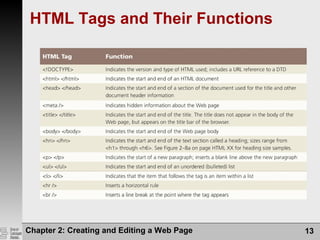
• You do this by inserting a <!DOCTYPE> tag and five
tags <html>, <head>, <meta />, <title> and <body>.
• The <!DOCTYPE> tag is used to tell the browser which
HTML or XHTML version and type the document uses.
Chapter 2: Creating and Editing a Web Page 7
Defining the HTML Document
• The first set of tags beyond the <!DOCTYPE> tag,
<html> and /html> indicates the start and end of and
HTML document.
• The Header – the next set of tags <head> and </head>,
contains the Web page title and other document header
information.
• The Body - the final set of tags, <body> and </body>,
contains the main content of the Web page. All text ,
images, links and other content are contained within this
final set of tags.
Chapter 2: Creating and Editing a Web Page 8
Chapter 2: Creating and Editing a Web Page 9
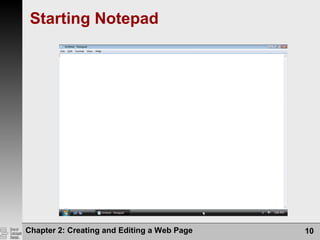
Starting Notepad
• Click the Start button on the Windows Vista
taskbar to display the Start menu
• Click All Programs at the bottom of the left pane
on the Start menu to display the All Programs list
• Click Accessories in the All Programs list
• Click Notepad in the Accessories list to display
the Notepad window
• If the Notepad window is not maximized, click the
Maximize button on the Notepad title bar to
maximize it
Chapter 2: Creating and Editing a Web Page 10
Starting Notepad
Chapter 2: Creating and Editing a Web Page 11
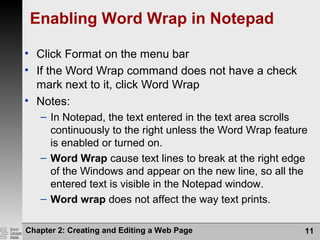
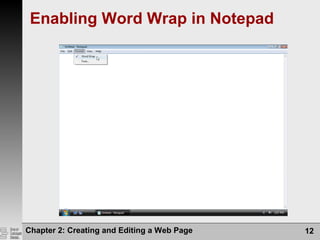
Enabling Word Wrap in Notepad
• Click Format on the menu bar
• If the Word Wrap command does not have a check
mark next to it, click Word Wrap
• Notes:
– In Notepad, the text entered in the text area scrolls
continuously to the right unless the Word Wrap feature
is enabled or turned on.
– Word Wrap cause text lines to break at the right edge
of the Windows and appear on the new line, so all the
entered text is visible in the Notepad window.
– Word wrap does not affect the way text prints.
Chapter 2: Creating and Editing a Web Page 12
Enabling Word Wrap in Notepad
Chapter 2: Creating and Editing a Web Page 13
HTML Tags and Their Functions
Chapter 2: Creating and Editing a Web Page 14
Defining the Web Page Structure
Using HTML Tags
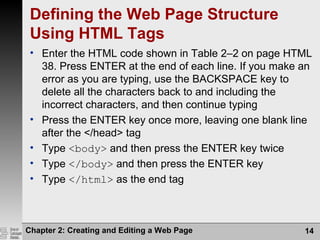
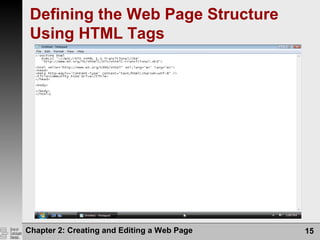
• Enter the HTML code shown in Table 2–2 on page HTML
38. Press ENTER at the end of each line. If you make an
error as you are typing, use the BACKSPACE key to
delete all the characters back to and including the
incorrect characters, and then continue typing
• Press the ENTER key once more, leaving one blank line
after the </head> tag
• Type <body> and then press the ENTER key twice
• Type </body> and then press the ENTER key
• Type </html> as the end tag
Chapter 2: Creating and Editing a Web Page 15
Defining the Web Page Structure
Using HTML Tags
Chapter 2: Creating and Editing a Web Page 16
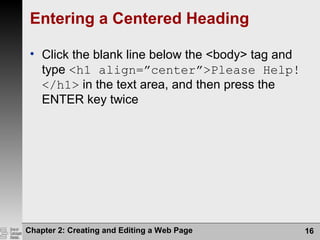
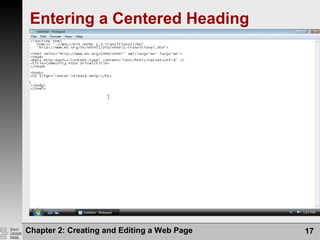
Entering a Centered Heading
• Click the blank line below the <body> tag and
type <h1 align=”center”>Please Help!
</h1> in the text area, and then press the
ENTER key twice
Chapter 2: Creating and Editing a Web Page 17
Entering a Centered Heading
Chapter 2: Creating and Editing a Web Page 18
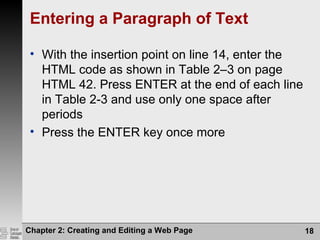
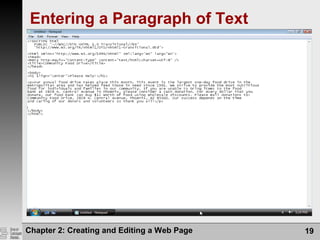
Entering a Paragraph of Text
• With the insertion point on line 14, enter the
HTML code as shown in Table 2–3 on page
HTML 42. Press ENTER at the end of each line
in Table 2-3 and use only one space after
periods
• Press the ENTER key once more
Chapter 2: Creating and Editing a Web Page 19
Entering a Paragraph of Text
Chapter 2: Creating and Editing a Web Page 20
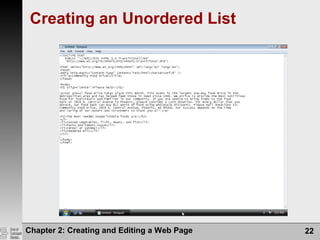
Creating an Unordered List
• With the insertion point on line 22, enter the
HTML code as shown in Table 2–4 on page
HTML 45. Press ENTER at the end of each line
and use only one space after periods
• Press the ENTER key after typing line 28
Chapter 2: Creating and Editing a Web Page 21
Using Lists to Present Content
• Unordered List - examples:
 <ul type = “disc”>
 <ul type = “square”>
 <ul type = “circle”>
• Ordered List – examples:
 <ol type = “1”>
 <ol type = “A”>
 <ol type = “a”>
 <ol type = “I”>
 <ol type = “i”>
Chapter 2: Creating and Editing a Web Page 22
Creating an Unordered List
Chapter 2: Creating and Editing a Web Page 23
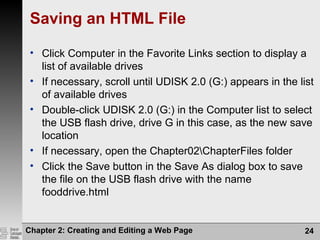
Saving an HTML File
• With a USB flash drive connected to one of the computer’s
USB ports, click File on the Notepad menu bar
• Click Save As on the File menu to display the Save As dialog
box
• If the Navigation pane is not displayed in the Save As dialog
box, click the Browse Folders button to expand the dialog box
• If a Folders list is displayed below the Folders button, click the
Folders button to remove the Folders list
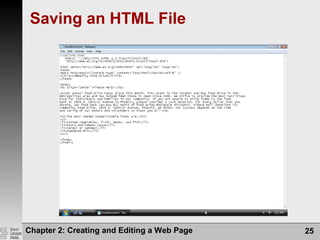
• Type fooddrive.html in the File name text box to change
the file name. Do not press ENTER after typing the file name
• If Computer is not displayed in the Favorite Links section, drag
the top or bottom edge of the Save As dialog box until
Computer is displayed
Chapter 2: Creating and Editing a Web Page 24
Saving an HTML File
• Click Computer in the Favorite Links section to display a
list of available drives
• If necessary, scroll until UDISK 2.0 (G:) appears in the list
of available drives
• Double-click UDISK 2.0 (G:) in the Computer list to select
the USB flash drive, drive G in this case, as the new save
location
• If necessary, open the Chapter02ChapterFiles folder
• Click the Save button in the Save As dialog box to save
the file on the USB flash drive with the name
fooddrive.html
Chapter 2: Creating and Editing a Web Page 25
Saving an HTML File
Chapter 2: Creating and Editing a Web Page 26
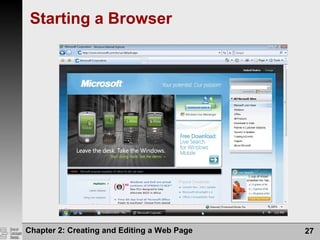
Starting a Browser
• Click the Start button on the Windows Vista
taskbar to display the Start menu
• Click the Internet icon in the pinned items list on
the Start menu to start Internet Explorer
• If necessary, click the Maximize button to
maximize the browser window
Chapter 2: Creating and Editing a Web Page 27
Starting a Browser
Chapter 2: Creating and Editing a Web Page 28
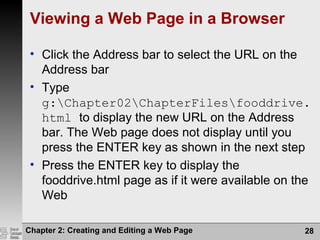
Viewing a Web Page in a Browser
• Click the Address bar to select the URL on the
Address bar
• Type
g:Chapter02ChapterFilesfooddrive.
html to display the new URL on the Address
bar. The Web page does not display until you
press the ENTER key as shown in the next step
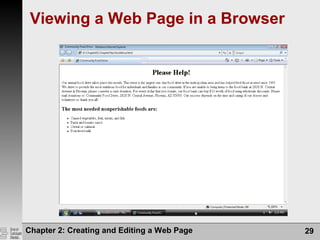
• Press the ENTER key to display the
fooddrive.html page as if it were available on the
Web
Chapter 2: Creating and Editing a Web Page 29
Viewing a Web Page in a Browser
Chapter 2: Creating and Editing a Web Page 30
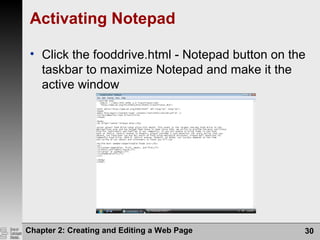
Activating Notepad
• Click the fooddrive.html - Notepad button on the
taskbar to maximize Notepad and make it the
active window
Chapter 2: Creating and Editing a Web Page 31
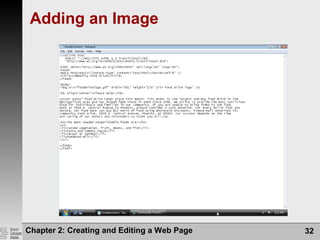
Adding an Image
• Click after the > symbol in <body> on line 11 and
then press the ENTER key
• Type <img src=”fooddrivelogo.gif”
width=”601” height=”170” alt=”Food
Drive logo” /> and press ENTER to insert
the image tag for the logo
Chapter 2: Creating and Editing a Web Page 32
Adding an Image
Chapter 2: Creating and Editing a Web Page 33
Image Types
1. Graphic Interchange Format (GIF)
• Use for images with few color (<256)
• Allow for transparent background.
1. Joint Photographic Expert Group (JPEG)
• Use for images with many colors (>256) such as
photographs.
1. Portable Network Graphics (PNG)
• Use for all types of images
• Newest format for images
• Allows for variation in transparency
Chapter 2: Creating and Editing a Web Page 34
Image Attributes
1. align – control alignment, can be set bottom, middle, top,
left or right
2. alt – alternative text to display when an image is being
loaded
3. border – defines the border width.
4. height – defines the height of the image.
5. hspace – defines the horizontal space that separates the
image from the text
6. src – defines the URL of the image to be loaded
7. vspace – defines the vertical space that separates the
image from the text
8. width – defines the width of the image.
Chapter 2: Creating and Editing a Web Page 35
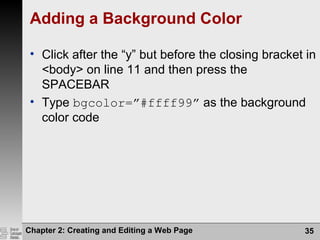
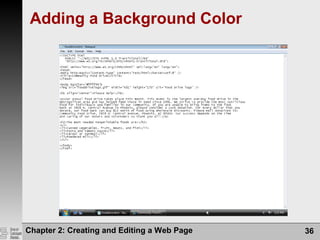
Adding a Background Color
• Click after the “y” but before the closing bracket in
<body> on line 11 and then press the
SPACEBAR
• Type bgcolor=”#ffff99” as the background
color code
Chapter 2: Creating and Editing a Web Page 36
Adding a Background Color
Chapter 2: Creating and Editing a Web Page 37
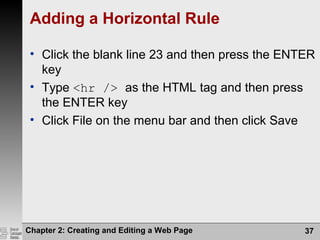
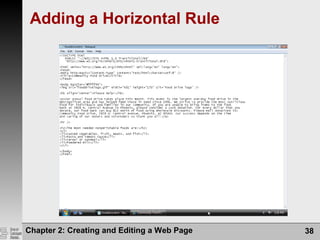
Adding a Horizontal Rule
• Click the blank line 23 and then press the ENTER
key
• Type <hr /> as the HTML tag and then press
the ENTER key
• Click File on the menu bar and then click Save
Chapter 2: Creating and Editing a Web Page 38
Adding a Horizontal Rule
Chapter 2: Creating and Editing a Web Page 39
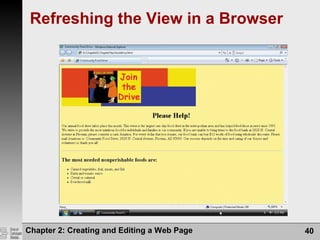
Refreshing the View in a Browser
• Close the Notepad window
• If necessary, click the Community Food Drive
Home Page button on the taskbar to display the
home page
• Click the Refresh button on the Standard toolbar
to display the modified Web page
Chapter 2: Creating and Editing a Web Page 40
Refreshing the View in a Browser
Validating HTML Code
• Click the Address bar on the browser to highlight
the current URL
• Type validator.w3.org to replace the current
entry then press the ENTER key
• If necessary, click OK if the browser asks to open
a new window
• Click the Validate by File Upload tab
• Click the Browse button
Chapter 2: Creating and Editing a Web Page 41
Validating HTML Code
• Locate the fooddrive.html file on your storage
device and then click the file name
• Click the Open button on the Choose file dialog box
and the file name will be inserted into the File box
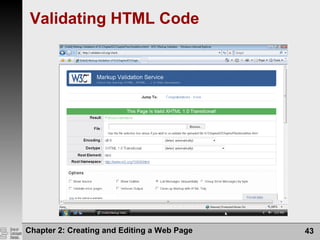
• Click the Check button. The resulting validation
should be displayed.
• Return to the Community Food Drive Web page,
either by clicking the Back button on your browser
or by clicking the Community Food Drive button in
the task bar
Chapter 2: Creating and Editing a Web Page 42
Validating HTML Code
Chapter 2: Creating and Editing a Web Page 43
Chapter 2: Creating and Editing a Web Page 44
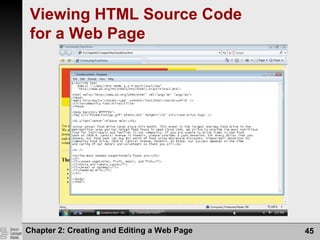
Viewing HTML Source Code
for a Web Page
• Click Page on the Command bar
• Click View Source to view the HTML code in the
default text editor
• Click the Close button on the Notepad title bar to
close the active Notepad window
Chapter 2: Creating and Editing a Web Page 45
Viewing HTML Source Code
for a Web Page
Chapter 2: Creating and Editing a Web Page 46
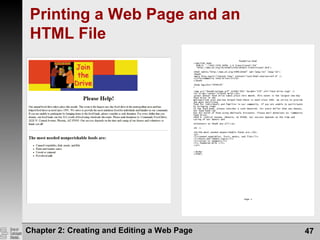
Printing a Web Page and an
HTML File
• Ready the printer according to the printer instructions
• With the Community Food Drive Web page open in the
browser window, click the Print icon on the Command bar
• When the printer stops printing the Web page, retrieve the
printout. Notice that the background color does not print
as part of the document
• Click the Notepad button on the taskbar to activate the
Notepad window
• Click File on the menu bar and then click the Print
command, and then click the Print button to print a hard
copy of the HTML code
Chapter 2: Creating and Editing a Web Page 47
Printing a Web Page and an
HTML File
Chapter 2: Creating and Editing a Web Page 48
Quitting Notepad and a Browser
• Click the Close button on the Notepad title bar
• Click the Close button on the Community Food
Drive Home Page title bar
Chapter 2: Creating and Editing a Web Page 49
Chapter Summary
• Identify elements of a Web page
• Start Notepad and describe the Notepad
window
• Enable word wrap in Notepad
• Enter the HTML tags
• Enter a centered heading and a paragraph of
text
Chapter 2: Creating and Editing a Web Page 50
Chapter Summary
• Create an unordered, ordered, or definition list
• Save an HTML file
• Use a browser to view a Web page
• Activate Notepad
• Identify Web page image types and attributes
Chapter 2: Creating and Editing a Web Page 51
Chapter Summary
• Add an image, change the background color of
a Web page, and add a horizontal rule
• View the HTML source code in a browser
• Print a Web page and an HTML file
• Quit Notepad and a browser
HTML
Concepts and Techniques
Fifth Edition
Chapter 2 Complete
Creating and Editing a Web Page

Ddpz2613 topic2 web

  • 1.
    HTML Concepts and Techniques FifthEdition Chapter 2 Creating and Editing a Web Page
  • 2.
    Chapter 2: Creatingand Editing a Web Page 2 Chapter Objectives • Identify elements of a Web page • Start Notepad and describe the Notepad window • Enable word wrap in Notepad • Enter the HTML tags • Enter a centered heading and a paragraph of text
  • 3.
    Chapter 2: Creatingand Editing a Web Page 3 Chapter Objectives • Create an unordered, ordered, or definition list • Save an HTML file • Use a browser to view a Web page • Activate Notepad • Identify Web page image types and attributes
  • 4.
    Chapter 2: Creatingand Editing a Web Page 4 Chapter Objectives • Add an image, change the background color of a Web page, and add a horizontal rule • View the HTML source code in a browser • Print a Web page and an HTML file • Quit Notepad and a browser
  • 5.
    General Project Guideline– Plan Ahead 1. Complete Web page planning 2. Analyze the need for the Web page 3. Choose the content for the Web page 4. Determine where to save the Web page 5. Identify how to format various elements of the Web page 6. Find appropriate graphical images 7. Establish where to position and how to format the graphical images 8. Test the Web page for XHTML compliance Chapter 2: Creating and Editing a Web Page 5
  • 6.
    Elements of aWeb Page 1. Windows Elements • Includes title, body, background 1. Text Elements • Includes normal texts, list, headings 1. Image Elements • Include inline image, image map, hotspot, animated image, horizontal rules 1. Hyperlink Elements • Include link or hyperlink Chapter 2: Creating and Editing a Web Page 6
  • 7.
    Defining Web PageStructure • To create an HTML document, you use a text editor to enter information about the structure of the Web page. • Before you begin entering the content, you must start by entering texts that define the overall structure of the Web page. • You do this by inserting a <!DOCTYPE> tag and five tags <html>, <head>, <meta />, <title> and <body>. • The <!DOCTYPE> tag is used to tell the browser which HTML or XHTML version and type the document uses. Chapter 2: Creating and Editing a Web Page 7
  • 8.
    Defining the HTMLDocument • The first set of tags beyond the <!DOCTYPE> tag, <html> and /html> indicates the start and end of and HTML document. • The Header – the next set of tags <head> and </head>, contains the Web page title and other document header information. • The Body - the final set of tags, <body> and </body>, contains the main content of the Web page. All text , images, links and other content are contained within this final set of tags. Chapter 2: Creating and Editing a Web Page 8
  • 9.
    Chapter 2: Creatingand Editing a Web Page 9 Starting Notepad • Click the Start button on the Windows Vista taskbar to display the Start menu • Click All Programs at the bottom of the left pane on the Start menu to display the All Programs list • Click Accessories in the All Programs list • Click Notepad in the Accessories list to display the Notepad window • If the Notepad window is not maximized, click the Maximize button on the Notepad title bar to maximize it
  • 10.
    Chapter 2: Creatingand Editing a Web Page 10 Starting Notepad
  • 11.
    Chapter 2: Creatingand Editing a Web Page 11 Enabling Word Wrap in Notepad • Click Format on the menu bar • If the Word Wrap command does not have a check mark next to it, click Word Wrap • Notes: – In Notepad, the text entered in the text area scrolls continuously to the right unless the Word Wrap feature is enabled or turned on. – Word Wrap cause text lines to break at the right edge of the Windows and appear on the new line, so all the entered text is visible in the Notepad window. – Word wrap does not affect the way text prints.
  • 12.
    Chapter 2: Creatingand Editing a Web Page 12 Enabling Word Wrap in Notepad
  • 13.
    Chapter 2: Creatingand Editing a Web Page 13 HTML Tags and Their Functions
  • 14.
    Chapter 2: Creatingand Editing a Web Page 14 Defining the Web Page Structure Using HTML Tags • Enter the HTML code shown in Table 2–2 on page HTML 38. Press ENTER at the end of each line. If you make an error as you are typing, use the BACKSPACE key to delete all the characters back to and including the incorrect characters, and then continue typing • Press the ENTER key once more, leaving one blank line after the </head> tag • Type <body> and then press the ENTER key twice • Type </body> and then press the ENTER key • Type </html> as the end tag
  • 15.
    Chapter 2: Creatingand Editing a Web Page 15 Defining the Web Page Structure Using HTML Tags
  • 16.
    Chapter 2: Creatingand Editing a Web Page 16 Entering a Centered Heading • Click the blank line below the <body> tag and type <h1 align=”center”>Please Help! </h1> in the text area, and then press the ENTER key twice
  • 17.
    Chapter 2: Creatingand Editing a Web Page 17 Entering a Centered Heading
  • 18.
    Chapter 2: Creatingand Editing a Web Page 18 Entering a Paragraph of Text • With the insertion point on line 14, enter the HTML code as shown in Table 2–3 on page HTML 42. Press ENTER at the end of each line in Table 2-3 and use only one space after periods • Press the ENTER key once more
  • 19.
    Chapter 2: Creatingand Editing a Web Page 19 Entering a Paragraph of Text
  • 20.
    Chapter 2: Creatingand Editing a Web Page 20 Creating an Unordered List • With the insertion point on line 22, enter the HTML code as shown in Table 2–4 on page HTML 45. Press ENTER at the end of each line and use only one space after periods • Press the ENTER key after typing line 28
  • 21.
    Chapter 2: Creatingand Editing a Web Page 21 Using Lists to Present Content • Unordered List - examples:  <ul type = “disc”>  <ul type = “square”>  <ul type = “circle”> • Ordered List – examples:  <ol type = “1”>  <ol type = “A”>  <ol type = “a”>  <ol type = “I”>  <ol type = “i”>
  • 22.
    Chapter 2: Creatingand Editing a Web Page 22 Creating an Unordered List
  • 23.
    Chapter 2: Creatingand Editing a Web Page 23 Saving an HTML File • With a USB flash drive connected to one of the computer’s USB ports, click File on the Notepad menu bar • Click Save As on the File menu to display the Save As dialog box • If the Navigation pane is not displayed in the Save As dialog box, click the Browse Folders button to expand the dialog box • If a Folders list is displayed below the Folders button, click the Folders button to remove the Folders list • Type fooddrive.html in the File name text box to change the file name. Do not press ENTER after typing the file name • If Computer is not displayed in the Favorite Links section, drag the top or bottom edge of the Save As dialog box until Computer is displayed
  • 24.
    Chapter 2: Creatingand Editing a Web Page 24 Saving an HTML File • Click Computer in the Favorite Links section to display a list of available drives • If necessary, scroll until UDISK 2.0 (G:) appears in the list of available drives • Double-click UDISK 2.0 (G:) in the Computer list to select the USB flash drive, drive G in this case, as the new save location • If necessary, open the Chapter02ChapterFiles folder • Click the Save button in the Save As dialog box to save the file on the USB flash drive with the name fooddrive.html
  • 25.
    Chapter 2: Creatingand Editing a Web Page 25 Saving an HTML File
  • 26.
    Chapter 2: Creatingand Editing a Web Page 26 Starting a Browser • Click the Start button on the Windows Vista taskbar to display the Start menu • Click the Internet icon in the pinned items list on the Start menu to start Internet Explorer • If necessary, click the Maximize button to maximize the browser window
  • 27.
    Chapter 2: Creatingand Editing a Web Page 27 Starting a Browser
  • 28.
    Chapter 2: Creatingand Editing a Web Page 28 Viewing a Web Page in a Browser • Click the Address bar to select the URL on the Address bar • Type g:Chapter02ChapterFilesfooddrive. html to display the new URL on the Address bar. The Web page does not display until you press the ENTER key as shown in the next step • Press the ENTER key to display the fooddrive.html page as if it were available on the Web
  • 29.
    Chapter 2: Creatingand Editing a Web Page 29 Viewing a Web Page in a Browser
  • 30.
    Chapter 2: Creatingand Editing a Web Page 30 Activating Notepad • Click the fooddrive.html - Notepad button on the taskbar to maximize Notepad and make it the active window
  • 31.
    Chapter 2: Creatingand Editing a Web Page 31 Adding an Image • Click after the > symbol in <body> on line 11 and then press the ENTER key • Type <img src=”fooddrivelogo.gif” width=”601” height=”170” alt=”Food Drive logo” /> and press ENTER to insert the image tag for the logo
  • 32.
    Chapter 2: Creatingand Editing a Web Page 32 Adding an Image
  • 33.
    Chapter 2: Creatingand Editing a Web Page 33 Image Types 1. Graphic Interchange Format (GIF) • Use for images with few color (<256) • Allow for transparent background. 1. Joint Photographic Expert Group (JPEG) • Use for images with many colors (>256) such as photographs. 1. Portable Network Graphics (PNG) • Use for all types of images • Newest format for images • Allows for variation in transparency
  • 34.
    Chapter 2: Creatingand Editing a Web Page 34 Image Attributes 1. align – control alignment, can be set bottom, middle, top, left or right 2. alt – alternative text to display when an image is being loaded 3. border – defines the border width. 4. height – defines the height of the image. 5. hspace – defines the horizontal space that separates the image from the text 6. src – defines the URL of the image to be loaded 7. vspace – defines the vertical space that separates the image from the text 8. width – defines the width of the image.
  • 35.
    Chapter 2: Creatingand Editing a Web Page 35 Adding a Background Color • Click after the “y” but before the closing bracket in <body> on line 11 and then press the SPACEBAR • Type bgcolor=”#ffff99” as the background color code
  • 36.
    Chapter 2: Creatingand Editing a Web Page 36 Adding a Background Color
  • 37.
    Chapter 2: Creatingand Editing a Web Page 37 Adding a Horizontal Rule • Click the blank line 23 and then press the ENTER key • Type <hr /> as the HTML tag and then press the ENTER key • Click File on the menu bar and then click Save
  • 38.
    Chapter 2: Creatingand Editing a Web Page 38 Adding a Horizontal Rule
  • 39.
    Chapter 2: Creatingand Editing a Web Page 39 Refreshing the View in a Browser • Close the Notepad window • If necessary, click the Community Food Drive Home Page button on the taskbar to display the home page • Click the Refresh button on the Standard toolbar to display the modified Web page
  • 40.
    Chapter 2: Creatingand Editing a Web Page 40 Refreshing the View in a Browser
  • 41.
    Validating HTML Code •Click the Address bar on the browser to highlight the current URL • Type validator.w3.org to replace the current entry then press the ENTER key • If necessary, click OK if the browser asks to open a new window • Click the Validate by File Upload tab • Click the Browse button Chapter 2: Creating and Editing a Web Page 41
  • 42.
    Validating HTML Code •Locate the fooddrive.html file on your storage device and then click the file name • Click the Open button on the Choose file dialog box and the file name will be inserted into the File box • Click the Check button. The resulting validation should be displayed. • Return to the Community Food Drive Web page, either by clicking the Back button on your browser or by clicking the Community Food Drive button in the task bar Chapter 2: Creating and Editing a Web Page 42
  • 43.
    Validating HTML Code Chapter2: Creating and Editing a Web Page 43
  • 44.
    Chapter 2: Creatingand Editing a Web Page 44 Viewing HTML Source Code for a Web Page • Click Page on the Command bar • Click View Source to view the HTML code in the default text editor • Click the Close button on the Notepad title bar to close the active Notepad window
  • 45.
    Chapter 2: Creatingand Editing a Web Page 45 Viewing HTML Source Code for a Web Page
  • 46.
    Chapter 2: Creatingand Editing a Web Page 46 Printing a Web Page and an HTML File • Ready the printer according to the printer instructions • With the Community Food Drive Web page open in the browser window, click the Print icon on the Command bar • When the printer stops printing the Web page, retrieve the printout. Notice that the background color does not print as part of the document • Click the Notepad button on the taskbar to activate the Notepad window • Click File on the menu bar and then click the Print command, and then click the Print button to print a hard copy of the HTML code
  • 47.
    Chapter 2: Creatingand Editing a Web Page 47 Printing a Web Page and an HTML File
  • 48.
    Chapter 2: Creatingand Editing a Web Page 48 Quitting Notepad and a Browser • Click the Close button on the Notepad title bar • Click the Close button on the Community Food Drive Home Page title bar
  • 49.
    Chapter 2: Creatingand Editing a Web Page 49 Chapter Summary • Identify elements of a Web page • Start Notepad and describe the Notepad window • Enable word wrap in Notepad • Enter the HTML tags • Enter a centered heading and a paragraph of text
  • 50.
    Chapter 2: Creatingand Editing a Web Page 50 Chapter Summary • Create an unordered, ordered, or definition list • Save an HTML file • Use a browser to view a Web page • Activate Notepad • Identify Web page image types and attributes
  • 51.
    Chapter 2: Creatingand Editing a Web Page 51 Chapter Summary • Add an image, change the background color of a Web page, and add a horizontal rule • View the HTML source code in a browser • Print a Web page and an HTML file • Quit Notepad and a browser
  • 52.
    HTML Concepts and Techniques FifthEdition Chapter 2 Complete Creating and Editing a Web Page