WEB DESIGN TECHNOLOGY
LECTURE 2
BY MULENGA M.M
Understanding Basic HTML
 Webpages are created using Hypertext Markup Language
(HTML), which is an authoring language used to create
documents for the web.
 HTML consists of a set of special instructions called tags
to define the structure and layout of content in a webpage.
 A browser reads the HTML tags to determine how to
display the webpage content on a screen.
 Because the HTML tags define or “mark up” the content on
the webpage, HTML is considered a markup language
rather than a traditional programming language.
HTML Elements and Attributes
 A webpage is a text file that contains both content and
HTML tags and is saved as an HTML document.
 HTML tags mark the text to define how it should appear
when viewed in a browser.
 HTML includes dozens of tags that describe the structure of
webpages and create links to other content.
 For instance, the HTML tags <nav> and </nav> mark the
start and end of a navigation area, while <html> and </html>
indicate the start and end of a webpage.
 An HTML element consists of everything from the start tag to
the end HTML element tag, including content, and represents
a distinct part of a webpage such as a paragraph or heading.
 For example, <title> Webpage Example </title> is an HTML
element that sets the title of a webpage.
 In common usage, when web designers say “Use a p element
to define a paragraph,” or something similar, they mean to
use a starting <p> tag to mark the beginning of the paragraph
and an ending </p> tag to mark the end of the paragraph.
Attributes
 HTML elements can be enhanced by using attributes.
 Attributes define additional characteristics, or
properties, of the element such as the width and
height of an image.
 An attribute includes a name, such as width, and can
also include a value, such as 300px, which sets the
width of an element in pixels. Attributes are included
within the element’s, start tag.
 Web pages can be created and modified by using
professional HTML editors. However, a simple text editor
like Notepad (PC) or Notepad++ can be used. To write an
HTML file, there are certain considerations that must be
taken in to account. Such include;
 All HTML documents must start with a document type
declaration:
 <!DOCTYPE html>.
 The HTML document itself begins with <html> and ends
with </html>.
 The visible part of the HTML document is between <body>
and </body>.
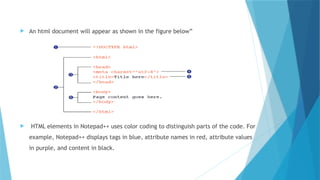
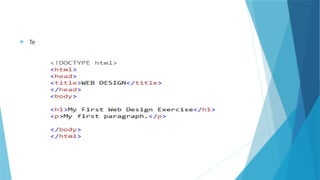
 An html document will appear as shown in the figure below”
 HTML elements in Notepad++ uses color coding to distinguish parts of the code. For
example, Notepad++ displays tags in blue, attribute names in red, attribute values
in purple, and content in black.
The basic elements of an HTML page are:
 A text header, denoted using the <h1>, <h2>, <h3>, <h4>,
<h5>, <h6> tags.
 A paragraph, denoted using the <p> tag.
 A horizontal ruler, denoted using the <hr> tag.
 A link, denoted using the <a> (anchor) tag.
 A list, denoted using the <ul> (unordered list), <ol> (ordered
list) and <li> (list element) tags.
 An image, denoted using the <img> tag
 A divider, denoted using the <div> tag
 A text span, denoted using the <span> tag
 There are a few global elements, the most common
of them are:
 id - Denotes the unique ID of an element in a page.
Used for locating elements by using links,
JavaScript, and more
 class - Denotes the CSS class of an element.
 style - Denotes the CSS styles to apply to an
element.
 data-x attributes - A general prefix for attributes that
store raw information for programmatic purposes.
Text headers and paragraphs
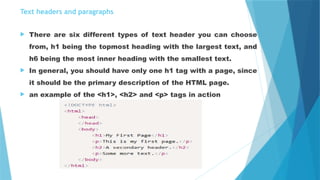
 There are six different types of text header you can choose
from, h1 being the topmost heading with the largest text, and
h6 being the most inner heading with the smallest text.
 In general, you should have only one h1 tag with a page, since
it should be the primary description of the HTML page.
 an example of the <h1>, <h2> and <p> tags in action
Horizontal rulers
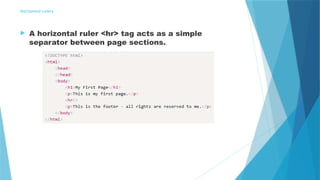
 A horizontal ruler <hr> tag acts as a simple
separator between page sections.
Create your first webpage beginning with the required minimum HTML
tags.
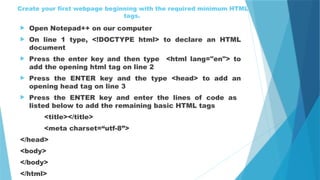
 Open Notepad++ on our computer
 On line 1 type, <!DOCTYPE html> to declare an HTML
document
 Press the enter key and then type <html lang="en"> to
add the opening html tag on line 2
 Press the ENTER key and the type <head> to add an
opening head tag on line 3
 Press the ENTER key and enter the lines of code as
listed below to add the remaining basic HTML tags
<title></title>
<meta charset=“utf-8”>
</head>
<body>
</body>
</html>
 What is the purpose of the UTF-8 character set?
 Computers can read many types of character sets. The
Unicode Consortium developed Unicode
Transformation Format (UTF)-8 to create a standard
character set. The UTF-8 has been widely accepted
and is the preferred character set for several types of
web programming languages, such as HTML,
JavaScript, and XML.
 Te
To Add a Title and Text to a Webpage
 Now that you have added required HTML tags, you are
ready to designate a title and add content to the page.
Why? A webpage title appears on the browser tab and
usually displays the name of the webpage.
 After titling a webpage, you add content to the body
section.
 The following steps add a title and content to the
webpage.
 Place the insertion point between the opening and
closing tile tags to prepare to enter a webpage title
 Type My First Webpage to add a webpage title
 Place the insertion point after the opening body tag
and press the ENTER key to add a new line.
 Press the TAB key to indent the line.
 Type Welcome to My First Webpage to add content
to the webpage
To Save a Webpage
 After creating a webpage, you must save it as an HTML
file. Why? A text editor can be used to create many
types of files; therefore, you must specify that this is
an HTML file so a browser can display it as a webpage.
The following steps save the document as an HTML file.
 Click File on the menu bar to display the fine menu
options
 Click Save As on the File menu to display the Save As
dialog box
 Click the Save in list box and then navigate to your
Documents folder
 In the file name text box, delete the existing text and
then type index to name the file.
 The file name index is the standard name of a home
page.
 Click the save as type list box and then tap or click
Hyper Text Markup language file to select the HTML
file type
 Click the Save button to save the HTML document.
 After saving an HTML document, you can view it as a
webpage in a web browser.
 A web browser reads the HTML code and displays the
webpage content. The following steps display a
webpage in a browser.
 Click Run on the menu bar to display the Run menu
options
 Click Launch in IE or any other browser you are using
and display the webpage
 Note that the HTML tags are not displayed in the
browser because the browser interprets the HTML
code and displays only the content that appears
within the tags, not the tags themselves.

WEB TECHNOLOGY SLIDE 2 coe35mgfdggdh.pptx

  • 1.
  • 2.
    Understanding Basic HTML Webpages are created using Hypertext Markup Language (HTML), which is an authoring language used to create documents for the web.  HTML consists of a set of special instructions called tags to define the structure and layout of content in a webpage.  A browser reads the HTML tags to determine how to display the webpage content on a screen.  Because the HTML tags define or “mark up” the content on the webpage, HTML is considered a markup language rather than a traditional programming language.
  • 3.
    HTML Elements andAttributes  A webpage is a text file that contains both content and HTML tags and is saved as an HTML document.  HTML tags mark the text to define how it should appear when viewed in a browser.  HTML includes dozens of tags that describe the structure of webpages and create links to other content.  For instance, the HTML tags <nav> and </nav> mark the start and end of a navigation area, while <html> and </html> indicate the start and end of a webpage.
  • 4.
     An HTMLelement consists of everything from the start tag to the end HTML element tag, including content, and represents a distinct part of a webpage such as a paragraph or heading.  For example, <title> Webpage Example </title> is an HTML element that sets the title of a webpage.  In common usage, when web designers say “Use a p element to define a paragraph,” or something similar, they mean to use a starting <p> tag to mark the beginning of the paragraph and an ending </p> tag to mark the end of the paragraph.
  • 5.
    Attributes  HTML elementscan be enhanced by using attributes.  Attributes define additional characteristics, or properties, of the element such as the width and height of an image.  An attribute includes a name, such as width, and can also include a value, such as 300px, which sets the width of an element in pixels. Attributes are included within the element’s, start tag.
  • 6.
     Web pagescan be created and modified by using professional HTML editors. However, a simple text editor like Notepad (PC) or Notepad++ can be used. To write an HTML file, there are certain considerations that must be taken in to account. Such include;  All HTML documents must start with a document type declaration:  <!DOCTYPE html>.  The HTML document itself begins with <html> and ends with </html>.  The visible part of the HTML document is between <body> and </body>.
  • 7.
     An htmldocument will appear as shown in the figure below”  HTML elements in Notepad++ uses color coding to distinguish parts of the code. For example, Notepad++ displays tags in blue, attribute names in red, attribute values in purple, and content in black.
  • 8.
    The basic elementsof an HTML page are:  A text header, denoted using the <h1>, <h2>, <h3>, <h4>, <h5>, <h6> tags.  A paragraph, denoted using the <p> tag.  A horizontal ruler, denoted using the <hr> tag.  A link, denoted using the <a> (anchor) tag.  A list, denoted using the <ul> (unordered list), <ol> (ordered list) and <li> (list element) tags.  An image, denoted using the <img> tag  A divider, denoted using the <div> tag  A text span, denoted using the <span> tag
  • 9.
     There area few global elements, the most common of them are:  id - Denotes the unique ID of an element in a page. Used for locating elements by using links, JavaScript, and more  class - Denotes the CSS class of an element.  style - Denotes the CSS styles to apply to an element.  data-x attributes - A general prefix for attributes that store raw information for programmatic purposes.
  • 10.
    Text headers andparagraphs  There are six different types of text header you can choose from, h1 being the topmost heading with the largest text, and h6 being the most inner heading with the smallest text.  In general, you should have only one h1 tag with a page, since it should be the primary description of the HTML page.  an example of the <h1>, <h2> and <p> tags in action
  • 11.
    Horizontal rulers  Ahorizontal ruler <hr> tag acts as a simple separator between page sections.
  • 12.
    Create your firstwebpage beginning with the required minimum HTML tags.  Open Notepad++ on our computer  On line 1 type, <!DOCTYPE html> to declare an HTML document  Press the enter key and then type <html lang="en"> to add the opening html tag on line 2  Press the ENTER key and the type <head> to add an opening head tag on line 3  Press the ENTER key and enter the lines of code as listed below to add the remaining basic HTML tags <title></title> <meta charset=“utf-8”> </head> <body> </body> </html>
  • 13.
     What isthe purpose of the UTF-8 character set?  Computers can read many types of character sets. The Unicode Consortium developed Unicode Transformation Format (UTF)-8 to create a standard character set. The UTF-8 has been widely accepted and is the preferred character set for several types of web programming languages, such as HTML, JavaScript, and XML.
  • 14.
  • 15.
    To Add aTitle and Text to a Webpage  Now that you have added required HTML tags, you are ready to designate a title and add content to the page. Why? A webpage title appears on the browser tab and usually displays the name of the webpage.  After titling a webpage, you add content to the body section.  The following steps add a title and content to the webpage.  Place the insertion point between the opening and closing tile tags to prepare to enter a webpage title
  • 16.
     Type MyFirst Webpage to add a webpage title  Place the insertion point after the opening body tag and press the ENTER key to add a new line.  Press the TAB key to indent the line.  Type Welcome to My First Webpage to add content to the webpage
  • 17.
    To Save aWebpage  After creating a webpage, you must save it as an HTML file. Why? A text editor can be used to create many types of files; therefore, you must specify that this is an HTML file so a browser can display it as a webpage. The following steps save the document as an HTML file.  Click File on the menu bar to display the fine menu options  Click Save As on the File menu to display the Save As dialog box
  • 18.
     Click theSave in list box and then navigate to your Documents folder  In the file name text box, delete the existing text and then type index to name the file.  The file name index is the standard name of a home page.  Click the save as type list box and then tap or click Hyper Text Markup language file to select the HTML file type  Click the Save button to save the HTML document.
  • 19.
     After savingan HTML document, you can view it as a webpage in a web browser.  A web browser reads the HTML code and displays the webpage content. The following steps display a webpage in a browser.  Click Run on the menu bar to display the Run menu options  Click Launch in IE or any other browser you are using and display the webpage  Note that the HTML tags are not displayed in the browser because the browser interprets the HTML code and displays only the content that appears within the tags, not the tags themselves.