DataWeave in mule
DataWeave is Mule’s most powerful and
versatile tool for transforming data.
The Transform Message component carries
out a transformation of your Mule message
that follows a transform script
• Transform Message component offers you a preview of
your output that is built on sample data and is updated
in real time as you make changes to your transform, so
that you can be sure of what you’ll be getting out of
the other end.
• When adding a Transform Message element to a Mule
Flow, it takes the elements from the incoming Mule
Message as its inputs. It then performs the necessary
actions to produce a Mule message as output for the
next element in the flow
• DataWeave File Structure
• DataWeave files are divided into two sections:
• Header - defines directives (optional)
• Body - describes the output structure
• The two sections are delimited by a three-
dash separator: "---"
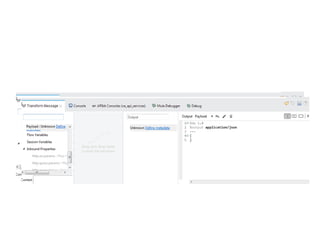
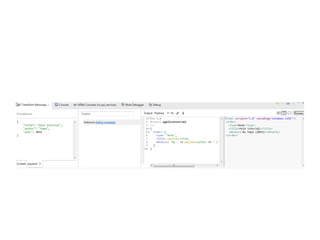
• On the left: is the graphical UI, which exposes the
known input and output structures. The
mappings between input and output fields are
represented through lines drawn from one side to
the other. You can easily click and drag one field
onto another to map these.
• On the right: the DataWeave code editor. This
allows you to leverage the full power of
DataWeave syntax, which includes many tools
that allow you to aggregate, normalize, group,
join, partition, pivot and filter.
• DataWeave Header
• The DataWeave header contains the directives, which define high-
level information about your transformation. The structure of the
header is a sequence of lines, each with its own directives. The
header section ends at ---.
• Through the use of the following directives, key aspects of the
transformation are defined:
• DataWeave version, e.g. %dw 1.0
• Output type, e.g. %output application/xml
• Input type, e.g. %input payload application/xml
Basic Example
In order to show the power of DataWeave, here is a minimal example to get
started. This example shows a simple mapping form JSON to XML:
• {
• "title": "Mule tutorial",
• "author": "Kapa",
• "year": 2016
• }
Input json
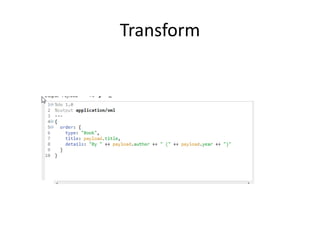
Transform
Output XML

Data weave in mule

  • 1.
    DataWeave in mule DataWeaveis Mule’s most powerful and versatile tool for transforming data. The Transform Message component carries out a transformation of your Mule message that follows a transform script
  • 2.
    • Transform Messagecomponent offers you a preview of your output that is built on sample data and is updated in real time as you make changes to your transform, so that you can be sure of what you’ll be getting out of the other end. • When adding a Transform Message element to a Mule Flow, it takes the elements from the incoming Mule Message as its inputs. It then performs the necessary actions to produce a Mule message as output for the next element in the flow
  • 3.
    • DataWeave FileStructure • DataWeave files are divided into two sections: • Header - defines directives (optional) • Body - describes the output structure • The two sections are delimited by a three- dash separator: "---"
  • 5.
    • On theleft: is the graphical UI, which exposes the known input and output structures. The mappings between input and output fields are represented through lines drawn from one side to the other. You can easily click and drag one field onto another to map these. • On the right: the DataWeave code editor. This allows you to leverage the full power of DataWeave syntax, which includes many tools that allow you to aggregate, normalize, group, join, partition, pivot and filter.
  • 6.
    • DataWeave Header •The DataWeave header contains the directives, which define high- level information about your transformation. The structure of the header is a sequence of lines, each with its own directives. The header section ends at ---. • Through the use of the following directives, key aspects of the transformation are defined: • DataWeave version, e.g. %dw 1.0 • Output type, e.g. %output application/xml • Input type, e.g. %input payload application/xml
  • 7.
    Basic Example In orderto show the power of DataWeave, here is a minimal example to get started. This example shows a simple mapping form JSON to XML: • { • "title": "Mule tutorial", • "author": "Kapa", • "year": 2016 • }
  • 9.
  • 10.
  • 11.