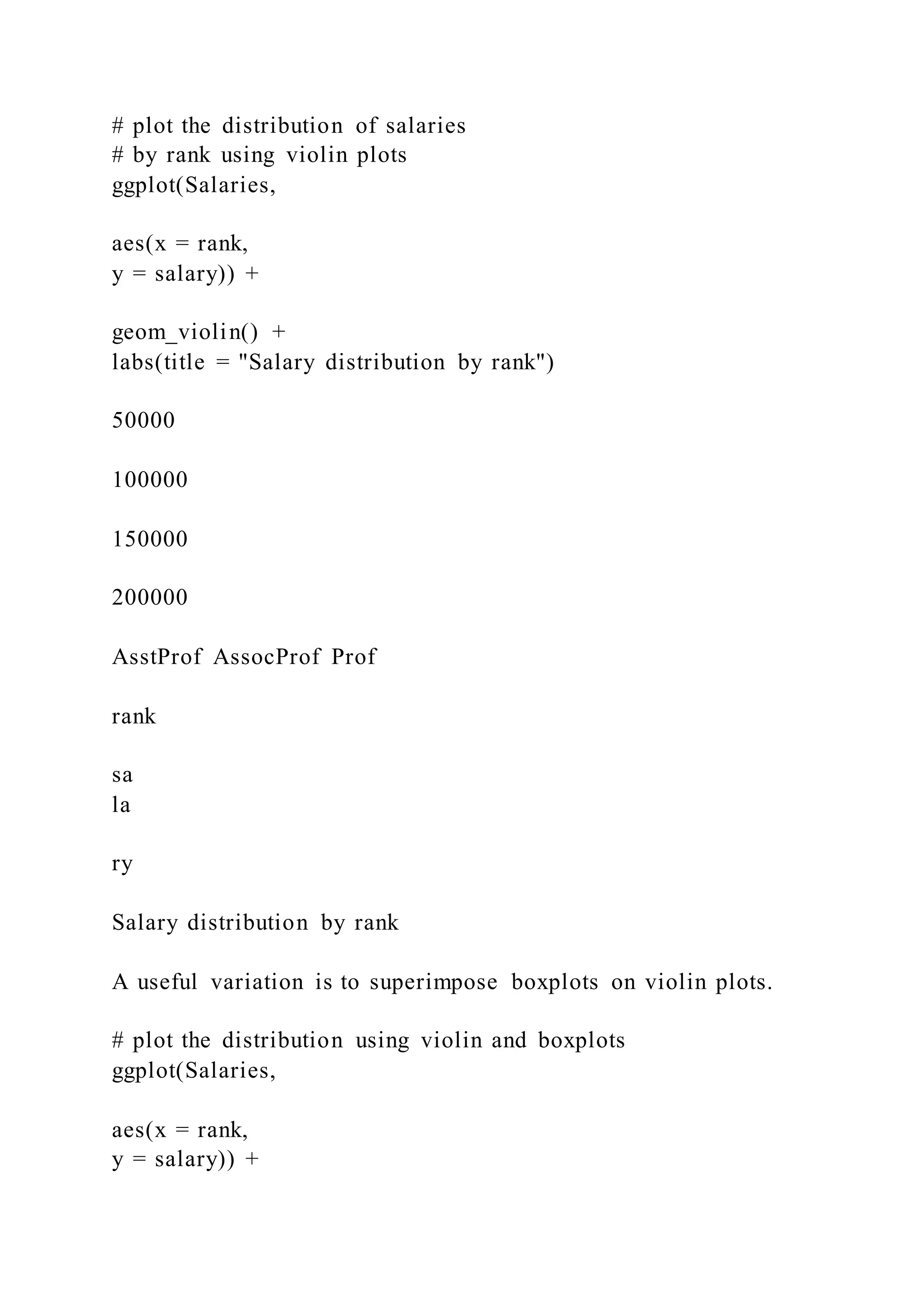
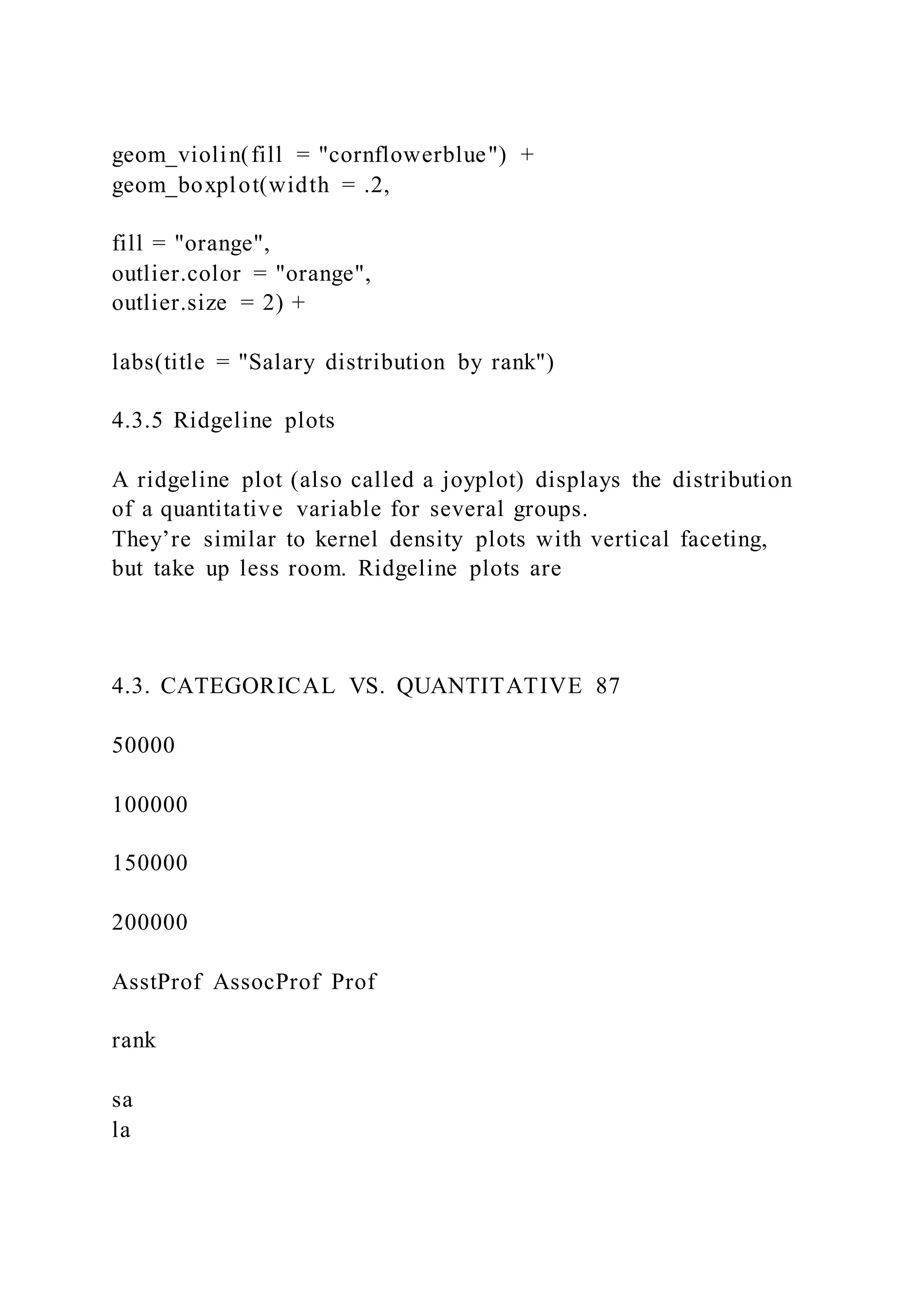
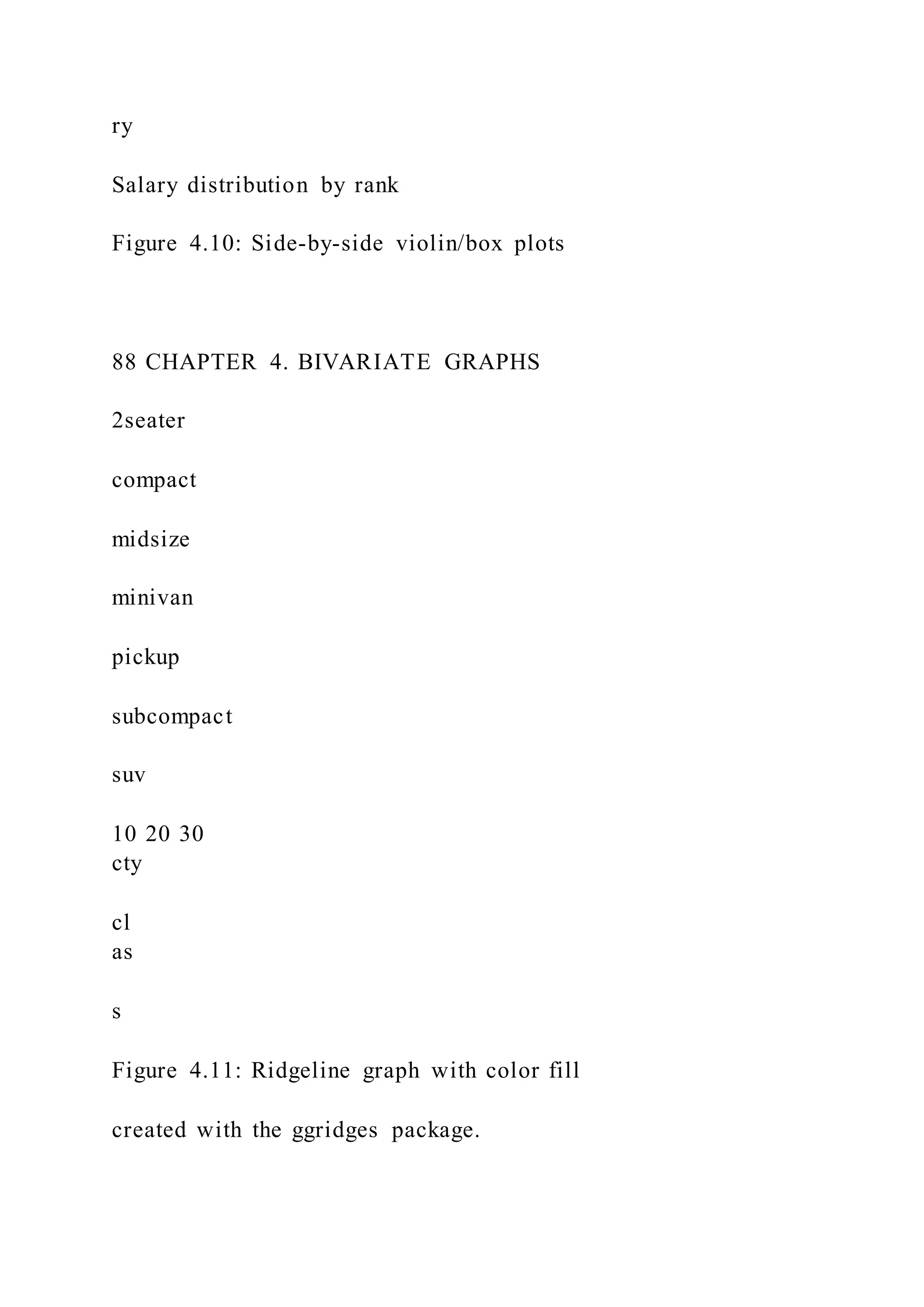
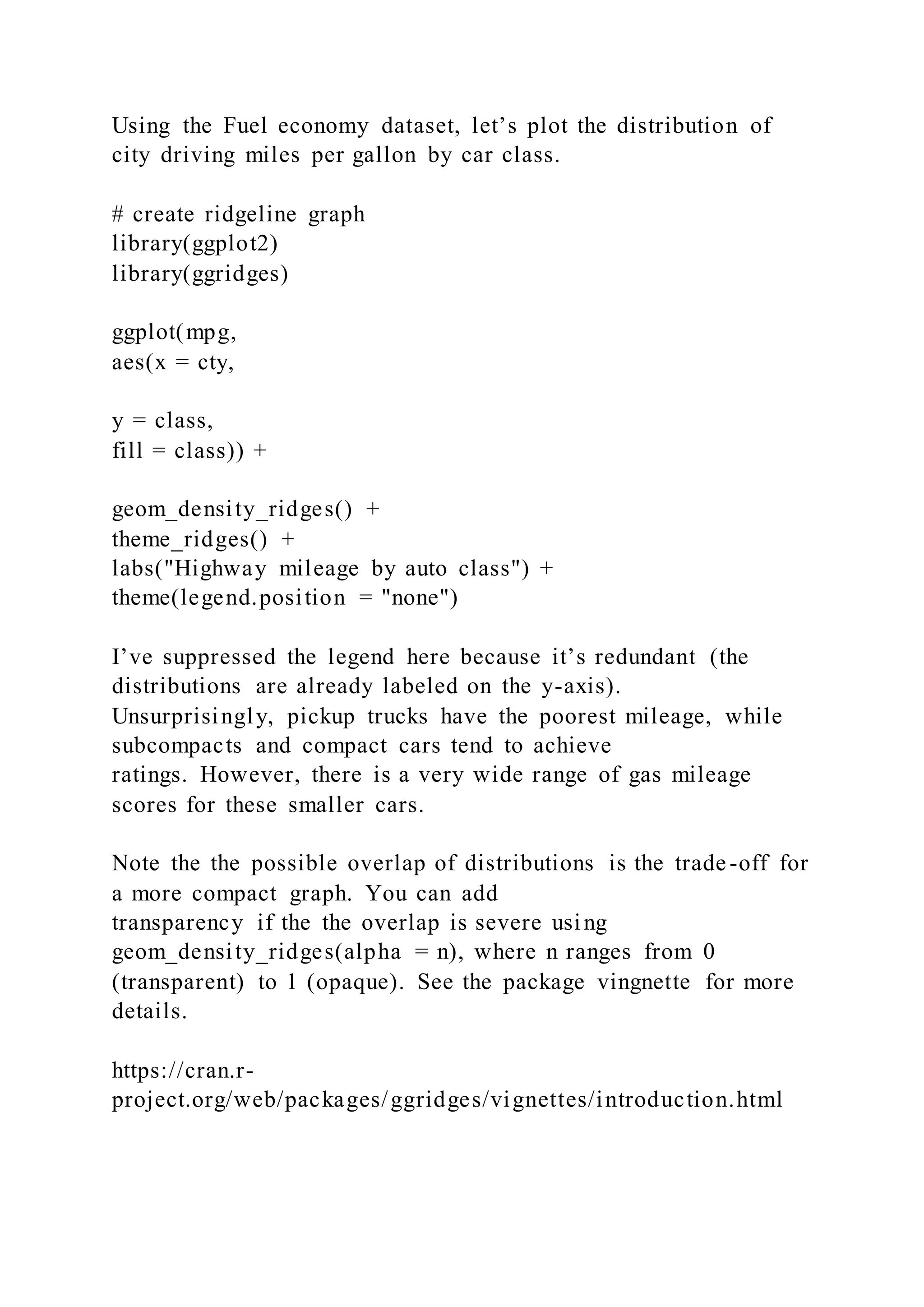
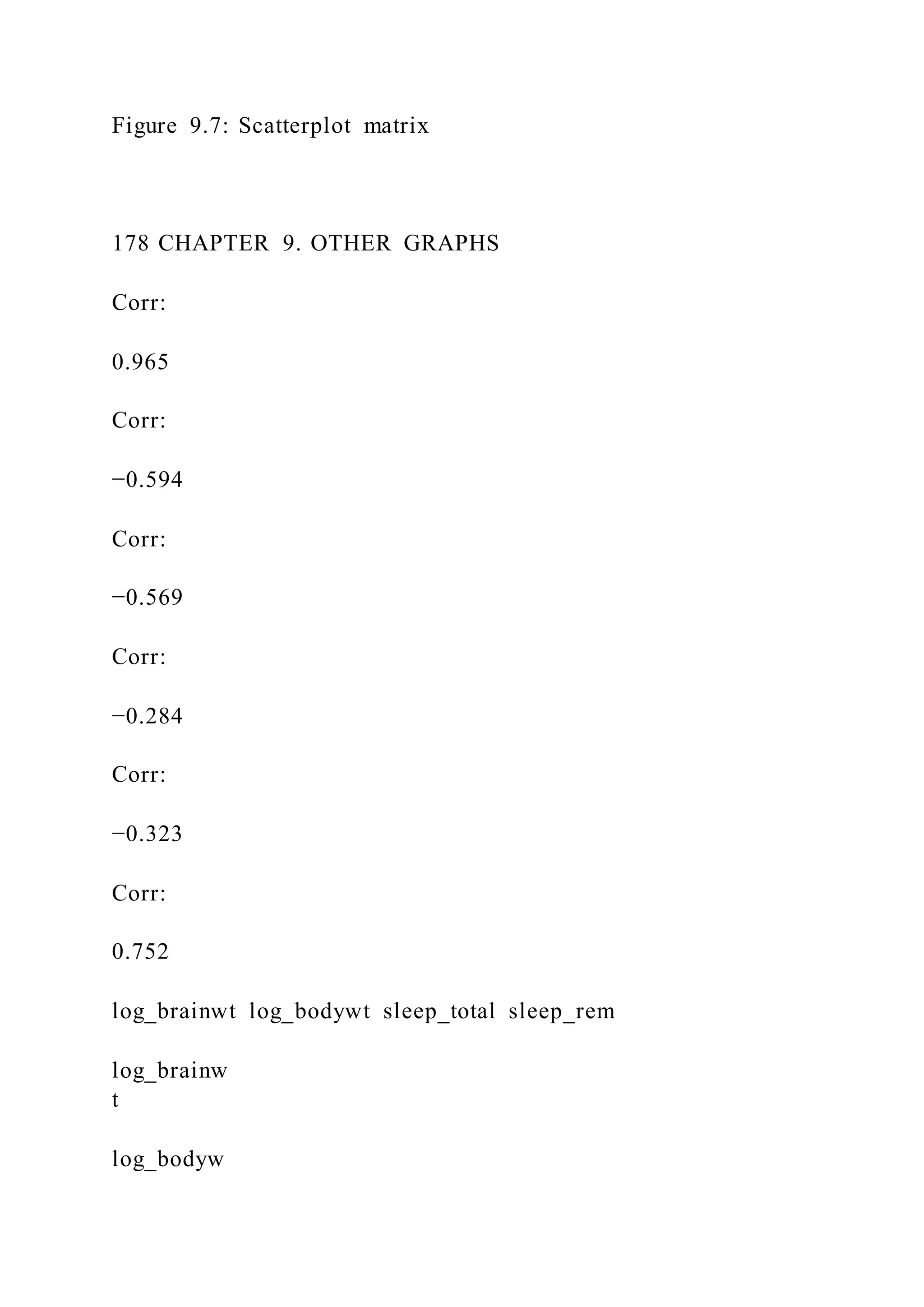
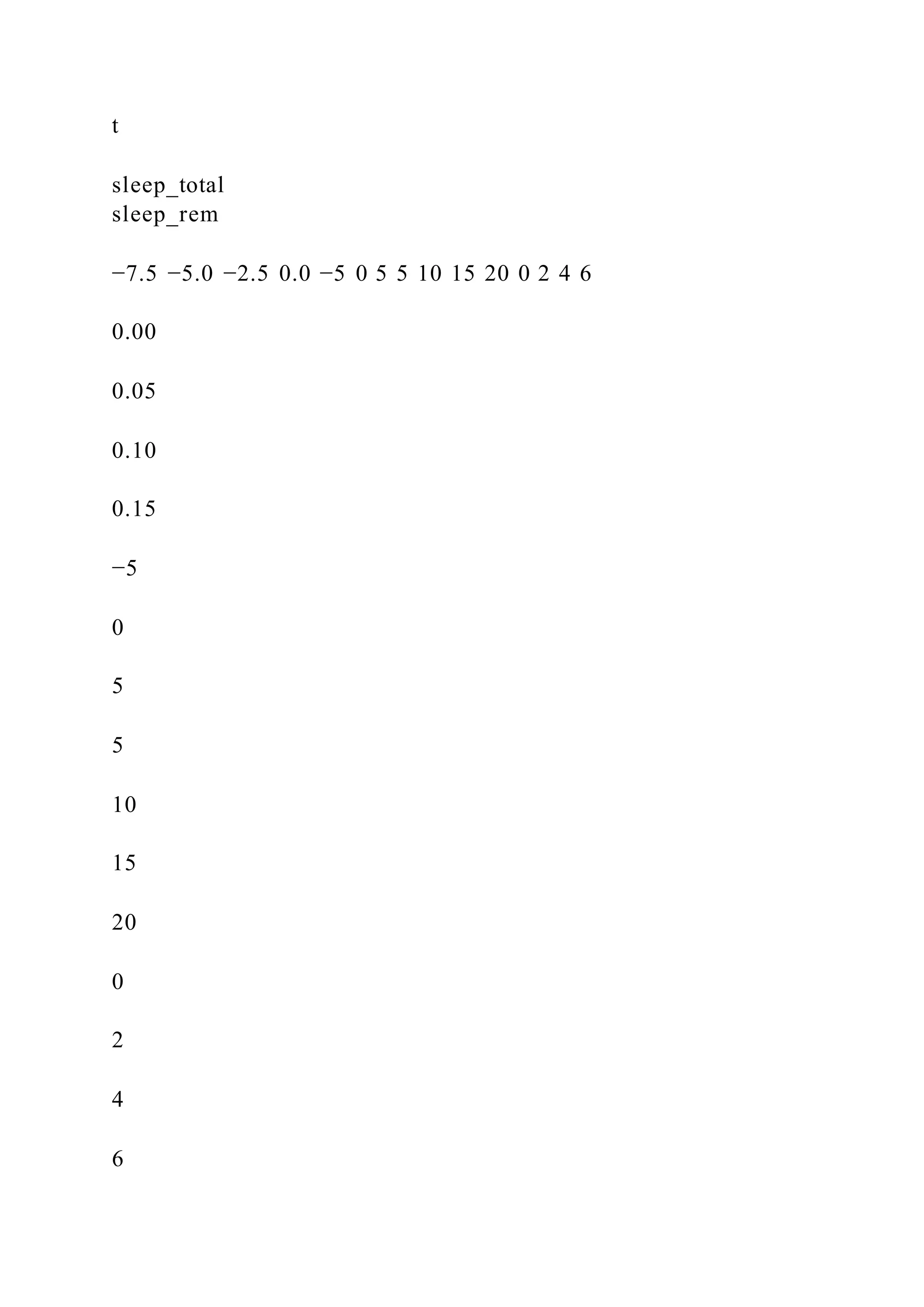
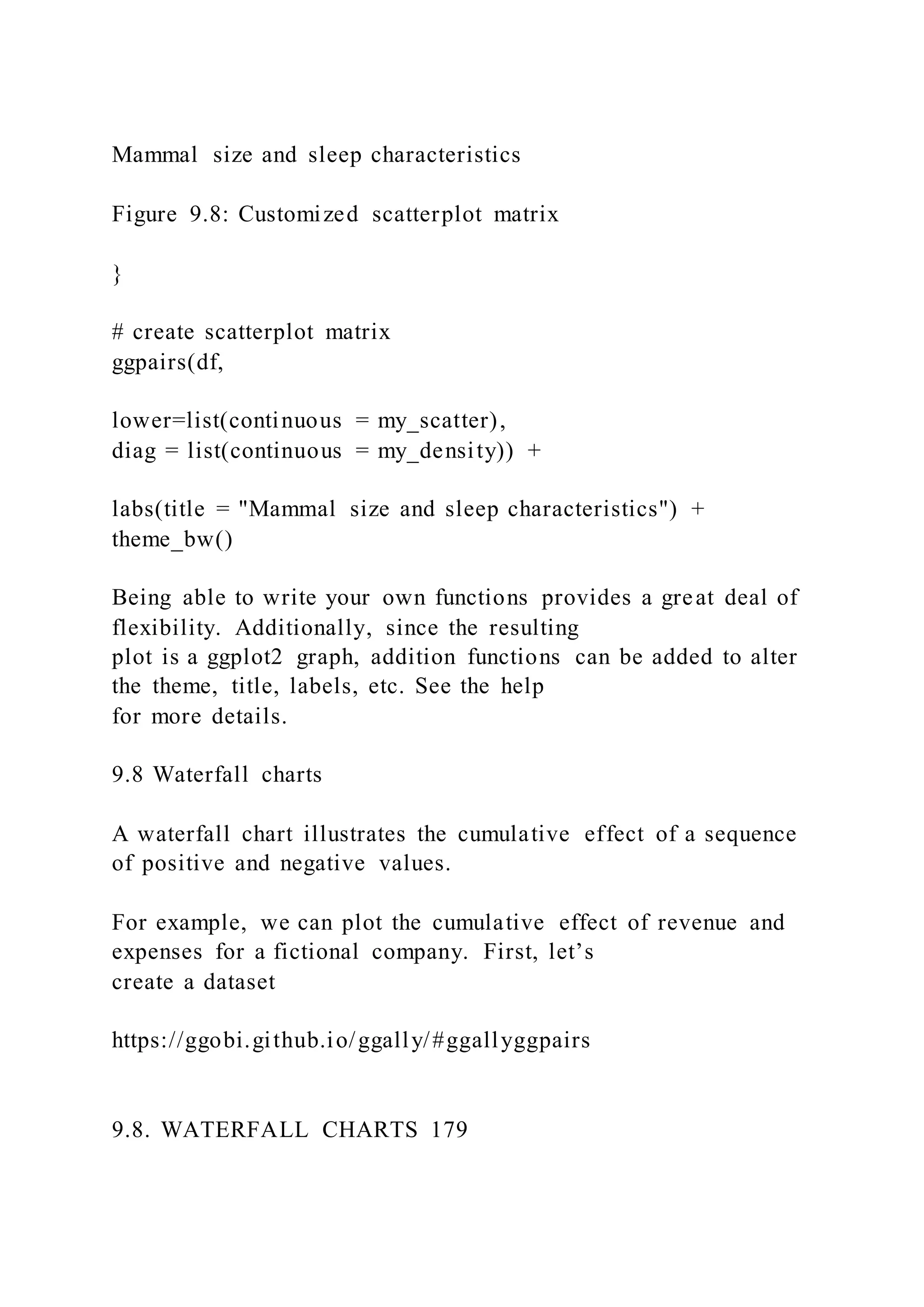
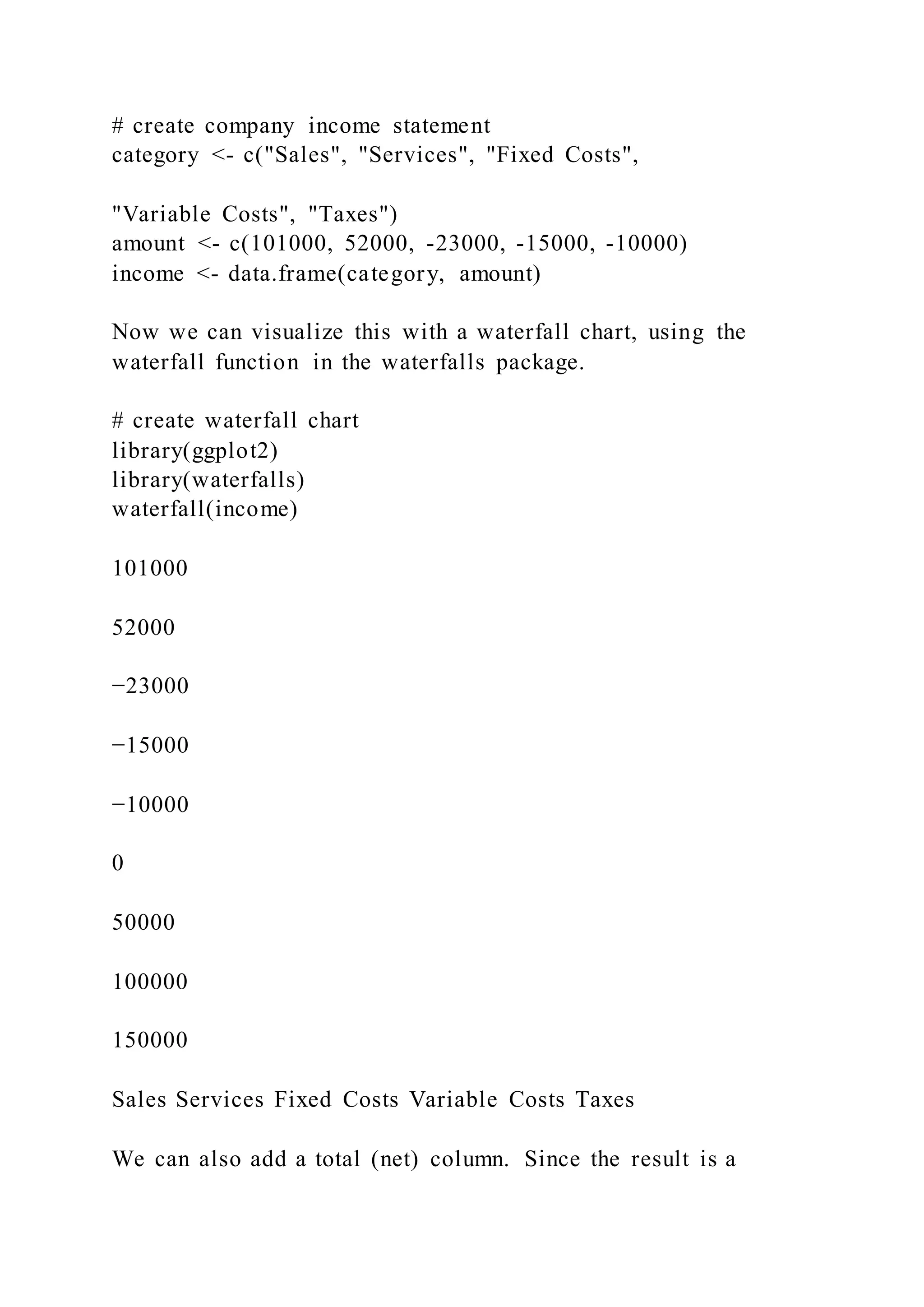
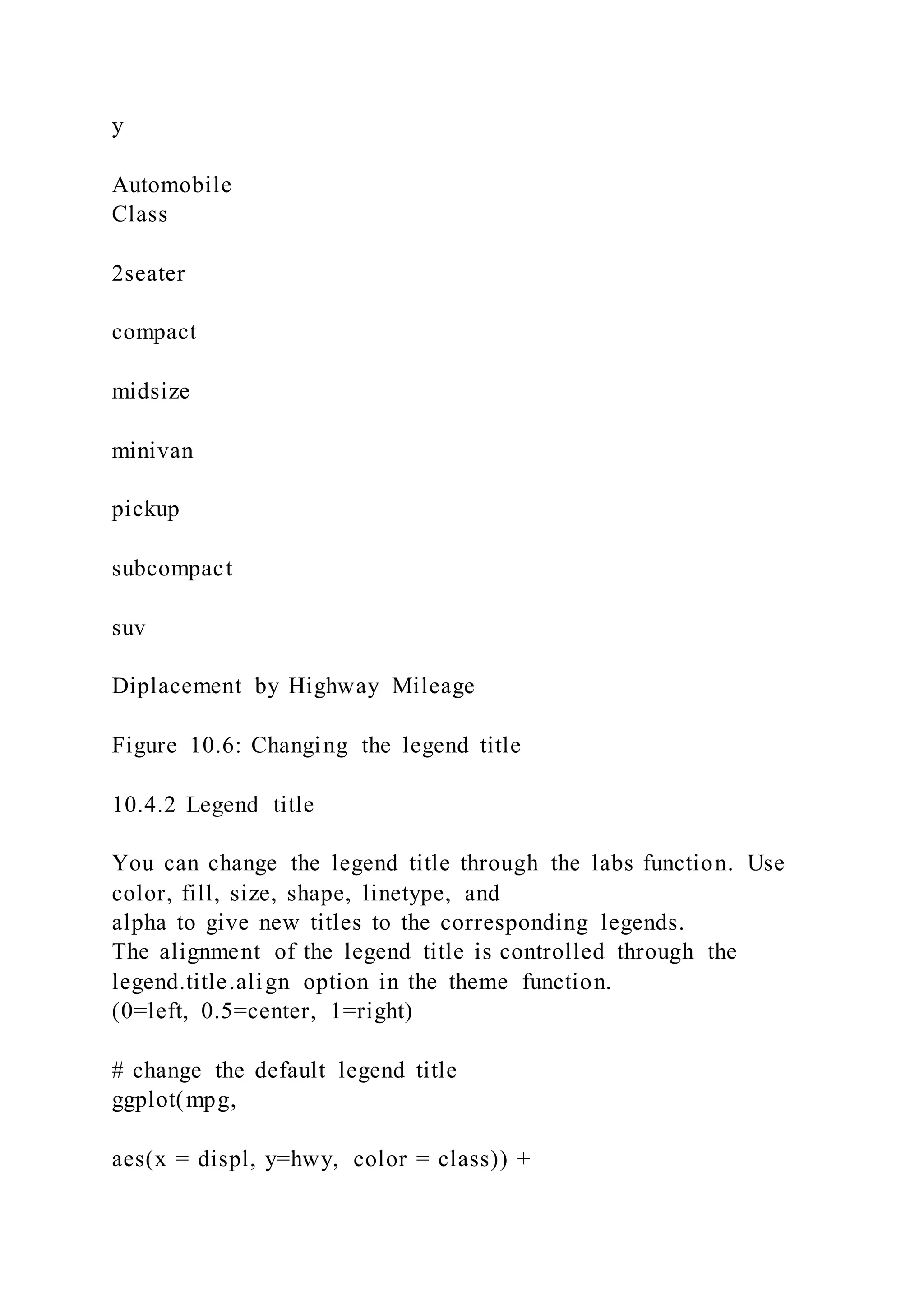
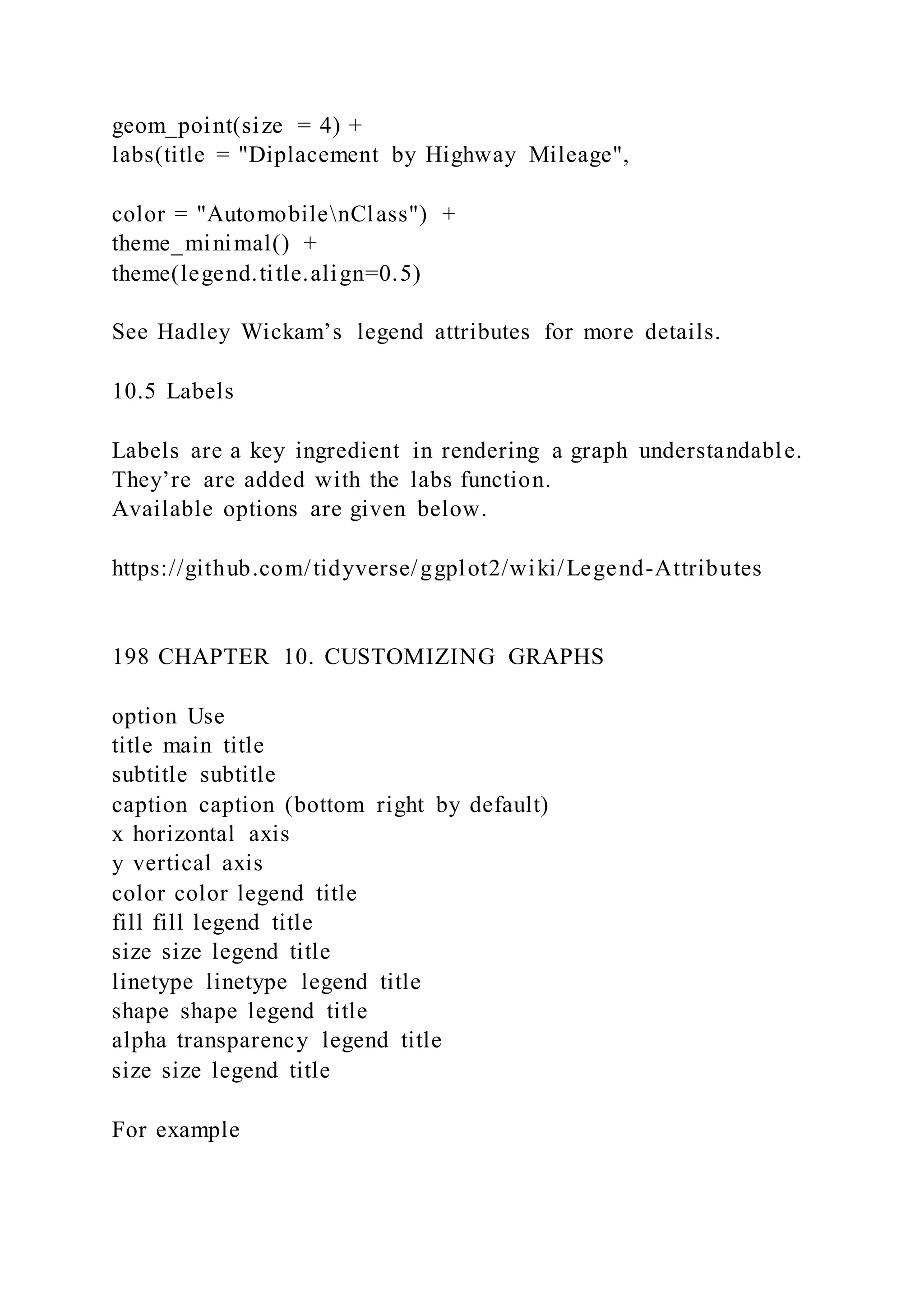
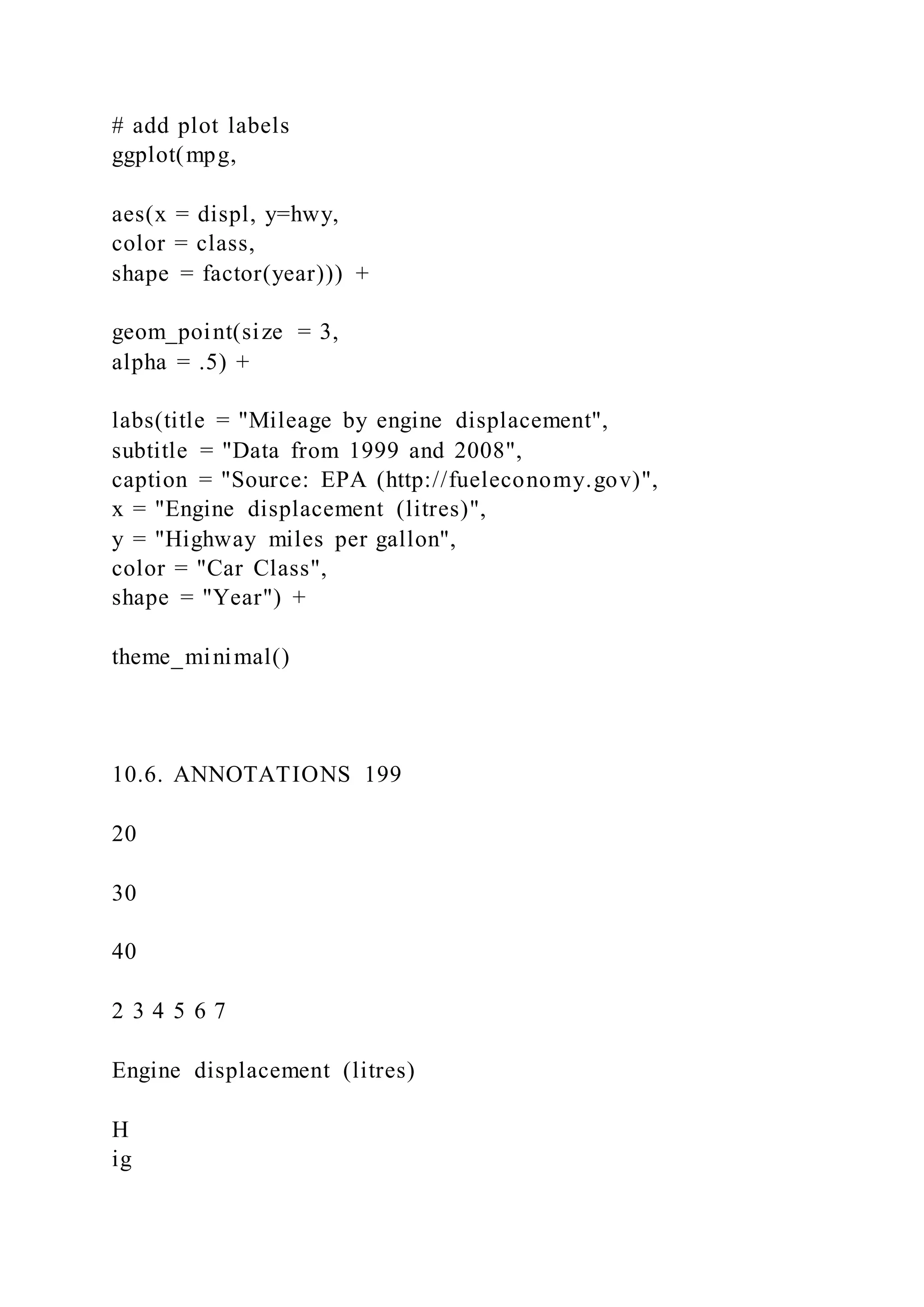
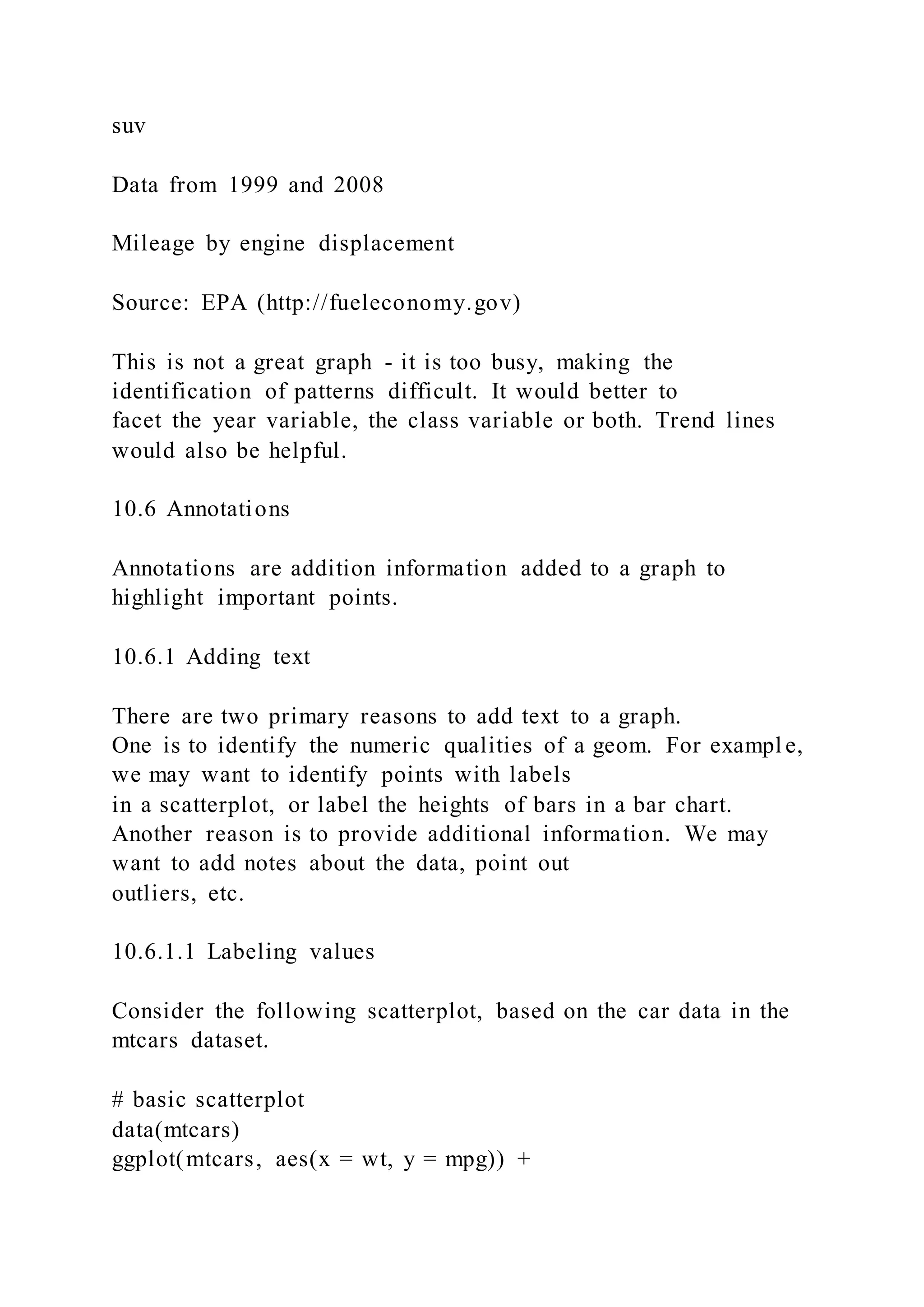
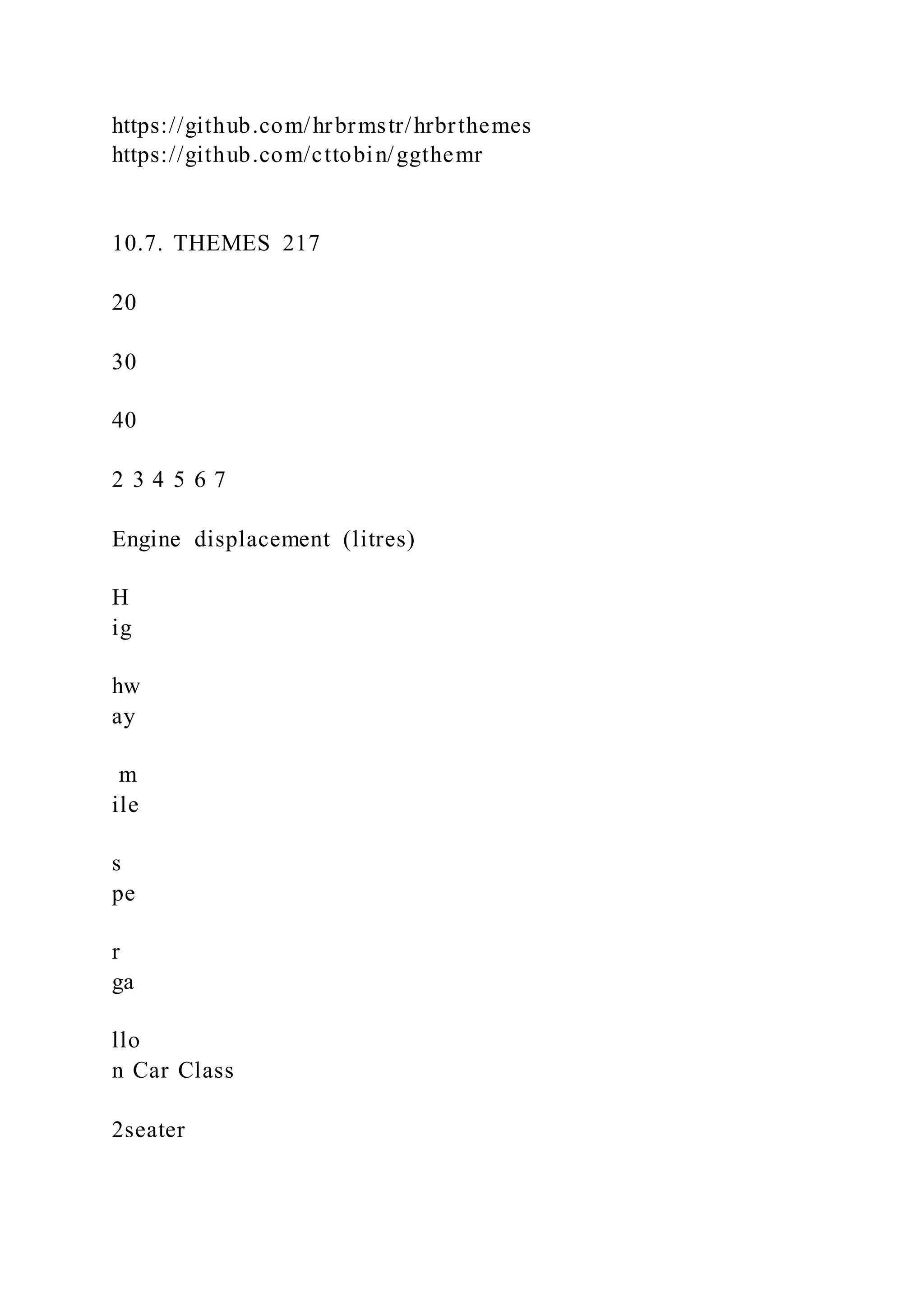
Data Visualization with R
Rob Kabacoff
2018-09-03
2
Contents
Welcome 7
Preface 9
How to use this book . . . . . . . . . . . . . . . . . . . . . . . . . . . . . . .
. . . . . . . . . . . . . 9
Prequisites . . . . . . . . . . . . . . . . . . . . . . . . . . . . . . . . . . . . . . .
. . . . . . . . . . 10
Setup . . . . . . . . . . . . . . . . . . . . . . . . . . . . . . . . . . . . . . . . . . .
. . . . . . . . . 10
1 Data Preparation 11
1.1 Importing data . . . . . . . . . . . . . . . . . . . . . . . . . . . . . . . . .
. . . . . . . . . . . 11
1.2 Cleaning data . . . . . . . . . . . . . . . . . . . . . . . . . . . . . . . . . .
. . . . . . . . . . . 12
2 Introduction to ggplot2 19
2.1 A worked example . . . . . . . . . . . . . . . . . . . . . . . . . . . . . . .
. . . . . . . . . . . 19
2.2 Placing the data and mapping options . . . . . . . . . . . . . . . . .
. . . . . . . . . . . . . . 30
2.3 Graphs as objects . . . . . . . . . . . . . . . . . . . . . . . . . . . . . . .
. . . . . . . . . . . . 32
3 Univariate Graphs 35
3.1 Categorical . . . . . . . . . . . . . . . . . . . . . . . . . . . . . . . . . . . .
. . . . . . . . . . 35
3.2 Quantitative . . . . . . . . . . . . . . . . . . . . . . . . . . . . . . . . . . .
. . . . . . . . . . . 51
4 Bivariate Graphs 63
4.1 Categorical vs. Categorical . . . . . . . . . . . . . . . . . . . . . . . .
. . . . . . . . . . . . . 63
4.2 Quantitative vs. Quantitative . . . . . . . . . . . . . . . . . . . . . . .
. . . . . . . . . . . . . 71
4.3 Categorical vs. Quantitative . . . . . . . . . . . . . . . . . . . . . . . .
. . . . . . . . . . . . . 79
5 Multivariate Graphs 103
5.1 Grouping . . . . . . . . . . . . . . . . . . . . . . . . . . . . . . . . . . . . .
. . . . . . . . . . 103
6 Maps 115
6.1 Dot density maps . . . . . . . . . . . . . . . . . . . . . . . . . . . . . . .
. . . . . . . . . . . . 115
6.2 Choropleth maps . . . . . . . . . . . . . . . . . . . . . . . . . . . . . . . .
. . . . . . . . . . . 119
3
4 CONTENTS
7 Time-dependent graphs 127
7.1 Time series . . . . . . . . . . . . . . . . . . . . . . . . . . . . . . . . . . . .
. . . . . . . . . . 127
7.2 Dummbbell charts . . . . . . . . . . . . . . . . . . . . . . . . . . . . . . .
. . . . . . . . . . . 130
7.3 Slope graphs . . . . . . . . . . . . . . . . . . . . . . . . . . . . . . . . . . .
. . . . . . . . . . 133
7.4 Area Charts . . . . . . . . . . . . . . . . . . . . . . . . . . . . . . . . . . .
. . . . . . . . . . . 135
8 Statistical Models 139
8.1 Correlation plots . . . . . . . . . . . . . . . . . . . . . . . . . . . . . . . .
. . . . . . . . . . . 139
8.2 Linear Regression . . . . . . . . . . . . . . . . . . . . . . . . . . . . . . .
. . . . . . . . . . . . 141
8.3 Logistic regression . . . . . . . . . . . . . . . . . . . . . . . . . . . . . .
. . . . . . . . . . . . 145
8.4 Survival plots . . . . . . . . . . . . . . . . . . . . . . . . . . . . . . . . . .
. . . . . . . . . . . 147
8.5 Mosaic plots . . . . . . . . . . . . . . . . . . . . . . . . . . . . . . . . . . .
. . . . . . . . . . . 150
9 Other Graphs 153
9.1 3-D Scatterplot . . . . . . . . . . . . . . . . . . . . . . . . . . . . . . . . .
. . . . . . . . . . . 153
9.2 Biplots . . . . . . . . . . . . . . . . . . . . . . . . . . . . . . . . . . . . . . .
. . . . . . . . . . 159
9.3 Bubble charts . . . . . . . . . . . . . . . . . . . . . . . . . . . . . . . . . .
. . . . . . . . . . . 161
9.4 Flow diagrams . . . . . . . . . . . . . . . . . . . . . . . . . . . . . . . . .
. . . . . . . . . . . 163
9.5 Heatmaps . . . . . . . . . . . . . . . . . . . . . . . . . . . . . . . . . . . . .
. . . . . . . . . . 168
9.6 Radar charts . . . . . . . . . . . . . . . . . . . . . . . . . . . . . . . . . . .
. . . . . . . . . . 174
9.7 Scatterplot matrix . . . . . . . . . . . . . . . . . . . . . . . . . . . . . . .
. . . . . . . . . . . 176
9.8 Waterfall charts . . . . . . . . . . . . . . . . . . . . . . . . . . . . . . . .
. . . . . . . . . . . . 178
9.9 Word clouds . . . . . . . . . . . . . . . . . . . . . . . . . . . . . . . . . . .
. . . . . . . . . . . 180
10 Customizing Graphs 183
10.1 Axes . . . . . . . . . . . . . . . . . . . . . . . . . . . . . . . . . . . . . . . .
. . . . . . . . . . 183
10.2 Colors . . . . . . . . . . . . . . . . . . . . . . . . . . . . . . . . . . . . . .
. . . . . . . . . . . 187
10.3 Points & Lines . . . . . . . . . . . . . . . . . . . . . . . . . . . . . . . .
. . . . . . . . . . . . 193
10.4 Legends . . . . . . . . . . . . . . . . . . . . . . . . . . . . . . . . . . . . .
. . . . . . . . . . . 195
10.5 Labels . . . . . . . . . . . . . . . . . . . . . . . . . . . . . . . . . . . . . .
. . . . . . . . . . . 197
10.6 Annotations . . . . . . . . . . . . . . . . . . . . . . . . . . . . . . . . . .
. . . . . . . . . . . . 199
10.7 Themes . . . . . . . . . . . . . . . . . . . . . . . . . . . . . . . . . . . . . .
. . . . . . . . . . 206
11 Saving Graphs 219
11.1 Via menus . . . . . . . . . . . . . . . . . . . . . . . . . . . . . . . . . . . .
. . . . . . . . . . . 219
11.2 Via code . . . . . . . . . . . . . . . . . . . . . . . . . . . . . . . . . . . . .
. . . . . . . . . . . 219
11.3 File formats . . . . . . . . . . . . . . . . . . . . . . . . . . . . . . . . . .
. . . . . . . . . . . . 219
11.4 External editing . . . . . . . . . . . . . . . . . . . . . . . . . . . . . . . .
. . . . . . . . . . . 221
CONTENTS 5
12 Interactive Graphs 223
12.1 leaflet . . . . . . . . . . . . . . . . . . . . . . . . . . . . . . . . . . . . . . .
. . . . . . . . . . 223
12.2 plotly . . . . . . . . . . . . . . . . . . . . . . . . . . . . . . . . . . . . . . .
. . . . . . . . . . 223
12.3 rbokeh . . . . . . . . . . . . . . . . . . . . . . . . . . . . . . . . . . . . . .
. . . . . . . . . . . 226
12.4 rCharts . . . . . . . . . . . . . . . . . . . . . . . . . . . . . . . . . . . . . .
. . . . . . . . . . 226
12.5 highcharter . . . . . . . . . . . . . . . . . . . . . . . . . . . . . . . . . . .
. . . . . . . . . . . 226
13 Advice / Best Practices 231
13.1 Labeling . . . . . . . . . . . . . . . . . . . . . . . . . . . . . . . . . . . . .
. . . . . . . . . . . 231
13.2 Signal to noise ratio . . . . . . . . . . . . . . . . . . . . . . . . . . . .
. . . . . . . . . . . . . 232
13.3 Color choice . . . . . . . . . . . . . . . . . . . . . . . . . . . . . . . . . .
. . . . . . . . . . . . 234
13.4 y-Axis scaling . . . . . . . . . . . . . . . . . . . . . . . . . . . . . . . . .
. . . . . . . . . . . . 234
13.5 Attribution . . . . . . . . . . . . . . . . . . . . . . . . . . . . . . . . . . .
. . . . . . . . . . . 238
13.6 Going further . . . . . . . . . . . . . . . . . . . . . . . . . . . . . . . . .
. . . . . . . . . . . . 238
13.7 Final Note . . . . . . . . . . . . . . . . . . . . . . . . . . . . . . . . . . . .
. . . . . . . . . . . 239
A Datasets 241
A.1 Academic salaries . . . . . . . . . . . . . . . . . . . . . . . . . . . . . . .
. . . . . . . . . . . . 241
A.2 Starwars . . . . . . . . . . . . . . . . . . . . . . . . . . . . . . . . . . . . .
. . . . . . . . . . . 241
A.3 Mammal sleep . . . . . . . . . . . . . . . . . . . . . . . . . . . . . . . . .
. . . . . . . . . . . . 241
A.4 Marriage records . . . . . . . . . . . . . . . . . . . . . . . . . . . . . . .
. . . . . . . . . . . . 242
A.5 Fuel economy data . . . . . . . . . . . . . . . . . . . . . . . . . . . . . .
. . . . . . . . . . . . 242
A.6 Gapminder data . . . . . . . . . . . . . . . . . . . . . . . . . . . . . . . .
. . . . . . . . . . . 242
A.7 Current Population Survey (1985) . . . . . . . . . . . . . . . . . . .
. . . . . . . . . . . . . . 242
A.8 Houston crime data . . . . . . . . . . . . . . . . . . . . . . . . . . . . . .
. . . . . . . . . . . . 242
A.9 US economic timeseries . . . . . . . . . . . . . . . . . . . . . . . . . .
. . . . . . . . . . . . . 243
A.10 Saratoga housing data . . . . . . . . . . . . . . . . . . . . . . . . . . .
. . . . . . . . . . . . . 243
A.11 US population by age and year . . . . . . . . . . . . . . . . . . . .
. . . . . . . . . . . . . . . 243
A.12 NCCTG lung cancer data . . . . . . . . . . . . . . . . . . . . . . . . .
. . . . . . . . . . . . . 243
A.13 Titanic data . . . . . . . . . . . . . . . . . . . . . . . . . . . . . . . . . .
. . . . . . . . . . . . 243
A.14 JFK Cuban Missle speech . . . . . . . . . . . . . . . . . . . . . . . .
. . . . . . . . . . . . . . 244
A.15 UK Energy forecast data . . . . . . . . . . . . . . . . . . . . . . . . .
. . . . . . . . . . . . . . 244
A.16 US Mexican American Population . . . . . . . . . . . . . . . . . .
. . . . . . . . . . . . . . . 244
B About the Author 245
C About the QAC 247
6 CONTENTS
Welcome
R is an amazing platform for data analysis, capable of creating
almost any type of graph. This book helps
you create the most popular visualizations - from quick and
dirty plots to publication-ready graphs. The
text relies heavily on the ggplot2 package for graphics, but
other approaches are covered as well.
This work is licensed under a Creative Commons Attribution-
NonCommercial-NoDerivatives 4.0 Interna-
tional License.
My goal is make this book as helpful and user-friendly as
possible. Any feedback is both welcome and
appreciated.
7
8 CONTENTS
Preface
How to use this book
You don’t need to read this book from start to finish in order to
start building effective graphs. Feel free to
jump to the section that you need and then explore others that
you find interesting.
Graphs are organized by
• the number of variables to be plotted
• the type of variables to be plotted
• the purpose of the visualization
Chapter Description
Ch 1 provides a quick overview of how to get your data into R
and how to prepare it
for analysis.
Ch 2 provides an overview of the ggplot2 package.
Ch 3 describes graphs for visualizing the distribution of a single
categorical (e.g. race)
or quantitative (e.g. income) variable.
Ch 4 describes graphs that display the relationship between two
variables.
Ch 5 describes graphs that display the relationships among 3 or
more variables. It is
helpful to read chapters 3 and 4 before this chapter.
Ch 6 provides a brief introduction to displaying data
geographically.
Ch 7 describes graphs that display change over time.
Ch 8 describes graphs that can help you interpret the results of
statistical models.
Ch 9 covers graphs that do not fit neatly elsewhere (every book
needs a miscellaneous
chapter).
Ch 10 describes how to customize the look and feel of your
graphs. If you are going to
share your graphs with others, be sure to skim this chapter.
Ch 11 covers how to save your graphs. Different formats are
optimized for different
purposes.
Ch 12 provides an introduction to interactive graphics.
Ch 13 gives advice on creating effective graphs and where to go
to learn more. It’s
worth a look.
The Appendices describe each of the datasets used in this book,
and provides a short blurb about
the author and the Wesleyan Quantitative Analysis Center.
There is no one right graph for displaying data. Check out the
examples, and see which type best fits
your needs.
9
10 CONTENTS
Prequisites
It’s assumed that you have some experience with the R language
and that you have already installed R and
RStudio. If not, here are some resources for getting started:
• A (very) short introduction to R
• DataCamp - Introduction to R with Jonathon Cornelissen
• Quick-R
• Getting up to speed with R
Setup
In order to create the graphs in this guide, you’ll need to install
some optional R packages. To install all of
the necessary packages, run the following code in the RStudio
console window.
pkgs <- c("ggplot2", "dplyr", "tidyr",
"mosaicData", "carData",
"VIM", "scales", "treemapify",
"gapminder", "ggmap", "choroplethr",
"choroplethrMaps", "CGPfunctions",
"ggcorrplot", "visreg",
"gcookbook", "forcats",
"survival", "survminer",
"ggalluvial", "ggridges",
"GGally", "superheat",
"waterfalls", "factoextra",
"networkD3", "ggthemes",
"hrbrthemes", "ggpol",
"ggbeeswarm")
install.packages(pkgs)
Alternatively, you can install a given package the first time it is
needed.
For example, if you execute
library(gapminder)
and get the message
Error in library(gapminder) : there is no package called
‘gapminder’
you know that the package has never been installed. Simply
execute
install.packages("gapminder")
once and
library(gapminder)
will work from that point on.
https://cran.r-project.org/
https://www.rstudio.com/products/RStudio/#Desktop
https://cran.r-project.org/doc/contrib/Torfs+Brauer-Short-R-
Intro.pdf
https://www.datacamp.com/courses/free-introduction-to-r
http://www.statmethods.net
Chapter 1
Data Preparation
Before you can visualize your data, you have to get it into R.
This involves importing the data from an
external source and massaging it into a useful format.
1.1 Importing data
R can import data from almost any source, including text files,
excel spreadsheets, statistical packages, and
database management systems. We’ll illustrate these techniques
using the Salaries dataset, containing the 9
month academic salaries of college professors at a single
institution in 2008-2009.
1.1.1 Text files
The readr package provides functions for importing delimited
text files into R data frames.
library(readr)
# import data from a comma delimited file
Salaries <- read_csv("salaries.csv")
# import data from a tab delimited file
Salaries <- read_tsv("salaries.txt")
These function assume that the first line of data contains the
variable names, values are separated by commas
or tabs respectively, and that missing data are represented by
blanks. For example, the first few lines of the
comma delimited file looks like this.
"rank","discipline","yrs.since.phd","yrs.service","sex","salary"
"Prof","B",19,18,"Male",139750
"Prof","B",20,16,"Male",173200
"AsstProf","B",4,3,"Male",79750
"Prof","B",45,39,"Male",115000
"Prof","B",40,41,"Male",141500
"AssocProf","B",6,6,"Male",97000
Options allow you to alter these assumptions. See the
documentation for more details.
11
https://www.rdocumentation.org/packages/readr/versions/0.1.1/t
opics/read_delim
12 CHAPTER 1. DATA PREPARATION
1.1.2 Excel spreadsheets
The readxl package can import data from Excel workbooks.
Both xls and xlsx formats are supported.
library(readxl)
# import data from an Excel workbook
Salaries <- read_excel("salaries.xlsx", sheet=1)
Since workbooks can have more than one worksheet, you can
specify the one you want with the sheet option.
The default is sheet=1.
1.1.3 Statistical packages
The haven package provides functions for importing data from a
variety of statistical packages.
library(haven)
# import data from Stata
Salaries <- read_dta("salaries.dta")
# import data from SPSS
Salaries <- read_sav("salaries.sav")
# import data from SAS
Salaries <- read_sas("salaries.sas7bdat")
1.1.4 Databases
Importing data from a database requires additional steps and is
beyond the scope of this book. Depending on
the database containing the data, the following packages can
help: RODBC, RMySQL, ROracle, RPostgreSQL,
RSQLite, and RMongo. In the newest versions of RStudio, you
can use the Connections pane to quickly access
the data stored in database management systems.
1.2 Cleaning data
The processes of cleaning your data can be the most time-
consuming part of any data analysis. The most
important steps are considered below. While there are many
approaches, those using the dplyr and tidyr
packages are some of the quickest and easiest to learn.
Package Function Use
dplyr select select variables/columns
dplyr filter select observations/rows
dplyr mutate transform or recode variables
dplyr summarize summarize data
dplyr group_by identify subgroups for further processing
tidyr gather convert wide format dataset to long format
tidyr spread convert long format dataset to wide format
https://db.rstudio.com/rstudio/connections/
1.2. CLEANING DATA 13
Examples in this section will use the starwars dataset from the
dplyr package. The dataset provides
descriptions of 87 characters from the Starwars universe on 13
variables. (I actually prefer StarTrek, but we
work with what we have.)
1.2.1 Selecting variables
The select function allows you to limit your dataset to specified
variables (columns).
library(dplyr)
# keep the variables name, height, and gender
newdata <- select(starwars, name, height, gender)
# keep the variables name and all variables
# between mass and species inclusive
newdata <- select(starwars, name, mass:species)
# keep all variables except birth_year and gender
newdata <- select(starwars, -birth_year, -gender)
1.2.2 Selecting observations
The filter function allows you to limit your dataset to
observations (rows) meeting a specific criteria.
Multiple criteria can be combined with the & (AND) and | (OR)
symbols.
library(dplyr)
# select females
newdata <- filter(starwars,
gender == "female")
# select females that are from Alderaan
newdata <- select(starwars,
gender == "female" &
homeworld == "Alderaan")
# select individuals that are from
# Alderaan, Coruscant, or Endor
newdata <- select(starwars,
homeworld == "Alderaan" |
homeworld == "Coruscant" |
homeworld == "Endor")
# this can be written more succinctly as
newdata <- select(starwars,
homeworld %in% c("Alderaan", "Coruscant", "Endor"))
1.2.3 Creating/Recoding variables
The mutate function allows you to create new variables or
transform existing ones.
14 CHAPTER 1. DATA PREPARATION
library(dplyr)
# convert height in centimeters to inches,
# and mass in kilograms to pounds
newdata <- mutate(starwars,
height = height * 0.394,
mass = mass * 2.205)
The ifelse function (part of base R) can be used for recoding
data. The format is ifelse(test, return
if TRUE, return if FALSE).
library(dplyr)
# if height is greater than 180
# then heightcat = "tall",
# otherwise heightcat = "short"
newdata <- mutate(starwars,
heightcat = ifelse(height > 180,
"tall",
"short")
# convert any eye color that is not
# black, blue or brown, to other
newdata <- mutate(starwars,
eye_color = ifelse(eye_color %in% c("black", "blue", "brown"),
eye_color,
"other")
# set heights greater than 200 or
# less than 75 to missing
newdata <- mutate(starwars,
height = ifelse(height < 75 | height > 200,
NA,
height)
1.2.4 Summarizing data
The summarize function can be used to reduce multiple values
down to a single value (such as a mean). It
is often used in conjunction with the by_group function, to
calculate statistics by group. In the code below,
the na.rm=TRUE option is used to drop missing values before
calculating the means.
library(dplyr)
# calculate mean height and mass
newdata <- summarize(starwars,
mean_ht = mean(height, na.rm=TRUE),
mean_mass = mean(mass, na.rm=TRUE))
newdata
## # A tibble: 1 x 2
## mean_ht mean_mass
1.2. CLEANING DATA 15
## <dbl> <dbl>
## 1 174. 97.3
# calculate mean height and weight by gender
newdata <- group_by(starwars, gender)
newdata <- summarize(newdata,
mean_ht = mean(height, na.rm=TRUE),
mean_wt = mean(mass, na.rm=TRUE))
newdata
## # A tibble: 5 x 3
## gender mean_ht mean_wt
## <chr> <dbl> <dbl>
## 1 female 165. 54.0
## 2 hermaphrodite 175. 1358.
## 3 male 179. 81.0
## 4 none 200. 140.
## 5 <NA> 120. 46.3
1.2.5 Using pipes
Packages like dplyr and tidyr allow you to write your code in a
compact format using the pipe %>% operator.
Here is an example.
library(dplyr)
# calculate the mean height for women by species
newdata <- filter(starwars,
gender == "female")
newdata <- group_by(species)
newdata <- summarize(newdata,
mean_ht = mean(height, na.rm = TRUE))
# this can be written as
newdata <- starwars %>%
filter(gender == "female") %>%
group_by(species) %>%
summarize(mean_ht = mean(height, na.rm = TRUE))
The %>% operator passes the result on the left to the first
parameter of the function on the right.
1.2.6 Reshaping data
Some graphs require the data to be in wide format, while some
graphs require the data to be in long format.
You can convert a wide dataset to a long dataset using
library(tidyr)
long_data <- gather(wide_data,
key="variable",
value="value",
sex:income)
16 CHAPTER 1. DATA PREPARATION
Table 1.2: Wide data
id name sex age income
01 Bill Male 22 55000
02 Bob Male 25 75000
03 Mary Female 18 90000
Table 1.3: Long data
id name variable value
01 Bill sex Male
02 Bob sex Male
03 Mary sex Female
01 Bill age 22
02 Bob age 25
03 Mary age 18
01 Bill income 55000
02 Bob income 75000
03 Mary income 90000
Conversely, you can convert a long dataset to a wide dataset
using
library(tidyr)
wide_data <- spread(long_data, variable, value)
1.2.7 Missing data
Real data are likely to contain missing values. There are three
basic approaches to dealing with missing
data: feature selection, listwise deletion, and imputation. Let’s
see how each applies to the msleep dataset
from the ggplot2 package. The msleep dataset describes the
sleep habits of mammals and contains missing
values on several variables.
1.2.7.1 Feature selection
In feature selection, you delete variables (columns) that contain
too many missing values.
data(msleep, package="ggplot2")
# what is the proportion of missing data for each variable?
pctmiss <- colSums(is.na(msleep))/nrow(msleep)
round(pctmiss, 2)
## name genus vore order conservation
## 0.00 0.00 0.08 0.00 0.35
## sleep_total sleep_rem sleep_cycle awake brainwt
## 0.00 0.27 0.61 0.00 0.33
## bodywt
## 0.00
Sixty-one percent of the sleep_cycle values are missing. You
may decide to drop it.
1.2. CLEANING DATA 17
1.2.7.2 Listwise deletion
Listwise deletion involves deleting observations (rows) that
contain missing values on any of the variables of
interest.
# Create a dataset containing genus, vore, and conservation.
# Delete any rows containing missing data.
newdata <- select(msleep, genus, vore, conservation)
newdata <- na.omit(newdata)
1.2.7.3 Imputation
Imputation involves replacing missing values with “reasonable”
guesses about what the values would have
been if they had not been missing. There are several
approaches, as detailed in such packages as VIM, mice,
Amelia and missForest. Here we will use the kNN function from
the VIM package to replace missing values
with imputed values.
# Impute missing values using the 5 nearest neighbors
library(VIM)
newdata <- kNN(msleep, k=5)
Basically, for each case with a missing value, the k most similar
cases not having a missing value are selected.
If the missing value is numeric, the mean of those k cases is
used as the imputed value. If the missing value
is categorical, the most frequent value from the k cases is used.
The process iterates over cases and variables
until the results converge (become stable). This is a bit of an
oversimplification - see Imputation with R
Package VIM for the actual details.
Important caveate: Missing values can bias the results of studies
(sometimes severely). If you
have a significant amount of missing data, it is probably a good
idea to consult a statistician or
data scientist before deleting cases or imputing missing values.
https://www.jstatsoft.org/article/view/v074i07/v74i07.pdf
18 CHAPTER 1. DATA PREPARATION
Chapter 2
Introduction to ggplot2
This section provides an brief overview of how the ggplot2
package works. If you are simply seeking code to
make a specific type of graph, feel free to skip this section.
However, the material can help you understand
how the pieces fit together.
2.1 A worked example
The functions in the ggplot2 package build up a graph in layers.
We’ll build a a complex graph by starting
with a simple graph and adding additional elements, one at a
time.
The example uses data from the 1985 Current Population Survey
to explore the relationship between wages
(wage) and experience (expr).
# load data
data(CPS85 , package = "mosaicData")
In building a ggplot2 graph, only the first two functions
described below are required. The other functions
are optional and can appear in any order.
2.1.1 ggplot
The first function in building a graph is the ggplot function. It
specifies the
• data frame containing the data to be plotted
• the mapping of the variables to visual properties of the graph.
The mappings are placed within the
aes function (where aes stands for aesthetics).
# specify dataset and mapping
library(ggplot2)
ggplot(data = CPS85,
mapping = aes(x = exper, y = wage))
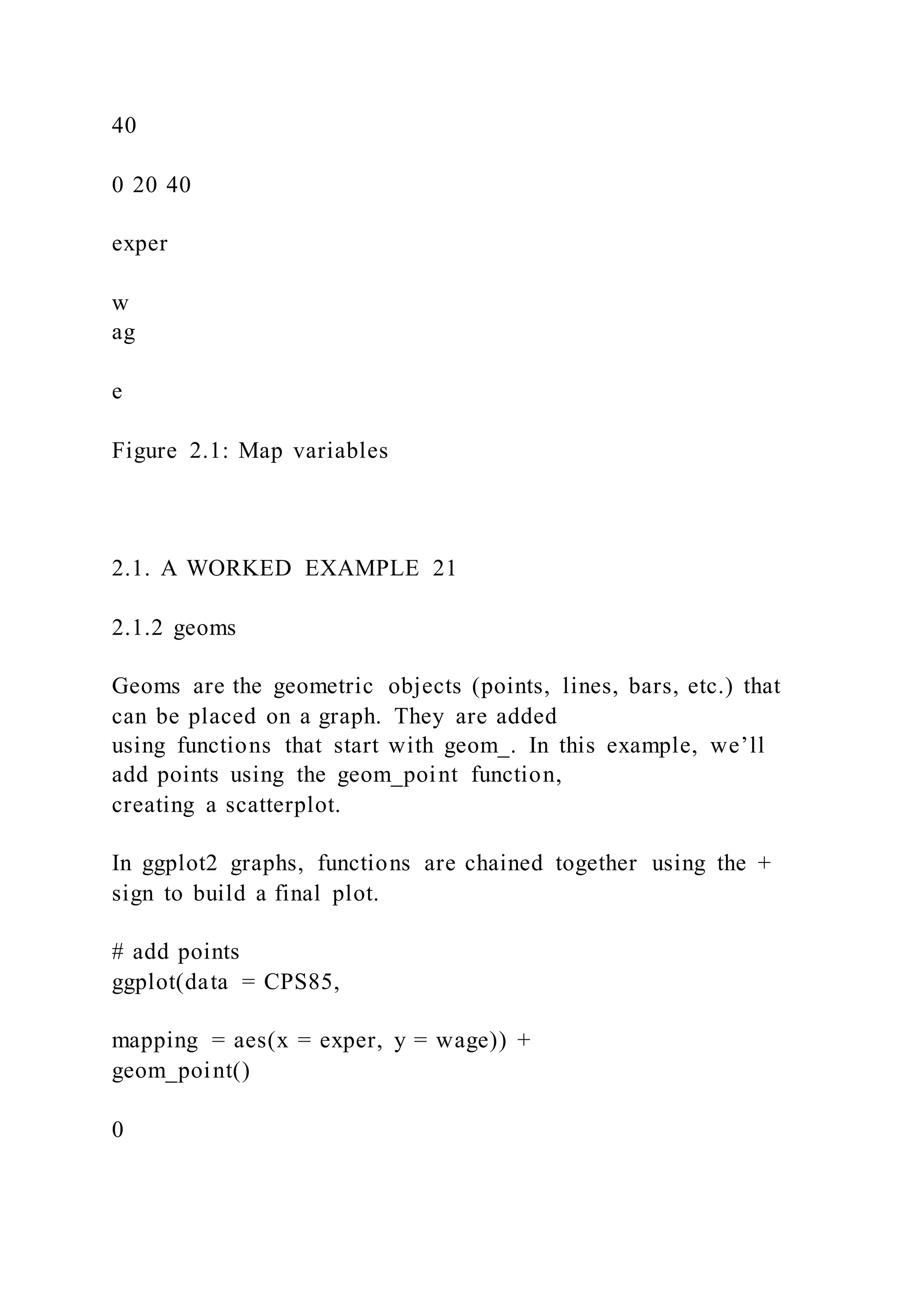
Why is the graph empty? We specified that the exper vari able
should be mapped to the x-axis and that the
wage should be mapped to the y-axis, but we haven’t yet
specified what we wanted placed on the graph.
19
https://ggplot2.tidyverse.org/
20 CHAPTER 2. INTRODUCTION TO GGPLOT2
0
10
20
30
40
0 20 40
exper
w
ag
e
Figure 2.1: Map variables
2.1. A WORKED EXAMPLE 21
2.1.2 geoms
Geoms are the geometric objects (points, lines, bars, etc.) that
can be placed on a graph. They are added
using functions that start with geom_. In this example, we’ll
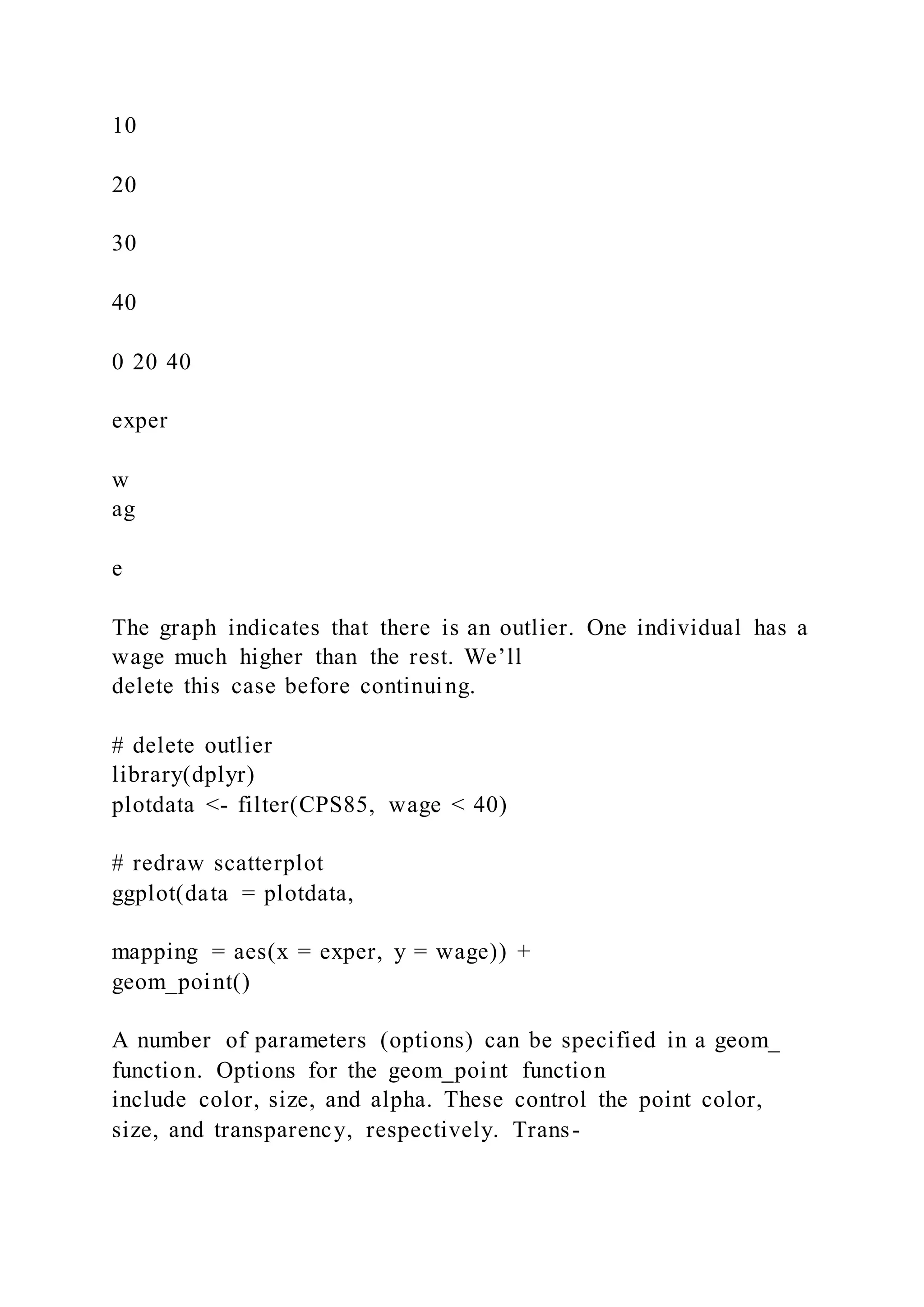
add points using the geom_point function,
creating a scatterplot.
In ggplot2 graphs, functions are chained together using the +
sign to build a final plot.
# add points
ggplot(data = CPS85,
mapping = aes(x = exper, y = wage)) +
geom_point()
0
10
20
30
40
0 20 40
exper
w
ag
e
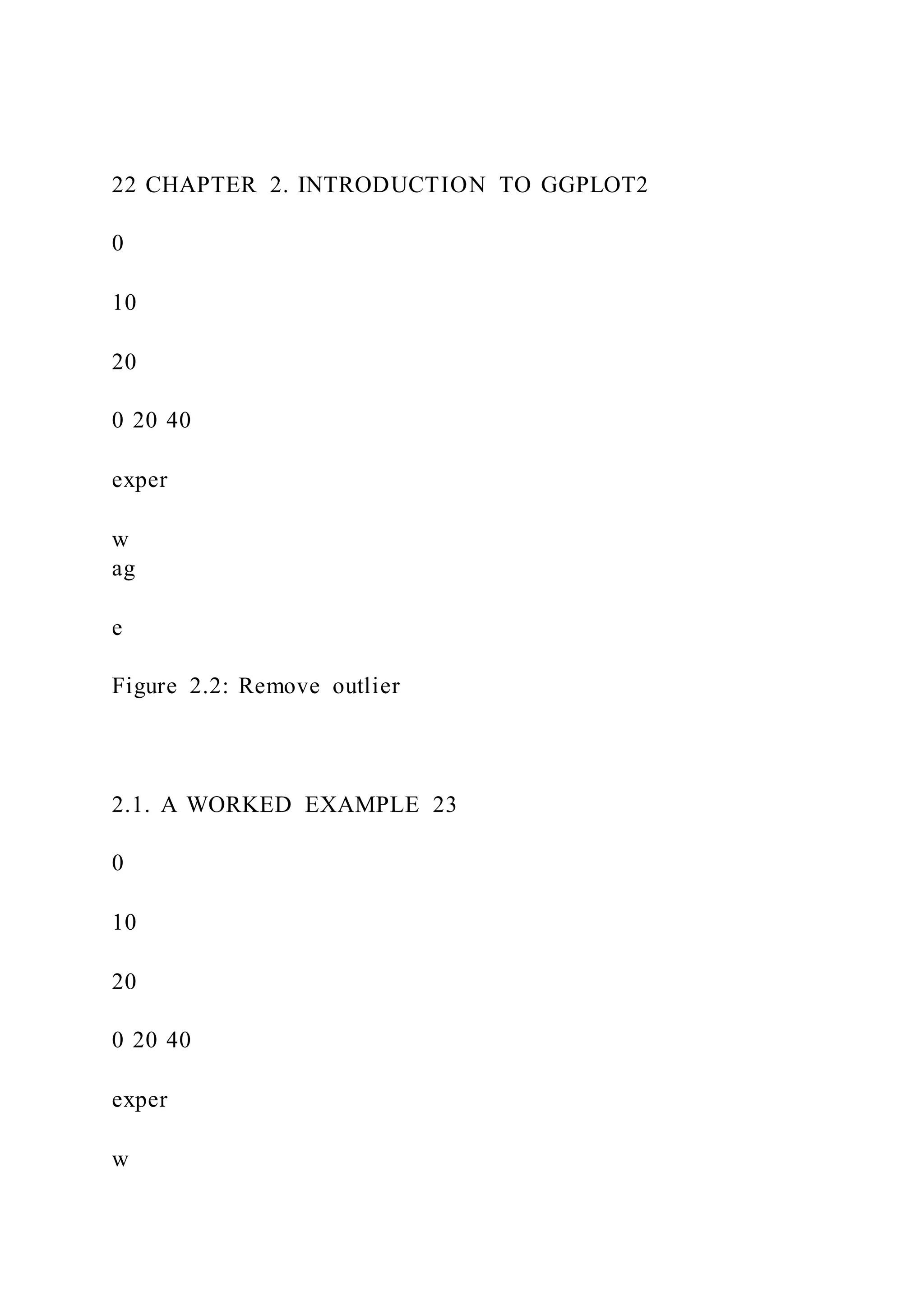
The graph indicates that there is an outlier. One individual has a
wage much higher than the rest. We’ll
delete this case before continuing.
# delete outlier
library(dplyr)
plotdata <- filter(CPS85, wage < 40)
# redraw scatterplot
ggplot(data = plotdata,
mapping = aes(x = exper, y = wage)) +
geom_point()
A number of parameters (options) can be specified in a geom_
function. Options for the geom_point function
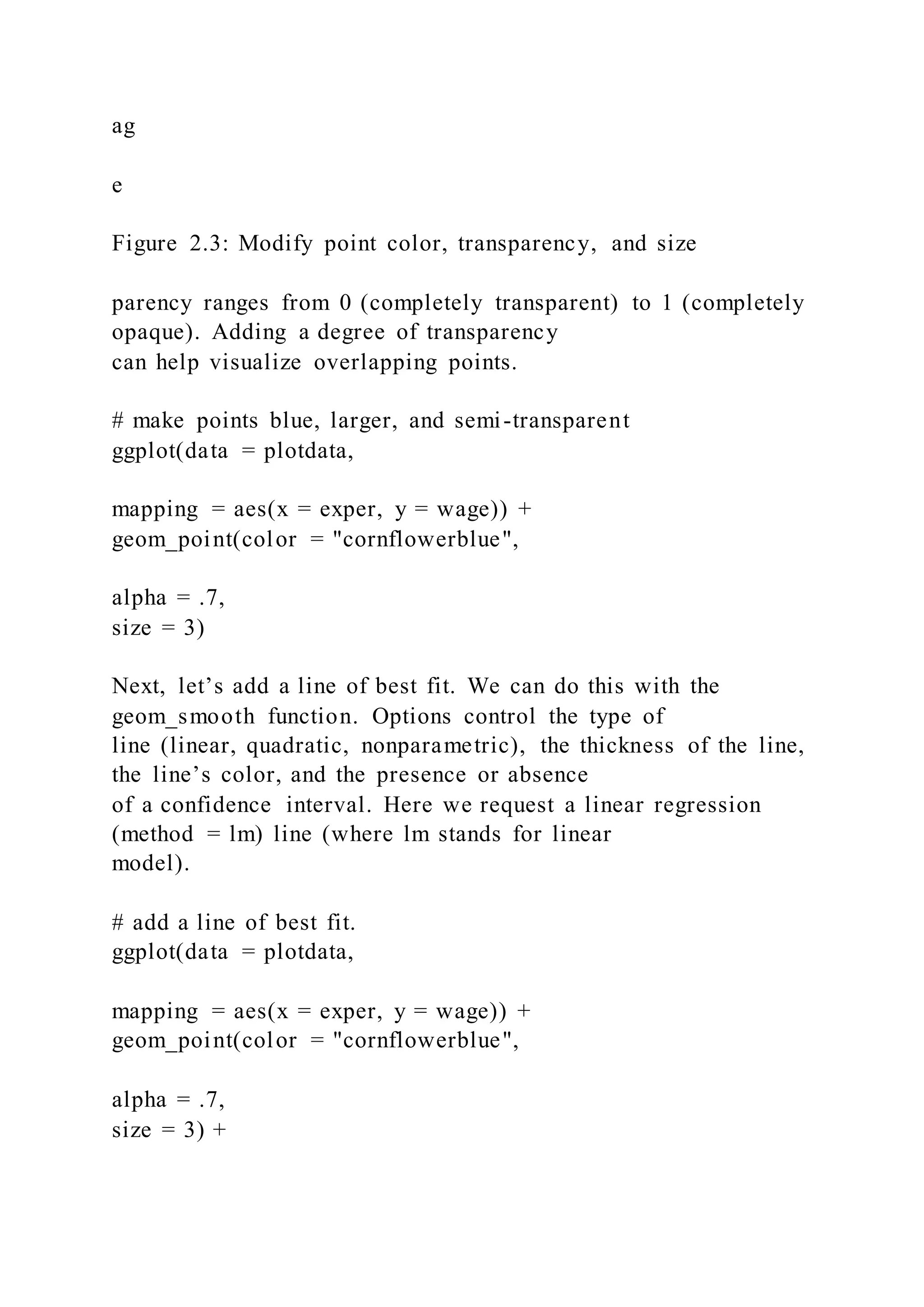
include color, size, and alpha. These control the point color,
size, and transparency, respectively. Trans-
22 CHAPTER 2. INTRODUCTION TO GGPLOT2
0
10
20
0 20 40
exper
w
ag
e
Figure 2.2: Remove outlier
2.1. A WORKED EXAMPLE 23
0
10
20
0 20 40
exper
w
ag
e
Figure 2.3: Modify point color, transparency, and size
parency ranges from 0 (completely transparent) to 1 (completely
opaque). Adding a degree of transparency
can help visualize overlapping points.
# make points blue, larger, and semi-transparent
ggplot(data = plotdata,
mapping = aes(x = exper, y = wage)) +
geom_point(color = "cornflowerblue",
alpha = .7,
size = 3)
Next, let’s add a line of best fit. We can do this with the
geom_smooth function. Options control the type of
line (linear, quadratic, nonparametric), the thickness of the line,
the line’s color, and the presence or absence
of a confidence interval. Here we request a linear regression
(method = lm) line (where lm stands for linear
model).
# add a line of best fit.
ggplot(data = plotdata,
mapping = aes(x = exper, y = wage)) +
geom_point(color = "cornflowerblue",
alpha = .7,
size = 3) +
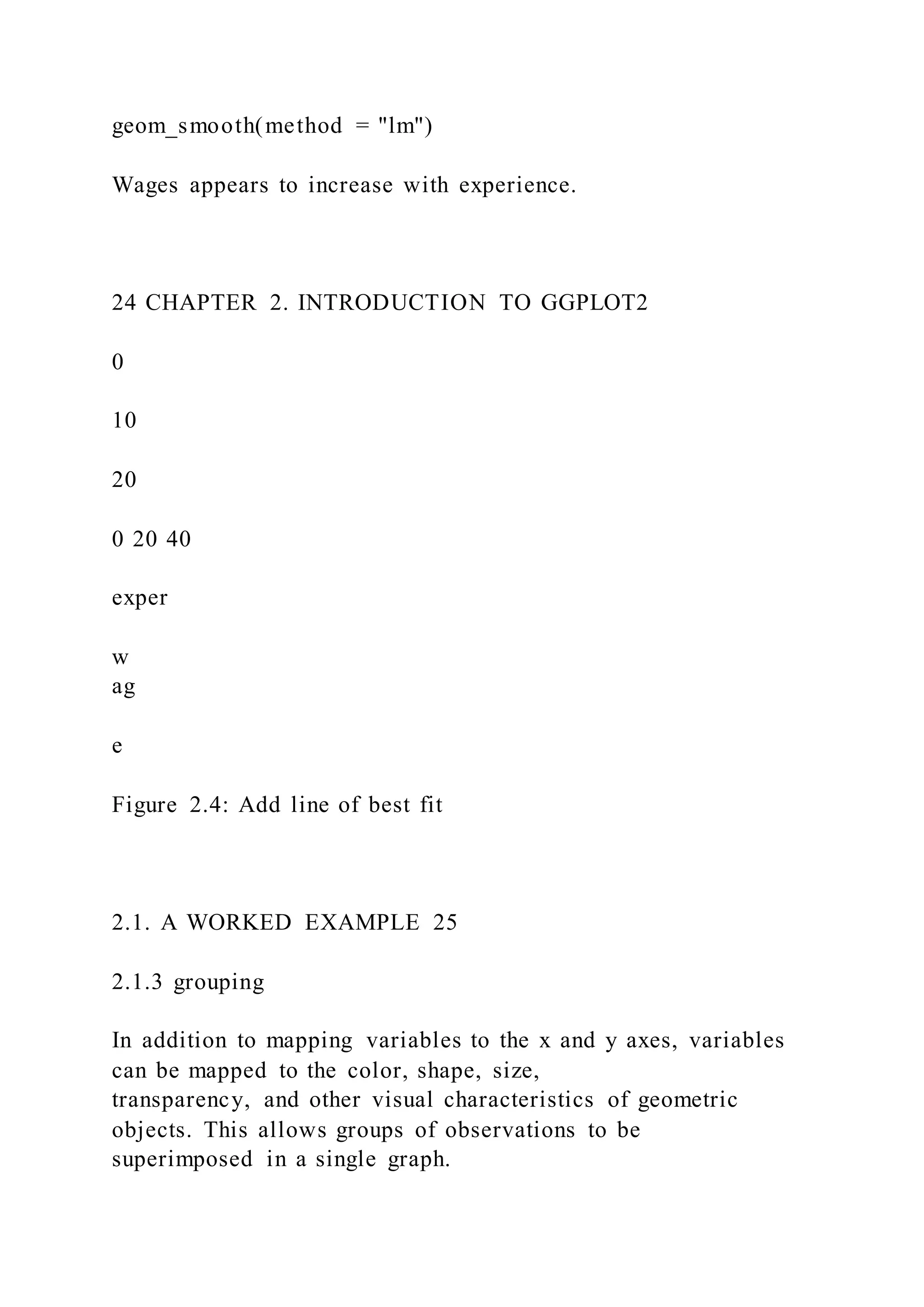
geom_smooth(method = "lm")
Wages appears to increase with experience.
24 CHAPTER 2. INTRODUCTION TO GGPLOT2
0
10
20
0 20 40
exper
w
ag
e
Figure 2.4: Add line of best fit
2.1. A WORKED EXAMPLE 25
2.1.3 grouping
In addition to mapping variables to the x and y axes, variables
can be mapped to the color, shape, size,
transparency, and other visual characteristics of geometric
objects. This allows groups of observations to be
superimposed in a single graph.
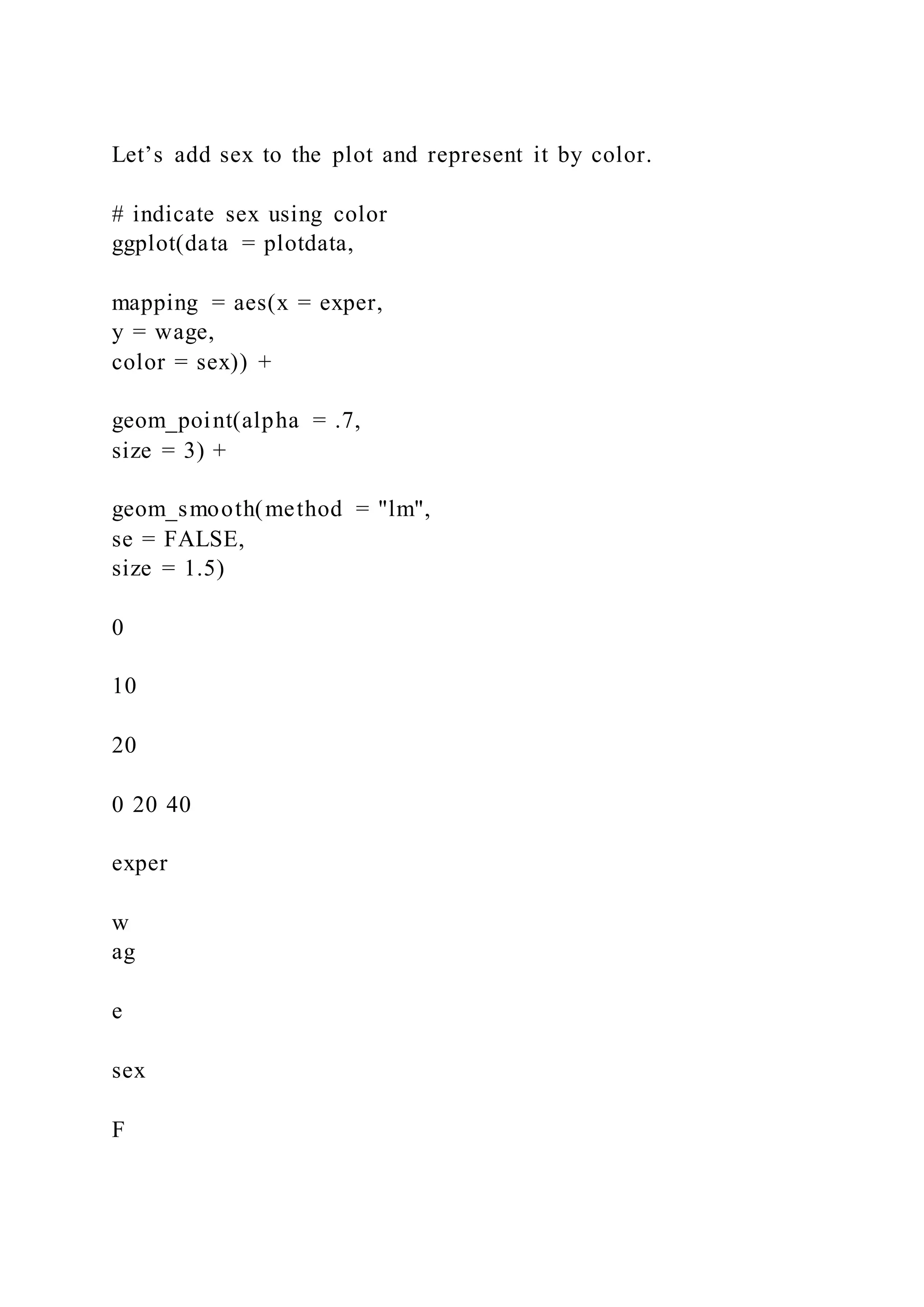
Let’s add sex to the plot and represent it by color.
# indicate sex using color
ggplot(data = plotdata,
mapping = aes(x = exper,
y = wage,
color = sex)) +
geom_point(alpha = .7,
size = 3) +
geom_smooth(method = "lm",
se = FALSE,
size = 1.5)
0
10
20
0 20 40
exper
w
ag
e
sex
F
M
The color = sex option is placed in the aes function, because we
are mapping a variable to an aesthetic.
The geom_smooth option (se = FALSE) was added to suppresses
the confidence intervals.
It appears that men tend to make more money than women.
Additionally, there may be a stronger relation-
ship between experience and wages for men than than for
women.
26 CHAPTER 2. INTRODUCTION TO GGPLOT2
$0
$5
$10
$15
$20
$25
0 10 20 30 40 50
exper
w
ag
e
sex
F
M
Figure 2.5: Change colors and axis labels
2.1.4 scales
Scales control how variables are mapped to the visual
characteristics of the plot. Scale functions (which start
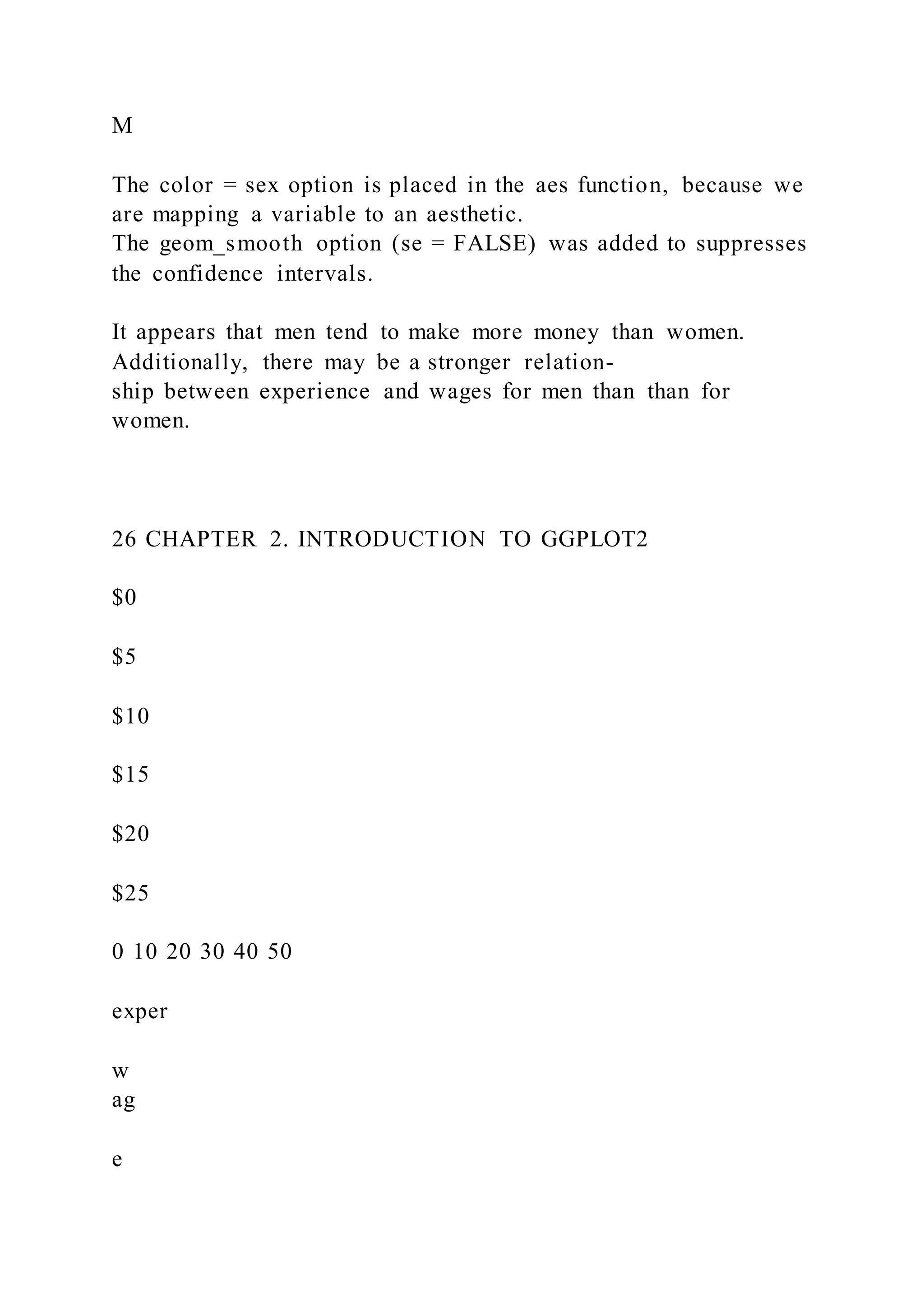
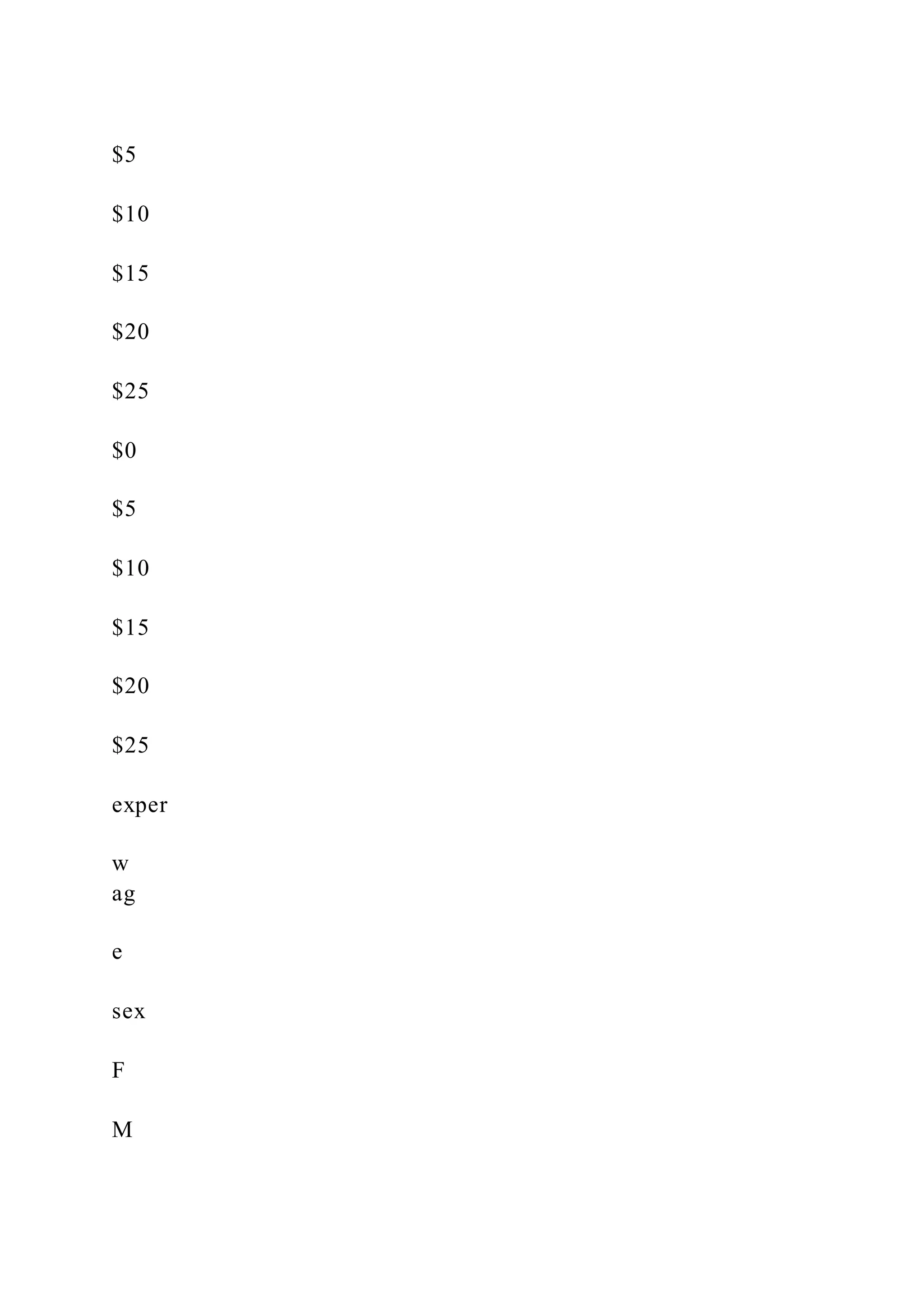
with scale_) allow you to modify this mapping. In the next plot,
we’ll change the x and y axis scaling, and
the colors employed.
# modify the x and y axes and specify the colors to be used
ggplot(data = plotdata,
mapping = aes(x = exper,
y = wage,
color = sex)) +
geom_point(alpha = .7,
size = 3) +
geom_smooth(method = "lm",
se = FALSE,
size = 1.5) +
scale_x_continuous(breaks = seq(0, 60, 10)) +
scale_y_continuous(breaks = seq(0, 30, 5),
label = scales::dollar) +
scale_color_manual(values = c("indianred3",
"cornflowerblue"))
We’re getting there. The numbers on the x and y axes are better,
the y axis uses dollar notation, and the
2.1. A WORKED EXAMPLE 27
colors are more attractive (IMHO).
Here is a question. Is the relationship between experience,
wages and sex the same for each job sector? Let’s
repeat this graph once for each job sector in order to explore
this.
2.1.5 facets
Facets reproduce a graph for each level a given variable (or
combination of variables). Facets are created
using functions that start with facet_. Here, facets will be
defined by the eight levels of the sector variable.
# reproduce plot for each level of job sector
ggplot(data = plotdata,
mapping = aes(x = exper,
y = wage,
color = sex)) +
geom_point(alpha = .7) +
geom_smooth(method = "lm",
se = FALSE) +
scale_x_continuous(breaks = seq(0, 60, 10)) +
scale_y_continuous(breaks = seq(0, 30, 5),
label = scales::dollar) +
scale_color_manual(values = c("indianred3",
"cornflowerblue")) +
facet_wrap(~sector)
It appears that the differences between mean and women depend
on the job sector under consideration.
2.1.6 labels
Graphs should be easy to interpret and informative labels are a
key element in achieving this goal. The
labs function provides customized labels for the axes and
legends. Additionally, a custom title, subtitle,
and caption can be added.
# add informative labels
ggplot(data = plotdata,
mapping = aes(x = exper,
y = wage,
color = sex)) +
geom_point(alpha = .7) +
geom_smooth(method = "lm",
se = FALSE) +
scale_x_continuous(breaks = seq(0, 60, 10)) +
scale_y_continuous(breaks = seq(0, 30, 5),
label = scales::dollar) +
scale_color_manual(values = c("indianred3",
"cornflowerblue")) +
facet_wrap(~sector) +
labs(title = "Relationship between wages and experience",
subtitle = "Current Population Survey",
caption = "source: http://mosaic-web.org/",
x = " Years of Experience",
y = "Hourly Wage",
color = "Gender")
28 CHAPTER 2. INTRODUCTION TO GGPLOT2
sales service
manuf other prof
clerical const manag
0 10 20 30 40 50 0 10 20 30 40 50
0 10 20 30 40 50
$0
$5
$10
$15
$20
$25
$0
$5
$10
$15
$20
$25
$0
$5
$10
$15
$20
$25
exper
w
ag
e
sex
F
M
Figure 2.6: Add job sector, using faceting
2.1. A WORKED EXAMPLE 29
sales service
manuf other prof
clerical const manag
0 10 20 30 40 50 0 10 20 30 40 50
0 10 20 30 40 50
$0
$5
$10
$15
$20
$25
$0
$5
$10
$15
$20
$25
$0
$5
$10
$15
$20
$25
Years of Experience
H
ou
rly
W
ag
e
Gender
F
M
Current Population Survey
Relationship between wages and experience
source: http://mosaic−web.org/
Now a viewer doesn’t need to guess what the labels expr and
wage mean, or where the data come from.
2.1.7 themes
Finally, we can fine tune the appearance of the graph using
themes. Theme functions (which start with
theme_) control background colors, fonts, grid-lines, legend
placement, and other non-data related features
of the graph. Let’s use a cleaner theme.
# use a minimalist theme
ggplot(data = plotdata,
mapping = aes(x = exper,
y = wage,
color = sex)) +
geom_point(alpha = .6) +
geom_smooth(method = "lm",
se = FALSE) +
scale_x_continuous(breaks = seq(0, 60, 10)) +
scale_y_continuous(breaks = seq(0, 30, 5),
label = scales::dollar) +
scale_color_manual(values = c("indianred3",
"cornflowerblue")) +
facet_wrap(~sector) +
labs(title = "Relationship between wages and experience",
subtitle = "Current Population Survey",
caption = "source: http://mosaic-web.org/",
x = " Years of Experience",
30 CHAPTER 2. INTRODUCTION TO GGPLOT2
sales service
manuf other prof
clerical const manag
0 10 20 30 40 50 0 10 20 30 40 50
0 10 20 30 40 50
$0
$5
$10
$15
$20
$25
$0
$5
$10
$15
$20
$25
$0
$5
$10
$15
$20
$25
Years of Experience
H
ou
rly
W
ag
e
Gender
F
M
Current Population Survey
Relationship between wages and experience
source: http://mosaic−web.org/
Figure 2.7: Use a simpler theme
y = "Hourly Wage",
color = "Gender") +
theme_minimal()
Now we have something. It appears that men earn more than
women in management, manufacturing, sales,
and the “other” category. They are most similar in clerical,
professional, and service positions. The data
contain no women in the construction sector. For management
positions, wages appear to be related to
experience for men, but not for women (this may be the most
interesting finding). This also appears to be
true for sales.
Of course, these findings are tentative. They are based on a
limited sample size and do not involve statistical
testing to assess whether differences may be due to chance
variation.
2.2 Placing the data and mapping options
Plots created with ggplot2 always start with the ggplot function.
In the examples above, the data and
mapping options were placed in this function. In this case they
apply to each geom_ function that follows.
You can also place these options directly within a geom. In that
case, they only apply only to that specific
geom.
Consider the following graph.
2.2. PLACING THE DATA AND MAPPING OPTIONS 31
0
10
20
0 20 40
exper
w
ag
e
sex
F
M
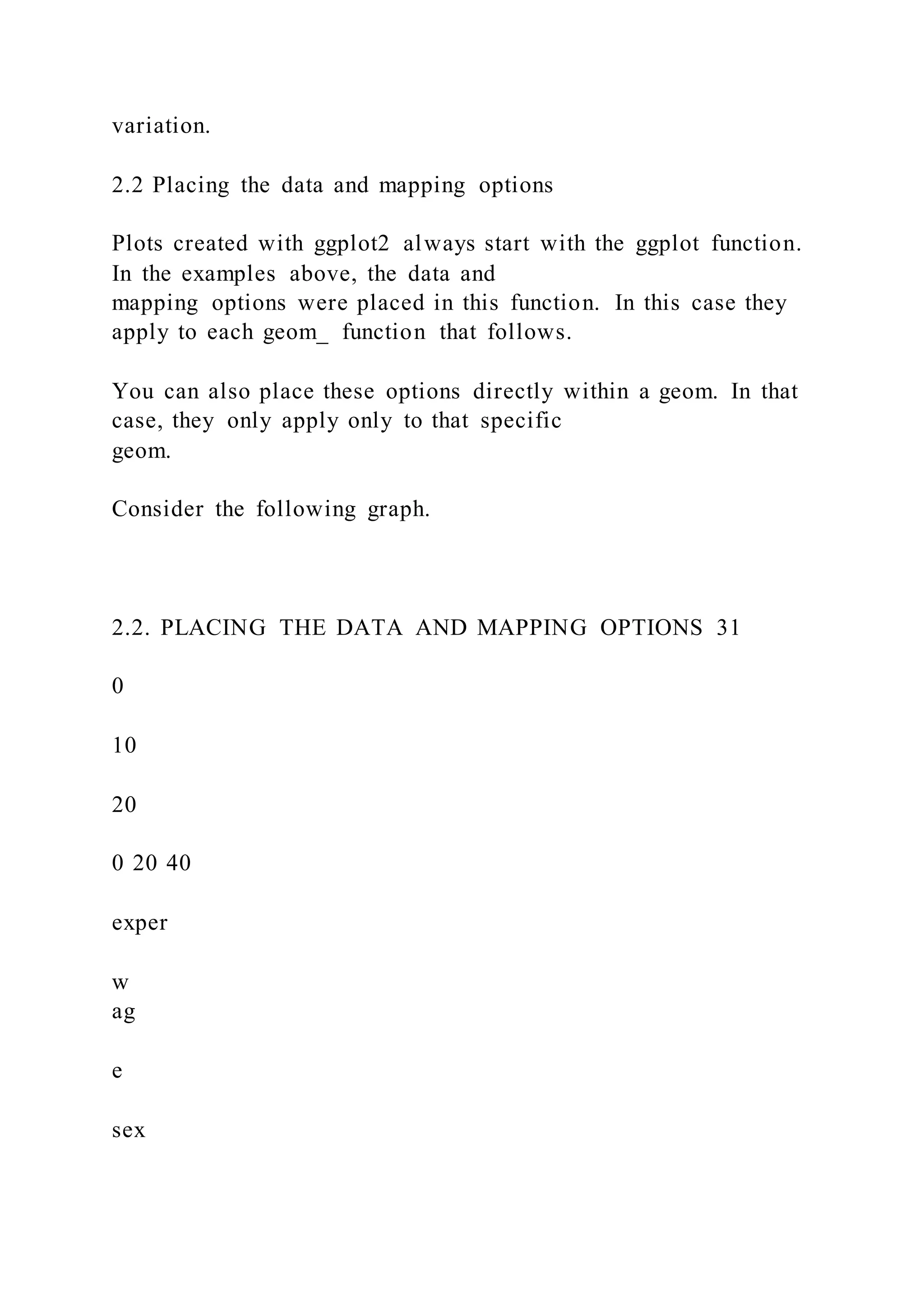
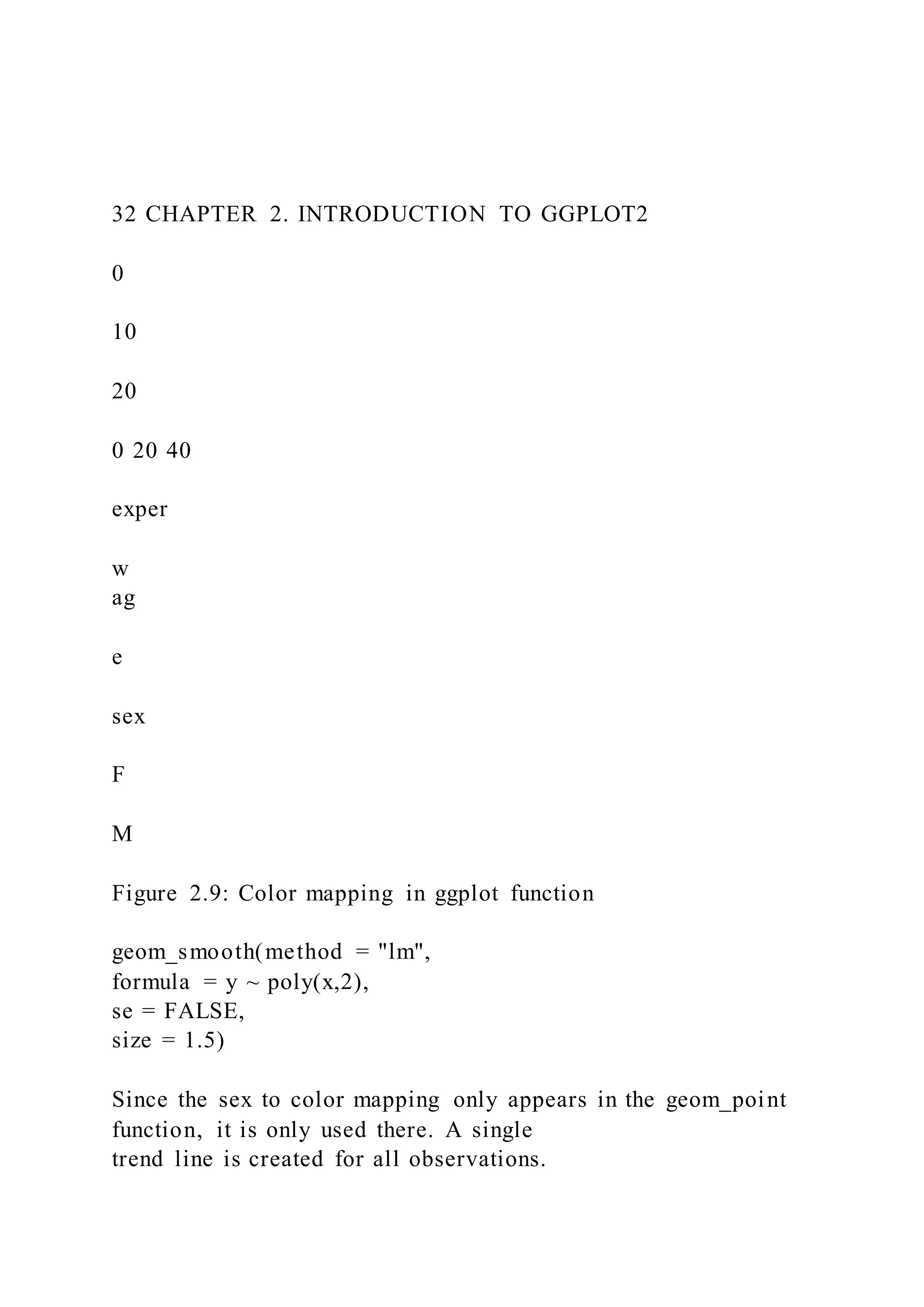
Figure 2.8: Color mapping in ggplot function
# placing color mapping in the ggplot function
ggplot(plotdata,
aes(x = exper,
y = wage,
color = sex)) +
geom_point(alpha = .7,
size = 3) +
geom_smooth(method = "lm",
formula = y ~ poly(x,2),
se = FALSE,
size = 1.5)
Since the mapping of sex to color appears in the ggplot
function, it applies to both geom_point and
geom_smooth. The color of the point indicates the sex, and a
separate colored trend line is produced
for men and women. Compare this to
# placing color mapping in the geom_point function
ggplot(plotdata,
aes(x = exper,
y = wage)) +
geom_point(aes(color = sex),
alpha = .7,
size = 3) +
32 CHAPTER 2. INTRODUCTION TO GGPLOT2
0
10
20
0 20 40
exper
w
ag
e
sex
F
M
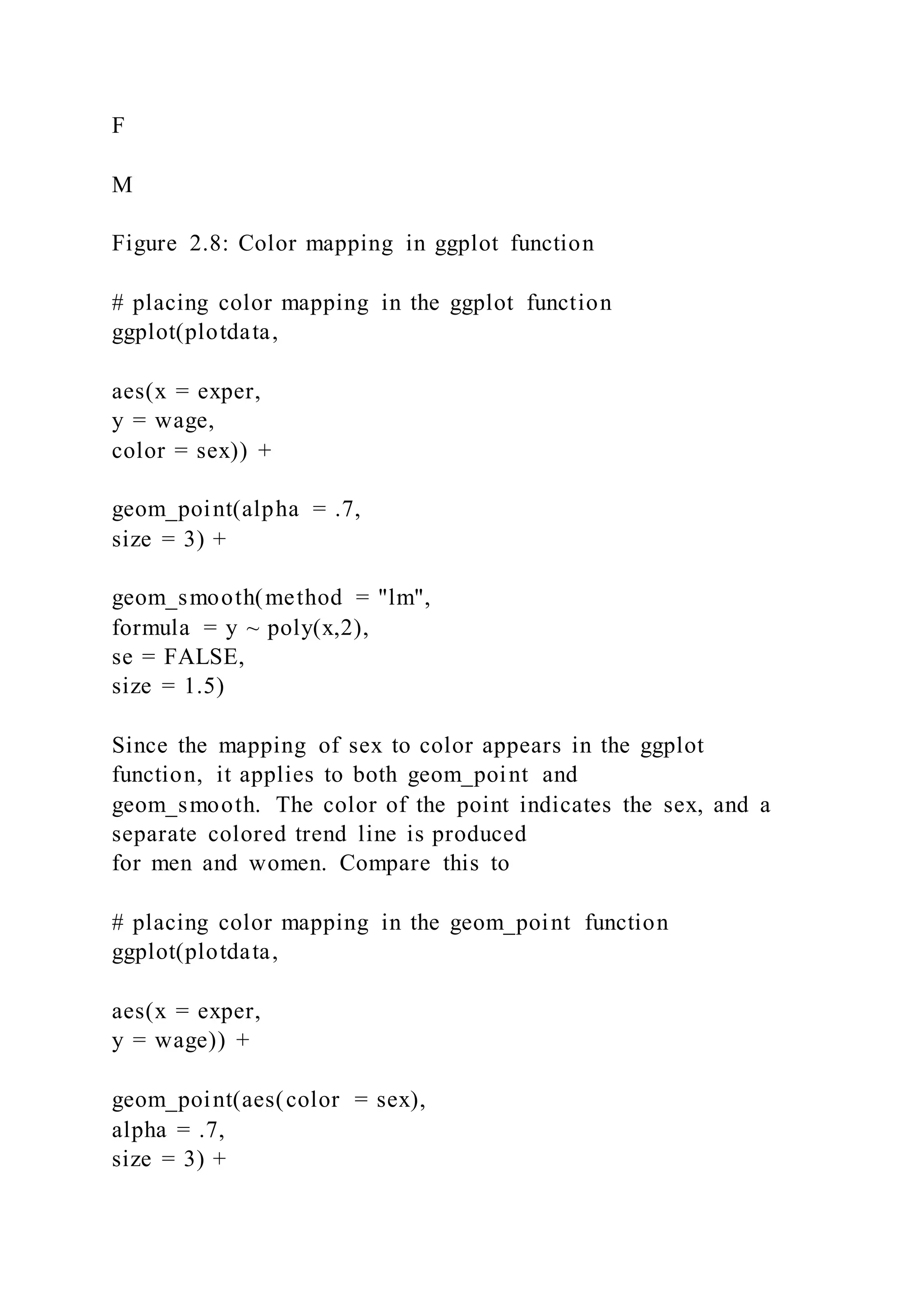
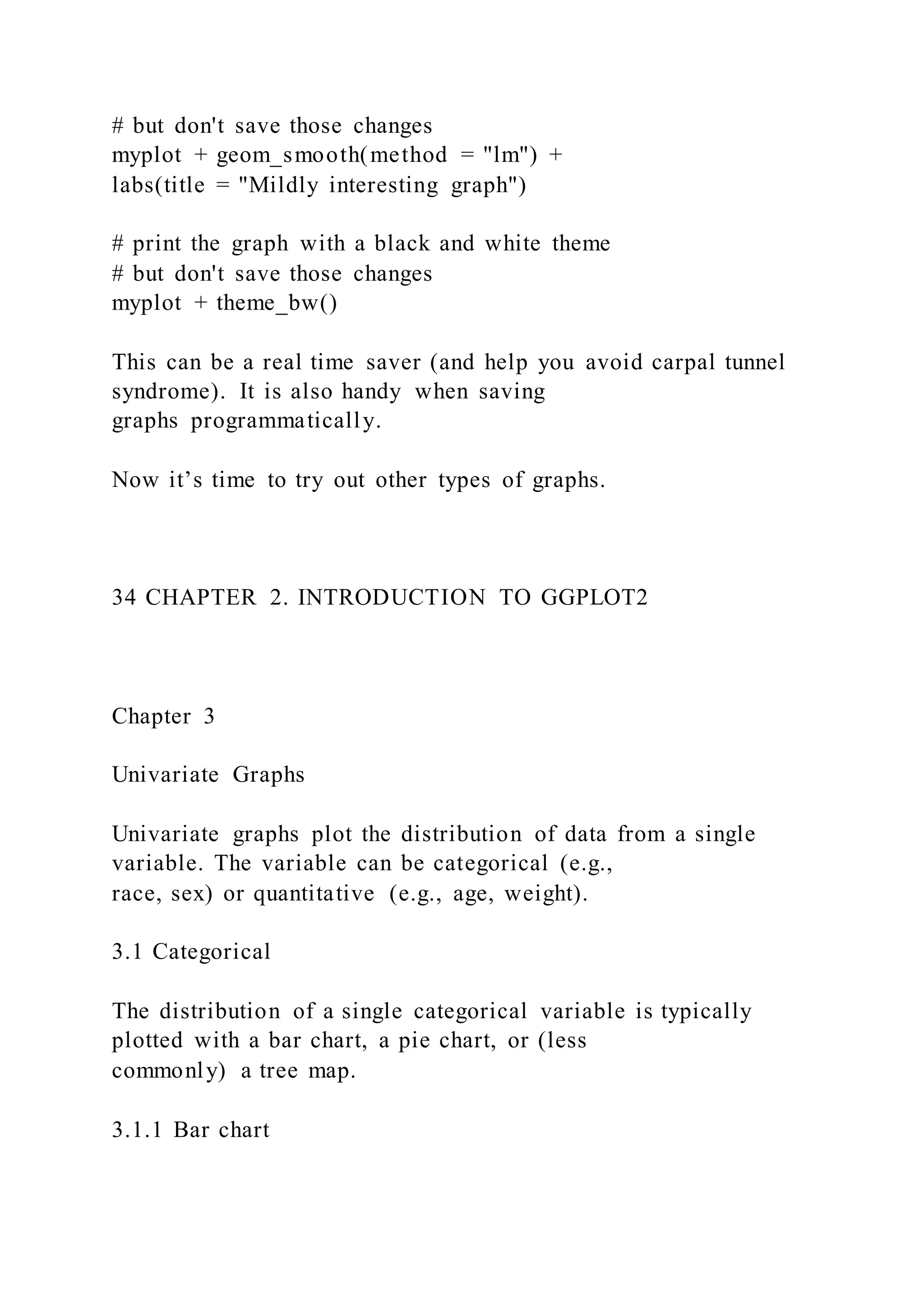
Figure 2.9: Color mapping in ggplot function
geom_smooth(method = "lm",
formula = y ~ poly(x,2),
se = FALSE,
size = 1.5)
Since the sex to color mapping only appears in the geom_point
function, it is only used there. A single
trend line is created for all observations.
Most of the examples in this book place the data and mapping
options in the ggplot function. Additionally,
the phrases data= and mapping= are omitted since the first
option always refers to data and the second
option always refers to mapping.
2.3 Graphs as objects
A ggplot2 graph can be saved as a named R object (like a data
frame), manipulated further, and then
printed or saved to disk.
# prepare data
data(CPS85 , package = "mosaicData")
plotdata <- CPS85[CPS85$wage < 40,]
2.3. GRAPHS AS OBJECTS 33
# create scatterplot and save it
myplot <- ggplot(data = plotdata,
aes(x = exper, y = wage)) +
geom_point()
# print the graph
myplot
# make the points larger and blue
# then print the graph
myplot <- myplot + geom_point(size = 3, color = "blue")
myplot
# print the graph with a title and line of best fit
# but don't save those changes
myplot + geom_smooth(method = "lm") +
labs(title = "Mildly interesting graph")
# print the graph with a black and white theme
# but don't save those changes
myplot + theme_bw()
This can be a real time saver (and help you avoid carpal tunnel
syndrome). It is also handy when saving
graphs programmatically.
Now it’s time to try out other types of graphs.
34 CHAPTER 2. INTRODUCTION TO GGPLOT2
Chapter 3
Univariate Graphs
Univariate graphs plot the distribution of data from a single
variable. The variable can be categorical (e.g.,
race, sex) or quantitative (e.g., age, weight).
3.1 Categorical
The distribution of a single categorical variable is typically
plotted with a bar chart, a pie chart, or (less
commonly) a tree map.
3.1.1 Bar chart
The Marriage dataset contains the marriage records of 98
individuals in Mobile County, Alabama. Below, a
bar chart is used to display the distribution of wedding
participants by race.
library(ggplot2)
data(Marriage, package = "mosaicData")
# plot the distribution of race
ggplot(Marriage, aes(x = race)) +
geom_bar()
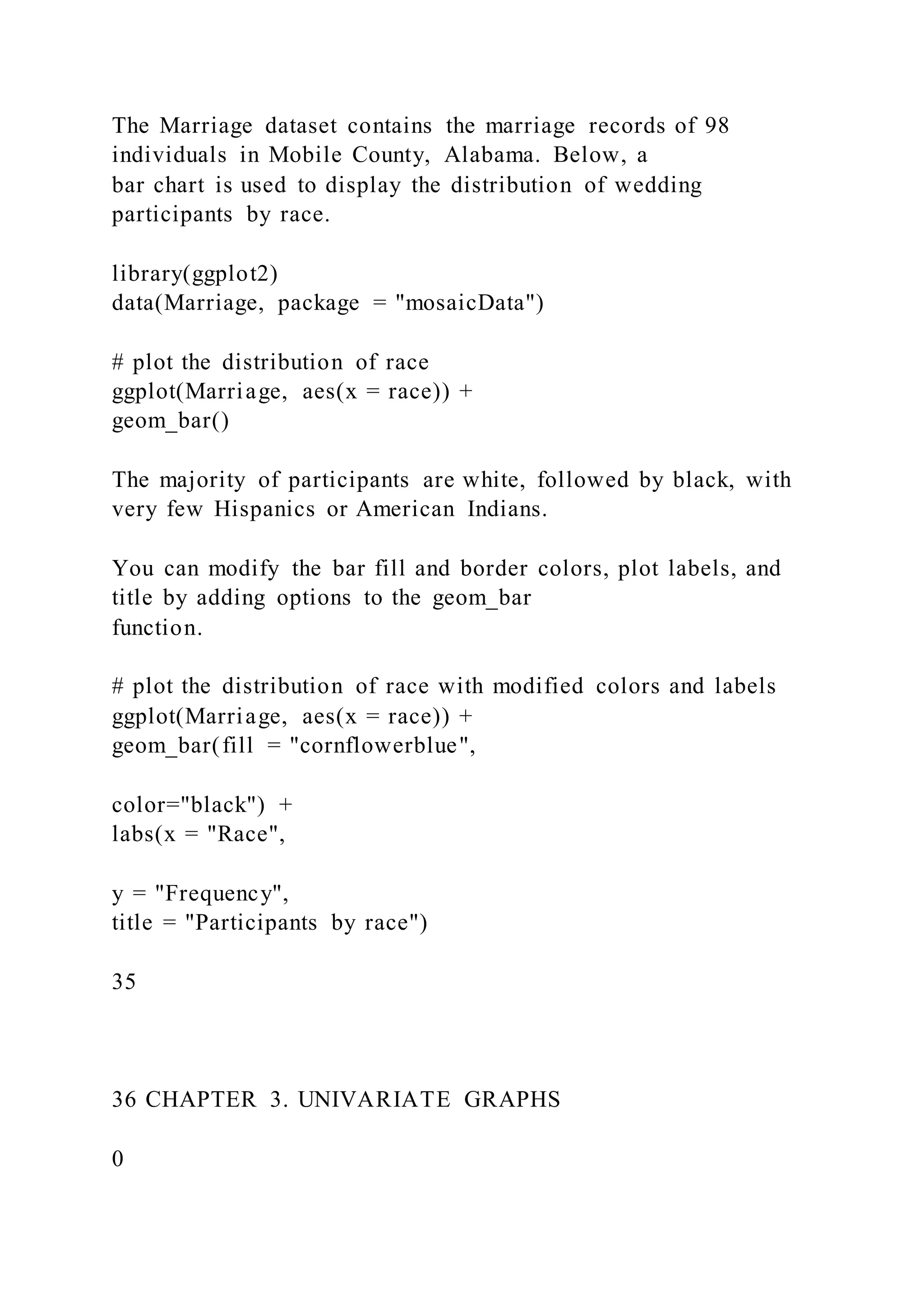
The majority of participants are white, followed by black, with
very few Hispanics or American Indians.
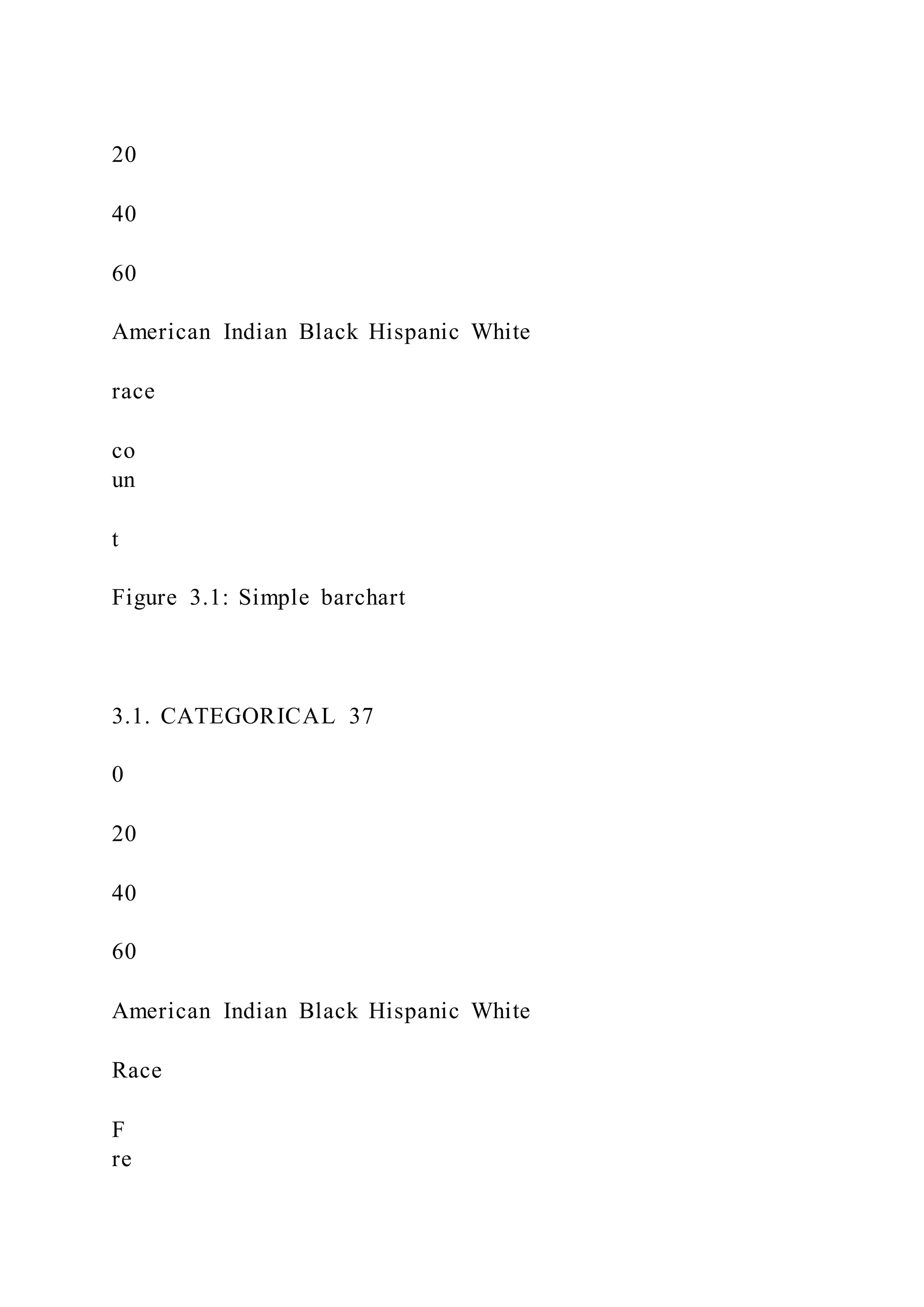
You can modify the bar fill and border colors, plot labels, and
title by adding options to the geom_bar
function.
# plot the distribution of race with modified colors and labels
ggplot(Marriage, aes(x = race)) +
geom_bar(fill = "cornflowerblue",
color="black") +
labs(x = "Race",
y = "Frequency",
title = "Participants by race")
35
36 CHAPTER 3. UNIVARIATE GRAPHS
0
20
40
60
American Indian Black Hispanic White
race
co
un
t
Figure 3.1: Simple barchart
3.1. CATEGORICAL 37
0
20
40
60
American Indian Black Hispanic White
Race
F
re
qu
en
cy
Participants by race
Figure 3.2: Barchart with modified colors, labels, and title
38 CHAPTER 3. UNIVARIATE GRAPHS
0%
20%
40%
60%
American Indian Black Hispanic White
Race
P
er
ce
nt
Participants by race
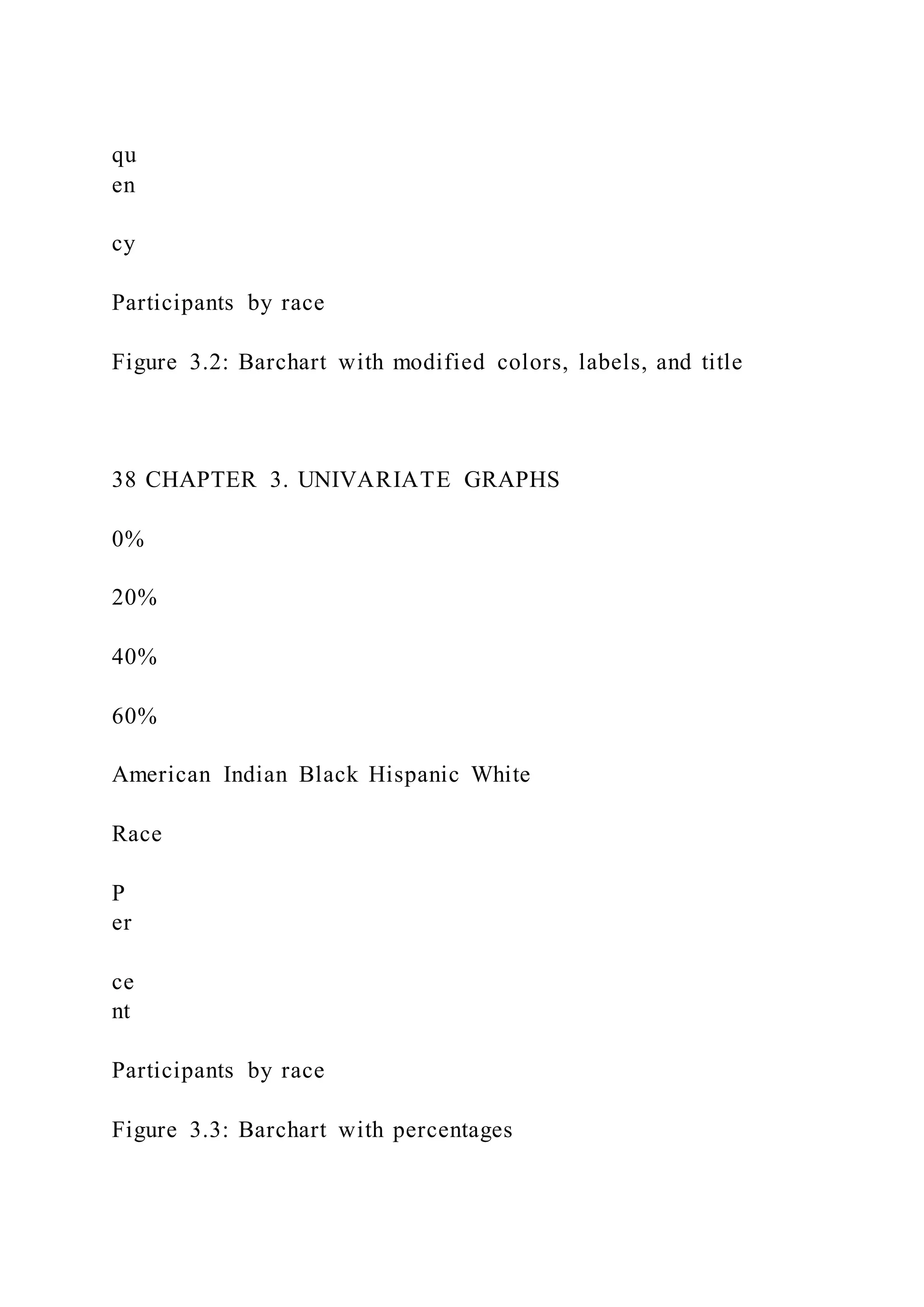
Figure 3.3: Barchart with percentages
3.1.1.1 Percents
Bars can represent percents rather than counts. For bar charts,
the code aes(x=race) is actually a shortcut
for aes(x = race, y = ..count..), where ..count.. is a special
variable representing the frequency
within each category. You can use this to calculate percentages,
by specifying the y variable explicitly.
# plot the distribution as percentages
ggplot(Marriage,
aes(x = race,
y = ..count.. / sum(..count..))) +
geom_bar() +
labs(x = "Race",
y = "Percent",
title = "Participants by race") +
scale_y_continuous(labels = scales::percent)
In the code above, the scales package is used to add % symbols
to the y-axis labels.
3.1.1.2 Sorting categories
It is often helpful to sort the bars by frequency. In the code
below, the frequencies are calculated explicitly.
Then the reorder function is used to sort the categories by the
frequency. The option stat="identity"
tells the plotting function not to calculate counts, because they
are supplied directly.
3.1. CATEGORICAL 39
Table 3.1: plotdata
race n
American Indian 1
Black 22
Hispanic 1
White 74
# calculate number of participants in
# each race category
library(dplyr)
plotdata <- Marriage %>%
count(race)
The resulting dataset is give below.
This new dataset is then used to create the graph.
# plot the bars in ascending order
ggplot(plotdata,
aes(x = reorder(race, n),
y = n)) +
geom_bar(stat = "identity") +
labs(x = "Race",
y = "Frequency",
title = "Participants by race")
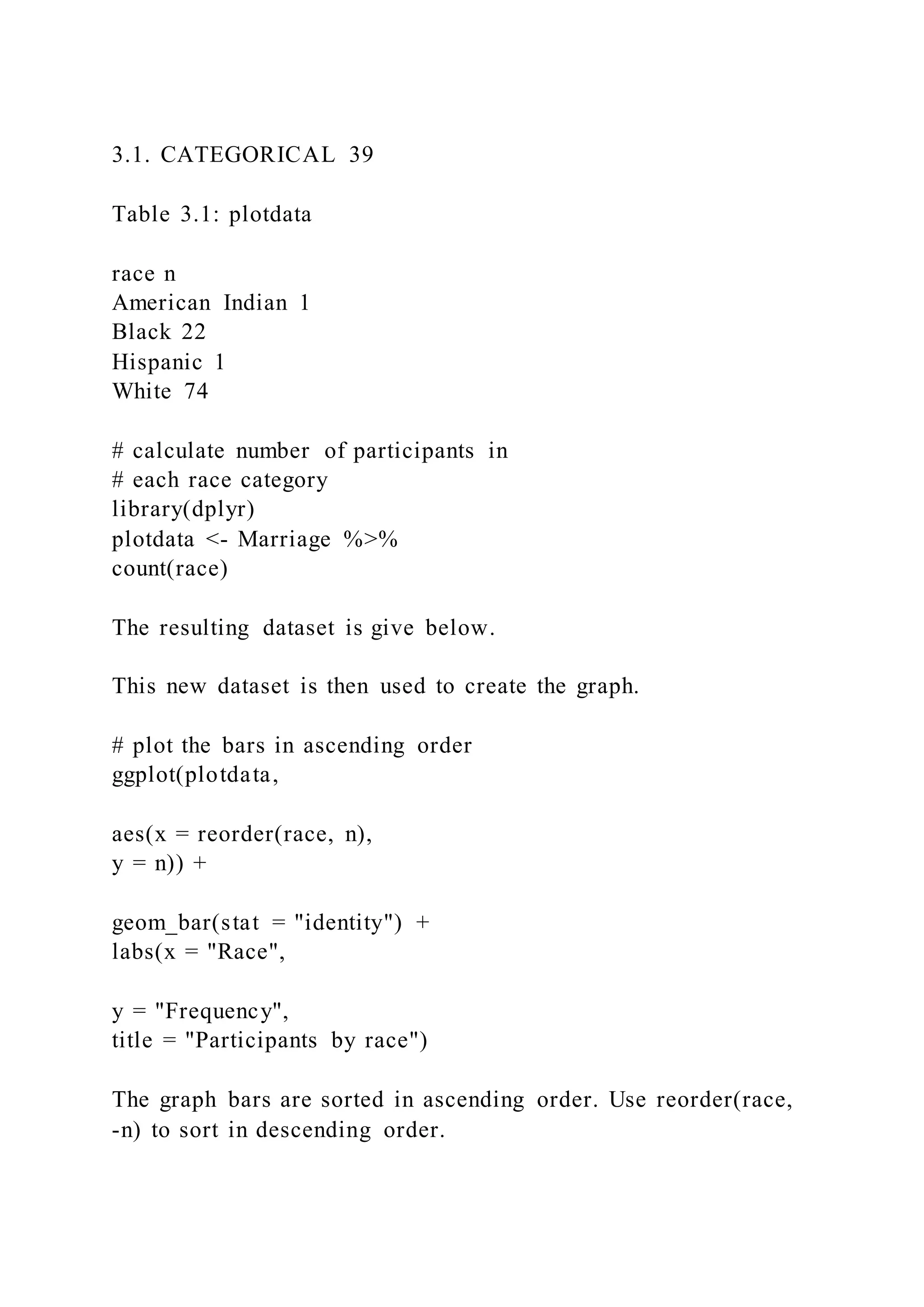
The graph bars are sorted in ascending order. Use reorder(race,
-n) to sort in descending order.
3.1.1.3 Labeling bars
Finally, you may want to label each bar with its numerical
value.
# plot the bars with numeric labels
ggplot(plotdata,
aes(x = race,
y = n)) +
geom_bar(stat = "identity") +
geom_text(aes(label = n),
vjust=-0.5) +
labs(x = "Race",
y = "Frequency",
title = "Participants by race")
Here geom_text adds the labels, and vjust controls vertical
justification. See Annotations for more details.
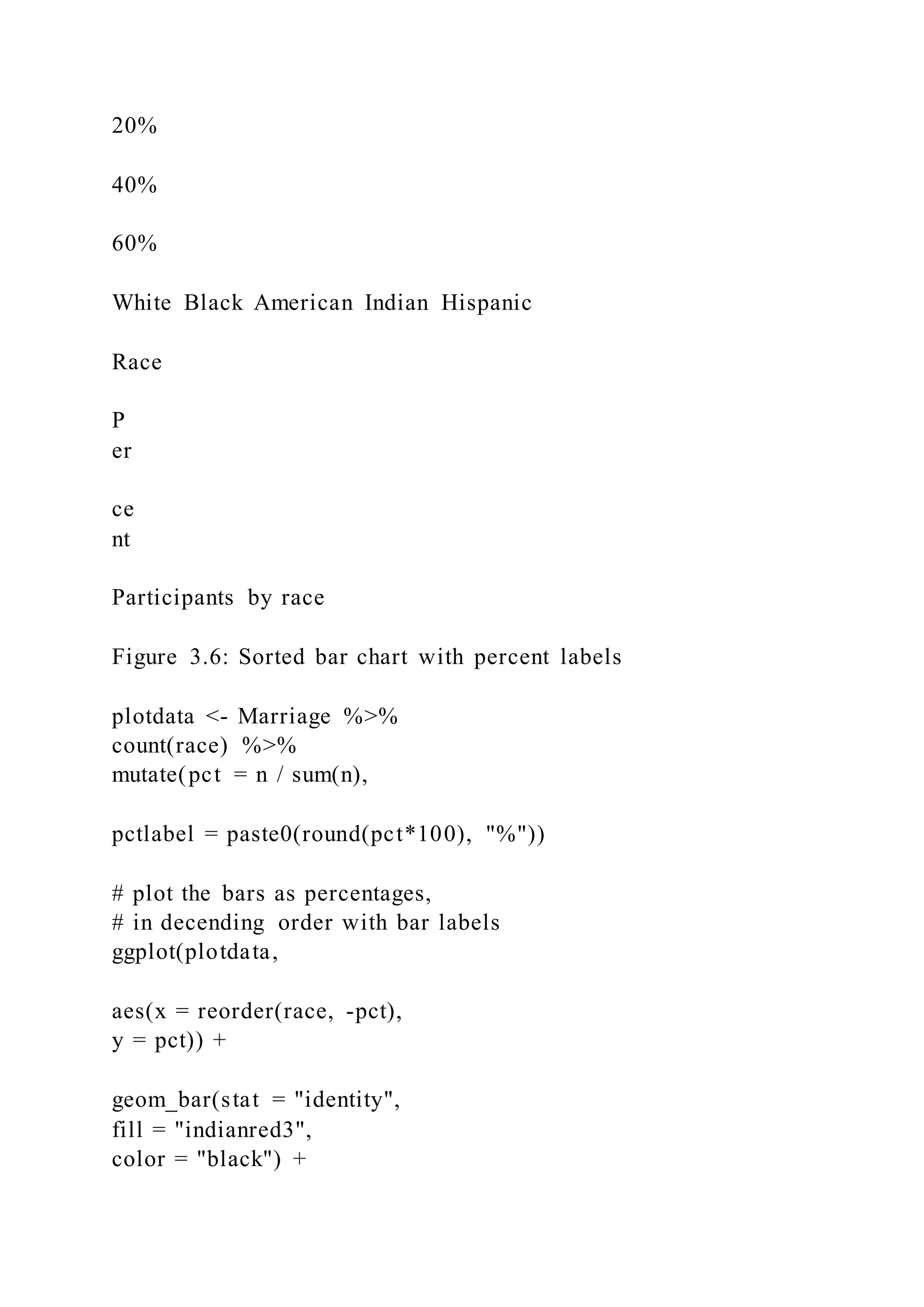
Putting these ideas together, you can create a graph like the one
below. The minus sign in reorder(race,
-pct) is used to order the bars in descending order.
library(dplyr)
library(scales)
40 CHAPTER 3. UNIVARIATE GRAPHS
0
20
40
60
American Indian Hispanic Black White
Race
F
re
qu
en
cy
Participants by race
Figure 3.4: Sorted bar chart
3.1. CATEGORICAL 41
1
22
1
74
0
20
40
60
American Indian Black Hispanic White
Race
F
re
qu
en
cy
Participants by race
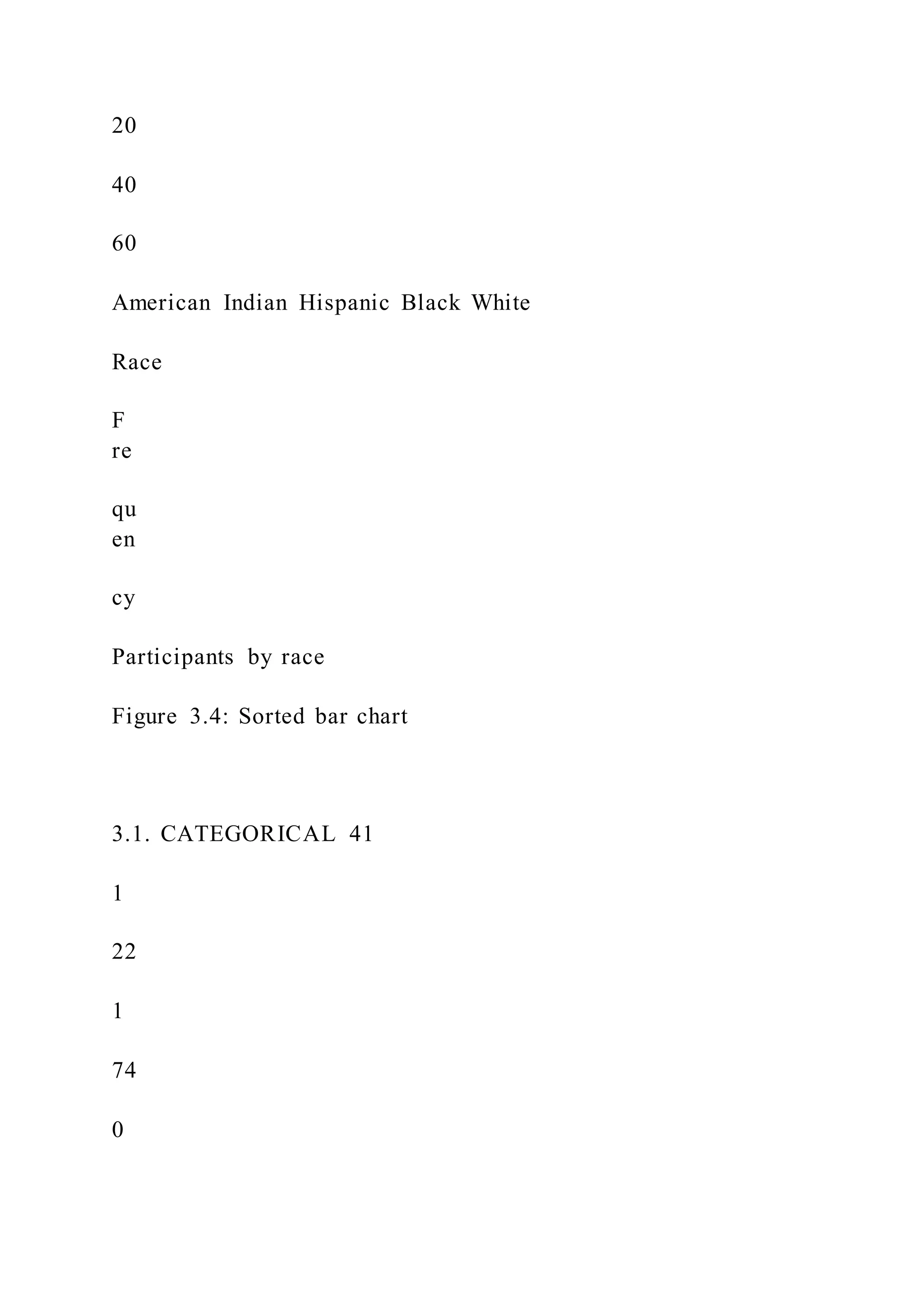
Figure 3.5: Bar chart with numeric labels
42 CHAPTER 3. UNIVARIATE GRAPHS
1%
22%
1%
76%
0%
20%
40%
60%
White Black American Indian Hispanic
Race
P
er
ce
nt
Participants by race
Figure 3.6: Sorted bar chart with percent labels
plotdata <- Marriage %>%
count(race) %>%
mutate(pct = n / sum(n),
pctlabel = paste0(round(pct*100), "%"))
# plot the bars as percentages,
# in decending order with bar labels
ggplot(plotdata,
aes(x = reorder(race, -pct),
y = pct)) +
geom_bar(stat = "identity",
fill = "indianred3",
color = "black") +
geom_text(aes(label = pctlabel),
vjust = -0.25) +
scale_y_continuous(labels = percent) +
labs(x = "Race",
y = "Percent",
title = "Participants by race")
3.1. CATEGORICAL 43
0
10
20
30
40
BISHOPCATHOLIC PRIESTCHIEF CLERKCIRCUIT JUDGE
ELDERMARRIAGE OFFICIALMINISTER PASTOR
REVEREND
Officiate
F
re
qu
en
cy
Marriages by officiate
Figure 3.7: Barchart with problematic labels
3.1.1.4 Overlapping labels
Category labels may overlap if (1) there are many categories or
(2) the labels are long. Consider the
distribution of marriage officials.
# basic bar chart with overlapping labels
ggplot(Marriage, aes(x = officialTitle)) +
geom_bar() +
labs(x = "Officiate",
y = "Frequency",
title = "Marriages by officiate")
In this case, you can flip the x and y axes.
# horizontal bar chart
ggplot(Marriage, aes(x = officialTitle)) +
geom_bar() +
labs(x = "",
y = "Frequency",
title = "Marriages by officiate") +
coord_flip()
Alternatively, you can rotate the axis labels.
44 CHAPTER 3. UNIVARIATE GRAPHS
BISHOP
CATHOLIC PRIEST
CHIEF CLERK
CIRCUIT JUDGE
ELDER
MARRIAGE OFFICIAL
MINISTER
PASTOR
REVEREND
0 10 20 30 40
Frequency
Marriages by officiate
Figure 3.8: Horizontal barchart
3.1. CATEGORICAL 45
0
10
20
30
40
BI
SH
OP
CA
TH
OL
IC
P
RI
ES
T
CH
IE
F
CL
ER
K
CI
RC
UI
T
JU
DG
E
EL
DE
R
M
AR
RI
AG
E
OF
FI
CI
AL
M
IN
IS
TE
R
PA
ST
OR
RE
VE
RE
ND
F
re
qu
en
cy
Marriages by officiate
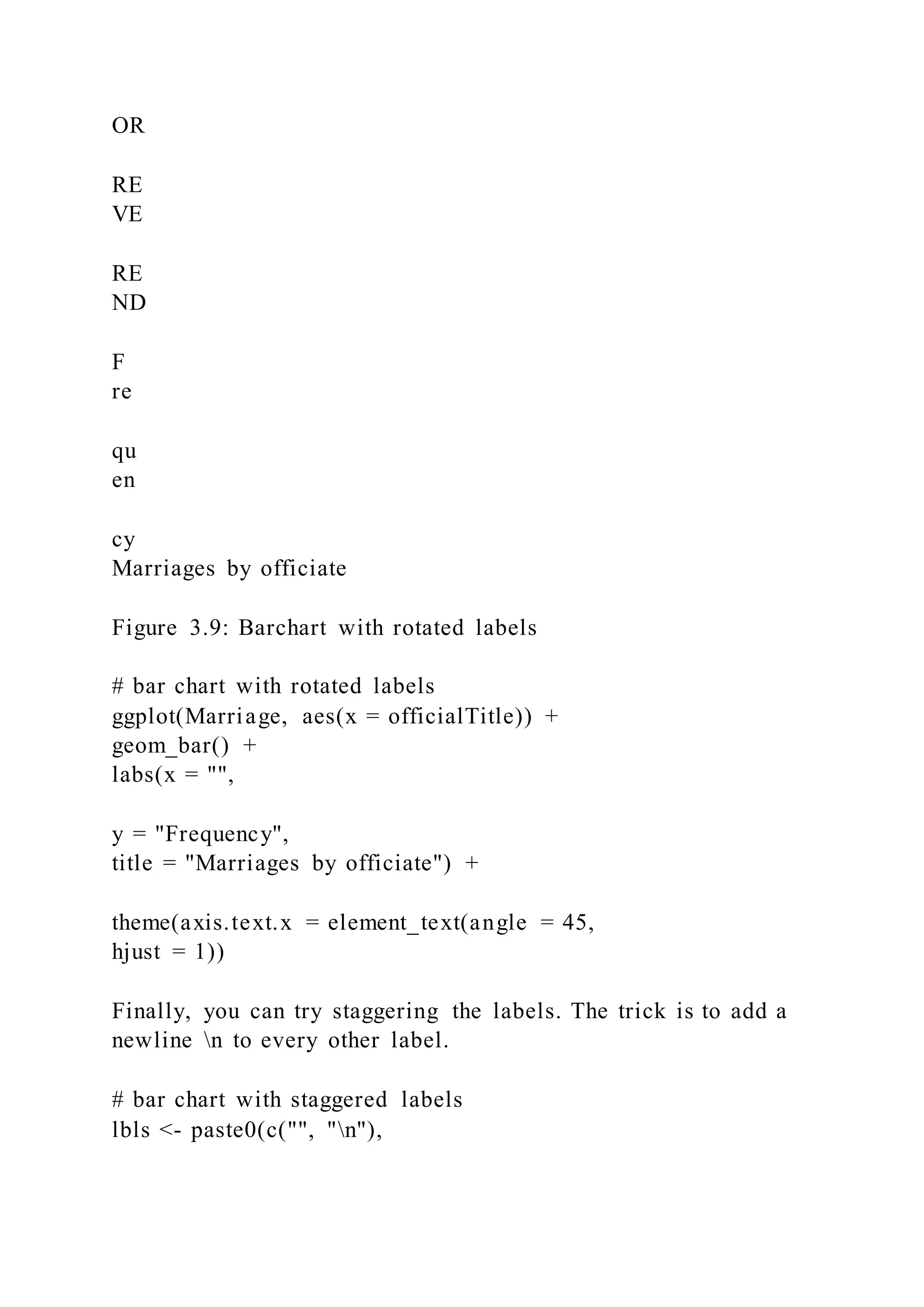
Figure 3.9: Barchart with rotated labels
# bar chart with rotated labels
ggplot(Marriage, aes(x = officialTitle)) +
geom_bar() +
labs(x = "",
y = "Frequency",
title = "Marriages by officiate") +
theme(axis.text.x = element_text(angle = 45,
hjust = 1))
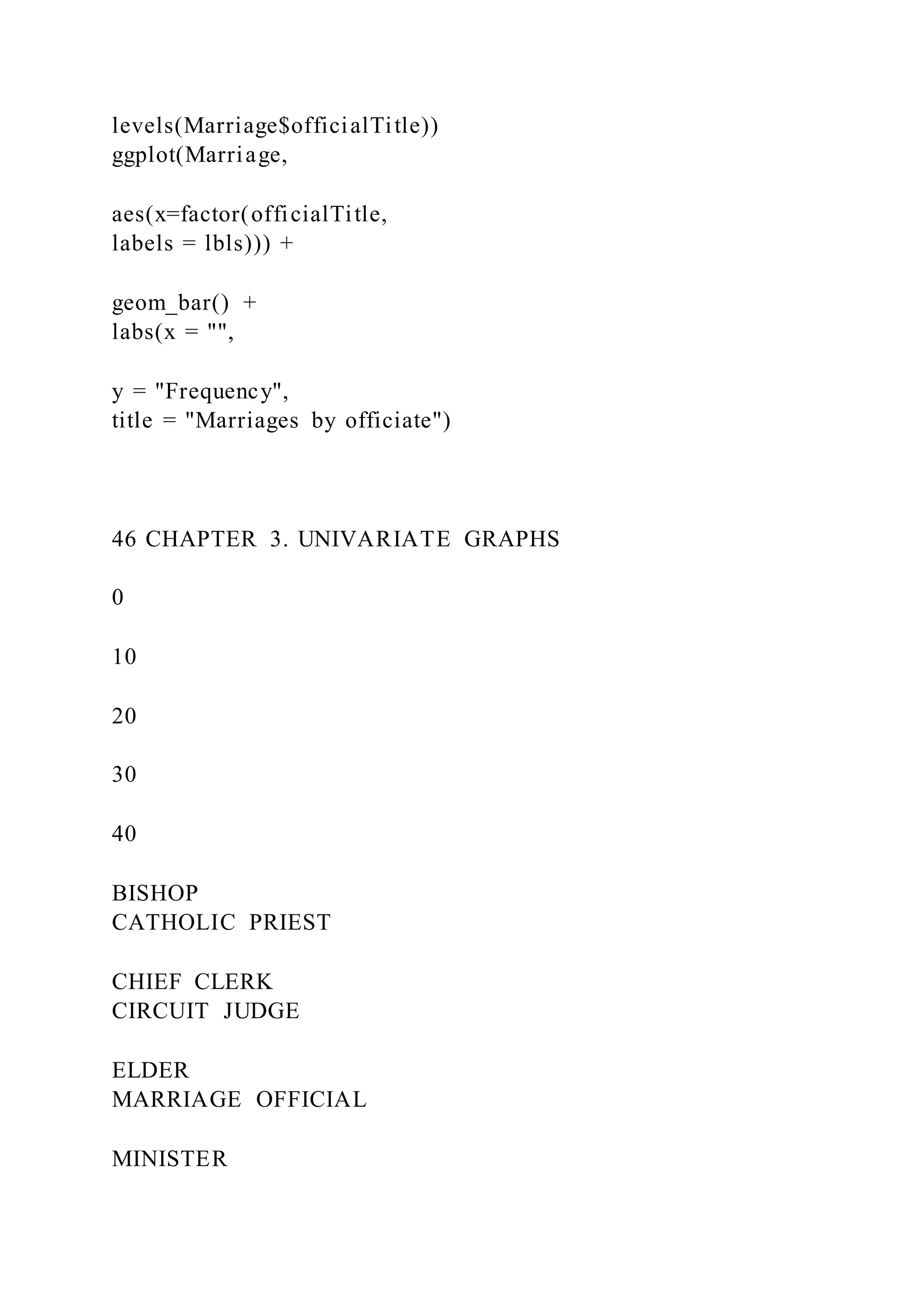
Finally, you can try staggering the labels. The trick is to add a
newline n to every other label.
# bar chart with staggered labels
lbls <- paste0(c("", "n"),
levels(Marriage$officialTitle))
ggplot(Marriage,
aes(x=factor(officialTitle,
labels = lbls))) +
geom_bar() +
labs(x = "",
y = "Frequency",
title = "Marriages by officiate")
46 CHAPTER 3. UNIVARIATE GRAPHS
0
10
20
30
40
BISHOP
CATHOLIC PRIEST
CHIEF CLERK
CIRCUIT JUDGE
ELDER
MARRIAGE OFFICIAL
MINISTER
PASTOR
REVEREND
F
re
qu
en
cy
Marriages by officiate
### Pie chart
Pie charts are controversial in statistics. If your goal is to
compare the frequency of categories, you are better
off with bar charts (humans are better at judging the length of
bars than the volume of pie slices). If your
goal is compare each category with the the whole (e.g., what
portion of participants are Hispanic compared
to all participants), and the number of categories is small , then
pie charts may work for you. It takes a bit
more code to make an attractive pie chart in R.
# create a basic ggplot2 pie chart
plotdata <- Marriage %>%
count(race) %>%
arrange(desc(race)) %>%
mutate(prop = round(n * 100 / sum(n), 1),
lab.ypos = cumsum(prop) - 0.5 *prop)
ggplot(plotdata,
aes(x = "",
y = prop,
fill = race)) +
geom_bar(width = 1,
stat = "identity",
color = "black") +
coord_polar("y",
start = 0,
direction = -1) +
theme_void()
3.1. CATEGORICAL 47
race
American Indian
Black
Hispanic
White
Figure 3.10: Basic pie chart
48 CHAPTER 3. UNIVARIATE GRAPHS
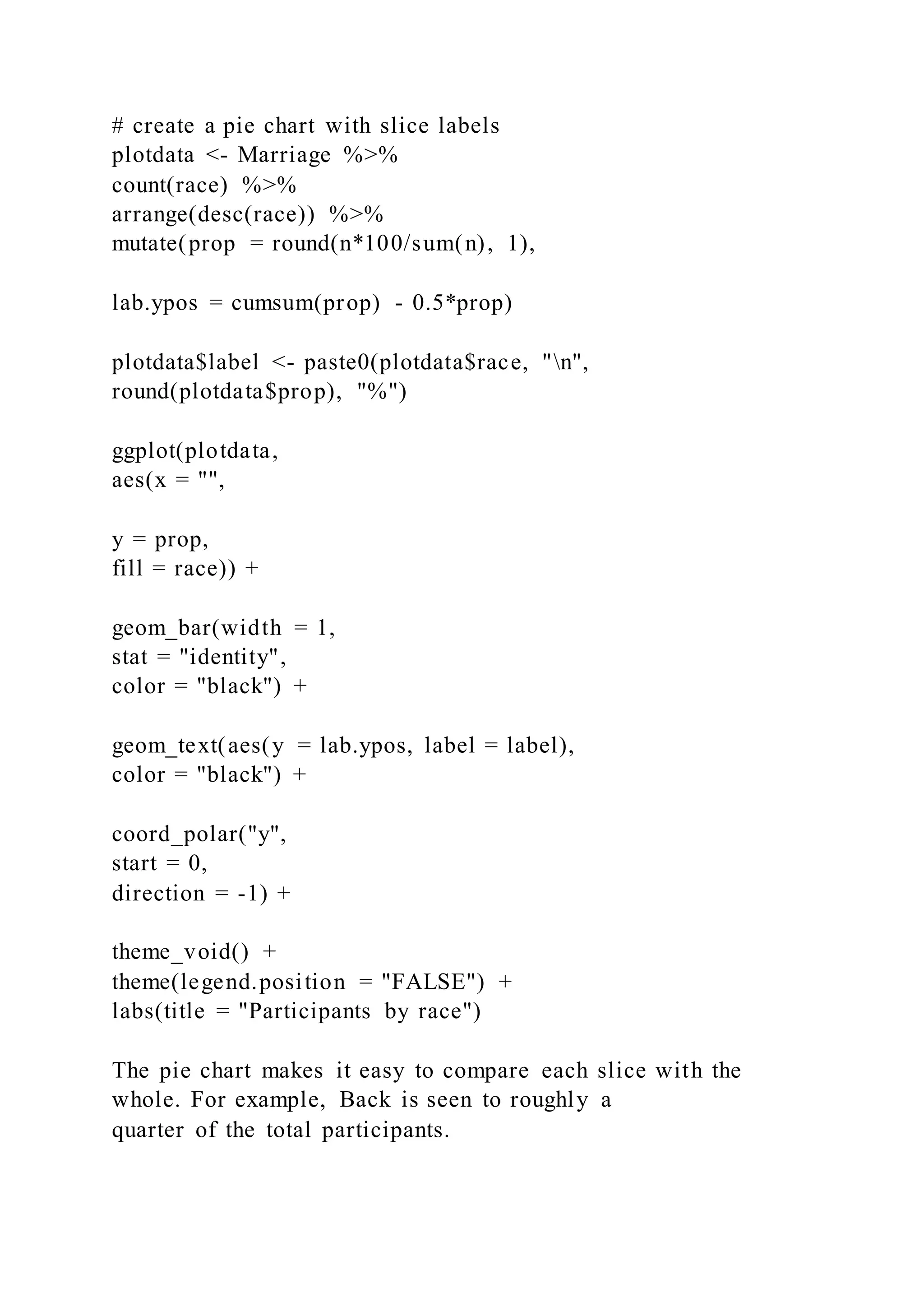
Now let’s get fancy and add labels, while removing the legend.
# create a pie chart with slice labels
plotdata <- Marriage %>%
count(race) %>%
arrange(desc(race)) %>%
mutate(prop = round(n*100/sum(n), 1),
lab.ypos = cumsum(prop) - 0.5*prop)
plotdata$label <- paste0(plotdata$race, "n",
round(plotdata$prop), "%")
ggplot(plotdata,
aes(x = "",
y = prop,
fill = race)) +
geom_bar(width = 1,
stat = "identity",
color = "black") +
geom_text(aes(y = lab.ypos, label = label),
color = "black") +
coord_polar("y",
start = 0,
direction = -1) +
theme_void() +
theme(legend.position = "FALSE") +
labs(title = "Participants by race")
The pie chart makes it easy to compare each slice with the
whole. For example, Back is seen to roughly a
quarter of the total participants.
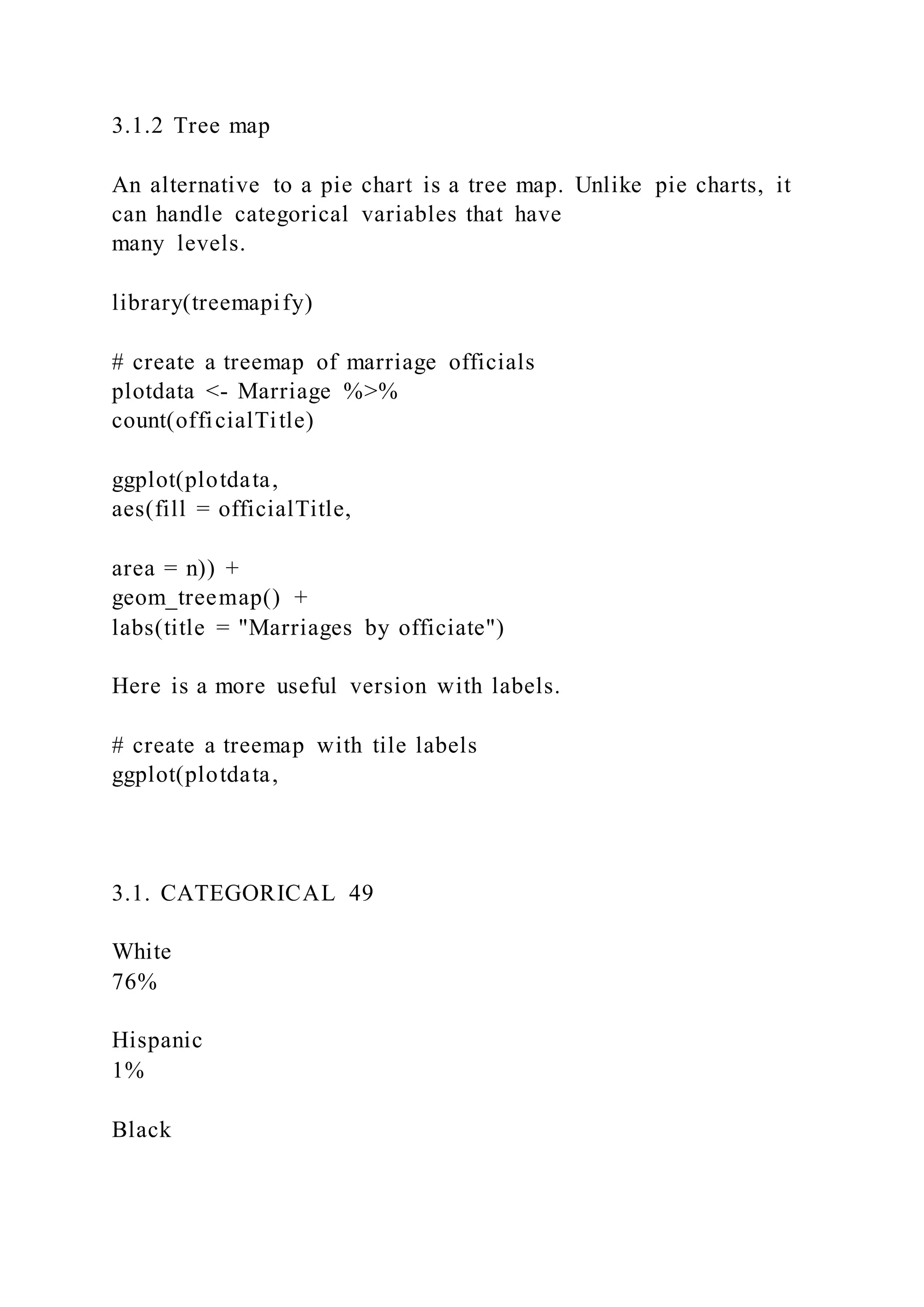
3.1.2 Tree map
An alternative to a pie chart is a tree map. Unlike pie charts, it
can handle categorical variables that have
many levels.
library(treemapify)
# create a treemap of marriage officials
plotdata <- Marriage %>%
count(officialTitle)
ggplot(plotdata,
aes(fill = officialTitle,
area = n)) +
geom_treemap() +
labs(title = "Marriages by officiate")
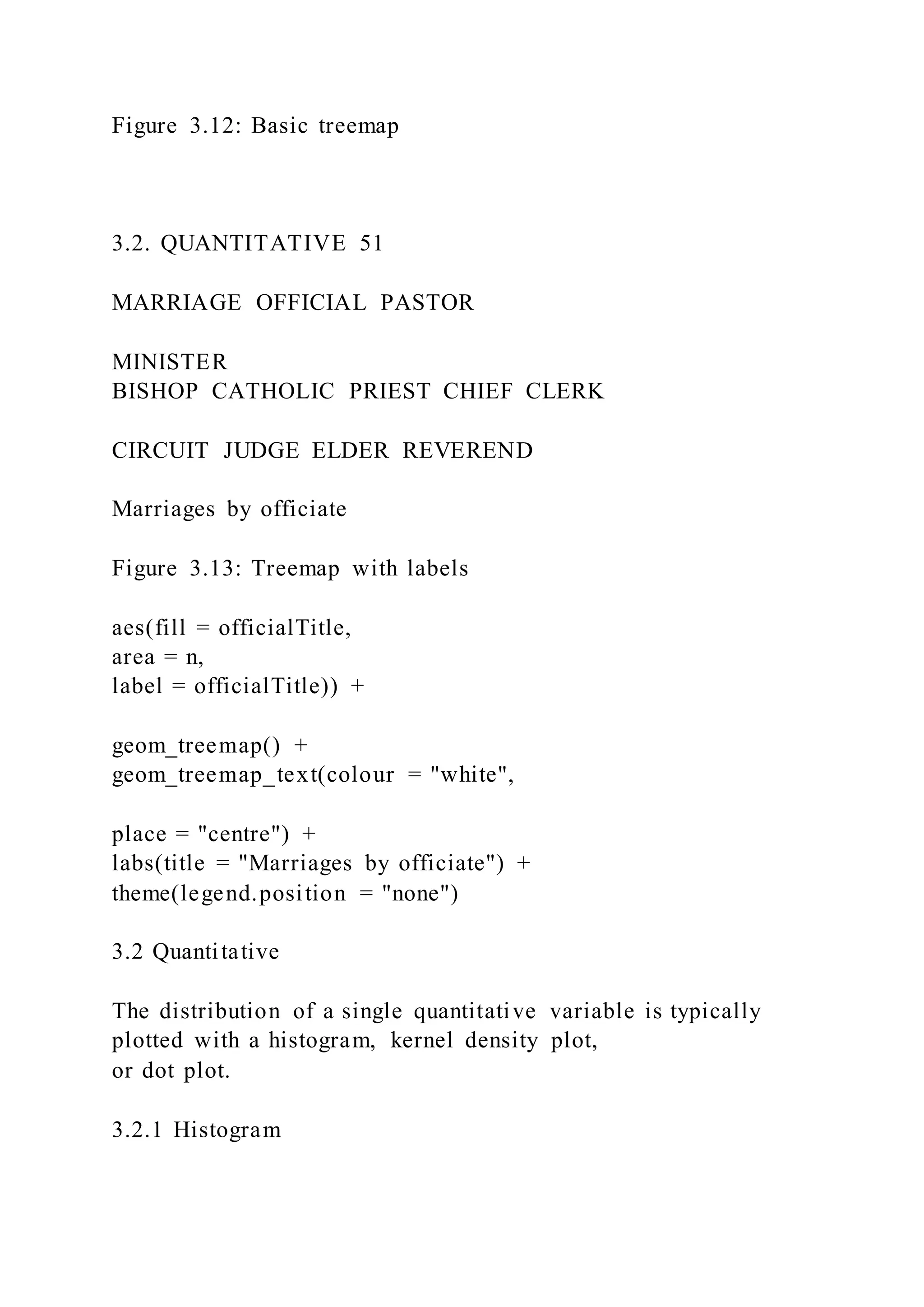
Here is a more useful version with labels.
# create a treemap with tile labels
ggplot(plotdata,
3.1. CATEGORICAL 49
White
76%
Hispanic
1%
Black
22%
American Indian
1%
Participants by race
Figure 3.11: Pie chart with percent labels
50 CHAPTER 3. UNIVARIATE GRAPHS
officialTitle
BISHOP
CATHOLIC PRIEST
CHIEF CLERK
CIRCUIT JUDGE
ELDER
MARRIAGE OFFICIAL
MINISTER
PASTOR
REVEREND
Marriages by officiate
Figure 3.12: Basic treemap
3.2. QUANTITATIVE 51
MARRIAGE OFFICIAL PASTOR
MINISTER
BISHOP CATHOLIC PRIEST CHIEF CLERK
CIRCUIT JUDGE ELDER REVEREND
Marriages by officiate
Figure 3.13: Treemap with labels
aes(fill = officialTitle,
area = n,
label = officialTitle)) +
geom_treemap() +
geom_treemap_text(colour = "white",
place = "centre") +
labs(title = "Marriages by officiate") +
theme(legend.position = "none")
3.2 Quantitative
The distribution of a single quantitative variable is typically
plotted with a histogram, kernel density plot,
or dot plot.
3.2.1 Histogram
Using the Marriage dataset, let’s plot the ages of the wedding
participants.
52 CHAPTER 3. UNIVARIATE GRAPHS
0.0
2.5
5.0
7.5
10.0
12.5
20 40 60
Age
co
un
t
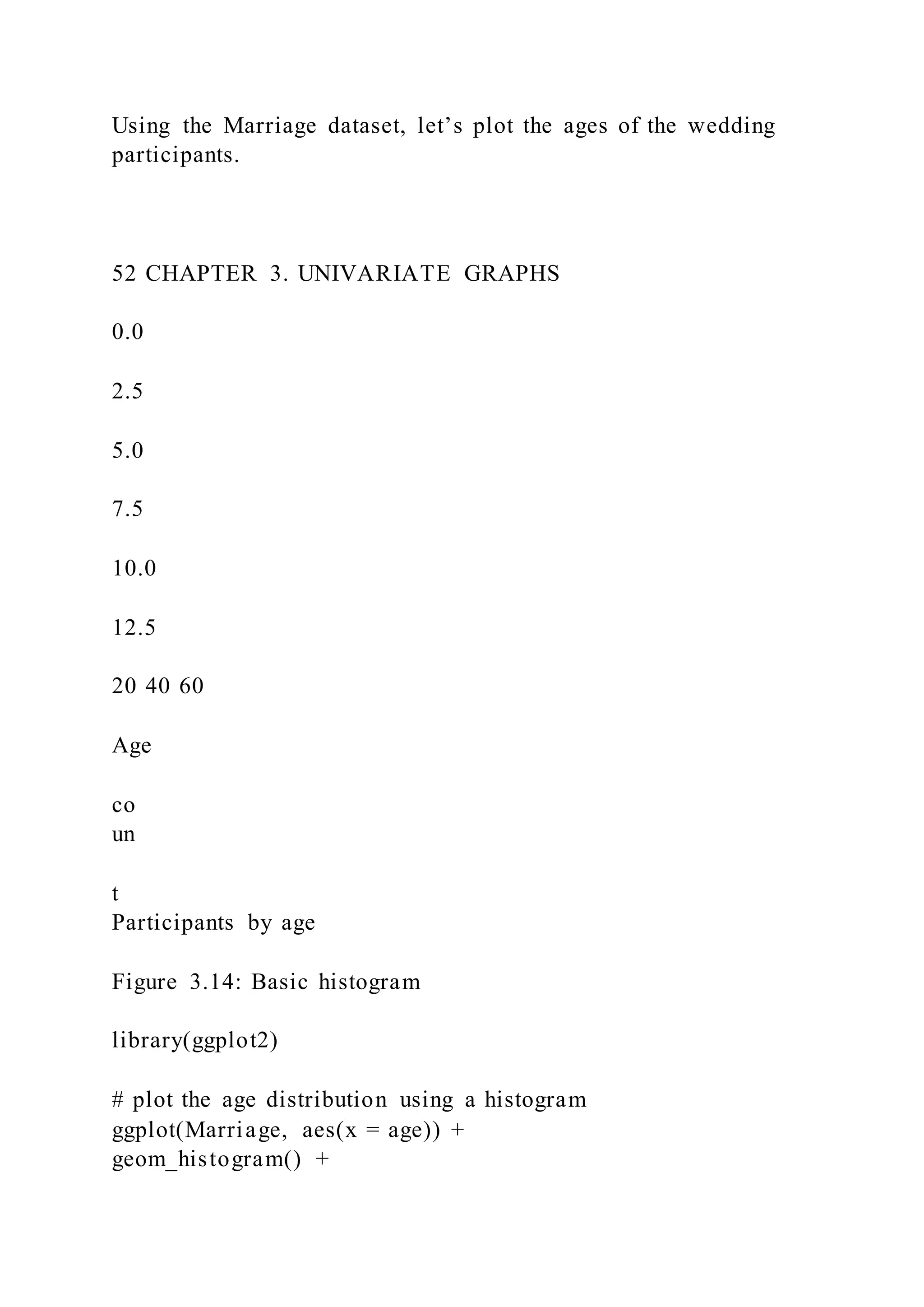
Participants by age
Figure 3.14: Basic histogram
library(ggplot2)
# plot the age distribution using a histogram
ggplot(Marriage, aes(x = age)) +
geom_histogram() +
labs(title = "Participants by age",
x = "Age")
Most participants appear to be in their early 20’s with another
group in their 40’s, and a much smaller group
in their later sixties and early seventies. This would be a
multimodal distribution.
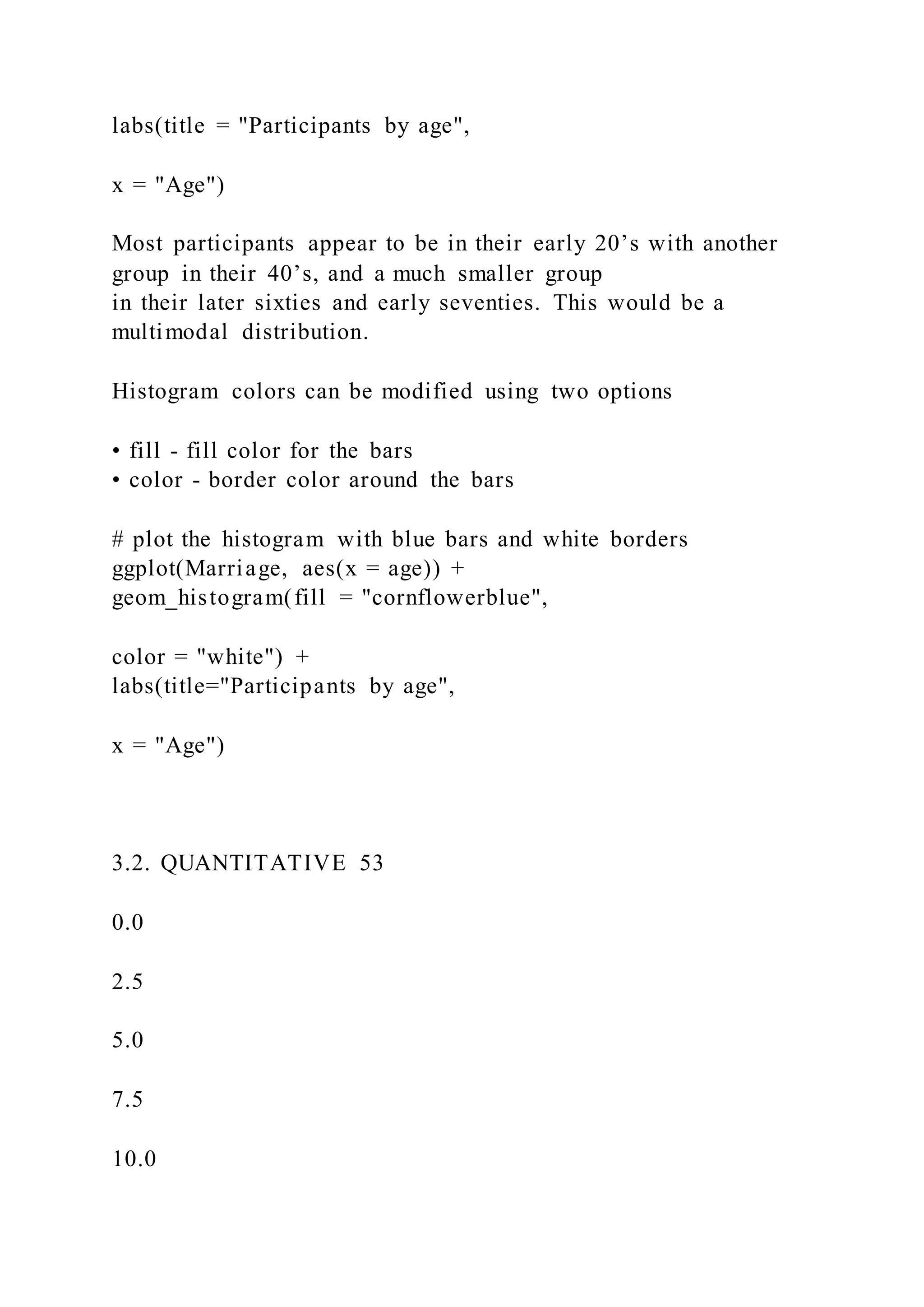
Histogram colors can be modified using two options
• fill - fill color for the bars
• color - border color around the bars
# plot the histogram with blue bars and white borders
ggplot(Marriage, aes(x = age)) +
geom_histogram(fill = "cornflowerblue",
color = "white") +
labs(title="Participants by age",
x = "Age")
3.2. QUANTITATIVE 53
0.0
2.5
5.0
7.5
10.0
12.5
20 40 60
Age
co
un
t
Participants by age
Figure 3.15: Histogram with specified fill and border colors
54 CHAPTER 3. UNIVARIATE GRAPHS
0
5
10
20 40 60
Age
co
un
t
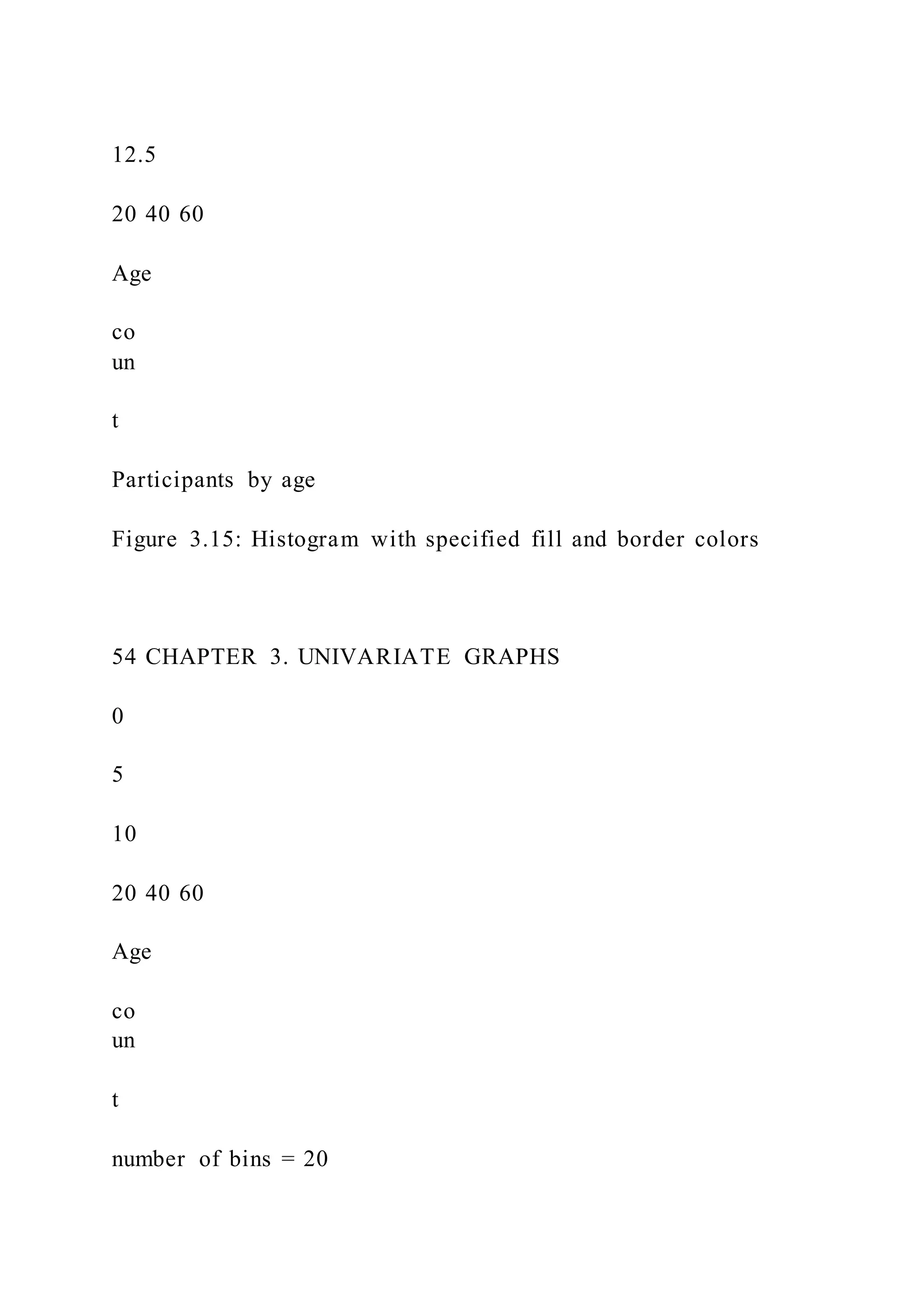
number of bins = 20
Participants by age
Figure 3.16: Histogram with a specified number of bins
3.2.1.1 Bins and bandwidths
One of the most important histogram options is bins, which
controls the number of bins into which the
numeric variable is divided (i.e., the number of bars in the
plot). The default is 30, but it is helpful to try
smaller and larger numbers to get a better impression of the
shape of the distribution.
# plot the histogram with 20 bins
ggplot(Marriage, aes(x = age)) +
geom_histogram(fill = "cornflowerblue",
color = "white",
bins = 20) +
labs(title="Participants by age",
subtitle = "number of bins = 20",
x = "Age")
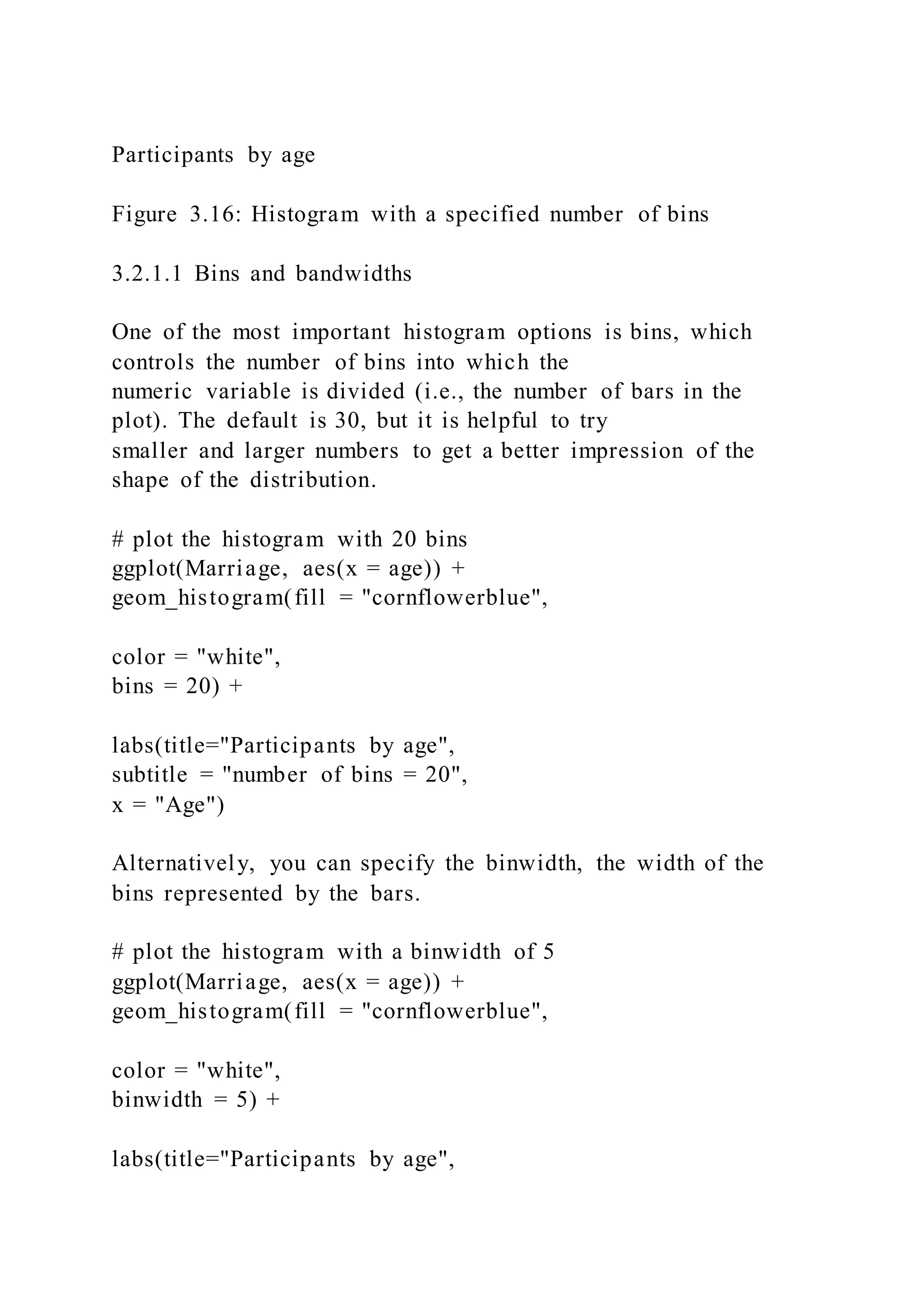
Alternatively, you can specify the binwidth, the width of the
bins represented by the bars.
# plot the histogram with a binwidth of 5
ggplot(Marriage, aes(x = age)) +
geom_histogram(fill = "cornflowerblue",
color = "white",
binwidth = 5) +
labs(title="Participants by age",
3.2. QUANTITATIVE 55
0
5
10
15
20
20 40 60 80
Age
co
un
t
binwidth = 5 years
Participants by age
Figure 3.17: Histogram with specified a bin width
subtitle = "binwidth = 5 years",
x = "Age")
As with bar charts, the y-axis can represent counts or percent of
the total.
# plot the histogram with percentages on the y-axis
library(scales)
ggplot(Marriage,
aes(x = age,
y= ..count.. / sum(..count..))) +
geom_histogram(fill = "cornflowerblue",
color = "white",
binwidth = 5) +
labs(title="Participants by age",
y = "Percent",
x = "Age") +
scale_y_continuous(labels = percent)
56 CHAPTER 3. UNIVARIATE GRAPHS
0%
5%
10%
15%
20%
20 40 60 80
Age
P
er
ce
nt
Participants by age
### Kernel Density plot {#Kernel}
An alternative to a histogram is the kernel density plot.
Technically, kernel density estimation is a nonpara-
metric method for estimating the probability density function of
a continuous random variable. (What??)
Basically, we are trying to draw a smoothed histogram, where
the area under the curve equals one.
# Create a kernel density plot of age
ggplot(Marriage, aes(x = age)) +
geom_density() +
labs(title = "Participants by age")
The graph shows the distribution of scores. For example, the
proportion of cases between 20 and 40 years
old would be represented by the area under the curve between
20 and 40 on the x-axis.
As with previous charts, we can use fill and color to specify the
fill and border colors.
# Create a kernel density plot of age
ggplot(Marriage, aes(x = age)) +
geom_density(fill = "indianred3") +
labs(title = "Participants by age")
3.2.1.2 Smoothing parameter
The degree of smoothness is controlled by the bandwidth
parameter bw. To find the default value for a
particular variable, use the bw.nrd0 function. Values that are
larger will result in more smoothing, while
values that are smaller will produce less smoothing.
3.2. QUANTITATIVE 57
0.00
0.01
0.02
0.03
20 40 60
age
de
ns
ity
Participants by age
Figure 3.18: Basic kernel density plot
58 CHAPTER 3. UNIVARIATE GRAPHS
0.00
0.01
0.02
0.03
20 40 60
age
de
ns
ity
Participants by age
Figure 3.19: Kernel density plot with fill
3.2. QUANTITATIVE 59
0.00
0.02
0.04
0.06
20 40 60
age
de
ns
ity
bandwidth = 1
Participants by age
Figure 3.20: Kernel density plot with a specified bandwidth
# default bandwidth for the age variable
bw.nrd0(Marriage$age)
## [1] 5.181946
# Create a kernel density plot of age
ggplot(Marriage, aes(x = age)) +
geom_density(fill = "deepskyblue",
bw = 1) +
labs(title = "Participants by age",
subtitle = "bandwidth = 1")
In this example, the default bandwidth for age is 5.18. Choosing
a value of 1 resulted in less smoothing and
more detail.
Kernel density plots allow you to easily see which scores are
most frequent and which are relatively rare.
However it can be difficult to explain the meaning of the y-axis
to a non-statistician. (But it will make you
look really smart at parties!)
3.2.2 Dot Chart
Another alternative to the histogram is the dot chart. Again, the
quantitative variable is divided into bins,
but rather than summary bars, each observation is represented
by a dot. By default, the width of a dot
60 CHAPTER 3. UNIVARIATE GRAPHS
0.00
0.25
0.50
0.75
1.00
20 40 60
Age
P
ro
po
rt
io
n
Participants by age
Figure 3.21: Basic dotplot
corresponds to the bin width, and dots are stacked, with each
dot representing one observation. This works
best when the number of observations is small (say, less than
150).
# plot the age distribution using a dotplot
ggplot(Marriage, aes(x = age)) +
geom_dotplot() +
labs(title = "Participants by age",
y = "Proportion",
x = "Age")
The fill and color options can be used to specify the fill and
border color of each dot respectively.
# Plot ages as a dot plot using
# gold dots with black borders
ggplot(Marriage, aes(x = age)) +
geom_dotplot(fill = "gold",
color = "black") +
labs(title = "Participants by age",
y = "Proportion",
x = "Age")
There are many more options available. See the help for details
and examples.
http://ggplot2.tidyverse.org/reference/geom_dotplot.html
3.2. QUANTITATIVE 61
0.00
0.25
0.50
0.75
1.00
20 40 60
Age
P
ro
po
rt
io
n
Participants by age
Figure 3.22: Dotplot with a specified color scheme
62 CHAPTER 3. UNIVARIATE GRAPHS
Chapter 4
Bivariate Graphs
Bivariate graphs display the relationship between two variables.
The type of graph will depend on the
measurement level of the variables (categorical or quantitative).
4.1 Categorical vs. Categorical
When plotting the relationship between two categorical
variables, stacked, grouped, or segmented bar charts
are typically used. A less common approach is the mosaic chart.
4.1.1 Stacked bar chart
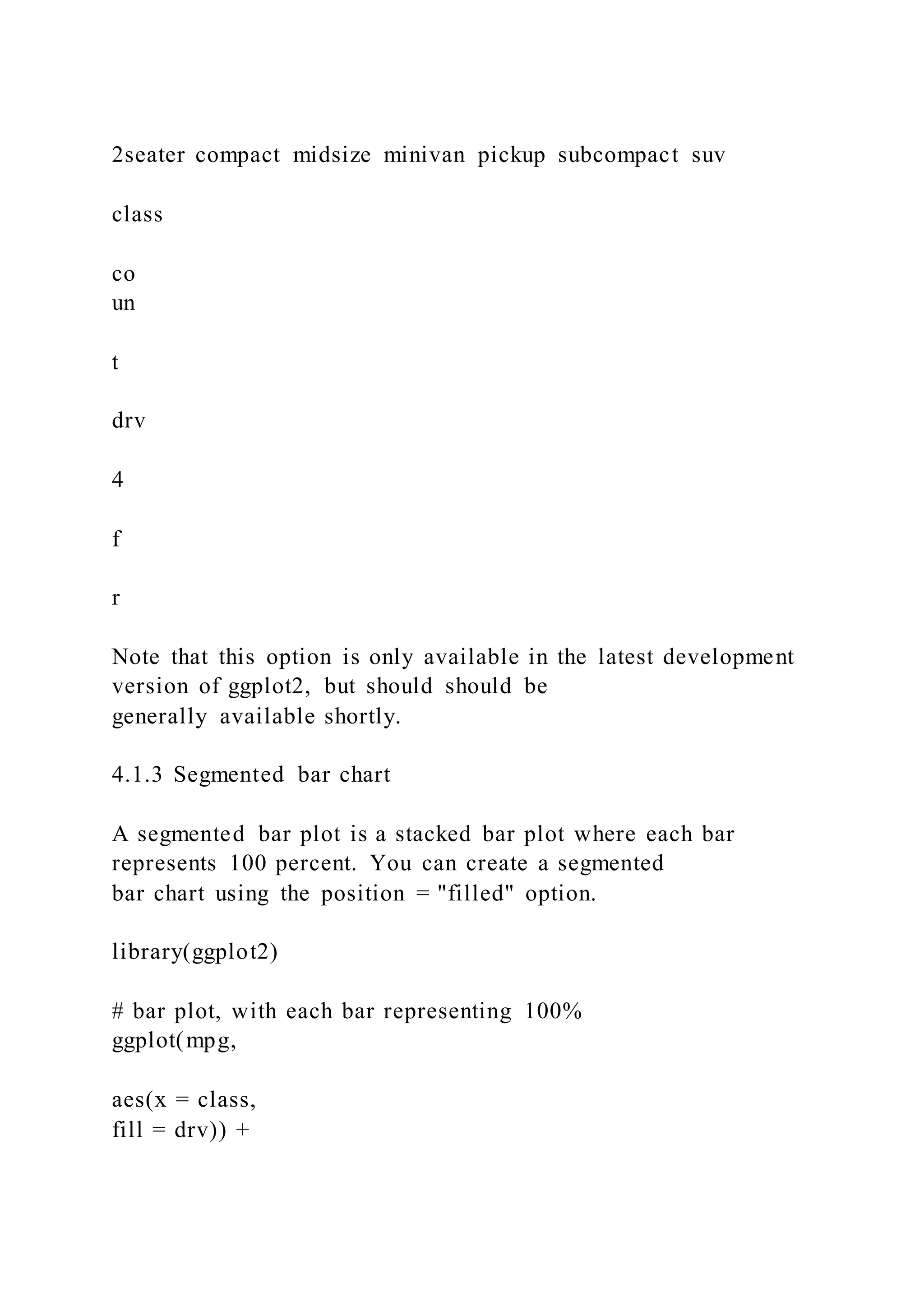
Let’s plot the relationship between automobile class and drive
type (front-wheel, rear-wheel, or 4-wheel
drive) for the automobiles in the Fuel economy dataset.
library(ggplot2)
# stacked bar chart
ggplot(mpg,
aes(x = class,
fill = drv)) +
geom_bar(position = "stack")
63
64 CHAPTER 4. BIVARIATE GRAPHS
0
20
40
60
2seater compact midsize minivan pickup subcompact suv
class
co
un
t
drv
4
f
r
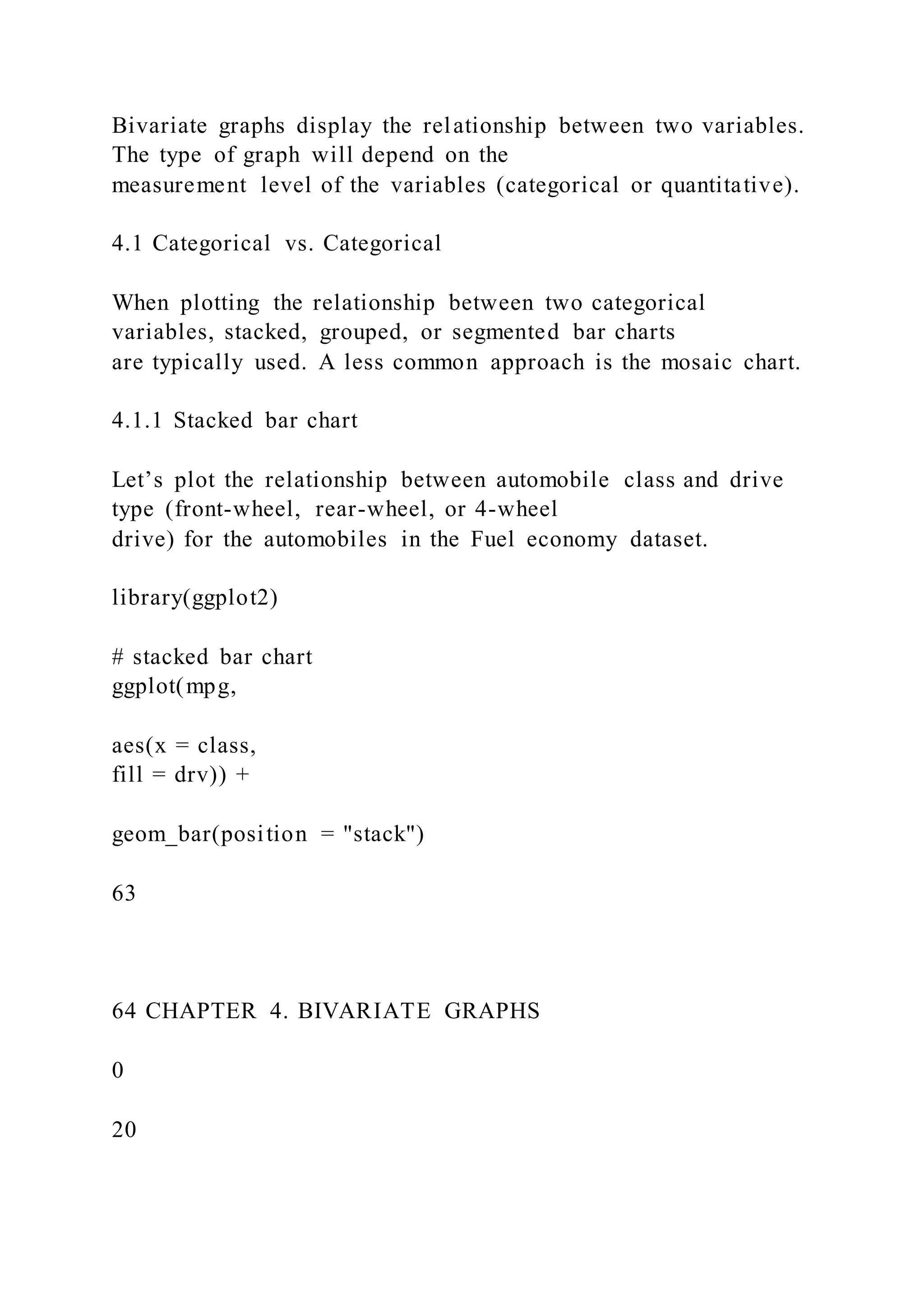
From the chart, we can see for example, that the most common
vehicle is the SUV. All 2seater cars are rear
wheel drive, while most, but not all SUVs are 4-wheel drive.
Stacked is the default, so the last line could have also been
written as geom_bar().
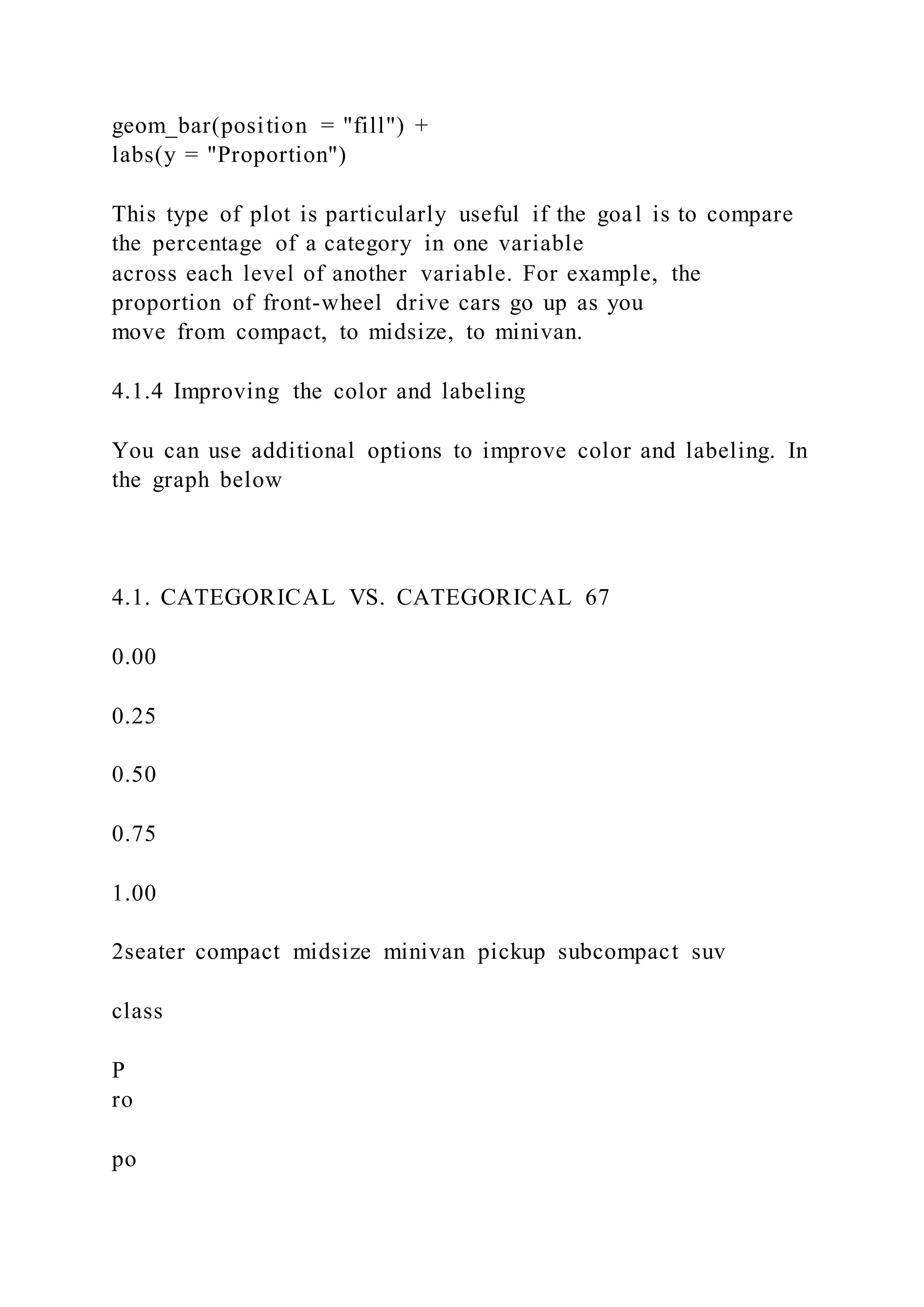
4.1.2 Grouped bar chart
Grouped bar charts place bars for the second categorical
variable side-by-side. To create a grouped bar plot
use the position = "dodge" option.
library(ggplot2)
# grouped bar plot
ggplot(mpg,
aes(x = class,
fill = drv)) +
geom_bar(position = "dodge")
4.1. CATEGORICAL VS. CATEGORICAL 65
0
10
20
30
40
50
2seater compact midsize minivan pickup subcompact suv
class
co
un
t
drv
4
f
r
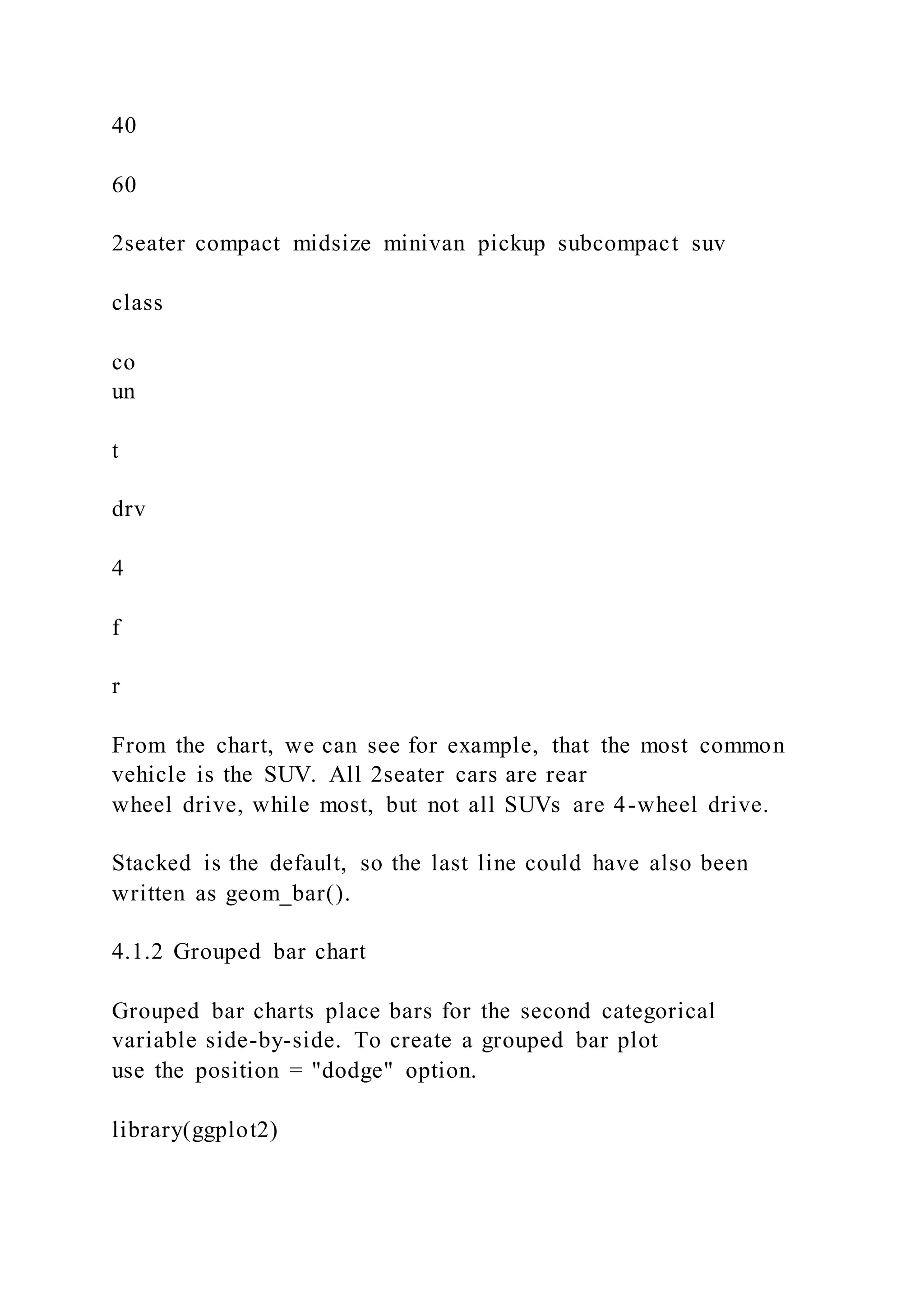
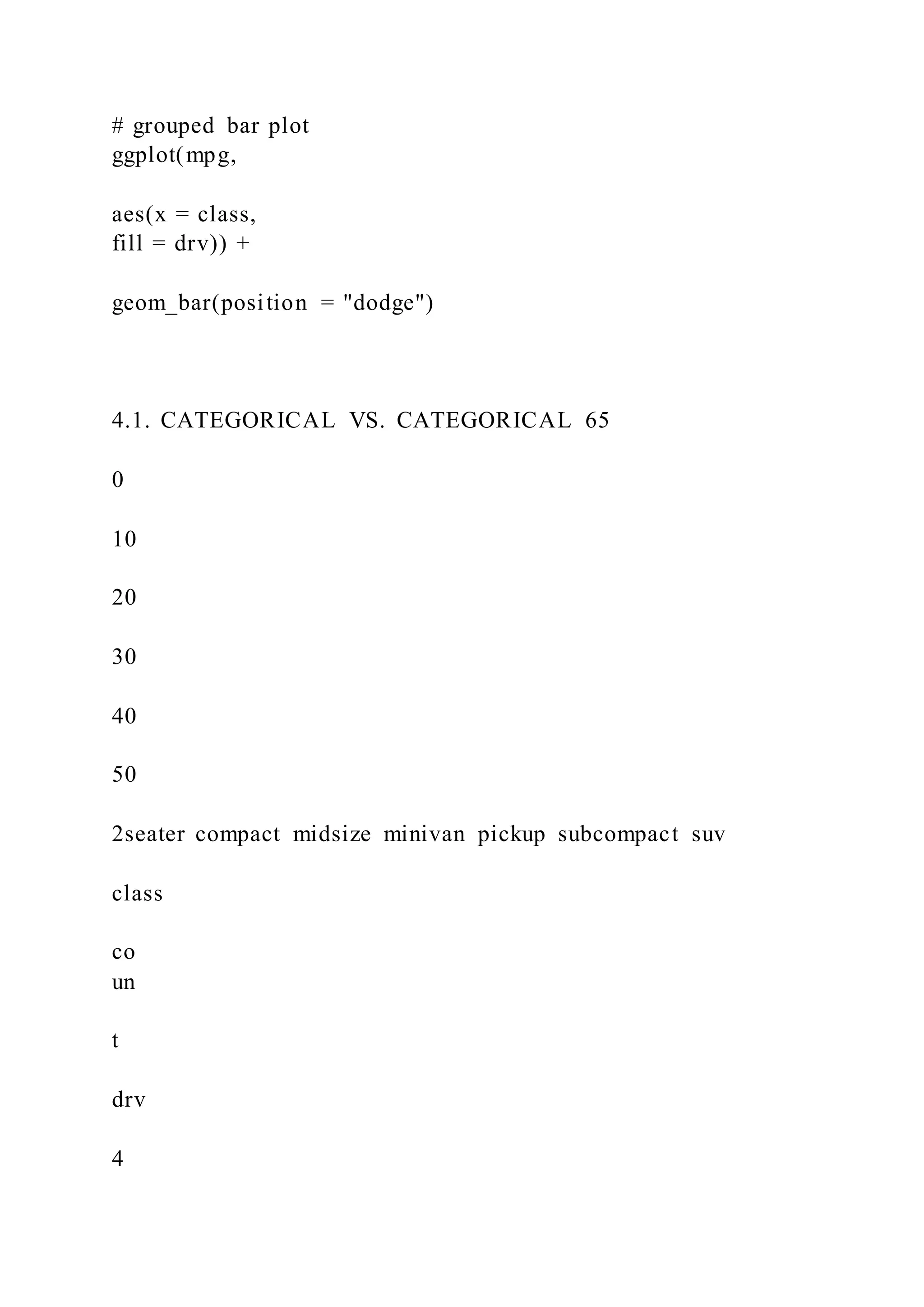
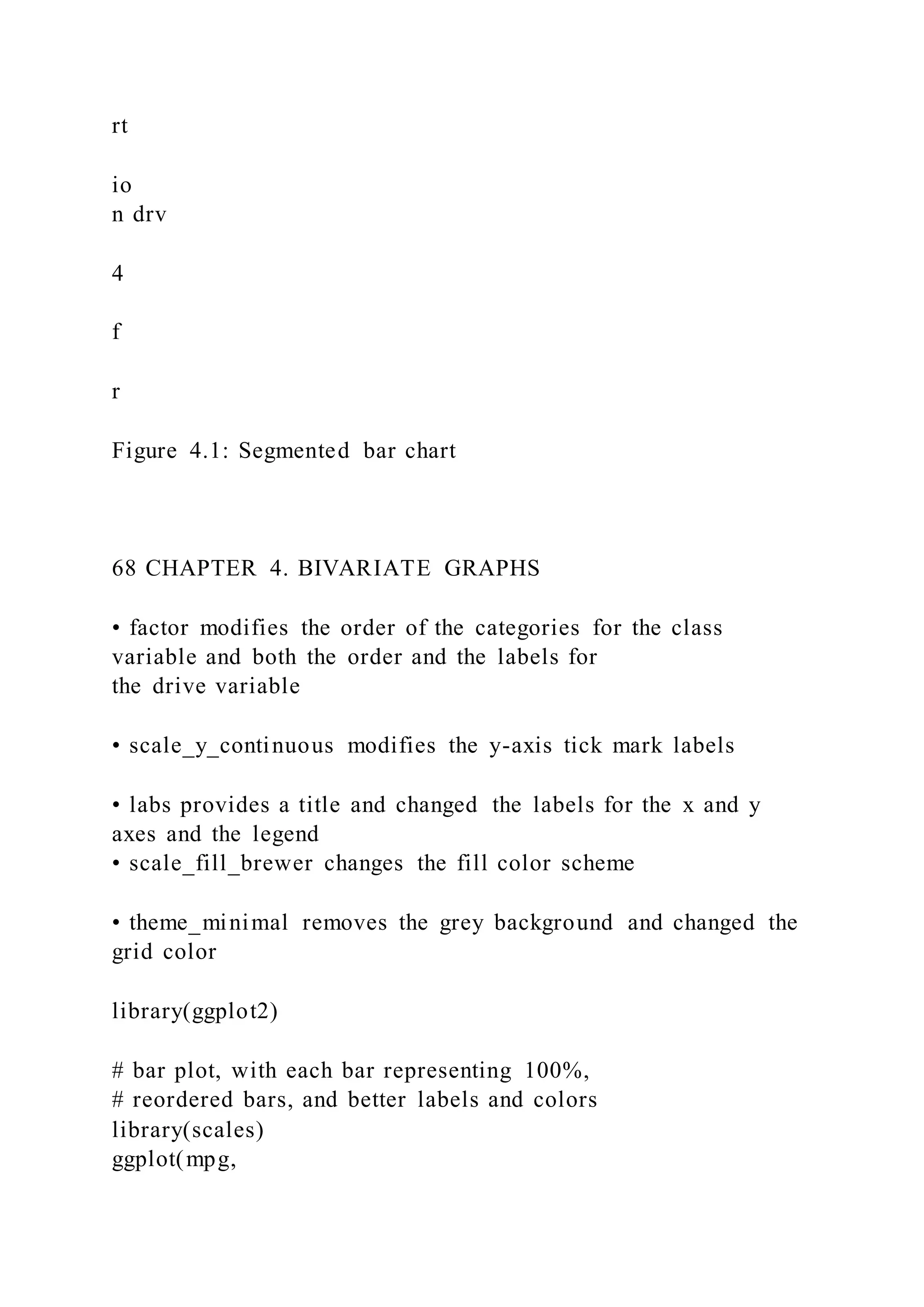
Notice that all Minivans are front-wheel drive. By default, zero
count bars are dropped and the remaining
bars are made wider. This may not be the behavior you want.
You can modify this using the position =
position_dodge(preserve = "single")" option.
library(ggplot2)
# grouped bar plot preserving zero count bars
ggplot(mpg,
aes(x = class,
fill = drv)) +
geom_bar(position = position_dodge(preserve = "single"))
66 CHAPTER 4. BIVARIATE GRAPHS
0
10
20
30
40
50
2seater compact midsize minivan pickup subcompact suv
class
co
un
t
drv
4
f
r
Note that this option is only available in the latest development
version of ggplot2, but should should be
generally available shortly.
4.1.3 Segmented bar chart
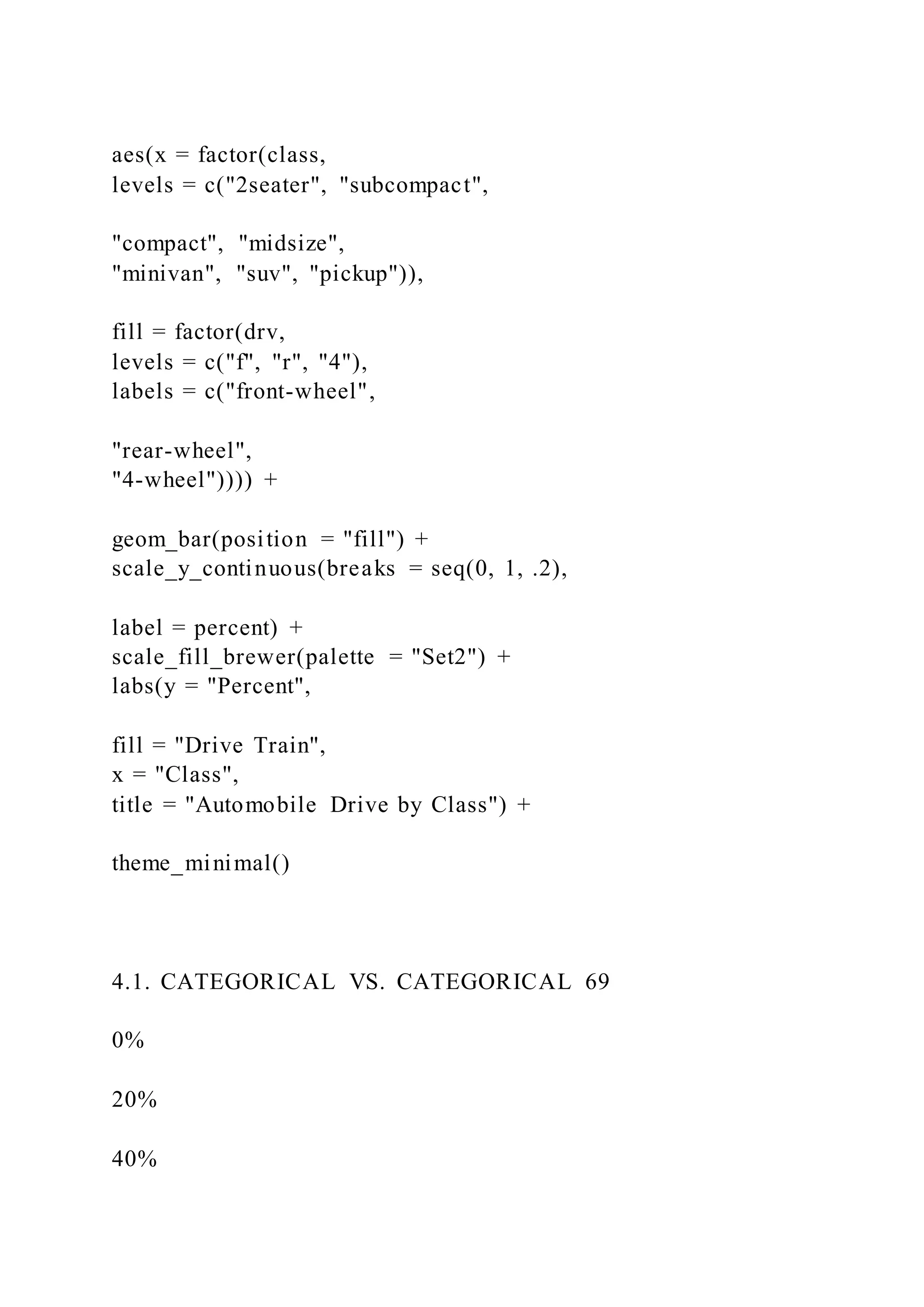
A segmented bar plot is a stacked bar plot where each bar
represents 100 percent. You can create a segmented
bar chart using the position = "filled" option.
library(ggplot2)
# bar plot, with each bar representing 100%
ggplot(mpg,
aes(x = class,
fill = drv)) +
geom_bar(position = "fill") +
labs(y = "Proportion")
This type of plot is particularly useful if the goal is to compare
the percentage of a category in one variable
across each level of another variable. For example, the
proportion of front-wheel drive cars go up as you
move from compact, to midsize, to minivan.
4.1.4 Improving the color and labeling
You can use additional options to improve color and labeling. In
the graph below
4.1. CATEGORICAL VS. CATEGORICAL 67
0.00
0.25
0.50
0.75
1.00
2seater compact midsize minivan pickup subcompact suv
class
P
ro
po
rt
io
n drv
4
f
r
Figure 4.1: Segmented bar chart
68 CHAPTER 4. BIVARIATE GRAPHS
• factor modifies the order of the categories for the class
variable and both the order and the labels for
the drive variable
• scale_y_continuous modifies the y-axis tick mark labels
• labs provides a title and changed the labels for the x and y
axes and the legend
• scale_fill_brewer changes the fill color scheme
• theme_minimal removes the grey background and changed the
grid color
library(ggplot2)
# bar plot, with each bar representing 100%,
# reordered bars, and better labels and colors
library(scales)
ggplot(mpg,
aes(x = factor(class,
levels = c("2seater", "subcompact",
"compact", "midsize",
"minivan", "suv", "pickup")),
fill = factor(drv,
levels = c("f", "r", "4"),
labels = c("front-wheel",
"rear-wheel",
"4-wheel")))) +
geom_bar(position = "fill") +
scale_y_continuous(breaks = seq(0, 1, .2),
label = percent) +
scale_fill_brewer(palette = "Set2") +
labs(y = "Percent",
fill = "Drive Train",
x = "Class",
title = "Automobile Drive by Class") +
theme_minimal()
4.1. CATEGORICAL VS. CATEGORICAL 69
0%
20%
40%
60%
80%
100%
2seater subcompact compact midsize minivan suv pickup
Class
P
er
ce
nt
Drive Train
front−wheel
rear−wheel
4−wheel
Automobile Drive by Class
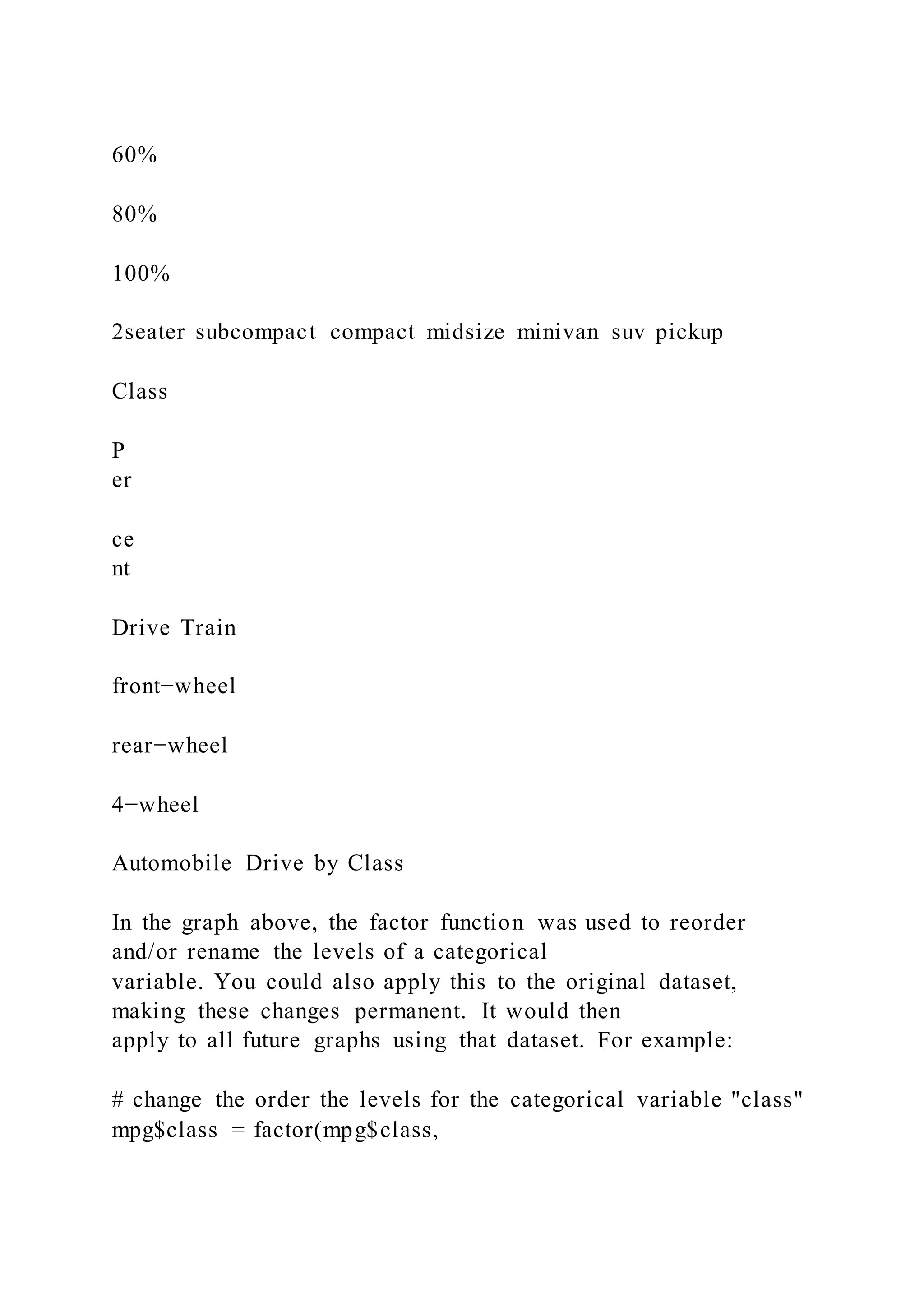
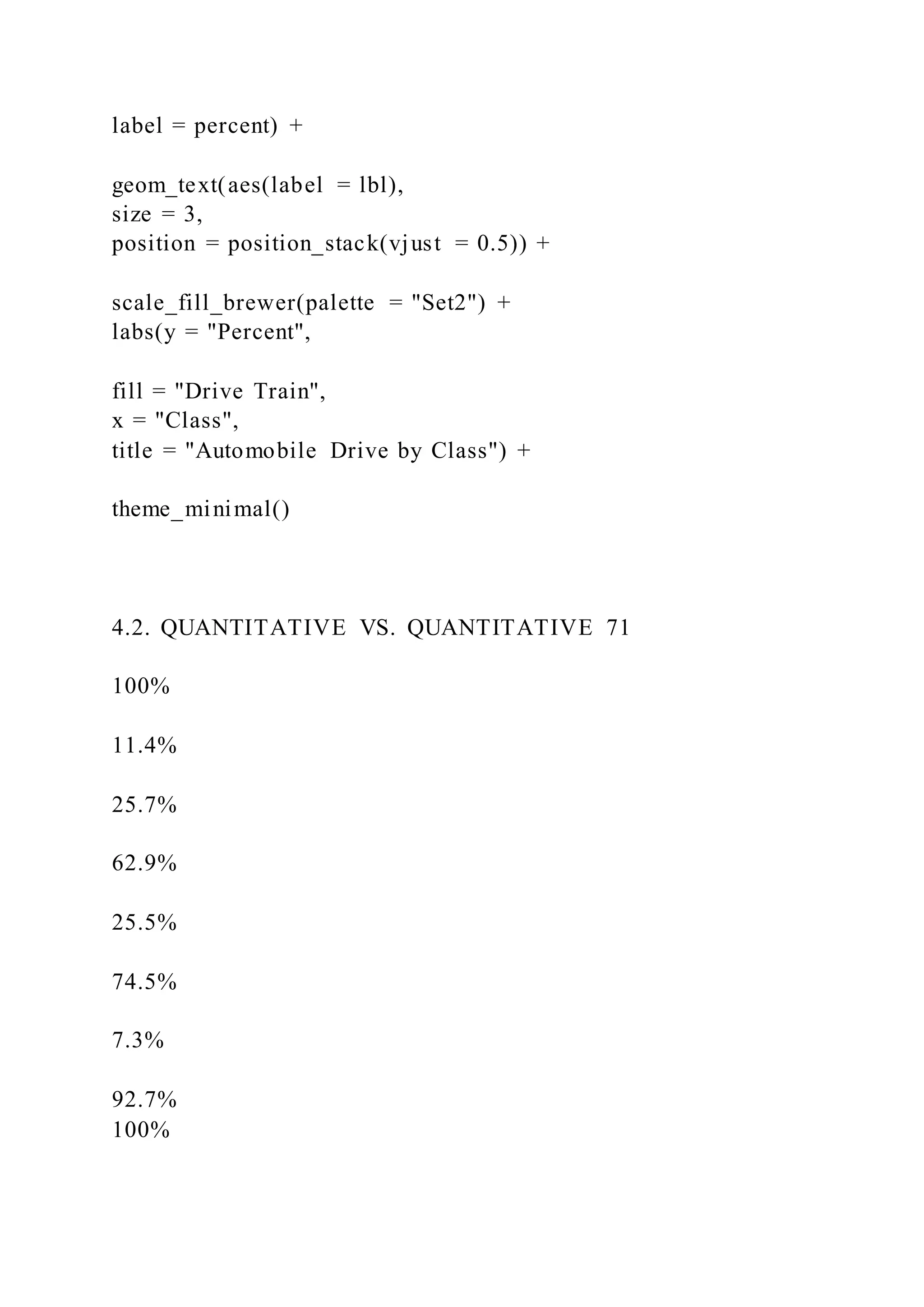
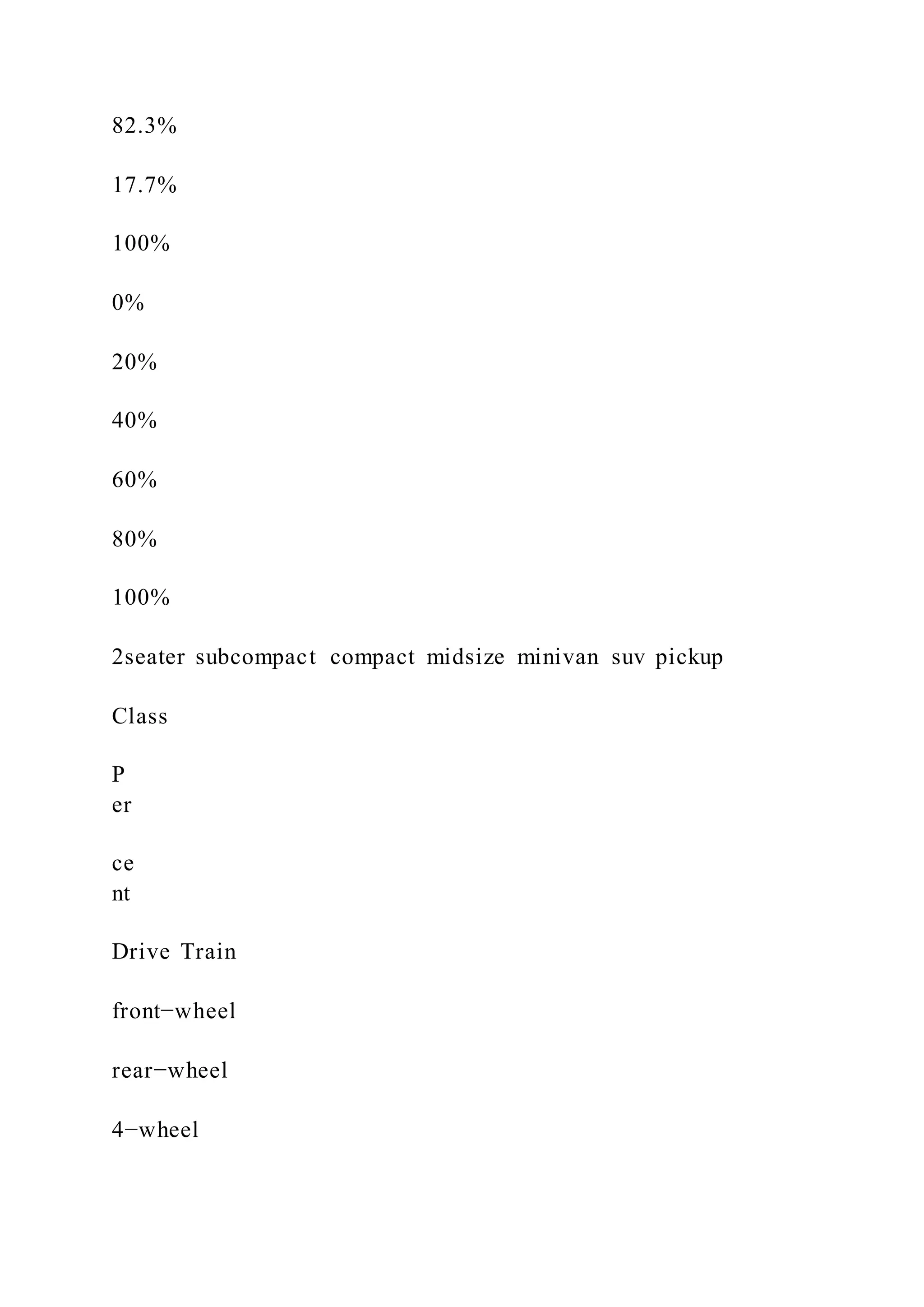
In the graph above, the factor function was used to reorder
and/or rename the levels of a categorical
variable. You could also apply this to the original dataset,
making these changes permanent. It would then
apply to all future graphs using that dataset. For example:
# change the order the levels for the categorical variable "class"
mpg$class = factor(mpg$class,
levels = c("2seater", "subcompact",
"compact", "midsize",
"minivan", "suv", "pickup")
I placed the factor function within the ggplot function to
demonstrate that, if desired, you can change the
order of the categories and labels for the categories for a single
graph.
The other functions are discussed more fully in the section on
Customizing graphs.
Next, let’s add percent labels to each segment. First, we’ll
create a summary dataset that has the necessary
labels.
# create a summary dataset
library(dplyr)
plotdata <- mpg %>%
group_by(class, drv) %>%
summarize(n = n()) %>%
mutate(pct = n/sum(n),
lbl = scales::percent(pct))
plotdata
## # A tibble: 12 x 5
70 CHAPTER 4. BIVARIATE GRAPHS
## # Groups: class [7]
## class drv n pct lbl
## <chr> <chr> <int> <dbl> <chr>
## 1 2seater r 5 1.00 100%
## 2 compact 4 12 0.255 25.5%
## 3 compact f 35 0.745 74.5%
## 4 midsize 4 3 0.0732 7.3%
## 5 midsize f 38 0.927 92.7%
## 6 minivan f 11 1.00 100%
## 7 pickup 4 33 1.00 100%
## 8 subcompact 4 4 0.114 11.4%
## 9 subcompact f 22 0.629 62.9%
## 10 subcompact r 9 0.257 25.7%
## 11 suv 4 51 0.823 82.3%
## 12 suv r 11 0.177 17.7%
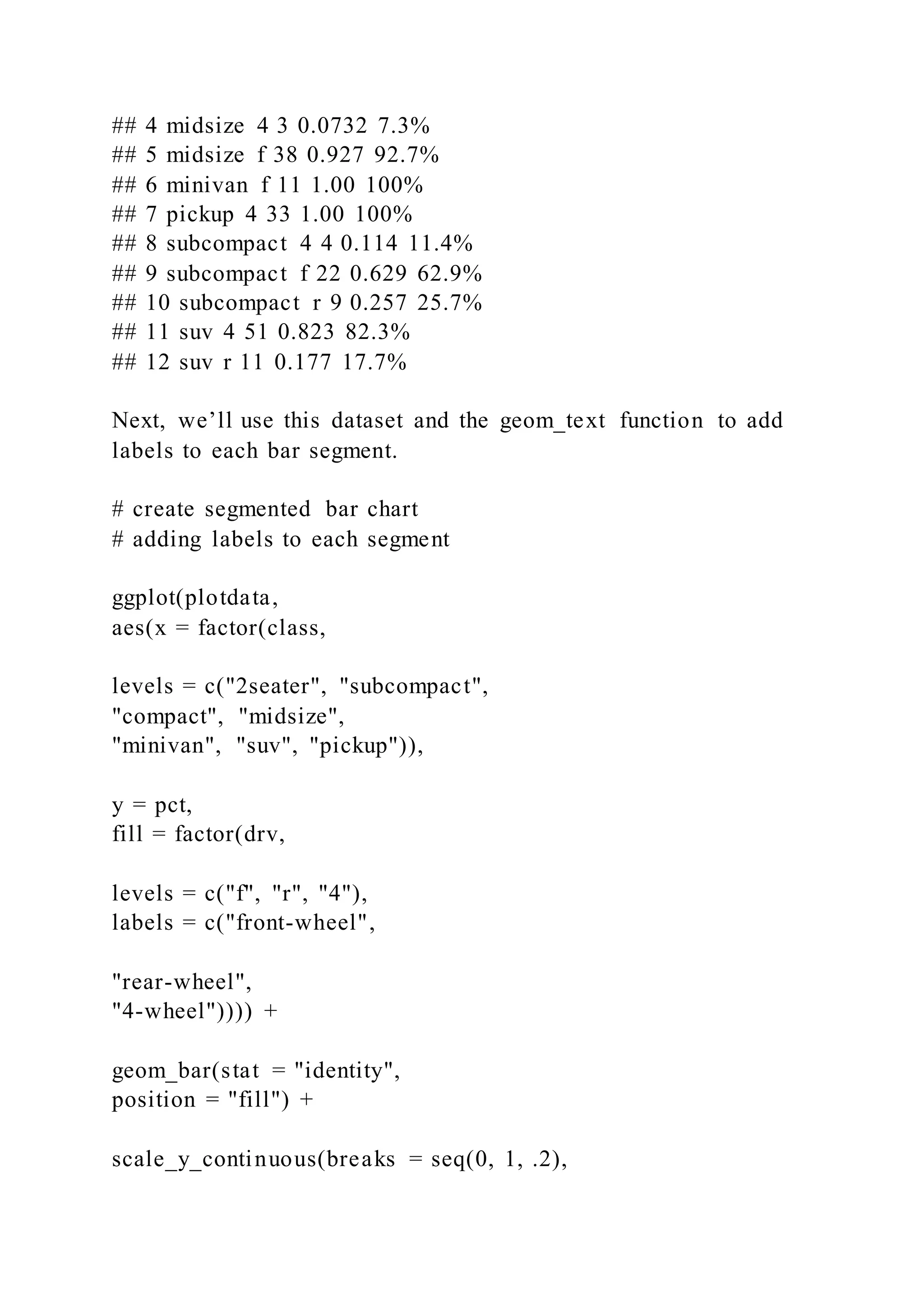
Next, we’ll use this dataset and the geom_text function to add
labels to each bar segment.
# create segmented bar chart
# adding labels to each segment
ggplot(plotdata,
aes(x = factor(class,
levels = c("2seater", "subcompact",
"compact", "midsize",
"minivan", "suv", "pickup")),
y = pct,
fill = factor(drv,
levels = c("f", "r", "4"),
labels = c("front-wheel",
"rear-wheel",
"4-wheel")))) +
geom_bar(stat = "identity",
position = "fill") +
scale_y_continuous(breaks = seq(0, 1, .2),
label = percent) +
geom_text(aes(label = lbl),
size = 3,
position = position_stack(vjust = 0.5)) +
scale_fill_brewer(palette = "Set2") +
labs(y = "Percent",
fill = "Drive Train",
x = "Class",
title = "Automobile Drive by Class") +
theme_minimal()
4.2. QUANTITATIVE VS. QUANTITATIVE 71
100%
11.4%
25.7%
62.9%
25.5%
74.5%
7.3%
92.7%
100%
82.3%
17.7%
100%
0%
20%
40%
60%
80%
100%
2seater subcompact compact midsize minivan suv pickup
Class
P
er
ce
nt
Drive Train
front−wheel
rear−wheel
4−wheel
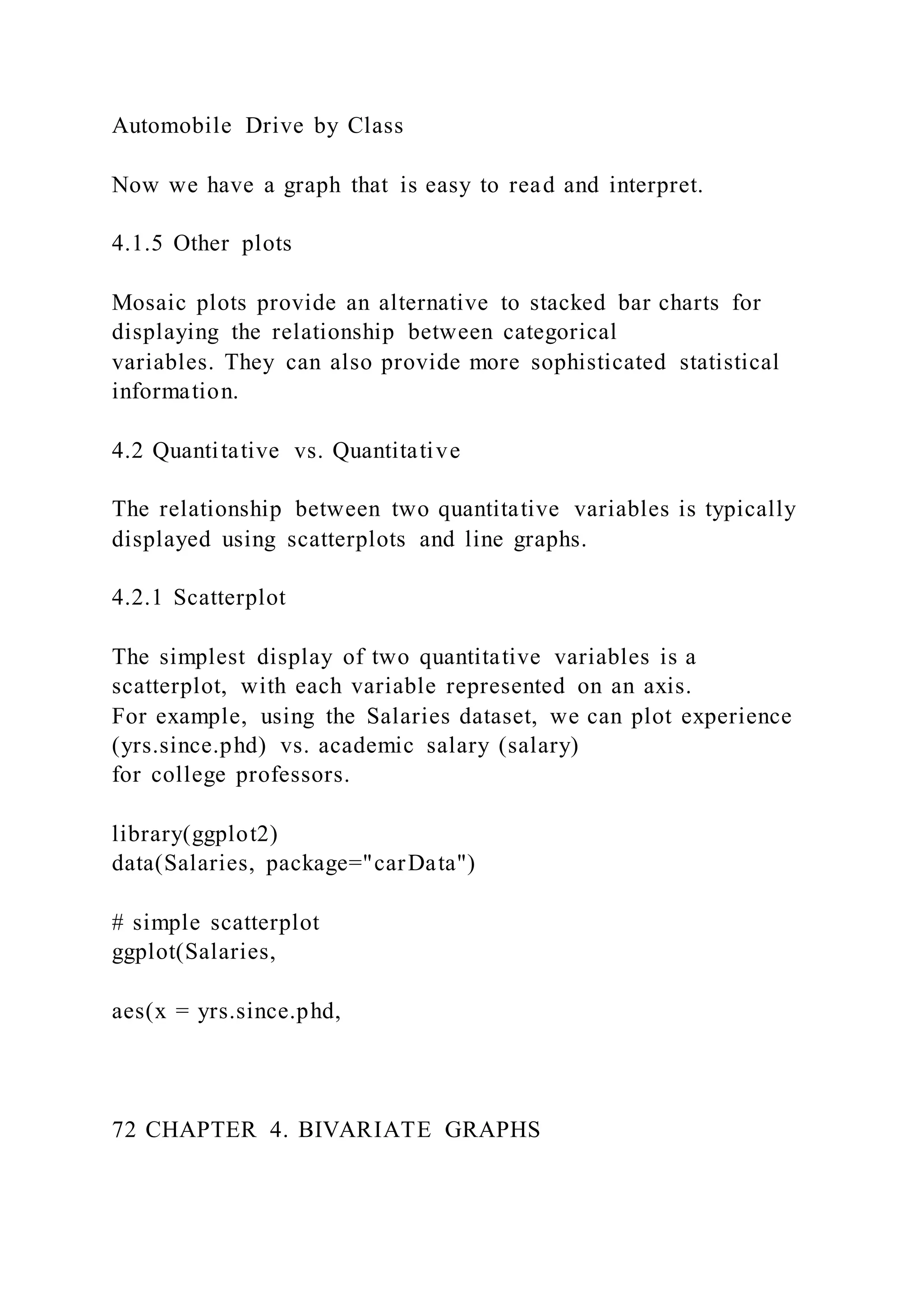
Automobile Drive by Class
Now we have a graph that is easy to read and interpret.
4.1.5 Other plots
Mosaic plots provide an alternative to stacked bar charts for
displaying the relationship between categorical
variables. They can also provide more sophisticated statistical
information.
4.2 Quantitative vs. Quantitative
The relationship between two quantitative variables is typically
displayed using scatterplots and line graphs.
4.2.1 Scatterplot
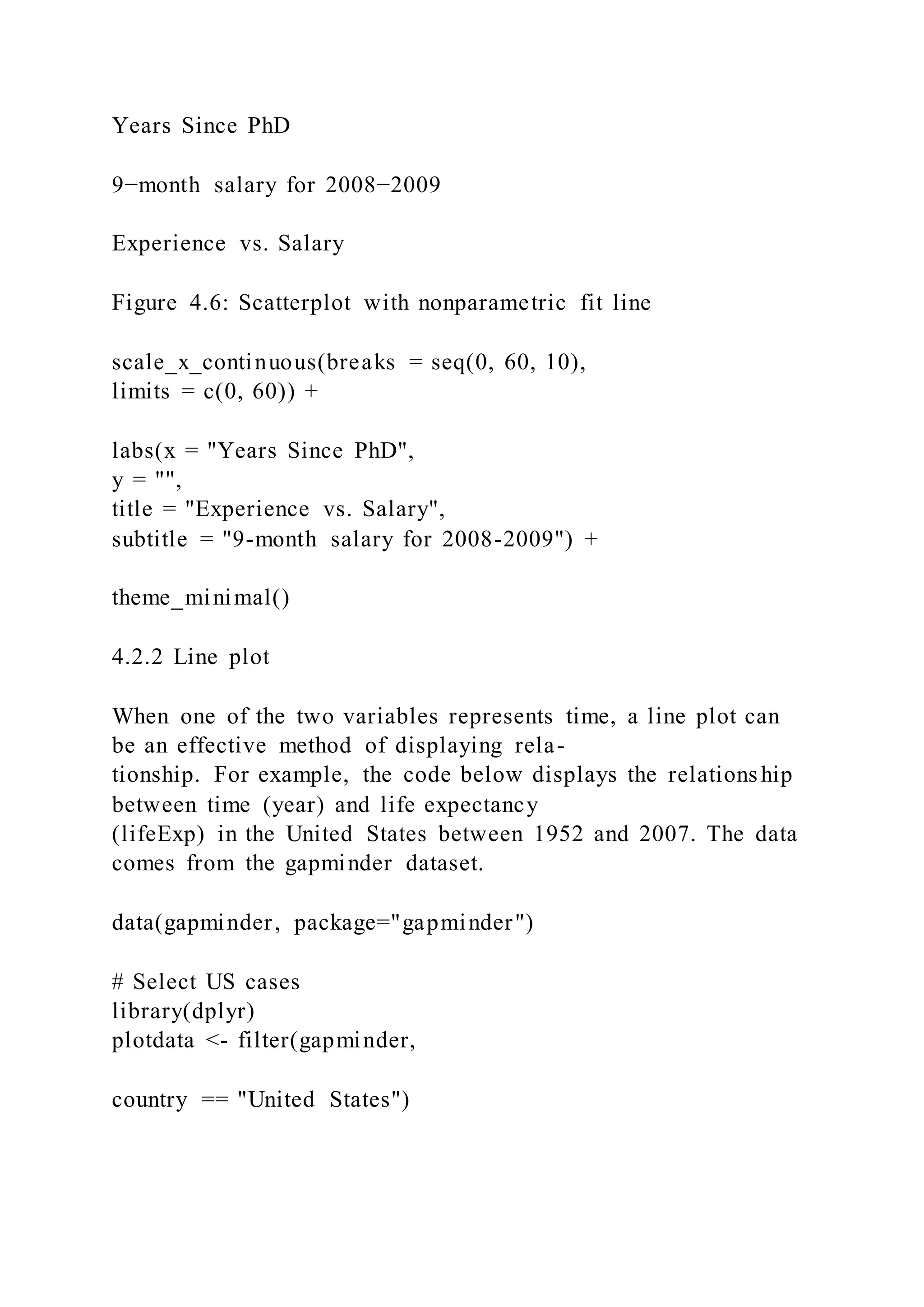
The simplest display of two quantitative variables is a
scatterplot, with each variable represented on an axis.
For example, using the Salaries dataset, we can plot experience
(yrs.since.phd) vs. academic salary (salary)
for college professors.
library(ggplot2)
data(Salaries, package="carData")
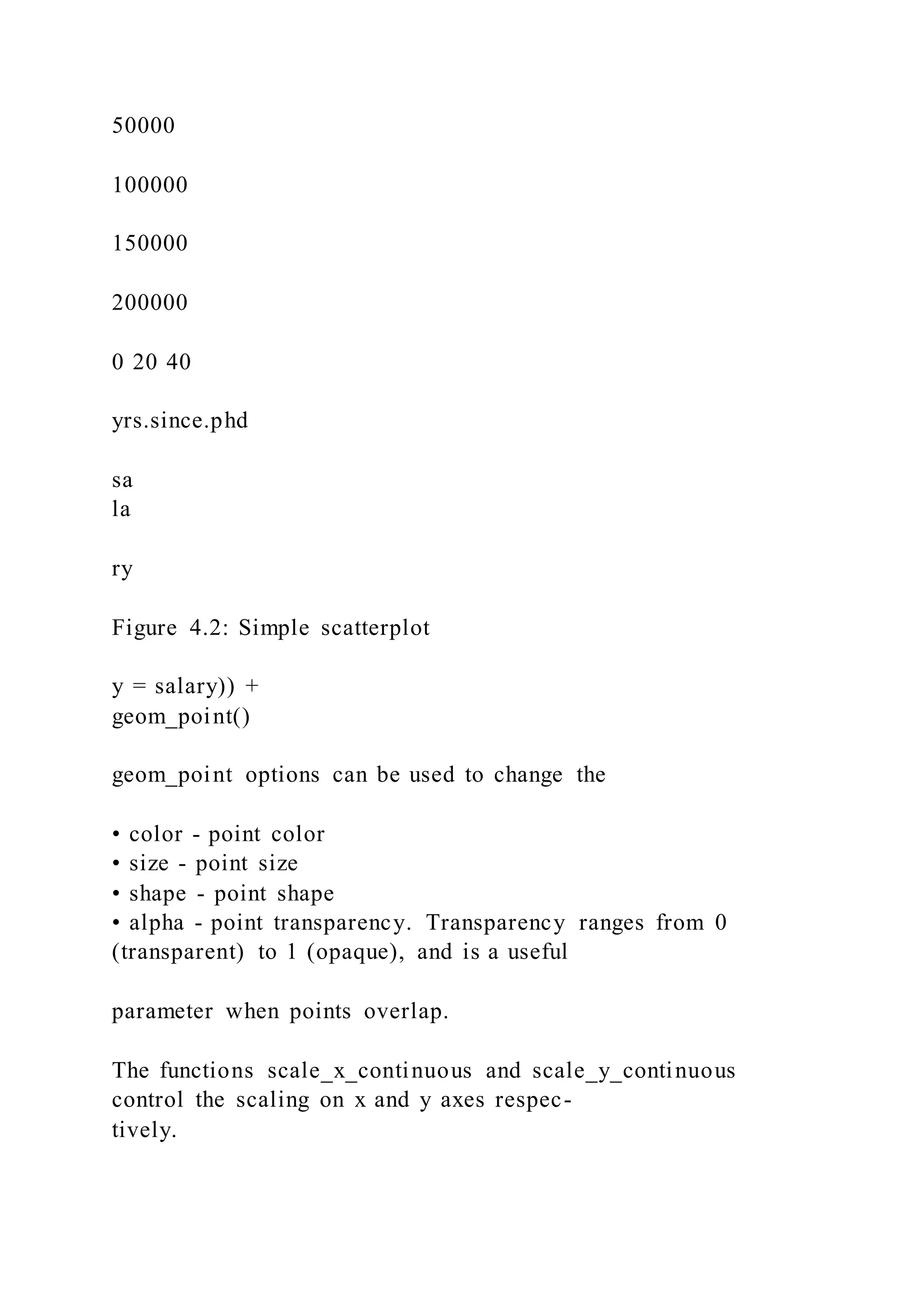
# simple scatterplot
ggplot(Salaries,
aes(x = yrs.since.phd,
72 CHAPTER 4. BIVARIATE GRAPHS
50000
100000
150000
200000
0 20 40
yrs.since.phd
sa
la
ry
Figure 4.2: Simple scatterplot
y = salary)) +
geom_point()
geom_point options can be used to change the
• color - point color
• size - point size
• shape - point shape
• alpha - point transparency. Transparency ranges from 0
(transparent) to 1 (opaque), and is a useful
parameter when points overlap.
The functions scale_x_continuous and scale_y_continuous
control the scaling on x and y axes respec-
tively.
See Customizing graphs for details.
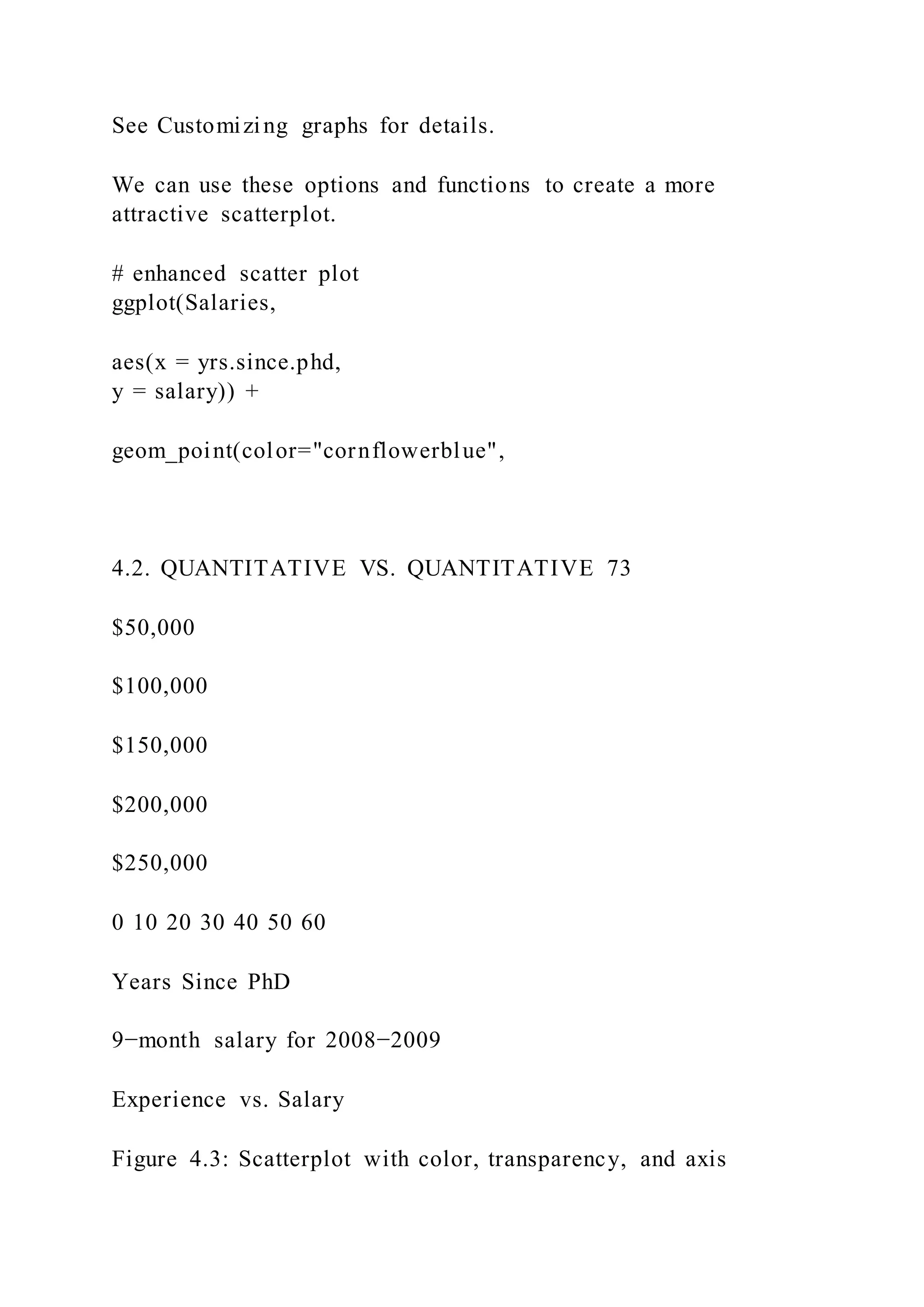
We can use these options and functions to create a more
attractive scatterplot.
# enhanced scatter plot
ggplot(Salaries,
aes(x = yrs.since.phd,
y = salary)) +
geom_point(color="cornflowerblue",
4.2. QUANTITATIVE VS. QUANTITATIVE 73
$50,000
$100,000
$150,000
$200,000
$250,000
0 10 20 30 40 50 60
Years Since PhD
9−month salary for 2008−2009
Experience vs. Salary
Figure 4.3: Scatterplot with color, transparency, and axis
scaling
size = 2,
alpha=.8) +
scale_y_continuous(label = scales::dollar,
limits = c(50000, 250000)) +
scale_x_continuous(breaks = seq(0, 60, 10),
limits=c(0, 60)) +
labs(x = "Years Since PhD",
y = "",
title = "Experience vs. Salary",
subtitle = "9-month salary for 2008-2009")
4.2.1.1 Adding best fit lines
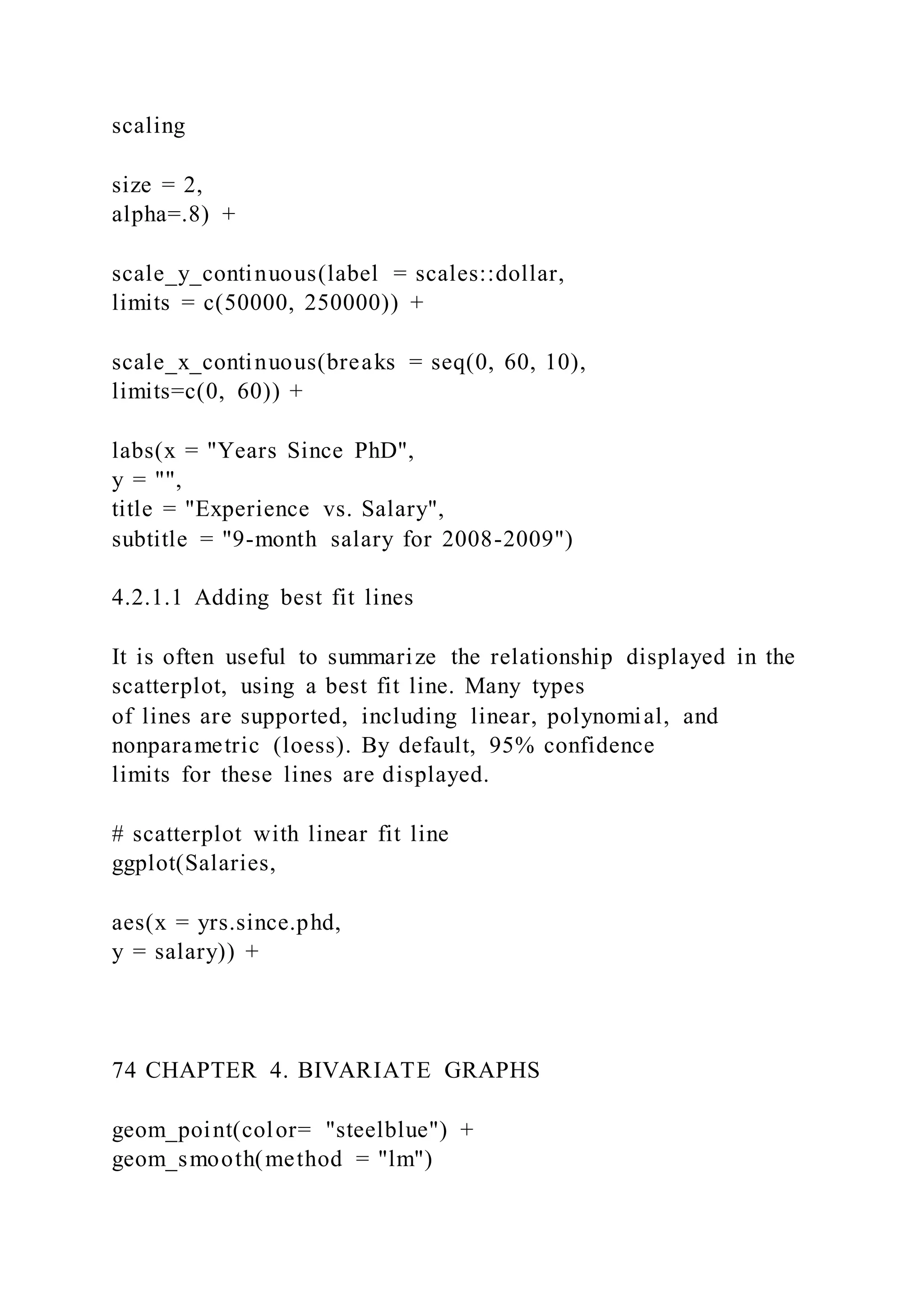
It is often useful to summarize the relationship displayed in the
scatterplot, using a best fit line. Many types
of lines are supported, including linear, polynomial, and
nonparametric (loess). By default, 95% confidence
limits for these lines are displayed.
# scatterplot with linear fit line
ggplot(Salaries,
aes(x = yrs.since.phd,
y = salary)) +
74 CHAPTER 4. BIVARIATE GRAPHS
geom_point(color= "steelblue") +
geom_smooth(method = "lm")
50000
100000
150000
200000
0 20 40
yrs.since.phd
sa
la
ry
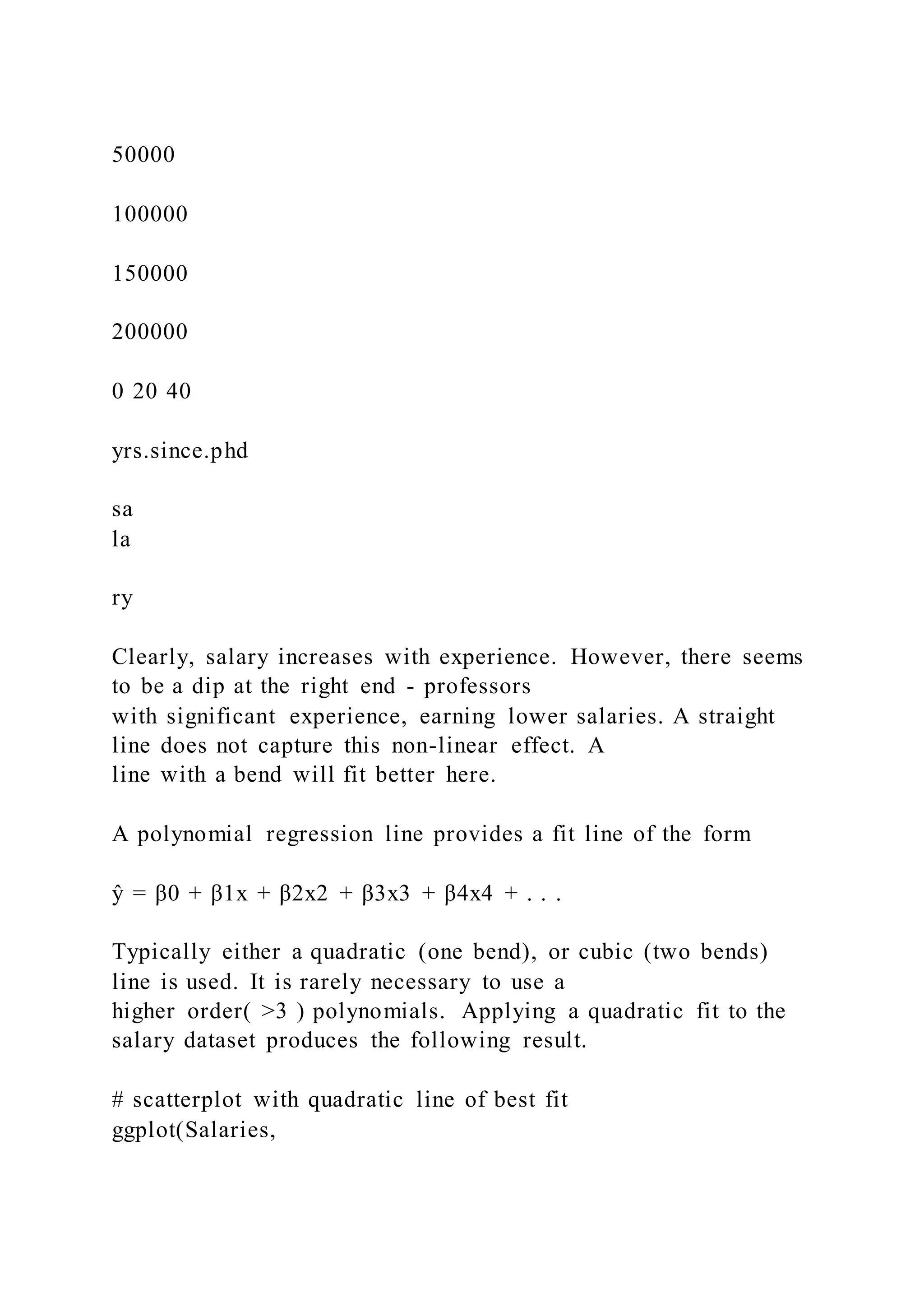
Clearly, salary increases with experience. However, there seems
to be a dip at the right end - professors
with significant experience, earning lower salaries. A straight
line does not capture this non-linear effect. A
line with a bend will fit better here.
A polynomial regression line provides a fit line of the form
ŷ = β0 + β1x + β2x2 + β3x3 + β4x4 + . . .
Typically either a quadratic (one bend), or cubic (two bends)
line is used. It is rarely necessary to use a
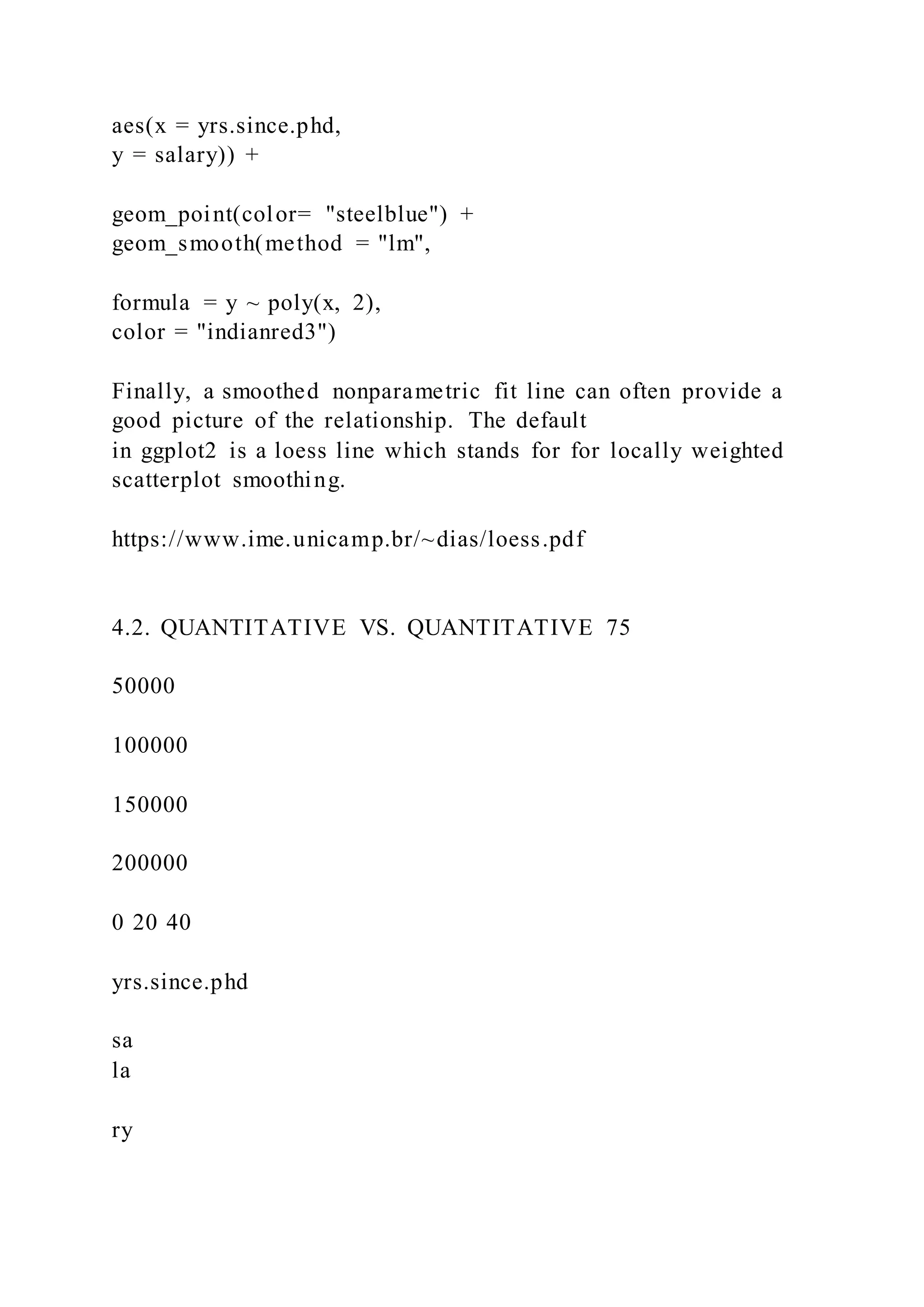
higher order( >3 ) polynomials. Applying a quadratic fit to the
salary dataset produces the following result.
# scatterplot with quadratic line of best fit
ggplot(Salaries,
aes(x = yrs.since.phd,
y = salary)) +
geom_point(color= "steelblue") +
geom_smooth(method = "lm",
formula = y ~ poly(x, 2),
color = "indianred3")
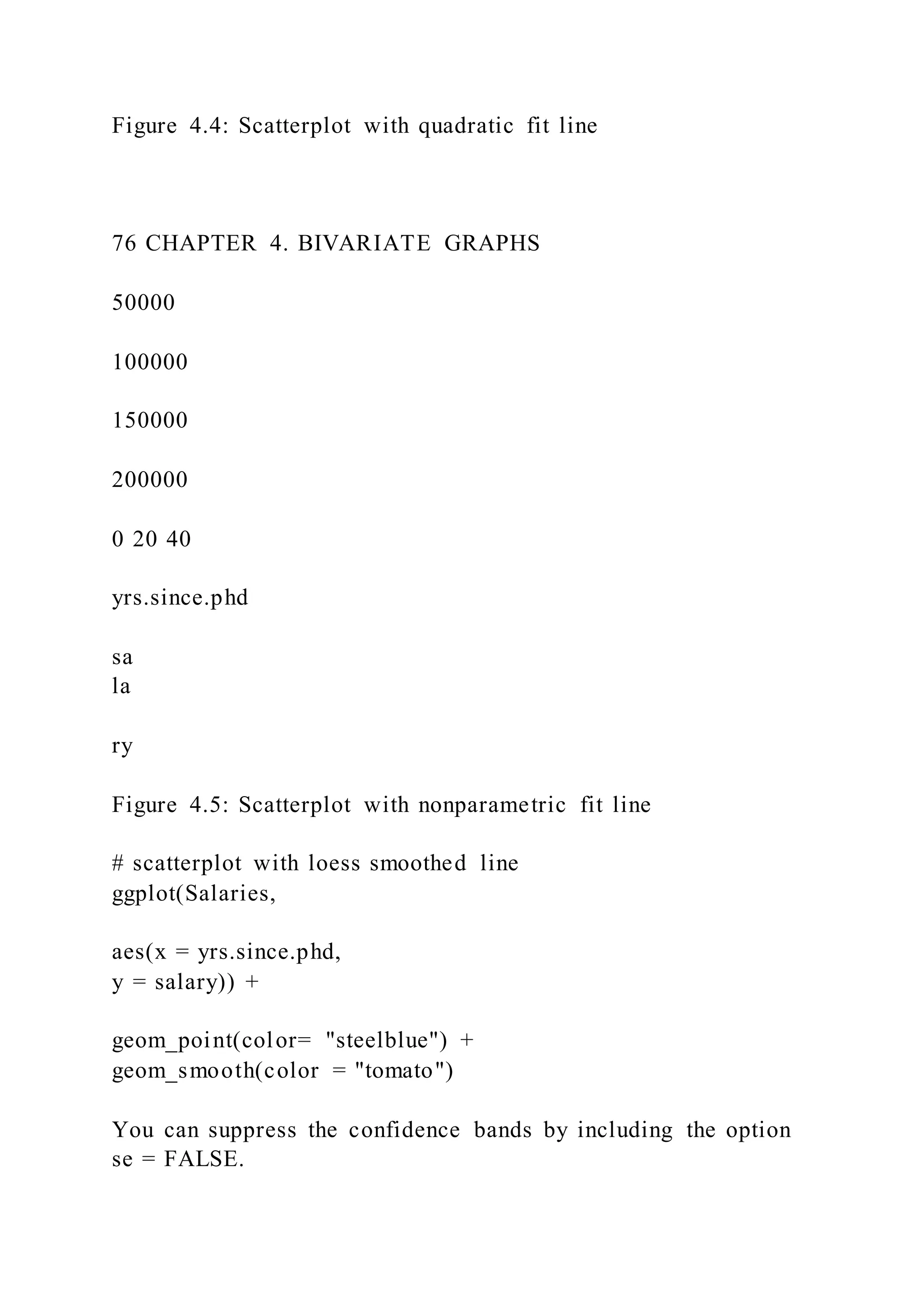
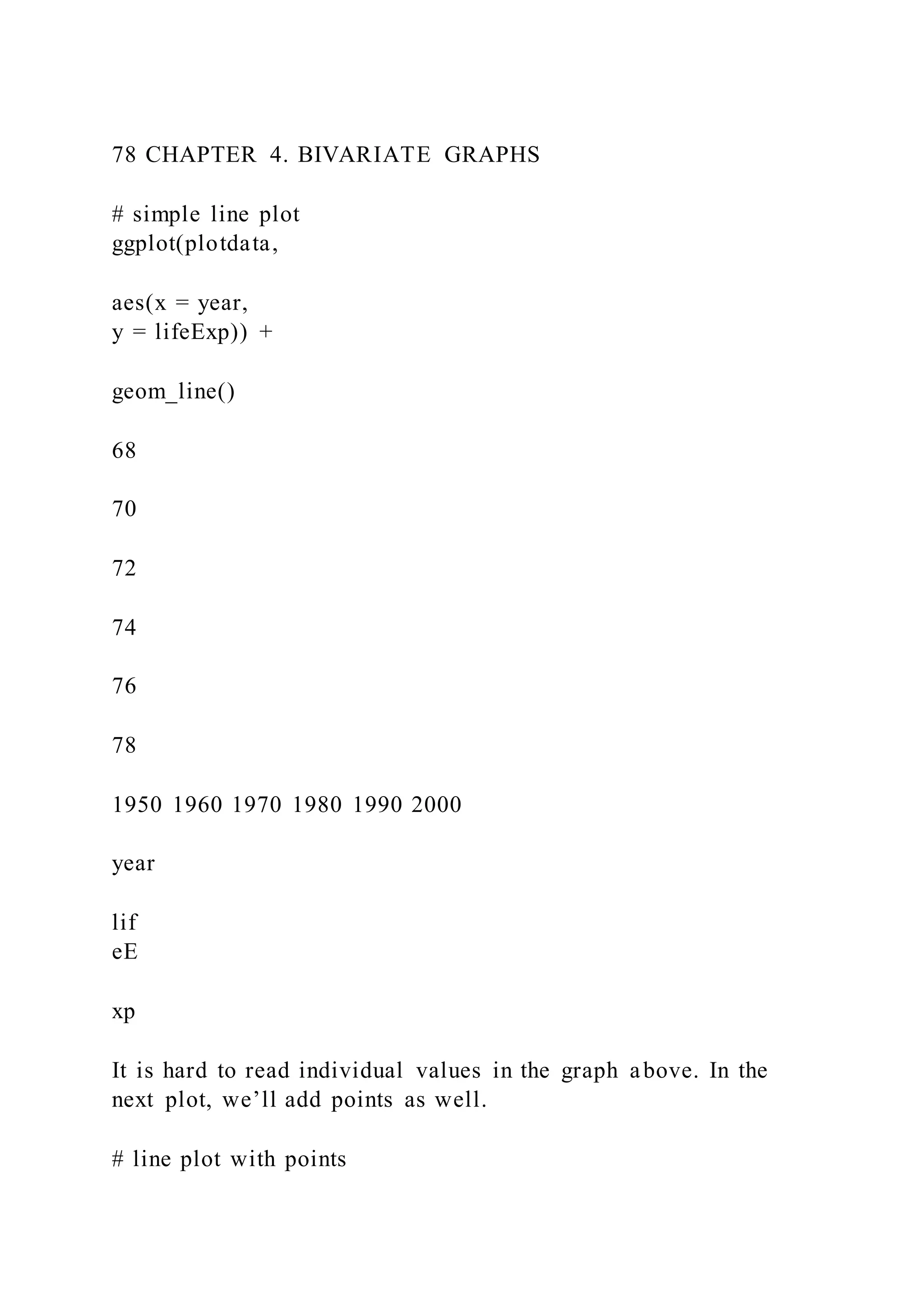
Finally, a smoothed nonparametric fit line can often provide a
good picture of the relationship. The default
in ggplot2 is a loess line which stands for for locally weighted
scatterplot smoothing.
https://www.ime.unicamp.br/~dias/loess.pdf
4.2. QUANTITATIVE VS. QUANTITATIVE 75
50000
100000
150000
200000
0 20 40
yrs.since.phd
sa
la
ry
Figure 4.4: Scatterplot with quadratic fit line
76 CHAPTER 4. BIVARIATE GRAPHS
50000
100000
150000
200000
0 20 40
yrs.since.phd
sa
la
ry
Figure 4.5: Scatterplot with nonparametric fit line
# scatterplot with loess smoothed line
ggplot(Salaries,
aes(x = yrs.since.phd,
y = salary)) +
geom_point(color= "steelblue") +
geom_smooth(color = "tomato")
You can suppress the confidence bands by including the option
se = FALSE.
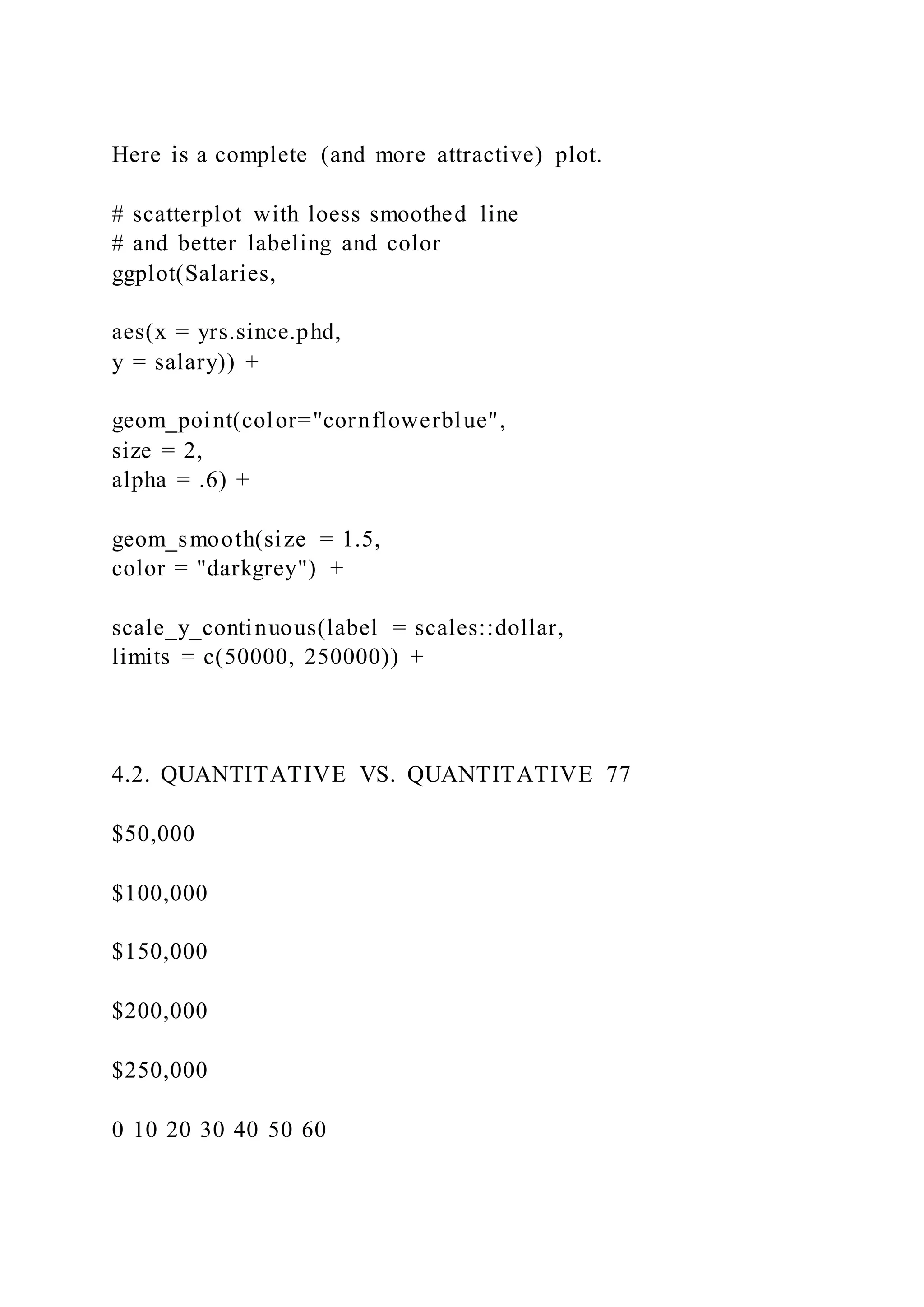
Here is a complete (and more attractive) plot.
# scatterplot with loess smoothed line
# and better labeling and color
ggplot(Salaries,
aes(x = yrs.since.phd,
y = salary)) +
geom_point(color="cornflowerblue",
size = 2,
alpha = .6) +
geom_smooth(size = 1.5,
color = "darkgrey") +
scale_y_continuous(label = scales::dollar,
limits = c(50000, 250000)) +
4.2. QUANTITATIVE VS. QUANTITATIVE 77
$50,000
$100,000
$150,000
$200,000
$250,000
0 10 20 30 40 50 60
Years Since PhD
9−month salary for 2008−2009
Experience vs. Salary
Figure 4.6: Scatterplot with nonparametric fit line
scale_x_continuous(breaks = seq(0, 60, 10),
limits = c(0, 60)) +
labs(x = "Years Since PhD",
y = "",
title = "Experience vs. Salary",
subtitle = "9-month salary for 2008-2009") +
theme_minimal()
4.2.2 Line plot
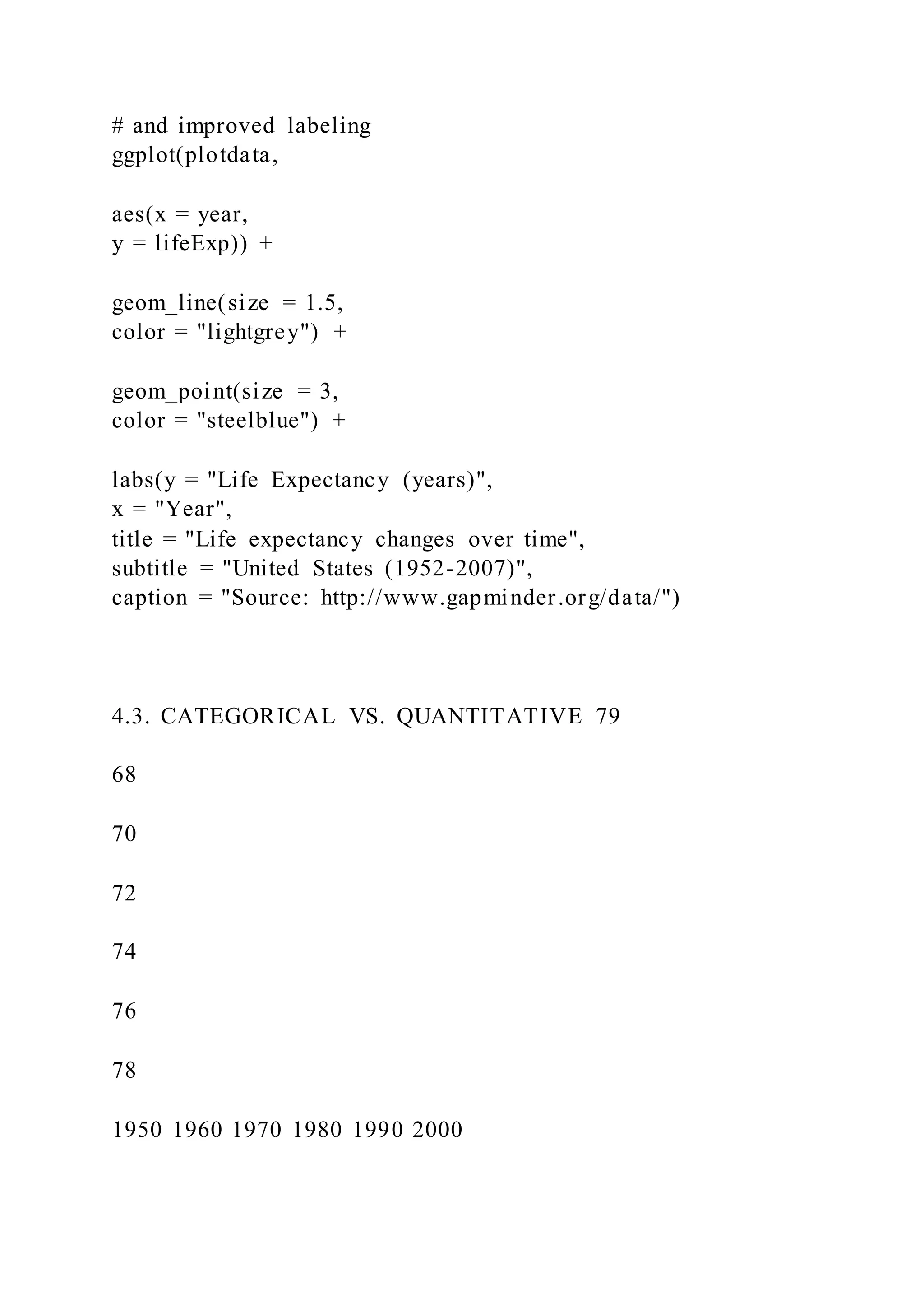
When one of the two variables represents time, a line plot can
be an effective method of displaying rela-
tionship. For example, the code below displays the relationship
between time (year) and life expectancy
(lifeExp) in the United States between 1952 and 2007. The data
comes from the gapminder dataset.
data(gapminder, package="gapminder")
# Select US cases
library(dplyr)
plotdata <- filter(gapminder,
country == "United States")
78 CHAPTER 4. BIVARIATE GRAPHS
# simple line plot
ggplot(plotdata,
aes(x = year,
y = lifeExp)) +
geom_line()
68
70
72
74
76
78
1950 1960 1970 1980 1990 2000
year
lif
eE
xp
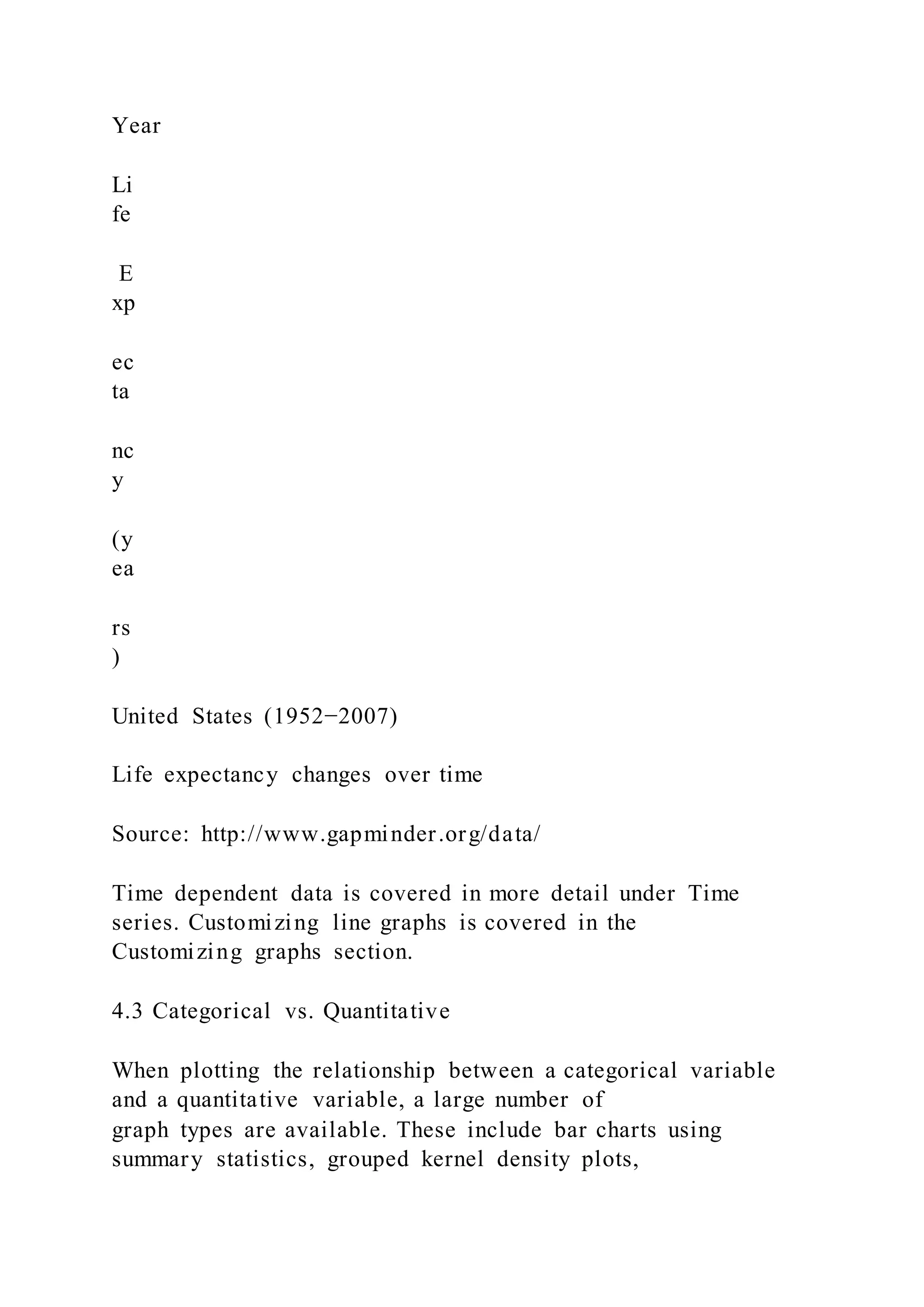
It is hard to read individual values in the graph above. In the
next plot, we’ll add points as well.
# line plot with points
# and improved labeling
ggplot(plotdata,
aes(x = year,
y = lifeExp)) +
geom_line(size = 1.5,
color = "lightgrey") +
geom_point(size = 3,
color = "steelblue") +
labs(y = "Life Expectancy (years)",
x = "Year",
title = "Life expectancy changes over time",
subtitle = "United States (1952-2007)",
caption = "Source: http://www.gapminder.org/data/")
4.3. CATEGORICAL VS. QUANTITATIVE 79
68
70
72
74
76
78
1950 1960 1970 1980 1990 2000
Year
Li
fe
E
xp
ec
ta
nc
y
(y
ea
rs
)
United States (1952−2007)
Life expectancy changes over time
Source: http://www.gapminder.org/data/
Time dependent data is covered in more detail under Time
series. Customizing line graphs is covered in the
Customizing graphs section.
4.3 Categorical vs. Quantitative
When plotting the relationship between a categorical variable
and a quantitative variable, a large number of
graph types are available. These include bar charts using
summary statistics, grouped kernel density plots,
side-by-side box plots, side-by-side violin plots, mean/sem
plots, ridgeline plots, and Cleveland plots.
4.3.1 Bar chart (on summary statistics)
In previous sections, bar charts were used to display the number
of cases by category for a single variable or
for two variables. You can also use bar charts to display other
summary statistics (e.g., means or medians)
on a quantitative variable for each level of a categorical
variable.
For example, the following graph displays the mean salary for a
sample of university professors by their
academic rank.
data(Salaries, package="carData")
# calculate mean salary for each rank
library(dplyr)
plotdata <- Salaries %>%
group_by(rank) %>%
summarize(mean_salary = mean(salary))
80 CHAPTER 4. BIVARIATE GRAPHS
0e+00
5e+04
1e+05
AsstProf AssocProf Prof
rank
m
ea
n_
sa
la
ry
Figure 4.7: Bar chart displaying means
# plot mean salaries
ggplot(plotdata,
aes(x = rank,
y = mean_salary)) +
geom_bar(stat = "identity")
We can make it more attractive with some options.
# plot mean salaries in a more attractive fashion
library(scales)
ggplot(plotdata,
aes(x = factor(rank,
labels = c("AssistantnProfessor",
"AssociatenProfessor",
"FullnProfessor")),
y = mean_salary)) +
geom_bar(stat = "identity",
fill = "cornflowerblue") +
geom_text(aes(label = dollar(mean_salary)),
vjust = -0.25) +
scale_y_continuous(breaks = seq(0, 130000, 20000),
label = dollar) +
4.3. CATEGORICAL VS. QUANTITATIVE 81
labs(title = "Mean Salary by Rank",
subtitle = "9-month academic salary for 2008-2009",
x = "",
y = "")
$80,776
$93,876
$126,772
$0
$20,000
$40,000
$60,000
$80,000
$100,000
$120,000
Assistant
Professor
Associate
Professor
Full
Professor
9−month academic salary for 2008−2009
Mean Salary by Rank
One limitation of such plots is that they do not display the
distribution of the data - only the summary
statistic for each group. The plots below correct this limitation
to some extent.
4.3.2 Grouped kernel density plots
One can compare groups on a numeric variable by
superimposing kernel density plots in a single graph.
# plot the distribution of salaries
# by rank using kernel density plots
ggplot(Salaries,
aes(x = salary,
fill = rank)) +
geom_density(alpha = 0.4) +
labs(title = "Salary distribution by rank")
82 CHAPTER 4. BIVARIATE GRAPHS
0e+00
1e−05
2e−05
3e−05
4e−05
50000 100000 150000 200000
salary
de
ns
ity
rank
AsstProf
AssocProf
Prof
Salary distribution by rank
The alpha option makes the density plots partially transparent,
so that we can see what is happening
under the overlaps. Alpha values range from 0 (transparent) to 1
(opaque). The graph makes clear that, in
general, salary goes up with rank. However, the salary range for
full professors is very wide.
4.3.3 Box plots
A boxplot displays the 25th percentile, median, and 75th
percentile of a distribution. The whiskers (vertical
lines) capture roughly 99% of a normal distribution, and
observations outside this range are plotted as points
representing outliers (see the figure below).
4.3. CATEGORICAL VS. QUANTITATIVE 83
Side-by-side box plots are very useful for comparing groups
(i.e., the levels of a categorical variable) on a
numerical variable.
# plot the distribution of salaries by rank using boxplots
ggplot(Salaries,
aes(x = rank,
y = salary)) +
geom_boxplot() +
labs(title = "Salary distribution by rank")
Notched boxplots provide an approximate method for
visualizing whether groups differ. Although not a
formal test, if the notches of two boxplots do not overlap, there
is strong evidence (95% confidence) that the
medians of the two groups differ.
# plot the distribution of salaries by rank using boxplots
ggplot(Salaries, aes(x = rank,
y = salary)) +
geom_boxplot(notch = TRUE,
fill = "cornflowerblue",
alpha = .7) +
labs(title = "Salary distribution by rank")
In the example above, all three groups appear to differ.
One of the advantages of boxplots is that their widths are not
usually meaningful. This allows you to
compare the distribution of many groups in a single graph.
4.3.4 Violin plots
Violin plots are similar to kernel density plots, but are mirrored
and rotated 90o.
84 CHAPTER 4. BIVARIATE GRAPHS
50000
100000
150000
200000
AsstProf AssocProf Prof
rank
sa
la
ry
Salary distribution by rank
Figure 4.8: Side-by-side boxplots
4.3. CATEGORICAL VS. QUANTITATIVE 85
50000
100000
150000
200000
AsstProf AssocProf Prof
rank
sa
la
ry
Salary distribution by rank
Figure 4.9: Side-by-side notched boxplots
86 CHAPTER 4. BIVARIATE GRAPHS
# plot the distribution of salaries
# by rank using violin plots
ggplot(Salaries,
aes(x = rank,
y = salary)) +
geom_violin() +
labs(title = "Salary distribution by rank")
50000
100000
150000
200000
AsstProf AssocProf Prof
rank
sa
la
ry
Salary distribution by rank
A useful variation is to superimpose boxplots on violin plots.
# plot the distribution using violin and boxplots
ggplot(Salaries,
aes(x = rank,
y = salary)) +
geom_violin(fill = "cornflowerblue") +
geom_boxplot(width = .2,
fill = "orange",
outlier.color = "orange",
outlier.size = 2) +
labs(title = "Salary distribution by rank")
4.3.5 Ridgeline plots
A ridgeline plot (also called a joyplot) displays the distribution
of a quantitative variable for several groups.
They’re similar to kernel density plots with vertical faceting,
but take up less room. Ridgeline plots are
4.3. CATEGORICAL VS. QUANTITATIVE 87
50000
100000
150000
200000
AsstProf AssocProf Prof
rank
sa
la
ry
Salary distribution by rank
Figure 4.10: Side-by-side violin/box plots
88 CHAPTER 4. BIVARIATE GRAPHS
2seater
compact
midsize
minivan
pickup
subcompact
suv
10 20 30
cty
cl
as
s
Figure 4.11: Ridgeline graph with color fill
created with the ggridges package.
Using the Fuel economy dataset, let’s plot the distribution of
city driving miles per gallon by car class.
# create ridgeline graph
library(ggplot2)
library(ggridges)
ggplot(mpg,
aes(x = cty,
y = class,
fill = class)) +
geom_density_ridges() +
theme_ridges() +
labs("Highway mileage by auto class") +
theme(legend.position = "none")
I’ve suppressed the legend here because it’s redundant (the
distributions are already labeled on the y-axis).
Unsurprisingly, pickup trucks have the poorest mileage, while
subcompacts and compact cars tend to achieve
ratings. However, there is a very wide range of gas mileage
scores for these smaller cars.
Note the the possible overlap of distributions is the trade-off for
a more compact graph. You can add
transparency if the the overlap is severe using
geom_density_ridges(alpha = n), where n ranges from 0
(transparent) to 1 (opaque). See the package vingnette for more
details.
https://cran.r-
project.org/web/packages/ggridges/vignettes/introduction.html
4.3. CATEGORICAL VS. QUANTITATIVE 89
Table 4.1: Plot data
rank n mean sd se ci
AsstProf 67 80775.99 8174.113 998.6268 1993.823
AssocProf 64 93876.44 13831.700 1728.9625 3455.056
Prof 266 126772.11 27718.675 1699.5410 3346.322
4.3.6 Mean/SEM plots
A popular method for comparing groups on a numeric variable
is the mean plot with error bars. Error bars
can represent standard deviations, standard error of the mean, or
confidence intervals. In this section, we’ll
plot means and standard errors.
# calculate means, standard deviations,
# standard errors, and 95% confidence
# intervals by rank
library(dplyr)
plotdata <- Salaries %>%
group_by(rank) %>%
summarize(n = n(),
mean = mean(salary),
sd = sd(salary),
se = sd / sqrt(n),
ci = qt(0.975, df = n - 1) * sd / sqrt(n))
The resulting dataset is given below.
# plot the means and standard errors
ggplot(plotdata,
aes(x = rank,
y = mean,
group = 1)) +
geom_point(size = 3) +
geom_line() +
geom_errorbar(aes(ymin = mean - se,
ymax = mean + se),
width = .1)
90 CHAPTER 4. BIVARIATE GRAPHS
80000
90000
100000
110000
120000
130000
AsstProf AssocProf Prof
rank
m
ea
n
Although we plotted error bars representing the standard error,
we could have plotted standard deviations
or 95% confidence intervals. Simply replace se with sd or error
in the aes option.
We can use the same technique to compare salary across rank
and sex. (Technically, this is not bivariate
since we’re plotting rank, sex, and salary, but it seems to fit
here)
# calculate means and standard errors by rank and sex
plotdata <- Salaries %>%
group_by(rank, sex) %>%
summarize(n = n(),
mean = mean(salary),
sd = sd(salary),
se = sd/sqrt(n))
# plot the means and standard errors by sex
ggplot(plotdata, aes(x = rank,
y = mean,
group=sex,
color=sex)) +
geom_point(size = 3) +
geom_line(size = 1) +
geom_errorbar(aes(ymin =mean - se,
ymax = mean+se),
width = .1)
4.3. CATEGORICAL VS. QUANTITATIVE 91
80000
90000
100000
110000
120000
130000
AsstProf AssocProf Prof
rank
m
ea
n
sex
Female
Male
Unfortunately, the error bars overlap. We can dodge the
horizontal positions a bit to overcome this.
# plot the means and standard errors by sex (dodged)
pd <- position_dodge(0.2)
ggplot(plotdata,
aes(x = rank,
y = mean,
group=sex,
color=sex)) +
geom_point(position = pd,
size = 3) +
geom_line(position = pd,
size = 1) +
geom_errorbar(aes(ymin = mean - se,
ymax = mean + se),
width = .1,
position= pd)
92 CHAPTER 4. BIVARIATE GRAPHS
80000
90000
100000
110000
120000
130000
AsstProf AssocProf Prof
rank
m
ea
n
sex
Female
Male
Finally, lets add some options to make the graph more
attractive.
# improved means/standard error plot
pd <- position_dodge(0.2)
ggplot(plotdata,
aes(x = factor(rank,
labels = c("AssistantnProfessor",
"AssociatenProfessor",
"FullnProfessor")),
y = mean,
group=sex,
color=sex)) +
geom_point(position=pd,
size = 3) +
geom_line(position = pd,
size = 1) +
geom_errorbar(aes(ymin = mean - se,
ymax = mean + se),
width = .1,
position = pd,
size = 1) +
scale_y_continuous(label = scales::dollar) +
scale_color_brewer(palette="Set1") +
theme_minimal() +
labs(title = "Mean salary by rank and sex",
subtitle = "(mean +/- standard error)",
x = "",
4.3. CATEGORICAL VS. QUANTITATIVE 93
$80,000
$90,000
$100,000
$110,000
$120,000
$130,000
Assistant
Professor
Associate
Professor
Full
Professor
Gender
Female
Male
(mean +/− standard error)
Mean salary by rank and sex
Figure 4.12: Mean/se plot with better labels and colors
y = "",
color = "Gender")
4.3.7 Strip plots
The relationship between a grouping variable and a numeric
variable can be displayed with a scatter plot.
For example
# plot the distribution of salaries
# by rank using strip plots
ggplot(Salaries,
aes(y = rank,
x = salary)) +
geom_point() +
labs(title = "Salary distribution by rank")
94 CHAPTER 4. BIVARIATE GRAPHS
AsstProf
AssocProf
Prof
50000 100000 150000 200000
salary
ra
nk
Salary distribution by rank
These one-dimensional scatterplots are called strip plots.
Unfortunately, overprinting of points makes
interpretation difficult. The relationship is easier to see if the
the points are jittered. Basically a small
random number is added to each y-coordinate.
# plot the distribution of salaries
# by rank using jittering
ggplot(Salaries,
aes(y = rank,
x = salary)) +
geom_jitter() +
labs(title = "Salary distribution by rank")
4.3. CATEGORICAL VS. QUANTITATIVE 95
AsstProf
AssocProf
Prof
50000 100000 150000 200000
salary
ra
nk
Salary distribution by rank
It is easier to compare groups if we use color.
# plot the distribution of salaries
# by rank using jittering
library(scales)
ggplot(Salaries,
aes(y = factor(rank,
labels = c("AssistantnProfessor",
"AssociatenProfessor",
"FullnProfessor")),
x = salary,
color = rank)) +
geom_jitter(alpha = 0.7,
size = 1.5) +
scale_x_continuous(label = dollar) +
labs(title = "Academic Salary by Rank",
subtitle = "9-month salary for 2008-2009",
x = "",
y = "") +
theme_minimal() +
theme(legend.position = "none")
96 CHAPTER 4. BIVARIATE GRAPHS
Assistant
Professor
Associate
Professor
Full
Professor
$50,000 $100,000 $150,000 $200,000
9−month salary for 2008−2009
Academic Salary by Rank
The option legend.position = "none" is used to suppress the
legend (which is not needed here). Jittered
plots work well when the number of points in not overly large.
4.3.7.1 Combining jitter and boxplots
It may be easier to visualize distributions if we add boxplots to
the jitter plots.
# plot the distribution of salaries
# by rank using jittering
library(scales)
ggplot(Salaries,
aes(x = factor(rank,
labels = c("AssistantnProfessor",
"AssociatenProfessor",
"FullnProfessor")),
y = salary,
color = rank)) +
geom_boxplot(size=1,
outlier.shape = 1,
outlier.color = "black",
outlier.size = 3) +
geom_jitter(alpha = 0.5,
width=.2) +
scale_y_continuous(label = dollar) +
labs(title = "Academic Salary by Rank",
subtitle = "9-month salary for 2008-2009",
4.3. CATEGORICAL VS. QUANTITATIVE 97
x = "",
y = "") +
theme_minimal() +
theme(legend.position = "none") +
coord_flip()
Assistant
Professor
Associate
Professor
Full
Professor
$50,000 $100,000 $150,000 $200,000
9−month salary for 2008−2009
Academic Salary by Rank
Several options were added to create this plot.
For the boxplot
• size = 1 makes the lines thicker
• outlier.color = "black" makes outliers black
• outlier.shape = 1 specifies circles for outliers
• outlier.size = 3 increases the size of the outlier symbol
For the jitter
• alpha = 0.5 makes the points more transparent
• width = .2 decreases the amount of jitter (.4 is the default)
Finally, the x and y axes are revered using the coord_flip
function (i.e., the graph is turned on its side).
Before moving on, it is worth mentioning the geom_boxjitter
function provided in the ggpol package. It
creates a hybrid boxplot - half boxplot, half scatterplot.
https://www.rdocumentation.org/packages/ggpol/versions/0.0.1/
topics/geom_boxjitter
https://erocoar.github.io/ggpol/
98 CHAPTER 4. BIVARIATE GRAPHS
# plot the distribution of salaries
# by rank using jittering
library(ggpol)
library(scales)
ggplot(Salaries,
aes(x = factor(rank,
labels = c("AssistantnProfessor",
"AssociatenProfessor",
"FullnProfessor")),
y = salary,
fill=rank)) +
geom_boxjitter(color="black",
jitter.color = "darkgrey",
errorbar.draw = TRUE) +
scale_y_continuous(label = dollar) +
labs(title = "Academic Salary by Rank",
subtitle = "9-month salary for 2008-2009",
x = "",
y = "") +
theme_minimal() +
theme(legend.position = "none")
$50,000
$100,000
$150,000
$200,000
Assistant
Professor
Associate
Professor
Full
Professor
9−month salary for 2008−2009
Academic Salary by Rank
### Beeswarm Plots
Beeswarm plots (also called violin scatter plots) are similar to
jittered scatterplots, in that they display the
distribution of a quantitative variable by plotting points in way
that reduces overlap. In addition, they also
help display the density of the data at each point (in a manner
that is similar to a violin plot). Continuing
4.3. CATEGORICAL VS. QUANTITATIVE 99
the previous example
# plot the distribution of salaries
# by rank using beewarm-syle plots
library(ggbeeswarm)
library(scales)
ggplot(Salaries,
aes(x = factor(rank,
labels = c("AssistantnProfessor",
"AssociatenProfessor",
"FullnProfessor")),
y = salary,
color = rank)) +
geom_quasirandom(alpha = 0.7,
size = 1.5) +
scale_y_continuous(label = dollar) +
labs(title = "Academic Salary by Rank",
subtitle = "9-month salary for 2008-2009",
x = "",
y = "") +
theme_minimal() +
theme(legend.position = "none")
$50,000
$100,000
$150,000
$200,000
Assistant
Professor
Associate
Professor
Full
Professor
9−month salary for 2008−2009
Academic Salary by Rank
The plots are create using the geom_quasirandom function.
These plots can be easier to read than simple
jittered strip plots. To learn more about these plots, see
Beeswarm-style plots with ggplot2.
https://github.com/eclarke/ggbeeswarm
100 CHAPTER 4. BIVARIATE GRAPHS
Afghanistan
Bahrain
Bangladesh
Cambodia
China
Hong Kong, China
India
Indonesia
Iran
Iraq
Israel
Japan
Jordan
Korea, Dem. Rep.
Korea, Rep.
Kuwait
Lebanon
Malaysia
Mongolia
Myanmar
Nepal
Oman
Pakistan
Philippines
Saudi Arabia
Singapore
Sri Lanka
Syria
Taiwan
Thailand
Vietnam
West Bank and Gaza
Yemen, Rep.
50 60 70 80
lifeExp
co
un
tr
y
Figure 4.13: Basic Cleveland dot plot
4.3.8 Cleveland Dot Charts
Cleveland plots are useful when you want to compare a numeric
statistic for a large number of groups. For
example, say that you want to compare the 2007 life expectancy
for Asian country using the gapminder
dataset.
data(gapminder, package="gapminder")
# subset Asian countries in 2007
library(dplyr)
plotdata <- gapminder %>%
filter(continent == "Asia" &
year == 2007)
# basic Cleveland plot of life expectancy by country
ggplot(plotdata,
aes(x= lifeExp, y = country)) +
geom_point()
Comparisons are usually easier if the y-axis is sorted.
4.3. CATEGORICAL VS. QUANTITATIVE 101
Afghanistan
Iraq
Cambodia
Myanmar
Yemen, Rep.
Nepal
Bangladesh
India
Pakistan
Mongolia
Korea, Dem. Rep.
Thailand
Indonesia
Iran
Philippines
Lebanon
Sri Lanka
Jordan
Saudi Arabia
China
West Bank and Gaza
Syria
Malaysia
Vietnam
Bahrain
Oman
Kuwait
Taiwan
Korea, Rep.
Singapore
Israel
Hong Kong, China
Japan
50 60 70 80
lifeExp
re
or
de
r(
co
un
tr
y,
li
fe
E
xp
)
Figure 4.14: Sorted Cleveland dot plot
# Sorted Cleveland plot
ggplot(plotdata,
aes(x=lifeExp,
y=reorder(country, lifeExp))) +
geom_point()
Finally, we can use options to make the graph more attractive.
# Fancy Cleveland plot
ggplot(plotdata,
aes(x=lifeExp,
y=reorder(country, lifeExp))) +
geom_point(color="blue",
size = 2) +
geom_segment(aes(x = 40,
xend = lifeExp,
y = reorder(country, lifeExp),
yend = reorder(country, lifeExp)),
color = "lightgrey") +
labs (x = "Life Expectancy (years)",
y = "",
title = "Life Expectancy by Country",
subtitle = "GapMinder data for Asia - 2007") +
102 CHAPTER 4. BIVARIATE GRAPHS
Afghanistan
Iraq
Cambodia
Myanmar
Yemen, Rep.
Nepal
Bangladesh
India
Pakistan
Mongolia
Korea, Dem. Rep.
Thailand
Indonesia
Iran
Philippines
Lebanon
Sri Lanka
Jordan
Saudi Arabia
China
West Bank and Gaza
Syria
Malaysia
Vietnam
Bahrain
Oman
Kuwait
Taiwan
Korea, Rep.
Singapore
Israel
Hong Kong, China
Japan
40 50 60 70 80
Life Expectancy (years)
GapMinder data for Asia − 2007
Life Expectancy by Country
Figure 4.15: Fancy Cleveland plot
theme_minimal() +
theme(panel.grid.major = element_blank(),
panel.grid.minor = element_blank())
Japan clearly has the highest life expectancy, while Afghanistan
has the lowest by far. This last plot is also
called a lollipop graph (you can see why).
Chapter 5
Multivariate Graphs
Multivariate graphs display the relationships among three or
more variables. There are two common methods
for accommodating multiple variables: grouping and faceting.
5.1 Grouping
In grouping, the values of the first two variables are mapped to
the x and y axes. Then additional variables
are mapped to other visual characteristics such as color, shape,
size, line type, and transparency. Grouping
allows you to plot the data for multiple groups in a single
graph.
Using the Salaries dataset, let’s display the relationship
between yrs.since.phd and salary.
library(ggplot2)
data(Salaries, package="carData")
# plot experience vs. salary
ggplot(Salaries,
aes(x = yrs.since.phd,
y = salary)) +
geom_point() +
labs(title = "Academic salary by years since degree")
Next, let’s include the rank of the professor, using color.
# plot experience vs. salary (color represents rank)
ggplot(Salaries, aes(x = yrs.since.phd,
y = salary,
color=rank)) +
geom_point() +
labs(title = "Academic salary by rank and years since degree")
103
104 CHAPTER 5. MULTIVARIATE GRAPHS
50000
100000
150000
200000
0 20 40
yrs.since.phd
sa
la
ry
Academic salary by years since degree
Figure 5.1: Simple scatterplot
5.1. GROUPING 105
50000
100000
150000
200000
0 20 40
yrs.since.phd
sa
la
ry
rank
AsstProf
AssocProf
Prof
Academic salary by rank and years since degree
Finally, let’s add the gender of professor, using the shape of the
points to indicate sex. We’ll increase the
point size and add transparency to make the individual points
clearer.
# plot experience vs. salary
# (color represents rank, shape represents sex)
ggplot(Salaries,
aes(x = yrs.since.phd,
y = salary,
color = rank,
shape = sex)) +
geom_point(size = 3,
alpha = .6) +
labs(title = "Academic salary by rank, sex, and years since
degree")
106 CHAPTER 5. MULTIVARIATE GRAPHS
50000
100000
150000
200000
0 20 40
yrs.since.phd
sa
la
ry
sex
Female
Male
rank
AsstProf
AssocProf
Prof
Academic salary by rank, sex, and years since degree
I can’t say that this is a great graphic. It is very busy, and it can
be difficult to distinguish male from
female professors. Faceting (described in the next section)
would probably be a better approach.
Notice the difference between specifying a constant value (such
as size = 3) and a mapping of a
variable to a visual characteristic (e.g., color = rank). Mappings
are always placed within the
aes function, while the assignment of a constant value always
appear outside of the aes function.
Here is a cleaner example. We’ll graph the relationship between
years since Ph.D. and salary using the size
of the points to indicate years of service. This is called a bubble
plot.
library(ggplot2)
data(Salaries, package="carData")
# plot experience vs. salary
# (color represents rank and size represents service)
ggplot(Salaries,
aes(x = yrs.since.phd,
y = salary,
color = rank,
size = yrs.service)) +
geom_point(alpha = .6) +
labs(title = "Academic salary by rank, years of service, and
years since degree")
5.1. GROUPING 107
50000
100000
150000
200000
0 20 40
yrs.since.phd
sa
la
ry
yrs.service
0
10
20
30
40
50
60
rank
AsstProf
AssocProf
Prof
Academic salary by rank, years of service, and years since
degree
There is obviously a strong positive relationship between years
since Ph.D. and year of service. Assistant
Professors fall in the 0-11 years since Ph.D. and 0-10 years of
service range. Clearly highly experienced
professionals don’t stay at the Assistant Professor level (they
are probably promoted or leave the University).
We don’t find the same time demarcation between Associate and
Full Professors.
Bubble plots are described in more detail in a later chapter.
As a final example, let’s look at the yrs.since.phd vs salary and
add sex using color and quadratic best fit
lines.
# plot experience vs. salary with
# fit lines (color represents sex)
ggplot(Salaries,
aes(x = yrs.since.phd,
y = salary,
color = sex)) +
geom_point(alpha = .4,
size = 3) +
geom_smooth(se=FALSE,
method = "lm",
formula = y~poly(x,2),
size = 1.5) +
labs(x = "Years Since Ph.D.",
title = "Academic Salary by Sex and Years Experience",
subtitle = "9-month salary for 2008-2009",
y = "",
color = "Sex") +
scale_y_continuous(label = scales::dollar) +
108 CHAPTER 5. MULTIVARIATE GRAPHS
scale_color_brewer(palette = "Set1") +
theme_minimal()
$50,000
$100,000
$150,000
$200,000
0 20 40
Years Since Ph.D.
Sex
Female
Male
9−month salary for 2008−2009
Academic Salary by Sex and Years Experience
## Faceting {#Faceting}
Grouping allows you to plot multiple variables in a single
graph, using visual characteristics such as color,
shape, and size.
In faceting, a graph consists of several separate plots or small
multiples, one for each level of a third variable,
or combination of variables. It is easiest to understand this with
an example.
# plot salary histograms by rank
ggplot(Salaries, aes(x = salary)) +
geom_histogram(fill = "cornflowerblue",
color = "white") +
facet_wrap(~rank, ncol = 1) +
labs(title = "Salary histograms by rank")
5.1. GROUPING 109
Prof
AssocProf
AsstProf
50000 100000 150000 200000
0
10
20
30
0
10
20
30
0
10
20
30
salary
co
un
t
Salary histograms by rank
The facet_wrap function creates a separate graph for each level
of rank. The ncol option controls the
number of columns.
In the next example, two variables are used to define the facets.
# plot salary histograms by rank and sex
ggplot(Salaries, aes(x = salary / 1000)) +
geom_histogram(color = "white",
fill = "cornflowerblue") +
facet_grid(sex ~ rank) +
labs(title = "Salary histograms by sex and rank",
x = "Salary ($1000)")
110 CHAPTER 5. MULTIVARIATE GRAPHS
AsstProf AssocProf Prof
F
em
ale
M
ale
50 100 150 200 50 100 150 200 50 100 150 200
0
10
20
0
10
20
Salary ($1000)
co
un
t
Salary histograms by sex and rank
The format of the facet_grid function is
facet_grid( row variable(s) ~ column variable(s))
Here, the function assigns sex to the rows and rank to the
columns, creating a matrix of 6 plots in one graph.
We can also combine grouping and faceting. Let’s use Mean/SE
plots and faceting to compare the salaries
of male and female professors, within rank and discipline. We’ll
use color to distinguish sex and faceting to
create plots for rank by discipline combinations.
# calculate means and standard erroes by sex,
# rank and discipline
library(dplyr)
plotdata <- Salaries %>%
group_by(sex, rank, discipline) %>%
summarize(n = n(),
mean = mean(salary),
sd = sd(salary),
se = sd / sqrt(n))
# create better labels for discipline
plotdata$discipline <- factor(plotdata$discipline,
labels = c("Theoretical",
"Applied"))
# create plot
ggplot(plotdata,
aes(x = sex,
5.1. GROUPING 111
AsstProf
Theoretical
AsstProf
Applied
AssocProf
Theoretical
AssocProf
Applied
Prof
Theoretical
Prof
Applied
Female Male Female Male Female Male Female Male Female
Male Female Male
$70,000
$80,000
$90,000
$100,000
$110,000
$120,000
$130,000
$140,000
(Means and standard errors)
Nine month academic salaries by gender, discipline, and rank
Figure 5.2: Salary by sex, rank, and discipline
y = mean,
color = sex)) +
geom_point(size = 3) +
geom_errorbar(aes(ymin = mean - se,
ymax = mean + se),
width = .1) +
scale_y_continuous(breaks = seq(70000, 140000, 10000),
label = scales::dollar) +
facet_grid(. ~ rank + discipline) +
theme_bw() +
theme(legend.position = "none",
panel.grid.major.x = element_blank(),
panel.grid.minor.y = element_blank()) +
labs(x="",
y="",
title="Nine month academic salaries by gender, discipline, and
rank",
subtitle = "(Means and standard errors)") +
scale_color_brewer(palette="Set1")
The statement facet_grid(. ~ rank + discipline) specifies no row
variable (.) and columns defined by
the combination of rank and discipline.
The theme_ functions create create a black and white theme and
eliminates vertical grid lines and minor
112 CHAPTER 5. MULTIVARIATE GRAPHS
horizontal grid lines. The scale_color_brewer function changes
the color scheme for the points and error
bars.
At first glance, it appears that there might be gender differences
in salaries for associate and full professors
in theoretical fields. I say “might” because we haven’t done any
formal hypothesis testing yet (ANCOVA in
this case).
See the Customizing section to learn more about customizing
the appearance of a graph.
As a final example, we’ll shift to a new dataset and plot the
change in life expectancy over time for countries
in the “Americas”. The data comes from the gapminder dataset
in the gapminder package. Each country
appears in its own facet. The theme functions are used to
simplify the background color, rotate the x-axis
text, and make the font size smaller.
# plot life expectancy by year separately
# for each country in the Americas
data(gapminder, package = "gapminder")
# Select the Americas data
plotdata <- dplyr::filter(gapminder,
continent == "Americas")
# plot life expectancy by year, for each country
ggplot(plotdata, aes(x=year, y = lifeExp)) +
geom_line(color="grey") +
geom_point(color="blue") +
facet_wrap(~country) +
theme_minimal(base_size = 9) +
theme(axis.text.x = element_text(angle = 45,
hjust = 1)) +
labs(title = "Changes in Life Expectancy",
x = "Year",
y = "Life Expectancy")
5.1. GROUPING 113
Puerto Rico Trinidad and Tobago United States Uruguay
Venezuela
Mexico Nicaragua Panama Paraguay Peru
El Salvador Guatemala Haiti Honduras Jamaica
Colombia Costa Rica Cuba Dominican Republic Ecuador
Argentina Bolivia Brazil Canada Chile
19
50
19
60
19
70
19
80
19
90
20
00
19
50
19
60
19
70
19
80
19
90
20
00
19
50
19
60
19
70
19
80
19
90
20
00
19
50
19
60
19
70
19
80
19
90
20
00
19
50
19
60
19
70
19
80
19
90
20
00
40
50
60
70
80
40
50
60
70
80
40
50
60
70
80
40
50
60
70
80
40
50
60
70
80
Year
Li
fe
E
xp
ec
ta
nc
y
Changes in Life Expectancy
We can see that life expectancy is increasing in each country,
but that Haiti is lagging behind.
114 CHAPTER 5. MULTIVARIATE GRAPHS
Chapter 6
Maps
R provides a myriad of methods for creating both static and
interactive maps containing statistical infor-
mation. This section focuses on the use of ggmap and
choroplethr.
6.1 Dot density maps
Dot density maps use points on a map to explore spatial
relationships.
The Houston crime dataset contains the date, time, and address
of six types of criminal offenses reported
between January and August 2010. The longitude and latitude of
each offence was added using geocode
function, which takes an address and returns coordinates using
the Google Maps API.
We’ll use this dataset to plot the locations of rape reports.
library(ggmap)
# subset the data
library(dplyr)
rapes <- filter(crime, offense == "rape") %>%
select(date, offense, address, lon, lat)
# view data
head(rapes)
## date offense address lon lat
## 1 1/1/2010 rape 5950 glenmont dr -95.48498 29.72007
## 2 1/1/2010 rape 2350 sperber ln -95.34817 29.75505
## 3 1/1/2010 rape 5850 mackinaw rd -95.47353 29.60021
## 4 1/1/2010 rape 5850 southwest fwy -95.48174 29.72603
## 5 1/2/2010 rape 7550 corporate dr -95.55224 29.69836
## 6 1/2/2010 rape 1150 fidelity st -95.25535 29.74147
Let’s set up the map.
(1) Find the center coordinates for Houston, TX
115
https://developers.google.com/maps/terms
116 CHAPTER 6. MAPS
29.72
29.74
29.76
29.78
29.80
−95.400 −95.375 −95.350 −95.325
lon
la
t
Figure 6.1: Houston map
# using geocode function returns
# lon=-95.3698, lat=29.76043
houston_center <- geocode("Houston, TX")
(2) Get the background map image.
• Specify a zoom factor from 3 (continent) to 21 (building). The
default is 10 (city).
• Specify a map type. Types include terrain, terrain-background,
satellite, roadmap, hybrid, watercolor,
and toner.
# get Houston map
houston_map <- get_map(houston_center,
zoom = 13,
maptype = "roadmap")
ggmap(houston_map)
(3) Add crime locations to the map.
6.1. DOT DENSITY MAPS 117
29.72
29.74
29.76
29.78
29.80
−95.400 −95.375 −95.350 −95.325
lon
la
t
Figure 6.2: Crime locations
# add incident locations
ggmap(houston_map,
base_layer = ggplot(data = rapes,
aes(x=lon, y = lat))) +
geom_point(color = "red",
size = 3,
alpha = 0.5)
(4) Clean up the plot and add labels.
# remove long and lat numbers and add titles
ggmap(houston_map,
base_layer = ggplot(aes(x=lon, y = lat),
data = rapes)) +
geom_point(color = "red",
size = 3,
alpha = 0.5) +
theme_void() +
labs(title = "Location of reported rapes",
subtitle = "Houston Jan - Aug 2010",
caption = "source: http://www.houstontx.gov/police/cs/")
118 CHAPTER 6. MAPS
Houston Jan − Aug 2010
Location of reported rapes
source: http://www.houstontx.gov/police/cs/
Figure 6.3: Crime locations with titles, and without longitude
and latitude
6.2. CHOROPLETH MAPS 119
There seems to be a concentration of rape reports in midtown.
To learn more about ggmap, see ggmap: Spatial Visualization
with ggplot2.
6.2 Choropleth maps
Choropleth maps use color or shading on predefined areas to
indicate average values of a numeric variable
in that area. In this section we’ll use the choroplethr package to
create maps that display information by
country, US state, and US county.
6.2.1 Data by country
Let’s create a world map and color the countries by life
expectancy using the 2007 gapminder data.
The choroplethr package has numerous functions that simplify
the task of creating a choropleth map. To
plot the life expectancy data, we’ll use the country_choropleth
function.
The function requires that the data frame to be plotted has a
column named region and a column named
value. Additionally, the entries in the region column must
exactly match how the entries are named in the
region column of the dataset country.map from the
choroplethrMaps package.
# view the first 12 region names in country.map
data(country.map, package = "choroplethrMaps")
head(unique(country.map$region), 12)
## [1] "afghanistan" "angola" "azerbaijan" "moldova"
"madagascar"
## [6] "mexico" "macedonia" "mali" "myanmar" "montenegro"
## [11] "mongolia" "mozambique"
Note that the region entries are all lower case.
To continue, we need to make some edits to our gapminder
dataset. Specifically, we need to
1. select the 2007 data
2. rename the country variable to region
3. rename the lifeExp variable to value
4. recode region values to lower case
5. recode some region values to match the region values in the
country.map data frame. The recode func-
tion in the dplyr package take the form recode(variable,
oldvalue1 = newvalue1, oldvalue2 =
newvalue2, ...)
# prepare dataset
data(gapminder, package = "gapminder")
plotdata <- gapminder %>%
filter(year == 2007) %>%
rename(region = country,
value = lifeExp) %>%
mutate(region = tolower(region)) %>%
mutate(region = recode(region,
https://journal.r-project.org/archive/2013-1/kahle-wickham.pdf
https://www.rdocumentation.org/packages/choroplethr/versions/
3.6.1/topics/county_choropleth
120 CHAPTER 6. MAPS
[39.6 to 50.7)
[50.7 to 59.4)
[59.4 to 70.3)
[70.3 to 72.8)
[72.8 to 75.5)
[75.5 to 79.4)
[79.4 to 82.6]
NA
Figure 6.4: Choropleth map of life expectancy
"united states" = "united states of america",
"congo, dem. rep." = "democratic republic of the congo",
"congo, rep." = "republic of congo",
"korea, dem. rep." = "south korea",
"korea. rep." = "north korea",
"tanzania" = "united republic of tanzania",
"serbia" = "republic of serbia",
"slovak republic" = "slovakia",
"yemen, rep." = "yemen"))
Now lets create the map.
library(choroplethr)
country_choropleth(plotdata)
choroplethr functions return ggplot2 graphs. Let’s make it a bit
more attractive by modifying the code
with additional ggplot2 functions.
country_choropleth(plotdata,
num_colors=9) +
scale_fill_brewer(palette="YlOrRd") +
labs(title = "Life expectancy by country",
6.2. CHOROPLETH MAPS 121
subtitle = "Gapminder 2007 data",
caption = "source: https://www.gapminder.org",
fill = "Years")
Years
[39.6 to 49.3)
[49.3 to 55.3)
[55.3 to 62.7)
[62.7 to 70.7)
[70.7 to 72.5)
[72.5 to 74.2)
[74.2 to 77.9)
[77.9 to 79.8)
[79.8 to 82.6]
NA
Gapminder 2007 data
Life expectancy by country
source: https://www.gapminder.org
### Data by US state
For US data, the choroplethr package provides functions for
creating maps by county, state, zip code, and
census tract. Additionally, map regions can be labeled.
Let’s plot US states by Mexcian American popultion, using the
2010 Census.
To plot the population data, we’ll use the state_choropleth
function. The function requires that the data
frame to be plotted has a column named region to represent
state, and a column named value (the quantity
to be plotted). Additionally, the entries in the region column
must exactly match how the entries are named
in the region column of the dataset state.map from the
choroplethrMaps package.
The zoom = continental_us_states option will create a map that
excludes Hawaii and Alaska.
library(ggplot2)
library(choroplethr)
data(continental_us_states)
# input the data
library(readr)
mex_am <- read_tsv("mexican_american.csv")
# prepare the data
mex_am$region <- tolower(mex_am$state)
https://www.rdocumentation.org/packages/choroplethr/versions/
3.6.1/topics/state_choropleth
122 CHAPTER 6. MAPS
AL
AZ AR
CA
CO
CT
DE
FL
GA
ID
IL IN
IA
KS
KY
LA
ME
MD
MAMI
MN
MS
MO
MT
NE
NV
NH
NJ
NM
NY
NC
ND
OH
OK
OR
PA RI
SC
SD
TN
TX
UT
VT
VA
WA
WV
WI
WY
Percent
[0.4 to 1.0)
[1.0 to 1.7)
[1.7 to 2.0)
[2 to 3)
[3.0 to 3.8)
[3.8 to 5.4)
[5.4 to 9.4)
[9.4 to 20.0)
[20.0 to 31.6]
2010 US Census
Mexican American Population
source:
https://en.wikipedia.org/wiki/List_of_U.S._states_b y_Hispanic_
and_Latino_population
Figure 6.5: Choropleth map of US States
mex_am$value <- mex_am$percent
# create the map
state_choropleth(mex_am,
num_colors=9,
zoom = continental_us_states) +
scale_fill_brewer(palette="YlOrBr") +
labs(title = "Mexican American Population",
subtitle = "2010 US Census",
caption = "source:
https://en.wikipedia.org/wiki/List_of_U.S._states_by_Hispanic_
and_Latino_population",
fill = "Percent")
6.2.2 Data by US county
Finally, let’s plot data by US counties. We’ll plot the violent
crime rate per 1000 individuals for Connecticut
counties in 2012. Data come from the FBI Uniform Crime
Statistics.
We’ll use the county_choropleth function. Again, the function
requires that the data frame to be plotted
has a column named region and a column named value.
Additionally, the entries in the region column must be numeric
codes and exactly match how the entries are
given in the region column of the dataset county.map from the
choroplethrMaps package.
6.2. CHOROPLETH MAPS 123
Our dataset has country names (e.g. fairfield). However, we
need region codes (e.g., 9001). We can use the
county.regions dataset to lookup the region code for each
county name.
Additionally, we’ll use the option reference_map = TRUE to
add a reference map from Google Maps.
library(ggplot2)
library(choroplethr)
library(dplyr)
# enter violent crime rates by county
crimes_ct <- data.frame(
county = c("fairfield", "hartford",
"litchfield", "middlesex",
"new haven", "new london",
"tolland", "windham"),
value = c(3.00, 3.32,
1.02, 1.24,
4.13, 4.61,
0.16, 1.60)
)
crimes_ct
## county value
## 1 fairfield 3.00
## 2 hartford 3.32
## 3 litchfield 1.02
## 4 middlesex 1.24
## 5 new haven 4.13
## 6 new london 4.61
## 7 tolland 0.16
## 8 windham 1.60
# obtain region codes for connecticut
data(county.regions,
package = "choroplethrMaps")
region <- county.regions %>%
filter(state.name == "connecticut")
region
## region county.fips.character county.name state.name
## 1 9001 09001 fairfield connecticut
## 2 9003 09003 hartford connecticut
## 3 9005 09005 litchfield connecticut
## 4 9007 09007 middlesex connecticut
## 5 9009 09009 new haven connecticut
## 6 9011 09011 new london connecticut
## 7 9013 09013 tolland connecticut
## 8 9015 09015 windham connecticut
## state.fips.character state.abb
## 1 09 CT
## 2 09 CT
124 CHAPTER 6. MAPS
## 3 09 CT
## 4 09 CT
## 5 09 CT
## 6 09 CT
## 7 09 CT
## 8 09 CT
# join crime data to region code data
plotdata <- inner_join(crimes_ct,
region,
by=c("county" = "county.name"))
plotdata
## county value region county.fips.character state.name
## 1 fairfield 3.00 9001 09001 connecticut
## 2 hartford 3.32 9003 09003 connecticut
## 3 litchfield 1.02 9005 09005 connecticut
## 4 middlesex 1.24 9007 09007 connecticut
## 5 new haven 4.13 9009 09009 connecticut
## 6 new london 4.61 9011 09011 connecticut
## 7 tolland 0.16 9013 09013 connecticut
## 8 windham 1.60 9015 09015 connecticut
## state.fips.character state.abb
## 1 09 CT
## 2 09 CT
## 3 09 CT
## 4 09 CT
## 5 09 CT
## 6 09 CT
## 7 09 CT
## 8 09 CT
# create choropleth map
county_choropleth(plotdata,
state_zoom = "connecticut",
reference_map = TRUE,
num_colors = 8) +
scale_fill_brewer(palette="YlOrRd") +
labs(title = "Connecticut Violent Crime Rates",
subtitle = "FBI 2012 data",
caption = "source: https://ucr.fbi.gov",
fill = "Violent Crimen Rate Per 1000")
See the choroplethr help for more details.
R provides many ways to create chropleth maps. The
choroplethr package is just one route.
The tmap package provides another. A google search is sure to
find others.
https://cran.r-
project.org/web/packages/choroplethr/choroplethr.pdf
https://cran.r-project.org/web/packages/tmap/vignettes/tmap-
getstarted.html
6.2. CHOROPLETH MAPS 125
Violent Crime
Rate Per 1000
0.16
1.02
1.24
1.6
3
3.32
4.13
4.61
FBI 2012 data
Connecticut Violent Crime Rates
source: https://ucr.fbi.gov
Figure 6.6: Choropleth map of violent crimes by Connecticut
counties
126 CHAPTER 6. MAPS
Chapter 7
Time-dependent graphs
A graph can be a powerful vehicle for displaying change over
time. The most common time-dependent graph
is the time series line graph. Other options include the dumbbell
charts and the slope graph.
7.1 Time series
A time series is a set of quantitative values obtained at
successive time points. The intervals between time
points (e.g., hours, days, weeks, months, or years) are usually
equal.
Consider the Economics time series that come with the ggplot2
package. It contains US monthly economic
data collected from January 1967 thru January 2015. Let’s plot
personal savings rate (psavert). We can do
this with a simple line plot.
library(ggplot2)
ggplot(economics, aes(x = date, y = psavert)) +
geom_line() +
labs(title = "Personal Savings Rate",
x = "Date",
y = "Personal Savings Rate")
127
128 CHAPTER 7. TIME-DEPENDENT GRAPHS
5
10
15
1970 1980 1990 2000 2010
Date
P
er
so
na
l S
av
in
gs
R
at
e
Personal Savings Rate
The scale_x_date function can be used to reformat dates. In the
graph below, tick marks appear every
5 years and dates are presented in MMM-YY format.
Additionally, the time series line is given an off-red
color and made thicker, a trend line (loess) and titles are added,
and the theme is simplified.
library(ggplot2)
library(scales)
ggplot(economics, aes(x = date, y = psavert)) +
geom_line(color = "indianred3",
size=1 ) +
geom_smooth() +
scale_x_date(date_breaks = '5 years',
labels = date_format("%b-%y")) +
labs(title = "Personal Savings Rate",
subtitle = "1967 to 2015",
x = "",
y = "Personal Savings Rate") +
theme_minimal()
7.1. TIME SERIES 129
5
10
15
Jan−70 Jan−75 Jan−80 Jan−85 Jan−90 Jan−95 Jan−00 Jan−05
Jan−10 Jan−15
P
er
so
na
l S
av
in
gs
R
at
e
1967 to 2015
Personal Savings Rate
When plotting time series, be sure that the date variable is class
date and not class character. See date
values for more details.
Let’s close this section with a multivariate time series (more
than one series). We’ll compare closing prices
for Apple and Facebook from Jan 1, 2018 to July 31, 2018.
# multivariate time series
# one time install
# install.packages("quantmod")
library(quantmod)
library(dplyr)
# get apple (AAPL) closing prices
apple <- getSymbols("AAPL",
return.class = "data.frame",
from="2018-01-01")
apple <- AAPL %>%
mutate(Date = as.Date(row.names(.))) %>%
select(Date, AAPL.Close) %>%
rename(Close = AAPL.Close) %>%
mutate(Company = "Apple")
# get facebook (FB) closing prices
facebook <- getSymbols("FB",
https://www.statmethods.net/input/dates.html
130 CHAPTER 7. TIME-DEPENDENT GRAPHS
return.class = "data.frame",
from="2018-01-01")
facebook <- FB %>%
mutate(Date = as.Date(row.names(.))) %>%
select(Date, FB.Close) %>%
rename(Close = FB.Close) %>%
mutate(Company = "Facebook")
# combine data for both companies
mseries <- rbind(apple, facebook)
# plot data
library(ggplot2)
ggplot(mseries,
aes(x=Date, y= Close, color=Company)) +
geom_line(size=1) +
scale_x_date(date_breaks = '1 month',
labels = scales::date_format("%b")) +
scale_y_continuous(limits = c(150, 220),
breaks = seq(150, 220, 10),
labels = scales::dollar) +
labs(title = "NASDAQ Closing Prices",
subtitle = "Jan - Aug 2018",
caption = "source: Yahoo Finance",
y = "Closing Price") +
theme_minimal() +
scale_color_brewer(palette = "Dark2")
You can see the huge hit that Facebook took at the end of July.
7.2 Dummbbell charts
Dumbbell charts are useful for displaying change between two
time points for several groups or observations.
The geom_dumbbell function from the ggalt package is used.
Using the gapminder dataset let’s plot the change in life
expectancy from 1952 to 2007 in the Americas. The
dataset is in long format. We will need to convert it to wide
format in order to create the dumbbell plot
library(ggalt)
library(tidyr)
library(dplyr)
# load data
data(gapminder, package = "gapminder")
# subset data
plotdata_long <- filter(gapminder,
continent == "Americas" &
year %in% c(1952, 2007)) %>%
select(country, year, lifeExp)
7.2. DUMMBBELL CHARTS 131
$150
$160
$170
$180
$190
$200
$210
$220
Jan Feb Mar Apr May Jun Jul Aug Sep
Date
C
lo
si
ng
P
ric
e
Company
Apple
Facebook
Jan − Aug 2018
NASDAQ Closing Prices
source: Yahoo Finance
Figure 7.1: Multivariate time series
132 CHAPTER 7. TIME-DEPENDENT GRAPHS
Argentina
Bolivia
Brazil
Canada
Chile
Colombia
Costa Rica
Cuba
Dominican Republic
Ecuador
El Salvador
Guatemala
Haiti
Honduras
Jamaica
Mexico
Nicaragua
Panama
Paraguay
Peru
Puerto Rico
Trinidad and Tobago
United States
Uruguay
Venezuela
40 50 60 70 80
y1952
co
un
tr
y
Figure 7.2: Simple dumbbell chart
# convert data to wide format
plotdata_wide <- spread(plotdata_long, year, lifeExp)
names(plotdata_wide) <- c("country", "y1952", "y2007")
# create dumbbell plot
ggplot(plotdata_wide, aes(y = country,
x = y1952,
xend = y2007)) +
geom_dumbbell()
The graph will be easier to read if the countries are sorted and
the points are sized and colored. In the next
graph, we’ll sort by 1952 life expectancy, and modify the line
and point size, color the points, add titles and
labels, and simplify the theme.
# create dumbbell plot
ggplot(plotdata_wide,
aes(y = reorder(country, y1952),
x = y1952,
xend = y2007)) +
geom_dumbbell(size = 1.2,
size_x = 3,
size_xend = 3,
colour = "grey",
7.3. SLOPE GRAPHS 133
colour_x = "blue",
colour_xend = "red") +
theme_minimal() +
labs(title = "Change in Life Expectancy",
subtitle = "1952 to 2007",
x = "Life Expectancy (years)",
y = "")
Haiti
Bolivia
Honduras
Guatemala
Nicaragua
Peru
El Salvador
Dominican Republic
Ecuador
Colombia
Mexico
Brazil
Chile
Venezuela
Panama
Costa Rica
Jamaica
Trinidad and Tobago
Cuba
Argentina
Paraguay
Puerto Rico
Uruguay
United States
Canada
40 50 60 70 80
Life Expectancy (years)
1952 to 2007
Change in Life Expectancy
It is easier to discern patterns here. For example Haiti started
with the lowest life expectancy in 1952 and
still has the lowest in 2007. Paraguay started relatively high by
has made few gains.
7.3 Slope graphs
When there are several groups and several time points, a slope
graph can be helpful. Let’s plot life expectancy
for six Central American countries in 1992, 1997, 2002, and
2007. Again we’ll use the gapminder data.
To create a slope graph, we’ll use the newggslopegraph function
from the CGPfunctions package.
The newggslopegraph function parameters are (in order)
• data frame
• time variable (which must be a factor)
• numeric variable to be plotted
https://www.rdocumentation.org/packages/CGPfunctions/versio
ns/0.4/topics/newggslopegraph
134 CHAPTER 7. TIME-DEPENDENT GRAPHS
• and grouping variable (creating one line per group).
library(CGPfunctions)
# Select Central American countries data
# for 1992, 1997, 2002, and 2007
df <- gapminder %>%
filter(year %in% c(1992, 1997, 2002, 2007) &
country %in% c("Panama", "Costa Rica",
"Nicaragua", "Honduras",
"El Salvador", "Guatemala",
"Belize")) %>%
mutate(year = factor(year),
lifeExp = round(lifeExp))
# create slope graph
newggslopegraph(df, year, lifeExp, country) +
labs(title="Life Expectancy by Country",
subtitle="Central America",
caption="source: gapminder")
Costa Rica
El Salvador
Guatemala
Honduras
Nicaragua
Panama
Costa Rica
El Salvador
Guatemala
Honduras
Nicaragua
Panama76
77
78
79
67
70
71
72
63
66
69
70
66
68
69
70
66
68
71
73
72
74
75
76
1992 1997 2002 2007
Central America
Life Expectancy by Country
source: gapminder
In the graph above, Costa Rica has the highest life expectancy
across the range of years studied. Guatemala
has the lowest, and caught up with Honduras (also low at 69) in
2002.
7.4. AREA CHARTS 135
7.4 Area Charts
A simple area chart is basically a line graph, with a fill from the
line to the x-axis.
# basic area chart
ggplot(economics, aes(x = date, y = psavert)) +
geom_area(fill="lightblue", color="black") +
labs(title = "Personal Savings Rate",
x = "Date",
y = "Personal Savings Rate")
0
5
10
15
1970 1980 1990 2000 2010
Date
P
er
so
na
l S
av
in
gs
R
at
e
Personal Savings Rate
A stacked area chart can be used to show differences between
groups over time. Consider the uspopage
dataset from the gcookbook package. We’ll plot the age
distribution of the US population from 1900 and
2002.
# stacked area chart
data(uspopage, package = "gcookbook")
ggplot(uspopage, aes(x = Year,
y = Thousands,
fill = AgeGroup)) +
geom_area() +
labs(title = "US Population by age",
x = "Year",
y = "Population in Thousands")
It is best to avoid scientific notation in your graphs. How likely
is it that the average reader will know that
136 CHAPTER 7. TIME-DEPENDENT GRAPHS
0e+00
1e+05
2e+05
3e+05
1900 1925 1950 1975 2000
Year
P
op
ul
at
io
n
in
T
ho
us
an
ds
AgeGroup
<5
5−14
15−24
25−34
35−44
45−54
55−64
>64
US Population by age
Figure 7.3: Stacked area chart
7.4. AREA CHARTS 137
3e+05 means 300,000,000? It is easy to change the scale in
ggplot2. Simply divide the Thousands variable
by 1000 and report it as Millions. While we are at it, let’s
• create black borders to highlight the difference between
groups
• reverse the order the groups to match increasing age
• improve labeling
• choose a different color scheme
• choose a simpler theme.
The levels of the AgeGroup variable can be reversed using the
fct_rev function in the forcats package.
# stacked area chart
data(uspopage, package = "gcookbook")
ggplot(uspopage, aes(x = Year,
y = Thousands/1000,
fill = forcats::fct_rev(AgeGroup))) +
geom_area(color = "black") +
labs(title = "US Population by age",
subtitle = "1900 to 2002",
caption = "source: U.S. Census Bureau, 2003, HS-3",
x = "Year",
y = "Population in Millions",
fill = "Age Group") +
scale_fill_brewer(palette = "Set2") +
theme_minimal()
0
100
200
300
1900 1925 1950 1975 2000
Year
P
op
ul
at
io
n
in
M
ill
io
ns
Age Group
>64
55−64
45−54
35−44
25−34
15−24
5−14
<5
1900 to 2002
US Population by age
source: U.S. Census Bureau, 2003, HS−3
Apparently, the number of young children have not changed
very much in the past 100 years.
138 CHAPTER 7. TIME-DEPENDENT GRAPHS
Stacked area charts are most useful when interest is on both (1)
group change over time and (2) overall
change over time. Place the most important groups at the
bottom. These are the easiest to interpret in this
type of plot.
Chapter 8
Statistical Models
A statistical model describes the relationship between one or
more explanatory variables and one or more
response variables. Graphs can help to visualize these
relationships. In this section we’ll focus on models
that have a single response variable that is either quantitati ve (a
number) or binary (yes/no).
8.1 Correlation plots
Correlation plots help you to visualize the pairwise
relationships between a set of quantitative variables by
displaying their correlations using color or shading.
Consider the Saratoga Houses dataset, which contains the sale
price and characteristics of Saratoga County,
NY homes in 2006. In order to explore the relationships among
the quantitative variables, we can calculate
the Pearson Product-Moment correlation coefficients.
data(SaratogaHouses, package="mosaicData")
# select numeric variables
df <- dplyr::select_if(SaratogaHouses, is.numeric)
# calulate the correlations
r <- cor(df, use="complete.obs")
round(r,2)
## price lotSize age landValue livingArea pctCollege bedrooms
## price 1.00 0.16 -0.19 0.58 0.71 0.20 0.40
## lotSize 0.16 1.00 -0.02 0.06 0.16 -0.03 0.11
## age -0.19 -0.02 1.00 -0.02 -0.17 -0.04 0.03
## landValue 0.58 0.06 -0.02 1.00 0.42 0.23 0.20
## livingArea 0.71 0.16 -0.17 0.42 1.00 0.21 0.66
## pctCollege 0.20 -0.03 -0.04 0.23 0.21 1.00 0.16
## bedrooms 0.40 0.11 0.03 0.20 0.66 0.16 1.00
## fireplaces 0.38 0.09 -0.17 0.21 0.47 0.25 0.28
## bathrooms 0.60 0.08 -0.36 0.30 0.72 0.18 0.46
## rooms 0.53 0.14 -0.08 0.30 0.73 0.16 0.67
## fireplaces bathrooms rooms
## price 0.38 0.60 0.53
## lotSize 0.09 0.08 0.14
139
http://www.statisticshowto.com/probability-and-
statistics/correlation-coefficient-formula/
140 CHAPTER 8. STATISTICAL MODELS
price
lotSize
age
landValue
livingArea
pctCollege
bedrooms
fireplaces
bathrooms
rooms
pr
ice
lot
Si
ze ag
e
lan
dV
alu
e
liv
ing
Ar
ea
pc
tC
oll
eg
e
be
dr
oo
m
s
fir
ep
lac
es
ba
th
ro
om
s
ro
om
s
−1.0
−0.5
0.0
0.5
1.0
Corr
Figure 8.1: Correlation matrix
## age -0.17 -0.36 -0.08
## landValue 0.21 0.30 0.30
## livingArea 0.47 0.72 0.73
## pctCollege 0.25 0.18 0.16
## bedrooms 0.28 0.46 0.67
## fireplaces 1.00 0.44 0.32
## bathrooms 0.44 1.00 0.52
## rooms 0.32 0.52 1.00
The ggcorrplot function in the ggcorrplot package can be used
to visualize these correlations. By default,
it creates a ggplot2 graph were darker red indicates stronger
positive correlations, darker blue indicates
stronger negative correlations and white indicates no
correlation.
library(ggplot2)
library(ggcorrplot)
ggcorrplot(r)
From the graph, an increase in number of bathrooms and living
area are associated with increased price,
while older homes tend to be less expensive. Older homes also
tend to have fewer bathrooms.
The ggcorrplot function has a number of options for
customizing the output. For example
• hc.order = TRUE reorders the variables, placing variables with
similar correlation patterns together.
https://www.rdocumentation.org/packages/ggcorrplot/versions/0
.1.1/topics/ggcorrplot
8.2. LINEAR REGRESSION 141
0.28 0.47 0.32 0.38 0.44 0.21 0.25 0.09 −0.17
0.66 0.67 0.4 0.46 0.2 0.16 0.11 0.03
0.73 0.71 0.72 0.42 0.21 0.16 −0.17
0.53 0.52 0.3 0.16 0.14 −0.08
0.6 0.58 0.2 0.16 −0.19
0.3 0.18 0.08 −0.36
0.23 0.06 −0.02
−0.03−0.04
−0.02
fireplaces
bedrooms
livingArea
rooms
price
bathrooms
landValue
pctCollege
lotSize
be
dr
oo
m
s
liv
ing
Ar
ea
ro
om
s
pr
ice
ba
th
ro
om
s
lan
dV
alu
e
pc
tC
oll
eg
e
lot
Si
ze ag
e
−1.0
−0.5
0.0
0.5
1.0
Corr
Figure 8.2: Sorted lower triangel correlation matrix wi th options
• type = "lower" plots the lower portion of the correlation
matrix.
• lab = TRUE overlays the correlation coefficients (as text) on
the plot.
ggcorrplot(r,
hc.order = TRUE,
type = "lower",
lab = TRUE)
These, and other options, can make the graph easier to read and
interpret.
8.2 Linear Regression
Linear regression allows us to explore the relationship between
a quantitative response variable and an
explanatory variable while other variables are held constant.
Consider the prediction of home prices in the Saratoga dataset
from lot size (square feet), age (years), land
value (1000s dollars), living area (square feet), number of
bedrooms and bathrooms and whether the home
is on the waterfront or not.
data(SaratogaHouses, package="mosaicData")
houses_lm <- lm(price ~ lotSize + age + landValue +
livingArea + bedrooms + bathrooms +
https://www.rdocumentation.org/packages/ggcorrplot/versions/0
.1.1/topics/ggcorrplot
142 CHAPTER 8. STATISTICAL MODELS
Table 8.1: Linear Regression results
term estimate std.error statistic p.value
(Intercept) 139878.80 16472.93 8.49 0.00
lotSize 7500.79 2075.14 3.61 0.00
age -136.04 54.16 -2.51 0.01
landValue 0.91 0.05 19.84 0.00
livingArea 75.18 4.16 18.08 0.00
bedrooms -5766.76 2388.43 -2.41 0.02
bathrooms 24547.11 3332.27 7.37 0.00
waterfrontNo -120726.62 15600.83 -7.74 0.00
waterfront,
data = SaratogaHouses)
From the results, we can estimate that an increase of one square
foot of living area is associated with a home
price increase of $75, holding the other variables constant.
Additionally, waterfront home cost approximately
$120,726 more than non-waterfront home, again controlling for
the other variables in the model.
The visreg package provides tools for visualizing these
conditional relationships.
The visreg function takes (1) the model and (2) the variable of
interest and plots the conditional relationship,
controlling for the other variables. The option gg = TRUE is
used to produce a ggplot2 graph.
# conditional plot of price vs. living area
library(ggplot2)
library(visreg)
visreg(houses_lm, "livingArea", gg = TRUE)
The graph suggests that, after controlling for lot size, age,
living area, number of bedrooms and bathrooms,
and waterfront location, sales price increases with living area in
a linear fashion.
How does visreg work? The fitted model is used to predict
values of the response variable,
across the range of the chosen explanatory variable. The other
variables are set to their median
value (for numeric variables) or most frequent category (for
categorical variables). The user can
override these defaults and chose specific values for any
variable in the model.
Continuing the example, the price difference between waterfront
and non-waterfront homes is plotted, con-
trolling for the other seven variables. Since a ggplot2 graph is
produced, other ggplot2 functions can be
added to customize the graph.
# conditional plot of price vs. waterfront location
visreg(houses_lm, "waterfront", gg = TRUE) +
scale_y_continuous(label = scales::dollar) +
labs(title = "Relationship between price and location",
subtitle = "controlling for lot size, age, land value, bedrooms
and bathrooms",
caption = "source: Saratoga Housing Data (2006)",
y = "Home Price",
x = "Waterfront")
There are far fewer homes on the water, and they tend to be
more expensive (even controlling for size, age,
and land value).
The vizreg package provides a wide range of plotting
capabilities. See Visualization of regression models
using visreg for details.
http://pbreheny.github.io/visreg/index.html
https://web.as.uky.edu/statistics/users/pbreheny/publications/vis
reg.pdf
https://web.as.uky.edu/statistics/users/pbreheny/publications/vis
reg.pdf
8.2. LINEAR REGRESSION 143
0e+00
2e+05
4e+05
6e+05
1000 2000 3000 4000 5000
livingArea
pr
ic
e
Figure 8.3: Conditional plot of living area and price
144 CHAPTER 8. STATISTICAL MODELS
$0
$200,000
$400,000
$600,000
Yes No
Waterfront
H
om
e
P
ric
e
controlling for lot size, age, land value, bedrooms and
bathrooms
Relationship between price and location
source: Saratoga Housing Data (2006)
Figure 8.4: Conditional plot of location and price
8.3. LOGISTIC REGRESSION 145
8.3 Logistic regression
Logistic regression can be used to explore the relationship
between a binary response variable and an ex-
planatory variable while other variables are held constant.
Binary response variables have two levels (yes/no,
lived/died, pass/fail, malignant/benign). As with linear
regression, we can use the visreg package to visualize
these relationships.
Using the CPS85 data let’s predict the log-odds of being
married, given one’s sex, age, race and job sector.
# fit logistic model for predicting
# marital status: married/single
data(CPS85, package = "mosaicData")
cps85_glm <- glm(married ~ sex + age + race + sector,
family="binomial",
data=CPS85)
Using the fitted model, let’s visualize the relationship between
age and the probability of being married,
holding the other variables constant. Again, the visreg function
takes the model and the variable of interest
and plots the conditional relationship, controlling for the other
variables. The option gg = TRUE is used to
produce a ggplot2 graph. The scale = "response" option creates
a plot based on a probability (rather
than log-odds) scale.
# plot results
library(ggplot2)
library(visreg)
visreg(cps85_glm, "age",
gg = TRUE,
scale="response") +
labs(y = "Prob(Married)",
x = "Age",
title = "Relationship of age and marital status",
subtitle = "controlling for sex, race, and job sector",
caption = "source: Current Population Survey 1985")
http://pbreheny.github.io/visreg/index.html
146 CHAPTER 8. STATISTICAL MODELS
0.2
0.4
0.6
0.8
20 30 40 50 60
Age
P
ro
b(
M
ar
rie
d)
controlling for sex, race, and job sector
Relationship of age and marital status
source: Current Population Survey 1985
The probability of being married is estimated to be roughly 0.5
at age 20 and decreases to 0.1 at age 60,
controlling for the other variables.
We can create multiple conditional plots by adding a by option.
For example, the following code will plot
the probability of being married by age, seperately for men and
women, controlling for race and job sector.
# plot results
library(ggplot2)
library(visreg)
visreg(cps85_glm, "age",
by = "sex",
gg = TRUE,
scale="response") +
labs(y = "Prob(Married)",
x = "Age",
title = "Relationship of age and marital status",
subtitle = "controlling for race and job sector",
caption = "source: Current Population Survey 1985")
8.4. SURVIVAL PLOTS 147
F M
20 30 40 50 60 20 30 40 50 60
0.2
0.4
0.6
0.8
Age
P
ro
b(
M
ar
rie
d)
sex
F
M
controlling for race and job sector
Relationship of age and marital status
source: Current Population Survey 1985
In this data, the probability of marriage is very similar for men
and women.
8.4 Survival plots
In many research settings, the response variable is the time to
an event. This is frequently true in healthcare
research, where we are interested in time to recovery, time to
death, or time to relapse.
If the event has not occurred for an observation (either because
the study ended or the patient dropped out)
the observation is said to be censored.
The NCCTG Lung Cancer dataset in the survival package
provides data on the survival times of patients
with advanced lung cancer following treatment. The study
followed patients for up 34 months.
The outcome for each patient is measured by two variables
• time - survival time in days
• status - 1=censored, 2=dead
Thus a patient with time=305 & status=2 lived 305 days
following treatment. Another patient with time=400
& status=1, lived at least 400 days but was then lost to the
study. A patient with time=1022 & status=1,
survived to the end of the study (34 months).
A survival plot (also called a Kaplan-Meier Curve) can be used
to illustrates the probability that an individual
survives up to and including time t.
148 CHAPTER 8. STATISTICAL MODELS
# plot survival curve
library(survival)
library(survminer)
data(lung)
sfit <- survfit(Surv(time, status) ~ 1, data=lung)
ggsurvplot(sfit,
title="Kaplan-Meier curve for lung cancer survival")
++
++++++++++++++++++++++++++++++++++++
+++++++
++ +++++ +
+ +++ + ++
0.00
0.25
0.50
0.75
1.00
0 250 500 750 1000
Time
S
ur
vi
va
l p
ro
ba
bi
lit
y
Strata + All
Kaplan−Meier curve for lung cancer survival
Roughly 50% of patients are still alive 300 days post treatment.
Run summary(sfit) for more details.
It is frequently of great interest whether groups of patients have
the same survival probabilities. In the next
graph, the survival curve for men and women are compared.
# plot survival curve for men and women
sfit <- survfit(Surv(time, status) ~ sex, data=lung)
ggsurvplot(sfit,
conf.int=TRUE,
pval=TRUE,
legend.labs=c("Male", "Female"),
legend.title="Sex",
palette=c("cornflowerblue", "indianred3"),
title="Kaplan-Meier Curve for lung cancer survival",
xlab = "Time (days)")
The ggsurvplot has many options. In particular, conf.int
provides confidence intervals, while pval pro-
vides a log-rank test comparing the survival curves.
https://www.rdocumentation.org/packages/survminer/versions/0.
4.2/topics/ggsurvplot
8.4. SURVIVAL PLOTS 149
+
++++++++++++++++
++ ++
+ + ++
++
++++
++++++++++++++++
+++++
+
++++ +
+
+ +
p = 0.0013
0.00
0.25
0.50
0.75
1.00
0 250 500 750 1000
Time (days)
S
ur
vi
va
l p
ro
ba
bi
lit
y
Sex + +Male Female
Kaplan−Meier Curve for lung cancer survival
Figure 8.5: Comparison of survival curve
150 CHAPTER 8. STATISTICAL MODELS
The p-value (0.0013) provides strong evidence that men and
women have different survival probabilities
following treatment.
8.5 Mosaic plots
Mosaic charts can display the relationship between categorical
variables using rectangles whose areas repre-
sent the proportion of cases for any given combination of levels.
The color of the tiles can also indicate the
degree relationship among the variables.
Although mosaic charts can be created with ggplot2 using the
ggmosaic package, I recommend using the
vcd package instead. Although it won’t create ggplot2 graphs,
the package provides a more comprehensive
approach to visualizing categorical data.
People are fascinated with the Titanic (or is it with Leo?). In
the Titanic disaster, what role did sex and
class play in survival? We can visualize the relationship
between these three categorical variables using the
code below.
# input data
library(readr)
titanic <- read_csv("titanic.csv")
# create a table
tbl <- xtabs(~Survived + Class + Sex, titanic)
ftable(tbl)
## Sex Female Male
## Survived Class
## No 1st 4 118
## 2nd 13 154
## 3rd 106 422
## Crew 3 670
## Yes 1st 141 62
## 2nd 93 25
## 3rd 90 88
## Crew 20 192
# create a mosaic plot from the table
library(vcd)
mosaic(tbl, main = "Titanic data")
The size of the tile is proportional to the percentage of cases in
that combination of levels. Clearly more
passengers perished, than survived. Those that perished were
primarily 3rd class male passengers and male
crew (the largest group).
If we assume that these three variables are independent, we can
examine the residuals from the model
and shade the tiles to match. In the graph below, dark blue
represents more cases than expected given
independence. Dark red represents less cases than expected if
independence holds.
mosaic(tbl,
shade = TRUE,
legend = TRUE,
labeling_args = list(set_varnames = c(Sex = "Gender",
Survived = "Survived",
https://cran.r-
project.org/web/packages/ggmosaic/vignettes/ggmosaic.html
8.5. MOSAIC PLOTS 151
Titanic data
Class
S
ur
vi
ve
d
S
ex
Ye
s
M
al
e
F
em
al
e
N
o
1st 2nd 3rd Crew
M
al
e
F
em
al
e
Figure 8.6: Basic mosaic plot
152 CHAPTER 8. STATISTICAL MODELS
−11
−4
−2
0
2
4
25
Pearson
residuals:
p−value =
< 2.22e−16
Titanic data
Passenger Class
S
ur
vi
ve
d
G
en
de
r
Ye
s
M
F
N
o
1st 2nd 3rd Crew
M
F
Figure 8.7: Mosaic plot with shading
Class = "Passenger Class")),
set_labels = list(Survived = c("No", "Yes"),
Class = c("1st", "2nd", "3rd", "Crew"),
Sex = c("F", "M")),
main = "Titanic data")
We can see that if class, gender, and survival are independent,
we are seeing many more male crew perishing,
and 1st, 2nd and 3rd class females surviving than would be
expected. Conversely, far fewer 1st class passen-
gers (both male and female) died than would be expected by
chance. Thus the assumption of independence
is rejected. (Spoiler alert: Leo doesn’t make it.)
For complicated tables, labels can easily overlap. See
labeling_border, for plotting options.
https://www.rdocumentation.org/packages/vcd/versions/1.4-
4/topics/labeling_border
Chapter 9
Other Graphs
Graphs in this chapter can be very useful, but don’t fit in easily
within the other chapters.
9.1 3-D Scatterplot
The ggplot2 package and its extensions can’t create a 3-D plot.
However, you can create a 3-D scatterplot
with the scatterplot3d function in the scatterplot3d package.
Let’s say that we want to plot automobile mileage vs. engine
displacement vs. car weight using the data in
the mtcars dataframe.
# basic 3-D scatterplot
library(scatterplot3d)
with(mtcars, {
scatterplot3d(x = disp,
y = wt,
z = mpg,
main="3-D Scatterplot Example 1")
})
Now lets, modify the graph by replacing the points with filled
blue circles, add drop lines to the x-y plane,
and create more meaningful labels.
library(scatterplot3d)
with(mtcars, {
scatterplot3d(x = disp,
y = wt,
z = mpg,
# filled blue circles
color="blue",
pch=19,
# lines to the horizontal plane
type = "h",
main = "3-D Scatterplot Example 2",
xlab = "Displacement (cu. in.)",
ylab = "Weight (lb/1000)",
zlab = "Miles/(US) Gallon")
})
153
154 CHAPTER 9. OTHER GRAPHS
3−D Scatterplot Example 1
0 100 200 300 400 500
10
15
20
25
30
35
1
2
3
4
5
6
disp
w
tm
pg
Figure 9.1: Basic 3-D scatterplot
9.1. 3-D SCATTERPLOT 155
3−D Scatterplot Example 2
0 100 200 300 400 500
10
15
20
25
30
35
1
2
3
4
5
6
Displacement (cu. in.)
W
ei
gh
t (
lb
/1
00
0)
M
ile
s/
(U
S
)
G
al
lo
n
Figure 9.2: 3-D scatterplot with vertical lines
156 CHAPTER 9. OTHER GRAPHS
Next, let’s label the points. We can do this by saving the results
of the scatterplot3d function to an object,
using the xyz.convert function to convert coordinates from 3-D
(x, y, z) to 2D-projections (x, y), and apply
the text function to add labels to the graph.
library(scatterplot3d)
with(mtcars, {
s3d <- scatterplot3d(
x = disp,
y = wt,
z = mpg,
color = "blue",
pch = 19,
type = "h",
main = "3-D Scatterplot Example 3",
xlab = "Displacement (cu. in.)",
ylab = "Weight (lb/1000)",
zlab = "Miles/(US) Gallon")
# convert 3-D coords to 2D projection
s3d.coords <- s3d$xyz.convert(disp, wt, mpg)
# plot text with 50% shrink and place to right of points
text(s3d.coords$x,
s3d.coords$y,
labels = row.names(mtcars),
cex = .5,
pos = 4)
})
Almost there. As a final step, we will add information on the
number of cylinders in each car. To do this,
we’ll add a column to the mtcars dataframe indicating the color
for each point. For good measure, we will
shorten the y-axis, change the drop lines to dashed lines, and
add a legend.
library(scatterplot3d)
# create column indicating point color
mtcars$pcolor[mtcars$cyl == 4] <- "red"
mtcars$pcolor[mtcars$cyl == 6] <- "blue"
mtcars$pcolor[mtcars$cyl == 8] <- "darkgreen"
with(mtcars, {
s3d <- scatterplot3d(
x = disp,
y = wt,
z = mpg,
color = pcolor,
pch = 19,
type = "h",
lty.hplot = 2,
scale.y = .75,
main = "3-D Scatterplot Example 4",
xlab = "Displacement (cu. in.)",
ylab = "Weight (lb/1000)",
zlab = "Miles/(US) Gallon")
9.1. 3-D SCATTERPLOT 157
3−D Scatterplot Example 3
0 100 200 300 400 500
10
15
20
25
30
35
1
2
3
4
5
6
Displacement (cu. in.)
W
ei
gh
t (
lb
/1
00
0)
M
ile
s/
(U
S
)
G
al
lo
n
Mazda RX4
Mazda RX4 Wag
Datsun 710
Hornet 4 Drive
Hornet Sportabout
Valiant
Duster 360
Merc 240D
Merc 230
Merc 280
Merc 280C Merc 450SEMerc 450SL
Merc 450SLC
Cadillac FleetwoodLincoln Continental
Chrysler Imperial
Fiat 128
Honda Civic
Toyota Corolla
Toyota Corona
Dodge Challenger
AMC Javelin
Camaro Z28
Pontiac Firebird
Fiat X1−9
Porsche 914−2
Lotus Europa
Ford Pantera L
Ferrari Dino
Maserati Bora
Volvo 142E
Figure 9.3: 3-D scatterplot with vertical lines and point labels
158 CHAPTER 9. OTHER GRAPHS
s3d.coords <- s3d$xyz.convert(disp, wt, mpg)
text(s3d.coords$x,
s3d.coords$y,
labels = row.names(mtcars),
pos = 4,
cex = .5)
# add the legend
legend(#location
"topleft",
inset=.05,
# suppress legend box, shrink text 50%
bty="n",
cex=.5,
title="Number of Cylinders",
c("4", "6", "8"),
fill=c("red", "blue", "darkgreen"))
})
9.2. BIPLOTS 159
3−D Scatterplot Example 4
0 100 200 300 400 500
10
15
20
25
30
35
1
2
3
4
5
6
Displacement (cu. in.)
W
ei
gh
t (
lb
/1
00
0)
M
ile
s/
(U
S
)
G
al
lo
n
Mazda RX4
Mazda RX4 Wag
Datsun 710 Hornet 4 Drive
Hornet Sportabout
Valiant
Duster 360
Merc 240D
Merc 230
Merc 280
Merc 280C Merc 450SEMerc 450SL
Merc 450SLC
Cadillac FleetwoodLincoln Continental
Chrysler Imperial
Fiat 128
Honda Civic
Toyota Corolla
Toyota Corona
Dodge Challenger
AMC Javelin
Camaro Z28
Pontiac Firebird
Fiat X1−9
Porsche 914−2
Lotus Europa
Ford Pantera L
Ferrari Dino
Maserati Bora
Volvo 142E
Number of Cylinders
4
6
8
We can
easily see that the car with the highest mileage (Toyota Corolla)
has low engine displacement, low weight,
and 4 cylinders.
9.2 Biplots
A biplot is a specialized graph that attempts to represent the
relationship between observations, between
variables, and between observations and variables, in a low
(usually two) dimensional space.
It’s easiest to see how this works with an example. Let’s create
a biplot for the mtcars dataset, using the
fviz_pca function from the factoextra package.
# create a biplot
# load data
data(mtcars)
# fit a principal components model
fit <- prcomp(x = mtcars,
https://www.rdocumentation.org/packages/datasets/versions/3.5.
0/topics/mtcars
160 CHAPTER 9. OTHER GRAPHS
Mazda RX4
Mazda RX4 Wag
Datsun 710
Hornet 4 Drive
Hornet Sportabout
Valiant
Duster 360
Merc 240D
Merc 230
Merc 280
Merc 280C
Merc 450SE
Merc 450SL
Merc 450SLC
Cadillac Fleetwood
Lincoln Continental
Chrysler Imperial
Fiat 128
Honda Civic
Toyota Corolla
Toyota Corona
Dodge Challenger
AMC Javelin
Camaro Z28
Pontiac Firebird
Fiat X1−9
Porsche 914−2
Lotus Europa
Ford Pantera LFerrari Dino
Maserati Bora
Volvo 142Empg
cyl
disp
hp
drat
wt
qsec
vs
am
gear
carb
−2
0
2
4
−2.5 0.0 2.5
Dim1 (60.1%)
D
im
2
(2
4.
1%
)
Biplot of mtcars data
Figure 9.4: Basic biplot
center = TRUE,
scale = TRUE)
# plot the results
library(factoextra)
fviz_pca(fit,
repel = TRUE,
labelsize = 3) +
theme_bw() +
labs(title = "Biplot of mtcars data")
The fviz_pca function produces a ggplot2 graph.
Dim1 and Dim2 are the first two principal components - linear
combinations of the original p variables.
PC1 = β10 + β11x1 + β12x2 + β13x3 + · · · + β1pxp
PC2 = β20 + β21x1 + β22x2 + β23x3 + · · · + β2pxp
The weights of these linear combinations (βijs) are chosen to
maximize the variance accounted for in the
original variables. Additionally, the principal components (PCs)
are constrained to be uncorrelated with
each other.
https://towardsdatascience.com/a-one-stop-shop-for-principal-
component-analysis-5582fb7e0a9c
9.3. BUBBLE CHARTS 161
In this graph, the first PC accounts for 60% of the variability in
the original data. The second PC accounts
for 24%. Together, they account for 84% of the variability i n
the original p = 11 variables.
As you can see, both the observations (cars) and variables (car
characteristics) are plotted in the same graph.
• Points represent observations. Smaller distances between
points suggest similar values on the original
set of variables. For example, the Toyota Corolla and Honda
Civic are similar to each other, as are
the Chrysler Imperial and Liconln Continental. However, the
Toyota Corolla is very different from
the Lincoln Continental.
• The vectors (arrows) represent variables. The angle between
vectors are proportional to the correlation
between the variables. Smaller angles indicate stronger
correlations. For example, gear and am are
positively correlated, gear and qsec are uncorrelated (90 degree
angle), and am and wt are negatively
correlated (angle greater then 90 degrees).
• The observations that are are farthest along the direction of a
variable’s vector, have the highest values
on that variable. For example, the Toyoto Corolla and Honda
Civic have higher values on mpg. The
Toyota Corona has a higher qsec. The Duster 360 has more
cylinders.
Care must be taken in interpreting biplots. They are only
accurate when the percentage of variance accounted
for is high. Always check your conclusion with the original
data.
See the article by Forrest Young to learn more about
interpreting biplots correctly.
9.3 Bubble charts
A bubble chart is basically just a scatterplot where the point
size is proportional to the values of a third
quantitative variable.
Using the mtcars dataset, let’s plot car weight vs. mileage and
use point size to represent horsepower.
# create a bubble plot
data(mtcars)
library(ggplot2)
ggplot(mtcars,
aes(x = wt, y = mpg, size = hp)) +
geom_point()
http://forrest.psych.unc.edu/research/vista-
frames/help/lecturenotes/lecture13/biplot.html
https://www.rdocumentation.org/packages/datasets/versions/3.5.
0/topics/mtcars
162 CHAPTER 9. OTHER GRAPHS
10
15
20
25
30
35
2 3 4 5
wt
m
pg
hp
100
150
200
250
300
We can improve the default appearance by increasing the size of
the bubbles, choosing a different point
shape and color, and adding some transparency.
# create a bubble plot with modifications
ggplot(mtcars,
aes(x = wt, y = mpg, size = hp)) +
geom_point(alpha = .5,
fill="cornflowerblue",
color="black",
shape=21) +
scale_size_continuous(range = c(1, 14)) +
labs(title = "Auto mileage by weight and horsepower",
subtitle = "Motor Trend US Magazine (1973-74 models)",
x = "Weight (1000 lbs)",
y = "Miles/(US) gallon",
size = "Gross horsepower")
9.4. FLOW DIAGRAMS 163
10
15
20
25
30
35
2 3 4 5
Weight (1000 lbs)
M
ile
s/
(U
S
)
ga
llo
n
Gross horsepower
100
150
200
250
300
Motor Trend US Magazine (1973−74 models)
Auto mileage by weight and horsepower
The range parameter in the scale_size_continuous function
specifies the minimum and maximum size
of the plotting symbol. The default is range = c(1, 6).
The shape option in the geom_point function specifies an circle
with a border color and fill color.
Clearly, miles per gallon decreases with increased car weight
and horsepower. However, there is one car with
low weight, high horsepower, and high gas mileage. Going back
to the data, it’s the Lotus Europa.
Bubble charts are controversial for the same reason that pie
charts are controversial. People are better at
judging length than volume. However, they are quite popular.
9.4 Flow diagrams
A flow diagram represents a set of dynamic relationships. It
usually captures the physical or metaphorical
flow of people, materials, communications, or objects through a
set of nodes in a network.
9.4.1 Sankey diagrams
In a Sankey diagram, the width of the line between two nodes is
proportional to the flow amount. We’ll
demonstrate this with UK energy forecast data. The data contain
energy production and consumption
forecasts for the year 2050.
Building the graph requires two data frames, one containing
node names and the second containing the links
between the nodes and the amount of the flow between them.
164 CHAPTER 9. OTHER GRAPHS
# input data (data frames nodes and links)
load("Energy.RData")
# view nodes data frame
head(nodes)
## # A tibble: 6 x 1
## name
## <chr>
## 1 Agricultural 'waste'
## 2 Bio-conversion
## 3 Liquid
## 4 Losses
## 5 Solid
## 6 Gas
# view links data frame
head(links)
## # A tibble: 6 x 3
## source target value
## <int> <int> <dbl>
## 1 0 1 125.
## 2 1 2 0.597
## 3 1 3 26.9
## 4 1 4 280.
## 5 1 5 81.1
## 6 6 2 35.0
We’ll build the diagram using the sankeyNetwork function in
the networkD3 package.
# create Sankey diagram
library(networkD3)
sankeyNetwork(Links = links,
Nodes = nodes,
Source = "source",
Target = "target",
Value = "value",
NodeID = "name",
units = "TWh", # optional units name for popups
fontSize = 12,
nodeWidth = 30)
https://www.rdocumentation.org/packages/networkD3/versions/
0.4/topics/sankeyNetwork
9.4. FLOW DIAGRAMS 165
Agricultural 'waste'
Bio-conversion
Liquid
Losses
Solid
Gas
Biofuel imports
Biomass imports
Coal imports
Coal
Coal reserves
District heating
Industry
Heating and cooling - commercial
Heating and cooling - homes
Electricity grid Over generation / exports
H2 conversion
Road transport
Agriculture
Rail transport
Lighting & appliances - commercial
Lighting & appliances - homes
Gas imports
NgasGas reserves Thermal generation
Geothermal
H2
Hydro
International shipping
Domestic aviation
International aviation
National navigationMarine algae
Nuclear
Oil imports
Oil
Oil reserves
Other waste
Pumped heatSolar PV
Solar ThermalSolar
Tidal
UK land based bioenergy
Wave
Wind
Energy supplies are on the left and energy demands are on the
right. Follow the flow from left to right.
Notice that the graph is interactive (assuming you are viewing it
on a web page). Try highlighting nodes
and dragging them to new positions.
Sankey diagrams created with the networkD3 package are not
ggplot2 graphs. Therefore, they can not be
modified with ggplot2 functions.
9.4.2 Alluvial diagrams
Alluvial diagrams are a subset of Sankey diagrams, and are
more rigidly defined. A discussion of the
differences can be found here.
When examining the relationship among categorical variables,
alluvial diagrams can serve as alternatives to
mosaic plots. In an alluvial diagram, blocks represent clusters
of observations, and stream fields between the
blocks represent changes to the composition of the clusters over
time.
They can also be used when time is not a factor. As an example,
let’s diagram the survival of Titanic
passengers, using the Titanic dataset.
Alluvial diagrams are created with ggalluvial package,
generating ggplot2 graphs.
# input data
library(readr)
titanic <- read_csv("titanic.csv")
# summarize data
library(dplyr)
https://github.com/corybrunson/ggalluvial/issues/11
166 CHAPTER 9. OTHER GRAPHS
titanic_table <- titanic %>%
group_by(Class, Sex, Survived) %>%
count()
titanic_table$Survived <- factor(titanic_table$Survived,
levels = c("Yes", "No"))
head(titanic_table)
## # A tibble: 6 x 4
## # Groups: Class, Sex, Survived [6]
## Class Sex Survived n
## <chr> <chr> <fct> <int>
## 1 1st Female No 4
## 2 1st Female Yes 141
## 3 1st Male No 118
## 4 1st Male Yes 62
## 5 2nd Female No 13
## 6 2nd Female Yes 93
# create alluvial diagram
library(ggplot2)
library(ggalluvial)
ggplot(titanic_table,
aes(axis1 = Class,
axis2 = Survived,
y = n)) +
geom_alluvium(aes(fill = Sex)) +
geom_stratum() +
geom_text(stat = "stratum",
label.strata = TRUE) +
scale_x_discrete(limits = c("Class", "Survived"),
expand = c(.1, .1)) +
labs(title = "Titanic data",
subtitle = "stratified by class, sex, and survival",
y = "Frequency") +
theme_minimal()
9.4. FLOW DIAGRAMS 167
Crew
3rd
2nd
1st
No
Yes
0
500
1000
1500
2000
Class Survived
F
re
qu
en
cy Sex
Female
Male
stratified by class, sex, and survival
Titanic data
Start at a node on the left and follow the stream field to the
right. The height of the blocks represent the
proportion of observations in that cluster and the height of the
stream field represents the proportion of
observations contained in both blocks they connect.
For example, most crew are male and do not survive. A much
larger percent of 1st class females survive,
than 1st class males.
Here is an alternative visualization. Survived becomes an axis
and Class becomes the fill color. Colors are
chosen from the viridis palette. Additionally, the legend is
suppressed.
# create alternative alluvial diagram
library(ggplot2)
library(ggalluvial)
ggplot(titanic_table,
aes(axis1 = Class,
axis2 = Sex,
axis3 = Survived,
y = n)) +
geom_alluvium(aes(fill = Class)) +
geom_stratum() +
geom_text(stat = "stratum",
label.strata = TRUE) +
scale_x_discrete(limits = c("Class", "Sex", "Survived"),
expand = c(.1, .1)) +
scale_fill_viridis_d() +
labs(title = "Titanic data",
subtitle = "stratified by class, sex, and survival",
y = "Frequency") +
168 CHAPTER 9. OTHER GRAPHS
Crew
3rd
2nd
1st
Male
Female
No
Yes
0
500
1000
1500
2000
Class Sex Survived
F
re
qu
en
cy
stratified by class, sex, and survival
Titanic data
Figure 9.5: Alternative alluvial diagram
theme_minimal() +
theme(legend.position = "none")
I think that this version is a bit easier to follow.
See the ggalluvial website for additional details.
9.5 Heatmaps
A heatmap displays a set of data using colored tiles for each
variable value within each observation. There are
many varieties of heatmaps. Although base R comes with a
heatmap function, we’ll use the more powerful
superheat package (I love these names).
First, let’s create a heatmap for the mtcars dataset that come
with base R. The mtcars dataset contains
information on 32 cars measured on 11 variables.
# create a heatmap
data(mtcars)
library(superheat)
superheat(mtcars, scale = TRUE)
https://github.com/corybrunson/ggalluvial
https://rlbarter.github.io/superheat/
https://www.rdocumentation.org/packages/datasets/versions/3.5.
0/topics/mtcars
9.5. HEATMAPS 169
−0.6 0.7 2.0 3.0
Mazda RX4
Mazda RX4 Wag
Datsun 710
Hornet 4 Drive
Hornet Sportabout
Valiant
Duster 360
Merc 240D
Merc 230
Merc 280
Merc 280C
Merc 450SE
Merc 450SL
Merc 450SLC
Cadillac Fleetwood
Lincoln Continental
Chrysler Imperial
Fiat 128
Honda Civic
Toyota Corolla
Toyota Corona
Dodge Challenger
AMC Javelin
Camaro Z28
Pontiac Firebird
Fiat X1−9
Porsche 914−2
Lotus Europa
Ford Pantera L
Ferrari Dino
Maserati Bora
Volvo 142E
mpg cyl disp hp drat wt qsec vs am gear carb
The scale = TRUE options standardizes the columns to a mean
of zero and standard deviation of one.
Looking at the graph, we can see that the Merc 230 has a
quarter mile time (qsec) the is well above average
(bright yellow). The Lotus Europa has a weight is well below
average (dark blue).
We can use clustering to sort the rows and/or columns. In the
next example, we’ll sort the rows so that cars
that are similar appear near each other. We will also adjust the
text and label sizes.
170 CHAPTER 9. OTHER GRAPHS
# sorted heat map
superheat(mtcars,
scale = TRUE,
left.label.text.size=3,
bottom.label.text.size=3,
bottom.label.size = .05,
row.dendrogram = TRUE )
9.5. HEATMAPS 171
−0.6 0.7 2.0 3.0
Hornet 4 Drive
Valiant
Merc 280
Merc 280C
Toyota Corona
Merc 240D
Merc 230
Porsche 914−2
Lotus Europa
Datsun 710
Volvo 142E
Honda Civic
Fiat X1−9
Fiat 128
Toyota Corolla
Chrysler Imperial
Cadillac Fleetwood
Lincoln Continental
Duster 360
Camaro Z28
Merc 450SLC
Merc 450SE
Merc 450SL
Hornet Sportabout
Pontiac Firebird
Dodge Challenger
AMC Javelin
Ferrari Dino
Mazda RX4
Mazda RX4 Wag
Ford Pantera L
Maserati Bora
mpg cyl disp hp drat wt qsec vs am gear carb
Here we can see that the Toyota Corolla and Fiat 128 have
similar characteristics. The Lincoln Continental
and Cadillac Fleetwood also have similar characteristics.
The superheat function requires that the data be in particular
format. Specifically
• the data most be all numeric
172 CHAPTER 9. OTHER GRAPHS
• the row names are used to label the left axis. If the desired
labels are in a column variable, the
variable must be converted to row names (more on this below)
• missing values are allowed
Let’s use a heatmap to display changes in life expectancies over
time for Asian countries. The data come
from the gapminder dataset.
Since the data is in long format, we first have to convert to wide
format. Then we need to ensure that it
is a data frame and convert the variable country into row names.
Finally, we’ll sort the data by 2007 life
expectancy. While we are at it, let’s change the color scheme.
# create heatmap for gapminder data (Asia)
library(tidyr)
library(dplyr)
# load data
data(gapminder, package="gapminder")
# subset Asian countries
asia <- gapminder %>%
filter(continent == "Asia") %>%
select(year, country, lifeExp)
# convert to long to wide format
plotdata <- spread(asia, year, lifeExp)
# save country as row names
plotdata <- as.data.frame(plotdata)
row.names(plotdata) <- plotdata$country
plotdata$country <- NULL
# row order
sort.order <- order(plotdata$"2007")
# color scheme
library(RColorBrewer)
colors <- rev(brewer.pal(5, "Blues"))
# create the heat map
superheat(plotdata,
scale = FALSE,
left.label.text.size=3,
bottom.label.text.size=3,
bottom.label.size = .05,
heat.pal = colors,
order.rows = sort.order,
title = "Life Expectancy in Asia")
9.5. HEATMAPS 173
30 40 60 70 80
Afghanistan
Iraq
Cambodia
Myanmar
Yemen, Rep.
Nepal
Bangladesh
India
Pakistan
Mongolia
Korea, Dem. Rep.
Thailand
Indonesia
Iran
Philippines
Lebanon
Sri Lanka
Jordan
Saudi Arabia
China
West Bank and Gaza
Syria
Malaysia
Vietnam
Bahrain
Oman
Kuwait
Taiwan
Korea, Rep.
Singapore
Israel
Hong Kong, China
Japan
1952 1957 1962 1967 1972 1977 1982 1987 1992 1997 2002
2007
Life Expectancy in Asia
Japan, Hong Kong, and Israel have the highest life
expectancies. South Korea was doing well in the 80s but
has lost some ground. Life expectancy in Cambodia took a sharp
hit in 1977.
To see what you can do with heat maps, see the extensive
superheat vignette.
https://rlbarter.github.io/superheat/
174 CHAPTER 9. OTHER GRAPHS
9.6 Radar charts
A radar chart (also called a spider or star chart) displays one or
more groups or observations on three or
more quantitative variables.
In the example below, we’ll compare dogs, pigs, and cows in
terms of body size, brain size, and sleep
characteristics (total sleep time, length of sleep cycle, and
amount of REM sleep). The data come from the
Mammal Sleep dataset.
Radar charts can be created with ggradar function in the ggradar
package. Unfortunately, the package in
not available on CRAN, so we have to install it from Github.
install.packages("devtools")
devtools::install_github("ricardo-bion/ggradar")
Next, we have to put the data in a specific format:
• The first variable should be called group and contain the
identifier for each observation
• The numeric variables have to be rescaled so that their values
range from 0 to 1
# create a radar chart
# prepare data
data(msleep, package = "ggplot2")
library(ggradar)
library(scales)
library(dplyr)
plotdata <- msleep %>%
filter(name %in% c("Cow", "Dog", "Pig")) %>%
select(name, sleep_total, sleep_rem,
sleep_cycle, brainwt, bodywt) %>%
rename(group = name) %>%
mutate_at(vars(-group),
funs(rescale))
plotdata
# generate radar chart
ggradar(plotdata,
grid.label.size = 4,
axis.label.size = 4,
group.point.size = 5,
group.line.width = 1.5,
legend.text.size= 10) +
labs(title = "Mammals, size, and sleep")
In the previous chart, the mutate_at function rescales all
variables except group. The various size op-
tions control the font sizes for the percent labels, variable
names, point size, line width, and legend labels
respectively.
We can see from the chart that, relatively speaking, cows have
large brain and body weights, long sleep
cycles, short total sleep time and little time in REM sleep. Dogs
in comparison, have small body and brain
weights, short sleep cycles, and a large total sleep time and time
in REM sleep (The obvious conclusion is
that I want to be a dog - but with a bigger brain).
9.6. RADAR CHARTS 175
Figure 9.6: Basic radar chart
176 CHAPTER 9. OTHER GRAPHS
9.7 Scatterplot matrix
A scatterplot matrix is a collection of scatterplots organized as
a grid. It is similar to a correlation plot but
instead of displaying correlations, displays the underlying data.
You can create a scatterplot matrix using the ggpairs function in
the GGally package.
We can illustrate its use by examining the relationships between
mammal size and sleep characteristics. The
data come from the msleep dataset that ships with ggplot2.
Brain weight and body weight are highly
skewed (think mouse and elephant) so we’ll transform them to
log brain weight and log body weight before
creating the graph.
library(GGally)
# prepare data
data(msleep, package="ggplot2")
library(dplyr)
df <- msleep %>%
mutate(log_brainwt = log(brainwt),
log_bodywt = log(bodywt)) %>%
select(log_brainwt, log_bodywt, sleep_total, sleep_rem)
# create a scatterplot matrix
ggpairs(df)
By default,
• the principal diagonal contains the kernel density charts for
each variable.
• The cells below the principal diagonal contain the scatterplots
represented by the intersection of the
row and column variables. The variables across the top are the
x-axes and the variables down the
right side are the y-axes.
• The cells above the principal diagonal contain the correlation
coefficients.
For example, as brain weight increases, total sleep time and
time in REM sleep decrease.
The graph can be modified by creating custom functions.
# custom function for density plot
my_density <- function(data, mapping, ...){
ggplot(data = data, mapping = mapping) +
geom_density(alpha = 0.5,
fill = "cornflowerblue", ...)
}
# custom function for scatterplot
my_scatter <- function(data, mapping, ...){
ggplot(data = data, mapping = mapping) +
geom_point(alpha = 0.5,
color = "cornflowerblue") +
geom_smooth(method=lm,
se=FALSE, ...)
https://ggobi.github.io/ggally/#ggallyggpairs
https://ggobi.github.io/ggally/index.html
9.7. SCATTERPLOT MATRIX 177
Corr:
0.965
Corr:
−0.594
Corr:
−0.569
Corr:
−0.284
Corr:
−0.323
Corr:
0.752
log_brainwt log_bodywt sleep_total sleep_rem
log_brainw
t
log_bodyw
t
sleep_total
sleep_rem
−7.5 −5.0 −2.5 0.0 −5 0 5 5 10 15 20 0 2 4 6
0.00
0.05
0.10
0.15
−5
0
5
5
10
15
20
0
2
4
6
Figure 9.7: Scatterplot matrix
178 CHAPTER 9. OTHER GRAPHS
Corr:
0.965
Corr:
−0.594
Corr:
−0.569
Corr:
−0.284
Corr:
−0.323
Corr:
0.752
log_brainwt log_bodywt sleep_total sleep_rem
log_brainw
t
log_bodyw
t
sleep_total
sleep_rem
−7.5 −5.0 −2.5 0.0 −5 0 5 5 10 15 20 0 2 4 6
0.00
0.05
0.10
0.15
−5
0
5
5
10
15
20
0
2
4
6
Mammal size and sleep characteristics
Figure 9.8: Customized scatterplot matrix
}
# create scatterplot matrix
ggpairs(df,
lower=list(continuous = my_scatter),
diag = list(continuous = my_density)) +
labs(title = "Mammal size and sleep characteristics") +
theme_bw()
Being able to write your own functions provides a great deal of
flexibility. Additionally, since the resulting
plot is a ggplot2 graph, addition functions can be added to alter
the theme, title, labels, etc. See the help
for more details.
9.8 Waterfall charts
A waterfall chart illustrates the cumulative effect of a sequence
of positive and negative values.
For example, we can plot the cumulative effect of revenue and
expenses for a fictional company. First, let’s
create a dataset
https://ggobi.github.io/ggally/#ggallyggpairs
9.8. WATERFALL CHARTS 179
# create company income statement
category <- c("Sales", "Services", "Fixed Costs",
"Variable Costs", "Taxes")
amount <- c(101000, 52000, -23000, -15000, -10000)
income <- data.frame(category, amount)
Now we can visualize this with a waterfall chart, using the
waterfall function in the waterfalls package.
# create waterfall chart
library(ggplot2)
library(waterfalls)
waterfall(income)
101000
52000
−23000
−15000
−10000
0
50000
100000
150000
Sales Services Fixed Costs Variable Costs Taxes
We can also add a total (net) column. Since the result is a
ggplot2 graph, we can use additional functions
to customize the results.
# create waterfall chart with total column
waterfall(income,
calc_total=TRUE,
total_axis_text = "Net",
total_rect_text_color="black",
total_rect_color="goldenrod1") +
scale_y_continuous(label=scales::dollar) +
labs(title = "West Coast Profit and Loss",
subtitle = "Year 2017",
y="",
https://www.rdocumentation.org/packages/waterfalls/versions/0.
1.2/topics/waterfall
180 CHAPTER 9. OTHER GRAPHS
101000
52000
−23000
−15000
−10000
105000
$0
$50,000
$100,000
$150,000
Sales Services Fixed Costs Variable Costs Taxes Net
Year 2017
West Coast Profit and Loss
Figure 9.9: Waterfall chart with total column
x="") +
theme_minimal()
9.9 Word clouds
A word cloud (also called a tag cloud), is basically an
infographic that indicates the frequency of words in
a collection of text (e.g., tweets, a text document, a set of text
documents). There is a very nice script
produced by STHDA that will generate a word cloud directly
from a text file.
To demonstrate, we’ll use President Kennedy’s Address during
the Cuban Missile crisis.
To use the script, there are several packages you need to install
first.
# install packages for text mining
install.packages(c("tm", "SnowballC",
"wordcloud", "RColorBrewer",
"RCurl", "XML")
Once the packages are installed, you can run the script on your
text file.
http://www.sthda.com
9.9. WORD CLOUDS 181
# create a word cloud
script <- "http://www.sthda.com/upload/rquery_wordcloud.r"
source(script)
res<-rquery.wordcloud("JFKspeech.txt",
type ="file",
lang = "english")
soviet
cuba
w
ill
w
ea
po
ns
he
m
is
ph
er
em
is
si
le
s
na
tio
n
world
nu
cl
ea
r
nations th
re
at
offensive
military
ac
tio
n
united
peace
government
union
people
one
bu
ild
up
now
w
es
te
rn
upon
states
security
co
un
tr
y
am
er
ic
an
war
free
fr
ee
do
m
can
sites
fir
st
strategic
clear
qu
ot
e cu
ba
n
ne
ve
r
time
directed
new
capable
also
de
fe
ns
iv
e
need
foreign
m
an
y
pr
es
en
t
peaceful
citizens
bases
evidence
missile
past
su
rv
ei
lla
nc
e
co
ur
se
last
am
er
ic
a
ba
lli
st
ic
range
far
necessary
pr
ep
ar
ed
ar
m
s
charter
de
si
re
resolution
so
vi
et
s
st
at
io
n
sudden
te
rr
ito
ry
made
al
re
ad
y
become
well
sy
st
em
latin
outside
policyback
quarantine
turned
shall
ar
ou
nd
meeting
ca
ll
do
m
in
at
io
n
le
ad
er
s
pa
th
As you can see, the most common words in the speech are
soviet, cuba, world, weapons, etc. The terms
missle and ballistic are used rarely. See the rquery.wordcloud
page, for more details.
http://www.sthda.com/english/wiki/word-cloud-generator-in-r-
one-killer-function-to-do-everything-you-need
182 CHAPTER 9. OTHER GRAPHS
Chapter 10
Customizing Graphs
Graph defaults are fine for quick data exploration, but when you
want to publish your results to a blog,
paper, article or poster, you’ll probably want to customize the
results. Customization can improve the clarity
and attractiveness of a graph.
This chapter describes how to customize a graph’s axes,
gridlines, colors, fonts, labels, and legend. It also
describes how to add annotations (text and lines).
10.1 Axes
The x-axis and y-axis represent numeric, categorical, or date
values. You can modify the default scales and
labels with the functions below.
10.1.1 Quantitative axes
A quantitative axis is modified using the scale_x_continuous or
scale_y_continuous function.
Options include
• breaks - a numeric vector of positions
• limits - a numeric vector with the min and max for the scale
# customize numerical x and y axes
library(ggplot2)
ggplot(mpg, aes(x=displ, y=hwy)) +
geom_point() +
scale_x_continuous(breaks = seq(1, 7, 1),
limits=c(1, 7)) +
scale_y_continuous(breaks = seq(10, 45, 5),
limits=c(10, 45))
183
184 CHAPTER 10. CUSTOMIZING GRAPHS
10
15
20
25
30
35
40
45
1 2 3 4 5 6 7
displ
hw
y
#### Numeric formats
The scales package provides a number of functions for
formatting numeric labels. Some of the most useful
are
• dollar
• comma
• percent
Let’s demonstrate these functions with some synthetic data.
# create some data
set.seed(1234)
df <- data.frame(xaxis = rnorm(50, 100000, 50000),
yaxis = runif(50, 0, 1),
pointsize = rnorm(50, 1000, 1000))
library(ggplot2)
# plot the axes and legend with formats
ggplot(df, aes(x = xaxis,
y = yaxis,
size=pointsize)) +
geom_point(color = "cornflowerblue",
alpha = .6) +
scale_x_continuous(label = scales::comma) +
10.1. AXES 185
scale_y_continuous(label = scales::percent) +
scale_size(range = c(1,10), # point size range
label = scales::dollar)
0%
25%
50%
75%
100%
0 50,000 100,000 150,000 200,000
xaxis
ya
xi
s
pointsize
$0
$1,000
$2,000
$3,000
To format currency values as euros, you can use
label = scales::dollar_format(prefix = "", suffix = "u20ac").
10.1.2 Categorical axes
A categorical axis is modified using the scale_x_discrete or
scale_y_discrete function.
Options include
• limits - a character vector (the levels of the quantitative
variable in the desired order)
• labels - a character vector of labels (optional labels for these
levels)
library(ggplot2)
# customize categorical x axis
ggplot(mpg, aes(x = class)) +
geom_bar(fill = "steelblue") +
scale_x_discrete(limits = c("pickup", "suv", "minivan",
"midsize", "compact", "subcompact",
"2seater"),
labels = c("PickupnTruck", "Sport UtilitynVehicle",
186 CHAPTER 10. CUSTOMIZING GRAPHS
0
20
40
60
Pickup
Truck
Sport Utility
Vehicle
Minivan Mid−size Compact Subcompact 2−Seater
class
co
un
t
Figure 10.1: Customized categorical axis
"Minivan", "Mid-size", "Compact",
"Subcompact", "2-Seater"))
10.1.3 Date axes
A date axis is modified using the scale_x_date or scale_y_date
function.
Options include
• date_breaks - a string giving the distance between breaks like
“2 weeks” or “10 years”
• date_labels - A string giving the formatting specification for
the labels
The table below gives the formatting specifications for date
values.
Symbol Meaning Example
%d day as a number (0-31) 01-31
%a abbreviated weekday Mon
%A unabbreviated weekday Monday
%m month (00-12) 00-12
%b abbreviated month Jan
%B unabbreviated month January
10.2. COLORS 187
Symbol Meaning Example
%y 2-digit year 07
%Y 4-digit year 2007
library(ggplot2)
# customize date scale on x axis
ggplot(economics, aes(x = date, y = unemploy)) +
geom_line(color="darkgreen") +
scale_x_date(date_breaks = "5 years",
date_labels = "%b-%y")
4000
8000
12000
Jan−70 Jan−75 Jan−80 Jan−85 Jan−90 Jan−95 Jan−00 Jan−05
Jan−10 Jan−15
date
un
em
pl
oy
Here is a help sheet for modifying scales developed from the
online help.
10.2 Colors
The default colors in ggplot2 graphs are functional, but often
not as visually appealing as they can be.
Happily this is easy to change.
Specific colors can be
• specified for points, lines, bars, areas, and text, or
• mapped to the levels of a variable in the dataset.
188 CHAPTER 10. CUSTOMIZING GRAPHS
10.2.1 Specifying colors manually
To specify a color for points, lines, or text, use the color =
"colorname" option in the appropriate geom.
To specify a color for bars and areas, use the fill = "colorname"
option.
Examples:
• geom_point(color = "blue")
• geom_bar(fill = "steelblue")
Colors can be specified by name or hex code.
To assign colors to the levels of a variable, use the
scale_color_manual and scale_fill_manual functions.
The former is used to specify the colors for points and lines,
while the later is used for bars and areas.
Here is an example, using the diamonds dataset that ships with
ggplot2. The dataset contains the prices
and attributes of 54,000 round cut diamonds.
# specify fill color manually
library(ggplot2)
ggplot(diamonds, aes(x = cut, fill = clarity)) +
geom_bar() +
scale_fill_manual(values = c("darkred", "steelblue",
"darkgreen", "gold",
"brown", "purple",
"grey", "khaki4"))
If you are aesthetically challenged like me, an alternative is to
use a predefined palette.
10.2.2 Color palettes
There are many predefined color palettes available in R.
10.2.2.1 RColorBrewer
The most popular alternative palettes are probably the
ColorBrewer palettes.
http://research.stowers.org/mcm/efg/R/Color/Chart/ColorChart.
pdf
http://colorbrewer2.org/#type=sequential&scheme=BuGn&n=3
10.2. COLORS 189
0
5000
10000
15000
20000
Fair Good Very Good Premium Ideal
cut
co
un
t
clarity
I1
SI2
SI1
VS2
VS1
VVS2
VVS1
IF
Figure 10.2: Manual color selection
190 CHAPTER 10. CUSTOMIZING GRAPHS
BrBG
PiYG
PRGn
PuOr
RdBu
RdGy
RdYlBu
RdYlGn
Spectral
Accent
Dark2
Paired
Pastel1
Pastel2
Set1
Set2
Set3
Blues
BuGn
BuPu
GnBu
Greens
Greys
Oranges
OrRd
PuBu
PuBuGn
PuRd
Purples
RdPu
Reds
YlGn
YlGnBu
YlOrBr
YlOrRd
You can specify these palettes with the scale_color_brewer and
scale_fill_brewer functions.
# use an ColorBrewer fill palette
ggplot(diamonds, aes(x = cut, fill = clarity)) +
geom_bar() +
scale_fill_brewer(palette = "Dark2")
Adding direction = -1 to these functions reverses the order of
the colors in a palette.
10.2. COLORS 191
0
5000
10000
15000
20000
Fair Good Very Good Premium Ideal
cut
co
un
t
clarity
I1
SI2
SI1
VS2
VS1
VVS2
VVS1
IF
Figure 10.3: Using RColorBrewer
192 CHAPTER 10. CUSTOMIZING GRAPHS
0
5000
10000
15000
20000
Fair Good Very Good Premium Ideal
cut
co
un
t
clarity
I1
SI2
SI1
VS2
VS1
VVS2
VVS1
IF
Figure 10.4: Using the viridis palette
10.2.2.2 Viridis
The viridis palette is another popular choice.
For continuous scales use
• scale_fill_viridis_c
• scale_color_viridis_c
For discrete (categorical scales) use
• scale_fill_viridis_d
• scale_color_viridis_d
# Use a viridis fill palette
ggplot(diamonds, aes(x = cut, fill = clarity)) +
geom_bar() +
scale_fill_viridis_d()
https://cran.r-project.org/web/packages/viridis/vigne ttes/intro-
to-viridis.html
10.3. POINTS & LINES 193
10.2.2.3 Other palettes
Other palettes to explore include dutchmasters, ggpomological,
LaCroixColoR, nord, ochRe, palettetown,
pals, rcartocolor, and wesanderson.
If you want to explore all the palette options (or nearly all),
take a look at the paletter package.
To learn more about color specifications, see the R Cookpage
page on ggplot2 colors. Also see the color
choice advice in this book.
10.3 Points & Lines
10.3.1 Points
For ggplot2 graphs, the default point is a filled circle. To
specify a different shape, use the shape = #
option in the geom_point function. To map shapes to the levels
of a categorical variable use the shape =
variablename option in the aes function.
Examples:
• geom_point(shape = 1)
• geom_point(aes(shape = sex))
Availabe shapes are given in the table below.
0 1 2 3 4
5 6 7 8 9
10 11 12 13 14
15 16 17 18 19
20 21 22 23 24 25
Shapes 21 through 26 provide for both a
fill color and a border color.
https://github.com/EdwinTh/dutchmasters
https://github.com/gadenbuie/ggpomological
https://github.com/johannesbjork/LaCroixColoR
https://github.com/jkaupp/nord
https://github.com/ropenscilabs/ochRe
https://github.com/timcdlucas/palettetown
https://github.com/kwstat/pals
https://github.com/Nowosad/rcartocolor
https://github.com/karthik/wesanderson
https://github.com/EmilHvitfeldt/paletteer
http://www.cookbook-r.com/Graphs/Colors_(ggplot2)/
194 CHAPTER 10. CUSTOMIZING GRAPHS
10.3.2 Lines
The default line type is a solid line. To change the linetype, use
the linetype = # option in the geom_line
function. To map linetypes to the levels of a categorical
variable use the linetype = variablename option
in the aes function.
Examples:
• geom_line(linetype = 1)
• geom_line(aes(linetype = sex))
Availabe linetypes are given in the table below.
1
2
3
4
5
6
Linetypes
## Fonts
R does not have great support for fonts, but with a bit of work,
you can change the fonts that appear in
your graphs. First you need to install and set-up the extrafont
package.
# one time install
install.packages("extrafont")
library(extrafont)
font_import()
# see what fonts are now available
fonts()
Apply the new font(s) using the text option in the theme
function.
# specify new font
library(extrafont)
10.4. LEGENDS 195
ggplot(mpg, aes(x = displ, y=hwy)) +
geom_point() +
labs(title = "Diplacement by Highway Mileage",
subtitle = "MPG dataset") +
theme(text = element_text(size = 16, family = "Comic Sans
MS"))
20
30
40
2 3 4 5 6 7
displ
hwy
MPG dataset
Diplacement by Highway Mileage
To learn more about customizing fonts, see Working with R,
Cairo graphics, custom fonts, and ggplot.
10.4 Legends
In ggplot2, legends are automatically created when variables are
mapped to color, fill, linetype, shape, size,
or alpha.
You have a great deal of control over the look and feel of these
legends. Modifications are usually made
through the theme function and/or the labs function. Here are
some of the most sought after.
10.4.1 Legend location
The legend can appear anywhere in the graph. By default, it’s
placed on the right. You can change the
default with
theme(legend.position = position)
where
https://www.andrewheiss.com/blog/2017/09/27/working-with-r-
cairo-graphics-custom-fonts-and-ggplot/#windows
196 CHAPTER 10. CUSTOMIZING GRAPHS
20
30
40
2 3 4 5 6 7
displ
hw
y
class
2seater
compact
midsize
minivan
pickup
subcompact
suv
Diplacement by Highway Mileage
Figure 10.5: Moving the legend to the top
Position Location
“top” above the plot area
“right” right of the plot area
“bottom” below the plot area
“left” left of the plot area
c(x, y) within the plot area. The x and y values must range
between 0
and 1. c(0,0) represents (left, bottom) and c(1,1) represents
(right, top).
“none” suppress the legend
For example, to place the legend at the top, use the following
code.
# place legend on top
ggplot(mpg,
aes(x = displ, y=hwy, color = class)) +
geom_point(size = 4) +
labs(title = "Diplacement by Highway Mileage") +
theme_minimal() +
theme(legend.position = "top")
10.5. LABELS 197
20
30
40
2 3 4 5 6 7
displ
hw
y
Automobile
Class
2seater
compact
midsize
minivan
pickup
subcompact
suv
Diplacement by Highway Mileage
Figure 10.6: Changing the legend title
10.4.2 Legend title
You can change the legend title through the labs function. Use
color, fill, size, shape, linetype, and
alpha to give new titles to the corresponding legends.
The alignment of the legend title is controlled through the
legend.title.align option in the theme function.
(0=left, 0.5=center, 1=right)
# change the default legend title
ggplot(mpg,
aes(x = displ, y=hwy, color = class)) +
geom_point(size = 4) +
labs(title = "Diplacement by Highway Mileage",
color = "AutomobilenClass") +
theme_minimal() +
theme(legend.title.align=0.5)
See Hadley Wickam’s legend attributes for more details.
10.5 Labels
Labels are a key ingredient in rendering a graph understandable.
They’re are added with the labs function.
Available options are given below.
https://github.com/tidyverse/ggplot2/wiki/Legend-Attributes
198 CHAPTER 10. CUSTOMIZING GRAPHS
option Use
title main title
subtitle subtitle
caption caption (bottom right by default)
x horizontal axis
y vertical axis
color color legend title
fill fill legend title
size size legend title
linetype linetype legend title
shape shape legend title
alpha transparency legend title
size size legend title
For example
# add plot labels
ggplot(mpg,
aes(x = displ, y=hwy,
color = class,
shape = factor(year))) +
geom_point(size = 3,
alpha = .5) +
labs(title = "Mileage by engine displacement",
subtitle = "Data from 1999 and 2008",
caption = "Source: EPA (http://fueleconomy.gov)",
x = "Engine displacement (litres)",
y = "Highway miles per gallon",
color = "Car Class",
shape = "Year") +
theme_minimal()
10.6. ANNOTATIONS 199
20
30
40
2 3 4 5 6 7
Engine displacement (litres)
H
ig
hw
ay
m
ile
s
pe
r
ga
llo
n
Year
1999
2008
Car Class
2seater
compact
midsize
minivan
pickup
subcompact
suv
Data from 1999 and 2008
Mileage by engine displacement
Source: EPA (http://fueleconomy.gov)
This is not a great graph - it is too busy, making the
identification of patterns difficult. It would better to
facet the year variable, the class variable or both. Trend lines
would also be helpful.
10.6 Annotations
Annotations are addition information added to a graph to
highlight important points.
10.6.1 Adding text
There are two primary reasons to add text to a graph.
One is to identify the numeric qualities of a geom. For exampl e,
we may want to identify points with labels
in a scatterplot, or label the heights of bars in a bar chart.
Another reason is to provide additional information. We may
want to add notes about the data, point out
outliers, etc.
10.6.1.1 Labeling values
Consider the following scatterplot, based on the car data in the
mtcars dataset.
# basic scatterplot
data(mtcars)
ggplot(mtcars, aes(x = wt, y = mpg)) +
geom_point()
https://www.rdocumentation.org/packages/datasets/versions/3.5.
0/topics/mtcars
200 CHAPTER 10. CUSTOMIZING GRAPHS
10
15
20
25
30
35
2 3 4 5
wt
m
pg
Let’s label each point with the name of the car it represents.
# scatterplot with labels
data(mtcars)
ggplot(mtcars, aes(x = wt, y = mpg)) +
geom_point() +
geom_text(label = row.names(mtcars))
The overlapping labels make this chart difficult to read. There
is a package called ggrepel that can help us
here.
# scatterplot with non-overlapping labels
data(mtcars)
library(ggrepel)
ggplot(mtcars, aes(x = wt, y = mpg)) +
geom_point() +
geom_text_repel(label = row.names(mtcars),
size=3)
10.6. ANNOTATIONS 201
Mazda RX4Mazda RX4 Wag
Datsun 710
Hornet 4 Drive
Hornet Sportabout
Valiant
Duster 360
Merc 240D
Merc 230
Merc 280
Merc 280C
Merc 450SE
Merc 450SL
Merc 450SLC
Cadillac FleetwoodLincoln Continental
Chrysler Imperial
Fiat 128
Honda Civic
Toyota Corolla
Toyota Corona
Dodge ChallengerAMC Javelin
Camaro Z28
Pontiac Firebird
Fiat X1−9
Porsche 914−2
Lotus Europa
Ford Pantera L
Ferrari Dino
Maserati Bora
Volvo 142E
10
15
20
25
30
35
2 3 4 5
wt
m
pg
Figure 10.7: Scatterplot with labels
202 CHAPTER 10. CUSTOMIZING GRAPHS
Mazda RX4 Mazda RX4 Wag
Datsun 710
Hornet 4 Drive
Hornet Sportabout Valiant
Duster 360
Merc 240D
Merc 230
Merc 280
Merc 280C Merc 450SE
Merc 450SL
Merc 450SLC
Cadillac Fleetwood
Lincoln Continental
Chrysler Imperial
Fiat 128
Honda Civic
Toyota Corolla
Toyota Corona
Dodge Challenger
AMC Javelin
Camaro Z28
Pontiac Firebird
Fiat X1−9
Porsche 914−2
Lotus Europa
Ford Pantera L
Ferrari Dino
Maserati Bora
Volvo 142E
10
15
20
25
30
35
2 3 4 5
wt
m
pg
Much better.
Adding labels to bar charts is covered in the aptly named
labeling bars section.
10.6.1.2 Adding additional information
We can place text anywhere on a graph using the annotate
function. The format is
annotate("text",
x, y,
label = "Some text",
color = "colorname",
size=textsize)
where x and y are the coordinates on which to place the text.
The color and size parameters are optional.
By default, the text will be centered. Use hjust and vjust to
change the alignment.
• hjust 0 = left justified, 0.5 = centered, and 1 = right centered.
• vjust 0 = above, 0.5 = centered, and 1 = below.
Continuing the previous example.
# scatterplot with explanatory text
data(mtcars)
library(ggrepel)
10.6. ANNOTATIONS 203
Mazda RX4
Mazda RX4 Wag
Datsun 710
Hornet 4 Drive
Hornet Sportabout Valiant
Duster 360
Merc 240D
Merc 230
Merc 280
Merc 280C Merc 450SEMerc 450SL
Merc 450SLC
Cadillac Fleetwood
Lincoln Continental
Chrysler Imperial
Fiat 128
Honda Civic
Toyota Corolla
Toyota Corona
Dodge Challenger
AMC Javelin
Camaro Z28
Pontiac Firebird
Fiat X1−9
Porsche 914−2
Lotus Europa
Ford Pantera L
Ferrari Dino
Maserati Bora
Volvo 142E
The relationship between car weight
and mileage appears to be roughly linear
10
15
20
25
30
35
2 3 4 5 6
wt
m
pg
Figure 10.8: Scatterplot with arranged labels
txt <- paste("The relationship between car weight",
"and mileage appears to be roughly linear",
sep = "n")
ggplot(mtcars, aes(x = wt, y = mpg)) +
geom_point(color = "red") +
geom_text_repel(label = row.names(mtcars),
size=3) +
ggplot2::annotate("text",
6, 30,
label=txt,
color = "red",
hjust = 1) +
theme_bw()
See this blog post for more details.
10.6.2 Adding lines
Horizontal and vertical lines can be added using:
• geom_hline(yintercept = a)
https://stackoverflow.com/questions/7263849/what-do-hjust-
and-vjust-do-when-making-a-plot-using-ggplot
204 CHAPTER 10. CUSTOMIZING GRAPHS
• geom_vline(xintercept = b)
where a is a number on the y-axis and b is a number on the x-
axis respectively. Other option include
linetype and color.
# add annotation line and text label
min_cty <- min(mpg$cty)
mean_hwy <- mean(mpg$hwy)
ggplot(mpg,
aes(x = cty, y=hwy, color=drv)) +
geom_point(size = 3) +
geom_hline(yintercept = mean_hwy,
color = "darkred",
linetype = "dashed") +
ggplot2::annotate("text",
min_cty,
mean_hwy + 1,
label = "Mean",
color = "darkred") +
labs(title = "Mileage by drive type",
x = "City miles per gallon",
y = "Highway miles per gallon",
color = "Drive")
Mean
20
30
40
10 15 20 25 30 35
City miles per gallon
H
ig
hw
ay
m
ile
s
pe
r
ga
llo
n
Drive
4
f
r
Mileage by drive type
We could add a vertical line for the mean city miles per gallon
as well. In any case, always label annotation
lines in some way. Otherwise the reader will not know what
they mean.
10.6. ANNOTATIONS 205
10.6.3 Highlighting a single group
Sometimes you want to highlight a single group in your graph.
The gghighlight function in the gghighlight
package is designed for this.
Here is an example with a scatterplot.
# highlight a set of points
library(ggplot2)
library(gghighlight)
ggplot(mpg, aes(x = cty, y = hwy)) +
geom_point(color = "red",
size=2) +
gghighlight(class == "midsize")
20
30
40
10 15 20 25 30 35
cty
hw
y
Below is an example with a bar chart.
# highlight a single bar
library(gghighlight)
ggplot(mpg, aes(x = class)) +
geom_bar(fill = "red") +
gghighlight(class == "midsize")
https://www.rdocumentation.org/packages/gghighlight/versions/
0.0.1/topics/gghighlight
206 CHAPTER 10. CUSTOMIZING GRAPHS
0
20
40
60
2seater compact midsize minivan pickup subcompact suv
class
co
un
t
There is nothing here that could not be done with base graphics,
but it is more convenient.
10.7 Themes
ggplot2 themes control the appearance of all non-data related
components of a plot. You can change the
look and feel of a graph by altering the elements of its theme.
10.7.1 Altering theme elements
The theme function is used to modify individual components of
a theme.
The parameters of the theme function are described in a
cheatsheet developed from the online help.
Consider the following graph. It shows the number of male and
female faculty by rank and discipline at a
particular university in 2008-2009. The data come from the
Salaries for Professors dataset.
# create graph
data(Salaries, package = "carData")
p <- ggplot(Salaries, aes(x = rank, fill = sex)) +
geom_bar() +
facet_wrap(~discipline) +
labs(title = "Academic Rank by Gender and Discipline",
x = "Rank",
y = "Frequency",
fill = "Gender")
p
10.7. THEMES 207
A B
AsstProf AssocProf Prof AsstProf AssocProf Prof
0
50
100
Rank
F
re
qu
en
cy Gender
Female
Male
Academic Rank by Gender and Discipline
Figure 10.9: Graph with default theme
Let’s make some changes to the theme.
• Change label text from black to navy blue
• Change the panel background color from grey to white
• Add solid grey lines for major y-axis grid lines
• Add dashed grey lines for minor y-axis grid lines
• Eliminate x-axis grid lines
• Change the strip background color to white with a grey border
Using the cheat sheet gives us
p +
theme(text = element_text(color = "navy"),
panel.background = element_rect(fill = "white"),
panel.grid.major.y = element_line(color = "grey"),
panel.grid.minor.y = element_line(color = "grey",
linetype = "dashed"),
panel.grid.major.x = element_blank(),
panel.grid.minor.x = element_blank(),
strip.background = element_rect(fill = "white", color="gr ey"))
208 CHAPTER 10. CUSTOMIZING GRAPHS
A B
AsstProf AssocProf Prof AsstProf AssocProf Prof
0
50
100
Rank
F
re
qu
en
cy Gender
Female
Male
Academic Rank by Gender and Discipline
Wow, this looks pretty awful, but you get the idea.
10.7.1.1 ggThemeAssist
If you would like to create your own theme using a GUI, take a
look at ggThemeAssist. After you install
the package, a new menu item will appear under Addins in
RStudio.
https://github.com/calligross/ggthemeassist
10.7. THEMES 209
Highlight the code that creates your graph, then choose the
ggThemeAssist option from the Addins
drop-down menu. You can change many of the features of your
theme using point-and-click. When you’re
done, the theme code will be appended to your graph code.
10.7.2 Pre-packaged themes
I’m not a very good artist (just look at the last example), so I
often look for pre-packaged themes that can
be applied to my graphs. There are many available.
Some come with ggplot2. These include theme_classic,
theme_dark, theme_gray, theme_grey, theme_light
theme_linedraw, theme_minimal, and theme_void. We’ve used
theme_minimal often in this book. Others
are available through add-on packages.
10.7.2.1 ggthemes
The ggthemes package come with 19 themes.
Theme Description
theme_base Theme Base
theme_calc Theme Calc
theme_economist ggplot color theme based on the Economist
theme_economist_white ggplot color theme based on the
Economist
theme_excel ggplot color theme based on old Excel plots
210 CHAPTER 10. CUSTOMIZING GRAPHS
Theme Description
theme_few Theme based on Few’s “Practical Rules for Using
Color in Charts”
theme_fivethirtyeight Theme inspired by fivethirtyeight.com
plots
theme_foundation Foundation Theme
theme_gdocs Theme with Google Docs Chart defaults
theme_hc Highcharts JS theme
theme_igray Inverse gray theme
theme_map Clean theme for maps
theme_pander A ggplot theme originated from the pander
package
theme_par Theme which takes its values from the current ‘base’
graphics
parameter values in ‘par’.
theme_solarized ggplot color themes based on the Solarized
palette
theme_solarized_2 ggplot color themes based on the Solarized
palette
theme_solid Theme with nothing other than a background color
theme_stata Themes based on Stata graph schemes
theme_tufte Tufte Maximal Data, Minimal Ink Theme
theme_wsj Wall Street Journal theme
To demonstrate their use, we’ll first create and save a graph.
# create basic plot
library(ggplot2)
p <- ggplot(mpg,
aes(x = displ, y=hwy,
color = class)) +
geom_point(size = 3,
alpha = .5) +
labs(title = "Mileage by engine displacement",
subtitle = "Data from 1999 and 2008",
caption = "Source: EPA (http://fueleconomy.gov)",
x = "Engine displacement (litres)",
y = "Highway miles per gallon",
color = "Car Class")
# display graph
p
Now let’s apply some themes.
# add economist theme
library(ggthemes)
p + theme_economist()
# add fivethirtyeight theme
p + theme_fivethirtyeight()
# add wsj theme
p + theme_wsj(base_size=8)
10.7. THEMES 211
20
30
40
2 3 4 5 6 7
Engine displacement (litres)
H
ig
hw
ay
m
ile
s
pe
r
ga
llo
n Car Class
2seater
compact
midsize
minivan
pickup
subcompact
suv
Data from 1999 and 2008
Mileage by engine displacement
Source: EPA (http://fueleconomy.gov)
Figure 10.10: Default theme
212 CHAPTER 10. CUSTOMIZING GRAPHS
20
30
40
2 3 4 5 6 7
Engine displacement (litres)
H
ig
hw
ay
m
ile
s
pe
r
ga
llo
n
Car Class
2seater
compact
midsize
minivan
pickup
subcompact
suv
Data from 1999 and 2008
Mileage by engine displacement
Source: EPA (http://fueleconomy.gov)
Figure 10.11: Economist theme
10.7. THEMES 213
20
30
40
2 3 4 5 6 7
Car Class
2seater
compact
midsize
minivan
pickup
subcompact
suv
Data from 1999 and 2008
Mileage by engine displacement
Source: EPA (http://fueleconomy.gov)
Figure 10.12: Five Thirty Eight theme
214 CHAPTER 10. CUSTOMIZING GRAPHS
20
30
40
2 3 4 5 6 7
Car Class
2seater
compact
midsize
minivan
pickup
subcompact
suv
Data from 1999 and 2008
Mileage by engine displacement
Source: EPA (http://fueleconomy.gov)
By default, the font size for the wsj theme is usually too large.
Changing the base_size option can help.
Each theme also comes with scales for colors and fills. In the
next example, both the few theme and colors
are used.
# add few theme
p + theme_few() + scale_color_few()
10.7. THEMES 215
20
30
40
2 3 4 5 6 7
Engine displacement (litres)
H
ig
hw
ay
m
ile
s
pe
r
ga
llo
n Car Class
2seater
compact
midsize
minivan
pickup
subcompact
suv
Data from 1999 and 2008
Mileage by engine displacement
Source: EPA (http://fueleconomy.gov)
Try out different themes and scales to find one that you like.
10.7.2.2 hrbrthemes
The hrbrthemes package is focused on typography-centric
themes. The results are charts that tend to have
a clean look.
Continuing the example plot from above
# add few theme
library(hrbrthemes)
p + theme_ipsum()
(https://github.com/hrbrmstr/hrbrthemes)
216 CHAPTER 10. CUSTOMIZING GRAPHS
20
30
40
2 3 4 5 6 7
Engine displacement (litres)
Hi
gh
wa
y m
ile
s p
er
ga
llo
n
Car Class
2seater
compact
midsize
minivan
pickup
subcompact
suv
Data from 1999 and 2008
Mileage by engine displacement
Source: EPA (http://fueleconomy.gov)
See the hrbrthemes homepage for additional examples.
10.7.2.3 ggthemer
The ggthemer package offers a wide range of themes (17 as of
this printing).
The package is not available on CRAN and must be installed
from GitHub.
# one time install
install.packages("devtools")
devtools::install_github('cttobin/ggthemr')
The functions work a bit differently. Use the
ggthemr("themename") function to set future graphs to a
given theme. Use ggthemr_reset() to return future graphs to the
ggplot2 default theme.
Current themes include flat, flat dark, camoflauge, chalk,
copper, dust, earth, fresh, grape, grass, greyscale,
light, lilac, pale, sea, sky, and solarized.
# set graphs to the flat dark theme
library(ggthemr)
ggthemr("flat dark")
p
ggthemr_reset()
https://github.com/hrbrmstr/hrbrthemes
https://github.com/cttobin/ggthemr
10.7. THEMES 217
20
30
40
2 3 4 5 6 7
Engine displacement (litres)
H
ig
hw
ay
m
ile
s
pe
r
ga
llo
n Car Class
2seater
compact
midsize
minivan
pickup
subcompact
suv
Data from 1999 and 2008
Mileage by engine displacement
Source: EPA (http://fueleconomy.gov)
Figure 10.13: Ipsum theme
218 CHAPTER 10. CUSTOMIZING GRAPHS
I would not actually use this theme for this particular graph. It
is difficult to distinguish colors. Which
green represents compact cars and which represents subcompact
cars?
Select a theme that best conveys the graph’s information to your
audience.
Chapter 11
Saving Graphs
Graphs can be saved via the RStudio interface or through code.
11.1 Via menus
To save a graph using the RStudio menus, go to the Plots tab
and choose Export.
11.2 Via code
Any ggplot2 graph can be saved as an object. Then you can use
the ggsave function to save the graph to
disk.
# save a graph
library(ggplot2)
p <- ggplot(mtcars,
aes(x = wt , y = mpg)) +
geom_point()
ggsave(p, filename = "mygraph.png")
The graph will be saved in the format defined by the file
extension (png in the example above). Common
formats are pdf, jpeg, tiff, png, svg, and wmf (windows only).
11.3 File formats
Graphs can be saved in several formats. The most popular
choices are given below.
Format Extension
Portable Document Format pdf
JPEG jpeg
Tagged Image File Format tiff
Portable Network Graphics png
Scaleable Vector Graphics svg
Windows Metafile wmf
219
https://www.rdocumentation.org/packages/ggplot2/versions/1.0.
0/topics/ggsave
220 CHAPTER 11. SAVING GRAPHS
Figure 11.1: Export menu
11.4. EXTERNAL EDITING 221
The pdf, svg, and wmf formats are lossless - they resize without
fuzziness or pixelation. The other formats
are lossy - they will pixelate when resized. This is especially
noticeable when small images are enlarged.
If you are creating graphs for webpages, the png format is
recommended.
The jpeg and tif formats are usually reserved for photographs.
The wmf format is usually recommended for graphs that will
appear in Microsoft Word or PowerPoint
documents. MS Office does not support pdf or svg files, and the
wmf format will rescale well. However, note
that wmf files will lose any transparency settings that have been
set.
If you want to continue editing the graph after saving it, use the
pdf or svg format.
11.4 External editing
Sometimes it’s difficult to get a graph just right
programmatically. Most magazines and newspapers (print
and electronic) fine-tune graphs after they have been created.
They change the fonts, move labels around,
add callouts, change colors, add additional images or logos, and
the like.
If you save the graph in svg or pdf format, you can use a vector
graphics editing program to modify it using
point and click tools. Two popular vector graphics editors are
Illustrator and Inkscape.
Inkscape is an opensource application that can be freely
downloaded for Mac OS X, Windows, and Linux.
Open the graph file in Inkscape, edit it to suite your needs, and
save it in the format desired.
https://inkscape.org/en/
222 CHAPTER 11. SAVING GRAPHS
Figure 11.2: Inkscape
Chapter 12
Interactive Graphs
This book has focused on static graphs - images that can be
placed in papers, posters, slides, and journal
articles. Through connections with JavaScript libraries, R can
also generate interactive graphs that can be
placed on web pages.
Interactive graphics are beyond the scope of this book. This
chapter will point out some of the best options,
so you can explore them further. Most use htmlwidgets for R.
Note that if your are reading this on an iPad, some features will
not be available (such as
mouseover).
12.1 leaflet
Leaflet is a javascript library for interactive maps. The leaflet
package can be used to generate leaflet graphs
R.
The following is a simple example. Click on the pin, zoom in
and out with the +/- buttons or mouse wheel,
and drag the map around with the hand cursor.
# create leaflet graph
library(leaflet)
leaflet() %>%
addTiles() %>%
addMarkers(lng=-72.6560002,
lat=41.5541829,
popup="The birthplace of quantitative wisdom.</br>
No, Waldo is not here.")
You can create both dot density and choropleth maps. The
package website offers a detailed tutorial and
numerous examples.
12.2 plotly
Plotly is both a commercial service and open source product for
creating high end interactive visualizations.
The plotly package allows you to create plotly interactive
graphs from within R. In addition, any ggplot2
graph can be turned into a plotly graph.
223
https://www.htmlwidgets.org/index.html
https://leafletjs.com/
https://rstudio.github.io/leaflet/
https://plot.ly/
224 CHAPTER 12. INTERACTIVE GRAPHS
++
--
Leaflet | © OpenStreetMap contributors, CC-BY-SA
Figure 12.1: Leaflet graph
12.2. PLOTLY 225
2 3 4 5 6 7
20
30
40
2seater
compact
midsize
minivan
pickup
subcompact
suv
Engine displacement
H
ig
h
w
a
y
M
ile
a
g
e
Car Class
Figure 12.2: Plotly graph
Using the Fuel Economy data, we’ll create an interactive graph
displaying highway mileage vs. engine displace
by car class.
Mousing over a point displays information about that point.
Clicking on a legend point, removes that class
from the plot. Clicking on it again, returns it.
# create plotly graph.
library(ggplot2)
library(plotly)
p <- ggplot(mpg, aes(x=displ,
y=hwy,
color=class)) +
geom_point(size=3) +
labs(x = "Engine displacement",
y = "Highway Mileage",
color = "Car Class") +
theme_bw()
ggplotly(p)
There are several sources of good information on plotly. See the
plotly R pages and the online plotly for R
https://plot.ly/r/
https://plotly-book.cpsievert.me/
226 CHAPTER 12. INTERACTIVE GRAPHS
book. Additionally, DataCamp offers a free interactive tutorial.
12.3 rbokeh
rbokeh is an interface to the Bokeh graphics library.
We’ll create another graph using the mtcars dataset, showing
engine displace vs. miles per gallon by number
of engine cylinders. Mouse over, and try the various control to
the right of the image.
# create rbokeh graph
# prepare data
data(mtcars)
mtcars$name <- row.names(mtcars)
mtcars$cyl <- factor(mtcars$cyl)
# graph it
library(rbokeh)
figure() %>%
ly_points(disp, mpg, data=mtcars,
color = cyl, glyph = cyl,
hover = list(name, mpg, wt))
You can create some remarkable graphs with Bokeh. See the
homepage for examples.
12.4 rCharts
rCharts can create a wide range of interactive graphics. In the
example below, a bar chart of hair vs. eye
color is created. Try mousing over the bars. You can
interactively choose between grouped vs. stacked plots
and include or exclude cases by eye color.
# create interactive bar chart
library(rCharts)
hair_eye_male = subset(as.data.frame(HairEyeColor),
Sex == "Male")
n1 <- nPlot(Freq ~ Hair,
group = 'Eye',
data = hair_eye_male,
type = 'multiBarChart'
)
n1$set(width = 600)
n1$show('iframesrc', cdn=TRUE)
To learn more, visit the project homepage.
12.5 highcharter
The highcharter package provides access to the Highcharts
JavaScript graphics library. The library is free
for non-commercial use.
https://www.datacamp.com/community/blog/a-free-interactive-
plotly-r-tutorial
http://hafen.github.io/rbokeh
https://bokeh.pydata.org/en/latest/
http://hafen.github.io/rbokeh/
https://ramnathv.github.io/rCharts/
https://github.com/ramnathv/rCharts
http://jkunst.com/highcharter/
https://www.highcharts.com/
12.5. HIGHCHARTER 227
Figure 12.3: Bokeh graph
228 CHAPTER 12. INTERACTIVE GRAPHS
Let’s use highcharter to create an interactive line chart
displaying life expectancy over time for several
Asian countries. The data come from the Gapminder dataset.
Again, mouse over the lines and try clicking
on the legend names.
# create interactive line chart
library(highcharter)
# prepare data
data(gapminder, package = "gapminder")
library(dplyr)
asia <- gapminder %>%
filter(continent == "Asia") %>%
select(year, country, lifeExp)
# convert to long to wide format
library(tidyr)
plotdata <- spread(asia, country, lifeExp)
# generate graph
h <- highchart() %>%
hc_xAxis(categories = plotdata$year) %>%
hc_add_series(name = "Afghanistan",
data = plotdata$Afghanistan) %>%
hc_add_series(name = "Bahrain",
data = plotdata$Bahrain) %>%
hc_add_series(name = "Cambodia",
data = plotdata$Cambodia) %>%
hc_add_series(name = "China",
data = plotdata$China) %>%
hc_add_series(name = "India",
data = plotdata$India) %>%
hc_add_series(name = "Iran",
data = plotdata$Iran)
h
Like all of the interactive graphs in this chapter, there are
options that allow the graph to be customized.
# customize interactive line chart
h <- h %>%
hc_title(text = "Life Expectancy by Country",
margin = 20,
align = "left",
style = list(color = "steelblue")) %>%
hc_subtitle(text = "1952 to 2007",
align = "left",
style = list(color = "#2b908f",
fontWeight = "bold")) %>%
hc_credits(enabled = TRUE, # add credits
text = "Gapminder Data",
href = "http://gapminder.com") %>%
hc_legend(align = "left",
verticalAlign = "top",
layout = "vertical",
12.5. HIGHCHARTER 229
AfghanistanAfghanistan BahrainBahrain CambodiaCambodia
ChinaChina IndiaIndia IranIran
19
52
19
57
19
62
19
67
19
72
19
77
19
82
19
87
19
92
19
97
20
02
20
07
25
50
75
100
Figure 12.4: HighCharts graph
230 CHAPTER 12. INTERACTIVE GRAPHS
Life Expectancy by Country
1952 to 20071952 to 2007
AfghanistanAfghanistan
BahrainBahrain
CambodiaCambodia
ChinaChina
IndiaIndia
IranIran
19
52
19
62
19
72
19
82
19
92
20
02
25
50
75
100
Gapminder Data
Figure 12.5: HighCharts graph with customization
x = 0,
y = 100) %>%
hc_tooltip(crosshairs = TRUE,
backgroundColor = "#FCFFC5",
shared = TRUE,
borderWidth = 4) %>%
hc_exporting(enabled = TRUE)
h
There is a wealth of interactive plots available through the
marriage of R and JavaScript. Choose the
approach that works for you.
Chapter 13
Advice / Best Practices
This section contains some thoughts on what makes a good data
visualization. Most come from books and
posts that others have written, but I’ll take responsibility for
putting them here.
13.1 Labeling
Everything on your graph should be labeled including the
• title - a clear short title letting the reader know what they’re
looking at
– Relationship between experience and wages by gender
• subtitle - an optional second (smaller font) title giving
additional information
– Years 2016-2018
• caption - source attribution for the data
– source: US Department of Labor -
www.bls.gov/bls/blswage.htm
• axis labels - clear labels for the x and y axes
– short but descriptive
– include units of measurement
∗ Engine displacement (cu. in.)
∗ Survival time (days)
∗ Patient age (years)
• legend - short informative title and labels
– Male and Female - not 0 and 1 !!
• lines and bars - label any trend lines, annotation lines, and
error bars
Basically, the reader should be able to understand your graph
without having to wade through paragraphs
of text. When in doubt, show your data visualization to someone
who has not read your article or poster
and ask them if anything is unclear.
231
232 CHAPTER 13. ADVICE / BEST PRACTICES
Figure 13.1: Graph with chart junk
13.2 Signal to noise ratio
In data science, the goal of data visualization is to communicate
information. Anything that doesn’t support
this goals should be reduced or eliminated.
Chart Junk - visual elements of charts that aren’t necessary to
comprehend the information
represented by the chart or that distract from this information.
(Wikipedia)
Consider the following graph. The goal is to compare the
calories in bacon to the other four foods.
(Disclaimer: I got this graph from somewhere, but I can’t
remember where. If you know, please tell me, so
that I can make a proper attribution. Also bacon always wins.)
If the goal is to compare the calories in bacon to other foods,
much of this visualization is unnecessary and
distracts from the task.
Think of all the things that are superfluous:
• the tan background border
• the grey background color
• the 3-D effect on the bars
• the legend (it doesn’t add anything, the bars are already
labeled)
• the colors of bars (they don’t signify anything)
https://en.wikipedia.org/wiki/Char tjunk
13.2. SIGNAL TO NOISE RATIO 233
Figure 13.2: Graph with chart junk removed
234 CHAPTER 13. ADVICE / BEST PRACTICES
Here is an alternative.
The chart junk has been removed. In addition
• the x-axis label isn’t needed - these are obviously foods
• the y-axis is given a better label
• the title has been simplified (the word different in redundant)
• the bacon bar is the only colored bar - it makes comparisons
easier
• the grid lines have been made lighter (gray rather than black)
so they don’t distract
I may have gone a bit far leaving out the x-axis label. It’s a fine
line, knowing when to stop simplifying.
In general, you want to reduce chart junk to a minimum. In
other words, more signal, less noise.
13.3 Color choice
Color choice is about more than aesthetics. Choose colors that
help convey the information contained in the
plot.
The article How to Pick the Perfect Color Combination for Your
Data Visualization is a great place to start.
Basically, think about selecting among sequential, diverging,
and qualitative color schemes:
• sequential - for plotting a quantitative variable that goes from
low to high
• diverging - for contrasting the extremes (low, medium, and
high) of a quantitative variable
• qualitative - for distinguishing among the levels of a
categorical variable
The article above can help you to choose among these schemes.
Additionally, the RColorBrewer package
provides palettes categorized in this way.
Other things to keep in mind:
• Make sure that text is legible - avoid dark text on dark
backgrounds, light text on light backgrounds,
and colors that clash in a discordant fashion (i.e. they hurt to
look at!)
• Avoid combinations of red and green - it can be difficult for a
colorblind audience to distinguish these
colors
Other helpful resources are Practical Rules for Using Color in
Charts and Expert Color Choices for Presenting
Data.
13.4 y-Axis scaling
OK, this is a big one. You can make an effect seem massive or
insignificant depending on how you scale a
numeric y-axis.
Consider the following the example comparing the 9-month
salaries of male and female assistant professors.
The data come from the Academic Salaries dataset.
# load data
data(Salaries, package="carData")
# get means, standard deviations, and
https://blog.hubspot.com/marketing/color-combination-data-
visualization
http://www.perceptualedge.com/articles/visual_business_intellig
ence/rules_for_using_color.pdf
http://www.stonesc.com/pubs/Expert%20Color%20Choices.pdf
13.4. Y-AXIS SCALING 235
# 95% confidence intervals for
# assistant professor salary by sex
library(dplyr)
df <- Salaries %>%
filter(rank == "AsstProf") %>%
group_by(sex) %>%
summarize(n = n(),
mean = mean(salary),
sd = sd(salary),
se = sd / sqrt(n),
ci = qt(0.975, df = n - 1) * se)
df
## # A tibble: 2 x 6
## sex n mean sd se ci
## <fct> <int> <dbl> <dbl> <dbl> <dbl>
## 1 Female 11 78050. 9372. 2826. 6296.
## 2 Male 56 81311. 7901. 1056. 2116.
# create and save the plot
library(ggplot2)
p <- ggplot(df,
aes(x = sex, y = mean, group=1)) +
geom_point(size = 4) +
geom_line() +
scale_y_continuous(limits = c(77000, 82000),
label = scales::dollar) +
labs(title = "Mean salary differences by gender",
subtitle = "9-mo academic salary in 2007-2008",
caption = paste("source: Fox J. and Weisberg, S. (2011)",
"An R Companion to Applied Regression,",
"Second Edition Sage"),
x = "Gender",
y = "Salary") +
scale_y_continuous(labels = scales::dollar)
First, let’s plot this with a y-axis going from 77,000 to 82,000.
# plot in a narrow range of y
p + scale_y_continuous(limits=c(77000, 82000))
There appears to be a very large gender difference.
Next, let’s plot the same data with the y-axis going from 0 to
125,000.
# plot in a wide range of y
p + scale_y_continuous(limits = c(0, 125000))
There doesn’t appear to be any gender difference!
The goal of ethical data visualization is to represent findings
with as little distortion as possible. This means
choosing an appropriate range for the y-axis. Bar charts should
almost always start at y = 0. For other
charts, the limits really depends on a subject matter knowledge
of the expected range of values.
236 CHAPTER 13. ADVICE / BEST PRACTICES
77000
78000
79000
80000
81000
82000
Female Male
Gender
S
al
ar
y
9−mo academic salary in 2007−2008
Mean salary differences by gender
source: Fox J. and Weisberg, S. (2011) An R Companion to
Applied Regression, Second Edition Sage
Figure 13.3: Plot with limited range of Y
13.4. Y-AXIS SCALING 237
0
40000
80000
120000
Female Male
Gender
S
al
ar
y
9−mo academic salary in 2007−2008
Mean salary differences by gender
source: Fox J. and Weisberg, S. (2011) An R Companion to
Applied Regression, Second Edition Sage
Figure 13.4: Plot with limited range of Y
238 CHAPTER 13. ADVICE / BEST PRACTICES
We can also improve the graph by adding in an indicator of the
uncertainty (see the section on Mean/SE
plots).
# plot with confidence limits
p + geom_errorbar(aes(ymin = mean - ci,
ymax = mean + ci),
width = .1) +
ggplot2::annotate("text",
label = "I-bars are 95% nconfidence intervals",
x=2,
y=73500,
fontface = "italic",
size = 3)
I−bars are 95%
confidence intervals
$75,000
$80,000
Female Male
Gender
S
al
ar
y
9−mo academic salary in 2007−2008
Mean salary differences by gender
source: Fox J. and Weisberg, S. (2011) An R Companion to
Applied Regression, Second Edition Sage
The difference doesn’t appear to exceeds chance variation.
13.5 Attribution
Unless it’s your data, each graphic should come with an
attribution - a note directing the reader to the
source of the data. This will usually appear in the caption for
the graph.
13.6 Going further
If you would like to learn more about ggplot2 there are several
good sources, including
13.7. FINAL NOTE 239
• the ggplot2 homepage
• the book ggplot2: Elegenat Graphics for Data Anaysis (be sure
to get the second edition)
• the eBook R for Data Science - the data visualization chapter
• the ggplot2 cheatsheet
If you would like to learn more about data visualization in
general, here are some useful resources.
• Harvard Business Reviews - Visualizations that really work
• the website Information is Beautiful
• the book Beautiful Data: The Stories Behind Elegant Data
Solution
s
• the Wall Street Journal’s - Guide to Information Graphics
• the book The Truthful Art
13.7 Final Note
With the growth (or should I say deluge?) of readily available
data, the field of data visualization is exploding.
This explosion is supported by the availability of exciting new
graphical tools. It’s a great time to learn and
explore. Enjoy!
https://ggplot2.tidyverse.org
https://www.springer.com/us/book/9780387981413
http://r4ds.had.co.nz/data-visualisation.html
https://www.rstudio.com/wp-content/uploads/2015/12/ggplot2-
cheatsheet-2.0.pdf
https://hbr.org/2016/06/visualizations-that-really-work
https://informationisbeautiful.net/
https://www.amazon.com/Beautiful-Data-Stories-Elegant-

Data Visualization with RRob Kabacoff2018-09-032

  • 1.
    Data Visualization withR Rob Kabacoff 2018-09-03 2 Contents Welcome 7 Preface 9 How to use this book . . . . . . . . . . . . . . . . . . . . . . . . . . . . . . . . . . . . . . . . . . . . 9 Prequisites . . . . . . . . . . . . . . . . . . . . . . . . . . . . . . . . . . . . . . . . . . . . . . . . . 10 Setup . . . . . . . . . . . . . . . . . . . . . . . . . . . . . . . . . . . . . . . . . . . . . . . . . . . . 10 1 Data Preparation 11 1.1 Importing data . . . . . . . . . . . . . . . . . . . . . . . . . . . . . . . . . . . . . . . . . . . . 11 1.2 Cleaning data . . . . . . . . . . . . . . . . . . . . . . . . . . . . . . . . . . . . . . . . . . . . . 12
  • 2.
    2 Introduction toggplot2 19 2.1 A worked example . . . . . . . . . . . . . . . . . . . . . . . . . . . . . . . . . . . . . . . . . . 19 2.2 Placing the data and mapping options . . . . . . . . . . . . . . . . . . . . . . . . . . . . . . . 30 2.3 Graphs as objects . . . . . . . . . . . . . . . . . . . . . . . . . . . . . . . . . . . . . . . . . . . 32 3 Univariate Graphs 35 3.1 Categorical . . . . . . . . . . . . . . . . . . . . . . . . . . . . . . . . . . . . . . . . . . . . . . 35 3.2 Quantitative . . . . . . . . . . . . . . . . . . . . . . . . . . . . . . . . . . . . . . . . . . . . . . 51 4 Bivariate Graphs 63 4.1 Categorical vs. Categorical . . . . . . . . . . . . . . . . . . . . . . . . . . . . . . . . . . . . . 63 4.2 Quantitative vs. Quantitative . . . . . . . . . . . . . . . . . . . . . . . . . . . . . . . . . . . . 71 4.3 Categorical vs. Quantitative . . . . . . . . . . . . . . . . . . . . . . . . . . . . . . . . . . . . . 79 5 Multivariate Graphs 103 5.1 Grouping . . . . . . . . . . . . . . . . . . . . . . . . . . . . . . . . . . . . . . . . . . . . . . . 103
  • 3.
    6 Maps 115 6.1Dot density maps . . . . . . . . . . . . . . . . . . . . . . . . . . . . . . . . . . . . . . . . . . . 115 6.2 Choropleth maps . . . . . . . . . . . . . . . . . . . . . . . . . . . . . . . . . . . . . . . . . . . 119 3 4 CONTENTS 7 Time-dependent graphs 127 7.1 Time series . . . . . . . . . . . . . . . . . . . . . . . . . . . . . . . . . . . . . . . . . . . . . . 127 7.2 Dummbbell charts . . . . . . . . . . . . . . . . . . . . . . . . . . . . . . . . . . . . . . . . . . 130 7.3 Slope graphs . . . . . . . . . . . . . . . . . . . . . . . . . . . . . . . . . . . . . . . . . . . . . 133 7.4 Area Charts . . . . . . . . . . . . . . . . . . . . . . . . . . . . . . . . . . . . . . . . . . . . . . 135 8 Statistical Models 139 8.1 Correlation plots . . . . . . . . . . . . . . . . . . . . . . . . . . . . . . . . . . . . . . . . . . . 139 8.2 Linear Regression . . . . . . . . . . . . . . . . . . . . . . . . . . . . . . . . . . . . . . . . . . . 141
  • 4.
    8.3 Logistic regression. . . . . . . . . . . . . . . . . . . . . . . . . . . . . . . . . . . . . . . . . . 145 8.4 Survival plots . . . . . . . . . . . . . . . . . . . . . . . . . . . . . . . . . . . . . . . . . . . . . 147 8.5 Mosaic plots . . . . . . . . . . . . . . . . . . . . . . . . . . . . . . . . . . . . . . . . . . . . . . 150 9 Other Graphs 153 9.1 3-D Scatterplot . . . . . . . . . . . . . . . . . . . . . . . . . . . . . . . . . . . . . . . . . . . . 153 9.2 Biplots . . . . . . . . . . . . . . . . . . . . . . . . . . . . . . . . . . . . . . . . . . . . . . . . . 159 9.3 Bubble charts . . . . . . . . . . . . . . . . . . . . . . . . . . . . . . . . . . . . . . . . . . . . . 161 9.4 Flow diagrams . . . . . . . . . . . . . . . . . . . . . . . . . . . . . . . . . . . . . . . . . . . . 163 9.5 Heatmaps . . . . . . . . . . . . . . . . . . . . . . . . . . . . . . . . . . . . . . . . . . . . . . . 168 9.6 Radar charts . . . . . . . . . . . . . . . . . . . . . . . . . . . . . . . . . . . . . . . . . . . . . 174 9.7 Scatterplot matrix . . . . . . . . . . . . . . . . . . . . . . . . . . . . . . . . . . . . . . . . . . 176 9.8 Waterfall charts . . . . . . . . . . . . . . . . . . . . . . . . . . . . . . . . . . . . . . . . . . . . 178 9.9 Word clouds . . . . . . . . . . . . . . . . . . . . . . . . . . . . . . . . . . .
  • 5.
    . . .. . . . . . . . 180 10 Customizing Graphs 183 10.1 Axes . . . . . . . . . . . . . . . . . . . . . . . . . . . . . . . . . . . . . . . . . . . . . . . . . . 183 10.2 Colors . . . . . . . . . . . . . . . . . . . . . . . . . . . . . . . . . . . . . . . . . . . . . . . . . 187 10.3 Points & Lines . . . . . . . . . . . . . . . . . . . . . . . . . . . . . . . . . . . . . . . . . . . . 193 10.4 Legends . . . . . . . . . . . . . . . . . . . . . . . . . . . . . . . . . . . . . . . . . . . . . . . . 195 10.5 Labels . . . . . . . . . . . . . . . . . . . . . . . . . . . . . . . . . . . . . . . . . . . . . . . . . 197 10.6 Annotations . . . . . . . . . . . . . . . . . . . . . . . . . . . . . . . . . . . . . . . . . . . . . . 199 10.7 Themes . . . . . . . . . . . . . . . . . . . . . . . . . . . . . . . . . . . . . . . . . . . . . . . . 206 11 Saving Graphs 219 11.1 Via menus . . . . . . . . . . . . . . . . . . . . . . . . . . . . . . . . . . . . . . . . . . . . . . . 219 11.2 Via code . . . . . . . . . . . . . . . . . . . . . . . . . . . . . . . . . . . . . . . . . . . . . . . . 219 11.3 File formats . . . . . . . . . . . . . . . . . . . . . . . . . . . . . . . . . . . . . . . . . . . . . . 219
  • 6.
    11.4 External editing. . . . . . . . . . . . . . . . . . . . . . . . . . . . . . . . . . . . . . . . . . . 221 CONTENTS 5 12 Interactive Graphs 223 12.1 leaflet . . . . . . . . . . . . . . . . . . . . . . . . . . . . . . . . . . . . . . . . . . . . . . . . . 223 12.2 plotly . . . . . . . . . . . . . . . . . . . . . . . . . . . . . . . . . . . . . . . . . . . . . . . . . 223 12.3 rbokeh . . . . . . . . . . . . . . . . . . . . . . . . . . . . . . . . . . . . . . . . . . . . . . . . . 226 12.4 rCharts . . . . . . . . . . . . . . . . . . . . . . . . . . . . . . . . . . . . . . . . . . . . . . . . 226 12.5 highcharter . . . . . . . . . . . . . . . . . . . . . . . . . . . . . . . . . . . . . . . . . . . . . . 226 13 Advice / Best Practices 231 13.1 Labeling . . . . . . . . . . . . . . . . . . . . . . . . . . . . . . . . . . . . . . . . . . . . . . . . 231 13.2 Signal to noise ratio . . . . . . . . . . . . . . . . . . . . . . . . . . . . . . . . . . . . . . . . . 232 13.3 Color choice . . . . . . . . . . . . . . . . . . . . . . . . . . . . . . . . . . . . . . . . . . . . . . 234 13.4 y-Axis scaling . . . . . . . . . . . . . . . . . . . . . . . . . . . . . . . . .
  • 7.
    . . .. . . . . . . . . 234 13.5 Attribution . . . . . . . . . . . . . . . . . . . . . . . . . . . . . . . . . . . . . . . . . . . . . . 238 13.6 Going further . . . . . . . . . . . . . . . . . . . . . . . . . . . . . . . . . . . . . . . . . . . . . 238 13.7 Final Note . . . . . . . . . . . . . . . . . . . . . . . . . . . . . . . . . . . . . . . . . . . . . . . 239 A Datasets 241 A.1 Academic salaries . . . . . . . . . . . . . . . . . . . . . . . . . . . . . . . . . . . . . . . . . . . 241 A.2 Starwars . . . . . . . . . . . . . . . . . . . . . . . . . . . . . . . . . . . . . . . . . . . . . . . . 241 A.3 Mammal sleep . . . . . . . . . . . . . . . . . . . . . . . . . . . . . . . . . . . . . . . . . . . . . 241 A.4 Marriage records . . . . . . . . . . . . . . . . . . . . . . . . . . . . . . . . . . . . . . . . . . . 242 A.5 Fuel economy data . . . . . . . . . . . . . . . . . . . . . . . . . . . . . . . . . . . . . . . . . . 242 A.6 Gapminder data . . . . . . . . . . . . . . . . . . . . . . . . . . . . . . . . . . . . . . . . . . . 242 A.7 Current Population Survey (1985) . . . . . . . . . . . . . . . . . . . . . . . . . . . . . . . . . 242 A.8 Houston crime data . . . . . . . . . . . . . . . . . . . . . . . . . . . . . . . . . . . . . . . . . . 242
  • 8.
    A.9 US economictimeseries . . . . . . . . . . . . . . . . . . . . . . . . . . . . . . . . . . . . . . . 243 A.10 Saratoga housing data . . . . . . . . . . . . . . . . . . . . . . . . . . . . . . . . . . . . . . . . 243 A.11 US population by age and year . . . . . . . . . . . . . . . . . . . . . . . . . . . . . . . . . . . 243 A.12 NCCTG lung cancer data . . . . . . . . . . . . . . . . . . . . . . . . . . . . . . . . . . . . . . 243 A.13 Titanic data . . . . . . . . . . . . . . . . . . . . . . . . . . . . . . . . . . . . . . . . . . . . . . 243 A.14 JFK Cuban Missle speech . . . . . . . . . . . . . . . . . . . . . . . . . . . . . . . . . . . . . . 244 A.15 UK Energy forecast data . . . . . . . . . . . . . . . . . . . . . . . . . . . . . . . . . . . . . . . 244 A.16 US Mexican American Population . . . . . . . . . . . . . . . . . . . . . . . . . . . . . . . . . 244 B About the Author 245 C About the QAC 247 6 CONTENTS Welcome
  • 9.
    R is anamazing platform for data analysis, capable of creating almost any type of graph. This book helps you create the most popular visualizations - from quick and dirty plots to publication-ready graphs. The text relies heavily on the ggplot2 package for graphics, but other approaches are covered as well. This work is licensed under a Creative Commons Attribution- NonCommercial-NoDerivatives 4.0 Interna- tional License. My goal is make this book as helpful and user-friendly as possible. Any feedback is both welcome and appreciated. 7 8 CONTENTS Preface How to use this book You don’t need to read this book from start to finish in order to start building effective graphs. Feel free to jump to the section that you need and then explore others that you find interesting. Graphs are organized by • the number of variables to be plotted
  • 10.
    • the typeof variables to be plotted • the purpose of the visualization Chapter Description Ch 1 provides a quick overview of how to get your data into R and how to prepare it for analysis. Ch 2 provides an overview of the ggplot2 package. Ch 3 describes graphs for visualizing the distribution of a single categorical (e.g. race) or quantitative (e.g. income) variable. Ch 4 describes graphs that display the relationship between two variables. Ch 5 describes graphs that display the relationships among 3 or more variables. It is helpful to read chapters 3 and 4 before this chapter. Ch 6 provides a brief introduction to displaying data geographically. Ch 7 describes graphs that display change over time. Ch 8 describes graphs that can help you interpret the results of statistical models. Ch 9 covers graphs that do not fit neatly elsewhere (every book needs a miscellaneous chapter). Ch 10 describes how to customize the look and feel of your graphs. If you are going to share your graphs with others, be sure to skim this chapter. Ch 11 covers how to save your graphs. Different formats are optimized for different
  • 11.
    purposes. Ch 12 providesan introduction to interactive graphics. Ch 13 gives advice on creating effective graphs and where to go to learn more. It’s worth a look. The Appendices describe each of the datasets used in this book, and provides a short blurb about the author and the Wesleyan Quantitative Analysis Center. There is no one right graph for displaying data. Check out the examples, and see which type best fits your needs. 9 10 CONTENTS Prequisites It’s assumed that you have some experience with the R language and that you have already installed R and RStudio. If not, here are some resources for getting started: • A (very) short introduction to R • DataCamp - Introduction to R with Jonathon Cornelissen • Quick-R • Getting up to speed with R Setup In order to create the graphs in this guide, you’ll need to install some optional R packages. To install all of
  • 12.
    the necessary packages,run the following code in the RStudio console window. pkgs <- c("ggplot2", "dplyr", "tidyr", "mosaicData", "carData", "VIM", "scales", "treemapify", "gapminder", "ggmap", "choroplethr", "choroplethrMaps", "CGPfunctions", "ggcorrplot", "visreg", "gcookbook", "forcats", "survival", "survminer", "ggalluvial", "ggridges", "GGally", "superheat", "waterfalls", "factoextra", "networkD3", "ggthemes", "hrbrthemes", "ggpol", "ggbeeswarm") install.packages(pkgs) Alternatively, you can install a given package the first time it is needed. For example, if you execute library(gapminder) and get the message Error in library(gapminder) : there is no package called ‘gapminder’ you know that the package has never been installed. Simply execute install.packages("gapminder")
  • 13.
    once and library(gapminder) will workfrom that point on. https://cran.r-project.org/ https://www.rstudio.com/products/RStudio/#Desktop https://cran.r-project.org/doc/contrib/Torfs+Brauer-Short-R- Intro.pdf https://www.datacamp.com/courses/free-introduction-to-r http://www.statmethods.net Chapter 1 Data Preparation Before you can visualize your data, you have to get it into R. This involves importing the data from an external source and massaging it into a useful format. 1.1 Importing data R can import data from almost any source, including text files, excel spreadsheets, statistical packages, and database management systems. We’ll illustrate these techniques using the Salaries dataset, containing the 9 month academic salaries of college professors at a single institution in 2008-2009. 1.1.1 Text files The readr package provides functions for importing delimited text files into R data frames.
  • 14.
    library(readr) # import datafrom a comma delimited file Salaries <- read_csv("salaries.csv") # import data from a tab delimited file Salaries <- read_tsv("salaries.txt") These function assume that the first line of data contains the variable names, values are separated by commas or tabs respectively, and that missing data are represented by blanks. For example, the first few lines of the comma delimited file looks like this. "rank","discipline","yrs.since.phd","yrs.service","sex","salary" "Prof","B",19,18,"Male",139750 "Prof","B",20,16,"Male",173200 "AsstProf","B",4,3,"Male",79750 "Prof","B",45,39,"Male",115000 "Prof","B",40,41,"Male",141500 "AssocProf","B",6,6,"Male",97000 Options allow you to alter these assumptions. See the documentation for more details. 11 https://www.rdocumentation.org/packages/readr/versions/0.1.1/t opics/read_delim 12 CHAPTER 1. DATA PREPARATION 1.1.2 Excel spreadsheets
  • 15.
    The readxl packagecan import data from Excel workbooks. Both xls and xlsx formats are supported. library(readxl) # import data from an Excel workbook Salaries <- read_excel("salaries.xlsx", sheet=1) Since workbooks can have more than one worksheet, you can specify the one you want with the sheet option. The default is sheet=1. 1.1.3 Statistical packages The haven package provides functions for importing data from a variety of statistical packages. library(haven) # import data from Stata Salaries <- read_dta("salaries.dta") # import data from SPSS Salaries <- read_sav("salaries.sav") # import data from SAS Salaries <- read_sas("salaries.sas7bdat") 1.1.4 Databases Importing data from a database requires additional steps and is beyond the scope of this book. Depending on the database containing the data, the following packages can help: RODBC, RMySQL, ROracle, RPostgreSQL, RSQLite, and RMongo. In the newest versions of RStudio, you can use the Connections pane to quickly access
  • 16.
    the data storedin database management systems. 1.2 Cleaning data The processes of cleaning your data can be the most time- consuming part of any data analysis. The most important steps are considered below. While there are many approaches, those using the dplyr and tidyr packages are some of the quickest and easiest to learn. Package Function Use dplyr select select variables/columns dplyr filter select observations/rows dplyr mutate transform or recode variables dplyr summarize summarize data dplyr group_by identify subgroups for further processing tidyr gather convert wide format dataset to long format tidyr spread convert long format dataset to wide format https://db.rstudio.com/rstudio/connections/ 1.2. CLEANING DATA 13 Examples in this section will use the starwars dataset from the dplyr package. The dataset provides descriptions of 87 characters from the Starwars universe on 13 variables. (I actually prefer StarTrek, but we work with what we have.) 1.2.1 Selecting variables The select function allows you to limit your dataset to specified variables (columns). library(dplyr)
  • 17.
    # keep thevariables name, height, and gender newdata <- select(starwars, name, height, gender) # keep the variables name and all variables # between mass and species inclusive newdata <- select(starwars, name, mass:species) # keep all variables except birth_year and gender newdata <- select(starwars, -birth_year, -gender) 1.2.2 Selecting observations The filter function allows you to limit your dataset to observations (rows) meeting a specific criteria. Multiple criteria can be combined with the & (AND) and | (OR) symbols. library(dplyr) # select females newdata <- filter(starwars, gender == "female") # select females that are from Alderaan newdata <- select(starwars, gender == "female" & homeworld == "Alderaan") # select individuals that are from # Alderaan, Coruscant, or Endor newdata <- select(starwars, homeworld == "Alderaan" |
  • 18.
    homeworld == "Coruscant"| homeworld == "Endor") # this can be written more succinctly as newdata <- select(starwars, homeworld %in% c("Alderaan", "Coruscant", "Endor")) 1.2.3 Creating/Recoding variables The mutate function allows you to create new variables or transform existing ones. 14 CHAPTER 1. DATA PREPARATION library(dplyr) # convert height in centimeters to inches, # and mass in kilograms to pounds newdata <- mutate(starwars, height = height * 0.394, mass = mass * 2.205) The ifelse function (part of base R) can be used for recoding data. The format is ifelse(test, return if TRUE, return if FALSE). library(dplyr) # if height is greater than 180 # then heightcat = "tall", # otherwise heightcat = "short"
  • 19.
    newdata <- mutate(starwars, heightcat= ifelse(height > 180, "tall", "short") # convert any eye color that is not # black, blue or brown, to other newdata <- mutate(starwars, eye_color = ifelse(eye_color %in% c("black", "blue", "brown"), eye_color, "other") # set heights greater than 200 or # less than 75 to missing newdata <- mutate(starwars, height = ifelse(height < 75 | height > 200, NA, height) 1.2.4 Summarizing data The summarize function can be used to reduce multiple values down to a single value (such as a mean). It is often used in conjunction with the by_group function, to calculate statistics by group. In the code below, the na.rm=TRUE option is used to drop missing values before calculating the means. library(dplyr) # calculate mean height and mass newdata <- summarize(starwars,
  • 20.
    mean_ht = mean(height,na.rm=TRUE), mean_mass = mean(mass, na.rm=TRUE)) newdata ## # A tibble: 1 x 2 ## mean_ht mean_mass 1.2. CLEANING DATA 15 ## <dbl> <dbl> ## 1 174. 97.3 # calculate mean height and weight by gender newdata <- group_by(starwars, gender) newdata <- summarize(newdata, mean_ht = mean(height, na.rm=TRUE), mean_wt = mean(mass, na.rm=TRUE)) newdata ## # A tibble: 5 x 3 ## gender mean_ht mean_wt ## <chr> <dbl> <dbl> ## 1 female 165. 54.0 ## 2 hermaphrodite 175. 1358. ## 3 male 179. 81.0 ## 4 none 200. 140. ## 5 <NA> 120. 46.3 1.2.5 Using pipes Packages like dplyr and tidyr allow you to write your code in a
  • 21.
    compact format usingthe pipe %>% operator. Here is an example. library(dplyr) # calculate the mean height for women by species newdata <- filter(starwars, gender == "female") newdata <- group_by(species) newdata <- summarize(newdata, mean_ht = mean(height, na.rm = TRUE)) # this can be written as newdata <- starwars %>% filter(gender == "female") %>% group_by(species) %>% summarize(mean_ht = mean(height, na.rm = TRUE)) The %>% operator passes the result on the left to the first parameter of the function on the right. 1.2.6 Reshaping data Some graphs require the data to be in wide format, while some graphs require the data to be in long format. You can convert a wide dataset to a long dataset using library(tidyr) long_data <- gather(wide_data, key="variable", value="value", sex:income)
  • 22.
    16 CHAPTER 1.DATA PREPARATION Table 1.2: Wide data id name sex age income 01 Bill Male 22 55000 02 Bob Male 25 75000 03 Mary Female 18 90000 Table 1.3: Long data id name variable value 01 Bill sex Male 02 Bob sex Male 03 Mary sex Female 01 Bill age 22 02 Bob age 25 03 Mary age 18 01 Bill income 55000 02 Bob income 75000 03 Mary income 90000 Conversely, you can convert a long dataset to a wide dataset using library(tidyr) wide_data <- spread(long_data, variable, value) 1.2.7 Missing data Real data are likely to contain missing values. There are three basic approaches to dealing with missing data: feature selection, listwise deletion, and imputation. Let’s
  • 23.
    see how eachapplies to the msleep dataset from the ggplot2 package. The msleep dataset describes the sleep habits of mammals and contains missing values on several variables. 1.2.7.1 Feature selection In feature selection, you delete variables (columns) that contain too many missing values. data(msleep, package="ggplot2") # what is the proportion of missing data for each variable? pctmiss <- colSums(is.na(msleep))/nrow(msleep) round(pctmiss, 2) ## name genus vore order conservation ## 0.00 0.00 0.08 0.00 0.35 ## sleep_total sleep_rem sleep_cycle awake brainwt ## 0.00 0.27 0.61 0.00 0.33 ## bodywt ## 0.00 Sixty-one percent of the sleep_cycle values are missing. You may decide to drop it. 1.2. CLEANING DATA 17 1.2.7.2 Listwise deletion Listwise deletion involves deleting observations (rows) that contain missing values on any of the variables of interest.
  • 24.
    # Create adataset containing genus, vore, and conservation. # Delete any rows containing missing data. newdata <- select(msleep, genus, vore, conservation) newdata <- na.omit(newdata) 1.2.7.3 Imputation Imputation involves replacing missing values with “reasonable” guesses about what the values would have been if they had not been missing. There are several approaches, as detailed in such packages as VIM, mice, Amelia and missForest. Here we will use the kNN function from the VIM package to replace missing values with imputed values. # Impute missing values using the 5 nearest neighbors library(VIM) newdata <- kNN(msleep, k=5) Basically, for each case with a missing value, the k most similar cases not having a missing value are selected. If the missing value is numeric, the mean of those k cases is used as the imputed value. If the missing value is categorical, the most frequent value from the k cases is used. The process iterates over cases and variables until the results converge (become stable). This is a bit of an oversimplification - see Imputation with R Package VIM for the actual details. Important caveate: Missing values can bias the results of studies (sometimes severely). If you have a significant amount of missing data, it is probably a good idea to consult a statistician or data scientist before deleting cases or imputing missing values. https://www.jstatsoft.org/article/view/v074i07/v74i07.pdf
  • 25.
    https://www.jstatsoft.org/article/view/v074i07/v74i07.pdf 18 CHAPTER 1.DATA PREPARATION Chapter 2 Introduction to ggplot2 This section provides an brief overview of how the ggplot2 package works. If you are simply seeking code to make a specific type of graph, feel free to skip this section. However, the material can help you understand how the pieces fit together. 2.1 A worked example The functions in the ggplot2 package build up a graph in layers. We’ll build a a complex graph by starting with a simple graph and adding additional elements, one at a time. The example uses data from the 1985 Current Population Survey to explore the relationship between wages (wage) and experience (expr). # load data data(CPS85 , package = "mosaicData") In building a ggplot2 graph, only the first two functions described below are required. The other functions are optional and can appear in any order. 2.1.1 ggplot
  • 26.
    The first functionin building a graph is the ggplot function. It specifies the • data frame containing the data to be plotted • the mapping of the variables to visual properties of the graph. The mappings are placed within the aes function (where aes stands for aesthetics). # specify dataset and mapping library(ggplot2) ggplot(data = CPS85, mapping = aes(x = exper, y = wage)) Why is the graph empty? We specified that the exper vari able should be mapped to the x-axis and that the wage should be mapped to the y-axis, but we haven’t yet specified what we wanted placed on the graph. 19 https://ggplot2.tidyverse.org/ 20 CHAPTER 2. INTRODUCTION TO GGPLOT2 0 10 20 30
  • 27.
    40 0 20 40 exper w ag e Figure2.1: Map variables 2.1. A WORKED EXAMPLE 21 2.1.2 geoms Geoms are the geometric objects (points, lines, bars, etc.) that can be placed on a graph. They are added using functions that start with geom_. In this example, we’ll add points using the geom_point function, creating a scatterplot. In ggplot2 graphs, functions are chained together using the + sign to build a final plot. # add points ggplot(data = CPS85, mapping = aes(x = exper, y = wage)) + geom_point() 0
  • 28.
    10 20 30 40 0 20 40 exper w ag e Thegraph indicates that there is an outlier. One individual has a wage much higher than the rest. We’ll delete this case before continuing. # delete outlier library(dplyr) plotdata <- filter(CPS85, wage < 40) # redraw scatterplot ggplot(data = plotdata, mapping = aes(x = exper, y = wage)) + geom_point() A number of parameters (options) can be specified in a geom_ function. Options for the geom_point function include color, size, and alpha. These control the point color, size, and transparency, respectively. Trans-
  • 29.
    22 CHAPTER 2.INTRODUCTION TO GGPLOT2 0 10 20 0 20 40 exper w ag e Figure 2.2: Remove outlier 2.1. A WORKED EXAMPLE 23 0 10 20 0 20 40 exper w
  • 30.
    ag e Figure 2.3: Modifypoint color, transparency, and size parency ranges from 0 (completely transparent) to 1 (completely opaque). Adding a degree of transparency can help visualize overlapping points. # make points blue, larger, and semi-transparent ggplot(data = plotdata, mapping = aes(x = exper, y = wage)) + geom_point(color = "cornflowerblue", alpha = .7, size = 3) Next, let’s add a line of best fit. We can do this with the geom_smooth function. Options control the type of line (linear, quadratic, nonparametric), the thickness of the line, the line’s color, and the presence or absence of a confidence interval. Here we request a linear regression (method = lm) line (where lm stands for linear model). # add a line of best fit. ggplot(data = plotdata, mapping = aes(x = exper, y = wage)) + geom_point(color = "cornflowerblue", alpha = .7, size = 3) +
  • 31.
    geom_smooth(method = "lm") Wagesappears to increase with experience. 24 CHAPTER 2. INTRODUCTION TO GGPLOT2 0 10 20 0 20 40 exper w ag e Figure 2.4: Add line of best fit 2.1. A WORKED EXAMPLE 25 2.1.3 grouping In addition to mapping variables to the x and y axes, variables can be mapped to the color, shape, size, transparency, and other visual characteristics of geometric objects. This allows groups of observations to be superimposed in a single graph.
  • 32.
    Let’s add sexto the plot and represent it by color. # indicate sex using color ggplot(data = plotdata, mapping = aes(x = exper, y = wage, color = sex)) + geom_point(alpha = .7, size = 3) + geom_smooth(method = "lm", se = FALSE, size = 1.5) 0 10 20 0 20 40 exper w ag e sex F
  • 33.
    M The color =sex option is placed in the aes function, because we are mapping a variable to an aesthetic. The geom_smooth option (se = FALSE) was added to suppresses the confidence intervals. It appears that men tend to make more money than women. Additionally, there may be a stronger relation- ship between experience and wages for men than than for women. 26 CHAPTER 2. INTRODUCTION TO GGPLOT2 $0 $5 $10 $15 $20 $25 0 10 20 30 40 50 exper w ag e
  • 34.
    sex F M Figure 2.5: Changecolors and axis labels 2.1.4 scales Scales control how variables are mapped to the visual characteristics of the plot. Scale functions (which start with scale_) allow you to modify this mapping. In the next plot, we’ll change the x and y axis scaling, and the colors employed. # modify the x and y axes and specify the colors to be used ggplot(data = plotdata, mapping = aes(x = exper, y = wage, color = sex)) + geom_point(alpha = .7, size = 3) + geom_smooth(method = "lm", se = FALSE, size = 1.5) + scale_x_continuous(breaks = seq(0, 60, 10)) + scale_y_continuous(breaks = seq(0, 30, 5), label = scales::dollar) + scale_color_manual(values = c("indianred3",
  • 35.
    "cornflowerblue")) We’re getting there.The numbers on the x and y axes are better, the y axis uses dollar notation, and the 2.1. A WORKED EXAMPLE 27 colors are more attractive (IMHO). Here is a question. Is the relationship between experience, wages and sex the same for each job sector? Let’s repeat this graph once for each job sector in order to explore this. 2.1.5 facets Facets reproduce a graph for each level a given variable (or combination of variables). Facets are created using functions that start with facet_. Here, facets will be defined by the eight levels of the sector variable. # reproduce plot for each level of job sector ggplot(data = plotdata, mapping = aes(x = exper, y = wage, color = sex)) + geom_point(alpha = .7) + geom_smooth(method = "lm", se = FALSE) + scale_x_continuous(breaks = seq(0, 60, 10)) + scale_y_continuous(breaks = seq(0, 30, 5),
  • 36.
    label = scales::dollar)+ scale_color_manual(values = c("indianred3", "cornflowerblue")) + facet_wrap(~sector) It appears that the differences between mean and women depend on the job sector under consideration. 2.1.6 labels Graphs should be easy to interpret and informative labels are a key element in achieving this goal. The labs function provides customized labels for the axes and legends. Additionally, a custom title, subtitle, and caption can be added. # add informative labels ggplot(data = plotdata, mapping = aes(x = exper, y = wage, color = sex)) + geom_point(alpha = .7) + geom_smooth(method = "lm", se = FALSE) + scale_x_continuous(breaks = seq(0, 60, 10)) + scale_y_continuous(breaks = seq(0, 30, 5), label = scales::dollar) + scale_color_manual(values = c("indianred3", "cornflowerblue")) +
  • 37.
    facet_wrap(~sector) + labs(title ="Relationship between wages and experience", subtitle = "Current Population Survey", caption = "source: http://mosaic-web.org/", x = " Years of Experience", y = "Hourly Wage", color = "Gender") 28 CHAPTER 2. INTRODUCTION TO GGPLOT2 sales service manuf other prof clerical const manag 0 10 20 30 40 50 0 10 20 30 40 50 0 10 20 30 40 50 $0 $5 $10 $15 $20 $25 $0
  • 38.
  • 39.
    Figure 2.6: Addjob sector, using faceting 2.1. A WORKED EXAMPLE 29 sales service manuf other prof clerical const manag 0 10 20 30 40 50 0 10 20 30 40 50 0 10 20 30 40 50 $0 $5 $10 $15 $20 $25 $0 $5 $10 $15 $20 $25 $0 $5 $10
  • 40.
    $15 $20 $25 Years of Experience H ou rly W ag e Gender F M CurrentPopulation Survey Relationship between wages and experience source: http://mosaic−web.org/ Now a viewer doesn’t need to guess what the labels expr and wage mean, or where the data come from. 2.1.7 themes Finally, we can fine tune the appearance of the graph using themes. Theme functions (which start with theme_) control background colors, fonts, grid-lines, legend placement, and other non-data related features
  • 41.
    of the graph.Let’s use a cleaner theme. # use a minimalist theme ggplot(data = plotdata, mapping = aes(x = exper, y = wage, color = sex)) + geom_point(alpha = .6) + geom_smooth(method = "lm", se = FALSE) + scale_x_continuous(breaks = seq(0, 60, 10)) + scale_y_continuous(breaks = seq(0, 30, 5), label = scales::dollar) + scale_color_manual(values = c("indianred3", "cornflowerblue")) + facet_wrap(~sector) + labs(title = "Relationship between wages and experience", subtitle = "Current Population Survey", caption = "source: http://mosaic-web.org/", x = " Years of Experience", 30 CHAPTER 2. INTRODUCTION TO GGPLOT2 sales service manuf other prof clerical const manag
  • 42.
    0 10 2030 40 50 0 10 20 30 40 50 0 10 20 30 40 50 $0 $5 $10 $15 $20 $25 $0 $5 $10 $15 $20 $25 $0 $5 $10 $15 $20 $25 Years of Experience H ou rly W
  • 43.
    ag e Gender F M Current Population Survey Relationshipbetween wages and experience source: http://mosaic−web.org/ Figure 2.7: Use a simpler theme y = "Hourly Wage", color = "Gender") + theme_minimal() Now we have something. It appears that men earn more than women in management, manufacturing, sales, and the “other” category. They are most similar in clerical, professional, and service positions. The data contain no women in the construction sector. For management positions, wages appear to be related to experience for men, but not for women (this may be the most interesting finding). This also appears to be true for sales. Of course, these findings are tentative. They are based on a limited sample size and do not involve statistical testing to assess whether differences may be due to chance
  • 44.
    variation. 2.2 Placing thedata and mapping options Plots created with ggplot2 always start with the ggplot function. In the examples above, the data and mapping options were placed in this function. In this case they apply to each geom_ function that follows. You can also place these options directly within a geom. In that case, they only apply only to that specific geom. Consider the following graph. 2.2. PLACING THE DATA AND MAPPING OPTIONS 31 0 10 20 0 20 40 exper w ag e sex
  • 45.
    F M Figure 2.8: Colormapping in ggplot function # placing color mapping in the ggplot function ggplot(plotdata, aes(x = exper, y = wage, color = sex)) + geom_point(alpha = .7, size = 3) + geom_smooth(method = "lm", formula = y ~ poly(x,2), se = FALSE, size = 1.5) Since the mapping of sex to color appears in the ggplot function, it applies to both geom_point and geom_smooth. The color of the point indicates the sex, and a separate colored trend line is produced for men and women. Compare this to # placing color mapping in the geom_point function ggplot(plotdata, aes(x = exper, y = wage)) + geom_point(aes(color = sex), alpha = .7, size = 3) +
  • 46.
    32 CHAPTER 2.INTRODUCTION TO GGPLOT2 0 10 20 0 20 40 exper w ag e sex F M Figure 2.9: Color mapping in ggplot function geom_smooth(method = "lm", formula = y ~ poly(x,2), se = FALSE, size = 1.5) Since the sex to color mapping only appears in the geom_point function, it is only used there. A single trend line is created for all observations.
  • 47.
    Most of theexamples in this book place the data and mapping options in the ggplot function. Additionally, the phrases data= and mapping= are omitted since the first option always refers to data and the second option always refers to mapping. 2.3 Graphs as objects A ggplot2 graph can be saved as a named R object (like a data frame), manipulated further, and then printed or saved to disk. # prepare data data(CPS85 , package = "mosaicData") plotdata <- CPS85[CPS85$wage < 40,] 2.3. GRAPHS AS OBJECTS 33 # create scatterplot and save it myplot <- ggplot(data = plotdata, aes(x = exper, y = wage)) + geom_point() # print the graph myplot # make the points larger and blue # then print the graph myplot <- myplot + geom_point(size = 3, color = "blue") myplot # print the graph with a title and line of best fit
  • 48.
    # but don'tsave those changes myplot + geom_smooth(method = "lm") + labs(title = "Mildly interesting graph") # print the graph with a black and white theme # but don't save those changes myplot + theme_bw() This can be a real time saver (and help you avoid carpal tunnel syndrome). It is also handy when saving graphs programmatically. Now it’s time to try out other types of graphs. 34 CHAPTER 2. INTRODUCTION TO GGPLOT2 Chapter 3 Univariate Graphs Univariate graphs plot the distribution of data from a single variable. The variable can be categorical (e.g., race, sex) or quantitative (e.g., age, weight). 3.1 Categorical The distribution of a single categorical variable is typically plotted with a bar chart, a pie chart, or (less commonly) a tree map. 3.1.1 Bar chart
  • 49.
    The Marriage datasetcontains the marriage records of 98 individuals in Mobile County, Alabama. Below, a bar chart is used to display the distribution of wedding participants by race. library(ggplot2) data(Marriage, package = "mosaicData") # plot the distribution of race ggplot(Marriage, aes(x = race)) + geom_bar() The majority of participants are white, followed by black, with very few Hispanics or American Indians. You can modify the bar fill and border colors, plot labels, and title by adding options to the geom_bar function. # plot the distribution of race with modified colors and labels ggplot(Marriage, aes(x = race)) + geom_bar(fill = "cornflowerblue", color="black") + labs(x = "Race", y = "Frequency", title = "Participants by race") 35 36 CHAPTER 3. UNIVARIATE GRAPHS 0
  • 50.
    20 40 60 American Indian BlackHispanic White race co un t Figure 3.1: Simple barchart 3.1. CATEGORICAL 37 0 20 40 60 American Indian Black Hispanic White Race F re
  • 51.
    qu en cy Participants by race Figure3.2: Barchart with modified colors, labels, and title 38 CHAPTER 3. UNIVARIATE GRAPHS 0% 20% 40% 60% American Indian Black Hispanic White Race P er ce nt Participants by race Figure 3.3: Barchart with percentages
  • 52.
    3.1.1.1 Percents Bars canrepresent percents rather than counts. For bar charts, the code aes(x=race) is actually a shortcut for aes(x = race, y = ..count..), where ..count.. is a special variable representing the frequency within each category. You can use this to calculate percentages, by specifying the y variable explicitly. # plot the distribution as percentages ggplot(Marriage, aes(x = race, y = ..count.. / sum(..count..))) + geom_bar() + labs(x = "Race", y = "Percent", title = "Participants by race") + scale_y_continuous(labels = scales::percent) In the code above, the scales package is used to add % symbols to the y-axis labels. 3.1.1.2 Sorting categories It is often helpful to sort the bars by frequency. In the code below, the frequencies are calculated explicitly. Then the reorder function is used to sort the categories by the frequency. The option stat="identity" tells the plotting function not to calculate counts, because they are supplied directly.
  • 53.
    3.1. CATEGORICAL 39 Table3.1: plotdata race n American Indian 1 Black 22 Hispanic 1 White 74 # calculate number of participants in # each race category library(dplyr) plotdata <- Marriage %>% count(race) The resulting dataset is give below. This new dataset is then used to create the graph. # plot the bars in ascending order ggplot(plotdata, aes(x = reorder(race, n), y = n)) + geom_bar(stat = "identity") + labs(x = "Race", y = "Frequency", title = "Participants by race") The graph bars are sorted in ascending order. Use reorder(race, -n) to sort in descending order.
  • 54.
    3.1.1.3 Labeling bars Finally,you may want to label each bar with its numerical value. # plot the bars with numeric labels ggplot(plotdata, aes(x = race, y = n)) + geom_bar(stat = "identity") + geom_text(aes(label = n), vjust=-0.5) + labs(x = "Race", y = "Frequency", title = "Participants by race") Here geom_text adds the labels, and vjust controls vertical justification. See Annotations for more details. Putting these ideas together, you can create a graph like the one below. The minus sign in reorder(race, -pct) is used to order the bars in descending order. library(dplyr) library(scales) 40 CHAPTER 3. UNIVARIATE GRAPHS 0
  • 55.
    20 40 60 American Indian HispanicBlack White Race F re qu en cy Participants by race Figure 3.4: Sorted bar chart 3.1. CATEGORICAL 41 1 22 1 74 0
  • 56.
    20 40 60 American Indian BlackHispanic White Race F re qu en cy Participants by race Figure 3.5: Bar chart with numeric labels 42 CHAPTER 3. UNIVARIATE GRAPHS 1% 22% 1% 76% 0%
  • 57.
    20% 40% 60% White Black AmericanIndian Hispanic Race P er ce nt Participants by race Figure 3.6: Sorted bar chart with percent labels plotdata <- Marriage %>% count(race) %>% mutate(pct = n / sum(n), pctlabel = paste0(round(pct*100), "%")) # plot the bars as percentages, # in decending order with bar labels ggplot(plotdata, aes(x = reorder(race, -pct), y = pct)) + geom_bar(stat = "identity", fill = "indianred3", color = "black") +
  • 58.
    geom_text(aes(label = pctlabel), vjust= -0.25) + scale_y_continuous(labels = percent) + labs(x = "Race", y = "Percent", title = "Participants by race") 3.1. CATEGORICAL 43 0 10 20 30 40 BISHOPCATHOLIC PRIESTCHIEF CLERKCIRCUIT JUDGE ELDERMARRIAGE OFFICIALMINISTER PASTOR REVEREND Officiate F re qu en
  • 59.
    cy Marriages by officiate Figure3.7: Barchart with problematic labels 3.1.1.4 Overlapping labels Category labels may overlap if (1) there are many categories or (2) the labels are long. Consider the distribution of marriage officials. # basic bar chart with overlapping labels ggplot(Marriage, aes(x = officialTitle)) + geom_bar() + labs(x = "Officiate", y = "Frequency", title = "Marriages by officiate") In this case, you can flip the x and y axes. # horizontal bar chart ggplot(Marriage, aes(x = officialTitle)) + geom_bar() + labs(x = "", y = "Frequency", title = "Marriages by officiate") + coord_flip() Alternatively, you can rotate the axis labels. 44 CHAPTER 3. UNIVARIATE GRAPHS
  • 60.
    BISHOP CATHOLIC PRIEST CHIEF CLERK CIRCUITJUDGE ELDER MARRIAGE OFFICIAL MINISTER PASTOR REVEREND 0 10 20 30 40 Frequency Marriages by officiate Figure 3.8: Horizontal barchart 3.1. CATEGORICAL 45 0 10 20
  • 61.
  • 62.
  • 63.
    OR RE VE RE ND F re qu en cy Marriages by officiate Figure3.9: Barchart with rotated labels # bar chart with rotated labels ggplot(Marriage, aes(x = officialTitle)) + geom_bar() + labs(x = "", y = "Frequency", title = "Marriages by officiate") + theme(axis.text.x = element_text(angle = 45, hjust = 1)) Finally, you can try staggering the labels. The trick is to add a newline n to every other label. # bar chart with staggered labels lbls <- paste0(c("", "n"),
  • 64.
    levels(Marriage$officialTitle)) ggplot(Marriage, aes(x=factor(officialTitle, labels = lbls)))+ geom_bar() + labs(x = "", y = "Frequency", title = "Marriages by officiate") 46 CHAPTER 3. UNIVARIATE GRAPHS 0 10 20 30 40 BISHOP CATHOLIC PRIEST CHIEF CLERK CIRCUIT JUDGE ELDER MARRIAGE OFFICIAL MINISTER
  • 65.
    PASTOR REVEREND F re qu en cy Marriages by officiate ###Pie chart Pie charts are controversial in statistics. If your goal is to compare the frequency of categories, you are better off with bar charts (humans are better at judging the length of bars than the volume of pie slices). If your goal is compare each category with the the whole (e.g., what portion of participants are Hispanic compared to all participants), and the number of categories is small , then pie charts may work for you. It takes a bit more code to make an attractive pie chart in R. # create a basic ggplot2 pie chart plotdata <- Marriage %>% count(race) %>% arrange(desc(race)) %>% mutate(prop = round(n * 100 / sum(n), 1), lab.ypos = cumsum(prop) - 0.5 *prop) ggplot(plotdata, aes(x = "",
  • 66.
    y = prop, fill= race)) + geom_bar(width = 1, stat = "identity", color = "black") + coord_polar("y", start = 0, direction = -1) + theme_void() 3.1. CATEGORICAL 47 race American Indian Black Hispanic White Figure 3.10: Basic pie chart 48 CHAPTER 3. UNIVARIATE GRAPHS Now let’s get fancy and add labels, while removing the legend.
  • 67.
    # create apie chart with slice labels plotdata <- Marriage %>% count(race) %>% arrange(desc(race)) %>% mutate(prop = round(n*100/sum(n), 1), lab.ypos = cumsum(prop) - 0.5*prop) plotdata$label <- paste0(plotdata$race, "n", round(plotdata$prop), "%") ggplot(plotdata, aes(x = "", y = prop, fill = race)) + geom_bar(width = 1, stat = "identity", color = "black") + geom_text(aes(y = lab.ypos, label = label), color = "black") + coord_polar("y", start = 0, direction = -1) + theme_void() + theme(legend.position = "FALSE") + labs(title = "Participants by race") The pie chart makes it easy to compare each slice with the whole. For example, Back is seen to roughly a quarter of the total participants.
  • 68.
    3.1.2 Tree map Analternative to a pie chart is a tree map. Unlike pie charts, it can handle categorical variables that have many levels. library(treemapify) # create a treemap of marriage officials plotdata <- Marriage %>% count(officialTitle) ggplot(plotdata, aes(fill = officialTitle, area = n)) + geom_treemap() + labs(title = "Marriages by officiate") Here is a more useful version with labels. # create a treemap with tile labels ggplot(plotdata, 3.1. CATEGORICAL 49 White 76% Hispanic 1% Black
  • 69.
    22% American Indian 1% Participants byrace Figure 3.11: Pie chart with percent labels 50 CHAPTER 3. UNIVARIATE GRAPHS officialTitle BISHOP CATHOLIC PRIEST CHIEF CLERK CIRCUIT JUDGE ELDER MARRIAGE OFFICIAL MINISTER PASTOR REVEREND Marriages by officiate
  • 70.
    Figure 3.12: Basictreemap 3.2. QUANTITATIVE 51 MARRIAGE OFFICIAL PASTOR MINISTER BISHOP CATHOLIC PRIEST CHIEF CLERK CIRCUIT JUDGE ELDER REVEREND Marriages by officiate Figure 3.13: Treemap with labels aes(fill = officialTitle, area = n, label = officialTitle)) + geom_treemap() + geom_treemap_text(colour = "white", place = "centre") + labs(title = "Marriages by officiate") + theme(legend.position = "none") 3.2 Quantitative The distribution of a single quantitative variable is typically plotted with a histogram, kernel density plot, or dot plot. 3.2.1 Histogram
  • 71.
    Using the Marriagedataset, let’s plot the ages of the wedding participants. 52 CHAPTER 3. UNIVARIATE GRAPHS 0.0 2.5 5.0 7.5 10.0 12.5 20 40 60 Age co un t Participants by age Figure 3.14: Basic histogram library(ggplot2) # plot the age distribution using a histogram ggplot(Marriage, aes(x = age)) + geom_histogram() +
  • 72.
    labs(title = "Participantsby age", x = "Age") Most participants appear to be in their early 20’s with another group in their 40’s, and a much smaller group in their later sixties and early seventies. This would be a multimodal distribution. Histogram colors can be modified using two options • fill - fill color for the bars • color - border color around the bars # plot the histogram with blue bars and white borders ggplot(Marriage, aes(x = age)) + geom_histogram(fill = "cornflowerblue", color = "white") + labs(title="Participants by age", x = "Age") 3.2. QUANTITATIVE 53 0.0 2.5 5.0 7.5 10.0
  • 73.
    12.5 20 40 60 Age co un t Participantsby age Figure 3.15: Histogram with specified fill and border colors 54 CHAPTER 3. UNIVARIATE GRAPHS 0 5 10 20 40 60 Age co un t number of bins = 20
  • 74.
    Participants by age Figure3.16: Histogram with a specified number of bins 3.2.1.1 Bins and bandwidths One of the most important histogram options is bins, which controls the number of bins into which the numeric variable is divided (i.e., the number of bars in the plot). The default is 30, but it is helpful to try smaller and larger numbers to get a better impression of the shape of the distribution. # plot the histogram with 20 bins ggplot(Marriage, aes(x = age)) + geom_histogram(fill = "cornflowerblue", color = "white", bins = 20) + labs(title="Participants by age", subtitle = "number of bins = 20", x = "Age") Alternatively, you can specify the binwidth, the width of the bins represented by the bars. # plot the histogram with a binwidth of 5 ggplot(Marriage, aes(x = age)) + geom_histogram(fill = "cornflowerblue", color = "white", binwidth = 5) + labs(title="Participants by age",
  • 75.
    3.2. QUANTITATIVE 55 0 5 10 15 20 2040 60 80 Age co un t binwidth = 5 years Participants by age Figure 3.17: Histogram with specified a bin width subtitle = "binwidth = 5 years", x = "Age") As with bar charts, the y-axis can represent counts or percent of the total.
  • 76.
    # plot thehistogram with percentages on the y-axis library(scales) ggplot(Marriage, aes(x = age, y= ..count.. / sum(..count..))) + geom_histogram(fill = "cornflowerblue", color = "white", binwidth = 5) + labs(title="Participants by age", y = "Percent", x = "Age") + scale_y_continuous(labels = percent) 56 CHAPTER 3. UNIVARIATE GRAPHS 0% 5% 10% 15% 20% 20 40 60 80 Age P
  • 77.
    er ce nt Participants by age ###Kernel Density plot {#Kernel} An alternative to a histogram is the kernel density plot. Technically, kernel density estimation is a nonpara- metric method for estimating the probability density function of a continuous random variable. (What??) Basically, we are trying to draw a smoothed histogram, where the area under the curve equals one. # Create a kernel density plot of age ggplot(Marriage, aes(x = age)) + geom_density() + labs(title = "Participants by age") The graph shows the distribution of scores. For example, the proportion of cases between 20 and 40 years old would be represented by the area under the curve between 20 and 40 on the x-axis. As with previous charts, we can use fill and color to specify the fill and border colors. # Create a kernel density plot of age ggplot(Marriage, aes(x = age)) + geom_density(fill = "indianred3") + labs(title = "Participants by age") 3.2.1.2 Smoothing parameter
  • 78.
    The degree ofsmoothness is controlled by the bandwidth parameter bw. To find the default value for a particular variable, use the bw.nrd0 function. Values that are larger will result in more smoothing, while values that are smaller will produce less smoothing. 3.2. QUANTITATIVE 57 0.00 0.01 0.02 0.03 20 40 60 age de ns ity Participants by age Figure 3.18: Basic kernel density plot 58 CHAPTER 3. UNIVARIATE GRAPHS 0.00
  • 79.
    0.01 0.02 0.03 20 40 60 age de ns ity Participantsby age Figure 3.19: Kernel density plot with fill 3.2. QUANTITATIVE 59 0.00 0.02 0.04 0.06 20 40 60 age
  • 80.
    de ns ity bandwidth = 1 Participantsby age Figure 3.20: Kernel density plot with a specified bandwidth # default bandwidth for the age variable bw.nrd0(Marriage$age) ## [1] 5.181946 # Create a kernel density plot of age ggplot(Marriage, aes(x = age)) + geom_density(fill = "deepskyblue", bw = 1) + labs(title = "Participants by age", subtitle = "bandwidth = 1") In this example, the default bandwidth for age is 5.18. Choosing a value of 1 resulted in less smoothing and more detail. Kernel density plots allow you to easily see which scores are most frequent and which are relatively rare. However it can be difficult to explain the meaning of the y-axis to a non-statistician. (But it will make you look really smart at parties!) 3.2.2 Dot Chart
  • 81.
    Another alternative tothe histogram is the dot chart. Again, the quantitative variable is divided into bins, but rather than summary bars, each observation is represented by a dot. By default, the width of a dot 60 CHAPTER 3. UNIVARIATE GRAPHS 0.00 0.25 0.50 0.75 1.00 20 40 60 Age P ro po rt io n Participants by age Figure 3.21: Basic dotplot
  • 82.
    corresponds to thebin width, and dots are stacked, with each dot representing one observation. This works best when the number of observations is small (say, less than 150). # plot the age distribution using a dotplot ggplot(Marriage, aes(x = age)) + geom_dotplot() + labs(title = "Participants by age", y = "Proportion", x = "Age") The fill and color options can be used to specify the fill and border color of each dot respectively. # Plot ages as a dot plot using # gold dots with black borders ggplot(Marriage, aes(x = age)) + geom_dotplot(fill = "gold", color = "black") + labs(title = "Participants by age", y = "Proportion", x = "Age") There are many more options available. See the help for details and examples. http://ggplot2.tidyverse.org/reference/geom_dotplot.html 3.2. QUANTITATIVE 61 0.00
  • 83.
    0.25 0.50 0.75 1.00 20 40 60 Age P ro po rt io n Participantsby age Figure 3.22: Dotplot with a specified color scheme 62 CHAPTER 3. UNIVARIATE GRAPHS Chapter 4 Bivariate Graphs
  • 84.
    Bivariate graphs displaythe relationship between two variables. The type of graph will depend on the measurement level of the variables (categorical or quantitative). 4.1 Categorical vs. Categorical When plotting the relationship between two categorical variables, stacked, grouped, or segmented bar charts are typically used. A less common approach is the mosaic chart. 4.1.1 Stacked bar chart Let’s plot the relationship between automobile class and drive type (front-wheel, rear-wheel, or 4-wheel drive) for the automobiles in the Fuel economy dataset. library(ggplot2) # stacked bar chart ggplot(mpg, aes(x = class, fill = drv)) + geom_bar(position = "stack") 63 64 CHAPTER 4. BIVARIATE GRAPHS 0 20
  • 85.
    40 60 2seater compact midsizeminivan pickup subcompact suv class co un t drv 4 f r From the chart, we can see for example, that the most common vehicle is the SUV. All 2seater cars are rear wheel drive, while most, but not all SUVs are 4-wheel drive. Stacked is the default, so the last line could have also been written as geom_bar(). 4.1.2 Grouped bar chart Grouped bar charts place bars for the second categorical variable side-by-side. To create a grouped bar plot use the position = "dodge" option. library(ggplot2)
  • 86.
    # grouped barplot ggplot(mpg, aes(x = class, fill = drv)) + geom_bar(position = "dodge") 4.1. CATEGORICAL VS. CATEGORICAL 65 0 10 20 30 40 50 2seater compact midsize minivan pickup subcompact suv class co un t drv 4
  • 87.
    f r Notice that allMinivans are front-wheel drive. By default, zero count bars are dropped and the remaining bars are made wider. This may not be the behavior you want. You can modify this using the position = position_dodge(preserve = "single")" option. library(ggplot2) # grouped bar plot preserving zero count bars ggplot(mpg, aes(x = class, fill = drv)) + geom_bar(position = position_dodge(preserve = "single")) 66 CHAPTER 4. BIVARIATE GRAPHS 0 10 20 30 40 50
  • 88.
    2seater compact midsizeminivan pickup subcompact suv class co un t drv 4 f r Note that this option is only available in the latest development version of ggplot2, but should should be generally available shortly. 4.1.3 Segmented bar chart A segmented bar plot is a stacked bar plot where each bar represents 100 percent. You can create a segmented bar chart using the position = "filled" option. library(ggplot2) # bar plot, with each bar representing 100% ggplot(mpg, aes(x = class, fill = drv)) +
  • 89.
    geom_bar(position = "fill")+ labs(y = "Proportion") This type of plot is particularly useful if the goal is to compare the percentage of a category in one variable across each level of another variable. For example, the proportion of front-wheel drive cars go up as you move from compact, to midsize, to minivan. 4.1.4 Improving the color and labeling You can use additional options to improve color and labeling. In the graph below 4.1. CATEGORICAL VS. CATEGORICAL 67 0.00 0.25 0.50 0.75 1.00 2seater compact midsize minivan pickup subcompact suv class P ro po
  • 90.
    rt io n drv 4 f r Figure 4.1:Segmented bar chart 68 CHAPTER 4. BIVARIATE GRAPHS • factor modifies the order of the categories for the class variable and both the order and the labels for the drive variable • scale_y_continuous modifies the y-axis tick mark labels • labs provides a title and changed the labels for the x and y axes and the legend • scale_fill_brewer changes the fill color scheme • theme_minimal removes the grey background and changed the grid color library(ggplot2) # bar plot, with each bar representing 100%, # reordered bars, and better labels and colors library(scales) ggplot(mpg,
  • 91.
    aes(x = factor(class, levels= c("2seater", "subcompact", "compact", "midsize", "minivan", "suv", "pickup")), fill = factor(drv, levels = c("f", "r", "4"), labels = c("front-wheel", "rear-wheel", "4-wheel")))) + geom_bar(position = "fill") + scale_y_continuous(breaks = seq(0, 1, .2), label = percent) + scale_fill_brewer(palette = "Set2") + labs(y = "Percent", fill = "Drive Train", x = "Class", title = "Automobile Drive by Class") + theme_minimal() 4.1. CATEGORICAL VS. CATEGORICAL 69 0% 20% 40%
  • 92.
    60% 80% 100% 2seater subcompact compactmidsize minivan suv pickup Class P er ce nt Drive Train front−wheel rear−wheel 4−wheel Automobile Drive by Class In the graph above, the factor function was used to reorder and/or rename the levels of a categorical variable. You could also apply this to the original dataset, making these changes permanent. It would then apply to all future graphs using that dataset. For example: # change the order the levels for the categorical variable "class" mpg$class = factor(mpg$class,
  • 93.
    levels = c("2seater","subcompact", "compact", "midsize", "minivan", "suv", "pickup") I placed the factor function within the ggplot function to demonstrate that, if desired, you can change the order of the categories and labels for the categories for a single graph. The other functions are discussed more fully in the section on Customizing graphs. Next, let’s add percent labels to each segment. First, we’ll create a summary dataset that has the necessary labels. # create a summary dataset library(dplyr) plotdata <- mpg %>% group_by(class, drv) %>% summarize(n = n()) %>% mutate(pct = n/sum(n), lbl = scales::percent(pct)) plotdata ## # A tibble: 12 x 5 70 CHAPTER 4. BIVARIATE GRAPHS ## # Groups: class [7] ## class drv n pct lbl ## <chr> <chr> <int> <dbl> <chr> ## 1 2seater r 5 1.00 100% ## 2 compact 4 12 0.255 25.5% ## 3 compact f 35 0.745 74.5%
  • 94.
    ## 4 midsize4 3 0.0732 7.3% ## 5 midsize f 38 0.927 92.7% ## 6 minivan f 11 1.00 100% ## 7 pickup 4 33 1.00 100% ## 8 subcompact 4 4 0.114 11.4% ## 9 subcompact f 22 0.629 62.9% ## 10 subcompact r 9 0.257 25.7% ## 11 suv 4 51 0.823 82.3% ## 12 suv r 11 0.177 17.7% Next, we’ll use this dataset and the geom_text function to add labels to each bar segment. # create segmented bar chart # adding labels to each segment ggplot(plotdata, aes(x = factor(class, levels = c("2seater", "subcompact", "compact", "midsize", "minivan", "suv", "pickup")), y = pct, fill = factor(drv, levels = c("f", "r", "4"), labels = c("front-wheel", "rear-wheel", "4-wheel")))) + geom_bar(stat = "identity", position = "fill") + scale_y_continuous(breaks = seq(0, 1, .2),
  • 95.
    label = percent)+ geom_text(aes(label = lbl), size = 3, position = position_stack(vjust = 0.5)) + scale_fill_brewer(palette = "Set2") + labs(y = "Percent", fill = "Drive Train", x = "Class", title = "Automobile Drive by Class") + theme_minimal() 4.2. QUANTITATIVE VS. QUANTITATIVE 71 100% 11.4% 25.7% 62.9% 25.5% 74.5% 7.3% 92.7% 100%
  • 96.
    82.3% 17.7% 100% 0% 20% 40% 60% 80% 100% 2seater subcompact compactmidsize minivan suv pickup Class P er ce nt Drive Train front−wheel rear−wheel 4−wheel
  • 97.
    Automobile Drive byClass Now we have a graph that is easy to read and interpret. 4.1.5 Other plots Mosaic plots provide an alternative to stacked bar charts for displaying the relationship between categorical variables. They can also provide more sophisticated statistical information. 4.2 Quantitative vs. Quantitative The relationship between two quantitative variables is typically displayed using scatterplots and line graphs. 4.2.1 Scatterplot The simplest display of two quantitative variables is a scatterplot, with each variable represented on an axis. For example, using the Salaries dataset, we can plot experience (yrs.since.phd) vs. academic salary (salary) for college professors. library(ggplot2) data(Salaries, package="carData") # simple scatterplot ggplot(Salaries, aes(x = yrs.since.phd, 72 CHAPTER 4. BIVARIATE GRAPHS
  • 98.
    50000 100000 150000 200000 0 20 40 yrs.since.phd sa la ry Figure4.2: Simple scatterplot y = salary)) + geom_point() geom_point options can be used to change the • color - point color • size - point size • shape - point shape • alpha - point transparency. Transparency ranges from 0 (transparent) to 1 (opaque), and is a useful parameter when points overlap. The functions scale_x_continuous and scale_y_continuous control the scaling on x and y axes respec- tively.
  • 99.
    See Customizing graphsfor details. We can use these options and functions to create a more attractive scatterplot. # enhanced scatter plot ggplot(Salaries, aes(x = yrs.since.phd, y = salary)) + geom_point(color="cornflowerblue", 4.2. QUANTITATIVE VS. QUANTITATIVE 73 $50,000 $100,000 $150,000 $200,000 $250,000 0 10 20 30 40 50 60 Years Since PhD 9−month salary for 2008−2009 Experience vs. Salary Figure 4.3: Scatterplot with color, transparency, and axis
  • 100.
    scaling size = 2, alpha=.8)+ scale_y_continuous(label = scales::dollar, limits = c(50000, 250000)) + scale_x_continuous(breaks = seq(0, 60, 10), limits=c(0, 60)) + labs(x = "Years Since PhD", y = "", title = "Experience vs. Salary", subtitle = "9-month salary for 2008-2009") 4.2.1.1 Adding best fit lines It is often useful to summarize the relationship displayed in the scatterplot, using a best fit line. Many types of lines are supported, including linear, polynomial, and nonparametric (loess). By default, 95% confidence limits for these lines are displayed. # scatterplot with linear fit line ggplot(Salaries, aes(x = yrs.since.phd, y = salary)) + 74 CHAPTER 4. BIVARIATE GRAPHS geom_point(color= "steelblue") + geom_smooth(method = "lm")
  • 101.
    50000 100000 150000 200000 0 20 40 yrs.since.phd sa la ry Clearly,salary increases with experience. However, there seems to be a dip at the right end - professors with significant experience, earning lower salaries. A straight line does not capture this non-linear effect. A line with a bend will fit better here. A polynomial regression line provides a fit line of the form ŷ = β0 + β1x + β2x2 + β3x3 + β4x4 + . . . Typically either a quadratic (one bend), or cubic (two bends) line is used. It is rarely necessary to use a higher order( >3 ) polynomials. Applying a quadratic fit to the salary dataset produces the following result. # scatterplot with quadratic line of best fit ggplot(Salaries,
  • 102.
    aes(x = yrs.since.phd, y= salary)) + geom_point(color= "steelblue") + geom_smooth(method = "lm", formula = y ~ poly(x, 2), color = "indianred3") Finally, a smoothed nonparametric fit line can often provide a good picture of the relationship. The default in ggplot2 is a loess line which stands for for locally weighted scatterplot smoothing. https://www.ime.unicamp.br/~dias/loess.pdf 4.2. QUANTITATIVE VS. QUANTITATIVE 75 50000 100000 150000 200000 0 20 40 yrs.since.phd sa la ry
  • 103.
    Figure 4.4: Scatterplotwith quadratic fit line 76 CHAPTER 4. BIVARIATE GRAPHS 50000 100000 150000 200000 0 20 40 yrs.since.phd sa la ry Figure 4.5: Scatterplot with nonparametric fit line # scatterplot with loess smoothed line ggplot(Salaries, aes(x = yrs.since.phd, y = salary)) + geom_point(color= "steelblue") + geom_smooth(color = "tomato") You can suppress the confidence bands by including the option se = FALSE.
  • 104.
    Here is acomplete (and more attractive) plot. # scatterplot with loess smoothed line # and better labeling and color ggplot(Salaries, aes(x = yrs.since.phd, y = salary)) + geom_point(color="cornflowerblue", size = 2, alpha = .6) + geom_smooth(size = 1.5, color = "darkgrey") + scale_y_continuous(label = scales::dollar, limits = c(50000, 250000)) + 4.2. QUANTITATIVE VS. QUANTITATIVE 77 $50,000 $100,000 $150,000 $200,000 $250,000 0 10 20 30 40 50 60
  • 105.
    Years Since PhD 9−monthsalary for 2008−2009 Experience vs. Salary Figure 4.6: Scatterplot with nonparametric fit line scale_x_continuous(breaks = seq(0, 60, 10), limits = c(0, 60)) + labs(x = "Years Since PhD", y = "", title = "Experience vs. Salary", subtitle = "9-month salary for 2008-2009") + theme_minimal() 4.2.2 Line plot When one of the two variables represents time, a line plot can be an effective method of displaying rela- tionship. For example, the code below displays the relationship between time (year) and life expectancy (lifeExp) in the United States between 1952 and 2007. The data comes from the gapminder dataset. data(gapminder, package="gapminder") # Select US cases library(dplyr) plotdata <- filter(gapminder, country == "United States")
  • 106.
    78 CHAPTER 4.BIVARIATE GRAPHS # simple line plot ggplot(plotdata, aes(x = year, y = lifeExp)) + geom_line() 68 70 72 74 76 78 1950 1960 1970 1980 1990 2000 year lif eE xp It is hard to read individual values in the graph above. In the next plot, we’ll add points as well. # line plot with points
  • 107.
    # and improvedlabeling ggplot(plotdata, aes(x = year, y = lifeExp)) + geom_line(size = 1.5, color = "lightgrey") + geom_point(size = 3, color = "steelblue") + labs(y = "Life Expectancy (years)", x = "Year", title = "Life expectancy changes over time", subtitle = "United States (1952-2007)", caption = "Source: http://www.gapminder.org/data/") 4.3. CATEGORICAL VS. QUANTITATIVE 79 68 70 72 74 76 78 1950 1960 1970 1980 1990 2000
  • 108.
    Year Li fe E xp ec ta nc y (y ea rs ) United States (1952−2007) Lifeexpectancy changes over time Source: http://www.gapminder.org/data/ Time dependent data is covered in more detail under Time series. Customizing line graphs is covered in the Customizing graphs section. 4.3 Categorical vs. Quantitative When plotting the relationship between a categorical variable and a quantitative variable, a large number of graph types are available. These include bar charts using summary statistics, grouped kernel density plots,
  • 109.
    side-by-side box plots,side-by-side violin plots, mean/sem plots, ridgeline plots, and Cleveland plots. 4.3.1 Bar chart (on summary statistics) In previous sections, bar charts were used to display the number of cases by category for a single variable or for two variables. You can also use bar charts to display other summary statistics (e.g., means or medians) on a quantitative variable for each level of a categorical variable. For example, the following graph displays the mean salary for a sample of university professors by their academic rank. data(Salaries, package="carData") # calculate mean salary for each rank library(dplyr) plotdata <- Salaries %>% group_by(rank) %>% summarize(mean_salary = mean(salary)) 80 CHAPTER 4. BIVARIATE GRAPHS 0e+00 5e+04 1e+05 AsstProf AssocProf Prof rank
  • 110.
    m ea n_ sa la ry Figure 4.7: Barchart displaying means # plot mean salaries ggplot(plotdata, aes(x = rank, y = mean_salary)) + geom_bar(stat = "identity") We can make it more attractive with some options. # plot mean salaries in a more attractive fashion library(scales) ggplot(plotdata, aes(x = factor(rank, labels = c("AssistantnProfessor", "AssociatenProfessor", "FullnProfessor")), y = mean_salary)) + geom_bar(stat = "identity", fill = "cornflowerblue") +
  • 111.
    geom_text(aes(label = dollar(mean_salary)), vjust= -0.25) + scale_y_continuous(breaks = seq(0, 130000, 20000), label = dollar) + 4.3. CATEGORICAL VS. QUANTITATIVE 81 labs(title = "Mean Salary by Rank", subtitle = "9-month academic salary for 2008-2009", x = "", y = "") $80,776 $93,876 $126,772 $0 $20,000 $40,000 $60,000 $80,000 $100,000 $120,000
  • 112.
    Assistant Professor Associate Professor Full Professor 9−month academic salaryfor 2008−2009 Mean Salary by Rank One limitation of such plots is that they do not display the distribution of the data - only the summary statistic for each group. The plots below correct this limitation to some extent. 4.3.2 Grouped kernel density plots One can compare groups on a numeric variable by superimposing kernel density plots in a single graph. # plot the distribution of salaries # by rank using kernel density plots ggplot(Salaries, aes(x = salary, fill = rank)) + geom_density(alpha = 0.4) + labs(title = "Salary distribution by rank") 82 CHAPTER 4. BIVARIATE GRAPHS
  • 113.
    0e+00 1e−05 2e−05 3e−05 4e−05 50000 100000 150000200000 salary de ns ity rank AsstProf AssocProf Prof Salary distribution by rank The alpha option makes the density plots partially transparent, so that we can see what is happening under the overlaps. Alpha values range from 0 (transparent) to 1 (opaque). The graph makes clear that, in general, salary goes up with rank. However, the salary range for full professors is very wide.
  • 114.
    4.3.3 Box plots Aboxplot displays the 25th percentile, median, and 75th percentile of a distribution. The whiskers (vertical lines) capture roughly 99% of a normal distribution, and observations outside this range are plotted as points representing outliers (see the figure below). 4.3. CATEGORICAL VS. QUANTITATIVE 83 Side-by-side box plots are very useful for comparing groups (i.e., the levels of a categorical variable) on a numerical variable. # plot the distribution of salaries by rank using boxplots ggplot(Salaries, aes(x = rank, y = salary)) + geom_boxplot() + labs(title = "Salary distribution by rank") Notched boxplots provide an approximate method for visualizing whether groups differ. Although not a formal test, if the notches of two boxplots do not overlap, there is strong evidence (95% confidence) that the medians of the two groups differ. # plot the distribution of salaries by rank using boxplots ggplot(Salaries, aes(x = rank, y = salary)) +
  • 115.
    geom_boxplot(notch = TRUE, fill= "cornflowerblue", alpha = .7) + labs(title = "Salary distribution by rank") In the example above, all three groups appear to differ. One of the advantages of boxplots is that their widths are not usually meaningful. This allows you to compare the distribution of many groups in a single graph. 4.3.4 Violin plots Violin plots are similar to kernel density plots, but are mirrored and rotated 90o. 84 CHAPTER 4. BIVARIATE GRAPHS 50000 100000 150000 200000 AsstProf AssocProf Prof rank sa la
  • 116.
    ry Salary distribution byrank Figure 4.8: Side-by-side boxplots 4.3. CATEGORICAL VS. QUANTITATIVE 85 50000 100000 150000 200000 AsstProf AssocProf Prof rank sa la ry Salary distribution by rank Figure 4.9: Side-by-side notched boxplots 86 CHAPTER 4. BIVARIATE GRAPHS
  • 117.
    # plot thedistribution of salaries # by rank using violin plots ggplot(Salaries, aes(x = rank, y = salary)) + geom_violin() + labs(title = "Salary distribution by rank") 50000 100000 150000 200000 AsstProf AssocProf Prof rank sa la ry Salary distribution by rank A useful variation is to superimpose boxplots on violin plots. # plot the distribution using violin and boxplots ggplot(Salaries, aes(x = rank, y = salary)) +
  • 118.
    geom_violin(fill = "cornflowerblue")+ geom_boxplot(width = .2, fill = "orange", outlier.color = "orange", outlier.size = 2) + labs(title = "Salary distribution by rank") 4.3.5 Ridgeline plots A ridgeline plot (also called a joyplot) displays the distribution of a quantitative variable for several groups. They’re similar to kernel density plots with vertical faceting, but take up less room. Ridgeline plots are 4.3. CATEGORICAL VS. QUANTITATIVE 87 50000 100000 150000 200000 AsstProf AssocProf Prof rank sa la
  • 119.
    ry Salary distribution byrank Figure 4.10: Side-by-side violin/box plots 88 CHAPTER 4. BIVARIATE GRAPHS 2seater compact midsize minivan pickup subcompact suv 10 20 30 cty cl as s Figure 4.11: Ridgeline graph with color fill created with the ggridges package.
  • 120.
    Using the Fueleconomy dataset, let’s plot the distribution of city driving miles per gallon by car class. # create ridgeline graph library(ggplot2) library(ggridges) ggplot(mpg, aes(x = cty, y = class, fill = class)) + geom_density_ridges() + theme_ridges() + labs("Highway mileage by auto class") + theme(legend.position = "none") I’ve suppressed the legend here because it’s redundant (the distributions are already labeled on the y-axis). Unsurprisingly, pickup trucks have the poorest mileage, while subcompacts and compact cars tend to achieve ratings. However, there is a very wide range of gas mileage scores for these smaller cars. Note the the possible overlap of distributions is the trade-off for a more compact graph. You can add transparency if the the overlap is severe using geom_density_ridges(alpha = n), where n ranges from 0 (transparent) to 1 (opaque). See the package vingnette for more details. https://cran.r- project.org/web/packages/ggridges/vignettes/introduction.html
  • 121.
    4.3. CATEGORICAL VS.QUANTITATIVE 89 Table 4.1: Plot data rank n mean sd se ci AsstProf 67 80775.99 8174.113 998.6268 1993.823 AssocProf 64 93876.44 13831.700 1728.9625 3455.056 Prof 266 126772.11 27718.675 1699.5410 3346.322 4.3.6 Mean/SEM plots A popular method for comparing groups on a numeric variable is the mean plot with error bars. Error bars can represent standard deviations, standard error of the mean, or confidence intervals. In this section, we’ll plot means and standard errors. # calculate means, standard deviations, # standard errors, and 95% confidence # intervals by rank library(dplyr) plotdata <- Salaries %>% group_by(rank) %>% summarize(n = n(), mean = mean(salary), sd = sd(salary), se = sd / sqrt(n), ci = qt(0.975, df = n - 1) * sd / sqrt(n)) The resulting dataset is given below. # plot the means and standard errors ggplot(plotdata, aes(x = rank,
  • 122.
    y = mean, group= 1)) + geom_point(size = 3) + geom_line() + geom_errorbar(aes(ymin = mean - se, ymax = mean + se), width = .1) 90 CHAPTER 4. BIVARIATE GRAPHS 80000 90000 100000 110000 120000 130000 AsstProf AssocProf Prof rank m ea n Although we plotted error bars representing the standard error,
  • 123.
    we could haveplotted standard deviations or 95% confidence intervals. Simply replace se with sd or error in the aes option. We can use the same technique to compare salary across rank and sex. (Technically, this is not bivariate since we’re plotting rank, sex, and salary, but it seems to fit here) # calculate means and standard errors by rank and sex plotdata <- Salaries %>% group_by(rank, sex) %>% summarize(n = n(), mean = mean(salary), sd = sd(salary), se = sd/sqrt(n)) # plot the means and standard errors by sex ggplot(plotdata, aes(x = rank, y = mean, group=sex, color=sex)) + geom_point(size = 3) + geom_line(size = 1) + geom_errorbar(aes(ymin =mean - se, ymax = mean+se), width = .1) 4.3. CATEGORICAL VS. QUANTITATIVE 91
  • 124.
    80000 90000 100000 110000 120000 130000 AsstProf AssocProf Prof rank m ea n sex Female Male Unfortunately,the error bars overlap. We can dodge the horizontal positions a bit to overcome this. # plot the means and standard errors by sex (dodged) pd <- position_dodge(0.2) ggplot(plotdata, aes(x = rank, y = mean,
  • 125.
    group=sex, color=sex)) + geom_point(position =pd, size = 3) + geom_line(position = pd, size = 1) + geom_errorbar(aes(ymin = mean - se, ymax = mean + se), width = .1, position= pd) 92 CHAPTER 4. BIVARIATE GRAPHS 80000 90000 100000 110000 120000 130000 AsstProf AssocProf Prof rank m
  • 126.
    ea n sex Female Male Finally, lets addsome options to make the graph more attractive. # improved means/standard error plot pd <- position_dodge(0.2) ggplot(plotdata, aes(x = factor(rank, labels = c("AssistantnProfessor", "AssociatenProfessor", "FullnProfessor")), y = mean, group=sex, color=sex)) + geom_point(position=pd, size = 3) + geom_line(position = pd, size = 1) + geom_errorbar(aes(ymin = mean - se, ymax = mean + se),
  • 127.
    width = .1, position= pd, size = 1) + scale_y_continuous(label = scales::dollar) + scale_color_brewer(palette="Set1") + theme_minimal() + labs(title = "Mean salary by rank and sex", subtitle = "(mean +/- standard error)", x = "", 4.3. CATEGORICAL VS. QUANTITATIVE 93 $80,000 $90,000 $100,000 $110,000 $120,000 $130,000 Assistant Professor Associate Professor Full Professor
  • 128.
    Gender Female Male (mean +/− standarderror) Mean salary by rank and sex Figure 4.12: Mean/se plot with better labels and colors y = "", color = "Gender") 4.3.7 Strip plots The relationship between a grouping variable and a numeric variable can be displayed with a scatter plot. For example # plot the distribution of salaries # by rank using strip plots ggplot(Salaries, aes(y = rank, x = salary)) + geom_point() + labs(title = "Salary distribution by rank") 94 CHAPTER 4. BIVARIATE GRAPHS
  • 129.
    AsstProf AssocProf Prof 50000 100000 150000200000 salary ra nk Salary distribution by rank These one-dimensional scatterplots are called strip plots. Unfortunately, overprinting of points makes interpretation difficult. The relationship is easier to see if the the points are jittered. Basically a small random number is added to each y-coordinate. # plot the distribution of salaries # by rank using jittering ggplot(Salaries, aes(y = rank, x = salary)) + geom_jitter() + labs(title = "Salary distribution by rank") 4.3. CATEGORICAL VS. QUANTITATIVE 95 AsstProf
  • 130.
    AssocProf Prof 50000 100000 150000200000 salary ra nk Salary distribution by rank It is easier to compare groups if we use color. # plot the distribution of salaries # by rank using jittering library(scales) ggplot(Salaries, aes(y = factor(rank, labels = c("AssistantnProfessor", "AssociatenProfessor", "FullnProfessor")), x = salary, color = rank)) + geom_jitter(alpha = 0.7, size = 1.5) + scale_x_continuous(label = dollar) + labs(title = "Academic Salary by Rank",
  • 131.
    subtitle = "9-monthsalary for 2008-2009", x = "", y = "") + theme_minimal() + theme(legend.position = "none") 96 CHAPTER 4. BIVARIATE GRAPHS Assistant Professor Associate Professor Full Professor $50,000 $100,000 $150,000 $200,000 9−month salary for 2008−2009 Academic Salary by Rank The option legend.position = "none" is used to suppress the legend (which is not needed here). Jittered plots work well when the number of points in not overly large. 4.3.7.1 Combining jitter and boxplots It may be easier to visualize distributions if we add boxplots to the jitter plots. # plot the distribution of salaries
  • 132.
    # by rankusing jittering library(scales) ggplot(Salaries, aes(x = factor(rank, labels = c("AssistantnProfessor", "AssociatenProfessor", "FullnProfessor")), y = salary, color = rank)) + geom_boxplot(size=1, outlier.shape = 1, outlier.color = "black", outlier.size = 3) + geom_jitter(alpha = 0.5, width=.2) + scale_y_continuous(label = dollar) + labs(title = "Academic Salary by Rank", subtitle = "9-month salary for 2008-2009", 4.3. CATEGORICAL VS. QUANTITATIVE 97 x = "", y = "") + theme_minimal() + theme(legend.position = "none") + coord_flip()
  • 133.
    Assistant Professor Associate Professor Full Professor $50,000 $100,000 $150,000$200,000 9−month salary for 2008−2009 Academic Salary by Rank Several options were added to create this plot. For the boxplot • size = 1 makes the lines thicker • outlier.color = "black" makes outliers black • outlier.shape = 1 specifies circles for outliers • outlier.size = 3 increases the size of the outlier symbol For the jitter • alpha = 0.5 makes the points more transparent • width = .2 decreases the amount of jitter (.4 is the default) Finally, the x and y axes are revered using the coord_flip function (i.e., the graph is turned on its side). Before moving on, it is worth mentioning the geom_boxjitter function provided in the ggpol package. It
  • 134.
    creates a hybridboxplot - half boxplot, half scatterplot. https://www.rdocumentation.org/packages/ggpol/versions/0.0.1/ topics/geom_boxjitter https://erocoar.github.io/ggpol/ 98 CHAPTER 4. BIVARIATE GRAPHS # plot the distribution of salaries # by rank using jittering library(ggpol) library(scales) ggplot(Salaries, aes(x = factor(rank, labels = c("AssistantnProfessor", "AssociatenProfessor", "FullnProfessor")), y = salary, fill=rank)) + geom_boxjitter(color="black", jitter.color = "darkgrey", errorbar.draw = TRUE) + scale_y_continuous(label = dollar) + labs(title = "Academic Salary by Rank", subtitle = "9-month salary for 2008-2009", x = "", y = "") + theme_minimal() +
  • 135.
    theme(legend.position = "none") $50,000 $100,000 $150,000 $200,000 Assistant Professor Associate Professor Full Professor 9−monthsalary for 2008−2009 Academic Salary by Rank ### Beeswarm Plots Beeswarm plots (also called violin scatter plots) are similar to jittered scatterplots, in that they display the distribution of a quantitative variable by plotting points in way that reduces overlap. In addition, they also help display the density of the data at each point (in a manner that is similar to a violin plot). Continuing 4.3. CATEGORICAL VS. QUANTITATIVE 99 the previous example
  • 136.
    # plot thedistribution of salaries # by rank using beewarm-syle plots library(ggbeeswarm) library(scales) ggplot(Salaries, aes(x = factor(rank, labels = c("AssistantnProfessor", "AssociatenProfessor", "FullnProfessor")), y = salary, color = rank)) + geom_quasirandom(alpha = 0.7, size = 1.5) + scale_y_continuous(label = dollar) + labs(title = "Academic Salary by Rank", subtitle = "9-month salary for 2008-2009", x = "", y = "") + theme_minimal() + theme(legend.position = "none") $50,000 $100,000 $150,000 $200,000
  • 137.
    Assistant Professor Associate Professor Full Professor 9−month salary for2008−2009 Academic Salary by Rank The plots are create using the geom_quasirandom function. These plots can be easier to read than simple jittered strip plots. To learn more about these plots, see Beeswarm-style plots with ggplot2. https://github.com/eclarke/ggbeeswarm 100 CHAPTER 4. BIVARIATE GRAPHS Afghanistan Bahrain Bangladesh Cambodia China Hong Kong, China India Indonesia
  • 138.
    Iran Iraq Israel Japan Jordan Korea, Dem. Rep. Korea,Rep. Kuwait Lebanon Malaysia Mongolia Myanmar Nepal Oman Pakistan Philippines Saudi Arabia Singapore Sri Lanka Syria Taiwan Thailand Vietnam West Bank and Gaza Yemen, Rep.
  • 139.
    50 60 7080 lifeExp co un tr y Figure 4.13: Basic Cleveland dot plot 4.3.8 Cleveland Dot Charts Cleveland plots are useful when you want to compare a numeric statistic for a large number of groups. For example, say that you want to compare the 2007 life expectancy for Asian country using the gapminder dataset. data(gapminder, package="gapminder") # subset Asian countries in 2007 library(dplyr) plotdata <- gapminder %>% filter(continent == "Asia" & year == 2007) # basic Cleveland plot of life expectancy by country ggplot(plotdata, aes(x= lifeExp, y = country)) + geom_point() Comparisons are usually easier if the y-axis is sorted.
  • 140.
    4.3. CATEGORICAL VS.QUANTITATIVE 101 Afghanistan Iraq Cambodia Myanmar Yemen, Rep. Nepal Bangladesh India Pakistan Mongolia Korea, Dem. Rep. Thailand Indonesia Iran Philippines Lebanon Sri Lanka Jordan Saudi Arabia China West Bank and Gaza
  • 141.
    Syria Malaysia Vietnam Bahrain Oman Kuwait Taiwan Korea, Rep. Singapore Israel Hong Kong,China Japan 50 60 70 80 lifeExp re or de r( co un tr y, li fe
  • 142.
    E xp ) Figure 4.14: SortedCleveland dot plot # Sorted Cleveland plot ggplot(plotdata, aes(x=lifeExp, y=reorder(country, lifeExp))) + geom_point() Finally, we can use options to make the graph more attractive. # Fancy Cleveland plot ggplot(plotdata, aes(x=lifeExp, y=reorder(country, lifeExp))) + geom_point(color="blue", size = 2) + geom_segment(aes(x = 40, xend = lifeExp, y = reorder(country, lifeExp), yend = reorder(country, lifeExp)), color = "lightgrey") + labs (x = "Life Expectancy (years)", y = "", title = "Life Expectancy by Country",
  • 143.
    subtitle = "GapMinderdata for Asia - 2007") + 102 CHAPTER 4. BIVARIATE GRAPHS Afghanistan Iraq Cambodia Myanmar Yemen, Rep. Nepal Bangladesh India Pakistan Mongolia Korea, Dem. Rep. Thailand Indonesia Iran Philippines Lebanon Sri Lanka Jordan Saudi Arabia China
  • 144.
    West Bank andGaza Syria Malaysia Vietnam Bahrain Oman Kuwait Taiwan Korea, Rep. Singapore Israel Hong Kong, China Japan 40 50 60 70 80 Life Expectancy (years) GapMinder data for Asia − 2007 Life Expectancy by Country Figure 4.15: Fancy Cleveland plot theme_minimal() + theme(panel.grid.major = element_blank(), panel.grid.minor = element_blank()) Japan clearly has the highest life expectancy, while Afghanistan has the lowest by far. This last plot is also
  • 145.
    called a lollipopgraph (you can see why). Chapter 5 Multivariate Graphs Multivariate graphs display the relationships among three or more variables. There are two common methods for accommodating multiple variables: grouping and faceting. 5.1 Grouping In grouping, the values of the first two variables are mapped to the x and y axes. Then additional variables are mapped to other visual characteristics such as color, shape, size, line type, and transparency. Grouping allows you to plot the data for multiple groups in a single graph. Using the Salaries dataset, let’s display the relationship between yrs.since.phd and salary. library(ggplot2) data(Salaries, package="carData") # plot experience vs. salary ggplot(Salaries, aes(x = yrs.since.phd, y = salary)) + geom_point() + labs(title = "Academic salary by years since degree")
  • 146.
    Next, let’s includethe rank of the professor, using color. # plot experience vs. salary (color represents rank) ggplot(Salaries, aes(x = yrs.since.phd, y = salary, color=rank)) + geom_point() + labs(title = "Academic salary by rank and years since degree") 103 104 CHAPTER 5. MULTIVARIATE GRAPHS 50000 100000 150000 200000 0 20 40 yrs.since.phd sa la ry Academic salary by years since degree
  • 147.
    Figure 5.1: Simplescatterplot 5.1. GROUPING 105 50000 100000 150000 200000 0 20 40 yrs.since.phd sa la ry rank AsstProf AssocProf Prof Academic salary by rank and years since degree Finally, let’s add the gender of professor, using the shape of the points to indicate sex. We’ll increase the point size and add transparency to make the individual points
  • 148.
    clearer. # plot experiencevs. salary # (color represents rank, shape represents sex) ggplot(Salaries, aes(x = yrs.since.phd, y = salary, color = rank, shape = sex)) + geom_point(size = 3, alpha = .6) + labs(title = "Academic salary by rank, sex, and years since degree") 106 CHAPTER 5. MULTIVARIATE GRAPHS 50000 100000 150000 200000 0 20 40 yrs.since.phd sa la
  • 149.
    ry sex Female Male rank AsstProf AssocProf Prof Academic salary byrank, sex, and years since degree I can’t say that this is a great graphic. It is very busy, and it can be difficult to distinguish male from female professors. Faceting (described in the next section) would probably be a better approach. Notice the difference between specifying a constant value (such as size = 3) and a mapping of a variable to a visual characteristic (e.g., color = rank). Mappings are always placed within the aes function, while the assignment of a constant value always appear outside of the aes function. Here is a cleaner example. We’ll graph the relationship between years since Ph.D. and salary using the size of the points to indicate years of service. This is called a bubble plot. library(ggplot2)
  • 150.
    data(Salaries, package="carData") # plotexperience vs. salary # (color represents rank and size represents service) ggplot(Salaries, aes(x = yrs.since.phd, y = salary, color = rank, size = yrs.service)) + geom_point(alpha = .6) + labs(title = "Academic salary by rank, years of service, and years since degree") 5.1. GROUPING 107 50000 100000 150000 200000 0 20 40 yrs.since.phd sa la ry
  • 151.
    yrs.service 0 10 20 30 40 50 60 rank AsstProf AssocProf Prof Academic salary byrank, years of service, and years since degree There is obviously a strong positive relationship between years since Ph.D. and year of service. Assistant Professors fall in the 0-11 years since Ph.D. and 0-10 years of service range. Clearly highly experienced professionals don’t stay at the Assistant Professor level (they are probably promoted or leave the University). We don’t find the same time demarcation between Associate and Full Professors. Bubble plots are described in more detail in a later chapter.
  • 152.
    As a finalexample, let’s look at the yrs.since.phd vs salary and add sex using color and quadratic best fit lines. # plot experience vs. salary with # fit lines (color represents sex) ggplot(Salaries, aes(x = yrs.since.phd, y = salary, color = sex)) + geom_point(alpha = .4, size = 3) + geom_smooth(se=FALSE, method = "lm", formula = y~poly(x,2), size = 1.5) + labs(x = "Years Since Ph.D.", title = "Academic Salary by Sex and Years Experience", subtitle = "9-month salary for 2008-2009", y = "", color = "Sex") + scale_y_continuous(label = scales::dollar) + 108 CHAPTER 5. MULTIVARIATE GRAPHS scale_color_brewer(palette = "Set1") + theme_minimal() $50,000
  • 153.
    $100,000 $150,000 $200,000 0 20 40 YearsSince Ph.D. Sex Female Male 9−month salary for 2008−2009 Academic Salary by Sex and Years Experience ## Faceting {#Faceting} Grouping allows you to plot multiple variables in a single graph, using visual characteristics such as color, shape, and size. In faceting, a graph consists of several separate plots or small multiples, one for each level of a third variable, or combination of variables. It is easiest to understand this with an example. # plot salary histograms by rank ggplot(Salaries, aes(x = salary)) + geom_histogram(fill = "cornflowerblue",
  • 154.
    color = "white")+ facet_wrap(~rank, ncol = 1) + labs(title = "Salary histograms by rank") 5.1. GROUPING 109 Prof AssocProf AsstProf 50000 100000 150000 200000 0 10 20 30 0 10 20 30 0 10
  • 155.
    20 30 salary co un t Salary histograms byrank The facet_wrap function creates a separate graph for each level of rank. The ncol option controls the number of columns. In the next example, two variables are used to define the facets. # plot salary histograms by rank and sex ggplot(Salaries, aes(x = salary / 1000)) + geom_histogram(color = "white", fill = "cornflowerblue") + facet_grid(sex ~ rank) + labs(title = "Salary histograms by sex and rank", x = "Salary ($1000)") 110 CHAPTER 5. MULTIVARIATE GRAPHS AsstProf AssocProf Prof F em
  • 156.
    ale M ale 50 100 150200 50 100 150 200 50 100 150 200 0 10 20 0 10 20 Salary ($1000) co un t Salary histograms by sex and rank The format of the facet_grid function is facet_grid( row variable(s) ~ column variable(s)) Here, the function assigns sex to the rows and rank to the columns, creating a matrix of 6 plots in one graph. We can also combine grouping and faceting. Let’s use Mean/SE
  • 157.
    plots and facetingto compare the salaries of male and female professors, within rank and discipline. We’ll use color to distinguish sex and faceting to create plots for rank by discipline combinations. # calculate means and standard erroes by sex, # rank and discipline library(dplyr) plotdata <- Salaries %>% group_by(sex, rank, discipline) %>% summarize(n = n(), mean = mean(salary), sd = sd(salary), se = sd / sqrt(n)) # create better labels for discipline plotdata$discipline <- factor(plotdata$discipline, labels = c("Theoretical", "Applied")) # create plot ggplot(plotdata, aes(x = sex, 5.1. GROUPING 111 AsstProf Theoretical
  • 158.
    AsstProf Applied AssocProf Theoretical AssocProf Applied Prof Theoretical Prof Applied Female Male FemaleMale Female Male Female Male Female Male Female Male $70,000 $80,000 $90,000 $100,000 $110,000 $120,000 $130,000
  • 159.
    $140,000 (Means and standarderrors) Nine month academic salaries by gender, discipline, and rank Figure 5.2: Salary by sex, rank, and discipline y = mean, color = sex)) + geom_point(size = 3) + geom_errorbar(aes(ymin = mean - se, ymax = mean + se), width = .1) + scale_y_continuous(breaks = seq(70000, 140000, 10000), label = scales::dollar) + facet_grid(. ~ rank + discipline) + theme_bw() + theme(legend.position = "none", panel.grid.major.x = element_blank(), panel.grid.minor.y = element_blank()) + labs(x="", y="", title="Nine month academic salaries by gender, discipline, and rank", subtitle = "(Means and standard errors)") + scale_color_brewer(palette="Set1")
  • 160.
    The statement facet_grid(.~ rank + discipline) specifies no row variable (.) and columns defined by the combination of rank and discipline. The theme_ functions create create a black and white theme and eliminates vertical grid lines and minor 112 CHAPTER 5. MULTIVARIATE GRAPHS horizontal grid lines. The scale_color_brewer function changes the color scheme for the points and error bars. At first glance, it appears that there might be gender differences in salaries for associate and full professors in theoretical fields. I say “might” because we haven’t done any formal hypothesis testing yet (ANCOVA in this case). See the Customizing section to learn more about customizing the appearance of a graph. As a final example, we’ll shift to a new dataset and plot the change in life expectancy over time for countries in the “Americas”. The data comes from the gapminder dataset in the gapminder package. Each country appears in its own facet. The theme functions are used to simplify the background color, rotate the x-axis text, and make the font size smaller. # plot life expectancy by year separately # for each country in the Americas data(gapminder, package = "gapminder")
  • 161.
    # Select theAmericas data plotdata <- dplyr::filter(gapminder, continent == "Americas") # plot life expectancy by year, for each country ggplot(plotdata, aes(x=year, y = lifeExp)) + geom_line(color="grey") + geom_point(color="blue") + facet_wrap(~country) + theme_minimal(base_size = 9) + theme(axis.text.x = element_text(angle = 45, hjust = 1)) + labs(title = "Changes in Life Expectancy", x = "Year", y = "Life Expectancy") 5.1. GROUPING 113 Puerto Rico Trinidad and Tobago United States Uruguay Venezuela Mexico Nicaragua Panama Paraguay Peru El Salvador Guatemala Haiti Honduras Jamaica Colombia Costa Rica Cuba Dominican Republic Ecuador Argentina Bolivia Brazil Canada Chile 19 50
  • 162.
  • 163.
  • 164.
  • 165.
  • 166.
    xp ec ta nc y Changes in LifeExpectancy We can see that life expectancy is increasing in each country, but that Haiti is lagging behind. 114 CHAPTER 5. MULTIVARIATE GRAPHS Chapter 6 Maps R provides a myriad of methods for creating both static and interactive maps containing statistical infor- mation. This section focuses on the use of ggmap and choroplethr. 6.1 Dot density maps Dot density maps use points on a map to explore spatial relationships. The Houston crime dataset contains the date, time, and address of six types of criminal offenses reported between January and August 2010. The longitude and latitude of
  • 167.
    each offence wasadded using geocode function, which takes an address and returns coordinates using the Google Maps API. We’ll use this dataset to plot the locations of rape reports. library(ggmap) # subset the data library(dplyr) rapes <- filter(crime, offense == "rape") %>% select(date, offense, address, lon, lat) # view data head(rapes) ## date offense address lon lat ## 1 1/1/2010 rape 5950 glenmont dr -95.48498 29.72007 ## 2 1/1/2010 rape 2350 sperber ln -95.34817 29.75505 ## 3 1/1/2010 rape 5850 mackinaw rd -95.47353 29.60021 ## 4 1/1/2010 rape 5850 southwest fwy -95.48174 29.72603 ## 5 1/2/2010 rape 7550 corporate dr -95.55224 29.69836 ## 6 1/2/2010 rape 1150 fidelity st -95.25535 29.74147 Let’s set up the map. (1) Find the center coordinates for Houston, TX 115 https://developers.google.com/maps/terms 116 CHAPTER 6. MAPS 29.72
  • 168.
    29.74 29.76 29.78 29.80 −95.400 −95.375 −95.350−95.325 lon la t Figure 6.1: Houston map # using geocode function returns # lon=-95.3698, lat=29.76043 houston_center <- geocode("Houston, TX") (2) Get the background map image. • Specify a zoom factor from 3 (continent) to 21 (building). The default is 10 (city). • Specify a map type. Types include terrain, terrain-background, satellite, roadmap, hybrid, watercolor, and toner. # get Houston map houston_map <- get_map(houston_center, zoom = 13, maptype = "roadmap")
  • 169.
    ggmap(houston_map) (3) Add crimelocations to the map. 6.1. DOT DENSITY MAPS 117 29.72 29.74 29.76 29.78 29.80 −95.400 −95.375 −95.350 −95.325 lon la t Figure 6.2: Crime locations # add incident locations ggmap(houston_map, base_layer = ggplot(data = rapes, aes(x=lon, y = lat))) + geom_point(color = "red", size = 3,
  • 170.
    alpha = 0.5) (4)Clean up the plot and add labels. # remove long and lat numbers and add titles ggmap(houston_map, base_layer = ggplot(aes(x=lon, y = lat), data = rapes)) + geom_point(color = "red", size = 3, alpha = 0.5) + theme_void() + labs(title = "Location of reported rapes", subtitle = "Houston Jan - Aug 2010", caption = "source: http://www.houstontx.gov/police/cs/") 118 CHAPTER 6. MAPS Houston Jan − Aug 2010 Location of reported rapes source: http://www.houstontx.gov/police/cs/ Figure 6.3: Crime locations with titles, and without longitude and latitude 6.2. CHOROPLETH MAPS 119
  • 171.
    There seems tobe a concentration of rape reports in midtown. To learn more about ggmap, see ggmap: Spatial Visualization with ggplot2. 6.2 Choropleth maps Choropleth maps use color or shading on predefined areas to indicate average values of a numeric variable in that area. In this section we’ll use the choroplethr package to create maps that display information by country, US state, and US county. 6.2.1 Data by country Let’s create a world map and color the countries by life expectancy using the 2007 gapminder data. The choroplethr package has numerous functions that simplify the task of creating a choropleth map. To plot the life expectancy data, we’ll use the country_choropleth function. The function requires that the data frame to be plotted has a column named region and a column named value. Additionally, the entries in the region column must exactly match how the entries are named in the region column of the dataset country.map from the choroplethrMaps package. # view the first 12 region names in country.map data(country.map, package = "choroplethrMaps") head(unique(country.map$region), 12) ## [1] "afghanistan" "angola" "azerbaijan" "moldova"
  • 172.
    "madagascar" ## [6] "mexico""macedonia" "mali" "myanmar" "montenegro" ## [11] "mongolia" "mozambique" Note that the region entries are all lower case. To continue, we need to make some edits to our gapminder dataset. Specifically, we need to 1. select the 2007 data 2. rename the country variable to region 3. rename the lifeExp variable to value 4. recode region values to lower case 5. recode some region values to match the region values in the country.map data frame. The recode func- tion in the dplyr package take the form recode(variable, oldvalue1 = newvalue1, oldvalue2 = newvalue2, ...) # prepare dataset data(gapminder, package = "gapminder") plotdata <- gapminder %>% filter(year == 2007) %>% rename(region = country, value = lifeExp) %>% mutate(region = tolower(region)) %>% mutate(region = recode(region, https://journal.r-project.org/archive/2013-1/kahle-wickham.pdf https://www.rdocumentation.org/packages/choroplethr/versions/ 3.6.1/topics/county_choropleth
  • 173.
    120 CHAPTER 6.MAPS [39.6 to 50.7) [50.7 to 59.4) [59.4 to 70.3) [70.3 to 72.8) [72.8 to 75.5) [75.5 to 79.4) [79.4 to 82.6] NA Figure 6.4: Choropleth map of life expectancy "united states" = "united states of america", "congo, dem. rep." = "democratic republic of the congo", "congo, rep." = "republic of congo", "korea, dem. rep." = "south korea", "korea. rep." = "north korea", "tanzania" = "united republic of tanzania", "serbia" = "republic of serbia", "slovak republic" = "slovakia", "yemen, rep." = "yemen")) Now lets create the map. library(choroplethr) country_choropleth(plotdata)
  • 174.
    choroplethr functions returnggplot2 graphs. Let’s make it a bit more attractive by modifying the code with additional ggplot2 functions. country_choropleth(plotdata, num_colors=9) + scale_fill_brewer(palette="YlOrRd") + labs(title = "Life expectancy by country", 6.2. CHOROPLETH MAPS 121 subtitle = "Gapminder 2007 data", caption = "source: https://www.gapminder.org", fill = "Years") Years [39.6 to 49.3) [49.3 to 55.3) [55.3 to 62.7) [62.7 to 70.7) [70.7 to 72.5) [72.5 to 74.2) [74.2 to 77.9) [77.9 to 79.8)
  • 175.
    [79.8 to 82.6] NA Gapminder2007 data Life expectancy by country source: https://www.gapminder.org ### Data by US state For US data, the choroplethr package provides functions for creating maps by county, state, zip code, and census tract. Additionally, map regions can be labeled. Let’s plot US states by Mexcian American popultion, using the 2010 Census. To plot the population data, we’ll use the state_choropleth function. The function requires that the data frame to be plotted has a column named region to represent state, and a column named value (the quantity to be plotted). Additionally, the entries in the region column must exactly match how the entries are named in the region column of the dataset state.map from the choroplethrMaps package. The zoom = continental_us_states option will create a map that excludes Hawaii and Alaska. library(ggplot2) library(choroplethr) data(continental_us_states) # input the data
  • 176.
    library(readr) mex_am <- read_tsv("mexican_american.csv") #prepare the data mex_am$region <- tolower(mex_am$state) https://www.rdocumentation.org/packages/choroplethr/versions/ 3.6.1/topics/state_choropleth 122 CHAPTER 6. MAPS AL AZ AR CA CO CT DE FL GA ID IL IN IA KS KY LA
  • 177.
  • 178.
    PA RI SC SD TN TX UT VT VA WA WV WI WY Percent [0.4 to1.0) [1.0 to 1.7) [1.7 to 2.0) [2 to 3) [3.0 to 3.8)
  • 179.
    [3.8 to 5.4) [5.4to 9.4) [9.4 to 20.0) [20.0 to 31.6] 2010 US Census Mexican American Population source: https://en.wikipedia.org/wiki/List_of_U.S._states_b y_Hispanic_ and_Latino_population Figure 6.5: Choropleth map of US States mex_am$value <- mex_am$percent # create the map state_choropleth(mex_am, num_colors=9, zoom = continental_us_states) + scale_fill_brewer(palette="YlOrBr") + labs(title = "Mexican American Population", subtitle = "2010 US Census", caption = "source: https://en.wikipedia.org/wiki/List_of_U.S._states_by_Hispanic_ and_Latino_population", fill = "Percent") 6.2.2 Data by US county
  • 180.
    Finally, let’s plotdata by US counties. We’ll plot the violent crime rate per 1000 individuals for Connecticut counties in 2012. Data come from the FBI Uniform Crime Statistics. We’ll use the county_choropleth function. Again, the function requires that the data frame to be plotted has a column named region and a column named value. Additionally, the entries in the region column must be numeric codes and exactly match how the entries are given in the region column of the dataset county.map from the choroplethrMaps package. 6.2. CHOROPLETH MAPS 123 Our dataset has country names (e.g. fairfield). However, we need region codes (e.g., 9001). We can use the county.regions dataset to lookup the region code for each county name. Additionally, we’ll use the option reference_map = TRUE to add a reference map from Google Maps. library(ggplot2) library(choroplethr) library(dplyr) # enter violent crime rates by county crimes_ct <- data.frame( county = c("fairfield", "hartford", "litchfield", "middlesex",
  • 181.
    "new haven", "newlondon", "tolland", "windham"), value = c(3.00, 3.32, 1.02, 1.24, 4.13, 4.61, 0.16, 1.60) ) crimes_ct ## county value ## 1 fairfield 3.00 ## 2 hartford 3.32 ## 3 litchfield 1.02 ## 4 middlesex 1.24 ## 5 new haven 4.13 ## 6 new london 4.61 ## 7 tolland 0.16 ## 8 windham 1.60 # obtain region codes for connecticut data(county.regions, package = "choroplethrMaps") region <- county.regions %>% filter(state.name == "connecticut") region ## region county.fips.character county.name state.name ## 1 9001 09001 fairfield connecticut ## 2 9003 09003 hartford connecticut ## 3 9005 09005 litchfield connecticut ## 4 9007 09007 middlesex connecticut
  • 182.
    ## 5 900909009 new haven connecticut ## 6 9011 09011 new london connecticut ## 7 9013 09013 tolland connecticut ## 8 9015 09015 windham connecticut ## state.fips.character state.abb ## 1 09 CT ## 2 09 CT 124 CHAPTER 6. MAPS ## 3 09 CT ## 4 09 CT ## 5 09 CT ## 6 09 CT ## 7 09 CT ## 8 09 CT # join crime data to region code data plotdata <- inner_join(crimes_ct, region, by=c("county" = "county.name")) plotdata ## county value region county.fips.character state.name ## 1 fairfield 3.00 9001 09001 connecticut ## 2 hartford 3.32 9003 09003 connecticut ## 3 litchfield 1.02 9005 09005 connecticut ## 4 middlesex 1.24 9007 09007 connecticut ## 5 new haven 4.13 9009 09009 connecticut ## 6 new london 4.61 9011 09011 connecticut ## 7 tolland 0.16 9013 09013 connecticut ## 8 windham 1.60 9015 09015 connecticut
  • 183.
    ## state.fips.character state.abb ##1 09 CT ## 2 09 CT ## 3 09 CT ## 4 09 CT ## 5 09 CT ## 6 09 CT ## 7 09 CT ## 8 09 CT # create choropleth map county_choropleth(plotdata, state_zoom = "connecticut", reference_map = TRUE, num_colors = 8) + scale_fill_brewer(palette="YlOrRd") + labs(title = "Connecticut Violent Crime Rates", subtitle = "FBI 2012 data", caption = "source: https://ucr.fbi.gov", fill = "Violent Crimen Rate Per 1000") See the choroplethr help for more details. R provides many ways to create chropleth maps. The choroplethr package is just one route. The tmap package provides another. A google search is sure to find others. https://cran.r- project.org/web/packages/choroplethr/choroplethr.pdf https://cran.r-project.org/web/packages/tmap/vignettes/tmap- getstarted.html
  • 184.
    6.2. CHOROPLETH MAPS125 Violent Crime Rate Per 1000 0.16 1.02 1.24 1.6 3 3.32 4.13 4.61 FBI 2012 data Connecticut Violent Crime Rates source: https://ucr.fbi.gov Figure 6.6: Choropleth map of violent crimes by Connecticut counties 126 CHAPTER 6. MAPS
  • 185.
    Chapter 7 Time-dependent graphs Agraph can be a powerful vehicle for displaying change over time. The most common time-dependent graph is the time series line graph. Other options include the dumbbell charts and the slope graph. 7.1 Time series A time series is a set of quantitative values obtained at successive time points. The intervals between time points (e.g., hours, days, weeks, months, or years) are usually equal. Consider the Economics time series that come with the ggplot2 package. It contains US monthly economic data collected from January 1967 thru January 2015. Let’s plot personal savings rate (psavert). We can do this with a simple line plot. library(ggplot2) ggplot(economics, aes(x = date, y = psavert)) + geom_line() + labs(title = "Personal Savings Rate", x = "Date", y = "Personal Savings Rate") 127 128 CHAPTER 7. TIME-DEPENDENT GRAPHS
  • 186.
    5 10 15 1970 1980 19902000 2010 Date P er so na l S av in gs R at e Personal Savings Rate The scale_x_date function can be used to reformat dates. In the graph below, tick marks appear every 5 years and dates are presented in MMM-YY format. Additionally, the time series line is given an off-red color and made thicker, a trend line (loess) and titles are added, and the theme is simplified.
  • 187.
    library(ggplot2) library(scales) ggplot(economics, aes(x =date, y = psavert)) + geom_line(color = "indianred3", size=1 ) + geom_smooth() + scale_x_date(date_breaks = '5 years', labels = date_format("%b-%y")) + labs(title = "Personal Savings Rate", subtitle = "1967 to 2015", x = "", y = "Personal Savings Rate") + theme_minimal() 7.1. TIME SERIES 129 5 10 15 Jan−70 Jan−75 Jan−80 Jan−85 Jan−90 Jan−95 Jan−00 Jan−05 Jan−10 Jan−15 P er so na
  • 188.
    l S av in gs R at e 1967 to2015 Personal Savings Rate When plotting time series, be sure that the date variable is class date and not class character. See date values for more details. Let’s close this section with a multivariate time series (more than one series). We’ll compare closing prices for Apple and Facebook from Jan 1, 2018 to July 31, 2018. # multivariate time series # one time install # install.packages("quantmod") library(quantmod) library(dplyr) # get apple (AAPL) closing prices apple <- getSymbols("AAPL", return.class = "data.frame",
  • 189.
    from="2018-01-01") apple <- AAPL%>% mutate(Date = as.Date(row.names(.))) %>% select(Date, AAPL.Close) %>% rename(Close = AAPL.Close) %>% mutate(Company = "Apple") # get facebook (FB) closing prices facebook <- getSymbols("FB", https://www.statmethods.net/input/dates.html https://www.statmethods.net/input/dates.html 130 CHAPTER 7. TIME-DEPENDENT GRAPHS return.class = "data.frame", from="2018-01-01") facebook <- FB %>% mutate(Date = as.Date(row.names(.))) %>% select(Date, FB.Close) %>% rename(Close = FB.Close) %>% mutate(Company = "Facebook") # combine data for both companies mseries <- rbind(apple, facebook) # plot data library(ggplot2) ggplot(mseries, aes(x=Date, y= Close, color=Company)) + geom_line(size=1) + scale_x_date(date_breaks = '1 month',
  • 190.
    labels = scales::date_format("%b"))+ scale_y_continuous(limits = c(150, 220), breaks = seq(150, 220, 10), labels = scales::dollar) + labs(title = "NASDAQ Closing Prices", subtitle = "Jan - Aug 2018", caption = "source: Yahoo Finance", y = "Closing Price") + theme_minimal() + scale_color_brewer(palette = "Dark2") You can see the huge hit that Facebook took at the end of July. 7.2 Dummbbell charts Dumbbell charts are useful for displaying change between two time points for several groups or observations. The geom_dumbbell function from the ggalt package is used. Using the gapminder dataset let’s plot the change in life expectancy from 1952 to 2007 in the Americas. The dataset is in long format. We will need to convert it to wide format in order to create the dumbbell plot library(ggalt) library(tidyr) library(dplyr) # load data data(gapminder, package = "gapminder") # subset data
  • 191.
    plotdata_long <- filter(gapminder, continent== "Americas" & year %in% c(1952, 2007)) %>% select(country, year, lifeExp) 7.2. DUMMBBELL CHARTS 131 $150 $160 $170 $180 $190 $200 $210 $220 Jan Feb Mar Apr May Jun Jul Aug Sep Date C lo si ng
  • 192.
    P ric e Company Apple Facebook Jan − Aug2018 NASDAQ Closing Prices source: Yahoo Finance Figure 7.1: Multivariate time series 132 CHAPTER 7. TIME-DEPENDENT GRAPHS Argentina Bolivia Brazil Canada Chile Colombia Costa Rica Cuba Dominican Republic
  • 193.
    Ecuador El Salvador Guatemala Haiti Honduras Jamaica Mexico Nicaragua Panama Paraguay Peru Puerto Rico Trinidadand Tobago United States Uruguay Venezuela 40 50 60 70 80 y1952 co un tr y Figure 7.2: Simple dumbbell chart
  • 194.
    # convert datato wide format plotdata_wide <- spread(plotdata_long, year, lifeExp) names(plotdata_wide) <- c("country", "y1952", "y2007") # create dumbbell plot ggplot(plotdata_wide, aes(y = country, x = y1952, xend = y2007)) + geom_dumbbell() The graph will be easier to read if the countries are sorted and the points are sized and colored. In the next graph, we’ll sort by 1952 life expectancy, and modify the line and point size, color the points, add titles and labels, and simplify the theme. # create dumbbell plot ggplot(plotdata_wide, aes(y = reorder(country, y1952), x = y1952, xend = y2007)) + geom_dumbbell(size = 1.2, size_x = 3, size_xend = 3, colour = "grey", 7.3. SLOPE GRAPHS 133 colour_x = "blue",
  • 195.
    colour_xend = "red")+ theme_minimal() + labs(title = "Change in Life Expectancy", subtitle = "1952 to 2007", x = "Life Expectancy (years)", y = "") Haiti Bolivia Honduras Guatemala Nicaragua Peru El Salvador Dominican Republic Ecuador Colombia Mexico Brazil Chile Venezuela Panama Costa Rica Jamaica Trinidad and Tobago Cuba
  • 196.
    Argentina Paraguay Puerto Rico Uruguay United States Canada 4050 60 70 80 Life Expectancy (years) 1952 to 2007 Change in Life Expectancy It is easier to discern patterns here. For example Haiti started with the lowest life expectancy in 1952 and still has the lowest in 2007. Paraguay started relatively high by has made few gains. 7.3 Slope graphs When there are several groups and several time points, a slope graph can be helpful. Let’s plot life expectancy for six Central American countries in 1992, 1997, 2002, and 2007. Again we’ll use the gapminder data. To create a slope graph, we’ll use the newggslopegraph function from the CGPfunctions package. The newggslopegraph function parameters are (in order) • data frame • time variable (which must be a factor)
  • 197.
    • numeric variableto be plotted https://www.rdocumentation.org/packages/CGPfunctions/versio ns/0.4/topics/newggslopegraph 134 CHAPTER 7. TIME-DEPENDENT GRAPHS • and grouping variable (creating one line per group). library(CGPfunctions) # Select Central American countries data # for 1992, 1997, 2002, and 2007 df <- gapminder %>% filter(year %in% c(1992, 1997, 2002, 2007) & country %in% c("Panama", "Costa Rica", "Nicaragua", "Honduras", "El Salvador", "Guatemala", "Belize")) %>% mutate(year = factor(year), lifeExp = round(lifeExp)) # create slope graph newggslopegraph(df, year, lifeExp, country) + labs(title="Life Expectancy by Country", subtitle="Central America", caption="source: gapminder") Costa Rica
  • 198.
    El Salvador Guatemala Honduras Nicaragua Panama Costa Rica ElSalvador Guatemala Honduras Nicaragua Panama76 77 78 79 67 70 71 72
  • 199.
  • 200.
    Life Expectancy byCountry source: gapminder In the graph above, Costa Rica has the highest life expectancy across the range of years studied. Guatemala has the lowest, and caught up with Honduras (also low at 69) in 2002. 7.4. AREA CHARTS 135 7.4 Area Charts A simple area chart is basically a line graph, with a fill from the line to the x-axis. # basic area chart ggplot(economics, aes(x = date, y = psavert)) + geom_area(fill="lightblue", color="black") + labs(title = "Personal Savings Rate", x = "Date", y = "Personal Savings Rate") 0 5 10 15 1970 1980 1990 2000 2010
  • 201.
    Date P er so na l S av in gs R at e Personal SavingsRate A stacked area chart can be used to show differences between groups over time. Consider the uspopage dataset from the gcookbook package. We’ll plot the age distribution of the US population from 1900 and 2002. # stacked area chart data(uspopage, package = "gcookbook") ggplot(uspopage, aes(x = Year, y = Thousands, fill = AgeGroup)) + geom_area() +
  • 202.
    labs(title = "USPopulation by age", x = "Year", y = "Population in Thousands") It is best to avoid scientific notation in your graphs. How likely is it that the average reader will know that 136 CHAPTER 7. TIME-DEPENDENT GRAPHS 0e+00 1e+05 2e+05 3e+05 1900 1925 1950 1975 2000 Year P op ul at io n in T
  • 203.
    ho us an ds AgeGroup <5 5−14 15−24 25−34 35−44 45−54 55−64 >64 US Population byage Figure 7.3: Stacked area chart 7.4. AREA CHARTS 137 3e+05 means 300,000,000? It is easy to change the scale in ggplot2. Simply divide the Thousands variable by 1000 and report it as Millions. While we are at it, let’s
  • 204.
    • create blackborders to highlight the difference between groups • reverse the order the groups to match increasing age • improve labeling • choose a different color scheme • choose a simpler theme. The levels of the AgeGroup variable can be reversed using the fct_rev function in the forcats package. # stacked area chart data(uspopage, package = "gcookbook") ggplot(uspopage, aes(x = Year, y = Thousands/1000, fill = forcats::fct_rev(AgeGroup))) + geom_area(color = "black") + labs(title = "US Population by age", subtitle = "1900 to 2002", caption = "source: U.S. Census Bureau, 2003, HS-3", x = "Year", y = "Population in Millions", fill = "Age Group") + scale_fill_brewer(palette = "Set2") + theme_minimal() 0 100 200 300
  • 205.
    1900 1925 19501975 2000 Year P op ul at io n in M ill io ns Age Group >64 55−64 45−54 35−44 25−34 15−24
  • 206.
    5−14 <5 1900 to 2002 USPopulation by age source: U.S. Census Bureau, 2003, HS−3 Apparently, the number of young children have not changed very much in the past 100 years. 138 CHAPTER 7. TIME-DEPENDENT GRAPHS Stacked area charts are most useful when interest is on both (1) group change over time and (2) overall change over time. Place the most important groups at the bottom. These are the easiest to interpret in this type of plot. Chapter 8 Statistical Models A statistical model describes the relationship between one or more explanatory variables and one or more response variables. Graphs can help to visualize these relationships. In this section we’ll focus on models that have a single response variable that is either quantitati ve (a number) or binary (yes/no).
  • 207.
    8.1 Correlation plots Correlationplots help you to visualize the pairwise relationships between a set of quantitative variables by displaying their correlations using color or shading. Consider the Saratoga Houses dataset, which contains the sale price and characteristics of Saratoga County, NY homes in 2006. In order to explore the relationships among the quantitative variables, we can calculate the Pearson Product-Moment correlation coefficients. data(SaratogaHouses, package="mosaicData") # select numeric variables df <- dplyr::select_if(SaratogaHouses, is.numeric) # calulate the correlations r <- cor(df, use="complete.obs") round(r,2) ## price lotSize age landValue livingArea pctCollege bedrooms ## price 1.00 0.16 -0.19 0.58 0.71 0.20 0.40 ## lotSize 0.16 1.00 -0.02 0.06 0.16 -0.03 0.11 ## age -0.19 -0.02 1.00 -0.02 -0.17 -0.04 0.03 ## landValue 0.58 0.06 -0.02 1.00 0.42 0.23 0.20 ## livingArea 0.71 0.16 -0.17 0.42 1.00 0.21 0.66 ## pctCollege 0.20 -0.03 -0.04 0.23 0.21 1.00 0.16 ## bedrooms 0.40 0.11 0.03 0.20 0.66 0.16 1.00 ## fireplaces 0.38 0.09 -0.17 0.21 0.47 0.25 0.28 ## bathrooms 0.60 0.08 -0.36 0.30 0.72 0.18 0.46 ## rooms 0.53 0.14 -0.08 0.30 0.73 0.16 0.67 ## fireplaces bathrooms rooms ## price 0.38 0.60 0.53 ## lotSize 0.09 0.08 0.14
  • 208.
    139 http://www.statisticshowto.com/probability-and- statistics/correlation-coefficient-formula/ 140 CHAPTER 8.STATISTICAL MODELS price lotSize age landValue livingArea pctCollege bedrooms fireplaces bathrooms rooms pr ice lot Si ze ag e
  • 209.
  • 210.
    th ro om s ro om s −1.0 −0.5 0.0 0.5 1.0 Corr Figure 8.1: Correlationmatrix ## age -0.17 -0.36 -0.08 ## landValue 0.21 0.30 0.30 ## livingArea 0.47 0.72 0.73 ## pctCollege 0.25 0.18 0.16 ## bedrooms 0.28 0.46 0.67 ## fireplaces 1.00 0.44 0.32 ## bathrooms 0.44 1.00 0.52 ## rooms 0.32 0.52 1.00 The ggcorrplot function in the ggcorrplot package can be used to visualize these correlations. By default,
  • 211.
    it creates aggplot2 graph were darker red indicates stronger positive correlations, darker blue indicates stronger negative correlations and white indicates no correlation. library(ggplot2) library(ggcorrplot) ggcorrplot(r) From the graph, an increase in number of bathrooms and living area are associated with increased price, while older homes tend to be less expensive. Older homes also tend to have fewer bathrooms. The ggcorrplot function has a number of options for customizing the output. For example • hc.order = TRUE reorders the variables, placing variables with similar correlation patterns together. https://www.rdocumentation.org/packages/ggcorrplot/versions/0 .1.1/topics/ggcorrplot 8.2. LINEAR REGRESSION 141 0.28 0.47 0.32 0.38 0.44 0.21 0.25 0.09 −0.17 0.66 0.67 0.4 0.46 0.2 0.16 0.11 0.03 0.73 0.71 0.72 0.42 0.21 0.16 −0.17 0.53 0.52 0.3 0.16 0.14 −0.08 0.6 0.58 0.2 0.16 −0.19
  • 212.
    0.3 0.18 0.08−0.36 0.23 0.06 −0.02 −0.03−0.04 −0.02 fireplaces bedrooms livingArea rooms price bathrooms landValue pctCollege lotSize be dr oo m s liv ing
  • 213.
  • 214.
    ze ag e −1.0 −0.5 0.0 0.5 1.0 Corr Figure 8.2:Sorted lower triangel correlation matrix wi th options • type = "lower" plots the lower portion of the correlation matrix. • lab = TRUE overlays the correlation coefficients (as text) on the plot. ggcorrplot(r, hc.order = TRUE, type = "lower", lab = TRUE) These, and other options, can make the graph easier to read and interpret. 8.2 Linear Regression Linear regression allows us to explore the relationship between a quantitative response variable and an explanatory variable while other variables are held constant. Consider the prediction of home prices in the Saratoga dataset
  • 215.
    from lot size(square feet), age (years), land value (1000s dollars), living area (square feet), number of bedrooms and bathrooms and whether the home is on the waterfront or not. data(SaratogaHouses, package="mosaicData") houses_lm <- lm(price ~ lotSize + age + landValue + livingArea + bedrooms + bathrooms + https://www.rdocumentation.org/packages/ggcorrplot/versions/0 .1.1/topics/ggcorrplot 142 CHAPTER 8. STATISTICAL MODELS Table 8.1: Linear Regression results term estimate std.error statistic p.value (Intercept) 139878.80 16472.93 8.49 0.00 lotSize 7500.79 2075.14 3.61 0.00 age -136.04 54.16 -2.51 0.01 landValue 0.91 0.05 19.84 0.00 livingArea 75.18 4.16 18.08 0.00 bedrooms -5766.76 2388.43 -2.41 0.02 bathrooms 24547.11 3332.27 7.37 0.00 waterfrontNo -120726.62 15600.83 -7.74 0.00 waterfront, data = SaratogaHouses) From the results, we can estimate that an increase of one square foot of living area is associated with a home price increase of $75, holding the other variables constant. Additionally, waterfront home cost approximately $120,726 more than non-waterfront home, again controlling for
  • 216.
    the other variablesin the model. The visreg package provides tools for visualizing these conditional relationships. The visreg function takes (1) the model and (2) the variable of interest and plots the conditional relationship, controlling for the other variables. The option gg = TRUE is used to produce a ggplot2 graph. # conditional plot of price vs. living area library(ggplot2) library(visreg) visreg(houses_lm, "livingArea", gg = TRUE) The graph suggests that, after controlling for lot size, age, living area, number of bedrooms and bathrooms, and waterfront location, sales price increases with living area in a linear fashion. How does visreg work? The fitted model is used to predict values of the response variable, across the range of the chosen explanatory variable. The other variables are set to their median value (for numeric variables) or most frequent category (for categorical variables). The user can override these defaults and chose specific values for any variable in the model. Continuing the example, the price difference between waterfront and non-waterfront homes is plotted, con- trolling for the other seven variables. Since a ggplot2 graph is produced, other ggplot2 functions can be added to customize the graph. # conditional plot of price vs. waterfront location visreg(houses_lm, "waterfront", gg = TRUE) + scale_y_continuous(label = scales::dollar) +
  • 217.
    labs(title = "Relationshipbetween price and location", subtitle = "controlling for lot size, age, land value, bedrooms and bathrooms", caption = "source: Saratoga Housing Data (2006)", y = "Home Price", x = "Waterfront") There are far fewer homes on the water, and they tend to be more expensive (even controlling for size, age, and land value). The vizreg package provides a wide range of plotting capabilities. See Visualization of regression models using visreg for details. http://pbreheny.github.io/visreg/index.html https://web.as.uky.edu/statistics/users/pbreheny/publications/vis reg.pdf https://web.as.uky.edu/statistics/users/pbreheny/publications/vis reg.pdf 8.2. LINEAR REGRESSION 143 0e+00 2e+05 4e+05 6e+05 1000 2000 3000 4000 5000 livingArea
  • 218.
    pr ic e Figure 8.3: Conditionalplot of living area and price 144 CHAPTER 8. STATISTICAL MODELS $0 $200,000 $400,000 $600,000 Yes No Waterfront H om e P ric e controlling for lot size, age, land value, bedrooms and bathrooms Relationship between price and location
  • 219.
    source: Saratoga HousingData (2006) Figure 8.4: Conditional plot of location and price 8.3. LOGISTIC REGRESSION 145 8.3 Logistic regression Logistic regression can be used to explore the relationship between a binary response variable and an ex- planatory variable while other variables are held constant. Binary response variables have two levels (yes/no, lived/died, pass/fail, malignant/benign). As with linear regression, we can use the visreg package to visualize these relationships. Using the CPS85 data let’s predict the log-odds of being married, given one’s sex, age, race and job sector. # fit logistic model for predicting # marital status: married/single data(CPS85, package = "mosaicData") cps85_glm <- glm(married ~ sex + age + race + sector, family="binomial", data=CPS85) Using the fitted model, let’s visualize the relationship between age and the probability of being married, holding the other variables constant. Again, the visreg function takes the model and the variable of interest and plots the conditional relationship, controlling for the other variables. The option gg = TRUE is used to
  • 220.
    produce a ggplot2graph. The scale = "response" option creates a plot based on a probability (rather than log-odds) scale. # plot results library(ggplot2) library(visreg) visreg(cps85_glm, "age", gg = TRUE, scale="response") + labs(y = "Prob(Married)", x = "Age", title = "Relationship of age and marital status", subtitle = "controlling for sex, race, and job sector", caption = "source: Current Population Survey 1985") http://pbreheny.github.io/visreg/index.html 146 CHAPTER 8. STATISTICAL MODELS 0.2 0.4 0.6 0.8 20 30 40 50 60 Age P
  • 221.
    ro b( M ar rie d) controlling for sex,race, and job sector Relationship of age and marital status source: Current Population Survey 1985 The probability of being married is estimated to be roughly 0.5 at age 20 and decreases to 0.1 at age 60, controlling for the other variables. We can create multiple conditional plots by adding a by option. For example, the following code will plot the probability of being married by age, seperately for men and women, controlling for race and job sector. # plot results library(ggplot2) library(visreg) visreg(cps85_glm, "age", by = "sex", gg = TRUE, scale="response") + labs(y = "Prob(Married)", x = "Age",
  • 222.
    title = "Relationshipof age and marital status", subtitle = "controlling for race and job sector", caption = "source: Current Population Survey 1985") 8.4. SURVIVAL PLOTS 147 F M 20 30 40 50 60 20 30 40 50 60 0.2 0.4 0.6 0.8 Age P ro b( M ar rie d) sex F
  • 223.
    M controlling for raceand job sector Relationship of age and marital status source: Current Population Survey 1985 In this data, the probability of marriage is very similar for men and women. 8.4 Survival plots In many research settings, the response variable is the time to an event. This is frequently true in healthcare research, where we are interested in time to recovery, time to death, or time to relapse. If the event has not occurred for an observation (either because the study ended or the patient dropped out) the observation is said to be censored. The NCCTG Lung Cancer dataset in the survival package provides data on the survival times of patients with advanced lung cancer following treatment. The study followed patients for up 34 months. The outcome for each patient is measured by two variables • time - survival time in days • status - 1=censored, 2=dead Thus a patient with time=305 & status=2 lived 305 days following treatment. Another patient with time=400
  • 224.
    & status=1, livedat least 400 days but was then lost to the study. A patient with time=1022 & status=1, survived to the end of the study (34 months). A survival plot (also called a Kaplan-Meier Curve) can be used to illustrates the probability that an individual survives up to and including time t. 148 CHAPTER 8. STATISTICAL MODELS # plot survival curve library(survival) library(survminer) data(lung) sfit <- survfit(Surv(time, status) ~ 1, data=lung) ggsurvplot(sfit, title="Kaplan-Meier curve for lung cancer survival") ++ ++++++++++++++++++++++++++++++++++++ +++++++ ++ +++++ + + +++ + ++ 0.00 0.25 0.50
  • 225.
    0.75 1.00 0 250 500750 1000 Time S ur vi va l p ro ba bi lit y Strata + All Kaplan−Meier curve for lung cancer survival Roughly 50% of patients are still alive 300 days post treatment. Run summary(sfit) for more details. It is frequently of great interest whether groups of patients have the same survival probabilities. In the next graph, the survival curve for men and women are compared. # plot survival curve for men and women sfit <- survfit(Surv(time, status) ~ sex, data=lung) ggsurvplot(sfit,
  • 226.
    conf.int=TRUE, pval=TRUE, legend.labs=c("Male", "Female"), legend.title="Sex", palette=c("cornflowerblue", "indianred3"), title="Kaplan-MeierCurve for lung cancer survival", xlab = "Time (days)") The ggsurvplot has many options. In particular, conf.int provides confidence intervals, while pval pro- vides a log-rank test comparing the survival curves. https://www.rdocumentation.org/packages/survminer/versions/0. 4.2/topics/ggsurvplot 8.4. SURVIVAL PLOTS 149 + ++++++++++++++++ ++ ++ + + ++ ++ ++++ ++++++++++++++++ +++++ + ++++ + + + +
  • 227.
    p = 0.0013 0.00 0.25 0.50 0.75 1.00 0250 500 750 1000 Time (days) S ur vi va l p ro ba bi lit y Sex + +Male Female Kaplan−Meier Curve for lung cancer survival Figure 8.5: Comparison of survival curve
  • 228.
    150 CHAPTER 8.STATISTICAL MODELS The p-value (0.0013) provides strong evidence that men and women have different survival probabilities following treatment. 8.5 Mosaic plots Mosaic charts can display the relationship between categorical variables using rectangles whose areas repre- sent the proportion of cases for any given combination of levels. The color of the tiles can also indicate the degree relationship among the variables. Although mosaic charts can be created with ggplot2 using the ggmosaic package, I recommend using the vcd package instead. Although it won’t create ggplot2 graphs, the package provides a more comprehensive approach to visualizing categorical data. People are fascinated with the Titanic (or is it with Leo?). In the Titanic disaster, what role did sex and class play in survival? We can visualize the relationship between these three categorical variables using the code below. # input data library(readr) titanic <- read_csv("titanic.csv") # create a table tbl <- xtabs(~Survived + Class + Sex, titanic) ftable(tbl)
  • 229.
    ## Sex FemaleMale ## Survived Class ## No 1st 4 118 ## 2nd 13 154 ## 3rd 106 422 ## Crew 3 670 ## Yes 1st 141 62 ## 2nd 93 25 ## 3rd 90 88 ## Crew 20 192 # create a mosaic plot from the table library(vcd) mosaic(tbl, main = "Titanic data") The size of the tile is proportional to the percentage of cases in that combination of levels. Clearly more passengers perished, than survived. Those that perished were primarily 3rd class male passengers and male crew (the largest group). If we assume that these three variables are independent, we can examine the residuals from the model and shade the tiles to match. In the graph below, dark blue represents more cases than expected given independence. Dark red represents less cases than expected if independence holds. mosaic(tbl, shade = TRUE, legend = TRUE, labeling_args = list(set_varnames = c(Sex = "Gender", Survived = "Survived",
  • 230.
    https://cran.r- project.org/web/packages/ggmosaic/vignettes/ggmosaic.html 8.5. MOSAIC PLOTS151 Titanic data Class S ur vi ve d S ex Ye s M al e F em al e N o
  • 231.
    1st 2nd 3rdCrew M al e F em al e Figure 8.6: Basic mosaic plot 152 CHAPTER 8. STATISTICAL MODELS −11 −4 −2 0 2 4 25 Pearson residuals: p−value = < 2.22e−16
  • 232.
    Titanic data Passenger Class S ur vi ve d G en de r Ye s M F N o 1st2nd 3rd Crew M F Figure 8.7: Mosaic plot with shading Class = "Passenger Class")), set_labels = list(Survived = c("No", "Yes"),
  • 233.
    Class = c("1st","2nd", "3rd", "Crew"), Sex = c("F", "M")), main = "Titanic data") We can see that if class, gender, and survival are independent, we are seeing many more male crew perishing, and 1st, 2nd and 3rd class females surviving than would be expected. Conversely, far fewer 1st class passen- gers (both male and female) died than would be expected by chance. Thus the assumption of independence is rejected. (Spoiler alert: Leo doesn’t make it.) For complicated tables, labels can easily overlap. See labeling_border, for plotting options. https://www.rdocumentation.org/packages/vcd/versions/1.4- 4/topics/labeling_border Chapter 9 Other Graphs Graphs in this chapter can be very useful, but don’t fit in easily within the other chapters. 9.1 3-D Scatterplot The ggplot2 package and its extensions can’t create a 3-D plot. However, you can create a 3-D scatterplot with the scatterplot3d function in the scatterplot3d package. Let’s say that we want to plot automobile mileage vs. engine displacement vs. car weight using the data in the mtcars dataframe.
  • 234.
    # basic 3-Dscatterplot library(scatterplot3d) with(mtcars, { scatterplot3d(x = disp, y = wt, z = mpg, main="3-D Scatterplot Example 1") }) Now lets, modify the graph by replacing the points with filled blue circles, add drop lines to the x-y plane, and create more meaningful labels. library(scatterplot3d) with(mtcars, { scatterplot3d(x = disp, y = wt, z = mpg, # filled blue circles color="blue", pch=19, # lines to the horizontal plane type = "h", main = "3-D Scatterplot Example 2", xlab = "Displacement (cu. in.)", ylab = "Weight (lb/1000)", zlab = "Miles/(US) Gallon") }) 153
  • 235.
    154 CHAPTER 9.OTHER GRAPHS 3−D Scatterplot Example 1 0 100 200 300 400 500 10 15 20 25 30 35 1 2 3 4 5 6 disp w tm pg Figure 9.1: Basic 3-D scatterplot
  • 236.
    9.1. 3-D SCATTERPLOT155 3−D Scatterplot Example 2 0 100 200 300 400 500 10 15 20 25 30 35 1 2 3 4 5 6 Displacement (cu. in.) W ei gh t (
  • 237.
    lb /1 00 0) M ile s/ (U S ) G al lo n Figure 9.2: 3-Dscatterplot with vertical lines 156 CHAPTER 9. OTHER GRAPHS Next, let’s label the points. We can do this by saving the results of the scatterplot3d function to an object, using the xyz.convert function to convert coordinates from 3-D (x, y, z) to 2D-projections (x, y), and apply the text function to add labels to the graph. library(scatterplot3d) with(mtcars, {
  • 238.
    s3d <- scatterplot3d( x= disp, y = wt, z = mpg, color = "blue", pch = 19, type = "h", main = "3-D Scatterplot Example 3", xlab = "Displacement (cu. in.)", ylab = "Weight (lb/1000)", zlab = "Miles/(US) Gallon") # convert 3-D coords to 2D projection s3d.coords <- s3d$xyz.convert(disp, wt, mpg) # plot text with 50% shrink and place to right of points text(s3d.coords$x, s3d.coords$y, labels = row.names(mtcars), cex = .5, pos = 4) }) Almost there. As a final step, we will add information on the number of cylinders in each car. To do this, we’ll add a column to the mtcars dataframe indicating the color for each point. For good measure, we will shorten the y-axis, change the drop lines to dashed lines, and add a legend. library(scatterplot3d) # create column indicating point color
  • 239.
    mtcars$pcolor[mtcars$cyl == 4]<- "red" mtcars$pcolor[mtcars$cyl == 6] <- "blue" mtcars$pcolor[mtcars$cyl == 8] <- "darkgreen" with(mtcars, { s3d <- scatterplot3d( x = disp, y = wt, z = mpg, color = pcolor, pch = 19, type = "h", lty.hplot = 2, scale.y = .75, main = "3-D Scatterplot Example 4", xlab = "Displacement (cu. in.)", ylab = "Weight (lb/1000)", zlab = "Miles/(US) Gallon") 9.1. 3-D SCATTERPLOT 157 3−D Scatterplot Example 3 0 100 200 300 400 500 10 15 20 25 30 35
  • 240.
    1 2 3 4 5 6 Displacement (cu. in.) W ei gh t( lb /1 00 0) M ile s/ (U S )
  • 241.
    G al lo n Mazda RX4 Mazda RX4Wag Datsun 710 Hornet 4 Drive Hornet Sportabout Valiant Duster 360 Merc 240D Merc 230 Merc 280 Merc 280C Merc 450SEMerc 450SL Merc 450SLC Cadillac FleetwoodLincoln Continental Chrysler Imperial Fiat 128 Honda Civic Toyota Corolla
  • 242.
    Toyota Corona Dodge Challenger AMCJavelin Camaro Z28 Pontiac Firebird Fiat X1−9 Porsche 914−2 Lotus Europa Ford Pantera L Ferrari Dino Maserati Bora Volvo 142E Figure 9.3: 3-D scatterplot with vertical lines and point labels 158 CHAPTER 9. OTHER GRAPHS s3d.coords <- s3d$xyz.convert(disp, wt, mpg) text(s3d.coords$x, s3d.coords$y, labels = row.names(mtcars), pos = 4, cex = .5)
  • 243.
    # add thelegend legend(#location "topleft", inset=.05, # suppress legend box, shrink text 50% bty="n", cex=.5, title="Number of Cylinders", c("4", "6", "8"), fill=c("red", "blue", "darkgreen")) }) 9.2. BIPLOTS 159 3−D Scatterplot Example 4 0 100 200 300 400 500 10 15 20 25 30 35 1 2 3
  • 244.
    4 5 6 Displacement (cu. in.) W ei gh t( lb /1 00 0) M ile s/ (U S ) G al lo n Mazda RX4 Mazda RX4 Wag
  • 245.
    Datsun 710 Hornet4 Drive Hornet Sportabout Valiant Duster 360 Merc 240D Merc 230 Merc 280 Merc 280C Merc 450SEMerc 450SL Merc 450SLC Cadillac FleetwoodLincoln Continental Chrysler Imperial Fiat 128 Honda Civic Toyota Corolla Toyota Corona Dodge Challenger AMC Javelin Camaro Z28 Pontiac Firebird
  • 246.
    Fiat X1−9 Porsche 914−2 LotusEuropa Ford Pantera L Ferrari Dino Maserati Bora Volvo 142E Number of Cylinders 4 6 8 We can easily see that the car with the highest mileage (Toyota Corolla) has low engine displacement, low weight, and 4 cylinders. 9.2 Biplots A biplot is a specialized graph that attempts to represent the relationship between observations, between variables, and between observations and variables, in a low (usually two) dimensional space. It’s easiest to see how this works with an example. Let’s create a biplot for the mtcars dataset, using the fviz_pca function from the factoextra package. # create a biplot
  • 247.
    # load data data(mtcars) #fit a principal components model fit <- prcomp(x = mtcars, https://www.rdocumentation.org/packages/datasets/versions/3.5. 0/topics/mtcars 160 CHAPTER 9. OTHER GRAPHS Mazda RX4 Mazda RX4 Wag Datsun 710 Hornet 4 Drive Hornet Sportabout Valiant Duster 360 Merc 240D Merc 230 Merc 280 Merc 280C Merc 450SE
  • 248.
    Merc 450SL Merc 450SLC CadillacFleetwood Lincoln Continental Chrysler Imperial Fiat 128 Honda Civic Toyota Corolla Toyota Corona Dodge Challenger AMC Javelin Camaro Z28 Pontiac Firebird Fiat X1−9 Porsche 914−2 Lotus Europa Ford Pantera LFerrari Dino Maserati Bora Volvo 142Empg
  • 249.
  • 250.
    4. 1% ) Biplot of mtcarsdata Figure 9.4: Basic biplot center = TRUE, scale = TRUE) # plot the results library(factoextra) fviz_pca(fit, repel = TRUE, labelsize = 3) + theme_bw() + labs(title = "Biplot of mtcars data") The fviz_pca function produces a ggplot2 graph. Dim1 and Dim2 are the first two principal components - linear combinations of the original p variables. PC1 = β10 + β11x1 + β12x2 + β13x3 + · · · + β1pxp PC2 = β20 + β21x1 + β22x2 + β23x3 + · · · + β2pxp The weights of these linear combinations (βijs) are chosen to maximize the variance accounted for in the original variables. Additionally, the principal components (PCs) are constrained to be uncorrelated with each other.
  • 251.
    https://towardsdatascience.com/a-one-stop-shop-for-principal- component-analysis-5582fb7e0a9c 9.3. BUBBLE CHARTS161 In this graph, the first PC accounts for 60% of the variability in the original data. The second PC accounts for 24%. Together, they account for 84% of the variability i n the original p = 11 variables. As you can see, both the observations (cars) and variables (car characteristics) are plotted in the same graph. • Points represent observations. Smaller distances between points suggest similar values on the original set of variables. For example, the Toyota Corolla and Honda Civic are similar to each other, as are the Chrysler Imperial and Liconln Continental. However, the Toyota Corolla is very different from the Lincoln Continental. • The vectors (arrows) represent variables. The angle between vectors are proportional to the correlation between the variables. Smaller angles indicate stronger correlations. For example, gear and am are positively correlated, gear and qsec are uncorrelated (90 degree angle), and am and wt are negatively correlated (angle greater then 90 degrees). • The observations that are are farthest along the direction of a variable’s vector, have the highest values on that variable. For example, the Toyoto Corolla and Honda Civic have higher values on mpg. The Toyota Corona has a higher qsec. The Duster 360 has more cylinders.
  • 252.
    Care must betaken in interpreting biplots. They are only accurate when the percentage of variance accounted for is high. Always check your conclusion with the original data. See the article by Forrest Young to learn more about interpreting biplots correctly. 9.3 Bubble charts A bubble chart is basically just a scatterplot where the point size is proportional to the values of a third quantitative variable. Using the mtcars dataset, let’s plot car weight vs. mileage and use point size to represent horsepower. # create a bubble plot data(mtcars) library(ggplot2) ggplot(mtcars, aes(x = wt, y = mpg, size = hp)) + geom_point() http://forrest.psych.unc.edu/research/vista- frames/help/lecturenotes/lecture13/biplot.html https://www.rdocumentation.org/packages/datasets/versions/3.5. 0/topics/mtcars 162 CHAPTER 9. OTHER GRAPHS 10
  • 253.
    15 20 25 30 35 2 3 45 wt m pg hp 100 150 200 250 300 We can improve the default appearance by increasing the size of the bubbles, choosing a different point shape and color, and adding some transparency. # create a bubble plot with modifications ggplot(mtcars,
  • 254.
    aes(x = wt,y = mpg, size = hp)) + geom_point(alpha = .5, fill="cornflowerblue", color="black", shape=21) + scale_size_continuous(range = c(1, 14)) + labs(title = "Auto mileage by weight and horsepower", subtitle = "Motor Trend US Magazine (1973-74 models)", x = "Weight (1000 lbs)", y = "Miles/(US) gallon", size = "Gross horsepower") 9.4. FLOW DIAGRAMS 163 10 15 20 25 30 35 2 3 4 5 Weight (1000 lbs) M
  • 255.
    ile s/ (U S ) ga llo n Gross horsepower 100 150 200 250 300 Motor TrendUS Magazine (1973−74 models) Auto mileage by weight and horsepower The range parameter in the scale_size_continuous function specifies the minimum and maximum size of the plotting symbol. The default is range = c(1, 6). The shape option in the geom_point function specifies an circle with a border color and fill color.
  • 256.
    Clearly, miles pergallon decreases with increased car weight and horsepower. However, there is one car with low weight, high horsepower, and high gas mileage. Going back to the data, it’s the Lotus Europa. Bubble charts are controversial for the same reason that pie charts are controversial. People are better at judging length than volume. However, they are quite popular. 9.4 Flow diagrams A flow diagram represents a set of dynamic relationships. It usually captures the physical or metaphorical flow of people, materials, communications, or objects through a set of nodes in a network. 9.4.1 Sankey diagrams In a Sankey diagram, the width of the line between two nodes is proportional to the flow amount. We’ll demonstrate this with UK energy forecast data. The data contain energy production and consumption forecasts for the year 2050. Building the graph requires two data frames, one containing node names and the second containing the links between the nodes and the amount of the flow between them. 164 CHAPTER 9. OTHER GRAPHS # input data (data frames nodes and links) load("Energy.RData") # view nodes data frame
  • 257.
    head(nodes) ## # Atibble: 6 x 1 ## name ## <chr> ## 1 Agricultural 'waste' ## 2 Bio-conversion ## 3 Liquid ## 4 Losses ## 5 Solid ## 6 Gas # view links data frame head(links) ## # A tibble: 6 x 3 ## source target value ## <int> <int> <dbl> ## 1 0 1 125. ## 2 1 2 0.597 ## 3 1 3 26.9 ## 4 1 4 280. ## 5 1 5 81.1 ## 6 6 2 35.0 We’ll build the diagram using the sankeyNetwork function in the networkD3 package. # create Sankey diagram library(networkD3) sankeyNetwork(Links = links, Nodes = nodes, Source = "source", Target = "target", Value = "value",
  • 258.
    NodeID = "name", units= "TWh", # optional units name for popups fontSize = 12, nodeWidth = 30) https://www.rdocumentation.org/packages/networkD3/versions/ 0.4/topics/sankeyNetwork 9.4. FLOW DIAGRAMS 165 Agricultural 'waste' Bio-conversion Liquid Losses Solid Gas Biofuel imports Biomass imports Coal imports Coal Coal reserves District heating Industry Heating and cooling - commercial
  • 259.
    Heating and cooling- homes Electricity grid Over generation / exports H2 conversion Road transport Agriculture Rail transport Lighting & appliances - commercial Lighting & appliances - homes Gas imports NgasGas reserves Thermal generation Geothermal H2 Hydro International shipping Domestic aviation International aviation National navigationMarine algae Nuclear Oil imports Oil Oil reserves
  • 260.
    Other waste Pumped heatSolarPV Solar ThermalSolar Tidal UK land based bioenergy Wave Wind Energy supplies are on the left and energy demands are on the right. Follow the flow from left to right. Notice that the graph is interactive (assuming you are viewing it on a web page). Try highlighting nodes and dragging them to new positions. Sankey diagrams created with the networkD3 package are not ggplot2 graphs. Therefore, they can not be modified with ggplot2 functions. 9.4.2 Alluvial diagrams Alluvial diagrams are a subset of Sankey diagrams, and are more rigidly defined. A discussion of the differences can be found here. When examining the relationship among categorical variables, alluvial diagrams can serve as alternatives to mosaic plots. In an alluvial diagram, blocks represent clusters of observations, and stream fields between the blocks represent changes to the composition of the clusters over time. They can also be used when time is not a factor. As an example,
  • 261.
    let’s diagram thesurvival of Titanic passengers, using the Titanic dataset. Alluvial diagrams are created with ggalluvial package, generating ggplot2 graphs. # input data library(readr) titanic <- read_csv("titanic.csv") # summarize data library(dplyr) https://github.com/corybrunson/ggalluvial/issues/11 166 CHAPTER 9. OTHER GRAPHS titanic_table <- titanic %>% group_by(Class, Sex, Survived) %>% count() titanic_table$Survived <- factor(titanic_table$Survived, levels = c("Yes", "No")) head(titanic_table) ## # A tibble: 6 x 4 ## # Groups: Class, Sex, Survived [6] ## Class Sex Survived n ## <chr> <chr> <fct> <int> ## 1 1st Female No 4 ## 2 1st Female Yes 141 ## 3 1st Male No 118 ## 4 1st Male Yes 62 ## 5 2nd Female No 13
  • 262.
    ## 6 2ndFemale Yes 93 # create alluvial diagram library(ggplot2) library(ggalluvial) ggplot(titanic_table, aes(axis1 = Class, axis2 = Survived, y = n)) + geom_alluvium(aes(fill = Sex)) + geom_stratum() + geom_text(stat = "stratum", label.strata = TRUE) + scale_x_discrete(limits = c("Class", "Survived"), expand = c(.1, .1)) + labs(title = "Titanic data", subtitle = "stratified by class, sex, and survival", y = "Frequency") + theme_minimal() 9.4. FLOW DIAGRAMS 167 Crew 3rd 2nd
  • 263.
    1st No Yes 0 500 1000 1500 2000 Class Survived F re qu en cy Sex Female Male stratifiedby class, sex, and survival Titanic data Start at a node on the left and follow the stream field to the
  • 264.
    right. The heightof the blocks represent the proportion of observations in that cluster and the height of the stream field represents the proportion of observations contained in both blocks they connect. For example, most crew are male and do not survive. A much larger percent of 1st class females survive, than 1st class males. Here is an alternative visualization. Survived becomes an axis and Class becomes the fill color. Colors are chosen from the viridis palette. Additionally, the legend is suppressed. # create alternative alluvial diagram library(ggplot2) library(ggalluvial) ggplot(titanic_table, aes(axis1 = Class, axis2 = Sex, axis3 = Survived, y = n)) + geom_alluvium(aes(fill = Class)) + geom_stratum() + geom_text(stat = "stratum", label.strata = TRUE) + scale_x_discrete(limits = c("Class", "Sex", "Survived"), expand = c(.1, .1)) + scale_fill_viridis_d() + labs(title = "Titanic data", subtitle = "stratified by class, sex, and survival", y = "Frequency") +
  • 265.
    168 CHAPTER 9.OTHER GRAPHS Crew 3rd 2nd 1st Male Female No Yes 0 500 1000 1500 2000 Class Sex Survived F re qu
  • 266.
    en cy stratified by class,sex, and survival Titanic data Figure 9.5: Alternative alluvial diagram theme_minimal() + theme(legend.position = "none") I think that this version is a bit easier to follow. See the ggalluvial website for additional details. 9.5 Heatmaps A heatmap displays a set of data using colored tiles for each variable value within each observation. There are many varieties of heatmaps. Although base R comes with a heatmap function, we’ll use the more powerful superheat package (I love these names). First, let’s create a heatmap for the mtcars dataset that come with base R. The mtcars dataset contains information on 32 cars measured on 11 variables. # create a heatmap data(mtcars) library(superheat) superheat(mtcars, scale = TRUE) https://github.com/corybrunson/ggalluvial https://rlbarter.github.io/superheat/
  • 267.
    https://www.rdocumentation.org/packages/datasets/versions/3.5. 0/topics/mtcars 9.5. HEATMAPS 169 −0.60.7 2.0 3.0 Mazda RX4 Mazda RX4 Wag Datsun 710 Hornet 4 Drive Hornet Sportabout Valiant Duster 360 Merc 240D Merc 230 Merc 280 Merc 280C Merc 450SE Merc 450SL Merc 450SLC Cadillac Fleetwood Lincoln Continental Chrysler Imperial Fiat 128 Honda Civic Toyota Corolla Toyota Corona
  • 268.
    Dodge Challenger AMC Javelin CamaroZ28 Pontiac Firebird Fiat X1−9 Porsche 914−2 Lotus Europa Ford Pantera L Ferrari Dino Maserati Bora Volvo 142E mpg cyl disp hp drat wt qsec vs am gear carb The scale = TRUE options standardizes the columns to a mean of zero and standard deviation of one. Looking at the graph, we can see that the Merc 230 has a quarter mile time (qsec) the is well above average (bright yellow). The Lotus Europa has a weight is well below average (dark blue). We can use clustering to sort the rows and/or columns. In the next example, we’ll sort the rows so that cars that are similar appear near each other. We will also adjust the text and label sizes. 170 CHAPTER 9. OTHER GRAPHS # sorted heat map
  • 269.
    superheat(mtcars, scale = TRUE, left.label.text.size=3, bottom.label.text.size=3, bottom.label.size= .05, row.dendrogram = TRUE ) 9.5. HEATMAPS 171 −0.6 0.7 2.0 3.0 Hornet 4 Drive Valiant Merc 280 Merc 280C Toyota Corona Merc 240D Merc 230 Porsche 914−2 Lotus Europa Datsun 710 Volvo 142E
  • 270.
    Honda Civic Fiat X1−9 Fiat128 Toyota Corolla Chrysler Imperial Cadillac Fleetwood Lincoln Continental Duster 360 Camaro Z28 Merc 450SLC Merc 450SE Merc 450SL Hornet Sportabout Pontiac Firebird Dodge Challenger AMC Javelin Ferrari Dino Mazda RX4
  • 271.
    Mazda RX4 Wag FordPantera L Maserati Bora mpg cyl disp hp drat wt qsec vs am gear carb Here we can see that the Toyota Corolla and Fiat 128 have similar characteristics. The Lincoln Continental and Cadillac Fleetwood also have similar characteristics. The superheat function requires that the data be in particular format. Specifically • the data most be all numeric 172 CHAPTER 9. OTHER GRAPHS • the row names are used to label the left axis. If the desired labels are in a column variable, the variable must be converted to row names (more on this below) • missing values are allowed Let’s use a heatmap to display changes in life expectancies over time for Asian countries. The data come from the gapminder dataset. Since the data is in long format, we first have to convert to wide format. Then we need to ensure that it is a data frame and convert the variable country into row names. Finally, we’ll sort the data by 2007 life expectancy. While we are at it, let’s change the color scheme.
  • 272.
    # create heatmapfor gapminder data (Asia) library(tidyr) library(dplyr) # load data data(gapminder, package="gapminder") # subset Asian countries asia <- gapminder %>% filter(continent == "Asia") %>% select(year, country, lifeExp) # convert to long to wide format plotdata <- spread(asia, year, lifeExp) # save country as row names plotdata <- as.data.frame(plotdata) row.names(plotdata) <- plotdata$country plotdata$country <- NULL # row order sort.order <- order(plotdata$"2007") # color scheme library(RColorBrewer) colors <- rev(brewer.pal(5, "Blues")) # create the heat map superheat(plotdata, scale = FALSE, left.label.text.size=3, bottom.label.text.size=3, bottom.label.size = .05, heat.pal = colors,
  • 273.
    order.rows = sort.order, title= "Life Expectancy in Asia") 9.5. HEATMAPS 173 30 40 60 70 80 Afghanistan Iraq Cambodia Myanmar Yemen, Rep. Nepal Bangladesh India Pakistan Mongolia Korea, Dem. Rep. Thailand Indonesia Iran Philippines Lebanon Sri Lanka Jordan Saudi Arabia
  • 274.
    China West Bank andGaza Syria Malaysia Vietnam Bahrain Oman Kuwait Taiwan Korea, Rep. Singapore Israel Hong Kong, China Japan 1952 1957 1962 1967 1972 1977 1982 1987 1992 1997 2002 2007 Life Expectancy in Asia Japan, Hong Kong, and Israel have the highest life expectancies. South Korea was doing well in the 80s but has lost some ground. Life expectancy in Cambodia took a sharp hit in 1977. To see what you can do with heat maps, see the extensive superheat vignette. https://rlbarter.github.io/superheat/ 174 CHAPTER 9. OTHER GRAPHS
  • 275.
    9.6 Radar charts Aradar chart (also called a spider or star chart) displays one or more groups or observations on three or more quantitative variables. In the example below, we’ll compare dogs, pigs, and cows in terms of body size, brain size, and sleep characteristics (total sleep time, length of sleep cycle, and amount of REM sleep). The data come from the Mammal Sleep dataset. Radar charts can be created with ggradar function in the ggradar package. Unfortunately, the package in not available on CRAN, so we have to install it from Github. install.packages("devtools") devtools::install_github("ricardo-bion/ggradar") Next, we have to put the data in a specific format: • The first variable should be called group and contain the identifier for each observation • The numeric variables have to be rescaled so that their values range from 0 to 1 # create a radar chart # prepare data data(msleep, package = "ggplot2") library(ggradar) library(scales) library(dplyr) plotdata <- msleep %>% filter(name %in% c("Cow", "Dog", "Pig")) %>%
  • 276.
    select(name, sleep_total, sleep_rem, sleep_cycle,brainwt, bodywt) %>% rename(group = name) %>% mutate_at(vars(-group), funs(rescale)) plotdata # generate radar chart ggradar(plotdata, grid.label.size = 4, axis.label.size = 4, group.point.size = 5, group.line.width = 1.5, legend.text.size= 10) + labs(title = "Mammals, size, and sleep") In the previous chart, the mutate_at function rescales all variables except group. The various size op- tions control the font sizes for the percent labels, variable names, point size, line width, and legend labels respectively. We can see from the chart that, relatively speaking, cows have large brain and body weights, long sleep cycles, short total sleep time and little time in REM sleep. Dogs in comparison, have small body and brain weights, short sleep cycles, and a large total sleep time and time in REM sleep (The obvious conclusion is that I want to be a dog - but with a bigger brain). 9.6. RADAR CHARTS 175
  • 277.
    Figure 9.6: Basicradar chart 176 CHAPTER 9. OTHER GRAPHS 9.7 Scatterplot matrix A scatterplot matrix is a collection of scatterplots organized as a grid. It is similar to a correlation plot but instead of displaying correlations, displays the underlying data. You can create a scatterplot matrix using the ggpairs function in the GGally package. We can illustrate its use by examining the relationships between mammal size and sleep characteristics. The data come from the msleep dataset that ships with ggplot2. Brain weight and body weight are highly skewed (think mouse and elephant) so we’ll transform them to log brain weight and log body weight before creating the graph. library(GGally) # prepare data data(msleep, package="ggplot2") library(dplyr) df <- msleep %>% mutate(log_brainwt = log(brainwt), log_bodywt = log(bodywt)) %>% select(log_brainwt, log_bodywt, sleep_total, sleep_rem) # create a scatterplot matrix
  • 278.
    ggpairs(df) By default, • theprincipal diagonal contains the kernel density charts for each variable. • The cells below the principal diagonal contain the scatterplots represented by the intersection of the row and column variables. The variables across the top are the x-axes and the variables down the right side are the y-axes. • The cells above the principal diagonal contain the correlation coefficients. For example, as brain weight increases, total sleep time and time in REM sleep decrease. The graph can be modified by creating custom functions. # custom function for density plot my_density <- function(data, mapping, ...){ ggplot(data = data, mapping = mapping) + geom_density(alpha = 0.5, fill = "cornflowerblue", ...) } # custom function for scatterplot my_scatter <- function(data, mapping, ...){ ggplot(data = data, mapping = mapping) + geom_point(alpha = 0.5, color = "cornflowerblue") + geom_smooth(method=lm,
  • 279.
    se=FALSE, ...) https://ggobi.github.io/ggally/#ggallyggpairs https://ggobi.github.io/ggally/index.html 9.7. SCATTERPLOTMATRIX 177 Corr: 0.965 Corr: −0.594 Corr: −0.569 Corr: −0.284 Corr: −0.323 Corr: 0.752 log_brainwt log_bodywt sleep_total sleep_rem log_brainw t log_bodyw t
  • 280.
    sleep_total sleep_rem −7.5 −5.0 −2.50.0 −5 0 5 5 10 15 20 0 2 4 6 0.00 0.05 0.10 0.15 −5 0 5 5 10 15 20 0 2 4 6
  • 281.
    Figure 9.7: Scatterplotmatrix 178 CHAPTER 9. OTHER GRAPHS Corr: 0.965 Corr: −0.594 Corr: −0.569 Corr: −0.284 Corr: −0.323 Corr: 0.752 log_brainwt log_bodywt sleep_total sleep_rem log_brainw t log_bodyw
  • 282.
    t sleep_total sleep_rem −7.5 −5.0 −2.50.0 −5 0 5 5 10 15 20 0 2 4 6 0.00 0.05 0.10 0.15 −5 0 5 5 10 15 20 0 2 4 6
  • 283.
    Mammal size andsleep characteristics Figure 9.8: Customized scatterplot matrix } # create scatterplot matrix ggpairs(df, lower=list(continuous = my_scatter), diag = list(continuous = my_density)) + labs(title = "Mammal size and sleep characteristics") + theme_bw() Being able to write your own functions provides a great deal of flexibility. Additionally, since the resulting plot is a ggplot2 graph, addition functions can be added to alter the theme, title, labels, etc. See the help for more details. 9.8 Waterfall charts A waterfall chart illustrates the cumulative effect of a sequence of positive and negative values. For example, we can plot the cumulative effect of revenue and expenses for a fictional company. First, let’s create a dataset https://ggobi.github.io/ggally/#ggallyggpairs 9.8. WATERFALL CHARTS 179
  • 284.
    # create companyincome statement category <- c("Sales", "Services", "Fixed Costs", "Variable Costs", "Taxes") amount <- c(101000, 52000, -23000, -15000, -10000) income <- data.frame(category, amount) Now we can visualize this with a waterfall chart, using the waterfall function in the waterfalls package. # create waterfall chart library(ggplot2) library(waterfalls) waterfall(income) 101000 52000 −23000 −15000 −10000 0 50000 100000 150000 Sales Services Fixed Costs Variable Costs Taxes We can also add a total (net) column. Since the result is a
  • 285.
    ggplot2 graph, wecan use additional functions to customize the results. # create waterfall chart with total column waterfall(income, calc_total=TRUE, total_axis_text = "Net", total_rect_text_color="black", total_rect_color="goldenrod1") + scale_y_continuous(label=scales::dollar) + labs(title = "West Coast Profit and Loss", subtitle = "Year 2017", y="", https://www.rdocumentation.org/packages/waterfalls/versions/0. 1.2/topics/waterfall 180 CHAPTER 9. OTHER GRAPHS 101000 52000 −23000 −15000 −10000 105000 $0
  • 286.
    $50,000 $100,000 $150,000 Sales Services FixedCosts Variable Costs Taxes Net Year 2017 West Coast Profit and Loss Figure 9.9: Waterfall chart with total column x="") + theme_minimal() 9.9 Word clouds A word cloud (also called a tag cloud), is basically an infographic that indicates the frequency of words in a collection of text (e.g., tweets, a text document, a set of text documents). There is a very nice script produced by STHDA that will generate a word cloud directly from a text file. To demonstrate, we’ll use President Kennedy’s Address during the Cuban Missile crisis. To use the script, there are several packages you need to install first. # install packages for text mining install.packages(c("tm", "SnowballC",
  • 287.
    "wordcloud", "RColorBrewer", "RCurl", "XML") Oncethe packages are installed, you can run the script on your text file. http://www.sthda.com 9.9. WORD CLOUDS 181 # create a word cloud script <- "http://www.sthda.com/upload/rquery_wordcloud.r" source(script) res<-rquery.wordcloud("JFKspeech.txt", type ="file", lang = "english") soviet cuba w ill w ea po ns he m is ph
  • 288.
  • 289.
  • 290.
  • 291.
  • 292.
  • 293.
  • 294.
  • 295.
    turned shall ar ou nd meeting ca ll do m in at io n le ad er s pa th As you cansee, the most common words in the speech are soviet, cuba, world, weapons, etc. The terms missle and ballistic are used rarely. See the rquery.wordcloud
  • 296.
    page, for moredetails. http://www.sthda.com/english/wiki/word-cloud-generator-in-r- one-killer-function-to-do-everything-you-need 182 CHAPTER 9. OTHER GRAPHS Chapter 10 Customizing Graphs Graph defaults are fine for quick data exploration, but when you want to publish your results to a blog, paper, article or poster, you’ll probably want to customize the results. Customization can improve the clarity and attractiveness of a graph. This chapter describes how to customize a graph’s axes, gridlines, colors, fonts, labels, and legend. It also describes how to add annotations (text and lines). 10.1 Axes The x-axis and y-axis represent numeric, categorical, or date values. You can modify the default scales and labels with the functions below. 10.1.1 Quantitative axes A quantitative axis is modified using the scale_x_continuous or scale_y_continuous function. Options include
  • 297.
    • breaks -a numeric vector of positions • limits - a numeric vector with the min and max for the scale # customize numerical x and y axes library(ggplot2) ggplot(mpg, aes(x=displ, y=hwy)) + geom_point() + scale_x_continuous(breaks = seq(1, 7, 1), limits=c(1, 7)) + scale_y_continuous(breaks = seq(10, 45, 5), limits=c(10, 45)) 183 184 CHAPTER 10. CUSTOMIZING GRAPHS 10 15 20 25 30 35 40
  • 298.
    45 1 2 34 5 6 7 displ hw y #### Numeric formats The scales package provides a number of functions for formatting numeric labels. Some of the most useful are • dollar • comma • percent Let’s demonstrate these functions with some synthetic data. # create some data set.seed(1234) df <- data.frame(xaxis = rnorm(50, 100000, 50000), yaxis = runif(50, 0, 1), pointsize = rnorm(50, 1000, 1000)) library(ggplot2) # plot the axes and legend with formats ggplot(df, aes(x = xaxis, y = yaxis,
  • 299.
    size=pointsize)) + geom_point(color ="cornflowerblue", alpha = .6) + scale_x_continuous(label = scales::comma) + 10.1. AXES 185 scale_y_continuous(label = scales::percent) + scale_size(range = c(1,10), # point size range label = scales::dollar) 0% 25% 50% 75% 100% 0 50,000 100,000 150,000 200,000 xaxis ya xi s pointsize
  • 300.
    $0 $1,000 $2,000 $3,000 To format currencyvalues as euros, you can use label = scales::dollar_format(prefix = "", suffix = "u20ac"). 10.1.2 Categorical axes A categorical axis is modified using the scale_x_discrete or scale_y_discrete function. Options include • limits - a character vector (the levels of the quantitative variable in the desired order) • labels - a character vector of labels (optional labels for these levels) library(ggplot2) # customize categorical x axis ggplot(mpg, aes(x = class)) + geom_bar(fill = "steelblue") + scale_x_discrete(limits = c("pickup", "suv", "minivan", "midsize", "compact", "subcompact", "2seater"), labels = c("PickupnTruck", "Sport UtilitynVehicle",
  • 301.
    186 CHAPTER 10.CUSTOMIZING GRAPHS 0 20 40 60 Pickup Truck Sport Utility Vehicle Minivan Mid−size Compact Subcompact 2−Seater class co un t Figure 10.1: Customized categorical axis "Minivan", "Mid-size", "Compact", "Subcompact", "2-Seater")) 10.1.3 Date axes A date axis is modified using the scale_x_date or scale_y_date function.
  • 302.
    Options include • date_breaks- a string giving the distance between breaks like “2 weeks” or “10 years” • date_labels - A string giving the formatting specification for the labels The table below gives the formatting specifications for date values. Symbol Meaning Example %d day as a number (0-31) 01-31 %a abbreviated weekday Mon %A unabbreviated weekday Monday %m month (00-12) 00-12 %b abbreviated month Jan %B unabbreviated month January 10.2. COLORS 187 Symbol Meaning Example %y 2-digit year 07 %Y 4-digit year 2007 library(ggplot2) # customize date scale on x axis ggplot(economics, aes(x = date, y = unemploy)) + geom_line(color="darkgreen") + scale_x_date(date_breaks = "5 years", date_labels = "%b-%y") 4000
  • 303.
    8000 12000 Jan−70 Jan−75 Jan−80Jan−85 Jan−90 Jan−95 Jan−00 Jan−05 Jan−10 Jan−15 date un em pl oy Here is a help sheet for modifying scales developed from the online help. 10.2 Colors The default colors in ggplot2 graphs are functional, but often not as visually appealing as they can be. Happily this is easy to change. Specific colors can be • specified for points, lines, bars, areas, and text, or • mapped to the levels of a variable in the dataset. 188 CHAPTER 10. CUSTOMIZING GRAPHS 10.2.1 Specifying colors manually
  • 304.
    To specify acolor for points, lines, or text, use the color = "colorname" option in the appropriate geom. To specify a color for bars and areas, use the fill = "colorname" option. Examples: • geom_point(color = "blue") • geom_bar(fill = "steelblue") Colors can be specified by name or hex code. To assign colors to the levels of a variable, use the scale_color_manual and scale_fill_manual functions. The former is used to specify the colors for points and lines, while the later is used for bars and areas. Here is an example, using the diamonds dataset that ships with ggplot2. The dataset contains the prices and attributes of 54,000 round cut diamonds. # specify fill color manually library(ggplot2) ggplot(diamonds, aes(x = cut, fill = clarity)) + geom_bar() + scale_fill_manual(values = c("darkred", "steelblue", "darkgreen", "gold", "brown", "purple", "grey", "khaki4")) If you are aesthetically challenged like me, an alternative is to use a predefined palette.
  • 305.
    10.2.2 Color palettes Thereare many predefined color palettes available in R. 10.2.2.1 RColorBrewer The most popular alternative palettes are probably the ColorBrewer palettes. http://research.stowers.org/mcm/efg/R/Color/Chart/ColorChart. pdf http://colorbrewer2.org/#type=sequential&scheme=BuGn&n=3 10.2. COLORS 189 0 5000 10000 15000 20000 Fair Good Very Good Premium Ideal cut co un t clarity
  • 306.
    I1 SI2 SI1 VS2 VS1 VVS2 VVS1 IF Figure 10.2: Manualcolor selection 190 CHAPTER 10. CUSTOMIZING GRAPHS BrBG PiYG PRGn PuOr RdBu RdGy RdYlBu RdYlGn Spectral Accent
  • 307.
  • 308.
    # use anColorBrewer fill palette ggplot(diamonds, aes(x = cut, fill = clarity)) + geom_bar() + scale_fill_brewer(palette = "Dark2") Adding direction = -1 to these functions reverses the order of the colors in a palette. 10.2. COLORS 191 0 5000 10000 15000 20000 Fair Good Very Good Premium Ideal cut co un t clarity I1
  • 309.
    SI2 SI1 VS2 VS1 VVS2 VVS1 IF Figure 10.3: UsingRColorBrewer 192 CHAPTER 10. CUSTOMIZING GRAPHS 0 5000 10000 15000 20000 Fair Good Very Good Premium Ideal cut co un
  • 310.
    t clarity I1 SI2 SI1 VS2 VS1 VVS2 VVS1 IF Figure 10.4: Usingthe viridis palette 10.2.2.2 Viridis The viridis palette is another popular choice. For continuous scales use • scale_fill_viridis_c • scale_color_viridis_c For discrete (categorical scales) use • scale_fill_viridis_d
  • 311.
    • scale_color_viridis_d # Usea viridis fill palette ggplot(diamonds, aes(x = cut, fill = clarity)) + geom_bar() + scale_fill_viridis_d() https://cran.r-project.org/web/packages/viridis/vigne ttes/intro- to-viridis.html 10.3. POINTS & LINES 193 10.2.2.3 Other palettes Other palettes to explore include dutchmasters, ggpomological, LaCroixColoR, nord, ochRe, palettetown, pals, rcartocolor, and wesanderson. If you want to explore all the palette options (or nearly all), take a look at the paletter package. To learn more about color specifications, see the R Cookpage page on ggplot2 colors. Also see the color choice advice in this book. 10.3 Points & Lines 10.3.1 Points For ggplot2 graphs, the default point is a filled circle. To specify a different shape, use the shape = # option in the geom_point function. To map shapes to the levels of a categorical variable use the shape = variablename option in the aes function.
  • 312.
    Examples: • geom_point(shape =1) • geom_point(aes(shape = sex)) Availabe shapes are given in the table below. 0 1 2 3 4 5 6 7 8 9 10 11 12 13 14 15 16 17 18 19 20 21 22 23 24 25 Shapes 21 through 26 provide for both a fill color and a border color. https://github.com/EdwinTh/dutchmasters https://github.com/gadenbuie/ggpomological https://github.com/johannesbjork/LaCroixColoR https://github.com/jkaupp/nord https://github.com/ropenscilabs/ochRe https://github.com/timcdlucas/palettetown https://github.com/kwstat/pals https://github.com/Nowosad/rcartocolor https://github.com/karthik/wesanderson https://github.com/EmilHvitfeldt/paletteer http://www.cookbook-r.com/Graphs/Colors_(ggplot2)/ 194 CHAPTER 10. CUSTOMIZING GRAPHS
  • 313.
    10.3.2 Lines The defaultline type is a solid line. To change the linetype, use the linetype = # option in the geom_line function. To map linetypes to the levels of a categorical variable use the linetype = variablename option in the aes function. Examples: • geom_line(linetype = 1) • geom_line(aes(linetype = sex)) Availabe linetypes are given in the table below. 1 2 3 4 5 6 Linetypes ## Fonts R does not have great support for fonts, but with a bit of work, you can change the fonts that appear in your graphs. First you need to install and set-up the extrafont
  • 314.
    package. # one timeinstall install.packages("extrafont") library(extrafont) font_import() # see what fonts are now available fonts() Apply the new font(s) using the text option in the theme function. # specify new font library(extrafont) 10.4. LEGENDS 195 ggplot(mpg, aes(x = displ, y=hwy)) + geom_point() + labs(title = "Diplacement by Highway Mileage", subtitle = "MPG dataset") + theme(text = element_text(size = 16, family = "Comic Sans MS")) 20 30 40 2 3 4 5 6 7 displ
  • 315.
    hwy MPG dataset Diplacement byHighway Mileage To learn more about customizing fonts, see Working with R, Cairo graphics, custom fonts, and ggplot. 10.4 Legends In ggplot2, legends are automatically created when variables are mapped to color, fill, linetype, shape, size, or alpha. You have a great deal of control over the look and feel of these legends. Modifications are usually made through the theme function and/or the labs function. Here are some of the most sought after. 10.4.1 Legend location The legend can appear anywhere in the graph. By default, it’s placed on the right. You can change the default with theme(legend.position = position) where https://www.andrewheiss.com/blog/2017/09/27/working-with-r- cairo-graphics-custom-fonts-and-ggplot/#windows 196 CHAPTER 10. CUSTOMIZING GRAPHS
  • 316.
    20 30 40 2 3 45 6 7 displ hw y class 2seater compact midsize minivan pickup subcompact suv Diplacement by Highway Mileage Figure 10.5: Moving the legend to the top Position Location “top” above the plot area “right” right of the plot area “bottom” below the plot area
  • 317.
    “left” left ofthe plot area c(x, y) within the plot area. The x and y values must range between 0 and 1. c(0,0) represents (left, bottom) and c(1,1) represents (right, top). “none” suppress the legend For example, to place the legend at the top, use the following code. # place legend on top ggplot(mpg, aes(x = displ, y=hwy, color = class)) + geom_point(size = 4) + labs(title = "Diplacement by Highway Mileage") + theme_minimal() + theme(legend.position = "top") 10.5. LABELS 197 20 30 40 2 3 4 5 6 7 displ hw
  • 318.
    y Automobile Class 2seater compact midsize minivan pickup subcompact suv Diplacement by HighwayMileage Figure 10.6: Changing the legend title 10.4.2 Legend title You can change the legend title through the labs function. Use color, fill, size, shape, linetype, and alpha to give new titles to the corresponding legends. The alignment of the legend title is controlled through the legend.title.align option in the theme function. (0=left, 0.5=center, 1=right) # change the default legend title ggplot(mpg, aes(x = displ, y=hwy, color = class)) +
  • 319.
    geom_point(size = 4)+ labs(title = "Diplacement by Highway Mileage", color = "AutomobilenClass") + theme_minimal() + theme(legend.title.align=0.5) See Hadley Wickam’s legend attributes for more details. 10.5 Labels Labels are a key ingredient in rendering a graph understandable. They’re are added with the labs function. Available options are given below. https://github.com/tidyverse/ggplot2/wiki/Legend-Attributes 198 CHAPTER 10. CUSTOMIZING GRAPHS option Use title main title subtitle subtitle caption caption (bottom right by default) x horizontal axis y vertical axis color color legend title fill fill legend title size size legend title linetype linetype legend title shape shape legend title alpha transparency legend title size size legend title For example
  • 320.
    # add plotlabels ggplot(mpg, aes(x = displ, y=hwy, color = class, shape = factor(year))) + geom_point(size = 3, alpha = .5) + labs(title = "Mileage by engine displacement", subtitle = "Data from 1999 and 2008", caption = "Source: EPA (http://fueleconomy.gov)", x = "Engine displacement (litres)", y = "Highway miles per gallon", color = "Car Class", shape = "Year") + theme_minimal() 10.6. ANNOTATIONS 199 20 30 40 2 3 4 5 6 7 Engine displacement (litres) H ig
  • 321.
  • 322.
    suv Data from 1999and 2008 Mileage by engine displacement Source: EPA (http://fueleconomy.gov) This is not a great graph - it is too busy, making the identification of patterns difficult. It would better to facet the year variable, the class variable or both. Trend lines would also be helpful. 10.6 Annotations Annotations are addition information added to a graph to highlight important points. 10.6.1 Adding text There are two primary reasons to add text to a graph. One is to identify the numeric qualities of a geom. For exampl e, we may want to identify points with labels in a scatterplot, or label the heights of bars in a bar chart. Another reason is to provide additional information. We may want to add notes about the data, point out outliers, etc. 10.6.1.1 Labeling values Consider the following scatterplot, based on the car data in the mtcars dataset. # basic scatterplot data(mtcars) ggplot(mtcars, aes(x = wt, y = mpg)) +
  • 323.
    geom_point() https://www.rdocumentation.org/packages/datasets/versions/3.5. 0/topics/mtcars 200 CHAPTER 10.CUSTOMIZING GRAPHS 10 15 20 25 30 35 2 3 4 5 wt m pg Let’s label each point with the name of the car it represents. # scatterplot with labels data(mtcars) ggplot(mtcars, aes(x = wt, y = mpg)) + geom_point() + geom_text(label = row.names(mtcars)) The overlapping labels make this chart difficult to read. There
  • 324.
    is a packagecalled ggrepel that can help us here. # scatterplot with non-overlapping labels data(mtcars) library(ggrepel) ggplot(mtcars, aes(x = wt, y = mpg)) + geom_point() + geom_text_repel(label = row.names(mtcars), size=3) 10.6. ANNOTATIONS 201 Mazda RX4Mazda RX4 Wag Datsun 710 Hornet 4 Drive Hornet Sportabout Valiant Duster 360 Merc 240D Merc 230 Merc 280 Merc 280C Merc 450SE Merc 450SL
  • 325.
    Merc 450SLC Cadillac FleetwoodLincolnContinental Chrysler Imperial Fiat 128 Honda Civic Toyota Corolla Toyota Corona Dodge ChallengerAMC Javelin Camaro Z28 Pontiac Firebird Fiat X1−9 Porsche 914−2 Lotus Europa Ford Pantera L Ferrari Dino Maserati Bora Volvo 142E 10 15
  • 326.
    20 25 30 35 2 3 45 wt m pg Figure 10.7: Scatterplot with labels 202 CHAPTER 10. CUSTOMIZING GRAPHS Mazda RX4 Mazda RX4 Wag Datsun 710 Hornet 4 Drive Hornet Sportabout Valiant Duster 360 Merc 240D Merc 230
  • 327.
    Merc 280 Merc 280CMerc 450SE Merc 450SL Merc 450SLC Cadillac Fleetwood Lincoln Continental Chrysler Imperial Fiat 128 Honda Civic Toyota Corolla Toyota Corona Dodge Challenger AMC Javelin Camaro Z28 Pontiac Firebird Fiat X1−9 Porsche 914−2 Lotus Europa Ford Pantera L
  • 328.
    Ferrari Dino Maserati Bora Volvo142E 10 15 20 25 30 35 2 3 4 5 wt m pg Much better. Adding labels to bar charts is covered in the aptly named labeling bars section. 10.6.1.2 Adding additional information We can place text anywhere on a graph using the annotate function. The format is
  • 329.
    annotate("text", x, y, label ="Some text", color = "colorname", size=textsize) where x and y are the coordinates on which to place the text. The color and size parameters are optional. By default, the text will be centered. Use hjust and vjust to change the alignment. • hjust 0 = left justified, 0.5 = centered, and 1 = right centered. • vjust 0 = above, 0.5 = centered, and 1 = below. Continuing the previous example. # scatterplot with explanatory text data(mtcars) library(ggrepel) 10.6. ANNOTATIONS 203 Mazda RX4 Mazda RX4 Wag Datsun 710 Hornet 4 Drive Hornet Sportabout Valiant Duster 360
  • 330.
    Merc 240D Merc 230 Merc280 Merc 280C Merc 450SEMerc 450SL Merc 450SLC Cadillac Fleetwood Lincoln Continental Chrysler Imperial Fiat 128 Honda Civic Toyota Corolla Toyota Corona Dodge Challenger AMC Javelin Camaro Z28 Pontiac Firebird Fiat X1−9 Porsche 914−2 Lotus Europa
  • 331.
    Ford Pantera L FerrariDino Maserati Bora Volvo 142E The relationship between car weight and mileage appears to be roughly linear 10 15 20 25 30 35 2 3 4 5 6 wt m pg Figure 10.8: Scatterplot with arranged labels txt <- paste("The relationship between car weight", "and mileage appears to be roughly linear", sep = "n")
  • 332.
    ggplot(mtcars, aes(x =wt, y = mpg)) + geom_point(color = "red") + geom_text_repel(label = row.names(mtcars), size=3) + ggplot2::annotate("text", 6, 30, label=txt, color = "red", hjust = 1) + theme_bw() See this blog post for more details. 10.6.2 Adding lines Horizontal and vertical lines can be added using: • geom_hline(yintercept = a) https://stackoverflow.com/questions/7263849/what-do-hjust- and-vjust-do-when-making-a-plot-using-ggplot 204 CHAPTER 10. CUSTOMIZING GRAPHS • geom_vline(xintercept = b) where a is a number on the y-axis and b is a number on the x- axis respectively. Other option include linetype and color. # add annotation line and text label
  • 333.
    min_cty <- min(mpg$cty) mean_hwy<- mean(mpg$hwy) ggplot(mpg, aes(x = cty, y=hwy, color=drv)) + geom_point(size = 3) + geom_hline(yintercept = mean_hwy, color = "darkred", linetype = "dashed") + ggplot2::annotate("text", min_cty, mean_hwy + 1, label = "Mean", color = "darkred") + labs(title = "Mileage by drive type", x = "City miles per gallon", y = "Highway miles per gallon", color = "Drive") Mean 20 30 40 10 15 20 25 30 35 City miles per gallon H ig
  • 334.
    hw ay m ile s pe r ga llo n Drive 4 f r Mileage by drivetype We could add a vertical line for the mean city miles per gallon as well. In any case, always label annotation lines in some way. Otherwise the reader will not know what they mean. 10.6. ANNOTATIONS 205 10.6.3 Highlighting a single group
  • 335.
    Sometimes you wantto highlight a single group in your graph. The gghighlight function in the gghighlight package is designed for this. Here is an example with a scatterplot. # highlight a set of points library(ggplot2) library(gghighlight) ggplot(mpg, aes(x = cty, y = hwy)) + geom_point(color = "red", size=2) + gghighlight(class == "midsize") 20 30 40 10 15 20 25 30 35 cty hw y Below is an example with a bar chart. # highlight a single bar library(gghighlight) ggplot(mpg, aes(x = class)) + geom_bar(fill = "red") + gghighlight(class == "midsize")
  • 336.
    https://www.rdocumentation.org/packages/gghighlight/versions/ 0.0.1/topics/gghighlight 206 CHAPTER 10.CUSTOMIZING GRAPHS 0 20 40 60 2seater compact midsize minivan pickup subcompact suv class co un t There is nothing here that could not be done with base graphics, but it is more convenient. 10.7 Themes ggplot2 themes control the appearance of all non-data related components of a plot. You can change the look and feel of a graph by altering the elements of its theme. 10.7.1 Altering theme elements The theme function is used to modify individual components of
  • 337.
    a theme. The parametersof the theme function are described in a cheatsheet developed from the online help. Consider the following graph. It shows the number of male and female faculty by rank and discipline at a particular university in 2008-2009. The data come from the Salaries for Professors dataset. # create graph data(Salaries, package = "carData") p <- ggplot(Salaries, aes(x = rank, fill = sex)) + geom_bar() + facet_wrap(~discipline) + labs(title = "Academic Rank by Gender and Discipline", x = "Rank", y = "Frequency", fill = "Gender") p 10.7. THEMES 207 A B AsstProf AssocProf Prof AsstProf AssocProf Prof 0 50 100 Rank
  • 338.
    F re qu en cy Gender Female Male Academic Rankby Gender and Discipline Figure 10.9: Graph with default theme Let’s make some changes to the theme. • Change label text from black to navy blue • Change the panel background color from grey to white • Add solid grey lines for major y-axis grid lines • Add dashed grey lines for minor y-axis grid lines • Eliminate x-axis grid lines • Change the strip background color to white with a grey border Using the cheat sheet gives us p + theme(text = element_text(color = "navy"), panel.background = element_rect(fill = "white"), panel.grid.major.y = element_line(color = "grey"), panel.grid.minor.y = element_line(color = "grey",
  • 339.
    linetype = "dashed"), panel.grid.major.x= element_blank(), panel.grid.minor.x = element_blank(), strip.background = element_rect(fill = "white", color="gr ey")) 208 CHAPTER 10. CUSTOMIZING GRAPHS A B AsstProf AssocProf Prof AsstProf AssocProf Prof 0 50 100 Rank F re qu en cy Gender Female Male Academic Rank by Gender and Discipline
  • 340.
    Wow, this lookspretty awful, but you get the idea. 10.7.1.1 ggThemeAssist If you would like to create your own theme using a GUI, take a look at ggThemeAssist. After you install the package, a new menu item will appear under Addins in RStudio. https://github.com/calligross/ggthemeassist 10.7. THEMES 209 Highlight the code that creates your graph, then choose the ggThemeAssist option from the Addins drop-down menu. You can change many of the features of your theme using point-and-click. When you’re done, the theme code will be appended to your graph code. 10.7.2 Pre-packaged themes I’m not a very good artist (just look at the last example), so I often look for pre-packaged themes that can be applied to my graphs. There are many available. Some come with ggplot2. These include theme_classic, theme_dark, theme_gray, theme_grey, theme_light theme_linedraw, theme_minimal, and theme_void. We’ve used theme_minimal often in this book. Others are available through add-on packages. 10.7.2.1 ggthemes The ggthemes package come with 19 themes.
  • 341.
    Theme Description theme_base ThemeBase theme_calc Theme Calc theme_economist ggplot color theme based on the Economist theme_economist_white ggplot color theme based on the Economist theme_excel ggplot color theme based on old Excel plots 210 CHAPTER 10. CUSTOMIZING GRAPHS Theme Description theme_few Theme based on Few’s “Practical Rules for Using Color in Charts” theme_fivethirtyeight Theme inspired by fivethirtyeight.com plots theme_foundation Foundation Theme theme_gdocs Theme with Google Docs Chart defaults theme_hc Highcharts JS theme theme_igray Inverse gray theme theme_map Clean theme for maps theme_pander A ggplot theme originated from the pander package theme_par Theme which takes its values from the current ‘base’ graphics parameter values in ‘par’. theme_solarized ggplot color themes based on the Solarized palette theme_solarized_2 ggplot color themes based on the Solarized palette theme_solid Theme with nothing other than a background color theme_stata Themes based on Stata graph schemes theme_tufte Tufte Maximal Data, Minimal Ink Theme theme_wsj Wall Street Journal theme
  • 342.
    To demonstrate theiruse, we’ll first create and save a graph. # create basic plot library(ggplot2) p <- ggplot(mpg, aes(x = displ, y=hwy, color = class)) + geom_point(size = 3, alpha = .5) + labs(title = "Mileage by engine displacement", subtitle = "Data from 1999 and 2008", caption = "Source: EPA (http://fueleconomy.gov)", x = "Engine displacement (litres)", y = "Highway miles per gallon", color = "Car Class") # display graph p Now let’s apply some themes. # add economist theme library(ggthemes) p + theme_economist() # add fivethirtyeight theme p + theme_fivethirtyeight() # add wsj theme p + theme_wsj(base_size=8)
  • 343.
    10.7. THEMES 211 20 30 40 23 4 5 6 7 Engine displacement (litres) H ig hw ay m ile s pe r ga llo n Car Class 2seater compact midsize
  • 344.
    minivan pickup subcompact suv Data from 1999and 2008 Mileage by engine displacement Source: EPA (http://fueleconomy.gov) Figure 10.10: Default theme 212 CHAPTER 10. CUSTOMIZING GRAPHS 20 30 40 2 3 4 5 6 7 Engine displacement (litres) H ig hw ay
  • 345.
    m ile s pe r ga llo n Car Class 2seater compact midsize minivan pickup subcompact suv Data from1999 and 2008 Mileage by engine displacement Source: EPA (http://fueleconomy.gov) Figure 10.11: Economist theme 10.7. THEMES 213
  • 346.
    20 30 40 2 3 45 6 7 Car Class 2seater compact midsize minivan pickup subcompact suv Data from 1999 and 2008 Mileage by engine displacement Source: EPA (http://fueleconomy.gov) Figure 10.12: Five Thirty Eight theme 214 CHAPTER 10. CUSTOMIZING GRAPHS 20
  • 347.
    30 40 2 3 45 6 7 Car Class 2seater compact midsize minivan pickup subcompact suv Data from 1999 and 2008 Mileage by engine displacement Source: EPA (http://fueleconomy.gov) By default, the font size for the wsj theme is usually too large. Changing the base_size option can help. Each theme also comes with scales for colors and fills. In the next example, both the few theme and colors are used. # add few theme p + theme_few() + scale_color_few()
  • 348.
    10.7. THEMES 215 20 30 40 23 4 5 6 7 Engine displacement (litres) H ig hw ay m ile s pe r ga llo n Car Class 2seater compact midsize
  • 349.
    minivan pickup subcompact suv Data from 1999and 2008 Mileage by engine displacement Source: EPA (http://fueleconomy.gov) Try out different themes and scales to find one that you like. 10.7.2.2 hrbrthemes The hrbrthemes package is focused on typography-centric themes. The results are charts that tend to have a clean look. Continuing the example plot from above # add few theme library(hrbrthemes) p + theme_ipsum() (https://github.com/hrbrmstr/hrbrthemes) 216 CHAPTER 10. CUSTOMIZING GRAPHS 20 30
  • 350.
    40 2 3 45 6 7 Engine displacement (litres) Hi gh wa y m ile s p er ga llo n Car Class 2seater compact midsize minivan pickup subcompact suv
  • 351.
    Data from 1999and 2008 Mileage by engine displacement Source: EPA (http://fueleconomy.gov) See the hrbrthemes homepage for additional examples. 10.7.2.3 ggthemer The ggthemer package offers a wide range of themes (17 as of this printing). The package is not available on CRAN and must be installed from GitHub. # one time install install.packages("devtools") devtools::install_github('cttobin/ggthemr') The functions work a bit differently. Use the ggthemr("themename") function to set future graphs to a given theme. Use ggthemr_reset() to return future graphs to the ggplot2 default theme. Current themes include flat, flat dark, camoflauge, chalk, copper, dust, earth, fresh, grape, grass, greyscale, light, lilac, pale, sea, sky, and solarized. # set graphs to the flat dark theme library(ggthemr) ggthemr("flat dark") p ggthemr_reset()
  • 352.
    https://github.com/hrbrmstr/hrbrthemes https://github.com/cttobin/ggthemr 10.7. THEMES 217 20 30 40 23 4 5 6 7 Engine displacement (litres) H ig hw ay m ile s pe r ga llo n Car Class 2seater
  • 353.
    compact midsize minivan pickup subcompact suv Data from 1999and 2008 Mileage by engine displacement Source: EPA (http://fueleconomy.gov) Figure 10.13: Ipsum theme 218 CHAPTER 10. CUSTOMIZING GRAPHS I would not actually use this theme for this particular graph. It is difficult to distinguish colors. Which green represents compact cars and which represents subcompact cars? Select a theme that best conveys the graph’s information to your audience. Chapter 11
  • 354.
    Saving Graphs Graphs canbe saved via the RStudio interface or through code. 11.1 Via menus To save a graph using the RStudio menus, go to the Plots tab and choose Export. 11.2 Via code Any ggplot2 graph can be saved as an object. Then you can use the ggsave function to save the graph to disk. # save a graph library(ggplot2) p <- ggplot(mtcars, aes(x = wt , y = mpg)) + geom_point() ggsave(p, filename = "mygraph.png") The graph will be saved in the format defined by the file extension (png in the example above). Common formats are pdf, jpeg, tiff, png, svg, and wmf (windows only). 11.3 File formats Graphs can be saved in several formats. The most popular choices are given below. Format Extension Portable Document Format pdf JPEG jpeg
  • 355.
    Tagged Image FileFormat tiff Portable Network Graphics png Scaleable Vector Graphics svg Windows Metafile wmf 219 https://www.rdocumentation.org/packages/ggplot2/versions/1.0. 0/topics/ggsave 220 CHAPTER 11. SAVING GRAPHS Figure 11.1: Export menu 11.4. EXTERNAL EDITING 221 The pdf, svg, and wmf formats are lossless - they resize without fuzziness or pixelation. The other formats are lossy - they will pixelate when resized. This is especially noticeable when small images are enlarged. If you are creating graphs for webpages, the png format is recommended. The jpeg and tif formats are usually reserved for photographs. The wmf format is usually recommended for graphs that will appear in Microsoft Word or PowerPoint documents. MS Office does not support pdf or svg files, and the wmf format will rescale well. However, note that wmf files will lose any transparency settings that have been set.
  • 356.
    If you wantto continue editing the graph after saving it, use the pdf or svg format. 11.4 External editing Sometimes it’s difficult to get a graph just right programmatically. Most magazines and newspapers (print and electronic) fine-tune graphs after they have been created. They change the fonts, move labels around, add callouts, change colors, add additional images or logos, and the like. If you save the graph in svg or pdf format, you can use a vector graphics editing program to modify it using point and click tools. Two popular vector graphics editors are Illustrator and Inkscape. Inkscape is an opensource application that can be freely downloaded for Mac OS X, Windows, and Linux. Open the graph file in Inkscape, edit it to suite your needs, and save it in the format desired. https://inkscape.org/en/ 222 CHAPTER 11. SAVING GRAPHS Figure 11.2: Inkscape Chapter 12 Interactive Graphs This book has focused on static graphs - images that can be
  • 357.
    placed in papers,posters, slides, and journal articles. Through connections with JavaScript libraries, R can also generate interactive graphs that can be placed on web pages. Interactive graphics are beyond the scope of this book. This chapter will point out some of the best options, so you can explore them further. Most use htmlwidgets for R. Note that if your are reading this on an iPad, some features will not be available (such as mouseover). 12.1 leaflet Leaflet is a javascript library for interactive maps. The leaflet package can be used to generate leaflet graphs R. The following is a simple example. Click on the pin, zoom in and out with the +/- buttons or mouse wheel, and drag the map around with the hand cursor. # create leaflet graph library(leaflet) leaflet() %>% addTiles() %>% addMarkers(lng=-72.6560002, lat=41.5541829, popup="The birthplace of quantitative wisdom.</br> No, Waldo is not here.") You can create both dot density and choropleth maps. The package website offers a detailed tutorial and numerous examples.
  • 358.
    12.2 plotly Plotly isboth a commercial service and open source product for creating high end interactive visualizations. The plotly package allows you to create plotly interactive graphs from within R. In addition, any ggplot2 graph can be turned into a plotly graph. 223 https://www.htmlwidgets.org/index.html https://leafletjs.com/ https://rstudio.github.io/leaflet/ https://rstudio.github.io/leaflet/ https://plot.ly/ 224 CHAPTER 12. INTERACTIVE GRAPHS ++ -- Leaflet | © OpenStreetMap contributors, CC-BY-SA Figure 12.1: Leaflet graph 12.2. PLOTLY 225 2 3 4 5 6 7 20
  • 359.
  • 360.
    Figure 12.2: Plotlygraph Using the Fuel Economy data, we’ll create an interactive graph displaying highway mileage vs. engine displace by car class. Mousing over a point displays information about that point. Clicking on a legend point, removes that class from the plot. Clicking on it again, returns it. # create plotly graph. library(ggplot2) library(plotly) p <- ggplot(mpg, aes(x=displ, y=hwy, color=class)) + geom_point(size=3) + labs(x = "Engine displacement", y = "Highway Mileage", color = "Car Class") + theme_bw() ggplotly(p) There are several sources of good information on plotly. See the plotly R pages and the online plotly for R https://plot.ly/r/ https://plotly-book.cpsievert.me/ 226 CHAPTER 12. INTERACTIVE GRAPHS
  • 361.
    book. Additionally, DataCampoffers a free interactive tutorial. 12.3 rbokeh rbokeh is an interface to the Bokeh graphics library. We’ll create another graph using the mtcars dataset, showing engine displace vs. miles per gallon by number of engine cylinders. Mouse over, and try the various control to the right of the image. # create rbokeh graph # prepare data data(mtcars) mtcars$name <- row.names(mtcars) mtcars$cyl <- factor(mtcars$cyl) # graph it library(rbokeh) figure() %>% ly_points(disp, mpg, data=mtcars, color = cyl, glyph = cyl, hover = list(name, mpg, wt)) You can create some remarkable graphs with Bokeh. See the homepage for examples. 12.4 rCharts rCharts can create a wide range of interactive graphics. In the example below, a bar chart of hair vs. eye color is created. Try mousing over the bars. You can interactively choose between grouped vs. stacked plots
  • 362.
    and include orexclude cases by eye color. # create interactive bar chart library(rCharts) hair_eye_male = subset(as.data.frame(HairEyeColor), Sex == "Male") n1 <- nPlot(Freq ~ Hair, group = 'Eye', data = hair_eye_male, type = 'multiBarChart' ) n1$set(width = 600) n1$show('iframesrc', cdn=TRUE) To learn more, visit the project homepage. 12.5 highcharter The highcharter package provides access to the Highcharts JavaScript graphics library. The library is free for non-commercial use. https://www.datacamp.com/community/blog/a-free-interactive- plotly-r-tutorial http://hafen.github.io/rbokeh https://bokeh.pydata.org/en/latest/ http://hafen.github.io/rbokeh/ https://ramnathv.github.io/rCharts/ https://github.com/ramnathv/rCharts http://jkunst.com/highcharter/ https://www.highcharts.com/
  • 363.
    12.5. HIGHCHARTER 227 Figure12.3: Bokeh graph 228 CHAPTER 12. INTERACTIVE GRAPHS Let’s use highcharter to create an interactive line chart displaying life expectancy over time for several Asian countries. The data come from the Gapminder dataset. Again, mouse over the lines and try clicking on the legend names. # create interactive line chart library(highcharter) # prepare data data(gapminder, package = "gapminder") library(dplyr) asia <- gapminder %>% filter(continent == "Asia") %>% select(year, country, lifeExp) # convert to long to wide format library(tidyr) plotdata <- spread(asia, country, lifeExp) # generate graph h <- highchart() %>% hc_xAxis(categories = plotdata$year) %>% hc_add_series(name = "Afghanistan", data = plotdata$Afghanistan) %>% hc_add_series(name = "Bahrain",
  • 364.
    data = plotdata$Bahrain)%>% hc_add_series(name = "Cambodia", data = plotdata$Cambodia) %>% hc_add_series(name = "China", data = plotdata$China) %>% hc_add_series(name = "India", data = plotdata$India) %>% hc_add_series(name = "Iran", data = plotdata$Iran) h Like all of the interactive graphs in this chapter, there are options that allow the graph to be customized. # customize interactive line chart h <- h %>% hc_title(text = "Life Expectancy by Country", margin = 20, align = "left", style = list(color = "steelblue")) %>% hc_subtitle(text = "1952 to 2007", align = "left", style = list(color = "#2b908f", fontWeight = "bold")) %>% hc_credits(enabled = TRUE, # add credits text = "Gapminder Data", href = "http://gapminder.com") %>%
  • 365.
    hc_legend(align = "left", verticalAlign= "top", layout = "vertical", 12.5. HIGHCHARTER 229 AfghanistanAfghanistan BahrainBahrain CambodiaCambodia ChinaChina IndiaIndia IranIran 19 52 19 57 19 62 19 67 19 72 19 77 19 82 19 87
  • 366.
    19 92 19 97 20 02 20 07 25 50 75 100 Figure 12.4: HighChartsgraph 230 CHAPTER 12. INTERACTIVE GRAPHS Life Expectancy by Country 1952 to 20071952 to 2007 AfghanistanAfghanistan BahrainBahrain CambodiaCambodia
  • 367.
  • 368.
    x = 0, y= 100) %>% hc_tooltip(crosshairs = TRUE, backgroundColor = "#FCFFC5", shared = TRUE, borderWidth = 4) %>% hc_exporting(enabled = TRUE) h There is a wealth of interactive plots available through the marriage of R and JavaScript. Choose the approach that works for you. Chapter 13 Advice / Best Practices This section contains some thoughts on what makes a good data visualization. Most come from books and posts that others have written, but I’ll take responsibility for putting them here. 13.1 Labeling Everything on your graph should be labeled including the • title - a clear short title letting the reader know what they’re looking at – Relationship between experience and wages by gender
  • 369.
    • subtitle -an optional second (smaller font) title giving additional information – Years 2016-2018 • caption - source attribution for the data – source: US Department of Labor - www.bls.gov/bls/blswage.htm • axis labels - clear labels for the x and y axes – short but descriptive – include units of measurement ∗ Engine displacement (cu. in.) ∗ Survival time (days) ∗ Patient age (years) • legend - short informative title and labels – Male and Female - not 0 and 1 !! • lines and bars - label any trend lines, annotation lines, and error bars Basically, the reader should be able to understand your graph without having to wade through paragraphs of text. When in doubt, show your data visualization to someone who has not read your article or poster and ask them if anything is unclear. 231
  • 370.
    232 CHAPTER 13.ADVICE / BEST PRACTICES Figure 13.1: Graph with chart junk 13.2 Signal to noise ratio In data science, the goal of data visualization is to communicate information. Anything that doesn’t support this goals should be reduced or eliminated. Chart Junk - visual elements of charts that aren’t necessary to comprehend the information represented by the chart or that distract from this information. (Wikipedia) Consider the following graph. The goal is to compare the calories in bacon to the other four foods. (Disclaimer: I got this graph from somewhere, but I can’t remember where. If you know, please tell me, so that I can make a proper attribution. Also bacon always wins.) If the goal is to compare the calories in bacon to other foods, much of this visualization is unnecessary and distracts from the task. Think of all the things that are superfluous: • the tan background border • the grey background color • the 3-D effect on the bars • the legend (it doesn’t add anything, the bars are already labeled) • the colors of bars (they don’t signify anything) https://en.wikipedia.org/wiki/Char tjunk
  • 371.
    13.2. SIGNAL TONOISE RATIO 233 Figure 13.2: Graph with chart junk removed 234 CHAPTER 13. ADVICE / BEST PRACTICES Here is an alternative. The chart junk has been removed. In addition • the x-axis label isn’t needed - these are obviously foods • the y-axis is given a better label • the title has been simplified (the word different in redundant) • the bacon bar is the only colored bar - it makes comparisons easier • the grid lines have been made lighter (gray rather than black) so they don’t distract I may have gone a bit far leaving out the x-axis label. It’s a fine line, knowing when to stop simplifying. In general, you want to reduce chart junk to a minimum. In other words, more signal, less noise. 13.3 Color choice Color choice is about more than aesthetics. Choose colors that help convey the information contained in the plot. The article How to Pick the Perfect Color Combination for Your Data Visualization is a great place to start.
  • 372.
    Basically, think aboutselecting among sequential, diverging, and qualitative color schemes: • sequential - for plotting a quantitative variable that goes from low to high • diverging - for contrasting the extremes (low, medium, and high) of a quantitative variable • qualitative - for distinguishing among the levels of a categorical variable The article above can help you to choose among these schemes. Additionally, the RColorBrewer package provides palettes categorized in this way. Other things to keep in mind: • Make sure that text is legible - avoid dark text on dark backgrounds, light text on light backgrounds, and colors that clash in a discordant fashion (i.e. they hurt to look at!) • Avoid combinations of red and green - it can be difficult for a colorblind audience to distinguish these colors Other helpful resources are Practical Rules for Using Color in Charts and Expert Color Choices for Presenting Data. 13.4 y-Axis scaling OK, this is a big one. You can make an effect seem massive or insignificant depending on how you scale a numeric y-axis.
  • 373.
    Consider the followingthe example comparing the 9-month salaries of male and female assistant professors. The data come from the Academic Salaries dataset. # load data data(Salaries, package="carData") # get means, standard deviations, and https://blog.hubspot.com/marketing/color-combination-data- visualization http://www.perceptualedge.com/articles/visual_business_intellig ence/rules_for_using_color.pdf http://www.stonesc.com/pubs/Expert%20Color%20Choices.pdf http://www.stonesc.com/pubs/Expert%20Color%20Choices.pdf 13.4. Y-AXIS SCALING 235 # 95% confidence intervals for # assistant professor salary by sex library(dplyr) df <- Salaries %>% filter(rank == "AsstProf") %>% group_by(sex) %>% summarize(n = n(), mean = mean(salary), sd = sd(salary), se = sd / sqrt(n), ci = qt(0.975, df = n - 1) * se) df ## # A tibble: 2 x 6 ## sex n mean sd se ci
  • 374.
    ## <fct> <int><dbl> <dbl> <dbl> <dbl> ## 1 Female 11 78050. 9372. 2826. 6296. ## 2 Male 56 81311. 7901. 1056. 2116. # create and save the plot library(ggplot2) p <- ggplot(df, aes(x = sex, y = mean, group=1)) + geom_point(size = 4) + geom_line() + scale_y_continuous(limits = c(77000, 82000), label = scales::dollar) + labs(title = "Mean salary differences by gender", subtitle = "9-mo academic salary in 2007-2008", caption = paste("source: Fox J. and Weisberg, S. (2011)", "An R Companion to Applied Regression,", "Second Edition Sage"), x = "Gender", y = "Salary") + scale_y_continuous(labels = scales::dollar) First, let’s plot this with a y-axis going from 77,000 to 82,000. # plot in a narrow range of y p + scale_y_continuous(limits=c(77000, 82000)) There appears to be a very large gender difference. Next, let’s plot the same data with the y-axis going from 0 to 125,000.
  • 375.
    # plot ina wide range of y p + scale_y_continuous(limits = c(0, 125000)) There doesn’t appear to be any gender difference! The goal of ethical data visualization is to represent findings with as little distortion as possible. This means choosing an appropriate range for the y-axis. Bar charts should almost always start at y = 0. For other charts, the limits really depends on a subject matter knowledge of the expected range of values. 236 CHAPTER 13. ADVICE / BEST PRACTICES 77000 78000 79000 80000 81000 82000 Female Male Gender S al ar y
  • 376.
    9−mo academic salaryin 2007−2008 Mean salary differences by gender source: Fox J. and Weisberg, S. (2011) An R Companion to Applied Regression, Second Edition Sage Figure 13.3: Plot with limited range of Y 13.4. Y-AXIS SCALING 237 0 40000 80000 120000 Female Male Gender S al ar y 9−mo academic salary in 2007−2008 Mean salary differences by gender
  • 377.
    source: Fox J.and Weisberg, S. (2011) An R Companion to Applied Regression, Second Edition Sage Figure 13.4: Plot with limited range of Y 238 CHAPTER 13. ADVICE / BEST PRACTICES We can also improve the graph by adding in an indicator of the uncertainty (see the section on Mean/SE plots). # plot with confidence limits p + geom_errorbar(aes(ymin = mean - ci, ymax = mean + ci), width = .1) + ggplot2::annotate("text", label = "I-bars are 95% nconfidence intervals", x=2, y=73500, fontface = "italic", size = 3) I−bars are 95% confidence intervals $75,000 $80,000 Female Male Gender
  • 378.
    S al ar y 9−mo academic salaryin 2007−2008 Mean salary differences by gender source: Fox J. and Weisberg, S. (2011) An R Companion to Applied Regression, Second Edition Sage The difference doesn’t appear to exceeds chance variation. 13.5 Attribution Unless it’s your data, each graphic should come with an attribution - a note directing the reader to the source of the data. This will usually appear in the caption for the graph. 13.6 Going further If you would like to learn more about ggplot2 there are several good sources, including 13.7. FINAL NOTE 239 • the ggplot2 homepage • the book ggplot2: Elegenat Graphics for Data Anaysis (be sure to get the second edition) • the eBook R for Data Science - the data visualization chapter
  • 379.
    • the ggplot2cheatsheet If you would like to learn more about data visualization in general, here are some useful resources. • Harvard Business Reviews - Visualizations that really work • the website Information is Beautiful • the book Beautiful Data: The Stories Behind Elegant Data Solution s • the Wall Street Journal’s - Guide to Information Graphics • the book The Truthful Art 13.7 Final Note With the growth (or should I say deluge?) of readily available data, the field of data visualization is exploding. This explosion is supported by the availability of exciting new graphical tools. It’s a great time to learn and explore. Enjoy! https://ggplot2.tidyverse.org https://www.springer.com/us/book/9780387981413 http://r4ds.had.co.nz/data-visualisation.html
  • 380.