Let’s learn Tableau
Data Visualization Software
Version 2019.3.0
Made By: Kanika Nagpal
Linkedin Id: https://www.linkedin.com/in/kanika-nagpal/
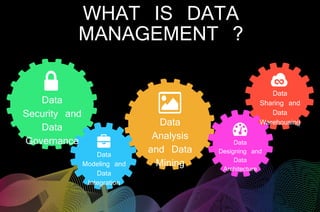
Data
Security and
Data
Governance
Data
Modeling and
Data
Integration
Data
Analysis
and Data
Mining
Data
Designing and
Data
Architecture
Data
Sharing and
Data
Warehousing
WHAT IS DATA
MANAGEMENT ?
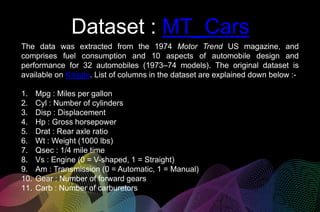
Dataset : MT_Cars
The data was extracted from the 1974 Motor Trend US magazine, and
comprises fuel consumption and 10 aspects of automobile design and
performance for 32 automobiles (1973–74 models). The original dataset is
available on Kaggle. List of columns in the dataset are explained down below :-
1. Mpg : Miles per gallon
2. Cyl : Number of cylinders
3. Disp : Displacement
4. Hp : Gross horsepower
5. Drat : Rear axle ratio
6. Wt : Weight (1000 lbs)
7. Qsec : 1/4 mile time
8. Vs : Engine (0 = V-shaped, 1 = Straight)
9. Am : Transmission (0 = Automatic, 1 = Manual)
10. Gear : Number of forward gears
11. Carb : Number of carburetors
ALIAS
Giving alternative names to columns in
Dimensions so that their labels appear
differently in the view.
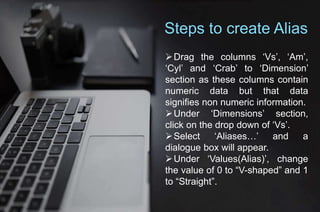
Steps to create Alias
Drag the columns ‘Vs’, ‘Am’,
‘Cyl’ and ‘Crab’ to ‘Dimension’
section as these columns contain
numeric data but that data
signifies non numeric information.
Under ‘Dimensions’ section,
click on the drop down of ‘Vs’.
Select ‘Aliases…’ and a
dialogue box will appear.
Under ‘Values(Alias)’, change
the value of 0 to “V-shaped” and 1
to “Straight”.
In Tableau, giving Alias value does not
change the original value. In the Data
source tab, the dataset shows Alias
values. Once “Show Aliases” box is
unchecked, the original values appear.
DID YOU KNOW ?
GROUPING
Grouping is done to create a new
Dimension and this also reduces the
number of Dimensions.
Steps to create Group
Under ‘Dimension’ section, right
click on ‘Carb’ -> Create -> Group
and a dialogue box will appear.
Under ‘Groups’ section, select
1, 2 & 3 using the ‘Ctrl’ key and
select ‘Group’ then name it ‘Light
Cars’.
Similarly, club rest of the values
and name the group as ‘Heavy
Cars’.
Change the ‘Field name’ to ‘Car
Types’ and click ‘Apply’ then
select ‘Ok’.
HIERARCHY
A hierarchy is an arrangement of
columns in which the columns are
represented as being ‘above’, ‘below’,
or ‘at the same level as’ one another.
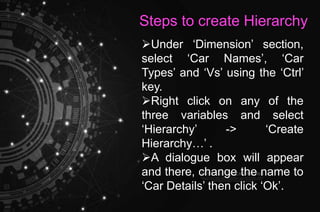
Steps to create Hierarchy
Under ‘Dimension’ section,
select ‘Car Names’, ‘Car
Types’ and ‘Vs’ using the ‘Ctrl’
key.
Right click on any of the
three variables and select
‘Hierarchy’ -> ‘Create
Hierarchy…’ .
A dialogue box will appear
and there, change the name to
‘Car Details’ then click ‘Ok’.
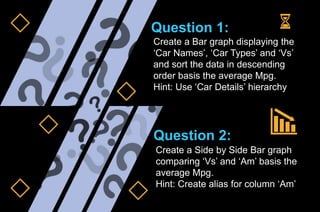
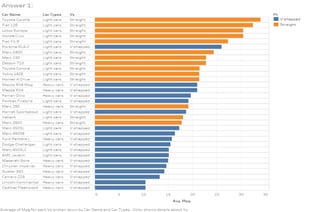
Create a Bar graph displaying the
‘Car Names’, ‘Car Types’ and ‘Vs’
and sort the data in descending
order basis the average Mpg.
Hint: Use ‘Car Details’ hierarchy
Question 1:
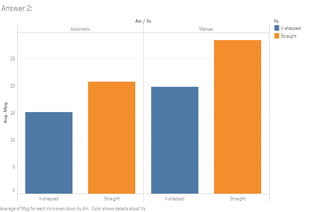
Create a Side by Side Bar graph
comparing ‘Vs’ and ‘Am’ basis the
average Mpg.
Hint: Create alias for column ‘Am’
Question 2:
FILTERS
Filters are used to include or exclude
certain values or range of values for a
particular field in tableau
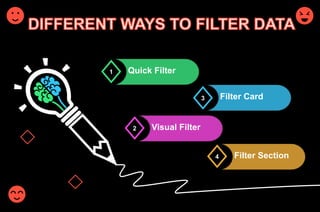
1
2
4
3
Quick Filter
Filter Card
Visual Filter
Filter Section
Quick Filter
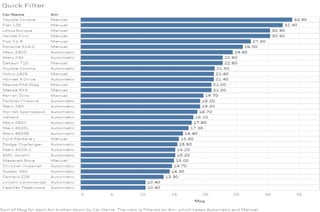
 Create a Bar graph using ‘Car
Names’, ‘Am’ and ‘Mpg’ and sort the
data in descending order. Also, label the
graph by clicking ‘T’ icon in the toolbar.
 Under ‘Dimensions’ section, right click
on ‘Am’ and select ‘Show Filter’.
On the extreme right Tableau will show
a Filter card which allows to select
options as per the requirement.
A graph has been put up on the next
slide and is self explanatory.
Filter card
 Duplicate the ‘Quick Filter’ sheet and rename
the sheet as ‘Filter Card’.
 Select the drop down of ‘Am’ filter card and
select option ‘Single Value (list)’. This option
helps user to select one option at a time.
Similarly, other options of the drop down can be
explored.
 In order to remove ‘All’ option from the filter
card, click on the drop down of ‘Am’ filter card.
 Select ‘Customize’ and uncheck the box that
says ‘Show “All” Value’.
A graph has been put up on the next slide
showing the first option of ‘Am’ filter card and is
self explanatory.
Visual Filters
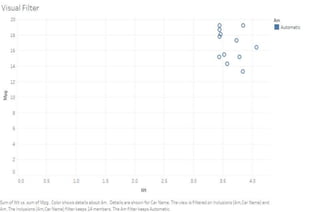
 Create a Scatter plot using ‘Car Names’,
‘Wt’ and ‘Mpg’.
 Drag ‘Am’ to color card in ‘Marks’ section
 Drag and select data points lying in the
range 10 to 15 Mpg and 3k to 5k lbs weight
then select ‘Keep only’. This will create a filter
and will show only the selected data points.
 Under ‘Am’ filter card, click on ‘Automatic’
and select ‘Keep only’. This will create
another filter for the same graph and will
show only ‘Automatic’ cars.
A graph has been put up on the next slide
and is self explanatory.
Filter Section
 Create a Bar graph using ‘Car Names’,
‘Vs’ and ‘Mpg’ and sort the data in
descending order. Also, label the graph by
clicking ‘T’ icon in the toolbar.
 Drag ‘Vs’ to ‘Filter’ section which is just
above ‘Marks’ section and a dialogue box
will appear.
 Uncheck the option ‘Straight’ and check
the box ‘Exclude’, then click ‘Ok’. This will
show only ‘Straight’ option and exclude all
others.
A graph has been put up on the next slide
and is self explanatory.
Click next to unlock
the answers which
have been put up for
your reference. In
case you need any
help, feel free to
reach out to me at
linkedin.com/kanika-nagpal
Image sources
https://www.free-powerpoint-templates-design.com/
https://powerpointify.com/evin-free-presentation-template/
https://img.freepik.com/free-vector/illustration-brainstorming-teamwork_53876-
18397.jpg?size=626&ext=jpg
https://c8.alamy.com/comp/EWK6CP/life-background-concept-wordcloud-illustration-print-
concept-word-EWK6CP.jpg
https://images-na.ssl-images-amazon.com/images/I/51BLKlgZGmL.png
https://elephantsmartbusiness.com/wp-content/uploads/2016/06/Group-pic-blog-post-
1024x768.jpg
https://c4.wallpaperflare.com/wallpaper/181/834/364/zip-techno-wallpaper-preview.jpg
https://www.snacknation.com/wp-content/uploads/2018/12/MAIN_-administrative-job-title-
hierarchy.jpg
https://media.istockphoto.com/vectors/technical-background-vector-
id1133385876?k=6&m=1133385876&s=612x612&w=0&h=LNrrm9Wy-iMzK-
qPS6ccLHYnqQYizr4rEFuYG13Xc4U=
https://www.smallbizdaily.com/wp-content/uploads/2018/02/time.jpg
https://www.pngitem.com/pimgs/m/106-1061994_transparent-background-question-marks-hd-
png-download.png
https://www.adorama.com/alc/a-beginners-guide-to-camera-lens-filters
Data Management using tableau

Data Management using tableau