NEHRU PLACE IT SERVICES
IT DEPARTMENT
DATA BACKUP PROCESS
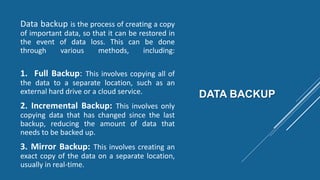
DATA BACKUP
Data backup is the process of creating a copy
of important data, so that it can be restored in
the event of data loss. This can be done
through various methods, including:
1. Full Backup: This involves copying all of
the data to a separate location, such as an
external hard drive or a cloud service.
2. Incremental Backup: This involves only
copying data that has changed since the last
backup, reducing the amount of data that
needs to be backed up.
3. Mirror Backup: This involves creating an
exact copy of the data on a separate location,
usually in real-time.
QUALITY OF DATA
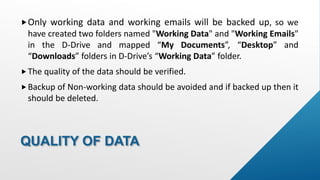
Only working data and working emails will be backed up, so we
have created two folders named "Working Data" and "Working Emails"
in the D-Drive and mapped “My Documents”, “Desktop” and
“Downloads” folders in D-Drive’s “Working Data” folder.
The quality of the data should be verified.
Backup of Non-working data should be avoided and if backed up then it
should be deleted.
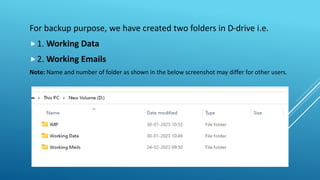
For backup purpose, we have created two folders in D-drive i.e.
1. Working Data
2. Working Emails
Note: Name and number of folder as shown in the below screenshot may differ for other users.
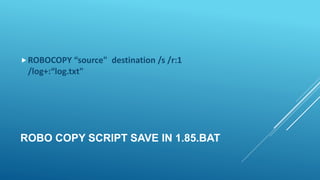
ROBO COPY SCRIPT SAVE IN 1.85.BAT
ROBOCOPY “source" destination /s /r:1
/log+:“log.txt"
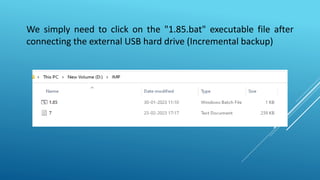
We simply need to click on the "1.85.bat" executable file after
connecting the external USB hard drive (Incremental backup)
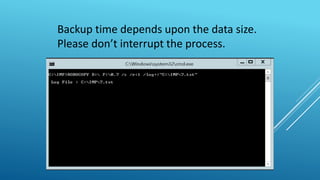
Backup time depends upon the data size.
Please don’t interrupt the process.
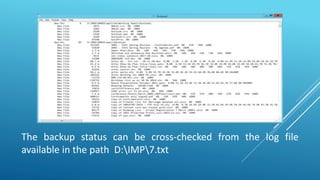
The backup status can be cross-checked from the log file
available in the path D:IMP7.txt
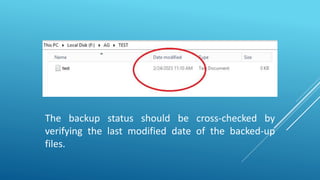
The backup status should be cross-checked by
verifying the last modified date of the backed-up
files.
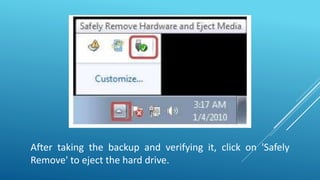
After taking the backup and verifying it, click on 'Safely
Remove' to eject the hard drive.
RECOVERY
PROCESS
If data becomes corrupted or deleted
from the original PC, please contact the
IT department.
We will be able to recover emails and
other data from the external hard drive.
Please do not attempt to do this
yourself
Q & A session!
CONCLUSIONS
 Please don’t open unwanted emails and attachment .
 Data backup is a critical process for ensuring the preservation and accessibility of
important information.
 It is important to have a backup in place, including choosing the right backup method,
determining the frequency of backups, and regularly testing the backup process.
 Additionally, it is important to store backups in a secure and separate location, such as
an external hard drive.
 By taking these steps, organizations can minimize the risk of data loss and ensure that
they can quickly recover important information in the event of an unexpected outage
or failure.
THANK YOU
IT DEPARTMENT


Data backup and recovery process

  • 1.
    NEHRU PLACE ITSERVICES IT DEPARTMENT DATA BACKUP PROCESS
  • 2.
    DATA BACKUP Data backupis the process of creating a copy of important data, so that it can be restored in the event of data loss. This can be done through various methods, including: 1. Full Backup: This involves copying all of the data to a separate location, such as an external hard drive or a cloud service. 2. Incremental Backup: This involves only copying data that has changed since the last backup, reducing the amount of data that needs to be backed up. 3. Mirror Backup: This involves creating an exact copy of the data on a separate location, usually in real-time.
  • 3.
    QUALITY OF DATA Onlyworking data and working emails will be backed up, so we have created two folders named "Working Data" and "Working Emails" in the D-Drive and mapped “My Documents”, “Desktop” and “Downloads” folders in D-Drive’s “Working Data” folder. The quality of the data should be verified. Backup of Non-working data should be avoided and if backed up then it should be deleted.
  • 4.
    For backup purpose,we have created two folders in D-drive i.e. 1. Working Data 2. Working Emails Note: Name and number of folder as shown in the below screenshot may differ for other users.
  • 5.
    ROBO COPY SCRIPTSAVE IN 1.85.BAT ROBOCOPY “source" destination /s /r:1 /log+:“log.txt"
  • 6.
    We simply needto click on the "1.85.bat" executable file after connecting the external USB hard drive (Incremental backup)
  • 7.
    Backup time dependsupon the data size. Please don’t interrupt the process.
  • 8.
    The backup statuscan be cross-checked from the log file available in the path D:IMP7.txt
  • 9.
    The backup statusshould be cross-checked by verifying the last modified date of the backed-up files.
  • 10.
    After taking thebackup and verifying it, click on 'Safely Remove' to eject the hard drive.
  • 11.
    RECOVERY PROCESS If data becomescorrupted or deleted from the original PC, please contact the IT department. We will be able to recover emails and other data from the external hard drive. Please do not attempt to do this yourself
  • 12.
    Q & Asession!
  • 13.
    CONCLUSIONS  Please don’topen unwanted emails and attachment .  Data backup is a critical process for ensuring the preservation and accessibility of important information.  It is important to have a backup in place, including choosing the right backup method, determining the frequency of backups, and regularly testing the backup process.  Additionally, it is important to store backups in a secure and separate location, such as an external hard drive.  By taking these steps, organizations can minimize the risk of data loss and ensure that they can quickly recover important information in the event of an unexpected outage or failure.
  • 14.