Accessibility in Practice: 
Integrating Web Accessibility into 
Cascade Training 
Cascade User Conference 2014
Darren Denham 
Web Content Manager 
University of Central Oklahoma 
405-974-2606 
http://technology.uco.edu 
ddenham@uco.edu 
twitter.com/DarrenWasHere
The Rundown 
1. Administrator Options 
2. Training Opportunities 
3. Why It Matters 
4. Training Demo 
Based On Votes
Accessibility – Down the Rabbit Hole 
 Section 508 U.S. 
Rehabilitation Act 
 Americans With Disabilities 
Act (ADA) 
 Web Content Accessibility 
Guidelines (WCAG) 
 State/Local requirements 
 Oklahoma Electronic 
Information Technology 
Accessibility (EITA) Act 
 Web Accessibility in Higher 
Education Project (WAHEP)
Control What You Can
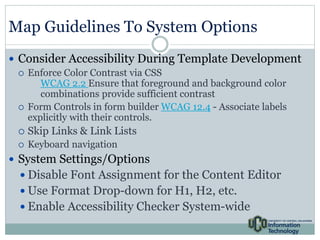
Map Guidelines To System Options 
 Consider Accessibility During Template Development 
 Enforce Color Contrast via CSS 
WCAG 2.2 Ensure that foreground and background color 
combinations provide sufficient contrast 
 Form Controls in form builder WCAG 12.4 - Associate labels 
explicitly with their controls. 
 Skip Links & Link Lists 
 Keyboard navigation 
 System Settings/Options 
 Disable Font Assignment for the Content Editor 
 Use Format Drop-down for H1, H2, etc. 
 Enable Accessibility Checker System-wide
Accessibility Myths vs. Reality
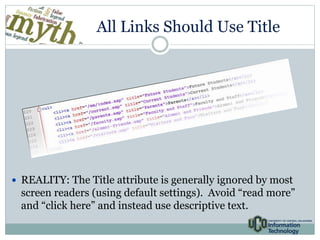
All Links Should Use Title 
 REALITY: The Title attribute is generally ignored by most 
screen readers (using default settings). Avoid “read more” 
and “click here” and instead use descriptive text.
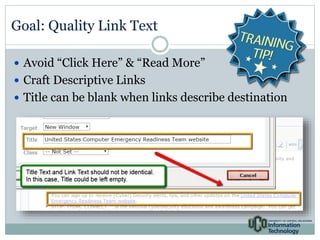
Goal: Quality Link Text 
 Avoid “Click Here” & “Read More” 
 Craft Descriptive Links 
 Title can be blank when links describe destination
Open All Non-Institution Links In 
A New Tab or Window 
REALITY: By default, browsers 
open links in the same window. 
Changing this behavior, breaks 
navigation. 
User choice is removed and 
unexpected outcomes are 
introduced. 
Individuals with cognitive 
disabilities should be considered.
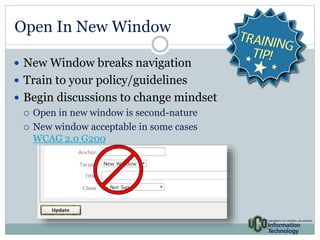
Open In New Window 
 New Window breaks navigation 
 Train to your policy/guidelines 
 Begin discussions to change mindset 
 Open in new window is second-nature 
 New window acceptable in some cases 
WCAG 2.0 G200
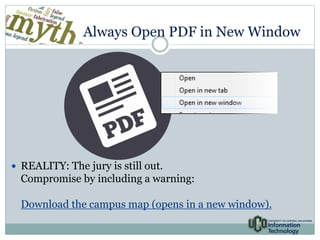
Always Open PDF in New Window 
 REALITY: The jury is still out. 
Compromise by including a warning: 
Download the campus map (opens in a new window).
Since Most Images Are Decorative 
Alt Text Isn’t Required 
REALITY: The majority of 
images on the web are 
used to convey 
information, present data 
or enhance page content. 
 Consider why the image 
is present when crafting 
the alternate text. 
[image of something, 
maybe a wall of 
framed photos]
Images & Alternative Text 
 Avoid phrases such as: 
 “logo” 
 “image of” 
 “photo” 
 Images – Informative & Decorative 
 Examples 
 Context helps determine description. 
 Some descriptions may be more detailed based on the usage and 
content of the page. 
 Images that repeat information already presented may be 
considered decorative.
Images & Alternative Text 
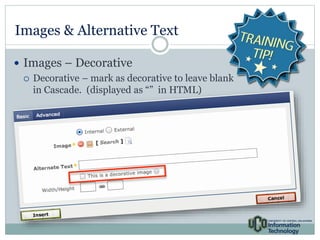
 Images – Decorative 
 Decorative – mark as decorative to leave blank 
in Cascade. (displayed as “” in HTML)
Images & Alternative Text 
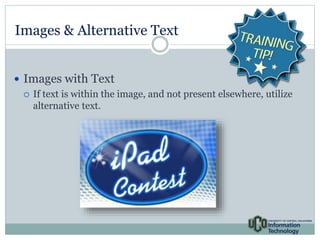
 Images with Text 
 If text is within the image, and not present elsewhere, utilize 
alternative text.
Avoid Tables 
REALITY: Tables, when 
crafted with accessibility in 
mind, can be effective. 
Tables require more 
planning and more effort to 
implement properly.
Tables – Training Kryptonite 
 Offer Table-specific 
training. 
 Utilize DIVs for layouts in 
template design 
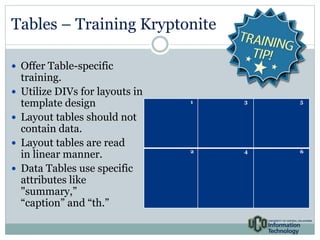
 Layout tables should not 
contain data. 
 Layout tables are read 
in linear manner. 
 Data Tables use specific 
attributes like 
"summary,” 
“caption” and “th.” 
1 3 5 
2 4 6
Not All Web Pages Need Headlines 
 REALITY: The Headline, or H1 
Heading, tells the assistive 
technology where the content 
begins. 
 Imagine a newspaper without 
headlines!
Heading 1 – Content Starts Here 
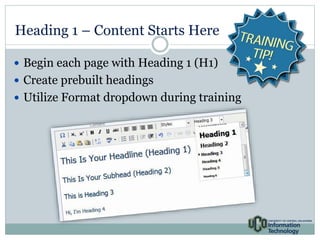
 Begin each page with Heading 1 (H1) 
 Create prebuilt headings 
 Utilize Format dropdown during training
Accessibility Checklist (Section 508) 
 UCO Campus Committee 
& State of Oklahoma 
Commitment 
 Development of 
accessibility checklist 
handout 
 Integration into Cascade 
training
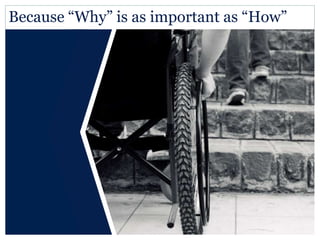
Because “Why” is as important as “How”
Tell A Story 
 Make Connection with Accessibility 
o Campus /Local Resources 
 Campus Organizations 
o Students for an Accessible Society 
 Share Personal Experience 
 Volunteer for Events 
o Paralympic Games 
o Special Olympics 
o Local Events
Partnerships 
 Disability Support Services 
o Review training 
o Validation/Testing 
o Screencast examples of assistive technology in use 
 Multimedia Services 
o Captioning 
o Descriptive Audio 
 Distance Education 
o Accessibility in online courses
Resources 
 WebAIM Web Accessibility In Mind 
http://webaim.org 
 Section508.gov - Resources for understanding and implementing Section 508 
http://www.section508.gov 
 Web Content Accessibility Guidelines (WCAG) 2.0 
www.w3.org/TR/WCAG20 
 U.S. Department of Labor 
http://www.dol.gov/odep/topics/Technology.htm 
 FCC Accessing Social Media webinar 
http://www.fcc.gov/events/accessing-social-media 
 Dev Wc3 Alt Text Decision Tree 
http://dev.w3.org/html5/alt-techniques/developer.html#tree 
 4 Syllables Alt Text Decision Tree 
http://www.4syllables.com.au/2010/12/text-alternatives-decision-tree 
 Digital.Gov - How to Use Assistive Technology to Comply with Section 508 
http://youtu.be/4XJcswWmmAw http://www.digitalgov.gov
Darren Denham 
405-974-2606 
http://technology.uco.edu 
ddenham@uco.edu 
twitter.com/DarrenWasHere 
www.DarrenWasHere.com

Accessibility in Practice: Integrating Web Accessibility into Cascade Training

  • 1.
    Accessibility in Practice: Integrating Web Accessibility into Cascade Training Cascade User Conference 2014
  • 2.
    Darren Denham WebContent Manager University of Central Oklahoma 405-974-2606 http://technology.uco.edu ddenham@uco.edu twitter.com/DarrenWasHere
  • 3.
    The Rundown 1.Administrator Options 2. Training Opportunities 3. Why It Matters 4. Training Demo Based On Votes
  • 4.
    Accessibility – Downthe Rabbit Hole  Section 508 U.S. Rehabilitation Act  Americans With Disabilities Act (ADA)  Web Content Accessibility Guidelines (WCAG)  State/Local requirements  Oklahoma Electronic Information Technology Accessibility (EITA) Act  Web Accessibility in Higher Education Project (WAHEP)
  • 5.
  • 6.
    Map Guidelines ToSystem Options  Consider Accessibility During Template Development  Enforce Color Contrast via CSS WCAG 2.2 Ensure that foreground and background color combinations provide sufficient contrast  Form Controls in form builder WCAG 12.4 - Associate labels explicitly with their controls.  Skip Links & Link Lists  Keyboard navigation  System Settings/Options  Disable Font Assignment for the Content Editor  Use Format Drop-down for H1, H2, etc.  Enable Accessibility Checker System-wide
  • 7.
  • 8.
    All Links ShouldUse Title  REALITY: The Title attribute is generally ignored by most screen readers (using default settings). Avoid “read more” and “click here” and instead use descriptive text.
  • 9.
    Goal: Quality LinkText  Avoid “Click Here” & “Read More”  Craft Descriptive Links  Title can be blank when links describe destination
  • 10.
    Open All Non-InstitutionLinks In A New Tab or Window REALITY: By default, browsers open links in the same window. Changing this behavior, breaks navigation. User choice is removed and unexpected outcomes are introduced. Individuals with cognitive disabilities should be considered.
  • 11.
    Open In NewWindow  New Window breaks navigation  Train to your policy/guidelines  Begin discussions to change mindset  Open in new window is second-nature  New window acceptable in some cases WCAG 2.0 G200
  • 12.
    Always Open PDFin New Window  REALITY: The jury is still out. Compromise by including a warning: Download the campus map (opens in a new window).
  • 13.
    Since Most ImagesAre Decorative Alt Text Isn’t Required REALITY: The majority of images on the web are used to convey information, present data or enhance page content.  Consider why the image is present when crafting the alternate text. [image of something, maybe a wall of framed photos]
  • 14.
    Images & AlternativeText  Avoid phrases such as:  “logo”  “image of”  “photo”  Images – Informative & Decorative  Examples  Context helps determine description.  Some descriptions may be more detailed based on the usage and content of the page.  Images that repeat information already presented may be considered decorative.
  • 15.
    Images & AlternativeText  Images – Decorative  Decorative – mark as decorative to leave blank in Cascade. (displayed as “” in HTML)
  • 16.
    Images & AlternativeText  Images with Text  If text is within the image, and not present elsewhere, utilize alternative text.
  • 17.
    Avoid Tables REALITY:Tables, when crafted with accessibility in mind, can be effective. Tables require more planning and more effort to implement properly.
  • 18.
    Tables – TrainingKryptonite  Offer Table-specific training.  Utilize DIVs for layouts in template design  Layout tables should not contain data.  Layout tables are read in linear manner.  Data Tables use specific attributes like "summary,” “caption” and “th.” 1 3 5 2 4 6
  • 19.
    Not All WebPages Need Headlines  REALITY: The Headline, or H1 Heading, tells the assistive technology where the content begins.  Imagine a newspaper without headlines!
  • 20.
    Heading 1 –Content Starts Here  Begin each page with Heading 1 (H1)  Create prebuilt headings  Utilize Format dropdown during training
  • 21.
    Accessibility Checklist (Section508)  UCO Campus Committee & State of Oklahoma Commitment  Development of accessibility checklist handout  Integration into Cascade training
  • 22.
    Because “Why” isas important as “How”
  • 23.
    Tell A Story  Make Connection with Accessibility o Campus /Local Resources  Campus Organizations o Students for an Accessible Society  Share Personal Experience  Volunteer for Events o Paralympic Games o Special Olympics o Local Events
  • 24.
    Partnerships  DisabilitySupport Services o Review training o Validation/Testing o Screencast examples of assistive technology in use  Multimedia Services o Captioning o Descriptive Audio  Distance Education o Accessibility in online courses
  • 25.
    Resources  WebAIMWeb Accessibility In Mind http://webaim.org  Section508.gov - Resources for understanding and implementing Section 508 http://www.section508.gov  Web Content Accessibility Guidelines (WCAG) 2.0 www.w3.org/TR/WCAG20  U.S. Department of Labor http://www.dol.gov/odep/topics/Technology.htm  FCC Accessing Social Media webinar http://www.fcc.gov/events/accessing-social-media  Dev Wc3 Alt Text Decision Tree http://dev.w3.org/html5/alt-techniques/developer.html#tree  4 Syllables Alt Text Decision Tree http://www.4syllables.com.au/2010/12/text-alternatives-decision-tree  Digital.Gov - How to Use Assistive Technology to Comply with Section 508 http://youtu.be/4XJcswWmmAw http://www.digitalgov.gov
  • 26.
    Darren Denham 405-974-2606 http://technology.uco.edu ddenham@uco.edu twitter.com/DarrenWasHere www.DarrenWasHere.com

Editor's Notes