CSS
(Cascading Style Sheet)
-Navya.E
CSS
• It is a Style Sheet language.
• It is used to give style to a HTML document.
• With the help of CSS, we can change color of text and style of fonts, spacing
between the paragraph and many more things.
• CSS saves a lot of work. It can control the layout of multiple web pages all at once.
• CSS file is saved with the extension .css
CSS SYNTAX
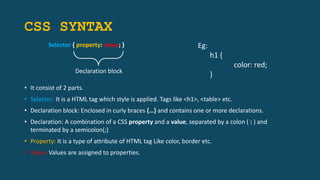
Selector { property: value; }
• It consist of 2 parts.
• Selector: It is a HTML tag which style is applied. Tags like <h1>, <table> etc.
• Declaration block: Enclosed in curly braces {…} and contains one or more declarations.
• Declaration: A combination of a CSS property and a value, separated by a colon ( : ) and
terminated by a semicolon(;)
• Property: It is a type of attribute of HTML tag Like color, border etc.
• Value: Values are assigned to properties.
Declaration block
Eg:
h1 {
color: red;
}
SELECTORS
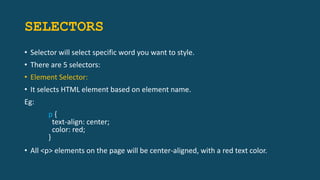
• Selector will select specific word you want to style.
• There are 5 selectors:
• Element Selector:
• It selects HTML element based on element name.
Eg:
p {
text-align: center;
color: red;
}
• All <p> elements on the page will be center-aligned, with a red text color.
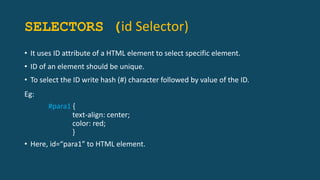
SELECTORS (id Selector)
• It uses ID attribute of a HTML element to select specific element.
• ID of an element should be unique.
• To select the ID write hash (#) character followed by value of the ID.
Eg:
#para1 {
text-align: center;
color: red;
}
• Here, id=“para1” to HTML element.
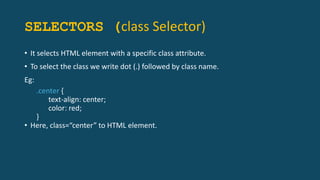
SELECTORS (class Selector)
• It selects HTML element with a specific class attribute.
• To select the class we write dot (.) followed by class name.
Eg:
.center {
text-align: center;
color: red;
}
• Here, class=“center” to HTML element.
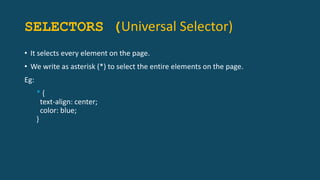
SELECTORS (Universal Selector)
• It selects every element on the page.
• We write as asterisk (*) to select the entire elements on the page.
Eg:
* {
text-align: center;
color: blue;
}
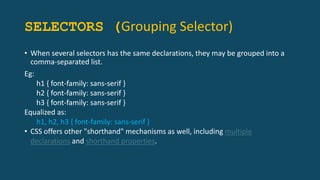
SELECTORS (Grouping Selector)
• When several selectors has the same declarations, they may be grouped into a
comma-separated list.
Eg:
h1 { font-family: sans-serif }
h2 { font-family: sans-serif }
h3 { font-family: sans-serif }
Equalized as:
h1, h2, h3 { font-family: sans-serif }
• CSS offers other "shorthand" mechanisms as well, including multiple
declarations and shorthand properties.
CSS TYPES
1. Inline CSS: It is used to apply CSS on a single line and written in opening tag.
<h1 style=“color:red” > Sample text </h1>
• To use inline css style attribute is used to the relevant tag.
• These cannot be reused anywhere else.
• These are tough to be edited because they are not stored at a single place.
2. Internal CSS: It is defined in <head> section of the HTML page inside the <style>
tag.
<head>
<style>
h1{ color: red;}
</style>
</head>
CSS TYPES
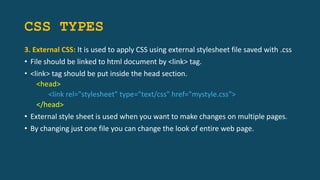
3. External CSS: It is used to apply CSS using external stylesheet file saved with .css
• File should be linked to html document by <link> tag.
• <link> tag should be put inside the head section.
<head>
<link rel="stylesheet" type="text/css" href="mystyle.css">
</head>
• External style sheet is used when you want to make changes on multiple pages.
• By changing just one file you can change the look of entire web page.
CSS COMMENT
• Used to add notes in HTML or CSS code.
• Not displayed on the web page​.
• Syntax:
/* Write text to comment */
• Helpful for code organization
• Can be multi-line or single-line
COLOR PRORETY
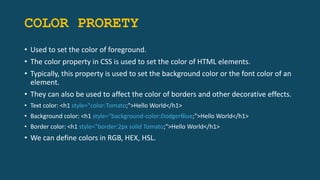
• Used to set the color of foreground.
• The color property in CSS is used to set the color of HTML elements.
• Typically, this property is used to set the background color or the font color of an
element.
• They can also be used to affect the color of borders and other decorative effects.
• Text color: <h1 style="color:Tomato;">Hello World</h1>
• Background color: <h1 style="background-color:DodgerBlue;">Hello World</h1>
• Border color: <h1 style="border:2px solid Tomato;">Hello World</h1>
• We can define colors in RGB, HEX, HSL.
CSS BACKGROUND
• CSS background property is used to add background effects on element.
• There are 5 CSS background properties that affects the HTML elements:
1. background-color
2. background-image
3. background-repeat
4. background-attachment
5. background-position
CSS BACKGROUND
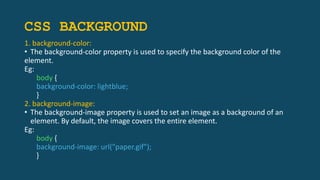
1. background-color:
• The background-color property is used to specify the background color of the
element.
Eg:
body {
background-color: lightblue;
}
2. background-image:
• The background-image property is used to set an image as a background of an
element. By default, the image covers the entire element.
Eg:
body {
background-image: url("paper.gif");
}
CSS BACKGROUND
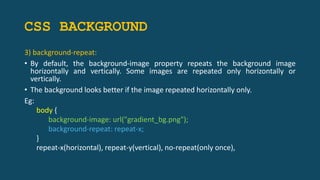
3) background-repeat:
• By default, the background-image property repeats the background image
horizontally and vertically. Some images are repeated only horizontally or
vertically.
• The background looks better if the image repeated horizontally only.
Eg:
body {
background-image: url("gradient_bg.png");
background-repeat: repeat-x;
}
repeat-x(horizontal), repeat-y(vertical), no-repeat(only once),
CSS BACKGROUND
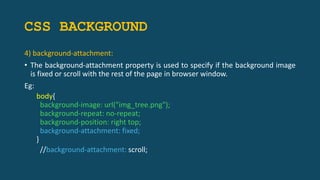
4) background-attachment:
• The background-attachment property is used to specify if the background image
is fixed or scroll with the rest of the page in browser window.
Eg:
body{
background-image: url("img_tree.png");
background-repeat: no-repeat;
background-position: right top;
background-attachment: fixed;
}
//background-attachment: scroll;
CSS BACKGROUND
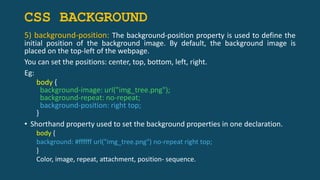
5) background-position: The background-position property is used to define the
initial position of the background image. By default, the background image is
placed on the top-left of the webpage.
You can set the positions: center, top, bottom, left, right.
Eg:
body {
background-image: url("img_tree.png");
background-repeat: no-repeat;
background-position: right top;
}
• Shorthand property used to set the background properties in one declaration.
body {
background: #ffffff url("img_tree.png") no-repeat right top;
}
Color, image, repeat, attachment, position- sequence.
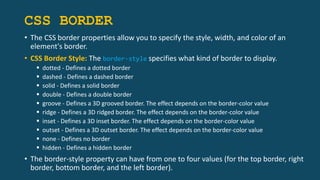
CSS BORDER
• The CSS border properties allow you to specify the style, width, and color of an
element's border.
• CSS Border Style: The border-style specifies what kind of border to display.
 dotted - Defines a dotted border
 dashed - Defines a dashed border
 solid - Defines a solid border
 double - Defines a double border
 groove - Defines a 3D grooved border. The effect depends on the border-color value
 ridge - Defines a 3D ridged border. The effect depends on the border-color value
 inset - Defines a 3D inset border. The effect depends on the border-color value
 outset - Defines a 3D outset border. The effect depends on the border-color value
 none - Defines no border
 hidden - Defines a hidden border
• The border-style property can have from one to four values (for the top border, right
border, bottom border, and the left border).
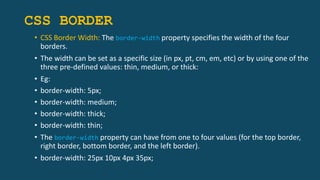
CSS BORDER
• CSS Border Width: The border-width property specifies the width of the four
borders.
• The width can be set as a specific size (in px, pt, cm, em, etc) or by using one of the
three pre-defined values: thin, medium, or thick:
• Eg:
• border-width: 5px;
• border-width: medium;
• border-width: thick;
• border-width: thin;
• The border-width property can have from one to four values (for the top border,
right border, bottom border, and the left border).
• border-width: 25px 10px 4px 35px;
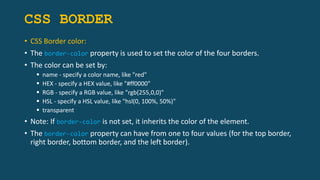
CSS BORDER
• CSS Border color:
• The border-color property is used to set the color of the four borders.
• The color can be set by:
 name - specify a color name, like "red"
 HEX - specify a HEX value, like "#ff0000"
 RGB - specify a RGB value, like "rgb(255,0,0)"
 HSL - specify a HSL value, like "hsl(0, 100%, 50%)"
 transparent
• Note: If border-color is not set, it inherits the color of the element.
• The border-color property can have from one to four values (for the top border,
right border, bottom border, and the left border).
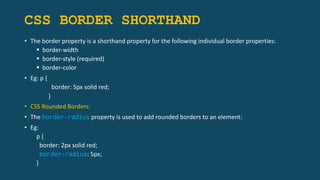
CSS BORDER SHORTHAND
• The border property is a shorthand property for the following individual border properties:
 border-width
 border-style (required)
 border-color
• Eg: p {
border: 5px solid red;
}
• CSS Rounded Borders:
• The border-radius property is used to add rounded borders to an element:
• Eg:
p {
border: 2px solid red;
border-radius: 5px;
}
CSS FONTS
• CSS Font property is used to control the look of texts. By the use of CSS font
property you can change the text size, color, style and more. You have already
studied how to make text bold or underlined. Here, you will also know how to
resize your font using percentage.
• These are some important font attributes:
• CSS Font color: This property is used to change the color of the text. (standalone
attribute)
• CSS Font family: This property is used to change the face of the font.
• CSS Font size: This property is used to increase or decrease the size of the font.
• CSS Font style: This property is used to make the font bold, italic or oblique.
• CSS Font variant: This property creates a small-caps effect.
• CSS Font weight: This property is used to increase or decrease the boldness and
lightness of the font.
CSS BOX MODEL
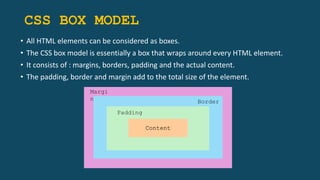
• All HTML elements can be considered as boxes.
• The CSS box model is essentially a box that wraps around every HTML element.
• It consists of : margins, borders, padding and the actual content.
• The padding, border and margin add to the total size of the element.
Content
Margi
n Border
Padding
CSS BOX MODEL
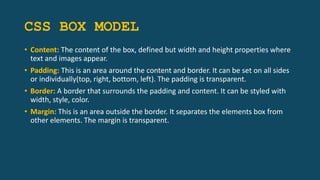
• Content: The content of the box, defined but width and height properties where
text and images appear.
• Padding: This is an area around the content and border. It can be set on all sides
or individually(top, right, bottom, left). The padding is transparent.
• Border: A border that surrounds the padding and content. It can be styled with
width, style, color.
• Margin: This is an area outside the border. It separates the elements box from
other elements. The margin is transparent.
CSS BOX MODEL (Margin Vs Padding)
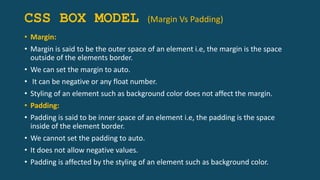
• Margin:
• Margin is said to be the outer space of an element i.e, the margin is the space
outside of the elements border.
• We can set the margin to auto.
• It can be negative or any float number.
• Styling of an element such as background color does not affect the margin.
• Padding:
• Padding is said to be inner space of an element i.e, the padding is the space
inside of the element border.
• We cannot set the padding to auto.
• It does not allow negative values.
• Padding is affected by the styling of an element such as background color.
FLEX BOX
• It is a one-dimensional layout method for arranging items in rows and columns.
• flex-direction: Specifies the direction of the flexible items inside a flex container
• flex-flow: A shorthand property for flex-direction and flex-wrap
• flex-wrap: Specifies whether the flex items should wrap or not, if there is not
enough room for them on one flex line
• justify-content: Horizontally aligns the flex items when the items do not use all
available space on the main-axis.
• align-content: Modifies the behavior of the flex-wrap property. It is similar to
align-items, but instead of aligning flex items, it aligns flex lines
• align-items: Vertically aligns the flex items when the items do not use all available
space on the cross-axis
• Display : Specifies the type of box used for an HTML element
CSS COMBINATORS SELECTORS
• It is used to define relationships between different elements in HTML document.
• There are 4 types:
1) Descendant Combinator (space)
2) Child Combinator (>)
3) Adjacent Sibling Combinator (+)
4) General Sibling Combinator (~)
CSS COMBINATORS
SELECTORS
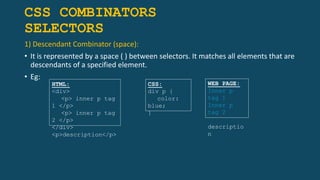
1) Descendant Combinator (space):
• It is represented by a space ( ) between selectors. It matches all elements that are
descendants of a specified element.
• Eg:
HTML:
<div>
<p> inner p tag
1 </p>
<p> inner p tag
2 </p>
</div>
<p>description</p>
CSS:
div p {
color:
blue;
}
WEB PAGE:
Inner p
tag 1
Inner p
tag 2
descriptio
n
CSS COMBINATORS SELECTORS
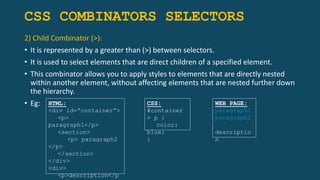
2) Child Combinator (>):
• It is represented by a greater than (>) between selectors.
• It is used to select elements that are direct children of a specified element.
• This combinator allows you to apply styles to elements that are directly nested
within another element, without affecting elements that are nested further down
the hierarchy.
• Eg: HTML:
<div id=“container”>
<p>
paragraph1</p>
<section>
<p> paragraph2
</p>
</section>
</div>
<div>
<p>description</p
CSS:
#container
> p {
color:
blue;
}
WEB PAGE:
paragraph1
paragraph2
descriptio
n
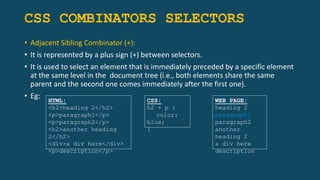
CSS COMBINATORS SELECTORS
• Adjacent Sibling Combinator (+):
• It is represented by a plus sign (+) between selectors.
• It is used to select an element that is immediately preceded by a specific element
at the same level in the document tree (i.e., both elements share the same
parent and the second one comes immediately after the first one).
• Eg: HTML:
<h2>heading 2</h2>
<p>paragraph1</p>
<p>paragraph2</p>
<h2>another heading
2</h2>
<div>a div here</div>
<p>description</p>
CSS:
h2 + p {
color:
blue;
}
WEB PAGE:
heading 2
paragraph1
paragraph2
another
heading 2
a div here
description
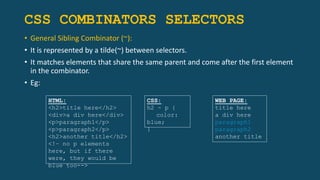
CSS COMBINATORS SELECTORS
• General Sibling Combinator (~):
• It is represented by a tilde(~) between selectors.
• It matches elements that share the same parent and come after the first element
in the combinator.
• Eg:
HTML:
<h2>title here</h2>
<div>a div here</div>
<p>paragraph1</p>
<p>paragraph2</p>
<h2>another title</h2>
<!– no p elements
here, but if there
were, they would be
blue too-->
CSS:
h2 ~ p {
color:
blue;
}
WEB PAGE:
title here
a div here
paragraph1
paragraph2
another title
CSS FLOAT PROPERTY
• It is used for positioning and formatting content.
• It is used to push an element to the left or right, allowing other element to wrap
around it. It is generally used with images and layouts.
• Elements are floated only horizontally. So, it is possible only to float elements left
or right, not up or down.
Float property values:
• Left - element floats to the left of its container.
• Right - element floats to the right of its container.
• None – element does not float. This is default value.
• Inherit - element inherit float value of its parent.
CSS CLEAR PROPERTY
• When we use float property, we want the next element below, we will have to
use clear property.
• This property specifies what should happen with the element that is next to a
floating element.
Clear property values:
• Left - element is pushed below left floated elements.
• Right - element is pushed below right floated elements.
• Both – pushed below both left and right floated element.
• None - element does not pushed. This is default value.
• Inherit – inherits the clear value from its parent.
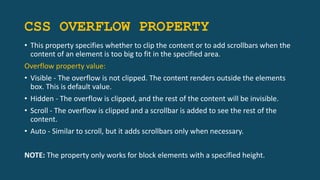
CSS OVERFLOW PROPERTY
• This property specifies whether to clip the content or to add scrollbars when the
content of an element is too big to fit in the specified area.
Overflow property value:
• Visible - The overflow is not clipped. The content renders outside the elements
box. This is default value.
• Hidden - The overflow is clipped, and the rest of the content will be invisible.
• Scroll - The overflow is clipped and a scrollbar is added to see the rest of the
content.
• Auto - Similar to scroll, but it adds scrollbars only when necessary.
NOTE: The property only works for block elements with a specified height.
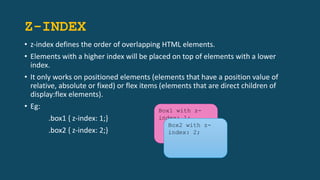
Z-INDEX
• z-index defines the order of overlapping HTML elements.
• Elements with a higher index will be placed on top of elements with a lower
index.
• It only works on positioned elements (elements that have a position value of
relative, absolute or fixed) or flex items (elements that are direct children of
display:flex elements).
• Eg:
.box1 { z-index: 1;}
.box2 { z-index: 2;}
Box1 with z-
index: 1;
Box2 with z-
index: 2;
THANK YOU
• Position property
• Grid
• Width and max-width
• Pseudo class
• Display property- block level and in line
element

CSS Topic wise Short notes ppt by Navya.E

  • 1.
  • 2.
    CSS • It isa Style Sheet language. • It is used to give style to a HTML document. • With the help of CSS, we can change color of text and style of fonts, spacing between the paragraph and many more things. • CSS saves a lot of work. It can control the layout of multiple web pages all at once. • CSS file is saved with the extension .css
  • 3.
    CSS SYNTAX Selector {property: value; } • It consist of 2 parts. • Selector: It is a HTML tag which style is applied. Tags like <h1>, <table> etc. • Declaration block: Enclosed in curly braces {…} and contains one or more declarations. • Declaration: A combination of a CSS property and a value, separated by a colon ( : ) and terminated by a semicolon(;) • Property: It is a type of attribute of HTML tag Like color, border etc. • Value: Values are assigned to properties. Declaration block Eg: h1 { color: red; }
  • 4.
    SELECTORS • Selector willselect specific word you want to style. • There are 5 selectors: • Element Selector: • It selects HTML element based on element name. Eg: p { text-align: center; color: red; } • All <p> elements on the page will be center-aligned, with a red text color.
  • 5.
    SELECTORS (id Selector) •It uses ID attribute of a HTML element to select specific element. • ID of an element should be unique. • To select the ID write hash (#) character followed by value of the ID. Eg: #para1 { text-align: center; color: red; } • Here, id=“para1” to HTML element.
  • 6.
    SELECTORS (class Selector) •It selects HTML element with a specific class attribute. • To select the class we write dot (.) followed by class name. Eg: .center { text-align: center; color: red; } • Here, class=“center” to HTML element.
  • 7.
    SELECTORS (Universal Selector) •It selects every element on the page. • We write as asterisk (*) to select the entire elements on the page. Eg: * { text-align: center; color: blue; }
  • 8.
    SELECTORS (Grouping Selector) •When several selectors has the same declarations, they may be grouped into a comma-separated list. Eg: h1 { font-family: sans-serif } h2 { font-family: sans-serif } h3 { font-family: sans-serif } Equalized as: h1, h2, h3 { font-family: sans-serif } • CSS offers other "shorthand" mechanisms as well, including multiple declarations and shorthand properties.
  • 9.
    CSS TYPES 1. InlineCSS: It is used to apply CSS on a single line and written in opening tag. <h1 style=“color:red” > Sample text </h1> • To use inline css style attribute is used to the relevant tag. • These cannot be reused anywhere else. • These are tough to be edited because they are not stored at a single place. 2. Internal CSS: It is defined in <head> section of the HTML page inside the <style> tag. <head> <style> h1{ color: red;} </style> </head>
  • 10.
    CSS TYPES 3. ExternalCSS: It is used to apply CSS using external stylesheet file saved with .css • File should be linked to html document by <link> tag. • <link> tag should be put inside the head section. <head> <link rel="stylesheet" type="text/css" href="mystyle.css"> </head> • External style sheet is used when you want to make changes on multiple pages. • By changing just one file you can change the look of entire web page.
  • 11.
    CSS COMMENT • Usedto add notes in HTML or CSS code. • Not displayed on the web page​. • Syntax: /* Write text to comment */ • Helpful for code organization • Can be multi-line or single-line
  • 12.
    COLOR PRORETY • Usedto set the color of foreground. • The color property in CSS is used to set the color of HTML elements. • Typically, this property is used to set the background color or the font color of an element. • They can also be used to affect the color of borders and other decorative effects. • Text color: <h1 style="color:Tomato;">Hello World</h1> • Background color: <h1 style="background-color:DodgerBlue;">Hello World</h1> • Border color: <h1 style="border:2px solid Tomato;">Hello World</h1> • We can define colors in RGB, HEX, HSL.
  • 13.
    CSS BACKGROUND • CSSbackground property is used to add background effects on element. • There are 5 CSS background properties that affects the HTML elements: 1. background-color 2. background-image 3. background-repeat 4. background-attachment 5. background-position
  • 14.
    CSS BACKGROUND 1. background-color: •The background-color property is used to specify the background color of the element. Eg: body { background-color: lightblue; } 2. background-image: • The background-image property is used to set an image as a background of an element. By default, the image covers the entire element. Eg: body { background-image: url("paper.gif"); }
  • 15.
    CSS BACKGROUND 3) background-repeat: •By default, the background-image property repeats the background image horizontally and vertically. Some images are repeated only horizontally or vertically. • The background looks better if the image repeated horizontally only. Eg: body { background-image: url("gradient_bg.png"); background-repeat: repeat-x; } repeat-x(horizontal), repeat-y(vertical), no-repeat(only once),
  • 16.
    CSS BACKGROUND 4) background-attachment: •The background-attachment property is used to specify if the background image is fixed or scroll with the rest of the page in browser window. Eg: body{ background-image: url("img_tree.png"); background-repeat: no-repeat; background-position: right top; background-attachment: fixed; } //background-attachment: scroll;
  • 17.
    CSS BACKGROUND 5) background-position:The background-position property is used to define the initial position of the background image. By default, the background image is placed on the top-left of the webpage. You can set the positions: center, top, bottom, left, right. Eg: body { background-image: url("img_tree.png"); background-repeat: no-repeat; background-position: right top; } • Shorthand property used to set the background properties in one declaration. body { background: #ffffff url("img_tree.png") no-repeat right top; } Color, image, repeat, attachment, position- sequence.
  • 18.
    CSS BORDER • TheCSS border properties allow you to specify the style, width, and color of an element's border. • CSS Border Style: The border-style specifies what kind of border to display.  dotted - Defines a dotted border  dashed - Defines a dashed border  solid - Defines a solid border  double - Defines a double border  groove - Defines a 3D grooved border. The effect depends on the border-color value  ridge - Defines a 3D ridged border. The effect depends on the border-color value  inset - Defines a 3D inset border. The effect depends on the border-color value  outset - Defines a 3D outset border. The effect depends on the border-color value  none - Defines no border  hidden - Defines a hidden border • The border-style property can have from one to four values (for the top border, right border, bottom border, and the left border).
  • 19.
    CSS BORDER • CSSBorder Width: The border-width property specifies the width of the four borders. • The width can be set as a specific size (in px, pt, cm, em, etc) or by using one of the three pre-defined values: thin, medium, or thick: • Eg: • border-width: 5px; • border-width: medium; • border-width: thick; • border-width: thin; • The border-width property can have from one to four values (for the top border, right border, bottom border, and the left border). • border-width: 25px 10px 4px 35px;
  • 20.
    CSS BORDER • CSSBorder color: • The border-color property is used to set the color of the four borders. • The color can be set by:  name - specify a color name, like "red"  HEX - specify a HEX value, like "#ff0000"  RGB - specify a RGB value, like "rgb(255,0,0)"  HSL - specify a HSL value, like "hsl(0, 100%, 50%)"  transparent • Note: If border-color is not set, it inherits the color of the element. • The border-color property can have from one to four values (for the top border, right border, bottom border, and the left border).
  • 21.
    CSS BORDER SHORTHAND •The border property is a shorthand property for the following individual border properties:  border-width  border-style (required)  border-color • Eg: p { border: 5px solid red; } • CSS Rounded Borders: • The border-radius property is used to add rounded borders to an element: • Eg: p { border: 2px solid red; border-radius: 5px; }
  • 22.
    CSS FONTS • CSSFont property is used to control the look of texts. By the use of CSS font property you can change the text size, color, style and more. You have already studied how to make text bold or underlined. Here, you will also know how to resize your font using percentage. • These are some important font attributes: • CSS Font color: This property is used to change the color of the text. (standalone attribute) • CSS Font family: This property is used to change the face of the font. • CSS Font size: This property is used to increase or decrease the size of the font. • CSS Font style: This property is used to make the font bold, italic or oblique. • CSS Font variant: This property creates a small-caps effect. • CSS Font weight: This property is used to increase or decrease the boldness and lightness of the font.
  • 23.
    CSS BOX MODEL •All HTML elements can be considered as boxes. • The CSS box model is essentially a box that wraps around every HTML element. • It consists of : margins, borders, padding and the actual content. • The padding, border and margin add to the total size of the element. Content Margi n Border Padding
  • 24.
    CSS BOX MODEL •Content: The content of the box, defined but width and height properties where text and images appear. • Padding: This is an area around the content and border. It can be set on all sides or individually(top, right, bottom, left). The padding is transparent. • Border: A border that surrounds the padding and content. It can be styled with width, style, color. • Margin: This is an area outside the border. It separates the elements box from other elements. The margin is transparent.
  • 25.
    CSS BOX MODEL(Margin Vs Padding) • Margin: • Margin is said to be the outer space of an element i.e, the margin is the space outside of the elements border. • We can set the margin to auto. • It can be negative or any float number. • Styling of an element such as background color does not affect the margin. • Padding: • Padding is said to be inner space of an element i.e, the padding is the space inside of the element border. • We cannot set the padding to auto. • It does not allow negative values. • Padding is affected by the styling of an element such as background color.
  • 26.
    FLEX BOX • Itis a one-dimensional layout method for arranging items in rows and columns. • flex-direction: Specifies the direction of the flexible items inside a flex container • flex-flow: A shorthand property for flex-direction and flex-wrap • flex-wrap: Specifies whether the flex items should wrap or not, if there is not enough room for them on one flex line • justify-content: Horizontally aligns the flex items when the items do not use all available space on the main-axis. • align-content: Modifies the behavior of the flex-wrap property. It is similar to align-items, but instead of aligning flex items, it aligns flex lines • align-items: Vertically aligns the flex items when the items do not use all available space on the cross-axis • Display : Specifies the type of box used for an HTML element
  • 27.
    CSS COMBINATORS SELECTORS •It is used to define relationships between different elements in HTML document. • There are 4 types: 1) Descendant Combinator (space) 2) Child Combinator (>) 3) Adjacent Sibling Combinator (+) 4) General Sibling Combinator (~)
  • 28.
    CSS COMBINATORS SELECTORS 1) DescendantCombinator (space): • It is represented by a space ( ) between selectors. It matches all elements that are descendants of a specified element. • Eg: HTML: <div> <p> inner p tag 1 </p> <p> inner p tag 2 </p> </div> <p>description</p> CSS: div p { color: blue; } WEB PAGE: Inner p tag 1 Inner p tag 2 descriptio n
  • 29.
    CSS COMBINATORS SELECTORS 2)Child Combinator (>): • It is represented by a greater than (>) between selectors. • It is used to select elements that are direct children of a specified element. • This combinator allows you to apply styles to elements that are directly nested within another element, without affecting elements that are nested further down the hierarchy. • Eg: HTML: <div id=“container”> <p> paragraph1</p> <section> <p> paragraph2 </p> </section> </div> <div> <p>description</p CSS: #container > p { color: blue; } WEB PAGE: paragraph1 paragraph2 descriptio n
  • 30.
    CSS COMBINATORS SELECTORS •Adjacent Sibling Combinator (+): • It is represented by a plus sign (+) between selectors. • It is used to select an element that is immediately preceded by a specific element at the same level in the document tree (i.e., both elements share the same parent and the second one comes immediately after the first one). • Eg: HTML: <h2>heading 2</h2> <p>paragraph1</p> <p>paragraph2</p> <h2>another heading 2</h2> <div>a div here</div> <p>description</p> CSS: h2 + p { color: blue; } WEB PAGE: heading 2 paragraph1 paragraph2 another heading 2 a div here description
  • 31.
    CSS COMBINATORS SELECTORS •General Sibling Combinator (~): • It is represented by a tilde(~) between selectors. • It matches elements that share the same parent and come after the first element in the combinator. • Eg: HTML: <h2>title here</h2> <div>a div here</div> <p>paragraph1</p> <p>paragraph2</p> <h2>another title</h2> <!– no p elements here, but if there were, they would be blue too--> CSS: h2 ~ p { color: blue; } WEB PAGE: title here a div here paragraph1 paragraph2 another title
  • 32.
    CSS FLOAT PROPERTY •It is used for positioning and formatting content. • It is used to push an element to the left or right, allowing other element to wrap around it. It is generally used with images and layouts. • Elements are floated only horizontally. So, it is possible only to float elements left or right, not up or down. Float property values: • Left - element floats to the left of its container. • Right - element floats to the right of its container. • None – element does not float. This is default value. • Inherit - element inherit float value of its parent.
  • 33.
    CSS CLEAR PROPERTY •When we use float property, we want the next element below, we will have to use clear property. • This property specifies what should happen with the element that is next to a floating element. Clear property values: • Left - element is pushed below left floated elements. • Right - element is pushed below right floated elements. • Both – pushed below both left and right floated element. • None - element does not pushed. This is default value. • Inherit – inherits the clear value from its parent.
  • 34.
    CSS OVERFLOW PROPERTY •This property specifies whether to clip the content or to add scrollbars when the content of an element is too big to fit in the specified area. Overflow property value: • Visible - The overflow is not clipped. The content renders outside the elements box. This is default value. • Hidden - The overflow is clipped, and the rest of the content will be invisible. • Scroll - The overflow is clipped and a scrollbar is added to see the rest of the content. • Auto - Similar to scroll, but it adds scrollbars only when necessary. NOTE: The property only works for block elements with a specified height.
  • 35.
    Z-INDEX • z-index definesthe order of overlapping HTML elements. • Elements with a higher index will be placed on top of elements with a lower index. • It only works on positioned elements (elements that have a position value of relative, absolute or fixed) or flex items (elements that are direct children of display:flex elements). • Eg: .box1 { z-index: 1;} .box2 { z-index: 2;} Box1 with z- index: 1; Box2 with z- index: 2;
  • 36.
  • 37.
    • Position property •Grid • Width and max-width • Pseudo class • Display property- block level and in line element