CSS in One Shot
By Death Code
CSS - Topics
All covered in Detail in This
Video.
● What & Why CSS?
● How CSS Effect your website?
● Link CSS with HTML
● CSS Selectors & Syntax
● CSS Comments & Variables
● CSS Colors & Background
● CSS Box Model & Shadow
● CSS Text, Font, Link, List
● CSS Table, Display, Position
● Pseudo Class, Pseudo Elements & Animation
● Flex Box & Grid
What is & Why CSS?
1. CSS stands for Cascading Style
Sheets. It is Language to Style a web
page.
2. CSS describes how HTML elements
are to be displayed on screen, paper,
or in other media.
3. CSS saves a lot of work. It can control
the layout of multiple web pages all at
once.
How CSS effect your Website?
CSS animation can an incredibly effective tool when it's used well, engaging visitors to a website or app. Subtle
CSS effects can improve the user experience by arresting the user's attention, creating interest and even
improving ability by providing direction or by explaining something in a quick and easy way.
Link CSS to HTML
CSS can be added to HTML documents in 3 ways:
● Inline - by using the style attribute inside HTML elements
● Internal - by using a <style> element in the <head> section
● External - by using a <link> element to link to an external CSS file
The most common way to add CSS, is to keep the styles in external CSS files. However, in this tutorial we
will use inline and internal styles, because this is easier to demonstrate, and easier for you to try it
yourself.
CSS Syntax:
CSS Selector
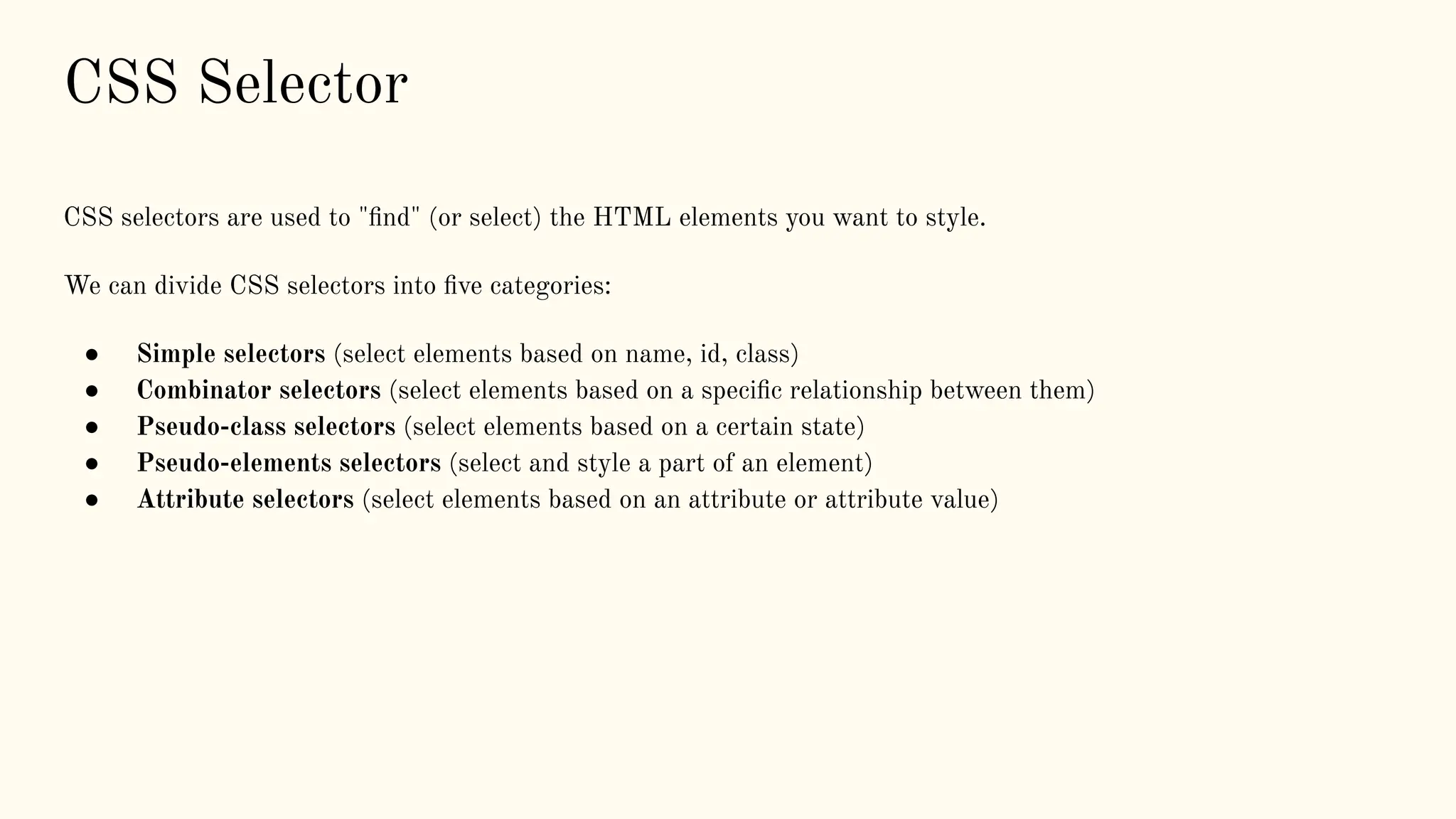
CSS selectors are used to "find" (or select) the HTML elements you want to style.
We can divide CSS selectors into five categories:
● Simple selectors (select elements based on name, id, class)
● Combinator selectors (select elements based on a specific relationship between them)
● Pseudo-class selectors (select elements based on a certain state)
● Pseudo-elements selectors (select and style a part of an element)
● Attribute selectors (select elements based on an attribute or attribute value)
CSS Comments
Comments are used to explain the code, and may help when you edit the source code at a later date.
Comments are ignored by browsers.
A CSS comment is placed inside the <style> element, and starts with /* and ends with */.
CSS Variables
Note: The variable name must begin with two dashes (--) and it is case sensitive!
:root {
--blue: #1e90ff;
--white: #ffffff;
}
body { background-color
: var(--blue); }
h2 { border-bottom: 2px solid var(--blue)
; }
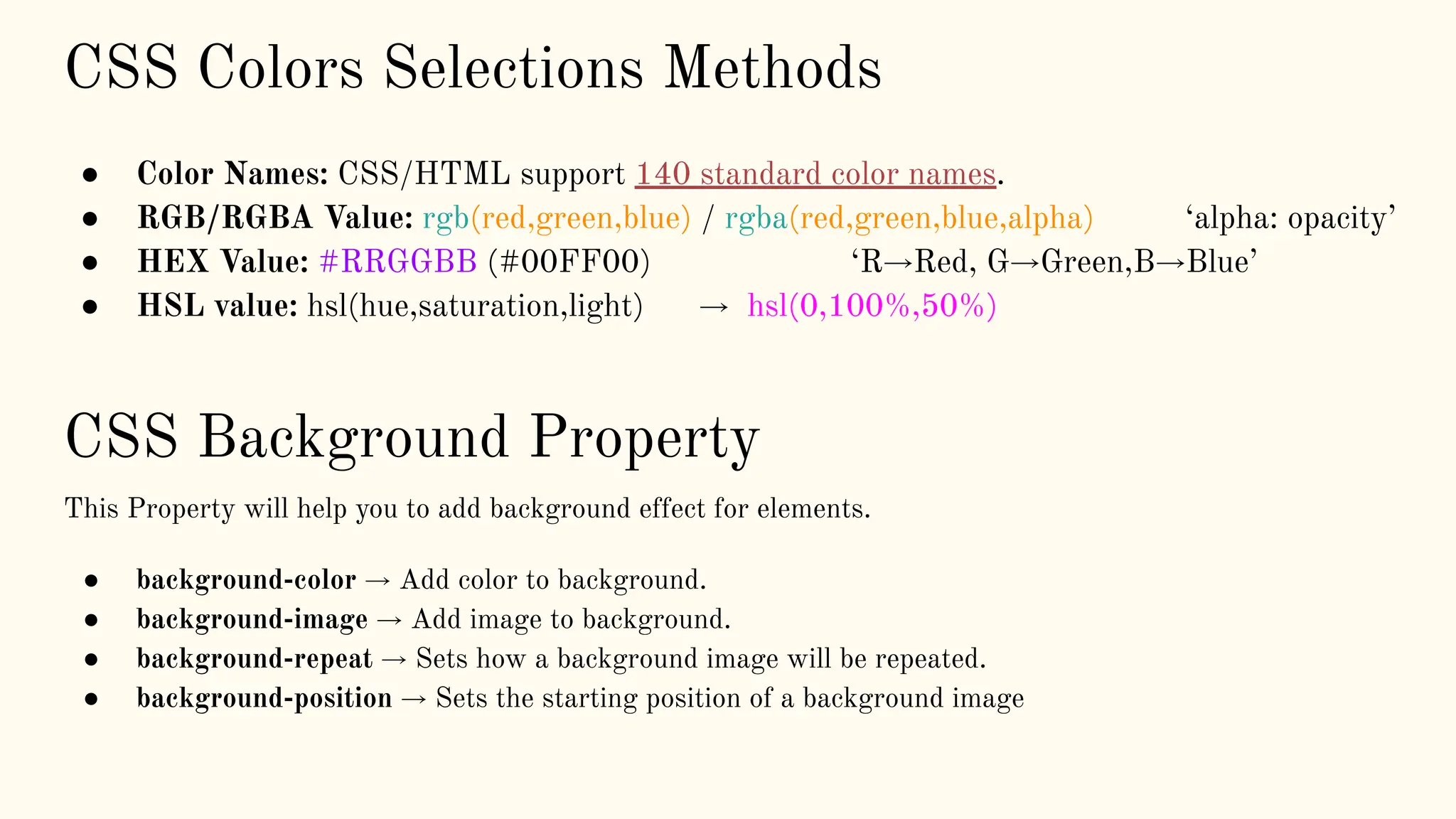
CSS Colors Selections Methods
● Color Names: CSS/HTML support 140 standard color names.
● RGB/RGBA Value: rgb(red,green,blue) / rgba(red,green,blue,alpha) ‘alpha: opacity’
● HEX Value: #RRGGBB (#00FF00) ‘R→Red, G→Green,B→Blue’
● HSL value: hsl(hue,saturation,light) → hsl(0,100%,50%)
CSS Background Property
This Property will help you to add background effect for elements.
● background-color → Add color to background.
● background-image → Add image to background.
● background-repeat → Sets how a background image will be repeated.
● background-position → Sets the starting position of a background image
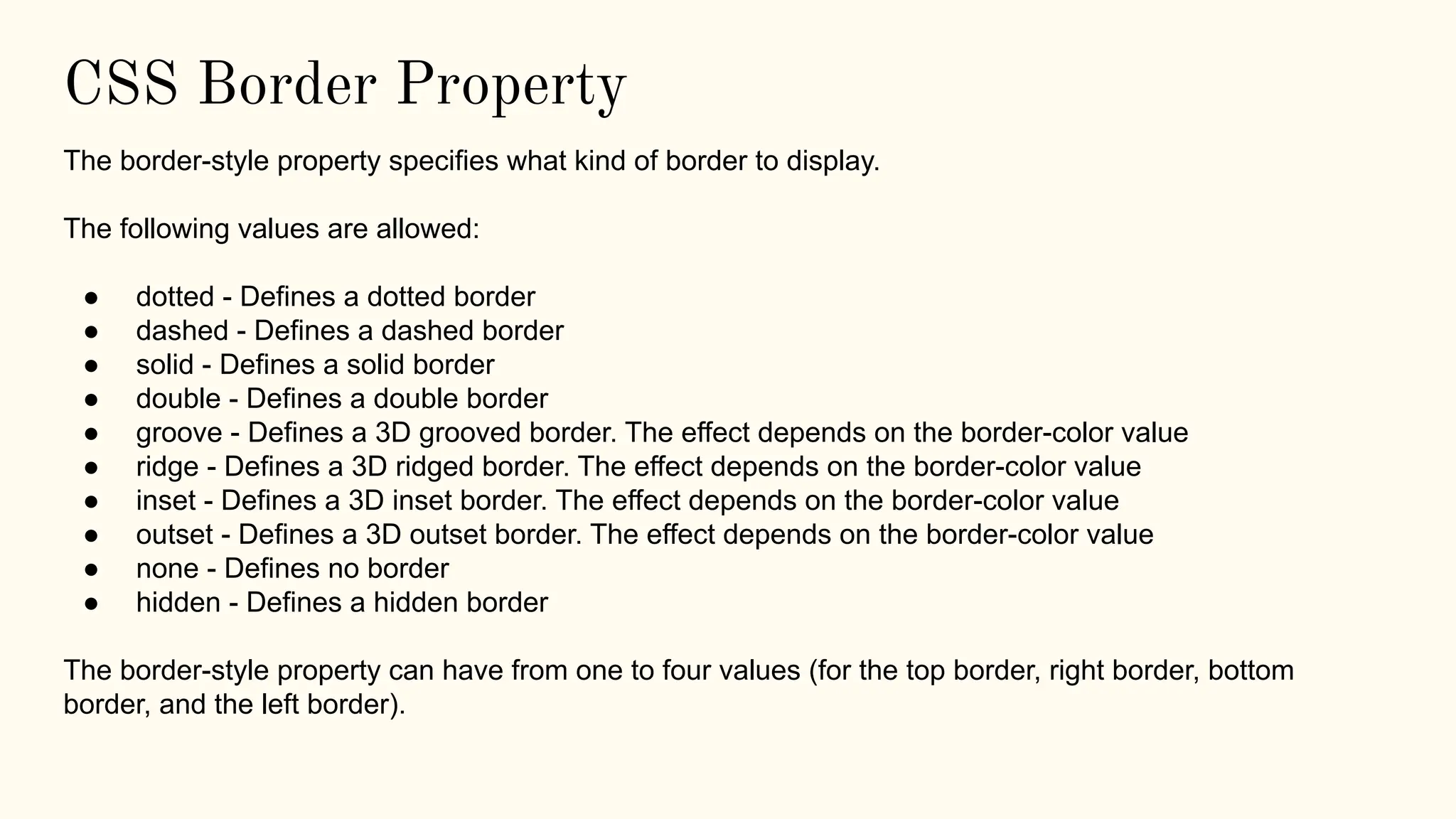
CSS Border Property
The border-style property specifies what kind of border to display.
The following values are allowed:
● dotted - Defines a dotted border
● dashed - Defines a dashed border
● solid - Defines a solid border
● double - Defines a double border
● groove - Defines a 3D grooved border. The effect depends on the border-color value
● ridge - Defines a 3D ridged border. The effect depends on the border-color value
● inset - Defines a 3D inset border. The effect depends on the border-color value
● outset - Defines a 3D outset border. The effect depends on the border-color value
● none - Defines no border
● hidden - Defines a hidden border
The border-style property can have from one to four values (for the top border, right border, bottom
border, and the left border).
CSS Box Model
All HTML elements can be considered as boxes.
The CSS box model is essentially a box that wraps around
every HTML element. It consists of: margins, borders,
padding, and the actual content. The image below illustrates
the box model:
Explanation of the different parts:
● Content - The content of the box, where text and
images appear
● Padding - Clears an area around the content. The
padding is transparent
● Border - A border that goes around the padding and
content
● Margin - Clears an area outside the border. The
margin is transparent
The box model allows us to add a border around elements,
and to define space between elements.
CSS Text Properties
Some Properties That you can use on Text:
● text-align → The text-align property is used to set the horizontal alignment of a text. A text can be left or right aligned,
centered, or justified.
● text-decoration → (Line,Color,Style,Thickness)
● text-transform → The text-transform property is used to specify uppercase and lowercase letters in a text.
● text-indent → The text-indent property is used to specify the indentation of the first line of a text:
● letter-spacing → The letter-spacing property is used to specify the space between the characters in a text.
● line-height → The line-height property is used to specify the space between lines:
● word-spacing → The word-spacing property is used to specify the space between the words in a text.
CSS Font Properties
● font-family → to specify the font of a text.
● font-style → (italic,normal,oblique)
● font-weight → to specify the weight of font.
● font-size → to sets the size of the text.
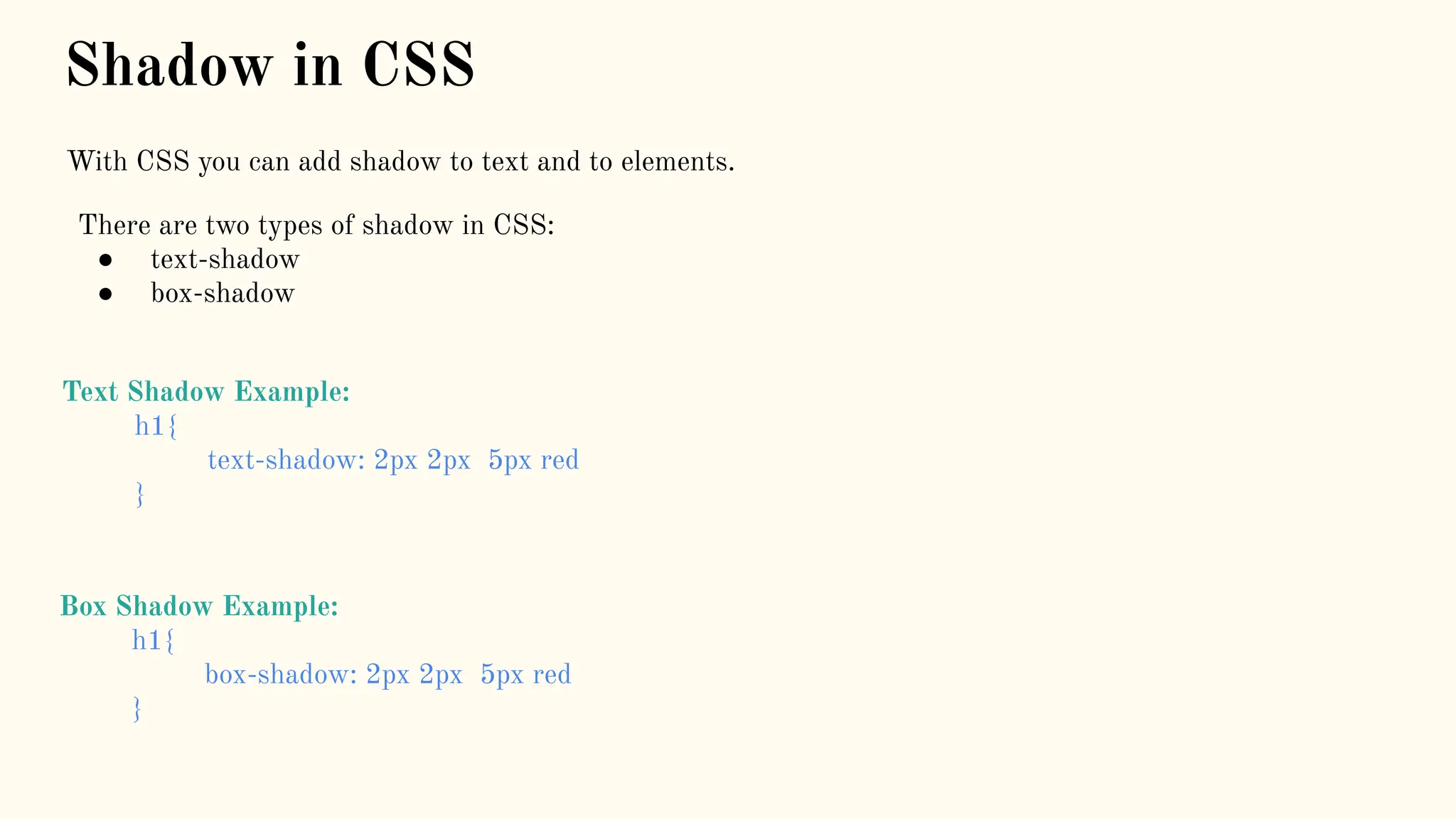
Shadow in CSS
With CSS you can add shadow to text and to elements.
There are two types of shadow in CSS:
● text-shadow
● box-shadow
Text Shadow Example:
h1{
text-shadow: 2px 2px 5px red
}
Box Shadow Example:
h1{
box-shadow: 2px 2px 5px red
}
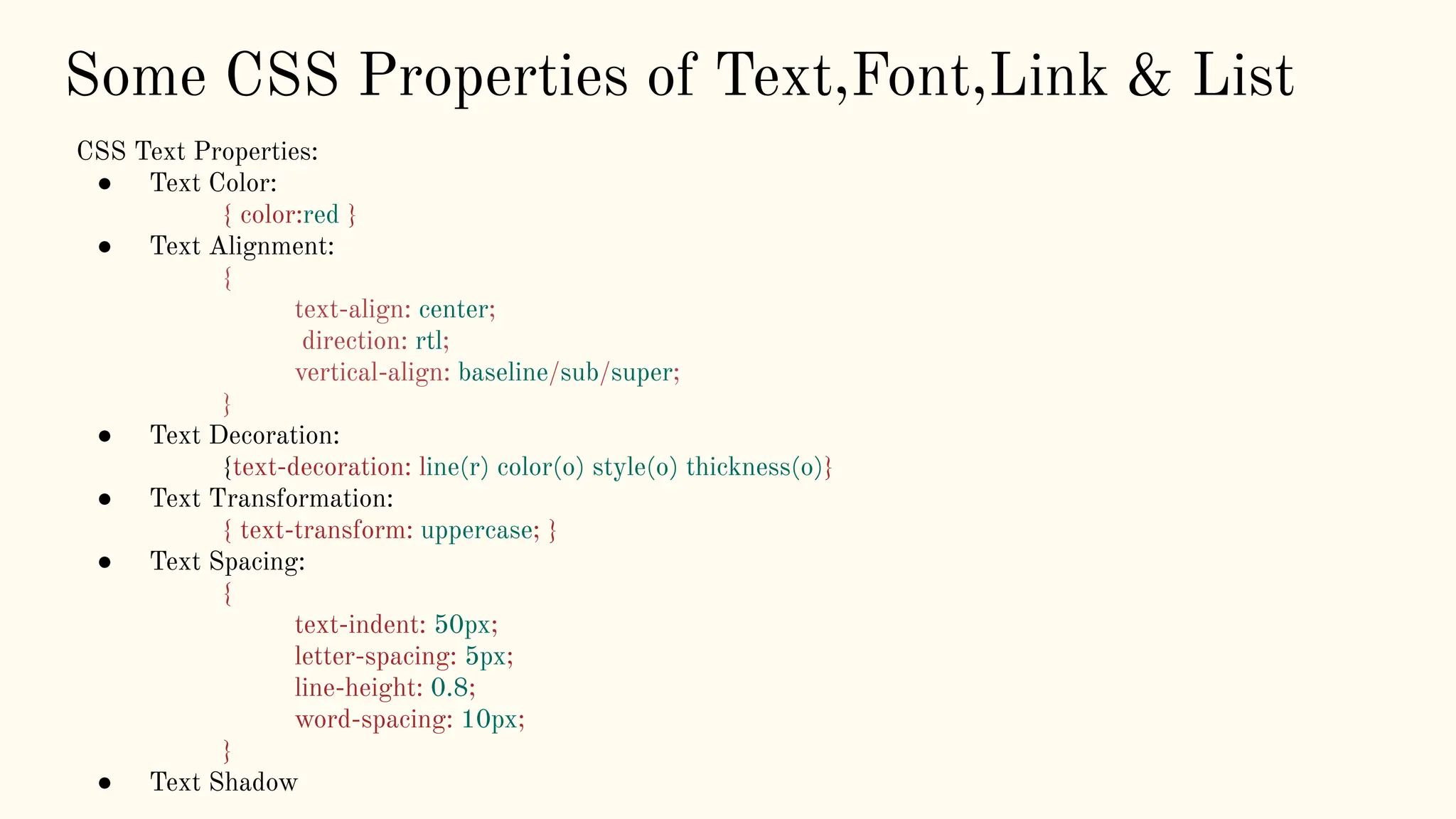
Some CSS Properties of Text,Font,Link & List
CSS Text Properties:
● Text Color:
{ color:red }
● Text Alignment:
{
text-align: center;
direction: rtl;
vertical-align: baseline/sub/super;
}
● Text Decoration:
{text-decoration: line(r) color(o) style(o) thickness(o)}
● Text Transformation:
{ text-transform: uppercase; }
● Text Spacing:
{
text-indent: 50px;
letter-spacing: 5px;
line-height: 0.8;
word-spacing: 10px;
}
● Text Shadow
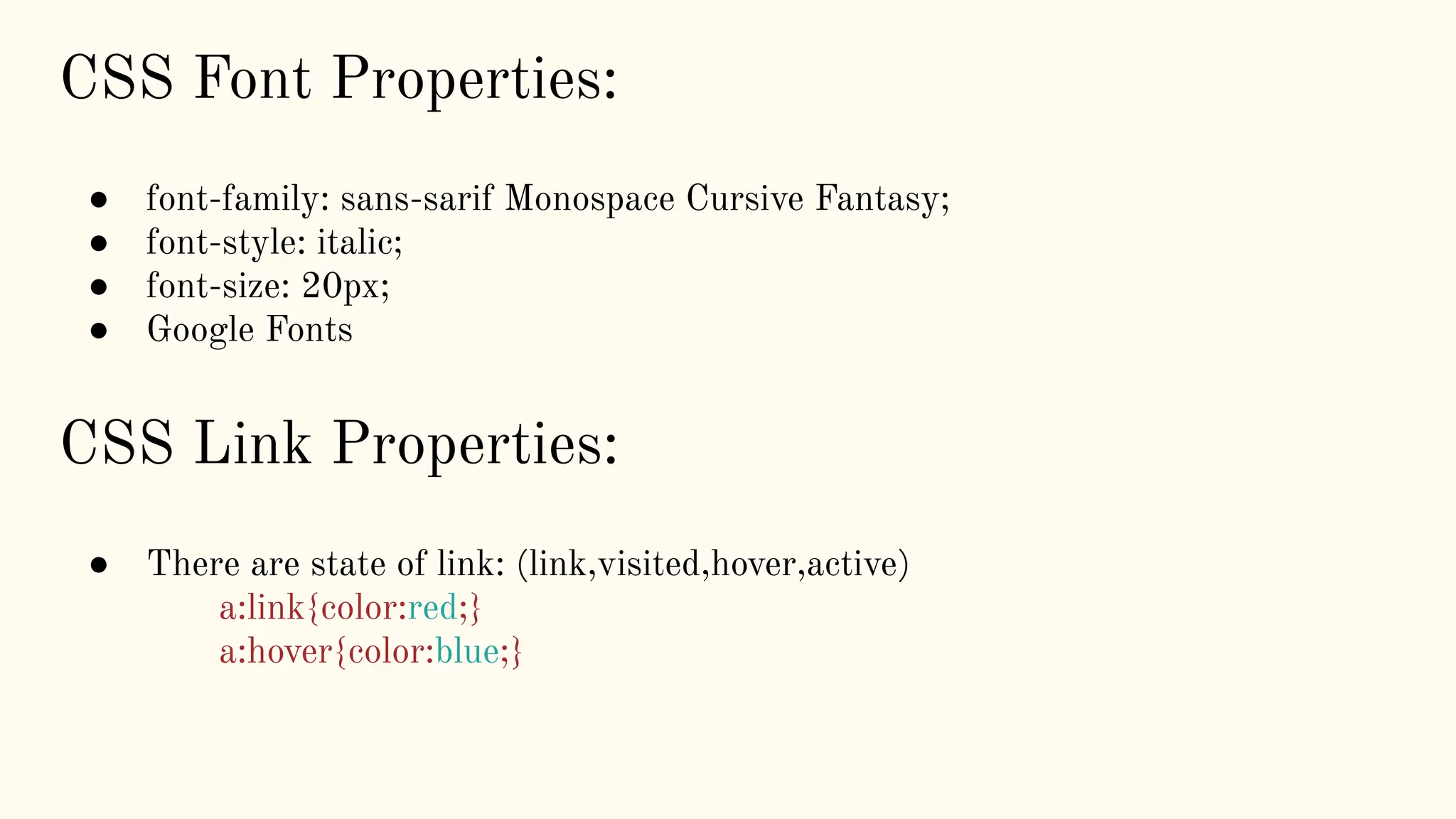
CSS Link Properties:
● There are state of link: (link,visited,hover,active)
a:link{color:red;}
a:hover{color:blue;}
CSS Font Properties:
● font-family: sans-sarif Monospace Cursive Fantasy;
● font-style: italic;
● font-size: 20px;
● Google Fonts
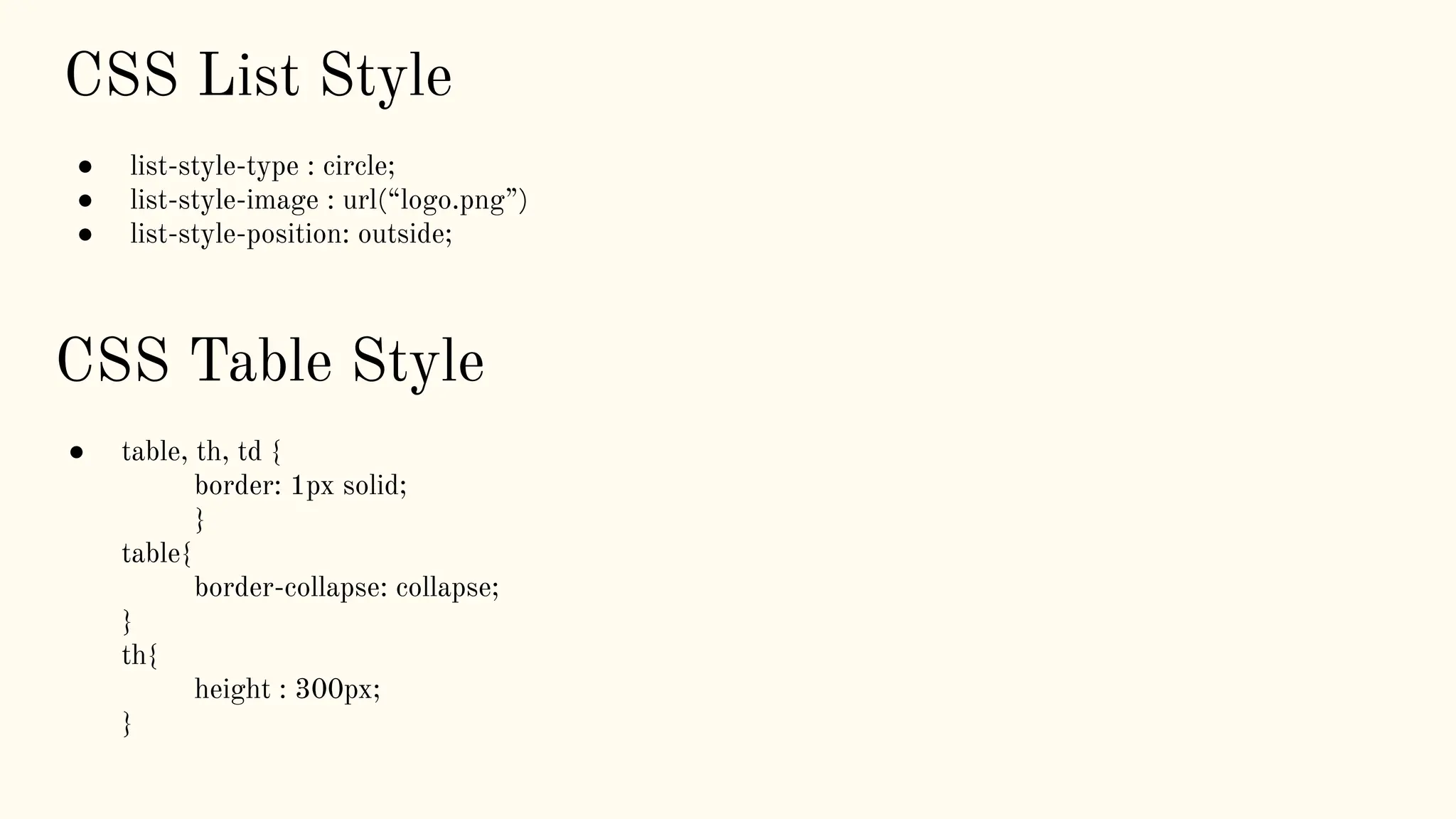
CSS List Style
● list-style-type : circle;
● list-style-image : url(“logo.png”)
● list-style-position: outside;
CSS Table Style
● table, th, td {
border: 1px solid;
}
table{
border-collapse: collapse;
}
th{
height : 300px;
}
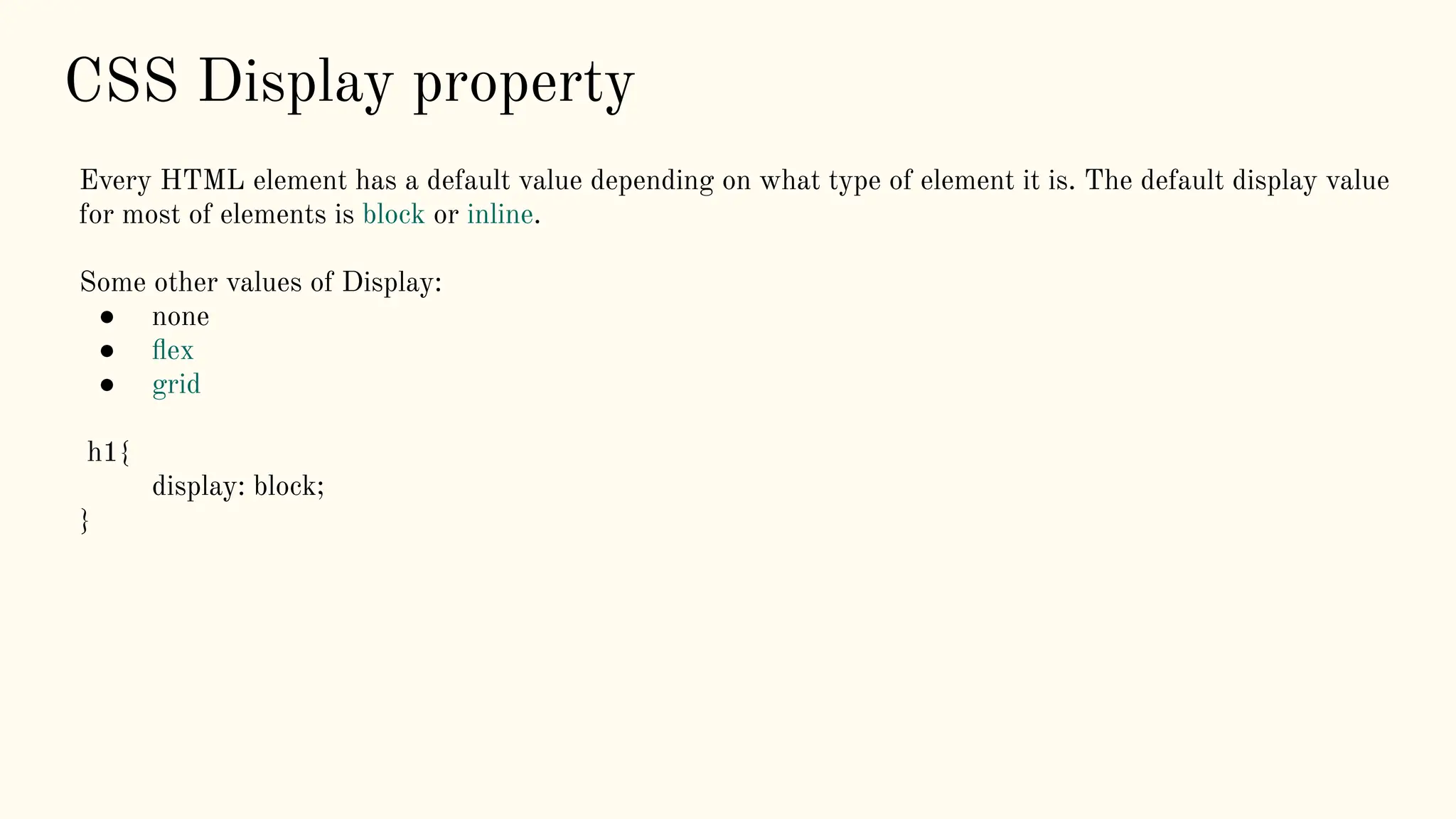
CSS Display property
Every HTML element has a default value depending on what type of element it is. The default display value
for most of elements is block or inline.
Some other values of Display:
● none
● flex
● grid
h1{
display: block;
}
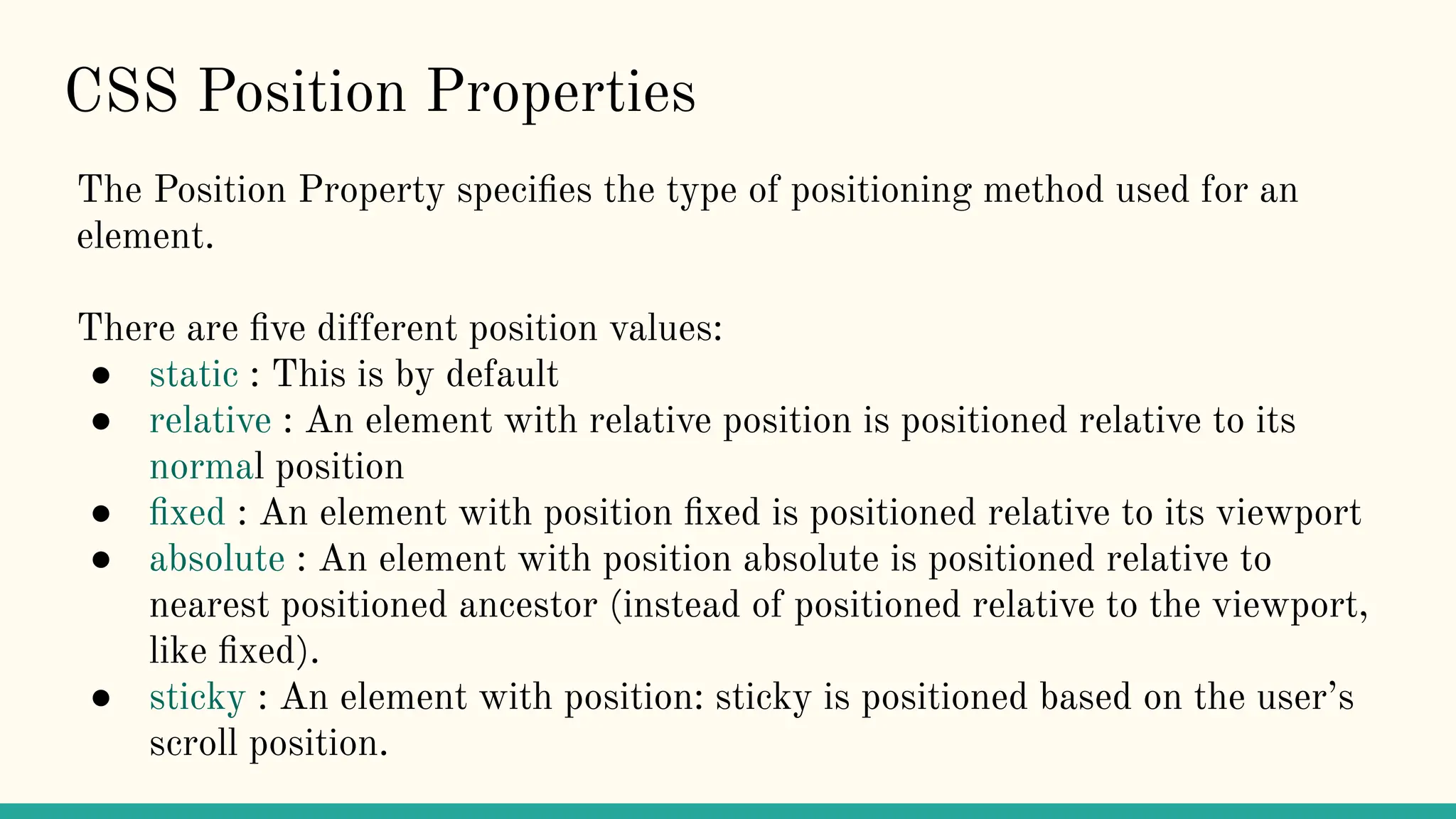
CSS Position Properties
The Position Property specifies the type of positioning method used for an
element.
There are five different position values:
● static : This is by default
● relative : An element with relative position is positioned relative to its
normal position
● fixed : An element with position fixed is positioned relative to its viewport
● absolute : An element with position absolute is positioned relative to
nearest positioned ancestor (instead of positioned relative to the viewport,
like fixed).
● sticky : An element with position: sticky is positioned based on the user’s
scroll position.
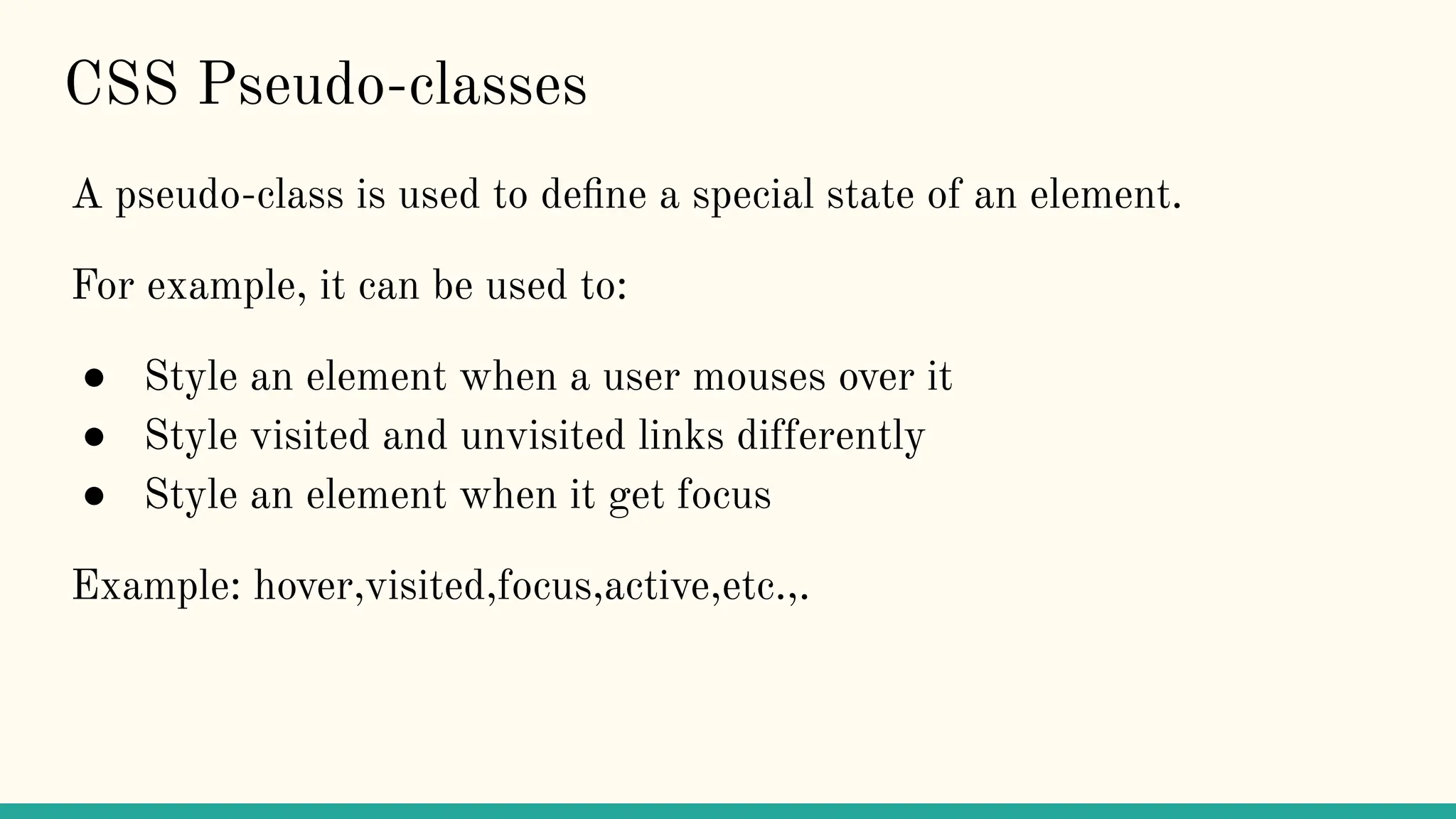
CSS Pseudo-classes
A pseudo-class is used to define a special state of an element.
For example, it can be used to:
● Style an element when a user mouses over it
● Style visited and unvisited links differently
● Style an element when it get focus
Example: hover,visited,focus,active,etc.,.
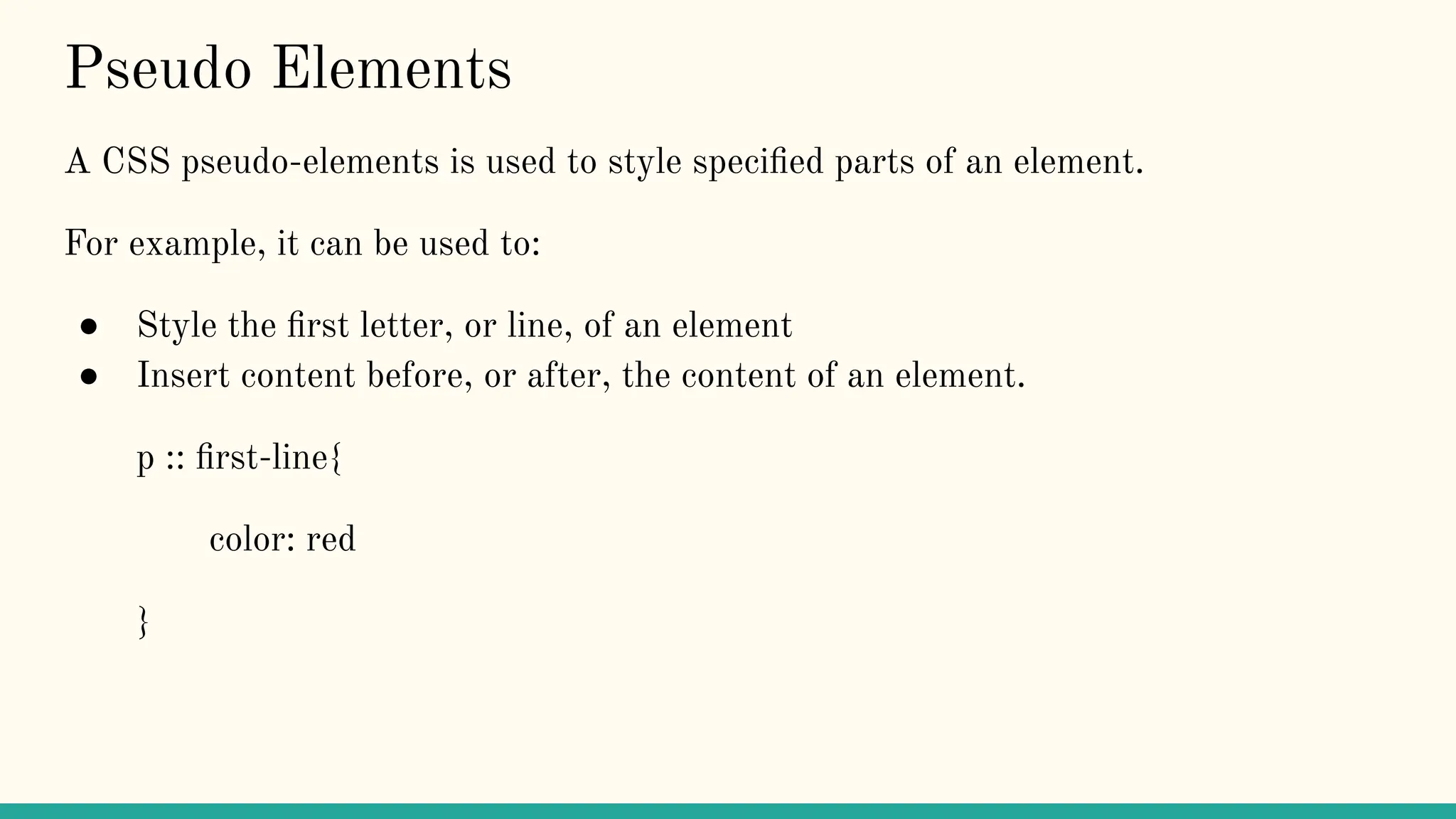
Pseudo Elements
A CSS pseudo-elements is used to style specified parts of an element.
For example, it can be used to:
● Style the first letter, or line, of an element
● Insert content before, or after, the content of an element.
p :: first-line{
color: red
}
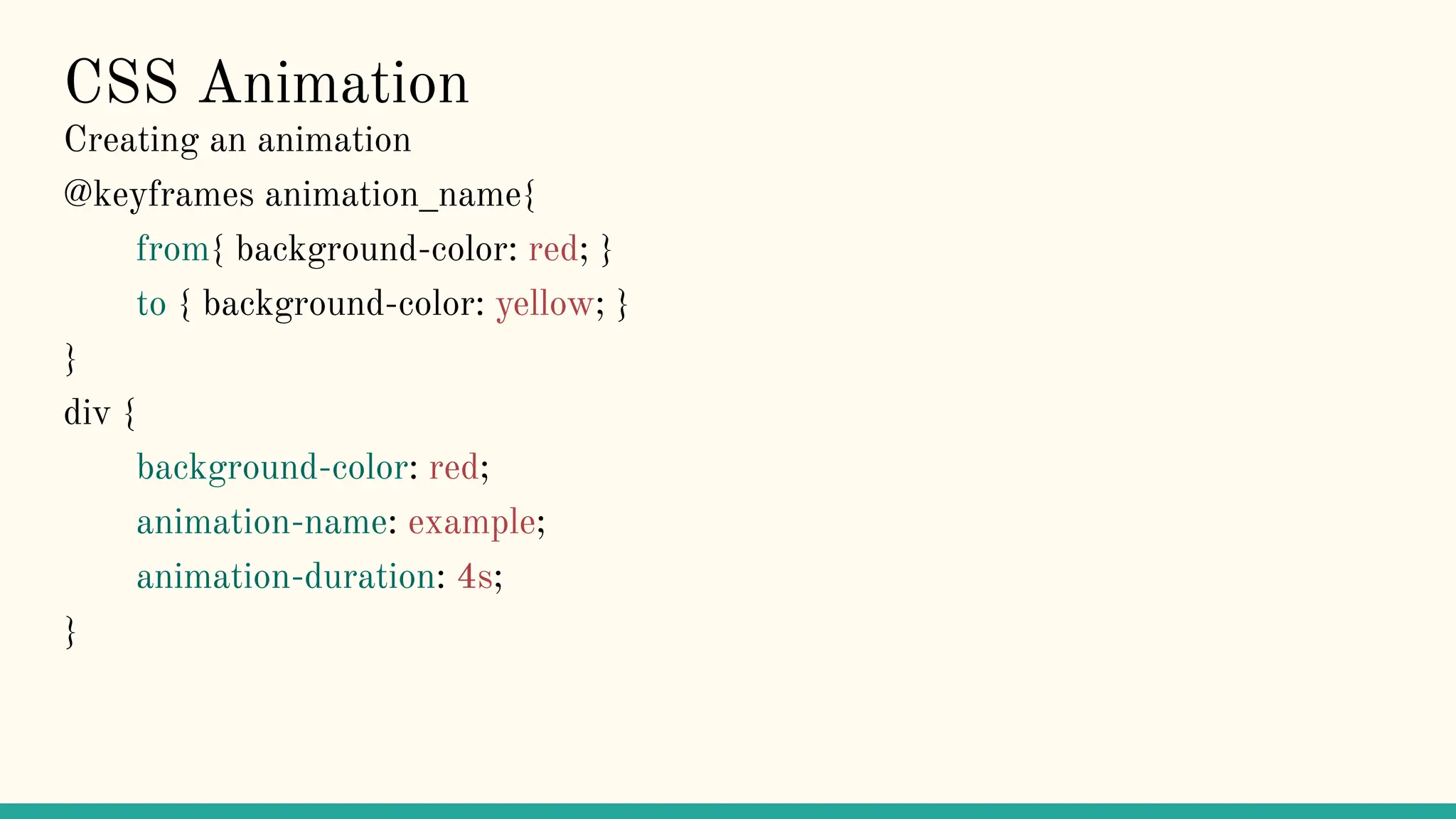
CSS Animation
Creating an animation
@keyframes animation_name{
from{ background-color: red; }
to { background-color: yellow; }
}
div {
background-color: red;
animation-name: example;
animation-duration: 4s;
}
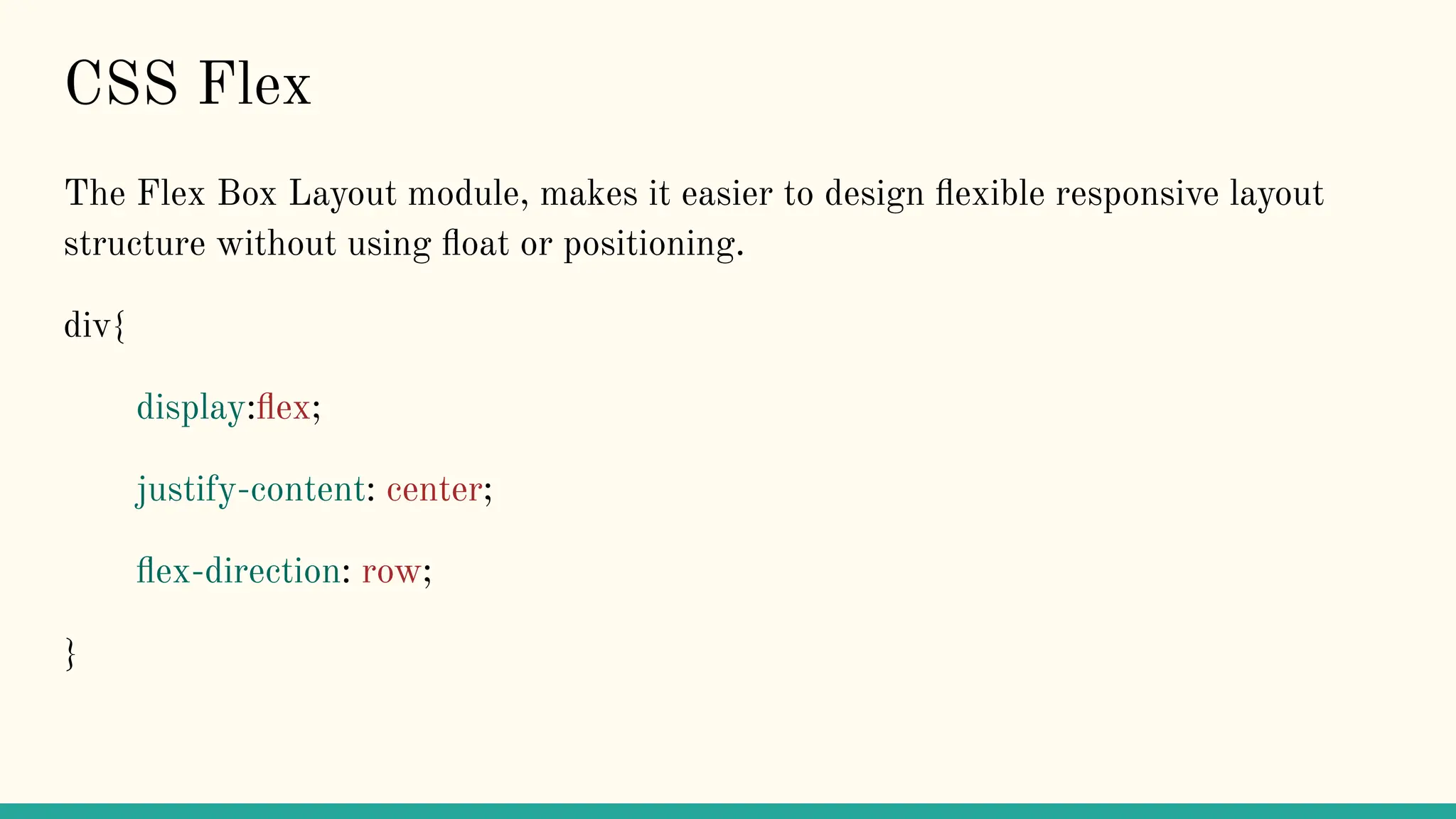
CSS Flex
The Flex Box Layout module, makes it easier to design flexible responsive layout
structure without using float or positioning.
div{
display:flex;
justify-content: center;
flex-direction: row;
}
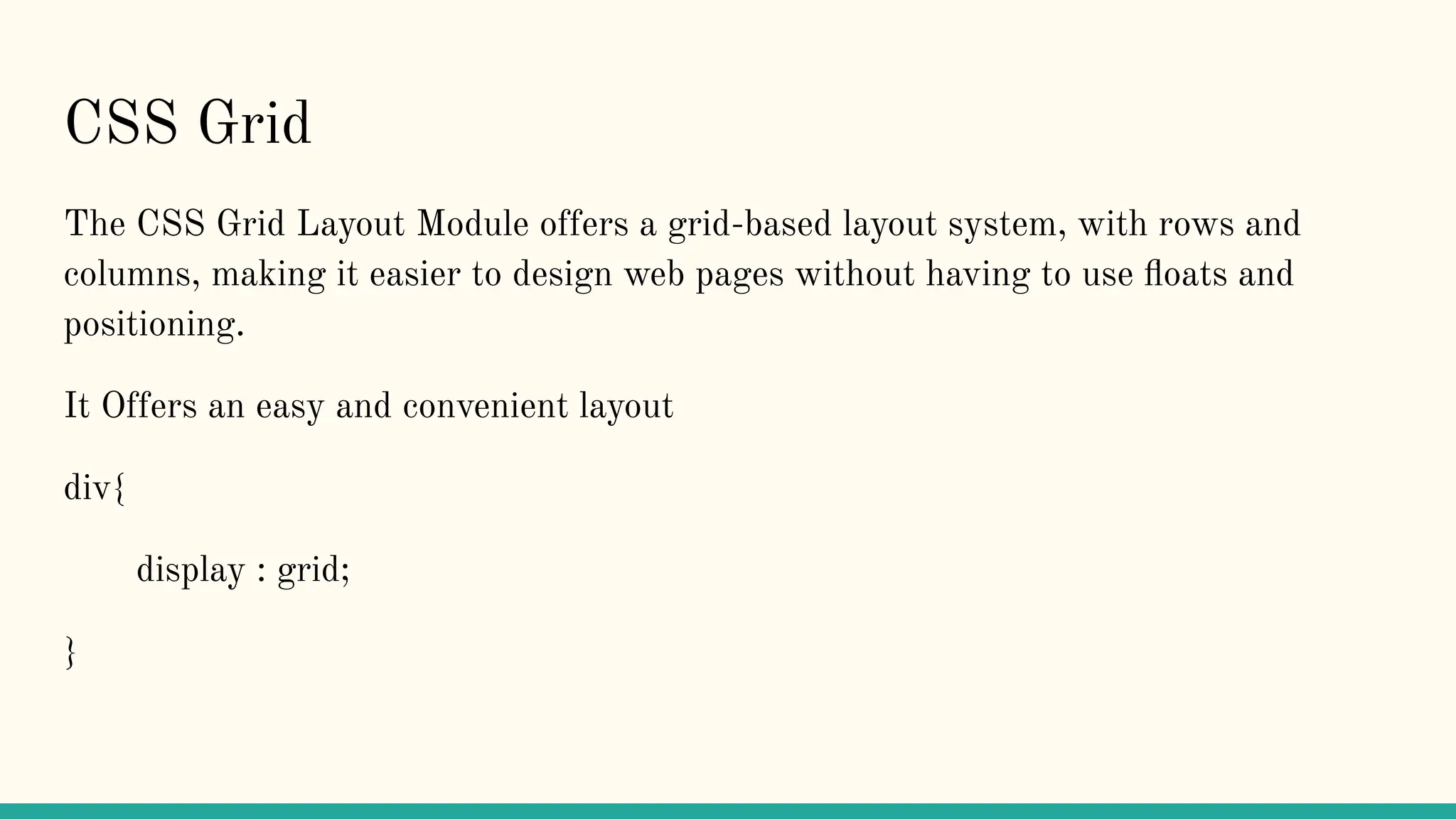
CSS Grid
The CSS Grid Layout Module offers a grid-based layout system, with rows and
columns, making it easier to design web pages without having to use floats and
positioning.
It Offers an easy and convenient layout
div{
display : grid;
}
Your Basic To Advnace level CSS is Complete
Congratulations
In Next Video We are going to make some
projects using HTML and CSS

CascadingStyleSheets in ONESHOT By DeathCodeYT .pdf

  • 1.
    CSS in OneShot By Death Code
  • 2.
    CSS - Topics Allcovered in Detail in This Video. ● What & Why CSS? ● How CSS Effect your website? ● Link CSS with HTML ● CSS Selectors & Syntax ● CSS Comments & Variables ● CSS Colors & Background ● CSS Box Model & Shadow ● CSS Text, Font, Link, List ● CSS Table, Display, Position ● Pseudo Class, Pseudo Elements & Animation ● Flex Box & Grid
  • 3.
    What is &Why CSS? 1. CSS stands for Cascading Style Sheets. It is Language to Style a web page. 2. CSS describes how HTML elements are to be displayed on screen, paper, or in other media. 3. CSS saves a lot of work. It can control the layout of multiple web pages all at once.
  • 4.
    How CSS effectyour Website? CSS animation can an incredibly effective tool when it's used well, engaging visitors to a website or app. Subtle CSS effects can improve the user experience by arresting the user's attention, creating interest and even improving ability by providing direction or by explaining something in a quick and easy way.
  • 5.
    Link CSS toHTML CSS can be added to HTML documents in 3 ways: ● Inline - by using the style attribute inside HTML elements ● Internal - by using a <style> element in the <head> section ● External - by using a <link> element to link to an external CSS file The most common way to add CSS, is to keep the styles in external CSS files. However, in this tutorial we will use inline and internal styles, because this is easier to demonstrate, and easier for you to try it yourself. CSS Syntax:
  • 6.
    CSS Selector CSS selectorsare used to "find" (or select) the HTML elements you want to style. We can divide CSS selectors into five categories: ● Simple selectors (select elements based on name, id, class) ● Combinator selectors (select elements based on a specific relationship between them) ● Pseudo-class selectors (select elements based on a certain state) ● Pseudo-elements selectors (select and style a part of an element) ● Attribute selectors (select elements based on an attribute or attribute value)
  • 7.
    CSS Comments Comments areused to explain the code, and may help when you edit the source code at a later date. Comments are ignored by browsers. A CSS comment is placed inside the <style> element, and starts with /* and ends with */. CSS Variables Note: The variable name must begin with two dashes (--) and it is case sensitive! :root { --blue: #1e90ff; --white: #ffffff; } body { background-color : var(--blue); } h2 { border-bottom: 2px solid var(--blue) ; }
  • 8.
    CSS Colors SelectionsMethods ● Color Names: CSS/HTML support 140 standard color names. ● RGB/RGBA Value: rgb(red,green,blue) / rgba(red,green,blue,alpha) ‘alpha: opacity’ ● HEX Value: #RRGGBB (#00FF00) ‘R→Red, G→Green,B→Blue’ ● HSL value: hsl(hue,saturation,light) → hsl(0,100%,50%) CSS Background Property This Property will help you to add background effect for elements. ● background-color → Add color to background. ● background-image → Add image to background. ● background-repeat → Sets how a background image will be repeated. ● background-position → Sets the starting position of a background image
  • 9.
    CSS Border Property Theborder-style property specifies what kind of border to display. The following values are allowed: ● dotted - Defines a dotted border ● dashed - Defines a dashed border ● solid - Defines a solid border ● double - Defines a double border ● groove - Defines a 3D grooved border. The effect depends on the border-color value ● ridge - Defines a 3D ridged border. The effect depends on the border-color value ● inset - Defines a 3D inset border. The effect depends on the border-color value ● outset - Defines a 3D outset border. The effect depends on the border-color value ● none - Defines no border ● hidden - Defines a hidden border The border-style property can have from one to four values (for the top border, right border, bottom border, and the left border).
  • 10.
    CSS Box Model AllHTML elements can be considered as boxes. The CSS box model is essentially a box that wraps around every HTML element. It consists of: margins, borders, padding, and the actual content. The image below illustrates the box model: Explanation of the different parts: ● Content - The content of the box, where text and images appear ● Padding - Clears an area around the content. The padding is transparent ● Border - A border that goes around the padding and content ● Margin - Clears an area outside the border. The margin is transparent The box model allows us to add a border around elements, and to define space between elements.
  • 11.
    CSS Text Properties SomeProperties That you can use on Text: ● text-align → The text-align property is used to set the horizontal alignment of a text. A text can be left or right aligned, centered, or justified. ● text-decoration → (Line,Color,Style,Thickness) ● text-transform → The text-transform property is used to specify uppercase and lowercase letters in a text. ● text-indent → The text-indent property is used to specify the indentation of the first line of a text: ● letter-spacing → The letter-spacing property is used to specify the space between the characters in a text. ● line-height → The line-height property is used to specify the space between lines: ● word-spacing → The word-spacing property is used to specify the space between the words in a text. CSS Font Properties ● font-family → to specify the font of a text. ● font-style → (italic,normal,oblique) ● font-weight → to specify the weight of font. ● font-size → to sets the size of the text.
  • 12.
    Shadow in CSS WithCSS you can add shadow to text and to elements. There are two types of shadow in CSS: ● text-shadow ● box-shadow Text Shadow Example: h1{ text-shadow: 2px 2px 5px red } Box Shadow Example: h1{ box-shadow: 2px 2px 5px red }
  • 13.
    Some CSS Propertiesof Text,Font,Link & List CSS Text Properties: ● Text Color: { color:red } ● Text Alignment: { text-align: center; direction: rtl; vertical-align: baseline/sub/super; } ● Text Decoration: {text-decoration: line(r) color(o) style(o) thickness(o)} ● Text Transformation: { text-transform: uppercase; } ● Text Spacing: { text-indent: 50px; letter-spacing: 5px; line-height: 0.8; word-spacing: 10px; } ● Text Shadow
  • 14.
    CSS Link Properties: ●There are state of link: (link,visited,hover,active) a:link{color:red;} a:hover{color:blue;} CSS Font Properties: ● font-family: sans-sarif Monospace Cursive Fantasy; ● font-style: italic; ● font-size: 20px; ● Google Fonts
  • 15.
    CSS List Style ●list-style-type : circle; ● list-style-image : url(“logo.png”) ● list-style-position: outside; CSS Table Style ● table, th, td { border: 1px solid; } table{ border-collapse: collapse; } th{ height : 300px; }
  • 16.
    CSS Display property EveryHTML element has a default value depending on what type of element it is. The default display value for most of elements is block or inline. Some other values of Display: ● none ● flex ● grid h1{ display: block; }
  • 17.
    CSS Position Properties ThePosition Property specifies the type of positioning method used for an element. There are five different position values: ● static : This is by default ● relative : An element with relative position is positioned relative to its normal position ● fixed : An element with position fixed is positioned relative to its viewport ● absolute : An element with position absolute is positioned relative to nearest positioned ancestor (instead of positioned relative to the viewport, like fixed). ● sticky : An element with position: sticky is positioned based on the user’s scroll position.
  • 18.
    CSS Pseudo-classes A pseudo-classis used to define a special state of an element. For example, it can be used to: ● Style an element when a user mouses over it ● Style visited and unvisited links differently ● Style an element when it get focus Example: hover,visited,focus,active,etc.,.
  • 19.
    Pseudo Elements A CSSpseudo-elements is used to style specified parts of an element. For example, it can be used to: ● Style the first letter, or line, of an element ● Insert content before, or after, the content of an element. p :: first-line{ color: red }
  • 20.
    CSS Animation Creating ananimation @keyframes animation_name{ from{ background-color: red; } to { background-color: yellow; } } div { background-color: red; animation-name: example; animation-duration: 4s; }
  • 21.
    CSS Flex The FlexBox Layout module, makes it easier to design flexible responsive layout structure without using float or positioning. div{ display:flex; justify-content: center; flex-direction: row; }
  • 22.
    CSS Grid The CSSGrid Layout Module offers a grid-based layout system, with rows and columns, making it easier to design web pages without having to use floats and positioning. It Offers an easy and convenient layout div{ display : grid; }
  • 24.
    Your Basic ToAdvnace level CSS is Complete Congratulations In Next Video We are going to make some projects using HTML and CSS