How CSS works
By Amit Tyagi
a.webdevninja@gmail.com
What is CSS
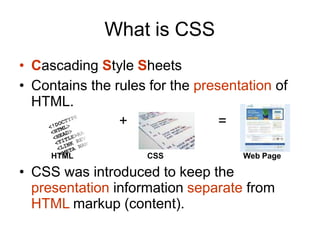
• Cascading Style Sheets
• Contains the rules for the presentation of
HTML.
+ =
HTML CSS Web Page
• CSS was introduced to keep the
presentation information separate from
HTML markup (content).
Before CSS
• Initially Designers used presentation tags like (FONT, B, BR, TABLE
etc.) and spacers GIFs to control the design of web pages.
• Any modification in the design of websites
was a very difficult and boring task , as it
evolves manually editing every HTML
page.
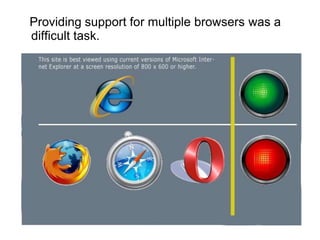
Providing support for multiple browsers was a
difficult task.
CSS – brief history
• Style sheets have existed in one form or
another since the beginnings of SGML in
the 1970s.
• In 1996, CSS level 1 Recommendation
was published in December.
• CSS level2 was published as a W3C
Recommendation on May 12, 1998
• CSS level3 is still under development.
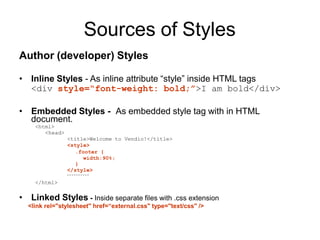
Sources of Styles
Author (developer) Styles
• Inline Styles - As inline attribute “style” inside HTML tags
<div style=“font-weight: bold;”>I am bold</div>
• Embedded Styles - As embedded style tag with in HTML
document.
<html>
<head>
<title>Welcome to Vendio!</title>
<style>
.footer {
width:90%;
}
</style>
</html>
• Linked Styles - Inside separate files with .css extension
<link rel="stylesheet" href=“external.css" type="text/css" />
Sources of Styles(contd.)
• User Style sheets
This file contains the user created styles .
[firefox profile folder]/
chrome/userContent-example.css is the
current user’s style sheet file for the
firefox.
• Browser default style sheet
This file contains default styles for all users of a
browser
[firefox folder]/res/html.css is the
default style sheet file for the firefox.
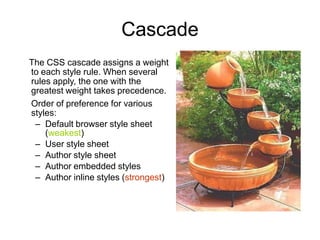
Cascade
The CSS cascade assigns a weight
to each style rule. When several
rules apply, the one with the
greatest weight takes precedence.
Order of preference for various
styles:
– Default browser style sheet
(weakest)
– User style sheet
– Author style sheet
– Author embedded styles
– Author inline styles (strongest)
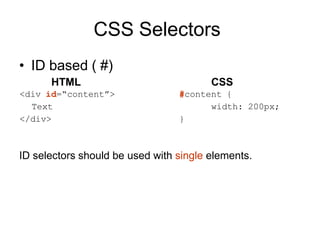
CSS Selectors
• ID based ( #)
HTML
<div id=“content”>
Text
</div>
CSS
#content {
width: 200px;
}
ID selectors should be used with single elements.
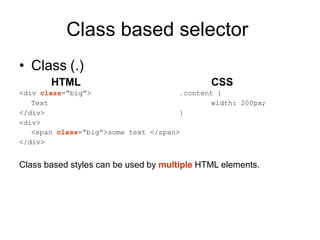
Class based selector
• Class (.)
HTML
<div class=“big”>
Text
</div>
<div>
CSS
.content {
width: 200px;
}
<span class=“big”>some text </span>
</div>
Class based styles can be used by multiple HTML elements.
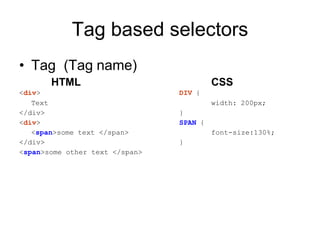
Tag based selectors
• Tag (Tag name)
HTML CSS
<div> DIV {
Text width: 200px;
</div> }
<div> SPAN {
<span>some text </span> font-size:130%;
</div> }
<span>some other text </span>
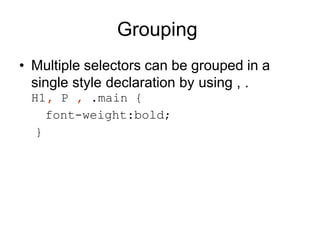
Grouping
• Multiple selectors can be grouped in a
single style declaration by using , .
H1, P , .main {
font-weight:bold;
}
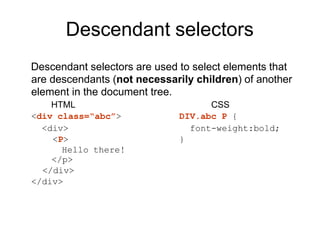
Descendant selectors
Descendant selectors are used to select elements that
are descendants (not necessarily children) of another
element in the document tree.
CSS
DIV.abc P {
font-weight:bold;
}
HTML
<div class=“abc”>
<div>
<P>
Hello there!
</p>
</div>
</div>
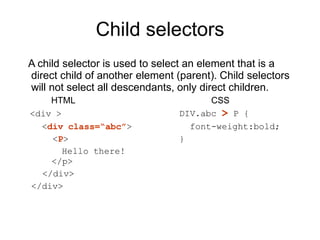
Child selectors
A child selector is used to select an element that is a
direct child of another element (parent). Child selectors
will not select all descendants, only direct children.
CSS
DIV.abc > P {
font-weight:bold;
}
HTML
<div >
<div class=“abc”>
<P>
Hello there!
</p>
</div>
</div>
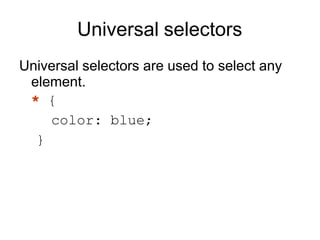
Universal selectors
Universal selectors are used to select any
element.
* {
color: blue;
}
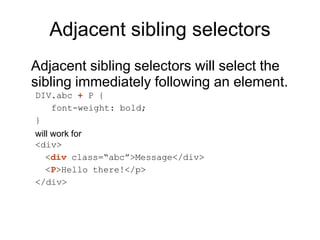
Adjacent sibling selectors
Adjacent sibling selectors will select the
sibling immediately following an element.
DIV.abc + P {
font-weight: bold;
}
will work for
<div>
<div class=“abc”>Message</div>
<P>Hello there!</p>
</div>
Attribute selectors
Attribute selectors selects elements based
upon the attributes present in the HTML
Tags and their value.
IMG[src="small.gif"] {
border: 1px solid #000;
}
will work for
<img src=“small.gif” />
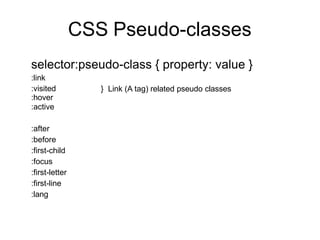
CSS Pseudo-classes
selector:pseudo-class { property: value }
:link
:visited
:hover
:active
} Link (A tag) related pseudo classes
:after
:before
:first-child
:focus
:first-letter
:first-line
:lang
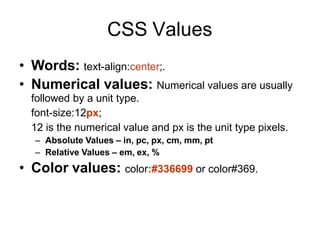
CSS Values
• Words: text-align:center;.
• Numerical values: Numerical values are usually
followed by a unit type.
font-size:12px;
12 is the numerical value and px is the unit type pixels.
– Absolute Values – in, pc, px, cm, mm, pt
– Relative Values – em, ex, %
• Color values: color:#336699 or color#369.
Categories of CSS properties
• Positioning and layout handling related.
• Background related properties.
• Font and text related
• Links related.
• Lists related.
• Table related.
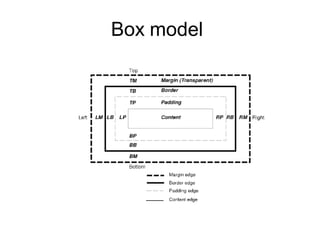
Box model
The Display Property
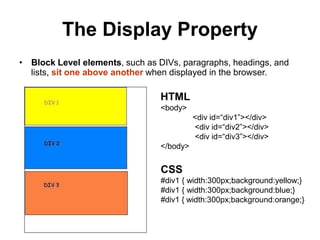
• Block Level elements, such as DIVs, paragraphs, headings, and
lists, sit one above another when displayed in the browser.
HTML
<body>
<div id=“div1”></div>
<div id=“div2”></div>
<div id=“div3”></div>
</body>
CSS
#div1 { width:300px;background:yellow;}
#div1 { width:300px;background:blue;}
#div1 { width:300px;background:orange;}
Inline Elements
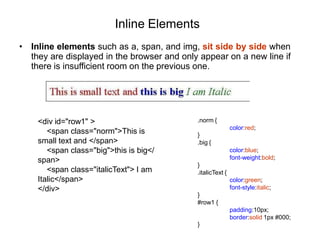
• Inline elements such as a, span, and img, sit side by side when
they are displayed in the browser and only appear on a new line if
there is insufficient room on the previous one.
<div id="row1" >
<span class="norm">This is
small text and </span>
<span class="big">this is big</
span>
<span class="italicText"> I am
Italic</span>
</div>
.norm {
color:red;
}
.big {
color:blue;
font-weight:bold;
}
.italicText {
color:green;
font-style:italic;
}
#row1 {
padding:10px;
border:solid 1px #000;
}
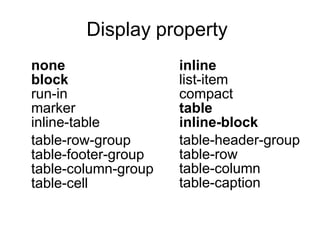
Display property
none
block
run-in
marker
inline-table
table-row-group
table-footer-group
table-column-group
table-cell
inline
list-item
compact
table
inline-block
table-header-group
table-row
table-column
table-caption
Visibility
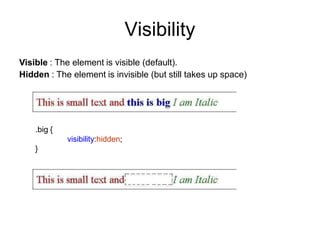
Visible : The element is visible (default).
Hidden : The element is invisible (but still takes up space)
.big {
visibility:hidden;
}
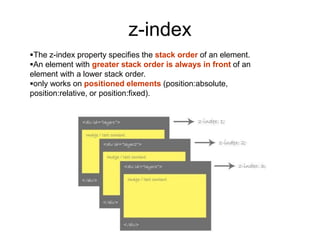
z-index
The z-index property specifies the stack order of an element.
An element with greater stack order is always in front of an
element with a lower stack order.
only works on positioned elements (position:absolute,
position:relative, or position:fixed).
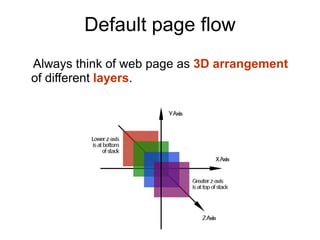
Default page flow
Always think of web page as 3D arrangement
of different layers.
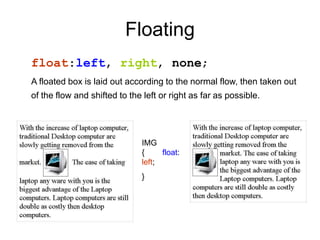
Floating
float:left, right, none;
A floated box is laid out according to the normal flow, then taken out
of the flow and shifted to the left or right as far as possible.
IMG
{
left;
}
float:
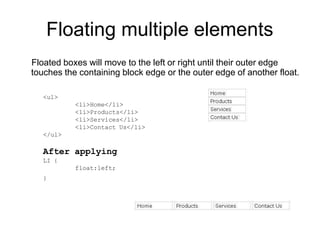
Floating multiple elements
Floated boxes will move to the left or right until their outer edge
touches the containing block edge or the outer edge of another float.
<ul>
<li>Home</li>
<li>Products</li>
<li>Services</li>
<li>Contact Us</li>
</ul>
After applying
LI {
float:left;
}
Clearing Floats
Clear:both ;
Or
<style type="text/css">
.clearfix:after {
content: "."; display: block; height: 0; clear: both; visibility: hidden; }
.clearfix {display: inline-block;} /* for IE/Mac */
</style>
<!--[if IE]><style type="text/css">
.clearfix { zoom: 1; display: block; }
</style> <![endif]-->
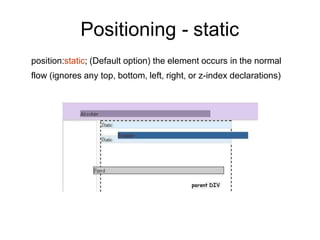
Positioning - static
position:static; (Default option) the element occurs in the normal
flow (ignores any top, bottom, left, right, or z-index declarations)
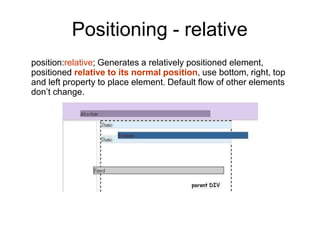
Positioning - relative
position:relative; Generates a relatively positioned element,
positioned relative to its normal position, use bottom, right, top
and left property to place element. Default flow of other elements
don’t change.
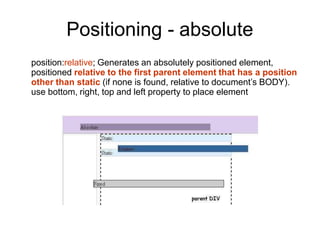
Positioning - absolute
position:relative; Generates an absolutely positioned element,
positioned relative to the first parent element that has a position
other than static (if none is found, relative to document’s BODY).
use bottom, right, top and left property to place element
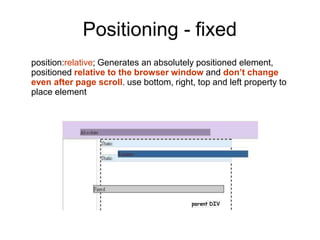
Positioning - fixed
position:relative; Generates an absolutely positioned element,
positioned relative to the browser window and don’t change
even after page scroll. use bottom, right, top and left property to
place element
Inheritance
• Styles that relate to text and appearance
are inherited by the descendant
elements.
• Styles that relate to the appearance of
boxes created by styling DIVs,
paragraphs, and other elements, such as
borders, padding, margins are not
inherited.
Refrences
• www.w3schools.com
• www.w3.org
• World wide web

Howcssworks 100207024009-phpapp01

  • 1.
    How CSS works ByAmit Tyagi a.webdevninja@gmail.com
  • 2.
    What is CSS •Cascading Style Sheets • Contains the rules for the presentation of HTML. + = HTML CSS Web Page • CSS was introduced to keep the presentation information separate from HTML markup (content).
  • 3.
    Before CSS • InitiallyDesigners used presentation tags like (FONT, B, BR, TABLE etc.) and spacers GIFs to control the design of web pages.
  • 4.
    • Any modificationin the design of websites was a very difficult and boring task , as it evolves manually editing every HTML page.
  • 5.
    Providing support formultiple browsers was a difficult task.
  • 6.
    CSS – briefhistory • Style sheets have existed in one form or another since the beginnings of SGML in the 1970s. • In 1996, CSS level 1 Recommendation was published in December. • CSS level2 was published as a W3C Recommendation on May 12, 1998 • CSS level3 is still under development.
  • 7.
    Sources of Styles Author(developer) Styles • Inline Styles - As inline attribute “style” inside HTML tags <div style=“font-weight: bold;”>I am bold</div> • Embedded Styles - As embedded style tag with in HTML document. <html> <head> <title>Welcome to Vendio!</title> <style> .footer { width:90%; } </style> </html> • Linked Styles - Inside separate files with .css extension <link rel="stylesheet" href=“external.css" type="text/css" />
  • 8.
    Sources of Styles(contd.) •User Style sheets This file contains the user created styles . [firefox profile folder]/ chrome/userContent-example.css is the current user’s style sheet file for the firefox. • Browser default style sheet This file contains default styles for all users of a browser [firefox folder]/res/html.css is the default style sheet file for the firefox.
  • 9.
    Cascade The CSS cascadeassigns a weight to each style rule. When several rules apply, the one with the greatest weight takes precedence. Order of preference for various styles: – Default browser style sheet (weakest) – User style sheet – Author style sheet – Author embedded styles – Author inline styles (strongest)
  • 10.
    CSS Selectors • IDbased ( #) HTML <div id=“content”> Text </div> CSS #content { width: 200px; } ID selectors should be used with single elements.
  • 11.
    Class based selector •Class (.) HTML <div class=“big”> Text </div> <div> CSS .content { width: 200px; } <span class=“big”>some text </span> </div> Class based styles can be used by multiple HTML elements.
  • 12.
    Tag based selectors •Tag (Tag name) HTML CSS <div> DIV { Text width: 200px; </div> } <div> SPAN { <span>some text </span> font-size:130%; </div> } <span>some other text </span>
  • 13.
    Grouping • Multiple selectorscan be grouped in a single style declaration by using , . H1, P , .main { font-weight:bold; }
  • 14.
    Descendant selectors Descendant selectorsare used to select elements that are descendants (not necessarily children) of another element in the document tree. CSS DIV.abc P { font-weight:bold; } HTML <div class=“abc”> <div> <P> Hello there! </p> </div> </div>
  • 15.
    Child selectors A childselector is used to select an element that is a direct child of another element (parent). Child selectors will not select all descendants, only direct children. CSS DIV.abc > P { font-weight:bold; } HTML <div > <div class=“abc”> <P> Hello there! </p> </div> </div>
  • 16.
    Universal selectors Universal selectorsare used to select any element. * { color: blue; }
  • 17.
    Adjacent sibling selectors Adjacentsibling selectors will select the sibling immediately following an element. DIV.abc + P { font-weight: bold; } will work for <div> <div class=“abc”>Message</div> <P>Hello there!</p> </div>
  • 18.
    Attribute selectors Attribute selectorsselects elements based upon the attributes present in the HTML Tags and their value. IMG[src="small.gif"] { border: 1px solid #000; } will work for <img src=“small.gif” />
  • 19.
    CSS Pseudo-classes selector:pseudo-class {property: value } :link :visited :hover :active } Link (A tag) related pseudo classes :after :before :first-child :focus :first-letter :first-line :lang
  • 20.
    CSS Values • Words:text-align:center;. • Numerical values: Numerical values are usually followed by a unit type. font-size:12px; 12 is the numerical value and px is the unit type pixels. – Absolute Values – in, pc, px, cm, mm, pt – Relative Values – em, ex, % • Color values: color:#336699 or color#369.
  • 21.
    Categories of CSSproperties • Positioning and layout handling related. • Background related properties. • Font and text related • Links related. • Lists related. • Table related.
  • 22.
  • 23.
    The Display Property •Block Level elements, such as DIVs, paragraphs, headings, and lists, sit one above another when displayed in the browser. HTML <body> <div id=“div1”></div> <div id=“div2”></div> <div id=“div3”></div> </body> CSS #div1 { width:300px;background:yellow;} #div1 { width:300px;background:blue;} #div1 { width:300px;background:orange;}
  • 24.
    Inline Elements • Inlineelements such as a, span, and img, sit side by side when they are displayed in the browser and only appear on a new line if there is insufficient room on the previous one. <div id="row1" > <span class="norm">This is small text and </span> <span class="big">this is big</ span> <span class="italicText"> I am Italic</span> </div> .norm { color:red; } .big { color:blue; font-weight:bold; } .italicText { color:green; font-style:italic; } #row1 { padding:10px; border:solid 1px #000; }
  • 25.
  • 26.
    Visibility Visible : Theelement is visible (default). Hidden : The element is invisible (but still takes up space) .big { visibility:hidden; }
  • 27.
    z-index The z-index propertyspecifies the stack order of an element. An element with greater stack order is always in front of an element with a lower stack order. only works on positioned elements (position:absolute, position:relative, or position:fixed).
  • 28.
    Default page flow Alwaysthink of web page as 3D arrangement of different layers.
  • 29.
    Floating float:left, right, none; Afloated box is laid out according to the normal flow, then taken out of the flow and shifted to the left or right as far as possible. IMG { left; } float:
  • 30.
    Floating multiple elements Floatedboxes will move to the left or right until their outer edge touches the containing block edge or the outer edge of another float. <ul> <li>Home</li> <li>Products</li> <li>Services</li> <li>Contact Us</li> </ul> After applying LI { float:left; }
  • 31.
    Clearing Floats Clear:both ; Or <styletype="text/css"> .clearfix:after { content: "."; display: block; height: 0; clear: both; visibility: hidden; } .clearfix {display: inline-block;} /* for IE/Mac */ </style> <!--[if IE]><style type="text/css"> .clearfix { zoom: 1; display: block; } </style> <![endif]-->
  • 32.
    Positioning - static position:static;(Default option) the element occurs in the normal flow (ignores any top, bottom, left, right, or z-index declarations)
  • 33.
    Positioning - relative position:relative;Generates a relatively positioned element, positioned relative to its normal position, use bottom, right, top and left property to place element. Default flow of other elements don’t change.
  • 34.
    Positioning - absolute position:relative;Generates an absolutely positioned element, positioned relative to the first parent element that has a position other than static (if none is found, relative to document’s BODY). use bottom, right, top and left property to place element
  • 35.
    Positioning - fixed position:relative;Generates an absolutely positioned element, positioned relative to the browser window and don’t change even after page scroll. use bottom, right, top and left property to place element
  • 36.
    Inheritance • Styles thatrelate to text and appearance are inherited by the descendant elements. • Styles that relate to the appearance of boxes created by styling DIVs, paragraphs, and other elements, such as borders, padding, margins are not inherited.
  • 38.