Mastering Figma: A
Powerful Tool for UI/UX
Designers
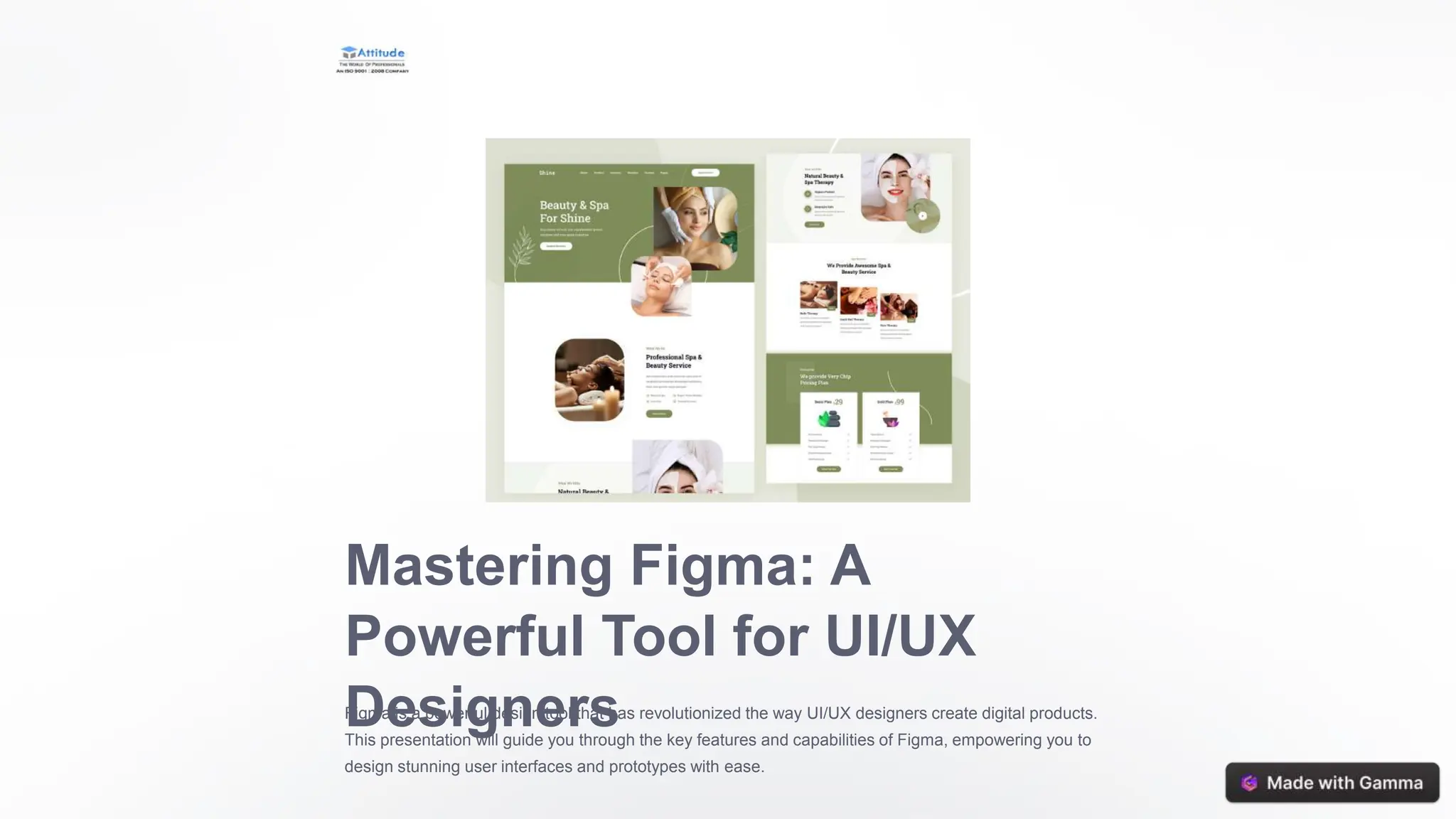
Figma is a powerful design tool that has revolutionized the way UI/UX designers create digital products.
This presentation will guide you through the key features and capabilities of Figma, empowering you to
design stunning user interfaces and prototypes with ease.
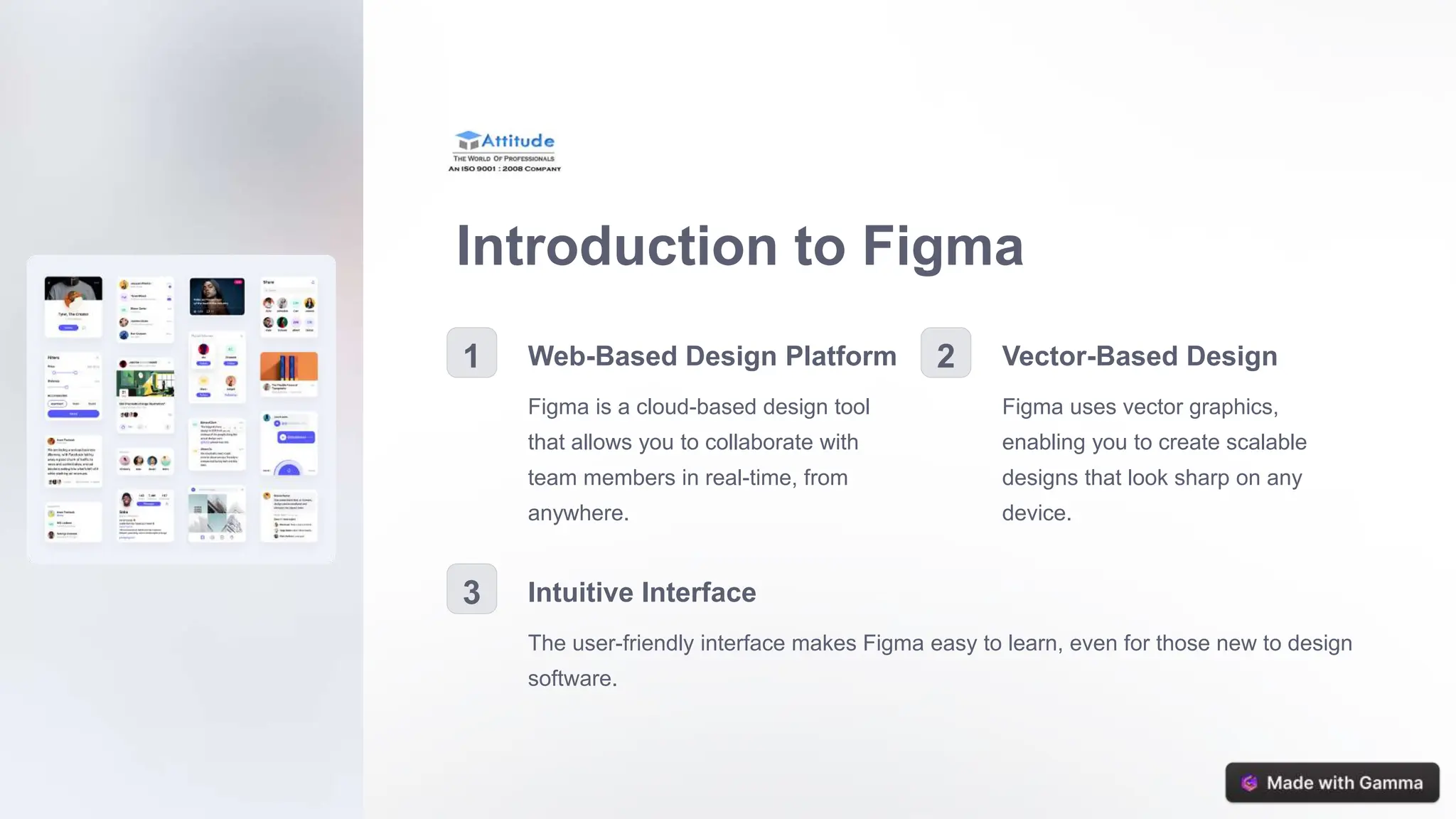
Introduction to Figma
1 Web-Based Design Platform
Figma is a cloud-based design tool
that allows you to collaborate with
team members in real-time, from
anywhere.
2 Vector-Based Design
Figma uses vector graphics,
enabling you to create scalable
designs that look sharp on any
device.
3 Intuitive Interface
The user-friendly interface makes Figma easy to learn, even for those new to design
software.
Key Features and Capabilities
Vector Editing
Precise control over shapes,
paths, and typography for
creating high-quality designs.
Real-Time
Collaboration
Seamless teamwork with
simultaneous editing and
commenting features.
Responsive Design
Automatically adjust layouts
to work across different
screen sizes and devices.
Designing User Interfaces
Component-Based
Design
Build reusable design
components to ensure
consistency and efficiency.
Grids and Layouts
Utilize powerful layout tools
to create well-structured
and visually appealing
interfaces.
Design Systems
Establish a cohesive brand
identity by developing a
comprehensive design
system.
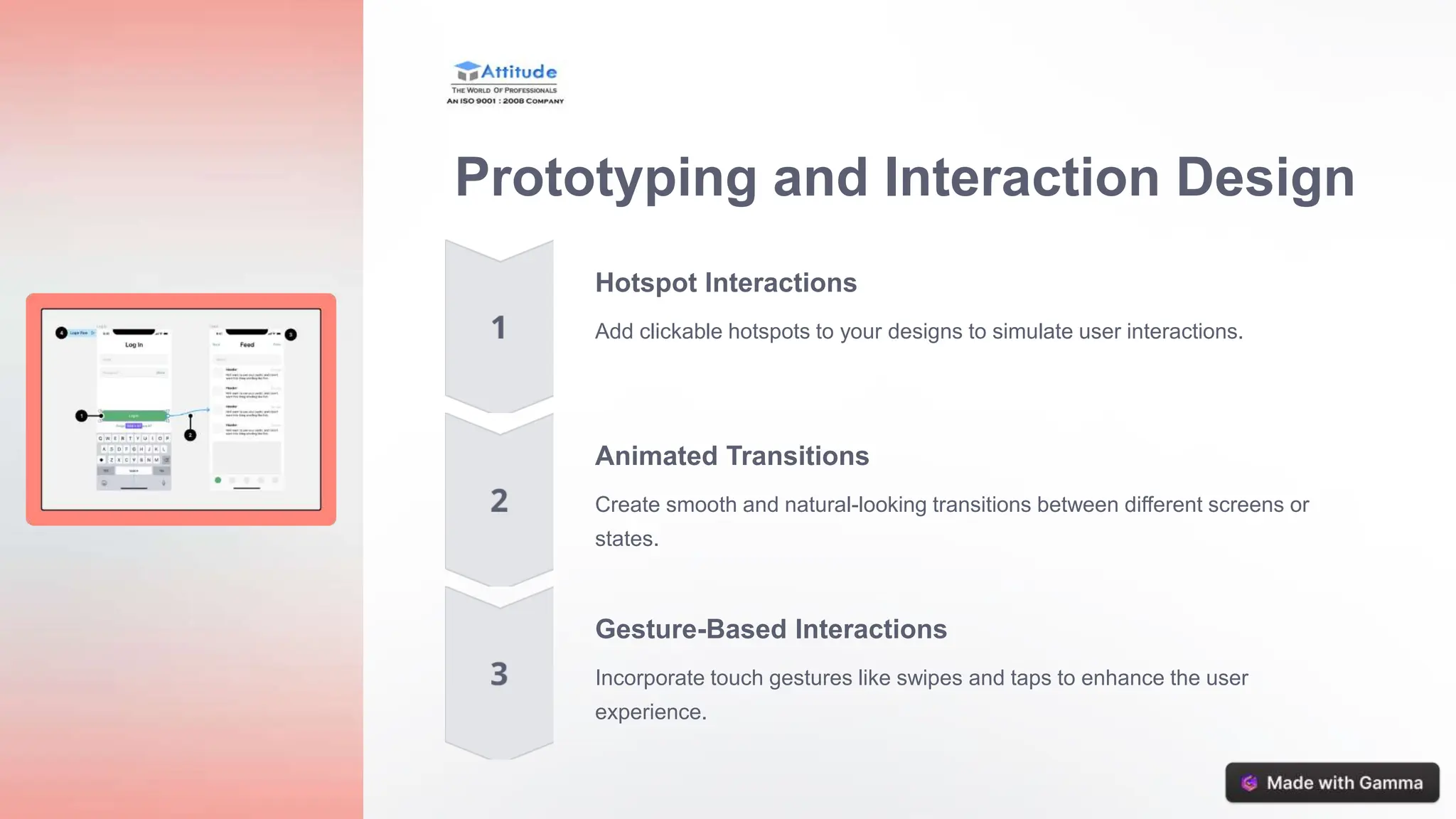
Prototyping and Interaction Design
Hotspot Interactions
Add clickable hotspots to your designs to simulate user interactions.
Animated Transitions
Create smooth and natural-looking transitions between different screens or
states.
Gesture-Based Interactions
Incorporate touch gestures like swipes and taps to enhance the user
experience.
Collaboration and Version Control
Shared Editing
Invite team members to
collaborate on designs in real-
time.
Commenting
Provide feedback and discuss
design decisions directly within
Figma.
Version History
Track changes and easily
revert to previous design
iterations.
Optimizing Workflows with Figma
1 Design Automation
Streamline your design process with auto-layout, constraints, and variant
functionality.
2 Developer Handoff
Generate design specifications, assets, and code snippets to facilitate smooth
collaboration with developers.
3 Design Systems
Establish and maintain a centralized design system to ensure brand
consistency.
Tips and Best Practices
1 Keyboard Shortcuts
Familiarize yourself with Figma's extensive
keyboard shortcuts to boost your
productivity.
2 Responsive Design
Implement responsive design principles to
create interfaces that adapt seamlessly
across devices.
3 Accessible Design
Ensure your designs are inclusive and
accessible to users with diverse needs.
4 Continuous Learning
Stay up-to-date with the latest Figma
features and design trends through
tutorials and community resources.
Conclusion and Next Steps
Mastering Figma
Apply the techniques and
best practices you've learned
to elevate your UI/UX design
skills.
Continuous
Improvement
Engage with the Figma
community, explore new
features, and keep expanding
your design expertise.
Design Innovation
Leverage Figma's powerful
capabilities to create
innovative, user-centric digital
experiences that set you
apart.

Mastering-Figma-A-Powerful-Tool-for-UIUX-Designers

  • 1.
    Mastering Figma: A PowerfulTool for UI/UX Designers Figma is a powerful design tool that has revolutionized the way UI/UX designers create digital products. This presentation will guide you through the key features and capabilities of Figma, empowering you to design stunning user interfaces and prototypes with ease.
  • 2.
    Introduction to Figma 1Web-Based Design Platform Figma is a cloud-based design tool that allows you to collaborate with team members in real-time, from anywhere. 2 Vector-Based Design Figma uses vector graphics, enabling you to create scalable designs that look sharp on any device. 3 Intuitive Interface The user-friendly interface makes Figma easy to learn, even for those new to design software.
  • 3.
    Key Features andCapabilities Vector Editing Precise control over shapes, paths, and typography for creating high-quality designs. Real-Time Collaboration Seamless teamwork with simultaneous editing and commenting features. Responsive Design Automatically adjust layouts to work across different screen sizes and devices.
  • 4.
    Designing User Interfaces Component-Based Design Buildreusable design components to ensure consistency and efficiency. Grids and Layouts Utilize powerful layout tools to create well-structured and visually appealing interfaces. Design Systems Establish a cohesive brand identity by developing a comprehensive design system.
  • 5.
    Prototyping and InteractionDesign Hotspot Interactions Add clickable hotspots to your designs to simulate user interactions. Animated Transitions Create smooth and natural-looking transitions between different screens or states. Gesture-Based Interactions Incorporate touch gestures like swipes and taps to enhance the user experience.
  • 6.
    Collaboration and VersionControl Shared Editing Invite team members to collaborate on designs in real- time. Commenting Provide feedback and discuss design decisions directly within Figma. Version History Track changes and easily revert to previous design iterations.
  • 7.
    Optimizing Workflows withFigma 1 Design Automation Streamline your design process with auto-layout, constraints, and variant functionality. 2 Developer Handoff Generate design specifications, assets, and code snippets to facilitate smooth collaboration with developers. 3 Design Systems Establish and maintain a centralized design system to ensure brand consistency.
  • 8.
    Tips and BestPractices 1 Keyboard Shortcuts Familiarize yourself with Figma's extensive keyboard shortcuts to boost your productivity. 2 Responsive Design Implement responsive design principles to create interfaces that adapt seamlessly across devices. 3 Accessible Design Ensure your designs are inclusive and accessible to users with diverse needs. 4 Continuous Learning Stay up-to-date with the latest Figma features and design trends through tutorials and community resources.
  • 9.
    Conclusion and NextSteps Mastering Figma Apply the techniques and best practices you've learned to elevate your UI/UX design skills. Continuous Improvement Engage with the Figma community, explore new features, and keep expanding your design expertise. Design Innovation Leverage Figma's powerful capabilities to create innovative, user-centric digital experiences that set you apart.