How Do I Get Started On
Facebook And LinkedIn?
WEEK THREE:
At this point in our
social media series,
you’ve learned that…
Facebook and LinkedIn
are two important social platforms
for businesses to use to
engage with their customers.
And both websites have made it easier
than ever to sign up and get started
within minutes.
Since we know it still might seem
overwhelming to a
“social media rookie…”
We’ve put together a few slides on
how to get your business set up on
these platforms…
AND a few tips on how to get
started sharing content and
engaging with your customers.
Let’s start
with Facebook
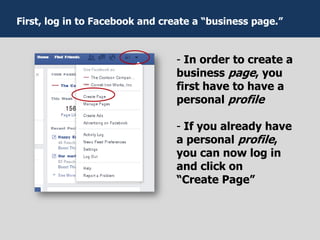
- In order to create a
business page, you
first have to have a
personal profile
- If you already have
a personal profile,
you can now log in
and click on
“Create Page”
First, log in to Facebook and create a “business page.”
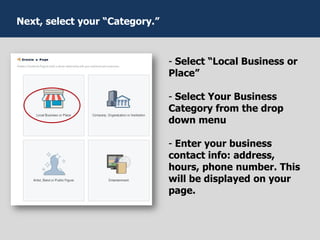
- Select “Local Business or
Place”
- Select Your Business
Category from the drop
down menu
- Enter your business
contact info: address,
hours, phone number. This
will be displayed on your
page.
Next, select your “Category.”
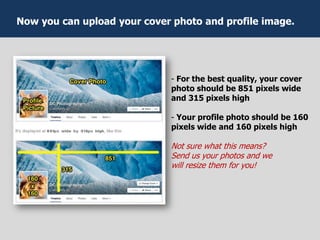
- For the best quality, your cover
photo should be 851 pixels wide
and 315 pixels high
- Your profile photo should be 160
pixels wide and 160 pixels high
Not sure what this means?
Send us your photos and we
will resize them for you!
Now you can upload your cover photo and profile image.
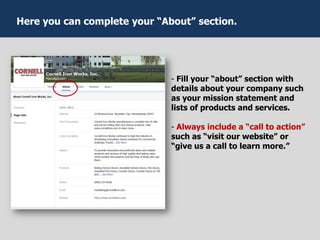
- Fill your “about” section with
details about your company such
as your mission statement and
lists of products and services.
- Always include a “call to action”
such as “visit our website” or
“give us a call to learn more.”
Here you can complete your “About” section.
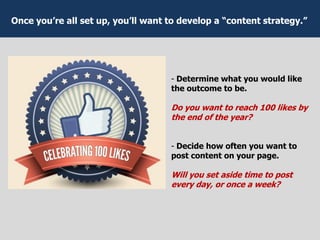
- Determine what you would like

the outcome to be.
Do you want to reach 100 likes by
the end of the year?
- Decide how often you want to
post content on your page.
Will you set aside time to post
every day, or once a week?
Once you’re all set up, you’ll want to develop a “content strategy.”
Then, get posting!
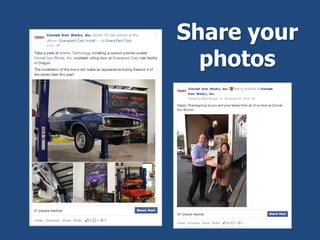
Share your
photos
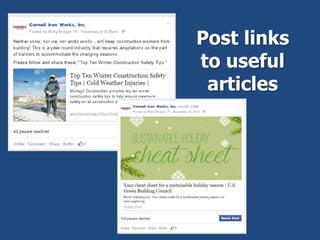
Post links
to useful
articles
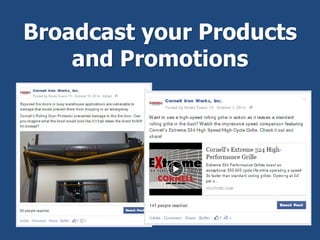
Broadcast your Products
and Promotions
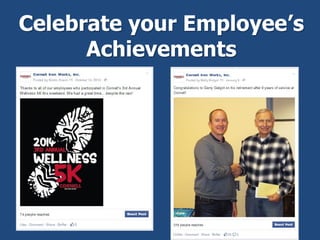
Celebrate your Employee’s
Achievements
Or Entertain with Trivia
Did you know that the first forklift was
invented in 1928 and was
called the “lifttruc?”
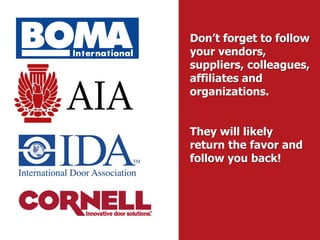
Don’t forget to follow
your vendors,
suppliers, colleagues,
affiliates and
organizations.
They will likely
return the favor and
follow you back!
And most
importantly…
Tell your customers
you’re on Facebook!
Your customers may not know that
you have a Facebook page where
they can get information from you.
Your customers may not know that
you have a Facebook page where
they can get information from you.
So, tell them!
 Add the Facebook like button to your
webpage
 Add links to your Facebook page in your
email signature
 Add the Facebook like button to your
webpage
 Add links to your Facebook page in your
email signature
 Put your Facebook url on your invoices
 Put a sign in your lobby or showroom that
says “Like Us on Facebook!”
 Add the Facebook like button to your
webpage
 Add links to your Facebook page in your
email signature
 Put your Facebook url on your invoices
 Put a sign in your lobby or showroom that
says “Like Us on Facebook!”
 Tell your customers to like you on
Facebook when you’re speaking with them
Remember, it’s not about the number
of “likes” you get.
Remember, it’s not about the number
of “likes” you get.
It’s about the level of engagement and
conversation about your brand that comes
from the content you post!
Setting
up
LinkedIn
is easy,
too!
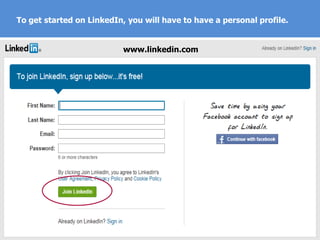
To get started on LinkedIn, you will have to have a personal profile.
www.linkedin.com
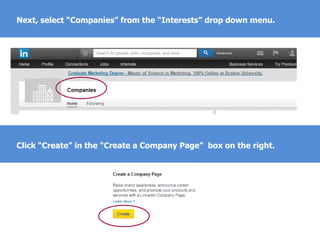
Next, select “Companies” from the “Interests” drop down menu.
Click “Create” in the “Create a Company Page” box on the right.
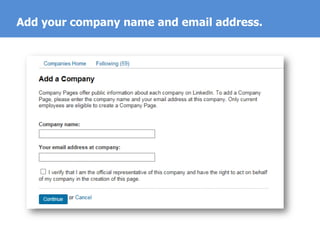
Add your company name and email address.
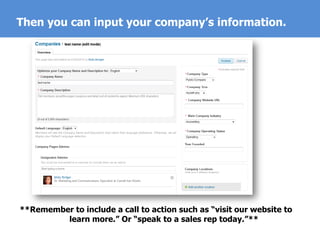
Then you can input your company’s information.
**Remember to include a call to action such as “visit our website to
learn more.” Or “speak to a sales rep today.”**
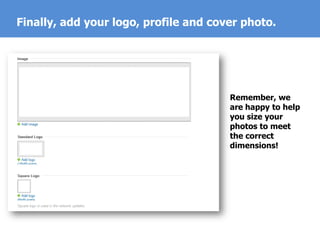
Finally, add your logo, profile and cover photo.
Remember, we
are happy to help
you size your
photos to meet
the correct
dimensions!
Now, start sharing!
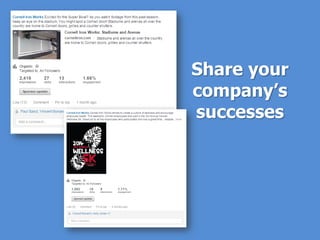
Share your
company’s
successes
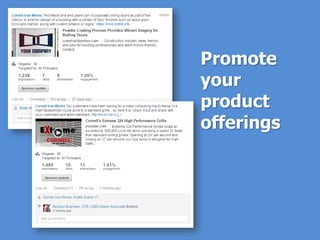
Promote
your
product
offerings
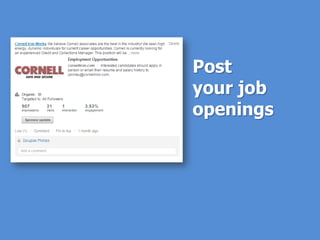
Post
your job
openings
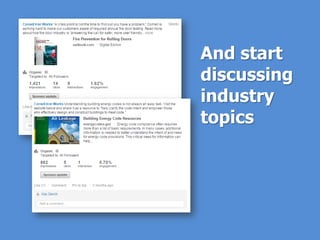
And start
discussing
industry
topics
You should now have an
idea of how to start your
business on the Facebook
and LinkedIn platforms.
Ready to get your business
on social media?
We are here to help.
Next week we’ll talk you through some
of the privacy settings you can enable to
enforce the security of your business
profile page and those who engage with
you on your page.
Give us a call
800-233-8366 ext 4024
Or email us at
marketing@cornelliron.com
Stay tuned for more of our social media series:
WEEK 4
Is there a security risk?
What if someone starts posting
bad things about my company?
WEEK 5
How can Cornell’s social
media efforts benefit me?

Cornell Social Media Series: Week 3

  • 1.
    How Do IGet Started On Facebook And LinkedIn? WEEK THREE:
  • 2.
    At this pointin our social media series, you’ve learned that…
  • 3.
    Facebook and LinkedIn aretwo important social platforms for businesses to use to engage with their customers.
  • 4.
    And both websiteshave made it easier than ever to sign up and get started within minutes.
  • 5.
    Since we knowit still might seem overwhelming to a “social media rookie…”
  • 6.
    We’ve put togethera few slides on how to get your business set up on these platforms…
  • 7.
    AND a fewtips on how to get started sharing content and engaging with your customers.
  • 8.
  • 9.
    - In orderto create a business page, you first have to have a personal profile - If you already have a personal profile, you can now log in and click on “Create Page” First, log in to Facebook and create a “business page.”
  • 10.
    - Select “LocalBusiness or Place” - Select Your Business Category from the drop down menu - Enter your business contact info: address, hours, phone number. This will be displayed on your page. Next, select your “Category.”
  • 11.
    - For thebest quality, your cover photo should be 851 pixels wide and 315 pixels high - Your profile photo should be 160 pixels wide and 160 pixels high Not sure what this means? Send us your photos and we will resize them for you! Now you can upload your cover photo and profile image.
  • 12.
    - Fill your“about” section with details about your company such as your mission statement and lists of products and services. - Always include a “call to action” such as “visit our website” or “give us a call to learn more.” Here you can complete your “About” section.
  • 13.
    - Determine whatyou would like the outcome to be. Do you want to reach 100 likes by the end of the year? - Decide how often you want to post content on your page. Will you set aside time to post every day, or once a week? Once you’re all set up, you’ll want to develop a “content strategy.”
  • 14.
  • 15.
  • 16.
  • 17.
  • 18.
  • 19.
    Or Entertain withTrivia Did you know that the first forklift was invented in 1928 and was called the “lifttruc?”
  • 20.
    Don’t forget tofollow your vendors, suppliers, colleagues, affiliates and organizations. They will likely return the favor and follow you back!
  • 21.
  • 22.
  • 23.
    Your customers maynot know that you have a Facebook page where they can get information from you.
  • 24.
    Your customers maynot know that you have a Facebook page where they can get information from you. So, tell them!
  • 25.
     Add theFacebook like button to your webpage  Add links to your Facebook page in your email signature
  • 26.
     Add theFacebook like button to your webpage  Add links to your Facebook page in your email signature  Put your Facebook url on your invoices  Put a sign in your lobby or showroom that says “Like Us on Facebook!”
  • 27.
     Add theFacebook like button to your webpage  Add links to your Facebook page in your email signature  Put your Facebook url on your invoices  Put a sign in your lobby or showroom that says “Like Us on Facebook!”  Tell your customers to like you on Facebook when you’re speaking with them
  • 28.
    Remember, it’s notabout the number of “likes” you get.
  • 29.
    Remember, it’s notabout the number of “likes” you get. It’s about the level of engagement and conversation about your brand that comes from the content you post!
  • 30.
  • 31.
    To get startedon LinkedIn, you will have to have a personal profile. www.linkedin.com
  • 32.
    Next, select “Companies”from the “Interests” drop down menu. Click “Create” in the “Create a Company Page” box on the right.
  • 33.
    Add your companyname and email address.
  • 34.
    Then you caninput your company’s information. **Remember to include a call to action such as “visit our website to learn more.” Or “speak to a sales rep today.”**
  • 35.
    Finally, add yourlogo, profile and cover photo. Remember, we are happy to help you size your photos to meet the correct dimensions!
  • 36.
  • 37.
  • 38.
  • 39.
  • 40.
  • 41.
    You should nowhave an idea of how to start your business on the Facebook and LinkedIn platforms.
  • 42.
    Ready to getyour business on social media?
  • 43.
    We are hereto help. Next week we’ll talk you through some of the privacy settings you can enable to enforce the security of your business profile page and those who engage with you on your page.
  • 44.
    Give us acall 800-233-8366 ext 4024 Or email us at marketing@cornelliron.com
  • 45.
    Stay tuned formore of our social media series: WEEK 4 Is there a security risk? What if someone starts posting bad things about my company? WEEK 5 How can Cornell’s social media efforts benefit me?