陳忠義

2018-10-25
⽬目錄
• Cordova Framework

• Cordova Develop Environment

• Cordova CLI

• Cordova APIs

• Photo Library

• Camera

• Firebase push notification

• References
Cordova Framework
What is Cordova?
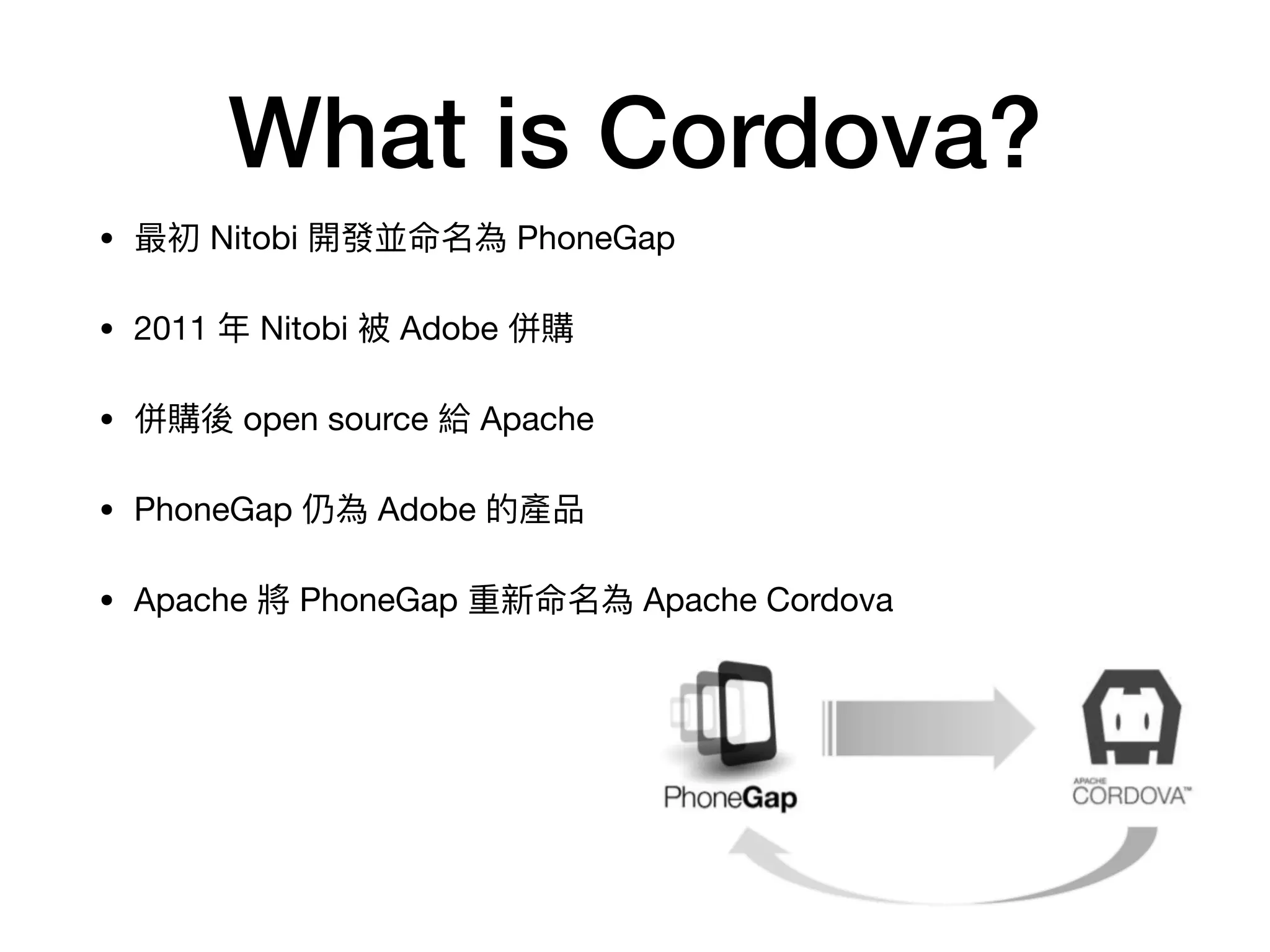
• 最初 Nitobi 開發並命名為 PhoneGap

• 2011 年年 Nitobi 被 Adobe 併購

• 併購後 open source 給 Apache

• PhoneGap 仍為 Adobe 的產品

• Apache 將 PhoneGap 重新命名為 Apache Cordova
Why use Cordova?
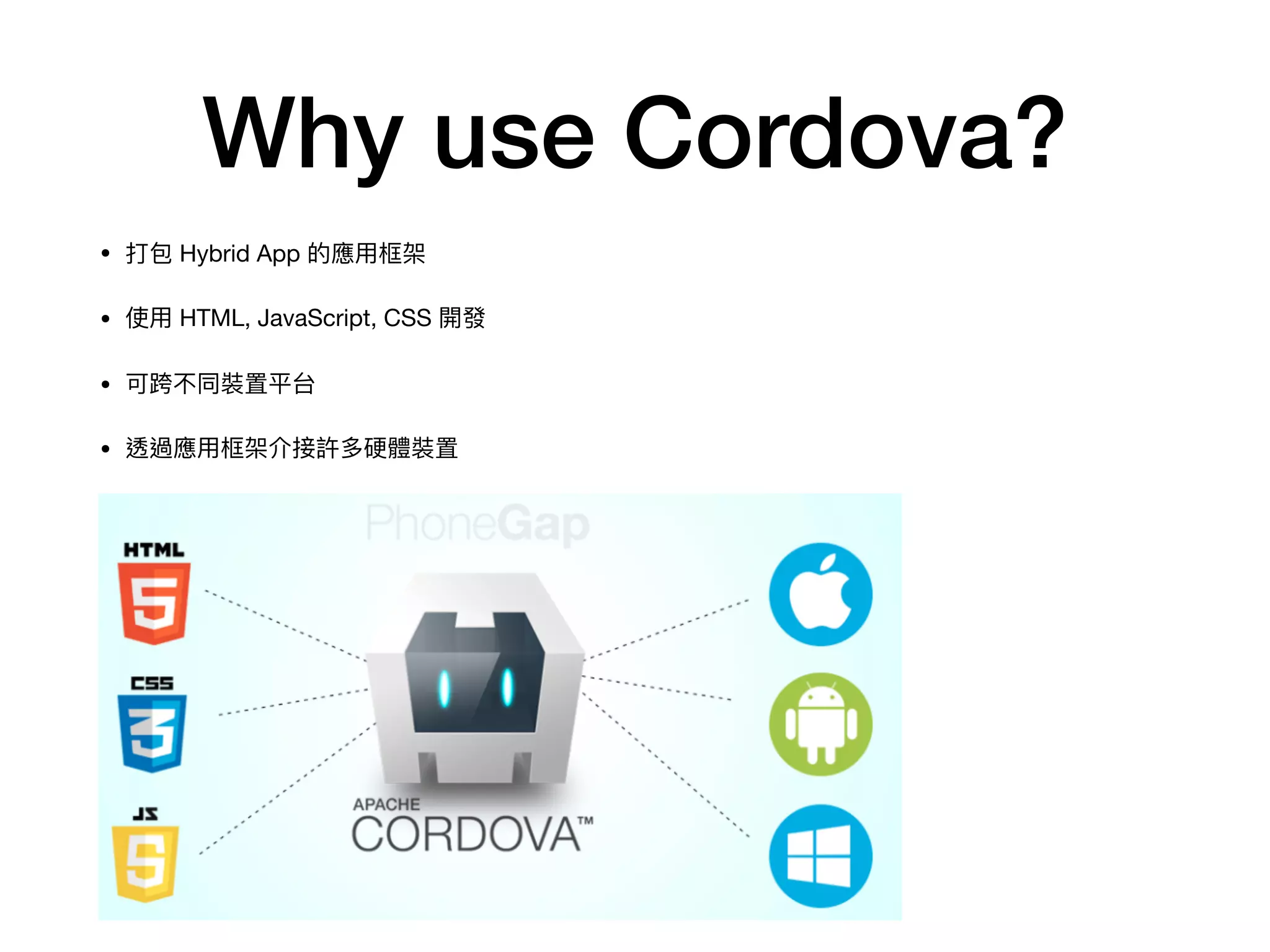
• 打包 Hybrid App 的應⽤用框架

• 使⽤用 HTML, JavaScript, CSS 開發

• 可跨不同裝置平台

• 透過應⽤用框架介接許多硬體裝置
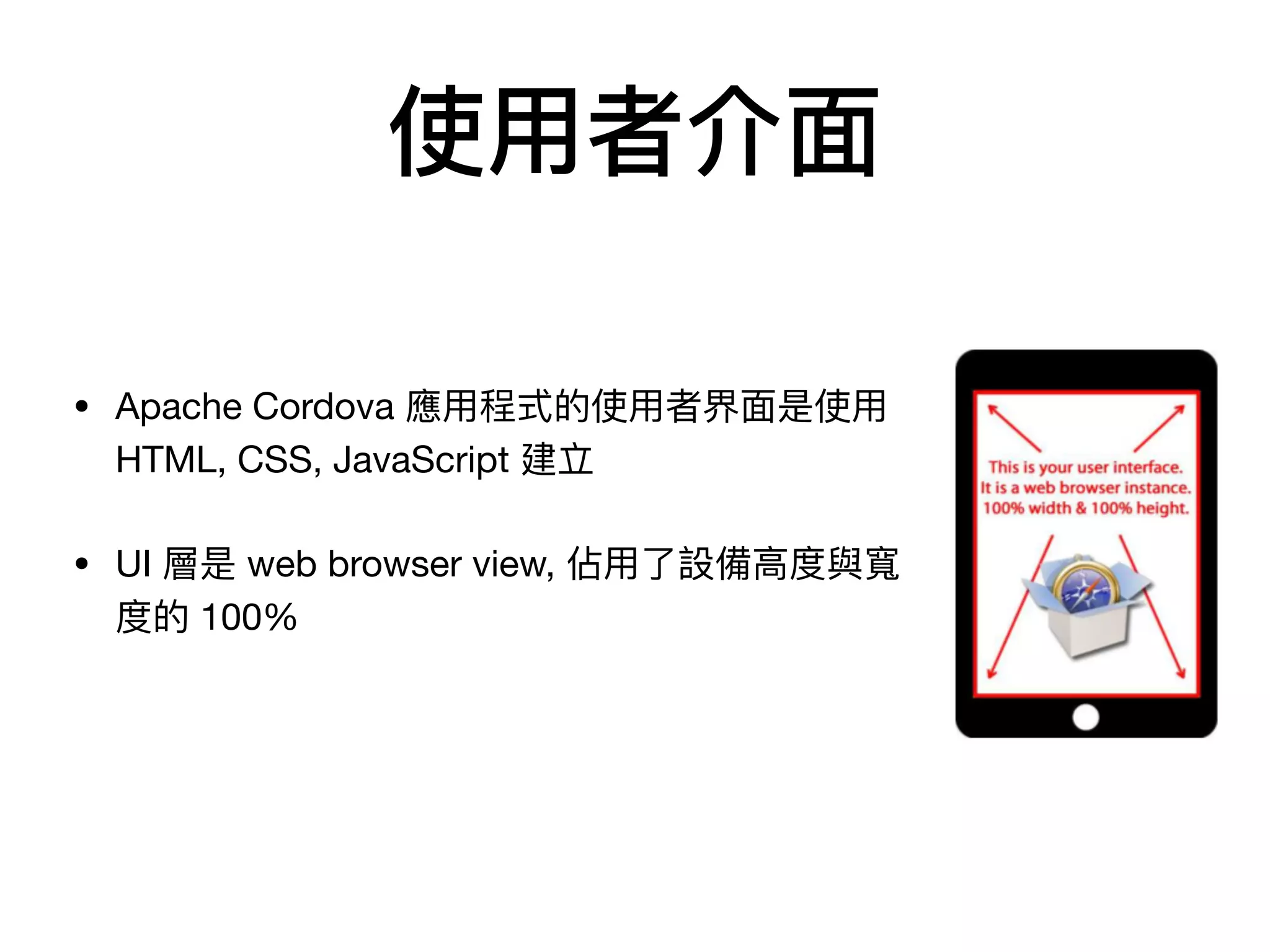
使⽤用者介⾯面
• Apache Cordova 應⽤用程式的使⽤用者界⾯面是使⽤用
HTML, CSS, JavaScript 建立

• UI 層是 web browser view, 佔⽤用了了設備⾼高度與寬
度的 100%
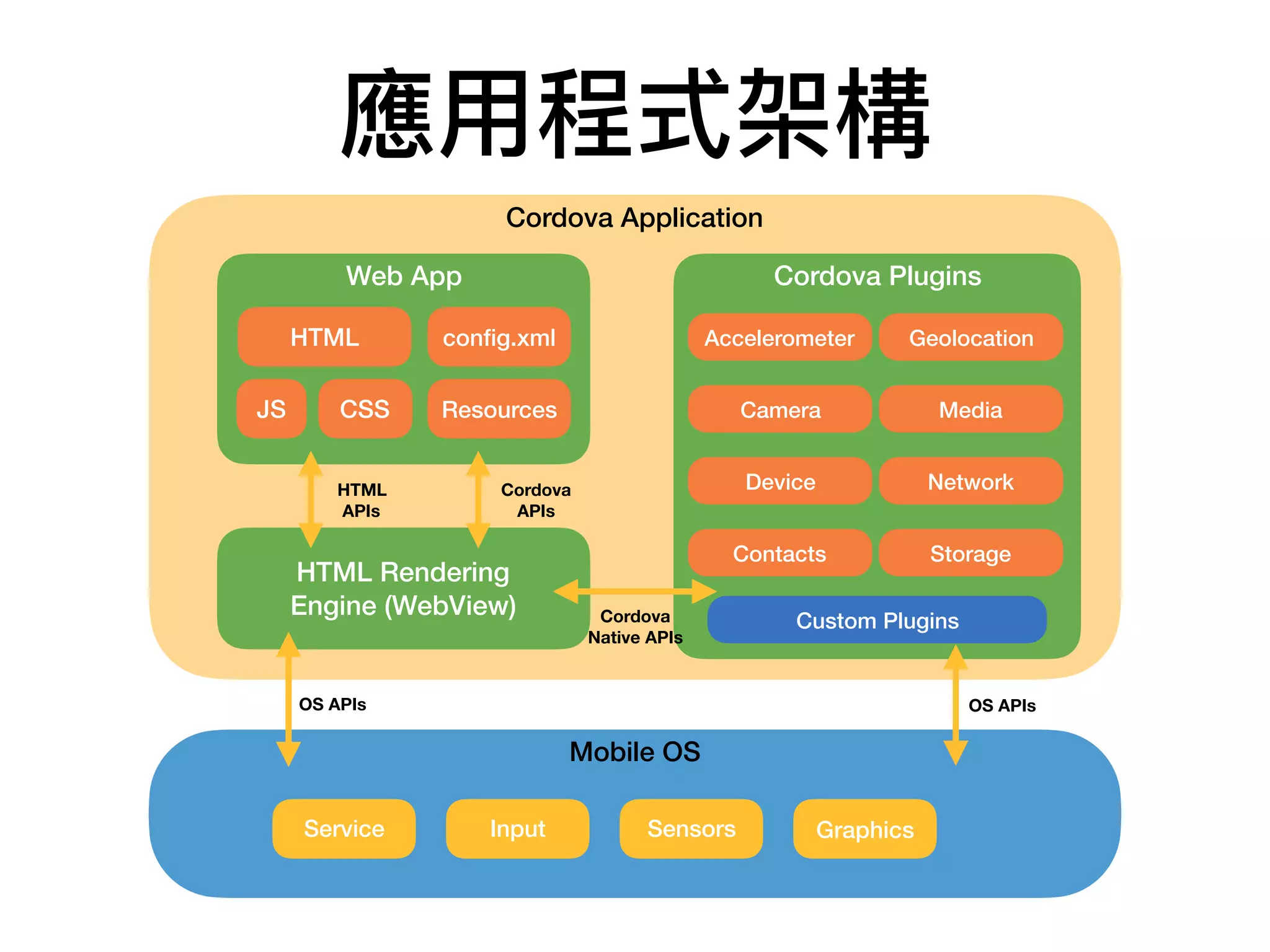
應⽤用程式架構
Cordova Application
Web App
HTML
CSSJS
config.xml
Resources
HTML Rendering
Engine (WebView)
Cordova
APIs
HTML
APIs
Cordova Plugins
Accelerometer Geolocation
Camera
Device
Contacts Storage
Network
Media
Custom PluginsCordova
Native APIs
Mobile OS
Service Input Sensors Graphics
OS APIs OS APIs
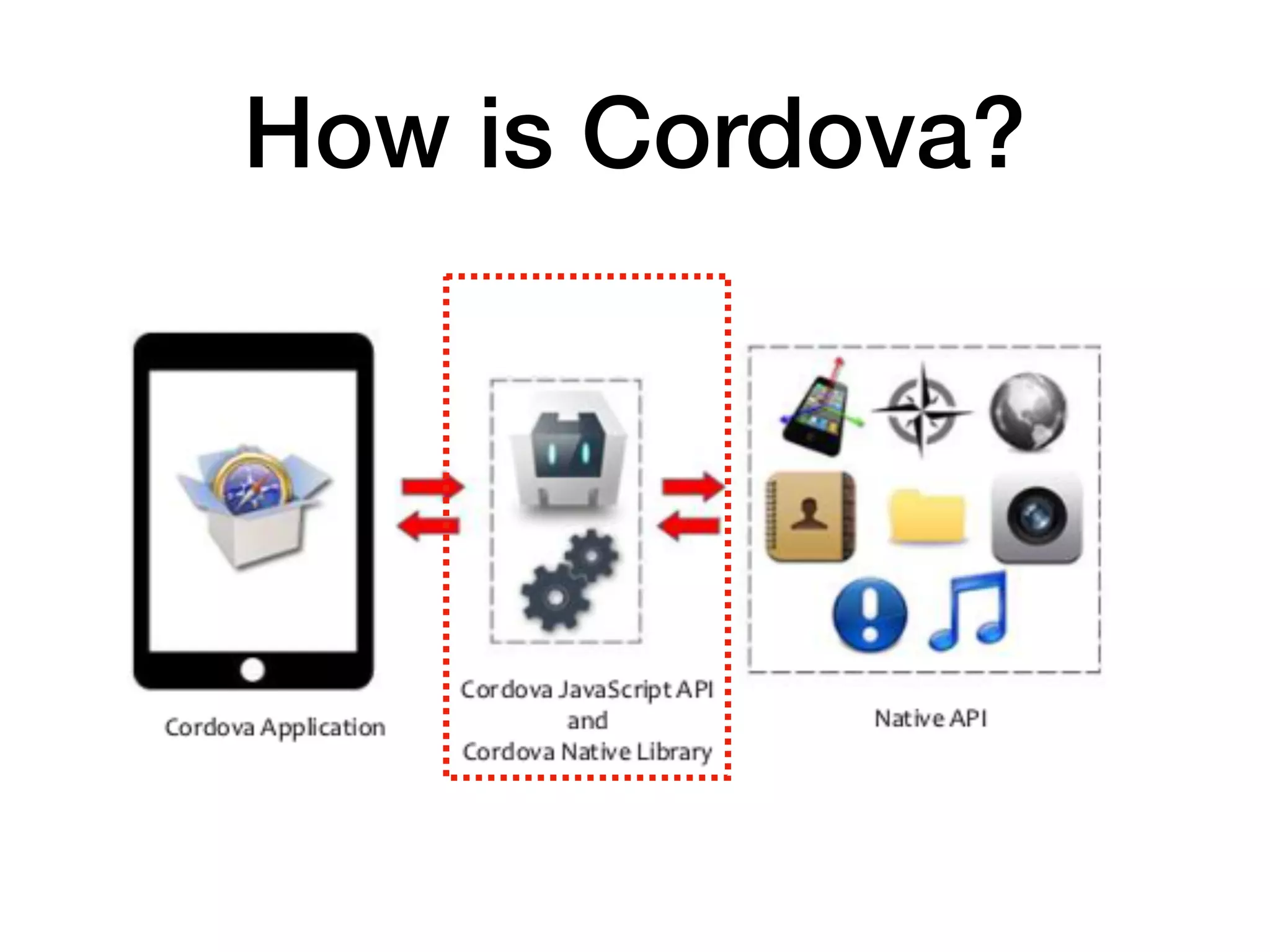
How is Cordova?
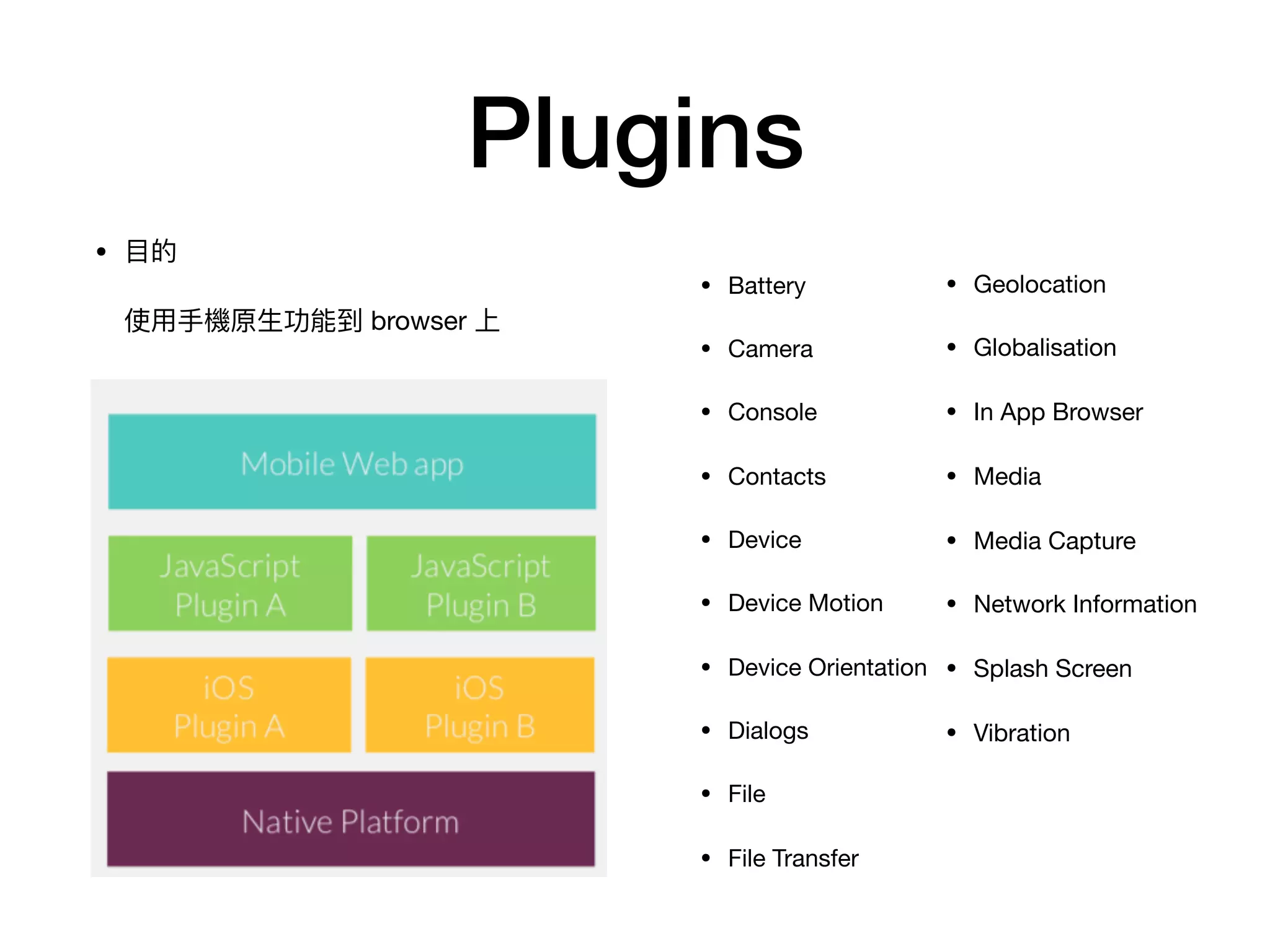
Plugins
• Battery

• Camera

• Console

• Contacts

• Device

• Device Motion

• Device Orientation

• Dialogs

• File

• File Transfer
• Geolocation

• Globalisation

• In App Browser

• Media

• Media Capture

• Network Information

• Splash Screen

• Vibration
• ⽬目的


使⽤用⼿手機原⽣生功能到 browser 上
Cordova Develop Environment
安裝環境
• Git

• NodeJS (v8.12)

• Android Studio

• Android SDK

• Virtual Devices

• XCode
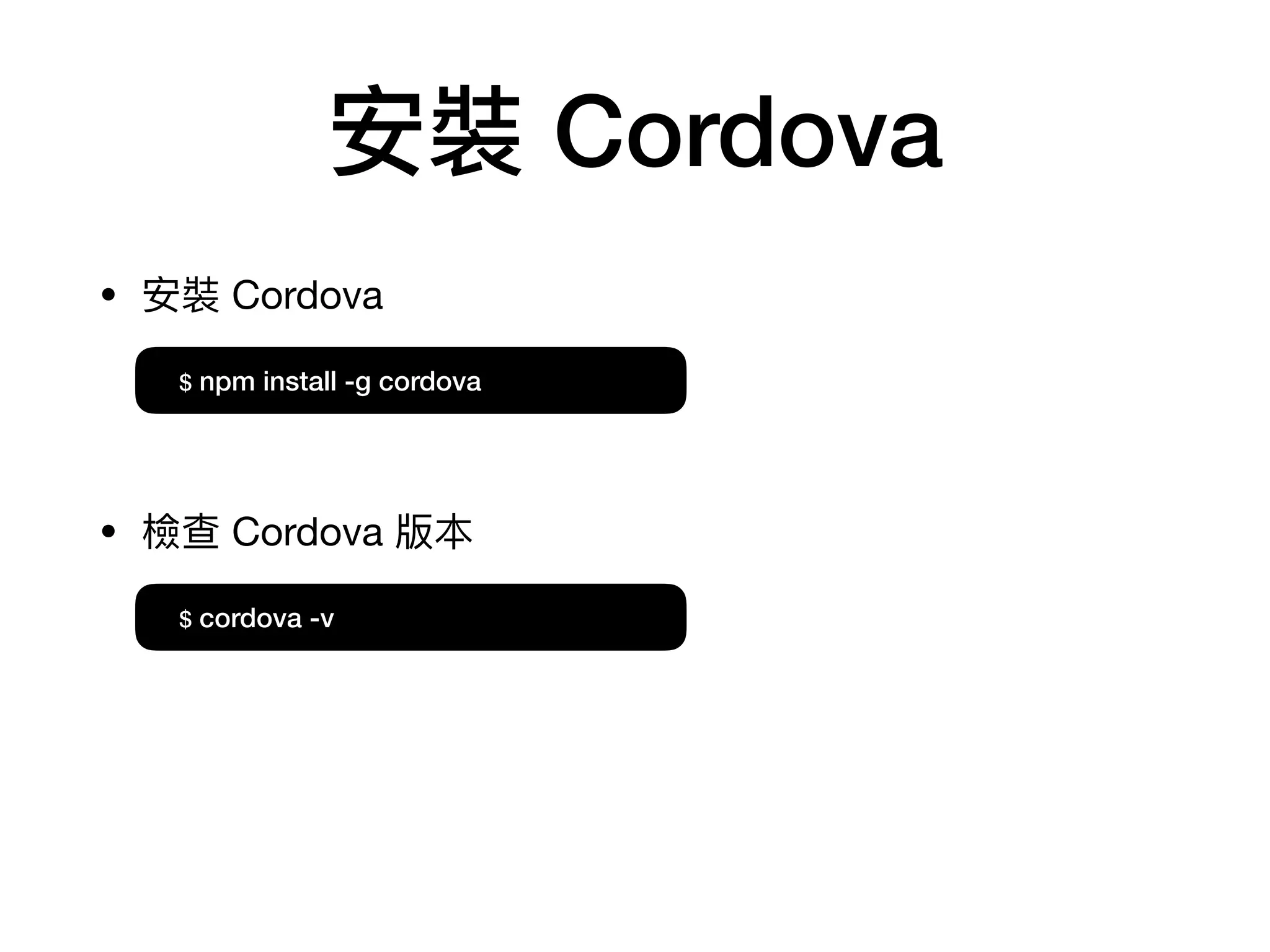
安裝 Cordova
• 安裝 Cordova
• 檢查 Cordova 版本
$ npm install -g cordova
$ cordova -v
Cordova CLI
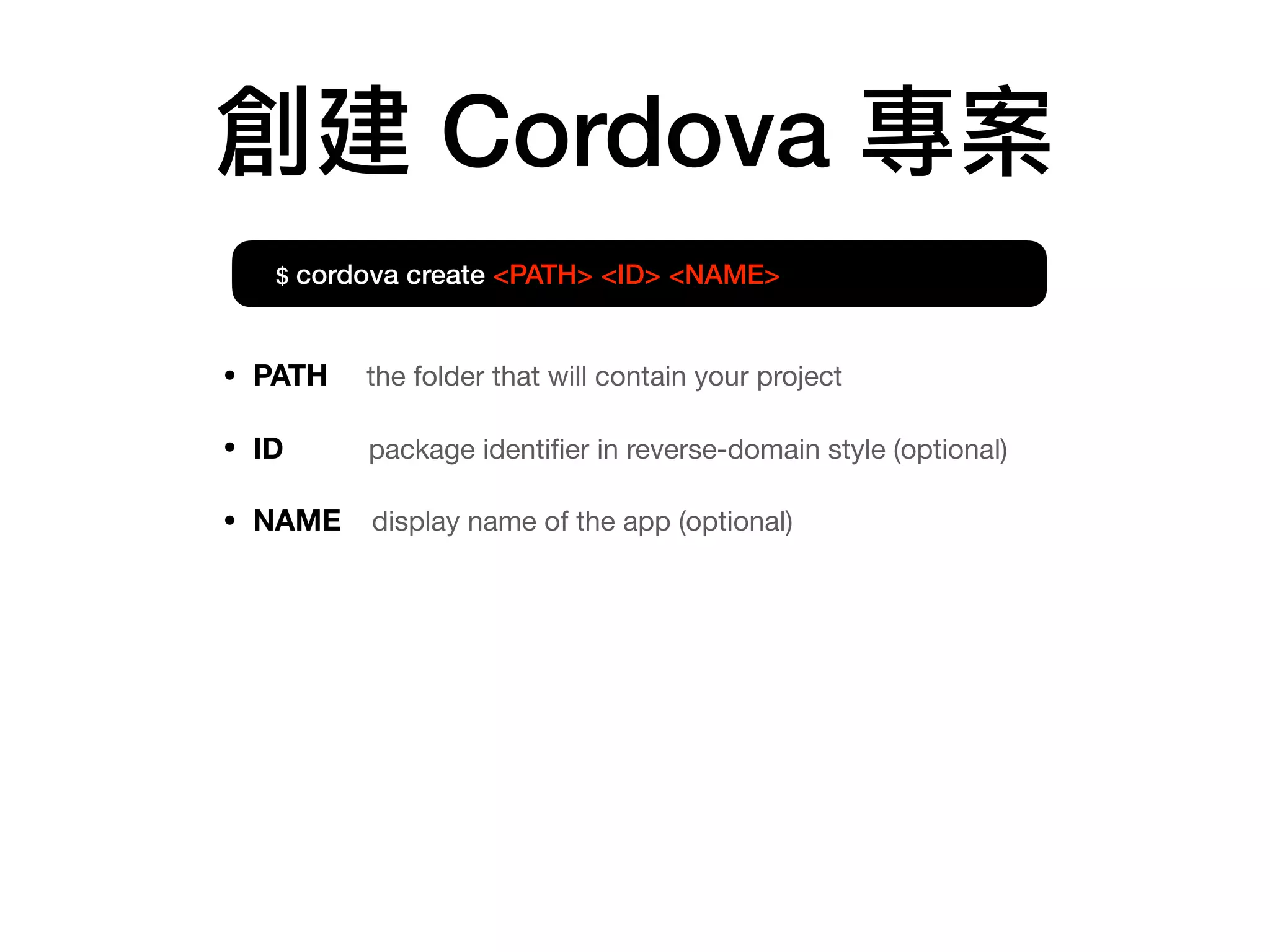
創建 Cordova 專案
$ cordova create <PATH> <ID> <NAME>
• PATH the folder that will contain your project

• ID package identifier in reverse-domain style (optional)

• NAME display name of the app (optional)
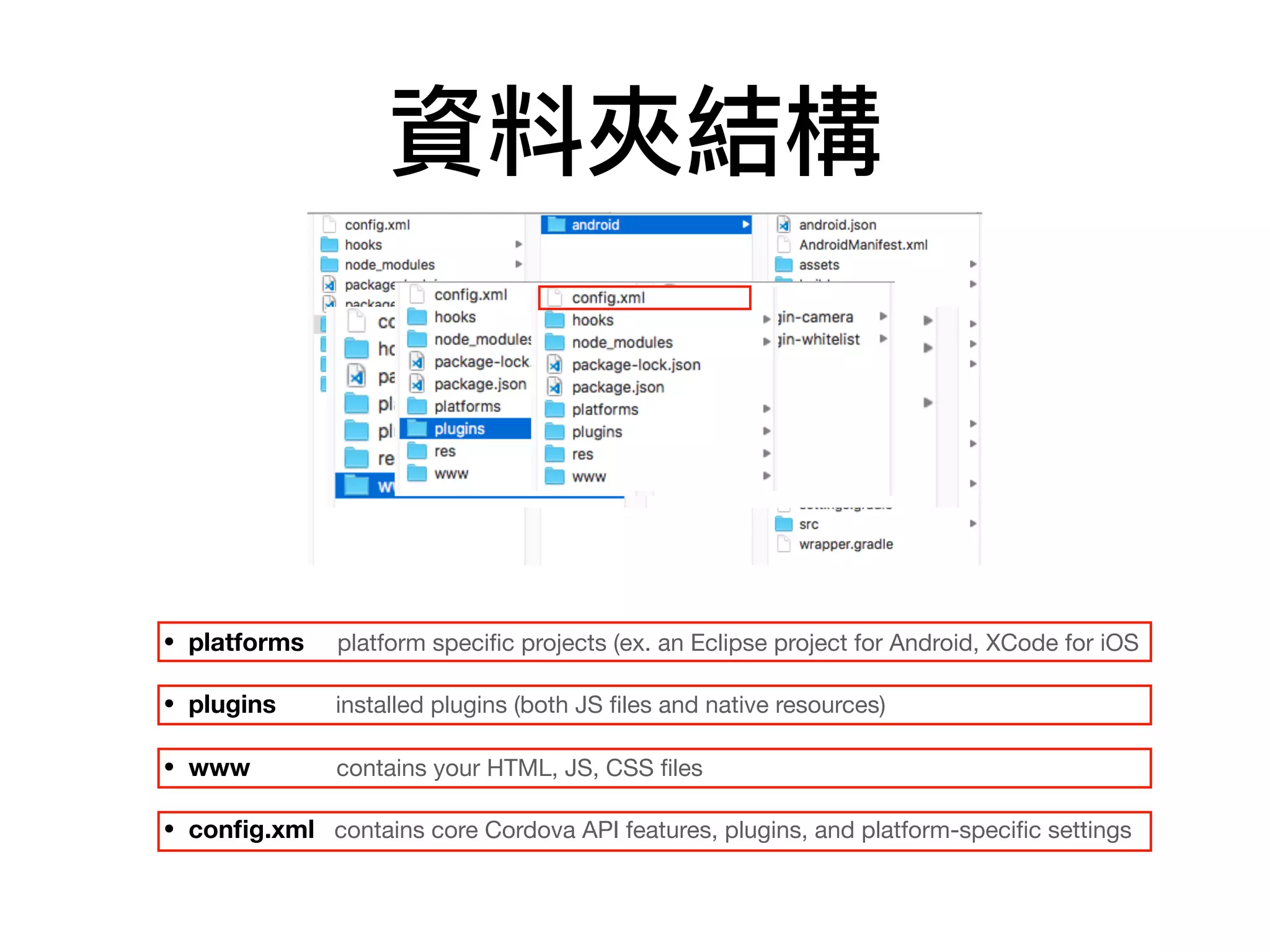
資料夾結構
• platforms platform specific projects (ex. an Eclipse project for Android, XCode for iOS
• plugins installed plugins (both JS files and native resources)

• www contains your HTML, JS, CSS files

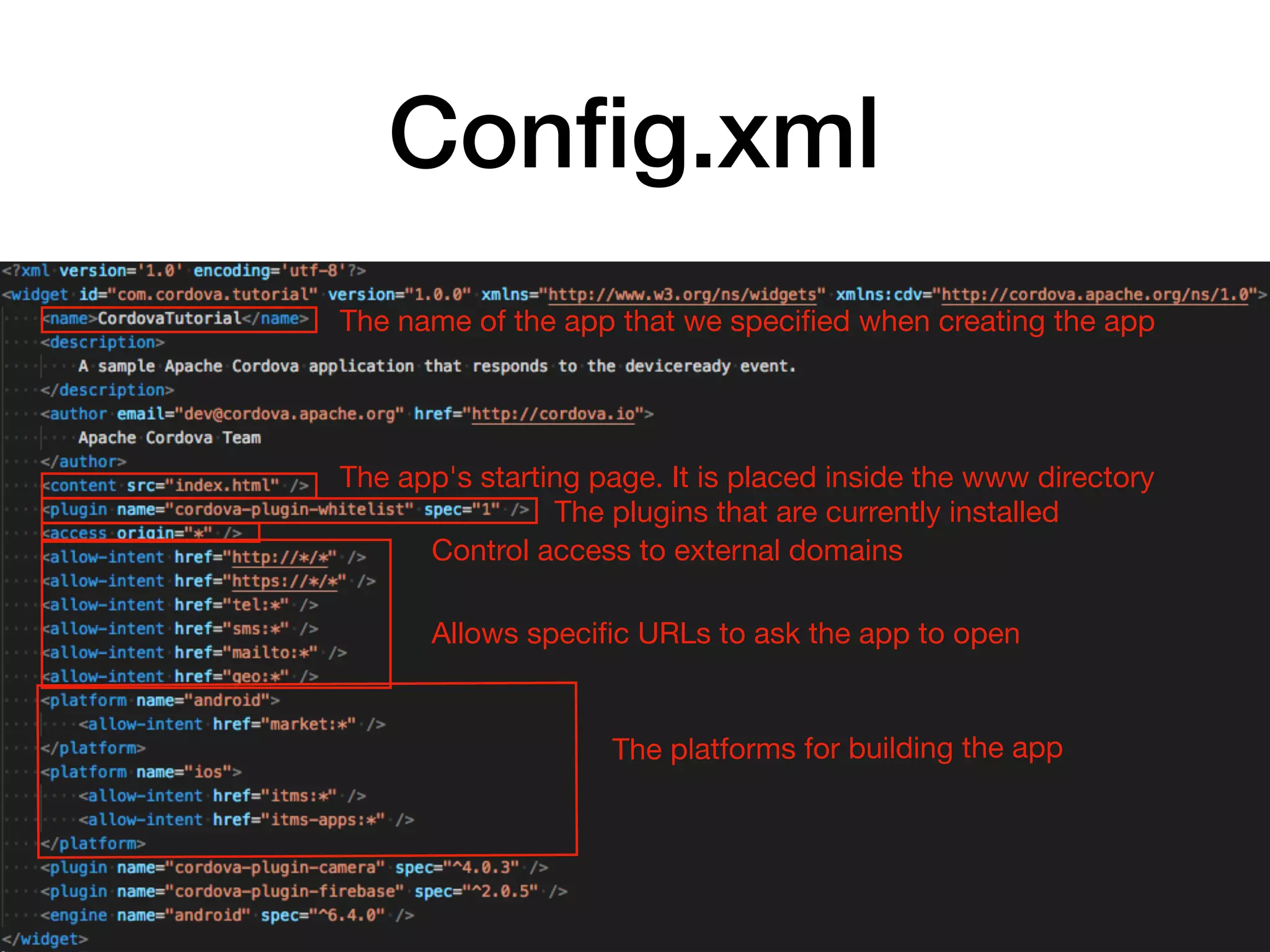
• config.xml contains core Cordova API features, plugins, and platform-specific settings
Config.xml
The name of the app that we specified when creating the app
The app's starting page. It is placed inside the www directory
The plugins that are currently installed
Control access to external domains
Allows specific URLs to ask the app to open
The platforms for building the app
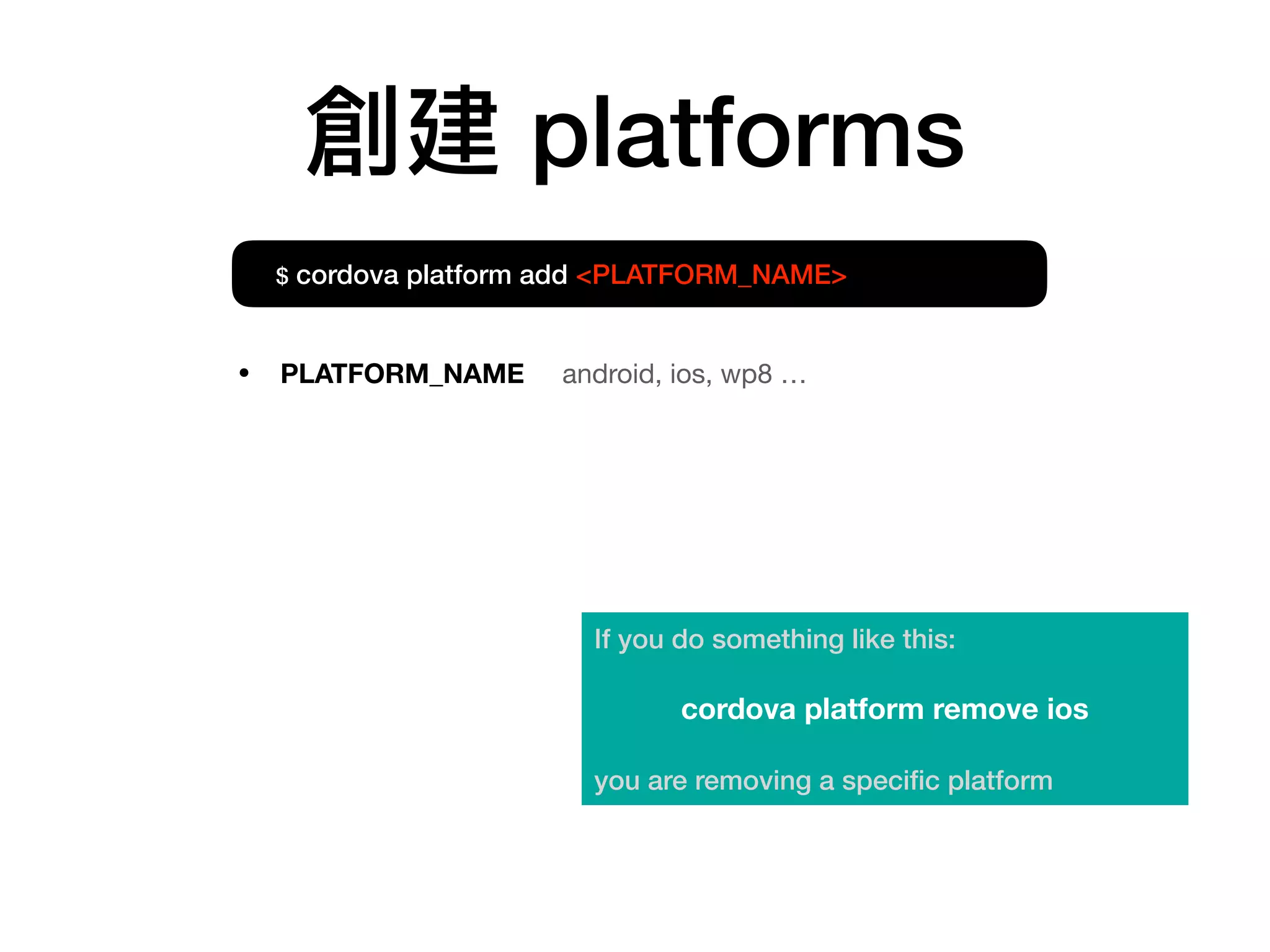
創建 platforms
$ cordova platform add <PLATFORM_NAME>
If you do something like this:
cordova platform remove ios
you are removing a specific platform
• PLATFORM_NAME android, ios, wp8 …
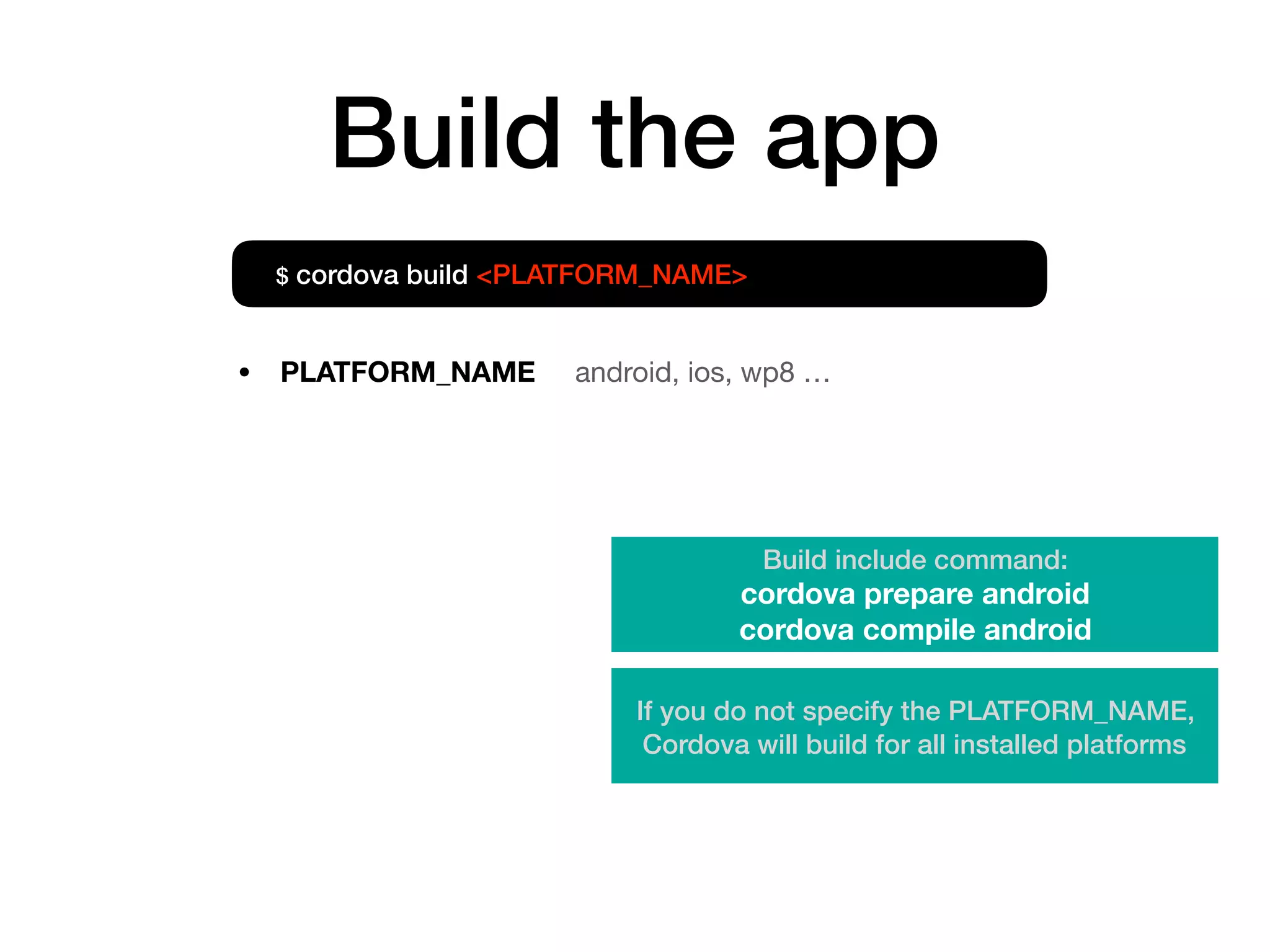
Build the app
• PLATFORM_NAME android, ios, wp8 …
$ cordova build <PLATFORM_NAME>
If you do not specify the PLATFORM_NAME,
Cordova will build for all installed platforms
Build include command:
cordova prepare android
cordova compile android
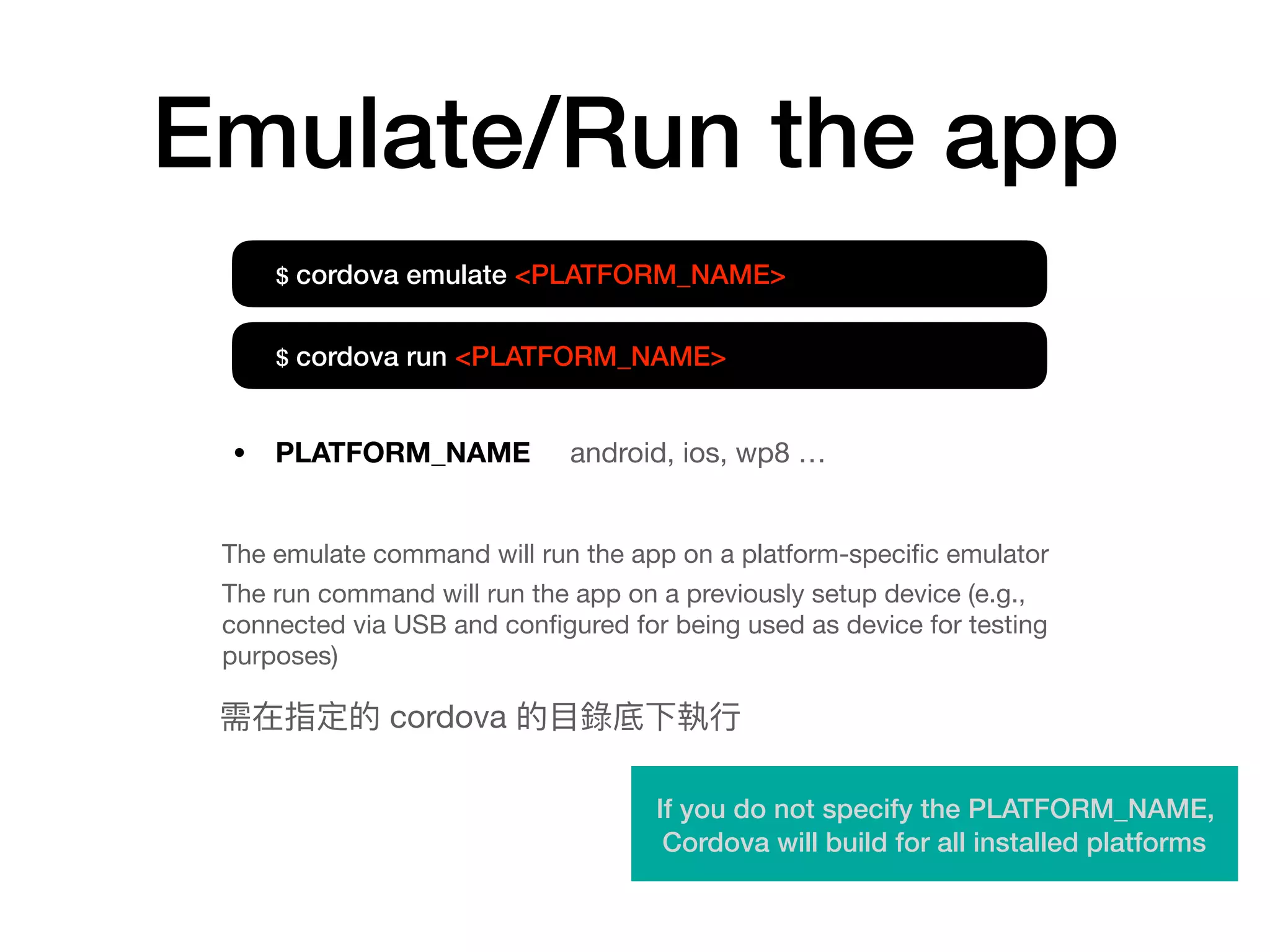
Emulate/Run the app
The emulate command will run the app on a platform-specific emulator

The run command will run the app on a previously setup device (e.g.,
connected via USB and configured for being used as device for testing
purposes)
$ cordova emulate <PLATFORM_NAME>
If you do not specify the PLATFORM_NAME,
Cordova will build for all installed platforms
$ cordova run <PLATFORM_NAME>
• PLATFORM_NAME android, ios, wp8 …
需在指定的 cordova 的⽬目錄底下執⾏行行
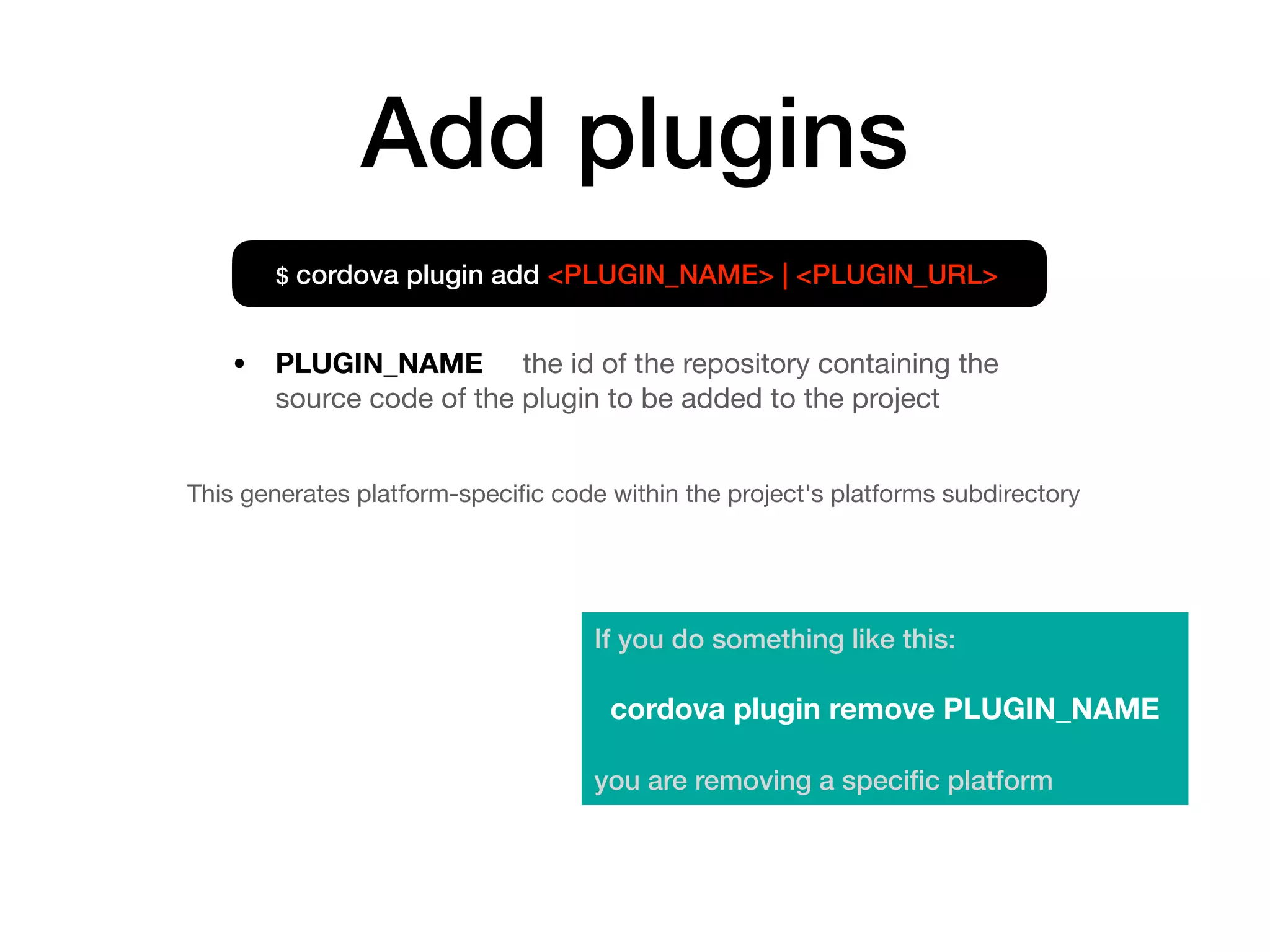
Add plugins
This generates platform-specific code within the project's platforms subdirectory
$ cordova plugin add <PLUGIN_NAME> | <PLUGIN_URL>
• PLUGIN_NAME the id of the repository containing the
source code of the plugin to be added to the project
If you do something like this:
cordova plugin remove PLUGIN_NAME
you are removing a specific platform
Cordova APIs
Sample Code
https://github.com/jhongyi/cordova-tutorial
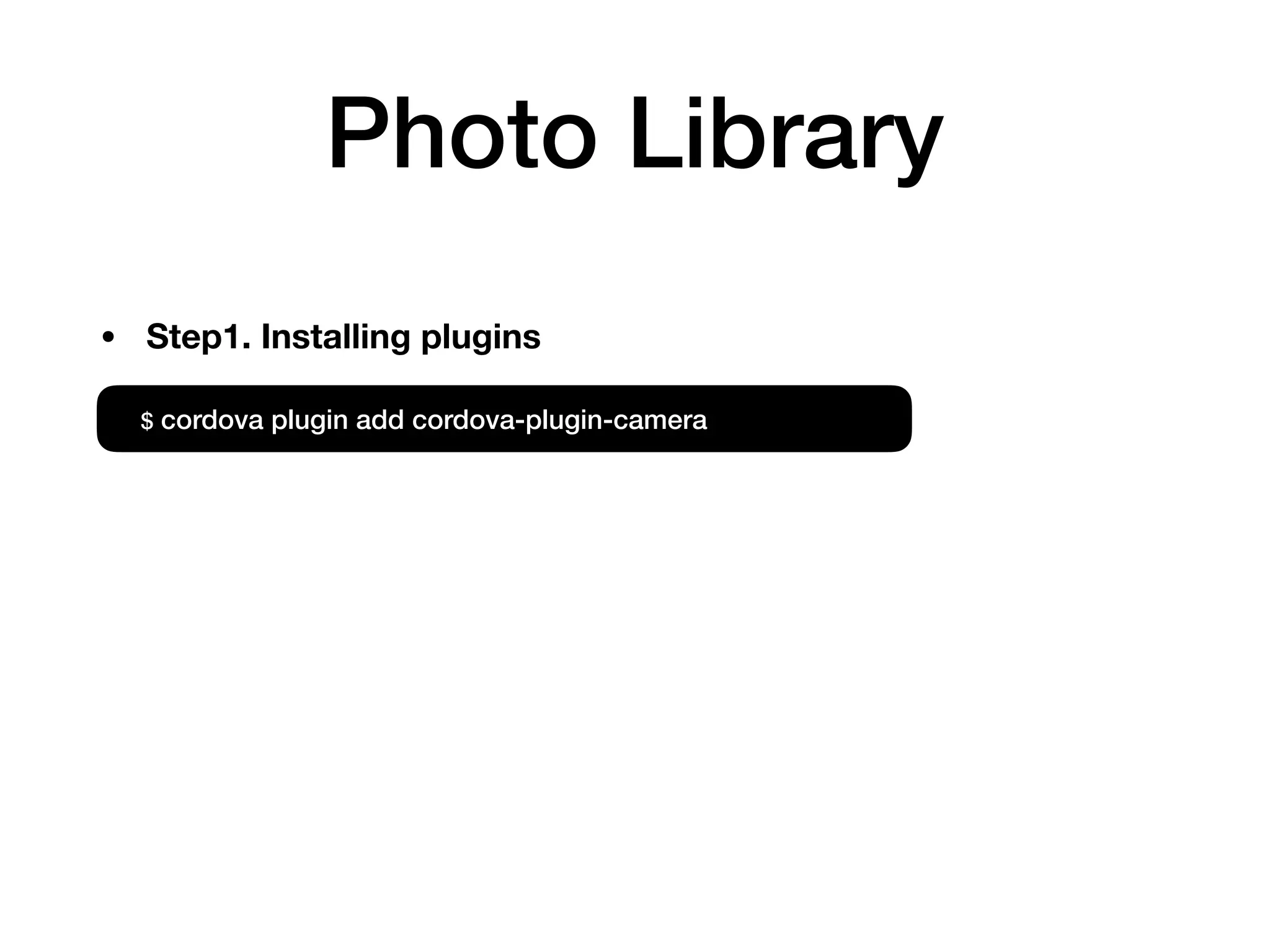
Photo Library
$ cordova plugin add cordova-plugin-camera
• Step1. Installing plugins
Photo Library
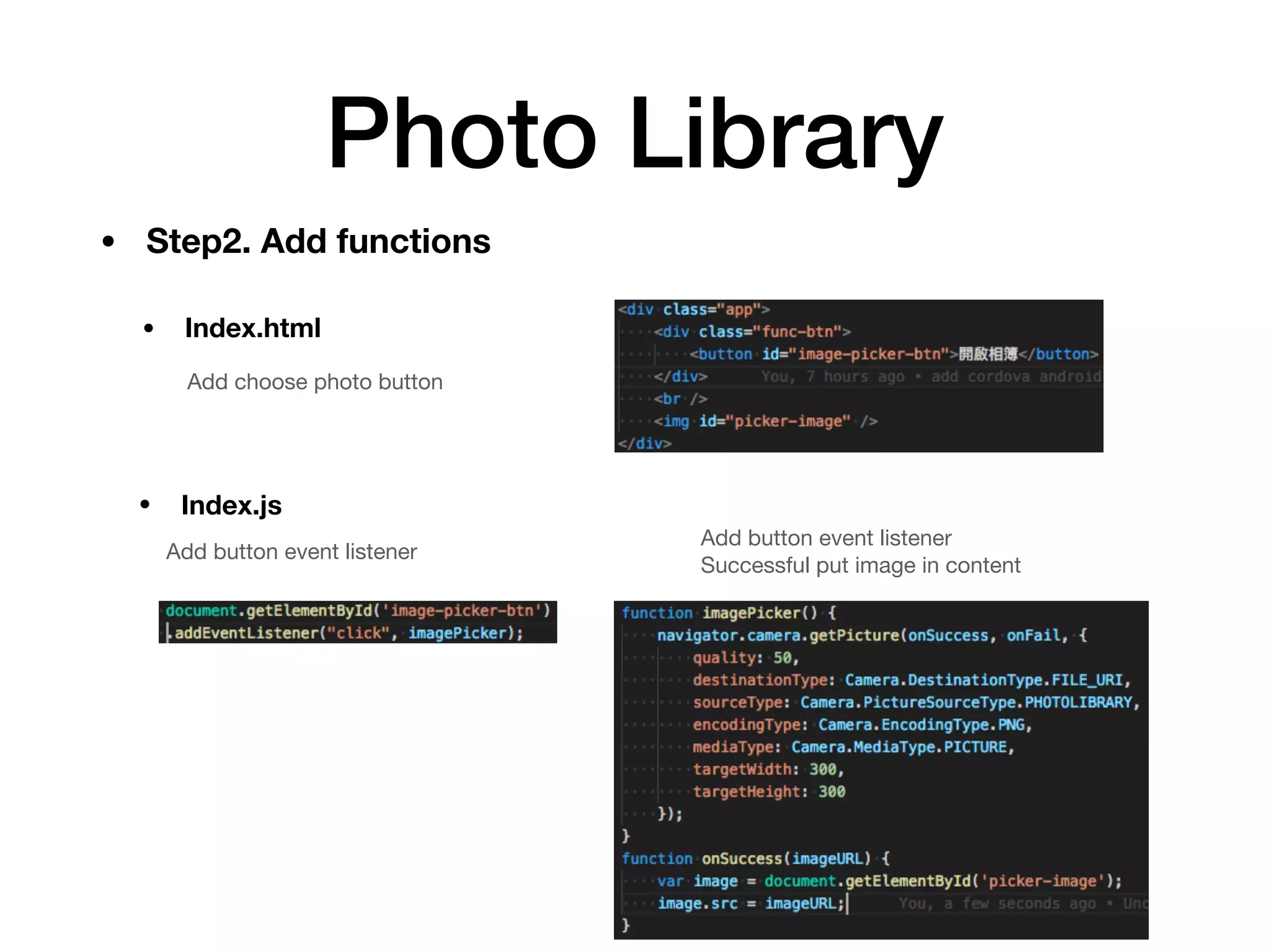
Add choose photo button
Add button event listener

Successful put image in content
• Step2. Add functions
• Index.js
• Index.html
Photo Library
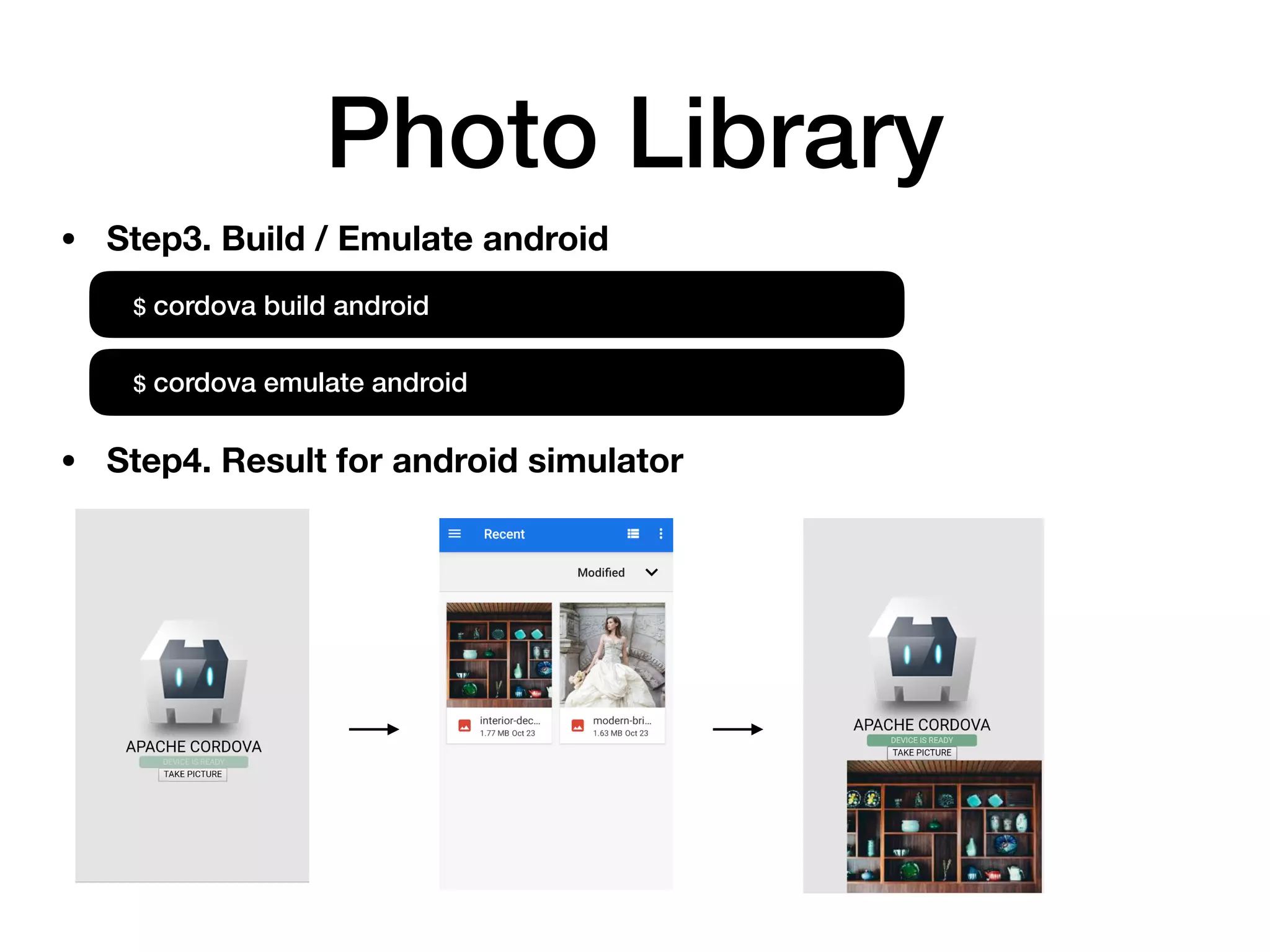
• Step3. Build / Emulate android
$ cordova build android
$ cordova emulate android
• Step4. Result for android simulator
Camera
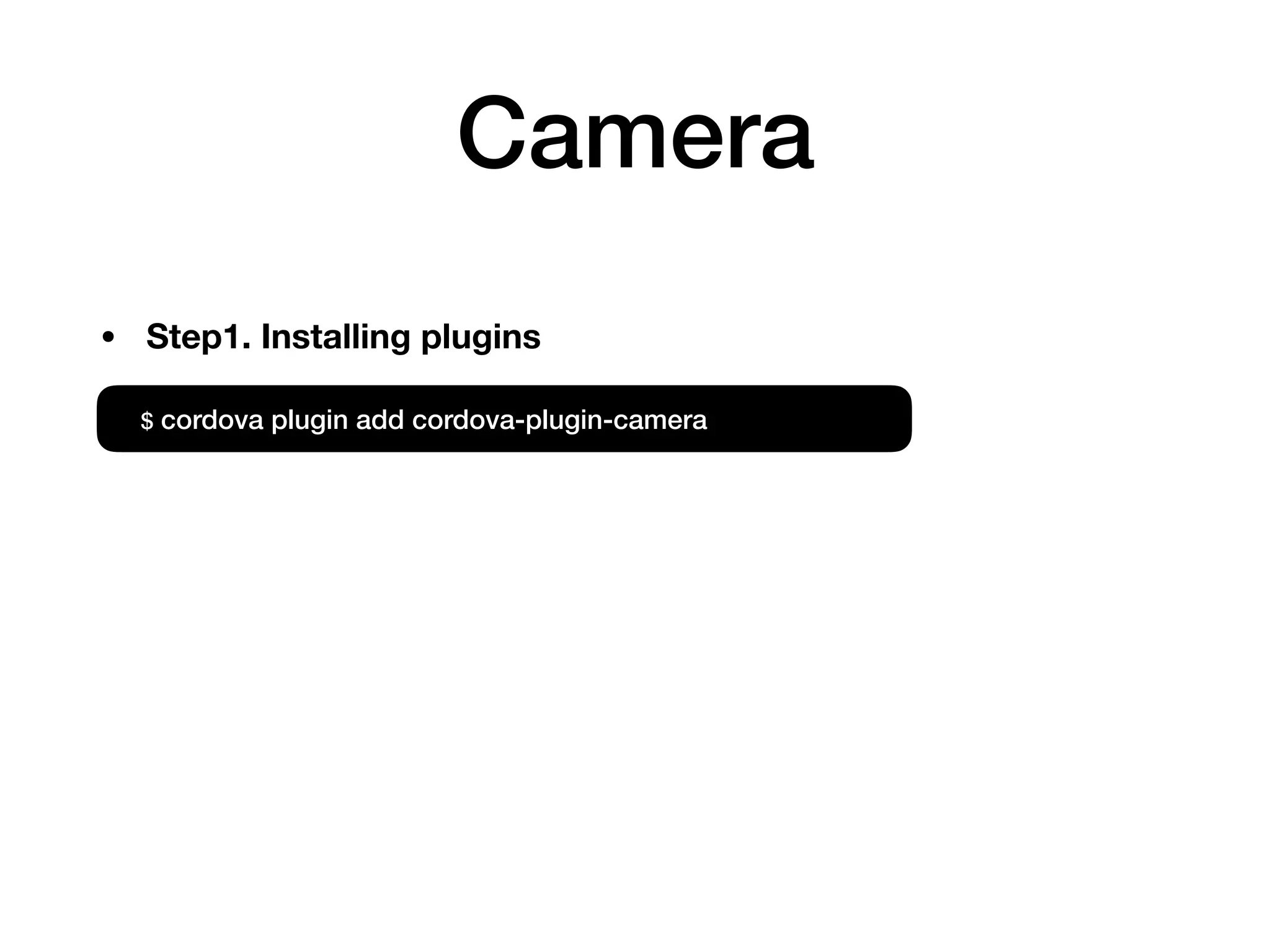
$ cordova plugin add cordova-plugin-camera
• Step1. Installing plugins
Camera
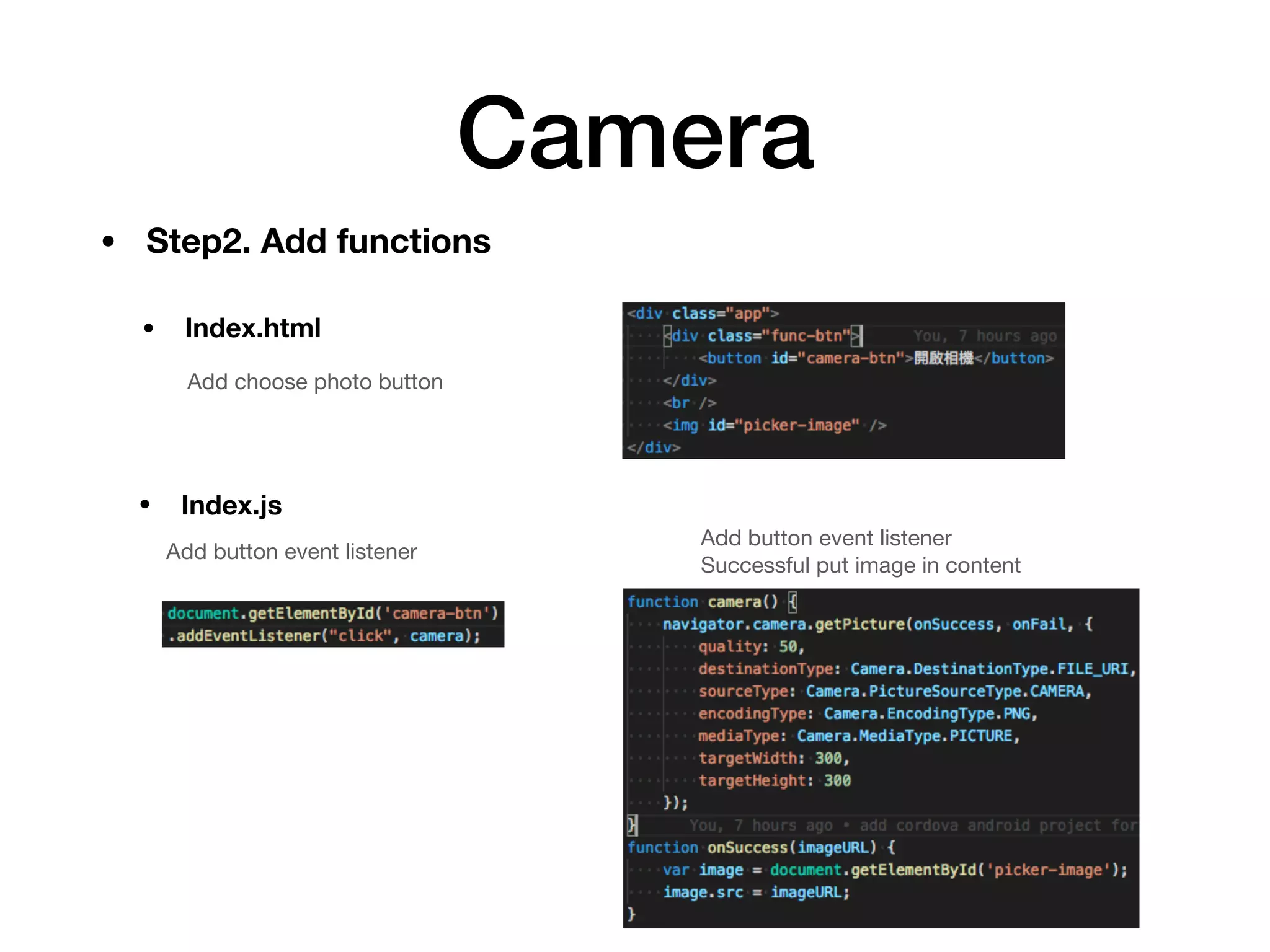
Add choose photo button
Add button event listener

Successful put image in content
• Step2. Add functions
• Index.js
• Index.html
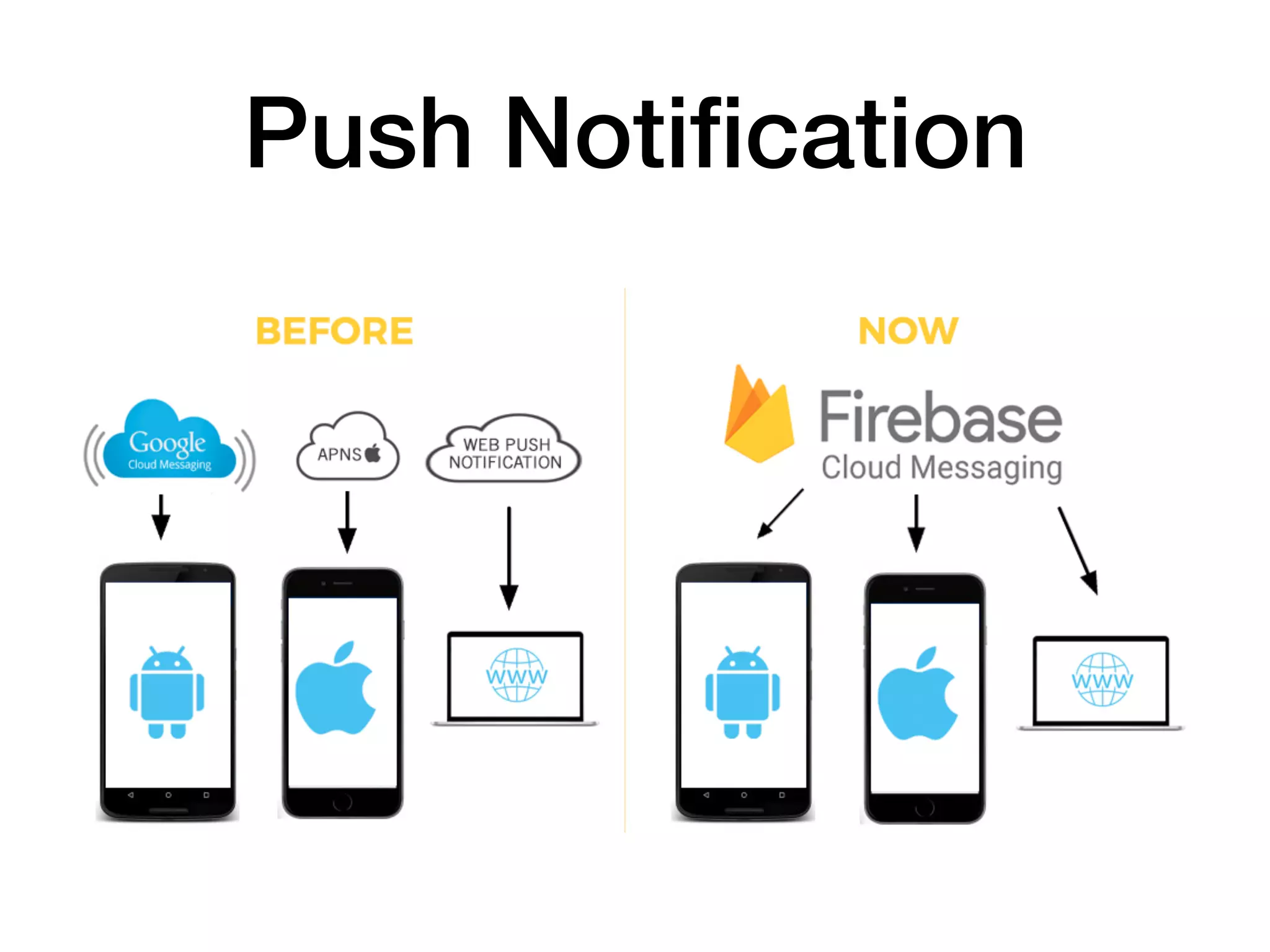
Push Notification
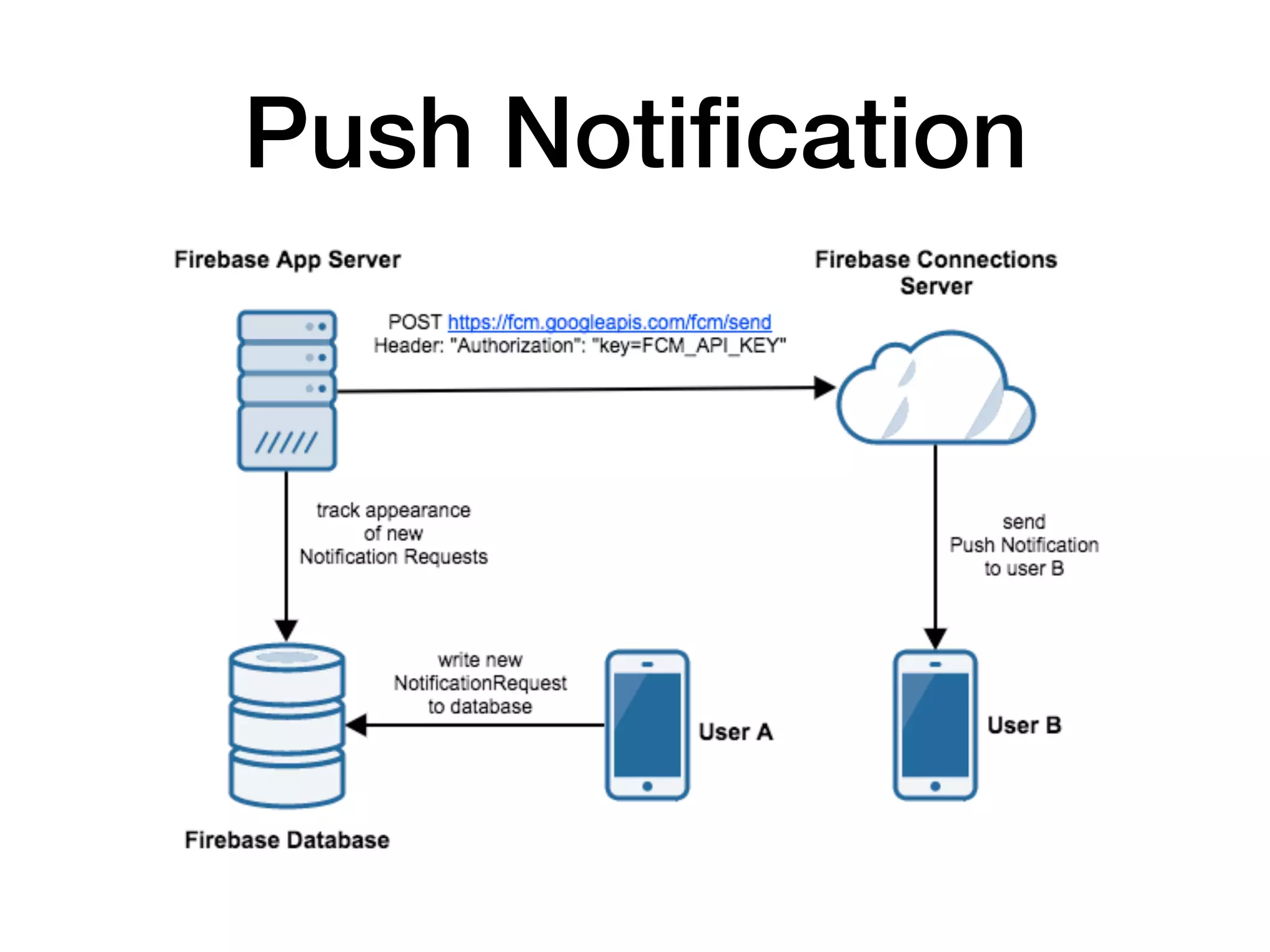
Push Notification
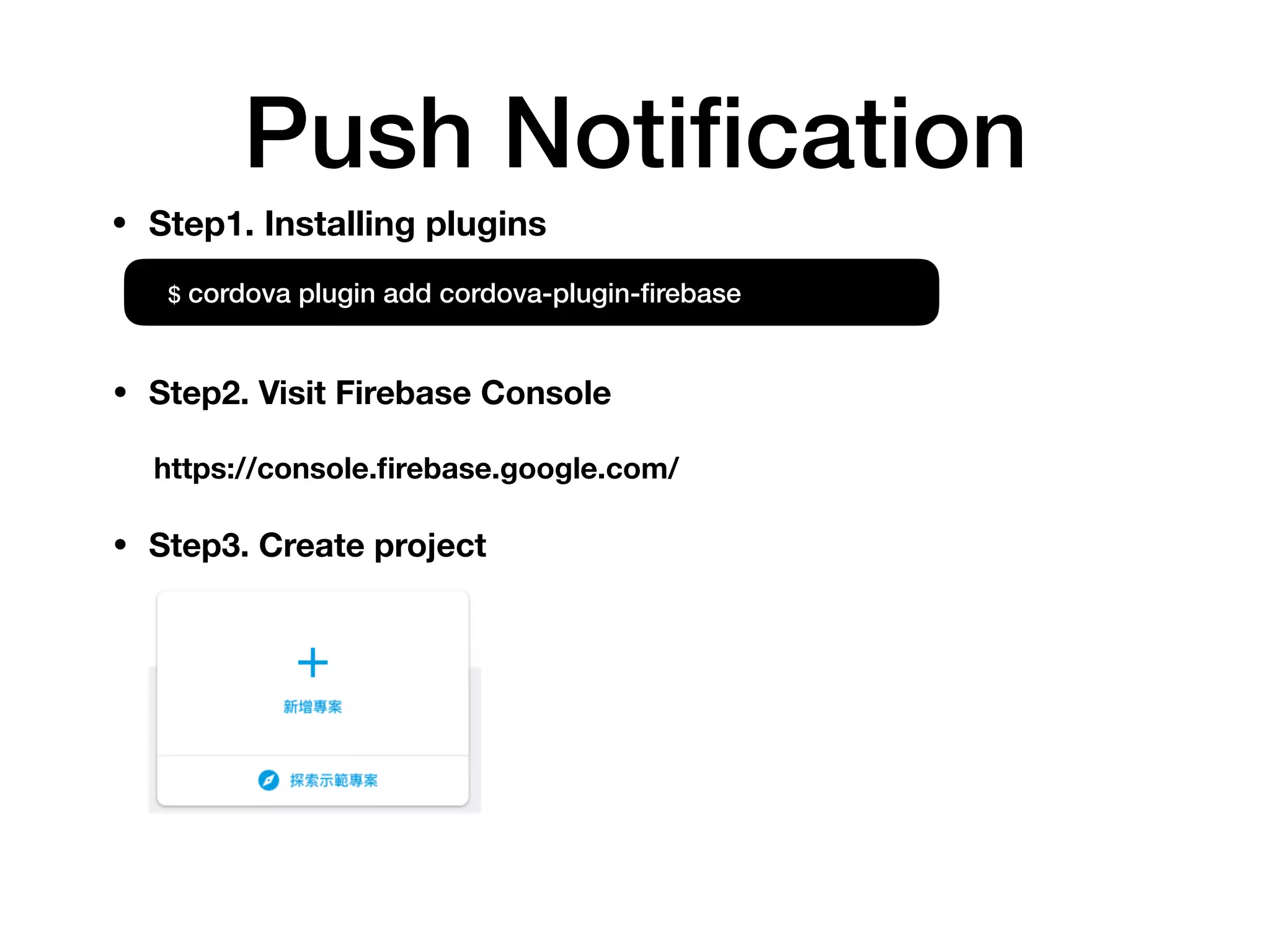
Push Notification
$ cordova plugin add cordova-plugin-firebase
• Step1. Installing plugins
• Step2. Visit Firebase Console
https://console.firebase.google.com/
• Step3. Create project
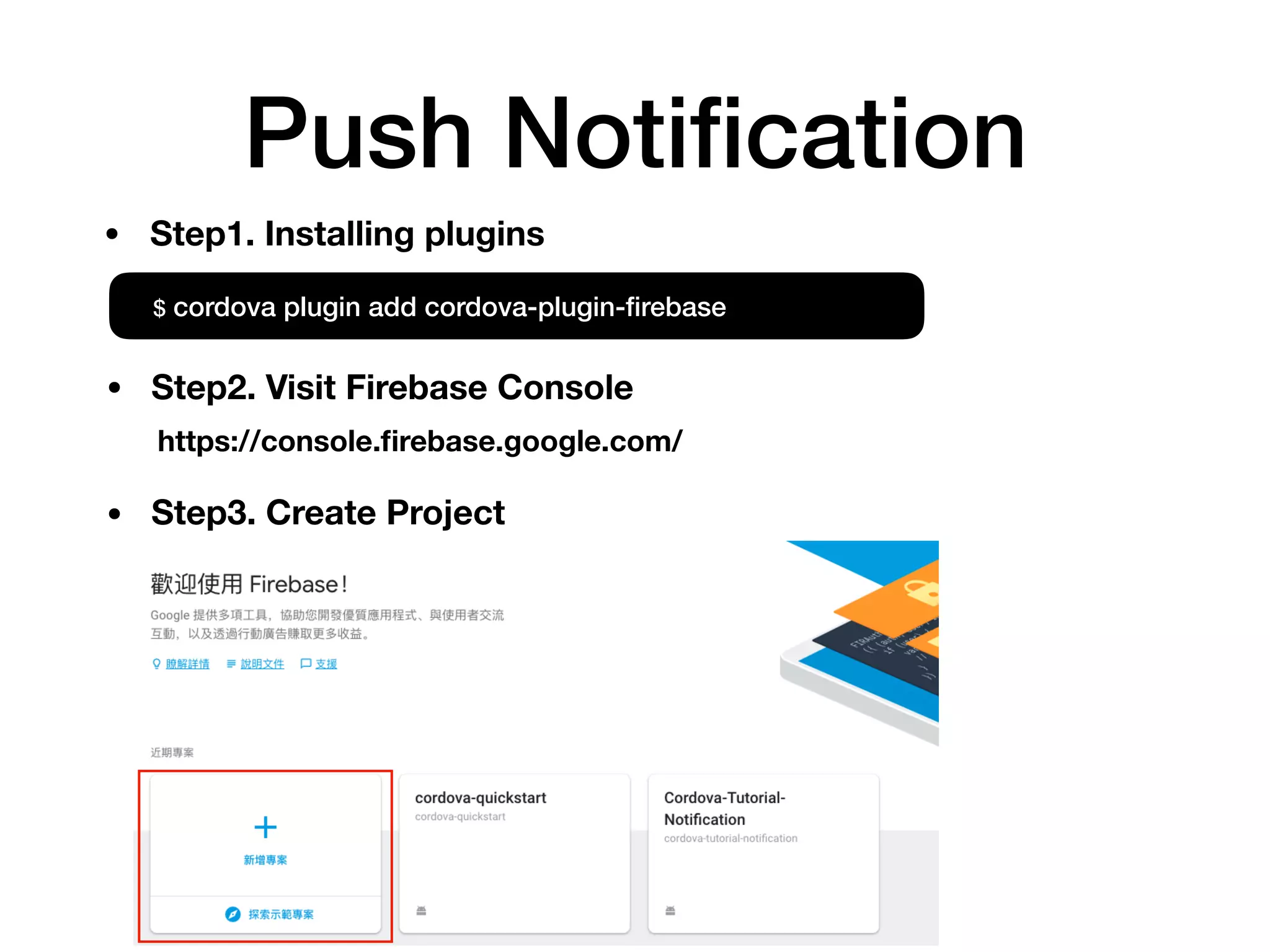
Push Notification
$ cordova plugin add cordova-plugin-firebase
https://console.firebase.google.com/
• Step1. Installing plugins
• Step2. Visit Firebase Console
• Step3. Create Project
Push Notification
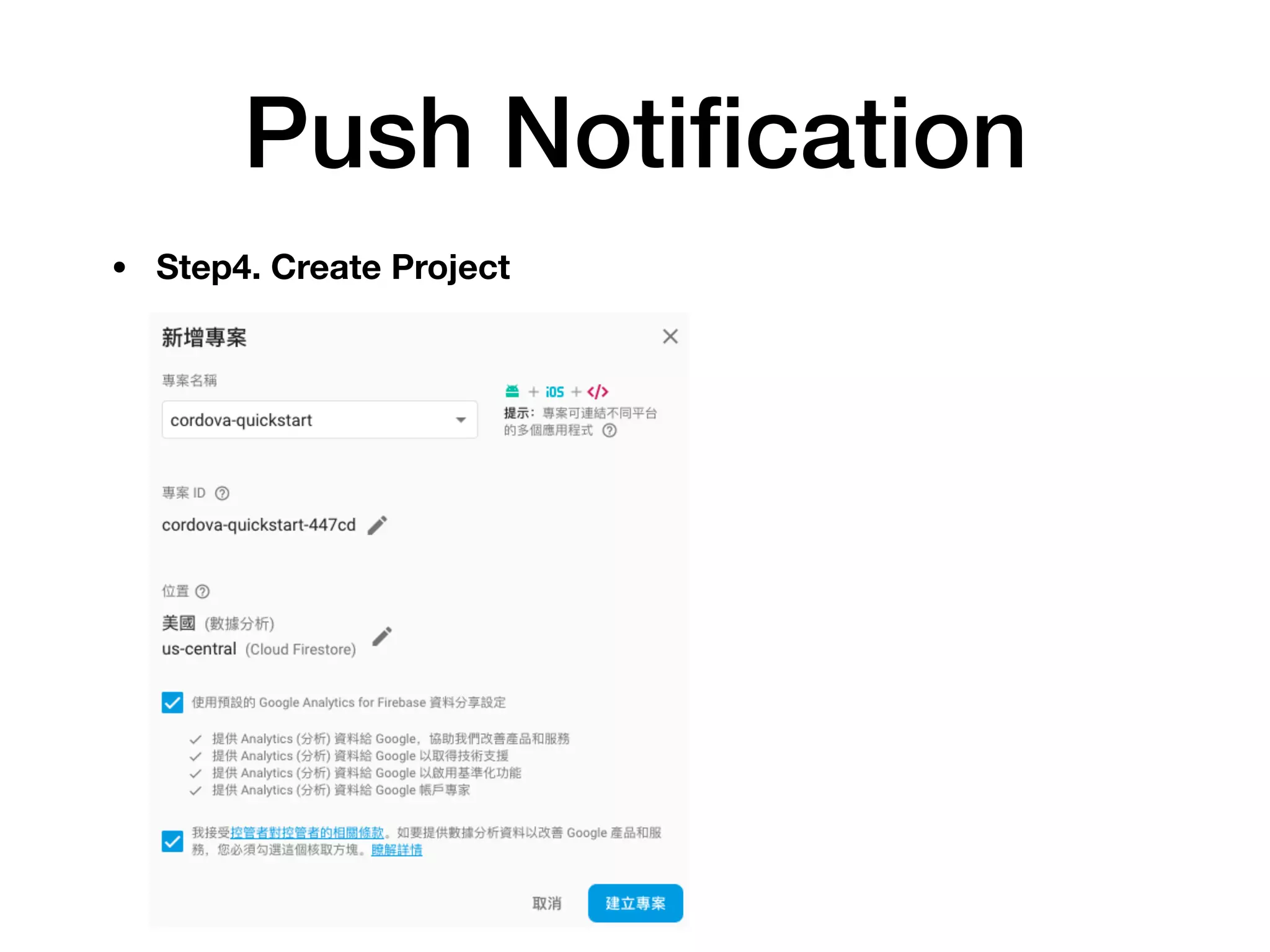
• Step4. Create Project
Push Notification
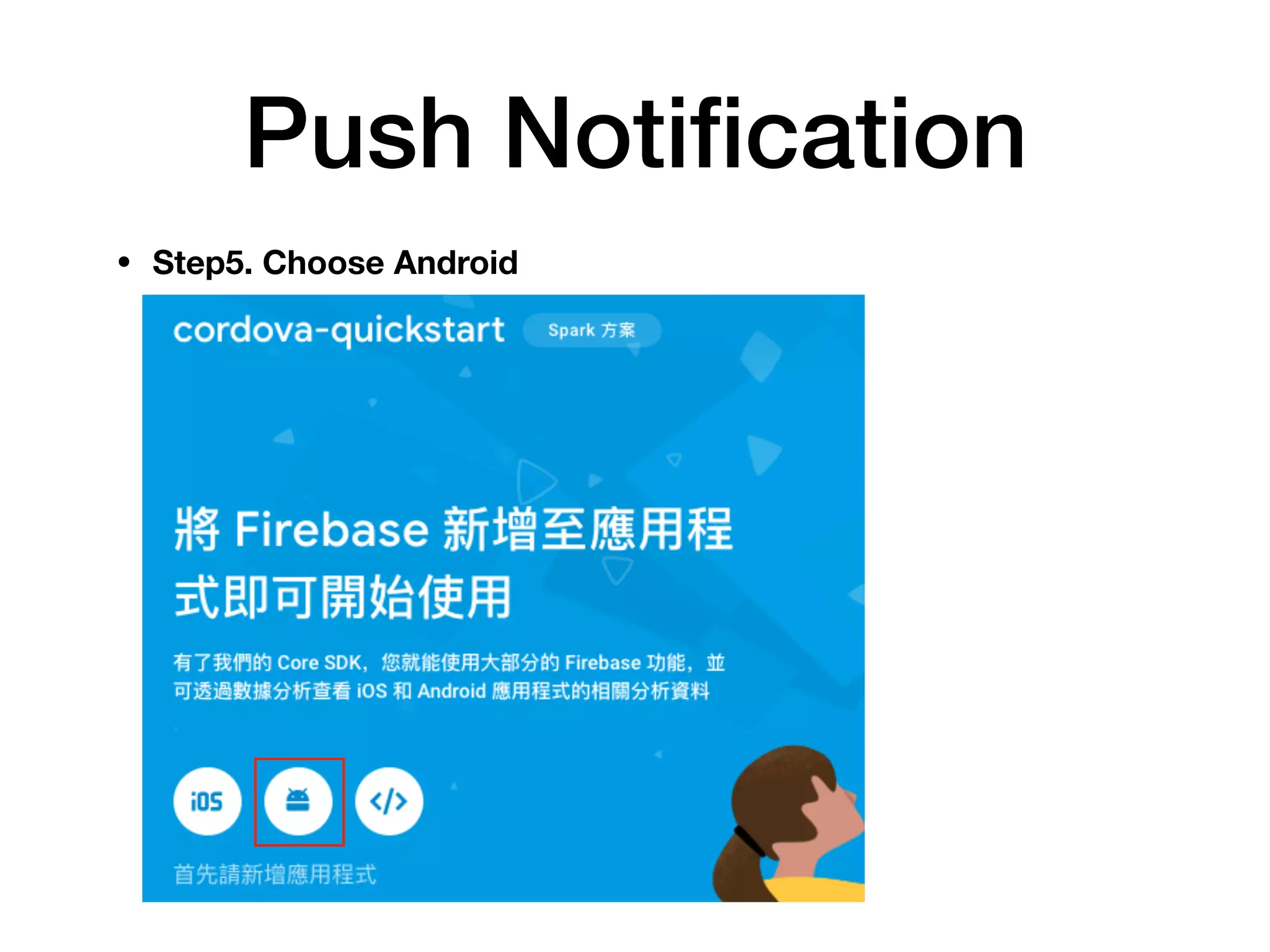
• Step5. Choose Android
Push Notification
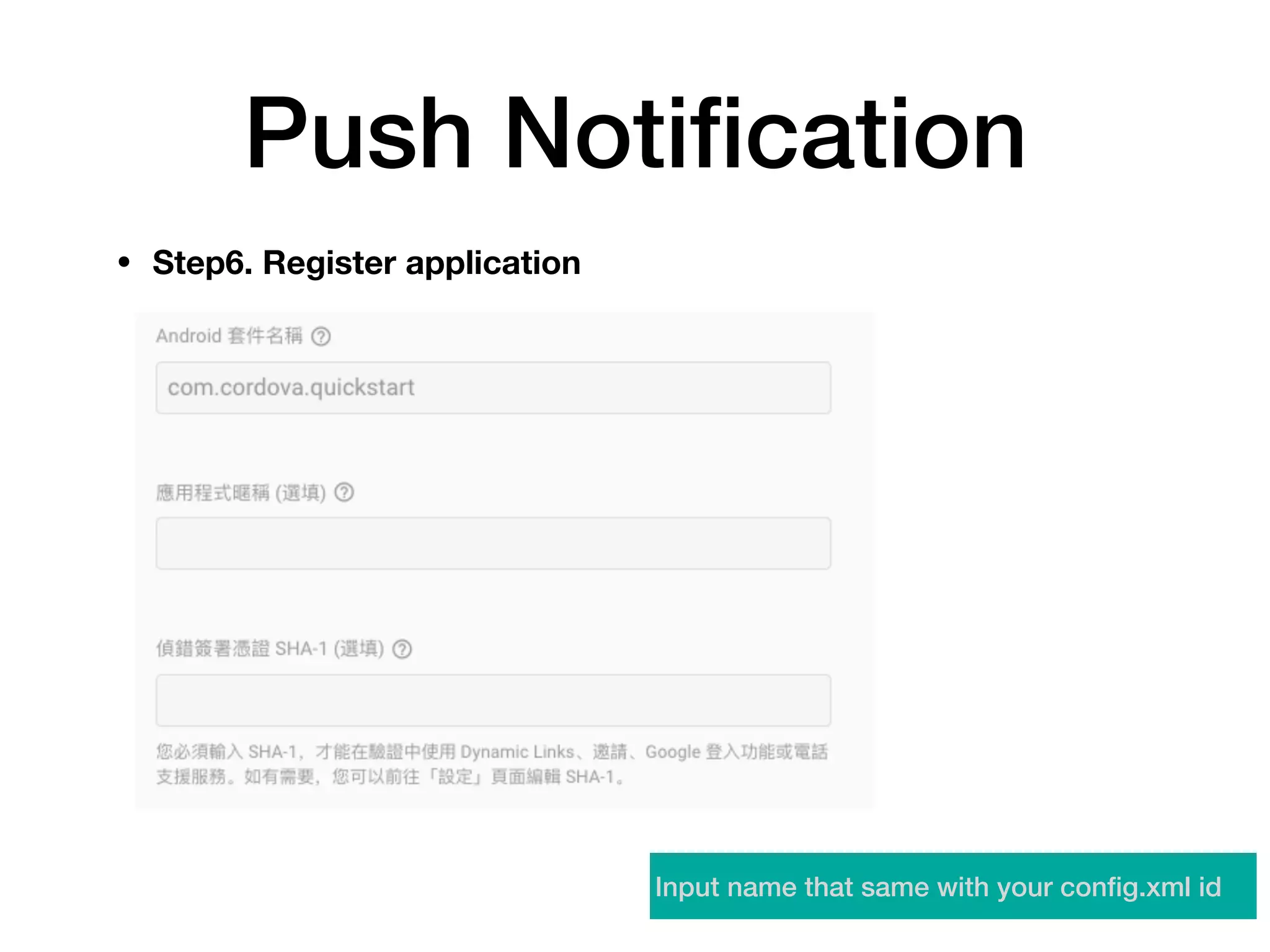
• Step6. Register application
Input name that same with your config.xml id
Push Notification
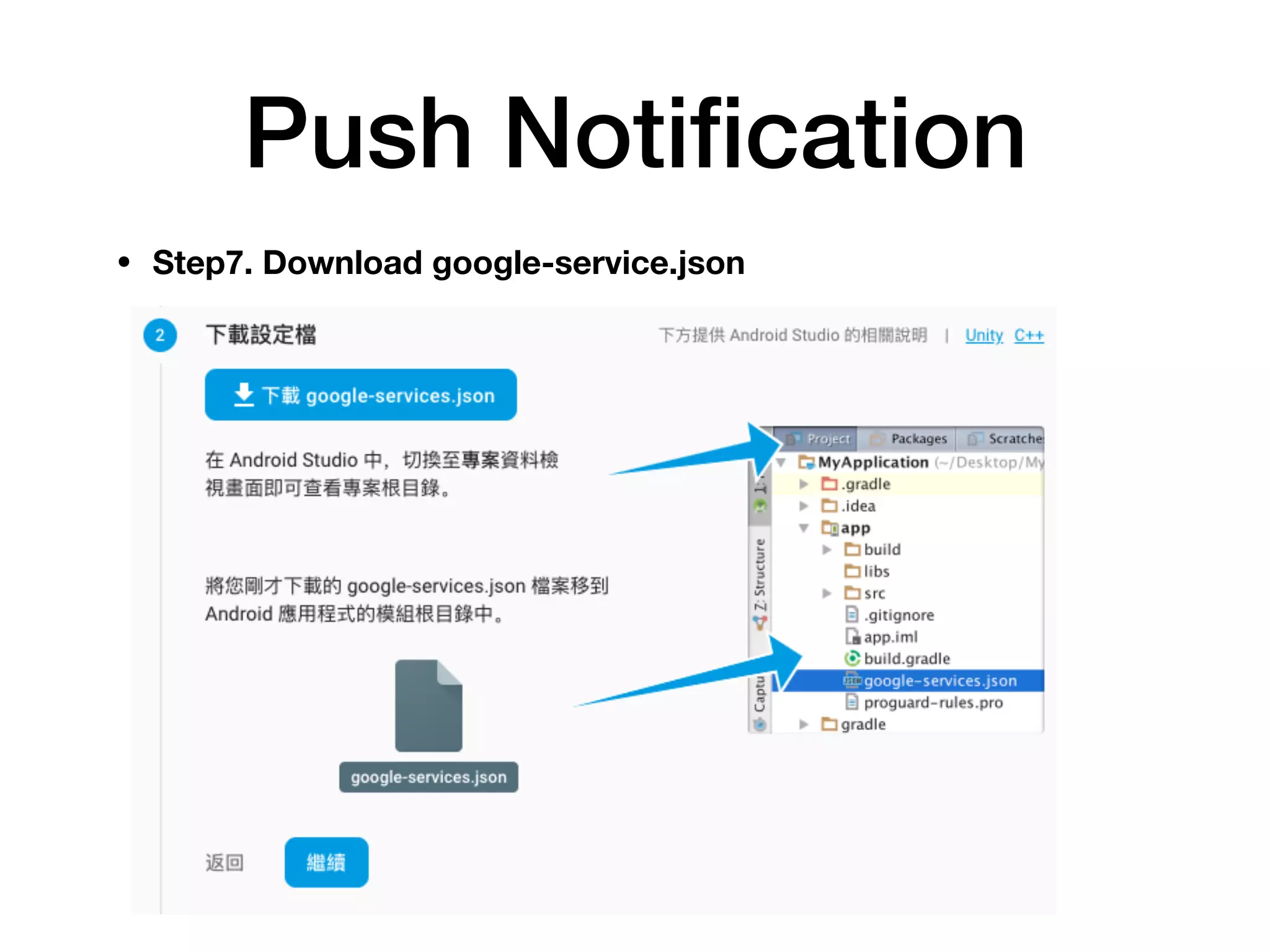
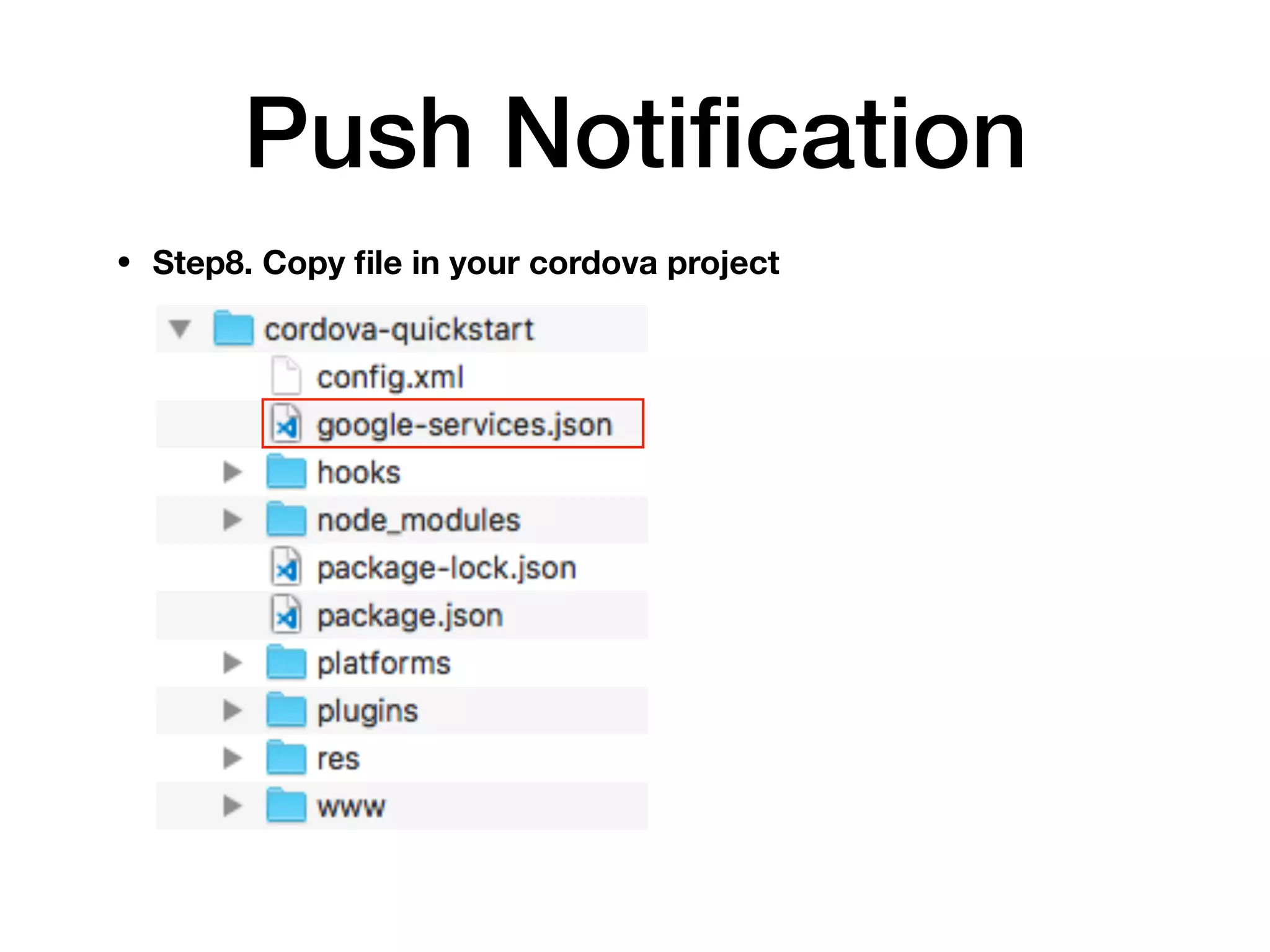
• Step7. Download google-service.json
Push Notification
• Step8. Copy file in your cordova project
Push Notification
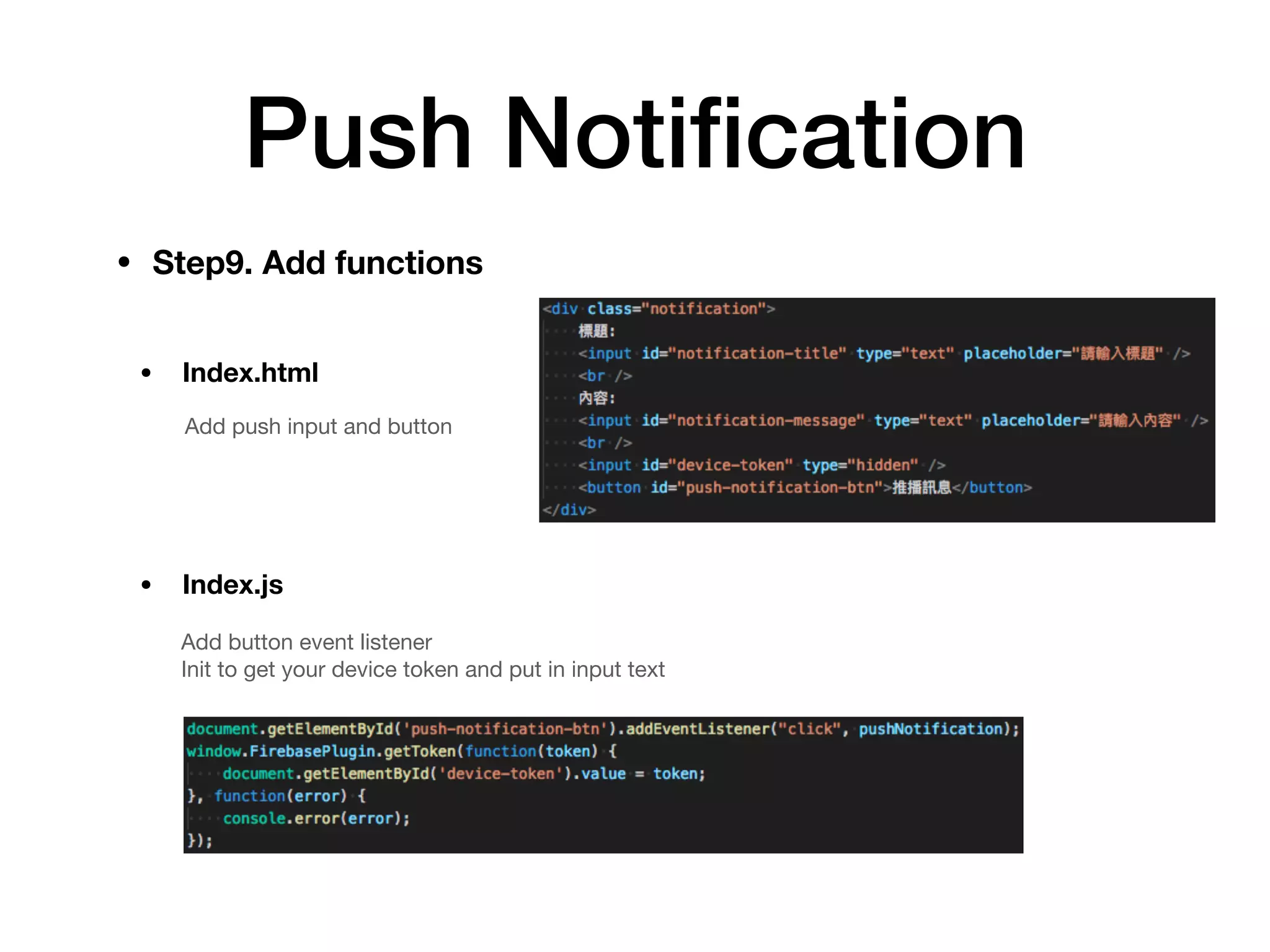
• Step9. Add functions
Add push input and button
• Index.html
• Index.js
Add button event listener

Init to get your device token and put in input text
Push Notification
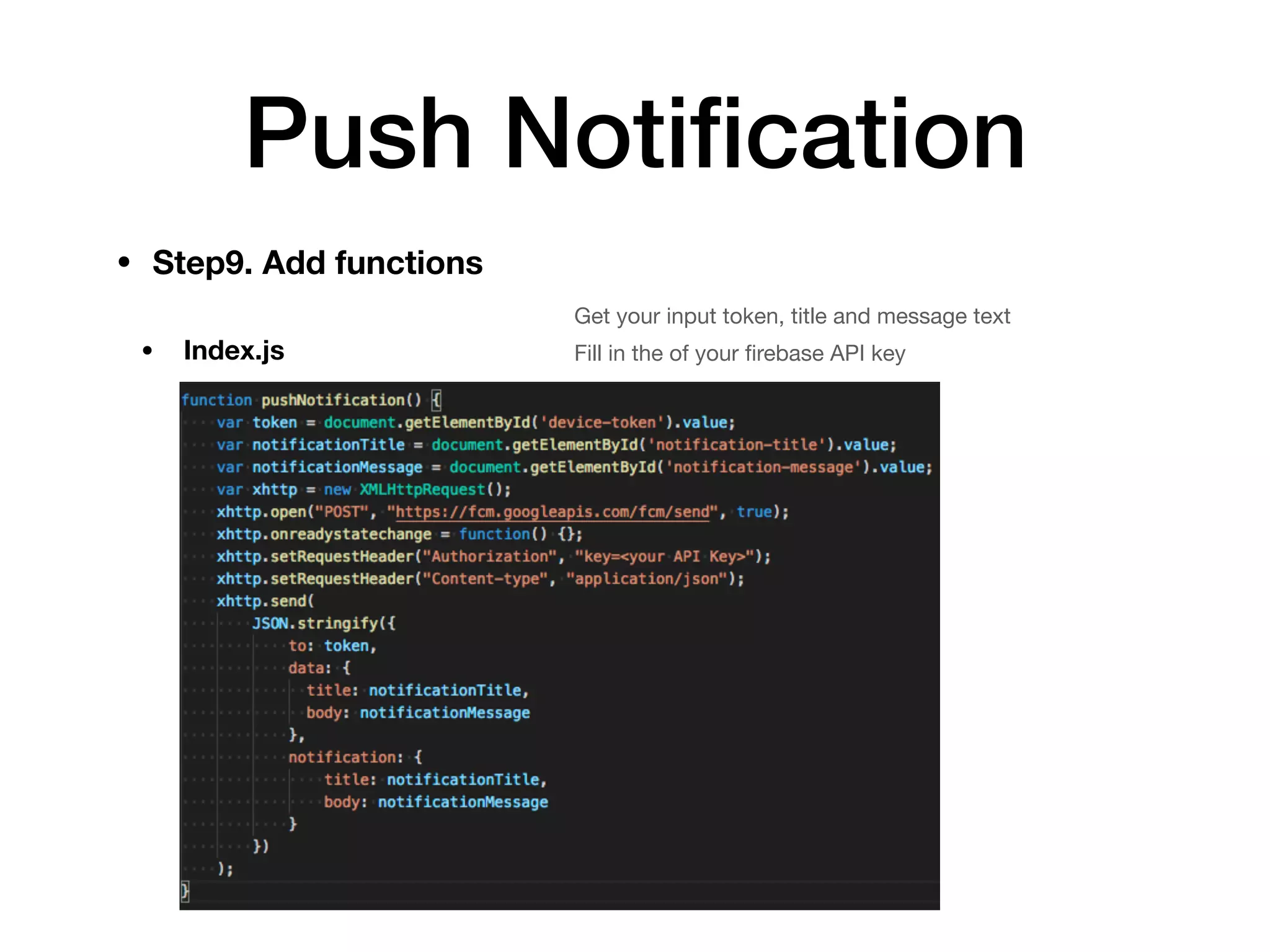
• Step9. Add functions
• Index.js
Get your input token, title and message text

Fill in the of your firebase API key
Push Notification
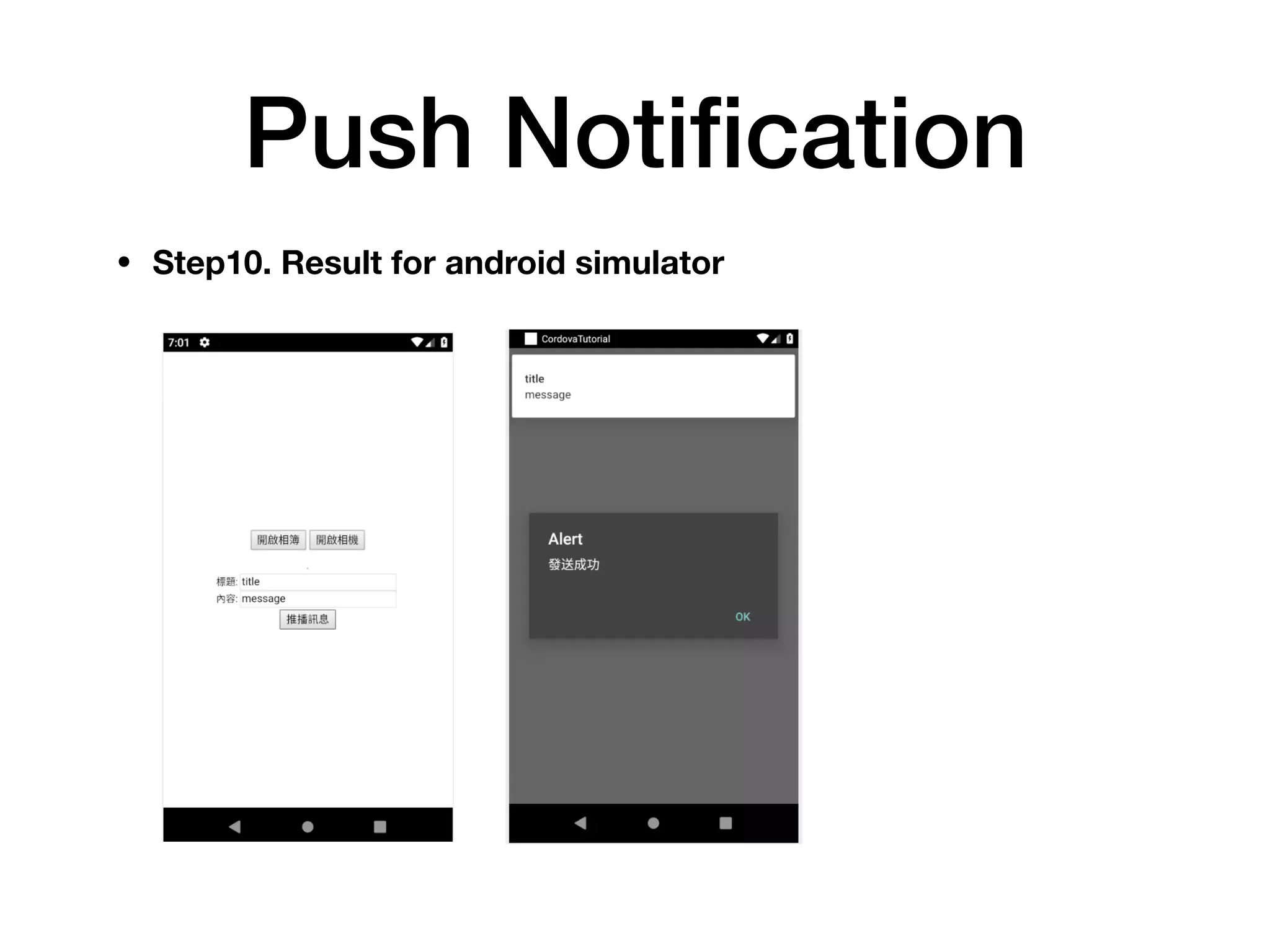
• Step10. Result for android simulator
Reference
https://www.tutorialspoint.com/cordova/cordova_camera.htmCamera Plugin
https://nodejs.org/en/NodeJS
https://developer.android.com/studio/Android Studio
https://cordova.apache.org/docs/zh-tw/latest/guide/cli/index.html
Cordova
Firebase https://console.firebase.google.com/
Cordova CLI
https://cordova.apache.org/docs/zh-tw/latest/guide/overview/index.html
https://swf.com.tw/?p=1061Compile Cordova Android
Demo Code https://github.com/jhongyi/cordova-tutorial

Cordova Tutorial