CORDOVA TRAINING
SESSION: 6 - USER INTERFACE USING FRAMEWORK7
SIDE PANELS
 Framework7 supports the use of side panels.
 Up to 2 panels, one on left side and another one on right side can be included.
 After we add panels we need to choose opening effect for each panel. This can be:
 Reveal
 Cover
SIDE PANELS
 A panel consist of 2 components – panel itself and the panel overlay.
 The panel overlay is the layer that overlap the screen when a panel is displayed.
SIDE PANELS
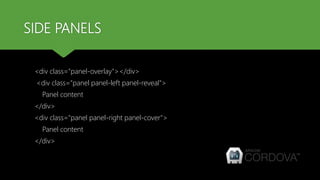
<div class="panel-overlay"></div>
<div class="panel panel-left panel-reveal">
Panel content
</div>
<div class="panel panel-right panel-cover">
Panel content
</div>
SIDE PANELS
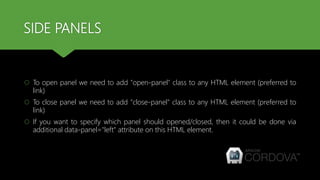
 To open panel we need to add "open-panel" class to any HTML element (preferred to
link)
 To close panel we need to add "close-panel" class to any HTML element (preferred to
link)
 If you want to specify which panel should opened/closed, then it could be done via
additional data-panel="left" attribute on this HTML element.
SIDE PANELS
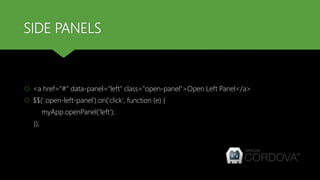
 <a href="#" data-panel="left" class="open-panel">Open Left Panel</a>
 $$('.open-left-panel').on('click', function (e) {
myApp.openPanel('left');
});
ALERT
 Framework7 provides methods to display alerts.
 To open Alert modal we should call one of the following App methods:
 alert(text, [title, callbackOk]);
 alert(text, [callbackOk]);
ALERT
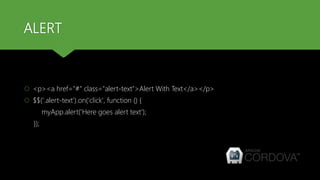
 <p><a href="#" class="alert-text">Alert With Text</a></p>
 $$('.alert-text').on('click', function () {
myApp.alert('Here goes alert text');
});
CONFIRM
 Confirm modal usually used when it is required to confirm some action.
 To open Confirm modal we should also call one of the following App methods:
 confirm(text, [title, callbackOk, callbackCancel]);
 confirm(text, [callbackOk, callbackCancel]);
CONFIRM
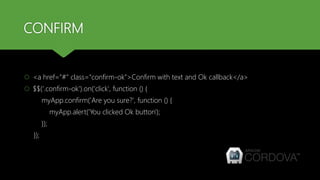
 <a href="#" class="confirm-ok">Confirm with text and Ok callback</a>
 $$('.confirm-ok').on('click', function () {
myApp.confirm('Are you sure?', function () {
myApp.alert('You clicked Ok button');
});
});
PROMPT
 Prompt modal used when it is required to get some data/answer from user.
 To open Prompt modal we should also call one of the following App methods:
 prompt(text, [title, callbackOk, callbackCancel]);
 prompt(text, [callbackOk, callbackCancel]);
PROMPT
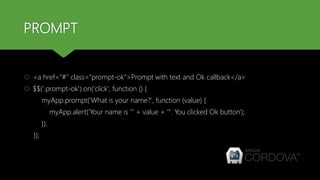
 <a href="#" class="prompt-ok">Prompt with text and Ok callback</a>
 $$('.prompt-ok').on('click', function () {
myApp.prompt('What is your name?', function (value) {
myApp.alert('Your name is "' + value + '". You clicked Ok button');
});
});
PRELOADER
 Preloader Modal is used to indicate some background activity (like Ajax request) and to
block any user actions during this activity.
 To open Preloader modal we should also call appropriate App method:
 showPreloader([title]);
 Because Preloader modal has not any buttons, it should be closed by JavaScript using
hidePreloader() method.
PRELOADER
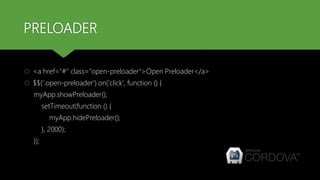
 <a href="#" class="open-preloader">Open Preloader</a>
 $$('.open-preloader').on('click', function () {
myApp.showPreloader();
setTimeout(function () {
myApp.hidePreloader();
}, 2000);
});
INDICATOR
 If we only need to display a loading indicator to denote an ongoing action, we can use
the indicator widget. The most commonly used methods are:
 showIndicator();
 hideIndicator();
INDICATOR
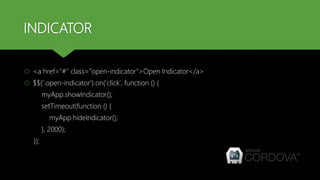
 <a href="#" class="open-indicator">Open Indicator</a>
 $$('.open-indicator').on('click', function () {
myApp.showIndicator();
setTimeout(function () {
myApp.hideIndicator();
}, 2000);
});
POPUP
 Popup is a popup window with any HTML content that pops up over App's main
content.
 To create a popup layout, we need to add class="popup“.
 To create a full screen popup on tablets, use class=“popup tablet-fullscreen”
 To open popup we need to add "open-popup" class to any HTML element (prefered to
link)
 To close popup we need to add "close-popup" class to any HTML element (prefered to
link)
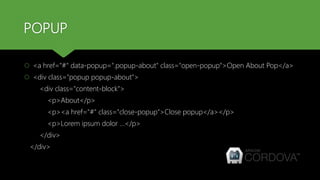
POPUP
 <a href="#" data-popup=".popup-about" class="open-popup">Open About Pop</a>
 <div class="popup popup-about">
<div class="content-block">
<p>About</p>
<p><a href="#" class="close-popup">Close popup</a></p>
<p>Lorem ipsum dolor ...</p>
</div>
</div>
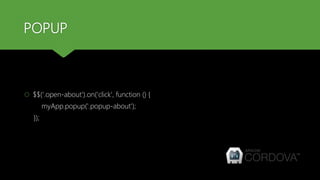
POPUP
 $$('.open-about').on('click', function () {
myApp.popup('.popup-about');
});
ACTION SHEET
 Action Sheet is a slide-up pane for presenting the user with a list of actionable items.
 You can also use action sheets to prompt the user to confirm a potentially dangerous
action.
 Action sheet is the dynamic element, it could be created and opened only using
JavaScript.
ACTION SHEET
 <p><a href="#" class="ac-1">One group, three buttons</a></p>
 $$('.ac-1').on('click', function () {
var buttons = [
{text: 'Button1', onClick: function (){}},
{text: 'Button2‘, onClick: function (){}},
{text: 'Cancel', onClick: function (){}},
];
myApp.actions(buttons);
});
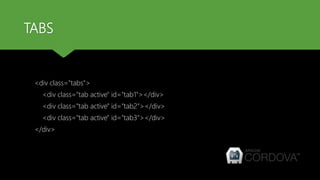
TABS
<div class="tabs">
<div class="tab active" id="tab1"></div>
<div class="tab active" id="tab2"></div>
<div class="tab active" id="tab3"></div>
</div>
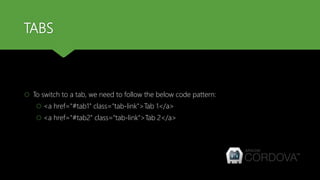
TABS
 To switch to a tab, we need to follow the below code pattern:
 <a href="#tab1" class="tab-link">Tab 1</a>
 <a href="#tab2" class="tab-link">Tab 2</a>
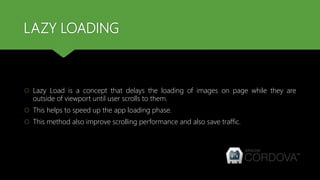
LAZY LOADING
 Lazy Load is a concept that delays the loading of images on page while they are
outside of viewport until user scrolls to them.
 This helps to speed up the app loading phase.
 This method also improve scrolling performance and also save traffic.
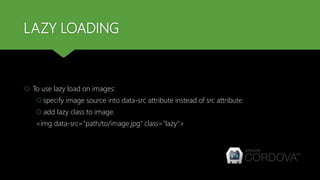
LAZY LOADING
 To use lazy load on images:
 specify image source into data-src attribute instead of src attribute.
 add lazy class to image.
<img data-src="path/to/image.jpg" class="lazy">
LAZY LOADING
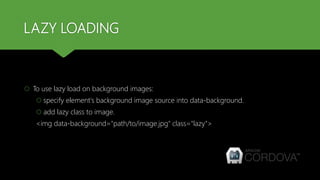
 To use lazy load on background images:
 specify element's background image source into data-background.
 add lazy class to image.
<img data-background="path/to/image.jpg" class="lazy">
LAZY LOADING
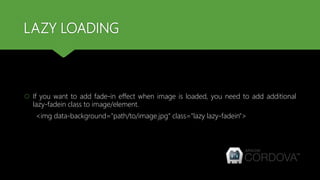
 If you want to add fade-in effect when image is loaded, you need to add additional
lazy-fadein class to image/element.
<img data-background="path/to/image.jpg" class="lazy lazy-fadein">
THANK YOU

Cordova training : Day 6 - UI development using Framework7

  • 1.
    CORDOVA TRAINING SESSION: 6- USER INTERFACE USING FRAMEWORK7
  • 2.
    SIDE PANELS  Framework7supports the use of side panels.  Up to 2 panels, one on left side and another one on right side can be included.  After we add panels we need to choose opening effect for each panel. This can be:  Reveal  Cover
  • 3.
    SIDE PANELS  Apanel consist of 2 components – panel itself and the panel overlay.  The panel overlay is the layer that overlap the screen when a panel is displayed.
  • 4.
    SIDE PANELS <div class="panel-overlay"></div> <divclass="panel panel-left panel-reveal"> Panel content </div> <div class="panel panel-right panel-cover"> Panel content </div>
  • 5.
    SIDE PANELS  Toopen panel we need to add "open-panel" class to any HTML element (preferred to link)  To close panel we need to add "close-panel" class to any HTML element (preferred to link)  If you want to specify which panel should opened/closed, then it could be done via additional data-panel="left" attribute on this HTML element.
  • 6.
    SIDE PANELS  <ahref="#" data-panel="left" class="open-panel">Open Left Panel</a>  $$('.open-left-panel').on('click', function (e) { myApp.openPanel('left'); });
  • 7.
    ALERT  Framework7 providesmethods to display alerts.  To open Alert modal we should call one of the following App methods:  alert(text, [title, callbackOk]);  alert(text, [callbackOk]);
  • 8.
    ALERT  <p><a href="#"class="alert-text">Alert With Text</a></p>  $$('.alert-text').on('click', function () { myApp.alert('Here goes alert text'); });
  • 9.
    CONFIRM  Confirm modalusually used when it is required to confirm some action.  To open Confirm modal we should also call one of the following App methods:  confirm(text, [title, callbackOk, callbackCancel]);  confirm(text, [callbackOk, callbackCancel]);
  • 10.
    CONFIRM  <a href="#"class="confirm-ok">Confirm with text and Ok callback</a>  $$('.confirm-ok').on('click', function () { myApp.confirm('Are you sure?', function () { myApp.alert('You clicked Ok button'); }); });
  • 11.
    PROMPT  Prompt modalused when it is required to get some data/answer from user.  To open Prompt modal we should also call one of the following App methods:  prompt(text, [title, callbackOk, callbackCancel]);  prompt(text, [callbackOk, callbackCancel]);
  • 12.
    PROMPT  <a href="#"class="prompt-ok">Prompt with text and Ok callback</a>  $$('.prompt-ok').on('click', function () { myApp.prompt('What is your name?', function (value) { myApp.alert('Your name is "' + value + '". You clicked Ok button'); }); });
  • 13.
    PRELOADER  Preloader Modalis used to indicate some background activity (like Ajax request) and to block any user actions during this activity.  To open Preloader modal we should also call appropriate App method:  showPreloader([title]);  Because Preloader modal has not any buttons, it should be closed by JavaScript using hidePreloader() method.
  • 14.
    PRELOADER  <a href="#"class="open-preloader">Open Preloader</a>  $$('.open-preloader').on('click', function () { myApp.showPreloader(); setTimeout(function () { myApp.hidePreloader(); }, 2000); });
  • 15.
    INDICATOR  If weonly need to display a loading indicator to denote an ongoing action, we can use the indicator widget. The most commonly used methods are:  showIndicator();  hideIndicator();
  • 16.
    INDICATOR  <a href="#"class="open-indicator">Open Indicator</a>  $$('.open-indicator').on('click', function () { myApp.showIndicator(); setTimeout(function () { myApp.hideIndicator(); }, 2000); });
  • 17.
    POPUP  Popup isa popup window with any HTML content that pops up over App's main content.  To create a popup layout, we need to add class="popup“.  To create a full screen popup on tablets, use class=“popup tablet-fullscreen”  To open popup we need to add "open-popup" class to any HTML element (prefered to link)  To close popup we need to add "close-popup" class to any HTML element (prefered to link)
  • 18.
    POPUP  <a href="#"data-popup=".popup-about" class="open-popup">Open About Pop</a>  <div class="popup popup-about"> <div class="content-block"> <p>About</p> <p><a href="#" class="close-popup">Close popup</a></p> <p>Lorem ipsum dolor ...</p> </div> </div>
  • 19.
    POPUP  $$('.open-about').on('click', function() { myApp.popup('.popup-about'); });
  • 20.
    ACTION SHEET  ActionSheet is a slide-up pane for presenting the user with a list of actionable items.  You can also use action sheets to prompt the user to confirm a potentially dangerous action.  Action sheet is the dynamic element, it could be created and opened only using JavaScript.
  • 21.
    ACTION SHEET  <p><ahref="#" class="ac-1">One group, three buttons</a></p>  $$('.ac-1').on('click', function () { var buttons = [ {text: 'Button1', onClick: function (){}}, {text: 'Button2‘, onClick: function (){}}, {text: 'Cancel', onClick: function (){}}, ]; myApp.actions(buttons); });
  • 22.
    TABS <div class="tabs"> <div class="tabactive" id="tab1"></div> <div class="tab active" id="tab2"></div> <div class="tab active" id="tab3"></div> </div>
  • 23.
    TABS  To switchto a tab, we need to follow the below code pattern:  <a href="#tab1" class="tab-link">Tab 1</a>  <a href="#tab2" class="tab-link">Tab 2</a>
  • 24.
    LAZY LOADING  LazyLoad is a concept that delays the loading of images on page while they are outside of viewport until user scrolls to them.  This helps to speed up the app loading phase.  This method also improve scrolling performance and also save traffic.
  • 25.
    LAZY LOADING  Touse lazy load on images:  specify image source into data-src attribute instead of src attribute.  add lazy class to image. <img data-src="path/to/image.jpg" class="lazy">
  • 26.
    LAZY LOADING  Touse lazy load on background images:  specify element's background image source into data-background.  add lazy class to image. <img data-background="path/to/image.jpg" class="lazy">
  • 27.
    LAZY LOADING  Ifyou want to add fade-in effect when image is loaded, you need to add additional lazy-fadein class to image/element. <img data-background="path/to/image.jpg" class="lazy lazy-fadein">
  • 28.