Computer Operations
Work with computers
1.1 Start And Shutdown Log in Password Restart Safe mode Power Management
1.2 Interface Desktop Windows Menu Toolbars
1.3 System Settings Desktop Input And Output Settings Date And Time Display Settings
1.4 Access The Internet Broadband Dial Up Wireless Network Connections Mobile Device ISP
1.5 Terminology IT System  Computer Input Device Processor Output Device Storage Media
Information storage and retrieval
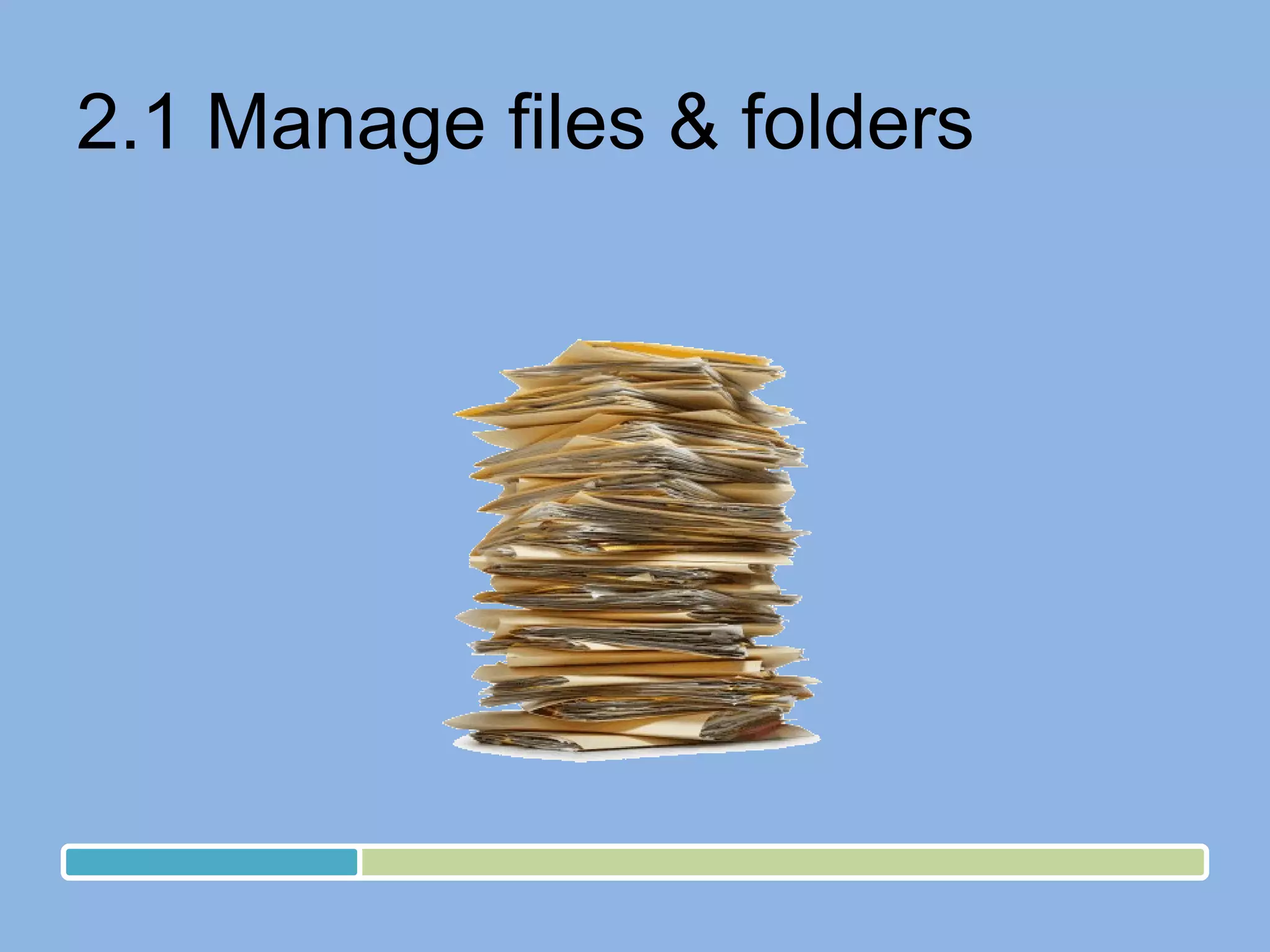
2.1 Manage files & folders
2.2 Organize and store Information
2.3 Storage Media CD DVD memory stick media card hard drive network drive mobile device
Safety and Security
3.1 Work safely Health and safety risks from hardware electrical connection  cleaning materials handling equipment Risks from hardware risk assessment safe disposal
3.2 Physical stress http://www.bbc.co.uk/webwise/course/welcome/nethealth/nethealth.shtml Quiz Seating Lighting Hazards Breaks Cables Wrists Workspace
3.3 Computer Virus Dangers How to minimize Anti-virus Caution Anti-spam Firewall
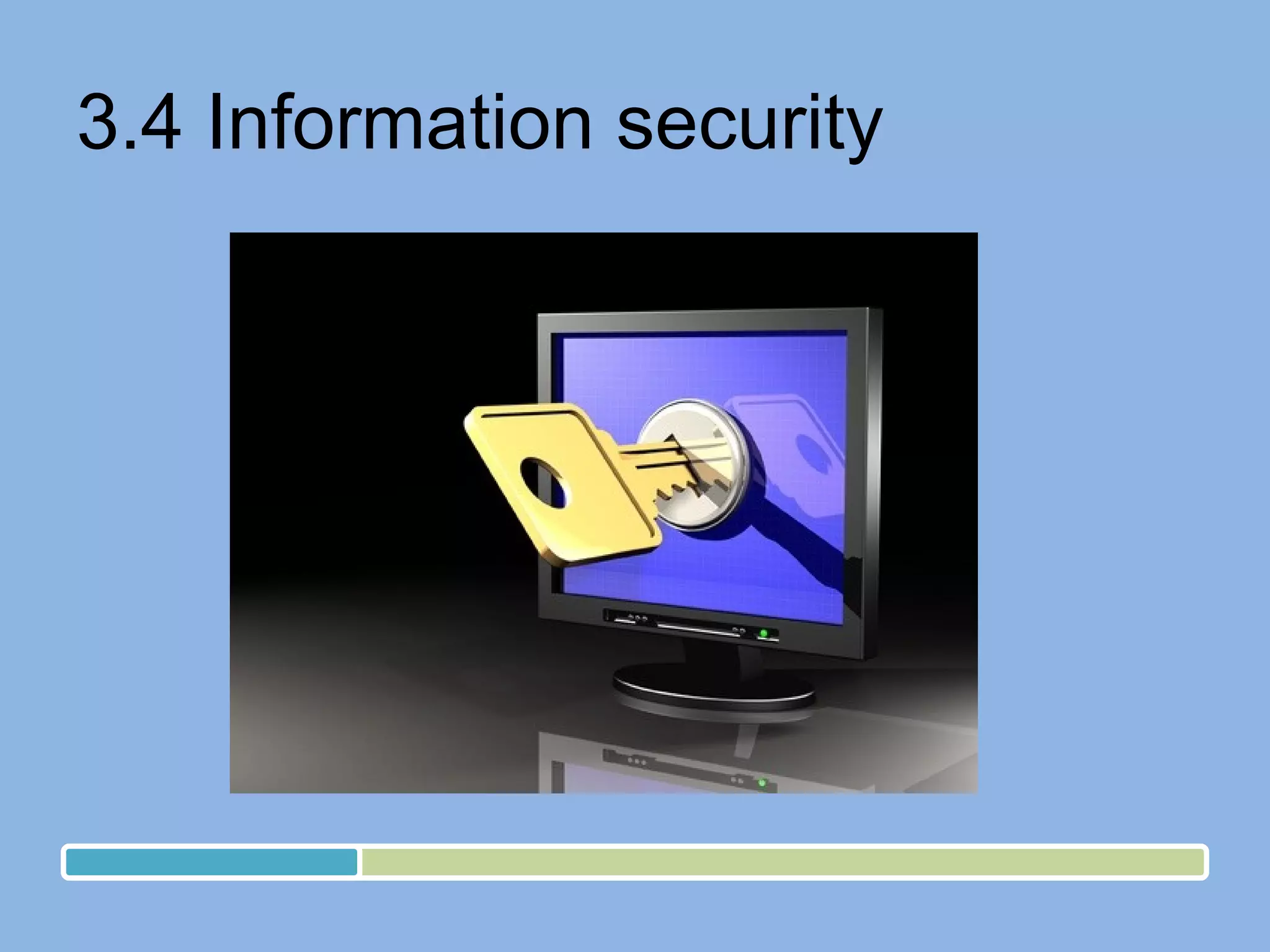
3.4 Information security
Strong Password & Phishing
3.1 Information security Copies Backup Password Tips
3.2 Guidelines: Copyright Plagiarism Inappropriate-use  Piracy Unauthorized access Legal use
3.3 Guidelines: Netiquette Do’s Don'ts
3.4 Online Communications Protection Misuse Language Confidentiality
4.1 Maintenance of Computer  Guidelines Experts Problems Specialists
4.2 Maintenance of Printer Paper Toner Cartridge Print Align
4.3 Troubleshooting Task manager Trouble shooter tool Device manager Problems
4.4 Help F1 Guidelines Experts
5.1 Hardware Device manager Add/remove hardware Device CD
5.2 Software Add/remove software Software CD

Computer Operations

Editor's Notes

  • #2 Course Overview Intro:Livebinder,Multiurl
  • #4 First Demo one item then learner hands on, then demo next Also explain Log Out Shut Down Menu Non-routine Start-up Standby Quick quiz of terminology
  • #5 First Demo one item then learner hands on, then demo next: (may be done simultaneously) Also explain: Dialog Box Submenu Icon & Buttons Scrollbar Drag And Drop Zoom, Minimize & Maximize Wizards Shortcuts Help Quick raise-your-hand quiz of features
  • #6 First Demo one item then learner hands on, then demo next: Also explain: Multiple Monitors Accessibility Settings Shortcuts
  • #7 Explain features and requirements: Pros / cons Cost, Speed, Connectivity: always on / connect, Stability, Cable/ wireless
  • #8 Explain IT System Computer (PC Or Laptop) Input Device (Keyboard, Mouse Or Other Pointing Device) Processor Output Device (Screen, Printer) Storage Media (Memory, Disk, CD, DVD, Data/Memory Stick, Hard Drive, Network Drive) Distribute “ Cool PC Lingo” page-2 “PC Just the steps for Dummies” Cheatsheet_Laptop
  • #10 First Demo one item then learner hands on, then demo next: Use the windows explorer and explain: 1. create, name, open, save, save as, print , close 2. move, copy, rename, share, delete, compress, extract files 3. display file lists, sort, search 4. properties, access control, size, file types First Demo one item then learner hands on, then demo next: create and name folders and subfolders: ICT Training - > PC Operations - > Material change default settings Quick recap
  • #11 First Demo one item then learner hands on, then demo next: Insert, remove, name, label, archive, share, permissions
  • #12 Explain features and requirements: (show physical demo if possible) Data storage Data recovery Quick quiz of terms and features randomly
  • #14 Discuss and explain: Extreme temperatures, Voltage problems, Hackers, Physical Theft, Virtual Theft Viruses, Worms, and Trojan Horses, Spyware, Internet Scams, Online Predators Human Error Hardware damage Health and safety issues: fire, voltage, overheating risks from hardware: shock, power leakage, manufacturer guidelines electrical connection risks and guidelines: shock, leakage, voltage fluctuation use and disposal of cleaning materials: what to use, what not, how to use, how not handling equipment: damage, temperatures, manufacturer guidelines Risks to self and others from using hardware: signals, radioactive, overexposure to light, sound risk assessment safe disposal of IT equipment and consumables: manufacturer guidelines
  • #15 Discuss and explain: adjust seating and lighting (give live demo personally) avoid hazards: standby, voltage, ups take breaks: after every 20mins – look 20feet away – 20eyeblinks (20-20-20) arrangement of hardware and cables: untangled, tagged, labeled wrist rests workspace working conditions Quiz: yes / no questions
  • #16 Virus has received fame after 3 Idiots Viru Shahastrabuddhe Discuss and explain: What are the d angers involved and How to minimize risk Explain: Virus-checking software (give examples) Treat files, software and attachments from unknown sources with caution anti-spam software (give examples) Firewall
  • #19 Discuss and explain: avoid inappropriate disclosure of information: logout, shared computers, online forms Tips: Installing computers in secure locations, Controlling operating environment Surge protection and line conditioning, Uninterruptible Power Supply (UPS) Data Storage in Safe Locations, Virus and Spyware Protection
  • #20 Discuss and explain: Plagiarism Inappropriate-use and piracy: Music, Software, Logo Unauthorized access Legal use Using copyrighted material for educational purposes Sharing links instead of downloaded material Using copyrighted material with the copyright owner's permission
  • #21 Discuss and explain: Do's and Don’ts Email and Instant messaging: include a descriptive subject line, Keep it short spelling and grammar mistakes excessive formatting excessive punctuation CAPITAL LETTERS emoticons like: :-) = happy :-( = sad ;-) = wink :-o = shocked
  • #22 Discuss and explain: Protect personal information avoid misuse of images use appropriate language respect confidentiality
  • #23 Discuss and explain: Manufacturer’s guidelines what maintenance can be done safely; what should be left to experts what problems may happen if maintenance is not done what non-routine maintenance may be needed what maintenance should be carried out by specialist technicians First Demo one item then learner hands on, then demo next: disk cleanup wizard, scheduled tasks, temporary files, cache Cleaning – different components to maintain functionality and appearance.
  • #24 First Demo one item then learner hands on, then demo next: replace printer consumables (paper, toner, cartridge) print test page align cartridge Distribute “WindowsGuidePrint”
  • #25 First Demo one item then learner hands on, then demo next: (Inquiry, need-based) Task manager Trouble shooter tool Device manager Discuss and explain: Inquire and identify needs and solve them along with these: Program not responding error dialogue storage full paper jam virus threat lost network connections memory low driver missing Plug-in not installed monitor does not display correct colors mouse does not respond to movement keyboard error
  • #26 Discuss and explain: help menus manufacturer’s guidelines how to follow advice where to get advice to deal with different hardware and software problems
  • #27 Discuss and explain: Demo how to install: (physical connection and software) keyboard, mouse, speaker, printer, pen-drive, camera
  • #28 First Demo one item then learner hands on, then demo next: