Introduction to Computers
1
• What is Computers?
• Computer Parts
• Computer Algorithm
• Computer Uses
• Computer basic functions
• Computer Memory
• Computer Hardware and Software
What Is A Computer?
A computer is an electronic device, operating
under the control of instructions (software)
stored in its own memory unit, that can accept
data (input), manipulate data (process), and
produce information (output) from the
processing. Generally, the term is used to
describe a collection of devices that function
together as a system.
2
Devices that comprise a computer system
3
Printer
(output)
Monitor
(output)
Speaker
(output)
Scanner
(input)
Mouse
(input)
Keyboard
(input)
System unit
(processor, memory…)
Storage devices
(CD-RW, Floppy,
Hard disk, zip,…)
What Does A Computer Do?
Computers can perform four general operations,
which comprise the information processing cycle.
Input
Process
Output
Storage
4
5
What Do Computers Do?
• Input, Process, Output, & Store data
Input Process Output
Store Data
Data and Information
• All computer processing requires data, which is a collection of raw
facts, figures and symbols, such as numbers, words, images, video
and sound, given to the computer during the input phase.
• Computers manipulate data to create information. Information is
data that is organized, meaningful, and useful.
• During the output Phase, the information that has been created is put
into some form, such as a printed report.
• The information can also be put in computer storage for future use.
6
Why Is A Computer So Powerful?
• The ability to perform the information processing
cycle with amazing speed.
• Reliability (low failure rate).
• Accuracy.
• Ability to store huge amounts of data and
information.
• Ability to communicate with other computers.
7
How Does a Computer Know what
to do?
• It must be given a detailed list of instructions,
called a compute program or software, that tells
it exactly what to do.
• Before processing a specific job, the computer
program corresponding to that job must be
stored in memory.
• Once the program is stored in memory the
compute can start the operation by executing the
program instructions one after the other.
8
What AreThe Primary Components Of A
Computer ?
• Input devices.
• Central Processing Unit
(containing the control
unit and the
arithmetic/logic unit).
• Memory.
• Output devices.
• Storage devices.
9
10
Uses of Computer
PC at Home
Common uses for the computer within the home
• Computer games
• Working from Home
• Banking from Home
• Connecting to theWeb
11
Uses of Computer
Office Applications
Stock Control
Stock control is ideal for automation and in many
companies it is now completely computerized.The stock
control system keeps track of the number of items in
stock and can automatically order replacement items
when required.
Accounts / Payroll
In most large organizations the accounts are maintained
by a computerized system. Due to the repetitive nature
of accounts a computer system is ideally suited to this
task and accuracy is guaranteed.
12
Uses of Computer
Automated Production Systems
Many car factories are almost completely automated and the
cars are assembled by computer-controlled robots.This
automation is becoming increasingly common throughout
industry.
Design Systems
Many products are designed using CAD (Computer Aided Design)
programs to produce exact specifications and detailed drawings
on the computer before producing models of new products.
13
Uses of Computer
Computers in Daily Life
• Accounts
• Games
• Educational
• On-line banking
• Smart ID cards
• Supermarkets
• Working from home (Tele-working)
• Internet
History of Computers
14
15
16
17
18
19
20
21
22
23
24
25
26
27
28
Types of Computers
Types of
Computers
Microcomputer Minicomputer Mainframe Supercomputer
Microcomputer
• Can be classified into:
• Desktop PCs
• sits on desks, rarely moved, large and bulky.
• Memory capacity, graphics capacity and software availability vary
from one computer to another Used both for business and home
applications
29
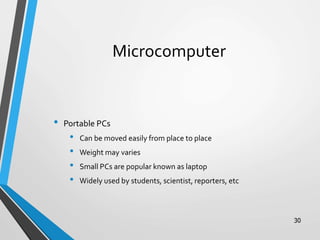
Microcomputer
• Portable PCs
• Can be moved easily from place to place
• Weight may varies
• Small PCs are popular known as laptop
• Widely used by students, scientist, reporters, etc
30
31
Microcomputer Model
Desktop
Notebook
Laptop
Subnotebook Palmtop
32
Microcomputer
• Advantages
• Small size
• Low cost
• Portability
• Low Computing Power
• Commonly used for personal applications
• Disadvantages
• Low processing speed
Uses of Microcomputer
• Word Processing
• Home entertainment
• Home banking
• Printing
• Surfing the internet
• etc
33
Minicomputer
• Medium sized computer
• Also called the minis
• e.g. IBM36, HP9000, etc
• Computing power lies between microcomputer and
mainframe computer
34
35
MiniComputer
• Characteristics
• Bigger size than PCs
• Expensive than PCs
• Multi-User
• Difficult to use
• More computing power than PCs
• Used by medium sized business organizations, colleges,
libraries and banks.
36
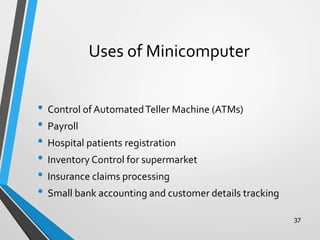
Uses of Minicomputer
• Control of AutomatedTeller Machine (ATMs)
• Payroll
• Hospital patients registration
• Inventory Control for supermarket
• Insurance claims processing
• Small bank accounting and customer details tracking
37
38
Minicomputer
• Advantage
• Cater to multiple users
• Lower costs than mainframes
• Disadvantage
• Large
• Bulky
39
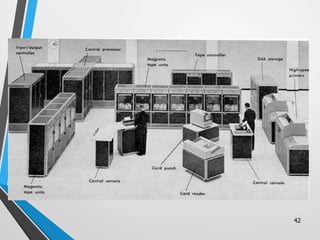
Mainframe
• Known as enterprise servers
• Occupies entire rooms or floors
• Used for centralized computing
• Serve distributed users and
small servers in a computing
network
Main Frame
• Large, fast and expensive computer
• Cost millions of dollar
• e.g. IBM3091, ICL39, etc
• Characteristics:
• Bigger in size than minicomputers
• Very expensive
• Support a few hundred users simultaneously (Multi-Users)
• Difficult to use
• More computing power than minicomputers
• Have to be kept in a special air-conditioned room
• Used in big business organizations and government departments
40
Areas where mainframes are used
• Airline reservation
• Big banks with hundreds of branches located all over the world
• Big universities with thousands of enrollment
• Natural gas and oil exploration companies
• SpaceVehicle control
• Weather forecasting
• Animated Cartoon
• Some mainframes are designed to be extremely fast and called
super computers. It is used for space launching, monitoring and
controlling.
41
42
43
44
Mainframe
• Advantage
• Supports many users and instructions
• Large memory
• Disadvantage
• Huge size
• Expensive
45
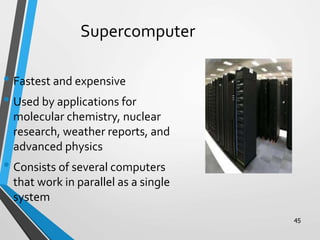
Supercomputer
• Fastest and expensive
• Used by applications for
molecular chemistry, nuclear
research, weather reports, and
advanced physics
• Consists of several computers
that work in parallel as a single
system
46
Super Computer
• Advantage
• Speed
• Disadvantage
• Generate a large amount
of heat during operation
47
Computer System
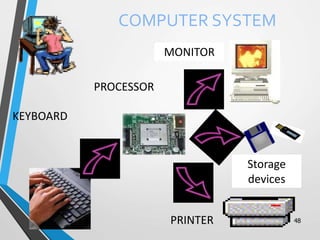
A computer system consists of three primary units:
Input units – accept data
Processor unit – processes data by performing comparisons
and calculations
Output units – present the results
48
COMPUTER SYSTEM
KEYBOARD
PROCESSOR
MONITOR
PRINTER
Storage
devices
49
Input Devices
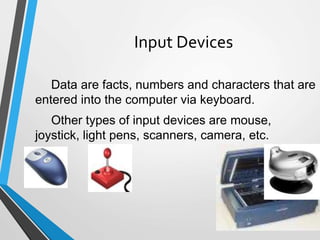
Data are facts, numbers and characters that are
entered into the computer via keyboard.
Other types of input devices are mouse,
joystick, light pens, scanners, camera, etc.
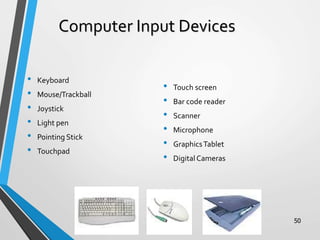
Computer Input Devices
• Keyboard
• Mouse/Trackball
• Joystick
• Light pen
• Pointing Stick
• Touchpad
• Touch screen
• Bar code reader
• Scanner
• Microphone
• GraphicsTablet
• Digital Cameras
50
51
Processor Unit
Two main parts:
CPU – where the actual processing takes
place; and
Main memory – where data are stored.
The contents of main memory can be
transferred to auxiliary storage devices such as
hard disks, floppy diskettes, zip disks, compact
disks, or USB flash disk.
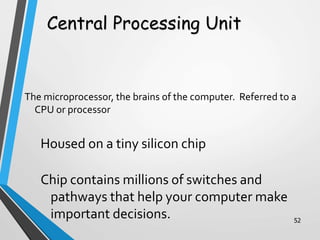
The microprocessor, the brains of the computer. Referred to a
CPU or processor
Housed on a tiny silicon chip
Chip contains millions of switches and
pathways that help your computer make
important decisions. 52
Central Processing Unit
53
CPU knows which switches to turn on
and which to turn off because it
receives its instructions from
computer programs (software).
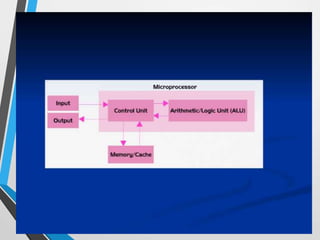
CPU has two primary sections:
Arithmetic/logic unit
Control unit
54
Arithmetic/logic unit (ALU):
- Performs arithmetic computations and
logical operations; by combining these two
operations the ALU can execute complex
tasks.
- Arithmetic operations include addition,
subtractions, multiplication, and division.
- Logical operations involve comparisons.
55
Control Unit: is the “boss” and coordinates
all of the CPU’s activities.
Uses programming instructions, it controls
the flow of information through the
processor by controlling what happens
inside the processor.
We communicate with the computer
through programming languages.
Examples: COBOL, C++, HTML,
Java Script orVisualBasic.net
56
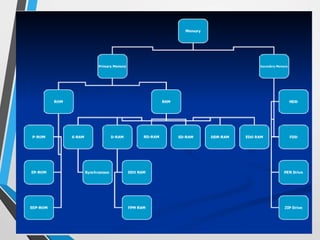
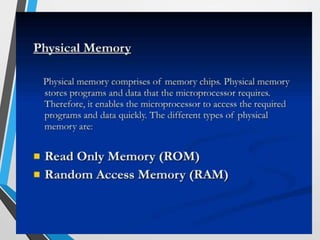
Memory
Found on the motherboard
 Short term
Random Access Memory (RAM)
 Long term
Read Only Memory (ROM)
57
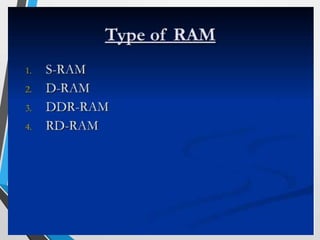
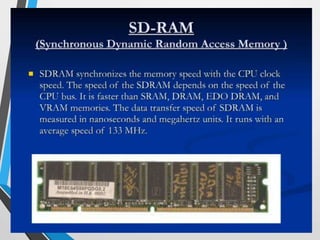
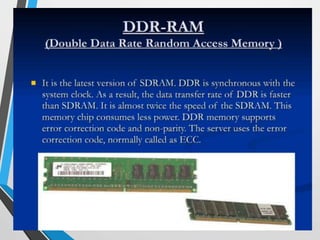
Random Access Memory (RAM)
Memory on the motherboard that is short
term; where data, information, and program
instructions are stored temporarily on a RAM
chip or a set of RAM chips. Known as the
main memory.
This memory is considered volatile.
The computer can read from and
write to RAM.
58
When the computer is turned off or if
there is loss of power, what ever is
stored in RAM disappears.
“Temporary Memory” – Short Term
59
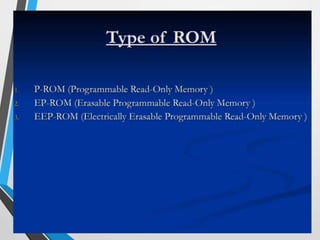
Read-Only Memory (ROM)
Memory on the motherboard that is
long term; where the specific
instructions that are needed for the
computer to operate are stored.
This memory is nonvolatile and your
computer can only read from a ROM
chip.
60
The instructions remain on the chip
regardless if the power is turned on
or off.
Most common is the BIOS ROM;
where the computer uses instructions
contained on this chip to boot or
start the system when you turn on
your computer.
“Permanent Memory” – Long
Term
61
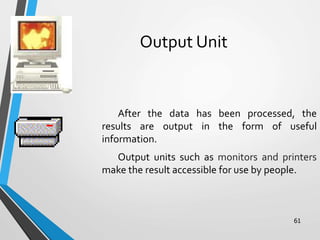
Output Unit
After the data has been processed, the
results are output in the form of useful
information.
Output units such as monitors and printers
make the result accessible for use by people.
Computer Output Devices
Monitor: screen that display
information such as text,
numbers, and pictures-
softcopy.
Printer: gives you information
from the computer in
printed form – hardcopy.
Speakers: allow you to
hear voice, music,
and other sounds
from your computer.
Modem: allows you to
use your computer to
communicate with
other computers. 62
Input Devices
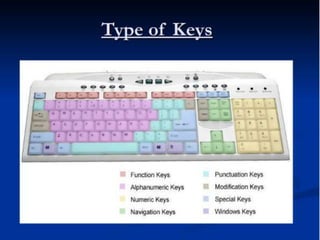
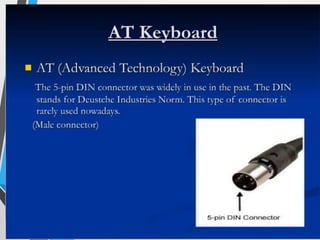
•Keyboard.
•Mouse.
63
64
• A complete computer system includes four distinct
parts:
Hardware
Software
Firmware
User
The Parts of a Computer System
65
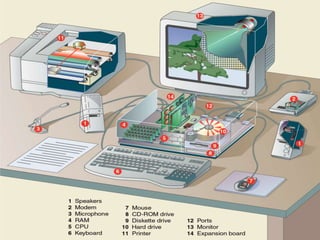
• A computer's hardware consists of electronic
devices; the parts you can see and touch.
66
67
68
69
70
71
72
73
74
75
76
77
78
79
80
81
82
83
84
85
86
87
88
89
90
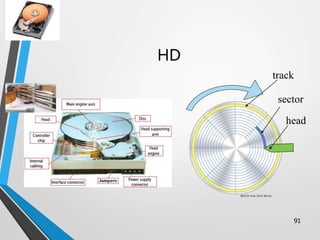
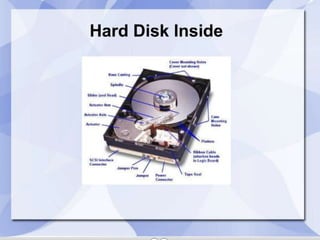
HD
91
track
sector
head
92
93
94
95
96
97
98
99
10
0
10
1
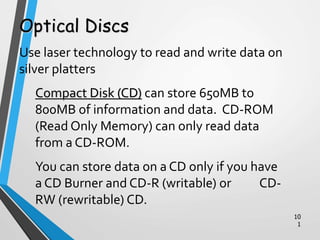
Optical Discs
Use laser technology to read and write data on
silver platters
Compact Disk (CD) can store 650MB to
800MB of information and data. CD-ROM
(Read Only Memory) can only read data
from a CD-ROM.
You can store data on a CD only if you have
a CD Burner and CD-R (writable) or CD-
RW (rewritable) CD.
10
2
DVD (DigitalVersatile Disk) is the size of
a regular CD and can be played in a
regular in a DVD movie player.
DVD can store 4.8GB to 8.0GB of
information and data. DVD-ROM is
readable only (a movie DVD).
You can store data on a DVD only if you
have a DVD Burner and
DVD+R/DVD-R (writable) or
DVD-RW (rewritable) DVD.
10
3
10
4
10
5
10
6
10
7
10
8
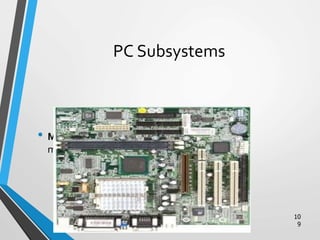
PC Subsystems
• Motherboard –The main circuit board of a
microcomputer
10
9
11
0
11
1
11
2
11
3
11
4
11
5
11
6
11
7
11
8
11
9
12
0
12
1
12
2
12
3
12
4
12
5
12
6
12
7
12
8
12
9
13
0
13
1
13
2
13
3
13
4
13
5
13
6
13
7
13
8
13
9
14
0
14
1
14
2
14
3
14
4
14
5
14
6
14
7
• Software is a set of electronic instructions that tells the
computer how to do certain tasks. A set of instructions
is often called a program.
• When a computer is using a particular program, it is
said to be running or executing the program.
• The two most common types of programs are system
software and application software.
Bringing the Machine to Life –
What is Software?
14
8
14
9
• System software exists primarily for the computer
itself, to help the computer perform specific
functions.
• One major type of system software is the operating
system (OS). All computers require an operating
system.
• The OS tells the computer how to interact with the
user and its own devices.
• Common operating systems include Windows, the
Macintosh OS, OS/2, and UNIX .
Bringing the Machine to Life –
System Software
15
0
• Application Software consists of programs that tell a
computer how to produce information
• Application software tells the computer how to
accomplish tasks the user requires, such as creating
a document or editing a graphic image.
• Some important kinds of application software are:
Word processing programs Spreadsheet software
Database management Presentation programs
Graphics programs Networking software
Web design tools and browsers Internet applications
Communications programs Utilities
Entertainment and education Multimedia authoring
Bringing the Machine to Life - Applications
15
1
15
2
Firmware
• Firmware are programs that are permanently written and
stored in memory
15
3
15
4
15
5
15
6
15
7
15
8
15
9
Computer Software
Computer software is the key to productive use of computers.
Software can be categorized into two types:
Operating system software
Application software.
16
0
Operating System
Software
Operating system software tells the computer how to
perform the functions of loading, storing and
executing an application and how to transfer data.
Today, many computers use an operating system that
has a graphical user interface (GUI) that provides
visual clues such as icon symbols to help the user.
Microsoft Windows 98 is a widely used graphical
operating system. DOS (Disk Operating System) is an
older but still widely used operating system that is
text-based.
16
1
Application Software
Application Software consists of programs that
tell a computer how to produce information.
Some of the more commonly used packages are:
Word processing
Electronic spreadsheet
Database
Presentation graphics
16
2
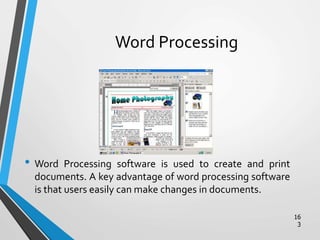
Word Processing
• Word Processing software is used to create and print
documents. A key advantage of word processing software
is that users easily can make changes in documents.
16
3
Electronic Spreadsheets
• Electronic spreadsheet software allows the user to add,
subtract, and perform user-defined calculations on rows
and columns of numbers. These numbers can be changed
and the spreadsheet quickly recalculates the new results.
16
4
Database Software
• Allows the user to enter, retrieve, and update data in an
organized and efficient manner, with flexible inquiry and
reporting capabilities.
16
5
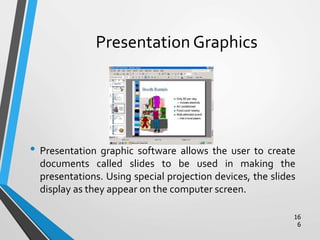
Presentation Graphics
• Presentation graphic software allows the user to create
documents called slides to be used in making the
presentations. Using special projection devices, the slides
display as they appear on the computer screen.
16
6

Computer Fundamental

  • 1.
    Introduction to Computers 1 •What is Computers? • Computer Parts • Computer Algorithm • Computer Uses • Computer basic functions • Computer Memory • Computer Hardware and Software
  • 2.
    What Is AComputer? A computer is an electronic device, operating under the control of instructions (software) stored in its own memory unit, that can accept data (input), manipulate data (process), and produce information (output) from the processing. Generally, the term is used to describe a collection of devices that function together as a system. 2
  • 3.
    Devices that comprisea computer system 3 Printer (output) Monitor (output) Speaker (output) Scanner (input) Mouse (input) Keyboard (input) System unit (processor, memory…) Storage devices (CD-RW, Floppy, Hard disk, zip,…)
  • 4.
    What Does AComputer Do? Computers can perform four general operations, which comprise the information processing cycle. Input Process Output Storage 4
  • 5.
    5 What Do ComputersDo? • Input, Process, Output, & Store data Input Process Output Store Data
  • 6.
    Data and Information •All computer processing requires data, which is a collection of raw facts, figures and symbols, such as numbers, words, images, video and sound, given to the computer during the input phase. • Computers manipulate data to create information. Information is data that is organized, meaningful, and useful. • During the output Phase, the information that has been created is put into some form, such as a printed report. • The information can also be put in computer storage for future use. 6
  • 7.
    Why Is AComputer So Powerful? • The ability to perform the information processing cycle with amazing speed. • Reliability (low failure rate). • Accuracy. • Ability to store huge amounts of data and information. • Ability to communicate with other computers. 7
  • 8.
    How Does aComputer Know what to do? • It must be given a detailed list of instructions, called a compute program or software, that tells it exactly what to do. • Before processing a specific job, the computer program corresponding to that job must be stored in memory. • Once the program is stored in memory the compute can start the operation by executing the program instructions one after the other. 8
  • 9.
    What AreThe PrimaryComponents Of A Computer ? • Input devices. • Central Processing Unit (containing the control unit and the arithmetic/logic unit). • Memory. • Output devices. • Storage devices. 9
  • 10.
    10 Uses of Computer PCat Home Common uses for the computer within the home • Computer games • Working from Home • Banking from Home • Connecting to theWeb
  • 11.
    11 Uses of Computer OfficeApplications Stock Control Stock control is ideal for automation and in many companies it is now completely computerized.The stock control system keeps track of the number of items in stock and can automatically order replacement items when required. Accounts / Payroll In most large organizations the accounts are maintained by a computerized system. Due to the repetitive nature of accounts a computer system is ideally suited to this task and accuracy is guaranteed.
  • 12.
    12 Uses of Computer AutomatedProduction Systems Many car factories are almost completely automated and the cars are assembled by computer-controlled robots.This automation is becoming increasingly common throughout industry. Design Systems Many products are designed using CAD (Computer Aided Design) programs to produce exact specifications and detailed drawings on the computer before producing models of new products.
  • 13.
    13 Uses of Computer Computersin Daily Life • Accounts • Games • Educational • On-line banking • Smart ID cards • Supermarkets • Working from home (Tele-working) • Internet
  • 14.
  • 15.
  • 16.
  • 17.
  • 18.
  • 19.
  • 20.
  • 21.
  • 22.
  • 23.
  • 24.
  • 25.
  • 26.
  • 27.
  • 28.
    28 Types of Computers Typesof Computers Microcomputer Minicomputer Mainframe Supercomputer
  • 29.
    Microcomputer • Can beclassified into: • Desktop PCs • sits on desks, rarely moved, large and bulky. • Memory capacity, graphics capacity and software availability vary from one computer to another Used both for business and home applications 29
  • 30.
    Microcomputer • Portable PCs •Can be moved easily from place to place • Weight may varies • Small PCs are popular known as laptop • Widely used by students, scientist, reporters, etc 30
  • 31.
  • 32.
    32 Microcomputer • Advantages • Smallsize • Low cost • Portability • Low Computing Power • Commonly used for personal applications • Disadvantages • Low processing speed
  • 33.
    Uses of Microcomputer •Word Processing • Home entertainment • Home banking • Printing • Surfing the internet • etc 33
  • 34.
    Minicomputer • Medium sizedcomputer • Also called the minis • e.g. IBM36, HP9000, etc • Computing power lies between microcomputer and mainframe computer 34
  • 35.
  • 36.
    MiniComputer • Characteristics • Biggersize than PCs • Expensive than PCs • Multi-User • Difficult to use • More computing power than PCs • Used by medium sized business organizations, colleges, libraries and banks. 36
  • 37.
    Uses of Minicomputer •Control of AutomatedTeller Machine (ATMs) • Payroll • Hospital patients registration • Inventory Control for supermarket • Insurance claims processing • Small bank accounting and customer details tracking 37
  • 38.
    38 Minicomputer • Advantage • Caterto multiple users • Lower costs than mainframes • Disadvantage • Large • Bulky
  • 39.
    39 Mainframe • Known asenterprise servers • Occupies entire rooms or floors • Used for centralized computing • Serve distributed users and small servers in a computing network
  • 40.
    Main Frame • Large,fast and expensive computer • Cost millions of dollar • e.g. IBM3091, ICL39, etc • Characteristics: • Bigger in size than minicomputers • Very expensive • Support a few hundred users simultaneously (Multi-Users) • Difficult to use • More computing power than minicomputers • Have to be kept in a special air-conditioned room • Used in big business organizations and government departments 40
  • 41.
    Areas where mainframesare used • Airline reservation • Big banks with hundreds of branches located all over the world • Big universities with thousands of enrollment • Natural gas and oil exploration companies • SpaceVehicle control • Weather forecasting • Animated Cartoon • Some mainframes are designed to be extremely fast and called super computers. It is used for space launching, monitoring and controlling. 41
  • 42.
  • 43.
  • 44.
    44 Mainframe • Advantage • Supportsmany users and instructions • Large memory • Disadvantage • Huge size • Expensive
  • 45.
    45 Supercomputer • Fastest andexpensive • Used by applications for molecular chemistry, nuclear research, weather reports, and advanced physics • Consists of several computers that work in parallel as a single system
  • 46.
    46 Super Computer • Advantage •Speed • Disadvantage • Generate a large amount of heat during operation
  • 47.
    47 Computer System A computersystem consists of three primary units: Input units – accept data Processor unit – processes data by performing comparisons and calculations Output units – present the results
  • 48.
  • 49.
    49 Input Devices Data arefacts, numbers and characters that are entered into the computer via keyboard. Other types of input devices are mouse, joystick, light pens, scanners, camera, etc.
  • 50.
    Computer Input Devices •Keyboard • Mouse/Trackball • Joystick • Light pen • Pointing Stick • Touchpad • Touch screen • Bar code reader • Scanner • Microphone • GraphicsTablet • Digital Cameras 50
  • 51.
    51 Processor Unit Two mainparts: CPU – where the actual processing takes place; and Main memory – where data are stored. The contents of main memory can be transferred to auxiliary storage devices such as hard disks, floppy diskettes, zip disks, compact disks, or USB flash disk.
  • 52.
    The microprocessor, thebrains of the computer. Referred to a CPU or processor Housed on a tiny silicon chip Chip contains millions of switches and pathways that help your computer make important decisions. 52 Central Processing Unit
  • 53.
    53 CPU knows whichswitches to turn on and which to turn off because it receives its instructions from computer programs (software). CPU has two primary sections: Arithmetic/logic unit Control unit
  • 54.
    54 Arithmetic/logic unit (ALU): -Performs arithmetic computations and logical operations; by combining these two operations the ALU can execute complex tasks. - Arithmetic operations include addition, subtractions, multiplication, and division. - Logical operations involve comparisons.
  • 55.
    55 Control Unit: isthe “boss” and coordinates all of the CPU’s activities. Uses programming instructions, it controls the flow of information through the processor by controlling what happens inside the processor. We communicate with the computer through programming languages. Examples: COBOL, C++, HTML, Java Script orVisualBasic.net
  • 56.
    56 Memory Found on themotherboard  Short term Random Access Memory (RAM)  Long term Read Only Memory (ROM)
  • 57.
    57 Random Access Memory(RAM) Memory on the motherboard that is short term; where data, information, and program instructions are stored temporarily on a RAM chip or a set of RAM chips. Known as the main memory. This memory is considered volatile. The computer can read from and write to RAM.
  • 58.
    58 When the computeris turned off or if there is loss of power, what ever is stored in RAM disappears. “Temporary Memory” – Short Term
  • 59.
    59 Read-Only Memory (ROM) Memoryon the motherboard that is long term; where the specific instructions that are needed for the computer to operate are stored. This memory is nonvolatile and your computer can only read from a ROM chip.
  • 60.
    60 The instructions remainon the chip regardless if the power is turned on or off. Most common is the BIOS ROM; where the computer uses instructions contained on this chip to boot or start the system when you turn on your computer. “Permanent Memory” – Long Term
  • 61.
    61 Output Unit After thedata has been processed, the results are output in the form of useful information. Output units such as monitors and printers make the result accessible for use by people.
  • 62.
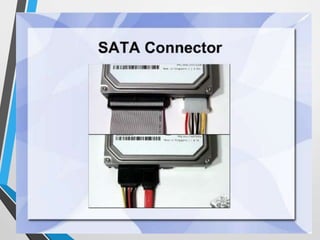
    Computer Output Devices Monitor:screen that display information such as text, numbers, and pictures- softcopy. Printer: gives you information from the computer in printed form – hardcopy. Speakers: allow you to hear voice, music, and other sounds from your computer. Modem: allows you to use your computer to communicate with other computers. 62
  • 63.
  • 64.
    64 • A completecomputer system includes four distinct parts: Hardware Software Firmware User The Parts of a Computer System
  • 65.
  • 66.
    • A computer'shardware consists of electronic devices; the parts you can see and touch. 66
  • 67.
  • 68.
  • 69.
  • 70.
  • 71.
  • 72.
  • 73.
  • 74.
  • 75.
  • 76.
  • 77.
  • 78.
  • 79.
  • 80.
  • 81.
  • 82.
  • 83.
  • 84.
  • 85.
  • 86.
  • 87.
  • 88.
  • 89.
  • 90.
  • 91.
  • 92.
  • 93.
  • 94.
  • 95.
  • 96.
  • 97.
  • 98.
  • 99.
  • 100.
  • 101.
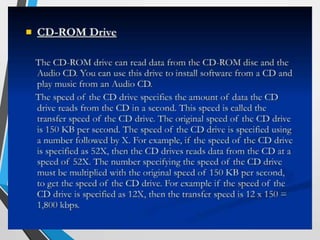
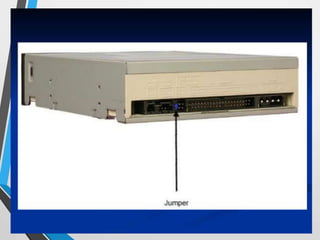
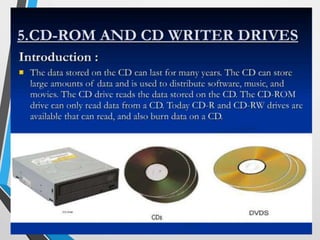
    10 1 Optical Discs Use lasertechnology to read and write data on silver platters Compact Disk (CD) can store 650MB to 800MB of information and data. CD-ROM (Read Only Memory) can only read data from a CD-ROM. You can store data on a CD only if you have a CD Burner and CD-R (writable) or CD- RW (rewritable) CD.
  • 102.
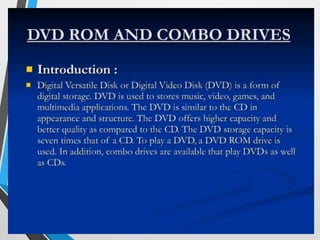
    10 2 DVD (DigitalVersatile Disk)is the size of a regular CD and can be played in a regular in a DVD movie player. DVD can store 4.8GB to 8.0GB of information and data. DVD-ROM is readable only (a movie DVD). You can store data on a DVD only if you have a DVD Burner and DVD+R/DVD-R (writable) or DVD-RW (rewritable) DVD.
  • 103.
  • 104.
  • 105.
  • 106.
  • 107.
  • 108.
  • 109.
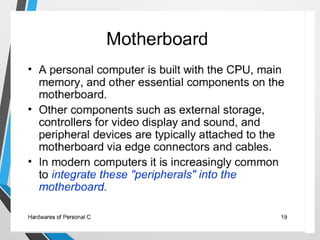
    PC Subsystems • Motherboard–The main circuit board of a microcomputer 10 9
  • 110.
  • 111.
  • 112.
  • 113.
  • 114.
  • 115.
  • 116.
  • 117.
  • 118.
  • 119.
  • 120.
  • 121.
  • 122.
  • 123.
  • 124.
  • 125.
  • 126.
  • 127.
  • 128.
  • 129.
  • 130.
  • 131.
  • 132.
  • 133.
  • 134.
  • 135.
  • 136.
  • 137.
  • 138.
  • 139.
  • 140.
  • 141.
  • 142.
  • 143.
  • 144.
  • 145.
  • 146.
  • 147.
    14 7 • Software isa set of electronic instructions that tells the computer how to do certain tasks. A set of instructions is often called a program. • When a computer is using a particular program, it is said to be running or executing the program. • The two most common types of programs are system software and application software. Bringing the Machine to Life – What is Software?
  • 148.
  • 149.
    14 9 • System softwareexists primarily for the computer itself, to help the computer perform specific functions. • One major type of system software is the operating system (OS). All computers require an operating system. • The OS tells the computer how to interact with the user and its own devices. • Common operating systems include Windows, the Macintosh OS, OS/2, and UNIX . Bringing the Machine to Life – System Software
  • 150.
    15 0 • Application Softwareconsists of programs that tell a computer how to produce information • Application software tells the computer how to accomplish tasks the user requires, such as creating a document or editing a graphic image. • Some important kinds of application software are: Word processing programs Spreadsheet software Database management Presentation programs Graphics programs Networking software Web design tools and browsers Internet applications Communications programs Utilities Entertainment and education Multimedia authoring Bringing the Machine to Life - Applications
  • 151.
  • 152.
  • 153.
    Firmware • Firmware areprograms that are permanently written and stored in memory 15 3
  • 154.
  • 155.
  • 156.
  • 157.
  • 158.
  • 159.
  • 160.
    Computer Software Computer softwareis the key to productive use of computers. Software can be categorized into two types: Operating system software Application software. 16 0
  • 161.
    Operating System Software Operating systemsoftware tells the computer how to perform the functions of loading, storing and executing an application and how to transfer data. Today, many computers use an operating system that has a graphical user interface (GUI) that provides visual clues such as icon symbols to help the user. Microsoft Windows 98 is a widely used graphical operating system. DOS (Disk Operating System) is an older but still widely used operating system that is text-based. 16 1
  • 162.
    Application Software Application Softwareconsists of programs that tell a computer how to produce information. Some of the more commonly used packages are: Word processing Electronic spreadsheet Database Presentation graphics 16 2
  • 163.
    Word Processing • WordProcessing software is used to create and print documents. A key advantage of word processing software is that users easily can make changes in documents. 16 3
  • 164.
    Electronic Spreadsheets • Electronicspreadsheet software allows the user to add, subtract, and perform user-defined calculations on rows and columns of numbers. These numbers can be changed and the spreadsheet quickly recalculates the new results. 16 4
  • 165.
    Database Software • Allowsthe user to enter, retrieve, and update data in an organized and efficient manner, with flexible inquiry and reporting capabilities. 16 5
  • 166.
    Presentation Graphics • Presentationgraphic software allows the user to create documents called slides to be used in making the presentations. Using special projection devices, the slides display as they appear on the computer screen. 16 6

Editor's Notes