Quick Startup Guide
GETTING STARTED
The pages in this guide are meant to give you a quick
overview of the system. ClinicPro Online is user-friendly and this
may allow you to get started quickly.
This guide is also meant to guide you through the startup
steps in preparing the system for your clinic’s use.
However if you need more detailed information to get started,
you may refer to the User Manual and other reference
documentation provided.
GETTING STARTED
To access your very own
ClinicPro Online cloud
database, visit the
ClinicPro Online
website.
We highly recommend
you to use Mozilla
Firefox as your web
browser.
Enter the URL* in the
address bar of your
browser.
*We have created your very own
URL. Please refer to the welcome
letter we’ve sent you.
GETTING STARTED
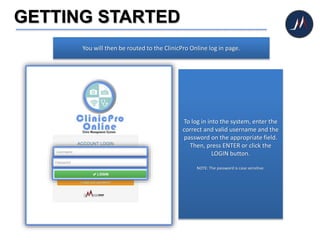
You will then be routed to the ClinicPro Online log in page.
To log in into the system, enter the
correct and valid username and the
password on the appropriate field.
Then, press ENTER or click the
LOGIN button.
NOTE: The password is case sensitive.
GETTING STARTED
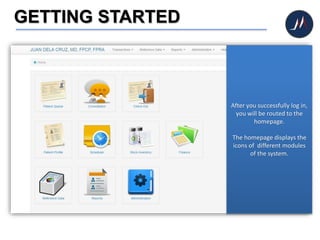
After you successfully log in,
you will be routed to the
homepage.
The homepage displays the
icons of different modules
of the system.
Before you start using the
system, you need to set up
the Administration Data.
SET ADMINISTRATION
DATA
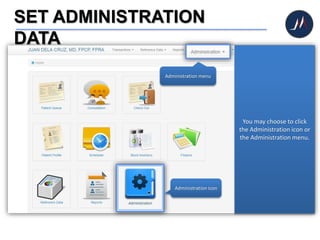
You may choose to click
the Administration icon or
the Administration menu.
Administration icon
Administration menu
SET ADMINISTRATION
DATA
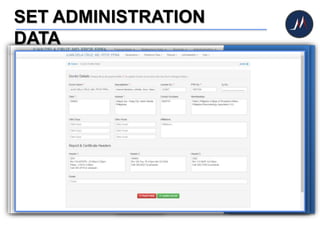
Click the Administration
icon.
Click Doctor Profile icon.
SET ADMINISTRATION
DATA
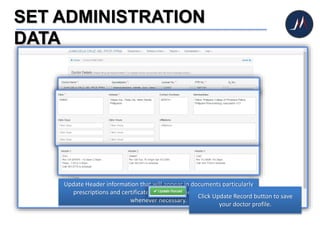
Update doctor information such as name, specialization, license #, etc.
Update Clinic Information to indicate your clinic’s specifics.
Update Header information that will appear in documents particularly
prescriptions and certificates; these may be revised at any time
whenever necessary.
Click Update Record button to save
your doctor profile.
SET ADMINISTRATION
DATA
To add additional user, click
User Accounts icon.
You will then be routed to
the User Accounts page.
Click New User Account
button to add new user.
Once routed to this screen, you may now add new user (e.g. nurse, clinic assistant).
Enter new user’s account details then save the information by clicking Save Record
button. Reminder: be careful to assign access rights for each user. Clinic secretaries
are commonly prevented from accessing Fees, Finance, Doctor Profile and User
Accounts.
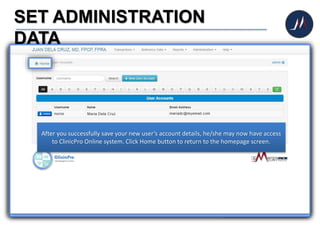
After you successfully save your new user’s account details, he/she may now have access
to ClinicPro Online system. Click Home button to return to the homepage screen.
Great! Next, we will edit
your Reference Data.
SET REFERENCE DATA
Reference data help you
do your work faster by
providing a library of pre-
set information – such as
medicines to prescribe
and specifying a disease
in your diagnosis. Initial
data has already been
pre-loaded however you
may change – add, edit
and delete – at any time.
Click REFERENCE DATA
icon to begin.
DISEASES
The list of ailments,
diseases or disorders may
be limited according to
those you usually
encounter in your area of
specialization.
PRODUCTS
Are these the medicines
that you usually
prescribe? The list may be
customized according to
your needs.
LABORATORY TEST TYPE
Include those that are
common to your practice.
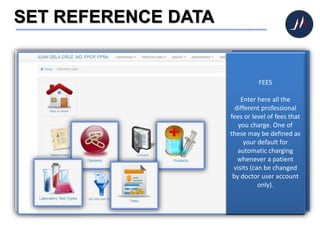
FEES
Enter here all the
different professional
fees or level of fees that
you charge. One of
these may be defined as
your default for
automatic charging
whenever a patient
visits (can be changed
by doctor user account
only).
Once you’re done editing
the Reference Data, you
can start using the ClinicPro
Online.
HOMEPAGE
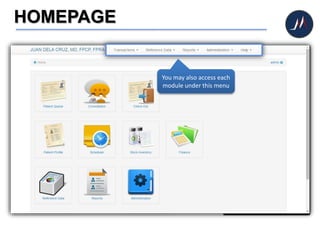
Whenever you click the
Home button, you will
always be routed to this
homepage screen.
The homepage displays icons
of the different modules of
the system (e.g. Patient
Queue, Consultation).
Now let’s check each icon.
PATIENT QUEUE
This is where you can queue
and interview patients
before consultation
CONSULTATION
Here, doctors can begin their
patient's consultation
CHECK OUT
Collect charges and conclude
the patient's visit
PATIENT PROFILE
View patient's profile and
consultation histories
SCHEDULER
Helps you organize your
schedules and appointments
STOCK INVENTORY
To keep a tab on medicines
and other healthcare
products
FINANCE
Helps you to keep track and
monitor your earnings for
the day.
REFERENCE DATA
This will help you maintain
often used data such as
medicines, diseases,
products, and the like.
REPORTS
View and print reports.
ADMINISTRATION
This is the system settings.
You may also access each
module under this menu
PATIENT QUEUE
Click PATIENT QUEUE icon
to begin
After clicking the Patient
Queue icon, the system will
direct you to the list of
patients on queue
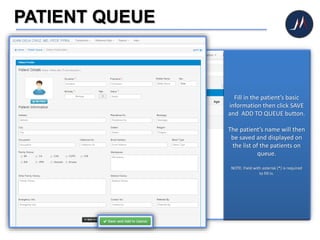
In adding new patient on the
queue, click the NEW
button.
Fill in the patient’s basic
information then click SAVE
and ADD TO QUEUE button.
The patient’s name will then
be saved and displayed on
the list of the patients on
queue.
NOTE: Field with asterisk (*) is required
to fill in.
PATIENT QUEUE
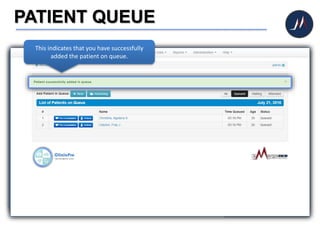
In case your patient has an
existing file/account in the
system, just click the
RETURNING button.
Just click QUEUE button and
the patient will be displayed
on the list of the patients on
queue.
This indicates that you have successfully
added the patient on queue.
PATIENT QUEUE
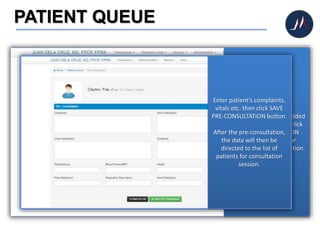
After you successfully added
the patient on queue, click
the PRE-CONSULTATION
button the begin your
patient’s initial consultation.
Enter patient’s complaints,
vitals etc. then click SAVE
PRE-CONSULTATION button.
After the pre-consultation,
the data will then be
directed to the list of
patients for consultation
session.
CONSULTATION
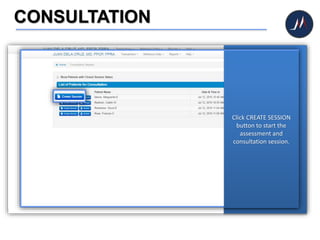
In viewing list of patients
for consultation session,
click the CONSULTATION
icon on the homepage.
Click CREATE SESSION
button to start the
assessment and
consultation session.
CONSULTATION
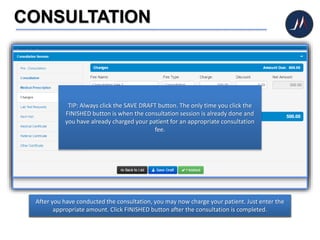
Once you are directed to the CONSULTATION page, you may begin the assessment and
consultation session.
Proceed to Medical Prescriptions menu when you need to prescribe medicines to your
patient. You may click ADD MORE button for additional prescription.
After you have conducted the consultation, you may now charge your patient. Just enter the
appropriate amount. Click FINISHED button after the consultation is completed.
TIP: Always click the SAVE DRAFT button. The only time you click the
FINISHED button is when the consultation session is already done and
you have already charged your patient for an appropriate consultation
fee.
CHECK OUT
After consultation, your
patient’s data will then be
directed to CHECK OUT.
Click the CHECK OUT icon to
collect the consultation
charges and conclude the
patient's visit.
After clicking the CHECK
OUT icon, you will then be
routed to the check out
page.
Click CHECK OUT button.
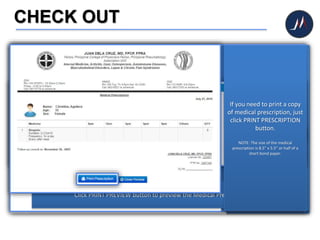
Click PRINT PREVIEW button to preview the Medical Prescription.
If you need to print a copy
of medical prescription, just
click PRINT PRESCRIPTION
button.
NOTE: The size of the medical
prescription is 8.5” x 5.5” or half of a
short bond paper.
CHECK OUT
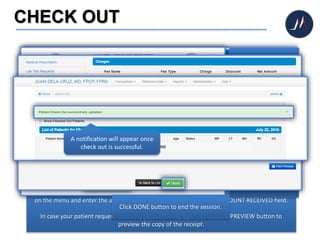
After printing the medical prescription, lab test requests, and medical certificate, click CHARGES
on the menu and enter the amount of payment you received on the AMOUNT RECEIVED field.
In case your patient requests for a copy of the receipt, just click PRINT PREVIEW button to
preview the copy of the receipt.
Click PRINT CHARGES
SUMMARY button to
print the copy of the
receipt.
Click DONE button to end the session.
A notification will appear once
check out is successful.
PATIENT PROFILE
Traditionally, doctors dig
their patient’s medical
records out of the
file cabinet.
However with the help of
the system, you can already
access your patients’
complete medical records in
no sweat!
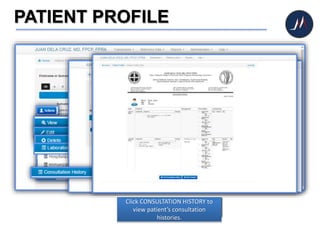
Click PATIENT PROFILE icon
to view patient's profile,
consultation histories and
medical records.
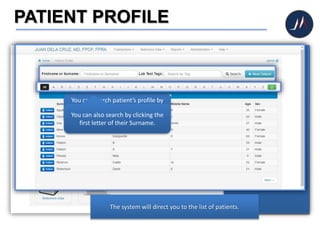
The system will direct you to the list of patients.
You can search patient’s profile by
just typing their First Name or
Surname then click SEARCH button.You can also search by clicking the
first letter of their Surname.
PATIENT PROFILE
Click ACTIONS buttonA drop down menu will appear
Click VIEW button to view
patient’s profile
Click EDIT to edit patient’s profile
Click DELETE to delete patient’s
profile
Click LABORATORY TESTS to view
patient’s laboratory tests
Click CONSULTATION HISTORY to
view patient’s consultation
histories.
SCHEDULER
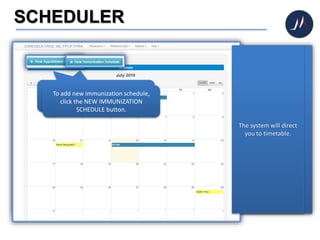
Click SCHEDULER icon to
create new appointment
schedule.
The system will direct
you to timetable.
To create new appointment schedule,
click the NEW APPOINTMENT
SCHEDULE button.
To add new immunization schedule,
click the NEW IMMUNIZATION
SCHEDULE button.
STOCK INVENTORY
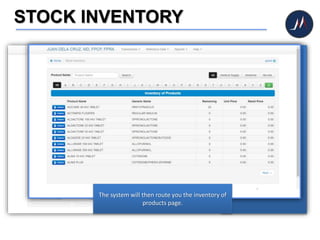
Click STOCK INVENTORY to
check medicines and other
healthcare products
available in the clinic.
The system will then route you the inventory of
products page.
FINANCE
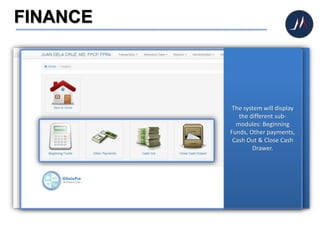
When you need to keep
track of your earnings,
just click the FINANCE
icon.
The system will display
the different sub-
modules: Beginning
Funds, Other payments,
Cash Out & Close Cash
Drawer.
REPORTS
If you need to view and
print reports, click
REPORTS icon.
In case you want to see
the list of all the patients
who attended for
consultation during the
day, click the PATIENTS
ATTENDED button.
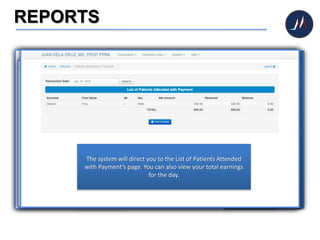
The system will direct you
to the List of Patients
Attended page.
Click PATIENTS ATTENDED
WITH PAYMENT to view
the list of patients who
made a payment during
consultation.
The system will direct you to the List of Patients Attended
with Payment’s page. You can also view your total earnings
for the day.
CONVERTING YOUR FILES
 If your clinical practice has been going on for a while, it is a huge
task to capture all your patient data from the physical files collected
over the years. Often, it is not practical unless you are willing to
spend time, effort and money getting some encoders to do the job.
 Since it is sometimes hard to tell which patients are still active if you
scan through all of them, it is better to take an “encode-as-they-visit”
approach.
CONVERTING YOUR FILES
Here is the recommended process:
a. When a new patient visits for the first time, encode their patient
profile and record everything into the system from the very first
visit!
b. For returning patients, pull out the physical file from the storage
cabinets.
c. Encode a new patient profile from the Patient Queue module with
the minimum possible information – name, birthday and status,
and then add to the queue. You may easily complete the
information later.
CONVERTING YOUR FILES
d. Continue using the system for that patient for the rest of the visit –
via Consultation and then Checkout modules.
e. During the secretary’s inactive or free time, take initiative to
complete the other important information from the old records.
Information such as lab tests, active medications, hospitalization
history notes, and other pertinent data, may be added as soon as
a patient record has been created.
LET’S BE FRIENDS
2/F RGS Copra, Marmoleño Dr.,
San Jose Rd., Brgy. Baliwasan,
Zamboanga City, PH 7000
955-4487 or 310-3034
sales@emergencesystems.com
/emergencesystems

ClinicPro Online QuickStart Guide

  • 1.
  • 2.
    GETTING STARTED The pagesin this guide are meant to give you a quick overview of the system. ClinicPro Online is user-friendly and this may allow you to get started quickly. This guide is also meant to guide you through the startup steps in preparing the system for your clinic’s use. However if you need more detailed information to get started, you may refer to the User Manual and other reference documentation provided.
  • 3.
    GETTING STARTED To accessyour very own ClinicPro Online cloud database, visit the ClinicPro Online website. We highly recommend you to use Mozilla Firefox as your web browser. Enter the URL* in the address bar of your browser. *We have created your very own URL. Please refer to the welcome letter we’ve sent you.
  • 4.
    GETTING STARTED You willthen be routed to the ClinicPro Online log in page. To log in into the system, enter the correct and valid username and the password on the appropriate field. Then, press ENTER or click the LOGIN button. NOTE: The password is case sensitive.
  • 5.
    GETTING STARTED After yousuccessfully log in, you will be routed to the homepage. The homepage displays the icons of different modules of the system.
  • 6.
    Before you startusing the system, you need to set up the Administration Data.
  • 7.
    SET ADMINISTRATION DATA You maychoose to click the Administration icon or the Administration menu. Administration icon Administration menu
  • 8.
    SET ADMINISTRATION DATA Click theAdministration icon. Click Doctor Profile icon.
  • 9.
    SET ADMINISTRATION DATA Update doctorinformation such as name, specialization, license #, etc. Update Clinic Information to indicate your clinic’s specifics. Update Header information that will appear in documents particularly prescriptions and certificates; these may be revised at any time whenever necessary. Click Update Record button to save your doctor profile.
  • 10.
    SET ADMINISTRATION DATA To addadditional user, click User Accounts icon. You will then be routed to the User Accounts page. Click New User Account button to add new user. Once routed to this screen, you may now add new user (e.g. nurse, clinic assistant). Enter new user’s account details then save the information by clicking Save Record button. Reminder: be careful to assign access rights for each user. Clinic secretaries are commonly prevented from accessing Fees, Finance, Doctor Profile and User Accounts. After you successfully save your new user’s account details, he/she may now have access to ClinicPro Online system. Click Home button to return to the homepage screen.
  • 11.
    Great! Next, wewill edit your Reference Data.
  • 12.
    SET REFERENCE DATA Referencedata help you do your work faster by providing a library of pre- set information – such as medicines to prescribe and specifying a disease in your diagnosis. Initial data has already been pre-loaded however you may change – add, edit and delete – at any time. Click REFERENCE DATA icon to begin. DISEASES The list of ailments, diseases or disorders may be limited according to those you usually encounter in your area of specialization. PRODUCTS Are these the medicines that you usually prescribe? The list may be customized according to your needs. LABORATORY TEST TYPE Include those that are common to your practice. FEES Enter here all the different professional fees or level of fees that you charge. One of these may be defined as your default for automatic charging whenever a patient visits (can be changed by doctor user account only).
  • 13.
    Once you’re doneediting the Reference Data, you can start using the ClinicPro Online.
  • 14.
    HOMEPAGE Whenever you clickthe Home button, you will always be routed to this homepage screen. The homepage displays icons of the different modules of the system (e.g. Patient Queue, Consultation). Now let’s check each icon. PATIENT QUEUE This is where you can queue and interview patients before consultation CONSULTATION Here, doctors can begin their patient's consultation CHECK OUT Collect charges and conclude the patient's visit PATIENT PROFILE View patient's profile and consultation histories SCHEDULER Helps you organize your schedules and appointments STOCK INVENTORY To keep a tab on medicines and other healthcare products FINANCE Helps you to keep track and monitor your earnings for the day. REFERENCE DATA This will help you maintain often used data such as medicines, diseases, products, and the like. REPORTS View and print reports. ADMINISTRATION This is the system settings. You may also access each module under this menu
  • 15.
    PATIENT QUEUE Click PATIENTQUEUE icon to begin After clicking the Patient Queue icon, the system will direct you to the list of patients on queue In adding new patient on the queue, click the NEW button. Fill in the patient’s basic information then click SAVE and ADD TO QUEUE button. The patient’s name will then be saved and displayed on the list of the patients on queue. NOTE: Field with asterisk (*) is required to fill in.
  • 16.
    PATIENT QUEUE In caseyour patient has an existing file/account in the system, just click the RETURNING button. Just click QUEUE button and the patient will be displayed on the list of the patients on queue. This indicates that you have successfully added the patient on queue.
  • 17.
    PATIENT QUEUE After yousuccessfully added the patient on queue, click the PRE-CONSULTATION button the begin your patient’s initial consultation. Enter patient’s complaints, vitals etc. then click SAVE PRE-CONSULTATION button. After the pre-consultation, the data will then be directed to the list of patients for consultation session.
  • 18.
    CONSULTATION In viewing listof patients for consultation session, click the CONSULTATION icon on the homepage. Click CREATE SESSION button to start the assessment and consultation session.
  • 19.
    CONSULTATION Once you aredirected to the CONSULTATION page, you may begin the assessment and consultation session. Proceed to Medical Prescriptions menu when you need to prescribe medicines to your patient. You may click ADD MORE button for additional prescription. After you have conducted the consultation, you may now charge your patient. Just enter the appropriate amount. Click FINISHED button after the consultation is completed. TIP: Always click the SAVE DRAFT button. The only time you click the FINISHED button is when the consultation session is already done and you have already charged your patient for an appropriate consultation fee.
  • 20.
    CHECK OUT After consultation,your patient’s data will then be directed to CHECK OUT. Click the CHECK OUT icon to collect the consultation charges and conclude the patient's visit. After clicking the CHECK OUT icon, you will then be routed to the check out page. Click CHECK OUT button. Click PRINT PREVIEW button to preview the Medical Prescription. If you need to print a copy of medical prescription, just click PRINT PRESCRIPTION button. NOTE: The size of the medical prescription is 8.5” x 5.5” or half of a short bond paper.
  • 21.
    CHECK OUT After printingthe medical prescription, lab test requests, and medical certificate, click CHARGES on the menu and enter the amount of payment you received on the AMOUNT RECEIVED field. In case your patient requests for a copy of the receipt, just click PRINT PREVIEW button to preview the copy of the receipt. Click PRINT CHARGES SUMMARY button to print the copy of the receipt. Click DONE button to end the session. A notification will appear once check out is successful.
  • 22.
    PATIENT PROFILE Traditionally, doctorsdig their patient’s medical records out of the file cabinet. However with the help of the system, you can already access your patients’ complete medical records in no sweat! Click PATIENT PROFILE icon to view patient's profile, consultation histories and medical records. The system will direct you to the list of patients. You can search patient’s profile by just typing their First Name or Surname then click SEARCH button.You can also search by clicking the first letter of their Surname.
  • 23.
    PATIENT PROFILE Click ACTIONSbuttonA drop down menu will appear Click VIEW button to view patient’s profile Click EDIT to edit patient’s profile Click DELETE to delete patient’s profile Click LABORATORY TESTS to view patient’s laboratory tests Click CONSULTATION HISTORY to view patient’s consultation histories.
  • 24.
    SCHEDULER Click SCHEDULER iconto create new appointment schedule. The system will direct you to timetable. To create new appointment schedule, click the NEW APPOINTMENT SCHEDULE button. To add new immunization schedule, click the NEW IMMUNIZATION SCHEDULE button.
  • 25.
    STOCK INVENTORY Click STOCKINVENTORY to check medicines and other healthcare products available in the clinic. The system will then route you the inventory of products page.
  • 26.
    FINANCE When you needto keep track of your earnings, just click the FINANCE icon. The system will display the different sub- modules: Beginning Funds, Other payments, Cash Out & Close Cash Drawer.
  • 27.
    REPORTS If you needto view and print reports, click REPORTS icon. In case you want to see the list of all the patients who attended for consultation during the day, click the PATIENTS ATTENDED button. The system will direct you to the List of Patients Attended page. Click PATIENTS ATTENDED WITH PAYMENT to view the list of patients who made a payment during consultation. The system will direct you to the List of Patients Attended with Payment’s page. You can also view your total earnings for the day.
  • 28.
    CONVERTING YOUR FILES If your clinical practice has been going on for a while, it is a huge task to capture all your patient data from the physical files collected over the years. Often, it is not practical unless you are willing to spend time, effort and money getting some encoders to do the job.  Since it is sometimes hard to tell which patients are still active if you scan through all of them, it is better to take an “encode-as-they-visit” approach.
  • 29.
    CONVERTING YOUR FILES Hereis the recommended process: a. When a new patient visits for the first time, encode their patient profile and record everything into the system from the very first visit! b. For returning patients, pull out the physical file from the storage cabinets. c. Encode a new patient profile from the Patient Queue module with the minimum possible information – name, birthday and status, and then add to the queue. You may easily complete the information later.
  • 30.
    CONVERTING YOUR FILES d.Continue using the system for that patient for the rest of the visit – via Consultation and then Checkout modules. e. During the secretary’s inactive or free time, take initiative to complete the other important information from the old records. Information such as lab tests, active medications, hospitalization history notes, and other pertinent data, may be added as soon as a patient record has been created.
  • 31.
    LET’S BE FRIENDS 2/FRGS Copra, Marmoleño Dr., San Jose Rd., Brgy. Baliwasan, Zamboanga City, PH 7000 955-4487 or 310-3034 sales@emergencesystems.com /emergencesystems