© 2017 - Chris Casal - @mr_casal & @heathcotetech
Chrome and Flash
Chris Casal
@mr_casal
blog.mrcasal.com
© 2017 - Chris Casal - @mr_casal & @heathcotetech
The problem with Flash
● Flash is processor intensive
○ Can bog down browsers and machines
● Prone to malware and virus attacks
● Constant updates
○ Sometimes as many as 2x a month
● Flash use to be an industry standard but due to
persistent, and recurring, security flaws as well as
better technology allowing for high quality
graphics with less processing power, Flash is
going away forever in 2020.
© 2017 - Chris Casal - @mr_casal & @heathcotetech
Chrome blocks Flash by default
Due to security concerns and Flash’s processing and power hoarding, Chrome
won’t automatically run Flash on websites
© 2017 - Chris Casal - @mr_casal & @heathcotetech
Some common Flash errors
These are 4 common errors
you will see when accessing
a site requiring Flash...
© 2017 - Chris Casal - @mr_casal & @heathcotetech
To allow Flash to run...
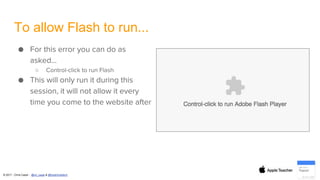
● For this error you can do as
asked…
○ Control-click to run Flash
● This will only run it during this
session, it will not allow it every
time you come to the website after
© 2017 - Chris Casal - @mr_casal & @heathcotetech
To allow Flash to run...
● When you control-click on the Flash
error, this pop up appears on the right
side of your address bar…
● Clicking Done will allow Flash to run that
session
● Click “Manage plugin blocking” will
allow you to set future permissions
© 2017 - Chris Casal - @mr_casal & @heathcotetech
Wixie and Flash...
● The first time a
student logs in to
Wixie you might get
this instead of the
Projects gallery to a
blank canvas
● Click “Get Flash”
© 2017 - Chris Casal - @mr_casal & @heathcotetech
Wixie and Flash...
After you click “Get Flash” this
pop-up will appear in the top left
of the browser window
Click “Allow”
© 2017 - Chris Casal - @mr_casal & @heathcotetech
OneMoreStory and Flash...
● With this particular error,
the site One More Story
gives explicit
instructions…
● In Settings->Content
add an exception for
“www.onemorestory.com”
○ Ignore their direction
about
“*.onemorestory.com”
© 2017 - Chris Casal - @mr_casal & @heathcotetech
So, let’s go to
Settings...
© 2017 - Chris Casal - @mr_casal & @heathcotetech
Settings
● Top right corner of your
browser window
● Tap the 3 dot menu
● Choose “Settings”
© 2017 - Chris Casal - @mr_casal & @heathcotetech
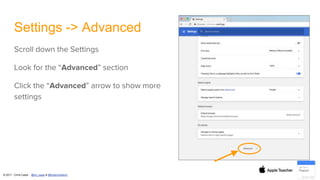
Settings -> Advanced
Scroll down the Settings
Look for the “Advanced” section
Click the “Advanced” arrow to show more
settings
© 2017 - Chris Casal - @mr_casal & @heathcotetech
Advanced -> Content
● Once Advanced
expands scroll down
● Click the “Content
Settings’” box
© 2017 - Chris Casal - @mr_casal & @heathcotetech
Content Settings
● The Flash setting is in the
middle of Content Settings
● It will say “Ask first” or “Block
site from running Flash” or
“Only important content”
○ Even if it says “Allow” it is good
to ensure the site you use it
specifically listed as an allowed
site
● Tap the arrow to access the
Flash settings
© 2017 - Chris Casal - @mr_casal & @heathcotetech
Flash
● You can toggle on
“Allow sites to run
Flash” and decide if
you want it to be
automatic or if you
want Chrome to
“Ask first”
● You can ADD to the
Block list
● You can ADD to the
Allow list
© 2017 - Chris Casal - @mr_casal & @heathcotetech
Chrome will now run Flash
● Chrome will now “Allow sites
to run Flash”
○ You may get a pop-up asking for
permission to run if the site isn’t
a listed exception
● If you plan on going to certain
site regularly, like Wixie or
OneMoreStory, it is
recommended you add them
as specific exceptions in the
Allow section
© 2017 - Chris Casal - @mr_casal & @heathcotetech
Chrome will now run Flash
● In the Allow section you can
list the URL or you can
whitelist the entire domain by
adding [*.] before the address
○ ie: [*.]onemorestory.com
● Caveat being, some sites are
so finicky they want specific
URLs listed, and the [*.]
doesn’t always work…
because Flash...
Contact
Chris Casal
ccasal@scarsdaleschools.org
@mr_casal
@HeathcoteTech
blogs.scarsdaleschools.org/heathcotetech
blog.mrcasal.com
© 2017 - Chris Casal - @mr_casal
© 2017 - Chris Casal - @mr_casal & @heathcotetech
Created by
Chris Casal
purveyor of geekery
Heathcote School
@mr_casal

Chrome and Flash

  • 1.
    © 2017 -Chris Casal - @mr_casal & @heathcotetech Chrome and Flash Chris Casal @mr_casal blog.mrcasal.com
  • 2.
    © 2017 -Chris Casal - @mr_casal & @heathcotetech The problem with Flash ● Flash is processor intensive ○ Can bog down browsers and machines ● Prone to malware and virus attacks ● Constant updates ○ Sometimes as many as 2x a month ● Flash use to be an industry standard but due to persistent, and recurring, security flaws as well as better technology allowing for high quality graphics with less processing power, Flash is going away forever in 2020.
  • 3.
    © 2017 -Chris Casal - @mr_casal & @heathcotetech Chrome blocks Flash by default Due to security concerns and Flash’s processing and power hoarding, Chrome won’t automatically run Flash on websites
  • 4.
    © 2017 -Chris Casal - @mr_casal & @heathcotetech Some common Flash errors These are 4 common errors you will see when accessing a site requiring Flash...
  • 5.
    © 2017 -Chris Casal - @mr_casal & @heathcotetech To allow Flash to run... ● For this error you can do as asked… ○ Control-click to run Flash ● This will only run it during this session, it will not allow it every time you come to the website after
  • 6.
    © 2017 -Chris Casal - @mr_casal & @heathcotetech To allow Flash to run... ● When you control-click on the Flash error, this pop up appears on the right side of your address bar… ● Clicking Done will allow Flash to run that session ● Click “Manage plugin blocking” will allow you to set future permissions
  • 7.
    © 2017 -Chris Casal - @mr_casal & @heathcotetech Wixie and Flash... ● The first time a student logs in to Wixie you might get this instead of the Projects gallery to a blank canvas ● Click “Get Flash”
  • 8.
    © 2017 -Chris Casal - @mr_casal & @heathcotetech Wixie and Flash... After you click “Get Flash” this pop-up will appear in the top left of the browser window Click “Allow”
  • 9.
    © 2017 -Chris Casal - @mr_casal & @heathcotetech OneMoreStory and Flash... ● With this particular error, the site One More Story gives explicit instructions… ● In Settings->Content add an exception for “www.onemorestory.com” ○ Ignore their direction about “*.onemorestory.com”
  • 10.
    © 2017 -Chris Casal - @mr_casal & @heathcotetech So, let’s go to Settings...
  • 11.
    © 2017 -Chris Casal - @mr_casal & @heathcotetech Settings ● Top right corner of your browser window ● Tap the 3 dot menu ● Choose “Settings”
  • 12.
    © 2017 -Chris Casal - @mr_casal & @heathcotetech Settings -> Advanced Scroll down the Settings Look for the “Advanced” section Click the “Advanced” arrow to show more settings
  • 13.
    © 2017 -Chris Casal - @mr_casal & @heathcotetech Advanced -> Content ● Once Advanced expands scroll down ● Click the “Content Settings’” box
  • 14.
    © 2017 -Chris Casal - @mr_casal & @heathcotetech Content Settings ● The Flash setting is in the middle of Content Settings ● It will say “Ask first” or “Block site from running Flash” or “Only important content” ○ Even if it says “Allow” it is good to ensure the site you use it specifically listed as an allowed site ● Tap the arrow to access the Flash settings
  • 15.
    © 2017 -Chris Casal - @mr_casal & @heathcotetech Flash ● You can toggle on “Allow sites to run Flash” and decide if you want it to be automatic or if you want Chrome to “Ask first” ● You can ADD to the Block list ● You can ADD to the Allow list
  • 16.
    © 2017 -Chris Casal - @mr_casal & @heathcotetech Chrome will now run Flash ● Chrome will now “Allow sites to run Flash” ○ You may get a pop-up asking for permission to run if the site isn’t a listed exception ● If you plan on going to certain site regularly, like Wixie or OneMoreStory, it is recommended you add them as specific exceptions in the Allow section
  • 17.
    © 2017 -Chris Casal - @mr_casal & @heathcotetech Chrome will now run Flash ● In the Allow section you can list the URL or you can whitelist the entire domain by adding [*.] before the address ○ ie: [*.]onemorestory.com ● Caveat being, some sites are so finicky they want specific URLs listed, and the [*.] doesn’t always work… because Flash...
  • 18.
  • 19.
    © 2017 -Chris Casal - @mr_casal & @heathcotetech Created by Chris Casal purveyor of geekery Heathcote School @mr_casal