







Project No:01
Title of Project:
Blinking a Single LED
Presentation on Project
22Prepared For
Md. Alomgir Hossain
Senior Lecturer
Department of Computer Science & Engineering
Prepared By
Group – Micro Engineers Section-F
Name ID No Name ID No
Rihab Rahman (Leader) SECRET Abu Sufian Sabuj SECRET
Shohag Mia SECRET Mohammad Tamim Rahman SECRET
Alomgir Hossen SECRET Zerin Akter SECRET
Saifullah Al Mamun SECRET Kaisary Zaman SECRET
Tasnia Tahsin SECRET Maseat Nahar SECRET
Ikram Asif Khan Radi SECRET
Objectives 3
 Aim/Objective Of Project
 Apparatus Required
 Software Installation Process
 Code Installation Process
 Working Procedure
 Circuit And Schemetic Diagram
 Source Code And Result
Objective and Apparatus
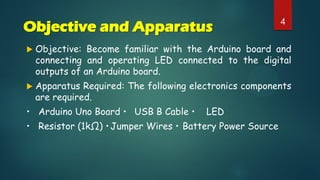
 Objective: Become familiar with the Arduino board and
connecting and operating LED connected to the digital
outputs of an Arduino board.
 Apparatus Required: The following electronics components
are required.
• Arduino Uno Board • USB B Cable • LED
• Resistor (1kΩ) •Jumper Wires • Battery Power Source
4
5
Software Installation Process
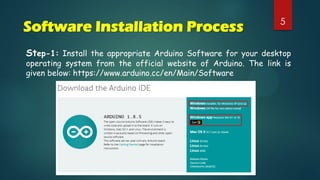
Step-1: Install the appropriate Arduino Software for your desktop
operating system from the official website of Arduino. The link is
given below: https://www.arduino.cc/en/Main/Software
6
Software Installation Process
Step-2: After completing the download connect your Arduino board
with the USB B wire to your computer. You will see the power LED on
once connected. It will help the software to detect the Arduino board
automatically with Port No as well.
Software Installation Process 7
Step-3: Click on Arduino icon and it will start the installation. During
the installation it will require some permissions. So click on accept or
next or yes as per the dialog box will appear.
If you face any problem is install the software you can see the
following tutorials
For windows 7: https://www.youtube.com/watch?v=ylPpO-NG2pA
For windows 10: https://www.youtube.com/watch?v=pfUR7Qa88sk
Now you are done with the software installation process.
8Code Installation Process
Step-1: Connecting Arduino to the computer
1.1 Open the Arduino IDE by clicking on the Arduino Icon.
1.2 Connect your Arduino to the computer using the USB cable
1.3 Make sure to select the right board (see below screen-shot)
9Code Installation Process
1.4 Then select the correct serial port. (see below screen-shot)
10Code Installation Process
Step-2: Open a new window. Write your code for blinking single LED.
2.1 Then click on the Sketch menu and check for any typos / errors
using verify button and Compile to the machine language if the
verification is successful.
11Code Installation Process
2.2 If the above process is successful, you should see the message in
the status bar showing that the compilation is successful.
2.3 Now upload your program to the Arduino by clicking upload button
in the Sketch menu.
2.4 You might face some issues if you have not selected a correct
board/serial port. So please make sure you went through the part 3
and 4 carefully. Now you are all set complete the necessary electrical
connections as per the circuit diagram.
12Working Procedure:
1. After completing software installation and coding upload
unplug the board.
2. Connect the output pin no 13 of Arduino board with a
resistor.
3. Connect the resistor with the positive terminal of the
LED.
4. Connect the negative terminal of the LED with the ground
pin of Arduino.
5. Supply power to the Arduino board by USB B wire or
external power port.
13Circuit Diagram Schematic Diagram
14Source Code
int led = 13;
void setup() {
pinMode(led, OUTPUT);
}
void loop() {
digitalWrite(led, HIGH);
delay(1000);
digitalWrite(led, LOW);
delay(1000);
}
15Result
 After making all the connections and uploading the code we found
that the connected LED light is blinking as per the coding.
Precaution:
 All the connections should be tight and proper.
 Handle the Arduino board carefully.
 Check the connection once again before powering the Arduino
board.
 Switch off the Arduino board after performing the Experiment.
Blinking a Single LED

Blinking a Single LED

  • 1.
    Project No:01 Title ofProject: Blinking a Single LED Presentation on Project
  • 2.
    22Prepared For Md. AlomgirHossain Senior Lecturer Department of Computer Science & Engineering Prepared By Group – Micro Engineers Section-F Name ID No Name ID No Rihab Rahman (Leader) SECRET Abu Sufian Sabuj SECRET Shohag Mia SECRET Mohammad Tamim Rahman SECRET Alomgir Hossen SECRET Zerin Akter SECRET Saifullah Al Mamun SECRET Kaisary Zaman SECRET Tasnia Tahsin SECRET Maseat Nahar SECRET Ikram Asif Khan Radi SECRET
  • 3.
    Objectives 3  Aim/ObjectiveOf Project  Apparatus Required  Software Installation Process  Code Installation Process  Working Procedure  Circuit And Schemetic Diagram  Source Code And Result
  • 4.
    Objective and Apparatus Objective: Become familiar with the Arduino board and connecting and operating LED connected to the digital outputs of an Arduino board.  Apparatus Required: The following electronics components are required. • Arduino Uno Board • USB B Cable • LED • Resistor (1kΩ) •Jumper Wires • Battery Power Source 4
  • 5.
    5 Software Installation Process Step-1:Install the appropriate Arduino Software for your desktop operating system from the official website of Arduino. The link is given below: https://www.arduino.cc/en/Main/Software
  • 6.
    6 Software Installation Process Step-2:After completing the download connect your Arduino board with the USB B wire to your computer. You will see the power LED on once connected. It will help the software to detect the Arduino board automatically with Port No as well.
  • 7.
    Software Installation Process7 Step-3: Click on Arduino icon and it will start the installation. During the installation it will require some permissions. So click on accept or next or yes as per the dialog box will appear. If you face any problem is install the software you can see the following tutorials For windows 7: https://www.youtube.com/watch?v=ylPpO-NG2pA For windows 10: https://www.youtube.com/watch?v=pfUR7Qa88sk Now you are done with the software installation process.
  • 8.
    8Code Installation Process Step-1:Connecting Arduino to the computer 1.1 Open the Arduino IDE by clicking on the Arduino Icon. 1.2 Connect your Arduino to the computer using the USB cable 1.3 Make sure to select the right board (see below screen-shot)
  • 9.
    9Code Installation Process 1.4Then select the correct serial port. (see below screen-shot)
  • 10.
    10Code Installation Process Step-2:Open a new window. Write your code for blinking single LED. 2.1 Then click on the Sketch menu and check for any typos / errors using verify button and Compile to the machine language if the verification is successful.
  • 11.
    11Code Installation Process 2.2If the above process is successful, you should see the message in the status bar showing that the compilation is successful. 2.3 Now upload your program to the Arduino by clicking upload button in the Sketch menu. 2.4 You might face some issues if you have not selected a correct board/serial port. So please make sure you went through the part 3 and 4 carefully. Now you are all set complete the necessary electrical connections as per the circuit diagram.
  • 12.
    12Working Procedure: 1. Aftercompleting software installation and coding upload unplug the board. 2. Connect the output pin no 13 of Arduino board with a resistor. 3. Connect the resistor with the positive terminal of the LED. 4. Connect the negative terminal of the LED with the ground pin of Arduino. 5. Supply power to the Arduino board by USB B wire or external power port.
  • 13.
  • 14.
    14Source Code int led= 13; void setup() { pinMode(led, OUTPUT); } void loop() { digitalWrite(led, HIGH); delay(1000); digitalWrite(led, LOW); delay(1000); }
  • 15.
    15Result  After makingall the connections and uploading the code we found that the connected LED light is blinking as per the coding. Precaution:  All the connections should be tight and proper.  Handle the Arduino board carefully.  Check the connection once again before powering the Arduino board.  Switch off the Arduino board after performing the Experiment.