
Smart Choice Online Practice
www.sconlinepractice.com
By Joana Kennington
OUP Academic Consultant
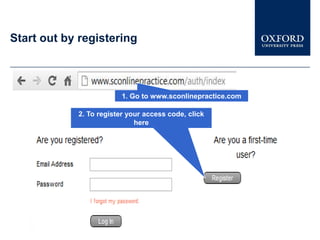
Start out by registering


                         1. Go to www.sconlinepractice.com

            2. To register your access code, click
                             here
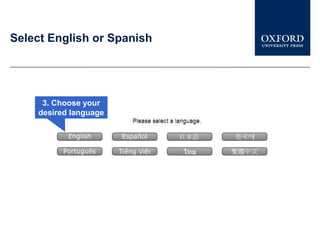
Select English or Spanish


     3. Choose your
    desired language
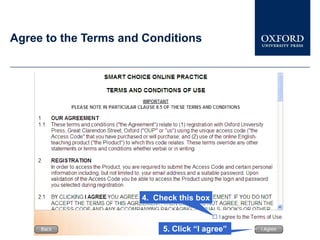
Agree to the Terms and Conditions


                      4. Check this box


                           5. Click “I agree”
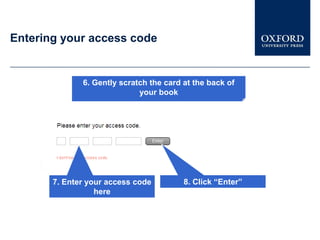
Entering your access code


              6. Gently scratch the card at the back of
                             your book


       7. Enter your access code         8. Click “Enter”
                  here
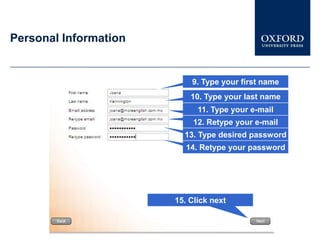
Personal Information


                           9. Type your first name
                           10. Type your last name
                             11. Type your e-mail
                            12. Retype your e-mail
                         13. Type desired password
                          14. Retype your password


                       15. Click next
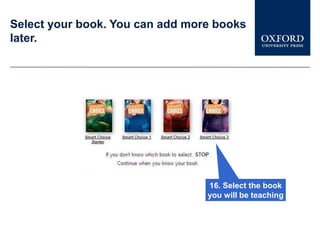
Select your book. You can add more books
later.


                                 16. Select the book
                                 you will be teaching
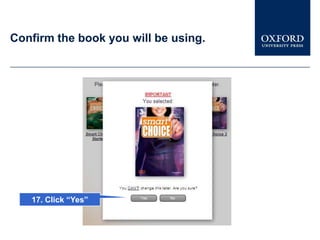
Confirm the book you will be using.


   17. Click “Yes”
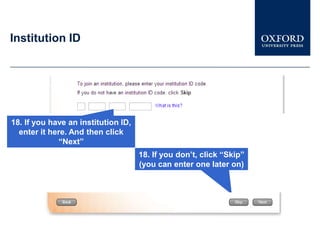
Institution ID


18. If you have an institution ID,
  enter it here. And then click
             “Next”
                                     18. If you don’t, click “Skip”
                                     (you can enter one later on)
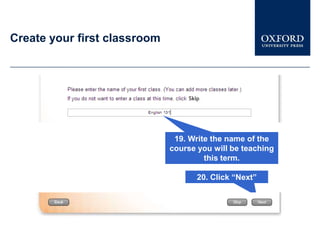
Create your first classroom


                               19. Write the name of the
                              course you will be teaching
                                       this term.

                                     20. Click “Next”
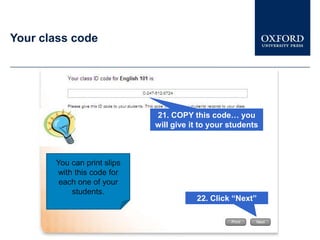
Your class code


                             21. COPY this code… you
                             will give it to your students


       You can print slips
       with this code for
        each one of your
           students.
                                        22. Click “Next”
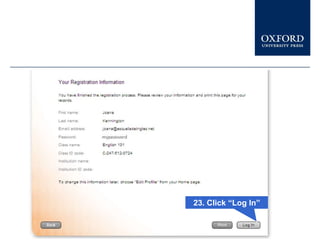
23. Click “Log In”
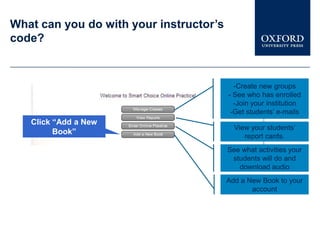
What can you do with your instructor’s
code?


                                           -Create new groups
                                         - See who has enrolled
                                           -Join your institution
                                          -Get students’ e-mails
   Click “Add a New
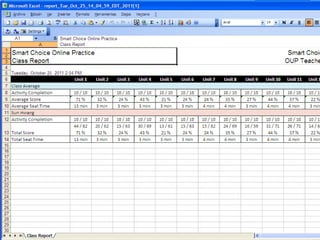
                                           View your students’
         Book”
                                              report cards.
                                         See what activities your
                                          students will do and
                                            download audio
                                         Add a New Book to your
                                                account
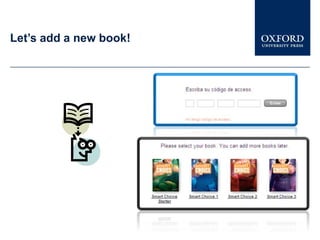
Let’s add a new book!
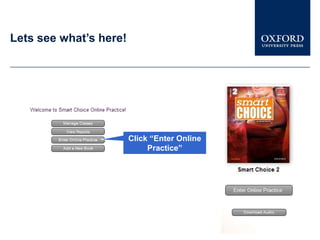
Lets see what’s here!


                        Click “Enter Online
                             Practice”
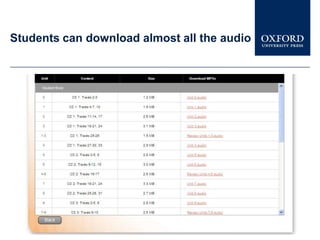
Students can download almost all the audio
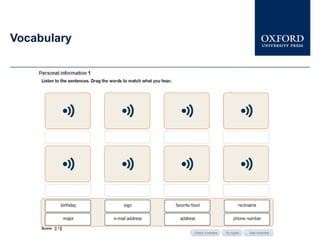
Vocabulary
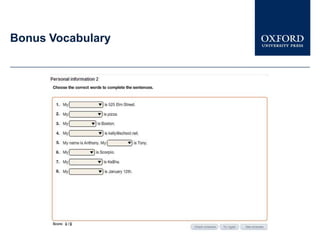
Bonus Vocabulary
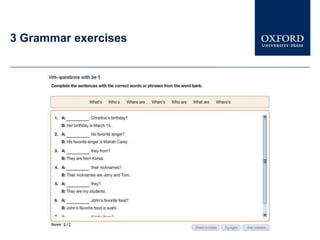
3 Grammar exercises
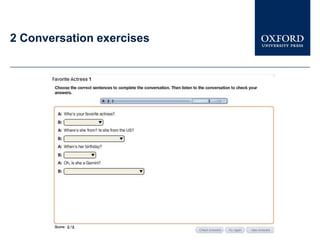
2 Conversation exercises
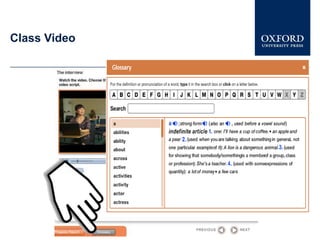
Class Video
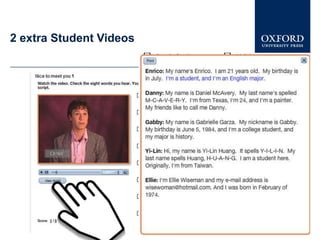
2 extra Student Videos
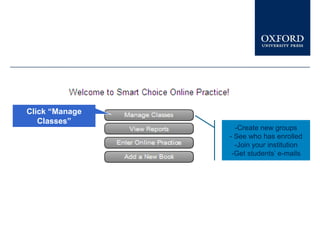
Click “Manage
   Classes”
                  -Create new groups
                - See who has enrolled
                  -Join your institution
                 -Get students’ e-mails
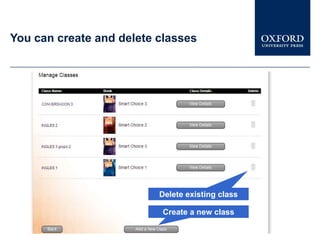
You can create and delete classes


                          Delete existing class

                          Create a new class
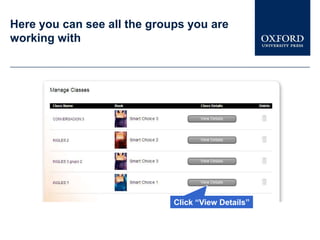
Here you can see all the groups you are
working with


                             Click “View Details”
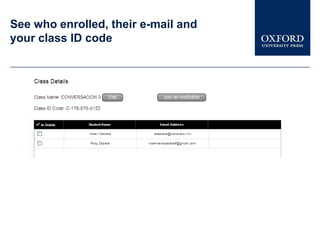
See who enrolled, their e-mail and
your class ID code
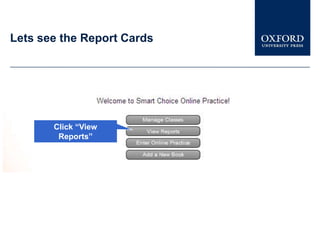
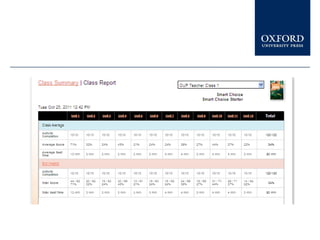
Lets see the Report Cards


       Click “View
        Reports”
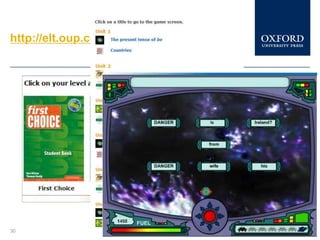
http://elt.oup.com/student/smartchoice/


30
http://oupeltglobalblog.com/


31
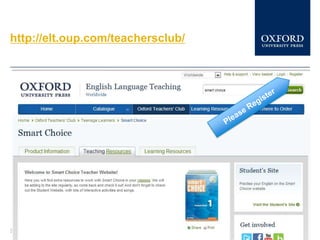
http://elt.oup.com/teachersclub/


32
joana@moreenglish.com.mx

Smart choice online for teachers