Nicola Paolucci!
Developer Advocate / Evangelist
with!
Happier Developer
with
Be a
Nicola Paolucci
@durdn
Bio pictures: the subtle pleasure of
embarrassing yourself in front of
hundreds of people
Tools, Tips and Hacks
2
3
The plan for this session:
Notes on Workflows and Techniques
1 Why does Docker make Developers happy?
Why?
Compulsion to have
clean and perfect
environments
© www.elephantlifestyle.com
the need for speed of every
developer with an idea
Fast application mobility,
Real repeatability
Great for development
team collaboration
Building blocks for your
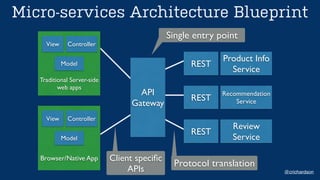
Micro-services Architecture
Micro-services Architecture Blueprint
@crichardson
!
!
!
!
!
Traditional Server-side
web apps
View Controller
Model
API
Gateway
!
!
!
!
!
Browser/Native App
View Controller
Model
REST
REST
REST
Product Info
Service
Recommendation
Service
Review
Service
Single entry point
Protocol translation
Client specific
APIs
Workflows & Techniques
Workflow 1: Develop inside
a single running container
As you would in a single VM
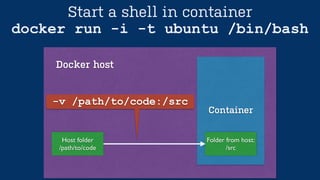
Container
Start a shell in container
docker run -i -t ubuntu /bin/bash
Folder from host:!
/src
Docker host
Host folder!
/path/to/code
-v /path/to/code:/src
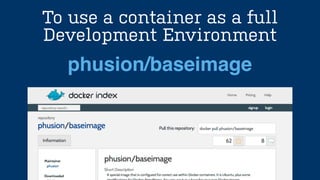
To use a container as a full
Development Environment
phusion/baseimage
Workflow 2: Leverage
containers, modularise
Techniques: Embrace
Reusability in Dockerfiles
Write general requirements early, commit
and name relevant checkpoints, leave
customisations last
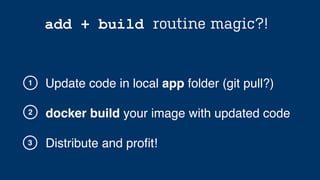
add + build routine magic
Techniques:
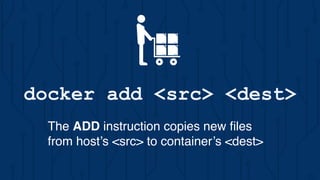
docker add <src> <dest>
The ADD instruction copies new files
from host’s <src> to container’s <dest>
docker build your image with updated code
1
2
add + build routine magic?!
Update code in local app folder (git pull?)
Distribute and profit!3
Sharing data in containers
Techniques:
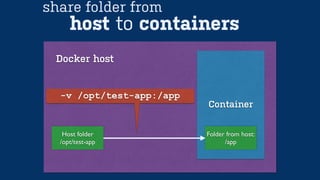
Container
Folder from host:!
/app
Docker host
Host folder!
/opt/test-app
-v /opt/test-app:/app
host to containers
share folder from
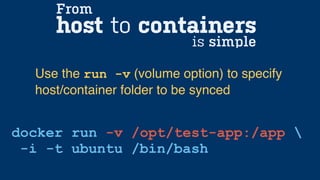
host to containers
docker run -v /opt/test-app:/app 
-i -t ubuntu /bin/bash
Use the run -v (volume option) to specify
host/container folder to be synced
From
is simple
Same pattern using
Dockerfile
FROM busybox
VOLUME ["/var/volume1", "/var/volume2"]
CMD ["/bin/true"]
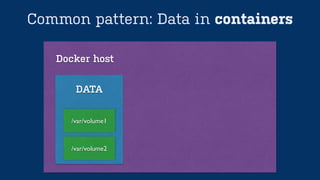
Common pattern: Data in containers
Docker host
/var/volume1
DATA
/var/volume2
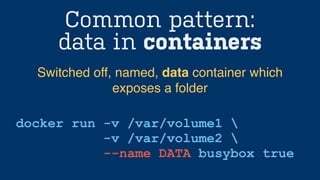
Common pattern:
data in containers
docker run -v /var/volume1 
-v /var/volume2 
--name DATA busybox true
Switched off, named, data container which
exposes a folder
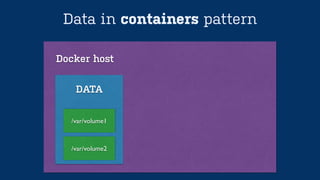
Data in containers pattern
Docker host
/var/volume1
DATA
/var/volume2
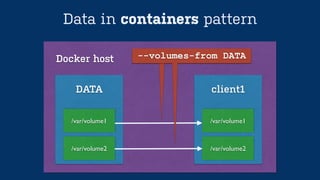
Data in containers pattern
Docker host
/var/volume1
DATA
/var/volume2
/var/volume1
client1
/var/volume2
--volumes-from DATA--volumes-from DATA
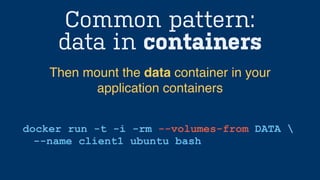
Common pattern:
data in containers
docker run -t -i -rm --volumes-from DATA 
--name client1 ubuntu bash
Then mount the data container in your
application containers
What if you use docker
in a VM?
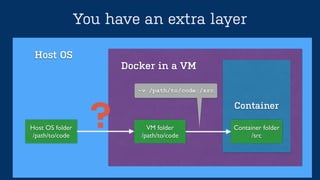
Container
You have an extra layer
Container folder!
/src
Docker in a VM
VM folder!
/path/to/code
-v /path/to/code:/src
Host OS
Host OS folder!
/path/to/code
?
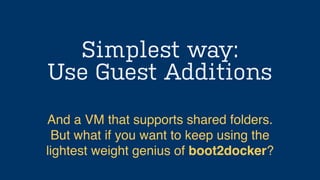
Simplest way:
Use Guest Additions
And a VM that supports shared folders.
But what if you want to keep using the
lightest weight genius of boot2docker?
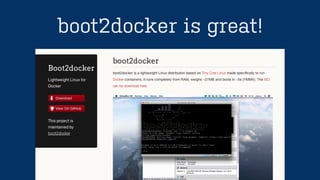
boot2docker is great!
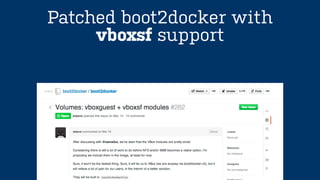
Patched boot2docker with
vboxsf support
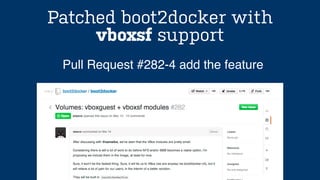
Patched boot2docker with
vboxsf support
Pull Request #282-4 add the feature
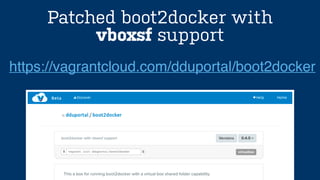
Patched boot2docker with
vboxsf support
https://vagrantcloud.com/dduportal/boot2docker
The UNIX way:
NFS, Samba, plan9, etc.
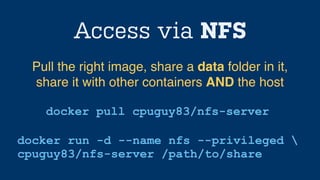
Access via NFS
docker pull cpuguy83/nfs-server
Pull the right image, share a data folder in it,
share it with other containers AND the host
docker run -d --name nfs --privileged 
cpuguy83/nfs-server /path/to/share
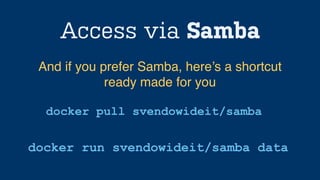
Access via Samba
docker pull svendowideit/samba
And if you prefer Samba, here’s a shortcut
ready made for you
docker run svendowideit/samba data
--links: simple service
connections for docker
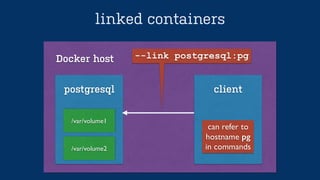
linked containers
Docker host
/var/volume1
postgresql
/var/volume2
client
--link postgresql:pg
can refer to
hostname pg
in commands
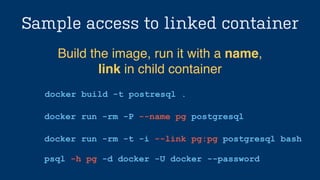
Sample access to linked container
docker build -t postresql .
Build the image, run it with a name, !
link in child container
docker run -rm -P --name pg postgresql
docker run -rm -t -i --link pg:pg postgresql bash
!
psql -h pg -d docker -U docker --password
Tools, Tips & Hacks
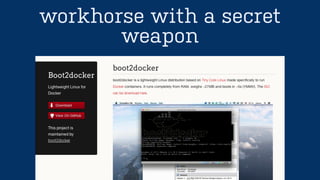
workhorse with a secret
weapon
Tiny Core Linux
workhorse with a secret
weapon
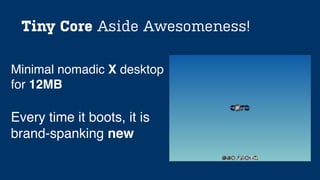
Tiny Core Aside Awesomeness!
Every time it boots, it is
brand-spanking new
Minimal nomadic X desktop
for 12MB
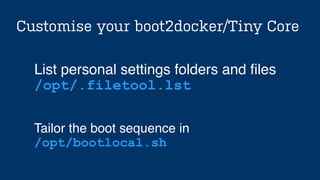
Customise your boot2docker/Tiny Core
Tailor the boot sequence in!
/opt/bootlocal.sh
List personal settings folders and files !
/opt/.filetool.lst
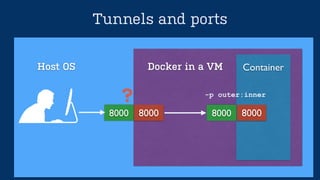
Tunnels, tunnels… and ports
Tunnels and ports
Docker in a VMHost OS
8000 8000
Container
8000 8000
-p outer:inner
?
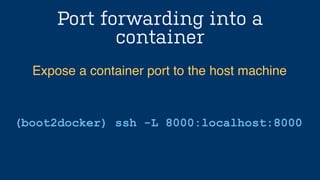
Port forwarding into a
container
(boot2docker) ssh -L 8000:localhost:8000
Expose a container port to the host machine
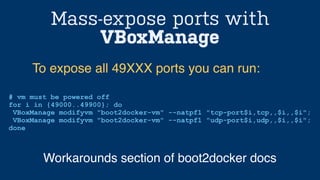
Mass-expose ports with
VBoxManage
# vm must be powered off
for i in {49000..49900}; do
VBoxManage modifyvm "boot2docker-vm" --natpf1 "tcp-port$i,tcp,,$i,,$i";
VBoxManage modifyvm "boot2docker-vm" --natpf1 "udp-port$i,udp,,$i,,$i";
done
To expose all 49XXX ports you can run:
Workarounds section of boot2docker docs
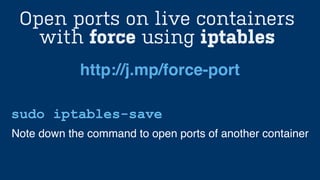
Open ports on live containers
with force using iptables
sudo iptables-save
http://j.mp/force-port
Note down the command to open ports of another container
One more thing…
Nicola Paolucci
@durdn
Thank you!

Be a happier developer with Docker: Tricks of the trade