Basic Guidelines for MATLAB Programming
By
RANJAN PAL
Ph.D. Research Scholar
IIT Kharagpur
1
2
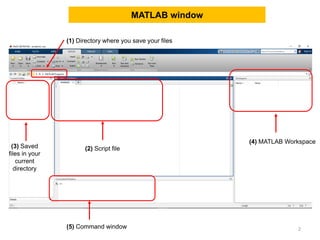
MATLAB window
(1) Directory where you save your files
(2) Script file(3) Saved
files in your
current
directory
(4) MATLAB Workspace
(5) Command window
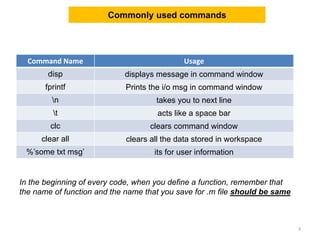
Commonly used commands
3
Command Name Usage
disp displays message in command window
fprintf Prints the i/o msg in command window
n takes you to next line
t acts like a space bar
clc clears command window
clear all clears all the data stored in workspace
%’some txt msg’ its for user information
In the beginning of every code, when you define a function, remember that
the name of function and the name that you save for .m file should be same
4
Matrix Calculations in COMMAND window
Write nos. from 1 to 10 >> H=1:10
Let M=[1 2; 3 4] and N=[4 5 ;6 7],
Matrix Multiplication >> R=M*N
Element wise multiplication >> S=M.*N
Let A=[4 5 6] and B=[7 8 9] i.e. two vectors
Dot product is given by, >> C=dot(A,B)
Cross Product is given by, >> D=cross(A,B)
Create 4*4 identity matix >> eye(4)
3*2 matrix, all elements are 1 >> ones(3,2)
3*2 matrix, all elements are 0 >> zeros(3,2)
Operations Write these in COMMAND window
Define matrix >> A=[1 2 3;4 5 6; 7 8 9]
Transpose of A >>B=A'
All elements of 2nd column of matrix A >> C=A(:,2)
All elements of 2nd row of matrix A >> D=A(2,:)
Size of matrix A >> E=size(A)
1st & 2nd row and 2nd & 3rd column >> F=A(1:2,2:3)
Extract A13 element of matrix A >> G=A(1,3)
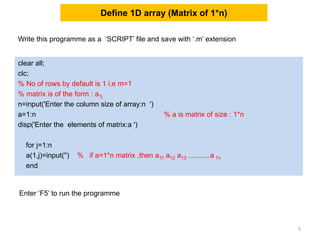
Define 1D array (Matrix of 1*n)
clear all;
clc;
% No of rows by default is 1 i.e m=1
% matrix is of the form : a1j
n=input('Enter the column size of array:n ')
a=1:n % a is matrix of size : 1*n
disp('Enter the elements of matrix:a ')
for j=1:n
a(1,j)=input('') % if a=1*n matrix ,then a11 a12 a13 ...........a 1n
end
5
Write this programme as a ‘SCRIPT’ file and save with ‘.m’ extension
Enter ‘F5’ to run the programme
clear all;
clc;
m=input('Enter the row size of array:m ')
n=input('Enter the column size of array:n ')
a=[m;n] % a is Matrix of size a(m*n)
disp('Enter the elements of matrix :a ')
for i=1:m
for j=1:n
a(i,j)=input('') % if a=2*3 matrix ,then a11 a12 a13 then a21 a22 a23
end
end
disp(a)
6
Write this programme as a ‘SCRIPT’ file and save with ‘.m’ extension
Enter ‘F5’ to run the programme
Define 2D array (Matrix of m*n)
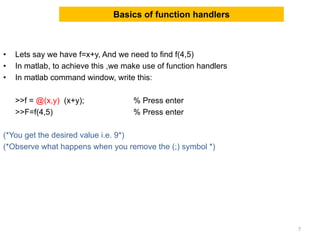
Basics of function handlers
• Lets say we have f=x+y, And we need to find f(4,5)
• In matlab, to achieve this ,we make use of function handlers
• In matlab command window, write this:
>>f = @(x,y) (x+y); % Press enter
>>F=f(4,5) % Press enter
(*You get the desired value i.e. 9*)
(*Observe what happens when you remove the (;) symbol *)
7
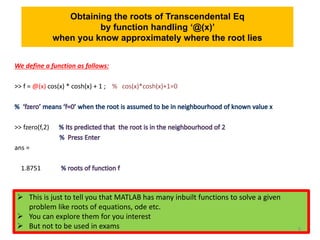
Obtaining the roots of Transcendental Eq
by function handling ‘@(x)’
when you know approximately where the root lies
We define a function as follows:
>> f = @(x) cos(x) * cosh(x) + 1 ; % cos(x)*cosh(x)+1=0
>> fzero(f,2)
ans =
1.8751
 This is just to tell you that MATLAB has many inbuilt functions to solve a given
problem like roots of equations, ode etc.
 You can explore them for you interest
 But not to be used in exams 8
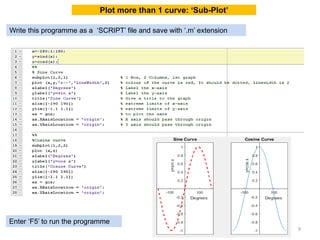
Plot more than 1 curve: ‘Sub-Plot’
9
Write this programme as a ‘SCRIPT’ file and save with ‘.m’ extension
Enter ‘F5’ to run the programme
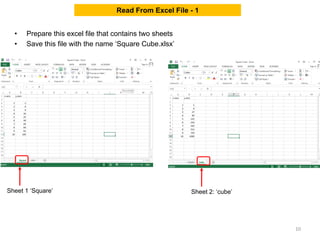
• Prepare this excel file that contains two sheets
• Save this file with the name ‘Square Cube.xlsx’
10
Read From Excel File - 1
Sheet 1 ‘Square’ Sheet 2: ‘cube’
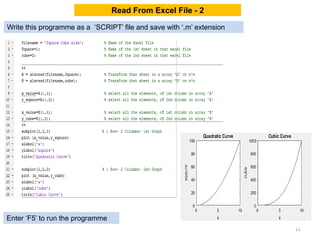
Read From Excel File - 2
11
Write this programme as a ‘SCRIPT’ file and save with ‘.m’ extension
Enter ‘F5’ to run the programme
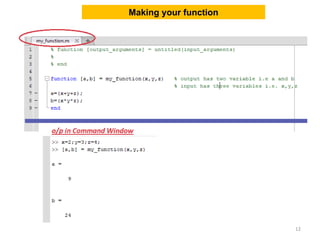
Making your function
12
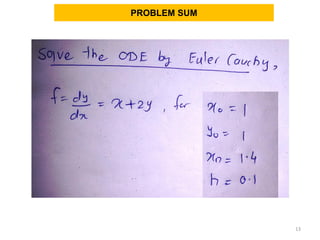
PROBLEM SUM
13
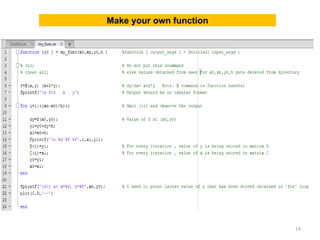
Make your own function
14
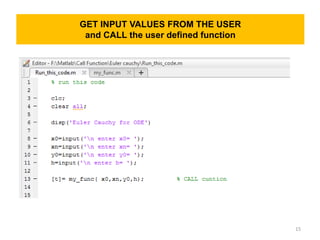
GET INPUT VALUES FROM THE USER
and CALL the user defined function
15
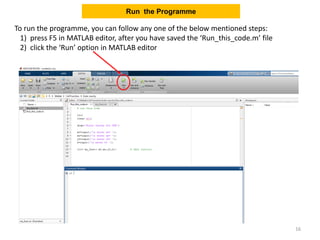
To run the programme, you can follow any one of the below mentioned steps:
1) press F5 in MATLAB editor, after you have saved the ‘Run_this_code.m’ file
2) click the ‘Run’ option in MATLAB editor
Run the Programme
16
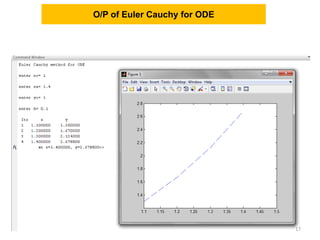
O/P of Euler Cauchy for ODE
17
Points to Remember
• This PPT is to give you basic idea about MATLAB programming, it
doesn't teach you MATLAB thoroughly.
• You need to explore it more yourself.
• You can take help of https://www.mathworks.com/ for syntax and
learn new commands
18

Basics of MATLAB programming

  • 1.
    Basic Guidelines forMATLAB Programming By RANJAN PAL Ph.D. Research Scholar IIT Kharagpur 1
  • 2.
    2 MATLAB window (1) Directorywhere you save your files (2) Script file(3) Saved files in your current directory (4) MATLAB Workspace (5) Command window
  • 3.
    Commonly used commands 3 CommandName Usage disp displays message in command window fprintf Prints the i/o msg in command window n takes you to next line t acts like a space bar clc clears command window clear all clears all the data stored in workspace %’some txt msg’ its for user information In the beginning of every code, when you define a function, remember that the name of function and the name that you save for .m file should be same
  • 4.
    4 Matrix Calculations inCOMMAND window Write nos. from 1 to 10 >> H=1:10 Let M=[1 2; 3 4] and N=[4 5 ;6 7], Matrix Multiplication >> R=M*N Element wise multiplication >> S=M.*N Let A=[4 5 6] and B=[7 8 9] i.e. two vectors Dot product is given by, >> C=dot(A,B) Cross Product is given by, >> D=cross(A,B) Create 4*4 identity matix >> eye(4) 3*2 matrix, all elements are 1 >> ones(3,2) 3*2 matrix, all elements are 0 >> zeros(3,2) Operations Write these in COMMAND window Define matrix >> A=[1 2 3;4 5 6; 7 8 9] Transpose of A >>B=A' All elements of 2nd column of matrix A >> C=A(:,2) All elements of 2nd row of matrix A >> D=A(2,:) Size of matrix A >> E=size(A) 1st & 2nd row and 2nd & 3rd column >> F=A(1:2,2:3) Extract A13 element of matrix A >> G=A(1,3)
  • 5.
    Define 1D array(Matrix of 1*n) clear all; clc; % No of rows by default is 1 i.e m=1 % matrix is of the form : a1j n=input('Enter the column size of array:n ') a=1:n % a is matrix of size : 1*n disp('Enter the elements of matrix:a ') for j=1:n a(1,j)=input('') % if a=1*n matrix ,then a11 a12 a13 ...........a 1n end 5 Write this programme as a ‘SCRIPT’ file and save with ‘.m’ extension Enter ‘F5’ to run the programme
  • 6.
    clear all; clc; m=input('Enter therow size of array:m ') n=input('Enter the column size of array:n ') a=[m;n] % a is Matrix of size a(m*n) disp('Enter the elements of matrix :a ') for i=1:m for j=1:n a(i,j)=input('') % if a=2*3 matrix ,then a11 a12 a13 then a21 a22 a23 end end disp(a) 6 Write this programme as a ‘SCRIPT’ file and save with ‘.m’ extension Enter ‘F5’ to run the programme Define 2D array (Matrix of m*n)
  • 7.
    Basics of functionhandlers • Lets say we have f=x+y, And we need to find f(4,5) • In matlab, to achieve this ,we make use of function handlers • In matlab command window, write this: >>f = @(x,y) (x+y); % Press enter >>F=f(4,5) % Press enter (*You get the desired value i.e. 9*) (*Observe what happens when you remove the (;) symbol *) 7
  • 8.
    Obtaining the rootsof Transcendental Eq by function handling ‘@(x)’ when you know approximately where the root lies We define a function as follows: >> f = @(x) cos(x) * cosh(x) + 1 ; % cos(x)*cosh(x)+1=0 >> fzero(f,2) ans = 1.8751  This is just to tell you that MATLAB has many inbuilt functions to solve a given problem like roots of equations, ode etc.  You can explore them for you interest  But not to be used in exams 8
  • 9.
    Plot more than1 curve: ‘Sub-Plot’ 9 Write this programme as a ‘SCRIPT’ file and save with ‘.m’ extension Enter ‘F5’ to run the programme
  • 10.
    • Prepare thisexcel file that contains two sheets • Save this file with the name ‘Square Cube.xlsx’ 10 Read From Excel File - 1 Sheet 1 ‘Square’ Sheet 2: ‘cube’
  • 11.
    Read From ExcelFile - 2 11 Write this programme as a ‘SCRIPT’ file and save with ‘.m’ extension Enter ‘F5’ to run the programme
  • 12.
  • 13.
  • 14.
    Make your ownfunction 14
  • 15.
    GET INPUT VALUESFROM THE USER and CALL the user defined function 15
  • 16.
    To run theprogramme, you can follow any one of the below mentioned steps: 1) press F5 in MATLAB editor, after you have saved the ‘Run_this_code.m’ file 2) click the ‘Run’ option in MATLAB editor Run the Programme 16
  • 17.
    O/P of EulerCauchy for ODE 17
  • 18.
    Points to Remember •This PPT is to give you basic idea about MATLAB programming, it doesn't teach you MATLAB thoroughly. • You need to explore it more yourself. • You can take help of https://www.mathworks.com/ for syntax and learn new commands 18