﷽
‫اسالم‬
‫علیکم‬
‫مطابق‬ ‫کے‬ ‫حدیث‬ ‫ایک‬ ‫کی‬ ‫شریف‬ ‫بخاری‬
’’‫گ‬ٓ‫ا‬ ‫قیامت‬ ِ‫روز‬ ‫اسے‬ ‫گا‬ ‫چھپائے‬ ‫علم‬ ‫جو‬
‫گی۔‬ ‫جائے‬ ‫ڈالی‬ ‫لگام‬ ‫کی‬‘‘
LINUX IS NOT AN OPERATING
SYSTEM. IT‘S A PHILOSPHY
Be LinuX Be Free
PRESENTED BY:YAMI GROUP
PRESENTED TO:WHOLE CLASS
Yami Group
PRESENTATION
TOPIC
Basic Review of Linux Platform
+
Controlling Access to Files with
Linux File System Permissions
WHAT IS GNU/LINUX?
A free Unix-type operating system developed under the GNU
General Public License.
● Open source
● Popular
● Support most of the platforms available
HISTORY OF BEFORE
LINUX
1969
UNIX
1973 UNICS
Converted into Unix
1984
GUN Unix
‫مقابلہ‬
1990
Working on Kernel
By
Linus Torvalds
GNO &
MINIX
‫نہیں‬ ‫کرنل‬
‫تھا‬
Memory
Manager
creator
Utility of
MINIX
and GNO
Rewrite all utility
Of MINIX and GNO
As Competition of
UNIX
‫کیا‬ ‫ہے‬ ‫میں‬ ‫اصل‬ ‫لینکس‬
‫تاریخ‬ ‫کی‬ ‫اس‬ ‫اور‬
‫ہے‬ ‫کیا‬Assembly
language Write
1st
Ken Thompson,
Dennis Ritchie
In C language
1973, Rewrite
UNIX with C
Richard Stallman
GPL
Hacker
GNU(Free Software
Foundation )
starts under
GPL
Andrew Stuart
"Andy" Tanenbaum
What is
Linux/GNU?
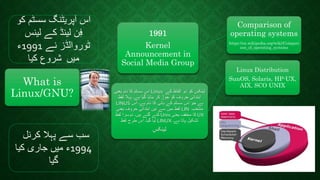
1991
Kernel
Announcement in
Social Media Group
Comparison of
operating systems
https://en.wikipedia.org/wiki/Compari
son_of_operating_systems
‫یعنی‬ ‫نام‬ ‫کا‬ ‫سسٹم‬ ‫اس‬ Linux ‫لینکس‬‫کے‬ ‫الفاظ‬ ‫دو‬ ‫کو‬
‫لفظ‬ ‫پہال‬ ‫ہے۔‬ ‫گیا‬ ‫بنایا‬ ‫کر‬ ‫جوڑ‬ ‫کو‬ ‫حروف‬ ‫ابتدائی‬
LINUS ‫اس‬ ‫ہے۔‬ ‫نام‬ ‫کا‬ ‫بانی‬ ‫کے‬ ‫سسٹم‬ ‫اس‬ ‫جو‬ ‫ہے‬
‫یعنی‬ ‫حروف‬ ‫ابتدائی‬ ‫تین‬ ‫سے‬ ‫میں‬ ‫لفظ‬ LIN ‫منتخب‬
‫لفظ‬ ‫دوسرا‬ ‫ہیں۔‬ ‫گئے‬ ‫کئے‬ Unix ‫یعنی‬ ‫مخفف‬ ‫کا‬ UX
‫لفظ‬ ‫طرح‬ ‫اس‬ ‫گیا۔‬ ‫لیا‬ LINUX ‫ہے۔‬ ‫پاتا‬ ‫تشکیل‬
‫لینکس‬
Linux Distribution
SunOS, Solaris, HP-UX,
AIX, SCO UNIX
‫کرنل‬ ‫پہال‬ ‫سے‬ ‫سب‬
1994‫کیا‬ ‫جاری‬ ‫میں‬ ‫ء‬
‫گیا‬
‫اس‬‫سسٹم‬ ‫آپریٹنگ‬‫کو‬
‫لینس‬ ‫کے‬ ‫لینڈ‬ ‫ن‬ِ‫ف‬
‫نے‬ ‫ٹوروالڈز‬1991‫ء‬
‫میں‬‫کیا‬ ‫شروع‬
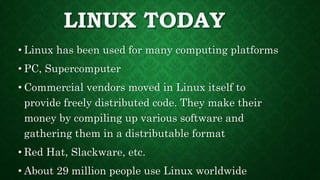
LINUX TODAY
• Linux has been used for many computing platforms
• PC, Supercomputer
• Commercial vendors moved in Linux itself to
provide freely distributed code. They make their
money by compiling up various software and
gathering them in a distributable format
• Red Hat, Slackware, etc.
• About 29 million people use Linux worldwide
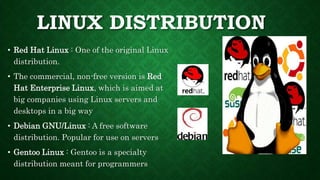
LINUX DISTRIBUTION
• Red Hat Linux : One of the original Linux
distribution.
• The commercial, non-free version is Red
Hat Enterprise Linux, which is aimed at
big companies using Linux servers and
desktops in a big way
• Debian GNU/Linux : A free software
distribution. Popular for use on servers
• Gentoo Linux : Gentoo is a specialty
distribution meant for programmers
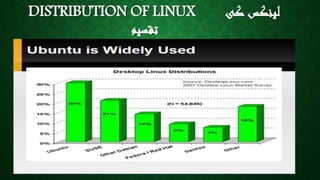
DISTRIBUTION OF LINUX ‫کی‬ ‫لینکس‬
‫تقسیم‬
WHY LINUX ‫لینکس‬‫خوبیا‬‫کی‬‫ں‬
‫کیا‬‫ہ‬‫ی‬‫ں‬‫؟‬Linux Provide Security
Powerful
It’s “free”
Multi-user
Multiprocessing
Multitasking
Multithreading
Linux is Virus Free!!
‫ک‬ ‫لینکس‬‫ے‬‫ائد‬‫ف‬‫ے‬ ‫سس‬ ‫لینکس‬‫ٹ‬‫انت‬‫م‬‫ہ‬‫مستحکم‬ ‫ائی‬‫ہ‬‫ی‬‫ں‬
‫مفت‬ ‫لینکس‬‫ہے‬
‫خطر‬‫کوئی‬ ‫کا‬ ‫وائرس‬‫ہ‬‫ن‬‫ہ‬‫ی‬‫ں‬‫سیکوئر‬ ‫کافی‬ ‫اور‬‫ہے‬‫وائرس‬ ‫مطلب‬
‫ا‬‫ٹ‬‫ن‬ ‫یک‬‫ہ‬‫ی‬‫ں‬‫کرتا‬‫۔‬
‫ک‬ ‫لینکس‬‫ے‬‫سات‬‫ھ‬‫ک‬ ‫ضرورت‬‫ے‬‫ساف‬‫ٹ‬‫س‬ ‫سب‬ ‫کی‬ ‫ویئر‬‫ے‬‫زیاد‬‫ہ‬
‫پ‬‫ہ‬‫ل‬‫ے‬‫س‬‫ے‬‫آتا‬‫نصب‬‫ہے‬
‫ک‬ ‫وقت‬ ‫کم‬ ‫از‬‫کم‬‫ے‬‫سات‬‫ھ‬‫اپن‬‫ے‬‫ساف‬ ‫تمام‬‫ٹ‬‫اپ‬‫ویئر‬‫ڈ‬‫ی‬‫ٹ‬
‫کب‬ ‫لینکس‬‫ھ‬‫ن‬ ‫ی‬‫ہ‬‫ی‬‫ں‬‫سست‬‫ہ‬‫تا‬ ‫و‬‫۔‬
Some basic Commands in LINUX
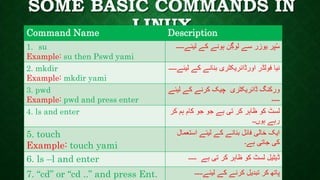
SOME BASIC COMMANDS IN
LINUXCommand Name Description
1. su
Example: su then Pswd yami
‫لیئے۔۔۔۔۔‬ ‫کے‬ ‫ہونے‬ ‫ن‬ِ‫گ‬‫لو‬ ‫سے‬ ‫یوزر‬ ‫پر‬ُ‫س‬
2. mkdir
Example: mkdir yami
‫لیئے‬ ‫کے‬ ‫بنانے‬ ‫اورڈائریکٹری‬ ‫فولڈر‬ ‫نیا‬‫۔۔۔۔۔‬
3. pwd
Example: pwd and press enter
‫لیئے‬ ‫کے‬ ‫کرنے‬ ‫چیک‬ ‫ڈائریکٹری‬ ‫ورکنگ‬
‫۔۔۔۔۔‬
4. ls and enter ‫کر‬ ‫ہم‬ ‫کام‬ ‫جو‬ ‫جو‬ ‫ہے‬ ‫تی‬ ‫کر‬ ‫ظاہر‬ ‫کو‬ ‫لسٹ‬
‫ہوں۔۔‬ ‫رہے‬
5. touch
Example: touch yami
‫استعمال‬ ‫لیئے‬ ‫کے‬ ‫بنانے‬ ‫فائل‬ ‫خالی‬ ‫ایک‬
‫ہے۔‬ ‫جاتی‬ ‫کی‬
6. ls –l and enter ‫۔۔۔۔۔‬ ‫ہے‬ ‫تی‬ ‫کر‬ ‫ظاہر‬ ‫کو‬ ‫لسٹ‬ ‫ڈیٹیل‬
7. “cd” or “cd ..” and press Ent. ‫لیئے۔۔۔۔۔‬ ‫کے‬ ‫کرنے‬ ‫تبدیل‬ ‫کر‬ ‫پاتھ‬
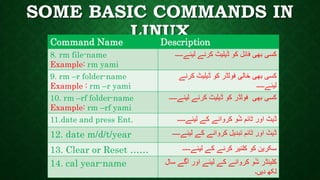
SOME BASIC COMMANDS IN
LINUXCommand Name Description
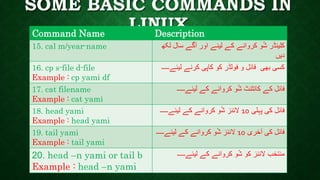
8. rm file-name
Example: rm yami
‫لیئے۔۔۔۔۔‬ ‫کرنے‬ ‫ڈیلیٹ‬ ‫کو‬ ‫فائل‬ ‫بھی‬ ‫کسی‬
9. rm –r folder-name
Example : rm –r yami
‫کرنے‬ ‫ڈیلیٹ‬ ‫کو‬ ‫فولڈر‬ ‫خالی‬ ‫بھی‬ ‫کسی‬
‫لیئے۔۔۔۔۔‬
10. rm –rf folder-name
Example: rm –rf yami
‫لیئے۔۔۔۔۔‬ ‫کرنے‬ ‫ڈیلیٹ‬ ‫کو‬ ‫فولڈر‬ ‫بھی‬ ‫کسی‬
11.date and press Ent. ‫لیئے۔۔۔۔۔‬ ‫کے‬ ‫کروانے‬ ‫و‬ُ‫ش‬ ‫ٹائم‬ ‫اور‬ ‫ڈیٹ‬
12. date m/d/t/year ‫لیئے۔۔۔۔۔‬ ‫کے‬ ‫کروانے‬ ‫تبدیل‬ ‫ٹائم‬ ‫اور‬ ‫ڈیٹ‬
13. Clear or Reset …… ‫لیئے۔۔۔۔۔‬ ‫کے‬ ‫کرنے‬ ‫کلئیر‬ ‫کو‬ ‫سکرین‬
14. cal year-name ‫سال‬ ‫آگے‬ ‫اور‬ ‫لیئے‬ ‫کے‬ ‫کروانے‬ ‫و‬ُ‫ش‬ ‫کلینڈر‬
‫دیں۔‬ ‫لکھ‬
SOME BASIC COMMANDS IN
LINUXCommand Name Description
15. cal m/year-name ‫لکھ‬ ‫سال‬ ‫آگے‬ ‫اور‬ ‫لیئے‬ ‫کے‬ ‫کروانے‬ ‫و‬ُ‫ش‬ ‫کلینڈر‬
‫دیں‬
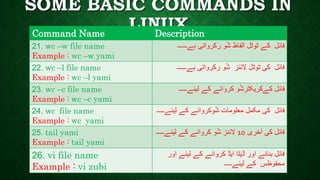
16. cp s-file d-file
Example : cp yami df
‫لیئے۔۔۔۔‬ ‫کرنے‬ ‫کاپی‬ ‫کو‬ ‫فولڈر‬ ‫و‬ ‫فائل‬ ‫بھی‬ ‫کسی‬‫۔‬
17. cat filename
Example : cat yami
‫لیئے۔۔۔۔۔‬ ‫کے‬ ‫کروانے‬ ‫و‬ُ‫ش‬ ‫کانٹنٹ‬ ‫کے‬ ‫فائل‬
18. head yami
Example : head yami
‫پہلی‬ ‫کی‬ ‫فائل‬10‫لیئے۔۔۔۔۔‬ ‫کے‬ ‫کروانے‬ ‫و‬ُ‫ش‬ ‫الئنز‬
19. tail yami
Example : tail yami
‫آخری‬ ‫کی‬ ‫فائل‬10‫لیئے۔۔۔۔۔‬ ‫کے‬ ‫کروانے‬ ‫و‬ُ‫ش‬ ‫الئنز‬
20. head –n yami or tail b
Example : head –n yami
‫لیئے۔۔۔۔۔‬ ‫کے‬ ‫کروانے‬ ‫و‬ُ‫ش‬ ‫کو‬ ‫الئنز‬ ‫منتخب‬
SOME BASIC COMMANDS IN
LINUXCommand Name Description
21. wc –w file name
Example : wc –w yami
‫ہے۔۔۔۔۔۔‬ ‫رکرواتی‬ ‫و‬ُ‫ش‬ ‫الفاظ‬ ‫ٹوٹل‬ ‫کے‬ ‫فائل‬
22. wc –l file name
Example : wc –l yami
‫ہے۔۔۔۔۔۔‬ ‫رکرواتی‬ ‫و‬ُ‫ش‬ ‫الئنز‬ ‫ٹوٹل‬ ‫کی‬ ‫فائل‬
23. wc –c file name
Example : wc –c yami
‫لیئے۔۔۔۔۔‬ ‫کے‬ ‫کروانے‬ ‫و‬ُ‫ش‬‫کےکریکٹر‬ ‫فائل‬
24. wc file name
Example : wc yami
‫لیئے۔۔۔۔۔‬ ‫کے‬ ‫وکروانے‬ُ‫ش‬ ‫معلومات‬ ‫مکمل‬ ‫کی‬ ‫فائل‬
25. tail yami
Example : tail yami
‫آخری‬ ‫کی‬ ‫فائل‬10‫لیئے۔۔۔۔۔‬ ‫کے‬ ‫کروانے‬ ‫و‬ُ‫ش‬ ‫الئنز‬
26. vi file name
Example : vi zubi
‫اور‬ ‫لیئے‬ ‫کے‬ ‫کروانے‬ ‫ایڈ‬ ‫ڈیٹا‬ ‫اور‬ ‫بنانے‬ ‫فائل‬
‫لیئے۔۔۔۔۔‬ ‫کے‬ ‫محفوظس‬
‫پار‬‫ٹ‬‫کیس‬ ‫یشن‬‫ے‬‫بنات‬‫ے‬‫ہ‬‫ی‬‫ں‬‫ن‬ُ‫ا‬‫اور‬‫کا‬
‫وغیر‬ ‫سائز‬‫ہ‬‫کیس‬‫ے‬
‫دیک‬‫ھ‬‫ت‬‫ے‬‫ہ‬‫ی‬‫ں‬
SOME BASIC COMMANDS IN
LINUX
Command Name Description
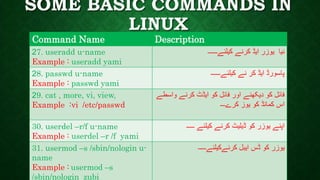
27. useradd u-name
Example : useradd yami
‫کیلئے۔۔۔۔۔۔‬ ‫کرنے‬ ‫ایڈ‬ ‫یوزر‬ ‫نیا‬
28. passwd u-name
Example : passwd yami
‫کیلئے۔۔۔۔۔۔‬ ‫نے‬ ‫کر‬ ‫ایڈ‬ ‫پاسورڈ‬
29. cat , more, vi, view,
Example :vi /etc/passwd
‫واسطے‬ ‫کرنے‬ ‫ایڈٹ‬ ‫کو‬ ‫فائل‬ ‫اور‬ ‫دیکھنے‬ ‫کو‬ ‫فائل‬
‫کرے۔۔۔‬ ‫یوز‬ ‫کو‬ ‫کمانڈ‬ ‫اس‬
30. userdel –r/f u-name
Example : userdel –r /f yami
‫۔۔۔۔۔‬ ‫کیلئے‬ ‫کرنے‬ ‫ڈیلیٹ‬ ‫کو‬ ‫یوزر‬ ‫اپنے‬
31. usermod –s /sbin/nologin u-
name
Example : usermod –s
/sbin/nologin zubi
‫کرنےکیلئے۔۔۔۔۔‬ ‫ایبل‬ ‫ڈس‬ ‫کو‬ ‫یوزر‬
‫طریق‬ ‫افیکل‬‫ر‬‫گ‬‫ے‬‫ی‬ ‫نال‬‫وزر‬
‫نو‬‫ں‬‫کدا‬‫ں‬‫ای‬‫ڈ‬‫دا‬ ‫کری‬
‫وا؟؟‬
SOME BASIC COMMANDS IN
LINUXCommand Name Description
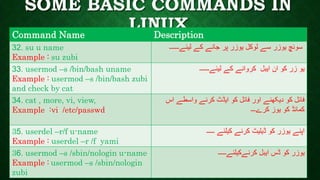
32. su u name
Example : su zubi
‫لیئے۔۔۔۔۔۔‬ ‫کے‬ ‫جانے‬ ‫پر‬ ‫یوزر‬ ‫لوکل‬ ‫سے‬ ‫یوزر‬ ‫سوئچ‬
33. usermod –s /bin/bash uname
Example : usermod –s /bin/bash zubi
and check by cat
‫لیئے۔۔۔۔۔۔‬ ‫کے‬ ‫کروانے‬ ‫ایبل‬ ‫ان‬ ‫کو‬ ‫زر‬ ‫یو‬
34. cat , more, vi, view,
Example :vi /etc/passwd
‫اس‬ ‫واسطے‬ ‫کرنے‬ ‫ایڈٹ‬ ‫کو‬ ‫فائل‬ ‫اور‬ ‫دیکھنے‬ ‫کو‬ ‫فائل‬
‫کرے۔۔۔‬ ‫یوز‬ ‫کو‬ ‫کمانڈ‬
35. userdel –r/f u-name
Example : userdel –r /f yami
‫۔۔۔۔۔‬ ‫کیلئے‬ ‫کرنے‬ ‫ڈیلیٹ‬ ‫کو‬ ‫یوزر‬ ‫اپنے‬
36. usermod –s /sbin/nologin u-name
Example : usermod –s /sbin/nologin
zubi
‫کرنےکیلئے۔۔۔۔۔‬ ‫ایبل‬ ‫ڈس‬ ‫کو‬ ‫یوزر‬
SOME BASIC COMMANDS IN
LINUXCommand Name Description
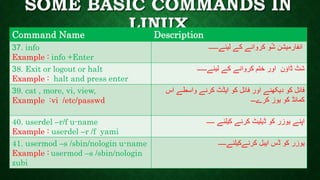
37. info
Example : info +Enter
‫لیئے۔۔۔۔۔۔‬ ‫کے‬ ‫کروانے‬ ‫و‬ُ‫ش‬ ‫انفارمیشن‬
38. Exit or logout or halt
Example : halt and press enter
‫لیئے۔۔۔۔۔۔‬ ‫کے‬ ‫کروانے‬ ‫ختم‬ ‫اور‬ ‫ن‬ َ‫ڈاو‬ ‫شٹ‬
39. cat , more, vi, view,
Example :vi /etc/passwd
‫اس‬ ‫واسطے‬ ‫کرنے‬ ‫ایڈٹ‬ ‫کو‬ ‫فائل‬ ‫اور‬ ‫دیکھنے‬ ‫کو‬ ‫فائل‬
‫کرے۔۔۔‬ ‫یوز‬ ‫کو‬ ‫کمانڈ‬
40. userdel –r/f u-name
Example : userdel –r /f yami
‫۔۔۔۔۔‬ ‫کیلئے‬ ‫کرنے‬ ‫ڈیلیٹ‬ ‫کو‬ ‫یوزر‬ ‫اپنے‬
41. usermod –s /sbin/nologin u-name
Example : usermod –s /sbin/nologin
zubi
‫کرنےکیلئے۔۔۔۔۔‬ ‫ایبل‬ ‫ڈس‬ ‫کو‬ ‫یوزر‬
SOME BASIC COMMANDS IN
LINUX
Command Name Description
42. df [options]
Example : df yami
‫کے‬ ‫کروانے‬ ‫و‬ُ‫ش‬ ‫جگہ‬ ‫بقیہ‬ ‫اور‬ ‫سپیس‬ ‫شدہ‬ ‫استعمال‬
‫لیئے۔۔۔۔۔۔‬
43. du [options]
Example : du yami
‫لیئے۔۔۔۔۔‬ ‫کے‬ ‫دیکھنے‬ ‫اسکو‬ ‫ہے‬ ‫لیتی‬ ‫فائل‬ ‫ہر‬ ‫جگہ‬ ‫کتنی‬.
44. less [options] [filename]
Example :less yami
‫کو‬ ‫مواد‬ ‫کے‬ ‫صفحے‬ ‫ایک‬ ‫فائل‬ ‫ایک‬ ‫میں‬ ‫وقت‬ ‫ایک‬
‫۔۔۔۔۔۔‬ ‫لیئے‬ ‫کے‬ ‫دیکھنے‬.
45. echo
Example : echo + enter
‫لیئے۔۔۔۔۔‬ ‫کے‬ ‫کروانے‬ ‫و‬ُ‫ش‬ ‫کو‬ ‫آرگومنٹ‬
46. Man ls
Example : man ls + enter
‫۔۔۔۔۔‬ ‫لیئے‬ ‫کے‬ ‫جاننے‬ ‫کو‬ ‫کمانڈز‬ ‫کی‬ ‫قسم‬ ‫خاص‬
SOME BASIC COMMANDS IN
LINUXCommand Name Description
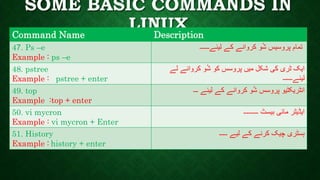
47. Ps –e
Example : ps –e
‫لیئے۔۔۔۔۔۔‬ ‫کے‬ ‫کروانے‬ ‫و‬ُ‫ش‬ ‫پروسیس‬ ‫تمام‬
48. pstree
Example : pstree + enter
‫لے‬ ‫کروانے‬ ‫و‬ُ‫ش‬ ‫کو‬ ‫پروسس‬ ‫میں‬ ‫شکل‬ ‫کی‬ ‫ٹری‬ ‫ایک‬
‫لیئے۔۔۔۔۔۔‬
49. top
Example :top + enter
‫۔۔۔‬ ‫لیئے‬ ‫کے‬ ‫کروانے‬ ‫و‬ُ‫ش‬ ‫پروسس‬ ‫انٹریکٹیو‬
50. vi mycron
Example : vi mycron + Enter
‫۔۔۔۔۔۔۔۔۔‬ ‫بیسٹ‬ ‫مائی‬ ‫ایڈیٹر‬
51. History
Example : history + enter
‫۔۔۔۔۔‬ ‫لیے‬ ‫کے‬ ‫کرنے‬ ‫چیک‬ ‫ہسٹری‬
SOME BASIC COMMANDS IN
LINUXCommand Name Description
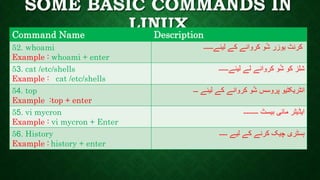
52. whoami
Example : whoami + enter
‫لیئے۔۔۔۔۔۔‬ ‫کے‬ ‫کروانے‬ ‫و‬ُ‫ش‬ ‫یوزر‬ ‫کرنٹ‬
53. cat /etc/shells
Example : cat /etc/shells
‫کو‬ ‫شلز‬‫لیئے۔۔۔۔۔۔‬ ‫لے‬ ‫کروانے‬ ‫و‬ُ‫ش‬
54. top
Example :top + enter
‫۔۔۔‬ ‫لیئے‬ ‫کے‬ ‫کروانے‬ ‫و‬ُ‫ش‬ ‫پروسس‬ ‫انٹریکٹیو‬
55. vi mycron
Example : vi mycron + Enter
‫۔۔۔۔۔۔۔۔۔‬ ‫بیسٹ‬ ‫مائی‬ ‫ایڈیٹر‬
56. History
Example : history + enter
‫۔۔۔۔۔‬ ‫لیے‬ ‫کے‬ ‫کرنے‬ ‫چیک‬ ‫ہسٹری‬
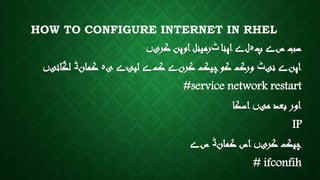
HOW TO CONFIGURE INTERNET IN RHEL
‫س‬ ‫سب‬‫ے‬‫پ‬‫ہ‬‫ل‬‫ے‬‫اپنا‬‫ٹ‬‫کری‬ ‫اوپن‬‫رمینل‬‫ں‬
‫اپن‬‫ے‬‫نی‬‫ٹ‬‫کرن‬ ‫چیک‬‫کو‬ ‫ورک‬‫ے‬‫ک‬‫ے‬‫لیئ‬‫ے‬‫ی‬‫ہ‬‫کمان‬‫ڈ‬‫لگائی‬‫ں‬
#service network restart
‫می‬ ‫بعد‬ ‫اور‬‫ں‬‫اسکا‬
IP
‫کری‬ ‫چیک‬‫ں‬‫کمان‬ ‫اس‬‫ڈ‬‫س‬‫ے‬
# ifconfih
MAIN TOPIC
Controlling Access to Files with
Linux File System Permissions
Types of Permissions:-
There are two types of permissions
• Local Permissions
• Network Permissions
• Local Permissions:-
Within a system or standalone system, permissions
applied are called local permissions.
• Network Permissions:-
Over the network, permissions applied on a system are called
network permissions, i.e., shared device permissions.
Local Permissions
Types of Permissions in Linux:-
Read ( r )
Write ( w )
Execute ( x )
Sequence of permissions is important. We can check the file
properties to see the permissions.
TO SEE THE PROPERTIES:-
# ls -l
First column of properties is the permissions of the file or directory. There are 10 slots of the
permission column. We divide these ten slots into 4 segments.
- - - - - - - - - -
1 slot 3 slots 3 slots 3 slots
• First segment contains only the one slot (first slot only).
• Second segment contains three slots (next three slots).
• Third segment contains three slots (next three slots of remaining).
• Forth segment contains also three slots (last three slots).
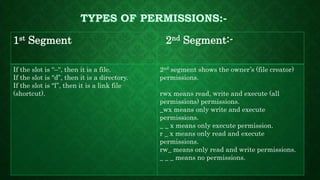
1st Segment 2nd Segment:-
If the slot is “–“, then it is a file.
If the slot is “d”, then it is a directory.
If the slot is “l”, then it is a link file
(shortcut).
2nd segment shows the owner’s (file creator)
permissions.
rwx means read, write and execute (all
permissions) permissions.
_wx means only write and execute
permissions.
_ _ x means only execute permission.
r _ x means only read and execute
permissions.
rw_ means only read and write permissions.
_ _ _ means no permissions.
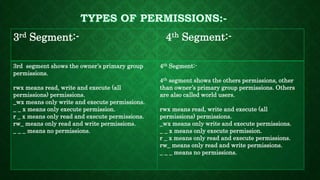
3rd Segment:- 4th Segment:-
3rd segment shows the owner’s primary group
permissions.
rwx means read, write and execute (all
permissions) permissions.
_wx means only write and execute permissions.
_ _ x means only execute permission.
r _ x means only read and execute permissions.
rw_ means only read and write permissions.
_ _ _ means no permissions.
4th Segment:-
4th segment shows the others permissions, other
than owner’s primary group permissions. Others
are also called world users.
rwx means read, write and execute (all
permissions) permissions.
_wx means only write and execute permissions.
_ _ x means only execute permission.
r _ x means only read and execute permissions.
rw_ means only read and write permissions.
_ _ _ means no permissions.
‫ڈ‬‫اریک‬‫ٹ‬‫کرنا‬ ‫چیک‬‫کو‬ ‫پرمیشن‬ ‫کی‬ ‫ری‬
To Check the Permissions of a File/Directory:-
# ls -l file-name
# ls -l Yami
To Change the Permissions:-
chmod command is used to change any file or directory permissions.
METHODS OF CHANGE PERMISSIONS
Identifier Method
Number System Method
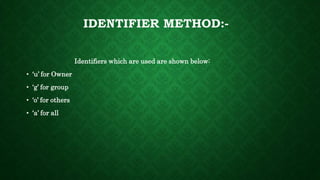
IDENTIFIER METHOD:-
Identifiers which are used are shown below:
• ‘u’ for Owner
• ‘g’ for group
• ‘o’ for others
• ‘a’ for all
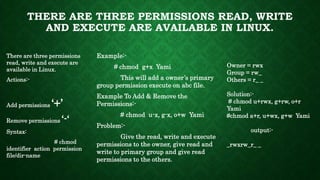
THERE ARE THREE PERMISSIONS READ, WRITE
AND EXECUTE ARE AVAILABLE IN LINUX.
There are three permissions
read, write and execute are
available in Linux.
Actions:-
Add permissions ‘+’
Remove permissions ‘-‘
Syntax:
# chmod
identifier action permission
file/dir-name
Example:-
# chmod g+x Yami
This will add a owner’s primary
group permission execute on abc file.
Example To Add & Remove the
Permissions:-
# chmod u-x, g-x, o+w Yami
Problem:-
Give the read, write and execute
permissions to the owner, give read and
write to primary group and give read
permissions to the others.
Owner = rwx
Group = rw_
Others = r_ _
Solution:-
# chmod u+rwx, g+rw, o+r
Yami
#chmod a+r, u+wx, g+w Yami
output:-
_rwxrw_r_ _
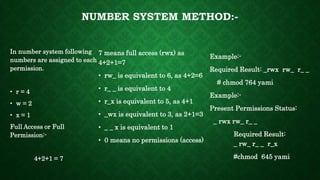
NUMBER SYSTEM METHOD:-
In number system following
numbers are assigned to each
permission.
• r = 4
• w = 2
• x = 1
Full Access or Full
Permission:-
4+2+1 = 7
7 means full access (rwx) as
4+2+1=7
• rw_ is equivalent to 6, as 4+2=6
• r_ _ is equivalent to 4
• r_x is equivalent to 5, as 4+1
• _wx is equivalent to 3, as 2+1=3
• _ _ x is equivalent to 1
• 0 means no permissions (access)
Example:-
Required Result: _rwx rw_ r_ _
# chmod 764 yami
Example:-
Present Permissions Status:
_ rwx rw_ r_ _
Required Result:
_ rw_ r_ _ r_x
#chmod 645 yami
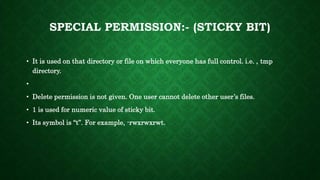
SPECIAL PERMISSION:- (STICKY BIT)
• It is used on that directory or file on which everyone has full control. i.e. , tmp
directory.
•
• Delete permission is not given. One user cannot delete other user’s files.
• 1 is used for numeric value of sticky bit.
• Its symbol is “t”. For example, -rwxrwxrwt.
ADD A STICKY BIT:-
If we want to add a sticky bit on the data directory, then we will execute the following
command.
# chmod 1777 data
where “1” is to add a sticky bit.
Remove a Sticky Bit:-
# chmod 777 data
Or # chmod 0777 data
Sticky bit is not applicable on owner of the file or directory.
DEFAULT PERMISSIONS
• In windows OS everyone has by default full control on a file or directory.
• In Linux by default permission on a file is 644 (- rw- r- - r- -).
• And by default permission on a directory is 755 (d rwx r-x r-x).
• Default permissions depend upon umask (user mask) value.
• Default umask is 022
• In the case of directory 777 – 022 = 755
• And in case of file 666 – 022 = 644
• Full access umask is 000.
• By default root has a umask 022
• And regular account’s umask is 002.
• 027,022,002 have some common umask used in Linux.
• In case of directory we subtract the umask value from 777.
• And in the case of a file we subtract the umask value from 666.
• If the resultant value is less than 0, then this will be considered to 0
DEFAULT PERMISSIONS
DEFAULT PERMISSIONS
To see the Umask value:-
# umask
To Change the umask:-
# umask 002
Thank You
For
Listening
 Linux in Urdu

Linux in Urdu

  • 1.
    ﷽ ‫اسالم‬ ‫علیکم‬ ‫مطابق‬ ‫کے‬ ‫حدیث‬‫ایک‬ ‫کی‬ ‫شریف‬ ‫بخاری‬ ’’‫گ‬ٓ‫ا‬ ‫قیامت‬ ِ‫روز‬ ‫اسے‬ ‫گا‬ ‫چھپائے‬ ‫علم‬ ‫جو‬ ‫گی۔‬ ‫جائے‬ ‫ڈالی‬ ‫لگام‬ ‫کی‬‘‘
  • 2.
    LINUX IS NOTAN OPERATING SYSTEM. IT‘S A PHILOSPHY Be LinuX Be Free
  • 3.
    PRESENTED BY:YAMI GROUP PRESENTEDTO:WHOLE CLASS Yami Group
  • 4.
    PRESENTATION TOPIC Basic Review ofLinux Platform + Controlling Access to Files with Linux File System Permissions
  • 5.
    WHAT IS GNU/LINUX? Afree Unix-type operating system developed under the GNU General Public License. ● Open source ● Popular ● Support most of the platforms available
  • 6.
    HISTORY OF BEFORE LINUX 1969 UNIX 1973UNICS Converted into Unix 1984 GUN Unix ‫مقابلہ‬ 1990 Working on Kernel By Linus Torvalds GNO & MINIX ‫نہیں‬ ‫کرنل‬ ‫تھا‬ Memory Manager creator Utility of MINIX and GNO Rewrite all utility Of MINIX and GNO As Competition of UNIX ‫کیا‬ ‫ہے‬ ‫میں‬ ‫اصل‬ ‫لینکس‬ ‫تاریخ‬ ‫کی‬ ‫اس‬ ‫اور‬ ‫ہے‬ ‫کیا‬Assembly language Write 1st Ken Thompson, Dennis Ritchie In C language 1973, Rewrite UNIX with C Richard Stallman GPL Hacker GNU(Free Software Foundation ) starts under GPL Andrew Stuart "Andy" Tanenbaum
  • 7.
    What is Linux/GNU? 1991 Kernel Announcement in SocialMedia Group Comparison of operating systems https://en.wikipedia.org/wiki/Compari son_of_operating_systems ‫یعنی‬ ‫نام‬ ‫کا‬ ‫سسٹم‬ ‫اس‬ Linux ‫لینکس‬‫کے‬ ‫الفاظ‬ ‫دو‬ ‫کو‬ ‫لفظ‬ ‫پہال‬ ‫ہے۔‬ ‫گیا‬ ‫بنایا‬ ‫کر‬ ‫جوڑ‬ ‫کو‬ ‫حروف‬ ‫ابتدائی‬ LINUS ‫اس‬ ‫ہے۔‬ ‫نام‬ ‫کا‬ ‫بانی‬ ‫کے‬ ‫سسٹم‬ ‫اس‬ ‫جو‬ ‫ہے‬ ‫یعنی‬ ‫حروف‬ ‫ابتدائی‬ ‫تین‬ ‫سے‬ ‫میں‬ ‫لفظ‬ LIN ‫منتخب‬ ‫لفظ‬ ‫دوسرا‬ ‫ہیں۔‬ ‫گئے‬ ‫کئے‬ Unix ‫یعنی‬ ‫مخفف‬ ‫کا‬ UX ‫لفظ‬ ‫طرح‬ ‫اس‬ ‫گیا۔‬ ‫لیا‬ LINUX ‫ہے۔‬ ‫پاتا‬ ‫تشکیل‬ ‫لینکس‬ Linux Distribution SunOS, Solaris, HP-UX, AIX, SCO UNIX ‫کرنل‬ ‫پہال‬ ‫سے‬ ‫سب‬ 1994‫کیا‬ ‫جاری‬ ‫میں‬ ‫ء‬ ‫گیا‬ ‫اس‬‫سسٹم‬ ‫آپریٹنگ‬‫کو‬ ‫لینس‬ ‫کے‬ ‫لینڈ‬ ‫ن‬ِ‫ف‬ ‫نے‬ ‫ٹوروالڈز‬1991‫ء‬ ‫میں‬‫کیا‬ ‫شروع‬
  • 8.
    LINUX TODAY • Linuxhas been used for many computing platforms • PC, Supercomputer • Commercial vendors moved in Linux itself to provide freely distributed code. They make their money by compiling up various software and gathering them in a distributable format • Red Hat, Slackware, etc. • About 29 million people use Linux worldwide
  • 9.
    LINUX DISTRIBUTION • RedHat Linux : One of the original Linux distribution. • The commercial, non-free version is Red Hat Enterprise Linux, which is aimed at big companies using Linux servers and desktops in a big way • Debian GNU/Linux : A free software distribution. Popular for use on servers • Gentoo Linux : Gentoo is a specialty distribution meant for programmers
  • 10.
    DISTRIBUTION OF LINUX‫کی‬ ‫لینکس‬ ‫تقسیم‬
  • 11.
    WHY LINUX ‫لینکس‬‫خوبیا‬‫کی‬‫ں‬ ‫کیا‬‫ہ‬‫ی‬‫ں‬‫؟‬LinuxProvide Security Powerful It’s “free” Multi-user Multiprocessing Multitasking Multithreading Linux is Virus Free!!
  • 12.
    ‫ک‬ ‫لینکس‬‫ے‬‫ائد‬‫ف‬‫ے‬ ‫سس‬‫لینکس‬‫ٹ‬‫انت‬‫م‬‫ہ‬‫مستحکم‬ ‫ائی‬‫ہ‬‫ی‬‫ں‬ ‫مفت‬ ‫لینکس‬‫ہے‬ ‫خطر‬‫کوئی‬ ‫کا‬ ‫وائرس‬‫ہ‬‫ن‬‫ہ‬‫ی‬‫ں‬‫سیکوئر‬ ‫کافی‬ ‫اور‬‫ہے‬‫وائرس‬ ‫مطلب‬ ‫ا‬‫ٹ‬‫ن‬ ‫یک‬‫ہ‬‫ی‬‫ں‬‫کرتا‬‫۔‬ ‫ک‬ ‫لینکس‬‫ے‬‫سات‬‫ھ‬‫ک‬ ‫ضرورت‬‫ے‬‫ساف‬‫ٹ‬‫س‬ ‫سب‬ ‫کی‬ ‫ویئر‬‫ے‬‫زیاد‬‫ہ‬ ‫پ‬‫ہ‬‫ل‬‫ے‬‫س‬‫ے‬‫آتا‬‫نصب‬‫ہے‬ ‫ک‬ ‫وقت‬ ‫کم‬ ‫از‬‫کم‬‫ے‬‫سات‬‫ھ‬‫اپن‬‫ے‬‫ساف‬ ‫تمام‬‫ٹ‬‫اپ‬‫ویئر‬‫ڈ‬‫ی‬‫ٹ‬ ‫کب‬ ‫لینکس‬‫ھ‬‫ن‬ ‫ی‬‫ہ‬‫ی‬‫ں‬‫سست‬‫ہ‬‫تا‬ ‫و‬‫۔‬
  • 13.
  • 15.
    SOME BASIC COMMANDSIN LINUXCommand Name Description 1. su Example: su then Pswd yami ‫لیئے۔۔۔۔۔‬ ‫کے‬ ‫ہونے‬ ‫ن‬ِ‫گ‬‫لو‬ ‫سے‬ ‫یوزر‬ ‫پر‬ُ‫س‬ 2. mkdir Example: mkdir yami ‫لیئے‬ ‫کے‬ ‫بنانے‬ ‫اورڈائریکٹری‬ ‫فولڈر‬ ‫نیا‬‫۔۔۔۔۔‬ 3. pwd Example: pwd and press enter ‫لیئے‬ ‫کے‬ ‫کرنے‬ ‫چیک‬ ‫ڈائریکٹری‬ ‫ورکنگ‬ ‫۔۔۔۔۔‬ 4. ls and enter ‫کر‬ ‫ہم‬ ‫کام‬ ‫جو‬ ‫جو‬ ‫ہے‬ ‫تی‬ ‫کر‬ ‫ظاہر‬ ‫کو‬ ‫لسٹ‬ ‫ہوں۔۔‬ ‫رہے‬ 5. touch Example: touch yami ‫استعمال‬ ‫لیئے‬ ‫کے‬ ‫بنانے‬ ‫فائل‬ ‫خالی‬ ‫ایک‬ ‫ہے۔‬ ‫جاتی‬ ‫کی‬ 6. ls –l and enter ‫۔۔۔۔۔‬ ‫ہے‬ ‫تی‬ ‫کر‬ ‫ظاہر‬ ‫کو‬ ‫لسٹ‬ ‫ڈیٹیل‬ 7. “cd” or “cd ..” and press Ent. ‫لیئے۔۔۔۔۔‬ ‫کے‬ ‫کرنے‬ ‫تبدیل‬ ‫کر‬ ‫پاتھ‬
  • 16.
    SOME BASIC COMMANDSIN LINUXCommand Name Description 8. rm file-name Example: rm yami ‫لیئے۔۔۔۔۔‬ ‫کرنے‬ ‫ڈیلیٹ‬ ‫کو‬ ‫فائل‬ ‫بھی‬ ‫کسی‬ 9. rm –r folder-name Example : rm –r yami ‫کرنے‬ ‫ڈیلیٹ‬ ‫کو‬ ‫فولڈر‬ ‫خالی‬ ‫بھی‬ ‫کسی‬ ‫لیئے۔۔۔۔۔‬ 10. rm –rf folder-name Example: rm –rf yami ‫لیئے۔۔۔۔۔‬ ‫کرنے‬ ‫ڈیلیٹ‬ ‫کو‬ ‫فولڈر‬ ‫بھی‬ ‫کسی‬ 11.date and press Ent. ‫لیئے۔۔۔۔۔‬ ‫کے‬ ‫کروانے‬ ‫و‬ُ‫ش‬ ‫ٹائم‬ ‫اور‬ ‫ڈیٹ‬ 12. date m/d/t/year ‫لیئے۔۔۔۔۔‬ ‫کے‬ ‫کروانے‬ ‫تبدیل‬ ‫ٹائم‬ ‫اور‬ ‫ڈیٹ‬ 13. Clear or Reset …… ‫لیئے۔۔۔۔۔‬ ‫کے‬ ‫کرنے‬ ‫کلئیر‬ ‫کو‬ ‫سکرین‬ 14. cal year-name ‫سال‬ ‫آگے‬ ‫اور‬ ‫لیئے‬ ‫کے‬ ‫کروانے‬ ‫و‬ُ‫ش‬ ‫کلینڈر‬ ‫دیں۔‬ ‫لکھ‬
  • 17.
    SOME BASIC COMMANDSIN LINUXCommand Name Description 15. cal m/year-name ‫لکھ‬ ‫سال‬ ‫آگے‬ ‫اور‬ ‫لیئے‬ ‫کے‬ ‫کروانے‬ ‫و‬ُ‫ش‬ ‫کلینڈر‬ ‫دیں‬ 16. cp s-file d-file Example : cp yami df ‫لیئے۔۔۔۔‬ ‫کرنے‬ ‫کاپی‬ ‫کو‬ ‫فولڈر‬ ‫و‬ ‫فائل‬ ‫بھی‬ ‫کسی‬‫۔‬ 17. cat filename Example : cat yami ‫لیئے۔۔۔۔۔‬ ‫کے‬ ‫کروانے‬ ‫و‬ُ‫ش‬ ‫کانٹنٹ‬ ‫کے‬ ‫فائل‬ 18. head yami Example : head yami ‫پہلی‬ ‫کی‬ ‫فائل‬10‫لیئے۔۔۔۔۔‬ ‫کے‬ ‫کروانے‬ ‫و‬ُ‫ش‬ ‫الئنز‬ 19. tail yami Example : tail yami ‫آخری‬ ‫کی‬ ‫فائل‬10‫لیئے۔۔۔۔۔‬ ‫کے‬ ‫کروانے‬ ‫و‬ُ‫ش‬ ‫الئنز‬ 20. head –n yami or tail b Example : head –n yami ‫لیئے۔۔۔۔۔‬ ‫کے‬ ‫کروانے‬ ‫و‬ُ‫ش‬ ‫کو‬ ‫الئنز‬ ‫منتخب‬
  • 18.
    SOME BASIC COMMANDSIN LINUXCommand Name Description 21. wc –w file name Example : wc –w yami ‫ہے۔۔۔۔۔۔‬ ‫رکرواتی‬ ‫و‬ُ‫ش‬ ‫الفاظ‬ ‫ٹوٹل‬ ‫کے‬ ‫فائل‬ 22. wc –l file name Example : wc –l yami ‫ہے۔۔۔۔۔۔‬ ‫رکرواتی‬ ‫و‬ُ‫ش‬ ‫الئنز‬ ‫ٹوٹل‬ ‫کی‬ ‫فائل‬ 23. wc –c file name Example : wc –c yami ‫لیئے۔۔۔۔۔‬ ‫کے‬ ‫کروانے‬ ‫و‬ُ‫ش‬‫کےکریکٹر‬ ‫فائل‬ 24. wc file name Example : wc yami ‫لیئے۔۔۔۔۔‬ ‫کے‬ ‫وکروانے‬ُ‫ش‬ ‫معلومات‬ ‫مکمل‬ ‫کی‬ ‫فائل‬ 25. tail yami Example : tail yami ‫آخری‬ ‫کی‬ ‫فائل‬10‫لیئے۔۔۔۔۔‬ ‫کے‬ ‫کروانے‬ ‫و‬ُ‫ش‬ ‫الئنز‬ 26. vi file name Example : vi zubi ‫اور‬ ‫لیئے‬ ‫کے‬ ‫کروانے‬ ‫ایڈ‬ ‫ڈیٹا‬ ‫اور‬ ‫بنانے‬ ‫فائل‬ ‫لیئے۔۔۔۔۔‬ ‫کے‬ ‫محفوظس‬
  • 19.
  • 20.
    SOME BASIC COMMANDSIN LINUX Command Name Description 27. useradd u-name Example : useradd yami ‫کیلئے۔۔۔۔۔۔‬ ‫کرنے‬ ‫ایڈ‬ ‫یوزر‬ ‫نیا‬ 28. passwd u-name Example : passwd yami ‫کیلئے۔۔۔۔۔۔‬ ‫نے‬ ‫کر‬ ‫ایڈ‬ ‫پاسورڈ‬ 29. cat , more, vi, view, Example :vi /etc/passwd ‫واسطے‬ ‫کرنے‬ ‫ایڈٹ‬ ‫کو‬ ‫فائل‬ ‫اور‬ ‫دیکھنے‬ ‫کو‬ ‫فائل‬ ‫کرے۔۔۔‬ ‫یوز‬ ‫کو‬ ‫کمانڈ‬ ‫اس‬ 30. userdel –r/f u-name Example : userdel –r /f yami ‫۔۔۔۔۔‬ ‫کیلئے‬ ‫کرنے‬ ‫ڈیلیٹ‬ ‫کو‬ ‫یوزر‬ ‫اپنے‬ 31. usermod –s /sbin/nologin u- name Example : usermod –s /sbin/nologin zubi ‫کرنےکیلئے۔۔۔۔۔‬ ‫ایبل‬ ‫ڈس‬ ‫کو‬ ‫یوزر‬
  • 21.
  • 22.
    SOME BASIC COMMANDSIN LINUXCommand Name Description 32. su u name Example : su zubi ‫لیئے۔۔۔۔۔۔‬ ‫کے‬ ‫جانے‬ ‫پر‬ ‫یوزر‬ ‫لوکل‬ ‫سے‬ ‫یوزر‬ ‫سوئچ‬ 33. usermod –s /bin/bash uname Example : usermod –s /bin/bash zubi and check by cat ‫لیئے۔۔۔۔۔۔‬ ‫کے‬ ‫کروانے‬ ‫ایبل‬ ‫ان‬ ‫کو‬ ‫زر‬ ‫یو‬ 34. cat , more, vi, view, Example :vi /etc/passwd ‫اس‬ ‫واسطے‬ ‫کرنے‬ ‫ایڈٹ‬ ‫کو‬ ‫فائل‬ ‫اور‬ ‫دیکھنے‬ ‫کو‬ ‫فائل‬ ‫کرے۔۔۔‬ ‫یوز‬ ‫کو‬ ‫کمانڈ‬ 35. userdel –r/f u-name Example : userdel –r /f yami ‫۔۔۔۔۔‬ ‫کیلئے‬ ‫کرنے‬ ‫ڈیلیٹ‬ ‫کو‬ ‫یوزر‬ ‫اپنے‬ 36. usermod –s /sbin/nologin u-name Example : usermod –s /sbin/nologin zubi ‫کرنےکیلئے۔۔۔۔۔‬ ‫ایبل‬ ‫ڈس‬ ‫کو‬ ‫یوزر‬
  • 23.
    SOME BASIC COMMANDSIN LINUXCommand Name Description 37. info Example : info +Enter ‫لیئے۔۔۔۔۔۔‬ ‫کے‬ ‫کروانے‬ ‫و‬ُ‫ش‬ ‫انفارمیشن‬ 38. Exit or logout or halt Example : halt and press enter ‫لیئے۔۔۔۔۔۔‬ ‫کے‬ ‫کروانے‬ ‫ختم‬ ‫اور‬ ‫ن‬ َ‫ڈاو‬ ‫شٹ‬ 39. cat , more, vi, view, Example :vi /etc/passwd ‫اس‬ ‫واسطے‬ ‫کرنے‬ ‫ایڈٹ‬ ‫کو‬ ‫فائل‬ ‫اور‬ ‫دیکھنے‬ ‫کو‬ ‫فائل‬ ‫کرے۔۔۔‬ ‫یوز‬ ‫کو‬ ‫کمانڈ‬ 40. userdel –r/f u-name Example : userdel –r /f yami ‫۔۔۔۔۔‬ ‫کیلئے‬ ‫کرنے‬ ‫ڈیلیٹ‬ ‫کو‬ ‫یوزر‬ ‫اپنے‬ 41. usermod –s /sbin/nologin u-name Example : usermod –s /sbin/nologin zubi ‫کرنےکیلئے۔۔۔۔۔‬ ‫ایبل‬ ‫ڈس‬ ‫کو‬ ‫یوزر‬
  • 24.
    SOME BASIC COMMANDSIN LINUX Command Name Description 42. df [options] Example : df yami ‫کے‬ ‫کروانے‬ ‫و‬ُ‫ش‬ ‫جگہ‬ ‫بقیہ‬ ‫اور‬ ‫سپیس‬ ‫شدہ‬ ‫استعمال‬ ‫لیئے۔۔۔۔۔۔‬ 43. du [options] Example : du yami ‫لیئے۔۔۔۔۔‬ ‫کے‬ ‫دیکھنے‬ ‫اسکو‬ ‫ہے‬ ‫لیتی‬ ‫فائل‬ ‫ہر‬ ‫جگہ‬ ‫کتنی‬. 44. less [options] [filename] Example :less yami ‫کو‬ ‫مواد‬ ‫کے‬ ‫صفحے‬ ‫ایک‬ ‫فائل‬ ‫ایک‬ ‫میں‬ ‫وقت‬ ‫ایک‬ ‫۔۔۔۔۔۔‬ ‫لیئے‬ ‫کے‬ ‫دیکھنے‬. 45. echo Example : echo + enter ‫لیئے۔۔۔۔۔‬ ‫کے‬ ‫کروانے‬ ‫و‬ُ‫ش‬ ‫کو‬ ‫آرگومنٹ‬ 46. Man ls Example : man ls + enter ‫۔۔۔۔۔‬ ‫لیئے‬ ‫کے‬ ‫جاننے‬ ‫کو‬ ‫کمانڈز‬ ‫کی‬ ‫قسم‬ ‫خاص‬
  • 25.
    SOME BASIC COMMANDSIN LINUXCommand Name Description 47. Ps –e Example : ps –e ‫لیئے۔۔۔۔۔۔‬ ‫کے‬ ‫کروانے‬ ‫و‬ُ‫ش‬ ‫پروسیس‬ ‫تمام‬ 48. pstree Example : pstree + enter ‫لے‬ ‫کروانے‬ ‫و‬ُ‫ش‬ ‫کو‬ ‫پروسس‬ ‫میں‬ ‫شکل‬ ‫کی‬ ‫ٹری‬ ‫ایک‬ ‫لیئے۔۔۔۔۔۔‬ 49. top Example :top + enter ‫۔۔۔‬ ‫لیئے‬ ‫کے‬ ‫کروانے‬ ‫و‬ُ‫ش‬ ‫پروسس‬ ‫انٹریکٹیو‬ 50. vi mycron Example : vi mycron + Enter ‫۔۔۔۔۔۔۔۔۔‬ ‫بیسٹ‬ ‫مائی‬ ‫ایڈیٹر‬ 51. History Example : history + enter ‫۔۔۔۔۔‬ ‫لیے‬ ‫کے‬ ‫کرنے‬ ‫چیک‬ ‫ہسٹری‬
  • 26.
    SOME BASIC COMMANDSIN LINUXCommand Name Description 52. whoami Example : whoami + enter ‫لیئے۔۔۔۔۔۔‬ ‫کے‬ ‫کروانے‬ ‫و‬ُ‫ش‬ ‫یوزر‬ ‫کرنٹ‬ 53. cat /etc/shells Example : cat /etc/shells ‫کو‬ ‫شلز‬‫لیئے۔۔۔۔۔۔‬ ‫لے‬ ‫کروانے‬ ‫و‬ُ‫ش‬ 54. top Example :top + enter ‫۔۔۔‬ ‫لیئے‬ ‫کے‬ ‫کروانے‬ ‫و‬ُ‫ش‬ ‫پروسس‬ ‫انٹریکٹیو‬ 55. vi mycron Example : vi mycron + Enter ‫۔۔۔۔۔۔۔۔۔‬ ‫بیسٹ‬ ‫مائی‬ ‫ایڈیٹر‬ 56. History Example : history + enter ‫۔۔۔۔۔‬ ‫لیے‬ ‫کے‬ ‫کرنے‬ ‫چیک‬ ‫ہسٹری‬
  • 27.
    HOW TO CONFIGUREINTERNET IN RHEL ‫س‬ ‫سب‬‫ے‬‫پ‬‫ہ‬‫ل‬‫ے‬‫اپنا‬‫ٹ‬‫کری‬ ‫اوپن‬‫رمینل‬‫ں‬ ‫اپن‬‫ے‬‫نی‬‫ٹ‬‫کرن‬ ‫چیک‬‫کو‬ ‫ورک‬‫ے‬‫ک‬‫ے‬‫لیئ‬‫ے‬‫ی‬‫ہ‬‫کمان‬‫ڈ‬‫لگائی‬‫ں‬ #service network restart ‫می‬ ‫بعد‬ ‫اور‬‫ں‬‫اسکا‬ IP ‫کری‬ ‫چیک‬‫ں‬‫کمان‬ ‫اس‬‫ڈ‬‫س‬‫ے‬ # ifconfih
  • 29.
    MAIN TOPIC Controlling Accessto Files with Linux File System Permissions
  • 30.
    Types of Permissions:- Thereare two types of permissions • Local Permissions • Network Permissions
  • 31.
    • Local Permissions:- Withina system or standalone system, permissions applied are called local permissions. • Network Permissions:- Over the network, permissions applied on a system are called network permissions, i.e., shared device permissions.
  • 32.
    Local Permissions Types ofPermissions in Linux:- Read ( r ) Write ( w ) Execute ( x ) Sequence of permissions is important. We can check the file properties to see the permissions.
  • 33.
    TO SEE THEPROPERTIES:- # ls -l First column of properties is the permissions of the file or directory. There are 10 slots of the permission column. We divide these ten slots into 4 segments. - - - - - - - - - - 1 slot 3 slots 3 slots 3 slots • First segment contains only the one slot (first slot only). • Second segment contains three slots (next three slots). • Third segment contains three slots (next three slots of remaining). • Forth segment contains also three slots (last three slots).
  • 34.
    1st Segment 2ndSegment:- If the slot is “–“, then it is a file. If the slot is “d”, then it is a directory. If the slot is “l”, then it is a link file (shortcut). 2nd segment shows the owner’s (file creator) permissions. rwx means read, write and execute (all permissions) permissions. _wx means only write and execute permissions. _ _ x means only execute permission. r _ x means only read and execute permissions. rw_ means only read and write permissions. _ _ _ means no permissions.
  • 35.
    3rd Segment:- 4thSegment:- 3rd segment shows the owner’s primary group permissions. rwx means read, write and execute (all permissions) permissions. _wx means only write and execute permissions. _ _ x means only execute permission. r _ x means only read and execute permissions. rw_ means only read and write permissions. _ _ _ means no permissions. 4th Segment:- 4th segment shows the others permissions, other than owner’s primary group permissions. Others are also called world users. rwx means read, write and execute (all permissions) permissions. _wx means only write and execute permissions. _ _ x means only execute permission. r _ x means only read and execute permissions. rw_ means only read and write permissions. _ _ _ means no permissions.
  • 36.
    ‫ڈ‬‫اریک‬‫ٹ‬‫کرنا‬ ‫چیک‬‫کو‬ ‫پرمیشن‬‫کی‬ ‫ری‬ To Check the Permissions of a File/Directory:- # ls -l file-name # ls -l Yami To Change the Permissions:- chmod command is used to change any file or directory permissions.
  • 37.
    METHODS OF CHANGEPERMISSIONS Identifier Method Number System Method
  • 38.
    IDENTIFIER METHOD:- Identifiers whichare used are shown below: • ‘u’ for Owner • ‘g’ for group • ‘o’ for others • ‘a’ for all
  • 39.
    THERE ARE THREEPERMISSIONS READ, WRITE AND EXECUTE ARE AVAILABLE IN LINUX. There are three permissions read, write and execute are available in Linux. Actions:- Add permissions ‘+’ Remove permissions ‘-‘ Syntax: # chmod identifier action permission file/dir-name Example:- # chmod g+x Yami This will add a owner’s primary group permission execute on abc file. Example To Add & Remove the Permissions:- # chmod u-x, g-x, o+w Yami Problem:- Give the read, write and execute permissions to the owner, give read and write to primary group and give read permissions to the others. Owner = rwx Group = rw_ Others = r_ _ Solution:- # chmod u+rwx, g+rw, o+r Yami #chmod a+r, u+wx, g+w Yami output:- _rwxrw_r_ _
  • 40.
    NUMBER SYSTEM METHOD:- Innumber system following numbers are assigned to each permission. • r = 4 • w = 2 • x = 1 Full Access or Full Permission:- 4+2+1 = 7 7 means full access (rwx) as 4+2+1=7 • rw_ is equivalent to 6, as 4+2=6 • r_ _ is equivalent to 4 • r_x is equivalent to 5, as 4+1 • _wx is equivalent to 3, as 2+1=3 • _ _ x is equivalent to 1 • 0 means no permissions (access) Example:- Required Result: _rwx rw_ r_ _ # chmod 764 yami Example:- Present Permissions Status: _ rwx rw_ r_ _ Required Result: _ rw_ r_ _ r_x #chmod 645 yami
  • 41.
    SPECIAL PERMISSION:- (STICKYBIT) • It is used on that directory or file on which everyone has full control. i.e. , tmp directory. • • Delete permission is not given. One user cannot delete other user’s files. • 1 is used for numeric value of sticky bit. • Its symbol is “t”. For example, -rwxrwxrwt.
  • 42.
    ADD A STICKYBIT:- If we want to add a sticky bit on the data directory, then we will execute the following command. # chmod 1777 data where “1” is to add a sticky bit. Remove a Sticky Bit:- # chmod 777 data Or # chmod 0777 data Sticky bit is not applicable on owner of the file or directory.
  • 43.
    DEFAULT PERMISSIONS • Inwindows OS everyone has by default full control on a file or directory. • In Linux by default permission on a file is 644 (- rw- r- - r- -). • And by default permission on a directory is 755 (d rwx r-x r-x). • Default permissions depend upon umask (user mask) value. • Default umask is 022 • In the case of directory 777 – 022 = 755 • And in case of file 666 – 022 = 644 • Full access umask is 000.
  • 44.
    • By defaultroot has a umask 022 • And regular account’s umask is 002. • 027,022,002 have some common umask used in Linux. • In case of directory we subtract the umask value from 777. • And in the case of a file we subtract the umask value from 666. • If the resultant value is less than 0, then this will be considered to 0 DEFAULT PERMISSIONS
  • 45.
    DEFAULT PERMISSIONS To seethe Umask value:- # umask To Change the umask:- # umask 002
  • 46.