

Working with Simple Buttons & Actions
     Dr. Allen Partridge | eLearning Evangelist


© 2012 Adobe Systems Incorporated. All Rights Reserved. Adobe Confidential.
Introducing Adobe eLearning Solutions

                       Adobe Captivate 6

Interactive training for
iPad without programming


© 2012 Adobe Systems Incorporated. All Rights Reserved. Adobe Confidential.   2
Understanding Actions in Captivate


             When Learner
               Interacts

                                        Do Action


© 2012 Adobe Systems Incorporated. All Rights Reserved. Adobe Confidential.   3
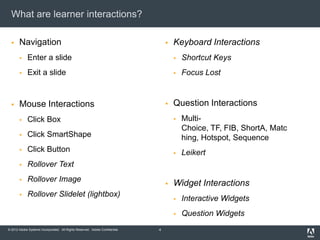
What are learner interactions?

      Navigation                                                                    Keyboard Interactions
            Enter a slide                                                               Shortcut Keys
            Exit a slide                                                                Focus Lost


      Mouse Interactions                                                            Question Interactions
            Click Box                                                                   Multi-
                                                                                          Choice, TF, FIB, ShortA, Matc
            Click SmartShape                                                             hing, Hotspot, Sequence
            Click Button                                                                Leikert
            Rollover Text
            Rollover Image
                                                                                     Widget Interactions
            Rollover Slidelet (lightbox)
                                                                                         Interactive Widgets
                                                                                         Question Widgets
© 2012 Adobe Systems Incorporated. All Rights Reserved. Adobe Confidential.   4
Learner interactions defined

      Enter Slide / Exit Slide


© 2012 Adobe Systems Incorporated. All Rights Reserved. Adobe Confidential.   5
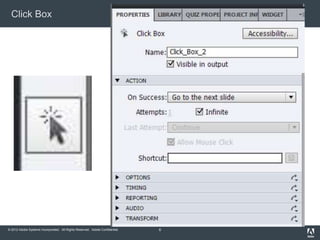
Click Box


© 2012 Adobe Systems Incorporated. All Rights Reserved. Adobe Confidential.   6
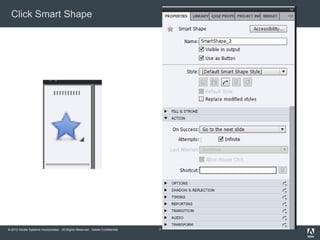
Click Smart Shape


© 2012 Adobe Systems Incorporated. All Rights Reserved. Adobe Confidential.   7
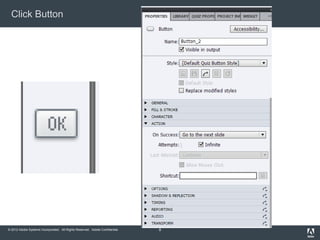
Click Button


© 2012 Adobe Systems Incorporated. All Rights Reserved. Adobe Confidential.   8
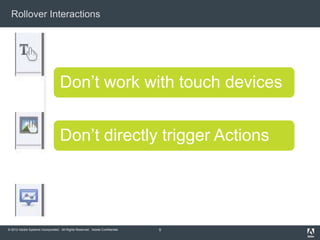
Rollover Interactions


                                   Don’t work with touch devices


                                   Don’t directly trigger Actions


© 2012 Adobe Systems Incorporated. All Rights Reserved. Adobe Confidential.   9
Keyboard Interactions Mirror Click Interactions


© 2012 Adobe Systems Incorporated. All Rights Reserved. Adobe Confidential.   10
Question Interactions


© 2012 Adobe Systems Incorporated. All Rights Reserved. Adobe Confidential.   11
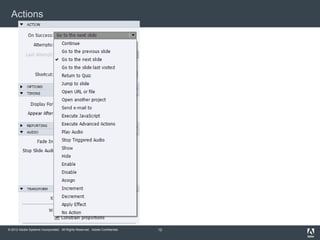
Actions


© 2012 Adobe Systems Incorporated. All Rights Reserved. Adobe Confidential.   12
© 2012 Adobe Systems Incorporated. All Rights Reserved. Adobe Confidential.

Basic actions in Adobe Captivate 6

  • 1.
    Working with SimpleButtons & Actions Dr. Allen Partridge | eLearning Evangelist © 2012 Adobe Systems Incorporated. All Rights Reserved. Adobe Confidential.
  • 2.
    Introducing Adobe eLearningSolutions Adobe Captivate 6 Interactive training for iPad without programming © 2012 Adobe Systems Incorporated. All Rights Reserved. Adobe Confidential. 2
  • 3.
    Understanding Actions inCaptivate When Learner Interacts Do Action © 2012 Adobe Systems Incorporated. All Rights Reserved. Adobe Confidential. 3
  • 4.
    What are learnerinteractions?  Navigation  Keyboard Interactions  Enter a slide  Shortcut Keys  Exit a slide  Focus Lost  Mouse Interactions  Question Interactions  Click Box  Multi- Choice, TF, FIB, ShortA, Matc  Click SmartShape hing, Hotspot, Sequence  Click Button  Leikert  Rollover Text  Rollover Image  Widget Interactions  Rollover Slidelet (lightbox)  Interactive Widgets  Question Widgets © 2012 Adobe Systems Incorporated. All Rights Reserved. Adobe Confidential. 4
  • 5.
    Learner interactions defined  Enter Slide / Exit Slide © 2012 Adobe Systems Incorporated. All Rights Reserved. Adobe Confidential. 5
  • 6.
    Click Box © 2012Adobe Systems Incorporated. All Rights Reserved. Adobe Confidential. 6
  • 7.
    Click Smart Shape ©2012 Adobe Systems Incorporated. All Rights Reserved. Adobe Confidential. 7
  • 8.
    Click Button © 2012Adobe Systems Incorporated. All Rights Reserved. Adobe Confidential. 8
  • 9.
    Rollover Interactions Don’t work with touch devices Don’t directly trigger Actions © 2012 Adobe Systems Incorporated. All Rights Reserved. Adobe Confidential. 9
  • 10.
    Keyboard Interactions MirrorClick Interactions © 2012 Adobe Systems Incorporated. All Rights Reserved. Adobe Confidential. 10
  • 11.
    Question Interactions © 2012Adobe Systems Incorporated. All Rights Reserved. Adobe Confidential. 11
  • 12.
    Actions © 2012 AdobeSystems Incorporated. All Rights Reserved. Adobe Confidential. 12
  • 13.
    © 2012 AdobeSystems Incorporated. All Rights Reserved. Adobe Confidential.

Editor's Notes

  • #3 Create Flash, HTML5based, iPad ready “Interactive” trainings without programmingTrainers/eLearning ProsCan create various kinds of training using Adobe Captivate. Quiz Learners and Track ResultsEducatorsCan easily convert existing PPT course material into online courses. Quiz students and Track Results