Visualize analytical data on the web
Artur Machura
07.01.2023, Katowice
Abstract
▪ Opening the presentation
▪ Introduction
▪ Main part
▪ Conclusion
Milestones (in my case study)
1. Install IDE (Integrated Development
Environment)
2. Prepare data for visualization (my case
is about the average internet price in
different regions of the world)
3. Create a chart
4. Publish a chart
Understand the basics concepts
1. R Language
(https://en.wikipedia.org/wiki/R_(progra
mming_language)
2. RStudio (RStudio is now Posit
https://posit.co/ )
3. RPubs (https://rpubs.com/ )
Install IDE
1. Install R package for you operating
system (RStudio requires R 3.3.0+)
▪ https://cran.rstudio.com/
2. Install RStudio Desktop (alternatively,
the server version, if you need one)
▪ https://posit.co/download/rstudio-
desktop/
Prepare data for visualization
(slide 1/2)
1. Open the RStudio console (alternatively use window
functions)
2. Load the readxl library ( this is the library needed to
import load .xlsx file, by the way – I’ll be using a file
downloaded from kaggle.com )
library(readxl)
3. Load the file (I use the console, but there is also an
option in the menu)
Prepare data for visualization
(slide 2/2)
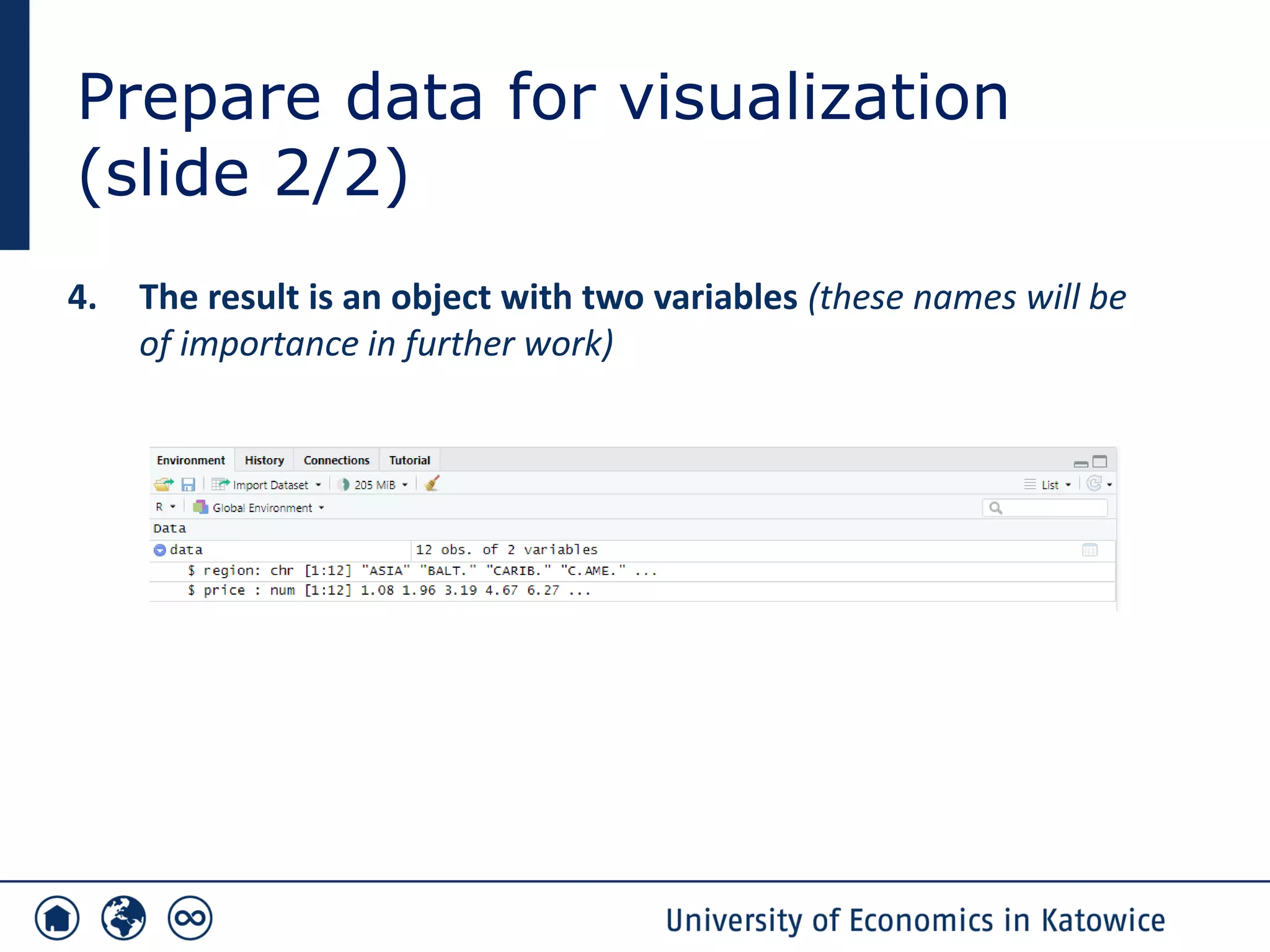
4. The result is an object with two variables (these names will be
of importance in further work)
Create a chart in RStudio (slide
1/3)
1. Decide what kind of chart you need (depending on
this decision you will use different commands in the
console, this decision may also affect the library you’ll
use, more https://r-graph-gallery.com/all-graphs.html )
2. In my case I generate bar chart (very popular)
barplot(data$price,names.arg=(data$region))
Command name (object name$variables,argument=(object name$label for bar))
Create a chart in RStudio (slide
2/3)
3. You can additionally use some options for Your
graph (for example - I need to place bar names
vertically, because these horizontal names are
illegible, more
https://www.rdocumentation.org/packages/graphics/v
ersions/3.6.2/topics/barplot )
barplot(data$price,names.arg=(data$region),las=2,col=rainbow(10))
(additionally arguments is las and col)
Create a chart in Rstudio (slide
3/3)
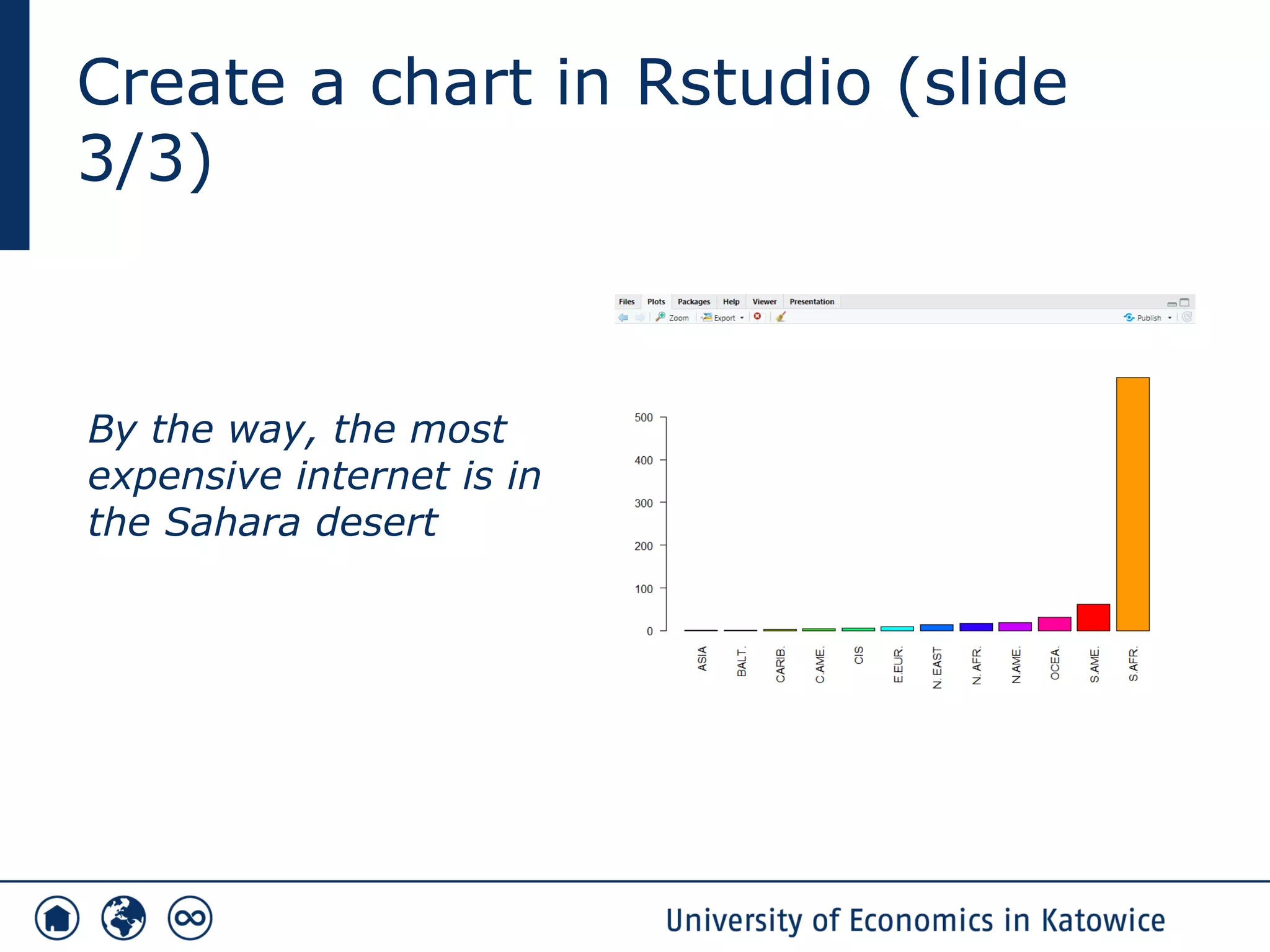
By the way, the most
expensive internet is in
the Sahara desert
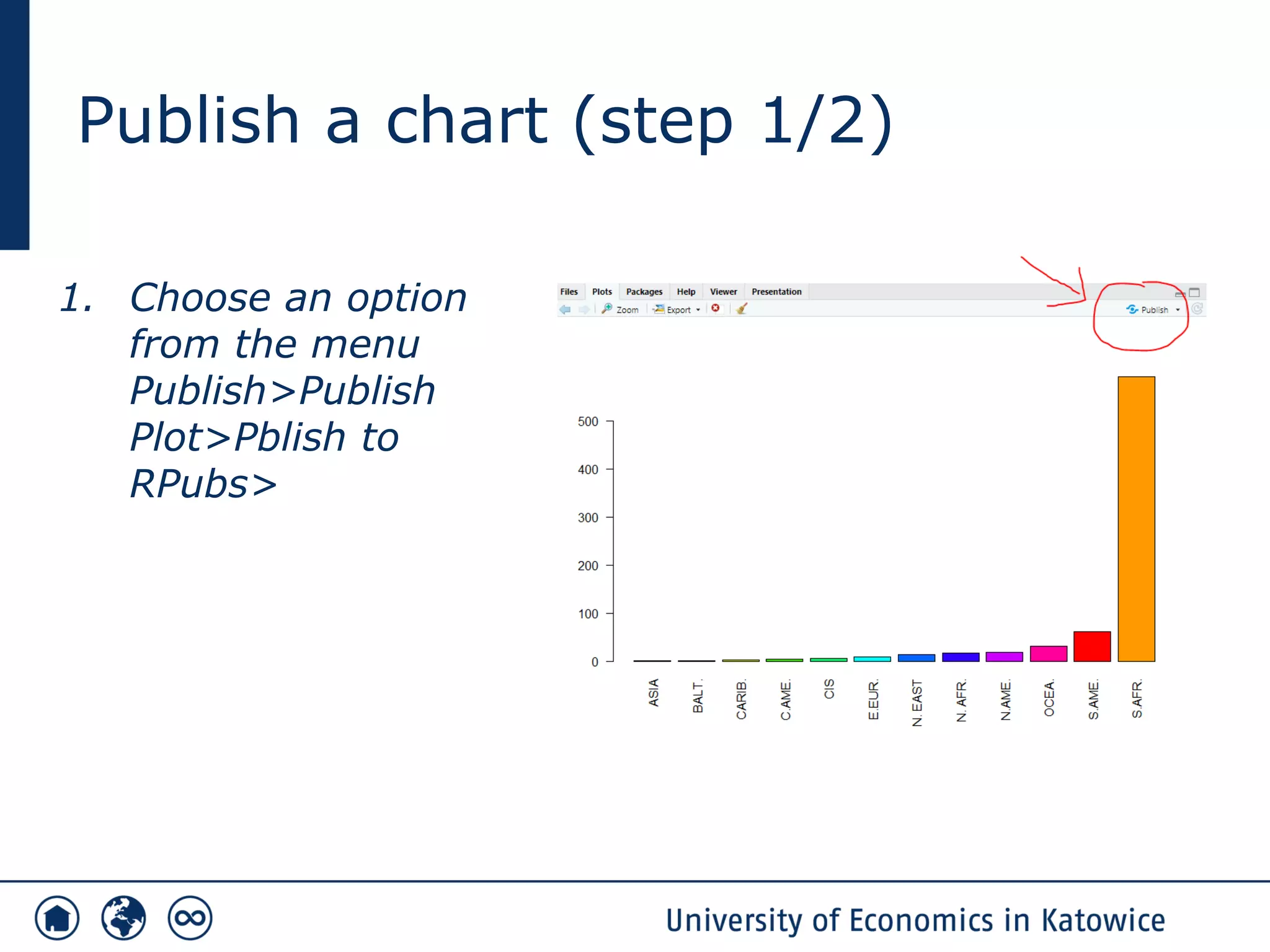
Publish a chart (step 1/2)
1. Choose an option
from the menu
Publish>Publish
Plot>Pblish to
RPubs>
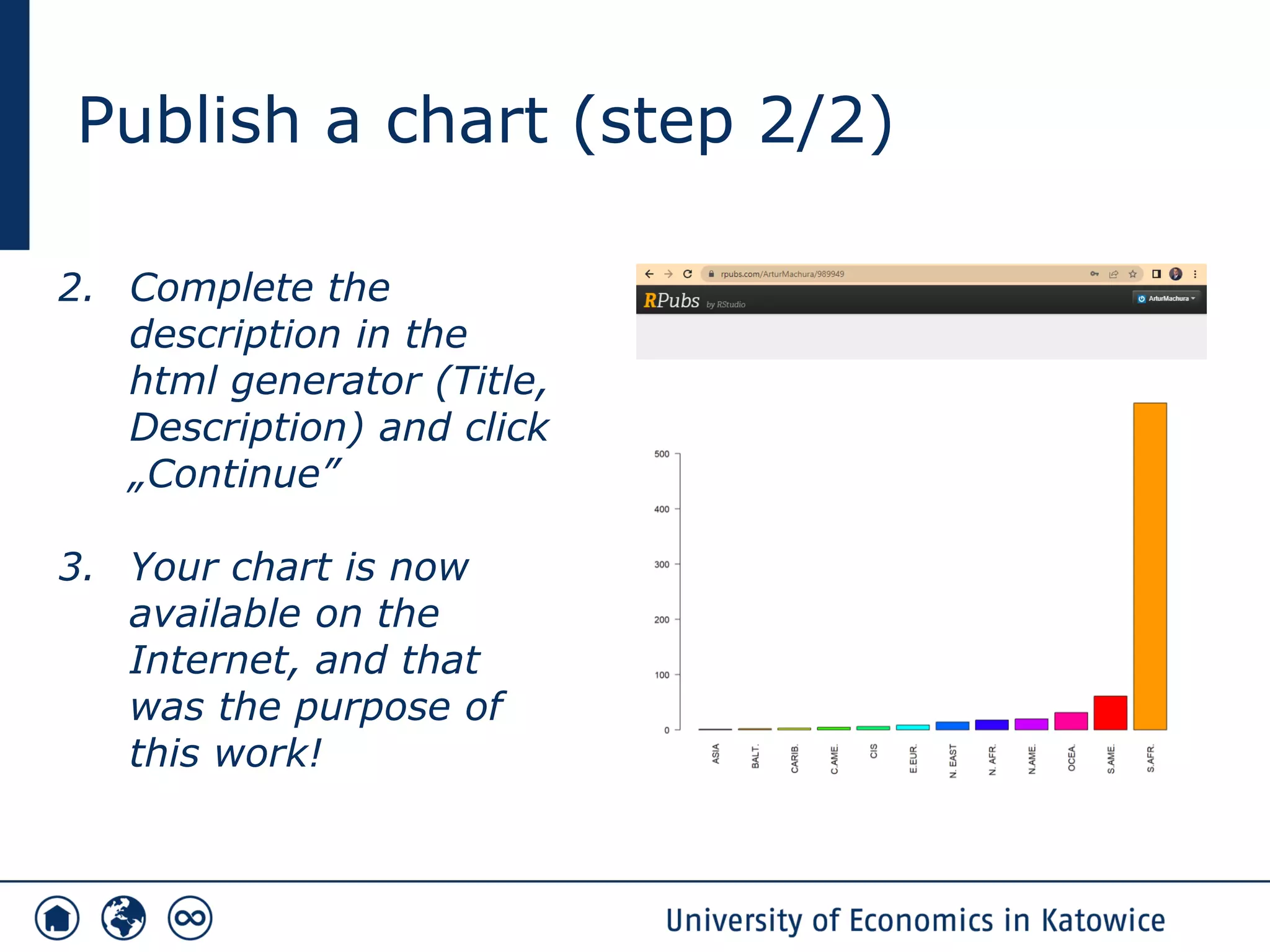
Publish a chart (step 2/2)
2. Complete the
description in the
html generator (Title,
Description) and click
„Continue”
3. Your chart is now
available on the
Internet, and that
was the purpose of
this work!
Source
▪ https://posit.co/
▪ https://posit.co/download/rstudio-desktop/
▪ https://cran.rstudio.com/
▪ and others mentioned in the presentation
Thank you for your
attention! Please submit
any comments on the
software-engineers.org
PhD Artur Machura
arturmachura.info
barplotv4.pdf

barplotv4.pdf

  • 1.
    Visualize analytical dataon the web Artur Machura 07.01.2023, Katowice
  • 2.
    Abstract ▪ Opening thepresentation ▪ Introduction ▪ Main part ▪ Conclusion
  • 3.
    Milestones (in mycase study) 1. Install IDE (Integrated Development Environment) 2. Prepare data for visualization (my case is about the average internet price in different regions of the world) 3. Create a chart 4. Publish a chart
  • 4.
    Understand the basicsconcepts 1. R Language (https://en.wikipedia.org/wiki/R_(progra mming_language) 2. RStudio (RStudio is now Posit https://posit.co/ ) 3. RPubs (https://rpubs.com/ )
  • 5.
    Install IDE 1. InstallR package for you operating system (RStudio requires R 3.3.0+) ▪ https://cran.rstudio.com/ 2. Install RStudio Desktop (alternatively, the server version, if you need one) ▪ https://posit.co/download/rstudio- desktop/
  • 6.
    Prepare data forvisualization (slide 1/2) 1. Open the RStudio console (alternatively use window functions) 2. Load the readxl library ( this is the library needed to import load .xlsx file, by the way – I’ll be using a file downloaded from kaggle.com ) library(readxl) 3. Load the file (I use the console, but there is also an option in the menu)
  • 7.
    Prepare data forvisualization (slide 2/2) 4. The result is an object with two variables (these names will be of importance in further work)
  • 8.
    Create a chartin RStudio (slide 1/3) 1. Decide what kind of chart you need (depending on this decision you will use different commands in the console, this decision may also affect the library you’ll use, more https://r-graph-gallery.com/all-graphs.html ) 2. In my case I generate bar chart (very popular) barplot(data$price,names.arg=(data$region)) Command name (object name$variables,argument=(object name$label for bar))
  • 9.
    Create a chartin RStudio (slide 2/3) 3. You can additionally use some options for Your graph (for example - I need to place bar names vertically, because these horizontal names are illegible, more https://www.rdocumentation.org/packages/graphics/v ersions/3.6.2/topics/barplot ) barplot(data$price,names.arg=(data$region),las=2,col=rainbow(10)) (additionally arguments is las and col)
  • 10.
    Create a chartin Rstudio (slide 3/3) By the way, the most expensive internet is in the Sahara desert
  • 11.
    Publish a chart(step 1/2) 1. Choose an option from the menu Publish>Publish Plot>Pblish to RPubs>
  • 12.
    Publish a chart(step 2/2) 2. Complete the description in the html generator (Title, Description) and click „Continue” 3. Your chart is now available on the Internet, and that was the purpose of this work!
  • 13.
    Source ▪ https://posit.co/ ▪ https://posit.co/download/rstudio-desktop/ ▪https://cran.rstudio.com/ ▪ and others mentioned in the presentation
  • 14.
    Thank you foryour attention! Please submit any comments on the software-engineers.org PhD Artur Machura arturmachura.info