Cloud Computing Laboratory:
AWS Relational Database Instance
Dr.M.Pyingkodi
Dept of MCA
Kongu Engineering College
Erode, Tamilnadu,India
36
WORKING WITH AWS RDS INSTANCE
AIM:
To launch RDS Instance in AWS Platform
STEPS:
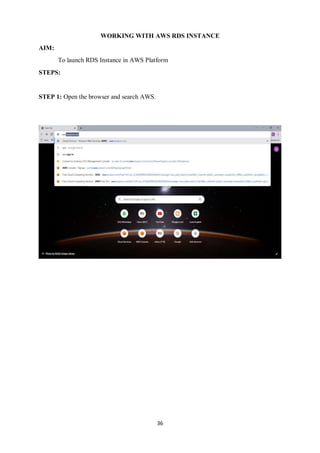
STEP 1: Open the browser and search AWS.
37
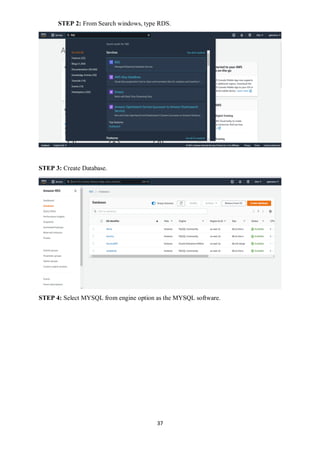
STEP 2: From Search windows, type RDS.
STEP 3: Create Database.
STEP 4: Select MYSQL from engine option as the MYSQL software.
38
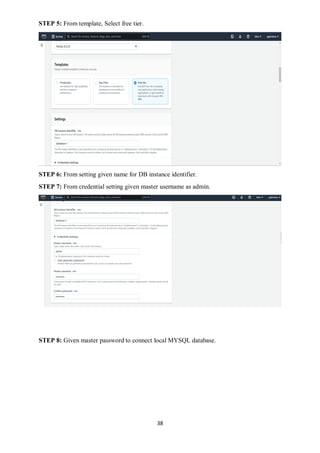
STEP 5: From template, Select free tier.
STEP 6: From setting given name for DB instance identifier.
STEP 7: From credential setting given master username as admin.
STEP 8: Given master password to connect local MYSQL database.
39
STEP 9: From connectivity select YES for public access.
STEP 10: Click create database button at bottom.
40
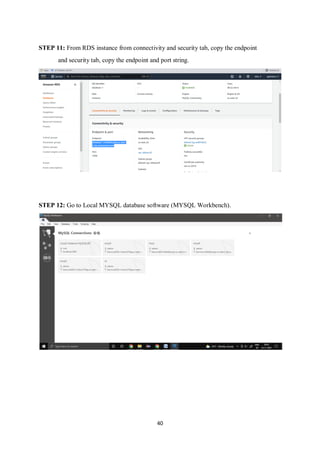
STEP 11: From RDS instance from connectivity and security tab, copy the endpoint
and security tab, copy the endpoint and port string.
STEP 12: Go to Local MYSQL database software (MYSQL Workbench).
41
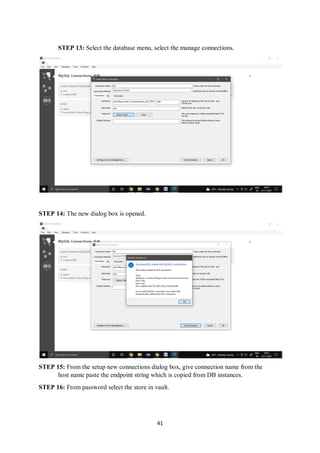
STEP 13: Select the database menu, select the manage connections.
STEP 14: The new dialog box is opened.
STEP 15: From the setup new connections dialog box, give connection name from the
host name paste the endpoint string which is copied from DB instances.
STEP 16: From password select the store in vault.
42
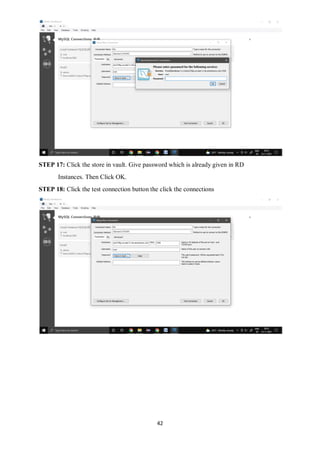
STEP 17: Click the store in vault. Give password which is already given in RD
Instances. Then Click OK.
STEP 18: Click the test connection button the click the connections
43
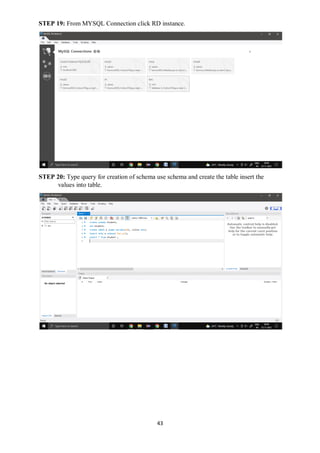
STEP 19: From MYSQL Connection click RD instance.
STEP 20: Type query for creation of schema use schema and create the table insert the
values into table.
44
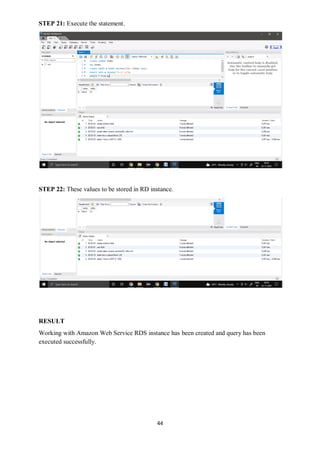
STEP 21: Execute the statement.
STEP 22: These values to be stored in RD instance.
RESULT
Working with Amazon Web Service RDS instance has been created and query has been
executed successfully.

AWS Relational Database Instance

  • 1.
    Cloud Computing Laboratory: AWSRelational Database Instance Dr.M.Pyingkodi Dept of MCA Kongu Engineering College Erode, Tamilnadu,India
  • 2.
    36 WORKING WITH AWSRDS INSTANCE AIM: To launch RDS Instance in AWS Platform STEPS: STEP 1: Open the browser and search AWS.
  • 3.
    37 STEP 2: FromSearch windows, type RDS. STEP 3: Create Database. STEP 4: Select MYSQL from engine option as the MYSQL software.
  • 4.
    38 STEP 5: Fromtemplate, Select free tier. STEP 6: From setting given name for DB instance identifier. STEP 7: From credential setting given master username as admin. STEP 8: Given master password to connect local MYSQL database.
  • 5.
    39 STEP 9: Fromconnectivity select YES for public access. STEP 10: Click create database button at bottom.
  • 6.
    40 STEP 11: FromRDS instance from connectivity and security tab, copy the endpoint and security tab, copy the endpoint and port string. STEP 12: Go to Local MYSQL database software (MYSQL Workbench).
  • 7.
    41 STEP 13: Selectthe database menu, select the manage connections. STEP 14: The new dialog box is opened. STEP 15: From the setup new connections dialog box, give connection name from the host name paste the endpoint string which is copied from DB instances. STEP 16: From password select the store in vault.
  • 8.
    42 STEP 17: Clickthe store in vault. Give password which is already given in RD Instances. Then Click OK. STEP 18: Click the test connection button the click the connections
  • 9.
    43 STEP 19: FromMYSQL Connection click RD instance. STEP 20: Type query for creation of schema use schema and create the table insert the values into table.
  • 10.
    44 STEP 21: Executethe statement. STEP 22: These values to be stored in RD instance. RESULT Working with Amazon Web Service RDS instance has been created and query has been executed successfully.