Amazon Web Service
(AWS)
Topics to be covered
• AWS EC2
• AWS EC2 instance creation
• Putty and puttygen
• Ubuntu commands
AWS EC2
AWS EC2
• Amazon Elastic Compute Cloud (Amazon EC2) provides scalable
computing capacity in the Amazon Web Services (AWS) cloud.
• EC2 eliminates your need to invest in hardware up front, so you can
develop and deploy applications faster.
• Can use Amazon EC2 to launch as many or as few virtual servers as
you need, configure security and networking, and manage storage.
• EC2 enables you to scale up or down to handle changes in
requirements or spikes in popularity, reducing your need to forecast
traffic
AWS EC2 features
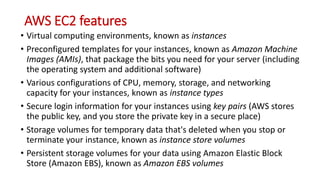
• Virtual computing environments, known as instances
• Preconfigured templates for your instances, known as Amazon Machine
Images (AMIs), that package the bits you need for your server (including
the operating system and additional software)
• Various configurations of CPU, memory, storage, and networking
capacity for your instances, known as instance types
• Secure login information for your instances using key pairs (AWS stores
the public key, and you store the private key in a secure place)
• Storage volumes for temporary data that's deleted when you stop or
terminate your instance, known as instance store volumes
• Persistent storage volumes for your data using Amazon Elastic Block
Store (Amazon EBS), known as Amazon EBS volumes
AWS EC2 features
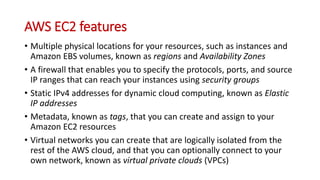
• Multiple physical locations for your resources, such as instances and
Amazon EBS volumes, known as regions and Availability Zones
• A firewall that enables you to specify the protocols, ports, and source
IP ranges that can reach your instances using security groups
• Static IPv4 addresses for dynamic cloud computing, known as Elastic
IP addresses
• Metadata, known as tags, that you can create and assign to your
Amazon EC2 resources
• Virtual networks you can create that are logically isolated from the
rest of the AWS cloud, and that you can optionally connect to your
own network, known as virtual private clouds (VPCs)
AWS EC2 instance creation
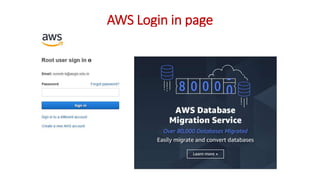
Login to AWS
https://signin.aws.amazon.com/signin?redirect_uri=https%3A%2F%2Fconsole.aws.amazon.com%2Fc
onsole%2Fhome%3Fstate%3DhashArgs%2523%26isauthcode%3Dtrue&client_id=arn%3Aaws%3Aiam
%3A%3A015428540659%3Auser%2Fhomepage&forceMobileApp=0
AWS Login in page
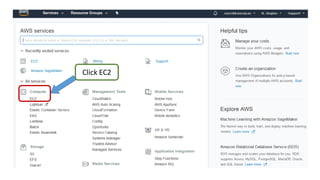
Click EC2
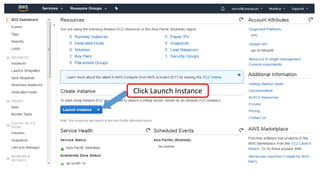
Click Launch Instance
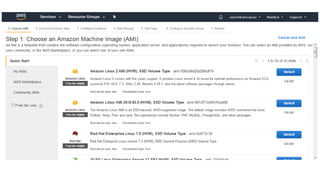
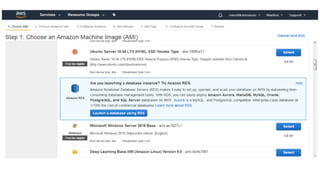
Click here
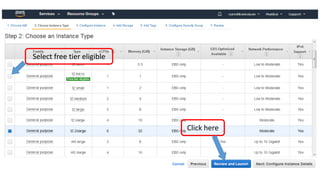
Select free tier eligible
Click here
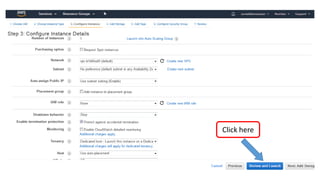
Click here
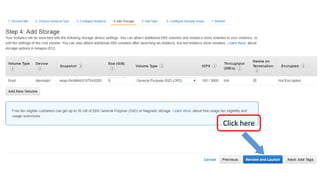
Click here
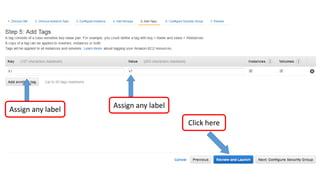
Assign any label
Assign any label
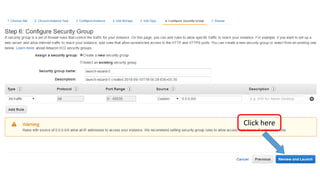
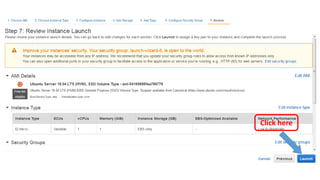
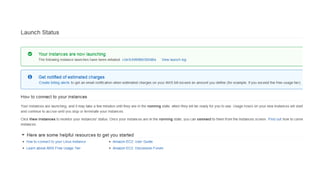
Click here
Click here
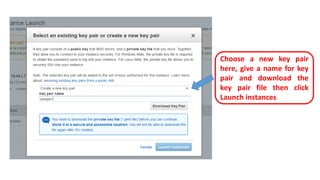
Choose a new key pair
here, give a name for key
pair and download the
key pair file then click
Launch instances
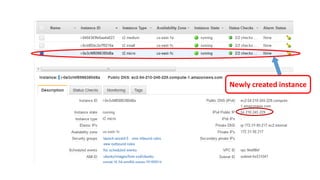
Newly created instance
Putty and Puttygen
Putty and Puttygen
• PuTTY is an SSH and telnet client, developed originally by Simon
Tatham for the Windows platform.
• PuTTY is open source software that is available with source code and
is developed and supported by a group of volunteers.
• Download Putty and Puttygen from the below link
• https://www.chiark.greenend.org.uk/~sgtatham/putty/latest.html
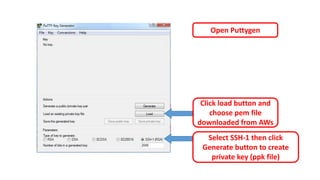
Click load button and
choose pem file
downloaded from AWs
Select SSH-1 then click
Generate button to create
private key (ppk file)
Open Puttygen
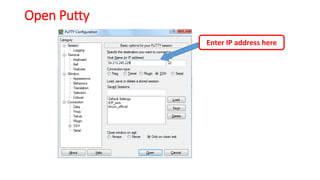
Open Putty
Enter IP address here
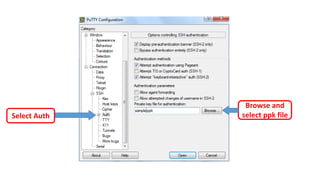
Browse and
select ppk fileSelect Auth
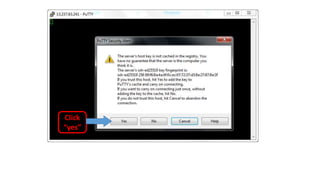
Click
“yes”
Ubuntu server is ready now
Ubuntu commands
Ubuntu commands
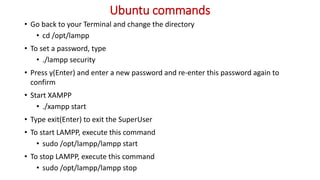
• Go back to your Terminal and change the directory
• cd /opt/lampp
• To set a password, type
• ./lampp security
• Press y(Enter) and enter a new password and re-enter this password again to
confirm
• Start XAMPP
• ./xampp start
• Type exit(Enter) to exit the SuperUser
• To start LAMPP, execute this command
• sudo /opt/lampp/lampp start
• To stop LAMPP, execute this command
• sudo /opt/lampp/lampp stop
Ubuntu commands
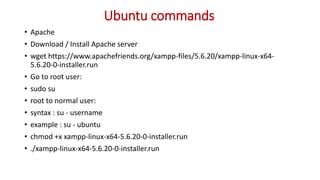
• Apache
• Download / Install Apache server
• wget https://www.apachefriends.org/xampp-files/5.6.20/xampp-linux-x64-
5.6.20-0-installer.run
• Go to root user:
• sudo su
• root to normal user:
• syntax : su - username
• example : su - ubuntu
• chmod +x xampp-linux-x64-5.6.20-0-installer.run
• ./xampp-linux-x64-5.6.20-0-installer.run
Aws ec2 setup

Aws ec2 setup

  • 1.
  • 2.
    Topics to becovered • AWS EC2 • AWS EC2 instance creation • Putty and puttygen • Ubuntu commands
  • 3.
  • 4.
    AWS EC2 • AmazonElastic Compute Cloud (Amazon EC2) provides scalable computing capacity in the Amazon Web Services (AWS) cloud. • EC2 eliminates your need to invest in hardware up front, so you can develop and deploy applications faster. • Can use Amazon EC2 to launch as many or as few virtual servers as you need, configure security and networking, and manage storage. • EC2 enables you to scale up or down to handle changes in requirements or spikes in popularity, reducing your need to forecast traffic
  • 5.
    AWS EC2 features •Virtual computing environments, known as instances • Preconfigured templates for your instances, known as Amazon Machine Images (AMIs), that package the bits you need for your server (including the operating system and additional software) • Various configurations of CPU, memory, storage, and networking capacity for your instances, known as instance types • Secure login information for your instances using key pairs (AWS stores the public key, and you store the private key in a secure place) • Storage volumes for temporary data that's deleted when you stop or terminate your instance, known as instance store volumes • Persistent storage volumes for your data using Amazon Elastic Block Store (Amazon EBS), known as Amazon EBS volumes
  • 6.
    AWS EC2 features •Multiple physical locations for your resources, such as instances and Amazon EBS volumes, known as regions and Availability Zones • A firewall that enables you to specify the protocols, ports, and source IP ranges that can reach your instances using security groups • Static IPv4 addresses for dynamic cloud computing, known as Elastic IP addresses • Metadata, known as tags, that you can create and assign to your Amazon EC2 resources • Virtual networks you can create that are logically isolated from the rest of the AWS cloud, and that you can optionally connect to your own network, known as virtual private clouds (VPCs)
  • 7.
  • 8.
  • 9.
  • 10.
  • 11.
  • 14.
  • 15.
  • 16.
  • 17.
    Click here Assign anylabel Assign any label
  • 18.
  • 19.
  • 20.
    Choose a newkey pair here, give a name for key pair and download the key pair file then click Launch instances
  • 22.
  • 23.
  • 24.
    Putty and Puttygen •PuTTY is an SSH and telnet client, developed originally by Simon Tatham for the Windows platform. • PuTTY is open source software that is available with source code and is developed and supported by a group of volunteers. • Download Putty and Puttygen from the below link • https://www.chiark.greenend.org.uk/~sgtatham/putty/latest.html
  • 25.
    Click load buttonand choose pem file downloaded from AWs Select SSH-1 then click Generate button to create private key (ppk file) Open Puttygen
  • 26.
    Open Putty Enter IPaddress here
  • 27.
    Browse and select ppkfileSelect Auth
  • 28.
  • 29.
  • 30.
  • 31.
    Ubuntu commands • Goback to your Terminal and change the directory • cd /opt/lampp • To set a password, type • ./lampp security • Press y(Enter) and enter a new password and re-enter this password again to confirm • Start XAMPP • ./xampp start • Type exit(Enter) to exit the SuperUser • To start LAMPP, execute this command • sudo /opt/lampp/lampp start • To stop LAMPP, execute this command • sudo /opt/lampp/lampp stop
  • 32.
    Ubuntu commands • Apache •Download / Install Apache server • wget https://www.apachefriends.org/xampp-files/5.6.20/xampp-linux-x64- 5.6.20-0-installer.run • Go to root user: • sudo su • root to normal user: • syntax : su - username • example : su - ubuntu • chmod +x xampp-linux-x64-5.6.20-0-installer.run • ./xampp-linux-x64-5.6.20-0-installer.run