www.H2kinfosys.com Call: 770-777-1269
Selenium Webdriver Setup
SeleniumWebdriverwith Java and Eclipse Setup
Following steps will guide you through setting up selenium
webdriver on your machine:
Step#1:Configuring Java on machine
Download latest version of Java Development Kit(JDK) from this URL-
http://www.oracle.com/technetwork/java/javase/downloads/index.html . Follow the
steps mentioned to install JDK. We are installing JDK as it will be required for
developing and running our automation scripts which are nothing but java
programs.
Step#2:Downloadeclipse orany Java IDE of your choice
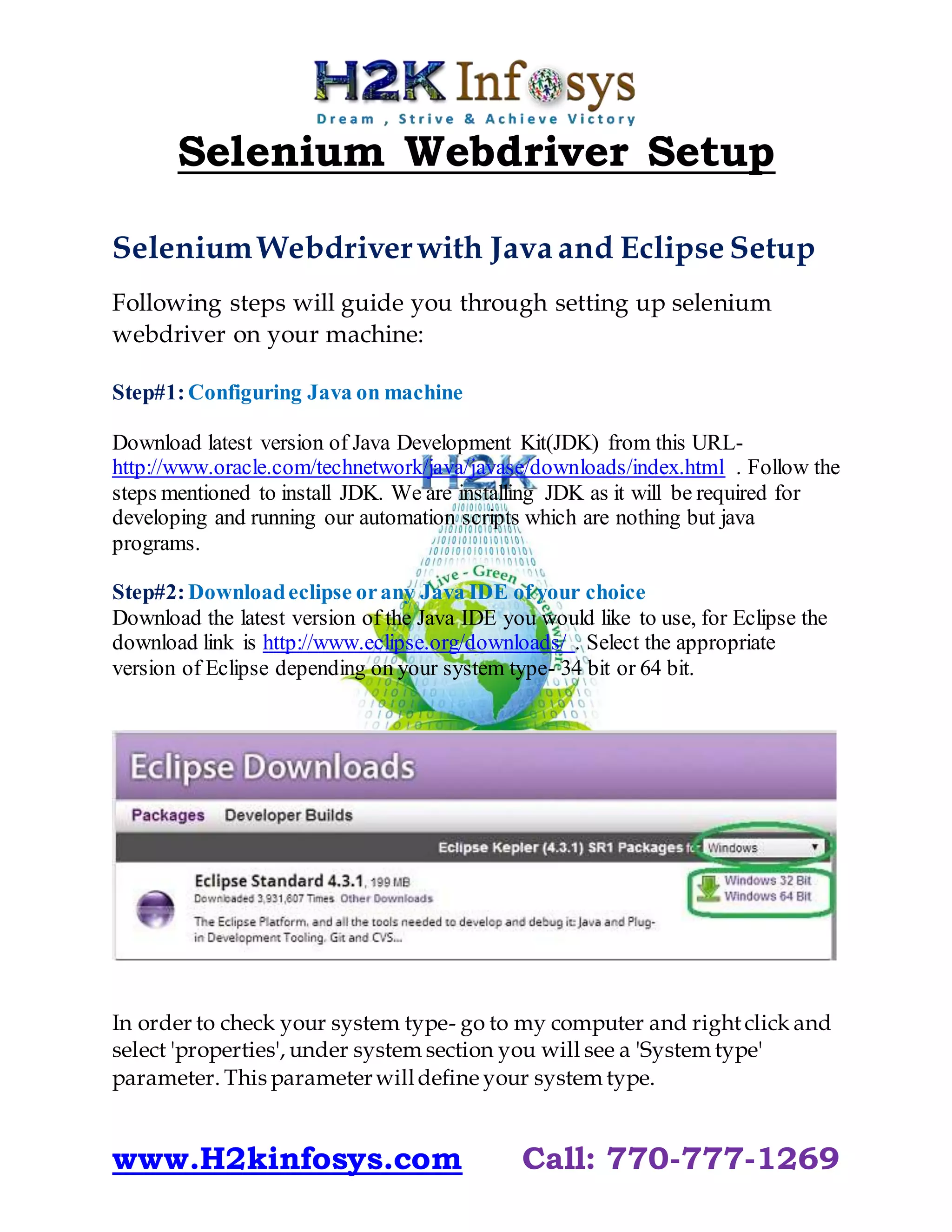
Download the latest version of the Java IDE you would like to use, for Eclipse the
download link is http://www.eclipse.org/downloads/ . Select the appropriate
version of Eclipse depending on your system type- 34 bit or 64 bit.
In order to check your system type- go to my computer and rightclick and
select 'properties', under system section you will see a 'System type'
parameter. This parameterwilldefine your system type.
www.H2kinfosys.com Call: 770-777-1269
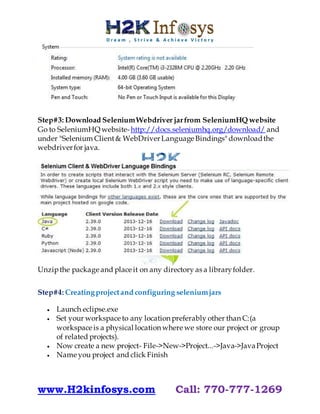
Step#3: Download SeleniumWebdriver jarfrom SeleniumHQ website
Go to SeleniumHQ website-http://docs.seleniumhq.org/download/ and
under "Selenium Client& WebDriverLanguage Bindings" downloadthe
webdriverfor java.
Unzipthe package and place it on any directory as a libraryfolder.
Step#4: Creatingprojectand configuring seleniumjars
 Launch eclipse.exe
 Set your workspace to any location preferably other than C:(a
workspace is a physical location where we store our project or group
of related projects).
 Now create a new project- File->New->Project...->Java->JavaProject
 Name you project and click Finish
www.H2kinfosys.com Call: 770-777-1269
 Now you will see an src folder under your project. Under this we
need to create a package-RightClick src->New->Package (Basically
these packages are used to group together related classes). Name
your package e.g. 'myTestPackage'
 Inside this package create a new class and name it e.g. Test, your
Test.java class will get created
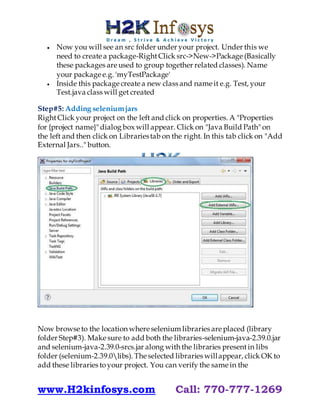
Step#5: Adding seleniumjars
RightClick your project on the left and click on properties. A "Properties
for {project name}" dialog box will appear. Click on "Java Build Path" on
the left and then click on Librariestab on the right. In this tab click on "Add
External Jars.." button.
Now browse to the location where selenium libraries are placed (library
folder Step#3). Make sure to add both the libraries-selenium-java-2.39.0.jar
and selenium-java-2.39.0-srcs.jar along with the libraries presentin libs
folder (selenium-2.39.0libs). The selected libraries willappear, click OK to
add these libraries toyour project. You can verify the same in the
www.H2kinfosys.com Call: 770-777-1269
"Referenced Libraries" section under your project in the "Package Explorer"
section on the left.
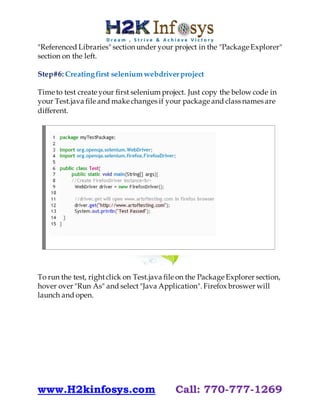
Step#6: Creatingfirst selenium webdriverproject
Time to test create your first selenium project. Just copy the below code in
your Test.java file and make changes if your package and class names are
different.
To run the test, rightclick on Test.java file on the Package Explorer section,
hover over "Run As" and select "Java Application". Firefox broswer will
launch and open.

Selenium webdriver Setup | Selenium Webdriver with Java and Eclipse Setup

  • 1.
    www.H2kinfosys.com Call: 770-777-1269 SeleniumWebdriver Setup SeleniumWebdriverwith Java and Eclipse Setup Following steps will guide you through setting up selenium webdriver on your machine: Step#1:Configuring Java on machine Download latest version of Java Development Kit(JDK) from this URL- http://www.oracle.com/technetwork/java/javase/downloads/index.html . Follow the steps mentioned to install JDK. We are installing JDK as it will be required for developing and running our automation scripts which are nothing but java programs. Step#2:Downloadeclipse orany Java IDE of your choice Download the latest version of the Java IDE you would like to use, for Eclipse the download link is http://www.eclipse.org/downloads/ . Select the appropriate version of Eclipse depending on your system type- 34 bit or 64 bit. In order to check your system type- go to my computer and rightclick and select 'properties', under system section you will see a 'System type' parameter. This parameterwilldefine your system type.
  • 2.
    www.H2kinfosys.com Call: 770-777-1269 Step#3:Download SeleniumWebdriver jarfrom SeleniumHQ website Go to SeleniumHQ website-http://docs.seleniumhq.org/download/ and under "Selenium Client& WebDriverLanguage Bindings" downloadthe webdriverfor java. Unzipthe package and place it on any directory as a libraryfolder. Step#4: Creatingprojectand configuring seleniumjars  Launch eclipse.exe  Set your workspace to any location preferably other than C:(a workspace is a physical location where we store our project or group of related projects).  Now create a new project- File->New->Project...->Java->JavaProject  Name you project and click Finish
  • 3.
    www.H2kinfosys.com Call: 770-777-1269 Now you will see an src folder under your project. Under this we need to create a package-RightClick src->New->Package (Basically these packages are used to group together related classes). Name your package e.g. 'myTestPackage'  Inside this package create a new class and name it e.g. Test, your Test.java class will get created Step#5: Adding seleniumjars RightClick your project on the left and click on properties. A "Properties for {project name}" dialog box will appear. Click on "Java Build Path" on the left and then click on Librariestab on the right. In this tab click on "Add External Jars.." button. Now browse to the location where selenium libraries are placed (library folder Step#3). Make sure to add both the libraries-selenium-java-2.39.0.jar and selenium-java-2.39.0-srcs.jar along with the libraries presentin libs folder (selenium-2.39.0libs). The selected libraries willappear, click OK to add these libraries toyour project. You can verify the same in the
  • 4.
    www.H2kinfosys.com Call: 770-777-1269 "ReferencedLibraries" section under your project in the "Package Explorer" section on the left. Step#6: Creatingfirst selenium webdriverproject Time to test create your first selenium project. Just copy the below code in your Test.java file and make changes if your package and class names are different. To run the test, rightclick on Test.java file on the Package Explorer section, hover over "Run As" and select "Java Application". Firefox broswer will launch and open.