© Copyright 2014 Hewlett-Packard Development Company, L.P. The information contained herein is subject to change without notice.© Copyright 2014 Hewlett-Packard Development Company, L.P. The information contained herein is subject to change without notice.
Automated OVA deployments
using Openstack
Infrastructure
Yolanda Robla <yolanda.robla-mota@hp.com> / May, 2015
© Copyright 2014 Hewlett-Packard Development Company, L.P. The information contained herein is subject to change without notice.
How was previous workflow?
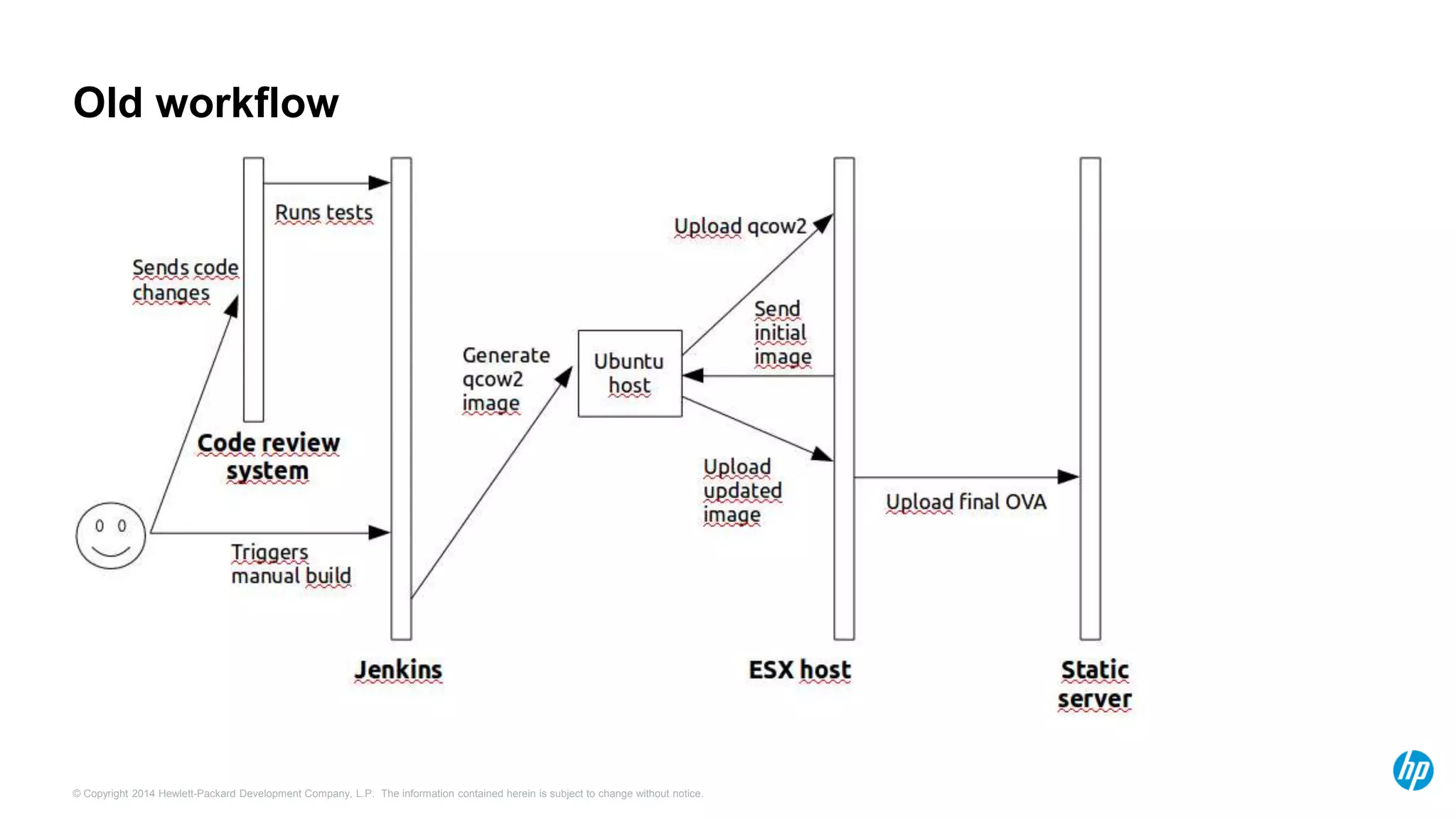
- Engineers submitting patches to project
- Jenkins job manually triggered to generate qcow2 image
- Image uploaded/downloaded between ubuntu host and ESX server several
times
- When OVA is completed, upload to static host
- Slow process, that don't scale
- Network intensive process
© Copyright 2014 Hewlett-Packard Development Company, L.P. The information contained herein is subject to change without notice.
Old workflow
© Copyright 2014 Hewlett-Packard Development Company, L.P. The information contained herein is subject to change without notice.
How is new workflow?
- Engineers submitting patches to project
- Jenkins job automatically triggered to generate qcow2 image
- qcow2 and OVA generated into same host, simple trusty node
- no dependencies on static ESX host
- no uploads/downloads of the image
- nodes generated on-demand by nodepool
- faster process, can scale
© Copyright 2014 Hewlett-Packard Development Company, L.P. The information contained herein is subject to change without notice.
New workflow
© Copyright 2014 Hewlett-Packard Development Company, L.P. The information contained herein is subject to change without notice.
Tools you will need
- Image conversion tools: qemu-img
- Vmware client tools for Ubuntu:
1. vmware-vdiskmanager
https://pubs.vmware.com/vsphere-50/index.jsp?topic=%2Fcom.vmware.vddk.utils.doc_50%2Fdiskutils_install.3.3.html
2. ovftool:
https://my.vmware.com/web/vmware/details?productId=352&downloadGroup=OVFTOOL350
- This workflow can be integrated inside Openstack Infra system: jenkins,
nodepool
© Copyright 2014 Hewlett-Packard Development Company, L.P. The information contained herein is subject to change without notice.
Step by step
1. Convert your qcow2 image to vmdk, using lsilogic adapter type:
qemu-img convert -p -f qcow2 -O vmdk -o adapter_type=lsilogic test_image.qcow2 test_image.vmdk
2. qcow2 images are sparse, need to be converted to run on ESX host:
vmware-vdiskmanager -r test_image.vmdk -t 4 test_image-converted.vmdk
It generates 2 outputs: test_image-converted.vmdk and test_image-converted-flat.vmdk
3. To convert to OVA, you need to generate a vmx container file for your vmdk
4. Use ovftool to convert from vmdk to OVA:
ovftool ./test_image.vmx ./test_image.ova
5. Upload your generated image, start using it
© Copyright 2014 Hewlett-Packard Development Company, L.P. The information contained herein is subject to change without notice.
VMX file relevant bits
...
nvram = "test_image.nvram"
displayName = "test_image"
extendedConfigFile = "test_image.vmxf"
floppy0.present = "TRUE"
scsi0.present = "TRUE"
scsi0.sharedBus = "none"
scsi0.virtualDev = "lsilogic"
memsize = "1024"
scsi0:0.present = "TRUE"
scsi0:0.fileName = "test_image-converted.vmdk"
scsi0:0.deviceType = "scsi-hardDisk"
...
© Copyright 2014 Hewlett-Packard Development Company, L.P. The information contained herein is subject to change without notice.© Copyright 2014 Hewlett-Packard Development Company, L.P. The information contained herein is subject to change without notice.
Thank you
Yolanda Robla Mota
<yolanda.robla-mota@hp.com>
Openstack CI resources
Docs: http://ci.openstack.org
Freenode: #openstack-infra

Automated OVA deployments using OpenStack infrastructure

  • 1.
    © Copyright 2014Hewlett-Packard Development Company, L.P. The information contained herein is subject to change without notice.© Copyright 2014 Hewlett-Packard Development Company, L.P. The information contained herein is subject to change without notice. Automated OVA deployments using Openstack Infrastructure Yolanda Robla <yolanda.robla-mota@hp.com> / May, 2015
  • 2.
    © Copyright 2014Hewlett-Packard Development Company, L.P. The information contained herein is subject to change without notice. How was previous workflow? - Engineers submitting patches to project - Jenkins job manually triggered to generate qcow2 image - Image uploaded/downloaded between ubuntu host and ESX server several times - When OVA is completed, upload to static host - Slow process, that don't scale - Network intensive process
  • 3.
    © Copyright 2014Hewlett-Packard Development Company, L.P. The information contained herein is subject to change without notice. Old workflow
  • 4.
    © Copyright 2014Hewlett-Packard Development Company, L.P. The information contained herein is subject to change without notice. How is new workflow? - Engineers submitting patches to project - Jenkins job automatically triggered to generate qcow2 image - qcow2 and OVA generated into same host, simple trusty node - no dependencies on static ESX host - no uploads/downloads of the image - nodes generated on-demand by nodepool - faster process, can scale
  • 5.
    © Copyright 2014Hewlett-Packard Development Company, L.P. The information contained herein is subject to change without notice. New workflow
  • 6.
    © Copyright 2014Hewlett-Packard Development Company, L.P. The information contained herein is subject to change without notice. Tools you will need - Image conversion tools: qemu-img - Vmware client tools for Ubuntu: 1. vmware-vdiskmanager https://pubs.vmware.com/vsphere-50/index.jsp?topic=%2Fcom.vmware.vddk.utils.doc_50%2Fdiskutils_install.3.3.html 2. ovftool: https://my.vmware.com/web/vmware/details?productId=352&downloadGroup=OVFTOOL350 - This workflow can be integrated inside Openstack Infra system: jenkins, nodepool
  • 7.
    © Copyright 2014Hewlett-Packard Development Company, L.P. The information contained herein is subject to change without notice. Step by step 1. Convert your qcow2 image to vmdk, using lsilogic adapter type: qemu-img convert -p -f qcow2 -O vmdk -o adapter_type=lsilogic test_image.qcow2 test_image.vmdk 2. qcow2 images are sparse, need to be converted to run on ESX host: vmware-vdiskmanager -r test_image.vmdk -t 4 test_image-converted.vmdk It generates 2 outputs: test_image-converted.vmdk and test_image-converted-flat.vmdk 3. To convert to OVA, you need to generate a vmx container file for your vmdk 4. Use ovftool to convert from vmdk to OVA: ovftool ./test_image.vmx ./test_image.ova 5. Upload your generated image, start using it
  • 8.
    © Copyright 2014Hewlett-Packard Development Company, L.P. The information contained herein is subject to change without notice. VMX file relevant bits ... nvram = "test_image.nvram" displayName = "test_image" extendedConfigFile = "test_image.vmxf" floppy0.present = "TRUE" scsi0.present = "TRUE" scsi0.sharedBus = "none" scsi0.virtualDev = "lsilogic" memsize = "1024" scsi0:0.present = "TRUE" scsi0:0.fileName = "test_image-converted.vmdk" scsi0:0.deviceType = "scsi-hardDisk" ...
  • 9.
    © Copyright 2014Hewlett-Packard Development Company, L.P. The information contained herein is subject to change without notice.© Copyright 2014 Hewlett-Packard Development Company, L.P. The information contained herein is subject to change without notice. Thank you Yolanda Robla Mota <yolanda.robla-mota@hp.com> Openstack CI resources Docs: http://ci.openstack.org Freenode: #openstack-infra

Editor's Notes

  • #4 This is a sample Picture with Caption slide ideal for including a picture with a brief descriptive statement. To Replace the Picture on this Sample Slide (this applies to all slides in this template that contain replaceable pictures) Select the sample picture and press Delete. Click the icon inside the shape to open the Insert Picture dialog box. Navigate to the location where the picture is stored, select desired picture and click on the Insert button to fit the image proportionally within the shape. Note: Do not right-click the image to change the picture inside the picture placeholder. This will change the frame size of the picture placeholder. Instead, follow the steps outlined above. Tip: use the Crop tool to reposition a picture within a placeholder. From the Picture Tools Format tab on the ribbon, click the Crop button. Click and drag the picture within the placeholder to reposition. To scale the picture within the placeholder (while Crop is active), grab a round corner handle and drag to resize. Hold Shift key to constrain picture aspect ratio when resizing.
  • #6 This is a sample Picture with Caption slide ideal for including a picture with a brief descriptive statement. To Replace the Picture on this Sample Slide (this applies to all slides in this template that contain replaceable pictures) Select the sample picture and press Delete. Click the icon inside the shape to open the Insert Picture dialog box. Navigate to the location where the picture is stored, select desired picture and click on the Insert button to fit the image proportionally within the shape. Note: Do not right-click the image to change the picture inside the picture placeholder. This will change the frame size of the picture placeholder. Instead, follow the steps outlined above. Tip: use the Crop tool to reposition a picture within a placeholder. From the Picture Tools Format tab on the ribbon, click the Crop button. Click and drag the picture within the placeholder to reposition. To scale the picture within the placeholder (while Crop is active), grab a round corner handle and drag to resize. Hold Shift key to constrain picture aspect ratio when resizing.