123
International Peer Reviewed Journal
Automated Class Scheduling System
JERALYN M. GAMALE
EDWARD C. ANUTA
ZINA D. SAYSON
mar_m_a@hotmail.com
Bohol Island State University, Main Campus
C.P.G. Avenue, Tagbilaran City, Bohol, Philippines
Abstract - The study tested the functionality of Automated Class
Scheduling System in terms of speed, data handling, accuracy,
security, stability and adaptability in making class schedules. This
study was conducted in Bohol Island State University Main Campus,
Tagbilaran City during the second semester of school year 2010-2011.
The respondents of this study were the 6 expert instructors in the ield
of computer programming. They tested and evaluated the functionality
of the program in terms of its design, accuracy, data handling, security,
stability and adaptability. Another 8 instructors who are in charge of
making class schedules determined the functionality of the system in
terms of speed, accuracy, data handling, stability and adaptability of
the sotware. Separate set of questionnaires were given to two groups of
respondents. The study concluded that the manual and the automated
class scheduling systems are both functional. However, the automated
system is more functional because of its extra features which solve the
primary problems in creating class schedules.
Keywords - class scheduling system, scheduling sotware,
automated class schedule
Vol. 9 · August 2012
Print ISSN 2012-3981 • Online ISSN 2244-0445
doi: http://dx.doi.org/10.7719/jpair.v9i1.11
Published Online: August 2012
JPAIR Multidisciplinary Research is produced by PAIR,
an ISO 9001:2008 QMS certified by AJA Registrars, Inc.
124
JPAIR: Multidisciplinary Research
INTRODUCTION
One of the remarkable and much known products of technology
advancement is the conversion of manually-operated system into
automated system. Automation produces a great impact in the lives
of man, particularly in the ield of industry, business, medicine, and
education.
Bohol Island State University Main Campus as an educational
institution ofers services to the clientele more particularly the students,
community and stakeholders. The primary operations of the school
are non-stop starting from pre-enrolment up to the post-graduation
activities. These activities require money, labor force and time.
It is a fact that arranging class schedules, instructor’s load and
room utilization for the students and faculty in every department is
one of the many activities that each department heads must prepare
before classes start. But the school used the manual way of preparing
the class schedule. With the manual system, more time and labor
force is required to plot, arrange, and revise the class schedules, room
utilization and instructors’ load provided by the department heads.
With these problems, the researchers had come up an idea of
creating an automated class scheduling system using MySQL database
and PHP programming language. Through this advancement, errors
in operations have been minimized and time and manpower have
been conserved.
OBJECTIVES OF THE STUDY
This study aims to design an automated class scheduling system
and test its functionality in terms of speed, accuracy, data handling,
security, stability and adaptability in making class schedules. This
study was conducted in Bohol Island State University Main Campus,
Tagbilaran City during the second semester of school year 2010-2011.
125
International Peer Reviewed Journal
MATERIALS AND METHODS
1. Resources
MySQL Database was used for the database of the program. It was
being incorporated with PHP and HTML programming languages for
the Graphic User Interface.
2. Hardware and Sotware Requirements
The program can be installed in a Windows operating system
or higher. A physical memory requirement of at least 512 MB memory
with at least 20 MB of free disk space is also required.
3. Operating Procedures
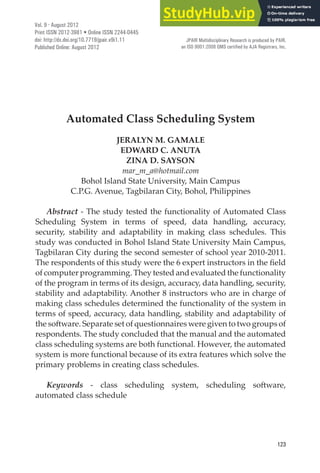
Figure 1.Administrator log-in form
This is the administrator login form. Before the administrator can
login, he must enter the username and password which are predeined
or preset in the system’s database. Ater the administrator has login,
he can add another user of the system in the Users tab and have an
equal power with him as administrator.
126
JPAIR: Multidisciplinary Research
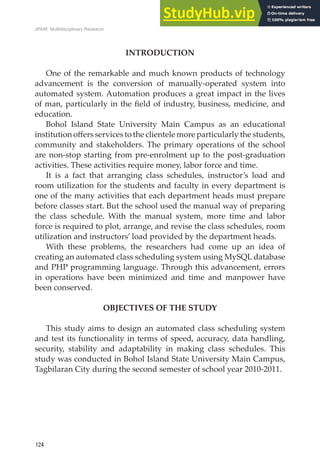
Figure 2. Home page
Figure 2 is the Home page. Ater the administrator has login, this
page appears. Accessibility to all the other tabs which corresponds to
the diferent pages of the system, such as the system tab, instructor
tab, students tab, schedules tab, users tab, notiications tab, schedule
conlicts, and help tab starts here.
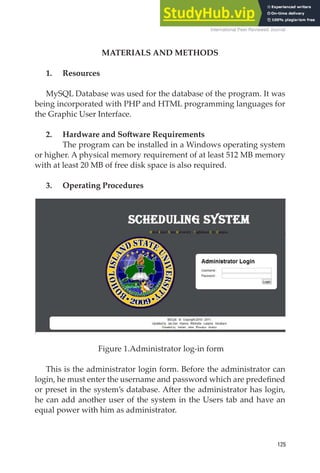
Figure 3. Instructors schedule
127
International Peer Reviewed Journal
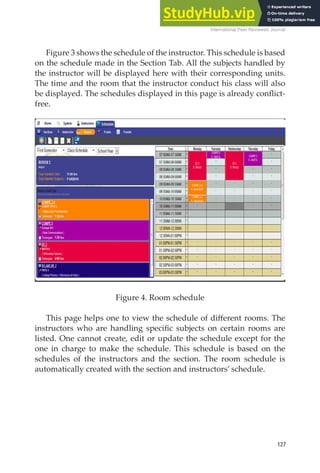
Figure 3 shows the schedule of the instructor. This schedule is based
on the schedule made in the Section Tab. All the subjects handled by
the instructor will be displayed here with their corresponding units.
The time and the room that the instructor conduct his class will also
be displayed. The schedules displayed in this page is already conlict-
free.
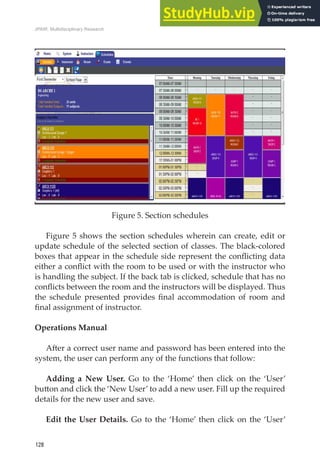
Figure 4. Room schedule
This page helps one to view the schedule of diferent rooms. The
instructors who are handling speciic subjects on certain rooms are
listed. One cannot create, edit or update the schedule except for the
one in charge to make the schedule. This schedule is based on the
schedules of the instructors and the section. The room schedule is
automatically created with the section and instructors’ schedule.
128
JPAIR: Multidisciplinary Research
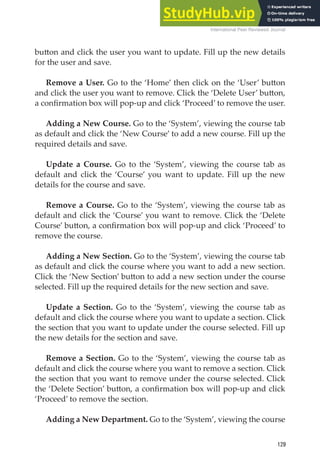
Figure 5. Section schedules
Figure 5 shows the section schedules wherein can create, edit or
update schedule of the selected section of classes. The black-colored
boxes that appear in the schedule side represent the conlicting data
either a conlict with the room to be used or with the instructor who
is handling the subject. If the back tab is clicked, schedule that has no
conlicts between the room and the instructors will be displayed. Thus
the schedule presented provides inal accommodation of room and
inal assignment of instructor.
Operations Manual
Ater a correct user name and password has been entered into the
system, the user can perform any of the functions that follow:
Adding a New User. Go to the ‘Home’ then click on the ‘User’
buton and click the ‘New User’ to add a new user. Fill up the required
details for the new user and save.
Edit the User Details. Go to the ‘Home’ then click on the ‘User’
129
International Peer Reviewed Journal
buton and click the user you want to update. Fill up the new details
for the user and save.
Remove a User. Go to the ‘Home’ then click on the ‘User’ buton
and click the user you want to remove. Click the ‘Delete User’ buton,
a conirmation box will pop-up and click ‘Proceed’ to remove the user.
Adding a New Course. Go to the ‘System’, viewing the course tab
as default and click the ‘New Course’ to add a new course. Fill up the
required details and save.
Update a Course. Go to the ‘System’, viewing the course tab as
default and click the ‘Course’ you want to update. Fill up the new
details for the course and save.
Remove a Course. Go to the ‘System’, viewing the course tab as
default and click the ‘Course’ you want to remove. Click the ‘Delete
Course’ buton, a conirmation box will pop-up and click ‘Proceed’ to
remove the course.
Adding a New Section. Go to the ‘System’, viewing the course tab
as default and click the course where you want to add a new section.
Click the ‘New Section’ buton to add a new section under the course
selected. Fill up the required details for the new section and save.
Update a Section. Go to the ‘System’, viewing the course tab as
default and click the course where you want to update a section. Click
the section that you want to update under the course selected. Fill up
the new details for the section and save.
Remove a Section. Go to the ‘System’, viewing the course tab as
default and click the course where you want to remove a section. Click
the section that you want to remove under the course selected. Click
the ‘Delete Section’ buton, a conirmation box will pop-up and click
‘Proceed’ to remove the section.
Adding a New Department. Go to the ‘System’, viewing the course
130
JPAIR: Multidisciplinary Research
tab as default and click on any courses displayed. Viewing the course
details, click on the word ‘Department’ to view the department list.
Click the ‘New Department’ buton to add a new department. Fill up
the required details for the new department and save.
Update a Department. Go to the ‘System’, viewing the course tab as
default and click on any courses displayed. Viewing the course details,
click on the word ‘Department’ to view the department list. Click the
department that you want to update. Fill up the new details for the
department and save.
Remove a Department. Go to the ‘System’, viewing the course
tab as default and click on any courses displayed. Viewing the course
details, click on the word ‘Department’ to view the department list.
Click the department that you want to be removed. Click the ‘Delete
Department’buton, a conirmation box will pop-up and click ‘Proceed’
to remove the department.
Adding a New Subject. Go to the ‘System’and click on the ‘Subject’
tab to view the subject list. Click the ‘New Subject’to add a new subject.
Fill up the required details for the new subject and save.
Update a Subject. Go to the ‘System’ and click on the ‘Subject’ tab
to view the subject list. Click the subject that you want to update. Fill
up the new details for the subject and save.
Remove a Subject. Go to the ‘System’ and click on the ‘Subject’ tab
to view the subject list. Click the subject that you want to be removed.
Click the ‘Delete Subject’ buton, a conirmation box will pop-up and
click ‘Proceed’ to remove the subject.
Adding a New Room. Go to the ‘System’ and click on the ‘Room’
tab to view the room list. Click the ‘New Room’to add a new room. Fill
up the required details for the new room and save.
Update a Room. Go to the ‘System’ and click on the ‘Room’ tab to
view the room list. Click the room that you want to update. Fill up the
131
International Peer Reviewed Journal
new details for the room and save.
Remove a Room. Go to the ‘System’ and click on the ‘Room’ tab
to view the room list. Click the room that you want to be removed.
Click the ‘Delete room’ buton, a conirmation box will pop-up and
click ‘Proceed’ to remove the room.
Adding a New Building.. Go to the ‘System’ and click on the
‘Room’ tab to view the room list. Click on any room in the room list,
click on the word ‘Building’ to view the building list. Click the ‘New
Building’ buton to add a new building. Fill up the required details for
the new building and save.
Update a Building. Go to the ‘System’ and click on the ‘Room’ tab
to view the room list. Click on any room in the room list, click on the
word ‘Building’ to view the building list. Click the building that you
want to update. Fill up the new details for the building and save.
Remove a Building. Go to the ‘System’ and click on the ‘Room’
tab to view the room list. Click on any room in the room list, click
on the word ‘Building’ to view the building list. Click the department
that you want to be removed. Click the ‘Delete Department’ buton,
a conirmation box will pop-up and click ‘Proceed’ to remove the
department.
Adding a Subject in each Course Go to the ‘System’ and click on
the ‘Checklist’ tab to view the course list. Select a course where you
want to add a new subject. Select the school year to view the semester
list. Viewing the semester list, click the ‘New Checklist Subject’ buton
to add a subject under the semester selected. Fill up the required details
for the subjects and save.
Update a Subject in each Course Go to the ‘System’ and click on
the ‘Checklist’ tab to view the course list. Select an course where you
want to update a subjects. Select the school year to view the semester
list. Viewing the semester list, click the subject that you want to update
under the semester selected. Fill up the new details for the subjects
and save.
132
JPAIR: Multidisciplinary Research
Remove a Subject in each Course. Go to the ‘System’ and click
on the ‘Checklist’ tab to view the course list. Select an course where
you want to remove a subjects. Select the school year to view the
semester list. Viewing the semester list, click the subject that you want
to remove under the semester selected. Click the ‘Delete Checklist
Subject’ buton, a conirmation box will pop-up and click ‘Proceed’ to
remove the subject.
Adding and Information in the Checklist. Go to the ‘System’
and click on the ‘Checklist’ tab to view the course list. Click on the
‘Information’ tab and ill up the required information then save.
Adding a New Instructor. Go to the ‘Instructor’ to view the
instructor list. Click the ‘New Instructor’ to add a new instructor. Fill
up the required details for the new instructor and save.
Update an Instructor. Go to the ‘Instructor’ to view the instructor
list. Click the instructor that you want to update. Fill up the new details
for the instructor and save.
Remove an Instructor. Go to the ‘Instructor’ to view the instructor
list. Click the instructor that you want to remove. Click the ‘Delete
Instructor’ buton, a conirmation box will pop-up and click ‘Proceed’
to remove the instructor.
Adding a Class Schedule. Go to the ‘Schedule’, viewing the section
tab as default and click a section that you want to add new class
schedule. Ater selecting a section, now select the semester where you
want to add the class schedule. To add a class schedule, click on the
subject available below the section detail box. Select an instructor for
the subject and a room for the class schedule. Select the time schedule
in the time table by highlighting the cell. Click the ‘Schedule (Lec)’
buton for the lecture schedule and ‘Schedule (Lab)’ for the laboratory
schedule. To go back to the subject list click the ‘Back’ buton.
Update a Class Schedule. Go to the ‘Schedule’, viewing the section
tab as default and click a section that you want to update a class
133
International Peer Reviewed Journal
schedule. Ater selecting a section, now select the semester where you
want to update a class schedule. To update a class schedule double-
click on the subject in the time table where you want to update. Select
a new instructor to change the instructor and a new room for the new
schedule. Select a new time schedule in the time table by highlighting
a new cell. Click the ‘Update (Lec)’ to update the lecture schedule and
‘Update (Lab)’ for the laboratory schedule. To go back to the subject
list click the ‘Back’ buton.
Remove a Class Schedule. Go to the ‘Schedule’, viewing the section
tab as default and click a section that you want to remove a class
schedule. Ater selecting a section, now select the semester where you
want to remove a class schedule. To remove a class schedule double-
click on the subject in the time table where you want to remove. And
click the ‘Delete’ buton to remove the schedule. To go back to the
subject list click the ‘Back’ buton.
Viewing and Printing an Instructor’s Schedule. Go to the
‘Schedule’ and click the ‘Instructor’ tab. Showing the instructor list,
click on the instructor that you want to view a schedule. Select a
semester that you want to view the schedule of the instructor. Select
a type of schedule that you want to view. Click the ‘Print Schedule’
buton to have a printout copy of the instructor schedule.
Viewing and Printing a Room Schedule. Go to the ‘Schedule’ and
click the ‘Room’ tab. Showing the room list, click on the room that you
want to view a schedule. Select a semester that you want to view the
schedule of the room. Select a type of schedule that you want to view.
Click the ‘Print Schedule’ buton to have a printout copy of the room
schedule.
Adding an Exam Schedule.Go to the ‘Schedule’ and click the
‘Exam’ tab. Click a section that you want to add an exam schedule.
Ater selecting a section, now select the semester where you want to
add the exam schedule. To add a exam schedule click on the subject
available below the section detail box. Select an instructor for the
subject and a room for the class schedule. Select the time schedule
134
JPAIR: Multidisciplinary Research
in the time table by highlighting the cell. Click the ‘Schedule (Exam)’
buton for the exam schedule. To go back to the subject list click the
‘Back’ buton.
Update an Exam Schedule. Go to the ‘Schedule’ and click the
‘Exam’ tab. Click a section that you want to update an exam schedule.
Ater selecting a section, now select the semester where you want to
update a exam schedule. To update a exam schedule double-click
on the subject in the time table where you want to update. Select a
new instructor to change the instructor and a new room for the new
schedule. Select a new time schedule in the time table by highlighting
a new cell. Click the ‘Update (Exam)’ to update the exam schedule. To
go back to the subject list click the ‘Back’ buton.
Remove an Exam Schedule. Go to the ‘Schedule’ and click the
‘Exam’ tab. Click a section that you want to remove an exam schedule.
Ater selecting a section, now select the semester where you want to
remove a exam schedule. To remove a exam schedule double-click on
the subject in the time table where you want to remove. And click the
‘Delete’ buton to remove the schedule. To go back to the subject list
click the ‘Back’ buton.
RESULTS AND DISCUSSION
The respondents who are in charge of making the class schedules
are serving as instructors in the institution for about 5 years and below.
The range of the number of years they experienced in making schedules
is from 1 to 6 years. From the respondents’ data, it was found out that
100% of them experienced conlicting schedules that are hard to check
and consumes more materials such as papers, pencils, and others as
the topmost problem being encountered during the preparation of
their respective class schedules using the manual system.
The expert respondents rated the functionality of the automated
class scheduling systems in terms of speed, accuracy, data handling,
stability and adaptability as “Very Good”. Based on the data gathered
fromthe8respondents,theaverageweightedmeanforthefunctionality
of the two systems in terms of speed, accuracy, data handling, stability
135
International Peer Reviewed Journal
and adaptability are shown below:
a. Automated. The average weighted mean is 3.779 which is
described as “Very Good”.
b. Manual. The average weighted mean is 2.602 which is
described as “Good”.
The study found out that there is a signiicant diference between the
automated class scheduling system and the manual class scheduling
system in terms of their functionality and acceptability level. This is
atested with the average weighted mean of 3.19 or Good (based on the
experts’perception) and 3.779 or Very Good (based on the respondents’
perception) for the automated system and 2.602 or Good (based on
the respondents’ perception) for the manual system. It was found out
there was no single item for the manual class scheduling system that
was being rated higher than the automated class scheduling system.
CONCLUSIONS
The manual system is adaptable and useful in the making of
class schedules. However, the automated class scheduling system is
more functional because of the distinctive performance in the aspect
of speed, project design, accuracy and stability of the system in the
preparation of class schedules, room schedules and instructors’ load.
With these features, the automated system can really solve the primary
problems being encountered during the class schedule preparation.
RECOMMENDATIONS
1. Add ‘School Year’ and ‘Term’ in the database for easy retrieval
of data on the speciic school year and term being entered by the user.
2. Enhance the code of the program that will improve its aesthetics.
3. It must be used in other campuses of Bohol Island
State University provided that there is an orientation conducted to
the end-users on how to operate the system.
136
JPAIR: Multidisciplinary Research
LITERATURE CITED
Anderson, D.
2006 Management information systems: Solving business problems
with information technology. (4th ed.). New York: McGraw-
Hill Irwin.(htp://www.articlecube.com)
ONLINE DATABASES
Scheduling for Group Classes.
http:/www.appointmentquest.com/scheduling/education/group_
classes Class Scheduling.
htp:/www.redicker.com/class_scheduling_sotware.html Online
Schedule of Classes.(n.d.).
htp:/www.schedule.berkeley.edu/about.html
Employee Scheduling – Online.(n.d.).
htp:/whentowork.com
Sotware.
htp://www.plantautomation.com/article.mvc/An-Overview-of-
Production-Scheduling-Sotware-0001
htp://www.its.qmul.ac.uk/mail/thunderbird/identities.html
htp://altmedworld.net/holistic-medicine-course-hmd-program.htm
htp://altmedworld.net/membership.htm
htp://www.amccindia.com/modeofpayment.aspx
htp://www.stepbystep-nursery.net/rooms.htm
htp://bearcatbaseball.com/
137
International Peer Reviewed Journal
htp://www.hempieldsoccerclub.org/rptscores.html
htp://www.hometeamsonline.com/teams/?u=GRWILSON5&s=lacros
se&t=c
htp://www.induniversity.ph/universities/bohol-island-state-
universi...
htp://www.htc.com/us/mobile/sprint/hero/02e_Tools.09.4.html
htp://www.plantautomation.com/article.mvc/An-Overview-of-
Production-Scheduling-
htp://www.articlecube.com
Pursuant to the international character of this publication, the journal is
indexed by the following agencies: (1)Public Knowledge Project, a consortium of
Simon Fraser University Library, the School of Education of Stanford University,
and the British Columbia University, Canada; (2) E-International Scientiic Research
Journal Consortium; (3) Philippine E-Journals; and (4) Google Scholar.

Automated Class Scheduling System.pdf

  • 1.
    123 International Peer ReviewedJournal Automated Class Scheduling System JERALYN M. GAMALE EDWARD C. ANUTA ZINA D. SAYSON mar_m_a@hotmail.com Bohol Island State University, Main Campus C.P.G. Avenue, Tagbilaran City, Bohol, Philippines Abstract - The study tested the functionality of Automated Class Scheduling System in terms of speed, data handling, accuracy, security, stability and adaptability in making class schedules. This study was conducted in Bohol Island State University Main Campus, Tagbilaran City during the second semester of school year 2010-2011. The respondents of this study were the 6 expert instructors in the ield of computer programming. They tested and evaluated the functionality of the program in terms of its design, accuracy, data handling, security, stability and adaptability. Another 8 instructors who are in charge of making class schedules determined the functionality of the system in terms of speed, accuracy, data handling, stability and adaptability of the sotware. Separate set of questionnaires were given to two groups of respondents. The study concluded that the manual and the automated class scheduling systems are both functional. However, the automated system is more functional because of its extra features which solve the primary problems in creating class schedules. Keywords - class scheduling system, scheduling sotware, automated class schedule Vol. 9 · August 2012 Print ISSN 2012-3981 • Online ISSN 2244-0445 doi: http://dx.doi.org/10.7719/jpair.v9i1.11 Published Online: August 2012 JPAIR Multidisciplinary Research is produced by PAIR, an ISO 9001:2008 QMS certified by AJA Registrars, Inc.
  • 2.
    124 JPAIR: Multidisciplinary Research INTRODUCTION Oneof the remarkable and much known products of technology advancement is the conversion of manually-operated system into automated system. Automation produces a great impact in the lives of man, particularly in the ield of industry, business, medicine, and education. Bohol Island State University Main Campus as an educational institution ofers services to the clientele more particularly the students, community and stakeholders. The primary operations of the school are non-stop starting from pre-enrolment up to the post-graduation activities. These activities require money, labor force and time. It is a fact that arranging class schedules, instructor’s load and room utilization for the students and faculty in every department is one of the many activities that each department heads must prepare before classes start. But the school used the manual way of preparing the class schedule. With the manual system, more time and labor force is required to plot, arrange, and revise the class schedules, room utilization and instructors’ load provided by the department heads. With these problems, the researchers had come up an idea of creating an automated class scheduling system using MySQL database and PHP programming language. Through this advancement, errors in operations have been minimized and time and manpower have been conserved. OBJECTIVES OF THE STUDY This study aims to design an automated class scheduling system and test its functionality in terms of speed, accuracy, data handling, security, stability and adaptability in making class schedules. This study was conducted in Bohol Island State University Main Campus, Tagbilaran City during the second semester of school year 2010-2011.
  • 3.
    125 International Peer ReviewedJournal MATERIALS AND METHODS 1. Resources MySQL Database was used for the database of the program. It was being incorporated with PHP and HTML programming languages for the Graphic User Interface. 2. Hardware and Sotware Requirements The program can be installed in a Windows operating system or higher. A physical memory requirement of at least 512 MB memory with at least 20 MB of free disk space is also required. 3. Operating Procedures Figure 1.Administrator log-in form This is the administrator login form. Before the administrator can login, he must enter the username and password which are predeined or preset in the system’s database. Ater the administrator has login, he can add another user of the system in the Users tab and have an equal power with him as administrator.
  • 4.
    126 JPAIR: Multidisciplinary Research Figure2. Home page Figure 2 is the Home page. Ater the administrator has login, this page appears. Accessibility to all the other tabs which corresponds to the diferent pages of the system, such as the system tab, instructor tab, students tab, schedules tab, users tab, notiications tab, schedule conlicts, and help tab starts here. Figure 3. Instructors schedule
  • 5.
    127 International Peer ReviewedJournal Figure 3 shows the schedule of the instructor. This schedule is based on the schedule made in the Section Tab. All the subjects handled by the instructor will be displayed here with their corresponding units. The time and the room that the instructor conduct his class will also be displayed. The schedules displayed in this page is already conlict- free. Figure 4. Room schedule This page helps one to view the schedule of diferent rooms. The instructors who are handling speciic subjects on certain rooms are listed. One cannot create, edit or update the schedule except for the one in charge to make the schedule. This schedule is based on the schedules of the instructors and the section. The room schedule is automatically created with the section and instructors’ schedule.
  • 6.
    128 JPAIR: Multidisciplinary Research Figure5. Section schedules Figure 5 shows the section schedules wherein can create, edit or update schedule of the selected section of classes. The black-colored boxes that appear in the schedule side represent the conlicting data either a conlict with the room to be used or with the instructor who is handling the subject. If the back tab is clicked, schedule that has no conlicts between the room and the instructors will be displayed. Thus the schedule presented provides inal accommodation of room and inal assignment of instructor. Operations Manual Ater a correct user name and password has been entered into the system, the user can perform any of the functions that follow: Adding a New User. Go to the ‘Home’ then click on the ‘User’ buton and click the ‘New User’ to add a new user. Fill up the required details for the new user and save. Edit the User Details. Go to the ‘Home’ then click on the ‘User’
  • 7.
    129 International Peer ReviewedJournal buton and click the user you want to update. Fill up the new details for the user and save. Remove a User. Go to the ‘Home’ then click on the ‘User’ buton and click the user you want to remove. Click the ‘Delete User’ buton, a conirmation box will pop-up and click ‘Proceed’ to remove the user. Adding a New Course. Go to the ‘System’, viewing the course tab as default and click the ‘New Course’ to add a new course. Fill up the required details and save. Update a Course. Go to the ‘System’, viewing the course tab as default and click the ‘Course’ you want to update. Fill up the new details for the course and save. Remove a Course. Go to the ‘System’, viewing the course tab as default and click the ‘Course’ you want to remove. Click the ‘Delete Course’ buton, a conirmation box will pop-up and click ‘Proceed’ to remove the course. Adding a New Section. Go to the ‘System’, viewing the course tab as default and click the course where you want to add a new section. Click the ‘New Section’ buton to add a new section under the course selected. Fill up the required details for the new section and save. Update a Section. Go to the ‘System’, viewing the course tab as default and click the course where you want to update a section. Click the section that you want to update under the course selected. Fill up the new details for the section and save. Remove a Section. Go to the ‘System’, viewing the course tab as default and click the course where you want to remove a section. Click the section that you want to remove under the course selected. Click the ‘Delete Section’ buton, a conirmation box will pop-up and click ‘Proceed’ to remove the section. Adding a New Department. Go to the ‘System’, viewing the course
  • 8.
    130 JPAIR: Multidisciplinary Research tabas default and click on any courses displayed. Viewing the course details, click on the word ‘Department’ to view the department list. Click the ‘New Department’ buton to add a new department. Fill up the required details for the new department and save. Update a Department. Go to the ‘System’, viewing the course tab as default and click on any courses displayed. Viewing the course details, click on the word ‘Department’ to view the department list. Click the department that you want to update. Fill up the new details for the department and save. Remove a Department. Go to the ‘System’, viewing the course tab as default and click on any courses displayed. Viewing the course details, click on the word ‘Department’ to view the department list. Click the department that you want to be removed. Click the ‘Delete Department’buton, a conirmation box will pop-up and click ‘Proceed’ to remove the department. Adding a New Subject. Go to the ‘System’and click on the ‘Subject’ tab to view the subject list. Click the ‘New Subject’to add a new subject. Fill up the required details for the new subject and save. Update a Subject. Go to the ‘System’ and click on the ‘Subject’ tab to view the subject list. Click the subject that you want to update. Fill up the new details for the subject and save. Remove a Subject. Go to the ‘System’ and click on the ‘Subject’ tab to view the subject list. Click the subject that you want to be removed. Click the ‘Delete Subject’ buton, a conirmation box will pop-up and click ‘Proceed’ to remove the subject. Adding a New Room. Go to the ‘System’ and click on the ‘Room’ tab to view the room list. Click the ‘New Room’to add a new room. Fill up the required details for the new room and save. Update a Room. Go to the ‘System’ and click on the ‘Room’ tab to view the room list. Click the room that you want to update. Fill up the
  • 9.
    131 International Peer ReviewedJournal new details for the room and save. Remove a Room. Go to the ‘System’ and click on the ‘Room’ tab to view the room list. Click the room that you want to be removed. Click the ‘Delete room’ buton, a conirmation box will pop-up and click ‘Proceed’ to remove the room. Adding a New Building.. Go to the ‘System’ and click on the ‘Room’ tab to view the room list. Click on any room in the room list, click on the word ‘Building’ to view the building list. Click the ‘New Building’ buton to add a new building. Fill up the required details for the new building and save. Update a Building. Go to the ‘System’ and click on the ‘Room’ tab to view the room list. Click on any room in the room list, click on the word ‘Building’ to view the building list. Click the building that you want to update. Fill up the new details for the building and save. Remove a Building. Go to the ‘System’ and click on the ‘Room’ tab to view the room list. Click on any room in the room list, click on the word ‘Building’ to view the building list. Click the department that you want to be removed. Click the ‘Delete Department’ buton, a conirmation box will pop-up and click ‘Proceed’ to remove the department. Adding a Subject in each Course Go to the ‘System’ and click on the ‘Checklist’ tab to view the course list. Select a course where you want to add a new subject. Select the school year to view the semester list. Viewing the semester list, click the ‘New Checklist Subject’ buton to add a subject under the semester selected. Fill up the required details for the subjects and save. Update a Subject in each Course Go to the ‘System’ and click on the ‘Checklist’ tab to view the course list. Select an course where you want to update a subjects. Select the school year to view the semester list. Viewing the semester list, click the subject that you want to update under the semester selected. Fill up the new details for the subjects and save.
  • 10.
    132 JPAIR: Multidisciplinary Research Removea Subject in each Course. Go to the ‘System’ and click on the ‘Checklist’ tab to view the course list. Select an course where you want to remove a subjects. Select the school year to view the semester list. Viewing the semester list, click the subject that you want to remove under the semester selected. Click the ‘Delete Checklist Subject’ buton, a conirmation box will pop-up and click ‘Proceed’ to remove the subject. Adding and Information in the Checklist. Go to the ‘System’ and click on the ‘Checklist’ tab to view the course list. Click on the ‘Information’ tab and ill up the required information then save. Adding a New Instructor. Go to the ‘Instructor’ to view the instructor list. Click the ‘New Instructor’ to add a new instructor. Fill up the required details for the new instructor and save. Update an Instructor. Go to the ‘Instructor’ to view the instructor list. Click the instructor that you want to update. Fill up the new details for the instructor and save. Remove an Instructor. Go to the ‘Instructor’ to view the instructor list. Click the instructor that you want to remove. Click the ‘Delete Instructor’ buton, a conirmation box will pop-up and click ‘Proceed’ to remove the instructor. Adding a Class Schedule. Go to the ‘Schedule’, viewing the section tab as default and click a section that you want to add new class schedule. Ater selecting a section, now select the semester where you want to add the class schedule. To add a class schedule, click on the subject available below the section detail box. Select an instructor for the subject and a room for the class schedule. Select the time schedule in the time table by highlighting the cell. Click the ‘Schedule (Lec)’ buton for the lecture schedule and ‘Schedule (Lab)’ for the laboratory schedule. To go back to the subject list click the ‘Back’ buton. Update a Class Schedule. Go to the ‘Schedule’, viewing the section tab as default and click a section that you want to update a class
  • 11.
    133 International Peer ReviewedJournal schedule. Ater selecting a section, now select the semester where you want to update a class schedule. To update a class schedule double- click on the subject in the time table where you want to update. Select a new instructor to change the instructor and a new room for the new schedule. Select a new time schedule in the time table by highlighting a new cell. Click the ‘Update (Lec)’ to update the lecture schedule and ‘Update (Lab)’ for the laboratory schedule. To go back to the subject list click the ‘Back’ buton. Remove a Class Schedule. Go to the ‘Schedule’, viewing the section tab as default and click a section that you want to remove a class schedule. Ater selecting a section, now select the semester where you want to remove a class schedule. To remove a class schedule double- click on the subject in the time table where you want to remove. And click the ‘Delete’ buton to remove the schedule. To go back to the subject list click the ‘Back’ buton. Viewing and Printing an Instructor’s Schedule. Go to the ‘Schedule’ and click the ‘Instructor’ tab. Showing the instructor list, click on the instructor that you want to view a schedule. Select a semester that you want to view the schedule of the instructor. Select a type of schedule that you want to view. Click the ‘Print Schedule’ buton to have a printout copy of the instructor schedule. Viewing and Printing a Room Schedule. Go to the ‘Schedule’ and click the ‘Room’ tab. Showing the room list, click on the room that you want to view a schedule. Select a semester that you want to view the schedule of the room. Select a type of schedule that you want to view. Click the ‘Print Schedule’ buton to have a printout copy of the room schedule. Adding an Exam Schedule.Go to the ‘Schedule’ and click the ‘Exam’ tab. Click a section that you want to add an exam schedule. Ater selecting a section, now select the semester where you want to add the exam schedule. To add a exam schedule click on the subject available below the section detail box. Select an instructor for the subject and a room for the class schedule. Select the time schedule
  • 12.
    134 JPAIR: Multidisciplinary Research inthe time table by highlighting the cell. Click the ‘Schedule (Exam)’ buton for the exam schedule. To go back to the subject list click the ‘Back’ buton. Update an Exam Schedule. Go to the ‘Schedule’ and click the ‘Exam’ tab. Click a section that you want to update an exam schedule. Ater selecting a section, now select the semester where you want to update a exam schedule. To update a exam schedule double-click on the subject in the time table where you want to update. Select a new instructor to change the instructor and a new room for the new schedule. Select a new time schedule in the time table by highlighting a new cell. Click the ‘Update (Exam)’ to update the exam schedule. To go back to the subject list click the ‘Back’ buton. Remove an Exam Schedule. Go to the ‘Schedule’ and click the ‘Exam’ tab. Click a section that you want to remove an exam schedule. Ater selecting a section, now select the semester where you want to remove a exam schedule. To remove a exam schedule double-click on the subject in the time table where you want to remove. And click the ‘Delete’ buton to remove the schedule. To go back to the subject list click the ‘Back’ buton. RESULTS AND DISCUSSION The respondents who are in charge of making the class schedules are serving as instructors in the institution for about 5 years and below. The range of the number of years they experienced in making schedules is from 1 to 6 years. From the respondents’ data, it was found out that 100% of them experienced conlicting schedules that are hard to check and consumes more materials such as papers, pencils, and others as the topmost problem being encountered during the preparation of their respective class schedules using the manual system. The expert respondents rated the functionality of the automated class scheduling systems in terms of speed, accuracy, data handling, stability and adaptability as “Very Good”. Based on the data gathered fromthe8respondents,theaverageweightedmeanforthefunctionality of the two systems in terms of speed, accuracy, data handling, stability
  • 13.
    135 International Peer ReviewedJournal and adaptability are shown below: a. Automated. The average weighted mean is 3.779 which is described as “Very Good”. b. Manual. The average weighted mean is 2.602 which is described as “Good”. The study found out that there is a signiicant diference between the automated class scheduling system and the manual class scheduling system in terms of their functionality and acceptability level. This is atested with the average weighted mean of 3.19 or Good (based on the experts’perception) and 3.779 or Very Good (based on the respondents’ perception) for the automated system and 2.602 or Good (based on the respondents’ perception) for the manual system. It was found out there was no single item for the manual class scheduling system that was being rated higher than the automated class scheduling system. CONCLUSIONS The manual system is adaptable and useful in the making of class schedules. However, the automated class scheduling system is more functional because of the distinctive performance in the aspect of speed, project design, accuracy and stability of the system in the preparation of class schedules, room schedules and instructors’ load. With these features, the automated system can really solve the primary problems being encountered during the class schedule preparation. RECOMMENDATIONS 1. Add ‘School Year’ and ‘Term’ in the database for easy retrieval of data on the speciic school year and term being entered by the user. 2. Enhance the code of the program that will improve its aesthetics. 3. It must be used in other campuses of Bohol Island State University provided that there is an orientation conducted to the end-users on how to operate the system.
  • 14.
    136 JPAIR: Multidisciplinary Research LITERATURECITED Anderson, D. 2006 Management information systems: Solving business problems with information technology. (4th ed.). New York: McGraw- Hill Irwin.(htp://www.articlecube.com) ONLINE DATABASES Scheduling for Group Classes. http:/www.appointmentquest.com/scheduling/education/group_ classes Class Scheduling. htp:/www.redicker.com/class_scheduling_sotware.html Online Schedule of Classes.(n.d.). htp:/www.schedule.berkeley.edu/about.html Employee Scheduling – Online.(n.d.). htp:/whentowork.com Sotware. htp://www.plantautomation.com/article.mvc/An-Overview-of- Production-Scheduling-Sotware-0001 htp://www.its.qmul.ac.uk/mail/thunderbird/identities.html htp://altmedworld.net/holistic-medicine-course-hmd-program.htm htp://altmedworld.net/membership.htm htp://www.amccindia.com/modeofpayment.aspx htp://www.stepbystep-nursery.net/rooms.htm htp://bearcatbaseball.com/
  • 15.
    137 International Peer ReviewedJournal htp://www.hempieldsoccerclub.org/rptscores.html htp://www.hometeamsonline.com/teams/?u=GRWILSON5&s=lacros se&t=c htp://www.induniversity.ph/universities/bohol-island-state- universi... htp://www.htc.com/us/mobile/sprint/hero/02e_Tools.09.4.html htp://www.plantautomation.com/article.mvc/An-Overview-of- Production-Scheduling- htp://www.articlecube.com Pursuant to the international character of this publication, the journal is indexed by the following agencies: (1)Public Knowledge Project, a consortium of Simon Fraser University Library, the School of Education of Stanford University, and the British Columbia University, Canada; (2) E-International Scientiic Research Journal Consortium; (3) Philippine E-Journals; and (4) Google Scholar.