12/9/12%


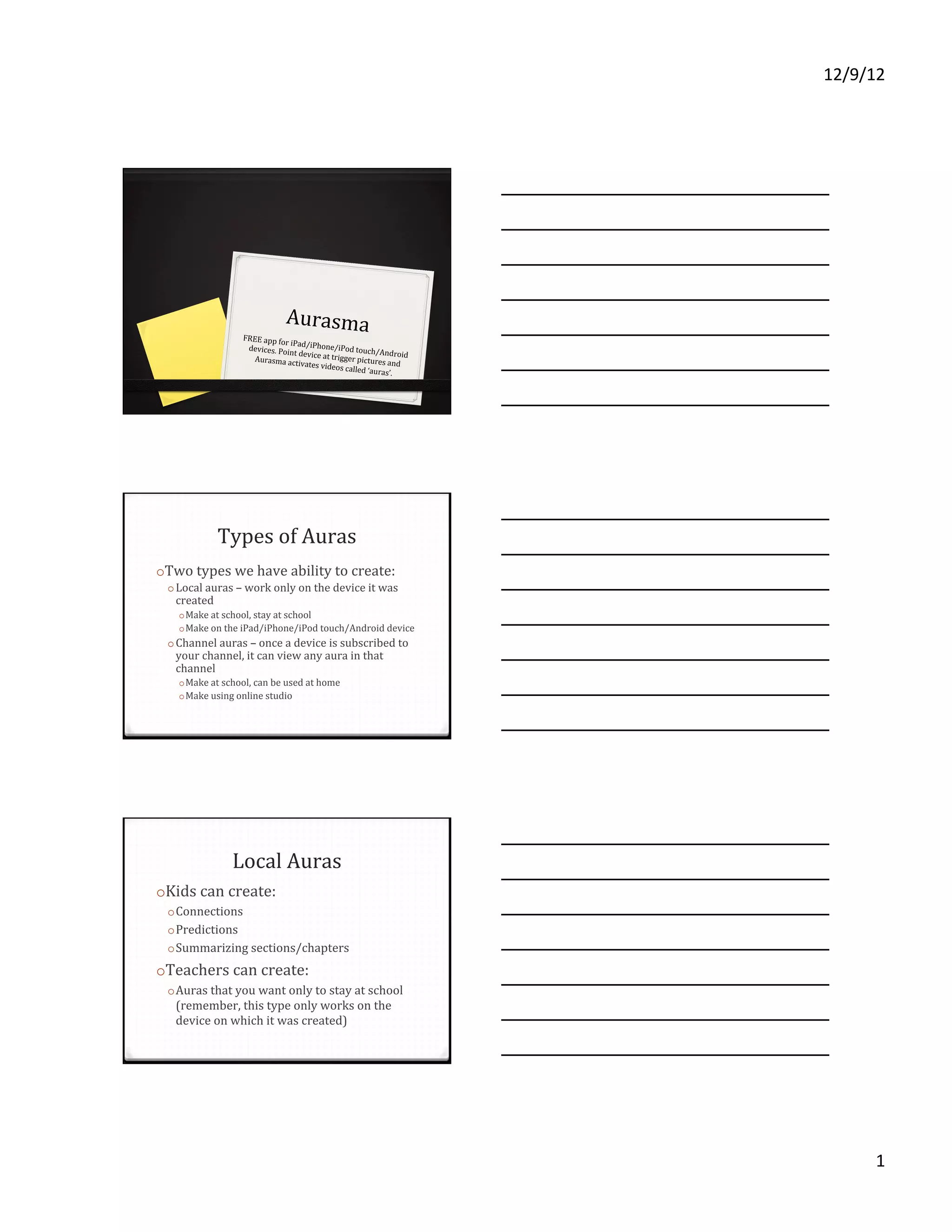
                               Aurasma'
                  FREE'app'for
                               'iPad
                   devices.'Poin /iPhone/iPod'touch/
                                 t'device'at'tr              Android'
                     Aurasma'ac                igger'pictur
                                  tivates'vide               es'and'
                                               os'called'‘au
                                                             ras’.'


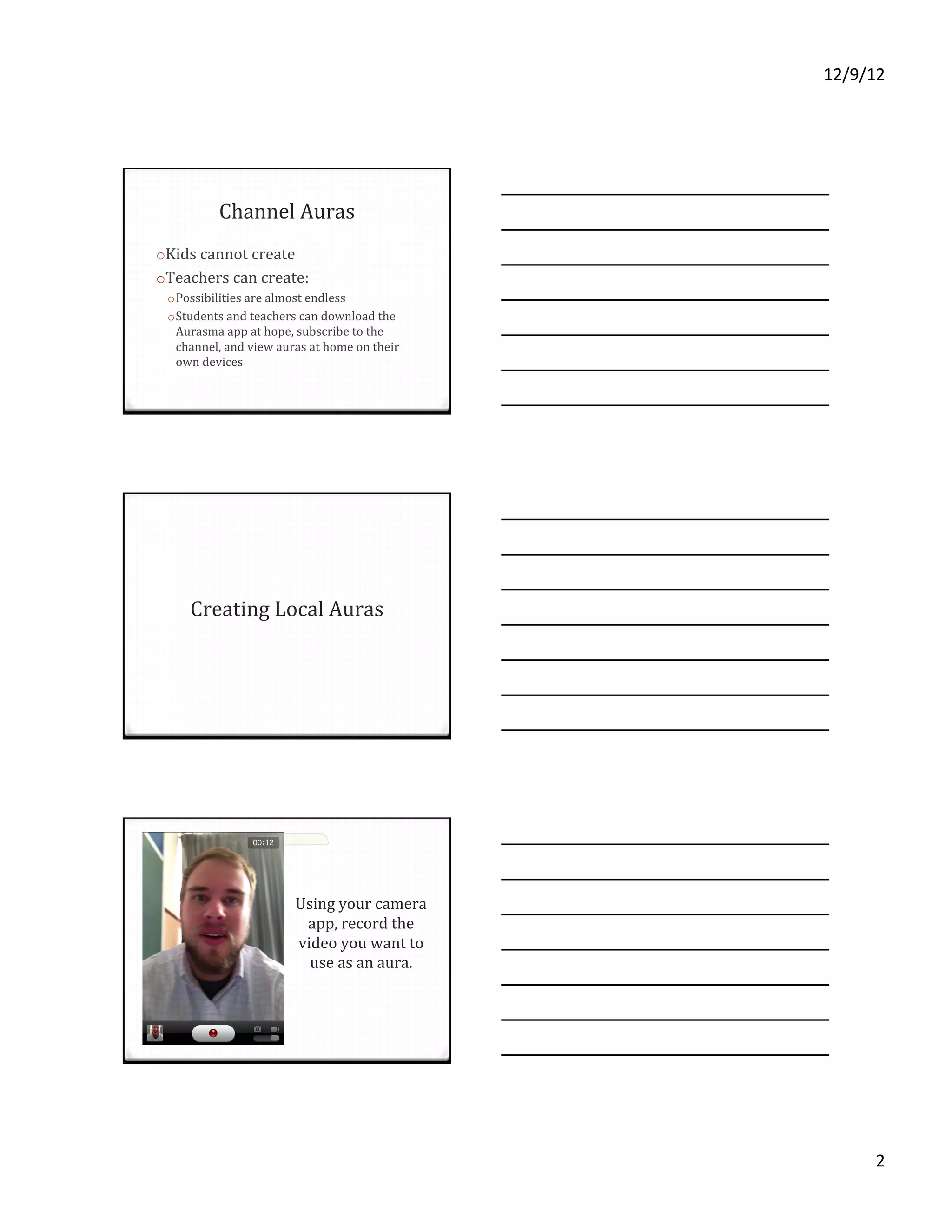
              Types'of'Auras'
o Two'types'we'have'ability'to'create:'
 o Local'auras'–'work'only'on'the'device'it'was'
   created'
   o Make'at'school,'stay'at'school'
   o Make'on'the'iPad/iPhone/iPod'touch/Android'device'
 o Channel'auras'–'once'a'device'is'subscribed'to'
   your'channel,'it'can'view'any'aura'in'that'
   channel'
   o Make'at'school,'can'be'used'at'home'
   o Make'using'online'studio'


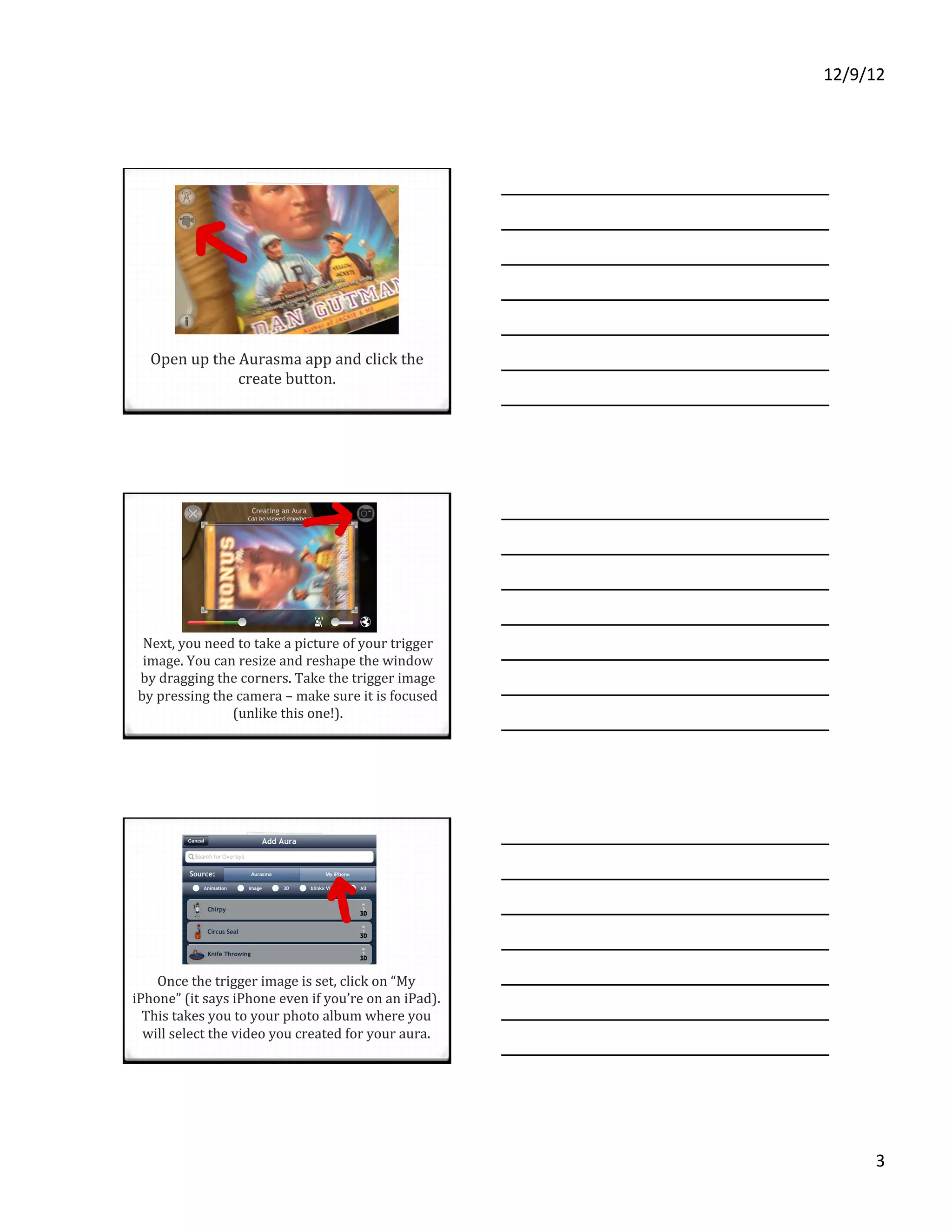
               Local'Auras'
o Kids'can'create:'
 o Connections'
 o Predictions'
 o Summarizing'sections/chapters'
o Teachers'can'create:'
 o Auras'that'you'want'only'to'stay'at'school'
   (remember,'this'type'only'works'on'the'
   device'on'which'it'was'created)'


                                                                              1%
12/9/12%


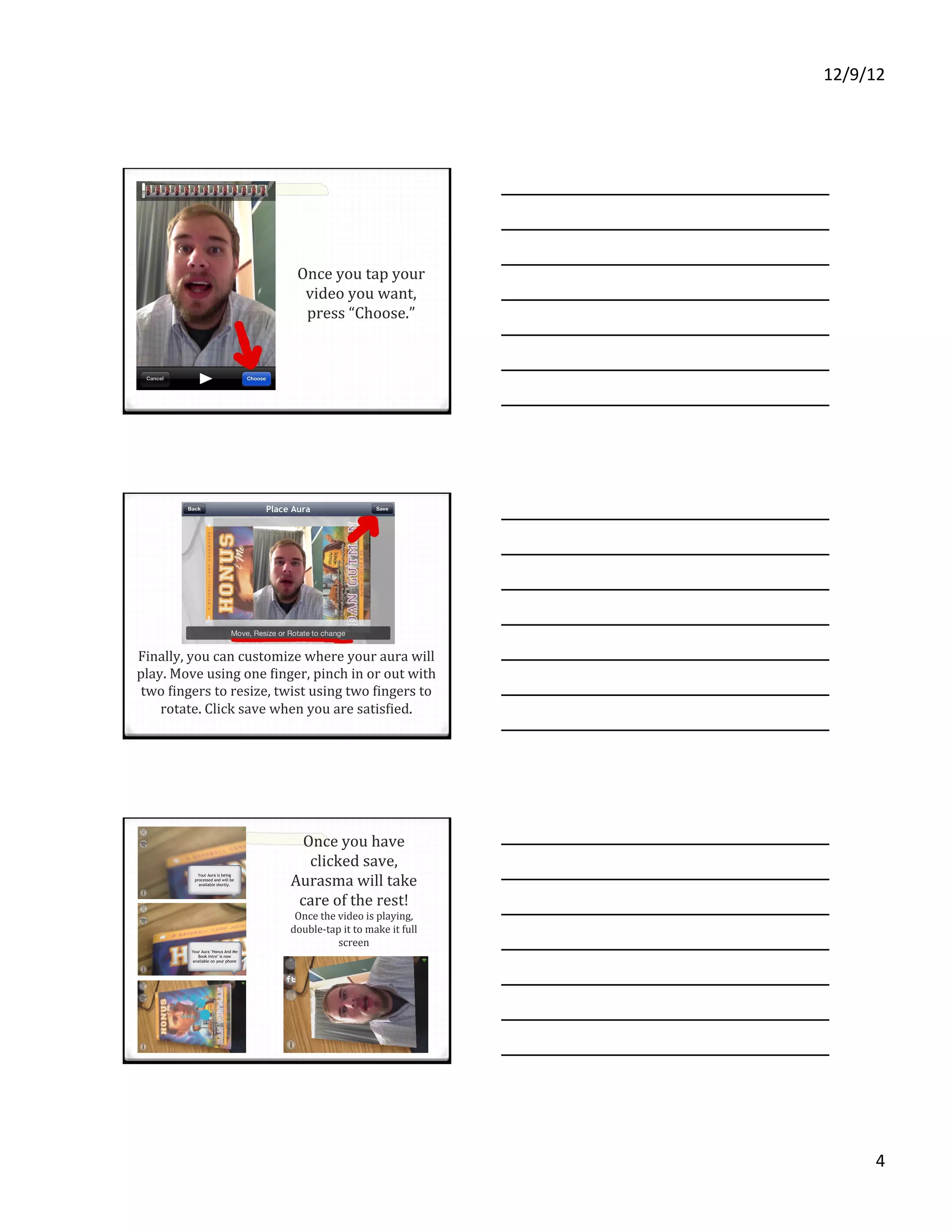
          Channel'Auras'
o Kids'cannot'create'
o Teachers'can'create:'
 o Possibilities'are'almost'endless'
 o Students'and'teachers'can'download'the'
  Aurasma'app'at'hope,'subscribe'to'the'
  channel,'and'view'auras'at'home'on'their'
  own'devices'


                                              The Aurasma app for iOS devices
                                              has changed quite a bit in the last
                                              few months. These instructions for
     Creating'Local'Auras'                    Local Auras are somewhat
                                              obsolete, but the updated Aurasma
                                              app walks you through the
                                              process, step by step.


                                               You should still record your
                         Using'your'camera'    video first, using the iOS
                          app,'record'the'
                         video'you'want'to'    devices camera app. After
                           use'as'an'aura.'    recording your video, open the
                                               Aurasma app and follow the
                                               prompts.


                                                                                      2%
12/9/12%


  Open'up'the'Aurasma'app'and'click'the'
              create'button.'


 Next,'you'need'to'take'a'picture'of'your'trigger'
 image.'You'can'resize'and'reshape'the'window'
by'dragging'the'corners.'Take'the'trigger'image'
by'pressing'the'camera'–'make'sure'it'is'focused'
               (unlike'this'one!).''


    Once'the'trigger'image'is'set,'click'on'“My'
iPhone”'(it'says'iPhone'even'if'you’re'on'an'iPad).'
  This'takes'you'to'your'photo'album'where'you'
  will'select'the'video'you'created'for'your'aura.'


                                                             3%
12/9/12%


                           Once'you'tap'your'
                            video'you'want,'
                            press'“Choose.”'


Finally,'you'can'customize'where'your'aura'will'
play.'Move'using'one'Uinger,'pinch'in'or'out'with'
 two'Uingers'to'resize,'twist'using'two'Uingers'to'
    rotate.'Click'save'when'you'are'satisUied.'


                           Once'you'have'
                            clicked'save,'
                         Aurasma'will'take'
                          care'of'the'rest!'
                          Once'the'video'is'playing,'
                         doubleVtap'it'to'make'it'full'
                                   screen'


                                                                4%
12/9/12%


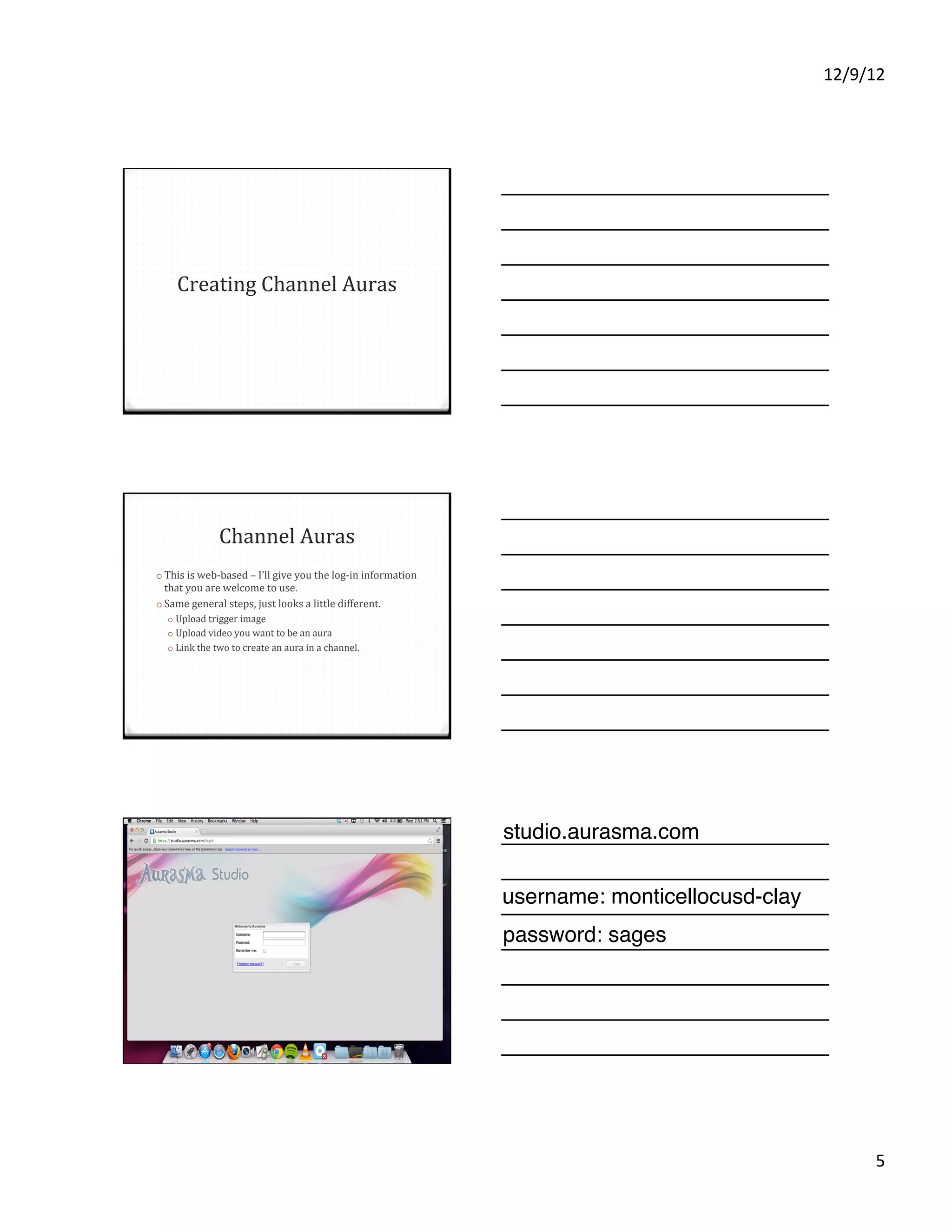
    Creating'Channel'Auras'


              Channel'Auras ''                                  You'll need to have an account
o  This'is'webVbased'–'I’ll'give'you'the'logVin'information'    for the Aurasma Studio. There is
 that'you'are'welcome'to'use.'
o  Same'general'steps,'just'looks'a'little'different.'          a page to apply to be an
    o  Upload'trigger'image'
    o  Upload'video'you'want'to'be'an'aura'                     "Aurasma partner"
    o  Link'the'two'to'create'an'aura'in'a'channel.'


                                                                http://www.aurasma.com/
                                                                partners/


                                                               studio.aurasma.com

                                                               username: monticellocusd-clay
                                                               The website has been updated,
                                                               password: sagesdifferent, but
                                                               so the design is
                                                               these general steps still hold up.


                                                                                                          5%
12/9/12%


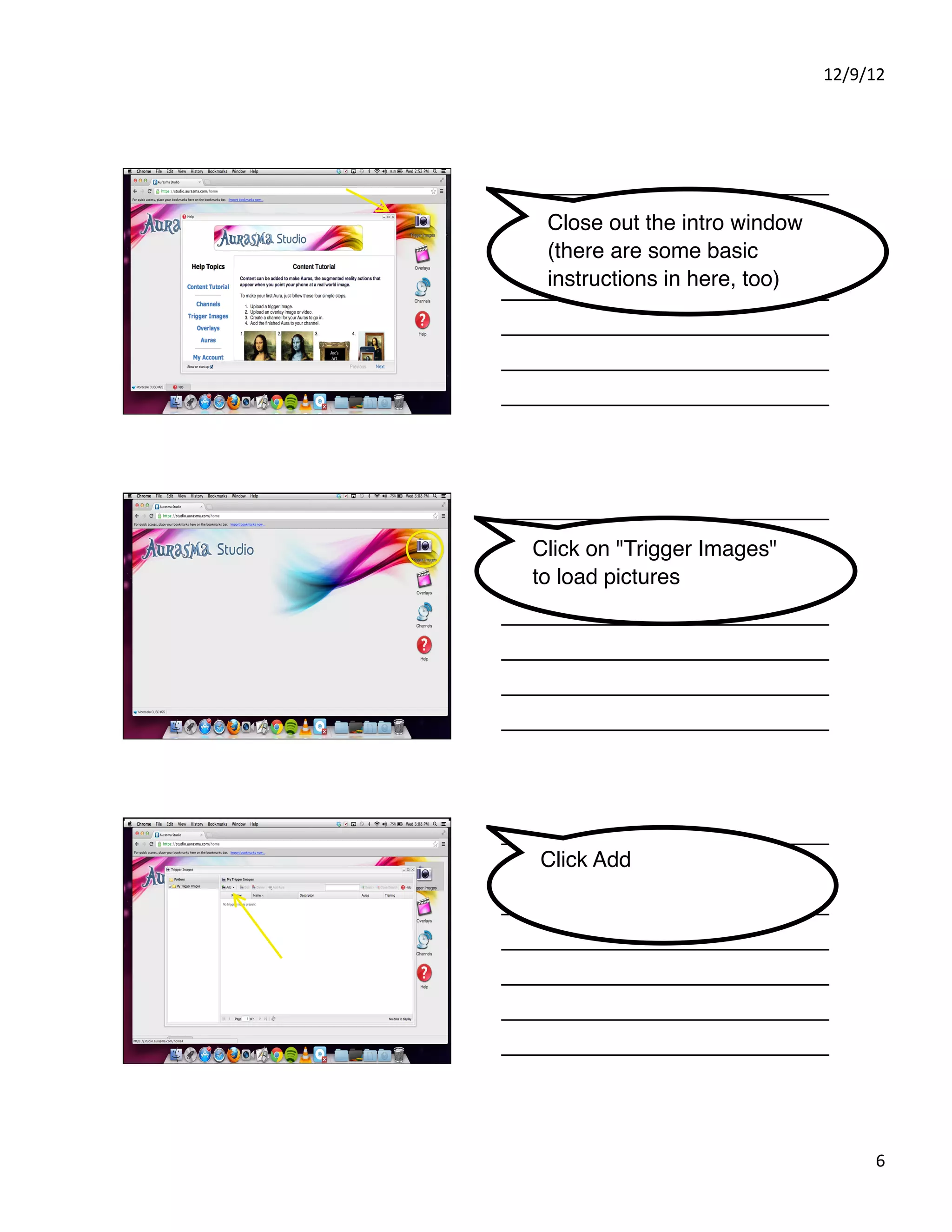
 Close out the intro window
 (there are some basic
 instructions in here, too)


Click on "Trigger Images"
to load pictures


Click Add


                                    6%
12/9/12%


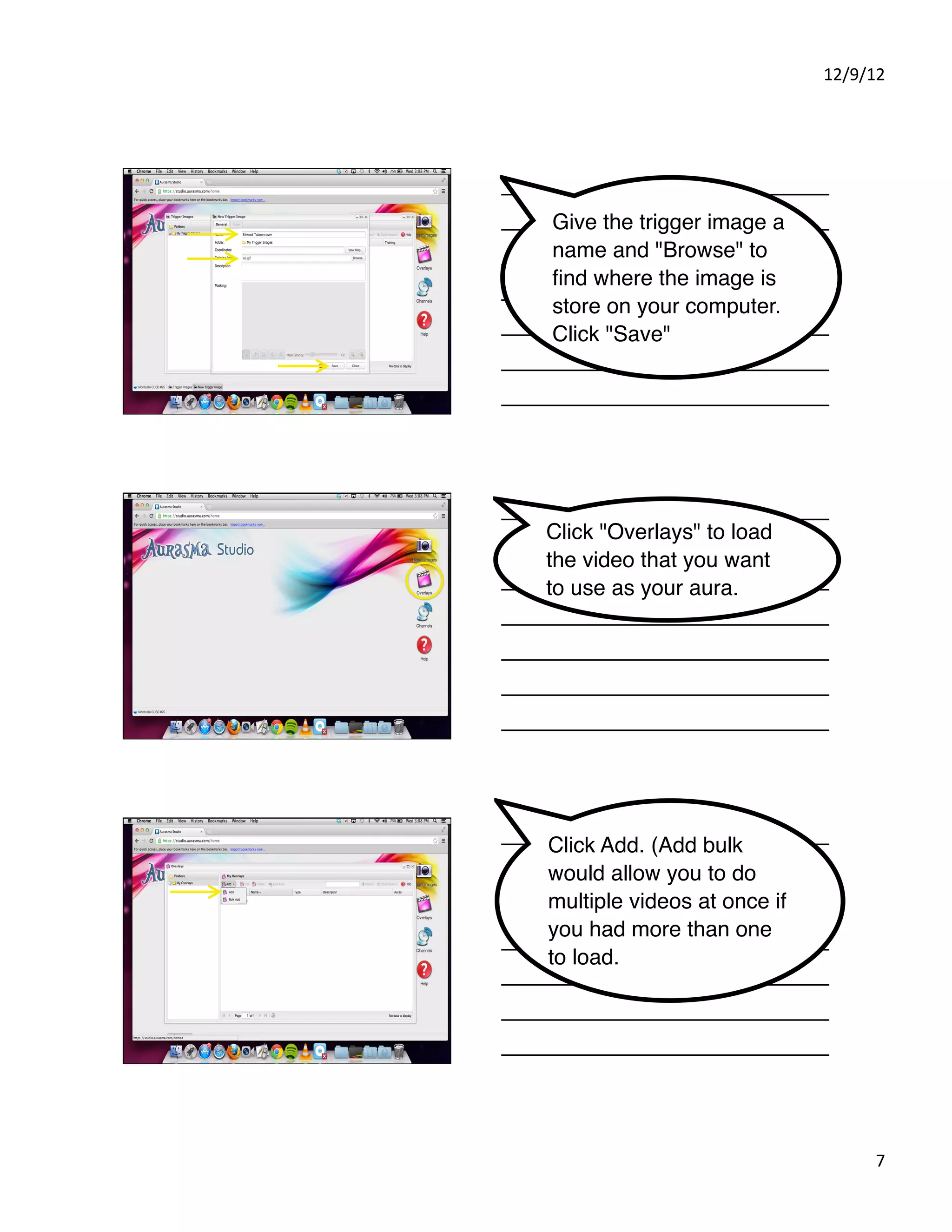
Give the trigger image a
name and "Browse" to
find where the image is
store on your computer.
Click "Save"


Click "Overlays" to load
the video that you want
to use as your aura.


Click Add. (Add bulk
would allow you to do
multiple videos at once if
you had more than one
to load. )


                                   7%
12/9/12%


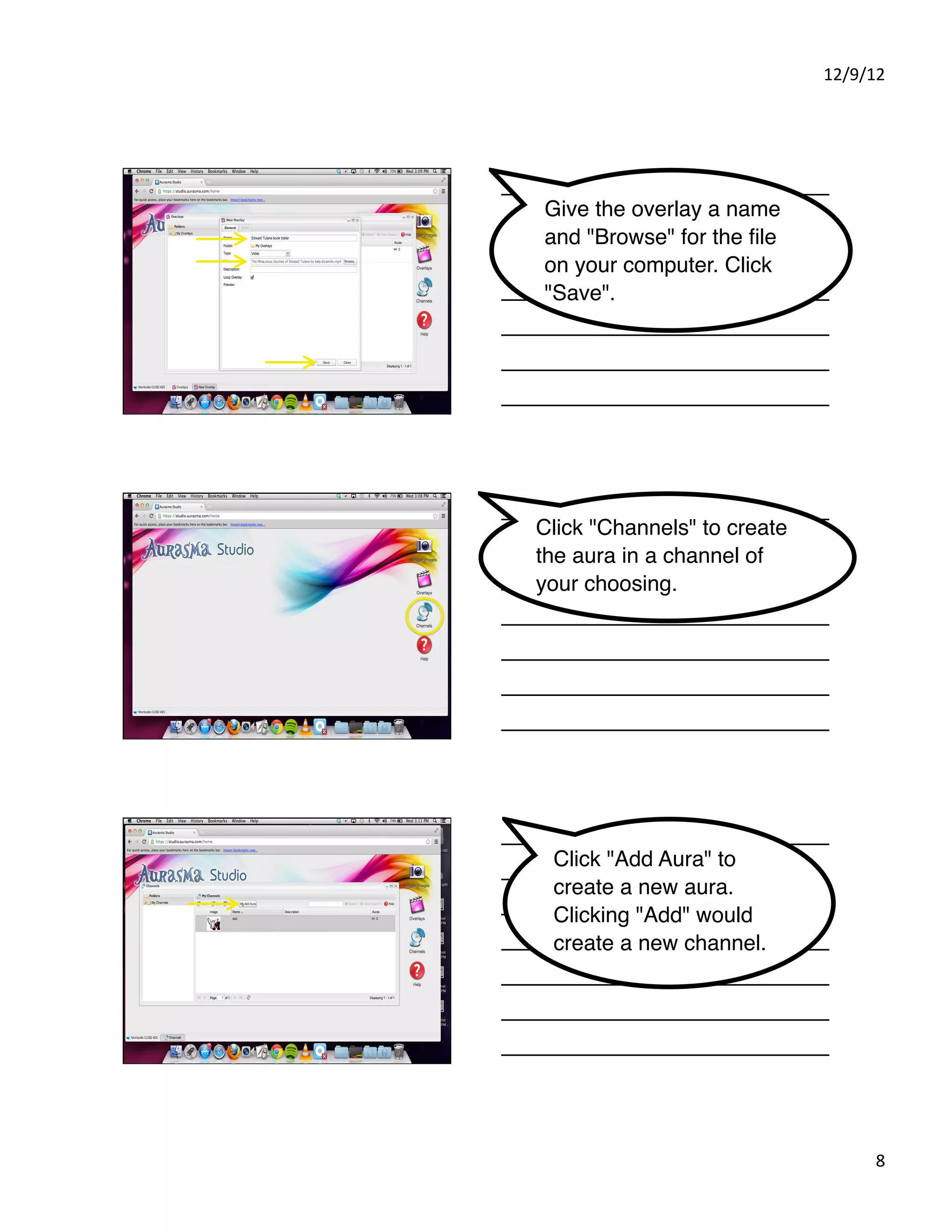
Give the overlay a name
and "Browse" for the file
on your computer. Click
"Save".


Click "Channels" to create
the aura in a channel of
your choosing.


 Click "Add Aura" to
 create a new aura.
 Clicking "Add" would
 create a new channel.


                                   8%
12/9/12%


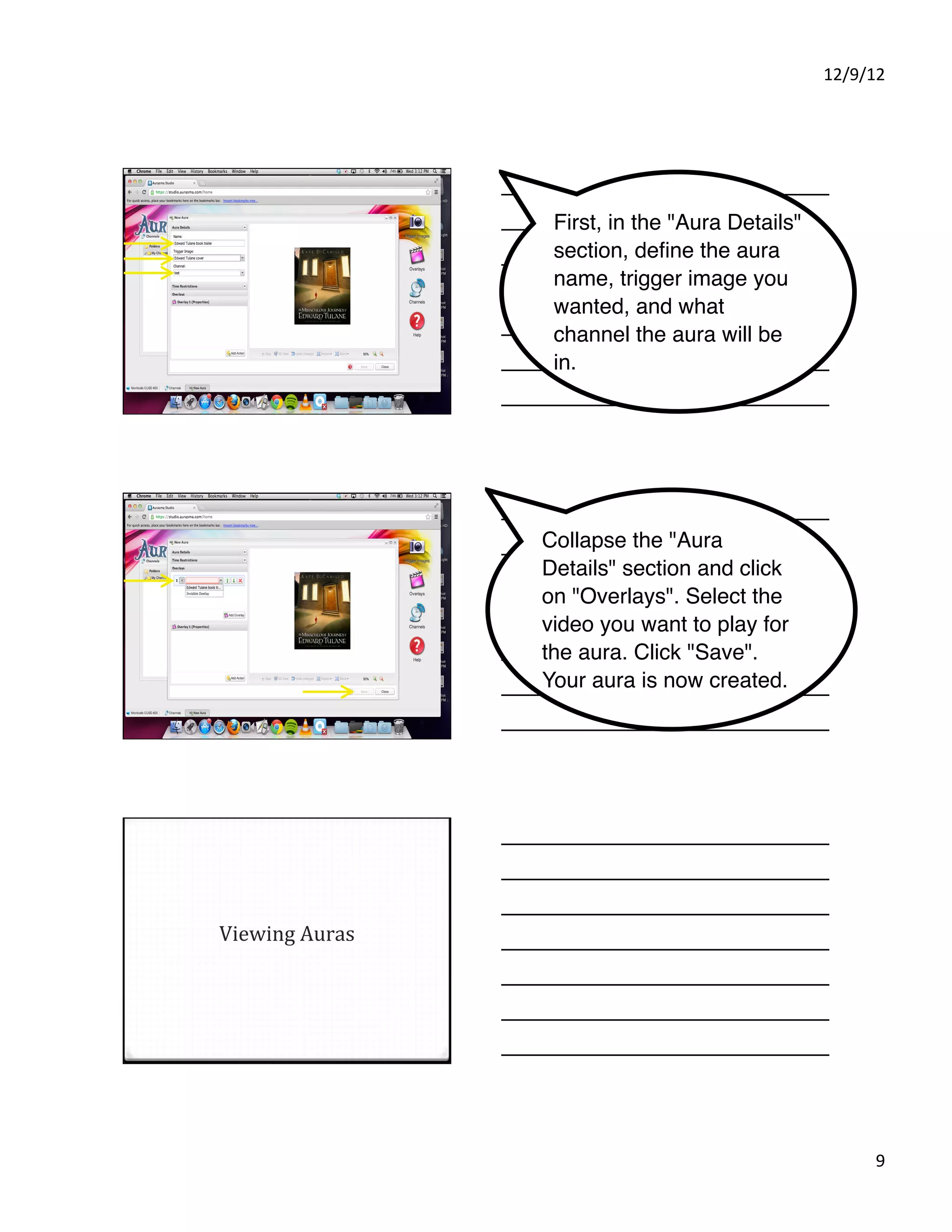
                  First, in the "Aura Details"
                  section, define the aura
                  name, trigger image you
                  wanted, and what
                  channel the aura will be
                  in.


                 Collapse the "Aura
                 Details" section and click
                 on "Overlays". Select the
                 video you want to play for
                 the aura. Click "Save".
                 Your aura is now created.


Viewing'Auras'


                                                       9%
12/9/12%


                   Local'Auras'
o  Local'Auras'can'only'be'viewed'on'the'device'they'
 were'created.''
o  BUT!'Nothing'special'needs'to'be'done'–'once'it'is'
 created,'it'is'viewable.'


              Channel'Auras'
o  To'view'a'channel'aura,'the'device'you'are'using'
 needs'to'be'subscribed'to'the'channel.''
1.  Open'the'Aurasma'app.'
2.  Tap'the'channel'icon'(above'create)'–'looks'like'a'
   radio'tower.'
3.  At'the'bottom,'arrow'over'so'you'can'tap'“Search”'
4.  Search'for'the'name'of'your'channel.'
5.  Tap'“SUBSCRIBE”'and'then'tap'“Done”'
6.  You'are'ready'to'view'your'auras.'


                                                               10%

Aurasma IRC

  • 1.
    12/9/12% Aurasma' FREE'app'for 'iPad devices.'Poin /iPhone/iPod'touch/ t'device'at'tr Android' Aurasma'ac igger'pictur tivates'vide es'and' os'called'‘au ras’.' Types'of'Auras' o Two'types'we'have'ability'to'create:' o Local'auras'–'work'only'on'the'device'it'was' created' o Make'at'school,'stay'at'school' o Make'on'the'iPad/iPhone/iPod'touch/Android'device' o Channel'auras'–'once'a'device'is'subscribed'to' your'channel,'it'can'view'any'aura'in'that' channel' o Make'at'school,'can'be'used'at'home' o Make'using'online'studio' Local'Auras' o Kids'can'create:' o Connections' o Predictions' o Summarizing'sections/chapters' o Teachers'can'create:' o Auras'that'you'want'only'to'stay'at'school' (remember,'this'type'only'works'on'the' device'on'which'it'was'created)' 1%
  • 2.
    12/9/12% Channel'Auras' o Kids'cannot'create' o Teachers'can'create:' o Possibilities'are'almost'endless' o Students'and'teachers'can'download'the' Aurasma'app'at'hope,'subscribe'to'the' channel,'and'view'auras'at'home'on'their' own'devices' The Aurasma app for iOS devices has changed quite a bit in the last few months. These instructions for Creating'Local'Auras' Local Auras are somewhat obsolete, but the updated Aurasma app walks you through the process, step by step. You should still record your Using'your'camera' video first, using the iOS app,'record'the' video'you'want'to' devices camera app. After use'as'an'aura.' recording your video, open the Aurasma app and follow the prompts. 2%
  • 3.
    12/9/12% Open'up'the'Aurasma'app'and'click'the' create'button.' Next,'you'need'to'take'a'picture'of'your'trigger' image.'You'can'resize'and'reshape'the'window' by'dragging'the'corners.'Take'the'trigger'image' by'pressing'the'camera'–'make'sure'it'is'focused' (unlike'this'one!).'' Once'the'trigger'image'is'set,'click'on'“My' iPhone”'(it'says'iPhone'even'if'you’re'on'an'iPad).' This'takes'you'to'your'photo'album'where'you' will'select'the'video'you'created'for'your'aura.' 3%
  • 4.
    12/9/12% Once'you'tap'your' video'you'want,' press'“Choose.”' Finally,'you'can'customize'where'your'aura'will' play.'Move'using'one'Uinger,'pinch'in'or'out'with' two'Uingers'to'resize,'twist'using'two'Uingers'to' rotate.'Click'save'when'you'are'satisUied.' Once'you'have' clicked'save,' Aurasma'will'take' care'of'the'rest!' Once'the'video'is'playing,' doubleVtap'it'to'make'it'full' screen' 4%
  • 5.
    12/9/12% Creating'Channel'Auras' Channel'Auras '' You'll need to have an account o  This'is'webVbased'–'I’ll'give'you'the'logVin'information' for the Aurasma Studio. There is that'you'are'welcome'to'use.' o  Same'general'steps,'just'looks'a'little'different.' a page to apply to be an o  Upload'trigger'image' o  Upload'video'you'want'to'be'an'aura' "Aurasma partner" o  Link'the'two'to'create'an'aura'in'a'channel.' http://www.aurasma.com/ partners/ studio.aurasma.com username: monticellocusd-clay The website has been updated, password: sagesdifferent, but so the design is these general steps still hold up. 5%
  • 6.
    12/9/12% Close outthe intro window (there are some basic instructions in here, too) Click on "Trigger Images" to load pictures Click Add 6%
  • 7.
    12/9/12% Give the triggerimage a name and "Browse" to find where the image is store on your computer. Click "Save" Click "Overlays" to load the video that you want to use as your aura. Click Add. (Add bulk would allow you to do multiple videos at once if you had more than one to load. ) 7%
  • 8.
    12/9/12% Give the overlaya name and "Browse" for the file on your computer. Click "Save". Click "Channels" to create the aura in a channel of your choosing. Click "Add Aura" to create a new aura. Clicking "Add" would create a new channel. 8%
  • 9.
    12/9/12% First, in the "Aura Details" section, define the aura name, trigger image you wanted, and what channel the aura will be in. Collapse the "Aura Details" section and click on "Overlays". Select the video you want to play for the aura. Click "Save". Your aura is now created. Viewing'Auras' 9%
  • 10.
    12/9/12% Local'Auras' o  Local'Auras'can'only'be'viewed'on'the'device'they' were'created.'' o  BUT!'Nothing'special'needs'to'be'done'–'once'it'is' created,'it'is'viewable.' Channel'Auras' o  To'view'a'channel'aura,'the'device'you'are'using' needs'to'be'subscribed'to'the'channel.'' 1.  Open'the'Aurasma'app.' 2.  Tap'the'channel'icon'(above'create)'–'looks'like'a' radio'tower.' 3.  At'the'bottom,'arrow'over'so'you'can'tap'“Search”' 4.  Search'for'the'name'of'your'channel.' 5.  Tap'“SUBSCRIBE”'and'then'tap'“Done”' 6.  You'are'ready'to'view'your'auras.' 10%