ASSIGNMENT
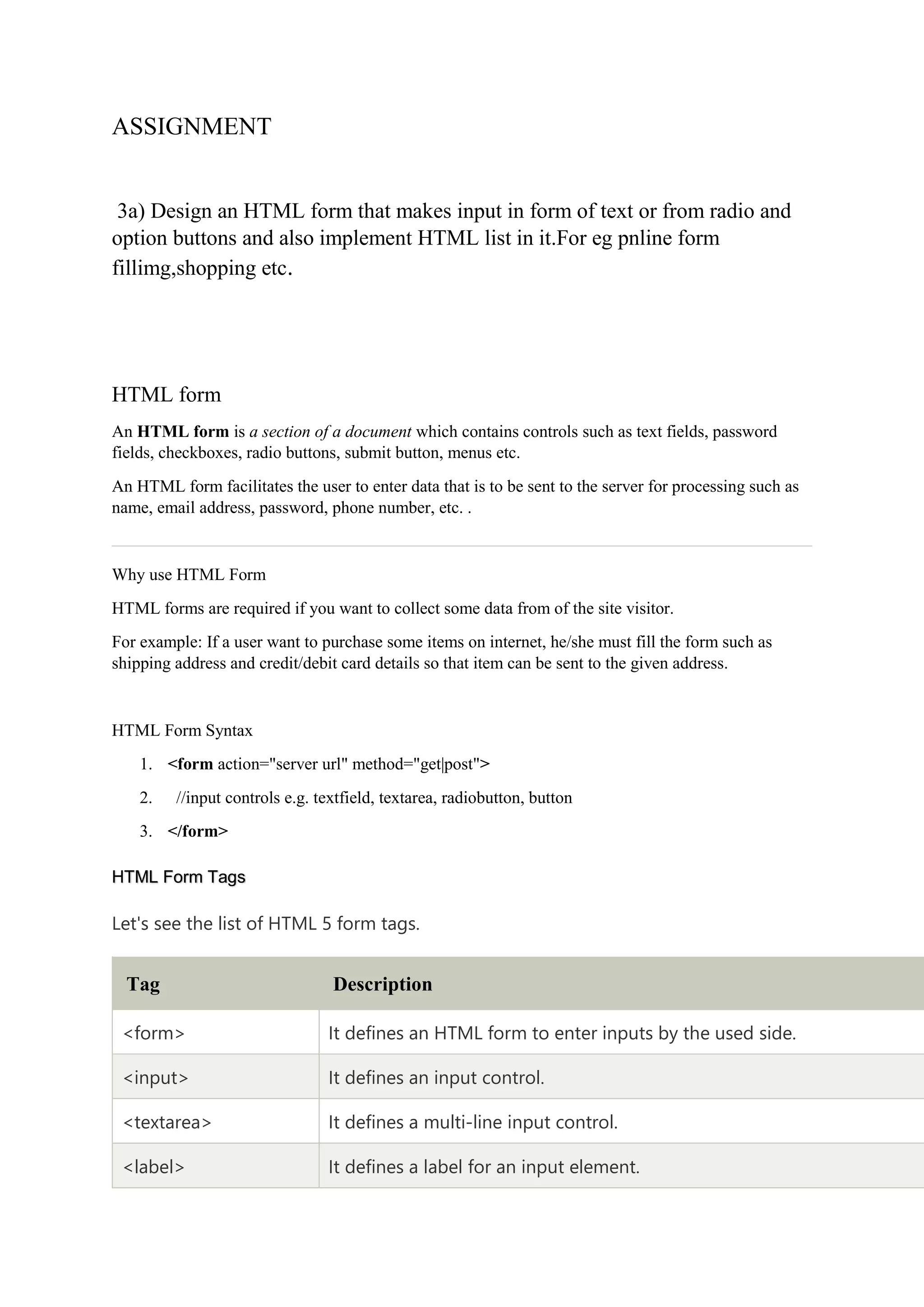
3a) Design an HTML form that makes input in form of text or from radio and
option buttons and also implement HTML list in it.For eg pnline form
fillimg,shopping etc.
HTML form
An HTML form is a section of a document which contains controls such as text fields, password
fields, checkboxes, radio buttons, submit button, menus etc.
An HTML form facilitates the user to enter data that is to be sent to the server for processing such as
name, email address, password, phone number, etc. .
Why use HTML Form
HTML forms are required if you want to collect some data from of the site visitor.
For example: If a user want to purchase some items on internet, he/she must fill the form such as
shipping address and credit/debit card details so that item can be sent to the given address.
HTML Form Syntax
1. <form action="server url" method="get|post">
2. //input controls e.g. textfield, textarea, radiobutton, button
3. </form>
HTML Form Tags
Let's see the list of HTML 5 form tags.
Tag Description
<form> It defines an HTML form to enter inputs by the used side.
<input> It defines an input control.
<textarea> It defines a multi-line input control.
<label> It defines a label for an input element.
<fieldset> It groups the related element in a form.
<legend> It defines a caption for a <fieldset> element.
<select> It defines a drop-down list.
<optgroup> It defines a group of related options in a drop-down list.
<option> It defines an option in a drop-down list.
<button> It defines a clickable button.
CODE:
<!DOCTYPE html>
<html>
<head>
<meta name="viewport" content="width=device-width, initial-scale=1">
<style>
* {
box-sizing: border-box;
}
input[type=text], select, textarea {
width: 100%;
padding: 12px;
border: 1px solid rgb(70, 68, 68);
border-radius: 4px;
resize: vertical;
}
input[type=email], select, textarea {
width: 100%;
padding: 12px;
border: 1px solid rgb(70, 68, 68);
border-radius: 4px;
resize: vertical;
}
label {
padding: 12px 12px 12px 0;
display: inline-block;
}
input[type=submit] {
background-color: rgb(37, 116, 161);
color: white;
padding: 12px 20px;
border: none;
border-radius: 4px;
cursor: pointer;
float: right;
}
input[type=submit]:hover {
background-color: #45a049;
}
.container {
border-radius: 5px;
background-color: #f2f2f2;
padding: 20px;
}
.col-25 {
float: left;
width: 25%;
margin-top: 6px;
}
.col-75 {
float: left;
width: 75%;
margin-top: 6px;
}
/* Clear floats after the columns */
.row:after {
content: "";
display: table;
clear: both;
}
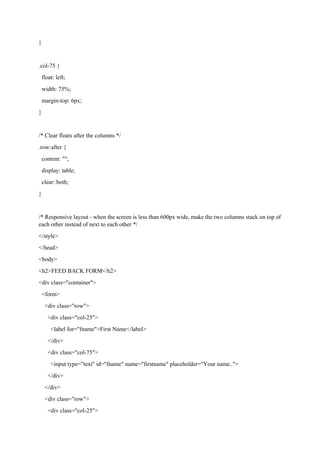
/* Responsive layout - when the screen is less than 600px wide, make the two columns stack on top of
each other instead of next to each other */
</style>
</head>
<body>
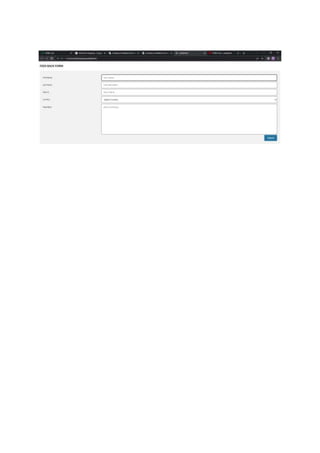
<h2>FEED BACK FORM</h2>
<div class="container">
<form>
<div class="row">
<div class="col-25">
<label for="fname">First Name</label>
</div>
<div class="col-75">
<input type="text" id="fname" name="firstname" placeholder="Your name..">
</div>
</div>
<div class="row">
<div class="col-25">
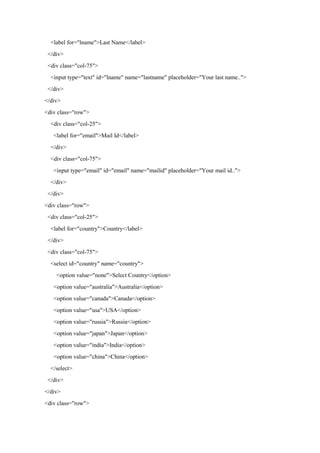
<label for="lname">Last Name</label>
</div>
<div class="col-75">
<input type="text" id="lname" name="lastname" placeholder="Your last name..">
</div>
</div>
<div class="row">
<div class="col-25">
<label for="email">Mail Id</label>
</div>
<div class="col-75">
<input type="email" id="email" name="mailid" placeholder="Your mail id..">
</div>
</div>
<div class="row">
<div class="col-25">
<label for="country">Country</label>
</div>
<div class="col-75">
<select id="country" name="country">
<option value="none">Select Country</option>
<option value="australia">Australia</option>
<option value="canada">Canada</option>
<option value="usa">USA</option>
<option value="russia">Russia</option>
<option value="japan">Japan</option>
<option value="india">India</option>
<option value="china">China</option>
</select>
</div>
</div>
<div class="row">
<div class="col-25">
<label for="feed_back">Feed Back</label>
</div>
<div class="col-75">
<textarea id="subject" name="subject" placeholder="Write something.."
style="height:200px"></textarea>
</div>
</div>
<div class="row">
<input type="submit" value="Submit">
</div>
</form>
</div>
</body>
</html>
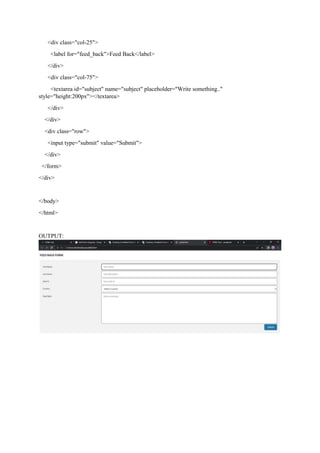
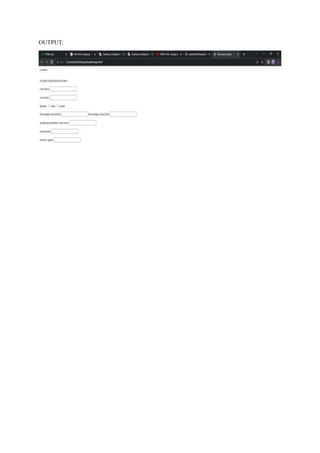
OUTPUT:
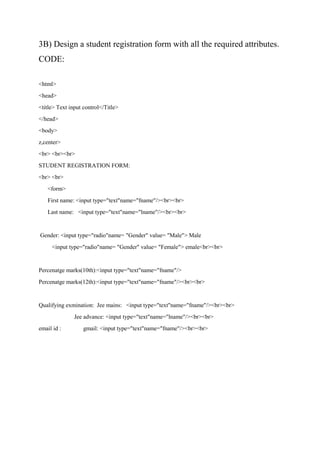
3B) Design a student registration form with all the required attributes.
CODE:
<html>
<head>
<title> Text input control</Title>
</head>
<body>
z,center>
<br> <br><br>
STUDENT REGISTRATION FORM:
<br> <br>
<form>
First name: <input type="text"name="fname"/><br><br>
Last name: <input type="text"name="lname"/><br><br>
Gender: <input type="radio"name= "Gender" value= "Male"> Male
<input type="radio"name= "Gender" value= "Female"> emale<br><br>
Percenatge marks(10th):<input type="text"name="fname"/>
Percenatge marks(12th):<input type="text"name="fname"/><br><br>
Qualifying exmination: Jee mains: <input type="text"name="fname"/><br><br>
Jee advance: <input type="text"name="lname"/><br><br>
email id : gmail: <input type="text"name="fname"/><br><br>
OUTPUT:
ASSIGNMENT3 ew.docx
ASSIGNMENT3 ew.docx
ASSIGNMENT3 ew.docx
ASSIGNMENT3 ew.docx

ASSIGNMENT3 ew.docx

  • 1.
    ASSIGNMENT 3a) Design anHTML form that makes input in form of text or from radio and option buttons and also implement HTML list in it.For eg pnline form fillimg,shopping etc. HTML form An HTML form is a section of a document which contains controls such as text fields, password fields, checkboxes, radio buttons, submit button, menus etc. An HTML form facilitates the user to enter data that is to be sent to the server for processing such as name, email address, password, phone number, etc. . Why use HTML Form HTML forms are required if you want to collect some data from of the site visitor. For example: If a user want to purchase some items on internet, he/she must fill the form such as shipping address and credit/debit card details so that item can be sent to the given address. HTML Form Syntax 1. <form action="server url" method="get|post"> 2. //input controls e.g. textfield, textarea, radiobutton, button 3. </form> HTML Form Tags Let's see the list of HTML 5 form tags. Tag Description <form> It defines an HTML form to enter inputs by the used side. <input> It defines an input control. <textarea> It defines a multi-line input control. <label> It defines a label for an input element.
  • 2.
    <fieldset> It groupsthe related element in a form. <legend> It defines a caption for a <fieldset> element. <select> It defines a drop-down list. <optgroup> It defines a group of related options in a drop-down list. <option> It defines an option in a drop-down list. <button> It defines a clickable button. CODE: <!DOCTYPE html> <html> <head> <meta name="viewport" content="width=device-width, initial-scale=1"> <style> * { box-sizing: border-box; } input[type=text], select, textarea { width: 100%; padding: 12px; border: 1px solid rgb(70, 68, 68); border-radius: 4px; resize: vertical; } input[type=email], select, textarea { width: 100%; padding: 12px; border: 1px solid rgb(70, 68, 68); border-radius: 4px;
  • 3.
    resize: vertical; } label { padding:12px 12px 12px 0; display: inline-block; } input[type=submit] { background-color: rgb(37, 116, 161); color: white; padding: 12px 20px; border: none; border-radius: 4px; cursor: pointer; float: right; } input[type=submit]:hover { background-color: #45a049; } .container { border-radius: 5px; background-color: #f2f2f2; padding: 20px; } .col-25 { float: left; width: 25%; margin-top: 6px;
  • 4.
    } .col-75 { float: left; width:75%; margin-top: 6px; } /* Clear floats after the columns */ .row:after { content: ""; display: table; clear: both; } /* Responsive layout - when the screen is less than 600px wide, make the two columns stack on top of each other instead of next to each other */ </style> </head> <body> <h2>FEED BACK FORM</h2> <div class="container"> <form> <div class="row"> <div class="col-25"> <label for="fname">First Name</label> </div> <div class="col-75"> <input type="text" id="fname" name="firstname" placeholder="Your name.."> </div> </div> <div class="row"> <div class="col-25">
  • 5.
    <label for="lname">Last Name</label> </div> <divclass="col-75"> <input type="text" id="lname" name="lastname" placeholder="Your last name.."> </div> </div> <div class="row"> <div class="col-25"> <label for="email">Mail Id</label> </div> <div class="col-75"> <input type="email" id="email" name="mailid" placeholder="Your mail id.."> </div> </div> <div class="row"> <div class="col-25"> <label for="country">Country</label> </div> <div class="col-75"> <select id="country" name="country"> <option value="none">Select Country</option> <option value="australia">Australia</option> <option value="canada">Canada</option> <option value="usa">USA</option> <option value="russia">Russia</option> <option value="japan">Japan</option> <option value="india">India</option> <option value="china">China</option> </select> </div> </div> <div class="row">
  • 6.
    <div class="col-25"> <label for="feed_back">FeedBack</label> </div> <div class="col-75"> <textarea id="subject" name="subject" placeholder="Write something.." style="height:200px"></textarea> </div> </div> <div class="row"> <input type="submit" value="Submit"> </div> </form> </div> </body> </html> OUTPUT:
  • 7.
    3B) Design astudent registration form with all the required attributes. CODE: <html> <head> <title> Text input control</Title> </head> <body> z,center> <br> <br><br> STUDENT REGISTRATION FORM: <br> <br> <form> First name: <input type="text"name="fname"/><br><br> Last name: <input type="text"name="lname"/><br><br> Gender: <input type="radio"name= "Gender" value= "Male"> Male <input type="radio"name= "Gender" value= "Female"> emale<br><br> Percenatge marks(10th):<input type="text"name="fname"/> Percenatge marks(12th):<input type="text"name="fname"/><br><br> Qualifying exmination: Jee mains: <input type="text"name="fname"/><br><br> Jee advance: <input type="text"name="lname"/><br><br> email id : gmail: <input type="text"name="fname"/><br><br>
  • 8.