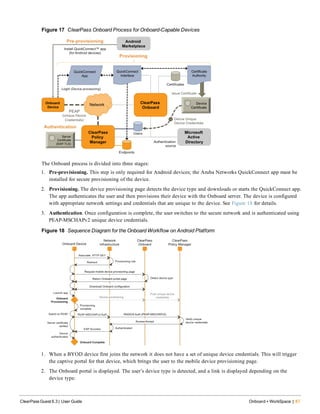
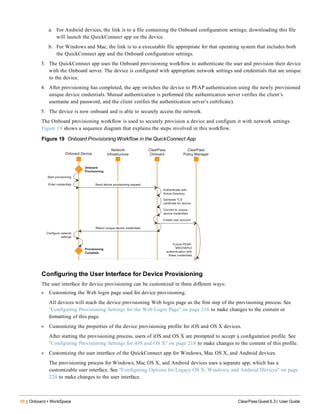
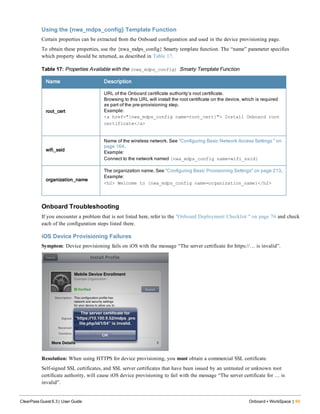
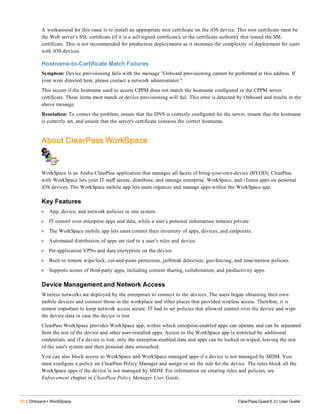
ClearPass Guest 6.3
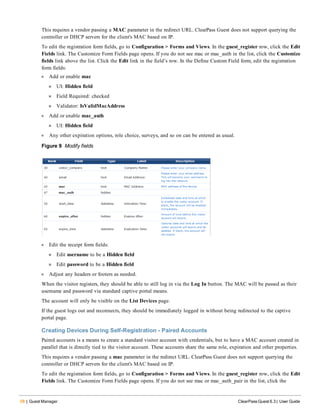
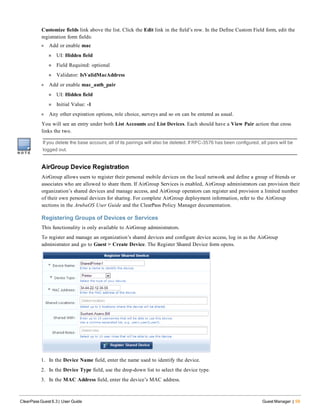
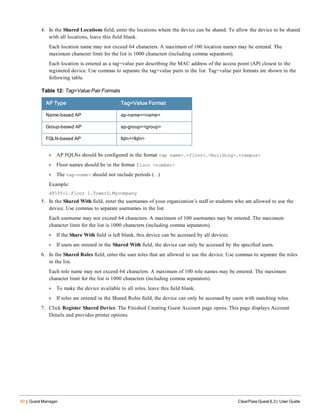
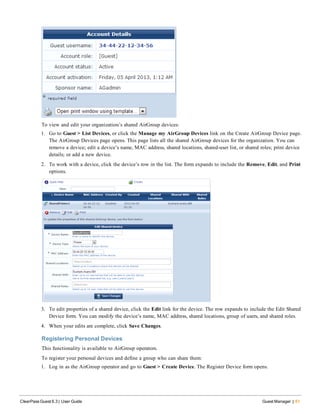
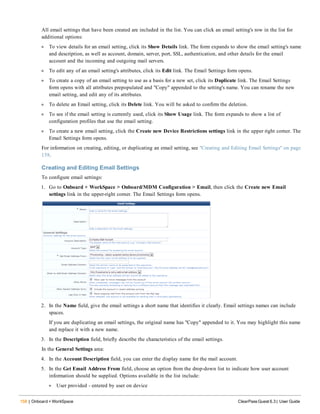
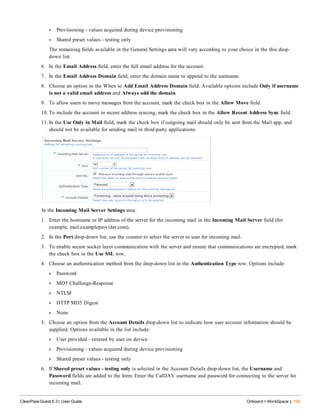
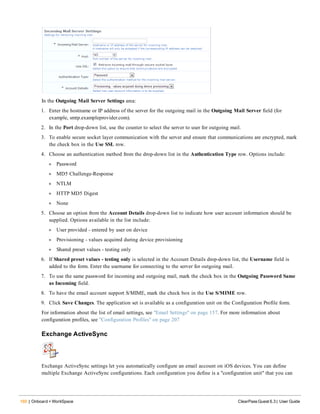
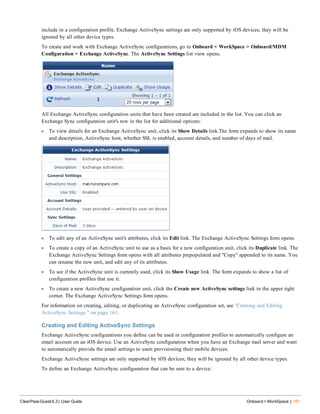
UserGuide
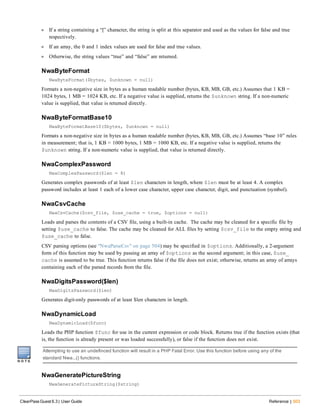
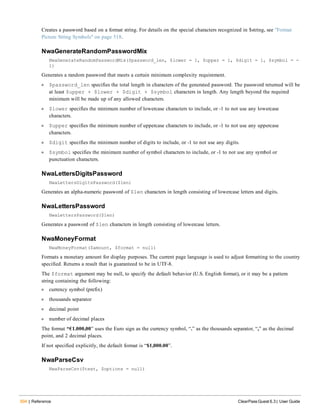
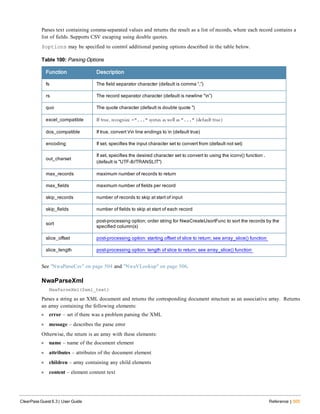
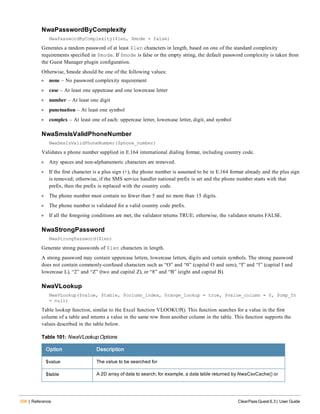
2 | ClearPass Guest 6.3 | User Guide
Copyright
© 2014 Aruba Networks, Inc. Aruba Networks trademarks include , Aruba Networks®, Aruba Wireless
Networks®, the registered Aruba the Mobile Edge Company logo, Aruba Mobility Management System®, Mobile Edge
Architecture®, People Move. Networks Must Follow®, RFProtect®, Green Island®. All rights reserved. All other trademarks
are the property of their respective owners.
Open Source Code
Certain Aruba products include Open Source software code developed by third parties, including software code subject to
the GNU General Public License (GPL), GNU Lesser General Public License (LGPL), or other Open Source Licenses.
Includes software from Litech Systems Design. The IF-MAP client library copyright 2011 Infoblox, Inc. All rights
reserved.This product includes software developed by Lars Fenneberg et al. The Open Source code used can be found at
this site:
http://www.arubanetworks.com/open_source
Legal Notice
The use of Aruba Networks, Inc. switching platforms and software, by all individuals or corporations, to terminate other
vendors’ VPN client devices constitutes complete acceptance of liability by that individual or corporation for this action and
indemnifies, in full, Aruba Networks, Inc. from any and all legal actions that might be taken against it with respect to
infringement of copyright on behalf of those vendors.
Warranty
This hardware product is protected by the standard Aruba warranty of one year parts/labor. For more information, refer to
the ARUBACARE SERVICE AND SUPPORT TERMS AND CONDITIONS.
Altering this device (such as painting it) voids the warranty.
ClearPass Guest 6.3 | User Guide Contents | 3
Contents
About this Guide 19
Audience 19
Conventions 19
Contacting Support 20
ClearPass Guest Overview 21
About ClearPass Guest 21
Visitor Access Scenarios 21
Reference Network Diagram 22
Key Interactions 23
AAA Framework 23
Key Features 24
Visitor Management Terminology 26
ClearPass Guest Deployment Process 27
Operational Concerns 27
Network Provisioning 27
Site Preparation Checklist 27
Security Policy Considerations 28
AirGroup Deployment Process 29
Documentation and User Assistance 29
User Guide and Online Help 29
Context-Sensitive Help 30
Field Help 30
Quick Help 30
If You Need More Assistance 31
Use of Cookies 31
Guest Manager 33
Accessing Guest Manager 33
About Guest Management Processes 34
Sponsored Guest Access 34
Self Provisioned Guest Access 34
Using Standard Guest Management Features 35
Creating a Guest Account 35
Creating a Guest Account Receipt 36
Creating Multiple Guest Accounts 36
Creating Multiple Guest Account Receipts 37
Creating a Single Password for Multiple Accounts 38
Managing Guest Accounts 40
Managing Multiple Guest Accounts 43
Importing Guest Accounts 45
4 | Contents ClearPass Guest 6.3 | User Guide
Exporting Guest Account Information 48
About CSV and TSV Exports 48
About XML Exports 49
MAC Authentication in ClearPass Guest 49
MAC Address Formats 49
Managing Devices 50
Changing a Device’s Expiration Date 51
Disabling and Deleting Devices 52
Activating a Device 52
Editing a Device 53
Viewing Current Sessions for a Device 55
Viewing and Printing Device Details 55
Device Creation Methods 55
Creating Devices Manually in ClearPass Guest 56
Creating Devices During Self-Registration - MAC Only 57
Creating Devices During Self-Registration - Paired Accounts 58
AirGroup Device Registration 59
Registering Groups of Devices or Services 59
Registering Personal Devices 61
About AirGroup Time-Based Sharing 63
Basics of Time-Based Sharing Setup 63
AirGroup Time-Based Sharing Syntax Examples 64
Time-Based Syntax Reference 66
Automatically Registering MAC Devices in ClearPass Policy Manager 68
Importing MAC Devices 69
Advanced MAC Features 69
User Detection on Landing Pages 69
Click-Through Login Pages 69
Active Sessions Management 70
Session States 71
RFC 3576 Dynamic Authorization 72
Filtering the List of Active Sessions 72
Disconnecting Multiple Active Sessions 73
Sending Multiple SMS Alerts 74
About SMS Guest Account Receipts 74
Onboard + WorkSpace 75
Accessing Onboard + WorkSpace 75
About ClearPass Onboard 75
Onboard Deployment Checklist 76
Onboard Feature List 77
Supported Platforms 78
Public Key Infrastructure for Onboard 79
Certificate Hierarchy 79
Certificate Configuration in a Cluster 80
Revoking Unique Device Credentials 80
Revoking Credentials to Prevent Network Access 80
Re-Provisioning a Device 81
Network Requirements for Onboard 81
Using Same SSID for Provisioning and Provisioned Networks 81
Using Different SSID for Provisioning and Provisioned Networks 82
Configuring Online Certificate Status Protocol 82
Configuring Certificate Revocation List (CRL) 82
Network Architecture for Onboard 83
Network Architecture for Onboard when Using ClearPass Guest 84
The ClearPass Onboard Process 85
Devices Supporting Over-the-Air Provisioning 85
Devices Supporting Onboard Provisioning 86
Configuring the User Interface for Device Provisioning 88
Using the {nwa_mdps_config} Template Function 89
Onboard Troubleshooting 89
iOS Device Provisioning Failures 89
Hostname-to-Certificate Match Failures 90
About ClearPass WorkSpace 90
Key Features 90
Device Management and Network Access 90
About the WorkSpace App 91
How WorkSpace Works 91
Supported Platforms 91
Initial Setup 92
Certificate Authorities 92
Creating a New Certificate Authority 93
Editing Certificate Authority Settings 96
Requesting a Certificate for the Certificate Authority 100
Installing a Certificate Authority’s Certificate 100
Using Microsoft Active Directory Certificate Services 102
About Push Certificates 104
Creating a Certificate Signing Request for Device Management 104
Installing a Push Certificate 105
Downloading a Push Certificate 105
Viewing Push Certificate Details 106
About iOS Distribution Certificates 106
Creating a Certificate Signing Request 106
Installing a Distribution Certificate 107
Downloading the Distribution Certificate 108
Viewing the Distribution Certificate 108
About iOS Provisioning Profiles 108
ClearPass Guest 6.3 | User Guide Contents | 5
6 | Contents ClearPass Guest 6.3 | User Guide
Uploading an iOS Provisioning Profile 109
Viewing an iOS Provisioning Profile Certificate Details 109
Viewing an iOS Provisioning Profile Details 109
Deleting an iOS Provisioning Profile 110
Apps Management 110
Adding Any App 111
WorkSpace Apps 112
Enterprise Apps 113
Public (App Store) Apps 115
Web Apps 116
Management and Control 117
Device Management (View by Device) 117
Device Management (View by Username) 120
Certificate Management (View by Certificate) 122
Searching for Certificates in the List 124
Working with Certificates in the List 124
Working with Certificate Signing Requests 126
Importing a Code-Signing Certificate 128
Importing a Trusted Certificate 130
Creating a Certificate 131
Requesting a Certificate 134
The Trust Chain and Uploading Certificates for the CA 136
Considerations for iOS Devices 137
Corporate Asset Database 138
Importing an Assets Spreadsheet 138
Adding a New Asset 139
Editing an Asset 139
Deleting an Asset 140
Onboard/MDM Configuration 140
Air Play Settings 141
Creating and Editing AirPlay Settings 142
Air Print Settings 143
Creating and Editing AirPrint Settings 144
APN Settings 144
Creating and Editing APN Settings 145
App Lock Settings 146
Creating and Editing App Lock Settings 147
Global HTTP Proxy Settings 149
Creating and Editing Global HTTP Proxy Settings 150
Calendar Settings 151
Creating and Editing Calendar Settings 151
Contacts Settings 152
Creating and Editing Contacts Settings 153
Device Restrictions Settings 154
Creating and Editing Device Restrictions Settings 155
Email Settings 157
Creating and Editing Email Settings 158
Exchange ActiveSync 160
Creating and Editing ActiveSync Settings 161
Network Settings 163
Configuring Basic Network Access Settings 164
Configuring 802.1X Authentication Network Settings 166
Configuring Device Authentication Settings 167
Configuring Mutual Authentication Settings 168
Configuring Windows-Specific Network Settings 170
Configuring Proxy Settings 171
Passcode Policy 172
Configuring an iOS Device Passcode Policy 173
Single Sign On Settings 175
Creating and Editing Single Sign-On Settings 176
Subscribed Calendar Settings 177
Creating and Editing Calendar Subscription Settings 178
VPN Settings 179
Configuring an iOS Device VPN Connection 180
Configuring an iOS Device IPSec Connection 180
Configuring an iOS Device VIA Connection 182
Web Clips and Bookmarks 185
Creating and Editing Web Clips 185
Web Content Filter Settings 186
Creating and Editing Web Content Filter Settings 187
MDM App Policy Template Settings 188
Creating and Editing MDM App Policy Templates 189
WorkSpace Configuration 190
About App Policy Templates 190
Creating a New App Policy Template 191
Viewing App Policy Template Settings 195
Editing App Policy Template Settings 195
Deleting an App Policy Template 195
Pushing an App Policy Template 196
App Sets 196
Creating a New App Set 197
Editing an App Set 198
Viewing App Set Details 198
Duplicating App Set Details 198
Showing App Set Usage 198
WorkSpace Settings 199
ClearPass Guest 6.3 | User Guide Contents | 7
8 | Contents ClearPass Guest 6.3 | User Guide
Creating WorkSpace Settings 199
Editing WorkSpace Settings 203
Duplicating WorkSpace Settings 206
Viewing WorkSpace Setting 206
Showing WorkSpace Setting Usage 207
Deployment and Provisioning 207
Configuration Profiles 207
Creating and Editing Configuration Profiles 208
Provisioning Settings 211
About Configuring Provisioning Settings 212
Configuring Basic Provisioning Settings 213
Configuring Provisioning Settings for the Web Login Page 216
Configuring Provisioning Settings for iOS and OS X 218
Configuring Instructions for iOS and OS X 220
Configuring Reconnect Behavior for iOS and OS X 220
Configuring Provisioning Settings for Legacy OS X Devices 221
Configuring Provisioning Settings for Windows Devices 221
Configuring Provisioning Settings for Android Devices 222
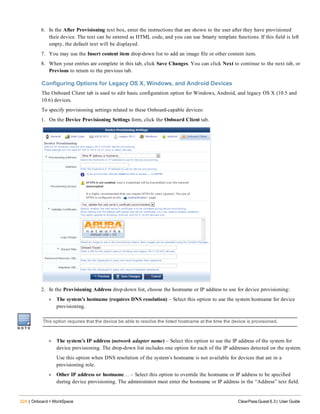
Configuring Options for Legacy OS X, Windows, and Android Devices 224
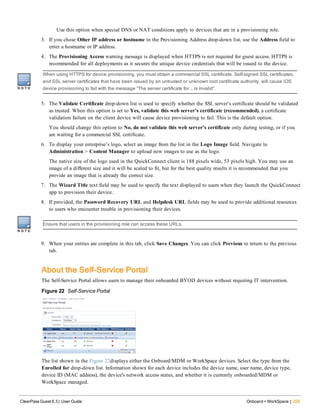
About the Self-Service Portal 225
Configuration 227
Accessing Configuration 227
Advertising Services 228
About Advertising Services 228
Pages 229
Spaces 229
Campaigns 229
Advertising Services Process Overview 229
About the Tutorial 230
Navigating the Tutorial 230
Advertising Pages 231
Editing Advertising Pages 231
Advertising Spaces 233
Creating and Editing Advertising Spaces 234
Advertising Campaigns 236
Creating and Editing Advertising Campaigns 237
Advertising Promotions 238
Creating and Editing Advertising Promotions 239
Advertising Materials 242
Creating and Editing Advertising Materials 243
Configuring ClearPass Guest Authentication 246
Content Manager 246
Managing Content: Private Files and Public Files 246
Uploading Content 247
Downloading Content 248
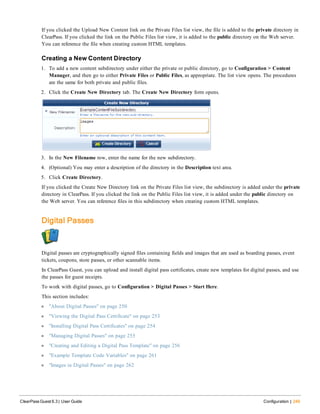
Creating a New Content Directory 249
Digital Passes 249
About Digital Passes 250
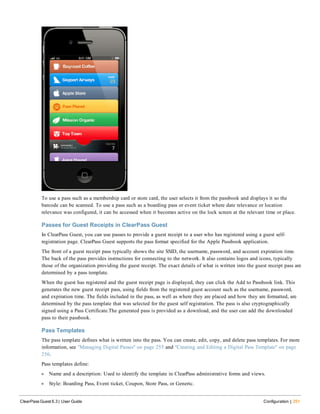
Passes for Guest Receipts in ClearPass Guest 251
Pass Templates 251
Apple Passbook Certificates 252
Digital Passes Process Overview 252
Viewing the Digital Pass Certificate 253
Installing Digital Pass Certificates 254
Managing Digital Passes 255
Creating and Editing a Digital Pass Template 256
Defining Basic Properties 256
Defining Pass Properties 257
Defining Pass Fields 259
Defining Relevant Locations 259
Defining Relevant Dates 260
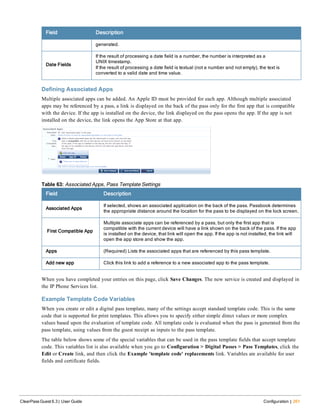
Defining Associated Apps 261
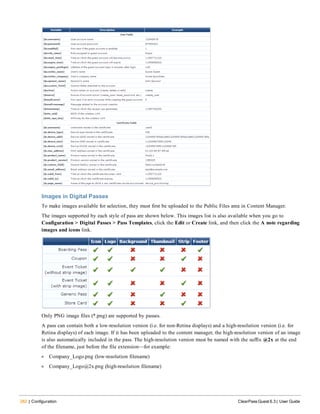
Example Template Code Variables 261
Images in Digital Passes 262
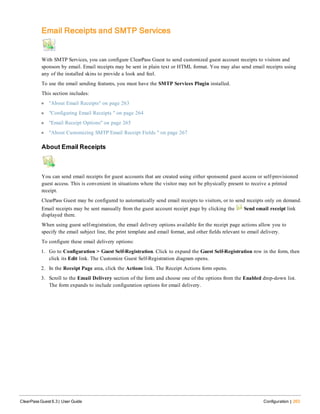
Email Receipts and SMTP Services 263
About Email Receipts 263
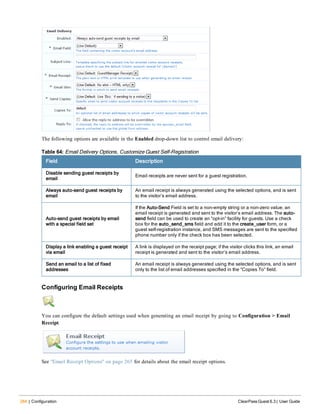
Configuring Email Receipts 264
Email Receipt Options 265
About Customizing SMTP Email Receipt Fields 267
Customizing Fields 268
Creating a Custom Field 269
Duplicating a Field 270
Editing a Field 270
Deleting a Field 271
Displaying Forms that Use a Field 271
Displaying Views that Use a Field 271
Customizing Forms and Views 271
Editing Forms and Views 272
Duplicating Forms and Views 272
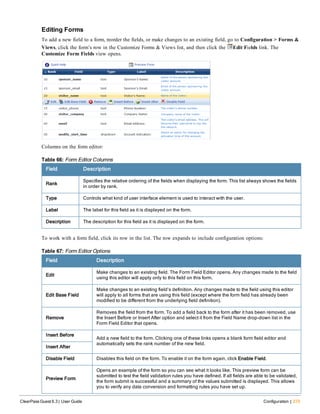
Editing Forms 273
Form Field Editor 274
Form Validation Properties 285
Examples of Form field Validation 286
Advanced Form Field Properties 288
Form Field Validation Processing Sequence 289
Editing Views 292
ClearPass Guest 6.3 | User Guide Contents | 9
10 | Contents ClearPass Guest 6.3 | User Guide
View Field Editor 292
Customizing Guest Manager 294
Default Settings for Account Creation 294
About Fields, Forms, and Views 299
Business Logic for Account Creation 299
Verification Properties 299
Basic User Properties 299
Visitor Account Activation Properties 300
Visitor Account Expiration Properties 300
Other Properties 301
Standard Forms and Views 301
Customizing Guest Self-Registration 302
Accessing the Guest Self-Registration Customization Forms 303
Duplicating a Self-Registration Page 304
Disabling a Self-Registration Page 304
The "Go To" Option: The Registration Page 304
The Receipt Page 305
The "Go to Portal" Option 305
The "Go to Login" Option 306
Self-Registration Sequence Diagram 306
Editing Self-Registration Pages 307
Creating a Self-Registration Page 308
Configuring Basic Properties for Self-Registration 309
Using a Parent Page 310
Paying for Access 310
Requiring Operator Credentials 310
Editing Registration Page Properties 311
Editing the Default Self-Registration Form Settings 312
Creating a Single Password for Multiple Accounts 314
Editing Guest Receipt Page Properties 315
Editing Receipt Actions 315
Enabling Sponsor Confirmation for Role Selection 316
Editing Download and Print Actions for Guest Receipt Delivery 318
Editing Email Delivery of Guest Receipts 319
Editing SMS Delivery of Guest Receipts 319
Enabling Downloading Passes 320
Enabling and Editing NAS Login Properties 320
Editing Login Page Properties 321
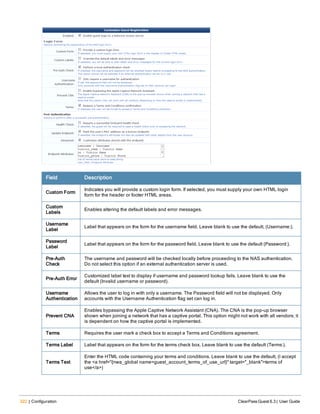
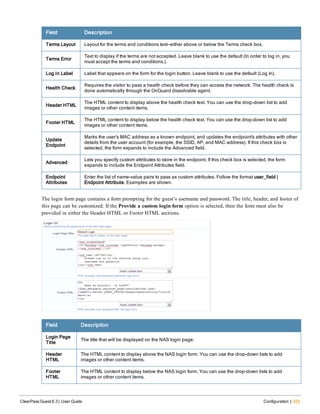
Configuring the Login Form Part of the Page 321
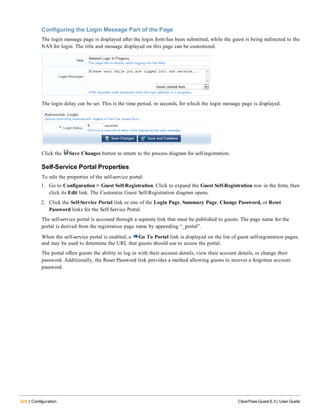
Configuring the Login Message Part of the Page 324
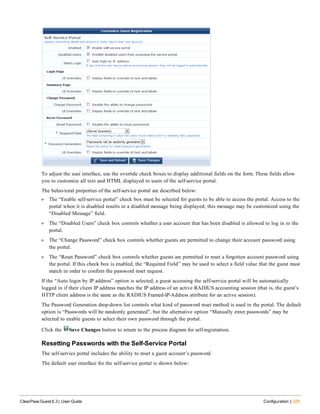
Self-Service Portal Properties 324
Resetting Passwords with the Self-Service Portal 325
Customizing AirGroup Registration Forms 327
Configuring the Shared Locations and Shared Role Fields 327
Example: 329
IP Phones 330
Managing IP Phone Services 330
Creating and Editing an IP Phone Service 331
Defining General Properties+ 331
Defining Display Properties 332
Defining Behavioral Properties 332
Defining Receipt and Access Control Properties 333
Customizing Print Templates 333
Creating New Print Templates 334
Print Template Wizard 335
Modifying Wizard-Generated Templates 336
Setting Print Template Permissions 336
Configuring Access Code Logins 337
Customize Random Username and Passwords 337
Create the Print Template 338
Customize the Guest Accounts Form 339
Create the Access Code Guest Accounts 339
Customizing SMS Receipt 341
SMS Receipt Fields 341
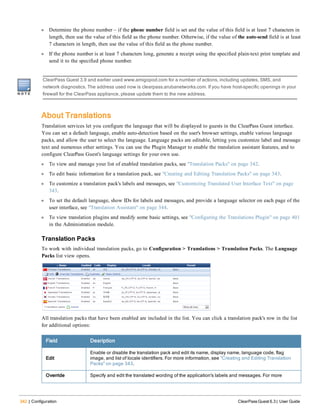
About Translations 342
Translation Packs 342
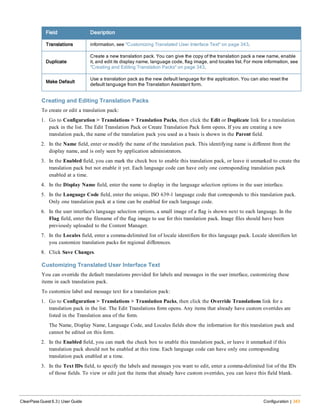
Creating and Editing Translation Packs 343
Customizing Translated User Interface Text 343
Translation Assistant 344
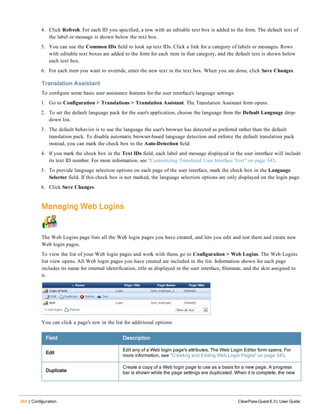
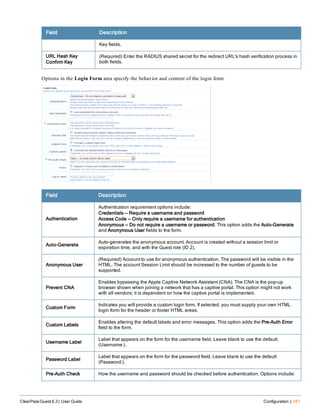
Managing Web Logins 344
Creating and Editing Web Login Pages 345
Hotspot Manager 351
Accessing Hotspot Manager 351
About Hotspot Management 351
Managing the Hotspot Sign-up Interface 352
Captive Portal Integration 353
Web Site Look-and-Feel 354
SMS Services 354
Managing Hotspot Plans 354
Editing or Creating a Hotspot Plan 355
Managing Transaction Processors 356
Creating a New Transaction Processor 357
Managing Existing Transaction Processors 358
Managing Customer Information 358
Managing Hotspot Invoices 358
Customizing the User Interface 359
ClearPass Guest 6.3 | User Guide Contents | 11
12 | Contents ClearPass Guest 6.3 | User Guide
Customizing Visitor Sign-Up Page One 359
Customizing Visitor Sign-Up Page Two 360
Customizing Visitor Sign-Up Page Three 362
Viewing the Hotspot User Interface 364
Administration 365
Accessing Administration 365
AirGroup Services 365
AirGroup Controllers 366
Creating and Editing AirGroup Controllers 367
Configuring AirGroup Services 368
AirGroup Diagnostics 370
Creating AirGroup Administrators 371
Creating AirGroup Operators 371
Authenticating AirGroup Users via LDAP 372
Configuring LDAP User Search for AirGroup 372
LDAP User Search Architecture 372
User Search Workflow 372
Configuration Summary 372
User Search Settings 374
Configuring the AirGroup Shared User Field 375
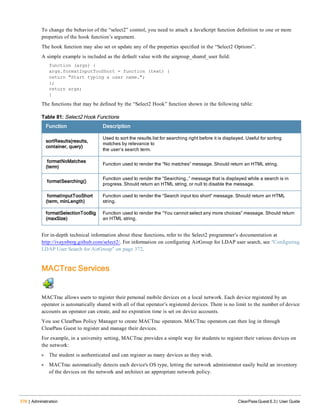
Select2 Options Details 376
Select2 Hook Details 377
MACTrac Services 378
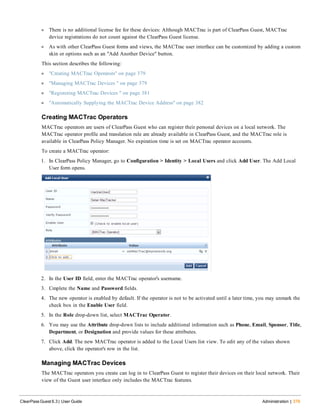
Creating MACTrac Operators 379
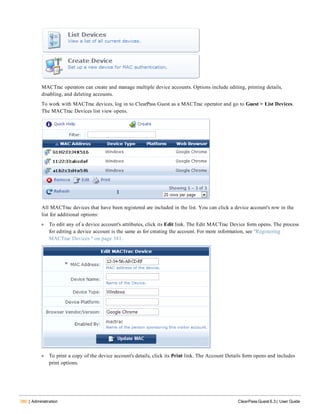
Managing MACTrac Devices 379
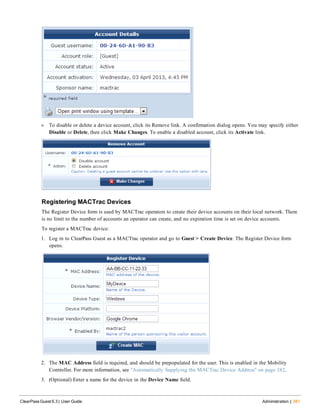
Registering MACTrac Devices 381
About MAC Addresses 382
Automatically Supplying the MACTrac Device Address 382
Data Retention 383
3.9 Configuration Import 383
Creating a Customized Configuration Backup 384
Uploading the 3.9 Backup File 384
Restoring Configuration Items 386
Viewing Imported Item Details 387
Import Information for Specific Import Items 388
Import Information: Advertising Services 389
Import Information: AirGroup Services 389
Import Information: Cisco IP Phones 389
Import Information: Guest Manager 389
Import Information: High Availability (HA) 390
Import Information: Hotspot Manager 391
Import Information: Onboard 391
Import Information: Operator Logins 391
Import Information: Palo Alto Network Services 391
Import Information: RADIUS Services 391
Import Information: Reporting Manager Definitions 393
Import Information: Server Configuration 393
Import Information: SMS Services 394
Import Information: SMTP Services 394
Plugin Manager 395
Viewing Available Plugins 395
Configuring Plugins 396
Configuring the Kernel Plugin 397
Configuring the Aruba ClearPass Skin Plugin 398
Configuring the SMS Services Plugin 399
Configuring the IP Phone Services Plugin 401
Configuring the Translations Plugin 401
SMS Services 402
Viewing SMS Gateways 402
Creating a New SMS Gateway 403
Editing an SMS Gateway 405
Sending an SMS 407
About SMS Credits 407
About SMS Guest Account Receipts 408
SMS Receipt Options 408
Working with the Mobile Carriers List 408
Support Services 411
Viewing the Application Log 411
Exporting the Application Log 412
Contacting Support 413
Viewing Documentation 413
SOAP Web Services and API 413
Viewing Available Web Services 414
Configuring Web Services 415
SOAP API Introduction 415
Audience 416
API Documentation Overview 416
Disclaimer 416
About the SOAP API 416
Architecture Overview 416
Authentication and Access Control 417
HTTP headers 417
Character Set Encoding 417
SOAP Faults 417
Using the SOAP API 418
Accessing SOAP Web Services 418
ClearPass Guest 6.3 | User Guide Contents | 13
14 | Contents ClearPass Guest 6.3 | User Guide
Configuring SOAP Web Services 418
SOAP Debugging 419
Creating a SOAP API Operator 419
Accessing the WSDL 420
Integration Example 421
Create a New Project 421
Add Service Reference 421
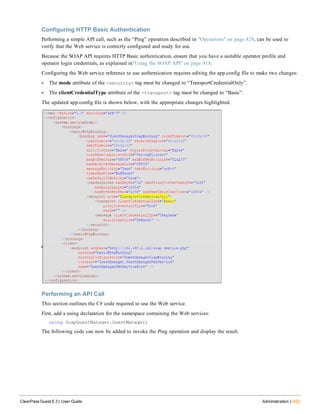
Configuring HTTP Basic Authentication 423
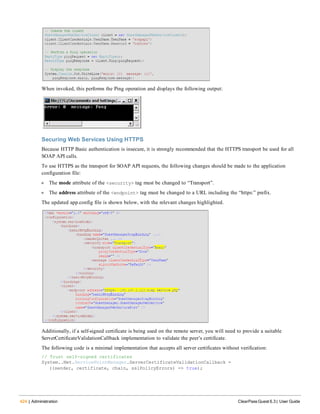
Performing an API Call 423
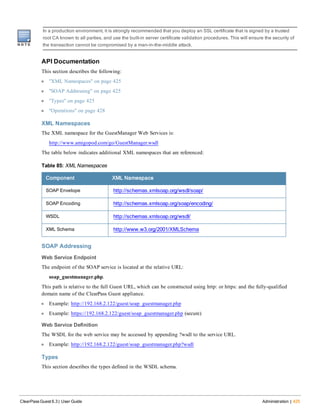
Securing Web Services Using HTTPS 424
API Documentation 425
XML Namespaces 425
SOAP Addressing 425
Types 425
Operations 428
Operator Logins 437
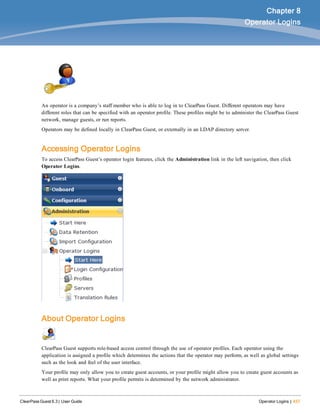
Accessing Operator Logins 437
About Operator Logins 437
Role-Based Access Control for Multiple Operator Profiles 438
Operator Profiles 438
Creating an Operator Profile 438
Configuring the User Interface 441
Customizing Forms and Views 442
Operator Profile Privileges 442
Managing Operator Profiles 443
Configuring AirGroup Operator Device Limit 443
Local Operator Authentication 444
Creating a New Operator 444
External Operator Authentication 445
Manage LDAP Operator Authentication Servers 445
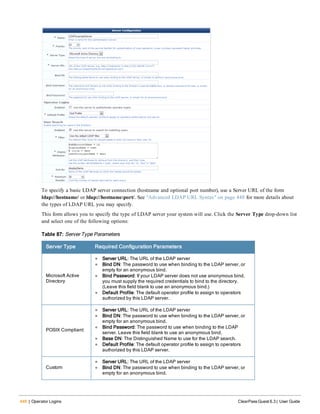
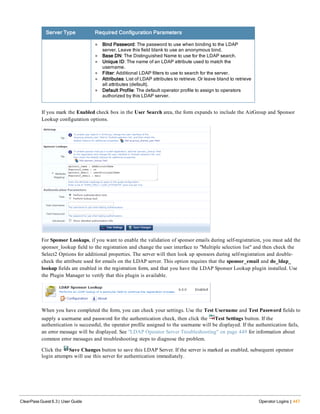
Creating an LDAP Server 445
Advanced LDAP URL Syntax 448
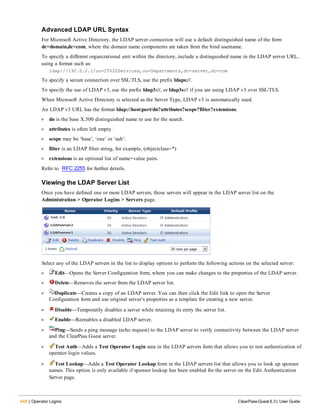
Viewing the LDAP Server List 448
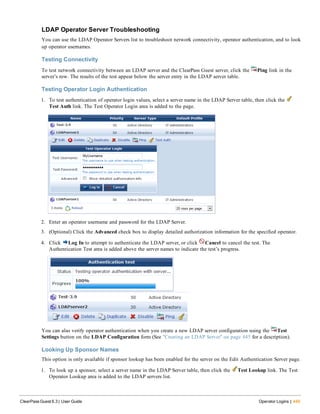
LDAP Operator Server Troubleshooting 449
Testing Connectivity 449
Testing Operator Login Authentication 449
Looking Up Sponsor Names 449
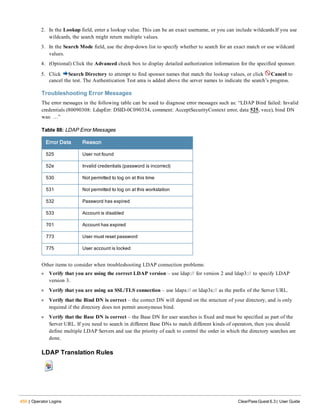
Troubleshooting Error Messages 450
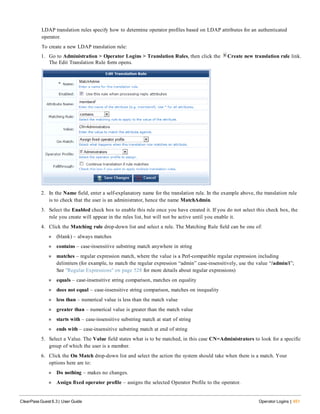
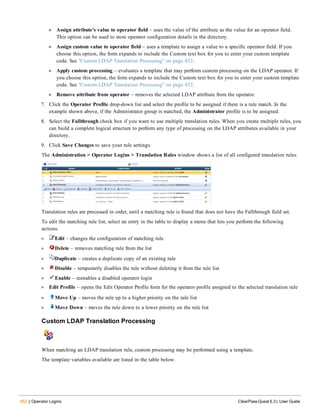
LDAP Translation Rules 450
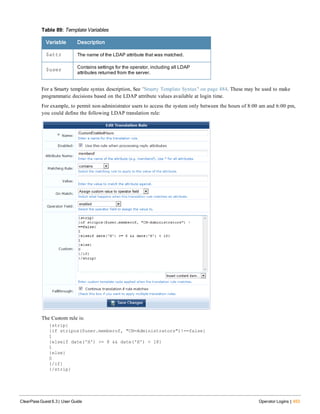
Custom LDAP Translation Processing 452
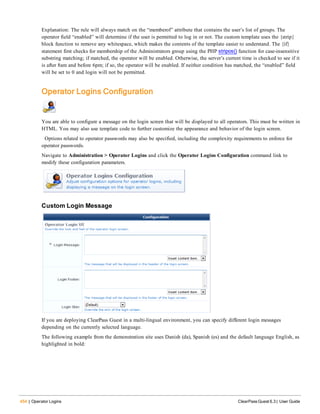
Operator Logins Configuration 454
Custom Login Message 454
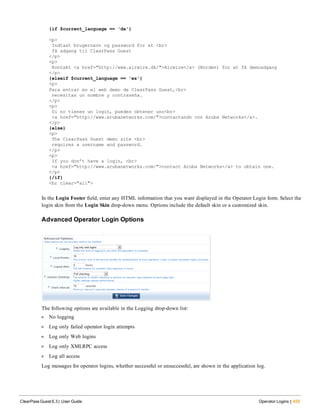
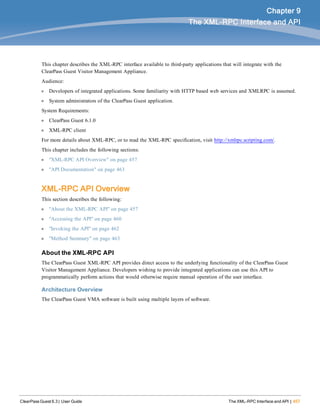
Advanced Operator Login Options 455
Automatic Logout 456
The XML-RPC Interface and API 457
XML-RPC API Overview 457
About the XML-RPC API 457
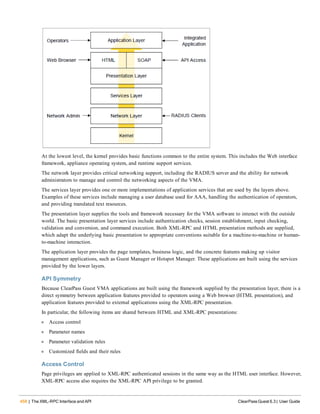
Architecture Overview 457
API Symmetry 458
Access Control 458
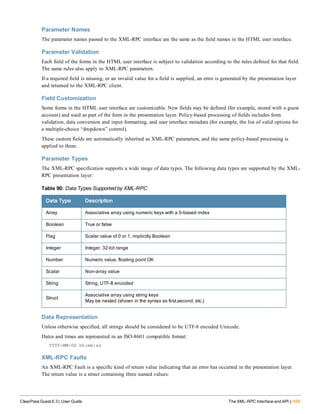
Parameter Names 459
Parameter Validation 459
Field Customization 459
Parameter Types 459
Data Representation 459
XML-RPC Faults 459
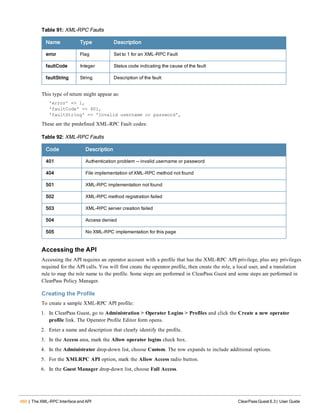
Accessing the API 460
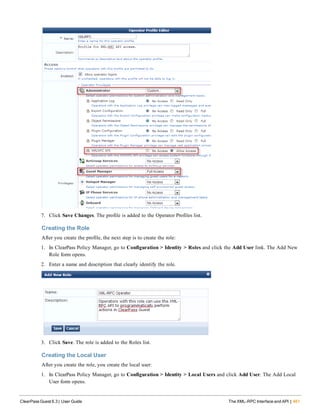
Creating the Profile 460
Creating the Role 461
Creating the Local User 461
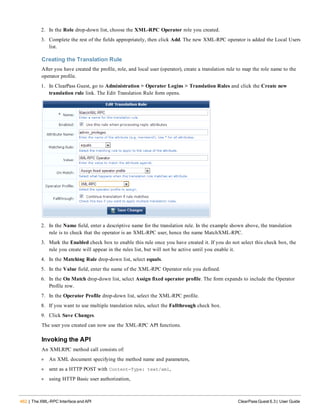
Creating the Translation Rule 462
Invoking the API 462
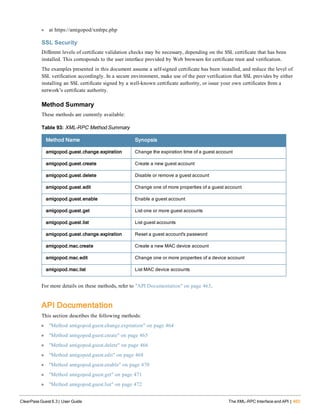
SSL Security 463
Method Summary 463
API Documentation 463
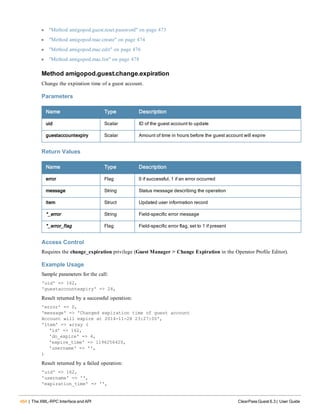
Method amigopod.guest.change.expiration 464
Parameters 464
Return Values 464
Access Control 464
Example Usage 464
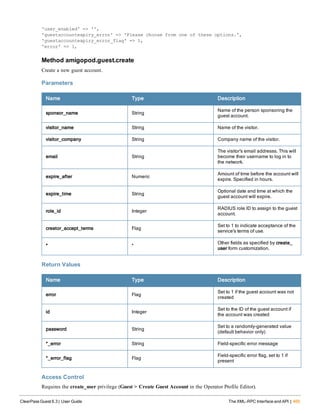
Method amigopod.guest.create 465
Parameters 465
Return Values 465
Access Control 465
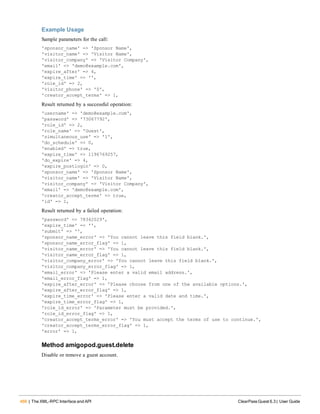
Example Usage 466
Method amigopod.guest.delete 466
Parameters 467
Return Values 467
Access Control 467
Example Usage 467
Method amigopod.guest.edit 468
Parameters 468
Return Values 469
Access Control 469
Example Usage 469
Method amigopod.guest.enable 470
ClearPass Guest 6.3 | User Guide Contents | 15
16 | Contents ClearPass Guest 6.3 | User Guide
Parameters 470
Return Values 470
Access Control 471
Example Usage 471
Method amigopod.guest.get 471
Parameters 471
Return Values 471
Access Control 471
Example Usage 471
Method amigopod.guest.list 472
Parameters 473
Return Values 473
Access Control 473
Example Usage 473
Method amigopod.guest.reset.password 473
Parameters 473
Return Values 473
Access Control 474
Example Usage 474
Method amigopod.mac.create 474
Parameters 474
Return Values 475
Access Control 475
Example Usage 475
Method amigopod.mac.edit 476
Parameters 476
Return Values 477
Access Control 477
Example Usage 477
Method amigopod.mac.list 478
Parameters 479
Return Values 479
Access Control 479
Example Usage 479
Reference 481
Basic HTML Syntax 481
Standard HTML Styles 482
Smarty Template Syntax 484
Basic Template Syntax 484
Text Substitution 484
Template File Inclusion 484
Comments 484
Variable Assignment 484
Conditional Text Blocks 484
Script Blocks 485
Repeated Text Blocks 485
Foreach Text Blocks 485
Modifiers 486
Predefined Template Functions 486
dump 486
nwa_commandlink 487
nwa_iconlink 487
nwa_icontext 488
nwa_quotejs 489
nwa_radius_query 489
Advanced Developer Reference 495
nwa_assign 495
nwa_bling 495
nwa_makeid 496
nwa_nav 496
nwa_plugin 497
nwa_privilege 498
nwa_replace 498
nwa_text 498
nwa_userpref 498
nwa_youtube 499
Date/Time Format Syntax 499
nwadateformat Modifier 499
nwatimeformat Modifier 500
Date/Time Format String Reference 501
Programmer’s Reference 502
NwaAlnumPassword 502
NwaBoolFormat 502
NwaByteFormat 503
NwaByteFormatBase10 503
NwaComplexPassword 503
NwaCsvCache 503
NwaDigitsPassword($len) 503
NwaDynamicLoad 503
NwaGeneratePictureString 503
NwaGenerateRandomPasswordMix 504
NwaLettersDigitsPassword 504
NwaLettersPassword 504
NwaMoneyFormat 504
NwaParseCsv 504
NwaParseXml 505
ClearPass Guest 6.3 | User Guide Contents | 17
18 | Contents ClearPass Guest 6.3 | User Guide
NwaPasswordByComplexity 506
NwaSmsIsValidPhoneNumber 506
NwaStrongPassword 506
NwaVLookup 506
NwaWordsPassword 507
Field, Form, and View Reference 507
GuestManager Standard Fields 507
Hotspot Standard Fields 515
SMS Services Standard Fields 516
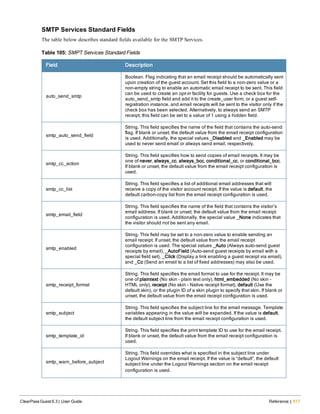
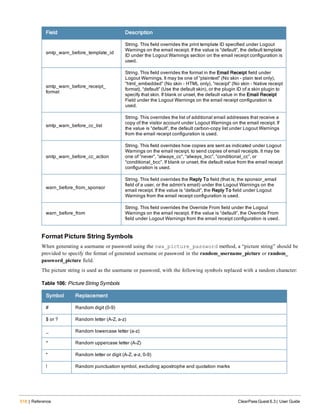
SMTP Services Standard Fields 517
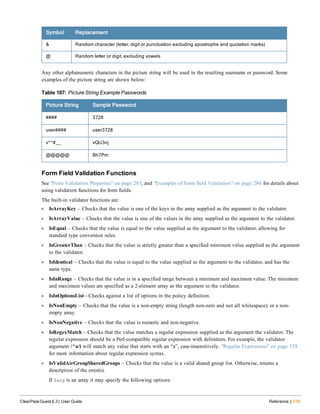
Format Picture String Symbols 518
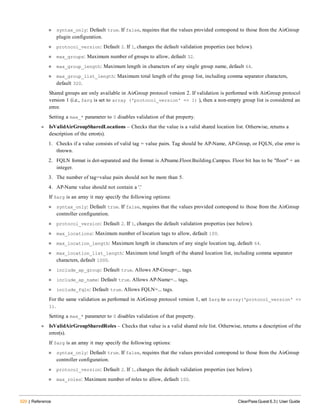
Form Field Validation Functions 519
Form Field Conversion Functions 524
Form Field Display Formatting Functions 524
View Display Expression Technical Reference 526
LDAP Standard Attributes for User Class 527
Regular Expressions 528
Glossary 531
Index 539
ClearPass Guest 6.3 | User Guide About this Guide | 19
Chapter 1
About this Guide
ClearPass Guest provides a simple and personalized user interface through which operational staff can quickly and
securely manager visitor network access.
Audience
This User Guide is intended for system administrators and people who are installing and configuring ClearPass Guest
as their visitor management solution. It describes the installation and configuration process.
Conventions
The following conventions are used throughout this guide to emphasize important concepts:
Type Style Description
Italics This style is used to emphasize important terms and to mark the titles of books.
System items
This fixed-width font depicts the following:
l Sample screen output
l System prompts
l Filenames, software devices, and specific commands when mentioned in the text
Commands In the command examples, this bold font depicts text that you must type exactly as shown.
<Arguments>
In the command examples, italicized text within angle brackets represents items that you
should replace with information appropriate to your specific situation. For example:
# send <text message>
In this example, you would type “send” at the system prompt exactly as shown, followed by
the text of the message you wish to send. Do not type the angle brackets.
[Optional] Command examples enclosed in brackets are optional. Do not type the brackets.
{Item A |
Item B}
In the command examples, items within curled braces and separated by a vertical bar
represent the available choices. Enter only one choice. Do not type the braces or bars.
Table 1: Typographical Conventions
The following informational icons are used throughout this guide:
Indicates helpful suggestions, pertinent information, and important things to remember.
Indicates a risk of damage to your hardware or loss of data.
Indicates a risk of personal injury or death.
20 | About this Guide ClearPass Guest 6.3 | User Guide
Contacting Support
Main Site arubanetworks.com
Support Site support.arubanetworks.com
Airheads Social Forums and
Knowledge Base
community.arubanetworks.com
North American Telephone
1-800-943-4526 (Toll Free)
1-408-754-1200
International Telephones arubanetworks.com/support-services/support-program/contact-support/
Software Licensing Site licensing.arubanetworks.com
End of Support information
arubanetworks.com/support-services/end-of-life-products/end-of-life-
policy/
Wireless Security Incident
Response Team (WSIRT)
arubanetworks.com/support-services/security-bulletins/
Support Email Addresses
Americas and APAC support@arubanetworks.com
EMEA emea_support@arubanetworks.com
WSIRT Email
Please email details of any
security problem found in an
Aruba product.
wsirt@arubanetworks.com
ClearPass Guest 6.3 | User Guide ClearPass Guest Overview | 21
Chapter 2
ClearPass Guest Overview
This chapter explains the terms, concepts, processes, and equipment involved in managing visitor access to a network,
and helps you understand how ClearPass Guest can be successfully integrated into your network infrastructure. It is
intended for network architects, IT administrators, and security consultants who are planning to deploy visitor access,
or who are in the early stages of deploying a visitor access solution.
This chapter includes the following sections:
l "About ClearPass Guest" on page 21
l "Visitor Access Scenarios" on page 21
l "Reference Network Diagram" on page 22
l "Key Interactions" on page 23
l "AAA Framework" on page 23
l "Key Features" on page 24
l "Visitor Management Terminology" on page 26
l "ClearPass Guest Deployment Process" on page 27
l "AirGroup Deployment Process" on page 29
l "Documentation and User Assistance" on page 29
l "Use of Cookies" on page 31
About ClearPass Guest
ClearPass Guest provides a simple and personalized user interface through which operational staff can quickly and
securely manage visitor network access. It gives your non-technical staff controlled access to a dedicated visitor
management user database. Through a customizable Web portal, your staff can easily create an account, reset a
password, or set an expiry time for visitors. Access permissions to ClearPass Guest functions are controlled through an
operator profile that can be integrated with an LDAP server or Active Directory login.
Visitors can be registered at reception and provisioned with an individual guest account that defines their visitor
profile and the duration of their visit. The visitor can be given a printed customized receipt with account details, or the
receipt can be delivered wirelessly using the integrated SMS services. Companies are also able to pre-generate custom
scratch cards, each with a defined network access time, which can then be handed out in a corporate environment or
sold in public access scenarios.
You can use the customization features to define settings that allow your visitors to self-provision their own guest
accounts. Visitors register through a branded and customized Web portal, ensuring a streamlined and professional
experience. Surveys can also be presented during the self-registration process and the data stored for later analysis and
reporting, providing additional insight to your visitors and their network usage.
ClearPass Guest integrates with all leading wireless and NAC solutions through a flexible definition point, ClearPass
Policy Manager. This ensures that IT administrators have a standard integration with the network security framework,
but gives operational staff the user interface they require.
Visitor Access Scenarios
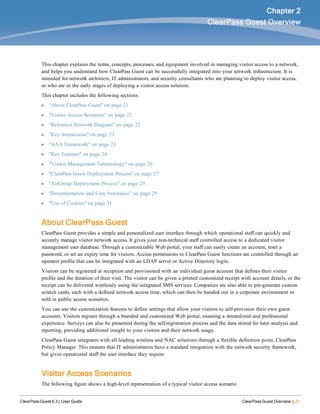
The following figure shows a high-level representation of a typical visitor access scenario.
22 | ClearPass Guest Overview ClearPass Guest 6.3 | User Guide
Figure 1 Visitor access using ClearPass Guest
In this scenario, visitors are using their own mobile devices to access a corporate wireless network. Because access to
the network is restricted, visitors must first obtain a username and password. A guest account may be provisioned by a
corporate operator such as a receptionist, who can then give the visitor a print receipt that shows their username and
password for the network.
When visitors use self-registration, as might be the case for a network offering public access, the process is broadly
similar but does not require a corporate operator to create the guest account. The username and password for a self-
provisioned guest account may be delivered directly to the visitor’s Web browser, or sent via SMS or email.
Reference Network Diagram
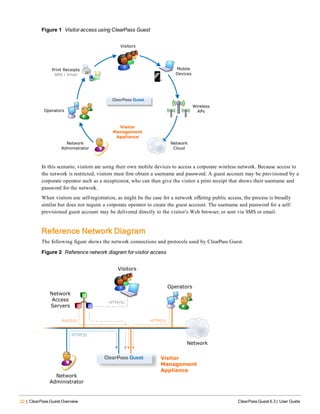
The following figure shows the network connections and protocols used by ClearPass Guest.
Figure 2 Reference network diagram for visitor access
The network administrator, operators, and visitors may use different network interfaces to access the visitor
management features. The exact topology of the network and the connections made to it will depend on the type of
network access offered to visitors and the geographical layout of the access points.
Key Interactions
The following figure shows the key interactions between ClearPass Guest and the people and other components
involved in providing guest access.
Figure 3 Interactions involved in guest access
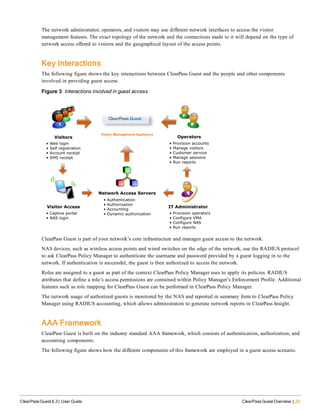
ClearPass Guest is part of your network’s core infrastructure and manages guest access to the network.
NAS devices, such as wireless access points and wired switches on the edge of the network, use the RADIUS protocol
to ask ClearPass Policy Manager to authenticate the username and password provided by a guest logging in to the
network. If authentication is successful, the guest is then authorized to access the network.
Roles are assigned to a guest as part of the context ClearPass Policy Manager uses to apply its policies. RADIUS
attributes that define a role’s access permissions are contained within Policy Manager’s Enforcement Profile. Additional
features such as role mapping for ClearPass Guest can be performed in ClearPass Policy Manager.
The network usage of authorized guests is monitored by the NAS and reported in summary form to ClearPass Policy
Manager using RADIUS accounting, which allows administrators to generate network reports in ClearPass Insight.
AAA Framework
ClearPass Guest is built on the industry standard AAA framework, which consists of authentication, authorization, and
accounting components.
The following figure shows how the different components of this framework are employed in a guest access scenario.
ClearPass Guest 6.3 | User Guide ClearPass Guest Overview | 23
24 | ClearPass Guest Overview ClearPass Guest 6.3 | User Guide
Figure 4 Sequence diagram for network access using AAA
In the standard AAA framework, network access is provided to a user according to the following process:
l The user connects to the network by associating with a local access point [1].
l A landing page is displayed to the user [2] which allows them to log in to the NAS [3], [4] using the login name
and password of their guest account.
l The NAS authenticates the user with the RADIUS protocol [5].
l ClearPass Policy Manager determines whether the user is authorized, and, if so, returns vendor-specific attributes [6]
that are used to configure the NAS based on the user’s role and other policies [7].
l If the user’s access is granted, the NAS permits the guest access to the network based on the settings provided by
the ClearPass Policy Manager server.
l The NAS reports details about the user’s session to the ClearPass Policy Manager server using RADIUS accounting
messages [8].
l After the user’s session times out [9], the NAS will return the user to an unauthorized state and finalize the details
of the user’s session with an accounting update [10].
Key Features
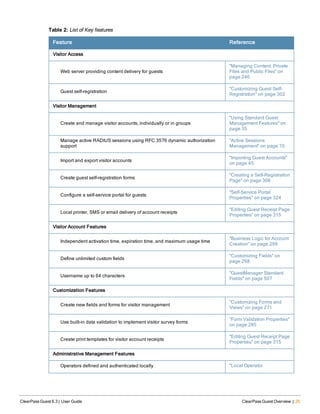
Refer to the table below for a list of key features and a cross-reference to the relevant section of this User Guide.
Feature Reference
Visitor Access
Web server providing content delivery for guests
"Managing Content: Private
Files and Public Files" on
page 246
Guest self-registration
"Customizing Guest Self-
Registration" on page 302
Visitor Management
Create and manage visitor accounts, individually or in groups
"Using Standard Guest
Management Features" on
page 35
Manage active RADIUS sessions using RFC 3576 dynamic authorization
support
"Active Sessions
Management" on page 70
Import and export visitor accounts
"Importing Guest Accounts"
on page 45
Create guest self-registration forms
"Creating a Self-Registration
Page" on page 308
Configure a self-service portal for guests
"Self-Service Portal
Properties" on page 324
Local printer, SMS or email delivery of account receipts
"Editing Guest Receipt Page
Properties" on page 315
Visitor Account Features
Independent activation time, expiration time, and maximum usage time
"Business Logic for Account
Creation" on page 299
Define unlimited custom fields
"Customizing Fields" on
page 268
Username up to 64 characters
"GuestManager Standard
Fields" on page 507
Customization Features
Create new fields and forms for visitor management
"Customizing Forms and
Views" on page 271
Use built-in data validation to implement visitor survey forms
"Form Validation Properties"
on page 285
Create print templates for visitor account receipts
"Editing Guest Receipt Page
Properties" on page 315
Administrative Management Features
Operators defined and authenticated locally "Local Operator
Table 2: List of Key features
ClearPass Guest 6.3 | User Guide ClearPass Guest Overview | 25
26 | ClearPass Guest Overview ClearPass Guest 6.3 | User Guide
Feature Reference
Authentication" on page 444
Operators authenticated via LDAP
"External Operator
Authentication" on page 445
Role based access control for operators
"Operator Profiles" on page
438
Plugin-based application features, automatically updated by ClearPass
Policy Manager
"Plugin Manager " on page
395
User Interface Features
Context-sensitive help with searchable online documentation
"Documentation and User
Assistance" on page 29
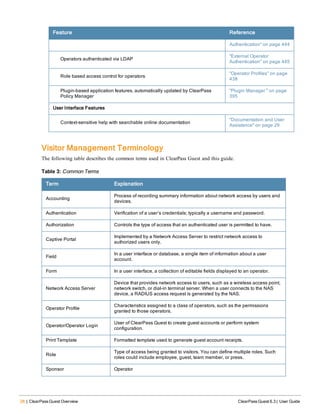
Visitor Management Terminology
The following table describes the common terms used in ClearPass Guest and this guide.
Term Explanation
Accounting
Process of recording summary information about network access by users and
devices.
Authentication Verification of a user’s credentials; typically a username and password.
Authorization Controls the type of access that an authenticated user is permitted to have.
Captive Portal
Implemented by a Network Access Server to restrict network access to
authorized users only.
Field
In a user interface or database, a single item of information about a user
account.
Form In a user interface, a collection of editable fields displayed to an operator.
Network Access Server
Device that provides network access to users, such as a wireless access point,
network switch, or dial-in terminal server. When a user connects to the NAS
device, a RADIUS access request is generated by the NAS.
Operator Profile
Characteristics assigned to a class of operators, such as the permissions
granted to those operators.
Operator/Operator Login
User of ClearPass Guest to create guest accounts or perform system
configuration.
Print Template Formatted template used to generate guest account receipts.
Role
Type of access being granted to visitors. You can define multiple roles. Such
roles could include employee, guest, team member, or press.
Sponsor Operator
Table 3: Common Terms
Term Explanation
User Database Database listing the guest accounts in ClearPass Guest.
View
In a user interface, a table displaying data, such as visitor account information,
to operators.
Visitor/Guest
Someone who is permitted to access the Internet through your Network Access
Server.
Visitor Account
Settings for a visitor stored in the user database, including username, password
and other fields.
Web Login/NAS Login Login page displayed to a guest user.
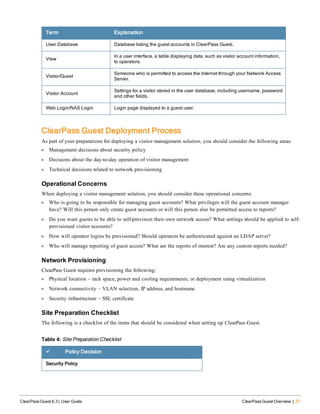
ClearPass Guest Deployment Process
As part of your preparations for deploying a visitor management solution, you should consider the following areas:
l Management decisions about security policy
l Decisions about the day-to-day operation of visitor management
l Technical decisions related to network provisioning
Operational Concerns
When deploying a visitor management solution, you should consider these operational concerns:
l Who is going to be responsible for managing guest accounts? What privileges will the guest account manager
have? Will this person only create guest accounts or will this person also be permitted access to reports?
l Do you want guests to be able to self-provision their own network access? What settings should be applied to self-
provisioned visitor accounts?
l How will operator logins be provisioned? Should operators be authenticated against an LDAP server?
l Who will manage reporting of guest access? What are the reports of interest? Are any custom reports needed?
Network Provisioning
ClearPass Guest requires provisioning the following:
l Physical location – rack space, power and cooling requirements; or deployment using virtualization
l Network connectivity – VLAN selection, IP address, and hostname
l Security infrastructure – SSL certificate
Site Preparation Checklist
The following is a checklist of the items that should be considered when setting up ClearPass Guest.
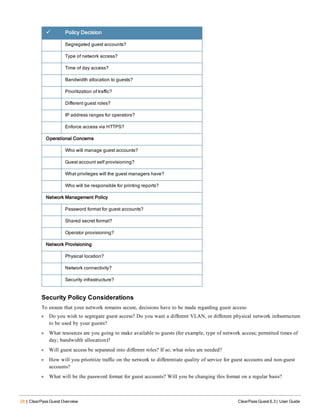
ü Policy Decision
Security Policy
Table 4: Site Preparation Checklist
ClearPass Guest 6.3 | User Guide ClearPass Guest Overview | 27
28 | ClearPass Guest Overview ClearPass Guest 6.3 | User Guide
ü Policy Decision
Segregated guest accounts?
Type of network access?
Time of day access?
Bandwidth allocation to guests?
Prioritization of traffic?
Different guest roles?
IP address ranges for operators?
Enforce access via HTTPS?
Operational Concerns
Who will manage guest accounts?
Guest account self provisioning?
What privileges will the guest managers have?
Who will be responsible for printing reports?
Network Management Policy
Password format for guest accounts?
Shared secret format?
Operator provisioning?
Network Provisioning
Physical location?
Network connectivity?
Security infrastructure?
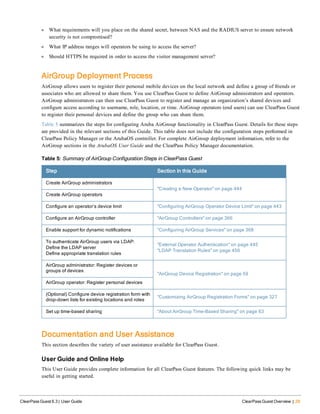
Security Policy Considerations
To ensure that your network remains secure, decisions have to be made regarding guest access:
l Do you wish to segregate guest access? Do you want a different VLAN, or different physical network infrastructure
to be used by your guests?
l What resources are you going to make available to guests (for example, type of network access; permitted times of
day; bandwidth allocation)?
l Will guest access be separated into different roles? If so, what roles are needed?
l How will you prioritize traffic on the network to differentiate quality of service for guest accounts and non-guest
accounts?
l What will be the password format for guest accounts? Will you be changing this format on a regular basis?
l What requirements will you place on the shared secret, between NAS and the RADIUS server to ensure network
security is not compromised?
l What IP address ranges will operators be using to access the server?
l Should HTTPS be required in order to access the visitor management server?
AirGroup Deployment Process
AirGroup allows users to register their personal mobile devices on the local network and define a group of friends or
associates who are allowed to share them. You use ClearPass Guest to define AirGroup administrators and operators.
AirGroup administrators can then use ClearPass Guest to register and manage an organization’s shared devices and
configure access according to username, role, location, or time. AirGroup operators (end users) can use ClearPass Guest
to register their personal devices and define the group who can share them.
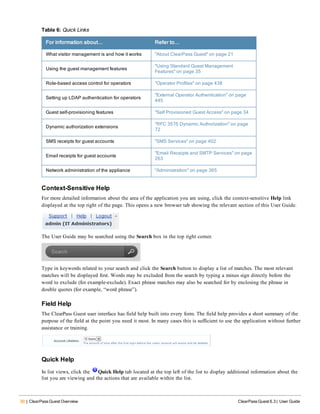
Table 5 summarizes the steps for configuring Aruba AirGroup functionality in ClearPass Guest. Details for these steps
are provided in the relevant sections of this Guide. This table does not include the configuration steps performed in
ClearPass Policy Manager or the ArubaOS controller. For complete AirGroup deployment information, refer to the
AirGroup sections in the ArubaOS User Guide and the ClearPass Policy Manager documentation.
Step Section in this Guide
Create AirGroup administrators
"Creating a New Operator" on page 444
Create AirGroup operators
Configure an operator’s device limit "Configuring AirGroup Operator Device Limit" on page 443
Configure an AirGroup controller "AirGroup Controllers" on page 366
Enable support for dynamic notifications "Configuring AirGroup Services" on page 368
To authenticate AirGroup users via LDAP:
Define the LDAP server
Define appropriate translation rules
"External Operator Authentication" on page 445
"LDAP Translation Rules" on page 450
AirGroup administrator: Register devices or
groups of devices
"AirGroup Device Registration" on page 59
AirGroup operator: Register personal devices
(Optional) Configure device registration form with
drop-down lists for existing locations and roles
"Customizing AirGroup Registration Forms" on page 327
Set up time-based sharing "About AirGroup Time-Based Sharing" on page 63
Table 5: Summary of AirGroup Configuration Steps in ClearPass Guest
Documentation and User Assistance
This section describes the variety of user assistance available for ClearPass Guest.
User Guide and Online Help
This User Guide provides complete information for all ClearPass Guest features. The following quick links may be
useful in getting started.
ClearPass Guest 6.3 | User Guide ClearPass Guest Overview | 29
30 | ClearPass Guest Overview ClearPass Guest 6.3 | User Guide
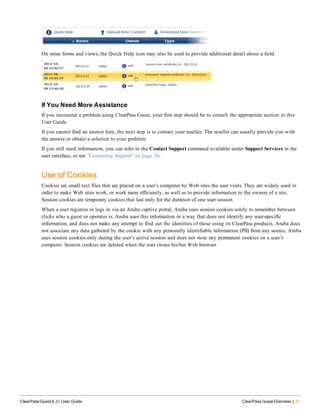
For information about... Refer to...
What visitor management is and how it works "About ClearPass Guest" on page 21
Using the guest management features
"Using Standard Guest Management
Features" on page 35
Role-based access control for operators "Operator Profiles" on page 438
Setting up LDAP authentication for operators
"External Operator Authentication" on page
445
Guest self-provisioning features "Self Provisioned Guest Access" on page 34
Dynamic authorization extensions
"RFC 3576 Dynamic Authorization" on page
72
SMS receipts for guest accounts "SMS Services" on page 402
Email receipts for guest accounts
"Email Receipts and SMTP Services" on page
263
Network administration of the appliance "Administration" on page 365
Table 6: Quick Links
Context-Sensitive Help
For more detailed information about the area of the application you are using, click the context-sensitive Help link
displayed at the top right of the page. This opens a new browser tab showing the relevant section of this User Guide.
The User Guide may be searched using the Search box in the top right corner.
Type in keywords related to your search and click the Search button to display a list of matches. The most relevant
matches will be displayed first. Words may be excluded from the search by typing a minus sign directly before the
word to exclude (for example-exclude). Exact phrase matches may also be searched for by enclosing the phrase in
double quotes (for example, “word phrase”).
Field Help
The ClearPass Guest user interface has field help built into every form. The field help provides a short summary of the
purpose of the field at the point you need it most. In many cases this is sufficient to use the application without further
assistance or training.
Quick Help
In list views, click the Quick Help tab located at the top left of the list to display additional information about the
list you are viewing and the actions that are available within the list.
On some forms and views, the Quick Help icon may also be used to provide additional detail about a field.
If You Need More Assistance
If you encounter a problem using ClearPass Guest, your first step should be to consult the appropriate section in this
User Guide.
If you cannot find an answer here, the next step is to contact your reseller. The reseller can usually provide you with
the answer or obtain a solution to your problem.
If you still need information, you can refer to the Contact Support command available under Support Services in the
user interface, or see "Contacting Support" on page 20.
Use of Cookies
Cookies are small text files that are placed on a user’s computer by Web sites the user visits. They are widely used in
order to make Web sites work, or work more efficiently, as well as to provide information to the owners of a site.
Session cookies are temporary cookies that last only for the duration of one user session.
When a user registers or logs in via an Aruba captive portal, Aruba uses session cookies solely to remember between
clicks who a guest or operator is. Aruba uses this information in a way that does not identify any user-specific
information, and does not make any attempt to find out the identities of those using its ClearPass products. Aruba does
not associate any data gathered by the cookie with any personally identifiable information (PII) from any source. Aruba
uses session cookies only during the user’s active session and does not store any permanent cookies on a user’s
computer. Session cookies are deleted when the user closes his/her Web browser.
ClearPass Guest 6.3 | User Guide ClearPass Guest Overview | 31
32 | ClearPass Guest Overview ClearPass Guest 6.3 | User Guide
ClearPass Guest 6.3 | User Guide Guest Manager | 33
Chapter 3
Guest Manager
The ability to easily create and manage guest accounts is the primary function of ClearPass Guest. The Guest Manager
module provides complete control over the user account creation process.
Guest Manager features for managing guest accounts let you:
l View and manage active sessions
l Create single or multiple guest accounts and receipts
l Create new MAC devices
l Bulk edit accounts
l Export a list of accounts
l Import new accounts from a text file
l View guest accounts and edit individual or multiple guest accounts
l View MAC devices and edit individual or multiple devices
Many features can also be customized. For information on customizing Guest Manager settings, forms and views, guest
self-registration, and print templates, see "Configuration" on page 227.
Accessing Guest Manager
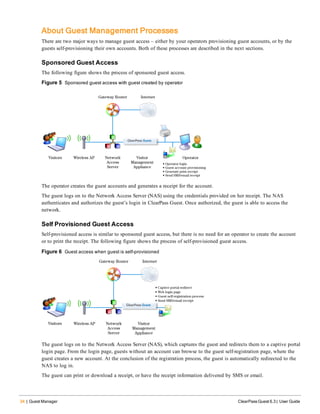
To access ClearPass Guest’s guest management features, click the Guest link in the left navigation.
34 | Guest Manager ClearPass Guest 6.3 | User Guide
About Guest Management Processes
There are two major ways to manage guest access – either by your operators provisioning guest accounts, or by the
guests self-provisioning their own accounts. Both of these processes are described in the next sections.
Sponsored Guest Access
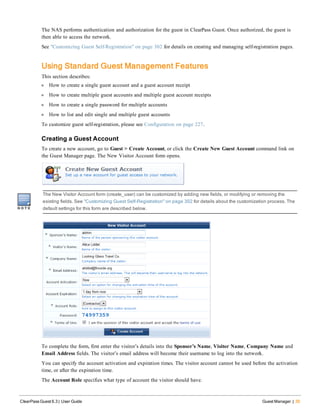
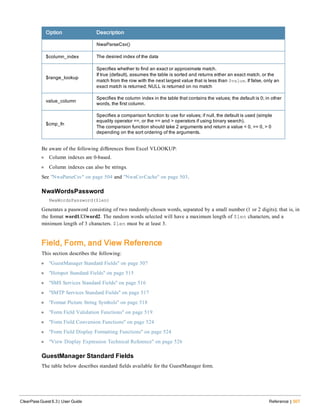
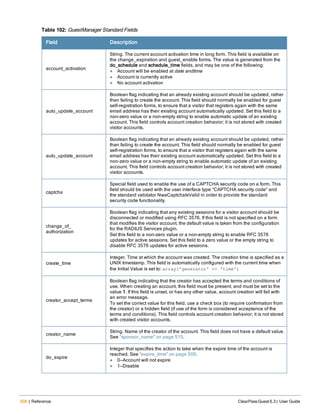
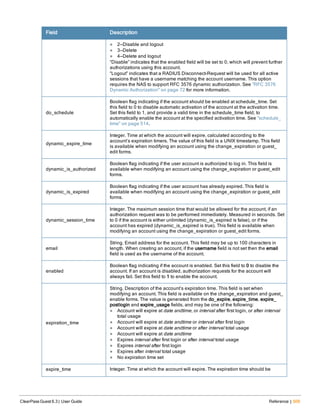
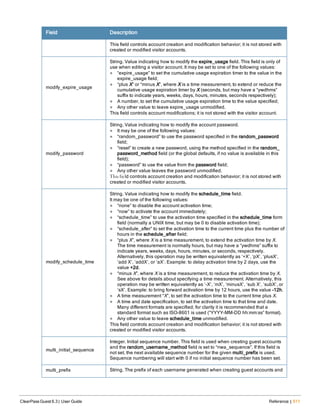
The following figure shows the process of sponsored guest access.
Figure 5 Sponsored guest access with guest created by operator
The operator creates the guest accounts and generates a receipt for the account.
The guest logs on to the Network Access Server (NAS) using the credentials provided on her receipt. The NAS
authenticates and authorizes the guest’s login in ClearPass Guest. Once authorized, the guest is able to access the
network.
Self Provisioned Guest Access
Self-provisioned access is similar to sponsored guest access, but there is no need for an operator to create the account
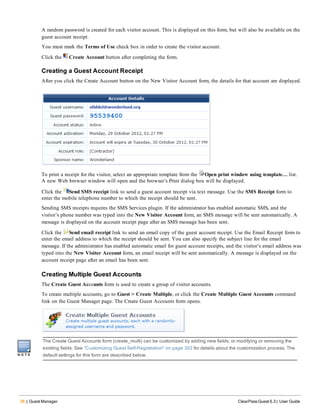
or to print the receipt. The following figure shows the process of self-provisioned guest access.
Figure 6 Guest access when guest is self-provisioned
The guest logs on to the Network Access Server (NAS), which captures the guest and redirects them to a captive portal
login page. From the login page, guests without an account can browse to the guest self-registration page, where the
guest creates a new account. At the conclusion of the registration process, the guest is automatically redirected to the
NAS to log in.
The guest can print or download a receipt, or have the receipt information delivered by SMS or email.
The NAS performs authentication and authorization for the guest in ClearPass Guest. Once authorized, the guest is
then able to access the network.
See "Customizing Guest Self-Registration" on page 302 for details on creating and managing self-registration pages.
Using Standard Guest Management Features
This section describes:
l How to create a single guest account and a guest account receipt
l How to create multiple guest accounts and multiple guest account receipts
l How to create a single password for multiple accounts
l How to list and edit single and multiple guest accounts
To customize guest self-registration, please see Configuration on page 227.
Creating a Guest Account
To create a new account, go to Guest > Create Account, or click the Create New Guest Account command link on
the Guest Manager page. The New Visitor Account form opens.
The New Visitor Account form (create_user) can be customized by adding new fields, or modifying or removing the
existing fields. See "Customizing Guest Self-Registration" on page 302 for details about the customization process. The
default settings for this form are described below.
To complete the form, first enter the visitor’s details into the Sponsor’s Name, Visitor Name, Company Name and
Email Address fields. The visitor’s email address will become their username to log into the network.
You can specify the account activation and expiration times. The visitor account cannot be used before the activation
time, or after the expiration time.
The Account Role specifies what type of account the visitor should have.
ClearPass Guest 6.3 | User Guide Guest Manager | 35
36 | Guest Manager ClearPass Guest 6.3 | User Guide
A random password is created for each visitor account. This is displayed on this form, but will also be available on the
guest account receipt.
You must mark the Terms of Use check box in order to create the visitor account.
Click the Create Account button after completing the form.
Creating a Guest Account Receipt
After you click the Create Account button on the New Visitor Account form, the details for that account are displayed.
To print a receipt for the visitor, select an appropriate template from the Open print window using template… list.
A new Web browser window will open and the browser’s Print dialog box will be displayed.
Click the Send SMS receipt link to send a guest account receipt via text message. Use the SMS Receipt form to
enter the mobile telephone number to which the receipt should be sent.
Sending SMS receipts requires the SMS Services plugin. If the administrator has enabled automatic SMS, and the
visitor’s phone number was typed into the New Visitor Account form, an SMS message will be sent automatically. A
message is displayed on the account receipt page after an SMS message has been sent.
Click the Send email receipt link to send an email copy of the guest account receipt. Use the Email Receipt form to
enter the email address to which the receipt should be sent. You can also specify the subject line for the email
message. If the administrator has enabled automatic email for guest account receipts, and the visitor’s email address was
typed into the New Visitor Account form, an email receipt will be sent automatically. A message is displayed on the
account receipt page after an email has been sent.
Creating Multiple Guest Accounts
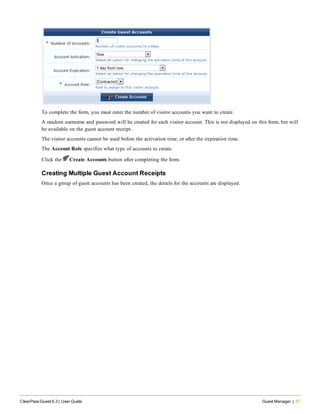
The Create Guest Accounts form is used to create a group of visitor accounts.
To create multiple accounts, go to Guest > Create Multiple, or click the Create Multiple Guest Accounts command
link on the Guest Manager page. The Create Guest Accounts form opens.
The Create Guest Accounts form (create_multi) can be customized by adding new fields, or modifying or removing the
existing fields. See "Customizing Guest Self-Registration" on page 302 for details about the customization process. The
default settings for this form are described below.
To complete the form, you must enter the number of visitor accounts you want to create.
A random username and password will be created for each visitor account. This is not displayed on this form, but will
be available on the guest account receipt.
The visitor accounts cannot be used before the activation time, or after the expiration time.
The Account Role specifies what type of accounts to create.
Click the Create Accounts button after completing the form.
Creating Multiple Guest Account Receipts
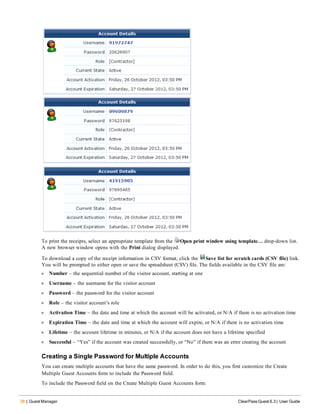
Once a group of guest accounts has been created, the details for the accounts are displayed.
ClearPass Guest 6.3 | User Guide Guest Manager | 37
38 | Guest Manager ClearPass Guest 6.3 | User Guide
To print the receipts, select an appropriate template from the Open print window using template… drop-down list.
A new browser window opens with the Print dialog displayed.
To download a copy of the receipt information in CSV format, click the Save list for scratch cards (CSV file) link.
You will be prompted to either open or save the spreadsheet (CSV) file. The fields available in the CSV file are:
l Number – the sequential number of the visitor account, starting at one
l Username – the username for the visitor account
l Password – the password for the visitor account
l Role – the visitor account’s role
l Activation Time – the date and time at which the account will be activated, or N/A if there is no activation time
l Expiration Time – the date and time at which the account will expire, or N/A if there is no activation time
l Lifetime – the account lifetime in minutes, or N/A if the account does not have a lifetime specified
l Successful – “Yes” if the account was created successfully, or “No” if there was an error creating the account
Creating a Single Password for Multiple Accounts
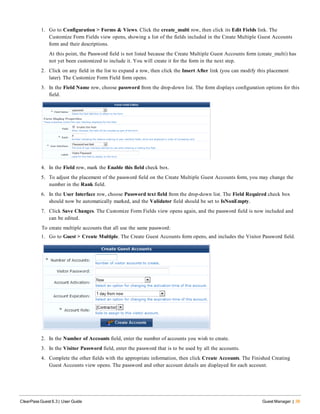
You can create multiple accounts that have the same password. In order to do this, you first customize the Create
Multiple Guest Accounts form to include the Password field.
To include the Password field on the Create Multiple Guest Accounts form:
1. Go to Configuration > Forms & Views. Click the create_multi row, then click its Edit Fields link. The
Customize Form Fields view opens, showing a list of the fields included in the Create Multiple Guest Accounts
form and their descriptions.
At this point, the Password field is not listed because the Create Multiple Guest Accounts form (create_multi) has
not yet been customized to include it. You will create it for the form in the next step.
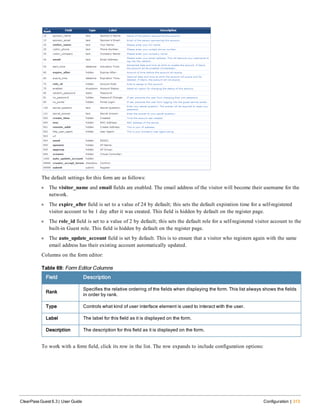
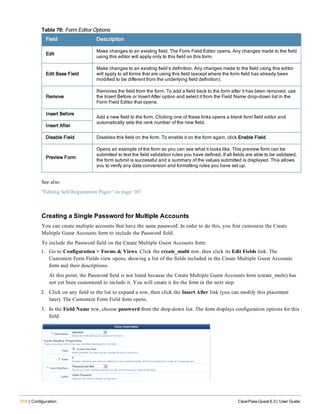
2. Click on any field in the list to expand a row, then click the Insert After link (you can modify this placement
later). The Customize Form Field form opens.
3. In the Field Name row, choose password from the drop-down list. The form displays configuration options for this
field.
4. In the Field row, mark the Enable this field check box.
5. To adjust the placement of the password field on the Create Multiple Guest Accounts form, you may change the
number in the Rank field.
6. In the User Interface row, choose Password text field from the drop-down list. The Field Required check box
should now be automatically marked, and the Validator field should be set to IsNonEmpty.
7. Click Save Changes. The Customize Form Fields view opens again, and the password field is now included and
can be edited.
To create multiple accounts that all use the same password:
1. Go to Guest > Create Multiple. The Create Guest Accounts form opens, and includes the Visitor Password field.
2. In the Number of Accounts field, enter the number of accounts you wish to create.
3. In the Visitor Password field, enter the password that is to be used by all the accounts.
4. Complete the other fields with the appropriate information, then click Create Accounts. The Finished Creating
Guest Accounts view opens. The password and other account details are displayed for each account.
ClearPass Guest 6.3 | User Guide Guest Manager | 39
40 | Guest Manager ClearPass Guest 6.3 | User Guide
Managing Guest Accounts
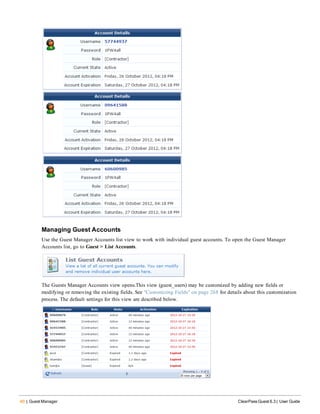
Use the Guest Manager Accounts list view to work with individual guest accounts. To open the Guest Manager
Accounts list, go to Guest > List Accounts.
The Guests Manager Accounts view opens.This view (guest_users) may be customized by adding new fields or
modifying or removing the existing fields. See "Customizing Fields" on page 268 for details about this customization
process. The default settings for this view are described below.
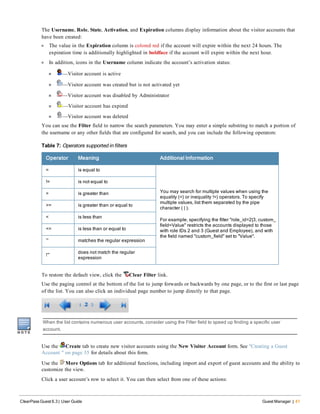
The Username, Role, State, Activation, and Expiration columns display information about the visitor accounts that
have been created:
l The value in the Expiration column is colored red if the account will expire within the next 24 hours. The
expiration time is additionally highlighted in boldface if the account will expire within the next hour.
l In addition, icons in the Username column indicate the account’s activation status:
n —Visitor account is active
n —Visitor account was created but is not activated yet
n —Visitor account was disabled by Administrator
n —Visitor account has expired
n —Visitor account was deleted
You can use the Filter field to narrow the search parameters. You may enter a simple substring to match a portion of
the username or any other fields that are configured for search, and you can include the following operators:
Operator Meaning Additional Information
= is equal to
You may search for multiple values when using the
equality (=) or inequality !=) operators. To specify
multiple values, list them separated by the pipe
character ( | ).
For example, specifying the filter "role_id=2|3, custom_
field=Value" restricts the accounts displayed to those
with role IDs 2 and 3 (Guest and Employee), and with
the field named "custom_field" set to "Value".
!= is not equal to
> is greater than
>= is greater than or equal to
< is less than
<= is less than or equal to
~ matches the regular expression
!~
does not match the regular
expression
Table 7: Operators supported in filters
To restore the default view, click the Clear Filter link.
Use the paging control at the bottom of the list to jump forwards or backwards by one page, or to the first or last page
of the list. You can also click an individual page number to jump directly to that page.
When the list contains numerous user accounts, consider using the Filter field to speed up finding a specific user
account.
Use the Create tab to create new visitor accounts using the New Visitor Account form. See "Creating a Guest
Account " on page 35 for details about this form.
Use the More Options tab for additional functions, including import and export of guest accounts and the ability to
customize the view.
Click a user account’s row to select it. You can then select from one of these actions:
ClearPass Guest 6.3 | User Guide Guest Manager | 41
42 | Guest Manager ClearPass Guest 6.3 | User Guide
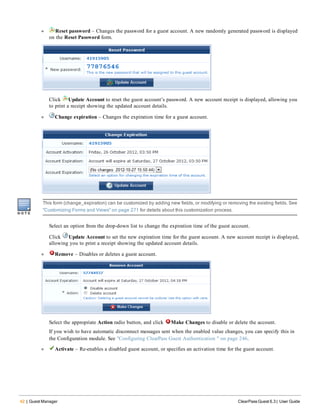
l Reset password – Changes the password for a guest account. A new randomly generated password is displayed
on the Reset Password form.
Click Update Account to reset the guest account’s password. A new account receipt is displayed, allowing you
to print a receipt showing the updated account details.
l Change expiration – Changes the expiration time for a guest account.
This form (change_expiration) can be customized by adding new fields, or modifying or removing the existing fields. See
"Customizing Forms and Views" on page 271 for details about this customization process.
Select an option from the drop-down list to change the expiration time of the guest account.
Click Update Account to set the new expiration time for the guest account. A new account receipt is displayed,
allowing you to print a receipt showing the updated account details.
l Remove – Disables or deletes a guest account.
Select the appropriate Action radio button, and click Make Changes to disable or delete the account.
If you wish to have automatic disconnect messages sent when the enabled value changes, you can specify this in
the Configuration module. See "Configuring ClearPass Guest Authentication " on page 246.
l Activate – Re-enables a disabled guest account, or specifies an activation time for the guest account.
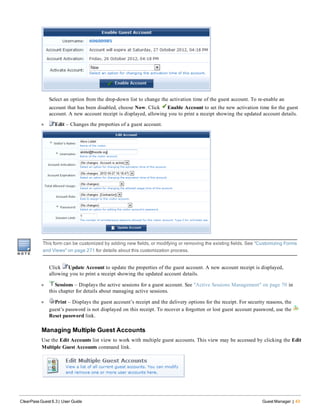
Select an option from the drop-down list to change the activation time of the guest account. To re-enable an
account that has been disabled, choose Now. Click Enable Account to set the new activation time for the guest
account. A new account receipt is displayed, allowing you to print a receipt showing the updated account details.
l Edit – Changes the properties of a guest account.
This form can be customized by adding new fields, or modifying or removing the existing fields. See "Customizing Forms
and Views" on page 271 for details about this customization process.
Click Update Account to update the properties of the guest account. A new account receipt is displayed,
allowing you to print a receipt showing the updated account details.
l Sessions – Displays the active sessions for a guest account. See "Active Sessions Management" on page 70 in
this chapter for details about managing active sessions.
l Print – Displays the guest account’s receipt and the delivery options for the receipt. For security reasons, the
guest’s password is not displayed on this receipt. To recover a forgotten or lost guest account password, use the
Reset password link.
Managing Multiple Guest Accounts
Use the Edit Accounts list view to work with multiple guest accounts. This view may be accessed by clicking the Edit
Multiple Guest Accounts command link.
ClearPass Guest 6.3 | User Guide Guest Manager | 43
44 | Guest Manager ClearPass Guest 6.3 | User Guide
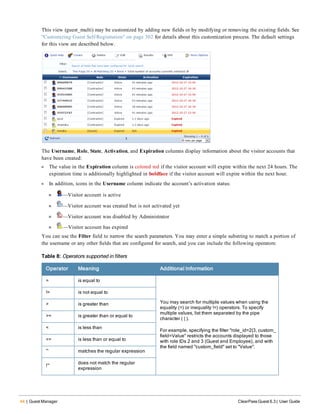
This view (guest_multi) may be customized by adding new fields or by modifying or removing the existing fields. See
"Customizing Guest Self-Registration" on page 302 for details about this customization process. The default settings
for this view are described below.
The Username, Role, State, Activation, and Expiration columns display information about the visitor accounts that
have been created:
l The value in the Expiration column is colored red if the visitor account will expire within the next 24 hours. The
expiration time is additionally highlighted in boldface if the visitor account will expire within the next hour.
l In addition, icons in the Username column indicate the account’s activation status:
n —Visitor account is active
n —Visitor account was created but is not activated yet
n —Visitor account was disabled by Administrator
n —Visitor account has expired
You can use the Filter field to narrow the search parameters. You may enter a simple substring to match a portion of
the username or any other fields that are configured for search, and you can include the following operators:
Operator Meaning Additional Information
= is equal to
You may search for multiple values when using the
equality (=) or inequality !=) operators. To specify
multiple values, list them separated by the pipe
character ( | ).
For example, specifying the filter "role_id=2|3, custom_
field=Value" restricts the accounts displayed to those
with role IDs 2 and 3 (Guest and Employee), and with
the field named "custom_field" set to "Value".
!= is not equal to
> is greater than
>= is greater than or equal to
< is less than
<= is less than or equal to
~ matches the regular expression
!~
does not match the regular
expression
Table 8: Operators supported in filters
To restore the default view, click the Clear Filter link.
Use the paging control at the bottom of the list to jump forwards or backwards by one page, or to the first or last page
of the list. You can also click an individual page number to jump directly to that page.
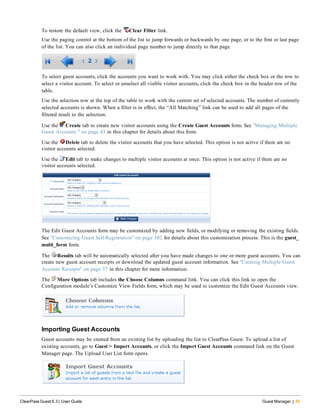
To select guest accounts, click the accounts you want to work with. You may click either the check box or the row to
select a visitor account. To select or unselect all visible visitor accounts, click the check box in the header row of the
table.
Use the selection row at the top of the table to work with the current set of selected accounts. The number of currently
selected accounts is shown. When a filter is in effect, the “All Matching” link can be used to add all pages of the
filtered result to the selection.
Use the Create tab to create new visitor accounts using the Create Guest Accounts form. See "Managing Multiple
Guest Accounts " on page 43 in this chapter for details about this form.
Use the Delete tab to delete the visitor accounts that you have selected. This option is not active if there are no
visitor accounts selected.
Use the Edit tab to make changes to multiple visitor accounts at once. This option is not active if there are no
visitor accounts selected.
The Edit Guest Accounts form may be customized by adding new fields, or modifying or removing the existing fields.
See "Customizing Guest Self-Registration" on page 302 for details about this customization process. This is the guest_
multi_form form.
The Results tab will be automatically selected after you have made changes to one or more guest accounts. You can
create new guest account receipts or download the updated guest account information. See "Creating Multiple Guest
Account Receipts" on page 37 in this chapter for more information.
The More Options tab includes the Choose Columns command link. You can click this link to open the
Configuration module’s Customize View Fields form, which may be used to customize the Edit Guest Accounts view.
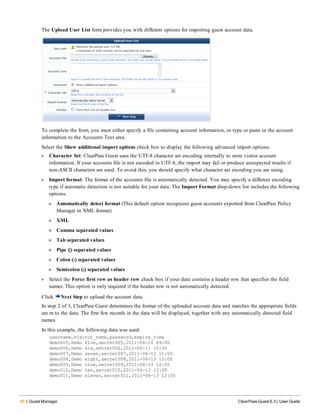
Importing Guest Accounts
Guest accounts may be created from an existing list by uploading the list to ClearPass Guest. To upload a list of
existing accounts, go to Guest > Import Accounts, or click the Import Guest Accounts command link on the Guest
Manager page. The Upload User List form opens.
ClearPass Guest 6.3 | User Guide Guest Manager | 45
46 | Guest Manager ClearPass Guest 6.3 | User Guide
The Upload User List form provides you with different options for importing guest account data.
To complete the form, you must either specify a file containing account information, or type or paste in the account
information to the Accounts Text area.
Select the Show additional import options check box to display the following advanced import options:
l Character Set: ClearPass Guest uses the UTF-8 character set encoding internally to store visitor account
information. If your accounts file is not encoded in UTF-8, the import may fail or produce unexpected results if
non-ASCII characters are used. To avoid this, you should specify what character set encoding you are using.
l Import format: The format of the accounts file is automatically detected. You may specify a different encoding
type if automatic detection is not suitable for your data. The Import Format drop-down list includes the following
options:
n Automatically detect format (This default option recognizes guest accounts exported from ClearPass Policy
Manager in XML format)
n XML
n Comma separated values
n Tab separated values
n Pipe (|) separated values
n Colon (:) separated values
n Semicolon (;) separated values
l Select the Force first row as header row check box if your data contains a header row that specifies the field
names. This option is only required if the header row is not automatically detected.
Click Next Step to upload the account data.
In step 2 of 3, ClearPass Guest determines the format of the uploaded account data and matches the appropriate fields
are m to the data. The first few records in the data will be displayed, together with any automatically detected field
names.
In this example, the following data was used:
username,visitor_name,password,expire_time
demo005,Demo five,secret005,2011-06-10 09:00
demo006,Demo six,secret006,2011-06-11 10:00
demo007,Demo seven,secret007,2011-06-12 11:00
demo008,Demo eight,secret008,2011-06-13 12:00
demo009,Demo nine,secret009,2011-06-13 12:00
demo010,Demo ten,secret010,2011-06-13 12:00
demo011,Demo eleven,secret011,2011-06-13 12:00
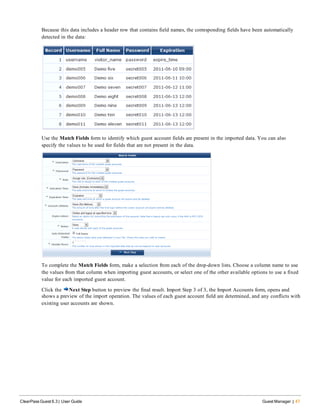
Because this data includes a header row that contains field names, the corresponding fields have been automatically
detected in the data:
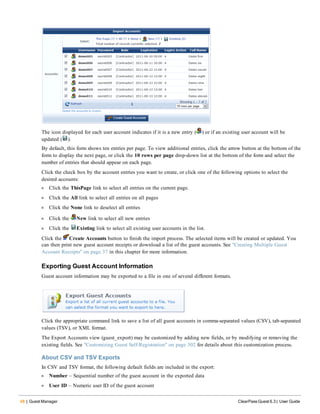
Use the Match Fields form to identify which guest account fields are present in the imported data. You can also
specify the values to be used for fields that are not present in the data.
To complete the Match Fields form, make a selection from each of the drop-down lists. Choose a column name to use
the values from that column when importing guest accounts, or select one of the other available options to use a fixed
value for each imported guest account.
Click the Next Step button to preview the final result. Import Step 3 of 3, the Import Accounts form, opens and
shows a preview of the import operation. The values of each guest account field are determined, and any conflicts with
existing user accounts are shown.
ClearPass Guest 6.3 | User Guide Guest Manager | 47
48 | Guest Manager ClearPass Guest 6.3 | User Guide
The icon displayed for each user account indicates if it is a new entry ( ) or if an existing user account will be
updated ( ).
By default, this form shows ten entries per page. To view additional entries, click the arrow button at the bottom of the
form to display the next page, or click the 10 rows per page drop-down list at the bottom of the form and select the
number of entries that should appear on each page.
Click the check box by the account entries you want to create, or click one of the following options to select the
desired accounts:
l Click the ThisPage link to select all entries on the current page.
l Click the All link to select all entries on all pages
l Click the None link to deselect all entries
l Click the New link to select all new entries
l Click the Existing link to select all existing user accounts in the list.
Click the Create Accounts button to finish the import process. The selected items will be created or updated. You
can then print new guest account receipts or download a list of the guest accounts. See "Creating Multiple Guest
Account Receipts" on page 37 in this chapter for more information.
Exporting Guest Account Information
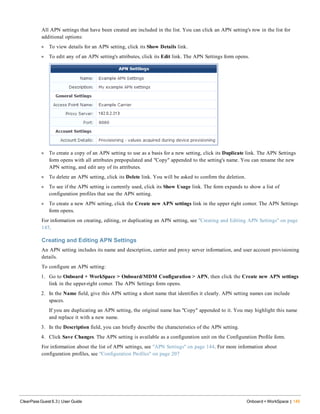
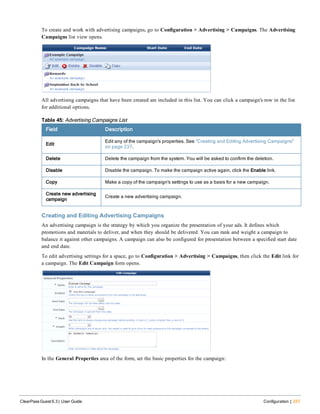
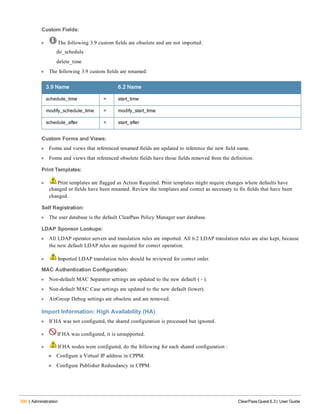
Guest account information may be exported to a file in one of several different formats.
Click the appropriate command link to save a list of all guest accounts in comma-separated values (CSV), tab-separated
values (TSV), or XML format.
The Export Accounts view (guest_export) may be customized by adding new fields, or by modifying or removing the
existing fields. See "Customizing Guest Self-Registration" on page 302 for details about this customization process.
About CSV and TSV Exports
In CSV and TSV format, the following default fields are included in the export:
l Number – Sequential number of the guest account in the exported data
l User ID – Numeric user ID of the guest account
l Username – Username for the guest account
l Role – Role for the guest account
l Activation – Date and time at which the guest account will be activated, or “N/A” if there is no activation time
l Expiration – Date and time at which the guest account will expire, or “N/A” if there is no expiration time
l Lifetime – The guest account’s lifetime in minutes after login, or 0 if the account lifetime is not set
l Expire Action – Number specifying the action to take when the guest account expires (0 through 4)
About XML Exports
The default XML format consists of a <GuestUsers> element containing a <GuestUser> element for each exported
guest account. The numeric ID of the guest account is provided as the “id” attribute of the <GuestUser> element. This
format is compatible with the ClearPass Policy Manager XML format for guest users.
The values for both standard and custom fields for guest accounts are exported as the contents of an XML tag, where
the tag has the same name as the guest account field.
An example XML export is given below:
<?xml version="1.0" encoding="UTF-8" standalone="true"?>
<MyContents xmlns="http://www.example.com/myapiDefs/1.0">
<MyHeader version="6.0" exportTime="Sun, 16 Dec 2012 16:36:03 PST"/>
<GuestUsers>
<GuestUser guestType="USER" enabled="true" sponsorName="55480025"
expiryTime="2012-12-04 13:39:25" startTime="1969-12-31 16:00:00"
password="08654361" name="55480025">
<GuestUserTags tagValue="Hotspot Services self-provisioned guest account
Source IP: 10.11.10.254 MAC: unknown Plan: Free Access x 1 Transaction
Amount: $0.00 Invoice Number: P-15 Transaction ID: " tagName="notes"/>
<GuestUserTags tagValue="2" tagName="[Role ID]"/>
<GuestUserTags tagValue="1" tagName="do_expire"/>
<GuestUserTags tagValue="1" tagName="simultaneous_use"/>
<GuestUserTags tagValue="ff" tagName="Company Name"/>
<GuestUserTags tagValue="2012-12-04 12:39:14" tagName="Create Time"/>
<GuestUserTags tagValue="fff@df" tagName="Email"/>
<GuestUserTags tagValue="ff" tagName="first_name"/>
<GuestUserTags tagValue="plan0" tagName="hotspot_plan_id"/>
<GuestUserTags tagValue="Free Access" tagName="hotspot_plan_name"/>
<GuestUserTags tagValue="ff" tagName="last_name"/>
<GuestUserTags tagValue="ff ff" tagName="Visitor Name"/>
<GuestUserTags tagValue="ff" tagName="zip"/>
</GuestUser>
MAC Authentication in ClearPass Guest
ClearPass Guest supports a number of options for MAC Authentication and the ability to authenticate devices.
The advanced features described in this section generally require a WLAN capable of MAC authentication with
captive portal fallback. Please refer to the Aruba WLAN documentation for setting up the controller appropriately.
To verify that you have the most recent MAC Authentication Plugin installed and enabled before you configure these
advanced features, go to Administration > Plugin Manager > List Available Plugins. For information on plugin
management, see "Plugin Manager " on page 395.
MAC Address Formats
Different vendors format the client MAC address in different ways—for example:
ClearPass Guest 6.3 | User Guide Guest Manager | 49
50 | Guest Manager ClearPass Guest 6.3 | User Guide
l 112233AABBCC
l 11:22:33:aa:bb:cc
l 11-22-33-AA-BB-CC
ClearPass Guest supports adjusting the expected format of a MAC address. To configure formatting of separators and
case in the address, as well as user detection and device filtering for views, go to Administration > Plugin Manager >
Manage Plugins and click the Configuration link for the MAC Authentication plugin. The MAC Authentication
Configuration page opens.
Figure 7 MAC Authentication Plugin—Configuration
On the controller, the fields look as follows:
Figure 8 MAC Authentication Profile
Managing Devices
To view the list of current MAC devices, go to Guest > List Devices.
The Guest Manager Devices page opens.
All devices created by one of methods described in the following section are listed. Options on the form let you
change a device’s account expiration date; remove, activate, or edit the device; view active sessions or details for the
device; or print details, receipts, confirmations, or other information.
The MAC Address, Role, State, Activation, and Expiration columns display information about the device accounts
that have been created:
l The value in the Expiration column is colored red if the device account will expire within the next 24 hours. The
expiration time is additionally highlighted in boldface if the device account will expire within the next hour.
l In addition, icons in the MAC Address column indicate the device account’s activation status:
n —Device account is active
n —Device account was created but is not activated yet
n —Device account was disabled by Administrator
n —Device account has expired
n —Device account was deleted
You can use the Filter field to narrow the search parameters. You may enter a simple substring to match a portion of
any fields that are configured for search, and you can include the following operators:
Operator Meaning Additional Information
= is equal to
You may search for multiple values when using the
equality (=) or inequality !=) operators. To specify
multiple values, list them separated by the pipe
character ( | ).
For example, specifying the filter "role_id=2|3, custom_
field=Value" restricts the accounts displayed to those
with role IDs 2 and 3 (Guest and Employee), and with
the field named "custom_field" set to "Value".
!= is not equal to
> is greater than
>= is greater than or equal to
< is less than
<= is less than or equal to
~ matches the regular expression
!~
does not match the regular
expression
Table 9: Operators supported in filters
To restore the default view, click the Clear Filter link.
Use the paging control at the bottom of the list to jump forwards or backwards by one page, or to the first or last page
of the list. You can also click an individual page number to jump directly to that page.
To select a device, click the device you want to work with.
Changing a Device’s Expiration Date
To change a device’s expiration date, click the device’s row in the Guest Manager Devices list, then click its Change
expiration link. The row expands to include the Change Expiration form.
ClearPass Guest 6.3 | User Guide Guest Manager | 51
52 | Guest Manager ClearPass Guest 6.3 | User Guide
1. In the Account Expiration row, choose one of the options in the drop-down list to set an expiration date:
l If you choose Account expires after, the Expires After row is added to the form. Choose an interval of hours,
days, or weeks from the drop-down list.
l If you choose Account Expires at a specified time, the Expiration Time row is added to the form. Click the
button to open the calendar picker. In the calendar, use the arrows to select the year and month, click the
numbers in the Time fields to increment the hours and minutes, then click a day to select the date.
2. If you choose any option other than “will not expire” or “now” in the Account Expiration field, the Expire Action
row is added to the table. Use the drop-down list in this row to specify one of the following actions: delete, delete
and log out, disable, or disable and log out.
3. Click Update Account to commit your changes.
Disabling and Deleting Devices
To remove a device’s account by disabling or deleting it, click the device’s row in the Guest Manager Devices list,
then click its Remove link. The row expands to include the Remove Account form.
You may choose to either disable or delete the account. If you disable it, it remains in the device list and you may
activate it again later. If you delete the account, it is removed from the list permanently.
Activating a Device
To activate a disabled device’s account, click the device’s row in the Guest Manager Devices list, then click its
Activate link. The row expands to include the Enable Guest Account form.
1. In the Activate Account row, choose one of the options in the drop-down list to specify when to activate the
account. You may choose an interval, or you may choose to specify a time.
2. If you choose Activate at specified time, the Activation Time row is added to the form. Click the button to open
the calendar picker. In the calendar, use the arrows to select the year and month, click the numbers in the Time
fields to increment the hours and minutes, then click a day to select the date.
3. Click Enable Account to commit your changes.
Editing a Device
To edit a device’s account, click the device’s row in the Guest Manager Devices list, then click its Edit link. The row
expands to include the Edit Device form. You can edit any of the device's properties.
Field Description
MAC Address The device's MAC address.
Device Name The name for the device.
Table 10: New Device
ClearPass Guest 6.3 | User Guide Guest Manager | 53
54 | Guest Manager ClearPass Guest 6.3 | User Guide
Field Description
If you need to modify the configuration for expected separator format or case, go to
Administration > Plugin Manager > Manage Plugins and click the Configuration link for the
MAC Authentication Plugin.
AirGroup Enables AirGroup for the device. Configuration options are added to the form.
Ownership
Specifies whether device ownership should be personal or shared. Personal devices are
automatically shared with the owner's other devices.
Shared With
Usernames of people who can share this device. Enter usernames as a comma-separated list.
To make the device available to all users, leave this field blank.
Each username may not exceed 64 characters. A maximum of 100 usernames may be
entered. The maximum character limit for the list is 1000 characters (including comma
separators).
Shared Locations
Locations where the device can be shared. When you type a location name in the Shared
Locations field and press the Enter key, the location appears as a "tag" and is created in the
system when the form is saved.
Each location name may not exceed 64 characters. A maximum of 100 location names may
be entered. The maximum character limit for the list is 1000 characters (including comma
separators).
Shared Roles
User roles that can share this device. When you type a role name in the Shared Roles field
and press the Enter key, the role appears as a "tag" and is created in the system when the
form is saved.
Each role name may not exceed 64 characters. A maximum of 100 role names may be
entered. The maximum character limit for the list is 1000 characters (including comma
separators).
Shared Groups
User groups that can share this device. These will be available in the Shared Groups field for
users to choose from when they share a device.
When you type a name for the group in the Group Names field and press the Enter key, the
group appears as a "tag" and is created in the system when the form is saved.
Each group name may not exceed 64 characters. A maximum of 32 group names may be
entered. The maximum character limit for the list is 320 characters (including comma
separators).
Time Sharing
Time-based sharing rules for this device. For more information, see "About AirGroup Time-
Based Sharing" on page 63.
Syntax Opens the help topic "AirGroup Time-Based Sharing Syntax Examples" on page 64.
Account Activation
Options include: Activate the account immediately, at a preset interval of hours or days, at a
specified time, or leave the account disabled.
If you choose Activate at a specified time, the ActivationTime row is added to the form. Click
the button to open the calendar picker. In the calendar, use the arrows to select the year and
month, click the numbers in the Time fields to increment the hours and minutes, then click a
day to select the date.
Account Expiration
Options include: Never expire, expire at a preset interval of hours or days, or expire at a
specified time.
l If you choose any time in the future, the Expire Action row is added to the form. Indicate the
expiration action for the account—either delete, delete and log out, disable, or disable and
log out. The action will be applied at the time set in the Account Expiration row.
l If you choose Account expires after, the ExpiresAfter row is added to the form. Choose an
interval of hours, days, or weeks. The maximum is two weeks.
l If you choose Account Expires at a specified time, the ExpirationTime row is added to the
form. In the calendar picker, use the arrows to select the year and month, click the numbers
Field Description
in the Time fields to increment the hours and minutes, then click a day to select the date.
Account Role Assigns the visitor’s role.
Notes Optional additional information.
Update Device
Commits your changes and updates the device. The Updated Device Details and print options
are displayed.
Viewing Current Sessions for a Device
To view any sessions that are currently active for a device, click the Sessions link in the device’s row on the Guest
Manager Devices form. The Active Sessions list opens. For more information, see "Active Sessions Management" on
page 70.
Viewing and Printing Device Details
To print details, receipts, confirmations, or other information for a device, click the device’s row in the Guest Manager
Devices list, then click its Print link. The row expands to include the Account Details form and a drop-down list of
information that can be printed for the device.
Choosing an option in the Open print window using template drop-down list opens a print preview window and the
printer dialog. Options include account details, receipts in various formats, a session expiration alert, and a sponsorship
confirmation notice.
Device Creation Methods
MAC device accounts may be created in three ways:
l Manually in ClearPass Guest using the Create Device form
l During guest self-registration by a MAC parameter passed in the redirect URL, if the process is configured to create
a MAC device account
l During guest self-registration by a MAC parameter passed in the redirect URL, creating a parallel account paired
with the visitor account
ClearPass Guest 6.3 | User Guide Guest Manager | 55
56 | Guest Manager ClearPass Guest 6.3 | User Guide
Creating Devices Manually in ClearPass Guest
If you have the MAC address, you can create a new device manually. To create a new device, go to Guest > List
Devices and click the Create link, or you can go to the Guest navigation page and click the Create Device command.
The New Device form opens.
Field Description
MAC Address (Required) Enter the device's MAC address.
Device Name
(Required) Enter the name for the device.
If you need to modify the configuration for expected separator format or case, go to
Administration > Plugin Manager > Manage Plugins and click the Configuration link for the
MAC Authentication Plugin.
AirGroup Enables AirGroup for the device. Configuration options are added to the form.
Ownership
Specifies whether device ownership should be personal or shared. Personal devices are
automatically shared with the owner's other devices.
Shared With
Usernames of people who can share this device. Enter usernames as a comma-separated list.
To make the device available to all users, leave this field blank.
Each username may not exceed 64 characters. A maximum of 100 usernames may be
entered. The maximum character limit for the list is 1000 characters (including comma
separators).
Shared Locations Locations where the device can be shared. When you type a location name in the Shared
Table 11: New Device
Field Description
Locations field and press the Enter key, the location appears as a "tag" and is created in the
system when the form is saved.
Each location name may not exceed 64 characters. A maximum of 100 location names may
be entered. The maximum character limit for the list is 1000 characters (including comma
separators).
Shared Roles
User roles that can share this device. When you type a role name in the Shared Roles field
and press the Enter key, the role appears as a "tag" and is created in the system when the
form is saved.
Each role name may not exceed 64 characters. A maximum of 100 role names may be
entered. The maximum character limit for the list is 1000 characters (including comma
separators).
Shared Groups
User groups that can share this device. These will be available in the Shared Groups field for
users to choose from when they share a device.
When you type a name for the group in the Group Names field and press the Enter key, the
group appears as a "tag" and is created in the system when the form is saved.
Each group name may not exceed 64 characters. A maximum of 32 group names may be
entered. The maximum character limit for the list is 320 characters (including comma
separators).
This feature requires AOS 6.4 or later.
Time Sharing
Time-based sharing rules for this device. For more information, see "About AirGroup Time-
Based Sharing" on page 63.
Syntax Opens the help topic "AirGroup Time-Based Sharing Syntax Examples" on page 64.
Account Activation
Options include: Activate the account immediately, at a preset interval of hours or days, at a
specified time, or leave the account disabled.
If you choose Activate at a specified time, the ActivationTime row is added to the form. Click
the button to open the calendar picker. In the calendar, use the arrows to select the year and
month, click the numbers in the Time fields to increment the hours and minutes, then click a
day to select the date.
Account Expiration
Options include: Never expire, expire at a preset interval of hours or days, or expire at a
specified time.
l If you choose any time in the future, the Expire Action row is added to the form. Indicate the
expiration action for the account—either delete, delete and log out, disable, or disable and
log out. The action will be applied at the time set in the Account Expiration row.
l If you choose Account expires after, the ExpiresAfter row is added to the form. Choose an
interval of hours, days, or weeks. The maximum is two weeks.
l If you choose Account Expires at a specified time, the ExpirationTime row is added to the
form. In the calendar picker, use the arrows to select the year and month, click the numbers
in the Time fields to increment the hours and minutes, then click a day to select the date.
Account Role Assigns the visitor’s role.
Terms of Use
Click the terms of use link and read the agreement, then mark the check box to agree to the
terms.
Create Device
Commits your changes and creates the device. The Account Details and print options are
displayed. For more information, see "Viewing and Printing Device Details " on page 55.
Creating Devices During Self-Registration - MAC Only
This section describes how to configure a guest self-registration so that it creates a MAC device account. Once the
guest is registered, future authentication can take place without the need for the guest to enter their credentials. A
registration can be converted to create a MAC device instead of standard guest credentials.
ClearPass Guest 6.3 | User Guide Guest Manager | 57
58 | Guest Manager ClearPass Guest 6.3 | User Guide
This requires a vendor passing a MAC parameter in the redirect URL. ClearPass Guest does not support querying the
controller or DHCP servers for the client's MAC based on IP.
To edit the registration form fields, go to Configuration > Forms and Views. In the guest_register row, click the Edit
Fields link. The Customize Form Fields page opens. If you do not see mac or mac_auth in the list, click the Customize
fields link above the list. Click the Edit link in the field’s row. In the Define Custom Field form, edit the registration
form fields:
l Add or enable mac
n UI: Hidden field
n Field Required: checked
n Validator: IsValidMacAddress
l Add or enable mac_auth
n UI: Hidden field
l Any other expiration options, role choice, surveys, and so on can be entered as usual.
Figure 9 Modify fields
l Edit the receipt form fields:
n Edit username to be a Hidden field
n Edit password to be a Hidden field
l Adjust any headers or footers as needed.
When the visitor registers, they should be able to still log in via the Log In button. The MAC will be passed as their
username and password via standard captive portal means.
The account will only be visible on the List Devices page.
If the guest logs out and reconnects, they should be immediately logged in without being redirected to the captive
portal page.
Creating Devices During Self-Registration - Paired Accounts
Paired accounts is a means to create a standard visitor account with credentials, but to have a MAC account created in
parallel that is directly tied to the visitor account. These accounts share the same role, expiration and other properties.
This requires a vendor passing a mac parameter in the redirect URL. ClearPass Guest does not support querying the
controller or DHCP servers for the client's MAC based on IP.
To edit the registration form fields, go to Configuration > Forms and Views. In the guest_register row, click the Edit
Fields link. The Customize Form Fields page opens. If you do not see mac or mac_auth_pair in the list, click the
Customize fields link above the list. Click the Edit link in the field’s row. In the Define Custom Field form, edit the
registration form fields:
l Add or enable mac
n UI: Hidden field
n Field Required: optional
n Validator: IsValidMacAddress
l Add or enable mac_auth_pair
n UI: Hidden field
n Initial Value: -1
l Any other expiration options, role choice, surveys and so on can be entered as usual.
You will see an entry under both List Accounts and List Devices. Each should have a View Pair action that cross
links the two.
If you delete the base account, all of its pairings will also be deleted. If RFC-3576 has been configured, all pairs will be
logged out.
AirGroup Device Registration
AirGroup allows users to register their personal mobile devices on the local network and define a group of friends or
associates who are allowed to share them. If AirGroup Services is enabled, AirGroup administrators can provision their
organization’s shared devices and manage access, and AirGroup operators can register and provision a limited number
of their own personal devices for sharing. For complete AirGroup deployment information, refer to the AirGroup
sections in the ArubaOS User Guide and the ClearPass Policy Manager documentation.
Registering Groups of Devices or Services
This functionality is only available to AirGroup administrators.
To register and manage an organization’s shared devices and configure device access, log in as the AirGroup
administrator and go to Guest > Create Device. The Register Shared Device form opens.
1. In the Device Name field, enter the name used to identify the device.
2. In the Device Type field, use the drop-down list to select the device type.
3. In the MAC Address field, enter the device’s MAC address.
ClearPass Guest 6.3 | User Guide Guest Manager | 59
60 | Guest Manager ClearPass Guest 6.3 | User Guide
4. In the Shared Locations field, enter the locations where the device can be shared. To allow the device to be shared
with all locations, leave this field blank.
Each location name may not exceed 64 characters. A maximum of 100 location names may be entered. The
maximum character limit for the list is 1000 characters (including comma separators).
Each location is entered as a tag=value pair describing the MAC address of the access point (AP) closest to the
registered device. Use commas to separate the tag=value pairs in the list. Tag=value pair formats are shown in the
following table.
AP Type Tag=Value Format
Name-based AP ap-name=<name>
Group-based AP ap-group=<group>
FQLN-based AP fqln=<fqln>
Table 12: Tag=Value Pair Formats
l AP FQLNs should be configured in the format <ap name>.<floor>.<building>.<campus>
l Floor names should be in the format floor <number>
l The <ap-name> should not include periods ( . )
Example:
AP105-1.Floor 1.TowerD.Mycompany
5. In the Shared With field, enter the usernames of your organization’s staff or students who are allowed to use the
device. Use commas to separate usernames in the list.
Each username may not exceed 64 characters. A maximum of 100 usernames may be entered. The maximum
character limit for the list is 1000 characters (including comma separators).
l If the Share With field is left blank, this device can be accessed by all devices.
l If users are entered in the Shared With field, the device can only be accessed by the specified users.
6. In the Shared Roles field, enter the user roles that are allowed to use the device. Use commas to separate the roles
in the list.
Each role name may not exceed 64 characters. A maximum of 100 role names may be entered. The maximum
character limit for the list is 1000 characters (including comma separators).
l To make the device available to all roles, leave this field blank.
l If roles are entered in the Shared Roles field, the device can only be accessed by users with matching roles.
7. Click Register Shared Device. The Finished Creating Guest Account page opens. This page displays Account
Details and provides printer options.
To view and edit your organization’s shared AirGroup devices:
1. Go to Guest > List Devices, or click the Manage my AirGroup Devices link on the Create AirGroup Device page.
The AirGroup Devices page opens. This page lists all the shared AirGroup devices for the organization. You can
remove a device; edit a device’s name, MAC address, shared locations, shared-user list, or shared roles; print device
details; or add a new device.
2. To work with a device, click the device’s row in the list. The form expands to include the Remove, Edit, and Print
options.
3. To edit properties of a shared device, click the Edit link for the device. The row expands to include the Edit Shared
Device form. You can modify the device’s name, MAC address, shared locations, group of users, and shared roles.
4. When your edits are complete, click Save Changes.
Registering Personal Devices
This functionality is available to AirGroup operators.
To register your personal devices and define a group who can share them:
1. Log in as the AirGroup operator and go to Guest > Create Device. The Register Device form opens.
ClearPass Guest 6.3 | User Guide Guest Manager | 61
62 | Guest Manager ClearPass Guest 6.3 | User Guide
2. In the Your Name field, enter your username for your organization.
3. In the Device Name field, enter the name used to identify the device.
4. In the Device Type drop-down list, select the device type.
5. In the MAC Address field, enter the device’s MAC address.
6. In the Shared With field, enter the usernames of your friends or colleagues who are allowed to use the device. Use
commas to separate usernames in the list. You may enter up to ten usernames.
l If the Shared With field is left blank, this device can only be accessed by devices registered by the same
operator or with a dot1x username that matches the operator’s name.
l If users are entered in the Shared With field, the device can be accessed by the device owner and by the
specified users.
7. Click Register Device. The Finished Creating Guest Account page opens. This page displays Account Details and
provides printer options.
To view and edit your personal AirGroup devices, go to Guest > List Devices, or click the Manage my AirGroup
Devices link on the Create AirGroup Device page. The List Device page lets you remove a device; edit a device’s
name, MAC address, or shared-user list; print device details; or add a new device.
To view and edit your personal AirGroup devices:
1. Go to Guest > List Devices, or click the Manage my AirGroup Devices link on the Create AirGroup Device page.
The AirGroup Devices page opens. This page lists all your personal AirGroup devices. You can remove a device;
edit a device’s name, MAC address, or shared-user list; print device details; or add a new device.
2. To work with a device, click the device’s row in the list. The form expands to include the Remove, Edit, and Print
options.
3. To edit properties of a device, click the Edit link for the device. The row expands to include the Edit Device form.
You can modify the device’s name, MAC address, and group of users.
4. When your edits are complete, click Save Changes.
About AirGroup Time-Based Sharing
This section discusses time-based sharing policies for an AirGroup shared device.
For information on the syntax for time-based sharing policies for a AirGroup shared devices, see "AirGroup Time-
Based Sharing Syntax Examples" on page 64
Time-based sharing is used in settings where an organization's shared devices are made available to groups of users
according to a regular schedule, and device access is configured by group at the user level—for example:
l A university classroom or laboratory is used by a first-year physics class on Mondays, Wednesdays, and Fridays, by
a group of researchers on Tuesdays and Thursdays, and for visiting speakers every other Saturday.
l A convention center has several major exhibitors who each hold an annual event, and who reserve their customary
section of the convention center several years in advance.
In cases like this, you can enter rules to define the schedule on which shared devices in an area will be available to
certain groups. You can also specify times when a device will not be available. This is a time-based sharing policy.
Device association is dynamic: When a shared device is available to a group, any user with that group attribute can
access the device. When the user is no longer a member of the group (for example, at the end of the semester), they no
longer have access, but the time-based sharing policy remains in effect and new users who are assigned the group
attribute can access the shared device.
Basics of Time-Based Sharing Setup
When you create a device, enable it for AirGroup Services, and configure it as a shared device, you also have the
option to specify time-based sharing (time fencing) for the device.
You first use the Administration > AirGroup Services > Configure form to create the groups who can share devices.
When you type a name for the group in the Group Name field, press the Enter key, and click Save, the group is created
in the system and appears as a "tag".
ClearPass Guest 6.3 | User Guide Guest Manager | 63
64 | Guest Manager ClearPass Guest 6.3 | User Guide
On the Guest > Create Device or Guest > List Devices > Edit forms, the shared user groups you created are then
available for selection when you click in the Shared Groups field. (This feature requires AOS 6.4 or later)
On the same screen, the next step is then to enter the rules for the time-based sharing policy, using the group names
you created. For more information, see "AirGroup Time-Based Sharing Syntax Examples" on page 64
AirGroup Time-Based Sharing Syntax Examples
This section provides examples and discussions of syntax for time-based sharing policies for AirGroup shared devices.
For information on using time-based sharing for AirGroup, see "About AirGroup Time-Based Sharing" on page 63. For
supplemental time-based syntax information, see "Time-Based Syntax Reference" on page 66.
Example:
periodic Monday 9am to 10am shared users A, B
The device is shared with users A and B, from 9am to 10am every Monday (relative to the server's current time
zone). Outside of this time slot, the device is not shared (except as otherwise controlled by AOS).
Example:
periodic Monday 9:00 to 10:30 shared users A, B
periodic Monday 12:00 to 13:30 shared users A, B
periodic Monday 15:00 to 16:30 shared users C, D
The device is shared with users A and B, from 9am to 10:30am and from noon to 1:30pm every Monday (relative
to the server's current time zone). From 3pm to 4:30pm, the device is shared with users C and D.
Outside of these two time slots, the device is not shared.
With periodic, times may be specified either in 24-hour format (hh:mm, from 0:00 to 24:00), or in 12-hour format
(hh:mm and am or pm).
Don't specify overlapping time ranges with periodic rules; this can lead to unexpected results.
The synonyms rep, repeat or repeating may also be used in place of period or periodic. All of these terms are
treated identically.
Example:
default allow
periodic mon 9am to 10am shared users A, B
As in the first example, the device is shared with users A and B, from 9am to 10am every Monday. Outside of this
time slot, the device is shared as specified by the other sharing state fields (shared users, locations, roles and/or
groups). This is the meaning of the default allow statement.
If default allow is not specified, the normal behavior is default deny, which is the same as in the first example.
Note that with default deny in effect, the AirGroup time sharing policy will override any other sharing rules that
are specified, for as long as the time sharing policy is in effect.
Two and three-character shortened forms of weekdays are acceptable (e.g. "Mon" or "Mo" can be used for Monday,
"Tue" or "Tu" for Tuesday, etc.) Case is not significant in the time sharing policy, so "Mon", "MON", and "mon" are
all equivalent ways to specify "Monday".
Example:
default deny
not after 01-Feb-2014
periodic mon 9am to 10am shared users A, B
The device is shared with users A and B, from 9am to 10am every Monday. The not after date sets the end of the
time sharing policy. Monday, January 27, 2014 is the last day that this time sharing policy will take effect.
After 10am on this date, the time sharing policy is no longer in effect; any other sharing rules that have been
specified will then take effect.
Example:
default deny
not before 1/1/14
not after 01-Feb-2014
periodic mon 9am to 10am shared users A, B
The device is shared with users A and B, from 9am to 10am every Monday. The not before date sets the beginning
of the time sharing policy. In this case, Monday, January 6, 2014 is the first day that this time sharing policy will
take effect.
Prior to 9am 6 January 2014, the device is not shared (due to the default deny).
After 10am on 27 January 2014, the time sharing policy is no longer in effect; any other sharing rules that have
been specified will then take effect.
Example:
time zone America/Los_Angeles
periodic Monday 9am to 10am shared users A, B
The device is shared with users A and B, from 9am to 10am every Monday (relative to the U.S. Pacific time zone).
Daylight savings time rules are observed; the time period 9am to 10am is always relative to that time zone.
Example:
periodic mon tue wed thu fri 9am to 10am shared users A, B
The device is shared with users A and B, from 9am to 10am every weekday (Monday, Tuesday, Wednesday,
Thursday and Friday).
Example:
periodic weekdays 9am to 10am shared users A, B
weekday or weekdays can be used as a synonym for "Monday Tuesday Wednesday Thursday Friday". Similarly,
weekend or weekends can be used as a synonym for "Saturday Sunday".
Example:
on Sep 16 9:00 to 13:00 shared location AP-Name=1341-ap01 shared group ABC shared role Some
Role shared user user02, user03, "user04", 'user05'
ClearPass Guest 6.3 | User Guide Guest Manager | 65
66 | Guest Manager ClearPass Guest 6.3 | User Guide
The device is shared with a single access point named 1341-ap01, a single group named ABC, a single role named
SomeRole, and 4 users named user02,user03, user04, and user05.
Note the quotes are not considered to be part of the user names user04 and user05. (In this case, the quotes are
redundant as there is no space or comma that requires quoting.)
No time zone is specified, so the date and time are determined relative to the server's time zone.
No year is specified, so the server's current year is used. In particular, after September 16 of any year, this rule will
have no effect until the following year.
Example:
default allow
periodic 0:00 to 24:00 shared roles default_role
periodic mon 9am to 5pm shared roles other_role
The device is normally shared ("default allow") with a single role named default_role ("periodic 0:00 to 24:00
shared roles default_role").
On Monday from 9am to 5pm, the device is shared with a different role named other_role.
Note that even though the time ranges overlap, the sharing policies are completely distinct; on Mondays from 9am
to 5pm, the role default_role will NOT have access to the device, because a different sharing rule is in effect. (The
rule could instead have been written "periodic mon 9am to 5pm shared roles default_role, other_role" if this was the
desired result.)
This example shows how to use an overlapping time range: place the most general time range first, with more
specific time ranges later. In particular, reversing the order of the periodic statements will not work.
Example:
default deny
periodic 9:00 to 22:00 shared roles default_role
no periodic thu 9:00 to 17:00
periodic fri 9:00 to 17:00 not shared
This example shows how to share a device with a basic policy, and demonstrates two ways to disable sharing for a
subset of the time period.
The device will be shared with a single role named default_role, from 9:00 to 22:00 each day. ("periodic 9:00 to
22:00 shared roles default_role").
On Thursday, the device is not shared between 9:00 and 17:00.
On Friday, the device is not shared between 9:00 and 17:00.
Example:
default allow
periodic 9:00 to 22:00 shared roles default_role
no periodic thu 9:00 to 17:00
periodic fri 9:00 to 17:00 not shared
This example is similar to the previous example; the device is not shared on Thursday and Friday between 9:00 and
17:00.
The difference is after 22:00 and before 9:00: in the previous example, the device is not shared during this time
period, whereas with default allow the other AirGroup sharing rules will take effect (any shared users, roles, groups
or locations that have been defined for the device).
Time-Based Syntax Reference
This reference describes the syntax used for time formats in time-based sharing rules. It supplements the examples for
AirGroup time-based sharing by user groups discussed in "AirGroup Time-Based Sharing Syntax Examples" on page
64. For more information on using time-based sharing with AirGroup, see "About AirGroup Time-Based Sharing" on
page 63.
The syntax for AirGroup time-based sharing policies supports all the default time-based ACL rules specified in
TimeRangeACL. This ACL is a sequence of rules, one per line, according to the following syntax:
l default allow|deny
Specifies the default behavior for unmatched times; this is 'allow' only if no 'periodic' or 'absolute' rules are
specified, otherwise it is 'deny'. Use 'default allow' if the remaining rules exclude times, otherwise use 'default deny'
if the remaining rules are to include times. This rule may only be used once.
l [time] zone default|server|...
Specifies the time zone to use for matching times and specifying the time of day. If unset, the current time zone
setting is used (note that this may vary due to operator and/or profile settings). If the value "default" or "server" is
specified, the system's time zone is used. Otherwise, the named time zone is used. This rule may only be used once,
and must be before any rules specifying a time interval.
l [not] period(ic) [day-list] hh:mm to [day] hh:mm
Specifies a periodic or daily interval. Recognized days include Sunday, Monday, Tuesday, Wednesday, Thursday,
Friday, Saturday and 3-letter abbreviations; the tokens "weekends" and "weekdays" may also be used. Without a
day-list, all days of the week are matched. Time may be specified in 12 or 24 hour format, with the special time
24:00 indicating the end of the day.
Example: periodic monday 8:00 to friday 17:00 matches between 8am and 5pm, Monday through Friday.
Example: periodic weekdays 8:00 to 17:00 specifies the same thing as the example in the previous line.
Example: periodic wed 11am to 11pm matches between 11:00 and 23:00 on a Wednesday.
Example: periodic weekend 0:00 to 24:00 matches any time on a Saturday or Sunday.
Example: periodic saturday sunday 0:00 to 24:00 specifies the same thing as the example in the previous
line.
The 'not' keyword may be specified to invert the allow/deny decision.
Example: default allow; not period 23:00 to 6:00 (on 2 separate lines) allows access, except between
11pm and 6am.
Example: period 6:00 to 23:00 is equivalent to the example in the previous line.
l not before [date-and-time]
Specifies an absolute time before which access will always be rejected.
Example: not before 2010-07-01 09:00 matches after 9am on 1 July 2010.
l not after [date-and-time]
Specifies an absolute time after which access will always be rejected.
Example: not after 2011-01-01 00:00 matches before midnight on New Year's Day 2011.
l [not] abs(olute) [start-date-and-time] to [end-date-and-time]
Specifies a start and end interval. The date and time is a format recognized by strtotime(). Times between the start
and end point are matched. The 'not' keyword may be specified to invert the allow/deny decision.
Example: absolute December 25 to December 26 matches all day on Christmas Day each year. (This does not
match on December 26 as midnight on this date is the endpoint of the interval.)
A blank time ACL means "all times are allowed".
The following examples give common usage:
ClearPass Guest 6.3 | User Guide Guest Manager | 67
68 | Guest Manager ClearPass Guest 6.3 | User Guide
l 8:00 to 18:00 - allows access 8am to 6pm, every day, but not outside those times
l weekdays 9am to 5pm - allows access 9am to 5pm, Monday through Friday, but not outside those times
l weekdays 9am to 5pm
weekends 10am to 4pm - allows access 9am to 5pm, Monday through Friday, with reduced hours on Saturday and
Sunday
Annual recurrences may be specified:
l weekdays 9am to 5pm
not absolute December 25 to December 26 - allows access 9am to 5pm, Monday through Friday, but not on
Christmas Day
Less common cases:
l default allow
not 23:00 to 6:00 - allows access, except between 11pm and 6am daily
l 9:00 to 18:00
not before 2010-02-01 - allows daily access between 9am and 6pm, starting on February 1, 2010
l time zone Etc/GMT
9:00 to 18:00
not before 2010-02-01 - allows daily access between 9am and 6pm, starting on February 1, 2010, in the GMT
time zone (useful if server is in a different time zone)
Automatically Registering MAC Devices in ClearPass Policy Manager
If ClearPass Policy Manager is enabled, you can configure a guest MAC address to be automatically registered as an
endpoint record in ClearPass Policy Manager when the guest uses a Web login page or a guest self-registration
workflow. This customization option is available if a valid Local or RADIUS pre-authentication check was performed.
To configure auto-registration for an address through a Web login page:
1. Go to Configuration > Web Logins, click the row of the page you wish to configure, then click its Edit link. The
RADIUS Web Login Editor form opens.
2. Scroll down to the Post-Authentication area.
3. In the Policy Manager row, mark the check box to register the guest’s MAC address with ClearPass Policy
Manager. The Advanced row is added to the form.
4. In the Advanced row, mark the check box to enable advanced options in ClearPass Policy Manager. The Endpoint
Attributes row is added to the form.
5. In the Endpoint Attributes row, enter name|value pairs for the user fields and Endpoint Attributes to be passed.
6. Click Save Changes to complete this configuration and continue with other tasks, or click Save and Reload to
proceed to Policy Manager and apply the network settings.
Importing MAC Devices
The standard Guest > Import Accounts form supports importing MAC devices. At a minimum the following two
columns are required: mac and mac_auth.
mac_auth,mac,notes
1,aa:aa:aa:aa:aa:aa,Device A
1,bb:bb:bb:bb:bb:bb,Device B
1,cc:cc:cc:cc:cc:cc,Device C
Any of the other standard fields can be added similar to importing regular guests.
Advanced MAC Features
User Detection on Landing Pages
When mac is passed in the redirect URL, the user is detected and a customized message displays on the landing page.
Navigate to Administration > Plugin Manager > Manage Plugins: MAC Authentication: Configuration and enable
MAC Detect.
Edit the header of your redirect landing page (login or registration) and include the following:
<p>{if $guest_receipt.u.visitor_name}
Welcome back to the show, {$guest_receipt.u.visitor_name|htmlspecialchars}!
{else}
Welcome to the show!
{/if}</p>
For debugging purposes, include the following to see all the fields available:
{dump var=$guest_receipt export=html}
Click-Through Login Pages
A click-through login page will present a splash or terms screen to the guest, yet still provide MAC-auth style seamless
authentication. Under this scenario, you could have people create an account, with a paired MAC, yet still have them
click the terms and conditions on every new connection.
Disable MAC authentication on the controller.
Navigate to Administration > Plugin Manager > Manage Plugins: MAC Authentication: Configuration and enable
MAC Detect.
Create a Web Login
l Authentication: Anonymous
l Anonymous User: _mac (_mac is a special secret value)
l Pre-Auth Check: Local
l Terms: Require a Terms and Conditions confirmation
Set the Web login as your landing page and test. Using a registered device the 'Log In' button should be enabled,
otherwise it will be disabled.
You may also want to add a message so visitors get some direction.
<p>{if $guest_receipt.u.username}
{if $guest_receipt.u.visitor_name}
Welcome back, {$guest_receipt.u.visitor_name|htmlspecialchars}!
{else}
Welcome back.
{/if}
Please accept the terms before proceeding.
{else}
You need to register...
ClearPass Guest 6.3 | User Guide Guest Manager | 69
70 | Guest Manager ClearPass Guest 6.3 | User Guide
{/if}</p>
You can hide the login form by having the final line of the header be:
{if !$guest_receipt.u.username}<div style="display:none">{/if}
and the first line of the footer be:
{if !$guest_receipt.u.username}</div>{/if}
Active Sessions Management
The RADIUS server maintains a list of active visitor sessions. If your NAS equipment has RFC 3576 support, the
RADIUS dynamic authorization extensions allow you to disconnect or modify an active session.
To view and manage active sessions for the RADIUS server, go to Guest > Active Sessions. The Active Sessions list
opens. You can use this list to modify, disconnect or reauthorize, or send SMS notifications for active visitor sessions;
manage multiple sessions; or customize the list to include additional fields.
l To view details for an active session, click the session’s row in the list, then click its Show Details link. The form
expands to include the Session Details view.
l If the NAS equipment has RFC 3576 support, you can disconnect or dynamically reauthorize active sessions. See
"RFC 3576 Dynamic Authorization" on page 72 for more information.
n To disconnect an active session, click the session’s row in the list, then click its Disconnect link. A message is
displayed to show that the disconnect is in progress and acknowledge when it is complete.
n To reauthorize a session that was disconnected, click the session’s row in the list, then click its Reauthorize
link. The Reauthorize Session form opens. Click Reauthorize Session. A message is displayed to show that the
disconnect is in progress and acknowledge when it is complete.
n To disconnect multiple sessions, click the Manage Multiple tab. The form expands to include the Manage
Multiple Sessions form. For more information, see "Disconnecting Multiple Active Sessions " on page 73.
l To view and work with the guest accounts associated with a session, click the session’s row in the list, then click
its List Accounts link. The Guest Manager Accounts view opens. See "Managing Guest Accounts " on page 40 for
more information.
l To display only sessions that meet certain criteria, click the Filter tab. For more information, see "Filtering the List
of Active Sessions" on page 72.
l To send SMS notifications to visitors, click the SMS tab. For more information, see "Sending Multiple SMS Alerts "
on page 74.
l To include additional fields in the Active Sessions list, or delete fields from it, click the More Options tab. The
Customize View Fields page opens. For more information, see "Editing Forms " on page 273.
l You can use the paging control at the bottom of the list to jump forwards or backwards by one page, or to the first
or last page of the list. You can also click an individual page number to jump directly to that page.
Session States
A session may be in one of three possible states:
l Active—An active session is one for which the RADIUS server has received an accounting start message and has
not received a stop message, which indicates that service is being provided by a NAS on behalf of an authorized
client.
While a session is in progress, the NAS sends interim accounting update messages to the RADIUS server. This
maintains up-to-date traffic statistics and keeps the session active. The frequency of the accounting update messages
is configurable in the RADIUS server.
l Stale—If an accounting stop message is never sent for a session—for example, if the visitor does not log out—
that session will remain open. After 24 hours without an accounting update indicating session traffic, the session is
considered ‘stale’ and is not counted towards the active sessions limit for a visitor account. To ensure that
accounting statistics are correct, you should check the list for stale sessions and close them.
l Closed—A session ends when the visitor logs out or if the session is disconnected. When a session is explicitly
ended in either of these ways, the NAS sends an accounting stop message to the RADIUS server. This closes the
session. No further accounting updates are possible for a closed session.
ClearPass Guest 6.3 | User Guide Guest Manager | 71
72 | Guest Manager ClearPass Guest 6.3 | User Guide
RFC 3576 Dynamic Authorization
Dynamic authorization describes the ability to make changes to a visitor account’s session while it is in progress. This
includes disconnecting a session, or updating some aspect of the authorization for the session.
The Active Sessions page provides two dynamic authorization capabilities that apply to currently active sessions:
l Disconnect causes a Disconnect-Request message to be sent to the NAS for an active session, requesting that the
NAS terminate the session immediately. The NAS should respond with a Disconnect-ACK message if the session
was terminated or Disconnect-NAK if the session was not terminated.
l  Reauthorize causes a Disconnect-Request message to be sent to the NAS for an active session. This message
will contain a Service-Type attribute with the value ‘Authorize Only’. The NAS should respond with a Disconnect-
NAK message, and should then reauthorize the session by sending an Access-Request message to the RADIUS
server. The RADIUS server’s response will contain the current authorization details for the visitor account, which
will then update the corresponding properties in the NAS session.
If the NAS does not support RFC 3576, attempts to perform dynamic authorization will time out and result in a ‘No
response from NAS’ error message.
Refer to RFC 3576 for more details about dynamic authorization extensions to the RADIUS protocol.
Filtering the List of Active Sessions
You can use the Filter tab to narrow the search parameters and quickly find all matching sessions:
Enter a username or IP address in the Filter field. Additional fields can be included in the search if the “Include values
when performing a quick search” option was selected for the field within the view. To control this option, use the
Choose Columns command link on the More Options tab.
You may enter a simple substring to match a portion of the username or any other fields that are configured for search,
and you can include the following operators:
Operator Meaning Additional Information
= is equal to
You may search for multiple values when using the
equality (=) or inequality !=) operators. To specify
multiple values, list them separated by the pipe
character ( | ).
For example, specifying the filter "role_id=2|3, custom_
field=Value" restricts the accounts displayed to those
with role IDs 2 and 3 (Guest and Employee), and with
the field named "custom_field" set to "Value".
!= is not equal to
> is greater than
>= is greater than or equal to
< is less than
<= is less than or equal to
~ matches the regular expression
!~
does not match the regular
expression
Table 13: Operators supported in filters
To restore the default view, click the Clear Filter link.
Click the Apply Filter button to save your changes and update the view, or click the Reset button to remove the
filter and return to the default view.
Disconnecting Multiple Active Sessions
To disconnect multiple sessions, click the Manage Multiple tab. The Manage Multiple Sessions form opens.
l To close all active sessions, leave the Start Time and End Time fields empty and click Make Changes. All active
sessions are closed and are removed from the Active Sessions list.
You can specify sessions in a time range.
1. To close all sessions that started after a particular time, click the button in the Start Time row. The calendar picker
opens. Use the calendar to specify the year, month, and day, and click the numbers in the Time fields to increment
the hours and minutes. All sessions that started after the specified date and time will be disconnected.
2. To close all sessions that started before a particular time, click the button in the End Time row. The calendar picker
opens. Use the calendar to specify the year, month, and day, and click the numbers in the Time fields to increment
the hours and minutes. All sessions that started before the specified date and time will be disconnected.
3. Click Make Changes. The specified sessions are closed and are removed from the Active Sessions list.
ClearPass Guest 6.3 | User Guide Guest Manager | 73
74 | Guest Manager ClearPass Guest 6.3 | User Guide
Sending Multiple SMS Alerts
The SMS tab on the Active Sessions page lets you send an SMS alert message to all active sessions that have a valid
phone number. An SMS alert during an active session can be used to send a group of visitors information you might
want them to have immediately—for example, a special offer that will only be available for an hour, a change in a
meeting’s schedule or location, or a public safety announcement.
To create an SMS message:
1. Click the SMS tab on the Active Sessions page. The Send SMS Notification form opens.
2. Use the filter to specify the group of addresses that should receive the message. See "Filtering the List of Active
Sessions" on page 72. Only accounts with valid phone numbers can be sent SMS alerts.
3. Enter the message in the Message text box. Messages may contain up to 160 characters.
4. Click Send.
About SMS Guest Account Receipts
You can send SMS receipts for guest accounts that are created using either sponsored guest access or self-provisioned
guest access. This is convenient in situations where the visitor may not be physically present to receive a printed
receipt.
ClearPass Guest may be configured to automatically send SMS receipts to visitors, or to send receipts only on demand.
To manually send an SMS receipt:
1. Navigate to the Guest > List Accounts and click to expand the row of the guest to whom you want to send a
receipt.
2. Click Print to display the Account Details view, then click the Send SMS receipt link. The SMS Receipt form
opens. Use the fields on this form to enter the service to use, the recipient’s mobile phone number, the mobile
carrier, and the message text.
When using guest self-registration, SMS Delivery options are available for the receipt page actions; See "Editing
Receipt Actions" on page 315 for full details. For more information on SMS services, see "SMS Services" on page 402.
ClearPass Guest 6.3 | User Guide Onboard + WorkSpace | 75
Chapter 4
Onboard + WorkSpace
Onboarding is the process of preparing a device for use on an enterprise network by creating the appropriate access
credentials and setting up the network connection parameters. The Onboard + WorkSpace module provides all the
features of ClearPass Onboard and ClearPass WorkSpace together:
l ClearPass Onboard automates 802.1X configuration and provisioning for “bring your own device” (BYOD) and IT-
managed devices across wired, wireless, and virtual private networks (VPNs). For more information, see "About
ClearPass Onboard" on page 75.
l When an employee uses their personal device for work, ClearPass WorkSpace lets your organization keep its
enterprise applications, files, and processes securely separated from the user's personal items on the device. Then if
the device is ever lost or compromised, all your organization's applications and information can be remotely erased
without affecting any of the user's own files. For more information, see "About ClearPass WorkSpace" on page 90
Accessing Onboard + WorkSpace
To access the device provisioning features of ClearPass Onboard + WorkSpace, click the Onboard + WorkSpace link
in the left navigation.
About ClearPass Onboard
ClearPass Onboard automates 802.1X configuration and provisioning for “bring your own device” (BYOD) and IT-
managed devices—Windows, Mac OS X, iOS and Android—across wired, wireless, and virtual private networks
(VPNs).
ClearPass Onboard includes the following key features:
l Automatic configuration of network settings for wired and wireless endpoints.
l Provisioning of unique device credentials for BYOD and IT-managed devices.
l Support for Windows, Mac OS X, iOS, and Android devices.
76 | Onboard + WorkSpace ClearPass Guest 6.3 | User Guide
l Enables the revocation of unique credentials on a specific user’s device.
l Leverages ClearPass profiling to identify device type, manufacturer, and model.
This section provides the following important information about ClearPass Onboard:
l "Onboard Deployment Checklist " on page 76
l "Onboard Feature List " on page 77
l "Supported Platforms" on page 78
l "Public Key Infrastructure for Onboard" on page 79
l "Revoking Unique Device Credentials" on page 80
l "Network Requirements for Onboard" on page 81
l "Network Architecture for Onboard" on page 83
l "The ClearPass Onboard Process" on page 85
Onboard Deployment Checklist
Table 14 lists planning, configuration, and testing procedures. Use this checklist to complete your Onboard
deployment.
Onboard events are stored in the Application Log for seven days by default. After seven days, significant runtime
events are listed in the Audit Viewer in ClearPass Policy Manager’s Monitoring module. Onboard events that are listed
include:
l Changing the CA certificate
l Issuing a new certificate
l Signing a certificate signing request
l Revoking a certificate
l Deleting a certificate
l Importing a trusted certificate
l Uploading a code-signing or other certificate
Deployment Step Reference
Planning and Preparation
Review the Onboard feature list to identify the major areas of
interest for your deployment.
"Onboard Feature List " on page 77
Review the list of platforms supported by Onboard, and identify
the platforms of interest for your deployment.
"Supported Platforms" on page 78
Review the Onboard public key infrastructure, and identify any
certificate authorities that will be needed during the deployment.
"Public Key Infrastructure for Onboard" on
page 79
Review the network requirements and the network architecture
diagrams to determine how and where to deploy the Onboard
solution.
Refer to the ClearPass Policy Manager
documentation, and "Network Architecture
for Onboard" on page 83 in this chapter
Table 14: Onboard Deployment Checklist
Deployment Step Reference
Configuration
Configure the hostname and networking properties of the
Onboard provisioning server.
l DNS is required for SSL.
l Ensure that hostname resolution will work for devices being
provisioned.
Refer to the ClearPass Policy Manager
documentation
Configure SSL certificate for the Onboard provisioning server.
A commercial SSL certificate is required to enable secure device
provisioning for iOS devices.
Refer to the ClearPass Policy Manager
documentation
Configure the Onboard certificate authority.
l Decide whether to use the Root CA or Intermediate CA mode
of operation.
Create the certificate for the certificate authority.
"Certificate Authorities " on page 92
Configure device provisioning settings.
l Select certificate options for device provisioning.
Select which device types should be supported.
"About Configuring Provisioning Settings "
on page 212
Configure network settings for device provisioning.
l Set network properties.
l Upload 802.1X server certificates.
Set device-specific networking settings.
"Network Settings " on page 163
Configure networking equipment for non-provisioned devices.
l Set authentication for the provisioning SSID, if required.
Ensure the captive portal redirects non-provisioned devices to
the device provisioning page.
"Network Requirements for Onboard" on
page 81
Configure networking equipment to authenticate provisioned
devices.
l Ensure 802.1X authentication methods and trust settings are
configured correctly for all EAP types that are required.
Configure OCSP or CRL on the authentication server to check for
client certificate validity.
"Network Requirements for Onboard" on
page 81
Configure the user interface for device provisioning.
l Set display options for iOS devices.
l Set user interface options for other Onboard devices.
Setup the device provisioning Web login page.
"Configuring the User Interface for Device
Provisioning" on page 88
Testing and Verification
Test device provisioning.
l Verify that each type of device can be provisioned
successfully.
Verify that each type of device can join the provisioned network
and is authenticated successfully.
Test device revocation.
l Revoke a device’s certificate.
l Verify that the device is no longer able to authenticate.
Verify that re-provisioning the device fails.
Onboard Feature List
The following features are available in ClearPass Onboard.
ClearPass Guest 6.3 | User Guide Onboard + WorkSpace | 77
78 | Onboard + WorkSpace ClearPass Guest 6.3 | User Guide
Feature Uses
Automatic configuration of network settings
for wired and wireless endpoints.
l Configure wired networks using 802.1X
l Configure Wi-Fi networks using either 802.1X or pre-shared
key (PSK)
l Configure trusted server certificates for 802.1X
l Configure Windows-specific networking settings
l Configure HTTP proxy settings for client devices (Android, OS
X only)
Secure provisioning of unique device
credentials for BYOD and IT-managed
devices.
l Configure EAP-TLS and PEAP-MSCHAPv2 without user
interaction
l Revoke unique device credentials to prevent network access
Support for Windows, Mac OS X, iOS, and
Android devices.
l Leverage ClearPass Profiling to identify device type,
manufacturer, and model
l Control the user interface displayed during device
provisioning
Certificate authority enables the creation
and revocation of unique credentials on a
specific user’s device.
l Root and intermediate CA modes of operation
l Supports SCEP enrollment of certificates
l Supports CRL generation to list revoked certificates
l Supports OCSP responder to query for certificate status
l Approve certificate signing request
l Reject certificate signing request
l Sign certificate from uploaded certificate signing request
(CSR)
l Issue certificate
l Revoke certificate
l Display certificates
l Export certificate
l Renew root certificate
Provision additional settings specific to iOS
devices
l Exchange ActiveSync
l Passcode policy
l VPN settings
Table 15: Onboard Features
Supported Platforms
The platforms supported by ClearPass Onboard and the version requirements for each platform are summarized in the
following table.
Platform Example Devices Version Required for Onboard Support Notes
Apple iOS
iPhone
iPad
iPod Touch
iOS 4
iOS 5
1, 3
Apple Mac OS X
MacBook Pro
MacBook Air
Mac OS X 10.8 “Mountain Lion”
Mac OS X 10.7 “Lion”
1
Mac OS X 10.6 “Snow Leopard” 2
Table 16: Platforms Supported by ClearPass Onboard
Platform Example Devices Version Required for Onboard Support Notes
Mac OS X 10.5 “Leopard”
Android
Samsung Galaxy S
Samsung Galaxy Tab
Motorola Droid
Android 2.2 (or higher) 2
Microsoft Windows
Laptop
Netbook
Windows XP with Service Pack 3
Windows Vista with Service Pack 3
Windows 7
Windows 8
Windows 8.1
2
Note 1: Uses the “Over-the-air provisioning” method.
Note 2: Uses the “Onboard provisioning” method.
Note 3: Onboard may also be used to provision VPN settings, Exchange ActiveSync settings, and passcode policy on these devices.
Public Key Infrastructure for Onboard
During the device provisioning process, one or more digital certificates are issued to the device. These are used as the
unique credentials for a device. To issue the certificate, ClearPass Onboard must operate as a certificate authority (CA).
The following sections explain how the certificate authority works, and which certificates are used in this process.
Certificate Hierarchy
In a public key infrastructure (PKI) system, certificates are related to each other in a tree-like structure.
Figure 10 Relationship of Certificates in the Onboard Public Key Infrastructure
The root certificate authority (CA) is typically an enterprise certificate authority, with one or more intermediate CAs
used to issue certificates within the enterprise.
Onboard may operate as a root CA directly, or as an intermediate CA. See "Certificate Authorities " on page 92. For
information on setting up certificates when using Onboard in a cluster, see "Certificate Configuration in a Cluster " on
page 80.
ClearPass Guest 6.3 | User Guide Onboard + WorkSpace | 79
80 | Onboard + WorkSpace ClearPass Guest 6.3 | User Guide
The Onboard CA issues certificates for several purposes:
l The Profile Signing Certificate is used to digitally sign configuration profiles that are sent to iOS devices.
n The identity information in the profile signing certificate is displayed during device provisioning.
l One or more Server Certificates may be issued for various reasons – typically, for an enterprise’s authentication
server.
n The identity information in the server certificate may be displayed during network authentication.
l One or more Device Certificates may be issued – typically, one or two per provisioned device.
n The identity information in the device certificate uniquely identifies the device and the user that provisioned
the device.
You do not need to manually create the profile signing certificate; it is created when it is needed See "Configuring
Provisioning Settings for iOS and OS X" on page 218 to control the contents of this certificate.
You may revoke the profile signing certificate; it will be recreated when it is needed for the next device provisioning
attempt.
Certificate Configuration in a Cluster
When you use Onboard in a cluster, you must use one common root certificate authority (CA) to issue all CPPM server
certificates for the cluster. This allows the “verified” message in iOS and lets you verify that the CPPM server
certificate is valid during EAP-PEAP or EAP-TLS authentication.
In a cluster of CPPM servers, devices can be onboarded through any node or authenticated through any node. Each
CPPM server has a different certificate, used for both SSL and RADIUS server identity. In the default configuration,
these are self-signed certificates—that is, they are not issued by a root CA. This configuration of multiple self-signed
certificates will not work for Onboard: Although a single self-signed certificate can be trusted, multiple self-signed
certificates are not.
There are two ways to configure a common root CA to issue all the CPPM server certificates for a cluster:
l Use the Onboard certificate authority. Create a certificate signing request on each CPPM node, sign the certificates
using Onboard, and install them in CPPM. You can then onboard devices on any node in the cluster, and can
perform secure EAP authentication from a provisioned device to any node in the cluster.
l Use a commercial certificate authority to issue CPPM server certificates. Verify that the same root CA is at the top
of the trust chain for every server certificate, and that it is the trusted root certificate for Onboard. Provisioning and
authentication will then work across the entire cluster.
Revoking Unique Device Credentials
Because each provisioned device uses unique credentials to access the network, it is possible to disable network access
for an individual device. This offers a greater degree of control than traditional user-based authentication — disabling a
user’s account would impact all devices using those credentials.
To disable network access for a device, revoke the TLS client certificate provisioned to the device. See "Working with
Certificates in the List " on page 124.
Revoking access for a device is only possible when using an enterprise network. Personal (PSK) networks do not
support this capability.
Revoking Credentials to Prevent Network Access
Revoking a device's certificate will cause the device to be unable to authenticate. It will not prevent it from being re-
provisioned. If you wish to deny access to a device, use the Manage Access link in the device's row on the Management
and Control > View by Device form.
If the device is provisioned with an EAP-TLS client certificate, revoking the certificate will cause the certificate
authority to update the certificate’s state. When the certificate is next used for authentication, it will be recognized as a
revoked certificate and the device will be denied access.
When using EAP-TLS authentication, you must configure your authentication server to use either OCSP or CRL to check
the revocation status of a client certificate. OCSP is recommended as it offers a real-time status update for certificates. If
the device is provisioned with PEAP unique device credentials, revoking the certificate will automatically delete the
unique username and password associated with the device. When this username is next used for authentication, it will
not be recognized as valid and the device will be denied access.
OCSP and CRL are not used when using PEAP unique device credentials. The ClearPass Onboard server
automatically updates the status of the username when the device's client certificate is revoked.
Re-Provisioning a Device
Because “bring your own” devices are not under the complete control of the network administrator, it is possible for
unexpected configuration changes to occur on a provisioned device.
For example, the user may delete the configuration profile containing the settings for the provisioned network, instruct
the device to forget the provisioned network settings, or reset the device to factory defaults and destroy all the
configuration on the device.
When these events occur, the user will not be able to access the provisioned network and will need to re-provision
their device.
The Onboard server detects a device that is being re-provisioned and prompts the user to take a suitable action (such as
connecting to the appropriate network). If this is not possible, the user may choose to restart the provisioning process
and re-provision the device.
Re-provisioning a device will reuse an existing TLS client certificate or unique device credentials, if these credentials
are still valid.
If the TLS client certificate has expired then the device will be issued a new certificate. This enables re-provisioning to
occur on a regular basis.
If the TLS client certificate has been revoked, then the device will not be permitted to re-provision. The revoked
certificate must be deleted before the device is able to be provisioned.
Network Requirements for Onboard
For complete functionality to be achieved, ClearPass Onboard has certain requirements that must be met by the
provisioning network and the provisioned network:
l The provisioning network must use a captive portal or other method to redirect a new device to the device
provisioning page.
l The provisioning server (Onboard server) must have an SSL certificate that is trusted by devices that will be
provisioned. In practice, this means a commercial SSL certificate is required.
l The provisioned network must support EAP-TLS and PEAP-MSCHAPv2 authentication methods.
l The provisioned network must support either OCSP or CRL checks to detect when a device has been revoked and
deny access to the network.
Using Same SSID for Provisioning and Provisioned Networks
To configure a single SSID to support both provisioned and non-provisioned devices, use the following guidelines:
l Configure the network to use both PEAP and EAP-TLS authentication methods.
l When a user authenticates via PEAP with their domain credentials, place them into a provisioning role.
ClearPass Guest 6.3 | User Guide Onboard + WorkSpace | 81
82 | Onboard + WorkSpace ClearPass Guest 6.3 | User Guide
l The provisioning role should have limited network access and a captive portal that redirects users to the device
provisioning page.
l When a user authenticates via PEAP with unique device credentials, place them into a provisioned role.
l When a user authenticates via EAP-TLS using an Onboard client certificate, place them into a provisioned role.
For provisioned devices, additional authorization steps can be taken after authentication has completed to determine
the appropriate provisioned role.
Using Different SSID for Provisioning and Provisioned Networks
To configure dual SSIDs to support provisioned devices on one network, and non-provisioned devices on a separate
network, use the following guidelines:
l Configure the provisioning SSID to use PEAP, or another suitable authentication method.
l When a user connects to the provisioning SSID, place them into a provisioning role.
n The provisioning role should have limited network access and a captive portal that redirects users to the device
provisioning page.
l When a user connects to the provisioned SSID, authenticate based on the type of credentials presented.
n For PEAP authentication with unique device credentials, place them into a provisioned role.
n For EAP-TLS authentication using an Onboard client certificate, place them into the provisioned role.
n In all other cases, deny access.
As for the single-SSID case, additional authorization steps may be taken after authentication has completed to
determine the appropriate provisioned role.
Configuring Online Certificate Status Protocol
Onboard supports the Online Certificate Status Protocol (OCSP) to provide a real-time check on the validity of a
certificate.
To configure OCSP for your network, you will need to provide the URL of an OCSP service to your network
equipment. This URL can be constructed by using the relative path mdps_ocsp.php/1.
For example, if the Onboard server’s hostname is onboard.example.com, the OCSP URL to use is:
http://onboard.example.com/guest/mdps_ocsp.php/1.
OCSP does not require the use of HTTPS and can be configured to use HTTP.
Configuring Certificate Revocation List (CRL)
Onboard supports generating a Certificate Revocation List (CRL) that lists the serial numbers of certificates that have
been revoked.
To configure a CRL, you will need to provide its URL to your network equipment. This URL can be constructed by
using the relative path mdps_crl.php?id=1.
For example, if the Onboard server’s hostname is onboard.example.com, the location of the CRL is:
http://onboard.example.com/guest/mdps_crl.php?id=1.
A certificate revocation list does not require the use of HTTPS and can be configured to use HTTP.
Network Architecture for Onboard
The high-level network architecture for the Onboard solution is shown in the following figure.
Figure 11 ClearPass Onboard Network Architecture
The sequence of events shown in Figure 11 is:
1. Users bring their own device to the enterprise.
2. The ClearPass Onboard workflow is used to provision the user’s device securely and with a minimum of user
interaction.
3. Once provisioned, the device re-authenticates to the network using a set of unique device credentials. These
credentials uniquely identify the device and user and enable management of provisioned devices.
4. Administrators can configure all aspects of the provisioning workflow – including the devices that have been
provisioned, policies to apply to devices and the overall user experience for BYOD.
A more detailed view of the network architecture is shown in Figure 12. This diagram shows different types of client
devices using the Onboard workflow to gain access to the network. Some of the components that may be configured
by the network administrator are also shown.
Figure 12 Detailed View of the ClearPass Onboard Network Architecture
The components shown in Figure 12 are:
ClearPass Guest 6.3 | User Guide Onboard + WorkSpace | 83
84 | Onboard + WorkSpace ClearPass Guest 6.3 | User Guide
1. Users bring different kinds of client device with them. Onboard supports “smart devices” that use the iOS or
Android operating systems, such as smartphones and personal tablets. Onboard also supports the most common
versions of Windows and Mac OS X operating systems found on desktop computers, laptops and netbooks.
2. The Onboard workflow is used to provision the user’s device securely and with a minimum of user interaction. The
provisioning method used depends on the type of device.
a. Newer versions of Mac OS X (10.7 and later) and iOS devices use the “over-the-air” provisioning method.
b. Other supported platforms use the “Onboard provisioning” method.
3. Once provisioned, client devices use a secure authentication method based on 802.1X and the capabilities best
supported by the device.
a. The unique device credentials issued during provisioning are in the form of an EAP-TLS client certificate for
iOS devices and OS X (10.7+) devices.
b. Other supported devices are also issued a client certificate, but will use the PEAP-MSCHAPv2 authentication
method with a unique username and strong password.
4. Administrators can manage all Onboard devices using the certificate issued to that device.
Network Architecture for Onboard when Using ClearPass Guest
ClearPass Guest supports the provisioning, authentication, and management aspects of the complete Onboard solution.
Figure 13 shows the high-level network architecture for the Onboard solution when using ClearPass Guest as the
provisioning and authentication server.
Figure 13 ClearPass Onboard Network Architecture when Using ClearPass Guest
The user experience for device provisioning is the same in Figure 13 and Figure 11, however there are implementation
differences between these approaches:
l When using the ClearPass Guest RADIUS server for provisioning and authentication, EAP-TLS and PEAP
authentication must be configured.
Navigate to RADIUS > Authentication > EAP & 802.1X to configure a server certificate and the appropriate EAP
types for the ClearPass Guest RADIUS server.
l ClearPass Policy Manager supports a rich policy definition framework. If you have complex policies to enforce,
multiple authentication or authorization sources that define user accounts, or you need features beyond those
available in the ClearPass Guest RADIUS server, you should deploy Policy Manager for authentication.
The ClearPass Onboard Process
Devices Supporting Over-the-Air Provisioning
ClearPass Onboard supports secure device provisioning for iOS 4, iOS 5, and recent versions of Mac OS X (10.7
“Lion” and later). These are collectively referred to as “iOS devices”. The Onboard process for iOS devices is shown in
Figure 14.
Figure 14 ClearPass Onboard Process for iOS Devices
The Onboard process is divided into three stages:
1. Pre-provisioning. The enterprise’s root certificate is installed on the iOS device.
2. Provisioning. The user is authenticated at the device provisioning page and then provisions their device with the
Onboard server. The device is configured with appropriate network settings and a device-specific certificate.
3. Authentication. Once configuration is complete, the user switches to the secure network and is authenticated using
an EAP-TLS client certificate.
A sequence diagram showing the interactions between each component of this workflow is shown in Figure 15.
Figure 15 Sequence Diagram for the Onboard Workflow on iOS Platform
ClearPass Guest 6.3 | User Guide Onboard + WorkSpace | 85
86 | Onboard + WorkSpace ClearPass Guest 6.3 | User Guide
1. When a BYOD device first joins the provisioning network it does not have a set of unique device credentials. This
will trigger the captive portal for that device, which brings the user to the mobile device provisioning page.
2. A link on the mobile device provisioning page prompts the user to install the enterprise’s root certificate. Installing
the enterprise’s root certificate enables the user to establish the authenticity of the provisioning server during device
provisioning.
3. The user then authenticates with their provisioning credentials – these are typically the user’s enterprise credentials
from Active Directory. If the user is authorized to provision a mobile device, the over-the-air provisioning
workflow is then triggered (see Figure 16, below).
4. After provisioning has completed, the device switches to EAP-TLS authentication using the newly provisioned
client certificate. Mutual authentication is performed (the authentication server verifies the client certificate, and the
client verifies the authentication server’s certificate).
5. The device is now onboard and is able to securely access the provisioned network.
Over-the-air provisioning is used to securely provision a device and configure it with network settings. Figure 16
shows a sequence diagram that explains the steps involved in this workflow.
Figure 16 Over-the-Air Provisioning Workflow for iOS Platform
1. The only user interaction required is to accept the provisioning profile. This profile is signed by the Onboard
server, so that the user can be assured of its authenticity.
2. An iOS device will have two certificates after over-the-air provisioning is complete:
a. A Simple Certificate Enrollment Protocol (SCEP) certificate is issued to the device during the provisioning
process. This certificate identifies the device uniquely, and is used to encrypt the device configuration profile so
that only this device can read its unique settings.
b. A Transport Layer Security (TLS) client certificate is issued to the device. This certificate identifies the device
and the user that provisioned the device. It is used as the device’s network identity during EAP-TLS
authentication.
Devices Supporting Onboard Provisioning
ClearPass Onboard supports secure device provisioning for Microsoft Windows XP (service pack 3 and later),
Microsoft Windows Vista, Microsoft Windows 7, Apple Mac OS X 10.5 and 10.6, and Android devices (smartphones
and tablets). These are collectively referred to as “Onboard-capable devices”. The Onboard process for these devices is
shown in Figure 17.
Figure 17 ClearPass Onboard Process for Onboard-Capable Devices
The Onboard process is divided into three stages:
1. Pre-provisioning. This step is only required for Android devices; the Aruba Networks QuickConnect app must be
installed for secure provisioning of the device.
2. Provisioning. The device provisioning page detects the device type and downloads or starts the QuickConnect app.
The app authenticates the user and then provisions their device with the Onboard server. The device is configured
with appropriate network settings and credentials that are unique to the device. See Figure 18 for details.
3. Authentication. Once configuration is complete, the user switches to the secure network and is authenticated using
PEAP-MSCHAPv2 unique device credentials.
Figure 18 Sequence Diagram for the Onboard Workflow on Android Platform
1. When a BYOD device first joins the network it does not have a set of unique device credentials. This will trigger
the captive portal for that device, which brings the user to the mobile device provisioning page.
2. The Onboard portal is displayed. The user’s device type is detected, and a link is displayed depending on the
device type:
ClearPass Guest 6.3 | User Guide Onboard + WorkSpace | 87
88 | Onboard + WorkSpace ClearPass Guest 6.3 | User Guide
a. For Android devices, the link is to a file containing the Onboard configuration settings; downloading this file
will launch the QuickConnect app on the device.
b. For Windows and Mac, the link is to a executable file appropriate for that operating system that includes both
the QuickConnect app and the Onboard configuration settings.
3. The QuickConnect app uses the Onboard provisioning workflow to authenticate the user and provision their device
with the Onboard server. The device is configured with appropriate network settings and credentials that are unique
to the device.
4. After provisioning has completed, the app switches the device to PEAP authentication using the newly provisioned
unique device credentials. Mutual authentication is performed (the authentication server verifies the client’s
username and password, and the client verifies the authentication server’s certificate).
5. The device is now onboard and is able to securely access the network.
The Onboard provisioning workflow is used to securely provision a device and configure it with network settings.
Figure 19 shows a sequence diagram that explains the steps involved in this workflow.
Figure 19 Onboard Provisioning Workflow in the QuickConnect App
Configuring the User Interface for Device Provisioning
The user interface for device provisioning can be customized in three different ways:
l Customizing the Web login page used for device provisioning.
All devices will reach the device provisioning Web login page as the first step of the provisioning process. See
"Configuring Provisioning Settings for the Web Login Page" on page 216 to make changes to the content or
formatting of this page.
l Customizing the properties of the device provisioning profile for iOS and OS X devices.
After starting the provisioning process, users of iOS and OS X are prompted to accept a configuration profile. See
"Configuring Provisioning Settings for iOS and OS X" on page 218 to make changes to the content of this profile.
l Customizing the user interface of the QuickConnect app for Windows, Mac OS X, and Android devices.
The provisioning process for Windows, Mac OS X, and Android devices uses a separate app, which has a
customizable user interface. See "Configuring Options for Legacy OS X, Windows, and Android Devices" on page
224 to make changes to the user interface.
Using the {nwa_mdps_config} Template Function
Certain properties can be extracted from the Onboard configuration and used in the device provisioning page.
To obtain these properties, use the {nwa_mdps_config} Smarty template function. The “name” parameter specifies
which property should be returned, as described in Table 17.
Name Description
root_cert
URL of the Onboard certificate authority’s root certificate.
Browsing to this URL will install the root certificate on the device, which is required
as part of the pre-provisioning step.
Example:
<a href="{nwa_mdps_config name=root_cert}"> Install Onboard root
certificate</a>
wifi_ssid
Name of the wireless network. See "Configuring Basic Network Access Settings " on
page 164.
Example:
Connect to the network named {nwa_mdps_config name=wifi_ssid}
organization_name
The organization name. See "Configuring Basic Provisioning Settings" on page 213.
Example:
<h2> Welcome to {nwa_mdps_config name=organization_name}</h2>
Table 17: Properties Available with the (nwa_mdps_config) Smarty Template Function
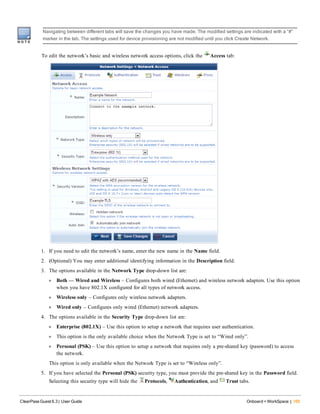
Onboard Troubleshooting
If you encounter a problem that is not listed here, refer to the "Onboard Deployment Checklist " on page 76 and check
each of the configuration steps listed there.
iOS Device Provisioning Failures
Symptom: Device provisioning fails on iOS with the message “The server certificate for https://… is invalid”.
Resolution: When using HTTPS for device provisioning, you must obtain a commercial SSL certificate.
Self-signed SSL certificates, and SSL server certificates that have been issued by an untrusted or unknown root
certificate authority, will cause iOS device provisioning to fail with the message “The server certificate for … is
invalid”.
ClearPass Guest 6.3 | User Guide Onboard + WorkSpace | 89
90 | Onboard + WorkSpace ClearPass Guest 6.3 | User Guide
A workaround for this issue is to install an appropriate root certificate on the iOS device. This root certificate must be
the Web server’s SSL certificate (if it is a self-signed certificate), or the certificate authority that issued the SSL
certificate. This is not recommended for production deployments as it increases the complexity of deployment for users
with iOS devices.
Hostname-to-Certificate Match Failures
Symptom: Device provisioning fails with the message "Onboard provisioning cannot be performed at this address. If
your were directed here, please contact a network administrator."
This occurs if the hostname used to access CPPM does not match the hostname configured in the CPPM server
certificate. These items must match or device provisioning will fail. This error is detected by Onboard and results in the
above message.
Resolution: To correct the problem, ensure that the DNS is correctly configured for the server, ensure that the hostname
is correctly set, and ensure that the server's certificate contains the correct hostname.
About ClearPass WorkSpace
WorkSpace is an Aruba ClearPass application that manages all facets of bring-your-own-device (BYOD). ClearPass
with WorkSpace lets your IT staff secure, distribute, and manage enterprise, WorkSpace, and iTunes apps on personal
iOS devices. The WorkSpace mobile app lets users organize and manage apps within the WorkSpace app.
Key Features
l App, device, and network policies in one system.
l IT control over enterprise apps and data, while a user’s personal information remains private.
l The WorkSpace mobile app lets users control their inventory of apps, devices, and endpoints.
l Automated distribution of apps are tied to a user’s roles and device.
l Per-application VPNs and data encryption on the device.
l Built-in remote wipe/lock, cut-and-paste protection, jailbreak detection, geo-fencing, and time/motion policies.
l Supports scores of third-party apps, including content sharing, collaboration, and productivity apps.
Device Management and Network Access
Wireless networks are deployed by the enterprises to connect to the devices. The users began obtaining their own
mobile devices and connect those in the workplace and other places that provided wireless access. Therefore, it is
utmost important to keep network access secure. IT had to set policies that allowed control over the device and wipe
the device data in case the device is lost.
ClearPass WorkSpace provides WorkSpace app, within which enterprise-enabled apps can operate and can be separated
from the rest of the device and other user-installed apps. Access to the WorkSpace app is restricted by additional
credentials, and if a device is lost, only the enterprise-enabled data and apps can be locked or wiped, leaving the rest
of the user's system and their personal data untouched.
You can also block access to WorkSpace and WorkSpace managed apps if a device is not managed by MDM. You
must configure a policy on ClearPass Policy Manager and assign or set the rule for the device. The rules block all the
WorkSpace apps if the device is not managed by MDM. For information on creating rules and policies, see
Enforcement chapter in ClearPass Policy Manager User Guide.
This section provides the following important information about ClearPass WorkSpace:
l "About the WorkSpace App" on page 91.
l "How WorkSpace Works" on page 91.
About the WorkSpace App
The WorkSpace app looks and acts largely like a folder on a user's device, a folder that contains other apps, but with
some very important differences:
l The WorkSpace app is completely managed by you.
l The WorkSpace app acts like a sandbox, where apps within it cannot communicate with apps outside it, and vice
versa.
l You control the apps that are in the WorkSpace app and how, when, and where they can be used.
l The WorkSpace app, and by extension the apps within it, cannot be opened and used without the proper
credentials, which are in addition to any device-level security.
How WorkSpace Works
ClearPass WorkSpace consists of two primary components: WorkSpace on the ClearPass server and the WorkSpace app
on a mobile device. The WorkSpace app acts like a folder that contains managed apps and that communicates with
WorkSpace on the ClearPass server via a secure connection to determine which managed apps can be used, and when
and where.
For IT, WorkSpace makes it easy to create policies that control how work apps are used and how data is secured. An
automatic VPN session can be initiated when specific work apps are used on public networks. Work apps can also be
locked based on a location or geo-tracking status.
For users, the WorkSpace mobile app offers unprecedented control, including visibility into app policy status, access to
an enterprise app store, and a single sign-on for work apps. This control extends to as many personal devices the user is
allowed to bring onto the network.
When users want to use a WorkSpace-managed app on their device, their first step is to sign in to WorkSpace. The
WorkSpace app communicates with WorkSpace on the ClearPass server to determine the managed apps that can be
used. Any managed apps that are prohibited from use exhibit a "locked" symbol on the app icon. App use can be
prohibited for several reasons, including:
l The WorkSpace app could not communicate with WorkSpace on the ClearPass server to verify that the app's use is
allowed.
l The app could be time fenced, and the time is outside the allowed time.
l The app could be geographically fenced, and the app is outside the allowed area.
l The app could be prevented from use when the device is moving.
l The app could be prevented from use on jailbroken devices.
Supported Platforms
The following table summarizes the platform and versions supported by ClearPass WorkSpace.
ClearPass Guest 6.3 | User Guide Onboard + WorkSpace | 91
92 | Onboard + WorkSpace ClearPass Guest 6.3 | User Guide
Platform Example Devices Version Required for WorkSpace Support
Apple iOS
iPhone
iPad
iPod Touch
iOS 5 and above versions
Table 18: Platforms Supported by ClearPass WorkSpace
Initial Setup
The first section in the Onboard + WorkSpace navigation lets you perform various initial configuration tasks. To
choose a setup task, or to add and manage mobile apps, go to Onboard + WorkSpace > Initial Setup > Start Here.
l To configure a certificate authority, create new certificate authorities, and manage your list of certificate authorities,
see "Certificate Authorities " on page 92
l To configure the iOS MDM push certificate used to send notifications to Apple devices, see "About Push
Certificates" on page 104
l To configure the iOS distribution certificate used to digitally sign in-house apps, see "About iOS Distribution
Certificates" on page 106
l To configure the iOS provisioning profiles used for in-house apps, see "About iOS Provisioning Profiles" on page
108
Certificate Authorities
You can create and manage multiple certificate authorities for Onboard. To view and work with the list of certificate
authorities and to configure new certificate authorities, go to Onboard + WorkSpace > Initial Setup > Certificate
Authorities. The Certificate Authorities list view opens. All certificate authorities that have been set up are included in
the list. Information shown for each certificate authority includes its name, mode, status, expiration time, and OCSP
URL.
You can click a certificate authority's row in the list for additional options:
l To view details for a certificate authority, click its Show Details link. The form expands to show a summary of the
settings defined for it, including information for certificate issuing, retention policy, identity, private key, and self-
signed certificate.
l To edit any of a certificate authority's attributes and configure certificate issuing options, click its Edit link. The
Certificate Authority Settings form opens. See "Editing Certificate Authority Settings" on page 96.
l To create a copy of a certificate authority configuration to use as a basis for a new certificate authority, click its
Duplicate link. The first page of the Certificate Authority Settings form opens with the identity, private key, and
self-signed certificate attributes prepopulated and "Copy" appended to the name. You can rename the new
certificate authority and edit any of its attributes.
l To delete a certificate authority, you can click its Delete link. You will be asked to confirm the deletion before it
commits.
l To see if the certificate authority is currently used, click its Show Usage link. The form expands to show a list of
provisioning sets that use the certificate authority.
l To view the trust chain for the certificate authority, click its Trust Chain link. The Certificate Authority Trust
Chain page opens. See "The Trust Chain and Uploading Certificates for the CA " on page 136.
l To view a list of certificates associated with the certificate authority, click its Certificates link. The Certificate
Management page opens. See
l To renew the certificate authority, click its Renew link. If it is an intermediate certificate authority, the Intermediate
Certificate Renewal page opens, where you can send a certificate signing request; see "Requesting a Certificate for
the Certificate Authority" on page 100. If it is a root certificate authority, the row expands to include the Root
Certificate Renewal option. Click the Renew Root Certificate button.
Renewing the certificate uses the same private key for the root certificate, but reissues the root CA certificate with
an updated validity period. This will maintain the validity of all certificates issued by the CA. When you renew a
certificate, you should distribute a new copy of the root certificate to all users of that certificate.
l To delete a certificate authority's client certificates, click its Delete Client Certificates link. The row expands to
include the Delete Client Certificates form. To confirm the deletion, you must mark the Reset the specified items
check box in the Confirm Reset field, then click the Delete Client Certificates button. Doing so will permanently
delete all client certificates for the certificate authority. This action cannot be reversed.
l To create a new certificate authority, click the Create new certificate authority link in the upper right corner. The
initial setup page of the Certificate Authority Settings form opens. See the next section, "Creating a New Certificate
Authority" on page 93.
Creating a New Certificate Authority
The first page of the Certificate Authority Settings form is used to create the Onboard certificate authority (CA) and to
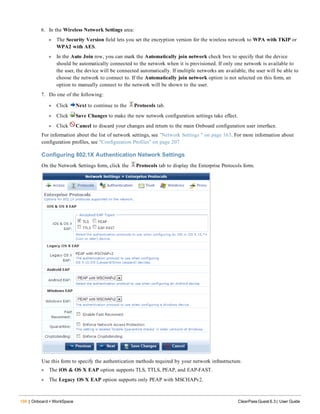
configure some basic properties:
l Give it a name and description
l Specify root CA, intermediate CA, or local CA mode
l Configure the identity, private key, and self-signed certificate attributes
ClearPass Guest 6.3 | User Guide Onboard + WorkSpace | 93
94 | Onboard + WorkSpace ClearPass Guest 6.3 | User Guide
To create an Onboard certificate authority:
1. Go to Onboard + WorkSpace> Initial Setup > Certificate Authorities, and then either click the Duplicate link for
a certificate authority in the Certificate Authorities list or click the Create new certificate authority link. The
initial setup page of the Certificate Authority Settings form opens.
2. In the Name field, give the CA a short name that identifies it clearly. Certificate authority names can include
spaces. If you are duplicating a CA, the original name has "Copy" appended to it. You may highlight the name and
replace it with a new name.
3. In the Description field, briefly describe the CA. This description is shown in the Certificate Authorities list.
The Name and Description fields are used internally to identify this certificate authority for the network
administrator. These values are never displayed to the user during device provisioning.
4. The mode is used to set up the mode of operation for the certificate authority.In the Mode area, click one of the
descriptions to specify the type of certificate authority:
l Root CA—The Onboard certificate authority issues its own root certificate. The certificate authority issues
client and server certificates using a local signing certificate, which is an intermediate CA that is subordinate to
the root certificate. Use this option when you do not have an existing public-key infrastructure (PKI), or if you
want to completely separate the certificates issued for Onboard devices from your existing PKI.
l Intermediate CA—The Onboard certificate authority is issued a certificate by an external certificate authority.
The Onboard certificate authority issues client and server certificates using this certificate. Use this option when
you already have a public-key infrastructure (PKI), and would like to include the certificate issued for Onboard
devices in that infrastructure.
l Imported CA— If you choose Imported CA, the following fields are removed from the form. If you choose Root
or Intermediate, complete the following fields.
5. In the Identity area, enter values in the Country, State, Locality, Organization, and Organizational Unit fields
that correspond to your organization. These values form part of the distinguished name for the certificate.
6. Enter a descriptive name for the certificate in the Common Name field. This value is used to identify the certificate
as the issuer of other certificates, notably the signing certificate.
7. For a root certificate, the Signing Common Name field is included on the form. Enter a descriptive name for the
signing certificate in the Signing Common Name field. This value is used to identify the signing certificate as the
issuer of client and server certificates from this certificate authority. The other identity information in the signing
certificate will be the same as for the root certificate.
8. Enter a contact email address in the Email Address field. This email address is included in the root and signing
certificates, and provides a way for users of the certificate authority to contact your organization.
9. In the Private Key area, use the Key Type drop-down list to specify the type of private key that should be created
for the certificate:
l 1024-bit RSA (not recommended for a root certificate)
l 2048-bit RSA (recommended for general use)
l 4096-bit RSA (higher security)
ClearPass Guest 6.3 | User Guide Onboard + WorkSpace | 95
96 | Onboard + WorkSpace ClearPass Guest 6.3 | User Guide
l X9.62/SECG curve over a 256-bit prime field
l NIST/SECG curve over a 384-bit prime field
10. In the Self-Signed Certificate area, for a root certificate the CA Expiration field is included in the form. Use this
field to specify the lifetime of the root certificate in days. The default value is 365 days.
11. Use the Digest Algorithm drop-down list to specify which hash algorithm should be used to sign the digital
certificate request. Optionsinclude:
l SHA-1
l SHA-224
l SHA-256
l SHA-384
l SHA-512
12. Click Create Certificate Authority.
l If you selected root mode, the root certificate is included in the Certificate Authorities list.
l If you selected intermediate mode, the Intermediate Certificate Request page opens with text for the certificate
signing request (CSR). You can send the CSR to a certificate authority, who will generate a signed certificate
you can install. See "Requesting a Certificate for the Certificate Authority" on page 100.
l If you selected imported mode, the Certificate Authority Certificate Import form opens, where you can upload
the digital certificates and private key to the server. See"Installing a Certificate Authority’s Certificate " on page
100.
Editing Certificate Authority Settings
You can edit some properties of a certificate authority after you create it, and configure some attributes that were not
included on the setup form.
To edit a certificate authority, go to Onboard + WorkSpace > Initial Setup > Certificate Authorities, click the
certificate to expand its row, and click its Edit link. The Certificate Authority Settings form opens.
In the basic information area at the top of the form:
The Name and Description fields are used internally to identify this certificate authority for the network administrator.
These values are never displayed to the user during device provisioning.
Field Description
Name Short name that identifies the certificate clearly. Certificate authority names can include spaces.
Description Briefly describes the CA. This description is shown in the Certificate Authorities list.
Mode Either Root, Intermediate, or Imported. The certificate's mode cannot be edited after creation.
Table 19: Certificate Authority Settings, Basic Information
In the Certificate Issuing area:
Field Description
Authority Info Access
Specify one of the following options to control automatic certificate revocation checks:
l Do not include OCSP responder URL – The Authority Info Access extension is not
included in the client certificate. Certificate revocation checking must be configured
manually on the authentication server. This is the default option.
l Include OCSP responder URL – The Authority Info Access extension is added to
the client certificates, with the OCSP responder URL set to a predetermined value.
This value is displayed as the “OCSP URL”.
l Specify an OCSP responder URL – The Authority Info Access extension is added to
the client certificates, with the OCSP responder URL set to a value defined by the
administrator. This value may be specified in the “OCSP URL” field.
Validity Period
Specifies the maximum length of time for which a client certificate issued during device
provisioning will remain valid.
Clock Skew Allowance
Adds a small amount of time to the start and end of the client certificate’s validity
period. This permits a newly issued certificate to be recognized as valid in a network
where not all devices are perfectly synchronized.
For example, if the current time is 12:00, and the clock skew allowance is set to the
default value of 15 minutes, then the client certificate will be issued with a “not valid
before” time of 11:45. In this case, if the authentication server that receives the client
certificate has a time of 11:58, it will still recognize the certificate as valid. If the clock
skew allowance was set to 0 minutes, then the authentication server would not
recognize the certificate as valid until its clock has reached 12:00.
The default of 15 minutes is reasonable. If you expect that all devices on the network
will be synchronized then the value may be reduced. A setting of 0 minutes is not
recommended as this does not permit any variance in clocks between devices.
When issuing a certificate, the certificate’s validity period is determined as follows:
l The “not valid before” time is set to the current time, less the clock skew allowance.
l The “not valid after” time is first calculated as the earliest of the following:
l The current time, plus the maximum validity period.
l The expiration time of the user account for whom the device certificate is being
issued.
l The “not valid after” time is then increased by the clock skew allowance.
Subject Alternative Name
To include additional fields in the TLS client certificate issued for a device, mark the
Include device information in TLS client certificates check box. These fields are stored
in the subject alternative name (subjectAltName) of the certificate. Refer to Table 21 for
a list of the fields that are stored in the certificate when this option is enabled.
Storing additional device information in the client certificate allows for additional
authorization checks to be performed during device authentication.
Table 20: Certificate Authority Settings, Certificate Issuing Area
ClearPass Guest 6.3 | User Guide Onboard + WorkSpace | 97
98 | Onboard + WorkSpace ClearPass Guest 6.3 | User Guide
If you are using an Aruba controller to perform EAP-TLS authentication using these client certificates, you must have
Aruba OS 6.1 or later to enable this option.
Name Description OID
Device ICCID
Integrated Circuit Card Identifier (ICCID) number from the
Subscriber Identity Module (SIM) card present in the device. This
is only available for devices with GSM (cellular network)
capability, where a SIM card has been installed.
mdpsDeviceIccid (.4)
Device IMEI
International Mobile Equipment Identity (IMEI) number allocated
to this device. This is only available for devices with GSM
(cellular network) capability.
mdpsDeviceImei (.3)
Device Serial Serial number of the device. mdpsDeviceSerial (.9)
Device Type Type of device, such as “iOS”, “Android”, etc. mdpsDeviceType (.1)
Device UDID
Unique device identifier (UDID) for this device. This is typically a
64-bit, 128-bit or 160-bit number represented in hexadecimal
(16, 32, or 40 characters, respectively).
mdpsDeviceUdid (.2)
MAC Address
IEEE MAC address of this device. This element may be present
multiple times, if a device has more than one MAC address (for
example, an Ethernet port and a Wi-Fi adapter).
mdpsMacAddress (.5)
Product Name
Product string identifying the device and often including the
hardware version information.
mdpsProductName (.6)
Product Version String containing the software version number for the device.
mdpsProductVersion
(.7)
User Name
String containing the username of the user who provisioned the
device.
mdpsUserName (.8)
Table 21: Device Information Stored in TLS Client Certificates
In the Retention Policy area:
Field Description
Minimum Period Specify values in these fields that are appropriate for your organization’s
retention policy. The default data retention policy specifies a minimum
period of 12 weeks and a maximum period of 52 weeks.
Maximum Period
Table 22: Certificate Authority Settings, Retention Policy Area
To enable the Delete Certificate and Delete Request actions in the Certificate Management list view, use a blank value
for Minimum Period. This is useful for testing and initial deployment.
In the SCEP Server area:
Onboard may be used as a CA with third-party products that use Simple Certificate Enrollment Protocol (SCEP) to
enroll certificates.
Field Description
SCEP Server
To enable access to the SCEP server, select this check box. The form expands to include SCEP
server configuration options.
SCEP URL Shows the URL for this SCEP server.
SCEP Secret Enter the shared secret that SCEP clients must supply.
Allowed Access Enter IP addresses and networks from which logins are permitted.
Denied Access Enter IP addresses and networks that are denied login access.
Identity
The information in these fields cannot be edited after creation.
Private Key
Self-Signed
Certificate
Table 23: Certificate Authority Settings, SCEP Server Area
When you are done, click Edit Certificate Authority to complete your changes.
ClearPass Guest 6.3 | User Guide Onboard + WorkSpace | 99
100 | Onboard + WorkSpace ClearPass Guest 6.3 | User Guide
Requesting a Certificate for the Certificate Authority
The Intermediate Certificate Request page displays the certificate signing request for the certificate authority’s
intermediate certificate.
You can copy the certificate signing request in text format using your Web browser. Use this option when you can
paste the request directly into another application to obtain a certificate.
You can click the Download the current CSR link to download the certificate signing request as a file. Use this
option when you need to provide the certificate signing request as a file to obtain a certificate.
Once you have obtained the certificate, click the Install a signed certificate link to continue configuring the
intermediate certificate authority. See "Installing a Certificate Authority’s Certificate " on page 100.
You can also click the Change CA settings link to return to the main Certificate Authority Settings form. Use this
option to switch to a root CA, or to change the name or properties of the intermediate CA and reissue the certificate
signing request.
Installing a Certificate Authority’s Certificate
You can import a private key and certificate pair to use for the root certificate or intermediate certificate. The CA
Certificate Import page may be used to:
l Upload a certificate that has been issued by another certificate authority. This process is required when configuring
an intermediate certificate authority.
n A private key is not required, as the certificate authority has already generated one and used it to create the
certificate signing request.
l Upload a certificate and private key to be used as the certificate authority’s certificate. This process may be used to
configure a root certificate authority.
n A private key is required, as the certificate authority’s existing private key will be replaced.
This form may be used multiple time in order to import each of the certificates in the trust chain. Check the message
displayed above the form to determine which certificate or type of file must be uploaded next.
To upload a certificate:
1. On either the Certificate Management or Intermediate Certificate Settings page, click the Import Certificate link
above the form. The Step 1 area of the CA Certificate Import form opens.
2. Select one of the radio buttons to either copy and paste the certificate as encoded text or browse to the file to
upload. The form expands to include options for that method.
3. If you selected Copy and paste certificate as text:
l To upload a single certificate, copy and paste the certificate into the Certificate text field. The text must
include the “BEGIN CERTIFICATE” and “END CERTIFICATE” lines. Leave the passphrase fields blank.
l To upload a certificate and private key, copy and paste the certificate and private key into the Certificate text
field. The text must include the “BEGIN CERTIFICATE” and “END CERTIFICATE” lines, as well as the
“BEGIN RSA PRIVATE KEY” and “END RSA PRIVATE KEY” lines.
4. If you selected Upload certificate file, click Choose File in the Certificate row to browse to the file and select it.
l To upload a single certificate, choose a certificate file in PEM (base-64 encoded) or binary format (.crt or
PKCS#7). Leave the passphrase fields blank.
l To upload a certificate’s private key as a separate file, choose the private key file in PEM (base-64 encoded)
format. If the private key has a passphrase, enter it in the Private Key Passphrase and Confirm Passphrase
fields. The private key will be automatically matched to its corresponding certificate when uploaded.
l To upload a combined certificate and private key, choose a file in either PEM (base-64 encoded) or PKCS#12
format. If the private key has a passphrase, enter it in the Private Key Passphrase and Confirm Passphrase
fields.
5. Click Upload Certificate to save your changes.
If additional certificates are required, you will remain at the same page. Check the message displayed above the form to
determine which certificate or type of file must be uploaded next. When the trust chain is complete, it will be
displayed. This completes the initialization of the certificate authority.
ClearPass Guest 6.3 | User Guide Onboard + WorkSpace | 101
102 | Onboard + WorkSpace ClearPass Guest 6.3 | User Guide
Using Microsoft Active Directory Certificate Services
Navigate to the Microsoft Active Directory Certificate Services Web page. This page is typically found at
https://yourdomain/certsrv/. The Welcome page opens.
Click the Request a Certificate link on this page. The Request a Certificate page opens.
Click the link to submit an advanced certificate request. The Advanced Certificate Request page opens.
Click the link to submit a request using a base-64-encoded CMC or PKCS #10 file. The Submit a Certificate Request
or Renewal Request page is displayed.
Copy and paste the certificate signing request text into the Saved Request text field.
Because this certificate is for a certificate authority, select the “Subordinate Certificate Authority” in the Certificate
Template drop-down list.
Click the Submit button to issue the certificate. Either the Certificate Pending or the Certificate Issued page is
displayed.
Figure 20 The Certificate Pending Page
If the Certificate Pending page is displayed, follow the directions on the page to retrieve the certificate when it is
issued.
Figure 21 The Certificate Issued Page
ClearPass Guest 6.3 | User Guide Onboard + WorkSpace | 103
104 | Onboard + WorkSpace ClearPass Guest 6.3 | User Guide
If the Certificate Issued page is displayed, select the Base 64 encoded option and then click the Download certificate
chain link. A file containing the intermediate certificate and the issuing certificates in the trust chain will be
downloaded to your system.
Refer to the instructions in "Installing a Certificate Authority’s Certificate " on page 100 for information on uploading
the certificate file to Onboard.
About Push Certificates
Push certificates are SSL certificates that allow iOS devices to communicate with, be authenticated by, and be managed
by an MDM server. You obtain a push certificate by requesting it from the Apple developer site, which requires your
Apple ID. Certificates are good for one year.
l "Creating a Certificate Signing Request for Device Management" on page 104
l "Installing a Push Certificate" on page 105
l "Viewing Push Certificate Details" on page 106
l "Downloading a Push Certificate" on page 105
Creating a Certificate Signing Request for Device Management
To create a certificate signing request:
1. Go to Onboard + WorkSpace > Inital Setup > iOS MDM Push Certificate
2. Click iOS Push Certificate Signing Request.
3. Click Create a new CSR.
4. Fill in the New Certificate Request fields. The following additional items in the Advanced Options section define
security options:
l Private Key defines the key size for RSA encryption. Select from:
n 1024-bit RSA (not recommended for a root certificate)
n 2048-bit RSA (recommended for general use)
n 4096-bit RSA (higher security)
n X9.62/SECG curve over a 256-bit prime field
n NIST/SECG curve over a 384-bit prime field
l Digest Algorithm is a cryptographic "hash" method. Select from:
n SHA-1 (recommended)
n SHA-224
n SHA-256
n SHA-384
n SHA-512
5. Click Create Certificate Request.
See Also:
l "About Push Certificates" on page 104
l "Installing a Push Certificate" on page 105
l "Viewing Push Certificate Details" on page 106
l "Downloading a Push Certificate" on page 105
Installing a Push Certificate
Installing the push certificate you received from the Apple Developer Center allows you communicate privately and
securely with the iOS devices you manage.
You can either upload the distribution certificate file you received, or you can open the file and copy and paste the
certificate contents.
To install a push certificate:
1. Go to Onboard + WorkSpace > Initial Setup > iOS MDM Push Certificate
2. Click iOS Push Certificate Install.
3. Click Create a new CSR.
4. Fill in the New Certificate Request fields. The following additional items in the Advanced Options section define
security options:
l Private Key defines the key size for RSA encryption. Select from:
n 1024-bit RSA (not recommended for a root certificate)
n 2048-bit RSA (recommended for general use)
n 4096-bit RSA (higher security)
n X9.62/SECG curve over a 256-bit prime field
n NIST/SECG curve over a 384-bit prime field
l Digest Algorithm is a cryptographic "hash" method. Select from:
n SHA-1 (recommended)
n SHA-224
n SHA-256
n SHA-384
n SHA-512
5. Click Create Certificate Request.
See Also:
l "About Push Certificates" on page 104
l "Creating a Certificate Signing Request for Device Management" on page 104
l "Viewing Push Certificate Details" on page 106
l "Downloading a Push Certificate" on page 105
Downloading a Push Certificate
You can download the contents of the push certificate onto a file on your compuer. Push certificates have a default
extension of .crt.
To download a push certificate:
1. Go to Onboard + WorkSpace > Inital Setup > iOS MDM Push Certificate
2. Click iOS Push Certificate Signing Request.
3. Click Download the current MDM signed CSR.
Depending on your browser and its settings, the certificate file may be saved automatically to a pre-defined folder on
your hard drive, or you may get asked for a location to save the file.
ClearPass Guest 6.3 | User Guide Onboard + WorkSpace | 105
106 | Onboard + WorkSpace ClearPass Guest 6.3 | User Guide
See Also:
l "About Push Certificates" on page 104
l "Creating a Certificate Signing Request for Device Management" on page 104
l "Installing a Push Certificate" on page 105
l "Viewing Push Certificate Details" on page 106
Viewing Push Certificate Details
To view the push certificate:
1. Go to Onboard + WorkSpace > Inital Setup > iOS MDM Push Certificate
2. Click iOS Push Certificate Details.
3. Click Show to view the certificate code.
See Also:
l "About Push Certificates" on page 104
l "Creating a Certificate Signing Request for Device Management" on page 104
l "Installing a Push Certificate" on page 105
l "Downloading a Push Certificate" on page 105
About iOS Distribution Certificates
Distribution certificates provide a digital signature for the apps you distribute so they cannot be tampered with.
l "Creating a Certificate Signing Request" on page 106
l "Viewing the Distribution Certificate" on page 108
l "Installing a Distribution Certificate" on page 107
l "Downloading the Distribution Certificate" on page 108
Creating a Certificate Signing Request
A Certificate Signing Request contains the details Apple needs to provide a Distribution Provisioning Profile.
To create a Certificate Signing Request:
1. Go to Onboard + WorkSpace > Initial Setup > iOS MDM Push Certificate.
2. Click iOS Push Certificate Signing Request, then click Create a new CSR.
3. Enter the required information. The following additional items in the Advanced Options section define security
options:
l Private Key defines the key size for RSA encryption. Select from:
n 1024-bit RSA (not recommended for a root certificate)
n 2048-bit RSA (recommended for general use)
n 4096-bit RSA (higher security)
n X9.62/SECG curve over a 256-bit prime field
n NIST/SECG curve over a 384-bit prime field
l Digest Algorithm is a cryptographic "hash" method. Select from:
n SHA-1 (recommended)
n SHA-224
n SHA-256
n SHA-384
n SHA-512
4. Click Create Certificate Request.
See Also:
l "About iOS Distribution Certificates" on page 106
l "Viewing the Distribution Certificate" on page 108
l "Installing a Distribution Certificate" on page 107
l "Downloading the Distribution Certificate" on page 108
Installing a Distribution Certificate
Installing the distribution certificate you receive from the Apple Developer Center allows you to digitally sign and
distribute the apps you manage.
You can either upload the distribution certificate file you received or open the file and copy and paste the certificate
contents.
To install a distribution certificate:
1. Go to Onboard + WorkSpace > Initial Setup > iOS Distribution Certificate.
2. Click Distribution Certificate Install.
3. Select either:
n Copy and paste certificate as text:
1. Open the certificate file in a text editor.
2. Select all the text (in most editors, use the Select All command on the Edit menu).
3. Copy all the text (Edit > Copy or Ctrl-C).
4. Click in the Certificate field.
5. Paste the text you copied (Edit > Paste or Ctrl-V).
n Upload certificate file:
1. Click Browse.
2. Find and select the certificate file (.crt extension) on your computer, then click Open.
4. If you created the certificate request on a different server, select Provide a separate private key, then:
1. Click Browse.
2. Find and select the file containing the private key, then click Open.
3. Enter the private key passphrase twice.
5. Click Upload Certificate.
See Also:
l "About iOS Distribution Certificates" on page 106
l "Creating a Certificate Signing Request" on page 106
l "Viewing the Distribution Certificate" on page 108
ClearPass Guest 6.3 | User Guide Onboard + WorkSpace | 107
108 | Onboard + WorkSpace ClearPass Guest 6.3 | User Guide
l "Downloading the Distribution Certificate" on page 108
Downloading the Distribution Certificate
You can download the current distribution certificate and save it to your computer. Distribution certificate files have a
default extension of .crt.
To download the distribution certificate:
1. Go to Onboard + WorkSpace > Initial Setup > iOS Distribution Certificate.
2. Click Distribution Certificate Details.
3. Click Download the current distribution certificate.
Depending on your browser and its settings, the certificate file may be saved automatically to a pre-defined folder on
your hard drive, or you may be prompted for a location to save the file.
See Also:
l "About iOS Distribution Certificates" on page 106
l "Creating a Certificate Signing Request" on page 106
l "Viewing the Distribution Certificate" on page 108
l "Installing a Distribution Certificate" on page 107
Viewing the Distribution Certificate
The distribution certificate allows you to distribute and manage apps.
To view the distribution certificate:
1. Go to Onboard + WorkSpace > Initial Setup > iOS Distribution Certificate.
2. Click Distribution Certificate Details.
Click Show to view the raw certificate data.
See Also:
l "About iOS Distribution Certificates" on page 106
l "Creating a Certificate Signing Request" on page 106
l "Installing a Distribution Certificate" on page 107
l "Downloading the Distribution Certificate" on page 108
About iOS Provisioning Profiles
A distribution provisioning profile is required by Apple to distribute iOS apps and is different from a development
provisioning profile. A distribution provisioning profile contains a name, a distribution certificate, and an app ID. You
must have a distribution provisioning profile uploaded into WorkSpace to distribute/push apps to authorized iOS
devices.
Information and details about provisioning profiles, including how to create and download them, is contained within
the Apple iOS development library and is beyond the scope of this document.
Refer to the following sections after you have created and downloaded a distribution provisioning profile from the
Apple iOS development site.
l "Uploading an iOS Provisioning Profile" on page 109
l "Viewing an iOS Provisioning Profile Details" on page 109
l "Viewing an iOS Provisioning Profile Certificate Details" on page 109
l "Deleting an iOS Provisioning Profile" on page 110
Uploading an iOS Provisioning Profile
Provisioning profiles typically have a .mobileconfig extension.
To upload an iOS provisioning profile:
1. Go to Onboard + WorkSpace > Initial Setup > iOS Provisioning Profiles.
2. Click Upload Provisioning Profile.
3. Click Browse, then navigate to where you downloaded the provisioning profile file, select it, and click OK.
4. Click Upload.
The provisioning profile file is uploaded and added to the provisioning profile list.
See Also:
l "About iOS Provisioning Profiles" on page 108
l "Viewing an iOS Provisioning Profile Details" on page 109
l "Viewing an iOS Provisioning Profile Certificate Details" on page 109
l "Deleting an iOS Provisioning Profile" on page 110
Viewing an iOS Provisioning Profile Certificate Details
To view an iOS provisioning profile certificate details:
1. Go to Onboard + WorkSpace > Initial Setup > iOS Provisioning Profiles.
2. Click the name of a provisioning profile.
3. Click Certificate Info.
Click the Show link to view additional details.
See Also:
l "About iOS Provisioning Profiles" on page 108
l "Uploading an iOS Provisioning Profile" on page 109
l "Viewing an iOS Provisioning Profile Details" on page 109
l "Deleting an iOS Provisioning Profile" on page 110
Viewing an iOS Provisioning Profile Details
To view an iOS provisioning profile details:
1. Go to Onboard + WorkSpace > Initial Setup > iOS Provisioning Profiles.
2. Click the name of a provisioning profile.
3. Click Details.
Provisioning profile details include:
l Name— The name entered when the profile was created on the Apple Developer site. In the profile XML, this is
the value of the AppIDName tag.
l UUID (universally unique identifier)— A number generated when the provisioning profile was created that
uniquely identifies it to allow proper app distribution permissions. In the profile XML, this is the value of the
UUID tag..
ClearPass Guest 6.3 | User Guide Onboard + WorkSpace | 109
110 | Onboard + WorkSpace ClearPass Guest 6.3 | User Guide
l Application Identifier— A number generated when the provisioning profile was created that, when combined with
the approved domain allows app distribution. In the profile XML, this is the value of the
ApplicationIdentifierPrefix tag.
l Creation Date— The date at which the provisioning profile was created.
l Expiration Date— The date at which the provisioning profile expires. Apps can no longer be distributed using this
profile after this date.
l Wildcard
Click the Details link to view the raw XML.
See Also:
l "About iOS Provisioning Profiles" on page 108
l "Uploading an iOS Provisioning Profile" on page 109
l "Viewing an iOS Provisioning Profile Certificate Details" on page 109
l "Deleting an iOS Provisioning Profile" on page 110
Deleting an iOS Provisioning Profile
To delete an iOS provisioning profile:
1. Go to Onboard + WorkSpace > Initial Setup > iOS Provisioning Profiles.
2. Click the name of a provisioning profile.
3. Click Delete profile.
See Also:
l "About iOS Provisioning Profiles" on page 108
l "Uploading an iOS Provisioning Profile" on page 109
l "Viewing an iOS Provisioning Profile Details" on page 109
l "Viewing an iOS Provisioning Profile Certificate Details" on page 109
Apps Management
WorkSpace provides management of different "types" of iOS apps:
l WorkSpace: Apps that are externally developed (outside your organization) and that are policy wrapped.
l Enterprise: Apps that your company develops and that are policy wrapped.
l Public: Apps that are not policy wrapped and that you can distribute through volume purchasing programs (VPP).
l Web: Apps that utilizes a Web browser to accomplish certain tasks.
Both WorkSpace and Enterprise apps are hosted on the WorkSpace server and are wrapped with fine-grained security
policies defined by the administrator. The behavior of these enterprise apps while they are running on the users'
enrolled devices is completely controlled by the security policies defined by the administrator.
To view the list of apps, go to Onboard + WorkSpace > Initial Setup > Apps Management. The Apps Management
list view opens.
To add the different types of apps, use the links in the upper-right corner.
To work with an app, click its row in the list to show the options links. Depending on the type of app, you can:
l View app details
l Edit app details
l Manage VPP codes
l Upload a new version
l Delete the app
l Show app usage
This section includes:
l "WorkSpace Apps" on page 112
l "Enterprise Apps" on page 113
l "Public (App Store) Apps" on page 115
l "Web Apps" on page 116
Adding Any App
To add different types of apps, go to Onboard + WorkSpace > Initial Setup > Apps Management and use the links in
the upper-right corner.
1. To add any type of app, click Add any app. The Add App form opens.
ClearPass Guest 6.3 | User Guide Onboard + WorkSpace | 111
112 | Onboard + WorkSpace ClearPass Guest 6.3 | User Guide
2. In the OS field, select the operating system of the app—either iOS or Web app.
3. in the iOS App Type field, select the type. Options include:
l WorkSpace (policy managed)
l Enterprise (policy managed)
l Apple Public iOS AppStore (not policy managed)
4. In the Search By field, select whether to search by keyword or app ID.
5. Use the Country field, to select the iTunes store's country.
6. Enter keywords to search for in the Keywords field.
To add other types of apps, and for more information on working with the specific types of apps, see:
l "WorkSpace Apps" on page 112
l "Enterprise Apps" on page 113
l "Adding an Enterprise App" on page 113
l "Public (App Store) Apps" on page 115
l "Adding an iTunes Store App" on page 115
l "Web Apps" on page 116
l "Adding a Web App" on page 116
WorkSpace Apps
These include:
l Apps that are pre-bundled with WorkSpace server
l Aruba partner apps (This support is not available for Beta trials.)
Deleting an App
Deleting a managed app in WorkSpace results in it being automatically deleted from devices where it is installed
within the WorkSpace app.
To delete an app:
1. Go to Onboard + WorkSpace > Initial Setup > Apps Management.
2. Click the name of an app.
3. Click Delete App.
Related Topics:
l "Adding an iTunes Store App" on page 115
l "Adding an Enterprise App" on page 113
l "Editing Enterprise App Details" on page 114
l "Updating an Enterprise App" on page 115
Enterprise Apps
These include:
l In-house-developed enterprise apps
l Apps that the WorkSpace customer has acquired directly from app vendors
l Apps that the WorkSpace customer has engaged with a consulting company to build for them
Adding an Enterprise App
An enterprise app is typically one that your company develops and does not have to be distributed through the iTunes
App Store. Apps do need to be digitally signed before they can be distributed in the WorkSpace environment, and
when you upload the app file to WorkSpace, it is "wrapped" in the necessary digital signature.
"Adding an app" means adding it to add it to the apps that you manage within WorkSpace on authorized devices.
To add an enterprise app:
1. Go to Onboard + WorkSpace > Initial Setup > Apps Management.
2. Click Add iOS Enterprise App.
3. Select the iOS App Type as Enterprise (policy managed).
4. Browse and select the app file (.ipa format) from your computer.
5. Click Next.
6. Click Save or Update. (If the app is already one you manage, the button will be "update" and the managed app will
be updated.)
Name Description
App Name
The name of the app as it appears on the iOS device under the icon. The name should
be short so it is not truncated
Description
Optional additional information about the app. This information appears in the list of
apps on the Enterprise Apps Management page.
Table 24: Customize App Options
ClearPass Guest 6.3 | User Guide Onboard + WorkSpace | 113
114 | Onboard + WorkSpace ClearPass Guest 6.3 | User Guide
Name Description
Icon Shows the icon currently used for the app.
Customize
Icon
When selected, enables the Custom Icon and Revert Icon choices.
Custom Icon Select from icon files uploaded with Content Manager.
App Type The app type.
App ID The app ID.
Version The version of the app.
URL
Scheme
The URL scheme, if available.
Browser Select this option if the app is not a native iOS app.
Document
Sharing
Select this option if you want to allow this app to be able to share its documents and
data with a user's other iOS devices via iTunes and iCloud.
Provisioning
Profile
Select the provisioning profile that this app will be included with.
Related Topics:
l "Adding an iTunes Store App" on page 115
l "Editing Enterprise App Details" on page 114
l "Updating an Enterprise App" on page 115
l "Deleting an App" on page 113
Editing Enterprise App Details
You can change the following details of an enterprise app you manage:
l App Name
l Description
l Icon
l App Type
l App ID
l Version
l URL Scheme
l Browser
l Document Sharing
l Provisioning Profile
See "Adding an Enterprise App" on page 113 for more details about each of these options.
To edit enterprise app details:
1. Go to Onboard + WorkSpace > Initial Setup > Apps Management.
2. Select iOS Enterprise Apps from the App Filter list to view only enterprise apps.
3. Click the name of an enterprise app.
4. Click Edit App Details.
5. Make any desired changes
6. Click Save Changes.
Related Topics:
l "Adding an iTunes Store App" on page 115
l "Adding an Enterprise App" on page 113
l "Updating an Enterprise App" on page 115
l "Deleting an App" on page 113
Updating an Enterprise App
Apps get updated. Whether it's new features, bug fixes, or redesigns, and whether it's apps obtained from the iTunes
Store or developed in-house, you must manage updates for the apps you manage.
To update an enterprise app:
1. Go to Onboard + WorkSpace > Initial Setup > Apps Management.
2. Click the name of the enterprise app you want to update.
3. Click Upload New Version.
4. Repeat the steps mentioned in section "Adding an Enterprise App" on page 113.
5. Click Update.
Related Topics:
l "Adding an iTunes Store App" on page 115
l "Adding an Enterprise App" on page 113
l "Editing Enterprise App Details" on page 114
l "Deleting an App" on page 113
Public (App Store) Apps
Public apps are iOS apps that are downloaded directly from the iTunes App Store onto the user's device. When the
device is MDM-managed, the installation of these apps is automatically triggered on the device. When the device is
not MDM-managed, these apps just show up as a recommendation on the user's workspace (under the App Store tab).
If the App Store app is a paid app, the admin console provides an option to upload Volume Purchase Program (VPP)
codes for that app. For an MDM-managed device, the link to the app in the iTunes App Store, along with a VPP code,
is pushed to the device, triggering an app installation without the user having to enter the VPP code manually. The
distribution and management of the VPP codes for paid MDM-managed apps is automated and seamless.
Adding an iTunes Store App
You can add an iTunes Store app in two ways:
l Search for the app using its iTunes Store ID.
l Search for the app by keyword.
To add an iTunes Store app:
1. Go to Onboard + WorkSpace > Initial Setup > Apps Management.
ClearPass Guest 6.3 | User Guide Onboard + WorkSpace | 115
116 | Onboard + WorkSpace ClearPass Guest 6.3 | User Guide
2. Click Add iOS iTunes App.
3. Make sure iOS and Apple Publid iOS AppStore (not policy managed) are selected.
4. Enter the app search information:
l If adding by ID, enter the App iTunes Store ID.
l If adding by keyword, select a Country, and then enter all or part of an app name or other keyword that will
find the app.
5. Click Search. A list of matching apps will appear.
6. Click Add below the app you want to add.
Web Apps
All the Web apps configured in WorkSpace use Aruba proprietary browser published in the app store. You must
configure the Web URLs in WorkSpace to launch the app. Optionally you can customize the icons for the apps. These
Web apps are displayed as independent apps on the end-user devices. Tap on an icon to launch the corresponding Web
app through Aruba browser.
All the Web apps share a common platform, the Aruba browser. Hence, all web apps share the policies, file storage,
and so on.
Related Topics:
l "Adding a Web App" on page 116
l "Editing Web App Details" on page 117
Adding a Web App
To add a Web app:
1. Go to Onboard + WorkSpace > Initial Setup > Apps Management.
2. Click Add Web App.
3. Enter a name and a brief description for the Web App.
4. Enter the URL that will be launched when the user clicks on the Web App icon in the WorkSpace.
5. Browse and select the icon for the Web App.
6. Click Add.
Related Topics:
l "Web Apps" on page 116
l "Editing Web App Details" on page 117
Editing Web App Details
To edit Web app details:
1. Go to Onboard + WorkSpace > Initial Setup > Apps Management.
2. Select All Web Apps from the App Filter list to view only Web apps.
3. Click the name of an Web app.
4. Click Edit App Details.
5. Make any desired changes
6. Click Save Changes.
Related Topics:
l "Web Apps" on page 116
l "Adding a Web App" on page 116
Management and Control
The Management and Control section in the Onboard + WorkSpace navigation lets you view and manage devices and
the users and certificates associated with them, as well as the asset database of corporate devices. To access the device
management features, go to Onboard + WorkSpace > Management and Control > Start Here.
l To view and manage your list of devices, see "Device Management (View by Device) " on page 117
l To view and manage the list of users associated with the devices, see "Device Management (View by Username)"
on page 120
l To view, create, and manage digital certificates for devices, servers, and certificate authorities, see "Certificate
Management (View by Certificate) " on page 122
l To view and manage the list of corporate devices, see "Corporate Asset Database" on page 138
Device Management (View by Device)
The Device Management (View by Device) page lists all devices and lets you manage the devices' access to the
network. For each device, you can allow or deny network access.
To work with the list of device users, see "Device Management (View by Username)" on page 120.
When a device is denied access, its certificates are revoked. For a device that has had its access denied, you can grant
access again, allowing it to re-enroll and obtain a new certificate.
To view and filter the list of devices:
1. Go to Onboard + WorkSpace > Management and Control > View by Device. The Device Management (View by
Device) list view opens. This list displays all currently provisioned devices. Information shown for each device
ClearPass Guest 6.3 | User Guide Onboard + WorkSpace | 117
118 | Onboard + WorkSpace ClearPass Guest 6.3 | User Guide
includes its device type, device name (operating system), device ID (MAC address), user, the device's network
access status, whether it is currently onboarded, and its MDM and WorkSpace status.
2. The Device Type filter lets you filter for All, Android, iOS, OS X, or Windows device types.
3. The Enrolled For drop-down list lets you display only Onboard/MDM-enrolled devices, or only WorkSpace-
enrolled devices.
4. You can use the Keywords field to filter by device type, device, name, username, or MAC address.
To work with a device:
1. Click the device's row in the list to show the available options. Depending on the type of device, the available
options might include configuration details, device details, show users, access management, device actions,
certificate actions, and device deletion, or MDM app management.
2. To work with configuration details for a device, click its Show Config link. You can click the Default Profile link
to edit the device's configuration profile, or click the Local Device Provisioning link to edit the device's
provisioning settings. When you change the configuration profile here, all apps that were previously pushed to the
device are replaced with the apps in the new configuration profile.
3. To view a summary of the device's details, click the Device Details link. The row expands to include the Device
Details form.
4. To change a device's access status, click its Manage Access link. In the Access field, use the drop-down list to
select either Allow access to this device or Deny access to this device. When you select the Deny option, a
message advises you that any certificates associated with it will be revoked. The device cannot be re-enrolled as
long as access is denied. To re-enroll the device, you must use this field to allow access again.
5. When you choose the Device Actions link, the actions that are available depend on the enrollment status of the
onboarded device. Some actions are only available for an MDM-managed or WorkSpace device.
l If the device is not enrolled, the only available action is Delete All Users.
l If the device is enrolled for WorkSpace (but not MDM), the following options are available:
l If the device is enrolled for MDM (but not WorkSpace), the following options are available:
Mark the appropriate Choose Actions check boxes, then click Apply.
6. To manage the Apps using MDM devices, click Manage MDM Apps link.
l To install an app on an MDM device, click the App in the list and click Install App, select the Install
Application check box, and then click Install Application.
l To uninstall an app, click the App in the list and click Uninstall App, select the Install Application check box,
and then click Uninstall Application.
ClearPass Guest 6.3 | User Guide Onboard + WorkSpace | 119
120 | Onboard + WorkSpace ClearPass Guest 6.3 | User Guide
7. To revoke or delete all client certificates for the device, click its Certificate Actions link. Mark the appropriate
radio button, then click Manage Certificates.
8. To delete a device, click its Delete link. You will be asked to confirm the deletion. Deleting the device will also
delete all user, certificate, and other data associated with the device. Certificates are deleted according to the
Certificate Authority's retention policy.
Device Management (View by Username)
The Device Management (View by Username) page lists all users associated with devices. For each user, you can:
l View default configuration profile and provisioning settings
l View and manage all devices registered to the user
l Allow or deny network access for the user
l Delete all the user's devices
l Revoke or delete all TLS client certificates issued to the user
l Delete the user
To work with the list of devices, see "Device Management (View by Device) " on page 117.
To view and filter the list of users:
1. Go to Onboard + WorkSpace > Management and Control > View by Username. The Device Management
(View by Username) list view opens. Information shown in this list for each user includes username, network access
status, number of devices, number of onboarded devices, number of MDM-managed devices, and number of
WorkSpace-enabled devices.
2. You can use the Keywords field to filter by username.
To work with a username:
1. Click the user's row in the list to show the available options. These include configuration details, device
information, access management, device actions, certificate actions, and user deletion.
2. To work with configuration details for a user, click their Show Config link. The row expands to include the
Configuration form. You can click the Default Profile link to edit the user's device configuration profile, or click
the Local Device Provisioning link to edit the user's local device provisioning settings.
3. To view a list of the user's devices, click the Show Devices link. The Device Management list for that user is
shown. For information on using this list, see "Device Management (View by Device) " on page 117.
4. To change a user's access status, click their Manage Access link. The row expands to include the Manage Access
form. In the Access field, use the drop-down list to select either Allow access to this user or Deny access to this
user. When you select the Deny option, a message advises you that any certificates issued to the user will be
revoked. The user cannot re-enroll with Onboard as long as access is denied. To enable the user to re-enroll with
Onboard, you must use this field to allow them access again.
ClearPass Guest 6.3 | User Guide Onboard + WorkSpace | 121
122 | Onboard + WorkSpace ClearPass Guest 6.3 | User Guide
5. When you choose the Device Actions link, the actions that are available depend on the enrollment statuses of the
user's onboarded devices. Some actions are only available if the user has MDM-managed or WorkSpace devices. If
the user has no enrolled devices, the only available action will be to delete all devices.
If the device is enrolled for WorkSpace, the options shown below will be available:
Mark the appropriate Choose Action check box(es), then click Apply.
6. To revoke or delete all client certificates for the user, click their Certificates link. Mark the appropriate radio
button, then click Manage Certificates.
7. To delete a user, click their Delete User link. You will be asked to confirm the deletion. Deleting the user will also
delete all devices, TLS client certificates, and other data associated with the user. Certificates are deleted according
to the Certificate Authority's retention policy.
Certificate Management (View by Certificate)
To view the list of certificates and work with them, go to Onboard + WorkSpace > Management and Control
> View by Certificate. The Certificate Management list view opens. This list displays all of the certificates and
certificate requests in the Onboard system.
Information provided in the Certificate Management list includes common name, certificate authority, serial number (if
available), certificate type, validity date range, and device type—iOS, Android, Windows, or None (if not associated
with a device type). Table 25 lists the types of certificate that are displayed in this list.
Certificate Type “Type” Column Notes
Root certificate ca
Self-signed certificate for the certificate
authority
Intermediate certificate ca
Issued by the root CA or another
intermediate CA
Profile signing certificate profile-signing Issued by the certificate authority
Certificate signing request tls-client or trusted
The type shown depends on the kind of
certificate requested
Rejected certificate signing
request
tls-client or trusted
Certificate request that was rejected due to
an administrator decision
Device certificate scep-client
Issued to iOS and OS X (10.7+) devices
only
Client certificate tls-client
Identity certificate issued to a specific
user’s device
Server certificate trusted Identity certificate issued to a server
Code-signing certificate ca
Used for signing the Windows
provisioning application
Revoked certificate --
Certificate that has been administratively
revoked and is no longer valid
Expired certificate --
Certificate that is outside its validity period
and is no longer valid
Table 25: Types of Certificate Supported by Onboard Certificate Management
l To create a new certificate, see "Creating a Certificate " on page 131.
l To search for certificates, see "Searching for Certificates in the List " on page 124.
l To work with your certificates, see "Working with Certificates in the List " on page 124.
l To work with certificate signing requests, see "Working with Certificate Signing Requests " on page 126.
ClearPass Guest 6.3 | User Guide Onboard + WorkSpace | 123
124 | Onboard + WorkSpace ClearPass Guest 6.3 | User Guide
l To import a code-signing certificate or profile-signing certificate, see "Importing a Code-Signing Certificate " on
page 128.
l To import a trusted certificate, see "Importing a Trusted Certificate " on page 130.
Searching for Certificates in the List
In the Certificate Management list, the Filter field can be used to quickly search for a matching certificate. Type a
username into this field to quickly locate all certificates matching that username.
The filter is applied to all columns displayed in the list view. To search by another field, such as MAC address, device
type, or device serial number, click the Columns tab, select the appropriate column(s), and then click the Save
and Reload button. The list view will refresh to update the results of the filter.
Click the Clear Filter link to restore the default view.
Use the paging control at the bottom of the list to jump forwards or backwards by one page, or to the first or last page
of the list. You can also click an individual page number to jump directly to that page.
When the list contains many thousands of certificates, consider using the Filter field to speed up finding a specific
certificate.
Click the column headers to sort the list view by that column. Click the column header a second time to reverse the
direction of the sort.
Working with Certificates in the List
To work with a certificate in the Certificate Management list, click on a certificate to select it. You can then select
from one of these actions:
l View certificate – Displays the properties of the certificate. Information includes certificate details, issuer details,
and the certificate's "fingerprint" or "thumbprint". In the Details row, you can click the Show link to display
advanced details, including such things as the version, serial number, signature algorithms, and public key
algorithms. SHA 1 and SHA 256 are supported as digest algorithms. Click the Cancel button to close the
certificate properties.
l Export certificate – Displays the Export Certificate form.
Use the Format drop-down list to select the format in which the certificate should be exported. The following
formats are supported:
l PKCS#7 Certificates (.p7b)—Exports the certificate, and optionally the other certificates forming the trust chain
for the certificate, as a PKCS#7 container.
l Base-64 Encoded (.pem)—Exports the certificate as a base-64 encoded text file. This is also known as “PEM
format”. You may optionally include the other certificates forming the trust chain for the certificate.
l Binary Certificate (.crt)—Exports the certificate as a binary file. This is also known as “DER format”.
l Open SSL Text Format—Exports the certificate as a full openssl text-format output, allowing you to view
advanced details such as X509v3 extensions. It also includes the certificate in .pem format appended to the .txt
file.
l PKCS#12 Certificate & Key (.p12)—Exports the certificate and its associated private key, and optionally any
other certificates required to establish the trust chain for the certificate, as a PKCS#12 container. This option is
only available if the private key for the certificate is available to the server. If you select the PKCS#12 format,
you must enter a passphrase to protect the private key stored in the file.
To protect against brute-force password attacks and ensure the security of the private key, you should use a strong
passphrase – one consisting of several words, mixed upper- and lower-case letters, and punctuation or other symbol
characters.
Click the Export Certificate button to download the certificate file in the selected format.
l Revoke certificate – Displays the Revoke Certificate form.
Mark the Revoke this client certificate check box to confirm that the certificate should be revoked, and then click
the Revoke Certificate button.
Once the certificate has been revoked, future checks of the certificate’s validity using OCSP or CRL will indicate
that the certificate is no longer valid.
Due to the way in which certificate revocation lists work, a certificate cannot be un-revoked. A new certificate must be
issued if a certificate is revoked in error.
Revoking a device’s certificate will cause the device to be unable to authenticate. It will not prevent it from being re-
provisioned. If you wish to deny access to a device, use the Manage Access link in the device's row on the Management
and Control > View by Device form.
l Delete certificate – Removes the certificate from the list. Trusted certificates that were imported into Onboard
may be deleted at any time after import. For all other certificates, this option is only available if the data retention
policy is configured to permit the certificate’s deletion.
ClearPass Guest 6.3 | User Guide Onboard + WorkSpace | 125
126 | Onboard + WorkSpace ClearPass Guest 6.3 | User Guide
The Delete Certificate form is displayed. Mark the Delete this client certificate check box to confirm the
certificate’s deletion, and then click the Delete Certificate button.
Working with Certificate Signing Requests
Certificate signing requests can be managed through the Certificate Management list view. This allows for server
certificates, subordinate certificate authorities, and other client certificates not associated with a device to be issued by
the Onboard certificate authority.
Click on a certificate request to select it. You can then select from one of these actions:
l View request – Displays the properties of the certificate request. Click the Cancel button to close the
certificate request properties.
l Export request – Displays the Export Certificate Request form.
Use the Format drop-down list to select the format in which the certificate signing request should be exported. The
following formats are supported:
n PKCS#10 Certificate Request (.p10) – Exports the certificate signing request in binary format.
n Base-64 Encoded (.pem) – Exports the certificate signing request as a base-64 encoded text file. This is also
known as “PEM format”.
If you choose Base-64 Encoded, the form expands to include the Trust Chain row. You can use this option to
create and export a certificate bundle that includes the Intermediate CA and Root CA and can be imported in
ClearPass Policy Manager as the server certificate (ClearPass Policy Manager does not accept PKCS#7). To include
the trust chain in a certificate bundle that can be imported as the server certificate in ClearPass Policy Manager,
mark the Include certificate trust chain check box, then click the Export Certificate button.
Click the Export Request button to download the certificate signing request file in the selected format.
l Sign request – Displays the Sign Request form. Use this action to approve the request for a certificate and issue
the certificate.
Use the Expiration text field to specify how long the issued certificate should remain valid.
Mark the Sign this request check box to confirm that the certificate should be issued, and then click the Sign
Request button. The certificate will be issued and will then replace the certificate signing request in the list view.
l Reject request – Displays the Reject Request form. Use this action to reject the request for a certificate. Rejected
requests are automatically deleted according to the data retention policy.
ClearPass Guest 6.3 | User Guide Onboard + WorkSpace | 127
128 | Onboard + WorkSpace ClearPass Guest 6.3 | User Guide
Mark the Reject this request check box to confirm that the certificate signing request should be rejected, and then
click the Reject Request button.
l Delete request – Removes the certificate signing request from the list. This option is only available if the data
retention policy is configured to permit the certificate signing requests’s deletion.
The Delete Request form is displayed. Mark the Delete this request check box to confirm the certificate signing
request’s deletion, and then click the Delete Request button.
Importing a Code-Signing Certificate
Onboard supports importing a code-signing certificate chain and private key for signing the Windows provisioning
application. Certificates can be uploaded as PFX, PKCS-12, SPC, or PKCS-7, and can include a chain of certificates.
An operator’s profile must include the Import Code-Signing Certificate privilege in order to access this feature.
The procedure for importing a profile-signing certificate is the same as that for importing a code-signing certificate. To
import a trusted certificate, see "Importing a Trusted Certificate " on page 130.
To import a code-signing certificate:
1. Do one of the following:
l Go to Onboard + WorkSpace > Management and Control > View by Certificate and click the Upload a
code-signing certificate link in the upper-right corner of the page.
l Go to Onboard + WorkSpace > Deployment and Provisioning > Provisioning Settings. You can either click
the Create new provisioning settings link at the top of the page, or click the Edit link for a configuration set in
the list. In the page that opens, click the Upload a code-signing certificate link in the upper-right corner.
The Code-Signing Certificate Import form opens.
2. In the Certificate Type drop-down list, choose the file type—either SPC, PFX, PKCS-7, or PKCS-12. The form
expands to include the Certificate area, with fields for uploading the certificate, uploading the private key, and
entering the passphrase.
For PFX and PKCS-12 files, the private key must be included in the certificate file, so the Private Key upload
option is not available in the form. The private key passphrase is required.
For SPC and PKCS-7 files, a PEM-encoded private key must be uploaded separately using the Private Key upload
option on the form. If it is encrypted, the passphrase must also be provided.
3. Click Upload Certificate. The certificate chain is displayed.
To use the certificate for code-signing:
1. Go to Onboard + WorkSpace > Deployment and Provisioning > Provisioning Settings and scroll to the
Windows Provisioning section of the form.
2. In the Code-Signing Certificate drop-down list, select the uploaded certificate.
To create a test certificate:
ClearPass Guest 6.3 | User Guide Onboard + WorkSpace | 129
130 | Onboard + WorkSpace ClearPass Guest 6.3 | User Guide
1. Go to Onboard + WorkSpace Management and Control > Certificate Management and click the Generate a
new certificate signing request link. The Certificate Request Settings form opens.
2. In the Certificate Type drop-down list, choose Code-Signing.
3. Complete the rest of the form with your information. Mark the Issue this certificate immediately check box, then
click Create Certificate Request.
The test certificate is displayed in the list on the Certificate Management page, and can be selected on the
Provisioning Settings form.
Importing a Trusted Certificate
Onboard’s Certificate Management page supports importing trusted certificates. Certificates may be uploaded in PEM
format (*.pem).
(To import a code-signing certificate, see "Importing a Code-Signing Certificate " on page 128
To import a trusted certificate:
1. Go to Onboard + WorkSpace > Management and Control > View by Certificate and click the Upload a trusted
certificate link in the upper-right corner. The Trusted Certificate Import form opens.
2. Click Choose File to browse to the certificate on your system, then click Upload Certificate. A confirmation
message is displayed, and the imported certificate is included in the Certificate Management list. You can click the
Show Certificate link next to the certificate’s name to view the certificate’s details.
3. You can use the following additional options in the upper-right corner of the Import Trusted Certificate page:
l Click the Upload another trusted certificate link to upload additional certificates.
l Click the Edit <certificate name> trust settings link to open the Trust tab of the Network Settings form.
Creating a Certificate
To create a new certificate, go to Onboard + WorkSpace > Management and Control > View by Certificate. The
Certificate Management page opens. In the upper-right corner, click the Generate a new certificate signing request
link.The Certificate Request Settings form opens.
ClearPass Guest 6.3 | User Guide Onboard + WorkSpace | 131
132 | Onboard + WorkSpace ClearPass Guest 6.3 | User Guide
To create a new certificate or certificate signing request, first select the type of certificate you want to create from the
Certificate Type drop-down list:
l TLS Client Certificate—Use this option when the certificate is to be issued to a client, such as a user or a user’s
device.
n When this option is selected, the issued certificate’s extended key usage property will contain a value of “Client
Auth”, indicating that the certificate may be used to identify a client.
l Trusted Certificate—Use this option when the certificate is to be issued to a network server, such as a Web server
or as the EAP-TLS authentication server.
n When this option is selected, the issued certificate’s extended key usage property will contain a value of “Server
Auth”, indicating that the certificate may be used to identify a server.
l Certificate Authority—Use this option when the certificate is for a subordinate certificate authority.
n When this option is selected, the issued certificate will contain an extension identifying it as an intermediate
certificate authority, and the extended key usage property will contain the three values “Client Auth”, “Server
Auth” and “OCSP Signing”.
l Code Signing—Use this option for signing the Windows provisioning application.
Specifying the Identity of the Certificate Subject
In the first part of the Certificate Request Settings form, provide the identity of the person or device for which the
certificate is to be issued (the “subject” of the certificate). Together, these fields are collectively known as a
distinguished name, or “DN”.
l Country
l State
l Locality
l Organization
l Organizational Unit
l Common Name – this is the primary name used to identify the certificate
l Email Address
The Key Type drop-down list specifies the type of private key that should be created for the certificate. You can select
one of these options:
l 1024-bit RSA – lower security
l 2048-bit RSA – recommended for general use
l 4096-bit RSA – higher security
Using a private key containing more bits will increase security, but will also increase the processing time required to
create the certificate and authenticate the device. The additional processing required will also affect the battery life of a
mobile device. It is recommended to use the smallest private key size that is feasible for your organization.
If you have selected TLS Client as the certificate type, the Subject Alternative Name section is also shown. The
alternative name can be used to specify additional identification details for the certificate’s subject. If one or more of
these options are provided, the issued certificate will contain a subject AltName extension with the specified values.
Table 26 explains the fields that may be included as part of the subject alternative name.
Name Description
Device Type Type of device, such as “iOS”, “Android”, etc.
Device UDID
Unique device identifier (UDID) for this device. This is typically a 64-bit, 128-
bit or 160-bit number represented in hexadecimal (16, 32 or 40 characters,
respectively).
Device IMEI
International Mobile Equipment Identity (IMEI) number allocated to this
device.
Device ICCID
Integrated Circuit Card Identifier (ICCID) number from the Subscriber Identity
Module (SIM) card present in the device.
Device Serial Serial number of the device.
MAC Address IEEE MAC address of this device.
Product Name Product string identifying the device and often including the hardware version
Table 26: Subject Alternative Name Fields Supported When Creating a TLS Client Certificate Signing
Request
ClearPass Guest 6.3 | User Guide Onboard + WorkSpace | 133
134 | Onboard + WorkSpace ClearPass Guest 6.3 | User Guide
Name Description
information.
Product Version Software version number for the device.
User Name Username of the user who provisioned the device.
Issuing the Certificate Request
To create the certificate, when you have completed the other fields on the Certificate Request Settings form, mark the
Issue this certificate immediately check box.
Click the Create Certificate Request button to save your changes.
l If the “Issue this certificate immediately” check box is marked, the certificate will be issued immediately and will
be displayed in the Certificate Management list view.
l If the “Issue this certificate immediately” check box is not marked, the certificate request will be displayed in the
Certificate Management list view. The certificate can then be issued or rejected at a later time.
Requesting a Certificate
From the Onboard + WorkSpace > Management and Control > View by Certificate page, click the Upload a
certificate signing request link to access the Certificate Signing Request form.
Providing a Certificate Signing Request in Text Format
If you have a certificate signing request in text format, click the Copy and paste certificate signing request as text
radio button on the Certificate Signing Request form.
Paste the text into the Certificate Signing Request text field. Be sure to include the complete block of text, including
the beginning and ending lines.
A complete certificate signing request looks like the following:
-----BEGIN CERTIFICATE REQUEST-----
MIIB7DCCAVUCAQAwgasxCzAJBgNVBAYTAlVTMRMwEQYDVQQIEwpDYWxpZm9ybmlh
MRIwEAYDVQQHEwlTdW5ueXZhbGUxFzAVBgNVBAoTDkFDTUUgU3Byb2NrZXRzMRkw
FwYDVQQLExBWaXNpdG9yIFNlcnZpY2VzMR4wHAYDVQQDExVBdXRoZW50aWNhdGlv
biBTZXJ2ZXIxHzAdBgkqhkiG9w0BCQEWEGluZm9AZXhhbXBsZS5jb20wgZ8wDQYJ
KoZIhvcNAQEBBQADgY0AMIGJAoGBALR4wRSH26wlcf3OEPEIh34iXRQIUrnYnDfo
+ZezeB/i4NZUhRvLMvhPW7DcLpiZJ17ILj3aPPUXWDBYYiiuOkmuFX3dG7eKCLMH
Z4E9z1ozK5Znm8cWIj56kg69le7QrAZBYrd5QaBTMxEe0F9CGFsYbFx1viMUMxN6
EJILaCTBAgMBAAGgADANBgkqhkiG9w0BAQUFAAOBgQB8/So9KU5BS3oxjyxftIwF
dWvNP2CNruKyQaba5RQ1ixdHAsPE+3uYIHNvlqqIpSzBlfYkr21S4DdR3SSC3bXy
t4l/fyMuC1cEG/RpPSxdDALpeT8MuoGV1JonKo2BDitOEd4y5SXGmHmDBHrPW2Nd
gthkrtBb/a2WAkNcRfDuiQ==
-----END CERTIFICATE REQUEST-----
Providing a Certificate Signing Request File
Alternatively, if you have the certificate signing request as a file, click the Upload certificate signing request file
radio button.
Use the Certificate Signing Request field to select the appropriate file for upload.
The file should be a base-64 encoded (PEM format) PKCS#10 certificate signing request.
Specifying Certificate Properties
On the Certificate Signing Request form, select the type of certificate from the Certificate Type drop-down list.
Choose from one of the following options:
l TLS Client Certificate – Use this option when the certificate is to be issued to a client, such as a user or a user’s
device.
n When this option is selected, the issued certificate’s extended key usage property will contain a value of “Client
Auth”, indicating that the certificate may be used to identify a client.
l TLS Server Certificate – Use this option when the certificate is to be issued to a network server, such as a Web
server or as the EAP-TLS authentication server.
n When this option is selected, the issued certificate’s extended key usage property will contain a value of “Server
Auth”, indicating that the certificate may be used to identify a server.
l Certificate Authority – Use this option when the certificate is for an subordinate certificate authority.
n When this option is selected, the issued certificate will contain an extension identifying it as an intermediate
certificate authority, and the extended key usage property will contain the three values “Client Auth”, “Server
Auth” and “OCSP Signing”.
Mark the Issue this certificate immediately check box to automatically issue the certificate.
Click the Submit Certificate Signing Request button to save your changes.
l If the “Issue this certificate immediately” check box is marked, the certificate will be issued immediately and will
be displayed in the Certificate Management list view.
l If the “Issue this certificate immediately” check box is not marked, the certificate request will be displayed in the
Certificate Management list view. The certificate can then be issued or rejected at a later time.
ClearPass Guest 6.3 | User Guide Onboard + WorkSpace | 135
136 | Onboard + WorkSpace ClearPass Guest 6.3 | User Guide
The Trust Chain and Uploading Certificates for the CA
The Certificate Authority Trust Chain page is used to view the certificate authority’s current trust chain, or to upload a
new certificate in the trust chain when configuring a certificate authority.
To view the Certificate Authority’s trust chain, go to Onboard + WorkSpace > Initial Setup > Certificate Authorities
and click the Trust Chain link for a certificate. The Certificate Authority Trust Chain page opens. This page shows a
graphical representation of the certificates that make up the trust chain.
The first certificate listed is the root certificate. Root certificates are always self-signed and are explicitly trusted by
clients.
Each additional certificate shown is an intermediate certificate. The last certificate in the list is the signing certificate
that is used to issue client and server certificates.
To view the properties of a certificate in the trust chain, click the Show certificate link. The Certificate Information
view opens.
To export a certificate:
1. Click the Download Bundle link. The Export Certificate form opens.
2. In the Format row, choose the certificate format. The form expands to include configuration options for that format.
3. Complete the fields with the appropriate information, then click Export Certificate.
Considerations for iOS Devices
The server certificate is used by ClearPass to secure Web (HTTPS) and authentication (RADIUS) traffic. It can be
configured in ClearPass Policy Manager under Administration > Certificates > Server Certificate.
ClearPass Guest 6.3 | User Guide Onboard + WorkSpace | 137
138 | Onboard + WorkSpace ClearPass Guest 6.3 | User Guide
The optimal configuration for Onboard is a server certificate issued by a trusted commercial certificate authority. A list
of certificate authorities trusted by iOS devices can be found at http://support.apple.com/kb/HT5012.
Alternatively, if you only wish to use a single Onboard Certificate Authority, then you can use that Certificate
Authority to sign the server certificate. Users will then have to install the certificate as part of the provisioning process.
For testing purposes, you can disable the requirement for HTTPS on CPPM's Configuration > Authentication page;
however, this is an insecure configuration that should not be used in a production environment.
Corporate Asset Database
Using WorkSpace, organizations can distribute devices. Depending upon the user’s role and responsibilities, you can
determine which devices can be used for MDM. You can also track which enterprise apps are being used and quickly
make updates to any app without touching a user’s device.
To work with your asset database, go to Onboard + WorkSpace > Management and Control > Asset Database.
See Also:
l "Adding a New Asset" on page 139
l "Editing an Asset" on page 139
l "Importing an Assets Spreadsheet" on page 138
l "Deleting an Asset" on page 140
Importing an Assets Spreadsheet
To import a spreadsheet that maintains your assets list:
1. Go to Onboard + WorkSpace > Management and Control > Asset Database.
2. In the upper-right corner, click the Import assets link. The Upload Assets Spreadsheet form opens.
(To view a sample of an assets spreadsheet on which to model your own lists, you can click the Download a
Sample Spreadsheet link. The sample spreadsheet is saved to your Downloads folder.)
3. In the Assets Spreadsheet row, click the Choose File button to browse to the spreadsheet on your system.
4. Click Upload. The information is uploaded to ClearPass, and the Assets Spreadsheet Summary opens. This summary
shows the number of assets in the list, as well as how many are missing information, how many are already
included in the ClearPass database, and how many are new.
5. If all information in the spreadsheet is approved, select the Update information for overlapping assets check box
to overwrite the ClearPass database with the new information, and then click Update. The Corporate Asset
Database list opens and includes the new information.
See Also:
l "Adding a New Asset" on page 139
l "Editing an Asset" on page 139
l "Deleting an Asset" on page 140
Adding a New Asset
To add a new asset to your asset tracking list:
1. Go to Onboard + WorkSpace > Management and Control > Asset Database.
2. In the upper-right corner, click the Add a new asset link. The Add a New Asset form opens.
3. In the Device Type drop-down list, select the appropriate type, either iOS or Android.
4. Enter the device's serial number, name (optional), and asset tag.
5. Enter the name of the employee to whom the device is assigned. (Optional)
6. If you want to manage the devices through the MDM server, select the Manage device through MDM check box.
When this option is selected, the device can also be granted access to WorkSpace and WorkSpace managed apps. If
MDM option is deselected here, access to WorkSpace and WorkSpace managed apps will be blocked.
7. Click Add Asset.
See Also:
l "Editing an Asset" on page 139
l "Importing an Assets Spreadsheet" on page 138
l "Deleting an Asset" on page 140
Editing an Asset
To edit an asset listed in the tracking list:
ClearPass Guest 6.3 | User Guide Onboard + WorkSpace | 139
140 | Onboard + WorkSpace ClearPass Guest 6.3 | User Guide
1. Go to Onboard + WorkSpace > Management and Control > Asset Database.
2. Click the device's row in the list, and then click its Edit link. The row expands to include the Edit Asset form.
3. The form is the same as the Add Asset form, and all information is editable. Make the necessary changes to any of
the fields.
4. Click Save Changes.
See Also:
l "Importing an Assets Spreadsheet" on page 138
l "Deleting an Asset" on page 140
Deleting an Asset
To delete an asset listed in the tracking list:
1. Go to Onboard + WorkSpace > Management and Control > Asset Database.
2. Click the device's row in the list, and then click its Delete Asset link. You will be asked to confirm the deletion.
3. Select the Delete this asset check box, and then click Delete Asset.
See Also:
l "Editing an Asset" on page 139
l "Importing an Assets Spreadsheet" on page 138
Onboard/MDM Configuration
Onboard + WorkSpace lets you create and manage the configuration settings that can be provisioned to onboarded
devices. To manage configuration settings, go to Onboard + WorkSpace > Onboard/MDM Configuration > Start
Here. The index page opens, with command links for accessing the different configuration units.
A variety of configuration units are available, including such things as contacts, email, passcode policy, VPN, Web
clips, and app policy template settings. After you define each of the configuration units you wish to use, you can
include them in configuration profiles. The configuration profiles are then available in the Provisioning Settings form,
and can be associated with a device provisioning configuration set.
l To create and manage your configuration units, see:
n "Air Play Settings" on page 141
n "Air Print Settings" on page 143
n "APN Settings" on page 144
n "App Lock Settings" on page 146
n "Calendar Settings" on page 151
n "Contacts Settings" on page 152
n "Device Restrictions Settings" on page 154
n "Email Settings" on page 157
n "App Sets" on page 196
n "Global HTTP Proxy Settings" on page 149
n "Network Settings " on page 163
n "Passcode Policy " on page 172
n "Single Sign On Settings" on page 175
n "Subscribed Calendar Settings" on page 177
n "VPN Settings " on page 179
n "Web Clips and Bookmarks" on page 185
n "Web Content Filter Settings" on page 186
n "MDM App Policy Template Settings" on page 188
l To create and manage your configuration profiles, see "Configuration Profiles" on page 207
Air Play Settings
AirPlay Settings lets you change the AirPlay settings that will be configured to a provisioned device. AirPlay settings
are only supported on iOS 7 devices; they are ignored by all other devices. To create and work with AirPlay settings,
go to Onboard + WorkSpace > Onboard/MDM Configuration > AirPlay. The AirPlay Settings list view opens.
All AirPlay settings that have been created are included in the list. You can click an AirPlay setting's row in the list
for additional options:
l To view details for an AirPlay setting, click its Show Details link.The form expands to show the AirPlay setting's
name and description, the destinations that are available to the device, and password indicators for each destination.
ClearPass Guest 6.3 | User Guide Onboard + WorkSpace | 141
142 | Onboard + WorkSpace ClearPass Guest 6.3 | User Guide
l To edit any of an AirPlay setting's attributes, click its Edit link. The AirPlay Settings form opens.
l To create a copy of an AirPlay setting to use as a basis for a new setting, click its Duplicate link. The AirPlay
Settings form opens with all attributes prepopulated and "Copy" appended to the setting's name. You can rename
the new AirPlay setting, and edit any of its attributes.
l To delete an AirPlay setting, click its Delete link. You will be asked to confirm the deletion.
l To see if the AirPlay setting is currently used, click its Show Usage link. The form expands to show a list of
configuration profiles that use the AirPlay setting.
l To create a new AirPlay setting, click the Create new AirPlay settings link in the upper right corner. The AirPlay
Settings form opens.
For information on creating, editing, or duplicating an application set, see "Creating and Editing AirPlay Settings" on
page 142.
Creating and Editing AirPlay Settings
An AirPlay setting includes its name and description, the destinations that are available to the device, and passwords
for each destination.
To configure an AirPlay setting:
1. Go to Onboard + WorkSpace > Onboard/MDM Configuration > AirPlay, then click the Create new AirPlay
settings link in the upper-right corner. The AirPlay Settings form opens.
2. In the Name field, give this AirPlay setting a short name that identifies it clearly. AirPlay setting names can
include spaces.
If you are duplicating an AirPlay setting, the original name has "Copy" appended to it. You may highlight this
name and replace it with a new name.
3. In the Description field, you can briefly describe the characteristics of the AirPlay setting.
4. In the AirPlay Destinations field, specify the device ID of each AirPlay destination that will be available to the
device. Each device ID must be entered on a new line. To make all destinations available, leave this field empty.
5. (Optional) In the AirPlay Destination Passwords field, you may enter a device password for each destination.
6. Click Save Changes. The AirPlay setting is available as a configuration unit on the Configuration Profile form.
For information about the list of AirPlay settings, see "Air Play Settings" on page 141. For more information about
configuration profiles, see "Configuration Profiles" on page 207
Air Print Settings
AirPrint Settings lets you manage the AirPrint settings that will be sent to a provisioned device. AirPrint settings are
only supported on iOS 7 devices; they are ignored by all other devices.
To create and work with AirPrint settings, go to Onboard + WorkSpace > Onboard/MDM Configuration >
AirPrint. The AirPrint Settings list view opens.
All AirPrint settings that have been created are included in the list. You can click an AirPrint setting's row in the list
for additional options:
l To view details for an AirPrint setting, click its Show Details link.The form expands to show the AirPrint setting's
name and description,and the AirPrint printers that are available to the device.
l To edit any of an AirPrint setting's attributes, click its Edit link. The AirPrint Settings form opens.
l To create a copy of an AirPrint setting to use as a basis for a new setting, click its Duplicate link. The AirPrint
Settings form opens with all attributes prepopulated and "Copy" appended to the setting's name. You can rename
the new AirPrint setting, and edit any of its attributes.
l To delete an AirPrint setting, click its Delete link. You will be asked to confirm the deletion.
l To see if the AirPrint setting is currently used, click its Show Usage link. The form expands to show a list of
configuration profiles that use the AirPrint setting.
l To create a new AirPrint setting, click the Create new AirPrint settings link in the upper right corner. The AirPrint
Settings form opens.
For information on creating, editing, or duplicating an AirPrint setting, see "Creating and Editing AirPrint Settings" on
page 144.
ClearPass Guest 6.3 | User Guide Onboard + WorkSpace | 143
144 | Onboard + WorkSpace ClearPass Guest 6.3 | User Guide
Creating and Editing AirPrint Settings
An AirPrint setting includes its name and description, and AirPrint printer locations that are available to the user.
To configure an AirPrint setting:
1. Go to Onboard + WorkSpace > Onboard/MDM Configuration > AirPrint, then click the Create new AirPrint
settings link in the upper-right corner. The AirPrint Settings form opens.
2. In the Name field, give this AirPrint setting a short name that identifies it clearly. AirPrint setting names can
include spaces.
If you are duplicating an AirPrint setting, the original name has "Copy" appended to it. You may highlight this
name and replace it with a new name.
3. In the Description field, you can briefly describe the characteristics of the AirPrint setting.
4. (Required) In the AirPrint Printers field, specify the Destination IP address and Resource Path of each AirPrint
location that will be available to the user.
5. Click Save Changes. The AirPrint setting is available as a configuration unit on the Configuration Profile form.
For information about the list of AirPrint settings, see "Air Print Settings" on page 143. For more information about
configuration profiles, see "Configuration Profiles" on page 207
APN Settings
APN Settings lets you manage the APN configuration settings that will be sent to a provisioned device. APN settings
are only supported on iOS devices; they are ignored by all other devices.
To create and work with APN settings, go to Onboard + WorkSpace > Onboard/MDM Configuration > APN. The
APN Settings list view opens.
All APN settings that have been created are included in the list. You can click an APN setting's row in the list for
additional options:
l To view details for an APN setting, click its Show Details link.
l To edit any of an APN setting's attributes, click its Edit link. The APN Settings form opens.
l To create a copy of an APN setting to use as a basis for a new setting, click its Duplicate link. The APN Settings
form opens with all attributes prepopulated and "Copy" appended to the setting's name. You can rename the new
APN setting, and edit any of its attributes.
l To delete an APN setting, click its Delete link. You will be asked to confirm the deletion.
l To see if the APN setting is currently used, click its Show Usage link. The form expands to show a list of
configuration profiles that use the APN setting.
l To create a new APN setting, click the Create new APN settings link in the upper right corner. The APN Settings
form opens.
For information on creating, editing, or duplicating an APN setting, see "Creating and Editing APN Settings" on page
145.
Creating and Editing APN Settings
An APN setting includes its name and description, carrier and proxy server information, and user account provisioning
details.
To configure an APN setting:
1. Go to Onboard + WorkSpace > Onboard/MDM Configuration > APN, then click the Create new APN settings
link in the upper-right corner. The APN Settings form opens.
2. In the Name field, give this APN setting a short name that identifies it clearly. APN setting names can include
spaces.
If you are duplicating an APN setting, the original name has "Copy" appended to it. You may highlight this name
and replace it with a new name.
3. In the Description field, you can briefly describe the characteristics of the APN setting.
4. Click Save Changes. The APN setting is available as a configuration unit on the Configuration Profile form.
For information about the list of APN settings, see "APN Settings" on page 144. For more information about
configuration profiles, see "Configuration Profiles" on page 207
ClearPass Guest 6.3 | User Guide Onboard + WorkSpace | 145
146 | Onboard + WorkSpace ClearPass Guest 6.3 | User Guide
App Lock Settings
App Lock Settings lets you manage the App Lock configuration settings that will be sent to a supervised provisioned
device. App Lock settings are only supported on supervised iOS devices; they are ignored by all other devices.
To create and work with App Lock settings, go to Onboard + WorkSpace > Onboard/MDM Configuration > App
Lock. The App Lock Settings list view opens.
All App Lock settings that have been created are included in the list. You can click an App Lock setting's row in the
list for additional options:
l To view details for an App Lock setting, click its Show Details link.The form expands to show the App Lock
setting's name and description, application identifier, device settings, and available user-enabled options.
l To edit any of an App Lock setting's attributes, click its Edit link. The App Lock Settings form opens.
l To create a copy of an App Lock setting to use as a basis for a new setting, click its Duplicate link. The App Lock
Settings form opens with all attributes prepopulated and "Copy" appended to the setting's name. You can rename
the new AirPrint setting, and edit any of its attributes.
l To delete an App Lock setting, click its Delete link. You will be asked to confirm the deletion.
l To see if the App Lock setting is currently used, click its Show Usage link. The form expands to show a list of
configuration profiles that use the App Lock setting.
l To create a new App Lock setting, click the Create new App Lock settings link in the upper right corner. The App
Lock Settings form opens.
For information on creating, editing, or duplicating an App Lock setting, see "Creating and Editing App Lock
Settings" on page 147.
Creating and Editing App Lock Settings
An App Lock setting includes its name and description, carrier and proxy server information, and user account
provisioning details. App lock settings are only supported on supervised iOS devices; they are ignored by all other
ClearPass Guest 6.3 | User Guide Onboard + WorkSpace | 147
148 | Onboard + WorkSpace ClearPass Guest 6.3 | User Guide
devices.
To configure an App Lock setting:
1. Go to Onboard + WorkSpace > Onboard/MDM Configuration > App Lock, then click the Create new App
Lock settings link in the upper-right corner. The App Lock Settings form opens.
2. In the Name field, give this App Lock setting a short name that identifies it clearly. App Lock setting names can
include spaces.
If you are duplicating an App Lock setting, the original name has "Copy" appended to it. You may highlight this
name and replace it with a new name.
3. In the Description field, you can briefly describe the characteristics of the App Lock setting.
4. (Required) In the Application Identifier field, enter the unique bundle identifier of the application.
5. In the Device Settings area, select the check boxes for the options you want to enable for the device.
6. In the User Enabled Options area, select the check boxes for the options the user will be allowed to set.
7. Click Save Changes. The App Lock setting is available as a configuration unit on the Configuration Profile form.
For information about the list of App Lock settings, see "App Lock Settings" on page 146. For more information about
configuration profiles, see "Configuration Profiles" on page 207
Global HTTP Proxy Settings
Global HTTP Proxy Settings lets you manage the Global HTTP Proxy configuration settings that will be sent to a
supervised provisioned device. Global HTTP Proxy settings are only supported on supervised iOS devices; they are
ignored by all other devices.
To create and work with Global HTTP Proxy settings, go to Onboard + WorkSpace > Onboard/MDM Configuration
> Global HTTP Proxy. The Global HTTP Proxy Settings list view opens.
All Global HTTP Proxy settings that have been created are included in the list. You can click a Global HTTP Proxy
setting's row in the list for additional options:
l To view details for a Global HTTP Proxy setting, click its Show Details link.The form expands to show the Global
HTTP Proxy setting's name, description, and common settings.
l To edit any of a Global HTTP Proxy setting's attributes, click its Edit link. The Global HTTP Proxy Settings form
opens.
l To create a copy of a Global HTTP Proxy setting to use as a basis for a new setting, click its Duplicate link. The
Global HTTP Proxy Settings form opens with all attributes prepopulated and "Copy" appended to the setting's
name. You can rename the new Global HTTP Proxy setting, and edit any of its attributes.
l To delete a Global HTTP Proxy setting, click its Delete link. You will be asked to confirm the deletion.
l To see if the Global HTTP Proxy setting is currently used, click its Show Usage link. The form expands to show a
list of configuration profiles that use the Global HTTP Proxy setting.
l To create a new Global HTTP Proxy setting, click the Create new Global HTTP Proxy settings link in the upper
right corner. The Global HTTP Proxy Settings form opens.
For information on creating, editing, or duplicating a Global HTTP Proxy setting, see "Creating and Editing App Lock
Settings" on page 147.
ClearPass Guest 6.3 | User Guide Onboard + WorkSpace | 149
150 | Onboard + WorkSpace ClearPass Guest 6.3 | User Guide
Creating and Editing Global HTTP Proxy Settings
A Global HTTP Proxy setting includes its name, description, and common global HTTP proxy settings. Global HTTP
proxy settings are only supported on supervised iOS devices; they are ignored by all other devices.
To configure a Global HTTP Proxy setting:
1. Go to Onboard + WorkSpace > Onboard/MDM Configuration > Global HTTP Proxy, then click the Create
new Global HTTP Proxy settings link in the upper-right corner. The Global HTTP Proxy Settings form opens.
2. In the Name field, give the Global HTTP Proxy setting a short name that identifies it clearly. Global HTTP Proxy
setting names can include spaces.
If you are duplicating a Global HTTP Proxy setting, the original name has "Copy" appended to it. You may
highlight this name and replace it with a new name.
3. In the Description field, briefly describe the characteristics of the Global HTTP Proxy setting.
4. (Required) In the Proxy Setup drop-down list, choose either Manual or Automatic. If you choose Manual, the form
includes options for server, authentication, and login information. If you choose Automatic, the form includes
options for PAC URL and fallback.
5. (Required for Manual setting) In the Server field, enter the proxy server's network address.
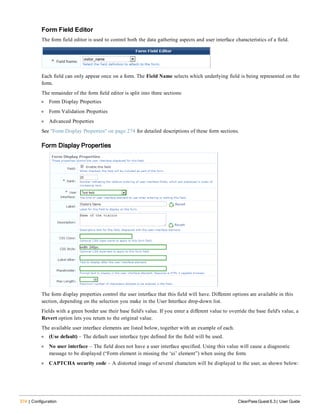
6. (Required for Manual setting) In the Server Port field, select the value for the proxy server's port.
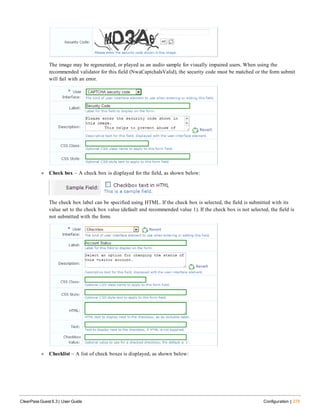
7. In the Authentication field, enter the username that will be used to connect to the proxy server.
8. In the Password and Confirm fields, enter the password that will be used to connect to the proxy server.
9. In the PAC URL field, you may enter the URL of the PAC file that defines the proxy configuration. To let devices
use the Web proxy autodiscovery protocol (WPAD) to discover proxies, leave this field blank.
10. To allow the device to bypass the proxy server and display the login page for captive networks, mark the check
box in the Captive Networks Login field. This option is only available for iOS 7.0 and later.
11. To allow devices to connect directly to the destination if the PAC file is unreachable, mark the check box in the
Allow Fallback field. If this check box is not selected, devices are prevented from connecting directly to the
destination in the event that the PAC file is unreachable. This option is only available for iOS 7.0 and later.
12. Click Save Changes. The Global HTTP Proxy setting is available as a configuration unit on the Configuration
Profile form.
For information about the list of Global HTTP Proxy settings, see "Global HTTP Proxy Settings" on page 149. For
more information about configuration profiles, see "Configuration Profiles" on page 207
Calendar Settings
CalDAV accounts give a provisioned device access to scheduling information on a remote server. CalDAV account
settings are only supported on iOS devices; they are ignored by all other devices.
To create and work with CalDAV account calendar settings, go to Onboard + WorkSpace > Onboard/MDM
Configuration > Calendar. The Calendar Settings list view opens.
All calendar settings that have been created are included in the list. You can click a calendar setting's row in the list
for additional options
l To view details for a calendar setting, click its Show Details link.The form expands to show the calendar setting's
name and description, the account description and hostname, port, principal URL, and whether SSL is enabled, as
well as additional account details.
l To edit any of a calendar setting's attributes, click its Edit link. The CalDAV Account Settings form opens.
l To create a copy of a calendar setting to use as a basis for a new set, click its Duplicate link. The CalDAV
Account Settings form opens with all attributes prepopulated and "Copy" appended to the calendar setting's name.
You can rename the new calendar setting, and edit any of its attributes.
l To delete a Calendar setting, click its Delete link. You will be asked to confirm the deletion.
l To see if the calendar setting is currently used, click its Show Usage link. The form expands to show a list of
configuration profiles that use the calendar setting.
l To create new calendar account settings, click the Create new calendar settings link in the upper right corner. The
CalDAV Account Settings form opens.
For information on creating, editing, or duplicating calendar settings, see "Creating and Editing Calendar Settings" on
page 151.
Creating and Editing Calendar Settings
A CalDAV account's settings include its name and description, the account description and hostname, port, principal
URL, and whether SSL is enabled, as well as additional account details.
To configure a CalDAV account:
1. Go to Onboard + WorkSpace Onboard/MDM Configuration Calendar, then click the Create new calendar
settings link in the upper-right corner. The CalDAV Account Settings form opens.
ClearPass Guest 6.3 | User Guide Onboard + WorkSpace | 151
152 | Onboard + WorkSpace ClearPass Guest 6.3 | User Guide
2. In the Name field, give this calendar setting a short name that identifies it clearly. Calendar settings names can
include spaces.
If you are duplicating a calendar setting, the original name has "Copy" appended to it. You may highlight this
name and replace it with a new name.
3. In the Description field, you can briefly describe the characteristics of the calendar settings.
4. In the Account Description field, you can enter the display name for the account.
5. (Required) In the Account Hostname field, enter the hostname of IP address of the CalDAV server.
6. (Required) In the Port field, use the counter to enter the port number of the CalDAV server.
7. To enable secure socket layer communication with the CalDAV server, mark the check box in the Use SSL row.
8. In the Account Principal URL field, you can enter the principal URL for the CalDAV account.
9. (Required) Choose an option from the Account Details drop-down list to indicate how user account information
should be supplied. Options available in the list include:
l User provided - entered by user on device
l Provisioning - values acquired during device provisioning
l Shared preset values - testing only
10. If Shared preset values - testing only is selected in the Account Details drop-down list, the Username and
Password fields are added to the form. Enter the CalDAV username and password to be used.
11. Click Save Changes. The calendar settings are available as a configuration unit on the Configuration Profile form.
For information about the list of Calendar settings, see "Calendar Settings" on page 151. For more information about
configuration profiles, see "Configuration Profiles" on page 207
Contacts Settings
CardDAV accounts allow users of a provisioned device to access and share contact data on a server. CardDAV
contacts settings are only supported on iOS devices; they are ignored by all other devices.
To create and work with CardDAV contacts settings, go to Onboard + WorkSpace > Onboard/MDM Configuration
> Contacts. The Contacts Settings list view opens.
All contacts settings that have been created are included in the list. You can click a contacts setting's row in the list
for additional options:
l To view details for a contacts setting, click its Show Details link.The form expands to show the contacts setting's
name and description, the account description and hostname, port, principal URL, and whether SSL is enabled, as
well as additional account details.
l To edit any of a contacts setting's attributes, click its Edit link. The CardDAV Account Settings form opens.
l To create a copy of a contacts setting to use as a basis for a new configuration, click its Duplicate link. The
CardDAV Account Settings form opens with all attributes prepopulated and "Copy" appended to the contacts
setting's name. You can rename the new contacts setting, and edit any of its attributes.
l To delete a Contacts setting, click its Delete link. You will be asked to confirm the deletion.
l To see if the contacts setting is currently used, click its Show Usage link. The form expands to show a list of
configuration profiles that use the contacts setting.
l To create new contacts account settings, click the Create new contacts settings link in the upper right corner. The
CardDAV Account Settings form opens.
For information on creating, editing, or duplicating contacts settings, see "Creating and Editing Contacts Settings" on
page 153.
Creating and Editing Contacts Settings
A CardDAV account's contacts settings include its name and description, the account description and hostname, port,
principal URL, and whether SSL is enabled, as well as additional account details.
To configure a CardDAV account:
1. Go to Onboard + WorkSpace > Onboard/MDM Configuration > Contacts, then click the Create new contacts
settings link in the upper-right corner. The CardDAV Account Settings form opens.
ClearPass Guest 6.3 | User Guide Onboard + WorkSpace | 153
154 | Onboard + WorkSpace ClearPass Guest 6.3 | User Guide
2. In the Name field, give this contacts setting a short name that identifies it clearly. Contacts settings names can
include spaces.
If you are duplicating a contacts setting, the original name has "Copy" appended to it. You may highlight this
name and replace it with a new name.
3. In the Description field, you can briefly describe the characteristics of the contacts settings.
4. In the Account Description field, you can enter the display name for the account.
5. (Required) In the Account Hostname field, enter the hostname of IP address of the CardDAV server.
6. (Required) In the Port field, use the counter to enter the port number of the CardDAV server.
7. To enable secure socket layer communication with the CardDAV server, mark the check box in the Use SSL row.
8. In the Account Principal URL field, you can enter the principal URL for the CardDAV account.
9. (Required) Choose an option from the Account Details drop-down list to indicate how user account information
should be supplied. Options available in the list include:
l User provided - entered by user on device
l Provisioning - values acquired during device provisioning
l Shared preset values - testing only
10. If Shared preset values - testing only is selected in the Account Details drop-down list, the Username and
Password fields are added to the form. Enter the CrdlDAV username and password to be used.
11. Click Save Changes. The contacts settings are available as a configuration unit on the Configuration Profile form.
For information about the list of Contacts settings, see "Contacts Settings" on page 152. For more information about
configuration profiles, see "Configuration Profiles" on page 207
Device Restrictions Settings
Device restriction settings let you configure the activities that will be allowed and the behaviors and settings that will
be enabled on a provisioned device. Device restrictions settings are only supported on iOS devices; they are ignored
by all other devices.
To create and work with device restrictions settings, go to Onboard + WorkSpace > Onboard/MDM Configuration
> Device Restrictions. The Device Restrictions Settings list view opens.
All device restrictions settings that have been created are included in the list. You can click a device restriction
setting's row in the list for additional options:
l To view details for a device restriction setting, click its Show Details link.The form expands to show the device
restriction setting's name and description, and the applications, content settings, security and privacy settings,
device functionality settings, iCloud settings, and game center settings that will be enabled or disabled.
l To edit any of a device restriction set's attributes, click its Edit link. The Device Restrictions Settings form opens.
l To create a copy of a device restriction set to use as a basis for a new set, click its Duplicate link. The Device
Restrictions Settings form opens with all attributes prepopulated and "Copy" appended to the set's name. You can
rename the new device restrictions set, and edit any of its attributes.
l To delete a Device Restrictions setting, click its Delete link. You will be asked to confirm the deletion.
l To see if the device restrictions set is currently used, click its Show Usage link. The form expands to show a list of
configuration profiles that use the device restrictions set.
l To create a new device restriction set, click the Create new Device Restrictions settings link in the upper right
corner. The Device Restrictions Settings form opens.
For information on creating, editing, or duplicating an application set, see "Creating and Editing Device Restrictions
Settings" on page 155.
Creating and Editing Device Restrictions Settings
A device restrictions setting includes its name and description, and the applications, content settings, security and
privacy settings, device functionality settings, iCloud settings, and game center settings that will be enabled or
disabled on the provisioned device. Device restrictions settings are only supported on iOS devices; they are ignored by
all other devices.
To configure a device restriction setting:
1. Go to Onboard + WorkSpace > Onboard/MDM Configuration > Device Restrictions, then click the Create new
Device Restrictions settings link in the upper-right corner. Device Restrictions Settings form opens.
2. In the Name field, give this device restrictions setting a short name that identifies it clearly. Device restrictions
settings names can include spaces.
If you are duplicating a device restrictions setting, the original name has "Copy" appended to it. You may highlight
this name and replace it with a new name.
3. In the Description field, you can briefly describe the characteristics of the device restrictions settings.
4. In the Applications area, you can mark the check boxes to allow or enable the following items:
ClearPass Guest 6.3 | User Guide Onboard + WorkSpace | 155
156 | Onboard + WorkSpace ClearPass Guest 6.3 | User Guide
l Installing apps
l Camera
l Video conferencing
l YouTube (not available for iOS 6 or later)
l iTunes
l iBookstore
l Opening documents in unmanaged apps in managed apps (available only in iOS 7.0 and later)
l Opening documents in managed apps in unmanaged apps (available only in iOS 7.0 and later)
l Autonomous single-mode apps (available only in iOS 7.0 and later)
5. In the Safari area, you can mark the check boxes to specify or allow the following items:
l Safari
l Autofill
l Fraud warning
l JavaScript
l Pop-up blocking
l Cookie settings
6. In the Content Settings area, you can mark the check boxes to specify or allow the following items:
l Rating region
l Explicit music and podcasts
l Maximum allowed movie ratings
l Maximum allowed TV show ratings
l Maximum allowed app ratings
l Download of erotic books
l In-app purchases
l Force iTunes password for each transaction
7. In the Security and Privacy Settings area, you can mark the check boxes to specify or allow the following items:
l Sending diagnostic data to Apple
l Prompt user before accepting untrusted certificate
l Force encryption of backups
l PKI updates (available only in iOS 7.0 and later)
l Ad tracking limits (available only in iOS 7.0 and later)
l Host pairing (available only in iOS 7.0 and later)
8. In the Device Functionality Settings area, you can mark the check boxes to allow the following items:
l Screen captures
l Automatic sync while roaming
l Siri
l Siri when device locked
l Siri for user-generated content (available only in iOS 7.0 and later)
l Voice dialing
l Fingerprint for unlock (available only in iOS 7.0 and later)
l Passbook when device locked
l Control Center when device locked (available only in iOS 7.0 and later)
l Notification view when device locked (available only in iOS 7.0 and later)
l Today view in Notification Center when device locked (available only in iOS 7.0 and later)
l Configuration profile and certificate installation
l Account modification (available only in iOS 7.0 and later)
l Cellular data-use modification (available only in iOS 7.0 and later)
l Find My Friends modification (available only in iOS 7.0 and later)
l AirDrop (available only in iOS 7.0 and later)
9. In the iCloud Settings area, you can mark the check boxes to allow the following items:
l Backing up device to iCloud
l Document and key-value sync to iCloud
l Photo stream
l Shared photo stream
l Keychain sync (available only in iOS 7.0 and later)
10. In the Game Center Settings area, you can mark the check boxes to allow the following items:
l Game Center
l Multiplayer gaming
l Game Center friends
11. Click Save Changes. The device restrictions settings are available as a configuration unit on the Configuration
Profile form.
For information about the list of device restrictions settings, see "Device Restrictions Settings" on page 154. For more
information about configuration profiles, see "Configuration Profiles" on page 207
Email Settings
The Email Settings forms let you create and work with the email settings that will be sent to the provisioned device.
Email settings are only supported on iOS devices; they are ignored by all other devices.
To create and work with email settings, go to Onboard + WorkSpace > Onboard/MDM Configuration > Email. The
Email Settings list view opens.
ClearPass Guest 6.3 | User Guide Onboard + WorkSpace | 157
158 | Onboard + WorkSpace ClearPass Guest 6.3 | User Guide
All email settings that have been created are included in the list. You can click an email setting's row in the list for
additional options:
l To view details for an email setting, click its Show Details link. The form expands to show the email setting's name
and description, as well as account, domain, server, port, SSL, authentication, and other details for the email
account and the incoming and outgoing mail servers.
l To edit any of an email setting's attributes, click its Edit link. The Email Settings form opens.
l To create a copy of an email setting to use as a basis for a new set, click its Duplicate link. The Email Settings
form opens with all attributes prepopulated and "Copy" appended to the setting's name. You can rename the new
email setting, and edit any of its attributes.
l To delete an Email setting, click its Delete link. You will be asked to confirm the deletion.
l To see if the email setting is currently used, click its Show Usage link. The form expands to show a list of
configuration profiles that use the email setting.
l To create a new email setting, click the Create new Device Restrictions settings link in the upper right corner. The
Email Settings form opens.
For information on creating, editing, or duplicating an email setting, see "Creating and Editing Email Settings" on page
158.
Creating and Editing Email Settings
To configure email settings:
1. Go to Onboard + WorkSpace > Onboard/MDM Configuration > Email, then click the Create new Email
settings link in the upper-right corner. The Email Settings form opens.
2. In the Name field, give the email settings a short name that identifies it clearly. Email settings names can include
spaces.
If you are duplicating an email settings, the original name has "Copy" appended to it. You may highlight this name
and replace it with a new name.
3. In the Description field, briefly describe the characteristics of the email settings.
In the General Settings area:
4. In the Account Description field, you can enter the display name for the mail account.
5. In the Get Email Address From field, choose an option from the drop-down list to indicate how user account
information should be supplied. Options available in the list include:
l User provided - entered by user on device
l Provisioning - values acquired during device provisioning
l Shared preset values - testing only
The remaining fields available in the General Settings area will vary according to your choice in the this drop-
down list.
6. In the Email Address field, enter the full email address for the account.
7. In the Email Address Domain field, enter the domain name to append to the username.
8. Choose an option in the When to Add Email Address Domain field. Available options include Only if username
is not a valid email address and Always add the domain.
9. To allow users to move messages from the account, mark the check box in the Allow Move field.
10. To include the account in recent address syncing, mark the check box in the Allow Recent Address Sync field.
11. In the Use Only in Mail field, mark the check box if outgoing mail should only be sent from the Mail app, and
should not be available for sending mail in third-party applications.
In the Incoming Mail Server Settings area:
1. Enter the hostname or IP address of the server for the incoming mail in the Incoming Mail Server field (for
example, mail.exampleprovider.com).
2. In the Port drop-down list, use the counter to select the server to user for incoming mail.
3. To enable secure socket layer communication with the server and ensure that communications are encrypted, mark
the check box in the Use SSL row.
4. Choose an authentication method from the drop-down list in the Authentication Type row. Options include:
l Password
l MD5 Challenge-Response
l NTLM
l HTTP MD5 Digest
l None
5. Choose an option from the Account Details drop-down list to indicate how user account information should be
supplied. Options available in the list include:
l User provided - entered by user on device
l Provisioning - values acquired during device provisioning
l Shared preset values - testing only
6. If Shared preset values - testing only is selected in the Account Details drop-down list, the Username and
Password fields are added to the form. Enter the CalDAV username and password for connecting to the server for
incoming mail.
ClearPass Guest 6.3 | User Guide Onboard + WorkSpace | 159
160 | Onboard + WorkSpace ClearPass Guest 6.3 | User Guide
In the Outgoing Mail Server Settings area:
1. Enter the hostname or IP address of the server for the outgoing mail in the Outgoing Mail Server field (for
example, smtp.exampleprovider.com).
2. In the Port drop-down list, use the counter to select the server to user for outgoing mail.
3. To enable secure socket layer communication with the server and ensure that communications are encrypted, mark
the check box in the Use SSL row.
4. Choose an authentication method from the drop-down list in the Authentication Type row. Options include:
l Password
l MD5 Challenge-Response
l NTLM
l HTTP MD5 Digest
l None
5. Choose an option from the Account Details drop-down list to indicate how user account information should be
supplied. Options available in the list include:
l User provided - entered by user on device
l Provisioning - values acquired during device provisioning
l Shared preset values - testing only
6. If Shared preset values - testing only is selected in the Account Details drop-down list, the Username field is
added to the form. Enter the username for connecting to the server for outgoing mail.
7. To use the same password for incoming and outgoing mail, mark the check box in the Outgoing Password Same
as Incoming field.
8. To have the email account support S/MIME, mark the check box in the Use S/MIME row.
9. Click Save Changes. The application set is available as a configuration unit on the Configuration Profile form.
For information about the list of email settings, see "Email Settings" on page 157. For more information about
configuration profiles, see "Configuration Profiles" on page 207
Exchange ActiveSync
Exchange ActiveSync settings let you automatically configure an email account on iOS devices. You can define
multiple Exchange ActiveSync configurations. Each configuration you define is a "configuration unit" that you can
include in a configuration profile. Exchange ActiveSync settings are only supported by iOS devices; they will be
ignored by all other device types.
To create and work with Exchange ActiveSync configurations, go to Onboard + WorkSpace > Onboard/MDM
Configuration > Exchange ActiveSync. The ActiveSync Settings list view opens.
All Exchange ActiveSync configuration units that have been created are included in the list. You can click an
Exchange Sync configuration unit's row in the list for additional options:
l To view details for an Exchange ActiveSync unit, click its Show Details link.The form expands to show its name
and description, ActiveSync host, whether SSL is enabled, account details, and number of days of mail.
l To edit any of an ActiveSync unit's attributes, click its Edit link. The Exchange ActiveSync Settings form opens.
l To create a copy of an ActiveSync unit to use as a basis for a new configuration unit, click its Duplicate link. The
Exchange ActiveSync Settings form opens with all attributes prepopulated and "Copy" appended to its name. You
can rename the new unit, and edit any of its attributes.
l To see if the ActiveSync unit is currently used, click its Show Usage link. The form expands to show a list of
configuration profiles that use it.
l To create a new ActiveSync configuration unit, click the Create new ActiveSync settings link in the upper right
corner. The Exchange ActiveSync Settings form opens.
For information on creating, editing, or duplicating an ActiveSync configuration set, see "Creating and Editing
ActiveSync Settings " on page 161.
Creating and Editing ActiveSync Settings
Exchange ActiveSync configurations you define can be used in configuration profiles to automatically configure an
email account on an iOS device. Use an ActiveSync configuration when you have an Exchange mail server and want
to automatically provide the email settings to users provisioning their mobile devices.
Exchange ActiveSync settings are only supported by iOS devices; they will be ignored by all other device types.
To define an Exchange ActiveSync configuration that can be sent to a device:
ClearPass Guest 6.3 | User Guide Onboard + WorkSpace | 161
162 | Onboard + WorkSpace ClearPass Guest 6.3 | User Guide
1. Go to Onboard + WorkSpace > Onboard/MDM Configuration > Exchange ActiveSync, then click the Create
new ActiveSync settings link in the upper-right corner. The Exchange ActiveSync Settings form opens.
2. In the Name field, give the ActiveSync configuration a short name that identifies it clearly. ActiveSync
configuration names can include spaces.
If you are duplicating a configuration, the original name has a number appended to it. You may highlight this name
and replace it with a new name.
3. In the Description field, briefly describe the characteristics of the ActiveSync setting.
In the General Settings area:
1. (Required) In the ActiveSync Host field, enter the hostname or IP address of the server the device will connect to.
2. To ensure that all communications are encrypted, select the check box in the Use SSL field.
3. In the Magic String field, enter the value to send as the "X-Apple-Config-Magic" header in each EAS HTP request.
4. To allow the user to move messages out of this email account into another account, select the check box in the
Allow Move field. Leave this field blank to prevent moving messages between accounts, and to prevent forwarding
or replying from other than the message's originating account.
5. To include this email account in recent address syncing, select the check box in the Allow Recent Address Sync
field.
6. To send outgoing mail from this account only from the Mail app, and prevent sending mail in third-party
applications, select the check box in the Use Only in Mail field.
In the Account Settings area:
1. (Required) Choose one of the following options from the Account Details drop-down list:
l User provided — entered by user on device. This option requires the user to enter their credentials on the
device to access their email.
l Identity certificate — created during provisioning. This option uses the device’s TLS client certificate to
authenticate the user. Using this option requires configuration of the ActiveSync server to authenticate a user
based on the client certificate.
l Provisioning — values acquired during device provisioning.
l Shared preset values — testing only. This option provides a fixed set of credentials to the device. These
settings cannot be modified for each user when provisioning a device, so it is recommended that these settings
only be used when testing Exchange integration.
2. In the Domain field, enter the domain for the account.
3. Select the appropriate option n the Email Address field. Options include Let system define, Same as username,
and Generate using username.
4. If "Shared preset values - testing only" was chosen in the Account Details field, this form includes fields for login
credentials. Enter the login information for testing in the User, Password, and Confirm fields. If both the Domain
and User fields are blank, the device will prompt the user.
In the Sync Settings area:
1. Choose one of the following options from the Days of Mail drop-down list:
l No Limit
l 1 day
l 3 days
l 1 week
l 2 weeks
l 1 month
2. Click Save Changes. The Exchange ActiveSync setting is available as a configuration unit on the Configuration
Profile form.
For information about the list of Exchange ActiveSync settings, see "Exchange ActiveSync" on page 160. For more
information about configuration profiles, see "Configuration Profiles" on page 207
Network Settings
You can define multiple network settings that can be sent to provisioned devices. Each network you configure is also
a "configuration unit" that you can include in a configuration profile.
To create and work with network settings, go to Onboard + WorkSpace > Onboard/MDM Configuration > Network
Settings. The Networks list view opens.
ClearPass Guest 6.3 | User Guide Onboard + WorkSpace | 163
164 | Onboard + WorkSpace ClearPass Guest 6.3 | User Guide
All networks that have been provisioned are included in the list. You can click a network's row in the list for
additional options:
l To view details for a network, click its Show Details link. The form expands to show its name, description, and
configuration values for network access, wireless networks, enterprise protocols, enterprise authentication, enterprise
trust, Windows networking, and proxy settings.
l To edit any of a network's attributes, click its Edit link. The Network Settings form opens.
l To create a copy of a network configuration to use as a basis for a new configuration, click its Duplicate link. The
Network Settings form opens with all attributes prepopulated and "Copy" appended to its name. You can rename
the new configuration, and edit any of its attributes.
l To see if the network is currently used, click its Show Usage link. The form expands to show a list of configuration
profiles that use it.
l To create a new network configuration, click the Create new network link in the upper right corner. The Network
Settings tabbed form opens.
Configuring Basic Network Access Settings
1. On the Network Settings list view, to configure the network settings that will be provisioned to devices, click the
network’s Edit link. To create a new network, click the Create new network link in the upper-right corner.
The Network Access form opens with the Access tab displayed.
The configuration process is the same for editing an existing network and for creating a new network. The Network
Access form is divided into several tabs:
Tab Description
Access
Specifies basic network properties, such as the name of the wireless network and the type of
security that is used. This form is described below.
Protocols
Specifies the 802.1X authentication protocols that are used by the network. See "Configuring
802.1X Authentication Network Settings" on page 166.
Authentication
Specifies the type of device authentication to be used for the network. See "Configuring Device
Authentication Settings" on page 167.
Trust
Specifies options related to mutual authentication. See "Configuring Mutual Authentication
Settings" on page 168.
Windows
Specifies networking options used only by devices using the Windows operating system. See
"Configuring Windows-Specific Network Settings" on page 170.
Proxy
Specifies a proxy server to be used by devices connecting to the network. See "Configuring
Proxy Settings" on page 171.
Navigating between different tabs will save the changes you have made. The modified settings are indicated with a “#”
marker in the tab. The settings used for device provisioning are not modified until you click Create Network.
To edit the network’s basic and wireless network access options, click the Access tab:
1. If you need to edit the network’s name, enter the new name in the Name field.
2. (Optional) You may enter additional identifying information in the Description field.
3. The options available in the Network Type drop-down list are:
l Both — Wired and Wireless – Configures both wired (Ethernet) and wireless network adapters. Use this option
when you have 802.1X configured for all types of network access.
l Wireless only – Configures only wireless network adapters.
l Wired only – Configures only wired (Ethernet) network adapters.
4. The options available in the Security Type drop-down list are:
l Enterprise (802.1X) – Use this option to setup a network that requires user authentication.
l This option is the only available choice when the Network Type is set to “Wired only”.
l Personal (PSK) – Use this option to setup a network that requires only a pre-shared key (password) to access
the network.
This option is only available when the Network Type is set to “Wireless only”.
5. If you have selected the Personal (PSK) security type, you must provide the pre-shared key in the Password field.
Selecting this security type will hide the Protocols, Authentication, and Trust tabs.
ClearPass Guest 6.3 | User Guide Onboard + WorkSpace | 165
166 | Onboard + WorkSpace ClearPass Guest 6.3 | User Guide
6. In the Wireless Network Settings area:
l The Security Version field lets you set the encryption version for the wireless network to WPA with TKIP or
WPA2 with AES.
l In the Auto Join row, you can mark the Automatically join network check box to specify that the device
should be automatically connected to the network when it is provisioned. If only one network is available to
the user, the device will be connected automatically. If multiple networks are available, the user will be able to
choose the network to connect to. If the Automatically join network option is not selected on this form, an
option to manually connect to the network will be shown to the user.
7. Do one of the following:
l Click Next to continue to the Protocols tab.
l Click Save Changes to make the new network configuration settings take effect.
l Click Cancel to discard your changes and return to the main Onboard configuration user interface.
For information about the list of network settings, see "Network Settings " on page 163. For more information about
configuration profiles, see "Configuration Profiles" on page 207
Configuring 802.1X Authentication Network Settings
On the Network Settings form, click the Protocols tab to display the Enterprise Protocols form.
Use this form to specify the authentication methods required by your network infrastructure.
l The iOS & OS X EAP option supports TLS, TTLS, PEAP, and EAP-FAST.
l The Legacy OS X EAP option supports only PEAP with MSCHAPv2.
l The Android EAP option supports PEAP with MSCHAPv2, PEAP with GTC, TTLS with MSCHAPv2, TTLS with
GTC, TTLS with PAP, and TLS.
l The Windows EAP option supports PEAP with MSCHAPv2 and TLS.
These best practices are recommended when choosing the 802.1X authentication methods to provision:
l Configure PEAP with MSCHAPv2 for Onboard devices – Android, Windows, and legacy OS X (10.5/10.6).
l Configure EAP-TLS for iOS devices and OS X (10.7 or later).
l Other EAP methods, while possible, are limited in their applicability and should only be used if you have a
specific requirement for that method.
The Windows EAP options that may be specified include:
l Enable Fast Reconnect – Fast Reconnect is a PEAP property that enables wireless clients to move between
wireless access points on the same network without being re-authenticated each time they associate with a new
access point. If TLS is selected, Fast Reconnect is not available.
l Enforce Network Access Protection– Enable this option to obtain a system statement-of-health (SSoH) from the
OnGuard or Microsoft NAP Agent and send it to the authentication server during the 802.1X authentication
process. Use this option to enforce network access control (NAC) protections on the network. If TLS is selected,
Enforce Network Access Protection is not available.
l Enforce Cryptobinding – Cryptobinding is a process that protects the authentication protocol negotiation against
man-in-the-middle attacks. The cryptobinding request and response performs a two-way handshake between the
peer and the authentication server using key materials. If TLS is selected, Enforce Cryptobinding is not available.
l Do one of the following:
n Click Previous to return to the Access tab.
n Click Next to continue to the Authentication tab.
l Click Save Changes to make the new network configuration settings take effect.
n Click Cancel to discard your changes and return to the main Onboard configuration user interface.
For information about the list of network settings, see "Network Settings " on page 163. For more information about
configuration profiles, see "Configuration Profiles" on page 207
Configuring Device Authentication Settings
On the Onboard/MDM Configuration > Network Settings form, click the Authentication tab to display the
Enterprise Authentication form.
1. Select one of these options in the iOS & OS X Credentials drop-down list:
l Certificate – A device certificate will be provisioned and used for EAP-TLS client authentication. When this
option is selected, EAP-TLS must be selected on the Protocols tab.
ClearPass Guest 6.3 | User Guide Onboard + WorkSpace | 167
168 | Onboard + WorkSpace ClearPass Guest 6.3 | User Guide
l Username & Password – A device certificate will be provisioned, but the client authentication will use unique
device credentials (as for Onboard devices). When this option is selected, EAP-TTLS or PEAP must be selected
on the Protocols tab.
2. The fields available in the Windows Authentication area depend on which option was chosen for Windows EAP
on the Protocols tab.
If PEAP with MSCHAPv2 was selected, this area includes the Vista Credentials and XP Credentials fields.
Options available for these fields are:
l Machine Only – Use computer-only credentials.
l User Only – Use user-only credentials
l Machine Or User – Use computer-only credentials or user-only credentials. When a user is logged on, the user's
credentials are used for authentication. When no user is logged on, computer-only credentials are used for
authentication.
l Guest Only – Use guest-only credentials.
If TLS was selected, this area includes the Certificate Store field, where you can specify the certificate store where
the client certificate will be provisioned.
Options available for this field are:
l User – This is the default.
l Machine
l Machine and User
3. Do one of the following:
l Click Previous to return to the Protocols tab.
l Click Next to continue to the Trust tab.
l Click Save Changes to make the new network configuration settings take effect
l Click Cancel to discard your changes and return to the main Onboard + WorkSpace configuration user
interface.
For information about the list of network settings, see "Network Settings " on page 163. For more information about
configuration profiles, see "Configuration Profiles" on page 207
Configuring Mutual Authentication Settings
On the Network Settings form, click the Trust tab to display the Enterprise Trust form. Use this form to create the
network settings that will be sent to a provisioned device.
Configuring Trust Settings Automatically
1. When you open this tab, the default selection in the Configure Trust field is Automatically configure trust
settings (recommended). With this option selected, Onboard automatically determines the appropriate certificate
trust configuration for your deployment.
2. If the deployment is not using the built-in CA, you may use the Trusted Server Names text field to enter the
certificate names to accept from the authentication server. Only certificates included in this list will be trusted.
Enter each server name on a separate line. You can use wildcards.
3. Do one of the following:
l Click Previous to return to the Authentication tab.
l Click Next to continue to the Windows tab.
l Click Save Changesto make the new network configuration settings take effect.
l Click Cancel to discard your changes and return to the main Onboard configuration user interface.
Configuring Trust Settings Manually
1. To change the recommended default setting and configure trust settings manually, choose Manually configure
certificate trust settings in the Configure Trust drop-down list. The form expands to include configuration options.
ClearPass Guest 6.3 | User Guide Onboard + WorkSpace | 169
170 | Onboard + WorkSpace ClearPass Guest 6.3 | User Guide
2. If the deployment is not using the built-in CA, you may use the Trusted Server Names text field to enter the
certificate names to accept from the authentication server. Only certificates included in this list will be trusted.
Enter each server name on a separate line. You can use wildcards.
3. In the Trusted Certificates row, the recommended certificate is selected by default. You may click the field to open
the drop-down list and select a different certificate the client should trust. You should include the root certificate
that issued the authentication server’s certificate, and you should provide the certificate for each authentication
server a provisioned device will use.
4. You can use the Upload Certificate options to import additional trusted certificates. Click Choose File to navigate
to the file on your computer, then click Upload. The certificate is imported, and the certificate name is displayed
above the form. You can click the Show certificate link next to the name to view certificate details. The certificate
is also displayed in the Certificate Management list with the type “trusted.”
5. In the Dynamic Trust row, you should avoid marking the Allow trust exceptions check box – the network
administrator should make all trust decisions. Users will not generally review certificates for potential issues before
accepting them. If you wish to enable trust decisions to be made by the user, you may unmark the Allow trust
exceptions check box. Be aware that this is an insecure configuration, as a user can override a security warning if a
man-in-the-middle attack occurs.
6. In the Android Trust area, use the Trusted Certificate drop-down list to select a certificate the device should trust.
Android supports only a single trusted certificate; this must be the root CA that issued the authentication server’s
certificate. Be aware that if None is selected, 802.1x authentication might not work.
7. In the Windows Trust area, mark the Validate the server certificate check box. This ensures that the provisioned
device will check the server certificate is valid before using the server for authentication. If this check box is
unmarked, the configuration will not be secure. An attacker could provide another server certificate which the
client would not verify.
8. Do one of the following:
l Click Previous to return to the Authentication tab.
l Click Next to continue to the Windows tab.
l Click Save Changes to make the new network configuration settings take effect
l Click Cancel to discard your changes and return to the main Onboard configuration user interface.
For information about the list of network settings, see "Network Settings " on page 163. For more information about
configuration profiles, see "Configuration Profiles" on page 207
Configuring Windows-Specific Network Settings
On the Network Settings form, click the Windows tab to display the Windows Network Settings form.
Network Access Protection (NAP) is a feature in Windows Server 2008 that controls access to network resources
based on a client computer’s identity and compliance with corporate governance policy. NAP allows network
administrators to define granular levels of network access based on who a client is, the groups to which the client
belongs, and the degree to which that client is compliant with corporate governance policy. If a client is not
compliant, NAP provides a mechanism to automatically bring the client back into compliance and then dynamically
increase its level of network access.
Deploying NAP requires a NAP-compatible authentication server, so that appropriate policies may be implemented
based on the statement of health provided by the NAP client.
To enable NAP for Microsoft Windows clients, mark the Enable NAP services check box on this tab. You will also
need to mark the Enable Quarantine Checks check box on the Protocols tab.
l Do one of the following:
n Click Previous to return to the Trust tab.
n Click Next to continue to the Proxy tab.
n Click Save Changesto make the new network configuration settings take effect.
n Click Cancel to discard your changes and return to the main Onboard configuration user interface.
For information about the list of network settings, see "Network Settings " on page 163. For more information about
configuration profiles, see "Configuration Profiles" on page 207
Configuring Proxy Settings
On the Network Settings form, click the Proxy tab to display the Proxy Settings form.
ClearPass Guest 6.3 | User Guide Onboard + WorkSpace | 171
172 | Onboard + WorkSpace ClearPass Guest 6.3 | User Guide
Select one of these options in the Proxy Type drop-down list:
l None– No proxy server will be configured.
l Manual– A proxy server will be configured, if the device supports it. Specify the proxy server settings in the
Server and Server Port fields.
l Automatic– The device will configure its own proxy server, if the device supports it. Specify the location of a
proxy auto-config file in the PAC URLtext field.
l Do one of the following:
n Click Previous to return to the Windows tab.
l Click Save Changesto make the new network configuration settings take effect
n Click Cancel to discard your changes and return to the main Onboard configuration user interface.
For information about the list of network settings, see "Network Settings " on page 163. For more information about
configuration profiles, see "Configuration Profiles" on page 207
Passcode Policy
You can define multiple passcode policy configurations. Each configuration you define is a "configuration unit" that
you can include in a configuration profile. Passcode policy settings are typically used when you provision a corporate-
owned device, or when you allow a user to access sensitive information remotely. Passcode policy settings are only
supported by iOS devices; they will be ignored by all other device types.
To create and work with passcode policy configurations, go to Onboard + WorkSpace > Onboard/MDM
Configuration > Passcode Policy. The Passcode Policies list view opens.
All passcode policies that have been created are included in the list. You can click a passcode policy's row in the list
for additional options:
l To view details for a passcode policy, click its Show Details link. The form expands to show its name, description,
and other configuration settings.
l To edit any of a passcode policy's attributes, click its Edit link. The Passcode Policy Settings form opens.
l To create a copy of a passcode policy configuration to use as a basis for a new configuration, click its Duplicate
link. The Passcode Policy Settings form opens with all attributes prepopulated and "Copy" appended to its name.
You can rename the new configuration, and edit any of its attributes.
l To see if the passcode policy configuration unit is currently used, click its Show Usage link. The form expands to
show a list of configuration profiles that use it.
l To create a new passcode policy configuration, click the Create new passcode policy link in the upper right
corner. The Passcode Policy Settings form opens.
For information on creating, editing, or duplicating a passcode policy configuration unit, see "Configuring an iOS
Device Passcode Policy " on page 173.
Configuring an iOS Device Passcode Policy
Passcode policies can be used when a corporate-owned device is provisioned or a user is given remote access to
sensitive information. Passcode policy settings are only supported by iOS devices; they are ignored by all other device
types.
To configure a passcode policy:
1. Go to Onboard + WorkSpace > Onboard/MDM Configuration > Passcode Policy, then click the Create new
passcode policy link in the upper-right corner. The Passcode Policy Settings form opens.
ClearPass Guest 6.3 | User Guide Onboard + WorkSpace | 173
174 | Onboard + WorkSpace ClearPass Guest 6.3 | User Guide
2. In the Name field, give the passcode policy a short name that identifies it clearly. Passcode policy names can
include spaces.
If you are duplicating a passcode policy, the original name has "Copy" appended to it. You may highlight this
name and replace it with a new name.
3. In the Description field, briefly describe the characteristics of the passcode policy.
4. To require the user to create a passcode, mark the check box in the Force PIN field.
5. If the passcode will not need restrictions on repeated or sequential characters, you can mark the check box in the
Allow Simple field.
6. If the passcode must include alphabetic characters in addition to numbers, mark the check box in the Require
Alphanumeric field.
7. To disable all push operations while the user is roaming, requiring the user to manually fetch new data, mark the
check box in the Manual Fetching When Roaming field.
8. To limit the number of times the passcode may be entered incorrectly before the device is locked, use the counter in
the Max Failed Attempts field to specify the maximum number of attempts allowed.
9. To limit the time the device is allowed to be idle before it is locked and the user must re-enter the passcode, use the
drop-down list in the Max Inactivity field to select a number of minutes. Options in this list are Unlimited or 2, 5,
10, or 15 minutes. The user may set a lower number.
10. To specify a maximum duration for the passcode, use the counter in the Max PIN Age field. After the specified
number of days, the device is locked and the user must change their passcode.
11. To require that the passcode include complex characters, use the counter in the Min Complex Chars field to
specify how many complex characters it must contain. Complex, or special, characters are non-alphanumeric, such
as &%$#.
12. To set a maximum time in which the user may unlock the device without re-entering the passcode, use the drop-
down list in the Max Grace Period field to select a number of minutes. The user may set a lower number.
13. To specify the minimum number of characters the passcode must include, use the counter in the Min Length field
to select the number of characters.
14. To specify that when the user changes their passcode the new value cannot be one that was used within a defined
period of the passcode's history, use the counter in the PIN History field. The number you select is the number of
recent passwords whose values will not be allowed.
15. Click Save Changes. The passcode policy is available as a configuration unit on the Configuration Profile form.
For information about the list of iOS device passcode policy settings, see "Passcode Policy " on page 172. For more
information about configuration profiles, see "Configuration Profiles" on page 207
Single Sign On Settings
The Single Sign-On form lets you configure the single sign-on (SSO) settings to be sent to the provisioned device. SSO
settings are only supported on iOS devices; they are ignored by all other devices.
To create and work with SSO settings, go to Onboard + WorkSpace > Onboard/MDM Configuration > Single Sign-
On. The SSO Settings list view opens.
All single sign-on settings that have been created are included in the list. You can click an SSO setting's row in the
list for additional options:
ClearPass Guest 6.3 | User Guide Onboard + WorkSpace | 175
176 | Onboard + WorkSpace ClearPass Guest 6.3 | User Guide
l To view details for an SSO setting, click its Show Details link. The form expands to show the SSO setting's name
and description; account description; and Kerberos principal name, realm name, and URL prefix matches.
l To edit any of an SSO setting's attributes, click its Edit link. The Single Sign-On Setting form opens.
l To create a copy of an SSO setting to use as a basis for a new SSO setting, click its Duplicate link. The Single
Sign-On Setting form opens with all attributes prepopulated and "Copy" appended to the SSO setting's name. You
can rename the new SSO setting, and edit any of its attributes.
l To delete an SSO setting, click its Delete link. You will be asked to confirm the deletion.
l To see if the SSO setting is currently used, click its Show Usage link. The form expands to show a list of
configuration profiles that use the Web clips setting.
l To create new SSO settings, click the Create new SSO settings link in the upper right corner. The Single Sign-On
Setting form opens.
For information on creating, editing, or duplicating SSO settings, see "Creating and Editing Single Sign-On Settings"
on page 176.
Creating and Editing Single Sign-On Settings
An SSO setting includes its name and description, the account's display name, and the Kerberos account principal
name, realm name, and URL prefix matches.
To configure an SSO setting:
1. Go to Onboard + WorkSpace > Onboard/MDM Configuration > Single Sign-On, then click the Create new SSO
settings link in the upper-right corner. The Single Sign-On Setting form opens.
2. In the Name field, give the SSO setting a short name that identifies it clearly. SSO setting names can include
spaces.
3. If you are duplicating an SSO setting, the original name has "Copy" appended to it. You may highlight this name
and replace it with a new name.
4. In the Description field, briefly describe the characteristics of the SSO setting.
5. In the Account Description field, enter the account display name.
6. In the Kerberos SSO area, enter the Kerberos principal name in the Principal Name field. This is a unique ID, and
includes three parts: the primary, the instance, and the realm. These follow the format primary/instance@REALM,
where:
l Primary = First part of the principal name. For a user, it is the username. For a host, the it is the word "host".
l Instance = Optional string. Must be separated from the primary by a slash character. For a user, the instance
might be null. For a host, this is the fully-qualified hostname—for example, "support.exampleSchool.edu".
l Realm = The Kerberos realm. Usually the same as the domain name, in uppercase letters—for example,
"EXAMPLESCHOOL.EDU".
7. In the Realm Name field, enter the Kerberos realm name.
8. In the URL Prefix Matches field, enter the list of URL prefixes that must be matched for Kerberos authentication.
Each URL prefix must begin with either http:// or https://. If a URL prefix does not end in /, a / is appended to it.
Leave this field blank to match all http:// and https:// URLs.
9. Click Save Changes. The SSO setting is available as a configuration unit on the Configuration Profile form.
For information about the list of SSO settings, see "Single Sign On Settings" on page 175. For more information about
configuration profiles, see "Configuration Profiles" on page 207
Subscribed Calendar Settings
Subscribed calendar settings let you configure the calendar subscriptions that will be sent to the provisioned device.
Subscribed calendar settings are only supported on iOS devices; they are ignored by all other devices.
To create and work with subscribed calendar settings, go to Onboard + WorkSpace > Onboard/MDM Configuration
> Subscribed Calendar. The Subscribed Calendar Settings list view opens.
All subscribed calendar settings that have been created are included in the list. You can click a subscribed calendar
setting's row in the list for additional options:
l To view details for a subscribed calendar setting, click its Show Details link.The form expands to show the
calendar subscription's name and description, the description and server of the account, whether it SSL is enabled,
and additional account details.
l To edit any of a subscribed calendar setting's attributes, click its Edit link. Calendar Subscriptions Settings form
opens.
l To create a copy of a subscribed calendar setting to use as a basis for a new configuration, click its Duplicate link.
The Subscribed Calendar Settings form opens with all attributes prepopulated and "Copy" appended to the
configuration's name. You can rename the new subscribed calendar setting, and edit any of its attributes.
l To delete a Subscribed Calendar setting, click its Delete link. You will be asked to confirm the deletion.
l To see if the subscribed calendar setting is currently used, click its Show Usage link. The form expands to show a
list of configuration profiles that use the subscribed calendar setting.
l To create a new subscribed calendar setting, click the Create new Subscribed Calendar settings link in the upper
right corner. The Calendar Subscription Settings form opens.
ClearPass Guest 6.3 | User Guide Onboard + WorkSpace | 177
178 | Onboard + WorkSpace ClearPass Guest 6.3 | User Guide
For information on creating, editing, or duplicating an applicaiton set, see "Creating and Editing Calendar Subscription
Settings" on page 178.
Creating and Editing Calendar Subscription Settings
A calendar subscription's settings include its name and description, the account description, server, and whether SSL is
enabled, as well as additional account details.
To configure a calendar subscription setting:
1. Go to Onboard + WorkSpace > Onboard/MDM Configuration > Subscribed Calendar, then click the Create
new Subscribed Calendar settings link in the upper-right corner. The Calendar Subscription Settings form opens.
2. In the Name field, give this calendar subscription setting a short name that identifies it clearly. Calendar
subscription settings names can include spaces.
If you are duplicating a calendar subscription setting, the original name has "Copy" appended to it. You may
highlight this name and replace it with a new name.
3. In the Description field, you can briefly describe the characteristics of the calendar subscription settings.
4. In the Account Description field, you can enter the display name for the calendar subscription.
5. In the Server field, enter the URL of the calendar file.
6. To enable secure socket layer communication with the server, mark the check box in the Use SSL row.
7. In the Account Settings area, choose an option from the Account Details drop-down list to indicate how user
account information should be supplied. Options available in the list include:
l User provided - entered by user on device
l Provisioning - values acquired during device provisioning
l Shared preset values - testing only
8. If Shared preset values - testing only is selected in the Account Details drop-down list, the Username and
Password fields are added to the form. Enter username and password to be used for the subscribed calendar.
9. Click Save Changes. The calendar settings are available as a configuration unit on the Configuration Profile form.
For information about the list of calendar subscription settings, see "Subscribed Calendar Settings" on page 177. For
more information about configuration profiles, see "Configuration Profiles" on page 207
VPN Settings
You can automatically configure virtual private network (VPN) settings on iOS and OS X 10.7+ devices. You can
define multiple VPN configurations. Each configuration you define is a "configuration unit" that you can include in a
configuration profile. Use VPN configuration profiles when you have deployed a VPN infrastructure and want to
automatically provide the secure connection settings to users at the time of device provisioning. VPN configuration
profiles are only supported by iOS and OS X 10.7+ (Lion or later) devices; they will be ignored by all other device
types.
To create and work with VPN configurations, go to Onboard + WorkSpace > Onboard/MDM Configuration > VPN
Settings. The VPN Settings list view opens.
All VPN configurations that have been created are included in the list. You can click a VPN configuration's row in the
list for additional options:
l To view details for a VPN configuration, click its Show Details link. The form expands to show its name,
description, and other configuration settings.
l To edit any of a VPN configuration's attributes, click its Edit link. The VPN Settings form opens.
ClearPass Guest 6.3 | User Guide Onboard + WorkSpace | 179
180 | Onboard + WorkSpace ClearPass Guest 6.3 | User Guide
l To create a copy of a VPN configuration to use as a basis for a new configuration, click its Duplicate link. The
VPN Settings form opens with all attributes prepopulated and "Copy" appended to its name. You can rename the
new configuration, and edit any of its attributes.
l To delete a VPN setting, click its Delete link. You will be asked to confirm the deletion.
l To see if the VPN configuration unit is currently used, click its Show Usage link. The form expands to show a list
of configuration profiles that use it.
l To create a new VPN configuration, click the Create new VPN Settings link in the upper right corner. The VPN
Settings form opens.
For information on creating, editing, or duplicating a VPN settings configuration unit, see "Configuring an iOS Device
VPN Connection " on page 180.
Configuring an iOS Device VPN Connection
You can use VPN settings when you have deployed a VPN infrastructure and want to automatically provide the secure
connection settings to users at the time of device provisioning. VPN configuration profiles are only supported by
iOS and OS X 10.7+ (Lion or later) devices; they will be ignored by all other device types.
You can configure the following VPN settings:
l L2TP
l PPTP
l IPSec (Cisco)
l "Configuring an iOS Device VIA Connection " on page 182
Configuring an iOS Device IPSec Connection
You can use VPN settings when you have deployed a VPN infrastructure and want to automatically provide the secure
connection settings to users at the time of device provisioning. VPN configuration profiles are only supported by
iOS and OS X 10.7+ (Lion or later) devices; they will be ignored by all other device types.
You can configure the following VPN settings:
l L2TP
l PPTP
l IPSec (Cisco)
l Aruba VIA
Following VPN configure VPN settings:
1. Go to Onboard + WorkSpace > Onboard/MDM Configuration > VPN Settings, then click the Create new VPN
settings link in the upper-right corner. The VPN Settings form opens.
2. In the Name field, give the VPN configuration a short name that identifies it clearly. VPN configuration names can
include spaces.
If you are duplicating a VPN configuration, the original name has "Copy" appended to it. You may highlight this
name and replace it with a new name.
3. In the Description field, briefly describe the characteristics of the VPN configuration.
4. In the Connection Type drop-down list, choose the appropriate connection type to enable:
l L2TP – Uses the Layer 2 Tunneling Protocol. Complete the fields displayed on the form for this connection
type.
l PPTP – Uses the Point-to-Point Tunneling Protocol. Complete the fields displayed on the form for this
connection type.
l IPSec – Uses the Internet Protocol with security extensions. Complete the fields displayed on the form for this
connection type.
5. If you chose IPSec as the connection type, the Authentication Type includes a drop-down list with the following
options:
l Identity Certificate – The client certificate issued during device provisioning will also be used as the identity
certificate for VPN connections. This option requires configuring your VPN server to allow IPSec authentication
using a client certificate.
l Shared Secret / Group Name – An optional group name may be specified. A shared secret (pre-shared key) is
used to establish the IPSec VPN. Authentication is performed with a username and password.
ClearPass Guest 6.3 | User Guide Onboard + WorkSpace | 181
182 | Onboard + WorkSpace ClearPass Guest 6.3 | User Guide
6. In the Machine Authentication area, you may enter a value in the Shared Secret fields, or leave them blank to
prompt the user to create the shared secret.
7. In the User Authentication area of the form, you may enter a value in the Account field, or leave them blank to
prompt the user to enter the account.
8. In the User Authentication field, select either Password or RSA SecurID as the authentication type for the
connection.
9. You can specify a proxy server to use when the VPN connection is active. In the Proxy Settings area of the form,.
Choose one of the following options from the Proxy Setup drop-down list:
l None – No proxy server will be configured with this VPN profile.
l Manual – A proxy server will be configured with this VPN profile. Specify the proxy server settings in the
Server and Port fields.
l If authentication is required to access this proxy, you may specify the username and password using the
Authentication and Password text fields.
l Automatic – The proxy server will be automatically configured with this VPN profile. Specify the location of a
proxy auto-config file in the Proxy Server URL text field.
10. Click Save Changes. The VPN configuration is available as a configuration unit on the Configuration Profile
form.
For information about the list of VPN settings, see "VPN Settings " on page 179. For more information about
configuration profiles, see "Configuration Profiles" on page 207
Configuring an iOS Device VIA Connection
Aruba VIA is a remote access solution that provides secure connections for Enterprise networks. VIA detects the user’s
network environment (trusted and un-trusted) and automatically connects the user to their enterprise network. To
configure the Aruba VIA solution on an iOS device:
1. Go to Onboard + WorkSpace > Onboard/MDM Configuration > VPN Settings, and then click the Create new
VPN settings link in the upper-right corner. The VPN Settings form opens.
2. In the Name field, give the VPN configuration a short name that identifies it clearly. VPN configuration names can
include spaces.
If you are duplicating a VPN configuration, the original name has "Copy" appended to it. You may highlight this
name and replace it with a new name.
3. In the Description field, briefly describe the characteristics of the VPN configuration.
4. In the Connection Type drop-down list, choose Aruba VIA. The Aruba VIA Settings form expands to include
additional options.
5. In the Server field, enter a hostname or IP address of the server the device should connect to.
6. In the IKE Version field, select the version number for the Internet Key Exchange (IKE) protocol.
l v1 - The IKEv1 protocol performs the authentication in two phases.
l v2 - The IKEv2 protocol supports a wider variety of authentication mechanisms and it is faster when compared
to IKEv1 method. IKEv2 has only single phase authentication process.
7. In the Authentication drop-down list, configure the following authentication types based on the IKE version you
select:
a. If you choose the IKEv1 protocol, you can specify the following authentication types:
n Certificate – The client certificate issued during device provisioning will also be used as the identity
certificate for VPN connections. This option requires configuring your VPN server to allow VIA
authentication using a client certificate.
ClearPass Guest 6.3 | User Guide Onboard + WorkSpace | 183
184 | Onboard + WorkSpace ClearPass Guest 6.3 | User Guide
n Shared Secret / Group Name – An optional group name may be specified. A shared secret (pre-shared key)
is used to establish the VIA connection. Authentication is performed with a username and password.
b. If you choose the IKEv2 protocol, you can specify the following authentication types. For VIA deployments
that use IKEv2, the VPN server always uses a certificate for IKEv2 authentication phase. However, the devices
can use certificates, EAP-MSCHAPv2, or EAP-TLS
n Certificate
n EAP-TLS
n EAP-MSCHAPv2
8. Enter the Internal IP address assigned to the controller.
9. In the DNS Suffix field, enter the DNS domain name for the resolution of the internal resources.
10. If you select the Enable Split Tunneling option, all the traffic to the VIA tunneled networks goes through the
controller and the rest is bridged directly on the device. You must specify the addresses and netmask to which data
will be tunneled through VIA. You must specify the tunnel IP address and netmask when you enable this option.
11. If you select the Enable VPN on Demand option, the VPN connection will be automatically established when
accessing certain domains. You must specify the domain names and the on demand action that need to be applied
to these domains when you enable this option.
12. To configure the advanced settings for VIA, check the option Show Advanced Settings and select the appropriate
values.
13. You can specify a proxy server to use when the VPN connection is active. In the Proxy Settings area of the form,
choose one of the following options from the Proxy Setup drop-down list:
l None – No proxy server will be configured with this VPN profile.
l Manual – A proxy server will be configured with this VPN profile. Specify the proxy server settings in the
Server and Port fields.
l If authentication is required to access this proxy, you may specify the username and password using the
Authentication and Password text fields.
l Automatic – The proxy server will be automatically configured with this VPN profile. Specify the location of a
proxy auto-config file in the Proxy Server URL text
14. Configure the following Per-App VPN Settings. Per-APP VPN and On Demand are iOS 7 features that restrict a
VPN connection to an app on the iOS device. WorkSpace managed apps establishes a secure VPN connection to
the corporate network when these apps need to access secured resources. When network connectivity for example a
business app is restricted to a corporate network, the entire device does not open to the corporate network and it is
available only for that app.
l Select the check box Enable Per-APP VPN to create an automatic VPN connection on an app that requires
corporate network connection.
l Select the check box Enable Per-APP VPN on Demand to create a manual or on demand VPN connection
whenever an app initiates a corporate network connection.
l In the Safari Domains field, enter the domain names that triggers the VPN connection with Safari. This option
will be available when you select Per-App VPN.
15. Click Save Changes. The VPN configuration is available as a configuration unit on the Configuration Profile
form
Web Clips and Bookmarks
When you create a Web clip, you can make any URL look like a native app on your device. You can assign it an
icon, and when the icon is selected, the URL opens in its own frame. Web clip settings let you create a library of Web
clips and bookmarks that can be sent to the provisioned device. Web clip settings are only supported on iOS devices;
they are ignored by all other devices.
To create and work with Web clip settings, go to Onboard + WorkSpace > Onboard/MDM Configuration > Web
Clips and Bookmarks. The Web Clips Settings list view opens.
All Web clip settings that have been created are included in the list. You can click a Web clip setting's row in the list
for additional options:
l To view details for a Web clips setting, click its Show Details link. The form expands to show the Web clips
setting's name and description, the icon if one was chosen, the URL, and whether it is enabled for removal.
l To edit any of a Web clips setting's attributes, click its Edit link. The Web Clips Settings form opens.
l To create a copy of a Web clips setting to use as a basis for a new Web clip, click its Duplicate link. The Web
Clips Settings form opens with all attributes prepopulated and "Copy" appended to the Web clips setting's name.
You can rename the new Web clips setting, and edit any of its attributes.
l To delete a Web Clip setting, click its Delete link. You will be asked to confirm the deletion.
l To see if the Web clips setting is currently used, click its Show Usage link. The form expands to show a list of
configuration profiles that use the Web clips setting.
l To create new Web clips settings, click the Create new Web Clips settings link in the upper right corner. The Web
Clips Settings form opens.
For information on creating, editing, or duplicating Web clips settings, see "Creating and Editing Web Clips" on page
185.
Creating and Editing Web Clips
A Web clip's settings include its name and description, the icon if one was chosen, the URL, and whether the user can
remove it.
To configure a Web clip setting:
ClearPass Guest 6.3 | User Guide Onboard + WorkSpace | 185
186 | Onboard + WorkSpace ClearPass Guest 6.3 | User Guide
1. Go to Onboard + WorkSpace > Onboard/MDM Configuration > Web Clips and Bookmarks, then click the
Create new web clip link in the upper-right corner. The Web Clip Settings form opens.
2. In the Name field, give the Web clip a short name that identifies it clearly. Web clip names can include spaces.
If you are duplicating a Web clip, the original name has "Copy" appended to it. You may highlight this name and
replace it with a new name.
3. In the Description field, briefly describe the characteristics of the Web clip.
4. In the URL field, enter the URL of the Web clip.
5. To enable the user to remove the Web clip, mark the check box in the Removable field.
6. If you wish to specify an icon for the Web clip, mark the check box in the Choose New Icon field. The form
expands to include the Custom Icon field.
7. If icon files have been uploaded in Content Manager, they are displayed in the Custom Icon field. Highlight the
icon to be used. If no images are displayed, upload your icon image or images to Content Manager, then return to
this form.
8. Click Save Changes. The Web clip is available as a configuration unit on the Configuration Profile form.
For information about the list of Web clips settings, see "Web Clips and Bookmarks" on page 185. For more
information about configuration profiles, see "Configuration Profiles" on page 207
Web Content Filter Settings
Web content filter settings let you configure the lists of whitelisted and blacklisted Web URLs that will be sent to
supervised provisioned devices. Web content filter settings are only supported on supervised iOS 7 devices; they are
ignored by all other devices.
To create and work with Web content filter settings, go to Onboard + WorkSpace > Onboard/MDM Configuration
> Web Content Filter. The Web Content Filter Settings list view opens.
All Web content filter settings that have been created are included in the list. You can click a Web content filter
setting's row in the list for additional options:
l To view details for a Web content filter setting, click its Show Details link. The form expands to show the Web
content filter setting's name and description, whether automatic filtering is enabled, and the lists of permitted URLs,
whitelisted bookmarks, and blacklisted URLs that have been configured.
l To edit any of a Web content filter setting's attributes, click its Edit link. The Web Content Filter Settings form
opens.
l To create a copy of a Web content filter setting to use as a basis for a new Web content filter, click its Duplicate
link. The Web Content Filter Settings form opens with all attributes prepopulated and "Copy" appended to the Web
content filter setting's name. You can rename the new Web content filter setting, and edit any of its attributes.
l To delete a Web content filter setting, click its Delete link. You will be asked to confirm the deletion.
l To see if the Web content filter setting is currently used, click its Show Usage link. The form expands to show a
list of configuration profiles that use the Web content filter setting.
l To create new Web content filter settings, click the Create new Web content filter settings link in the upper right
corner. The Web Content Filter Settings form opens.
For information on creating, editing, or duplicating Web content filter settings, see "Creating and Editing Web Content
Filter Settings" on page 187.
Creating and Editing Web Content Filter Settings
A Web content filter setting includes its name and description, automatic filtering option, and lists of permitted URLs,
whitelisted bookmarks, and blacklisted URLs. Web content filter settings are only supported on supervised iOS 7
devices; they are ignored by all other devices.
To configure a Web content filter setting:
1. Go to Onboard + WorkSpace > Onboard/MDM Configuration > Web Content Filter, then click the Create new
Web content filter settings link in the upper-right corner. The Web Content Filter Settings form opens.
ClearPass Guest 6.3 | User Guide Onboard + WorkSpace | 187
188 | Onboard + WorkSpace ClearPass Guest 6.3 | User Guide
2. In the Name field, give the Web content filter a short name that identifies it clearly. Web content filter names can
include spaces.
If you are duplicating a Web content filter, the original name has "Copy" appended to it. You may highlight this
name and replace it with a new name.
3. In the Description field, briefly describe the characteristics of the Web content filter.
4. To enable automatic filtering, select the check box in the Automatic Filtering field. The Permitted URLs field is
added to the form.
5. If automatic filtering was selected, use the Permitted URLs field to specify URLs that should be accessible even if
they would otherwise be denied by the automatic filter. Each URL must begin with either http:// or https://. If this
field is left blank, all Web sites will be blocked.
6. In the Whitelisted Bookmarks field, enter the URLs to add to the bookmarks in Safari. The user will only be
allowed to visit these sites. The bookmark title and URL are both required. If a folder name is not entered, the
bookmark is added to the default bookmarks list in Safari.
7. In the Blacklisted URLs field, enter the URLs to block. Each URL must begin with either http:// or https://. All
characters of the URL prefix must be an exact match.
8. Click Save Changes. The Web content filter is available as a configuration unit on the Configuration Profile form.
For information about the list of Web content filter settings, see "Web Content Filter Settings" on page 186. For more
information about configuration profiles, see "Configuration Profiles" on page 207
MDM App Policy Template Settings
MDM app policy templates let you configure the app policies that will be applied to an application.
To create and work with MDM app policy templates, go to Onboard + WorkSpace > Onboard/MDM Configuration
> MDM App Policy Templates. The MDM App Policy Template Settings list view opens.
All MDM app policy templates that have been created are included in the list. You can click an MDM app policy
template's row in the list for additional options:
l To view details for an MDM app policy template, click its Show Details link. The form expands to show the MDM
app policy template's name and description, VPN policies, single sign-on policies, and auto-configuration.
l To edit any of an MDM app policy template's attributes, click its Edit link. The MDM App Policy Template
Settings form opens.
l To create a copy of an MDM app policy template to use as a basis for a new MDM app policy template, click its
Duplicate link. The MDM App Policy Template Settings form opens with all attributes prepopulated and "Copy"
appended to the MDM app policy template's name. You can rename the new MDM app policy template, and edit
any of its attributes.
l To delete an MDM app policy template, click its Delete link. You will be asked to confirm the deletion.
l To see if the MDM app policy template is currently used, click its Show Usage link. The form expands to show a
list of configuration profiles that use the MDM app policy template.
l To create a new MDM app policy template, click the Create new an MDM app policy template settings link in
the upper right corner. The MDM App Policy Template Settings form opens.
For information on creating, editing, or duplicating MDM app policy templates, see "Creating and Editing MDM App
Policy Templates" on page 189.
Creating and Editing MDM App Policy Templates
An MDM app policy template includes its name and description and the VPN policies, single sign-on policies, and
auto-configuration that will be applied to the application.
To configure an MDM app policy template:
1. Go to Onboard + WorkSpace > Onboard/MDM Configuration > MDM App Policy Templates, then click the
Create new MDM app policy template link in the upper-right corner. The MDM App Policy Template Settings
form opens.
ClearPass Guest 6.3 | User Guide Onboard + WorkSpace | 189
190 | Onboard + WorkSpace ClearPass Guest 6.3 | User Guide
2. In the Name field, give the MDM app policy template a short name that identifies it clearly. MDM app policy
template names can include spaces.
If you are duplicating an MDM app policy template, the original name has "Copy" appended to it. You may
highlight this name and replace it with a new name.
3. In the Description field, briefly describe the characteristics of the MDM app policy template.
4. To enable per-app VPN for the app, select the check box in the Per-App VPN field. The Per-App VPN Setting
field is added to the form.
5. If per-app VPN was enabled, use the drop-down list in the Per-App VPN Setting field to select the setting to use
for the app. This list includes all per-app VPNs that have been defined on the VPN Settings form.
6. To enable single sign-on for the app, select the check box in the Single Sign-On field. The Single Sign-On Setting
field is added to the form.
7. If Single Sign-On was enabled, use the drop-down list in the Single Sign-On Setting field to select the SSO setting
to use for the app. This list includes all SSO settings that have been defined on the Single Sign-On Setting form.
8. In the App Auto-Configuration field, enter the configuration dictionary to apply to the app. Use the following
format:
<plist
version="1.0"><dict><key>testKey1</key><string>value1</string><key>testKey2</key><string>va
lue2</string></dict></plist>
To remove any existing managed configuration, leave this field blank.
9. Click Save Changes. The MDM app policy template is available as a configuration unit on the Configuration
Profile form.
For information about the list of MDM app policy templates, see "MDM App Policy Template Settings" on page 188.
For more information about configuration profiles, see "Configuration Profiles" on page 207
WorkSpace Configuration
The WorkSpace configuration section in the Onboard + WorkSpace navigation lets you perform various initial
configuration tasks. To perform the configurations for the app and WorkSpace navigate to Onboard + WorkSpace >
WorkSpace Configuration > Start Here.
l To create policy template for app, see "About App Policy Templates" on page 190.
l To create set of applications to be provisioned on the devices, see "App Sets" on page 196.
l To configure WorkSpace settings, see "WorkSpace Settings" on page 199.
About App Policy Templates
Policy templates define a set of policies that you can then apply to your managed apps. These policies control the
following actions:
l Authentication
l Storage
l App Interaction
l Locking and wiping
l Controlling screen capture behavior
l Jailbreaking
l Network access
l VPN
l Motion
l Geographic fencing
l Time fencing
See Also:
l "Creating a New App Policy Template" on page 191
l "Viewing App Policy Template Settings" on page 195
l "Editing App Policy Template Settings" on page 195
l "Pushing an App Policy Template" on page 196
l "Deleting an App Policy Template" on page 195
Creating a New App Policy Template
To create an app policy template:
1. Go to Onboard + WorkSpace > WorkSpace Configuration > App Policy Templates.
2. Click Create new app policy template.
App Policy Template Settings page appears.
3. Enter a unique Policy Template Name and an optional description.
4. Select the correct OS Type: iOS or Android.
5. Define the policies for the template. See the table below for details.
6. Click Save Changes.
Field Description
Name App policy template names must be unique and should be descriptive.
Description
A description is optional, but can give more information about a template so you can
decide which one to use without looking at its details.
OS Type Select the iOS OS type.
Authentication Policies
User
Authentication
If selected, users of the apps that use this template will have to authenticate every
time they use the app.
User
Authentication
Timeout
If User Authentication is selected, defines how long (in minutes) the app can be idle or
unused before authentication is required again.
Required on
Foreground
If User Authentication is selected, selecting this check box means that users will have
to sign in every time they have left the app and want to return.
Offline Use
Select this check box if you want the app to be used on the device even when it goes
offline.
Note that the app must be restarted on the client device for the changes of this setting
to take effect.
Table 27: App Policy Template Options
ClearPass Guest 6.3 | User Guide Onboard + WorkSpace | 191
192 | Onboard + WorkSpace ClearPass Guest 6.3 | User Guide
Field Description
Storage Policies
Encrypt Storage
Select this option to encrypt any data stored on the device by the managed apps.
Note that the app must be restarted on the client device for the changes of this setting
to take effect.
Inter App Policies
Data Copied From
This App
This option determines whether the data can be copied and pasted from one app to
another app. Following pasting options are applicable:
Cannot be pasted into any other apps in the device
Can be pasted only into apps in the Secure WorkSpace
Can be pasted into all apps in the device
Documents From
This App
This option determines whether the documents can be shared from one app to
another. Following sharing options are applicable:
Cannot be shared with any other apps in the device
Can be shared only with apps in the Secure WorkSpace
Can be shared with all apps in the device
Document Printing
Select if you want to allow apps with printing capability permission to print to available
wireless printers.
Document
Emailing
Select if you want to allow apps with emailing capabilities to send messages via a
wrapped (within WorkSpace) email app.
Document
Preview
If the Encrypt Storage option is enabled, selecting this option leaves certain files
unencrypted in the app’s temporary folder.
Lock & Wipe Policies
Action on Policy
Failure
This option allows you to choose what action to occur automatically upon policy
failure.
Lock (default: Locks the app so it cannot be opened or used.
Wipe & Lock
Screen Capture
Policies
Screen Capture
Select this option to lock the app if a user attempts to take a screen capture within the
app. In such cases, the user sees a message App Locked while doing a screen
capture of an app that is in use.
Jail Break Policies - Defined as removing operating system limitations through software and other exploits.
Jailbreaking allows installation of unauthorized apps and content. Jailbreaking can affect the security of a
device and the apps and data on it.
Jail-Broken
Device
Select this option to allow WorkSpace and its managed apps to be installed on
jailbroken devices. If this option is not selected, WorkSpace and its apps cannot be
installed on a jailbroken device, even if it is managed with WorkSpace.
Wipe App Data
Select this option to wipe the data of any managed apps in WorkSpace if a managed
device is jailbroken.
Network Access Policies
Field Description
Network Access
Control List
This option defines networks users of apps within WorkSpace can authenticate on
and communicate through. For each entry in the list, you define:
Hostname/IP/range: A hostname such as example.com or an IP address. You can use
the wildcard character (*) to define ranges. For example, *.example.com or
128.255.*.*.
Action: Select:
Allow to allow apps within WorkSpace to connect to the defined host/IP.
Block to prevent apps within WorkSpace to connect to the defined host/IP.
Redirect to to redirect apps within WorkSpace attempting to connect to the defined
host/IP to a different host/IP
Redirect to Server: Enter a server name is Redirect to is selected above.
VPN Settings
Enable VPN
Select if apps using this template should be able to connect only through a virtual
private network (VPN).
VPN Server
Required if Enable VPN is selected. Enter the hostname or IP address of the server to
connect to.
Tunneled
Networks
Available only when Enable VPN is selected. Enter one or more networks, one
network or range of networks (range of IP addresses) per line.
VPN Custom Data
Available only when Enable VPN is selected. These are key-value pairs used for any
customer data required by your VPN.
Time Fencing Policies
Time fencing allows you to restrict the days and times an app can be used. You can also define a date and
time after which apps using this policy template will be locked.
Enable Time
Fencing
Select to restrict the time periods within which the app using the template can be
used.
Expire Apps After
Required when Enable Time Fencing is selected. Select:
Never: Apps are always available, subject to other constraints.
Expire after selected time: Apps can be used up to a date and time you specify.
Expiry Time
Required when Expire after selected time is selected. Click the selection button to
select a data and time, then click Select Date. Apps using this template will be locked
after the selected date and time.
App Usage
Required when Enable Time Fencing is selected. This option allows you to allow app
use in two ways:
Allow app use during the defined time(s).
Disallow app use during the defined time(s).
Time Fencing
Custom Policies
This option defines days, start times, and ends times of time fences. You can define as
many time fences as you need, one for each day you want to allow or deny access.
For example, if you wanted to allow apps using this profile to be used only during
business hours, you might define 5 time fences, one for each weekday, and all with
start times of 08:00 and end times of 17:00. Or if you want to disallow access when
your network server is making its weekly backup, you might define a time fence to
disallow access on Sundays from 02:00 to 04:00.
To add or change a time fence, enter a start time and end time and choose a day,
then click Add a new policy
To delete a time fence, click to select it, then click Remove.
ClearPass Guest 6.3 | User Guide Onboard + WorkSpace | 193
194 | Onboard + WorkSpace ClearPass Guest 6.3 | User Guide
Field Description
Motion Policies
Enable Motion
Policy
Select this option if you want apps using this policy template to be disabled based on
the velocity of the device. Device velocity is based on data from the device's GPS and
accelerometer.
Unit
Select the unit of velocity measurement:
Miles per hour
Kilometres per hour
Maximum velocity
of the device
Required when Enable Motion Policy is selected. Enter a number. The number
defines the maximum velocity, that the device can be moving to allow the use of apps
based on this policy template.
Geo Fencing Policies
Enable Geo
Fencing
Select this option if you want to allow app use only within defined geographic
boundaries. Geographic data is obtained from the device's GPS and by its proximity to
wireless and cellular access points.
Geo Fencing
Policy
This option is where you define your geographic fence(s).
To define a geographic fence:
Click Add a new item.
Enter an address and click Search in Map. The latitude and longitude of the location
appear in a pop-up window.
Select and copy the latitude and longitude and paste them into the Coordinates field.
Enter a radius in meters.
Select whether you want apps to bu used only in this area or app use to be excluded
from this area.
To delete a geographic fence, click to select it, then click Remove.
Single Sign-On This section is for single sign-on policies.
Single Sign-On
Select this check box to enable single sign-on for WorkSpace apps that use this
template.
MDM Policies This section is for policies that only apply if the app is MDM-managed.
Single Sign-On Select this option to enable single sign-on for this MDM-managed app.
Single Sign-On
Setting
Use this drop-down list to select the single sign-on setting for this MDM-managed
app.
App Auto
Configuration
Enter the configuration dictionary to apply to the MDM-managed app. To remove any
existing managed configuration, leave this field blank.
To enter the configuration dictionary, use the following format:
<plist
version="1.0"><dict><key>testKey1</key><string>value1</string><key>testKey2</ke
y><string>value2</string></dict></plist>
See Also:
l "About App Policy Templates" on page 190
l "Viewing App Policy Template Settings" on page 195
l "Editing App Policy Template Settings" on page 195
l "Pushing an App Policy Template" on page 196
l "Deleting an App Policy Template" on page 195
Viewing App Policy Template Settings
To view an app policy template's settings:
1. Go to Onboard + WorkSpace > WorkSpace Configuration > App Policy Templates.
2. Click the name of an app policy template.
3. Click Show Details.
See Also:
l "About App Policy Templates" on page 190
l "Creating a New App Policy Template" on page 191
l "Editing App Policy Template Settings" on page 195
l "Pushing an App Policy Template" on page 196
l "Deleting an App Policy Template" on page 195
Editing App Policy Template Settings
To edit an app policy template:
1. Go to Onboard + WorkSpace > WorkSpace Configuration > App Policy Templates.
2. Click the name of an app policy template.
3. Click Edit.
4. Make any desired changes. See the table in "Creating a New App Policy Template" on page 191 for details about
template options.
5. Click Save Changes.
See Also:
l "About App Policy Templates" on page 190
l "Creating a New App Policy Template" on page 191
l "Viewing App Policy Template Settings" on page 195
l "Pushing an App Policy Template" on page 196
l "Deleting an App Policy Template" on page 195
Deleting an App Policy Template
If any apps use an app policy template, you cannot delete it.
To delete a policy template:
1. Go to Onboard + WorkSpace > WorkSpace Configuration > App Policy Templates.
2. Click the name of an app policy template.
3. Click Delete.
4. Select the Confirm: Delete this policy template check box.
5. Click Delete Application Policy Template.
See Also:
l "About App Policy Templates" on page 190
l "Creating a New App Policy Template" on page 191
l "Viewing App Policy Template Settings" on page 195
ClearPass Guest 6.3 | User Guide Onboard + WorkSpace | 195
196 | Onboard + WorkSpace ClearPass Guest 6.3 | User Guide
l "Editing App Policy Template Settings" on page 195
l "Pushing an App Policy Template" on page 196
Pushing an App Policy Template
When you push an app policy template, its settings get applied to all the apps managed within WorkSpace.
To push an app policy template:
1. Go to Onboard + WorkSpace > WorkSpace Configuration > App Policy Templates.
2. Click the name of an app policy template.
3. Click Push policies to apps.
4. Click OK.
See Also:
l "About App Policy Templates" on page 190
l "Creating a New App Policy Template" on page 191
l "Viewing App Policy Template Settings" on page 195
l "Editing App Policy Template Settings" on page 195
l "Deleting an App Policy Template" on page 195
App Sets
App sets let you specify either individual apps or groups of apps that should be installed during device provisioning,
and indicate whether they should be restarted when the device is provisioned. Each app set you define is a
"configuration unit" that you can include in a configuration profile.
To create and work with app sets, go to Onboard + WorkSpace > WorkSpace Configuration > App Sets. The App
Sets list view opens.
See Also:
l "Managing Content: Private Files and Public Files" on page 246
l "About App Policy Templates" on page 190
l Creating a New App Set
l Editing an App Set
l Viewing App Set Details
l Showing App Set Usage
Creating a New App Set
App sets you define let you specify an app or group of apps to be installed during device provisioning, and whether an
app requires the device to be restarted after provisioning.
To configure an app set:
1. Go to Onboard + WorkSpace > WorkSpace Configuration > App Sets, then click the Create new app set link in
the upper-right corner. The App Set form opens.
2. In the Name field, give the app set a short name that identifies it clearly. App set names can include spaces.
If you are duplicating an app set, the original name has "Copy" appended to it. You may highlight this name and
replace it with a new name.
3. In the Description field, briefly describe the characteristics of the app set.
4. In the Windows Applications area, apps you have downloaded through the Content Manager are listed in the
Installers field.
l To specify that an app should be installed during provisioning, mark its Install application check box.
l To specify that the device needs to be restarted after the app is installed, mark its Requires restart check box.
5. In the iOS Apps area, apps you have added through the Onboard + WorkSpace > Initial Setup > Apps
Management forms are listed in the iOS Apps field. To add another app, you can click the Add iOS App link.
6. Click Save Changes. The app set is available as a configuration unit on the Configuration Profile form.
To add or manage apps in Content Manager, click the Content Manager link above the form. You can download apps
to your system as content items, then upload them to the Content Manager.
To add or manage app policy templates, click the App Policy Templates link above the form.
See Also:
l "Managing Content: Private Files and Public Files" on page 246
l "About App Policy Templates" on page 190
ClearPass Guest 6.3 | User Guide Onboard + WorkSpace | 197
198 | Onboard + WorkSpace ClearPass Guest 6.3 | User Guide
l Editing an App Set
l Viewing App Set Details
l Showing App Set Usage
Editing an App Set
To edit an app set:
1. Go to Onboard + WorkSpace > WorkSpace Configuration > App Sets, then click the app set name in the list.
2. Modify the required details.
3. Click Save Changes.
See Also:
l Creating a New App Set
l Viewing App Set Details
l Showing App Set Usage
Viewing App Set Details
To view app set details:
1. Go to Onboard + WorkSpace > WorkSpace Configuration > App Sets.
2. Click the name of an app set.
3. Click Show Details.
See Also:
l Creating a New App Set
l Editing an App Set
l Showing App Set Usage
Duplicating App Set Details
To create a copy of an app set:
1. Go to Onboard + WorkSpace > WorkSpace Configuration > App Sets.
2. Click the name of an app set.
3. Click Duplicate.
See Also:
l Creating a New App Set
l Editing an App Set
l Viewing App Set Details
l Showing App Set Usage
Showing App Set Usage
To see if an app set is currently used:
1. Go to Onboard + WorkSpace > WorkSpace Configuration > App Sets.
2. Click the name of an app set.
3. Click Show Usage.
The form expands to show a list of app sets profile.
See Also:
l Creating a New App Set
l Editing an App Set
l Viewing App Set Details
WorkSpace Settings
WorkSpace settings define security policies for managed apps and include settings for:
l Passcode
l Passcode authentication
l Lock & wipe
l Fail-safe
l Logging
Creating WorkSpace Settings
To create WorkSpace settings:
1. Go to Onboard + WorkSpace > WorkSpace Configuration > WorkSpace.
2. Click Create new WorkSpace Setting.
3. Enter the App profile name. An app profile name is required, must be unique, and should be descriptive.
4. Click Next.
5. Enter the required configuration details. See the table below for details about each setting option.
iOS and Android policies are the same in each tab and allow you to specify differences based on the OS used by
the device.
6. Click Create Workspace Configuration.
App Profile Option Description
General
Name
An app profile name is required, must be unique, and should be
descriptive.
Description
While not required, a description appears in the app profile list
and so should contain additional useful details about the app
profile.
WorkSpace Banner
WorkSpace Banner
Enter text to appear across the top of the WorkSpace app when
it is open.
Passcode Policies
Table 28: WorkSpace App Settings
ClearPass Guest 6.3 | User Guide Onboard + WorkSpace | 199
200 | Onboard + WorkSpace ClearPass Guest 6.3 | User Guide
App Profile Option Description
Allow Simple
For users to use managed apps, they must enter a passcode
when starting the WorkSpace app.
l Select this option for passcodes to a 4-digit number.
l Clear this option to define more complex passcode policies.
Require Alphanumeric
Available only when the Allow Simple check box is cleared.
When selected, users must include at least one letter in their
passcode.
Minimum Passcode
Length
Available only when the Allow Simple check box is cleared.
Enter a number to define the minimum number of characters a
passcode must contain.
Minimum Complex
Chars
Available only when the Allow Simple check box is cleared.
Enter a number to define the minimum number of complex
characters a passcode must contain. A "complex" character is a
non-alphanumeric character, or any character other than a
number or letter.
Maximum Passcode
Age
This policy defines the number of days before a device user
must change their passcode to access managed apps in
WorkSpace.
Passcode History
This policy defines how many unique passcodes a user must
enter when required to change passcodes before they can
reuse a passcode. WorkSpace keeps a per-device history of
passcodes up to the number entered here, and when required to
change their passcode, a user cannot re-use a passcode still in
that history.
Passcode Authentication Policies
Passcode
Authentication
Select this policy if you want users to enter a passcode every
time they open the WorkSpaceapp to use any managed apps.
Passcode
Authentication Timeout
Available only when the Passcode Authentication check box is
selected. Defines the amount of time, in minutes, how long
managed apps can be used before being required to enter the
passcode again.
Required on
Foreground
Available only when the Passcode Authentication check box is
selected. Select this policy if you want the passcode entered
every time the WorkSpace app is opened or otherwise brought
to the foreground.
Lock & Wipe Settings
Passcode Attempts
Defines how many passcode entry attempts must fail before any
app lock & wipe policies get implemented.
Authentication Attempts
Defines how many authentication attempts, either user ID or
passcode, must fail before any app lock & wipe policies get
implemented.
Fail-Safe Policies
Enable
This setting is used to secure WorkSpace and its apps should
the device it's on "go missing" and fail to connect to a network for
App Profile Option Description
a period of time you define.
Offline Time Limit
If you enable the fail safe, enter a number of hours. If a device
with WorkSpace installed doesn't connect to a network within the
number of hours you define here, the WorkSpace app will be
locked and its app data wiped.
Logging Policies
Email Logs "To":
If you want activity logs emailed to anyone within your
organization for analysis, enter valid email addresses here, one
per line. You should have at least one email address entered in
the "To" field before entering any in the "CC" field. If any email
addresses are entered, they are sent once per day at midnight,
server time.
Email Logs "Cc":
If you want activity logs emailed to anyone within your
organization for analysis, enter valid email addresses here, one
per line. If any email addresses are entered, they are sent once
per day at midnight, server time.
Device and Guest management
Device Management
This option enables the device management through
WorkSpace app.
Device Management
URL
Enter the server URL to access the device management API.
Guest Management
This option enables the guest user management through
WorkSpace app.
Guest Management
URL
Enter the server URL to access the guest management API.
VPN Trusted Certificates
Trusted Certificates
Select the certificates that the device should trust during VPN
authentication. This should include the root CA that has issued
the VPN server’s certificate.
The VPN authentication may not work if you
do not select a valid certificate.
Upload Certificate
Browse and select a new trusted certificate from your computer.
The supported file formats are PEM or *.pem.
Single Sign-On
NTLM/Basic
Authentication
In this method of authentication, NT LAN Manager
(NTLM) performs authentication using a challenge-
response mechanism. Users can authorize with the serv-
ClearPass Guest 6.3 | User Guide Onboard + WorkSpace | 201
202 | Onboard + WorkSpace ClearPass Guest 6.3 | User Guide
App Profile Option Description
ers without using password. Enter the URLs for
NTLM/Basic authentication based single sign-on
(SSO). With SSO enabled, the user can log in once
and gain access to all systems without being prompted
to log in again. Enter the Email suffix that identifies the
Email address used for SSO.
Form based
Authentication
In this method of authentication, the users should either
authenticate or authorize through SSO with their domain
username or by entering their credentials on a form-based-
authentication. Enter the following details for Form-based
authentication:
l URL— Enter the URL that directs to the login form. After
authentication, the user is redirected to this URL.
l Username and Password — Enter the field names that store
the username and password. The credentials are
automatically populated by the client in these fields.
l Form/Submit ID— Enter the submit ID to invoke the form
submission.
l Email Suffix— Enter the Email suffix that identifies the Email
address used for Single-sign on.
l Auto Submit— Check this option to submit the form
automatically after the user performs a particular action in the
from.
Miscellaneous Policies
Reauthentication
Interval
Defines the number of minutes a user can work with the apps
within WorkSpace before re-entering user name and password
credentials to re-authenticate with the server.
Configuration Poll
Interval
Defines the number of minutes between times that WorkSpace
checks the server to see if there have been any configuration
changes to it or to managed apps.
Certificate Renewal
Interval
Defines the number of days that the certificate that authorizes
WorkSpace and its manages apps will last.
Enforce Latest
When selected, this option requires that WorkSpace and the
apps within it must be the latest version to be used. If any app on
the user's device is not the latest, it is locked until it is updated.
Partner App SDK
Version
Specify the minimum SDK version required to be installed on the
WorkSpace for the partner apps.
See Also:
l "Editing WorkSpace Settings" on page 203
l "Viewing WorkSpace Setting" on page 206
l "Duplicating WorkSpace Settings" on page 206
l Showing WorkSpace Setting Usage
Editing WorkSpace Settings
WorkSpace settings define security policies for managed apps and include settings for:
l Passcode
l Passcode authentication
l Lock & wipe
l Fail-safe
l Logging
To edit WorkSpace settings:
1. Go to Onboard + WorkSpace > WorkSpace Configuration > WorkSpace.
2. Click the WorkSpace name.
3. Click Edit.
4. Make any desired changes. See the table below for details about each setting option.
The Name and Description fields are in the General tab. iOS and Android policies are the same in each tab and
allow you to specify differences based on the OS used by the device.
5. Click Save Changes.
App Profile Option Description
General
Name
An app profile name is required, must be unique, and should be
descriptive.
Description
While not required, a description appears in the app profile list
and so should contain additional useful details about the app
profile.
WorkSpace Banner
WorkSpace Banner
Enter text to appear across the top of the WorkSpace app when it
is open.
Passcode Policies
Allow Simple
For users to use managed apps, they must enter a passcode
when starting the WorkSpace app.
l Select this option for passcodes to a 4-digit number.
l Clear this option to define more complex passcode policies.
Require Alphanumeric
Available only when the Allow Simple check box is cleared.
When selected, users must include at least one letter in their
passcode.
Minimum Passcode
Length
Available only when the Allow Simple check box is cleared.
Enter a number to define the minimum number of characters a
passcode must contain.
Table 29: WorkSpace App Settings
ClearPass Guest 6.3 | User Guide Onboard + WorkSpace | 203
204 | Onboard + WorkSpace ClearPass Guest 6.3 | User Guide
App Profile Option Description
Minimum Complex
Chars
Available only when the Allow Simple check box is cleared.
Enter a number to define the minimum number of complex
characters a passcode must contain. A "complex" character is a
non-alphanumeric character, or any character other than a
number or letter.
Maximum Passcode
Age
This policy defines the number of days before a device user must
change their passcode to access managed apps in WorkSpace.
Passcode History
This policy defines how many unique passcodes a user must
enter when required to change passcodes before they can reuse
a passcode. WorkSpace keeps a per-device history of
passcodes up to the number entered here, and when required to
change their passcode, a user cannot re-use a passcode still in
that history.
Passcode Authentication Policies
Passcode
Authentication
Select this policy if you want users to enter a passcode every
time they open the WorkSpaceapp to use any managed apps.
Passcode
Authentication Timeout
Available only when the Passcode Authentication check box is
selected. Defines the amount of time, in minutes, how long
managed apps can be used before being required to enter the
passcode again.
Required on
Foreground
Available only when the Passcode Authentication check box is
selected. Select this policy if you want the passcode entered
every time the WorkSpace app is opened or otherwise brought to
the foreground.
Lock & Wipe Settings
Passcode Attempts
Defines how many passcode entry attempts must fail before any
app lock & wipe policies get implemented.
Authentication Attempts
Defines how many authentication attempts, either user ID or
passcode, must fail before any app lock & wipe policies get
implemented.
Fail-Safe Policies
Enable
This setting is used to secure WorkSpace and its apps should the
device it's on "go missing" and fail to connect to a network for a
period of time you define.
Offline Time Limit
If you enable the fail safe, enter a number of hours. If a device
with WorkSpace installed doesn't connect to a network within the
number of hours you define here, the WorkSpace app will be
locked and its app data wiped.
Logging Policies
Email Logs "To":
If you want activity logs emailed to anyone within your
organization for analysis, enter valid email addresses here, one
per line. You should have at least one email address entered in
the "To" field before entering any in the "CC" field. If any email
addresses are entered, they are sent once per day at midnight,
App Profile Option Description
server time.
Email Logs "Cc":
If you want activity logs emailed to anyone within your
organization for analysis, enter valid email addresses here, one
per line. If any email addresses are entered, they are sent once
per day at midnight, server time.
Device and Guest management
Device Management
This option enables the device management through WorkSpace
app.
Device Management
URL
Enter the server URL to access the device management API.
Guest Management
This option enables the guest user management through
WorkSpace app.
Guest Management
URL
Enter the server URL to access the guest management API.
VPN Trusted Certificates
Trusted Certificates
Select the certificates that the device should trust during VPN
authentication. This should include the root CA that has issued
the VPN server’s certificate.
The VPN authentication might not work if
you do not select a valid certificate.
Upload Certificate
Browse and select a new trusted certificate from your computer.
The supported file formats are PEM or *.pem.
Single Sign-On
NTLM/Basic
Authentication
Click the Add a URL link to add URLs for
NTLM/Basic authentication-based single sign-on. In
the fields that open, enter the URL and an email suffix.
Click Add.
Form based
Authentication
Click the Add a URL link to add URLs for forms-
based single sign-on. In the fields that open, enter the
URL; IDs for username, password, and forms submit;
and an email suffix. You can also select the check box
to specify Auto Submit. When your entries are com-
plete, click Add.
Miscellaneous Policies
Reauthentication Defines the number of minutes a user can work with the apps
ClearPass Guest 6.3 | User Guide Onboard + WorkSpace | 205
206 | Onboard + WorkSpace ClearPass Guest 6.3 | User Guide
App Profile Option Description
Interval
within WorkSpace before re-entering user name and password
credentials to re-authenticate with the server.
Configuration Poll
Interval
Defines the number of minutes between times that WorkSpace
checks the server to see if there have been any configuration
changes to it or to managed apps.
Certificate Renewal
Interval
Defines the number of days that the certificate that authorizes
WorkSpace and its manages apps will last.
Enforce Latest
When selected, this option requires that WorkSpace and the
apps within it must be the latest version to be used. If any app on
the user's device is not the latest, it is locked until it is updated.
Partner App SDK
Version
Specify the minimum SDK version required to be installed on the
WorkSpace for the partner apps.
See Also:
l "Viewing WorkSpace Setting" on page 206
l "Duplicating WorkSpace Settings" on page 206
l Showing WorkSpace Setting Usage
Duplicating WorkSpace Settings
To create a copy of an app set:
1. Go to Onboard + WorkSpace > WorkSpace Configuration > WorkSpace.
2. Click the name of a WorkSpace setting.
3. Click Duplicate.
See Also:
l "Editing WorkSpace Settings" on page 203
l "Viewing WorkSpace Setting" on page 206
l Showing WorkSpace Setting Usage
Viewing WorkSpace Setting
To view app set details:
1. Go to Onboard + WorkSpace > WorkSpace Configuration > WorkSpace.
2. Click the name of a WorkSpace setting.
3. Click Show Details.
See Also:
l "Editing WorkSpace Settings" on page 203
l "Duplicating WorkSpace Settings" on page 206
l Showing WorkSpace Setting Usage
Showing WorkSpace Setting Usage
To see if an app set is currently used:
1. Go to Onboard + WorkSpace > WorkSpace Configuration > WorkSpace.
2. Click the name of a WorkSpace setting.
3. Click Show Usage.
The form expands to show a list of app sets profile.
See Also:
l "Editing WorkSpace Settings" on page 203
l "Viewing WorkSpace Setting" on page 206
l "Duplicating WorkSpace Settings" on page 206
Deployment and Provisioning
Onboard + WorkSpace lets you configure deployment and provisioning settings. Configuration profiles let you define
the profile settings that will be provisioned to devices, including configuration units. Provisioning settings let you
define the settings for device provisioning. The configuration profiles are available in the Provisioning Settings form.
l To create and manage configuration profiles, see "Configuration Profiles" on page 207
l To create and manage provisioning settings, see "Provisioning Settings " on page 211
Configuration Profiles
Onboard + WorkSpace lets you create and manage multiple configuration profiles to choose from for your captive
portal pages. To manage the configuration profiles that will be provisioned to onboarded devices, go to Onboard +
WorkSpace > Deployment and Provisioning > Configuration Profiles. The Configuration Profiles list view opens.
All configuration profiles that have been created are included in the list. You can click a profile's row in the list for
additional options:
l To view details for a configuration profile, click its Show Details link.The form expands to show the following
settings that will be provisioned to devices using it: The device's name and description, a list of the configuration
ClearPass Guest 6.3 | User Guide Onboard + WorkSpace | 207
208 | Onboard + WorkSpace ClearPass Guest 6.3 | User Guide
units that will be provisioned to it, and a list of supervised devices. For information on configuration units, see
"Onboard/MDM Configuration" on page 140.
l To edit any of a configuration profile's attributes, click its Edit link. The Profile form opens, where you can edit
any of the profile's attributes.
l To create a copy of a profile to use as a basis for a new profile, click its Duplicate link. The Profile form opens
with all attributes prepopulated and a number appended to the profile's name. You can rename the new profile, and
edit any of its attributes.
l If a configuration profile is not currently being used, a Delete option is also available for it. This option is not
available for the default profile or for configuration profiles that are currently used for device provisioning.
l To see if the configuration profile is currently used, click its Show Usage link. The form expands to show a list of
device provisioning sets that use the profile. For more information, see "Provisioning Settings " on page 211.
l To create a new profile, click the Create new configuration profile link in the upper right corner. The
Configuration Profile form opens.
For information on creating, editing, or duplicating a configuration profile, see "Creating and Editing Configuration
Profiles" on page 208.
Creating and Editing Configuration Profiles
To create or edit a configuration profile:
1. Go to Onboard + WorkSpace > Deployment and Provisioning > Configuration Profiles.
2. Click the Create new configuration profile link or click the Edit or Duplicate link for a profile in the list. The
Configuration Profile form opens.
Field Description
Name
(Required) Short name that identifies the configuration profile clearly. Configuration profile
names can include spaces. If you are duplicating a profile, the original name has a number
appended to it. You may highlight this name and replace it with a new name.
Table 30: Create/Edit Configuration Profile Fields
ClearPass Guest 6.3 | User Guide Onboard + WorkSpace | 209
210 | Onboard + WorkSpace ClearPass Guest 6.3 | User Guide
Field Description
Description (Optional) Brief description of the characteristics of the profile.
AirPlay
(Optional) AirPlay settings in this list were created on the Onboard + WorkSpace >
Onboard/MDM Configuration > AirPlay Settings form. For more information, see "Creating
and Editing AirPlay Settings" on page 142.
AirPrint
(Optional) AirPrint settings in this list were created on the Onboard + WorkSpace >
Onboard/MDM Configuration > AirPrint Settings form. For more information, see "Creating
and Editing AirPrint Settings" on page 144.
Access Point Name
(APN)
(Optional) APN settings in this list were created on the Onboard + WorkSpace >
Onboard/MDM Configuration > APN Settings form. For more information, see "Creating and
Editing APN Settings" on page 145.
App Set
(Optional) Application sets in this list were created on the Onboard + WorkSpace >
WorkSpace Configuration > App Sets form. For more information, see "Creating a New App
Set" on page 197.
Calendar
(Optional) Calendar sets in this list were created on the Onboard + WorkSpace >
Onboard/MDM Configuration > Calendar > Calendar Settings form. For more information,
see "Creating and Editing Calendar Settings" on page 151.
Contacts
(Optional) Calendar sets in this list were created on the Onboard + WorkSpace >
Onboard/MDM Configuration > Contacts > CardDAV Account Settings form. For more
information, see "Creating and Editing Contacts Settings" on page 153.
Device Restrictions
(Optional) The device restrictions sets in this list were created on the Onboard + WorkSpace
> Onboard/MDM Configuration > Device Restrictions > Device Restrictions Settings form.
For more information, see "Creating and Editing Device Restrictions Settings" on page 155.
Email
(Optional) Email settings in this list were created on the Onboard + WorkSpace >
Onboard/MDM Configuration > Email > Email Settings form. For more information, see
"Creating and Editing Email Settings" on page 158.
Exchange ActiveSync
(Optional) ActiveSync configurations in this list were created on the Onboard + WorkSpace
> Onboard/MDM Configuration > Exchange ActiveSync > Exchange ActiveSync Settings
form. For more information, see "Creating and Editing ActiveSync Settings " on page 161.
Networks
(Optional) Select the check box of each network to include. Networks available here were
created on the Onboard + WorkSpace > Onboard/MDM Configuration > Network Settings
> Network Settings form. For more information, see "Configuring Basic Network Access
Settings " on page 164 and the related topics for the form.
Passcode Policy
(Optional) Passcode policy configurations in this list were created on the Onboard +
WorkSpace > Onboard/MDM Configuration > Passcode Policy > Passcode Policy Settings
form. For more information, see "Configuring an iOS Device Passcode Policy " on page 173.
Subsribed Calendar
(Optional) Calendar subscription settings in this list were created on the Onboard +
WorkSpace > Onboard/MDM Configuration > Subscribed Calendar > Calendar
Subscription Settings form. For more information, see "Creating and Editing Calendar
Subscription Settings" on page 178.
VPN Settings
(Optional) VPN configurations in this list were created on the Onboard + WorkSpace
> Onboard/MDM Configuration > VPN Settings > VPN Settings form. For more information,
see "Configuring an iOS Device VPN Connection " on page 180.
Safari VPN Settings
(Optional) Safari domain settings in this list were specified in the Per-App VPN Settings
section of the Onboard + WorkSpace > Onboard/MDM Configuration > VPN Settings form.
Field Description
For more information, see "Configuring an iOS Device VIA Connection " on page 182.
Web Clips
(Optional) This drop-down list is only available if you have defined Web clip settings on the
Onboard + WorkSpace > Onboard/MDM Configuration > Web Clips and Bookmarks > Web
Clip Settings form. For more information, see "Creating and Editing Web Clips" on page 185.
WorkSpace
(Optional) WorkSpace settings in this list were created on the Onboard + WorkSpace >
WorkSpace Configuration > WorkSpace > WorkSpace Settings form. For more information,
see "Editing WorkSpace Settings" on page 203.
App Lock
(Optional) App Lock settings in this list were created on the Onboard + WorkSpace >
Onboard/MDM Configuration > Email > Email Settings form. This option is only available for
supervised devices. For more information, see "Creating and Editing Email Settings" on
page 158.
Global HTTP Proxy
(Optional) HTTP proxy settings in this list were created on the Onboard + WorkSpace >
Onboard/MDM Configuration > Global HTTP Proxy > Global HTTP Proxy Settings form.
This option is only available for supervised devices. For more information, see "Creating and
Editing Global HTTP Proxy Settings" on page 150.
Web Content Filter
(Optional) Web content filter settings in this list were created on the Onboard + WorkSpace >
Onboard/MDM Configuration > Web Content Filter > Web Content Filter Settings form.
This option is only available for supervised devices. For more information, see "Creating and
Editing Web Content Filter Settings" on page 187.
When you choose Save Changes, the configuration profile is included in the Configuration Profile drop-down list on the
Provisioning Settings form and can be associated with a device provisioning configuration set.
Provisioning Settings
The Provisioning Settings page lists all your device provisioning configuration sets, and lets you define multiple
device provisioning configurations for Onboard captive portal pages. You can assign different network settings to each
of them. You can also choose from a variety of configuration profiles you have already defined for application sets,
ActiveSync settings, passcode policies, and VPN settings.
To view the list of device provisioning configuration sets and work with them, go to Onboard + WorkSpace >
Deployment and Provisioning > Provisioning Settings. The Provisioning Settings list view opens. All device
provisioning configuration sets that have been created are included in the list. Information shown for each set includes
its name, certificate authority (CA), and the configuration profile assigned to it.
You can click a provisioning set's row in the list for additional options:
l To view details for a provisioning set, click its Show Details link. The form expands to show a summary of the
settings defined for it, including information for identity, authorization, supported devices, Web login page, device
provisioning, profile signing, and reconnect behavior.
l To edit any of a provisioning set's attributes, click its Edit link. The Device Provisioning Settings form opens.
ClearPass Guest 6.3 | User Guide Onboard + WorkSpace | 211
212 | Onboard + WorkSpace ClearPass Guest 6.3 | User Guide
l To create a copy of a provisioning set to use as a basis for a new configuration, click its Duplicate link. The
Device Provisioning Settings form opens with all attributes prepopulated and "Copy" appended to its name. You
can rename the new configuration, and edit any of its attributes.
l To delete a provisioning set, you can click its Delete link.
l To view and test a device provisioning Web login page, click its Test link. The page opens in a new tab as it
would appear to a user:
l To create a new provisioning set, click the Create new provisioning settings link in the upper right corner. The
Device Provisioning Settings form opens.
About Configuring Provisioning Settings
On the Provisioning Settings list view, to modify a provisioning set for Onboard captive portal pages, click its Edit
link. To create a new provisioning set, click the Create new provisioning settings link in the upper-right corner.
The Device Provisioning Settings form opens with the General tab displayed.
The configuration process is the same for editing an existing provisioning set and for creating a new set. The Device
Provisioning Settings form is divided into several tabs:
Tab Description
General
Specifies basic provisioning settings such as information about identity settings,
authorization, and supported devices. See "Configuring Basic Provisioning Settings" on
page 213.
Web Login
Specifies options for the Web login captive portal page such as the page name, labels and
messages, skin, header and footer HTML, and access control. See "Configuring Provisioning
Settings for the Web Login Page" on page 216.
iOS and OS X
Specifies options for Apple iOS and OS X device provisioning such as display text, profile
security, certificate source, and reconnect behavior. See "Configuring Provisioning Settings
for iOS and OS X" on page 218.
Legacy OS X
Specifies text displayed during legacy OS X device provisioning. See "Configuring
Provisioning Settings for Legacy OS X Devices" on page 221.
Windows
Specifies options for Windows devices such the code-signing certificate and text displayed
during provisioning. See "Configuring Provisioning Settings for Windows Devices " on page
221.
Android Specifies options for Android devices such the rootkit detection and text displayed during
Tab Description
provisioning. See "Configuring Provisioning Settings for Android Devices" on page 222.
Onboard Client
Specifies options for Windows, Android, and legacy OS X (10.5/6) device provisioning such
as provisioning address and access, certificate validation, logo, and support information. See
"Configuring Options for Legacy OS X, Windows, and Android Devices" on page 224.
Configuring Basic Provisioning Settings
To configure basic provisioning settings, go to Onboard + WorkSpace > Deployment and Provisioning >
Provisioning Settings. The Provisioning Settings list opens. Either click the Edit link for a configuration set in the list,
or click the Create new provisioning settings link in the upper-right corner to open the Device Provisioning Settings
configuration form. This form has several tabs. The first tab that opens is the General tab, and is used to specify basic
information about Onboard provisioning.
Field Description
Name
Used internally to identify this set of Onboard settings for the network administrator. These values are
never displayed to the user during device provisioning.
Description
Organization The name of your organization. This is displayed to the user during the device provisioning process.
Table 31: Device Provisioning Settings, General Tab, Top Area
Field Description
Certificate Authority
(Required) You may select a different certificate authority (CA) if one has been
created. This drop-down list originally contains a single certificate authority by
Table 32: Device Provisioning Settings, General Tab, Identity Area
ClearPass Guest 6.3 | User Guide Onboard + WorkSpace | 213
214 | Onboard + WorkSpace ClearPass Guest 6.3 | User Guide
Field Description
default. If additional certificate authorities are created, they are included in this drop-
down list (see "Creating a New Certificate Authority" on page 93).
Signer
(Required) Select the source to use for signing TLS client certificates. Options include
Onboard Certificate Authority and Active Directory Certificate Services (ADCS). If
Active Directory Certificate Services is chosen, the ADCS URL and ADCS Template
rows are added to the form. ACDS can only be used with certificate-based
authentication; it cannot be used with username/password authentication.
ADCS URL
(Required) If Active Directory Certificate Services was chosen in the Signer field,
enter the URL of the ADCS server in the field. This URL should be the Web interface
for ADCS, and is typically http://<server>/certsrv/.
ADCS Template
(Required) If Active Directory Certificate Services was chosen in the Signer field,
enter the name of the template to use when requesting the certificate. If the name is
not known, you can use the default name of "user".
Key Type
(Required) Specifies the type of private key that should be created when issuing a
new certificate. You can select one of these options:
l 1024-bit RSA – created by server: Lower security.
l 1024-bit RSA – created by device: Lower security. Uses SCEP to provision the
EAP-TLS certificate.
l 2048-bit RSA – created by server: Recommended for general use.
l 2048-bit RSA – created by device: Recommended for general use. Uses SCEP to
provision the EAP-TLS certificate.
l 4096-bit RSA – created by server: Higher security.
l X9.62/SECG curve over a 256 bit prime field - created by server
l NIST/SECG curve over a 384 bit prime field - created by server
See Note below this table.
Unique Device Credentials Includes the username as a prefix in the device's PEAP credentials.
Using a private key containing more bits will increase security, but will also increase the processing time required to
create the certificate and authenticate the device. The additional processing required will also affect the battery life of a
mobile device. It is recommended to use the smallest private key size that is feasible for your organization. The “created
by device” options use SCEP to provision the EAP-TLS device certificate, so the private key is known only to the device
rather than also known by the user. When a “created by device” option is selected, the generated key is used instead of
a username/password authentication defined in Network Settings.
Field Description
Authorization Method Authorization method for devices. Options include App Auth and RADIUS.
Configuration Profile
Configuration profile to provision to devices. All configuration profiles that have been
created are included in this list. A configuration profile specifies an application set,
Exchange ActiveSync settings, network settings, passcode policy, VPN, and other
settings. For more information, see "Onboard/MDM Configuration" on page 140.
Maximum Devices
Enter a number to limit the maximum number of devices that each user may
provision. To be enrolled, a device must have a currently valid certificate, and its
status set to Allowed (at Onboard + WorkSpace > Management and Control > View
by Device).
Unique Device Credentials Adds the username as a prefix to the device's PEAP credentials.
Table 33: Device Provisioning Settings, General Tab, Authorization Area
Field Description
iOS & OS X Devices
OS X 10.5.6 Devices
Windows Devices
Android Devices
To enable device types for provisioning, mark their check boxes. When you unmark a
check box for a device type that will not be provisioned, the corresponding tab is removed
from this tabbed form.
MDM Managed
Enables MDM for an iOS device. An iOS push certificate must be installed first. To install
the certificate, click the iOS MDM Push Certificate link and complete the certificate setup.
You can then come back to this page and mark the Enable MDM for iOS Devices check
box.
WorkSpace Enables WorkSpace application management.
Unsupported Device HTML code for the message displayed to the user if their device is not supported.
Table 34: Device Provisioning Settings, General Tab, Supported Devices Area
Field Description
Certificate Expiry
Specifies that users will receive an email notification when their device's network
credentials are about to expire. The form expands to include options for configuring the
notification email.
Table 35: Device Provisioning Settings, General Tab, Actions Area
ClearPass Guest 6.3 | User Guide Onboard + WorkSpace | 215
216 | Onboard + WorkSpace ClearPass Guest 6.3 | User Guide
Field Description
Send Email Notification When to send the email. Options include one, two, three, or four weeks before expiration.
If Email is Unknown
Action to take if the user's email address is not recorded with the certificate. Options include:
l Do not send any message
l Send a message to a fixed email address
l Send a message to username@domain
Unknown Address
Address to use when no email address is known for the user.This field is added to the form if
the "Send a message to a fixed email address" option is selected for unknown email
addresses.
Unknown Domain
Domain to append to the username to form an email address.This field is added to the form
if the "Send a message to username@domain" option is selected for unknown email
addresses.
Subject Line Subject line for the notification email.
Email Message
Plain text or HTML print template to use when generating the email message. Options
include:
l Account List
l Certificate Expiry
l Download Receipt
l GuestManager Receipt
l One account per page
l SMS Receipt
l Sponsorship Confirmation
l Two-column scratch cards
Email Skin
Format to use for email receipts. Options include:
l Use the default skin
l No skin – Plain text only
l No skin – HTML only
l No skin – Native receipt format
l Aruba ClearPass Skin
l Blank Skin
l ClearPass Guest Skin
l Custom Skin 1
l Custom Skin 2
Send Copies
How to send copies to the recipients in the Copies To list. Options include:
l Do not send copies
l Always send using "cc:"
l Always send using "Bcc:"
Click Next to proceed to the next tab, or Save Changes to complete your edits.
Configuring Provisioning Settings for the Web Login Page
Onboard creates a default Web login page that is used to start the device provisioning process. To specify options for
the Web login landing page:
1. On the Device Provisioning Settings form, click the Web Login tab.
2. In the Page Name field, enter the page name for the Web login page.
In the Login Form area:
1. In the Authentication drop-down list, select the authentication requirement. Options include:
l Single Sign-On – Enable SSO for device provisioning (SSO support is enabled at CPPM > Configuration
> Identity > Single Sign-On)
l Access Code – Only require username for authentication
l Anonymous – Do not require a username or password
2. To enable bypassing the Apple Captive Network Assistant (CNA), select the Prevent CNA check box. The CNA is
the pop-up browser shown when joining a network that has a captive portal. This option might not work with all
vendors; it is dependent on how the captive portal is implemented.
3. Mark the Custom Form check box to use your own HTML login form in the header and footer areas.
4. To modify the login form's labels and error messages, mark the Custom Labels check box. The form expands to
include the Username Label, Password Label, and Log In Label fields. Complete these fields with your
customized label text.
5. To force the user to accept a "Terms and Conditions" statement, mark the check box in the Terms row. The form
expands to include the Terms Label, Terms Text, Terms Layout, and Terms Error fields. Complete these fields
with your customized values.
6. In the Custom Fields text box, you can enter values for custom fields that you have created in Guest Manager to be
displayed on the Web login page.
In the Login Page area:
1. Use the Skin drop-down list to specify the skin to use for the login page.
2. Enter the title that will be displayed on the page in the Title field.
3. The device-specific tabs of the Provisioning Settings form may be used to customize the Header HTML instructions
for each device type. Default text for the footer is shown in the Footer HTML field and may be edited. You can
also use the drop-down lists in these fields to add images or other content items or to insert a self-registration link.
ClearPass Guest 6.3 | User Guide Onboard + WorkSpace | 217
218 | Onboard + WorkSpace ClearPass Guest 6.3 | User Guide
In the Network Login Access area:
1. In the Allowed Access field, enter the IP addresses and networks from which logins will be allowed.
2. In the Denied Access field, enter the IP addresses and networks from which logins will be denied.
3. Use the drop-down list in the Deny Behavior field to select the response shown to the user if their login request is
denied. Options in this list include Send HTTP 404 Not Found status, Show Access Denied page, and Show a
blank page.
4. When your entries are complete in this tab, click Save Changes. You can click Next to continue to the next tab, or
Previous to return to the previous tab.
Configuring Provisioning Settings for iOS and OS X
To specify provisioning settings related to iOS and OS X devices:
1. On the Device Provisioning Settings form, click the iOS & OS X tab.
2. Use the Display Name and Profile Description text fields to control the user interface displayed during device
provisioning.
3. In the Profile Security row, select one of the following options from the drop-down list to control how a device
provisioning profile may be removed:
l Always allow removal – The user may remove the device provisioning profile at any time, which will also
remove the associated device configuration and unique device credentials.
l Remove only with authorization – The user may remove the device provisioning profile if they also provide a
password. The administrator must specify the password in the “Removal Password” and “Confirm Removal
Password” fields.
l Never allow removal – The user cannot remove the device provisioning profile. This option should be used
with caution, as the only way to remove the profile is to reset the device to factory defaults, and destroy all data
on the device.
4. Use the drop-down list in the Profile Type row to select the type of profile to create, either User or System, when
provisioning OS X 10.7+ (Lion or later) devices.
5. In the Edit ID row, Mark the Change the profile ID check box to change the unique value associated with the
configuration profile. This value is used to identify the configuration settings as being from a particular source, and
should be globally unique.
When an iOS device receives a new configuration profile that has the same profile ID as an existing profile, the
existing profile will be replaced with the new profile.
Changing the profile ID will affect any device that has already been provisioned with the existing profile ID. The default
value is automatically generated and is globally unique. You should only change this value during initial configuration of
device provisioning.
6. In the Profile Signing area, use the drop-down list in the Certificate Source row to specify how to obtain the
certificate used to sign the profiles. The options available in the list are:
ClearPass Guest 6.3 | User Guide Onboard + WorkSpace | 219
220 | Onboard + WorkSpace ClearPass Guest 6.3 | User Guide
l Generate using the Onboard CA -- This method establishes a trust chain when the CA certificate is already
installed.
l Use an uploaded certificate -- This method can be used for public access situations, and allows a .mobileconfig
profile to be signed using a public SSL certificate (for example, one issued by VeriSign).
7. In the Common Name field, enter the display name of the certificate used to sign the configuration profile. This
certificate will be automatically created by the certificate authority, and appears as the “Signed” field on the device
when the user authorizes the device provisioning.
Configuring Instructions for iOS and OS X
To edit the instruction text shown during provisioning for iOS and OS X devices:
1. In the Before Provisioning text box, enter the instructions that are shown to the user before they provision their
device. The text can be entered as HTML code, and you can use Smarty template functions. If this field is left
empty, the default text will be displayed.
2. In the After Provisioning text box, enter the instructions that are shown to the user after they have provisioned
their device. The text can be entered as HTML code, and you can use Smarty template functions. If this field is left
empty, the default text will be displayed.
3. In the iOS-4 Same SSID text box, enter the instructions that are shown to the user of an iOS 4 device if they
attempt to provision their device while connected to an SSID that will be provisioned. “Same SSID” provisioning
is not supported. The text can be entered as HTML code, and you can use Smarty template functions. If this field is
left empty, the default text will be displayed.
Configuring Reconnect Behavior for iOS and OS X
Reconnect is only supported by iOS 5+ and OS X 10.7+ (Lion or later) devices.
To configure the reconnect behavior iOS and OS X devices:
1. In the Allow Automatic Reconnect row, mark the check box if you want to allow the device to be automatically
reconnected to the provisioned network. Automatic reconnect only applies when there is a single network
configured to “Automatically join network.”
2. In the Allow Manual Reconnect row, mark the check box if you want to allow the device to be manually
reconnected to the provisioned network. Manual reconnect only applies when automatic reconnect is not allowed
or not applicable.
3. In the Manual Reconnect Interface row, enter the text that will be shown to the user if manual reconnect is
allowed and applicable. Enter the text as HTML code. You can use Smarty template functions. If this field is left
empty, the default text will be displayed.
4. In the Connect Success row, enter the text that will be shown to the user after successful reconnect. Enter the text
as HTML code. You can use Smarty template functions. If this field is left empty, the default text will be displayed.
5. In the Connect Failure row, enter the text that will be shown to the user after a failed reconnect or if the device
does not support reconnection (for example, for iOS 4 and earlier devices). Enter the text as HTML code. You can
use Smarty template functions. If this field is left empty, the default text will be displayed.
6. In the After Connect row, enter the text that will be shown after a reconnect attempt, regardless of success or
failure. Enter the text as HTML code. You can use Smarty template functions. If this field is left empty, the default
text will be displayed.
To configure delay and timeout settings:
1. Mark the check box in the Advanced Settings row. The form expands to include these options.
2. In the Disconnect Delay row, enter the duration in seconds for the Web server to wait after receiving a disconnect
request before it sends the request to the controller. This delay gives the client time to receive a valid HTTP
response before begin disconnected from the network.
3. In the Reconnect Delay row, enter the duration in seconds for the client to wait after sending a disconnect request
to the Web server before it sends a reconnect request. This duration must give the Web server and the controller
adequate time to negotiate a disconnect for the device first.
4. In the Reconnect Timeout row, enter the duration in seconds for the client to wait for a valid response after
sending a reconnect request to the Web server. This duration must allow enough time for the client to be
reconnected to the network (using the newly-installed settings) and for the Web server to then acknowledge the
HTTP request.
5. When your entries are complete in this tab, click Save Changes. You can click Next to continue to the next tab, or
Previous to return to the previous tab.
Configuring Provisioning Settings for Legacy OS X Devices
To specify provisioning settings related to legacy OS X 10.5 and 10.6 (Leopard and Snow Leopard) devices:
1. On the Device Provisioning Settings form, click the Legacy OS X tab.
2. In the Before Provisioning text box, enter the instructions that are shown to the user before they provision their
device. The text can be entered as HTML code, and you can use Smarty template functions. If this field is left
empty, the default text will be displayed.
3. In the After Provisioning text box, enter the instructions that are shown to the user after they have provisioned
their device. The text can be entered as HTML code, and you can use Smarty template functions. If this field is left
empty, the default text will be displayed.
4. You may use the Insert content item drop-down list to add an image file or other content item.
5. When your entries are complete in this tab, click Save Changes. You can click Next to continue to the next tab, or
Previous to return to the previous tab.
Configuring Provisioning Settings for Windows Devices
To specify provisioning settings related to Windows devices:
1. On the Device Provisioning Settings form, click the Windows tab.
ClearPass Guest 6.3 | User Guide Onboard + WorkSpace | 221
222 | Onboard + WorkSpace ClearPass Guest 6.3 | User Guide
2. In the Code-Signing Certificate drop-down list, select a certificate for signing the provisioning application, or
leave the default setting of None-Do not sign the application.
3. In the Before Provisioning text box, enter the instructions that are shown to the user before they provision their
device. The text can be entered as HTML code, and you can use Smarty template functions. If this field is left
empty, the default text will be displayed.
4. In the After Provisioning text box, enter the instructions that are shown to the user after they have provisioned
their device. The text can be entered as HTML code, and you can use Smarty template functions. If this field is left
empty, the default text will be displayed.
5. You may use the Insert content item drop-down list to add an image file or other content item.
6. When your entries are complete in this tab, click Save Changes. You can click Next to continue to the next tab, or
Previous to return to the previous tab.
Configuring Provisioning Settings for Android Devices
To specify provisioning settings related to Android devices:
1. On the Device Provisioning Settings form, click the Android tab.
2. In the Android Rootkit Detection drop-down list, choose one of the following options:
l Provision all devices— All Android devices will be provisioned.
l Do not provision rooted devices—Onboard will detect a jailbroken Android device and will not provision the
device if it has been compromised.
3. In the Before Provisioning text box, enter the instructions that are shown to the user before they provision their
device. The text can be entered as HTML code, and you can use Smarty template functions. If this field is left
empty, the default text will be displayed.
4. In the Next Step text box, enter the instructions that are shown to the user after they download the application to
their device. The text can be entered as HTML code, and you can use Smarty template functions. If this field is left
empty, the default text will be displayed.
5. In the Before Profile Install text box, enter the instructions that are shown to the user before they install the
network profile on their device. The text can be entered as HTML code, and you can use Smarty template
functions. If this field is left empty, the default text will be displayed.
ClearPass Guest 6.3 | User Guide Onboard + WorkSpace | 223
224 | Onboard + WorkSpace ClearPass Guest 6.3 | User Guide
6. In the After Provisioning text box, enter the instructions that are shown to the user after they have provisioned
their device. The text can be entered as HTML code, and you can use Smarty template functions. If this field is left
empty, the default text will be displayed.
7. You may use the Insert content item drop-down list to add an image file or other content item.
8. When your entries are complete in this tab, click Save Changes. You can click Next to continue to the next tab, or
Previous to return to the previous tab.
Configuring Options for Legacy OS X, Windows, and Android Devices
The Onboard Client tab is used to edit basic configuration option for Windows, Android, and legacy OS X (10.5 and
10.6) devices.
To specify provisioning settings related to these Onboard-capable devices:
1. On the Device Provisioning Settings form, click the Onboard Client tab.
2. In the Provisioning Address drop-down list, choose the hostname or IP address to use for device provisioning:
l The system’s hostname (requires DNS resolution) – Select this option to use the system hostname for device
provisioning.
This option requires that the device be able to resolve the listed hostname at the time the device is provisioned.
l The system’s IP address (network adapter name) – Select this option to use the IP address of the system for
device provisioning. The drop-down list includes one option for each of the IP addresses detected on the system.
Use this option when DNS resolution of the system’s hostname is not available for devices that are in a
provisioning role.
l Other IP address or hostname… – Select this option to override the hostname or IP address to be specified
during device provisioning. The administrator must enter the hostname or IP address in the “Address” text field.
Use this option when special DNS or NAT conditions apply to devices that are in a provisioning role.
3. If you chose Other IP address or hostname in the Provisioning Address drop-down list, use the Address field to
enter a hostname or IP address.
4. The Provisioning Access warning message is displayed when HTTPS is not required for guest access. HTTPS is
recommended for all deployments as it secures the unique device credentials that will be issued to the device.
When using HTTPS for device provisioning, you must obtain a commercial SSL certificate. Self-signed SSL certificates,
and SSL server certificates that have been issued by an untrusted or unknown root certificate authority, will cause iOS
device provisioning to fail with the message “The server certificate for … is invalid”.
5. The Validate Certificate drop-down list is used to specify whether the SSL server’s certificate should be validated
as trusted. When this option is set to Yes, validate this web server’s certificate (recommended), a certificate
validation failure on the client device will cause device provisioning to fail. This is the default option.
You should change this option to No, do not validate this web server’s certificate only during testing, or if you
are waiting for a commercial SSL certificate.
6. To display your enterprise’s logo, select an image from the list in the Logo Image field. Navigate to
Administration > Content Manager to upload new images to use as the logo.
The native size of the logo used in the QuickConnect client is 188 pixels wide, 53 pixels high. You may use an
image of a different size and it will be scaled to fit, but for the best quality results it is recommended that you
provide an image that is already the correct size.
7. The Wizard Title text field may be used to specify the text displayed to users when they launch the QuickConnect
app to provision their device.
8. If provided, the Password Recovery URL and Helpdesk URL fields may be used to provide additional resources
to users who encounter trouble in provisioning their devices.
Ensure that users in the provisioning role can access these URLs.
9. When your entries are complete in this tab, click Save Changes. You can click Previous to return to the previous
tab.
About the Self-Service Portal
The Self-Service Portal allows users to manage their onboarded BYOD devices without requiring IT intervention.
Figure 22 Self-Service Portal
The list shown in the Figure 22displays either the Onboard/MDM or WorkSpace devices. Select the type from the
Enrolled for drop-down list. Information shown for each device includes the device name, user name, device type,
device ID (MAC address), the device's network access status, and whether it is currently onboarded/MDM or
WorkSpace managed.
ClearPass Guest 6.3 | User Guide Onboard + WorkSpace | 225
226 | Onboard + WorkSpace ClearPass Guest 6.3 | User Guide
t
Log in as the local user in the Self-Service portal to view the list of devices. For more information on configuring the local
user credentials, see the section, Adding and Modifying Local Users in the latest ClearPass Policy Manager User Guide.
Users can perform the following operations on WorkSpace or Onboard:
l View, enable, disable, or delete a device.
l Revoke a device's client certificate.
l Report a device as lost or stolen.
l Lock or unlock or wipe device details.
l Lock or unlock WorkSpace.
l Manage apps (wipe, lock, and install/update/uninstall apps).
For more information on various device actions, see "Device Management (View by Device) " on page 117.
ClearPass Guest 6.3 | User Guide Configuration | 227
Chapter 5
Configuration
ClearPass Guest’s built-in Configuration editor lets you customize many aspects of the appearance, settings, and
behavior of the application. Areas you can customize include:
l Advertising services
l Authentication settings
l Content asset management
l Digital passes
l Settings for emailing visitor account receipts
l Fields, forms, and views in ClearPass Guest
l Guest Manager configuration
l Guest self-registration processes and forms
l Hotspot Manager (see "Hotspot Manager" on page 351)
l Visitor account provisioning services for IP phones
l SMS visitor account receipt settings
l Translation packs
l Web login pages
Accessing Configuration
To access ClearPass Guest’s application customization features, click the Configuration link in the left navigation.
228 | Configuration ClearPass Guest 6.3 | User Guide
Advertising Services
Advertising Services lets you deliver marketing promotions and advertisements to your users on a variety of Guest
Management registration, receipt, and login pages.
To work with ClearPass Guest Advertising Services, go to Configuration > Advertising > Start Here.
This section includes:
l "About Advertising Services" on page 228
l "About the Tutorial" on page 230
l "Advertising Pages" on page 231
l "Advertising Spaces" on page 233
l "Advertising Campaigns" on page 236
l "Advertising Promotions" on page 238
l "Advertising Materials" on page 242
About Advertising Services
This section describes the main elements you work with to configure Advertising Services to deliver marketing
promotions and advertisements through ClearPass Guest: pages (registration, receipt, and login), spaces, materials,
promotions, and campaigns.
Your materials are the actual advertisements that are delivered. They can be Web ads such as images, FLASH
animations, or text, or they can be SMS ads. You can group your materials into promotions and apply some rules about
how to deliver them.
Materials and promotions are then organized into advertising campaigns that run over a specified date range and with a
specified priority (rank and weight).
The Advertising Services plugin places your promotional materials in advertising spaces using some simple matching
criteria—for example, type or size of advertisement. These spaces are then placed on the various pages that the user
sees, such as guest login or registration, or guest SMS receipts.
Finally, you can specify for each page or group of pages which campaigns and spaces can be presented.
Pages
In ClearPass Guest, advertising can be placed on registration pages, receipt and self-service pages, and email and SMS
receipts. configuration for them. For each of these pages, you can specify advertising spaces the campaigns to present
on them.
Spaces
Spaces are the areas of a page that are defined for advertising content. Spaces use simple rules to select advertisements
with the appropriate size, number, and format of materials. The space determines what types of materials can be shown
(images, text ads, SMS ads) and, in the case of images, any size constraints on the size of the ad. For example, size
constraints on a ‘top’ space would normally ensure that only wide but short images are displayed, whereas the
constraints on a ‘right’ space would often allow any type of ad but require that the ad be narrower (e.g. 320 pixels
wide).
Materials
A material is the individual advertisement you deliver — the ad the user sees. You can deliver ads through Web
browsers, email, and SMS. The "type" of an advertising material can be a text, image, Flash, raw HTML, YouTube, or
SMS text advertisement. Materials can also be assigned any number of labels, which can be used by promotions to
create labeled promotions and to provide intelligent delivery.
Promotions
Most of the rules for how and when advertisements are delivered and what materials should be included are defined in
a promotion. These rules are applied to all of the advertising materials that the promotion includes, whether those
materials are included directly or indirectly.
A promotion can include both materials and/or other promotions. You can use this feature to build simple groupings of
materials with simple rules or more complex groupings of materials and promotions with more complex rules.
Promotions can be enabled and disabled, and have a start date and an end date. They can also be assigned any number
of labels. Promotions can include materials and/or other promotions using a fixed, rotating, weighted, or labeled
content selection type.
Promotions can also be configured to use intelligent delivery, which uses labels to match relevant advertising to users.
Campaigns
An advertising campaign is the strategy by which you organize the presentation of your ads. It defines which
promotions and materials to deliver, and when they should be delivered. You can rank and weight a campaign to
balance it against other campaigns. A campaign can also be configured for presentation between a specified start date
and end date.
Advertising Services Process Overview
To use advertising services:
ClearPass Guest 6.3 | User Guide Configuration | 229
230 | Configuration ClearPass Guest 6.3 | User Guide
1. Create the materials.
2. Create a promotion.
3. Create a campaign.
4. Enable at least one space.
5. For each page or group of pages, specify which campaigns and spaces can be presented.
About the Tutorial
ClearPass Guest provides a Getting Started tutorial to help you become familiar with Advertising Services concepts
and procedures. You can refer to the tutorial at any time.
To view the tutorial, go to Configuration > Advertising > Start Here and click the Getting Started link. The first
page of the tutorial window opens.
Topics in the tutorial cover how to create materials, promotions, and campaigns and configure spaces. You can view
the finished product of the practice exercises. Tips are provided on how to troubleshoot the different stages of the
process.
Navigating the Tutorial
To: Do This:
Move through the
tutorial sequentially
Click the Continue link in the bottom right corner next to the count of completed tasks.
Move one page
forward or backward
Use the right and left arrows in the top left corner.
Jump to any section
of the tutorial
Use the navigation links on the right side.
See additional
navigation options
Click the More Options link in the upper right corner. The navigation menu expands to include
the Getting Started, Restart Tutorial, and Quit Tutorial links.
Go back to the
beginning
Click the More Options link in the upper right corner, and then click the Restart Tutorial link.
You will be asked to confirm, and are returned to the Getting Started page.
Exit the tutorial at
any time
Click the More Options link in the upper right corner, and then click the Quit Tutorial link.
Table 36: Tutorial Navigation Elements
After you open the tutorial window, it remains open on your screen as you navigate through the application. This lets
you refer to it and to related areas of the application at the same time. To close the tutorial window, click the Quit
Tutorial link.
Advertising Pages
The Advertising Pages form lists the Guest Manager areas whose pages can be used for advertising, and provides
access to advertising configuration for them. In ClearPass Guest, these pages include login, registration, receipt and
self-service pages, and email and SMS receipts.
To work with the advertising settings for a Guest Manager page group or page, go to Configuration > Advertising >
Pages. The Edit Page list view opens.
Columns show the page group (Guest Management and Guest Self-Registration), the type of page, and the number of
child pages in that group. You can click a page group in the list for additional options.
Field Description
Edit
Edit the advertising settings for any of the pages in the Guest Management or Self-Registration page groups.
See "Editing Advertising Pages" on page 231.
Go To
Opens the corresponding area of the W-ClearPass Guest application:
For Guest Management, opens the Start page of the Guest Manager module.
For Guest Self-Registration, opens the Customize Guest Registration edit diagram.
Launch For Guest Self-Registration, opens the visitor self-registration login page in a new tab.
Table 37: Advertising Pages List
Editing Advertising Pages
In ClearPass Guest, advertising can be placed on registration pages, receipt and self-service pages, and email and SMS
receipts. configuration for them. For each of these pages, you can specify advertising spaces the campaigns to present
on them.
To edit advertising settings for a page group or page, go to Configuration > Advertising > Pages, then click the Edit
link for a page group. The Edit Page form opens.
ClearPass Guest 6.3 | User Guide Configuration | 231
232 | Configuration ClearPass Guest 6.3 | User Guide
In the General Properties area of the form, select a page group or page and set the basic properties:
Field Description
Page
The page group being edited. The page group name is a link to the corresponding area of the
application:
Guest Management opens the Start page of the Guest Manager module.
Guest Self-Registration opens the Customize Guest Registration edit diagram.
Parent Page Indicates the page's parent page, if there is one.
Child Pages
Click Show Children to display the list of child pages.
Click a child page's name to go to the Customize Guest Registration edit form for that page.
Click the Page advertising settings link for a child page to configure advertising services for that
page.
Advertising
Enabled
Specifies whether the page is enabled or disabled for advertising.
Description Optional comments or notes about the page.
Table 38: General Properties, Edit Page
In the Space Options area of the form, set the options that control which spaces can be used for advertising on this
page:
Field Description
Allowed Spaces Policy
Specifies which spaces to use. Options include:
Use parent spaces
Use parent spaces, but also include...
Allow advertising in all spaces
Allowed Spaces
If Use parent spaces, but also include... is selected, use the controls in this field to add
and sort spaces. (To be displayed, spaces must also be enabled)
Denied Spaces Policy
Specifies whether to deny advertising in any spaces. Options include:
No change
Deny advertising in...
Deny advertising in all spaces
Denied Spaces
If Deny advertising in... is selected, use the controls in this field to specify the denied
spaces.
Preview Displays a preview of the form showing your changes.
Table 39: Space Options, Edit Page
In the Campaign Options area of the form, set the options that control which campaigns can deliver advertising on
this page:
page:
Field Description
Allowed Campaigns Policy
Specifies which campaigns to use. Options include:
Use parent campaigns
Use parent campaigns, but also allow advertising from...
Allow advertising from all campaigns
Allowed Campaigns
If Use parent campaigns, but also allow advertising from... is selected, use the
controls in this field to add and sort campaigns. (To display ads, campaigns must also
be enabled)
Denied Campaigns Policy
Specifies whether to deny advertising in any campaigns. Options include:
No change
Deny advertising from...
Deny advertising from all campaigns
Denied Campaigns
If Deny advertising from... is selected, use the controls in this field to specify and sort
the denied campaigns.
Preview Displays a preview of the form showing your changes.
Table 40: Campaign Options, Edit Page
Advertising Spaces
Spaces are the areas of a page that are defined for advertising content. The Advertising Spaces list shows and describes
the spaces on each type of page, differentiated by device. Descriptions include typical uses of the space.
To work with the settings for advertising spaces, go to Configuration > Advertising > Spaces. The Advertising
Spaces list view opens.
ClearPass Guest 6.3 | User Guide Configuration | 233
234 | Configuration ClearPass Guest 6.3 | User Guide
All advertising spaces that have been created are included in this list. You can click a space's row in the list for
additional options.
Field Description
Edit
Edit any of the space's properties. See "Creating and Editing Advertising Spaces"
on page 234.
Enable
Enable the space so advertising will be displayed. To make advertising inactive in
that space again, click the Disable link.
Copy Make a copy of the space configuration to use as a basis for a new configuration.
Create new advertising space Create a new advertising space.
Table 41: Advertising Spaces List
Creating and Editing Advertising Spaces
Spaces are the areas of a page that are defined for advertising content. Spaces use simple rules to select advertisements
with the appropriate size, number, and format of materials. The space determines what types of materials can be shown
(images, text ads, SMS ads) and, in the case of images, any size constraints on the size of the ad. For example, size
constraints on a ‘top’ space would normally ensure that only wide but short images are displayed, whereas the
constraints on a ‘right’ space would often allow any type of ad but require that the ad be narrower (e.g. 320 pixels
wide).
To edit advertising settings for a space, go to Configuration > Advertising > Spaces, then click the Edit link for a
space. The Edit Space form opens.
In the General Properties area of the form, set the basic properties for the space:
Field Description
Name Name of this space.
Enabled If selected, allows promotions to be shown in this space.
Rank Applies a relative rank to the space. A rank of 1 is higher than a rank of 2.
Description Optional comments or notes about this space.
Location Describes position of the space on the page.
Table 42: General Properties, Edit Space
In the Geometry area of the form, set the options that control the width and height of the space:
Field Description
Screen Types
Limits the types of screen that will show this space. This setting only applies to Web advertising.
Options include:
l Small Screens — show on small screens only (phones; mobile devices)
l All Screens — show on both small and large screens
Table 43: Geometry Options, Edit Space
ClearPass Guest 6.3 | User Guide Configuration | 235
236 | Configuration ClearPass Guest 6.3 | User Guide
Field Description
l Large Screens — show on large screens only (laptops, desktops)
Minimum Width Minimum width in pixels for this space.
Maximum Width Maximum width in pixels for this space.
Width Minimum and/or maximum width in pixels for this space.
Minimum Height Minimum height in pixels for this space.
Maximum
Height
Maximum height in pixels for this space.
Height Minimum and/or maximum height in pixels for this space.
Maximum Rows Maximum number of rows.
Maximum
Columns
Maximum number of columns.
In the Promotional Material Constraints area of the form, set the options that control what can and cannot be shown
in the advertising space:
Field Description
Allowed Material
Select each type of promotional material that should be allowed in this space. Types included are:
l Flash advertisement [Web]
l HTML code (advanced) [Web]
l Image advertisement [Web]
l Text advertisement [Web]
l YouTube video advertisement [Web]
l Text advertisement [SMS]
Table 44: Promotional Material Constraints, Edit Space
Advertising Campaigns
An advertising campaign is the strategy by which you organize the presentation of your ads. It defines which
promotions and materials to deliver, and when they should be delivered.
To create and work with advertising campaigns, go to Configuration > Advertising > Campaigns. The Advertising
Campaigns list view opens.
All advertising campaigns that have been created are included in this list. You can click a campaign's row in the list
for additional options.
Field Description
Edit
Edit any of the campaign's properties. See "Creating and Editing Advertising Campaigns"
on page 237.
Delete Delete the campaign from the system. You will be asked to confirm the deletion.
Disable Disable the campaign. To make the campaign active again, click the Enable link.
Copy Make a copy of the campaign's settings to use as a basis for a new campaign.
Create new advertising
campaign
Create a new advertising campaign.
Table 45: Advertising Campaigns List
Creating and Editing Advertising Campaigns
An advertising campaign is the strategy by which you organize the presentation of your ads. It defines which
promotions and materials to deliver, and when they should be delivered. You can rank and weight a campaign to
balance it against other campaigns. A campaign can also be configured for presentation between a specified start date
and end date.
To edit advertising settings for a space, go to Configuration > Advertising > Campaigns, then click the Edit link for
a campaign. The Edit Campaign form opens.
In the General Properties area of the form, set the basic properties for the campaign:
ClearPass Guest 6.3 | User Guide Configuration | 237
238 | Configuration ClearPass Guest 6.3 | User Guide
Field Description
Name (Required) Name for this campaign.
Enabled If selected, allows promotions from this campaign to be delivered.
Start Date
Date and time on which this campaign will begin. To start delivering this campaign immediately, leave
this field blank.
End Date
Date and time after which the campaign will no longer be delivered. To deliver this campaign
indefinitely, leave this field blank.
Rank (Required) Applies a relative rank to the campaign. A rank of 1 is higher than a rank of 2.
Weight
(Required) Applies a weight to a campaign. If two campaigns have equal rank, one with a greater weight
will be displayed more than the other.
Description Optional comments or notes about the campaign.
Table 46: General Properties, Edit Campaign
In the Web Promotions Delivery area of the form, set the options that define when the campaign's Web promotions
are delivered. Use the SMS Promotions Delivery area to set when the campaign's SMS promotions are deliverd:
Field Description
With Login Select the promotion to deliver on the landing page (login page).
With Registration Select the promotion to deliver on the registration page.
With Receipt Select the promotion to deliver on the registration receipt.
With Self-Service Select the promotion to deliver on the self-service portal pages.
After Login Select the promotion to deliver when the user has logged in.
With Receipt Select the promotion to deliver on the SMS registration receipt.
Table 47: Web Promotions Delivery, Edit Campaign
Advertising Promotions
Promotions define rules for how and when advertisements are delivered and what materials should be included.
Promotions can also be configured to use intelligent delivery, presenting relevant advertising to users.
To create and work with advertising promotions, go to Configuration > Advertising > Promotions. The Advertising
Promotions list view opens.
All advertising promotions that have been created are included in this list. You can click a promotion's row in the list
for additional options.
Field Description
Edit
Edit any of the promotion's properties. See "Creating and Editing Advertising
Promotions" on page 239.
Delete
Delete the promotion from the system. You will be asked to confirm the
deletion.
Disable
Disable the promotion. To make the promotion active again, click the Enable
link.
Copy Make a copy of the promotion's settings to use as a basis for a new promotion.
Create new advertising promotion Create a new advertising promotion.
Table 48: Advertising Promotions List
Creating and Editing Advertising Promotions
Most of the rules for how and when advertisements are delivered and what materials should be included are defined in
a promotion. These rules are applied to all of the advertising materials that the promotion includes, whether those
materials are included directly or indirectly.
A promotion can include both materials and/or other promotions. You can use this feature to build simple groupings of
materials with simple rules or more complex groupings of materials and promotions with more complex rules.
Promotions can be enabled and disabled, and have a start date and an end date. They can also be assigned any number
of labels. Promotions can include materials and/or other promotions using a fixed, rotating, weighted, or labeled
content selection type. Promotions can also be configured to use intelligent delivery, which uses labels to match
relevant advertising to users.
To edit an advertising promotion, go to Configuration > Advertising > Promotions, then click the Edit link for a
promotion. The Edit Promotion form opens.
ClearPass Guest 6.3 | User Guide Configuration | 239
240 | Configuration ClearPass Guest 6.3 | User Guide
In the General Properties area of the form, set the basic properties for the promotion:
Field Description
Name (Required) Name of this promotion.
Enabled If selected, allows this promotional material to be delivered.
Start Date
Date and time when the promotional material can start being delivered. To start delivering this promotion
immediately,leave this field blank.
End Date
Date and time after which the promotion will no longer be delivered. To deliver this promotion
indefinitely, leave this field blank.
Description Optional comments or notes about this promotional material.
Labels
To apply labels to this promotion, enter the labels separated by commas or new lines. Other promotions
will detect this promotion as labeled content.
Labels are used to include or exclude this promotion when creating another higher-level labeled-
content promotion. When processing intelligent delivery rules, labels are applied to all materials that are
included, either directly or indirectly, by this promotion.
Type
(Required) The type of content. Options include:
l Rotating content
l Fixed content
l Weighted content
l Labeled content
When you make a selection here, the name of the next area of the form changes to match and includes
the appropriate options.
Table 49: General Properties, Edit Promotion
Depending on the selection in the Type field, the next area of the form will be either Rotating Content, Weighted
Content, Fixed Content, or Labeled Content. In this area, set the options that control the content of the promotion.
Field Description
Content For fixed content, select a single content item for the promotion.
Content Items
(Required) For rotating or weighted content, all items in this list are initially selected. Click an
item's row to access controls for removing items or changing their order.
Content Types
(Labeled content) Types of content to include in this promotion. Options include:
l All content types
l Materials only
l Promotions only
Inclusion Mode
(Labeled content) How the list of inclusive labels is matched to the available content. Options
include:
l All of the "inclusive labels" must match
l At least one of the "inclusive labels" must match
Inclusive Labels
(Labeled content) Enter inclusive labels, separated by commas or new lines. Content must
match these labels to be included in the promotion. (Refer to the Defined Labels field in the
Intelligence area of the form)
Exclusion Mode
(Labeled content) How the list of exclusive labels is matched to the available content. Options
include:
l All of the "exclusive labels" must match
l At least one of the "exclusive labels" must match
Exclusive Labels
(Labeled content) Enter exclusive labels, separated by commas or new lines. Content is
excluded from the promotion if it matches these labels. (Refer to the Defined Labels field in the
Intelligence area of the form)
Selected Content
List of the content selected on this form. After making changes to the content selection, click the
Save and Reload button to refresh this list.
Table 50: Rotating, Fixed, Weighted, or Labeled Content, Edit Promotion
ClearPass Guest 6.3 | User Guide Configuration | 241
242 | Configuration ClearPass Guest 6.3 | User Guide
In the Intelligence area of the form, set the options that control intelligent delivery of content for the promotion:
Field Description
Enabled
If selected, allows a more selective delivery by matching user labels to material labels.
(Material also inherits labels from the promotions that include it)
Requirement
Levels
How often the specified labels should be matched. These settings override the Default Level in
the next field.
Use the controls to select label groups and a requirement level for each one.
Default Level
How often all other labels should be matched (applies to labels not selected in the Requirement
Levels field).
Defined Labels List of currently-defined user labels.
Table 51: Intelligence Options, Edit Promotion
Advertising Materials
A material is the individual advertisement you deliver — the ad the user sees.
To create and work with advertising materials, go to Configuration > Advertising > Materials. The Advertising
Materials list view opens.
All advertising materials that have been created are included in this list. You can click a material's row in the list for
additional options.
Field Description
Edit
Edit any of the material's properties. See "Creating and Editing Advertising
Materials" on page 243.
Delete Delete the material from the system. You will be asked to confirm the deletion.
Disable Disable the material. To make the material active again, click the Enable link.
Copy Make a copy of the material's settings to use as a basis for a new material.
Create new advertising promotion Create a new advertising material.
Table 52: Advertising Materials List
Creating and Editing Advertising Materials
An advertising material is the individual advertisement you deliver — the ad the user sees. You can deliver ads
through Web browsers, email, and SMS. The medium of an advertising material can be a text, image, Flash, raw
HTML, YouTube, or SMS text advertisement. Materials can also be assigned any number of labels, which can be used
by promotions to create labeled promotions and to provide intelligent delivery.
To edit settings for an advertising material, go to Configuration > Advertising > Materials, then click the Edit link
for a material. The Edit Promotional Material form opens.
ClearPass Guest 6.3 | User Guide Configuration | 243
244 | Configuration ClearPass Guest 6.3 | User Guide
In the General Properties area of the form, set the basic properties for the material:
Field Description
Name (Required) Name for this material.
Enabled If selected, allows this material to be delivered.
Start Date
Date and time on which this campaign will begin. To start delivering this material immediately, leave this
field blank.
End Date
Date and time after which the material will no longer be delivered. To deliver this material indefinitely,
leave this field blank.
Description Optional comments or notes about the material.
Labels
To apply labels to this material, enter the labels separated by commas or new lines. Promotions will
detect this material as labeled content.
Labels are used to include or exclude material for a labeled content promotion. Labels are matched
when processing intelligent delivery rules of a promotion that includes this material.
Type
(Required) The type of content. Options include:
l Web browser content
l SMS content
When you make a selection here, the name of the next area of the form changes to match and includes
the appropriate options.
Table 53: General Properties, Edit Promotional Material
Depending on the selection in the Type field, the next area of the form will be either SMS Content or Web Content.
In this area, set the options that control either the content of the SMS text messages promotion, or the content and
formatting of the Web promotion.
Field Description
Text
(SMS content) Enter the message text. To keep messages short, use 80 characters or
fewer.
Format
(Web content) (Required) If Web browser content is selected in the Type field, use
this field to select the format of the Web content material. Options include:
l Flash advertisement
l HTML code (advanced)
l Image advertisement
Table 54: SMS Content or Web Content, Edit Material
Field Description
l Text advertisement
l YouTube video advertisement
When you make a selection here, the rest of the form includes the appropriate
options.
Flash
(Flash) The Flash animation file (.swf) of the material. Either select a file that is
already uploaded to Content Manager, or upload a new file. Maximum file upload
size is 15.0 MB.
Template Code
(HTML code) To code your own advertisement using raw HTML, enter the HTML
code to display. Smarty template functions can be used. You can also use the drop-
down list to add images or other content items.
Preview
(HTML code) Preview of the HTML. The preview is updated when you modify the
contents of the Template Code field.
Hyperlink
(Image advertisement; Text advertisement) The destination page URL to which the
advertisement is linked. To not associate a destination URL with the advertisement,
leave this field blank.
Image
(Image advertisement) The image file for the advertisement. Either select a file that is
already uploaded to Content Manager, or upload a new file. Maximum file upload
size is 15.0 MB.
Title
(Image advertisement; Text advertisement) Specify alternative text for the image. For
a text advertisement, the title is shown as the first line of the ad; if a hyperlink is also
specified, the title is clickable.
Preview
(Image advertisement) Preview of the selected advertisement. The preview is
updated as you modify the properties of the advertisement.
Body (Text advertisement) Content for the text advertisement.
Footer
(Text advertisement) The last line of a text advertisement. If a hyperlink is also
specified, the footer is clickable
Video ID
(YouTube video advertisement) (Required) The YouTube video identifier for the
video to display. This is a unique identifier for a video that has already been
uploaded to YouTube.
Width (YouTube video advertisement) (Required) The desired width in pixels for the video.
Height (YouTube video advertisement) (Required) The desired height in pixels for the video.
Edit Global Settings
(YouTube video advertisement) Select this option to configure global settings that will
apply to all advertising materials.
Experimental YouTube API
(YouTube video advertisement) Specifies whether the experimental API is enabled
for all devices. Options include:
l All devices —Use the experimental API for all devices
l Disabled —Use the standard YouTube API (recommended)
l Select Devices — Use the experimental API for specific devices
IFrame API Devices
(YouTube video advertisement) If selected, the experimental YouTube IFrame API is
used only for iOS devices.
ClearPass Guest 6.3 | User Guide Configuration | 245
246 | Configuration ClearPass Guest 6.3 | User Guide
Configuring ClearPass Guest Authentication
You can use the Configuration module to modify authentication settings for the ClearPass Guest application.
To configure ClearPass Guest’s authentication settings:
1. Go to Configuration > Authentication. The Authentication Settings form opens.
2. To send automatic disconnect or re-authorization messages when enabled or role values change, mark the check
box in the Dynamic Authorization row. This requires a network access server (NAS) type that supports RFC-3576.
3. In the NAS Type row, use the drop-down list to choose the default type for network access servers.
4. To force a specific bind address for RFC-3576 requests, enter a value in the RFC-3576 Bind Address row. This
might be needed in an AirGroup environment.
5. In the Internal Auth Type row, choose a type from the drop-down list. Choices in list include PAP, CHAP, and
MS-CHAP. The internal authentication type controls the RADIUS authentication used for internal RADIUS
requests.
6. To redirect HTTP access to use HTTPS instead, mark the check box in the Security row.
Content Manager
The Content Manager allows you to upload content items to ClearPass Guest. Content items are assets such as text,
images, and animations. To work with your content items, go to Configuration > Content Manager > Start Here.
Content assets are organized into private files and public files. Private files are only available within the ClearPass
application. Public files are accessible via HTTP/HTTPS for guest access using the application’s built-in Web server.
This section includes:
l "Managing Content: Private Files and Public Files" on page 246
l "Uploading Content " on page 247
l "Downloading Content" on page 248
l "Creating a New Content Directory" on page 249
Managing Content: Private Files and Public Files
Content items are assets such as text, images, and animations. After you upload them to ClearPass, you can use them in
registrations, receipts, digital passes, and so on.
To use a content item, you can insert a reference to it into any custom HTML editor within the application. To do this,
select the content item you want to insert from the drop-down list located in the lower right corner of the HTML
editor. The item will be inserted using HTML that is most suited to the type of content inserted. To manually reference
a content item, you can use the URL of the item directly. For example, an item named logo.jpg could be accessed
using a URL such as: http://192.0.2.23/public/logo.jpg.
Content items are organized into two categories, private files and public files, and stored and accessed separately:
l Private Files—Content items in the Private Files list are only available within the ClearPass application. These
files are not accessible to guests. To work with your private content items, go to Configuration > Content
Manager > Private Files. The Private Files list view opens.
l Public Files—Public files are accessible via HTTP/HTTPS for guest access using the application’s built-in Web
server. To work with your public content items, go to Configuration > Content Manager > Public Files. The
Public Files list view opens.
The list views and procedures are the same for both private and public files. Columns in the list show the filename,
owner, file type, last modification date, and file size.
Field Description
Upload New
Content
Add a new content item from your system. See "Uploading Content " on page 247.
Download New
Content
Add a new content item from another Web server. See "Downloading Content" on page 248.
Create New
Directory
Add a new subdirectory under the currently displayed directory. See "Creating a New Content
Directory" on page 249.
Properties
Displays the content file's properties. Information includes the file's owner, filename, description,
type, image size, date modified, and file size.
Delete Deletes the content file from the directory. You will be asked to confirm the deletion.
Rename Modify the file's name or move it to another directory.
Download Download a copy of the file to your local Downloads folder.
View Content Opens a preview of the content item in a new browser tab.
Quick View Displays a preview of the content item within the file's row in the list.
Table 55: Content Files List View, Private Files or Public Files
Uploading Content
1. To add a new content item using your Web browser, go to Configuration > Content Manager, and then go to
either Private Files or Public Files, as appropriate. The list view opens. The procedures are the same for both
private and public files.
ClearPass Guest 6.3 | User Guide Configuration | 247
248 | Configuration ClearPass Guest 6.3 | User Guide
2. Click the Upload New Content tab . The Add Content form opens.
3. In the File row, click Browse to navigate to the file you wish to upload. The Maximum file size is 15 MB.
You can upload single content files, multiple content asset files and folders, or a Web deployment archive. To
upload multiple assets, first compress the files as a “tarball” or zip file, then browse to it in the File field. Allowed
file formats are .tgz, .tar.gz, .tb2, .tar.bz2, or .zip. When you have uploaded the file, the Extract option lets you
create the new directory, navigate into it, and view and extract the files. Directory structure is preserved when
extracting.
4. (Optional) You may enter a description of the content assets in the Description text area.
5. To overwrite a previous file of the same name, mark the Overwrite check box.
6. Click Upload Content to upload the file.
If you clicked the Upload New Content link on the Private Files list view, the file is added to the private directory in
ClearPass. If you clicked the link on the Public Files list view, it is added to the public directory on the Web server.
You can reference the file when creating custom HTML templates.
Downloading Content
1. To add a new content item from the internet or another Web server, go to Configuration > Content Manager, and
then go to either Private Files or Public Files, as appropriate. The list view opens. The procedures are the same for
both private and public files.
2. Click the Download New Content tab. The Fetch Content form opens.
3. In the Content URL row, enter the URL of the content item to download.
4. (Optional) You may enter a description of the content assets in the Description text area.
5. To overwrite a previous file of the same name, mark the Overwrite check box.
6. Click Fetch Content to download the file.
If you clicked the Upload New Content link on the Private Files list view, the file is added to the private directory in
ClearPass. If you clicked the link on the Public Files list view, it is added to the public directory on the Web server.
You can reference the file when creating custom HTML templates.
Creating a New Content Directory
1. To add a new content subdirectory under either the private or public directory, go to Configuration > Content
Manager, and then go to either Private Files or Public Files, as appropriate. The list view opens. The procedures
are the same for both private and public files.
2. Click the Create New Directory tab. The Create New Directory form opens.
3. In the New Filename row, enter the name for the new subdirectory.
4. (Optional) You may enter a description of the directory in the Description text area.
5. Click Create Directory.
If you clicked the Create New Directory link on the Private Files list view, the subdirectory is added under the private
directory in ClearPass. If you clicked the link on the Public Files list view, it is added under the public directory on
the Web server. You can reference files in this subdirectory when creating custom HTML templates.
Digital Passes
Digital passes are cryptographically signed files containing fields and images that are used as boarding passes, event
tickets, coupons, store passes, or other scannable items.
In ClearPass Guest, you can upload and install digital pass certificates, create new templates for digital passes, and use
the passes for guest receipts.
To work with digital passes, go to Configuration > Digital Passes > Start Here.
This section includes:
l "About Digital Passes" on page 250
l "Viewing the Digital Pass Certificate" on page 253
l "Installing Digital Pass Certificates" on page 254
l "Managing Digital Passes" on page 255
l "Creating and Editing a Digital Pass Template" on page 256
l "Example Template Code Variables" on page 261
l "Images in Digital Passes" on page 262
ClearPass Guest 6.3 | User Guide Configuration | 249
250 | Configuration ClearPass Guest 6.3 | User Guide
About Digital Passes
A digital pass is a cryptographically signed file that contains fields and images. When viewed by a user, a pass looks
like a simple card, with a front side and a back side. Passes are issued to users as boarding passes, event tickets,
coupons, store passes, or other scannable items (for example, a membership pass).
Passes can be organized in Apple Passbook on the user's device. Good visual design practices ensure that each pass can
be quickly recognized when displayed amongst other passes. (Apple Passbook is available on Apple iOS 6+ devices.)
To use a pass such as a membership card or store card, the user selects it from the passbook and displays it so the
barcode can be scanned. To use a pass such as a boarding pass or event ticket where date relevance or location
relevance was configured, it can be accessed when it becomes active on the lock screen at the relevant time or place.
Passes for Guest Receipts in ClearPass Guest
In ClearPass Guest, you can use passes to provide a guest receipt to a user who has registered using a guest self-
registration page. ClearPass Guest supports the pass format specified for the Apple Passbook application.
The front of a guest receipt pass typically shows the site SSID, the username, password, and account expiration time.
The back of the pass provides instructions for connecting to the network. It also contains logos and icons, typically
those of the organization providing the guest receipt. The exact details of what is written into the guest receipt pass are
determined by a pass template.
When the guest has registered and the guest receipt page is displayed, they can click the Add to Passbook link. This
generates the new guest receipt pass, using fields from the registered guest account such as the username, password,
and expiration time. The fields included in the pass, as well as where they are placed and how they are formatted, are
determined by the pass template that was selected for the guest self registration. The pass is also cryptographically
signed using a Pass Certificate.The generated pass is provided as a download, and the user can add the downloaded
pass to their passbook.
Pass Templates
The pass template defines what is written into the pass. You can create, edit, copy, and delete pass templates. For more
information, see "Managing Digital Passes" on page 255 and "Creating and Editing a Digital Pass Template" on page
256.
Pass templates define:
l Name and a description: Used to identify the template in ClearPass administrative forms and views.
l Style: Boarding Pass, Event ticket, Coupon, Store Pass, or Generic.
ClearPass Guest 6.3 | User Guide Configuration | 251
252 | Configuration ClearPass Guest 6.3 | User Guide
l Colors: Foreground, background, and label. If no alternate colors are specified, then default colors will be used. If
there are alternate colors specified, then they will be used instead of the default colors.
l Summary: Short description for a voice-over.
l Icon: Displayed on the lock screen. A shine effect is automatically applied to the icon. To select an icon image, it
must first be uploaded to the Public Files area of the content manager.
l Logo: Displayed in the top left corner of the front of the pass. To select a logo image, it must first be uploaded to
the Public Files area of the content manager.
l Fields: For the front and back of the pass. The information shown on the pass is broken up into fields. Each field is
defined by a dictionary which gives it a value and label (which are displayed to the user), a unique key, and
optional information about how its value should be formatted.
l Relevant locations (GPS coordinates) and relevant date: Used by Apple Passbook to show a message on the Lock
screen where and when the pass becomes relevant.
Many settings for a pass template accept standard template code. This is the same template code that is supported for
print templates. This allows an administrator to specify either simple direct values or more complex values based upon
the evaluation of template code. All template code is evaluated at the time that the pass is generated from the pass
template, using values from the guest receipt as inputs to the pass template.
A pass can contain both a low-resolution version (i.e. for non-Retina displays) and a high-resolution version (i.e. for
Retina displays) of each image. If uploaded to the content manager, the high-resolution version of an image is also
automatically included in the pass. The high-resolution version must be named with a @2x suffix placed just before
the file extension—for example:
Company_Logo.png (low-resolution file name)
Company_Logo@2x.png (high-resolution file name)
Apple Passbook Certificates
You must have a Pass Certificate issued by Apple to be able to generate Apple Passbook passes.
As part of the generation process, the pass is cryptographically signed using a Pass Certificate. A Pass Certificate is a
special type of X.509 certificate issued by Apple through the Apple Developer portal. You need a Pass Certificate to
cryptographically sign the passes when they are generated and downloaded. This cryptographic signature is verified by
Passbook when adding a pass. Passbook will only accept a pass that has been signed by a valid Pass Certificate issued
by Apple. To obtain a pass certificate, you must have an Apple developer account. You may register for a developer
account at developer.apple.com.
For more information, see "Viewing the Digital Pass Certificate" on page 253 and "Installing Digital Pass Certificates"
on page 254.
Digital Passes Process Overview
To obtain and install an Apple Passbook certificate:
1. Log in to the Apple Developer portal at developer.apple.com.
2. Register a Pass Type ID for your pass.
3. Create a certificate for your Pass Type ID.
4. Follow the portal’s instructions to create a certificate signing request using Keychain Access (a standard Mac OS X
application) and submit it to the portal.
5. Download the Pass Type ID certificate.
You also need to provide the private key for the pass certificate. If you created the certificate signing request using
Keychain Access:
1. In Keychain Access, locate the private key for the certificate signing request.
2. Export this private key to a Personal Information Exchange (.p12) file.
To install the pass certificate and the associated private key in ClearPass Guest, go to Configuration > Digital Passes
> Start Here and click Install Pass Certificate. For more information, see "Installing Digital Pass Certificates" on page
254.
To enable pass downloads:
1. Go to Configuration > Guest Self-Registration, click an enabled guest self registration's row, and then click its
Edit link.
2. In the diagram, click the Actions link for the Receipt Page.
3. Scroll down to the Download Pass area and set the Enabled field to Display a link enabling download of a guest
receipt pass.
4. Select the Template to use (there should be at least one default template available for selection).
Viewing the Digital Pass Certificate
You must have a pass certificate in order to generate and download passes. A Pass Certificate is a special type of
X.509 certificate issued by Apple through the Apple Developer portal. You need a Pass Certificate to
cryptographically sign the passes when they are generated and downloaded. This cryptographic signature is verified by
Passbook when adding a pass. Passbook will only accept a pass that has been signed by a valid Pass Certificate issued
by Apple.
To view the certificate that will be used to sign Apple Passbook digital passes, go to Configuration > Digital Passes
> Pass Certificate. If a pass certificate has been installed, this page displays the certificate details.
ClearPass Guest 6.3 | User Guide Configuration | 253
254 | Configuration ClearPass Guest 6.3 | User Guide
If no pass certificate is installed yet, no details are displayed. Click the Upload pass certificate link to obtain and
install a certificate. See "Installing Digital Pass Certificates" on page 254.
Installing Digital Pass Certificates
You must have a valid Pass Certificate issued by Apple in order to generate and download passes. To obtain a pass
certificate, you first need an Apple developer account. Developer accounts are free; to register for an account, go to
developer.apple.com and click the register link at the bottom of the page.
To obtain the Apple Passbook certificate that will be used to sign digital passes:
1. Log in to the Apple Developer portal at developer.apple.com.
2. Register a Pass Type ID for your pass.
3. Create a certificate for your Pass Type ID.
4. Follow the portal’s instructions to create a certificate signing request using Keychain Access (a standard Mac OS X
application) and submit it to the portal.
5. Download the Pass Type ID certificate.
You also need to provide the private key for the pass certificate. If you created the certificate signing request using
Keychain Access:
1. In Keychain Access, locate the private key for the certificate signing request.
2. Export this private key to a Personal Information Exchange (.p12) file.
To install the certificate, go to Configuration > Digital Passes > Start Here and click the Install Pass Certificate
link, or go to Configuration > Digital Passes > Pass Certificate and click the Upload pass certificate link. Step 1 of
the Install Pass Certificate form opens.
Field Description
Format
Specify whether you will upload the certificate as a file or paste in the certificate text. The
form expands to include the Step 2 options.
Certificate
For certificates pasted as text, copy and paste the digital certificate's text. This is a block
of encoded text and should include the "BEGIN CERTIFICATE" and "END
CERTIFICATE" lines.
For uploaded certificate files, browse to the certificate to upload. This should be one of
the following:
PEM encoded X.509 file containing the certificate (*.pem)
PKCS#12 encoded file containing both the certificate and the private key (*.p12)
Private Key
For private keys pasted as text, copy and paste the private key's text. This is a block of
encoded text and should include the "BEGIN PRIVATE KEY" and "END PRIVATE KEY"
lines.
For uploaded private key files, if the certificate file does not include the private key,
browse to the private key to upload. The private key should be either a PEM-encoded or
a Personal Information Exchange (.p12) file.
Passphrase
Confirm Passphrase
The passphrase that was used to encrypt the file containing the private key. If the private
key is not encrypted, leave this field blank.
Upload Certificate
The certificate is uplpaded and the details are displayed on the Pass Certificate page.
See "Viewing the Digital Pass Certificate" on page 253.
Table 56: Public Files List View
Managing Digital Passes
Pass properties are defined in pass templates. These properties include name and a description, style (type of pass),
colors, summary, icon, logo, fields, relevant locations, relevant date, and associated apps. To view or work with your
list of digital pass templates, go to Configuration > Digital Passes > Pass Templates. The Pass Templates list view
opens.
ClearPass Guest 6.3 | User Guide Configuration | 255
256 | Configuration ClearPass Guest 6.3 | User Guide
Field Description
Edit Edit any of the template's properties.
Copy Make a copy of the template to use as a basis for a new template.
Reset to Defaults
Resets the default template to its original settings if changes were made. (Only available
for the default template)
Delete Deletes the pass template. (The default Guest Receipt template cannot be deleted)
Create a new template Create a new template.
Table 57: Pass Templates List View
Creating and Editing a Digital Pass Template
To create or edit a digital pass template, go to Configuration > Digital Passes > Pass Templates, and then click the
Create a new template link in the upper right corner, or click the Edit link for a template in the list. The Pass
Template Settings form opens.
Defining Basic Properties
Field Description
Name
(Required) Short name that identifies the template clearly. Digital pass template names can
include spaces. You may highlight this name and replace it with a new name.
Description Comments or notes about the template. This description is only seen by administrators.
Table 58: Basic Properties, Pass Template Settings
Defining Pass Properties
For examples of variables that can be used in the Summary and Logo Text fields described in the following table, click
the Example 'template code' replacements link above the form, or see "Example Template Code Variables" on page
261.
For a list of image fields supported by each of the different pass styles, click the A note regarding images and icons
link above the form, or see "Images in Digital Passes" on page 262.
Field Description
Background Color
Color used for the background of both the front and back of the pass. To use the default color,
leave this field blank.
Foreground Color
Color used for the "values" field on the front of the pass. To use the default foreground color,
leave this field blank.
Label Color
Used for the labels of fields shown on the front of the pass. To use the default label color,
leave this field blank.
Summary
(Required) Short summary for the pass. This lets VoiceOver make the pass accessible to blind
and low-vision users.
Summary text typically contains standard template code that is evaluated when the pass is
generated. Template code entered here must produce a summary for the pass to be valid.
Pass Style
(Required) Style of pass to generate. Options include:
l Generic — a general purpose pass
l Boarding Pass (e.g., airline, boat, bus, train)
l Coupon (e.g., coupon, special offer, discount)
l Event Ticket (e.g., conference, sporting event, concert, movie)
l Store Card (e.g., loyalty, discount, points, gift)
Table 59: Pass Properties, Pass Template Settings
ClearPass Guest 6.3 | User Guide Configuration | 257
258 | Configuration ClearPass Guest 6.3 | User Guide
Field Description
Icon Image
Icon shown on the lock screen and in notifications and emails where the pass is attached. To
use the default icon, leave this field blank.
The low-resolution version of the icon image should be 29 x 29 pixels.
If an "@2x" high-resolution version is available, it will also be added to the pass. The "@2x"
high-resolution version should be 58 x 58 pixels.
Logo Image
Logo shown at the top-left corner of the front of the pass. To use the default logo, leave this
field blank.
The low-resolution version of the logo image should be 50 x 50 pixels.
If an "@2x" high-resolution version is available, it will also be added to the pass. The "@2x"
high-resolution version should be 100 x 100 pixels.
Logo Text
Text shown next to the logo at the top of the pass. To have no text next to the logo, leave this
field blank.
Logo text typically contains standard template code that is evaluated when the pass is
generated.
Thumbnail Image
Image shown to the right of the primary field. To have no thumbnail image, leave this field
blank.
The thumbnail image is only shown on the Event Ticket or Generic pass styles.
If an "@2x" high-resolution version is available, it will also be added to the pass.
Transit Type
Transport type for a Boarding Pass style of pass. Options include Air, Boat, Bus, Generic, or
Train. The icon corresponding to the selected type of transit will be shown on the front of the
pass between the first two primary fields.
Footer Image
Image shown below all of the fields on the front of a Boarding Pass style of pass. To have no
footer image, leave this field blank.
If an "@2x" high-resolution version is available, it will also be added to the pass.
Strip Image
Image shown behind the primary field on the front of the pass. To have no strip image, leave
this field blank.
The strip image is only used on the Coupon, Event Ticket, or Store Card pass styles.
The low-resolution version of the strip image should be 312 x 84 pixels for Event Tickets, and
312 x 123 for Store Card and Coupon pass styles.
If an "@2x" high-resolution version is available, it will also be added to the pass.The "@2x"
high-resolution version of the strip image should be double the width and height of the low-
resolution version for each pass style.
Background Image
Image shown as a background on the front of an Event Ticket. If a background image is
specified, any background color that was specified will be ignored. To have no background
image, leave this field blank.
The background image is only shown on the Event Ticket pass style.
If an "@2x" high-resolution version is available, it will also be added to the pass.
Defining Pass Fields
Field Description
Fields
(Required) List of fields currently included in this pass template, with descriptions. You can
click a field's row for configuration options.
Edit
Opens the Field Properties editor, where you can enable the field and modify its placement,
content, and presentation properties.
Disable Disables the field for the pass. To enable it again, click its Enable link.
Move Up Fields are shown in this list in their rank order. You can use the Move Up and Move Down
links to modify the order.
Move Down
Delete Deletes a field from this pass template. You will be asked to confirm the deletion.
Add new field Click this link to add and configure a new field.
Table 60: Pass Fields, Pass Template Settings
Defining Relevant Locations
When a relevant location is configured and enabled, the pass can be displayed on the user's lock screen when they
arrive within a radius of the specified coordinates — for example, a Boarding Pass can be displayed when the user
arrives at a station or airport. The size of the location's radius is determined by the pass style.
Field Description
Relevant Locations
If selected, shows the digital pass on the user's lock screen when near a given location.
Passbook determines the appropriate distance around the location for the pass to be displayed
on the lock screen.
Location Limit
A pass template may only contain 10 locations. More may be added here, but only the first 10
valid locations will be included in the pass.
Table 61: Relevant Locations, Pass Template Settings
ClearPass Guest 6.3 | User Guide Configuration | 259
260 | Configuration ClearPass Guest 6.3 | User Guide
Field Description
Locations (Required) Lists the locations that have been defined for this pass template.
Add new location Click this link to add and configure a new location.
Defining Relevant Dates
When a relevant date is configured and enabled, the pass can be displayed on the user's lock screen during an
appropriate window of time — for example, an Event Ticket pass would be displayed within the time window for
entry to the event. The length of the time window is determined by the pass style.
If the result of processing a ‘date’ field is a number, then that number will be interpreted as a UNIX timestamp (i.e. the
number of seconds since the UNIX epoch of 1st January 1970 00:00:00 GMT). A UNIX timestamp of 0 (zero) or less
will be treated the same as an empty value.
If the result of processing a ‘date’ field is textual (i.e. not a number and not empty), then the text will be converted to a
valid date and time value. If conversion fails, or if the date is on or prior to the 1st January 1970 00:00:00 GMT (i.e. a
UNIX timestamp of 0 or less), then the field will be treated as though it were empty.
If you set a relevant date for a Generic pass template, it must also include a relevant location.
For examples of variables that can be used in the Date field described in the following table, click the Example
'template code' replacements link above the form, or see "Example Template Code Variables" on page 261.
Field Description
Relevant Date
If selected, shows the digital pass on the user's lock screen when near a given date. Passbook
determines the appropriate span of time around the date for the pass to be displayed on the
lock screen.
You can also edit a date type field in the Pass Fields area of the form to be a relevant date.
Date and Location
If the template is a Generic pass style, a relevant location must also be included in order for a
relevant date to take effect.
Date Mode
(Required) Options include:
Optional — The pass can still be generated even if no value is supplied for the date field
Required — The pass will not be generated if the value for the date field is empty
Date Rank
Rank order for processing the date field defined here. If multiple relevant date fields are
included in the template, they are processed in ascending order, and the first field that has a
valid date will be the relevant date for the pass.
Date
Text for the relevant date. For no value, leave this field empty.
Date text typically contains standard template code that is evaluated when the pass is
Table 62: Relevant Dates, Pass Template Settings
Field Description
generated.
Date Fields
If the result of processing a date field is a number, the number is interpreted as a
UNIX timestamp.
If the result of processing a date field is textual (not a number and not empty), the text is
converted to a valid date and time value.
Defining Associated Apps
Multiple associated apps can be added. An Apple ID must be provided for each app. Although multiple associated
apps may be referenced by a pass, a link is displayed on the back of the pass only for the first app that is compatible
with the device. If the app is installed on the device, the link displayed on the pass opens the app. If the app is not
installed on the device, the link opens the App Store at that app.
Field Description
Associated Apps
If selected, shows an associated application on the back of the pass. Passbook determines
the appropriate distance around the location for the pass to be displayed on the lock screen.
First Compatible App
Multiple associate apps can be referenced by a pass, but only the first app that is
compatible with the current device will have a link shown on the back of the pass. If the app
is installed on the device, that link will open the app. If the app is not installed, the link will
open the app store and show the app.
Apps (Required) Lists the associated apps that are referenced by this pass template.
Add new app Click this link to add a reference to a new associated app to the pass template.
Table 63: Associated Apps, Pass Template Settings
When you have completed your entries on this page, click Save Changes. The new service is created and displayed in
the IP Phone Services list.
Example Template Code Variables
When you create or edit a digital pass template, many of the settings accept standard template code. This is the same
code that is supported for print templates. This allows you to specify either simple direct values or more complex
values based upon the evaluation of template code. All template code is evaluated when the pass is generated from the
pass template, using values from the guest receipt as inputs to the pass template.
The table below shows some of the special variables that can be used in the pass template fields that accept template
code. This variables list is also available when you go to Configuration > Digital Passes > Pass Templates, click the
Edit or Create link, and then click the Example 'template code' replacements link. Variables are available for user
fields and certificate fields.
ClearPass Guest 6.3 | User Guide Configuration | 261
262 | Configuration ClearPass Guest 6.3 | User Guide
Images in Digital Passes
To make images available for selection, they must first be uploaded to the Public Files area in Content Manager.
The images supported by each style of pass are shown below. This images list is also available when you go to
Configuration > Digital Passes > Pass Templates, click the Edit or Create link, and then click the A note regarding
images and icons link.
Only PNG image files (*.png) are supported by passes.
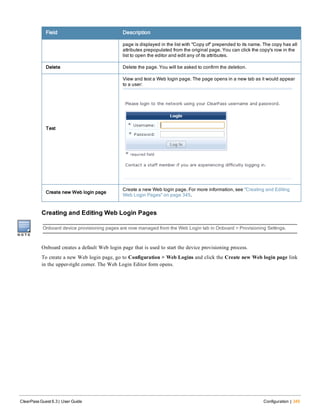
A pass can contain both a low-resolution version (i.e. for non-Retina displays) and a high-resolution version (i.e. for
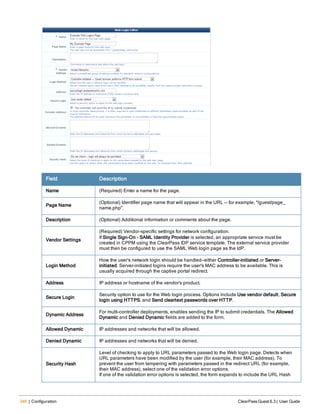
Retina displays) of each image. If it has been uploaded to the content manager, the high-resolution version of an image
is also automatically included in the pass. The high-resolution version must be named with the suffix @2x at the end
of the filename, just before the file extension—for example:
l Company_Logo.png (low-resolution filename)
l Company_Logo@2x.png (high-resolution filename)
Email Receipts and SMTP Services
With SMTP Services, you can configure ClearPass Guest to send customized guest account receipts to visitors and
sponsors by email. Email receipts may be sent in plain text or HTML format. You may also send email receipts using
any of the installed skins to provide a look and feel.
To use the email sending features, you must have the SMTP Services Plugin installed.
This section includes:
l "About Email Receipts" on page 263
l "Configuring Email Receipts " on page 264
l "Email Receipt Options" on page 265
l "About Customizing SMTP Email Receipt Fields " on page 267
About Email Receipts
You can send email receipts for guest accounts that are created using either sponsored guest access or self-provisioned
guest access. This is convenient in situations where the visitor may not be physically present to receive a printed
receipt.
ClearPass Guest may be configured to automatically send email receipts to visitors, or to send receipts only on demand.
Email receipts may be sent manually from the guest account receipt page by clicking the Send email receipt link
displayed there.
When using guest self-registration, the email delivery options available for the receipt page actions allow you to
specify the email subject line, the print template and email format, and other fields relevant to email delivery.
To configure these email delivery options:
1. Go to Configuration > Guest Self-Registration. Click to expand the Guest Self-Registration row in the form, then
click its Edit link. The Customize Guest Self-Registration diagram opens.
2. In the Receipt Page area, click the Actions link. The Receipt Actions form opens.
3. Scroll to the Email Delivery section of the form and choose one of the options from the Enabled drop-down list.
The form expands to include configuration options for email delivery.
ClearPass Guest 6.3 | User Guide Configuration | 263
264 | Configuration ClearPass Guest 6.3 | User Guide
The following options are available in the Enabled drop-down list to control email delivery:
Field Description
Disable sending guest receipts by
email
Email receipts are never sent for a guest registration.
Always auto-send guest receipts by
email
An email receipt is always generated using the selected options, and is sent
to the visitor’s email address.
Auto-send guest receipts by email
with a special field set
If the Auto-Send Field is set to a non-empty string or a non-zero value, an
email receipt is generated and sent to the visitor’s email address. The auto-
send field can be used to create an “opt-in” facility for guests. Use a check
box for the auto_send_sms field and add it to the create_user form, or a
guest self-registration instance, and SMS messages are sent to the specified
phone number only if the check box has been selected.
Display a link enabling a guest receipt
via email
A link is displayed on the receipt page; if the visitor clicks this link, an email
receipt is generated and sent to the visitor’s email address.
Send an email to a list of fixed
addresses
An email receipt is always generated using the selected options, and is sent
only to the list of email addresses specified in the “Copies To” field.
Table 64: Email Delivery Options, Customize Guest Self-Registration
Configuring Email Receipts
You can configure the default settings used when generating an email receipt by going to Configuration > Email
Receipt.
See "Email Receipt Options" on page 265 for details about the email receipt options.
Email Receipt Options
The Customize Email Receipt form may be used to set default options for visitor account email receipts. To configure
email receipt options, go to Configuration > Email Receipt. The Customize Email Receipt form opens.
Figure 23 Customize Email Receipt page
Field Description
Subject Line
May contain template code, including references to guest account fields. The
default value, Visitor account receipt for {$email}, uses the value of
the email field. See "Smarty Template Syntax" on page 484 for more
information on template syntax.
Email Receipt Select the plain text or HTML template to use for the email receipt.
Skin
Specifies a skin to be used to provide the basic appearance of the email. You
may select from one of the installed skins, or use one of these special options:
l No skin – Plain text only – A skin is not used, and the email will be sent in
plain text format. Use this option to remove all formatting from the email.
l No skin – HTML only – A skin is not used, but the email will be sent in HTML
format. Use this option to provide a basic level of formatting in the email.
l No skin – Native receipt format – A skin is not used. The email will be sent in
either plain text or HTML format, depending on the type of print template that
was selected.
l Use the default skin – The skin currently marked as the default skin is used.
When sending an email message using HTML formatting, the images and other
resources required to display the page will be included in the message.
Copies To
Creates a list of additional email addresses that are designated to receive
copies of the generated email receipts. To have the email receipt sent to the
sponsor's email address, enter the keyword _admin in this field. In this case the
email receipt will be sent to the current operator.
Send Copies
Choose a value from the drop-down list to specify how copies of the email
receipts will be sent to the additional email addresses listed in the Copies To
field:
Table 65: The Customize Email Receipt Form
ClearPass Guest 6.3 | User Guide Configuration | 265
266 | Configuration ClearPass Guest 6.3 | User Guide
Field Description
l Do not send copies – The Copies To list is ignored and email is not copied.
l Always send using ‘cc:’ – The Copies To list is always sent a copy of any
guest account receipt (even if no guest account email address is available).
l Always send using ‘bcc:’ – The Copies To list is always sent a blind copy of
any guest account receipt (even if no guest account email address is
available).
l Use ‘cc:’ if sending to a visitor – If a guest account email address is
available, the email addresses in the Copies To list will be copied.
l Use ‘bcc:’ if sending to a visitor – If a guest account email address is
available, the email addresses in the Copies To list will be blind copied.
Reply-To
To use the global From Address, do not mark the check box in the field. If you
want the Reply-To address to be overridden by the sponsor_email field of the
user, or by the admin's email, select the check box in this field. When you select
this check box, the Override From field is added to the form.
Override From Overrides the From Address instead of using the Reply-To value.
Email Field The field that will contain the visitor's email address.
Auto-Send Field
The field that will cause an account receipt email to be automatically sent when
a visitor account is created. The email receipt will only be sent if the field
selected here contains a non-empty string of non-zero value.
Test Mail Settings
To preview and verify the appearance of the email receipt, you can send
yourself or another person a test message.Enter the test message recipient’s
email address, then click Send Test Message. The test message is sent
immediately.
Figure 24 Example of Email Receipt Test Message Content
About Customizing SMTP Email Receipt Fields
The behavior of email receipt operations can be customized with certain guest account fields. You do this on a per-user
basis.
l smtp_enabled – This field may be set to a non-zero value to enable sending an email receipt. If unset, the default
value from the email receipt configuration is used. The special values “_Auto” (Always auto-send guest receipts by
email), “_AutoField” (Auto-send guest receipts by email with a special field set), “_Click” (Display a link enabling
a guest receipt via email), and “_Cc” (Send an email to a list of fixed addresses) may also be used.
l smtp_subject – This field specifies the subject line for the email message. Template variables appearing in the value
will be expanded. If the value is “default”, the default subject line from the email receipt configuration is used.
l smtp_template_id – This field specifies the print template ID to use for the email receipt. If blank or unset, the
default value from the email receipt configuration is used.
l smtp_receipt_format – This field specifies the email format to use for the receipt. It may be one of “plaintext” (No
skin – plain text only), “html_embedded” (No skin – HTML only), “receipt” (No skin – Native receipt format),
“default” (Use the default skin), or the plugin ID of a skin plugin to specify that skin. If blank or unset, the default
value from the email receipt configuration is used.
l smtp_email_field – This field specifies the name of the field that contains the visitor’s email address. If blank or
unset, the default value from the email receipt configuration is used. Additionally, the special value “_None”
indicates that the visitor should not be sent any email.
l smtp_auto_send_field – This field specifies the name of the field that contains the auto-send flag. If blank or unset,
the default value from the email receipt configuration is used. Additionally, the special values “_Disabled” and “_
Enabled” may be used to never send email or always send email, respectively.
l smtp_cc_list – This field specifies a list of additional email addresses that will receive a copy of the visitor account
receipt. If the value is “default”, the default carbon-copy list from the email receipt configuration is used.
l smtp_cc_action – This field specifies how to send copies of email receipts. It may be one of “never”, “always_cc”,
“always_bcc”, “conditional_cc”, or “conditional_bcc”. If blank or unset, the default value from the email receipt
configuration is used.
The logic used to send an email receipt is:
l If email receipts are disabled, take no action.
l Otherwise, check the auto-send field.
n If it is “_Disabled” then no receipt is sent.
n If it is “_Enabled” then continue processing.
n If it is any other value, assume the auto-send field is the name of another guest account field. Check the value
of that field, and if it is zero or the empty string then no receipt is sent.
l Determine the email recipients:
n Address the email to the value specified by the email field in the visitor account. If the email field is “_None”
then do not send an email directly to the visitor.
n Depending on the value of the Send Copies setting, add the email addresses from the Copies To: list to the
email’s “Cc:” or “Bcc:” list.
l If there are any “To:”, “Cc:” or “Bcc:” recipients, generate an email message using the specified print template and
send it to the specified recipient list.
l smtp_warn_before_subject – This field overrides what is specified in the subject line under Logout Warnings on
the email receipt. If the value is “default”, the default subject line under the Logout Warnings section on the email
receipt configuration is used.
ClearPass Guest 6.3 | User Guide Configuration | 267
268 | Configuration ClearPass Guest 6.3 | User Guide
l smtp_warn_before_template_id – This field overrides the print template ID specified under Logout Warnings on
the email receipt. If the value is “default”, the default template ID under the Logout Warnings section on the email
receipt configuration is used.
l smtp_warn_before_receipt_format – This field overrides the email format under Logout Warnings to use for the
receipt. It may be one of “plaintext” (No skin – plain text only), “html_embedded” (No skin – HTML only),
“receipt” (No skin – Native receipt format), “default” (Use the default skin), or the plugin ID of a skin plugin to
specify that skin. If blank or unset, the default value in the Email Field under the Logout Warnings on the email
receipt configuration is used.
l smtp_warn_before_cc_list – This overrides the list of additional email addresses that receive a copy of the visitor
account receipt under Logout Warnings on the email receipt.If the value is “default”, the default carbon-copy list
under Logout Warnings from the email receipt configuration is used.
l smtp_warn_before_cc_action – This field overrides how copies are sent as indicated under Logout Warnings on
the email receipt. to send copies of email receipts. It may be one of “never”, “always_cc”, “always_bcc”,
“conditional_cc”, or “conditional_bcc”. If blank or unset, the default value from the email receipt configuration is
used.
l warn_before_from_sponsor – This field overrides the Reply To field (that is, the sponsor_email field of a user, or
the admin's email) under the Logout Warnings on the email receipt. If the value is “default”, the Reply To field
under Logout Warnings from the email receipt configuration is used.
l warn_before_from – This field overrides the Override From field under the Logout Warnings on the email receipt.
If the value is “default”, the Override From field under Logout Warnings from the email receipt configuration is
used.
Customizing Fields
Custom fields are fields that you define yourself to cater for areas of interest to your organization. You are able to
define custom fields for your guest accounts as well as edit the existing fields.
In addition you can delete and duplicate fields. For your convenience you are also able to list any forms or views that
use a particular field.
Fields that have a lock symbol cannot be deleted.
A complete list of fields is displayed when you click the Fields command link on the Customize Guest Manager
page.
To display only the fields that you have been created, click the Custom Fields Only link in the bottom row of the
list view. To return to displaying all fields, click the All Fields link.
Creating a Custom Field
To create a custom field, click the Create tab at the top of the window or the Create a new field link at the
bottom of the window. The Create Field form is displayed.
The Field Name is not permitted to have spaces but you can use underscores. Enter a description in the Description
field. You can enter multiple-line descriptions which result in separate lines displayed on the form.
The Field Type can be one of String, Integer, Boolean or No data type. The No data type field would be used as a
label, or a submit button.
You can specify the default properties to use when adding this field to a view. See "View Field Editor" on page 292
for a description of the view display fields, including the Column Type and Column Format fields.
ClearPass Guest 6.3 | User Guide Configuration | 269
270 | Configuration ClearPass Guest 6.3 | User Guide
You can specify the default properties to use when adding the field to a form. See "View Field Editor" on page 292 for
a list of the available user interface types.
If you select Text or Password as the User Interface type, the Placeholder row is added to this form. You may use this
field to enter a temporary value, such as a hint for how to complete the field, that can later be overridden by the user
completing the form that uses this field.
You can specify the default validation rules that should be applied to this field when it is added to a form. See "Form
Validation Properties" on page 285 in this chapter for further information about form validation properties.
Select the Show advanced properties check box to reveal additional properties related to conversion, display and
dynamic form behavior. See "View Field Editor" on page 292 in this chapter for more information about advanced
properties.
Click the Save Changes button to complete the creation of a new field. The new field is added at the top of the
field list. To change the position of the new field, you can re-sort the list or you can reload the page.
Duplicating a Field
To duplicate a field, click the field to be duplicated, then click the Duplicate link. The field is copied and a number
appended to the end of the field name—for example, if you were to duplicate the card_code field, the duplicated field
would be card_code_1. To rename the field, click Edit.
Editing a Field
You are able to alter the properties of the field by making changes to the Field Name, Field Type or Description when
you click the Edit link. This link is available when you click a field in the list view.
Click the Save Changes button to have the changes made permanent.
Deleting a Field
Fields that do not have a lock symbol can be deleted by clicking on the Delete link. You will be asked to
confirm the deletion. If you want the deletion to take place you are informed when the deletion has been completed. A
field that is currently in use on a form or view may not be deleted.
Displaying Forms that Use a Field
Click the Show Forms link to see a list of forms that use the selected field.
The list displays the forms that use the selected field. It also allows you to edit the form’s fields by clicking on the
Edit Fields link. Clicking on the Use link opens the form using that field.
If the field is used on multiple forms, you are able to select which form you would like to view.
Displaying Views that Use a Field
You are able to click the Show Views link to see a list of views that use the selected field.
The list displays the views that use the selected field. It also allows you to edit the view’s fields by clicking on the
Edit Fields link. Clicking on the Use link displays the view.
If the field is used on multiple views, you are able to select which view you would like to see.
Customizing Forms and Views
You are able to view a list of forms and views. From this list view, you can change the layout of forms or views, add
new fields to a form or view, or alter the behavior of an existing field.
To view or customize forms and views, go to Configuration > Forms & Views. The Customize Forms and Views page
opens.
You can open a form or view directly from the Forms and Views page. To open form or view to use it, go to
Configuration > Forms & Views, click the form’s or view’s row in the list, then click its Use link. The form or
view opens in a separate browser tab, and the Forms and Views tab stays open so you can work in both.
An asterisk (*) shown next to a form or view indicates that the form or view has been modified from the defaults. You
can click the Reset to Defaults link to remove your modifications and restore the original form. Resetting a form or
view is a destructive operation and cannot be undone. You will be prompted to confirm the form or view reset before
it proceeds.
ClearPass Guest 6.3 | User Guide Configuration | 271
272 | Configuration ClearPass Guest 6.3 | User Guide
Editing Forms and Views
You can change the general properties of a form or view such as its title and description. To edit the form or view, go
to Configuration > Forms & Views, click the form’s or view’s row in the list, then click its Edit link. The row
expands to include the Edit Properties form.
The Width field is only displayed for views. It specifies the total width of the list view in pixels. If blank, a default
value is used.
You can customize the page title, header HTML, and footer HTML for many forms and views (for example, Create
Guest Account, Edit Guest Accounts, and others). When these options are available, the Page Properties area is
included on the Edit Properties form.
Duplicating Forms and Views
You can make a copy of a form or view to use as a template in order to provide different forms and views to different
operator profiles. See "Role-Based Access Control for Multiple Operator Profiles" on page 438 for a description. This
enables you to provide different views of the underlying visitor accounts in the database depending on the operator’s
profile.
To make a copy of the form or view, go to Configuration > Forms & Views, click the form’s or view’s row in the list,
then click its Duplicate link. The copy is added to the Forms and Views list.
The name of the duplicated form or view is the same as the original with a number appended. This name cannot be
changed. Use the Title and Description properties of the duplicated item to describe the intended purpose for the form
or view.
Click the Show Usage link for a duplicated form or view to see the operator profiles that are referencing it.
Click the Delete link for a duplicated form or view to remove the copy. A duplicated item cannot be removed if it is
referenced by an operator login account or an operator profile.
Editing Forms
To add a new field to a form, reorder the fields, or make changes to an existing field, go to Configuration > Forms &
Views, click the form’s row in the Customize Forms & Views list, and then click the Edit Fields link. The
Customize Form Fields view opens.
Columns on the form editor:
Field Description
Rank
Specifies the relative ordering of the fields when displaying the form. This list always shows the fields
in order by rank.
Type Controls what kind of user interface element is used to interact with the user.
Label The label for this field as it is displayed on the form.
Description The description for this field as it is displayed on the form.
Table 66: Form Editor Columns
To work with a form field, click its row in the list. The row expands to include configuration options:
Field Description
Edit
Make changes to an existing field. The Form Field Editor opens. Any changes made to the field
using this editor will apply only to this field on this form.
Edit Base Field
Make changes to an existing field’s definition. Any changes made to the field using this editor
will apply to all forms that are using this field (except where the form field has already been
modified to be different from the underlying field definition).
Remove
Removes the field from the form. To add a field back to the form after it has been removed, use
the Insert Before or Insert After option and select it from the Field Name drop-down list in the
Form Field Editor that opens.
Insert Before
Add a new field to the form. Clicking one of these links opens a blank form field editor and
automatically sets the rank number of the new field.
Insert After
Disable Field Disables this field on the form. To enable it on the form again, click Enable Field.
Preview Form
Opens an example of the form so you can see what it looks like. This preview form can be
submitted to test the field validation rules you have defined. If all fields are able to be validated,
the form submit is successful and a summary of the values submitted is displayed. This allows
you to verify any data conversion and formatting rules you have set up.
Table 67: Form Editor Options
ClearPass Guest 6.3 | User Guide Configuration | 273
274 | Configuration ClearPass Guest 6.3 | User Guide
Form Field Editor
The form field editor is used to control both the data gathering aspects and user interface characteristics of a field.
Each field can only appear once on a form. The Field Name selects which underlying field is being represented on the
form.
The remainder of the form field editor is split into three sections:
l Form Display Properties
l Form Validation Properties
l Advanced Properties
See "Form Display Properties" on page 274 for detailed descriptions of these form sections.
Form Display Properties
The form display properties control the user interface that this field will have. Different options are available in this
section, depending on the selection you make in the User Interface drop-down list.
Fields with a green border use their base field's value. If you enter a different value to override the base field's value, a
Revert option lets you return to the original value.
The available user interface elements are listed below, together with an example of each.
l (Use default) – The default user interface type defined for the field will be used.
l No user interface – The field does not have a user interface specified. Using this value will cause a diagnostic
message to be displayed (“Form element is missing the ‘ui’ element”) when using the form.
l CAPTCHA security code – A distorted image of several characters will be displayed to the user, as shown below:
The image may be regenerated, or played as an audio sample for visually impaired users. When using the
recommended validator for this field (NwaCaptchaIsValid), the security code must be matched or the form submit
will fail with an error.
l Check box – A check box is displayed for the field, as shown below:
The check box label can be specified using HTML. If the check box is selected, the field is submitted with its
value set to the check box value (default and recommended value 1). If the check box is not selected, the field is
not submitted with the form.
l Checklist – A list of check boxes is displayed, as shown below:
ClearPass Guest 6.3 | User Guide Configuration | 275
276 | Configuration ClearPass Guest 6.3 | User Guide
The text displayed for each check box is the value from the options list. Zero or more check boxes may be selected.
This user interface type submits an array of values containing the option key values of each selected check box.
Because an array value may not be stored directly in a custom field, you should use the conversion and value
formatting facilities to convert the array value to and from a string when using this user interface type.
To store a comma-separated list of the selected values, enable the Advanced options, select “NwaImplodeComma”
for Conversion, select “NwaExplodeComma” for Display Function and enter the field’s name for Display Param.
The “Vertical” and “Horizontal” layout styles control whether the check boxes are organized in top-to-bottom or
left-to-right order. The default is “Vertical” if not specified. When using these options, you may also specify the
desired number of columns or rows to adjust the layout appropriately.
For example, suppose the first two check boxes are selected (in this example, with keys “one” and “two”). The
incoming value for the field will be an array containing 2 elements, which can be written as array("one",
"two"). The NwaImplodeComma conversion is applied, which converts the array value into the string value
“one,two”, which is then used as the value for the field. Finally, when the form is displayed and the value needs to
be converted back from a string, the NwaExplodeComma display function is applied, which turns the “one,two”
string value into an array value array("one", "two"), which is used by the checklist to mark the first two
items as selected.
l Date/time picker – A text field is displayed with an attached button that displays a calendar and time chooser. A
date may be typed directly into the text field, or selected using the calendar:
The text value typed is submitted with the form. If using a date/time picker, you should validate the field value to
ensure it is a date.
Certain guest account fields, such as expire_time and schedule_time, require a date/time value to be provided as a
UNIX time value. In this case, the conversion and display formatting options should be used to convert a human-
readable date and time to the equivalent UNIX time and vice versa.
ClearPass Guest 6.3 | User Guide Configuration | 277
278 | Configuration ClearPass Guest 6.3 | User Guide
l Drop-down list – The field is displayed allowing a single choice from a drop-down list.
The text displayed for each option is the value from the options list. When the form is submitted, the key of the
selected value becomes the value of the field.
If the “Hide when no options are selectable” check box is selected, and there is only a single option in the drop-
down list, it will be displayed as a static text item rather than as a list with only a single item in it.
l File upload – Displays a file selection text field and dialog box (the exact appearance differs from browser to
browser).
File uploads cannot be stored in a custom field. This user interface type requires special form implementation
support and is not recommended for use in custom fields.
l Hidden field – If Hidden Field is selected in the User Interface drop-down list, the field is not displayed to the user,
but is submitted with the form. This option is often used to force a specific value such as a user’s role or an
expiration date. However, it is possible for someone to use browser tools to modify the initial value when the form
is submitted. If the value should be forced, use the Force Value setting under Advanced Properties to ensure the
value cannot be overridden. For more information, see "Advanced Form Field Properties" on page 288.
To set the value to submit for this field, use the Initial Value option in the form field editor.
l Multiple Selection List -- A list of selectable options will be displayed.
The text displayed for each check box or radio button is the value from the options list. Zero or more check boxes
may be selected. This user interface type submits an array of values containing the option key values of each
selected check box. Because an array value may not be stored directly in a custom field, you should use the
conversion and value formatting facilities to convert the array value to and from a string when using this user
interface type.
To store a comma-separated list of the selected values, enable the Advanced options, select “NwaImplodeComma”
for Conversion, select “NwaExplodeComma” for Display Function and enter the field’s name for Display Param.
The “Vertical” and “Horizontal” layout styles control whether the check boxes are organized in top-to-bottom or
left-to-right order. The default is “Vertical” if not specified. When using these options, you may also specify the
desired number of columns or rows to adjust the layout appropriately.
ClearPass Guest 6.3 | User Guide Configuration | 279
280 | Configuration ClearPass Guest 6.3 | User Guide
l Password text field – The field is displayed as a text field, with input from the user obscured. The text typed in
this field is submitted as the value for the field.
l Radio buttons – The field is displayed as a group of radio buttons, allowing one to be selected, as shown below:
The text displayed for each option is the value from the options list. When the form is submitted, the key of the
selected value becomes the value of the field.
The “Vertical” and “Horizontal” layout styles control whether the radio buttons are organized in top-to-bottom or
left-to-right order. The default is “Vertical” if not specified.
l Static text – The field’s value is displayed as a non-editable text string. An icon image may optionally be
displayed before the field’s value. A hidden element is also included for the field, thereby including the field’s
value when the form is submitted.
If the Hide when no options are selectable check box is selected in the Collapse row, the field will be hidden if its
value is blank.
To set the value of this field, use the Initial Value option in the Form Validation Properties area of the form field
editor.
ClearPass Guest 6.3 | User Guide Configuration | 281
282 | Configuration ClearPass Guest 6.3 | User Guide
l Static text (Raw value) – The field’s value is displayed as a non-editable text string. HTML characters in the value
are not escaped, which allows you to display HTML markup such as images, links and font formatting.
Use caution when using this type of user interface element, particularly if the field’s value is collected from visitors.
Allowing HTML from untrusted sources is a potential security risk.
If the Hide when no options are selectable check box is selected in the Collapse row, the field will be hidden if its
value is blank.
To set the value of this field, use the Initial Value option in the Form Validation Properties area of the form field
editor.
l Static text (Options lookup) – The value of the field is assumed to be one of the keys from the field’s option list.
The value displayed is the corresponding value for the key, as a non-editable text string.
An icon image may optionally be displayed before the field’s value. A hidden element is also included for the
field, thereby including the field’s value when the form is submitted.
If the Hide when no options are selectable check box is selected in the Collapse row, the field will be hidden if its
value is blank.
To set the value of this field, use the Initial Value option in the Form Validation Properties area of the form field
editor.
l Static group heading – The label and description of the field is used to display a group heading on the form, as
shown below. The field’s value is not used, and the field is not submitted with the form.
When using this user interface element, it is recommended that you use the “nwaImportant” CSS class to visually
distinguish the group heading’s title.
ClearPass Guest 6.3 | User Guide Configuration | 283
284 | Configuration ClearPass Guest 6.3 | User Guide
l Submit button – The field is displayed as a clickable form submit button, with the label of the field as the label of
the button.
The description is not used. The field’s value is ignored, and will be set to NULL when the form is submitted. To
place an image on the button, an icon may be specified.
To match the existing user interface conventions, you should ensure that the submit button has the highest rank
number and is displayed at the bottom of the form.
l Text area – The field is displayed as a multiple-line text box. The text typed in this box is submitted as the value
for the field.
It is recommended that you specify the desired minimum dimensions of the text area, either with the Rows and
Columns options, or by specifying a width in the CSS Style option (for example, “width: 460px; height: 100px;”
specifies a 460 x 100 pixel minimum area).
l Text field – The field is displayed as a single-line text box. The text typed in this box is submitted as the value for
the field.
A short text label may be placed after the text box using the Label After option. This field allows you to specify
HTML (using Smarty template syntax) instead of plain text to be displayed after the input field.
If you select Text or Password as the User Interface type, the Placeholder row is added to this form. You may use this
field to enter a temporary value, such as a hint for how to complete the field, that can later be overridden by the user
completing the form that uses this field.
Form Validation Properties
The form validation properties control the validation of data entered into a form. By specifying appropriate validation
rules, you can detect when users attempt to enter incorrect data and require them to correct their mistake.
ClearPass Guest 6.3 | User Guide Configuration | 285
286 | Configuration ClearPass Guest 6.3 | User Guide
The initial value for a form field may be specified. Use this option when a field value has a sensible default. The initial
value should be expressed in the same way as the field’s value. In particular, for drop-down list and radio button
selections, the initial value should be the key of the desired default option. Likewise, for date/time fields that have a
display function set, the initial value should be a value that can be passed to the display function.
Select the Field value must be supplied check box to mark the field as a required field. Required fields are marked
with an asterisk, as shown below:
An optional field may be left blank. In this case, the field is not validated as there is no value for the field. However,
any value that is supplied for an optional field is subject to validation checks.
All values supplied for a required field are always validated, including blank values.
Validation errors are displayed to the user by highlighting the field(s) that are in error and displaying the validation
error message with the field:
All fields must be successfully validated before any form processing can take place. This ensures that the form
processing always has user input that is known to be valid.
To validate a specific field, choose a validator from the drop-down list. See "Form Field Validation Functions" on page
519 for a description of the built-in validators.
The Validator Param is the name of a field on the form, the value of which should be passed to the validator as its
argument. This could be used to validate one field based on the contents of another. However, in most deployments
this does not need to be set.
Set the Validator Param to its default value, “(Use argument)”, to provide a fixed value as the argument to the
validator.
The Validator Argument is used to provide further instructions to the selected validator. Not all validators require an
argument; a validator such as IsValidEmail is entirely self-contained and will ignore the Validator Argument.
Validators such as IsEqual, IsInRange and IsRegexMatch use the argument to perform validation.
Examples of Form field Validation
Example 1 – To create a form field that requires an integer value between 1 and 100 (inclusive) to be provided, use
the following settings in the form field editor:
The form field will contain an integer value, so you should set the field's type to Integer when you create it.
Use the PHP syntax array(1, 100) to specify the minimum and maximum values for the IsInRange validator. After
saving changes on the form, this value will be internally converted to the equivalent code:
array (
0 => 1,
1 => 100,
)
With these validator settings, users that enter an invalid value will now receive a validation error message:
Furthermore, be aware that blank values, or non-numeric values, will result in a different error message:
The reason for this is that in this case, the validation has failed due to a type error – the field is specified to have an
integer type, and a blank or non-numeric value cannot be converted to an integer. To set the error message to display
in this case, use the Type Error option under the Advanced Properties.
Example 2 – To create a form field that accepts one of a small number of string values, use the following settings in
the form field editor:
This example could be used for a string field named visitor_department. Because the values are known in advance, a
drop-down list is the most suitable user interface. An initial value for the form field, as shown above, could be used if
most visitors are in fact there to visit the sales team.
ClearPass Guest 6.3 | User Guide Configuration | 287
288 | Configuration ClearPass Guest 6.3 | User Guide
To match against a list of options used for a drop-down list or set of radio buttons, you can use the IsInOptionsList
validator.
Example 3 – To create a form field that validates U.S. social security numbers using a regular expression, use the
following settings in the form field editor:
Notice that the regular expression used here includes beginning and ending delimiters (in this case the / character), and
ensures that the whole string matches by the start-of-string marker ^ and the end-of-string marker $. The construct d is
used to match a single digit. Many equivalent regular expressions could be written to perform this validation task. See
"Regular Expressions" on page 528 for more information about regular expressions.
Advanced Form Field Properties
The Advanced Properties control certain optional form processing behaviors. You can also specify JavaScript
expressions to build dynamic forms similar to those found elsewhere in the application.
On the Customize Form Fields page, select the Show advanced properties check box to display the advanced
properties in the form field editor.
The Conversion, Value Format, and Display Function options can be used to enable certain form processing
behavior. See "Form Field Conversion Functions" on page 524 and "Form Field Display Formatting Functions" on page
524.
In the Force Value row, use the Always use initial value on form submit check box to prevent attempts to override
the value set for a field. When this option is set, if a user modifies the field’s value, it reverts to the specified initial
value when the form is submitted. A similar effect can be achieved by using appropriate validation rules, but selecting
this check box is easier. Using this option is recommended for hidden fields, particularly those related to security, such
as role ID or expiration date.
For pre-registered guest accounts, some fields may be completed during pre-registration and some fields may be left for
the guest to complete at registration. You can use the Pre-Registration field to specify whether the guest’s entry must
match the preliminary value provided for a field during pre-registration.
l If a value was not provided for a field when the account was created, choose Field was not pre-registered from the
drop-down list.
l If a preliminary value was provided for the field but the guest’s entered value does not need to match case or all
characters, choose Guest must supply field from the drop-down list. For example, a bulk account creation might use
random usernames, and each visitor’s entry in that field would not need to match exactly.
l If a preliminary value was provided for the field and the guest’s entered value must match case or all characters,
choose Guest must supply field (match case) from the drop-down list. If the guest’s entry does not successfully
match the preregistered value, the account registration will not succeed. For example, if a list of email addresses and
phone numbers was imported for pre-registration, each visitor’s entries for those fields at registration must match.
Form Field Validation Processing Sequence
The following figure shows the interaction between the user interface displayed on the form and the various
conversion and display options.
Figure 25 Steps involved in form field processing
The Conversion step should be used when the type of data displayed in the user interface is different from the type
required when storing the field.
ClearPass Guest 6.3 | User Guide Configuration | 289
290 | Configuration ClearPass Guest 6.3 | User Guide
For example, consider a form field displayed as a date/time picker, such as the expire_time field used to specify an
account expiration time on the create_user form. The user interface is displayed as a text field, but the value that is
required for the form processing is a UNIX time (integer value).
In this case, the Conversion function is set to NwaConvertOptionalDateTime to convert the string time representation
from the form field (for example, “2008-01-01”) to UNIX time (for example, 1199145600).
The Validator for the expire_time field is IsValidFutureTimestamp, which checks an integer argument against the
current time.
The Value Formatter is applied after validation. This may be used in situations where the validator requires the specific
type of data supplied on the form, but the stored value should be of a different type. In the expire_time field example,
this is not required, and so the value formatter is not used. However, if the Conversion function had not been used, and
the Validator had been set to IsValidFutureDateTime (which checks a string date/time value), then the Value
Formatter would need to be set to NwaConvertOptionalDateTime to perform the data conversion before the form
processing.
A comparison of these two approaches is shown below to illustrate the difference:
When using a Conversion or Value Format function, you will almost always have to set up a Display Function for the
form field. This function is used to perform the conversion in the reverse direction – between the internal stored value
and the value displayed in the form field.
See "Form Field Conversion Functions" on page 524 for a detailed list of the options available to you for the
Conversion and Value Format functions.
The Display Param is the name of a form field, the value of which will be passed to the Display Function. In almost
all cases this option should contain the name of the form field.
Display Arguments are available for use with a form field and are used to control the conversion process. In the case of
the expire_time form field, the Display Function is set to NwaDateFormat to perform a conversion from a UNIX time
to a date/time string, and the Display Argument specifies the format to use for the conversion.
See "Form Field Display Formatting Functions" on page 524 for a detailed list of the options available to you for the
Display Function and Static Display Function.
The Enable If and Visible If options in the form field editor allow you to specify JavaScript expressions. The result
obtained by evaluating these expressions is used to enable/disable, or show/hide the form field in real time, while an
operator is using the form.
Unlike the other parts of the form field editor, the Enable If and Visible If expressions are evaluated by the operator’s
Web browser. These expressions are not used by the server for any other purpose.
The expression must be a Boolean expression in the JavaScript language; statements and other code should not be
included as this will cause a syntax error when the form is displayed in a Web browser.
Because of the scoping rules of JavaScript, all of the user interface elements that make up the form are available as
variables in the local scope with the same name as the form field. Thus, to access the current value of a text field
named sample_field in a JavaScript expression, you would use the code sample_field.value.
Most user interface elements support the value property to retrieve the current value. For check boxes, however, use the
checked property to determine if the check box is currently selected.
The most practical use for this capability is to hide a form field until a certain value of some other related field has
been selected.
For example, the default create_user form has an Account Expiration drop-down list. One of the values in this list is
special: the -1 option displays the value Account expires at a specified time…
When this option is selected, the form expands to include the Expires After row, allowing the user to specify a time
other than one of the options in the list.
The expire_time field uses the JavaScript expression expire_after.value < 0 for the Visible If option. When the -1
option has been selected, this condition will become true and the field will be displayed.
If the expire_timezone field is used in conjunction with expire_time and a time zone and date are selected, the date
calculation is adjusted relative to the time zone.
Additional examples of the Visible If conditional expressions can be found in the guest_edit form.
ClearPass Guest 6.3 | User Guide Configuration | 291
292 | Configuration ClearPass Guest 6.3 | User Guide
Editing Views
A view consists of one or more columns, each of which contains a single field. You can change which fields are
displayed and how each field is displayed. You can also define your own fields using the Customize Fields page, and
then add them to a view by choosing appropriate display options for each new column.
To add a new field to a view, reorder the fields, or make changes to an existing field in a view, select the view in the
Customize Forms & Views list and click the Edit Fields link. This opens the Customize View Fields editor.
View fields have a Rank number, which specifies the relative ordering of the columns when displaying the view. The
Customize View Fields editor always shows the columns in order by rank.
The Type of each field is displayed. This controls what kind of user interface element is used to display the column,
and whether the column is to be sortable or not. The Title of the column and the Width of the column are also shown
in the list view. Values displayed in italics are default values defined for the field being displayed.
Click a view field in the list view to select it.
Use the Edit link to make changes to an existing column using the View Field Editor. Any changes made to the
field using this editor will apply only to this field on this view.
Use the Edit Base Field link to make changes to an existing field definition. Any changes made to the field using
this editor will apply to all views that are using this field (except where the view field has already been modified to be
different from the underlying field definition).
The Insert Before and Insert After links can be used to add a new column to the view. Clicking one of these
links will open a blank view field editor and automatically set the rank number of the new column.
Use the Enable Field and Disable Field links to quickly turn the display of a column on or off.
Click the Add Field tab to add a new column to the view.
View Field Editor
The view field editor is used to control the data-display aspects of a column within the view.
Each column in a view displays the value of a single field.
To use the default view display properties for a field, you only need to select the field to display in the column and
then click the Save Changes button.
To customize the view display properties, click the Advanced view options… check box.
The column type must be one of the following:
l Text – The column displays a value as text.
l Sortable text – The column displays a value as text, and may be sorted by clicking on the column heading.
l Sortable text, case-insensitive – The same as “Sortable text”, but the column sorting will treat uppercase and
lowercase letters the same.
l Sortable numeric – The column displays a numeric value, and may be sorted by clicking on the column heading.
The Column Format may be used to specify how the field’s value should be displayed. You may choose from one of
the following:
l Field Value – The value of the field is displayed as plain text.
l Field Value (Un-Escaped) – The value of the field is displayed as HTML.
l Boolean – Yes/No – The value of the field is converted to Boolean and displayed as “Yes” or “No”.
l Boolean – Enabled/Disabled – The value of the field is converted to Boolean and displayed as “Enabled” or
“Disabled”.
l Boolean – On/Off – The value of the field is converted to Boolean and displayed as “On” or “Off”.
l Date – The value of the field is assumed to be a UNIX timestamp value and is displayed as a date and time.
l Duration (from seconds) – The value of the field is assumed to be a time period measured in seconds and is
displayed as a duration (for example, “23 seconds”, “45 minutes”)
l Duration (from minutes) – The value of the field is assumed to be a time period measured in minutes and is
displayed as a duration (for example, “45 minutes”, “12 hours”)
l Use form options – The value of the field is assumed to be one of the keys from the field’s option list. The value
displayed is the corresponding value for the key.
l Custom expression… – The Display Expression text area is displayed allowing a custom JavaScript expression to
be entered. See "View Display Expression Technical Reference" on page 526 for technical information about this
display expression and a list of the functions that are available to format the value.
ClearPass Guest 6.3 | User Guide Configuration | 293
294 | Configuration ClearPass Guest 6.3 | User Guide
The Display Expression is a JavaScript expression that is used to generate the contents of the column. Generally, this is
a simple expression that returns an appropriate piece of data for display, but more complex expressions can be used to
perform arbitrary data processing and formatting tasks.
Customizing Guest Manager
The Guest Manager module allows the entire guest account provisioning process to be customized. This is useful in
many different situations, such as:
l Self-registration – Allow your guests to self-register and create their own temporary visitor accounts.
l Visitor surveys – Define custom fields to store data of interest to you, and collect this information from guests
using customized forms.
l Branded print receipts – Add your own branding images and text to print receipts.
l SMS and email receipts – Include a short text message with your guest’s username and password, or send HTML
emails containing images.
l Advanced customization – ClearPass Guest is flexible and can be used to provide location sensitive content and
advertising.
Default Settings for Account Creation
The Guest Manager plugin configuration form lets you control the default settings for account creation.
To modify settings for the Guest Manager plugin configuration, go to Configuration > Guest Manager. You can also
access this form from Administration > Plugin Manager > Guest Manager > Configuration.
Figure 26 Customize Guest Manager, Username Options
Field Description
Username Type
The default method used to generate random account usernames (when creating groups
of accounts). This may be overridden by using the random_username_method field.
Username Length
This field is displayed if the Username Type is set to “Random digits”, “Random letters”,
“Random letters and digits” or “Sequential numbering”. The default length of random
account usernames (when creating groups of accounts). This may be overridden by using
the random_username_length field.
Username Example
Shows a sample username generated according to the rules specified by the selections in
the Username Type and Username Length fields. You can click the Generate link to view
Field Description
different examples.
Username Format
This field is displayed if the Username Type is set to “Format picture”. It sets the format of
the username to be created. See "Format Picture String Symbols" on page 518 for a list of
the special characters that may be used in the format string. This may be overridden by
using the random_username_picture field.
Initial Sequence
This field contains the next available sequence number for each username prefix that has
been used. Automatic sequence numbering is used when the value of the multi_initial_
sequence field is set to -1. The username prefix is taken from the multi_prefix field when
usernames are automatically generated using the “nwa_sequence” method. You can edit
the values stored here to change the next sequence numbers that will be used. This is an
automatically managed field; in most situations there is no need to edit it.
Figure 27 Customize Guest Manager, Password Options
Field Description
Random Password Type
The default method used to generate random account passwords (when
creating groups of accounts). This may be overridden by using the random_
password_method field.
Random Password Length
The default length of random account passwords (when creating groups of
accounts). This may be overridden by using the random_password_length
field.
Password Format
This field is displayed if the Password Type field is set to “Format picture”. It
sets the format of the password to be created. See "Format Picture String
Symbols" on page 518 for a list of the special characters that may be used in
the format string. This may be overridden by using the random_password_
picture field.
Password Complexity
The policy to enforce when guests change their account passwords using the
guest self-service user interface. Different levels of password complexity can
require guests to select passwords that contain different combinations of
uppercase letters, lowercase letters, digits and symbols (!#$%&()
*+,-./:;<=>?@[]^_{|}~,). The available options for this setting are:
l No password complexity requirement
l At least one uppercase and one lowercase letter
l At least one digit
l At least one letter and one digit
l At least one of each: uppercase letter, lowercase letter, digit
ClearPass Guest 6.3 | User Guide Configuration | 295
296 | Configuration ClearPass Guest 6.3 | User Guide
Field Description
l At least one symbol
l At least one of each: uppercase letter, lowercase letter, digit, and symbol
Minimum Password Length
The minimum acceptable password length for guests changing their account
passwords.
Disallowed Password Characters
Special characters that should not be allowed in a guest password. Spaces are
not allowed by default. You can specify special characters, numbers, and
letters to exclude from passwords—for example, letters and numbers that can
look similar, such as i, l, 1, 0, O, o, 5, S, 8, B.
Disallowed Password Words
Enter a comma- separated list of words that are disallowed and will not be
created by the random words password generator.
Password Example
Shows a sample password generated according to the rules specified by the
selections in the Password Type and Password Length fields. You can click the
Generate link to view different examples.
Password Logging
By default, the passwords for created guest accounts are logged in the
application log and may be recovered from there. For increased security, you
may prevent this password from being logged by unselecting this check box.
Password Display
Select the “View guest account passwords” to enable the display of visitor
account passwords in the user list. To reveal passwords, the password field
must be added to the “guest_users” or “guest_edit” view, and the operator
profile in use must also have the View Passwords privilege.
Figure 28 Customize Guest Manager, Expiration Options
Field Description
Expire Action
Default action when the expiration time is reached. Available options available are:
l Disable at specified time
l Delete and logout at specified time
l Delete at specified time
l Disable and logout at specified time
Field Description
Expiration Options
The options that should be available to select from when choosing the expiration
time of a guest account (expire_after). These options are displayed as the values of
the “Expires After” field when creating a user account. Values are in hours for
relative account expiration times.
Modify Expiration Options
The options that should be available to select from when modifying an account's
expiration (modify_expire_time). Some items may be dynamically removed based
on the state of the account.
Lifetime Options
The options that should be available to select from when choosing the lifetime for a
guest account (expire_postlogin). These options are displayed as the values of the
“Account Lifetime” field when creating a user account. Values are in minutes for
relative account lifetimes.
Figure 29 Customize Guest Manager, Receipt Options
Field Description
Site SSID
The Site SSID is the public name of the wireless local area network (WLAN). The default setting
for this field is Aruba, and can be changed. The site SSID is displayed in the guest receipt as
the WiFi Network, shown below this table.
Site WPA Key
The encryption key used to secure the wireless network. If a value is entered in this field, it will
appear on guest print receipts.
Receipt Printing
Select the “Require click to print” option to change the behavior of the receipt page.
When this option is not selected, the default behavior is to provide a drop-down list of print
templates and to open a new window when one is selected:
When “Require click to print” is selected, the receipt page provides a drop-down list of print
templates and a Print link that must be clicked to display the account receipt:
ClearPass Guest 6.3 | User Guide Configuration | 297
298 | Configuration ClearPass Guest 6.3 | User Guide
Figure 30 Example Guest Receipt, Showing Site SSID Displayed as the WiFi Network
Figure 31 Customize Guest Manager, General Options
Field Description
Terms of Use URL
URL of a terms and conditions page provided to sponsors. You may upload an
HTML file describing the terms and conditions of use using the Content Manager
(See "Managing Content: Private Files and Public Files" on page 246). If this file is
called terms.html then the Terms of Use URL should be public/terms.html.
l If your site is hosted externally, be sure the proper access control lists (ACLs)
are in place.
l If terms are required, it is best practice to edit the terms field on you forms to a
UI type "hidden" and an initial value of 1.
Active Sessions
Default maximum number of active sessions that should be allowed for a guest
account. This may be overridden by using the simultaneous_use field when
creating or editing a guest account.
About Guest Network Access
Allows the text displayed to operators on the Guest Manager start page to be
customized, or removed (if a single hyphen “-” is entered).
About Fields, Forms, and Views
l A field is a named item of information. It may be used to display information to a user as static text, or it may be an
interactive field where a user can select an option or enter text.
l A form is a group of fields that is used to collect information from an operator.
l A view is a grouping of fields that is used to display information to an operator.
Business Logic for Account Creation
When guest accounts are created, there are certain rules that must be followed in order to create a valid account. These
rules apply to all accounts, regardless of how the account was created.
The business logic rules that control all guest account creation are described below. To see the display name
corresponding to a field name, go to Configuration > Fields and scroll to the field name. Display names are shown in
the Column Title column.
Verification Properties
l creator_accept_terms: This field must be set to 1, indicating the creator has accepted the terms of use for creating
the account. If the field is not present or is not set to 1, the visitor account is not created.
l password2: If this field is specified, its value must be equal to the “password” field, or else the visitor account is
not created.
l auto_update_account: If this field is present and set to a non-zero value, account creation will not fail if the
username already exists – any changes will be merged into the existing account using an update instead.
Basic User Properties
l username: This field is the name for the visitor account and may be provided directly. If this field is not specified,
then use the email address from the email field, and if that is also not specified, then randomly generate a username
(according to the value of the random_username_method and random_username_length fields).
l modify_password: This field controls password modification for the visitor account. It may be set to one of these
values:
n “reset” to randomly generate a new password according to the values of the random_password_method and
random_password_length fields
n “password” to use the password specified in the password field
n “random_password” to use the password specified in the random_password field
n If blank or unset, the default password behavior is used, which is to use any available value from the random_
password field and the password field, or assume that “reset” was specified otherwise.
l password: This field is the password for the visitor account and may be provided directly. If this field is not
specified, then randomly generate a password (according to the values of the random_password_method and
random_password_length fields).
l role_id: This field is the role to assign to the visitor account and may be specified directly. If this field is not
specified, then determine the role ID from the role_name field. If no valid role ID is able to be determined, the
visitor account is not created.
l simultaneous_use: This field determines the maximum number of concurrent sessions allowed for the visitor
account. If this field is not specified, the default value from the GuestManager configuration is used.
l random_username_method – The method used to generate a random account username. If not specified, the
default value from the GuestManager configuration is used.
ClearPass Guest 6.3 | User Guide Configuration | 299
300 | Configuration ClearPass Guest 6.3 | User Guide
l random_username_length – The length in characters of random account usernames. If not specified, the default
value from the GuestManager configuration is used.
l random_password_method – The method used to generate a random account password. If not specified, the default
value from the GuestManager configuration is used.
l random_password_length – The length in characters of random account passwords. If not specified, the default
value from the GuestManager configuration is used.
Visitor Account Activation Properties
l enabled: This field determines if the account is enabled or disabled; if not specified, the default is 1 (account is
enabled).
l do_schedule, modify_schedule_time, schedule_after and schedule_time: These fields are used to determine the
time at which the visitor account will be activated.
n If modify_schedule_time is “none”, then the account is disabled and has no activation time set.
n If modify_schedule_time is “now”, then the account is enabled and has no activation time set.
n If modify_schedule_time is a value that specifies a relative time change, for example “+1h”, then the visitor
account’s activation time is modified accordingly.
n If modify_schedule_time is a value that specifies an absolute time, for example “2010-12-31 17:00”, then the
visitor account’s activation time is set to that value.
n If modify_schedule_time is “schedule_after” or “schedule_time”, then the activation time is determined
according to the schedule_after or schedule_time fields as explained below.
n If schedule_after is set and not zero, then add that time in hours to the current time and use it as the activation
time (setting do_schedule to 1); enabled will be set to zero.
n Otherwise, if schedule_after is zero, negative or unset, and schedule_time has been specified, use that activation
time (set do_schedule to 1 and enabled to 0). If the schedule_time specified is in the past, set do_schedule to 0
and enabled to 1.
n Otherwise, if schedule_time if not specified, then the visitor account has no activation time and do_schedule
will default to zero.
Visitor Account Expiration Properties
l do_expire, modify_expire_time, expire_after and expire_time: These fields are used to determine the time at
which the visitor account will expire.
n If modify_expire_time is “none”, then the account has no expiration time set.
n If modify_expire_time is “now”, then the account is disabled and has no expiration time set.
n If modify_expire_time is a value that specifies a relative time change, for example “+1h”, then the visitor
account’s expiration time is modified accordingly.
n If modify_expire_time is a value that specifies an absolute time, for example “2010-12-31 17:00”, then the
visitor account’s expiration time is set to that value.
n If modify_expire_time is “expire_after” or “expire_time”, then the expiration time is determined according to
the expire_after or expire_time fields as explained below.
n If expire_after is set and not zero and the account will be activated immediately, then add the value in hours to
the current time to determine the expiration time.
n If expire_after is set and not zero and account activation is set for a future time (schedule_time) instead of the
current time, then the expiration time is calculated relative to the activation time instead of the current time.
n Otherwise, if expire_after is zero, negative or unset, and expire_time has been specified, use that expiration
time. If the expire_time specified is in the past, set do_expire to 0 and ignore the specified expiration time.
n If the expire_timezone field is used in conjunction with expire_time and a time zone and date are selected, the
date calculation is adjusted relative to the time zone.
n Otherwise, if expire_time is not specified, then the expire_time is not set and do_expire will always be set to
zero.
n If the do_expire field is not included in the form, the default expiration action is 4, Logout and Delete. This can
be configured on the Customize Guest Manager page.
l expire_postlogin: This field determines the amount of time after the initial login for which the visitor account will
remain valid. If this field is not specified, the default value is 0 (account lifetime not set).
l expire_usage: This field determines the total amount of login time permitted for the visitor account. If this field is
not specified, the default value is 0 (account usage is unlimited).
Other Properties
l All other properties specified at creation time are stored with the visitor account (for example, email, visitor_name,
visitor_company, visitor_phone, sponsor_name as well as any custom fields that have been defined)
Standard Fields
See "Field, Form, and View Reference" on page 507 for a listing of the standard fields shipped with ClearPass Guest.
Standard Forms and Views
The figure below shows the standard forms and views in the application.
The table below lists all the forms and views used for visitor management.
Name Type Visitor Management Function Editable?
change_expiration Form Change Expiration Yes
create_multi Form Create Multiple Yes
create_user Form Create Account Yes
Table 68: Visitor Management Forms and Views
ClearPass Guest 6.3 | User Guide Configuration | 301
302 | Configuration ClearPass Guest 6.3 | User Guide
Name Type Visitor Management Function Editable?
guest_edit Form Edit Account Yes
guest_export View Export Accounts Yes
guest_multi View Edit Multiple Accounts Yes
guest_multi_form Form Edit Multiple Accounts Yes
guest_receipt Form Print Receipt No
guest_register Form Guest Self-Registration Yes
guest_register_receipt Form Guest Self-Registration Receipt Yes
guest_sessions View Active Sessions Yes
guest_users View List Accounts Yes
remove_account Form Remove Account No
reset_password Form Reset Password No
These forms are accessed directly:
l create_multi form – multiple account creation
l create_user form – sponsored account creation
l guest_register form – guest self-registration form
These forms are accessed through the action row of the guest_users view:
l change_expiration form – change expiration time for a single account
l guest_multi_form form – editing multiple accounts
l guest_edit form – editing single account
l reset_password form – reset password for a single account
These forms are the standard self-registration forms:
l guest_register form – self-registration form
l guest_register_receipt form – self-registration receipt
These standard views are defined in Guest Manager:
l guest_export view – view used when exporting guest account information
l guest_multi view – displays a list of guest accounts optimized for working with multiple accounts
l guest_sessions view – displays a list of current or historical sessions (See "Active Sessions Management" on page
70.)
l guest_users view – displays a list of guest accounts optimized for working with individual accounts
Customizing Guest Self-Registration
Guest self-registration allows an administrator to customize the process for guests to create their own visitor accounts.
Self-registration is also referred to as self-provisioned access. The registration process consists of a data collection step
(the ‘registration page’) and a confirmation step (the ‘receipt page’):
l On the registration page, you can define what information is collected from visitors. New fields and data validation
rules can be defined with the custom form editor. Specific details about the type of visitor accounts created are also
set here.
l The receipt page typically contains static information about the guest account, but several different actions can be
included, enabling visitors to obtain their receipt in different ways. The receipt page can also be used to
automatically log the guest into a Network Access Server, enabling them to start using the network immediately.
Detailed user interface customization can be performed for all parts of the self-registration process. You can define page
titles, template code for the page header and footer, and choose a skin that controls the overall look and feel of self-
registration. The default user interface customization can be disabled.
A guest self-registration process consists of many different settings. The Customize Guest Registration form organizes
these settings into the different stages of the registration process, each on its own section of the form. These sections
are displayed as separate pages in the Configuration UI. When you create a new registration page, the process walks
you through these pages of the form one at a time. When you edit a registration page, links let you go directly to the
section for the stage of the process you want to edit.
Accessing the Guest Self-Registration Customization Forms
To create a new guest self-registration page, go to Configuration > Guest Self-Registration and click the Create new
self-registration page link in the upper-right corner. The first part of the Customize Guest Registration form opens. See
"Creating a Self-Registration Page" on page 308.
To work with an existing guest self-registration page, go to Configuration > Guest Self-Registration. The Guest Self-
Registration list view opens. All self-registration pages that have been created are included in this list.
Click a page's row in the list to select it. The row expands to include options for working with the self-registration
pages.
Field Description
Edit
Edit any of the self-registration page's properties. The Customize Guest Registration workflow page
opens. Links in the workflow provide access to any section of the registration page's properties. For
information on editing the different parts of the self-registration process, see "Editing Self-Registration
Pages" on page 307.
Delete Deletes the guest self-registration page. You will be asked to confirm the deletion.
Duplicate
Creates a copy of the self-registration page and appends a number to page name. See "Duplicating a
Self-Registration Page" on page 304.
Enable Enables the self-registration page so it can be used.
Disable
Disables the self-registration page for the user and displays a message. See "Disabling a Self-
Registration Page" on page 304.
ClearPass Guest 6.3 | User Guide Configuration | 303
304 | Configuration ClearPass Guest 6.3 | User Guide
Field Description
Go To
Displays a preview of the Visitor Registration network access form. See "The "Go To" Option: The
Registration Page" on page 304.
Go to
Portal
Displays a preview of the Self Service Login portal. See "The "Go to Portal" Option " on page 305.
Go to
Login
Displays a preview of the Network Login form. See "The "Go to Login" Option" on page 306.
Create
new self-
registration
Create a new self-registration page. See "Creating a Self-Registration Page" on page 308.
Duplicating a Self-Registration Page
When you choose the Duplicate option for a self-registration page, the row expands to include the Duplicate Guest
Registration form. Complete the fields to rename the page and enter a name for the Register page. You can also give
the page a description and indicate the parent page.
The Register page does not exist until you create it here. There are no spaces in this name. This page name will
become part of the URL used to access the self provisioning page. For example, the default “guest_register” page is
accessed using the URL guest_register.php.
Disabling a Self-Registration Page
When you choose the Disable option for a self-registration page, the row expands to include the Disable Guest
Registration form. In the Disabled Message text box, you may enter the HTML content to display on the page when
guest registration is disabled. You can also use the drop-down list to add images or other content items.
The "Go To" Option: The Registration Page
When you choose the Go To option for a self-registration page, the row expands to show an active preview of the
Visitor Registration page and form as the visitor would see it. This is the registration page and data collection step.
You may test the behavior of the form.
The Receipt Page
After the visitor successfully registers, the receipt page is their confirmation and provides their login and access
information.
The "Go to Portal" Option
When you choose the Go To Portal option for a self-registration page, the row expands to show an active preview of
the Self Service Login page and form as the visitor would see it. This form lets the visitor access their account
information. You may test the behavior of the form.
ClearPass Guest 6.3 | User Guide Configuration | 305
306 | Configuration ClearPass Guest 6.3 | User Guide
The "Go to Login" Option
When you choose the Go To Login option for a self-registration page, the row expands to show an active preview of
the Network Login page and form as the visitor would see it. This is the page the visitor sees when they log in to the
network. You may test the behavior of the form.
Self-Registration Sequence Diagram
To set up a captive portal with guest self-registration, you configure your Network Access Servers to redirect guests to
the URL of the ‘Go To’ link. To complete the portal, you ensure that the NAS is configured to authorize users with the
ClearPass Guest RADIUS server, and set up the self-registration NAS login to redirect registered guests back to the
NAS.
This process is shown below.
Figure 32 Sequence Diagram for Guest Self-Registration
In this diagram, the stages in the self-registration process are identified by the numbers in brackets, as follows:
The captive portal redirects unauthorized users [1] to the registration page [2]. After submitting the registration form
[3], the guest account is created and the receipt page is displayed [4] with the details of the guest account. If NAS
login is enabled (the default), submitting the form on this page will display a login message [5] and automatically
redirect the guest to the NAS login [6]. After authentication and authorization the guest’s security profile is applied by
the NAS [7], enabling the guest to access the network [8].
Editing Self-Registration Pages
When you edit a registration page, links let you go directly to the section of the Customize Guest Registration form
that corresponds to the stage of the process you want to edit.
To edit a self-registration page, go to Configuration > Guest Self-Registration, select the page in the list, and click its
Edit link. The Customize Guest Registration workflow diagram opens.
ClearPass Guest 6.3 | User Guide Configuration | 307
308 | Configuration ClearPass Guest 6.3 | User Guide
Figure 33 Guest Self-Registration Workflow Diagram
.
The diagram shows the guest self-registration process. The solid orange arrows show the workflow for the visitor. The
dotted blue arrows show the workflow for the administrator. The blue headings in the diagram are links to the
corresponding sections of the Customize Guest Registration form. Click an icon or label in the diagram to jump
directly to the editor for that item.
To view the Visitor Registration network access form (the registration page), click the Launch this guest registration
page link in the upper-right corner. To view the self-service portal the visitor can use to log in to their account details
after registration, click the Launch self-service portal link. To view the visitor's network access login form, click the
Launch network login link.
Creating a Self-Registration Page
The Customize Guest Registration form is divided across several pages, which are displayed separately. When you
create a new registration page, the process walks you through these pages of the form one at a time. As you complete
each page of the form, you can click Save and Continue to move to the next section of the form. At any point, you
can click Save and Continue or use your browser's Back button to move back and forth through the pages, or you can
click Save Changes to exit the process and go to the self-registration process diagram.
To create a new guest self-registration page, go to Configuration > Guest Self-Registration and click the Create
new self-registration page link. The first section of Customize Guest Registration form opens, where you can
configure basic properties and access control. The Registration Page does not exist until you create it here .
Field Description
Name
(Required) The name of this self-registration page to identify it —for example, "Guest Self-
Registration". This name can include spaces. This name is only displayed to administrators within
ClearPass; it is not seen by the visitor.
Description
You may enter comments to further identify or describe this page. This description is only displayed
within ClearPass.
Enabled
When creation of this page is complete, select this check box to make it available to use. Deselect the
check box if the page should not be used.
When self-registration is enabled, you can edit, delete, duplicate or go to the page after it is created.
Register Page
(Required) The base page name for the guest registration page. Do not use spaces. Allowed
characters are letters, numbers, underscores, and hyphens.
This name becomes part of the URL used to access the self provisioning page. For example, the
default “guest_register” page is accessed using the URL guest_register.php.
This name is only displayed to administrators within ClearPass; it is not seen by the visitor.
Parent
The page to use as a basis for this page's configuration. If a parent page is selected from this drop-
down list, the parent page's values will be used for the new page's configuration. These values can
be edited. If the (No parent - standalone) option is selected, all values must be configured.
Hotspot
Select this check box if the page will be used for Hotspot transactions. Requires the visitor to pay for
access.
Authentication
Requires operator credentials to access the page. The sponsor's operator profile must include the
Guest Manager > Create New Guest Account privilege.
Save Changes
Saves your changes and creates the self-registration page. This form closes and the self registration
process diagram opens.
Save and
Continue
Saves your changes and creates the self-registration page. The next section of the Customize Guest
Registration form opens.
Configuring Basic Properties for Self-Registration
Click the Master Enable, User Database, Choose Skin, or Rename Page links to edit the basic settings for guest self-
registration.
ClearPass Guest 6.3 | User Guide Configuration | 309
310 | Configuration ClearPass Guest 6.3 | User Guide
The Basic Properties window has configurable settings such as Name, Description, enabling guest-self registration,
Register Page, Parent, and Authentication.
Using a Parent Page
To use the settings from a previously configured self-registration page, select an existing page name from the Parent
drop-down menu. This is useful if you need to configure multiple registrations. You can always override parent page
values by editing field values yourself. To create a self-registration page with new values, select the Guest Self-
Registration (guest_register) option from the Parent field drop-down menu.
Paying for Access
If you select a standalone self -registration, (No parent- standalone) option you can also configure the Hotspot option.
You can configure this setting so that registrants have to pay for access.
Requiring Operator Credentials
If you want to require an operator to log in with their credentials before they can create a new guest account, select the
Require operator credentials prior to registering guest check box. The sponsor’s operator profile must have the
Guest Manager > Create New Guest Account privilege already configured.
If you choose this option, the authenticated page it produces for creating accounts is very simple, and does not include
navigation or other links that would otherwise be available in the operator user interface.
You can specify access restrictions for the self-registration page in the Access Control section of this form.
The Allowed Access and Denied Access fields are access control lists that determine if a client is permitted to access
this guest self-registration page. You can specify multiple IP addresses and networks, one per line, using the following
syntax:
l 1.2.3.4 – IP address
l 1.2.3.4/24 – IP address with network prefix length
l 1.2.3.4/255.255.255.0 – IP address with explicit network mask
Use the Deny Behavior drop-down list to specify the action to take when access is denied. The Time Access field
allows you to specify the days and times that self-registration is enabled. Times must be entered in 24-hour clock
format. For example:
l Mondays, Wednesdays and Fridays, 8:00 to 17:00
l Weekdays, 6:00 to 18:00
l Weekends 10:00 to 22:00 and Thursday 11:00 to 13:00
The access control rules will be applied in order, from the most specific match to the least specific match.
Access control entries are more specific when they match fewer IP addresses. The most specific entry is a single IP
address (for example, 1.2.3.4), while the least specific entry is the match-all address of 0.0.0.0/0.
As another example, the network address 192.168.2.0/24 is less specific than a smaller network such as
192.168.2.192/26, which in turn is less specific than the IP address 192.168.2.201 (which may also be written as
192.168.2.201/32).
To determine the result of the access control list, the most specific rule that matches the client’s IP address is used. If
the matching rule is in the Denied Access field, then the client will be denied access. If the matching rule is in the
Allowed Access field, then the client will be permitted access.
If the Allowed Access field is empty, all access will be allowed, except to clients with an IP address that matches any
of the entries in the Denied Access field. This behavior is equivalent to adding the entry 0.0.0.0/0 to the Allowed
Access field.
If the Denied Access list is empty, only clients with an IP address that matches one of the entries in the Allowed
Access list will be allowed access. This behavior is equivalent to adding the entry 0.0.0.0/0 to the Denied Access list.
Editing Registration Page Properties
To edit the properties of the registration page:
1. Navigate to Configuration > Guest Self-Registration
2. Select an entry in the Guest Self-Registration list and click its Edit link. The Customize Guest Registration
workflow page appears.
3. Click the Register Page link, or one of the Title, Header, or Footer fields for the Register Page.
ClearPass Guest 6.3 | User Guide Configuration | 311
312 | Configuration ClearPass Guest 6.3 | User Guide
Figure 34 The Customize Guest Registration Form
Template code for the title, header, and footer may be specified. See "Smarty Template Syntax" on page 484 for details
on the template code that may be inserted.
Select the Do not include guest registration form contents check box to override the normal behavior of the
registration page, which is to display the registration form between the header and footer templates.
Click the Save and Reload button to update the self-registration page and launch or refresh a second browser
window to show the effects of the changes.
Click the Save Changes button to return to the process diagram for self-registration.
Click the Save and Continue button to update the self-registration page and continue to the next editor.
Editing the Default Self-Registration Form Settings
To edit the fields on the self-registration form, go to Configuration > Guest Self-Registration, click the registration
page's row in the list, and then click its Edit link. On the Customize Guest Registration diagram, click the Form link
for the Register Page. The Customize Form Fields (guest_register) list opens.
The default settings for this form are as follows:
l The visitor_name and email fields are enabled. The email address of the visitor will become their username for the
network.
l The expire_after field is set to a value of 24 by default; this sets the default expiration time for a self-registered
visitor account to be 1 day after it was created. This field is hidden by default on the register page.
l The role_id field is set to a value of 2 by default; this sets the default role for a self-registered visitor account to the
built-in Guest role. This field is hidden by default on the register page.
l The auto_update_account field is set by default. This is to ensure that a visitor who registers again with the same
email address has their existing account automatically updated.
Columns on the form editor:
Field Description
Rank
Specifies the relative ordering of the fields when displaying the form. This list always shows the fields
in order by rank.
Type Controls what kind of user interface element is used to interact with the user.
Label The label for this field as it is displayed on the form.
Description The description for this field as it is displayed on the form.
Table 69: Form Editor Columns
To work with a form field, click its row in the list. The row expands to include configuration options:
ClearPass Guest 6.3 | User Guide Configuration | 313
314 | Configuration ClearPass Guest 6.3 | User Guide
Field Description
Edit
Make changes to an existing field. The Form Field Editor opens. Any changes made to the field
using this editor will apply only to this field on this form.
Edit Base Field
Make changes to an existing field’s definition. Any changes made to the field using this editor
will apply to all forms that are using this field (except where the form field has already been
modified to be different from the underlying field definition).
Remove
Removes the field from the form. To add a field back to the form after it has been removed, use
the Insert Before or Insert After option and select it from the Field Name drop-down list in the
Form Field Editor that opens.
Insert Before
Add a new field to the form. Clicking one of these links opens a blank form field editor and
automatically sets the rank number of the new field.
Insert After
Disable Field Disables this field on the form. To enable it on the form again, click Enable Field.
Preview Form
Opens an example of the form so you can see what it looks like. This preview form can be
submitted to test the field validation rules you have defined. If all fields are able to be validated,
the form submit is successful and a summary of the values submitted is displayed. This allows
you to verify any data conversion and formatting rules you have set up.
Table 70: Form Editor Options
See also:
"Editing Self-Registration Pages" on page 307
Creating a Single Password for Multiple Accounts
You can create multiple accounts that have the same password. In order to do this, you first customize the Create
Multiple Guest Accounts form to include the Password field.
To include the Password field on the Create Multiple Guest Accounts form:
1. Go to Configuration > Forms & Views. Click the create_multi row, then click its Edit Fields link. The
Customize Form Fields view opens, showing a list of the fields included in the Create Multiple Guest Accounts
form and their descriptions.
At this point, the Password field is not listed because the Create Multiple Guest Accounts form (create_multi) has
not yet been customized to include it. You will create it for the form in the next step.
2. Click on any field in the list to expand a row, then click the Insert After link (you can modify this placement
later). The Customize Form Field form opens.
3. In the Field Name row, choose password from the drop-down list. The form displays configuration options for this
field.
4. In the Field row, mark the Enable this field check box.
5. To adjust the placement of the password field on the Create Multiple Guest Accounts form, you may change the
number in the Rank field.
6. In the User Interface row, choose Password text field from the drop-down list. The Field Required check box
should now be automatically marked, and the Validator field should be set to IsNonEmpty.
7. Click Save Changes. The Customize Form Fields view opens again, and the password field is now included and
can be edited.
To create the multiple accounts that all use the same password, see "Creating Multiple Guest Accounts" on page 36.
Editing Guest Receipt Page Properties
To edit the properties of the guest receipt page:
1. Navigate to Configuration > Guest Self-Registration
2. Select an entry in the Guest Self-Registration list and click its Edit link. The Customize Guest Registration
workflow page appears.
3. Click the Receipt Page link or one of the Title, Header, or Footer fields for the Receipt Page to edit the properties
of the receipt page. This page is shown to guests after their visitor account has been created.
Click the Save Changes button to return to the process diagram for self-registration.
Editing Receipt Actions
To edit the actions that are available once a visitor account has been created:
1. Navigate to Configuration > Guest Self-Registration.
2. Select an entry in the Guest Self-Registration list and click its Edit link. The Customize Guest Registration
workflow page appears.
3. In the Receipt Page area of the diagram, click the Actions link. The Receipt Actions form opens.
ClearPass Guest 6.3 | User Guide Configuration | 315
316 | Configuration ClearPass Guest 6.3 | User Guide
Enabling Sponsor Confirmation for Role Selection
You can allow the sponsor to choose the role for the user account at the time the sponsor approves the self-registered
account.
To enable role selection by the sponsor:
1. Go to Configuration > Guest Self-Registration. Click the Guest Self-Registration row, then click its Edit link.
The Customize Guest Registration diagram opens.
2. In the Receipt Page area of the diagram, click the Actions link.
The Receipt Actions form opens.
3. In the Sponsorship Confirmation area at the bottom of the form, mark the Enabled check box for Require sponsor
confirmation prior to enabling the account. The form expands to let you configure this option.
4. In the Authentication row, mark the check box for Require sponsors to provide credentials prior to sponsoring
the guest.
5. In the Role Override row, choose (Prompt) from the drop-down list.
6. Complete the rest of the form with the appropriate information, then click Save Changes. The Customize Guest
Registration diagram opens again.
7. You can click the Launch this guest registration page link at the upper-right corner of the Customize Guest
Registration diagram to preview the Guest Registration login page.
The Guest Registration login page is displayed as the guest would see it.
ClearPass Guest 6.3 | User Guide Configuration | 317
318 | Configuration ClearPass Guest 6.3 | User Guide
When a guest completes the form and clicks the Register button, the sponsor receives an email notification.
8. To confirm the guest’s access, the sponsor clicks the click here link in the email, and is redirected to the Guest
Registration Confirmation form.
9. In the Account Role drop-down list, the sponsor chooses the role for the guest, then clicks the Confirm button.
Editing Download and Print Actions for Guest Receipt Delivery
To enable the template and display options to deliver a receipt to the user as a downloadable file, or display the
receipt in a printable window in the visitor’s browser:
1. Go to Configuration > Guest Self-Registration. Click the Guest Self-Registration row, then click its Edit link.
The Customize Guest Registration diagram opens.
2. In the Receipt Page area of the diagram, click the Actions link. The Receipt Actions form opens.
3. Select either the Enable download of guest receipt check box in the Download area, or the Enable print window
for guest receipts check box in the Print area. The form expands to include configuration options.
Editing Email Delivery of Guest Receipts
The Email Delivery options available for the receipt page actions allow you to specify the email subject line, the print
template and email format, and other fields relevant to email delivery.
When email delivery is enabled, the following options are available to control email delivery:
l Disable sending guest receipts by email – Email receipts are never sent for a guest registration.
l Always auto-send guest receipts by email – An email receipt is always generated using the selected options, and
will be sent to the visitor’s email address.
l Auto-send guest receipts by email with a special field set – If the Auto-Send Field available for this delivery
option is set to a non-empty string or a non-zero value, an email receipt will be generated and sent to the visitor’s
email address. The auto-send field can be used to create an “opt-in” facility for guests. Use a check box for the
auto_send_smtp field and add it to the create_user form, or a guest self-registration instance, and email receipts
will be sent to the visitor only if the check box has been selected.
l Display a link enabling a guest receipt via email – A link is displayed on the receipt page; if the visitor clicks
this link, an email receipt will be generated and sent to the visitor’s email address.
l Send an email to a list of fixed addresses – An email receipt is always generated using the selected options, and
will be sent only to the list of email addresses specified in “Copies To”.
Editing SMS Delivery of Guest Receipts
The SMS Delivery options available for the receipt page actions allow you to specify the print template to use, the
field containing the visitor’s phone number, and the name of an auto-send field.
ClearPass Guest 6.3 | User Guide Configuration | 319
320 | Configuration ClearPass Guest 6.3 | User Guide
These options under Enabled are available to control delivery of SMS receipts:
l Disable sending guest receipts by SMS – SMS receipts are never sent for a guest registration.
l Always auto-send guest receipts by SMS – An SMS receipt is always generated using the selected options, and
will be sent to the visitor’s phone number.
l Auto-send guest receipts by SMS with a special field set – If the Auto-Send Field is set to a non-empty string or a
non-zero value, an SMS receipt will be generated and sent to the visitor’s phone number. The auto-send field can
be used to create an “opt-in” facility for guests. Use a check box for the auto_send_sms field and add it to the
create_user form, or a guest self-registration instance, and SMS messages will be sent to the specified phone
number only if the check box has been selected.
l Display a link enabling a guest receipt via SMS – A link is displayed on the receipt page; if the visitor clicks this
link, an SMS receipt will be generated and sent to the visitor’s phone number. Only one SMS receipt per guest
registration can be sent in this way.
Enabling Downloading Passes
To enable downloading the receipt to the user as a digital pass:
1. Go to Configuration > Guest Self-Registration. Click the Guest Self-Registration row, then click its Edit link.
The Customize Guest Registration diagram opens.
2. In the Receipt Page area of the diagram, click the Actions link. The Receipt Actions form opens.
3. Scroll down to the Download Pass area of the form.
l If a Pass Certificate is not installed, an error is displayed. For information on digital passes and installing pass
certificates, see "Digital Passes" on page 249.
l If the Pass Certificate is installed, select the appropriate pass template.
Enabling and Editing NAS Login Properties
To enable and edit the properties for automatic NAS login:
1. Go to Configuration > Guest Self-Registration. Click to expand the Guest Self-Registration row in the form, then
click its Edit link. The Customize Guest Self-Registration diagram opens.
2. In the lower-right corner of the diagram, click the NAS box or the NAS Vendor Settings link. The NAS Login form
opens.
If automatic guest login is not enabled, the submit button on the receipt page will not be displayed, and automatic
NAS login will not be performed.
In the Vendor Settings field, if Single Sign-On - SAML Identity Provider is selected, an appropriate service must be
created in CPPM using the ClearPass IDP service template. The external service provider must then be configured to
use the SAML Web login page as the IdP.
Editing Login Page Properties
The login page is displayed if automatic guest login is enabled and a guest clicks the Submit button from the receipt
page to log in.
To edit the properties of the login page:
1. Go to Configuration > Guest Self-Registration. Click to expand the registration page's row in the form, then click
its Edit link. The Customize Guest Self-Registration diagram opens.
2. In the Receipt Page area of the diagram, click the Title or Login Message fields for the login page to edit the
properties of the login page, then mark the Enable guest login to a Network Access Server check box.The form
expands to include configuration options.
The login page is also a separate page that can be accessed by guests using the login page URL. The login page URL
has the same base name as the registration page, but with login appended. To determine the login page URL for a
guest self-registration page, first ensure that the Enable guest login to a Network Access Server option is checked,
and then click the Launch network login link from the self-registration process diagram.
The login page consists of two separate parts: the login form page, and a login message page.
Configuring the Login Form Part of the Page
The options available under the Login Form heading may be used to customize the login page.
ClearPass Guest 6.3 | User Guide Configuration | 321
322 | Configuration ClearPass Guest 6.3 | User Guide
Field Description
Custom Form
Indicates you will provide a custom login form. If selected, you must supply your own HTML login
form for the header or footer HTML areas.
Custom
Labels
Enables altering the default labels and error messages.
Username
Label
Label that appears on the form for the username field. Leave blank to use the default, (Username:).
Password
Label
Label that appears on the form for the password field. Leave blank to use the default (Password:).
Pre-Auth
Check
The username and password will be checked locally before proceeding to the NAS authentication.
Do not select this option if an external authentication server is used.
Pre-Auth Error
Customized label text to display if username and password lookup fails. Leave blank to use the
default (Invalid username or password).
Username
Authentication
Allows the user to log in with only a username. The Password field will not be displayed. Only
accounts with the Username Authentication flag set can log in.
Prevent CNA
Enables bypassing the Apple Captive Network Assistant (CNA). The CNA is the pop-up browser
shown when joining a network that has a captive portal. This option might not work with all vendors; it
is dependent on how the captive portal is implemented.
Terms Requires the user mark a check box to accept a Terms and Conditions agreement.
Terms Label Label that appears on the form for the terms check box. Leave blank to use the default (Terms:).
Terms Text
Enter the HTML code containing your terms and conditions. Leave blank to use the default, (I accept
the <a href="{nwa_global name=guest_account_terms_of_use_url}" target="_blank">terms of
use</a>)
Field Description
Terms Layout Layout for the terms and conditions text—either above or below the Terms check box.
Terms Error
Text to display if the terms are not accepted. Leave blank to use the default (In order to log in, you
must accept the terms and conditions.).
Log In Label Label that appears on the form for the login button. Leave blank to use the default (Log In).
Health Check
Requires the visitor to pass a health check before they can access the network. The health check is
done automatically through the OnGuard dissolvable agent.
Header HTML
The HTML content to display above the health check text. You can use the drop-down list to add
images or other content items.
Footer HTML
The HTML content to display below the health check text. You can use the drop-down list to add
images or other content items.
Update
Endpoint
Marks the user's MAC address as a known endpoint, and updates the endpoint's attributes with other
details from the user account (for example, the SSID, AP, and MAC address). If this check box is
selected, the form expands to include the Advanced field.
Advanced
Lets you specify custom attributes to store in the endpoint. If this check box is selected, the form
expands to include the Endpoint Attributes field.
Endpoint
Attributes
Enter the list of name-value pairs to pass as custom attributes. Follow the format user_field |
Endpoint Attribute. Examples are shown.
The login form page contains a form prompting for the guest’s username and password. The title, header, and footer of
this page can be customized. If the Provide a custom login form option is selected, then the form must also be
provided in either the Header HTML or Footer HTML sections.
Field Description
Login Page
Title
The title that will be displayed on the NAS login page.
Header
HTML
The HTML content to display above the NAS login form. You can use the drop-down lists to add
images or other content items.
Footer
HTML
The HTML content to display below the NAS login form. You can use the drop-down lists to add
images or other content items.
ClearPass Guest 6.3 | User Guide Configuration | 323
324 | Configuration ClearPass Guest 6.3 | User Guide
Configuring the Login Message Part of the Page
The login message page is displayed after the login form has been submitted, while the guest is being redirected to the
NAS for login. The title and message displayed on this page can be customized.
The login delay can be set. This is the time period, in seconds, for which the login message page is displayed.
Click the Save Changes button to return to the process diagram for self-registration.
Self-Service Portal Properties
To edit the properties of the self-service portal:
1. Go to Configuration > Guest Self-Registration. Click to expand the Guest Self-Registration row in the form, then
click its Edit link. The Customize Guest Self-Registration diagram opens.
2. Click the Self-Service Portal link or one of the Login Page, Summary Page, Change Password, or Reset
Password links for the Self-Service Portal.
The self-service portal is accessed through a separate link that must be published to guests. The page name for the
portal is derived from the registration page name by appending “_portal”.
When the self-service portal is enabled, a Go To Portal link is displayed on the list of guest self-registration pages,
and may be used to determine the URL that guests should use to access the portal.
The portal offers guests the ability to log in with their account details, view their account details, or change their
password. Additionally, the Reset Password link provides a method allowing guests to recover a forgotten account
password.
To adjust the user interface, use the override check boxes to display additional fields on the form. These fields allow
you to customize all text and HTML displayed to users of the self-service portal.
The behavioral properties of the self-service portal are described below:
l The “Enable self-service portal” check box must be selected for guests to be able to access the portal. Access to the
portal when it is disabled results in a disabled message being displayed; this message may be customized using the
“Disabled Message” field.
l The “Disabled Users” check box controls whether a user account that has been disabled is allowed to log in to the
portal.
l The “Change Password” check box controls whether guests are permitted to change their account password using
the portal.
l The “Reset Password” check box controls whether guests are permitted to reset a forgotten account password using
the portal. If this check box is enabled, the “Required Field” may be used to select a field value that the guest must
match in order to confirm the password reset request.
If the “Auto login by IP address” option is selected, a guest accessing the self-service portal will be automatically
logged in if their client IP address matches the IP address of an active RADIUS accounting session (that is, the guest’s
HTTP client address is the same as the RADIUS Framed-IP-Address attribute for an active session).
The Password Generation drop-down list controls what kind of password reset method is used in the portal. The default
option is “Passwords will be randomly generated”, but the alternative option “Manually enter passwords” may be
selected to enable guests to select their own password through the portal.
Click the Save Changes button to return to the process diagram for self-registration.
Resetting Passwords with the Self-Service Portal
The self-service portal includes the ability to reset a guest account’s password.
The default user interface for the self-service portal is shown below:
ClearPass Guest 6.3 | User Guide Configuration | 325
326 | Configuration ClearPass Guest 6.3 | User Guide
Clicking the  I’ve forgotten my password link displays a form where the user password may be reset:
Entering a valid username will reset the password for that user account, and will then display the receipt page showing
the new password and a login option (if NAS login has been enabled).
This feature allows the password to be reset for any guest account on the system, which may pose a security risk. It is
strongly recommended that when this feature of the self-service portal is enabled, guest registrations should also store a
secret question/secret answer field.
To enable a more secure password reset operation, first enable the secret_question and secret_answer fields to the
registration form. The default appearance of these fields is shown below:
Next, enable the Required Field option in the Self-Service Portal properties. Setting this to (Secret Question) will ask
the guest the secret_question and will only permit the password to be reset if the guest supplies the correct secret_
answer value.
With these settings, the user interface for resetting the password now includes a question and answer prompt after the
username has been determined:
Selecting a different value for the “Required Field” allows other fields of the visitor account to be checked. These
fields should be part of the registration form. For example, selecting the visitor_name field as the “Required Field”
results in a Reset Password form like this:
Customizing AirGroup Registration Forms
AirGroup allows users to register their personal mobile devices on the local network and define a group of friends or
associates who are allowed to share them. If AirGroup Services is enabled, AirGroup administrators can provision their
organization’s shared devices and manage access, and AirGroup operators can register and provision a limited number
of their own personal devices for sharing. For complete AirGroup deployment information, refer to the AirGroup
sections in the ArubaOS User Guide and the ClearPass Policy Manager documentation.
On the device registration forms for AirGroup administrators and operators, the default Shared Locations and Shared
Roles fields are text boxes where the user enters the information. These fields can be configured as selection options
populated with existing locations or roles.
Configuring the Shared Locations and Shared Role Fields
To configure a predefined list of shared locations or shared roles:
1. Go to Configuration > Fields and click the airgroup_shared_location or airgroup_shared_role row. The form
expands to include the Edit, Duplicate, Show Forms, and Show Views links.
2. Click the Edit link. The Define Custom Field form opens. Scroll to the Default Form Display Properties section.
ClearPass Guest 6.3 | User Guide Configuration | 327
328 | Configuration ClearPass Guest 6.3 | User Guide
3. In the User Interface drop-down list, select Checklist.
4. In the Description text box, delete the existing text, then enter Select the location IDs where this device will be
shared. Leave blank to share with all locations.
5. Delete any text from the CSS Class and the CSS Style fields.
6. In the Options Generator drop-down list, select (Use options).
7. In the Options text box, enter a list of values to use as the checklist options that presented to the user.
The values you enter in the Options text box control both the values stored in the shared_location field in the
database as well as the text displayed to the user in the checklist. Use the following format:
tag1=value1 | Option 1
tag2=value2 | Option 2
...where the tag=value pair tag1=value1 represents the value stored in the shared_location field in the database, the
pipe character ( | ) is a separator, and Option 1 represents the text displayed in the checklist.
8. (Optional) To sort the locations by key or value, choose an option from the Sort drop-down list.
9. (Optional) To control the layout of the checklist on the form, first use the Layout drop-down list to select either
Vertical or Horizontal. The name of the next field changes to correspond to your choice in this field. Enter the
appropriate number in the Vertical Rows or Horizontal Rows field. If the Layout field is left blank, the default
layout of a single list of checklist options is displayed.
To ensure the values are stored correctly as a comma-separated list:
1. Scroll to the Advanced Properties section of the form and mark the check box in the Advanced row. The form
expands to include the advanced options.
2. In the Conversion drop-down list, select NwaImplodeComma. The form expands to include the Type Error row.
3. In the Display Function drop-down list, select NwaExplodeComma. The form expands to include the Display
Param and Display Arguments rows.
4. In the Display Param text field, enter the value _self. Be sure to include the leading underscore character.
5. Click Save Changes.
Example:
If the layout is set to vertical and the following options are specified:
AP-Group=Location-1 | Location One
AP-Group=Location-2 | Location Two
AP-Location-3 | Location Three
The user interface appears as follows:
ClearPass Guest 6.3 | User Guide Configuration | 329
330 | Configuration ClearPass Guest 6.3 | User Guide
IP Phones
IP Phone Services in ClearPass Guest lets you manage guest account provisioning for IP phones. To work with IP
phone services, go to Configuration > IP Phones > Start Here.
This section includes:
l "Managing IP Phone Services" on page 330
l "Creating and Editing an IP Phone Service" on page 331
Managing IP Phone Services
The IP Phone Services page in ClearPass Guest lists all the IP phone service instances you have created, and lets you
edit them, create new ones, enable or disable, and provision them. To use this feature, you must have the Cisco® IP
Phone Services plugin enabled. See "Configuring Plugins" on page 396 for more information.
To create and manage your guest account provisioning services for IP phones, go to Configuration > IP Phones > IP
Phone Services. The IP Phone Services list view opens. All IP phone services you have created are included in the list.
Information shown for each service includes its name, service page in the Guest application, and service type.
You can click a service's row in the list for additional options:
Field Description
Edit
Edit any of a service's attributes. The Edit Cisco IP Phone Service form opens. For more
information, see "Creating and Editing an IP Phone Service" on page 331
Duplicate
Creates a copy of a service to use as a basis for a new service. A progress bar is shown
while the service is duplicated. When it is complete, the new service is displayed in the list
with a number in parentheses appended to its name. The new copy has all the attributes of
Field Description
the original service. You can click the copy's row in the list to open the editor and edit any of
its attributes.
Delete Deletes a service. You will be asked to confirm the deletion.
Disable
Disables a service. A progress bar is shown while the service is disabled. When it is
complete, an Enable link is displayed instead of the Disable link. You can click the Enable
link to enable the service again.
Provision
Provisions the IP phone service and deploys the application. The row expands to include the
Service Provisioning form. (See The Service Provisioning Form figure below this table)
The Service URL field displays the application URL with the page name you defined for
service. Copy and paste this URL into Cisco CallManager to deploy the application.
Create new IP phone
service
Create a new IP phone service. See "Creating and Editing an IP Phone Service" on page
331 for more information.
Figure 35 The Service Provisioning Form
Creating and Editing an IP Phone Service
To create or edit an IP phone service, go to Configuration > IP Phones > IP Phone Services, then click the Create
new IP phone service link in the upper right corner, or click the Edit link for a service in the list. The Cisco IP Phone
Service form opens.
Defining General Properties+
To define the general properties for the service:
ClearPass Guest 6.3 | User Guide Configuration | 331
332 | Configuration ClearPass Guest 6.3 | User Guide
Field Description
Name
Short name that identifies the service clearly. IP phone service names can include spaces. If
you are duplicating a service, the original name has a number appended to it. You may
highlight this name and replace it with a new name.
Description Briefly describes the characteristics of the service.
Enabled Mark the check box to enable the service, or unmark the check box to disable it.
Page Name
(Required) Unique page name. This creates its page in the application, and is part of the URL
used to provision the service.
Disabled Message Message text to display if the IP phone service is unavailable or access is denied.
Defining Display Properties
To define the visual display properties of the service:
Field Description
Application Title Title to display for the application on every screen of the phone service.
Splash Screen
(Required) Image to display as the application starts. You can browse to the images you
have uploaded through the Configuration module's Content Manager forms.
Splash Delay
(Required) Length of time the splash screen is displayed. Available options are 0 - wait for
user, and 1, 2, 3, 4, or 5 seconds. If 0 - wait for user is selected, the splash screen is
displayed until the user presses a softkey on their phone.
Default Phone Number Phone number to use as a default in the application.
Defining Behavioral Properties
To define the behavior of the service:
Field Description
Sponsoring If selected, determines the sponsor name by querying the Cisco IP phone service.
User Database (Required) The service handler used to create new visitor accounts.
User Role (Required ) Role that will be assigned to new visitor accounts.
Expiration Options
(Required) Options that should be available for setting the expiration time of a guest
account. Enter each option in the format "hours | description", as shown in the example text.
To identify the default value, add an asterisk (*) after the value, separated form it by a space.
Defining Receipt and Access Control Properties
To define receipt properties and access control for the service:
Field Description
Service Provider Provider to use for sending SMS messages.
SMS Receipt Plain-text format print template to use when generating an SMS receipt.
Allowed Access IP addresses and networks from which access will be permitted.
Denied Access IP addresses and networks from which access will be denied.
Timed Access
List of time ranges during which the IP phone service is enabled. Enter each time range on a
separate line. To enable the service at all times, leave this field empty.
When you have completed your entries on this page, click Save Changes. The new service is created and displayed in
the IP Phone Services list.
Customizing Print Templates
Print templates are used to define the format and appearance of a guest account receipt. To work with print templates,
go to Configuration > Print Templates. The Print Templates view opens.
Click a print template’s row in the list to select it. The template’s row expands to include the Edit, Duplicate, Delete,
Preview, Show Usage, and Permissions options.
ClearPass Guest 6.3 | User Guide Configuration | 333
334 | Configuration ClearPass Guest 6.3 | User Guide
The Edit code action is displayed for a print template when it has been created using the wizard, but subsequently
modified. See "Modifying Wizard-Generated Templates" on page 336 in this chapter for further information.
Options to show where a print template is being used, and to control individual permissions for a print template, are
also available when selecting a print template. See "Setting Print Template Permissions" on page 336.
Plain text print templates may be used with SMS services to send guest account receipts; see "About SMS Guest
Account Receipts " on page 408 for details. Because SMS has a 160 character limit, the number of character used in
the plain text template will be displayed below the preview. If you are including a guest account’s email address in the
SMS, remember to allow for lengthy email addresses (up to 50 characters is a useful rule of thumb).
Creating New Print Templates
To define a new print template, click the Create new print template link. This opens a window with four parts.
The first part lists the variables that can be used in the template together with their meaning and an example of each.
User and certificate fields are available for print templates.
This section is followed by three other sections: the body, the header and the footer. Each section must be written in
HTML. There is provision in each section for the insertion of multiple content items such as logos.
You are able to add Smarty template functions and blocks to your code. These act as placeholders to be substituted
when the template is actually used.
See "Smarty Template Syntax" on page 484 for further information on Smarty template syntax.
You are able to use an {if} statement to define a single print template that caters for multiple situations. For example if
you want to customize the print template to display different content depending on the action that has been taken, the
following code could be used:
{if $action == "create"}
<p>
Your guest account has been created and is now ready to use!
</p>
<ul>
{if $site_ssid}
<li>Connect to the wireless network named: <b>{$site_ssid}</b></li>
{/if}
<li>Make sure your network adapter is set to 'DHCP - Obtain an IP address Automatically'.<
/li>
<li>Open your Web browser.</li>
<li>Enter your username and password in the spaces provided.</li>
</ul>
{elseif $action == "edit"}
<p>
Your guest account has been updated.
</p>
{elseif $action == "delete"}
{/if}
<table {$table_class_content} width="500">
<tbody>
{if $u.guest_name}
<tr>
<th class="nwaLeft">guest name</th>
<td class="nwaBody">{$u.guest_name}</td>
</tr>
{/if}
If this code is placed in the User Account HTML section it will cater for the create, edit and delete options.
Print Template Wizard
The Create new print template using wizard link provides a simplified way to create print templates by selecting a
basic style and providing a logo image, title and content text, and selecting the guest account fields to include.
A real-time preview allows changes made to the design to be viewed immediately. Click the Preview at right or
Preview at bottom link at the top of the page to move the real-time preview of the print template.
To use the Print Template Wizard, first select a style of print template from the examples shown in the Style field.
Small thumbnail images are shown to indicate the basic layout of each style. There are four built-in styles:
l Table – Best for square or nearly square logo images, and well suited for use with “scratch card” guest accounts.
l Simple – Best for wide or tall logo images and for situations where an operator will print a page with guest
account details.
l Centered – Best for wide logo images; less formal design.
l Label Printer – These print template styles are designed for small thermal printers in various widths. On-screen
assistance is provided when printing to ensure that a consistent result can be obtained.
Each of the basic styles provides support for a Logo Image, Title, Subtitle, Field Header, various Fields, Notes, and
Footer text. These items can be customized by entering or selecting an appropriate value in the Print Template Wizard.
ClearPass Guest 6.3 | User Guide Configuration | 335
336 | Configuration ClearPass Guest 6.3 | User Guide
As the print template is a HTML template, it is possible to use HTML syntax as well as Smarty template code in these
areas. See the "Reference" on page 481 chapter for reference material about HTML and Smarty template code.
The print template may also contain visitor account fields. The value of each field is displayed in the print template.
By default, the wizard sets up the template with the username, password and role_name fields, but these may be
customized.
Options in the Fields row let you add, remove, or change the order of fields. Use the drop-down list to choose the field
name, then click the icon at the left of the drop-down list. The field’s row expands to include the option links.
Use the Remove, Move Up, Move Down, Insert Before, and Insert After links to adjust the fields that
are to be included on the print template.
Click the Create Template button to save your newly created print template and return to the list.
Modifying Wizard-Generated Templates
Once you have created a print template using the print template wizard, you can return to the wizard to modify it.
Click the Edit print template code (Advanced) link to use the standard print template editor. See "Creating New
Print Templates" on page 334 for a description.
If you use the wizard to edit a print template after changes have been made to it outside the wizard, those outside
changes will be lost. This is indicated with the warning message "The print template code has been modified. Making
changes using the wizard will destroy any changes made outside of the wizard."
Setting Print Template Permissions
On the Configuration > Print Templates list view, the Permissions link for a template can be used to control
access to an individual print template at the level of an operator profile. The Permissions link is only displayed if the
current operator has the Object Permissions privilege. This privilege is located in the Administrator group of privileges.
The permissions defined on this screen apply to the print template identified in the “Object” line.
The owner profile always has full access to the print template.
To control access to this print template by other entities, add or modify the entries in the “Access” list. To add an entry
to the list, or remove an entry from the list, click one of the icons in the row. A Delete icon and an Add icon will
then be displayed for that row.
Select one of the following entities in the Entity drop-down list:
l Operator Profiles – a specific operator profile may be selected. The corresponding permissions will apply to all
operators with that operator profile.
l Other Entities
n Authenticated operators – the permissions for all operators (other than the owner profile) may be set using
this item. Permissions for an individual operator profile will take precedence over this item.
n Guests – the permissions for guests may be set using this item.
The permissions for the selected entity can be set using the Permissions drop-down list:
n No access – the print template is not visible in the list, and cannot be used, edited, duplicated, or deleted.
n Visible-only access – the print template is visible in the list, but cannot be edited, duplicated, or deleted.
n Read-only access – the print template is visible in the list, and the settings for it may be viewed. The print
template cannot be edited or deleted.
n Update access – the print template is visible in the list, and may be edited. The print template cannot be
deleted and the permissions for the print template cannot be modified.
n Update and delete access – the print template is visible in the list, and may be edited or deleted. The
permissions for the print template cannot be modified.
n Full access (ownership) – the print template is visible in the list, and may be edited or deleted. The
permissions for the print template can be modified, if the operator has the Object Permissions privilege.
Configuring Access Code Logins
This section explains how to configure Guest Manager to create multiple accounts that have the ability to log in with
only the username. We will refer to this as an Access Code.
Customize Random Username and Passwords
In this example we will set the random usernames and passwords to be a mix of letters and digits.
ClearPass Guest 6.3 | User Guide Configuration | 337
338 | Configuration ClearPass Guest 6.3 | User Guide
1. Navigate to Configuration > Guest Manager. The Configure Guest Manager form opens.
2. In the Username Type field, select Random Letters and digits. The generator matching the complexity will also
include a mix of upper and lower case letters.
3. In the Username Length field, select 8 characters.
4. Configure other settings. See "Default Settings for Account Creation" on page 294 for a description. Click Save
Configuration to save your changes.
Create the Print Template
By default, the print templates include username, password, and expiration, as well as other options. For the purpose of
access codes, we only want the username presented. This access code login example bases the print template off an
existing scratch card template.
1. Navigate to Configuration > Print Templates.
2. Select Two-column scratch cards and click Duplicate.
3. Select the Copy of Two-column scratch cards template, then click Edit.
4. In the Name field, substitute Access Code for Username as shown below.
5. Remove extraneous data from the User Account HTML field. Example text is shown below.
<table {$table_class_content}>
<thead>
<tr>
<th class="nwaTop" colspan="3">Access Details</th>
</tr>
</thead>
<tbody>
<tr>
<td class="nwaBody" rowspan="99" valign="top"><img src="images/icon-user48.png" width="4
8" height="48" border="0" alt=""></td>
<th class="nwaLeft">Access Code</th>
<td class="nwaBody" style="width:12em">{$u.username|htmlspecialchars}</td>
</tr>
{if $u.create_result.error}
<tr>
<th class="nwaLeft">Error</th>
<td class="nwaBody"><span class="nwaError">{$u.create_result.message}</span></td>
</tr>
{/if}
</tbody>
</table>
6. Click Save Changes to save your settings.
7. To preview the new template, select the template in the Guest Manager Print Templates list, then click Preview.
The template is displayed. The template created by the example text given above would look like this:
Customize the Guest Accounts Form
Next, modify the Guest Accounts form to add a flag that to allows access-code based authentication.
1. Navigate to Configuration > Forms & Views.
2. In the Customize Forms & Views list, select create_multi and then click Edit Fields.
3. In the Edit Fields list, look for a field named username_auth. If the field exists, but is not bolded and enabled,
select it and click Enable Field.
If the field does not exist, select any field in the list (for example, num_accounts) and select Insert After. Click the
Field Name drop-down list, select username_auth and allow the page to refresh. The defaults should be
acceptable, but feel free to customize the label or description.
4. Click Save Changes to save your settings. Once the field is enabled or inserted, you should see it bolded in the
list of fields.
Create the Access Code Guest Accounts
Once the account fields have been customized, you can create new accounts.
1. Navigate to Guest > Create Multiple.
2. Mark the check box in the Username Authentication row that was added in the procedure above. (If you do not
select this check box and if the username is entered on the login screen, the authentication will be denied.) The
example shown below will create 10 accounts that will expire in two weeks, or fours hours after the visitors first
log in, whichever comes first.
ClearPass Guest 6.3 | User Guide Configuration | 339
340 | Configuration ClearPass Guest 6.3 | User Guide
3. Click Create Accounts to display the Finished Creating Guest Accounts page. If you create a large number of
accounts, they are created at one time but might not all be displayed at the same time. (This will not affect the
printing action in the following step.)
4. Confirm that the accounts settings are as you expected with respect to letters and digits in the username and
password, expiration, and role.
5. Click the Open print window using template drop-down list and select the new print template you created using
this procedure See "Create the Print Template" on page 338 for a description of this procedure. A new window or
tab will open with the cards.
Customizing SMS Receipt
Navigate to Configuration > SMS Receipts to configure SMS receipt options. These fields are described for the SMS
plugin configuration page. Use the SMS receipt page for further customization. For information on standard SMS
services, see "SMS Services" on page 402.
Figure 36 Customize SMS Receipt page
SMS Receipt Fields
The behavior of SMS receipt operations can be customized with certain guest account fields. You can override global
settings by setting these fields.
l sms_enabled – This field may be set to a non-zero value to enable sending an SMS receipt. If unset, the default
value is true.
l sms_handler_id – This field specifies the handler ID for the SMS service provider. If blank or unset, the default
value from the SMS plugin configuration is used.
l sms_template_id – This field specifies the print template ID for the SMS receipt. If blank or unset, the default value
from the SMS plugin configuration is used.
l sms_phone_field – This field specifies the name of the field that contains the visitor’s phone number. If blank or
unset, the default value from the SMS plugin configuration is used.
l sms_auto_send_field – This field specifies the name of the field that contains the auto-send flag. If blank or unset,
the default value from the SMS plugin configuration is used. Additionally, the special values “_Disabled” and “_
Enabled” may be used to never send an SMS or always send an SMS, respectively.
The logic used to send an SMS receipt is:
l If SMS receipts are disabled, take no action.
l Otherwise, check the auto-send field.
n If it is “_Disabled” then no receipt is sent.
n If it is “_Enabled” then continue processing.
n If it is any other value, assume the auto-send field is the name of another guest account field. Check the value
of that field, and if it is zero or the empty string then no receipt is sent.
ClearPass Guest 6.3 | User Guide Configuration | 341
342 | Configuration ClearPass Guest 6.3 | User Guide
l Determine the phone number – if the phone number field is set and the value of this field is at least 7 characters in
length, then use the value of this field as the phone number. Otherwise, if the value of the auto-send field is at least
7 characters in length, then use the value of this field as the phone number.
l If the phone number is at least 7 characters long, generate a receipt using the specified plain-text print template and
send it to the specified phone number.
ClearPass Guest 3.9 and earlier used www.amigopod.com for a number of actions, including updates, SMS, and
network diagnostics. The address used now is clearpass.arubanetworks.com. If you have host-specific openings in your
firewall for the ClearPass appliance, please update them to the new address.
About Translations
Translation services let you configure the language that will be displayed to guests in the ClearPass Guest interface.
You can set a default language, enable auto-detection based on the user's browser settings, enable various language
packs, and allow the user to select the language. Language packs are editable, letting you customize label and message
text and numerous other settings. You can use the Plugin Manager to enable the translation assistant features, and to
configure ClearPass Guest's language settings for your own use.
l To view and manage your list of enabled translation packs, see "Translation Packs" on page 342.
l To edit basic information for a translation pack, see "Creating and Editing Translation Packs" on page 343.
l To customize a translation pack's labels and messages, see "Customizing Translated User Interface Text" on page
343.
l To set the default language, show IDs for labels and messages, and provide a language selector on each page of the
user interface, see "Translation Assistant" on page 344.
l To view translation plugins and modify some basic settings, see "Configuring the Translations Plugin" on page 401
in the Administration module.
Translation Packs
To work with individual translation packs, go to Configuration > Translations > Translation Packs. The Language
Packs list view opens.
All translation packs that have been enabled are included in the list. You can click a translation pack's row in the list
for additional options:
Field Desription
Edit
Enable or disable the translation pack and edit its name, display name, language code, flag
image, and list of locale identifiers. For more information, see "Creating and Editing Translation
Packs" on page 343.
Override Specify and edit the translated wording of the application's labels and messages. For more
Field Desription
Translations information, see "Customizing Translated User Interface Text" on page 343.
Duplicate
Create a new translation pack. You can give the copy of the translation pack a new name, enable
it, and edit its display name, language code, flag image, and locales list. For more information, see
"Creating and Editing Translation Packs" on page 343.
Make Default
Use a translation pack as the new default language for the application. You can also reset the
default language from the Translation Assistant form.
Creating and Editing Translation Packs
To create or edit a translation pack:
1. Go to Configuration > Translations > Translation Packs, then click the Edit or Duplicate link for a translation
pack in the list. The Edit Translation Pack or Create Translation Pack form opens. If you are creating a new
translation pack, the name of the translation pack you used as a basis is shown in the Parent field.
2. In the Name field, enter or modify the name of the translation pack. This identifying name is different from the
display name, and is only seen by application administrators.
3. In the Enabled field, you can mark the check box to enable this translation pack, or leave it unmarked to create the
translation pack but not enable it yet. Each language code can have only one corresponding translation pack
enabled at a time.
4. In the Display Name field, enter the name to display in the language selection options in the user interface.
5. In the Language Code field, enter the unique, ISO 639-1 language code that corresponds to this translation pack.
Only one translation pack at a time can be enabled for each language code.
6. In the user interface's language selection options, a small image of a flag is shown next to each language. In the
Flag field, enter the filename of the flag image to use for this translation pack. Image files should have been
previously uploaded to the Content Manager.
7. In the Locales field, enter a comma-delimited list of locale identifiers for this language pack. Locale identifiers let
you customize translation packs for regional differences.
8. Click Save Changes.
Customizing Translated User Interface Text
You can override the default translations provided for labels and messages in the user interface, customizing these
items in each translation pack.
To customize label and message text for a translation pack:
1. Go to Configuration > Translations > Translation Packs, then click the Override Translations link for a
translation pack in the list. The Edit Translations form opens. Any items that already have custom overrides are
listed in the Translation area of the form.
The Name, Display Name, Language Code, and Locales fields show the information for this translation pack and
cannot be edited on this form.
2. In the Enabled field, you can mark the check box to enable this translation pack, or leave it unmarked if this
translation pack should not be enabled at this time. Each language code can have only one corresponding
translation pack enabled at a time.
3. In the Text IDs field, to specify the labels and messages you want to edit, enter a comma-delimited list of the IDs
of those fields. To view or edit just the items that already have custom overrides, you can leave this field blank.
ClearPass Guest 6.3 | User Guide Configuration | 343
344 | Configuration ClearPass Guest 6.3 | User Guide
4. Click Refresh. For each ID you specified, a row with an editable text box is added to the form. The default text of
the label or message is shown below the text box.
5. You can use the Common IDs field to look up text IDs. Click a link for a category of labels or messages. Rows
with editable text boxes are added to the form for each item in that category, and the default text is shown below
each text box.
6. For each item you want to override, enter the new text in the text box. When you are done, click Save Changes.
Translation Assistant
To configure some basic user assistance features for the user interface's language settings:
1. Go to Configuration > Translations > Translation Assistant. The Translation Assistant form opens.
2. To set the default language pack for the user's application, choose the language from the Default Language drop-
down list.
3. The default behavior is to use the language the user's browser has detected as preferred rather than the default
translation pack. To disable automatic browser-based language detection and enforce the default translation pack
instead, you can mark the check box in the Auto-Detection field.
4. If you mark the check box in the Text IDs field, each label and message displayed in the user interface will include
its text ID number. For more information, see "Customizing Translated User Interface Text" on page 343.
5. To provide language selection options on each page of the user interface, mark the check box in the Language
Selector field. If this check box is not marked, the language selection options are only displayed on the login page.
6. Click Save Changes.
Managing Web Logins
The Web Logins page lists all the Web login pages you have created, and lets you edit and test them and create new
Web login pages.
To view the list of your Web login pages and work with them, go to Configuration > Web Logins. The Web Logins
list view opens. All Web login pages you have created are included in the list. Information shown for each page
includes its name for internal identification, title as displayed in the user interface, filename, and the skin assigned to
it.
You can click a page's row in the list for additional options:
Field Description
Edit
Edit any of a Web login page's attributes. The Web Login Editor form opens. For
more information, see "Creating and Editing Web Login Pages" on page 345.
Duplicate
Create a copy of a Web login page to use as a basis for a new page. A progress
bar is shown while the page settings are duplicated. When it is complete, the new
Field Description
page is displayed in the list with "Copy of" prepended to its name. The copy has all
attributes prepopulated from the original page. You can click the copy's row in the
list to open the editor and edit any of its attributes.
Delete Delete the page. You will be asked to confirm the deletion.
Test
View and test a Web login page. The page opens in a new tab as it would appear
to a user:
Create new Web login page
Create a new Web login page. For more information, see "Creating and Editing
Web Login Pages" on page 345.
Creating and Editing Web Login Pages
Onboard device provisioning pages are now managed from the Web Login tab in Onboard > Provisioning Settings.
Onboard creates a default Web login page that is used to start the device provisioning process.
To create a new Web login page, go to Configuration > Web Logins and click the Create new Web login page link
in the upper-right corner. The Web Login Editor form opens.
ClearPass Guest 6.3 | User Guide Configuration | 345
346 | Configuration ClearPass Guest 6.3 | User Guide
Field Description
Name (Required) Enter a name for the page.
Page Name
(Optional) Identifier page name that will appear in the URL -- for example, "/guest/page_
name.php".
Description (Optional) Additional information or comments about the page.
Vendor Settings
(Required) Vendor-specific settings for network configuration.
If Single Sign-On - SAML Identity Provider is selected, an appropriate service must be
created in CPPM using the ClearPass IDP service template. The external service provider
must then be configured to use the SAML Web login page as the IdP.
Login Method
How the user's network login should be handled—either Controller-initiated or Server-
initiated. Server-initiated logins require the user's MAC address to be available. This is
usually acquired through the captive portal redirect.
Address IP address or hostname of the vendor's product.
Secure Login
Security option to use for the Web login process. Options include Use vendor default, Secure
login using HTTPS, and Send cleartext passwords over HTTP.
Dynamic Address
For multi-controller deployments, enables sending the IP to submit credentials. The Allowed
Dynamic and Denied Dynamic fields are added to the form.
Allowed Dynamic IP addresses and networks that will be allowed.
Denied Dynamic IP addresses and networks that will be denied.
Security Hash
Level of checking to apply to URL parameters passed to the Web login page. Detects when
URL parameters have been modified by the user (for example, their MAC address). To
prevent the user from tampering with parameters passed in the redirect URL (for example,
their MAC address), select one of the validation error options.
If one of the validation error options is selected, the form expands to include the URL Hash
Field Description
Key fields.
URL Hash Key
Confirm Key
(Required) Enter the RADIUS shared secret for the redirect URL's hash verification process in
both fields.
Options in the Login Form area specify the behavior and content of the login form:
Field Description
Authentication
Authentication requirement options include:
Credentials -- Require a username and password
Access Code -- Only require a username for authentication
Anonymous -- Do not require a username or password. This option adds the Auto-Generate
and Anonymous User fields to the form.
Auto-Generate
Auto-generates the anonymous account. Account is created without a session limit or
expiration time, and with the Guest role (ID 2).
Anonymous User
(Required) Account to use for anonymous authentication. The password will be visible in the
HTML. The account Session Limit should be increased to the number of guests to be
supported.
Prevent CNA
Enables bypassing the Apple Captive Network Assistant (CNA). The CNA is the pop-up
browser shown when joining a network that has a captive portal. This option might not work
with all vendors; it is dependent on how the captive portal is implemented.
Custom Form
Indicates you will provide a custom login form. If selected, you must supply your own HTML
login form for the header or footer HTML areas.
Custom Labels
Enables altering the default labels and error messages. This option adds the Pre-Auth Error
field to the form.
Username Label
Label that appears on the form for the username field. Leave blank to use the default,
(Username:).
Password Label
Label that appears on the form for the password field. Leave blank to use the default
(Password:).
Pre-Auth Check How the username and password should be checked before authentication. Options include:
ClearPass Guest 6.3 | User Guide Configuration | 347
348 | Configuration ClearPass Guest 6.3 | User Guide
Field Description
None -- no extra checks will be made
App Auth—check using Aruba Application Authentication (the default)
Local -- match a local acount
RADIUS -- check using a RADIUS request
Single Sign-On -- enable SSO for this Web login -- When this option is selected, guests are
redirected to the identity provider (IdP) configured in CPPM, where they authenticate
themselves. They are redirected back to CPPM, which verifies the login was successful and
uses the same credentials to redirect to the actual Web login flow. (SSO support is enabled at
CPPM > Configuration > Identity > Single Sign-On)
Pre-Auth Error
Customized label text to display if username and password lookup fails. Leave blank to use
the default (Invalid username or password).
Terms Requires the user mark a check box to accept a Terms and Conditions agreement.
Terms Label
Label that appears on the form for the terms check box. Leave blank to use the default
(Terms:).
Terms Text
Enter the HTML code containing your terms and conditions. Leave blank to use the default, (I
accept the <a href="{nwa_global name=guest_account_terms_of_use_url}"
target="_blank">terms of use</a>)
Terms Layout Layout for the terms and conditions text—either above or below the Terms check box.
Terms Error
Text to display if the terms are not accepted. Leave blank to use the default (In order to log in,
you must accept the terms and conditions.).
Log In Label Label that appears on the form for the login button. Leave blank to use the default (Log In).
Options in the Default Destination area control the destination page users are redirected to after login:
Field Description
Default URL The default URL for the redirect page. For external domains, this must include the http:// prefix.
Override
Destination
Forces the default destination for all clients, overriding any default value already set on the
client.
Options in the Login Page area control the look and feel of the login page:
Field Description
Skin (Required) Specifies the skin to use for the login page.
Title The title that will be displayed on the page.
Header
HTML
The HTML content to display above the login form. The default content is shown, and can be modified. You
can also use the drop-down lists to add images or other content items, or to insert a self-registration link.
Footer
HTML
The HTML content to display below the login form. The default content is shown, and can be modified. You
can also use the drop-down lists to add images or other content items, or to insert a self-registration link.
Login
Message
The HTML content to display while the login attempt is in progress. The default content is shown, and can
be modified. You can also use the drop-down list to add images or other content items.
Login
Delay
Specifies the number of seconds to delay while displaying the login message.
Options in the Network Login Access area control access to the login page:
ClearPass Guest 6.3 | User Guide Configuration | 349
350 | Configuration ClearPass Guest 6.3 | User Guide
Field Description
Allowed
Access
The IP addresses and networks from which logins will be allowed.
Denied
Access
The IP addresses and networks from which logins will be denied.
Deny
Behavior
(Required) The response shown to the user if their login request is denied. Options in this drop-down list
include Send HTTP 404 Not Found status, Show Access Denied page, and Show a blank page.
Options in the Post-Authentication area control the actions to perform after a successful pre-authentication:
Field Description
Health
Check
Requires the visitor to pass a health check before they can access the network. The health check is done
automatically through the OnGuard dissolvable agent.
Header
HTML
The HTML content to display above the health check text. The default content is shown, and can be
modified. You can also use the drop-down list to add images or other content items.
Footer
HTML
The HTML content to display below the health check text. The default content is shown, and can be
modified. You can also use the drop-down list to add images or other content items.
Update
Endpoint
Marks the user's MAC address as a known endpoint, and updates the endpoint's attributes with other
details from the user account. If this check box is selected, the form expands to include the Advanced field.
Advanced
Lets you specify custom attributes to store in the endpoint. If this check box is selected, the form expands
to include the Endpoint Attributes field.
Endpoint
Attributes
Enter the list of name-value pairs to pass as custom attributes. Follow the format user_field | Endpoint
Attribute. Examples are shown.
{dump var=$endpoint export=html} can be added to the page to see what kind of information is available
from the ClearPass profile for the endpoint.
ClearPass Guest 6.3 | User Guide Hotspot Manager | 351
Chapter 6
Hotspot Manager
The Hotspot Manager controls self-provisioned guest or visitor accounts. This is where the customer is able to create
his or her own guest account on your network for access to the Internet. This can save you time and resources when
dealing with individual accounts.
Accessing Hotspot Manager
To access ClearPass Guest’s hotspot management features, go to Configuration > Hotspot Manager.
About Hotspot Management
The following diagram shows how the process of customer self provisioning works.
352 | Hotspot Manager ClearPass Guest 6.3 | User Guide
Figure 37 Guest self-provisioning
l Your customer associates to a local access point and is redirected by a captive portal to the login page.
l Existing customers may log in with their Hotspot username and password to start browsing.
l New customers click the Hotspot Sign-up link.
l On page 1, the customer selects one of the Hotspot plans you have created.
l On page 2, the customer enters their personal details, including credit card information if purchasing access.
l The customer’s transaction is processed, and, if approved, their visitor account is created according to the
appropriate Hotspot plan.
l On page 3, the customer receives an invoice containing confirmation of their transaction and the details of their
newly created visitor account.
l The customer is automatically logged in with their username and password, providing instant Hotspot access.
Managing the Hotspot Sign-up Interface
You can enable visitor access self provisioning by navigating to Configuration > Hotspot Manager and selecting the
Manage Hotspot Sign-up command.
The Hotspot Preferences form opens. This form allows you to change user interface options and set global preferences
for the self-provisioning of visitor accounts.
The Enable visitor access self-provisioning check box must be ticked for self-provisioning to be available.
The Require HTTPS field, when enabled, redirects guests to an HTTPS connection for greater security.
The Service Not Available Message allows a HTML message to be displayed to visitors if self-provisioning has been
disabled. See "Smarty Template Syntax" on page 484 in the Reference chapter for details about the template syntax
you may use to format this message.
Click the Save Changes button after you have entered all the required data.
Captive Portal Integration
To start the visitor self-provisioning process, new visitor registration is performed by redirecting the visitor to the URL
specified on the Hotspot Preferences page; for example: https://guest.example.com/hotspot_plan.php. The Hotspot
Sign-Up page opens to the first page of the wizard, Choose Plan.
The hotspot_plan.php page accepts two parameters:
l The source parameter is the IP address of the customer.
l The destination parameter is the original URL the customer was attempting to access (that is, the customer’s home
page). This is used to automatically redirect the customer on successful completion of the sign-up process.
For browsers without JavaScript, you may use the <noscript> tag to allow customers to sign up:
<noscript>
<a href="https://guest.example.com/ hotspot_plan.php">Hotspot Sign-Up</a>
</noscript>
ClearPass Guest 6.3 | User Guide Hotspot Manager | 353
354 | Hotspot Manager ClearPass Guest 6.3 | User Guide
However, in this situation the MAC address of the customer will not be available, and no automatic redirection to the
customer's home page will be made. You may want to recommend to your customers that JavaScript be enabled for
best results.
Web Site Look-and-Feel
The skin of a Web site is its external look and feel. It can be thought of as a container that holds the application, its
style sheet (font size and color for example), its header and footer, button style, and so on.
The default skin used by ClearPass Guest is the one that is enabled in the Plugin Manager. The skin is seen by all
users on the login page.
SMS Services
Configure the following settings in the SMS Services section of the Hotspot Preferences form to override the default
SMS settings with your own custom configuration.
l SMS Receipt: Click this drop-down list to select the template you want to use for SMS receipts. The default value
is SMS Receipt.
l Phone Number Field: Click this drop down list and identify the field that contains the visitor’s phone number. The
default value is visitor_phone.
l Auto-Send Field: Click this drop-down list and select the field which, when configured with any string or non-zero
value, will trigger the automatic sending of an SMS receipt. The default value of this field is auto_send_sms.
Managing Hotspot Plans
Your Hotspot plans determine how a customer is to pay for Internet access when connected through ClearPass Guest.
You also have the option to allow free access.
To view the list of hotspot plans your visitors can select and to access plan management, go to Configuration >
Hotspot Manager > Manage Plans.
The Manage Hotspot Plans page opens, showing the list of default plans. Plans that are enabled have their name in
bold and their icon in color: . Plans that are not enabled have their icon in gray: .
l To create or edit an existing plan, see "Editing or Creating a Hotspot Plan" on page 355.
l To delete a plan, click the Delete button in the plan’s row. When a plan is deleted it is not possible to undo the
deletion.
Editing or Creating a Hotspot Plan
When you create or edit a hotspot plan, you can customize which plans are available for selection, and any of the
plan’s details, such as its description, cost to purchase, allocated role, and the format of the customer’s generated
username and password.
1. To create or edit a plan, first go to Configuration > Hotspot Manager > Manage Plans, then:
l To create a new plan, click the Create Hotspot plan link in the upper-right corner. The Create Hotspot Plan
form opens.
l To edit a plan, click the Edit link in the plan’s row. The Edit Hotspot Plan form opens.
The procedures are the same for both the Create Hotspot Plan and the Edit Hotspot Plan forms.
Figure 38 Edit Hotspot Plan, Plan Details
2. In the Plan Details area, enter a name for the plan and descriptions to display in the UI and the customer invoice.
3. To enable the plan, leave the Enabled check box marked. To disable the plan, unmark this check box. Disabled
plans are not displayed to customers.
Figure 39 Edit Hotspot Plan, User Account Details
4. In the User Account Details area, you can specify the usage of numbers, letters, and symbols in the generated
username and password. To use only digits, leave the value in the Generated Username and Generated Password
ClearPass Guest 6.3 | User Guide Hotspot Manager | 355
356 | Hotspot Manager ClearPass Guest 6.3 | User Guide
fields set to ######. To indicate a different combination of numbers, letters, or symbols, use the following
parameters:
l The number or hash symbol (#) is replaced with a random digit (0-9)
l The dollar symbol ($) is replaced with a random letter
l The underscore symbol (_) is replaced with a random lowercase letter
l The carat symbol (^) is replaced with a random uppercase letter
l The asterisk symbol (*) is replaced with a random letter or digit
l The “at” symbol (@) is replaced with a random letter or digit, excluding vowels
l The exclamation symbol (!) is replaced with a random punctuation symbol
l The ampersand symbol (&) is replaced with a random character (letter, digit, or punctuation symbol)
l All other characters are used without modification
For more information, see "Format Picture String Symbols" on page 518.
The Username Example field shows a sample username generated according to the rules specified by the entries in
the Generated Username field. You can click the Generate link to view different examples.
The Password Example field shows a sample password generated according to the rules specified by the entires in
the Generated Password field. You can click the Generate link to view different examples.
Figure 40 Edit Hotspot Plan, Time and Cost Details
5. Complete the rest of the fields appropriately for your organization’s needs, then click Create Plan or Edit Plan.
The Manage Hotspot Plans list opens with the new plan displayed.
Managing Transaction Processors
Your hotspot plan must also identify the transaction processing gateway used to process credit card payments.
ClearPass Guest supports plugins for the following transaction processing gateways:
l Authorize.Net AIM
l CashNet
l CyberSource
l eWAY
l Micros Fidelio
l Netregistry
l Paypal
l WorldPay
ClearPass Guest also includes a Demo transaction processor that you can use to create hotspot forms and test hotspot
transactions.
Creating a New Transaction Processor
The Transaction Processor Configuration form is used to create and to edit transaction processors.
To define a new transaction processor:
1. Go to Configuration > Hotspot Manager, click Manage Transaction Processors, then select Create new
transaction processor.
2. In the Name field, enter a name for the transaction processor.
3. In the Processing Gateway drop-down list, select the gateway with which you have a service account. The form
expands to include additional configuration fields for that gateway type.
Each transaction processing gateway type requires unique merchant identification, password, and configuration
information. Depending on the gateway provider, these configuration items will include some of the following:
l API Login
l API Password
l API Username
l Auto Email
l Beagle Anti-Fraud
l Business Center Login
l Customer ID
l Installation ID
l Logging
l Merchant ID
l Mode
l Production Environment URL
l Shared Secret
l Signature
l Test Environment URL
l Test WSDL
l Transaction Key
l Transaction Password
l Transactions Timeout
If your transaction processor requires visitors to enter their address, ClearPass Guest will automatically include address
fields in the guest self-registration forms that use that transaction processor.
ClearPass Guest 6.3 | User Guide Hotspot Manager | 357
358 | Hotspot Manager ClearPass Guest 6.3 | User Guide
Managing Existing Transaction Processors
Once you define a transaction processor, it will appear in the transaction processor list. When you select an individual
processors in the list, the list displays a menu that allows you to perform the following actions:
l Edit – changes the properties of the specified transaction processor
l Delete – removes the processor from the Transaction Processors list
l Duplicate – creates a copy of a transaction processor
l Show Usage – opens a window in the Transaction Processors list that shows if the profile is in use, and lists any
hotspots associated with that transaction processor. Each entry in this window appears as a link to the General
Hotspot References form that lets you change the transaction processor associated with that hotspot.
Managing Customer Information
You can customize the fields that the customer sees, the details of these fields, and the order in which they are
presented. To customize the fields, go to Configuration > Hotspot Manager > Manage Hotspot Customer
Information.
The Customize Form Fields view opens for the customer information form. See "Duplicating Forms and Views" on
page 272 for instructions for completing the form field editor.
Managing Hotspot Invoices
After the customer’s transaction has been processed successfully, the customer receives an invoice containing
confirmation of their transaction and the details of their newly created hotspot user account. You can customize the
title shown on the invoice and how the invoice number is created. You can also customize the currency displayed on
the invoice.
To customize the hotspot invoice:
1. Go to Configuration > Hotspot Manager > Manage Hotspot Invoice. The Manage Hotspot Invoice form opens.
2. The Invoice Title must be written in HTML. See "Basic HTML Syntax" on page 481 for details about basic HTML
syntax.
3. Complete the rest of the fields appropriately. You can use Smarty functions on this page. See "Smarty Template
Syntax" on page 484 for further information on these. You can also insert content items such as logos or prepared
text. See "Customizing Guest Self-Registration" on page 302 for details on how to do this.
4. Click Save Changes.
Customizing the User Interface
Each aspect of the user interface your hotspot customers see can be customized.
Customizing Visitor Sign-Up Page One
Page one of the guest self-provisioning process asks the guest to select a plan. An example of the default “Choose
Plan” page is shown below.
ClearPass Guest 6.3 | User Guide Hotspot Manager | 359
360 | Hotspot Manager ClearPass Guest 6.3 | User Guide
To customize how this page is displayed to the guest, go to Configuration > Hotspot Manager > Manage Hotspot
Sign-Up, then click the Customize page 1 (Choose Plan) link in the upper-right corner.
The Edit Hotspot Plan Selection Page form opens. You can use this form to edit the title, introductory text, and footer
of the “Choose Plan” page. The introduction and the footer are HTML text that can use template syntax. See "Smarty
Template Syntax" on page 484 in the Reference chapter.
Customizing Visitor Sign-Up Page Two
Page two of the guest self-provisioning process asks the guest to provide their personal details and payment method.
The example below shows the default “Your Details” page if the customer chooses to pay for the Hourly Access plan.
Although it is not shown in this illustration, the default page also includes footer text providing information about
privacy policies and security pertaining to the data collected by this page.
The example below shows the default “Your Details” page for a customer who chooses the Free Access plan.
ClearPass Guest 6.3 | User Guide Hotspot Manager | 361
362 | Hotspot Manager ClearPass Guest 6.3 | User Guide
To customize how the “Your Details” page is displayed to the guest, go to Configuration > Hotspot Manager >
Manage Hotspot Sign-Up, then click the Customize page 2 (Customer Details) link in the upper-right corner.
The Edit Hotspot User Details Page form opens. You can use this form to edit the content displayed when the
customer enters their personal details, including credit card information if purchasing access. The progress of the user’s
transaction is also shown on this page.
See "Smarty Template Syntax" on page 484 for details about the template syntax you may use to format the content on
this page.
Customizing Visitor Sign-Up Page Three
Page three of the guest self-provisioning process provides the customer an invoice containing confirmation of their
transaction and the details of their newly created wireless account. An example of the default “Your Receipt” page is
shown below.
To customize how the “Your Receipt” page is displayed to the guest, go to Configuration > Hotspot Manager >
Manage Hotspot Sign-Up, then click the Customize page 3 (Invoice or Receipt) link in the upper-right corner.
The Edit Hotspot User Receipt Page form opens. You can use this form to edit the title, introductory text, and footer
text of the receipt page.
See "Smarty Template Syntax" on page 484 for details about the template syntax you may use to format the content on
this page.
ClearPass Guest 6.3 | User Guide Hotspot Manager | 363
364 | Hotspot Manager ClearPass Guest 6.3 | User Guide
Viewing the Hotspot User Interface
The Hotspot Manager allows you to view and test Hotspot self-provisioning pages, as well as log in to and view the
Hotspot self-service portal that allows customers to view their current account expiration date, purchase time
extensions, log out of the Hotspot, or change their user password.
To access either of these user pages, navigate to Configuration > Hotspot manager and select the Self-Provisioning or
Self-Service links in the left navigation menu.
ClearPass Guest 6.3 | User Guide Administration | 365
Chapter 7
Administration
The Administration module provides tools used by a network administrator to perform both the initial configuration
and ongoing maintenance of ClearPass Guest.
Accessing Administration
To access ClearPass Guest’s administration features, click the Administration link in the left navigation.
Figure 41 The Administration Module’s Left Navigation
AirGroup Services
This section describes creating and managing AirGroup controllers and configuring the AirGroup plugin, and provides
links to other AirGroup steps performed in ClearPass Guest. For an overview of AirGroup functionality, see "AirGroup
Deployment Process" on page 29. For complete AirGroup deployment information, refer to the AirGroup sections in
the ArubaOS User Guide and the ClearPass Policy Manager documentation.
This section describes the following:
l "AirGroup Controllers" on page 366
l "Creating and Editing AirGroup Controllers " on page 367
l "Configuring AirGroup Services" on page 368
l "AirGroup Diagnostics" on page 370
l "AirGroup Time-Based Sharing Syntax Examples" on page 64
366 | Administration ClearPass Guest 6.3 | User Guide
l "Creating AirGroup Administrators" on page 371
l "Creating AirGroup Operators" on page 371
l "Authenticating AirGroup Users via LDAP " on page 372
l "Configuring LDAP User Search for AirGroup" on page 372
AirGroup Controllers
You can create and manage multiple AirGroup controllers. You may configure each controller's remote access and
other information, poll the current configuration, and view configuration details.
To work with your AirGroup controllers, go to Administration > AirGroup Services > Controllers. The AirGroup
Controllers list view opens.
All AirGroup controllers that have been created are included in the list. You can click an AirGroup controller's row in
the list for additional options:
Field Description
Show Details
View details for the AirGroup controller: Name, hostname or IP address and port number,
configuration status, last polling time, currently defined roles and AP groups, and AP
database details. See "AirGroup Controller Details" on page 367
Edit
Edit the AirGroup controller's attributes. The Edit AirGroup Controller form opens. For more
information, see "Creating and Editing AirGroup Controllers " on page 367 .
Disable Disables the AirGroup controller. To enable it again at any time, click its Enable link.
Delete Deletes the AirGroup controller. You are asked to confirm the deletion.
Read Configuration
Immediately poll the AirGroup controller's current configuration. A progress bar is shown
during the polling action. When the poll is complete, you can click Show Details to review
the updated configuration details for the roles, AP groups, and AP database. For information
on setting an automatic polling schedule, see "Configuring AirGroup Services" on page 368.
Create Controller
Create a new AirGroup controller. The Create AirGroup Controller form opens. For more
information, see "Creating and Editing AirGroup Controllers " on page 367.
AirGroup Diagnostics
Perform AirGroup diagnostics. For more information, see "AirGroup Diagnostics" on page
370.
Table 71: AirGroup List Options
Figure 42 AirGroup Controller Details
Creating and Editing AirGroup Controllers
When you create a new AirGroup controller or edit an existing one, you may configure its name, description,
notification status, its network connection and authentication settings, and SSH (Secure Shell) details for remote access.
To create a new AirGroup controller or edit an existing controller:
1. Go to Administration > AirGroup Services > Controllers, then either click Create AirGroup controller at the
top of the form, or click a controller's Edit link. The Create Controller form opens.
ClearPass Guest 6.3 | User Guide Administration | 367
368 | Administration ClearPass Guest 6.3 | User Guide
Field Description
Name Short name that identifies the controller clearly. AirGroup controller names can include spaces.
Description Additional useful information about the controller.
Enabled
Enables Policy Manager's AirGroup notification service for the controller. With this service
enabled, the controller receives change of authorization (CoA) Requests for sharing events
from associated MAC addresses and the events are logged.
Hostname Hostname or IP address of the controller.
RFC 3576 Port UDP port number for receiving CoA notifications. The default in ClearPass Guest is 5999.
Shared secret Shared secret for AirGroup dynamic notifications.
SSH Username SSH username for accessing the controller.
SSH Password SSH password for accessing the controller.
Enable Password The enable password for the controller.
SSH Timeout Timeout limit in seconds for reading the configuration. The default is 15 seconds.
Table 72: Create AirGroup Controller
Configuring AirGroup Services
To enable support for dynamic notification of AirGroup events when new devices are added, each AirGroup-enabled
controller must also be defined in ClearPass Guest. Configuration options include specifying roles to exclude from the
user interface, and setting an automatic polling schedule, message parameters, and logging levels.
To configure AirGroup Services, go to Administration > AirGroup Services > Configuration. The Configure
AirGroup Services form opens.
Field Description
Exclusions
Role names, AP group names, or AP names that should not be displayed in the AirGroup user
interface. Enter each item on a separate line. Entries are not case-sensitive. To add a
comment, enter it on a separate line that begins with the "#" character.
Polling
If selected, schedules automatic polling of AirGroup controller configuration. The form
expands to include scheduling options.
Schedule
Choose one of the following options from the drop-down list and complete the scheduling
details:
l None -- Run task at once: In the Run At field, use the calendar picker to specify the month,
day, and time to poll for configuration.
l Hourly: In the Minute field, enter the number of minutes past the hour to poll for
configuration, or 00 to poll on the hour. If you do not need to poll every hour, you can use
the check boxes in the Hours field to specify which hours of the day the poll should run.
l Daily: Use the text boxes in the Time of Day field to enter the hour and minute of the day
the poll should run.
l Weekly: Use the check boxes in the Weekdays field to specify the day or days of the week
the poll should run, then use the text boxes in the Time of Day field to enter the hour and
minute of the day the poll should run.
l Monthly: Use the check boxes in the Months field to specify which month or months the
poll should run, then use the text boxes in the Days field to specify the day or days of the
month. Use the text boxes in the Time of Day field to enter the hour and minute of the day
the poll should run.
l Yearly: In the Run On field, use the drop-down list to select a month, then enter the day
and time in the text boxes.
When a poll is run, you may click Show Details in the Controllers list to view the updated
configuration. For more information, see "AirGroup Controllers" on page 366. Automatic
polling is run only on the publisher node.
Group Names Enter names of shared groups that should be available in the Shared Groups field for users to
Table 73: Configure AirGroup Services
ClearPass Guest 6.3 | User Guide Administration | 369
370 | Administration ClearPass Guest 6.3 | User Guide
Field Description
choose from when they share a device. If additional user groups are also entered by users
when they share a device, the list in the configuration is automatically updated to capture
these fields. Removing a group name from this list does not remove it from other shared group
lists.
When you type a name for the group in the Group Names field, press the Enter key, and click
Save, the group is created in the system and appears as a "tag". For more information, see
"About AirGroup Time-Based Sharing" on page 63.
Each group name may not exceed 64 characters. A maximum of 32 group names may be
entered. The maximum character limit for the list is 320 characters (including comma
separators).
Network Interface
Interface AirGroup will use to send outbound notification messages. To enable using a virtual
IP address, select the appropriate interface. Options include:
l Automatic — Automatically chooses the appropriate source IP address; either the
management port or the data port, depending on the controller's IP address.
l Management port [MGMT] — Always uses the management port as the source address.
l Data/External port [DATA] — Always uses the data port as the source address.
Timeout Number of seconds after which an attempt to send an AirGroup message will time out.
Attempts Maximum number of times the system should attempt to send an AirGroup message.
AirGroup Logging
Choose one of the following options:
l Disabled—Do not log AirGroup related events
l Standard (Recommended)—Log basic information
l Extended—Log additional information
l Debug—Log debug information
l Trace—Log all debug information
See also:
l "AirGroup Diagnostics" on page 370
l "AirGroup Services " on page 365
AirGroup Diagnostics
The AirGroup Diagnostics form lets you perform several diagnostic actions. To access this form, go to Administration
> AirGroup Services > Configuration, and then click the AirGroup Diagnostics link in the upper-right corner. The
AirGroup Diagnostics form opens.
When you choose the diagnostic you want to run, the form expands to include fields for identifying information.
When you enter the information and click Submit, the results of the query are displayed below the form. To run
another diagnostic, click the Reset Form link before selecting the diagnostic.
Field Description
Show information about a device
Enter the device's MAC address. Information shown includes:
l Device information (as entered on Guest > Create Device)
l Controller IP address and AirGroup protocol version
l Hostname of associated server, management IP address, and role
l Times of AirGroup authorization requests along with controller IPs
and enforcement profiles
Show information about a controller
Enter the controller's IP address or hostname. Information shown
includes:
l Times of AirGroup authorization requests along with MAC address,
controller IPs, and enforcement profiles
l MAC address, AirGroup state, time of last update, and expiration
setting for devices associated with the controller
Associate a device with a controller
Links a MAC address to a controller as though the controller had issued
an AirGroup authorization request for the device.
Enter the device's MAC address and controller's IP address or
hostname. Select the AirGroup protocol version. Two links are added
below the form, one for viewing the device information, and one for
viewing the controller information.
Disassociate a device from a controller
Removes the link between the MAC address and the controller as
though the controller had reported the device no longer present on the
network.
Enter the device's MAC address and controller's IP address or
hostname. Two links are added below the form, one for viewing the
device information, and one for viewing the controller information.
Show information about the AirGroup
notification service
Displays a list of statistics from the AirGroup notification service,
showing values for various work items, CoA clients and requests, and
RADIUS items.
Download AirGroup notification service log
file
Downloads the log file to your system's Download folder.
Table 74: AirGroup Diagnostics
See also:
l "Configuring AirGroup Services" on page 368
l "AirGroup Controllers" on page 366
l "AirGroup Services " on page 365
Creating AirGroup Administrators
AirGroup Administrators are users of ClearPass Guest who can define and manage their organization’s shared devices.
Devices can be shared globally, or shared with restrictions based on the username, role, or location of the user trying to
access the device.
The AirGroup Administrator profile is automatically created in ClearPass Guest when the AirGroup Services plugin is
installed. This profile is used to define the AirGroup Administrator role. To create an AirGroup Administrator, see
"Creating a New Operator" on page 444.
Creating AirGroup Operators
AirGroup Operators are users of ClearPass Guest who can provision a limited number of their own personal devices.
Each device provisioned by an operator is automatically shared with all of that operator’s provisioned devices. The
ClearPass Guest 6.3 | User Guide Administration | 371
372 | Administration ClearPass Guest 6.3 | User Guide
operator can also define a group of other users who are allowed to share the operator’s devices.
The AirGroup Operator profile is automatically created in ClearPass Guest when the AirGroup Services plugin is
installed. This profile is used to define the AirGroup Operator role. To create an AirGroup Operator, see "Creating a
New Operator" on page 444.
Authenticating AirGroup Users via LDAP
ClearPass Guest supports LDAP authentication for administrators and operators. To provide AirGroup Services to
LDAP-authenticated users:
1. Define the LDAP server for AirGroup. See "External Operator Authentication" on page 445.
2. Define the appropriate translation rules to categorize the LDAP users. See "Custom LDAP Translation Processing"
on page 452.
Configuring LDAP User Search for AirGroup
On the AirGroup device registration portal, the Shared Roles and Shared Locations lists allow searching and selecting
from the roles and locations defined in an AirGroup-enabled controller in order to specify the users with whom an
AirGroup device should be shared. This section describes how to configure ClearPass Guest to enable interactive
directory-based user search for these AirGroup fields.
LDAP User Search Architecture
The LDAP user search feature has several architectural components, as shown in the following diagram.
User Search Workflow
The workflow for a typical user search operation is:
1. The user of the AirGroup portal starts typing a username. This triggers a dynamic request to ClearPass Guest.
2. ClearPass Guest performs a search operation against the configured LDAP server.
3. Search results are returned to the portal user, who can then select from one of the matching item, or continue typing
to further narrow the search.
Configuration Summary
To configure LDAP user search for AirGroup, you will:
1. Create a ClearPass Guest LDAP server
2. Enable user search for this server
3. Configure the user interface for the airgroup_shared_user field
4. Specify user search options for the user interface
Each of these steps is described in the following sections.
Basic LDAP Server Settings
In ClearPass Guest, go to Administration > Operator Logins > Servers and click the Create new LDAP server link.
In the basic properties and Operator Logins areas of the Edit Authentication Server form:
Field Description
Name Enter a name for the LDAP server.
Server URL
Provide the LDAP URL of the server. This would typically be in
the form:
ldap://ldap-server-hostname.example.com/<LDAP Base
DN>
Bind DN
If your directory server requires authentication, provide suitable
credentials.
A typical base DN for Microsoft Active Directory might be
DC=example,DC=com.
Bind Password
Enabled
Clear the Use this server to authenticate operator loginscheck
box unless you also plan to configure LDAP operator logins with
this server.
Table 75: Edit Authentication Server, Basic Properties
ClearPass Guest 6.3 | User Guide Administration | 373
374 | Administration ClearPass Guest 6.3 | User Guide
User Search Settings
In the User Search area of the Edit Authentication Server form:
Field Description
Enabled
Mark the Use this server to search for matching users checkbox. The form expands to include
additional options.
Filter
(Required) Select one of the following options:
l Use the default LDAP filter—Uses an LDAP filter suitable for an Active Directory search
operation.
n The default filter matches user accounts based on any portion of the username
(sAMAccountName attribute), or any portion of the user’s full name (displayName
attribute), and eliminates resources (display name starting with “*”), disabled accounts,
and users without a userPrincipalName attribute.
l Specify a custom LDAP filter…—Allows you to enter a specific LDAP filter expression.
n This should be a valid LDAP filter expression per RFC 4515.
n The keyword @SEARCH@ is replaced with the user’s actual search term when the filter
is used.
Display Attributes *
(Required) Provide a list of LDAP attributes to retrieve when searching, and the treatment to
apply to each attribute:
l id—Use the LDAP attribute as the value of a matching item. This value is used when a
matching item is selected. This would normally be the case for the LDAP attribute that
specifies the username. The directory should contain unique values in this attribute.
l text—Use the LDAP attribute as the text to display for a matching item.
l This would normally be the case for the LDAP attribute that specifies the user’s common
name (displayName in Microsoft Active Directory). Users will typically want to search on this
attribute.
l desc—Use the LDAP attribute as additional descriptive text to display for a matching item.
This is an optional item.
There must be exactly one attribute that is identified as an “id” attribute.
Multiple LDAP attributes may be identified as “text” or “desc” attributes, in which case all the
values are displayed together in the search results.
If no LDAP attribute is identified as a “text” attribute, the “id” attribute will be used as the text.
To use one attribute in different ways, provide a list of types. For example, specify
sAMAccountName = id, desc to have the username act as both the ID and the description text.
Comments may be entered in this field by starting a line with the “#” character.
Sort By
Specify the name of an attribute on which to order the search results. Otherwise, the default
value of displayName orders the results by the user's full name.
Maximum Results
(Required) Limits the total number of search results that can be displayed.
Table 76: Edit Authentication Server, User Search
* In the Display Attributes field, the default value field provides the following behavior:
l sAMAccountName = id—The username is used as the value for a selected item.
l displayName = text—The user’s full name is displayed as the label for a matching item.
l # title = desc—Commented out and not used by default. Enables the title of the user to be shown in the
description.
l userPrincipalName = desc—The user’s email address is displayed as descriptive text for a matching item.
Configuring the AirGroup Shared User Field
The AirGroup row of the Edit Authentication Server form is the starting point to enable the server for user search in
AirGroup. This row provides a brief description of the process and a link to the airgroup_shared_user field's
configuration form.
The airgroup_shared_user field stores a list of usernames with whom an AirGroup device should be shared. To enable
user search, this field must be updated with new configuration options.
To configure the airgroup_shared_user field, do one of the following:
l From the Administration > Operator Logins > Servers > Edit Authentication Server form, click the Edit
airgroup_shared_user field link provided in the Tip in the AirGroup row.
l If you are not starting from the Edit Authentication Server form, go to Configuration > Fields, select the airgroup_
shared_user field in the list, and then click Edit. The Define Custom Field form for that field opens.
Use the Default Form Display Properties area of the form to set the field type and enable search:
Field Description
User
Interface
Type of user interface element to use for this field. Select Multiple selection list from this drop-down list.
Searchable
Select the Enable searching and advanced UI check box in this row. The Select2 Options and Select2
Hook fields are added to the form.
Table 77: Default Form Display Properties, Relevant Fields
ClearPass Guest 6.3 | User Guide Administration | 375
376 | Administration ClearPass Guest 6.3 | User Guide
In the Advanced Properties area of the form, you will customize the user interface for single and multiple-selection
capabilities.
Field Description
Advanced
Select the Show advanced properties check box. Additional configuration options are added to
the form.
Select2 Options
Used to customize the user interface for the “select2” control, which provides both single and
multiple-selection capabilities.
Default values are preconfigured for these fields. These defaults are intended for use with user
search. However, the ajax.args.server parameter must be configured with the name of the LDAP
server that should be searched.
Select2 Hook
Save Changes
After the server name is specified in the ajax.args.server parameter in the Select2 Hook field,
when you save your changes the AirGroup device registration portal includes the capability to
search the directory based on username.
Table 78: Advanced Properties, Relevant Fields
For details of the advanced options, functions, and additional parameters provided in the Select2 Options and Select2
Hook fields, see "Select2 Options Details" on page 376 and "Select2 Hook Details" on page 377. For in-depth
technical information about these functions, refer to the Select2 programmer’s documentation at
http://ivaynberg.github.com/select2/.
Select2 Options Details
When configuring the airgroup_shared_user field for AirGroup user search, the advanced options provided in the
Select2 Options field are shown in the following table:
Option Description
multiple = 1
Specifies that the field allows multiple selections. When this parameter is set,
individual selections can be cleared by clicking an “x” delete icon displayed with each
selection, or by using the Backspace key to erase a selected item.
placeholder = (Select one or
more users)
Specifies the placeholder text that is displayed when the field is empty.
minimumInputLength = 1
Specifies that at least one character must be typed before a search operation is
triggered. If the directory has a large number of user accounts in it, performing a
single-character search is not likely to return any useful results, in which case this
value should be increased.
_advancedRender = 1
Specifies that the list of matching items should be rendered in a way which includes
an icon, text and description. If this parameter is not specified, only text is displayed in
the matching items.
Table 79: Details, Select2 Options Field
Option Description
resultsCss.max-height =
400px
Specifies that the list of matching items should be up to 400 pixels in height.
Additional CSS properties may be specified
using the “resultsCss” value, if required.
ajax.dataType = sajax
Specifies that the field should use a dynamic query mechanism to look up a search
term. This parameter should not be changed.
ajax.url =
NwaAirGroupUserSearchAjax
Specifies that the field should perform a user search. This parameter should not be
changed.
ajax.args.server = …
Specifies the name of the LDAP server that should be searched. This parameter must
match the name of the LDAP server that was created, or else the search operation will
fail.
ajax.quietMillis = 500
Specifies that the user search operation should be performed after half a second (500
ms). This parameter is used to avoid performing searches while the user is still typing.
To increase the responsiveness of the user interface, this parameter can be reduced,
but doing so may increase the number of search operations performed against the
LDAP server.
Additional parameters that may be specified in this field include:
Option Description
width = 460px
Specifies the width of the field. A value in pixels may be specified, or another length unit
supported by CSS. This parameter does not need to be specified if the CSS Style field is
already used to specify a width.
maximumInputLength
= <number>
Specifies the maximum number of characters that may be entered.
maximumSelectionSize
= <number>
Specifies the maximum number of items that can be selected. Once this number has been
reached, the drop-down list will show a message returned by the formatSelectionTooBig
function.
closeOnSelect = false
Specify this option to prevent the drop-down list from closing when a value is selected. This
parameter is not recommended when dynamic search is enabled, as a dynamic list does not
contain all possible items that may be selected.
containerCss.<style-
name> = <style-value>
Specify CSS properties that will be applied to the containing element of the “select2” control.
dropdownCss.<style-
name> = <style-value>
Specify CSS properties that will be applied to the drop-down list element of the “select2”
control.
Table 80: Additional Parameters, Select2 Options Field
For in-depth technical information about these functions, refer to the Select2 programmer’s documentation at
http://ivaynberg.github.com/select2/. For information on configuring AirGroup for LDAP user search, see "Configuring
LDAP User Search for AirGroup" on page 372.
Select2 Hook Details
The Select2 Hook field may be used to attach certain dynamic behaviors to the “select2” control.
This field must contain the definition of a JavaScript function that takes a single argument. The argument to this
function specifies certain behavioral properties of the control. The function should return the argument, updated as
necessary to specify the behavior that you want.
ClearPass Guest 6.3 | User Guide Administration | 377
378 | Administration ClearPass Guest 6.3 | User Guide
To change the behavior of the “select2” control, you need to attach a JavaScript function definition to one or more
properties of the hook function’s argument.
The hook function may also set or update any of the properties specified in the “Select2 Options”.
A simple example is included as the default value with the airgroup_shared_user field:
function (args) {
args.formatInputTooShort = function (text) {
return "Start typing a user name.";
};
return args;
}
The functions that may be defined by the “Select2 Hook” function shown in the following table:
Function Description
sortResults(results,
container, query)
Used to sort the results list for searching right before it is displayed. Useful for sorting
matches by relevance to
the user’s search term.
formatNoMatches
(term)
Function used to render the “No matches” message. Should return an HTML string.
formatSearching()
Function used to render the “Searching…” message that is displayed while a search is in
progress. Should return an HTML string, or null to disable the message.
formatInputTooShort
(term, minLength)
Function used to render the “Search input too short” message. Should return an HTML
string.
formatSelectionTooBig
(maxSize)
Function used to render the “You cannot select any more choices” message. Should return
an HTML string.
Table 81: Select2 Hook Functions
For in-depth technical information about these functions, refer to the Select2 programmer’s documentation at
http://ivaynberg.github.com/select2/. For information on configuring AirGroup for LDAP user search, see "Configuring
LDAP User Search for AirGroup" on page 372.
MACTrac Services
MACTrac allows users to register their personal mobile devices on a local network. Each device registered by an
operator is automatically shared with all of that operator’s registered devices. There is no limit to the number of device
accounts an operator can create, and no expiration time is set on device accounts.
You use ClearPass Policy Manager to create MACTrac operators. MACTrac operators can then log in through
ClearPass Guest to register and manage their devices.
For example, in a university setting, MACTrac provides a simple way for students to register their various devices on
the network:
l The student is authenticated and can register as many devices as they wish.
l MACTrac automatically detects each device's OS type, letting the network administrator easily build an inventory
of the devices on the network and architect an appropriate network policy.
l There is no additional license fee for these devices: Although MACTrac is part of ClearPass Guest, MACTrac
device registrations do not count against the ClearPass Guest license.
l As with other ClearPass Guest forms and views, the MACTrac user interface can be customized by adding a custom
skin or options such as an "Add Another Device" button.
This section describes the following:
l "Creating MACTrac Operators" on page 379
l "Managing MACTrac Devices " on page 379
l "Registering MACTrac Devices " on page 381
l "Automatically Supplying the MACTrac Device Address" on page 382
Creating MACTrac Operators
MACTrac operators are users of ClearPass Guest who can register their personal devices on a local network. The
MACTrac operator profile and translation rule are already available in ClearPass Guest, and the MACTrac role is
available in ClearPass Policy Manager. No expiration time is set on MACTrac operator accounts.
To create a MACTrac operator:
1. In ClearPass Policy Manager, go to Configuration > Identity > Local Users and click Add User. The Add Local
User form opens.
2. In the User ID field, enter the MACTrac operator's username.
3. Cmplete the Name and Password fields.
4. The new operator is enabled by default. If the operator is not to be activated until a later time, you may unmark the
check box in the Enable User field.
5. In the Role drop-down list, select MACTrac Operator.
6. You may use the Attribute drop-down lists to include additional information such as Phone, Email, Sponsor, Title,
Department, or Designation and provide values for these attributes.
7. Click Add. The new MACTrac operator is added to the Local Users list view. To edit any of the values shown
above, click the operator's row in the list.
Managing MACTrac Devices
The MACTrac operators you create can log in to ClearPass Guest to register their devices on their local network. Their
view of the Guest user interface only includes the MACTrac features.
ClearPass Guest 6.3 | User Guide Administration | 379
380 | Administration ClearPass Guest 6.3 | User Guide
MACTrac operators can create and manage multiple device accounts. Options include editing, printing details,
disabling, and deleting accounts.
To work with MACTrac devices, log in to ClearPass Guest as a MACTrac operator and go to Guest > List Devices.
The MACTrac Devices list view opens.
All MACTrac devices that have been registered are included in the list. You can click a device account's row in the
list for additional options:
l To edit any of a device account's attributes, click its Edit link. The Edit MACTrac Device form opens. The process
for editing a device account is the same as for creating the account. For more information, see "Registering
MACTrac Devices " on page 381.
l To print a copy of the device account's details, click its Print link. The Account Details form opens and includes
print options.
l To disable or delete a device account, click its Remove link. A confirmation dialog opens. You may specify either
Disable or Delete, then click Make Changes. To enable a disabled account, click its Activate link.
Registering MACTrac Devices
The Register Device form is used by MACTrac operators to create their device accounts on their local network. There
is no limit to the number of accounts an operator can create, and no expiration time is set on device accounts.
To register a MACTrac device:
1. Log in to ClearPass Guest as a MACTrac operator and go to Guest > Create Device. The Register Device form
opens.
2. The MAC Address field is required, and should be prepopulated for the user. This is enabled in the Mobility
Controller. For more information, see "Automatically Supplying the MACTrac Device Address" on page 382.
3. (Optional) Enter a name for the device in the Device Name field.
ClearPass Guest 6.3 | User Guide Administration | 381
382 | Administration ClearPass Guest 6.3 | User Guide
4. (Optional) The Device Type field is prepopulated if detected, and indicates whether it is a computer, printer, or
other type of device.
5. (Optional) The Device Platform field is prepopulated if detected, and indicates whether it is a Windows, Mac,
Linux, or Android platform, and whether it is a mobile phone.
6. (Optional) The Browser Vendor/Version field is prepopulated if detected, and indicates whether it is an Internet
Explorer, Google Chrome, Mozilla Firefox, or other browser.
7. (Optional) The Enabled By field displays the operator's name.
8. Click Create MAC to register the device and create the account. The device account is included in the MACTrac
Devices list, and can be shared with the operator's other registered devices.
The default Register Device form is described here. ClearPass administrators can customize this form with additional
fields.
About MAC Addresses
A MAC address is a number that uniquely identifies your device's network interface. A MAC address is sometimes
referred to as an Ethernet hardware address (EHA), hardware address, or physical address.
MAC addresses are usually formatted as twelve characters grouped in pairs separated by either colons or hyphens. They
may consist of only number pairs, or include number pairs and letter pairs, and in some cases do not include
separators—for example:
00:11:22:33:44:55
00-11-22-33-44-55
11:22:33:AA:BB:CC
112233AABBCC
If for some reason the Mac Address field on the Register Device form is not prepopulated, you may need to find your
device's address. Methods for finding the MAC address differ according to the type of device and operating system.
Due to the variety of devices, these methods cannot all be described here, but they are easy to find on the Internet. An
Internet search for "mac address" will return a number of pages describing how to quickly find MAC addresses for
different device types.
Automatically Supplying the MACTrac Device Address
To ensure that the MAC address, device type, and browser vendor/version are prepopulated on the MACTrac Register
Device form, verify that these options are set in the Mobility Controller.
To set MACTrac prepopulating options:
1. Log in to the Mobility Controller.
2. In the Configuration tab, go to Security > Authentication in the left menu.
3. Click the L3 Authentication tab, then choose Captive Portal Authentication Profile > cpg-qa-captiveportal.
4. On the form, mark the check box in the Add switch IP address in the redirection URL row.
Data Retention
The Data Retention Policy page (Administration > Data Retention) lets you manage historical data by deleting it.
Figure 43 Data Retention Policy page
1. To enable the data retention policy option, mark the Enable check box, and then enter the time of day at which
records will be deleted.
2. To configure Onboard certificate retention, click the link in the Certificate Retention row. The Certificate
Authorities list in the Onboard + WorkSpace module opens.
If you wish to configure the times after which expired accounts are deleted, refer to the ClearPass Policy Manager
documentation for cluster-wide parameters. Data retention of guest accounts and logs is configured in CPPM under
Administration > Server Configuration > Cluster-Wide Parameters.
3.9 Configuration Import
To help ClearPass Guest 3.9 customers transition to ClearPass Guest 6.2, the Import Configuration forms let you:
l Create a full or custom backup. See "Creating a Customized Configuration Backup" on page 384.
ClearPass Guest 6.3 | User Guide Administration | 383
384 | Administration ClearPass Guest 6.3 | User Guide
l Upload a 3.9 configuration backup file to your 6.2 file system, making the items in it available for import. See
"Uploading the 3.9 Backup File " on page 384.
l Select items from it to import, restoring those configurations in your 6.2 system. See "Restoring Configuration Items
" on page 386
l Review details for configuration items after import, including anything that might be different between 3.9 and 6.2
and any actions you might need to take. See "Viewing Imported Item Details " on page 387 and "Import
Information for Specific Import Items " on page 388.
Creating a Customized Configuration Backup
You can use the Configuration Backup form to create and export a full or customized configuration backup file.
To create a configuration backup:
1. Go to Administration > Import Configuration > Import Configuration, then click the Create a customized
backup link in the upper-right corner. The Configuration Backup form opens.
2. In the Backup Mode drop-down list, select either Complete backup or Custom backup, as appropriate.
3. In the Backup Name field, enter the name of the backup file.
4. If you choose to do a custom backup, the form expands to include the list of items to choose from. When this list
first opens, all items are included by default. Categories are displayed—for example, Guest Manager, SMS Services,
and so on—and subordinate items in the categories are hidden. To configure a custom backup, use the controls in
the Backup Set list to specify just the items you want to include:
l The green arrow and bold font indicate an item and all its subordinate items will be included.
l The blue arrow is a visual aid marking an item as a category that has subordinate items listed below it. To
view the subordinate items, click the blue arrow. If the arrow is gray, there are no subordinate items.
l To exclude an item from the import, click the X in the item's row. The X turns red to indicate it will be
excluded. You can click the X for a category to exclude all items in that category. To include an excluded item,
click the arrow in its row.
5. When you have completed and verified your selections, click Download Backup. The configuration backup is
saved to your Downloads folder as a .dat file. You can then click either the Restore a backup configuration link,
or Import Configuration > Import Configuration in the left navigation to upload and restore the file.
Uploading the 3.9 Backup File
To upload a Guest 3.9 configuration to ClearPass Guest 6.2:
1. Upgrade your 3.9 system to the latest 3.9.x monthly patch.
2. Deploy your 6.2 system, and upgrade it to the latest 6.2.x monthly patch.
3. In your 3.9 system, make a complete configuration backup. For details on how to back up your system, refer to the
"Backup and Restore" section in the "Administrator Tasks" chapter of your "ClearPass Guest 3.9 Deployment
Guide."
Be sure to use the Complete backup option in your 3.9 system's Backup Mode drop-down list to ensure that references
between items are properly migrated. Partial imports might not work as expected.
4. In your 6.2 system, go to Administration > Import Configuration. The Import Configuration: Step 1 page opens
with the Upload File form displayed.
5. If your file does not exceed the 15.0 MB size limit, you can use this Upload File form to browse to the location
where you stored your 3.9 backup file. To use the Upload File form, click the Browse button in the Backup File
row to navigate to and select the backup file you want to restore.
If your file is larger than the maximum file upload size of 15.0 MB, you must specify a URL instead. Click the
Restore a backup from a URL link above the Upload File form. The Specify Backup File form is displayed. Enter
the URL for the backup file.
6. Click Continue. The backup file is uploaded to your 6.2 system, making the items available for import, and the
Import Configuration: Step 2 page opens.
ClearPass Guest 6.3 | User Guide Administration | 385
386 | Administration ClearPass Guest 6.3 | User Guide
This form shows every configuration item in your backup file, and provides options for restoring items or excluding
them from the restoration. For more information, see the next section, "Restoring Configuration Items " on page 386.
Restoring Configuration Items
This section describes how to use the Import Configuration: Step 2 form to import 3.9 configuration items to your 6.2
system after you upload them.
To select and restore your configuration items:
1. Go to Administration > Import Configuration and complete the steps described in "Uploading the 3.9 Backup
File " on page 384.
2. When the Import Configuration: Step 2 form is displayed, review the list of items. You can use the options in the
Restore column to select the items to import.
Partial imports might not work as expected. To ensure that references between items are properly migrated, use the
default Restore settings.
l To exclude an item from the import, click the X in the item's row. The X turns red to indicate it will be
excluded. You can click the X for a category to exclude all items in that category.
l To make it easier to select just a few items, you can scroll to the bottom of the list and click the Unselect
All link. All items are then marked with a red X and will be excluded from the import. You can then select the
green check marks for just the items you want.
l The blue arrow is a visual aid marking an item as a category that has subordinate items listed below it.
l To include an item in the import, click the check mark in the item's row. The check mark turns green and the
item's name is highlighted in bold font to indicate it will be included. You can click the check mark for a
category to include all items in the category.
3. Select the items in the list that you want to restore, then mark the Restore settings from backup check box to
confirm.
Restoring the backup will overwrite your current settings.
4. Click Restore Configuration. System progress is displayed while items are being imported. When the import is
complete, the Finished Import page displays the Import Notices list for the restored items. For more information, see
"Viewing Imported Item Details " on page 387.
Viewing Imported Item Details
After you click Restore Configuration to import your 3.9 configuration to your 6.2 system, the Finished Import page
displays the Import Notices list for the restored items. You can click an item's row in the list for additional options. For
some items, a link is provided to the relevant page in the application.
To view information for imported configuration items:
1. Go to Administration > Import Configuration > Last Import. The Import Notices list opens.
The Import Notices list provides information about items that were handled during the last import. This list
includes the following columns:
l Status -- The import status of the item in the same row. Possible statuses include Imported, Migrated, Obsolete,
Action Required, Error, Processed, Unsupported, and Warning. These statuses are described more fully in the
table below.
l Operation/Notice -- This column shows the operation performed on the item, and the name of the item. If the
item was imported, the value in this column will be "Import <item name>. If the item could not be imported,
you can click the row to view the item details for more information.
ClearPass Guest 6.3 | User Guide Administration | 387
388 | Administration ClearPass Guest 6.3 | User Guide
l Count -- The number of items imported for each configuration item. For example, the number shown in the
Count column for Guest Manager Custom Fields indicates the number of customized fields that were imported.
2. You can click a configuration item's row in the list for additional options.
l For some items, you can click a link to go to the relevant page in the application.
l To view details for a configuration item, click its Show Details link. The form expands to show details of the
import results for the item. The details explain the import status, and advise you of any further action that might
be required.
Status Description
Imported The item was successfully imported with no changes.
Migrated
The item was successfully imported but some aspects were modified for 6.2, as
described in Show Details for the item.
For example, if a field imported in a 3.9 configuration has a different name in 6.2 but was
successfully matched and updated, the change is indicated by an arrow:
Migrated field: schedule_time --> start_time
Processed
The item was processed for the import but was not applicable and was ignored, as
described in Show Details for the item.
For example, a disabled network configuration, or a service that is now handled in Policy
Manager instead of Guest, or a plugin version that was already up to date.
Action
Required
Items with this status might or might not have been imported, and require further
verification or manual configuration, as described in Show Details for the item.
For example, print templates that should be reviewed, reports that should be recreated
using Insight instead of Reporting Manager, custom database settings that are not
supported, items that should now be configured in Policy Manager instead of Guest, or
server addresses that should be verified to ensure they are current.
Unsupported
The item was not imported because it is not supported in 6.2.
For example, RADIUS certificates, RADIUS Dictionary, custom items for which no
handler could be found, or items such as the system log or RADIUS database that are
now managed in Policy Manager.
Obsolete
The item was not imported because it is obsolete in 6.2.
For example, fields that no longer exist, obsolete operator login settings,
RADIUS database settings or server configurations, or deleted user accounts.
Error
The item was not imported because it was missing or unavailable.
For example, missing service handler implementations or unavailable skin plugins.
Warning
The item was imported but the details include information the operator should be aware
of.
For example, plugins might have been exported from your 3.9 system by out-of-date
plugin versions.
Table 82: Configuration Import Statuses
For import details specific to each import item, see "Import Information for Specific Import Items " on page 388.
Import Information for Specific Import Items
For each configuration category on the Import Notices list, this section describes items that might be changed,
unsupported, or obsolete, and any actions you might need to take.
This section includes the following:
l "Import Information: Advertising Services" on page 389
l "Import Information: AirGroup Services" on page 389
l "Import Information: Cisco IP Phones" on page 389
l "Import Information: Guest Manager" on page 389
l "Import Information: High Availability (HA)" on page 390
l "Import Information: Hotspot Manager" on page 391
l "Import Information: Onboard" on page 391
l "Import Information: Operator Logins" on page 391
l "Import Information: Palo Alto Network Services" on page 391
l "Import Information: RADIUS Services" on page 391
l "Import Information: Reporting Manager Definitions" on page 393
l "Import Information: Server Configuration" on page 393
l "Import Information: SMS Services" on page 394
l "Import Information: SMTP Services" on page 394
Import Information: Advertising Services
l Advertising Services is unsupported.
Import Information: AirGroup Services
l The following AirGroup 3.9 fields are renamed:
3.9 Name 6.1 Name
shared_location = airgroup_shared_location
shared_role = airgroup_shared_role
shared_user = airgroup_shared_user
l The definitions of some fields are also updated.
l AirGroup controller names default to the hostname.
Import Information: Cisco IP Phones
l The user database is the default ClearPass Policy Manager user database.
l The SMS service handler ID might be updated.
Import Information: Guest Manager
Guest Manager Configuration
l The new default for the Expire Action setting is 1. Any non-default setting is updated to this new default.
l Any Account Retention setting is removed.
l Any non-default Session Warning setting is updated to the new default.
ClearPass Guest 6.3 | User Guide Administration | 389
390 | Administration ClearPass Guest 6.3 | User Guide
Custom Fields:
l The following 3.9 custom fields are obsolete and are not imported:
do_schedule
delete_time
l The following 3.9 custom fields are renamed:
3.9 Name 6.2 Name
schedule_time = start_time
modify_schedule_time = modify_start_time
schedule_after = start_after
Custom Forms and Views:
l Forms and views that referenced renamed fields are updated to reference the new field name.
l Forms and views that referenced obsolete fields have those fields removed from the definition.
Print Templates:
l Print templates are flagged as Action Required. Print templates might require changes where defaults have
changed or fields have been renamed. Review the templates and correct as necessary to fix fields that have been
changed.
Self Registration:
l The user database is the default ClearPass Policy Manager user database.
LDAP Sponsor Lookups:
l All LDAP operator servers and translation rules are imported. All 6.2 LDAP translation rules are also kept, because
the new default LDAP rules are required for correct operation.
l Imported LDAP translation rules should be reviewed for correct order.
MAC Authentication Configuration:
l Non-default MAC Separator settings are updated to the new default ( - ).
l Non-default MAC Case settings are updated to the new default (lower).
l AirGroup Debug settings are obsolete and are removed.
Import Information: High Availability (HA)
l If HA was not configured, the shared configuration is processed but ignored.
l If HA was configured, it is unsupported.
l If HA nodes were configured, do the following for each shared configuration :
n Configure a Virtual IP address in CPPM.
n Configure Publisher Redundancy in CPPM.
Import Information: Hotspot Manager
l Non-default User Database settings are updated to the default ClearPass Policy Manager user database.
l Non-default Transaction Processing settings reference the correct transaction processor.
l A cookie check (nwa_cookiecheck) is added to the default hotspot plan template.
Import Information: Onboard
To restore your Onboard device provisioning pages, you must import RADIUS Web logins.
l The server certificate in CPPM might need to be configured before provisioned devices can connect to the
network.
l The QuickConnect client provisioning address might need to be verified as the correct one for the new server.
Import Information: Operator Logins
Operator Login Configuration
l A client-side cookie check (nwa_cookiecheck) is added to the Login Message setting.
Operator Logins
l Operator logins are obsolete.
Operator Profiles
l If the IT Administrators profile is imported, it is updated to keep existing privileges and is migrated.
l Any non-default Password Change Policy is removed and the profile is migrated.
l Any non-default user skins are reset to the default skin and the profile is migrated.
Operator Servers
l Operator servers are imported as service handlers.
Operator Translation Rules
l If there are any new translation rules, the translation rules should be reviewed for correct order.
Import Information: Palo Alto Network Services
l If Palo Alto Network Services Configuration was disabled, it is processed and ignored.
l If it was enabled, it must be configured in CPPM.
Import Information: RADIUS Services
RADIUS services are now handled in ClearPass Policy Manager instead of ClearPass Guest.
RADIUS Authentication Servers
l Default authentication servers are processed but ignored (Local User Database, Local Certificate Authority)
l For all other authentication servers, an authentication source must be created in CPPM.
ClearPass Guest 6.3 | User Guide Administration | 391
392 | Administration ClearPass Guest 6.3 | User Guide
RADIUS Certificates
l RADIUS certificates are unsupported.
RADIUS Database Accounting Records
l RADIUS database accounting records are unsupported.
RADIUS Database Connections
l The RADIUS database connection for the local RADIUS server is obsolete.
l For any custom user databases, an authentication source must be created in CPPM.
RADIUS Database User Accounts
l User accounts are migrated and keep the status (disabled, pending, active, expired) they had in 3.9. Any field names
that differ in 6.2 are updated.
l User accounts with the Deleted status are obsolete.
RADIUS Dictionary
l The RADIUS dictionary is unsupported.
RADIUS NAS List
l Each RADIUS network access server (NAS) is imported as a CPPM network access device (NAD) client.
RADIUS Server Configuration
l Non-default RADIUS Server Number settings are obsolete.
l Non-default RADIUS Server Port settings are obsolete.
l Default RADIUS Server Options are not applicable; they are processed and ignored.
l For any non-default RADIUS Server Options, an authentication source must be created in CPPM.
l Non-default Case Insensitive Username settings are obsolete.
l Non-default Include Active Sessions settings are obsolete.
l Non-default EAP Server settings are obsolete.
l Non-default AAA Debug settings are obsolete.
l Non-default Extra RADIUS Attributes settings are obsolete.
l Non-default Interim Accounting settings are obsolete.
l RADIUS Server Configuration is imported (and flagged as imported or action required)
RADIUS User Roles
l For any role that does not have the default attributes ( Reply-Message := <?= $role['name'], the role must be
manually configured in CPPM.
l For any role that had MAC caching enabled, the role must be manually configured in CPPM.
RADIUS Web Logins
l RADIUS Web logins are imported.
Import Information: Reporting Manager Definitions
l Reports must be re-created in ClearPass Insight.
Import Information: Server Configuration
l ClearPass settings are obsolete.
Data Retention
l Data Retention settings for Onboard are imported.
Database Configuration
l Default (empty) database configuration settings are processed and ignored.
l Non-default database configuration settings should be reviewed for potential issues.
Installed Plugin List
l For imported plugins that were not up-to-date (e.g. pre-3.9), you must review the version numbers provided in
Show Details, upgrade those plugins in your 3.9 system, and import the plugins again.
Network Hostname
l The network hostname must be set in CPPM.
Network Hosts
l Default hosts files (references to localhost only) are obsolete.
l For a non-default hosts file, the DNS must be properly configured.
Network Interface Configuration
l Network interfaces are unsupported.
Security Audit Settings
l Security audit settings are obsolete.
Server Time Setup
l Server time settings must be configured in CPPM.
SNMP Configuration
l If SNMP was enabled, settings must be configured in CPPM.
SSL Certificate Setup
l The backup certificate is processed and ignored.
l For other certificates, the certificate and the private key should be downloaded and the certificate imported into
CPPM.
ClearPass Guest 6.3 | User Guide Administration | 393
394 | Administration ClearPass Guest 6.3 | User Guide
Subscription IDs
l If the following settings do not have default values, they are updated to the new default values and migrated:
n Session ID
n Update URL
n Facility
l For non-default Application URLs, changes should be reviewed.
l Subscription IDs must be added to CPPM.
l For non-default HTTP Proxy settings, the HTTP proxy must be configured in CPPM.
System HTTP Proxy
l For non-default HTTP Proxy settings, the HTTP proxy must be configured in CPPM.
System Kernel Configuration
l System kernel configuration is obsolete.
System Log Setup
l System log setup is obsolete.
l If a local collector was enabled, it is unsupported.
Web Application Configuration
l Default Application Configuration settings are processed and ignored.
l For non-default Application Configuration settings, PHP settings must be configured in CPPM.
Web Server Configuration
l Web server configuration is obsolete.
Import Information: SMS Services
l SMS gateways are imported as service handlers.
Import Information: SMTP Services
l The following settings are updated to the new defaults and the configuration is migrated:
n Additional Headers
n Copies To
n Email Receipt
n Enable warnings
n From Address
n Logout Warnings
n Mail Transfer Settings
n Override From
n Password
n Reply-To
n Send Copies
n Skin
n SMTP Port
n SMTP Server
n Subject Line
n Username
n Use Sendmail
n Use SSL encryption
Plugin Manager
Plugins are the software components that fit together to make your Web application. The Available Plugins list shows
all the plugins currently included in your application. It lets you view information about each plugin and configure
some aspects of most plugins. You can click a plugin’s name to go directly to that area of the application—for
example, clicking the name of the SMTP Services plugin opens the Customize Email Receipt page in the
Configuration module.
Viewing Available Plugins
To access the Available Plugins list, navigate to Administration > Plugin Manager.The Available Plugins page
opens.Plugins are listed by category and include:
l Standard application plugins—Provide corresponding functionality for interactive use by operators
l Kernel plugins—Provide the basic framework for the application
l Operator Login plugins—Control access to the Web application
l Skin plugins—Provide the style for the application’s visual appearance
l Transaction Processor plugins—Provide transaction service handlers for interfacing with various payment solution
providers
l Translation—Provides configurable language settings for the application
ClearPass Guest 6.3 | User Guide Administration | 395
396 | Administration ClearPass Guest 6.3 | User Guide
The About link displays information about the plugin, including the installation date and update date. The About
page for the Kernel plugin also includes links to verify the integrity of all plugin files or perform an application check.
Click a plugin’s Configuration link to view or modify its settings. See "Configuring Plugins" on page 396 for
details about the configuration settings.
Configuring Plugins
You can configure most standard, kernel, skin, and translation plugins. Skin plugins can also be enabled or disabled,
letting you choose which skin to use. To view or change a plugin’s configuration, go to the Administration > Plugin
Manager page and click the List Available Plugins command.
To view or change the configuration settings for a plugin, click the plugin’s Configuration link. The Configure
Plugin form shows the current configuration settings for a plugin, and allows you to make changes to these settings.
To undo any changes to the plugin’s configuration, click the plugin’s Restore default configuration link. The
plugin’s configuration is restored to the factory default settings.
In most cases, plugin configuration settings do not need to be modified directly. Use the customization options
available elsewhere in the application to make configuration changes.
For more information about plugin configuration:
l AirGroup Services—See "Configuring AirGroup Services" on page 368
l Kernel—See "Configuring Plugins" on page 396
l ArubaClearPass Skin—See "Configuring Plugins" on page 396
l SMS Services—See "Configuring Plugins" on page 396
l IP Phone Services—See "Configuring the IP Phone Services Plugin" on page 401
l Translation Services—See "Configuring the Translations Plugin" on page 401
l Guest Manager—See "Default Settings for Account Creation" on page 294
l SMTP Services—See "Email Receipt Options" on page 265
l MAC Authentication—See "MAC Address Formats " on page 49
l SOAP Web Services—See "Configuring Web Services " on page 415
Configuring the Kernel Plugin
The Kernel Plugin provides the basic framework for the application. Settings you can configure for this plugin include
the application title, the debugging level, the base URL, and the application URL, and autocomplete.
1. To change the application’s title, enter the new name in the Application Title field (for example, your company
name) to display that text as the title of your Web application. Click Save Configuration.
ClearPass Guest 6.3 | User Guide Administration | 397
398 | Administration ClearPass Guest 6.3 | User Guide
2. The Kernel plugin’s Debug Level and Application URL options should not be modified unless you are instructed
to do so by Aruba support.
3. To turn off autocomplete on forms, mark the check box in the Form Auto Complete row. This disables credentials
caching.
4. In the Security row, to prevent the Web application being used from within another frame, mark the check box for
Enable protection against "Clickjacking" attacks.
5. To allow access to secure Web sites providing an invalid certificate, you can mark the check box in the SSL
Verification row.
6. To restore the plugin’s configuration to the original settings, click the Restore default configuration link below
the form. A message alerts you that the change cannot be undone, and a comparison of the current and default
settings highlights the changes that will be made.
7. Review the differences between the current settings and the default configuration. To commit the change to the
default settings. click the Restore Default Configuration link.
Configuring the Aruba ClearPass Skin Plugin
A Web application’s skin determines its visual style—the colors, menus, and graphics. You can use either the standard
Aruba ClearPass skin plugin, a blank plugin if you are providing your own complete HTML page, or custom skin
plugins that let you configure the colors, navigation, logo, and icons.
1. To modify the standard Aruba ClearPass skin plugin, click its Configuration link on the Available Plugins page.
2. The default navigation layout is “expanded.” To change the behavior of the navigation menu, click the Navigation
Layout drop-down list and select a different expansion level for menu items.
3. The Page Heading field allows you to enter additional heading text to be displayed at the very top of the page.
4. In the Font Family row, to change the font, delete the current selection and enter the list of fonts to use.
5. To change a color in any of the color fields, click the color sample box to open the color picker. Set a color, then
click Select in the color picker for that item. Repeat for each color you want to change.
6. Click Save Configuration.
The default skin used by the ClearPass Guest application is the one that is enabled in the Plugin Manager. To change
the default skin globally, navigate to the plugin list and click the Enable link for the skin you would like to use as the
default. When you install a new custom skin, it is automatically enabled and becomes the default skin. If your
application’s appearance does not automatically change, find the custom plugin in the list, click Configure, and click
its Enable link. If you prefer to use the standard Aruba ClearPass skin, navigate to it in the Available Plugins list and
click its Enable link.
The default skin is displayed on all visitor pages, and on the login page if no other skin is specified for it. However;
you can override this for a particular operator profile, an individual operator, or give the login page a different
appearance than the rest of the application. You can also specify a skin for guest self-registration pages.
l To use a different skin for a particular operator profile, see "Creating an Operator Profile" on page 438.
l To use a different skin for an individual operator login, see "Local Operator Authentication" on page 444.
l To have the login page use a different skin than the rest of the application, see "Operator Logins Configuration" on
page 454.
l To specify a skin for a customized guest self-registration page, see "Configuring Basic Properties for Self-
Registration" on page 309.
Configuring the SMS Services Plugin
The SMS Services plugin configuration allows you to configure options related to SMS receipts. You may also
configure SMS receipt options in the Customization module (see "Customizing SMS Receipt" on page 341).
ClearPass Guest 6.3 | User Guide Administration | 399
400 | Administration ClearPass Guest 6.3 | User Guide
To view or configure SMS services and receipt options:
1. Go to Administration > Plugin Manager. The Available Plugins list opens.
2. Scroll to the SMS Services row and click its Configuration link. The Configure SMS Services form opens.
Figure 44 Configure SMS Services Plugin
SMS Receipt – Select the print template to be used when an SMS receipt is created. The print template used for the
receipt must be in plain text format.
l Phone Number Field – Select which guest account field contains the guest’s mobile telephone number. This field
is used to determine the SMS recipient address.
l Auto-Send Field – Select a guest account field which, if set to a non-empty string or non-zero value, will trigger an
automatic SMS when the guest account is created or updated. The auto-send field can be used to create an “opt-in”
facility for guests. Use a check box for the auto_send_sms field and add it to the create_user form, or a guest self-
registration instance, and SMS messages will be sent to the specified phone number only if the check box has been
selected.
l Credit Warning – When SMS credits get below this threshold, the system will send a warning to the system
administrator.
l Advanced Gateways – Select this option to configure SMS gateways from multiple SMS providers. ClearPass
Guest SMS services support SMS USA, SMS Worldwide, AQL, Sirocco, Tempos 21 and Upside Wireless SMS
gateways.
l SMS via SMTP – Select this option to allow visitor account receipt messages to be sent in an email using the
defined SMTP server.
l Phone Number Normalization – The phone number normalization process translates phone strings that are entered
in various formats into a single standard format. Click this drop-down list and select one of the following options:
n Use the visitors value: When you select this option, the SMS gateway will always send the SMS message using
the phone number and country code entered by the visitor.
n Always include the country code: When you select this option, the SMS gateway will always send the SMS
message using the global country code and default phone number length specified in the Default Country Code
and Default Phone Length fields. For example, consider an Australian mobile phone number with a default
number length of 9 plus a leading zero, and a country code of 61. If you selected the Always include the
country code option, the Australian mobile number 0412345678 would normalize to +61412345678 in the
internationalized format.
n Never include the country code: When you select this option, any country code specified by the visitor is
removed before the SMS message is sent.
ClearPass Guest 3.9 and earlier used www.amigopod.com for a number of actions, including updates, SMS, and
network diagnostics. The address used now is clearpass.arubanetworks.com. If you have host-specific openings in your
firewall for the ClearPass appliance, please update them to the new address.
Configuring the IP Phone Services Plugin
The Cisco IP Phone Services plugin configuration allows you to configure debugging levels for Cisco IP Phone service
requests. The higher the debugging level, the more information will be included in the application log.
Available debugging levels are:
l 0 — No debugging output
l 1 — Log requests
l 2 — Log requests with full details
For more information about Cisco IP Phone Services in ClearPass Guest, see "Managing IP Phone Services" on page
330.
Configuring the Translations Plugin
The Translations plugin shows the current language settings, and allows you to configure the language the browser
will use.
Available language settings are:
l Auto-detect—With this option, the application automatically chooses the best language based on the browser
settings
l Danish
l English
l Spanish
l French
l Japanese
l Chinese
l Korean
ClearPass Guest 6.3 | User Guide Administration | 401
402 | Administration ClearPass Guest 6.3 | User Guide
For more information about translation services in ClearPass Guest, see "About Translations" on page 342.
SMS Services
With SMS Services, you can configure ClearPass Guest to send SMS messages to guests. You can use SMS to send a
customized guest account receipt to your guest’s mobile phone. You can also use SMS Services to send an SMS from
your Web browser. To use the SMS features, you must have the SMS Services plugin installed.
This section describes:
l "Viewing SMS Gateways" on page 402
l "Creating a New SMS Gateway" on page 403
l "Editing an SMS Gateway" on page 405
l "Sending an SMS " on page 407
l "About SMS Credits" on page 407
l "About SMS Guest Account Receipts " on page 408
l "SMS Receipt Options" on page 408
l "Working with the Mobile Carriers List" on page 408
ClearPass Guest 3.9 and earlier used www.amigopod.com for a number of actions, including updates, SMS, and
network diagnostics. The address used now is clearpass.arubanetworks.com. If you have host-specific openings in your
firewall for the ClearPass appliance, please update them to the new address.
Viewing SMS Gateways
To view the list of SMS gateways, go to Administration > SMS Services > Gateways. The SMS Gateways list
displays the name and available credits for any currently defined SMS gateways. A ClearPass Guest SMS service is
automatically added when a subscription ID is configured in CPPM. You can also add one here.
l To work with a gateway, click its row in the list. The gateway’s row expands to include the Edit, Duplicate,
Delete, Make Default, and Send SMS options.
Field Description
Edit Lets you make changes to the gateway. See "Editing an SMS Gateway" on page 405.
Duplicate
Lets you make a copy of the gateway to use as a base for a new gateway. A new gateway will be
added to the list with the name “Copy of <original gateway>”.
Delete
Lets you remove the gateway from the list. You are asked to confirm the deletion. Click OK at the
prompt to delete the gateway.
Make Default Lets you make this gateway the default gateway for SMS messages.
Send SMS
Lets you send an SMS message via this gateway. The row expands to include the New SMS
Message form, where you can enter the recipient’s mobile phone number and the message text,
then send the message.
Table 83: SMS Gateways List
l To add a carrier to the list, click the Create a new SMS gateway link in the upper-right corner. The Create SMS
Gateway opens. See "Creating a New SMS Gateway" on page 403.
Creating a New SMS Gateway
An SMS gateway is automatically created and added to the SMS Gateways list when you enter your subscription ID in
ClearPass Policy Manager at Administration > Agents and Software Updates > Software Updates. You can also use
ClearPass Guest to create an SMS gateway.
To create a new SMS gateway:
1. Go to Administration > SMS Services > Gateways. The SMS Gateways list view opens.
2. Click the Create new SMS gateway link in the upper right corner. The SMS Gateway Configuration form opens.
The first part of the form includes the Service Settings and Mobile Number Settings areas.
ClearPass Guest 6.3 | User Guide Administration | 403
404 | Administration ClearPass Guest 6.3 | User Guide
3. In the SMS Gateway field, if you choose Custom HTTP Handler from the drop-down list, you may specify the
HTTP method to use. The form expands to include options for configuring that gateway type, and the Service
Method row includes the GET and POST options.
4. If you selected the POST option in the SMS Gateway field, the HTTP Headers and HTTP Post rows are added.
You can use the text fields in these rows to override HTTP headers and enter the text to post.
5. If you selected the SMS over SMTP option in the SMS Gateway field, most of the fields on this form are removed
and the Service Settings area includes the Display Name, Carrier Selection, and Debug fields.
a. Enter the gateway’s name in the Display Name field.
b. In the Carrier Selection drop-down list, choose how the carrier will be determined. You may choose:
n Registration form will have the visitor_carrier field—If you choose this option, the visitor must enter their
carrier on the registration form. The visitor_carrier field may be customized; the default is a drop-down list.
n Select a carrier—If you choose this option, the form includes the Mobile Carrier field, where you specify
the carrier to use.
n Configure carrier settings— If you choose this option, the form includes the SMS Address, Address
Template, Number Format, and Subject Line fields. For information on completing these fields, see
"Editing an SMS Gateway" on page 405.
When you save your entries for the SMS over SMTP option, a new screen, Mobile Carriers, is added to the left
navigation. For more information, see "Working with the Mobile Carriers List" on page 408.
6. In the Service Username and Service Password fields, you may enter your authorization username and password
for your SMS service provider.
If you are using ClearPass Guest SMS Service and have entered your ClearPass subscription ID in the Software
Updates page of ClearPass Policy Manager’s Administration module, leave these fields blank. The subscription ID
is automatically used as the username and password for the ClearPass SMS Service.
7. In the Message Format row, if needed for custom SMS handlers, you can specify that the message format should be
converted to hex-encoded UTF-16 (Unicode).
8. In the Mobile Number Settings area, if your country uses a national dialing prefix such as “0”, you may enter this
in the National Prefix row. When sending an SMS to a number that starts with the national dialing prefix, the
prefix is removed and replaced with the country code instead.
The second part of the form includes the Connection Settings, Debug, and Test SMS Settings areas.
Complete the fields with the appropriate information, then click either Send Test Message or Save and Close.
The new configuration settings will take effect immediately.
Editing an SMS Gateway
To edit an SMS gateway:
1. Go to Administration > SMS Services > Gateways. The SMS Gateways list view opens.
2. Click the gateway’s row in the list, then click its Edit link. The Edit SMS Gateway form opens.
ClearPass Guest 6.3 | User Guide Administration | 405
406 | Administration ClearPass Guest 6.3 | User Guide
3. The SMS Gateway field displays the gateway service that was selected when the gateway was created. This cannot
be edited after creation.
4. In the Service Settings area, you may edit the Display Name.
5. When you duplicate an SMS over SMTP gateway, the Carrier Selection configuration options are included. In the
Carrier Selection drop-down list, choose one of the following options:
l Registration form will have the visitor_carrier field—The visitor will supply the carrier information when
they register.
l Select a carrier—The form includes the Mobile Carrier field. Choose the carrier from the Mobile Carrier drop-
down list.
l Configure Carrier Settings—The form expands to include configuration options for the carrier:
n SMS Address—You may choose to use a template to determine the email address, or to use a fixed address.
n Address Template or Address—If you chose to use a template to determine the address, the next field is
Address Template. Enter an example email address that will be used as the pattern for the address format. If
you chose to use a fixed email address, the next field is Address. Enter the email address to which all
messages will be sent.
n Number Format—Choose a country code requirement option from this drop-down list. The available
options are Use the visitor’s value, Always include the country code, or Never include the country code.
n Subject Line—You may enter text for the message’s subject line. This field supports Smarty template syntax.
For a Smarty template syntax description, See "Smarty Template Syntax" on page 484.
6. To log detailed information in the application log for each stage of the HTTP transaction, mark the check box in
the Enable Debug row.
7. To verify the configuration, enter a test message in the Message field and enter the test recipient’s mobile phone
number in the Recipient field, then click Send Test Message.
8. When all fields are completed appropriately, click Save and Close. The SMS Gateways list is updated with the
changes.
Sending an SMS
You are able to send an SMS message if the system has been configured to allow this.
To send an SMS message:
1. Go to Administration > SMS Services > Send SMS. The New SMS Message form opens.
.
2. Complete the form by typing in the SMS message and entering the mobile phone number that you are sending the
SMS to. The maximum length for the message is 160 characters. If multiple services are available, you may also
choose the service to use when sending the message.
3. Click Send Message.
About SMS Credits
Most SMS providers use a system of credits when for sending messages. In ClearPass Guest SMS Services, one credit is
used for each sent message. The credit is used when the message is sent, regardless of whether the recipient actually
receives the message. Please review your provider’s details and pricing.
To determine the number of remaining SMS credits, navigate to the Administration > SMS Gateways window. The
Credits Available field indicates the number of remaining SMS credits for your account. This value is determined once
the first message has been sent, and is updated after sending each message.
When credits are running low, a warning message is emailed to the administrator group. The email address is
determined by looking up all local operators with the special IT Administrators operator profile, and using any
configured email address for those operators.
Up to three messages will be sent:
l A low-credit warning is sent once the “Credits Available” value reaches the warning threshold (the default value is
50).
l A second low-credit warning is sent once the “Credits Available” value reaches half the warning threshold.
l A final message is sent once the “Credits Available” value reaches zero.
ClearPass Guest 6.3 | User Guide Administration | 407
408 | Administration ClearPass Guest 6.3 | User Guide
To adjust the warning threshold, set the Credit Warning value in the configuration for the SMS Services Plugin.
About SMS Guest Account Receipts
You can send SMS receipts for guest accounts that are created using either sponsored guest access or self-provisioned
guest access. This is convenient in situations where the visitor may not be physically present to receive a printed
receipt.
ClearPass Guest may be configured to automatically send SMS receipts to visitors, or to send receipts only on demand.
To manually send an SMS receipt:
1. Navigate to the Guest > List Accounts and click to expand the row of the guest to whom you want to send a
receipt.
2. Click Print to display the Account Details view, then click the Send SMS receipt link. The SMS Receipt form
opens. Use the fields on this form to enter the service to use, the recipient’s mobile phone number, the mobile
carrier, and the message text.
When using guest self-registration, SMS Delivery options are available for the receipt page actions; See "Editing
Receipt Actions" on page 315 for full details. For more information on SMS services, see "SMS Services" on page 402.
SMS Receipt Options
SMS receipt configuration options are available in the Customization module (see "Customizing SMS Receipt" on page
341). Advanced configuration options for the SMS Services, including receipt options, are also available in the plugin
configuration (see "Configuring Plugins" on page 396 in this chapter).
Working with the Mobile Carriers List
If you have included SMS over SMTP gateways in your SMS gateways list, you can manage the list of SMTP carriers
that are included in the Mobile Carrier drop-down list on the SMS Services > SMS Gateways > Edit SMS Gateway
form.
To view or work with the Mobile Carriers list:
1. Go to Administration > SMS Services > Mobile Carriers. The Mobile Carrier List view opens. The carriers in this
list are the ones that are included in the Mobile Carrier drop-down list on the SMS Services > SMS Gateways >
Edit SMS Gateway form.
2. To filter the list, click the Display Lists tab above the form. The form expands to include the Carrier Lists options.
Use this drop-down list to specify the visitor carrier or MMS carrier.
To be available in the drop-down lists on this Carrier Lists form, a carrier must first be enabled.
3. To enable, disable, or delete a carrier, click the carrier in the list. The carrier’s row expands to include the Edit,
Enable or Disable, and Delete options.
l To enable a carrier, click the Enable link in its row, then refresh the screen. The carrier will then be available to
work with and will be included in the drop-down lists when you click the Display Lists link.
4. The procedures for adding and for editing a carrier are the same.
l To add a carrier to the list, click the Create tab above the form. The Mobile Carrier Editor form is added at the
top of the list.
l To edit an existing carrier, click the carrier’s row in the list, then click its Edit link. The row expands to include
the Mobile Carrier Editor form for that carrier.
l When creating or editing a gateway, to include the Mobile Carrier field in the visitor’s registration form, choose
Registration form will have the visitor_carrier field in the Carrier Selection drop-down list. The Mobile
Carrier field is also added to the Test SMS Settings area of the forms.
ClearPass Guest 6.3 | User Guide Administration | 409
410 | Administration ClearPass Guest 6.3 | User Guide
5. In the Name field, enter the carrier’s name. If there is more than one format of the carrier company’s name, use the
format the public most readily identifies with the carrier service.
6. To include the carrier in the list of choices for users, mark the Enable check box.
7. (Optional) In the Country field, enter the country where the carrier’s service is offered. If appropriate, you may also
indicate an area within the country, such as a city, county, or state.
8. In the SMS Address drop-down list, choose one of the following options:
l Use a template to determine the email address— When this option is chosen, the next field’s name becomes
SMS Template.
l Use a fixed email address—Use this option if all SMS messages are to be sent to the same address. When this
option is chosen, the next field’s name becomes Address.
9. Configure the option you chose in the previous step:
l If you chose Use a template... in the SMS Address field, enter an example email address in the SMS Template
field. This provides the pattern for the address format.
n The default is to substitute the number for all characters preceding the @ sign, producing the pattern
number@address.
n Some carriers require additional characters before or after the phone number. In this case, use the keyword
string NUMBER in the pattern to limit the substitution to just the phone number portion of the address—for
example, NUMBER.msg@carrier.example.com, or username+NUMBER@mymail.com
l If you chose Use a fixed email address n the SMS Template field, use the Address field to enter the email
address to which all SMS messages will be sent.
10. In the MMS row:
l To use the SMS template for MMS messages, mark the check box in this row. The SMS Address configuration
will be applied to MMS messages, and the MMS Template row is removed from the form.
l To use an MMS template for MMS messages, leave this check box unmarked.
11. If you will use an MMS template for MMS messages, enter an example email address in the MMS Template field.
This provides the pattern for the address format.
12. In the Number Format row, choose a country code requirement option from the drop-down list. The available
options are Use the visitor’s value, Always include the country code, or Never include the country code.
13. (Optional) In the Subject Line field, you may enter text for the message’s subject line. This field supports Smarty
template syntax, and the number is available as {$number}.
For example:
Sent to: {$number} in the year {‘Y’|date}
...would produce:
Sent to: 15555551234 in the year 2012
For a Smarty template syntax description, See "Smarty Template Syntax" on page 484.
14. When all fields are completed appropriately, click Save Changes. The Mobile Carrier List is updated with the
changes.
Support Services
The Administration > Support Services page provides links to ClearPass Guest documentation, the application log,
and Aruba Customer Support contact information.
Viewing the Application Log
To view events and messages generated by the application, go to Administration > Support > Application Log. The
Application Log view opens.
To view in-depth information about an event, click the event’s row. The form expands to show details. Click the
event’s row again to close it.
ClearPass Guest 6.3 | User Guide Administration | 411
412 | Administration ClearPass Guest 6.3 | User Guide
To view the logs for a different server when in a cluster, use the Server drop-down list above the table.
To search for a particular log record, use the Keywords field above the table to enter search terms. You can use the
hyphen character (-) in front of a keyword to exclude items, and you can use quotes (“ “) to group words as a key
phrase.
The Application Log lists the events, messages, and configuration changes for the past seven days. To view events and
messages for a different period, or to limit the search items:
1. Click the Filter tab. The Filter Settings form opens.
2. You can use the Times drop-down list to specify a time period to filter for.
3. The Severity drop-down list lets you limit the range of severity to search for:
l Error—Returns Error items
l Warning—Returns Error and Warning items
l Info—Returns Error, Warning, and Info items
l Debug—Returns Error, Warning, Info, and Debug items
4. By default, only the Client IP and Message fields are searched. To search all fields, mark the check box in the
Options row.
Events are stored in the Application Log for seven days by default. To review a record of significant runtime events
prior to the last seven days, you can use the Audit Viewer in ClearPass Policy Manager’s Monitoring module.
Exporting the Application Log
To save the log in other formats:
1. Click the Export tab. The Export Application Logs form opens.
2. In the Format drop-down list, choose the format you want the file saved as. The available formats are HTML
document (.html), Comma-Separated Values (.CSV), Tab-Separated Values (.tsv), Text file (.txt), and XML
document (.xml). The default format is HTML.
3. In the Range drop-down list, select the range of pages to save. Options include the current page only, all pages
starting from the current page, or all pages starting from the first page that matched any keyword or filter criteria
you entered.
4. If you entered a range of pages in the Range drop-down list, the form expands to include the Download Limit row.
5. Click Export. You are given the option to open the file, save it to your Downloads folder (the default), or save it
to another location.
Contacting Support
To view contact information for Aruba Support, go to Administration > Support > Contact Support. The Contact
Support page opens. This page provides the following information:
l Toll-free telephone numbers for North American support
l A link to contact Aruba Support by email
l A link to Aruba’s online Contact Support page, which includes telephone numbers and other contact information
for over 30 countries
Viewing Documentation
To view ClearPass Guest documentation, go to Administration > Support > Documentation. The Documentation page
opens.
l To view this User Guide in your browser as online help, click Browse Documentation. The document opens in a
separate browser tab.
l To view the User Guide as a PDF, click Deployment Guide. The PDF file opens in a separate tab.
SOAP Web Services and API
SOAP Web services provide a way of transferring data across the Internet to integrate Web-based applications. Web
services let businesses share data and processes programmatically, and can be added to a user interface to provide
functionality.
To access this feature in ClearPass Guest, you must have the SOAP Web Services plugin installed.
ClearPass Guest 6.3 | User Guide Administration | 413
414 | Administration ClearPass Guest 6.3 | User Guide
Viewing Available Web Services
To view the Web services available in ClearPass Guest:
1. Go to Administration > Web Services > List Web Services. The Available Web Services list view opens.
2. To view details for a service, click its image in the Web Service field. The row expands to include the Service
URL and Service Info fields for that Web service.
3. The Service Info field briefly describes the processes this Web service provides.In the Service URL field, you can
click the link to view the Web Service Description Language (WSDL) that defines that service. The WSDL opens
in a new tab.
4. When you have finished reviewing the available Web services, click Done.
Configuring Web Services
To configure the SOAP Web Services plugin:
1. Go to Administration > Web Services > Configure Web Services. The Configure Web Services form opens.
2. To allow operators to make WSDL requests without being logged in, mark the check box in the WSDL Access
field.
3. Use the counter in the Maximum Request Size field to set the maximum size in kilobytes that will be allowed for
a SOAP request.
4. In the SOAP Debugging row, use the drop-down list to set the debugging level for SOAP service requests. Options
include:
l 1 -- Log SOAP errors only
l 2 -- Log SOAP errors with full request body
l 3 -- Log all SOAP requests
l 4 -- Log all SOAP requests with full details
5. When your changes are complete, click Save Configuration. The configuration is applied to all SOAP Web
services in the application.
SOAP API Introduction
The SOAP interface is available to third-party applications that will integrate with the ClearPass Guest Visitor
Management Appliance.
ClearPass Guest 6.3 | User Guide Administration | 415
416 | Administration ClearPass Guest 6.3 | User Guide
Audience
This API is intended for developers of applications that must interoperate with a ClearPass Guest-based visitor
management solution. Solution developers are assumed to be familiar with HTTP-based Web services and the
associated concepts and technologies related to these services, including Extensible Markup Language (XML), XML
Schemas, Web Service Definition Language (WSDL), and the Simple Object Access Protocol (SOAP).
Many software development tools provide assistance with Web services integration. While this document cannot cover
all possible integration methods, examples are given using Microsoft Visual C# 2008.
API Documentation Overview
l "About the SOAP API" on page 416 provides a high-level overview of the API, explaining what it is and how to
use it.
l "Integration Example" on page 421 provides an integration example to demonstrate the usage of SOAP web
services.
l "API Documentation" on page 425 contains a detailed list of the available API calls, including documentation
about each method defined by the web services.
Disclaimer
The topics of network design, security architectures, and visitor access are complex subjects, and no single document
can hope to cover all of the possible combinations of network equipment, network design, deployment requirements,
and device configurations, nor can all the possible security implications for a particular recommendation be covered.
Therefore, while you read this document, it is best to consider it as a guide to developing your own understanding of
the network design topics covered, and as a basis for further investigation.
About the SOAP API
The ClearPass Guest SOAP API provides direct access to the underlying functionality of ClearPass Guest. Developers
wishing to provide integrated applications can make use of this API to programmatically perform actions that would
otherwise require manual operation of the user interface.
Architecture Overview
The ClearPass Guest software is built using multiple layers:
l At the lowest level, the kernel provides basic functions common to the entire system. This includes the Web
interface framework, appliance operating system, and runtime support services.
l The network layer provides critical networking support, including the RADIUS server and the ability for network
administrators to manage and control the networking aspects of the appliance.
l The services layer provides one or more implementations of application services that are used by the layers above.
Examples of these services include managing a user database used for AAA, handling the authentication of
operators, and providing translated text resources.
l The presentation layer supplies the tools and framework necessary for the appliance software to interact with the
outside world. The basic presentation layer services include authentication checks, session establishment, input
checking, validation and conversion, and command execution. Both SOAP and HTML presentation methods are
supplied, which adapt the underlying basic presentation to appropriate conventions suitable for a machine-to-
machine or human-to-machine interaction.
l The application layer provides the page templates, business logic, and the concrete features making up visitor
management applications such as Guest Manager or Hotspot Manager. These applications are built using the
services provided by the lower layers.
Authentication and Access Control
SOAP API requests require that operator authentication information is provided using HTTP Basic authentication.
Page privileges are applied to SOAP authenticated sessions in the same way as the HTML user interface. However,
SOAP access also requires the SOAP API privilege to be granted.
Refer to "Using the SOAP API" on page 418 for details on creating an operator profile with suitable privileges for
SOAP API access.
HTTP headers
When making a SOAP API request, the SOAPAction HTTP header is required. The value of this header indicates the
type of request being made.
The Content-Type header must be specified as either text/xml or the application/soap+xml MIME type.
The Authorization header must contain a valid HTTP Basic authentication string, as specified in RFC 2617.
Character Set Encoding
ClearPass Guest supports the Unicode character set, using the UTF-8 encoding. Although other character sets are
supported, it is recommended that all SOAP API requests be constructed using the UTF-8 character set, as this
eliminates the need for character set conversions while also allowing all Unicode characters to be expressed directly.
The character set encoding of a request may be specified using the Content-Type header, for example:
Content-Type: text/xml; charset=utf-8
SOAP Faults
SOAP 1.1 defines a generalized fault response which is used to indicate that the server could not process the body of
the request. The SOAP <Fault> element contains a description of the error, which is divided into a <faultcode> that
briefly summarizes the problem, and a <faultstring> that contains a description of the error.
Additionally, the API-specific details of the error are provided in a <details> element.
The following table lists the fault codes and corresponding descriptions that might be encountered while using the
SOAP API:
ClearPass Guest 6.3 | User Guide Administration | 417
418 | Administration ClearPass Guest 6.3 | User Guide
Fault Reason for Fault
Client.BadRequest
Request exceeds the maximum allowable size. Increase the maximum
SOAP request size, or reduce the size of the request.
Client.Authentication
Invalid username or password. Check that the credentials supplied are
correct.
Client.MethodNotFound The SOAP method request was not found.
Client.Error
Another non-specific client error occurred. Check the <faultstring>
for more details.
Server.MethodNotImplemented The SOAP method requested is not implemented.
Server.Error
An error occurred while attempting to convert data, or another non-
specific server error occurred. Check the <faultstring> for more
details.
Table 84: Fault Codes and Descriptions
Certain conditions might also cause errors that are not reported as a fault. These cases are typically caused by errors in
constructing the SOAP request. In these cases, a non-XML result may be returned; check the body of the result, or the
application log for details about the cause of the error.
Using the SOAP API
This section describes how to access, configure, and debug Web Services, create a SOAP API operator, and access the
WSDL.
Accessing SOAP Web Services
Use the List Web Services command link available from the Administration page, or go to Administration > Web
Services, to access the SOAP Web Services user interface.
Configuring SOAP Web Services
Use the Configure Web Services command link to make changes to system settings affecting the SOAP API.
SOAP Debugging
Select a higher level for the SOAP Debugging configuration option to log additional details to the application log.
To access the application log, go to Administration > Plugin Manager > Application Log.
At the highest debugging level of 4, every SOAP request and response will be logged including full HTTP headers
and contents, which may be useful when trying to identify the exact cause of a problem.
Creating a SOAP API Operator
The SOAP API requires both authentication and authorization components.
l Authentication means that suitable credentials must be provided via the HTTP “basic” access authentication
method. A valid ClearPass Guest operator username and password must be provided.
l Authorization for the SOAP API requires that the corresponding user account has sufficient privileges to perform
the requested operation. In the ClearPass Guest role-based access control system, this requires at a minimum that the
SOAP API privilege is granted, as well as any additional privileges required for the operation requested.
While the default administrative account will automatically gain SOAP API privileges, for security reasons it is
strongly recommended that a specific operator profile be created for use by SOAP API clients.
To create a suitable operator profile, navigate to Administration > Operator Logins > Profiles, then click the Create
a new operator profile link.
In the Privileges list, select either Full Access for the SOAP Web Services privilege, or choose Custom… and then
select either Read Only or Full for the SOAP API privilege.
You should also select suitable permissions for the Guest Manager privilege, depending on the type of requests that
will be made.
An example profile is shown below.
ClearPass Guest 6.3 | User Guide Administration | 419
420 | Administration ClearPass Guest 6.3 | User Guide
After you have created a suitable operator profile, create the operator login. See "Local Operator Authentication" on
page 444 and "External Operator Authentication" on page 445, or refer to the "Configuring LDAP Operator Logins"
article on Arubapedia.
Accessing the WSDL
Use the List Web Services command link to browse the available Web services and obtain additional details about
each one.
In the Web Service field, click the icon for GuestManager Web Services to view the Service URL and additional
information about the service.
If the "Allow anonymous access to WSDL" option is specified in the SOAP Web Services configuration, accessing the
WSDL through the specified Service URL does not require logging in to the ClearPass Guest user interface. For more
information, see "Configuring Web Services " on page 415.
Integration Example
In this section, a simple console application will be developed using Microsoft Visual C# 2008 Express Edition. The
“Add Service Reference” feature of this development tool will be used to automatically create a Web service interface
which can then be used from the code.
Create a New Project
From the File menu, choose New Project.
Add Service Reference
In the Solution Explorer, right-click the References folder, and click Add Service Reference.
ClearPass Guest 6.3 | User Guide Administration | 421
422 | Administration ClearPass Guest 6.3 | User Guide
The Add Service Reference dialog box appears. Enter the Service URL for the GuestManager Web Services into the
Address box, and click the Go button.
The WSDL is downloaded, and a list of the Web services and operations found is displayed.
In the Namespace text field, type in a name. This name is used to organize the automatically generated code that
interfaces with the Web service.
Click the OK button to create the Web service reference.
To browse the created classes, double-click the GuestManager service reference. The Object Browser will be displayed
with the selected namespace highlighted.
Configuring HTTP Basic Authentication
Performing a simple API call, such as the “Ping” operation described in "Operations" on page 428, can be used to
verify that the Web service is correctly configured and ready for use.
Because the SOAP API requires HTTP Basic authentication, ensure that you have a suitable operator profile and
operator login credentials, as explained in"Using the SOAP API" on page 418.
Configuring the Web service reference to use authentication requires editing the app.config file to make two changes:
l The mode attribute of the <security> tag must be changed to “TransportCredentialOnly”.
l The clientCredentialType attribute of the <transport> tag must be changed to “Basic”.
The updated app.config file is shown below, with the appropriate changes highlighted.
Performing an API Call
This section outlines the C# code required to use the Web service.
First, add a using declaration for the namespace containing the Web services:
using SoapGuestManager.GuestManager;
The following code can now be added to invoke the Ping operation and display the result.
ClearPass Guest 6.3 | User Guide Administration | 423
424 | Administration ClearPass Guest 6.3 | User Guide
When invoked, this performs the Ping operation and displays the following output:
Securing Web Services Using HTTPS
Because HTTP Basic authentication is insecure, it is strongly recommended that the HTTPS transport be used for all
SOAP API calls.
To use HTTPS as the transport for SOAP API requests, the following changes should be made to the application
configuration file:
l The mode attribute of the <security> tag must be changed to “Transport”.
l The address attribute of the <endpoint> tag must be changed to a URL including the “https:” prefix.
The updated app.config file is shown below, with the relevant changes highlighted.
Additionally, if a self-signed certificate is being used on the remote server, you will need to provide a suitable
ServerCertificateValidationCallback implementation to validate the peer’s certificate.
The following code is a minimal implementation that accepts all server certificates without verification:
// Trust self-signed certificates
System..Net.ServicePointManager.ServerCertificateValidationCallback =
((sender, certificate, chain, sslPolicyErrors) => true);
In a production environment, it is strongly recommended that you deploy an SSL certificate that is signed by a trusted
root CA known to all parties, and use the built-in server certificate validation procedures. This will ensure the security of
the transaction cannot be compromised by a man-in-the-middle attack.
API Documentation
This section describes the following:
l "XML Namespaces" on page 425
l "SOAP Addressing" on page 425
l "Types" on page 425
l "Operations" on page 428
XML Namespaces
The XML namespace for the GuestManager Web Services is:
http://www.amigopod.com/go/GuestManager.wsdl
The table below indicates additional XML namespaces that are referenced:
Component XML Namespace
SOAP Envelope http://schemas.xmlsoap.org/wsdl/soap/
SOAP Encoding http://schemas.xmlsoap.org/soap/encoding/
WSDL http://schemas.xmlsoap.org/wsdl/
XML Schema http://www.w3.org/2001/XMLSchema
Table 85: XML Namespaces
SOAP Addressing
Web Service Endpoint
The endpoint of the SOAP service is located at the relative URL:
soap_guestmanager.php.
This path is relative to the full Guest URL, which can be constructed using http: or https: and the fully-qualified
domain name of the ClearPass Guest appliance.
l Example: http://192.168.2.122/guest/soap_guestmanager.php
l Example: https://192.168.2.122/guest/soap_guestmanager.php (secure)
Web Service Definition
The WSDL for the web service may be accessed by appending ?wsdl to the service URL.
l Example: http://192.168.2.122/guest/soap_guestmanager.php?wsdl
Types
This section describes the types defined in the WSDL schema.
ClearPass Guest 6.3 | User Guide Administration | 425
426 | Administration ClearPass Guest 6.3 | User Guide
EmptyType
This type must be empty, that is, containing zero child elements.
l Example:
ErrorFlagType
The error flag indicates if the operation completed successfully.
Only the values zero (0) and one (1) are supported.
l A successful operation is indicated with:
l A failed operation is indicated with:
IdResultType
Standard result type), with an optional <id> element.
l Example:
l Example:
IdType
Specifies a user ID. The user ID is a positive integer value, starting at 1.
l Example:
ResultType
Operations return a standard result type. The <error> flag indicates if the operation completed successfully. If the
operation failed, the <message> contains a description of the error.
l Example of a successful operation:
l Example of a successful operation with message:
l Example of an unsuccessful operation:
UserResultType
Standard result type, with an optional <user> element.
l Example of a successful operation:
l Example of an unsuccessful operation:
UserType
The User type defines a visitor account, which consists of a number of fields.
The fields available may be customized in Guest Manager. Navigate to Guest Manager > Configuration > Fields to
create new fields or modify existing fields.
Adding or removing fields will update the UserType schema in the WSDL for GuestManager Web Services. Ensure that
you update any clients using this WSDL if the fields are modified.
Each field of the visitor account corresponds to an XML element with the same name as the field.
All fields within the UserType schema are marked as optional; however, certain operations may require that particular
fields are provided.
l Example of a user definition:
ClearPass Guest 6.3 | User Guide Administration | 427
428 | Administration ClearPass Guest 6.3 | User Guide
Operations
CreateUser
Creates a new user account.
l The standard business logic for visitor account creation applies to visitor accounts created with the SOAP API. For
details, refer to the section “Business logic for account creation” in the ClearPass Guest User Guide, or search for
this term in the online help.
l The creator_accept_terms field must be set to the Boolean value “true” in order to create an account.
l A value for the role_id field must be specified to create a visitor account. The SOAP API user must also be
permitted to create visitor accounts with this role.
Example code implementing visitor account creation:
Example request for CreateUser:
Successful response:
Failure response:
DeleteUser
Deletes a user account by ID or matching fields
ClearPass Guest 6.3 | User Guide Administration | 429
430 | Administration ClearPass Guest 6.3 | User Guide
l This operation deletes a single visitor account that matches all of the field values specified in the user parameter.
l Exactly one account must match; if more than one match is found, or if no match is found, an error will be returned
and no visitor accounts will be deleted.
Example code implementing visitor account deletion:
Example request for DeleteUser:
Successful response:
Failure response:
EditUser
Modifies properties of a user account by ID.
l This operation modifies the properties of a visitor account to match the field values specified in the user parameter.
l The id field must be specified to indicate the ID of the visitor account to modify. This field is assigned by the
system when the visitor account is created and cannot be changed.
Example code implementing visitor account modification:
ClearPass Guest 6.3 | User Guide Administration | 431
432 | Administration ClearPass Guest 6.3 | User Guide
Example request for EditUser:
Successful response:
Failure response:
FindUser
Returns properties of a user account by matching fields.
l This operation locates a single visitor account that matches all of the field values specified in the user parameter.
l Exactly one account must match; if more than one match is found, or if no match is found, an error will be returned.
l If a visitor account was found, its properties will be returned in the <user> element of the result.
Example code implementing search for a visitor account based on a username.
Example request for FindUser:
Successful response:
ClearPass Guest 6.3 | User Guide Administration | 433
434 | Administration ClearPass Guest 6.3 | User Guide
Failure response:
GetUser
Returns properties of a user account by ID.
l Returns a <user> element corresponding to the visitor account with the specified ID.
l If the specified ID is invalid, no <user> element is returned and the <error> flag is set to 1.
Example code implementing a guest lookup operation:
Example request for GetUser:
Successful response:
Failure response -- for example, user ID not found:
Ping
Checks that the SOAP server is alive.
ClearPass Guest 6.3 | User Guide Administration | 435
436 | Administration ClearPass Guest 6.3 | User Guide
l Returns a standard result type with the message set to "pong".
Example code implementing a Ping test operation.
Example request for Ping:
Successful response:
ClearPass Guest 6.3 | User Guide Operator Logins | 437
Chapter 8
Operator Logins
An operator is a company’s staff member who is able to log in to ClearPass Guest. Different operators may have
different roles that can be specified with an operator profile. These profiles might be to administer the ClearPass Guest
network, manage guests, or run reports.
Operators may be defined locally in ClearPass Guest, or externally in an LDAP directory server.
Accessing Operator Logins
To access ClearPass Guest’s operator login features, click the Administration link in the left navigation, then click
Operator Logins.
About Operator Logins
ClearPass Guest supports role-based access control through the use of operator profiles. Each operator using the
application is assigned a profile which determines the actions that the operator may perform, as well as global settings
such as the look and feel of the user interface.
Your profile may only allow you to create guest accounts, or your profile might allow you to create guest accounts as
well as print reports. What your profile permits is determined by the network administrator.
438 | Operator Logins ClearPass Guest 6.3 | User Guide
Two types of operator logins are supported: local operators and operators who are defined externally in your
company’s directory server. Both types of operators use the same login screen.
Role-Based Access Control for Multiple Operator Profiles
Using the operator profile editor, the forms and views used in the application may be customized for a specific operator
profile, which enables advanced behaviors to be implemented as part of the role-based access control model.
This process is shown in the following diagram.
Figure 45 Operator profiles and visitor access control
See "About Operator Logins" on page 437 for details on configuring different forms and views for operator profiles.
Operator Profiles
An operator profile determines what actions an operator is permitted to take when using ClearPass Guest.
Some of the settings in an operator profile may be overridden in a specific operator’s account settings. These
customized settings will take precedence over the default values defined in the operator profile.
To define new operator profiles and to make changes to existing operator profiles, go to Administrator > Operator
Logins > Profiles. The Operator Profiles page opens with the profiles list displayed.
Creating an Operator Profile
Click the Createa new operator profile link to create a new operator profile.
The Edit Operator Profile (new) form is displayed. This form has several sections, which are described in more detail
below.
The fields in the first area of the form identify the operator profile and capture any optional information:
1. You must enter a name for this profile in the Name field.
2. (Optional) You may enter additional information about the profile in the Description field.
The fields in the Access area of the form define permissions for the operator profile:
1. In the Enabled row, the Allow Operator Logins check box is selected by default. To disable a profile, unmark the
Allow Operator Logins check box. If a profile is disabled, any operators with that profile will be unable to log in
to the system. This may be useful when performing system maintenance tasks.
2. In the Operator Privileges area, use the drop-down lists to select the appropriate permissions for this operator
profile.
For each permission, you may grant No Access, Read Only Access, Full Access, or Custom access. The default in
all cases is No Access. This means that you must select the appropriate privileges in order for the profile to work.
See "Operator Profile Privileges" on page 442 for details about the available access levels for each privilege.
If you choose the Custom setting for an item, the form expands to include additional privileges specific to that
item.
3. The User Roles list allows you to specify which user databases and roles the operator will be able to access.
ClearPass Guest 6.3 | User Guide Operator Logins | 439
440 | Operator Logins ClearPass Guest 6.3 | User Guide
If one or more roles are selected, then only those roles will be available for the operator to select from when
creating a new guest account. The guest account list is also filtered to show only guest accounts with these roles.
If a database is selected in the User Roles list, but no roles within that database are selected, then all roles defined
in the database will be available. This is the default option.
4. The Operator Filter may be set to limit the types of accounts that can be viewed by operators. Options include:
default, no operator filter, only show accounts created by the operator, and only show accounts created by operators
within their profile.
5. The User Account Filter and Session Filter fields are optional, and allow you to create and configure these
filtering options:
l The User Account Filter field lets you create a persistent filter applied to the user account list. For example,
this feature is useful in large deployments where an operator only wants to have a filtered view of some
accounts. To create an account filter, enter a comma-delimited list of field-value pairs. Supported operators are
described below.
l The Session Filter field lets you create a filter for only that session. To create a session filter, enter a comma-
delimited list of field-value pairs. Supported operators are described below.
The user can enter a simple substring to match a portion of the username or any other fields that are configured for
search, and may include the following operators:
Operator Meaning Additional Information
= is equal to
You may search for multiple values when using the
equality (=) or inequality !=) operators. To specify
multiple values, list them separated by the pipe
character ( | ).
For example, specifying the filter "role_id=2|3, custom_
field=Value" restricts the user accounts displayed to
those with role IDs 2 and 3 (Guest and Employee), and
with the field named "custom_field" set to "Value".
!= is not equal to
> is greater than
>= is greater than or equal to
< is less than
<= is less than or equal to
~ matches the regular expression
!~
does not match the regular
expression
Table 86: Operators supported in filters
6. In the Account Limit row, you can enter a number to specify the maximum number of accounts an operator can
create. Disabled accounts are included in the account limit. To set no limit, leave the Account Limit field blank.
When you create or edit an AirGroup operator, the value you enter in the Account Limit field specifies the
maximum number of devices an AirGroup operator with this profile can create.
Configuring the User Interface
The fields in the User Interface area of the form determine elements of the application’s visual appearance and
behavior that operators with this profile will see. The Skin, Start Page, Language, and Time Zone options specify the
defaults to use for operators with this profile. Individual operator logins may have different settings, which will be
used instead of the values specified in the operator profile. For information on specifying options at the individual
operator level, see "Local Operator Authentication" on page 444.
1. (Optional) In the Skin row, the Default setting indicates that the skin plugin currently marked as enabled in the
Plugin Manager will be used. To have a different skin displayed for users with this operator profile, choose one of
the available skins from the drop-down list. For more information on skins, see "Plugin Manager " on page 395.
2. (Optional) In the Start Page row, the Default setting indicates that the application’s standard Home page will be
the first page displayed after login. To have a different start page displayed to users with this operator profile,
choose a page from the drop-down list. For example, if a profile is designed for users who do only certain tasks,
you might want the application to open at the module where those tasks are performed.
ClearPass Guest 6.3 | User Guide Operator Logins | 441
442 | Operator Logins ClearPass Guest 6.3 | User Guide
3. (Optional) In the Language row, the default setting is Auto-detect. This lets the application determine the
operator’s language preference from their local system settings. To specify a particular language to use in the
application, choose the language from the drop-down list.
4. (Optional) In the Time Zone row, the Default setting indicates that the operator’s time zone will default to the
system’s currently configured time zone. You can use the drop-down list to specify a particular time zone.
5. (Optional) In the Customization row, you can choose to override the application’s default forms and views. For
more information, see the next section, "Customizing Forms and Views" on page 271.
Customizing Forms and Views
You can use the Customization option in the Operator Profile Editor to override default forms and views and specify
different ones to be used for the operator profile.
To specify that an operator profile should use a different form when creating a new visitor account:
1. (Optional) In the Customization row, select the Override the application’s forms and views check box. The form
expands to show the forms and views that can be modified. If alternative forms or views have been created, you
may use the drop-down lists to specify which ones to use.
2. When you have selected the custom forms and views to use, click Save Changes to complete the creation of the
operator profile.
Operator Profile Privileges
The privilege selections available for an operator profile provide you with control over the functionality that is
available to operators.
No Access means that the operator will have no access to the particular area of functionality. Options for that
functionality will not appear for that operator in the menus.
Read Only Access means that the operator can see the options available but is unable to make any changes to them.
Full Access means that all the options are available to be used by the operator.
Custom access allows you to choose individual permissions within each group. For example, Guest Manager allows
you to control access to the following areas:
l Active sessions management
l Viewing historical data for active sessions
l Changing expiration time of guest accounts
l Creating multiple guest accounts
l Creating new guest accounts
l Editing multiple guest accounts
l Exporting guest account data
l Full user control of guest accounts
l Importing guest accounts
l Listing guest accounts
l Managing customization of guest accounts
l Managing print templates
l Removing or disabling guest accounts
l Resetting guest passwords
Refer to the description of each individual operator privilege to determine what the effects of granting that permission
will be.
Managing Operator Profiles
Once a profile has been created you are able to view, to edit and to create new profiles. When you click an operator
profile entry in the Operator Profiles list, a menu appears that allows you to perform any of the following operations:
l View/Hide Details – displays or hides configuration details for the selected operator profile, including the
profile name, description, operator login access, and the settings for the defined skin, start page, language and time
zone.
l Edit – changes the properties of the specified operator profile
l Delete – removes the operator profile from the Operator Profiles list
l Duplicate – creates a copy of an operator profile
l Create Operator – opens the Create Operator Login form, allowing you to create a new operator login
associated with the selected operator profile.
l Show Operators – shows a list of operator login names associated with that operator profile
l Show Usage – opens a window in the Operator Profiles list that shows if the profile is in use, and lists any
LDAP authentication servers, LDAP translation rules and operator logins associated with that profile. Each entry in
this window appears as a link to the form that lets you edit that LDAP or operator login setting.
Configuring AirGroup Operator Device Limit
By default, an AirGroup operator can create up to five personal devices. To change this default:
1. Go to Administration > Operator Logins > Profiles, then select the AirGroup Operator profile in the list.
2. Click the Edit link. The Edit Operator Profile form opens.
ClearPass Guest 6.3 | User Guide Operator Logins | 443
444 | Operator Logins ClearPass Guest 6.3 | User Guide
3. In the Account Limit field, specify an appropriate value. This is the maximum number of personal devices that an
operator with this profile can create.
4. Click Save Changes.
You can create a set of operator profiles and configure each profile with a different account limit. This makes it easy to
assign operator profiles appropriately for small groups, larger groups, or events. To create each profile in the set,
duplicate the built-in AirGroup Operator profile, and update the Account Limit field in the new profile.
Local Operator Authentication
ClearPass Policy Manager profiles and ClearPass Guest profiles are different. To create a ClearPass Guest operator
login, local users are first defined in ClearPass Policy Manager with a role that matches an operator profile in Guest,
then rules are used to map the role to the Guest operator profile.
Creating a New Operator
To create a new operator or administrator for ClearPass Guest or AirGroup, some steps are performed in ClearPass
Policy Manager (CPPM), and some steps are performed in ClearPass Guest, as described below:
1. Create an operator profile in ClearPass Guest, or use an existing one. See "Operator Profiles" on page 438.
l To create an AirGroup user, choose either the AirGroup Administrator or AirGroup Operator profile, as
appropriate. These profiles are automatically included in ClearPass Guest when the AirGroup Services plugin is
installed.
l MACTrac users are created entirely in CPPM.
2. Create a CPPM role for the operator: In CPPM, go to Configuration > Identity > Roles and create a role that
matches the operator profile. Refer to the ClearPass Policy Manager documentation for information on creating the
role.
l When creating AirGroup users or MACTrac users, the appropriate roles are already created in CPPM.
3. Create a local user for the operator: In CPPM, go to Configuration > Identity > Local Users and click Add User.
In the Add Local User form, complete the fields and choose the appropriate role from the Role drop-down list.
l To create an AirGroup user, choose either the AirGroup Administrator or AirGroup Operator role, as
appropriate.
l To create a MACTrac user, choose the MACTrac Operator role. This form completes MACTrac user creation;
the following steps are not required.
4. Create a translation rule to map the CPPM role name to the ClearPass Guest operator profile: In ClearPass Guest, go
to Administration > Operator Logins > Translation Rules.
5. In the Translation Rules list, choose the profile, then click its Edit link.
6. Edit the fields appropriately to match the CPPM role name to the ClearPass Guest operator profile. See "LDAP
Translation Rules" on page 450.
7. Click Save Changes.
External Operator Authentication
Operators defined externally in your company’s directory server form the second type of operator. Authentication of
the operator is performed using LDAP directory server operations. The attributes stored for an authenticated operator
are used to determine what operator profile should be used for that user.
The Manage Operator Servers and the Translation Rules commands allow you to set up operator logins integrated
with a Microsoft Active Directory domain or another LDAP server.
The operator management features, such as creating and editing operator logins, apply only to local operator logins
defined in ClearPass Guest. You cannot create or edit operator logins using LDAP. Only authentication is supported.
Manage LDAP Operator Authentication Servers
ClearPass Guest supports a flexible authentication mechanism that can be readily adapted to any LDAP server’s
method of authenticating users by name. There are built-in defaults for Microsoft Active Directory servers and POSIX-
compliant directory servers.
When an operator attempts to log in, each LDAP server that is enabled for authentication is checked, in order of
priority from lowest to highest.
Once a server is found that can authenticate the operator’s identity (typically with a username and password), the
LDAP server is queried for the attributes associated with the user account.
These LDAP attributes are then translated to operator attributes using the rules defined in the LDAP translation rules.
In particular, an operator profile will be assigned to the authenticated user with this process, which controls what that
user is permitted to do.
Creating an LDAP Server
To create an LDAP server, go to Administration > Operator Logins > Servers, and click the Create new LDAP
server link in the upper-right corner. The Server Configuration form opens.
ClearPass Guest 6.3 | User Guide Operator Logins | 445
446 | Operator Logins ClearPass Guest 6.3 | User Guide
To specify a basic LDAP server connection (hostname and optional port number), use a Server URL of the form
ldap://hostname/ or ldap://hostname:port/. See "Advanced LDAP URL Syntax" on page 448 for more details about
the types of LDAP URL you may specify.
This form allows you to specify the type of LDAP server your system will use. Click the Server Type drop-down list
and select one of the following options:
Server Type Required Configuration Parameters
Microsoft Active
Directory
l Server URL: The URL of the LDAP server
l Bind DN: The password to use when binding to the LDAP server, or
empty for an anonymous bind.
l Bind Password: If your LDAP server does not use anonymous bind,
you must supply the required credentials to bind to the directory.
(Leave this field blank to use an anonymous bind.)
l Default Profile: The default operator profile to assign to operators
authorized by this LDAP server.
POSIX Compliant:
l Server URL: The URL of the LDAP server
l Bind DN: The password to use when binding to the LDAP server, or
empty for an anonymous bind.
l Bind Password: The password to use when binding to the LDAP
server. Leave this field blank to use an anonymous bind.
l Base DN: The Distinguished Name to use for the LDAP search.
l Default Profile: The default operator profile to assign to operators
authorized by this LDAP server.
Custom
l Server URL: The URL of the LDAP server
l Bind DN: The password to use when binding to the LDAP server, or
empty for an anonymous bind.
Table 87: Server Type Parameters
Server Type Required Configuration Parameters
l Bind Password: The password to use when binding to the LDAP
server. Leave this field blank to use an anonymous bind.
l Base DN: The Distinguished Name to use for the LDAP search.
l Unique ID: The name of an LDAP attribute used to match the
username.
l Filter: Additional LDAP filters to use to search for the server.
l Attributes: List of LDAP attributes to retrieve. Or leave bland to retrieve
all attributes (default).
l Default Profile: The default operator profile to assign to operators
authorized by this LDAP server.
If you mark the Enabled check box in the User Search area, the form expands to include the AirGroup and Sponsor
Lookup configuration options.
For Sponsor Lookups, if you want to enable the validation of sponsor emails during self-registration, you must add the
sponsor_lookup field to the registration and change the user interface to "Multiple selection list" and then check the
Select2 Options for additional properties. The server will then look up sponsors during self-registration and double-
check the attribute used for emails on the LDAP server. This option requires that the sponsor_email and do_ldap_
lookup fields are enabled in the registration form, and that you have the LDAP Sponsor Lookup plugin installed. Use
the Plugin Manager to verify that this plugin is available.
When you have completed the form, you can check your settings. Use the Test Username and Test Password fields to
supply a username and password for the authentication check, then click the Test Settings button. If the
authentication is successful, the operator profile assigned to the username will be displayed. If the authentication fails,
an error message will be displayed. See "LDAP Operator Server Troubleshooting" on page 449 for information about
common error messages and troubleshooting steps to diagnose the problem.
Click the Save Changes button to save this LDAP Server. If the server is marked as enabled, subsequent operator
login attempts will use this server for authentication immediately.
ClearPass Guest 6.3 | User Guide Operator Logins | 447
448 | Operator Logins ClearPass Guest 6.3 | User Guide
Advanced LDAP URL Syntax
For Microsoft Active Directory, the LDAP server connection will use a default distinguished name of the form
dc=domain,dc=com, where the domain name components are taken from the bind username.
To specify a different organizational unit within the directory, include a distinguished name in the LDAP server URL,
using a format such as:
ldap://192.0.2.1/ou=IT%20Services,ou=Departments,dc=server,dc=com
To specify a secure connection over SSL/TLS, use the prefix ldaps://.
To specify the use of LDAP v3, use the prefix ldap3://, or ldap3s:// if you are using LDAP v3 over SSL/TLS.
When Microsoft Active Directory is selected as the Server Type, LDAP v3 is automatically used.
An LDAP v3 URL has the format ldap://host:port/dn?attributes?scope?filter?extensions.
l dn is the base X.500 distinguished name to use for the search.
l attributes is often left empty.
l scope may be ‘base’, ‘one’ or ‘sub’.
l filter is an LDAP filter string, for example, (objectclass=*)
l extensions is an optional list of name=value pairs.
Refer to RFC 2255 for further details.
Viewing the LDAP Server List
Once you have defined one or more LDAP servers, those servers will appear in the LDAP server list on the
Administration > Operator Logins > Servers page.
Select any of the LDAP servers in the list to display options to perform the following actions on the selected server:
l Edit—Opens the Server Configuration form, where you can make changes to the properties of the LDAP server.
l Delete—Removes the server from the LDAP server list.
l Duplicate—Creates a copy of an LDAP server. You can then click the Edit link to open the Server
Configuration form and use original server’s properties as a template for creating a new server.
l Disable—Temporarily disables a server while retaining its entry the server list.
l Enable—Reenables a disabled LDAP server.
l Ping—Sends a ping message (echo request) to the LDAP server to verify connectivity between the LDAP server
and the ClearPass Guest server.
l Test Auth—Adds a Test Operator Login area in the LDAP servers form that allows you to test authentication of
operator login values.
l Test Lookup—Adds a Test Operator Lookup form in the LDAP servers list that allows you to look up sponsor
names. This option is only available if sponsor lookup has been enabled for the server on the Edit Authentication
Server page.
LDAP Operator Server Troubleshooting
You can use the LDAP Operator Servers list to troubleshoot network connectivity, operator authentication, and to look
up operator usernames.
Testing Connectivity
To test network connectivity between an LDAP server and the ClearPass Guest server, click the Ping link in the
server’s row. The results of the test appear below the server entry in the LDAP server table.
Testing Operator Login Authentication
1. To test authentication of operator login values, select a server name in the LDAP Server table, then click the
Test Auth link. The Test Operator Login area is added to the page.
2. Enter an operator username and password for the LDAP Server.
3. (Optional) Click the Advanced check box to display detailed authorization information for the specified operator.
4. Click Log In to attempt to authenticate the LDAP server, or click Cancel to cancel the test. The
Authentication Test area is added above the server names to indicate the test’s progress.
You can also verify operator authentication when you create a new LDAP server configuration using the Test
Settings button on the LDAP Configuration form (See "Creating an LDAP Server" on page 445 for a description).
Looking Up Sponsor Names
This option is only available if sponsor lookup has been enabled for the server on the Edit Authentication Server page.
1. To look up a sponsor, select a server name in the LDAP Server table, then click the Test Lookup link. The Test
Operator Lookup area is added to the LDAP servers list.
ClearPass Guest 6.3 | User Guide Operator Logins | 449
450 | Operator Logins ClearPass Guest 6.3 | User Guide
2. In the Lookup field, enter a lookup value. This can be an exact username, or you can include wildcards.If you use
wildcards, the search might return multiple values.
3. In the Search Mode field, use the drop-down list to specify whether to search for an exact match or use wildcard
values.
4. (Optional) Click the Advanced check box to display detailed authorization information for the specified sponsor.
5. Click Search Directory to attempt to find sponsor names that match the lookup values, or click Cancel to
cancel the test. The Authentication Test area is added above the server names to indicate the search’s progress.
Troubleshooting Error Messages
The error messages in the following table can be used to diagnose error messages such as: “LDAP Bind failed: Invalid
credentials (80090308: LdapErr: DSID-0C090334, comment: AcceptSecurityContext error, data 525, vece), bind DN
was: …”
Error Data Reason
525 User not found
52e Invalid credentials (password is incorrect)
530 Not permitted to log on at this time
531 Not permitted to log on at this workstation
532 Password has expired
533 Account is disabled
701 Account has expired
773 User must reset password
775 User account is locked
Table 88: LDAP Error Messages
Other items to consider when troubleshooting LDAP connection problems:
l Verify that you are using the correct LDAP version – use ldap:// for version 2 and ldap3:// to specify LDAP
version 3.
l Verify that you are using an SSL/TLS connection – use ldaps:// or ldap3s:// as the prefix of the Server URL.
l Verify that the Bind DN is correct – the correct DN will depend on the structure of your directory, and is only
required if the directory does not permit anonymous bind.
l Verify that the Base DN is correct – the Base DN for user searches is fixed and must be specified as part of the
Server URL. If you need to search in different Base DNs to match different kinds of operators, then you should
define multiple LDAP Servers and use the priority of each to control the order in which the directory searches are
done.
LDAP Translation Rules
LDAP translation rules specify how to determine operator profiles based on LDAP attributes for an authenticated
operator.
To create a new LDAP translation rule:
1. Go to Administration > Operator Logins > Translation Rules, then click the Create new translation rule link.
The Edit Translation Rule form opens.
2. In the Name field, enter a self-explanatory name for the translation rule. In the example above, the translation rule
is to check that the user is an administrator, hence the name MatchAdmin.
3. Select the Enabled check box to enable this rule once you have created it. If you do not select this check box, the
rule you create will appear in the rules list, but will not be active until you enable it.
4. Click the Matching rule drop-down list and select a rule. The Matching Rule field can be one of:
n (blank) – always matches
n contains – case-insensitive substring match anywhere in string
n matches – regular expression match, where the value is a Perl-compatible regular expression including
delimiters (for example, to match the regular expression “admin” case-insensitively, use the value “/admin/i”;
See "Regular Expressions" on page 528 for more details about regular expressions)
n equals – case-insensitive string comparison, matches on equality
n does not equal – case-insensitive string comparison, matches on inequality
n less than – numerical value is less than the match value
n greater than – numerical value is greater than the match value
n starts with – case-insensitive substring match at start of string
n ends with – case-insensitive substring match at end of string
5. Select a Value. The Value field states what is to be matched, in this case CN=Administrators to look for a specific
group of which the user is a member.
6. Click the On Match drop-down list and select the action the system should take when there is a match. Your
options here are to:
n Do nothing – makes no changes.
n Assign fixed operator profile – assigns the selected Operator Profile to the operator.
ClearPass Guest 6.3 | User Guide Operator Logins | 451
452 | Operator Logins ClearPass Guest 6.3 | User Guide
n Assign attribute’s value to operator field – uses the value of the attribute as the value for an operator field.
This option can be used to store operator configuration details in the directory.
n Assign custom value to operator field – uses a template to assign a value to a specific operator field. If you
choose this option, the form expands to include the Custom text box for you to enter your custom template
code. See "Custom LDAP Translation Processing" on page 452.
n Apply custom processing – evaluates a template that may perform custom processing on the LDAP operator. If
you choose this option, the form expands to include the Custom text box for you to enter your custom template
code. See "Custom LDAP Translation Processing" on page 452.
n Remove attribute from operator – removes the selected LDAP attribute from the operator.
7. Click the Operator Profile drop-down list and select the profile to be assigned if there is a rule match. In the
example shown above, if the Administrator group is matched, the Administrator profile is to be assigned.
8. Select the Fallthrough check box if you want to use multiple translation rules. When you create multiple rules, you
can build a complete logical structure to perform any type of processing on the LDAP attributes available in your
directory.
9. Click Save Changes to save your rule settings.
The Administration > Operator Logins > Translation Rules window shows a list of all configured translation rules.
Translation rules are processed in order, until a matching rule is found that does not have the Fallthrough field set.
To edit the matching rule list, select an entry in the table to display a menu that lets you perform the following
actions:
l Edit – changes the configuration of matching rule
l Delete – removes matching rule from the list
l Duplicate – creates a duplicate copy of an existing rule
l Disable – temporarily disables the rule without deleting it from the rule list
l Enable – reenables a disabled operator login
l Edit Profile – opens the Edit Operator Profile form for the operator profile assigned to the selected translation rule
l Move Up – moves the rule up to a higher priority on the rule list
l Move Down – moves the rule down to a lower priority on the rule list
Custom LDAP Translation Processing
When matching an LDAP translation rule, custom processing may be performed using a template.
The template variables available are listed in the table below.
Variable Description
$attr The name of the LDAP attribute that was matched.
$user Contains settings for the operator, including all LDAP
attributes returned from the server.
Table 89: Template Variables
For a Smarty template syntax description, See "Smarty Template Syntax" on page 484. These may be used to make
programmatic decisions based on the LDAP attribute values available at login time.
For example, to permit non-administrator users to access the system only between the hours of 8:00 am and 6:00 pm,
you could define the following LDAP translation rule:
The Custom rule is:
{strip}
{if stripos($user.memberof, "CN=Administrators")!==false}
1
{elseif date('H') >= 8 && date('H') < 18}
1
{else}
0
{/if}
{/strip}
ClearPass Guest 6.3 | User Guide Operator Logins | 453
454 | Operator Logins ClearPass Guest 6.3 | User Guide
Explanation: The rule will always match on the “memberof” attribute that contains the user’s list of groups. The
operator field “enabled” will determine if the user is permitted to log in or not. The custom template uses the {strip}
block function to remove any whitespace, which makes the contents of the template easier to understand. The {if}
statement first checks for membership of the Administrators group using the PHP stripos() function for case-insensitive
substring matching; if matched, the operator will be enabled. Otherwise, the server’s current time is checked to see if it
is after 8am and before 6pm; if so, the operator will be enabled. If neither condition has matched, the “enabled” field
will be set to 0 and login will not be permitted.
Operator Logins Configuration
You are able to configure a message on the login screen that will be displayed to all operators. This must be written in
HTML. You may also use template code to further customize the appearance and behavior of the login screen.
Options related to operator passwords may also be specified, including the complexity requirements to enforce for
operator passwords.
Navigate to Administration > Operator Logins and click the Operator Logins Configuration command link to
modify these configuration parameters.
Custom Login Message
If you are deploying ClearPass Guest in a multi-lingual environment, you can specify different login messages
depending on the currently selected language.
The following example from the demonstration site uses Danish (da), Spanish (es) and the default language English, as
highlighted in bold:
{if $current_language == 'da'}
<p>
Indtast brugernavn og password for at <br>
få adgang til ClearPass Guest
</p>
<p>
Kontakt <a href="http://www.airwire.dk/">Airwire</a> (Norden) for at få demoadgang
</p>
{elseif $current_language == 'es'}
<p>
Para entrar en el web demo de ClearPass Guest,<br>
necesitas un nombre y contraseña.
</p>
<p>
Si no tienes un login, puedes obtener uno<br>
<a href="http://www.arubanetworks.com/">contactando con Aruba Networks</a>.
</p>
{else}
<p>
The ClearPass Guest demo site <br>
requires a username and password.
</p>
<p>
If you don’t have a login, <br>
<a href="http://www.arubanetworks.com/">contact Aruba Networks</a> to obtain one.
</p>
{/if}
<br clear="all">
In the Login Footer field, enter any HTML information that you want displayed in the Operator Login form. Select the
login skin from the Login Skin drop-down menu. Options include the default skin or a customized skin.
Advanced Operator Login Options
The following options are available in the Logging drop-down list:
l No logging
l Log only failed operator login attempts
l Log only Web logins
l Log only XMLRPC access
l Log all access
Log messages for operator logins, whether successful or unsuccessful, are shown in the application log.
ClearPass Guest 6.3 | User Guide Operator Logins | 455
456 | Operator Logins ClearPass Guest 6.3 | User Guide
Automatic Logout
The Logout After option in the Advanced Options section lets you configure an amount of idle time after which an
operator’s session will be ended.
The value for Logout After should be specified in hours. You can use fractional numbers for values less than an hour;
for example, use 0.25 to specify a 15 minute idle timeout.
ClearPass Guest 6.3 | User Guide The XML-RPC Interface and API | 457
Chapter 9
The XML-RPC Interface and API
This chapter describes the XML-RPC interface available to third-party applications that will integrate with the
ClearPass Guest Visitor Management Appliance.
Audience:
l Developers of integrated applications. Some familiarity with HTTP based web services and XMLRPC is assumed.
l System administrators of the ClearPass Guest application.
System Requirements:
l ClearPass Guest 6.1.0
l XML-RPC client
For more details about XML-RPC, or to read the XML-RPC specification, visit http://xmlrpc.scripting.com/.
This chapter includes the following sections:
l "XML-RPC API Overview" on page 457
l "API Documentation" on page 463
XML-RPC API Overview
This section describes the following:
l "About the XML-RPC API" on page 457
l "Accessing the API" on page 460
l "Invoking the API" on page 462
l "Method Summary" on page 463
About the XML-RPC API
The ClearPass Guest XML-RPC API provides direct access to the underlying functionality of the ClearPass Guest
Visitor Management Appliance. Developers wishing to provide integrated applications can use this API to
programmatically perform actions that would otherwise require manual operation of the user interface.
Architecture Overview
The ClearPass Guest VMA software is built using multiple layers of software.
458 | The XML-RPC Interface and API ClearPass Guest 6.3 | User Guide
At the lowest level, the kernel provides basic functions common to the entire system. This includes the Web interface
framework, appliance operating system, and runtime support services.
The network layer provides critical networking support, including the RADIUS server and the ability for network
administrators to manage and control the networking aspects of the VMA.
The services layer provides one or more implementations of application services that are used by the layers above.
Examples of these services include managing a user database used for AAA, handling the authentication of operators,
and providing translated text resources.
The presentation layer supplies the tools and framework necessary for the VMA software to interact with the outside
world. The basic presentation layer services include authentication checks, session establishment, input checking,
validation and conversion, and command execution. Both XML-RPC and HTML presentation methods are supplied,
which adapt the underlying basic presentation to appropriate conventions suitable for a machine-to-machine or human-
to-machine interaction.
The application layer provides the page templates, business logic, and the concrete features making up visitor
management applications, such as Guest Manager or Hotspot Manager. These applications are built using the services
provided by the lower layers.
API Symmetry
Because ClearPass Guest VMA applications are built using the framework supplied by the presentation layer, there is a
direct symmetry between application features provided to operators using a Web browser (HTML presentation), and
application features provided to external applications using the XML-RPC presentation.
In particular, the following items are shared between HTML and XML-RPC presentations:
l Access control
l Parameter names
l Parameter validation rules
l Customized fields and their rules
Access Control
Page privileges are applied to XML-RPC authenticated sessions in the same way as the HTML user interface. However,
XML-RPC access also requires the XML-RPC API privilege to be granted.
Parameter Names
The parameter names passed to the XML-RPC interface are the same as the field names in the HTML user interface.
Parameter Validation
Each field of the forms in the HTML user interface is subject to validation according to the rules defined for that field.
The same rules also apply to XML-RPC parameters.
If a required field is missing, or an invalid value for a field is supplied, an error is generated by the presentation layer
and returned to the XML-RPC client.
Field Customization
Some forms in the HTML user interface are customizable. New fields may be defined (for example, stored with a guest
account) and used as part of the form in the presentation layer. Policy-based processing of fields includes form
validation, data conversion and input formatting, and user interface metadata (for example, the list of valid options for
a multiple-choice “dropdown” control).
These custom fields are automatically inherited as XML-RPC parameters, and the same policy-based processing is
applied to them.
Parameter Types
The XML-RPC specification supports a wide range of data types. The following data types are supported by the XML-
RPC presentation layer:
Data Type Description
Array Associative array using numeric keys with a 0-based index
Boolean True or false
Flag Scalar value of 0 or 1, implicitly Boolean
Integer Integer, 32-bit range
Number Numeric value, floating point OK
Scalar Non-array value
String String, UTF-8 encoded
Struct
Associative array using string keys
May be nested (shown in the syntax as first.second, etc.)
Table 90: Data Types Supported by XML-RPC
Data Representation
Unless otherwise specified, all strings should be considered to be UTF-8 encoded Unicode.
Dates and times are represented in an ISO-8601 compatible format:
YYYY-MM-DD hh:mm:ss
XML-RPC Faults
An XML-RPC Fault is a specific kind of return value indicating that an error has occurred in the presentation layer.
The return value is a struct containing three named values:
ClearPass Guest 6.3 | User Guide The XML-RPC Interface and API | 459
460 | The XML-RPC Interface and API ClearPass Guest 6.3 | User Guide
Name Type Description
error Flag Set to 1 for an XML-RPC Fault
faultCode Integer Status code indicating the cause of the fault
faultString String Description of the fault
Table 91: XML-RPC Faults
This type of return might appear as:
'error' => 1,
'faultCode' => 401,
'faultString' => 'Invalid username or password',
These are the predefined XML-RPC Fault codes:
Code Description
401 Authentication problem -- invalid username or password
404 File implementation of XML-RPC method not found
501 XML-RPC implementation not found
502 XML-RPC method registration failed
503 XML-RPC server creation failed
504 Access denied
505 No XML-RPC implementation for this page
Table 92: XML-RPC Faults
Accessing the API
Accessing the API requires an operator account with a profile that has the XML-RPC API privilege, plus any privileges
required for the API calls. You will first create the operator profile, then create the role, a local user, and a translation
rule to map the role name to the profile. Some steps are performed in ClearPass Guest and some steps are performed in
ClearPass Policy Manager.
Creating the Profile
To create a sample XML-RPC API profile:
1. In ClearPass Guest, go to Administration > Operator Logins > Profiles and click the Create a new operator
profile link. The Operator Profile Editor form opens.
2. Enter a name and description that clearly identify the profile.
3. In the Access area, mark the Allow operator logins check box.
4. In the Administrator drop-down list, choose Custom. The row expands to include additional options.
5. For the XMLRPC API option, mark the Allow Access radio button.
6. In the Guest Manager drop-down list, choose Full Access.
7. Click Save Changes. The profile is added to the Operator Profiles list.
Creating the Role
After you create the profile, the next step is to create the role:
1. In ClearPass Policy Manager, go to Configuration > Identity > Roles and click the Add User link. The Add New
Role form opens.
2. Enter a name and description that clearly identify the role.
3. Click Save. The role is added to the Roles list.
Creating the Local User
After you create the role, you create the local user:
1. In ClearPass Policy Manager, go to Configuration > Identity > Local Users and click Add User. The Add Local
User form opens.
ClearPass Guest 6.3 | User Guide The XML-RPC Interface and API | 461
462 | The XML-RPC Interface and API ClearPass Guest 6.3 | User Guide
2. In the Role drop-down list, choose the XML-RPC Operator role you created.
3. Complete the rest of the fields appropriately, then click Add. The new XML-RPC operator is added the Local Users
list.
Creating the Translation Rule
After you have created the profile, role, and local user (operator), create a translation rule to map the role name to the
operator profile.
1. In ClearPass Guest, go to Administration > Operator Logins > Translation Rules and click the Create new
translation rule link. The Edit Translation Rule form opens.
2. In the Name field, enter a descriptive name for the translation rule. In the example shown above, the translation
rule is to check that the operator is an XML-RPC user, hence the name MatchXML-RPC.
3. Mark the Enabled check box to enable this rule once you have created it. If you do not select this check box, the
rule you create will appear in the rules list, but will not be active until you enable it.
4. In the Matching Rule drop-down list, select equals.
5. In the Value field, enter the name of the XML-RPC Operator role you defined.
6. In the On Match drop-down list, select Assign fixed operator profile. The form expands to include the Operator
Profile row.
7. In the Operator Profile drop-down list, select the XML-RPC profile.
8. If you want to use multiple translation rules, select the Fallthrough check box.
9. Click Save Changes.
The user you created can now use the XML-RPC API functions.
Invoking the API
An XMLRPC method call consists of:
l An XML document specifying the method name and parameters,
l sent as a HTTP POST with Content-Type: text/xml,
l using HTTP Basic user authorization,
l at https://amigopod/xmlrpc.php
SSL Security
Different levels of certificate validation checks may be necessary, depending on the SSL certificate that has been
installed. This corresponds to the user interface provided by Web browsers for certificate trust and verification.
The examples presented in this document assume a self-signed certificate has been installed, and reduce the level of
SSL verification accordingly. In a secure environment, make use of the peer verification that SSL provides by either
installing an SSL certificate signed by a well-known certificate authority, or issue your own certificates from a
network’s certificate authority.
Method Summary
These methods are currently available:
Method Name Synopsis
amigopod.guest.change.expiration Change the expiration time of a guest account
amigopod.guest.create Create a new guest account
amigopod.guest.delete Disable or remove a guest account
amigopod.guest.edit Change one of more properties of a guest account
amigopod.guest.enable Enable a guest account
amigopod.guest.get List one or more guest accounts
amigopod.guest.list List guest accounts
amigopod.guest.change.expiration Reset a guest account's password
amigopod.mac.create Create a new MAC device account
amigopod.mac.edit Change one or more properties of a device account
amigopod.mac.list List MAC device accounts
Table 93: XML-RPC Method Summary
For more details on these methods, refer to "API Documentation" on page 463.
API Documentation
This section describes the following methods:
l "Method amigopod.guest.change.expiration" on page 464
l "Method amigopod.guest.create" on page 465
l "Method amigopod.guest.delete" on page 466
l "Method amigopod.guest.edit" on page 468
l "Method amigopod.guest.enable" on page 470
l "Method amigopod.guest.get" on page 471
l "Method amigopod.guest.list" on page 472
ClearPass Guest 6.3 | User Guide The XML-RPC Interface and API | 463
464 | The XML-RPC Interface and API ClearPass Guest 6.3 | User Guide
l "Method amigopod.guest.reset.password" on page 473
l "Method amigopod.mac.create" on page 474
l "Method amigopod.mac.edit" on page 476
l "Method amigopod.mac.list" on page 478
Method amigopod.guest.change.expiration
Change the expiration time of a guest account.
Parameters
Name Type Description
uid Scalar ID of the guest account to update
guestaccountexpiry Scalar Amount of time in hours before the guest account will expire
Return Values
Name Type Description
error Flag 0 if successful, 1 if an error occurred
message String Status message describing the operation
item Struct Updated user information record
*_error String Field-specific error message
*_error_flag Flag Field-specific error flag, set to 1 if present
Access Control
Requires the change_expiration privilege (Guest Manager > Change Expiration in the Operator Profile Editor).
Example Usage
Sample parameters for the call:
'uid' => 162,
'guestaccountexpiry' => 24,
Result returned by a successful operation:
'error' => 0,
'message' => 'Changed expiration time of guest account
Account will expire at 2014-11-28 23:27:00',
'item' => array (
'id' => 162,
'do_expire' => 4,
'expire_time' => 1196256420,
'username' => '',
)
Result returned by a failed operation:
'uid' => 162,
'username' => '',
'expiration_time' => '',
'user_enabled' => '',
'guestaccountexpiry_error' => 'Please choose from one of these options.',
'guestaccountexpiry_error_flag' => 1,
'error' => 1,
Method amigopod.guest.create
Create a new guest account.
Parameters
Name Type Description
sponsor_name String
Name of the person sponsoring the
guest account.
visitor_name String Name of the visitor.
visitor_company String Company name of the visitor.
email String
The visitor's email addresss. This will
become their username to log in to
the network.
expire_after Numeric
Amount of time before the account will
expire. Specified in hours.
expire_time String
Optional date and time at which the
guest account will expire.
role_id Integer
RADIUS role ID to assign to the guest
account.
creator_accept_terms Flag
Set to 1 to indicate acceptance of the
service's terms of use.
* *
Other fields as specified by create_
user form customization.
Return Values
Name Type Description
error Flag
Set to 1 if the guest account was not
created
id Integer
Set to the ID of the guest account if
the account was created
password String
Set to a randomly-generated value
(default behavior only)
*_error String Field-specific error message
*_error_flag Flag
Field-specific error flag, set to 1 if
present
Access Control
Requires the create_user privilege (Guest > Create Guest Account in the Operator Profile Editor).
ClearPass Guest 6.3 | User Guide The XML-RPC Interface and API | 465
466 | The XML-RPC Interface and API ClearPass Guest 6.3 | User Guide
Example Usage
Sample parameters for the call:
'sponsor_name' => 'Sponsor Name',
'visitor_name' => 'Visitor Name',
'visitor_company' => 'Visitor Company',
'email' => 'demo@example.com',
'expire_after' => 4,
'expire_time' => '',
'role_id' => 2,
'visitor_phone' => '0',
'creator_accept_terms' => 1,
Result returned by a successful operation:
'username' => 'demo@example.com',
'password' => '73067792',
'role_id' => 2,
'role_name' => 'Guest',
'simultaneous_use' => '1',
'do_schedule' => 0,
'enabled' => true,
'expire_time' => 1196769257,
'do_expire' => 4,
'expire_postlogin' => 0,
'sponsor_name' => 'Sponsor Name',
'visitor_name' => 'Visitor Name',
'visitor_company' => 'Visitor Company',
'email' => 'demo@example.com',
'creator_accept_terms' => true,
'id' => 1,
Result returned by a failed operation:
'password' => 78342029',
'expire_time' => '',
'submit' => '',
'sponsor_name_error' => 'You cannot leave this field blank.',
'sponsor_name_error_flag' => 1,
'visitor_name_error' => 'You cannot leave this field blank.',
'visitor_name_error_flag' => 1,
'visitor_company_error' => 'You cannot leave this field blank.',
'visitor_company_error_flag' => 1,
'email_error' => 'Please enter a valid email address.',
'email_error_flag' => 1,
'expire_after_error' => 'Please choose from one of the available options.',
'expire_after_error_flag' => 1,
'expire_time_error' => 'Please enter a valid date and time.',
'expire_time_error_flag' => 1,
'role_id_error' => 'Parameter must be provided.',
'role_id_error_flag' => 1,
'creator_accept_terms_error' => 'You must accept the terms of use to continue.',
'creator_accept_terms_error_flag' => 1,
'error' => 1,
Method amigopod.guest.delete
Disable or remove a guest account.
Parameters
Name Type Description
uid Integer ID of the guest account to delete
delete_account Flag
Set to 0 to disable the guest account,
1 to delete the guest account
Return Values
This function might return a Boolean false value if some input parameters are invalid.
Name Type Description
error Flag
Set to 1 if the guest account was not
deleted
message String
Message describing the success or
failure of the operation
item Struct
User structure containing updated
field values
uid Integer ID of the guest account
*_error String Field-specific error message
*_error_flag Flag
Field-specific error flag, set to 1 if
present
Access Control
Requires the remove_account privilege (Guest Manager > Remove Accounts in the Operator Profile Editor).
Example Usage
Sample parameters for the call:
'uid' => '162',
'delete_account' => '0',
Result returned by a successful operation:
'error' => 0,
'message' => 'Disabled guest account ',
'item' =>
array (
'id' => 162,
'enabled' => 0,
'username' => '',
),
Result returned by a failed operation:
'uid' => 162,
'username' => '',
'expiration_time' => '',
'user_enabled' => '',
'delete_account_error' => 'Please choose from one of these options.',
ClearPass Guest 6.3 | User Guide The XML-RPC Interface and API | 467
468 | The XML-RPC Interface and API ClearPass Guest 6.3 | User Guide
'delete_account_error_flag' => 1,
'error' => 1,
Method amigopod.guest.edit
Change one of more properties of a guest account.
Parameters
Name Type Description
uid Integer ID of the guest account to edit
username String Name of the guest account
password String
May be:
random_password to indicate the
guest account's password should be
set to a random password
password_value to indicate the guest
account's password should be set to
the value in the password_value field
The empty string to leave the
password unmodified
password_value String
Optional password to set the guest
account's password (if the password
field is password_value)
role_id Integer
RADIUS role ID to assign to the guest
account
enabled Flag
Boolean value indicating whether the
guest account is enabled
simultaneous_use Integer
Number of simultaneous sessions
allowed by the guest account
do_schedule Flag
Flag indicating if the guest account
should be enabled at schedule_time
schedule_time String
Date and time at which the guest
account will be enabled
do_expire Integer
Action to take when the expire_time is
reached
expire_time String
Time at which the guest account will
expire
expire_postlogin Integer
Time period for which the guest
account will be valid after the first
login, or 0 for indefinitely
Return Values
Name Type Description
error Flag
Set to 1 if the guest account was not
modified
message String
Message describing the success or
failure of the operation
item Struct
User structure containing updated
field values
uid Integer ID of the guest account
*_error String Field-specific error message
*_error_flag Flag
Field-specific error flag, set to 1 if
present
Access Control
Requires the full_user_control privilege (Guest Manager > Full User Control in the Operator Profile Editor).
Example Usage
Sample parameters for the call:
'uid' => 162,
'username' => 'demo@example.com',
'password' => 'password_value',
'password_value' => 'password',
'role_id' => 2,
'enabled' => 1,
'simultaneous_use' => 1,
'do_schedule' => 0,
'schedule_time' => '',
'do_expire' => 4,
'expire_time' => '2014-12-01 00:00:00',
'expire_postlogin' => 0,
Sample successful call:
'error' => 0,
'message' => 'Edited properties of guest account demo@example.com',
'item' =>
array (
'id' => 162,
'username' => 'demo@example.com',
'role_id' => 2,
'enabled' => true,
'simultaneous_use' => 1,
'do_schedule' => 0,
'do_expire' => 4,
'expire_postlogin' => 0,
'role_name' => 'Guest',
'expire_time' => 1196431200,
),
Sample failed call:
'uid' => 162,
'random_password' => '59447116',
ClearPass Guest 6.3 | User Guide The XML-RPC Interface and API | 469
470 | The XML-RPC Interface and API ClearPass Guest 6.3 | User Guide
'password_value' => '',
'schedule_time' => '',
'expire_time' => '',
'user_enabled' => '',
'username_error' => 'You cannot leave this field blank.',
'username_error_flag' => 1,
'password_error' => 'Please choose from one of the available options',
'password_error_flag' => 1,
'role_id_error' => 'Please choose from one of the available options',
'role_id_error_flag' => 1,
'enabled_error' => 'Parameter must be provided',
'enabled_error_flag' => 1,
'simultaneous_use_error' => 'Please enter a non-negative integer value.',
'simultaneous_use_error_flag' => 1,
'do_schedule_error' => 'Please choose from one of the available options',
'do_schedule_error_flag' => 1,
'schedule_time_error' => 'Parameter must be a string',
'schedule_time_error_flag' => 1,
'do_expire_error' => 'Please choose from one of the available options',
'do_expire_error_flag' => 1,
'expire_time_error' => 'Parameter must be a string',
'expire_time_error_flag' => 1,
'expire_postlogin_error' => 'Please choose from one of the available options',
'expire_postlogin_error_flag' => 1,
'error' => 1,
Method amigopod.guest.enable
Enable a guest account.
Parameters
Name Type Description
uid Integer ID of the guest account to enable
Return Values
This function might return a Boolean false value if some input parameters are invalid.
Name Type Description
error Flag
Set to 1 if the guest account was not
enabled
message String
Message describing the success or
failure of the operation
item Struct
User structure containing updated
field values
uid Integer ID of the guest account
*_error String Field-specific error message
*_error_flag Flag
Field-specific error flag, set to 1 if
present
Access Control
Requires the remove_account privilege (Guest Manager > Remove Accounts in the Operator Profile Editor).
Example Usage
Sample parameters for the call:
'uid' => '162',
Sample successful call:
'error' => 0,
'message' => 'Guest account has been re-enabled',
'item' =>
array (
'id' => 162,
'enabled' => 1,
'username' => '',
),
Sample failed call:
'error' => 1,
'message' => 'Account not found: ID 162',
Method amigopod.guest.get
List one or more guest accounts.
Parameters
Name Type Description
id Integer Array
Retrieve a single guest account by ID
(integer parameter), or multiple guest
accounts by ID (array parameter)
Return Values
Name Type Description
id Mixed
ID or IDs of the guest accounts being
returned
users Array
l If a single ID was requested, users
contains the guest account
requested (or an error field if an
error occurred)
l If multiple IDs were requested,
users contains an array of results
Access Control
Requires the guest_users privilege (Guest Manager > List Guest Accounts in the Operator Profile Editor).
Example Usage
Sample parameters:
'id' => array(150, 162)
Sample successful call:
ClearPass Guest 6.3 | User Guide The XML-RPC Interface and API | 471
472 | The XML-RPC Interface and API ClearPass Guest 6.3 | User Guide
'id' =>
array (
0 => 150,
1 => 162,
),
'users' =>
array (
0 =>
array (
'id' => '150',
'username' => '44454318',
'enabled' => '1',
'role_id' => '2',
'email' => '',
'notes' => 'GuestManager account 22 of 30 created by root from 192.168.2.3',
'do_expire' => '0',
'expire_time' => '',
'simultaneous_use' => '1',
'expire_postlogin' => '0',
'do_schedule' => '0',
'schedule_time' => '',
'ip_address' => '',
'netmask' => '',
),
1 =>
array (
'id' => '162',
'username' => 'demo@example.com',
'enabled' => '1',
'role_id' => '2',
'email' => 'demo@example.com',
'notes' => '',
'do_expire' => '4',
'expire_time' => '1196253480',
'simultanous_use' => '1',
'expire_postlogin' => '0',
'do_schedule' => '0',
'schedule_time' => '',
'ip_address' => '',
'netmask' => '',
'auto_send_sms' => '',
'creator_accept_terms' => '1',
'role_name' => 'Guest',
'sponsor_name' => 'Sponsor Name',
'visitor_company' => 'Visitor Company',
'visitor_name' => 'Visitor Name',
'visitor_phone' => '0',
),
),
Sample failed call:
'id' => 162,
'users' =>
array (
'error' => 1,
'message' => 'Account not found: ID 162',
),
Method amigopod.guest.list
List guest accounts.
Parameters
Name Type Description
details Flag
Optional parameter; if set to 1 then full
details of all guest accounts are
returned, otherwise only the IDs are
returned
Return Values
Name Type Description
ids Array
Array of guest account IDs (if details
was 0)
users Array
Array of guest account structures (if
details was 1)
Access Control
Requires the guest_users privilege (Guest Manager > List Guest Accounts in the Operator Profile Editor).
Example Usage
Sample parameters:
'details' => 0,
Sample successful call:
'ids' =>
array (
0 => '37',
1 => '141',
2 => '40',
...
),
Method amigopod.guest.reset.password
Reset a guest account's password to a random value.
Parameters
Name Type Description
uid Integer
ID of the guest account to reset the
password for
Return Values
Name Type Description
error Flag Set to 1 if the password was not reset
message String Message describing the success or
ClearPass Guest 6.3 | User Guide The XML-RPC Interface and API | 473
474 | The XML-RPC Interface and API ClearPass Guest 6.3 | User Guide
Name Type Description
failure of the operation
item Struct
User structure containing updated
field values
*_error String Field-specific error message
*_error_flag Flag
Field-specific error flag, set to 1 if
present
Access Control
Requires the reset_password privilege (Guest Manager > Reset Password in the Operator Profile Editor).
Example Usage
Sample parameters for the call:
'uid' => 162,
Sample successful call:
'error' => 0,
'message' => 'Guest account password reset for
Password changed to 37172833',
'item' =>
array (
'id' => 162,
'password' => '37172833',
'username' => '',
),
Sample failed call:
'error' => 1,
'message' => 'Account not found: ID 162',
Method amigopod.mac.create
Create a new MAC device account.
Parameters
Name Type Description
sponsor_name String
Name of the person sponsoring the
device account.
visitor_name String Name of the visitor.
visitor_company String Company name of the visitor.
email String
The visitor's email address. This will
become their username to log in to
the network.
expire_after Numeric
Amount of time before the device
account will expire. Specified in
hours.
Name Type Description
expire_time String
Optional date and time at which the
device account will expire.
role_id Integer
RADIUS role ID to assign to the
device account.
creator_accept_terms Flag
Set to 1 to indicate acceptance of the
service's terms of use.
* *
Other fields as specified by create_
user form customization.
Return Values
Name Type Description
error Flag
Set to 1 if the device account was not
created
id Integer
Set to the ID of the device account if
the account was created
password String
Set to a randomly-generated value
(default behavior only)
*_error String Field-specific error message
*_error_flag Flag
Field-specific error flag, set to 1 if
present
Access Control
Requires the mac_create privilege (Guest Manager > Create New MAC Authentication in the Operator Profile
Editor).
Example Usage
Sample parameters for the call:
'sponsor_name' => 'Sponsor Name',
'visitor_name' => 'Visitor Name',
'visitor_company' => 'Visitor Company',
'email' => 'demo@example.com',
'expire_after' => 4,
'expire_time' => '',
'role_id' => 2,
'visitor_phone' => '0',
'creator_accept_terms' => 1,
Result returned by a successful operation:
'username' => 'demo@example.com',
'password' => '73067792',
'role_id' => 2,
'role_name' => 'Guest',
'simultaneous_use' => '1',
'do_schedule' => 0,
'enabled' => true,
'expire_time' => 1196769257,
ClearPass Guest 6.3 | User Guide The XML-RPC Interface and API | 475
476 | The XML-RPC Interface and API ClearPass Guest 6.3 | User Guide
'do_expire' => 4,
'expire_postlogin' => 0,
'sponsor_name' => 'Sponsor Name',
'visitor_name' => 'Visitor Name',
'visitor_company' => 'Visitor Company',
'email' => 'demo@example.com',
'creator_accept_terms' => true,
'id' => 1,
Result returned by a failed operation:
'password' => 78342029',
'expire_time' => '',
'submit' => '',
'sponsor_name_error' => 'You cannot leave this field blank.',
'sponsor_name_error_flag' => 1,
'visitor_name_error' => 'You cannot leave this field blank.',
'visitor_name_error_flag' => 1,
'visitor_company_error' => 'You cannot leave this field blank.',
'visitor_company_error_flag' => 1,
'email_error' => 'Please enter a valid email address.',
'email_error_flag' => 1,
'expire_after_error' => 'Please choose from one of the available options.',
'expire_after_error_flag' => 1,
'expire_time_error' => 'Please enter a valid date and time.',
'expire_time_error_flag' => 1,
'role_id_error' => 'Parameter must be provided.',
'role_id_error_flag' => 1,
'creator_accept_terms_error' => 'You must accept the terms of use to continue.',
'creator_accept_terms_error_flag' => 1,
'error' => 1,
Method amigopod.mac.edit
Change one of more properties of a device account.
Parameters
Name Type Description
uid Integer ID of the device account to edit
username String Name of the device account
password String
May be:
random_password to indicate the
device account's password should be
set to a random password
password_value to indicate the
device account's password should be
set to the value in the password_
value field
The empty string to leave the
password unmodified
password_value String
Optional password to set the device
account's password (if the password
field is password_value)
role_id Integer RADIUS role ID to assign to the
Name Type Description
device account
enabled Flag
Boolean value indicating whether the
device account is enabled
simultaneous_use Integer
Number of simultaneous sessions
allowed by the device account
do_schedule Flag
Flag indicating if the device account
should be enabled at schedule_time
schedule_time String
Date and time at which the device
account will be enabled
do_expire Integer
Action to take when the expire_time is
reached
expire_time String
Time at which the device account will
expire
expire_postlogin Integer
Time period for which the device
account will be valid after the first
login, or 0 for indefinitely
Return Values
Name Type Description
error Flag
Set to 1 if the device account was not
modified
message String
Message describing the success or
failure of the operation
item Struct
User structure containing updated
field values
uid Integer ID of the device account
*_error String Field-specific error message
*_error_flag Flag
Field-specific error flag, set to 1 if
present
Access Control
Requires the full_user_control privilege (Guest Manager > Full User Control in the Operator Profile Editor).
Example Usage
Sample parameters for the call:
'uid' => 162,
'username' => 'demo@example.com',
'password' => 'password_value',
'password_value' => 'password',
'role_id' => 2,
'enabled' => 1,
'simultaneous_use' => 1,
ClearPass Guest 6.3 | User Guide The XML-RPC Interface and API | 477
478 | The XML-RPC Interface and API ClearPass Guest 6.3 | User Guide
'do_schedule' => 0,
'schedule_time' => '',
'do_expire' => 4,
'expire_time' => '2014-12-01 00:00:00',
'expire_postlogin' => 0,
Sample successful call:
'error' => 0,
'message' => 'Edited properties of guest account demo@example.com',
'item' =>
array (
'id' => 162,
'username' => 'demo@example.com',
'role_id' => 2,
'enabled' => true,
'simultaneous_use' => 1,
'do_schedule' => 0,
'do_expire' => 4,
'expire_postlogin' => 0,
'role_name' => 'Guest',
'expire_time' => 1196431200,
),
Sample failed call:
'uid' => 162,
'random_password' => '59447116',
'password_value' => '',
'schedule_time' => '',
'expire_time' => '',
'user_enabled' => '',
'username_error' => 'You cannot leave this field blank.',
'username_error_flag' => 1,
'password_error' => 'Please choose from one of the available options',
'password_error_flag' => 1,
'role_id_error' => 'Please choose from one of the available options',
'role_id_error_flag' => 1,
'enabled_error' => 'Parameter must be provided',
'enabled_error_flag' => 1,
'simultaneous_use_error' => 'Please enter a non-negative integer value.',
'simultaneous_use_error_flag' => 1,
'do_schedule_error' => 'Please choose from one of the available options',
'do_schedule_error_flag' => 1,
'schedule_time_error' => 'Parameter must be a string',
'schedule_time_error_flag' => 1,
'do_expire_error' => 'Please choose from one of the available options',
'do_expire_error_flag' => 1,
'expire_time_error' => 'Parameter must be a string',
'expire_time_error_flag' => 1,
'expire_postlogin_error' => 'Please choose from one of the available options',
'expire_postlogin_error_flag' => 1,
'error' => 1,
Method amigopod.mac.list
List MAC device accounts.
Parameters
Name Type Description
details Flag
Optional parameter; if set to 1 then full
details of all device accounts are
returned, otherwise only the IDs are
returned.
Return Values
Name Type Description
ids Array
Array of device account IDs (if details
was 0).
users Array
Array of device account structures (if
details was 1).
Access Control
Requires the mac_list privilege (Guest Manager > List MAC Authentication Accounts in the Operator Profile
Editor).
Example Usage
Sample parameters:
'details' => 0,
Sample successful call:
'ids' =>
array (
0 => '37',
1 => '141',
2 => '40',
...
),
ClearPass Guest 6.3 | User Guide The XML-RPC Interface and API | 479
480 | The XML-RPC Interface and API ClearPass Guest 6.3 | User Guide
ClearPass Guest 6.3 | User Guide Reference | 481
Chapter 10
Reference
This chapter includes the following sections:
l "Basic HTML Syntax" on page 481
l "Standard HTML Styles" on page 482
l "Smarty Template Syntax" on page 484
l "Date/Time Format Syntax" on page 499
l "Programmer’s Reference" on page 502
l "Field, Form, and View Reference" on page 507
l "LDAP Standard Attributes for User Class" on page 527
l "Regular Expressions" on page 528
Basic HTML Syntax
ClearPass Guest allows different parts of the user interface to be customized using the Hypertext Markup Language
(HTML).
Most customization tasks only require basic HTML knowledge, which is covered in this section.
HTML is a markup language that consists primarily of tags that are enclosed inside angle brackets, for example, <p>.
Most tags are paired to indicate the start and end of the text being marked up; an end tag is formed by including the
tag inside the angle brackets with a forward slash, for example, </p>.
Use the following standard HTML tags in customization:
Item HTML Syntax
Basic Content
<h1>Main Heading</h1>
<h2>Subheading</h2>
<h3>Section heading</h3>
<p>Paragraph text</p>
<br>
<br /> – equivalent syntax (XHTML)
<ul>
<li>List item text</li>
</ul>
Table 94: Standard HTML Tags
482 | Reference ClearPass Guest 6.3 | User Guide
Item HTML Syntax
<ol>
<li>List item text</li>
</ol>
Text Formatting
<b>words to be made bold</b>
<strong>equivalent syntax</strong>
<i>words to be made italic</i>
<em>equivalent syntax</em>
<u>words to underline</u>
<tt>Shown in fixed-width font</tt>
<span style="…">Uses CSS formatting</span>
<span class="…">Uses predefined style</span>
<div style="…">Uses CSS formatting</div>
<div class="…">Uses predefined style</div>
Hypertext
<a href="url">Link text to click on</a>
<img src="url">
<img src="url" /> – XHTML equivalent
<img src="url" align="left">
For more details about HTML syntax and detailed examples of its use, consult a HTML tutorial or reference guide.
Standard HTML Styles
ClearPass Guest defines standard CSS classes you can use to provide consistent formatting within the user interface.
Examples of these styles are given below.
Class Name Applies To Description
nwaIndent Tables Indent style used in tables
nwaLayout Tables
Used when you want to lay out material in a table without the
material looking as if it is in a table; in other words, without
borders
nwaContent Tables Class used for a standard table with borders
nwaTop Table Header Table heading at top
nwaLeft Table Header Left column of table
nwaRight Table Header Right column of table
nwaBottom Table Header Table heading at bottom
nwaBody Table Cell Style to apply to table cell containing data
nwaHighlight Table Cell Highlighted text (used for mouseover)
nwaSelected Table Cell Selected text (table row after mouse click)
nwaSelectedHighlight Table Cell Selected text with mouseover highlight
nwaInfo All Informational text message
nwaError All Error text message
nwaImportant All
Text that should be prominently displayed
Table subheadings
nwaUsername All Text used to display a username
nwaPassword All Text used to display a password
Table 95: Formatting Classes
ClearPass Guest 6.3 | User Guide Reference | 483
484 | Reference ClearPass Guest 6.3 | User Guide
Smarty Template Syntax
ClearPass Guest’s user interface is built using the Smarty template engine. This template system separates the program
logic and visual elements, enabling powerful yet flexible applications to be built.
When customizing template code that is used within the user interface, you have the option of using Smarty template
syntax within the template. Using the programming features built into Smarty, you can add your own logic to the
template. You can also use predefined template functions and block functions to ensure a consistent user interface.
Basic Template Syntax
Following is a brief introduction to the usage of the Smarty template engine. For more information, please refer to the
Smarty documentation at http://www.smarty.net/docs.php, or the Smarty Crash Course at
http://www.smarty.net/crashcourse.php.
Text Substitution
Simple text substitution in the templates may be done with the syntax {$variable}, as shown below:
The current page’s title is: {$title}
Template File Inclusion
To include the contents of another file, this can be done with the following syntax:
{include file="public/included_file.html"}
Smarty template syntax found in these files is also processed, as if the file existed in place of the {include} tag itself.
Comments
To remove text entirely from the template, comment it out with the Smarty syntax {* commented text *}. Be aware
that this is different from an HTML comment, in that the Smarty template comment will never be included in the page
sent to the Web browser.
Variable Assignment
To assign a value to a page variable, use the following syntax:
{assign var=name value=value}
The “value” can be a text value (string), number, or Smarty expression to be evaluated, as shown in the examples
below:
{assign var=question value="forty plus two"}
The question is: {$question}
{assign var=answer value=42}
The answer is: {$answer}
{assign var=question_uppercase value=$question|strtoupper}
THE QUESTION IS: {$question_uppercase}
Conditional Text Blocks
To include a block of text only if a particular condition is true, use the following syntax:
{if $username != ""}
<tr>
<td class="nwaBody">Username:</td>
<td class="nwaBody">{$username}</td>
</tr>
{else}
<!-- No user name, no table row -->
{/if}
The condition tested in the {if} … {/if} block should be a valid PHP expression. The {else} tag does not require a
closing tag.
Script Blocks
The brace characters { and } are specially handled by the Smarty template engine. Using text that contains these
characters, such as CSS and JavaScript blocks, requires a Smarty block {literal} … {/literal}:
<script type="text/javascript" language="JavaScript">
{literal}
<!--
function my_function() {
// some Javascript code here
}
// -->
{/literal}
</script>
Failing to include the {literal} tag will result in a Smarty syntax error when using your template. Single instances of a
{ or } character can be replaced with the Smarty syntax {ldelim} and {rdelim} respectively.
Repeated Text Blocks
To repeat a block of text for each item in a collection, use the {section} … {/section} tag:
{section loop=$collection name=i}
<tr>
<td class="nwaBody">
{$collection[i].name}
</td>
</tr>
{sectionelse}
<!-- included if $collection is empty -->
{/section}
The content after a {sectionelse} tag is included only if the {section} block would otherwise be empty.
Foreach Text Blocks
An easier to use alternative to the {section} … {/section} tag is to use the {foreach} … {/foreach} block:
{foreach key=key_var item=item_var from=$collection}
{$key_var} = {$item_var}
{foreachelse}
<!—included if $collection is empty -->
{/foreach}
The advantage of this syntax is that each item in the collection is immediately available as the named item variable, in
this example {$item_var}. This construct is also useful when iterating through associative arrays indexed by key, as
the key is immediately available with each item.
A name= attribute may be supplied with the opening {foreach} tag. When a name is supplied, the following
additional Smarty variables are available for use inside the {foreach} … {/foreach} block:
l {$smarty.foreach.name.first} – true if the item being processed is the first item in the collection
l {$smarty.foreach.name.last} – true if the item being processed is the last item in the collection
l {$smarty.foreach.name.index} – counter for the current item, starting at 0 for the first item
l {$smarty.foreach.name.iteration} – counter for the current item, starting at 1 for the first item
l {$smarty.foreach.name.total} – value indicating the total number of items in the collection
The content after a {foreachelse} tag is included only if the {foreach} block would otherwise be empty.
ClearPass Guest 6.3 | User Guide Reference | 485
486 | Reference ClearPass Guest 6.3 | User Guide
Modifiers
Smarty provides modifiers that can be used to gain greater control over the formatting of data. Modifiers can be
included by following a variable with a vertical bar | and the name of the modifier. Any arguments to the modifier can
be specified using a colon : followed by the arguments.
The following example prints a date using the YYYY-MM-DD syntax:
{$expire_time|nwadateformat:"%Y-%m-%d"}
See "Date/Time Format Syntax" on page 499 for detailed information on the date/time format modifiers, and see Table
96.
Modifier Description
htmlspecialchars
Escapes characters used in HTML syntax with the equivalent HTML entities (&amp; for
&, &lt; for < and &gt; for >)
nl2br Replaces newline characters in the value with HTML line breaks (<br>)
number_format
Formats a numerical value for display; an optional modifier argument may be used to
specify the number of decimal places to display (default is 0)
nwadateformat
Date/time formatting; see "nwadateformat Modifier" on page 499 for details about this
modifier function
nwatimeformat
Date/time formatting; see "Date/Time Format String Reference" on page 501 for details
about this modifier function
nwamoneyformat
Formats a monetary amount for display purposes; an optional modifier argument may be
used to specify the format string. This modifier is equivalent to the NwaMoneyFormat()
function; see "NwaMoneyFormat" on page 504 for details.
strtolower Converts the value to lowercase
strtoupper Converts the value to uppercase
ucfirst Converts the first character of the value to uppercase
ucwords Converts the first character of each word in the value to uppercase
Table 96: Smarty Modifiers
Predefined Template Functions
Template functions are used to perform different kinds of processing when the template is used. The result of a
template function takes the place of the function in the output of the template.
Functions are of two kinds: block functions, which have a beginning and ending tag enclosing the text operated on by
the function, and template functions, which have just a single tag and do not enclose text.
To use a function, enclose the function name in curly braces { } and provide any attributes that may be required for the
function. Block functions also require a closing tag.
dump
{dump var=$value}
Smarty registered template function. Displays the value of a variable.
Use the following Smarty syntax to print a variable’s contents:
{dump var=$var_to_dump export=html}
The contents of the variable are printed in a <pre> block. Use the attribute “export=1” to use PHP’s var_export()
format, or omit this attribute to get the default behavior – PHP’s var_dump() format.
Use the attribute “html=1” to escape any HTML special characters in the content. This can also be done with attribute
“export=html”, and is recommended for use in most situations (so that any embedded HTML is not interpreted by the
browser).
nwa_commandlink
{nwa_commandlink} … {/nwa_commandlink}
Smarty registered block function. Generates a “command link” consisting of an icon, main text and explanatory text.
Command links are block elements and are roughly the equivalent of a form button. A command link is typically used
to represent a choice the user should make to proceed. The command link contains an icon, command text (that sums
up the action taken by the command link), and any explanatory text needed for the command.
Usage example:
{nwa_commandlink icon="images" command="Command Link" linkwidth="400" commandclass="nwaImpo
rtant" text="This is a sentence explaining the command." textclass="nwaInfo"}link_here.php{
/nwa_commandlink}
l The “icon” parameter is the SRC to the image of the icon. This should normally be a relative path.
l The “command” parameter is the main text of the command link.
l The “text” parameter is the explanatory text describing the action that lies behind the command link. (This is
optional.)
l The “linkwidth” parameter, if specified, indicates the width of the command link in pixels. This should be at least
250; the recommended value is 400.
l The “width” and “height” parameters, if specified, provide the dimensions of the icon to display. If not specified,
this is automatically determined from the image.
l The “onclick” parameter, if specified, provides the contents for the onclick attribute of the link.
l The “commandclass” parameter, if specified, sets the class attribute of the DIV element enclosing the command text.
The default class is “nwaImportant”.
l The “textclass” parameter, if specified, sets the class attribute of the P element enclosing the command link’s
descriptive text. The default class is “nwaInfo”.
l The “alt” parameter, if specified, sets the ALT attribute of the command link’s icon. If not specified, the default alt
text used is the command text.
l The “target” parameter, if specified, sets the TARGET attribute of the hyperlink. If not specified, no TARGET
attribute is provided.
The body of the element is the HREF of the command link. The “icon” and “command” parameters are required. All
other parameters are optional.
nwa_iconlink
{nwa_iconlink} … {/nwa_iconlink}
Smarty registered block function. Generates a combined icon and text link to a specified URL.
Usage example:
{nwa_iconlink icon="images/icon-info22.png" text="More Information"}more_information.php{/n
wa_iconlink}
l The “icon” parameter is the SRC to the image of the icon. This should normally be a relative path.
ClearPass Guest 6.3 | User Guide Reference | 487
488 | Reference ClearPass Guest 6.3 | User Guide
l The “text” parameter is the text to display next to the icon. This will also be used as the alternate text (that is, a
tooltip) for the icon image.
l The “width” and “height” parameters, if specified, provide the dimensions of the icon to display. If not specified,
this is automatically determined from the image.
l The “onclick” parameter, if specified, provides the contents for the onclick attribute of the link.
l The “target” parameter, if specified, provides the contents for the target attribute of the link.
l The “alt” parameter, if specified, sets the ALT attribute of the icon. If not specified, the default alt text used is the
icon text.
l The “style” parameter, if specified, provides CSS for the SPAN element used to implement the icon link.
The body of the element is the HREF of the link. This HREF will be added to both the icon and the text. If the
content of the link is empty, no link will be inserted. This can be used to insert an icon and text as an inline group. No
HTML entity escaping is performed when inserting content using this function.
nwa_icontext
{nwa_icontext} … {/nwa_icontext}
Smarty registered block function. Generates a block of text with a marker icon displayed in the top left.
Usage examples:
{nwa_icontext icon="images/icon-info22.png"}Text to display{/nwa_icontext}
{nwa_icontext type="info"}Information block{/nwa_icontext}
l The “icon” parameter, if specified, is the SRC to the image of the icon. This should normally be a relative path.
l The “width” and “height” parameters, if specified, provide the dimensions of the icon to display. If not specified,
this is automatically determined from the image.
l The “alt” parameter, if specified, provides the alternate text for the icon.
l The “class” parameter, if specified, is the style name to apply to a containing DIV element wrapped around the
content. If this is empty, and a default is not provided through the “type” parameter, no wrapper DIV is added.
l The “style” parameter, if specified, is the CSS inline style to apply to a containing DIV element, as for the “class”
parameter.
l The “type” parameter, if specified, indicates a predefined style to apply; this may be one of the following:
n error – red cross symbol
n fatal – skull symbol
n info – information symbol
n note (or arrow) – right-pointing arrow
n ClearPass Guest – ClearPass Guest logo
n ok (or tick) – green tick mark
n warn (or warning) – warning symbol
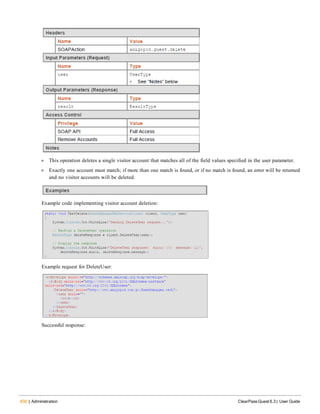
n wait – animated spinner
If “noindent=1” is specified, the block is not indented using the ‘nwaIndent’ style. If “novspace=1” is specified, the
block uses a ‘DIV’ element, rather than a ‘P’ element. If neither “icon” nor “type” is supplied, the default behavior is to
insert an “info” type image. Specifying a “type” is equivalent to specifying an “icon", “width", “height” and “alt”
parameter, and may also include a “class” depending on the type selected.
Usage example:
{nwa_icontext struct=$error}{/nwa_icontext}
The “struct” parameter, if specified, uses a standard result type. If the “error” key is set and non-zero, the “type”
parameter is set to the value error, and the “message” key is converted to a HTML formatted error message for display.
nwa_quotejs
{nwa_quotejs} … {/nwa_quotejs}
Smarty registered block function. Quotes its content in a string format suitable for use in JavaScript. This function also
translates UTF-8 sequences into the corresponding JavaScript Unicode escape sequence (uXXXX)
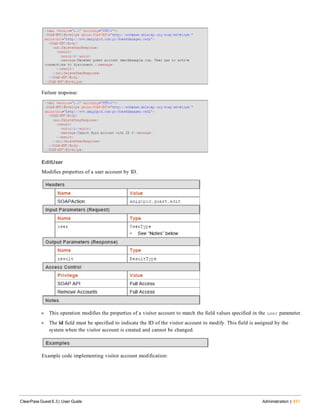
Usage example:
{nwa_quotejs}String with ' and "{/nwaquote_js}
The output of this will be:
'String with ' and "'
The “body” parameter, if set, indicates that the string quotes are already supplied; in this case the beginning and
ending quotes are not included in the output.
nwa_radius_query
{nwa_radius_query _method=MethodName _assign=var …}
Smarty registered template function. Performs accounting-based queries on the RADIUS server and returns the result for
use in a template.
Usage example:
{nwa_radius_query _method=GetCallingStationTraffic
callingstationid=$dhcp_lease.mac_address
from_time=86400 in_out=out _assign=total_traffic}
This example uses the GetCallingStationTraffic query function and passes the “callingstationid”, “from_time”
and “in_out” parameters. The result is assigned to a template variable called total_traffic, and will not generate any
output.
This template function accepts the following parameters to select a RADIUS database and other connection options:
l _db – ID of the RADIUS database service handler (this parameter is optional, the default service handler will be
used if it not set)
l _debug – Set to a nonzero value to enable debugging
l _quiet – Set to a nonzero value to inhibit warning/error messages
The following parameters control the query to be executed:
l _method (required) – Name of the query function to execute. A brief listing of the available methods is provided
below.
l _arg0, _arg1, …, _argN (optional) – Positional arguments for the query function.
l Named arguments may also be supplied; the arguments must be named identically to the function arguments listed
in the documentation for the query function.
The following parameters control how the result should be processed:
l _assign – Name of a page variable to store the output; if not set, output is sent to the browser as the result of
evaluating the template function.
l _output – Index of item to return from the RPC result; if not set, the complete result is returned. This may be of use
when an array containing multiple values is returned and only one of these values is required.
l _default – Default value to display or return if an error occurs or the _output field is not available in the result.
For ease of use, “assign” is also supported as a synonym for “_assign”.
This template function does not generate any output if the _assign parameter is set.
ClearPass Guest 6.3 | User Guide Reference | 489
490 | Reference ClearPass Guest 6.3 | User Guide
The methods that are available for use with this function are listed below. The $criteria array consists of one or more
criteria on which to perform a database search. The array is used for advanced cases where pre-defined helper functions
do not provide required flexibility.
ChangeToRole()
ChangeToRole($username, $role_name)
Changes the RADIUS role assigned to the user. If the user currently has active sessions, this function will trigger an
RFC 3576 Change-of-Authorization (CoA) Request to the network access server.
The $username parameter specifies the user account to modify; use the expression GetAttr('User-Name') to use the
value from the RADIUS User-Name attribute.
The $role_name parameter specifies the name of the RADIUS User Role to apply to the user.
Example:
Use the following as a conditional expression for an attribute. If the user's traffic in the past 24 hours exceeds 50 MB,
the user is changed to the "Over-Quota" role.
return GetUserTraffic(86400) > 50e6 && ChangeToRole("Over-Quota");
GetCallingStationCurrentSession()
GetCallingStationCurrentSession($callingstationid, $mac_format = null)
Looks up the current (most recent) active session for the specified calling station ID.
Because different NAS equipment can send differently-formatted MAC addresses in the Calling-Station-Id attribute, the
$mac_format argument may be specified. This should be a sprintf-style format string that accepts 6 arguments (the
octets of the MAC address). The default if not specified is the IEEE 802 standard format,
%02X-%02X-%02X-%02X-%02X-%02X – that is, uppercase hexadecimal with each octet separated with a hyphen.
See "GetCurrentSession()" on page 491 for details of the return value.
GetCallingStationSessions()
GetCallingStationSessions($callingstationid, $from_time, $to_time = null, $mac_format = nul
l)
Calculate the number of sessions for accounting records matching a specific calling-station-id. The calling station id
address is looked up automatically from the RADIUS Access-Request (Calling-Station-ID attribute).
Because different NAS equipment can send differently-formatted MAC addresses in the Calling-Station-Id attribute, the
$mac_format argument may be specified. This should be a sprintf-style format string that accepts 6 arguments (the
octets of the MAC address). The default if not specified is the IEEE 802 standard format,
%02X-%02X-%02X-%02X-%02X-%02X – that is, uppercase hexadecimal with each octet separated with a hyphen.
See "GetTraffic()" on page 494 for details on how to specify the time interval.
GetCallingStationTime()
GetCallingStationTime($callingstationid, $from_time, $to_time = null, $mac_format = null)
Calculate sum of session times in a specified time interval.
Because different NAS equipment can send differently-formatted MAC addresses in the Calling-Station-Id attribute, the
$mac_format argument may be specified. This should be a sprintf-style format string that accepts 6 arguments (the
octets of the MAC address). The default if not specified is the IEEE 802 standard format,
%02X-%02X-%02X-%02X-%02X-%02X – that is, uppercase hexadecimal with each octet separated with a hyphen.
The calling station ID is looked up automatically from the RADIUS Access-Request (Calling-Station-ID attribute).
See "GetTraffic()" on page 494 for details on how to specify the time interval.
GetCallingStationTraffic()
GetCallingStationTraffic($callingstationid, $from_time, $to_time = null,
$in_out = null, $mac_format = null)
Calculate sum of traffic counters in a time interval. Sessions are summed if they have the same Calling-Station-Id
attribute as that specified in the RADIUS Access-Request.
If no Calling-Station-Id attribute was included in the request, returns zero.
Because different NAS equipment can send differently-formatted MAC addresses in the Calling-Station-Id attribute, the
$mac_format argument may be specified. This should be a sprintf-style format string that accepts 6 arguments (the
octets of the MAC address). The default if not specified is the IEEE 802 standard format,
%02X-%02X-%02X-%02X-%02X-%02X – that is, uppercase hexadecimal with each octet separated with a hyphen.
This string matches what ClearPass Guest sees from the NAS.
The time interval specified by $from_time and optionally $to_time is also used to narrow the search.
If $to_time is not specified, $from_time is a “look back” time, that is, the time interval in seconds before the
current time.
If $to_time is specified, the interval considered is between $from_time and $to_time.
$in_out may be “in” to count only input octets, “out” to count only output octets, or any other value to count both
input and output octets towards the traffic total.
Examples:
l Use the following as the condition expression for a RADIUS role attribute. Authorizes a user only if their total
traffic (in + out) in the past day does not exceed 10 MB. Be aware that the attribute with this condition expression
will never be included in the response!
l return GetUserTraffic(86400) > 10485760 && AccessReject()
l Like the above, but only considers output (that is, user downloads):
l return GetUserTraffic(86400,'out') > 10485760 && AccessReject()
l Another way to limit the past 30 days downloads to 100 MB:
l return GetUserTraffic($now - 86400*30, $now, 'out') > 100*1024*1024 && AccessReject()
l Limit by MAC address, 50 MB download in past 24 hours:
return GetCallingStationTraffic(86400, 'out') > 50000000 && AccessReject()
GetCurrentSession()
GetCurrentSession($criteria)
Looks up the details for an active session, based on the specified criteria.
This is a multi-purpose function that has a very flexible query interface. For ease of use, consider using one of the
related functions "GetCallingStationCurrentSession()" on page 490, "GetIpAddressCurrentSession()" on page 492, or
"GetUserCurrentSession()" on page 494.
Returns null if there is no matching session, otherwise returns a single session array – a typical result follows:
array (
'id' => '2073',
'acctsessionid' => '4a762dbf00000002',
'acctuniqueid' => 'c199b5a94ebf5184',
'username' => 'demo@example.com',
'realm' => '',
'role_name' => 'Guest',
'nasipaddress' => '192.168.2.20',
'nasportid' => '',
ClearPass Guest 6.3 | User Guide Reference | 491
492 | Reference ClearPass Guest 6.3 | User Guide
'nasporttype' => '',
'calledstationid' => '',
'callingstationid' => '',
'acctstarttime' => '1249258943',
'connectinfo_start' => '',
'acctstoptime' => NULL,
'connectinfo_stop' => NULL,
'acctsessiontime' => 0,
'acctinputoctets' => 0,
'acctoutputoctets' => 0,
'acctterminatecause' => NULL,
'servicetype' => '',
'framedipaddress' => '192.168.2.3',
'framedprotocol' => '',
'acctauthentic' => '',
'nastype' => 'cisco_3576',
'nas_name' => 'centos',
'total_traffic' => 0,
'state' => 'stale',
'traffic_input' => 0,
'traffic_output' => 0,
'traffic_usage' => 0,
'session_time' => 29641260,
)
GetIpAddressCurrentSession()
GetIpAddressCurrentSession($ip_addr = null)
Looks up the current (most recent) active session for the specified client IP address. If ip_addr is not specified, it
defaults to the current value of $smarty.server.REMOTE_ADDR, which may not be the same value as the IP address of
the session if there is a NAT.
See "GetCurrentSession()" on page 491 for details of the return value.
GetIpAddressSessions()
GetIpAddressSessions($ip_addr, $from_time = null, $to_time = null)
Calculate the number of sessions for accounting records matching a specific IP address. The IP address attribute is
looked up automatically from the RADIUS Access-Request (Framed-IP-Address attribute).
See "GetTraffic()" on page 494 for details on how to specify the time interval.
See "GetIpAddressTraffic()" on page 492 for additional details on the $ip_addr argument.
GetIpAddressTime()
GetIpAddressTime($ip_addr, $from_time = null, $to_time = null)
Calculate sum of session times in a specified time interval. The IP address is looked up automatically from the
RADIUS Access-Request (Framed-IP-Address attribute).
See "GetTraffic()" on page 494 for details on how to specify the time interval.
See "GetIpAddressTraffic()" on page 492 for additional details on the $ip_addr argument.
GetIpAddressTraffic()
GetIpAddressTraffic($ip_addr, $from_time = null, $to_time = null, $in_out = null)
Calculate sum of traffic counters in a time interval. The IP address used is determined based on the context. If
processing a RADIUS Access-Request, the IP address is determined using the Framed-IP-Address attribute. If processing
a HTTP request, the current client IP address is assumed
(from $_SERVER['REMOTE_ADDR']).
Specifying an empty value for the IP address (such as null, false, or empty string) also causes the current client IP
address to be used.
See "GetTraffic()" on page 494 for details on how to specify the time interval.
GetSessions()
GetSessions($criteria, $from_time, $to_time = null)
Calculate the number of sessions from accounting records in the database.
This is a multi-purpose function that has a very flexible query interface. For ease of use, consider using one of the
related functions "GetCallingStationSessions()" on page 490, "GetIpAddressSessions()" on page 492,
"GetUserActiveSessions()" on page 494, or "GetUserSessions()" on page 495.
$criteria is the criteria on which to search for matching accounting records.
As well as the criteria specified, the time interval specified by $from_time and optionally $to_time is also used
to narrow the search.
If $to_time is not specified, $from_time is a “look back” time, that is, the time interval in seconds before the
current time.
If $to_time is specified, the interval considered is between $from_time and $to_time.
Returns the total number of sessions for matching accounting records in the time interval specified.
GetSessionTimeRemaining()
GetSessionTimeRemaining($username, $format = “relative”)
Calculates the session time remaining for a given user account, if the user account was to be authenticated at the
moment of the call.
The $username parameter is required. This is the username for the authentication.
The $format parameter is optional, and defaults to “relative” if not otherwise specified. This parameter may be one of
the following values:
l “relative” or “session_time”: Calculates the session timeout as for the Session-Timeout RADIUS attribute, that is,
the number of seconds before the session should end. If the session does not have a session timeout, the value
returned is 0.
l “time”: Calculates the session end time, as the UNIX time at which the session should end. If the session does not
have an expiration time, the value returned is 0.
l Other values: These are interpreted as a date format (see “NwaDateFormat”) and the session end time is returned in
this format. (Examples: “iso8601”, “longdate”, “recent”, ‘%Y-%m-%d %H:%M’, etc.). If the session does not have
an expiration time, the value returned is a blank string.
GetTime()
GetTime($criteria, $from_time, $to_time = null)
Calculate the sum of session times for accounting records in the database.
This is a multi-purpose function that has a very flexible query interface. For ease of use, consider using one of the
related functions. See "GetCallingStationTime()" on page 490, "GetIpAddressTime()" on page 492, or "GetUserTime() "
on page 495.
$criteria is the criteria on which to search for matching accounting records.
As well as the criteria specified, the time interval specified by $from_time and optionally $to_time is also used
to narrow the search.
ClearPass Guest 6.3 | User Guide Reference | 493
494 | Reference ClearPass Guest 6.3 | User Guide
If $to_time is not specified, $from_time is a “look back” time, that is, the time interval in seconds before the
current time.
If $to_time is specified, the interval considered is between $from_time and $to_time.
Returns the total session time for all matching accounting records in the time interval specified.
GetTraffic()
GetTraffic($criteria, $from_time, $to_time = null, $in_out = null)
Calculate the sum of traffic counters for accounting records in the database.
Revoking access for a device is only possible This is a multi-purpose function that has a very flexible query interface.
For ease of use, consider using one of the related functions "GetCallingStationTraffic()" on page 491,
"GetIpAddressTraffic()" on page 492, or "GetUserTraffic()" on page 495.
$criteria is the criteria on which to search for matching accounting records. The time interval specified by
$from_time and optionally $to_time is used with the criteria to narrow the search.
If $to_time is not specified, $from_time is a “look back” time, that is, the time interval in seconds before the
current time. If $to_time is specified, the interval considered is between $from_time and $to_time.
$in_out may be “in” to count only input octets, “out” to count only output octets, or any other value to count both
input and output octets towards the traffic total. This argument returns the computed total of traffic for all matching
accounting records.
GetUserActiveSessions()
GetUserActiveSessions($username, $callingstationid = null)
Looks up the list of all sessions for the specified username.
The username attribute is looked up automatically from the RADIUS Access-Request (User-Name attribute). If a
$callingstationid argument is supplied, sessions that match that Calling-Station-Id are excluded from the count
of active sessions.
GetUserActiveSessionCount()
GetUserActiveSessionCount($username)
Counts the number of currently active sessions for the current username.
The username attribute is looked up automatically from the RADIUS Access-Request (User-Name attribute).
GetUserCumulativeUsage()
GetUserCumulativeUsage($username)
Looks up the total cumulative time for the username.
The username attribute is looked up automatically from the RADIUS Access-Request (User-Name attribute).
GetUserCurrentSession()
GetUserCurrentSession($username)
Looks up the current (most recent) active session for the specified username.
See "GetCurrentSession()" on page 491 for details of the return value.
GetUserFirstLoginTime()
GetUserFirstLoginTime($username)
Looks up the first login time for the specified username.
The username attribute is looked up automatically from the RADIUS Access-Request (User-Name attribute).
GetUserSessions()
GetUserSessions($username, $from_time, $to_time = null)
Calculate the number of sessions for accounting records matching a specific user-name. The username attribute is
looked up automatically from the RADIUS Access-Request (User-Name attribute).
See "GetTraffic()" on page 494 for details on how to specify the time interval.
GetUserTime()
GetUserTime($username, $from_time, $to_time = null)
Calculate sum of session times in a specified time interval.
See "GetTraffic()" on page 494 for details on how to specify the time interval.
GetUserTraffic()
GetUserTraffic($username, $from_time, $to_time = null, $in_out = null)
Calculate sum of traffic counters in a time interval. Sessions are summed if they have the same User-Name attribute as
that specified in the RADIUS Access-Request.
See "GetCallingStationTraffic()" on page 491 for details on how to specify the time interval.
Advanced Developer Reference
The reference documentation in this section is intended for advanced usage by developers.
nwa_assign
{nwa_assign …}
Smarty registered template function. Assigns a page variable based on the output of a generator function.
Simple usage example:
{nwa_assign var=my_variable value=my_value}
l The “var” parameter specifies the page variable that will receive the output.
l The “value” parameter specifies the value to assign to “var”.
The various request variables may also be accessed using one of two supported methods:
l {nwa_assign var=_GET.get_variable value=...}
l {nwa_assign var=smarty.get.get_variable value=...}
The variables that can be accessed this way are _GET (smarty.get), _POST (smarty.post), _REQUEST (smarty.request),
_SESSION (smarty.session), _COOKIE (smarty.cookies), and _ENV (smarty.env).
Assigning to values in _SESSION will persist the value for the next page load in the session.
Alternative usage example:
{nwa_assign var=userskin_plugin generator=NwaGetPluginDetails arg=$u.userskin}
l The “generator” parameter specifies the generator function to be called.
l A single “arg” parameter, if specified, provides a 1-argument form of calling the function; alternatively, “arg1”,
“arg2”, ... may be specified to form an array of arguments to pass to the generator.
nwa_bling
{nwa_bling …}
Smarty registered template function. Adds various kinds of visual effects to the page.
Usage example:
{nwa_bling id=$some_id type=fade}
ClearPass Guest 6.3 | User Guide Reference | 495
496 | Reference ClearPass Guest 6.3 | User Guide
The “id” parameter is the ID of the HTML element to which you will add ‘bling’ effects The “type” parameter is the
kind of bling desired:
l “fade”: element smoothly fades in and out
l “blink”: element blinks slowly
nwa_makeid
{nwa_makeid …}
Smarty registered template function. Creates a unique identifier and assigns it to a named page variable. Identifiers are
unique for a given page instantiation.
Usage example:
{nwa_makeid var=some_id}
The “var” parameter specifies the page variable that will be assigned.
Alternative usage:
{nwa_makeid var=some_id file=filename}
The “file” parameter specifies a file which contains a unique ID. This allows issued IDs to be unique across different
page loads. To return the value rather than assign it to a variable, use the syntax:
{nwa_makeid [file=filename] output=1}
Otherwise, this template function does not generate any output.
nwa_nav
{nwa_nav} … {/nwa_nav}
Smarty registered block function. Defines a block area for navigation, a control, or generates navigation control HTML
of a particular type.
Blocks are individual components of the navigation area, which basically consist of HTML. Blocks for actual
navigation items have substitution tags in the form @tagname@.
The recognized tags are described in the table below.
Tag Description
@a@ <a href="navigation_href">navigation name</a>
@name@ navigation item name (HTML safe)
@jsname@ navigation item name (JavaScript quoted)
@href@ navigation item hyperlink
@jshref@ navigation item hyperlink (JavaScript quoted)
@icon@ navigation item icon, if specified
Table 97: Navigation Tags
When used with the “block” parameter, the {nwa_nav} control does not generate any HTML. When used with the
“type” parameter, the {nwa_nav} control uses the previously defined blocks to generate the HTML navigation area.
The following types are recognized:
l simple – Only the current L1 item has L2 items, L3 only when L2 active
l all-l1 – All current L1 items are shown to L3, otherwise L1 only
l expanded – All L1 items have L2 items, L3 only when L2 active
l all-expanded – All items shown to L3
The “reset” parameter may be specified to clear any existing navigation settings.
Usage example:
{nwa_nav block=level1_active}<li class="active">@a@</li>{/nwa_nav}{nwa_nav block=level1_ina
ctive}<li>@a@</li>{/nwa_nav}...{nwa_nav type=simple}{/nwa_nav} {* this generates the HTML *
}
Block types can be one of the following types:
l enter_level1_item
l enter_level2_item
l enter_level3_item
l exit_level1_item
l exit_level2_item
l exit_level3_item
l between_level1_items
l between_level2_items
l between_level3_items
l level1_active
l level1_inactive
l level2_active
l level2_inactive
l level2_parent_active
l level2_parent_inactive
l level3_active
l level3_inactive
l enter_level1
l enter_level2
l enter_level3
l exit_level1
l exit_level2
l exit_level3
nwa_plugin
{nwa_plugin …}
Smarty registered template function. Generates plugin information based on the parameters specified. Specifying which
plugin:
l The ‘id’ parameter specifies a plugin ID.
l The ‘name’ parameter specifies a plugin name, or plugin filename.
l The ‘page’ parameter specifies a page name provided by the plugin.
l The ‘privilege’ parameter specifies a privilege defined by the plugin.
ClearPass Guest 6.3 | User Guide Reference | 497
498 | Reference ClearPass Guest 6.3 | User Guide
If none of the above is specified, the default is the same as specifying the ‘page’ parameter with the current script name
as argument (that is, the current page).
Specifying the output:
l The ‘notfound’ parameter specifies the return value, if the plugin was not found (default is the empty string).
l The ‘output’ parameter specifies the metadata field to return
If ‘output’ is not specified, the default is ‘output=id’; that is, the plugin ID is returned.
nwa_privilege
{nwa_privilege} … {/nwa_privilege}
Smarty registered block function. Includes output only if a certain kind of privilege has been granted.
Usage examples:
{nwa_privilege access=create_user} .. content .. {/nwa_privilege}
The “access” parameter specifies the name of a privilege to check for any access.
{nwa_privilege readonly=create_user} .. content .. {/nwa_privilege}
The “readonly” (synonym “ro”) parameter specifies the name of a privilege to check for read-only access. Be aware that
an operator with read-write access also has read-only access. To include content if the user ONLY has read access, that
is, not if the user has full access, prefix the privilege name with a # character and use the parameter name “readonly”
(or “ro”).
{nwa_privilege full=create_user} .. content .. {/nwa_privilege}
The “full” (synonym “rw”) parameter specifies the name of a privilege to check for full read-write access. The “name”
parameter is the name of the privilege to check. If “name” is prefixed with a “!”, the output is included only if that
privilege is NOT granted (inverts the sense of the test). An optional “level” parameter may be specified, which is the
level of access to the privilege required (default is 0, or any access).
nwa_replace
{nwa_replace 1=… 2=…} … {/nwa_replace}
Smarty registered block function. Replace %1, %2, etc with the passed parameters 1=, 2=, etc.
Usage example:
{nwa_replace 1=$param1 2=$param2 ...}
This is the text resource to be replaced, where %1 and %2
are the arguments, etc.
{/nwa_replace}
The numbered parameters are expanded in the translated string with the positional arguments %1, %2 and so forth.
nwa_text
{nwa_text} … {/nwa_text}
Smarty registered block function. Translates the block’s content, if a language pack is available.
Usage example:
{nwa_text id=TEXT_ID 1=$param1 2=$param2 ...}
This is the text resource to be translated, where %1 and %2 are the arguments, etc.
{/nwa_text}
l The “id” parameter is the text ID of the resource.
l The numbered parameters are expanded in the translated string with the positional arguments %1, %2 and so forth.
nwa_userpref
{nwa_userpref …}
Smarty template function. Returns the current setting of a user preference (stored with the Web application user
account)
Usage examples:
{nwa_userpref name=prefName}
{nwa_userpref name=prefName default=10}
{nwa_userpref has=prefName}
l “name”: return the named user preference
l “default”: supply a value to be returned if the preference is not set
l “has”: return 1 if the named preference exists for the current user, 0 if the preference does not exist
nwa_youtube
{nwa_youtube video=ID width=cx height=cy …} … {/nwa_youtube}
Smarty registered block function. Provides simple support for embedding a YouTube video in the body of a page. The
content of this block is the initial “alternate content” that will be presented until the YouTube player can be
embedded (if it can be embedded).
Not all devices are capable of playing back YouTube video content.
Usage example:
{nwa_youtube video=Y7dpJ0oseIA width=320 height=240}
YouTube is the world’s most popular online video community.
{/nwa_youtube}
The supported parameters for this block function are:
l video (required) – the YouTube video ID to embed.
l width (required) – the width in pixels of the video.
l height (required) – the height in pixels of the video.
l autoplay (optional) – if true, auto-play the video.
l chrome (optional) – if true, use the chromed player; that is, provide a user experience with playback controls.
l version (optional) – the minimum version required to play the video.
l onended (optional) – the name of a global function (that is, a member of the JavaScript “window” object) that is to
be called at the end of video playback.
Date/Time Format Syntax
There are two basic modifiers available for you to use in ClearPass Guest: nwadateformat and nwatimeformat.
nwadateformat Modifier
The date format takes one or two arguments – the format description and an optional default value (used if there is no
time/date to display). UTF-8 is the character encoding used throughout the application, as this covers languages such
as Spanish that use non-ASCII characters.
The full list of special formats is:
ClearPass Guest 6.3 | User Guide Reference | 499
500 | Reference ClearPass Guest 6.3 | User Guide
Preset Name Date/Time Format Example
hhmmss %H%M%S 141345
hh:mm:ss %H:%M:%S 14:13:45
iso8601 %Y%m%d 20080407
iso8601t %Y%m%d%H%M%S 20080407141345
iso-8601 %Y-%m-%d 2008-04-07
iso-8601t %Y-%m-%d %H:%M:%S 2008-04-07 14:13:45
longdate %A, %d %B %Y, %I:%M %p
Monday, 07 April 2008, 2:13
PM
rfc822 %a, %d %b %Y %H:%M:%S %Z
Mon, 07 Apr 2008 14:13:45
EST
displaytime %l:%M %p 2:13 PM
recent – 2 minutes ago
Table 98: Date and Time Formats
The % items on the right hand side are the same as those supported by the php function strftime().
The string “?:”, if present will return the string following the “?:” if the time value is 0. Otherwise, the format string up
to the “?:” is used.
See "Date/Time Format String Reference" on page 501 in this chapter for a full list of the supported date/time format
string arguments.
Examples of date formatting using the nwadateformat Smarty modifier are as follows:
{$u.expire_time|nwadateformat:"longdate"}
Monday, 07 April 2008, 2:13 PM
{$u.expire_time|nwadateformat:"iso8601"}
20080407
{$u.expire_time|nwadateformat:"iso-8601t"}
2008-04-07 14:13:45
{$u.expire_time|nwadateformat:"iso8601?:N/A"}
20080407   (or N/A if no time specified)
{$u.expire_time|nwadateformat:"%m/%d/%Y"}
04/07/2008
nwatimeformat Modifier
The nwatimeformat modifier takes one argument – the format description. The “minutes_to_natural” argument converts
an argument specified in minutes to a text string describing an equivalent but more natural measurement for the time
interval (hours, days or minutes depending on the value). An example of this usage is for the expire_postlogin field
which has a value measured in minutes:
{$u.expire_postlogin|nwatimeformat:"minutes_to_natural"}
The other formats accepted for this modifier are the same as those described for the nwadateformat modifier. See
"nwadateformat Modifier" on page 499.
Date/Time Format String Reference
Format Result
%a Abbreviated weekday name for the current locale
%A Full weekday name for the current locale
%b Abbreviated month name for the current locale
%B Full month name for the current locale
%c Preferred date and time representation for the current locale
%C Century number (2-digit number, 00 to 99)
%d Day of the month as a decimal number (01 to 31)
%D Same as %m/%d/%y
%e Day of the month as a decimal number; a single digit is preceded by a space (‘ 1’ to ‘31’)
%h Same as %b
%H Hour as a decimal number (00 to 23)
%l Hour as a decimal number (01 to 12)
%m Month as a decimal number (01 to 12)
%M Minute as a decimal number (00 to 59)
%p “AM” or “PM”
%r Local time using 12-hour clock (%l:%M %p)
%R Local time using 24-hour clock (%H:%M)
%S Second as a decimal number (00 to 60)
%T Current time (%H:%M:%S)
%u Weekday as a decimal number (1=Monday…7=Sunday)
%w Weekday as a decimal number (0=Sunday…6=Saturday)
%x Preferred date representation for the current locale, without the time
%X Preferred time representation for the current locale, without the date
Table 99: Date and Time Format Strings
ClearPass Guest 6.3 | User Guide Reference | 501
502 | Reference ClearPass Guest 6.3 | User Guide
Format Result
%y Year as a decimal number without the century (00 to 99)
%Y Year as a decimal number
%% A literal % character
Programmer’s Reference
This section describes the following:
l "NwaAlnumPassword" on page 502
l "NwaBoolFormat" on page 502
l "NwaByteFormat" on page 503
l "NwaByteFormatBase10" on page 503
l "NwaComplexPassword" on page 503
l "NwaCsvCache" on page 503
l "NwaDigitsPassword($len)" on page 503
l "NwaDynamicLoad" on page 503
l "NwaGeneratePictureString" on page 503
l "NwaGenerateRandomPasswordMix" on page 504
l "NwaLettersDigitsPassword" on page 504
l "NwaLettersPassword" on page 504
l "NwaMoneyFormat" on page 504
l "NwaParseCsv" on page 504
l "NwaParseXml" on page 505
l "NwaPasswordByComplexity" on page 506
l "NwaSmsIsValidPhoneNumber" on page 506
l "NwaStrongPassword" on page 506
l "NwaVLookup" on page 506
l "NwaWordsPassword" on page 507
NwaAlnumPassword
NwaAlnumPassword($len)
Generates an alpha-numeric password (mixed case) of length $len characters.
NwaBoolFormat
NwaBoolFormat($value, $options = null)
Formats a boolean value as a string. If 3 function arguments are supplied, the 2nd and 3rd arguments are the values to
return for false and true, respectively. Otherwise, the $options parameter specifies how to do the conversion:
l If an integer 0 or 1, the string values “0” and “1” are returned.
l If a string containing a “|” character, the string is split at this separator and used as the values for false and true
respectively.
l If an array, the 0 and 1 index values are used for false and true values.
l Otherwise, the string values “true” and “false” are returned.
NwaByteFormat
NwaByteFormat($bytes, $unknown = null)
Formats a non-negative size in bytes as a human readable number (bytes, KB, MB, GB, etc.) Assumes that 1 KB =
1024 bytes, 1 MB = 1024 KB, etc. If a negative value is supplied, returns the $unknown string. If a non-numeric
value is supplied, that value is returned directly.
NwaByteFormatBase10
NwaByteFormatBase10($bytes, $unknown = null)
Formats a non-negative size in bytes as a human readable number (bytes, KB, MB, GB, etc.) Assumes “base 10” rules
in measurement; that is, 1 KB = 1000 bytes, 1 MB = 1000 KB, etc. If a negative value is supplied, returns the
$unknown string. If a non-numeric value is supplied, that value is returned directly.
NwaComplexPassword
NwaComplexPassword($len = 8)
Generates complex passwords of at least $len characters in length, where $len must be at least 4. A complex
password includes at least 1 each of a lower case character, upper case character, digit, and punctuation (symbol).
NwaCsvCache
NwaCsvCache($csv_file, $use_cache = true, $options = null)
Loads and parses the contents of a CSV file, using a built-in cache. The cache may be cleaned for a specific file by
setting $use_cache to false. The cache may be cleaned for ALL files by setting $csv_file to the empty string and
$use_cache to false.
CSV parsing options (see "NwaParseCsv" on page 504) may be specified in $options. Additionally, a 2-argument
form of this function may be used by passing an array of $options as the second argument; in this case, $use_
cache is assumed to be true. This function returns false if the file does not exist; otherwise, returns an array of arrays
containing each of the parsed records from the file.
NwaDigitsPassword($len)
Generates digit-only passwords of at least $len characters in length.
NwaDynamicLoad
NwaDynamicLoad($func)
Loads the PHP function $func for use in the current expression or code block. Returns true if the function exists (that
is, the function is already present or was loaded successfully), or false if the function does not exist.
Attempting to use an undefinced function will result in a PHP Fatal Error. Use this function before using any of the
standard Nwa...() functions.
NwaGeneratePictureString
NwaGeneratePictureString($string)
ClearPass Guest 6.3 | User Guide Reference | 503
504 | Reference ClearPass Guest 6.3 | User Guide
Creates a password based on a format string. For details on the special characters recognized in $string, see "Format
Picture String Symbols" on page 518.
NwaGenerateRandomPasswordMix
NwaGenerateRandomPasswordMix($password_len, $lower = 1, $upper = 1, $digit = 1, $symbol = -
1)
Generates a random password that meets a certain minimum complexity requirement.
l $password_len specifies the total length in characters of the generated password. The password returned will be
at least $upper + $lower + $digit + $symbol characters in length. Any length beyond the required
minimum will be made up of any allowed characters.
l $lower specifies the minimum number of lowercase characters to include, or -1 to not use any lowercase
characters.
l $upper specifies the minimum number of uppercase characters to include, or -1 to not use any uppercase
characters.
l $digit specifies the minimum number of digits to include, or -1 to not use any digits.
l $symbol specifies the minimum number of symbol characters to include, or -1 to not use any symbol or
punctuation characters.
NwaLettersDigitsPassword
NwaLettersDigitsPassword($len)
Generates an alpha-numeric password of $len characters in length consisting of lowercase letters and digits.
NwaLettersPassword
NwaLettersPassword($len)
Generates a password of $len characters in length consisting of lowercase letters.
NwaMoneyFormat
NwaMoneyFormat($amount, $format = null)
Formats a monetary amount for display purposes. The current page language is used to adjust formatting to the country
specified. Returns a result that is guaranteed to be in UTF-8.
The $format argument may be null, to specify the default behavior (U.S. English format), or it may be a pattern
string containing the following:
l currency symbol (prefix)
l thousands separator
l decimal point
l number of decimal places
The format “€1.000,00” uses the Euro sign as the currency symbol, “.” as the thousands separator, “,” as the decimal
point, and 2 decimal places.
If not specified explicitly, the default format is “$1,000.00”.
NwaParseCsv
NwaParseCsv($text, $options = null)
Parses text containing comma-separated values and returns the result as a list of records, where each record contains a
list of fields. Supports CSV escaping using double quotes.
$options may be specified to control additional parsing options described in the table below.
Function Description
fs The field separator character (default is comma “,”)
rs The record separator character (default is newline “n”)
quo The quote character (default is double quote ")
excel_compatible If true, recognize ="..." syntax as well as "..." (default true)
dos_compatible If true, convert rn line endings to n (default true)
encoding If set, specifies the input character set to convert from (default not set)
out_charset
If set, specifies the desired character set to convert to using the iconv() function .
(default is "UTF-8//TRANSLIT")
max_records maximum number of records to return
max_fields maximum number of fields per record
skip_records number of records to skip at start of input
skip_fields number of fields to skip at start of each record
sort
post-processing option; order string for NwaCreateUsortFunc to sort the records by the
specified column(s)
slice_offset post-processing option: starting offset of slice to return; see array_slice() function
slice_length post-processing option: length of slice to return; see array_slice() function
Table 100: Parsing Options
See "NwaParseCsv" on page 504 and "NwaVLookup" on page 506.
NwaParseXml
NwaParseXml($xml_text)
Parses a string as an XML document and returns the corresponding document structure as an associative array. Returns
an array containing the following elements:
l error – set if there was a problem parsing the XML
l message – describes the parse error
Otherwise, the return is an array with these elements:
l name – name of the document element
l attributes – attributes of the document element
l children – array containing any child elements
l content – element content text
ClearPass Guest 6.3 | User Guide Reference | 505
506 | Reference ClearPass Guest 6.3 | User Guide
NwaPasswordByComplexity
NwaPasswordByComplexity($len, $mode = false)
Generates a random password of at least $len characters in length, based on one of the standard complexity
requirements specified in $mode. If $mode is false or the empty string, the default password complexity is taken from
the Guest Manager plugin configuration.
Otherwise, $mode should be one of the following values:
l none – No password complexity requirement
l case – At least one uppercase and one lowercase letter
l number – At least one digit
l punctuation – At least one symbol
l complex – At least one of each: uppercase letter, lowercase letter, digit, and symbol
NwaSmsIsValidPhoneNumber
NwaSmsIsValidPhoneNumber($phone_number)
Validates a phone number supplied in E.164 international dialing format, including country code.
l Any spaces and non-alphanumeric characters are removed.
l If the first character is a plus sign (+), the phone number is assumed to be in E.164 format already and the plus sign
is removed; otherwise, if the SMS service handler national prefix is set and the phone number starts with that
prefix, then the prefix is replaced with the country code.
l The phone number must contain no fewer than 5 and no more than 15 digits.
l The phone number is validated for a valid country code prefix.
l If all the foregoing conditions are met, the validator returns TRUE; otherwise, the validator returns FALSE.
NwaStrongPassword
NwaStrongPassword($len)
Generate strong passwords of $len characters in length.
A strong password may contain uppercase letters, lowercase letters, digits and certain symbols. The strong password
does not contain commonly-confused characters such as “O” and “0” (capital O and zero), “I” and “l” (capital I and
lowercase L), “2” and “Z” (two and capital Z), or “8” and “B” (eight and capital B).
NwaVLookup
NwaVLookup($value, $table, $column_index, $range_lookup = true, $value_column = 0, $cmp_fn
= null)
Table lookup function, similar to the Excel function VLOOKUP(). This function searches for a value in the first
column of a table and returns a value in the same row from another column in the table. This function supports the
values described in the table below.
Option Description
$value The value to be searched for
$table A 2D array of data to search; for example, a data table returned by NwaCsvCache() or
Table 101: NwaVLookup Options
Option Description
NwaParseCsv()
$column_index The desired index of the data
$range_lookup
Specifies whether to find an exact or approximate match.
If true (default), assumes the table is sorted and returns either an exact match, or the
match from the row with the next largest value that is less than $value. If false, only an
exact match is returned; NULL is returned on no match
value_column
Specifies the column index in the table that contains the values; the default is 0; in other
words, the first column.
$cmp_fn
Specifies a comparison function to use for values; if null, the default is used (simple
equality operator ==, or the == and > operators if using binary search).
The comparison function should take 2 arguments and return a value < 0, == 0, > 0
depending on the sort ordering of the arguments.
Be aware of the following differences from Excel VLOOKUP:
l Column indexes are 0-based.
l Column indexes can also be strings.
See "NwaParseCsv" on page 504 and "NwaCsvCache" on page 503.
NwaWordsPassword
NwaWordsPassword($len)
Generates a password consisting of two randomly-chosen words, separated by a small number (1 or 2 digits); that is, in
the format word1XXword2. The random words selected will have a maximum length of $len characters, and a
minimum length of 3 characters. $len must be at least 3.
Field, Form, and View Reference
This section describes the following:
l "GuestManager Standard Fields" on page 507
l "Hotspot Standard Fields" on page 515
l "SMS Services Standard Fields" on page 516
l "SMTP Services Standard Fields" on page 517
l "Format Picture String Symbols" on page 518
l "Form Field Validation Functions" on page 519
l "Form Field Conversion Functions" on page 524
l "Form Field Display Formatting Functions" on page 524
l "View Display Expression Technical Reference" on page 526
GuestManager Standard Fields
The table below describes standard fields available for the GuestManager form.
ClearPass Guest 6.3 | User Guide Reference | 507
508 | Reference ClearPass Guest 6.3 | User Guide
Field Description
account_activation
String. The current account activation time in long form. This field is available on
the change_expiration and guest_enable forms. The value is generated from the
do_schedule and schedule_time fields, and may be one of the following:
l Account will be enabled at date andtime
l Account is currently active
l No account activation
auto_update_account
Boolean flag indicating that an already existing account should be updated, rather
than failing to create the account. This field should normally be enabled for guest
self-registration forms, to ensure that a visitor that registers again with the same
email address has their existing account automatically updated. Set this field to a
non-zero value or a non-empty string to enable automatic update of an existing
account. This field controls account creation behavior; it is not stored with created
visitor accounts.
auto_update_account
Boolean flag indicating that an already existing account should be updated, rather
than failing to create the account. This field should normally be enabled for guest
self-registration forms, to ensure that a visitor that registers again with the same
email address has their existing account automatically updated. Set this field to a
non-zero value or a non-empty string to enable automatic update of an existing
account. This field controls account creation behavior; it is not stored with created
visitor accounts.
captcha
Special field used to enable the use of a CAPTCHA security code on a form. This
field should be used with the user interface type “CAPTCHA security code” and
the standard validator NwaCaptchaIsValid in order to provide the standard
security code functionality.
change_of_
authorization
Boolean flag indicating that any existing sessions for a visitor account should be
disconnected or modified using RFC 3576. If this field is not specified on a form
that modifies the visitor account, the default value is taken from the configuration
for the RADIUS Services plugin.
Set this field to a non-zero value or a non-empty string to enable RFC 3576
updates for active sessions. Set this field to a zero value or the empty string to
disable RFC 3576 updates for active sessions.
create_time
Integer. Time at which the account was created. The creation time is specified as a
UNIX timestamp. This field is automatically configured with the current time when
the Initial Value is set to: array('generator' => 'time')
creator_accept_terms
Boolean flag indicating that the creator has accepted the terms and conditions of
use. When creating an account, this field must be present, and must be set to the
value 1. If this field is unset, or has any other value, account creation will fail with
an error message.
To set the correct value for this field, use a check box (to require confirmation from
the creator) or a hidden field (if use of the form is considered acceptance of the
terms and conditions). This field controls account creation behavior; it is not stored
with created visitor accounts.
creator_name
String. Name of the creator of the account. This field does not have a default value.
See "sponsor_name" on page 515.
do_expire
Integer that specifies the action to take when the expire time of the account is
reached. See "expire_time" on page 509.
l 0—Account will not expire
l 1—Disable
Table 102: GuestManager Standard Fields
Field Description
l 2—Disable and logout
l 3—Delete
l 4—Delete and logout
“Disable” indicates that the enabled field will be set to 0, which will prevent further
authorizations using this account.
“Logout” indicates that a RADIUS Disconnect-Request will be used for all active
sessions that have a username matching the account username. This option
requires the NAS to support RFC 3576 dynamic authorization. See "RFC 3576
Dynamic Authorization" on page 72 for more information.
do_schedule
Boolean flag indicating if the account should be enabled at schedule_time. Set
this field to 0 to disable automatic activation of the account at the activation time.
Set this field to 1, and provide a valid time in the schedule_time field, to
automatically enable the account at the specified activation time. See "schedule_
time" on page 514.
dynamic_expire_time
Integer. Time at which the account will expire, calculated according to the
account’s expiration timers. The value of this field is a UNIX timestamp. This field
is available when modifying an account using the change_expiration or guest_
edit forms.
dynamic_is_authorized
Boolean flag indicating if the user account is authorized to log in. This field is
available when modifying an account using the change_expiration or guest_edit
forms.
dynamic_is_expired
Boolean flag indicating if the user account has already expired. This field is
available when modifying an account using the change_expiration or guest_edit
forms.
dynamic_session_time
Integer. The maximum session time that would be allowed for the account, if an
authorization request was to be performed immediately. Measured in seconds. Set
to 0 if the account is either unlimited (dynamic_is_expired is false), or if the
account has expired (dynamic_is_expired is true). This field is available when
modifying an account using the change_expiration or guest_edit forms.
email
String. Email address for the account. This field may be up to 100 characters in
length. When creating an account, if the username field is not set then the email
field is used as the username of the account.
enabled
Boolean flag indicating if the account is enabled. Set this field to 0 to disable the
account. If an account is disabled, authorization requests for the account will
always fail. Set this field to 1 to enable the account.
expiration_time
String. Description of the account’s expiration time. This field is set when
modifying an account. This field is available on the change_expiration and guest_
enable forms. The value is generated from the do_expire, expire_time, expire_
postlogin and expire_usage fields, and may be one of the following:
l Account will expire at date andtime, or interval after first login, or after interval
total usage
l Account will expire at date andtime or interval after first login
l Account will expire at date andtime or after interval total usage
l Account will expire at date andtime
l Expires interval after first login or after interval total usage
l Expires interval after first login
l Expires after interval total usage
l No expiration time set
expire_time Integer. Time at which the account will expire. The expiration time should be
ClearPass Guest 6.3 | User Guide Reference | 509
510 | Reference ClearPass Guest 6.3 | User Guide
Field Description
specified as a UNIX timestamp.
Setting an expire_time value also requires a non-zero value to be set for the do_
expire field; otherwise, the account expiration time will not be used. Set this field to
0 to disable this account expiration timer.
If the expire_timezone field is used in conjunction with expire_time and a time
zone and date are selected, the date calculation is adjusted relative to the time
zone.
expire_timezone
String. Provides a drop-down list of time zones to use in conjunction with expire_
time and start_time. When expire_timezone is selected and a date is chosen, the
date is adjusted to be relative to the time zone.
By default, expire_timezone uses the NwaGenerateTimeZoneList options
generator. To use a smaller subset of time zones, change the Options Generator
to (Use options) and provide your "value | name" pairs. Please reference the
default list for valid time zone values.
expire_usage
Integer. The total time period in seconds for which the account may be used.
Usage is calculated across all accounting sessions with the same username. Set
this field to 0 to disable this account expiration timer.
http_user_agent
String. Identifies the Web browser that you are using. This tracks user’s browsers
when they are registering. This is stored with the user’s account.
id String. Internal user ID used to identify the guest account to the system.
ip_address
String. The IP address to assign to stations authenticating with this account. This
field may be up to 20 characters in length. The value of this field is not currently
used by the system. However, a RADIUS user role may be configured to assign IP
addresses using this field by adding the Framed-IP-Address attribute, and setting
the value for the attribute to: <?= $user["ip_address"]
modify_expire_postlogin
String Value indicating how to modify the expire_postlogin field.
This field is only of use when editing a visitor account. It may be set to one of the
following values:
l “expire_postlogin” to set the post-login expiration time to the value in the
expire_postlogin field;
l “plus X” or “minus X”, where X is a time measurement, to extend or reduce the
post-login expiration timer by X (minutes, but may have a “ywdhms” suffix to
indicate years, weeks, days, hours, minutes, seconds respectively);
l A number, to set the post-login expiration time to the value specified;
l Any other value to leave expire_postlogin unmodified.
This field controls account modifications; it is not stored with the visitor account.
modify_expire_time
String. Value indicating how to modify the expire_time field.
This field may be provided when creating or editing a visitor account. It may be set
to one of the following values:
l “none” to disable the account expiration timer (do_expire and expire_time will
both be set to 0);
l “now” to disable the account immediately;
l “expire_time” to use the expiration time specified in the expire_time field;
l “expire_after” to set the expiration time to the current time, plus the number of
hours in the expire_after field;
l “plus X” or “minus X”, where X is a time measurement, to extend or reduce the
expiration time by X (hours, but may have a “ywdhms” suffix to indicate years,
weeks, days, hours, minutes, seconds respectively);
l A time measurement “X”, to set the expiration time to the current time plus X;
l Any other value to leave expire_time unmodified.
Field Description
This field controls account creation and modification behavior; it is not stored with
created or modified visitor accounts.
modify_expire_usage
String. Value indicating how to modify the expire_usage field. This field is only of
use when editing a visitor account. It may be set to one of the following values:
l “expire_usage” to set the cumulative usage expiration timer to the value in the
expire_usage field;
l “plus X” or “minus X”, where X is a time measurement, to extend or reduce the
cumulative usage expiration timer by X (seconds, but may have a “ywdhms”
suffix to indicate years, weeks, days, hours, minutes, seconds respectively);
l A number, to set the cumulative usage expiration time to the value specified;
l Any other value to leave expire_usage unmodified.
This field controls account modifications; it is not stored with the visitor account.
modify_password
String. Value indicating how to modify the account password.
l It may be one of the following values:
l “random_password” to use the password specified in the random_password
field;
l “reset” to create a new password, using the method specified in the random_
password_method field (or the global defaults, if no value is available in this
field);
l “password” to use the value from the password field;
l Any other value leaves the password unmodified.
This field controls account creation and modification behavior; it is not stored with
created or modified visitor accounts.
modify_schedule_time
String. Value indicating how to modify the schedule_time field.
It may be one of the following values:
l “none” to disable the account activation time;
l “now” to activate the account immediately;
l “schedule_time” to use the activation time specified in the schedule_time form
field (normally a UNIX time, but may be 0 to disable activation time);
l “schedule_after” to set the activation time to the current time plus the number of
hours in the schedule_after field;
l “plus X”, where X is a time measurement, to extend the activation time by X.
The time measurement is normally hours, but may have a “ywdhms” suffix to
indicate years, weeks, days, hours, minutes, or seconds, respectively.
Alternatively, this operation may be written equivalently as ‘+X’, ‘pX’, ‘plusX’,
‘add X’, ‘addX’, or ‘aX’. Example: to delay activation time by 2 days, use the
value +2d.
l “minus X”, where X is a time measurement, to reduce the activation time by X.
See above for details about specifying a time measurement. Alternatively, this
operation may be written equivalently as ‘-X’, ‘mX’, ‘minusX’, ‘sub X’, ‘subX’, or
‘sX’. Example: to bring forward activation time by 12 hours, use the value -12h.
l A time measurement “X”, to set the activation time to the current time plus X.
l A time and date specification, to set the activation time to that time and date.
Many different formats are specified; for clarity it is recommended that a
standard format such as ISO-8601 is used (“YYYY-MM-DD hh:mm:ss” format).
l Any other value to leave schedule_time unmodified.
This field controls account creation and modification behavior; it is not stored with
created or modified visitor accounts.
multi_initial_sequence
Integer. Initial sequence number. This field is used when creating guest accounts
and the random_username_method field is set to “nwa_sequence”. If this field is
not set, the next available sequence number for the given multi_prefix is used.
Sequence numbering will start with 0 if no initial sequence number has been set.
multi_prefix String. The prefix of each username generated when creating guest accounts and
ClearPass Guest 6.3 | User Guide Reference | 511
512 | Reference ClearPass Guest 6.3 | User Guide
Field Description
the random_username_method field is set to “nwa_sequence”.
netmask
String. Network address mask to use for stations using the account. This field may
be up to 20 characters in length. The value of this field is not currently used by the
system. However, a RADIUS user role may be configured to assign network
masks using this field by adding the Framed-IP-Netmask attribute, and setting the
value for the attribute to: <?= $user["netmask"]
no_password
Boolean. If set, prevents a user from changing their own password using the guest
self-service portal. Set this field to a non-zero value or a non-empty string to
disable guest-initiated password changes. The default is to allow guest-initiated
password changes, unless this field is set.
no_portal
Boolean. If set, prevents a user from logging into the guest service portal. Set this
field to a non-zero value or a non-empty string to disable guest access to the self-
service portal. The default is to allow guest access to the self-service portal, unless
this field is set.
no_warn_before
Boolean. User does not receive a logout expiration warning. The admin or user
can opt out of this option by setting the field to 1.
notes
String. Comments or notes stored with the account. This field may be up to 255
characters in length.
num_accounts
Integer. The number of accounts to create when using the create_multi form. This
field controls account creation behavior; it is not stored with created visitor
accounts.
password String. Password for the account. This field may be up to 64 characters in length.
password2
String. Password for the account. If this field is set, its value must match the value
of the password field for the account to be created or updated. This can be used to
verify that a password has been typed correctly. This field controls account
creation and modification behavior; it is not stored with created or modified visitor
accounts.
password_action
String. Controls the password changing behavior for a guest account. This field
may be set to one of the following values:
l empty string – Default behavior; that is, guests are not required to change their
password
l deny – Prevents the guest from changing their password
l first – Requires the guest to change their password on their first login
l next – Requires the guest to change their password on their next login
l recur – Require the guest to change their password on a regular schedule (as
specified by the password_action_recur field)
l recur_next – Require the guest to change their password on their next (or first)
login, and then on a regular schedule (as specified by the password_action_
recur field)
If the guest is required to change their password, this will take place during a
network login, before the guest is redirected to the NAS for login. Guest password
changes are only supported for Web login pages and guest self-registration pages
that have the “Perform a local authentication check” option enabled.
The default behavior is to leave guest passwords under the control of the guest.
With the default behavior, guests are not prevented from changing their password,
but are also not required to change it on any particular schedule.
password_action_recur
String. Specifies a date or relative time, after which a guest will be required to
change their password. Using this field also requires the password_action field to
Field Description
be set to the value ‘recur’. The value of this field should be a relative time
measurement, indicated with a plus sign; for example “+15 days” or “+2 months”.
password_last_change
Integer. The time that the guest’s password was last changed. The password
change time is specified as a UNIX timestamp. This field is automatically updated
with the current time when the guest changes their password using the self-
service portal.
random_password
String. This field contains a randomly-generated password. This field is set when
modifying an account (guest_edit form).
random_password_length
String. The length, in characters, of randomly generated account passwords.
l For nwa_words_password, the random_password_length is the maximum
length of the random words to use. Two random words will be used to create
the password, joined together with a small number (up to 2 digits).
l For nwa_picture_password, the random_password_length is ignored.
random_password_
method
String. Identifier specifying how passwords are to be created. It may be one of the
following identifiers:
l nwa_digits_password to create a password using random digits. The length of
the password is specified by the random_password_length field.
l nwa_letters_password to create a password using random lowercase letters
(a through z). The length of the password is specified by the random_
password_length field.
l nwa_lettersdigits_password to create a password using random lowercase
letters and digits (a through z and 0 through 9). The length of the password is
specified by the random_password_length field.
l nwa_alnum_password to create a password using a combination of random
digits, uppercase letters and lowercase letters (a-z, A-Z and 0-9). The length of
the password is specified by the random_password_length field.
l nwa_strong_password to create a password using a combination of digits,
uppercase letters, lowercase letters, and some punctuation. Certain characters
are omitted from the password. The length of the password is specified by the
random_password_length field.
l nwa_complex_password to create a complex password string which contains
uppercase letters, lowercase letters, digits and symbol characters.
l nwa_complexity_password is dynamic and matches your complexity setting
for password generation. For example, if you require your passwords to have
both letters and digits, then this validator will confirm that the password has at
least one of each.
l nwa_words_password to create a random password using a combination of
two randomly-selected words and a number between 1 and 99. The maximum
length of each of the randomly-selected words is specified by the random_
password_length field.
l nwa_picture_password to create a password using the format string specified
by the random_password_picture field.
random_password_picture
String. The format string to use when creating a random password, if random_
password_method is set to “nwa_picture_password”.
random_username_length
The length, in characters, of randomly generated account usernames.
l For nwa_words_password, the random_username_length is the maximum
length of the random words to use. Two random words will be used to create
the username, joined together with a small number (up to 2 digits).
l For nwa_picture_password, the random_username_length is ignored.
l For nwa_sequence, the random_username_length is the length of the
sequence number in the username; the sequence number will be zero-
ClearPass Guest 6.3 | User Guide Reference | 513
514 | Reference ClearPass Guest 6.3 | User Guide
Field Description
padded. For example, specifying a length of 4 will result in sequence numbers
0001, 0002, etc.
random_username_
method
String. Identifier specifying how usernames are to be created. It may be one of the
following identifiers:
l nwa_sequence to assign sequential usernames. In this case, the multi_prefix
field is used as the prefix for the username, followed by a sequential number;
the number of digits is specified by the random_username_length field.
l nwa_picture_password to create a random username using the format string
specified by the random_username_picture field.
l nwa_digits_password to create a username using random digits. The length of
the username is specified by the random_username_length field.
l nwa_letters_password to create a username using random lowercase letters.
The length of the username is specified by the random_username_length
field.
l nwa_lettersdigits_password to create a username using random lowercase
letters and digits. The length of the username is specified by the random_
username_length field.
l nwa_alnum_password to create a username using a combination of random
digits, uppercase letters and lowercase letters. The length of the username is
specified by the random_username_length field.
l nwa_strong_password to create a username using a combination of digits,
uppercase letters, lowercase letters, and some punctuation. Certain characters
are omitted from the generated username to ensure its readability (for
example, “o”, “O” and “0”). The length of the username is specified by the
random_username_length field.
l nwa_words_password to create a username using a combination of two
randomly-selected words and a number between 1 and 99. The maximum
length of each of the randomly-selected words is specified by the random_
username_length field.
random_username_
picture
String. The format string to use when creating a username, if the random_
username_method field is set to nwa_picture_password. See "Format Picture
String Symbols" on page 518 for a list of the special characters that may be used
in the format string.
remote_addr
String. The IP address of the guest at the time the guest account was
registered.This field may be up to 20 characters in length. The value of this field is
not currently used by the system.
role_id
Integer. Role to assign to the account.The value of this field must be the integer ID
of a valid RADIUS user role.
role_name String. Name of the role assigned to the account.
schedule_after
Integer. Time period, in hours, after which the account will be enabled. This field is
used when the modify_schedule_time field is set to schedule_after. The value is
specified in hours and is relative to the current time. This field controls account
creation behavior; it is not stored with created visitor accounts.
schedule_time
Integer. Time at which the account will be enabled. The time should be specified
as a UNIX timestamp.
secret_answer
String. The guest’s answer to the secret question that is stored in the secret_
question field. To use this field, first add both the secret_question and secret_
answer fields to a guest self-registration form. Then, in the self-service portal for a
guest self-registration page, select the “Secret Question” as the Required Field.
Field Description
This configuration requires that guests provide the correct answer in order to reset
their account password. Answers must match with regards to case in order to be
considered as correct.
secret_question
String. The guest’s secret question used to confirm the identity of a guest during a
reset password operation.
simultaneous_use Integer. Maximum number of simultaneous sessions allowed for the account.
sponsor_email
Email address of the sponsor of the account. If the sponsor_email field can be
inserted into an email receipt and used future emails, the “Reply-To” email
address will always be the email address of the original sponsor, not the current
operator.
sponsor_name
String. Name of the sponsor of the account. The default value of this field is the
username of the current operator.
submit
No Type. Field attached to submit buttons. This field controls account creation
behavior; it is not stored with created visitor accounts.
user_activity
Integer. Login activity of the guest account. This field is available in views and may
be used to determine the most recent start and stop time of visitor account
sessions.
username String. Username of the account. This field may be up to 64 characters in length.
visitor_company String. The visitor’s company name.
visitor_name String. The visitor’s full name.
vvisitor_phone String. The visitor’s contact telephone number.
Hotspot Standard Fields
The table below describes standard fields available for the Hotspot form.
Field Description
address String. The visitor’s street address.
card_code
String. The 3 or 4 digit cardholder verification code printed on the credit card. This field
is only used during transaction processing.
card_expiry String. Credit card expiry date. This field is only used during transaction processing.
card_name
String. Name shown on the credit card. This field is only used during transaction
processing.
card_number String. Credit card number. This field is only used during transaction processing.
city String. The visitor’s city or town name.
country String. The visitor’s country name.
first_name String. The visitor’s first name.
Table 103: Hotspot Standard Fields
ClearPass Guest 6.3 | User Guide Reference | 515
516 | Reference ClearPass Guest 6.3 | User Guide
Field Description
hotspot_plan_id No Type. The ID of the plan (visitor access settings) selected by the visitor.
hotspot_plan_name No Type. The name of the plan (visitor access settings) selected by the visitor.
last_name String. The visitor’s last name.
password2 String. Password for the account (used to confirm a manually typed password).
personal_details No Type. Field attached to a form label.
purchase_amount
No Type. Total amount of the transaction. This field is only used during transaction
processing.
purchase_details No Type. Field attached to a form label.
state String. The visitor’s state or locality name.
submit_free No Type. Field attached to a form submit button.
visitor_accept_terms Boolean. Flag indicating that the visitor has accepted the terms and conditions of use.
visitor_fax String. The visitor’s fax telephone number.
zip String. The visitor’s zip or postal code.
SMS Services Standard Fields
The table below describes standard fields available for the SMS Services form.
Field Description
auto_send_sms
Boolean. Flag indicating that a SMS receipt should be automatically sent upon
creation of the account.
sms_auto_send_field
String. This field specifies the name of the field that contains the auto-send
flag. If blank or unset, the default value from the SMS plugin configuration is
used. Additionally, the special values “_Disabled” and “_Enabled” may be
used to never send an SMS or always send an SMS, respectively.
sms_enabled
Boolean. This field may be set to a non-zero value to enable sending an SMS
receipt. If unset, the default value is true.
sms_handler_id
String. This field specifies the handler ID for the SMS service provider. If blank
or unset, the default value from the SMS plugin configuration is used.
sms_phone_field
String. This field specifies the name of the field that contains the visitor’s phone
number. If blank or unset, the default value from the SMS plugin configuration
is used.
sms_template_id
String. This field specifies the print template ID for the SMS receipt. If blank or
unset, the default value from the SMS plugin configuration is used.
sms_warn_before_message
String. This field overrides the logout warning message. If blank or unset, the
default value from the Customize SMS Receipt page is used
visitor_carrier String. The visitor’s mobile phone carrier.
Table 104: SMS Services Standard Fields
SMTP Services Standard Fields
The table below describes standard fields available for the SMTP Services.
Field Description
auto_send_smtp
Boolean. Flag indicating that an email receipt should be automatically sent
upon creation of the guest account. Set this field to a non-zero value or a
non-empty string to enable an automatic email receipt to be sent. This field
can be used to create an opt-in facility for guests. Use a check box for the
auto_send_smtp field and add it to the create_user form, or a guest self-
registration instance, and email receipts will be sent to the visitor only if the
check box has been selected. Alternatively, to always send an SMTP
receipt, this field can be set to a value of 1 using a hidden field.
smtp_auto_send_field
String. This field specifies the name of the field that contains the auto-send
flag. If blank or unset, the default value from the email receipt configuration
is used. Additionally, the special values _Disabled and _Enabled may be
used to never send email or always send email, respectively.
smtp_cc_action
String. This field specifies how to send copies of email receipts. It may be
one of never, always_cc, always_bcc, conditional_cc, or conditional_bcc.
If blank or unset, the default value from the email receipt configuration is
used.
smtp_cc_list
String. This field specifies a list of additional email addresses that will
receive a copy of the visitor account receipt. If the value is default, the
default carbon-copy list from the email receipt configuration is used.
smtp_email_field
String. This field specifies the name of the field that contains the visitor’s
email address. If blank or unset, the default value from the email receipt
configuration is used. Additionally, the special value _None indicates that
the visitor should not be sent any email.
smtp_enabled
String. This field may be set to a non-zero value to enable sending an
email receipt. If unset, the default value from the email receipt
configuration is used. The special values _Auto (Always auto-send guest
receipts by email), _AutoField (Auto-send guest receipts by email with a
special field set), _Click (Display a link enabling a guest receipt via email),
and _Cc (Send an email to a list of fixed addresses) may also be used.
smtp_receipt_format
String. This field specifies the email format to use for the receipt. It may be
one of plaintext (No skin – plain text only), html_embedded (No skin –
HTML only), receipt (No skin – Native receipt format), default (Use the
default skin), or the plugin ID of a skin plugin to specify that skin. If blank or
unset, the default value from the email receipt configuration is used.
smtp_subject
String. This field specifies the subject line for the email message. Template
variables appearing in the value will be expanded. If the value is default,
the default subject line from the email receipt configuration is used.
smtp_template_id
String. This field specifies the print template ID to use for the email receipt.
If blank or unset, the default value from the email receipt configuration is
used.
smtp_warn_before_subject
String. This field overrides what is specified in the subject line under
Logout Warnings on the email receipt. If the value is “default”, the default
subject line under the Logout Warnings section on the email receipt
configuration is used.
Table 105: SMPT Services Standard Fields
ClearPass Guest 6.3 | User Guide Reference | 517
518 | Reference ClearPass Guest 6.3 | User Guide
Field Description
smtp_warn_before_template_id
String. This field overrides the print template ID specified under Logout
Warnings on the email receipt. If the value is “default”, the default template
ID under the Logout Warnings section on the email receipt configuration is
used.
smtp_warn_before_receipt_
format
String. This field overrides the format in the Email Receipt field under
Logout Warnings. It may be one of “plaintext” (No skin – plain text only),
“html_embedded” (No skin – HTML only), “receipt” (No skin – Native receipt
format), “default” (Use the default skin), or the plugin ID of a skin plugin to
specify that skin. If blank or unset, the default value in the Email Receipt
Field under the Logout Warnings on the email receipt configuration is
used.
smtp_warn_before_cc_list
String. This overrides the list of additional email addresses that receive a
copy of the visitor account under Logout Warnings on the email receipt. If
the value is “default”, the default carbon-copy list under Logout Warnings
from the email receipt configuration is used.
smtp_warn_before_cc_action
String. This field overrides how copies are sent as indicated under Logout
Warnings on the email receipt. to send copies of email receipts. It may be
one of “never”, “always_cc”, “always_bcc”, “conditional_cc”, or
“conditional_bcc”. If blank or unset, the default value from the email receipt
configuration is used.
warn_before_from_sponsor
String. This field overrides the Reply To field (that is, the sponsor_email
field of a user, or the admin's email) under the Logout Warnings on the
email receipt. If the value is “default”, the Reply To field under Logout
Warnings from the email receipt configuration is used.
warn_before_from
String. This field overrides the Override From field under the Logout
Warnings on the email receipt. If the value is “default”, the Override From
field under Logout Warnings from the email receipt configuration is used.
Format Picture String Symbols
When generating a username or password using the nwa_picture_password method, a “picture string” should be
provided to specify the format of generated username or password in the random_username_picture or random_
password_picture field.
The picture string is used as the username or password, with the following symbols replaced with a random character:
Symbol Replacement
# Random digit (0-9)
$ or ? Random letter (A-Z, a-z)
_ Random lowercase letter (a-z)
^ Random uppercase letter (A-Z)
* Random letter or digit (A-Z, a-z, 0-9)
! Random punctuation symbol, excluding apostrophe and quotation marks
Table 106: Picture String Symbols
Symbol Replacement
& Random character (letter, digit or punctuation excluding apostrophe and quotation marks)
@ Random letter or digit, excluding vowels
Any other alphanumeric characters in the picture string will be used in the resulting username or password. Some
examples of the picture string are shown below:
Picture String Sample Password
#### 3728
user#### user3728
v^^#__ vQU3nj
@@@@@ Bh7Pm
Table 107: Picture String Example Passwords
Form Field Validation Functions
See "Form Validation Properties" on page 285, and "Examples of Form field Validation" on page 286 for details about
using validation functions for form fields.
The built-in validator functions are:
l IsArrayKey – Checks that the value is one of the keys in the array supplied as the argument to the validator.
l IsArrayValue – Checks that the value is one of the values in the array supplied as the argument to the validator.
l IsEqual – Checks that the value is equal to the value supplied as the argument to the validator, allowing for
standard type conversion rules.
l IsGreaterThan – Checks that the value is strictly greater than a specified minimum value supplied as the argument
to the validator.
l IsIdentical – Checks that the value is equal to the value supplied as the argument to the validator, and has the
same type.
l IsInRange – Checks that the value is in a specified range between a minimum and maximum value. The minimum
and maximum values are specified as a 2-element array as the argument to the validator.
l IsInOptionsList—Checks against a list of options in the policy definition.
l IsNonEmpty – Checks that the value is a non-empty string (length non-zero and not all whitespace), or a non-
empty array.
l IsNonNegative – Checks that the value is numeric and non-negative.
l IsRegexMatch – Checks that the value matches a regular expression supplied as the argument the validator. The
regular expression should be a Perl-compatible regular expression with delimiters. For example, the validator
argument /^a/i will match any value that starts with an “a”, case-insensitively. "Regular Expressions" on page 528
for more information about regular expression syntax.
l IsValidAirGroupSharedGroups – Checks that the value is a valid shared group list. Otherwise, returns a
description of the error(s).
If $arg is an array it may specify the following options:
ClearPass Guest 6.3 | User Guide Reference | 519
520 | Reference ClearPass Guest 6.3 | User Guide
n syntax_only: Default true. If false, requires that the values provided correspond to those from the AirGroup
plugin configuration.
n protocol_version: Default 2. If 1, changes the default validation properties (see below).
n max_groups: Maximum number of groups to allow, default 32.
n max_group_length: Maximum length in characters of any single group name, default 64.
n max_group_list_length: Maximum total length of the group list, including comma separator characters,
default 320.
Shared groups are only available in AirGroup protocol version 2. If validation is performed with AirGroup protocol
version 1 (i.e., $arg is set to array ('protocol_version' => 1) ), then a non-empty group list is considered an
error.
Setting a max_* parameter to 0 disables validation of that property.
l IsValidAirGroupSharedLocations – Checks that the value is a valid shared location list. Otherwise, returns a
description of the error(s).
1. Checks if a value consists of valid tag = value pairs. Tag should be AP-Name, AP-Group, or FQLN, else error is
thrown.
2. FQLN format is dot-separated and the format is APname.Floor.Building.Campus. Floor bit has to be "floor" + an
integer.
3. The number of tag=value pairs should not be more than 5.
4. AP-Name value should not contain a '.'
If $arg is an array it may specify the following options:
n syntax_only: Default true. If false, requires that the values provided correspond to those from the AirGroup
controller configuration.
n protocol_version: Default 2. If 1, changes the default validation properties (see below).
n max_locations: Maximum number of location tags to allow, default 100.
n max_location_length: Maximum length in characters of any single location tag, default 64.
n max_location_list_length: Maximum total length of the shared location list, including comma separator
characters, default 1000.
n include_ap_group: Default true. Allows AP-Group=... tags.
n include_ap_name: Default true. Allows AP-Name=... tags.
n include_fqln: Default true. Allows FQLN=... tags.
For the same validation as performed in AirGroup protocol version 1, set $arg to array('protocol_version' =>
1).
Setting a max_* parameter to 0 disables validation of that property.
l IsValidAirGroupSharedRoles – Checks that value is a valid shared role list. Otherwise, returns a description of the
error(s).
If $arg is an array it may specify the following options:
n syntax_only: Default true. If false, requires that the values provided correspond to those from the AirGroup
controller configuration.
n protocol_version: Default 2. If 1, changes the default validation properties (see below).
n max_roles: Maximum number of roles to allow, default 100.
n max_role_length: Maximum length in characters of any single role name, default 64.
n max_role_list_length: Maximum total length of the role list, including comma separator characters, default
1000.
For the same validation as performed in AirGroup protocol version 1, set $arg to array('protocol_version'
=> 1).
Setting a max_* parameter to 0 disables validation of that property.
l IsValidAirGroupSharedUser – Checks that the value is a comma-separated user list, where user names should not
contain "," or space.
If $arg is an array it may specify the following options:
n protocol_version: Default 2. If 1, changes the default validation properties (see below).
n max_users: Maximum number of usernames to allow, default 100.
n max_user_length: Maximum length in characters of any single username, default 64.
n max_user_list_length: Maximum total length of the username list, including comma separator characters,
default 1000.
For the same validation as performed in AirGroup protocol version 1, set $arg to array('protocol_version' =>
1).
Setting a max_* parameter to 0 disables validation of that property.
l IsValidBool – Checks that the value is a standard Boolean truth value. Valid Boolean values are the integers 0 and
1 and the PHP values false and true.
l IsValidDateTime – Checks that the value appears to be a valid time specification string according to the rules of
the PHP function strtotime(). Valid date/time syntax includes ISO 8601 standard times (YYYY-MM-DD
hh:mm:ss) with and without time zone specifications, as well as many other formats. The $value is expected to be
an integer specifying a UNIX time value (seconds since 1970-01-01 00:00:00 UTC).
$arg may be:
n null, to not perform any min/max check
n a scalar value, to use as the maximum allowable value
n an array containing "min" or "max" entries
Use the syntax:
array(
'min' => '1 day',
'max' => '90 days',
)
l IsValidEmail – Checks that the value appears to be a valid RFC 822-compliant email address. When using the
IsValidEmail validator, the validator argument may be specified with a whitelist/blacklist of domain names. Use the
syntax:
array(
'allow' => array(
'corp-domain.com',
'other-domain.com',
),
'deny' => array(
'blocked-domain.com',
'other-blocked-domain.com',
),
)
ClearPass Guest 6.3 | User Guide Reference | 521
522 | Reference ClearPass Guest 6.3 | User Guide
n The keys ‘whitelist’ and ‘blacklist’ may also be used for ‘allow’ and ‘deny’, respectively.
n An ‘allow’ or ‘deny’ value that is a string is converted to a single element array.
n Wildcard matching may be used on domain names: the prefix ‘*.’ means match any domain that ends with the
given suffix. A ‘*’ component can also be used inside the hostname, and will match zero or more domain name
components.
n If the ‘allow’ list is empty or unset, the default behavior is to accept ALL domains other than those listed in the
‘deny’ list.
n If the ‘deny’ list is empty or unset, the default behavior is to deny ALL domains other than those listed in the
‘allow’ list.
n If both ‘allow’ and ‘deny’ lists are provided, the default behavior is to accept a domain name that does not
match any of the patterns provided. The ‘allow’ list is checked first, followed by ‘deny’. To obtain the opposite
behavior, specify the wildcard ‘*’ as the last entry in the ‘deny’ list.
l IsValidFileUpload – Checks that the value is a file upload.
l IsValidFutureDateTime – Checks that the value is a valid time specification string according to the rules of the
PHP function strtotime(), and that the time specification refers to a point in the future. The $value is expected to
be an integer specifying a UNIX time value (seconds since 1970-01-01 00:00:00 UTC).
$arg may be:
n null, to not perform any min/max check
n a scalar value, to use as the maximum allowable value
n an array containing "min" or "max" entries
Use the syntax:
array(
'min' => '1 day',
'max' => '90 days',
)
l IsValidFutureTimestamp – Checks that the value is a valid UNIX time referring to a point in the future. The
$value is expected to be an integer specifying a UNIX time value (seconds since 1970-01-01 00:00:00 UTC).
$arg may be:
n null, to not perform any min/max check
n a scalar value, to use as the maximum allowable value
n an array containing "min" or "max" entries
Use the syntax:
array(
'min' => '1 day',
'max' => '90 days',
)
l IsValidHostname – Checks that the value is a valid IP address or a hostname that resolves to an IP address.
l IsValidHostnameCidr – Checks that the value is a valid IP address or hostname, which may also have an optional
/N suffix indicating the network prefix length in bits (CIDR notation).
l IsValidHostnamePort – Checks that the value is a valid IP address or hostname, which may optionally include a
port number specified with the syntax hostname:port.
l IsValidIpAddr – Checks that the value is a valid IP address.
l IsValidLdapAttribute – Checks that the value is a valid LDAP attribute name; that is, a string that starts with a
letter, and which contains only letters, numbers, underscore (_) and hyphen (-).
l IsValidNetmask – Checks that the value is a valid network mask in dotted-quad notation; that is, an IP address
such as 255.255.255.128 that contains a single string of N 1 bits followed by (32 – N) 0 bits.
l IsValidNumber – Checks that the value is numeric; that is, an integer or a decimal value. The validator argument
may be an array containing one or more of the following additional options:
n no_negative – if set to true, negative numbers are not accepted as a valid value.
n no_zero – if set to true, zero is not accepted as a valid value.
n only_integer – if set to true, decimal numbers are not accepted and only integer values are valid.
l IsValidPassword2 – Checks that the value is a valid password that satisfies certain requirements. The validator
argument must be an array describing which of the following requirements to check. To perform any password
checking, the “minimum_length” and “complexity_mode” fields must be specified.
n password2 – specifies the name of the field containing the duplicate password entry (optional, for password
validation). Defaults to “password2” if not specified.
n password2_required – if nonzero, indicates that the “password2” entry must be supplied.
n username – specifies the name of the field containing the username. If empty or unset, the password is not
checked against this field for a match.
n minimum_length – specifies the minimum length of the password in characters.
n disallowed_chars – if set, specifies characters that are not allowed in the password.
n complexity_mode – specifies the set of rules to use when checking the password.
n complexity – if set, specifies rules for checking the composition of the password. If unset, defaults to a preset
value for password complexity with modes “none”, “basic”, “number”, “punctuation” and “complex”. These
rules check that passwords obey certain requirements according to the following table:
Rule Set Min. Length Description
none – No special requirements
basic 8 Non-space characters
number 8 At least 1 digit
punctuation 8 At least 1 punctuation character (non-alphanumeric)
complex 8 At least 1 digit, 1 non-alphanumeric, 1 uppercase and 1 lowercase letter
Table 108: Complexity Requirements
l IsValidSentence – Checks that the value is considered to be a ‘sentence”; that is, a string which starts with an
upper-case letter and ends in a full stop.
l IsValidTimestamp – Checks that the value is a numeric UNIX timestamp (which measures the time in seconds
since January 1, 1970 at midnight UTC).
l IsValidTimeZone – Checks that the value is a valid string describing a recognized time zone.
l IsValidUrl – Checks that the value appears to be a valid URL that includes a scheme, hostname and path. For
example, in the URL http://www.example.com/, the scheme is http, the hostname is www.example.com and the
ClearPass Guest 6.3 | User Guide Reference | 523
524 | Reference ClearPass Guest 6.3 | User Guide
path is /. The validator argument may optionally be an array containing a ‘scheme’ key that specifies an array of
acceptable URL protocols.
l IsValidUsername – Checks that the value is a valid username. Usernames cannot be blank or contain spaces.
l NwaCaptchaIsValid – Checks that the value matches the security code generated in the CAPTCHA image. This
validator should only be used with the standard captcha field.
l NwaGuestManagerIsValidRoleId – Checks that the value is a valid role ID for the current operator and user
database.
l NwaIsValidExpireAfter – Checks that the value is one of the account expiration time options specified in the
Guest Manager configuration.
l NwaIsValidLifetime – Checks that the value is one of the account lifetime options specified in the Guest Manager
configuration.
Form Field Conversion Functions
The Conversion and Value Format functions that are available are listed below:
l NwaConvertOptionalDateTime – Converts a string representation of a time to the UNIX time representation
(integer value). The conversion leaves blank values unmodified.
l NwaConvertOptionalInt – Converts a string representation of an integer to the equivalent integer value. The
conversion leaves blank values unmodified.
l NwaConvertStringToOptions – Converts a multi-line string representation of the form
key1 | value1
key2 | value2
to the array representation
array (
'key1' => 'value1',
'key2' => 'value2',
)
l NwaImplodeComma – Converts an array to a string by joining all of the array values with a comma.
l NwaTrim – Removes leading and trailing whitespace from a string value.
l NwaTrimAll – Removes all whitespace from a string (including embedded spaces, newlines, carriage returns, tabs,
etc).
l NwaStrToUpper – Formats the text string to all uppercase letters.
l NwaStrToLower – Formats the text string to all lowercase letters.
l NwaNormalizePhoneNumber – Removes all spaces, dashes, parenthesis and non-numerical characters from the
phone number.
Form Field Display Formatting Functions
The Display Functions that are available are listed below:
Function Description
NwaBoolFormat
Formats a Boolean value as a string.
l If the argument is 0 or 1, a 0 or 1 is returned for false and true, respectively.
l If the argument is a string containing a “|” character, the string is split at the |
Table 109: Form Field Display Functions
Function Description
separator and used for false and true values.
l If the argument is an array, the 0 and 1 index values are used for false and true
values.
Otherwise, the string values “false” and “true” are returned.
NwaByteFormat
Formats a non-negative size in bytes as a human readable number (bytes, KB, MB, GB,
etc). 1 KB is defined as 1,024 bytes, 1 MB as 1,024 KB (1,048,576 bytes), and 1 GB as
1,024 MB (1,073,741,824 bytes).
l If a negative value is supplied, returns the argument (or null if no argument was
supplied).
l If a non-numeric value is supplied, that value is returned directly.
NwaCurrencyFormat
Formats a numeric value that indicates a monetary amount as a string.
If the argument is null or not supplied, the current locale’s settings are used to format the
monetary value.
l The argument may be an array, which will override the current locale’s settings (see
NwaNumberFormat for the list of settings that are used).
l The argument may be a numeric value, which is used as the number of fractional
digits to use when formatting the monetary amount (other locale settings will remain
unchanged in this case).
NwaDateFormat
Format a date like the PHP function strftime(), using the argument as the date format
string. Returns a result guaranteed to be in UTF-8 and correct for the current page
language. See "Date/Time Format Syntax" on page 499 for a list of available date/time
formats, or use one of the following special format strings:
l hhmmss, hh:mm:ss – time of day
l iso8601, iso8601t, iso-8601, iso-8601t – various ISO 8601 date formats with and
without hyphen separators and the time of day
l longdate – date and time in long form
l displaytime – time of day
l ?: – returns the string following the ?: if the time value is 0, or uses the format string
before the ?: otherwise
l recent – for example, “2 minutes ago”, “3 months ago”
NwaDurationFormat
Converts a time measurement into a description of the corresponding duration.
l Format parameters: seconds, minutes, hours, days, weeks.
l Any format can be converted to another.
l By default, this function converts an elapsed time value specified in seconds to a
value that is displayed in weeks, days, hours, minutes and seconds.
Up to four additional arguments may be supplied to control the conversion:
l in_format – The current units of the value being converted (seconds, minutes, hours,
days, weeks)
l max_format – Controls the max increment you want displayed.
l min_format – Controls the min increment you want displayed. Only whole numbers
are printed.
l default – If set, this value will be returned when the resulting duration (after min_
format is taken into account) is 0.
NwaExplodeComma
Converts a string to an array by splitting the string at each comma and forming an array
of all the substrings created in this way.
NwaNumberFormat
Formats a numeric value as a string. If the argument is null or not supplied, the current
locale’s settings are used to format the numeric value. The argument may be an array or
a numerica value. If the argument is an array, it will override the current locale’s settings
(see below for the list of settings that are used). If the argument is a numeric value, it is
used as the number of fractional digits to use when formatting the string (other locale
settings will remain unchanged in this case).
ClearPass Guest 6.3 | User Guide Reference | 525
526 | Reference ClearPass Guest 6.3 | User Guide
Function Description
The specific locale settings used are from localeconv(), and are listed below.
For general numeric formatting :
l frac_digits – number of decimal places to display
l decimal_point – character to use for decimal point
l thousands_sep – character to use for thousands separator
For signs for positive/negative values:
l positive_sign – sign for positive values
l p_sign_posn – position of sign for positive values (0..4)
l negative_sign – sign for negative values
l n_sign_posn – position of sign for negative values (0..4)
For formatting for monetary amounts:
l mon_decimal_point – decimal point character for monetary values
l mon_thousands_sep – thousands separator for monetary values
l p_sep_by_space – true if a space separates currency symbol from a positive value
l p_cs_precedes – true if currency symbol precedes positive value
l n_sep_by_space – true if a space separates currency symbol from a negative value
l n_cs_precedes – true if currency symbol precedes negative value
Additionally, the special value monetary, if true, indicates that a currency value should
be formatted, rather than a regular numeric value.
View Display Expression Technical Reference
A page that contains a view is displayed in an operator’s Web browser. The view contains data that is loaded from the
server dynamically. Because of this, both data formatting and display operations for the view are implemented with
JavaScript in the Web browser.
For each item displayed in the view, a JavaScript object is constructed. Each field of the item is defined as a property
of this object. When evaluating the JavaScript Display Expression, the data variable is used to refer to this object.
Thus, the expression data.my_field would return the value of the field named “my_field”.
In the above view (the guest_users view), the four columns displayed correspond to the username, role_name,
enabled, and expire_time fields.
Value Description
Display Expressions
data.username.bold() Displays the username string as bold text.
data.role_name Displays the name of the role.
Nwa_BooleanText(data.enabled, "Enabled",
"Disabled")
Displays either “Enabled” or “Disabled” depending on the
value of the enabled field.
(parseInt(data.do_expire) != 0) ? Nwa_ Displays “N/A” if the account has no expiration time, or a
Table 110: Display Expressions for Data Formatting
Value Description
DateFormat(data.expire_time, "%Y-%m-%d
%H:%M") : "N/A"
date and time string if an expiration time has been set.
JavaScript functions
Nwa_BooleanText(
value, if_true, if_false[, if_undefined])
Returns the value of if_true or if_false depending on
whether the value evaluates to a Boolean true or false,
respectively. If the value has an undefined type (in other
words. has not been set), and the if_undefined parameter
was provided, returns if_undefined.
Nwa_DateFormat(value, format)
Converts a numerical value (UNIX time) to a string using
the date and time format string format. The format string
uses similar syntax to the NwaDateFormat() function. See
"Date/Time Format String Reference" on page 501 for a full
list of the supported format strings.
Nwa_FloatFormat(value, decimals)
Converts a numerical value to a string, with the number of
decimal places specified in decimals.
Nwa_MinutesToNatural(value)
Converts a numeric value measuring a time in minutes to
a natural time representation (such as “2 minutes”, “3
hours”, “11 days”).
Nwa_NumberFormat(value[, if_undefined])
Nwa_NumberFormat(
value, decimals)Nwa_NumberFormat(
value, decimals, dec_point, thousands_sep[, if_
undefined])
Converts a numerical value to a string. If the value has an
undefined type (in other words, has not been set), and the
if_undefined parameter was provided, returns if_undefined.
Otherwise, the number is converted to a string using the
number of decimal places specified in decimals (default 0),
the decimal point character in dec_point (default “.”), and
the thousands separator character in thousands_sep
(default “,”).
Nwa_TrimText(value, length)
Trims excessively long strings to a maximum of length
characters, appending an ellipsis (“…”) if the string was
trimmed.
Nwa_ValueText(value[, if_undefined])
If the value has an undefined type (in other words, has not
been set), and the if_undefined parameter was provided,
returns if_undefined, or a HTML non-breaking space
(“&nbsp;”) otherwise. Otherwise, the value is converted to a
string for display.
LDAP Standard Attributes for User Class
The following list provides some of the attributes for the LDAP User class. For a complete list you should consult
http://msdn2.microsoft.com/en-us/library/ms683980(VS.85).aspx#windows_2000_server_attributes.
l userPrincipalName: The userPrincipalName is a single-valued and indexed property that is a string that specifies
the user principal name (UPN) of the user. The UPN is an Internet-style login name for the user based on the
Internet standard RFC 822. The sAMAccountName property is a single-valued property that is the logon name The
objectSid property is a single-valued property that specifies the security identifier (SID) of the user.
l accountExpires: The accountExpires property specifies when the account will expire.
l badPasswordTime: The badPasswordTime property specifies when the last time the user tried to log onto the
account using an incorrect password.
ClearPass Guest 6.3 | User Guide Reference | 527
528 | Reference ClearPass Guest 6.3 | User Guide
l badPwdCount: The badPwdCount property specifies the number of times the user tried to log on to the account
using an incorrect password.
l codePage: The codePage property specifies the code page for the user's language of choice. This value is not used
by Windows 2000.
l countryCode: The countryCode property specifies the country code for the user's language of choice. This value is
not used by Windows 2000.
l lastLogoff: The lastLogoff property specifies when the last logoff occurred.
l lastLogon: The lastLogon property specifies when the last logon occurred.
l logonCount: The logonCount property counts the number of successful times the user tried to log on to this
account.
l mail: The mail property is a single-valued property that contains the SMTP address for the user (such as
demo@example.com).
l memberOf: The memberOf property is a multi-valued property that contains groups of which the user is a direct
member.
l primaryGroupID: The primaryGroupID property is a single-valued property containing the relative identifier (RID)
for the primary group of the user.
l sAMAccountType: The sAMAccountType property specifies an integer that represents the account type.
l unicodePwd: The unicodePwd property is the password for the user.
Regular Expressions
The characters shown in Table 111 can be used to perform pattern matching tasks using regular expressions.
Regex Matches
a Any string containing the letter “a”
^a Any string starting with “a”
^a$ Only the string “a”
a$ Any string ending with “a”
. Any single character
. A literal “.”
[abc] Any of the characters a, b, or c
[a-z0-9A-Z] Any alphanumeric character
[^a-z] Any character not in the set a through z
a? Matches zero or one “a”
a+ Matches one or more: a, aa, aaa, …
Table 111: Regular Expressions for Pattern Matching
Regex Matches
a* Matches zero or more: empty string, a, aa, aaa…
a|b Alternate matches: Matches an “a” or “b”
(a.*z) Grouping: matches sequentially within parentheses
a*? “Non-greedy” zero or more matches
ooo The character with octal code ooo
040 A space
d Any decimal digit
D Any character that is not a decimal digit
The regular expression syntax used is Perl-compatible. For further details on writing regular expressions, consult a
tutorial or programming manual.
ClearPass Guest 6.3 | User Guide Reference | 529
530 | Reference ClearPass Guest 6.3 | User Guide
ClearPass Guest 6.3 | User Guide Glossary | 531
Chapter 11
Glossary
$criteria Array that consists of one or more criteria on which to perform a data-based search. This array is used for
advanced cases where predefined helper functions do not provide required flexibility.
802.1X Standard for port-based network access control, designed to enhance 802.11 WLAN security. The 802.1X
standard provides an authentication framework, allowing a user to be authenticated by a central authority. The actual
algorithm that is used to determine whether a user is authentic is left open and multiple algorithms are possible.
AAA Authentication, Authorization, and Accounting.
Access-Accept Response from RADIUS server indicating successful authentication, and containing authorization
information.
Access-Reject Response from RADIUS server indicating a user is not authorized.
Access-Request RADIUS packet sent to a RADIUS server requesting authorization.
accounting Process of recording summary information about network access by users and
devices.
Accounting-Request RADIUS packet type sent to a RADIUS server containing accounting summary information.
Accounting-Response RADIUS packet sent by the RADIUS server to acknowledge receipt of an Accounting-Request.
accounting session time Length of time the guest has been using the network.
Active Directory (AD) Microsoft Active Directory. Directory server that stores information about a variety of things,
such as organizations, sites, systems, users, shares, and other network objects or components. It also provides
authentication and authorization mechanisms, and a framework within which related services can be deployed.
ActiveSync Mobile data synchronization app developed by Microsoft that allows a mobile device to be synchronized
with either a desktop or a server running compatible software products.
AirGroup Application that allows end users to register their personal mobile devices on a local network and define a
group of friends or associates who are allowed to share them. Primarily designed for colleges and other institutions.
AirGroup configuration is distributed across the Aruba mobility controller, ClearPass Policy Manager, and ClearPass
Guest.
Amigopod Original name of the ClearPass Guest application. No longer used, but still appears in some syntax.
app Application.
application identifier Unique identifier generated when a provisioning profile is created. In combination with the
approved domain, it allows app distribution.
audit servers Evaluate the health of clients that do not have an installed agent, or that cannot respond to Policy
Manager interactions. Audit servers typically operate in lieu of authentication methods, authentication sources, or
internal posture policies and posture servers.
authentication Verification of a user’s credentials, typically a username and password.
authentication source Identity repository against which Policy Manager verifies identity. CPPM supports the following
authentication source types: Microsoft Active Directory, LDAP-compliant directories, RSA or other RADIUS-based
token servers, and SQL database, as well as Static Host lists for MAC-based authentication.
authorization Authorization controls the type of access that an authenticated user is permitted to have.
authorization source Collects attributes for use in role-mapping rules. You specify the attributes you want to collect
when you configure the authentication source. CPPM supports the following authorization source types: Microsoft
532 | Glossary ClearPass Guest 6.3 | User Guide
Active Directory, any LDAP compliant directory, RSA or other RADIUS-based token servers, and SQL database,
including the local user store.
bounce To shut down and restart a service or port.
BYOD Bring your own device.Refers to using personal mobile devices within an employer's enterprise network
infrastructure, and the associated network and resource management challenges.
CA See Certificate Authority.
captive portal Implemented by NAS. Provides access to network only to authorized users.
Certificate Authority (CA) Entity in a public key infrastructure system that issues certificates to clients. A certificate
signing request received by the CA is converted into a certificate when the CA adds a signature that is generated with
the CA’s private key. See digital certificate, private key, and public key infrastructure.
CHAP Challenge-Handshake Authentication Protocol. Authentication scheme used by Point to Point Protocol (PPP)
servers to validate the identity of remote clients.
ClearPass Access Management System for creating and enforcing policies across a network to all devices and
applications. The ClearPass integrated platform includes Policy Manager, Guest, Onboard, OnGuard, Insight, Profile,
AirGroup, MACTrac, and WorkSpace.
ClearPass Guest See Guest.
CoA Change of Authorization.
collectors Network elements providing data for profiling endpoints. The following collectors send endpoint attributes
to Profile: DHCP, Onboard, HTTP User Agent, MAC OUI, ActiveSync plugin, OnGuard, SNMP, and Subnet Scanner.
common name (CN) See distinguished name.
CPPM ClearPass Policy Manager. May refer to the Policy Manager application, or all applications within the
ClearPass platform. See also Policy Manager.
CRL Certificate revocation list. List of revoked certificates maintained by a certificate authority and regularly updated.
cryptobinding Short for cryptographic binding. Procedure in a tunneled EAP method that binds together the tunnel
protocol and the tunneled authentication method(s), ensuring the relationship between a collection of data assets.
Cryptographic binding focuses on protecting the server; mutual cryptographic binding protects both peer and server.
CSR Certificate Signing Request.
CSV Comma-separated values.
device category Classification describing a device's type—for example, computer, smartdevice, printer, access point,
and so on. One of three hierarchical elements in a device profile.
device family Within the device category, a classification based on the type of operating system or vendor—for
example, if the device category is Computer, the value for device family might be Windows, Linux, or Mac OS. One of
three hierarchical elements in a device profile.
device fingerprint Information collected about a device for the purpose of identification. Fingerprints can fully or
partially identify individual users or devices even when cookies are turned off.
device name Within the device family, a classification based on granular details such as OS version—for example, if
the device family is Windows, the value for device name might be Windows 7 or Windows 2008 Server. One of three
hierarchical elements in a device profile.
device provisioning Process of preparing a device for use on an enterprise network, by creating the appropriate access
credentials and setting up the network connection parameters. Same as onboarding.
DHCP Dynamic Host Configuration Protocol. An auto-configuration protocol used on IP networks. Computers or any
network peripherals that are connected to IP networks must be configured before they can communicate with other
computers on the network. DHCP allows a computer to be configured automatically, eliminating the need for a
network administrator. DHCP also provides a central database to keep track of computers connected to the network;
this database helps prevent any two computers from being configured with the same IP address.
digital certificate Contains identification data (see distinguished name) and the public key portion of a public/private
key pair, and a signature that is generated by a certificate authority. The signature ensures the integrity of the data in
the certificate (only the certificate authority can create valid certificates).
Disconnect-Ack NAS response packet to a Disconnect-Request, indicating that the session was disconnected.
Disconnect-Nak NAS response packet to a Disconnect-Request, indicating that the session could not be disconnected.
Disconnect-Request RADIUS packet type sent to a NAS requesting that a user or session be disconnected.
dissolvable agent Functionality within ClearPass OnGuard. Performs a one-time check at login to ensure policy
compliance. Devices not meeting compliance can be redirected to a captive portal for manual remediation. Once the
browser page used during authentication is closed, the dissolvable agent is removed, leaving no trace. The Web-based
dissolvable agent is ideal for personal, non IT-issued devices that connect via a captive portal and do not allow agents
to be permanently installed. See also persistent agent and OnGuard.
distinguished name (DN) Series of fields in a digital certificate that, taken together, constitute the unique identity of
the person or device that owns the digital certificate. Common fields in a distinguished name include country, state,
locality, organization, organizational unit, and the “common name”, which is the primary name used to identify the
certificate.
DN See distinguished name.
EAP Extensible Authentication Protocol (RFC 3748). An authentication framework that supports multiple
authentication methods. In tunneled EAP methods, authentication and posture credential exchanges occur inside of a
protected outer tunnel.
EAP-FAST EAP – Flexible Authentication Secure Tunnel. (tunneled)
EAP-GTC EAP Generic Token Card. (non-tunneled)
EAP-MD5 EAP-Method Digest 5. (non-tunneled)
EAP-MSCHAP; EAP-MSCHAPv2 EAP Microsoft Challenge Handshake Authentication Protocol, version 1 and
version 2. (non-tunneled)
EAPoUDP EAP over UDP. See also UDP.
EAP-PEAP Protected EAP. A widely-used protocol for securely transporting authentication data across a network.
(tunneled)
EAP-TLS EAP – Transport LayerSecurity (RFC 5216). A certificate-based authentication method supporting mutual
authentication, integrity-protected ciphersuite negotiation and key exchange between two endpoints.
EAP-TTLS EAP – Transport Layer Security (RFC 5216). A certificate-based authentication method supporting mutual
authentication, integrity-protected ciphersuite negotiation and key exchange between two endpoints.
form Interactive page in the application where users can provide or modify data.
field In a database or user interface, a single item of information about a visitor account; attribute.
FQLN Fully Qualified Location Name. A device location identifier in the format: APname.Floor.Building.Campus.
Guest Configurable ClearPass application for secure visitor network access management. Access permissions to
ClearPass Guest features are controlled through an operator profile that can be integrated with an LDAP server or
Active Directory login. The ClearPass Guest application can be accessed either directly or through CPPM.
guest See Visitor.
IdP Identity Provider. Service that authenticates a user or client identity and issues security tokens for ACS.
ClearPass Guest 6.3 | User Guide Glossary | 533
534 | Glossary ClearPass Guest 6.3 | User Guide
Insight ClearPass analytics and reporting application.
intermediate CA Certificate authority with a certificate that was issued by another certificate authority. See trust
chain.
iOS Operating system from Apple, Inc. for mobile devices, including the iPhone, iPad, and iPod Touch.
jailbreak; jailbroken Modifying an iOS device in order to download applications, extensions, or themes not
authorized by Apple. The term is also sometimes used to describe similar activity on non-Apple devices. The legal
implications of jailbreaking a device vary by country and by device.
landing page See Web login.
LDAP Lightweight Directory Access Protocol; communications protocol used to store and retrieve information about
users and other objects in a directory.
MAC address Media Access Control Address. Unique identifier assigned to network interfaces for communications on
a network. A device may have a wired network address and a wireless network address.
MAC auth MAC Authentication Method. Authenticates devices based on their MAC address. MAC authentication
might be the only method of client authentication or clients may also be required to authenticate themselves using
other methods, depending on the network privileges required.
MAC OUI The OUI is the first half of a MAC address. It can be useful in some cases for better identifying endpoints,
or for profiling devices like printers that might be configured with static IP addresses. See also OUI.
MACTrac Application that allows end users to register their personal mobile devices on a local network. Each device
registered by an operator is automatically shared with all of that operator’s registered devices. There is no limit to the
number of device accounts an operator can create, and no expiration time is set on device accounts. MACTrac
operators are created in CPPM, and can then log in through ClearPass Guest to register and manage their devices.
MAM Mobile Application Management. The employee owns the mobile device used for work, and the company
provides and manages the features. ClearPass WorkSpace is an MAM solution.
MDM Mobile Device Management. The company owns and manages the mobile device the employee uses for work.
A company-issued laptop is actually an MDM device, but MDM features in ClearPass allow company management to
be applied to a variety of devices.
MIB Management Information Base. Hierarchical database used by SNMP to manage the devices being monitored.
NAD Network Access Device. The device that automatically connects the user to the preferred network; for example,
an AP or an Ethernet switch.
NAK Negative AcKnowledgement code. Response indicating that a transmitted message was received with errors or
corrupted, or that the receiving end is not ready to accept transmissions.
NAP Network Access Protection. Platform on the Windows Server that allows network administrators to define
specific levels of network access based on identity, groups, and policy compliance. The NAP Agent is a service that
collects and manages health information for NAP client computers.
Network Access Server (NAS) Device that provides network access to users, such as a wireless access point, network
switch, or dial-in terminal server. When a user connects to the NAS device, a RADIUS user authentication request
(Access-Request) is generated by the NAS.
nMAP Network Mapper. Open source utility for network discovery and security auditing. Nmap uses IP packets to
determine such things as the hosts available on a network and their services, operating systems and versions, types of
packet filters/firewalls, and so on.
NTP Network Time Protocol. Protocol for synchronizing the clocks of computers over a network.
OCSP Online certificate status protocol (RFC 2560). Protocol used to determine the current status of a digital
certificate without requiring CRLs.
Onboard ClearPass application for automating 802.1X configuration and provisioning for “bring your own device”
(BYOD) and IT-managed devices across wired, wireless, and virtual private networks (VPNs). Information Onboard
collects during device onboarding is sent to Profile and used for device category, family, and name classification.
ClearPass Onboard features are part of the Onboard + WorkSpace module in the ClearPass Guest application.
onboarding Process of preparing a device for use on an enterprise network, by creating the appropriate access
credentials and setting up the network connection parameters. Same as device provisioning.
onboard-capable device Device supported by the QuickConnect application.
onboard provisioning Process used to securely provision a device and configure it with network settings.
OnGuard Functionality within ClearPass that uses persistent and dissolvable agents to perform endpoint protection,
posture assessments, and health checks, ensuring compliance is met before devices connect. See also dissolvable agent
and persistent agent.
operator Person who uses ClearPass Guest to create guest accounts or perform system administration. Operators act as
sponsors for visitor access.
operator login Configuration defining a ClearPass Guest operator's roles and access privileges.
operator profile Characteristics assigned to a class of operators, such as the permissions granted to those operators.
OS X Operating system from Apple, Inc. for desktop and laptop computers.
OUI Organizationally Unique Identifier. Synonymous with Company ID or Vendor ID, an OUI is a 24-bit, globally-
unique assigned number referenced by various standards. The OUI is used as the first half of a MAC address.
over-the-air provisioning Process used to securely provision a device and configure it with network settings; applies
to iOS and OS X 10.7+ only.
PANW Palo Alto Networks. Network security company whose products include a firewall with which ClearPass
integrates, exchanging user context related to posture assessments.
PAP Password Authentication Protocol. Validates users by password, PAP does not encrypt passwords for transmission
and is thus considered insecure.
PEAP Protected EAP. See EAP-PEAP.
persistent agent Functionality within ClearPass OnGuard. Provides nonstop monitoring and automatic remediation and
control, and supports automatic and manual remediation. When running persistent OnGuard agents, CPPM can
centrally send system-wide notifications and alerts, and allow or deny network access. See also dissolvable agent and
OnGuard.
ping Test network connectivity using an ICMP echo request (“ping”).
PKCS#n Public-key cryptography standard N. Refers to a numbered standard related to topics in cryptography,
including private keys (PKCS#1), digital certificates (PKCS#7), certificate signing requests (PKCS#10), and secure
storage of keys and certificates (PKCS#12).
PKI See public-key infrastructure.
Plursona Original name for ClearPass WorkSpace.
Policy Manager ClearPass Policy Manager (CPPM) is the main application of the ClearPass access management
platform, and is used to create and enforce policies across a network for all devices and applications. CPPM also
includes links to Guest, Insight, and Onboard + WorkSpace. OnGuard and Profile features and some AirGroup
configuration items are included within the Policy Manager user interface.
posture Set of characteristics describing the health of an endpoint device seeking access to the network. These may
include such things as device type, operating system, or antivirus software. Posture assessment or posture validation:
Using rules to evaluate and provide a security assessment for the endpoint and its user, assuring they are compliant.
Posture token: Health status of the endpoint.
ClearPass Guest 6.3 | User Guide Glossary | 535
536 | Glossary ClearPass Guest 6.3 | User Guide
posture policies, internal Internal posture policies test requests against internal posture rules to assess health. Posture
rule conditions can contain attributes present in vendor-specific posture dictionaries.
posture servers Evaluate client health based on specified vendor-specific posture credentials, typically posture
credentials that cannot be evaluated internally by Policy Manager (that is, not by internal posture policies). Currently,
Policy Manager supports two forms of posture server interfaces: RADIUS posture servers and GAMEv2 posture servers.
pre-shared key See PSK.
print template Defines the format and appearance of a guest account receipt.
private key The part of a public/private key pair that is always kept private. The private key is used to encrypt a
message’s signature to authenticate the sender (only the sender knows the private key). The private key is also used to
decrypt a message that was encrypted with the sender’s public key (only the sender can decrypt it). See also public key.
Profile Functionality within ClearPass that automatically classifies endpoints, using attributes obtained from collectors.
It associates an endpoint with a specific user or location, secures access for devices like printers and IP cameras, and
can be used to implement BYOD flows where access is controlled based on the type of the device and the identity of
the user.
PSK Pre-shared key. Shared secret that was previously shared between two parties over a secure channel prior to use.
public key The part of a public/private key pair that is made public. The public key is used to encrypt a message; the
recipient’s private key is required to decrypt the message. A large part of a digital certificate is the certificate owner’s
public key. See also private key.
public-key infrastructure Security technology based on digital certificates and the assurances provided by strong
cryptography. See also certificate authority, digital certificate, public key, private key.
push certificates Enable the server to work with the Apple Push Notification Service (APNS) and Apple iOS devices
connected to an MDM account.
QC See QuickConnect.
QuickConnect Functionality within ClearPass used to securely provision an Android, Windows, or OS X device and
configure it with network settings. QuickConnect's functionality is now incorporated within Onboard and WorkSpace.
RADIUS Remote Access Dial-In User Server. Network access-control protocol for verifying and authenticating users;
provides AAA management. A RADIUS transaction might be 802.1X, MAC-Auth, or generic RADIUS.
RFC Request For Comments; a commonly-used format for Internet standards documents.
RFC 3576 Dynamic Authorization Dynamic authorization describes the ability to make changes to a visitor account’s
session while it is in progress. This might include disconnecting a session or updating some aspect of the authorization
for the session.
role Type of access being granted. ClearPass lets you define multiple roles. Such roles could include employee, guest,
team member, or press. Roles are used for both guest access (user role) and operator access to ClearPass. See operator
profile.
root CA Certificate authority that signs its own certificate (a self-signed certificate), and must be explicitly trusted by
users of the CA.
SAML Security Assertion Markup Language. XML-based framework for communicating user authentication,
entitlement, and attribute information. SAML enables single sign-on by allowing users to authenticate at an identity
provider and then access service providers without additional authentication.
SAN Subject Alternative Name. SANs let you specify a list of host names to be protected by a single SSL certificate.
Multiple domain names are secured by adding them to the Subject Alternative Name (SAN) field during enrollment.
The common name, or primary domain name, on the certificate must be a registered fully qualified domain name.
SCP Secure copy; SCP Protocol. Network protocol that supports file transfers between hosts on a network.
SCEP Simple certificate enrollment protocol. Protocol for requesting and managing digital certificates.
self-signed certificate See root CA.
session Service provided by a NAS to an authorized user.
skin A Web site’s visual appearance, or “look and feel.” It can be thought of as a container that holds the application,
its layout, style sheet (font size and color for example), header and footer, and so forth.
Smarty Template engine for PHP, facilitating the separation of presentation (HTML/CSS) from application logic.
SMS Short Message System; a method for delivering short messages (up to 140 characters) to mobile phones.
SNMP Simple Network Management Protocol. A TCP/IP standard protocol for managing devices on IP networks.
Network administrators use SNMP to monitor and map network availability, and facilitate the exchange of information
between network devices.
SOAP Web Services SOAP Web services provide a way of transferring data across the Internet to integrate Web-based
applications. Web services let businesses share data and processes programmatically, and can be added to a user
interface to provide functionality. The SOAP interface is available to third-party applications that will integrate with
the ClearPass Guest Visitor Management Appliance. The API provides direct access to the underlying functionality of
the ClearPass Guest Visitor Management Appliance. Developers wishing to provide integrated applications can use the
API to programmatically perform actions that would otherwise require manual operation of the user interface.
SoH Statement of Health.
sponsor See operator.
SSID Service Set Identifier. Unique identifier attached to the header of packets sent over a WLAN that acts as a
password when a mobile device tries to connect to the basic service set (BSS).
SSO Single Sign-On. Access-control property that lets a user log in once to access multiple related but independent
applications or systems to which they have privileges. The process authenticates the user across all allowed resources
during their session, eliminating additional login prompts.
static host A hostname; a relationship between a name and an IP address. A static host list is a named list of MAC or
IP addresses.
TACACS Family of protocols that handle remote authentication and related services for network access control
through a centralized server.
TLS See EAP-TLS.
trust chain Sequence of certificates, starting at a trusted root certificate, that establishes the identity of each certificate
in the chain.
trusted root See root CA.
TTY TTY-enabled devices allow telephones to transmit text communications for people who are deaf or hard of
hearing as well as voice communication.
UDP User Datagram Protocol. Part of the TCP/IP family of protocols used for data transfer. UDP is typically used for
streaming media, and is a "stateless" protocol, meaning it doesn't acknowledge that the packets being sent have been
received.
unique device credentials Network authentication credentials that uniquely identify the device and user and enable
management of provisioned devices. May be a username and password or a TLS client certificate, depending on the
type of device.
user database Database of the guests on the system.
UUID Universally Unique Identifier. Unique identifier generated when a provisioning profile is created, allowing
proper app distribution permissions.
ClearPass Guest 6.3 | User Guide Glossary | 537
538 | Glossary ClearPass Guest 6.3 | User Guide
view Page in the application that displays data but does not contain interactive fields the user can modify. Usually a
table listing things like accounts or other sets of data and providing links to related actions or forms.
visitor Someone who is permitted to access the Internet through your Network Access Server. Also referred to as a
guest.
VMA Visitor Management Appliance. Refers to the ClearPass Guest application.
VPN Virtual private network. Enables secure access to a corporate network when located remotely.
VSA Vendor-specific attribute.
walled garden Defined set of internet or network resources that can or cannot be accessed by unauthorized users
through the captive portal.
WebAuth User-authentication system for Web pages and Web applications. Web authentication transactions through
the dissolvable agent in OnGuard.
Web login Login page displayed to a visitor.
Wi-Fi Wireless Fidelity. Wireless technology providing connectivity within an local area network.
WorkSpace ClearPass application for BYOD application and device management, letting the employer manage and
keep its enterprise applications, files, and processes separate from the user's personal items on the device. If the device
is lost or compromised, the organization's applications and information can be remotely erased without affecting the
user's own files. ClearPass WorkSpace features are part of the Onboard + WorkSpace module in the ClearPass Guest
application.
X.509 Standard defining the format and contents of digital certificates.
XML-RPC XML Remote Procedure Call. Protocol that uses XML to encode its calls and HTTP as a transport
mechanism. The XML-RPC interface is available to third-party applications that will integrate with the ClearPass
Guest Visitor Management Appliance. The ClearPass Guest XML-RPC API provides direct access to the underlying
functionality of the ClearPass Guest Visitor Management Appliance. Developers wishing to provide integrated
applications can use the API to programmatically perform actions that would otherwise require manual operation of the
user interface.
Index
ClearPass Guest 6.3 | User Guide Index | 539
1
1024-bit RSA 214
2
2048-bit RSA 214
A
AAA 23
access control, print templates 336
account filters, creating 440
accounting 23, 26
accounts
passwords, multiple 314
visitor account 27
Active Directory
LDAP authentication 445
active sessions 70-71
administration 365, 411
plugin management 395
Administration module 365
AirGroup
authenticating users via LDAP 372
configuration summary 29
configuring fields 327
configuring operator device limit 443
creating groups 59
creating users 444
defining controller 368
enabling dynamic notifications 368
LDAP user search, configuring 372
personal devices 61
registering devices 59
shared locations 60
shared roles 60
tag=value pair 60
alerts, SMS 74
Allow Simple 200, 203
application log 411
filtering 412
searching 412
viewing 411
authentication 23, 26, 35, 49
authorization 23, 26, 35
access, role-based 23
dynamic 72
B
Base-64 encoded 124
binary certificate 124
C
caching, CSV 503
CAPTCHA security code 274
captive portal 26, 307
hotspot 352
carrier
selecting 404, 406
certificate
formats 124
signing requests 126
certificates
code-signing 128
deleting 125
exporting 124
importing 130
requesting 134
revoking 125
character set encoding 46
closed session 71
closing session 73
code-signing certificate 128
Configuration module 227
configuring
Android provisioning 222
device limit in AirGroup 443
device provisioning 88
iOS and OS X provisioning 218
Kernel plugin 397
LDAP user search for AirGroup 372
legacy OS X provisioning 221
operator logins 454
plugins 396
provisioning settings 212
receipts 408
self-service portal, display functions 524
shared_location field 327
shared_role field 327
skin 398
skin plugin 398
SMS services 402
Windows provisioning 221
contacting support 413
content
management 246
uploading 248
creating
account filter 440
AirGroup administrator 444
AirGroup groups 59
AirGroup operator 444
device accounts 55
field 269
guest account 35
hotspot plan 355
LDAP server 445
LDAP translation rule 451
multiple guest accounts 36, 48
operator 444
operator profile 438
operator profiles 438
print template 334
self registration 308
session filter 440
SMS gateway 403
credits, SMS 407
CSV
caching 503
parsing 505
customer support 413
customizing
content 246
email receipt 264-265
fields 268
540 | Index ClearPass Guest 6.3 | User Guide
Guest Manager 294
hotspot invoice 358
hotspot receipt 363
hotspot selection interface 360, 362-363
login message 324
login page 321
receipt actions 315
receipt page 315
Register Shared Device 327
registration form 312
registration page 311
self-service portal 325
view fields 292
D
data retention 76, 383
databases, user 27
default skin 399
deleting
certificate 125
field 271
SMS gateways 402
SMTP carrier 408
deployment
network provisioning 27
operational issues 27
overview 27
security policy 28
site checklist 27
device type 123
devices 50
creating accounts 55
editing 62
filtering 51
importing 69
personal, AirGroup 61
provisioning configuration 212
shared 59
viewing 62
disabling
SMTP carrier 408
disconnecting session 71-72
documentation, viewing 413
duplicating
fields 270
forms and views 272
SMS gateways 402
dynamic authorization 70, 72
E
editing
base field 273, 292, 314
carrier settings 404
devices 62
expiration time, guest account 42
fields 270
form fields 274
forms 272-273
guest accounts 449
guest self-registration 307
hotspot plans 355
print templates 336
receipt pages 315
self-registration 312
SMS gateway 405
SMS gateways 402
views 272, 292
email
guest self-registration receipts 319
receipts 36, 263
receipts, customizing 264
SMTP services 263
enabling
SMTP carrier 408
encoding 46
encryption key, in guest receipt 297
expiration
guest accounts, editing 42
exporting
certificates 124
guest accounts 48
F
fields 26, 299
account_activation 508
address 515
auto_send_sms 516
auto_update_account 299
ClearPass Guest 6.3 | User Guide Index | 541
card_code 515
creating 269
creator_accept_terms 299
customizing 268
deleting 271
duplicating 270
importing matching 47
modify_expire_time 300
modify_schedule_time 300
multi_initial_sequence 295
password 296
random_username_length 294
random_username_picture 295
show views 271
simultaneous_use 298
smtp_cc_list 267
Fields
card_expiry 515
card_name 515
card_number 515
city 515
country 515
Delete 271
do_expire 300
do_schedule 300
dynamic_expire_time 509
dynamic_is_expired 509
Edit 270
email 299, 509
enabled 300, 509
expiration_time 509
expire_after 300
expire_postlogin 301
expire_time 300, 509
expire_usage 301, 510
first_name 515
hotspot_plan_id 516
hotspot_plan_name 516
id 510
ip_address 510
last_name 516
modify_expire_postlogin 510
modify_password 299, 511
modify_schedule_time 511
multi_initial_sequence 511
multi_prefix 295, 511
netmask 512
no_password 512
no_portal 512
no_warn_before 512
notes 512
num_accounts 512
password 299, 336, 512
password_action 512
password_action_recur 512
password_last_change 513
password2 299, 512, 516
personal_details 516
purchase_amount 516
purchase_details 516
random_password 299, 513
random_password_length 299-300, 513
random_password_method 299-300, 513
random_password_picture 518
random_username_length 299-300, 513
random_username_method 295, 299
random_username_picture 518
role_id 299
role_name 299, 336
schedule_after 300
schedule_time 300
secret_answer 326
secret_question 326
Show forms 271
simultaneous_use 299
sms_auto_send_field 341, 516
sms_enabled 341, 516
sms_handler_id 341, 516
sms_phone_field 341, 516
sms_template_id 341, 516
sms_warn_before_message 516
smtp_auto_send_field 267
smtp_cc_action 267
smtp_email_field 267
smtp_enabled 267
smtp_receipt_format 267
smtp_subject 267, 517
smtp_template_id 267, 517
542 | Index ClearPass Guest 6.3 | User Guide
smtp_warn_before_cc_action 268, 518
smtp_warn_before_cc_list 268, 518
smtp_warn_before_receipt_format 268
smtp_warn_before_subject 267, 517
smtp_warn_before_template_id 268, 518
state 516
submit_free 516
username 299, 336
visitor_accept_terms 516
visitor_carrier 516
visitor_fax 516
visitor_name 327
warn_before_from 268, 518
warn_before_from_sponsor 268, 518
zip 516
filtering
application log 412
devices 51
guest accounts 41, 44
sessions 72
Form field
Display properties 274
Drop-down list 278
Enable If 291
Hidden 278
Password 280
Radio Buttons 280
Static text 281
Static text (Options lookup) 283
Static text (Raw value) 282
Submit button 284
Text area 284
Text field 285
Validation errors 286
Validation properties 285
Value conversion 289
Value formatter 290
Visible If 291
form fields
advanced properties 288
CAPTCHA 274
check box 275
checklist 275
conversion functions 524
Date/time picker 277
display functions 273, 524
group heading 283
initial value 286
validator functions 519
value format functions 524
formats, certificate 124
forms 26, 299, 302
change_expiration 302
create_multi 302
create_user 302
customizing 271
duplicating 272
editing 272-273
form field editor 274
guest_edit 302
guest_multi_form 45, 302
guest_register 302
guest_register_receipt 302
previewing 273, 314
reset_password 302
G
guest 27
guest access
business rules 299
click to print 297
email receipt 263
NAS login 303
receipt page 303
registration page 303
roles 23
guest access, self-provisioned 34
guest accounts
activate 42
change expiration 42
creating 35
creating multiple 36, 48
delete 42
disable 42
editing expiration 42
email receipt 36
export 48
exporting 48
ClearPass Guest 6.3 | User Guide Index | 543
filtering 41, 44
importing 45
list 40
paging 41
print 43
receipts 36
reset password 42
selection row 45
SMS receipt 36
view passwords 296
XML export 49
guest management 33-34
custom fields 268
customizing 294
email receipts 263
print template wizard 335
print templates 333
self provisioned 303
sessions 70
SMS receipts 74, 408
Guest module 33
guest self-registration
download receipt 318
email receipts 319
login page 321
print receipt 318
self-service portal 324
SMS receipt 319
H
help
context-sensitive 30
field help 30
quick help 30
searching 30
hotspot management 351
captive portal 353
creating plan 355
customer information 358
customizing invoice 358
customizing receipt 363
customizing selection interface 360, 362-363
editing plan 355
invoice 358
plans 354
Hotspot Manager 351
HTML
Smarty templates 484
standard styles 482
syntax 481
I
importing
certificate, code-signing 128
devices 69
guest accounts 45
matching fields 47
trusted certificate 130
K
key 297
key type 214
L
LDAP
authenticating AirGroup users 372
custom rules 452
matching actions 451
matching rules 451
operator logins 445
POSIX-compliant servers 445
server, creating 445
standard attributes 527
translation rules 445
translation rules, creating 451
URL syntax 448
user search for AirGroup, configuring 372
local operators 444
locations, AirGroup 60
log files 411
logging
passwords 296
M
MAC
address formats 49
advanced features 69
authentication 49
registering devices 68
544 | Index ClearPass Guest 6.3 | User Guide
Maximum Passcode Age 200, 204
message, sending SMS 407
Minimum Complex Chars 200, 204
Minimum Passcode Length 200, 203
MMS
SMS template for 410
mobile carrier
selecting 404, 406
mobile settings
country code 405
national prefix 405
N
NAS 34
login 27
login, guest self-registration 320
national prefix 405
Network Access Server 26
ntication 49
nwa_radius_query 489
O
Onboard
date retention 76
Smarty template functions 89
Onboard module 75
Open SSL text format 125
operator
creating 444
operator logins 437
advanced options 455
configuration 454
LDAP server, creating 445
password options 439
user roles 439
Operator logins
LDAP 445
operator profiles 26, 437-438
automatic logout 456
creating 438
privileges 442
operators 26
creating 444
local 444
login message 454
P
Passcode Authentication 200, 204
Passcode Authentication Timeout 200, 204
Passcode History 200, 204
passwords
generating 295
logging 296
multiple accounts 314
recovery 225
resetting 42
picture string 518
PKCS#12 125
PKCS#7 124
plugin management 395
plugins
configuring 396, 398
configuring, Kernel 397
configuring, skin 398
viewing 395
POSIX, LDAP 445
previewing
forms 273, 314
print templates 26, 333
creating 334
creating using wizard 335
custom fields 336
editing 336
permissions 336
SMS receipts 334
programmer’s reference 481
provisioning settings
configuring 212
Q
quick start, Smarty template syntax 484
R
RADIUS server 23
accounting query 489
active sessions 70
disconnecting session 71-72
reauthorizing session 71-72
reauthorizing
session 71-72
ClearPass Guest 6.3 | User Guide Index | 545
receipt page 303
editing 315
receipts 74, 408
configuring 408
email 263
reference 481
Register page 303
registering MAC devices 68
regular expressions 528
Require Alphanumeric 200, 203
Required on Foreground 200, 204
resetting
passwords 42, 325
revoking certificate 125
RFC 2255 449-450
RFC 3576 72
role-based access 23
Role-based access control 437
roles 26
shared 60
RSA 214
S
searching
application log 412
documentation 413
security policy checklist 27
selecting
mobile carrier 406
self-registration
creating device 57
editing 312
self-service portal 324
auto login 325
password generation 325
resetting passwords 325
secret question 326
self registration
creating page 308
sending
SMS alert 74
SMS message 407
sequence diagram
AAA 24
guest self-registration 307
servers
LDAP, creating 445
session filters, creating 440
sessions
active 70-71
closed 71
closing 73
device 55
disconnecting 71-72
filtering 72
reauthorizing 71-72
SMS alert 74
stale 71
shared locations 60
shared roles 60
site SSID 297
skin
configuring 398
email receipt 265
Smarty syntax
subject line 265
Smarty template functions 484
assign function 484
comments 484
foreach block 485
if block 484
include 484
literal block 485
modifiers 486
Onboard 89
section block 485
variables 484
SMS
alert for session 74
alerts 74
character limit 334
credits 407
guest account receipts 36
guest self-registration receipts 319
subject line 265
SMS gateway
editing 405
546 | Index ClearPass Guest 6.3 | User Guide
SMS gateways
creating 403
editing 402
viewing 402
SMS services 402
configuring 402
credits available 407
guest receipts 74, 408
low credit warning 407
receipt options 408
send 407
sending message 407
SMS gateways 402
SMTP services 263
customizing receipt 267
sponsors 26
SSID 297
stale session 71
subject line
email receipt 263
support 413
support services 411
T
tab-separated values 48
tag=value pair 60
template
predefined template functions 486
translation packs 342
translation rules 451
translation services 342
troubleshooting
application integrity check 396
Onboard 89
TSV 48
U
uploading
code-signing certificate 128
content 248
user database 27
V
viewing
application log 411
devices 62
documentation 413
plugins 395
sessions, device 55
SMS gateways 402
SMTP carriers 408
views 27, 299, 302
column format 293
customization 271
duplicating 272
editing 272, 292
field editor 293
guest_export 48, 302
guest_multi 44, 302
guest_sessions 71, 302
guest_users 40, 302
visitors 27
account 27
VPN settings 180, 182
W
Web logins 27
WiFi network 297
wizards
print template 335
WPA key 297
X
XML
guest account list 49
parsing 505
ClearPass Guest 6.3 | User Guide Index | 547
548 | Index ClearPass Guest 6.3 | User Guide

Aruba ClearPass Guest 6.3 User Guide

  • 1.
  • 2.
    2 | ClearPassGuest 6.3 | User Guide Copyright © 2014 Aruba Networks, Inc. Aruba Networks trademarks include , Aruba Networks®, Aruba Wireless Networks®, the registered Aruba the Mobile Edge Company logo, Aruba Mobility Management System®, Mobile Edge Architecture®, People Move. Networks Must Follow®, RFProtect®, Green Island®. All rights reserved. All other trademarks are the property of their respective owners. Open Source Code Certain Aruba products include Open Source software code developed by third parties, including software code subject to the GNU General Public License (GPL), GNU Lesser General Public License (LGPL), or other Open Source Licenses. Includes software from Litech Systems Design. The IF-MAP client library copyright 2011 Infoblox, Inc. All rights reserved.This product includes software developed by Lars Fenneberg et al. The Open Source code used can be found at this site: http://www.arubanetworks.com/open_source Legal Notice The use of Aruba Networks, Inc. switching platforms and software, by all individuals or corporations, to terminate other vendors’ VPN client devices constitutes complete acceptance of liability by that individual or corporation for this action and indemnifies, in full, Aruba Networks, Inc. from any and all legal actions that might be taken against it with respect to infringement of copyright on behalf of those vendors. Warranty This hardware product is protected by the standard Aruba warranty of one year parts/labor. For more information, refer to the ARUBACARE SERVICE AND SUPPORT TERMS AND CONDITIONS. Altering this device (such as painting it) voids the warranty.
  • 3.
    ClearPass Guest 6.3| User Guide Contents | 3 Contents About this Guide 19 Audience 19 Conventions 19 Contacting Support 20 ClearPass Guest Overview 21 About ClearPass Guest 21 Visitor Access Scenarios 21 Reference Network Diagram 22 Key Interactions 23 AAA Framework 23 Key Features 24 Visitor Management Terminology 26 ClearPass Guest Deployment Process 27 Operational Concerns 27 Network Provisioning 27 Site Preparation Checklist 27 Security Policy Considerations 28 AirGroup Deployment Process 29 Documentation and User Assistance 29 User Guide and Online Help 29 Context-Sensitive Help 30 Field Help 30 Quick Help 30 If You Need More Assistance 31 Use of Cookies 31 Guest Manager 33 Accessing Guest Manager 33 About Guest Management Processes 34 Sponsored Guest Access 34 Self Provisioned Guest Access 34 Using Standard Guest Management Features 35 Creating a Guest Account 35 Creating a Guest Account Receipt 36 Creating Multiple Guest Accounts 36 Creating Multiple Guest Account Receipts 37 Creating a Single Password for Multiple Accounts 38 Managing Guest Accounts 40 Managing Multiple Guest Accounts 43 Importing Guest Accounts 45
  • 4.
    4 | ContentsClearPass Guest 6.3 | User Guide Exporting Guest Account Information 48 About CSV and TSV Exports 48 About XML Exports 49 MAC Authentication in ClearPass Guest 49 MAC Address Formats 49 Managing Devices 50 Changing a Device’s Expiration Date 51 Disabling and Deleting Devices 52 Activating a Device 52 Editing a Device 53 Viewing Current Sessions for a Device 55 Viewing and Printing Device Details 55 Device Creation Methods 55 Creating Devices Manually in ClearPass Guest 56 Creating Devices During Self-Registration - MAC Only 57 Creating Devices During Self-Registration - Paired Accounts 58 AirGroup Device Registration 59 Registering Groups of Devices or Services 59 Registering Personal Devices 61 About AirGroup Time-Based Sharing 63 Basics of Time-Based Sharing Setup 63 AirGroup Time-Based Sharing Syntax Examples 64 Time-Based Syntax Reference 66 Automatically Registering MAC Devices in ClearPass Policy Manager 68 Importing MAC Devices 69 Advanced MAC Features 69 User Detection on Landing Pages 69 Click-Through Login Pages 69 Active Sessions Management 70 Session States 71 RFC 3576 Dynamic Authorization 72 Filtering the List of Active Sessions 72 Disconnecting Multiple Active Sessions 73 Sending Multiple SMS Alerts 74 About SMS Guest Account Receipts 74 Onboard + WorkSpace 75 Accessing Onboard + WorkSpace 75 About ClearPass Onboard 75 Onboard Deployment Checklist 76 Onboard Feature List 77 Supported Platforms 78 Public Key Infrastructure for Onboard 79 Certificate Hierarchy 79
  • 5.
    Certificate Configuration ina Cluster 80 Revoking Unique Device Credentials 80 Revoking Credentials to Prevent Network Access 80 Re-Provisioning a Device 81 Network Requirements for Onboard 81 Using Same SSID for Provisioning and Provisioned Networks 81 Using Different SSID for Provisioning and Provisioned Networks 82 Configuring Online Certificate Status Protocol 82 Configuring Certificate Revocation List (CRL) 82 Network Architecture for Onboard 83 Network Architecture for Onboard when Using ClearPass Guest 84 The ClearPass Onboard Process 85 Devices Supporting Over-the-Air Provisioning 85 Devices Supporting Onboard Provisioning 86 Configuring the User Interface for Device Provisioning 88 Using the {nwa_mdps_config} Template Function 89 Onboard Troubleshooting 89 iOS Device Provisioning Failures 89 Hostname-to-Certificate Match Failures 90 About ClearPass WorkSpace 90 Key Features 90 Device Management and Network Access 90 About the WorkSpace App 91 How WorkSpace Works 91 Supported Platforms 91 Initial Setup 92 Certificate Authorities 92 Creating a New Certificate Authority 93 Editing Certificate Authority Settings 96 Requesting a Certificate for the Certificate Authority 100 Installing a Certificate Authority’s Certificate 100 Using Microsoft Active Directory Certificate Services 102 About Push Certificates 104 Creating a Certificate Signing Request for Device Management 104 Installing a Push Certificate 105 Downloading a Push Certificate 105 Viewing Push Certificate Details 106 About iOS Distribution Certificates 106 Creating a Certificate Signing Request 106 Installing a Distribution Certificate 107 Downloading the Distribution Certificate 108 Viewing the Distribution Certificate 108 About iOS Provisioning Profiles 108 ClearPass Guest 6.3 | User Guide Contents | 5
  • 6.
    6 | ContentsClearPass Guest 6.3 | User Guide Uploading an iOS Provisioning Profile 109 Viewing an iOS Provisioning Profile Certificate Details 109 Viewing an iOS Provisioning Profile Details 109 Deleting an iOS Provisioning Profile 110 Apps Management 110 Adding Any App 111 WorkSpace Apps 112 Enterprise Apps 113 Public (App Store) Apps 115 Web Apps 116 Management and Control 117 Device Management (View by Device) 117 Device Management (View by Username) 120 Certificate Management (View by Certificate) 122 Searching for Certificates in the List 124 Working with Certificates in the List 124 Working with Certificate Signing Requests 126 Importing a Code-Signing Certificate 128 Importing a Trusted Certificate 130 Creating a Certificate 131 Requesting a Certificate 134 The Trust Chain and Uploading Certificates for the CA 136 Considerations for iOS Devices 137 Corporate Asset Database 138 Importing an Assets Spreadsheet 138 Adding a New Asset 139 Editing an Asset 139 Deleting an Asset 140 Onboard/MDM Configuration 140 Air Play Settings 141 Creating and Editing AirPlay Settings 142 Air Print Settings 143 Creating and Editing AirPrint Settings 144 APN Settings 144 Creating and Editing APN Settings 145 App Lock Settings 146 Creating and Editing App Lock Settings 147 Global HTTP Proxy Settings 149 Creating and Editing Global HTTP Proxy Settings 150 Calendar Settings 151 Creating and Editing Calendar Settings 151 Contacts Settings 152 Creating and Editing Contacts Settings 153
  • 7.
    Device Restrictions Settings154 Creating and Editing Device Restrictions Settings 155 Email Settings 157 Creating and Editing Email Settings 158 Exchange ActiveSync 160 Creating and Editing ActiveSync Settings 161 Network Settings 163 Configuring Basic Network Access Settings 164 Configuring 802.1X Authentication Network Settings 166 Configuring Device Authentication Settings 167 Configuring Mutual Authentication Settings 168 Configuring Windows-Specific Network Settings 170 Configuring Proxy Settings 171 Passcode Policy 172 Configuring an iOS Device Passcode Policy 173 Single Sign On Settings 175 Creating and Editing Single Sign-On Settings 176 Subscribed Calendar Settings 177 Creating and Editing Calendar Subscription Settings 178 VPN Settings 179 Configuring an iOS Device VPN Connection 180 Configuring an iOS Device IPSec Connection 180 Configuring an iOS Device VIA Connection 182 Web Clips and Bookmarks 185 Creating and Editing Web Clips 185 Web Content Filter Settings 186 Creating and Editing Web Content Filter Settings 187 MDM App Policy Template Settings 188 Creating and Editing MDM App Policy Templates 189 WorkSpace Configuration 190 About App Policy Templates 190 Creating a New App Policy Template 191 Viewing App Policy Template Settings 195 Editing App Policy Template Settings 195 Deleting an App Policy Template 195 Pushing an App Policy Template 196 App Sets 196 Creating a New App Set 197 Editing an App Set 198 Viewing App Set Details 198 Duplicating App Set Details 198 Showing App Set Usage 198 WorkSpace Settings 199 ClearPass Guest 6.3 | User Guide Contents | 7
  • 8.
    8 | ContentsClearPass Guest 6.3 | User Guide Creating WorkSpace Settings 199 Editing WorkSpace Settings 203 Duplicating WorkSpace Settings 206 Viewing WorkSpace Setting 206 Showing WorkSpace Setting Usage 207 Deployment and Provisioning 207 Configuration Profiles 207 Creating and Editing Configuration Profiles 208 Provisioning Settings 211 About Configuring Provisioning Settings 212 Configuring Basic Provisioning Settings 213 Configuring Provisioning Settings for the Web Login Page 216 Configuring Provisioning Settings for iOS and OS X 218 Configuring Instructions for iOS and OS X 220 Configuring Reconnect Behavior for iOS and OS X 220 Configuring Provisioning Settings for Legacy OS X Devices 221 Configuring Provisioning Settings for Windows Devices 221 Configuring Provisioning Settings for Android Devices 222 Configuring Options for Legacy OS X, Windows, and Android Devices 224 About the Self-Service Portal 225 Configuration 227 Accessing Configuration 227 Advertising Services 228 About Advertising Services 228 Pages 229 Spaces 229 Campaigns 229 Advertising Services Process Overview 229 About the Tutorial 230 Navigating the Tutorial 230 Advertising Pages 231 Editing Advertising Pages 231 Advertising Spaces 233 Creating and Editing Advertising Spaces 234 Advertising Campaigns 236 Creating and Editing Advertising Campaigns 237 Advertising Promotions 238 Creating and Editing Advertising Promotions 239 Advertising Materials 242 Creating and Editing Advertising Materials 243 Configuring ClearPass Guest Authentication 246 Content Manager 246 Managing Content: Private Files and Public Files 246
  • 9.
    Uploading Content 247 DownloadingContent 248 Creating a New Content Directory 249 Digital Passes 249 About Digital Passes 250 Passes for Guest Receipts in ClearPass Guest 251 Pass Templates 251 Apple Passbook Certificates 252 Digital Passes Process Overview 252 Viewing the Digital Pass Certificate 253 Installing Digital Pass Certificates 254 Managing Digital Passes 255 Creating and Editing a Digital Pass Template 256 Defining Basic Properties 256 Defining Pass Properties 257 Defining Pass Fields 259 Defining Relevant Locations 259 Defining Relevant Dates 260 Defining Associated Apps 261 Example Template Code Variables 261 Images in Digital Passes 262 Email Receipts and SMTP Services 263 About Email Receipts 263 Configuring Email Receipts 264 Email Receipt Options 265 About Customizing SMTP Email Receipt Fields 267 Customizing Fields 268 Creating a Custom Field 269 Duplicating a Field 270 Editing a Field 270 Deleting a Field 271 Displaying Forms that Use a Field 271 Displaying Views that Use a Field 271 Customizing Forms and Views 271 Editing Forms and Views 272 Duplicating Forms and Views 272 Editing Forms 273 Form Field Editor 274 Form Validation Properties 285 Examples of Form field Validation 286 Advanced Form Field Properties 288 Form Field Validation Processing Sequence 289 Editing Views 292 ClearPass Guest 6.3 | User Guide Contents | 9
  • 10.
    10 | ContentsClearPass Guest 6.3 | User Guide View Field Editor 292 Customizing Guest Manager 294 Default Settings for Account Creation 294 About Fields, Forms, and Views 299 Business Logic for Account Creation 299 Verification Properties 299 Basic User Properties 299 Visitor Account Activation Properties 300 Visitor Account Expiration Properties 300 Other Properties 301 Standard Forms and Views 301 Customizing Guest Self-Registration 302 Accessing the Guest Self-Registration Customization Forms 303 Duplicating a Self-Registration Page 304 Disabling a Self-Registration Page 304 The "Go To" Option: The Registration Page 304 The Receipt Page 305 The "Go to Portal" Option 305 The "Go to Login" Option 306 Self-Registration Sequence Diagram 306 Editing Self-Registration Pages 307 Creating a Self-Registration Page 308 Configuring Basic Properties for Self-Registration 309 Using a Parent Page 310 Paying for Access 310 Requiring Operator Credentials 310 Editing Registration Page Properties 311 Editing the Default Self-Registration Form Settings 312 Creating a Single Password for Multiple Accounts 314 Editing Guest Receipt Page Properties 315 Editing Receipt Actions 315 Enabling Sponsor Confirmation for Role Selection 316 Editing Download and Print Actions for Guest Receipt Delivery 318 Editing Email Delivery of Guest Receipts 319 Editing SMS Delivery of Guest Receipts 319 Enabling Downloading Passes 320 Enabling and Editing NAS Login Properties 320 Editing Login Page Properties 321 Configuring the Login Form Part of the Page 321 Configuring the Login Message Part of the Page 324 Self-Service Portal Properties 324 Resetting Passwords with the Self-Service Portal 325 Customizing AirGroup Registration Forms 327
  • 11.
    Configuring the SharedLocations and Shared Role Fields 327 Example: 329 IP Phones 330 Managing IP Phone Services 330 Creating and Editing an IP Phone Service 331 Defining General Properties+ 331 Defining Display Properties 332 Defining Behavioral Properties 332 Defining Receipt and Access Control Properties 333 Customizing Print Templates 333 Creating New Print Templates 334 Print Template Wizard 335 Modifying Wizard-Generated Templates 336 Setting Print Template Permissions 336 Configuring Access Code Logins 337 Customize Random Username and Passwords 337 Create the Print Template 338 Customize the Guest Accounts Form 339 Create the Access Code Guest Accounts 339 Customizing SMS Receipt 341 SMS Receipt Fields 341 About Translations 342 Translation Packs 342 Creating and Editing Translation Packs 343 Customizing Translated User Interface Text 343 Translation Assistant 344 Managing Web Logins 344 Creating and Editing Web Login Pages 345 Hotspot Manager 351 Accessing Hotspot Manager 351 About Hotspot Management 351 Managing the Hotspot Sign-up Interface 352 Captive Portal Integration 353 Web Site Look-and-Feel 354 SMS Services 354 Managing Hotspot Plans 354 Editing or Creating a Hotspot Plan 355 Managing Transaction Processors 356 Creating a New Transaction Processor 357 Managing Existing Transaction Processors 358 Managing Customer Information 358 Managing Hotspot Invoices 358 Customizing the User Interface 359 ClearPass Guest 6.3 | User Guide Contents | 11
  • 12.
    12 | ContentsClearPass Guest 6.3 | User Guide Customizing Visitor Sign-Up Page One 359 Customizing Visitor Sign-Up Page Two 360 Customizing Visitor Sign-Up Page Three 362 Viewing the Hotspot User Interface 364 Administration 365 Accessing Administration 365 AirGroup Services 365 AirGroup Controllers 366 Creating and Editing AirGroup Controllers 367 Configuring AirGroup Services 368 AirGroup Diagnostics 370 Creating AirGroup Administrators 371 Creating AirGroup Operators 371 Authenticating AirGroup Users via LDAP 372 Configuring LDAP User Search for AirGroup 372 LDAP User Search Architecture 372 User Search Workflow 372 Configuration Summary 372 User Search Settings 374 Configuring the AirGroup Shared User Field 375 Select2 Options Details 376 Select2 Hook Details 377 MACTrac Services 378 Creating MACTrac Operators 379 Managing MACTrac Devices 379 Registering MACTrac Devices 381 About MAC Addresses 382 Automatically Supplying the MACTrac Device Address 382 Data Retention 383 3.9 Configuration Import 383 Creating a Customized Configuration Backup 384 Uploading the 3.9 Backup File 384 Restoring Configuration Items 386 Viewing Imported Item Details 387 Import Information for Specific Import Items 388 Import Information: Advertising Services 389 Import Information: AirGroup Services 389 Import Information: Cisco IP Phones 389 Import Information: Guest Manager 389 Import Information: High Availability (HA) 390 Import Information: Hotspot Manager 391 Import Information: Onboard 391 Import Information: Operator Logins 391
  • 13.
    Import Information: PaloAlto Network Services 391 Import Information: RADIUS Services 391 Import Information: Reporting Manager Definitions 393 Import Information: Server Configuration 393 Import Information: SMS Services 394 Import Information: SMTP Services 394 Plugin Manager 395 Viewing Available Plugins 395 Configuring Plugins 396 Configuring the Kernel Plugin 397 Configuring the Aruba ClearPass Skin Plugin 398 Configuring the SMS Services Plugin 399 Configuring the IP Phone Services Plugin 401 Configuring the Translations Plugin 401 SMS Services 402 Viewing SMS Gateways 402 Creating a New SMS Gateway 403 Editing an SMS Gateway 405 Sending an SMS 407 About SMS Credits 407 About SMS Guest Account Receipts 408 SMS Receipt Options 408 Working with the Mobile Carriers List 408 Support Services 411 Viewing the Application Log 411 Exporting the Application Log 412 Contacting Support 413 Viewing Documentation 413 SOAP Web Services and API 413 Viewing Available Web Services 414 Configuring Web Services 415 SOAP API Introduction 415 Audience 416 API Documentation Overview 416 Disclaimer 416 About the SOAP API 416 Architecture Overview 416 Authentication and Access Control 417 HTTP headers 417 Character Set Encoding 417 SOAP Faults 417 Using the SOAP API 418 Accessing SOAP Web Services 418 ClearPass Guest 6.3 | User Guide Contents | 13
  • 14.
    14 | ContentsClearPass Guest 6.3 | User Guide Configuring SOAP Web Services 418 SOAP Debugging 419 Creating a SOAP API Operator 419 Accessing the WSDL 420 Integration Example 421 Create a New Project 421 Add Service Reference 421 Configuring HTTP Basic Authentication 423 Performing an API Call 423 Securing Web Services Using HTTPS 424 API Documentation 425 XML Namespaces 425 SOAP Addressing 425 Types 425 Operations 428 Operator Logins 437 Accessing Operator Logins 437 About Operator Logins 437 Role-Based Access Control for Multiple Operator Profiles 438 Operator Profiles 438 Creating an Operator Profile 438 Configuring the User Interface 441 Customizing Forms and Views 442 Operator Profile Privileges 442 Managing Operator Profiles 443 Configuring AirGroup Operator Device Limit 443 Local Operator Authentication 444 Creating a New Operator 444 External Operator Authentication 445 Manage LDAP Operator Authentication Servers 445 Creating an LDAP Server 445 Advanced LDAP URL Syntax 448 Viewing the LDAP Server List 448 LDAP Operator Server Troubleshooting 449 Testing Connectivity 449 Testing Operator Login Authentication 449 Looking Up Sponsor Names 449 Troubleshooting Error Messages 450 LDAP Translation Rules 450 Custom LDAP Translation Processing 452 Operator Logins Configuration 454 Custom Login Message 454 Advanced Operator Login Options 455
  • 15.
    Automatic Logout 456 TheXML-RPC Interface and API 457 XML-RPC API Overview 457 About the XML-RPC API 457 Architecture Overview 457 API Symmetry 458 Access Control 458 Parameter Names 459 Parameter Validation 459 Field Customization 459 Parameter Types 459 Data Representation 459 XML-RPC Faults 459 Accessing the API 460 Creating the Profile 460 Creating the Role 461 Creating the Local User 461 Creating the Translation Rule 462 Invoking the API 462 SSL Security 463 Method Summary 463 API Documentation 463 Method amigopod.guest.change.expiration 464 Parameters 464 Return Values 464 Access Control 464 Example Usage 464 Method amigopod.guest.create 465 Parameters 465 Return Values 465 Access Control 465 Example Usage 466 Method amigopod.guest.delete 466 Parameters 467 Return Values 467 Access Control 467 Example Usage 467 Method amigopod.guest.edit 468 Parameters 468 Return Values 469 Access Control 469 Example Usage 469 Method amigopod.guest.enable 470 ClearPass Guest 6.3 | User Guide Contents | 15
  • 16.
    16 | ContentsClearPass Guest 6.3 | User Guide Parameters 470 Return Values 470 Access Control 471 Example Usage 471 Method amigopod.guest.get 471 Parameters 471 Return Values 471 Access Control 471 Example Usage 471 Method amigopod.guest.list 472 Parameters 473 Return Values 473 Access Control 473 Example Usage 473 Method amigopod.guest.reset.password 473 Parameters 473 Return Values 473 Access Control 474 Example Usage 474 Method amigopod.mac.create 474 Parameters 474 Return Values 475 Access Control 475 Example Usage 475 Method amigopod.mac.edit 476 Parameters 476 Return Values 477 Access Control 477 Example Usage 477 Method amigopod.mac.list 478 Parameters 479 Return Values 479 Access Control 479 Example Usage 479 Reference 481 Basic HTML Syntax 481 Standard HTML Styles 482 Smarty Template Syntax 484 Basic Template Syntax 484 Text Substitution 484 Template File Inclusion 484 Comments 484 Variable Assignment 484
  • 17.
    Conditional Text Blocks484 Script Blocks 485 Repeated Text Blocks 485 Foreach Text Blocks 485 Modifiers 486 Predefined Template Functions 486 dump 486 nwa_commandlink 487 nwa_iconlink 487 nwa_icontext 488 nwa_quotejs 489 nwa_radius_query 489 Advanced Developer Reference 495 nwa_assign 495 nwa_bling 495 nwa_makeid 496 nwa_nav 496 nwa_plugin 497 nwa_privilege 498 nwa_replace 498 nwa_text 498 nwa_userpref 498 nwa_youtube 499 Date/Time Format Syntax 499 nwadateformat Modifier 499 nwatimeformat Modifier 500 Date/Time Format String Reference 501 Programmer’s Reference 502 NwaAlnumPassword 502 NwaBoolFormat 502 NwaByteFormat 503 NwaByteFormatBase10 503 NwaComplexPassword 503 NwaCsvCache 503 NwaDigitsPassword($len) 503 NwaDynamicLoad 503 NwaGeneratePictureString 503 NwaGenerateRandomPasswordMix 504 NwaLettersDigitsPassword 504 NwaLettersPassword 504 NwaMoneyFormat 504 NwaParseCsv 504 NwaParseXml 505 ClearPass Guest 6.3 | User Guide Contents | 17
  • 18.
    18 | ContentsClearPass Guest 6.3 | User Guide NwaPasswordByComplexity 506 NwaSmsIsValidPhoneNumber 506 NwaStrongPassword 506 NwaVLookup 506 NwaWordsPassword 507 Field, Form, and View Reference 507 GuestManager Standard Fields 507 Hotspot Standard Fields 515 SMS Services Standard Fields 516 SMTP Services Standard Fields 517 Format Picture String Symbols 518 Form Field Validation Functions 519 Form Field Conversion Functions 524 Form Field Display Formatting Functions 524 View Display Expression Technical Reference 526 LDAP Standard Attributes for User Class 527 Regular Expressions 528 Glossary 531 Index 539
  • 19.
    ClearPass Guest 6.3| User Guide About this Guide | 19 Chapter 1 About this Guide ClearPass Guest provides a simple and personalized user interface through which operational staff can quickly and securely manager visitor network access. Audience This User Guide is intended for system administrators and people who are installing and configuring ClearPass Guest as their visitor management solution. It describes the installation and configuration process. Conventions The following conventions are used throughout this guide to emphasize important concepts: Type Style Description Italics This style is used to emphasize important terms and to mark the titles of books. System items This fixed-width font depicts the following: l Sample screen output l System prompts l Filenames, software devices, and specific commands when mentioned in the text Commands In the command examples, this bold font depicts text that you must type exactly as shown. <Arguments> In the command examples, italicized text within angle brackets represents items that you should replace with information appropriate to your specific situation. For example: # send <text message> In this example, you would type “send” at the system prompt exactly as shown, followed by the text of the message you wish to send. Do not type the angle brackets. [Optional] Command examples enclosed in brackets are optional. Do not type the brackets. {Item A | Item B} In the command examples, items within curled braces and separated by a vertical bar represent the available choices. Enter only one choice. Do not type the braces or bars. Table 1: Typographical Conventions The following informational icons are used throughout this guide: Indicates helpful suggestions, pertinent information, and important things to remember. Indicates a risk of damage to your hardware or loss of data. Indicates a risk of personal injury or death.
  • 20.
    20 | Aboutthis Guide ClearPass Guest 6.3 | User Guide Contacting Support Main Site arubanetworks.com Support Site support.arubanetworks.com Airheads Social Forums and Knowledge Base community.arubanetworks.com North American Telephone 1-800-943-4526 (Toll Free) 1-408-754-1200 International Telephones arubanetworks.com/support-services/support-program/contact-support/ Software Licensing Site licensing.arubanetworks.com End of Support information arubanetworks.com/support-services/end-of-life-products/end-of-life- policy/ Wireless Security Incident Response Team (WSIRT) arubanetworks.com/support-services/security-bulletins/ Support Email Addresses Americas and APAC support@arubanetworks.com EMEA emea_support@arubanetworks.com WSIRT Email Please email details of any security problem found in an Aruba product. wsirt@arubanetworks.com
  • 21.
    ClearPass Guest 6.3| User Guide ClearPass Guest Overview | 21 Chapter 2 ClearPass Guest Overview This chapter explains the terms, concepts, processes, and equipment involved in managing visitor access to a network, and helps you understand how ClearPass Guest can be successfully integrated into your network infrastructure. It is intended for network architects, IT administrators, and security consultants who are planning to deploy visitor access, or who are in the early stages of deploying a visitor access solution. This chapter includes the following sections: l "About ClearPass Guest" on page 21 l "Visitor Access Scenarios" on page 21 l "Reference Network Diagram" on page 22 l "Key Interactions" on page 23 l "AAA Framework" on page 23 l "Key Features" on page 24 l "Visitor Management Terminology" on page 26 l "ClearPass Guest Deployment Process" on page 27 l "AirGroup Deployment Process" on page 29 l "Documentation and User Assistance" on page 29 l "Use of Cookies" on page 31 About ClearPass Guest ClearPass Guest provides a simple and personalized user interface through which operational staff can quickly and securely manage visitor network access. It gives your non-technical staff controlled access to a dedicated visitor management user database. Through a customizable Web portal, your staff can easily create an account, reset a password, or set an expiry time for visitors. Access permissions to ClearPass Guest functions are controlled through an operator profile that can be integrated with an LDAP server or Active Directory login. Visitors can be registered at reception and provisioned with an individual guest account that defines their visitor profile and the duration of their visit. The visitor can be given a printed customized receipt with account details, or the receipt can be delivered wirelessly using the integrated SMS services. Companies are also able to pre-generate custom scratch cards, each with a defined network access time, which can then be handed out in a corporate environment or sold in public access scenarios. You can use the customization features to define settings that allow your visitors to self-provision their own guest accounts. Visitors register through a branded and customized Web portal, ensuring a streamlined and professional experience. Surveys can also be presented during the self-registration process and the data stored for later analysis and reporting, providing additional insight to your visitors and their network usage. ClearPass Guest integrates with all leading wireless and NAC solutions through a flexible definition point, ClearPass Policy Manager. This ensures that IT administrators have a standard integration with the network security framework, but gives operational staff the user interface they require. Visitor Access Scenarios The following figure shows a high-level representation of a typical visitor access scenario.
  • 22.
    22 | ClearPassGuest Overview ClearPass Guest 6.3 | User Guide Figure 1 Visitor access using ClearPass Guest In this scenario, visitors are using their own mobile devices to access a corporate wireless network. Because access to the network is restricted, visitors must first obtain a username and password. A guest account may be provisioned by a corporate operator such as a receptionist, who can then give the visitor a print receipt that shows their username and password for the network. When visitors use self-registration, as might be the case for a network offering public access, the process is broadly similar but does not require a corporate operator to create the guest account. The username and password for a self- provisioned guest account may be delivered directly to the visitor’s Web browser, or sent via SMS or email. Reference Network Diagram The following figure shows the network connections and protocols used by ClearPass Guest. Figure 2 Reference network diagram for visitor access
  • 23.
    The network administrator,operators, and visitors may use different network interfaces to access the visitor management features. The exact topology of the network and the connections made to it will depend on the type of network access offered to visitors and the geographical layout of the access points. Key Interactions The following figure shows the key interactions between ClearPass Guest and the people and other components involved in providing guest access. Figure 3 Interactions involved in guest access ClearPass Guest is part of your network’s core infrastructure and manages guest access to the network. NAS devices, such as wireless access points and wired switches on the edge of the network, use the RADIUS protocol to ask ClearPass Policy Manager to authenticate the username and password provided by a guest logging in to the network. If authentication is successful, the guest is then authorized to access the network. Roles are assigned to a guest as part of the context ClearPass Policy Manager uses to apply its policies. RADIUS attributes that define a role’s access permissions are contained within Policy Manager’s Enforcement Profile. Additional features such as role mapping for ClearPass Guest can be performed in ClearPass Policy Manager. The network usage of authorized guests is monitored by the NAS and reported in summary form to ClearPass Policy Manager using RADIUS accounting, which allows administrators to generate network reports in ClearPass Insight. AAA Framework ClearPass Guest is built on the industry standard AAA framework, which consists of authentication, authorization, and accounting components. The following figure shows how the different components of this framework are employed in a guest access scenario. ClearPass Guest 6.3 | User Guide ClearPass Guest Overview | 23
  • 24.
    24 | ClearPassGuest Overview ClearPass Guest 6.3 | User Guide Figure 4 Sequence diagram for network access using AAA In the standard AAA framework, network access is provided to a user according to the following process: l The user connects to the network by associating with a local access point [1]. l A landing page is displayed to the user [2] which allows them to log in to the NAS [3], [4] using the login name and password of their guest account. l The NAS authenticates the user with the RADIUS protocol [5]. l ClearPass Policy Manager determines whether the user is authorized, and, if so, returns vendor-specific attributes [6] that are used to configure the NAS based on the user’s role and other policies [7]. l If the user’s access is granted, the NAS permits the guest access to the network based on the settings provided by the ClearPass Policy Manager server. l The NAS reports details about the user’s session to the ClearPass Policy Manager server using RADIUS accounting messages [8]. l After the user’s session times out [9], the NAS will return the user to an unauthorized state and finalize the details of the user’s session with an accounting update [10]. Key Features Refer to the table below for a list of key features and a cross-reference to the relevant section of this User Guide.
  • 25.
    Feature Reference Visitor Access Webserver providing content delivery for guests "Managing Content: Private Files and Public Files" on page 246 Guest self-registration "Customizing Guest Self- Registration" on page 302 Visitor Management Create and manage visitor accounts, individually or in groups "Using Standard Guest Management Features" on page 35 Manage active RADIUS sessions using RFC 3576 dynamic authorization support "Active Sessions Management" on page 70 Import and export visitor accounts "Importing Guest Accounts" on page 45 Create guest self-registration forms "Creating a Self-Registration Page" on page 308 Configure a self-service portal for guests "Self-Service Portal Properties" on page 324 Local printer, SMS or email delivery of account receipts "Editing Guest Receipt Page Properties" on page 315 Visitor Account Features Independent activation time, expiration time, and maximum usage time "Business Logic for Account Creation" on page 299 Define unlimited custom fields "Customizing Fields" on page 268 Username up to 64 characters "GuestManager Standard Fields" on page 507 Customization Features Create new fields and forms for visitor management "Customizing Forms and Views" on page 271 Use built-in data validation to implement visitor survey forms "Form Validation Properties" on page 285 Create print templates for visitor account receipts "Editing Guest Receipt Page Properties" on page 315 Administrative Management Features Operators defined and authenticated locally "Local Operator Table 2: List of Key features ClearPass Guest 6.3 | User Guide ClearPass Guest Overview | 25
  • 26.
    26 | ClearPassGuest Overview ClearPass Guest 6.3 | User Guide Feature Reference Authentication" on page 444 Operators authenticated via LDAP "External Operator Authentication" on page 445 Role based access control for operators "Operator Profiles" on page 438 Plugin-based application features, automatically updated by ClearPass Policy Manager "Plugin Manager " on page 395 User Interface Features Context-sensitive help with searchable online documentation "Documentation and User Assistance" on page 29 Visitor Management Terminology The following table describes the common terms used in ClearPass Guest and this guide. Term Explanation Accounting Process of recording summary information about network access by users and devices. Authentication Verification of a user’s credentials; typically a username and password. Authorization Controls the type of access that an authenticated user is permitted to have. Captive Portal Implemented by a Network Access Server to restrict network access to authorized users only. Field In a user interface or database, a single item of information about a user account. Form In a user interface, a collection of editable fields displayed to an operator. Network Access Server Device that provides network access to users, such as a wireless access point, network switch, or dial-in terminal server. When a user connects to the NAS device, a RADIUS access request is generated by the NAS. Operator Profile Characteristics assigned to a class of operators, such as the permissions granted to those operators. Operator/Operator Login User of ClearPass Guest to create guest accounts or perform system configuration. Print Template Formatted template used to generate guest account receipts. Role Type of access being granted to visitors. You can define multiple roles. Such roles could include employee, guest, team member, or press. Sponsor Operator Table 3: Common Terms
  • 27.
    Term Explanation User DatabaseDatabase listing the guest accounts in ClearPass Guest. View In a user interface, a table displaying data, such as visitor account information, to operators. Visitor/Guest Someone who is permitted to access the Internet through your Network Access Server. Visitor Account Settings for a visitor stored in the user database, including username, password and other fields. Web Login/NAS Login Login page displayed to a guest user. ClearPass Guest Deployment Process As part of your preparations for deploying a visitor management solution, you should consider the following areas: l Management decisions about security policy l Decisions about the day-to-day operation of visitor management l Technical decisions related to network provisioning Operational Concerns When deploying a visitor management solution, you should consider these operational concerns: l Who is going to be responsible for managing guest accounts? What privileges will the guest account manager have? Will this person only create guest accounts or will this person also be permitted access to reports? l Do you want guests to be able to self-provision their own network access? What settings should be applied to self- provisioned visitor accounts? l How will operator logins be provisioned? Should operators be authenticated against an LDAP server? l Who will manage reporting of guest access? What are the reports of interest? Are any custom reports needed? Network Provisioning ClearPass Guest requires provisioning the following: l Physical location – rack space, power and cooling requirements; or deployment using virtualization l Network connectivity – VLAN selection, IP address, and hostname l Security infrastructure – SSL certificate Site Preparation Checklist The following is a checklist of the items that should be considered when setting up ClearPass Guest. ü Policy Decision Security Policy Table 4: Site Preparation Checklist ClearPass Guest 6.3 | User Guide ClearPass Guest Overview | 27
  • 28.
    28 | ClearPassGuest Overview ClearPass Guest 6.3 | User Guide ü Policy Decision Segregated guest accounts? Type of network access? Time of day access? Bandwidth allocation to guests? Prioritization of traffic? Different guest roles? IP address ranges for operators? Enforce access via HTTPS? Operational Concerns Who will manage guest accounts? Guest account self provisioning? What privileges will the guest managers have? Who will be responsible for printing reports? Network Management Policy Password format for guest accounts? Shared secret format? Operator provisioning? Network Provisioning Physical location? Network connectivity? Security infrastructure? Security Policy Considerations To ensure that your network remains secure, decisions have to be made regarding guest access: l Do you wish to segregate guest access? Do you want a different VLAN, or different physical network infrastructure to be used by your guests? l What resources are you going to make available to guests (for example, type of network access; permitted times of day; bandwidth allocation)? l Will guest access be separated into different roles? If so, what roles are needed? l How will you prioritize traffic on the network to differentiate quality of service for guest accounts and non-guest accounts? l What will be the password format for guest accounts? Will you be changing this format on a regular basis?
  • 29.
    l What requirementswill you place on the shared secret, between NAS and the RADIUS server to ensure network security is not compromised? l What IP address ranges will operators be using to access the server? l Should HTTPS be required in order to access the visitor management server? AirGroup Deployment Process AirGroup allows users to register their personal mobile devices on the local network and define a group of friends or associates who are allowed to share them. You use ClearPass Guest to define AirGroup administrators and operators. AirGroup administrators can then use ClearPass Guest to register and manage an organization’s shared devices and configure access according to username, role, location, or time. AirGroup operators (end users) can use ClearPass Guest to register their personal devices and define the group who can share them. Table 5 summarizes the steps for configuring Aruba AirGroup functionality in ClearPass Guest. Details for these steps are provided in the relevant sections of this Guide. This table does not include the configuration steps performed in ClearPass Policy Manager or the ArubaOS controller. For complete AirGroup deployment information, refer to the AirGroup sections in the ArubaOS User Guide and the ClearPass Policy Manager documentation. Step Section in this Guide Create AirGroup administrators "Creating a New Operator" on page 444 Create AirGroup operators Configure an operator’s device limit "Configuring AirGroup Operator Device Limit" on page 443 Configure an AirGroup controller "AirGroup Controllers" on page 366 Enable support for dynamic notifications "Configuring AirGroup Services" on page 368 To authenticate AirGroup users via LDAP: Define the LDAP server Define appropriate translation rules "External Operator Authentication" on page 445 "LDAP Translation Rules" on page 450 AirGroup administrator: Register devices or groups of devices "AirGroup Device Registration" on page 59 AirGroup operator: Register personal devices (Optional) Configure device registration form with drop-down lists for existing locations and roles "Customizing AirGroup Registration Forms" on page 327 Set up time-based sharing "About AirGroup Time-Based Sharing" on page 63 Table 5: Summary of AirGroup Configuration Steps in ClearPass Guest Documentation and User Assistance This section describes the variety of user assistance available for ClearPass Guest. User Guide and Online Help This User Guide provides complete information for all ClearPass Guest features. The following quick links may be useful in getting started. ClearPass Guest 6.3 | User Guide ClearPass Guest Overview | 29
  • 30.
    30 | ClearPassGuest Overview ClearPass Guest 6.3 | User Guide For information about... Refer to... What visitor management is and how it works "About ClearPass Guest" on page 21 Using the guest management features "Using Standard Guest Management Features" on page 35 Role-based access control for operators "Operator Profiles" on page 438 Setting up LDAP authentication for operators "External Operator Authentication" on page 445 Guest self-provisioning features "Self Provisioned Guest Access" on page 34 Dynamic authorization extensions "RFC 3576 Dynamic Authorization" on page 72 SMS receipts for guest accounts "SMS Services" on page 402 Email receipts for guest accounts "Email Receipts and SMTP Services" on page 263 Network administration of the appliance "Administration" on page 365 Table 6: Quick Links Context-Sensitive Help For more detailed information about the area of the application you are using, click the context-sensitive Help link displayed at the top right of the page. This opens a new browser tab showing the relevant section of this User Guide. The User Guide may be searched using the Search box in the top right corner. Type in keywords related to your search and click the Search button to display a list of matches. The most relevant matches will be displayed first. Words may be excluded from the search by typing a minus sign directly before the word to exclude (for example-exclude). Exact phrase matches may also be searched for by enclosing the phrase in double quotes (for example, “word phrase”). Field Help The ClearPass Guest user interface has field help built into every form. The field help provides a short summary of the purpose of the field at the point you need it most. In many cases this is sufficient to use the application without further assistance or training. Quick Help In list views, click the Quick Help tab located at the top left of the list to display additional information about the list you are viewing and the actions that are available within the list.
  • 31.
    On some formsand views, the Quick Help icon may also be used to provide additional detail about a field. If You Need More Assistance If you encounter a problem using ClearPass Guest, your first step should be to consult the appropriate section in this User Guide. If you cannot find an answer here, the next step is to contact your reseller. The reseller can usually provide you with the answer or obtain a solution to your problem. If you still need information, you can refer to the Contact Support command available under Support Services in the user interface, or see "Contacting Support" on page 20. Use of Cookies Cookies are small text files that are placed on a user’s computer by Web sites the user visits. They are widely used in order to make Web sites work, or work more efficiently, as well as to provide information to the owners of a site. Session cookies are temporary cookies that last only for the duration of one user session. When a user registers or logs in via an Aruba captive portal, Aruba uses session cookies solely to remember between clicks who a guest or operator is. Aruba uses this information in a way that does not identify any user-specific information, and does not make any attempt to find out the identities of those using its ClearPass products. Aruba does not associate any data gathered by the cookie with any personally identifiable information (PII) from any source. Aruba uses session cookies only during the user’s active session and does not store any permanent cookies on a user’s computer. Session cookies are deleted when the user closes his/her Web browser. ClearPass Guest 6.3 | User Guide ClearPass Guest Overview | 31
  • 32.
    32 | ClearPassGuest Overview ClearPass Guest 6.3 | User Guide
  • 33.
    ClearPass Guest 6.3| User Guide Guest Manager | 33 Chapter 3 Guest Manager The ability to easily create and manage guest accounts is the primary function of ClearPass Guest. The Guest Manager module provides complete control over the user account creation process. Guest Manager features for managing guest accounts let you: l View and manage active sessions l Create single or multiple guest accounts and receipts l Create new MAC devices l Bulk edit accounts l Export a list of accounts l Import new accounts from a text file l View guest accounts and edit individual or multiple guest accounts l View MAC devices and edit individual or multiple devices Many features can also be customized. For information on customizing Guest Manager settings, forms and views, guest self-registration, and print templates, see "Configuration" on page 227. Accessing Guest Manager To access ClearPass Guest’s guest management features, click the Guest link in the left navigation.
  • 34.
    34 | GuestManager ClearPass Guest 6.3 | User Guide About Guest Management Processes There are two major ways to manage guest access – either by your operators provisioning guest accounts, or by the guests self-provisioning their own accounts. Both of these processes are described in the next sections. Sponsored Guest Access The following figure shows the process of sponsored guest access. Figure 5 Sponsored guest access with guest created by operator The operator creates the guest accounts and generates a receipt for the account. The guest logs on to the Network Access Server (NAS) using the credentials provided on her receipt. The NAS authenticates and authorizes the guest’s login in ClearPass Guest. Once authorized, the guest is able to access the network. Self Provisioned Guest Access Self-provisioned access is similar to sponsored guest access, but there is no need for an operator to create the account or to print the receipt. The following figure shows the process of self-provisioned guest access. Figure 6 Guest access when guest is self-provisioned The guest logs on to the Network Access Server (NAS), which captures the guest and redirects them to a captive portal login page. From the login page, guests without an account can browse to the guest self-registration page, where the guest creates a new account. At the conclusion of the registration process, the guest is automatically redirected to the NAS to log in. The guest can print or download a receipt, or have the receipt information delivered by SMS or email.
  • 35.
    The NAS performsauthentication and authorization for the guest in ClearPass Guest. Once authorized, the guest is then able to access the network. See "Customizing Guest Self-Registration" on page 302 for details on creating and managing self-registration pages. Using Standard Guest Management Features This section describes: l How to create a single guest account and a guest account receipt l How to create multiple guest accounts and multiple guest account receipts l How to create a single password for multiple accounts l How to list and edit single and multiple guest accounts To customize guest self-registration, please see Configuration on page 227. Creating a Guest Account To create a new account, go to Guest > Create Account, or click the Create New Guest Account command link on the Guest Manager page. The New Visitor Account form opens. The New Visitor Account form (create_user) can be customized by adding new fields, or modifying or removing the existing fields. See "Customizing Guest Self-Registration" on page 302 for details about the customization process. The default settings for this form are described below. To complete the form, first enter the visitor’s details into the Sponsor’s Name, Visitor Name, Company Name and Email Address fields. The visitor’s email address will become their username to log into the network. You can specify the account activation and expiration times. The visitor account cannot be used before the activation time, or after the expiration time. The Account Role specifies what type of account the visitor should have. ClearPass Guest 6.3 | User Guide Guest Manager | 35
  • 36.
    36 | GuestManager ClearPass Guest 6.3 | User Guide A random password is created for each visitor account. This is displayed on this form, but will also be available on the guest account receipt. You must mark the Terms of Use check box in order to create the visitor account. Click the Create Account button after completing the form. Creating a Guest Account Receipt After you click the Create Account button on the New Visitor Account form, the details for that account are displayed. To print a receipt for the visitor, select an appropriate template from the Open print window using template… list. A new Web browser window will open and the browser’s Print dialog box will be displayed. Click the Send SMS receipt link to send a guest account receipt via text message. Use the SMS Receipt form to enter the mobile telephone number to which the receipt should be sent. Sending SMS receipts requires the SMS Services plugin. If the administrator has enabled automatic SMS, and the visitor’s phone number was typed into the New Visitor Account form, an SMS message will be sent automatically. A message is displayed on the account receipt page after an SMS message has been sent. Click the Send email receipt link to send an email copy of the guest account receipt. Use the Email Receipt form to enter the email address to which the receipt should be sent. You can also specify the subject line for the email message. If the administrator has enabled automatic email for guest account receipts, and the visitor’s email address was typed into the New Visitor Account form, an email receipt will be sent automatically. A message is displayed on the account receipt page after an email has been sent. Creating Multiple Guest Accounts The Create Guest Accounts form is used to create a group of visitor accounts. To create multiple accounts, go to Guest > Create Multiple, or click the Create Multiple Guest Accounts command link on the Guest Manager page. The Create Guest Accounts form opens. The Create Guest Accounts form (create_multi) can be customized by adding new fields, or modifying or removing the existing fields. See "Customizing Guest Self-Registration" on page 302 for details about the customization process. The default settings for this form are described below.
  • 37.
    To complete theform, you must enter the number of visitor accounts you want to create. A random username and password will be created for each visitor account. This is not displayed on this form, but will be available on the guest account receipt. The visitor accounts cannot be used before the activation time, or after the expiration time. The Account Role specifies what type of accounts to create. Click the Create Accounts button after completing the form. Creating Multiple Guest Account Receipts Once a group of guest accounts has been created, the details for the accounts are displayed. ClearPass Guest 6.3 | User Guide Guest Manager | 37
  • 38.
    38 | GuestManager ClearPass Guest 6.3 | User Guide To print the receipts, select an appropriate template from the Open print window using template… drop-down list. A new browser window opens with the Print dialog displayed. To download a copy of the receipt information in CSV format, click the Save list for scratch cards (CSV file) link. You will be prompted to either open or save the spreadsheet (CSV) file. The fields available in the CSV file are: l Number – the sequential number of the visitor account, starting at one l Username – the username for the visitor account l Password – the password for the visitor account l Role – the visitor account’s role l Activation Time – the date and time at which the account will be activated, or N/A if there is no activation time l Expiration Time – the date and time at which the account will expire, or N/A if there is no activation time l Lifetime – the account lifetime in minutes, or N/A if the account does not have a lifetime specified l Successful – “Yes” if the account was created successfully, or “No” if there was an error creating the account Creating a Single Password for Multiple Accounts You can create multiple accounts that have the same password. In order to do this, you first customize the Create Multiple Guest Accounts form to include the Password field. To include the Password field on the Create Multiple Guest Accounts form:
  • 39.
    1. Go toConfiguration > Forms & Views. Click the create_multi row, then click its Edit Fields link. The Customize Form Fields view opens, showing a list of the fields included in the Create Multiple Guest Accounts form and their descriptions. At this point, the Password field is not listed because the Create Multiple Guest Accounts form (create_multi) has not yet been customized to include it. You will create it for the form in the next step. 2. Click on any field in the list to expand a row, then click the Insert After link (you can modify this placement later). The Customize Form Field form opens. 3. In the Field Name row, choose password from the drop-down list. The form displays configuration options for this field. 4. In the Field row, mark the Enable this field check box. 5. To adjust the placement of the password field on the Create Multiple Guest Accounts form, you may change the number in the Rank field. 6. In the User Interface row, choose Password text field from the drop-down list. The Field Required check box should now be automatically marked, and the Validator field should be set to IsNonEmpty. 7. Click Save Changes. The Customize Form Fields view opens again, and the password field is now included and can be edited. To create multiple accounts that all use the same password: 1. Go to Guest > Create Multiple. The Create Guest Accounts form opens, and includes the Visitor Password field. 2. In the Number of Accounts field, enter the number of accounts you wish to create. 3. In the Visitor Password field, enter the password that is to be used by all the accounts. 4. Complete the other fields with the appropriate information, then click Create Accounts. The Finished Creating Guest Accounts view opens. The password and other account details are displayed for each account. ClearPass Guest 6.3 | User Guide Guest Manager | 39
  • 40.
    40 | GuestManager ClearPass Guest 6.3 | User Guide Managing Guest Accounts Use the Guest Manager Accounts list view to work with individual guest accounts. To open the Guest Manager Accounts list, go to Guest > List Accounts. The Guests Manager Accounts view opens.This view (guest_users) may be customized by adding new fields or modifying or removing the existing fields. See "Customizing Fields" on page 268 for details about this customization process. The default settings for this view are described below.
  • 41.
    The Username, Role,State, Activation, and Expiration columns display information about the visitor accounts that have been created: l The value in the Expiration column is colored red if the account will expire within the next 24 hours. The expiration time is additionally highlighted in boldface if the account will expire within the next hour. l In addition, icons in the Username column indicate the account’s activation status: n —Visitor account is active n —Visitor account was created but is not activated yet n —Visitor account was disabled by Administrator n —Visitor account has expired n —Visitor account was deleted You can use the Filter field to narrow the search parameters. You may enter a simple substring to match a portion of the username or any other fields that are configured for search, and you can include the following operators: Operator Meaning Additional Information = is equal to You may search for multiple values when using the equality (=) or inequality !=) operators. To specify multiple values, list them separated by the pipe character ( | ). For example, specifying the filter "role_id=2|3, custom_ field=Value" restricts the accounts displayed to those with role IDs 2 and 3 (Guest and Employee), and with the field named "custom_field" set to "Value". != is not equal to > is greater than >= is greater than or equal to < is less than <= is less than or equal to ~ matches the regular expression !~ does not match the regular expression Table 7: Operators supported in filters To restore the default view, click the Clear Filter link. Use the paging control at the bottom of the list to jump forwards or backwards by one page, or to the first or last page of the list. You can also click an individual page number to jump directly to that page. When the list contains numerous user accounts, consider using the Filter field to speed up finding a specific user account. Use the Create tab to create new visitor accounts using the New Visitor Account form. See "Creating a Guest Account " on page 35 for details about this form. Use the More Options tab for additional functions, including import and export of guest accounts and the ability to customize the view. Click a user account’s row to select it. You can then select from one of these actions: ClearPass Guest 6.3 | User Guide Guest Manager | 41
  • 42.
    42 | GuestManager ClearPass Guest 6.3 | User Guide l Reset password – Changes the password for a guest account. A new randomly generated password is displayed on the Reset Password form. Click Update Account to reset the guest account’s password. A new account receipt is displayed, allowing you to print a receipt showing the updated account details. l Change expiration – Changes the expiration time for a guest account. This form (change_expiration) can be customized by adding new fields, or modifying or removing the existing fields. See "Customizing Forms and Views" on page 271 for details about this customization process. Select an option from the drop-down list to change the expiration time of the guest account. Click Update Account to set the new expiration time for the guest account. A new account receipt is displayed, allowing you to print a receipt showing the updated account details. l Remove – Disables or deletes a guest account. Select the appropriate Action radio button, and click Make Changes to disable or delete the account. If you wish to have automatic disconnect messages sent when the enabled value changes, you can specify this in the Configuration module. See "Configuring ClearPass Guest Authentication " on page 246. l Activate – Re-enables a disabled guest account, or specifies an activation time for the guest account.
  • 43.
    Select an optionfrom the drop-down list to change the activation time of the guest account. To re-enable an account that has been disabled, choose Now. Click Enable Account to set the new activation time for the guest account. A new account receipt is displayed, allowing you to print a receipt showing the updated account details. l Edit – Changes the properties of a guest account. This form can be customized by adding new fields, or modifying or removing the existing fields. See "Customizing Forms and Views" on page 271 for details about this customization process. Click Update Account to update the properties of the guest account. A new account receipt is displayed, allowing you to print a receipt showing the updated account details. l Sessions – Displays the active sessions for a guest account. See "Active Sessions Management" on page 70 in this chapter for details about managing active sessions. l Print – Displays the guest account’s receipt and the delivery options for the receipt. For security reasons, the guest’s password is not displayed on this receipt. To recover a forgotten or lost guest account password, use the Reset password link. Managing Multiple Guest Accounts Use the Edit Accounts list view to work with multiple guest accounts. This view may be accessed by clicking the Edit Multiple Guest Accounts command link. ClearPass Guest 6.3 | User Guide Guest Manager | 43
  • 44.
    44 | GuestManager ClearPass Guest 6.3 | User Guide This view (guest_multi) may be customized by adding new fields or by modifying or removing the existing fields. See "Customizing Guest Self-Registration" on page 302 for details about this customization process. The default settings for this view are described below. The Username, Role, State, Activation, and Expiration columns display information about the visitor accounts that have been created: l The value in the Expiration column is colored red if the visitor account will expire within the next 24 hours. The expiration time is additionally highlighted in boldface if the visitor account will expire within the next hour. l In addition, icons in the Username column indicate the account’s activation status: n —Visitor account is active n —Visitor account was created but is not activated yet n —Visitor account was disabled by Administrator n —Visitor account has expired You can use the Filter field to narrow the search parameters. You may enter a simple substring to match a portion of the username or any other fields that are configured for search, and you can include the following operators: Operator Meaning Additional Information = is equal to You may search for multiple values when using the equality (=) or inequality !=) operators. To specify multiple values, list them separated by the pipe character ( | ). For example, specifying the filter "role_id=2|3, custom_ field=Value" restricts the accounts displayed to those with role IDs 2 and 3 (Guest and Employee), and with the field named "custom_field" set to "Value". != is not equal to > is greater than >= is greater than or equal to < is less than <= is less than or equal to ~ matches the regular expression !~ does not match the regular expression Table 8: Operators supported in filters
  • 45.
    To restore thedefault view, click the Clear Filter link. Use the paging control at the bottom of the list to jump forwards or backwards by one page, or to the first or last page of the list. You can also click an individual page number to jump directly to that page. To select guest accounts, click the accounts you want to work with. You may click either the check box or the row to select a visitor account. To select or unselect all visible visitor accounts, click the check box in the header row of the table. Use the selection row at the top of the table to work with the current set of selected accounts. The number of currently selected accounts is shown. When a filter is in effect, the “All Matching” link can be used to add all pages of the filtered result to the selection. Use the Create tab to create new visitor accounts using the Create Guest Accounts form. See "Managing Multiple Guest Accounts " on page 43 in this chapter for details about this form. Use the Delete tab to delete the visitor accounts that you have selected. This option is not active if there are no visitor accounts selected. Use the Edit tab to make changes to multiple visitor accounts at once. This option is not active if there are no visitor accounts selected. The Edit Guest Accounts form may be customized by adding new fields, or modifying or removing the existing fields. See "Customizing Guest Self-Registration" on page 302 for details about this customization process. This is the guest_ multi_form form. The Results tab will be automatically selected after you have made changes to one or more guest accounts. You can create new guest account receipts or download the updated guest account information. See "Creating Multiple Guest Account Receipts" on page 37 in this chapter for more information. The More Options tab includes the Choose Columns command link. You can click this link to open the Configuration module’s Customize View Fields form, which may be used to customize the Edit Guest Accounts view. Importing Guest Accounts Guest accounts may be created from an existing list by uploading the list to ClearPass Guest. To upload a list of existing accounts, go to Guest > Import Accounts, or click the Import Guest Accounts command link on the Guest Manager page. The Upload User List form opens. ClearPass Guest 6.3 | User Guide Guest Manager | 45
  • 46.
    46 | GuestManager ClearPass Guest 6.3 | User Guide The Upload User List form provides you with different options for importing guest account data. To complete the form, you must either specify a file containing account information, or type or paste in the account information to the Accounts Text area. Select the Show additional import options check box to display the following advanced import options: l Character Set: ClearPass Guest uses the UTF-8 character set encoding internally to store visitor account information. If your accounts file is not encoded in UTF-8, the import may fail or produce unexpected results if non-ASCII characters are used. To avoid this, you should specify what character set encoding you are using. l Import format: The format of the accounts file is automatically detected. You may specify a different encoding type if automatic detection is not suitable for your data. The Import Format drop-down list includes the following options: n Automatically detect format (This default option recognizes guest accounts exported from ClearPass Policy Manager in XML format) n XML n Comma separated values n Tab separated values n Pipe (|) separated values n Colon (:) separated values n Semicolon (;) separated values l Select the Force first row as header row check box if your data contains a header row that specifies the field names. This option is only required if the header row is not automatically detected. Click Next Step to upload the account data. In step 2 of 3, ClearPass Guest determines the format of the uploaded account data and matches the appropriate fields are m to the data. The first few records in the data will be displayed, together with any automatically detected field names. In this example, the following data was used: username,visitor_name,password,expire_time demo005,Demo five,secret005,2011-06-10 09:00 demo006,Demo six,secret006,2011-06-11 10:00 demo007,Demo seven,secret007,2011-06-12 11:00 demo008,Demo eight,secret008,2011-06-13 12:00 demo009,Demo nine,secret009,2011-06-13 12:00 demo010,Demo ten,secret010,2011-06-13 12:00 demo011,Demo eleven,secret011,2011-06-13 12:00
  • 47.
    Because this dataincludes a header row that contains field names, the corresponding fields have been automatically detected in the data: Use the Match Fields form to identify which guest account fields are present in the imported data. You can also specify the values to be used for fields that are not present in the data. To complete the Match Fields form, make a selection from each of the drop-down lists. Choose a column name to use the values from that column when importing guest accounts, or select one of the other available options to use a fixed value for each imported guest account. Click the Next Step button to preview the final result. Import Step 3 of 3, the Import Accounts form, opens and shows a preview of the import operation. The values of each guest account field are determined, and any conflicts with existing user accounts are shown. ClearPass Guest 6.3 | User Guide Guest Manager | 47
  • 48.
    48 | GuestManager ClearPass Guest 6.3 | User Guide The icon displayed for each user account indicates if it is a new entry ( ) or if an existing user account will be updated ( ). By default, this form shows ten entries per page. To view additional entries, click the arrow button at the bottom of the form to display the next page, or click the 10 rows per page drop-down list at the bottom of the form and select the number of entries that should appear on each page. Click the check box by the account entries you want to create, or click one of the following options to select the desired accounts: l Click the ThisPage link to select all entries on the current page. l Click the All link to select all entries on all pages l Click the None link to deselect all entries l Click the New link to select all new entries l Click the Existing link to select all existing user accounts in the list. Click the Create Accounts button to finish the import process. The selected items will be created or updated. You can then print new guest account receipts or download a list of the guest accounts. See "Creating Multiple Guest Account Receipts" on page 37 in this chapter for more information. Exporting Guest Account Information Guest account information may be exported to a file in one of several different formats. Click the appropriate command link to save a list of all guest accounts in comma-separated values (CSV), tab-separated values (TSV), or XML format. The Export Accounts view (guest_export) may be customized by adding new fields, or by modifying or removing the existing fields. See "Customizing Guest Self-Registration" on page 302 for details about this customization process. About CSV and TSV Exports In CSV and TSV format, the following default fields are included in the export: l Number – Sequential number of the guest account in the exported data l User ID – Numeric user ID of the guest account
  • 49.
    l Username –Username for the guest account l Role – Role for the guest account l Activation – Date and time at which the guest account will be activated, or “N/A” if there is no activation time l Expiration – Date and time at which the guest account will expire, or “N/A” if there is no expiration time l Lifetime – The guest account’s lifetime in minutes after login, or 0 if the account lifetime is not set l Expire Action – Number specifying the action to take when the guest account expires (0 through 4) About XML Exports The default XML format consists of a <GuestUsers> element containing a <GuestUser> element for each exported guest account. The numeric ID of the guest account is provided as the “id” attribute of the <GuestUser> element. This format is compatible with the ClearPass Policy Manager XML format for guest users. The values for both standard and custom fields for guest accounts are exported as the contents of an XML tag, where the tag has the same name as the guest account field. An example XML export is given below: <?xml version="1.0" encoding="UTF-8" standalone="true"?> <MyContents xmlns="http://www.example.com/myapiDefs/1.0"> <MyHeader version="6.0" exportTime="Sun, 16 Dec 2012 16:36:03 PST"/> <GuestUsers> <GuestUser guestType="USER" enabled="true" sponsorName="55480025" expiryTime="2012-12-04 13:39:25" startTime="1969-12-31 16:00:00" password="08654361" name="55480025"> <GuestUserTags tagValue="Hotspot Services self-provisioned guest account Source IP: 10.11.10.254 MAC: unknown Plan: Free Access x 1 Transaction Amount: $0.00 Invoice Number: P-15 Transaction ID: " tagName="notes"/> <GuestUserTags tagValue="2" tagName="[Role ID]"/> <GuestUserTags tagValue="1" tagName="do_expire"/> <GuestUserTags tagValue="1" tagName="simultaneous_use"/> <GuestUserTags tagValue="ff" tagName="Company Name"/> <GuestUserTags tagValue="2012-12-04 12:39:14" tagName="Create Time"/> <GuestUserTags tagValue="fff@df" tagName="Email"/> <GuestUserTags tagValue="ff" tagName="first_name"/> <GuestUserTags tagValue="plan0" tagName="hotspot_plan_id"/> <GuestUserTags tagValue="Free Access" tagName="hotspot_plan_name"/> <GuestUserTags tagValue="ff" tagName="last_name"/> <GuestUserTags tagValue="ff ff" tagName="Visitor Name"/> <GuestUserTags tagValue="ff" tagName="zip"/> </GuestUser> MAC Authentication in ClearPass Guest ClearPass Guest supports a number of options for MAC Authentication and the ability to authenticate devices. The advanced features described in this section generally require a WLAN capable of MAC authentication with captive portal fallback. Please refer to the Aruba WLAN documentation for setting up the controller appropriately. To verify that you have the most recent MAC Authentication Plugin installed and enabled before you configure these advanced features, go to Administration > Plugin Manager > List Available Plugins. For information on plugin management, see "Plugin Manager " on page 395. MAC Address Formats Different vendors format the client MAC address in different ways—for example: ClearPass Guest 6.3 | User Guide Guest Manager | 49
  • 50.
    50 | GuestManager ClearPass Guest 6.3 | User Guide l 112233AABBCC l 11:22:33:aa:bb:cc l 11-22-33-AA-BB-CC ClearPass Guest supports adjusting the expected format of a MAC address. To configure formatting of separators and case in the address, as well as user detection and device filtering for views, go to Administration > Plugin Manager > Manage Plugins and click the Configuration link for the MAC Authentication plugin. The MAC Authentication Configuration page opens. Figure 7 MAC Authentication Plugin—Configuration On the controller, the fields look as follows: Figure 8 MAC Authentication Profile Managing Devices To view the list of current MAC devices, go to Guest > List Devices. The Guest Manager Devices page opens. All devices created by one of methods described in the following section are listed. Options on the form let you change a device’s account expiration date; remove, activate, or edit the device; view active sessions or details for the device; or print details, receipts, confirmations, or other information. The MAC Address, Role, State, Activation, and Expiration columns display information about the device accounts that have been created: l The value in the Expiration column is colored red if the device account will expire within the next 24 hours. The expiration time is additionally highlighted in boldface if the device account will expire within the next hour.
  • 51.
    l In addition,icons in the MAC Address column indicate the device account’s activation status: n —Device account is active n —Device account was created but is not activated yet n —Device account was disabled by Administrator n —Device account has expired n —Device account was deleted You can use the Filter field to narrow the search parameters. You may enter a simple substring to match a portion of any fields that are configured for search, and you can include the following operators: Operator Meaning Additional Information = is equal to You may search for multiple values when using the equality (=) or inequality !=) operators. To specify multiple values, list them separated by the pipe character ( | ). For example, specifying the filter "role_id=2|3, custom_ field=Value" restricts the accounts displayed to those with role IDs 2 and 3 (Guest and Employee), and with the field named "custom_field" set to "Value". != is not equal to > is greater than >= is greater than or equal to < is less than <= is less than or equal to ~ matches the regular expression !~ does not match the regular expression Table 9: Operators supported in filters To restore the default view, click the Clear Filter link. Use the paging control at the bottom of the list to jump forwards or backwards by one page, or to the first or last page of the list. You can also click an individual page number to jump directly to that page. To select a device, click the device you want to work with. Changing a Device’s Expiration Date To change a device’s expiration date, click the device’s row in the Guest Manager Devices list, then click its Change expiration link. The row expands to include the Change Expiration form. ClearPass Guest 6.3 | User Guide Guest Manager | 51
  • 52.
    52 | GuestManager ClearPass Guest 6.3 | User Guide 1. In the Account Expiration row, choose one of the options in the drop-down list to set an expiration date: l If you choose Account expires after, the Expires After row is added to the form. Choose an interval of hours, days, or weeks from the drop-down list. l If you choose Account Expires at a specified time, the Expiration Time row is added to the form. Click the button to open the calendar picker. In the calendar, use the arrows to select the year and month, click the numbers in the Time fields to increment the hours and minutes, then click a day to select the date. 2. If you choose any option other than “will not expire” or “now” in the Account Expiration field, the Expire Action row is added to the table. Use the drop-down list in this row to specify one of the following actions: delete, delete and log out, disable, or disable and log out. 3. Click Update Account to commit your changes. Disabling and Deleting Devices To remove a device’s account by disabling or deleting it, click the device’s row in the Guest Manager Devices list, then click its Remove link. The row expands to include the Remove Account form. You may choose to either disable or delete the account. If you disable it, it remains in the device list and you may activate it again later. If you delete the account, it is removed from the list permanently. Activating a Device To activate a disabled device’s account, click the device’s row in the Guest Manager Devices list, then click its Activate link. The row expands to include the Enable Guest Account form.
  • 53.
    1. In theActivate Account row, choose one of the options in the drop-down list to specify when to activate the account. You may choose an interval, or you may choose to specify a time. 2. If you choose Activate at specified time, the Activation Time row is added to the form. Click the button to open the calendar picker. In the calendar, use the arrows to select the year and month, click the numbers in the Time fields to increment the hours and minutes, then click a day to select the date. 3. Click Enable Account to commit your changes. Editing a Device To edit a device’s account, click the device’s row in the Guest Manager Devices list, then click its Edit link. The row expands to include the Edit Device form. You can edit any of the device's properties. Field Description MAC Address The device's MAC address. Device Name The name for the device. Table 10: New Device ClearPass Guest 6.3 | User Guide Guest Manager | 53
  • 54.
    54 | GuestManager ClearPass Guest 6.3 | User Guide Field Description If you need to modify the configuration for expected separator format or case, go to Administration > Plugin Manager > Manage Plugins and click the Configuration link for the MAC Authentication Plugin. AirGroup Enables AirGroup for the device. Configuration options are added to the form. Ownership Specifies whether device ownership should be personal or shared. Personal devices are automatically shared with the owner's other devices. Shared With Usernames of people who can share this device. Enter usernames as a comma-separated list. To make the device available to all users, leave this field blank. Each username may not exceed 64 characters. A maximum of 100 usernames may be entered. The maximum character limit for the list is 1000 characters (including comma separators). Shared Locations Locations where the device can be shared. When you type a location name in the Shared Locations field and press the Enter key, the location appears as a "tag" and is created in the system when the form is saved. Each location name may not exceed 64 characters. A maximum of 100 location names may be entered. The maximum character limit for the list is 1000 characters (including comma separators). Shared Roles User roles that can share this device. When you type a role name in the Shared Roles field and press the Enter key, the role appears as a "tag" and is created in the system when the form is saved. Each role name may not exceed 64 characters. A maximum of 100 role names may be entered. The maximum character limit for the list is 1000 characters (including comma separators). Shared Groups User groups that can share this device. These will be available in the Shared Groups field for users to choose from when they share a device. When you type a name for the group in the Group Names field and press the Enter key, the group appears as a "tag" and is created in the system when the form is saved. Each group name may not exceed 64 characters. A maximum of 32 group names may be entered. The maximum character limit for the list is 320 characters (including comma separators). Time Sharing Time-based sharing rules for this device. For more information, see "About AirGroup Time- Based Sharing" on page 63. Syntax Opens the help topic "AirGroup Time-Based Sharing Syntax Examples" on page 64. Account Activation Options include: Activate the account immediately, at a preset interval of hours or days, at a specified time, or leave the account disabled. If you choose Activate at a specified time, the ActivationTime row is added to the form. Click the button to open the calendar picker. In the calendar, use the arrows to select the year and month, click the numbers in the Time fields to increment the hours and minutes, then click a day to select the date. Account Expiration Options include: Never expire, expire at a preset interval of hours or days, or expire at a specified time. l If you choose any time in the future, the Expire Action row is added to the form. Indicate the expiration action for the account—either delete, delete and log out, disable, or disable and log out. The action will be applied at the time set in the Account Expiration row. l If you choose Account expires after, the ExpiresAfter row is added to the form. Choose an interval of hours, days, or weeks. The maximum is two weeks. l If you choose Account Expires at a specified time, the ExpirationTime row is added to the form. In the calendar picker, use the arrows to select the year and month, click the numbers
  • 55.
    Field Description in theTime fields to increment the hours and minutes, then click a day to select the date. Account Role Assigns the visitor’s role. Notes Optional additional information. Update Device Commits your changes and updates the device. The Updated Device Details and print options are displayed. Viewing Current Sessions for a Device To view any sessions that are currently active for a device, click the Sessions link in the device’s row on the Guest Manager Devices form. The Active Sessions list opens. For more information, see "Active Sessions Management" on page 70. Viewing and Printing Device Details To print details, receipts, confirmations, or other information for a device, click the device’s row in the Guest Manager Devices list, then click its Print link. The row expands to include the Account Details form and a drop-down list of information that can be printed for the device. Choosing an option in the Open print window using template drop-down list opens a print preview window and the printer dialog. Options include account details, receipts in various formats, a session expiration alert, and a sponsorship confirmation notice. Device Creation Methods MAC device accounts may be created in three ways: l Manually in ClearPass Guest using the Create Device form l During guest self-registration by a MAC parameter passed in the redirect URL, if the process is configured to create a MAC device account l During guest self-registration by a MAC parameter passed in the redirect URL, creating a parallel account paired with the visitor account ClearPass Guest 6.3 | User Guide Guest Manager | 55
  • 56.
    56 | GuestManager ClearPass Guest 6.3 | User Guide Creating Devices Manually in ClearPass Guest If you have the MAC address, you can create a new device manually. To create a new device, go to Guest > List Devices and click the Create link, or you can go to the Guest navigation page and click the Create Device command. The New Device form opens. Field Description MAC Address (Required) Enter the device's MAC address. Device Name (Required) Enter the name for the device. If you need to modify the configuration for expected separator format or case, go to Administration > Plugin Manager > Manage Plugins and click the Configuration link for the MAC Authentication Plugin. AirGroup Enables AirGroup for the device. Configuration options are added to the form. Ownership Specifies whether device ownership should be personal or shared. Personal devices are automatically shared with the owner's other devices. Shared With Usernames of people who can share this device. Enter usernames as a comma-separated list. To make the device available to all users, leave this field blank. Each username may not exceed 64 characters. A maximum of 100 usernames may be entered. The maximum character limit for the list is 1000 characters (including comma separators). Shared Locations Locations where the device can be shared. When you type a location name in the Shared Table 11: New Device
  • 57.
    Field Description Locations fieldand press the Enter key, the location appears as a "tag" and is created in the system when the form is saved. Each location name may not exceed 64 characters. A maximum of 100 location names may be entered. The maximum character limit for the list is 1000 characters (including comma separators). Shared Roles User roles that can share this device. When you type a role name in the Shared Roles field and press the Enter key, the role appears as a "tag" and is created in the system when the form is saved. Each role name may not exceed 64 characters. A maximum of 100 role names may be entered. The maximum character limit for the list is 1000 characters (including comma separators). Shared Groups User groups that can share this device. These will be available in the Shared Groups field for users to choose from when they share a device. When you type a name for the group in the Group Names field and press the Enter key, the group appears as a "tag" and is created in the system when the form is saved. Each group name may not exceed 64 characters. A maximum of 32 group names may be entered. The maximum character limit for the list is 320 characters (including comma separators). This feature requires AOS 6.4 or later. Time Sharing Time-based sharing rules for this device. For more information, see "About AirGroup Time- Based Sharing" on page 63. Syntax Opens the help topic "AirGroup Time-Based Sharing Syntax Examples" on page 64. Account Activation Options include: Activate the account immediately, at a preset interval of hours or days, at a specified time, or leave the account disabled. If you choose Activate at a specified time, the ActivationTime row is added to the form. Click the button to open the calendar picker. In the calendar, use the arrows to select the year and month, click the numbers in the Time fields to increment the hours and minutes, then click a day to select the date. Account Expiration Options include: Never expire, expire at a preset interval of hours or days, or expire at a specified time. l If you choose any time in the future, the Expire Action row is added to the form. Indicate the expiration action for the account—either delete, delete and log out, disable, or disable and log out. The action will be applied at the time set in the Account Expiration row. l If you choose Account expires after, the ExpiresAfter row is added to the form. Choose an interval of hours, days, or weeks. The maximum is two weeks. l If you choose Account Expires at a specified time, the ExpirationTime row is added to the form. In the calendar picker, use the arrows to select the year and month, click the numbers in the Time fields to increment the hours and minutes, then click a day to select the date. Account Role Assigns the visitor’s role. Terms of Use Click the terms of use link and read the agreement, then mark the check box to agree to the terms. Create Device Commits your changes and creates the device. The Account Details and print options are displayed. For more information, see "Viewing and Printing Device Details " on page 55. Creating Devices During Self-Registration - MAC Only This section describes how to configure a guest self-registration so that it creates a MAC device account. Once the guest is registered, future authentication can take place without the need for the guest to enter their credentials. A registration can be converted to create a MAC device instead of standard guest credentials. ClearPass Guest 6.3 | User Guide Guest Manager | 57
  • 58.
    58 | GuestManager ClearPass Guest 6.3 | User Guide This requires a vendor passing a MAC parameter in the redirect URL. ClearPass Guest does not support querying the controller or DHCP servers for the client's MAC based on IP. To edit the registration form fields, go to Configuration > Forms and Views. In the guest_register row, click the Edit Fields link. The Customize Form Fields page opens. If you do not see mac or mac_auth in the list, click the Customize fields link above the list. Click the Edit link in the field’s row. In the Define Custom Field form, edit the registration form fields: l Add or enable mac n UI: Hidden field n Field Required: checked n Validator: IsValidMacAddress l Add or enable mac_auth n UI: Hidden field l Any other expiration options, role choice, surveys, and so on can be entered as usual. Figure 9 Modify fields l Edit the receipt form fields: n Edit username to be a Hidden field n Edit password to be a Hidden field l Adjust any headers or footers as needed. When the visitor registers, they should be able to still log in via the Log In button. The MAC will be passed as their username and password via standard captive portal means. The account will only be visible on the List Devices page. If the guest logs out and reconnects, they should be immediately logged in without being redirected to the captive portal page. Creating Devices During Self-Registration - Paired Accounts Paired accounts is a means to create a standard visitor account with credentials, but to have a MAC account created in parallel that is directly tied to the visitor account. These accounts share the same role, expiration and other properties. This requires a vendor passing a mac parameter in the redirect URL. ClearPass Guest does not support querying the controller or DHCP servers for the client's MAC based on IP. To edit the registration form fields, go to Configuration > Forms and Views. In the guest_register row, click the Edit Fields link. The Customize Form Fields page opens. If you do not see mac or mac_auth_pair in the list, click the
  • 59.
    Customize fields linkabove the list. Click the Edit link in the field’s row. In the Define Custom Field form, edit the registration form fields: l Add or enable mac n UI: Hidden field n Field Required: optional n Validator: IsValidMacAddress l Add or enable mac_auth_pair n UI: Hidden field n Initial Value: -1 l Any other expiration options, role choice, surveys and so on can be entered as usual. You will see an entry under both List Accounts and List Devices. Each should have a View Pair action that cross links the two. If you delete the base account, all of its pairings will also be deleted. If RFC-3576 has been configured, all pairs will be logged out. AirGroup Device Registration AirGroup allows users to register their personal mobile devices on the local network and define a group of friends or associates who are allowed to share them. If AirGroup Services is enabled, AirGroup administrators can provision their organization’s shared devices and manage access, and AirGroup operators can register and provision a limited number of their own personal devices for sharing. For complete AirGroup deployment information, refer to the AirGroup sections in the ArubaOS User Guide and the ClearPass Policy Manager documentation. Registering Groups of Devices or Services This functionality is only available to AirGroup administrators. To register and manage an organization’s shared devices and configure device access, log in as the AirGroup administrator and go to Guest > Create Device. The Register Shared Device form opens. 1. In the Device Name field, enter the name used to identify the device. 2. In the Device Type field, use the drop-down list to select the device type. 3. In the MAC Address field, enter the device’s MAC address. ClearPass Guest 6.3 | User Guide Guest Manager | 59
  • 60.
    60 | GuestManager ClearPass Guest 6.3 | User Guide 4. In the Shared Locations field, enter the locations where the device can be shared. To allow the device to be shared with all locations, leave this field blank. Each location name may not exceed 64 characters. A maximum of 100 location names may be entered. The maximum character limit for the list is 1000 characters (including comma separators). Each location is entered as a tag=value pair describing the MAC address of the access point (AP) closest to the registered device. Use commas to separate the tag=value pairs in the list. Tag=value pair formats are shown in the following table. AP Type Tag=Value Format Name-based AP ap-name=<name> Group-based AP ap-group=<group> FQLN-based AP fqln=<fqln> Table 12: Tag=Value Pair Formats l AP FQLNs should be configured in the format <ap name>.<floor>.<building>.<campus> l Floor names should be in the format floor <number> l The <ap-name> should not include periods ( . ) Example: AP105-1.Floor 1.TowerD.Mycompany 5. In the Shared With field, enter the usernames of your organization’s staff or students who are allowed to use the device. Use commas to separate usernames in the list. Each username may not exceed 64 characters. A maximum of 100 usernames may be entered. The maximum character limit for the list is 1000 characters (including comma separators). l If the Share With field is left blank, this device can be accessed by all devices. l If users are entered in the Shared With field, the device can only be accessed by the specified users. 6. In the Shared Roles field, enter the user roles that are allowed to use the device. Use commas to separate the roles in the list. Each role name may not exceed 64 characters. A maximum of 100 role names may be entered. The maximum character limit for the list is 1000 characters (including comma separators). l To make the device available to all roles, leave this field blank. l If roles are entered in the Shared Roles field, the device can only be accessed by users with matching roles. 7. Click Register Shared Device. The Finished Creating Guest Account page opens. This page displays Account Details and provides printer options.
  • 61.
    To view andedit your organization’s shared AirGroup devices: 1. Go to Guest > List Devices, or click the Manage my AirGroup Devices link on the Create AirGroup Device page. The AirGroup Devices page opens. This page lists all the shared AirGroup devices for the organization. You can remove a device; edit a device’s name, MAC address, shared locations, shared-user list, or shared roles; print device details; or add a new device. 2. To work with a device, click the device’s row in the list. The form expands to include the Remove, Edit, and Print options. 3. To edit properties of a shared device, click the Edit link for the device. The row expands to include the Edit Shared Device form. You can modify the device’s name, MAC address, shared locations, group of users, and shared roles. 4. When your edits are complete, click Save Changes. Registering Personal Devices This functionality is available to AirGroup operators. To register your personal devices and define a group who can share them: 1. Log in as the AirGroup operator and go to Guest > Create Device. The Register Device form opens. ClearPass Guest 6.3 | User Guide Guest Manager | 61
  • 62.
    62 | GuestManager ClearPass Guest 6.3 | User Guide 2. In the Your Name field, enter your username for your organization. 3. In the Device Name field, enter the name used to identify the device. 4. In the Device Type drop-down list, select the device type. 5. In the MAC Address field, enter the device’s MAC address. 6. In the Shared With field, enter the usernames of your friends or colleagues who are allowed to use the device. Use commas to separate usernames in the list. You may enter up to ten usernames. l If the Shared With field is left blank, this device can only be accessed by devices registered by the same operator or with a dot1x username that matches the operator’s name. l If users are entered in the Shared With field, the device can be accessed by the device owner and by the specified users. 7. Click Register Device. The Finished Creating Guest Account page opens. This page displays Account Details and provides printer options. To view and edit your personal AirGroup devices, go to Guest > List Devices, or click the Manage my AirGroup Devices link on the Create AirGroup Device page. The List Device page lets you remove a device; edit a device’s name, MAC address, or shared-user list; print device details; or add a new device. To view and edit your personal AirGroup devices: 1. Go to Guest > List Devices, or click the Manage my AirGroup Devices link on the Create AirGroup Device page. The AirGroup Devices page opens. This page lists all your personal AirGroup devices. You can remove a device; edit a device’s name, MAC address, or shared-user list; print device details; or add a new device. 2. To work with a device, click the device’s row in the list. The form expands to include the Remove, Edit, and Print options.
  • 63.
    3. To editproperties of a device, click the Edit link for the device. The row expands to include the Edit Device form. You can modify the device’s name, MAC address, and group of users. 4. When your edits are complete, click Save Changes. About AirGroup Time-Based Sharing This section discusses time-based sharing policies for an AirGroup shared device. For information on the syntax for time-based sharing policies for a AirGroup shared devices, see "AirGroup Time- Based Sharing Syntax Examples" on page 64 Time-based sharing is used in settings where an organization's shared devices are made available to groups of users according to a regular schedule, and device access is configured by group at the user level—for example: l A university classroom or laboratory is used by a first-year physics class on Mondays, Wednesdays, and Fridays, by a group of researchers on Tuesdays and Thursdays, and for visiting speakers every other Saturday. l A convention center has several major exhibitors who each hold an annual event, and who reserve their customary section of the convention center several years in advance. In cases like this, you can enter rules to define the schedule on which shared devices in an area will be available to certain groups. You can also specify times when a device will not be available. This is a time-based sharing policy. Device association is dynamic: When a shared device is available to a group, any user with that group attribute can access the device. When the user is no longer a member of the group (for example, at the end of the semester), they no longer have access, but the time-based sharing policy remains in effect and new users who are assigned the group attribute can access the shared device. Basics of Time-Based Sharing Setup When you create a device, enable it for AirGroup Services, and configure it as a shared device, you also have the option to specify time-based sharing (time fencing) for the device. You first use the Administration > AirGroup Services > Configure form to create the groups who can share devices. When you type a name for the group in the Group Name field, press the Enter key, and click Save, the group is created in the system and appears as a "tag". ClearPass Guest 6.3 | User Guide Guest Manager | 63
  • 64.
    64 | GuestManager ClearPass Guest 6.3 | User Guide On the Guest > Create Device or Guest > List Devices > Edit forms, the shared user groups you created are then available for selection when you click in the Shared Groups field. (This feature requires AOS 6.4 or later) On the same screen, the next step is then to enter the rules for the time-based sharing policy, using the group names you created. For more information, see "AirGroup Time-Based Sharing Syntax Examples" on page 64 AirGroup Time-Based Sharing Syntax Examples This section provides examples and discussions of syntax for time-based sharing policies for AirGroup shared devices. For information on using time-based sharing for AirGroup, see "About AirGroup Time-Based Sharing" on page 63. For supplemental time-based syntax information, see "Time-Based Syntax Reference" on page 66. Example: periodic Monday 9am to 10am shared users A, B The device is shared with users A and B, from 9am to 10am every Monday (relative to the server's current time zone). Outside of this time slot, the device is not shared (except as otherwise controlled by AOS). Example: periodic Monday 9:00 to 10:30 shared users A, B periodic Monday 12:00 to 13:30 shared users A, B periodic Monday 15:00 to 16:30 shared users C, D The device is shared with users A and B, from 9am to 10:30am and from noon to 1:30pm every Monday (relative to the server's current time zone). From 3pm to 4:30pm, the device is shared with users C and D. Outside of these two time slots, the device is not shared. With periodic, times may be specified either in 24-hour format (hh:mm, from 0:00 to 24:00), or in 12-hour format (hh:mm and am or pm). Don't specify overlapping time ranges with periodic rules; this can lead to unexpected results. The synonyms rep, repeat or repeating may also be used in place of period or periodic. All of these terms are treated identically. Example: default allow periodic mon 9am to 10am shared users A, B
  • 65.
    As in thefirst example, the device is shared with users A and B, from 9am to 10am every Monday. Outside of this time slot, the device is shared as specified by the other sharing state fields (shared users, locations, roles and/or groups). This is the meaning of the default allow statement. If default allow is not specified, the normal behavior is default deny, which is the same as in the first example. Note that with default deny in effect, the AirGroup time sharing policy will override any other sharing rules that are specified, for as long as the time sharing policy is in effect. Two and three-character shortened forms of weekdays are acceptable (e.g. "Mon" or "Mo" can be used for Monday, "Tue" or "Tu" for Tuesday, etc.) Case is not significant in the time sharing policy, so "Mon", "MON", and "mon" are all equivalent ways to specify "Monday". Example: default deny not after 01-Feb-2014 periodic mon 9am to 10am shared users A, B The device is shared with users A and B, from 9am to 10am every Monday. The not after date sets the end of the time sharing policy. Monday, January 27, 2014 is the last day that this time sharing policy will take effect. After 10am on this date, the time sharing policy is no longer in effect; any other sharing rules that have been specified will then take effect. Example: default deny not before 1/1/14 not after 01-Feb-2014 periodic mon 9am to 10am shared users A, B The device is shared with users A and B, from 9am to 10am every Monday. The not before date sets the beginning of the time sharing policy. In this case, Monday, January 6, 2014 is the first day that this time sharing policy will take effect. Prior to 9am 6 January 2014, the device is not shared (due to the default deny). After 10am on 27 January 2014, the time sharing policy is no longer in effect; any other sharing rules that have been specified will then take effect. Example: time zone America/Los_Angeles periodic Monday 9am to 10am shared users A, B The device is shared with users A and B, from 9am to 10am every Monday (relative to the U.S. Pacific time zone). Daylight savings time rules are observed; the time period 9am to 10am is always relative to that time zone. Example: periodic mon tue wed thu fri 9am to 10am shared users A, B The device is shared with users A and B, from 9am to 10am every weekday (Monday, Tuesday, Wednesday, Thursday and Friday). Example: periodic weekdays 9am to 10am shared users A, B weekday or weekdays can be used as a synonym for "Monday Tuesday Wednesday Thursday Friday". Similarly, weekend or weekends can be used as a synonym for "Saturday Sunday". Example: on Sep 16 9:00 to 13:00 shared location AP-Name=1341-ap01 shared group ABC shared role Some Role shared user user02, user03, "user04", 'user05' ClearPass Guest 6.3 | User Guide Guest Manager | 65
  • 66.
    66 | GuestManager ClearPass Guest 6.3 | User Guide The device is shared with a single access point named 1341-ap01, a single group named ABC, a single role named SomeRole, and 4 users named user02,user03, user04, and user05. Note the quotes are not considered to be part of the user names user04 and user05. (In this case, the quotes are redundant as there is no space or comma that requires quoting.) No time zone is specified, so the date and time are determined relative to the server's time zone. No year is specified, so the server's current year is used. In particular, after September 16 of any year, this rule will have no effect until the following year. Example: default allow periodic 0:00 to 24:00 shared roles default_role periodic mon 9am to 5pm shared roles other_role The device is normally shared ("default allow") with a single role named default_role ("periodic 0:00 to 24:00 shared roles default_role"). On Monday from 9am to 5pm, the device is shared with a different role named other_role. Note that even though the time ranges overlap, the sharing policies are completely distinct; on Mondays from 9am to 5pm, the role default_role will NOT have access to the device, because a different sharing rule is in effect. (The rule could instead have been written "periodic mon 9am to 5pm shared roles default_role, other_role" if this was the desired result.) This example shows how to use an overlapping time range: place the most general time range first, with more specific time ranges later. In particular, reversing the order of the periodic statements will not work. Example: default deny periodic 9:00 to 22:00 shared roles default_role no periodic thu 9:00 to 17:00 periodic fri 9:00 to 17:00 not shared This example shows how to share a device with a basic policy, and demonstrates two ways to disable sharing for a subset of the time period. The device will be shared with a single role named default_role, from 9:00 to 22:00 each day. ("periodic 9:00 to 22:00 shared roles default_role"). On Thursday, the device is not shared between 9:00 and 17:00. On Friday, the device is not shared between 9:00 and 17:00. Example: default allow periodic 9:00 to 22:00 shared roles default_role no periodic thu 9:00 to 17:00 periodic fri 9:00 to 17:00 not shared This example is similar to the previous example; the device is not shared on Thursday and Friday between 9:00 and 17:00. The difference is after 22:00 and before 9:00: in the previous example, the device is not shared during this time period, whereas with default allow the other AirGroup sharing rules will take effect (any shared users, roles, groups or locations that have been defined for the device). Time-Based Syntax Reference This reference describes the syntax used for time formats in time-based sharing rules. It supplements the examples for AirGroup time-based sharing by user groups discussed in "AirGroup Time-Based Sharing Syntax Examples" on page
  • 67.
    64. For moreinformation on using time-based sharing with AirGroup, see "About AirGroup Time-Based Sharing" on page 63. The syntax for AirGroup time-based sharing policies supports all the default time-based ACL rules specified in TimeRangeACL. This ACL is a sequence of rules, one per line, according to the following syntax: l default allow|deny Specifies the default behavior for unmatched times; this is 'allow' only if no 'periodic' or 'absolute' rules are specified, otherwise it is 'deny'. Use 'default allow' if the remaining rules exclude times, otherwise use 'default deny' if the remaining rules are to include times. This rule may only be used once. l [time] zone default|server|... Specifies the time zone to use for matching times and specifying the time of day. If unset, the current time zone setting is used (note that this may vary due to operator and/or profile settings). If the value "default" or "server" is specified, the system's time zone is used. Otherwise, the named time zone is used. This rule may only be used once, and must be before any rules specifying a time interval. l [not] period(ic) [day-list] hh:mm to [day] hh:mm Specifies a periodic or daily interval. Recognized days include Sunday, Monday, Tuesday, Wednesday, Thursday, Friday, Saturday and 3-letter abbreviations; the tokens "weekends" and "weekdays" may also be used. Without a day-list, all days of the week are matched. Time may be specified in 12 or 24 hour format, with the special time 24:00 indicating the end of the day. Example: periodic monday 8:00 to friday 17:00 matches between 8am and 5pm, Monday through Friday. Example: periodic weekdays 8:00 to 17:00 specifies the same thing as the example in the previous line. Example: periodic wed 11am to 11pm matches between 11:00 and 23:00 on a Wednesday. Example: periodic weekend 0:00 to 24:00 matches any time on a Saturday or Sunday. Example: periodic saturday sunday 0:00 to 24:00 specifies the same thing as the example in the previous line. The 'not' keyword may be specified to invert the allow/deny decision. Example: default allow; not period 23:00 to 6:00 (on 2 separate lines) allows access, except between 11pm and 6am. Example: period 6:00 to 23:00 is equivalent to the example in the previous line. l not before [date-and-time] Specifies an absolute time before which access will always be rejected. Example: not before 2010-07-01 09:00 matches after 9am on 1 July 2010. l not after [date-and-time] Specifies an absolute time after which access will always be rejected. Example: not after 2011-01-01 00:00 matches before midnight on New Year's Day 2011. l [not] abs(olute) [start-date-and-time] to [end-date-and-time] Specifies a start and end interval. The date and time is a format recognized by strtotime(). Times between the start and end point are matched. The 'not' keyword may be specified to invert the allow/deny decision. Example: absolute December 25 to December 26 matches all day on Christmas Day each year. (This does not match on December 26 as midnight on this date is the endpoint of the interval.) A blank time ACL means "all times are allowed". The following examples give common usage: ClearPass Guest 6.3 | User Guide Guest Manager | 67
  • 68.
    68 | GuestManager ClearPass Guest 6.3 | User Guide l 8:00 to 18:00 - allows access 8am to 6pm, every day, but not outside those times l weekdays 9am to 5pm - allows access 9am to 5pm, Monday through Friday, but not outside those times l weekdays 9am to 5pm weekends 10am to 4pm - allows access 9am to 5pm, Monday through Friday, with reduced hours on Saturday and Sunday Annual recurrences may be specified: l weekdays 9am to 5pm not absolute December 25 to December 26 - allows access 9am to 5pm, Monday through Friday, but not on Christmas Day Less common cases: l default allow not 23:00 to 6:00 - allows access, except between 11pm and 6am daily l 9:00 to 18:00 not before 2010-02-01 - allows daily access between 9am and 6pm, starting on February 1, 2010 l time zone Etc/GMT 9:00 to 18:00 not before 2010-02-01 - allows daily access between 9am and 6pm, starting on February 1, 2010, in the GMT time zone (useful if server is in a different time zone) Automatically Registering MAC Devices in ClearPass Policy Manager If ClearPass Policy Manager is enabled, you can configure a guest MAC address to be automatically registered as an endpoint record in ClearPass Policy Manager when the guest uses a Web login page or a guest self-registration workflow. This customization option is available if a valid Local or RADIUS pre-authentication check was performed. To configure auto-registration for an address through a Web login page: 1. Go to Configuration > Web Logins, click the row of the page you wish to configure, then click its Edit link. The RADIUS Web Login Editor form opens. 2. Scroll down to the Post-Authentication area. 3. In the Policy Manager row, mark the check box to register the guest’s MAC address with ClearPass Policy Manager. The Advanced row is added to the form. 4. In the Advanced row, mark the check box to enable advanced options in ClearPass Policy Manager. The Endpoint Attributes row is added to the form. 5. In the Endpoint Attributes row, enter name|value pairs for the user fields and Endpoint Attributes to be passed. 6. Click Save Changes to complete this configuration and continue with other tasks, or click Save and Reload to proceed to Policy Manager and apply the network settings.
  • 69.
    Importing MAC Devices Thestandard Guest > Import Accounts form supports importing MAC devices. At a minimum the following two columns are required: mac and mac_auth. mac_auth,mac,notes 1,aa:aa:aa:aa:aa:aa,Device A 1,bb:bb:bb:bb:bb:bb,Device B 1,cc:cc:cc:cc:cc:cc,Device C Any of the other standard fields can be added similar to importing regular guests. Advanced MAC Features User Detection on Landing Pages When mac is passed in the redirect URL, the user is detected and a customized message displays on the landing page. Navigate to Administration > Plugin Manager > Manage Plugins: MAC Authentication: Configuration and enable MAC Detect. Edit the header of your redirect landing page (login or registration) and include the following: <p>{if $guest_receipt.u.visitor_name} Welcome back to the show, {$guest_receipt.u.visitor_name|htmlspecialchars}! {else} Welcome to the show! {/if}</p> For debugging purposes, include the following to see all the fields available: {dump var=$guest_receipt export=html} Click-Through Login Pages A click-through login page will present a splash or terms screen to the guest, yet still provide MAC-auth style seamless authentication. Under this scenario, you could have people create an account, with a paired MAC, yet still have them click the terms and conditions on every new connection. Disable MAC authentication on the controller. Navigate to Administration > Plugin Manager > Manage Plugins: MAC Authentication: Configuration and enable MAC Detect. Create a Web Login l Authentication: Anonymous l Anonymous User: _mac (_mac is a special secret value) l Pre-Auth Check: Local l Terms: Require a Terms and Conditions confirmation Set the Web login as your landing page and test. Using a registered device the 'Log In' button should be enabled, otherwise it will be disabled. You may also want to add a message so visitors get some direction. <p>{if $guest_receipt.u.username} {if $guest_receipt.u.visitor_name} Welcome back, {$guest_receipt.u.visitor_name|htmlspecialchars}! {else} Welcome back. {/if} Please accept the terms before proceeding. {else} You need to register... ClearPass Guest 6.3 | User Guide Guest Manager | 69
  • 70.
    70 | GuestManager ClearPass Guest 6.3 | User Guide {/if}</p> You can hide the login form by having the final line of the header be: {if !$guest_receipt.u.username}<div style="display:none">{/if} and the first line of the footer be: {if !$guest_receipt.u.username}</div>{/if} Active Sessions Management The RADIUS server maintains a list of active visitor sessions. If your NAS equipment has RFC 3576 support, the RADIUS dynamic authorization extensions allow you to disconnect or modify an active session. To view and manage active sessions for the RADIUS server, go to Guest > Active Sessions. The Active Sessions list opens. You can use this list to modify, disconnect or reauthorize, or send SMS notifications for active visitor sessions; manage multiple sessions; or customize the list to include additional fields. l To view details for an active session, click the session’s row in the list, then click its Show Details link. The form expands to include the Session Details view.
  • 71.
    l If theNAS equipment has RFC 3576 support, you can disconnect or dynamically reauthorize active sessions. See "RFC 3576 Dynamic Authorization" on page 72 for more information. n To disconnect an active session, click the session’s row in the list, then click its Disconnect link. A message is displayed to show that the disconnect is in progress and acknowledge when it is complete. n To reauthorize a session that was disconnected, click the session’s row in the list, then click its Reauthorize link. The Reauthorize Session form opens. Click Reauthorize Session. A message is displayed to show that the disconnect is in progress and acknowledge when it is complete. n To disconnect multiple sessions, click the Manage Multiple tab. The form expands to include the Manage Multiple Sessions form. For more information, see "Disconnecting Multiple Active Sessions " on page 73. l To view and work with the guest accounts associated with a session, click the session’s row in the list, then click its List Accounts link. The Guest Manager Accounts view opens. See "Managing Guest Accounts " on page 40 for more information. l To display only sessions that meet certain criteria, click the Filter tab. For more information, see "Filtering the List of Active Sessions" on page 72. l To send SMS notifications to visitors, click the SMS tab. For more information, see "Sending Multiple SMS Alerts " on page 74. l To include additional fields in the Active Sessions list, or delete fields from it, click the More Options tab. The Customize View Fields page opens. For more information, see "Editing Forms " on page 273. l You can use the paging control at the bottom of the list to jump forwards or backwards by one page, or to the first or last page of the list. You can also click an individual page number to jump directly to that page. Session States A session may be in one of three possible states: l Active—An active session is one for which the RADIUS server has received an accounting start message and has not received a stop message, which indicates that service is being provided by a NAS on behalf of an authorized client. While a session is in progress, the NAS sends interim accounting update messages to the RADIUS server. This maintains up-to-date traffic statistics and keeps the session active. The frequency of the accounting update messages is configurable in the RADIUS server. l Stale—If an accounting stop message is never sent for a session—for example, if the visitor does not log out— that session will remain open. After 24 hours without an accounting update indicating session traffic, the session is considered ‘stale’ and is not counted towards the active sessions limit for a visitor account. To ensure that accounting statistics are correct, you should check the list for stale sessions and close them. l Closed—A session ends when the visitor logs out or if the session is disconnected. When a session is explicitly ended in either of these ways, the NAS sends an accounting stop message to the RADIUS server. This closes the session. No further accounting updates are possible for a closed session. ClearPass Guest 6.3 | User Guide Guest Manager | 71
  • 72.
    72 | GuestManager ClearPass Guest 6.3 | User Guide RFC 3576 Dynamic Authorization Dynamic authorization describes the ability to make changes to a visitor account’s session while it is in progress. This includes disconnecting a session, or updating some aspect of the authorization for the session. The Active Sessions page provides two dynamic authorization capabilities that apply to currently active sessions: l Disconnect causes a Disconnect-Request message to be sent to the NAS for an active session, requesting that the NAS terminate the session immediately. The NAS should respond with a Disconnect-ACK message if the session was terminated or Disconnect-NAK if the session was not terminated. l  Reauthorize causes a Disconnect-Request message to be sent to the NAS for an active session. This message will contain a Service-Type attribute with the value ‘Authorize Only’. The NAS should respond with a Disconnect- NAK message, and should then reauthorize the session by sending an Access-Request message to the RADIUS server. The RADIUS server’s response will contain the current authorization details for the visitor account, which will then update the corresponding properties in the NAS session. If the NAS does not support RFC 3576, attempts to perform dynamic authorization will time out and result in a ‘No response from NAS’ error message. Refer to RFC 3576 for more details about dynamic authorization extensions to the RADIUS protocol. Filtering the List of Active Sessions You can use the Filter tab to narrow the search parameters and quickly find all matching sessions: Enter a username or IP address in the Filter field. Additional fields can be included in the search if the “Include values when performing a quick search” option was selected for the field within the view. To control this option, use the Choose Columns command link on the More Options tab. You may enter a simple substring to match a portion of the username or any other fields that are configured for search, and you can include the following operators:
  • 73.
    Operator Meaning AdditionalInformation = is equal to You may search for multiple values when using the equality (=) or inequality !=) operators. To specify multiple values, list them separated by the pipe character ( | ). For example, specifying the filter "role_id=2|3, custom_ field=Value" restricts the accounts displayed to those with role IDs 2 and 3 (Guest and Employee), and with the field named "custom_field" set to "Value". != is not equal to > is greater than >= is greater than or equal to < is less than <= is less than or equal to ~ matches the regular expression !~ does not match the regular expression Table 13: Operators supported in filters To restore the default view, click the Clear Filter link. Click the Apply Filter button to save your changes and update the view, or click the Reset button to remove the filter and return to the default view. Disconnecting Multiple Active Sessions To disconnect multiple sessions, click the Manage Multiple tab. The Manage Multiple Sessions form opens. l To close all active sessions, leave the Start Time and End Time fields empty and click Make Changes. All active sessions are closed and are removed from the Active Sessions list. You can specify sessions in a time range. 1. To close all sessions that started after a particular time, click the button in the Start Time row. The calendar picker opens. Use the calendar to specify the year, month, and day, and click the numbers in the Time fields to increment the hours and minutes. All sessions that started after the specified date and time will be disconnected. 2. To close all sessions that started before a particular time, click the button in the End Time row. The calendar picker opens. Use the calendar to specify the year, month, and day, and click the numbers in the Time fields to increment the hours and minutes. All sessions that started before the specified date and time will be disconnected. 3. Click Make Changes. The specified sessions are closed and are removed from the Active Sessions list. ClearPass Guest 6.3 | User Guide Guest Manager | 73
  • 74.
    74 | GuestManager ClearPass Guest 6.3 | User Guide Sending Multiple SMS Alerts The SMS tab on the Active Sessions page lets you send an SMS alert message to all active sessions that have a valid phone number. An SMS alert during an active session can be used to send a group of visitors information you might want them to have immediately—for example, a special offer that will only be available for an hour, a change in a meeting’s schedule or location, or a public safety announcement. To create an SMS message: 1. Click the SMS tab on the Active Sessions page. The Send SMS Notification form opens. 2. Use the filter to specify the group of addresses that should receive the message. See "Filtering the List of Active Sessions" on page 72. Only accounts with valid phone numbers can be sent SMS alerts. 3. Enter the message in the Message text box. Messages may contain up to 160 characters. 4. Click Send. About SMS Guest Account Receipts You can send SMS receipts for guest accounts that are created using either sponsored guest access or self-provisioned guest access. This is convenient in situations where the visitor may not be physically present to receive a printed receipt. ClearPass Guest may be configured to automatically send SMS receipts to visitors, or to send receipts only on demand. To manually send an SMS receipt: 1. Navigate to the Guest > List Accounts and click to expand the row of the guest to whom you want to send a receipt. 2. Click Print to display the Account Details view, then click the Send SMS receipt link. The SMS Receipt form opens. Use the fields on this form to enter the service to use, the recipient’s mobile phone number, the mobile carrier, and the message text. When using guest self-registration, SMS Delivery options are available for the receipt page actions; See "Editing Receipt Actions" on page 315 for full details. For more information on SMS services, see "SMS Services" on page 402.
  • 75.
    ClearPass Guest 6.3| User Guide Onboard + WorkSpace | 75 Chapter 4 Onboard + WorkSpace Onboarding is the process of preparing a device for use on an enterprise network by creating the appropriate access credentials and setting up the network connection parameters. The Onboard + WorkSpace module provides all the features of ClearPass Onboard and ClearPass WorkSpace together: l ClearPass Onboard automates 802.1X configuration and provisioning for “bring your own device” (BYOD) and IT- managed devices across wired, wireless, and virtual private networks (VPNs). For more information, see "About ClearPass Onboard" on page 75. l When an employee uses their personal device for work, ClearPass WorkSpace lets your organization keep its enterprise applications, files, and processes securely separated from the user's personal items on the device. Then if the device is ever lost or compromised, all your organization's applications and information can be remotely erased without affecting any of the user's own files. For more information, see "About ClearPass WorkSpace" on page 90 Accessing Onboard + WorkSpace To access the device provisioning features of ClearPass Onboard + WorkSpace, click the Onboard + WorkSpace link in the left navigation. About ClearPass Onboard ClearPass Onboard automates 802.1X configuration and provisioning for “bring your own device” (BYOD) and IT- managed devices—Windows, Mac OS X, iOS and Android—across wired, wireless, and virtual private networks (VPNs). ClearPass Onboard includes the following key features: l Automatic configuration of network settings for wired and wireless endpoints. l Provisioning of unique device credentials for BYOD and IT-managed devices. l Support for Windows, Mac OS X, iOS, and Android devices.
  • 76.
    76 | Onboard+ WorkSpace ClearPass Guest 6.3 | User Guide l Enables the revocation of unique credentials on a specific user’s device. l Leverages ClearPass profiling to identify device type, manufacturer, and model. This section provides the following important information about ClearPass Onboard: l "Onboard Deployment Checklist " on page 76 l "Onboard Feature List " on page 77 l "Supported Platforms" on page 78 l "Public Key Infrastructure for Onboard" on page 79 l "Revoking Unique Device Credentials" on page 80 l "Network Requirements for Onboard" on page 81 l "Network Architecture for Onboard" on page 83 l "The ClearPass Onboard Process" on page 85 Onboard Deployment Checklist Table 14 lists planning, configuration, and testing procedures. Use this checklist to complete your Onboard deployment. Onboard events are stored in the Application Log for seven days by default. After seven days, significant runtime events are listed in the Audit Viewer in ClearPass Policy Manager’s Monitoring module. Onboard events that are listed include: l Changing the CA certificate l Issuing a new certificate l Signing a certificate signing request l Revoking a certificate l Deleting a certificate l Importing a trusted certificate l Uploading a code-signing or other certificate Deployment Step Reference Planning and Preparation Review the Onboard feature list to identify the major areas of interest for your deployment. "Onboard Feature List " on page 77 Review the list of platforms supported by Onboard, and identify the platforms of interest for your deployment. "Supported Platforms" on page 78 Review the Onboard public key infrastructure, and identify any certificate authorities that will be needed during the deployment. "Public Key Infrastructure for Onboard" on page 79 Review the network requirements and the network architecture diagrams to determine how and where to deploy the Onboard solution. Refer to the ClearPass Policy Manager documentation, and "Network Architecture for Onboard" on page 83 in this chapter Table 14: Onboard Deployment Checklist
  • 77.
    Deployment Step Reference Configuration Configurethe hostname and networking properties of the Onboard provisioning server. l DNS is required for SSL. l Ensure that hostname resolution will work for devices being provisioned. Refer to the ClearPass Policy Manager documentation Configure SSL certificate for the Onboard provisioning server. A commercial SSL certificate is required to enable secure device provisioning for iOS devices. Refer to the ClearPass Policy Manager documentation Configure the Onboard certificate authority. l Decide whether to use the Root CA or Intermediate CA mode of operation. Create the certificate for the certificate authority. "Certificate Authorities " on page 92 Configure device provisioning settings. l Select certificate options for device provisioning. Select which device types should be supported. "About Configuring Provisioning Settings " on page 212 Configure network settings for device provisioning. l Set network properties. l Upload 802.1X server certificates. Set device-specific networking settings. "Network Settings " on page 163 Configure networking equipment for non-provisioned devices. l Set authentication for the provisioning SSID, if required. Ensure the captive portal redirects non-provisioned devices to the device provisioning page. "Network Requirements for Onboard" on page 81 Configure networking equipment to authenticate provisioned devices. l Ensure 802.1X authentication methods and trust settings are configured correctly for all EAP types that are required. Configure OCSP or CRL on the authentication server to check for client certificate validity. "Network Requirements for Onboard" on page 81 Configure the user interface for device provisioning. l Set display options for iOS devices. l Set user interface options for other Onboard devices. Setup the device provisioning Web login page. "Configuring the User Interface for Device Provisioning" on page 88 Testing and Verification Test device provisioning. l Verify that each type of device can be provisioned successfully. Verify that each type of device can join the provisioned network and is authenticated successfully. Test device revocation. l Revoke a device’s certificate. l Verify that the device is no longer able to authenticate. Verify that re-provisioning the device fails. Onboard Feature List The following features are available in ClearPass Onboard. ClearPass Guest 6.3 | User Guide Onboard + WorkSpace | 77
  • 78.
    78 | Onboard+ WorkSpace ClearPass Guest 6.3 | User Guide Feature Uses Automatic configuration of network settings for wired and wireless endpoints. l Configure wired networks using 802.1X l Configure Wi-Fi networks using either 802.1X or pre-shared key (PSK) l Configure trusted server certificates for 802.1X l Configure Windows-specific networking settings l Configure HTTP proxy settings for client devices (Android, OS X only) Secure provisioning of unique device credentials for BYOD and IT-managed devices. l Configure EAP-TLS and PEAP-MSCHAPv2 without user interaction l Revoke unique device credentials to prevent network access Support for Windows, Mac OS X, iOS, and Android devices. l Leverage ClearPass Profiling to identify device type, manufacturer, and model l Control the user interface displayed during device provisioning Certificate authority enables the creation and revocation of unique credentials on a specific user’s device. l Root and intermediate CA modes of operation l Supports SCEP enrollment of certificates l Supports CRL generation to list revoked certificates l Supports OCSP responder to query for certificate status l Approve certificate signing request l Reject certificate signing request l Sign certificate from uploaded certificate signing request (CSR) l Issue certificate l Revoke certificate l Display certificates l Export certificate l Renew root certificate Provision additional settings specific to iOS devices l Exchange ActiveSync l Passcode policy l VPN settings Table 15: Onboard Features Supported Platforms The platforms supported by ClearPass Onboard and the version requirements for each platform are summarized in the following table. Platform Example Devices Version Required for Onboard Support Notes Apple iOS iPhone iPad iPod Touch iOS 4 iOS 5 1, 3 Apple Mac OS X MacBook Pro MacBook Air Mac OS X 10.8 “Mountain Lion” Mac OS X 10.7 “Lion” 1 Mac OS X 10.6 “Snow Leopard” 2 Table 16: Platforms Supported by ClearPass Onboard
  • 79.
    Platform Example DevicesVersion Required for Onboard Support Notes Mac OS X 10.5 “Leopard” Android Samsung Galaxy S Samsung Galaxy Tab Motorola Droid Android 2.2 (or higher) 2 Microsoft Windows Laptop Netbook Windows XP with Service Pack 3 Windows Vista with Service Pack 3 Windows 7 Windows 8 Windows 8.1 2 Note 1: Uses the “Over-the-air provisioning” method. Note 2: Uses the “Onboard provisioning” method. Note 3: Onboard may also be used to provision VPN settings, Exchange ActiveSync settings, and passcode policy on these devices. Public Key Infrastructure for Onboard During the device provisioning process, one or more digital certificates are issued to the device. These are used as the unique credentials for a device. To issue the certificate, ClearPass Onboard must operate as a certificate authority (CA). The following sections explain how the certificate authority works, and which certificates are used in this process. Certificate Hierarchy In a public key infrastructure (PKI) system, certificates are related to each other in a tree-like structure. Figure 10 Relationship of Certificates in the Onboard Public Key Infrastructure The root certificate authority (CA) is typically an enterprise certificate authority, with one or more intermediate CAs used to issue certificates within the enterprise. Onboard may operate as a root CA directly, or as an intermediate CA. See "Certificate Authorities " on page 92. For information on setting up certificates when using Onboard in a cluster, see "Certificate Configuration in a Cluster " on page 80. ClearPass Guest 6.3 | User Guide Onboard + WorkSpace | 79
  • 80.
    80 | Onboard+ WorkSpace ClearPass Guest 6.3 | User Guide The Onboard CA issues certificates for several purposes: l The Profile Signing Certificate is used to digitally sign configuration profiles that are sent to iOS devices. n The identity information in the profile signing certificate is displayed during device provisioning. l One or more Server Certificates may be issued for various reasons – typically, for an enterprise’s authentication server. n The identity information in the server certificate may be displayed during network authentication. l One or more Device Certificates may be issued – typically, one or two per provisioned device. n The identity information in the device certificate uniquely identifies the device and the user that provisioned the device. You do not need to manually create the profile signing certificate; it is created when it is needed See "Configuring Provisioning Settings for iOS and OS X" on page 218 to control the contents of this certificate. You may revoke the profile signing certificate; it will be recreated when it is needed for the next device provisioning attempt. Certificate Configuration in a Cluster When you use Onboard in a cluster, you must use one common root certificate authority (CA) to issue all CPPM server certificates for the cluster. This allows the “verified” message in iOS and lets you verify that the CPPM server certificate is valid during EAP-PEAP or EAP-TLS authentication. In a cluster of CPPM servers, devices can be onboarded through any node or authenticated through any node. Each CPPM server has a different certificate, used for both SSL and RADIUS server identity. In the default configuration, these are self-signed certificates—that is, they are not issued by a root CA. This configuration of multiple self-signed certificates will not work for Onboard: Although a single self-signed certificate can be trusted, multiple self-signed certificates are not. There are two ways to configure a common root CA to issue all the CPPM server certificates for a cluster: l Use the Onboard certificate authority. Create a certificate signing request on each CPPM node, sign the certificates using Onboard, and install them in CPPM. You can then onboard devices on any node in the cluster, and can perform secure EAP authentication from a provisioned device to any node in the cluster. l Use a commercial certificate authority to issue CPPM server certificates. Verify that the same root CA is at the top of the trust chain for every server certificate, and that it is the trusted root certificate for Onboard. Provisioning and authentication will then work across the entire cluster. Revoking Unique Device Credentials Because each provisioned device uses unique credentials to access the network, it is possible to disable network access for an individual device. This offers a greater degree of control than traditional user-based authentication — disabling a user’s account would impact all devices using those credentials. To disable network access for a device, revoke the TLS client certificate provisioned to the device. See "Working with Certificates in the List " on page 124. Revoking access for a device is only possible when using an enterprise network. Personal (PSK) networks do not support this capability. Revoking Credentials to Prevent Network Access Revoking a device's certificate will cause the device to be unable to authenticate. It will not prevent it from being re- provisioned. If you wish to deny access to a device, use the Manage Access link in the device's row on the Management and Control > View by Device form.
  • 81.
    If the deviceis provisioned with an EAP-TLS client certificate, revoking the certificate will cause the certificate authority to update the certificate’s state. When the certificate is next used for authentication, it will be recognized as a revoked certificate and the device will be denied access. When using EAP-TLS authentication, you must configure your authentication server to use either OCSP or CRL to check the revocation status of a client certificate. OCSP is recommended as it offers a real-time status update for certificates. If the device is provisioned with PEAP unique device credentials, revoking the certificate will automatically delete the unique username and password associated with the device. When this username is next used for authentication, it will not be recognized as valid and the device will be denied access. OCSP and CRL are not used when using PEAP unique device credentials. The ClearPass Onboard server automatically updates the status of the username when the device's client certificate is revoked. Re-Provisioning a Device Because “bring your own” devices are not under the complete control of the network administrator, it is possible for unexpected configuration changes to occur on a provisioned device. For example, the user may delete the configuration profile containing the settings for the provisioned network, instruct the device to forget the provisioned network settings, or reset the device to factory defaults and destroy all the configuration on the device. When these events occur, the user will not be able to access the provisioned network and will need to re-provision their device. The Onboard server detects a device that is being re-provisioned and prompts the user to take a suitable action (such as connecting to the appropriate network). If this is not possible, the user may choose to restart the provisioning process and re-provision the device. Re-provisioning a device will reuse an existing TLS client certificate or unique device credentials, if these credentials are still valid. If the TLS client certificate has expired then the device will be issued a new certificate. This enables re-provisioning to occur on a regular basis. If the TLS client certificate has been revoked, then the device will not be permitted to re-provision. The revoked certificate must be deleted before the device is able to be provisioned. Network Requirements for Onboard For complete functionality to be achieved, ClearPass Onboard has certain requirements that must be met by the provisioning network and the provisioned network: l The provisioning network must use a captive portal or other method to redirect a new device to the device provisioning page. l The provisioning server (Onboard server) must have an SSL certificate that is trusted by devices that will be provisioned. In practice, this means a commercial SSL certificate is required. l The provisioned network must support EAP-TLS and PEAP-MSCHAPv2 authentication methods. l The provisioned network must support either OCSP or CRL checks to detect when a device has been revoked and deny access to the network. Using Same SSID for Provisioning and Provisioned Networks To configure a single SSID to support both provisioned and non-provisioned devices, use the following guidelines: l Configure the network to use both PEAP and EAP-TLS authentication methods. l When a user authenticates via PEAP with their domain credentials, place them into a provisioning role. ClearPass Guest 6.3 | User Guide Onboard + WorkSpace | 81
  • 82.
    82 | Onboard+ WorkSpace ClearPass Guest 6.3 | User Guide l The provisioning role should have limited network access and a captive portal that redirects users to the device provisioning page. l When a user authenticates via PEAP with unique device credentials, place them into a provisioned role. l When a user authenticates via EAP-TLS using an Onboard client certificate, place them into a provisioned role. For provisioned devices, additional authorization steps can be taken after authentication has completed to determine the appropriate provisioned role. Using Different SSID for Provisioning and Provisioned Networks To configure dual SSIDs to support provisioned devices on one network, and non-provisioned devices on a separate network, use the following guidelines: l Configure the provisioning SSID to use PEAP, or another suitable authentication method. l When a user connects to the provisioning SSID, place them into a provisioning role. n The provisioning role should have limited network access and a captive portal that redirects users to the device provisioning page. l When a user connects to the provisioned SSID, authenticate based on the type of credentials presented. n For PEAP authentication with unique device credentials, place them into a provisioned role. n For EAP-TLS authentication using an Onboard client certificate, place them into the provisioned role. n In all other cases, deny access. As for the single-SSID case, additional authorization steps may be taken after authentication has completed to determine the appropriate provisioned role. Configuring Online Certificate Status Protocol Onboard supports the Online Certificate Status Protocol (OCSP) to provide a real-time check on the validity of a certificate. To configure OCSP for your network, you will need to provide the URL of an OCSP service to your network equipment. This URL can be constructed by using the relative path mdps_ocsp.php/1. For example, if the Onboard server’s hostname is onboard.example.com, the OCSP URL to use is: http://onboard.example.com/guest/mdps_ocsp.php/1. OCSP does not require the use of HTTPS and can be configured to use HTTP. Configuring Certificate Revocation List (CRL) Onboard supports generating a Certificate Revocation List (CRL) that lists the serial numbers of certificates that have been revoked. To configure a CRL, you will need to provide its URL to your network equipment. This URL can be constructed by using the relative path mdps_crl.php?id=1. For example, if the Onboard server’s hostname is onboard.example.com, the location of the CRL is: http://onboard.example.com/guest/mdps_crl.php?id=1. A certificate revocation list does not require the use of HTTPS and can be configured to use HTTP.
  • 83.
    Network Architecture forOnboard The high-level network architecture for the Onboard solution is shown in the following figure. Figure 11 ClearPass Onboard Network Architecture The sequence of events shown in Figure 11 is: 1. Users bring their own device to the enterprise. 2. The ClearPass Onboard workflow is used to provision the user’s device securely and with a minimum of user interaction. 3. Once provisioned, the device re-authenticates to the network using a set of unique device credentials. These credentials uniquely identify the device and user and enable management of provisioned devices. 4. Administrators can configure all aspects of the provisioning workflow – including the devices that have been provisioned, policies to apply to devices and the overall user experience for BYOD. A more detailed view of the network architecture is shown in Figure 12. This diagram shows different types of client devices using the Onboard workflow to gain access to the network. Some of the components that may be configured by the network administrator are also shown. Figure 12 Detailed View of the ClearPass Onboard Network Architecture The components shown in Figure 12 are: ClearPass Guest 6.3 | User Guide Onboard + WorkSpace | 83
  • 84.
    84 | Onboard+ WorkSpace ClearPass Guest 6.3 | User Guide 1. Users bring different kinds of client device with them. Onboard supports “smart devices” that use the iOS or Android operating systems, such as smartphones and personal tablets. Onboard also supports the most common versions of Windows and Mac OS X operating systems found on desktop computers, laptops and netbooks. 2. The Onboard workflow is used to provision the user’s device securely and with a minimum of user interaction. The provisioning method used depends on the type of device. a. Newer versions of Mac OS X (10.7 and later) and iOS devices use the “over-the-air” provisioning method. b. Other supported platforms use the “Onboard provisioning” method. 3. Once provisioned, client devices use a secure authentication method based on 802.1X and the capabilities best supported by the device. a. The unique device credentials issued during provisioning are in the form of an EAP-TLS client certificate for iOS devices and OS X (10.7+) devices. b. Other supported devices are also issued a client certificate, but will use the PEAP-MSCHAPv2 authentication method with a unique username and strong password. 4. Administrators can manage all Onboard devices using the certificate issued to that device. Network Architecture for Onboard when Using ClearPass Guest ClearPass Guest supports the provisioning, authentication, and management aspects of the complete Onboard solution. Figure 13 shows the high-level network architecture for the Onboard solution when using ClearPass Guest as the provisioning and authentication server. Figure 13 ClearPass Onboard Network Architecture when Using ClearPass Guest The user experience for device provisioning is the same in Figure 13 and Figure 11, however there are implementation differences between these approaches: l When using the ClearPass Guest RADIUS server for provisioning and authentication, EAP-TLS and PEAP authentication must be configured. Navigate to RADIUS > Authentication > EAP & 802.1X to configure a server certificate and the appropriate EAP types for the ClearPass Guest RADIUS server. l ClearPass Policy Manager supports a rich policy definition framework. If you have complex policies to enforce, multiple authentication or authorization sources that define user accounts, or you need features beyond those available in the ClearPass Guest RADIUS server, you should deploy Policy Manager for authentication.
  • 85.
    The ClearPass OnboardProcess Devices Supporting Over-the-Air Provisioning ClearPass Onboard supports secure device provisioning for iOS 4, iOS 5, and recent versions of Mac OS X (10.7 “Lion” and later). These are collectively referred to as “iOS devices”. The Onboard process for iOS devices is shown in Figure 14. Figure 14 ClearPass Onboard Process for iOS Devices The Onboard process is divided into three stages: 1. Pre-provisioning. The enterprise’s root certificate is installed on the iOS device. 2. Provisioning. The user is authenticated at the device provisioning page and then provisions their device with the Onboard server. The device is configured with appropriate network settings and a device-specific certificate. 3. Authentication. Once configuration is complete, the user switches to the secure network and is authenticated using an EAP-TLS client certificate. A sequence diagram showing the interactions between each component of this workflow is shown in Figure 15. Figure 15 Sequence Diagram for the Onboard Workflow on iOS Platform ClearPass Guest 6.3 | User Guide Onboard + WorkSpace | 85
  • 86.
    86 | Onboard+ WorkSpace ClearPass Guest 6.3 | User Guide 1. When a BYOD device first joins the provisioning network it does not have a set of unique device credentials. This will trigger the captive portal for that device, which brings the user to the mobile device provisioning page. 2. A link on the mobile device provisioning page prompts the user to install the enterprise’s root certificate. Installing the enterprise’s root certificate enables the user to establish the authenticity of the provisioning server during device provisioning. 3. The user then authenticates with their provisioning credentials – these are typically the user’s enterprise credentials from Active Directory. If the user is authorized to provision a mobile device, the over-the-air provisioning workflow is then triggered (see Figure 16, below). 4. After provisioning has completed, the device switches to EAP-TLS authentication using the newly provisioned client certificate. Mutual authentication is performed (the authentication server verifies the client certificate, and the client verifies the authentication server’s certificate). 5. The device is now onboard and is able to securely access the provisioned network. Over-the-air provisioning is used to securely provision a device and configure it with network settings. Figure 16 shows a sequence diagram that explains the steps involved in this workflow. Figure 16 Over-the-Air Provisioning Workflow for iOS Platform 1. The only user interaction required is to accept the provisioning profile. This profile is signed by the Onboard server, so that the user can be assured of its authenticity. 2. An iOS device will have two certificates after over-the-air provisioning is complete: a. A Simple Certificate Enrollment Protocol (SCEP) certificate is issued to the device during the provisioning process. This certificate identifies the device uniquely, and is used to encrypt the device configuration profile so that only this device can read its unique settings. b. A Transport Layer Security (TLS) client certificate is issued to the device. This certificate identifies the device and the user that provisioned the device. It is used as the device’s network identity during EAP-TLS authentication. Devices Supporting Onboard Provisioning ClearPass Onboard supports secure device provisioning for Microsoft Windows XP (service pack 3 and later), Microsoft Windows Vista, Microsoft Windows 7, Apple Mac OS X 10.5 and 10.6, and Android devices (smartphones and tablets). These are collectively referred to as “Onboard-capable devices”. The Onboard process for these devices is shown in Figure 17.
  • 87.
    Figure 17 ClearPassOnboard Process for Onboard-Capable Devices The Onboard process is divided into three stages: 1. Pre-provisioning. This step is only required for Android devices; the Aruba Networks QuickConnect app must be installed for secure provisioning of the device. 2. Provisioning. The device provisioning page detects the device type and downloads or starts the QuickConnect app. The app authenticates the user and then provisions their device with the Onboard server. The device is configured with appropriate network settings and credentials that are unique to the device. See Figure 18 for details. 3. Authentication. Once configuration is complete, the user switches to the secure network and is authenticated using PEAP-MSCHAPv2 unique device credentials. Figure 18 Sequence Diagram for the Onboard Workflow on Android Platform 1. When a BYOD device first joins the network it does not have a set of unique device credentials. This will trigger the captive portal for that device, which brings the user to the mobile device provisioning page. 2. The Onboard portal is displayed. The user’s device type is detected, and a link is displayed depending on the device type: ClearPass Guest 6.3 | User Guide Onboard + WorkSpace | 87
  • 88.
    88 | Onboard+ WorkSpace ClearPass Guest 6.3 | User Guide a. For Android devices, the link is to a file containing the Onboard configuration settings; downloading this file will launch the QuickConnect app on the device. b. For Windows and Mac, the link is to a executable file appropriate for that operating system that includes both the QuickConnect app and the Onboard configuration settings. 3. The QuickConnect app uses the Onboard provisioning workflow to authenticate the user and provision their device with the Onboard server. The device is configured with appropriate network settings and credentials that are unique to the device. 4. After provisioning has completed, the app switches the device to PEAP authentication using the newly provisioned unique device credentials. Mutual authentication is performed (the authentication server verifies the client’s username and password, and the client verifies the authentication server’s certificate). 5. The device is now onboard and is able to securely access the network. The Onboard provisioning workflow is used to securely provision a device and configure it with network settings. Figure 19 shows a sequence diagram that explains the steps involved in this workflow. Figure 19 Onboard Provisioning Workflow in the QuickConnect App Configuring the User Interface for Device Provisioning The user interface for device provisioning can be customized in three different ways: l Customizing the Web login page used for device provisioning. All devices will reach the device provisioning Web login page as the first step of the provisioning process. See "Configuring Provisioning Settings for the Web Login Page" on page 216 to make changes to the content or formatting of this page. l Customizing the properties of the device provisioning profile for iOS and OS X devices. After starting the provisioning process, users of iOS and OS X are prompted to accept a configuration profile. See "Configuring Provisioning Settings for iOS and OS X" on page 218 to make changes to the content of this profile. l Customizing the user interface of the QuickConnect app for Windows, Mac OS X, and Android devices. The provisioning process for Windows, Mac OS X, and Android devices uses a separate app, which has a customizable user interface. See "Configuring Options for Legacy OS X, Windows, and Android Devices" on page 224 to make changes to the user interface.
  • 89.
    Using the {nwa_mdps_config}Template Function Certain properties can be extracted from the Onboard configuration and used in the device provisioning page. To obtain these properties, use the {nwa_mdps_config} Smarty template function. The “name” parameter specifies which property should be returned, as described in Table 17. Name Description root_cert URL of the Onboard certificate authority’s root certificate. Browsing to this URL will install the root certificate on the device, which is required as part of the pre-provisioning step. Example: <a href="{nwa_mdps_config name=root_cert}"> Install Onboard root certificate</a> wifi_ssid Name of the wireless network. See "Configuring Basic Network Access Settings " on page 164. Example: Connect to the network named {nwa_mdps_config name=wifi_ssid} organization_name The organization name. See "Configuring Basic Provisioning Settings" on page 213. Example: <h2> Welcome to {nwa_mdps_config name=organization_name}</h2> Table 17: Properties Available with the (nwa_mdps_config) Smarty Template Function Onboard Troubleshooting If you encounter a problem that is not listed here, refer to the "Onboard Deployment Checklist " on page 76 and check each of the configuration steps listed there. iOS Device Provisioning Failures Symptom: Device provisioning fails on iOS with the message “The server certificate for https://… is invalid”. Resolution: When using HTTPS for device provisioning, you must obtain a commercial SSL certificate. Self-signed SSL certificates, and SSL server certificates that have been issued by an untrusted or unknown root certificate authority, will cause iOS device provisioning to fail with the message “The server certificate for … is invalid”. ClearPass Guest 6.3 | User Guide Onboard + WorkSpace | 89
  • 90.
    90 | Onboard+ WorkSpace ClearPass Guest 6.3 | User Guide A workaround for this issue is to install an appropriate root certificate on the iOS device. This root certificate must be the Web server’s SSL certificate (if it is a self-signed certificate), or the certificate authority that issued the SSL certificate. This is not recommended for production deployments as it increases the complexity of deployment for users with iOS devices. Hostname-to-Certificate Match Failures Symptom: Device provisioning fails with the message "Onboard provisioning cannot be performed at this address. If your were directed here, please contact a network administrator." This occurs if the hostname used to access CPPM does not match the hostname configured in the CPPM server certificate. These items must match or device provisioning will fail. This error is detected by Onboard and results in the above message. Resolution: To correct the problem, ensure that the DNS is correctly configured for the server, ensure that the hostname is correctly set, and ensure that the server's certificate contains the correct hostname. About ClearPass WorkSpace WorkSpace is an Aruba ClearPass application that manages all facets of bring-your-own-device (BYOD). ClearPass with WorkSpace lets your IT staff secure, distribute, and manage enterprise, WorkSpace, and iTunes apps on personal iOS devices. The WorkSpace mobile app lets users organize and manage apps within the WorkSpace app. Key Features l App, device, and network policies in one system. l IT control over enterprise apps and data, while a user’s personal information remains private. l The WorkSpace mobile app lets users control their inventory of apps, devices, and endpoints. l Automated distribution of apps are tied to a user’s roles and device. l Per-application VPNs and data encryption on the device. l Built-in remote wipe/lock, cut-and-paste protection, jailbreak detection, geo-fencing, and time/motion policies. l Supports scores of third-party apps, including content sharing, collaboration, and productivity apps. Device Management and Network Access Wireless networks are deployed by the enterprises to connect to the devices. The users began obtaining their own mobile devices and connect those in the workplace and other places that provided wireless access. Therefore, it is utmost important to keep network access secure. IT had to set policies that allowed control over the device and wipe the device data in case the device is lost. ClearPass WorkSpace provides WorkSpace app, within which enterprise-enabled apps can operate and can be separated from the rest of the device and other user-installed apps. Access to the WorkSpace app is restricted by additional credentials, and if a device is lost, only the enterprise-enabled data and apps can be locked or wiped, leaving the rest of the user's system and their personal data untouched. You can also block access to WorkSpace and WorkSpace managed apps if a device is not managed by MDM. You must configure a policy on ClearPass Policy Manager and assign or set the rule for the device. The rules block all the WorkSpace apps if the device is not managed by MDM. For information on creating rules and policies, see Enforcement chapter in ClearPass Policy Manager User Guide.
  • 91.
    This section providesthe following important information about ClearPass WorkSpace: l "About the WorkSpace App" on page 91. l "How WorkSpace Works" on page 91. About the WorkSpace App The WorkSpace app looks and acts largely like a folder on a user's device, a folder that contains other apps, but with some very important differences: l The WorkSpace app is completely managed by you. l The WorkSpace app acts like a sandbox, where apps within it cannot communicate with apps outside it, and vice versa. l You control the apps that are in the WorkSpace app and how, when, and where they can be used. l The WorkSpace app, and by extension the apps within it, cannot be opened and used without the proper credentials, which are in addition to any device-level security. How WorkSpace Works ClearPass WorkSpace consists of two primary components: WorkSpace on the ClearPass server and the WorkSpace app on a mobile device. The WorkSpace app acts like a folder that contains managed apps and that communicates with WorkSpace on the ClearPass server via a secure connection to determine which managed apps can be used, and when and where. For IT, WorkSpace makes it easy to create policies that control how work apps are used and how data is secured. An automatic VPN session can be initiated when specific work apps are used on public networks. Work apps can also be locked based on a location or geo-tracking status. For users, the WorkSpace mobile app offers unprecedented control, including visibility into app policy status, access to an enterprise app store, and a single sign-on for work apps. This control extends to as many personal devices the user is allowed to bring onto the network. When users want to use a WorkSpace-managed app on their device, their first step is to sign in to WorkSpace. The WorkSpace app communicates with WorkSpace on the ClearPass server to determine the managed apps that can be used. Any managed apps that are prohibited from use exhibit a "locked" symbol on the app icon. App use can be prohibited for several reasons, including: l The WorkSpace app could not communicate with WorkSpace on the ClearPass server to verify that the app's use is allowed. l The app could be time fenced, and the time is outside the allowed time. l The app could be geographically fenced, and the app is outside the allowed area. l The app could be prevented from use when the device is moving. l The app could be prevented from use on jailbroken devices. Supported Platforms The following table summarizes the platform and versions supported by ClearPass WorkSpace. ClearPass Guest 6.3 | User Guide Onboard + WorkSpace | 91
  • 92.
    92 | Onboard+ WorkSpace ClearPass Guest 6.3 | User Guide Platform Example Devices Version Required for WorkSpace Support Apple iOS iPhone iPad iPod Touch iOS 5 and above versions Table 18: Platforms Supported by ClearPass WorkSpace Initial Setup The first section in the Onboard + WorkSpace navigation lets you perform various initial configuration tasks. To choose a setup task, or to add and manage mobile apps, go to Onboard + WorkSpace > Initial Setup > Start Here. l To configure a certificate authority, create new certificate authorities, and manage your list of certificate authorities, see "Certificate Authorities " on page 92 l To configure the iOS MDM push certificate used to send notifications to Apple devices, see "About Push Certificates" on page 104 l To configure the iOS distribution certificate used to digitally sign in-house apps, see "About iOS Distribution Certificates" on page 106 l To configure the iOS provisioning profiles used for in-house apps, see "About iOS Provisioning Profiles" on page 108 Certificate Authorities You can create and manage multiple certificate authorities for Onboard. To view and work with the list of certificate authorities and to configure new certificate authorities, go to Onboard + WorkSpace > Initial Setup > Certificate Authorities. The Certificate Authorities list view opens. All certificate authorities that have been set up are included in the list. Information shown for each certificate authority includes its name, mode, status, expiration time, and OCSP URL. You can click a certificate authority's row in the list for additional options: l To view details for a certificate authority, click its Show Details link. The form expands to show a summary of the settings defined for it, including information for certificate issuing, retention policy, identity, private key, and self- signed certificate. l To edit any of a certificate authority's attributes and configure certificate issuing options, click its Edit link. The Certificate Authority Settings form opens. See "Editing Certificate Authority Settings" on page 96.
  • 93.
    l To createa copy of a certificate authority configuration to use as a basis for a new certificate authority, click its Duplicate link. The first page of the Certificate Authority Settings form opens with the identity, private key, and self-signed certificate attributes prepopulated and "Copy" appended to the name. You can rename the new certificate authority and edit any of its attributes. l To delete a certificate authority, you can click its Delete link. You will be asked to confirm the deletion before it commits. l To see if the certificate authority is currently used, click its Show Usage link. The form expands to show a list of provisioning sets that use the certificate authority. l To view the trust chain for the certificate authority, click its Trust Chain link. The Certificate Authority Trust Chain page opens. See "The Trust Chain and Uploading Certificates for the CA " on page 136. l To view a list of certificates associated with the certificate authority, click its Certificates link. The Certificate Management page opens. See l To renew the certificate authority, click its Renew link. If it is an intermediate certificate authority, the Intermediate Certificate Renewal page opens, where you can send a certificate signing request; see "Requesting a Certificate for the Certificate Authority" on page 100. If it is a root certificate authority, the row expands to include the Root Certificate Renewal option. Click the Renew Root Certificate button. Renewing the certificate uses the same private key for the root certificate, but reissues the root CA certificate with an updated validity period. This will maintain the validity of all certificates issued by the CA. When you renew a certificate, you should distribute a new copy of the root certificate to all users of that certificate. l To delete a certificate authority's client certificates, click its Delete Client Certificates link. The row expands to include the Delete Client Certificates form. To confirm the deletion, you must mark the Reset the specified items check box in the Confirm Reset field, then click the Delete Client Certificates button. Doing so will permanently delete all client certificates for the certificate authority. This action cannot be reversed. l To create a new certificate authority, click the Create new certificate authority link in the upper right corner. The initial setup page of the Certificate Authority Settings form opens. See the next section, "Creating a New Certificate Authority" on page 93. Creating a New Certificate Authority The first page of the Certificate Authority Settings form is used to create the Onboard certificate authority (CA) and to configure some basic properties: l Give it a name and description l Specify root CA, intermediate CA, or local CA mode l Configure the identity, private key, and self-signed certificate attributes ClearPass Guest 6.3 | User Guide Onboard + WorkSpace | 93
  • 94.
    94 | Onboard+ WorkSpace ClearPass Guest 6.3 | User Guide To create an Onboard certificate authority: 1. Go to Onboard + WorkSpace> Initial Setup > Certificate Authorities, and then either click the Duplicate link for a certificate authority in the Certificate Authorities list or click the Create new certificate authority link. The initial setup page of the Certificate Authority Settings form opens. 2. In the Name field, give the CA a short name that identifies it clearly. Certificate authority names can include spaces. If you are duplicating a CA, the original name has "Copy" appended to it. You may highlight the name and replace it with a new name. 3. In the Description field, briefly describe the CA. This description is shown in the Certificate Authorities list. The Name and Description fields are used internally to identify this certificate authority for the network administrator. These values are never displayed to the user during device provisioning. 4. The mode is used to set up the mode of operation for the certificate authority.In the Mode area, click one of the descriptions to specify the type of certificate authority: l Root CA—The Onboard certificate authority issues its own root certificate. The certificate authority issues client and server certificates using a local signing certificate, which is an intermediate CA that is subordinate to the root certificate. Use this option when you do not have an existing public-key infrastructure (PKI), or if you want to completely separate the certificates issued for Onboard devices from your existing PKI. l Intermediate CA—The Onboard certificate authority is issued a certificate by an external certificate authority. The Onboard certificate authority issues client and server certificates using this certificate. Use this option when
  • 95.
    you already havea public-key infrastructure (PKI), and would like to include the certificate issued for Onboard devices in that infrastructure. l Imported CA— If you choose Imported CA, the following fields are removed from the form. If you choose Root or Intermediate, complete the following fields. 5. In the Identity area, enter values in the Country, State, Locality, Organization, and Organizational Unit fields that correspond to your organization. These values form part of the distinguished name for the certificate. 6. Enter a descriptive name for the certificate in the Common Name field. This value is used to identify the certificate as the issuer of other certificates, notably the signing certificate. 7. For a root certificate, the Signing Common Name field is included on the form. Enter a descriptive name for the signing certificate in the Signing Common Name field. This value is used to identify the signing certificate as the issuer of client and server certificates from this certificate authority. The other identity information in the signing certificate will be the same as for the root certificate. 8. Enter a contact email address in the Email Address field. This email address is included in the root and signing certificates, and provides a way for users of the certificate authority to contact your organization. 9. In the Private Key area, use the Key Type drop-down list to specify the type of private key that should be created for the certificate: l 1024-bit RSA (not recommended for a root certificate) l 2048-bit RSA (recommended for general use) l 4096-bit RSA (higher security) ClearPass Guest 6.3 | User Guide Onboard + WorkSpace | 95
  • 96.
    96 | Onboard+ WorkSpace ClearPass Guest 6.3 | User Guide l X9.62/SECG curve over a 256-bit prime field l NIST/SECG curve over a 384-bit prime field 10. In the Self-Signed Certificate area, for a root certificate the CA Expiration field is included in the form. Use this field to specify the lifetime of the root certificate in days. The default value is 365 days. 11. Use the Digest Algorithm drop-down list to specify which hash algorithm should be used to sign the digital certificate request. Optionsinclude: l SHA-1 l SHA-224 l SHA-256 l SHA-384 l SHA-512 12. Click Create Certificate Authority. l If you selected root mode, the root certificate is included in the Certificate Authorities list. l If you selected intermediate mode, the Intermediate Certificate Request page opens with text for the certificate signing request (CSR). You can send the CSR to a certificate authority, who will generate a signed certificate you can install. See "Requesting a Certificate for the Certificate Authority" on page 100. l If you selected imported mode, the Certificate Authority Certificate Import form opens, where you can upload the digital certificates and private key to the server. See"Installing a Certificate Authority’s Certificate " on page 100. Editing Certificate Authority Settings You can edit some properties of a certificate authority after you create it, and configure some attributes that were not included on the setup form. To edit a certificate authority, go to Onboard + WorkSpace > Initial Setup > Certificate Authorities, click the certificate to expand its row, and click its Edit link. The Certificate Authority Settings form opens. In the basic information area at the top of the form: The Name and Description fields are used internally to identify this certificate authority for the network administrator. These values are never displayed to the user during device provisioning. Field Description Name Short name that identifies the certificate clearly. Certificate authority names can include spaces. Description Briefly describes the CA. This description is shown in the Certificate Authorities list. Mode Either Root, Intermediate, or Imported. The certificate's mode cannot be edited after creation. Table 19: Certificate Authority Settings, Basic Information In the Certificate Issuing area:
  • 97.
    Field Description Authority InfoAccess Specify one of the following options to control automatic certificate revocation checks: l Do not include OCSP responder URL – The Authority Info Access extension is not included in the client certificate. Certificate revocation checking must be configured manually on the authentication server. This is the default option. l Include OCSP responder URL – The Authority Info Access extension is added to the client certificates, with the OCSP responder URL set to a predetermined value. This value is displayed as the “OCSP URL”. l Specify an OCSP responder URL – The Authority Info Access extension is added to the client certificates, with the OCSP responder URL set to a value defined by the administrator. This value may be specified in the “OCSP URL” field. Validity Period Specifies the maximum length of time for which a client certificate issued during device provisioning will remain valid. Clock Skew Allowance Adds a small amount of time to the start and end of the client certificate’s validity period. This permits a newly issued certificate to be recognized as valid in a network where not all devices are perfectly synchronized. For example, if the current time is 12:00, and the clock skew allowance is set to the default value of 15 minutes, then the client certificate will be issued with a “not valid before” time of 11:45. In this case, if the authentication server that receives the client certificate has a time of 11:58, it will still recognize the certificate as valid. If the clock skew allowance was set to 0 minutes, then the authentication server would not recognize the certificate as valid until its clock has reached 12:00. The default of 15 minutes is reasonable. If you expect that all devices on the network will be synchronized then the value may be reduced. A setting of 0 minutes is not recommended as this does not permit any variance in clocks between devices. When issuing a certificate, the certificate’s validity period is determined as follows: l The “not valid before” time is set to the current time, less the clock skew allowance. l The “not valid after” time is first calculated as the earliest of the following: l The current time, plus the maximum validity period. l The expiration time of the user account for whom the device certificate is being issued. l The “not valid after” time is then increased by the clock skew allowance. Subject Alternative Name To include additional fields in the TLS client certificate issued for a device, mark the Include device information in TLS client certificates check box. These fields are stored in the subject alternative name (subjectAltName) of the certificate. Refer to Table 21 for a list of the fields that are stored in the certificate when this option is enabled. Storing additional device information in the client certificate allows for additional authorization checks to be performed during device authentication. Table 20: Certificate Authority Settings, Certificate Issuing Area ClearPass Guest 6.3 | User Guide Onboard + WorkSpace | 97
  • 98.
    98 | Onboard+ WorkSpace ClearPass Guest 6.3 | User Guide If you are using an Aruba controller to perform EAP-TLS authentication using these client certificates, you must have Aruba OS 6.1 or later to enable this option. Name Description OID Device ICCID Integrated Circuit Card Identifier (ICCID) number from the Subscriber Identity Module (SIM) card present in the device. This is only available for devices with GSM (cellular network) capability, where a SIM card has been installed. mdpsDeviceIccid (.4) Device IMEI International Mobile Equipment Identity (IMEI) number allocated to this device. This is only available for devices with GSM (cellular network) capability. mdpsDeviceImei (.3) Device Serial Serial number of the device. mdpsDeviceSerial (.9) Device Type Type of device, such as “iOS”, “Android”, etc. mdpsDeviceType (.1) Device UDID Unique device identifier (UDID) for this device. This is typically a 64-bit, 128-bit or 160-bit number represented in hexadecimal (16, 32, or 40 characters, respectively). mdpsDeviceUdid (.2) MAC Address IEEE MAC address of this device. This element may be present multiple times, if a device has more than one MAC address (for example, an Ethernet port and a Wi-Fi adapter). mdpsMacAddress (.5) Product Name Product string identifying the device and often including the hardware version information. mdpsProductName (.6) Product Version String containing the software version number for the device. mdpsProductVersion (.7) User Name String containing the username of the user who provisioned the device. mdpsUserName (.8) Table 21: Device Information Stored in TLS Client Certificates In the Retention Policy area: Field Description Minimum Period Specify values in these fields that are appropriate for your organization’s retention policy. The default data retention policy specifies a minimum period of 12 weeks and a maximum period of 52 weeks. Maximum Period Table 22: Certificate Authority Settings, Retention Policy Area To enable the Delete Certificate and Delete Request actions in the Certificate Management list view, use a blank value for Minimum Period. This is useful for testing and initial deployment.
  • 99.
    In the SCEPServer area: Onboard may be used as a CA with third-party products that use Simple Certificate Enrollment Protocol (SCEP) to enroll certificates. Field Description SCEP Server To enable access to the SCEP server, select this check box. The form expands to include SCEP server configuration options. SCEP URL Shows the URL for this SCEP server. SCEP Secret Enter the shared secret that SCEP clients must supply. SCEP Secret Enter the shared secret that SCEP clients must supply. Allowed Access Enter IP addresses and networks from which logins are permitted. Denied Access Enter IP addresses and networks that are denied login access. Identity The information in these fields cannot be edited after creation. Private Key Self-Signed Certificate Table 23: Certificate Authority Settings, SCEP Server Area When you are done, click Edit Certificate Authority to complete your changes. ClearPass Guest 6.3 | User Guide Onboard + WorkSpace | 99
  • 100.
    100 | Onboard+ WorkSpace ClearPass Guest 6.3 | User Guide Requesting a Certificate for the Certificate Authority The Intermediate Certificate Request page displays the certificate signing request for the certificate authority’s intermediate certificate. You can copy the certificate signing request in text format using your Web browser. Use this option when you can paste the request directly into another application to obtain a certificate. You can click the Download the current CSR link to download the certificate signing request as a file. Use this option when you need to provide the certificate signing request as a file to obtain a certificate. Once you have obtained the certificate, click the Install a signed certificate link to continue configuring the intermediate certificate authority. See "Installing a Certificate Authority’s Certificate " on page 100. You can also click the Change CA settings link to return to the main Certificate Authority Settings form. Use this option to switch to a root CA, or to change the name or properties of the intermediate CA and reissue the certificate signing request. Installing a Certificate Authority’s Certificate You can import a private key and certificate pair to use for the root certificate or intermediate certificate. The CA Certificate Import page may be used to: l Upload a certificate that has been issued by another certificate authority. This process is required when configuring an intermediate certificate authority. n A private key is not required, as the certificate authority has already generated one and used it to create the certificate signing request. l Upload a certificate and private key to be used as the certificate authority’s certificate. This process may be used to configure a root certificate authority. n A private key is required, as the certificate authority’s existing private key will be replaced. This form may be used multiple time in order to import each of the certificates in the trust chain. Check the message displayed above the form to determine which certificate or type of file must be uploaded next. To upload a certificate: 1. On either the Certificate Management or Intermediate Certificate Settings page, click the Import Certificate link above the form. The Step 1 area of the CA Certificate Import form opens. 2. Select one of the radio buttons to either copy and paste the certificate as encoded text or browse to the file to upload. The form expands to include options for that method. 3. If you selected Copy and paste certificate as text: l To upload a single certificate, copy and paste the certificate into the Certificate text field. The text must include the “BEGIN CERTIFICATE” and “END CERTIFICATE” lines. Leave the passphrase fields blank.
  • 101.
    l To uploada certificate and private key, copy and paste the certificate and private key into the Certificate text field. The text must include the “BEGIN CERTIFICATE” and “END CERTIFICATE” lines, as well as the “BEGIN RSA PRIVATE KEY” and “END RSA PRIVATE KEY” lines. 4. If you selected Upload certificate file, click Choose File in the Certificate row to browse to the file and select it. l To upload a single certificate, choose a certificate file in PEM (base-64 encoded) or binary format (.crt or PKCS#7). Leave the passphrase fields blank. l To upload a certificate’s private key as a separate file, choose the private key file in PEM (base-64 encoded) format. If the private key has a passphrase, enter it in the Private Key Passphrase and Confirm Passphrase fields. The private key will be automatically matched to its corresponding certificate when uploaded. l To upload a combined certificate and private key, choose a file in either PEM (base-64 encoded) or PKCS#12 format. If the private key has a passphrase, enter it in the Private Key Passphrase and Confirm Passphrase fields. 5. Click Upload Certificate to save your changes. If additional certificates are required, you will remain at the same page. Check the message displayed above the form to determine which certificate or type of file must be uploaded next. When the trust chain is complete, it will be displayed. This completes the initialization of the certificate authority. ClearPass Guest 6.3 | User Guide Onboard + WorkSpace | 101
  • 102.
    102 | Onboard+ WorkSpace ClearPass Guest 6.3 | User Guide Using Microsoft Active Directory Certificate Services Navigate to the Microsoft Active Directory Certificate Services Web page. This page is typically found at https://yourdomain/certsrv/. The Welcome page opens. Click the Request a Certificate link on this page. The Request a Certificate page opens. Click the link to submit an advanced certificate request. The Advanced Certificate Request page opens. Click the link to submit a request using a base-64-encoded CMC or PKCS #10 file. The Submit a Certificate Request or Renewal Request page is displayed.
  • 103.
    Copy and pastethe certificate signing request text into the Saved Request text field. Because this certificate is for a certificate authority, select the “Subordinate Certificate Authority” in the Certificate Template drop-down list. Click the Submit button to issue the certificate. Either the Certificate Pending or the Certificate Issued page is displayed. Figure 20 The Certificate Pending Page If the Certificate Pending page is displayed, follow the directions on the page to retrieve the certificate when it is issued. Figure 21 The Certificate Issued Page ClearPass Guest 6.3 | User Guide Onboard + WorkSpace | 103
  • 104.
    104 | Onboard+ WorkSpace ClearPass Guest 6.3 | User Guide If the Certificate Issued page is displayed, select the Base 64 encoded option and then click the Download certificate chain link. A file containing the intermediate certificate and the issuing certificates in the trust chain will be downloaded to your system. Refer to the instructions in "Installing a Certificate Authority’s Certificate " on page 100 for information on uploading the certificate file to Onboard. About Push Certificates Push certificates are SSL certificates that allow iOS devices to communicate with, be authenticated by, and be managed by an MDM server. You obtain a push certificate by requesting it from the Apple developer site, which requires your Apple ID. Certificates are good for one year. l "Creating a Certificate Signing Request for Device Management" on page 104 l "Installing a Push Certificate" on page 105 l "Viewing Push Certificate Details" on page 106 l "Downloading a Push Certificate" on page 105 Creating a Certificate Signing Request for Device Management To create a certificate signing request: 1. Go to Onboard + WorkSpace > Inital Setup > iOS MDM Push Certificate 2. Click iOS Push Certificate Signing Request. 3. Click Create a new CSR. 4. Fill in the New Certificate Request fields. The following additional items in the Advanced Options section define security options: l Private Key defines the key size for RSA encryption. Select from: n 1024-bit RSA (not recommended for a root certificate) n 2048-bit RSA (recommended for general use) n 4096-bit RSA (higher security) n X9.62/SECG curve over a 256-bit prime field n NIST/SECG curve over a 384-bit prime field l Digest Algorithm is a cryptographic "hash" method. Select from: n SHA-1 (recommended) n SHA-224 n SHA-256 n SHA-384 n SHA-512 5. Click Create Certificate Request. See Also: l "About Push Certificates" on page 104 l "Installing a Push Certificate" on page 105 l "Viewing Push Certificate Details" on page 106 l "Downloading a Push Certificate" on page 105
  • 105.
    Installing a PushCertificate Installing the push certificate you received from the Apple Developer Center allows you communicate privately and securely with the iOS devices you manage. You can either upload the distribution certificate file you received, or you can open the file and copy and paste the certificate contents. To install a push certificate: 1. Go to Onboard + WorkSpace > Initial Setup > iOS MDM Push Certificate 2. Click iOS Push Certificate Install. 3. Click Create a new CSR. 4. Fill in the New Certificate Request fields. The following additional items in the Advanced Options section define security options: l Private Key defines the key size for RSA encryption. Select from: n 1024-bit RSA (not recommended for a root certificate) n 2048-bit RSA (recommended for general use) n 4096-bit RSA (higher security) n X9.62/SECG curve over a 256-bit prime field n NIST/SECG curve over a 384-bit prime field l Digest Algorithm is a cryptographic "hash" method. Select from: n SHA-1 (recommended) n SHA-224 n SHA-256 n SHA-384 n SHA-512 5. Click Create Certificate Request. See Also: l "About Push Certificates" on page 104 l "Creating a Certificate Signing Request for Device Management" on page 104 l "Viewing Push Certificate Details" on page 106 l "Downloading a Push Certificate" on page 105 Downloading a Push Certificate You can download the contents of the push certificate onto a file on your compuer. Push certificates have a default extension of .crt. To download a push certificate: 1. Go to Onboard + WorkSpace > Inital Setup > iOS MDM Push Certificate 2. Click iOS Push Certificate Signing Request. 3. Click Download the current MDM signed CSR. Depending on your browser and its settings, the certificate file may be saved automatically to a pre-defined folder on your hard drive, or you may get asked for a location to save the file. ClearPass Guest 6.3 | User Guide Onboard + WorkSpace | 105
  • 106.
    106 | Onboard+ WorkSpace ClearPass Guest 6.3 | User Guide See Also: l "About Push Certificates" on page 104 l "Creating a Certificate Signing Request for Device Management" on page 104 l "Installing a Push Certificate" on page 105 l "Viewing Push Certificate Details" on page 106 Viewing Push Certificate Details To view the push certificate: 1. Go to Onboard + WorkSpace > Inital Setup > iOS MDM Push Certificate 2. Click iOS Push Certificate Details. 3. Click Show to view the certificate code. See Also: l "About Push Certificates" on page 104 l "Creating a Certificate Signing Request for Device Management" on page 104 l "Installing a Push Certificate" on page 105 l "Downloading a Push Certificate" on page 105 About iOS Distribution Certificates Distribution certificates provide a digital signature for the apps you distribute so they cannot be tampered with. l "Creating a Certificate Signing Request" on page 106 l "Viewing the Distribution Certificate" on page 108 l "Installing a Distribution Certificate" on page 107 l "Downloading the Distribution Certificate" on page 108 Creating a Certificate Signing Request A Certificate Signing Request contains the details Apple needs to provide a Distribution Provisioning Profile. To create a Certificate Signing Request: 1. Go to Onboard + WorkSpace > Initial Setup > iOS MDM Push Certificate. 2. Click iOS Push Certificate Signing Request, then click Create a new CSR. 3. Enter the required information. The following additional items in the Advanced Options section define security options: l Private Key defines the key size for RSA encryption. Select from: n 1024-bit RSA (not recommended for a root certificate) n 2048-bit RSA (recommended for general use) n 4096-bit RSA (higher security) n X9.62/SECG curve over a 256-bit prime field n NIST/SECG curve over a 384-bit prime field l Digest Algorithm is a cryptographic "hash" method. Select from: n SHA-1 (recommended)
  • 107.
    n SHA-224 n SHA-256 nSHA-384 n SHA-512 4. Click Create Certificate Request. See Also: l "About iOS Distribution Certificates" on page 106 l "Viewing the Distribution Certificate" on page 108 l "Installing a Distribution Certificate" on page 107 l "Downloading the Distribution Certificate" on page 108 Installing a Distribution Certificate Installing the distribution certificate you receive from the Apple Developer Center allows you to digitally sign and distribute the apps you manage. You can either upload the distribution certificate file you received or open the file and copy and paste the certificate contents. To install a distribution certificate: 1. Go to Onboard + WorkSpace > Initial Setup > iOS Distribution Certificate. 2. Click Distribution Certificate Install. 3. Select either: n Copy and paste certificate as text: 1. Open the certificate file in a text editor. 2. Select all the text (in most editors, use the Select All command on the Edit menu). 3. Copy all the text (Edit > Copy or Ctrl-C). 4. Click in the Certificate field. 5. Paste the text you copied (Edit > Paste or Ctrl-V). n Upload certificate file: 1. Click Browse. 2. Find and select the certificate file (.crt extension) on your computer, then click Open. 4. If you created the certificate request on a different server, select Provide a separate private key, then: 1. Click Browse. 2. Find and select the file containing the private key, then click Open. 3. Enter the private key passphrase twice. 5. Click Upload Certificate. See Also: l "About iOS Distribution Certificates" on page 106 l "Creating a Certificate Signing Request" on page 106 l "Viewing the Distribution Certificate" on page 108 ClearPass Guest 6.3 | User Guide Onboard + WorkSpace | 107
  • 108.
    108 | Onboard+ WorkSpace ClearPass Guest 6.3 | User Guide l "Downloading the Distribution Certificate" on page 108 Downloading the Distribution Certificate You can download the current distribution certificate and save it to your computer. Distribution certificate files have a default extension of .crt. To download the distribution certificate: 1. Go to Onboard + WorkSpace > Initial Setup > iOS Distribution Certificate. 2. Click Distribution Certificate Details. 3. Click Download the current distribution certificate. Depending on your browser and its settings, the certificate file may be saved automatically to a pre-defined folder on your hard drive, or you may be prompted for a location to save the file. See Also: l "About iOS Distribution Certificates" on page 106 l "Creating a Certificate Signing Request" on page 106 l "Viewing the Distribution Certificate" on page 108 l "Installing a Distribution Certificate" on page 107 Viewing the Distribution Certificate The distribution certificate allows you to distribute and manage apps. To view the distribution certificate: 1. Go to Onboard + WorkSpace > Initial Setup > iOS Distribution Certificate. 2. Click Distribution Certificate Details. Click Show to view the raw certificate data. See Also: l "About iOS Distribution Certificates" on page 106 l "Creating a Certificate Signing Request" on page 106 l "Installing a Distribution Certificate" on page 107 l "Downloading the Distribution Certificate" on page 108 About iOS Provisioning Profiles A distribution provisioning profile is required by Apple to distribute iOS apps and is different from a development provisioning profile. A distribution provisioning profile contains a name, a distribution certificate, and an app ID. You must have a distribution provisioning profile uploaded into WorkSpace to distribute/push apps to authorized iOS devices. Information and details about provisioning profiles, including how to create and download them, is contained within the Apple iOS development library and is beyond the scope of this document. Refer to the following sections after you have created and downloaded a distribution provisioning profile from the Apple iOS development site. l "Uploading an iOS Provisioning Profile" on page 109 l "Viewing an iOS Provisioning Profile Details" on page 109 l "Viewing an iOS Provisioning Profile Certificate Details" on page 109
  • 109.
    l "Deleting aniOS Provisioning Profile" on page 110 Uploading an iOS Provisioning Profile Provisioning profiles typically have a .mobileconfig extension. To upload an iOS provisioning profile: 1. Go to Onboard + WorkSpace > Initial Setup > iOS Provisioning Profiles. 2. Click Upload Provisioning Profile. 3. Click Browse, then navigate to where you downloaded the provisioning profile file, select it, and click OK. 4. Click Upload. The provisioning profile file is uploaded and added to the provisioning profile list. See Also: l "About iOS Provisioning Profiles" on page 108 l "Viewing an iOS Provisioning Profile Details" on page 109 l "Viewing an iOS Provisioning Profile Certificate Details" on page 109 l "Deleting an iOS Provisioning Profile" on page 110 Viewing an iOS Provisioning Profile Certificate Details To view an iOS provisioning profile certificate details: 1. Go to Onboard + WorkSpace > Initial Setup > iOS Provisioning Profiles. 2. Click the name of a provisioning profile. 3. Click Certificate Info. Click the Show link to view additional details. See Also: l "About iOS Provisioning Profiles" on page 108 l "Uploading an iOS Provisioning Profile" on page 109 l "Viewing an iOS Provisioning Profile Details" on page 109 l "Deleting an iOS Provisioning Profile" on page 110 Viewing an iOS Provisioning Profile Details To view an iOS provisioning profile details: 1. Go to Onboard + WorkSpace > Initial Setup > iOS Provisioning Profiles. 2. Click the name of a provisioning profile. 3. Click Details. Provisioning profile details include: l Name— The name entered when the profile was created on the Apple Developer site. In the profile XML, this is the value of the AppIDName tag. l UUID (universally unique identifier)— A number generated when the provisioning profile was created that uniquely identifies it to allow proper app distribution permissions. In the profile XML, this is the value of the UUID tag.. ClearPass Guest 6.3 | User Guide Onboard + WorkSpace | 109
  • 110.
    110 | Onboard+ WorkSpace ClearPass Guest 6.3 | User Guide l Application Identifier— A number generated when the provisioning profile was created that, when combined with the approved domain allows app distribution. In the profile XML, this is the value of the ApplicationIdentifierPrefix tag. l Creation Date— The date at which the provisioning profile was created. l Expiration Date— The date at which the provisioning profile expires. Apps can no longer be distributed using this profile after this date. l Wildcard Click the Details link to view the raw XML. See Also: l "About iOS Provisioning Profiles" on page 108 l "Uploading an iOS Provisioning Profile" on page 109 l "Viewing an iOS Provisioning Profile Certificate Details" on page 109 l "Deleting an iOS Provisioning Profile" on page 110 Deleting an iOS Provisioning Profile To delete an iOS provisioning profile: 1. Go to Onboard + WorkSpace > Initial Setup > iOS Provisioning Profiles. 2. Click the name of a provisioning profile. 3. Click Delete profile. See Also: l "About iOS Provisioning Profiles" on page 108 l "Uploading an iOS Provisioning Profile" on page 109 l "Viewing an iOS Provisioning Profile Details" on page 109 l "Viewing an iOS Provisioning Profile Certificate Details" on page 109 Apps Management WorkSpace provides management of different "types" of iOS apps: l WorkSpace: Apps that are externally developed (outside your organization) and that are policy wrapped. l Enterprise: Apps that your company develops and that are policy wrapped. l Public: Apps that are not policy wrapped and that you can distribute through volume purchasing programs (VPP). l Web: Apps that utilizes a Web browser to accomplish certain tasks. Both WorkSpace and Enterprise apps are hosted on the WorkSpace server and are wrapped with fine-grained security policies defined by the administrator. The behavior of these enterprise apps while they are running on the users' enrolled devices is completely controlled by the security policies defined by the administrator. To view the list of apps, go to Onboard + WorkSpace > Initial Setup > Apps Management. The Apps Management list view opens.
  • 111.
    To add thedifferent types of apps, use the links in the upper-right corner. To work with an app, click its row in the list to show the options links. Depending on the type of app, you can: l View app details l Edit app details l Manage VPP codes l Upload a new version l Delete the app l Show app usage This section includes: l "WorkSpace Apps" on page 112 l "Enterprise Apps" on page 113 l "Public (App Store) Apps" on page 115 l "Web Apps" on page 116 Adding Any App To add different types of apps, go to Onboard + WorkSpace > Initial Setup > Apps Management and use the links in the upper-right corner. 1. To add any type of app, click Add any app. The Add App form opens. ClearPass Guest 6.3 | User Guide Onboard + WorkSpace | 111
  • 112.
    112 | Onboard+ WorkSpace ClearPass Guest 6.3 | User Guide 2. In the OS field, select the operating system of the app—either iOS or Web app. 3. in the iOS App Type field, select the type. Options include: l WorkSpace (policy managed) l Enterprise (policy managed) l Apple Public iOS AppStore (not policy managed) 4. In the Search By field, select whether to search by keyword or app ID. 5. Use the Country field, to select the iTunes store's country. 6. Enter keywords to search for in the Keywords field. To add other types of apps, and for more information on working with the specific types of apps, see: l "WorkSpace Apps" on page 112 l "Enterprise Apps" on page 113 l "Adding an Enterprise App" on page 113 l "Public (App Store) Apps" on page 115 l "Adding an iTunes Store App" on page 115 l "Web Apps" on page 116 l "Adding a Web App" on page 116 WorkSpace Apps These include: l Apps that are pre-bundled with WorkSpace server l Aruba partner apps (This support is not available for Beta trials.)
  • 113.
    Deleting an App Deletinga managed app in WorkSpace results in it being automatically deleted from devices where it is installed within the WorkSpace app. To delete an app: 1. Go to Onboard + WorkSpace > Initial Setup > Apps Management. 2. Click the name of an app. 3. Click Delete App. Related Topics: l "Adding an iTunes Store App" on page 115 l "Adding an Enterprise App" on page 113 l "Editing Enterprise App Details" on page 114 l "Updating an Enterprise App" on page 115 Enterprise Apps These include: l In-house-developed enterprise apps l Apps that the WorkSpace customer has acquired directly from app vendors l Apps that the WorkSpace customer has engaged with a consulting company to build for them Adding an Enterprise App An enterprise app is typically one that your company develops and does not have to be distributed through the iTunes App Store. Apps do need to be digitally signed before they can be distributed in the WorkSpace environment, and when you upload the app file to WorkSpace, it is "wrapped" in the necessary digital signature. "Adding an app" means adding it to add it to the apps that you manage within WorkSpace on authorized devices. To add an enterprise app: 1. Go to Onboard + WorkSpace > Initial Setup > Apps Management. 2. Click Add iOS Enterprise App. 3. Select the iOS App Type as Enterprise (policy managed). 4. Browse and select the app file (.ipa format) from your computer. 5. Click Next. 6. Click Save or Update. (If the app is already one you manage, the button will be "update" and the managed app will be updated.) Name Description App Name The name of the app as it appears on the iOS device under the icon. The name should be short so it is not truncated Description Optional additional information about the app. This information appears in the list of apps on the Enterprise Apps Management page. Table 24: Customize App Options ClearPass Guest 6.3 | User Guide Onboard + WorkSpace | 113
  • 114.
    114 | Onboard+ WorkSpace ClearPass Guest 6.3 | User Guide Name Description Icon Shows the icon currently used for the app. Customize Icon When selected, enables the Custom Icon and Revert Icon choices. Custom Icon Select from icon files uploaded with Content Manager. App Type The app type. App ID The app ID. Version The version of the app. URL Scheme The URL scheme, if available. Browser Select this option if the app is not a native iOS app. Document Sharing Select this option if you want to allow this app to be able to share its documents and data with a user's other iOS devices via iTunes and iCloud. Provisioning Profile Select the provisioning profile that this app will be included with. Related Topics: l "Adding an iTunes Store App" on page 115 l "Editing Enterprise App Details" on page 114 l "Updating an Enterprise App" on page 115 l "Deleting an App" on page 113 Editing Enterprise App Details You can change the following details of an enterprise app you manage: l App Name l Description l Icon l App Type l App ID l Version l URL Scheme l Browser l Document Sharing l Provisioning Profile See "Adding an Enterprise App" on page 113 for more details about each of these options. To edit enterprise app details: 1. Go to Onboard + WorkSpace > Initial Setup > Apps Management.
  • 115.
    2. Select iOSEnterprise Apps from the App Filter list to view only enterprise apps. 3. Click the name of an enterprise app. 4. Click Edit App Details. 5. Make any desired changes 6. Click Save Changes. Related Topics: l "Adding an iTunes Store App" on page 115 l "Adding an Enterprise App" on page 113 l "Updating an Enterprise App" on page 115 l "Deleting an App" on page 113 Updating an Enterprise App Apps get updated. Whether it's new features, bug fixes, or redesigns, and whether it's apps obtained from the iTunes Store or developed in-house, you must manage updates for the apps you manage. To update an enterprise app: 1. Go to Onboard + WorkSpace > Initial Setup > Apps Management. 2. Click the name of the enterprise app you want to update. 3. Click Upload New Version. 4. Repeat the steps mentioned in section "Adding an Enterprise App" on page 113. 5. Click Update. Related Topics: l "Adding an iTunes Store App" on page 115 l "Adding an Enterprise App" on page 113 l "Editing Enterprise App Details" on page 114 l "Deleting an App" on page 113 Public (App Store) Apps Public apps are iOS apps that are downloaded directly from the iTunes App Store onto the user's device. When the device is MDM-managed, the installation of these apps is automatically triggered on the device. When the device is not MDM-managed, these apps just show up as a recommendation on the user's workspace (under the App Store tab). If the App Store app is a paid app, the admin console provides an option to upload Volume Purchase Program (VPP) codes for that app. For an MDM-managed device, the link to the app in the iTunes App Store, along with a VPP code, is pushed to the device, triggering an app installation without the user having to enter the VPP code manually. The distribution and management of the VPP codes for paid MDM-managed apps is automated and seamless. Adding an iTunes Store App You can add an iTunes Store app in two ways: l Search for the app using its iTunes Store ID. l Search for the app by keyword. To add an iTunes Store app: 1. Go to Onboard + WorkSpace > Initial Setup > Apps Management. ClearPass Guest 6.3 | User Guide Onboard + WorkSpace | 115
  • 116.
    116 | Onboard+ WorkSpace ClearPass Guest 6.3 | User Guide 2. Click Add iOS iTunes App. 3. Make sure iOS and Apple Publid iOS AppStore (not policy managed) are selected. 4. Enter the app search information: l If adding by ID, enter the App iTunes Store ID. l If adding by keyword, select a Country, and then enter all or part of an app name or other keyword that will find the app. 5. Click Search. A list of matching apps will appear. 6. Click Add below the app you want to add. Web Apps All the Web apps configured in WorkSpace use Aruba proprietary browser published in the app store. You must configure the Web URLs in WorkSpace to launch the app. Optionally you can customize the icons for the apps. These Web apps are displayed as independent apps on the end-user devices. Tap on an icon to launch the corresponding Web app through Aruba browser. All the Web apps share a common platform, the Aruba browser. Hence, all web apps share the policies, file storage, and so on. Related Topics: l "Adding a Web App" on page 116 l "Editing Web App Details" on page 117 Adding a Web App To add a Web app: 1. Go to Onboard + WorkSpace > Initial Setup > Apps Management. 2. Click Add Web App. 3. Enter a name and a brief description for the Web App. 4. Enter the URL that will be launched when the user clicks on the Web App icon in the WorkSpace. 5. Browse and select the icon for the Web App. 6. Click Add. Related Topics:
  • 117.
    l "Web Apps"on page 116 l "Editing Web App Details" on page 117 Editing Web App Details To edit Web app details: 1. Go to Onboard + WorkSpace > Initial Setup > Apps Management. 2. Select All Web Apps from the App Filter list to view only Web apps. 3. Click the name of an Web app. 4. Click Edit App Details. 5. Make any desired changes 6. Click Save Changes. Related Topics: l "Web Apps" on page 116 l "Adding a Web App" on page 116 Management and Control The Management and Control section in the Onboard + WorkSpace navigation lets you view and manage devices and the users and certificates associated with them, as well as the asset database of corporate devices. To access the device management features, go to Onboard + WorkSpace > Management and Control > Start Here. l To view and manage your list of devices, see "Device Management (View by Device) " on page 117 l To view and manage the list of users associated with the devices, see "Device Management (View by Username)" on page 120 l To view, create, and manage digital certificates for devices, servers, and certificate authorities, see "Certificate Management (View by Certificate) " on page 122 l To view and manage the list of corporate devices, see "Corporate Asset Database" on page 138 Device Management (View by Device) The Device Management (View by Device) page lists all devices and lets you manage the devices' access to the network. For each device, you can allow or deny network access. To work with the list of device users, see "Device Management (View by Username)" on page 120. When a device is denied access, its certificates are revoked. For a device that has had its access denied, you can grant access again, allowing it to re-enroll and obtain a new certificate. To view and filter the list of devices: 1. Go to Onboard + WorkSpace > Management and Control > View by Device. The Device Management (View by Device) list view opens. This list displays all currently provisioned devices. Information shown for each device ClearPass Guest 6.3 | User Guide Onboard + WorkSpace | 117
  • 118.
    118 | Onboard+ WorkSpace ClearPass Guest 6.3 | User Guide includes its device type, device name (operating system), device ID (MAC address), user, the device's network access status, whether it is currently onboarded, and its MDM and WorkSpace status. 2. The Device Type filter lets you filter for All, Android, iOS, OS X, or Windows device types. 3. The Enrolled For drop-down list lets you display only Onboard/MDM-enrolled devices, or only WorkSpace- enrolled devices. 4. You can use the Keywords field to filter by device type, device, name, username, or MAC address. To work with a device: 1. Click the device's row in the list to show the available options. Depending on the type of device, the available options might include configuration details, device details, show users, access management, device actions, certificate actions, and device deletion, or MDM app management. 2. To work with configuration details for a device, click its Show Config link. You can click the Default Profile link to edit the device's configuration profile, or click the Local Device Provisioning link to edit the device's provisioning settings. When you change the configuration profile here, all apps that were previously pushed to the device are replaced with the apps in the new configuration profile. 3. To view a summary of the device's details, click the Device Details link. The row expands to include the Device Details form. 4. To change a device's access status, click its Manage Access link. In the Access field, use the drop-down list to select either Allow access to this device or Deny access to this device. When you select the Deny option, a
  • 119.
    message advises youthat any certificates associated with it will be revoked. The device cannot be re-enrolled as long as access is denied. To re-enroll the device, you must use this field to allow access again. 5. When you choose the Device Actions link, the actions that are available depend on the enrollment status of the onboarded device. Some actions are only available for an MDM-managed or WorkSpace device. l If the device is not enrolled, the only available action is Delete All Users. l If the device is enrolled for WorkSpace (but not MDM), the following options are available: l If the device is enrolled for MDM (but not WorkSpace), the following options are available: Mark the appropriate Choose Actions check boxes, then click Apply. 6. To manage the Apps using MDM devices, click Manage MDM Apps link. l To install an app on an MDM device, click the App in the list and click Install App, select the Install Application check box, and then click Install Application. l To uninstall an app, click the App in the list and click Uninstall App, select the Install Application check box, and then click Uninstall Application. ClearPass Guest 6.3 | User Guide Onboard + WorkSpace | 119
  • 120.
    120 | Onboard+ WorkSpace ClearPass Guest 6.3 | User Guide 7. To revoke or delete all client certificates for the device, click its Certificate Actions link. Mark the appropriate radio button, then click Manage Certificates. 8. To delete a device, click its Delete link. You will be asked to confirm the deletion. Deleting the device will also delete all user, certificate, and other data associated with the device. Certificates are deleted according to the Certificate Authority's retention policy. Device Management (View by Username) The Device Management (View by Username) page lists all users associated with devices. For each user, you can: l View default configuration profile and provisioning settings l View and manage all devices registered to the user l Allow or deny network access for the user l Delete all the user's devices l Revoke or delete all TLS client certificates issued to the user l Delete the user To work with the list of devices, see "Device Management (View by Device) " on page 117.
  • 121.
    To view andfilter the list of users: 1. Go to Onboard + WorkSpace > Management and Control > View by Username. The Device Management (View by Username) list view opens. Information shown in this list for each user includes username, network access status, number of devices, number of onboarded devices, number of MDM-managed devices, and number of WorkSpace-enabled devices. 2. You can use the Keywords field to filter by username. To work with a username: 1. Click the user's row in the list to show the available options. These include configuration details, device information, access management, device actions, certificate actions, and user deletion. 2. To work with configuration details for a user, click their Show Config link. The row expands to include the Configuration form. You can click the Default Profile link to edit the user's device configuration profile, or click the Local Device Provisioning link to edit the user's local device provisioning settings. 3. To view a list of the user's devices, click the Show Devices link. The Device Management list for that user is shown. For information on using this list, see "Device Management (View by Device) " on page 117. 4. To change a user's access status, click their Manage Access link. The row expands to include the Manage Access form. In the Access field, use the drop-down list to select either Allow access to this user or Deny access to this user. When you select the Deny option, a message advises you that any certificates issued to the user will be revoked. The user cannot re-enroll with Onboard as long as access is denied. To enable the user to re-enroll with Onboard, you must use this field to allow them access again. ClearPass Guest 6.3 | User Guide Onboard + WorkSpace | 121
  • 122.
    122 | Onboard+ WorkSpace ClearPass Guest 6.3 | User Guide 5. When you choose the Device Actions link, the actions that are available depend on the enrollment statuses of the user's onboarded devices. Some actions are only available if the user has MDM-managed or WorkSpace devices. If the user has no enrolled devices, the only available action will be to delete all devices. If the device is enrolled for WorkSpace, the options shown below will be available: Mark the appropriate Choose Action check box(es), then click Apply. 6. To revoke or delete all client certificates for the user, click their Certificates link. Mark the appropriate radio button, then click Manage Certificates. 7. To delete a user, click their Delete User link. You will be asked to confirm the deletion. Deleting the user will also delete all devices, TLS client certificates, and other data associated with the user. Certificates are deleted according to the Certificate Authority's retention policy. Certificate Management (View by Certificate) To view the list of certificates and work with them, go to Onboard + WorkSpace > Management and Control > View by Certificate. The Certificate Management list view opens. This list displays all of the certificates and certificate requests in the Onboard system.
  • 123.
    Information provided inthe Certificate Management list includes common name, certificate authority, serial number (if available), certificate type, validity date range, and device type—iOS, Android, Windows, or None (if not associated with a device type). Table 25 lists the types of certificate that are displayed in this list. Certificate Type “Type” Column Notes Root certificate ca Self-signed certificate for the certificate authority Intermediate certificate ca Issued by the root CA or another intermediate CA Profile signing certificate profile-signing Issued by the certificate authority Certificate signing request tls-client or trusted The type shown depends on the kind of certificate requested Rejected certificate signing request tls-client or trusted Certificate request that was rejected due to an administrator decision Device certificate scep-client Issued to iOS and OS X (10.7+) devices only Client certificate tls-client Identity certificate issued to a specific user’s device Server certificate trusted Identity certificate issued to a server Code-signing certificate ca Used for signing the Windows provisioning application Revoked certificate -- Certificate that has been administratively revoked and is no longer valid Expired certificate -- Certificate that is outside its validity period and is no longer valid Table 25: Types of Certificate Supported by Onboard Certificate Management l To create a new certificate, see "Creating a Certificate " on page 131. l To search for certificates, see "Searching for Certificates in the List " on page 124. l To work with your certificates, see "Working with Certificates in the List " on page 124. l To work with certificate signing requests, see "Working with Certificate Signing Requests " on page 126. ClearPass Guest 6.3 | User Guide Onboard + WorkSpace | 123
  • 124.
    124 | Onboard+ WorkSpace ClearPass Guest 6.3 | User Guide l To import a code-signing certificate or profile-signing certificate, see "Importing a Code-Signing Certificate " on page 128. l To import a trusted certificate, see "Importing a Trusted Certificate " on page 130. Searching for Certificates in the List In the Certificate Management list, the Filter field can be used to quickly search for a matching certificate. Type a username into this field to quickly locate all certificates matching that username. The filter is applied to all columns displayed in the list view. To search by another field, such as MAC address, device type, or device serial number, click the Columns tab, select the appropriate column(s), and then click the Save and Reload button. The list view will refresh to update the results of the filter. Click the Clear Filter link to restore the default view. Use the paging control at the bottom of the list to jump forwards or backwards by one page, or to the first or last page of the list. You can also click an individual page number to jump directly to that page. When the list contains many thousands of certificates, consider using the Filter field to speed up finding a specific certificate. Click the column headers to sort the list view by that column. Click the column header a second time to reverse the direction of the sort. Working with Certificates in the List To work with a certificate in the Certificate Management list, click on a certificate to select it. You can then select from one of these actions: l View certificate – Displays the properties of the certificate. Information includes certificate details, issuer details, and the certificate's "fingerprint" or "thumbprint". In the Details row, you can click the Show link to display advanced details, including such things as the version, serial number, signature algorithms, and public key algorithms. SHA 1 and SHA 256 are supported as digest algorithms. Click the Cancel button to close the certificate properties. l Export certificate – Displays the Export Certificate form. Use the Format drop-down list to select the format in which the certificate should be exported. The following formats are supported: l PKCS#7 Certificates (.p7b)—Exports the certificate, and optionally the other certificates forming the trust chain for the certificate, as a PKCS#7 container. l Base-64 Encoded (.pem)—Exports the certificate as a base-64 encoded text file. This is also known as “PEM format”. You may optionally include the other certificates forming the trust chain for the certificate. l Binary Certificate (.crt)—Exports the certificate as a binary file. This is also known as “DER format”.
  • 125.
    l Open SSLText Format—Exports the certificate as a full openssl text-format output, allowing you to view advanced details such as X509v3 extensions. It also includes the certificate in .pem format appended to the .txt file. l PKCS#12 Certificate & Key (.p12)—Exports the certificate and its associated private key, and optionally any other certificates required to establish the trust chain for the certificate, as a PKCS#12 container. This option is only available if the private key for the certificate is available to the server. If you select the PKCS#12 format, you must enter a passphrase to protect the private key stored in the file. To protect against brute-force password attacks and ensure the security of the private key, you should use a strong passphrase – one consisting of several words, mixed upper- and lower-case letters, and punctuation or other symbol characters. Click the Export Certificate button to download the certificate file in the selected format. l Revoke certificate – Displays the Revoke Certificate form. Mark the Revoke this client certificate check box to confirm that the certificate should be revoked, and then click the Revoke Certificate button. Once the certificate has been revoked, future checks of the certificate’s validity using OCSP or CRL will indicate that the certificate is no longer valid. Due to the way in which certificate revocation lists work, a certificate cannot be un-revoked. A new certificate must be issued if a certificate is revoked in error. Revoking a device’s certificate will cause the device to be unable to authenticate. It will not prevent it from being re- provisioned. If you wish to deny access to a device, use the Manage Access link in the device's row on the Management and Control > View by Device form. l Delete certificate – Removes the certificate from the list. Trusted certificates that were imported into Onboard may be deleted at any time after import. For all other certificates, this option is only available if the data retention policy is configured to permit the certificate’s deletion. ClearPass Guest 6.3 | User Guide Onboard + WorkSpace | 125
  • 126.
    126 | Onboard+ WorkSpace ClearPass Guest 6.3 | User Guide The Delete Certificate form is displayed. Mark the Delete this client certificate check box to confirm the certificate’s deletion, and then click the Delete Certificate button. Working with Certificate Signing Requests Certificate signing requests can be managed through the Certificate Management list view. This allows for server certificates, subordinate certificate authorities, and other client certificates not associated with a device to be issued by the Onboard certificate authority. Click on a certificate request to select it. You can then select from one of these actions: l View request – Displays the properties of the certificate request. Click the Cancel button to close the certificate request properties. l Export request – Displays the Export Certificate Request form. Use the Format drop-down list to select the format in which the certificate signing request should be exported. The following formats are supported: n PKCS#10 Certificate Request (.p10) – Exports the certificate signing request in binary format. n Base-64 Encoded (.pem) – Exports the certificate signing request as a base-64 encoded text file. This is also known as “PEM format”. If you choose Base-64 Encoded, the form expands to include the Trust Chain row. You can use this option to create and export a certificate bundle that includes the Intermediate CA and Root CA and can be imported in ClearPass Policy Manager as the server certificate (ClearPass Policy Manager does not accept PKCS#7). To include
  • 127.
    the trust chainin a certificate bundle that can be imported as the server certificate in ClearPass Policy Manager, mark the Include certificate trust chain check box, then click the Export Certificate button. Click the Export Request button to download the certificate signing request file in the selected format. l Sign request – Displays the Sign Request form. Use this action to approve the request for a certificate and issue the certificate. Use the Expiration text field to specify how long the issued certificate should remain valid. Mark the Sign this request check box to confirm that the certificate should be issued, and then click the Sign Request button. The certificate will be issued and will then replace the certificate signing request in the list view. l Reject request – Displays the Reject Request form. Use this action to reject the request for a certificate. Rejected requests are automatically deleted according to the data retention policy. ClearPass Guest 6.3 | User Guide Onboard + WorkSpace | 127
  • 128.
    128 | Onboard+ WorkSpace ClearPass Guest 6.3 | User Guide Mark the Reject this request check box to confirm that the certificate signing request should be rejected, and then click the Reject Request button. l Delete request – Removes the certificate signing request from the list. This option is only available if the data retention policy is configured to permit the certificate signing requests’s deletion. The Delete Request form is displayed. Mark the Delete this request check box to confirm the certificate signing request’s deletion, and then click the Delete Request button. Importing a Code-Signing Certificate Onboard supports importing a code-signing certificate chain and private key for signing the Windows provisioning application. Certificates can be uploaded as PFX, PKCS-12, SPC, or PKCS-7, and can include a chain of certificates. An operator’s profile must include the Import Code-Signing Certificate privilege in order to access this feature.
  • 129.
    The procedure forimporting a profile-signing certificate is the same as that for importing a code-signing certificate. To import a trusted certificate, see "Importing a Trusted Certificate " on page 130. To import a code-signing certificate: 1. Do one of the following: l Go to Onboard + WorkSpace > Management and Control > View by Certificate and click the Upload a code-signing certificate link in the upper-right corner of the page. l Go to Onboard + WorkSpace > Deployment and Provisioning > Provisioning Settings. You can either click the Create new provisioning settings link at the top of the page, or click the Edit link for a configuration set in the list. In the page that opens, click the Upload a code-signing certificate link in the upper-right corner. The Code-Signing Certificate Import form opens. 2. In the Certificate Type drop-down list, choose the file type—either SPC, PFX, PKCS-7, or PKCS-12. The form expands to include the Certificate area, with fields for uploading the certificate, uploading the private key, and entering the passphrase. For PFX and PKCS-12 files, the private key must be included in the certificate file, so the Private Key upload option is not available in the form. The private key passphrase is required. For SPC and PKCS-7 files, a PEM-encoded private key must be uploaded separately using the Private Key upload option on the form. If it is encrypted, the passphrase must also be provided. 3. Click Upload Certificate. The certificate chain is displayed. To use the certificate for code-signing: 1. Go to Onboard + WorkSpace > Deployment and Provisioning > Provisioning Settings and scroll to the Windows Provisioning section of the form. 2. In the Code-Signing Certificate drop-down list, select the uploaded certificate. To create a test certificate: ClearPass Guest 6.3 | User Guide Onboard + WorkSpace | 129
  • 130.
    130 | Onboard+ WorkSpace ClearPass Guest 6.3 | User Guide 1. Go to Onboard + WorkSpace Management and Control > Certificate Management and click the Generate a new certificate signing request link. The Certificate Request Settings form opens. 2. In the Certificate Type drop-down list, choose Code-Signing. 3. Complete the rest of the form with your information. Mark the Issue this certificate immediately check box, then click Create Certificate Request. The test certificate is displayed in the list on the Certificate Management page, and can be selected on the Provisioning Settings form. Importing a Trusted Certificate Onboard’s Certificate Management page supports importing trusted certificates. Certificates may be uploaded in PEM format (*.pem). (To import a code-signing certificate, see "Importing a Code-Signing Certificate " on page 128 To import a trusted certificate: 1. Go to Onboard + WorkSpace > Management and Control > View by Certificate and click the Upload a trusted certificate link in the upper-right corner. The Trusted Certificate Import form opens. 2. Click Choose File to browse to the certificate on your system, then click Upload Certificate. A confirmation message is displayed, and the imported certificate is included in the Certificate Management list. You can click the Show Certificate link next to the certificate’s name to view the certificate’s details.
  • 131.
    3. You canuse the following additional options in the upper-right corner of the Import Trusted Certificate page: l Click the Upload another trusted certificate link to upload additional certificates. l Click the Edit <certificate name> trust settings link to open the Trust tab of the Network Settings form. Creating a Certificate To create a new certificate, go to Onboard + WorkSpace > Management and Control > View by Certificate. The Certificate Management page opens. In the upper-right corner, click the Generate a new certificate signing request link.The Certificate Request Settings form opens. ClearPass Guest 6.3 | User Guide Onboard + WorkSpace | 131
  • 132.
    132 | Onboard+ WorkSpace ClearPass Guest 6.3 | User Guide To create a new certificate or certificate signing request, first select the type of certificate you want to create from the Certificate Type drop-down list: l TLS Client Certificate—Use this option when the certificate is to be issued to a client, such as a user or a user’s device. n When this option is selected, the issued certificate’s extended key usage property will contain a value of “Client Auth”, indicating that the certificate may be used to identify a client. l Trusted Certificate—Use this option when the certificate is to be issued to a network server, such as a Web server or as the EAP-TLS authentication server. n When this option is selected, the issued certificate’s extended key usage property will contain a value of “Server Auth”, indicating that the certificate may be used to identify a server. l Certificate Authority—Use this option when the certificate is for a subordinate certificate authority. n When this option is selected, the issued certificate will contain an extension identifying it as an intermediate certificate authority, and the extended key usage property will contain the three values “Client Auth”, “Server Auth” and “OCSP Signing”. l Code Signing—Use this option for signing the Windows provisioning application. Specifying the Identity of the Certificate Subject In the first part of the Certificate Request Settings form, provide the identity of the person or device for which the certificate is to be issued (the “subject” of the certificate). Together, these fields are collectively known as a distinguished name, or “DN”. l Country l State l Locality l Organization l Organizational Unit l Common Name – this is the primary name used to identify the certificate l Email Address
  • 133.
    The Key Typedrop-down list specifies the type of private key that should be created for the certificate. You can select one of these options: l 1024-bit RSA – lower security l 2048-bit RSA – recommended for general use l 4096-bit RSA – higher security Using a private key containing more bits will increase security, but will also increase the processing time required to create the certificate and authenticate the device. The additional processing required will also affect the battery life of a mobile device. It is recommended to use the smallest private key size that is feasible for your organization. If you have selected TLS Client as the certificate type, the Subject Alternative Name section is also shown. The alternative name can be used to specify additional identification details for the certificate’s subject. If one or more of these options are provided, the issued certificate will contain a subject AltName extension with the specified values. Table 26 explains the fields that may be included as part of the subject alternative name. Name Description Device Type Type of device, such as “iOS”, “Android”, etc. Device UDID Unique device identifier (UDID) for this device. This is typically a 64-bit, 128- bit or 160-bit number represented in hexadecimal (16, 32 or 40 characters, respectively). Device IMEI International Mobile Equipment Identity (IMEI) number allocated to this device. Device ICCID Integrated Circuit Card Identifier (ICCID) number from the Subscriber Identity Module (SIM) card present in the device. Device Serial Serial number of the device. MAC Address IEEE MAC address of this device. Product Name Product string identifying the device and often including the hardware version Table 26: Subject Alternative Name Fields Supported When Creating a TLS Client Certificate Signing Request ClearPass Guest 6.3 | User Guide Onboard + WorkSpace | 133
  • 134.
    134 | Onboard+ WorkSpace ClearPass Guest 6.3 | User Guide Name Description information. Product Version Software version number for the device. User Name Username of the user who provisioned the device. Issuing the Certificate Request To create the certificate, when you have completed the other fields on the Certificate Request Settings form, mark the Issue this certificate immediately check box. Click the Create Certificate Request button to save your changes. l If the “Issue this certificate immediately” check box is marked, the certificate will be issued immediately and will be displayed in the Certificate Management list view. l If the “Issue this certificate immediately” check box is not marked, the certificate request will be displayed in the Certificate Management list view. The certificate can then be issued or rejected at a later time. Requesting a Certificate From the Onboard + WorkSpace > Management and Control > View by Certificate page, click the Upload a certificate signing request link to access the Certificate Signing Request form. Providing a Certificate Signing Request in Text Format If you have a certificate signing request in text format, click the Copy and paste certificate signing request as text radio button on the Certificate Signing Request form. Paste the text into the Certificate Signing Request text field. Be sure to include the complete block of text, including the beginning and ending lines. A complete certificate signing request looks like the following: -----BEGIN CERTIFICATE REQUEST----- MIIB7DCCAVUCAQAwgasxCzAJBgNVBAYTAlVTMRMwEQYDVQQIEwpDYWxpZm9ybmlh MRIwEAYDVQQHEwlTdW5ueXZhbGUxFzAVBgNVBAoTDkFDTUUgU3Byb2NrZXRzMRkw FwYDVQQLExBWaXNpdG9yIFNlcnZpY2VzMR4wHAYDVQQDExVBdXRoZW50aWNhdGlv biBTZXJ2ZXIxHzAdBgkqhkiG9w0BCQEWEGluZm9AZXhhbXBsZS5jb20wgZ8wDQYJ KoZIhvcNAQEBBQADgY0AMIGJAoGBALR4wRSH26wlcf3OEPEIh34iXRQIUrnYnDfo +ZezeB/i4NZUhRvLMvhPW7DcLpiZJ17ILj3aPPUXWDBYYiiuOkmuFX3dG7eKCLMH Z4E9z1ozK5Znm8cWIj56kg69le7QrAZBYrd5QaBTMxEe0F9CGFsYbFx1viMUMxN6
  • 135.
    EJILaCTBAgMBAAGgADANBgkqhkiG9w0BAQUFAAOBgQB8/So9KU5BS3oxjyxftIwF dWvNP2CNruKyQaba5RQ1ixdHAsPE+3uYIHNvlqqIpSzBlfYkr21S4DdR3SSC3bXy t4l/fyMuC1cEG/RpPSxdDALpeT8MuoGV1JonKo2BDitOEd4y5SXGmHmDBHrPW2Nd gthkrtBb/a2WAkNcRfDuiQ== -----END CERTIFICATE REQUEST----- Providinga Certificate Signing Request File Alternatively, if you have the certificate signing request as a file, click the Upload certificate signing request file radio button. Use the Certificate Signing Request field to select the appropriate file for upload. The file should be a base-64 encoded (PEM format) PKCS#10 certificate signing request. Specifying Certificate Properties On the Certificate Signing Request form, select the type of certificate from the Certificate Type drop-down list. Choose from one of the following options: l TLS Client Certificate – Use this option when the certificate is to be issued to a client, such as a user or a user’s device. n When this option is selected, the issued certificate’s extended key usage property will contain a value of “Client Auth”, indicating that the certificate may be used to identify a client. l TLS Server Certificate – Use this option when the certificate is to be issued to a network server, such as a Web server or as the EAP-TLS authentication server. n When this option is selected, the issued certificate’s extended key usage property will contain a value of “Server Auth”, indicating that the certificate may be used to identify a server. l Certificate Authority – Use this option when the certificate is for an subordinate certificate authority. n When this option is selected, the issued certificate will contain an extension identifying it as an intermediate certificate authority, and the extended key usage property will contain the three values “Client Auth”, “Server Auth” and “OCSP Signing”. Mark the Issue this certificate immediately check box to automatically issue the certificate. Click the Submit Certificate Signing Request button to save your changes. l If the “Issue this certificate immediately” check box is marked, the certificate will be issued immediately and will be displayed in the Certificate Management list view. l If the “Issue this certificate immediately” check box is not marked, the certificate request will be displayed in the Certificate Management list view. The certificate can then be issued or rejected at a later time. ClearPass Guest 6.3 | User Guide Onboard + WorkSpace | 135
  • 136.
    136 | Onboard+ WorkSpace ClearPass Guest 6.3 | User Guide The Trust Chain and Uploading Certificates for the CA The Certificate Authority Trust Chain page is used to view the certificate authority’s current trust chain, or to upload a new certificate in the trust chain when configuring a certificate authority. To view the Certificate Authority’s trust chain, go to Onboard + WorkSpace > Initial Setup > Certificate Authorities and click the Trust Chain link for a certificate. The Certificate Authority Trust Chain page opens. This page shows a graphical representation of the certificates that make up the trust chain. The first certificate listed is the root certificate. Root certificates are always self-signed and are explicitly trusted by clients. Each additional certificate shown is an intermediate certificate. The last certificate in the list is the signing certificate that is used to issue client and server certificates. To view the properties of a certificate in the trust chain, click the Show certificate link. The Certificate Information view opens.
  • 137.
    To export acertificate: 1. Click the Download Bundle link. The Export Certificate form opens. 2. In the Format row, choose the certificate format. The form expands to include configuration options for that format. 3. Complete the fields with the appropriate information, then click Export Certificate. Considerations for iOS Devices The server certificate is used by ClearPass to secure Web (HTTPS) and authentication (RADIUS) traffic. It can be configured in ClearPass Policy Manager under Administration > Certificates > Server Certificate. ClearPass Guest 6.3 | User Guide Onboard + WorkSpace | 137
  • 138.
    138 | Onboard+ WorkSpace ClearPass Guest 6.3 | User Guide The optimal configuration for Onboard is a server certificate issued by a trusted commercial certificate authority. A list of certificate authorities trusted by iOS devices can be found at http://support.apple.com/kb/HT5012. Alternatively, if you only wish to use a single Onboard Certificate Authority, then you can use that Certificate Authority to sign the server certificate. Users will then have to install the certificate as part of the provisioning process. For testing purposes, you can disable the requirement for HTTPS on CPPM's Configuration > Authentication page; however, this is an insecure configuration that should not be used in a production environment. Corporate Asset Database Using WorkSpace, organizations can distribute devices. Depending upon the user’s role and responsibilities, you can determine which devices can be used for MDM. You can also track which enterprise apps are being used and quickly make updates to any app without touching a user’s device. To work with your asset database, go to Onboard + WorkSpace > Management and Control > Asset Database. See Also: l "Adding a New Asset" on page 139 l "Editing an Asset" on page 139 l "Importing an Assets Spreadsheet" on page 138 l "Deleting an Asset" on page 140 Importing an Assets Spreadsheet To import a spreadsheet that maintains your assets list: 1. Go to Onboard + WorkSpace > Management and Control > Asset Database. 2. In the upper-right corner, click the Import assets link. The Upload Assets Spreadsheet form opens. (To view a sample of an assets spreadsheet on which to model your own lists, you can click the Download a Sample Spreadsheet link. The sample spreadsheet is saved to your Downloads folder.) 3. In the Assets Spreadsheet row, click the Choose File button to browse to the spreadsheet on your system. 4. Click Upload. The information is uploaded to ClearPass, and the Assets Spreadsheet Summary opens. This summary shows the number of assets in the list, as well as how many are missing information, how many are already included in the ClearPass database, and how many are new.
  • 139.
    5. If allinformation in the spreadsheet is approved, select the Update information for overlapping assets check box to overwrite the ClearPass database with the new information, and then click Update. The Corporate Asset Database list opens and includes the new information. See Also: l "Adding a New Asset" on page 139 l "Editing an Asset" on page 139 l "Deleting an Asset" on page 140 Adding a New Asset To add a new asset to your asset tracking list: 1. Go to Onboard + WorkSpace > Management and Control > Asset Database. 2. In the upper-right corner, click the Add a new asset link. The Add a New Asset form opens. 3. In the Device Type drop-down list, select the appropriate type, either iOS or Android. 4. Enter the device's serial number, name (optional), and asset tag. 5. Enter the name of the employee to whom the device is assigned. (Optional) 6. If you want to manage the devices through the MDM server, select the Manage device through MDM check box. When this option is selected, the device can also be granted access to WorkSpace and WorkSpace managed apps. If MDM option is deselected here, access to WorkSpace and WorkSpace managed apps will be blocked. 7. Click Add Asset. See Also: l "Editing an Asset" on page 139 l "Importing an Assets Spreadsheet" on page 138 l "Deleting an Asset" on page 140 Editing an Asset To edit an asset listed in the tracking list: ClearPass Guest 6.3 | User Guide Onboard + WorkSpace | 139
  • 140.
    140 | Onboard+ WorkSpace ClearPass Guest 6.3 | User Guide 1. Go to Onboard + WorkSpace > Management and Control > Asset Database. 2. Click the device's row in the list, and then click its Edit link. The row expands to include the Edit Asset form. 3. The form is the same as the Add Asset form, and all information is editable. Make the necessary changes to any of the fields. 4. Click Save Changes. See Also: l "Importing an Assets Spreadsheet" on page 138 l "Deleting an Asset" on page 140 Deleting an Asset To delete an asset listed in the tracking list: 1. Go to Onboard + WorkSpace > Management and Control > Asset Database. 2. Click the device's row in the list, and then click its Delete Asset link. You will be asked to confirm the deletion. 3. Select the Delete this asset check box, and then click Delete Asset. See Also: l "Editing an Asset" on page 139 l "Importing an Assets Spreadsheet" on page 138 Onboard/MDM Configuration Onboard + WorkSpace lets you create and manage the configuration settings that can be provisioned to onboarded devices. To manage configuration settings, go to Onboard + WorkSpace > Onboard/MDM Configuration > Start Here. The index page opens, with command links for accessing the different configuration units.
  • 141.
    A variety ofconfiguration units are available, including such things as contacts, email, passcode policy, VPN, Web clips, and app policy template settings. After you define each of the configuration units you wish to use, you can include them in configuration profiles. The configuration profiles are then available in the Provisioning Settings form, and can be associated with a device provisioning configuration set. l To create and manage your configuration units, see: n "Air Play Settings" on page 141 n "Air Print Settings" on page 143 n "APN Settings" on page 144 n "App Lock Settings" on page 146 n "Calendar Settings" on page 151 n "Contacts Settings" on page 152 n "Device Restrictions Settings" on page 154 n "Email Settings" on page 157 n "App Sets" on page 196 n "Global HTTP Proxy Settings" on page 149 n "Network Settings " on page 163 n "Passcode Policy " on page 172 n "Single Sign On Settings" on page 175 n "Subscribed Calendar Settings" on page 177 n "VPN Settings " on page 179 n "Web Clips and Bookmarks" on page 185 n "Web Content Filter Settings" on page 186 n "MDM App Policy Template Settings" on page 188 l To create and manage your configuration profiles, see "Configuration Profiles" on page 207 Air Play Settings AirPlay Settings lets you change the AirPlay settings that will be configured to a provisioned device. AirPlay settings are only supported on iOS 7 devices; they are ignored by all other devices. To create and work with AirPlay settings, go to Onboard + WorkSpace > Onboard/MDM Configuration > AirPlay. The AirPlay Settings list view opens. All AirPlay settings that have been created are included in the list. You can click an AirPlay setting's row in the list for additional options: l To view details for an AirPlay setting, click its Show Details link.The form expands to show the AirPlay setting's name and description, the destinations that are available to the device, and password indicators for each destination. ClearPass Guest 6.3 | User Guide Onboard + WorkSpace | 141
  • 142.
    142 | Onboard+ WorkSpace ClearPass Guest 6.3 | User Guide l To edit any of an AirPlay setting's attributes, click its Edit link. The AirPlay Settings form opens. l To create a copy of an AirPlay setting to use as a basis for a new setting, click its Duplicate link. The AirPlay Settings form opens with all attributes prepopulated and "Copy" appended to the setting's name. You can rename the new AirPlay setting, and edit any of its attributes. l To delete an AirPlay setting, click its Delete link. You will be asked to confirm the deletion. l To see if the AirPlay setting is currently used, click its Show Usage link. The form expands to show a list of configuration profiles that use the AirPlay setting. l To create a new AirPlay setting, click the Create new AirPlay settings link in the upper right corner. The AirPlay Settings form opens. For information on creating, editing, or duplicating an application set, see "Creating and Editing AirPlay Settings" on page 142. Creating and Editing AirPlay Settings An AirPlay setting includes its name and description, the destinations that are available to the device, and passwords for each destination. To configure an AirPlay setting: 1. Go to Onboard + WorkSpace > Onboard/MDM Configuration > AirPlay, then click the Create new AirPlay settings link in the upper-right corner. The AirPlay Settings form opens. 2. In the Name field, give this AirPlay setting a short name that identifies it clearly. AirPlay setting names can include spaces. If you are duplicating an AirPlay setting, the original name has "Copy" appended to it. You may highlight this name and replace it with a new name.
  • 143.
    3. In theDescription field, you can briefly describe the characteristics of the AirPlay setting. 4. In the AirPlay Destinations field, specify the device ID of each AirPlay destination that will be available to the device. Each device ID must be entered on a new line. To make all destinations available, leave this field empty. 5. (Optional) In the AirPlay Destination Passwords field, you may enter a device password for each destination. 6. Click Save Changes. The AirPlay setting is available as a configuration unit on the Configuration Profile form. For information about the list of AirPlay settings, see "Air Play Settings" on page 141. For more information about configuration profiles, see "Configuration Profiles" on page 207 Air Print Settings AirPrint Settings lets you manage the AirPrint settings that will be sent to a provisioned device. AirPrint settings are only supported on iOS 7 devices; they are ignored by all other devices. To create and work with AirPrint settings, go to Onboard + WorkSpace > Onboard/MDM Configuration > AirPrint. The AirPrint Settings list view opens. All AirPrint settings that have been created are included in the list. You can click an AirPrint setting's row in the list for additional options: l To view details for an AirPrint setting, click its Show Details link.The form expands to show the AirPrint setting's name and description,and the AirPrint printers that are available to the device. l To edit any of an AirPrint setting's attributes, click its Edit link. The AirPrint Settings form opens. l To create a copy of an AirPrint setting to use as a basis for a new setting, click its Duplicate link. The AirPrint Settings form opens with all attributes prepopulated and "Copy" appended to the setting's name. You can rename the new AirPrint setting, and edit any of its attributes. l To delete an AirPrint setting, click its Delete link. You will be asked to confirm the deletion. l To see if the AirPrint setting is currently used, click its Show Usage link. The form expands to show a list of configuration profiles that use the AirPrint setting. l To create a new AirPrint setting, click the Create new AirPrint settings link in the upper right corner. The AirPrint Settings form opens. For information on creating, editing, or duplicating an AirPrint setting, see "Creating and Editing AirPrint Settings" on page 144. ClearPass Guest 6.3 | User Guide Onboard + WorkSpace | 143
  • 144.
    144 | Onboard+ WorkSpace ClearPass Guest 6.3 | User Guide Creating and Editing AirPrint Settings An AirPrint setting includes its name and description, and AirPrint printer locations that are available to the user. To configure an AirPrint setting: 1. Go to Onboard + WorkSpace > Onboard/MDM Configuration > AirPrint, then click the Create new AirPrint settings link in the upper-right corner. The AirPrint Settings form opens. 2. In the Name field, give this AirPrint setting a short name that identifies it clearly. AirPrint setting names can include spaces. If you are duplicating an AirPrint setting, the original name has "Copy" appended to it. You may highlight this name and replace it with a new name. 3. In the Description field, you can briefly describe the characteristics of the AirPrint setting. 4. (Required) In the AirPrint Printers field, specify the Destination IP address and Resource Path of each AirPrint location that will be available to the user. 5. Click Save Changes. The AirPrint setting is available as a configuration unit on the Configuration Profile form. For information about the list of AirPrint settings, see "Air Print Settings" on page 143. For more information about configuration profiles, see "Configuration Profiles" on page 207 APN Settings APN Settings lets you manage the APN configuration settings that will be sent to a provisioned device. APN settings are only supported on iOS devices; they are ignored by all other devices. To create and work with APN settings, go to Onboard + WorkSpace > Onboard/MDM Configuration > APN. The APN Settings list view opens.
  • 145.
    All APN settingsthat have been created are included in the list. You can click an APN setting's row in the list for additional options: l To view details for an APN setting, click its Show Details link. l To edit any of an APN setting's attributes, click its Edit link. The APN Settings form opens. l To create a copy of an APN setting to use as a basis for a new setting, click its Duplicate link. The APN Settings form opens with all attributes prepopulated and "Copy" appended to the setting's name. You can rename the new APN setting, and edit any of its attributes. l To delete an APN setting, click its Delete link. You will be asked to confirm the deletion. l To see if the APN setting is currently used, click its Show Usage link. The form expands to show a list of configuration profiles that use the APN setting. l To create a new APN setting, click the Create new APN settings link in the upper right corner. The APN Settings form opens. For information on creating, editing, or duplicating an APN setting, see "Creating and Editing APN Settings" on page 145. Creating and Editing APN Settings An APN setting includes its name and description, carrier and proxy server information, and user account provisioning details. To configure an APN setting: 1. Go to Onboard + WorkSpace > Onboard/MDM Configuration > APN, then click the Create new APN settings link in the upper-right corner. The APN Settings form opens. 2. In the Name field, give this APN setting a short name that identifies it clearly. APN setting names can include spaces. If you are duplicating an APN setting, the original name has "Copy" appended to it. You may highlight this name and replace it with a new name. 3. In the Description field, you can briefly describe the characteristics of the APN setting. 4. Click Save Changes. The APN setting is available as a configuration unit on the Configuration Profile form. For information about the list of APN settings, see "APN Settings" on page 144. For more information about configuration profiles, see "Configuration Profiles" on page 207 ClearPass Guest 6.3 | User Guide Onboard + WorkSpace | 145
  • 146.
    146 | Onboard+ WorkSpace ClearPass Guest 6.3 | User Guide App Lock Settings App Lock Settings lets you manage the App Lock configuration settings that will be sent to a supervised provisioned device. App Lock settings are only supported on supervised iOS devices; they are ignored by all other devices. To create and work with App Lock settings, go to Onboard + WorkSpace > Onboard/MDM Configuration > App Lock. The App Lock Settings list view opens. All App Lock settings that have been created are included in the list. You can click an App Lock setting's row in the list for additional options: l To view details for an App Lock setting, click its Show Details link.The form expands to show the App Lock setting's name and description, application identifier, device settings, and available user-enabled options.
  • 147.
    l To editany of an App Lock setting's attributes, click its Edit link. The App Lock Settings form opens. l To create a copy of an App Lock setting to use as a basis for a new setting, click its Duplicate link. The App Lock Settings form opens with all attributes prepopulated and "Copy" appended to the setting's name. You can rename the new AirPrint setting, and edit any of its attributes. l To delete an App Lock setting, click its Delete link. You will be asked to confirm the deletion. l To see if the App Lock setting is currently used, click its Show Usage link. The form expands to show a list of configuration profiles that use the App Lock setting. l To create a new App Lock setting, click the Create new App Lock settings link in the upper right corner. The App Lock Settings form opens. For information on creating, editing, or duplicating an App Lock setting, see "Creating and Editing App Lock Settings" on page 147. Creating and Editing App Lock Settings An App Lock setting includes its name and description, carrier and proxy server information, and user account provisioning details. App lock settings are only supported on supervised iOS devices; they are ignored by all other ClearPass Guest 6.3 | User Guide Onboard + WorkSpace | 147
  • 148.
    148 | Onboard+ WorkSpace ClearPass Guest 6.3 | User Guide devices. To configure an App Lock setting: 1. Go to Onboard + WorkSpace > Onboard/MDM Configuration > App Lock, then click the Create new App Lock settings link in the upper-right corner. The App Lock Settings form opens. 2. In the Name field, give this App Lock setting a short name that identifies it clearly. App Lock setting names can include spaces. If you are duplicating an App Lock setting, the original name has "Copy" appended to it. You may highlight this name and replace it with a new name. 3. In the Description field, you can briefly describe the characteristics of the App Lock setting. 4. (Required) In the Application Identifier field, enter the unique bundle identifier of the application. 5. In the Device Settings area, select the check boxes for the options you want to enable for the device. 6. In the User Enabled Options area, select the check boxes for the options the user will be allowed to set. 7. Click Save Changes. The App Lock setting is available as a configuration unit on the Configuration Profile form.
  • 149.
    For information aboutthe list of App Lock settings, see "App Lock Settings" on page 146. For more information about configuration profiles, see "Configuration Profiles" on page 207 Global HTTP Proxy Settings Global HTTP Proxy Settings lets you manage the Global HTTP Proxy configuration settings that will be sent to a supervised provisioned device. Global HTTP Proxy settings are only supported on supervised iOS devices; they are ignored by all other devices. To create and work with Global HTTP Proxy settings, go to Onboard + WorkSpace > Onboard/MDM Configuration > Global HTTP Proxy. The Global HTTP Proxy Settings list view opens. All Global HTTP Proxy settings that have been created are included in the list. You can click a Global HTTP Proxy setting's row in the list for additional options: l To view details for a Global HTTP Proxy setting, click its Show Details link.The form expands to show the Global HTTP Proxy setting's name, description, and common settings. l To edit any of a Global HTTP Proxy setting's attributes, click its Edit link. The Global HTTP Proxy Settings form opens. l To create a copy of a Global HTTP Proxy setting to use as a basis for a new setting, click its Duplicate link. The Global HTTP Proxy Settings form opens with all attributes prepopulated and "Copy" appended to the setting's name. You can rename the new Global HTTP Proxy setting, and edit any of its attributes. l To delete a Global HTTP Proxy setting, click its Delete link. You will be asked to confirm the deletion. l To see if the Global HTTP Proxy setting is currently used, click its Show Usage link. The form expands to show a list of configuration profiles that use the Global HTTP Proxy setting. l To create a new Global HTTP Proxy setting, click the Create new Global HTTP Proxy settings link in the upper right corner. The Global HTTP Proxy Settings form opens. For information on creating, editing, or duplicating a Global HTTP Proxy setting, see "Creating and Editing App Lock Settings" on page 147. ClearPass Guest 6.3 | User Guide Onboard + WorkSpace | 149
  • 150.
    150 | Onboard+ WorkSpace ClearPass Guest 6.3 | User Guide Creating and Editing Global HTTP Proxy Settings A Global HTTP Proxy setting includes its name, description, and common global HTTP proxy settings. Global HTTP proxy settings are only supported on supervised iOS devices; they are ignored by all other devices. To configure a Global HTTP Proxy setting: 1. Go to Onboard + WorkSpace > Onboard/MDM Configuration > Global HTTP Proxy, then click the Create new Global HTTP Proxy settings link in the upper-right corner. The Global HTTP Proxy Settings form opens. 2. In the Name field, give the Global HTTP Proxy setting a short name that identifies it clearly. Global HTTP Proxy setting names can include spaces. If you are duplicating a Global HTTP Proxy setting, the original name has "Copy" appended to it. You may highlight this name and replace it with a new name. 3. In the Description field, briefly describe the characteristics of the Global HTTP Proxy setting. 4. (Required) In the Proxy Setup drop-down list, choose either Manual or Automatic. If you choose Manual, the form includes options for server, authentication, and login information. If you choose Automatic, the form includes options for PAC URL and fallback. 5. (Required for Manual setting) In the Server field, enter the proxy server's network address. 6. (Required for Manual setting) In the Server Port field, select the value for the proxy server's port. 7. In the Authentication field, enter the username that will be used to connect to the proxy server. 8. In the Password and Confirm fields, enter the password that will be used to connect to the proxy server. 9. In the PAC URL field, you may enter the URL of the PAC file that defines the proxy configuration. To let devices use the Web proxy autodiscovery protocol (WPAD) to discover proxies, leave this field blank. 10. To allow the device to bypass the proxy server and display the login page for captive networks, mark the check box in the Captive Networks Login field. This option is only available for iOS 7.0 and later. 11. To allow devices to connect directly to the destination if the PAC file is unreachable, mark the check box in the Allow Fallback field. If this check box is not selected, devices are prevented from connecting directly to the destination in the event that the PAC file is unreachable. This option is only available for iOS 7.0 and later. 12. Click Save Changes. The Global HTTP Proxy setting is available as a configuration unit on the Configuration Profile form.
  • 151.
    For information aboutthe list of Global HTTP Proxy settings, see "Global HTTP Proxy Settings" on page 149. For more information about configuration profiles, see "Configuration Profiles" on page 207 Calendar Settings CalDAV accounts give a provisioned device access to scheduling information on a remote server. CalDAV account settings are only supported on iOS devices; they are ignored by all other devices. To create and work with CalDAV account calendar settings, go to Onboard + WorkSpace > Onboard/MDM Configuration > Calendar. The Calendar Settings list view opens. All calendar settings that have been created are included in the list. You can click a calendar setting's row in the list for additional options l To view details for a calendar setting, click its Show Details link.The form expands to show the calendar setting's name and description, the account description and hostname, port, principal URL, and whether SSL is enabled, as well as additional account details. l To edit any of a calendar setting's attributes, click its Edit link. The CalDAV Account Settings form opens. l To create a copy of a calendar setting to use as a basis for a new set, click its Duplicate link. The CalDAV Account Settings form opens with all attributes prepopulated and "Copy" appended to the calendar setting's name. You can rename the new calendar setting, and edit any of its attributes. l To delete a Calendar setting, click its Delete link. You will be asked to confirm the deletion. l To see if the calendar setting is currently used, click its Show Usage link. The form expands to show a list of configuration profiles that use the calendar setting. l To create new calendar account settings, click the Create new calendar settings link in the upper right corner. The CalDAV Account Settings form opens. For information on creating, editing, or duplicating calendar settings, see "Creating and Editing Calendar Settings" on page 151. Creating and Editing Calendar Settings A CalDAV account's settings include its name and description, the account description and hostname, port, principal URL, and whether SSL is enabled, as well as additional account details. To configure a CalDAV account: 1. Go to Onboard + WorkSpace Onboard/MDM Configuration Calendar, then click the Create new calendar settings link in the upper-right corner. The CalDAV Account Settings form opens. ClearPass Guest 6.3 | User Guide Onboard + WorkSpace | 151
  • 152.
    152 | Onboard+ WorkSpace ClearPass Guest 6.3 | User Guide 2. In the Name field, give this calendar setting a short name that identifies it clearly. Calendar settings names can include spaces. If you are duplicating a calendar setting, the original name has "Copy" appended to it. You may highlight this name and replace it with a new name. 3. In the Description field, you can briefly describe the characteristics of the calendar settings. 4. In the Account Description field, you can enter the display name for the account. 5. (Required) In the Account Hostname field, enter the hostname of IP address of the CalDAV server. 6. (Required) In the Port field, use the counter to enter the port number of the CalDAV server. 7. To enable secure socket layer communication with the CalDAV server, mark the check box in the Use SSL row. 8. In the Account Principal URL field, you can enter the principal URL for the CalDAV account. 9. (Required) Choose an option from the Account Details drop-down list to indicate how user account information should be supplied. Options available in the list include: l User provided - entered by user on device l Provisioning - values acquired during device provisioning l Shared preset values - testing only 10. If Shared preset values - testing only is selected in the Account Details drop-down list, the Username and Password fields are added to the form. Enter the CalDAV username and password to be used. 11. Click Save Changes. The calendar settings are available as a configuration unit on the Configuration Profile form. For information about the list of Calendar settings, see "Calendar Settings" on page 151. For more information about configuration profiles, see "Configuration Profiles" on page 207 Contacts Settings
  • 153.
    CardDAV accounts allowusers of a provisioned device to access and share contact data on a server. CardDAV contacts settings are only supported on iOS devices; they are ignored by all other devices. To create and work with CardDAV contacts settings, go to Onboard + WorkSpace > Onboard/MDM Configuration > Contacts. The Contacts Settings list view opens. All contacts settings that have been created are included in the list. You can click a contacts setting's row in the list for additional options: l To view details for a contacts setting, click its Show Details link.The form expands to show the contacts setting's name and description, the account description and hostname, port, principal URL, and whether SSL is enabled, as well as additional account details. l To edit any of a contacts setting's attributes, click its Edit link. The CardDAV Account Settings form opens. l To create a copy of a contacts setting to use as a basis for a new configuration, click its Duplicate link. The CardDAV Account Settings form opens with all attributes prepopulated and "Copy" appended to the contacts setting's name. You can rename the new contacts setting, and edit any of its attributes. l To delete a Contacts setting, click its Delete link. You will be asked to confirm the deletion. l To see if the contacts setting is currently used, click its Show Usage link. The form expands to show a list of configuration profiles that use the contacts setting. l To create new contacts account settings, click the Create new contacts settings link in the upper right corner. The CardDAV Account Settings form opens. For information on creating, editing, or duplicating contacts settings, see "Creating and Editing Contacts Settings" on page 153. Creating and Editing Contacts Settings A CardDAV account's contacts settings include its name and description, the account description and hostname, port, principal URL, and whether SSL is enabled, as well as additional account details. To configure a CardDAV account: 1. Go to Onboard + WorkSpace > Onboard/MDM Configuration > Contacts, then click the Create new contacts settings link in the upper-right corner. The CardDAV Account Settings form opens. ClearPass Guest 6.3 | User Guide Onboard + WorkSpace | 153
  • 154.
    154 | Onboard+ WorkSpace ClearPass Guest 6.3 | User Guide 2. In the Name field, give this contacts setting a short name that identifies it clearly. Contacts settings names can include spaces. If you are duplicating a contacts setting, the original name has "Copy" appended to it. You may highlight this name and replace it with a new name. 3. In the Description field, you can briefly describe the characteristics of the contacts settings. 4. In the Account Description field, you can enter the display name for the account. 5. (Required) In the Account Hostname field, enter the hostname of IP address of the CardDAV server. 6. (Required) In the Port field, use the counter to enter the port number of the CardDAV server. 7. To enable secure socket layer communication with the CardDAV server, mark the check box in the Use SSL row. 8. In the Account Principal URL field, you can enter the principal URL for the CardDAV account. 9. (Required) Choose an option from the Account Details drop-down list to indicate how user account information should be supplied. Options available in the list include: l User provided - entered by user on device l Provisioning - values acquired during device provisioning l Shared preset values - testing only 10. If Shared preset values - testing only is selected in the Account Details drop-down list, the Username and Password fields are added to the form. Enter the CrdlDAV username and password to be used. 11. Click Save Changes. The contacts settings are available as a configuration unit on the Configuration Profile form. For information about the list of Contacts settings, see "Contacts Settings" on page 152. For more information about configuration profiles, see "Configuration Profiles" on page 207 Device Restrictions Settings
  • 155.
    Device restriction settingslet you configure the activities that will be allowed and the behaviors and settings that will be enabled on a provisioned device. Device restrictions settings are only supported on iOS devices; they are ignored by all other devices. To create and work with device restrictions settings, go to Onboard + WorkSpace > Onboard/MDM Configuration > Device Restrictions. The Device Restrictions Settings list view opens. All device restrictions settings that have been created are included in the list. You can click a device restriction setting's row in the list for additional options: l To view details for a device restriction setting, click its Show Details link.The form expands to show the device restriction setting's name and description, and the applications, content settings, security and privacy settings, device functionality settings, iCloud settings, and game center settings that will be enabled or disabled. l To edit any of a device restriction set's attributes, click its Edit link. The Device Restrictions Settings form opens. l To create a copy of a device restriction set to use as a basis for a new set, click its Duplicate link. The Device Restrictions Settings form opens with all attributes prepopulated and "Copy" appended to the set's name. You can rename the new device restrictions set, and edit any of its attributes. l To delete a Device Restrictions setting, click its Delete link. You will be asked to confirm the deletion. l To see if the device restrictions set is currently used, click its Show Usage link. The form expands to show a list of configuration profiles that use the device restrictions set. l To create a new device restriction set, click the Create new Device Restrictions settings link in the upper right corner. The Device Restrictions Settings form opens. For information on creating, editing, or duplicating an application set, see "Creating and Editing Device Restrictions Settings" on page 155. Creating and Editing Device Restrictions Settings A device restrictions setting includes its name and description, and the applications, content settings, security and privacy settings, device functionality settings, iCloud settings, and game center settings that will be enabled or disabled on the provisioned device. Device restrictions settings are only supported on iOS devices; they are ignored by all other devices. To configure a device restriction setting: 1. Go to Onboard + WorkSpace > Onboard/MDM Configuration > Device Restrictions, then click the Create new Device Restrictions settings link in the upper-right corner. Device Restrictions Settings form opens. 2. In the Name field, give this device restrictions setting a short name that identifies it clearly. Device restrictions settings names can include spaces. If you are duplicating a device restrictions setting, the original name has "Copy" appended to it. You may highlight this name and replace it with a new name. 3. In the Description field, you can briefly describe the characteristics of the device restrictions settings. 4. In the Applications area, you can mark the check boxes to allow or enable the following items: ClearPass Guest 6.3 | User Guide Onboard + WorkSpace | 155
  • 156.
    156 | Onboard+ WorkSpace ClearPass Guest 6.3 | User Guide l Installing apps l Camera l Video conferencing l YouTube (not available for iOS 6 or later) l iTunes l iBookstore l Opening documents in unmanaged apps in managed apps (available only in iOS 7.0 and later) l Opening documents in managed apps in unmanaged apps (available only in iOS 7.0 and later) l Autonomous single-mode apps (available only in iOS 7.0 and later) 5. In the Safari area, you can mark the check boxes to specify or allow the following items: l Safari l Autofill l Fraud warning l JavaScript l Pop-up blocking l Cookie settings 6. In the Content Settings area, you can mark the check boxes to specify or allow the following items: l Rating region l Explicit music and podcasts l Maximum allowed movie ratings l Maximum allowed TV show ratings l Maximum allowed app ratings l Download of erotic books l In-app purchases l Force iTunes password for each transaction 7. In the Security and Privacy Settings area, you can mark the check boxes to specify or allow the following items: l Sending diagnostic data to Apple l Prompt user before accepting untrusted certificate l Force encryption of backups l PKI updates (available only in iOS 7.0 and later) l Ad tracking limits (available only in iOS 7.0 and later) l Host pairing (available only in iOS 7.0 and later) 8. In the Device Functionality Settings area, you can mark the check boxes to allow the following items: l Screen captures l Automatic sync while roaming l Siri l Siri when device locked
  • 157.
    l Siri foruser-generated content (available only in iOS 7.0 and later) l Voice dialing l Fingerprint for unlock (available only in iOS 7.0 and later) l Passbook when device locked l Control Center when device locked (available only in iOS 7.0 and later) l Notification view when device locked (available only in iOS 7.0 and later) l Today view in Notification Center when device locked (available only in iOS 7.0 and later) l Configuration profile and certificate installation l Account modification (available only in iOS 7.0 and later) l Cellular data-use modification (available only in iOS 7.0 and later) l Find My Friends modification (available only in iOS 7.0 and later) l AirDrop (available only in iOS 7.0 and later) 9. In the iCloud Settings area, you can mark the check boxes to allow the following items: l Backing up device to iCloud l Document and key-value sync to iCloud l Photo stream l Shared photo stream l Keychain sync (available only in iOS 7.0 and later) 10. In the Game Center Settings area, you can mark the check boxes to allow the following items: l Game Center l Multiplayer gaming l Game Center friends 11. Click Save Changes. The device restrictions settings are available as a configuration unit on the Configuration Profile form. For information about the list of device restrictions settings, see "Device Restrictions Settings" on page 154. For more information about configuration profiles, see "Configuration Profiles" on page 207 Email Settings The Email Settings forms let you create and work with the email settings that will be sent to the provisioned device. Email settings are only supported on iOS devices; they are ignored by all other devices. To create and work with email settings, go to Onboard + WorkSpace > Onboard/MDM Configuration > Email. The Email Settings list view opens. ClearPass Guest 6.3 | User Guide Onboard + WorkSpace | 157
  • 158.
    158 | Onboard+ WorkSpace ClearPass Guest 6.3 | User Guide All email settings that have been created are included in the list. You can click an email setting's row in the list for additional options: l To view details for an email setting, click its Show Details link. The form expands to show the email setting's name and description, as well as account, domain, server, port, SSL, authentication, and other details for the email account and the incoming and outgoing mail servers. l To edit any of an email setting's attributes, click its Edit link. The Email Settings form opens. l To create a copy of an email setting to use as a basis for a new set, click its Duplicate link. The Email Settings form opens with all attributes prepopulated and "Copy" appended to the setting's name. You can rename the new email setting, and edit any of its attributes. l To delete an Email setting, click its Delete link. You will be asked to confirm the deletion. l To see if the email setting is currently used, click its Show Usage link. The form expands to show a list of configuration profiles that use the email setting. l To create a new email setting, click the Create new Device Restrictions settings link in the upper right corner. The Email Settings form opens. For information on creating, editing, or duplicating an email setting, see "Creating and Editing Email Settings" on page 158. Creating and Editing Email Settings To configure email settings: 1. Go to Onboard + WorkSpace > Onboard/MDM Configuration > Email, then click the Create new Email settings link in the upper-right corner. The Email Settings form opens. 2. In the Name field, give the email settings a short name that identifies it clearly. Email settings names can include spaces. If you are duplicating an email settings, the original name has "Copy" appended to it. You may highlight this name and replace it with a new name. 3. In the Description field, briefly describe the characteristics of the email settings. In the General Settings area: 4. In the Account Description field, you can enter the display name for the mail account. 5. In the Get Email Address From field, choose an option from the drop-down list to indicate how user account information should be supplied. Options available in the list include: l User provided - entered by user on device
  • 159.
    l Provisioning -values acquired during device provisioning l Shared preset values - testing only The remaining fields available in the General Settings area will vary according to your choice in the this drop- down list. 6. In the Email Address field, enter the full email address for the account. 7. In the Email Address Domain field, enter the domain name to append to the username. 8. Choose an option in the When to Add Email Address Domain field. Available options include Only if username is not a valid email address and Always add the domain. 9. To allow users to move messages from the account, mark the check box in the Allow Move field. 10. To include the account in recent address syncing, mark the check box in the Allow Recent Address Sync field. 11. In the Use Only in Mail field, mark the check box if outgoing mail should only be sent from the Mail app, and should not be available for sending mail in third-party applications. In the Incoming Mail Server Settings area: 1. Enter the hostname or IP address of the server for the incoming mail in the Incoming Mail Server field (for example, mail.exampleprovider.com). 2. In the Port drop-down list, use the counter to select the server to user for incoming mail. 3. To enable secure socket layer communication with the server and ensure that communications are encrypted, mark the check box in the Use SSL row. 4. Choose an authentication method from the drop-down list in the Authentication Type row. Options include: l Password l MD5 Challenge-Response l NTLM l HTTP MD5 Digest l None 5. Choose an option from the Account Details drop-down list to indicate how user account information should be supplied. Options available in the list include: l User provided - entered by user on device l Provisioning - values acquired during device provisioning l Shared preset values - testing only 6. If Shared preset values - testing only is selected in the Account Details drop-down list, the Username and Password fields are added to the form. Enter the CalDAV username and password for connecting to the server for incoming mail. ClearPass Guest 6.3 | User Guide Onboard + WorkSpace | 159
  • 160.
    160 | Onboard+ WorkSpace ClearPass Guest 6.3 | User Guide In the Outgoing Mail Server Settings area: 1. Enter the hostname or IP address of the server for the outgoing mail in the Outgoing Mail Server field (for example, smtp.exampleprovider.com). 2. In the Port drop-down list, use the counter to select the server to user for outgoing mail. 3. To enable secure socket layer communication with the server and ensure that communications are encrypted, mark the check box in the Use SSL row. 4. Choose an authentication method from the drop-down list in the Authentication Type row. Options include: l Password l MD5 Challenge-Response l NTLM l HTTP MD5 Digest l None 5. Choose an option from the Account Details drop-down list to indicate how user account information should be supplied. Options available in the list include: l User provided - entered by user on device l Provisioning - values acquired during device provisioning l Shared preset values - testing only 6. If Shared preset values - testing only is selected in the Account Details drop-down list, the Username field is added to the form. Enter the username for connecting to the server for outgoing mail. 7. To use the same password for incoming and outgoing mail, mark the check box in the Outgoing Password Same as Incoming field. 8. To have the email account support S/MIME, mark the check box in the Use S/MIME row. 9. Click Save Changes. The application set is available as a configuration unit on the Configuration Profile form. For information about the list of email settings, see "Email Settings" on page 157. For more information about configuration profiles, see "Configuration Profiles" on page 207 Exchange ActiveSync Exchange ActiveSync settings let you automatically configure an email account on iOS devices. You can define multiple Exchange ActiveSync configurations. Each configuration you define is a "configuration unit" that you can
  • 161.
    include in aconfiguration profile. Exchange ActiveSync settings are only supported by iOS devices; they will be ignored by all other device types. To create and work with Exchange ActiveSync configurations, go to Onboard + WorkSpace > Onboard/MDM Configuration > Exchange ActiveSync. The ActiveSync Settings list view opens. All Exchange ActiveSync configuration units that have been created are included in the list. You can click an Exchange Sync configuration unit's row in the list for additional options: l To view details for an Exchange ActiveSync unit, click its Show Details link.The form expands to show its name and description, ActiveSync host, whether SSL is enabled, account details, and number of days of mail. l To edit any of an ActiveSync unit's attributes, click its Edit link. The Exchange ActiveSync Settings form opens. l To create a copy of an ActiveSync unit to use as a basis for a new configuration unit, click its Duplicate link. The Exchange ActiveSync Settings form opens with all attributes prepopulated and "Copy" appended to its name. You can rename the new unit, and edit any of its attributes. l To see if the ActiveSync unit is currently used, click its Show Usage link. The form expands to show a list of configuration profiles that use it. l To create a new ActiveSync configuration unit, click the Create new ActiveSync settings link in the upper right corner. The Exchange ActiveSync Settings form opens. For information on creating, editing, or duplicating an ActiveSync configuration set, see "Creating and Editing ActiveSync Settings " on page 161. Creating and Editing ActiveSync Settings Exchange ActiveSync configurations you define can be used in configuration profiles to automatically configure an email account on an iOS device. Use an ActiveSync configuration when you have an Exchange mail server and want to automatically provide the email settings to users provisioning their mobile devices. Exchange ActiveSync settings are only supported by iOS devices; they will be ignored by all other device types. To define an Exchange ActiveSync configuration that can be sent to a device: ClearPass Guest 6.3 | User Guide Onboard + WorkSpace | 161
  • 162.
    162 | Onboard+ WorkSpace ClearPass Guest 6.3 | User Guide 1. Go to Onboard + WorkSpace > Onboard/MDM Configuration > Exchange ActiveSync, then click the Create new ActiveSync settings link in the upper-right corner. The Exchange ActiveSync Settings form opens. 2. In the Name field, give the ActiveSync configuration a short name that identifies it clearly. ActiveSync configuration names can include spaces. If you are duplicating a configuration, the original name has a number appended to it. You may highlight this name and replace it with a new name. 3. In the Description field, briefly describe the characteristics of the ActiveSync setting. In the General Settings area: 1. (Required) In the ActiveSync Host field, enter the hostname or IP address of the server the device will connect to. 2. To ensure that all communications are encrypted, select the check box in the Use SSL field. 3. In the Magic String field, enter the value to send as the "X-Apple-Config-Magic" header in each EAS HTP request. 4. To allow the user to move messages out of this email account into another account, select the check box in the Allow Move field. Leave this field blank to prevent moving messages between accounts, and to prevent forwarding or replying from other than the message's originating account. 5. To include this email account in recent address syncing, select the check box in the Allow Recent Address Sync field. 6. To send outgoing mail from this account only from the Mail app, and prevent sending mail in third-party applications, select the check box in the Use Only in Mail field. In the Account Settings area: 1. (Required) Choose one of the following options from the Account Details drop-down list:
  • 163.
    l User provided— entered by user on device. This option requires the user to enter their credentials on the device to access their email. l Identity certificate — created during provisioning. This option uses the device’s TLS client certificate to authenticate the user. Using this option requires configuration of the ActiveSync server to authenticate a user based on the client certificate. l Provisioning — values acquired during device provisioning. l Shared preset values — testing only. This option provides a fixed set of credentials to the device. These settings cannot be modified for each user when provisioning a device, so it is recommended that these settings only be used when testing Exchange integration. 2. In the Domain field, enter the domain for the account. 3. Select the appropriate option n the Email Address field. Options include Let system define, Same as username, and Generate using username. 4. If "Shared preset values - testing only" was chosen in the Account Details field, this form includes fields for login credentials. Enter the login information for testing in the User, Password, and Confirm fields. If both the Domain and User fields are blank, the device will prompt the user. In the Sync Settings area: 1. Choose one of the following options from the Days of Mail drop-down list: l No Limit l 1 day l 3 days l 1 week l 2 weeks l 1 month 2. Click Save Changes. The Exchange ActiveSync setting is available as a configuration unit on the Configuration Profile form. For information about the list of Exchange ActiveSync settings, see "Exchange ActiveSync" on page 160. For more information about configuration profiles, see "Configuration Profiles" on page 207 Network Settings You can define multiple network settings that can be sent to provisioned devices. Each network you configure is also a "configuration unit" that you can include in a configuration profile. To create and work with network settings, go to Onboard + WorkSpace > Onboard/MDM Configuration > Network Settings. The Networks list view opens. ClearPass Guest 6.3 | User Guide Onboard + WorkSpace | 163
  • 164.
    164 | Onboard+ WorkSpace ClearPass Guest 6.3 | User Guide All networks that have been provisioned are included in the list. You can click a network's row in the list for additional options: l To view details for a network, click its Show Details link. The form expands to show its name, description, and configuration values for network access, wireless networks, enterprise protocols, enterprise authentication, enterprise trust, Windows networking, and proxy settings. l To edit any of a network's attributes, click its Edit link. The Network Settings form opens. l To create a copy of a network configuration to use as a basis for a new configuration, click its Duplicate link. The Network Settings form opens with all attributes prepopulated and "Copy" appended to its name. You can rename the new configuration, and edit any of its attributes. l To see if the network is currently used, click its Show Usage link. The form expands to show a list of configuration profiles that use it. l To create a new network configuration, click the Create new network link in the upper right corner. The Network Settings tabbed form opens. Configuring Basic Network Access Settings 1. On the Network Settings list view, to configure the network settings that will be provisioned to devices, click the network’s Edit link. To create a new network, click the Create new network link in the upper-right corner. The Network Access form opens with the Access tab displayed. The configuration process is the same for editing an existing network and for creating a new network. The Network Access form is divided into several tabs: Tab Description Access Specifies basic network properties, such as the name of the wireless network and the type of security that is used. This form is described below. Protocols Specifies the 802.1X authentication protocols that are used by the network. See "Configuring 802.1X Authentication Network Settings" on page 166. Authentication Specifies the type of device authentication to be used for the network. See "Configuring Device Authentication Settings" on page 167. Trust Specifies options related to mutual authentication. See "Configuring Mutual Authentication Settings" on page 168. Windows Specifies networking options used only by devices using the Windows operating system. See "Configuring Windows-Specific Network Settings" on page 170. Proxy Specifies a proxy server to be used by devices connecting to the network. See "Configuring Proxy Settings" on page 171.
  • 165.
    Navigating between differenttabs will save the changes you have made. The modified settings are indicated with a “#” marker in the tab. The settings used for device provisioning are not modified until you click Create Network. To edit the network’s basic and wireless network access options, click the Access tab: 1. If you need to edit the network’s name, enter the new name in the Name field. 2. (Optional) You may enter additional identifying information in the Description field. 3. The options available in the Network Type drop-down list are: l Both — Wired and Wireless – Configures both wired (Ethernet) and wireless network adapters. Use this option when you have 802.1X configured for all types of network access. l Wireless only – Configures only wireless network adapters. l Wired only – Configures only wired (Ethernet) network adapters. 4. The options available in the Security Type drop-down list are: l Enterprise (802.1X) – Use this option to setup a network that requires user authentication. l This option is the only available choice when the Network Type is set to “Wired only”. l Personal (PSK) – Use this option to setup a network that requires only a pre-shared key (password) to access the network. This option is only available when the Network Type is set to “Wireless only”. 5. If you have selected the Personal (PSK) security type, you must provide the pre-shared key in the Password field. Selecting this security type will hide the Protocols, Authentication, and Trust tabs. ClearPass Guest 6.3 | User Guide Onboard + WorkSpace | 165
  • 166.
    166 | Onboard+ WorkSpace ClearPass Guest 6.3 | User Guide 6. In the Wireless Network Settings area: l The Security Version field lets you set the encryption version for the wireless network to WPA with TKIP or WPA2 with AES. l In the Auto Join row, you can mark the Automatically join network check box to specify that the device should be automatically connected to the network when it is provisioned. If only one network is available to the user, the device will be connected automatically. If multiple networks are available, the user will be able to choose the network to connect to. If the Automatically join network option is not selected on this form, an option to manually connect to the network will be shown to the user. 7. Do one of the following: l Click Next to continue to the Protocols tab. l Click Save Changes to make the new network configuration settings take effect. l Click Cancel to discard your changes and return to the main Onboard configuration user interface. For information about the list of network settings, see "Network Settings " on page 163. For more information about configuration profiles, see "Configuration Profiles" on page 207 Configuring 802.1X Authentication Network Settings On the Network Settings form, click the Protocols tab to display the Enterprise Protocols form. Use this form to specify the authentication methods required by your network infrastructure. l The iOS & OS X EAP option supports TLS, TTLS, PEAP, and EAP-FAST. l The Legacy OS X EAP option supports only PEAP with MSCHAPv2.
  • 167.
    l The AndroidEAP option supports PEAP with MSCHAPv2, PEAP with GTC, TTLS with MSCHAPv2, TTLS with GTC, TTLS with PAP, and TLS. l The Windows EAP option supports PEAP with MSCHAPv2 and TLS. These best practices are recommended when choosing the 802.1X authentication methods to provision: l Configure PEAP with MSCHAPv2 for Onboard devices – Android, Windows, and legacy OS X (10.5/10.6). l Configure EAP-TLS for iOS devices and OS X (10.7 or later). l Other EAP methods, while possible, are limited in their applicability and should only be used if you have a specific requirement for that method. The Windows EAP options that may be specified include: l Enable Fast Reconnect – Fast Reconnect is a PEAP property that enables wireless clients to move between wireless access points on the same network without being re-authenticated each time they associate with a new access point. If TLS is selected, Fast Reconnect is not available. l Enforce Network Access Protection– Enable this option to obtain a system statement-of-health (SSoH) from the OnGuard or Microsoft NAP Agent and send it to the authentication server during the 802.1X authentication process. Use this option to enforce network access control (NAC) protections on the network. If TLS is selected, Enforce Network Access Protection is not available. l Enforce Cryptobinding – Cryptobinding is a process that protects the authentication protocol negotiation against man-in-the-middle attacks. The cryptobinding request and response performs a two-way handshake between the peer and the authentication server using key materials. If TLS is selected, Enforce Cryptobinding is not available. l Do one of the following: n Click Previous to return to the Access tab. n Click Next to continue to the Authentication tab. l Click Save Changes to make the new network configuration settings take effect. n Click Cancel to discard your changes and return to the main Onboard configuration user interface. For information about the list of network settings, see "Network Settings " on page 163. For more information about configuration profiles, see "Configuration Profiles" on page 207 Configuring Device Authentication Settings On the Onboard/MDM Configuration > Network Settings form, click the Authentication tab to display the Enterprise Authentication form. 1. Select one of these options in the iOS & OS X Credentials drop-down list: l Certificate – A device certificate will be provisioned and used for EAP-TLS client authentication. When this option is selected, EAP-TLS must be selected on the Protocols tab. ClearPass Guest 6.3 | User Guide Onboard + WorkSpace | 167
  • 168.
    168 | Onboard+ WorkSpace ClearPass Guest 6.3 | User Guide l Username & Password – A device certificate will be provisioned, but the client authentication will use unique device credentials (as for Onboard devices). When this option is selected, EAP-TTLS or PEAP must be selected on the Protocols tab. 2. The fields available in the Windows Authentication area depend on which option was chosen for Windows EAP on the Protocols tab. If PEAP with MSCHAPv2 was selected, this area includes the Vista Credentials and XP Credentials fields. Options available for these fields are: l Machine Only – Use computer-only credentials. l User Only – Use user-only credentials l Machine Or User – Use computer-only credentials or user-only credentials. When a user is logged on, the user's credentials are used for authentication. When no user is logged on, computer-only credentials are used for authentication. l Guest Only – Use guest-only credentials. If TLS was selected, this area includes the Certificate Store field, where you can specify the certificate store where the client certificate will be provisioned. Options available for this field are: l User – This is the default. l Machine l Machine and User 3. Do one of the following: l Click Previous to return to the Protocols tab. l Click Next to continue to the Trust tab. l Click Save Changes to make the new network configuration settings take effect l Click Cancel to discard your changes and return to the main Onboard + WorkSpace configuration user interface. For information about the list of network settings, see "Network Settings " on page 163. For more information about configuration profiles, see "Configuration Profiles" on page 207 Configuring Mutual Authentication Settings On the Network Settings form, click the Trust tab to display the Enterprise Trust form. Use this form to create the network settings that will be sent to a provisioned device. Configuring Trust Settings Automatically 1. When you open this tab, the default selection in the Configure Trust field is Automatically configure trust settings (recommended). With this option selected, Onboard automatically determines the appropriate certificate trust configuration for your deployment.
  • 169.
    2. If thedeployment is not using the built-in CA, you may use the Trusted Server Names text field to enter the certificate names to accept from the authentication server. Only certificates included in this list will be trusted. Enter each server name on a separate line. You can use wildcards. 3. Do one of the following: l Click Previous to return to the Authentication tab. l Click Next to continue to the Windows tab. l Click Save Changesto make the new network configuration settings take effect. l Click Cancel to discard your changes and return to the main Onboard configuration user interface. Configuring Trust Settings Manually 1. To change the recommended default setting and configure trust settings manually, choose Manually configure certificate trust settings in the Configure Trust drop-down list. The form expands to include configuration options. ClearPass Guest 6.3 | User Guide Onboard + WorkSpace | 169
  • 170.
    170 | Onboard+ WorkSpace ClearPass Guest 6.3 | User Guide 2. If the deployment is not using the built-in CA, you may use the Trusted Server Names text field to enter the certificate names to accept from the authentication server. Only certificates included in this list will be trusted. Enter each server name on a separate line. You can use wildcards. 3. In the Trusted Certificates row, the recommended certificate is selected by default. You may click the field to open the drop-down list and select a different certificate the client should trust. You should include the root certificate that issued the authentication server’s certificate, and you should provide the certificate for each authentication server a provisioned device will use. 4. You can use the Upload Certificate options to import additional trusted certificates. Click Choose File to navigate to the file on your computer, then click Upload. The certificate is imported, and the certificate name is displayed above the form. You can click the Show certificate link next to the name to view certificate details. The certificate is also displayed in the Certificate Management list with the type “trusted.” 5. In the Dynamic Trust row, you should avoid marking the Allow trust exceptions check box – the network administrator should make all trust decisions. Users will not generally review certificates for potential issues before accepting them. If you wish to enable trust decisions to be made by the user, you may unmark the Allow trust exceptions check box. Be aware that this is an insecure configuration, as a user can override a security warning if a man-in-the-middle attack occurs. 6. In the Android Trust area, use the Trusted Certificate drop-down list to select a certificate the device should trust. Android supports only a single trusted certificate; this must be the root CA that issued the authentication server’s certificate. Be aware that if None is selected, 802.1x authentication might not work. 7. In the Windows Trust area, mark the Validate the server certificate check box. This ensures that the provisioned device will check the server certificate is valid before using the server for authentication. If this check box is unmarked, the configuration will not be secure. An attacker could provide another server certificate which the client would not verify. 8. Do one of the following: l Click Previous to return to the Authentication tab. l Click Next to continue to the Windows tab. l Click Save Changes to make the new network configuration settings take effect l Click Cancel to discard your changes and return to the main Onboard configuration user interface. For information about the list of network settings, see "Network Settings " on page 163. For more information about configuration profiles, see "Configuration Profiles" on page 207 Configuring Windows-Specific Network Settings On the Network Settings form, click the Windows tab to display the Windows Network Settings form.
  • 171.
    Network Access Protection(NAP) is a feature in Windows Server 2008 that controls access to network resources based on a client computer’s identity and compliance with corporate governance policy. NAP allows network administrators to define granular levels of network access based on who a client is, the groups to which the client belongs, and the degree to which that client is compliant with corporate governance policy. If a client is not compliant, NAP provides a mechanism to automatically bring the client back into compliance and then dynamically increase its level of network access. Deploying NAP requires a NAP-compatible authentication server, so that appropriate policies may be implemented based on the statement of health provided by the NAP client. To enable NAP for Microsoft Windows clients, mark the Enable NAP services check box on this tab. You will also need to mark the Enable Quarantine Checks check box on the Protocols tab. l Do one of the following: n Click Previous to return to the Trust tab. n Click Next to continue to the Proxy tab. n Click Save Changesto make the new network configuration settings take effect. n Click Cancel to discard your changes and return to the main Onboard configuration user interface. For information about the list of network settings, see "Network Settings " on page 163. For more information about configuration profiles, see "Configuration Profiles" on page 207 Configuring Proxy Settings On the Network Settings form, click the Proxy tab to display the Proxy Settings form. ClearPass Guest 6.3 | User Guide Onboard + WorkSpace | 171
  • 172.
    172 | Onboard+ WorkSpace ClearPass Guest 6.3 | User Guide Select one of these options in the Proxy Type drop-down list: l None– No proxy server will be configured. l Manual– A proxy server will be configured, if the device supports it. Specify the proxy server settings in the Server and Server Port fields. l Automatic– The device will configure its own proxy server, if the device supports it. Specify the location of a proxy auto-config file in the PAC URLtext field. l Do one of the following: n Click Previous to return to the Windows tab. l Click Save Changesto make the new network configuration settings take effect n Click Cancel to discard your changes and return to the main Onboard configuration user interface. For information about the list of network settings, see "Network Settings " on page 163. For more information about configuration profiles, see "Configuration Profiles" on page 207 Passcode Policy You can define multiple passcode policy configurations. Each configuration you define is a "configuration unit" that you can include in a configuration profile. Passcode policy settings are typically used when you provision a corporate- owned device, or when you allow a user to access sensitive information remotely. Passcode policy settings are only supported by iOS devices; they will be ignored by all other device types. To create and work with passcode policy configurations, go to Onboard + WorkSpace > Onboard/MDM Configuration > Passcode Policy. The Passcode Policies list view opens.
  • 173.
    All passcode policiesthat have been created are included in the list. You can click a passcode policy's row in the list for additional options: l To view details for a passcode policy, click its Show Details link. The form expands to show its name, description, and other configuration settings. l To edit any of a passcode policy's attributes, click its Edit link. The Passcode Policy Settings form opens. l To create a copy of a passcode policy configuration to use as a basis for a new configuration, click its Duplicate link. The Passcode Policy Settings form opens with all attributes prepopulated and "Copy" appended to its name. You can rename the new configuration, and edit any of its attributes. l To see if the passcode policy configuration unit is currently used, click its Show Usage link. The form expands to show a list of configuration profiles that use it. l To create a new passcode policy configuration, click the Create new passcode policy link in the upper right corner. The Passcode Policy Settings form opens. For information on creating, editing, or duplicating a passcode policy configuration unit, see "Configuring an iOS Device Passcode Policy " on page 173. Configuring an iOS Device Passcode Policy Passcode policies can be used when a corporate-owned device is provisioned or a user is given remote access to sensitive information. Passcode policy settings are only supported by iOS devices; they are ignored by all other device types. To configure a passcode policy: 1. Go to Onboard + WorkSpace > Onboard/MDM Configuration > Passcode Policy, then click the Create new passcode policy link in the upper-right corner. The Passcode Policy Settings form opens. ClearPass Guest 6.3 | User Guide Onboard + WorkSpace | 173
  • 174.
    174 | Onboard+ WorkSpace ClearPass Guest 6.3 | User Guide 2. In the Name field, give the passcode policy a short name that identifies it clearly. Passcode policy names can include spaces. If you are duplicating a passcode policy, the original name has "Copy" appended to it. You may highlight this name and replace it with a new name. 3. In the Description field, briefly describe the characteristics of the passcode policy. 4. To require the user to create a passcode, mark the check box in the Force PIN field. 5. If the passcode will not need restrictions on repeated or sequential characters, you can mark the check box in the Allow Simple field. 6. If the passcode must include alphabetic characters in addition to numbers, mark the check box in the Require Alphanumeric field. 7. To disable all push operations while the user is roaming, requiring the user to manually fetch new data, mark the check box in the Manual Fetching When Roaming field. 8. To limit the number of times the passcode may be entered incorrectly before the device is locked, use the counter in the Max Failed Attempts field to specify the maximum number of attempts allowed. 9. To limit the time the device is allowed to be idle before it is locked and the user must re-enter the passcode, use the drop-down list in the Max Inactivity field to select a number of minutes. Options in this list are Unlimited or 2, 5, 10, or 15 minutes. The user may set a lower number.
  • 175.
    10. To specifya maximum duration for the passcode, use the counter in the Max PIN Age field. After the specified number of days, the device is locked and the user must change their passcode. 11. To require that the passcode include complex characters, use the counter in the Min Complex Chars field to specify how many complex characters it must contain. Complex, or special, characters are non-alphanumeric, such as &%$#. 12. To set a maximum time in which the user may unlock the device without re-entering the passcode, use the drop- down list in the Max Grace Period field to select a number of minutes. The user may set a lower number. 13. To specify the minimum number of characters the passcode must include, use the counter in the Min Length field to select the number of characters. 14. To specify that when the user changes their passcode the new value cannot be one that was used within a defined period of the passcode's history, use the counter in the PIN History field. The number you select is the number of recent passwords whose values will not be allowed. 15. Click Save Changes. The passcode policy is available as a configuration unit on the Configuration Profile form. For information about the list of iOS device passcode policy settings, see "Passcode Policy " on page 172. For more information about configuration profiles, see "Configuration Profiles" on page 207 Single Sign On Settings The Single Sign-On form lets you configure the single sign-on (SSO) settings to be sent to the provisioned device. SSO settings are only supported on iOS devices; they are ignored by all other devices. To create and work with SSO settings, go to Onboard + WorkSpace > Onboard/MDM Configuration > Single Sign- On. The SSO Settings list view opens. All single sign-on settings that have been created are included in the list. You can click an SSO setting's row in the list for additional options: ClearPass Guest 6.3 | User Guide Onboard + WorkSpace | 175
  • 176.
    176 | Onboard+ WorkSpace ClearPass Guest 6.3 | User Guide l To view details for an SSO setting, click its Show Details link. The form expands to show the SSO setting's name and description; account description; and Kerberos principal name, realm name, and URL prefix matches. l To edit any of an SSO setting's attributes, click its Edit link. The Single Sign-On Setting form opens. l To create a copy of an SSO setting to use as a basis for a new SSO setting, click its Duplicate link. The Single Sign-On Setting form opens with all attributes prepopulated and "Copy" appended to the SSO setting's name. You can rename the new SSO setting, and edit any of its attributes. l To delete an SSO setting, click its Delete link. You will be asked to confirm the deletion. l To see if the SSO setting is currently used, click its Show Usage link. The form expands to show a list of configuration profiles that use the Web clips setting. l To create new SSO settings, click the Create new SSO settings link in the upper right corner. The Single Sign-On Setting form opens. For information on creating, editing, or duplicating SSO settings, see "Creating and Editing Single Sign-On Settings" on page 176. Creating and Editing Single Sign-On Settings An SSO setting includes its name and description, the account's display name, and the Kerberos account principal name, realm name, and URL prefix matches. To configure an SSO setting: 1. Go to Onboard + WorkSpace > Onboard/MDM Configuration > Single Sign-On, then click the Create new SSO settings link in the upper-right corner. The Single Sign-On Setting form opens. 2. In the Name field, give the SSO setting a short name that identifies it clearly. SSO setting names can include spaces. 3. If you are duplicating an SSO setting, the original name has "Copy" appended to it. You may highlight this name and replace it with a new name. 4. In the Description field, briefly describe the characteristics of the SSO setting. 5. In the Account Description field, enter the account display name. 6. In the Kerberos SSO area, enter the Kerberos principal name in the Principal Name field. This is a unique ID, and includes three parts: the primary, the instance, and the realm. These follow the format primary/instance@REALM, where: l Primary = First part of the principal name. For a user, it is the username. For a host, the it is the word "host".
  • 177.
    l Instance =Optional string. Must be separated from the primary by a slash character. For a user, the instance might be null. For a host, this is the fully-qualified hostname—for example, "support.exampleSchool.edu". l Realm = The Kerberos realm. Usually the same as the domain name, in uppercase letters—for example, "EXAMPLESCHOOL.EDU". 7. In the Realm Name field, enter the Kerberos realm name. 8. In the URL Prefix Matches field, enter the list of URL prefixes that must be matched for Kerberos authentication. Each URL prefix must begin with either http:// or https://. If a URL prefix does not end in /, a / is appended to it. Leave this field blank to match all http:// and https:// URLs. 9. Click Save Changes. The SSO setting is available as a configuration unit on the Configuration Profile form. For information about the list of SSO settings, see "Single Sign On Settings" on page 175. For more information about configuration profiles, see "Configuration Profiles" on page 207 Subscribed Calendar Settings Subscribed calendar settings let you configure the calendar subscriptions that will be sent to the provisioned device. Subscribed calendar settings are only supported on iOS devices; they are ignored by all other devices. To create and work with subscribed calendar settings, go to Onboard + WorkSpace > Onboard/MDM Configuration > Subscribed Calendar. The Subscribed Calendar Settings list view opens. All subscribed calendar settings that have been created are included in the list. You can click a subscribed calendar setting's row in the list for additional options: l To view details for a subscribed calendar setting, click its Show Details link.The form expands to show the calendar subscription's name and description, the description and server of the account, whether it SSL is enabled, and additional account details. l To edit any of a subscribed calendar setting's attributes, click its Edit link. Calendar Subscriptions Settings form opens. l To create a copy of a subscribed calendar setting to use as a basis for a new configuration, click its Duplicate link. The Subscribed Calendar Settings form opens with all attributes prepopulated and "Copy" appended to the configuration's name. You can rename the new subscribed calendar setting, and edit any of its attributes. l To delete a Subscribed Calendar setting, click its Delete link. You will be asked to confirm the deletion. l To see if the subscribed calendar setting is currently used, click its Show Usage link. The form expands to show a list of configuration profiles that use the subscribed calendar setting. l To create a new subscribed calendar setting, click the Create new Subscribed Calendar settings link in the upper right corner. The Calendar Subscription Settings form opens. ClearPass Guest 6.3 | User Guide Onboard + WorkSpace | 177
  • 178.
    178 | Onboard+ WorkSpace ClearPass Guest 6.3 | User Guide For information on creating, editing, or duplicating an applicaiton set, see "Creating and Editing Calendar Subscription Settings" on page 178. Creating and Editing Calendar Subscription Settings A calendar subscription's settings include its name and description, the account description, server, and whether SSL is enabled, as well as additional account details. To configure a calendar subscription setting: 1. Go to Onboard + WorkSpace > Onboard/MDM Configuration > Subscribed Calendar, then click the Create new Subscribed Calendar settings link in the upper-right corner. The Calendar Subscription Settings form opens. 2. In the Name field, give this calendar subscription setting a short name that identifies it clearly. Calendar subscription settings names can include spaces. If you are duplicating a calendar subscription setting, the original name has "Copy" appended to it. You may highlight this name and replace it with a new name. 3. In the Description field, you can briefly describe the characteristics of the calendar subscription settings. 4. In the Account Description field, you can enter the display name for the calendar subscription. 5. In the Server field, enter the URL of the calendar file. 6. To enable secure socket layer communication with the server, mark the check box in the Use SSL row. 7. In the Account Settings area, choose an option from the Account Details drop-down list to indicate how user account information should be supplied. Options available in the list include: l User provided - entered by user on device l Provisioning - values acquired during device provisioning l Shared preset values - testing only 8. If Shared preset values - testing only is selected in the Account Details drop-down list, the Username and Password fields are added to the form. Enter username and password to be used for the subscribed calendar. 9. Click Save Changes. The calendar settings are available as a configuration unit on the Configuration Profile form. For information about the list of calendar subscription settings, see "Subscribed Calendar Settings" on page 177. For more information about configuration profiles, see "Configuration Profiles" on page 207
  • 179.
    VPN Settings You canautomatically configure virtual private network (VPN) settings on iOS and OS X 10.7+ devices. You can define multiple VPN configurations. Each configuration you define is a "configuration unit" that you can include in a configuration profile. Use VPN configuration profiles when you have deployed a VPN infrastructure and want to automatically provide the secure connection settings to users at the time of device provisioning. VPN configuration profiles are only supported by iOS and OS X 10.7+ (Lion or later) devices; they will be ignored by all other device types. To create and work with VPN configurations, go to Onboard + WorkSpace > Onboard/MDM Configuration > VPN Settings. The VPN Settings list view opens. All VPN configurations that have been created are included in the list. You can click a VPN configuration's row in the list for additional options: l To view details for a VPN configuration, click its Show Details link. The form expands to show its name, description, and other configuration settings. l To edit any of a VPN configuration's attributes, click its Edit link. The VPN Settings form opens. ClearPass Guest 6.3 | User Guide Onboard + WorkSpace | 179
  • 180.
    180 | Onboard+ WorkSpace ClearPass Guest 6.3 | User Guide l To create a copy of a VPN configuration to use as a basis for a new configuration, click its Duplicate link. The VPN Settings form opens with all attributes prepopulated and "Copy" appended to its name. You can rename the new configuration, and edit any of its attributes. l To delete a VPN setting, click its Delete link. You will be asked to confirm the deletion. l To see if the VPN configuration unit is currently used, click its Show Usage link. The form expands to show a list of configuration profiles that use it. l To create a new VPN configuration, click the Create new VPN Settings link in the upper right corner. The VPN Settings form opens. For information on creating, editing, or duplicating a VPN settings configuration unit, see "Configuring an iOS Device VPN Connection " on page 180. Configuring an iOS Device VPN Connection You can use VPN settings when you have deployed a VPN infrastructure and want to automatically provide the secure connection settings to users at the time of device provisioning. VPN configuration profiles are only supported by iOS and OS X 10.7+ (Lion or later) devices; they will be ignored by all other device types. You can configure the following VPN settings: l L2TP l PPTP l IPSec (Cisco) l "Configuring an iOS Device VIA Connection " on page 182 Configuring an iOS Device IPSec Connection You can use VPN settings when you have deployed a VPN infrastructure and want to automatically provide the secure connection settings to users at the time of device provisioning. VPN configuration profiles are only supported by iOS and OS X 10.7+ (Lion or later) devices; they will be ignored by all other device types. You can configure the following VPN settings: l L2TP l PPTP l IPSec (Cisco) l Aruba VIA Following VPN configure VPN settings: 1. Go to Onboard + WorkSpace > Onboard/MDM Configuration > VPN Settings, then click the Create new VPN settings link in the upper-right corner. The VPN Settings form opens.
  • 181.
    2. In theName field, give the VPN configuration a short name that identifies it clearly. VPN configuration names can include spaces. If you are duplicating a VPN configuration, the original name has "Copy" appended to it. You may highlight this name and replace it with a new name. 3. In the Description field, briefly describe the characteristics of the VPN configuration. 4. In the Connection Type drop-down list, choose the appropriate connection type to enable: l L2TP – Uses the Layer 2 Tunneling Protocol. Complete the fields displayed on the form for this connection type. l PPTP – Uses the Point-to-Point Tunneling Protocol. Complete the fields displayed on the form for this connection type. l IPSec – Uses the Internet Protocol with security extensions. Complete the fields displayed on the form for this connection type. 5. If you chose IPSec as the connection type, the Authentication Type includes a drop-down list with the following options: l Identity Certificate – The client certificate issued during device provisioning will also be used as the identity certificate for VPN connections. This option requires configuring your VPN server to allow IPSec authentication using a client certificate. l Shared Secret / Group Name – An optional group name may be specified. A shared secret (pre-shared key) is used to establish the IPSec VPN. Authentication is performed with a username and password. ClearPass Guest 6.3 | User Guide Onboard + WorkSpace | 181
  • 182.
    182 | Onboard+ WorkSpace ClearPass Guest 6.3 | User Guide 6. In the Machine Authentication area, you may enter a value in the Shared Secret fields, or leave them blank to prompt the user to create the shared secret. 7. In the User Authentication area of the form, you may enter a value in the Account field, or leave them blank to prompt the user to enter the account. 8. In the User Authentication field, select either Password or RSA SecurID as the authentication type for the connection. 9. You can specify a proxy server to use when the VPN connection is active. In the Proxy Settings area of the form,. Choose one of the following options from the Proxy Setup drop-down list: l None – No proxy server will be configured with this VPN profile. l Manual – A proxy server will be configured with this VPN profile. Specify the proxy server settings in the Server and Port fields. l If authentication is required to access this proxy, you may specify the username and password using the Authentication and Password text fields. l Automatic – The proxy server will be automatically configured with this VPN profile. Specify the location of a proxy auto-config file in the Proxy Server URL text field. 10. Click Save Changes. The VPN configuration is available as a configuration unit on the Configuration Profile form. For information about the list of VPN settings, see "VPN Settings " on page 179. For more information about configuration profiles, see "Configuration Profiles" on page 207 Configuring an iOS Device VIA Connection Aruba VIA is a remote access solution that provides secure connections for Enterprise networks. VIA detects the user’s network environment (trusted and un-trusted) and automatically connects the user to their enterprise network. To configure the Aruba VIA solution on an iOS device: 1. Go to Onboard + WorkSpace > Onboard/MDM Configuration > VPN Settings, and then click the Create new VPN settings link in the upper-right corner. The VPN Settings form opens.
  • 183.
    2. In theName field, give the VPN configuration a short name that identifies it clearly. VPN configuration names can include spaces. If you are duplicating a VPN configuration, the original name has "Copy" appended to it. You may highlight this name and replace it with a new name. 3. In the Description field, briefly describe the characteristics of the VPN configuration. 4. In the Connection Type drop-down list, choose Aruba VIA. The Aruba VIA Settings form expands to include additional options. 5. In the Server field, enter a hostname or IP address of the server the device should connect to. 6. In the IKE Version field, select the version number for the Internet Key Exchange (IKE) protocol. l v1 - The IKEv1 protocol performs the authentication in two phases. l v2 - The IKEv2 protocol supports a wider variety of authentication mechanisms and it is faster when compared to IKEv1 method. IKEv2 has only single phase authentication process. 7. In the Authentication drop-down list, configure the following authentication types based on the IKE version you select: a. If you choose the IKEv1 protocol, you can specify the following authentication types: n Certificate – The client certificate issued during device provisioning will also be used as the identity certificate for VPN connections. This option requires configuring your VPN server to allow VIA authentication using a client certificate. ClearPass Guest 6.3 | User Guide Onboard + WorkSpace | 183
  • 184.
    184 | Onboard+ WorkSpace ClearPass Guest 6.3 | User Guide n Shared Secret / Group Name – An optional group name may be specified. A shared secret (pre-shared key) is used to establish the VIA connection. Authentication is performed with a username and password. b. If you choose the IKEv2 protocol, you can specify the following authentication types. For VIA deployments that use IKEv2, the VPN server always uses a certificate for IKEv2 authentication phase. However, the devices can use certificates, EAP-MSCHAPv2, or EAP-TLS n Certificate n EAP-TLS n EAP-MSCHAPv2 8. Enter the Internal IP address assigned to the controller. 9. In the DNS Suffix field, enter the DNS domain name for the resolution of the internal resources. 10. If you select the Enable Split Tunneling option, all the traffic to the VIA tunneled networks goes through the controller and the rest is bridged directly on the device. You must specify the addresses and netmask to which data will be tunneled through VIA. You must specify the tunnel IP address and netmask when you enable this option. 11. If you select the Enable VPN on Demand option, the VPN connection will be automatically established when accessing certain domains. You must specify the domain names and the on demand action that need to be applied to these domains when you enable this option. 12. To configure the advanced settings for VIA, check the option Show Advanced Settings and select the appropriate values. 13. You can specify a proxy server to use when the VPN connection is active. In the Proxy Settings area of the form, choose one of the following options from the Proxy Setup drop-down list: l None – No proxy server will be configured with this VPN profile. l Manual – A proxy server will be configured with this VPN profile. Specify the proxy server settings in the Server and Port fields. l If authentication is required to access this proxy, you may specify the username and password using the Authentication and Password text fields. l Automatic – The proxy server will be automatically configured with this VPN profile. Specify the location of a proxy auto-config file in the Proxy Server URL text 14. Configure the following Per-App VPN Settings. Per-APP VPN and On Demand are iOS 7 features that restrict a VPN connection to an app on the iOS device. WorkSpace managed apps establishes a secure VPN connection to the corporate network when these apps need to access secured resources. When network connectivity for example a business app is restricted to a corporate network, the entire device does not open to the corporate network and it is available only for that app. l Select the check box Enable Per-APP VPN to create an automatic VPN connection on an app that requires corporate network connection. l Select the check box Enable Per-APP VPN on Demand to create a manual or on demand VPN connection whenever an app initiates a corporate network connection.
  • 185.
    l In theSafari Domains field, enter the domain names that triggers the VPN connection with Safari. This option will be available when you select Per-App VPN. 15. Click Save Changes. The VPN configuration is available as a configuration unit on the Configuration Profile form Web Clips and Bookmarks When you create a Web clip, you can make any URL look like a native app on your device. You can assign it an icon, and when the icon is selected, the URL opens in its own frame. Web clip settings let you create a library of Web clips and bookmarks that can be sent to the provisioned device. Web clip settings are only supported on iOS devices; they are ignored by all other devices. To create and work with Web clip settings, go to Onboard + WorkSpace > Onboard/MDM Configuration > Web Clips and Bookmarks. The Web Clips Settings list view opens. All Web clip settings that have been created are included in the list. You can click a Web clip setting's row in the list for additional options: l To view details for a Web clips setting, click its Show Details link. The form expands to show the Web clips setting's name and description, the icon if one was chosen, the URL, and whether it is enabled for removal. l To edit any of a Web clips setting's attributes, click its Edit link. The Web Clips Settings form opens. l To create a copy of a Web clips setting to use as a basis for a new Web clip, click its Duplicate link. The Web Clips Settings form opens with all attributes prepopulated and "Copy" appended to the Web clips setting's name. You can rename the new Web clips setting, and edit any of its attributes. l To delete a Web Clip setting, click its Delete link. You will be asked to confirm the deletion. l To see if the Web clips setting is currently used, click its Show Usage link. The form expands to show a list of configuration profiles that use the Web clips setting. l To create new Web clips settings, click the Create new Web Clips settings link in the upper right corner. The Web Clips Settings form opens. For information on creating, editing, or duplicating Web clips settings, see "Creating and Editing Web Clips" on page 185. Creating and Editing Web Clips A Web clip's settings include its name and description, the icon if one was chosen, the URL, and whether the user can remove it. To configure a Web clip setting: ClearPass Guest 6.3 | User Guide Onboard + WorkSpace | 185
  • 186.
    186 | Onboard+ WorkSpace ClearPass Guest 6.3 | User Guide 1. Go to Onboard + WorkSpace > Onboard/MDM Configuration > Web Clips and Bookmarks, then click the Create new web clip link in the upper-right corner. The Web Clip Settings form opens. 2. In the Name field, give the Web clip a short name that identifies it clearly. Web clip names can include spaces. If you are duplicating a Web clip, the original name has "Copy" appended to it. You may highlight this name and replace it with a new name. 3. In the Description field, briefly describe the characteristics of the Web clip. 4. In the URL field, enter the URL of the Web clip. 5. To enable the user to remove the Web clip, mark the check box in the Removable field. 6. If you wish to specify an icon for the Web clip, mark the check box in the Choose New Icon field. The form expands to include the Custom Icon field. 7. If icon files have been uploaded in Content Manager, they are displayed in the Custom Icon field. Highlight the icon to be used. If no images are displayed, upload your icon image or images to Content Manager, then return to this form. 8. Click Save Changes. The Web clip is available as a configuration unit on the Configuration Profile form. For information about the list of Web clips settings, see "Web Clips and Bookmarks" on page 185. For more information about configuration profiles, see "Configuration Profiles" on page 207 Web Content Filter Settings Web content filter settings let you configure the lists of whitelisted and blacklisted Web URLs that will be sent to supervised provisioned devices. Web content filter settings are only supported on supervised iOS 7 devices; they are ignored by all other devices. To create and work with Web content filter settings, go to Onboard + WorkSpace > Onboard/MDM Configuration > Web Content Filter. The Web Content Filter Settings list view opens.
  • 187.
    All Web contentfilter settings that have been created are included in the list. You can click a Web content filter setting's row in the list for additional options: l To view details for a Web content filter setting, click its Show Details link. The form expands to show the Web content filter setting's name and description, whether automatic filtering is enabled, and the lists of permitted URLs, whitelisted bookmarks, and blacklisted URLs that have been configured. l To edit any of a Web content filter setting's attributes, click its Edit link. The Web Content Filter Settings form opens. l To create a copy of a Web content filter setting to use as a basis for a new Web content filter, click its Duplicate link. The Web Content Filter Settings form opens with all attributes prepopulated and "Copy" appended to the Web content filter setting's name. You can rename the new Web content filter setting, and edit any of its attributes. l To delete a Web content filter setting, click its Delete link. You will be asked to confirm the deletion. l To see if the Web content filter setting is currently used, click its Show Usage link. The form expands to show a list of configuration profiles that use the Web content filter setting. l To create new Web content filter settings, click the Create new Web content filter settings link in the upper right corner. The Web Content Filter Settings form opens. For information on creating, editing, or duplicating Web content filter settings, see "Creating and Editing Web Content Filter Settings" on page 187. Creating and Editing Web Content Filter Settings A Web content filter setting includes its name and description, automatic filtering option, and lists of permitted URLs, whitelisted bookmarks, and blacklisted URLs. Web content filter settings are only supported on supervised iOS 7 devices; they are ignored by all other devices. To configure a Web content filter setting: 1. Go to Onboard + WorkSpace > Onboard/MDM Configuration > Web Content Filter, then click the Create new Web content filter settings link in the upper-right corner. The Web Content Filter Settings form opens. ClearPass Guest 6.3 | User Guide Onboard + WorkSpace | 187
  • 188.
    188 | Onboard+ WorkSpace ClearPass Guest 6.3 | User Guide 2. In the Name field, give the Web content filter a short name that identifies it clearly. Web content filter names can include spaces. If you are duplicating a Web content filter, the original name has "Copy" appended to it. You may highlight this name and replace it with a new name. 3. In the Description field, briefly describe the characteristics of the Web content filter. 4. To enable automatic filtering, select the check box in the Automatic Filtering field. The Permitted URLs field is added to the form. 5. If automatic filtering was selected, use the Permitted URLs field to specify URLs that should be accessible even if they would otherwise be denied by the automatic filter. Each URL must begin with either http:// or https://. If this field is left blank, all Web sites will be blocked. 6. In the Whitelisted Bookmarks field, enter the URLs to add to the bookmarks in Safari. The user will only be allowed to visit these sites. The bookmark title and URL are both required. If a folder name is not entered, the bookmark is added to the default bookmarks list in Safari. 7. In the Blacklisted URLs field, enter the URLs to block. Each URL must begin with either http:// or https://. All characters of the URL prefix must be an exact match. 8. Click Save Changes. The Web content filter is available as a configuration unit on the Configuration Profile form. For information about the list of Web content filter settings, see "Web Content Filter Settings" on page 186. For more information about configuration profiles, see "Configuration Profiles" on page 207 MDM App Policy Template Settings MDM app policy templates let you configure the app policies that will be applied to an application. To create and work with MDM app policy templates, go to Onboard + WorkSpace > Onboard/MDM Configuration > MDM App Policy Templates. The MDM App Policy Template Settings list view opens.
  • 189.
    All MDM apppolicy templates that have been created are included in the list. You can click an MDM app policy template's row in the list for additional options: l To view details for an MDM app policy template, click its Show Details link. The form expands to show the MDM app policy template's name and description, VPN policies, single sign-on policies, and auto-configuration. l To edit any of an MDM app policy template's attributes, click its Edit link. The MDM App Policy Template Settings form opens. l To create a copy of an MDM app policy template to use as a basis for a new MDM app policy template, click its Duplicate link. The MDM App Policy Template Settings form opens with all attributes prepopulated and "Copy" appended to the MDM app policy template's name. You can rename the new MDM app policy template, and edit any of its attributes. l To delete an MDM app policy template, click its Delete link. You will be asked to confirm the deletion. l To see if the MDM app policy template is currently used, click its Show Usage link. The form expands to show a list of configuration profiles that use the MDM app policy template. l To create a new MDM app policy template, click the Create new an MDM app policy template settings link in the upper right corner. The MDM App Policy Template Settings form opens. For information on creating, editing, or duplicating MDM app policy templates, see "Creating and Editing MDM App Policy Templates" on page 189. Creating and Editing MDM App Policy Templates An MDM app policy template includes its name and description and the VPN policies, single sign-on policies, and auto-configuration that will be applied to the application. To configure an MDM app policy template: 1. Go to Onboard + WorkSpace > Onboard/MDM Configuration > MDM App Policy Templates, then click the Create new MDM app policy template link in the upper-right corner. The MDM App Policy Template Settings form opens. ClearPass Guest 6.3 | User Guide Onboard + WorkSpace | 189
  • 190.
    190 | Onboard+ WorkSpace ClearPass Guest 6.3 | User Guide 2. In the Name field, give the MDM app policy template a short name that identifies it clearly. MDM app policy template names can include spaces. If you are duplicating an MDM app policy template, the original name has "Copy" appended to it. You may highlight this name and replace it with a new name. 3. In the Description field, briefly describe the characteristics of the MDM app policy template. 4. To enable per-app VPN for the app, select the check box in the Per-App VPN field. The Per-App VPN Setting field is added to the form. 5. If per-app VPN was enabled, use the drop-down list in the Per-App VPN Setting field to select the setting to use for the app. This list includes all per-app VPNs that have been defined on the VPN Settings form. 6. To enable single sign-on for the app, select the check box in the Single Sign-On field. The Single Sign-On Setting field is added to the form. 7. If Single Sign-On was enabled, use the drop-down list in the Single Sign-On Setting field to select the SSO setting to use for the app. This list includes all SSO settings that have been defined on the Single Sign-On Setting form. 8. In the App Auto-Configuration field, enter the configuration dictionary to apply to the app. Use the following format: <plist version="1.0"><dict><key>testKey1</key><string>value1</string><key>testKey2</key><string>va lue2</string></dict></plist> To remove any existing managed configuration, leave this field blank. 9. Click Save Changes. The MDM app policy template is available as a configuration unit on the Configuration Profile form. For information about the list of MDM app policy templates, see "MDM App Policy Template Settings" on page 188. For more information about configuration profiles, see "Configuration Profiles" on page 207 WorkSpace Configuration The WorkSpace configuration section in the Onboard + WorkSpace navigation lets you perform various initial configuration tasks. To perform the configurations for the app and WorkSpace navigate to Onboard + WorkSpace > WorkSpace Configuration > Start Here. l To create policy template for app, see "About App Policy Templates" on page 190. l To create set of applications to be provisioned on the devices, see "App Sets" on page 196. l To configure WorkSpace settings, see "WorkSpace Settings" on page 199. About App Policy Templates Policy templates define a set of policies that you can then apply to your managed apps. These policies control the following actions: l Authentication l Storage l App Interaction l Locking and wiping l Controlling screen capture behavior l Jailbreaking l Network access
  • 191.
    l VPN l Motion lGeographic fencing l Time fencing See Also: l "Creating a New App Policy Template" on page 191 l "Viewing App Policy Template Settings" on page 195 l "Editing App Policy Template Settings" on page 195 l "Pushing an App Policy Template" on page 196 l "Deleting an App Policy Template" on page 195 Creating a New App Policy Template To create an app policy template: 1. Go to Onboard + WorkSpace > WorkSpace Configuration > App Policy Templates. 2. Click Create new app policy template. App Policy Template Settings page appears. 3. Enter a unique Policy Template Name and an optional description. 4. Select the correct OS Type: iOS or Android. 5. Define the policies for the template. See the table below for details. 6. Click Save Changes. Field Description Name App policy template names must be unique and should be descriptive. Description A description is optional, but can give more information about a template so you can decide which one to use without looking at its details. OS Type Select the iOS OS type. Authentication Policies User Authentication If selected, users of the apps that use this template will have to authenticate every time they use the app. User Authentication Timeout If User Authentication is selected, defines how long (in minutes) the app can be idle or unused before authentication is required again. Required on Foreground If User Authentication is selected, selecting this check box means that users will have to sign in every time they have left the app and want to return. Offline Use Select this check box if you want the app to be used on the device even when it goes offline. Note that the app must be restarted on the client device for the changes of this setting to take effect. Table 27: App Policy Template Options ClearPass Guest 6.3 | User Guide Onboard + WorkSpace | 191
  • 192.
    192 | Onboard+ WorkSpace ClearPass Guest 6.3 | User Guide Field Description Storage Policies Encrypt Storage Select this option to encrypt any data stored on the device by the managed apps. Note that the app must be restarted on the client device for the changes of this setting to take effect. Inter App Policies Data Copied From This App This option determines whether the data can be copied and pasted from one app to another app. Following pasting options are applicable: Cannot be pasted into any other apps in the device Can be pasted only into apps in the Secure WorkSpace Can be pasted into all apps in the device Documents From This App This option determines whether the documents can be shared from one app to another. Following sharing options are applicable: Cannot be shared with any other apps in the device Can be shared only with apps in the Secure WorkSpace Can be shared with all apps in the device Document Printing Select if you want to allow apps with printing capability permission to print to available wireless printers. Document Emailing Select if you want to allow apps with emailing capabilities to send messages via a wrapped (within WorkSpace) email app. Document Preview If the Encrypt Storage option is enabled, selecting this option leaves certain files unencrypted in the app’s temporary folder. Lock & Wipe Policies Action on Policy Failure This option allows you to choose what action to occur automatically upon policy failure. Lock (default: Locks the app so it cannot be opened or used. Wipe & Lock Screen Capture Policies Screen Capture Select this option to lock the app if a user attempts to take a screen capture within the app. In such cases, the user sees a message App Locked while doing a screen capture of an app that is in use. Jail Break Policies - Defined as removing operating system limitations through software and other exploits. Jailbreaking allows installation of unauthorized apps and content. Jailbreaking can affect the security of a device and the apps and data on it. Jail-Broken Device Select this option to allow WorkSpace and its managed apps to be installed on jailbroken devices. If this option is not selected, WorkSpace and its apps cannot be installed on a jailbroken device, even if it is managed with WorkSpace. Wipe App Data Select this option to wipe the data of any managed apps in WorkSpace if a managed device is jailbroken. Network Access Policies
  • 193.
    Field Description Network Access ControlList This option defines networks users of apps within WorkSpace can authenticate on and communicate through. For each entry in the list, you define: Hostname/IP/range: A hostname such as example.com or an IP address. You can use the wildcard character (*) to define ranges. For example, *.example.com or 128.255.*.*. Action: Select: Allow to allow apps within WorkSpace to connect to the defined host/IP. Block to prevent apps within WorkSpace to connect to the defined host/IP. Redirect to to redirect apps within WorkSpace attempting to connect to the defined host/IP to a different host/IP Redirect to Server: Enter a server name is Redirect to is selected above. VPN Settings Enable VPN Select if apps using this template should be able to connect only through a virtual private network (VPN). VPN Server Required if Enable VPN is selected. Enter the hostname or IP address of the server to connect to. Tunneled Networks Available only when Enable VPN is selected. Enter one or more networks, one network or range of networks (range of IP addresses) per line. VPN Custom Data Available only when Enable VPN is selected. These are key-value pairs used for any customer data required by your VPN. Time Fencing Policies Time fencing allows you to restrict the days and times an app can be used. You can also define a date and time after which apps using this policy template will be locked. Enable Time Fencing Select to restrict the time periods within which the app using the template can be used. Expire Apps After Required when Enable Time Fencing is selected. Select: Never: Apps are always available, subject to other constraints. Expire after selected time: Apps can be used up to a date and time you specify. Expiry Time Required when Expire after selected time is selected. Click the selection button to select a data and time, then click Select Date. Apps using this template will be locked after the selected date and time. App Usage Required when Enable Time Fencing is selected. This option allows you to allow app use in two ways: Allow app use during the defined time(s). Disallow app use during the defined time(s). Time Fencing Custom Policies This option defines days, start times, and ends times of time fences. You can define as many time fences as you need, one for each day you want to allow or deny access. For example, if you wanted to allow apps using this profile to be used only during business hours, you might define 5 time fences, one for each weekday, and all with start times of 08:00 and end times of 17:00. Or if you want to disallow access when your network server is making its weekly backup, you might define a time fence to disallow access on Sundays from 02:00 to 04:00. To add or change a time fence, enter a start time and end time and choose a day, then click Add a new policy To delete a time fence, click to select it, then click Remove. ClearPass Guest 6.3 | User Guide Onboard + WorkSpace | 193
  • 194.
    194 | Onboard+ WorkSpace ClearPass Guest 6.3 | User Guide Field Description Motion Policies Enable Motion Policy Select this option if you want apps using this policy template to be disabled based on the velocity of the device. Device velocity is based on data from the device's GPS and accelerometer. Unit Select the unit of velocity measurement: Miles per hour Kilometres per hour Maximum velocity of the device Required when Enable Motion Policy is selected. Enter a number. The number defines the maximum velocity, that the device can be moving to allow the use of apps based on this policy template. Geo Fencing Policies Enable Geo Fencing Select this option if you want to allow app use only within defined geographic boundaries. Geographic data is obtained from the device's GPS and by its proximity to wireless and cellular access points. Geo Fencing Policy This option is where you define your geographic fence(s). To define a geographic fence: Click Add a new item. Enter an address and click Search in Map. The latitude and longitude of the location appear in a pop-up window. Select and copy the latitude and longitude and paste them into the Coordinates field. Enter a radius in meters. Select whether you want apps to bu used only in this area or app use to be excluded from this area. To delete a geographic fence, click to select it, then click Remove. Single Sign-On This section is for single sign-on policies. Single Sign-On Select this check box to enable single sign-on for WorkSpace apps that use this template. MDM Policies This section is for policies that only apply if the app is MDM-managed. Single Sign-On Select this option to enable single sign-on for this MDM-managed app. Single Sign-On Setting Use this drop-down list to select the single sign-on setting for this MDM-managed app. App Auto Configuration Enter the configuration dictionary to apply to the MDM-managed app. To remove any existing managed configuration, leave this field blank. To enter the configuration dictionary, use the following format: <plist version="1.0"><dict><key>testKey1</key><string>value1</string><key>testKey2</ke y><string>value2</string></dict></plist> See Also: l "About App Policy Templates" on page 190 l "Viewing App Policy Template Settings" on page 195 l "Editing App Policy Template Settings" on page 195 l "Pushing an App Policy Template" on page 196 l "Deleting an App Policy Template" on page 195
  • 195.
    Viewing App PolicyTemplate Settings To view an app policy template's settings: 1. Go to Onboard + WorkSpace > WorkSpace Configuration > App Policy Templates. 2. Click the name of an app policy template. 3. Click Show Details. See Also: l "About App Policy Templates" on page 190 l "Creating a New App Policy Template" on page 191 l "Editing App Policy Template Settings" on page 195 l "Pushing an App Policy Template" on page 196 l "Deleting an App Policy Template" on page 195 Editing App Policy Template Settings To edit an app policy template: 1. Go to Onboard + WorkSpace > WorkSpace Configuration > App Policy Templates. 2. Click the name of an app policy template. 3. Click Edit. 4. Make any desired changes. See the table in "Creating a New App Policy Template" on page 191 for details about template options. 5. Click Save Changes. See Also: l "About App Policy Templates" on page 190 l "Creating a New App Policy Template" on page 191 l "Viewing App Policy Template Settings" on page 195 l "Pushing an App Policy Template" on page 196 l "Deleting an App Policy Template" on page 195 Deleting an App Policy Template If any apps use an app policy template, you cannot delete it. To delete a policy template: 1. Go to Onboard + WorkSpace > WorkSpace Configuration > App Policy Templates. 2. Click the name of an app policy template. 3. Click Delete. 4. Select the Confirm: Delete this policy template check box. 5. Click Delete Application Policy Template. See Also: l "About App Policy Templates" on page 190 l "Creating a New App Policy Template" on page 191 l "Viewing App Policy Template Settings" on page 195 ClearPass Guest 6.3 | User Guide Onboard + WorkSpace | 195
  • 196.
    196 | Onboard+ WorkSpace ClearPass Guest 6.3 | User Guide l "Editing App Policy Template Settings" on page 195 l "Pushing an App Policy Template" on page 196 Pushing an App Policy Template When you push an app policy template, its settings get applied to all the apps managed within WorkSpace. To push an app policy template: 1. Go to Onboard + WorkSpace > WorkSpace Configuration > App Policy Templates. 2. Click the name of an app policy template. 3. Click Push policies to apps. 4. Click OK. See Also: l "About App Policy Templates" on page 190 l "Creating a New App Policy Template" on page 191 l "Viewing App Policy Template Settings" on page 195 l "Editing App Policy Template Settings" on page 195 l "Deleting an App Policy Template" on page 195 App Sets App sets let you specify either individual apps or groups of apps that should be installed during device provisioning, and indicate whether they should be restarted when the device is provisioned. Each app set you define is a "configuration unit" that you can include in a configuration profile. To create and work with app sets, go to Onboard + WorkSpace > WorkSpace Configuration > App Sets. The App Sets list view opens. See Also: l "Managing Content: Private Files and Public Files" on page 246 l "About App Policy Templates" on page 190 l Creating a New App Set l Editing an App Set l Viewing App Set Details
  • 197.
    l Showing AppSet Usage Creating a New App Set App sets you define let you specify an app or group of apps to be installed during device provisioning, and whether an app requires the device to be restarted after provisioning. To configure an app set: 1. Go to Onboard + WorkSpace > WorkSpace Configuration > App Sets, then click the Create new app set link in the upper-right corner. The App Set form opens. 2. In the Name field, give the app set a short name that identifies it clearly. App set names can include spaces. If you are duplicating an app set, the original name has "Copy" appended to it. You may highlight this name and replace it with a new name. 3. In the Description field, briefly describe the characteristics of the app set. 4. In the Windows Applications area, apps you have downloaded through the Content Manager are listed in the Installers field. l To specify that an app should be installed during provisioning, mark its Install application check box. l To specify that the device needs to be restarted after the app is installed, mark its Requires restart check box. 5. In the iOS Apps area, apps you have added through the Onboard + WorkSpace > Initial Setup > Apps Management forms are listed in the iOS Apps field. To add another app, you can click the Add iOS App link. 6. Click Save Changes. The app set is available as a configuration unit on the Configuration Profile form. To add or manage apps in Content Manager, click the Content Manager link above the form. You can download apps to your system as content items, then upload them to the Content Manager. To add or manage app policy templates, click the App Policy Templates link above the form. See Also: l "Managing Content: Private Files and Public Files" on page 246 l "About App Policy Templates" on page 190 ClearPass Guest 6.3 | User Guide Onboard + WorkSpace | 197
  • 198.
    198 | Onboard+ WorkSpace ClearPass Guest 6.3 | User Guide l Editing an App Set l Viewing App Set Details l Showing App Set Usage Editing an App Set To edit an app set: 1. Go to Onboard + WorkSpace > WorkSpace Configuration > App Sets, then click the app set name in the list. 2. Modify the required details. 3. Click Save Changes. See Also: l Creating a New App Set l Viewing App Set Details l Showing App Set Usage Viewing App Set Details To view app set details: 1. Go to Onboard + WorkSpace > WorkSpace Configuration > App Sets. 2. Click the name of an app set. 3. Click Show Details. See Also: l Creating a New App Set l Editing an App Set l Showing App Set Usage Duplicating App Set Details To create a copy of an app set: 1. Go to Onboard + WorkSpace > WorkSpace Configuration > App Sets. 2. Click the name of an app set. 3. Click Duplicate. See Also: l Creating a New App Set l Editing an App Set l Viewing App Set Details l Showing App Set Usage Showing App Set Usage To see if an app set is currently used: 1. Go to Onboard + WorkSpace > WorkSpace Configuration > App Sets. 2. Click the name of an app set.
  • 199.
    3. Click ShowUsage. The form expands to show a list of app sets profile. See Also: l Creating a New App Set l Editing an App Set l Viewing App Set Details WorkSpace Settings WorkSpace settings define security policies for managed apps and include settings for: l Passcode l Passcode authentication l Lock & wipe l Fail-safe l Logging Creating WorkSpace Settings To create WorkSpace settings: 1. Go to Onboard + WorkSpace > WorkSpace Configuration > WorkSpace. 2. Click Create new WorkSpace Setting. 3. Enter the App profile name. An app profile name is required, must be unique, and should be descriptive. 4. Click Next. 5. Enter the required configuration details. See the table below for details about each setting option. iOS and Android policies are the same in each tab and allow you to specify differences based on the OS used by the device. 6. Click Create Workspace Configuration. App Profile Option Description General Name An app profile name is required, must be unique, and should be descriptive. Description While not required, a description appears in the app profile list and so should contain additional useful details about the app profile. WorkSpace Banner WorkSpace Banner Enter text to appear across the top of the WorkSpace app when it is open. Passcode Policies Table 28: WorkSpace App Settings ClearPass Guest 6.3 | User Guide Onboard + WorkSpace | 199
  • 200.
    200 | Onboard+ WorkSpace ClearPass Guest 6.3 | User Guide App Profile Option Description Allow Simple For users to use managed apps, they must enter a passcode when starting the WorkSpace app. l Select this option for passcodes to a 4-digit number. l Clear this option to define more complex passcode policies. Require Alphanumeric Available only when the Allow Simple check box is cleared. When selected, users must include at least one letter in their passcode. Minimum Passcode Length Available only when the Allow Simple check box is cleared. Enter a number to define the minimum number of characters a passcode must contain. Minimum Complex Chars Available only when the Allow Simple check box is cleared. Enter a number to define the minimum number of complex characters a passcode must contain. A "complex" character is a non-alphanumeric character, or any character other than a number or letter. Maximum Passcode Age This policy defines the number of days before a device user must change their passcode to access managed apps in WorkSpace. Passcode History This policy defines how many unique passcodes a user must enter when required to change passcodes before they can reuse a passcode. WorkSpace keeps a per-device history of passcodes up to the number entered here, and when required to change their passcode, a user cannot re-use a passcode still in that history. Passcode Authentication Policies Passcode Authentication Select this policy if you want users to enter a passcode every time they open the WorkSpaceapp to use any managed apps. Passcode Authentication Timeout Available only when the Passcode Authentication check box is selected. Defines the amount of time, in minutes, how long managed apps can be used before being required to enter the passcode again. Required on Foreground Available only when the Passcode Authentication check box is selected. Select this policy if you want the passcode entered every time the WorkSpace app is opened or otherwise brought to the foreground. Lock & Wipe Settings Passcode Attempts Defines how many passcode entry attempts must fail before any app lock & wipe policies get implemented. Authentication Attempts Defines how many authentication attempts, either user ID or passcode, must fail before any app lock & wipe policies get implemented. Fail-Safe Policies Enable This setting is used to secure WorkSpace and its apps should the device it's on "go missing" and fail to connect to a network for
  • 201.
    App Profile OptionDescription a period of time you define. Offline Time Limit If you enable the fail safe, enter a number of hours. If a device with WorkSpace installed doesn't connect to a network within the number of hours you define here, the WorkSpace app will be locked and its app data wiped. Logging Policies Email Logs "To": If you want activity logs emailed to anyone within your organization for analysis, enter valid email addresses here, one per line. You should have at least one email address entered in the "To" field before entering any in the "CC" field. If any email addresses are entered, they are sent once per day at midnight, server time. Email Logs "Cc": If you want activity logs emailed to anyone within your organization for analysis, enter valid email addresses here, one per line. If any email addresses are entered, they are sent once per day at midnight, server time. Device and Guest management Device Management This option enables the device management through WorkSpace app. Device Management URL Enter the server URL to access the device management API. Guest Management This option enables the guest user management through WorkSpace app. Guest Management URL Enter the server URL to access the guest management API. VPN Trusted Certificates Trusted Certificates Select the certificates that the device should trust during VPN authentication. This should include the root CA that has issued the VPN server’s certificate. The VPN authentication may not work if you do not select a valid certificate. Upload Certificate Browse and select a new trusted certificate from your computer. The supported file formats are PEM or *.pem. Single Sign-On NTLM/Basic Authentication In this method of authentication, NT LAN Manager (NTLM) performs authentication using a challenge- response mechanism. Users can authorize with the serv- ClearPass Guest 6.3 | User Guide Onboard + WorkSpace | 201
  • 202.
    202 | Onboard+ WorkSpace ClearPass Guest 6.3 | User Guide App Profile Option Description ers without using password. Enter the URLs for NTLM/Basic authentication based single sign-on (SSO). With SSO enabled, the user can log in once and gain access to all systems without being prompted to log in again. Enter the Email suffix that identifies the Email address used for SSO. Form based Authentication In this method of authentication, the users should either authenticate or authorize through SSO with their domain username or by entering their credentials on a form-based- authentication. Enter the following details for Form-based authentication: l URL— Enter the URL that directs to the login form. After authentication, the user is redirected to this URL. l Username and Password — Enter the field names that store the username and password. The credentials are automatically populated by the client in these fields. l Form/Submit ID— Enter the submit ID to invoke the form submission. l Email Suffix— Enter the Email suffix that identifies the Email address used for Single-sign on. l Auto Submit— Check this option to submit the form automatically after the user performs a particular action in the from. Miscellaneous Policies Reauthentication Interval Defines the number of minutes a user can work with the apps within WorkSpace before re-entering user name and password credentials to re-authenticate with the server. Configuration Poll Interval Defines the number of minutes between times that WorkSpace checks the server to see if there have been any configuration changes to it or to managed apps. Certificate Renewal Interval Defines the number of days that the certificate that authorizes WorkSpace and its manages apps will last. Enforce Latest When selected, this option requires that WorkSpace and the apps within it must be the latest version to be used. If any app on the user's device is not the latest, it is locked until it is updated. Partner App SDK Version Specify the minimum SDK version required to be installed on the WorkSpace for the partner apps. See Also: l "Editing WorkSpace Settings" on page 203 l "Viewing WorkSpace Setting" on page 206 l "Duplicating WorkSpace Settings" on page 206 l Showing WorkSpace Setting Usage
  • 203.
    Editing WorkSpace Settings WorkSpacesettings define security policies for managed apps and include settings for: l Passcode l Passcode authentication l Lock & wipe l Fail-safe l Logging To edit WorkSpace settings: 1. Go to Onboard + WorkSpace > WorkSpace Configuration > WorkSpace. 2. Click the WorkSpace name. 3. Click Edit. 4. Make any desired changes. See the table below for details about each setting option. The Name and Description fields are in the General tab. iOS and Android policies are the same in each tab and allow you to specify differences based on the OS used by the device. 5. Click Save Changes. App Profile Option Description General Name An app profile name is required, must be unique, and should be descriptive. Description While not required, a description appears in the app profile list and so should contain additional useful details about the app profile. WorkSpace Banner WorkSpace Banner Enter text to appear across the top of the WorkSpace app when it is open. Passcode Policies Allow Simple For users to use managed apps, they must enter a passcode when starting the WorkSpace app. l Select this option for passcodes to a 4-digit number. l Clear this option to define more complex passcode policies. Require Alphanumeric Available only when the Allow Simple check box is cleared. When selected, users must include at least one letter in their passcode. Minimum Passcode Length Available only when the Allow Simple check box is cleared. Enter a number to define the minimum number of characters a passcode must contain. Table 29: WorkSpace App Settings ClearPass Guest 6.3 | User Guide Onboard + WorkSpace | 203
  • 204.
    204 | Onboard+ WorkSpace ClearPass Guest 6.3 | User Guide App Profile Option Description Minimum Complex Chars Available only when the Allow Simple check box is cleared. Enter a number to define the minimum number of complex characters a passcode must contain. A "complex" character is a non-alphanumeric character, or any character other than a number or letter. Maximum Passcode Age This policy defines the number of days before a device user must change their passcode to access managed apps in WorkSpace. Passcode History This policy defines how many unique passcodes a user must enter when required to change passcodes before they can reuse a passcode. WorkSpace keeps a per-device history of passcodes up to the number entered here, and when required to change their passcode, a user cannot re-use a passcode still in that history. Passcode Authentication Policies Passcode Authentication Select this policy if you want users to enter a passcode every time they open the WorkSpaceapp to use any managed apps. Passcode Authentication Timeout Available only when the Passcode Authentication check box is selected. Defines the amount of time, in minutes, how long managed apps can be used before being required to enter the passcode again. Required on Foreground Available only when the Passcode Authentication check box is selected. Select this policy if you want the passcode entered every time the WorkSpace app is opened or otherwise brought to the foreground. Lock & Wipe Settings Passcode Attempts Defines how many passcode entry attempts must fail before any app lock & wipe policies get implemented. Authentication Attempts Defines how many authentication attempts, either user ID or passcode, must fail before any app lock & wipe policies get implemented. Fail-Safe Policies Enable This setting is used to secure WorkSpace and its apps should the device it's on "go missing" and fail to connect to a network for a period of time you define. Offline Time Limit If you enable the fail safe, enter a number of hours. If a device with WorkSpace installed doesn't connect to a network within the number of hours you define here, the WorkSpace app will be locked and its app data wiped. Logging Policies Email Logs "To": If you want activity logs emailed to anyone within your organization for analysis, enter valid email addresses here, one per line. You should have at least one email address entered in the "To" field before entering any in the "CC" field. If any email addresses are entered, they are sent once per day at midnight,
  • 205.
    App Profile OptionDescription server time. Email Logs "Cc": If you want activity logs emailed to anyone within your organization for analysis, enter valid email addresses here, one per line. If any email addresses are entered, they are sent once per day at midnight, server time. Device and Guest management Device Management This option enables the device management through WorkSpace app. Device Management URL Enter the server URL to access the device management API. Guest Management This option enables the guest user management through WorkSpace app. Guest Management URL Enter the server URL to access the guest management API. VPN Trusted Certificates Trusted Certificates Select the certificates that the device should trust during VPN authentication. This should include the root CA that has issued the VPN server’s certificate. The VPN authentication might not work if you do not select a valid certificate. Upload Certificate Browse and select a new trusted certificate from your computer. The supported file formats are PEM or *.pem. Single Sign-On NTLM/Basic Authentication Click the Add a URL link to add URLs for NTLM/Basic authentication-based single sign-on. In the fields that open, enter the URL and an email suffix. Click Add. Form based Authentication Click the Add a URL link to add URLs for forms- based single sign-on. In the fields that open, enter the URL; IDs for username, password, and forms submit; and an email suffix. You can also select the check box to specify Auto Submit. When your entries are com- plete, click Add. Miscellaneous Policies Reauthentication Defines the number of minutes a user can work with the apps ClearPass Guest 6.3 | User Guide Onboard + WorkSpace | 205
  • 206.
    206 | Onboard+ WorkSpace ClearPass Guest 6.3 | User Guide App Profile Option Description Interval within WorkSpace before re-entering user name and password credentials to re-authenticate with the server. Configuration Poll Interval Defines the number of minutes between times that WorkSpace checks the server to see if there have been any configuration changes to it or to managed apps. Certificate Renewal Interval Defines the number of days that the certificate that authorizes WorkSpace and its manages apps will last. Enforce Latest When selected, this option requires that WorkSpace and the apps within it must be the latest version to be used. If any app on the user's device is not the latest, it is locked until it is updated. Partner App SDK Version Specify the minimum SDK version required to be installed on the WorkSpace for the partner apps. See Also: l "Viewing WorkSpace Setting" on page 206 l "Duplicating WorkSpace Settings" on page 206 l Showing WorkSpace Setting Usage Duplicating WorkSpace Settings To create a copy of an app set: 1. Go to Onboard + WorkSpace > WorkSpace Configuration > WorkSpace. 2. Click the name of a WorkSpace setting. 3. Click Duplicate. See Also: l "Editing WorkSpace Settings" on page 203 l "Viewing WorkSpace Setting" on page 206 l Showing WorkSpace Setting Usage Viewing WorkSpace Setting To view app set details: 1. Go to Onboard + WorkSpace > WorkSpace Configuration > WorkSpace. 2. Click the name of a WorkSpace setting. 3. Click Show Details. See Also: l "Editing WorkSpace Settings" on page 203 l "Duplicating WorkSpace Settings" on page 206 l Showing WorkSpace Setting Usage
  • 207.
    Showing WorkSpace SettingUsage To see if an app set is currently used: 1. Go to Onboard + WorkSpace > WorkSpace Configuration > WorkSpace. 2. Click the name of a WorkSpace setting. 3. Click Show Usage. The form expands to show a list of app sets profile. See Also: l "Editing WorkSpace Settings" on page 203 l "Viewing WorkSpace Setting" on page 206 l "Duplicating WorkSpace Settings" on page 206 Deployment and Provisioning Onboard + WorkSpace lets you configure deployment and provisioning settings. Configuration profiles let you define the profile settings that will be provisioned to devices, including configuration units. Provisioning settings let you define the settings for device provisioning. The configuration profiles are available in the Provisioning Settings form. l To create and manage configuration profiles, see "Configuration Profiles" on page 207 l To create and manage provisioning settings, see "Provisioning Settings " on page 211 Configuration Profiles Onboard + WorkSpace lets you create and manage multiple configuration profiles to choose from for your captive portal pages. To manage the configuration profiles that will be provisioned to onboarded devices, go to Onboard + WorkSpace > Deployment and Provisioning > Configuration Profiles. The Configuration Profiles list view opens. All configuration profiles that have been created are included in the list. You can click a profile's row in the list for additional options: l To view details for a configuration profile, click its Show Details link.The form expands to show the following settings that will be provisioned to devices using it: The device's name and description, a list of the configuration ClearPass Guest 6.3 | User Guide Onboard + WorkSpace | 207
  • 208.
    208 | Onboard+ WorkSpace ClearPass Guest 6.3 | User Guide units that will be provisioned to it, and a list of supervised devices. For information on configuration units, see "Onboard/MDM Configuration" on page 140. l To edit any of a configuration profile's attributes, click its Edit link. The Profile form opens, where you can edit any of the profile's attributes. l To create a copy of a profile to use as a basis for a new profile, click its Duplicate link. The Profile form opens with all attributes prepopulated and a number appended to the profile's name. You can rename the new profile, and edit any of its attributes. l If a configuration profile is not currently being used, a Delete option is also available for it. This option is not available for the default profile or for configuration profiles that are currently used for device provisioning. l To see if the configuration profile is currently used, click its Show Usage link. The form expands to show a list of device provisioning sets that use the profile. For more information, see "Provisioning Settings " on page 211. l To create a new profile, click the Create new configuration profile link in the upper right corner. The Configuration Profile form opens. For information on creating, editing, or duplicating a configuration profile, see "Creating and Editing Configuration Profiles" on page 208. Creating and Editing Configuration Profiles To create or edit a configuration profile: 1. Go to Onboard + WorkSpace > Deployment and Provisioning > Configuration Profiles. 2. Click the Create new configuration profile link or click the Edit or Duplicate link for a profile in the list. The Configuration Profile form opens.
  • 209.
    Field Description Name (Required) Shortname that identifies the configuration profile clearly. Configuration profile names can include spaces. If you are duplicating a profile, the original name has a number appended to it. You may highlight this name and replace it with a new name. Table 30: Create/Edit Configuration Profile Fields ClearPass Guest 6.3 | User Guide Onboard + WorkSpace | 209
  • 210.
    210 | Onboard+ WorkSpace ClearPass Guest 6.3 | User Guide Field Description Description (Optional) Brief description of the characteristics of the profile. AirPlay (Optional) AirPlay settings in this list were created on the Onboard + WorkSpace > Onboard/MDM Configuration > AirPlay Settings form. For more information, see "Creating and Editing AirPlay Settings" on page 142. AirPrint (Optional) AirPrint settings in this list were created on the Onboard + WorkSpace > Onboard/MDM Configuration > AirPrint Settings form. For more information, see "Creating and Editing AirPrint Settings" on page 144. Access Point Name (APN) (Optional) APN settings in this list were created on the Onboard + WorkSpace > Onboard/MDM Configuration > APN Settings form. For more information, see "Creating and Editing APN Settings" on page 145. App Set (Optional) Application sets in this list were created on the Onboard + WorkSpace > WorkSpace Configuration > App Sets form. For more information, see "Creating a New App Set" on page 197. Calendar (Optional) Calendar sets in this list were created on the Onboard + WorkSpace > Onboard/MDM Configuration > Calendar > Calendar Settings form. For more information, see "Creating and Editing Calendar Settings" on page 151. Contacts (Optional) Calendar sets in this list were created on the Onboard + WorkSpace > Onboard/MDM Configuration > Contacts > CardDAV Account Settings form. For more information, see "Creating and Editing Contacts Settings" on page 153. Device Restrictions (Optional) The device restrictions sets in this list were created on the Onboard + WorkSpace > Onboard/MDM Configuration > Device Restrictions > Device Restrictions Settings form. For more information, see "Creating and Editing Device Restrictions Settings" on page 155. Email (Optional) Email settings in this list were created on the Onboard + WorkSpace > Onboard/MDM Configuration > Email > Email Settings form. For more information, see "Creating and Editing Email Settings" on page 158. Exchange ActiveSync (Optional) ActiveSync configurations in this list were created on the Onboard + WorkSpace > Onboard/MDM Configuration > Exchange ActiveSync > Exchange ActiveSync Settings form. For more information, see "Creating and Editing ActiveSync Settings " on page 161. Networks (Optional) Select the check box of each network to include. Networks available here were created on the Onboard + WorkSpace > Onboard/MDM Configuration > Network Settings > Network Settings form. For more information, see "Configuring Basic Network Access Settings " on page 164 and the related topics for the form. Passcode Policy (Optional) Passcode policy configurations in this list were created on the Onboard + WorkSpace > Onboard/MDM Configuration > Passcode Policy > Passcode Policy Settings form. For more information, see "Configuring an iOS Device Passcode Policy " on page 173. Subsribed Calendar (Optional) Calendar subscription settings in this list were created on the Onboard + WorkSpace > Onboard/MDM Configuration > Subscribed Calendar > Calendar Subscription Settings form. For more information, see "Creating and Editing Calendar Subscription Settings" on page 178. VPN Settings (Optional) VPN configurations in this list were created on the Onboard + WorkSpace > Onboard/MDM Configuration > VPN Settings > VPN Settings form. For more information, see "Configuring an iOS Device VPN Connection " on page 180. Safari VPN Settings (Optional) Safari domain settings in this list were specified in the Per-App VPN Settings section of the Onboard + WorkSpace > Onboard/MDM Configuration > VPN Settings form.
  • 211.
    Field Description For moreinformation, see "Configuring an iOS Device VIA Connection " on page 182. Web Clips (Optional) This drop-down list is only available if you have defined Web clip settings on the Onboard + WorkSpace > Onboard/MDM Configuration > Web Clips and Bookmarks > Web Clip Settings form. For more information, see "Creating and Editing Web Clips" on page 185. WorkSpace (Optional) WorkSpace settings in this list were created on the Onboard + WorkSpace > WorkSpace Configuration > WorkSpace > WorkSpace Settings form. For more information, see "Editing WorkSpace Settings" on page 203. App Lock (Optional) App Lock settings in this list were created on the Onboard + WorkSpace > Onboard/MDM Configuration > Email > Email Settings form. This option is only available for supervised devices. For more information, see "Creating and Editing Email Settings" on page 158. Global HTTP Proxy (Optional) HTTP proxy settings in this list were created on the Onboard + WorkSpace > Onboard/MDM Configuration > Global HTTP Proxy > Global HTTP Proxy Settings form. This option is only available for supervised devices. For more information, see "Creating and Editing Global HTTP Proxy Settings" on page 150. Web Content Filter (Optional) Web content filter settings in this list were created on the Onboard + WorkSpace > Onboard/MDM Configuration > Web Content Filter > Web Content Filter Settings form. This option is only available for supervised devices. For more information, see "Creating and Editing Web Content Filter Settings" on page 187. When you choose Save Changes, the configuration profile is included in the Configuration Profile drop-down list on the Provisioning Settings form and can be associated with a device provisioning configuration set. Provisioning Settings The Provisioning Settings page lists all your device provisioning configuration sets, and lets you define multiple device provisioning configurations for Onboard captive portal pages. You can assign different network settings to each of them. You can also choose from a variety of configuration profiles you have already defined for application sets, ActiveSync settings, passcode policies, and VPN settings. To view the list of device provisioning configuration sets and work with them, go to Onboard + WorkSpace > Deployment and Provisioning > Provisioning Settings. The Provisioning Settings list view opens. All device provisioning configuration sets that have been created are included in the list. Information shown for each set includes its name, certificate authority (CA), and the configuration profile assigned to it. You can click a provisioning set's row in the list for additional options: l To view details for a provisioning set, click its Show Details link. The form expands to show a summary of the settings defined for it, including information for identity, authorization, supported devices, Web login page, device provisioning, profile signing, and reconnect behavior. l To edit any of a provisioning set's attributes, click its Edit link. The Device Provisioning Settings form opens. ClearPass Guest 6.3 | User Guide Onboard + WorkSpace | 211
  • 212.
    212 | Onboard+ WorkSpace ClearPass Guest 6.3 | User Guide l To create a copy of a provisioning set to use as a basis for a new configuration, click its Duplicate link. The Device Provisioning Settings form opens with all attributes prepopulated and "Copy" appended to its name. You can rename the new configuration, and edit any of its attributes. l To delete a provisioning set, you can click its Delete link. l To view and test a device provisioning Web login page, click its Test link. The page opens in a new tab as it would appear to a user: l To create a new provisioning set, click the Create new provisioning settings link in the upper right corner. The Device Provisioning Settings form opens. About Configuring Provisioning Settings On the Provisioning Settings list view, to modify a provisioning set for Onboard captive portal pages, click its Edit link. To create a new provisioning set, click the Create new provisioning settings link in the upper-right corner. The Device Provisioning Settings form opens with the General tab displayed. The configuration process is the same for editing an existing provisioning set and for creating a new set. The Device Provisioning Settings form is divided into several tabs: Tab Description General Specifies basic provisioning settings such as information about identity settings, authorization, and supported devices. See "Configuring Basic Provisioning Settings" on page 213. Web Login Specifies options for the Web login captive portal page such as the page name, labels and messages, skin, header and footer HTML, and access control. See "Configuring Provisioning Settings for the Web Login Page" on page 216. iOS and OS X Specifies options for Apple iOS and OS X device provisioning such as display text, profile security, certificate source, and reconnect behavior. See "Configuring Provisioning Settings for iOS and OS X" on page 218. Legacy OS X Specifies text displayed during legacy OS X device provisioning. See "Configuring Provisioning Settings for Legacy OS X Devices" on page 221. Windows Specifies options for Windows devices such the code-signing certificate and text displayed during provisioning. See "Configuring Provisioning Settings for Windows Devices " on page 221. Android Specifies options for Android devices such the rootkit detection and text displayed during
  • 213.
    Tab Description provisioning. See"Configuring Provisioning Settings for Android Devices" on page 222. Onboard Client Specifies options for Windows, Android, and legacy OS X (10.5/6) device provisioning such as provisioning address and access, certificate validation, logo, and support information. See "Configuring Options for Legacy OS X, Windows, and Android Devices" on page 224. Configuring Basic Provisioning Settings To configure basic provisioning settings, go to Onboard + WorkSpace > Deployment and Provisioning > Provisioning Settings. The Provisioning Settings list opens. Either click the Edit link for a configuration set in the list, or click the Create new provisioning settings link in the upper-right corner to open the Device Provisioning Settings configuration form. This form has several tabs. The first tab that opens is the General tab, and is used to specify basic information about Onboard provisioning. Field Description Name Used internally to identify this set of Onboard settings for the network administrator. These values are never displayed to the user during device provisioning. Description Organization The name of your organization. This is displayed to the user during the device provisioning process. Table 31: Device Provisioning Settings, General Tab, Top Area Field Description Certificate Authority (Required) You may select a different certificate authority (CA) if one has been created. This drop-down list originally contains a single certificate authority by Table 32: Device Provisioning Settings, General Tab, Identity Area ClearPass Guest 6.3 | User Guide Onboard + WorkSpace | 213
  • 214.
    214 | Onboard+ WorkSpace ClearPass Guest 6.3 | User Guide Field Description default. If additional certificate authorities are created, they are included in this drop- down list (see "Creating a New Certificate Authority" on page 93). Signer (Required) Select the source to use for signing TLS client certificates. Options include Onboard Certificate Authority and Active Directory Certificate Services (ADCS). If Active Directory Certificate Services is chosen, the ADCS URL and ADCS Template rows are added to the form. ACDS can only be used with certificate-based authentication; it cannot be used with username/password authentication. ADCS URL (Required) If Active Directory Certificate Services was chosen in the Signer field, enter the URL of the ADCS server in the field. This URL should be the Web interface for ADCS, and is typically http://<server>/certsrv/. ADCS Template (Required) If Active Directory Certificate Services was chosen in the Signer field, enter the name of the template to use when requesting the certificate. If the name is not known, you can use the default name of "user". Key Type (Required) Specifies the type of private key that should be created when issuing a new certificate. You can select one of these options: l 1024-bit RSA – created by server: Lower security. l 1024-bit RSA – created by device: Lower security. Uses SCEP to provision the EAP-TLS certificate. l 2048-bit RSA – created by server: Recommended for general use. l 2048-bit RSA – created by device: Recommended for general use. Uses SCEP to provision the EAP-TLS certificate. l 4096-bit RSA – created by server: Higher security. l X9.62/SECG curve over a 256 bit prime field - created by server l NIST/SECG curve over a 384 bit prime field - created by server See Note below this table. Unique Device Credentials Includes the username as a prefix in the device's PEAP credentials. Using a private key containing more bits will increase security, but will also increase the processing time required to create the certificate and authenticate the device. The additional processing required will also affect the battery life of a mobile device. It is recommended to use the smallest private key size that is feasible for your organization. The “created by device” options use SCEP to provision the EAP-TLS device certificate, so the private key is known only to the device rather than also known by the user. When a “created by device” option is selected, the generated key is used instead of a username/password authentication defined in Network Settings. Field Description Authorization Method Authorization method for devices. Options include App Auth and RADIUS. Configuration Profile Configuration profile to provision to devices. All configuration profiles that have been created are included in this list. A configuration profile specifies an application set, Exchange ActiveSync settings, network settings, passcode policy, VPN, and other settings. For more information, see "Onboard/MDM Configuration" on page 140. Maximum Devices Enter a number to limit the maximum number of devices that each user may provision. To be enrolled, a device must have a currently valid certificate, and its status set to Allowed (at Onboard + WorkSpace > Management and Control > View by Device). Unique Device Credentials Adds the username as a prefix to the device's PEAP credentials. Table 33: Device Provisioning Settings, General Tab, Authorization Area
  • 215.
    Field Description iOS &OS X Devices OS X 10.5.6 Devices Windows Devices Android Devices To enable device types for provisioning, mark their check boxes. When you unmark a check box for a device type that will not be provisioned, the corresponding tab is removed from this tabbed form. MDM Managed Enables MDM for an iOS device. An iOS push certificate must be installed first. To install the certificate, click the iOS MDM Push Certificate link and complete the certificate setup. You can then come back to this page and mark the Enable MDM for iOS Devices check box. WorkSpace Enables WorkSpace application management. Unsupported Device HTML code for the message displayed to the user if their device is not supported. Table 34: Device Provisioning Settings, General Tab, Supported Devices Area Field Description Certificate Expiry Specifies that users will receive an email notification when their device's network credentials are about to expire. The form expands to include options for configuring the notification email. Table 35: Device Provisioning Settings, General Tab, Actions Area ClearPass Guest 6.3 | User Guide Onboard + WorkSpace | 215
  • 216.
    216 | Onboard+ WorkSpace ClearPass Guest 6.3 | User Guide Field Description Send Email Notification When to send the email. Options include one, two, three, or four weeks before expiration. If Email is Unknown Action to take if the user's email address is not recorded with the certificate. Options include: l Do not send any message l Send a message to a fixed email address l Send a message to username@domain Unknown Address Address to use when no email address is known for the user.This field is added to the form if the "Send a message to a fixed email address" option is selected for unknown email addresses. Unknown Domain Domain to append to the username to form an email address.This field is added to the form if the "Send a message to username@domain" option is selected for unknown email addresses. Subject Line Subject line for the notification email. Email Message Plain text or HTML print template to use when generating the email message. Options include: l Account List l Certificate Expiry l Download Receipt l GuestManager Receipt l One account per page l SMS Receipt l Sponsorship Confirmation l Two-column scratch cards Email Skin Format to use for email receipts. Options include: l Use the default skin l No skin – Plain text only l No skin – HTML only l No skin – Native receipt format l Aruba ClearPass Skin l Blank Skin l ClearPass Guest Skin l Custom Skin 1 l Custom Skin 2 Send Copies How to send copies to the recipients in the Copies To list. Options include: l Do not send copies l Always send using "cc:" l Always send using "Bcc:" Click Next to proceed to the next tab, or Save Changes to complete your edits. Configuring Provisioning Settings for the Web Login Page Onboard creates a default Web login page that is used to start the device provisioning process. To specify options for the Web login landing page: 1. On the Device Provisioning Settings form, click the Web Login tab.
  • 217.
    2. In thePage Name field, enter the page name for the Web login page. In the Login Form area: 1. In the Authentication drop-down list, select the authentication requirement. Options include: l Single Sign-On – Enable SSO for device provisioning (SSO support is enabled at CPPM > Configuration > Identity > Single Sign-On) l Access Code – Only require username for authentication l Anonymous – Do not require a username or password 2. To enable bypassing the Apple Captive Network Assistant (CNA), select the Prevent CNA check box. The CNA is the pop-up browser shown when joining a network that has a captive portal. This option might not work with all vendors; it is dependent on how the captive portal is implemented. 3. Mark the Custom Form check box to use your own HTML login form in the header and footer areas. 4. To modify the login form's labels and error messages, mark the Custom Labels check box. The form expands to include the Username Label, Password Label, and Log In Label fields. Complete these fields with your customized label text. 5. To force the user to accept a "Terms and Conditions" statement, mark the check box in the Terms row. The form expands to include the Terms Label, Terms Text, Terms Layout, and Terms Error fields. Complete these fields with your customized values. 6. In the Custom Fields text box, you can enter values for custom fields that you have created in Guest Manager to be displayed on the Web login page. In the Login Page area: 1. Use the Skin drop-down list to specify the skin to use for the login page. 2. Enter the title that will be displayed on the page in the Title field. 3. The device-specific tabs of the Provisioning Settings form may be used to customize the Header HTML instructions for each device type. Default text for the footer is shown in the Footer HTML field and may be edited. You can also use the drop-down lists in these fields to add images or other content items or to insert a self-registration link. ClearPass Guest 6.3 | User Guide Onboard + WorkSpace | 217
  • 218.
    218 | Onboard+ WorkSpace ClearPass Guest 6.3 | User Guide In the Network Login Access area: 1. In the Allowed Access field, enter the IP addresses and networks from which logins will be allowed. 2. In the Denied Access field, enter the IP addresses and networks from which logins will be denied. 3. Use the drop-down list in the Deny Behavior field to select the response shown to the user if their login request is denied. Options in this list include Send HTTP 404 Not Found status, Show Access Denied page, and Show a blank page. 4. When your entries are complete in this tab, click Save Changes. You can click Next to continue to the next tab, or Previous to return to the previous tab. Configuring Provisioning Settings for iOS and OS X To specify provisioning settings related to iOS and OS X devices: 1. On the Device Provisioning Settings form, click the iOS & OS X tab. 2. Use the Display Name and Profile Description text fields to control the user interface displayed during device provisioning.
  • 219.
    3. In theProfile Security row, select one of the following options from the drop-down list to control how a device provisioning profile may be removed: l Always allow removal – The user may remove the device provisioning profile at any time, which will also remove the associated device configuration and unique device credentials. l Remove only with authorization – The user may remove the device provisioning profile if they also provide a password. The administrator must specify the password in the “Removal Password” and “Confirm Removal Password” fields. l Never allow removal – The user cannot remove the device provisioning profile. This option should be used with caution, as the only way to remove the profile is to reset the device to factory defaults, and destroy all data on the device. 4. Use the drop-down list in the Profile Type row to select the type of profile to create, either User or System, when provisioning OS X 10.7+ (Lion or later) devices. 5. In the Edit ID row, Mark the Change the profile ID check box to change the unique value associated with the configuration profile. This value is used to identify the configuration settings as being from a particular source, and should be globally unique. When an iOS device receives a new configuration profile that has the same profile ID as an existing profile, the existing profile will be replaced with the new profile. Changing the profile ID will affect any device that has already been provisioned with the existing profile ID. The default value is automatically generated and is globally unique. You should only change this value during initial configuration of device provisioning. 6. In the Profile Signing area, use the drop-down list in the Certificate Source row to specify how to obtain the certificate used to sign the profiles. The options available in the list are: ClearPass Guest 6.3 | User Guide Onboard + WorkSpace | 219
  • 220.
    220 | Onboard+ WorkSpace ClearPass Guest 6.3 | User Guide l Generate using the Onboard CA -- This method establishes a trust chain when the CA certificate is already installed. l Use an uploaded certificate -- This method can be used for public access situations, and allows a .mobileconfig profile to be signed using a public SSL certificate (for example, one issued by VeriSign). 7. In the Common Name field, enter the display name of the certificate used to sign the configuration profile. This certificate will be automatically created by the certificate authority, and appears as the “Signed” field on the device when the user authorizes the device provisioning. Configuring Instructions for iOS and OS X To edit the instruction text shown during provisioning for iOS and OS X devices: 1. In the Before Provisioning text box, enter the instructions that are shown to the user before they provision their device. The text can be entered as HTML code, and you can use Smarty template functions. If this field is left empty, the default text will be displayed. 2. In the After Provisioning text box, enter the instructions that are shown to the user after they have provisioned their device. The text can be entered as HTML code, and you can use Smarty template functions. If this field is left empty, the default text will be displayed. 3. In the iOS-4 Same SSID text box, enter the instructions that are shown to the user of an iOS 4 device if they attempt to provision their device while connected to an SSID that will be provisioned. “Same SSID” provisioning is not supported. The text can be entered as HTML code, and you can use Smarty template functions. If this field is left empty, the default text will be displayed. Configuring Reconnect Behavior for iOS and OS X Reconnect is only supported by iOS 5+ and OS X 10.7+ (Lion or later) devices. To configure the reconnect behavior iOS and OS X devices: 1. In the Allow Automatic Reconnect row, mark the check box if you want to allow the device to be automatically reconnected to the provisioned network. Automatic reconnect only applies when there is a single network configured to “Automatically join network.” 2. In the Allow Manual Reconnect row, mark the check box if you want to allow the device to be manually reconnected to the provisioned network. Manual reconnect only applies when automatic reconnect is not allowed or not applicable. 3. In the Manual Reconnect Interface row, enter the text that will be shown to the user if manual reconnect is allowed and applicable. Enter the text as HTML code. You can use Smarty template functions. If this field is left empty, the default text will be displayed. 4. In the Connect Success row, enter the text that will be shown to the user after successful reconnect. Enter the text as HTML code. You can use Smarty template functions. If this field is left empty, the default text will be displayed. 5. In the Connect Failure row, enter the text that will be shown to the user after a failed reconnect or if the device does not support reconnection (for example, for iOS 4 and earlier devices). Enter the text as HTML code. You can use Smarty template functions. If this field is left empty, the default text will be displayed. 6. In the After Connect row, enter the text that will be shown after a reconnect attempt, regardless of success or failure. Enter the text as HTML code. You can use Smarty template functions. If this field is left empty, the default text will be displayed. To configure delay and timeout settings: 1. Mark the check box in the Advanced Settings row. The form expands to include these options.
  • 221.
    2. In theDisconnect Delay row, enter the duration in seconds for the Web server to wait after receiving a disconnect request before it sends the request to the controller. This delay gives the client time to receive a valid HTTP response before begin disconnected from the network. 3. In the Reconnect Delay row, enter the duration in seconds for the client to wait after sending a disconnect request to the Web server before it sends a reconnect request. This duration must give the Web server and the controller adequate time to negotiate a disconnect for the device first. 4. In the Reconnect Timeout row, enter the duration in seconds for the client to wait for a valid response after sending a reconnect request to the Web server. This duration must allow enough time for the client to be reconnected to the network (using the newly-installed settings) and for the Web server to then acknowledge the HTTP request. 5. When your entries are complete in this tab, click Save Changes. You can click Next to continue to the next tab, or Previous to return to the previous tab. Configuring Provisioning Settings for Legacy OS X Devices To specify provisioning settings related to legacy OS X 10.5 and 10.6 (Leopard and Snow Leopard) devices: 1. On the Device Provisioning Settings form, click the Legacy OS X tab. 2. In the Before Provisioning text box, enter the instructions that are shown to the user before they provision their device. The text can be entered as HTML code, and you can use Smarty template functions. If this field is left empty, the default text will be displayed. 3. In the After Provisioning text box, enter the instructions that are shown to the user after they have provisioned their device. The text can be entered as HTML code, and you can use Smarty template functions. If this field is left empty, the default text will be displayed. 4. You may use the Insert content item drop-down list to add an image file or other content item. 5. When your entries are complete in this tab, click Save Changes. You can click Next to continue to the next tab, or Previous to return to the previous tab. Configuring Provisioning Settings for Windows Devices To specify provisioning settings related to Windows devices: 1. On the Device Provisioning Settings form, click the Windows tab. ClearPass Guest 6.3 | User Guide Onboard + WorkSpace | 221
  • 222.
    222 | Onboard+ WorkSpace ClearPass Guest 6.3 | User Guide 2. In the Code-Signing Certificate drop-down list, select a certificate for signing the provisioning application, or leave the default setting of None-Do not sign the application. 3. In the Before Provisioning text box, enter the instructions that are shown to the user before they provision their device. The text can be entered as HTML code, and you can use Smarty template functions. If this field is left empty, the default text will be displayed. 4. In the After Provisioning text box, enter the instructions that are shown to the user after they have provisioned their device. The text can be entered as HTML code, and you can use Smarty template functions. If this field is left empty, the default text will be displayed. 5. You may use the Insert content item drop-down list to add an image file or other content item. 6. When your entries are complete in this tab, click Save Changes. You can click Next to continue to the next tab, or Previous to return to the previous tab. Configuring Provisioning Settings for Android Devices To specify provisioning settings related to Android devices: 1. On the Device Provisioning Settings form, click the Android tab.
  • 223.
    2. In theAndroid Rootkit Detection drop-down list, choose one of the following options: l Provision all devices— All Android devices will be provisioned. l Do not provision rooted devices—Onboard will detect a jailbroken Android device and will not provision the device if it has been compromised. 3. In the Before Provisioning text box, enter the instructions that are shown to the user before they provision their device. The text can be entered as HTML code, and you can use Smarty template functions. If this field is left empty, the default text will be displayed. 4. In the Next Step text box, enter the instructions that are shown to the user after they download the application to their device. The text can be entered as HTML code, and you can use Smarty template functions. If this field is left empty, the default text will be displayed. 5. In the Before Profile Install text box, enter the instructions that are shown to the user before they install the network profile on their device. The text can be entered as HTML code, and you can use Smarty template functions. If this field is left empty, the default text will be displayed. ClearPass Guest 6.3 | User Guide Onboard + WorkSpace | 223
  • 224.
    224 | Onboard+ WorkSpace ClearPass Guest 6.3 | User Guide 6. In the After Provisioning text box, enter the instructions that are shown to the user after they have provisioned their device. The text can be entered as HTML code, and you can use Smarty template functions. If this field is left empty, the default text will be displayed. 7. You may use the Insert content item drop-down list to add an image file or other content item. 8. When your entries are complete in this tab, click Save Changes. You can click Next to continue to the next tab, or Previous to return to the previous tab. Configuring Options for Legacy OS X, Windows, and Android Devices The Onboard Client tab is used to edit basic configuration option for Windows, Android, and legacy OS X (10.5 and 10.6) devices. To specify provisioning settings related to these Onboard-capable devices: 1. On the Device Provisioning Settings form, click the Onboard Client tab. 2. In the Provisioning Address drop-down list, choose the hostname or IP address to use for device provisioning: l The system’s hostname (requires DNS resolution) – Select this option to use the system hostname for device provisioning. This option requires that the device be able to resolve the listed hostname at the time the device is provisioned. l The system’s IP address (network adapter name) – Select this option to use the IP address of the system for device provisioning. The drop-down list includes one option for each of the IP addresses detected on the system. Use this option when DNS resolution of the system’s hostname is not available for devices that are in a provisioning role. l Other IP address or hostname… – Select this option to override the hostname or IP address to be specified during device provisioning. The administrator must enter the hostname or IP address in the “Address” text field.
  • 225.
    Use this optionwhen special DNS or NAT conditions apply to devices that are in a provisioning role. 3. If you chose Other IP address or hostname in the Provisioning Address drop-down list, use the Address field to enter a hostname or IP address. 4. The Provisioning Access warning message is displayed when HTTPS is not required for guest access. HTTPS is recommended for all deployments as it secures the unique device credentials that will be issued to the device. When using HTTPS for device provisioning, you must obtain a commercial SSL certificate. Self-signed SSL certificates, and SSL server certificates that have been issued by an untrusted or unknown root certificate authority, will cause iOS device provisioning to fail with the message “The server certificate for … is invalid”. 5. The Validate Certificate drop-down list is used to specify whether the SSL server’s certificate should be validated as trusted. When this option is set to Yes, validate this web server’s certificate (recommended), a certificate validation failure on the client device will cause device provisioning to fail. This is the default option. You should change this option to No, do not validate this web server’s certificate only during testing, or if you are waiting for a commercial SSL certificate. 6. To display your enterprise’s logo, select an image from the list in the Logo Image field. Navigate to Administration > Content Manager to upload new images to use as the logo. The native size of the logo used in the QuickConnect client is 188 pixels wide, 53 pixels high. You may use an image of a different size and it will be scaled to fit, but for the best quality results it is recommended that you provide an image that is already the correct size. 7. The Wizard Title text field may be used to specify the text displayed to users when they launch the QuickConnect app to provision their device. 8. If provided, the Password Recovery URL and Helpdesk URL fields may be used to provide additional resources to users who encounter trouble in provisioning their devices. Ensure that users in the provisioning role can access these URLs. 9. When your entries are complete in this tab, click Save Changes. You can click Previous to return to the previous tab. About the Self-Service Portal The Self-Service Portal allows users to manage their onboarded BYOD devices without requiring IT intervention. Figure 22 Self-Service Portal The list shown in the Figure 22displays either the Onboard/MDM or WorkSpace devices. Select the type from the Enrolled for drop-down list. Information shown for each device includes the device name, user name, device type, device ID (MAC address), the device's network access status, and whether it is currently onboarded/MDM or WorkSpace managed. ClearPass Guest 6.3 | User Guide Onboard + WorkSpace | 225
  • 226.
    226 | Onboard+ WorkSpace ClearPass Guest 6.3 | User Guide t Log in as the local user in the Self-Service portal to view the list of devices. For more information on configuring the local user credentials, see the section, Adding and Modifying Local Users in the latest ClearPass Policy Manager User Guide. Users can perform the following operations on WorkSpace or Onboard: l View, enable, disable, or delete a device. l Revoke a device's client certificate. l Report a device as lost or stolen. l Lock or unlock or wipe device details. l Lock or unlock WorkSpace. l Manage apps (wipe, lock, and install/update/uninstall apps). For more information on various device actions, see "Device Management (View by Device) " on page 117.
  • 227.
    ClearPass Guest 6.3| User Guide Configuration | 227 Chapter 5 Configuration ClearPass Guest’s built-in Configuration editor lets you customize many aspects of the appearance, settings, and behavior of the application. Areas you can customize include: l Advertising services l Authentication settings l Content asset management l Digital passes l Settings for emailing visitor account receipts l Fields, forms, and views in ClearPass Guest l Guest Manager configuration l Guest self-registration processes and forms l Hotspot Manager (see "Hotspot Manager" on page 351) l Visitor account provisioning services for IP phones l SMS visitor account receipt settings l Translation packs l Web login pages Accessing Configuration To access ClearPass Guest’s application customization features, click the Configuration link in the left navigation.
  • 228.
    228 | ConfigurationClearPass Guest 6.3 | User Guide Advertising Services Advertising Services lets you deliver marketing promotions and advertisements to your users on a variety of Guest Management registration, receipt, and login pages. To work with ClearPass Guest Advertising Services, go to Configuration > Advertising > Start Here. This section includes: l "About Advertising Services" on page 228 l "About the Tutorial" on page 230 l "Advertising Pages" on page 231 l "Advertising Spaces" on page 233 l "Advertising Campaigns" on page 236 l "Advertising Promotions" on page 238 l "Advertising Materials" on page 242 About Advertising Services This section describes the main elements you work with to configure Advertising Services to deliver marketing promotions and advertisements through ClearPass Guest: pages (registration, receipt, and login), spaces, materials, promotions, and campaigns.
  • 229.
    Your materials arethe actual advertisements that are delivered. They can be Web ads such as images, FLASH animations, or text, or they can be SMS ads. You can group your materials into promotions and apply some rules about how to deliver them. Materials and promotions are then organized into advertising campaigns that run over a specified date range and with a specified priority (rank and weight). The Advertising Services plugin places your promotional materials in advertising spaces using some simple matching criteria—for example, type or size of advertisement. These spaces are then placed on the various pages that the user sees, such as guest login or registration, or guest SMS receipts. Finally, you can specify for each page or group of pages which campaigns and spaces can be presented. Pages In ClearPass Guest, advertising can be placed on registration pages, receipt and self-service pages, and email and SMS receipts. configuration for them. For each of these pages, you can specify advertising spaces the campaigns to present on them. Spaces Spaces are the areas of a page that are defined for advertising content. Spaces use simple rules to select advertisements with the appropriate size, number, and format of materials. The space determines what types of materials can be shown (images, text ads, SMS ads) and, in the case of images, any size constraints on the size of the ad. For example, size constraints on a ‘top’ space would normally ensure that only wide but short images are displayed, whereas the constraints on a ‘right’ space would often allow any type of ad but require that the ad be narrower (e.g. 320 pixels wide). Materials A material is the individual advertisement you deliver — the ad the user sees. You can deliver ads through Web browsers, email, and SMS. The "type" of an advertising material can be a text, image, Flash, raw HTML, YouTube, or SMS text advertisement. Materials can also be assigned any number of labels, which can be used by promotions to create labeled promotions and to provide intelligent delivery. Promotions Most of the rules for how and when advertisements are delivered and what materials should be included are defined in a promotion. These rules are applied to all of the advertising materials that the promotion includes, whether those materials are included directly or indirectly. A promotion can include both materials and/or other promotions. You can use this feature to build simple groupings of materials with simple rules or more complex groupings of materials and promotions with more complex rules. Promotions can be enabled and disabled, and have a start date and an end date. They can also be assigned any number of labels. Promotions can include materials and/or other promotions using a fixed, rotating, weighted, or labeled content selection type. Promotions can also be configured to use intelligent delivery, which uses labels to match relevant advertising to users. Campaigns An advertising campaign is the strategy by which you organize the presentation of your ads. It defines which promotions and materials to deliver, and when they should be delivered. You can rank and weight a campaign to balance it against other campaigns. A campaign can also be configured for presentation between a specified start date and end date. Advertising Services Process Overview To use advertising services: ClearPass Guest 6.3 | User Guide Configuration | 229
  • 230.
    230 | ConfigurationClearPass Guest 6.3 | User Guide 1. Create the materials. 2. Create a promotion. 3. Create a campaign. 4. Enable at least one space. 5. For each page or group of pages, specify which campaigns and spaces can be presented. About the Tutorial ClearPass Guest provides a Getting Started tutorial to help you become familiar with Advertising Services concepts and procedures. You can refer to the tutorial at any time. To view the tutorial, go to Configuration > Advertising > Start Here and click the Getting Started link. The first page of the tutorial window opens. Topics in the tutorial cover how to create materials, promotions, and campaigns and configure spaces. You can view the finished product of the practice exercises. Tips are provided on how to troubleshoot the different stages of the process. Navigating the Tutorial To: Do This: Move through the tutorial sequentially Click the Continue link in the bottom right corner next to the count of completed tasks. Move one page forward or backward Use the right and left arrows in the top left corner. Jump to any section of the tutorial Use the navigation links on the right side. See additional navigation options Click the More Options link in the upper right corner. The navigation menu expands to include the Getting Started, Restart Tutorial, and Quit Tutorial links. Go back to the beginning Click the More Options link in the upper right corner, and then click the Restart Tutorial link. You will be asked to confirm, and are returned to the Getting Started page. Exit the tutorial at any time Click the More Options link in the upper right corner, and then click the Quit Tutorial link. Table 36: Tutorial Navigation Elements After you open the tutorial window, it remains open on your screen as you navigate through the application. This lets you refer to it and to related areas of the application at the same time. To close the tutorial window, click the Quit Tutorial link.
  • 231.
    Advertising Pages The AdvertisingPages form lists the Guest Manager areas whose pages can be used for advertising, and provides access to advertising configuration for them. In ClearPass Guest, these pages include login, registration, receipt and self-service pages, and email and SMS receipts. To work with the advertising settings for a Guest Manager page group or page, go to Configuration > Advertising > Pages. The Edit Page list view opens. Columns show the page group (Guest Management and Guest Self-Registration), the type of page, and the number of child pages in that group. You can click a page group in the list for additional options. Field Description Edit Edit the advertising settings for any of the pages in the Guest Management or Self-Registration page groups. See "Editing Advertising Pages" on page 231. Go To Opens the corresponding area of the W-ClearPass Guest application: For Guest Management, opens the Start page of the Guest Manager module. For Guest Self-Registration, opens the Customize Guest Registration edit diagram. Launch For Guest Self-Registration, opens the visitor self-registration login page in a new tab. Table 37: Advertising Pages List Editing Advertising Pages In ClearPass Guest, advertising can be placed on registration pages, receipt and self-service pages, and email and SMS receipts. configuration for them. For each of these pages, you can specify advertising spaces the campaigns to present on them. To edit advertising settings for a page group or page, go to Configuration > Advertising > Pages, then click the Edit link for a page group. The Edit Page form opens. ClearPass Guest 6.3 | User Guide Configuration | 231
  • 232.
    232 | ConfigurationClearPass Guest 6.3 | User Guide In the General Properties area of the form, select a page group or page and set the basic properties: Field Description Page The page group being edited. The page group name is a link to the corresponding area of the application: Guest Management opens the Start page of the Guest Manager module. Guest Self-Registration opens the Customize Guest Registration edit diagram. Parent Page Indicates the page's parent page, if there is one. Child Pages Click Show Children to display the list of child pages. Click a child page's name to go to the Customize Guest Registration edit form for that page. Click the Page advertising settings link for a child page to configure advertising services for that page. Advertising Enabled Specifies whether the page is enabled or disabled for advertising. Description Optional comments or notes about the page. Table 38: General Properties, Edit Page In the Space Options area of the form, set the options that control which spaces can be used for advertising on this page: Field Description Allowed Spaces Policy Specifies which spaces to use. Options include: Use parent spaces Use parent spaces, but also include... Allow advertising in all spaces Allowed Spaces If Use parent spaces, but also include... is selected, use the controls in this field to add and sort spaces. (To be displayed, spaces must also be enabled) Denied Spaces Policy Specifies whether to deny advertising in any spaces. Options include: No change Deny advertising in... Deny advertising in all spaces Denied Spaces If Deny advertising in... is selected, use the controls in this field to specify the denied spaces. Preview Displays a preview of the form showing your changes. Table 39: Space Options, Edit Page
  • 233.
    In the CampaignOptions area of the form, set the options that control which campaigns can deliver advertising on this page: page: Field Description Allowed Campaigns Policy Specifies which campaigns to use. Options include: Use parent campaigns Use parent campaigns, but also allow advertising from... Allow advertising from all campaigns Allowed Campaigns If Use parent campaigns, but also allow advertising from... is selected, use the controls in this field to add and sort campaigns. (To display ads, campaigns must also be enabled) Denied Campaigns Policy Specifies whether to deny advertising in any campaigns. Options include: No change Deny advertising from... Deny advertising from all campaigns Denied Campaigns If Deny advertising from... is selected, use the controls in this field to specify and sort the denied campaigns. Preview Displays a preview of the form showing your changes. Table 40: Campaign Options, Edit Page Advertising Spaces Spaces are the areas of a page that are defined for advertising content. The Advertising Spaces list shows and describes the spaces on each type of page, differentiated by device. Descriptions include typical uses of the space. To work with the settings for advertising spaces, go to Configuration > Advertising > Spaces. The Advertising Spaces list view opens. ClearPass Guest 6.3 | User Guide Configuration | 233
  • 234.
    234 | ConfigurationClearPass Guest 6.3 | User Guide All advertising spaces that have been created are included in this list. You can click a space's row in the list for additional options. Field Description Edit Edit any of the space's properties. See "Creating and Editing Advertising Spaces" on page 234. Enable Enable the space so advertising will be displayed. To make advertising inactive in that space again, click the Disable link. Copy Make a copy of the space configuration to use as a basis for a new configuration. Create new advertising space Create a new advertising space. Table 41: Advertising Spaces List Creating and Editing Advertising Spaces Spaces are the areas of a page that are defined for advertising content. Spaces use simple rules to select advertisements with the appropriate size, number, and format of materials. The space determines what types of materials can be shown (images, text ads, SMS ads) and, in the case of images, any size constraints on the size of the ad. For example, size constraints on a ‘top’ space would normally ensure that only wide but short images are displayed, whereas the constraints on a ‘right’ space would often allow any type of ad but require that the ad be narrower (e.g. 320 pixels wide). To edit advertising settings for a space, go to Configuration > Advertising > Spaces, then click the Edit link for a space. The Edit Space form opens.
  • 235.
    In the GeneralProperties area of the form, set the basic properties for the space: Field Description Name Name of this space. Enabled If selected, allows promotions to be shown in this space. Rank Applies a relative rank to the space. A rank of 1 is higher than a rank of 2. Description Optional comments or notes about this space. Location Describes position of the space on the page. Table 42: General Properties, Edit Space In the Geometry area of the form, set the options that control the width and height of the space: Field Description Screen Types Limits the types of screen that will show this space. This setting only applies to Web advertising. Options include: l Small Screens — show on small screens only (phones; mobile devices) l All Screens — show on both small and large screens Table 43: Geometry Options, Edit Space ClearPass Guest 6.3 | User Guide Configuration | 235
  • 236.
    236 | ConfigurationClearPass Guest 6.3 | User Guide Field Description l Large Screens — show on large screens only (laptops, desktops) Minimum Width Minimum width in pixels for this space. Maximum Width Maximum width in pixels for this space. Width Minimum and/or maximum width in pixels for this space. Minimum Height Minimum height in pixels for this space. Maximum Height Maximum height in pixels for this space. Height Minimum and/or maximum height in pixels for this space. Maximum Rows Maximum number of rows. Maximum Columns Maximum number of columns. In the Promotional Material Constraints area of the form, set the options that control what can and cannot be shown in the advertising space: Field Description Allowed Material Select each type of promotional material that should be allowed in this space. Types included are: l Flash advertisement [Web] l HTML code (advanced) [Web] l Image advertisement [Web] l Text advertisement [Web] l YouTube video advertisement [Web] l Text advertisement [SMS] Table 44: Promotional Material Constraints, Edit Space Advertising Campaigns An advertising campaign is the strategy by which you organize the presentation of your ads. It defines which promotions and materials to deliver, and when they should be delivered.
  • 237.
    To create andwork with advertising campaigns, go to Configuration > Advertising > Campaigns. The Advertising Campaigns list view opens. All advertising campaigns that have been created are included in this list. You can click a campaign's row in the list for additional options. Field Description Edit Edit any of the campaign's properties. See "Creating and Editing Advertising Campaigns" on page 237. Delete Delete the campaign from the system. You will be asked to confirm the deletion. Disable Disable the campaign. To make the campaign active again, click the Enable link. Copy Make a copy of the campaign's settings to use as a basis for a new campaign. Create new advertising campaign Create a new advertising campaign. Table 45: Advertising Campaigns List Creating and Editing Advertising Campaigns An advertising campaign is the strategy by which you organize the presentation of your ads. It defines which promotions and materials to deliver, and when they should be delivered. You can rank and weight a campaign to balance it against other campaigns. A campaign can also be configured for presentation between a specified start date and end date. To edit advertising settings for a space, go to Configuration > Advertising > Campaigns, then click the Edit link for a campaign. The Edit Campaign form opens. In the General Properties area of the form, set the basic properties for the campaign: ClearPass Guest 6.3 | User Guide Configuration | 237
  • 238.
    238 | ConfigurationClearPass Guest 6.3 | User Guide Field Description Name (Required) Name for this campaign. Enabled If selected, allows promotions from this campaign to be delivered. Start Date Date and time on which this campaign will begin. To start delivering this campaign immediately, leave this field blank. End Date Date and time after which the campaign will no longer be delivered. To deliver this campaign indefinitely, leave this field blank. Rank (Required) Applies a relative rank to the campaign. A rank of 1 is higher than a rank of 2. Weight (Required) Applies a weight to a campaign. If two campaigns have equal rank, one with a greater weight will be displayed more than the other. Description Optional comments or notes about the campaign. Table 46: General Properties, Edit Campaign In the Web Promotions Delivery area of the form, set the options that define when the campaign's Web promotions are delivered. Use the SMS Promotions Delivery area to set when the campaign's SMS promotions are deliverd: Field Description With Login Select the promotion to deliver on the landing page (login page). With Registration Select the promotion to deliver on the registration page. With Receipt Select the promotion to deliver on the registration receipt. With Self-Service Select the promotion to deliver on the self-service portal pages. After Login Select the promotion to deliver when the user has logged in. With Receipt Select the promotion to deliver on the SMS registration receipt. Table 47: Web Promotions Delivery, Edit Campaign Advertising Promotions
  • 239.
    Promotions define rulesfor how and when advertisements are delivered and what materials should be included. Promotions can also be configured to use intelligent delivery, presenting relevant advertising to users. To create and work with advertising promotions, go to Configuration > Advertising > Promotions. The Advertising Promotions list view opens. All advertising promotions that have been created are included in this list. You can click a promotion's row in the list for additional options. Field Description Edit Edit any of the promotion's properties. See "Creating and Editing Advertising Promotions" on page 239. Delete Delete the promotion from the system. You will be asked to confirm the deletion. Disable Disable the promotion. To make the promotion active again, click the Enable link. Copy Make a copy of the promotion's settings to use as a basis for a new promotion. Create new advertising promotion Create a new advertising promotion. Table 48: Advertising Promotions List Creating and Editing Advertising Promotions Most of the rules for how and when advertisements are delivered and what materials should be included are defined in a promotion. These rules are applied to all of the advertising materials that the promotion includes, whether those materials are included directly or indirectly. A promotion can include both materials and/or other promotions. You can use this feature to build simple groupings of materials with simple rules or more complex groupings of materials and promotions with more complex rules. Promotions can be enabled and disabled, and have a start date and an end date. They can also be assigned any number of labels. Promotions can include materials and/or other promotions using a fixed, rotating, weighted, or labeled content selection type. Promotions can also be configured to use intelligent delivery, which uses labels to match relevant advertising to users. To edit an advertising promotion, go to Configuration > Advertising > Promotions, then click the Edit link for a promotion. The Edit Promotion form opens. ClearPass Guest 6.3 | User Guide Configuration | 239
  • 240.
    240 | ConfigurationClearPass Guest 6.3 | User Guide In the General Properties area of the form, set the basic properties for the promotion: Field Description Name (Required) Name of this promotion. Enabled If selected, allows this promotional material to be delivered. Start Date Date and time when the promotional material can start being delivered. To start delivering this promotion immediately,leave this field blank. End Date Date and time after which the promotion will no longer be delivered. To deliver this promotion indefinitely, leave this field blank. Description Optional comments or notes about this promotional material. Labels To apply labels to this promotion, enter the labels separated by commas or new lines. Other promotions will detect this promotion as labeled content. Labels are used to include or exclude this promotion when creating another higher-level labeled- content promotion. When processing intelligent delivery rules, labels are applied to all materials that are included, either directly or indirectly, by this promotion. Type (Required) The type of content. Options include: l Rotating content l Fixed content l Weighted content l Labeled content When you make a selection here, the name of the next area of the form changes to match and includes the appropriate options. Table 49: General Properties, Edit Promotion
  • 241.
    Depending on theselection in the Type field, the next area of the form will be either Rotating Content, Weighted Content, Fixed Content, or Labeled Content. In this area, set the options that control the content of the promotion. Field Description Content For fixed content, select a single content item for the promotion. Content Items (Required) For rotating or weighted content, all items in this list are initially selected. Click an item's row to access controls for removing items or changing their order. Content Types (Labeled content) Types of content to include in this promotion. Options include: l All content types l Materials only l Promotions only Inclusion Mode (Labeled content) How the list of inclusive labels is matched to the available content. Options include: l All of the "inclusive labels" must match l At least one of the "inclusive labels" must match Inclusive Labels (Labeled content) Enter inclusive labels, separated by commas or new lines. Content must match these labels to be included in the promotion. (Refer to the Defined Labels field in the Intelligence area of the form) Exclusion Mode (Labeled content) How the list of exclusive labels is matched to the available content. Options include: l All of the "exclusive labels" must match l At least one of the "exclusive labels" must match Exclusive Labels (Labeled content) Enter exclusive labels, separated by commas or new lines. Content is excluded from the promotion if it matches these labels. (Refer to the Defined Labels field in the Intelligence area of the form) Selected Content List of the content selected on this form. After making changes to the content selection, click the Save and Reload button to refresh this list. Table 50: Rotating, Fixed, Weighted, or Labeled Content, Edit Promotion ClearPass Guest 6.3 | User Guide Configuration | 241
  • 242.
    242 | ConfigurationClearPass Guest 6.3 | User Guide In the Intelligence area of the form, set the options that control intelligent delivery of content for the promotion: Field Description Enabled If selected, allows a more selective delivery by matching user labels to material labels. (Material also inherits labels from the promotions that include it) Requirement Levels How often the specified labels should be matched. These settings override the Default Level in the next field. Use the controls to select label groups and a requirement level for each one. Default Level How often all other labels should be matched (applies to labels not selected in the Requirement Levels field). Defined Labels List of currently-defined user labels. Table 51: Intelligence Options, Edit Promotion Advertising Materials A material is the individual advertisement you deliver — the ad the user sees. To create and work with advertising materials, go to Configuration > Advertising > Materials. The Advertising Materials list view opens.
  • 243.
    All advertising materialsthat have been created are included in this list. You can click a material's row in the list for additional options. Field Description Edit Edit any of the material's properties. See "Creating and Editing Advertising Materials" on page 243. Delete Delete the material from the system. You will be asked to confirm the deletion. Disable Disable the material. To make the material active again, click the Enable link. Copy Make a copy of the material's settings to use as a basis for a new material. Create new advertising promotion Create a new advertising material. Table 52: Advertising Materials List Creating and Editing Advertising Materials An advertising material is the individual advertisement you deliver — the ad the user sees. You can deliver ads through Web browsers, email, and SMS. The medium of an advertising material can be a text, image, Flash, raw HTML, YouTube, or SMS text advertisement. Materials can also be assigned any number of labels, which can be used by promotions to create labeled promotions and to provide intelligent delivery. To edit settings for an advertising material, go to Configuration > Advertising > Materials, then click the Edit link for a material. The Edit Promotional Material form opens. ClearPass Guest 6.3 | User Guide Configuration | 243
  • 244.
    244 | ConfigurationClearPass Guest 6.3 | User Guide In the General Properties area of the form, set the basic properties for the material: Field Description Name (Required) Name for this material. Enabled If selected, allows this material to be delivered. Start Date Date and time on which this campaign will begin. To start delivering this material immediately, leave this field blank. End Date Date and time after which the material will no longer be delivered. To deliver this material indefinitely, leave this field blank. Description Optional comments or notes about the material. Labels To apply labels to this material, enter the labels separated by commas or new lines. Promotions will detect this material as labeled content. Labels are used to include or exclude material for a labeled content promotion. Labels are matched when processing intelligent delivery rules of a promotion that includes this material. Type (Required) The type of content. Options include: l Web browser content l SMS content When you make a selection here, the name of the next area of the form changes to match and includes the appropriate options. Table 53: General Properties, Edit Promotional Material Depending on the selection in the Type field, the next area of the form will be either SMS Content or Web Content. In this area, set the options that control either the content of the SMS text messages promotion, or the content and formatting of the Web promotion. Field Description Text (SMS content) Enter the message text. To keep messages short, use 80 characters or fewer. Format (Web content) (Required) If Web browser content is selected in the Type field, use this field to select the format of the Web content material. Options include: l Flash advertisement l HTML code (advanced) l Image advertisement Table 54: SMS Content or Web Content, Edit Material
  • 245.
    Field Description l Textadvertisement l YouTube video advertisement When you make a selection here, the rest of the form includes the appropriate options. Flash (Flash) The Flash animation file (.swf) of the material. Either select a file that is already uploaded to Content Manager, or upload a new file. Maximum file upload size is 15.0 MB. Template Code (HTML code) To code your own advertisement using raw HTML, enter the HTML code to display. Smarty template functions can be used. You can also use the drop- down list to add images or other content items. Preview (HTML code) Preview of the HTML. The preview is updated when you modify the contents of the Template Code field. Hyperlink (Image advertisement; Text advertisement) The destination page URL to which the advertisement is linked. To not associate a destination URL with the advertisement, leave this field blank. Image (Image advertisement) The image file for the advertisement. Either select a file that is already uploaded to Content Manager, or upload a new file. Maximum file upload size is 15.0 MB. Title (Image advertisement; Text advertisement) Specify alternative text for the image. For a text advertisement, the title is shown as the first line of the ad; if a hyperlink is also specified, the title is clickable. Preview (Image advertisement) Preview of the selected advertisement. The preview is updated as you modify the properties of the advertisement. Body (Text advertisement) Content for the text advertisement. Footer (Text advertisement) The last line of a text advertisement. If a hyperlink is also specified, the footer is clickable Video ID (YouTube video advertisement) (Required) The YouTube video identifier for the video to display. This is a unique identifier for a video that has already been uploaded to YouTube. Width (YouTube video advertisement) (Required) The desired width in pixels for the video. Height (YouTube video advertisement) (Required) The desired height in pixels for the video. Edit Global Settings (YouTube video advertisement) Select this option to configure global settings that will apply to all advertising materials. Experimental YouTube API (YouTube video advertisement) Specifies whether the experimental API is enabled for all devices. Options include: l All devices —Use the experimental API for all devices l Disabled —Use the standard YouTube API (recommended) l Select Devices — Use the experimental API for specific devices IFrame API Devices (YouTube video advertisement) If selected, the experimental YouTube IFrame API is used only for iOS devices. ClearPass Guest 6.3 | User Guide Configuration | 245
  • 246.
    246 | ConfigurationClearPass Guest 6.3 | User Guide Configuring ClearPass Guest Authentication You can use the Configuration module to modify authentication settings for the ClearPass Guest application. To configure ClearPass Guest’s authentication settings: 1. Go to Configuration > Authentication. The Authentication Settings form opens. 2. To send automatic disconnect or re-authorization messages when enabled or role values change, mark the check box in the Dynamic Authorization row. This requires a network access server (NAS) type that supports RFC-3576. 3. In the NAS Type row, use the drop-down list to choose the default type for network access servers. 4. To force a specific bind address for RFC-3576 requests, enter a value in the RFC-3576 Bind Address row. This might be needed in an AirGroup environment. 5. In the Internal Auth Type row, choose a type from the drop-down list. Choices in list include PAP, CHAP, and MS-CHAP. The internal authentication type controls the RADIUS authentication used for internal RADIUS requests. 6. To redirect HTTP access to use HTTPS instead, mark the check box in the Security row. Content Manager The Content Manager allows you to upload content items to ClearPass Guest. Content items are assets such as text, images, and animations. To work with your content items, go to Configuration > Content Manager > Start Here. Content assets are organized into private files and public files. Private files are only available within the ClearPass application. Public files are accessible via HTTP/HTTPS for guest access using the application’s built-in Web server. This section includes: l "Managing Content: Private Files and Public Files" on page 246 l "Uploading Content " on page 247 l "Downloading Content" on page 248 l "Creating a New Content Directory" on page 249 Managing Content: Private Files and Public Files Content items are assets such as text, images, and animations. After you upload them to ClearPass, you can use them in registrations, receipts, digital passes, and so on.
  • 247.
    To use acontent item, you can insert a reference to it into any custom HTML editor within the application. To do this, select the content item you want to insert from the drop-down list located in the lower right corner of the HTML editor. The item will be inserted using HTML that is most suited to the type of content inserted. To manually reference a content item, you can use the URL of the item directly. For example, an item named logo.jpg could be accessed using a URL such as: http://192.0.2.23/public/logo.jpg. Content items are organized into two categories, private files and public files, and stored and accessed separately: l Private Files—Content items in the Private Files list are only available within the ClearPass application. These files are not accessible to guests. To work with your private content items, go to Configuration > Content Manager > Private Files. The Private Files list view opens. l Public Files—Public files are accessible via HTTP/HTTPS for guest access using the application’s built-in Web server. To work with your public content items, go to Configuration > Content Manager > Public Files. The Public Files list view opens. The list views and procedures are the same for both private and public files. Columns in the list show the filename, owner, file type, last modification date, and file size. Field Description Upload New Content Add a new content item from your system. See "Uploading Content " on page 247. Download New Content Add a new content item from another Web server. See "Downloading Content" on page 248. Create New Directory Add a new subdirectory under the currently displayed directory. See "Creating a New Content Directory" on page 249. Properties Displays the content file's properties. Information includes the file's owner, filename, description, type, image size, date modified, and file size. Delete Deletes the content file from the directory. You will be asked to confirm the deletion. Rename Modify the file's name or move it to another directory. Download Download a copy of the file to your local Downloads folder. View Content Opens a preview of the content item in a new browser tab. Quick View Displays a preview of the content item within the file's row in the list. Table 55: Content Files List View, Private Files or Public Files Uploading Content 1. To add a new content item using your Web browser, go to Configuration > Content Manager, and then go to either Private Files or Public Files, as appropriate. The list view opens. The procedures are the same for both private and public files. ClearPass Guest 6.3 | User Guide Configuration | 247
  • 248.
    248 | ConfigurationClearPass Guest 6.3 | User Guide 2. Click the Upload New Content tab . The Add Content form opens. 3. In the File row, click Browse to navigate to the file you wish to upload. The Maximum file size is 15 MB. You can upload single content files, multiple content asset files and folders, or a Web deployment archive. To upload multiple assets, first compress the files as a “tarball” or zip file, then browse to it in the File field. Allowed file formats are .tgz, .tar.gz, .tb2, .tar.bz2, or .zip. When you have uploaded the file, the Extract option lets you create the new directory, navigate into it, and view and extract the files. Directory structure is preserved when extracting. 4. (Optional) You may enter a description of the content assets in the Description text area. 5. To overwrite a previous file of the same name, mark the Overwrite check box. 6. Click Upload Content to upload the file. If you clicked the Upload New Content link on the Private Files list view, the file is added to the private directory in ClearPass. If you clicked the link on the Public Files list view, it is added to the public directory on the Web server. You can reference the file when creating custom HTML templates. Downloading Content 1. To add a new content item from the internet or another Web server, go to Configuration > Content Manager, and then go to either Private Files or Public Files, as appropriate. The list view opens. The procedures are the same for both private and public files. 2. Click the Download New Content tab. The Fetch Content form opens. 3. In the Content URL row, enter the URL of the content item to download. 4. (Optional) You may enter a description of the content assets in the Description text area. 5. To overwrite a previous file of the same name, mark the Overwrite check box. 6. Click Fetch Content to download the file.
  • 249.
    If you clickedthe Upload New Content link on the Private Files list view, the file is added to the private directory in ClearPass. If you clicked the link on the Public Files list view, it is added to the public directory on the Web server. You can reference the file when creating custom HTML templates. Creating a New Content Directory 1. To add a new content subdirectory under either the private or public directory, go to Configuration > Content Manager, and then go to either Private Files or Public Files, as appropriate. The list view opens. The procedures are the same for both private and public files. 2. Click the Create New Directory tab. The Create New Directory form opens. 3. In the New Filename row, enter the name for the new subdirectory. 4. (Optional) You may enter a description of the directory in the Description text area. 5. Click Create Directory. If you clicked the Create New Directory link on the Private Files list view, the subdirectory is added under the private directory in ClearPass. If you clicked the link on the Public Files list view, it is added under the public directory on the Web server. You can reference files in this subdirectory when creating custom HTML templates. Digital Passes Digital passes are cryptographically signed files containing fields and images that are used as boarding passes, event tickets, coupons, store passes, or other scannable items. In ClearPass Guest, you can upload and install digital pass certificates, create new templates for digital passes, and use the passes for guest receipts. To work with digital passes, go to Configuration > Digital Passes > Start Here. This section includes: l "About Digital Passes" on page 250 l "Viewing the Digital Pass Certificate" on page 253 l "Installing Digital Pass Certificates" on page 254 l "Managing Digital Passes" on page 255 l "Creating and Editing a Digital Pass Template" on page 256 l "Example Template Code Variables" on page 261 l "Images in Digital Passes" on page 262 ClearPass Guest 6.3 | User Guide Configuration | 249
  • 250.
    250 | ConfigurationClearPass Guest 6.3 | User Guide About Digital Passes A digital pass is a cryptographically signed file that contains fields and images. When viewed by a user, a pass looks like a simple card, with a front side and a back side. Passes are issued to users as boarding passes, event tickets, coupons, store passes, or other scannable items (for example, a membership pass). Passes can be organized in Apple Passbook on the user's device. Good visual design practices ensure that each pass can be quickly recognized when displayed amongst other passes. (Apple Passbook is available on Apple iOS 6+ devices.)
  • 251.
    To use apass such as a membership card or store card, the user selects it from the passbook and displays it so the barcode can be scanned. To use a pass such as a boarding pass or event ticket where date relevance or location relevance was configured, it can be accessed when it becomes active on the lock screen at the relevant time or place. Passes for Guest Receipts in ClearPass Guest In ClearPass Guest, you can use passes to provide a guest receipt to a user who has registered using a guest self- registration page. ClearPass Guest supports the pass format specified for the Apple Passbook application. The front of a guest receipt pass typically shows the site SSID, the username, password, and account expiration time. The back of the pass provides instructions for connecting to the network. It also contains logos and icons, typically those of the organization providing the guest receipt. The exact details of what is written into the guest receipt pass are determined by a pass template. When the guest has registered and the guest receipt page is displayed, they can click the Add to Passbook link. This generates the new guest receipt pass, using fields from the registered guest account such as the username, password, and expiration time. The fields included in the pass, as well as where they are placed and how they are formatted, are determined by the pass template that was selected for the guest self registration. The pass is also cryptographically signed using a Pass Certificate.The generated pass is provided as a download, and the user can add the downloaded pass to their passbook. Pass Templates The pass template defines what is written into the pass. You can create, edit, copy, and delete pass templates. For more information, see "Managing Digital Passes" on page 255 and "Creating and Editing a Digital Pass Template" on page 256. Pass templates define: l Name and a description: Used to identify the template in ClearPass administrative forms and views. l Style: Boarding Pass, Event ticket, Coupon, Store Pass, or Generic. ClearPass Guest 6.3 | User Guide Configuration | 251
  • 252.
    252 | ConfigurationClearPass Guest 6.3 | User Guide l Colors: Foreground, background, and label. If no alternate colors are specified, then default colors will be used. If there are alternate colors specified, then they will be used instead of the default colors. l Summary: Short description for a voice-over. l Icon: Displayed on the lock screen. A shine effect is automatically applied to the icon. To select an icon image, it must first be uploaded to the Public Files area of the content manager. l Logo: Displayed in the top left corner of the front of the pass. To select a logo image, it must first be uploaded to the Public Files area of the content manager. l Fields: For the front and back of the pass. The information shown on the pass is broken up into fields. Each field is defined by a dictionary which gives it a value and label (which are displayed to the user), a unique key, and optional information about how its value should be formatted. l Relevant locations (GPS coordinates) and relevant date: Used by Apple Passbook to show a message on the Lock screen where and when the pass becomes relevant. Many settings for a pass template accept standard template code. This is the same template code that is supported for print templates. This allows an administrator to specify either simple direct values or more complex values based upon the evaluation of template code. All template code is evaluated at the time that the pass is generated from the pass template, using values from the guest receipt as inputs to the pass template. A pass can contain both a low-resolution version (i.e. for non-Retina displays) and a high-resolution version (i.e. for Retina displays) of each image. If uploaded to the content manager, the high-resolution version of an image is also automatically included in the pass. The high-resolution version must be named with a @2x suffix placed just before the file extension—for example: Company_Logo.png (low-resolution file name) Company_Logo@2x.png (high-resolution file name) Apple Passbook Certificates You must have a Pass Certificate issued by Apple to be able to generate Apple Passbook passes. As part of the generation process, the pass is cryptographically signed using a Pass Certificate. A Pass Certificate is a special type of X.509 certificate issued by Apple through the Apple Developer portal. You need a Pass Certificate to cryptographically sign the passes when they are generated and downloaded. This cryptographic signature is verified by Passbook when adding a pass. Passbook will only accept a pass that has been signed by a valid Pass Certificate issued by Apple. To obtain a pass certificate, you must have an Apple developer account. You may register for a developer account at developer.apple.com. For more information, see "Viewing the Digital Pass Certificate" on page 253 and "Installing Digital Pass Certificates" on page 254. Digital Passes Process Overview To obtain and install an Apple Passbook certificate: 1. Log in to the Apple Developer portal at developer.apple.com. 2. Register a Pass Type ID for your pass. 3. Create a certificate for your Pass Type ID. 4. Follow the portal’s instructions to create a certificate signing request using Keychain Access (a standard Mac OS X application) and submit it to the portal. 5. Download the Pass Type ID certificate.
  • 253.
    You also needto provide the private key for the pass certificate. If you created the certificate signing request using Keychain Access: 1. In Keychain Access, locate the private key for the certificate signing request. 2. Export this private key to a Personal Information Exchange (.p12) file. To install the pass certificate and the associated private key in ClearPass Guest, go to Configuration > Digital Passes > Start Here and click Install Pass Certificate. For more information, see "Installing Digital Pass Certificates" on page 254. To enable pass downloads: 1. Go to Configuration > Guest Self-Registration, click an enabled guest self registration's row, and then click its Edit link. 2. In the diagram, click the Actions link for the Receipt Page. 3. Scroll down to the Download Pass area and set the Enabled field to Display a link enabling download of a guest receipt pass. 4. Select the Template to use (there should be at least one default template available for selection). Viewing the Digital Pass Certificate You must have a pass certificate in order to generate and download passes. A Pass Certificate is a special type of X.509 certificate issued by Apple through the Apple Developer portal. You need a Pass Certificate to cryptographically sign the passes when they are generated and downloaded. This cryptographic signature is verified by Passbook when adding a pass. Passbook will only accept a pass that has been signed by a valid Pass Certificate issued by Apple. To view the certificate that will be used to sign Apple Passbook digital passes, go to Configuration > Digital Passes > Pass Certificate. If a pass certificate has been installed, this page displays the certificate details. ClearPass Guest 6.3 | User Guide Configuration | 253
  • 254.
    254 | ConfigurationClearPass Guest 6.3 | User Guide If no pass certificate is installed yet, no details are displayed. Click the Upload pass certificate link to obtain and install a certificate. See "Installing Digital Pass Certificates" on page 254. Installing Digital Pass Certificates You must have a valid Pass Certificate issued by Apple in order to generate and download passes. To obtain a pass certificate, you first need an Apple developer account. Developer accounts are free; to register for an account, go to developer.apple.com and click the register link at the bottom of the page. To obtain the Apple Passbook certificate that will be used to sign digital passes: 1. Log in to the Apple Developer portal at developer.apple.com. 2. Register a Pass Type ID for your pass. 3. Create a certificate for your Pass Type ID. 4. Follow the portal’s instructions to create a certificate signing request using Keychain Access (a standard Mac OS X application) and submit it to the portal. 5. Download the Pass Type ID certificate. You also need to provide the private key for the pass certificate. If you created the certificate signing request using Keychain Access: 1. In Keychain Access, locate the private key for the certificate signing request. 2. Export this private key to a Personal Information Exchange (.p12) file. To install the certificate, go to Configuration > Digital Passes > Start Here and click the Install Pass Certificate link, or go to Configuration > Digital Passes > Pass Certificate and click the Upload pass certificate link. Step 1 of the Install Pass Certificate form opens.
  • 255.
    Field Description Format Specify whetheryou will upload the certificate as a file or paste in the certificate text. The form expands to include the Step 2 options. Certificate For certificates pasted as text, copy and paste the digital certificate's text. This is a block of encoded text and should include the "BEGIN CERTIFICATE" and "END CERTIFICATE" lines. For uploaded certificate files, browse to the certificate to upload. This should be one of the following: PEM encoded X.509 file containing the certificate (*.pem) PKCS#12 encoded file containing both the certificate and the private key (*.p12) Private Key For private keys pasted as text, copy and paste the private key's text. This is a block of encoded text and should include the "BEGIN PRIVATE KEY" and "END PRIVATE KEY" lines. For uploaded private key files, if the certificate file does not include the private key, browse to the private key to upload. The private key should be either a PEM-encoded or a Personal Information Exchange (.p12) file. Passphrase Confirm Passphrase The passphrase that was used to encrypt the file containing the private key. If the private key is not encrypted, leave this field blank. Upload Certificate The certificate is uplpaded and the details are displayed on the Pass Certificate page. See "Viewing the Digital Pass Certificate" on page 253. Table 56: Public Files List View Managing Digital Passes Pass properties are defined in pass templates. These properties include name and a description, style (type of pass), colors, summary, icon, logo, fields, relevant locations, relevant date, and associated apps. To view or work with your list of digital pass templates, go to Configuration > Digital Passes > Pass Templates. The Pass Templates list view opens. ClearPass Guest 6.3 | User Guide Configuration | 255
  • 256.
    256 | ConfigurationClearPass Guest 6.3 | User Guide Field Description Edit Edit any of the template's properties. Copy Make a copy of the template to use as a basis for a new template. Reset to Defaults Resets the default template to its original settings if changes were made. (Only available for the default template) Delete Deletes the pass template. (The default Guest Receipt template cannot be deleted) Create a new template Create a new template. Table 57: Pass Templates List View Creating and Editing a Digital Pass Template To create or edit a digital pass template, go to Configuration > Digital Passes > Pass Templates, and then click the Create a new template link in the upper right corner, or click the Edit link for a template in the list. The Pass Template Settings form opens. Defining Basic Properties Field Description Name (Required) Short name that identifies the template clearly. Digital pass template names can include spaces. You may highlight this name and replace it with a new name. Description Comments or notes about the template. This description is only seen by administrators. Table 58: Basic Properties, Pass Template Settings
  • 257.
    Defining Pass Properties Forexamples of variables that can be used in the Summary and Logo Text fields described in the following table, click the Example 'template code' replacements link above the form, or see "Example Template Code Variables" on page 261. For a list of image fields supported by each of the different pass styles, click the A note regarding images and icons link above the form, or see "Images in Digital Passes" on page 262. Field Description Background Color Color used for the background of both the front and back of the pass. To use the default color, leave this field blank. Foreground Color Color used for the "values" field on the front of the pass. To use the default foreground color, leave this field blank. Label Color Used for the labels of fields shown on the front of the pass. To use the default label color, leave this field blank. Summary (Required) Short summary for the pass. This lets VoiceOver make the pass accessible to blind and low-vision users. Summary text typically contains standard template code that is evaluated when the pass is generated. Template code entered here must produce a summary for the pass to be valid. Pass Style (Required) Style of pass to generate. Options include: l Generic — a general purpose pass l Boarding Pass (e.g., airline, boat, bus, train) l Coupon (e.g., coupon, special offer, discount) l Event Ticket (e.g., conference, sporting event, concert, movie) l Store Card (e.g., loyalty, discount, points, gift) Table 59: Pass Properties, Pass Template Settings ClearPass Guest 6.3 | User Guide Configuration | 257
  • 258.
    258 | ConfigurationClearPass Guest 6.3 | User Guide Field Description Icon Image Icon shown on the lock screen and in notifications and emails where the pass is attached. To use the default icon, leave this field blank. The low-resolution version of the icon image should be 29 x 29 pixels. If an "@2x" high-resolution version is available, it will also be added to the pass. The "@2x" high-resolution version should be 58 x 58 pixels. Logo Image Logo shown at the top-left corner of the front of the pass. To use the default logo, leave this field blank. The low-resolution version of the logo image should be 50 x 50 pixels. If an "@2x" high-resolution version is available, it will also be added to the pass. The "@2x" high-resolution version should be 100 x 100 pixels. Logo Text Text shown next to the logo at the top of the pass. To have no text next to the logo, leave this field blank. Logo text typically contains standard template code that is evaluated when the pass is generated. Thumbnail Image Image shown to the right of the primary field. To have no thumbnail image, leave this field blank. The thumbnail image is only shown on the Event Ticket or Generic pass styles. If an "@2x" high-resolution version is available, it will also be added to the pass. Transit Type Transport type for a Boarding Pass style of pass. Options include Air, Boat, Bus, Generic, or Train. The icon corresponding to the selected type of transit will be shown on the front of the pass between the first two primary fields. Footer Image Image shown below all of the fields on the front of a Boarding Pass style of pass. To have no footer image, leave this field blank. If an "@2x" high-resolution version is available, it will also be added to the pass. Strip Image Image shown behind the primary field on the front of the pass. To have no strip image, leave this field blank. The strip image is only used on the Coupon, Event Ticket, or Store Card pass styles. The low-resolution version of the strip image should be 312 x 84 pixels for Event Tickets, and 312 x 123 for Store Card and Coupon pass styles. If an "@2x" high-resolution version is available, it will also be added to the pass.The "@2x" high-resolution version of the strip image should be double the width and height of the low- resolution version for each pass style. Background Image Image shown as a background on the front of an Event Ticket. If a background image is specified, any background color that was specified will be ignored. To have no background image, leave this field blank. The background image is only shown on the Event Ticket pass style. If an "@2x" high-resolution version is available, it will also be added to the pass.
  • 259.
    Defining Pass Fields FieldDescription Fields (Required) List of fields currently included in this pass template, with descriptions. You can click a field's row for configuration options. Edit Opens the Field Properties editor, where you can enable the field and modify its placement, content, and presentation properties. Disable Disables the field for the pass. To enable it again, click its Enable link. Move Up Fields are shown in this list in their rank order. You can use the Move Up and Move Down links to modify the order. Move Down Delete Deletes a field from this pass template. You will be asked to confirm the deletion. Add new field Click this link to add and configure a new field. Table 60: Pass Fields, Pass Template Settings Defining Relevant Locations When a relevant location is configured and enabled, the pass can be displayed on the user's lock screen when they arrive within a radius of the specified coordinates — for example, a Boarding Pass can be displayed when the user arrives at a station or airport. The size of the location's radius is determined by the pass style. Field Description Relevant Locations If selected, shows the digital pass on the user's lock screen when near a given location. Passbook determines the appropriate distance around the location for the pass to be displayed on the lock screen. Location Limit A pass template may only contain 10 locations. More may be added here, but only the first 10 valid locations will be included in the pass. Table 61: Relevant Locations, Pass Template Settings ClearPass Guest 6.3 | User Guide Configuration | 259
  • 260.
    260 | ConfigurationClearPass Guest 6.3 | User Guide Field Description Locations (Required) Lists the locations that have been defined for this pass template. Add new location Click this link to add and configure a new location. Defining Relevant Dates When a relevant date is configured and enabled, the pass can be displayed on the user's lock screen during an appropriate window of time — for example, an Event Ticket pass would be displayed within the time window for entry to the event. The length of the time window is determined by the pass style. If the result of processing a ‘date’ field is a number, then that number will be interpreted as a UNIX timestamp (i.e. the number of seconds since the UNIX epoch of 1st January 1970 00:00:00 GMT). A UNIX timestamp of 0 (zero) or less will be treated the same as an empty value. If the result of processing a ‘date’ field is textual (i.e. not a number and not empty), then the text will be converted to a valid date and time value. If conversion fails, or if the date is on or prior to the 1st January 1970 00:00:00 GMT (i.e. a UNIX timestamp of 0 or less), then the field will be treated as though it were empty. If you set a relevant date for a Generic pass template, it must also include a relevant location. For examples of variables that can be used in the Date field described in the following table, click the Example 'template code' replacements link above the form, or see "Example Template Code Variables" on page 261. Field Description Relevant Date If selected, shows the digital pass on the user's lock screen when near a given date. Passbook determines the appropriate span of time around the date for the pass to be displayed on the lock screen. You can also edit a date type field in the Pass Fields area of the form to be a relevant date. Date and Location If the template is a Generic pass style, a relevant location must also be included in order for a relevant date to take effect. Date Mode (Required) Options include: Optional — The pass can still be generated even if no value is supplied for the date field Required — The pass will not be generated if the value for the date field is empty Date Rank Rank order for processing the date field defined here. If multiple relevant date fields are included in the template, they are processed in ascending order, and the first field that has a valid date will be the relevant date for the pass. Date Text for the relevant date. For no value, leave this field empty. Date text typically contains standard template code that is evaluated when the pass is Table 62: Relevant Dates, Pass Template Settings
  • 261.
    Field Description generated. Date Fields Ifthe result of processing a date field is a number, the number is interpreted as a UNIX timestamp. If the result of processing a date field is textual (not a number and not empty), the text is converted to a valid date and time value. Defining Associated Apps Multiple associated apps can be added. An Apple ID must be provided for each app. Although multiple associated apps may be referenced by a pass, a link is displayed on the back of the pass only for the first app that is compatible with the device. If the app is installed on the device, the link displayed on the pass opens the app. If the app is not installed on the device, the link opens the App Store at that app. Field Description Associated Apps If selected, shows an associated application on the back of the pass. Passbook determines the appropriate distance around the location for the pass to be displayed on the lock screen. First Compatible App Multiple associate apps can be referenced by a pass, but only the first app that is compatible with the current device will have a link shown on the back of the pass. If the app is installed on the device, that link will open the app. If the app is not installed, the link will open the app store and show the app. Apps (Required) Lists the associated apps that are referenced by this pass template. Add new app Click this link to add a reference to a new associated app to the pass template. Table 63: Associated Apps, Pass Template Settings When you have completed your entries on this page, click Save Changes. The new service is created and displayed in the IP Phone Services list. Example Template Code Variables When you create or edit a digital pass template, many of the settings accept standard template code. This is the same code that is supported for print templates. This allows you to specify either simple direct values or more complex values based upon the evaluation of template code. All template code is evaluated when the pass is generated from the pass template, using values from the guest receipt as inputs to the pass template. The table below shows some of the special variables that can be used in the pass template fields that accept template code. This variables list is also available when you go to Configuration > Digital Passes > Pass Templates, click the Edit or Create link, and then click the Example 'template code' replacements link. Variables are available for user fields and certificate fields. ClearPass Guest 6.3 | User Guide Configuration | 261
  • 262.
    262 | ConfigurationClearPass Guest 6.3 | User Guide Images in Digital Passes To make images available for selection, they must first be uploaded to the Public Files area in Content Manager. The images supported by each style of pass are shown below. This images list is also available when you go to Configuration > Digital Passes > Pass Templates, click the Edit or Create link, and then click the A note regarding images and icons link. Only PNG image files (*.png) are supported by passes. A pass can contain both a low-resolution version (i.e. for non-Retina displays) and a high-resolution version (i.e. for Retina displays) of each image. If it has been uploaded to the content manager, the high-resolution version of an image is also automatically included in the pass. The high-resolution version must be named with the suffix @2x at the end of the filename, just before the file extension—for example: l Company_Logo.png (low-resolution filename) l Company_Logo@2x.png (high-resolution filename)
  • 263.
    Email Receipts andSMTP Services With SMTP Services, you can configure ClearPass Guest to send customized guest account receipts to visitors and sponsors by email. Email receipts may be sent in plain text or HTML format. You may also send email receipts using any of the installed skins to provide a look and feel. To use the email sending features, you must have the SMTP Services Plugin installed. This section includes: l "About Email Receipts" on page 263 l "Configuring Email Receipts " on page 264 l "Email Receipt Options" on page 265 l "About Customizing SMTP Email Receipt Fields " on page 267 About Email Receipts You can send email receipts for guest accounts that are created using either sponsored guest access or self-provisioned guest access. This is convenient in situations where the visitor may not be physically present to receive a printed receipt. ClearPass Guest may be configured to automatically send email receipts to visitors, or to send receipts only on demand. Email receipts may be sent manually from the guest account receipt page by clicking the Send email receipt link displayed there. When using guest self-registration, the email delivery options available for the receipt page actions allow you to specify the email subject line, the print template and email format, and other fields relevant to email delivery. To configure these email delivery options: 1. Go to Configuration > Guest Self-Registration. Click to expand the Guest Self-Registration row in the form, then click its Edit link. The Customize Guest Self-Registration diagram opens. 2. In the Receipt Page area, click the Actions link. The Receipt Actions form opens. 3. Scroll to the Email Delivery section of the form and choose one of the options from the Enabled drop-down list. The form expands to include configuration options for email delivery. ClearPass Guest 6.3 | User Guide Configuration | 263
  • 264.
    264 | ConfigurationClearPass Guest 6.3 | User Guide The following options are available in the Enabled drop-down list to control email delivery: Field Description Disable sending guest receipts by email Email receipts are never sent for a guest registration. Always auto-send guest receipts by email An email receipt is always generated using the selected options, and is sent to the visitor’s email address. Auto-send guest receipts by email with a special field set If the Auto-Send Field is set to a non-empty string or a non-zero value, an email receipt is generated and sent to the visitor’s email address. The auto- send field can be used to create an “opt-in” facility for guests. Use a check box for the auto_send_sms field and add it to the create_user form, or a guest self-registration instance, and SMS messages are sent to the specified phone number only if the check box has been selected. Display a link enabling a guest receipt via email A link is displayed on the receipt page; if the visitor clicks this link, an email receipt is generated and sent to the visitor’s email address. Send an email to a list of fixed addresses An email receipt is always generated using the selected options, and is sent only to the list of email addresses specified in the “Copies To” field. Table 64: Email Delivery Options, Customize Guest Self-Registration Configuring Email Receipts You can configure the default settings used when generating an email receipt by going to Configuration > Email Receipt. See "Email Receipt Options" on page 265 for details about the email receipt options.
  • 265.
    Email Receipt Options TheCustomize Email Receipt form may be used to set default options for visitor account email receipts. To configure email receipt options, go to Configuration > Email Receipt. The Customize Email Receipt form opens. Figure 23 Customize Email Receipt page Field Description Subject Line May contain template code, including references to guest account fields. The default value, Visitor account receipt for {$email}, uses the value of the email field. See "Smarty Template Syntax" on page 484 for more information on template syntax. Email Receipt Select the plain text or HTML template to use for the email receipt. Skin Specifies a skin to be used to provide the basic appearance of the email. You may select from one of the installed skins, or use one of these special options: l No skin – Plain text only – A skin is not used, and the email will be sent in plain text format. Use this option to remove all formatting from the email. l No skin – HTML only – A skin is not used, but the email will be sent in HTML format. Use this option to provide a basic level of formatting in the email. l No skin – Native receipt format – A skin is not used. The email will be sent in either plain text or HTML format, depending on the type of print template that was selected. l Use the default skin – The skin currently marked as the default skin is used. When sending an email message using HTML formatting, the images and other resources required to display the page will be included in the message. Copies To Creates a list of additional email addresses that are designated to receive copies of the generated email receipts. To have the email receipt sent to the sponsor's email address, enter the keyword _admin in this field. In this case the email receipt will be sent to the current operator. Send Copies Choose a value from the drop-down list to specify how copies of the email receipts will be sent to the additional email addresses listed in the Copies To field: Table 65: The Customize Email Receipt Form ClearPass Guest 6.3 | User Guide Configuration | 265
  • 266.
    266 | ConfigurationClearPass Guest 6.3 | User Guide Field Description l Do not send copies – The Copies To list is ignored and email is not copied. l Always send using ‘cc:’ – The Copies To list is always sent a copy of any guest account receipt (even if no guest account email address is available). l Always send using ‘bcc:’ – The Copies To list is always sent a blind copy of any guest account receipt (even if no guest account email address is available). l Use ‘cc:’ if sending to a visitor – If a guest account email address is available, the email addresses in the Copies To list will be copied. l Use ‘bcc:’ if sending to a visitor – If a guest account email address is available, the email addresses in the Copies To list will be blind copied. Reply-To To use the global From Address, do not mark the check box in the field. If you want the Reply-To address to be overridden by the sponsor_email field of the user, or by the admin's email, select the check box in this field. When you select this check box, the Override From field is added to the form. Override From Overrides the From Address instead of using the Reply-To value. Email Field The field that will contain the visitor's email address. Auto-Send Field The field that will cause an account receipt email to be automatically sent when a visitor account is created. The email receipt will only be sent if the field selected here contains a non-empty string of non-zero value. Test Mail Settings To preview and verify the appearance of the email receipt, you can send yourself or another person a test message.Enter the test message recipient’s email address, then click Send Test Message. The test message is sent immediately. Figure 24 Example of Email Receipt Test Message Content
  • 267.
    About Customizing SMTPEmail Receipt Fields The behavior of email receipt operations can be customized with certain guest account fields. You do this on a per-user basis. l smtp_enabled – This field may be set to a non-zero value to enable sending an email receipt. If unset, the default value from the email receipt configuration is used. The special values “_Auto” (Always auto-send guest receipts by email), “_AutoField” (Auto-send guest receipts by email with a special field set), “_Click” (Display a link enabling a guest receipt via email), and “_Cc” (Send an email to a list of fixed addresses) may also be used. l smtp_subject – This field specifies the subject line for the email message. Template variables appearing in the value will be expanded. If the value is “default”, the default subject line from the email receipt configuration is used. l smtp_template_id – This field specifies the print template ID to use for the email receipt. If blank or unset, the default value from the email receipt configuration is used. l smtp_receipt_format – This field specifies the email format to use for the receipt. It may be one of “plaintext” (No skin – plain text only), “html_embedded” (No skin – HTML only), “receipt” (No skin – Native receipt format), “default” (Use the default skin), or the plugin ID of a skin plugin to specify that skin. If blank or unset, the default value from the email receipt configuration is used. l smtp_email_field – This field specifies the name of the field that contains the visitor’s email address. If blank or unset, the default value from the email receipt configuration is used. Additionally, the special value “_None” indicates that the visitor should not be sent any email. l smtp_auto_send_field – This field specifies the name of the field that contains the auto-send flag. If blank or unset, the default value from the email receipt configuration is used. Additionally, the special values “_Disabled” and “_ Enabled” may be used to never send email or always send email, respectively. l smtp_cc_list – This field specifies a list of additional email addresses that will receive a copy of the visitor account receipt. If the value is “default”, the default carbon-copy list from the email receipt configuration is used. l smtp_cc_action – This field specifies how to send copies of email receipts. It may be one of “never”, “always_cc”, “always_bcc”, “conditional_cc”, or “conditional_bcc”. If blank or unset, the default value from the email receipt configuration is used. The logic used to send an email receipt is: l If email receipts are disabled, take no action. l Otherwise, check the auto-send field. n If it is “_Disabled” then no receipt is sent. n If it is “_Enabled” then continue processing. n If it is any other value, assume the auto-send field is the name of another guest account field. Check the value of that field, and if it is zero or the empty string then no receipt is sent. l Determine the email recipients: n Address the email to the value specified by the email field in the visitor account. If the email field is “_None” then do not send an email directly to the visitor. n Depending on the value of the Send Copies setting, add the email addresses from the Copies To: list to the email’s “Cc:” or “Bcc:” list. l If there are any “To:”, “Cc:” or “Bcc:” recipients, generate an email message using the specified print template and send it to the specified recipient list. l smtp_warn_before_subject – This field overrides what is specified in the subject line under Logout Warnings on the email receipt. If the value is “default”, the default subject line under the Logout Warnings section on the email receipt configuration is used. ClearPass Guest 6.3 | User Guide Configuration | 267
  • 268.
    268 | ConfigurationClearPass Guest 6.3 | User Guide l smtp_warn_before_template_id – This field overrides the print template ID specified under Logout Warnings on the email receipt. If the value is “default”, the default template ID under the Logout Warnings section on the email receipt configuration is used. l smtp_warn_before_receipt_format – This field overrides the email format under Logout Warnings to use for the receipt. It may be one of “plaintext” (No skin – plain text only), “html_embedded” (No skin – HTML only), “receipt” (No skin – Native receipt format), “default” (Use the default skin), or the plugin ID of a skin plugin to specify that skin. If blank or unset, the default value in the Email Field under the Logout Warnings on the email receipt configuration is used. l smtp_warn_before_cc_list – This overrides the list of additional email addresses that receive a copy of the visitor account receipt under Logout Warnings on the email receipt.If the value is “default”, the default carbon-copy list under Logout Warnings from the email receipt configuration is used. l smtp_warn_before_cc_action – This field overrides how copies are sent as indicated under Logout Warnings on the email receipt. to send copies of email receipts. It may be one of “never”, “always_cc”, “always_bcc”, “conditional_cc”, or “conditional_bcc”. If blank or unset, the default value from the email receipt configuration is used. l warn_before_from_sponsor – This field overrides the Reply To field (that is, the sponsor_email field of a user, or the admin's email) under the Logout Warnings on the email receipt. If the value is “default”, the Reply To field under Logout Warnings from the email receipt configuration is used. l warn_before_from – This field overrides the Override From field under the Logout Warnings on the email receipt. If the value is “default”, the Override From field under Logout Warnings from the email receipt configuration is used. Customizing Fields Custom fields are fields that you define yourself to cater for areas of interest to your organization. You are able to define custom fields for your guest accounts as well as edit the existing fields. In addition you can delete and duplicate fields. For your convenience you are also able to list any forms or views that use a particular field. Fields that have a lock symbol cannot be deleted. A complete list of fields is displayed when you click the Fields command link on the Customize Guest Manager page.
  • 269.
    To display onlythe fields that you have been created, click the Custom Fields Only link in the bottom row of the list view. To return to displaying all fields, click the All Fields link. Creating a Custom Field To create a custom field, click the Create tab at the top of the window or the Create a new field link at the bottom of the window. The Create Field form is displayed. The Field Name is not permitted to have spaces but you can use underscores. Enter a description in the Description field. You can enter multiple-line descriptions which result in separate lines displayed on the form. The Field Type can be one of String, Integer, Boolean or No data type. The No data type field would be used as a label, or a submit button. You can specify the default properties to use when adding this field to a view. See "View Field Editor" on page 292 for a description of the view display fields, including the Column Type and Column Format fields. ClearPass Guest 6.3 | User Guide Configuration | 269
  • 270.
    270 | ConfigurationClearPass Guest 6.3 | User Guide You can specify the default properties to use when adding the field to a form. See "View Field Editor" on page 292 for a list of the available user interface types. If you select Text or Password as the User Interface type, the Placeholder row is added to this form. You may use this field to enter a temporary value, such as a hint for how to complete the field, that can later be overridden by the user completing the form that uses this field. You can specify the default validation rules that should be applied to this field when it is added to a form. See "Form Validation Properties" on page 285 in this chapter for further information about form validation properties. Select the Show advanced properties check box to reveal additional properties related to conversion, display and dynamic form behavior. See "View Field Editor" on page 292 in this chapter for more information about advanced properties. Click the Save Changes button to complete the creation of a new field. The new field is added at the top of the field list. To change the position of the new field, you can re-sort the list or you can reload the page. Duplicating a Field To duplicate a field, click the field to be duplicated, then click the Duplicate link. The field is copied and a number appended to the end of the field name—for example, if you were to duplicate the card_code field, the duplicated field would be card_code_1. To rename the field, click Edit. Editing a Field You are able to alter the properties of the field by making changes to the Field Name, Field Type or Description when you click the Edit link. This link is available when you click a field in the list view. Click the Save Changes button to have the changes made permanent.
  • 271.
    Deleting a Field Fieldsthat do not have a lock symbol can be deleted by clicking on the Delete link. You will be asked to confirm the deletion. If you want the deletion to take place you are informed when the deletion has been completed. A field that is currently in use on a form or view may not be deleted. Displaying Forms that Use a Field Click the Show Forms link to see a list of forms that use the selected field. The list displays the forms that use the selected field. It also allows you to edit the form’s fields by clicking on the Edit Fields link. Clicking on the Use link opens the form using that field. If the field is used on multiple forms, you are able to select which form you would like to view. Displaying Views that Use a Field You are able to click the Show Views link to see a list of views that use the selected field. The list displays the views that use the selected field. It also allows you to edit the view’s fields by clicking on the Edit Fields link. Clicking on the Use link displays the view. If the field is used on multiple views, you are able to select which view you would like to see. Customizing Forms and Views You are able to view a list of forms and views. From this list view, you can change the layout of forms or views, add new fields to a form or view, or alter the behavior of an existing field. To view or customize forms and views, go to Configuration > Forms & Views. The Customize Forms and Views page opens. You can open a form or view directly from the Forms and Views page. To open form or view to use it, go to Configuration > Forms & Views, click the form’s or view’s row in the list, then click its Use link. The form or view opens in a separate browser tab, and the Forms and Views tab stays open so you can work in both. An asterisk (*) shown next to a form or view indicates that the form or view has been modified from the defaults. You can click the Reset to Defaults link to remove your modifications and restore the original form. Resetting a form or view is a destructive operation and cannot be undone. You will be prompted to confirm the form or view reset before it proceeds. ClearPass Guest 6.3 | User Guide Configuration | 271
  • 272.
    272 | ConfigurationClearPass Guest 6.3 | User Guide Editing Forms and Views You can change the general properties of a form or view such as its title and description. To edit the form or view, go to Configuration > Forms & Views, click the form’s or view’s row in the list, then click its Edit link. The row expands to include the Edit Properties form. The Width field is only displayed for views. It specifies the total width of the list view in pixels. If blank, a default value is used. You can customize the page title, header HTML, and footer HTML for many forms and views (for example, Create Guest Account, Edit Guest Accounts, and others). When these options are available, the Page Properties area is included on the Edit Properties form. Duplicating Forms and Views You can make a copy of a form or view to use as a template in order to provide different forms and views to different operator profiles. See "Role-Based Access Control for Multiple Operator Profiles" on page 438 for a description. This enables you to provide different views of the underlying visitor accounts in the database depending on the operator’s profile. To make a copy of the form or view, go to Configuration > Forms & Views, click the form’s or view’s row in the list, then click its Duplicate link. The copy is added to the Forms and Views list. The name of the duplicated form or view is the same as the original with a number appended. This name cannot be changed. Use the Title and Description properties of the duplicated item to describe the intended purpose for the form or view. Click the Show Usage link for a duplicated form or view to see the operator profiles that are referencing it. Click the Delete link for a duplicated form or view to remove the copy. A duplicated item cannot be removed if it is referenced by an operator login account or an operator profile.
  • 273.
    Editing Forms To adda new field to a form, reorder the fields, or make changes to an existing field, go to Configuration > Forms & Views, click the form’s row in the Customize Forms & Views list, and then click the Edit Fields link. The Customize Form Fields view opens. Columns on the form editor: Field Description Rank Specifies the relative ordering of the fields when displaying the form. This list always shows the fields in order by rank. Type Controls what kind of user interface element is used to interact with the user. Label The label for this field as it is displayed on the form. Description The description for this field as it is displayed on the form. Table 66: Form Editor Columns To work with a form field, click its row in the list. The row expands to include configuration options: Field Description Edit Make changes to an existing field. The Form Field Editor opens. Any changes made to the field using this editor will apply only to this field on this form. Edit Base Field Make changes to an existing field’s definition. Any changes made to the field using this editor will apply to all forms that are using this field (except where the form field has already been modified to be different from the underlying field definition). Remove Removes the field from the form. To add a field back to the form after it has been removed, use the Insert Before or Insert After option and select it from the Field Name drop-down list in the Form Field Editor that opens. Insert Before Add a new field to the form. Clicking one of these links opens a blank form field editor and automatically sets the rank number of the new field. Insert After Disable Field Disables this field on the form. To enable it on the form again, click Enable Field. Preview Form Opens an example of the form so you can see what it looks like. This preview form can be submitted to test the field validation rules you have defined. If all fields are able to be validated, the form submit is successful and a summary of the values submitted is displayed. This allows you to verify any data conversion and formatting rules you have set up. Table 67: Form Editor Options ClearPass Guest 6.3 | User Guide Configuration | 273
  • 274.
    274 | ConfigurationClearPass Guest 6.3 | User Guide Form Field Editor The form field editor is used to control both the data gathering aspects and user interface characteristics of a field. Each field can only appear once on a form. The Field Name selects which underlying field is being represented on the form. The remainder of the form field editor is split into three sections: l Form Display Properties l Form Validation Properties l Advanced Properties See "Form Display Properties" on page 274 for detailed descriptions of these form sections. Form Display Properties The form display properties control the user interface that this field will have. Different options are available in this section, depending on the selection you make in the User Interface drop-down list. Fields with a green border use their base field's value. If you enter a different value to override the base field's value, a Revert option lets you return to the original value. The available user interface elements are listed below, together with an example of each. l (Use default) – The default user interface type defined for the field will be used. l No user interface – The field does not have a user interface specified. Using this value will cause a diagnostic message to be displayed (“Form element is missing the ‘ui’ element”) when using the form. l CAPTCHA security code – A distorted image of several characters will be displayed to the user, as shown below:
  • 275.
    The image maybe regenerated, or played as an audio sample for visually impaired users. When using the recommended validator for this field (NwaCaptchaIsValid), the security code must be matched or the form submit will fail with an error. l Check box – A check box is displayed for the field, as shown below: The check box label can be specified using HTML. If the check box is selected, the field is submitted with its value set to the check box value (default and recommended value 1). If the check box is not selected, the field is not submitted with the form. l Checklist – A list of check boxes is displayed, as shown below: ClearPass Guest 6.3 | User Guide Configuration | 275
  • 276.
    276 | ConfigurationClearPass Guest 6.3 | User Guide The text displayed for each check box is the value from the options list. Zero or more check boxes may be selected. This user interface type submits an array of values containing the option key values of each selected check box. Because an array value may not be stored directly in a custom field, you should use the conversion and value formatting facilities to convert the array value to and from a string when using this user interface type. To store a comma-separated list of the selected values, enable the Advanced options, select “NwaImplodeComma” for Conversion, select “NwaExplodeComma” for Display Function and enter the field’s name for Display Param. The “Vertical” and “Horizontal” layout styles control whether the check boxes are organized in top-to-bottom or left-to-right order. The default is “Vertical” if not specified. When using these options, you may also specify the desired number of columns or rows to adjust the layout appropriately.
  • 277.
    For example, supposethe first two check boxes are selected (in this example, with keys “one” and “two”). The incoming value for the field will be an array containing 2 elements, which can be written as array("one", "two"). The NwaImplodeComma conversion is applied, which converts the array value into the string value “one,two”, which is then used as the value for the field. Finally, when the form is displayed and the value needs to be converted back from a string, the NwaExplodeComma display function is applied, which turns the “one,two” string value into an array value array("one", "two"), which is used by the checklist to mark the first two items as selected. l Date/time picker – A text field is displayed with an attached button that displays a calendar and time chooser. A date may be typed directly into the text field, or selected using the calendar: The text value typed is submitted with the form. If using a date/time picker, you should validate the field value to ensure it is a date. Certain guest account fields, such as expire_time and schedule_time, require a date/time value to be provided as a UNIX time value. In this case, the conversion and display formatting options should be used to convert a human- readable date and time to the equivalent UNIX time and vice versa. ClearPass Guest 6.3 | User Guide Configuration | 277
  • 278.
    278 | ConfigurationClearPass Guest 6.3 | User Guide l Drop-down list – The field is displayed allowing a single choice from a drop-down list. The text displayed for each option is the value from the options list. When the form is submitted, the key of the selected value becomes the value of the field. If the “Hide when no options are selectable” check box is selected, and there is only a single option in the drop- down list, it will be displayed as a static text item rather than as a list with only a single item in it. l File upload – Displays a file selection text field and dialog box (the exact appearance differs from browser to browser). File uploads cannot be stored in a custom field. This user interface type requires special form implementation support and is not recommended for use in custom fields. l Hidden field – If Hidden Field is selected in the User Interface drop-down list, the field is not displayed to the user, but is submitted with the form. This option is often used to force a specific value such as a user’s role or an expiration date. However, it is possible for someone to use browser tools to modify the initial value when the form
  • 279.
    is submitted. Ifthe value should be forced, use the Force Value setting under Advanced Properties to ensure the value cannot be overridden. For more information, see "Advanced Form Field Properties" on page 288. To set the value to submit for this field, use the Initial Value option in the form field editor. l Multiple Selection List -- A list of selectable options will be displayed. The text displayed for each check box or radio button is the value from the options list. Zero or more check boxes may be selected. This user interface type submits an array of values containing the option key values of each selected check box. Because an array value may not be stored directly in a custom field, you should use the conversion and value formatting facilities to convert the array value to and from a string when using this user interface type. To store a comma-separated list of the selected values, enable the Advanced options, select “NwaImplodeComma” for Conversion, select “NwaExplodeComma” for Display Function and enter the field’s name for Display Param. The “Vertical” and “Horizontal” layout styles control whether the check boxes are organized in top-to-bottom or left-to-right order. The default is “Vertical” if not specified. When using these options, you may also specify the desired number of columns or rows to adjust the layout appropriately. ClearPass Guest 6.3 | User Guide Configuration | 279
  • 280.
    280 | ConfigurationClearPass Guest 6.3 | User Guide l Password text field – The field is displayed as a text field, with input from the user obscured. The text typed in this field is submitted as the value for the field. l Radio buttons – The field is displayed as a group of radio buttons, allowing one to be selected, as shown below: The text displayed for each option is the value from the options list. When the form is submitted, the key of the selected value becomes the value of the field.
  • 281.
    The “Vertical” and“Horizontal” layout styles control whether the radio buttons are organized in top-to-bottom or left-to-right order. The default is “Vertical” if not specified. l Static text – The field’s value is displayed as a non-editable text string. An icon image may optionally be displayed before the field’s value. A hidden element is also included for the field, thereby including the field’s value when the form is submitted. If the Hide when no options are selectable check box is selected in the Collapse row, the field will be hidden if its value is blank. To set the value of this field, use the Initial Value option in the Form Validation Properties area of the form field editor. ClearPass Guest 6.3 | User Guide Configuration | 281
  • 282.
    282 | ConfigurationClearPass Guest 6.3 | User Guide l Static text (Raw value) – The field’s value is displayed as a non-editable text string. HTML characters in the value are not escaped, which allows you to display HTML markup such as images, links and font formatting. Use caution when using this type of user interface element, particularly if the field’s value is collected from visitors. Allowing HTML from untrusted sources is a potential security risk.
  • 283.
    If the Hidewhen no options are selectable check box is selected in the Collapse row, the field will be hidden if its value is blank. To set the value of this field, use the Initial Value option in the Form Validation Properties area of the form field editor. l Static text (Options lookup) – The value of the field is assumed to be one of the keys from the field’s option list. The value displayed is the corresponding value for the key, as a non-editable text string. An icon image may optionally be displayed before the field’s value. A hidden element is also included for the field, thereby including the field’s value when the form is submitted. If the Hide when no options are selectable check box is selected in the Collapse row, the field will be hidden if its value is blank. To set the value of this field, use the Initial Value option in the Form Validation Properties area of the form field editor. l Static group heading – The label and description of the field is used to display a group heading on the form, as shown below. The field’s value is not used, and the field is not submitted with the form. When using this user interface element, it is recommended that you use the “nwaImportant” CSS class to visually distinguish the group heading’s title. ClearPass Guest 6.3 | User Guide Configuration | 283
  • 284.
    284 | ConfigurationClearPass Guest 6.3 | User Guide l Submit button – The field is displayed as a clickable form submit button, with the label of the field as the label of the button. The description is not used. The field’s value is ignored, and will be set to NULL when the form is submitted. To place an image on the button, an icon may be specified. To match the existing user interface conventions, you should ensure that the submit button has the highest rank number and is displayed at the bottom of the form. l Text area – The field is displayed as a multiple-line text box. The text typed in this box is submitted as the value for the field.
  • 285.
    It is recommendedthat you specify the desired minimum dimensions of the text area, either with the Rows and Columns options, or by specifying a width in the CSS Style option (for example, “width: 460px; height: 100px;” specifies a 460 x 100 pixel minimum area). l Text field – The field is displayed as a single-line text box. The text typed in this box is submitted as the value for the field. A short text label may be placed after the text box using the Label After option. This field allows you to specify HTML (using Smarty template syntax) instead of plain text to be displayed after the input field. If you select Text or Password as the User Interface type, the Placeholder row is added to this form. You may use this field to enter a temporary value, such as a hint for how to complete the field, that can later be overridden by the user completing the form that uses this field. Form Validation Properties The form validation properties control the validation of data entered into a form. By specifying appropriate validation rules, you can detect when users attempt to enter incorrect data and require them to correct their mistake. ClearPass Guest 6.3 | User Guide Configuration | 285
  • 286.
    286 | ConfigurationClearPass Guest 6.3 | User Guide The initial value for a form field may be specified. Use this option when a field value has a sensible default. The initial value should be expressed in the same way as the field’s value. In particular, for drop-down list and radio button selections, the initial value should be the key of the desired default option. Likewise, for date/time fields that have a display function set, the initial value should be a value that can be passed to the display function. Select the Field value must be supplied check box to mark the field as a required field. Required fields are marked with an asterisk, as shown below: An optional field may be left blank. In this case, the field is not validated as there is no value for the field. However, any value that is supplied for an optional field is subject to validation checks. All values supplied for a required field are always validated, including blank values. Validation errors are displayed to the user by highlighting the field(s) that are in error and displaying the validation error message with the field: All fields must be successfully validated before any form processing can take place. This ensures that the form processing always has user input that is known to be valid. To validate a specific field, choose a validator from the drop-down list. See "Form Field Validation Functions" on page 519 for a description of the built-in validators. The Validator Param is the name of a field on the form, the value of which should be passed to the validator as its argument. This could be used to validate one field based on the contents of another. However, in most deployments this does not need to be set. Set the Validator Param to its default value, “(Use argument)”, to provide a fixed value as the argument to the validator. The Validator Argument is used to provide further instructions to the selected validator. Not all validators require an argument; a validator such as IsValidEmail is entirely self-contained and will ignore the Validator Argument. Validators such as IsEqual, IsInRange and IsRegexMatch use the argument to perform validation. Examples of Form field Validation Example 1 – To create a form field that requires an integer value between 1 and 100 (inclusive) to be provided, use the following settings in the form field editor:
  • 287.
    The form fieldwill contain an integer value, so you should set the field's type to Integer when you create it. Use the PHP syntax array(1, 100) to specify the minimum and maximum values for the IsInRange validator. After saving changes on the form, this value will be internally converted to the equivalent code: array ( 0 => 1, 1 => 100, ) With these validator settings, users that enter an invalid value will now receive a validation error message: Furthermore, be aware that blank values, or non-numeric values, will result in a different error message: The reason for this is that in this case, the validation has failed due to a type error – the field is specified to have an integer type, and a blank or non-numeric value cannot be converted to an integer. To set the error message to display in this case, use the Type Error option under the Advanced Properties. Example 2 – To create a form field that accepts one of a small number of string values, use the following settings in the form field editor: This example could be used for a string field named visitor_department. Because the values are known in advance, a drop-down list is the most suitable user interface. An initial value for the form field, as shown above, could be used if most visitors are in fact there to visit the sales team. ClearPass Guest 6.3 | User Guide Configuration | 287
  • 288.
    288 | ConfigurationClearPass Guest 6.3 | User Guide To match against a list of options used for a drop-down list or set of radio buttons, you can use the IsInOptionsList validator. Example 3 – To create a form field that validates U.S. social security numbers using a regular expression, use the following settings in the form field editor: Notice that the regular expression used here includes beginning and ending delimiters (in this case the / character), and ensures that the whole string matches by the start-of-string marker ^ and the end-of-string marker $. The construct d is used to match a single digit. Many equivalent regular expressions could be written to perform this validation task. See "Regular Expressions" on page 528 for more information about regular expressions. Advanced Form Field Properties The Advanced Properties control certain optional form processing behaviors. You can also specify JavaScript expressions to build dynamic forms similar to those found elsewhere in the application. On the Customize Form Fields page, select the Show advanced properties check box to display the advanced properties in the form field editor. The Conversion, Value Format, and Display Function options can be used to enable certain form processing behavior. See "Form Field Conversion Functions" on page 524 and "Form Field Display Formatting Functions" on page 524.
  • 289.
    In the ForceValue row, use the Always use initial value on form submit check box to prevent attempts to override the value set for a field. When this option is set, if a user modifies the field’s value, it reverts to the specified initial value when the form is submitted. A similar effect can be achieved by using appropriate validation rules, but selecting this check box is easier. Using this option is recommended for hidden fields, particularly those related to security, such as role ID or expiration date. For pre-registered guest accounts, some fields may be completed during pre-registration and some fields may be left for the guest to complete at registration. You can use the Pre-Registration field to specify whether the guest’s entry must match the preliminary value provided for a field during pre-registration. l If a value was not provided for a field when the account was created, choose Field was not pre-registered from the drop-down list. l If a preliminary value was provided for the field but the guest’s entered value does not need to match case or all characters, choose Guest must supply field from the drop-down list. For example, a bulk account creation might use random usernames, and each visitor’s entry in that field would not need to match exactly. l If a preliminary value was provided for the field and the guest’s entered value must match case or all characters, choose Guest must supply field (match case) from the drop-down list. If the guest’s entry does not successfully match the preregistered value, the account registration will not succeed. For example, if a list of email addresses and phone numbers was imported for pre-registration, each visitor’s entries for those fields at registration must match. Form Field Validation Processing Sequence The following figure shows the interaction between the user interface displayed on the form and the various conversion and display options. Figure 25 Steps involved in form field processing The Conversion step should be used when the type of data displayed in the user interface is different from the type required when storing the field. ClearPass Guest 6.3 | User Guide Configuration | 289
  • 290.
    290 | ConfigurationClearPass Guest 6.3 | User Guide For example, consider a form field displayed as a date/time picker, such as the expire_time field used to specify an account expiration time on the create_user form. The user interface is displayed as a text field, but the value that is required for the form processing is a UNIX time (integer value). In this case, the Conversion function is set to NwaConvertOptionalDateTime to convert the string time representation from the form field (for example, “2008-01-01”) to UNIX time (for example, 1199145600). The Validator for the expire_time field is IsValidFutureTimestamp, which checks an integer argument against the current time. The Value Formatter is applied after validation. This may be used in situations where the validator requires the specific type of data supplied on the form, but the stored value should be of a different type. In the expire_time field example, this is not required, and so the value formatter is not used. However, if the Conversion function had not been used, and the Validator had been set to IsValidFutureDateTime (which checks a string date/time value), then the Value Formatter would need to be set to NwaConvertOptionalDateTime to perform the data conversion before the form processing. A comparison of these two approaches is shown below to illustrate the difference: When using a Conversion or Value Format function, you will almost always have to set up a Display Function for the form field. This function is used to perform the conversion in the reverse direction – between the internal stored value and the value displayed in the form field.
  • 291.
    See "Form FieldConversion Functions" on page 524 for a detailed list of the options available to you for the Conversion and Value Format functions. The Display Param is the name of a form field, the value of which will be passed to the Display Function. In almost all cases this option should contain the name of the form field. Display Arguments are available for use with a form field and are used to control the conversion process. In the case of the expire_time form field, the Display Function is set to NwaDateFormat to perform a conversion from a UNIX time to a date/time string, and the Display Argument specifies the format to use for the conversion. See "Form Field Display Formatting Functions" on page 524 for a detailed list of the options available to you for the Display Function and Static Display Function. The Enable If and Visible If options in the form field editor allow you to specify JavaScript expressions. The result obtained by evaluating these expressions is used to enable/disable, or show/hide the form field in real time, while an operator is using the form. Unlike the other parts of the form field editor, the Enable If and Visible If expressions are evaluated by the operator’s Web browser. These expressions are not used by the server for any other purpose. The expression must be a Boolean expression in the JavaScript language; statements and other code should not be included as this will cause a syntax error when the form is displayed in a Web browser. Because of the scoping rules of JavaScript, all of the user interface elements that make up the form are available as variables in the local scope with the same name as the form field. Thus, to access the current value of a text field named sample_field in a JavaScript expression, you would use the code sample_field.value. Most user interface elements support the value property to retrieve the current value. For check boxes, however, use the checked property to determine if the check box is currently selected. The most practical use for this capability is to hide a form field until a certain value of some other related field has been selected. For example, the default create_user form has an Account Expiration drop-down list. One of the values in this list is special: the -1 option displays the value Account expires at a specified time… When this option is selected, the form expands to include the Expires After row, allowing the user to specify a time other than one of the options in the list. The expire_time field uses the JavaScript expression expire_after.value < 0 for the Visible If option. When the -1 option has been selected, this condition will become true and the field will be displayed. If the expire_timezone field is used in conjunction with expire_time and a time zone and date are selected, the date calculation is adjusted relative to the time zone. Additional examples of the Visible If conditional expressions can be found in the guest_edit form. ClearPass Guest 6.3 | User Guide Configuration | 291
  • 292.
    292 | ConfigurationClearPass Guest 6.3 | User Guide Editing Views A view consists of one or more columns, each of which contains a single field. You can change which fields are displayed and how each field is displayed. You can also define your own fields using the Customize Fields page, and then add them to a view by choosing appropriate display options for each new column. To add a new field to a view, reorder the fields, or make changes to an existing field in a view, select the view in the Customize Forms & Views list and click the Edit Fields link. This opens the Customize View Fields editor. View fields have a Rank number, which specifies the relative ordering of the columns when displaying the view. The Customize View Fields editor always shows the columns in order by rank. The Type of each field is displayed. This controls what kind of user interface element is used to display the column, and whether the column is to be sortable or not. The Title of the column and the Width of the column are also shown in the list view. Values displayed in italics are default values defined for the field being displayed. Click a view field in the list view to select it. Use the Edit link to make changes to an existing column using the View Field Editor. Any changes made to the field using this editor will apply only to this field on this view. Use the Edit Base Field link to make changes to an existing field definition. Any changes made to the field using this editor will apply to all views that are using this field (except where the view field has already been modified to be different from the underlying field definition). The Insert Before and Insert After links can be used to add a new column to the view. Clicking one of these links will open a blank view field editor and automatically set the rank number of the new column. Use the Enable Field and Disable Field links to quickly turn the display of a column on or off. Click the Add Field tab to add a new column to the view. View Field Editor The view field editor is used to control the data-display aspects of a column within the view.
  • 293.
    Each column ina view displays the value of a single field. To use the default view display properties for a field, you only need to select the field to display in the column and then click the Save Changes button. To customize the view display properties, click the Advanced view options… check box. The column type must be one of the following: l Text – The column displays a value as text. l Sortable text – The column displays a value as text, and may be sorted by clicking on the column heading. l Sortable text, case-insensitive – The same as “Sortable text”, but the column sorting will treat uppercase and lowercase letters the same. l Sortable numeric – The column displays a numeric value, and may be sorted by clicking on the column heading. The Column Format may be used to specify how the field’s value should be displayed. You may choose from one of the following: l Field Value – The value of the field is displayed as plain text. l Field Value (Un-Escaped) – The value of the field is displayed as HTML. l Boolean – Yes/No – The value of the field is converted to Boolean and displayed as “Yes” or “No”. l Boolean – Enabled/Disabled – The value of the field is converted to Boolean and displayed as “Enabled” or “Disabled”. l Boolean – On/Off – The value of the field is converted to Boolean and displayed as “On” or “Off”. l Date – The value of the field is assumed to be a UNIX timestamp value and is displayed as a date and time. l Duration (from seconds) – The value of the field is assumed to be a time period measured in seconds and is displayed as a duration (for example, “23 seconds”, “45 minutes”) l Duration (from minutes) – The value of the field is assumed to be a time period measured in minutes and is displayed as a duration (for example, “45 minutes”, “12 hours”) l Use form options – The value of the field is assumed to be one of the keys from the field’s option list. The value displayed is the corresponding value for the key. l Custom expression… – The Display Expression text area is displayed allowing a custom JavaScript expression to be entered. See "View Display Expression Technical Reference" on page 526 for technical information about this display expression and a list of the functions that are available to format the value. ClearPass Guest 6.3 | User Guide Configuration | 293
  • 294.
    294 | ConfigurationClearPass Guest 6.3 | User Guide The Display Expression is a JavaScript expression that is used to generate the contents of the column. Generally, this is a simple expression that returns an appropriate piece of data for display, but more complex expressions can be used to perform arbitrary data processing and formatting tasks. Customizing Guest Manager The Guest Manager module allows the entire guest account provisioning process to be customized. This is useful in many different situations, such as: l Self-registration – Allow your guests to self-register and create their own temporary visitor accounts. l Visitor surveys – Define custom fields to store data of interest to you, and collect this information from guests using customized forms. l Branded print receipts – Add your own branding images and text to print receipts. l SMS and email receipts – Include a short text message with your guest’s username and password, or send HTML emails containing images. l Advanced customization – ClearPass Guest is flexible and can be used to provide location sensitive content and advertising. Default Settings for Account Creation The Guest Manager plugin configuration form lets you control the default settings for account creation. To modify settings for the Guest Manager plugin configuration, go to Configuration > Guest Manager. You can also access this form from Administration > Plugin Manager > Guest Manager > Configuration. Figure 26 Customize Guest Manager, Username Options Field Description Username Type The default method used to generate random account usernames (when creating groups of accounts). This may be overridden by using the random_username_method field. Username Length This field is displayed if the Username Type is set to “Random digits”, “Random letters”, “Random letters and digits” or “Sequential numbering”. The default length of random account usernames (when creating groups of accounts). This may be overridden by using the random_username_length field. Username Example Shows a sample username generated according to the rules specified by the selections in the Username Type and Username Length fields. You can click the Generate link to view
  • 295.
    Field Description different examples. UsernameFormat This field is displayed if the Username Type is set to “Format picture”. It sets the format of the username to be created. See "Format Picture String Symbols" on page 518 for a list of the special characters that may be used in the format string. This may be overridden by using the random_username_picture field. Initial Sequence This field contains the next available sequence number for each username prefix that has been used. Automatic sequence numbering is used when the value of the multi_initial_ sequence field is set to -1. The username prefix is taken from the multi_prefix field when usernames are automatically generated using the “nwa_sequence” method. You can edit the values stored here to change the next sequence numbers that will be used. This is an automatically managed field; in most situations there is no need to edit it. Figure 27 Customize Guest Manager, Password Options Field Description Random Password Type The default method used to generate random account passwords (when creating groups of accounts). This may be overridden by using the random_ password_method field. Random Password Length The default length of random account passwords (when creating groups of accounts). This may be overridden by using the random_password_length field. Password Format This field is displayed if the Password Type field is set to “Format picture”. It sets the format of the password to be created. See "Format Picture String Symbols" on page 518 for a list of the special characters that may be used in the format string. This may be overridden by using the random_password_ picture field. Password Complexity The policy to enforce when guests change their account passwords using the guest self-service user interface. Different levels of password complexity can require guests to select passwords that contain different combinations of uppercase letters, lowercase letters, digits and symbols (!#$%&() *+,-./:;<=>?@[]^_{|}~,). The available options for this setting are: l No password complexity requirement l At least one uppercase and one lowercase letter l At least one digit l At least one letter and one digit l At least one of each: uppercase letter, lowercase letter, digit ClearPass Guest 6.3 | User Guide Configuration | 295
  • 296.
    296 | ConfigurationClearPass Guest 6.3 | User Guide Field Description l At least one symbol l At least one of each: uppercase letter, lowercase letter, digit, and symbol Minimum Password Length The minimum acceptable password length for guests changing their account passwords. Disallowed Password Characters Special characters that should not be allowed in a guest password. Spaces are not allowed by default. You can specify special characters, numbers, and letters to exclude from passwords—for example, letters and numbers that can look similar, such as i, l, 1, 0, O, o, 5, S, 8, B. Disallowed Password Words Enter a comma- separated list of words that are disallowed and will not be created by the random words password generator. Password Example Shows a sample password generated according to the rules specified by the selections in the Password Type and Password Length fields. You can click the Generate link to view different examples. Password Logging By default, the passwords for created guest accounts are logged in the application log and may be recovered from there. For increased security, you may prevent this password from being logged by unselecting this check box. Password Display Select the “View guest account passwords” to enable the display of visitor account passwords in the user list. To reveal passwords, the password field must be added to the “guest_users” or “guest_edit” view, and the operator profile in use must also have the View Passwords privilege. Figure 28 Customize Guest Manager, Expiration Options Field Description Expire Action Default action when the expiration time is reached. Available options available are: l Disable at specified time l Delete and logout at specified time l Delete at specified time l Disable and logout at specified time
  • 297.
    Field Description Expiration Options Theoptions that should be available to select from when choosing the expiration time of a guest account (expire_after). These options are displayed as the values of the “Expires After” field when creating a user account. Values are in hours for relative account expiration times. Modify Expiration Options The options that should be available to select from when modifying an account's expiration (modify_expire_time). Some items may be dynamically removed based on the state of the account. Lifetime Options The options that should be available to select from when choosing the lifetime for a guest account (expire_postlogin). These options are displayed as the values of the “Account Lifetime” field when creating a user account. Values are in minutes for relative account lifetimes. Figure 29 Customize Guest Manager, Receipt Options Field Description Site SSID The Site SSID is the public name of the wireless local area network (WLAN). The default setting for this field is Aruba, and can be changed. The site SSID is displayed in the guest receipt as the WiFi Network, shown below this table. Site WPA Key The encryption key used to secure the wireless network. If a value is entered in this field, it will appear on guest print receipts. Receipt Printing Select the “Require click to print” option to change the behavior of the receipt page. When this option is not selected, the default behavior is to provide a drop-down list of print templates and to open a new window when one is selected: When “Require click to print” is selected, the receipt page provides a drop-down list of print templates and a Print link that must be clicked to display the account receipt: ClearPass Guest 6.3 | User Guide Configuration | 297
  • 298.
    298 | ConfigurationClearPass Guest 6.3 | User Guide Figure 30 Example Guest Receipt, Showing Site SSID Displayed as the WiFi Network Figure 31 Customize Guest Manager, General Options Field Description Terms of Use URL URL of a terms and conditions page provided to sponsors. You may upload an HTML file describing the terms and conditions of use using the Content Manager (See "Managing Content: Private Files and Public Files" on page 246). If this file is called terms.html then the Terms of Use URL should be public/terms.html. l If your site is hosted externally, be sure the proper access control lists (ACLs) are in place. l If terms are required, it is best practice to edit the terms field on you forms to a UI type "hidden" and an initial value of 1. Active Sessions Default maximum number of active sessions that should be allowed for a guest account. This may be overridden by using the simultaneous_use field when creating or editing a guest account. About Guest Network Access Allows the text displayed to operators on the Guest Manager start page to be customized, or removed (if a single hyphen “-” is entered).
  • 299.
    About Fields, Forms,and Views l A field is a named item of information. It may be used to display information to a user as static text, or it may be an interactive field where a user can select an option or enter text. l A form is a group of fields that is used to collect information from an operator. l A view is a grouping of fields that is used to display information to an operator. Business Logic for Account Creation When guest accounts are created, there are certain rules that must be followed in order to create a valid account. These rules apply to all accounts, regardless of how the account was created. The business logic rules that control all guest account creation are described below. To see the display name corresponding to a field name, go to Configuration > Fields and scroll to the field name. Display names are shown in the Column Title column. Verification Properties l creator_accept_terms: This field must be set to 1, indicating the creator has accepted the terms of use for creating the account. If the field is not present or is not set to 1, the visitor account is not created. l password2: If this field is specified, its value must be equal to the “password” field, or else the visitor account is not created. l auto_update_account: If this field is present and set to a non-zero value, account creation will not fail if the username already exists – any changes will be merged into the existing account using an update instead. Basic User Properties l username: This field is the name for the visitor account and may be provided directly. If this field is not specified, then use the email address from the email field, and if that is also not specified, then randomly generate a username (according to the value of the random_username_method and random_username_length fields). l modify_password: This field controls password modification for the visitor account. It may be set to one of these values: n “reset” to randomly generate a new password according to the values of the random_password_method and random_password_length fields n “password” to use the password specified in the password field n “random_password” to use the password specified in the random_password field n If blank or unset, the default password behavior is used, which is to use any available value from the random_ password field and the password field, or assume that “reset” was specified otherwise. l password: This field is the password for the visitor account and may be provided directly. If this field is not specified, then randomly generate a password (according to the values of the random_password_method and random_password_length fields). l role_id: This field is the role to assign to the visitor account and may be specified directly. If this field is not specified, then determine the role ID from the role_name field. If no valid role ID is able to be determined, the visitor account is not created. l simultaneous_use: This field determines the maximum number of concurrent sessions allowed for the visitor account. If this field is not specified, the default value from the GuestManager configuration is used. l random_username_method – The method used to generate a random account username. If not specified, the default value from the GuestManager configuration is used. ClearPass Guest 6.3 | User Guide Configuration | 299
  • 300.
    300 | ConfigurationClearPass Guest 6.3 | User Guide l random_username_length – The length in characters of random account usernames. If not specified, the default value from the GuestManager configuration is used. l random_password_method – The method used to generate a random account password. If not specified, the default value from the GuestManager configuration is used. l random_password_length – The length in characters of random account passwords. If not specified, the default value from the GuestManager configuration is used. Visitor Account Activation Properties l enabled: This field determines if the account is enabled or disabled; if not specified, the default is 1 (account is enabled). l do_schedule, modify_schedule_time, schedule_after and schedule_time: These fields are used to determine the time at which the visitor account will be activated. n If modify_schedule_time is “none”, then the account is disabled and has no activation time set. n If modify_schedule_time is “now”, then the account is enabled and has no activation time set. n If modify_schedule_time is a value that specifies a relative time change, for example “+1h”, then the visitor account’s activation time is modified accordingly. n If modify_schedule_time is a value that specifies an absolute time, for example “2010-12-31 17:00”, then the visitor account’s activation time is set to that value. n If modify_schedule_time is “schedule_after” or “schedule_time”, then the activation time is determined according to the schedule_after or schedule_time fields as explained below. n If schedule_after is set and not zero, then add that time in hours to the current time and use it as the activation time (setting do_schedule to 1); enabled will be set to zero. n Otherwise, if schedule_after is zero, negative or unset, and schedule_time has been specified, use that activation time (set do_schedule to 1 and enabled to 0). If the schedule_time specified is in the past, set do_schedule to 0 and enabled to 1. n Otherwise, if schedule_time if not specified, then the visitor account has no activation time and do_schedule will default to zero. Visitor Account Expiration Properties l do_expire, modify_expire_time, expire_after and expire_time: These fields are used to determine the time at which the visitor account will expire. n If modify_expire_time is “none”, then the account has no expiration time set. n If modify_expire_time is “now”, then the account is disabled and has no expiration time set. n If modify_expire_time is a value that specifies a relative time change, for example “+1h”, then the visitor account’s expiration time is modified accordingly. n If modify_expire_time is a value that specifies an absolute time, for example “2010-12-31 17:00”, then the visitor account’s expiration time is set to that value. n If modify_expire_time is “expire_after” or “expire_time”, then the expiration time is determined according to the expire_after or expire_time fields as explained below. n If expire_after is set and not zero and the account will be activated immediately, then add the value in hours to the current time to determine the expiration time. n If expire_after is set and not zero and account activation is set for a future time (schedule_time) instead of the current time, then the expiration time is calculated relative to the activation time instead of the current time.
  • 301.
    n Otherwise, ifexpire_after is zero, negative or unset, and expire_time has been specified, use that expiration time. If the expire_time specified is in the past, set do_expire to 0 and ignore the specified expiration time. n If the expire_timezone field is used in conjunction with expire_time and a time zone and date are selected, the date calculation is adjusted relative to the time zone. n Otherwise, if expire_time is not specified, then the expire_time is not set and do_expire will always be set to zero. n If the do_expire field is not included in the form, the default expiration action is 4, Logout and Delete. This can be configured on the Customize Guest Manager page. l expire_postlogin: This field determines the amount of time after the initial login for which the visitor account will remain valid. If this field is not specified, the default value is 0 (account lifetime not set). l expire_usage: This field determines the total amount of login time permitted for the visitor account. If this field is not specified, the default value is 0 (account usage is unlimited). Other Properties l All other properties specified at creation time are stored with the visitor account (for example, email, visitor_name, visitor_company, visitor_phone, sponsor_name as well as any custom fields that have been defined) Standard Fields See "Field, Form, and View Reference" on page 507 for a listing of the standard fields shipped with ClearPass Guest. Standard Forms and Views The figure below shows the standard forms and views in the application. The table below lists all the forms and views used for visitor management. Name Type Visitor Management Function Editable? change_expiration Form Change Expiration Yes create_multi Form Create Multiple Yes create_user Form Create Account Yes Table 68: Visitor Management Forms and Views ClearPass Guest 6.3 | User Guide Configuration | 301
  • 302.
    302 | ConfigurationClearPass Guest 6.3 | User Guide Name Type Visitor Management Function Editable? guest_edit Form Edit Account Yes guest_export View Export Accounts Yes guest_multi View Edit Multiple Accounts Yes guest_multi_form Form Edit Multiple Accounts Yes guest_receipt Form Print Receipt No guest_register Form Guest Self-Registration Yes guest_register_receipt Form Guest Self-Registration Receipt Yes guest_sessions View Active Sessions Yes guest_users View List Accounts Yes remove_account Form Remove Account No reset_password Form Reset Password No These forms are accessed directly: l create_multi form – multiple account creation l create_user form – sponsored account creation l guest_register form – guest self-registration form These forms are accessed through the action row of the guest_users view: l change_expiration form – change expiration time for a single account l guest_multi_form form – editing multiple accounts l guest_edit form – editing single account l reset_password form – reset password for a single account These forms are the standard self-registration forms: l guest_register form – self-registration form l guest_register_receipt form – self-registration receipt These standard views are defined in Guest Manager: l guest_export view – view used when exporting guest account information l guest_multi view – displays a list of guest accounts optimized for working with multiple accounts l guest_sessions view – displays a list of current or historical sessions (See "Active Sessions Management" on page 70.) l guest_users view – displays a list of guest accounts optimized for working with individual accounts Customizing Guest Self-Registration
  • 303.
    Guest self-registration allowsan administrator to customize the process for guests to create their own visitor accounts. Self-registration is also referred to as self-provisioned access. The registration process consists of a data collection step (the ‘registration page’) and a confirmation step (the ‘receipt page’): l On the registration page, you can define what information is collected from visitors. New fields and data validation rules can be defined with the custom form editor. Specific details about the type of visitor accounts created are also set here. l The receipt page typically contains static information about the guest account, but several different actions can be included, enabling visitors to obtain their receipt in different ways. The receipt page can also be used to automatically log the guest into a Network Access Server, enabling them to start using the network immediately. Detailed user interface customization can be performed for all parts of the self-registration process. You can define page titles, template code for the page header and footer, and choose a skin that controls the overall look and feel of self- registration. The default user interface customization can be disabled. A guest self-registration process consists of many different settings. The Customize Guest Registration form organizes these settings into the different stages of the registration process, each on its own section of the form. These sections are displayed as separate pages in the Configuration UI. When you create a new registration page, the process walks you through these pages of the form one at a time. When you edit a registration page, links let you go directly to the section for the stage of the process you want to edit. Accessing the Guest Self-Registration Customization Forms To create a new guest self-registration page, go to Configuration > Guest Self-Registration and click the Create new self-registration page link in the upper-right corner. The first part of the Customize Guest Registration form opens. See "Creating a Self-Registration Page" on page 308. To work with an existing guest self-registration page, go to Configuration > Guest Self-Registration. The Guest Self- Registration list view opens. All self-registration pages that have been created are included in this list. Click a page's row in the list to select it. The row expands to include options for working with the self-registration pages. Field Description Edit Edit any of the self-registration page's properties. The Customize Guest Registration workflow page opens. Links in the workflow provide access to any section of the registration page's properties. For information on editing the different parts of the self-registration process, see "Editing Self-Registration Pages" on page 307. Delete Deletes the guest self-registration page. You will be asked to confirm the deletion. Duplicate Creates a copy of the self-registration page and appends a number to page name. See "Duplicating a Self-Registration Page" on page 304. Enable Enables the self-registration page so it can be used. Disable Disables the self-registration page for the user and displays a message. See "Disabling a Self- Registration Page" on page 304. ClearPass Guest 6.3 | User Guide Configuration | 303
  • 304.
    304 | ConfigurationClearPass Guest 6.3 | User Guide Field Description Go To Displays a preview of the Visitor Registration network access form. See "The "Go To" Option: The Registration Page" on page 304. Go to Portal Displays a preview of the Self Service Login portal. See "The "Go to Portal" Option " on page 305. Go to Login Displays a preview of the Network Login form. See "The "Go to Login" Option" on page 306. Create new self- registration Create a new self-registration page. See "Creating a Self-Registration Page" on page 308. Duplicating a Self-Registration Page When you choose the Duplicate option for a self-registration page, the row expands to include the Duplicate Guest Registration form. Complete the fields to rename the page and enter a name for the Register page. You can also give the page a description and indicate the parent page. The Register page does not exist until you create it here. There are no spaces in this name. This page name will become part of the URL used to access the self provisioning page. For example, the default “guest_register” page is accessed using the URL guest_register.php. Disabling a Self-Registration Page When you choose the Disable option for a self-registration page, the row expands to include the Disable Guest Registration form. In the Disabled Message text box, you may enter the HTML content to display on the page when guest registration is disabled. You can also use the drop-down list to add images or other content items. The "Go To" Option: The Registration Page When you choose the Go To option for a self-registration page, the row expands to show an active preview of the Visitor Registration page and form as the visitor would see it. This is the registration page and data collection step.
  • 305.
    You may testthe behavior of the form. The Receipt Page After the visitor successfully registers, the receipt page is their confirmation and provides their login and access information. The "Go to Portal" Option When you choose the Go To Portal option for a self-registration page, the row expands to show an active preview of the Self Service Login page and form as the visitor would see it. This form lets the visitor access their account information. You may test the behavior of the form. ClearPass Guest 6.3 | User Guide Configuration | 305
  • 306.
    306 | ConfigurationClearPass Guest 6.3 | User Guide The "Go to Login" Option When you choose the Go To Login option for a self-registration page, the row expands to show an active preview of the Network Login page and form as the visitor would see it. This is the page the visitor sees when they log in to the network. You may test the behavior of the form. Self-Registration Sequence Diagram To set up a captive portal with guest self-registration, you configure your Network Access Servers to redirect guests to the URL of the ‘Go To’ link. To complete the portal, you ensure that the NAS is configured to authorize users with the ClearPass Guest RADIUS server, and set up the self-registration NAS login to redirect registered guests back to the NAS. This process is shown below.
  • 307.
    Figure 32 SequenceDiagram for Guest Self-Registration In this diagram, the stages in the self-registration process are identified by the numbers in brackets, as follows: The captive portal redirects unauthorized users [1] to the registration page [2]. After submitting the registration form [3], the guest account is created and the receipt page is displayed [4] with the details of the guest account. If NAS login is enabled (the default), submitting the form on this page will display a login message [5] and automatically redirect the guest to the NAS login [6]. After authentication and authorization the guest’s security profile is applied by the NAS [7], enabling the guest to access the network [8]. Editing Self-Registration Pages When you edit a registration page, links let you go directly to the section of the Customize Guest Registration form that corresponds to the stage of the process you want to edit. To edit a self-registration page, go to Configuration > Guest Self-Registration, select the page in the list, and click its Edit link. The Customize Guest Registration workflow diagram opens. ClearPass Guest 6.3 | User Guide Configuration | 307
  • 308.
    308 | ConfigurationClearPass Guest 6.3 | User Guide Figure 33 Guest Self-Registration Workflow Diagram . The diagram shows the guest self-registration process. The solid orange arrows show the workflow for the visitor. The dotted blue arrows show the workflow for the administrator. The blue headings in the diagram are links to the corresponding sections of the Customize Guest Registration form. Click an icon or label in the diagram to jump directly to the editor for that item. To view the Visitor Registration network access form (the registration page), click the Launch this guest registration page link in the upper-right corner. To view the self-service portal the visitor can use to log in to their account details after registration, click the Launch self-service portal link. To view the visitor's network access login form, click the Launch network login link. Creating a Self-Registration Page The Customize Guest Registration form is divided across several pages, which are displayed separately. When you create a new registration page, the process walks you through these pages of the form one at a time. As you complete each page of the form, you can click Save and Continue to move to the next section of the form. At any point, you can click Save and Continue or use your browser's Back button to move back and forth through the pages, or you can click Save Changes to exit the process and go to the self-registration process diagram. To create a new guest self-registration page, go to Configuration > Guest Self-Registration and click the Create new self-registration page link. The first section of Customize Guest Registration form opens, where you can configure basic properties and access control. The Registration Page does not exist until you create it here .
  • 309.
    Field Description Name (Required) Thename of this self-registration page to identify it —for example, "Guest Self- Registration". This name can include spaces. This name is only displayed to administrators within ClearPass; it is not seen by the visitor. Description You may enter comments to further identify or describe this page. This description is only displayed within ClearPass. Enabled When creation of this page is complete, select this check box to make it available to use. Deselect the check box if the page should not be used. When self-registration is enabled, you can edit, delete, duplicate or go to the page after it is created. Register Page (Required) The base page name for the guest registration page. Do not use spaces. Allowed characters are letters, numbers, underscores, and hyphens. This name becomes part of the URL used to access the self provisioning page. For example, the default “guest_register” page is accessed using the URL guest_register.php. This name is only displayed to administrators within ClearPass; it is not seen by the visitor. Parent The page to use as a basis for this page's configuration. If a parent page is selected from this drop- down list, the parent page's values will be used for the new page's configuration. These values can be edited. If the (No parent - standalone) option is selected, all values must be configured. Hotspot Select this check box if the page will be used for Hotspot transactions. Requires the visitor to pay for access. Authentication Requires operator credentials to access the page. The sponsor's operator profile must include the Guest Manager > Create New Guest Account privilege. Save Changes Saves your changes and creates the self-registration page. This form closes and the self registration process diagram opens. Save and Continue Saves your changes and creates the self-registration page. The next section of the Customize Guest Registration form opens. Configuring Basic Properties for Self-Registration Click the Master Enable, User Database, Choose Skin, or Rename Page links to edit the basic settings for guest self- registration. ClearPass Guest 6.3 | User Guide Configuration | 309
  • 310.
    310 | ConfigurationClearPass Guest 6.3 | User Guide The Basic Properties window has configurable settings such as Name, Description, enabling guest-self registration, Register Page, Parent, and Authentication. Using a Parent Page To use the settings from a previously configured self-registration page, select an existing page name from the Parent drop-down menu. This is useful if you need to configure multiple registrations. You can always override parent page values by editing field values yourself. To create a self-registration page with new values, select the Guest Self- Registration (guest_register) option from the Parent field drop-down menu. Paying for Access If you select a standalone self -registration, (No parent- standalone) option you can also configure the Hotspot option. You can configure this setting so that registrants have to pay for access. Requiring Operator Credentials If you want to require an operator to log in with their credentials before they can create a new guest account, select the Require operator credentials prior to registering guest check box. The sponsor’s operator profile must have the Guest Manager > Create New Guest Account privilege already configured. If you choose this option, the authenticated page it produces for creating accounts is very simple, and does not include navigation or other links that would otherwise be available in the operator user interface. You can specify access restrictions for the self-registration page in the Access Control section of this form.
  • 311.
    The Allowed Accessand Denied Access fields are access control lists that determine if a client is permitted to access this guest self-registration page. You can specify multiple IP addresses and networks, one per line, using the following syntax: l 1.2.3.4 – IP address l 1.2.3.4/24 – IP address with network prefix length l 1.2.3.4/255.255.255.0 – IP address with explicit network mask Use the Deny Behavior drop-down list to specify the action to take when access is denied. The Time Access field allows you to specify the days and times that self-registration is enabled. Times must be entered in 24-hour clock format. For example: l Mondays, Wednesdays and Fridays, 8:00 to 17:00 l Weekdays, 6:00 to 18:00 l Weekends 10:00 to 22:00 and Thursday 11:00 to 13:00 The access control rules will be applied in order, from the most specific match to the least specific match. Access control entries are more specific when they match fewer IP addresses. The most specific entry is a single IP address (for example, 1.2.3.4), while the least specific entry is the match-all address of 0.0.0.0/0. As another example, the network address 192.168.2.0/24 is less specific than a smaller network such as 192.168.2.192/26, which in turn is less specific than the IP address 192.168.2.201 (which may also be written as 192.168.2.201/32). To determine the result of the access control list, the most specific rule that matches the client’s IP address is used. If the matching rule is in the Denied Access field, then the client will be denied access. If the matching rule is in the Allowed Access field, then the client will be permitted access. If the Allowed Access field is empty, all access will be allowed, except to clients with an IP address that matches any of the entries in the Denied Access field. This behavior is equivalent to adding the entry 0.0.0.0/0 to the Allowed Access field. If the Denied Access list is empty, only clients with an IP address that matches one of the entries in the Allowed Access list will be allowed access. This behavior is equivalent to adding the entry 0.0.0.0/0 to the Denied Access list. Editing Registration Page Properties To edit the properties of the registration page: 1. Navigate to Configuration > Guest Self-Registration 2. Select an entry in the Guest Self-Registration list and click its Edit link. The Customize Guest Registration workflow page appears. 3. Click the Register Page link, or one of the Title, Header, or Footer fields for the Register Page. ClearPass Guest 6.3 | User Guide Configuration | 311
  • 312.
    312 | ConfigurationClearPass Guest 6.3 | User Guide Figure 34 The Customize Guest Registration Form Template code for the title, header, and footer may be specified. See "Smarty Template Syntax" on page 484 for details on the template code that may be inserted. Select the Do not include guest registration form contents check box to override the normal behavior of the registration page, which is to display the registration form between the header and footer templates. Click the Save and Reload button to update the self-registration page and launch or refresh a second browser window to show the effects of the changes. Click the Save Changes button to return to the process diagram for self-registration. Click the Save and Continue button to update the self-registration page and continue to the next editor. Editing the Default Self-Registration Form Settings To edit the fields on the self-registration form, go to Configuration > Guest Self-Registration, click the registration page's row in the list, and then click its Edit link. On the Customize Guest Registration diagram, click the Form link for the Register Page. The Customize Form Fields (guest_register) list opens.
  • 313.
    The default settingsfor this form are as follows: l The visitor_name and email fields are enabled. The email address of the visitor will become their username for the network. l The expire_after field is set to a value of 24 by default; this sets the default expiration time for a self-registered visitor account to be 1 day after it was created. This field is hidden by default on the register page. l The role_id field is set to a value of 2 by default; this sets the default role for a self-registered visitor account to the built-in Guest role. This field is hidden by default on the register page. l The auto_update_account field is set by default. This is to ensure that a visitor who registers again with the same email address has their existing account automatically updated. Columns on the form editor: Field Description Rank Specifies the relative ordering of the fields when displaying the form. This list always shows the fields in order by rank. Type Controls what kind of user interface element is used to interact with the user. Label The label for this field as it is displayed on the form. Description The description for this field as it is displayed on the form. Table 69: Form Editor Columns To work with a form field, click its row in the list. The row expands to include configuration options: ClearPass Guest 6.3 | User Guide Configuration | 313
  • 314.
    314 | ConfigurationClearPass Guest 6.3 | User Guide Field Description Edit Make changes to an existing field. The Form Field Editor opens. Any changes made to the field using this editor will apply only to this field on this form. Edit Base Field Make changes to an existing field’s definition. Any changes made to the field using this editor will apply to all forms that are using this field (except where the form field has already been modified to be different from the underlying field definition). Remove Removes the field from the form. To add a field back to the form after it has been removed, use the Insert Before or Insert After option and select it from the Field Name drop-down list in the Form Field Editor that opens. Insert Before Add a new field to the form. Clicking one of these links opens a blank form field editor and automatically sets the rank number of the new field. Insert After Disable Field Disables this field on the form. To enable it on the form again, click Enable Field. Preview Form Opens an example of the form so you can see what it looks like. This preview form can be submitted to test the field validation rules you have defined. If all fields are able to be validated, the form submit is successful and a summary of the values submitted is displayed. This allows you to verify any data conversion and formatting rules you have set up. Table 70: Form Editor Options See also: "Editing Self-Registration Pages" on page 307 Creating a Single Password for Multiple Accounts You can create multiple accounts that have the same password. In order to do this, you first customize the Create Multiple Guest Accounts form to include the Password field. To include the Password field on the Create Multiple Guest Accounts form: 1. Go to Configuration > Forms & Views. Click the create_multi row, then click its Edit Fields link. The Customize Form Fields view opens, showing a list of the fields included in the Create Multiple Guest Accounts form and their descriptions. At this point, the Password field is not listed because the Create Multiple Guest Accounts form (create_multi) has not yet been customized to include it. You will create it for the form in the next step. 2. Click on any field in the list to expand a row, then click the Insert After link (you can modify this placement later). The Customize Form Field form opens. 3. In the Field Name row, choose password from the drop-down list. The form displays configuration options for this field.
  • 315.
    4. In theField row, mark the Enable this field check box. 5. To adjust the placement of the password field on the Create Multiple Guest Accounts form, you may change the number in the Rank field. 6. In the User Interface row, choose Password text field from the drop-down list. The Field Required check box should now be automatically marked, and the Validator field should be set to IsNonEmpty. 7. Click Save Changes. The Customize Form Fields view opens again, and the password field is now included and can be edited. To create the multiple accounts that all use the same password, see "Creating Multiple Guest Accounts" on page 36. Editing Guest Receipt Page Properties To edit the properties of the guest receipt page: 1. Navigate to Configuration > Guest Self-Registration 2. Select an entry in the Guest Self-Registration list and click its Edit link. The Customize Guest Registration workflow page appears. 3. Click the Receipt Page link or one of the Title, Header, or Footer fields for the Receipt Page to edit the properties of the receipt page. This page is shown to guests after their visitor account has been created. Click the Save Changes button to return to the process diagram for self-registration. Editing Receipt Actions To edit the actions that are available once a visitor account has been created: 1. Navigate to Configuration > Guest Self-Registration. 2. Select an entry in the Guest Self-Registration list and click its Edit link. The Customize Guest Registration workflow page appears. 3. In the Receipt Page area of the diagram, click the Actions link. The Receipt Actions form opens. ClearPass Guest 6.3 | User Guide Configuration | 315
  • 316.
    316 | ConfigurationClearPass Guest 6.3 | User Guide Enabling Sponsor Confirmation for Role Selection You can allow the sponsor to choose the role for the user account at the time the sponsor approves the self-registered account. To enable role selection by the sponsor: 1. Go to Configuration > Guest Self-Registration. Click the Guest Self-Registration row, then click its Edit link. The Customize Guest Registration diagram opens. 2. In the Receipt Page area of the diagram, click the Actions link.
  • 317.
    The Receipt Actionsform opens. 3. In the Sponsorship Confirmation area at the bottom of the form, mark the Enabled check box for Require sponsor confirmation prior to enabling the account. The form expands to let you configure this option. 4. In the Authentication row, mark the check box for Require sponsors to provide credentials prior to sponsoring the guest. 5. In the Role Override row, choose (Prompt) from the drop-down list. 6. Complete the rest of the form with the appropriate information, then click Save Changes. The Customize Guest Registration diagram opens again. 7. You can click the Launch this guest registration page link at the upper-right corner of the Customize Guest Registration diagram to preview the Guest Registration login page. The Guest Registration login page is displayed as the guest would see it. ClearPass Guest 6.3 | User Guide Configuration | 317
  • 318.
    318 | ConfigurationClearPass Guest 6.3 | User Guide When a guest completes the form and clicks the Register button, the sponsor receives an email notification. 8. To confirm the guest’s access, the sponsor clicks the click here link in the email, and is redirected to the Guest Registration Confirmation form. 9. In the Account Role drop-down list, the sponsor chooses the role for the guest, then clicks the Confirm button. Editing Download and Print Actions for Guest Receipt Delivery To enable the template and display options to deliver a receipt to the user as a downloadable file, or display the receipt in a printable window in the visitor’s browser: 1. Go to Configuration > Guest Self-Registration. Click the Guest Self-Registration row, then click its Edit link. The Customize Guest Registration diagram opens. 2. In the Receipt Page area of the diagram, click the Actions link. The Receipt Actions form opens. 3. Select either the Enable download of guest receipt check box in the Download area, or the Enable print window for guest receipts check box in the Print area. The form expands to include configuration options.
  • 319.
    Editing Email Deliveryof Guest Receipts The Email Delivery options available for the receipt page actions allow you to specify the email subject line, the print template and email format, and other fields relevant to email delivery. When email delivery is enabled, the following options are available to control email delivery: l Disable sending guest receipts by email – Email receipts are never sent for a guest registration. l Always auto-send guest receipts by email – An email receipt is always generated using the selected options, and will be sent to the visitor’s email address. l Auto-send guest receipts by email with a special field set – If the Auto-Send Field available for this delivery option is set to a non-empty string or a non-zero value, an email receipt will be generated and sent to the visitor’s email address. The auto-send field can be used to create an “opt-in” facility for guests. Use a check box for the auto_send_smtp field and add it to the create_user form, or a guest self-registration instance, and email receipts will be sent to the visitor only if the check box has been selected. l Display a link enabling a guest receipt via email – A link is displayed on the receipt page; if the visitor clicks this link, an email receipt will be generated and sent to the visitor’s email address. l Send an email to a list of fixed addresses – An email receipt is always generated using the selected options, and will be sent only to the list of email addresses specified in “Copies To”. Editing SMS Delivery of Guest Receipts The SMS Delivery options available for the receipt page actions allow you to specify the print template to use, the field containing the visitor’s phone number, and the name of an auto-send field. ClearPass Guest 6.3 | User Guide Configuration | 319
  • 320.
    320 | ConfigurationClearPass Guest 6.3 | User Guide These options under Enabled are available to control delivery of SMS receipts: l Disable sending guest receipts by SMS – SMS receipts are never sent for a guest registration. l Always auto-send guest receipts by SMS – An SMS receipt is always generated using the selected options, and will be sent to the visitor’s phone number. l Auto-send guest receipts by SMS with a special field set – If the Auto-Send Field is set to a non-empty string or a non-zero value, an SMS receipt will be generated and sent to the visitor’s phone number. The auto-send field can be used to create an “opt-in” facility for guests. Use a check box for the auto_send_sms field and add it to the create_user form, or a guest self-registration instance, and SMS messages will be sent to the specified phone number only if the check box has been selected. l Display a link enabling a guest receipt via SMS – A link is displayed on the receipt page; if the visitor clicks this link, an SMS receipt will be generated and sent to the visitor’s phone number. Only one SMS receipt per guest registration can be sent in this way. Enabling Downloading Passes To enable downloading the receipt to the user as a digital pass: 1. Go to Configuration > Guest Self-Registration. Click the Guest Self-Registration row, then click its Edit link. The Customize Guest Registration diagram opens. 2. In the Receipt Page area of the diagram, click the Actions link. The Receipt Actions form opens. 3. Scroll down to the Download Pass area of the form. l If a Pass Certificate is not installed, an error is displayed. For information on digital passes and installing pass certificates, see "Digital Passes" on page 249. l If the Pass Certificate is installed, select the appropriate pass template. Enabling and Editing NAS Login Properties To enable and edit the properties for automatic NAS login: 1. Go to Configuration > Guest Self-Registration. Click to expand the Guest Self-Registration row in the form, then click its Edit link. The Customize Guest Self-Registration diagram opens. 2. In the lower-right corner of the diagram, click the NAS box or the NAS Vendor Settings link. The NAS Login form opens.
  • 321.
    If automatic guestlogin is not enabled, the submit button on the receipt page will not be displayed, and automatic NAS login will not be performed. In the Vendor Settings field, if Single Sign-On - SAML Identity Provider is selected, an appropriate service must be created in CPPM using the ClearPass IDP service template. The external service provider must then be configured to use the SAML Web login page as the IdP. Editing Login Page Properties The login page is displayed if automatic guest login is enabled and a guest clicks the Submit button from the receipt page to log in. To edit the properties of the login page: 1. Go to Configuration > Guest Self-Registration. Click to expand the registration page's row in the form, then click its Edit link. The Customize Guest Self-Registration diagram opens. 2. In the Receipt Page area of the diagram, click the Title or Login Message fields for the login page to edit the properties of the login page, then mark the Enable guest login to a Network Access Server check box.The form expands to include configuration options. The login page is also a separate page that can be accessed by guests using the login page URL. The login page URL has the same base name as the registration page, but with login appended. To determine the login page URL for a guest self-registration page, first ensure that the Enable guest login to a Network Access Server option is checked, and then click the Launch network login link from the self-registration process diagram. The login page consists of two separate parts: the login form page, and a login message page. Configuring the Login Form Part of the Page The options available under the Login Form heading may be used to customize the login page. ClearPass Guest 6.3 | User Guide Configuration | 321
  • 322.
    322 | ConfigurationClearPass Guest 6.3 | User Guide Field Description Custom Form Indicates you will provide a custom login form. If selected, you must supply your own HTML login form for the header or footer HTML areas. Custom Labels Enables altering the default labels and error messages. Username Label Label that appears on the form for the username field. Leave blank to use the default, (Username:). Password Label Label that appears on the form for the password field. Leave blank to use the default (Password:). Pre-Auth Check The username and password will be checked locally before proceeding to the NAS authentication. Do not select this option if an external authentication server is used. Pre-Auth Error Customized label text to display if username and password lookup fails. Leave blank to use the default (Invalid username or password). Username Authentication Allows the user to log in with only a username. The Password field will not be displayed. Only accounts with the Username Authentication flag set can log in. Prevent CNA Enables bypassing the Apple Captive Network Assistant (CNA). The CNA is the pop-up browser shown when joining a network that has a captive portal. This option might not work with all vendors; it is dependent on how the captive portal is implemented. Terms Requires the user mark a check box to accept a Terms and Conditions agreement. Terms Label Label that appears on the form for the terms check box. Leave blank to use the default (Terms:). Terms Text Enter the HTML code containing your terms and conditions. Leave blank to use the default, (I accept the <a href="{nwa_global name=guest_account_terms_of_use_url}" target="_blank">terms of use</a>)
  • 323.
    Field Description Terms LayoutLayout for the terms and conditions text—either above or below the Terms check box. Terms Error Text to display if the terms are not accepted. Leave blank to use the default (In order to log in, you must accept the terms and conditions.). Log In Label Label that appears on the form for the login button. Leave blank to use the default (Log In). Health Check Requires the visitor to pass a health check before they can access the network. The health check is done automatically through the OnGuard dissolvable agent. Header HTML The HTML content to display above the health check text. You can use the drop-down list to add images or other content items. Footer HTML The HTML content to display below the health check text. You can use the drop-down list to add images or other content items. Update Endpoint Marks the user's MAC address as a known endpoint, and updates the endpoint's attributes with other details from the user account (for example, the SSID, AP, and MAC address). If this check box is selected, the form expands to include the Advanced field. Advanced Lets you specify custom attributes to store in the endpoint. If this check box is selected, the form expands to include the Endpoint Attributes field. Endpoint Attributes Enter the list of name-value pairs to pass as custom attributes. Follow the format user_field | Endpoint Attribute. Examples are shown. The login form page contains a form prompting for the guest’s username and password. The title, header, and footer of this page can be customized. If the Provide a custom login form option is selected, then the form must also be provided in either the Header HTML or Footer HTML sections. Field Description Login Page Title The title that will be displayed on the NAS login page. Header HTML The HTML content to display above the NAS login form. You can use the drop-down lists to add images or other content items. Footer HTML The HTML content to display below the NAS login form. You can use the drop-down lists to add images or other content items. ClearPass Guest 6.3 | User Guide Configuration | 323
  • 324.
    324 | ConfigurationClearPass Guest 6.3 | User Guide Configuring the Login Message Part of the Page The login message page is displayed after the login form has been submitted, while the guest is being redirected to the NAS for login. The title and message displayed on this page can be customized. The login delay can be set. This is the time period, in seconds, for which the login message page is displayed. Click the Save Changes button to return to the process diagram for self-registration. Self-Service Portal Properties To edit the properties of the self-service portal: 1. Go to Configuration > Guest Self-Registration. Click to expand the Guest Self-Registration row in the form, then click its Edit link. The Customize Guest Self-Registration diagram opens. 2. Click the Self-Service Portal link or one of the Login Page, Summary Page, Change Password, or Reset Password links for the Self-Service Portal. The self-service portal is accessed through a separate link that must be published to guests. The page name for the portal is derived from the registration page name by appending “_portal”. When the self-service portal is enabled, a Go To Portal link is displayed on the list of guest self-registration pages, and may be used to determine the URL that guests should use to access the portal. The portal offers guests the ability to log in with their account details, view their account details, or change their password. Additionally, the Reset Password link provides a method allowing guests to recover a forgotten account password.
  • 325.
    To adjust theuser interface, use the override check boxes to display additional fields on the form. These fields allow you to customize all text and HTML displayed to users of the self-service portal. The behavioral properties of the self-service portal are described below: l The “Enable self-service portal” check box must be selected for guests to be able to access the portal. Access to the portal when it is disabled results in a disabled message being displayed; this message may be customized using the “Disabled Message” field. l The “Disabled Users” check box controls whether a user account that has been disabled is allowed to log in to the portal. l The “Change Password” check box controls whether guests are permitted to change their account password using the portal. l The “Reset Password” check box controls whether guests are permitted to reset a forgotten account password using the portal. If this check box is enabled, the “Required Field” may be used to select a field value that the guest must match in order to confirm the password reset request. If the “Auto login by IP address” option is selected, a guest accessing the self-service portal will be automatically logged in if their client IP address matches the IP address of an active RADIUS accounting session (that is, the guest’s HTTP client address is the same as the RADIUS Framed-IP-Address attribute for an active session). The Password Generation drop-down list controls what kind of password reset method is used in the portal. The default option is “Passwords will be randomly generated”, but the alternative option “Manually enter passwords” may be selected to enable guests to select their own password through the portal. Click the Save Changes button to return to the process diagram for self-registration. Resetting Passwords with the Self-Service Portal The self-service portal includes the ability to reset a guest account’s password. The default user interface for the self-service portal is shown below: ClearPass Guest 6.3 | User Guide Configuration | 325
  • 326.
    326 | ConfigurationClearPass Guest 6.3 | User Guide Clicking the  I’ve forgotten my password link displays a form where the user password may be reset: Entering a valid username will reset the password for that user account, and will then display the receipt page showing the new password and a login option (if NAS login has been enabled). This feature allows the password to be reset for any guest account on the system, which may pose a security risk. It is strongly recommended that when this feature of the self-service portal is enabled, guest registrations should also store a secret question/secret answer field. To enable a more secure password reset operation, first enable the secret_question and secret_answer fields to the registration form. The default appearance of these fields is shown below: Next, enable the Required Field option in the Self-Service Portal properties. Setting this to (Secret Question) will ask the guest the secret_question and will only permit the password to be reset if the guest supplies the correct secret_ answer value. With these settings, the user interface for resetting the password now includes a question and answer prompt after the username has been determined:
  • 327.
    Selecting a differentvalue for the “Required Field” allows other fields of the visitor account to be checked. These fields should be part of the registration form. For example, selecting the visitor_name field as the “Required Field” results in a Reset Password form like this: Customizing AirGroup Registration Forms AirGroup allows users to register their personal mobile devices on the local network and define a group of friends or associates who are allowed to share them. If AirGroup Services is enabled, AirGroup administrators can provision their organization’s shared devices and manage access, and AirGroup operators can register and provision a limited number of their own personal devices for sharing. For complete AirGroup deployment information, refer to the AirGroup sections in the ArubaOS User Guide and the ClearPass Policy Manager documentation. On the device registration forms for AirGroup administrators and operators, the default Shared Locations and Shared Roles fields are text boxes where the user enters the information. These fields can be configured as selection options populated with existing locations or roles. Configuring the Shared Locations and Shared Role Fields To configure a predefined list of shared locations or shared roles: 1. Go to Configuration > Fields and click the airgroup_shared_location or airgroup_shared_role row. The form expands to include the Edit, Duplicate, Show Forms, and Show Views links. 2. Click the Edit link. The Define Custom Field form opens. Scroll to the Default Form Display Properties section. ClearPass Guest 6.3 | User Guide Configuration | 327
  • 328.
    328 | ConfigurationClearPass Guest 6.3 | User Guide 3. In the User Interface drop-down list, select Checklist. 4. In the Description text box, delete the existing text, then enter Select the location IDs where this device will be shared. Leave blank to share with all locations. 5. Delete any text from the CSS Class and the CSS Style fields. 6. In the Options Generator drop-down list, select (Use options). 7. In the Options text box, enter a list of values to use as the checklist options that presented to the user. The values you enter in the Options text box control both the values stored in the shared_location field in the database as well as the text displayed to the user in the checklist. Use the following format: tag1=value1 | Option 1 tag2=value2 | Option 2 ...where the tag=value pair tag1=value1 represents the value stored in the shared_location field in the database, the pipe character ( | ) is a separator, and Option 1 represents the text displayed in the checklist. 8. (Optional) To sort the locations by key or value, choose an option from the Sort drop-down list. 9. (Optional) To control the layout of the checklist on the form, first use the Layout drop-down list to select either Vertical or Horizontal. The name of the next field changes to correspond to your choice in this field. Enter the appropriate number in the Vertical Rows or Horizontal Rows field. If the Layout field is left blank, the default layout of a single list of checklist options is displayed. To ensure the values are stored correctly as a comma-separated list: 1. Scroll to the Advanced Properties section of the form and mark the check box in the Advanced row. The form expands to include the advanced options.
  • 329.
    2. In theConversion drop-down list, select NwaImplodeComma. The form expands to include the Type Error row. 3. In the Display Function drop-down list, select NwaExplodeComma. The form expands to include the Display Param and Display Arguments rows. 4. In the Display Param text field, enter the value _self. Be sure to include the leading underscore character. 5. Click Save Changes. Example: If the layout is set to vertical and the following options are specified: AP-Group=Location-1 | Location One AP-Group=Location-2 | Location Two AP-Location-3 | Location Three The user interface appears as follows: ClearPass Guest 6.3 | User Guide Configuration | 329
  • 330.
    330 | ConfigurationClearPass Guest 6.3 | User Guide IP Phones IP Phone Services in ClearPass Guest lets you manage guest account provisioning for IP phones. To work with IP phone services, go to Configuration > IP Phones > Start Here. This section includes: l "Managing IP Phone Services" on page 330 l "Creating and Editing an IP Phone Service" on page 331 Managing IP Phone Services The IP Phone Services page in ClearPass Guest lists all the IP phone service instances you have created, and lets you edit them, create new ones, enable or disable, and provision them. To use this feature, you must have the Cisco® IP Phone Services plugin enabled. See "Configuring Plugins" on page 396 for more information. To create and manage your guest account provisioning services for IP phones, go to Configuration > IP Phones > IP Phone Services. The IP Phone Services list view opens. All IP phone services you have created are included in the list. Information shown for each service includes its name, service page in the Guest application, and service type. You can click a service's row in the list for additional options: Field Description Edit Edit any of a service's attributes. The Edit Cisco IP Phone Service form opens. For more information, see "Creating and Editing an IP Phone Service" on page 331 Duplicate Creates a copy of a service to use as a basis for a new service. A progress bar is shown while the service is duplicated. When it is complete, the new service is displayed in the list with a number in parentheses appended to its name. The new copy has all the attributes of
  • 331.
    Field Description the originalservice. You can click the copy's row in the list to open the editor and edit any of its attributes. Delete Deletes a service. You will be asked to confirm the deletion. Disable Disables a service. A progress bar is shown while the service is disabled. When it is complete, an Enable link is displayed instead of the Disable link. You can click the Enable link to enable the service again. Provision Provisions the IP phone service and deploys the application. The row expands to include the Service Provisioning form. (See The Service Provisioning Form figure below this table) The Service URL field displays the application URL with the page name you defined for service. Copy and paste this URL into Cisco CallManager to deploy the application. Create new IP phone service Create a new IP phone service. See "Creating and Editing an IP Phone Service" on page 331 for more information. Figure 35 The Service Provisioning Form Creating and Editing an IP Phone Service To create or edit an IP phone service, go to Configuration > IP Phones > IP Phone Services, then click the Create new IP phone service link in the upper right corner, or click the Edit link for a service in the list. The Cisco IP Phone Service form opens. Defining General Properties+ To define the general properties for the service: ClearPass Guest 6.3 | User Guide Configuration | 331
  • 332.
    332 | ConfigurationClearPass Guest 6.3 | User Guide Field Description Name Short name that identifies the service clearly. IP phone service names can include spaces. If you are duplicating a service, the original name has a number appended to it. You may highlight this name and replace it with a new name. Description Briefly describes the characteristics of the service. Enabled Mark the check box to enable the service, or unmark the check box to disable it. Page Name (Required) Unique page name. This creates its page in the application, and is part of the URL used to provision the service. Disabled Message Message text to display if the IP phone service is unavailable or access is denied. Defining Display Properties To define the visual display properties of the service: Field Description Application Title Title to display for the application on every screen of the phone service. Splash Screen (Required) Image to display as the application starts. You can browse to the images you have uploaded through the Configuration module's Content Manager forms. Splash Delay (Required) Length of time the splash screen is displayed. Available options are 0 - wait for user, and 1, 2, 3, 4, or 5 seconds. If 0 - wait for user is selected, the splash screen is displayed until the user presses a softkey on their phone. Default Phone Number Phone number to use as a default in the application. Defining Behavioral Properties To define the behavior of the service:
  • 333.
    Field Description Sponsoring Ifselected, determines the sponsor name by querying the Cisco IP phone service. User Database (Required) The service handler used to create new visitor accounts. User Role (Required ) Role that will be assigned to new visitor accounts. Expiration Options (Required) Options that should be available for setting the expiration time of a guest account. Enter each option in the format "hours | description", as shown in the example text. To identify the default value, add an asterisk (*) after the value, separated form it by a space. Defining Receipt and Access Control Properties To define receipt properties and access control for the service: Field Description Service Provider Provider to use for sending SMS messages. SMS Receipt Plain-text format print template to use when generating an SMS receipt. Allowed Access IP addresses and networks from which access will be permitted. Denied Access IP addresses and networks from which access will be denied. Timed Access List of time ranges during which the IP phone service is enabled. Enter each time range on a separate line. To enable the service at all times, leave this field empty. When you have completed your entries on this page, click Save Changes. The new service is created and displayed in the IP Phone Services list. Customizing Print Templates Print templates are used to define the format and appearance of a guest account receipt. To work with print templates, go to Configuration > Print Templates. The Print Templates view opens. Click a print template’s row in the list to select it. The template’s row expands to include the Edit, Duplicate, Delete, Preview, Show Usage, and Permissions options. ClearPass Guest 6.3 | User Guide Configuration | 333
  • 334.
    334 | ConfigurationClearPass Guest 6.3 | User Guide The Edit code action is displayed for a print template when it has been created using the wizard, but subsequently modified. See "Modifying Wizard-Generated Templates" on page 336 in this chapter for further information. Options to show where a print template is being used, and to control individual permissions for a print template, are also available when selecting a print template. See "Setting Print Template Permissions" on page 336. Plain text print templates may be used with SMS services to send guest account receipts; see "About SMS Guest Account Receipts " on page 408 for details. Because SMS has a 160 character limit, the number of character used in the plain text template will be displayed below the preview. If you are including a guest account’s email address in the SMS, remember to allow for lengthy email addresses (up to 50 characters is a useful rule of thumb). Creating New Print Templates To define a new print template, click the Create new print template link. This opens a window with four parts. The first part lists the variables that can be used in the template together with their meaning and an example of each. User and certificate fields are available for print templates.
  • 335.
    This section isfollowed by three other sections: the body, the header and the footer. Each section must be written in HTML. There is provision in each section for the insertion of multiple content items such as logos. You are able to add Smarty template functions and blocks to your code. These act as placeholders to be substituted when the template is actually used. See "Smarty Template Syntax" on page 484 for further information on Smarty template syntax. You are able to use an {if} statement to define a single print template that caters for multiple situations. For example if you want to customize the print template to display different content depending on the action that has been taken, the following code could be used: {if $action == "create"} <p> Your guest account has been created and is now ready to use! </p> <ul> {if $site_ssid} <li>Connect to the wireless network named: <b>{$site_ssid}</b></li> {/if} <li>Make sure your network adapter is set to 'DHCP - Obtain an IP address Automatically'.< /li> <li>Open your Web browser.</li> <li>Enter your username and password in the spaces provided.</li> </ul> {elseif $action == "edit"} <p> Your guest account has been updated. </p> {elseif $action == "delete"} {/if} <table {$table_class_content} width="500"> <tbody> {if $u.guest_name} <tr> <th class="nwaLeft">guest name</th> <td class="nwaBody">{$u.guest_name}</td> </tr> {/if} If this code is placed in the User Account HTML section it will cater for the create, edit and delete options. Print Template Wizard The Create new print template using wizard link provides a simplified way to create print templates by selecting a basic style and providing a logo image, title and content text, and selecting the guest account fields to include. A real-time preview allows changes made to the design to be viewed immediately. Click the Preview at right or Preview at bottom link at the top of the page to move the real-time preview of the print template. To use the Print Template Wizard, first select a style of print template from the examples shown in the Style field. Small thumbnail images are shown to indicate the basic layout of each style. There are four built-in styles: l Table – Best for square or nearly square logo images, and well suited for use with “scratch card” guest accounts. l Simple – Best for wide or tall logo images and for situations where an operator will print a page with guest account details. l Centered – Best for wide logo images; less formal design. l Label Printer – These print template styles are designed for small thermal printers in various widths. On-screen assistance is provided when printing to ensure that a consistent result can be obtained. Each of the basic styles provides support for a Logo Image, Title, Subtitle, Field Header, various Fields, Notes, and Footer text. These items can be customized by entering or selecting an appropriate value in the Print Template Wizard. ClearPass Guest 6.3 | User Guide Configuration | 335
  • 336.
    336 | ConfigurationClearPass Guest 6.3 | User Guide As the print template is a HTML template, it is possible to use HTML syntax as well as Smarty template code in these areas. See the "Reference" on page 481 chapter for reference material about HTML and Smarty template code. The print template may also contain visitor account fields. The value of each field is displayed in the print template. By default, the wizard sets up the template with the username, password and role_name fields, but these may be customized. Options in the Fields row let you add, remove, or change the order of fields. Use the drop-down list to choose the field name, then click the icon at the left of the drop-down list. The field’s row expands to include the option links. Use the Remove, Move Up, Move Down, Insert Before, and Insert After links to adjust the fields that are to be included on the print template. Click the Create Template button to save your newly created print template and return to the list. Modifying Wizard-Generated Templates Once you have created a print template using the print template wizard, you can return to the wizard to modify it. Click the Edit print template code (Advanced) link to use the standard print template editor. See "Creating New Print Templates" on page 334 for a description. If you use the wizard to edit a print template after changes have been made to it outside the wizard, those outside changes will be lost. This is indicated with the warning message "The print template code has been modified. Making changes using the wizard will destroy any changes made outside of the wizard." Setting Print Template Permissions On the Configuration > Print Templates list view, the Permissions link for a template can be used to control access to an individual print template at the level of an operator profile. The Permissions link is only displayed if the current operator has the Object Permissions privilege. This privilege is located in the Administrator group of privileges. The permissions defined on this screen apply to the print template identified in the “Object” line.
  • 337.
    The owner profilealways has full access to the print template. To control access to this print template by other entities, add or modify the entries in the “Access” list. To add an entry to the list, or remove an entry from the list, click one of the icons in the row. A Delete icon and an Add icon will then be displayed for that row. Select one of the following entities in the Entity drop-down list: l Operator Profiles – a specific operator profile may be selected. The corresponding permissions will apply to all operators with that operator profile. l Other Entities n Authenticated operators – the permissions for all operators (other than the owner profile) may be set using this item. Permissions for an individual operator profile will take precedence over this item. n Guests – the permissions for guests may be set using this item. The permissions for the selected entity can be set using the Permissions drop-down list: n No access – the print template is not visible in the list, and cannot be used, edited, duplicated, or deleted. n Visible-only access – the print template is visible in the list, but cannot be edited, duplicated, or deleted. n Read-only access – the print template is visible in the list, and the settings for it may be viewed. The print template cannot be edited or deleted. n Update access – the print template is visible in the list, and may be edited. The print template cannot be deleted and the permissions for the print template cannot be modified. n Update and delete access – the print template is visible in the list, and may be edited or deleted. The permissions for the print template cannot be modified. n Full access (ownership) – the print template is visible in the list, and may be edited or deleted. The permissions for the print template can be modified, if the operator has the Object Permissions privilege. Configuring Access Code Logins This section explains how to configure Guest Manager to create multiple accounts that have the ability to log in with only the username. We will refer to this as an Access Code. Customize Random Username and Passwords In this example we will set the random usernames and passwords to be a mix of letters and digits. ClearPass Guest 6.3 | User Guide Configuration | 337
  • 338.
    338 | ConfigurationClearPass Guest 6.3 | User Guide 1. Navigate to Configuration > Guest Manager. The Configure Guest Manager form opens. 2. In the Username Type field, select Random Letters and digits. The generator matching the complexity will also include a mix of upper and lower case letters. 3. In the Username Length field, select 8 characters. 4. Configure other settings. See "Default Settings for Account Creation" on page 294 for a description. Click Save Configuration to save your changes. Create the Print Template By default, the print templates include username, password, and expiration, as well as other options. For the purpose of access codes, we only want the username presented. This access code login example bases the print template off an existing scratch card template. 1. Navigate to Configuration > Print Templates. 2. Select Two-column scratch cards and click Duplicate. 3. Select the Copy of Two-column scratch cards template, then click Edit. 4. In the Name field, substitute Access Code for Username as shown below. 5. Remove extraneous data from the User Account HTML field. Example text is shown below. <table {$table_class_content}> <thead> <tr> <th class="nwaTop" colspan="3">Access Details</th> </tr> </thead> <tbody> <tr> <td class="nwaBody" rowspan="99" valign="top"><img src="images/icon-user48.png" width="4 8" height="48" border="0" alt=""></td> <th class="nwaLeft">Access Code</th> <td class="nwaBody" style="width:12em">{$u.username|htmlspecialchars}</td> </tr> {if $u.create_result.error} <tr> <th class="nwaLeft">Error</th> <td class="nwaBody"><span class="nwaError">{$u.create_result.message}</span></td> </tr> {/if} </tbody> </table>
  • 339.
    6. Click SaveChanges to save your settings. 7. To preview the new template, select the template in the Guest Manager Print Templates list, then click Preview. The template is displayed. The template created by the example text given above would look like this: Customize the Guest Accounts Form Next, modify the Guest Accounts form to add a flag that to allows access-code based authentication. 1. Navigate to Configuration > Forms & Views. 2. In the Customize Forms & Views list, select create_multi and then click Edit Fields. 3. In the Edit Fields list, look for a field named username_auth. If the field exists, but is not bolded and enabled, select it and click Enable Field. If the field does not exist, select any field in the list (for example, num_accounts) and select Insert After. Click the Field Name drop-down list, select username_auth and allow the page to refresh. The defaults should be acceptable, but feel free to customize the label or description. 4. Click Save Changes to save your settings. Once the field is enabled or inserted, you should see it bolded in the list of fields. Create the Access Code Guest Accounts Once the account fields have been customized, you can create new accounts. 1. Navigate to Guest > Create Multiple. 2. Mark the check box in the Username Authentication row that was added in the procedure above. (If you do not select this check box and if the username is entered on the login screen, the authentication will be denied.) The example shown below will create 10 accounts that will expire in two weeks, or fours hours after the visitors first log in, whichever comes first. ClearPass Guest 6.3 | User Guide Configuration | 339
  • 340.
    340 | ConfigurationClearPass Guest 6.3 | User Guide 3. Click Create Accounts to display the Finished Creating Guest Accounts page. If you create a large number of accounts, they are created at one time but might not all be displayed at the same time. (This will not affect the printing action in the following step.) 4. Confirm that the accounts settings are as you expected with respect to letters and digits in the username and password, expiration, and role.
  • 341.
    5. Click theOpen print window using template drop-down list and select the new print template you created using this procedure See "Create the Print Template" on page 338 for a description of this procedure. A new window or tab will open with the cards. Customizing SMS Receipt Navigate to Configuration > SMS Receipts to configure SMS receipt options. These fields are described for the SMS plugin configuration page. Use the SMS receipt page for further customization. For information on standard SMS services, see "SMS Services" on page 402. Figure 36 Customize SMS Receipt page SMS Receipt Fields The behavior of SMS receipt operations can be customized with certain guest account fields. You can override global settings by setting these fields. l sms_enabled – This field may be set to a non-zero value to enable sending an SMS receipt. If unset, the default value is true. l sms_handler_id – This field specifies the handler ID for the SMS service provider. If blank or unset, the default value from the SMS plugin configuration is used. l sms_template_id – This field specifies the print template ID for the SMS receipt. If blank or unset, the default value from the SMS plugin configuration is used. l sms_phone_field – This field specifies the name of the field that contains the visitor’s phone number. If blank or unset, the default value from the SMS plugin configuration is used. l sms_auto_send_field – This field specifies the name of the field that contains the auto-send flag. If blank or unset, the default value from the SMS plugin configuration is used. Additionally, the special values “_Disabled” and “_ Enabled” may be used to never send an SMS or always send an SMS, respectively. The logic used to send an SMS receipt is: l If SMS receipts are disabled, take no action. l Otherwise, check the auto-send field. n If it is “_Disabled” then no receipt is sent. n If it is “_Enabled” then continue processing. n If it is any other value, assume the auto-send field is the name of another guest account field. Check the value of that field, and if it is zero or the empty string then no receipt is sent. ClearPass Guest 6.3 | User Guide Configuration | 341
  • 342.
    342 | ConfigurationClearPass Guest 6.3 | User Guide l Determine the phone number – if the phone number field is set and the value of this field is at least 7 characters in length, then use the value of this field as the phone number. Otherwise, if the value of the auto-send field is at least 7 characters in length, then use the value of this field as the phone number. l If the phone number is at least 7 characters long, generate a receipt using the specified plain-text print template and send it to the specified phone number. ClearPass Guest 3.9 and earlier used www.amigopod.com for a number of actions, including updates, SMS, and network diagnostics. The address used now is clearpass.arubanetworks.com. If you have host-specific openings in your firewall for the ClearPass appliance, please update them to the new address. About Translations Translation services let you configure the language that will be displayed to guests in the ClearPass Guest interface. You can set a default language, enable auto-detection based on the user's browser settings, enable various language packs, and allow the user to select the language. Language packs are editable, letting you customize label and message text and numerous other settings. You can use the Plugin Manager to enable the translation assistant features, and to configure ClearPass Guest's language settings for your own use. l To view and manage your list of enabled translation packs, see "Translation Packs" on page 342. l To edit basic information for a translation pack, see "Creating and Editing Translation Packs" on page 343. l To customize a translation pack's labels and messages, see "Customizing Translated User Interface Text" on page 343. l To set the default language, show IDs for labels and messages, and provide a language selector on each page of the user interface, see "Translation Assistant" on page 344. l To view translation plugins and modify some basic settings, see "Configuring the Translations Plugin" on page 401 in the Administration module. Translation Packs To work with individual translation packs, go to Configuration > Translations > Translation Packs. The Language Packs list view opens. All translation packs that have been enabled are included in the list. You can click a translation pack's row in the list for additional options: Field Desription Edit Enable or disable the translation pack and edit its name, display name, language code, flag image, and list of locale identifiers. For more information, see "Creating and Editing Translation Packs" on page 343. Override Specify and edit the translated wording of the application's labels and messages. For more
  • 343.
    Field Desription Translations information,see "Customizing Translated User Interface Text" on page 343. Duplicate Create a new translation pack. You can give the copy of the translation pack a new name, enable it, and edit its display name, language code, flag image, and locales list. For more information, see "Creating and Editing Translation Packs" on page 343. Make Default Use a translation pack as the new default language for the application. You can also reset the default language from the Translation Assistant form. Creating and Editing Translation Packs To create or edit a translation pack: 1. Go to Configuration > Translations > Translation Packs, then click the Edit or Duplicate link for a translation pack in the list. The Edit Translation Pack or Create Translation Pack form opens. If you are creating a new translation pack, the name of the translation pack you used as a basis is shown in the Parent field. 2. In the Name field, enter or modify the name of the translation pack. This identifying name is different from the display name, and is only seen by application administrators. 3. In the Enabled field, you can mark the check box to enable this translation pack, or leave it unmarked to create the translation pack but not enable it yet. Each language code can have only one corresponding translation pack enabled at a time. 4. In the Display Name field, enter the name to display in the language selection options in the user interface. 5. In the Language Code field, enter the unique, ISO 639-1 language code that corresponds to this translation pack. Only one translation pack at a time can be enabled for each language code. 6. In the user interface's language selection options, a small image of a flag is shown next to each language. In the Flag field, enter the filename of the flag image to use for this translation pack. Image files should have been previously uploaded to the Content Manager. 7. In the Locales field, enter a comma-delimited list of locale identifiers for this language pack. Locale identifiers let you customize translation packs for regional differences. 8. Click Save Changes. Customizing Translated User Interface Text You can override the default translations provided for labels and messages in the user interface, customizing these items in each translation pack. To customize label and message text for a translation pack: 1. Go to Configuration > Translations > Translation Packs, then click the Override Translations link for a translation pack in the list. The Edit Translations form opens. Any items that already have custom overrides are listed in the Translation area of the form. The Name, Display Name, Language Code, and Locales fields show the information for this translation pack and cannot be edited on this form. 2. In the Enabled field, you can mark the check box to enable this translation pack, or leave it unmarked if this translation pack should not be enabled at this time. Each language code can have only one corresponding translation pack enabled at a time. 3. In the Text IDs field, to specify the labels and messages you want to edit, enter a comma-delimited list of the IDs of those fields. To view or edit just the items that already have custom overrides, you can leave this field blank. ClearPass Guest 6.3 | User Guide Configuration | 343
  • 344.
    344 | ConfigurationClearPass Guest 6.3 | User Guide 4. Click Refresh. For each ID you specified, a row with an editable text box is added to the form. The default text of the label or message is shown below the text box. 5. You can use the Common IDs field to look up text IDs. Click a link for a category of labels or messages. Rows with editable text boxes are added to the form for each item in that category, and the default text is shown below each text box. 6. For each item you want to override, enter the new text in the text box. When you are done, click Save Changes. Translation Assistant To configure some basic user assistance features for the user interface's language settings: 1. Go to Configuration > Translations > Translation Assistant. The Translation Assistant form opens. 2. To set the default language pack for the user's application, choose the language from the Default Language drop- down list. 3. The default behavior is to use the language the user's browser has detected as preferred rather than the default translation pack. To disable automatic browser-based language detection and enforce the default translation pack instead, you can mark the check box in the Auto-Detection field. 4. If you mark the check box in the Text IDs field, each label and message displayed in the user interface will include its text ID number. For more information, see "Customizing Translated User Interface Text" on page 343. 5. To provide language selection options on each page of the user interface, mark the check box in the Language Selector field. If this check box is not marked, the language selection options are only displayed on the login page. 6. Click Save Changes. Managing Web Logins The Web Logins page lists all the Web login pages you have created, and lets you edit and test them and create new Web login pages. To view the list of your Web login pages and work with them, go to Configuration > Web Logins. The Web Logins list view opens. All Web login pages you have created are included in the list. Information shown for each page includes its name for internal identification, title as displayed in the user interface, filename, and the skin assigned to it. You can click a page's row in the list for additional options: Field Description Edit Edit any of a Web login page's attributes. The Web Login Editor form opens. For more information, see "Creating and Editing Web Login Pages" on page 345. Duplicate Create a copy of a Web login page to use as a basis for a new page. A progress bar is shown while the page settings are duplicated. When it is complete, the new
  • 345.
    Field Description page isdisplayed in the list with "Copy of" prepended to its name. The copy has all attributes prepopulated from the original page. You can click the copy's row in the list to open the editor and edit any of its attributes. Delete Delete the page. You will be asked to confirm the deletion. Test View and test a Web login page. The page opens in a new tab as it would appear to a user: Create new Web login page Create a new Web login page. For more information, see "Creating and Editing Web Login Pages" on page 345. Creating and Editing Web Login Pages Onboard device provisioning pages are now managed from the Web Login tab in Onboard > Provisioning Settings. Onboard creates a default Web login page that is used to start the device provisioning process. To create a new Web login page, go to Configuration > Web Logins and click the Create new Web login page link in the upper-right corner. The Web Login Editor form opens. ClearPass Guest 6.3 | User Guide Configuration | 345
  • 346.
    346 | ConfigurationClearPass Guest 6.3 | User Guide Field Description Name (Required) Enter a name for the page. Page Name (Optional) Identifier page name that will appear in the URL -- for example, "/guest/page_ name.php". Description (Optional) Additional information or comments about the page. Vendor Settings (Required) Vendor-specific settings for network configuration. If Single Sign-On - SAML Identity Provider is selected, an appropriate service must be created in CPPM using the ClearPass IDP service template. The external service provider must then be configured to use the SAML Web login page as the IdP. Login Method How the user's network login should be handled—either Controller-initiated or Server- initiated. Server-initiated logins require the user's MAC address to be available. This is usually acquired through the captive portal redirect. Address IP address or hostname of the vendor's product. Secure Login Security option to use for the Web login process. Options include Use vendor default, Secure login using HTTPS, and Send cleartext passwords over HTTP. Dynamic Address For multi-controller deployments, enables sending the IP to submit credentials. The Allowed Dynamic and Denied Dynamic fields are added to the form. Allowed Dynamic IP addresses and networks that will be allowed. Denied Dynamic IP addresses and networks that will be denied. Security Hash Level of checking to apply to URL parameters passed to the Web login page. Detects when URL parameters have been modified by the user (for example, their MAC address). To prevent the user from tampering with parameters passed in the redirect URL (for example, their MAC address), select one of the validation error options. If one of the validation error options is selected, the form expands to include the URL Hash
  • 347.
    Field Description Key fields. URLHash Key Confirm Key (Required) Enter the RADIUS shared secret for the redirect URL's hash verification process in both fields. Options in the Login Form area specify the behavior and content of the login form: Field Description Authentication Authentication requirement options include: Credentials -- Require a username and password Access Code -- Only require a username for authentication Anonymous -- Do not require a username or password. This option adds the Auto-Generate and Anonymous User fields to the form. Auto-Generate Auto-generates the anonymous account. Account is created without a session limit or expiration time, and with the Guest role (ID 2). Anonymous User (Required) Account to use for anonymous authentication. The password will be visible in the HTML. The account Session Limit should be increased to the number of guests to be supported. Prevent CNA Enables bypassing the Apple Captive Network Assistant (CNA). The CNA is the pop-up browser shown when joining a network that has a captive portal. This option might not work with all vendors; it is dependent on how the captive portal is implemented. Custom Form Indicates you will provide a custom login form. If selected, you must supply your own HTML login form for the header or footer HTML areas. Custom Labels Enables altering the default labels and error messages. This option adds the Pre-Auth Error field to the form. Username Label Label that appears on the form for the username field. Leave blank to use the default, (Username:). Password Label Label that appears on the form for the password field. Leave blank to use the default (Password:). Pre-Auth Check How the username and password should be checked before authentication. Options include: ClearPass Guest 6.3 | User Guide Configuration | 347
  • 348.
    348 | ConfigurationClearPass Guest 6.3 | User Guide Field Description None -- no extra checks will be made App Auth—check using Aruba Application Authentication (the default) Local -- match a local acount RADIUS -- check using a RADIUS request Single Sign-On -- enable SSO for this Web login -- When this option is selected, guests are redirected to the identity provider (IdP) configured in CPPM, where they authenticate themselves. They are redirected back to CPPM, which verifies the login was successful and uses the same credentials to redirect to the actual Web login flow. (SSO support is enabled at CPPM > Configuration > Identity > Single Sign-On) Pre-Auth Error Customized label text to display if username and password lookup fails. Leave blank to use the default (Invalid username or password). Terms Requires the user mark a check box to accept a Terms and Conditions agreement. Terms Label Label that appears on the form for the terms check box. Leave blank to use the default (Terms:). Terms Text Enter the HTML code containing your terms and conditions. Leave blank to use the default, (I accept the <a href="{nwa_global name=guest_account_terms_of_use_url}" target="_blank">terms of use</a>) Terms Layout Layout for the terms and conditions text—either above or below the Terms check box. Terms Error Text to display if the terms are not accepted. Leave blank to use the default (In order to log in, you must accept the terms and conditions.). Log In Label Label that appears on the form for the login button. Leave blank to use the default (Log In). Options in the Default Destination area control the destination page users are redirected to after login: Field Description Default URL The default URL for the redirect page. For external domains, this must include the http:// prefix. Override Destination Forces the default destination for all clients, overriding any default value already set on the client. Options in the Login Page area control the look and feel of the login page:
  • 349.
    Field Description Skin (Required)Specifies the skin to use for the login page. Title The title that will be displayed on the page. Header HTML The HTML content to display above the login form. The default content is shown, and can be modified. You can also use the drop-down lists to add images or other content items, or to insert a self-registration link. Footer HTML The HTML content to display below the login form. The default content is shown, and can be modified. You can also use the drop-down lists to add images or other content items, or to insert a self-registration link. Login Message The HTML content to display while the login attempt is in progress. The default content is shown, and can be modified. You can also use the drop-down list to add images or other content items. Login Delay Specifies the number of seconds to delay while displaying the login message. Options in the Network Login Access area control access to the login page: ClearPass Guest 6.3 | User Guide Configuration | 349
  • 350.
    350 | ConfigurationClearPass Guest 6.3 | User Guide Field Description Allowed Access The IP addresses and networks from which logins will be allowed. Denied Access The IP addresses and networks from which logins will be denied. Deny Behavior (Required) The response shown to the user if their login request is denied. Options in this drop-down list include Send HTTP 404 Not Found status, Show Access Denied page, and Show a blank page. Options in the Post-Authentication area control the actions to perform after a successful pre-authentication: Field Description Health Check Requires the visitor to pass a health check before they can access the network. The health check is done automatically through the OnGuard dissolvable agent. Header HTML The HTML content to display above the health check text. The default content is shown, and can be modified. You can also use the drop-down list to add images or other content items. Footer HTML The HTML content to display below the health check text. The default content is shown, and can be modified. You can also use the drop-down list to add images or other content items. Update Endpoint Marks the user's MAC address as a known endpoint, and updates the endpoint's attributes with other details from the user account. If this check box is selected, the form expands to include the Advanced field. Advanced Lets you specify custom attributes to store in the endpoint. If this check box is selected, the form expands to include the Endpoint Attributes field. Endpoint Attributes Enter the list of name-value pairs to pass as custom attributes. Follow the format user_field | Endpoint Attribute. Examples are shown. {dump var=$endpoint export=html} can be added to the page to see what kind of information is available from the ClearPass profile for the endpoint.
  • 351.
    ClearPass Guest 6.3| User Guide Hotspot Manager | 351 Chapter 6 Hotspot Manager The Hotspot Manager controls self-provisioned guest or visitor accounts. This is where the customer is able to create his or her own guest account on your network for access to the Internet. This can save you time and resources when dealing with individual accounts. Accessing Hotspot Manager To access ClearPass Guest’s hotspot management features, go to Configuration > Hotspot Manager. About Hotspot Management The following diagram shows how the process of customer self provisioning works.
  • 352.
    352 | HotspotManager ClearPass Guest 6.3 | User Guide Figure 37 Guest self-provisioning l Your customer associates to a local access point and is redirected by a captive portal to the login page. l Existing customers may log in with their Hotspot username and password to start browsing. l New customers click the Hotspot Sign-up link. l On page 1, the customer selects one of the Hotspot plans you have created. l On page 2, the customer enters their personal details, including credit card information if purchasing access. l The customer’s transaction is processed, and, if approved, their visitor account is created according to the appropriate Hotspot plan. l On page 3, the customer receives an invoice containing confirmation of their transaction and the details of their newly created visitor account. l The customer is automatically logged in with their username and password, providing instant Hotspot access. Managing the Hotspot Sign-up Interface You can enable visitor access self provisioning by navigating to Configuration > Hotspot Manager and selecting the Manage Hotspot Sign-up command. The Hotspot Preferences form opens. This form allows you to change user interface options and set global preferences for the self-provisioning of visitor accounts.
  • 353.
    The Enable visitoraccess self-provisioning check box must be ticked for self-provisioning to be available. The Require HTTPS field, when enabled, redirects guests to an HTTPS connection for greater security. The Service Not Available Message allows a HTML message to be displayed to visitors if self-provisioning has been disabled. See "Smarty Template Syntax" on page 484 in the Reference chapter for details about the template syntax you may use to format this message. Click the Save Changes button after you have entered all the required data. Captive Portal Integration To start the visitor self-provisioning process, new visitor registration is performed by redirecting the visitor to the URL specified on the Hotspot Preferences page; for example: https://guest.example.com/hotspot_plan.php. The Hotspot Sign-Up page opens to the first page of the wizard, Choose Plan. The hotspot_plan.php page accepts two parameters: l The source parameter is the IP address of the customer. l The destination parameter is the original URL the customer was attempting to access (that is, the customer’s home page). This is used to automatically redirect the customer on successful completion of the sign-up process. For browsers without JavaScript, you may use the <noscript> tag to allow customers to sign up: <noscript> <a href="https://guest.example.com/ hotspot_plan.php">Hotspot Sign-Up</a> </noscript> ClearPass Guest 6.3 | User Guide Hotspot Manager | 353
  • 354.
    354 | HotspotManager ClearPass Guest 6.3 | User Guide However, in this situation the MAC address of the customer will not be available, and no automatic redirection to the customer's home page will be made. You may want to recommend to your customers that JavaScript be enabled for best results. Web Site Look-and-Feel The skin of a Web site is its external look and feel. It can be thought of as a container that holds the application, its style sheet (font size and color for example), its header and footer, button style, and so on. The default skin used by ClearPass Guest is the one that is enabled in the Plugin Manager. The skin is seen by all users on the login page. SMS Services Configure the following settings in the SMS Services section of the Hotspot Preferences form to override the default SMS settings with your own custom configuration. l SMS Receipt: Click this drop-down list to select the template you want to use for SMS receipts. The default value is SMS Receipt. l Phone Number Field: Click this drop down list and identify the field that contains the visitor’s phone number. The default value is visitor_phone. l Auto-Send Field: Click this drop-down list and select the field which, when configured with any string or non-zero value, will trigger the automatic sending of an SMS receipt. The default value of this field is auto_send_sms. Managing Hotspot Plans Your Hotspot plans determine how a customer is to pay for Internet access when connected through ClearPass Guest. You also have the option to allow free access. To view the list of hotspot plans your visitors can select and to access plan management, go to Configuration > Hotspot Manager > Manage Plans. The Manage Hotspot Plans page opens, showing the list of default plans. Plans that are enabled have their name in bold and their icon in color: . Plans that are not enabled have their icon in gray: .
  • 355.
    l To createor edit an existing plan, see "Editing or Creating a Hotspot Plan" on page 355. l To delete a plan, click the Delete button in the plan’s row. When a plan is deleted it is not possible to undo the deletion. Editing or Creating a Hotspot Plan When you create or edit a hotspot plan, you can customize which plans are available for selection, and any of the plan’s details, such as its description, cost to purchase, allocated role, and the format of the customer’s generated username and password. 1. To create or edit a plan, first go to Configuration > Hotspot Manager > Manage Plans, then: l To create a new plan, click the Create Hotspot plan link in the upper-right corner. The Create Hotspot Plan form opens. l To edit a plan, click the Edit link in the plan’s row. The Edit Hotspot Plan form opens. The procedures are the same for both the Create Hotspot Plan and the Edit Hotspot Plan forms. Figure 38 Edit Hotspot Plan, Plan Details 2. In the Plan Details area, enter a name for the plan and descriptions to display in the UI and the customer invoice. 3. To enable the plan, leave the Enabled check box marked. To disable the plan, unmark this check box. Disabled plans are not displayed to customers. Figure 39 Edit Hotspot Plan, User Account Details 4. In the User Account Details area, you can specify the usage of numbers, letters, and symbols in the generated username and password. To use only digits, leave the value in the Generated Username and Generated Password ClearPass Guest 6.3 | User Guide Hotspot Manager | 355
  • 356.
    356 | HotspotManager ClearPass Guest 6.3 | User Guide fields set to ######. To indicate a different combination of numbers, letters, or symbols, use the following parameters: l The number or hash symbol (#) is replaced with a random digit (0-9) l The dollar symbol ($) is replaced with a random letter l The underscore symbol (_) is replaced with a random lowercase letter l The carat symbol (^) is replaced with a random uppercase letter l The asterisk symbol (*) is replaced with a random letter or digit l The “at” symbol (@) is replaced with a random letter or digit, excluding vowels l The exclamation symbol (!) is replaced with a random punctuation symbol l The ampersand symbol (&) is replaced with a random character (letter, digit, or punctuation symbol) l All other characters are used without modification For more information, see "Format Picture String Symbols" on page 518. The Username Example field shows a sample username generated according to the rules specified by the entries in the Generated Username field. You can click the Generate link to view different examples. The Password Example field shows a sample password generated according to the rules specified by the entires in the Generated Password field. You can click the Generate link to view different examples. Figure 40 Edit Hotspot Plan, Time and Cost Details 5. Complete the rest of the fields appropriately for your organization’s needs, then click Create Plan or Edit Plan. The Manage Hotspot Plans list opens with the new plan displayed. Managing Transaction Processors Your hotspot plan must also identify the transaction processing gateway used to process credit card payments. ClearPass Guest supports plugins for the following transaction processing gateways: l Authorize.Net AIM l CashNet l CyberSource l eWAY l Micros Fidelio l Netregistry l Paypal l WorldPay
  • 357.
    ClearPass Guest alsoincludes a Demo transaction processor that you can use to create hotspot forms and test hotspot transactions. Creating a New Transaction Processor The Transaction Processor Configuration form is used to create and to edit transaction processors. To define a new transaction processor: 1. Go to Configuration > Hotspot Manager, click Manage Transaction Processors, then select Create new transaction processor. 2. In the Name field, enter a name for the transaction processor. 3. In the Processing Gateway drop-down list, select the gateway with which you have a service account. The form expands to include additional configuration fields for that gateway type. Each transaction processing gateway type requires unique merchant identification, password, and configuration information. Depending on the gateway provider, these configuration items will include some of the following: l API Login l API Password l API Username l Auto Email l Beagle Anti-Fraud l Business Center Login l Customer ID l Installation ID l Logging l Merchant ID l Mode l Production Environment URL l Shared Secret l Signature l Test Environment URL l Test WSDL l Transaction Key l Transaction Password l Transactions Timeout If your transaction processor requires visitors to enter their address, ClearPass Guest will automatically include address fields in the guest self-registration forms that use that transaction processor. ClearPass Guest 6.3 | User Guide Hotspot Manager | 357
  • 358.
    358 | HotspotManager ClearPass Guest 6.3 | User Guide Managing Existing Transaction Processors Once you define a transaction processor, it will appear in the transaction processor list. When you select an individual processors in the list, the list displays a menu that allows you to perform the following actions: l Edit – changes the properties of the specified transaction processor l Delete – removes the processor from the Transaction Processors list l Duplicate – creates a copy of a transaction processor l Show Usage – opens a window in the Transaction Processors list that shows if the profile is in use, and lists any hotspots associated with that transaction processor. Each entry in this window appears as a link to the General Hotspot References form that lets you change the transaction processor associated with that hotspot. Managing Customer Information You can customize the fields that the customer sees, the details of these fields, and the order in which they are presented. To customize the fields, go to Configuration > Hotspot Manager > Manage Hotspot Customer Information. The Customize Form Fields view opens for the customer information form. See "Duplicating Forms and Views" on page 272 for instructions for completing the form field editor. Managing Hotspot Invoices After the customer’s transaction has been processed successfully, the customer receives an invoice containing confirmation of their transaction and the details of their newly created hotspot user account. You can customize the title shown on the invoice and how the invoice number is created. You can also customize the currency displayed on the invoice. To customize the hotspot invoice: 1. Go to Configuration > Hotspot Manager > Manage Hotspot Invoice. The Manage Hotspot Invoice form opens.
  • 359.
    2. The InvoiceTitle must be written in HTML. See "Basic HTML Syntax" on page 481 for details about basic HTML syntax. 3. Complete the rest of the fields appropriately. You can use Smarty functions on this page. See "Smarty Template Syntax" on page 484 for further information on these. You can also insert content items such as logos or prepared text. See "Customizing Guest Self-Registration" on page 302 for details on how to do this. 4. Click Save Changes. Customizing the User Interface Each aspect of the user interface your hotspot customers see can be customized. Customizing Visitor Sign-Up Page One Page one of the guest self-provisioning process asks the guest to select a plan. An example of the default “Choose Plan” page is shown below. ClearPass Guest 6.3 | User Guide Hotspot Manager | 359
  • 360.
    360 | HotspotManager ClearPass Guest 6.3 | User Guide To customize how this page is displayed to the guest, go to Configuration > Hotspot Manager > Manage Hotspot Sign-Up, then click the Customize page 1 (Choose Plan) link in the upper-right corner. The Edit Hotspot Plan Selection Page form opens. You can use this form to edit the title, introductory text, and footer of the “Choose Plan” page. The introduction and the footer are HTML text that can use template syntax. See "Smarty Template Syntax" on page 484 in the Reference chapter. Customizing Visitor Sign-Up Page Two Page two of the guest self-provisioning process asks the guest to provide their personal details and payment method. The example below shows the default “Your Details” page if the customer chooses to pay for the Hourly Access plan.
  • 361.
    Although it isnot shown in this illustration, the default page also includes footer text providing information about privacy policies and security pertaining to the data collected by this page. The example below shows the default “Your Details” page for a customer who chooses the Free Access plan. ClearPass Guest 6.3 | User Guide Hotspot Manager | 361
  • 362.
    362 | HotspotManager ClearPass Guest 6.3 | User Guide To customize how the “Your Details” page is displayed to the guest, go to Configuration > Hotspot Manager > Manage Hotspot Sign-Up, then click the Customize page 2 (Customer Details) link in the upper-right corner. The Edit Hotspot User Details Page form opens. You can use this form to edit the content displayed when the customer enters their personal details, including credit card information if purchasing access. The progress of the user’s transaction is also shown on this page. See "Smarty Template Syntax" on page 484 for details about the template syntax you may use to format the content on this page. Customizing Visitor Sign-Up Page Three Page three of the guest self-provisioning process provides the customer an invoice containing confirmation of their transaction and the details of their newly created wireless account. An example of the default “Your Receipt” page is shown below.
  • 363.
    To customize howthe “Your Receipt” page is displayed to the guest, go to Configuration > Hotspot Manager > Manage Hotspot Sign-Up, then click the Customize page 3 (Invoice or Receipt) link in the upper-right corner. The Edit Hotspot User Receipt Page form opens. You can use this form to edit the title, introductory text, and footer text of the receipt page. See "Smarty Template Syntax" on page 484 for details about the template syntax you may use to format the content on this page. ClearPass Guest 6.3 | User Guide Hotspot Manager | 363
  • 364.
    364 | HotspotManager ClearPass Guest 6.3 | User Guide Viewing the Hotspot User Interface The Hotspot Manager allows you to view and test Hotspot self-provisioning pages, as well as log in to and view the Hotspot self-service portal that allows customers to view their current account expiration date, purchase time extensions, log out of the Hotspot, or change their user password. To access either of these user pages, navigate to Configuration > Hotspot manager and select the Self-Provisioning or Self-Service links in the left navigation menu.
  • 365.
    ClearPass Guest 6.3| User Guide Administration | 365 Chapter 7 Administration The Administration module provides tools used by a network administrator to perform both the initial configuration and ongoing maintenance of ClearPass Guest. Accessing Administration To access ClearPass Guest’s administration features, click the Administration link in the left navigation. Figure 41 The Administration Module’s Left Navigation AirGroup Services This section describes creating and managing AirGroup controllers and configuring the AirGroup plugin, and provides links to other AirGroup steps performed in ClearPass Guest. For an overview of AirGroup functionality, see "AirGroup Deployment Process" on page 29. For complete AirGroup deployment information, refer to the AirGroup sections in the ArubaOS User Guide and the ClearPass Policy Manager documentation. This section describes the following: l "AirGroup Controllers" on page 366 l "Creating and Editing AirGroup Controllers " on page 367 l "Configuring AirGroup Services" on page 368 l "AirGroup Diagnostics" on page 370 l "AirGroup Time-Based Sharing Syntax Examples" on page 64
  • 366.
    366 | AdministrationClearPass Guest 6.3 | User Guide l "Creating AirGroup Administrators" on page 371 l "Creating AirGroup Operators" on page 371 l "Authenticating AirGroup Users via LDAP " on page 372 l "Configuring LDAP User Search for AirGroup" on page 372 AirGroup Controllers You can create and manage multiple AirGroup controllers. You may configure each controller's remote access and other information, poll the current configuration, and view configuration details. To work with your AirGroup controllers, go to Administration > AirGroup Services > Controllers. The AirGroup Controllers list view opens. All AirGroup controllers that have been created are included in the list. You can click an AirGroup controller's row in the list for additional options: Field Description Show Details View details for the AirGroup controller: Name, hostname or IP address and port number, configuration status, last polling time, currently defined roles and AP groups, and AP database details. See "AirGroup Controller Details" on page 367 Edit Edit the AirGroup controller's attributes. The Edit AirGroup Controller form opens. For more information, see "Creating and Editing AirGroup Controllers " on page 367 . Disable Disables the AirGroup controller. To enable it again at any time, click its Enable link. Delete Deletes the AirGroup controller. You are asked to confirm the deletion. Read Configuration Immediately poll the AirGroup controller's current configuration. A progress bar is shown during the polling action. When the poll is complete, you can click Show Details to review the updated configuration details for the roles, AP groups, and AP database. For information on setting an automatic polling schedule, see "Configuring AirGroup Services" on page 368. Create Controller Create a new AirGroup controller. The Create AirGroup Controller form opens. For more information, see "Creating and Editing AirGroup Controllers " on page 367. AirGroup Diagnostics Perform AirGroup diagnostics. For more information, see "AirGroup Diagnostics" on page 370. Table 71: AirGroup List Options
  • 367.
    Figure 42 AirGroupController Details Creating and Editing AirGroup Controllers When you create a new AirGroup controller or edit an existing one, you may configure its name, description, notification status, its network connection and authentication settings, and SSH (Secure Shell) details for remote access. To create a new AirGroup controller or edit an existing controller: 1. Go to Administration > AirGroup Services > Controllers, then either click Create AirGroup controller at the top of the form, or click a controller's Edit link. The Create Controller form opens. ClearPass Guest 6.3 | User Guide Administration | 367
  • 368.
    368 | AdministrationClearPass Guest 6.3 | User Guide Field Description Name Short name that identifies the controller clearly. AirGroup controller names can include spaces. Description Additional useful information about the controller. Enabled Enables Policy Manager's AirGroup notification service for the controller. With this service enabled, the controller receives change of authorization (CoA) Requests for sharing events from associated MAC addresses and the events are logged. Hostname Hostname or IP address of the controller. RFC 3576 Port UDP port number for receiving CoA notifications. The default in ClearPass Guest is 5999. Shared secret Shared secret for AirGroup dynamic notifications. SSH Username SSH username for accessing the controller. SSH Password SSH password for accessing the controller. Enable Password The enable password for the controller. SSH Timeout Timeout limit in seconds for reading the configuration. The default is 15 seconds. Table 72: Create AirGroup Controller Configuring AirGroup Services To enable support for dynamic notification of AirGroup events when new devices are added, each AirGroup-enabled controller must also be defined in ClearPass Guest. Configuration options include specifying roles to exclude from the
  • 369.
    user interface, andsetting an automatic polling schedule, message parameters, and logging levels. To configure AirGroup Services, go to Administration > AirGroup Services > Configuration. The Configure AirGroup Services form opens. Field Description Exclusions Role names, AP group names, or AP names that should not be displayed in the AirGroup user interface. Enter each item on a separate line. Entries are not case-sensitive. To add a comment, enter it on a separate line that begins with the "#" character. Polling If selected, schedules automatic polling of AirGroup controller configuration. The form expands to include scheduling options. Schedule Choose one of the following options from the drop-down list and complete the scheduling details: l None -- Run task at once: In the Run At field, use the calendar picker to specify the month, day, and time to poll for configuration. l Hourly: In the Minute field, enter the number of minutes past the hour to poll for configuration, or 00 to poll on the hour. If you do not need to poll every hour, you can use the check boxes in the Hours field to specify which hours of the day the poll should run. l Daily: Use the text boxes in the Time of Day field to enter the hour and minute of the day the poll should run. l Weekly: Use the check boxes in the Weekdays field to specify the day or days of the week the poll should run, then use the text boxes in the Time of Day field to enter the hour and minute of the day the poll should run. l Monthly: Use the check boxes in the Months field to specify which month or months the poll should run, then use the text boxes in the Days field to specify the day or days of the month. Use the text boxes in the Time of Day field to enter the hour and minute of the day the poll should run. l Yearly: In the Run On field, use the drop-down list to select a month, then enter the day and time in the text boxes. When a poll is run, you may click Show Details in the Controllers list to view the updated configuration. For more information, see "AirGroup Controllers" on page 366. Automatic polling is run only on the publisher node. Group Names Enter names of shared groups that should be available in the Shared Groups field for users to Table 73: Configure AirGroup Services ClearPass Guest 6.3 | User Guide Administration | 369
  • 370.
    370 | AdministrationClearPass Guest 6.3 | User Guide Field Description choose from when they share a device. If additional user groups are also entered by users when they share a device, the list in the configuration is automatically updated to capture these fields. Removing a group name from this list does not remove it from other shared group lists. When you type a name for the group in the Group Names field, press the Enter key, and click Save, the group is created in the system and appears as a "tag". For more information, see "About AirGroup Time-Based Sharing" on page 63. Each group name may not exceed 64 characters. A maximum of 32 group names may be entered. The maximum character limit for the list is 320 characters (including comma separators). Network Interface Interface AirGroup will use to send outbound notification messages. To enable using a virtual IP address, select the appropriate interface. Options include: l Automatic — Automatically chooses the appropriate source IP address; either the management port or the data port, depending on the controller's IP address. l Management port [MGMT] — Always uses the management port as the source address. l Data/External port [DATA] — Always uses the data port as the source address. Timeout Number of seconds after which an attempt to send an AirGroup message will time out. Attempts Maximum number of times the system should attempt to send an AirGroup message. AirGroup Logging Choose one of the following options: l Disabled—Do not log AirGroup related events l Standard (Recommended)—Log basic information l Extended—Log additional information l Debug—Log debug information l Trace—Log all debug information See also: l "AirGroup Diagnostics" on page 370 l "AirGroup Services " on page 365 AirGroup Diagnostics The AirGroup Diagnostics form lets you perform several diagnostic actions. To access this form, go to Administration > AirGroup Services > Configuration, and then click the AirGroup Diagnostics link in the upper-right corner. The AirGroup Diagnostics form opens. When you choose the diagnostic you want to run, the form expands to include fields for identifying information. When you enter the information and click Submit, the results of the query are displayed below the form. To run another diagnostic, click the Reset Form link before selecting the diagnostic.
  • 371.
    Field Description Show informationabout a device Enter the device's MAC address. Information shown includes: l Device information (as entered on Guest > Create Device) l Controller IP address and AirGroup protocol version l Hostname of associated server, management IP address, and role l Times of AirGroup authorization requests along with controller IPs and enforcement profiles Show information about a controller Enter the controller's IP address or hostname. Information shown includes: l Times of AirGroup authorization requests along with MAC address, controller IPs, and enforcement profiles l MAC address, AirGroup state, time of last update, and expiration setting for devices associated with the controller Associate a device with a controller Links a MAC address to a controller as though the controller had issued an AirGroup authorization request for the device. Enter the device's MAC address and controller's IP address or hostname. Select the AirGroup protocol version. Two links are added below the form, one for viewing the device information, and one for viewing the controller information. Disassociate a device from a controller Removes the link between the MAC address and the controller as though the controller had reported the device no longer present on the network. Enter the device's MAC address and controller's IP address or hostname. Two links are added below the form, one for viewing the device information, and one for viewing the controller information. Show information about the AirGroup notification service Displays a list of statistics from the AirGroup notification service, showing values for various work items, CoA clients and requests, and RADIUS items. Download AirGroup notification service log file Downloads the log file to your system's Download folder. Table 74: AirGroup Diagnostics See also: l "Configuring AirGroup Services" on page 368 l "AirGroup Controllers" on page 366 l "AirGroup Services " on page 365 Creating AirGroup Administrators AirGroup Administrators are users of ClearPass Guest who can define and manage their organization’s shared devices. Devices can be shared globally, or shared with restrictions based on the username, role, or location of the user trying to access the device. The AirGroup Administrator profile is automatically created in ClearPass Guest when the AirGroup Services plugin is installed. This profile is used to define the AirGroup Administrator role. To create an AirGroup Administrator, see "Creating a New Operator" on page 444. Creating AirGroup Operators AirGroup Operators are users of ClearPass Guest who can provision a limited number of their own personal devices. Each device provisioned by an operator is automatically shared with all of that operator’s provisioned devices. The ClearPass Guest 6.3 | User Guide Administration | 371
  • 372.
    372 | AdministrationClearPass Guest 6.3 | User Guide operator can also define a group of other users who are allowed to share the operator’s devices. The AirGroup Operator profile is automatically created in ClearPass Guest when the AirGroup Services plugin is installed. This profile is used to define the AirGroup Operator role. To create an AirGroup Operator, see "Creating a New Operator" on page 444. Authenticating AirGroup Users via LDAP ClearPass Guest supports LDAP authentication for administrators and operators. To provide AirGroup Services to LDAP-authenticated users: 1. Define the LDAP server for AirGroup. See "External Operator Authentication" on page 445. 2. Define the appropriate translation rules to categorize the LDAP users. See "Custom LDAP Translation Processing" on page 452. Configuring LDAP User Search for AirGroup On the AirGroup device registration portal, the Shared Roles and Shared Locations lists allow searching and selecting from the roles and locations defined in an AirGroup-enabled controller in order to specify the users with whom an AirGroup device should be shared. This section describes how to configure ClearPass Guest to enable interactive directory-based user search for these AirGroup fields. LDAP User Search Architecture The LDAP user search feature has several architectural components, as shown in the following diagram. User Search Workflow The workflow for a typical user search operation is: 1. The user of the AirGroup portal starts typing a username. This triggers a dynamic request to ClearPass Guest. 2. ClearPass Guest performs a search operation against the configured LDAP server. 3. Search results are returned to the portal user, who can then select from one of the matching item, or continue typing to further narrow the search. Configuration Summary To configure LDAP user search for AirGroup, you will: 1. Create a ClearPass Guest LDAP server
  • 373.
    2. Enable usersearch for this server 3. Configure the user interface for the airgroup_shared_user field 4. Specify user search options for the user interface Each of these steps is described in the following sections. Basic LDAP Server Settings In ClearPass Guest, go to Administration > Operator Logins > Servers and click the Create new LDAP server link. In the basic properties and Operator Logins areas of the Edit Authentication Server form: Field Description Name Enter a name for the LDAP server. Server URL Provide the LDAP URL of the server. This would typically be in the form: ldap://ldap-server-hostname.example.com/<LDAP Base DN> Bind DN If your directory server requires authentication, provide suitable credentials. A typical base DN for Microsoft Active Directory might be DC=example,DC=com. Bind Password Enabled Clear the Use this server to authenticate operator loginscheck box unless you also plan to configure LDAP operator logins with this server. Table 75: Edit Authentication Server, Basic Properties ClearPass Guest 6.3 | User Guide Administration | 373
  • 374.
    374 | AdministrationClearPass Guest 6.3 | User Guide User Search Settings In the User Search area of the Edit Authentication Server form: Field Description Enabled Mark the Use this server to search for matching users checkbox. The form expands to include additional options. Filter (Required) Select one of the following options: l Use the default LDAP filter—Uses an LDAP filter suitable for an Active Directory search operation. n The default filter matches user accounts based on any portion of the username (sAMAccountName attribute), or any portion of the user’s full name (displayName attribute), and eliminates resources (display name starting with “*”), disabled accounts, and users without a userPrincipalName attribute. l Specify a custom LDAP filter…—Allows you to enter a specific LDAP filter expression. n This should be a valid LDAP filter expression per RFC 4515. n The keyword @SEARCH@ is replaced with the user’s actual search term when the filter is used. Display Attributes * (Required) Provide a list of LDAP attributes to retrieve when searching, and the treatment to apply to each attribute: l id—Use the LDAP attribute as the value of a matching item. This value is used when a matching item is selected. This would normally be the case for the LDAP attribute that specifies the username. The directory should contain unique values in this attribute. l text—Use the LDAP attribute as the text to display for a matching item. l This would normally be the case for the LDAP attribute that specifies the user’s common name (displayName in Microsoft Active Directory). Users will typically want to search on this attribute. l desc—Use the LDAP attribute as additional descriptive text to display for a matching item. This is an optional item. There must be exactly one attribute that is identified as an “id” attribute. Multiple LDAP attributes may be identified as “text” or “desc” attributes, in which case all the values are displayed together in the search results. If no LDAP attribute is identified as a “text” attribute, the “id” attribute will be used as the text. To use one attribute in different ways, provide a list of types. For example, specify sAMAccountName = id, desc to have the username act as both the ID and the description text. Comments may be entered in this field by starting a line with the “#” character. Sort By Specify the name of an attribute on which to order the search results. Otherwise, the default value of displayName orders the results by the user's full name. Maximum Results (Required) Limits the total number of search results that can be displayed. Table 76: Edit Authentication Server, User Search * In the Display Attributes field, the default value field provides the following behavior: l sAMAccountName = id—The username is used as the value for a selected item.
  • 375.
    l displayName =text—The user’s full name is displayed as the label for a matching item. l # title = desc—Commented out and not used by default. Enables the title of the user to be shown in the description. l userPrincipalName = desc—The user’s email address is displayed as descriptive text for a matching item. Configuring the AirGroup Shared User Field The AirGroup row of the Edit Authentication Server form is the starting point to enable the server for user search in AirGroup. This row provides a brief description of the process and a link to the airgroup_shared_user field's configuration form. The airgroup_shared_user field stores a list of usernames with whom an AirGroup device should be shared. To enable user search, this field must be updated with new configuration options. To configure the airgroup_shared_user field, do one of the following: l From the Administration > Operator Logins > Servers > Edit Authentication Server form, click the Edit airgroup_shared_user field link provided in the Tip in the AirGroup row. l If you are not starting from the Edit Authentication Server form, go to Configuration > Fields, select the airgroup_ shared_user field in the list, and then click Edit. The Define Custom Field form for that field opens. Use the Default Form Display Properties area of the form to set the field type and enable search: Field Description User Interface Type of user interface element to use for this field. Select Multiple selection list from this drop-down list. Searchable Select the Enable searching and advanced UI check box in this row. The Select2 Options and Select2 Hook fields are added to the form. Table 77: Default Form Display Properties, Relevant Fields ClearPass Guest 6.3 | User Guide Administration | 375
  • 376.
    376 | AdministrationClearPass Guest 6.3 | User Guide In the Advanced Properties area of the form, you will customize the user interface for single and multiple-selection capabilities. Field Description Advanced Select the Show advanced properties check box. Additional configuration options are added to the form. Select2 Options Used to customize the user interface for the “select2” control, which provides both single and multiple-selection capabilities. Default values are preconfigured for these fields. These defaults are intended for use with user search. However, the ajax.args.server parameter must be configured with the name of the LDAP server that should be searched. Select2 Hook Save Changes After the server name is specified in the ajax.args.server parameter in the Select2 Hook field, when you save your changes the AirGroup device registration portal includes the capability to search the directory based on username. Table 78: Advanced Properties, Relevant Fields For details of the advanced options, functions, and additional parameters provided in the Select2 Options and Select2 Hook fields, see "Select2 Options Details" on page 376 and "Select2 Hook Details" on page 377. For in-depth technical information about these functions, refer to the Select2 programmer’s documentation at http://ivaynberg.github.com/select2/. Select2 Options Details When configuring the airgroup_shared_user field for AirGroup user search, the advanced options provided in the Select2 Options field are shown in the following table: Option Description multiple = 1 Specifies that the field allows multiple selections. When this parameter is set, individual selections can be cleared by clicking an “x” delete icon displayed with each selection, or by using the Backspace key to erase a selected item. placeholder = (Select one or more users) Specifies the placeholder text that is displayed when the field is empty. minimumInputLength = 1 Specifies that at least one character must be typed before a search operation is triggered. If the directory has a large number of user accounts in it, performing a single-character search is not likely to return any useful results, in which case this value should be increased. _advancedRender = 1 Specifies that the list of matching items should be rendered in a way which includes an icon, text and description. If this parameter is not specified, only text is displayed in the matching items. Table 79: Details, Select2 Options Field
  • 377.
    Option Description resultsCss.max-height = 400px Specifiesthat the list of matching items should be up to 400 pixels in height. Additional CSS properties may be specified using the “resultsCss” value, if required. ajax.dataType = sajax Specifies that the field should use a dynamic query mechanism to look up a search term. This parameter should not be changed. ajax.url = NwaAirGroupUserSearchAjax Specifies that the field should perform a user search. This parameter should not be changed. ajax.args.server = … Specifies the name of the LDAP server that should be searched. This parameter must match the name of the LDAP server that was created, or else the search operation will fail. ajax.quietMillis = 500 Specifies that the user search operation should be performed after half a second (500 ms). This parameter is used to avoid performing searches while the user is still typing. To increase the responsiveness of the user interface, this parameter can be reduced, but doing so may increase the number of search operations performed against the LDAP server. Additional parameters that may be specified in this field include: Option Description width = 460px Specifies the width of the field. A value in pixels may be specified, or another length unit supported by CSS. This parameter does not need to be specified if the CSS Style field is already used to specify a width. maximumInputLength = <number> Specifies the maximum number of characters that may be entered. maximumSelectionSize = <number> Specifies the maximum number of items that can be selected. Once this number has been reached, the drop-down list will show a message returned by the formatSelectionTooBig function. closeOnSelect = false Specify this option to prevent the drop-down list from closing when a value is selected. This parameter is not recommended when dynamic search is enabled, as a dynamic list does not contain all possible items that may be selected. containerCss.<style- name> = <style-value> Specify CSS properties that will be applied to the containing element of the “select2” control. dropdownCss.<style- name> = <style-value> Specify CSS properties that will be applied to the drop-down list element of the “select2” control. Table 80: Additional Parameters, Select2 Options Field For in-depth technical information about these functions, refer to the Select2 programmer’s documentation at http://ivaynberg.github.com/select2/. For information on configuring AirGroup for LDAP user search, see "Configuring LDAP User Search for AirGroup" on page 372. Select2 Hook Details The Select2 Hook field may be used to attach certain dynamic behaviors to the “select2” control. This field must contain the definition of a JavaScript function that takes a single argument. The argument to this function specifies certain behavioral properties of the control. The function should return the argument, updated as necessary to specify the behavior that you want. ClearPass Guest 6.3 | User Guide Administration | 377
  • 378.
    378 | AdministrationClearPass Guest 6.3 | User Guide To change the behavior of the “select2” control, you need to attach a JavaScript function definition to one or more properties of the hook function’s argument. The hook function may also set or update any of the properties specified in the “Select2 Options”. A simple example is included as the default value with the airgroup_shared_user field: function (args) { args.formatInputTooShort = function (text) { return "Start typing a user name."; }; return args; } The functions that may be defined by the “Select2 Hook” function shown in the following table: Function Description sortResults(results, container, query) Used to sort the results list for searching right before it is displayed. Useful for sorting matches by relevance to the user’s search term. formatNoMatches (term) Function used to render the “No matches” message. Should return an HTML string. formatSearching() Function used to render the “Searching…” message that is displayed while a search is in progress. Should return an HTML string, or null to disable the message. formatInputTooShort (term, minLength) Function used to render the “Search input too short” message. Should return an HTML string. formatSelectionTooBig (maxSize) Function used to render the “You cannot select any more choices” message. Should return an HTML string. Table 81: Select2 Hook Functions For in-depth technical information about these functions, refer to the Select2 programmer’s documentation at http://ivaynberg.github.com/select2/. For information on configuring AirGroup for LDAP user search, see "Configuring LDAP User Search for AirGroup" on page 372. MACTrac Services MACTrac allows users to register their personal mobile devices on a local network. Each device registered by an operator is automatically shared with all of that operator’s registered devices. There is no limit to the number of device accounts an operator can create, and no expiration time is set on device accounts. You use ClearPass Policy Manager to create MACTrac operators. MACTrac operators can then log in through ClearPass Guest to register and manage their devices. For example, in a university setting, MACTrac provides a simple way for students to register their various devices on the network: l The student is authenticated and can register as many devices as they wish. l MACTrac automatically detects each device's OS type, letting the network administrator easily build an inventory of the devices on the network and architect an appropriate network policy.
  • 379.
    l There isno additional license fee for these devices: Although MACTrac is part of ClearPass Guest, MACTrac device registrations do not count against the ClearPass Guest license. l As with other ClearPass Guest forms and views, the MACTrac user interface can be customized by adding a custom skin or options such as an "Add Another Device" button. This section describes the following: l "Creating MACTrac Operators" on page 379 l "Managing MACTrac Devices " on page 379 l "Registering MACTrac Devices " on page 381 l "Automatically Supplying the MACTrac Device Address" on page 382 Creating MACTrac Operators MACTrac operators are users of ClearPass Guest who can register their personal devices on a local network. The MACTrac operator profile and translation rule are already available in ClearPass Guest, and the MACTrac role is available in ClearPass Policy Manager. No expiration time is set on MACTrac operator accounts. To create a MACTrac operator: 1. In ClearPass Policy Manager, go to Configuration > Identity > Local Users and click Add User. The Add Local User form opens. 2. In the User ID field, enter the MACTrac operator's username. 3. Cmplete the Name and Password fields. 4. The new operator is enabled by default. If the operator is not to be activated until a later time, you may unmark the check box in the Enable User field. 5. In the Role drop-down list, select MACTrac Operator. 6. You may use the Attribute drop-down lists to include additional information such as Phone, Email, Sponsor, Title, Department, or Designation and provide values for these attributes. 7. Click Add. The new MACTrac operator is added to the Local Users list view. To edit any of the values shown above, click the operator's row in the list. Managing MACTrac Devices The MACTrac operators you create can log in to ClearPass Guest to register their devices on their local network. Their view of the Guest user interface only includes the MACTrac features. ClearPass Guest 6.3 | User Guide Administration | 379
  • 380.
    380 | AdministrationClearPass Guest 6.3 | User Guide MACTrac operators can create and manage multiple device accounts. Options include editing, printing details, disabling, and deleting accounts. To work with MACTrac devices, log in to ClearPass Guest as a MACTrac operator and go to Guest > List Devices. The MACTrac Devices list view opens. All MACTrac devices that have been registered are included in the list. You can click a device account's row in the list for additional options: l To edit any of a device account's attributes, click its Edit link. The Edit MACTrac Device form opens. The process for editing a device account is the same as for creating the account. For more information, see "Registering MACTrac Devices " on page 381. l To print a copy of the device account's details, click its Print link. The Account Details form opens and includes print options.
  • 381.
    l To disableor delete a device account, click its Remove link. A confirmation dialog opens. You may specify either Disable or Delete, then click Make Changes. To enable a disabled account, click its Activate link. Registering MACTrac Devices The Register Device form is used by MACTrac operators to create their device accounts on their local network. There is no limit to the number of accounts an operator can create, and no expiration time is set on device accounts. To register a MACTrac device: 1. Log in to ClearPass Guest as a MACTrac operator and go to Guest > Create Device. The Register Device form opens. 2. The MAC Address field is required, and should be prepopulated for the user. This is enabled in the Mobility Controller. For more information, see "Automatically Supplying the MACTrac Device Address" on page 382. 3. (Optional) Enter a name for the device in the Device Name field. ClearPass Guest 6.3 | User Guide Administration | 381
  • 382.
    382 | AdministrationClearPass Guest 6.3 | User Guide 4. (Optional) The Device Type field is prepopulated if detected, and indicates whether it is a computer, printer, or other type of device. 5. (Optional) The Device Platform field is prepopulated if detected, and indicates whether it is a Windows, Mac, Linux, or Android platform, and whether it is a mobile phone. 6. (Optional) The Browser Vendor/Version field is prepopulated if detected, and indicates whether it is an Internet Explorer, Google Chrome, Mozilla Firefox, or other browser. 7. (Optional) The Enabled By field displays the operator's name. 8. Click Create MAC to register the device and create the account. The device account is included in the MACTrac Devices list, and can be shared with the operator's other registered devices. The default Register Device form is described here. ClearPass administrators can customize this form with additional fields. About MAC Addresses A MAC address is a number that uniquely identifies your device's network interface. A MAC address is sometimes referred to as an Ethernet hardware address (EHA), hardware address, or physical address. MAC addresses are usually formatted as twelve characters grouped in pairs separated by either colons or hyphens. They may consist of only number pairs, or include number pairs and letter pairs, and in some cases do not include separators—for example: 00:11:22:33:44:55 00-11-22-33-44-55 11:22:33:AA:BB:CC 112233AABBCC If for some reason the Mac Address field on the Register Device form is not prepopulated, you may need to find your device's address. Methods for finding the MAC address differ according to the type of device and operating system. Due to the variety of devices, these methods cannot all be described here, but they are easy to find on the Internet. An Internet search for "mac address" will return a number of pages describing how to quickly find MAC addresses for different device types. Automatically Supplying the MACTrac Device Address To ensure that the MAC address, device type, and browser vendor/version are prepopulated on the MACTrac Register Device form, verify that these options are set in the Mobility Controller. To set MACTrac prepopulating options: 1. Log in to the Mobility Controller. 2. In the Configuration tab, go to Security > Authentication in the left menu. 3. Click the L3 Authentication tab, then choose Captive Portal Authentication Profile > cpg-qa-captiveportal. 4. On the form, mark the check box in the Add switch IP address in the redirection URL row.
  • 383.
    Data Retention The DataRetention Policy page (Administration > Data Retention) lets you manage historical data by deleting it. Figure 43 Data Retention Policy page 1. To enable the data retention policy option, mark the Enable check box, and then enter the time of day at which records will be deleted. 2. To configure Onboard certificate retention, click the link in the Certificate Retention row. The Certificate Authorities list in the Onboard + WorkSpace module opens. If you wish to configure the times after which expired accounts are deleted, refer to the ClearPass Policy Manager documentation for cluster-wide parameters. Data retention of guest accounts and logs is configured in CPPM under Administration > Server Configuration > Cluster-Wide Parameters. 3.9 Configuration Import To help ClearPass Guest 3.9 customers transition to ClearPass Guest 6.2, the Import Configuration forms let you: l Create a full or custom backup. See "Creating a Customized Configuration Backup" on page 384. ClearPass Guest 6.3 | User Guide Administration | 383
  • 384.
    384 | AdministrationClearPass Guest 6.3 | User Guide l Upload a 3.9 configuration backup file to your 6.2 file system, making the items in it available for import. See "Uploading the 3.9 Backup File " on page 384. l Select items from it to import, restoring those configurations in your 6.2 system. See "Restoring Configuration Items " on page 386 l Review details for configuration items after import, including anything that might be different between 3.9 and 6.2 and any actions you might need to take. See "Viewing Imported Item Details " on page 387 and "Import Information for Specific Import Items " on page 388. Creating a Customized Configuration Backup You can use the Configuration Backup form to create and export a full or customized configuration backup file. To create a configuration backup: 1. Go to Administration > Import Configuration > Import Configuration, then click the Create a customized backup link in the upper-right corner. The Configuration Backup form opens. 2. In the Backup Mode drop-down list, select either Complete backup or Custom backup, as appropriate. 3. In the Backup Name field, enter the name of the backup file. 4. If you choose to do a custom backup, the form expands to include the list of items to choose from. When this list first opens, all items are included by default. Categories are displayed—for example, Guest Manager, SMS Services, and so on—and subordinate items in the categories are hidden. To configure a custom backup, use the controls in the Backup Set list to specify just the items you want to include: l The green arrow and bold font indicate an item and all its subordinate items will be included. l The blue arrow is a visual aid marking an item as a category that has subordinate items listed below it. To view the subordinate items, click the blue arrow. If the arrow is gray, there are no subordinate items. l To exclude an item from the import, click the X in the item's row. The X turns red to indicate it will be excluded. You can click the X for a category to exclude all items in that category. To include an excluded item, click the arrow in its row. 5. When you have completed and verified your selections, click Download Backup. The configuration backup is saved to your Downloads folder as a .dat file. You can then click either the Restore a backup configuration link, or Import Configuration > Import Configuration in the left navigation to upload and restore the file. Uploading the 3.9 Backup File To upload a Guest 3.9 configuration to ClearPass Guest 6.2: 1. Upgrade your 3.9 system to the latest 3.9.x monthly patch. 2. Deploy your 6.2 system, and upgrade it to the latest 6.2.x monthly patch. 3. In your 3.9 system, make a complete configuration backup. For details on how to back up your system, refer to the "Backup and Restore" section in the "Administrator Tasks" chapter of your "ClearPass Guest 3.9 Deployment Guide." Be sure to use the Complete backup option in your 3.9 system's Backup Mode drop-down list to ensure that references between items are properly migrated. Partial imports might not work as expected. 4. In your 6.2 system, go to Administration > Import Configuration. The Import Configuration: Step 1 page opens with the Upload File form displayed.
  • 385.
    5. If yourfile does not exceed the 15.0 MB size limit, you can use this Upload File form to browse to the location where you stored your 3.9 backup file. To use the Upload File form, click the Browse button in the Backup File row to navigate to and select the backup file you want to restore. If your file is larger than the maximum file upload size of 15.0 MB, you must specify a URL instead. Click the Restore a backup from a URL link above the Upload File form. The Specify Backup File form is displayed. Enter the URL for the backup file. 6. Click Continue. The backup file is uploaded to your 6.2 system, making the items available for import, and the Import Configuration: Step 2 page opens. ClearPass Guest 6.3 | User Guide Administration | 385
  • 386.
    386 | AdministrationClearPass Guest 6.3 | User Guide This form shows every configuration item in your backup file, and provides options for restoring items or excluding them from the restoration. For more information, see the next section, "Restoring Configuration Items " on page 386. Restoring Configuration Items This section describes how to use the Import Configuration: Step 2 form to import 3.9 configuration items to your 6.2 system after you upload them. To select and restore your configuration items: 1. Go to Administration > Import Configuration and complete the steps described in "Uploading the 3.9 Backup File " on page 384. 2. When the Import Configuration: Step 2 form is displayed, review the list of items. You can use the options in the Restore column to select the items to import. Partial imports might not work as expected. To ensure that references between items are properly migrated, use the default Restore settings. l To exclude an item from the import, click the X in the item's row. The X turns red to indicate it will be excluded. You can click the X for a category to exclude all items in that category. l To make it easier to select just a few items, you can scroll to the bottom of the list and click the Unselect All link. All items are then marked with a red X and will be excluded from the import. You can then select the green check marks for just the items you want. l The blue arrow is a visual aid marking an item as a category that has subordinate items listed below it. l To include an item in the import, click the check mark in the item's row. The check mark turns green and the item's name is highlighted in bold font to indicate it will be included. You can click the check mark for a category to include all items in the category.
  • 387.
    3. Select theitems in the list that you want to restore, then mark the Restore settings from backup check box to confirm. Restoring the backup will overwrite your current settings. 4. Click Restore Configuration. System progress is displayed while items are being imported. When the import is complete, the Finished Import page displays the Import Notices list for the restored items. For more information, see "Viewing Imported Item Details " on page 387. Viewing Imported Item Details After you click Restore Configuration to import your 3.9 configuration to your 6.2 system, the Finished Import page displays the Import Notices list for the restored items. You can click an item's row in the list for additional options. For some items, a link is provided to the relevant page in the application. To view information for imported configuration items: 1. Go to Administration > Import Configuration > Last Import. The Import Notices list opens. The Import Notices list provides information about items that were handled during the last import. This list includes the following columns: l Status -- The import status of the item in the same row. Possible statuses include Imported, Migrated, Obsolete, Action Required, Error, Processed, Unsupported, and Warning. These statuses are described more fully in the table below. l Operation/Notice -- This column shows the operation performed on the item, and the name of the item. If the item was imported, the value in this column will be "Import <item name>. If the item could not be imported, you can click the row to view the item details for more information. ClearPass Guest 6.3 | User Guide Administration | 387
  • 388.
    388 | AdministrationClearPass Guest 6.3 | User Guide l Count -- The number of items imported for each configuration item. For example, the number shown in the Count column for Guest Manager Custom Fields indicates the number of customized fields that were imported. 2. You can click a configuration item's row in the list for additional options. l For some items, you can click a link to go to the relevant page in the application. l To view details for a configuration item, click its Show Details link. The form expands to show details of the import results for the item. The details explain the import status, and advise you of any further action that might be required. Status Description Imported The item was successfully imported with no changes. Migrated The item was successfully imported but some aspects were modified for 6.2, as described in Show Details for the item. For example, if a field imported in a 3.9 configuration has a different name in 6.2 but was successfully matched and updated, the change is indicated by an arrow: Migrated field: schedule_time --> start_time Processed The item was processed for the import but was not applicable and was ignored, as described in Show Details for the item. For example, a disabled network configuration, or a service that is now handled in Policy Manager instead of Guest, or a plugin version that was already up to date. Action Required Items with this status might or might not have been imported, and require further verification or manual configuration, as described in Show Details for the item. For example, print templates that should be reviewed, reports that should be recreated using Insight instead of Reporting Manager, custom database settings that are not supported, items that should now be configured in Policy Manager instead of Guest, or server addresses that should be verified to ensure they are current. Unsupported The item was not imported because it is not supported in 6.2. For example, RADIUS certificates, RADIUS Dictionary, custom items for which no handler could be found, or items such as the system log or RADIUS database that are now managed in Policy Manager. Obsolete The item was not imported because it is obsolete in 6.2. For example, fields that no longer exist, obsolete operator login settings, RADIUS database settings or server configurations, or deleted user accounts. Error The item was not imported because it was missing or unavailable. For example, missing service handler implementations or unavailable skin plugins. Warning The item was imported but the details include information the operator should be aware of. For example, plugins might have been exported from your 3.9 system by out-of-date plugin versions. Table 82: Configuration Import Statuses For import details specific to each import item, see "Import Information for Specific Import Items " on page 388. Import Information for Specific Import Items For each configuration category on the Import Notices list, this section describes items that might be changed, unsupported, or obsolete, and any actions you might need to take. This section includes the following:
  • 389.
    l "Import Information:Advertising Services" on page 389 l "Import Information: AirGroup Services" on page 389 l "Import Information: Cisco IP Phones" on page 389 l "Import Information: Guest Manager" on page 389 l "Import Information: High Availability (HA)" on page 390 l "Import Information: Hotspot Manager" on page 391 l "Import Information: Onboard" on page 391 l "Import Information: Operator Logins" on page 391 l "Import Information: Palo Alto Network Services" on page 391 l "Import Information: RADIUS Services" on page 391 l "Import Information: Reporting Manager Definitions" on page 393 l "Import Information: Server Configuration" on page 393 l "Import Information: SMS Services" on page 394 l "Import Information: SMTP Services" on page 394 Import Information: Advertising Services l Advertising Services is unsupported. Import Information: AirGroup Services l The following AirGroup 3.9 fields are renamed: 3.9 Name 6.1 Name shared_location = airgroup_shared_location shared_role = airgroup_shared_role shared_user = airgroup_shared_user l The definitions of some fields are also updated. l AirGroup controller names default to the hostname. Import Information: Cisco IP Phones l The user database is the default ClearPass Policy Manager user database. l The SMS service handler ID might be updated. Import Information: Guest Manager Guest Manager Configuration l The new default for the Expire Action setting is 1. Any non-default setting is updated to this new default. l Any Account Retention setting is removed. l Any non-default Session Warning setting is updated to the new default. ClearPass Guest 6.3 | User Guide Administration | 389
  • 390.
    390 | AdministrationClearPass Guest 6.3 | User Guide Custom Fields: l The following 3.9 custom fields are obsolete and are not imported: do_schedule delete_time l The following 3.9 custom fields are renamed: 3.9 Name 6.2 Name schedule_time = start_time modify_schedule_time = modify_start_time schedule_after = start_after Custom Forms and Views: l Forms and views that referenced renamed fields are updated to reference the new field name. l Forms and views that referenced obsolete fields have those fields removed from the definition. Print Templates: l Print templates are flagged as Action Required. Print templates might require changes where defaults have changed or fields have been renamed. Review the templates and correct as necessary to fix fields that have been changed. Self Registration: l The user database is the default ClearPass Policy Manager user database. LDAP Sponsor Lookups: l All LDAP operator servers and translation rules are imported. All 6.2 LDAP translation rules are also kept, because the new default LDAP rules are required for correct operation. l Imported LDAP translation rules should be reviewed for correct order. MAC Authentication Configuration: l Non-default MAC Separator settings are updated to the new default ( - ). l Non-default MAC Case settings are updated to the new default (lower). l AirGroup Debug settings are obsolete and are removed. Import Information: High Availability (HA) l If HA was not configured, the shared configuration is processed but ignored. l If HA was configured, it is unsupported. l If HA nodes were configured, do the following for each shared configuration : n Configure a Virtual IP address in CPPM. n Configure Publisher Redundancy in CPPM.
  • 391.
    Import Information: HotspotManager l Non-default User Database settings are updated to the default ClearPass Policy Manager user database. l Non-default Transaction Processing settings reference the correct transaction processor. l A cookie check (nwa_cookiecheck) is added to the default hotspot plan template. Import Information: Onboard To restore your Onboard device provisioning pages, you must import RADIUS Web logins. l The server certificate in CPPM might need to be configured before provisioned devices can connect to the network. l The QuickConnect client provisioning address might need to be verified as the correct one for the new server. Import Information: Operator Logins Operator Login Configuration l A client-side cookie check (nwa_cookiecheck) is added to the Login Message setting. Operator Logins l Operator logins are obsolete. Operator Profiles l If the IT Administrators profile is imported, it is updated to keep existing privileges and is migrated. l Any non-default Password Change Policy is removed and the profile is migrated. l Any non-default user skins are reset to the default skin and the profile is migrated. Operator Servers l Operator servers are imported as service handlers. Operator Translation Rules l If there are any new translation rules, the translation rules should be reviewed for correct order. Import Information: Palo Alto Network Services l If Palo Alto Network Services Configuration was disabled, it is processed and ignored. l If it was enabled, it must be configured in CPPM. Import Information: RADIUS Services RADIUS services are now handled in ClearPass Policy Manager instead of ClearPass Guest. RADIUS Authentication Servers l Default authentication servers are processed but ignored (Local User Database, Local Certificate Authority) l For all other authentication servers, an authentication source must be created in CPPM. ClearPass Guest 6.3 | User Guide Administration | 391
  • 392.
    392 | AdministrationClearPass Guest 6.3 | User Guide RADIUS Certificates l RADIUS certificates are unsupported. RADIUS Database Accounting Records l RADIUS database accounting records are unsupported. RADIUS Database Connections l The RADIUS database connection for the local RADIUS server is obsolete. l For any custom user databases, an authentication source must be created in CPPM. RADIUS Database User Accounts l User accounts are migrated and keep the status (disabled, pending, active, expired) they had in 3.9. Any field names that differ in 6.2 are updated. l User accounts with the Deleted status are obsolete. RADIUS Dictionary l The RADIUS dictionary is unsupported. RADIUS NAS List l Each RADIUS network access server (NAS) is imported as a CPPM network access device (NAD) client. RADIUS Server Configuration l Non-default RADIUS Server Number settings are obsolete. l Non-default RADIUS Server Port settings are obsolete. l Default RADIUS Server Options are not applicable; they are processed and ignored. l For any non-default RADIUS Server Options, an authentication source must be created in CPPM. l Non-default Case Insensitive Username settings are obsolete. l Non-default Include Active Sessions settings are obsolete. l Non-default EAP Server settings are obsolete. l Non-default AAA Debug settings are obsolete. l Non-default Extra RADIUS Attributes settings are obsolete. l Non-default Interim Accounting settings are obsolete. l RADIUS Server Configuration is imported (and flagged as imported or action required) RADIUS User Roles l For any role that does not have the default attributes ( Reply-Message := <?= $role['name'], the role must be manually configured in CPPM. l For any role that had MAC caching enabled, the role must be manually configured in CPPM.
  • 393.
    RADIUS Web Logins lRADIUS Web logins are imported. Import Information: Reporting Manager Definitions l Reports must be re-created in ClearPass Insight. Import Information: Server Configuration l ClearPass settings are obsolete. Data Retention l Data Retention settings for Onboard are imported. Database Configuration l Default (empty) database configuration settings are processed and ignored. l Non-default database configuration settings should be reviewed for potential issues. Installed Plugin List l For imported plugins that were not up-to-date (e.g. pre-3.9), you must review the version numbers provided in Show Details, upgrade those plugins in your 3.9 system, and import the plugins again. Network Hostname l The network hostname must be set in CPPM. Network Hosts l Default hosts files (references to localhost only) are obsolete. l For a non-default hosts file, the DNS must be properly configured. Network Interface Configuration l Network interfaces are unsupported. Security Audit Settings l Security audit settings are obsolete. Server Time Setup l Server time settings must be configured in CPPM. SNMP Configuration l If SNMP was enabled, settings must be configured in CPPM. SSL Certificate Setup l The backup certificate is processed and ignored. l For other certificates, the certificate and the private key should be downloaded and the certificate imported into CPPM. ClearPass Guest 6.3 | User Guide Administration | 393
  • 394.
    394 | AdministrationClearPass Guest 6.3 | User Guide Subscription IDs l If the following settings do not have default values, they are updated to the new default values and migrated: n Session ID n Update URL n Facility l For non-default Application URLs, changes should be reviewed. l Subscription IDs must be added to CPPM. l For non-default HTTP Proxy settings, the HTTP proxy must be configured in CPPM. System HTTP Proxy l For non-default HTTP Proxy settings, the HTTP proxy must be configured in CPPM. System Kernel Configuration l System kernel configuration is obsolete. System Log Setup l System log setup is obsolete. l If a local collector was enabled, it is unsupported. Web Application Configuration l Default Application Configuration settings are processed and ignored. l For non-default Application Configuration settings, PHP settings must be configured in CPPM. Web Server Configuration l Web server configuration is obsolete. Import Information: SMS Services l SMS gateways are imported as service handlers. Import Information: SMTP Services l The following settings are updated to the new defaults and the configuration is migrated: n Additional Headers n Copies To n Email Receipt n Enable warnings n From Address n Logout Warnings n Mail Transfer Settings n Override From n Password
  • 395.
    n Reply-To n SendCopies n Skin n SMTP Port n SMTP Server n Subject Line n Username n Use Sendmail n Use SSL encryption Plugin Manager Plugins are the software components that fit together to make your Web application. The Available Plugins list shows all the plugins currently included in your application. It lets you view information about each plugin and configure some aspects of most plugins. You can click a plugin’s name to go directly to that area of the application—for example, clicking the name of the SMTP Services plugin opens the Customize Email Receipt page in the Configuration module. Viewing Available Plugins To access the Available Plugins list, navigate to Administration > Plugin Manager.The Available Plugins page opens.Plugins are listed by category and include: l Standard application plugins—Provide corresponding functionality for interactive use by operators l Kernel plugins—Provide the basic framework for the application l Operator Login plugins—Control access to the Web application l Skin plugins—Provide the style for the application’s visual appearance l Transaction Processor plugins—Provide transaction service handlers for interfacing with various payment solution providers l Translation—Provides configurable language settings for the application ClearPass Guest 6.3 | User Guide Administration | 395
  • 396.
    396 | AdministrationClearPass Guest 6.3 | User Guide The About link displays information about the plugin, including the installation date and update date. The About page for the Kernel plugin also includes links to verify the integrity of all plugin files or perform an application check. Click a plugin’s Configuration link to view or modify its settings. See "Configuring Plugins" on page 396 for details about the configuration settings. Configuring Plugins You can configure most standard, kernel, skin, and translation plugins. Skin plugins can also be enabled or disabled, letting you choose which skin to use. To view or change a plugin’s configuration, go to the Administration > Plugin Manager page and click the List Available Plugins command. To view or change the configuration settings for a plugin, click the plugin’s Configuration link. The Configure Plugin form shows the current configuration settings for a plugin, and allows you to make changes to these settings. To undo any changes to the plugin’s configuration, click the plugin’s Restore default configuration link. The plugin’s configuration is restored to the factory default settings.
  • 397.
    In most cases,plugin configuration settings do not need to be modified directly. Use the customization options available elsewhere in the application to make configuration changes. For more information about plugin configuration: l AirGroup Services—See "Configuring AirGroup Services" on page 368 l Kernel—See "Configuring Plugins" on page 396 l ArubaClearPass Skin—See "Configuring Plugins" on page 396 l SMS Services—See "Configuring Plugins" on page 396 l IP Phone Services—See "Configuring the IP Phone Services Plugin" on page 401 l Translation Services—See "Configuring the Translations Plugin" on page 401 l Guest Manager—See "Default Settings for Account Creation" on page 294 l SMTP Services—See "Email Receipt Options" on page 265 l MAC Authentication—See "MAC Address Formats " on page 49 l SOAP Web Services—See "Configuring Web Services " on page 415 Configuring the Kernel Plugin The Kernel Plugin provides the basic framework for the application. Settings you can configure for this plugin include the application title, the debugging level, the base URL, and the application URL, and autocomplete. 1. To change the application’s title, enter the new name in the Application Title field (for example, your company name) to display that text as the title of your Web application. Click Save Configuration. ClearPass Guest 6.3 | User Guide Administration | 397
  • 398.
    398 | AdministrationClearPass Guest 6.3 | User Guide 2. The Kernel plugin’s Debug Level and Application URL options should not be modified unless you are instructed to do so by Aruba support. 3. To turn off autocomplete on forms, mark the check box in the Form Auto Complete row. This disables credentials caching. 4. In the Security row, to prevent the Web application being used from within another frame, mark the check box for Enable protection against "Clickjacking" attacks. 5. To allow access to secure Web sites providing an invalid certificate, you can mark the check box in the SSL Verification row. 6. To restore the plugin’s configuration to the original settings, click the Restore default configuration link below the form. A message alerts you that the change cannot be undone, and a comparison of the current and default settings highlights the changes that will be made. 7. Review the differences between the current settings and the default configuration. To commit the change to the default settings. click the Restore Default Configuration link. Configuring the Aruba ClearPass Skin Plugin A Web application’s skin determines its visual style—the colors, menus, and graphics. You can use either the standard Aruba ClearPass skin plugin, a blank plugin if you are providing your own complete HTML page, or custom skin plugins that let you configure the colors, navigation, logo, and icons. 1. To modify the standard Aruba ClearPass skin plugin, click its Configuration link on the Available Plugins page.
  • 399.
    2. The defaultnavigation layout is “expanded.” To change the behavior of the navigation menu, click the Navigation Layout drop-down list and select a different expansion level for menu items. 3. The Page Heading field allows you to enter additional heading text to be displayed at the very top of the page. 4. In the Font Family row, to change the font, delete the current selection and enter the list of fonts to use. 5. To change a color in any of the color fields, click the color sample box to open the color picker. Set a color, then click Select in the color picker for that item. Repeat for each color you want to change. 6. Click Save Configuration. The default skin used by the ClearPass Guest application is the one that is enabled in the Plugin Manager. To change the default skin globally, navigate to the plugin list and click the Enable link for the skin you would like to use as the default. When you install a new custom skin, it is automatically enabled and becomes the default skin. If your application’s appearance does not automatically change, find the custom plugin in the list, click Configure, and click its Enable link. If you prefer to use the standard Aruba ClearPass skin, navigate to it in the Available Plugins list and click its Enable link. The default skin is displayed on all visitor pages, and on the login page if no other skin is specified for it. However; you can override this for a particular operator profile, an individual operator, or give the login page a different appearance than the rest of the application. You can also specify a skin for guest self-registration pages. l To use a different skin for a particular operator profile, see "Creating an Operator Profile" on page 438. l To use a different skin for an individual operator login, see "Local Operator Authentication" on page 444. l To have the login page use a different skin than the rest of the application, see "Operator Logins Configuration" on page 454. l To specify a skin for a customized guest self-registration page, see "Configuring Basic Properties for Self- Registration" on page 309. Configuring the SMS Services Plugin The SMS Services plugin configuration allows you to configure options related to SMS receipts. You may also configure SMS receipt options in the Customization module (see "Customizing SMS Receipt" on page 341). ClearPass Guest 6.3 | User Guide Administration | 399
  • 400.
    400 | AdministrationClearPass Guest 6.3 | User Guide To view or configure SMS services and receipt options: 1. Go to Administration > Plugin Manager. The Available Plugins list opens. 2. Scroll to the SMS Services row and click its Configuration link. The Configure SMS Services form opens. Figure 44 Configure SMS Services Plugin SMS Receipt – Select the print template to be used when an SMS receipt is created. The print template used for the receipt must be in plain text format. l Phone Number Field – Select which guest account field contains the guest’s mobile telephone number. This field is used to determine the SMS recipient address. l Auto-Send Field – Select a guest account field which, if set to a non-empty string or non-zero value, will trigger an automatic SMS when the guest account is created or updated. The auto-send field can be used to create an “opt-in” facility for guests. Use a check box for the auto_send_sms field and add it to the create_user form, or a guest self- registration instance, and SMS messages will be sent to the specified phone number only if the check box has been selected. l Credit Warning – When SMS credits get below this threshold, the system will send a warning to the system administrator. l Advanced Gateways – Select this option to configure SMS gateways from multiple SMS providers. ClearPass Guest SMS services support SMS USA, SMS Worldwide, AQL, Sirocco, Tempos 21 and Upside Wireless SMS gateways. l SMS via SMTP – Select this option to allow visitor account receipt messages to be sent in an email using the defined SMTP server. l Phone Number Normalization – The phone number normalization process translates phone strings that are entered in various formats into a single standard format. Click this drop-down list and select one of the following options: n Use the visitors value: When you select this option, the SMS gateway will always send the SMS message using the phone number and country code entered by the visitor.
  • 401.
    n Always includethe country code: When you select this option, the SMS gateway will always send the SMS message using the global country code and default phone number length specified in the Default Country Code and Default Phone Length fields. For example, consider an Australian mobile phone number with a default number length of 9 plus a leading zero, and a country code of 61. If you selected the Always include the country code option, the Australian mobile number 0412345678 would normalize to +61412345678 in the internationalized format. n Never include the country code: When you select this option, any country code specified by the visitor is removed before the SMS message is sent. ClearPass Guest 3.9 and earlier used www.amigopod.com for a number of actions, including updates, SMS, and network diagnostics. The address used now is clearpass.arubanetworks.com. If you have host-specific openings in your firewall for the ClearPass appliance, please update them to the new address. Configuring the IP Phone Services Plugin The Cisco IP Phone Services plugin configuration allows you to configure debugging levels for Cisco IP Phone service requests. The higher the debugging level, the more information will be included in the application log. Available debugging levels are: l 0 — No debugging output l 1 — Log requests l 2 — Log requests with full details For more information about Cisco IP Phone Services in ClearPass Guest, see "Managing IP Phone Services" on page 330. Configuring the Translations Plugin The Translations plugin shows the current language settings, and allows you to configure the language the browser will use. Available language settings are: l Auto-detect—With this option, the application automatically chooses the best language based on the browser settings l Danish l English l Spanish l French l Japanese l Chinese l Korean ClearPass Guest 6.3 | User Guide Administration | 401
  • 402.
    402 | AdministrationClearPass Guest 6.3 | User Guide For more information about translation services in ClearPass Guest, see "About Translations" on page 342. SMS Services With SMS Services, you can configure ClearPass Guest to send SMS messages to guests. You can use SMS to send a customized guest account receipt to your guest’s mobile phone. You can also use SMS Services to send an SMS from your Web browser. To use the SMS features, you must have the SMS Services plugin installed. This section describes: l "Viewing SMS Gateways" on page 402 l "Creating a New SMS Gateway" on page 403 l "Editing an SMS Gateway" on page 405 l "Sending an SMS " on page 407 l "About SMS Credits" on page 407 l "About SMS Guest Account Receipts " on page 408 l "SMS Receipt Options" on page 408 l "Working with the Mobile Carriers List" on page 408 ClearPass Guest 3.9 and earlier used www.amigopod.com for a number of actions, including updates, SMS, and network diagnostics. The address used now is clearpass.arubanetworks.com. If you have host-specific openings in your firewall for the ClearPass appliance, please update them to the new address. Viewing SMS Gateways To view the list of SMS gateways, go to Administration > SMS Services > Gateways. The SMS Gateways list displays the name and available credits for any currently defined SMS gateways. A ClearPass Guest SMS service is automatically added when a subscription ID is configured in CPPM. You can also add one here.
  • 403.
    l To workwith a gateway, click its row in the list. The gateway’s row expands to include the Edit, Duplicate, Delete, Make Default, and Send SMS options. Field Description Edit Lets you make changes to the gateway. See "Editing an SMS Gateway" on page 405. Duplicate Lets you make a copy of the gateway to use as a base for a new gateway. A new gateway will be added to the list with the name “Copy of <original gateway>”. Delete Lets you remove the gateway from the list. You are asked to confirm the deletion. Click OK at the prompt to delete the gateway. Make Default Lets you make this gateway the default gateway for SMS messages. Send SMS Lets you send an SMS message via this gateway. The row expands to include the New SMS Message form, where you can enter the recipient’s mobile phone number and the message text, then send the message. Table 83: SMS Gateways List l To add a carrier to the list, click the Create a new SMS gateway link in the upper-right corner. The Create SMS Gateway opens. See "Creating a New SMS Gateway" on page 403. Creating a New SMS Gateway An SMS gateway is automatically created and added to the SMS Gateways list when you enter your subscription ID in ClearPass Policy Manager at Administration > Agents and Software Updates > Software Updates. You can also use ClearPass Guest to create an SMS gateway. To create a new SMS gateway: 1. Go to Administration > SMS Services > Gateways. The SMS Gateways list view opens. 2. Click the Create new SMS gateway link in the upper right corner. The SMS Gateway Configuration form opens. The first part of the form includes the Service Settings and Mobile Number Settings areas. ClearPass Guest 6.3 | User Guide Administration | 403
  • 404.
    404 | AdministrationClearPass Guest 6.3 | User Guide 3. In the SMS Gateway field, if you choose Custom HTTP Handler from the drop-down list, you may specify the HTTP method to use. The form expands to include options for configuring that gateway type, and the Service Method row includes the GET and POST options. 4. If you selected the POST option in the SMS Gateway field, the HTTP Headers and HTTP Post rows are added. You can use the text fields in these rows to override HTTP headers and enter the text to post. 5. If you selected the SMS over SMTP option in the SMS Gateway field, most of the fields on this form are removed and the Service Settings area includes the Display Name, Carrier Selection, and Debug fields. a. Enter the gateway’s name in the Display Name field. b. In the Carrier Selection drop-down list, choose how the carrier will be determined. You may choose: n Registration form will have the visitor_carrier field—If you choose this option, the visitor must enter their carrier on the registration form. The visitor_carrier field may be customized; the default is a drop-down list.
  • 405.
    n Select acarrier—If you choose this option, the form includes the Mobile Carrier field, where you specify the carrier to use. n Configure carrier settings— If you choose this option, the form includes the SMS Address, Address Template, Number Format, and Subject Line fields. For information on completing these fields, see "Editing an SMS Gateway" on page 405. When you save your entries for the SMS over SMTP option, a new screen, Mobile Carriers, is added to the left navigation. For more information, see "Working with the Mobile Carriers List" on page 408. 6. In the Service Username and Service Password fields, you may enter your authorization username and password for your SMS service provider. If you are using ClearPass Guest SMS Service and have entered your ClearPass subscription ID in the Software Updates page of ClearPass Policy Manager’s Administration module, leave these fields blank. The subscription ID is automatically used as the username and password for the ClearPass SMS Service. 7. In the Message Format row, if needed for custom SMS handlers, you can specify that the message format should be converted to hex-encoded UTF-16 (Unicode). 8. In the Mobile Number Settings area, if your country uses a national dialing prefix such as “0”, you may enter this in the National Prefix row. When sending an SMS to a number that starts with the national dialing prefix, the prefix is removed and replaced with the country code instead. The second part of the form includes the Connection Settings, Debug, and Test SMS Settings areas. Complete the fields with the appropriate information, then click either Send Test Message or Save and Close. The new configuration settings will take effect immediately. Editing an SMS Gateway To edit an SMS gateway: 1. Go to Administration > SMS Services > Gateways. The SMS Gateways list view opens. 2. Click the gateway’s row in the list, then click its Edit link. The Edit SMS Gateway form opens. ClearPass Guest 6.3 | User Guide Administration | 405
  • 406.
    406 | AdministrationClearPass Guest 6.3 | User Guide 3. The SMS Gateway field displays the gateway service that was selected when the gateway was created. This cannot be edited after creation. 4. In the Service Settings area, you may edit the Display Name. 5. When you duplicate an SMS over SMTP gateway, the Carrier Selection configuration options are included. In the Carrier Selection drop-down list, choose one of the following options: l Registration form will have the visitor_carrier field—The visitor will supply the carrier information when they register. l Select a carrier—The form includes the Mobile Carrier field. Choose the carrier from the Mobile Carrier drop- down list. l Configure Carrier Settings—The form expands to include configuration options for the carrier: n SMS Address—You may choose to use a template to determine the email address, or to use a fixed address. n Address Template or Address—If you chose to use a template to determine the address, the next field is Address Template. Enter an example email address that will be used as the pattern for the address format. If you chose to use a fixed email address, the next field is Address. Enter the email address to which all messages will be sent. n Number Format—Choose a country code requirement option from this drop-down list. The available options are Use the visitor’s value, Always include the country code, or Never include the country code. n Subject Line—You may enter text for the message’s subject line. This field supports Smarty template syntax. For a Smarty template syntax description, See "Smarty Template Syntax" on page 484. 6. To log detailed information in the application log for each stage of the HTTP transaction, mark the check box in the Enable Debug row. 7. To verify the configuration, enter a test message in the Message field and enter the test recipient’s mobile phone number in the Recipient field, then click Send Test Message. 8. When all fields are completed appropriately, click Save and Close. The SMS Gateways list is updated with the changes.
  • 407.
    Sending an SMS Youare able to send an SMS message if the system has been configured to allow this. To send an SMS message: 1. Go to Administration > SMS Services > Send SMS. The New SMS Message form opens. . 2. Complete the form by typing in the SMS message and entering the mobile phone number that you are sending the SMS to. The maximum length for the message is 160 characters. If multiple services are available, you may also choose the service to use when sending the message. 3. Click Send Message. About SMS Credits Most SMS providers use a system of credits when for sending messages. In ClearPass Guest SMS Services, one credit is used for each sent message. The credit is used when the message is sent, regardless of whether the recipient actually receives the message. Please review your provider’s details and pricing. To determine the number of remaining SMS credits, navigate to the Administration > SMS Gateways window. The Credits Available field indicates the number of remaining SMS credits for your account. This value is determined once the first message has been sent, and is updated after sending each message. When credits are running low, a warning message is emailed to the administrator group. The email address is determined by looking up all local operators with the special IT Administrators operator profile, and using any configured email address for those operators. Up to three messages will be sent: l A low-credit warning is sent once the “Credits Available” value reaches the warning threshold (the default value is 50). l A second low-credit warning is sent once the “Credits Available” value reaches half the warning threshold. l A final message is sent once the “Credits Available” value reaches zero. ClearPass Guest 6.3 | User Guide Administration | 407
  • 408.
    408 | AdministrationClearPass Guest 6.3 | User Guide To adjust the warning threshold, set the Credit Warning value in the configuration for the SMS Services Plugin. About SMS Guest Account Receipts You can send SMS receipts for guest accounts that are created using either sponsored guest access or self-provisioned guest access. This is convenient in situations where the visitor may not be physically present to receive a printed receipt. ClearPass Guest may be configured to automatically send SMS receipts to visitors, or to send receipts only on demand. To manually send an SMS receipt: 1. Navigate to the Guest > List Accounts and click to expand the row of the guest to whom you want to send a receipt. 2. Click Print to display the Account Details view, then click the Send SMS receipt link. The SMS Receipt form opens. Use the fields on this form to enter the service to use, the recipient’s mobile phone number, the mobile carrier, and the message text. When using guest self-registration, SMS Delivery options are available for the receipt page actions; See "Editing Receipt Actions" on page 315 for full details. For more information on SMS services, see "SMS Services" on page 402. SMS Receipt Options SMS receipt configuration options are available in the Customization module (see "Customizing SMS Receipt" on page 341). Advanced configuration options for the SMS Services, including receipt options, are also available in the plugin configuration (see "Configuring Plugins" on page 396 in this chapter). Working with the Mobile Carriers List If you have included SMS over SMTP gateways in your SMS gateways list, you can manage the list of SMTP carriers that are included in the Mobile Carrier drop-down list on the SMS Services > SMS Gateways > Edit SMS Gateway form. To view or work with the Mobile Carriers list: 1. Go to Administration > SMS Services > Mobile Carriers. The Mobile Carrier List view opens. The carriers in this list are the ones that are included in the Mobile Carrier drop-down list on the SMS Services > SMS Gateways > Edit SMS Gateway form.
  • 409.
    2. To filterthe list, click the Display Lists tab above the form. The form expands to include the Carrier Lists options. Use this drop-down list to specify the visitor carrier or MMS carrier. To be available in the drop-down lists on this Carrier Lists form, a carrier must first be enabled. 3. To enable, disable, or delete a carrier, click the carrier in the list. The carrier’s row expands to include the Edit, Enable or Disable, and Delete options. l To enable a carrier, click the Enable link in its row, then refresh the screen. The carrier will then be available to work with and will be included in the drop-down lists when you click the Display Lists link. 4. The procedures for adding and for editing a carrier are the same. l To add a carrier to the list, click the Create tab above the form. The Mobile Carrier Editor form is added at the top of the list. l To edit an existing carrier, click the carrier’s row in the list, then click its Edit link. The row expands to include the Mobile Carrier Editor form for that carrier. l When creating or editing a gateway, to include the Mobile Carrier field in the visitor’s registration form, choose Registration form will have the visitor_carrier field in the Carrier Selection drop-down list. The Mobile Carrier field is also added to the Test SMS Settings area of the forms. ClearPass Guest 6.3 | User Guide Administration | 409
  • 410.
    410 | AdministrationClearPass Guest 6.3 | User Guide 5. In the Name field, enter the carrier’s name. If there is more than one format of the carrier company’s name, use the format the public most readily identifies with the carrier service. 6. To include the carrier in the list of choices for users, mark the Enable check box. 7. (Optional) In the Country field, enter the country where the carrier’s service is offered. If appropriate, you may also indicate an area within the country, such as a city, county, or state. 8. In the SMS Address drop-down list, choose one of the following options: l Use a template to determine the email address— When this option is chosen, the next field’s name becomes SMS Template. l Use a fixed email address—Use this option if all SMS messages are to be sent to the same address. When this option is chosen, the next field’s name becomes Address. 9. Configure the option you chose in the previous step: l If you chose Use a template... in the SMS Address field, enter an example email address in the SMS Template field. This provides the pattern for the address format. n The default is to substitute the number for all characters preceding the @ sign, producing the pattern number@address. n Some carriers require additional characters before or after the phone number. In this case, use the keyword string NUMBER in the pattern to limit the substitution to just the phone number portion of the address—for example, NUMBER.msg@carrier.example.com, or username+NUMBER@mymail.com l If you chose Use a fixed email address n the SMS Template field, use the Address field to enter the email address to which all SMS messages will be sent. 10. In the MMS row: l To use the SMS template for MMS messages, mark the check box in this row. The SMS Address configuration will be applied to MMS messages, and the MMS Template row is removed from the form. l To use an MMS template for MMS messages, leave this check box unmarked. 11. If you will use an MMS template for MMS messages, enter an example email address in the MMS Template field. This provides the pattern for the address format. 12. In the Number Format row, choose a country code requirement option from the drop-down list. The available options are Use the visitor’s value, Always include the country code, or Never include the country code. 13. (Optional) In the Subject Line field, you may enter text for the message’s subject line. This field supports Smarty template syntax, and the number is available as {$number}. For example:
  • 411.
    Sent to: {$number}in the year {‘Y’|date} ...would produce: Sent to: 15555551234 in the year 2012 For a Smarty template syntax description, See "Smarty Template Syntax" on page 484. 14. When all fields are completed appropriately, click Save Changes. The Mobile Carrier List is updated with the changes. Support Services The Administration > Support Services page provides links to ClearPass Guest documentation, the application log, and Aruba Customer Support contact information. Viewing the Application Log To view events and messages generated by the application, go to Administration > Support > Application Log. The Application Log view opens. To view in-depth information about an event, click the event’s row. The form expands to show details. Click the event’s row again to close it. ClearPass Guest 6.3 | User Guide Administration | 411
  • 412.
    412 | AdministrationClearPass Guest 6.3 | User Guide To view the logs for a different server when in a cluster, use the Server drop-down list above the table. To search for a particular log record, use the Keywords field above the table to enter search terms. You can use the hyphen character (-) in front of a keyword to exclude items, and you can use quotes (“ “) to group words as a key phrase. The Application Log lists the events, messages, and configuration changes for the past seven days. To view events and messages for a different period, or to limit the search items: 1. Click the Filter tab. The Filter Settings form opens. 2. You can use the Times drop-down list to specify a time period to filter for. 3. The Severity drop-down list lets you limit the range of severity to search for: l Error—Returns Error items l Warning—Returns Error and Warning items l Info—Returns Error, Warning, and Info items l Debug—Returns Error, Warning, Info, and Debug items 4. By default, only the Client IP and Message fields are searched. To search all fields, mark the check box in the Options row. Events are stored in the Application Log for seven days by default. To review a record of significant runtime events prior to the last seven days, you can use the Audit Viewer in ClearPass Policy Manager’s Monitoring module. Exporting the Application Log To save the log in other formats: 1. Click the Export tab. The Export Application Logs form opens.
  • 413.
    2. In theFormat drop-down list, choose the format you want the file saved as. The available formats are HTML document (.html), Comma-Separated Values (.CSV), Tab-Separated Values (.tsv), Text file (.txt), and XML document (.xml). The default format is HTML. 3. In the Range drop-down list, select the range of pages to save. Options include the current page only, all pages starting from the current page, or all pages starting from the first page that matched any keyword or filter criteria you entered. 4. If you entered a range of pages in the Range drop-down list, the form expands to include the Download Limit row. 5. Click Export. You are given the option to open the file, save it to your Downloads folder (the default), or save it to another location. Contacting Support To view contact information for Aruba Support, go to Administration > Support > Contact Support. The Contact Support page opens. This page provides the following information: l Toll-free telephone numbers for North American support l A link to contact Aruba Support by email l A link to Aruba’s online Contact Support page, which includes telephone numbers and other contact information for over 30 countries Viewing Documentation To view ClearPass Guest documentation, go to Administration > Support > Documentation. The Documentation page opens. l To view this User Guide in your browser as online help, click Browse Documentation. The document opens in a separate browser tab. l To view the User Guide as a PDF, click Deployment Guide. The PDF file opens in a separate tab. SOAP Web Services and API SOAP Web services provide a way of transferring data across the Internet to integrate Web-based applications. Web services let businesses share data and processes programmatically, and can be added to a user interface to provide functionality. To access this feature in ClearPass Guest, you must have the SOAP Web Services plugin installed. ClearPass Guest 6.3 | User Guide Administration | 413
  • 414.
    414 | AdministrationClearPass Guest 6.3 | User Guide Viewing Available Web Services To view the Web services available in ClearPass Guest: 1. Go to Administration > Web Services > List Web Services. The Available Web Services list view opens. 2. To view details for a service, click its image in the Web Service field. The row expands to include the Service URL and Service Info fields for that Web service. 3. The Service Info field briefly describes the processes this Web service provides.In the Service URL field, you can click the link to view the Web Service Description Language (WSDL) that defines that service. The WSDL opens in a new tab.
  • 415.
    4. When youhave finished reviewing the available Web services, click Done. Configuring Web Services To configure the SOAP Web Services plugin: 1. Go to Administration > Web Services > Configure Web Services. The Configure Web Services form opens. 2. To allow operators to make WSDL requests without being logged in, mark the check box in the WSDL Access field. 3. Use the counter in the Maximum Request Size field to set the maximum size in kilobytes that will be allowed for a SOAP request. 4. In the SOAP Debugging row, use the drop-down list to set the debugging level for SOAP service requests. Options include: l 1 -- Log SOAP errors only l 2 -- Log SOAP errors with full request body l 3 -- Log all SOAP requests l 4 -- Log all SOAP requests with full details 5. When your changes are complete, click Save Configuration. The configuration is applied to all SOAP Web services in the application. SOAP API Introduction The SOAP interface is available to third-party applications that will integrate with the ClearPass Guest Visitor Management Appliance. ClearPass Guest 6.3 | User Guide Administration | 415
  • 416.
    416 | AdministrationClearPass Guest 6.3 | User Guide Audience This API is intended for developers of applications that must interoperate with a ClearPass Guest-based visitor management solution. Solution developers are assumed to be familiar with HTTP-based Web services and the associated concepts and technologies related to these services, including Extensible Markup Language (XML), XML Schemas, Web Service Definition Language (WSDL), and the Simple Object Access Protocol (SOAP). Many software development tools provide assistance with Web services integration. While this document cannot cover all possible integration methods, examples are given using Microsoft Visual C# 2008. API Documentation Overview l "About the SOAP API" on page 416 provides a high-level overview of the API, explaining what it is and how to use it. l "Integration Example" on page 421 provides an integration example to demonstrate the usage of SOAP web services. l "API Documentation" on page 425 contains a detailed list of the available API calls, including documentation about each method defined by the web services. Disclaimer The topics of network design, security architectures, and visitor access are complex subjects, and no single document can hope to cover all of the possible combinations of network equipment, network design, deployment requirements, and device configurations, nor can all the possible security implications for a particular recommendation be covered. Therefore, while you read this document, it is best to consider it as a guide to developing your own understanding of the network design topics covered, and as a basis for further investigation. About the SOAP API The ClearPass Guest SOAP API provides direct access to the underlying functionality of ClearPass Guest. Developers wishing to provide integrated applications can make use of this API to programmatically perform actions that would otherwise require manual operation of the user interface. Architecture Overview The ClearPass Guest software is built using multiple layers:
  • 417.
    l At thelowest level, the kernel provides basic functions common to the entire system. This includes the Web interface framework, appliance operating system, and runtime support services. l The network layer provides critical networking support, including the RADIUS server and the ability for network administrators to manage and control the networking aspects of the appliance. l The services layer provides one or more implementations of application services that are used by the layers above. Examples of these services include managing a user database used for AAA, handling the authentication of operators, and providing translated text resources. l The presentation layer supplies the tools and framework necessary for the appliance software to interact with the outside world. The basic presentation layer services include authentication checks, session establishment, input checking, validation and conversion, and command execution. Both SOAP and HTML presentation methods are supplied, which adapt the underlying basic presentation to appropriate conventions suitable for a machine-to- machine or human-to-machine interaction. l The application layer provides the page templates, business logic, and the concrete features making up visitor management applications such as Guest Manager or Hotspot Manager. These applications are built using the services provided by the lower layers. Authentication and Access Control SOAP API requests require that operator authentication information is provided using HTTP Basic authentication. Page privileges are applied to SOAP authenticated sessions in the same way as the HTML user interface. However, SOAP access also requires the SOAP API privilege to be granted. Refer to "Using the SOAP API" on page 418 for details on creating an operator profile with suitable privileges for SOAP API access. HTTP headers When making a SOAP API request, the SOAPAction HTTP header is required. The value of this header indicates the type of request being made. The Content-Type header must be specified as either text/xml or the application/soap+xml MIME type. The Authorization header must contain a valid HTTP Basic authentication string, as specified in RFC 2617. Character Set Encoding ClearPass Guest supports the Unicode character set, using the UTF-8 encoding. Although other character sets are supported, it is recommended that all SOAP API requests be constructed using the UTF-8 character set, as this eliminates the need for character set conversions while also allowing all Unicode characters to be expressed directly. The character set encoding of a request may be specified using the Content-Type header, for example: Content-Type: text/xml; charset=utf-8 SOAP Faults SOAP 1.1 defines a generalized fault response which is used to indicate that the server could not process the body of the request. The SOAP <Fault> element contains a description of the error, which is divided into a <faultcode> that briefly summarizes the problem, and a <faultstring> that contains a description of the error. Additionally, the API-specific details of the error are provided in a <details> element. The following table lists the fault codes and corresponding descriptions that might be encountered while using the SOAP API: ClearPass Guest 6.3 | User Guide Administration | 417
  • 418.
    418 | AdministrationClearPass Guest 6.3 | User Guide Fault Reason for Fault Client.BadRequest Request exceeds the maximum allowable size. Increase the maximum SOAP request size, or reduce the size of the request. Client.Authentication Invalid username or password. Check that the credentials supplied are correct. Client.MethodNotFound The SOAP method request was not found. Client.Error Another non-specific client error occurred. Check the <faultstring> for more details. Server.MethodNotImplemented The SOAP method requested is not implemented. Server.Error An error occurred while attempting to convert data, or another non- specific server error occurred. Check the <faultstring> for more details. Table 84: Fault Codes and Descriptions Certain conditions might also cause errors that are not reported as a fault. These cases are typically caused by errors in constructing the SOAP request. In these cases, a non-XML result may be returned; check the body of the result, or the application log for details about the cause of the error. Using the SOAP API This section describes how to access, configure, and debug Web Services, create a SOAP API operator, and access the WSDL. Accessing SOAP Web Services Use the List Web Services command link available from the Administration page, or go to Administration > Web Services, to access the SOAP Web Services user interface. Configuring SOAP Web Services Use the Configure Web Services command link to make changes to system settings affecting the SOAP API.
  • 419.
    SOAP Debugging Select a higherlevel for the SOAP Debugging configuration option to log additional details to the application log. To access the application log, go to Administration > Plugin Manager > Application Log. At the highest debugging level of 4, every SOAP request and response will be logged including full HTTP headers and contents, which may be useful when trying to identify the exact cause of a problem. Creating a SOAP API Operator The SOAP API requires both authentication and authorization components. l Authentication means that suitable credentials must be provided via the HTTP “basic” access authentication method. A valid ClearPass Guest operator username and password must be provided. l Authorization for the SOAP API requires that the corresponding user account has sufficient privileges to perform the requested operation. In the ClearPass Guest role-based access control system, this requires at a minimum that the SOAP API privilege is granted, as well as any additional privileges required for the operation requested. While the default administrative account will automatically gain SOAP API privileges, for security reasons it is strongly recommended that a specific operator profile be created for use by SOAP API clients. To create a suitable operator profile, navigate to Administration > Operator Logins > Profiles, then click the Create a new operator profile link. In the Privileges list, select either Full Access for the SOAP Web Services privilege, or choose Custom… and then select either Read Only or Full for the SOAP API privilege. You should also select suitable permissions for the Guest Manager privilege, depending on the type of requests that will be made. An example profile is shown below. ClearPass Guest 6.3 | User Guide Administration | 419
  • 420.
    420 | AdministrationClearPass Guest 6.3 | User Guide After you have created a suitable operator profile, create the operator login. See "Local Operator Authentication" on page 444 and "External Operator Authentication" on page 445, or refer to the "Configuring LDAP Operator Logins" article on Arubapedia. Accessing the WSDL Use the List Web Services command link to browse the available Web services and obtain additional details about each one.
  • 421.
    In the WebService field, click the icon for GuestManager Web Services to view the Service URL and additional information about the service. If the "Allow anonymous access to WSDL" option is specified in the SOAP Web Services configuration, accessing the WSDL through the specified Service URL does not require logging in to the ClearPass Guest user interface. For more information, see "Configuring Web Services " on page 415. Integration Example In this section, a simple console application will be developed using Microsoft Visual C# 2008 Express Edition. The “Add Service Reference” feature of this development tool will be used to automatically create a Web service interface which can then be used from the code. Create a New Project From the File menu, choose New Project. Add Service Reference In the Solution Explorer, right-click the References folder, and click Add Service Reference. ClearPass Guest 6.3 | User Guide Administration | 421
  • 422.
    422 | AdministrationClearPass Guest 6.3 | User Guide The Add Service Reference dialog box appears. Enter the Service URL for the GuestManager Web Services into the Address box, and click the Go button. The WSDL is downloaded, and a list of the Web services and operations found is displayed. In the Namespace text field, type in a name. This name is used to organize the automatically generated code that interfaces with the Web service. Click the OK button to create the Web service reference. To browse the created classes, double-click the GuestManager service reference. The Object Browser will be displayed with the selected namespace highlighted.
  • 423.
    Configuring HTTP BasicAuthentication Performing a simple API call, such as the “Ping” operation described in "Operations" on page 428, can be used to verify that the Web service is correctly configured and ready for use. Because the SOAP API requires HTTP Basic authentication, ensure that you have a suitable operator profile and operator login credentials, as explained in"Using the SOAP API" on page 418. Configuring the Web service reference to use authentication requires editing the app.config file to make two changes: l The mode attribute of the <security> tag must be changed to “TransportCredentialOnly”. l The clientCredentialType attribute of the <transport> tag must be changed to “Basic”. The updated app.config file is shown below, with the appropriate changes highlighted. Performing an API Call This section outlines the C# code required to use the Web service. First, add a using declaration for the namespace containing the Web services: using SoapGuestManager.GuestManager; The following code can now be added to invoke the Ping operation and display the result. ClearPass Guest 6.3 | User Guide Administration | 423
  • 424.
    424 | AdministrationClearPass Guest 6.3 | User Guide When invoked, this performs the Ping operation and displays the following output: Securing Web Services Using HTTPS Because HTTP Basic authentication is insecure, it is strongly recommended that the HTTPS transport be used for all SOAP API calls. To use HTTPS as the transport for SOAP API requests, the following changes should be made to the application configuration file: l The mode attribute of the <security> tag must be changed to “Transport”. l The address attribute of the <endpoint> tag must be changed to a URL including the “https:” prefix. The updated app.config file is shown below, with the relevant changes highlighted. Additionally, if a self-signed certificate is being used on the remote server, you will need to provide a suitable ServerCertificateValidationCallback implementation to validate the peer’s certificate. The following code is a minimal implementation that accepts all server certificates without verification: // Trust self-signed certificates System..Net.ServicePointManager.ServerCertificateValidationCallback = ((sender, certificate, chain, sslPolicyErrors) => true);
  • 425.
    In a productionenvironment, it is strongly recommended that you deploy an SSL certificate that is signed by a trusted root CA known to all parties, and use the built-in server certificate validation procedures. This will ensure the security of the transaction cannot be compromised by a man-in-the-middle attack. API Documentation This section describes the following: l "XML Namespaces" on page 425 l "SOAP Addressing" on page 425 l "Types" on page 425 l "Operations" on page 428 XML Namespaces The XML namespace for the GuestManager Web Services is: http://www.amigopod.com/go/GuestManager.wsdl The table below indicates additional XML namespaces that are referenced: Component XML Namespace SOAP Envelope http://schemas.xmlsoap.org/wsdl/soap/ SOAP Encoding http://schemas.xmlsoap.org/soap/encoding/ WSDL http://schemas.xmlsoap.org/wsdl/ XML Schema http://www.w3.org/2001/XMLSchema Table 85: XML Namespaces SOAP Addressing Web Service Endpoint The endpoint of the SOAP service is located at the relative URL: soap_guestmanager.php. This path is relative to the full Guest URL, which can be constructed using http: or https: and the fully-qualified domain name of the ClearPass Guest appliance. l Example: http://192.168.2.122/guest/soap_guestmanager.php l Example: https://192.168.2.122/guest/soap_guestmanager.php (secure) Web Service Definition The WSDL for the web service may be accessed by appending ?wsdl to the service URL. l Example: http://192.168.2.122/guest/soap_guestmanager.php?wsdl Types This section describes the types defined in the WSDL schema. ClearPass Guest 6.3 | User Guide Administration | 425
  • 426.
    426 | AdministrationClearPass Guest 6.3 | User Guide EmptyType This type must be empty, that is, containing zero child elements. l Example: ErrorFlagType The error flag indicates if the operation completed successfully. Only the values zero (0) and one (1) are supported. l A successful operation is indicated with: l A failed operation is indicated with: IdResultType Standard result type), with an optional <id> element. l Example: l Example: IdType Specifies a user ID. The user ID is a positive integer value, starting at 1. l Example: ResultType Operations return a standard result type. The <error> flag indicates if the operation completed successfully. If the operation failed, the <message> contains a description of the error. l Example of a successful operation: l Example of a successful operation with message:
  • 427.
    l Example ofan unsuccessful operation: UserResultType Standard result type, with an optional <user> element. l Example of a successful operation: l Example of an unsuccessful operation: UserType The User type defines a visitor account, which consists of a number of fields. The fields available may be customized in Guest Manager. Navigate to Guest Manager > Configuration > Fields to create new fields or modify existing fields. Adding or removing fields will update the UserType schema in the WSDL for GuestManager Web Services. Ensure that you update any clients using this WSDL if the fields are modified. Each field of the visitor account corresponds to an XML element with the same name as the field. All fields within the UserType schema are marked as optional; however, certain operations may require that particular fields are provided. l Example of a user definition: ClearPass Guest 6.3 | User Guide Administration | 427
  • 428.
    428 | AdministrationClearPass Guest 6.3 | User Guide Operations CreateUser Creates a new user account. l The standard business logic for visitor account creation applies to visitor accounts created with the SOAP API. For details, refer to the section “Business logic for account creation” in the ClearPass Guest User Guide, or search for this term in the online help. l The creator_accept_terms field must be set to the Boolean value “true” in order to create an account. l A value for the role_id field must be specified to create a visitor account. The SOAP API user must also be permitted to create visitor accounts with this role. Example code implementing visitor account creation:
  • 429.
    Example request forCreateUser: Successful response: Failure response: DeleteUser Deletes a user account by ID or matching fields ClearPass Guest 6.3 | User Guide Administration | 429
  • 430.
    430 | AdministrationClearPass Guest 6.3 | User Guide l This operation deletes a single visitor account that matches all of the field values specified in the user parameter. l Exactly one account must match; if more than one match is found, or if no match is found, an error will be returned and no visitor accounts will be deleted. Example code implementing visitor account deletion: Example request for DeleteUser: Successful response:
  • 431.
    Failure response: EditUser Modifies propertiesof a user account by ID. l This operation modifies the properties of a visitor account to match the field values specified in the user parameter. l The id field must be specified to indicate the ID of the visitor account to modify. This field is assigned by the system when the visitor account is created and cannot be changed. Example code implementing visitor account modification: ClearPass Guest 6.3 | User Guide Administration | 431
  • 432.
    432 | AdministrationClearPass Guest 6.3 | User Guide Example request for EditUser: Successful response: Failure response: FindUser Returns properties of a user account by matching fields.
  • 433.
    l This operationlocates a single visitor account that matches all of the field values specified in the user parameter. l Exactly one account must match; if more than one match is found, or if no match is found, an error will be returned. l If a visitor account was found, its properties will be returned in the <user> element of the result. Example code implementing search for a visitor account based on a username. Example request for FindUser: Successful response: ClearPass Guest 6.3 | User Guide Administration | 433
  • 434.
    434 | AdministrationClearPass Guest 6.3 | User Guide Failure response: GetUser Returns properties of a user account by ID. l Returns a <user> element corresponding to the visitor account with the specified ID. l If the specified ID is invalid, no <user> element is returned and the <error> flag is set to 1.
  • 435.
    Example code implementinga guest lookup operation: Example request for GetUser: Successful response: Failure response -- for example, user ID not found: Ping Checks that the SOAP server is alive. ClearPass Guest 6.3 | User Guide Administration | 435
  • 436.
    436 | AdministrationClearPass Guest 6.3 | User Guide l Returns a standard result type with the message set to "pong". Example code implementing a Ping test operation. Example request for Ping: Successful response:
  • 437.
    ClearPass Guest 6.3| User Guide Operator Logins | 437 Chapter 8 Operator Logins An operator is a company’s staff member who is able to log in to ClearPass Guest. Different operators may have different roles that can be specified with an operator profile. These profiles might be to administer the ClearPass Guest network, manage guests, or run reports. Operators may be defined locally in ClearPass Guest, or externally in an LDAP directory server. Accessing Operator Logins To access ClearPass Guest’s operator login features, click the Administration link in the left navigation, then click Operator Logins. About Operator Logins ClearPass Guest supports role-based access control through the use of operator profiles. Each operator using the application is assigned a profile which determines the actions that the operator may perform, as well as global settings such as the look and feel of the user interface. Your profile may only allow you to create guest accounts, or your profile might allow you to create guest accounts as well as print reports. What your profile permits is determined by the network administrator.
  • 438.
    438 | OperatorLogins ClearPass Guest 6.3 | User Guide Two types of operator logins are supported: local operators and operators who are defined externally in your company’s directory server. Both types of operators use the same login screen. Role-Based Access Control for Multiple Operator Profiles Using the operator profile editor, the forms and views used in the application may be customized for a specific operator profile, which enables advanced behaviors to be implemented as part of the role-based access control model. This process is shown in the following diagram. Figure 45 Operator profiles and visitor access control See "About Operator Logins" on page 437 for details on configuring different forms and views for operator profiles. Operator Profiles An operator profile determines what actions an operator is permitted to take when using ClearPass Guest. Some of the settings in an operator profile may be overridden in a specific operator’s account settings. These customized settings will take precedence over the default values defined in the operator profile. To define new operator profiles and to make changes to existing operator profiles, go to Administrator > Operator Logins > Profiles. The Operator Profiles page opens with the profiles list displayed. Creating an Operator Profile Click the Createa new operator profile link to create a new operator profile. The Edit Operator Profile (new) form is displayed. This form has several sections, which are described in more detail below.
  • 439.
    The fields inthe first area of the form identify the operator profile and capture any optional information: 1. You must enter a name for this profile in the Name field. 2. (Optional) You may enter additional information about the profile in the Description field. The fields in the Access area of the form define permissions for the operator profile: 1. In the Enabled row, the Allow Operator Logins check box is selected by default. To disable a profile, unmark the Allow Operator Logins check box. If a profile is disabled, any operators with that profile will be unable to log in to the system. This may be useful when performing system maintenance tasks. 2. In the Operator Privileges area, use the drop-down lists to select the appropriate permissions for this operator profile. For each permission, you may grant No Access, Read Only Access, Full Access, or Custom access. The default in all cases is No Access. This means that you must select the appropriate privileges in order for the profile to work. See "Operator Profile Privileges" on page 442 for details about the available access levels for each privilege. If you choose the Custom setting for an item, the form expands to include additional privileges specific to that item. 3. The User Roles list allows you to specify which user databases and roles the operator will be able to access. ClearPass Guest 6.3 | User Guide Operator Logins | 439
  • 440.
    440 | OperatorLogins ClearPass Guest 6.3 | User Guide If one or more roles are selected, then only those roles will be available for the operator to select from when creating a new guest account. The guest account list is also filtered to show only guest accounts with these roles. If a database is selected in the User Roles list, but no roles within that database are selected, then all roles defined in the database will be available. This is the default option. 4. The Operator Filter may be set to limit the types of accounts that can be viewed by operators. Options include: default, no operator filter, only show accounts created by the operator, and only show accounts created by operators within their profile. 5. The User Account Filter and Session Filter fields are optional, and allow you to create and configure these filtering options: l The User Account Filter field lets you create a persistent filter applied to the user account list. For example, this feature is useful in large deployments where an operator only wants to have a filtered view of some accounts. To create an account filter, enter a comma-delimited list of field-value pairs. Supported operators are described below. l The Session Filter field lets you create a filter for only that session. To create a session filter, enter a comma- delimited list of field-value pairs. Supported operators are described below. The user can enter a simple substring to match a portion of the username or any other fields that are configured for search, and may include the following operators:
  • 441.
    Operator Meaning AdditionalInformation = is equal to You may search for multiple values when using the equality (=) or inequality !=) operators. To specify multiple values, list them separated by the pipe character ( | ). For example, specifying the filter "role_id=2|3, custom_ field=Value" restricts the user accounts displayed to those with role IDs 2 and 3 (Guest and Employee), and with the field named "custom_field" set to "Value". != is not equal to > is greater than >= is greater than or equal to < is less than <= is less than or equal to ~ matches the regular expression !~ does not match the regular expression Table 86: Operators supported in filters 6. In the Account Limit row, you can enter a number to specify the maximum number of accounts an operator can create. Disabled accounts are included in the account limit. To set no limit, leave the Account Limit field blank. When you create or edit an AirGroup operator, the value you enter in the Account Limit field specifies the maximum number of devices an AirGroup operator with this profile can create. Configuring the User Interface The fields in the User Interface area of the form determine elements of the application’s visual appearance and behavior that operators with this profile will see. The Skin, Start Page, Language, and Time Zone options specify the defaults to use for operators with this profile. Individual operator logins may have different settings, which will be used instead of the values specified in the operator profile. For information on specifying options at the individual operator level, see "Local Operator Authentication" on page 444. 1. (Optional) In the Skin row, the Default setting indicates that the skin plugin currently marked as enabled in the Plugin Manager will be used. To have a different skin displayed for users with this operator profile, choose one of the available skins from the drop-down list. For more information on skins, see "Plugin Manager " on page 395. 2. (Optional) In the Start Page row, the Default setting indicates that the application’s standard Home page will be the first page displayed after login. To have a different start page displayed to users with this operator profile, choose a page from the drop-down list. For example, if a profile is designed for users who do only certain tasks, you might want the application to open at the module where those tasks are performed. ClearPass Guest 6.3 | User Guide Operator Logins | 441
  • 442.
    442 | OperatorLogins ClearPass Guest 6.3 | User Guide 3. (Optional) In the Language row, the default setting is Auto-detect. This lets the application determine the operator’s language preference from their local system settings. To specify a particular language to use in the application, choose the language from the drop-down list. 4. (Optional) In the Time Zone row, the Default setting indicates that the operator’s time zone will default to the system’s currently configured time zone. You can use the drop-down list to specify a particular time zone. 5. (Optional) In the Customization row, you can choose to override the application’s default forms and views. For more information, see the next section, "Customizing Forms and Views" on page 271. Customizing Forms and Views You can use the Customization option in the Operator Profile Editor to override default forms and views and specify different ones to be used for the operator profile. To specify that an operator profile should use a different form when creating a new visitor account: 1. (Optional) In the Customization row, select the Override the application’s forms and views check box. The form expands to show the forms and views that can be modified. If alternative forms or views have been created, you may use the drop-down lists to specify which ones to use. 2. When you have selected the custom forms and views to use, click Save Changes to complete the creation of the operator profile. Operator Profile Privileges The privilege selections available for an operator profile provide you with control over the functionality that is available to operators. No Access means that the operator will have no access to the particular area of functionality. Options for that functionality will not appear for that operator in the menus. Read Only Access means that the operator can see the options available but is unable to make any changes to them. Full Access means that all the options are available to be used by the operator.
  • 443.
    Custom access allowsyou to choose individual permissions within each group. For example, Guest Manager allows you to control access to the following areas: l Active sessions management l Viewing historical data for active sessions l Changing expiration time of guest accounts l Creating multiple guest accounts l Creating new guest accounts l Editing multiple guest accounts l Exporting guest account data l Full user control of guest accounts l Importing guest accounts l Listing guest accounts l Managing customization of guest accounts l Managing print templates l Removing or disabling guest accounts l Resetting guest passwords Refer to the description of each individual operator privilege to determine what the effects of granting that permission will be. Managing Operator Profiles Once a profile has been created you are able to view, to edit and to create new profiles. When you click an operator profile entry in the Operator Profiles list, a menu appears that allows you to perform any of the following operations: l View/Hide Details – displays or hides configuration details for the selected operator profile, including the profile name, description, operator login access, and the settings for the defined skin, start page, language and time zone. l Edit – changes the properties of the specified operator profile l Delete – removes the operator profile from the Operator Profiles list l Duplicate – creates a copy of an operator profile l Create Operator – opens the Create Operator Login form, allowing you to create a new operator login associated with the selected operator profile. l Show Operators – shows a list of operator login names associated with that operator profile l Show Usage – opens a window in the Operator Profiles list that shows if the profile is in use, and lists any LDAP authentication servers, LDAP translation rules and operator logins associated with that profile. Each entry in this window appears as a link to the form that lets you edit that LDAP or operator login setting. Configuring AirGroup Operator Device Limit By default, an AirGroup operator can create up to five personal devices. To change this default: 1. Go to Administration > Operator Logins > Profiles, then select the AirGroup Operator profile in the list. 2. Click the Edit link. The Edit Operator Profile form opens. ClearPass Guest 6.3 | User Guide Operator Logins | 443
  • 444.
    444 | OperatorLogins ClearPass Guest 6.3 | User Guide 3. In the Account Limit field, specify an appropriate value. This is the maximum number of personal devices that an operator with this profile can create. 4. Click Save Changes. You can create a set of operator profiles and configure each profile with a different account limit. This makes it easy to assign operator profiles appropriately for small groups, larger groups, or events. To create each profile in the set, duplicate the built-in AirGroup Operator profile, and update the Account Limit field in the new profile. Local Operator Authentication ClearPass Policy Manager profiles and ClearPass Guest profiles are different. To create a ClearPass Guest operator login, local users are first defined in ClearPass Policy Manager with a role that matches an operator profile in Guest, then rules are used to map the role to the Guest operator profile. Creating a New Operator To create a new operator or administrator for ClearPass Guest or AirGroup, some steps are performed in ClearPass Policy Manager (CPPM), and some steps are performed in ClearPass Guest, as described below: 1. Create an operator profile in ClearPass Guest, or use an existing one. See "Operator Profiles" on page 438. l To create an AirGroup user, choose either the AirGroup Administrator or AirGroup Operator profile, as appropriate. These profiles are automatically included in ClearPass Guest when the AirGroup Services plugin is installed. l MACTrac users are created entirely in CPPM. 2. Create a CPPM role for the operator: In CPPM, go to Configuration > Identity > Roles and create a role that matches the operator profile. Refer to the ClearPass Policy Manager documentation for information on creating the role. l When creating AirGroup users or MACTrac users, the appropriate roles are already created in CPPM. 3. Create a local user for the operator: In CPPM, go to Configuration > Identity > Local Users and click Add User. In the Add Local User form, complete the fields and choose the appropriate role from the Role drop-down list. l To create an AirGroup user, choose either the AirGroup Administrator or AirGroup Operator role, as appropriate. l To create a MACTrac user, choose the MACTrac Operator role. This form completes MACTrac user creation; the following steps are not required. 4. Create a translation rule to map the CPPM role name to the ClearPass Guest operator profile: In ClearPass Guest, go to Administration > Operator Logins > Translation Rules. 5. In the Translation Rules list, choose the profile, then click its Edit link. 6. Edit the fields appropriately to match the CPPM role name to the ClearPass Guest operator profile. See "LDAP Translation Rules" on page 450. 7. Click Save Changes.
  • 445.
    External Operator Authentication Operatorsdefined externally in your company’s directory server form the second type of operator. Authentication of the operator is performed using LDAP directory server operations. The attributes stored for an authenticated operator are used to determine what operator profile should be used for that user. The Manage Operator Servers and the Translation Rules commands allow you to set up operator logins integrated with a Microsoft Active Directory domain or another LDAP server. The operator management features, such as creating and editing operator logins, apply only to local operator logins defined in ClearPass Guest. You cannot create or edit operator logins using LDAP. Only authentication is supported. Manage LDAP Operator Authentication Servers ClearPass Guest supports a flexible authentication mechanism that can be readily adapted to any LDAP server’s method of authenticating users by name. There are built-in defaults for Microsoft Active Directory servers and POSIX- compliant directory servers. When an operator attempts to log in, each LDAP server that is enabled for authentication is checked, in order of priority from lowest to highest. Once a server is found that can authenticate the operator’s identity (typically with a username and password), the LDAP server is queried for the attributes associated with the user account. These LDAP attributes are then translated to operator attributes using the rules defined in the LDAP translation rules. In particular, an operator profile will be assigned to the authenticated user with this process, which controls what that user is permitted to do. Creating an LDAP Server To create an LDAP server, go to Administration > Operator Logins > Servers, and click the Create new LDAP server link in the upper-right corner. The Server Configuration form opens. ClearPass Guest 6.3 | User Guide Operator Logins | 445
  • 446.
    446 | OperatorLogins ClearPass Guest 6.3 | User Guide To specify a basic LDAP server connection (hostname and optional port number), use a Server URL of the form ldap://hostname/ or ldap://hostname:port/. See "Advanced LDAP URL Syntax" on page 448 for more details about the types of LDAP URL you may specify. This form allows you to specify the type of LDAP server your system will use. Click the Server Type drop-down list and select one of the following options: Server Type Required Configuration Parameters Microsoft Active Directory l Server URL: The URL of the LDAP server l Bind DN: The password to use when binding to the LDAP server, or empty for an anonymous bind. l Bind Password: If your LDAP server does not use anonymous bind, you must supply the required credentials to bind to the directory. (Leave this field blank to use an anonymous bind.) l Default Profile: The default operator profile to assign to operators authorized by this LDAP server. POSIX Compliant: l Server URL: The URL of the LDAP server l Bind DN: The password to use when binding to the LDAP server, or empty for an anonymous bind. l Bind Password: The password to use when binding to the LDAP server. Leave this field blank to use an anonymous bind. l Base DN: The Distinguished Name to use for the LDAP search. l Default Profile: The default operator profile to assign to operators authorized by this LDAP server. Custom l Server URL: The URL of the LDAP server l Bind DN: The password to use when binding to the LDAP server, or empty for an anonymous bind. Table 87: Server Type Parameters
  • 447.
    Server Type RequiredConfiguration Parameters l Bind Password: The password to use when binding to the LDAP server. Leave this field blank to use an anonymous bind. l Base DN: The Distinguished Name to use for the LDAP search. l Unique ID: The name of an LDAP attribute used to match the username. l Filter: Additional LDAP filters to use to search for the server. l Attributes: List of LDAP attributes to retrieve. Or leave bland to retrieve all attributes (default). l Default Profile: The default operator profile to assign to operators authorized by this LDAP server. If you mark the Enabled check box in the User Search area, the form expands to include the AirGroup and Sponsor Lookup configuration options. For Sponsor Lookups, if you want to enable the validation of sponsor emails during self-registration, you must add the sponsor_lookup field to the registration and change the user interface to "Multiple selection list" and then check the Select2 Options for additional properties. The server will then look up sponsors during self-registration and double- check the attribute used for emails on the LDAP server. This option requires that the sponsor_email and do_ldap_ lookup fields are enabled in the registration form, and that you have the LDAP Sponsor Lookup plugin installed. Use the Plugin Manager to verify that this plugin is available. When you have completed the form, you can check your settings. Use the Test Username and Test Password fields to supply a username and password for the authentication check, then click the Test Settings button. If the authentication is successful, the operator profile assigned to the username will be displayed. If the authentication fails, an error message will be displayed. See "LDAP Operator Server Troubleshooting" on page 449 for information about common error messages and troubleshooting steps to diagnose the problem. Click the Save Changes button to save this LDAP Server. If the server is marked as enabled, subsequent operator login attempts will use this server for authentication immediately. ClearPass Guest 6.3 | User Guide Operator Logins | 447
  • 448.
    448 | OperatorLogins ClearPass Guest 6.3 | User Guide Advanced LDAP URL Syntax For Microsoft Active Directory, the LDAP server connection will use a default distinguished name of the form dc=domain,dc=com, where the domain name components are taken from the bind username. To specify a different organizational unit within the directory, include a distinguished name in the LDAP server URL, using a format such as: ldap://192.0.2.1/ou=IT%20Services,ou=Departments,dc=server,dc=com To specify a secure connection over SSL/TLS, use the prefix ldaps://. To specify the use of LDAP v3, use the prefix ldap3://, or ldap3s:// if you are using LDAP v3 over SSL/TLS. When Microsoft Active Directory is selected as the Server Type, LDAP v3 is automatically used. An LDAP v3 URL has the format ldap://host:port/dn?attributes?scope?filter?extensions. l dn is the base X.500 distinguished name to use for the search. l attributes is often left empty. l scope may be ‘base’, ‘one’ or ‘sub’. l filter is an LDAP filter string, for example, (objectclass=*) l extensions is an optional list of name=value pairs. Refer to RFC 2255 for further details. Viewing the LDAP Server List Once you have defined one or more LDAP servers, those servers will appear in the LDAP server list on the Administration > Operator Logins > Servers page. Select any of the LDAP servers in the list to display options to perform the following actions on the selected server: l Edit—Opens the Server Configuration form, where you can make changes to the properties of the LDAP server. l Delete—Removes the server from the LDAP server list. l Duplicate—Creates a copy of an LDAP server. You can then click the Edit link to open the Server Configuration form and use original server’s properties as a template for creating a new server. l Disable—Temporarily disables a server while retaining its entry the server list. l Enable—Reenables a disabled LDAP server. l Ping—Sends a ping message (echo request) to the LDAP server to verify connectivity between the LDAP server and the ClearPass Guest server. l Test Auth—Adds a Test Operator Login area in the LDAP servers form that allows you to test authentication of operator login values. l Test Lookup—Adds a Test Operator Lookup form in the LDAP servers list that allows you to look up sponsor names. This option is only available if sponsor lookup has been enabled for the server on the Edit Authentication Server page.
  • 449.
    LDAP Operator ServerTroubleshooting You can use the LDAP Operator Servers list to troubleshoot network connectivity, operator authentication, and to look up operator usernames. Testing Connectivity To test network connectivity between an LDAP server and the ClearPass Guest server, click the Ping link in the server’s row. The results of the test appear below the server entry in the LDAP server table. Testing Operator Login Authentication 1. To test authentication of operator login values, select a server name in the LDAP Server table, then click the Test Auth link. The Test Operator Login area is added to the page. 2. Enter an operator username and password for the LDAP Server. 3. (Optional) Click the Advanced check box to display detailed authorization information for the specified operator. 4. Click Log In to attempt to authenticate the LDAP server, or click Cancel to cancel the test. The Authentication Test area is added above the server names to indicate the test’s progress. You can also verify operator authentication when you create a new LDAP server configuration using the Test Settings button on the LDAP Configuration form (See "Creating an LDAP Server" on page 445 for a description). Looking Up Sponsor Names This option is only available if sponsor lookup has been enabled for the server on the Edit Authentication Server page. 1. To look up a sponsor, select a server name in the LDAP Server table, then click the Test Lookup link. The Test Operator Lookup area is added to the LDAP servers list. ClearPass Guest 6.3 | User Guide Operator Logins | 449
  • 450.
    450 | OperatorLogins ClearPass Guest 6.3 | User Guide 2. In the Lookup field, enter a lookup value. This can be an exact username, or you can include wildcards.If you use wildcards, the search might return multiple values. 3. In the Search Mode field, use the drop-down list to specify whether to search for an exact match or use wildcard values. 4. (Optional) Click the Advanced check box to display detailed authorization information for the specified sponsor. 5. Click Search Directory to attempt to find sponsor names that match the lookup values, or click Cancel to cancel the test. The Authentication Test area is added above the server names to indicate the search’s progress. Troubleshooting Error Messages The error messages in the following table can be used to diagnose error messages such as: “LDAP Bind failed: Invalid credentials (80090308: LdapErr: DSID-0C090334, comment: AcceptSecurityContext error, data 525, vece), bind DN was: …” Error Data Reason 525 User not found 52e Invalid credentials (password is incorrect) 530 Not permitted to log on at this time 531 Not permitted to log on at this workstation 532 Password has expired 533 Account is disabled 701 Account has expired 773 User must reset password 775 User account is locked Table 88: LDAP Error Messages Other items to consider when troubleshooting LDAP connection problems: l Verify that you are using the correct LDAP version – use ldap:// for version 2 and ldap3:// to specify LDAP version 3. l Verify that you are using an SSL/TLS connection – use ldaps:// or ldap3s:// as the prefix of the Server URL. l Verify that the Bind DN is correct – the correct DN will depend on the structure of your directory, and is only required if the directory does not permit anonymous bind. l Verify that the Base DN is correct – the Base DN for user searches is fixed and must be specified as part of the Server URL. If you need to search in different Base DNs to match different kinds of operators, then you should define multiple LDAP Servers and use the priority of each to control the order in which the directory searches are done. LDAP Translation Rules
  • 451.
    LDAP translation rulesspecify how to determine operator profiles based on LDAP attributes for an authenticated operator. To create a new LDAP translation rule: 1. Go to Administration > Operator Logins > Translation Rules, then click the Create new translation rule link. The Edit Translation Rule form opens. 2. In the Name field, enter a self-explanatory name for the translation rule. In the example above, the translation rule is to check that the user is an administrator, hence the name MatchAdmin. 3. Select the Enabled check box to enable this rule once you have created it. If you do not select this check box, the rule you create will appear in the rules list, but will not be active until you enable it. 4. Click the Matching rule drop-down list and select a rule. The Matching Rule field can be one of: n (blank) – always matches n contains – case-insensitive substring match anywhere in string n matches – regular expression match, where the value is a Perl-compatible regular expression including delimiters (for example, to match the regular expression “admin” case-insensitively, use the value “/admin/i”; See "Regular Expressions" on page 528 for more details about regular expressions) n equals – case-insensitive string comparison, matches on equality n does not equal – case-insensitive string comparison, matches on inequality n less than – numerical value is less than the match value n greater than – numerical value is greater than the match value n starts with – case-insensitive substring match at start of string n ends with – case-insensitive substring match at end of string 5. Select a Value. The Value field states what is to be matched, in this case CN=Administrators to look for a specific group of which the user is a member. 6. Click the On Match drop-down list and select the action the system should take when there is a match. Your options here are to: n Do nothing – makes no changes. n Assign fixed operator profile – assigns the selected Operator Profile to the operator. ClearPass Guest 6.3 | User Guide Operator Logins | 451
  • 452.
    452 | OperatorLogins ClearPass Guest 6.3 | User Guide n Assign attribute’s value to operator field – uses the value of the attribute as the value for an operator field. This option can be used to store operator configuration details in the directory. n Assign custom value to operator field – uses a template to assign a value to a specific operator field. If you choose this option, the form expands to include the Custom text box for you to enter your custom template code. See "Custom LDAP Translation Processing" on page 452. n Apply custom processing – evaluates a template that may perform custom processing on the LDAP operator. If you choose this option, the form expands to include the Custom text box for you to enter your custom template code. See "Custom LDAP Translation Processing" on page 452. n Remove attribute from operator – removes the selected LDAP attribute from the operator. 7. Click the Operator Profile drop-down list and select the profile to be assigned if there is a rule match. In the example shown above, if the Administrator group is matched, the Administrator profile is to be assigned. 8. Select the Fallthrough check box if you want to use multiple translation rules. When you create multiple rules, you can build a complete logical structure to perform any type of processing on the LDAP attributes available in your directory. 9. Click Save Changes to save your rule settings. The Administration > Operator Logins > Translation Rules window shows a list of all configured translation rules. Translation rules are processed in order, until a matching rule is found that does not have the Fallthrough field set. To edit the matching rule list, select an entry in the table to display a menu that lets you perform the following actions: l Edit – changes the configuration of matching rule l Delete – removes matching rule from the list l Duplicate – creates a duplicate copy of an existing rule l Disable – temporarily disables the rule without deleting it from the rule list l Enable – reenables a disabled operator login l Edit Profile – opens the Edit Operator Profile form for the operator profile assigned to the selected translation rule l Move Up – moves the rule up to a higher priority on the rule list l Move Down – moves the rule down to a lower priority on the rule list Custom LDAP Translation Processing When matching an LDAP translation rule, custom processing may be performed using a template. The template variables available are listed in the table below.
  • 453.
    Variable Description $attr Thename of the LDAP attribute that was matched. $user Contains settings for the operator, including all LDAP attributes returned from the server. Table 89: Template Variables For a Smarty template syntax description, See "Smarty Template Syntax" on page 484. These may be used to make programmatic decisions based on the LDAP attribute values available at login time. For example, to permit non-administrator users to access the system only between the hours of 8:00 am and 6:00 pm, you could define the following LDAP translation rule: The Custom rule is: {strip} {if stripos($user.memberof, "CN=Administrators")!==false} 1 {elseif date('H') >= 8 && date('H') < 18} 1 {else} 0 {/if} {/strip} ClearPass Guest 6.3 | User Guide Operator Logins | 453
  • 454.
    454 | OperatorLogins ClearPass Guest 6.3 | User Guide Explanation: The rule will always match on the “memberof” attribute that contains the user’s list of groups. The operator field “enabled” will determine if the user is permitted to log in or not. The custom template uses the {strip} block function to remove any whitespace, which makes the contents of the template easier to understand. The {if} statement first checks for membership of the Administrators group using the PHP stripos() function for case-insensitive substring matching; if matched, the operator will be enabled. Otherwise, the server’s current time is checked to see if it is after 8am and before 6pm; if so, the operator will be enabled. If neither condition has matched, the “enabled” field will be set to 0 and login will not be permitted. Operator Logins Configuration You are able to configure a message on the login screen that will be displayed to all operators. This must be written in HTML. You may also use template code to further customize the appearance and behavior of the login screen. Options related to operator passwords may also be specified, including the complexity requirements to enforce for operator passwords. Navigate to Administration > Operator Logins and click the Operator Logins Configuration command link to modify these configuration parameters. Custom Login Message If you are deploying ClearPass Guest in a multi-lingual environment, you can specify different login messages depending on the currently selected language. The following example from the demonstration site uses Danish (da), Spanish (es) and the default language English, as highlighted in bold:
  • 455.
    {if $current_language =='da'} <p> Indtast brugernavn og password for at <br> få adgang til ClearPass Guest </p> <p> Kontakt <a href="http://www.airwire.dk/">Airwire</a> (Norden) for at få demoadgang </p> {elseif $current_language == 'es'} <p> Para entrar en el web demo de ClearPass Guest,<br> necesitas un nombre y contraseña. </p> <p> Si no tienes un login, puedes obtener uno<br> <a href="http://www.arubanetworks.com/">contactando con Aruba Networks</a>. </p> {else} <p> The ClearPass Guest demo site <br> requires a username and password. </p> <p> If you don’t have a login, <br> <a href="http://www.arubanetworks.com/">contact Aruba Networks</a> to obtain one. </p> {/if} <br clear="all"> In the Login Footer field, enter any HTML information that you want displayed in the Operator Login form. Select the login skin from the Login Skin drop-down menu. Options include the default skin or a customized skin. Advanced Operator Login Options The following options are available in the Logging drop-down list: l No logging l Log only failed operator login attempts l Log only Web logins l Log only XMLRPC access l Log all access Log messages for operator logins, whether successful or unsuccessful, are shown in the application log. ClearPass Guest 6.3 | User Guide Operator Logins | 455
  • 456.
    456 | OperatorLogins ClearPass Guest 6.3 | User Guide Automatic Logout The Logout After option in the Advanced Options section lets you configure an amount of idle time after which an operator’s session will be ended. The value for Logout After should be specified in hours. You can use fractional numbers for values less than an hour; for example, use 0.25 to specify a 15 minute idle timeout.
  • 457.
    ClearPass Guest 6.3| User Guide The XML-RPC Interface and API | 457 Chapter 9 The XML-RPC Interface and API This chapter describes the XML-RPC interface available to third-party applications that will integrate with the ClearPass Guest Visitor Management Appliance. Audience: l Developers of integrated applications. Some familiarity with HTTP based web services and XMLRPC is assumed. l System administrators of the ClearPass Guest application. System Requirements: l ClearPass Guest 6.1.0 l XML-RPC client For more details about XML-RPC, or to read the XML-RPC specification, visit http://xmlrpc.scripting.com/. This chapter includes the following sections: l "XML-RPC API Overview" on page 457 l "API Documentation" on page 463 XML-RPC API Overview This section describes the following: l "About the XML-RPC API" on page 457 l "Accessing the API" on page 460 l "Invoking the API" on page 462 l "Method Summary" on page 463 About the XML-RPC API The ClearPass Guest XML-RPC API provides direct access to the underlying functionality of the ClearPass Guest Visitor Management Appliance. Developers wishing to provide integrated applications can use this API to programmatically perform actions that would otherwise require manual operation of the user interface. Architecture Overview The ClearPass Guest VMA software is built using multiple layers of software.
  • 458.
    458 | TheXML-RPC Interface and API ClearPass Guest 6.3 | User Guide At the lowest level, the kernel provides basic functions common to the entire system. This includes the Web interface framework, appliance operating system, and runtime support services. The network layer provides critical networking support, including the RADIUS server and the ability for network administrators to manage and control the networking aspects of the VMA. The services layer provides one or more implementations of application services that are used by the layers above. Examples of these services include managing a user database used for AAA, handling the authentication of operators, and providing translated text resources. The presentation layer supplies the tools and framework necessary for the VMA software to interact with the outside world. The basic presentation layer services include authentication checks, session establishment, input checking, validation and conversion, and command execution. Both XML-RPC and HTML presentation methods are supplied, which adapt the underlying basic presentation to appropriate conventions suitable for a machine-to-machine or human- to-machine interaction. The application layer provides the page templates, business logic, and the concrete features making up visitor management applications, such as Guest Manager or Hotspot Manager. These applications are built using the services provided by the lower layers. API Symmetry Because ClearPass Guest VMA applications are built using the framework supplied by the presentation layer, there is a direct symmetry between application features provided to operators using a Web browser (HTML presentation), and application features provided to external applications using the XML-RPC presentation. In particular, the following items are shared between HTML and XML-RPC presentations: l Access control l Parameter names l Parameter validation rules l Customized fields and their rules Access Control Page privileges are applied to XML-RPC authenticated sessions in the same way as the HTML user interface. However, XML-RPC access also requires the XML-RPC API privilege to be granted.
  • 459.
    Parameter Names The parameternames passed to the XML-RPC interface are the same as the field names in the HTML user interface. Parameter Validation Each field of the forms in the HTML user interface is subject to validation according to the rules defined for that field. The same rules also apply to XML-RPC parameters. If a required field is missing, or an invalid value for a field is supplied, an error is generated by the presentation layer and returned to the XML-RPC client. Field Customization Some forms in the HTML user interface are customizable. New fields may be defined (for example, stored with a guest account) and used as part of the form in the presentation layer. Policy-based processing of fields includes form validation, data conversion and input formatting, and user interface metadata (for example, the list of valid options for a multiple-choice “dropdown” control). These custom fields are automatically inherited as XML-RPC parameters, and the same policy-based processing is applied to them. Parameter Types The XML-RPC specification supports a wide range of data types. The following data types are supported by the XML- RPC presentation layer: Data Type Description Array Associative array using numeric keys with a 0-based index Boolean True or false Flag Scalar value of 0 or 1, implicitly Boolean Integer Integer, 32-bit range Number Numeric value, floating point OK Scalar Non-array value String String, UTF-8 encoded Struct Associative array using string keys May be nested (shown in the syntax as first.second, etc.) Table 90: Data Types Supported by XML-RPC Data Representation Unless otherwise specified, all strings should be considered to be UTF-8 encoded Unicode. Dates and times are represented in an ISO-8601 compatible format: YYYY-MM-DD hh:mm:ss XML-RPC Faults An XML-RPC Fault is a specific kind of return value indicating that an error has occurred in the presentation layer. The return value is a struct containing three named values: ClearPass Guest 6.3 | User Guide The XML-RPC Interface and API | 459
  • 460.
    460 | TheXML-RPC Interface and API ClearPass Guest 6.3 | User Guide Name Type Description error Flag Set to 1 for an XML-RPC Fault faultCode Integer Status code indicating the cause of the fault faultString String Description of the fault Table 91: XML-RPC Faults This type of return might appear as: 'error' => 1, 'faultCode' => 401, 'faultString' => 'Invalid username or password', These are the predefined XML-RPC Fault codes: Code Description 401 Authentication problem -- invalid username or password 404 File implementation of XML-RPC method not found 501 XML-RPC implementation not found 502 XML-RPC method registration failed 503 XML-RPC server creation failed 504 Access denied 505 No XML-RPC implementation for this page Table 92: XML-RPC Faults Accessing the API Accessing the API requires an operator account with a profile that has the XML-RPC API privilege, plus any privileges required for the API calls. You will first create the operator profile, then create the role, a local user, and a translation rule to map the role name to the profile. Some steps are performed in ClearPass Guest and some steps are performed in ClearPass Policy Manager. Creating the Profile To create a sample XML-RPC API profile: 1. In ClearPass Guest, go to Administration > Operator Logins > Profiles and click the Create a new operator profile link. The Operator Profile Editor form opens. 2. Enter a name and description that clearly identify the profile. 3. In the Access area, mark the Allow operator logins check box. 4. In the Administrator drop-down list, choose Custom. The row expands to include additional options. 5. For the XMLRPC API option, mark the Allow Access radio button. 6. In the Guest Manager drop-down list, choose Full Access.
  • 461.
    7. Click SaveChanges. The profile is added to the Operator Profiles list. Creating the Role After you create the profile, the next step is to create the role: 1. In ClearPass Policy Manager, go to Configuration > Identity > Roles and click the Add User link. The Add New Role form opens. 2. Enter a name and description that clearly identify the role. 3. Click Save. The role is added to the Roles list. Creating the Local User After you create the role, you create the local user: 1. In ClearPass Policy Manager, go to Configuration > Identity > Local Users and click Add User. The Add Local User form opens. ClearPass Guest 6.3 | User Guide The XML-RPC Interface and API | 461
  • 462.
    462 | TheXML-RPC Interface and API ClearPass Guest 6.3 | User Guide 2. In the Role drop-down list, choose the XML-RPC Operator role you created. 3. Complete the rest of the fields appropriately, then click Add. The new XML-RPC operator is added the Local Users list. Creating the Translation Rule After you have created the profile, role, and local user (operator), create a translation rule to map the role name to the operator profile. 1. In ClearPass Guest, go to Administration > Operator Logins > Translation Rules and click the Create new translation rule link. The Edit Translation Rule form opens. 2. In the Name field, enter a descriptive name for the translation rule. In the example shown above, the translation rule is to check that the operator is an XML-RPC user, hence the name MatchXML-RPC. 3. Mark the Enabled check box to enable this rule once you have created it. If you do not select this check box, the rule you create will appear in the rules list, but will not be active until you enable it. 4. In the Matching Rule drop-down list, select equals. 5. In the Value field, enter the name of the XML-RPC Operator role you defined. 6. In the On Match drop-down list, select Assign fixed operator profile. The form expands to include the Operator Profile row. 7. In the Operator Profile drop-down list, select the XML-RPC profile. 8. If you want to use multiple translation rules, select the Fallthrough check box. 9. Click Save Changes. The user you created can now use the XML-RPC API functions. Invoking the API An XMLRPC method call consists of: l An XML document specifying the method name and parameters, l sent as a HTTP POST with Content-Type: text/xml, l using HTTP Basic user authorization,
  • 463.
    l at https://amigopod/xmlrpc.php SSLSecurity Different levels of certificate validation checks may be necessary, depending on the SSL certificate that has been installed. This corresponds to the user interface provided by Web browsers for certificate trust and verification. The examples presented in this document assume a self-signed certificate has been installed, and reduce the level of SSL verification accordingly. In a secure environment, make use of the peer verification that SSL provides by either installing an SSL certificate signed by a well-known certificate authority, or issue your own certificates from a network’s certificate authority. Method Summary These methods are currently available: Method Name Synopsis amigopod.guest.change.expiration Change the expiration time of a guest account amigopod.guest.create Create a new guest account amigopod.guest.delete Disable or remove a guest account amigopod.guest.edit Change one of more properties of a guest account amigopod.guest.enable Enable a guest account amigopod.guest.get List one or more guest accounts amigopod.guest.list List guest accounts amigopod.guest.change.expiration Reset a guest account's password amigopod.mac.create Create a new MAC device account amigopod.mac.edit Change one or more properties of a device account amigopod.mac.list List MAC device accounts Table 93: XML-RPC Method Summary For more details on these methods, refer to "API Documentation" on page 463. API Documentation This section describes the following methods: l "Method amigopod.guest.change.expiration" on page 464 l "Method amigopod.guest.create" on page 465 l "Method amigopod.guest.delete" on page 466 l "Method amigopod.guest.edit" on page 468 l "Method amigopod.guest.enable" on page 470 l "Method amigopod.guest.get" on page 471 l "Method amigopod.guest.list" on page 472 ClearPass Guest 6.3 | User Guide The XML-RPC Interface and API | 463
  • 464.
    464 | TheXML-RPC Interface and API ClearPass Guest 6.3 | User Guide l "Method amigopod.guest.reset.password" on page 473 l "Method amigopod.mac.create" on page 474 l "Method amigopod.mac.edit" on page 476 l "Method amigopod.mac.list" on page 478 Method amigopod.guest.change.expiration Change the expiration time of a guest account. Parameters Name Type Description uid Scalar ID of the guest account to update guestaccountexpiry Scalar Amount of time in hours before the guest account will expire Return Values Name Type Description error Flag 0 if successful, 1 if an error occurred message String Status message describing the operation item Struct Updated user information record *_error String Field-specific error message *_error_flag Flag Field-specific error flag, set to 1 if present Access Control Requires the change_expiration privilege (Guest Manager > Change Expiration in the Operator Profile Editor). Example Usage Sample parameters for the call: 'uid' => 162, 'guestaccountexpiry' => 24, Result returned by a successful operation: 'error' => 0, 'message' => 'Changed expiration time of guest account Account will expire at 2014-11-28 23:27:00', 'item' => array ( 'id' => 162, 'do_expire' => 4, 'expire_time' => 1196256420, 'username' => '', ) Result returned by a failed operation: 'uid' => 162, 'username' => '', 'expiration_time' => '',
  • 465.
    'user_enabled' => '', 'guestaccountexpiry_error'=> 'Please choose from one of these options.', 'guestaccountexpiry_error_flag' => 1, 'error' => 1, Method amigopod.guest.create Create a new guest account. Parameters Name Type Description sponsor_name String Name of the person sponsoring the guest account. visitor_name String Name of the visitor. visitor_company String Company name of the visitor. email String The visitor's email addresss. This will become their username to log in to the network. expire_after Numeric Amount of time before the account will expire. Specified in hours. expire_time String Optional date and time at which the guest account will expire. role_id Integer RADIUS role ID to assign to the guest account. creator_accept_terms Flag Set to 1 to indicate acceptance of the service's terms of use. * * Other fields as specified by create_ user form customization. Return Values Name Type Description error Flag Set to 1 if the guest account was not created id Integer Set to the ID of the guest account if the account was created password String Set to a randomly-generated value (default behavior only) *_error String Field-specific error message *_error_flag Flag Field-specific error flag, set to 1 if present Access Control Requires the create_user privilege (Guest > Create Guest Account in the Operator Profile Editor). ClearPass Guest 6.3 | User Guide The XML-RPC Interface and API | 465
  • 466.
    466 | TheXML-RPC Interface and API ClearPass Guest 6.3 | User Guide Example Usage Sample parameters for the call: 'sponsor_name' => 'Sponsor Name', 'visitor_name' => 'Visitor Name', 'visitor_company' => 'Visitor Company', 'email' => 'demo@example.com', 'expire_after' => 4, 'expire_time' => '', 'role_id' => 2, 'visitor_phone' => '0', 'creator_accept_terms' => 1, Result returned by a successful operation: 'username' => 'demo@example.com', 'password' => '73067792', 'role_id' => 2, 'role_name' => 'Guest', 'simultaneous_use' => '1', 'do_schedule' => 0, 'enabled' => true, 'expire_time' => 1196769257, 'do_expire' => 4, 'expire_postlogin' => 0, 'sponsor_name' => 'Sponsor Name', 'visitor_name' => 'Visitor Name', 'visitor_company' => 'Visitor Company', 'email' => 'demo@example.com', 'creator_accept_terms' => true, 'id' => 1, Result returned by a failed operation: 'password' => 78342029', 'expire_time' => '', 'submit' => '', 'sponsor_name_error' => 'You cannot leave this field blank.', 'sponsor_name_error_flag' => 1, 'visitor_name_error' => 'You cannot leave this field blank.', 'visitor_name_error_flag' => 1, 'visitor_company_error' => 'You cannot leave this field blank.', 'visitor_company_error_flag' => 1, 'email_error' => 'Please enter a valid email address.', 'email_error_flag' => 1, 'expire_after_error' => 'Please choose from one of the available options.', 'expire_after_error_flag' => 1, 'expire_time_error' => 'Please enter a valid date and time.', 'expire_time_error_flag' => 1, 'role_id_error' => 'Parameter must be provided.', 'role_id_error_flag' => 1, 'creator_accept_terms_error' => 'You must accept the terms of use to continue.', 'creator_accept_terms_error_flag' => 1, 'error' => 1, Method amigopod.guest.delete Disable or remove a guest account.
  • 467.
    Parameters Name Type Description uidInteger ID of the guest account to delete delete_account Flag Set to 0 to disable the guest account, 1 to delete the guest account Return Values This function might return a Boolean false value if some input parameters are invalid. Name Type Description error Flag Set to 1 if the guest account was not deleted message String Message describing the success or failure of the operation item Struct User structure containing updated field values uid Integer ID of the guest account *_error String Field-specific error message *_error_flag Flag Field-specific error flag, set to 1 if present Access Control Requires the remove_account privilege (Guest Manager > Remove Accounts in the Operator Profile Editor). Example Usage Sample parameters for the call: 'uid' => '162', 'delete_account' => '0', Result returned by a successful operation: 'error' => 0, 'message' => 'Disabled guest account ', 'item' => array ( 'id' => 162, 'enabled' => 0, 'username' => '', ), Result returned by a failed operation: 'uid' => 162, 'username' => '', 'expiration_time' => '', 'user_enabled' => '', 'delete_account_error' => 'Please choose from one of these options.', ClearPass Guest 6.3 | User Guide The XML-RPC Interface and API | 467
  • 468.
    468 | TheXML-RPC Interface and API ClearPass Guest 6.3 | User Guide 'delete_account_error_flag' => 1, 'error' => 1, Method amigopod.guest.edit Change one of more properties of a guest account. Parameters Name Type Description uid Integer ID of the guest account to edit username String Name of the guest account password String May be: random_password to indicate the guest account's password should be set to a random password password_value to indicate the guest account's password should be set to the value in the password_value field The empty string to leave the password unmodified password_value String Optional password to set the guest account's password (if the password field is password_value) role_id Integer RADIUS role ID to assign to the guest account enabled Flag Boolean value indicating whether the guest account is enabled simultaneous_use Integer Number of simultaneous sessions allowed by the guest account do_schedule Flag Flag indicating if the guest account should be enabled at schedule_time schedule_time String Date and time at which the guest account will be enabled do_expire Integer Action to take when the expire_time is reached expire_time String Time at which the guest account will expire expire_postlogin Integer Time period for which the guest account will be valid after the first login, or 0 for indefinitely
  • 469.
    Return Values Name TypeDescription error Flag Set to 1 if the guest account was not modified message String Message describing the success or failure of the operation item Struct User structure containing updated field values uid Integer ID of the guest account *_error String Field-specific error message *_error_flag Flag Field-specific error flag, set to 1 if present Access Control Requires the full_user_control privilege (Guest Manager > Full User Control in the Operator Profile Editor). Example Usage Sample parameters for the call: 'uid' => 162, 'username' => 'demo@example.com', 'password' => 'password_value', 'password_value' => 'password', 'role_id' => 2, 'enabled' => 1, 'simultaneous_use' => 1, 'do_schedule' => 0, 'schedule_time' => '', 'do_expire' => 4, 'expire_time' => '2014-12-01 00:00:00', 'expire_postlogin' => 0, Sample successful call: 'error' => 0, 'message' => 'Edited properties of guest account demo@example.com', 'item' => array ( 'id' => 162, 'username' => 'demo@example.com', 'role_id' => 2, 'enabled' => true, 'simultaneous_use' => 1, 'do_schedule' => 0, 'do_expire' => 4, 'expire_postlogin' => 0, 'role_name' => 'Guest', 'expire_time' => 1196431200, ), Sample failed call: 'uid' => 162, 'random_password' => '59447116', ClearPass Guest 6.3 | User Guide The XML-RPC Interface and API | 469
  • 470.
    470 | TheXML-RPC Interface and API ClearPass Guest 6.3 | User Guide 'password_value' => '', 'schedule_time' => '', 'expire_time' => '', 'user_enabled' => '', 'username_error' => 'You cannot leave this field blank.', 'username_error_flag' => 1, 'password_error' => 'Please choose from one of the available options', 'password_error_flag' => 1, 'role_id_error' => 'Please choose from one of the available options', 'role_id_error_flag' => 1, 'enabled_error' => 'Parameter must be provided', 'enabled_error_flag' => 1, 'simultaneous_use_error' => 'Please enter a non-negative integer value.', 'simultaneous_use_error_flag' => 1, 'do_schedule_error' => 'Please choose from one of the available options', 'do_schedule_error_flag' => 1, 'schedule_time_error' => 'Parameter must be a string', 'schedule_time_error_flag' => 1, 'do_expire_error' => 'Please choose from one of the available options', 'do_expire_error_flag' => 1, 'expire_time_error' => 'Parameter must be a string', 'expire_time_error_flag' => 1, 'expire_postlogin_error' => 'Please choose from one of the available options', 'expire_postlogin_error_flag' => 1, 'error' => 1, Method amigopod.guest.enable Enable a guest account. Parameters Name Type Description uid Integer ID of the guest account to enable Return Values This function might return a Boolean false value if some input parameters are invalid. Name Type Description error Flag Set to 1 if the guest account was not enabled message String Message describing the success or failure of the operation item Struct User structure containing updated field values uid Integer ID of the guest account *_error String Field-specific error message *_error_flag Flag Field-specific error flag, set to 1 if present
  • 471.
    Access Control Requires theremove_account privilege (Guest Manager > Remove Accounts in the Operator Profile Editor). Example Usage Sample parameters for the call: 'uid' => '162', Sample successful call: 'error' => 0, 'message' => 'Guest account has been re-enabled', 'item' => array ( 'id' => 162, 'enabled' => 1, 'username' => '', ), Sample failed call: 'error' => 1, 'message' => 'Account not found: ID 162', Method amigopod.guest.get List one or more guest accounts. Parameters Name Type Description id Integer Array Retrieve a single guest account by ID (integer parameter), or multiple guest accounts by ID (array parameter) Return Values Name Type Description id Mixed ID or IDs of the guest accounts being returned users Array l If a single ID was requested, users contains the guest account requested (or an error field if an error occurred) l If multiple IDs were requested, users contains an array of results Access Control Requires the guest_users privilege (Guest Manager > List Guest Accounts in the Operator Profile Editor). Example Usage Sample parameters: 'id' => array(150, 162) Sample successful call: ClearPass Guest 6.3 | User Guide The XML-RPC Interface and API | 471
  • 472.
    472 | TheXML-RPC Interface and API ClearPass Guest 6.3 | User Guide 'id' => array ( 0 => 150, 1 => 162, ), 'users' => array ( 0 => array ( 'id' => '150', 'username' => '44454318', 'enabled' => '1', 'role_id' => '2', 'email' => '', 'notes' => 'GuestManager account 22 of 30 created by root from 192.168.2.3', 'do_expire' => '0', 'expire_time' => '', 'simultaneous_use' => '1', 'expire_postlogin' => '0', 'do_schedule' => '0', 'schedule_time' => '', 'ip_address' => '', 'netmask' => '', ), 1 => array ( 'id' => '162', 'username' => 'demo@example.com', 'enabled' => '1', 'role_id' => '2', 'email' => 'demo@example.com', 'notes' => '', 'do_expire' => '4', 'expire_time' => '1196253480', 'simultanous_use' => '1', 'expire_postlogin' => '0', 'do_schedule' => '0', 'schedule_time' => '', 'ip_address' => '', 'netmask' => '', 'auto_send_sms' => '', 'creator_accept_terms' => '1', 'role_name' => 'Guest', 'sponsor_name' => 'Sponsor Name', 'visitor_company' => 'Visitor Company', 'visitor_name' => 'Visitor Name', 'visitor_phone' => '0', ), ), Sample failed call: 'id' => 162, 'users' => array ( 'error' => 1, 'message' => 'Account not found: ID 162', ), Method amigopod.guest.list List guest accounts.
  • 473.
    Parameters Name Type Description detailsFlag Optional parameter; if set to 1 then full details of all guest accounts are returned, otherwise only the IDs are returned Return Values Name Type Description ids Array Array of guest account IDs (if details was 0) users Array Array of guest account structures (if details was 1) Access Control Requires the guest_users privilege (Guest Manager > List Guest Accounts in the Operator Profile Editor). Example Usage Sample parameters: 'details' => 0, Sample successful call: 'ids' => array ( 0 => '37', 1 => '141', 2 => '40', ... ), Method amigopod.guest.reset.password Reset a guest account's password to a random value. Parameters Name Type Description uid Integer ID of the guest account to reset the password for Return Values Name Type Description error Flag Set to 1 if the password was not reset message String Message describing the success or ClearPass Guest 6.3 | User Guide The XML-RPC Interface and API | 473
  • 474.
    474 | TheXML-RPC Interface and API ClearPass Guest 6.3 | User Guide Name Type Description failure of the operation item Struct User structure containing updated field values *_error String Field-specific error message *_error_flag Flag Field-specific error flag, set to 1 if present Access Control Requires the reset_password privilege (Guest Manager > Reset Password in the Operator Profile Editor). Example Usage Sample parameters for the call: 'uid' => 162, Sample successful call: 'error' => 0, 'message' => 'Guest account password reset for Password changed to 37172833', 'item' => array ( 'id' => 162, 'password' => '37172833', 'username' => '', ), Sample failed call: 'error' => 1, 'message' => 'Account not found: ID 162', Method amigopod.mac.create Create a new MAC device account. Parameters Name Type Description sponsor_name String Name of the person sponsoring the device account. visitor_name String Name of the visitor. visitor_company String Company name of the visitor. email String The visitor's email address. This will become their username to log in to the network. expire_after Numeric Amount of time before the device account will expire. Specified in hours.
  • 475.
    Name Type Description expire_timeString Optional date and time at which the device account will expire. role_id Integer RADIUS role ID to assign to the device account. creator_accept_terms Flag Set to 1 to indicate acceptance of the service's terms of use. * * Other fields as specified by create_ user form customization. Return Values Name Type Description error Flag Set to 1 if the device account was not created id Integer Set to the ID of the device account if the account was created password String Set to a randomly-generated value (default behavior only) *_error String Field-specific error message *_error_flag Flag Field-specific error flag, set to 1 if present Access Control Requires the mac_create privilege (Guest Manager > Create New MAC Authentication in the Operator Profile Editor). Example Usage Sample parameters for the call: 'sponsor_name' => 'Sponsor Name', 'visitor_name' => 'Visitor Name', 'visitor_company' => 'Visitor Company', 'email' => 'demo@example.com', 'expire_after' => 4, 'expire_time' => '', 'role_id' => 2, 'visitor_phone' => '0', 'creator_accept_terms' => 1, Result returned by a successful operation: 'username' => 'demo@example.com', 'password' => '73067792', 'role_id' => 2, 'role_name' => 'Guest', 'simultaneous_use' => '1', 'do_schedule' => 0, 'enabled' => true, 'expire_time' => 1196769257, ClearPass Guest 6.3 | User Guide The XML-RPC Interface and API | 475
  • 476.
    476 | TheXML-RPC Interface and API ClearPass Guest 6.3 | User Guide 'do_expire' => 4, 'expire_postlogin' => 0, 'sponsor_name' => 'Sponsor Name', 'visitor_name' => 'Visitor Name', 'visitor_company' => 'Visitor Company', 'email' => 'demo@example.com', 'creator_accept_terms' => true, 'id' => 1, Result returned by a failed operation: 'password' => 78342029', 'expire_time' => '', 'submit' => '', 'sponsor_name_error' => 'You cannot leave this field blank.', 'sponsor_name_error_flag' => 1, 'visitor_name_error' => 'You cannot leave this field blank.', 'visitor_name_error_flag' => 1, 'visitor_company_error' => 'You cannot leave this field blank.', 'visitor_company_error_flag' => 1, 'email_error' => 'Please enter a valid email address.', 'email_error_flag' => 1, 'expire_after_error' => 'Please choose from one of the available options.', 'expire_after_error_flag' => 1, 'expire_time_error' => 'Please enter a valid date and time.', 'expire_time_error_flag' => 1, 'role_id_error' => 'Parameter must be provided.', 'role_id_error_flag' => 1, 'creator_accept_terms_error' => 'You must accept the terms of use to continue.', 'creator_accept_terms_error_flag' => 1, 'error' => 1, Method amigopod.mac.edit Change one of more properties of a device account. Parameters Name Type Description uid Integer ID of the device account to edit username String Name of the device account password String May be: random_password to indicate the device account's password should be set to a random password password_value to indicate the device account's password should be set to the value in the password_ value field The empty string to leave the password unmodified password_value String Optional password to set the device account's password (if the password field is password_value) role_id Integer RADIUS role ID to assign to the
  • 477.
    Name Type Description deviceaccount enabled Flag Boolean value indicating whether the device account is enabled simultaneous_use Integer Number of simultaneous sessions allowed by the device account do_schedule Flag Flag indicating if the device account should be enabled at schedule_time schedule_time String Date and time at which the device account will be enabled do_expire Integer Action to take when the expire_time is reached expire_time String Time at which the device account will expire expire_postlogin Integer Time period for which the device account will be valid after the first login, or 0 for indefinitely Return Values Name Type Description error Flag Set to 1 if the device account was not modified message String Message describing the success or failure of the operation item Struct User structure containing updated field values uid Integer ID of the device account *_error String Field-specific error message *_error_flag Flag Field-specific error flag, set to 1 if present Access Control Requires the full_user_control privilege (Guest Manager > Full User Control in the Operator Profile Editor). Example Usage Sample parameters for the call: 'uid' => 162, 'username' => 'demo@example.com', 'password' => 'password_value', 'password_value' => 'password', 'role_id' => 2, 'enabled' => 1, 'simultaneous_use' => 1, ClearPass Guest 6.3 | User Guide The XML-RPC Interface and API | 477
  • 478.
    478 | TheXML-RPC Interface and API ClearPass Guest 6.3 | User Guide 'do_schedule' => 0, 'schedule_time' => '', 'do_expire' => 4, 'expire_time' => '2014-12-01 00:00:00', 'expire_postlogin' => 0, Sample successful call: 'error' => 0, 'message' => 'Edited properties of guest account demo@example.com', 'item' => array ( 'id' => 162, 'username' => 'demo@example.com', 'role_id' => 2, 'enabled' => true, 'simultaneous_use' => 1, 'do_schedule' => 0, 'do_expire' => 4, 'expire_postlogin' => 0, 'role_name' => 'Guest', 'expire_time' => 1196431200, ), Sample failed call: 'uid' => 162, 'random_password' => '59447116', 'password_value' => '', 'schedule_time' => '', 'expire_time' => '', 'user_enabled' => '', 'username_error' => 'You cannot leave this field blank.', 'username_error_flag' => 1, 'password_error' => 'Please choose from one of the available options', 'password_error_flag' => 1, 'role_id_error' => 'Please choose from one of the available options', 'role_id_error_flag' => 1, 'enabled_error' => 'Parameter must be provided', 'enabled_error_flag' => 1, 'simultaneous_use_error' => 'Please enter a non-negative integer value.', 'simultaneous_use_error_flag' => 1, 'do_schedule_error' => 'Please choose from one of the available options', 'do_schedule_error_flag' => 1, 'schedule_time_error' => 'Parameter must be a string', 'schedule_time_error_flag' => 1, 'do_expire_error' => 'Please choose from one of the available options', 'do_expire_error_flag' => 1, 'expire_time_error' => 'Parameter must be a string', 'expire_time_error_flag' => 1, 'expire_postlogin_error' => 'Please choose from one of the available options', 'expire_postlogin_error_flag' => 1, 'error' => 1, Method amigopod.mac.list List MAC device accounts.
  • 479.
    Parameters Name Type Description detailsFlag Optional parameter; if set to 1 then full details of all device accounts are returned, otherwise only the IDs are returned. Return Values Name Type Description ids Array Array of device account IDs (if details was 0). users Array Array of device account structures (if details was 1). Access Control Requires the mac_list privilege (Guest Manager > List MAC Authentication Accounts in the Operator Profile Editor). Example Usage Sample parameters: 'details' => 0, Sample successful call: 'ids' => array ( 0 => '37', 1 => '141', 2 => '40', ... ), ClearPass Guest 6.3 | User Guide The XML-RPC Interface and API | 479
  • 480.
    480 | TheXML-RPC Interface and API ClearPass Guest 6.3 | User Guide
  • 481.
    ClearPass Guest 6.3| User Guide Reference | 481 Chapter 10 Reference This chapter includes the following sections: l "Basic HTML Syntax" on page 481 l "Standard HTML Styles" on page 482 l "Smarty Template Syntax" on page 484 l "Date/Time Format Syntax" on page 499 l "Programmer’s Reference" on page 502 l "Field, Form, and View Reference" on page 507 l "LDAP Standard Attributes for User Class" on page 527 l "Regular Expressions" on page 528 Basic HTML Syntax ClearPass Guest allows different parts of the user interface to be customized using the Hypertext Markup Language (HTML). Most customization tasks only require basic HTML knowledge, which is covered in this section. HTML is a markup language that consists primarily of tags that are enclosed inside angle brackets, for example, <p>. Most tags are paired to indicate the start and end of the text being marked up; an end tag is formed by including the tag inside the angle brackets with a forward slash, for example, </p>. Use the following standard HTML tags in customization: Item HTML Syntax Basic Content <h1>Main Heading</h1> <h2>Subheading</h2> <h3>Section heading</h3> <p>Paragraph text</p> <br> <br /> – equivalent syntax (XHTML) <ul> <li>List item text</li> </ul> Table 94: Standard HTML Tags
  • 482.
    482 | ReferenceClearPass Guest 6.3 | User Guide Item HTML Syntax <ol> <li>List item text</li> </ol> Text Formatting <b>words to be made bold</b> <strong>equivalent syntax</strong> <i>words to be made italic</i> <em>equivalent syntax</em> <u>words to underline</u> <tt>Shown in fixed-width font</tt> <span style="…">Uses CSS formatting</span> <span class="…">Uses predefined style</span> <div style="…">Uses CSS formatting</div> <div class="…">Uses predefined style</div> Hypertext <a href="url">Link text to click on</a> <img src="url"> <img src="url" /> – XHTML equivalent <img src="url" align="left"> For more details about HTML syntax and detailed examples of its use, consult a HTML tutorial or reference guide. Standard HTML Styles ClearPass Guest defines standard CSS classes you can use to provide consistent formatting within the user interface. Examples of these styles are given below.
  • 483.
    Class Name AppliesTo Description nwaIndent Tables Indent style used in tables nwaLayout Tables Used when you want to lay out material in a table without the material looking as if it is in a table; in other words, without borders nwaContent Tables Class used for a standard table with borders nwaTop Table Header Table heading at top nwaLeft Table Header Left column of table nwaRight Table Header Right column of table nwaBottom Table Header Table heading at bottom nwaBody Table Cell Style to apply to table cell containing data nwaHighlight Table Cell Highlighted text (used for mouseover) nwaSelected Table Cell Selected text (table row after mouse click) nwaSelectedHighlight Table Cell Selected text with mouseover highlight nwaInfo All Informational text message nwaError All Error text message nwaImportant All Text that should be prominently displayed Table subheadings nwaUsername All Text used to display a username nwaPassword All Text used to display a password Table 95: Formatting Classes ClearPass Guest 6.3 | User Guide Reference | 483
  • 484.
    484 | ReferenceClearPass Guest 6.3 | User Guide Smarty Template Syntax ClearPass Guest’s user interface is built using the Smarty template engine. This template system separates the program logic and visual elements, enabling powerful yet flexible applications to be built. When customizing template code that is used within the user interface, you have the option of using Smarty template syntax within the template. Using the programming features built into Smarty, you can add your own logic to the template. You can also use predefined template functions and block functions to ensure a consistent user interface. Basic Template Syntax Following is a brief introduction to the usage of the Smarty template engine. For more information, please refer to the Smarty documentation at http://www.smarty.net/docs.php, or the Smarty Crash Course at http://www.smarty.net/crashcourse.php. Text Substitution Simple text substitution in the templates may be done with the syntax {$variable}, as shown below: The current page’s title is: {$title} Template File Inclusion To include the contents of another file, this can be done with the following syntax: {include file="public/included_file.html"} Smarty template syntax found in these files is also processed, as if the file existed in place of the {include} tag itself. Comments To remove text entirely from the template, comment it out with the Smarty syntax {* commented text *}. Be aware that this is different from an HTML comment, in that the Smarty template comment will never be included in the page sent to the Web browser. Variable Assignment To assign a value to a page variable, use the following syntax: {assign var=name value=value} The “value” can be a text value (string), number, or Smarty expression to be evaluated, as shown in the examples below: {assign var=question value="forty plus two"} The question is: {$question} {assign var=answer value=42} The answer is: {$answer} {assign var=question_uppercase value=$question|strtoupper} THE QUESTION IS: {$question_uppercase} Conditional Text Blocks To include a block of text only if a particular condition is true, use the following syntax: {if $username != ""} <tr> <td class="nwaBody">Username:</td> <td class="nwaBody">{$username}</td> </tr> {else} <!-- No user name, no table row --> {/if}
  • 485.
    The condition testedin the {if} … {/if} block should be a valid PHP expression. The {else} tag does not require a closing tag. Script Blocks The brace characters { and } are specially handled by the Smarty template engine. Using text that contains these characters, such as CSS and JavaScript blocks, requires a Smarty block {literal} … {/literal}: <script type="text/javascript" language="JavaScript"> {literal} <!-- function my_function() { // some Javascript code here } // --> {/literal} </script> Failing to include the {literal} tag will result in a Smarty syntax error when using your template. Single instances of a { or } character can be replaced with the Smarty syntax {ldelim} and {rdelim} respectively. Repeated Text Blocks To repeat a block of text for each item in a collection, use the {section} … {/section} tag: {section loop=$collection name=i} <tr> <td class="nwaBody"> {$collection[i].name} </td> </tr> {sectionelse} <!-- included if $collection is empty --> {/section} The content after a {sectionelse} tag is included only if the {section} block would otherwise be empty. Foreach Text Blocks An easier to use alternative to the {section} … {/section} tag is to use the {foreach} … {/foreach} block: {foreach key=key_var item=item_var from=$collection} {$key_var} = {$item_var} {foreachelse} <!—included if $collection is empty --> {/foreach} The advantage of this syntax is that each item in the collection is immediately available as the named item variable, in this example {$item_var}. This construct is also useful when iterating through associative arrays indexed by key, as the key is immediately available with each item. A name= attribute may be supplied with the opening {foreach} tag. When a name is supplied, the following additional Smarty variables are available for use inside the {foreach} … {/foreach} block: l {$smarty.foreach.name.first} – true if the item being processed is the first item in the collection l {$smarty.foreach.name.last} – true if the item being processed is the last item in the collection l {$smarty.foreach.name.index} – counter for the current item, starting at 0 for the first item l {$smarty.foreach.name.iteration} – counter for the current item, starting at 1 for the first item l {$smarty.foreach.name.total} – value indicating the total number of items in the collection The content after a {foreachelse} tag is included only if the {foreach} block would otherwise be empty. ClearPass Guest 6.3 | User Guide Reference | 485
  • 486.
    486 | ReferenceClearPass Guest 6.3 | User Guide Modifiers Smarty provides modifiers that can be used to gain greater control over the formatting of data. Modifiers can be included by following a variable with a vertical bar | and the name of the modifier. Any arguments to the modifier can be specified using a colon : followed by the arguments. The following example prints a date using the YYYY-MM-DD syntax: {$expire_time|nwadateformat:"%Y-%m-%d"} See "Date/Time Format Syntax" on page 499 for detailed information on the date/time format modifiers, and see Table 96. Modifier Description htmlspecialchars Escapes characters used in HTML syntax with the equivalent HTML entities (&amp; for &, &lt; for < and &gt; for >) nl2br Replaces newline characters in the value with HTML line breaks (<br>) number_format Formats a numerical value for display; an optional modifier argument may be used to specify the number of decimal places to display (default is 0) nwadateformat Date/time formatting; see "nwadateformat Modifier" on page 499 for details about this modifier function nwatimeformat Date/time formatting; see "Date/Time Format String Reference" on page 501 for details about this modifier function nwamoneyformat Formats a monetary amount for display purposes; an optional modifier argument may be used to specify the format string. This modifier is equivalent to the NwaMoneyFormat() function; see "NwaMoneyFormat" on page 504 for details. strtolower Converts the value to lowercase strtoupper Converts the value to uppercase ucfirst Converts the first character of the value to uppercase ucwords Converts the first character of each word in the value to uppercase Table 96: Smarty Modifiers Predefined Template Functions Template functions are used to perform different kinds of processing when the template is used. The result of a template function takes the place of the function in the output of the template. Functions are of two kinds: block functions, which have a beginning and ending tag enclosing the text operated on by the function, and template functions, which have just a single tag and do not enclose text. To use a function, enclose the function name in curly braces { } and provide any attributes that may be required for the function. Block functions also require a closing tag. dump {dump var=$value} Smarty registered template function. Displays the value of a variable. Use the following Smarty syntax to print a variable’s contents: {dump var=$var_to_dump export=html}
  • 487.
    The contents ofthe variable are printed in a <pre> block. Use the attribute “export=1” to use PHP’s var_export() format, or omit this attribute to get the default behavior – PHP’s var_dump() format. Use the attribute “html=1” to escape any HTML special characters in the content. This can also be done with attribute “export=html”, and is recommended for use in most situations (so that any embedded HTML is not interpreted by the browser). nwa_commandlink {nwa_commandlink} … {/nwa_commandlink} Smarty registered block function. Generates a “command link” consisting of an icon, main text and explanatory text. Command links are block elements and are roughly the equivalent of a form button. A command link is typically used to represent a choice the user should make to proceed. The command link contains an icon, command text (that sums up the action taken by the command link), and any explanatory text needed for the command. Usage example: {nwa_commandlink icon="images" command="Command Link" linkwidth="400" commandclass="nwaImpo rtant" text="This is a sentence explaining the command." textclass="nwaInfo"}link_here.php{ /nwa_commandlink} l The “icon” parameter is the SRC to the image of the icon. This should normally be a relative path. l The “command” parameter is the main text of the command link. l The “text” parameter is the explanatory text describing the action that lies behind the command link. (This is optional.) l The “linkwidth” parameter, if specified, indicates the width of the command link in pixels. This should be at least 250; the recommended value is 400. l The “width” and “height” parameters, if specified, provide the dimensions of the icon to display. If not specified, this is automatically determined from the image. l The “onclick” parameter, if specified, provides the contents for the onclick attribute of the link. l The “commandclass” parameter, if specified, sets the class attribute of the DIV element enclosing the command text. The default class is “nwaImportant”. l The “textclass” parameter, if specified, sets the class attribute of the P element enclosing the command link’s descriptive text. The default class is “nwaInfo”. l The “alt” parameter, if specified, sets the ALT attribute of the command link’s icon. If not specified, the default alt text used is the command text. l The “target” parameter, if specified, sets the TARGET attribute of the hyperlink. If not specified, no TARGET attribute is provided. The body of the element is the HREF of the command link. The “icon” and “command” parameters are required. All other parameters are optional. nwa_iconlink {nwa_iconlink} … {/nwa_iconlink} Smarty registered block function. Generates a combined icon and text link to a specified URL. Usage example: {nwa_iconlink icon="images/icon-info22.png" text="More Information"}more_information.php{/n wa_iconlink} l The “icon” parameter is the SRC to the image of the icon. This should normally be a relative path. ClearPass Guest 6.3 | User Guide Reference | 487
  • 488.
    488 | ReferenceClearPass Guest 6.3 | User Guide l The “text” parameter is the text to display next to the icon. This will also be used as the alternate text (that is, a tooltip) for the icon image. l The “width” and “height” parameters, if specified, provide the dimensions of the icon to display. If not specified, this is automatically determined from the image. l The “onclick” parameter, if specified, provides the contents for the onclick attribute of the link. l The “target” parameter, if specified, provides the contents for the target attribute of the link. l The “alt” parameter, if specified, sets the ALT attribute of the icon. If not specified, the default alt text used is the icon text. l The “style” parameter, if specified, provides CSS for the SPAN element used to implement the icon link. The body of the element is the HREF of the link. This HREF will be added to both the icon and the text. If the content of the link is empty, no link will be inserted. This can be used to insert an icon and text as an inline group. No HTML entity escaping is performed when inserting content using this function. nwa_icontext {nwa_icontext} … {/nwa_icontext} Smarty registered block function. Generates a block of text with a marker icon displayed in the top left. Usage examples: {nwa_icontext icon="images/icon-info22.png"}Text to display{/nwa_icontext} {nwa_icontext type="info"}Information block{/nwa_icontext} l The “icon” parameter, if specified, is the SRC to the image of the icon. This should normally be a relative path. l The “width” and “height” parameters, if specified, provide the dimensions of the icon to display. If not specified, this is automatically determined from the image. l The “alt” parameter, if specified, provides the alternate text for the icon. l The “class” parameter, if specified, is the style name to apply to a containing DIV element wrapped around the content. If this is empty, and a default is not provided through the “type” parameter, no wrapper DIV is added. l The “style” parameter, if specified, is the CSS inline style to apply to a containing DIV element, as for the “class” parameter. l The “type” parameter, if specified, indicates a predefined style to apply; this may be one of the following: n error – red cross symbol n fatal – skull symbol n info – information symbol n note (or arrow) – right-pointing arrow n ClearPass Guest – ClearPass Guest logo n ok (or tick) – green tick mark n warn (or warning) – warning symbol n wait – animated spinner If “noindent=1” is specified, the block is not indented using the ‘nwaIndent’ style. If “novspace=1” is specified, the block uses a ‘DIV’ element, rather than a ‘P’ element. If neither “icon” nor “type” is supplied, the default behavior is to insert an “info” type image. Specifying a “type” is equivalent to specifying an “icon", “width", “height” and “alt” parameter, and may also include a “class” depending on the type selected. Usage example: {nwa_icontext struct=$error}{/nwa_icontext}
  • 489.
    The “struct” parameter,if specified, uses a standard result type. If the “error” key is set and non-zero, the “type” parameter is set to the value error, and the “message” key is converted to a HTML formatted error message for display. nwa_quotejs {nwa_quotejs} … {/nwa_quotejs} Smarty registered block function. Quotes its content in a string format suitable for use in JavaScript. This function also translates UTF-8 sequences into the corresponding JavaScript Unicode escape sequence (uXXXX) Usage example: {nwa_quotejs}String with ' and "{/nwaquote_js} The output of this will be: 'String with ' and "' The “body” parameter, if set, indicates that the string quotes are already supplied; in this case the beginning and ending quotes are not included in the output. nwa_radius_query {nwa_radius_query _method=MethodName _assign=var …} Smarty registered template function. Performs accounting-based queries on the RADIUS server and returns the result for use in a template. Usage example: {nwa_radius_query _method=GetCallingStationTraffic callingstationid=$dhcp_lease.mac_address from_time=86400 in_out=out _assign=total_traffic} This example uses the GetCallingStationTraffic query function and passes the “callingstationid”, “from_time” and “in_out” parameters. The result is assigned to a template variable called total_traffic, and will not generate any output. This template function accepts the following parameters to select a RADIUS database and other connection options: l _db – ID of the RADIUS database service handler (this parameter is optional, the default service handler will be used if it not set) l _debug – Set to a nonzero value to enable debugging l _quiet – Set to a nonzero value to inhibit warning/error messages The following parameters control the query to be executed: l _method (required) – Name of the query function to execute. A brief listing of the available methods is provided below. l _arg0, _arg1, …, _argN (optional) – Positional arguments for the query function. l Named arguments may also be supplied; the arguments must be named identically to the function arguments listed in the documentation for the query function. The following parameters control how the result should be processed: l _assign – Name of a page variable to store the output; if not set, output is sent to the browser as the result of evaluating the template function. l _output – Index of item to return from the RPC result; if not set, the complete result is returned. This may be of use when an array containing multiple values is returned and only one of these values is required. l _default – Default value to display or return if an error occurs or the _output field is not available in the result. For ease of use, “assign” is also supported as a synonym for “_assign”. This template function does not generate any output if the _assign parameter is set. ClearPass Guest 6.3 | User Guide Reference | 489
  • 490.
    490 | ReferenceClearPass Guest 6.3 | User Guide The methods that are available for use with this function are listed below. The $criteria array consists of one or more criteria on which to perform a database search. The array is used for advanced cases where pre-defined helper functions do not provide required flexibility. ChangeToRole() ChangeToRole($username, $role_name) Changes the RADIUS role assigned to the user. If the user currently has active sessions, this function will trigger an RFC 3576 Change-of-Authorization (CoA) Request to the network access server. The $username parameter specifies the user account to modify; use the expression GetAttr('User-Name') to use the value from the RADIUS User-Name attribute. The $role_name parameter specifies the name of the RADIUS User Role to apply to the user. Example: Use the following as a conditional expression for an attribute. If the user's traffic in the past 24 hours exceeds 50 MB, the user is changed to the "Over-Quota" role. return GetUserTraffic(86400) > 50e6 && ChangeToRole("Over-Quota"); GetCallingStationCurrentSession() GetCallingStationCurrentSession($callingstationid, $mac_format = null) Looks up the current (most recent) active session for the specified calling station ID. Because different NAS equipment can send differently-formatted MAC addresses in the Calling-Station-Id attribute, the $mac_format argument may be specified. This should be a sprintf-style format string that accepts 6 arguments (the octets of the MAC address). The default if not specified is the IEEE 802 standard format, %02X-%02X-%02X-%02X-%02X-%02X – that is, uppercase hexadecimal with each octet separated with a hyphen. See "GetCurrentSession()" on page 491 for details of the return value. GetCallingStationSessions() GetCallingStationSessions($callingstationid, $from_time, $to_time = null, $mac_format = nul l) Calculate the number of sessions for accounting records matching a specific calling-station-id. The calling station id address is looked up automatically from the RADIUS Access-Request (Calling-Station-ID attribute). Because different NAS equipment can send differently-formatted MAC addresses in the Calling-Station-Id attribute, the $mac_format argument may be specified. This should be a sprintf-style format string that accepts 6 arguments (the octets of the MAC address). The default if not specified is the IEEE 802 standard format, %02X-%02X-%02X-%02X-%02X-%02X – that is, uppercase hexadecimal with each octet separated with a hyphen. See "GetTraffic()" on page 494 for details on how to specify the time interval. GetCallingStationTime() GetCallingStationTime($callingstationid, $from_time, $to_time = null, $mac_format = null) Calculate sum of session times in a specified time interval. Because different NAS equipment can send differently-formatted MAC addresses in the Calling-Station-Id attribute, the $mac_format argument may be specified. This should be a sprintf-style format string that accepts 6 arguments (the octets of the MAC address). The default if not specified is the IEEE 802 standard format, %02X-%02X-%02X-%02X-%02X-%02X – that is, uppercase hexadecimal with each octet separated with a hyphen. The calling station ID is looked up automatically from the RADIUS Access-Request (Calling-Station-ID attribute). See "GetTraffic()" on page 494 for details on how to specify the time interval.
  • 491.
    GetCallingStationTraffic() GetCallingStationTraffic($callingstationid, $from_time, $to_time= null, $in_out = null, $mac_format = null) Calculate sum of traffic counters in a time interval. Sessions are summed if they have the same Calling-Station-Id attribute as that specified in the RADIUS Access-Request. If no Calling-Station-Id attribute was included in the request, returns zero. Because different NAS equipment can send differently-formatted MAC addresses in the Calling-Station-Id attribute, the $mac_format argument may be specified. This should be a sprintf-style format string that accepts 6 arguments (the octets of the MAC address). The default if not specified is the IEEE 802 standard format, %02X-%02X-%02X-%02X-%02X-%02X – that is, uppercase hexadecimal with each octet separated with a hyphen. This string matches what ClearPass Guest sees from the NAS. The time interval specified by $from_time and optionally $to_time is also used to narrow the search. If $to_time is not specified, $from_time is a “look back” time, that is, the time interval in seconds before the current time. If $to_time is specified, the interval considered is between $from_time and $to_time. $in_out may be “in” to count only input octets, “out” to count only output octets, or any other value to count both input and output octets towards the traffic total. Examples: l Use the following as the condition expression for a RADIUS role attribute. Authorizes a user only if their total traffic (in + out) in the past day does not exceed 10 MB. Be aware that the attribute with this condition expression will never be included in the response! l return GetUserTraffic(86400) > 10485760 && AccessReject() l Like the above, but only considers output (that is, user downloads): l return GetUserTraffic(86400,'out') > 10485760 && AccessReject() l Another way to limit the past 30 days downloads to 100 MB: l return GetUserTraffic($now - 86400*30, $now, 'out') > 100*1024*1024 && AccessReject() l Limit by MAC address, 50 MB download in past 24 hours: return GetCallingStationTraffic(86400, 'out') > 50000000 && AccessReject() GetCurrentSession() GetCurrentSession($criteria) Looks up the details for an active session, based on the specified criteria. This is a multi-purpose function that has a very flexible query interface. For ease of use, consider using one of the related functions "GetCallingStationCurrentSession()" on page 490, "GetIpAddressCurrentSession()" on page 492, or "GetUserCurrentSession()" on page 494. Returns null if there is no matching session, otherwise returns a single session array – a typical result follows: array ( 'id' => '2073', 'acctsessionid' => '4a762dbf00000002', 'acctuniqueid' => 'c199b5a94ebf5184', 'username' => 'demo@example.com', 'realm' => '', 'role_name' => 'Guest', 'nasipaddress' => '192.168.2.20', 'nasportid' => '', ClearPass Guest 6.3 | User Guide Reference | 491
  • 492.
    492 | ReferenceClearPass Guest 6.3 | User Guide 'nasporttype' => '', 'calledstationid' => '', 'callingstationid' => '', 'acctstarttime' => '1249258943', 'connectinfo_start' => '', 'acctstoptime' => NULL, 'connectinfo_stop' => NULL, 'acctsessiontime' => 0, 'acctinputoctets' => 0, 'acctoutputoctets' => 0, 'acctterminatecause' => NULL, 'servicetype' => '', 'framedipaddress' => '192.168.2.3', 'framedprotocol' => '', 'acctauthentic' => '', 'nastype' => 'cisco_3576', 'nas_name' => 'centos', 'total_traffic' => 0, 'state' => 'stale', 'traffic_input' => 0, 'traffic_output' => 0, 'traffic_usage' => 0, 'session_time' => 29641260, ) GetIpAddressCurrentSession() GetIpAddressCurrentSession($ip_addr = null) Looks up the current (most recent) active session for the specified client IP address. If ip_addr is not specified, it defaults to the current value of $smarty.server.REMOTE_ADDR, which may not be the same value as the IP address of the session if there is a NAT. See "GetCurrentSession()" on page 491 for details of the return value. GetIpAddressSessions() GetIpAddressSessions($ip_addr, $from_time = null, $to_time = null) Calculate the number of sessions for accounting records matching a specific IP address. The IP address attribute is looked up automatically from the RADIUS Access-Request (Framed-IP-Address attribute). See "GetTraffic()" on page 494 for details on how to specify the time interval. See "GetIpAddressTraffic()" on page 492 for additional details on the $ip_addr argument. GetIpAddressTime() GetIpAddressTime($ip_addr, $from_time = null, $to_time = null) Calculate sum of session times in a specified time interval. The IP address is looked up automatically from the RADIUS Access-Request (Framed-IP-Address attribute). See "GetTraffic()" on page 494 for details on how to specify the time interval. See "GetIpAddressTraffic()" on page 492 for additional details on the $ip_addr argument. GetIpAddressTraffic() GetIpAddressTraffic($ip_addr, $from_time = null, $to_time = null, $in_out = null) Calculate sum of traffic counters in a time interval. The IP address used is determined based on the context. If processing a RADIUS Access-Request, the IP address is determined using the Framed-IP-Address attribute. If processing a HTTP request, the current client IP address is assumed (from $_SERVER['REMOTE_ADDR']).
  • 493.
    Specifying an emptyvalue for the IP address (such as null, false, or empty string) also causes the current client IP address to be used. See "GetTraffic()" on page 494 for details on how to specify the time interval. GetSessions() GetSessions($criteria, $from_time, $to_time = null) Calculate the number of sessions from accounting records in the database. This is a multi-purpose function that has a very flexible query interface. For ease of use, consider using one of the related functions "GetCallingStationSessions()" on page 490, "GetIpAddressSessions()" on page 492, "GetUserActiveSessions()" on page 494, or "GetUserSessions()" on page 495. $criteria is the criteria on which to search for matching accounting records. As well as the criteria specified, the time interval specified by $from_time and optionally $to_time is also used to narrow the search. If $to_time is not specified, $from_time is a “look back” time, that is, the time interval in seconds before the current time. If $to_time is specified, the interval considered is between $from_time and $to_time. Returns the total number of sessions for matching accounting records in the time interval specified. GetSessionTimeRemaining() GetSessionTimeRemaining($username, $format = “relative”) Calculates the session time remaining for a given user account, if the user account was to be authenticated at the moment of the call. The $username parameter is required. This is the username for the authentication. The $format parameter is optional, and defaults to “relative” if not otherwise specified. This parameter may be one of the following values: l “relative” or “session_time”: Calculates the session timeout as for the Session-Timeout RADIUS attribute, that is, the number of seconds before the session should end. If the session does not have a session timeout, the value returned is 0. l “time”: Calculates the session end time, as the UNIX time at which the session should end. If the session does not have an expiration time, the value returned is 0. l Other values: These are interpreted as a date format (see “NwaDateFormat”) and the session end time is returned in this format. (Examples: “iso8601”, “longdate”, “recent”, ‘%Y-%m-%d %H:%M’, etc.). If the session does not have an expiration time, the value returned is a blank string. GetTime() GetTime($criteria, $from_time, $to_time = null) Calculate the sum of session times for accounting records in the database. This is a multi-purpose function that has a very flexible query interface. For ease of use, consider using one of the related functions. See "GetCallingStationTime()" on page 490, "GetIpAddressTime()" on page 492, or "GetUserTime() " on page 495. $criteria is the criteria on which to search for matching accounting records. As well as the criteria specified, the time interval specified by $from_time and optionally $to_time is also used to narrow the search. ClearPass Guest 6.3 | User Guide Reference | 493
  • 494.
    494 | ReferenceClearPass Guest 6.3 | User Guide If $to_time is not specified, $from_time is a “look back” time, that is, the time interval in seconds before the current time. If $to_time is specified, the interval considered is between $from_time and $to_time. Returns the total session time for all matching accounting records in the time interval specified. GetTraffic() GetTraffic($criteria, $from_time, $to_time = null, $in_out = null) Calculate the sum of traffic counters for accounting records in the database. Revoking access for a device is only possible This is a multi-purpose function that has a very flexible query interface. For ease of use, consider using one of the related functions "GetCallingStationTraffic()" on page 491, "GetIpAddressTraffic()" on page 492, or "GetUserTraffic()" on page 495. $criteria is the criteria on which to search for matching accounting records. The time interval specified by $from_time and optionally $to_time is used with the criteria to narrow the search. If $to_time is not specified, $from_time is a “look back” time, that is, the time interval in seconds before the current time. If $to_time is specified, the interval considered is between $from_time and $to_time. $in_out may be “in” to count only input octets, “out” to count only output octets, or any other value to count both input and output octets towards the traffic total. This argument returns the computed total of traffic for all matching accounting records. GetUserActiveSessions() GetUserActiveSessions($username, $callingstationid = null) Looks up the list of all sessions for the specified username. The username attribute is looked up automatically from the RADIUS Access-Request (User-Name attribute). If a $callingstationid argument is supplied, sessions that match that Calling-Station-Id are excluded from the count of active sessions. GetUserActiveSessionCount() GetUserActiveSessionCount($username) Counts the number of currently active sessions for the current username. The username attribute is looked up automatically from the RADIUS Access-Request (User-Name attribute). GetUserCumulativeUsage() GetUserCumulativeUsage($username) Looks up the total cumulative time for the username. The username attribute is looked up automatically from the RADIUS Access-Request (User-Name attribute). GetUserCurrentSession() GetUserCurrentSession($username) Looks up the current (most recent) active session for the specified username. See "GetCurrentSession()" on page 491 for details of the return value. GetUserFirstLoginTime() GetUserFirstLoginTime($username) Looks up the first login time for the specified username. The username attribute is looked up automatically from the RADIUS Access-Request (User-Name attribute).
  • 495.
    GetUserSessions() GetUserSessions($username, $from_time, $to_time= null) Calculate the number of sessions for accounting records matching a specific user-name. The username attribute is looked up automatically from the RADIUS Access-Request (User-Name attribute). See "GetTraffic()" on page 494 for details on how to specify the time interval. GetUserTime() GetUserTime($username, $from_time, $to_time = null) Calculate sum of session times in a specified time interval. See "GetTraffic()" on page 494 for details on how to specify the time interval. GetUserTraffic() GetUserTraffic($username, $from_time, $to_time = null, $in_out = null) Calculate sum of traffic counters in a time interval. Sessions are summed if they have the same User-Name attribute as that specified in the RADIUS Access-Request. See "GetCallingStationTraffic()" on page 491 for details on how to specify the time interval. Advanced Developer Reference The reference documentation in this section is intended for advanced usage by developers. nwa_assign {nwa_assign …} Smarty registered template function. Assigns a page variable based on the output of a generator function. Simple usage example: {nwa_assign var=my_variable value=my_value} l The “var” parameter specifies the page variable that will receive the output. l The “value” parameter specifies the value to assign to “var”. The various request variables may also be accessed using one of two supported methods: l {nwa_assign var=_GET.get_variable value=...} l {nwa_assign var=smarty.get.get_variable value=...} The variables that can be accessed this way are _GET (smarty.get), _POST (smarty.post), _REQUEST (smarty.request), _SESSION (smarty.session), _COOKIE (smarty.cookies), and _ENV (smarty.env). Assigning to values in _SESSION will persist the value for the next page load in the session. Alternative usage example: {nwa_assign var=userskin_plugin generator=NwaGetPluginDetails arg=$u.userskin} l The “generator” parameter specifies the generator function to be called. l A single “arg” parameter, if specified, provides a 1-argument form of calling the function; alternatively, “arg1”, “arg2”, ... may be specified to form an array of arguments to pass to the generator. nwa_bling {nwa_bling …} Smarty registered template function. Adds various kinds of visual effects to the page. Usage example: {nwa_bling id=$some_id type=fade} ClearPass Guest 6.3 | User Guide Reference | 495
  • 496.
    496 | ReferenceClearPass Guest 6.3 | User Guide The “id” parameter is the ID of the HTML element to which you will add ‘bling’ effects The “type” parameter is the kind of bling desired: l “fade”: element smoothly fades in and out l “blink”: element blinks slowly nwa_makeid {nwa_makeid …} Smarty registered template function. Creates a unique identifier and assigns it to a named page variable. Identifiers are unique for a given page instantiation. Usage example: {nwa_makeid var=some_id} The “var” parameter specifies the page variable that will be assigned. Alternative usage: {nwa_makeid var=some_id file=filename} The “file” parameter specifies a file which contains a unique ID. This allows issued IDs to be unique across different page loads. To return the value rather than assign it to a variable, use the syntax: {nwa_makeid [file=filename] output=1} Otherwise, this template function does not generate any output. nwa_nav {nwa_nav} … {/nwa_nav} Smarty registered block function. Defines a block area for navigation, a control, or generates navigation control HTML of a particular type. Blocks are individual components of the navigation area, which basically consist of HTML. Blocks for actual navigation items have substitution tags in the form @tagname@. The recognized tags are described in the table below. Tag Description @a@ <a href="navigation_href">navigation name</a> @name@ navigation item name (HTML safe) @jsname@ navigation item name (JavaScript quoted) @href@ navigation item hyperlink @jshref@ navigation item hyperlink (JavaScript quoted) @icon@ navigation item icon, if specified Table 97: Navigation Tags When used with the “block” parameter, the {nwa_nav} control does not generate any HTML. When used with the “type” parameter, the {nwa_nav} control uses the previously defined blocks to generate the HTML navigation area. The following types are recognized: l simple – Only the current L1 item has L2 items, L3 only when L2 active l all-l1 – All current L1 items are shown to L3, otherwise L1 only
  • 497.
    l expanded –All L1 items have L2 items, L3 only when L2 active l all-expanded – All items shown to L3 The “reset” parameter may be specified to clear any existing navigation settings. Usage example: {nwa_nav block=level1_active}<li class="active">@a@</li>{/nwa_nav}{nwa_nav block=level1_ina ctive}<li>@a@</li>{/nwa_nav}...{nwa_nav type=simple}{/nwa_nav} {* this generates the HTML * } Block types can be one of the following types: l enter_level1_item l enter_level2_item l enter_level3_item l exit_level1_item l exit_level2_item l exit_level3_item l between_level1_items l between_level2_items l between_level3_items l level1_active l level1_inactive l level2_active l level2_inactive l level2_parent_active l level2_parent_inactive l level3_active l level3_inactive l enter_level1 l enter_level2 l enter_level3 l exit_level1 l exit_level2 l exit_level3 nwa_plugin {nwa_plugin …} Smarty registered template function. Generates plugin information based on the parameters specified. Specifying which plugin: l The ‘id’ parameter specifies a plugin ID. l The ‘name’ parameter specifies a plugin name, or plugin filename. l The ‘page’ parameter specifies a page name provided by the plugin. l The ‘privilege’ parameter specifies a privilege defined by the plugin. ClearPass Guest 6.3 | User Guide Reference | 497
  • 498.
    498 | ReferenceClearPass Guest 6.3 | User Guide If none of the above is specified, the default is the same as specifying the ‘page’ parameter with the current script name as argument (that is, the current page). Specifying the output: l The ‘notfound’ parameter specifies the return value, if the plugin was not found (default is the empty string). l The ‘output’ parameter specifies the metadata field to return If ‘output’ is not specified, the default is ‘output=id’; that is, the plugin ID is returned. nwa_privilege {nwa_privilege} … {/nwa_privilege} Smarty registered block function. Includes output only if a certain kind of privilege has been granted. Usage examples: {nwa_privilege access=create_user} .. content .. {/nwa_privilege} The “access” parameter specifies the name of a privilege to check for any access. {nwa_privilege readonly=create_user} .. content .. {/nwa_privilege} The “readonly” (synonym “ro”) parameter specifies the name of a privilege to check for read-only access. Be aware that an operator with read-write access also has read-only access. To include content if the user ONLY has read access, that is, not if the user has full access, prefix the privilege name with a # character and use the parameter name “readonly” (or “ro”). {nwa_privilege full=create_user} .. content .. {/nwa_privilege} The “full” (synonym “rw”) parameter specifies the name of a privilege to check for full read-write access. The “name” parameter is the name of the privilege to check. If “name” is prefixed with a “!”, the output is included only if that privilege is NOT granted (inverts the sense of the test). An optional “level” parameter may be specified, which is the level of access to the privilege required (default is 0, or any access). nwa_replace {nwa_replace 1=… 2=…} … {/nwa_replace} Smarty registered block function. Replace %1, %2, etc with the passed parameters 1=, 2=, etc. Usage example: {nwa_replace 1=$param1 2=$param2 ...} This is the text resource to be replaced, where %1 and %2 are the arguments, etc. {/nwa_replace} The numbered parameters are expanded in the translated string with the positional arguments %1, %2 and so forth. nwa_text {nwa_text} … {/nwa_text} Smarty registered block function. Translates the block’s content, if a language pack is available. Usage example: {nwa_text id=TEXT_ID 1=$param1 2=$param2 ...} This is the text resource to be translated, where %1 and %2 are the arguments, etc. {/nwa_text} l The “id” parameter is the text ID of the resource. l The numbered parameters are expanded in the translated string with the positional arguments %1, %2 and so forth. nwa_userpref {nwa_userpref …}
  • 499.
    Smarty template function.Returns the current setting of a user preference (stored with the Web application user account) Usage examples: {nwa_userpref name=prefName} {nwa_userpref name=prefName default=10} {nwa_userpref has=prefName} l “name”: return the named user preference l “default”: supply a value to be returned if the preference is not set l “has”: return 1 if the named preference exists for the current user, 0 if the preference does not exist nwa_youtube {nwa_youtube video=ID width=cx height=cy …} … {/nwa_youtube} Smarty registered block function. Provides simple support for embedding a YouTube video in the body of a page. The content of this block is the initial “alternate content” that will be presented until the YouTube player can be embedded (if it can be embedded). Not all devices are capable of playing back YouTube video content. Usage example: {nwa_youtube video=Y7dpJ0oseIA width=320 height=240} YouTube is the world’s most popular online video community. {/nwa_youtube} The supported parameters for this block function are: l video (required) – the YouTube video ID to embed. l width (required) – the width in pixels of the video. l height (required) – the height in pixels of the video. l autoplay (optional) – if true, auto-play the video. l chrome (optional) – if true, use the chromed player; that is, provide a user experience with playback controls. l version (optional) – the minimum version required to play the video. l onended (optional) – the name of a global function (that is, a member of the JavaScript “window” object) that is to be called at the end of video playback. Date/Time Format Syntax There are two basic modifiers available for you to use in ClearPass Guest: nwadateformat and nwatimeformat. nwadateformat Modifier The date format takes one or two arguments – the format description and an optional default value (used if there is no time/date to display). UTF-8 is the character encoding used throughout the application, as this covers languages such as Spanish that use non-ASCII characters. The full list of special formats is: ClearPass Guest 6.3 | User Guide Reference | 499
  • 500.
    500 | ReferenceClearPass Guest 6.3 | User Guide Preset Name Date/Time Format Example hhmmss %H%M%S 141345 hh:mm:ss %H:%M:%S 14:13:45 iso8601 %Y%m%d 20080407 iso8601t %Y%m%d%H%M%S 20080407141345 iso-8601 %Y-%m-%d 2008-04-07 iso-8601t %Y-%m-%d %H:%M:%S 2008-04-07 14:13:45 longdate %A, %d %B %Y, %I:%M %p Monday, 07 April 2008, 2:13 PM rfc822 %a, %d %b %Y %H:%M:%S %Z Mon, 07 Apr 2008 14:13:45 EST displaytime %l:%M %p 2:13 PM recent – 2 minutes ago Table 98: Date and Time Formats The % items on the right hand side are the same as those supported by the php function strftime(). The string “?:”, if present will return the string following the “?:” if the time value is 0. Otherwise, the format string up to the “?:” is used. See "Date/Time Format String Reference" on page 501 in this chapter for a full list of the supported date/time format string arguments. Examples of date formatting using the nwadateformat Smarty modifier are as follows: {$u.expire_time|nwadateformat:"longdate"} Monday, 07 April 2008, 2:13 PM {$u.expire_time|nwadateformat:"iso8601"} 20080407 {$u.expire_time|nwadateformat:"iso-8601t"} 2008-04-07 14:13:45 {$u.expire_time|nwadateformat:"iso8601?:N/A"} 20080407   (or N/A if no time specified) {$u.expire_time|nwadateformat:"%m/%d/%Y"} 04/07/2008 nwatimeformat Modifier The nwatimeformat modifier takes one argument – the format description. The “minutes_to_natural” argument converts an argument specified in minutes to a text string describing an equivalent but more natural measurement for the time interval (hours, days or minutes depending on the value). An example of this usage is for the expire_postlogin field which has a value measured in minutes: {$u.expire_postlogin|nwatimeformat:"minutes_to_natural"}
  • 501.
    The other formatsaccepted for this modifier are the same as those described for the nwadateformat modifier. See "nwadateformat Modifier" on page 499. Date/Time Format String Reference Format Result %a Abbreviated weekday name for the current locale %A Full weekday name for the current locale %b Abbreviated month name for the current locale %B Full month name for the current locale %c Preferred date and time representation for the current locale %C Century number (2-digit number, 00 to 99) %d Day of the month as a decimal number (01 to 31) %D Same as %m/%d/%y %e Day of the month as a decimal number; a single digit is preceded by a space (‘ 1’ to ‘31’) %h Same as %b %H Hour as a decimal number (00 to 23) %l Hour as a decimal number (01 to 12) %m Month as a decimal number (01 to 12) %M Minute as a decimal number (00 to 59) %p “AM” or “PM” %r Local time using 12-hour clock (%l:%M %p) %R Local time using 24-hour clock (%H:%M) %S Second as a decimal number (00 to 60) %T Current time (%H:%M:%S) %u Weekday as a decimal number (1=Monday…7=Sunday) %w Weekday as a decimal number (0=Sunday…6=Saturday) %x Preferred date representation for the current locale, without the time %X Preferred time representation for the current locale, without the date Table 99: Date and Time Format Strings ClearPass Guest 6.3 | User Guide Reference | 501
  • 502.
    502 | ReferenceClearPass Guest 6.3 | User Guide Format Result %y Year as a decimal number without the century (00 to 99) %Y Year as a decimal number %% A literal % character Programmer’s Reference This section describes the following: l "NwaAlnumPassword" on page 502 l "NwaBoolFormat" on page 502 l "NwaByteFormat" on page 503 l "NwaByteFormatBase10" on page 503 l "NwaComplexPassword" on page 503 l "NwaCsvCache" on page 503 l "NwaDigitsPassword($len)" on page 503 l "NwaDynamicLoad" on page 503 l "NwaGeneratePictureString" on page 503 l "NwaGenerateRandomPasswordMix" on page 504 l "NwaLettersDigitsPassword" on page 504 l "NwaLettersPassword" on page 504 l "NwaMoneyFormat" on page 504 l "NwaParseCsv" on page 504 l "NwaParseXml" on page 505 l "NwaPasswordByComplexity" on page 506 l "NwaSmsIsValidPhoneNumber" on page 506 l "NwaStrongPassword" on page 506 l "NwaVLookup" on page 506 l "NwaWordsPassword" on page 507 NwaAlnumPassword NwaAlnumPassword($len) Generates an alpha-numeric password (mixed case) of length $len characters. NwaBoolFormat NwaBoolFormat($value, $options = null) Formats a boolean value as a string. If 3 function arguments are supplied, the 2nd and 3rd arguments are the values to return for false and true, respectively. Otherwise, the $options parameter specifies how to do the conversion: l If an integer 0 or 1, the string values “0” and “1” are returned.
  • 503.
    l If astring containing a “|” character, the string is split at this separator and used as the values for false and true respectively. l If an array, the 0 and 1 index values are used for false and true values. l Otherwise, the string values “true” and “false” are returned. NwaByteFormat NwaByteFormat($bytes, $unknown = null) Formats a non-negative size in bytes as a human readable number (bytes, KB, MB, GB, etc.) Assumes that 1 KB = 1024 bytes, 1 MB = 1024 KB, etc. If a negative value is supplied, returns the $unknown string. If a non-numeric value is supplied, that value is returned directly. NwaByteFormatBase10 NwaByteFormatBase10($bytes, $unknown = null) Formats a non-negative size in bytes as a human readable number (bytes, KB, MB, GB, etc.) Assumes “base 10” rules in measurement; that is, 1 KB = 1000 bytes, 1 MB = 1000 KB, etc. If a negative value is supplied, returns the $unknown string. If a non-numeric value is supplied, that value is returned directly. NwaComplexPassword NwaComplexPassword($len = 8) Generates complex passwords of at least $len characters in length, where $len must be at least 4. A complex password includes at least 1 each of a lower case character, upper case character, digit, and punctuation (symbol). NwaCsvCache NwaCsvCache($csv_file, $use_cache = true, $options = null) Loads and parses the contents of a CSV file, using a built-in cache. The cache may be cleaned for a specific file by setting $use_cache to false. The cache may be cleaned for ALL files by setting $csv_file to the empty string and $use_cache to false. CSV parsing options (see "NwaParseCsv" on page 504) may be specified in $options. Additionally, a 2-argument form of this function may be used by passing an array of $options as the second argument; in this case, $use_ cache is assumed to be true. This function returns false if the file does not exist; otherwise, returns an array of arrays containing each of the parsed records from the file. NwaDigitsPassword($len) NwaDigitsPassword($len) Generates digit-only passwords of at least $len characters in length. NwaDynamicLoad NwaDynamicLoad($func) Loads the PHP function $func for use in the current expression or code block. Returns true if the function exists (that is, the function is already present or was loaded successfully), or false if the function does not exist. Attempting to use an undefinced function will result in a PHP Fatal Error. Use this function before using any of the standard Nwa...() functions. NwaGeneratePictureString NwaGeneratePictureString($string) ClearPass Guest 6.3 | User Guide Reference | 503
  • 504.
    504 | ReferenceClearPass Guest 6.3 | User Guide Creates a password based on a format string. For details on the special characters recognized in $string, see "Format Picture String Symbols" on page 518. NwaGenerateRandomPasswordMix NwaGenerateRandomPasswordMix($password_len, $lower = 1, $upper = 1, $digit = 1, $symbol = - 1) Generates a random password that meets a certain minimum complexity requirement. l $password_len specifies the total length in characters of the generated password. The password returned will be at least $upper + $lower + $digit + $symbol characters in length. Any length beyond the required minimum will be made up of any allowed characters. l $lower specifies the minimum number of lowercase characters to include, or -1 to not use any lowercase characters. l $upper specifies the minimum number of uppercase characters to include, or -1 to not use any uppercase characters. l $digit specifies the minimum number of digits to include, or -1 to not use any digits. l $symbol specifies the minimum number of symbol characters to include, or -1 to not use any symbol or punctuation characters. NwaLettersDigitsPassword NwaLettersDigitsPassword($len) Generates an alpha-numeric password of $len characters in length consisting of lowercase letters and digits. NwaLettersPassword NwaLettersPassword($len) Generates a password of $len characters in length consisting of lowercase letters. NwaMoneyFormat NwaMoneyFormat($amount, $format = null) Formats a monetary amount for display purposes. The current page language is used to adjust formatting to the country specified. Returns a result that is guaranteed to be in UTF-8. The $format argument may be null, to specify the default behavior (U.S. English format), or it may be a pattern string containing the following: l currency symbol (prefix) l thousands separator l decimal point l number of decimal places The format “€1.000,00” uses the Euro sign as the currency symbol, “.” as the thousands separator, “,” as the decimal point, and 2 decimal places. If not specified explicitly, the default format is “$1,000.00”. NwaParseCsv NwaParseCsv($text, $options = null)
  • 505.
    Parses text containingcomma-separated values and returns the result as a list of records, where each record contains a list of fields. Supports CSV escaping using double quotes. $options may be specified to control additional parsing options described in the table below. Function Description fs The field separator character (default is comma “,”) rs The record separator character (default is newline “n”) quo The quote character (default is double quote ") excel_compatible If true, recognize ="..." syntax as well as "..." (default true) dos_compatible If true, convert rn line endings to n (default true) encoding If set, specifies the input character set to convert from (default not set) out_charset If set, specifies the desired character set to convert to using the iconv() function . (default is "UTF-8//TRANSLIT") max_records maximum number of records to return max_fields maximum number of fields per record skip_records number of records to skip at start of input skip_fields number of fields to skip at start of each record sort post-processing option; order string for NwaCreateUsortFunc to sort the records by the specified column(s) slice_offset post-processing option: starting offset of slice to return; see array_slice() function slice_length post-processing option: length of slice to return; see array_slice() function Table 100: Parsing Options See "NwaParseCsv" on page 504 and "NwaVLookup" on page 506. NwaParseXml NwaParseXml($xml_text) Parses a string as an XML document and returns the corresponding document structure as an associative array. Returns an array containing the following elements: l error – set if there was a problem parsing the XML l message – describes the parse error Otherwise, the return is an array with these elements: l name – name of the document element l attributes – attributes of the document element l children – array containing any child elements l content – element content text ClearPass Guest 6.3 | User Guide Reference | 505
  • 506.
    506 | ReferenceClearPass Guest 6.3 | User Guide NwaPasswordByComplexity NwaPasswordByComplexity($len, $mode = false) Generates a random password of at least $len characters in length, based on one of the standard complexity requirements specified in $mode. If $mode is false or the empty string, the default password complexity is taken from the Guest Manager plugin configuration. Otherwise, $mode should be one of the following values: l none – No password complexity requirement l case – At least one uppercase and one lowercase letter l number – At least one digit l punctuation – At least one symbol l complex – At least one of each: uppercase letter, lowercase letter, digit, and symbol NwaSmsIsValidPhoneNumber NwaSmsIsValidPhoneNumber($phone_number) Validates a phone number supplied in E.164 international dialing format, including country code. l Any spaces and non-alphanumeric characters are removed. l If the first character is a plus sign (+), the phone number is assumed to be in E.164 format already and the plus sign is removed; otherwise, if the SMS service handler national prefix is set and the phone number starts with that prefix, then the prefix is replaced with the country code. l The phone number must contain no fewer than 5 and no more than 15 digits. l The phone number is validated for a valid country code prefix. l If all the foregoing conditions are met, the validator returns TRUE; otherwise, the validator returns FALSE. NwaStrongPassword NwaStrongPassword($len) Generate strong passwords of $len characters in length. A strong password may contain uppercase letters, lowercase letters, digits and certain symbols. The strong password does not contain commonly-confused characters such as “O” and “0” (capital O and zero), “I” and “l” (capital I and lowercase L), “2” and “Z” (two and capital Z), or “8” and “B” (eight and capital B). NwaVLookup NwaVLookup($value, $table, $column_index, $range_lookup = true, $value_column = 0, $cmp_fn = null) Table lookup function, similar to the Excel function VLOOKUP(). This function searches for a value in the first column of a table and returns a value in the same row from another column in the table. This function supports the values described in the table below. Option Description $value The value to be searched for $table A 2D array of data to search; for example, a data table returned by NwaCsvCache() or Table 101: NwaVLookup Options
  • 507.
    Option Description NwaParseCsv() $column_index Thedesired index of the data $range_lookup Specifies whether to find an exact or approximate match. If true (default), assumes the table is sorted and returns either an exact match, or the match from the row with the next largest value that is less than $value. If false, only an exact match is returned; NULL is returned on no match value_column Specifies the column index in the table that contains the values; the default is 0; in other words, the first column. $cmp_fn Specifies a comparison function to use for values; if null, the default is used (simple equality operator ==, or the == and > operators if using binary search). The comparison function should take 2 arguments and return a value < 0, == 0, > 0 depending on the sort ordering of the arguments. Be aware of the following differences from Excel VLOOKUP: l Column indexes are 0-based. l Column indexes can also be strings. See "NwaParseCsv" on page 504 and "NwaCsvCache" on page 503. NwaWordsPassword NwaWordsPassword($len) Generates a password consisting of two randomly-chosen words, separated by a small number (1 or 2 digits); that is, in the format word1XXword2. The random words selected will have a maximum length of $len characters, and a minimum length of 3 characters. $len must be at least 3. Field, Form, and View Reference This section describes the following: l "GuestManager Standard Fields" on page 507 l "Hotspot Standard Fields" on page 515 l "SMS Services Standard Fields" on page 516 l "SMTP Services Standard Fields" on page 517 l "Format Picture String Symbols" on page 518 l "Form Field Validation Functions" on page 519 l "Form Field Conversion Functions" on page 524 l "Form Field Display Formatting Functions" on page 524 l "View Display Expression Technical Reference" on page 526 GuestManager Standard Fields The table below describes standard fields available for the GuestManager form. ClearPass Guest 6.3 | User Guide Reference | 507
  • 508.
    508 | ReferenceClearPass Guest 6.3 | User Guide Field Description account_activation String. The current account activation time in long form. This field is available on the change_expiration and guest_enable forms. The value is generated from the do_schedule and schedule_time fields, and may be one of the following: l Account will be enabled at date andtime l Account is currently active l No account activation auto_update_account Boolean flag indicating that an already existing account should be updated, rather than failing to create the account. This field should normally be enabled for guest self-registration forms, to ensure that a visitor that registers again with the same email address has their existing account automatically updated. Set this field to a non-zero value or a non-empty string to enable automatic update of an existing account. This field controls account creation behavior; it is not stored with created visitor accounts. auto_update_account Boolean flag indicating that an already existing account should be updated, rather than failing to create the account. This field should normally be enabled for guest self-registration forms, to ensure that a visitor that registers again with the same email address has their existing account automatically updated. Set this field to a non-zero value or a non-empty string to enable automatic update of an existing account. This field controls account creation behavior; it is not stored with created visitor accounts. captcha Special field used to enable the use of a CAPTCHA security code on a form. This field should be used with the user interface type “CAPTCHA security code” and the standard validator NwaCaptchaIsValid in order to provide the standard security code functionality. change_of_ authorization Boolean flag indicating that any existing sessions for a visitor account should be disconnected or modified using RFC 3576. If this field is not specified on a form that modifies the visitor account, the default value is taken from the configuration for the RADIUS Services plugin. Set this field to a non-zero value or a non-empty string to enable RFC 3576 updates for active sessions. Set this field to a zero value or the empty string to disable RFC 3576 updates for active sessions. create_time Integer. Time at which the account was created. The creation time is specified as a UNIX timestamp. This field is automatically configured with the current time when the Initial Value is set to: array('generator' => 'time') creator_accept_terms Boolean flag indicating that the creator has accepted the terms and conditions of use. When creating an account, this field must be present, and must be set to the value 1. If this field is unset, or has any other value, account creation will fail with an error message. To set the correct value for this field, use a check box (to require confirmation from the creator) or a hidden field (if use of the form is considered acceptance of the terms and conditions). This field controls account creation behavior; it is not stored with created visitor accounts. creator_name String. Name of the creator of the account. This field does not have a default value. See "sponsor_name" on page 515. do_expire Integer that specifies the action to take when the expire time of the account is reached. See "expire_time" on page 509. l 0—Account will not expire l 1—Disable Table 102: GuestManager Standard Fields
  • 509.
    Field Description l 2—Disableand logout l 3—Delete l 4—Delete and logout “Disable” indicates that the enabled field will be set to 0, which will prevent further authorizations using this account. “Logout” indicates that a RADIUS Disconnect-Request will be used for all active sessions that have a username matching the account username. This option requires the NAS to support RFC 3576 dynamic authorization. See "RFC 3576 Dynamic Authorization" on page 72 for more information. do_schedule Boolean flag indicating if the account should be enabled at schedule_time. Set this field to 0 to disable automatic activation of the account at the activation time. Set this field to 1, and provide a valid time in the schedule_time field, to automatically enable the account at the specified activation time. See "schedule_ time" on page 514. dynamic_expire_time Integer. Time at which the account will expire, calculated according to the account’s expiration timers. The value of this field is a UNIX timestamp. This field is available when modifying an account using the change_expiration or guest_ edit forms. dynamic_is_authorized Boolean flag indicating if the user account is authorized to log in. This field is available when modifying an account using the change_expiration or guest_edit forms. dynamic_is_expired Boolean flag indicating if the user account has already expired. This field is available when modifying an account using the change_expiration or guest_edit forms. dynamic_session_time Integer. The maximum session time that would be allowed for the account, if an authorization request was to be performed immediately. Measured in seconds. Set to 0 if the account is either unlimited (dynamic_is_expired is false), or if the account has expired (dynamic_is_expired is true). This field is available when modifying an account using the change_expiration or guest_edit forms. email String. Email address for the account. This field may be up to 100 characters in length. When creating an account, if the username field is not set then the email field is used as the username of the account. enabled Boolean flag indicating if the account is enabled. Set this field to 0 to disable the account. If an account is disabled, authorization requests for the account will always fail. Set this field to 1 to enable the account. expiration_time String. Description of the account’s expiration time. This field is set when modifying an account. This field is available on the change_expiration and guest_ enable forms. The value is generated from the do_expire, expire_time, expire_ postlogin and expire_usage fields, and may be one of the following: l Account will expire at date andtime, or interval after first login, or after interval total usage l Account will expire at date andtime or interval after first login l Account will expire at date andtime or after interval total usage l Account will expire at date andtime l Expires interval after first login or after interval total usage l Expires interval after first login l Expires after interval total usage l No expiration time set expire_time Integer. Time at which the account will expire. The expiration time should be ClearPass Guest 6.3 | User Guide Reference | 509
  • 510.
    510 | ReferenceClearPass Guest 6.3 | User Guide Field Description specified as a UNIX timestamp. Setting an expire_time value also requires a non-zero value to be set for the do_ expire field; otherwise, the account expiration time will not be used. Set this field to 0 to disable this account expiration timer. If the expire_timezone field is used in conjunction with expire_time and a time zone and date are selected, the date calculation is adjusted relative to the time zone. expire_timezone String. Provides a drop-down list of time zones to use in conjunction with expire_ time and start_time. When expire_timezone is selected and a date is chosen, the date is adjusted to be relative to the time zone. By default, expire_timezone uses the NwaGenerateTimeZoneList options generator. To use a smaller subset of time zones, change the Options Generator to (Use options) and provide your "value | name" pairs. Please reference the default list for valid time zone values. expire_usage Integer. The total time period in seconds for which the account may be used. Usage is calculated across all accounting sessions with the same username. Set this field to 0 to disable this account expiration timer. http_user_agent String. Identifies the Web browser that you are using. This tracks user’s browsers when they are registering. This is stored with the user’s account. id String. Internal user ID used to identify the guest account to the system. ip_address String. The IP address to assign to stations authenticating with this account. This field may be up to 20 characters in length. The value of this field is not currently used by the system. However, a RADIUS user role may be configured to assign IP addresses using this field by adding the Framed-IP-Address attribute, and setting the value for the attribute to: <?= $user["ip_address"] modify_expire_postlogin String Value indicating how to modify the expire_postlogin field. This field is only of use when editing a visitor account. It may be set to one of the following values: l “expire_postlogin” to set the post-login expiration time to the value in the expire_postlogin field; l “plus X” or “minus X”, where X is a time measurement, to extend or reduce the post-login expiration timer by X (minutes, but may have a “ywdhms” suffix to indicate years, weeks, days, hours, minutes, seconds respectively); l A number, to set the post-login expiration time to the value specified; l Any other value to leave expire_postlogin unmodified. This field controls account modifications; it is not stored with the visitor account. modify_expire_time String. Value indicating how to modify the expire_time field. This field may be provided when creating or editing a visitor account. It may be set to one of the following values: l “none” to disable the account expiration timer (do_expire and expire_time will both be set to 0); l “now” to disable the account immediately; l “expire_time” to use the expiration time specified in the expire_time field; l “expire_after” to set the expiration time to the current time, plus the number of hours in the expire_after field; l “plus X” or “minus X”, where X is a time measurement, to extend or reduce the expiration time by X (hours, but may have a “ywdhms” suffix to indicate years, weeks, days, hours, minutes, seconds respectively); l A time measurement “X”, to set the expiration time to the current time plus X; l Any other value to leave expire_time unmodified.
  • 511.
    Field Description This fieldcontrols account creation and modification behavior; it is not stored with created or modified visitor accounts. modify_expire_usage String. Value indicating how to modify the expire_usage field. This field is only of use when editing a visitor account. It may be set to one of the following values: l “expire_usage” to set the cumulative usage expiration timer to the value in the expire_usage field; l “plus X” or “minus X”, where X is a time measurement, to extend or reduce the cumulative usage expiration timer by X (seconds, but may have a “ywdhms” suffix to indicate years, weeks, days, hours, minutes, seconds respectively); l A number, to set the cumulative usage expiration time to the value specified; l Any other value to leave expire_usage unmodified. This field controls account modifications; it is not stored with the visitor account. modify_password String. Value indicating how to modify the account password. l It may be one of the following values: l “random_password” to use the password specified in the random_password field; l “reset” to create a new password, using the method specified in the random_ password_method field (or the global defaults, if no value is available in this field); l “password” to use the value from the password field; l Any other value leaves the password unmodified. This field controls account creation and modification behavior; it is not stored with created or modified visitor accounts. modify_schedule_time String. Value indicating how to modify the schedule_time field. It may be one of the following values: l “none” to disable the account activation time; l “now” to activate the account immediately; l “schedule_time” to use the activation time specified in the schedule_time form field (normally a UNIX time, but may be 0 to disable activation time); l “schedule_after” to set the activation time to the current time plus the number of hours in the schedule_after field; l “plus X”, where X is a time measurement, to extend the activation time by X. The time measurement is normally hours, but may have a “ywdhms” suffix to indicate years, weeks, days, hours, minutes, or seconds, respectively. Alternatively, this operation may be written equivalently as ‘+X’, ‘pX’, ‘plusX’, ‘add X’, ‘addX’, or ‘aX’. Example: to delay activation time by 2 days, use the value +2d. l “minus X”, where X is a time measurement, to reduce the activation time by X. See above for details about specifying a time measurement. Alternatively, this operation may be written equivalently as ‘-X’, ‘mX’, ‘minusX’, ‘sub X’, ‘subX’, or ‘sX’. Example: to bring forward activation time by 12 hours, use the value -12h. l A time measurement “X”, to set the activation time to the current time plus X. l A time and date specification, to set the activation time to that time and date. Many different formats are specified; for clarity it is recommended that a standard format such as ISO-8601 is used (“YYYY-MM-DD hh:mm:ss” format). l Any other value to leave schedule_time unmodified. This field controls account creation and modification behavior; it is not stored with created or modified visitor accounts. multi_initial_sequence Integer. Initial sequence number. This field is used when creating guest accounts and the random_username_method field is set to “nwa_sequence”. If this field is not set, the next available sequence number for the given multi_prefix is used. Sequence numbering will start with 0 if no initial sequence number has been set. multi_prefix String. The prefix of each username generated when creating guest accounts and ClearPass Guest 6.3 | User Guide Reference | 511
  • 512.
    512 | ReferenceClearPass Guest 6.3 | User Guide Field Description the random_username_method field is set to “nwa_sequence”. netmask String. Network address mask to use for stations using the account. This field may be up to 20 characters in length. The value of this field is not currently used by the system. However, a RADIUS user role may be configured to assign network masks using this field by adding the Framed-IP-Netmask attribute, and setting the value for the attribute to: <?= $user["netmask"] no_password Boolean. If set, prevents a user from changing their own password using the guest self-service portal. Set this field to a non-zero value or a non-empty string to disable guest-initiated password changes. The default is to allow guest-initiated password changes, unless this field is set. no_portal Boolean. If set, prevents a user from logging into the guest service portal. Set this field to a non-zero value or a non-empty string to disable guest access to the self- service portal. The default is to allow guest access to the self-service portal, unless this field is set. no_warn_before Boolean. User does not receive a logout expiration warning. The admin or user can opt out of this option by setting the field to 1. notes String. Comments or notes stored with the account. This field may be up to 255 characters in length. num_accounts Integer. The number of accounts to create when using the create_multi form. This field controls account creation behavior; it is not stored with created visitor accounts. password String. Password for the account. This field may be up to 64 characters in length. password2 String. Password for the account. If this field is set, its value must match the value of the password field for the account to be created or updated. This can be used to verify that a password has been typed correctly. This field controls account creation and modification behavior; it is not stored with created or modified visitor accounts. password_action String. Controls the password changing behavior for a guest account. This field may be set to one of the following values: l empty string – Default behavior; that is, guests are not required to change their password l deny – Prevents the guest from changing their password l first – Requires the guest to change their password on their first login l next – Requires the guest to change their password on their next login l recur – Require the guest to change their password on a regular schedule (as specified by the password_action_recur field) l recur_next – Require the guest to change their password on their next (or first) login, and then on a regular schedule (as specified by the password_action_ recur field) If the guest is required to change their password, this will take place during a network login, before the guest is redirected to the NAS for login. Guest password changes are only supported for Web login pages and guest self-registration pages that have the “Perform a local authentication check” option enabled. The default behavior is to leave guest passwords under the control of the guest. With the default behavior, guests are not prevented from changing their password, but are also not required to change it on any particular schedule. password_action_recur String. Specifies a date or relative time, after which a guest will be required to change their password. Using this field also requires the password_action field to
  • 513.
    Field Description be setto the value ‘recur’. The value of this field should be a relative time measurement, indicated with a plus sign; for example “+15 days” or “+2 months”. password_last_change Integer. The time that the guest’s password was last changed. The password change time is specified as a UNIX timestamp. This field is automatically updated with the current time when the guest changes their password using the self- service portal. random_password String. This field contains a randomly-generated password. This field is set when modifying an account (guest_edit form). random_password_length String. The length, in characters, of randomly generated account passwords. l For nwa_words_password, the random_password_length is the maximum length of the random words to use. Two random words will be used to create the password, joined together with a small number (up to 2 digits). l For nwa_picture_password, the random_password_length is ignored. random_password_ method String. Identifier specifying how passwords are to be created. It may be one of the following identifiers: l nwa_digits_password to create a password using random digits. The length of the password is specified by the random_password_length field. l nwa_letters_password to create a password using random lowercase letters (a through z). The length of the password is specified by the random_ password_length field. l nwa_lettersdigits_password to create a password using random lowercase letters and digits (a through z and 0 through 9). The length of the password is specified by the random_password_length field. l nwa_alnum_password to create a password using a combination of random digits, uppercase letters and lowercase letters (a-z, A-Z and 0-9). The length of the password is specified by the random_password_length field. l nwa_strong_password to create a password using a combination of digits, uppercase letters, lowercase letters, and some punctuation. Certain characters are omitted from the password. The length of the password is specified by the random_password_length field. l nwa_complex_password to create a complex password string which contains uppercase letters, lowercase letters, digits and symbol characters. l nwa_complexity_password is dynamic and matches your complexity setting for password generation. For example, if you require your passwords to have both letters and digits, then this validator will confirm that the password has at least one of each. l nwa_words_password to create a random password using a combination of two randomly-selected words and a number between 1 and 99. The maximum length of each of the randomly-selected words is specified by the random_ password_length field. l nwa_picture_password to create a password using the format string specified by the random_password_picture field. random_password_picture String. The format string to use when creating a random password, if random_ password_method is set to “nwa_picture_password”. random_username_length The length, in characters, of randomly generated account usernames. l For nwa_words_password, the random_username_length is the maximum length of the random words to use. Two random words will be used to create the username, joined together with a small number (up to 2 digits). l For nwa_picture_password, the random_username_length is ignored. l For nwa_sequence, the random_username_length is the length of the sequence number in the username; the sequence number will be zero- ClearPass Guest 6.3 | User Guide Reference | 513
  • 514.
    514 | ReferenceClearPass Guest 6.3 | User Guide Field Description padded. For example, specifying a length of 4 will result in sequence numbers 0001, 0002, etc. random_username_ method String. Identifier specifying how usernames are to be created. It may be one of the following identifiers: l nwa_sequence to assign sequential usernames. In this case, the multi_prefix field is used as the prefix for the username, followed by a sequential number; the number of digits is specified by the random_username_length field. l nwa_picture_password to create a random username using the format string specified by the random_username_picture field. l nwa_digits_password to create a username using random digits. The length of the username is specified by the random_username_length field. l nwa_letters_password to create a username using random lowercase letters. The length of the username is specified by the random_username_length field. l nwa_lettersdigits_password to create a username using random lowercase letters and digits. The length of the username is specified by the random_ username_length field. l nwa_alnum_password to create a username using a combination of random digits, uppercase letters and lowercase letters. The length of the username is specified by the random_username_length field. l nwa_strong_password to create a username using a combination of digits, uppercase letters, lowercase letters, and some punctuation. Certain characters are omitted from the generated username to ensure its readability (for example, “o”, “O” and “0”). The length of the username is specified by the random_username_length field. l nwa_words_password to create a username using a combination of two randomly-selected words and a number between 1 and 99. The maximum length of each of the randomly-selected words is specified by the random_ username_length field. random_username_ picture String. The format string to use when creating a username, if the random_ username_method field is set to nwa_picture_password. See "Format Picture String Symbols" on page 518 for a list of the special characters that may be used in the format string. remote_addr String. The IP address of the guest at the time the guest account was registered.This field may be up to 20 characters in length. The value of this field is not currently used by the system. role_id Integer. Role to assign to the account.The value of this field must be the integer ID of a valid RADIUS user role. role_name String. Name of the role assigned to the account. schedule_after Integer. Time period, in hours, after which the account will be enabled. This field is used when the modify_schedule_time field is set to schedule_after. The value is specified in hours and is relative to the current time. This field controls account creation behavior; it is not stored with created visitor accounts. schedule_time Integer. Time at which the account will be enabled. The time should be specified as a UNIX timestamp. secret_answer String. The guest’s answer to the secret question that is stored in the secret_ question field. To use this field, first add both the secret_question and secret_ answer fields to a guest self-registration form. Then, in the self-service portal for a guest self-registration page, select the “Secret Question” as the Required Field.
  • 515.
    Field Description This configurationrequires that guests provide the correct answer in order to reset their account password. Answers must match with regards to case in order to be considered as correct. secret_question String. The guest’s secret question used to confirm the identity of a guest during a reset password operation. simultaneous_use Integer. Maximum number of simultaneous sessions allowed for the account. sponsor_email Email address of the sponsor of the account. If the sponsor_email field can be inserted into an email receipt and used future emails, the “Reply-To” email address will always be the email address of the original sponsor, not the current operator. sponsor_name String. Name of the sponsor of the account. The default value of this field is the username of the current operator. submit No Type. Field attached to submit buttons. This field controls account creation behavior; it is not stored with created visitor accounts. user_activity Integer. Login activity of the guest account. This field is available in views and may be used to determine the most recent start and stop time of visitor account sessions. username String. Username of the account. This field may be up to 64 characters in length. visitor_company String. The visitor’s company name. visitor_name String. The visitor’s full name. vvisitor_phone String. The visitor’s contact telephone number. Hotspot Standard Fields The table below describes standard fields available for the Hotspot form. Field Description address String. The visitor’s street address. card_code String. The 3 or 4 digit cardholder verification code printed on the credit card. This field is only used during transaction processing. card_expiry String. Credit card expiry date. This field is only used during transaction processing. card_name String. Name shown on the credit card. This field is only used during transaction processing. card_number String. Credit card number. This field is only used during transaction processing. city String. The visitor’s city or town name. country String. The visitor’s country name. first_name String. The visitor’s first name. Table 103: Hotspot Standard Fields ClearPass Guest 6.3 | User Guide Reference | 515
  • 516.
    516 | ReferenceClearPass Guest 6.3 | User Guide Field Description hotspot_plan_id No Type. The ID of the plan (visitor access settings) selected by the visitor. hotspot_plan_name No Type. The name of the plan (visitor access settings) selected by the visitor. last_name String. The visitor’s last name. password2 String. Password for the account (used to confirm a manually typed password). personal_details No Type. Field attached to a form label. purchase_amount No Type. Total amount of the transaction. This field is only used during transaction processing. purchase_details No Type. Field attached to a form label. state String. The visitor’s state or locality name. submit_free No Type. Field attached to a form submit button. visitor_accept_terms Boolean. Flag indicating that the visitor has accepted the terms and conditions of use. visitor_fax String. The visitor’s fax telephone number. zip String. The visitor’s zip or postal code. SMS Services Standard Fields The table below describes standard fields available for the SMS Services form. Field Description auto_send_sms Boolean. Flag indicating that a SMS receipt should be automatically sent upon creation of the account. sms_auto_send_field String. This field specifies the name of the field that contains the auto-send flag. If blank or unset, the default value from the SMS plugin configuration is used. Additionally, the special values “_Disabled” and “_Enabled” may be used to never send an SMS or always send an SMS, respectively. sms_enabled Boolean. This field may be set to a non-zero value to enable sending an SMS receipt. If unset, the default value is true. sms_handler_id String. This field specifies the handler ID for the SMS service provider. If blank or unset, the default value from the SMS plugin configuration is used. sms_phone_field String. This field specifies the name of the field that contains the visitor’s phone number. If blank or unset, the default value from the SMS plugin configuration is used. sms_template_id String. This field specifies the print template ID for the SMS receipt. If blank or unset, the default value from the SMS plugin configuration is used. sms_warn_before_message String. This field overrides the logout warning message. If blank or unset, the default value from the Customize SMS Receipt page is used visitor_carrier String. The visitor’s mobile phone carrier. Table 104: SMS Services Standard Fields
  • 517.
    SMTP Services StandardFields The table below describes standard fields available for the SMTP Services. Field Description auto_send_smtp Boolean. Flag indicating that an email receipt should be automatically sent upon creation of the guest account. Set this field to a non-zero value or a non-empty string to enable an automatic email receipt to be sent. This field can be used to create an opt-in facility for guests. Use a check box for the auto_send_smtp field and add it to the create_user form, or a guest self- registration instance, and email receipts will be sent to the visitor only if the check box has been selected. Alternatively, to always send an SMTP receipt, this field can be set to a value of 1 using a hidden field. smtp_auto_send_field String. This field specifies the name of the field that contains the auto-send flag. If blank or unset, the default value from the email receipt configuration is used. Additionally, the special values _Disabled and _Enabled may be used to never send email or always send email, respectively. smtp_cc_action String. This field specifies how to send copies of email receipts. It may be one of never, always_cc, always_bcc, conditional_cc, or conditional_bcc. If blank or unset, the default value from the email receipt configuration is used. smtp_cc_list String. This field specifies a list of additional email addresses that will receive a copy of the visitor account receipt. If the value is default, the default carbon-copy list from the email receipt configuration is used. smtp_email_field String. This field specifies the name of the field that contains the visitor’s email address. If blank or unset, the default value from the email receipt configuration is used. Additionally, the special value _None indicates that the visitor should not be sent any email. smtp_enabled String. This field may be set to a non-zero value to enable sending an email receipt. If unset, the default value from the email receipt configuration is used. The special values _Auto (Always auto-send guest receipts by email), _AutoField (Auto-send guest receipts by email with a special field set), _Click (Display a link enabling a guest receipt via email), and _Cc (Send an email to a list of fixed addresses) may also be used. smtp_receipt_format String. This field specifies the email format to use for the receipt. It may be one of plaintext (No skin – plain text only), html_embedded (No skin – HTML only), receipt (No skin – Native receipt format), default (Use the default skin), or the plugin ID of a skin plugin to specify that skin. If blank or unset, the default value from the email receipt configuration is used. smtp_subject String. This field specifies the subject line for the email message. Template variables appearing in the value will be expanded. If the value is default, the default subject line from the email receipt configuration is used. smtp_template_id String. This field specifies the print template ID to use for the email receipt. If blank or unset, the default value from the email receipt configuration is used. smtp_warn_before_subject String. This field overrides what is specified in the subject line under Logout Warnings on the email receipt. If the value is “default”, the default subject line under the Logout Warnings section on the email receipt configuration is used. Table 105: SMPT Services Standard Fields ClearPass Guest 6.3 | User Guide Reference | 517
  • 518.
    518 | ReferenceClearPass Guest 6.3 | User Guide Field Description smtp_warn_before_template_id String. This field overrides the print template ID specified under Logout Warnings on the email receipt. If the value is “default”, the default template ID under the Logout Warnings section on the email receipt configuration is used. smtp_warn_before_receipt_ format String. This field overrides the format in the Email Receipt field under Logout Warnings. It may be one of “plaintext” (No skin – plain text only), “html_embedded” (No skin – HTML only), “receipt” (No skin – Native receipt format), “default” (Use the default skin), or the plugin ID of a skin plugin to specify that skin. If blank or unset, the default value in the Email Receipt Field under the Logout Warnings on the email receipt configuration is used. smtp_warn_before_cc_list String. This overrides the list of additional email addresses that receive a copy of the visitor account under Logout Warnings on the email receipt. If the value is “default”, the default carbon-copy list under Logout Warnings from the email receipt configuration is used. smtp_warn_before_cc_action String. This field overrides how copies are sent as indicated under Logout Warnings on the email receipt. to send copies of email receipts. It may be one of “never”, “always_cc”, “always_bcc”, “conditional_cc”, or “conditional_bcc”. If blank or unset, the default value from the email receipt configuration is used. warn_before_from_sponsor String. This field overrides the Reply To field (that is, the sponsor_email field of a user, or the admin's email) under the Logout Warnings on the email receipt. If the value is “default”, the Reply To field under Logout Warnings from the email receipt configuration is used. warn_before_from String. This field overrides the Override From field under the Logout Warnings on the email receipt. If the value is “default”, the Override From field under Logout Warnings from the email receipt configuration is used. Format Picture String Symbols When generating a username or password using the nwa_picture_password method, a “picture string” should be provided to specify the format of generated username or password in the random_username_picture or random_ password_picture field. The picture string is used as the username or password, with the following symbols replaced with a random character: Symbol Replacement # Random digit (0-9) $ or ? Random letter (A-Z, a-z) _ Random lowercase letter (a-z) ^ Random uppercase letter (A-Z) * Random letter or digit (A-Z, a-z, 0-9) ! Random punctuation symbol, excluding apostrophe and quotation marks Table 106: Picture String Symbols
  • 519.
    Symbol Replacement & Randomcharacter (letter, digit or punctuation excluding apostrophe and quotation marks) @ Random letter or digit, excluding vowels Any other alphanumeric characters in the picture string will be used in the resulting username or password. Some examples of the picture string are shown below: Picture String Sample Password #### 3728 user#### user3728 v^^#__ vQU3nj @@@@@ Bh7Pm Table 107: Picture String Example Passwords Form Field Validation Functions See "Form Validation Properties" on page 285, and "Examples of Form field Validation" on page 286 for details about using validation functions for form fields. The built-in validator functions are: l IsArrayKey – Checks that the value is one of the keys in the array supplied as the argument to the validator. l IsArrayValue – Checks that the value is one of the values in the array supplied as the argument to the validator. l IsEqual – Checks that the value is equal to the value supplied as the argument to the validator, allowing for standard type conversion rules. l IsGreaterThan – Checks that the value is strictly greater than a specified minimum value supplied as the argument to the validator. l IsIdentical – Checks that the value is equal to the value supplied as the argument to the validator, and has the same type. l IsInRange – Checks that the value is in a specified range between a minimum and maximum value. The minimum and maximum values are specified as a 2-element array as the argument to the validator. l IsInOptionsList—Checks against a list of options in the policy definition. l IsNonEmpty – Checks that the value is a non-empty string (length non-zero and not all whitespace), or a non- empty array. l IsNonNegative – Checks that the value is numeric and non-negative. l IsRegexMatch – Checks that the value matches a regular expression supplied as the argument the validator. The regular expression should be a Perl-compatible regular expression with delimiters. For example, the validator argument /^a/i will match any value that starts with an “a”, case-insensitively. "Regular Expressions" on page 528 for more information about regular expression syntax. l IsValidAirGroupSharedGroups – Checks that the value is a valid shared group list. Otherwise, returns a description of the error(s). If $arg is an array it may specify the following options: ClearPass Guest 6.3 | User Guide Reference | 519
  • 520.
    520 | ReferenceClearPass Guest 6.3 | User Guide n syntax_only: Default true. If false, requires that the values provided correspond to those from the AirGroup plugin configuration. n protocol_version: Default 2. If 1, changes the default validation properties (see below). n max_groups: Maximum number of groups to allow, default 32. n max_group_length: Maximum length in characters of any single group name, default 64. n max_group_list_length: Maximum total length of the group list, including comma separator characters, default 320. Shared groups are only available in AirGroup protocol version 2. If validation is performed with AirGroup protocol version 1 (i.e., $arg is set to array ('protocol_version' => 1) ), then a non-empty group list is considered an error. Setting a max_* parameter to 0 disables validation of that property. l IsValidAirGroupSharedLocations – Checks that the value is a valid shared location list. Otherwise, returns a description of the error(s). 1. Checks if a value consists of valid tag = value pairs. Tag should be AP-Name, AP-Group, or FQLN, else error is thrown. 2. FQLN format is dot-separated and the format is APname.Floor.Building.Campus. Floor bit has to be "floor" + an integer. 3. The number of tag=value pairs should not be more than 5. 4. AP-Name value should not contain a '.' If $arg is an array it may specify the following options: n syntax_only: Default true. If false, requires that the values provided correspond to those from the AirGroup controller configuration. n protocol_version: Default 2. If 1, changes the default validation properties (see below). n max_locations: Maximum number of location tags to allow, default 100. n max_location_length: Maximum length in characters of any single location tag, default 64. n max_location_list_length: Maximum total length of the shared location list, including comma separator characters, default 1000. n include_ap_group: Default true. Allows AP-Group=... tags. n include_ap_name: Default true. Allows AP-Name=... tags. n include_fqln: Default true. Allows FQLN=... tags. For the same validation as performed in AirGroup protocol version 1, set $arg to array('protocol_version' => 1). Setting a max_* parameter to 0 disables validation of that property. l IsValidAirGroupSharedRoles – Checks that value is a valid shared role list. Otherwise, returns a description of the error(s). If $arg is an array it may specify the following options: n syntax_only: Default true. If false, requires that the values provided correspond to those from the AirGroup controller configuration. n protocol_version: Default 2. If 1, changes the default validation properties (see below). n max_roles: Maximum number of roles to allow, default 100.
  • 521.
    n max_role_length: Maximumlength in characters of any single role name, default 64. n max_role_list_length: Maximum total length of the role list, including comma separator characters, default 1000. For the same validation as performed in AirGroup protocol version 1, set $arg to array('protocol_version' => 1). Setting a max_* parameter to 0 disables validation of that property. l IsValidAirGroupSharedUser – Checks that the value is a comma-separated user list, where user names should not contain "," or space. If $arg is an array it may specify the following options: n protocol_version: Default 2. If 1, changes the default validation properties (see below). n max_users: Maximum number of usernames to allow, default 100. n max_user_length: Maximum length in characters of any single username, default 64. n max_user_list_length: Maximum total length of the username list, including comma separator characters, default 1000. For the same validation as performed in AirGroup protocol version 1, set $arg to array('protocol_version' => 1). Setting a max_* parameter to 0 disables validation of that property. l IsValidBool – Checks that the value is a standard Boolean truth value. Valid Boolean values are the integers 0 and 1 and the PHP values false and true. l IsValidDateTime – Checks that the value appears to be a valid time specification string according to the rules of the PHP function strtotime(). Valid date/time syntax includes ISO 8601 standard times (YYYY-MM-DD hh:mm:ss) with and without time zone specifications, as well as many other formats. The $value is expected to be an integer specifying a UNIX time value (seconds since 1970-01-01 00:00:00 UTC). $arg may be: n null, to not perform any min/max check n a scalar value, to use as the maximum allowable value n an array containing "min" or "max" entries Use the syntax: array( 'min' => '1 day', 'max' => '90 days', ) l IsValidEmail – Checks that the value appears to be a valid RFC 822-compliant email address. When using the IsValidEmail validator, the validator argument may be specified with a whitelist/blacklist of domain names. Use the syntax: array( 'allow' => array( 'corp-domain.com', 'other-domain.com', ), 'deny' => array( 'blocked-domain.com', 'other-blocked-domain.com', ), ) ClearPass Guest 6.3 | User Guide Reference | 521
  • 522.
    522 | ReferenceClearPass Guest 6.3 | User Guide n The keys ‘whitelist’ and ‘blacklist’ may also be used for ‘allow’ and ‘deny’, respectively. n An ‘allow’ or ‘deny’ value that is a string is converted to a single element array. n Wildcard matching may be used on domain names: the prefix ‘*.’ means match any domain that ends with the given suffix. A ‘*’ component can also be used inside the hostname, and will match zero or more domain name components. n If the ‘allow’ list is empty or unset, the default behavior is to accept ALL domains other than those listed in the ‘deny’ list. n If the ‘deny’ list is empty or unset, the default behavior is to deny ALL domains other than those listed in the ‘allow’ list. n If both ‘allow’ and ‘deny’ lists are provided, the default behavior is to accept a domain name that does not match any of the patterns provided. The ‘allow’ list is checked first, followed by ‘deny’. To obtain the opposite behavior, specify the wildcard ‘*’ as the last entry in the ‘deny’ list. l IsValidFileUpload – Checks that the value is a file upload. l IsValidFutureDateTime – Checks that the value is a valid time specification string according to the rules of the PHP function strtotime(), and that the time specification refers to a point in the future. The $value is expected to be an integer specifying a UNIX time value (seconds since 1970-01-01 00:00:00 UTC). $arg may be: n null, to not perform any min/max check n a scalar value, to use as the maximum allowable value n an array containing "min" or "max" entries Use the syntax: array( 'min' => '1 day', 'max' => '90 days', ) l IsValidFutureTimestamp – Checks that the value is a valid UNIX time referring to a point in the future. The $value is expected to be an integer specifying a UNIX time value (seconds since 1970-01-01 00:00:00 UTC). $arg may be: n null, to not perform any min/max check n a scalar value, to use as the maximum allowable value n an array containing "min" or "max" entries Use the syntax: array( 'min' => '1 day', 'max' => '90 days', ) l IsValidHostname – Checks that the value is a valid IP address or a hostname that resolves to an IP address. l IsValidHostnameCidr – Checks that the value is a valid IP address or hostname, which may also have an optional /N suffix indicating the network prefix length in bits (CIDR notation). l IsValidHostnamePort – Checks that the value is a valid IP address or hostname, which may optionally include a port number specified with the syntax hostname:port. l IsValidIpAddr – Checks that the value is a valid IP address.
  • 523.
    l IsValidLdapAttribute –Checks that the value is a valid LDAP attribute name; that is, a string that starts with a letter, and which contains only letters, numbers, underscore (_) and hyphen (-). l IsValidNetmask – Checks that the value is a valid network mask in dotted-quad notation; that is, an IP address such as 255.255.255.128 that contains a single string of N 1 bits followed by (32 – N) 0 bits. l IsValidNumber – Checks that the value is numeric; that is, an integer or a decimal value. The validator argument may be an array containing one or more of the following additional options: n no_negative – if set to true, negative numbers are not accepted as a valid value. n no_zero – if set to true, zero is not accepted as a valid value. n only_integer – if set to true, decimal numbers are not accepted and only integer values are valid. l IsValidPassword2 – Checks that the value is a valid password that satisfies certain requirements. The validator argument must be an array describing which of the following requirements to check. To perform any password checking, the “minimum_length” and “complexity_mode” fields must be specified. n password2 – specifies the name of the field containing the duplicate password entry (optional, for password validation). Defaults to “password2” if not specified. n password2_required – if nonzero, indicates that the “password2” entry must be supplied. n username – specifies the name of the field containing the username. If empty or unset, the password is not checked against this field for a match. n minimum_length – specifies the minimum length of the password in characters. n disallowed_chars – if set, specifies characters that are not allowed in the password. n complexity_mode – specifies the set of rules to use when checking the password. n complexity – if set, specifies rules for checking the composition of the password. If unset, defaults to a preset value for password complexity with modes “none”, “basic”, “number”, “punctuation” and “complex”. These rules check that passwords obey certain requirements according to the following table: Rule Set Min. Length Description none – No special requirements basic 8 Non-space characters number 8 At least 1 digit punctuation 8 At least 1 punctuation character (non-alphanumeric) complex 8 At least 1 digit, 1 non-alphanumeric, 1 uppercase and 1 lowercase letter Table 108: Complexity Requirements l IsValidSentence – Checks that the value is considered to be a ‘sentence”; that is, a string which starts with an upper-case letter and ends in a full stop. l IsValidTimestamp – Checks that the value is a numeric UNIX timestamp (which measures the time in seconds since January 1, 1970 at midnight UTC). l IsValidTimeZone – Checks that the value is a valid string describing a recognized time zone. l IsValidUrl – Checks that the value appears to be a valid URL that includes a scheme, hostname and path. For example, in the URL http://www.example.com/, the scheme is http, the hostname is www.example.com and the ClearPass Guest 6.3 | User Guide Reference | 523
  • 524.
    524 | ReferenceClearPass Guest 6.3 | User Guide path is /. The validator argument may optionally be an array containing a ‘scheme’ key that specifies an array of acceptable URL protocols. l IsValidUsername – Checks that the value is a valid username. Usernames cannot be blank or contain spaces. l NwaCaptchaIsValid – Checks that the value matches the security code generated in the CAPTCHA image. This validator should only be used with the standard captcha field. l NwaGuestManagerIsValidRoleId – Checks that the value is a valid role ID for the current operator and user database. l NwaIsValidExpireAfter – Checks that the value is one of the account expiration time options specified in the Guest Manager configuration. l NwaIsValidLifetime – Checks that the value is one of the account lifetime options specified in the Guest Manager configuration. Form Field Conversion Functions The Conversion and Value Format functions that are available are listed below: l NwaConvertOptionalDateTime – Converts a string representation of a time to the UNIX time representation (integer value). The conversion leaves blank values unmodified. l NwaConvertOptionalInt – Converts a string representation of an integer to the equivalent integer value. The conversion leaves blank values unmodified. l NwaConvertStringToOptions – Converts a multi-line string representation of the form key1 | value1 key2 | value2 to the array representation array ( 'key1' => 'value1', 'key2' => 'value2', ) l NwaImplodeComma – Converts an array to a string by joining all of the array values with a comma. l NwaTrim – Removes leading and trailing whitespace from a string value. l NwaTrimAll – Removes all whitespace from a string (including embedded spaces, newlines, carriage returns, tabs, etc). l NwaStrToUpper – Formats the text string to all uppercase letters. l NwaStrToLower – Formats the text string to all lowercase letters. l NwaNormalizePhoneNumber – Removes all spaces, dashes, parenthesis and non-numerical characters from the phone number. Form Field Display Formatting Functions The Display Functions that are available are listed below: Function Description NwaBoolFormat Formats a Boolean value as a string. l If the argument is 0 or 1, a 0 or 1 is returned for false and true, respectively. l If the argument is a string containing a “|” character, the string is split at the | Table 109: Form Field Display Functions
  • 525.
    Function Description separator andused for false and true values. l If the argument is an array, the 0 and 1 index values are used for false and true values. Otherwise, the string values “false” and “true” are returned. NwaByteFormat Formats a non-negative size in bytes as a human readable number (bytes, KB, MB, GB, etc). 1 KB is defined as 1,024 bytes, 1 MB as 1,024 KB (1,048,576 bytes), and 1 GB as 1,024 MB (1,073,741,824 bytes). l If a negative value is supplied, returns the argument (or null if no argument was supplied). l If a non-numeric value is supplied, that value is returned directly. NwaCurrencyFormat Formats a numeric value that indicates a monetary amount as a string. If the argument is null or not supplied, the current locale’s settings are used to format the monetary value. l The argument may be an array, which will override the current locale’s settings (see NwaNumberFormat for the list of settings that are used). l The argument may be a numeric value, which is used as the number of fractional digits to use when formatting the monetary amount (other locale settings will remain unchanged in this case). NwaDateFormat Format a date like the PHP function strftime(), using the argument as the date format string. Returns a result guaranteed to be in UTF-8 and correct for the current page language. See "Date/Time Format Syntax" on page 499 for a list of available date/time formats, or use one of the following special format strings: l hhmmss, hh:mm:ss – time of day l iso8601, iso8601t, iso-8601, iso-8601t – various ISO 8601 date formats with and without hyphen separators and the time of day l longdate – date and time in long form l displaytime – time of day l ?: – returns the string following the ?: if the time value is 0, or uses the format string before the ?: otherwise l recent – for example, “2 minutes ago”, “3 months ago” NwaDurationFormat Converts a time measurement into a description of the corresponding duration. l Format parameters: seconds, minutes, hours, days, weeks. l Any format can be converted to another. l By default, this function converts an elapsed time value specified in seconds to a value that is displayed in weeks, days, hours, minutes and seconds. Up to four additional arguments may be supplied to control the conversion: l in_format – The current units of the value being converted (seconds, minutes, hours, days, weeks) l max_format – Controls the max increment you want displayed. l min_format – Controls the min increment you want displayed. Only whole numbers are printed. l default – If set, this value will be returned when the resulting duration (after min_ format is taken into account) is 0. NwaExplodeComma Converts a string to an array by splitting the string at each comma and forming an array of all the substrings created in this way. NwaNumberFormat Formats a numeric value as a string. If the argument is null or not supplied, the current locale’s settings are used to format the numeric value. The argument may be an array or a numerica value. If the argument is an array, it will override the current locale’s settings (see below for the list of settings that are used). If the argument is a numeric value, it is used as the number of fractional digits to use when formatting the string (other locale settings will remain unchanged in this case). ClearPass Guest 6.3 | User Guide Reference | 525
  • 526.
    526 | ReferenceClearPass Guest 6.3 | User Guide Function Description The specific locale settings used are from localeconv(), and are listed below. For general numeric formatting : l frac_digits – number of decimal places to display l decimal_point – character to use for decimal point l thousands_sep – character to use for thousands separator For signs for positive/negative values: l positive_sign – sign for positive values l p_sign_posn – position of sign for positive values (0..4) l negative_sign – sign for negative values l n_sign_posn – position of sign for negative values (0..4) For formatting for monetary amounts: l mon_decimal_point – decimal point character for monetary values l mon_thousands_sep – thousands separator for monetary values l p_sep_by_space – true if a space separates currency symbol from a positive value l p_cs_precedes – true if currency symbol precedes positive value l n_sep_by_space – true if a space separates currency symbol from a negative value l n_cs_precedes – true if currency symbol precedes negative value Additionally, the special value monetary, if true, indicates that a currency value should be formatted, rather than a regular numeric value. View Display Expression Technical Reference A page that contains a view is displayed in an operator’s Web browser. The view contains data that is loaded from the server dynamically. Because of this, both data formatting and display operations for the view are implemented with JavaScript in the Web browser. For each item displayed in the view, a JavaScript object is constructed. Each field of the item is defined as a property of this object. When evaluating the JavaScript Display Expression, the data variable is used to refer to this object. Thus, the expression data.my_field would return the value of the field named “my_field”. In the above view (the guest_users view), the four columns displayed correspond to the username, role_name, enabled, and expire_time fields. Value Description Display Expressions data.username.bold() Displays the username string as bold text. data.role_name Displays the name of the role. Nwa_BooleanText(data.enabled, "Enabled", "Disabled") Displays either “Enabled” or “Disabled” depending on the value of the enabled field. (parseInt(data.do_expire) != 0) ? Nwa_ Displays “N/A” if the account has no expiration time, or a Table 110: Display Expressions for Data Formatting
  • 527.
    Value Description DateFormat(data.expire_time, "%Y-%m-%d %H:%M"): "N/A" date and time string if an expiration time has been set. JavaScript functions Nwa_BooleanText( value, if_true, if_false[, if_undefined]) Returns the value of if_true or if_false depending on whether the value evaluates to a Boolean true or false, respectively. If the value has an undefined type (in other words. has not been set), and the if_undefined parameter was provided, returns if_undefined. Nwa_DateFormat(value, format) Converts a numerical value (UNIX time) to a string using the date and time format string format. The format string uses similar syntax to the NwaDateFormat() function. See "Date/Time Format String Reference" on page 501 for a full list of the supported format strings. Nwa_FloatFormat(value, decimals) Converts a numerical value to a string, with the number of decimal places specified in decimals. Nwa_MinutesToNatural(value) Converts a numeric value measuring a time in minutes to a natural time representation (such as “2 minutes”, “3 hours”, “11 days”). Nwa_NumberFormat(value[, if_undefined]) Nwa_NumberFormat( value, decimals)Nwa_NumberFormat( value, decimals, dec_point, thousands_sep[, if_ undefined]) Converts a numerical value to a string. If the value has an undefined type (in other words, has not been set), and the if_undefined parameter was provided, returns if_undefined. Otherwise, the number is converted to a string using the number of decimal places specified in decimals (default 0), the decimal point character in dec_point (default “.”), and the thousands separator character in thousands_sep (default “,”). Nwa_TrimText(value, length) Trims excessively long strings to a maximum of length characters, appending an ellipsis (“…”) if the string was trimmed. Nwa_ValueText(value[, if_undefined]) If the value has an undefined type (in other words, has not been set), and the if_undefined parameter was provided, returns if_undefined, or a HTML non-breaking space (“&nbsp;”) otherwise. Otherwise, the value is converted to a string for display. LDAP Standard Attributes for User Class The following list provides some of the attributes for the LDAP User class. For a complete list you should consult http://msdn2.microsoft.com/en-us/library/ms683980(VS.85).aspx#windows_2000_server_attributes. l userPrincipalName: The userPrincipalName is a single-valued and indexed property that is a string that specifies the user principal name (UPN) of the user. The UPN is an Internet-style login name for the user based on the Internet standard RFC 822. The sAMAccountName property is a single-valued property that is the logon name The objectSid property is a single-valued property that specifies the security identifier (SID) of the user. l accountExpires: The accountExpires property specifies when the account will expire. l badPasswordTime: The badPasswordTime property specifies when the last time the user tried to log onto the account using an incorrect password. ClearPass Guest 6.3 | User Guide Reference | 527
  • 528.
    528 | ReferenceClearPass Guest 6.3 | User Guide l badPwdCount: The badPwdCount property specifies the number of times the user tried to log on to the account using an incorrect password. l codePage: The codePage property specifies the code page for the user's language of choice. This value is not used by Windows 2000. l countryCode: The countryCode property specifies the country code for the user's language of choice. This value is not used by Windows 2000. l lastLogoff: The lastLogoff property specifies when the last logoff occurred. l lastLogon: The lastLogon property specifies when the last logon occurred. l logonCount: The logonCount property counts the number of successful times the user tried to log on to this account. l mail: The mail property is a single-valued property that contains the SMTP address for the user (such as demo@example.com). l memberOf: The memberOf property is a multi-valued property that contains groups of which the user is a direct member. l primaryGroupID: The primaryGroupID property is a single-valued property containing the relative identifier (RID) for the primary group of the user. l sAMAccountType: The sAMAccountType property specifies an integer that represents the account type. l unicodePwd: The unicodePwd property is the password for the user. Regular Expressions The characters shown in Table 111 can be used to perform pattern matching tasks using regular expressions. Regex Matches a Any string containing the letter “a” ^a Any string starting with “a” ^a$ Only the string “a” a$ Any string ending with “a” . Any single character . A literal “.” [abc] Any of the characters a, b, or c [a-z0-9A-Z] Any alphanumeric character [^a-z] Any character not in the set a through z a? Matches zero or one “a” a+ Matches one or more: a, aa, aaa, … Table 111: Regular Expressions for Pattern Matching
  • 529.
    Regex Matches a* Matcheszero or more: empty string, a, aa, aaa… a|b Alternate matches: Matches an “a” or “b” (a.*z) Grouping: matches sequentially within parentheses a*? “Non-greedy” zero or more matches ooo The character with octal code ooo 040 A space d Any decimal digit D Any character that is not a decimal digit The regular expression syntax used is Perl-compatible. For further details on writing regular expressions, consult a tutorial or programming manual. ClearPass Guest 6.3 | User Guide Reference | 529
  • 530.
    530 | ReferenceClearPass Guest 6.3 | User Guide
  • 531.
    ClearPass Guest 6.3| User Guide Glossary | 531 Chapter 11 Glossary $criteria Array that consists of one or more criteria on which to perform a data-based search. This array is used for advanced cases where predefined helper functions do not provide required flexibility. 802.1X Standard for port-based network access control, designed to enhance 802.11 WLAN security. The 802.1X standard provides an authentication framework, allowing a user to be authenticated by a central authority. The actual algorithm that is used to determine whether a user is authentic is left open and multiple algorithms are possible. AAA Authentication, Authorization, and Accounting. Access-Accept Response from RADIUS server indicating successful authentication, and containing authorization information. Access-Reject Response from RADIUS server indicating a user is not authorized. Access-Request RADIUS packet sent to a RADIUS server requesting authorization. accounting Process of recording summary information about network access by users and devices. Accounting-Request RADIUS packet type sent to a RADIUS server containing accounting summary information. Accounting-Response RADIUS packet sent by the RADIUS server to acknowledge receipt of an Accounting-Request. accounting session time Length of time the guest has been using the network. Active Directory (AD) Microsoft Active Directory. Directory server that stores information about a variety of things, such as organizations, sites, systems, users, shares, and other network objects or components. It also provides authentication and authorization mechanisms, and a framework within which related services can be deployed. ActiveSync Mobile data synchronization app developed by Microsoft that allows a mobile device to be synchronized with either a desktop or a server running compatible software products. AirGroup Application that allows end users to register their personal mobile devices on a local network and define a group of friends or associates who are allowed to share them. Primarily designed for colleges and other institutions. AirGroup configuration is distributed across the Aruba mobility controller, ClearPass Policy Manager, and ClearPass Guest. Amigopod Original name of the ClearPass Guest application. No longer used, but still appears in some syntax. app Application. application identifier Unique identifier generated when a provisioning profile is created. In combination with the approved domain, it allows app distribution. audit servers Evaluate the health of clients that do not have an installed agent, or that cannot respond to Policy Manager interactions. Audit servers typically operate in lieu of authentication methods, authentication sources, or internal posture policies and posture servers. authentication Verification of a user’s credentials, typically a username and password. authentication source Identity repository against which Policy Manager verifies identity. CPPM supports the following authentication source types: Microsoft Active Directory, LDAP-compliant directories, RSA or other RADIUS-based token servers, and SQL database, as well as Static Host lists for MAC-based authentication. authorization Authorization controls the type of access that an authenticated user is permitted to have. authorization source Collects attributes for use in role-mapping rules. You specify the attributes you want to collect when you configure the authentication source. CPPM supports the following authorization source types: Microsoft
  • 532.
    532 | GlossaryClearPass Guest 6.3 | User Guide Active Directory, any LDAP compliant directory, RSA or other RADIUS-based token servers, and SQL database, including the local user store. bounce To shut down and restart a service or port. BYOD Bring your own device.Refers to using personal mobile devices within an employer's enterprise network infrastructure, and the associated network and resource management challenges. CA See Certificate Authority. captive portal Implemented by NAS. Provides access to network only to authorized users. Certificate Authority (CA) Entity in a public key infrastructure system that issues certificates to clients. A certificate signing request received by the CA is converted into a certificate when the CA adds a signature that is generated with the CA’s private key. See digital certificate, private key, and public key infrastructure. CHAP Challenge-Handshake Authentication Protocol. Authentication scheme used by Point to Point Protocol (PPP) servers to validate the identity of remote clients. ClearPass Access Management System for creating and enforcing policies across a network to all devices and applications. The ClearPass integrated platform includes Policy Manager, Guest, Onboard, OnGuard, Insight, Profile, AirGroup, MACTrac, and WorkSpace. ClearPass Guest See Guest. CoA Change of Authorization. collectors Network elements providing data for profiling endpoints. The following collectors send endpoint attributes to Profile: DHCP, Onboard, HTTP User Agent, MAC OUI, ActiveSync plugin, OnGuard, SNMP, and Subnet Scanner. common name (CN) See distinguished name. CPPM ClearPass Policy Manager. May refer to the Policy Manager application, or all applications within the ClearPass platform. See also Policy Manager. CRL Certificate revocation list. List of revoked certificates maintained by a certificate authority and regularly updated. cryptobinding Short for cryptographic binding. Procedure in a tunneled EAP method that binds together the tunnel protocol and the tunneled authentication method(s), ensuring the relationship between a collection of data assets. Cryptographic binding focuses on protecting the server; mutual cryptographic binding protects both peer and server. CSR Certificate Signing Request. CSV Comma-separated values. device category Classification describing a device's type—for example, computer, smartdevice, printer, access point, and so on. One of three hierarchical elements in a device profile. device family Within the device category, a classification based on the type of operating system or vendor—for example, if the device category is Computer, the value for device family might be Windows, Linux, or Mac OS. One of three hierarchical elements in a device profile. device fingerprint Information collected about a device for the purpose of identification. Fingerprints can fully or partially identify individual users or devices even when cookies are turned off. device name Within the device family, a classification based on granular details such as OS version—for example, if the device family is Windows, the value for device name might be Windows 7 or Windows 2008 Server. One of three hierarchical elements in a device profile. device provisioning Process of preparing a device for use on an enterprise network, by creating the appropriate access credentials and setting up the network connection parameters. Same as onboarding. DHCP Dynamic Host Configuration Protocol. An auto-configuration protocol used on IP networks. Computers or any network peripherals that are connected to IP networks must be configured before they can communicate with other
  • 533.
    computers on thenetwork. DHCP allows a computer to be configured automatically, eliminating the need for a network administrator. DHCP also provides a central database to keep track of computers connected to the network; this database helps prevent any two computers from being configured with the same IP address. digital certificate Contains identification data (see distinguished name) and the public key portion of a public/private key pair, and a signature that is generated by a certificate authority. The signature ensures the integrity of the data in the certificate (only the certificate authority can create valid certificates). Disconnect-Ack NAS response packet to a Disconnect-Request, indicating that the session was disconnected. Disconnect-Nak NAS response packet to a Disconnect-Request, indicating that the session could not be disconnected. Disconnect-Request RADIUS packet type sent to a NAS requesting that a user or session be disconnected. dissolvable agent Functionality within ClearPass OnGuard. Performs a one-time check at login to ensure policy compliance. Devices not meeting compliance can be redirected to a captive portal for manual remediation. Once the browser page used during authentication is closed, the dissolvable agent is removed, leaving no trace. The Web-based dissolvable agent is ideal for personal, non IT-issued devices that connect via a captive portal and do not allow agents to be permanently installed. See also persistent agent and OnGuard. distinguished name (DN) Series of fields in a digital certificate that, taken together, constitute the unique identity of the person or device that owns the digital certificate. Common fields in a distinguished name include country, state, locality, organization, organizational unit, and the “common name”, which is the primary name used to identify the certificate. DN See distinguished name. EAP Extensible Authentication Protocol (RFC 3748). An authentication framework that supports multiple authentication methods. In tunneled EAP methods, authentication and posture credential exchanges occur inside of a protected outer tunnel. EAP-FAST EAP – Flexible Authentication Secure Tunnel. (tunneled) EAP-GTC EAP Generic Token Card. (non-tunneled) EAP-MD5 EAP-Method Digest 5. (non-tunneled) EAP-MSCHAP; EAP-MSCHAPv2 EAP Microsoft Challenge Handshake Authentication Protocol, version 1 and version 2. (non-tunneled) EAPoUDP EAP over UDP. See also UDP. EAP-PEAP Protected EAP. A widely-used protocol for securely transporting authentication data across a network. (tunneled) EAP-TLS EAP – Transport LayerSecurity (RFC 5216). A certificate-based authentication method supporting mutual authentication, integrity-protected ciphersuite negotiation and key exchange between two endpoints. EAP-TTLS EAP – Transport Layer Security (RFC 5216). A certificate-based authentication method supporting mutual authentication, integrity-protected ciphersuite negotiation and key exchange between two endpoints. form Interactive page in the application where users can provide or modify data. field In a database or user interface, a single item of information about a visitor account; attribute. FQLN Fully Qualified Location Name. A device location identifier in the format: APname.Floor.Building.Campus. Guest Configurable ClearPass application for secure visitor network access management. Access permissions to ClearPass Guest features are controlled through an operator profile that can be integrated with an LDAP server or Active Directory login. The ClearPass Guest application can be accessed either directly or through CPPM. guest See Visitor. IdP Identity Provider. Service that authenticates a user or client identity and issues security tokens for ACS. ClearPass Guest 6.3 | User Guide Glossary | 533
  • 534.
    534 | GlossaryClearPass Guest 6.3 | User Guide Insight ClearPass analytics and reporting application. intermediate CA Certificate authority with a certificate that was issued by another certificate authority. See trust chain. iOS Operating system from Apple, Inc. for mobile devices, including the iPhone, iPad, and iPod Touch. jailbreak; jailbroken Modifying an iOS device in order to download applications, extensions, or themes not authorized by Apple. The term is also sometimes used to describe similar activity on non-Apple devices. The legal implications of jailbreaking a device vary by country and by device. landing page See Web login. LDAP Lightweight Directory Access Protocol; communications protocol used to store and retrieve information about users and other objects in a directory. MAC address Media Access Control Address. Unique identifier assigned to network interfaces for communications on a network. A device may have a wired network address and a wireless network address. MAC auth MAC Authentication Method. Authenticates devices based on their MAC address. MAC authentication might be the only method of client authentication or clients may also be required to authenticate themselves using other methods, depending on the network privileges required. MAC OUI The OUI is the first half of a MAC address. It can be useful in some cases for better identifying endpoints, or for profiling devices like printers that might be configured with static IP addresses. See also OUI. MACTrac Application that allows end users to register their personal mobile devices on a local network. Each device registered by an operator is automatically shared with all of that operator’s registered devices. There is no limit to the number of device accounts an operator can create, and no expiration time is set on device accounts. MACTrac operators are created in CPPM, and can then log in through ClearPass Guest to register and manage their devices. MAM Mobile Application Management. The employee owns the mobile device used for work, and the company provides and manages the features. ClearPass WorkSpace is an MAM solution. MDM Mobile Device Management. The company owns and manages the mobile device the employee uses for work. A company-issued laptop is actually an MDM device, but MDM features in ClearPass allow company management to be applied to a variety of devices. MIB Management Information Base. Hierarchical database used by SNMP to manage the devices being monitored. NAD Network Access Device. The device that automatically connects the user to the preferred network; for example, an AP or an Ethernet switch. NAK Negative AcKnowledgement code. Response indicating that a transmitted message was received with errors or corrupted, or that the receiving end is not ready to accept transmissions. NAP Network Access Protection. Platform on the Windows Server that allows network administrators to define specific levels of network access based on identity, groups, and policy compliance. The NAP Agent is a service that collects and manages health information for NAP client computers. Network Access Server (NAS) Device that provides network access to users, such as a wireless access point, network switch, or dial-in terminal server. When a user connects to the NAS device, a RADIUS user authentication request (Access-Request) is generated by the NAS. nMAP Network Mapper. Open source utility for network discovery and security auditing. Nmap uses IP packets to determine such things as the hosts available on a network and their services, operating systems and versions, types of packet filters/firewalls, and so on. NTP Network Time Protocol. Protocol for synchronizing the clocks of computers over a network. OCSP Online certificate status protocol (RFC 2560). Protocol used to determine the current status of a digital certificate without requiring CRLs.
  • 535.
    Onboard ClearPass applicationfor automating 802.1X configuration and provisioning for “bring your own device” (BYOD) and IT-managed devices across wired, wireless, and virtual private networks (VPNs). Information Onboard collects during device onboarding is sent to Profile and used for device category, family, and name classification. ClearPass Onboard features are part of the Onboard + WorkSpace module in the ClearPass Guest application. onboarding Process of preparing a device for use on an enterprise network, by creating the appropriate access credentials and setting up the network connection parameters. Same as device provisioning. onboard-capable device Device supported by the QuickConnect application. onboard provisioning Process used to securely provision a device and configure it with network settings. OnGuard Functionality within ClearPass that uses persistent and dissolvable agents to perform endpoint protection, posture assessments, and health checks, ensuring compliance is met before devices connect. See also dissolvable agent and persistent agent. operator Person who uses ClearPass Guest to create guest accounts or perform system administration. Operators act as sponsors for visitor access. operator login Configuration defining a ClearPass Guest operator's roles and access privileges. operator profile Characteristics assigned to a class of operators, such as the permissions granted to those operators. OS X Operating system from Apple, Inc. for desktop and laptop computers. OUI Organizationally Unique Identifier. Synonymous with Company ID or Vendor ID, an OUI is a 24-bit, globally- unique assigned number referenced by various standards. The OUI is used as the first half of a MAC address. over-the-air provisioning Process used to securely provision a device and configure it with network settings; applies to iOS and OS X 10.7+ only. PANW Palo Alto Networks. Network security company whose products include a firewall with which ClearPass integrates, exchanging user context related to posture assessments. PAP Password Authentication Protocol. Validates users by password, PAP does not encrypt passwords for transmission and is thus considered insecure. PEAP Protected EAP. See EAP-PEAP. persistent agent Functionality within ClearPass OnGuard. Provides nonstop monitoring and automatic remediation and control, and supports automatic and manual remediation. When running persistent OnGuard agents, CPPM can centrally send system-wide notifications and alerts, and allow or deny network access. See also dissolvable agent and OnGuard. ping Test network connectivity using an ICMP echo request (“ping”). PKCS#n Public-key cryptography standard N. Refers to a numbered standard related to topics in cryptography, including private keys (PKCS#1), digital certificates (PKCS#7), certificate signing requests (PKCS#10), and secure storage of keys and certificates (PKCS#12). PKI See public-key infrastructure. Plursona Original name for ClearPass WorkSpace. Policy Manager ClearPass Policy Manager (CPPM) is the main application of the ClearPass access management platform, and is used to create and enforce policies across a network for all devices and applications. CPPM also includes links to Guest, Insight, and Onboard + WorkSpace. OnGuard and Profile features and some AirGroup configuration items are included within the Policy Manager user interface. posture Set of characteristics describing the health of an endpoint device seeking access to the network. These may include such things as device type, operating system, or antivirus software. Posture assessment or posture validation: Using rules to evaluate and provide a security assessment for the endpoint and its user, assuring they are compliant. Posture token: Health status of the endpoint. ClearPass Guest 6.3 | User Guide Glossary | 535
  • 536.
    536 | GlossaryClearPass Guest 6.3 | User Guide posture policies, internal Internal posture policies test requests against internal posture rules to assess health. Posture rule conditions can contain attributes present in vendor-specific posture dictionaries. posture servers Evaluate client health based on specified vendor-specific posture credentials, typically posture credentials that cannot be evaluated internally by Policy Manager (that is, not by internal posture policies). Currently, Policy Manager supports two forms of posture server interfaces: RADIUS posture servers and GAMEv2 posture servers. pre-shared key See PSK. print template Defines the format and appearance of a guest account receipt. private key The part of a public/private key pair that is always kept private. The private key is used to encrypt a message’s signature to authenticate the sender (only the sender knows the private key). The private key is also used to decrypt a message that was encrypted with the sender’s public key (only the sender can decrypt it). See also public key. Profile Functionality within ClearPass that automatically classifies endpoints, using attributes obtained from collectors. It associates an endpoint with a specific user or location, secures access for devices like printers and IP cameras, and can be used to implement BYOD flows where access is controlled based on the type of the device and the identity of the user. PSK Pre-shared key. Shared secret that was previously shared between two parties over a secure channel prior to use. public key The part of a public/private key pair that is made public. The public key is used to encrypt a message; the recipient’s private key is required to decrypt the message. A large part of a digital certificate is the certificate owner’s public key. See also private key. public-key infrastructure Security technology based on digital certificates and the assurances provided by strong cryptography. See also certificate authority, digital certificate, public key, private key. push certificates Enable the server to work with the Apple Push Notification Service (APNS) and Apple iOS devices connected to an MDM account. QC See QuickConnect. QuickConnect Functionality within ClearPass used to securely provision an Android, Windows, or OS X device and configure it with network settings. QuickConnect's functionality is now incorporated within Onboard and WorkSpace. RADIUS Remote Access Dial-In User Server. Network access-control protocol for verifying and authenticating users; provides AAA management. A RADIUS transaction might be 802.1X, MAC-Auth, or generic RADIUS. RFC Request For Comments; a commonly-used format for Internet standards documents. RFC 3576 Dynamic Authorization Dynamic authorization describes the ability to make changes to a visitor account’s session while it is in progress. This might include disconnecting a session or updating some aspect of the authorization for the session. role Type of access being granted. ClearPass lets you define multiple roles. Such roles could include employee, guest, team member, or press. Roles are used for both guest access (user role) and operator access to ClearPass. See operator profile. root CA Certificate authority that signs its own certificate (a self-signed certificate), and must be explicitly trusted by users of the CA. SAML Security Assertion Markup Language. XML-based framework for communicating user authentication, entitlement, and attribute information. SAML enables single sign-on by allowing users to authenticate at an identity provider and then access service providers without additional authentication. SAN Subject Alternative Name. SANs let you specify a list of host names to be protected by a single SSL certificate. Multiple domain names are secured by adding them to the Subject Alternative Name (SAN) field during enrollment. The common name, or primary domain name, on the certificate must be a registered fully qualified domain name. SCP Secure copy; SCP Protocol. Network protocol that supports file transfers between hosts on a network.
  • 537.
    SCEP Simple certificateenrollment protocol. Protocol for requesting and managing digital certificates. self-signed certificate See root CA. session Service provided by a NAS to an authorized user. skin A Web site’s visual appearance, or “look and feel.” It can be thought of as a container that holds the application, its layout, style sheet (font size and color for example), header and footer, and so forth. Smarty Template engine for PHP, facilitating the separation of presentation (HTML/CSS) from application logic. SMS Short Message System; a method for delivering short messages (up to 140 characters) to mobile phones. SNMP Simple Network Management Protocol. A TCP/IP standard protocol for managing devices on IP networks. Network administrators use SNMP to monitor and map network availability, and facilitate the exchange of information between network devices. SOAP Web Services SOAP Web services provide a way of transferring data across the Internet to integrate Web-based applications. Web services let businesses share data and processes programmatically, and can be added to a user interface to provide functionality. The SOAP interface is available to third-party applications that will integrate with the ClearPass Guest Visitor Management Appliance. The API provides direct access to the underlying functionality of the ClearPass Guest Visitor Management Appliance. Developers wishing to provide integrated applications can use the API to programmatically perform actions that would otherwise require manual operation of the user interface. SoH Statement of Health. sponsor See operator. SSID Service Set Identifier. Unique identifier attached to the header of packets sent over a WLAN that acts as a password when a mobile device tries to connect to the basic service set (BSS). SSO Single Sign-On. Access-control property that lets a user log in once to access multiple related but independent applications or systems to which they have privileges. The process authenticates the user across all allowed resources during their session, eliminating additional login prompts. static host A hostname; a relationship between a name and an IP address. A static host list is a named list of MAC or IP addresses. TACACS Family of protocols that handle remote authentication and related services for network access control through a centralized server. TLS See EAP-TLS. trust chain Sequence of certificates, starting at a trusted root certificate, that establishes the identity of each certificate in the chain. trusted root See root CA. TTY TTY-enabled devices allow telephones to transmit text communications for people who are deaf or hard of hearing as well as voice communication. UDP User Datagram Protocol. Part of the TCP/IP family of protocols used for data transfer. UDP is typically used for streaming media, and is a "stateless" protocol, meaning it doesn't acknowledge that the packets being sent have been received. unique device credentials Network authentication credentials that uniquely identify the device and user and enable management of provisioned devices. May be a username and password or a TLS client certificate, depending on the type of device. user database Database of the guests on the system. UUID Universally Unique Identifier. Unique identifier generated when a provisioning profile is created, allowing proper app distribution permissions. ClearPass Guest 6.3 | User Guide Glossary | 537
  • 538.
    538 | GlossaryClearPass Guest 6.3 | User Guide view Page in the application that displays data but does not contain interactive fields the user can modify. Usually a table listing things like accounts or other sets of data and providing links to related actions or forms. visitor Someone who is permitted to access the Internet through your Network Access Server. Also referred to as a guest. VMA Visitor Management Appliance. Refers to the ClearPass Guest application. VPN Virtual private network. Enables secure access to a corporate network when located remotely. VSA Vendor-specific attribute. walled garden Defined set of internet or network resources that can or cannot be accessed by unauthorized users through the captive portal. WebAuth User-authentication system for Web pages and Web applications. Web authentication transactions through the dissolvable agent in OnGuard. Web login Login page displayed to a visitor. Wi-Fi Wireless Fidelity. Wireless technology providing connectivity within an local area network. WorkSpace ClearPass application for BYOD application and device management, letting the employer manage and keep its enterprise applications, files, and processes separate from the user's personal items on the device. If the device is lost or compromised, the organization's applications and information can be remotely erased without affecting the user's own files. ClearPass WorkSpace features are part of the Onboard + WorkSpace module in the ClearPass Guest application. X.509 Standard defining the format and contents of digital certificates. XML-RPC XML Remote Procedure Call. Protocol that uses XML to encode its calls and HTTP as a transport mechanism. The XML-RPC interface is available to third-party applications that will integrate with the ClearPass Guest Visitor Management Appliance. The ClearPass Guest XML-RPC API provides direct access to the underlying functionality of the ClearPass Guest Visitor Management Appliance. Developers wishing to provide integrated applications can use the API to programmatically perform actions that would otherwise require manual operation of the user interface.
  • 539.
    Index ClearPass Guest 6.3| User Guide Index | 539 1 1024-bit RSA 214 2 2048-bit RSA 214 A AAA 23 access control, print templates 336 account filters, creating 440 accounting 23, 26 accounts passwords, multiple 314 visitor account 27 Active Directory LDAP authentication 445 active sessions 70-71 administration 365, 411 plugin management 395 Administration module 365 AirGroup authenticating users via LDAP 372 configuration summary 29 configuring fields 327 configuring operator device limit 443 creating groups 59 creating users 444 defining controller 368 enabling dynamic notifications 368 LDAP user search, configuring 372 personal devices 61 registering devices 59 shared locations 60 shared roles 60 tag=value pair 60 alerts, SMS 74 Allow Simple 200, 203 application log 411 filtering 412 searching 412 viewing 411 authentication 23, 26, 35, 49 authorization 23, 26, 35 access, role-based 23 dynamic 72 B Base-64 encoded 124 binary certificate 124 C caching, CSV 503 CAPTCHA security code 274 captive portal 26, 307 hotspot 352 carrier selecting 404, 406 certificate formats 124 signing requests 126 certificates code-signing 128 deleting 125 exporting 124 importing 130 requesting 134 revoking 125 character set encoding 46 closed session 71 closing session 73 code-signing certificate 128 Configuration module 227 configuring Android provisioning 222 device limit in AirGroup 443 device provisioning 88 iOS and OS X provisioning 218 Kernel plugin 397 LDAP user search for AirGroup 372
  • 540.
    legacy OS Xprovisioning 221 operator logins 454 plugins 396 provisioning settings 212 receipts 408 self-service portal, display functions 524 shared_location field 327 shared_role field 327 skin 398 skin plugin 398 SMS services 402 Windows provisioning 221 contacting support 413 content management 246 uploading 248 creating account filter 440 AirGroup administrator 444 AirGroup groups 59 AirGroup operator 444 device accounts 55 field 269 guest account 35 hotspot plan 355 LDAP server 445 LDAP translation rule 451 multiple guest accounts 36, 48 operator 444 operator profile 438 operator profiles 438 print template 334 self registration 308 session filter 440 SMS gateway 403 credits, SMS 407 CSV caching 503 parsing 505 customer support 413 customizing content 246 email receipt 264-265 fields 268 540 | Index ClearPass Guest 6.3 | User Guide Guest Manager 294 hotspot invoice 358 hotspot receipt 363 hotspot selection interface 360, 362-363 login message 324 login page 321 receipt actions 315 receipt page 315 Register Shared Device 327 registration form 312 registration page 311 self-service portal 325 view fields 292 D data retention 76, 383 databases, user 27 default skin 399 deleting certificate 125 field 271 SMS gateways 402 SMTP carrier 408 deployment network provisioning 27 operational issues 27 overview 27 security policy 28 site checklist 27 device type 123 devices 50 creating accounts 55 editing 62 filtering 51 importing 69 personal, AirGroup 61 provisioning configuration 212 shared 59 viewing 62 disabling SMTP carrier 408 disconnecting session 71-72 documentation, viewing 413
  • 541.
    duplicating fields 270 forms andviews 272 SMS gateways 402 dynamic authorization 70, 72 E editing base field 273, 292, 314 carrier settings 404 devices 62 expiration time, guest account 42 fields 270 form fields 274 forms 272-273 guest accounts 449 guest self-registration 307 hotspot plans 355 print templates 336 receipt pages 315 self-registration 312 SMS gateway 405 SMS gateways 402 views 272, 292 email guest self-registration receipts 319 receipts 36, 263 receipts, customizing 264 SMTP services 263 enabling SMTP carrier 408 encoding 46 encryption key, in guest receipt 297 expiration guest accounts, editing 42 exporting certificates 124 guest accounts 48 F fields 26, 299 account_activation 508 address 515 auto_send_sms 516 auto_update_account 299 ClearPass Guest 6.3 | User Guide Index | 541 card_code 515 creating 269 creator_accept_terms 299 customizing 268 deleting 271 duplicating 270 importing matching 47 modify_expire_time 300 modify_schedule_time 300 multi_initial_sequence 295 password 296 random_username_length 294 random_username_picture 295 show views 271 simultaneous_use 298 smtp_cc_list 267 Fields card_expiry 515 card_name 515 card_number 515 city 515 country 515 Delete 271 do_expire 300 do_schedule 300 dynamic_expire_time 509 dynamic_is_expired 509 Edit 270 email 299, 509 enabled 300, 509 expiration_time 509 expire_after 300 expire_postlogin 301 expire_time 300, 509 expire_usage 301, 510 first_name 515 hotspot_plan_id 516 hotspot_plan_name 516 id 510 ip_address 510 last_name 516 modify_expire_postlogin 510 modify_password 299, 511 modify_schedule_time 511
  • 542.
    multi_initial_sequence 511 multi_prefix 295,511 netmask 512 no_password 512 no_portal 512 no_warn_before 512 notes 512 num_accounts 512 password 299, 336, 512 password_action 512 password_action_recur 512 password_last_change 513 password2 299, 512, 516 personal_details 516 purchase_amount 516 purchase_details 516 random_password 299, 513 random_password_length 299-300, 513 random_password_method 299-300, 513 random_password_picture 518 random_username_length 299-300, 513 random_username_method 295, 299 random_username_picture 518 role_id 299 role_name 299, 336 schedule_after 300 schedule_time 300 secret_answer 326 secret_question 326 Show forms 271 simultaneous_use 299 sms_auto_send_field 341, 516 sms_enabled 341, 516 sms_handler_id 341, 516 sms_phone_field 341, 516 sms_template_id 341, 516 sms_warn_before_message 516 smtp_auto_send_field 267 smtp_cc_action 267 smtp_email_field 267 smtp_enabled 267 smtp_receipt_format 267 smtp_subject 267, 517 smtp_template_id 267, 517 542 | Index ClearPass Guest 6.3 | User Guide smtp_warn_before_cc_action 268, 518 smtp_warn_before_cc_list 268, 518 smtp_warn_before_receipt_format 268 smtp_warn_before_subject 267, 517 smtp_warn_before_template_id 268, 518 state 516 submit_free 516 username 299, 336 visitor_accept_terms 516 visitor_carrier 516 visitor_fax 516 visitor_name 327 warn_before_from 268, 518 warn_before_from_sponsor 268, 518 zip 516 filtering application log 412 devices 51 guest accounts 41, 44 sessions 72 Form field Display properties 274 Drop-down list 278 Enable If 291 Hidden 278 Password 280 Radio Buttons 280 Static text 281 Static text (Options lookup) 283 Static text (Raw value) 282 Submit button 284 Text area 284 Text field 285 Validation errors 286 Validation properties 285 Value conversion 289 Value formatter 290 Visible If 291 form fields advanced properties 288 CAPTCHA 274 check box 275 checklist 275 conversion functions 524
  • 543.
    Date/time picker 277 displayfunctions 273, 524 group heading 283 initial value 286 validator functions 519 value format functions 524 formats, certificate 124 forms 26, 299, 302 change_expiration 302 create_multi 302 create_user 302 customizing 271 duplicating 272 editing 272-273 form field editor 274 guest_edit 302 guest_multi_form 45, 302 guest_register 302 guest_register_receipt 302 previewing 273, 314 reset_password 302 G guest 27 guest access business rules 299 click to print 297 email receipt 263 NAS login 303 receipt page 303 registration page 303 roles 23 guest access, self-provisioned 34 guest accounts activate 42 change expiration 42 creating 35 creating multiple 36, 48 delete 42 disable 42 editing expiration 42 email receipt 36 export 48 exporting 48 ClearPass Guest 6.3 | User Guide Index | 543 filtering 41, 44 importing 45 list 40 paging 41 print 43 receipts 36 reset password 42 selection row 45 SMS receipt 36 view passwords 296 XML export 49 guest management 33-34 custom fields 268 customizing 294 email receipts 263 print template wizard 335 print templates 333 self provisioned 303 sessions 70 SMS receipts 74, 408 Guest module 33 guest self-registration download receipt 318 email receipts 319 login page 321 print receipt 318 self-service portal 324 SMS receipt 319 H help context-sensitive 30 field help 30 quick help 30 searching 30 hotspot management 351 captive portal 353 creating plan 355 customer information 358 customizing invoice 358 customizing receipt 363 customizing selection interface 360, 362-363 editing plan 355 invoice 358
  • 544.
    plans 354 Hotspot Manager351 HTML Smarty templates 484 standard styles 482 syntax 481 I importing certificate, code-signing 128 devices 69 guest accounts 45 matching fields 47 trusted certificate 130 K key 297 key type 214 L LDAP authenticating AirGroup users 372 custom rules 452 matching actions 451 matching rules 451 operator logins 445 POSIX-compliant servers 445 server, creating 445 standard attributes 527 translation rules 445 translation rules, creating 451 URL syntax 448 user search for AirGroup, configuring 372 local operators 444 locations, AirGroup 60 log files 411 logging passwords 296 M MAC address formats 49 advanced features 69 authentication 49 registering devices 68 544 | Index ClearPass Guest 6.3 | User Guide Maximum Passcode Age 200, 204 message, sending SMS 407 Minimum Complex Chars 200, 204 Minimum Passcode Length 200, 203 MMS SMS template for 410 mobile carrier selecting 404, 406 mobile settings country code 405 national prefix 405 N NAS 34 login 27 login, guest self-registration 320 national prefix 405 Network Access Server 26 ntication 49 nwa_radius_query 489 O Onboard date retention 76 Smarty template functions 89 Onboard module 75 Open SSL text format 125 operator creating 444 operator logins 437 advanced options 455 configuration 454 LDAP server, creating 445 password options 439 user roles 439 Operator logins LDAP 445 operator profiles 26, 437-438 automatic logout 456 creating 438 privileges 442 operators 26 creating 444 local 444 login message 454
  • 545.
    P Passcode Authentication 200,204 Passcode Authentication Timeout 200, 204 Passcode History 200, 204 passwords generating 295 logging 296 multiple accounts 314 recovery 225 resetting 42 picture string 518 PKCS#12 125 PKCS#7 124 plugin management 395 plugins configuring 396, 398 configuring, Kernel 397 configuring, skin 398 viewing 395 POSIX, LDAP 445 previewing forms 273, 314 print templates 26, 333 creating 334 creating using wizard 335 custom fields 336 editing 336 permissions 336 SMS receipts 334 programmer’s reference 481 provisioning settings configuring 212 Q quick start, Smarty template syntax 484 R RADIUS server 23 accounting query 489 active sessions 70 disconnecting session 71-72 reauthorizing session 71-72 reauthorizing session 71-72 ClearPass Guest 6.3 | User Guide Index | 545 receipt page 303 editing 315 receipts 74, 408 configuring 408 email 263 reference 481 Register page 303 registering MAC devices 68 regular expressions 528 Require Alphanumeric 200, 203 Required on Foreground 200, 204 resetting passwords 42, 325 revoking certificate 125 RFC 2255 449-450 RFC 3576 72 role-based access 23 Role-based access control 437 roles 26 shared 60 RSA 214 S searching application log 412 documentation 413 security policy checklist 27 selecting mobile carrier 406 self-registration creating device 57 editing 312 self-service portal 324 auto login 325 password generation 325 resetting passwords 325 secret question 326 self registration creating page 308 sending SMS alert 74 SMS message 407 sequence diagram AAA 24
  • 546.
    guest self-registration 307 servers LDAP,creating 445 session filters, creating 440 sessions active 70-71 closed 71 closing 73 device 55 disconnecting 71-72 filtering 72 reauthorizing 71-72 SMS alert 74 stale 71 shared locations 60 shared roles 60 site SSID 297 skin configuring 398 email receipt 265 Smarty syntax subject line 265 Smarty template functions 484 assign function 484 comments 484 foreach block 485 if block 484 include 484 literal block 485 modifiers 486 Onboard 89 section block 485 variables 484 SMS alert for session 74 alerts 74 character limit 334 credits 407 guest account receipts 36 guest self-registration receipts 319 subject line 265 SMS gateway editing 405 546 | Index ClearPass Guest 6.3 | User Guide SMS gateways creating 403 editing 402 viewing 402 SMS services 402 configuring 402 credits available 407 guest receipts 74, 408 low credit warning 407 receipt options 408 send 407 sending message 407 SMS gateways 402 SMTP services 263 customizing receipt 267 sponsors 26 SSID 297 stale session 71 subject line email receipt 263 support 413 support services 411 T tab-separated values 48 tag=value pair 60 template predefined template functions 486 translation packs 342 translation rules 451 translation services 342 troubleshooting application integrity check 396 Onboard 89 TSV 48 U uploading code-signing certificate 128 content 248 user database 27 V viewing application log 411
  • 547.
    devices 62 documentation 413 plugins395 sessions, device 55 SMS gateways 402 SMTP carriers 408 views 27, 299, 302 column format 293 customization 271 duplicating 272 editing 272, 292 field editor 293 guest_export 48, 302 guest_multi 44, 302 guest_sessions 71, 302 guest_users 40, 302 visitors 27 account 27 VPN settings 180, 182 W Web logins 27 WiFi network 297 wizards print template 335 WPA key 297 X XML guest account list 49 parsing 505 ClearPass Guest 6.3 | User Guide Index | 547
  • 548.
    548 | IndexClearPass Guest 6.3 | User Guide