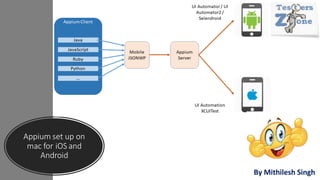
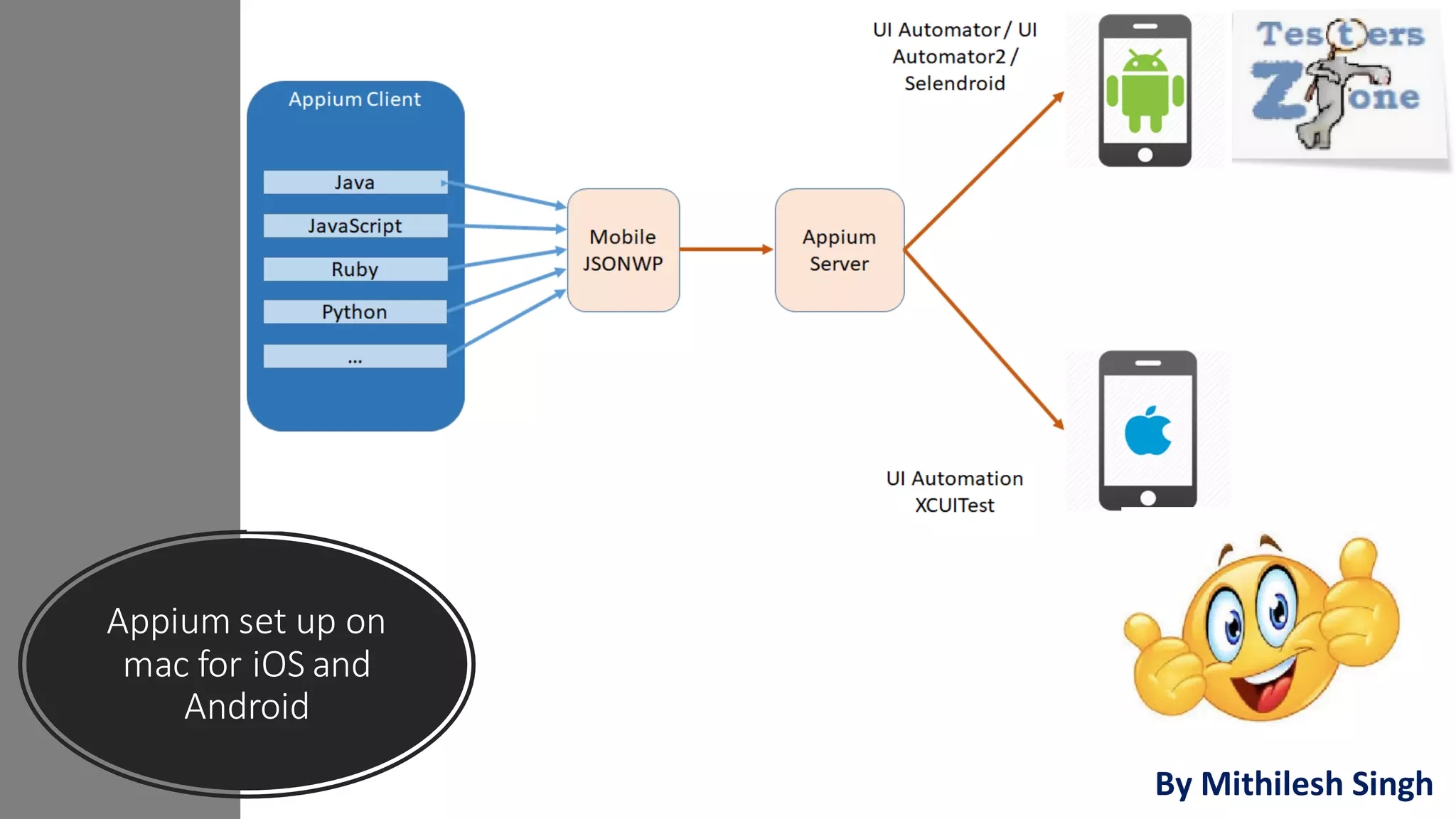
Appium set up on
mac for iOS and
Android
By Mithilesh Singh
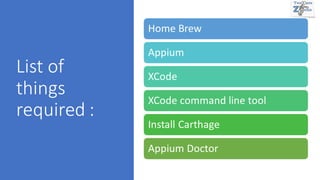
List of
things
required :
Home Brew
Appium
XCode
XCode command line tool
Install Carthage
Appium Doctor
Install Home brew
• It is a Package manager for macOS and is used to install software packages.
• Official URL: https://brew.sh/
• Install home brew using command line:
/bin/bash -c "$(curl -fsSL
https://raw.githubusercontent.com/Homebrew/install/HEAD/install.sh)"
Note: better to verify the above command accessing home brew official URL or
Copy directly from there.
Install Appium
• Appium can be installed using NPM and Appium Desktop.
• via npm :
npm standsfor node package manager, which helps to install node module using command line tool.
Since appium is a node module we can install it using npm. First we need to install node using package
manager brew, npm comes with node so no need to install it separately.
Commands:
brew installnode
npm install –g appium
• Note: we can start appium serverusing command --> appium in the terminal.
• via Appium desktop:
it's a GUIrepresentation.Can easily be installed from Appium official site.
https://www.appium.io
Note:
If we install appium using npm, we will
get command line version of the appium,
it will not have graphical interface. On
the other hand if we install using appium
desktop client we will have graphical
user interface called appium inspector. It
help to inspect the element of native
mobile application.
While installing appium using appium
desktop client we no need to install
node separately it comes as a bundle
with appium inspector.
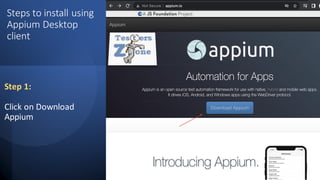
Steps to install using
Appium Desktop
client
Step 1:
Click on Download
Appium
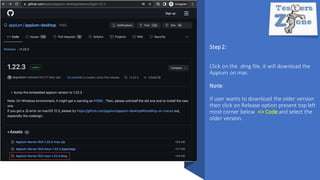
Step2:
Click on the .dmg file, it will download the
Appium on mac.
Note:
If user wants to download the older version
then click on Release option present top left
most corner below <> Code and select the
older version.
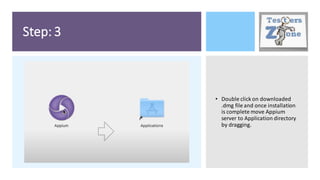
Step: 3
• Double click on downloaded
.dmg file and once installation
is complete move Appium
server to Application directory
by dragging.
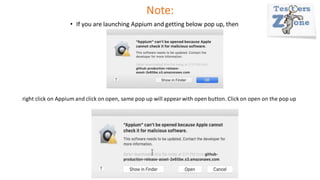
Note:
• If you are launching Appium and getting below pop up, then
right click on Appium and click on open, same pop up will appearwith open button. Click on open on the pop up
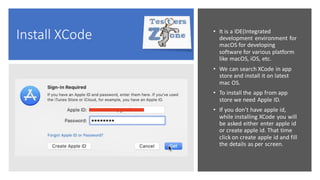
Install XCode • It is a IDE(Integrated
development environment for
macOS for developing
software for various platform
like macOS, iOS, etc.
• We can search XCode in app
store and install it on latest
mac OS.
• To install the app from app
store we need Apple ID.
• If you don't have apple id,
while installing XCode you will
be asked either enter apple id
or create apple id. That time
click on create apple id and fill
the details as per screen.
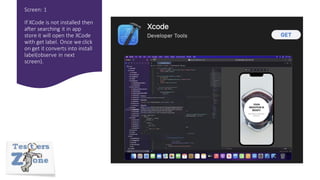
Screen: 1
If XCode is not installed then
after searching it in app
store it will open the XCode
with get label. Once we click
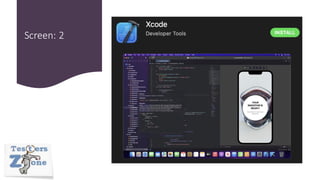
on get it converts into install
label(observe in next
screen).
Screen: 2
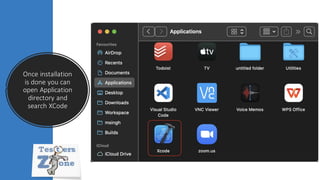
Once installation
is done you can
open Application
directory and
search XCode
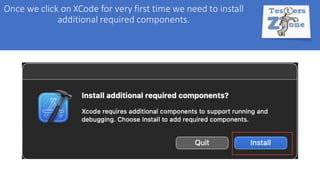
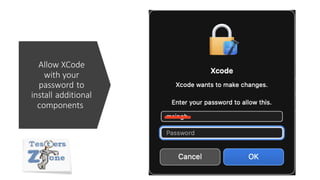
Once we click on XCode for very first time we need to install
additional required components.
Allow XCode
with your
password to
install additional
components
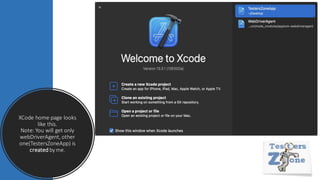
XCode home page looks
like this.
Note: You will get only
webDriverAgent, other
one(TestersZoneApp) is
created byme.
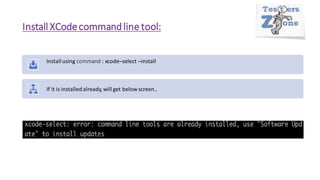
Install XCodecommandline tool:
Installusing command : xcode–select –install
If it is installedalready,will get below screen..
Install Carthage
Carthage is a simple dependency manager for macOS and
iOS, created by a group of developers from GitHub
Not only was Carthage the first dependency manager to
work with Swift, but it’s also written in Swift! It exclusively
uses dynamic frameworks, rather than staticlibraries.
We need this for WebDriverAgent.
Installationcommand: brew install carthage
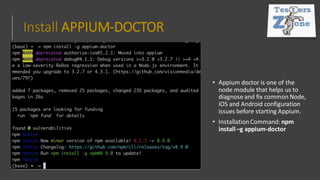
Install APPIUM-DOCTOR
• Appium doctor is one of the
node module that helps us to
diagnose and fix common Node,
iOS and Android configuration
issues before starting Appium.
• InstallationCommand: npm
install –g appium-doctor
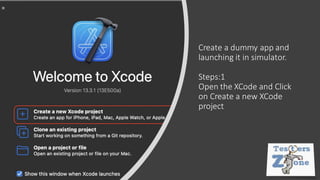
Create a dummy app and
launching it in simulator.
Steps:1
Open the XCode and Click
on Create a new XCode
project
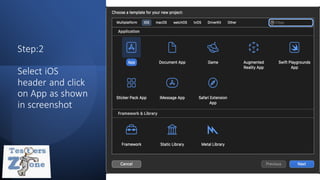
Step:2
Select iOS
header and click
on App as shown
in screenshot
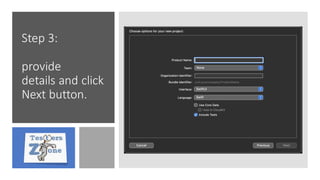
Step 3:
provide
details and click
Next button.
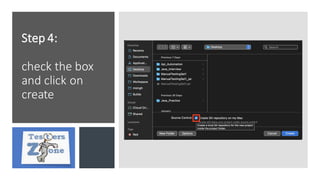
Step 4:
check the box
and click on
create
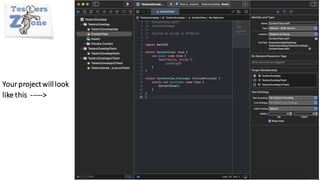
Your projectwill look
like this ----->
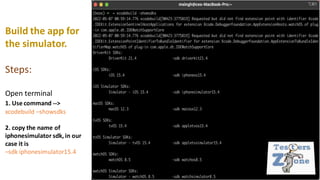
Build the app for
the simulator.
Steps:
Open terminal
1. Use command -->
xcodebuild –showsdks
2. copy the name of
iphonesimulator sdk,in our
case it is
–sdk iphonesimulator15.4
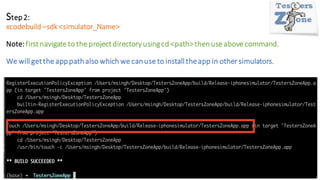
Step2:
xcodebuild –sdk <simulator_Name>
Note:firstnavigate to the projectdirectoryusingcd <path>thenuse above command.
We will getthe apppathalso which we canuse to install theapp in other simulators.
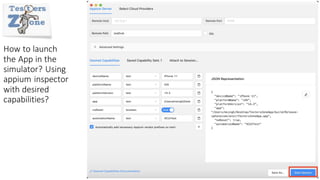
How to launch
the App in the
simulator? Using
appium inspector
with desired
capabilities?
Set up AppiumforrealiOS device
• let's connect the iPhone with mac book and get the UDID of the
phone.
• To get the UDID we can open the terminal and use command:
instruments –s devices but if you are using latest XCode version 13 or
above, instruments util will not be available there we have to use
command: xcrun xctrace list devices
Web driver Agent?
• WebDriverAgent is a WebDriver server implementation for
iOS that can be used to remote control iOS devices. It allows
you to launch & kill applications, tap & scroll views or
confirm view presence on a screen. This makes it a perfect
tool for application end-to-end testing or general purpose
device automation. It works by
linking XCTest.framework and calling Apple's API to execute
commands directly on a device. WebDriverAgent is
developed and used at Facebook for end-to-end testing and
is successfullyadopted by Appium.
Code Signing
• When downloading software from the Internet, consumers must always
be wary of 3rd parties masquerading as the software provider. With a
resource like code signing, software can be assured it is coming from the
proper source. Code signing is an operation where a software developer
or distributor digitally signs the file being sent out, to assure users that
they are receiving software that does what the creator says it will. The
signature acts as proof the code has not been tampered with or modified
from its original form.
Code signing
process:
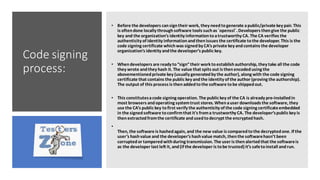
• Before the developers cansign their work, they needtogenerate apublic/private key pair. This
is oftendone locally throughsoftware tools suchas `openssl`. Developers thengive the public
key and the organization’s identity informationtoatrustworthy CA. The CA verifies the
authenticity of identity informationandthenissues the certificate tothe developer. This is the
code signing certificate whichwas signedby CA’s private key andcontains the developer
organization’s identity andthe developer’s public key.
• Whendevelopers are ready to“sign”their work toestablishauthorship, they take all the code
they wrote andthey hash it. The value that spits out is thenencodedusing the
abovementionedprivate key (usually generatedby the author), along with the code signing
certificate that contains the public key andthe identity of the author (proving the authorship).
The output of this process is thenaddedtothe software tobe shippedout.
• This constitutesacode signing operation. The public key of the CA is already pre-installedin
most browsers andoperating systemtrust stores. Whenauser downloads the software, they
use the CA’s public key tofirst verify the authenticity of the code signing certificateembedded
in the signedsoftware toconfirmthat it's froma trustworthy CA. The developer’spublic key is
thenextractedfromthe certificate andusedtodecrypt the encryptedhash.
•
Then, the software is hashedagain, and the new value is comparedtothe decryptedone. If the
user’s hashvalue and the developer’s hashvalue match, thenthe softwarehasn’t been
corruptedor tamperedwithduring transmission. The user is thenalertedthat the softwareis
as the developer last left it, and(if the developer is tobe trusted) it’s safetoinstall andrun.
Why
Provisioning
Profiles?
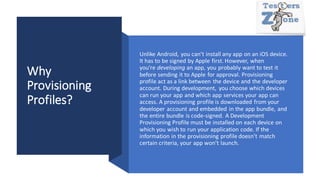
Unlike Android, you can’t install any app on an iOS device.
It has to be signed by Apple first. However, when
you’re developing an app, you probably want to test it
before sending it to Apple for approval. Provisioning
profile act as a link between the device and the developer
account. During development, you choose which devices
can run your app and which app services your app can
access. A provisioning profile is downloaded from your
developer account and embedded in the app bundle, and
the entire bundle is code-signed. A Development
Provisioning Profile must be installed on each device on
which you wish to run your application code. If the
information in the provisioning profile doesn’t match
certain criteria, your app won’t launch.
Note:
• Every iOS app's have to go through code signing and provisioning profile before it can be
installed in iOS device even for web driver agent also it applicable before getting installed
in iOS device. Appium handles this requirement in three different ways.
A. Basic Automatic Configuration.
B. Basic Manual Configuration.
C. Full Manual Configuration.
• Basic Manual configuration works well with developer paid account
• If you don't have any paid account and you are in learning phase better to use Full
Manual Configuration.
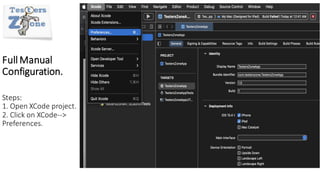
Full Manual
Configuration.
Steps:
1. Open XCode project.
2. Click on XCode-->
Preferences.
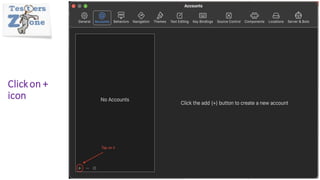
Clickon +
icon
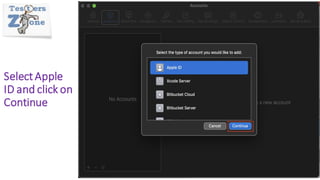
SelectApple
ID and click on
Continue
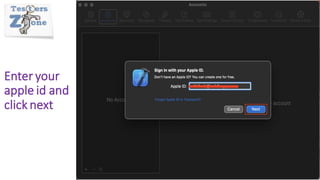
Enter your
apple id and
click next
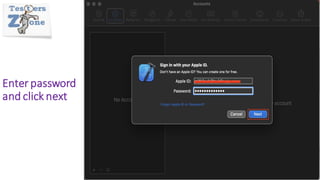
Enter password
and click next
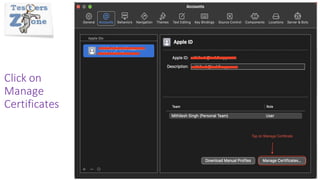
Click on
Manage
Certificates
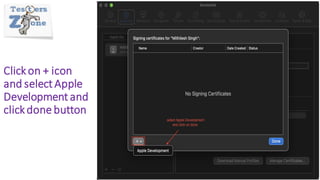
Clickon + icon
and select Apple
Development and
clickdone button
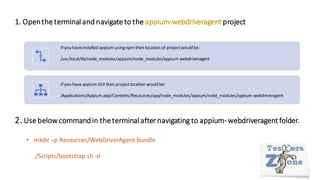
1. Openthe terminal and navigate to the appium-webdriveragentproject
If you haveinstalled appium using npm then location of projectwould be:
/usr/local/lib/node_modules/appium/node_modules/appium-webdriveragent
If you haveappium GUI then projectlocation would be:
/Applications/Appium.app/Contents/Resources/app/node_modules/appium/node_modules/appium-webdriveragent
2. Use belowcommandin theterminal after navigating to appium- webdriveragent folder.
• mkdir –p Resources/WebDriverAgent.bundle
./Scripts/bootstrap.sh -d
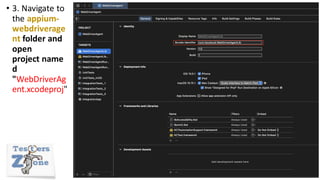
• 3. Navigate to
the appium-
webdriverage
nt folder and
open
project name
d
"WebDriverAg
ent.xcodeproj"
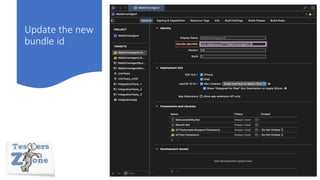
Update the new
bundle id
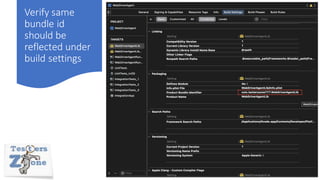
Verify same
bundle id
should be
reflected under
build settings
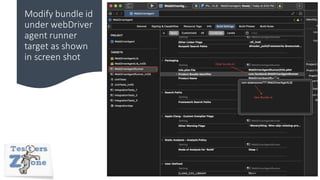
Modify bundle id
under webDriver
agent runner
target as shown
in screen shot
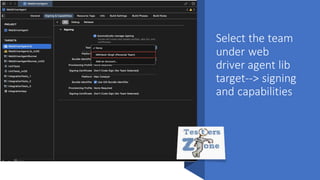
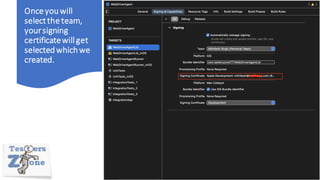
Select the team
under web
driver agent lib
target--> signing
and capabilities
Onceyouwill
selecttheteam,
yoursigning
certificatewillget
selectedwhichwe
created.
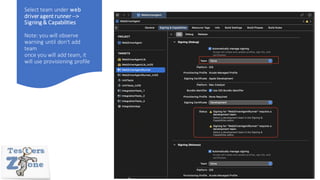
Select team under web
driver agent runner -->
Signing & Capabilities
Note: you will observe
warning until don't add
team
once you will add team, it
will use provisioning profile
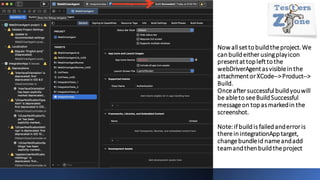
Now allset tobuildtheproject.We
canbuildeitherusingplayicon
presentat topleft tothe
webDriverAgentasvisibleinthe
attachmentorXCode-->Product-->
Build.
Onceaftersuccessfulbuildyouwill
be ableto seeBuildSuccessful
messageon topasmarkedin the
screenshot.
Note:ifbuildis failedanderroris
thereinintegrationApptarget,
changebundleid nameandadd
teamandthenbuildtheproject
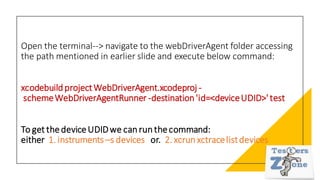
Open the terminal--> navigate to the webDriverAgent folder accessing
the path mentioned in earlier slide and execute below command:
xcodebuildprojectWebDriverAgent.xcodeproj -
schemeWebDriverAgentRunner -destination'id=<deviceUDID>'test
To get thedeviceUDIDwe canrunthecommand:
either 1. instruments –s devices or. 2. xcrunxctracelistdevices
Note:
• If app is not getting launched check manually once, double click on
installed webDriverAgent on iOS device, if you get untrusted
developer pop up then you need to follow the below steps:
Go to Settings--> General-->Device Management--> click Trust <...>
Now you can use Appium and add desire capabilities mentioned
in earlier slide and launch the app.
Note:
make sure your iPhone device is registered with provisioning profile
which is used to create application under test. For that you can ask
your developer to register your iPhone in the developer portal.
Appium set up on mac
for android
Pre requisites:
• Install homebrew.
• Install node and npm.
• Install Appium server using NPM.
• Install Appium server using Appium Desktopclient.
•
All these steps are already covered in "Appium set up on mac for iOS"
in above slides..
Pre requisites:
• Install JAVA JDK
• Install Android Studio
• Set JAVA_HOME and ANDROID_STUDIOin the .bash_profile or .zshrc
file.
• Verify installation using appium- doctor--> Covered in Slide no. 14
Install JAVA JDK
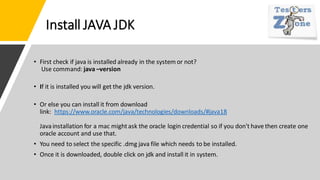
• First check if java is installed already in the system or not?
Use command: java –version
• If it is installed you will get the jdk version.
• Or else you can install it from download
link: https://www.oracle.com/java/technologies/downloads/#java18
Java installation for a mac mightask the oracle login credential so if you don't have then create one
oracle account and use that.
• You need to select the specific .dmg java file which needs to be installed.
• Once it is downloaded, double click on jdk and install it in system.
Install AndroidStudio
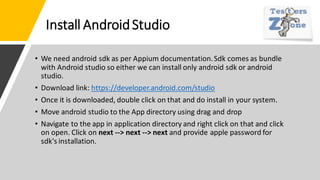
• We need android sdk as per Appium documentation.Sdk comes as bundle
with Android studio so either we can install only android sdk or android
studio.
• Download link: https://developer.android.com/studio
• Once it is downloaded, double click on that and do install in your system.
• Move android studio to the App directory using drag and drop
• Navigate to the app in application directory and right click on that and click
on open. Click on next --> next --> next and provide apple password for
sdk's installation.
Set JAVA_HOME and ANDROID_STUDIO in the
.bash_profile or .zshrcfile
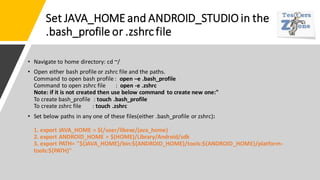
• Navigate to home directory: cd ~/
• Open either bash profile or zshrc file and the paths.
Command to open bash profile : open –e .bash_profile
Command to open zshrc file : open -e .zshrc
Note: if it is not created then use below command to create new one:"
To create bash_profile : touch .bash_profile
To create zshrc file : touch .zshrc
• Set below paths in any one of these files(either .bash_profile or zshrc):
1. export JAVA_HOME = $(/user/libexe/java_home)
2. export ANDROID_HOME = $(HOME)/Library/Android/sdk
3. export PATH= "${JAVA_HOME}/bin:${ANDROID_HOME}/tools:${ANDROID_HOME}/platform-
tools:${PATH}"
Important points:
Changes we will make in .bash_profile or .zshrc file are not reflected automatically.
For that we need to save those changes using command: source .zshrc or source
.bash_profile
To get confirmed about our changes in the respective file we can use below
command, it should return the exact path mentioned in the file:
echo $JAVA_HOME
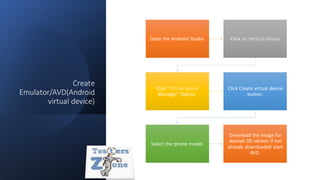
Create
Emulator/AVD(Android
virtual device)
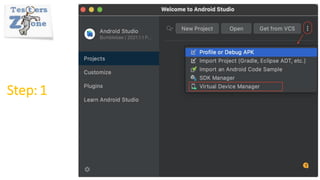
Open the Android Studio. Click on Vertical ellipsis
Click "Virtual device
Manager" Option.
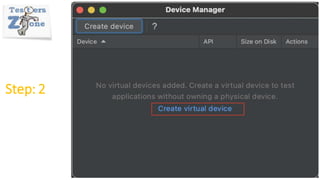
Click Create virtual device
button.
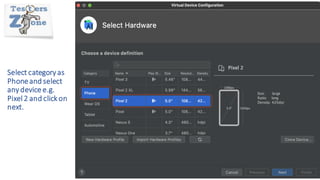
Select the phone model.
Download the image for
desired OS version if not
already downloaded start
AVD.
Step: 1
Step: 2
Select category as
Phoneand select
any device e.g.
Pixel 2 and click on
next.
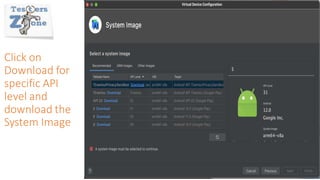
Click on
Download for
specific API
level and
download the
System Image
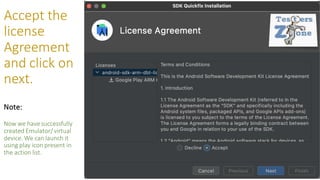
Accept the
license
Agreement
and click on
next.
Note:
Now we havesuccessfully
created Emulator/ virtual
device. We can launch it
using play icon present in
the action list.
Real device set up with dummy app
1. Download dummy app in your real device:
https://github.com/appium/appium/blob/master/sample-code/apps/ApiDemos-debug.apk
2. launch the Appium and start the server.
3. To launch the real device from appium we need to add desire capabilities.
4. Click on search icon present on the appium running server and click on desire capabilities.
5. add the capabilities: reference : http://appium.io/docs/en/about-appium/getting-
started/?lang=en
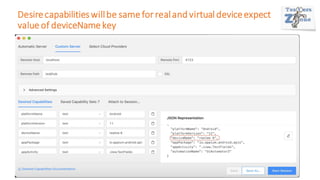
Desirecapabilitieswillbe same for realand virtual deviceexpect
value of deviceName key
How to Enable
USB debugging
on Android[Real
device]
There are following steps:
• Go to the "Settings" in your mobile.
• Click "About phone" option.
• Click on "Build Number" 7 to 8 times.
• Navigate back to "Settings".
• Open developer Options.
• Enable "USB Debugging"
Note:
once we enable USB Debugging, "Allow
USB debugging" pop up will appear we
need to click on checkbox and click Ok.
Note:
• Some time while launching the app using Appium desktop,
might get error with adb tool because Appium Desktop
cannot read ANDROID_HOMEpath from the bash profile.
• Set the ANDROID_HOMEpath in appium desktop
using editing configuration.
Appium_set_up

Appium_set_up

  • 1.
    Appium set upon mac for iOS and Android By Mithilesh Singh
  • 2.
    List of things required : HomeBrew Appium XCode XCode command line tool Install Carthage Appium Doctor
  • 3.
    Install Home brew •It is a Package manager for macOS and is used to install software packages. • Official URL: https://brew.sh/ • Install home brew using command line: /bin/bash -c "$(curl -fsSL https://raw.githubusercontent.com/Homebrew/install/HEAD/install.sh)" Note: better to verify the above command accessing home brew official URL or Copy directly from there.
  • 4.
    Install Appium • Appiumcan be installed using NPM and Appium Desktop. • via npm : npm standsfor node package manager, which helps to install node module using command line tool. Since appium is a node module we can install it using npm. First we need to install node using package manager brew, npm comes with node so no need to install it separately. Commands: brew installnode npm install –g appium • Note: we can start appium serverusing command --> appium in the terminal. • via Appium desktop: it's a GUIrepresentation.Can easily be installed from Appium official site. https://www.appium.io
  • 5.
    Note: If we installappium using npm, we will get command line version of the appium, it will not have graphical interface. On the other hand if we install using appium desktop client we will have graphical user interface called appium inspector. It help to inspect the element of native mobile application. While installing appium using appium desktop client we no need to install node separately it comes as a bundle with appium inspector.
  • 6.
    Steps to installusing Appium Desktop client Step 1: Click on Download Appium
  • 7.
    Step2: Click on the.dmg file, it will download the Appium on mac. Note: If user wants to download the older version then click on Release option present top left most corner below <> Code and select the older version.
  • 8.
    Step: 3 • Doubleclick on downloaded .dmg file and once installation is complete move Appium server to Application directory by dragging.
  • 9.
    Note: • If youare launching Appium and getting below pop up, then right click on Appium and click on open, same pop up will appearwith open button. Click on open on the pop up
  • 10.
    Install XCode •It is a IDE(Integrated development environment for macOS for developing software for various platform like macOS, iOS, etc. • We can search XCode in app store and install it on latest mac OS. • To install the app from app store we need Apple ID. • If you don't have apple id, while installing XCode you will be asked either enter apple id or create apple id. That time click on create apple id and fill the details as per screen.
  • 11.
    Screen: 1 If XCodeis not installed then after searching it in app store it will open the XCode with get label. Once we click on get it converts into install label(observe in next screen).
  • 12.
  • 13.
    Once installation is doneyou can open Application directory and search XCode
  • 14.
    Once we clickon XCode for very first time we need to install additional required components.
  • 15.
    Allow XCode with your passwordto install additional components
  • 16.
    XCode home pagelooks like this. Note: You will get only webDriverAgent, other one(TestersZoneApp) is created byme.
  • 17.
    Install XCodecommandline tool: Installusingcommand : xcode–select –install If it is installedalready,will get below screen..
  • 18.
    Install Carthage Carthage isa simple dependency manager for macOS and iOS, created by a group of developers from GitHub Not only was Carthage the first dependency manager to work with Swift, but it’s also written in Swift! It exclusively uses dynamic frameworks, rather than staticlibraries. We need this for WebDriverAgent. Installationcommand: brew install carthage
  • 19.
    Install APPIUM-DOCTOR • Appiumdoctor is one of the node module that helps us to diagnose and fix common Node, iOS and Android configuration issues before starting Appium. • InstallationCommand: npm install –g appium-doctor
  • 20.
    Create a dummyapp and launching it in simulator. Steps:1 Open the XCode and Click on Create a new XCode project
  • 21.
    Step:2 Select iOS header andclick on App as shown in screenshot
  • 22.
    Step 3: provide details andclick Next button.
  • 23.
    Step 4: check thebox and click on create
  • 24.
  • 25.
    Build the appfor the simulator. Steps: Open terminal 1. Use command --> xcodebuild –showsdks 2. copy the name of iphonesimulator sdk,in our case it is –sdk iphonesimulator15.4
  • 26.
    Step2: xcodebuild –sdk <simulator_Name> Note:firstnavigateto the projectdirectoryusingcd <path>thenuse above command. We will getthe apppathalso which we canuse to install theapp in other simulators.
  • 27.
    How to launch theApp in the simulator? Using appium inspector with desired capabilities?
  • 28.
    Set up AppiumforrealiOSdevice • let's connect the iPhone with mac book and get the UDID of the phone. • To get the UDID we can open the terminal and use command: instruments –s devices but if you are using latest XCode version 13 or above, instruments util will not be available there we have to use command: xcrun xctrace list devices
  • 29.
    Web driver Agent? •WebDriverAgent is a WebDriver server implementation for iOS that can be used to remote control iOS devices. It allows you to launch & kill applications, tap & scroll views or confirm view presence on a screen. This makes it a perfect tool for application end-to-end testing or general purpose device automation. It works by linking XCTest.framework and calling Apple's API to execute commands directly on a device. WebDriverAgent is developed and used at Facebook for end-to-end testing and is successfullyadopted by Appium.
  • 30.
    Code Signing • Whendownloading software from the Internet, consumers must always be wary of 3rd parties masquerading as the software provider. With a resource like code signing, software can be assured it is coming from the proper source. Code signing is an operation where a software developer or distributor digitally signs the file being sent out, to assure users that they are receiving software that does what the creator says it will. The signature acts as proof the code has not been tampered with or modified from its original form.
  • 31.
    Code signing process: • Beforethe developers cansign their work, they needtogenerate apublic/private key pair. This is oftendone locally throughsoftware tools suchas `openssl`. Developers thengive the public key and the organization’s identity informationtoatrustworthy CA. The CA verifies the authenticity of identity informationandthenissues the certificate tothe developer. This is the code signing certificate whichwas signedby CA’s private key andcontains the developer organization’s identity andthe developer’s public key. • Whendevelopers are ready to“sign”their work toestablishauthorship, they take all the code they wrote andthey hash it. The value that spits out is thenencodedusing the abovementionedprivate key (usually generatedby the author), along with the code signing certificate that contains the public key andthe identity of the author (proving the authorship). The output of this process is thenaddedtothe software tobe shippedout. • This constitutesacode signing operation. The public key of the CA is already pre-installedin most browsers andoperating systemtrust stores. Whenauser downloads the software, they use the CA’s public key tofirst verify the authenticity of the code signing certificateembedded in the signedsoftware toconfirmthat it's froma trustworthy CA. The developer’spublic key is thenextractedfromthe certificate andusedtodecrypt the encryptedhash. • Then, the software is hashedagain, and the new value is comparedtothe decryptedone. If the user’s hashvalue and the developer’s hashvalue match, thenthe softwarehasn’t been corruptedor tamperedwithduring transmission. The user is thenalertedthat the softwareis as the developer last left it, and(if the developer is tobe trusted) it’s safetoinstall andrun.
  • 32.
    Why Provisioning Profiles? Unlike Android, youcan’t install any app on an iOS device. It has to be signed by Apple first. However, when you’re developing an app, you probably want to test it before sending it to Apple for approval. Provisioning profile act as a link between the device and the developer account. During development, you choose which devices can run your app and which app services your app can access. A provisioning profile is downloaded from your developer account and embedded in the app bundle, and the entire bundle is code-signed. A Development Provisioning Profile must be installed on each device on which you wish to run your application code. If the information in the provisioning profile doesn’t match certain criteria, your app won’t launch.
  • 33.
    Note: • Every iOSapp's have to go through code signing and provisioning profile before it can be installed in iOS device even for web driver agent also it applicable before getting installed in iOS device. Appium handles this requirement in three different ways. A. Basic Automatic Configuration. B. Basic Manual Configuration. C. Full Manual Configuration. • Basic Manual configuration works well with developer paid account • If you don't have any paid account and you are in learning phase better to use Full Manual Configuration.
  • 34.
    Full Manual Configuration. Steps: 1. OpenXCode project. 2. Click on XCode--> Preferences.
  • 35.
  • 36.
  • 37.
    Enter your apple idand click next
  • 38.
  • 39.
  • 40.
    Clickon + icon andselect Apple Development and clickdone button
  • 41.
    1. Openthe terminaland navigate to the appium-webdriveragentproject If you haveinstalled appium using npm then location of projectwould be: /usr/local/lib/node_modules/appium/node_modules/appium-webdriveragent If you haveappium GUI then projectlocation would be: /Applications/Appium.app/Contents/Resources/app/node_modules/appium/node_modules/appium-webdriveragent 2. Use belowcommandin theterminal after navigating to appium- webdriveragent folder. • mkdir –p Resources/WebDriverAgent.bundle ./Scripts/bootstrap.sh -d
  • 42.
    • 3. Navigateto the appium- webdriverage nt folder and open project name d "WebDriverAg ent.xcodeproj"
  • 43.
  • 44.
    Verify same bundle id shouldbe reflected under build settings
  • 45.
    Modify bundle id underwebDriver agent runner target as shown in screen shot
  • 46.
    Select the team underweb driver agent lib target--> signing and capabilities
  • 47.
  • 48.
    Select team underweb driver agent runner --> Signing & Capabilities Note: you will observe warning until don't add team once you will add team, it will use provisioning profile
  • 49.
    Now allset tobuildtheproject.We canbuildeitherusingplayicon presentattopleft tothe webDriverAgentasvisibleinthe attachmentorXCode-->Product--> Build. Onceaftersuccessfulbuildyouwill be ableto seeBuildSuccessful messageon topasmarkedin the screenshot. Note:ifbuildis failedanderroris thereinintegrationApptarget, changebundleid nameandadd teamandthenbuildtheproject
  • 50.
    Open the terminal-->navigate to the webDriverAgent folder accessing the path mentioned in earlier slide and execute below command: xcodebuildprojectWebDriverAgent.xcodeproj - schemeWebDriverAgentRunner -destination'id=<deviceUDID>'test To get thedeviceUDIDwe canrunthecommand: either 1. instruments –s devices or. 2. xcrunxctracelistdevices
  • 51.
    Note: • If appis not getting launched check manually once, double click on installed webDriverAgent on iOS device, if you get untrusted developer pop up then you need to follow the below steps: Go to Settings--> General-->Device Management--> click Trust <...> Now you can use Appium and add desire capabilities mentioned in earlier slide and launch the app. Note: make sure your iPhone device is registered with provisioning profile which is used to create application under test. For that you can ask your developer to register your iPhone in the developer portal.
  • 52.
    Appium set upon mac for android
  • 53.
    Pre requisites: • Installhomebrew. • Install node and npm. • Install Appium server using NPM. • Install Appium server using Appium Desktopclient. • All these steps are already covered in "Appium set up on mac for iOS" in above slides..
  • 54.
    Pre requisites: • InstallJAVA JDK • Install Android Studio • Set JAVA_HOME and ANDROID_STUDIOin the .bash_profile or .zshrc file. • Verify installation using appium- doctor--> Covered in Slide no. 14
  • 55.
    Install JAVA JDK •First check if java is installed already in the system or not? Use command: java –version • If it is installed you will get the jdk version. • Or else you can install it from download link: https://www.oracle.com/java/technologies/downloads/#java18 Java installation for a mac mightask the oracle login credential so if you don't have then create one oracle account and use that. • You need to select the specific .dmg java file which needs to be installed. • Once it is downloaded, double click on jdk and install it in system.
  • 56.
    Install AndroidStudio • Weneed android sdk as per Appium documentation.Sdk comes as bundle with Android studio so either we can install only android sdk or android studio. • Download link: https://developer.android.com/studio • Once it is downloaded, double click on that and do install in your system. • Move android studio to the App directory using drag and drop • Navigate to the app in application directory and right click on that and click on open. Click on next --> next --> next and provide apple password for sdk's installation.
  • 57.
    Set JAVA_HOME andANDROID_STUDIO in the .bash_profile or .zshrcfile • Navigate to home directory: cd ~/ • Open either bash profile or zshrc file and the paths. Command to open bash profile : open –e .bash_profile Command to open zshrc file : open -e .zshrc Note: if it is not created then use below command to create new one:" To create bash_profile : touch .bash_profile To create zshrc file : touch .zshrc • Set below paths in any one of these files(either .bash_profile or zshrc): 1. export JAVA_HOME = $(/user/libexe/java_home) 2. export ANDROID_HOME = $(HOME)/Library/Android/sdk 3. export PATH= "${JAVA_HOME}/bin:${ANDROID_HOME}/tools:${ANDROID_HOME}/platform- tools:${PATH}"
  • 58.
    Important points: Changes wewill make in .bash_profile or .zshrc file are not reflected automatically. For that we need to save those changes using command: source .zshrc or source .bash_profile To get confirmed about our changes in the respective file we can use below command, it should return the exact path mentioned in the file: echo $JAVA_HOME
  • 59.
    Create Emulator/AVD(Android virtual device) Open theAndroid Studio. Click on Vertical ellipsis Click "Virtual device Manager" Option. Click Create virtual device button. Select the phone model. Download the image for desired OS version if not already downloaded start AVD.
  • 60.
  • 61.
  • 62.
    Select category as Phoneandselect any device e.g. Pixel 2 and click on next.
  • 63.
    Click on Download for specificAPI level and download the System Image
  • 64.
    Accept the license Agreement and clickon next. Note: Now we havesuccessfully created Emulator/ virtual device. We can launch it using play icon present in the action list.
  • 65.
    Real device setup with dummy app 1. Download dummy app in your real device: https://github.com/appium/appium/blob/master/sample-code/apps/ApiDemos-debug.apk 2. launch the Appium and start the server. 3. To launch the real device from appium we need to add desire capabilities. 4. Click on search icon present on the appium running server and click on desire capabilities. 5. add the capabilities: reference : http://appium.io/docs/en/about-appium/getting- started/?lang=en
  • 66.
    Desirecapabilitieswillbe same forrealand virtual deviceexpect value of deviceName key
  • 67.
    How to Enable USBdebugging on Android[Real device] There are following steps: • Go to the "Settings" in your mobile. • Click "About phone" option. • Click on "Build Number" 7 to 8 times. • Navigate back to "Settings". • Open developer Options. • Enable "USB Debugging" Note: once we enable USB Debugging, "Allow USB debugging" pop up will appear we need to click on checkbox and click Ok.
  • 68.
    Note: • Some timewhile launching the app using Appium desktop, might get error with adb tool because Appium Desktop cannot read ANDROID_HOMEpath from the bash profile. • Set the ANDROID_HOMEpath in appium desktop using editing configuration.