APPLICATION SOFTWARE
WORD PROCESSING/SPREADSHEET/PUBLISHING
WORD PROCESSING
Word processing is the process of adding text to a word
processing unit such as a computer or typewriter.
The term "word processing" is a fairly general term, so it may
refer to several types of writing without the use of pen and
paper.
for example,
Typewriters process words directly onto a paper without storing
the data, while computers use specific programs to store the
typed data before printing.
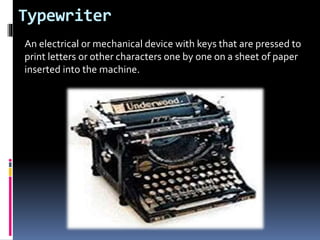
Typewriter
An electrical or mechanical device with keys that are pressed to
print letters or other characters one by one on a sheet of paper
inserted into the machine.
History of Typewriter
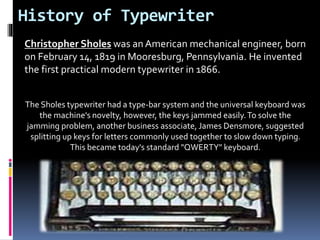
Christopher Sholes was an American mechanical engineer, born
on February 14, 1819 in Mooresburg, Pennsylvania. He invented
the first practical modern typewriter in 1866.
The Sholes typewriter had a type-bar system and the universal keyboard was
the machine's novelty, however, the keys jammed easily.To solve the
jamming problem, another business associate, James Densmore, suggested
splitting up keys for letters commonly used together to slow down typing.
This became today's standard "QWERTY" keyboard.
History of Typewriter
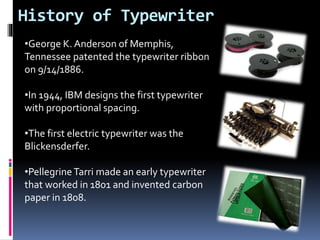
•George K. Anderson of Memphis,
Tennessee patented the typewriter ribbon
on 9/14/1886.
•In 1944, IBM designs the first typewriter
with proportional spacing.
•The first electric typewriter was the
Blickensderfer.
•PellegrineTarri made an early typewriter
that worked in 1801 and invented carbon
paper in 1808.
History of Typewriter
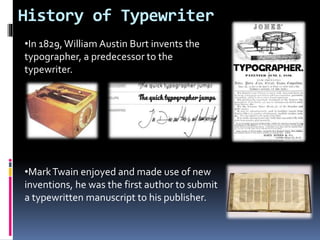
•In 1829,William Austin Burt invents the
typographer, a predecessor to the
typewriter.
•MarkTwain enjoyed and made use of new
inventions, he was the first author to submit
a typewritten manuscript to his publisher.
Types of Typewriter
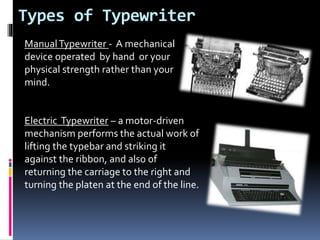
ManualTypewriter - A mechanical
device operated by hand or your
physical strength rather than your
mind.
Electric Typewriter – a motor-driven
mechanism performs the actual work of
lifting the typebar and striking it
against the ribbon, and also of
returning the carriage to the right and
turning the platen at the end of the line.
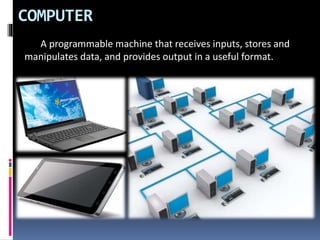
COMPUTER
A programmable machine that receives inputs, stores and
manipulates data, and provides output in a useful format.
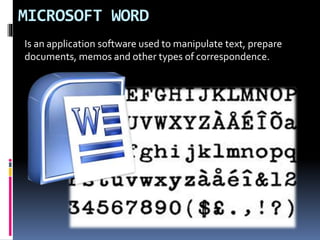
MICROSOFT WORD
Is an application software used to manipulate text, prepare
documents, memos and other types of correspondence.
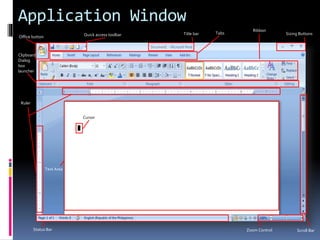
Application Window
Quick access toolbar Title bar Tabs
Office button
Ribbon
Ruler
Status Bar Scroll BarZoom Control
Text Area
Cursor
Sizing Buttons
Clipboard
Dialog
box
launcher
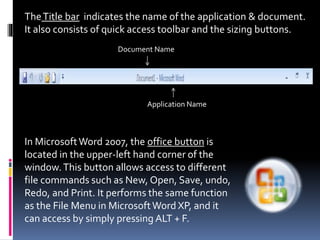
TheTitle bar indicates the name of the application & document.
It also consists of quick access toolbar and the sizing buttons.
Application Name
Document Name
In MicrosoftWord 2007, the office button is
located in the upper-left hand corner of the
window.This button allows access to different
file commands such as New, Open, Save, undo,
Redo, and Print. It performs the same function
as the File Menu in MicrosoftWord XP, and it
can access by simply pressing ALT + F.
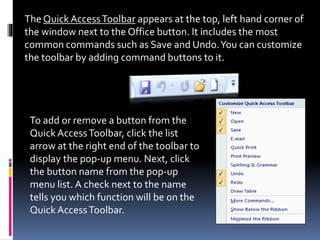
The Quick AccessToolbar appears at the top, left hand corner of
the window next to the Office button. It includes the most
common commands such as Save and Undo.You can customize
the toolbar by adding command buttons to it.
To add or remove a button from the
Quick AccessToolbar, click the list
arrow at the right end of the toolbar to
display the pop-up menu. Next, click
the button name from the pop-up
menu list. A check next to the name
tells you which function will be on the
Quick AccessToolbar.
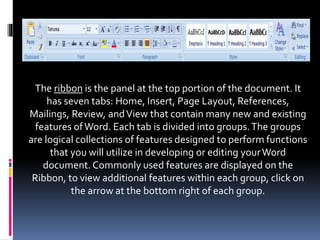
The ribbon is the panel at the top portion of the document. It
has seven tabs: Home, Insert, Page Layout, References,
Mailings, Review, andView that contain many new and existing
features ofWord. Each tab is divided into groups.The groups
are logical collections of features designed to perform functions
that you will utilize in developing or editing yourWord
document. Commonly used features are displayed on the
Ribbon, to view additional features within each group, click on
the arrow at the bottom right of each group.
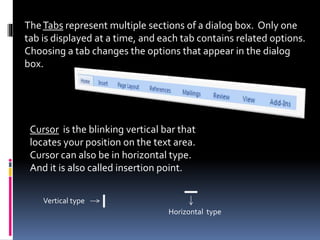
TheTabs represent multiple sections of a dialog box. Only one
tab is displayed at a time, and each tab contains related options.
Choosing a tab changes the options that appear in the dialog
box.
Cursor is the blinking vertical bar that
locates your position on the text area.
Cursor can also be in horizontal type.
And it is also called insertion point.
Vertical type
Horizontal type
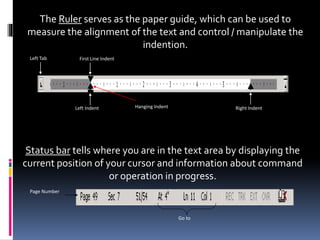
The Ruler serves as the paper guide, which can be used to
measure the alignment of the text and control / manipulate the
indention.
Left Tab First Line Indent
Left Indent Right IndentHanging Indent
Status bar tells where you are in the text area by displaying the
current position of your cursor and information about command
or operation in progress.
Page Number
Go to
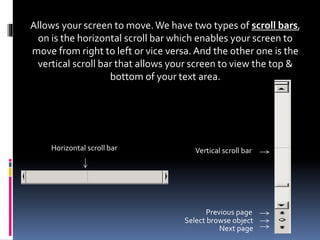
Allows your screen to move.We have two types of scroll bars,
on is the horizontal scroll bar which enables your screen to
move from right to left or vice versa. And the other one is the
vertical scroll bar that allows your screen to view the top &
bottom of your text area.
Vertical scroll bar
Previous page
Next page
Select browse object
Horizontal scroll bar
Text Area is where all the characters & numbers we encode
appear, this serves as our working area
In order for us to create or
make the first draft of a document, we should follow a series of
steps:
For beginners, it is advisable to use follow this procedure.
PLANNING
Is to understand the purpose of the document and to plan what
your document will contain.
things to remember
- prepare lectures
- make advance study
- be ready
ENTERING
Entering the content of the document by typing the text using
word processor.
Things to remember
- finish entering before editing the content
- ignore errors
- set page setup
- set font and their size
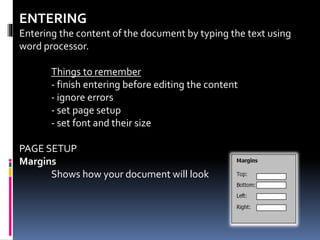
PAGE SETUP
Margins
Shows how your document will look
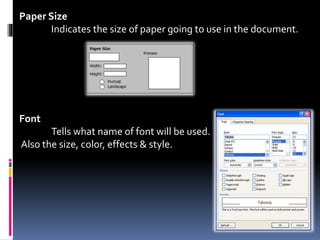
Paper Size
Indicates the size of paper going to use in the document.
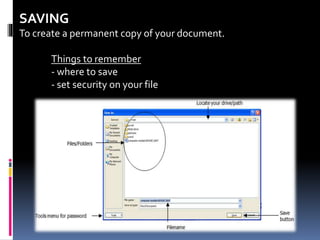
Font
Tells what name of font will be used.
Also the size, color, effects & style.
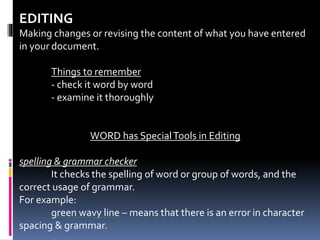
SAVING
To create a permanent copy of your document.
Things to remember
- where to save
- set security on your file
EDITING
Making changes or revising the content of what you have entered
in your document.
Things to remember
- check it word by word
- examine it thoroughly
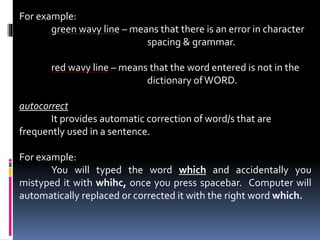
WORD has SpecialTools in Editing
spelling & grammar checker
It checks the spelling of word or group of words, and the
correct usage of grammar.
For example:
green wavy line – means that there is an error in character
spacing & grammar.
For example:
green wavy line – means that there is an error in character
spacing & grammar.
red wavy line – means that the word entered is not in the
dictionary ofWORD.
autocorrect
It provides automatic correction of word/s that are
frequently used in a sentence.
For example:
You will typed the word which and accidentally you
mistyped it with whihc, once you press spacebar. Computer will
automatically replaced or corrected it with the right word which.
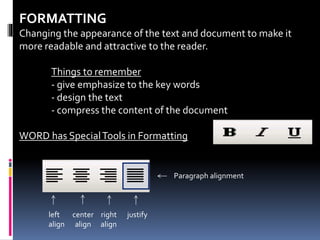
FORMATTING
Changing the appearance of the text and document to make it
more readable and attractive to the reader.
Things to remember
- give emphasize to the key words
- design the text
- compress the content of the document
WORD has SpecialTools in Formatting
Paragraph alignment
left
align
center
align
right
align
justify
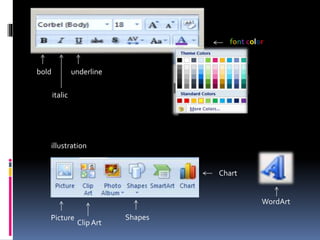
font color
bold
italic
underline
illustration
Picture
ClipArt
Shapes
Chart
WordArt
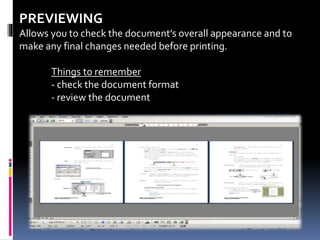
PREVIEWING
Allows you to check the document’s overall appearance and to
make any final changes needed before printing.
Things to remember
- check the document format
- review the document
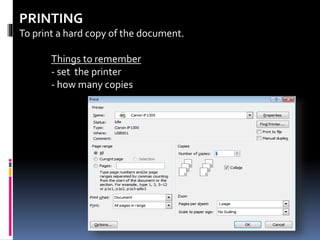
PRINTING
To print a hard copy of the document.
Things to remember
- set the printer
- how many copies
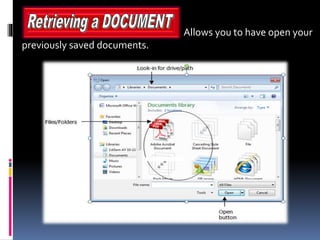
Allows you to have open your
previously saved documents.
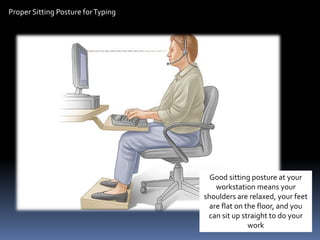
Proper Sitting Posture forTyping
Good sitting posture at your
workstation means your
shoulders are relaxed, your feet
are flat on the floor, and you
can sit up straight to do your
work
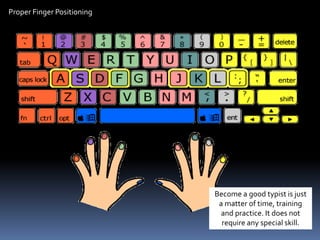
Proper Finger Positioning
Become a good typist is just
a matter of time, training
and practice. It does not
require any special skill.
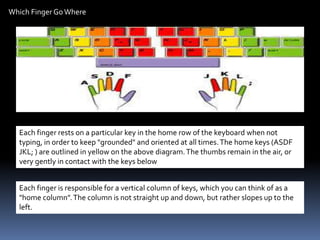
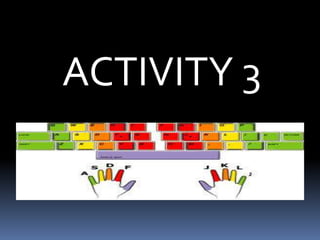
Which Finger GoWhere
Each finger rests on a particular key in the home row of the keyboard when not
typing, in order to keep "grounded" and oriented at all times.The home keys (ASDF
JKL; ) are outlined in yellow on the above diagram.The thumbs remain in the air, or
very gently in contact with the keys below
Each finger is responsible for a vertical column of keys, which you can think of as a
"home column".The column is not straight up and down, but rather slopes up to the
left.
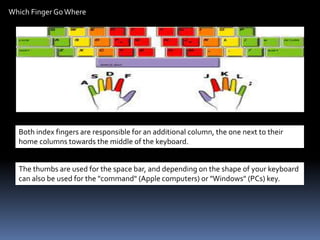
Which Finger GoWhere
Both index fingers are responsible for an additional column, the one next to their
home columns towards the middle of the keyboard.
The thumbs are used for the space bar, and depending on the shape of your keyboard
can also be used for the "command" (Apple computers) or "Windows" (PCs) key.
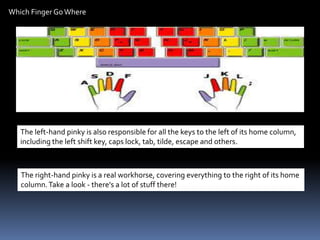
Which Finger GoWhere
The left-hand pinky is also responsible for all the keys to the left of its home column,
including the left shift key, caps lock, tab, tilde, escape and others.
The right-hand pinky is a real workhorse, covering everything to the right of its home
column.Take a look - there's a lot of stuff there!
ACTIVITY 3
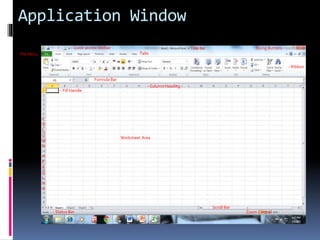
Application Window
- Quick access toolbar - Title bar
TabsFile Menu
- Ribbon
- Column Heading -
- Status Bar
Scroll Bar
Zoom Control
Text Area
Sizing Buttons -
- Fill Handle
C
O
L
U
M
N
H
E
A
D
I
N
G
Worksheet Area
Formula Bar
The package was shipped from South Korea to Philippines via Express Mail Service
(EMS) on June 6, 2014. Unfortunately, it was held by customs for almost three
weeks. It was released on June 25, 2014, and was forwarded to the local post office
the next day.
The package is just a small box with four CD albums on it.The total declared value is
$39.39, and the shipping fee is $13. Insurance is not included.
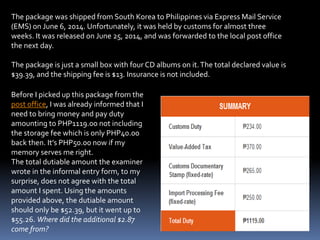
Before I picked up this package from the
post office, I was already informed that I
need to bring money and pay duty
amounting to PHP1119.00 not including
the storage fee which is only PHP40.00
back then. It’s PHP50.00 now if my
memory serves me right.
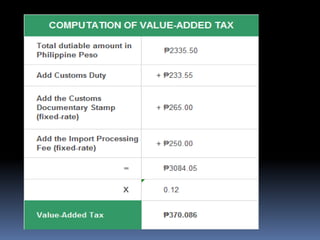
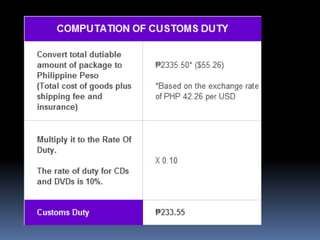
The total dutiable amount the examiner
wrote in the informal entry form, to my
surprise, does not agree with the total
amount I spent. Using the amounts
provided above, the dutiable amount
should only be $52.39, but it went up to
$55.26. Where did the additional $2.87
come from?
Application software module

Application software module

  • 1.
  • 2.
    WORD PROCESSING Word processingis the process of adding text to a word processing unit such as a computer or typewriter. The term "word processing" is a fairly general term, so it may refer to several types of writing without the use of pen and paper. for example, Typewriters process words directly onto a paper without storing the data, while computers use specific programs to store the typed data before printing.
  • 3.
    Typewriter An electrical ormechanical device with keys that are pressed to print letters or other characters one by one on a sheet of paper inserted into the machine.
  • 4.
    History of Typewriter ChristopherSholes was an American mechanical engineer, born on February 14, 1819 in Mooresburg, Pennsylvania. He invented the first practical modern typewriter in 1866. The Sholes typewriter had a type-bar system and the universal keyboard was the machine's novelty, however, the keys jammed easily.To solve the jamming problem, another business associate, James Densmore, suggested splitting up keys for letters commonly used together to slow down typing. This became today's standard "QWERTY" keyboard.
  • 5.
    History of Typewriter •GeorgeK. Anderson of Memphis, Tennessee patented the typewriter ribbon on 9/14/1886. •In 1944, IBM designs the first typewriter with proportional spacing. •The first electric typewriter was the Blickensderfer. •PellegrineTarri made an early typewriter that worked in 1801 and invented carbon paper in 1808.
  • 6.
    History of Typewriter •In1829,William Austin Burt invents the typographer, a predecessor to the typewriter. •MarkTwain enjoyed and made use of new inventions, he was the first author to submit a typewritten manuscript to his publisher.
  • 7.
    Types of Typewriter ManualTypewriter- A mechanical device operated by hand or your physical strength rather than your mind. Electric Typewriter – a motor-driven mechanism performs the actual work of lifting the typebar and striking it against the ribbon, and also of returning the carriage to the right and turning the platen at the end of the line.
  • 8.
    COMPUTER A programmable machinethat receives inputs, stores and manipulates data, and provides output in a useful format.
  • 9.
    MICROSOFT WORD Is anapplication software used to manipulate text, prepare documents, memos and other types of correspondence.
  • 10.
    Application Window Quick accesstoolbar Title bar Tabs Office button Ribbon Ruler Status Bar Scroll BarZoom Control Text Area Cursor Sizing Buttons Clipboard Dialog box launcher
  • 11.
    TheTitle bar indicatesthe name of the application & document. It also consists of quick access toolbar and the sizing buttons. Application Name Document Name In MicrosoftWord 2007, the office button is located in the upper-left hand corner of the window.This button allows access to different file commands such as New, Open, Save, undo, Redo, and Print. It performs the same function as the File Menu in MicrosoftWord XP, and it can access by simply pressing ALT + F.
  • 12.
    The Quick AccessToolbarappears at the top, left hand corner of the window next to the Office button. It includes the most common commands such as Save and Undo.You can customize the toolbar by adding command buttons to it. To add or remove a button from the Quick AccessToolbar, click the list arrow at the right end of the toolbar to display the pop-up menu. Next, click the button name from the pop-up menu list. A check next to the name tells you which function will be on the Quick AccessToolbar.
  • 13.
    The ribbon isthe panel at the top portion of the document. It has seven tabs: Home, Insert, Page Layout, References, Mailings, Review, andView that contain many new and existing features ofWord. Each tab is divided into groups.The groups are logical collections of features designed to perform functions that you will utilize in developing or editing yourWord document. Commonly used features are displayed on the Ribbon, to view additional features within each group, click on the arrow at the bottom right of each group.
  • 14.
    TheTabs represent multiplesections of a dialog box. Only one tab is displayed at a time, and each tab contains related options. Choosing a tab changes the options that appear in the dialog box. Cursor is the blinking vertical bar that locates your position on the text area. Cursor can also be in horizontal type. And it is also called insertion point. Vertical type Horizontal type
  • 15.
    The Ruler servesas the paper guide, which can be used to measure the alignment of the text and control / manipulate the indention. Left Tab First Line Indent Left Indent Right IndentHanging Indent Status bar tells where you are in the text area by displaying the current position of your cursor and information about command or operation in progress. Page Number Go to
  • 16.
    Allows your screento move.We have two types of scroll bars, on is the horizontal scroll bar which enables your screen to move from right to left or vice versa. And the other one is the vertical scroll bar that allows your screen to view the top & bottom of your text area. Vertical scroll bar Previous page Next page Select browse object Horizontal scroll bar
  • 17.
    Text Area iswhere all the characters & numbers we encode appear, this serves as our working area
  • 18.
    In order forus to create or make the first draft of a document, we should follow a series of steps: For beginners, it is advisable to use follow this procedure. PLANNING Is to understand the purpose of the document and to plan what your document will contain. things to remember - prepare lectures - make advance study - be ready
  • 19.
    ENTERING Entering the contentof the document by typing the text using word processor. Things to remember - finish entering before editing the content - ignore errors - set page setup - set font and their size PAGE SETUP Margins Shows how your document will look
  • 20.
    Paper Size Indicates thesize of paper going to use in the document. Font Tells what name of font will be used. Also the size, color, effects & style.
  • 21.
    SAVING To create apermanent copy of your document. Things to remember - where to save - set security on your file
  • 22.
    EDITING Making changes orrevising the content of what you have entered in your document. Things to remember - check it word by word - examine it thoroughly WORD has SpecialTools in Editing spelling & grammar checker It checks the spelling of word or group of words, and the correct usage of grammar. For example: green wavy line – means that there is an error in character spacing & grammar.
  • 23.
    For example: green wavyline – means that there is an error in character spacing & grammar. red wavy line – means that the word entered is not in the dictionary ofWORD. autocorrect It provides automatic correction of word/s that are frequently used in a sentence. For example: You will typed the word which and accidentally you mistyped it with whihc, once you press spacebar. Computer will automatically replaced or corrected it with the right word which.
  • 24.
    FORMATTING Changing the appearanceof the text and document to make it more readable and attractive to the reader. Things to remember - give emphasize to the key words - design the text - compress the content of the document WORD has SpecialTools in Formatting Paragraph alignment left align center align right align justify
  • 25.
  • 26.
    PREVIEWING Allows you tocheck the document’s overall appearance and to make any final changes needed before printing. Things to remember - check the document format - review the document
  • 27.
    PRINTING To print ahard copy of the document. Things to remember - set the printer - how many copies
  • 28.
    Allows you tohave open your previously saved documents.
  • 30.
    Proper Sitting PostureforTyping Good sitting posture at your workstation means your shoulders are relaxed, your feet are flat on the floor, and you can sit up straight to do your work
  • 31.
    Proper Finger Positioning Becomea good typist is just a matter of time, training and practice. It does not require any special skill.
  • 32.
    Which Finger GoWhere Eachfinger rests on a particular key in the home row of the keyboard when not typing, in order to keep "grounded" and oriented at all times.The home keys (ASDF JKL; ) are outlined in yellow on the above diagram.The thumbs remain in the air, or very gently in contact with the keys below Each finger is responsible for a vertical column of keys, which you can think of as a "home column".The column is not straight up and down, but rather slopes up to the left.
  • 33.
    Which Finger GoWhere Bothindex fingers are responsible for an additional column, the one next to their home columns towards the middle of the keyboard. The thumbs are used for the space bar, and depending on the shape of your keyboard can also be used for the "command" (Apple computers) or "Windows" (PCs) key.
  • 34.
    Which Finger GoWhere Theleft-hand pinky is also responsible for all the keys to the left of its home column, including the left shift key, caps lock, tab, tilde, escape and others. The right-hand pinky is a real workhorse, covering everything to the right of its home column.Take a look - there's a lot of stuff there!
  • 35.
  • 36.
    Application Window - Quickaccess toolbar - Title bar TabsFile Menu - Ribbon - Column Heading - - Status Bar Scroll Bar Zoom Control Text Area Sizing Buttons - - Fill Handle C O L U M N H E A D I N G Worksheet Area Formula Bar
  • 37.
    The package wasshipped from South Korea to Philippines via Express Mail Service (EMS) on June 6, 2014. Unfortunately, it was held by customs for almost three weeks. It was released on June 25, 2014, and was forwarded to the local post office the next day. The package is just a small box with four CD albums on it.The total declared value is $39.39, and the shipping fee is $13. Insurance is not included. Before I picked up this package from the post office, I was already informed that I need to bring money and pay duty amounting to PHP1119.00 not including the storage fee which is only PHP40.00 back then. It’s PHP50.00 now if my memory serves me right. The total dutiable amount the examiner wrote in the informal entry form, to my surprise, does not agree with the total amount I spent. Using the amounts provided above, the dutiable amount should only be $52.39, but it went up to $55.26. Where did the additional $2.87 come from?

Editor's Notes