Android Toast
Android Mobile Application Development
By
Mr. G. John Benetic., M.Sc.,B.Ed.,M.Phil., PGDCA.,(Ph.D)
Assistant Professor, Department of Computer Applications,
Don Bosco College(Co-Ed), Affiliated to Thiruvalluvar University,
Yelagiri Hills, Tirupattur District, TN,IN.
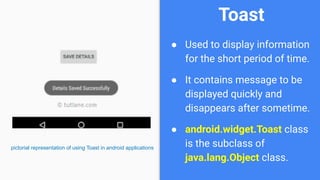
● Used to display information
for the short period of time.
● It contains message to be
displayed quickly and
disappears after sometime.
● android.widget.Toast class
is the subclass of
java.lang.Object class.
pictorial representation of using Toast in android applications
Toast
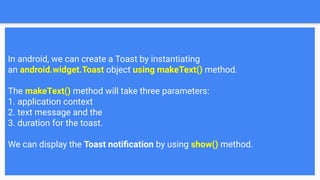
In android, we can create a Toast by instantiating
an android.widget.Toast object using makeText() method.
The makeText() method will take three parameters:
1. application context
2. text message and the
3. duration for the toast.
We can display the Toast notification by using show() method.
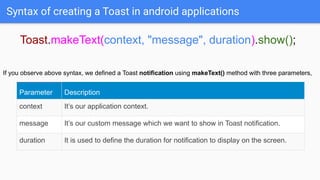
Syntax of creating a Toast in android applications
Toast.makeText(context, "message", duration).show();
If you observe above syntax, we defined a Toast notification using makeText() method with three parameters,
Parameter Description
context It’s our application context.
message It’s our custom message which we want to show in Toast notification.
duration It is used to define the duration for notification to display on the screen.
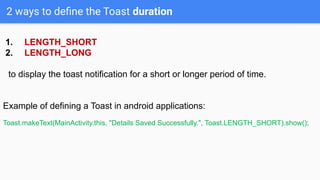
2 ways to define the Toast duration
1. LENGTH_SHORT
2. LENGTH_LONG
to display the toast notification for a short or longer period of time.
Example of defining a Toast in android applications:
Toast.makeText(MainActivity.this, "Details Saved Successfully.", Toast.LENGTH_SHORT).show();
Toast class
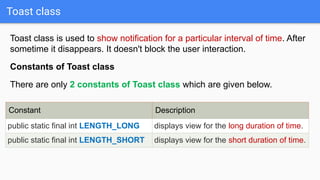
Toast class is used to show notification for a particular interval of time. After
sometime it disappears. It doesn't block the user interaction.
Constants of Toast class
There are only 2 constants of Toast class which are given below.
Constant Description
public static final int LENGTH_LONG displays view for the long duration of time.
public static final int LENGTH_SHORT displays view for the short duration of time.
Toast class
Methods of Toast class
Method Description
public static Toast makeText(Context
context, CharSequence text, int duration)
makes the toast containing text and
duration.
public void show() displays toast.
public void setMargin (float
horizontalMargin, float verticalMargin)
changes the horizontal and vertical margin
difference.
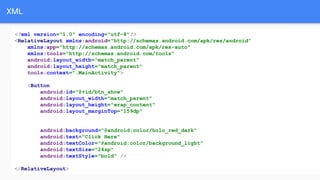
XML
<?xml version="1.0" encoding="utf-8"?>
<RelativeLayout xmlns:android="http://schemas.android.com/apk/res/android"
xmlns:app="http://schemas.android.com/apk/res-auto"
xmlns:tools="http://schemas.android.com/tools"
android:layout_width="match_parent"
android:layout_height="match_parent"
tools:context=".MainActivity">
<Button
android:id="@+id/btn_show"
android:layout_width="match_parent"
android:layout_height="wrap_content"
android:layout_marginTop="159dp"
android:background="@android:color/holo_red_dark"
android:text="Click Here"
android:textColor="@android:color/background_light"
android:textSize="24sp"
android:textStyle="bold" />
</RelativeLayout>
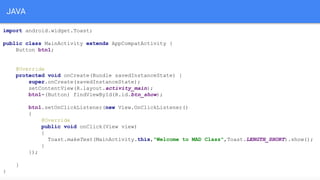
JAVA
import android.widget.Toast;
public class MainActivity extends AppCompatActivity {
Button btn1;
@Override
protected void onCreate(Bundle savedInstanceState) {
super.onCreate(savedInstanceState);
setContentView(R.layout.activity_main);
btn1=(Button) findViewById(R.id.btn_show);
btn1.setOnClickListener(new View.OnClickListener()
{
@Override
public void onClick(View view)
{
Toast.makeText(MainActivity.this,"Welcome to MAD Class",Toast.LENGTH_SHORT).show();
}
});
}
}
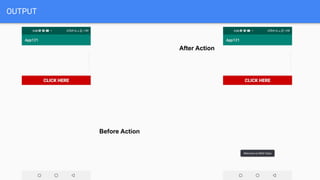
OUTPUT
Before Action
After Action
Thank You
Prof.JB

Android Toast.pdf

  • 1.
    Android Toast Android MobileApplication Development By Mr. G. John Benetic., M.Sc.,B.Ed.,M.Phil., PGDCA.,(Ph.D) Assistant Professor, Department of Computer Applications, Don Bosco College(Co-Ed), Affiliated to Thiruvalluvar University, Yelagiri Hills, Tirupattur District, TN,IN.
  • 2.
    ● Used todisplay information for the short period of time. ● It contains message to be displayed quickly and disappears after sometime. ● android.widget.Toast class is the subclass of java.lang.Object class. pictorial representation of using Toast in android applications Toast
  • 3.
    In android, wecan create a Toast by instantiating an android.widget.Toast object using makeText() method. The makeText() method will take three parameters: 1. application context 2. text message and the 3. duration for the toast. We can display the Toast notification by using show() method.
  • 4.
    Syntax of creatinga Toast in android applications Toast.makeText(context, "message", duration).show(); If you observe above syntax, we defined a Toast notification using makeText() method with three parameters, Parameter Description context It’s our application context. message It’s our custom message which we want to show in Toast notification. duration It is used to define the duration for notification to display on the screen.
  • 5.
    2 ways todefine the Toast duration 1. LENGTH_SHORT 2. LENGTH_LONG to display the toast notification for a short or longer period of time. Example of defining a Toast in android applications: Toast.makeText(MainActivity.this, "Details Saved Successfully.", Toast.LENGTH_SHORT).show();
  • 6.
    Toast class Toast classis used to show notification for a particular interval of time. After sometime it disappears. It doesn't block the user interaction. Constants of Toast class There are only 2 constants of Toast class which are given below. Constant Description public static final int LENGTH_LONG displays view for the long duration of time. public static final int LENGTH_SHORT displays view for the short duration of time.
  • 7.
    Toast class Methods ofToast class Method Description public static Toast makeText(Context context, CharSequence text, int duration) makes the toast containing text and duration. public void show() displays toast. public void setMargin (float horizontalMargin, float verticalMargin) changes the horizontal and vertical margin difference.
  • 8.
    XML <?xml version="1.0" encoding="utf-8"?> <RelativeLayoutxmlns:android="http://schemas.android.com/apk/res/android" xmlns:app="http://schemas.android.com/apk/res-auto" xmlns:tools="http://schemas.android.com/tools" android:layout_width="match_parent" android:layout_height="match_parent" tools:context=".MainActivity"> <Button android:id="@+id/btn_show" android:layout_width="match_parent" android:layout_height="wrap_content" android:layout_marginTop="159dp" android:background="@android:color/holo_red_dark" android:text="Click Here" android:textColor="@android:color/background_light" android:textSize="24sp" android:textStyle="bold" /> </RelativeLayout>
  • 9.
    JAVA import android.widget.Toast; public classMainActivity extends AppCompatActivity { Button btn1; @Override protected void onCreate(Bundle savedInstanceState) { super.onCreate(savedInstanceState); setContentView(R.layout.activity_main); btn1=(Button) findViewById(R.id.btn_show); btn1.setOnClickListener(new View.OnClickListener() { @Override public void onClick(View view) { Toast.makeText(MainActivity.this,"Welcome to MAD Class",Toast.LENGTH_SHORT).show(); } }); } }
  • 10.
  • 11.