ADVANCED SPREADSHEET
What is Spreadsheet?
- Commonly used for budgets,
forecasting, and finance-
related tasks using an
electronic version of the
familiar columnar pad.
- Ex. Excel ( spreadsheet
program that allows you to
store, organize, and analyze
Advance Spreadsheet needed in
life:
1. Data Entry, sorting and filtering
2. Applying data validation
3. Protecting data validation
4. Custom filtering
5. Sort by column
6. Pivot tables
7. Macros and scripts
8. Combine multiple functions to create
formula
9. Perform calculations
• Excel formula
- Tools that you can use to edit,
analyze, and create calculations for
worksheet data.
- It has the ability to store math
formulas in individual cells.
• Formula
- Contains up to 1024 characters and
must always start with an equal sign
(=).
How to Enter a Formula in a
Worksheet Cell?
 Click on a cell where you want to enter a
formula and type equal =(equal sign)
 Enter a value or select the cell that
includes the value you want in the formula.
 Add the necessary operators or functions.
Use parentheses, if applicable.
 When the formula is complete, click on the
enter button on the formula bar √ or press
enter.
 Observe that the result of the formula you
created appears in the cell, while the
actual formula appears in the formula bar.
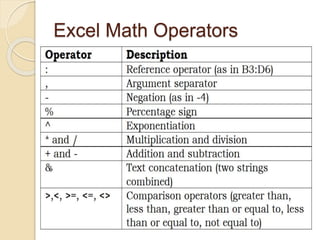
Excel Math Operators
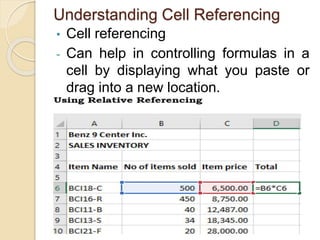
Understanding Cell Referencing
• Cell referencing
- Can help in controlling formulas in a
cell by displaying what you paste or
drag into a new location.
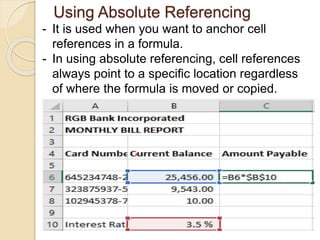
Using Absolute Referencing
- It is used when you want to anchor cell
references in a formula.
- In using absolute referencing, cell references
always point to a specific location regardless
of where the formula is moved or copied.
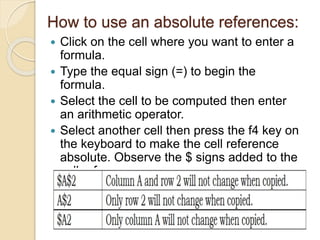
 Click on the cell where you want to enter a
formula.
 Type the equal sign (=) to begin the
formula.
 Select the cell to be computed then enter
an arithmetic operator.
 Select another cell then press the f4 key on
the keyboard to make the cell reference
absolute. Observe the $ signs added to the
cell references.
How to use an absolute references:
 Accounting Number Format –
number format that is used for
accounting
 Orientation – the angle at
which a text is displayed.
 Count – a function used to
count the cells with content in
a range.
 SUM – a function used to
compute for the summation of
the numbers of arange.
Spreadsheet Terminologies
 AVERAGE – a function used to
compute for the average of the
numbers in arange.
 COUNTIF – a function used to
count the number of cells in a
range if a certain condition is met.
 AVERAGEIF – a function used to
compute for the average in a range
if a certain condition is met.
 Range – the range of cells where
you want to look for the criteria.
Spreadsheet Terminologies
 Criteria – a value or label that determines
if a cell is part of the range to be averaged.
 Average Range – the actual range of cells
that will be averaged, if omitted, the range
will be used instead
 Relative Reference – All cell references are
called relative references, when copied
across multiple cells, they change based
on the relative position.
 Absolute Reference – These are cell
references that do not change when copied
or filled in keeping a row and/or column
constant.
Spreadsheet Terminologies
Advanced Spreadsheet.pptx

Advanced Spreadsheet.pptx

  • 2.
    ADVANCED SPREADSHEET What isSpreadsheet? - Commonly used for budgets, forecasting, and finance- related tasks using an electronic version of the familiar columnar pad. - Ex. Excel ( spreadsheet program that allows you to store, organize, and analyze
  • 3.
    Advance Spreadsheet neededin life: 1. Data Entry, sorting and filtering 2. Applying data validation 3. Protecting data validation 4. Custom filtering 5. Sort by column 6. Pivot tables 7. Macros and scripts 8. Combine multiple functions to create formula 9. Perform calculations
  • 4.
    • Excel formula -Tools that you can use to edit, analyze, and create calculations for worksheet data. - It has the ability to store math formulas in individual cells. • Formula - Contains up to 1024 characters and must always start with an equal sign (=).
  • 5.
    How to Entera Formula in a Worksheet Cell?  Click on a cell where you want to enter a formula and type equal =(equal sign)  Enter a value or select the cell that includes the value you want in the formula.  Add the necessary operators or functions. Use parentheses, if applicable.  When the formula is complete, click on the enter button on the formula bar √ or press enter.  Observe that the result of the formula you created appears in the cell, while the actual formula appears in the formula bar.
  • 6.
  • 7.
    Understanding Cell Referencing •Cell referencing - Can help in controlling formulas in a cell by displaying what you paste or drag into a new location.
  • 8.
    Using Absolute Referencing -It is used when you want to anchor cell references in a formula. - In using absolute referencing, cell references always point to a specific location regardless of where the formula is moved or copied.
  • 9.
     Click onthe cell where you want to enter a formula.  Type the equal sign (=) to begin the formula.  Select the cell to be computed then enter an arithmetic operator.  Select another cell then press the f4 key on the keyboard to make the cell reference absolute. Observe the $ signs added to the cell references. How to use an absolute references:
  • 10.
     Accounting NumberFormat – number format that is used for accounting  Orientation – the angle at which a text is displayed.  Count – a function used to count the cells with content in a range.  SUM – a function used to compute for the summation of the numbers of arange. Spreadsheet Terminologies
  • 12.
     AVERAGE –a function used to compute for the average of the numbers in arange.  COUNTIF – a function used to count the number of cells in a range if a certain condition is met.  AVERAGEIF – a function used to compute for the average in a range if a certain condition is met.  Range – the range of cells where you want to look for the criteria. Spreadsheet Terminologies
  • 13.
     Criteria –a value or label that determines if a cell is part of the range to be averaged.  Average Range – the actual range of cells that will be averaged, if omitted, the range will be used instead  Relative Reference – All cell references are called relative references, when copied across multiple cells, they change based on the relative position.  Absolute Reference – These are cell references that do not change when copied or filled in keeping a row and/or column constant. Spreadsheet Terminologies

Editor's Notes

  • #7 Excel always knows what type of calculations you want to perform. Symbols are included in creating formulas, thus excel tells the kind of math operations you want to perform.
  • #8 Excel changes the cell references in the copies of the formulas to reflect the relative location of the formula from the cell references in the formula.
  • #9 When anchoring cell references, excel will not adjust them when you copy the formula to a different location in a worksheet.