+


    Adobe Connect Training
    How to Conduct a Meeting
    By: Kari Busard
+
    Learning Goals
    ①   Access Adobe Connect
    ②   Learn Adobe Connect functions and attributes
    ③   Learn Video and Audio capabilities
    ④   Learn Best Practices for Virtual Classrooms
+
    Adobe Connect Overview
    ①   What is Adobe Connect?
    ②   How can I use Adobe Connect?
    ③   What are the benefits of Adobe Connect over other virtual
        software?
+
    What is Adobe Connect?


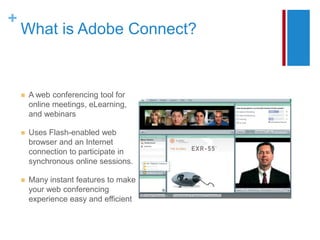
       A web conferencing tool for
        online meetings, eLearning,
        and webinars

       Uses Flash-enabled web
        browser and an Internet
        connection to participate in
        synchronous online sessions.

       Many instant features to make
        your web conferencing
        experience easy and efficient
+
    How Can I Use Adobe Connect?

       Meetings
           Conduct multi-participant meetings with video and audio features

       Online Classrooms
           Teach students from all over the world using file sharing

       E-learning
           Hold seminars for a wide audience with file sharing
+
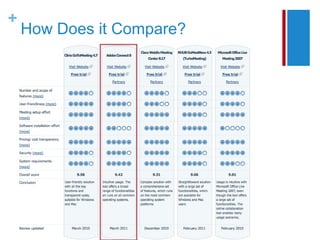
    How Does it Compare?
+
    Create an Adobe
    Connect Meeting
    ①   Set-Up
    ②   Meeting Roles
    ③   Meeting Functions and Attributes
    ④   Video and Audio Capabilities
+
    Setting Up a Meeting

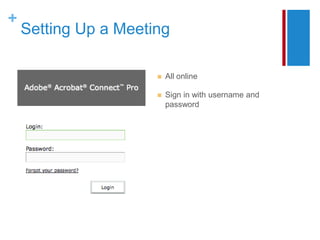
                         All online

                         Sign in with username and
                          password
+
    Setting Up a Meeting

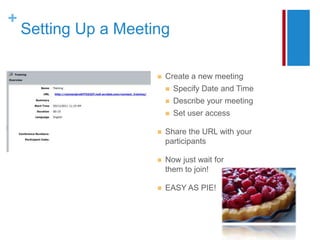
                         Create a new meeting
                             Specify Date and Time
                             Describe your meeting
                             Set user access

                         Share the URL with your
                          participants

                         Now just wait for
                          them to join!

                         EASY AS PIE!
+
    Meeting Roles

       Three Roles
           Host
           Presenter
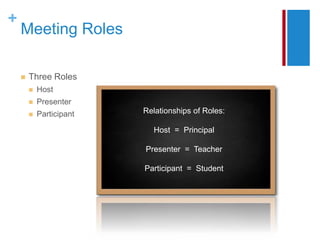
           Participant   Relationships of Roles:

                            Host = Principal

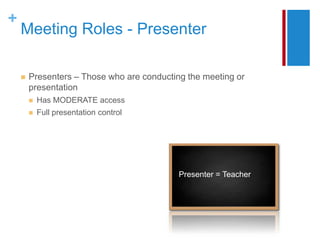
                          Presenter = Teacher

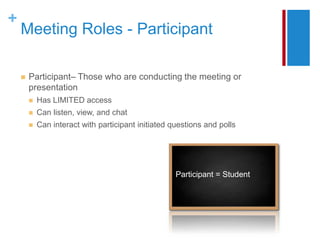
                          Participant = Student
+
    Meeting Roles - Host

       Hosts – Managers of the Adobe Connect Session
           Has FULL control
           Set-up meeting and invite participants
           Control the meeting layout
           Determine who is a presenter and participant
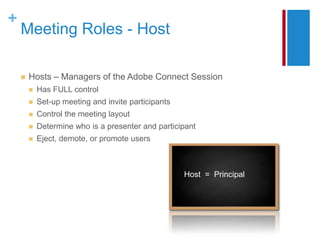
           Eject, demote, or promote users


                                                     Host = Principal
+
    Meeting Roles - Presenter

       Presenters – Those who are conducting the meeting or
        presentation
           Has MODERATE access
           Full presentation control


                                            Presenter = Teacher
+
    Meeting Roles - Participant

       Participant– Those who are conducting the meeting or
        presentation
           Has LIMITED access
           Can listen, view, and chat
           Can interact with participant initiated questions and polls


                                                     Participant = Student
+
    Pods – What You Can Do

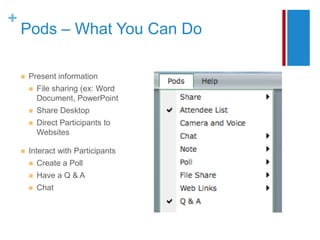
       Present information
           File sharing (ex: Word
            Document, PowerPoint
           Share Desktop
           Direct Participants to
            Websites

       Interact with Participants
           Create a Poll
           Have a Q & A
           Chat
+
    Share Pod

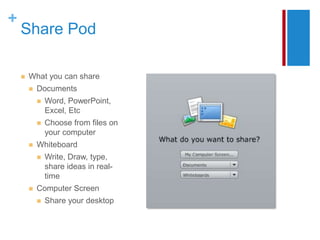
       What you can share
           Documents
               Word, PowerPoint,
                Excel, Etc
               Choose from files on
                your computer
           Whiteboard
               Write, Draw, type,
                share ideas in real-
                time
           Computer Screen
               Share your desktop
+
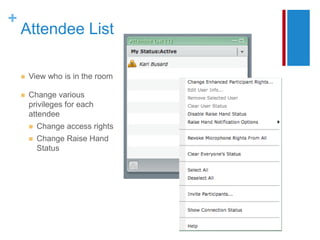
    Attendee List

       View who is in the room

       Change various
        privileges for each
        attendee
           Change access rights
           Change Raise Hand
            Status
+
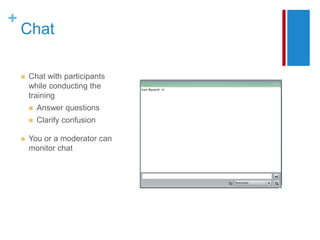
    Chat

       Chat with participants
        while conducting the
        training
           Answer questions
           Clarify confusion

       You or a moderator can
        monitor chat
+
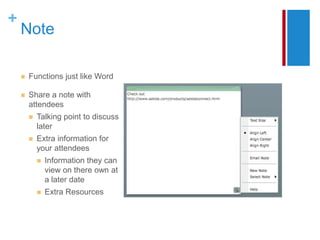
    Note

       Functions just like Word

       Share a note with
        attendees
           Talking point to discuss
            later
           Extra information for
            your attendees
               Information they can
                view on there own at
                a later date
               Extra Resources
+
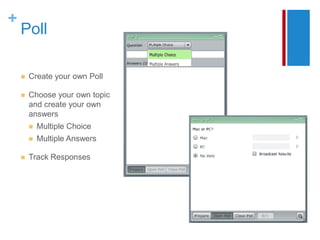
    Poll

       Create your own Poll

       Choose your own topic
        and create your own
        answers
           Multiple Choice
           Multiple Answers

       Track Responses
+
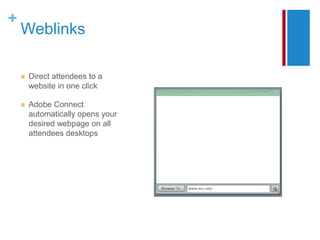
    Weblinks

       Direct attendees to a
        website in one click

       Adobe Connect
        automatically opens your
        desired webpage on all
        attendees desktops
+
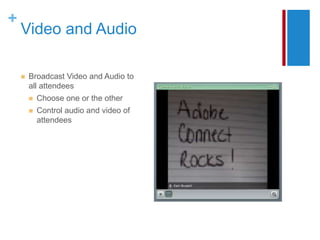
    Video and Audio

       Broadcast Video and Audio to
        all attendees
           Choose one or the other
           Control audio and video of
            attendees
+
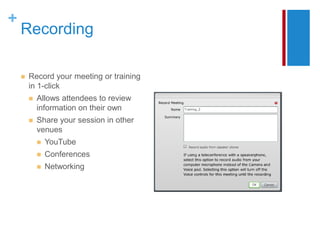
    Recording

       Record your meeting or training
        in 1-click
           Allows attendees to review
            information on their own
           Share your session in other
            venues
               YouTube
               Conferences
               Networking
+
    Virtual Classroom Best
    Practices
    ①   Know Your Audience
    ②   Have a Presentation Style
+
    Best Practices

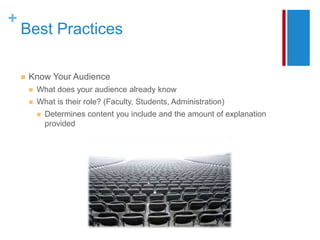
       Know Your Audience
           What does your audience already know
           What is their role? (Faculty, Students, Administration)
               Determines content you include and the amount of explanation
                provided
+
    Best Practices

       Know Your Presentation Style
           Holding Attention
             Think about what you find appealing?
               Take from TV, Radio shows

       Classroom to Online
           Stories: Keep them brief and relevant
           Practice until you are comfortable with the content
           Have visual content – video, photos, websites. Have more than you
            need
           Announce if you need a minute for technical difficulty, or to find
            something
           Briefly introduce your self via video – allows attendees to connect to you
           Ask users to introduce themselves via chat or poll
+
    Q&A and Practice Session
+
    Evaluations

Adobe connecttrainingpresentation2011

  • 1.
    + Adobe Connect Training How to Conduct a Meeting By: Kari Busard
  • 2.
    + Learning Goals ① Access Adobe Connect ② Learn Adobe Connect functions and attributes ③ Learn Video and Audio capabilities ④ Learn Best Practices for Virtual Classrooms
  • 3.
    + Adobe Connect Overview ① What is Adobe Connect? ② How can I use Adobe Connect? ③ What are the benefits of Adobe Connect over other virtual software?
  • 4.
    + What is Adobe Connect?  A web conferencing tool for online meetings, eLearning, and webinars  Uses Flash-enabled web browser and an Internet connection to participate in synchronous online sessions.  Many instant features to make your web conferencing experience easy and efficient
  • 5.
    + How Can I Use Adobe Connect?  Meetings  Conduct multi-participant meetings with video and audio features  Online Classrooms  Teach students from all over the world using file sharing  E-learning  Hold seminars for a wide audience with file sharing
  • 6.
    + How Does it Compare?
  • 7.
    + Create an Adobe Connect Meeting ① Set-Up ② Meeting Roles ③ Meeting Functions and Attributes ④ Video and Audio Capabilities
  • 8.
    + Setting Up a Meeting  All online  Sign in with username and password
  • 9.
    + Setting Up a Meeting  Create a new meeting  Specify Date and Time  Describe your meeting  Set user access  Share the URL with your participants  Now just wait for them to join!  EASY AS PIE!
  • 10.
    + Meeting Roles  Three Roles  Host  Presenter  Participant Relationships of Roles: Host = Principal Presenter = Teacher Participant = Student
  • 11.
    + Meeting Roles - Host  Hosts – Managers of the Adobe Connect Session  Has FULL control  Set-up meeting and invite participants  Control the meeting layout  Determine who is a presenter and participant  Eject, demote, or promote users Host = Principal
  • 12.
    + Meeting Roles - Presenter  Presenters – Those who are conducting the meeting or presentation  Has MODERATE access  Full presentation control Presenter = Teacher
  • 13.
    + Meeting Roles - Participant  Participant– Those who are conducting the meeting or presentation  Has LIMITED access  Can listen, view, and chat  Can interact with participant initiated questions and polls Participant = Student
  • 14.
    + Pods – What You Can Do  Present information  File sharing (ex: Word Document, PowerPoint  Share Desktop  Direct Participants to Websites  Interact with Participants  Create a Poll  Have a Q & A  Chat
  • 15.
    + Share Pod  What you can share  Documents  Word, PowerPoint, Excel, Etc  Choose from files on your computer  Whiteboard  Write, Draw, type, share ideas in real- time  Computer Screen  Share your desktop
  • 16.
    + Attendee List  View who is in the room  Change various privileges for each attendee  Change access rights  Change Raise Hand Status
  • 17.
    + Chat  Chat with participants while conducting the training  Answer questions  Clarify confusion  You or a moderator can monitor chat
  • 18.
    + Note  Functions just like Word  Share a note with attendees  Talking point to discuss later  Extra information for your attendees  Information they can view on there own at a later date  Extra Resources
  • 19.
    + Poll  Create your own Poll  Choose your own topic and create your own answers  Multiple Choice  Multiple Answers  Track Responses
  • 20.
    + Weblinks  Direct attendees to a website in one click  Adobe Connect automatically opens your desired webpage on all attendees desktops
  • 21.
    + Video and Audio  Broadcast Video and Audio to all attendees  Choose one or the other  Control audio and video of attendees
  • 22.
    + Recording  Record your meeting or training in 1-click  Allows attendees to review information on their own  Share your session in other venues  YouTube  Conferences  Networking
  • 23.
    + Virtual Classroom Best Practices ① Know Your Audience ② Have a Presentation Style
  • 24.
    + Best Practices  Know Your Audience  What does your audience already know  What is their role? (Faculty, Students, Administration)  Determines content you include and the amount of explanation provided
  • 25.
    + Best Practices  Know Your Presentation Style  Holding Attention  Think about what you find appealing?  Take from TV, Radio shows  Classroom to Online  Stories: Keep them brief and relevant  Practice until you are comfortable with the content  Have visual content – video, photos, websites. Have more than you need  Announce if you need a minute for technical difficulty, or to find something  Briefly introduce your self via video – allows attendees to connect to you  Ask users to introduce themselves via chat or poll
  • 26.
    + Q&A and Practice Session
  • 28.
    + Evaluations