Let’s Go Virtual!
Online Meeting/Conference
Models
Janet Fisher
Arizona State Library, Archives and
Public Records
Sandy Rizzo
Red Mountain Branch, Mesa Public
Library
Arizona State Library Association
Conference November 16, 2010
Look around
You may be your library’s representative at this program, or
perhaps even at this conference.
We’d like to help you:
 Stabilize/increase attendance at staff training or
meetings.
 Share information/ideas with colleagues no matter where
they are.
 Include all meeting members, whether they can attend
face-to-face or not.
What makes us qualified?
During the last 3 or more years we have:
 planned, organized and participated in virtual
statewide group meetings several times each
year
 participated in meetings or taken training
presented by others using wide variety of
virtual connection options
 provided virtual training classes and planned,
implemented and participated in a
completely-virtual regional conference last
summer
Necessary basics
 Computer
 Software – proprietary or open-source
 Connectivity - internet access; telephone
connection
 Telephone and/or VOIP
 If use telephone, you may want a speakerphone
 VOIP is voice over IP – sounds through computer
 headphones/microphone to listen and communicate
verbally
 People and content
Selecting software
 Comparative information to gather:
 Cost
 Functionality
 Technical aspects
 Rooms and seats (What’s a room? How big is it?)
 How often will you use it?
 Your own preferences
 Cool features to look for – polling; chat formats
 Enhancements
 Ability to archive – video, audio, and chat
Look for reviews of software
WebJunction.org
Web Conferencing Tool Options
http://www.webjunction.org/create-deliver-
training/-/articles/content/74347964
TechSoup.org
Web Conferencing Tools: Right for You? How
to pick a package that meets your nonprofit's
needs
By: Brian Satterfield February 12, 2010
http://www.techsoup.org/learningcenter/internet/page5975.
cfm
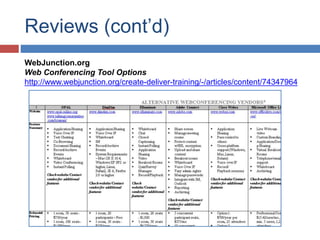
Reviews (cont’d)
WebJunction.org
Web Conferencing Tool Options
http://www.webjunction.org/create-deliver-training/-/articles/content/74347964
Reviews (cont’d)
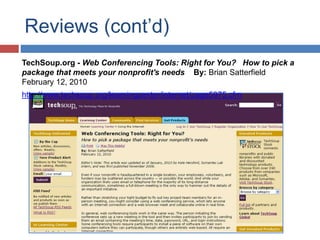
TechSoup.org - Web Conferencing Tools: Right for You? How to pick a
package that meets your nonprofit's needs By: Brian Satterfield
February 12, 2010
http://www.techsoup.org/learningcenter/internet/page5975.cfm
Suggestions for choosing a product
 Get free trial – test product as currently
available
 Test all aspects – those you’ll use and those nice
to have
 In addition to reviews, speak with associates
who have experience with products under
consideration or with other virtual program
software
 Compare several before deciding
 Cost – justify whether will use enough to
purchase (could realize cost savings over
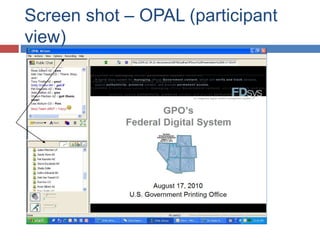
Screen shot – OPAL (participant
view)
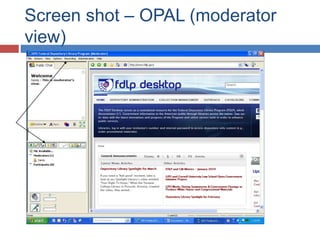
Screen shot – OPAL (moderator
view)
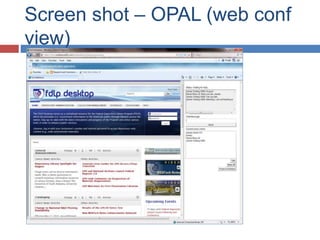
Screen shot – OPAL (web conf
view)
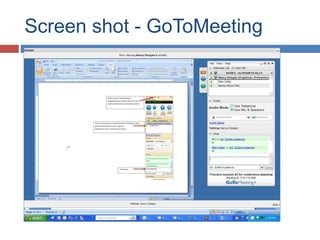
Screen shot - GoToMeeting
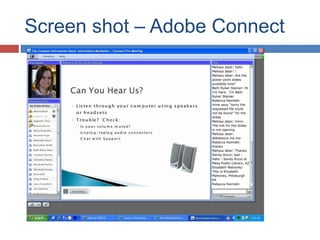
Screen shot – Adobe Connect
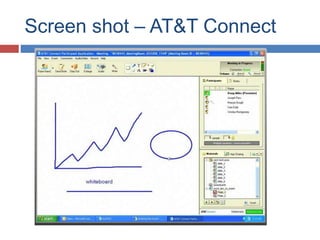
Screen shot – AT&T Connect
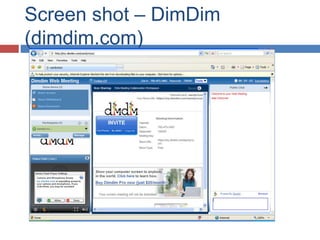
Screen shot – DimDim
(dimdim.com)
Demonstrations
 OPAL
 AT&T Connect
Getting comfortable
 Beauty of using virtual method – can plan and
participate from anywhere
 Start small, then expand uses
 Hold regular meetings of small, core group
 Get comfortable with software and what it can do
 Build experience within group; contact “experts” if
necessary
 Test use of elements that are more than basics
 Always test software a few times prior to the
meeting
Preparing for your virtual event
 Plan details for all anticipated aspects of event
 Prepare backup plans in case something fails
 Put together images that attendees will see on
their computer before and during the event
 PowerPoint very helpful
 Work with speakers to ensure that they are
comfortable and that their materials “translate”
properly into software
What can you do to help
attendees?
 Provide connection instructions in advance
 Provide practice time(s). Guide/documentation
helpful
 Schedule several speakers – change of voices
 Limit session length (45 min to 1 hr presentations;
meetings can be longer)
 Send/post meeting materials in advance
 Agenda
 PowerPoints
 Related handouts
What can you do (continued)
 On day of meeting, have host log in before
meeting starts (15 minutes?)
 Host welcomes attendees as they log into
meeting room and answers
connection/functional questions
 Have person act as technical support to be
available by phone/email/chat during meeting
 Verify that attendees can see pages you’re
seeing and can hear clearly
 Use that chat box!
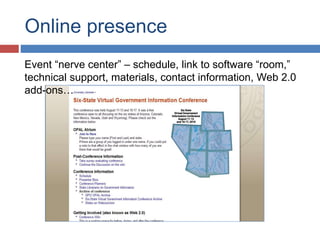
Online presence
Event “nerve center” – schedule, link to software “room,”
technical support, materials, contact information, Web 2.0
add-ons…
Obstacles and Reactions
 Listening for long stretch is difficult
 To alleviate feelings of isolation, set up on-site
space where group can participate, if appropriate
 Eye-strain
 Look away from computer periodically
 Overcome technical discomfort
 Become familiar with software through practice
 Note: Virtual meetings/conferences don’t suit
everyone all of the time. On-site or face-to-face
gatherings still have a place
IT issues that may crop up
 Plug-in/version issues (alternative?)
 Sound issues (level, clarity, extraneous noise)
 Material loading issues (bandwidth)
 Delays and IT coordination problems in the
field
 Formatting issues
 Pushing pages – how it’s done, skill in doing
 Capabilities beyond viewing Powerpoint
E-room Etiquette
 Don’t add off-the-cuff comments
 No visual cues from audience, so try to listen/read
closely. Ask periodically how all are faring
 As you get comfortable, use emoticons (smiley
face, frown…) to allow quick, easy
communication, verification
 Integrate “texting” shorthand, if all are comfortable
 Be aware of spelling/typing errors
 Consent: “IMPORTANT NOTICE: This WebEx service
includes a feature that allows audio and any documents and
other materials exchanged or viewed during the session to be
recorded. By joining this session, you automatically consent
to such recordings. If you do not consent to the recording, do
not join the session.”
Psycho-Social Elements of Virtual
Connections
 Negatives/Challenges:
 Speaker-to-audience distance – can’t always perceive
reactions, needs
 Attendees may not feel “connected” – may multi-task
or leave computer more frequently.
 Can open unequal participation experiences,
especially if some live and some remote, or due to
technical issues
 Quality of speakers – skill, vocal abilities, ability in
virtual environment with Q&A important
 Stream of conversation can become disjointed
 Chatting – sometimes difficult being concise with
complex thoughts/comments
Psycho-Social Elements of Virtual
Connections (more)
 Positives/Benefits:
 Chat (to whole group or privately) allows more
people to share ideas, provides social connection
 Chat permits those struggling to seek and obtain
help
 If geographically distant from group, hearing
voices and using chat provides link reinforces
group connection
 More are able to participate than without virtual
option
 Can multi-task (research for program, email, etc.)
 Archive/chat retention allows way to cover gap in
What has worked well for us
 Identify Minute-Takers and/or Chat Monitors
 Assign person responsible for loading
presentations
 Utilize online event registration system
 Open? Closed? Password
 Paid event?
 Put technical documentation together in advance
 Have Planning Committee meet frequently using
intended virtual software
 Use other tools to ease work – bit.ly, Doodle, time
zone converters, Zoomerang, wiki to
prepare/schedule/ evaluate
Why do it? Six-State
Evaluations
 “Virtual conference sounded bit dull, was pleasantly surprised by how
much I enjoyed programs and interaction provided by chat room and
mics….. We also drew in our non-docs specialists for a few of the
programs, which could never happen at a tangible conference.”
 “Don't have a chance to go to FDLP conferences and meetings, so was
great to be able to attend and have another person on staff attend.”
 “Was very helpful to have schedule in advance, complete with program
titles and times adjusted for time zone….. I must say, I was not
disappointed with programming. At some conferences you hike all over
town to get to someplace you've never been, only to find out that
program title really doesn't match the content!! You did an excellent job
of describing programs. ”
 “Great conference, wonderful experience. Learned a lot and will apply
what have been learned in the current job.”
Try it!
 Small meeting/discussion
 Larger meeting
 1-hr, ½ day, full day training
 Few limits – check your software details
 Participate in webinars offered in library world to
learn what you like, become comfortable in virtual
environment
 Try things with your library customers (as you
move toward integrating new technologies)
 Baby steps – participate, then offer your own
View archives
 Six-State Virtual Government Information
Conference, August 11-13, 16-17, 2010
 Website:
http://ucblibraries.colorado.edu/govpubs/conference/6state/index.htm
 Wiki: http://virtualsixstate.pbworks.com/w/page/24738327/FrontPage
 OPAL:
http://www.opal-online.org/archive6stateconf.htm
 WebJunction:
http://www.webjunction.org/gi21-conferences-and-training
 Gi21 (Government Information in 21st Century)
 WebJunction:
http://www.webjunction.org/gi21
Contacts
Janet Fisher
Law and Research Library
Arizona State Library, Archives and Public Records
jfisher@lib.az.us
Sandy Rizzo
Red Mountain Branch
Mesa Public Library
sandy.rizzo@mesaaz.gov

Let's go virtual: Online meeting models

  • 1.
    Let’s Go Virtual! OnlineMeeting/Conference Models Janet Fisher Arizona State Library, Archives and Public Records Sandy Rizzo Red Mountain Branch, Mesa Public Library Arizona State Library Association Conference November 16, 2010
  • 2.
    Look around You maybe your library’s representative at this program, or perhaps even at this conference. We’d like to help you:  Stabilize/increase attendance at staff training or meetings.  Share information/ideas with colleagues no matter where they are.  Include all meeting members, whether they can attend face-to-face or not.
  • 3.
    What makes usqualified? During the last 3 or more years we have:  planned, organized and participated in virtual statewide group meetings several times each year  participated in meetings or taken training presented by others using wide variety of virtual connection options  provided virtual training classes and planned, implemented and participated in a completely-virtual regional conference last summer
  • 4.
    Necessary basics  Computer Software – proprietary or open-source  Connectivity - internet access; telephone connection  Telephone and/or VOIP  If use telephone, you may want a speakerphone  VOIP is voice over IP – sounds through computer  headphones/microphone to listen and communicate verbally  People and content
  • 5.
    Selecting software  Comparativeinformation to gather:  Cost  Functionality  Technical aspects  Rooms and seats (What’s a room? How big is it?)  How often will you use it?  Your own preferences  Cool features to look for – polling; chat formats  Enhancements  Ability to archive – video, audio, and chat
  • 6.
    Look for reviewsof software WebJunction.org Web Conferencing Tool Options http://www.webjunction.org/create-deliver- training/-/articles/content/74347964 TechSoup.org Web Conferencing Tools: Right for You? How to pick a package that meets your nonprofit's needs By: Brian Satterfield February 12, 2010 http://www.techsoup.org/learningcenter/internet/page5975. cfm
  • 7.
    Reviews (cont’d) WebJunction.org Web ConferencingTool Options http://www.webjunction.org/create-deliver-training/-/articles/content/74347964
  • 8.
    Reviews (cont’d) TechSoup.org -Web Conferencing Tools: Right for You? How to pick a package that meets your nonprofit's needs By: Brian Satterfield February 12, 2010 http://www.techsoup.org/learningcenter/internet/page5975.cfm
  • 9.
    Suggestions for choosinga product  Get free trial – test product as currently available  Test all aspects – those you’ll use and those nice to have  In addition to reviews, speak with associates who have experience with products under consideration or with other virtual program software  Compare several before deciding  Cost – justify whether will use enough to purchase (could realize cost savings over
  • 10.
    Screen shot –OPAL (participant view)
  • 11.
    Screen shot –OPAL (moderator view)
  • 12.
    Screen shot –OPAL (web conf view)
  • 13.
    Screen shot -GoToMeeting
  • 14.
    Screen shot –Adobe Connect
  • 15.
    Screen shot –AT&T Connect
  • 16.
    Screen shot –DimDim (dimdim.com)
  • 17.
  • 18.
    Getting comfortable  Beautyof using virtual method – can plan and participate from anywhere  Start small, then expand uses  Hold regular meetings of small, core group  Get comfortable with software and what it can do  Build experience within group; contact “experts” if necessary  Test use of elements that are more than basics  Always test software a few times prior to the meeting
  • 19.
    Preparing for yourvirtual event  Plan details for all anticipated aspects of event  Prepare backup plans in case something fails  Put together images that attendees will see on their computer before and during the event  PowerPoint very helpful  Work with speakers to ensure that they are comfortable and that their materials “translate” properly into software
  • 20.
    What can youdo to help attendees?  Provide connection instructions in advance  Provide practice time(s). Guide/documentation helpful  Schedule several speakers – change of voices  Limit session length (45 min to 1 hr presentations; meetings can be longer)  Send/post meeting materials in advance  Agenda  PowerPoints  Related handouts
  • 21.
    What can youdo (continued)  On day of meeting, have host log in before meeting starts (15 minutes?)  Host welcomes attendees as they log into meeting room and answers connection/functional questions  Have person act as technical support to be available by phone/email/chat during meeting  Verify that attendees can see pages you’re seeing and can hear clearly  Use that chat box!
  • 22.
    Online presence Event “nervecenter” – schedule, link to software “room,” technical support, materials, contact information, Web 2.0 add-ons…
  • 23.
    Obstacles and Reactions Listening for long stretch is difficult  To alleviate feelings of isolation, set up on-site space where group can participate, if appropriate  Eye-strain  Look away from computer periodically  Overcome technical discomfort  Become familiar with software through practice  Note: Virtual meetings/conferences don’t suit everyone all of the time. On-site or face-to-face gatherings still have a place
  • 24.
    IT issues thatmay crop up  Plug-in/version issues (alternative?)  Sound issues (level, clarity, extraneous noise)  Material loading issues (bandwidth)  Delays and IT coordination problems in the field  Formatting issues  Pushing pages – how it’s done, skill in doing  Capabilities beyond viewing Powerpoint
  • 25.
    E-room Etiquette  Don’tadd off-the-cuff comments  No visual cues from audience, so try to listen/read closely. Ask periodically how all are faring  As you get comfortable, use emoticons (smiley face, frown…) to allow quick, easy communication, verification  Integrate “texting” shorthand, if all are comfortable  Be aware of spelling/typing errors  Consent: “IMPORTANT NOTICE: This WebEx service includes a feature that allows audio and any documents and other materials exchanged or viewed during the session to be recorded. By joining this session, you automatically consent to such recordings. If you do not consent to the recording, do not join the session.”
  • 26.
    Psycho-Social Elements ofVirtual Connections  Negatives/Challenges:  Speaker-to-audience distance – can’t always perceive reactions, needs  Attendees may not feel “connected” – may multi-task or leave computer more frequently.  Can open unequal participation experiences, especially if some live and some remote, or due to technical issues  Quality of speakers – skill, vocal abilities, ability in virtual environment with Q&A important  Stream of conversation can become disjointed  Chatting – sometimes difficult being concise with complex thoughts/comments
  • 27.
    Psycho-Social Elements ofVirtual Connections (more)  Positives/Benefits:  Chat (to whole group or privately) allows more people to share ideas, provides social connection  Chat permits those struggling to seek and obtain help  If geographically distant from group, hearing voices and using chat provides link reinforces group connection  More are able to participate than without virtual option  Can multi-task (research for program, email, etc.)  Archive/chat retention allows way to cover gap in
  • 28.
    What has workedwell for us  Identify Minute-Takers and/or Chat Monitors  Assign person responsible for loading presentations  Utilize online event registration system  Open? Closed? Password  Paid event?  Put technical documentation together in advance  Have Planning Committee meet frequently using intended virtual software  Use other tools to ease work – bit.ly, Doodle, time zone converters, Zoomerang, wiki to prepare/schedule/ evaluate
  • 29.
    Why do it?Six-State Evaluations  “Virtual conference sounded bit dull, was pleasantly surprised by how much I enjoyed programs and interaction provided by chat room and mics….. We also drew in our non-docs specialists for a few of the programs, which could never happen at a tangible conference.”  “Don't have a chance to go to FDLP conferences and meetings, so was great to be able to attend and have another person on staff attend.”  “Was very helpful to have schedule in advance, complete with program titles and times adjusted for time zone….. I must say, I was not disappointed with programming. At some conferences you hike all over town to get to someplace you've never been, only to find out that program title really doesn't match the content!! You did an excellent job of describing programs. ”  “Great conference, wonderful experience. Learned a lot and will apply what have been learned in the current job.”
  • 30.
    Try it!  Smallmeeting/discussion  Larger meeting  1-hr, ½ day, full day training  Few limits – check your software details  Participate in webinars offered in library world to learn what you like, become comfortable in virtual environment  Try things with your library customers (as you move toward integrating new technologies)  Baby steps – participate, then offer your own
  • 31.
    View archives  Six-StateVirtual Government Information Conference, August 11-13, 16-17, 2010  Website: http://ucblibraries.colorado.edu/govpubs/conference/6state/index.htm  Wiki: http://virtualsixstate.pbworks.com/w/page/24738327/FrontPage  OPAL: http://www.opal-online.org/archive6stateconf.htm  WebJunction: http://www.webjunction.org/gi21-conferences-and-training  Gi21 (Government Information in 21st Century)  WebJunction: http://www.webjunction.org/gi21
  • 32.
    Contacts Janet Fisher Law andResearch Library Arizona State Library, Archives and Public Records jfisher@lib.az.us Sandy Rizzo Red Mountain Branch Mesa Public Library sandy.rizzo@mesaaz.gov