Microsoft 70-410
Installing and Configuring Windows Server 2012
ABOUT THE EXAM 
The  Microsoft  70‐410  exam  is  part  one  of  a  series  of  three  exams  that  test  the  skills  and 
knowledge necessary to implement a core Windows Server 2012 infrastructure in an existing 
enterprise  environment.  Passing  this  exam  validates  a  candidate’s  ability  to  implement  and 
configure  Windows  Server  2012  core  services,  such  as  Active  Directory  and  the  networking 
services. Passing this exam along with the other two exams confirms that a candidate has the 
skills  and  knowledge  necessary  for  implementing,  managing,  maintaining,  and  provisioning 
services and infrastructure in a Windows Server 2012 environment.
Six major topics make up the Microsoft 70‐410 Certification. The topics are as follows:
・  Install and Configure Servers
・  Configure Server Roles and Features
・  Configure Hyper‐V
・  Deploy and Configure Core Network Services
・  Install and Administer Active Directory
・  Create and Manage Group Policy
This guide will walk you through all the skills measured by the exam, as published by Microsoft. 
OBJECTIVES  
CHAPTER 1:  INSTALL AND CONFIGURE SERVERS 
1.1 Install servers
1.2 Configure servers
1.3 Configure local storage 
CHAPTER 2:  CONFIGURE SERVER ROLES AND FEATURES 
2.1 Configure file and share access
2.2 Configure print and document services
2.3 Configure servers for remote management
  
CHAPTER 3:  CONFIGURE HYPER‐V 
3.1 Create and configure virtual machine settings
3.2 Create and configure virtual machine storage
3.3 Create and configure virtual networks
CHAPTER 4:  DEPLOY AND CONFIGURE CORE NETWORK SERVICES 
4.1 Configure IPv4 and IPv6 addressing
4.2 Deploy and configure Dynamic Host Configuration Protocol (DHCP) service
4.3 Deploy and configure DNS service
CHAPTER 5:  INSTALL AND ADMINISTER ACTIVE DIRECTORY 
5.1 Install domain controllers
5.2 Create and manage Active Directory users and computers
5.3 Create and manage Active Directory groups and organizational units (OUs)
CHAPTER 6:  CREATE AND MANAGE GROUP POLICY 
6.1 Create Group Policy objects
6.2 Configure security policies
6.3 Configure application restriction policies
6.4 Configure Windows Firewall 
 
CHAPTER 1 – INSTALL AND CONFIGURE SERVERS
1.1 INSTALL SERVERS
 
Plan for a server installation
 
 
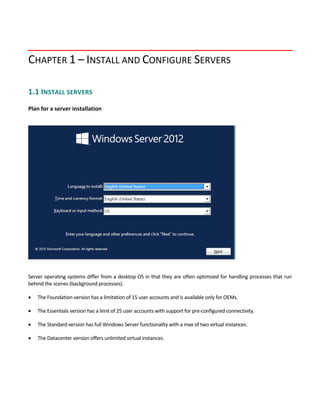
Server operating systems differ from a desktop OS in that they are often optimized for handling processes that run 
behind the scenes (background processes).   
 The Foundation version has a limitation of 15 user accounts and is available only for OEMs. 
 The Essentials version has a limit of 25 user accounts with support for pre‐configured connectivity. 
 The Standard version has full Windows Server functionality with a max of two virtual instances.   
 The Datacenter version offers unlimited virtual instances. 
 
 
Plan for server roles
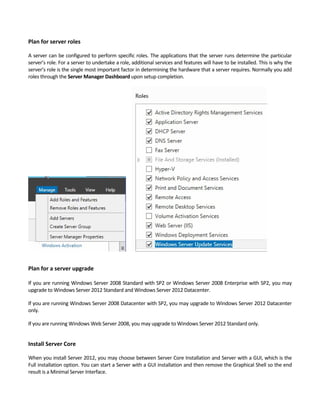
A server can be configured to perform specific roles. The applications that the server runs determine the particular 
server’s role. For a server to undertake a role, additional services and features will have to be installed. This is why the 
server’s role is the single most important factor in determining the hardware that a server requires. Normally you add 
roles through the Server Manager Dashboard upon setup completion.   
Plan for a server upgrade 
If you are running Windows Server 2008 Standard with SP2 or Windows Server 2008 Enterprise with SP2, you may 
upgrade to Windows Server 2012 Standard and Windows Server 2012 Datacenter.   
If you are running Windows Server 2008 Datacenter with SP2, you may upgrade to Windows Server 2012 Datacenter 
only.   
If you are running Windows Web Server 2008, you may upgrade to Windows Server 2012 Standard only. 
Install Server Core
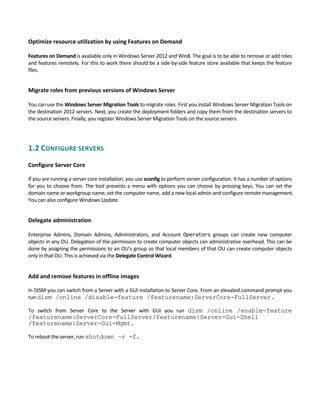
When you install Server 2012, you may choose between Server Core Installation and Server with a GUI, which is the 
Full installation option. You can start a Server with a GUI installation and then remove the Graphical Shell so the end 
result is a Minimal Server Interface. 
Optimize resource utilization by using Features on Demand 
 
Features on Demand is available only in Windows Server 2012 and Win8. The goal is to be able to remove or add roles 
and features remotely. For this to work there should be a side‐by‐side feature store available that keeps the feature 
files. 
Migrate roles from previous versions of Windows Server
 
You can use the Windows Server Migration Tools to migrate roles. First you install Windows Server Migration Tools on 
the destination 2012 servers. Next, you create the deployment folders and copy them from the destination servers to 
the source servers. Finally, you register Windows Server Migration Tools on the source servers. 
1.2 CONFIGURE SERVERS 
 
Configure Server Core
If you are running a server core installation, you use sconfig to perform server configuration. It has a number of options 
for you to choose from. The tool presents a menu with options you can choose by pressing keys. You can set the 
domain name or workgroup name, set the computer name, add a new local admin and configure remote management. 
You can also configure Windows Update. 
Delegate administration
 
Enterprise  Admins,  Domain  Admins,  Administrators,  and  Account  Operators  groups  can  create  new  computer 
objects in any OU. Delegation of the permission to create computer objects can administrative overhead. This can be 
done by assigning the permissions to an OU’s group so that local members of that OU can create computer objects 
only in that OU. This is achieved via the Delegate Control Wizard. 
 
Add and remove features in offline images
In DISM you can switch from a Server with a GUI installation to Server Core. From an elevated command prompt you 
run dism /online /disable-feature /featurename:ServerCore-FullServer.   
To  switch  from  Server  Core  to  the  Server  with  GUI  you  run  dism /online /enable-feature
/featurename:ServerCore-FullServer/featurename:Server-Gui-Shell
/featurename:Server-Gui-Mgmt.
To reboot the server, run shutdown –r -f. 
Deploy roles on remote servers
To install, configure and uninstall server roles locally, use Server Manager or the Windows PowerShell. Remotely you 
may use Server Manager, Remote Server, RSAT, or the Windows PowerShell. RSAT in particular provides you with 
Server  Manager,  MMC  snap‐ins,  consoles  and  PowerShell  cmdlets  that  run  on  Windows  Server.  There  are  many 
different versions of RSAT, supporting from Vista to Windows Server 2012.   
Convert Server Core to/from full GUI
To convert to a Server Core installation, you run Uninstall‐WindowsFeature Server‐Gui‐Mgmt‐Infra ‐restart. On the 
other  hand,  to  convert  from  a  core  only  to  a  server  with  GUI  you  run  Install-WindowsFeature
Server-Gui-Mgmt-Infra,Server-Gui-Shell –Restart.
Configure services
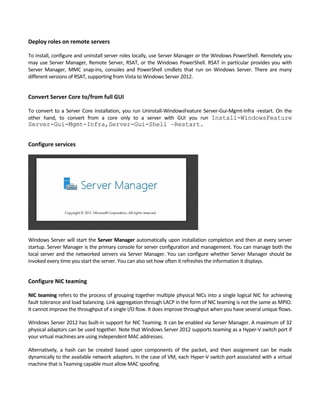
Windows Server will start the Server Manager automatically upon installation completion and then at every server 
startup. Server Manager is the primary console for server configuration and management. You can manage both the 
local server and the networked servers via Server Manager. You can configure whether Server Manager should be 
invoked every time you start the server. You can also set how often it refreshes the information it displays. 
Configure NIC teaming
NIC teaming refers to the process of grouping together multiple physical NICs into a single logical NIC for achieving 
fault tolerance and load balancing. Link aggregation through LACP in the form of NIC teaming is not the same as MPIO. 
It cannot improve the throughput of a single I/O flow. It does improve throughput when you have several unique flows.
Windows Server 2012 has built‐in support for NIC Teaming. It can be enabled via Server Manager. A maximum of 32 
physical adaptors can be used together. Note that Windows Server 2012 supports teaming as a Hyper‐V switch port if 
your virtual machines are using independent MAC addresses.
Alternatively,  a  hash  can  be  created  based  upon  components  of  the  packet,  and  then  assignment  can  be  made 
dynamically to the available network adapters. In the case of VM, each Hyper‐V switch port associated with a virtual 
machine that is Teaming capable must allow MAC spoofing.   
1.3 CONFIGURE LOCAL STORAGE 
 
Design storage spaces
Partitioning refers to the process of creating virtual markers that separate drive letters. A partition table is the list of 
what partitions have been configured on a drive. A file system, on the other hand, is a data structure that an operating 
system uses to keep track of files on a disk or partition. One may create folders to organize your data into groups and 
to store data hierarchically on the hard disk. Keep in mind, disks are physical, whereas storage pools and volumes are 
logical. 
The Storage Services Role is part of the File and Storage Services and is installed by default. 
 
Configure basic and dynamic disks 
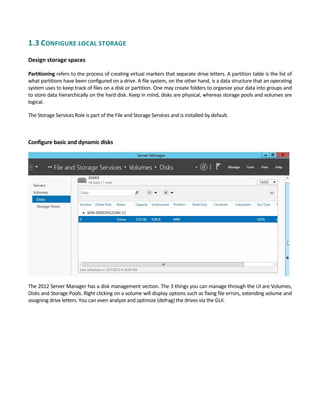
The 2012 Server Manager has a disk management section. The 3 things you can manage through the UI are Volumes, 
Disks and Storage Pools. Right clicking on a volume will display options such as fixing file errors, extending volume and 
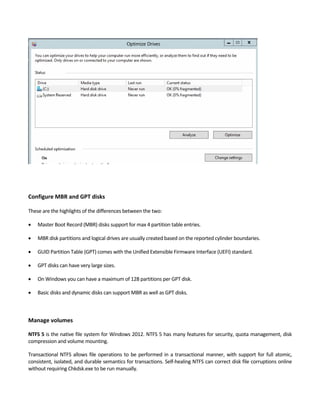
assigning drive letters. You can even analyze and optimize (defrag) the drives via the GUI. 
Configure MBR and GPT disks
 
These are the highlights of the differences between the two: 
 Master Boot Record (MBR) disks support for max 4 partition table entries. 
 MBR disk partitions and logical drives are usually created based on the reported cylinder boundaries. 
 GUID Partition Table (GPT) comes with the Unified Extensible Firmware Interface (UEFI) standard.   
 GPT disks can have very large sizes.   
 On Windows you can have a maximum of 128 partitions per GPT disk. 
 Basic disks and dynamic disks can support MBR as well as GPT disks. 
 
 
Manage volumes
NTFS 5 is the native file system for Windows 2012. NTFS 5 has many features for security, quota management, disk 
compression and volume mounting. 
Transactional NTFS allows file operations to be performed in a transactional manner, with support for full atomic, 
consistent, isolated, and durable semantics for transactions. Self‐healing NTFS can correct disk file corruptions online 
without requiring Chkdsk.exe to be run manually. 
A storage pool is a collection of volumes. A volume is the basic unit of storage that represents an allocated space on a 
disk. The key is flexibility; storage can be expanded as needed when you add new drives.   
Create and mount virtual hard disks (VHDs) 
 
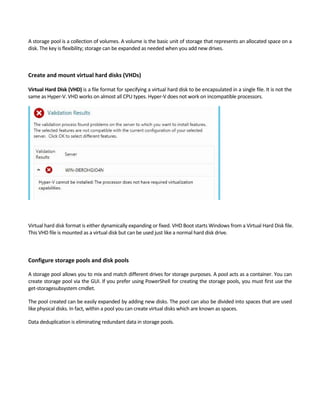
Virtual Hard Disk (VHD) is a file format for specifying a virtual hard disk to be encapsulated in a single file. It is not the 
same as Hyper‐V. VHD works on almost all CPU types. Hyper‐V does not work on incompatible processors. 
Virtual hard disk format is either dynamically expanding or fixed. VHD Boot starts Windows from a Virtual Hard Disk file. 
This VHD file is mounted as a virtual disk but can be used just like a normal hard disk drive.   
 
 
Configure storage pools and disk pools 
A storage pool allows you to mix and match different drives for storage purposes. A pool acts as a container. You can 
create storage pool via the GUI. If you prefer using PowerShell for creating the storage pools, you must first use the 
get‐storagesubsystem cmdlet. 
The pool created can be easily expanded by adding new disks. The pool can also be divided into spaces that are used 
like physical disks. In fact, within a pool you can create virtual disks which are known as spaces.   
Data deduplication is eliminating redundant data in storage pools. 
 
CHAPTER 2 – CONFIGURE SERVER ROLES AND FEATURES
2.1 CONFIGURE FILE AND SHARE ACCESS 
 
Create and configure shares
Simple network folder sharing can be managed via the Network and Sharing Center. The Network and Sharing Center 
is an interface for basic networking setup as well as network discovery, connection status and file sharing. 
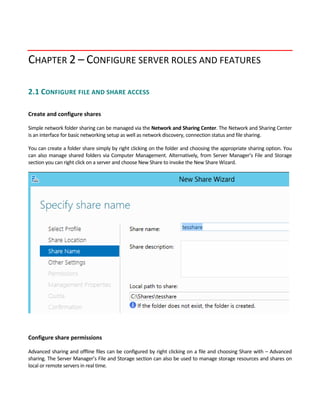
You can create a folder share simply by right clicking on the folder and choosing the appropriate sharing option. You 
can also manage shared folders via Computer Management. Alternatively, from Server Manager’s File and Storage 
section you can right click on a server and choose New Share to invoke the New Share Wizard. 
 
 
Configure share permissions
Advanced sharing and offline files can be configured by right clicking on a file and choosing Share with – Advanced 
sharing. The Server Manager’s File and Storage section can also be used to manage storage resources and shares on 
local or remote servers in real time. 
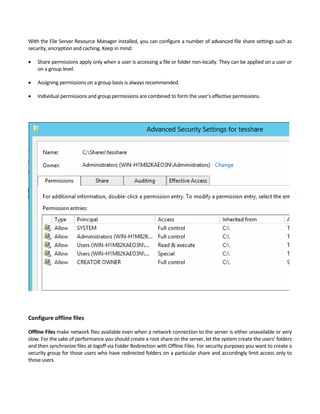
With the File Server Resource Manager installed, you can configure a number of advanced file share settings such as 
security, encryption and caching. Keep in mind:   
 Share permissions apply only when a user is accessing a file or folder non‐locally. They can be applied on a user or 
on a group level.   
 Assigning permissions on a group basis is always recommended.   
 Individual permissions and group permissions are combined to form the user’s effective permissions.   


Configure offline files
Offline Files make network files available even when a network connection to the server is either unavailable or very 
slow. For the sake of performance you should create a root share on the server, let the system create the users’ folders 
and then synchronize files at logoff via Folder Redirection with Offline Files. For security purposes you want to create a 
security group for those users who have redirected folders on a particular share and accordingly limit access only to 
those users.   
Configure NTFS permissions
NTFS  permissions  allow  you  to  assign  permissions  more  granularly  at  the  folder  and  file  level.  Keep  in  mind;  file 
permissions always take precedence over folder permissions. You can always set these by right clicking on a file or 
folder and configuring the desired permissions from Properties. 
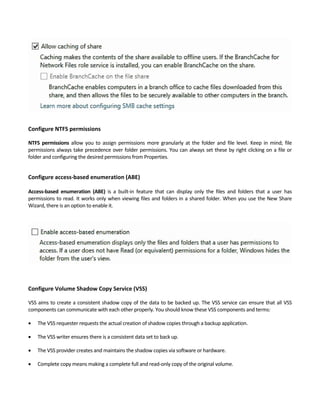
Configure access‐based enumeration (ABE)
 
Access‐based  enumeration  (ABE)  is  a  built‐in  feature  that  can  display  only  the  files  and  folders  that  a  user  has 
permissions to read. It works only when viewing files and folders in a shared folder. When you use the New Share 
Wizard, there is an option to enable it. 


Configure Volume Shadow Copy Service (VSS)
VSS aims to create a consistent shadow copy of the data to be backed up. The VSS service can ensure that all VSS 
components can communicate with each other properly. You should know these VSS components and terms: 
 The VSS requester requests the actual creation of shadow copies through a backup application.   
 The VSS writer ensures there is a consistent data set to back up.   
 The VSS provider creates and maintains the shadow copies via software or hardware.   
 Complete copy means making a complete full and read‐only copy of the original volume.     
 Copy‐on‐write makes a differential copy. 
 Redirect‐on‐write does not make any changes to the original volume. 
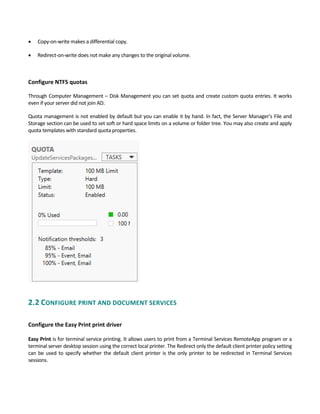
Configure NTFS quotas 
Through Computer Management – Disk Management you can set quota and create custom quota entries. It works 
even if your server did not join AD.   
Quota management is not enabled by default but you can enable it by hand. In fact, the Server Manager’s File and 
Storage section can be used to set soft or hard space limits on a volume or folder tree. You may also create and apply 
quota templates with standard quota properties.
2.2 CONFIGURE PRINT AND DOCUMENT SERVICES 
 
Configure the Easy Print print driver
 
Easy Print is for terminal service printing. It allows users to print from a Terminal Services RemoteApp program or a 
terminal server desktop session using the correct local printer. The Redirect only the default client printer policy setting 
can be used to specify whether the default client printer is the only printer to be redirected in Terminal Services 
sessions. 
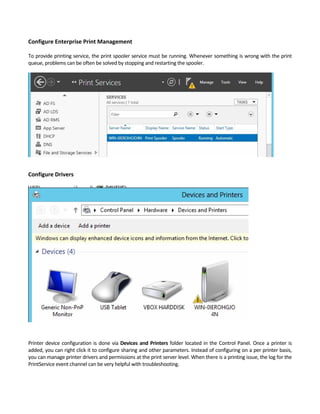
Configure Enterprise Print Management 
 
To provide printing service, the print spooler service must be running. Whenever something is wrong with the print 
queue, problems can be often be solved by stopping and restarting the spooler.   
 
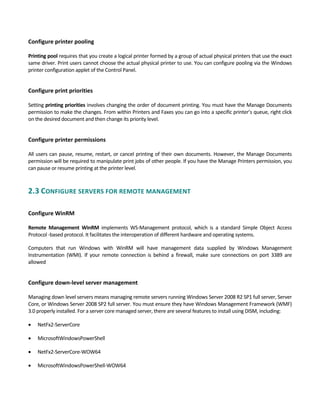
Configure Drivers 


Printer device configuration is done via Devices and Printers folder located in the Control Panel. Once a printer is 
added, you can right click it to configure sharing and other parameters. Instead of configuring on a per printer basis, 
you can manage printer drivers and permissions at the print server level. When there is a printing issue, the log for the 
PrintService event channel can be very helpful with troubleshooting. 
Configure printer pooling
 
Printing pool requires that you create a logical printer formed by a group of actual physical printers that use the exact 
same driver. Print users cannot choose the actual physical printer to use. You can configure pooling via the Windows 
printer configuration applet of the Control Panel. 
 
Configure print priorities
 
Setting printing priorities involves changing the order of document printing. You must have the Manage Documents 
permission to make the changes. From within Printers and Faxes you can go into a specific printer’s queue, right click 
on the desired document and then change its priority level. 
 
Configure printer permissions 
 
All users can pause, resume, restart, or cancel printing of their own documents. However, the Manage Documents 
permission will be required to manipulate print jobs of other people. If you have the Manage Printers permission, you 
can pause or resume printing at the printer level. 
2.3 CONFIGURE SERVERS FOR REMOTE MANAGEMENT 
 
Configure WinRM
 
Remote  Management  WinRM  implements  WS‐Management  protocol,  which  is  a  standard  Simple  Object  Access 
Protocol ‐based protocol. It facilitates the interoperation of different hardware and operating systems.   
Computers  that  run  Windows  with  WinRM  will  have  management  data  supplied  by  Windows  Management 
Instrumentation  (WMI).  If  your  remote  connection  is  behind  a  firewall,  make  sure  connections  on  port  3389  are 
allowed 
 
Configure down‐level server management
 
Managing down level servers means managing remote servers running Windows Server 2008 R2 SP1 full server, Server 
Core, or Windows Server 2008 SP2 full server. You must ensure they have Windows Management Framework (WMF) 
3.0 properly installed. For a server core managed server, there are several features to install using DISM, including: 
 NetFx2‐ServerCore   
 MicrosoftWindowsPowerShell   
 NetFx2‐ServerCore‐WOW64   
 MicrosoftWindowsPowerShell‐WOW64 
Configure servers for day‐to‐day management tasks
 
The Routing and Remote Access Server has three sub‐roles, which are Remote Desktop Services Connection Broker, 
Licensing and Virtualization. You may add roles through the Server Manager Dashboard upon setup completion.   
From  Control  Panel’s  System  Properties  you  can  enable  remote  desktop  connections  to  a  server.  Setting  Remote 
Desktop sessions to run over an encrypted channel is considered best practice as it can prevent viewing of a session. It 
is recommended to always use strong passwords with any accounts that have access to Remote Desktop.   
 
 
Configure multi‐server management
 
If you have multiple Administrator accounts in place, try to limit remote access only to those accounts that actually 
need it. You should use Local Security Policy to set account lockouts for them. 
Before  creating  a  subscription  to  collect  events  on  a  computer,  configure  both  the  collecting  computer  and  the 
computer from which events will be collected. Also note the following: 
 You run the winrm quickconfig command on the source computer.   
 You use the wecutil qc command on the collector computer. 
 You  add  the  computer  account  of  the  collector  computer  to  the  local  Administrators  group  of  the  source 
computer. 
 
 
Configure Server Core
 
To install, configure or uninstall server roles remotely you may use Server Manager, Remote Server, RSAT, or the 
Windows  PowerShell.  A  Server  Core  installation  option  allows  the  installing  of  Windows  Server  with  a  minimal 
environment  for  running  specific  server  roles.  Everything  is  done  via  command  prompt,  which  cuts  down  the 
maintenance and management requirements as well as the attack surface. 
Through the RSAT tools you can manage computers running Server 2012, Server 2008 R2, Server 2008, or Server 2003. 
By default the RSAT tools will only open the ports and enable the services that are required for remote management to 
function. 


Configure Windows Firewall 
 
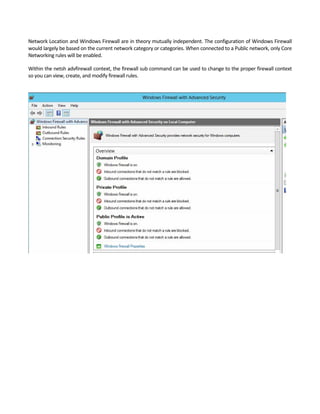
Windows  Firewall  can  be  configured  via  the  Windows  Firewall  with  Advanced  Security  interface  or  the  Netsh 
advfirewall command. You may also access it via the Control Panel. It works by examining each message and/or packet 
that passes through it and blocks those that do not meet the specified security criteria. 
Network Location and Windows Firewall are in theory mutually independent. The configuration of Windows Firewall 
would largely be based on the current network category or categories. When connected to a Public network, only Core 
Networking rules will be enabled.   
Within the netsh advfirewall context, the firewall sub command can be used to change to the proper firewall context 
so you can view, create, and modify firewall rules. 


CHAPTER 3 – CONFIGURE HYPER‐V
3.1 CREATE AND CONFIGURE VIRTUAL MACHINE SETTINGS 
 
Configure dynamic memory


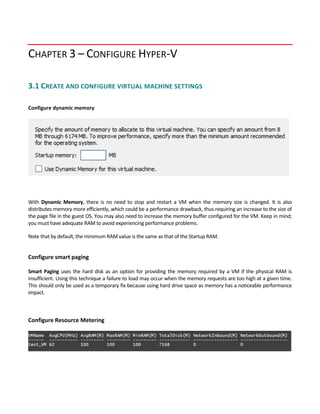
With  Dynamic  Memory,  there  is  no  need  to  stop  and  restart  a  VM  when  the  memory  size  is  changed.  It  is  also 
distributes memory more efficiently, which could be a performance drawback, thus requiring an increase to the size of 
the page file in the guest OS. You may also need to increase the memory buffer configured for the VM. Keep in mind; 
you must have adequate RAM to avoid experiencing performance problems.   
Note that by default, the minimum RAM value is the same as that of the Startup RAM. 
 
Configure smart paging 
 
Smart Paging uses the hard disk as an option for providing the memory required by a VM if the physical RAM is 
insufficient. Using this technique a failure to load may occur when the memory requests are too high at a given time. 
This should only be used as a temporary fix because using hard drive space as memory has a noticeable performance 
impact. 
 
 
Configure Resource Metering
 
Resource metering allows you to track system resource usage for your VM. It is not enabled by default, though. You 
can activate it via Enable‐VMResourceMetering. Statistics are collected once every hour by default, or as dictated by 
the ‐ResourceMeteringSaveInterval option. To display the data, use Measure‐VM. 
 
 
Configure guest integration services 


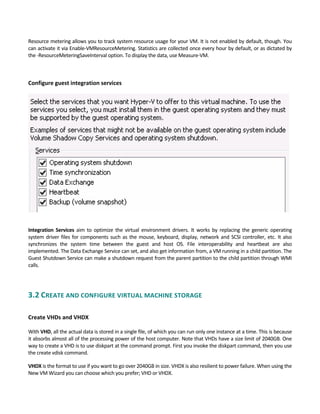
Integration  Services  aim  to  optimize  the  virtual  environment  drivers.  It  works  by  replacing  the  generic  operating 
system driver files for components such as the mouse, keyboard, display, network and SCSI controller, etc. It also 
synchronizes  the  system  time  between  the  guest  and  host  OS.  File  interoperability  and  heartbeat  are  also 
implemented. The Data Exchange Service can set, and also get information from, a VM running in a child partition. The 
Guest Shutdown Service can make a shutdown request from the parent partition to the child partition through WMI 
calls.   
 
3.2 CREATE AND CONFIGURE VIRTUAL MACHINE STORAGE 
 
Create VHDs and VHDX
 
With VHD, all the actual data is stored in a single file, of which you can run only one instance at a time. This is because 
it absorbs almost all of the processing power of the host computer. Note that VHDs have a size limit of 2040GB. One 
way to create a VHD is to use diskpart at the command prompt. First you invoke the diskpart command, then you use 
the create vdisk command.   
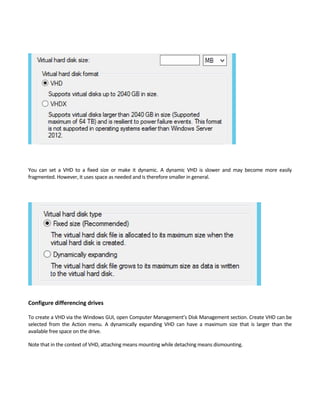
VHDX is the format to use if you want to go over 2040GB in size. VHDX is also resilient to power failure. When using the 
New VM Wizard you can choose which you prefer; VHD or VHDX. 
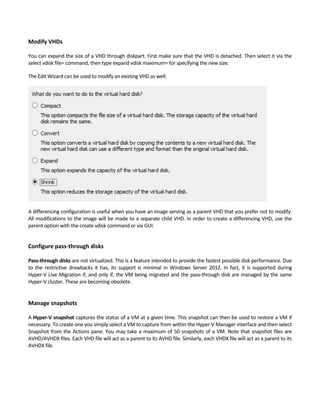
You  can  set  a  VHD  to  a  fixed  size  or  make  it  dynamic.  A  dynamic  VHD  is  slower  and  may  become  more  easily 
fragmented. However, it uses space as needed and is therefore smaller in general.   
 
Configure differencing drives
 
To create a VHD via the Windows GUI, open Computer Management’s Disk Management section. Create VHD can be 
selected  from  the  Action  menu.  A  dynamically  expanding  VHD  can  have  a  maximum  size  that  is  larger  than  the 
available free space on the drive.   
Note that in the context of VHD, attaching means mounting while detaching means dismounting.   


Modify VHDs
 
You can expand the size of a VHD through diskpart. First make sure that the VHD is detached. Then select it via the 
select vdisk file= command, then type expand vdisk maximum= for specifying the new size.   
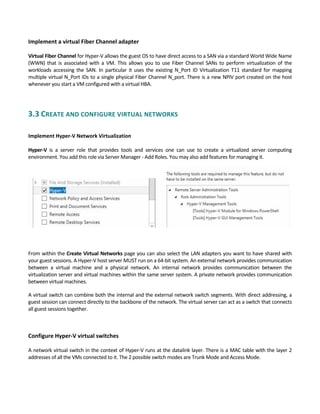
The Edit Wizard can be used to modify an existing VHD as well.   
A differencing configuration is useful when you have an image serving as a parent VHD that you prefer not to modify. 
All modifications to the image will be made to a separate child VHD. In order to create a differencing VHD, use the 
parent option with the create vdisk command or via GUI. 
 
Configure pass‐through disks
 
Pass‐through disks are not virtualized. This is a feature intended to provide the fastest possible disk performance. Due 
to the restrictive drawbacks it has, its support is minimal in Windows Server 2012. In fact, it is supported during 
Hyper‐V Live Migration if, and only if, the VM being migrated and the pass‐through disk are managed by the same 
Hyper‐V cluster. These are becoming obsolete.   
 
 
Manage snapshots
 
A Hyper‐V snapshot captures the status of a VM at a given time. This snapshot can then be used to restore a VM if 
necessary. To create one you simply select a VM to capture from within the Hyper‐V Manager interface and then select 
Snapshot from the Actions pane. You may take a maximum of 50 snapshots of a VM. Note that snapshot files are 
AVHD/AVHDX files. Each VHD file will act as a parent to its AVHD file. Similarly, each VHDX file will act as a parent to its 
AVHDX file. 


Implement a virtual Fiber Channel adapter 
 
Virtual Fiber Channel for Hyper‐V allows the guest OS to have direct access to a SAN via a standard World Wide Name 
(WWN)  that  is  associated with  a  VM.  This  allows  you  to  use  Fiber  Channel  SANs  to  perform  virtualization  of  the 
workloads  accessing  the  SAN.  In  particular  it  uses  the  existing  N_Port  ID  Virtualization  T11  standard  for  mapping 
multiple virtual N_Port IDs to a single physical Fiber Channel N_port. There is a new NPIV port created on the host 
whenever you start a VM configured with a virtual HBA. 
 
3.3 CREATE AND CONFIGURE VIRTUAL NETWORKS 
 
Implement Hyper‐V Network Virtualization
 
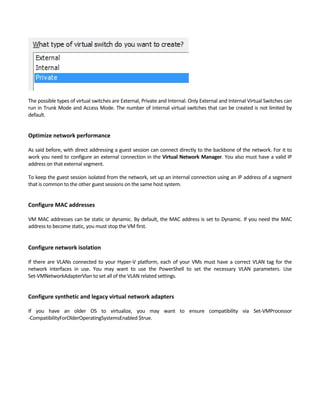
Hyper‐V  is  a  server  role  that  provides  tools  and  services  one  can  use  to  create  a  virtualized  server  computing 
environment. You add this role via Server Manager ‐ Add Roles. You may also add features for managing it. 
From within the Create Virtual Networks page you can also select the LAN adapters you want to have shared with 
your guest sessions. A Hyper‐V host server MUST run on a 64‐bit system. An external network provides communication 
between  a  virtual  machine  and  a  physical  network.  An  internal  network  provides  communication  between  the 
virtualization server and virtual machines within the same server system. A private network provides communication 
between virtual machines.   
A virtual switch can combine both the internal and the external network switch segments. With direct addressing, a 
guest session can connect directly to the backbone of the network. The virtual server can act as a switch that connects 
all guest sessions together. 
   
Configure Hyper‐V virtual switches
 
A network virtual switch in the context of Hyper‐V runs at the datalink layer. There is a MAC table with the layer 2 
addresses of all the VMs connected to it. The 2 possible switch modes are Trunk Mode and Access Mode. 
The possible types of virtual switches are External, Private and Internal. Only External and Internal Virtual Switches can 
run in Trunk Mode and Access Mode. The number of internal virtual switches that can be created is not limited by 
default. 
 
Optimize network performance
 
As said before, with direct addressing a guest session can connect directly to the backbone of the network. For it to 
work you need to configure an external connection in the Virtual Network Manager. You also must have a valid IP 
address on that external segment.   
To keep the guest session isolated from the network, set up an internal connection using an IP address of a segment 
that is common to the other guest sessions on the same host system. 
 
Configure MAC addresses
 
VM MAC addresses can be static or dynamic. By default, the MAC address is set to Dynamic. If you need the MAC 
address to become static, you must stop the VM first. 
 
Configure network isolation
 
If there are VLANs connected to your Hyper‐V platform, each of your VMs must have a correct VLAN tag for the 
network  interfaces  in  use.  You  may  want  to  use  the  PowerShell  to  set  the  necessary  VLAN  parameters.  Use 
Set‐VMNetworkAdapterVlan to set all of the VLAN related settings. 
 
Configure synthetic and legacy virtual network adapters
 
If  you  have  an  older  OS  to  virtualize,  you  may  want  to  ensure  compatibility  via  Set‐VMProcessor 
‐CompatibilityForOlderOperatingSystemsEnabled $true. 
 
 
CHAPTER 4 – DEPLOY AND CONFIGURE CORE NETWORK 
SERVICES
4.1 CONFIGURE IPV4 AND IPV6 ADDRESSING 
 
Configure IP address options 
 
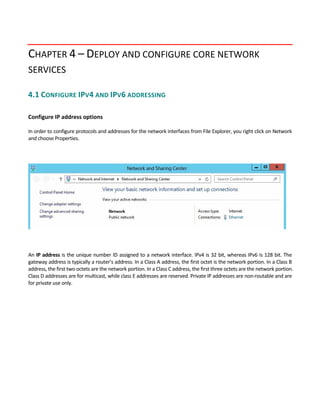
In order to configure protocols and addresses for the network interfaces from File Explorer, you right click on Network 
and choose Properties.   
An IP address is the unique number ID assigned to a network interface. IPv4 is 32 bit, whereas IPv6 is 128 bit. The 
gateway address is typically a router’s address. In a Class A address, the first octet is the network portion. In a Class B 
address, the first two octets are the network portion. In a Class C address, the first three octets are the network portion. 
Class D addresses are for multicast, while class E addresses are reserved. Private IP addresses are non‐routable and are 
for private use only. 
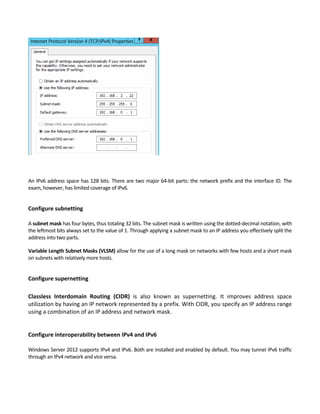
An IPv6 address space has 128 bits. There are two major 64‐bit parts: the network prefix and the interface ID. The 
exam, however, has limited coverage of IPv6. 
 
Configure subnetting 
 
A subnet mask has four bytes, thus totaling 32 bits. The subnet mask is written using the dotted‐decimal notation, with 
the leftmost bits always set to the value of 1. Through applying a subnet mask to an IP address you effectively split the 
address into two parts. 
Variable Length Subnet Masks (VLSM) allow for the use of a long mask on networks with few hosts and a short mask 
on subnets with relatively more hosts. 
 
Configure supernetting 
 
Classless  Interdomain  Routing  (CIDR)  is  also  known  as  supernetting.  It  improves  address  space 
utilization by having an IP network represented by a prefix. With CIDR, you specify an IP address range 
using a combination of an IP address and network mask. 
 
 
Configure interoperability between IPv4 and IPv6 
 
Windows Server 2012 supports IPv4 and IPv6. Both are installed and enabled by default. You may tunnel IPv6 traffic 
through an IPv4 network and vice versa.   
 
Configure ISATAP
 
There are transition technologies you may consider if you are not ready for IPv6. ISATAP allows unicast communication 
between IPv6/IPv4 hosts across your IPv4 intranet.   
Windows Server 2012 can be configured to act as an ISATAP router. Virtual IP addresses (VIPs) allow you to use cluster 
based Network Load Balancing. Neighbor Unreachability Detection (NUD) can protect against routing loops. 
 
 
Configure Teredo 
 
6to4 allows unicast communications to take place between IPv6/IPv4 hosts and IPv6‐capable sites through the Internet. 
Teredo is similar to 6to4 and can work even when there are private IPv4 addresses and NAT devices involved. IP‐HTTPS 
permits IPv6 to be tunneled using HTTP with SSL as a transport. 
To use Teredo, you need to have two consecutive static public IPv4 addresses on your outside facing network interface. 
You can use the Set‐DAServer ‐Teredo Enabled cmdlet to turn on Teredo for Direct Access. 
4.2 DEPLOY AND CONFIGURE DYNAMIC HOST CONFIGURATION PROTOCOL (DHCP) 
SERVICE 
 
Create and configure scopes 
 
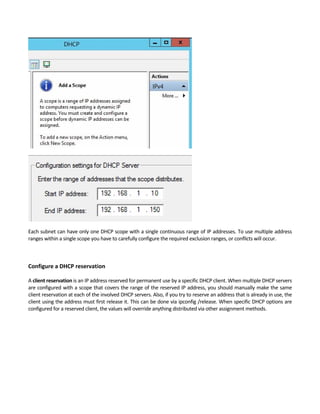
A DHCP scope refers to an administrative grouping of IP addresses. You may first create a scope for each physical 
subnet, then use the scope to further define the parameters to be used by your clients. Each scope has a range of IP 
addresses, a subnet mask and a scope name. You use the New Scope Wizard to create one. 
Each subnet can have only one DHCP scope with a single continuous range of IP addresses. To use multiple address 
ranges within a single scope you have to carefully configure the required exclusion ranges, or conflicts will occur. 
 
 
Configure a DHCP reservation
 
A client reservation is an IP address reserved for permanent use by a specific DHCP client. When multiple DHCP servers 
are configured with a scope that covers the range of the reserved IP address, you should manually make the same 
client reservation at each of the involved DHCP servers. Also, if you try to reserve an address that is already in use, the 
client using the address must first release it. This can be done via ipconfig /release. When specific DHCP options are 
configured for a reserved client, the values will override anything distributed via other assignment methods. 


Configure DHCP options 
DHCP scope options are configured for assignment to DHCP clients, such as a DNS server address, router address, 
WINS server address, etc. Server options apply to all scopes and clients of a DHCP server. Scope options apply only to 
clients of a selected applicable scope. Reservation options apply only to a specific reserved DHCP client. Class options 
apply to member clients of a specified user or vendor class. User classes group clients that have been identified as 
having a common need for certain options configuration. Vendor classes provide vendor‐specific options to clients. 
Most of the time you should only use scope options to assign most options clients need. Note that when the DHCP 
service is installed, there are no default DHCP option definitions created so they must be configured manually. 
For BOOTP to work there must be a BOOTP table. By default this table is empty. DHCP can provide assignment to 
BOOTP clients, but these clients can only obtain an IP address lease at boot time. Lease expiration times should be set 
accordingly so the lease will not expire before the client reboots. 
 
Configure client and server for PXE boot
 
In  order  to  support  PXE  Network  Boot,  there  must  be  a  working  DHCP  server  with  scope  option  066  and  067 
configured, plus a TFTP server and a NFS server. The job of DHCP in this scenario is to provide the PXE enabled host 
with the correct TFTP host and boot file name. 
 
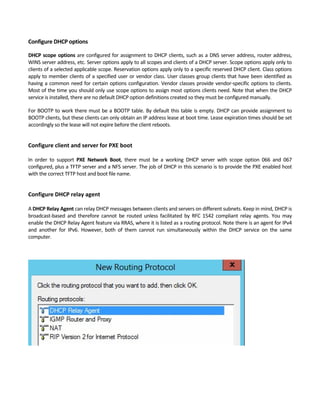
Configure DHCP relay agent
 
A DHCP Relay Agent can relay DHCP messages between clients and servers on different subnets. Keep in mind, DHCP is 
broadcast‐based  and  therefore  cannot  be  routed  unless  facilitated  by  RFC  1542  compliant  relay  agents.  You  may 
enable the DHCP Relay Agent feature via RRAS, where it is listed as a routing protocol. Note there is an agent for IPv4 
and  another  for  IPv6.  However,  both  of  them  cannot  run  simultaneously  within  the  DHCP  service  on  the  same 
computer. 


Authorize DHCP server 
 
For a domain joined DHCP Member Server, you may use the DHCP MMC console to authorize the server. If it is not 
authorized it will not lease addresses to clients. This is done for the sake of security. If located on a workgroup server, 
authorization is not necessary. If located on a domain controller, it is typically automatically authorized.   
 
4.3 DEPLOY AND CONFIGURE DNS SERVICE 
 
Configure Active Directory integration of primary zones


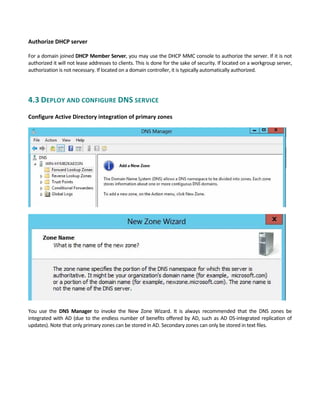
You  use  the  DNS  Manager  to  invoke  the  New  Zone  Wizard.  It  is  always  recommended  that  the  DNS  zones  be 
integrated with AD (due to the endless number of benefits offered by AD, such as AD DS‐integrated replication of 
updates). Note that only primary zones can be stored in AD. Secondary zones can only be stored in text files. 


Configure forwarders
 
When a new DNS server is not also serving as a domain controller, you may configure it by first creating a forward and 
reverse (optional) lookup zone, then decide whether queries will be forwarded to other servers. You can choose to 
designate a DNS server on your local network as a forwarder by configuring the forwarding of queries. A conditional 
forwarder is one that forwards DNS queries according to the DNS domain name involved (only some but not all queries 
will be forwarded). 
 
Configure Root Hints
 
Through root hints you may prepare servers that are authoritative for a nonroot zone so that it is possible for them to 
discover authoritative servers at a higher level. This is needed on DNS servers that are authoritative at lower levels of 
the namespace. You may configure root hints (located in properties of the DNS server) via the DNS Manager console. 
The root hints file is in fact the cache hints file. This file is text based and contains host information for resolving names 
outside of the authoritative DNS domains. 
 
Manage DNS cache
 
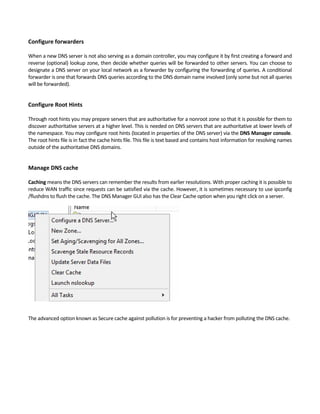
Caching means the DNS servers can remember the results from earlier resolutions. With proper caching it is possible to 
reduce WAN traffic since requests can be satisfied via the cache. However, it is sometimes necessary to use ipconfig 
/flushdns to flush the cache. The DNS Manager GUI also has the Clear Cache option when you right click on a server. 
 
The advanced option known as Secure cache against pollution is for preventing a hacker from polluting the DNS cache. 


Create A and PTR resource records
 
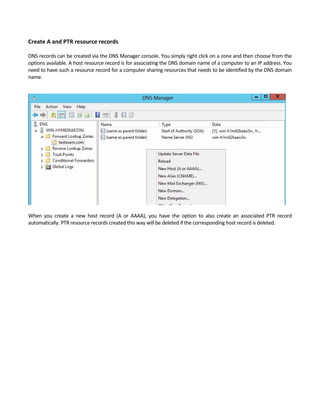
DNS records can be created via the DNS Manager console. You simply right click on a zone and then choose from the 
options available. A host resource record is for associating the DNS domain name of a computer to an IP address. You 
need to have such a resource record for a computer sharing resources that needs to be identified by the DNS domain 
name.   


When  you  create  a  new  host  record  (A  or  AAAA),  you  have  the  option  to  also  create  an  associated  PTR  record 
automatically. PTR resource records created this way will be deleted if the corresponding host record is deleted. 


CHAPTER 5 – INSTALL AND ADMINISTER ACTIVE DIRECTORY
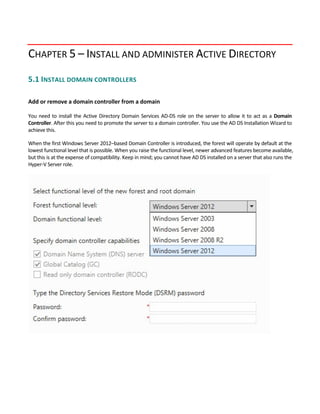
5.1 INSTALL DOMAIN CONTROLLERS 
 
Add or remove a domain controller from a domain
 
You need to install the Active Directory Domain Services AD‐DS role on the server to allow it to act as a Domain 
Controller. After this you need to promote the server to a domain controller. You use the AD DS Installation Wizard to 
achieve this. 
When the first Windows Server 2012–based Domain Controller is introduced, the forest will operate by default at the 
lowest functional level that is possible. When you raise the functional level, newer advanced features become available, 
but this is at the expense of compatibility. Keep in mind; you cannot have AD DS installed on a server that also runs the 
Hyper‐V Server role. 


Upgrade a domain controller
 
Domain controllers that run Windows 2000 Server must be removed. You should first raise the forest functional level 
to  Windows  Server  2003  (or  higher),  install  domain  controllers  that  run  Windows  Server  2012,  and  then  remove 
domain controllers that run earlier versions of Windows.
In order to install the first Windows Server 2012 domain controller in an existing domain or forest, this server must 
have proper connectivity to the existing schema master. To install or remove a domain in a forest there must be 
connectivity to the domain naming master. On a domain controller that you plan to upgrade to Windows Server 2012, 
make sure you size the drive properly. The drive that hosts NTDS.DIT must have sufficient free space to allow the 
upgrade to go through. This is about 20% of the size of the DIT file.   
 
Install Active Directory Domain Services (AD DS) on a Server Core installation
 
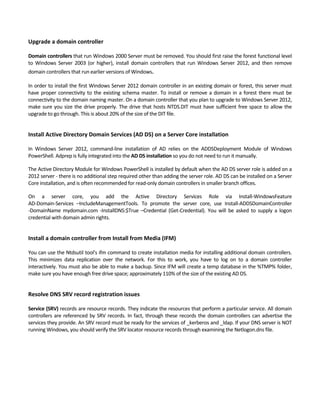
In  Windows  Server  2012,  command‐line  installation  of  AD  relies  on  the  ADDSDeployment  Module  of  Windows 
PowerShell. Adprep is fully integrated into the AD DS installation so you do not need to run it manually. 
The Active Directory Module for Windows PowerShell is installed by default when the AD DS server role is added on a 
2012 server ‐ there is no additional step required other than adding the server role. AD DS can be installed on a Server 
Core installation, and is often recommended for read‐only domain controllers in smaller branch offices. 
On  a  server  core,  you  add  the  Active  Directory  Services  Role  via  Install‐WindowsFeature 
AD‐Domain‐Services  –IncludeManagementTools.  To  promote  the  server  core,  use  Install‐ADDSDomainController 
‐DomainName  mydomain.com  ‐InstallDNS:$True  –Credential  (Get‐Credential).  You  will  be  asked  to  supply  a  logon 
credential with domain admin rights.   
 
Install a domain controller from Install from Media (IFM)
 
You can use the Ntdsutil tool's ifm command to create installation media for installing additional domain controllers. 
This  minimizes  data  replication  over  the  network.  For  this  to  work,  you  have  to  log  on  to  a  domain  controller 
interactively. You must also be able to make a backup. Since IFM will create a temp database in the %TMP% folder, 
make sure you have enough free drive space; approximately 110% of the size of the existing AD DS. 
 
Resolve DNS SRV record registration issues 
 
Service (SRV) records are resource records. They indicate the resources that perform a particular service. All domain 
controllers are referenced by SRV records. In fact, through these records the domain controllers can advertise the 
services they provide. An SRV record must be ready for the services of _kerberos and _ldap. If your DNS server is NOT 
running Windows, you should verify the SRV locator resource records through examining the Netlogon.dns file. 


Configure a global catalog server 
 
A global catalog (GC) is a domain controller. Every AD has at least one. It stores a copy of all Active Directory objects in 
a forest. It enables and facilitates user searches for directory information throughout all domains. It also resolves user 
principal names when the authenticating domain controller doesn't have knowledge of the involved account. It also 
helps other domain controllers to validate references to those objects that belong to other domains in the forest. In a 
single‐domain forest all domain controllers can respond to authentication or service requests so you have less worry 
regarding GC placement. There is no need to have a GC at a location that does not use applications that are GC 
dependant. However, roaming users will need to contact GC whenever they log on for the first time at any location. To 
add a GC, use the Active Directory Sites and Services console.   
 
5.2 CREATE AND MANAGE ACTIVE DIRECTORY USERS AND COMPUTERS 
 
Automate the creation of Active Directory accounts
 
You can create, edit and delete AD directory objects using ldifde from within an elevated command prompt (i.e. Run as 
administrator). You can use an import file to automate object creation. In particular you can create user account 
objects from an .ldf file. The CSVDE command can serve a similar purpose, but you need to supply .CSV files containing 
the user account data. 
 
Create, copy, configure, and delete users and computers
 
You use the AD Users and Computers console or the new Active Directory Administrative Center ADAC UI to create 
new resources, AD users, printers, shares and OUs. On the other hand, you use the AD Sites and Services console to 
create and manage sites. Note that to use the former you must log on as a domain administrator. 
 
Configure templates
 
To  allow  objects  to  be  created  easily,  you  can  create  template  objects.  You  simply  create  objects  as  usual  with 
commonly used properties and DISABLE the account. Then whenever you need to use the template for object creation 
you simply COPY it.   
   
Perform bulk Active Directory operations
 
Batch operations in AD can be performed using the LDIFDE utility or the ADSI/VBScript. The former makes use of the 
LDAP Data Interchange Format LDIF file, which is an Internet draft standard file format for performing batch operations 
on directories. Active Directory Services Interfaces ADSI can be used to write directory‐enabled applications. VBScript 
can be used to write simple scripts using VB like language. 
 
 
Configure user rights
 
AD user rights can be configured via the AD Users and Computers console by right clicking the desired user object and 
then choosing Properties. From the Security tab, click Advanced to view all of the permission entries that exist and 
make changes accordingly. 
 
Offline domain join
 
Offline Domain Join is implemented through Djoin.exe. You use it to join a computer to a domain without physically 
contacting a domain controller. You first run djoin /provision to create the necessary computer account metadata 
which is saved in a .txt file. Then you run djoin /requestODJ to insert the computer account metadata into the directory. 
Once you reboot the destination computer, the computer will be joined to AD. DirectAccess offline domain join further 
allows Windows Server 2012 or Windows 8 based computers to join AD remotely. 
 
Manage inactive and disabled accounts 
To clean up inactive accounts, you should use dsquery. Through dsquery you can query the directory using specific 
search criteria. For example, you can use dsquery computer with ‐inactive / ‐disabled to search for computer accounts 
that are effectively inactive / disabled. Dsquery user can do the same with user accounts. 
 
5.3 CREATE AND MANAGE ACTIVE DIRECTORY GROUPS AND ORGANIZATIONAL UNITS 
(OUS) 
 
Configure group nesting
 
Group nesting is adding a group as a member of another group. This is useful for consolidating member accounts. By 
default, when you nest a group within another, the user rights are automatically inherited. Note that groups with 
universal scopes can have other groups with universal scopes as well as groups with global scopes from any domain. 
Groups with global scopes can have other groups with global scopes from the same domain. Groups with domain local 
scopes can have groups with universal scopes as well as groups with global scopes from any domain. It can also have 
groups with domain local scopes from within the same domain. 
 
Convert groups including security, distribution, universal, domain local, and domain global
 
Distribution groups are for use with e‐mail distribution lists, while security groups are for assigning permissions to 
shared resources. You may use dsmod group to convert between group types. Groups with domain local scopes are for 
managing access to resources within a single domain. Groups with global scopes are for managing directory objects 
that require frequent maintenance. They are never replicated to other domains. Groups with universal scopes are for 
consolidating groups that span across multiple domains.
Manage group membership using Group Policy
 
Group Policy can be used to configure computer and user settings within networks based on the Active Directory 
Domain Services (AD DS). For Group Policy to work, your network must be based on AD DS and the computers you 
want to manage must be joined to the domain. You must also have the relevant permissions to create and edit the 
policy objects. 
 
Enumerate group membership
 
You may use dsget group to show the properties and members of a group. This task can be automated using a script.   
   
Delegate the creation and management of Active Directory objects
 
With delegation of administration, the responsibility for specific AD administrative tasks is transferred to those who 
must perform the respective tasks only. Simply put, high level administrators authorize the delegated lower level staff 
administrators to perform specific administrative tasks. When you design your OU structure you should consider the 
factor of delegation.   
 
 
Manage default Active Directory containers
 
Every domain contains a standard set of default containers created during AD installation. A domain container is the 
root  container  to  the  hierarchy.  A  builtin  container  keeps  the  default  service  administrator  accounts.  The  users 
container keeps new user accounts and groups created for the domain. The computers container keeps the new 
computer accounts created. The Domain Controllers OU provides a default location for the computer accounts of the 
domain controllers. 
Note there is no way to apply Group Policy settings to the default Users and Computers containers. You must first 
create new OUs, move the desired user and computer objects to the new OUs and then apply the desired group policy. 
 
 
Create, copy, configure, and delete groups and OUs
 
You use the AD Users and Computers console or the new Active Directory Administrative Center (ADAC) UI to create 
new resources, AD users, printers, shares and OUs. You may also use net group to create a new group account, but 
group names are limited to 64 characters. 


CHAPTER 6 – CREATE AND MANAGE GROUP POLICY 
6.1 CREATE GROUP POLICY OBJECTS (GPOS) 


Configure a Central Store
 
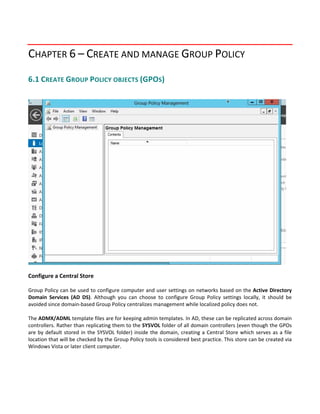
Group Policy can be used to configure computer and user settings on networks based on the Active Directory 
Domain  Services  (AD  DS).  Although  you  can  choose  to  configure  Group  Policy  settings  locally,  it  should  be 
avoided since domain‐based Group Policy centralizes management while localized policy does not. 
 
The ADMX/ADML template files are for keeping admin templates. In AD, these can be replicated across domain 
controllers. Rather than replicating them to the SYSVOL folder of all domain controllers (even though the GPOs 
are by default stored in the SYSVOL folder) inside the domain, creating a Central Store which serves as a file 
location that will be checked by the Group Policy tools is considered best practice. This store can be created via 
Windows Vista or later client computer. 


Manage starter GPOs
 
Starter Group Policy Objects derive from a GPO. These are used to store Administrative Template policy settings. 
Grouping these settings inside a single object makes imports and exports much easier. These are created and 
managed via the Group Policy Management Console UI. Selecting New GPO from the Starter GPO option allow 
these be used as templates for GPO creation. 


Configure GPO links
 
The settings of a GPO can be applied by adding a link to that GPO. Multiple GPO links can be added to a domain, 
site, or OU via the GPMC. If you want to apply policy settings based upon physical location only, add a link to the 
desired site.  If the settings do not clearly correspond to any particular site, linking  to an  OU or a domain is 
considered best practice. 
 
In order for a GPO to be applied to a given user or computer, that user or computer must have both Read and 
Apply Group Policy (AGP) permissions for that GPO. However, you cannot have a GPO linked directly to a user, a 
computer, or a security group. 
 
 
Configure multiple local group policies
 
Multiple Local Group Policy (MLGP) is a collection of local GPOs. These objects include:
 Local Computer Policy
 Administrators Local Group Policy
 Non-Administrators Local Group Policy
 User-Specific Local Group Policy
They may be edited via the Group Policy Object Editor. Note that these are available only on computers that are
not domain controllers.
 
Configure security filtering
 
Security filtering allows you to fine tune which users and computers will receive and apply the settings of a GPO. 
Security filtering is used to apply only some of the security principals within a container to which the GPO is 
linked. You may use the GPMC to add and remove groups, users, and computers that are to be used as security 
filters for a GPO. 


6.2 CONFIGURE SECURITY POLICIES 
 
Configure User Rights Assignment
 
User rights are for defining capabilities at the level of local computer only. Technically they can be applied to 
individual user accounts, but should be administered on a group account basis. User rights assigned to a group 
are applied to all members within the group. 
 
 
Configure Security Options settings
 
It  is  possible  to  use  Dynamic  Access  Control  (DAC)  to  dramatically  reduce  the  complexity  of  amalgamated 
security groups. You may create central access policies for files to centrally deploy and manage authorization 
policies that include conditional expressions using a variety of criteria such as user claims, device claims, and 
resource properties. 
 
The primary goal of Security Auditing, in context of DAC, is regulatory compliance. This helps to establish the 
presence of such policies and also prove compliance or noncompliance with these standards. Staging allows you 
to verify proposed policy changes before enforcing them. 
 
 
Configure Security templates
 
 
The Security Configuration Wizard is used to produce security policies using security templates that are in .inf 
format.  This  allows  for  prioritization  of  templates  to  ensure  the  correct  settings  are  taking  the  proper 
precedence. 
 
 
In AD, it is considered best practice to deploy security templates by importing them into a GPO. This is facilitated 
by first creating OUs for the computers that are to use the various specific security templates, then adding the 
computers’  accounts  to  the  proper  OU.  Finally,  the  OU  is  linked  to  the  desired  GPO.  To  import  a  security 
template into a GPO, use the Group Policy Object Editor UI. 
 
Configure Audit Policy
 
There  are  many  audit  policy  setting  categories  contained  within  Security  SettingsAdvanced  Audit  Policy 
Configuration. These are: 
 Account Logon   
 Account Management   
 Detailed Tracking   
 DS Access   
 Logon/Logoff   
 Object Access   
 Policy Change   
 Privilege Use   
 System   
 Global Object Access Auditing   
Object  Access  policy  settings  are  used  to  track  attempts  to  access  specific  objects  or  types  of  objects  on  a 
network or computer. This allows for auditing attempts to access a file, directory, registry key, or any other 
object, such as files and folders within a shared folder. The appropriate Object Access auditing subcategory for 
success and/or failure events must be enabled, however. 
 
 
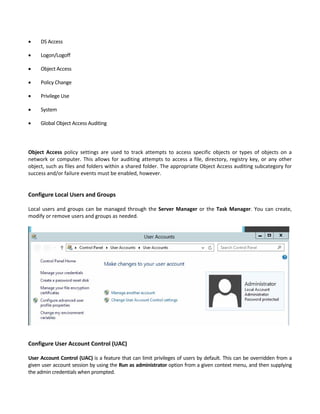
Configure Local Users and Groups
 
Local users and groups can be managed through the Server Manager or the Task Manager. You can create, 
modify or remove users and groups as needed. 


Configure User Account Control (UAC) 
 
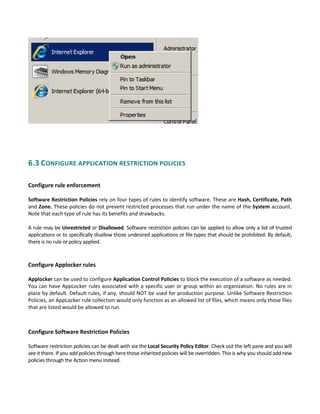
User Account Control (UAC) is a feature that can limit privileges of users by default. This can be overridden from a 
given user account session by using the Run as administrator option from a given context menu, and then supplying 
the admin credentials when prompted. 


6.3 CONFIGURE APPLICATION RESTRICTION POLICIES 
 
Configure rule enforcement
 
Software Restriction Policies rely on four types of rules to identify software. These are Hash, Certificate, Path 
and Zone. These policies do not prevent restricted processes that run under the name of the System account. 
Note that each type of rule has its benefits and drawbacks. 
 
A rule may be Unrestricted or Disallowed. Software restriction policies can be applied to allow only a list of trusted 
applications or to specifically disallow those undesired applications or file types that should be prohibited. By default, 
there is no rule or policy applied. 
Configure Applocker rules
 
Applocker can be used to configure Application Control Policies to block the execution of a software as needed. 
You can have AppLocker rules associated with a specific user or group within an organization. No rules are in 
place by default. Default rules, if any, should NOT be used for production purpose. Unlike Software Restriction 
Policies, an AppLocker rule collection would only function as an allowed list of files, which means only those files 
that are listed would be allowed to run. 
 
 
Configure Software Restriction Policies 
 
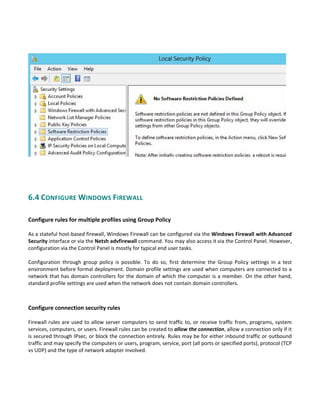
Software restriction policies can be dealt with via the Local Security Policy Editor. Check out the left pane and you will 
see it there. If you add policies through here those inherited policies will be overridden. This is why you should add new 
policies through the Action menu instead. 


6.4 CONFIGURE WINDOWS FIREWALL 
 
Configure rules for multiple profiles using Group Policy
 
As a stateful host‐based firewall, Windows Firewall can be configured via the Windows Firewall with Advanced 
Security interface or via the Netsh advfirewall command. You may also access it via the Control Panel. However, 
configuration via the Control Panel is mostly for typical end user tasks. 
 
Configuration  through  group  policy  is  possible.  To  do  so,  first  determine  the  Group  Policy  settings  in  a  test 
environment before formal deployment. Domain profile settings are used when computers are connected to a 
network that has domain controllers for the domain of which the computer is a member. On the other hand, 
standard profile settings are used when the network does not contain domain controllers. 
 
 
Configure connection security rules
 
Firewall rules are used to allow server computers to send traffic to, or receive traffic from, programs, system 
services, computers, or users. Firewall rules can be created to allow the connection, allow a connection only if it 
is secured through IPsec, or block the connection entirely. Rules may be for either inbound traffic or outbound 
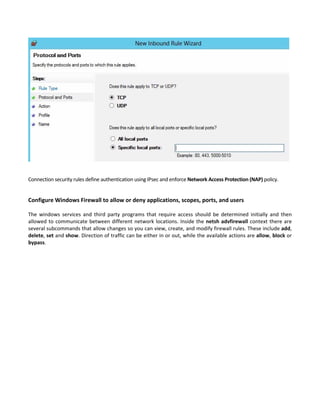
traffic and may specify the computers or users, program, service, port (all ports or specified ports), protocol (TCP 
vs UDP) and the type of network adapter involved.   


Connection security rules define authentication using IPsec and enforce Network Access Protection (NAP) policy.   
 
Configure Windows Firewall to allow or deny applications, scopes, ports, and users
 
The  windows  services  and  third  party  programs  that  require  access  should  be  determined  initially  and  then 
allowed to communicate between different network locations. Inside the netsh advfirewall context there are 
several subcommands that allow changes so you can view, create, and modify firewall rules. These include add, 
delete, set and show. Direction of traffic can be either in or out, while the available actions are allow, block or 
bypass. 
 
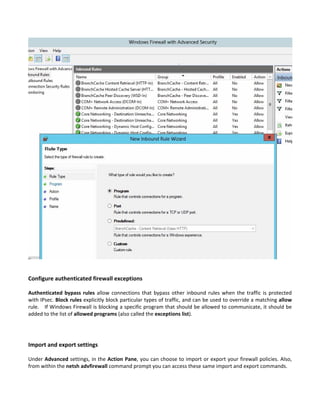
Configure authenticated firewall exceptions
 
Authenticated bypass rules allow connections that bypass other inbound rules when the traffic is protected 
with IPsec. Block rules explicitly block particular types of traffic, and can be used to override a matching allow 
rule.    If Windows Firewall is blocking a specific program that should be allowed to communicate, it should be 
added to the list of allowed programs (also called the exceptions list). 
 
 
Import and export settings 
 
Under Advanced settings, in the Action Pane, you can choose to import or export your firewall policies. Also, 
from within the netsh advfirewall command prompt you can access these same import and export commands. 

MCSA Server 2012 Exam Paper 1- Ms 70 410