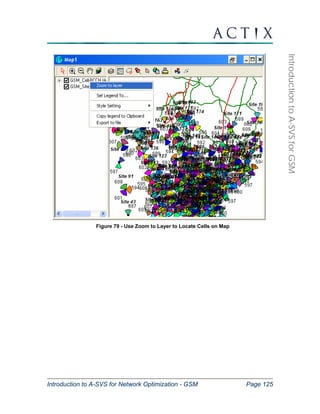
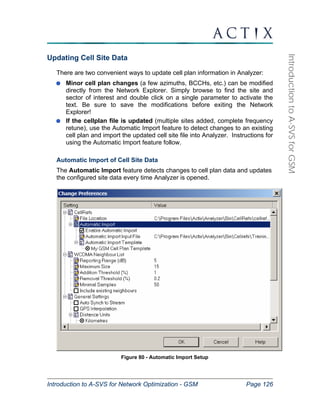
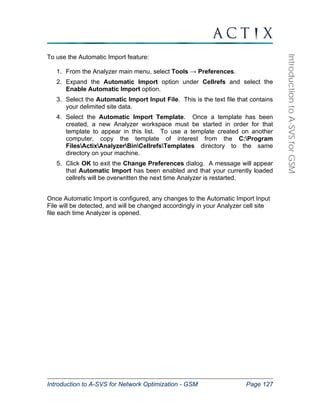
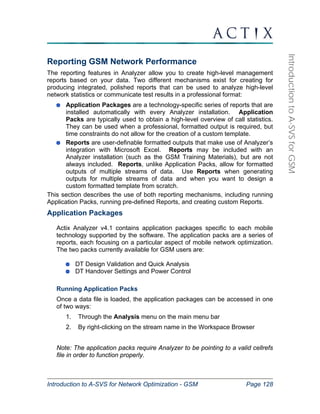
Introduction to A-SVS for Network Optimization - GSM Page 2 
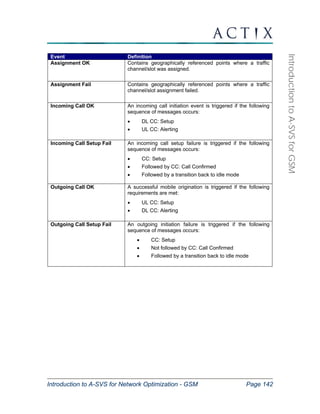
Introduction to A-SVS for GSM 
Introduction.........................................................................................................6 
Scope of the Course..........................................................................................6 
Who Should Attend Analyzer Training?.............................................................6 
Prerequisites .....................................................................................................7 
Topics to Be Covered........................................................................................8 
Introduction to Actix Analyzer............................................................................9 
Analyzer’s Key Features .................................................................................10 
What’s New in A-SVS Version 1.6....................................................................11 
Technology Enhancements.............................................................................11 
Data Visualization............................................................................................11 
Licensing .........................................................................................................12 
Getting Started With Analyzer .........................................................................13 
Starting Analyzer .............................................................................................13 
Configuring Analyzer .......................................................................................15 
Setting up Maps .......................................................................................15 
More Pan and Zoom Options ..........................................................................19 
Map Scale and Coordinates.....................................................................20 
Loading Cell Site Data .............................................................................20 
Displaying Site Labels..............................................................................21 
Coloring Sectors on the Map...........................................................................23 
Viewing Cell Site Information ...................................................................26 
Searching for Cells ......................................................................................27 
Data Aggregation (Binning) .............................................................................29 
Exploring the Workspace.................................................................................31 
Loading Files...................................................................................................31 
Viewing Scanner Data in Analyzer ..................................................................34 
Independent Node Data in Analyzer................................................................34 
Searching for Attributes...................................................................................36 
The Favorites Group .......................................................................................36 
Sharing Favorites.........................................................................................37 
Viewing Data in Analyzer .................................................................................38 
Viewing Data on Maps ....................................................................................38 
Modifying Legend Ranges........................................................................39 
The Map Offset Tool ................................................................................40 
Creating a Multi-Dimensional Map Stream...............................................42 
Lines to Cells and Cell History .................................................................43 
Displaying Data Values as Text on Maps.................................................45 
The Direction Button ....................................................................................49 
Region Filtering............................................................................................49 
Printing Maps...............................................................................................51 
Viewing Data on Charts...................................................................................53 
Modifying Chart Properties.......................................................................55 
Viewing Data in Tables....................................................................................57
Introduction to A-SVS for Network Optimization - GSM Page 3 
Introduction to A-SVS for GSM 
Viewing Data in the Message Browser............................................................58 
Viewing Data in the Protocol Stack Browser ...................................................60 
Viewing Data on Workbooks ...........................................................................62 
Delta Plots.......................................................................................................63 
The Replay Tool ..............................................................................................66 
Docking the Replay Tool ..........................................................................67 
Viewing Data on Stateforms............................................................................68 
Using Preconfigured StateForms .............................................................68 
Viewing Custom Forms with the StateForms Editor .................................73 
Modifying an Existing StateForms File .....................................................74 
Creating Your Own StateForms File ........................................................77 
Uplink Data Analysis ........................................................................................80 
Exploring Call Trace Data ...............................................................................80 
Superstreaming Call Trace and Drive Test Data .............................................81 
Merging Multiple Drive Files in the Workspace..............................................83 
The Network Image...........................................................................................84 
Use a Pre-Configured Template to Create a New Network Image..................84 
Batch Load Files Into the Network Image........................................................86 
Display Data for the Entire Network ................................................................87 
Start a New Day – Attaching a Network Image ...............................................87 
Create a Custom Network Image Template ....................................................88 
Analyzer Queries and Filters ...........................................................................95 
Filter Analysis ..................................................................................................96 
Binned Query / Custom Analysis Query ........................................................100 
ServingCellDistance in Miles..................................................................100 
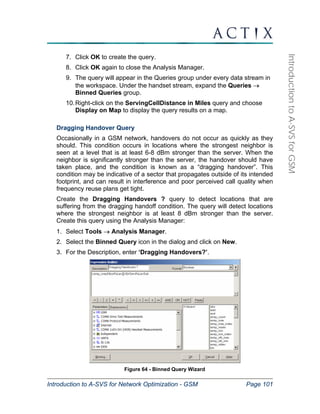
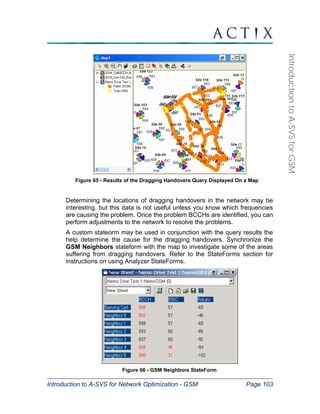
Dragging Handover Query .....................................................................101 
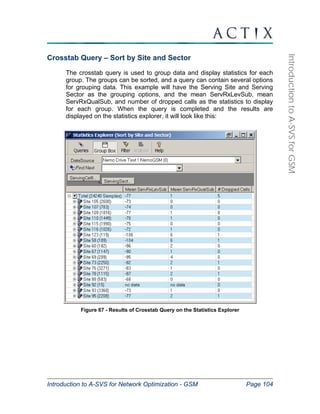
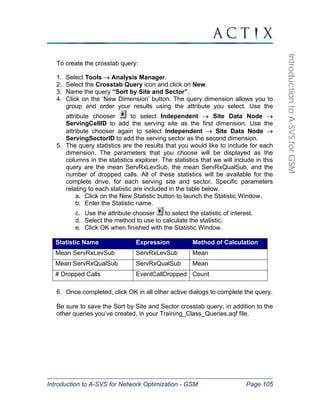
Crosstab Query – Sort by Site and Sector ....................................................104 
Display the Crosstab Query Results ......................................................106 
Filter the Crosstab Query Results ..........................................................106 
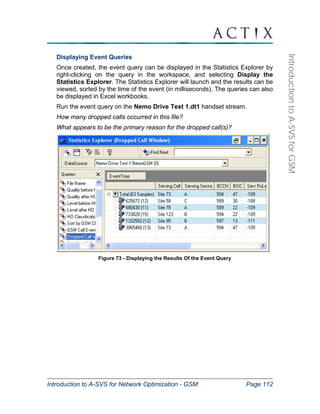
Event Query - Dropped Call Window.............................................................108 
Displaying Event Queries.......................................................................112 
Statistic Analysis ...........................................................................................113 
Generate Statistics for a Binned Query..................................................113 
Cell Site Configuration Using the Network Explorer ...................................114 
Importing Network Data.................................................................................114 
Obtaining Site Data in Tabular Format...................................................114 
Guidelines for Formatting Tabular Data .................................................117 
Obtaining the File to be Populated With Formatted Data .......................118 
Importing the Data..................................................................................119 
Updating Cell Site Data .................................................................................126 
Automatic Import of Cell Site Data .........................................................126 
Reporting GSM Network Performance..........................................................128 
Application Packages ....................................................................................128 
Running Application Packs.....................................................................128
Introduction to A-SVS for Network Optimization - GSM Page 4 
Introduction to A-SVS for GSM 
DT Design Validation and Quick Analysis ..............................................130 
DT Handover Settings and Power Control .............................................131 
Running a Pre-Defined Report ......................................................................132 
Creating a Custom Report.............................................................................134 
Running Your Report with New Data .....................................................136 
Where to Get More Help .................................................................................137 
Help File ........................................................................................................137 
Technical Support .........................................................................................139 
Actix Web Site ...............................................................................................140 
Contact Your Instructor .................................................................................140 
More Advanced Training ...............................................................................140 
Appendix A – GSM Event Definitions............................................................141 
Appendix B – GPRS Optimization Parameters.............................................143 
GPRS Test Design ........................................................................................143 
GPRS Data Analysis .....................................................................................144 
Appendix C – StateForms Attributes ............................................................149
Introduction to A-SVS for Network Optimization - GSM Page 5 
Introduction to A-SVS for GSM 
Actix Analyzer Sales 
12012 Sunset Hills Rd 
Suite 910 
Reston, VA 20190 
Telephone: (703) 707-4777 
Fax: (703) 707-4778 
Web Site: http://www.actix.com 
Email: sales@actix.com 
Document Revision 2.0, December 2004 
For Actix A-SVS-GP1 Version 1.6 
Course: NTII 
All contents of this document are the property of Actix Inc and are provided 
for informational purposes only. The information in this document is subject 
to change without notice. Actix will not be held liable for technical or editorial 
omissions made herein, and will not be held liable for incidental, 
consequential, or other similar damages resulting from the use of its 
products. 
Copyright © Actix Inc. 2002, All Rights Reserved
Introduction to A-SVS for Network Optimization - GSM Page 6 
Introduction to A-SVS for GSM 
Introduction 
Scope of the Course 
Introduction to Analyzer for Network Optimization provides a comprehensive 
overview of Actix Analyzer – Service Verification Solution (‘Analyzer’). Our 
goal is to give new users an understanding of what Analyzer can do and how 
it can help them improve the quality of service for their network subscribers. 
This course is led by experienced instructors. These instructors are experts in 
using Analyzer to increase productivity and are familiar with the challenges 
faced by engineers working in cellular/PCS environments. 
Class size is limited to ensure that everyone receives extensive one on one 
instruction. Participants are given ample opportunity to ask questions relevant 
to their particular optimization needs. Upon completing the course, 
participants will be able to put what they learned in the class to work to 
identify and solve real network problems. 
Introduction to Analyzer for Network Optimization begins with a high-level 
presentation of the Analyzer interface and its capabilities. We will then cover 
how Analyzer can be customized to tailor existing optimization processes to 
the specific needs of the participants. 
Who Should Attend Analyzer Training? 
Engineers responsible for enhancing cellular performance and 
implementing wireless system optimization 
System Performance Engineers responsible for measuring and quantifying 
network quality relative to competitors and/or established benchmarks 
Engineers looking to further understand the application of drive test, call 
trace and protocol data in optimizing networks 
Experienced technicians involved in field optimization 
Anyone looking to maximize the return on their investment in Actix 
Analyzer
Introduction to A-SVS for Network Optimization - GSM Page 7 
Introduction to A-SVS for GSM 
Prerequisites 
Familiarity with network infrastructure and operation of the air interface 
A general understanding of drive test and call trace collection and post-processing 
methodology and advantages and limitations of each dataset 
Access to Actix Analyzer software 
Basic computer literacy, including familiarity with Windows and MS Office 
applications 
A computer running either Windows XP or Windows 2000 operating 
system. Windows XP is recommended for optimal performance. Also, the 
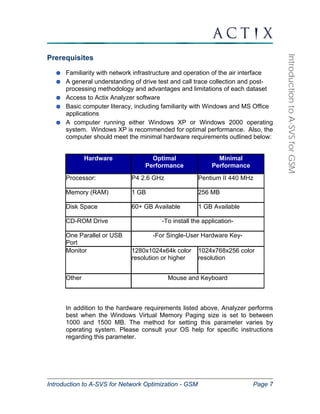
computer should meet the minimal hardware requirements outlined below: 
Hardware Optimal 
Performance 
Minimal 
Performance 
Processor: P4 2.6 GHz Pentium II 440 MHz 
Memory (RAM) 1 GB 256 MB 
Disk Space 60+ GB Available 1 GB Available 
CD-ROM Drive -To install the application- 
One Parallel or USB 
-For Single-User Hardware Key- 
Port 
Monitor 1280x1024x64k color 
resolution or higher 
1024x768x256 color 
resolution 
Other Mouse and Keyboard 
In addition to the hardware requirements listed above, Analyzer performs 
best when the Windows Virtual Memory Paging size is set to between 
1000 and 1500 MB. The method for setting this parameter varies by 
operating system. Please consult your OS help for specific instructions 
regarding this parameter.
Introduction to A-SVS for Network Optimization - GSM Page 8 
Introduction to A-SVS for GSM 
Topics to Be Covered 
Configuring your Analyzer workspace including map, cell site, and 
parameter configuration in order to display your geographic area and 
network cell plan 
Viewing data in a variety of ways to gain insight into possible network 
problems 
Diagnosing and solving quality of service problems with drive test and 
switch data 
Using pre-defined and custom analyses to analyze data and devise 
tailored optimization solutions 
Identifying the impact of wide area network optimization changes in terms 
of quality of service using advanced features that allow Analyzer to be 
tailored to integrate seamlessly into developed optimization processes and 
procedures 
Using some of the latest task-oriented application packages and their 
supporting engineering notes, which highlight how Analyzer can be used 
to fine-tune network performance and further enhance quality of service 
Using the Help options and maximizing the benefit of technical support
Introduction to A-SVS for Network Optimization - GSM Page 9 
Introduction to A-SVS for GSM 
Introduction to Actix Analyzer 
Mobile phone network operators strive to maximize the capacity and quality of 
their networks in order to ensure customer satisfaction and increase 
revenues. The collection and analysis of network performance metrics forms 
a large part of this effort. There are many sources of performance data 
available, including field-test equipment, scanners, and call traces. 
Actix Analyzer provides the ideal solution for your network optimization 
problems. It supports a wide range of file formats and provides you with a 
straightforward user interface. 
Actix Analyzer is a post-processing tool for the top-down optimization of 
wireless networks. Actix supports a wide variety of collection file formats, 
including: 
Drive Test Collection Tools, including Ericsson TEMS, Nemo 
TOM, Comarco Baseline, Xtel, Grayson Invex, Xplor, Dingli, and 
Ascom Q-voice. 
Switch (Mobile Traffic Records) Traces, including Ericsson 
MTR, and Nokia Online 
Protocol Analyzers on the A, Abis, and Gb interfaces for 
GSM/GPRS networks including Tektronix K1205, Ocean, and 
Nethawk.
Introduction to A-SVS for Network Optimization - GSM Page 10 
Introduction to A-SVS for GSM 
Analyzer’s Key Features 
Supports most of the industry standard file formats for drive-test, OMC-R 
traces, and A, Gb, and Abis traces 
Easy-to-understand Windows user interface means information can be 
interpreted quickly 
Data may be queried on user-defined criteria and filtered accordingly 
Access to high-level statistical information and detailed engineering 
parameters 
Analyses may be run quickly using pre-defined report templates 
The most commonly requested analyses and calculations are carried out 
automatically 
Drive test and call trace files may be combined to link forward and reverse 
link data 
Interface with Excel allows detailed statistical and mathematical analysis 
of any data set 
The Network Image feature enables aggregation of large volumes of drive 
test data into one file, including only key parameters, resulting in a much 
smaller file
Introduction to A-SVS for Network Optimization - GSM Page 11 
Introduction to A-SVS for GSM 
What’s New in A-SVS Version 1.6 
Technology Enhancements 
AMR Measurements – Adaptive multi-rate (AMR) parameters available for 
analysis include Setup Parameters and Frame Measurements. AMR 
measurements are currently available for the TEMS, Invex 3G and XTel data 
collection formats. 
GPRS and EDGE Protocols - A-SVS supports the analysis of GPRS and 
EDGE networks. GPRS parameters are available for all major collection 
vendors. EDGE support is currently available for Nemo, and will soon be 
available for TEMS and XTel. Data testing measurements provide technology 
independent data protocol metrics provided by wireless data collection 
equipment. 
E-GSM Improvements – A-SVS v1.6 provides improved support for 
extended GSM band test and measurement (T+M) devices. 
Data Visualization 
Preconfigured StateForms - A number of preconfigured GSM and GPRS 
StateForms enable the user to quickly identify and troubleshoot important 
network events. 
Protocol Stack Browser – The Protocol Stack Browser allows the user to 
quickly browse through messages by examining the header only. Once a 
message of interest is identified in the top pane of the Protocol Stack 
Browser, the details of the message can be examined in the bottom pane. 
Cell Site Configuration – The Network Explorer has been updated to ease 
the cell site configuration process. The Auto Import feature is available to 
automatically update the cellrefs file with changes to network data. The 
Display Cell Data view provides easy access to network data details within 
the workspace. 
Search for Attributes – It is now possible to search for specific attributes 
within the tree structure of all open data streams within the Workspace 
Explorer. The results of the search will be displayed in the new “Search 
Results” tab. 
Region Filtering - A filtering mechanism has been implemented at the map 
layer level. This feature allows for one or more polygons of any desired size 
and shape to be drawn on a map. Data can then be filtered either inside or 
outside this defined region.
Introduction to A-SVS for Network Optimization - GSM Page 12 
Introduction to A-SVS for GSM 
Direction Button – It is now possible to display directional arrows on any 
drive-test map. These arrows indicate the direction of the drive test vehicle 
during collection. 
Licensing 
Several licensing options are available to meet the varied needs of different 
customers. 
Stand-alone Configurations – Users from the same customer will be able to 
readily interchange hardware keys without the inconvenience of having to 
move, copy, or replace license files. 
Commutable Network Configurations – The Actix customer who uses the 
Analyzer in a commutable network configuration will now have more flexibility 
in configuring the use of licenses to support usage in the office and in the 
field.
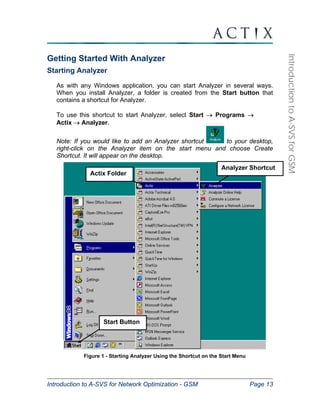
Actix Folder 
Analyzer Shortcut 
Start Button 
Introduction to A-SVS for Network Optimization - GSM Page 13 
Introduction to A-SVS for GSM 
Getting Started With Analyzer 
Starting Analyzer 
As with any Windows application, you can start Analyzer in several ways. 
When you install Analyzer, a folder is created from the Start button that 
contains a shortcut for Analyzer. 
To use this shortcut to start Analyzer, select Start → Programs → 
Actix → Analyzer. 
Note: If you would like to add an Analyzer shortcut to your desktop, 
right-click on the Analyzer item on the start menu and choose Create 
Shortcut. It will appear on the desktop. 
Figure 1 - Starting Analyzer Using the Shortcut on the Start Menu
Introduction to A-SVS for Network Optimization - GSM Page 14 
Introduction to A-SVS for GSM 
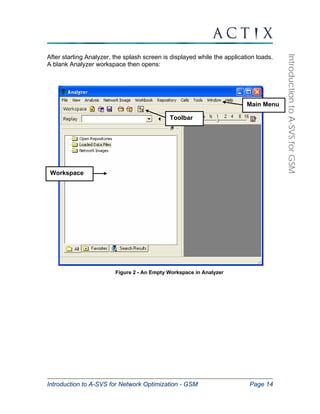
After starting Analyzer, the splash screen is displayed while the application loads. 
A blank Analyzer workspace then opens: 
Figure 2 - An Empty Workspace in Analyzer 
Workspace 
Toolbar 
Main Menu
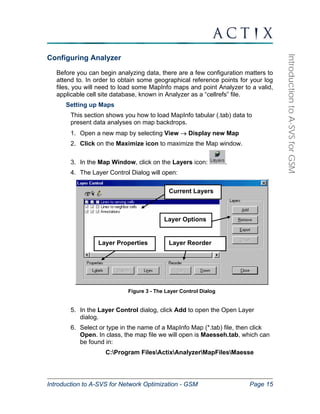
Current Layers 
Layer Options 
Layer Properties Layer Reorder 
Introduction to A-SVS for Network Optimization - GSM Page 15 
Introduction to A-SVS for GSM 
Configuring Analyzer 
Before you can begin analyzing data, there are a few configuration matters to 
attend to. In order to obtain some geographical reference points for your log 
files, you will need to load some MapInfo maps and point Analyzer to a valid, 
applicable cell site database, known in Analyzer as a “cellrefs” file. 
Setting up Maps 
This section shows you how to load MapInfo tabular (.tab) data to 
present data analyses on map backdrops. 
1. Open a new map by selecting View → Display new Map 
2. Click on the Maximize icon to maximize the Map window. 
3. In the Map Window, click on the Layers icon: . 
4. The Layer Control Dialog will open: 
Figure 3 - The Layer Control Dialog 
5. In the Layer Control dialog, click Add to open the Open Layer 
dialog. 
6. Select or type in the name of a MapInfo Map (*.tab) file, then click 
Open. In class, the map file we will open is Maesseh.tab, which can 
be found in: 
C:Program FilesActixAnalyzerMapFilesMaesse
Introduction to A-SVS for Network Optimization - GSM Page 16 
Introduction to A-SVS for GSM 
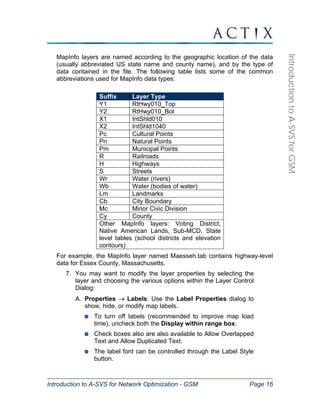
MapInfo layers are named according to the geographic location of the data 
(usually abbreviated US state name and county name), and by the type of 
data contained in the file. The following table lists some of the common 
abbreviations used for MapInfo data types: 
Suffix Layer Type 
Y1 RtHwy010_Top 
Y2 RtHwy010_Bot 
X1 IntShld010 
X2 IntShld1040 
Pc Cultural Points 
Pn Natural Points 
Pm Municipal Points 
R Railroads 
H Highways 
S Streets 
Wr Water (rivers) 
Wb Water (bodies of water) 
Lm Landmarks 
Cb City Boundary 
Mc Minor Civic Division 
Cy County 
Other MapInfo layers: Voting District, 
Native American Lands, Sub-MCD, State 
level tables (school districts and elevation 
contours) 
For example, the MapInfo layer named Maesseh.tab contains highway-level 
data for Essex County, Massachusetts. 
7. You may want to modify the layer properties by selecting the 
layer and choosing the various options within the Layer Control 
Dialog: 
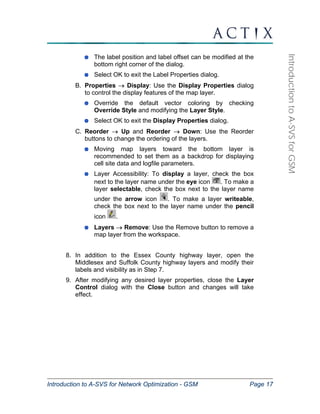
A. Properties → Labels: Use the Label Properties dialog to 
show, hide, or modify map labels. 
To turn off labels (recommended to improve map load 
time), uncheck both the Display within range box. 
Check boxes also are also available to Allow Overlapped 
Text and Allow Duplicated Text. 
The label font can be controlled through the Label Style 
button.
Introduction to A-SVS for Network Optimization - GSM Page 17 
Introduction to A-SVS for GSM 
The label position and label offset can be modified at the 
bottom right corner of the dialog. 
Select OK to exit the Label Properties dialog. 
B. Properties → Display: Use the Display Properties dialog 
to control the display features of the map layer. 
Override the default vector coloring by checking 
Override Style and modifying the Layer Style. 
Select OK to exit the Display Properties dialog. 
C. Reorder → Up and Reorder → Down: Use the Reorder 
buttons to change the ordering of the layers. 
Moving map layers toward the bottom layer is 
recommended to set them as a backdrop for displaying 
cell site data and logfile parameters. 
Layer Accessibility: To display a layer, check the box 
next to the layer name under the eye icon . To make a 
layer selectable, check the box next to the layer name 
under the arrow icon . To make a layer writeable, 
check the box next to the layer name under the pencil 
icon . 
Layers → Remove: Use the Remove button to remove a 
map layer from the workspace. 
8. In addition to the Essex County highway layer, open the 
Middlesex and Suffolk County highway layers and modify their 
labels and visibility as in Step 7. 
9. After modifying any desired layer properties, close the Layer 
Control dialog with the Close button and changes will take 
effect.
Map Toolbar 
Introduction to A-SVS for Network Optimization - GSM Page 18 
Introduction to A-SVS for GSM 
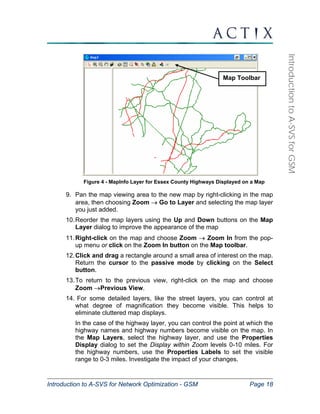
Figure 4 - MapInfo Layer for Essex County Highways Displayed on a Map 
9. Pan the map viewing area to the new map by right-clicking in the map 
area, then choosing Zoom → Go to Layer and selecting the map layer 
you just added. 
10. Reorder the map layers using the Up and Down buttons on the Map 
Layer dialog to improve the appearance of the map 
11. Right-click on the map and choose Zoom → Zoom In from the pop-up 
menu or click on the Zoom In button on the Map toolbar. 
12. Click and drag a rectangle around a small area of interest on the map. 
Return the cursor to the passive mode by clicking on the Select 
button. 
13. To return to the previous view, right-click on the map and choose 
Zoom →Previous View. 
14. For some detailed layers, like the street layers, you can control at 
what degree of magnification they become visible. This helps to 
eliminate cluttered map displays. 
In the case of the highway layer, you can control the point at which the 
highway names and highway numbers become visible on the map. In 
the Map Layers, select the highway layer, and use the Properties 
Display dialog to set the Display within Zoom levels 0-10 miles. For 
the highway numbers, use the Properties Labels to set the visible 
range to 0-3 miles. Investigate the impact of your changes.
Introduction to A-SVS for Network Optimization - GSM Page 19 
Introduction to A-SVS for GSM 
More Pan and Zoom Options 
The pop-up menu in the Map window offers a variety of convenient pan and 
zoom options. 
Previous View – Right-click in the map and select Zoom → Previous View. 
Returns to the last zoom setting by undoing the last zoom operation. 
View Entire Map – Right-click in the map and select Zoom → View Entire 
Map. Zooms out to show the entire map area you have defined. 
Panning – Right-click in the map and select Tool → Pan. The cursor will 
change to a hand symbol. Click and drag to move the map in the viewing 
pane. 
Centering – Right-click in the map and select Tool → Center, then click on a 
point in the map window. The map will pan with the point you selected as the 
center. 
Measuring Distances on the Map – Right-click in the map and select Tool 
→ Distance. Click the first point of the two you would like to measure the 
distance between, and then drag the cursor to the second point. Notice that 
the distance is displayed next to the cursor and is continuously updated as 
you drag. The units are not displayed, so if you are not sure what the current 
units setting is, check under Map Units → Distance, changing the unit type if 
appropriate. 
Other Mapping Options 
Copy to Clipboard allows the current map to be pasted into other MS 
applications for reporting and presentation 
Export Map - allows the map to be saved to many common graphical formats 
for viewing outside Analyzer 
Zoom to Map Scale - permits the user to display the map based on common 
map scales. This may be useful if it is desired to overlay printed maps from 
Analyzer over other maps or coverage predictions 
New Raster - allows the importation of raster images for use as backdrops. 
One application of this would be to bring in raster maps of coverage 
predictions from a planning tool for visual inspection of predicted against 
measured coverage. 
Note: When you are finished panning and zooming, and have the map 
showing the area you are interested in, remember to return the cursor to the 
passive mode by clicking on the Select button on the map toolbar.
Introduction to A-SVS for Network Optimization - GSM Page 20 
Introduction to A-SVS for GSM 
Map Scale and Coordinates 
By default, the map scale will appear in the lower left corner of the map 
window. In addition, the latitude and longitude coordinates of the 
cursor can be displayed. 
To turn the scale on or off, right-click on the map area and click 
to check or uncheck Show Scale. 
To show or hide the cursor coordinates, right-click on the map 
area and click to check or uncheck Show Lat/Long. 
Loading Cell Site Data 
In order to display cell sites in Analyzer, and integrate cell site data with real-time 
measurements, a formatted database must exist containing location and 
configuration data for each cell site. In Analyzer, we refer to this file as the 
‘cellrefs’ file, although it can have any name. 
Later in the course, we will show you how to format your own data for 
recognition by Analyzer. For now, we will point Analyzer to a pre-formatted 
cellrefs file, and then display the sites on the map. Follow these steps to point 
Analyzer to a formatted cell site file: 
1. From the main menu, select Tools → Preferences. 
2. In the Change Preferences dialog, on the File Location line, double-click 
on the name of the current cellrefs file. 
3. In the Open dialog, navigate to the cellrefs file you would like to use and 
select Open. In class the file we will use is called ‘Training GSM 
Cellrefs.txt’ which has been installed in the following location: 
C:Program FilesActixAnalyzerBinCellrefs 
4. Click OK to close the Preferences dialog. 
5. A message box will be displayed saying that the new cellrefs file takes 
effect when a new workspace is loaded. Click OK to close the message 
box. Analyzer loads cells upon opening Analyzer or starting a new 
workspace. From the Main Menu, choose File → New Workspace to 
create a new workspace. At this point, there is no need to save the current 
workspace. 
6. In the new workspace, click View →Display New Map. 
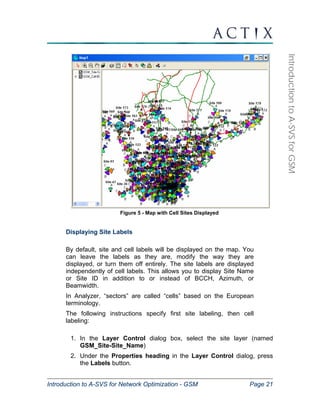
By default the cell sites are now visible:
Introduction to A-SVS for Network Optimization - GSM Page 21 
Introduction to A-SVS for GSM 
Figure 5 - Map with Cell Sites Displayed 
Displaying Site Labels 
By default, site and cell labels will be displayed on the map. You 
can leave the labels as they are, modify the way they are 
displayed, or turn them off entirely. The site labels are displayed 
independently of cell labels. This allows you to display Site Name 
or Site ID in addition to or instead of BCCH, Azimuth, or 
Beamwidth. 
In Analyzer, “sectors” are called “cells” based on the European 
terminology. 
The following instructions specify first site labeling, then cell 
labeling: 
1. In the Layer Control dialog box, select the site layer (named 
GSM_Site-Site_Name) 
2. Under the Properties heading in the Layer Control dialog, press 
the Labels button.
Introduction to A-SVS for Network Optimization - GSM Page 22 
Introduction to A-SVS for GSM 
3. The MapInfo-style Label Properties box will appear. Verify that each 
of the following options is checked: 
Show 
Allow overlapped text (recommended) 
Hide adjacent duplicate text (optional) 
4. In the Label Properties box, use the drop down Data Field menu to 
determine the label format to display. Currently, there are two label 
formats from which to choose: 
The Site_Name (default) shows only the site name. 
The Key Field label shows only the site ID. 
5. If you wish to offset the label from the cell site symbol, use the 
options in the Position box in the Label Properties dialog. 
6. If you wish to change the font of the labels, use the Label Style 
button in the Properties dialog. 
7. Select OK to exit the Label Properties dialog. 
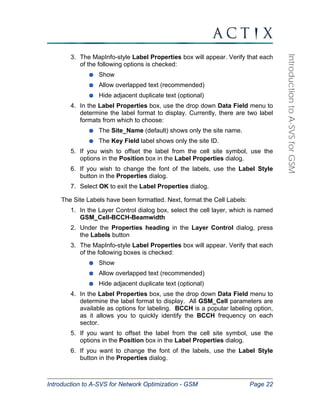
The Site Labels have been formatted. Next, format the Cell Labels: 
1. In the Layer Control dialog box, select the cell layer, which is named 
GSM_Cell-BCCH-Beamwidth 
2. Under the Properties heading in the Layer Control dialog, press 
the Labels button 
3. The MapInfo-style Label Properties box will appear. Verify that each 
of the following boxes is checked: 
Show 
Allow overlapped text (recommended) 
Hide adjacent duplicate text (optional) 
4. In the Label Properties box, use the drop down Data Field menu to 
determine the label format to display. All GSM_Cell parameters are 
available as options for labeling. BCCH is a popular labeling option, 
as it allows you to quickly identify the BCCH frequency on each 
sector. 
5. If you want to offset the label from the cell site symbol, use the 
options in the Position box in the Label Properties dialog. 
6. If you want to change the font of the labels, use the Label Style 
button in the Properties dialog.
Introduction to A-SVS for Network Optimization - GSM Page 23 
Introduction to A-SVS for GSM 
7. Click OK in the Label Properties dialog, and then OK in the Layers 
dialog to apply the labels. 
Figure 6 - Formatted Cell and Site Labels 
Coloring Sectors on the Map 
By default, sectors are colored by BCCH on the map. To color the 
sectors according to a different field (i.e. Sector_ID, to color sectors 
by face), or to make all sectors the same color: 
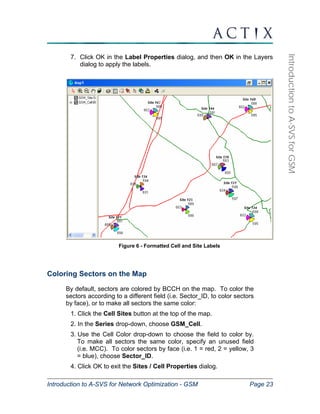
1. Click the Cell Sites button at the top of the map. 
2. In the Series drop-down, choose GSM_Cell. 
3. Use the Cell Color drop-down to choose the field to color by. 
To make all sectors the same color, specify an unused field 
(i.e. MCC). To color sectors by face (i.e. 1 = red, 2 = yellow, 3 
= blue), choose Sector_ID. 
4. Click OK to exit the Sites / Cell Properties dialog.
Introduction to A-SVS for Network Optimization - GSM Page 24 
Introduction to A-SVS for GSM 
5. Site coloring will appear as specified. To modify face colors, 
expand the GSM_Cell parameter in the legend. Right-click on 
individual ranges and choose Selected Range’s Style to modify 
colors. 
Figure 7 - Sites / Cell Properties Dialog 
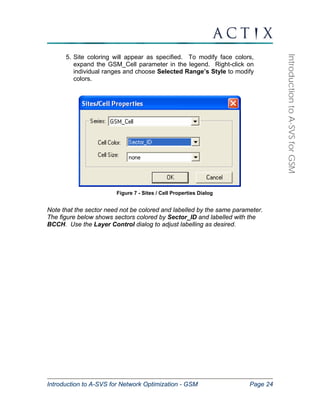
Note that the sector need not be colored and labelled by the same parameter. 
The figure below shows sectors colored by Sector_ID and labelled with the 
BCCH. Use the Layer Control dialog to adjust labelling as desired.
Introduction to A-SVS for Network Optimization - GSM Page 25 
Introduction to A-SVS for GSM 
Figure 8 - Sectors Colored by Sector_ID on Map
Introduction to A-SVS for Network Optimization - GSM Page 26 
Introduction to A-SVS for GSM 
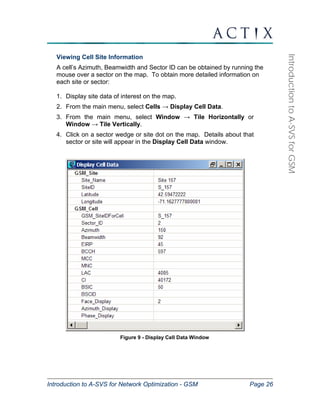
Viewing Cell Site Information 
A cell’s Azimuth, Beamwidth and Sector ID can be obtained by running the 
mouse over a sector on the map. To obtain more detailed information on 
each site or sector: 
1. Display site data of interest on the map. 
2. From the main menu, select Cells → Display Cell Data. 
3. From the main menu, select Window → Tile Horizontally or 
Window → Tile Vertically. 
4. Click on a sector wedge or site dot on the map. Details about that 
sector or site will appear in the Display Cell Data window. 
Figure 9 - Display Cell Data Window
Introduction to A-SVS for Network Optimization - GSM Page 27 
Introduction to A-SVS for GSM 
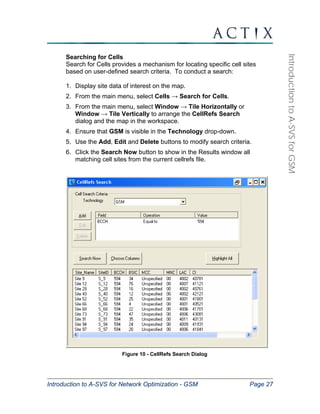
Searching for Cells 
Search for Cells provides a mechanism for locating specific cell sites 
based on user-defined search criteria. To conduct a search: 
1. Display site data of interest on the map. 
2. From the main menu, select Cells → Search for Cells. 
3. From the main menu, select Window → Tile Horizontally or 
Window → Tile Vertically to arrange the CellRefs Search 
dialog and the map in the workspace. 
4. Ensure that GSM is visible in the Technology drop-down. 
5. Use the Add, Edit and Delete buttons to modify search criteria. 
6. Click the Search Now button to show in the Results window all 
matching cell sites from the current cellrefs file. 
Figure 10 - CellRefs Search Dialog
Introduction to A-SVS for Network Optimization - GSM Page 28 
Introduction to A-SVS for GSM 
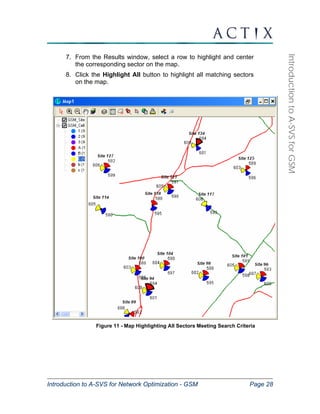
7. From the Results window, select a row to highlight and center 
the corresponding sector on the map. 
8. Click the Highlight All button to highlight all matching sectors 
on the map. 
Figure 11 - Map Highlighting All Sectors Meeting Search Criteria
Introduction to A-SVS for Network Optimization - GSM Page 29 
Introduction to A-SVS for GSM 
Data Aggregation (Binning) 
Analyzer aggregates data into groups called bins in order to provide a 
reasonable number of data points from a computing and analysis perspective. 
The aggregation method used to create one bin from many data points 
depends on the type of parameter. For example measurement parameters, 
such as RxLev and RxQual, are binned by averaging all component 
measurements into one data point. For network state parameters, such as 
ServBCCH and ServBSIC, a bin is given the most frequently occurring value 
in the component measurements. Events, such as Dropped Calls and 
Handovers are binned by the number of events occurring within the 
component measurements. 
There are four modes for determining how to divide data into bins: 
ƒ Time-based binning 
ƒ Distance binning 
ƒ Message binning 
ƒ Location binning 
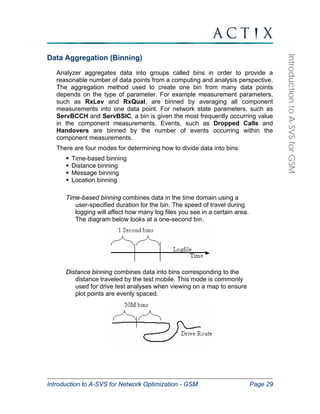
Time-based binning combines data in the time domain using a 
user-specified duration for the bin. The speed of travel during 
logging will affect how many log files you see in a certain area. 
The diagram below looks at a one-second bin. 
Distance binning combines data into bins corresponding to the 
distance traveled by the test mobile. This mode is commonly 
used for drive test analyses when viewing on a map to ensure 
plot points are evenly spaced.
Grid (not seen) Drive 
Routes 
All points in this box will 
be binned together to 
produce one plot point 
Introduction to A-SVS for Network Optimization - GSM Page 30 
Introduction to A-SVS for GSM 
Message binning sets the number of messages to average equal to 
1. Each message is placed into its own bin with the net result of 
no averaging of the data. Message binning should not be set to 
any value other than 1. 
Location binning - analogous to overlaying a spatial grid on top of 
the data with a user-definable granularity. This can be used 
when examining several drive files crossing over the same 
geographic area. This method is often used for SuperStreams. 
To set the binning mode 
1 In the Tools → Preferences dialog, click on the ‘+’ next to 
Binning to expand it 
2 Set the binning mode for maps, charts, and reports to Time 
based. 
3 Highlight the time field and set the Time to 1000 ms.
Introduction to A-SVS for Network Optimization - GSM Page 31 
Introduction to A-SVS for GSM 
Exploring the Workspace 
Loading Files 
Now that you are more familiar with the Analyzer environment, we will move 
on to some of the basic viewing options for drive test data. 
1. Load the following drive test files by selecting File → Open Logfile or by 
clicking the Open Logfile icon: . These files are located in the 
C:Documents and SettingsAll UsersApplication 
DataActixAnalyzerDataFiles directory: 
Nemo Drive Test 1.dt1 
TEMS Investigation 1.log 
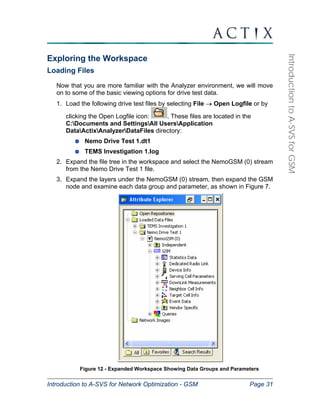
2. Expand the file tree in the workspace and select the NemoGSM (0) stream 
from the Nemo Drive Test 1 file. 
3. Expand the layers under the NemoGSM (0) stream, then expand the GSM 
node and examine each data group and parameter, as shown in Figure 7. 
Figure 12 - Expanded Workspace Showing Data Groups and Parameters
Introduction to A-SVS for Network Optimization - GSM Page 32 
Introduction to A-SVS for GSM 
Upon loading a GSM data file, note that several data groups are created for each 
device contained in the file. To see these data groups, open any log file 
contained in the training package. 
The following data groups are created under the GSM node: 
Statistics Data – Information about handover interval and duration 
Serving Cell Parameters – Information about the serving cell identity, 
serving BCCH, and BSIC. 
Target Cell Info – Information about the target cell for a handoff including 
BCCH and BSIC. 
Dedicated Radio Link – Once a call has been established, parameters 
that are associated with the cell serving the call are contained here. 
Device Info – Information about the specifications of the mobile making 
the call. 
Downlink Measurements – Serving RxLev and RxQual measurements 
made by the mobile, which are also broken out by ARFCN. 
Neighbor Cell Info – BCCH, BSIC, and RxLev for each neighbor. In 
addition, all neighbor measurements are broken out by channel number. 
Event Data – Call events triggered by Layer 3 messaging or registered by 
the drive test vendor’s equipment. If an event is not present in the tree, it 
did not occur in the file. 
GPRS Measurements – Metrics associated with GPRS data calls, 
including throughput, coding scheme, channel usage, TBF information and 
events can be found here. 
AMR Measurements – Call setup and inband signaling measurements 
extracted from AMR-enabled handsets are contained in this group. 
Vendor Specific – Measurements that are specific to the particular 
collection device used. Specific events registered by the T+M vendors’ 
hardware not derived from layer 3 messaging by Analyzer are included 
here. 
The Data Testing node in a GPRS or EDGE handset stream provides data 
parameters that are not specific to the air interface. Under the Data Testing 
node, the following groups may be found: 
Application Measurements – Find instantaneous application layer 
throughput here. This is the value that most closely approximates the end 
user’s experience. 
Protocol Measurements – This group contains throughput values for 
each layer in the IP stack. This group contains statistics for the IP, PPP, 
TCP, ICMP and RLP2 layers.
Introduction to A-SVS for Network Optimization - GSM Page 33 
Introduction to A-SVS for GSM 
• IP (Internet Protocol) provides a connectionless addressing 
scheme of packets, or datagrams, to be delivered in a 
packet-switched data network. 
• TCP (Transmission Control Protocol) establishes a virtual 
connection between a source and a destination in a data 
network. 
• PPP (Point to Point Protocol) serves primarily to provide 
some security to datagrams in the IP network. 
• ICMP (Internet Control Message Protocol) supports error, 
control and informational messages within the data network. 
Task Settings – This group contains task identifiers including Task_Id, 
Task_Name and Task_Key. 
Task Summary – This group contains application level parameters 
summarizing the entire task. 
Ping Statistics – This group contains metrics for any ping session within 
the logfile. 
Application Statistics – This group contains the number of bytes 
transmitted by the data application. 
Connection – This group contains details for data connections activated 
within the logfile. 
HTTP Statistics – This group contains metrics for any HTTP session 
within the logfile. 
Right-click on several of the parameters under each group and note that they 
can be displayed on tables, maps, charts, and in workbooks.
Introduction to A-SVS for Network Optimization - GSM Page 34 
Introduction to A-SVS for GSM 
Viewing Scanner Data in Analyzer 
Analyzer supports the GSM scanners including the TEMS scanner, Nemo 
Seegull, Comarco baseline, and XK series scanner devices. 
To better understand the Scanner data that is presented, open logfile 
Grayson CW Scan.LOG and expand the stream Spectrum Tracker (0): 
Figure 13 - Scanner Stream Expanded to Show Its Contents 
Note that under the Scanner data group, several groups have been created to 
help you easily drill down into the data. 
Independent Node Data in Analyzer 
The Independent data node in Analyzer includes measurements that are 
technology and T+M vendor independent. This includes GPS information, 
Site Data Node information and Message Type information. 
Information for the site data node parameters will be generated if a valid 
cellrefs file is loaded in the Analyzer when a logfile is loaded. The site data 
node contains information resulting from the integration of the cell plan 
information and drive test data. This information can be displayed on maps, 
charts, tables, and workbooks like all regular drive test parameters. The site
Introduction to A-SVS for Network Optimization - GSM Page 35 
Introduction to A-SVS for GSM 
data node information appears in the workspace similar to the illustration 
below. 
Figure 14 - Expanded Site Data Node in the Workspace 
The Site Data Node contains the parameters listed below: 
ServingCellDistance – The distance between each point on the drive and 
the current serving cellsite 
ServingCellLat – The latitude of the serving cellsite at each point along 
the drive route 
ServingCellLon – The longitude of the serving cellsite at each point along 
the drive route 
ServingCellID/SectorID – The alphanumeric identity from the cellrefs file 
of the serving site name and sector name. This data can be viewed on a 
table synchronized to a map to eliminate the need to look up channel/color 
code information to determine the serving cell at each point on the drive 
NeighborCellDistance/Lat/Long/CellID/SectorID - The same information 
as above for each neighbor position along the drive.
Introduction to A-SVS for Network Optimization - GSM Page 36 
Introduction to A-SVS for GSM 
Searching for Attributes 
With such a high number of attributes (or parameters) available for analysis, it 
can become quite tedious to locate the exact attribute that one might need. 
The “Search for Attributes” feature allows a user to search the parameter 
trees of all open data streams within the Workspace Explorer. The results of 
the search will be displayed in the Search Results tab of the Workspace 
Explorer. 
1. From the main toolbar, select Tools → Find Attribute. The search panel 
will open as part of the Workspace Explorer window. 
2. In the Find What field, type some text that is part of the required attribute. 
3. Select the Stream in which to search for the attribute. The default is set to 
<All Streams>. 
4. Select either of the Settings options – if desired. 
5. Select the Direction in which to search. 
6. Click Find Next or Find All. 
7. When finished, click Done. The search panel will close. However, all of 
the results will remain visible in the Search Results tab. 
The Favorites Group 
Having access to all of the parameters within a logfile in the Workspace is 
sometimes not necessary and it can make finding key parameters more 
difficult. Analyzer allows for the identification of a subset of parameters that 
need to be accessed regularly by placing them in a Favorites Group. This 
group can be viewed by clicking on the Favorites tab in the Workspace. Try 
setting the following favorites for GSM parameters based on drive test 
measurements of “Nemo Drive Test 1”: 
1. In the workspace, click to select the ServRxLevSub parameter from the 
Downlink Measurements group, then right-click on it and choose Add to 
Favorites from the pop-up menu. 
2. Under Downlink Measurements, find ServRxQualSub and add it to 
Favorites. 
3. Under Events, find CallDropped and HandoverOK and add them to 
Favorites. 
4. Under Serving Cell Parameters, find ServBCCH and add it to 
Favorites.
Favorites Tab 
Introduction to A-SVS for Network Optimization - GSM Page 37 
Introduction to A-SVS for GSM 
5. In the Workspace, click on the Favorites tab . A tree view of 
the items you added is displayed. You can easily move between All and 
Favorites as necessary. 
Figure 15 - Workspace Showing the Favorites Parameters Displayed 
6. The parameters that you define as Favorites will be available on 
the Favorites tab for any data file open in the workspace that 
contains those parameters, as well as for any new files opened that 
contain the specified parameters. 
7. To remove a parameter from favorites, select the parameter. Right-click 
on it and choose ‘Remove Favorite.’ 
Sharing Favorites 
Favorites can be shared among users. Favorites are saved in the 
Favorites.dat file located in the C:Documents and SettingsAll 
UsersApplication DataActix AnalyzerBinXMLFiles directory. 
To share Favorites with another user, copy the Favorites.dat file to 
the same directory on the desired machine. The user of that machine 
will then have access to those Favorites each time Analyzer is 
launched.
Introduction to A-SVS for Network Optimization - GSM Page 38 
Introduction to A-SVS for GSM 
Viewing Data in Analyzer 
In Analyzer, data can be viewed in a variety of ways to facilitate 
easy analysis. You can plot parameters on maps and display them 
on charts, tables, and in workbooks. 
Viewing Data on Maps 
There are two options for viewing data on maps: 
To view any parameter on a new map: Right-click on the 
parameter of interest in the Workspace Browser and select 
Display on Map. 
To view a parameter on a map already open in the 
workspace: Click and drag the parameter of interest onto a 
map already open in the workspace. 
1. Display the serving cell signal level for the handset stream NemoGSM (0) 
on the map from the file Nemo Drive Test 1. First, select Downlink 
Measurements → ServRxLevSub. Then right-click and select Display 
on Map. 
Figure 16 - RxLevSub Displayed On a Map
Introduction to A-SVS for Network Optimization - GSM Page 39 
Introduction to A-SVS for GSM 
Notice that the legend appears to the left of the map. The count for each 
range is in parentheses to the right of the range. 
2. If you would like to display a second parameter, you have two options: 
You can add the second parameter to the same map as the first by 
clicking on the second parameter in the Workspace Browser and 
dragging it onto the original map. 
You can display each parameter on a separate map by right-clicking 
on the second parameter in the Workspace Browser and 
choosing Display on Map. 
Modifying Legend Ranges 
1. Select the ServRxLevSub stream in the Map Legend window and 
right-click on it. Choose the Modify ranges option to change the 
number of legend ranges and some of the range boundaries. 
Figure 17 - Modify Ranges Dialog For RxLevSub
Introduction to A-SVS for Network Optimization - GSM Page 40 
Introduction to A-SVS for GSM 
2. Delete ranges you don’t need by selecting them one at a time and 
pressing the Remove button. 
3. To edit an existing range to match your network thresholds, select 
and type in the new maximum or minimum and click on the Update 
button to register the changes. 
4. To add a new range, type the maximum and minimum in the spaces 
provided and click on the Add button. 
5. If at any time you want to back out of all of the changes you have 
made, click on the Cancel button. 
Note: The ranges set for the map are also used for grouping data for 
histograms in workbooks and the histogram tab on tables. Changes 
made to the ranges on the map legend will also be made to these 
other views. 
6. Modify the colors of each range to match your network schema 
from within the Modify Ranges dialog by selecting the range, clicking 
on the Selected button in the Set Colors box, and picking a new 
color from the palette. 
Note: These changes to the ranges are saved automatically. One file 
is created for each parameter range. These files are located in 
C:Documents and SettingsAll UsersApplication 
DataActixAnalyzerBinFormatGroupsUserSettings. This file 
can be copied and shared with other members of your team. 
7. To accept the changes you have made to the legend settings, click 
OK. 
8. After clicking OK, you will be presented with the Selected Legend 
box. To overwrite the existing default legend range settings with 
your new settings, click OK. 
To keep your default legend range settings as they are and add your 
new legend settings as an alternate set of legend ranges, type in a 
name for the new set of ranges, then click OK. 
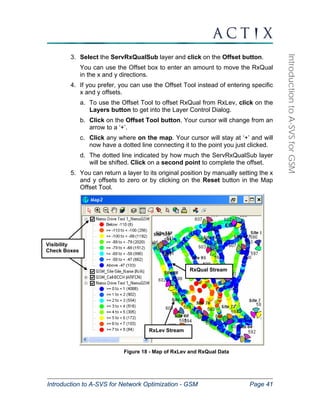
The Map Offset Tool 
1. To add the RxQual from the handset to the current map, select 
Downlink Measurements → ServRxQualSub. Drag the selected 
parameter onto the map. The RxQual is drawn directly on top of the 
RxLev trail. 
2. Click on the Layers button on the map toolbar to open the 
layers dialog.
RxQual Stream 
RxLev Stream 
Introduction to A-SVS for Network Optimization - GSM Page 41 
Introduction to A-SVS for GSM 
3. Select the ServRxQualSub layer and click on the Offset button. 
You can use the Offset box to enter an amount to move the RxQual 
in the x and y directions. 
4. If you prefer, you can use the Offset Tool instead of entering specific 
x and y offsets. 
a. To use the Offset Tool to offset RxQual from RxLev, click on the 
Layers button to get into the Layer Control Dialog. 
b. Click on the Offset Tool button. Your cursor will change from an 
arrow to a ‘+’. 
c. Click any where on the map. Your cursor will stay at ‘+’ and will 
now have a dotted line connecting it to the point you just clicked. 
d. The dotted line indicated by how much the ServRxQualSub layer 
will be shifted. Click on a second point to complete the offset. 
5. You can return a layer to its original position by manually setting the x 
and y offsets to zero or by clicking on the Reset button in the Map 
Offset Tool. 
Figure 18 - Map of RxLev and RxQual Data 
Visibility 
Check Boxes
Introduction to A-SVS for Network Optimization - GSM Page 42 
Introduction to A-SVS for GSM 
6. Turn layer visibility on and off by clicking the layer’s checkbox in the 
legend. 
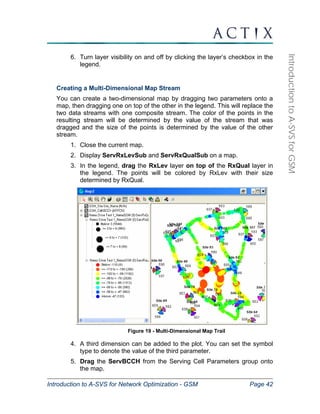
Creating a Multi-Dimensional Map Stream 
You can create a two-dimensional map by dragging two parameters onto a 
map, then dragging one on top of the other in the legend. This will replace the 
two data streams with one composite stream. The color of the points in the 
resulting stream will be determined by the value of the stream that was 
dragged and the size of the points is determined by the value of the other 
stream. 
1. Close the current map. 
2. Display ServRxLevSub and ServRxQualSub on a map. 
3. In the legend, drag the RxLev layer on top of the RxQual layer in 
the legend. The points will be colored by RxLev with their size 
determined by RxQual. 
Figure 19 - Multi-Dimensional Map Trail 
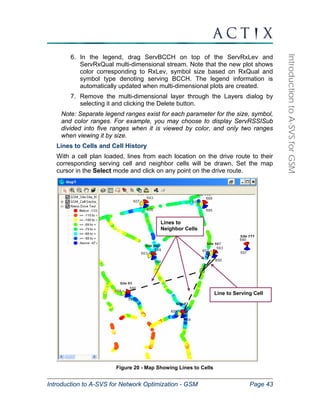
4. A third dimension can be added to the plot. You can set the symbol 
type to denote the value of the third parameter. 
5. Drag the ServBCCH from the Serving Cell Parameters group onto 
the map.
Lines to 
Neighbor Cells 
Introduction to A-SVS for Network Optimization - GSM Page 43 
Introduction to A-SVS for GSM 
6. In the legend, drag ServBCCH on top of the ServRxLev and 
ServRxQual multi-dimensional stream. Note that the new plot shows 
color corresponding to RxLev, symbol size based on RxQual and 
symbol type denoting serving BCCH. The legend information is 
automatically updated when multi-dimensional plots are created. 
7. Remove the multi-dimensional layer through the Layers dialog by 
selecting it and clicking the Delete button. 
Note: Separate legend ranges exist for each parameter for the size, symbol, 
and color ranges. For example, you may choose to display ServRSSISub 
divided into five ranges when it is viewed by color, and only two ranges 
when viewing it by size. 
Lines to Cells and Cell History 
With a cell plan loaded, lines from each location on the drive route to their 
corresponding serving cell and neighbor cells will be drawn. Set the map 
cursor in the Select mode and click on any point on the drive route. 
Figure 20 - Map Showing Lines to Cells 
Line to Serving Cell
Introduction to A-SVS for Network Optimization - GSM Page 44 
Introduction to A-SVS for GSM 
You can view the serving or neighbor cells for more than one point on the 
map by clicking on the Area Select button on the map toolbar and choosing 
one of the options now available on the toolbar, either Select Box, Select 
Radius, or Polygon Select. 
In addition to viewing serving and neighbor cells for an individual point data 
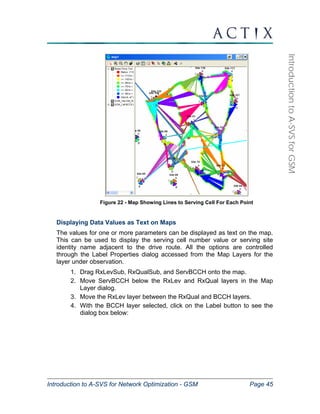
point or a subset of the data, a Cell History plot can be drawn. This plot 
shows the line to the serving cell for each point on the drive route. 
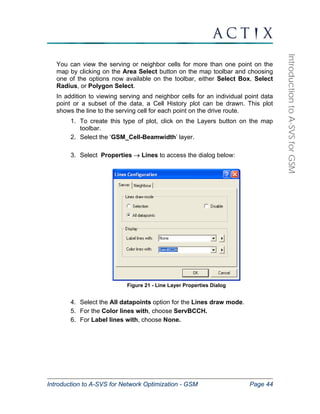
1. To create this type of plot, click on the Layers button on the map 
toolbar. 
2. Select the ‘GSM_Cell-Beamwidth’ layer. 
3. Select Properties → Lines to access the dialog below: 
Figure 21 - Line Layer Properties Dialog 
4. Select the All datapoints option for the Lines draw mode. 
5. For the Color lines with, choose ServBCCH. 
6. For Label lines with, choose None.
Introduction to A-SVS for Network Optimization - GSM Page 45 
Introduction to A-SVS for GSM 
Figure 22 - Map Showing Lines to Serving Cell For Each Point 
Displaying Data Values as Text on Maps 
The values for one or more parameters can be displayed as text on the map. 
This can be used to display the serving cell number value or serving site 
identity name adjacent to the drive route. All the options are controlled 
through the Label Properties dialog accessed from the Map Layers for the 
layer under observation. 
1. Drag RxLevSub, RxQualSub, and ServBCCH onto the map. 
2. Move ServBCCH below the RxLev and RxQual layers in the Map 
Layer dialog. 
3. Move the RxLev layer between the RxQual and BCCH layers. 
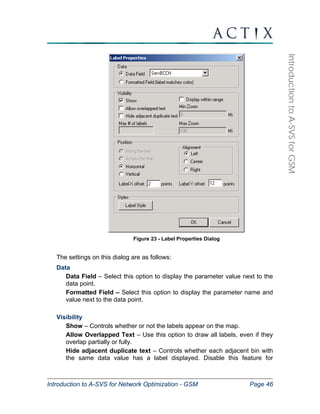
4. With the BCCH layer selected, click on the Label button to see the 
dialog box below:
Introduction to A-SVS for Network Optimization - GSM Page 46 
Introduction to A-SVS for GSM 
Figure 23 - Label Properties Dialog 
The settings on this dialog are as follows: 
Data 
Data Field – Select this option to display the parameter value next to the 
data point. 
Formatted Field – Select this option to display the parameter name and 
value next to the data point. 
Visibility 
Show – Controls whether or not the labels appear on the map. 
Allow Overlapped Text – Use this option to draw all labels, even if they 
overlap partially or fully. 
Hide adjacent duplicate text – Controls whether each adjacent bin with 
the same data value has a label displayed. Disable this feature for
Introduction to A-SVS for Network Optimization - GSM Page 47 
Introduction to A-SVS for GSM 
parameters like Serving Channel Number or Site ID where the point of 
interest is where a change occurred. 
Display within range – Use this option for layers like maps or cell sites 
when you would like to see the values when zoomed in close to the area 
but the labels clutter then viewing area when zoomed farther out. 
Styles 
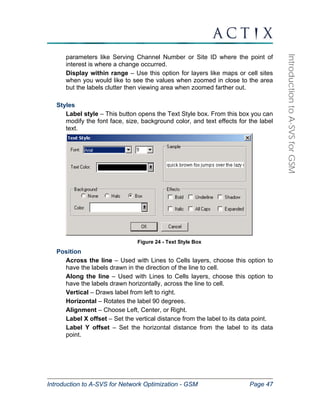
Label style – This button opens the Text Style box. From this box you can 
modify the font face, size, background color, and text effects for the label 
text. 
Figure 24 - Text Style Box 
Position 
Across the line – Used with Lines to Cells layers, choose this option to 
have the labels drawn in the direction of the line to cell. 
Along the line – Used with Lines to Cells layers, choose this option to 
have the labels drawn horizontally, across the line to cell. 
Vertical – Draws label from left to right. 
Horizontal – Rotates the label 90 degrees. 
Alignment – Choose Left, Center, or Right. 
Label X offset – Set the vertical distance from the label to its data point. 
Label Y offset – Set the horizontal distance from the label to its data 
point.
Introduction to A-SVS for Network Optimization - GSM Page 48 
Introduction to A-SVS for GSM 
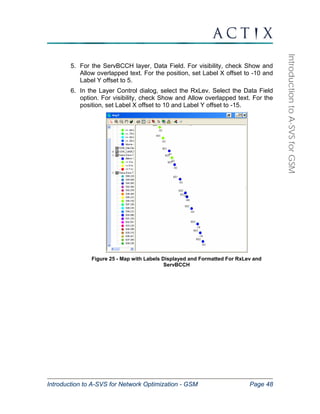
5. For the ServBCCH layer, Data Field. For visibility, check Show and 
Allow overlapped text. For the position, set Label X offset to -10 and 
Label Y offset to 5. 
6. In the Layer Control dialog, select the RxLev. Select the Data Field 
option. For visibility, check Show and Allow overlapped text. For the 
position, set Label X offset to 10 and Label Y offset to -15. 
Figure 25 - Map with Labels Displayed and Formatted For RxLev and 
ServBCCH
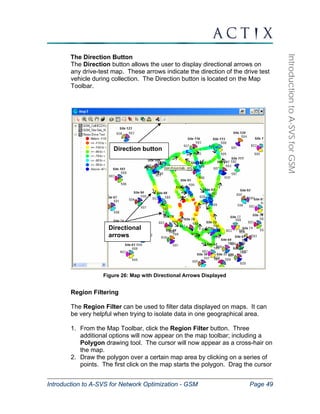
Direction button 
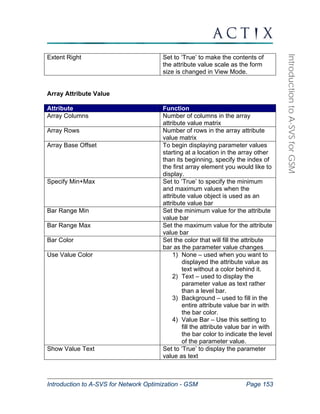
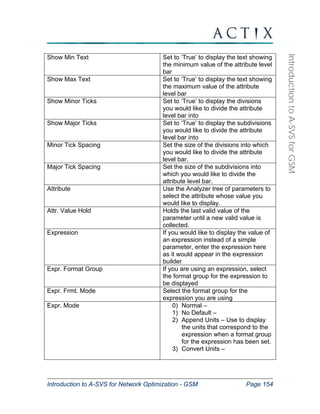
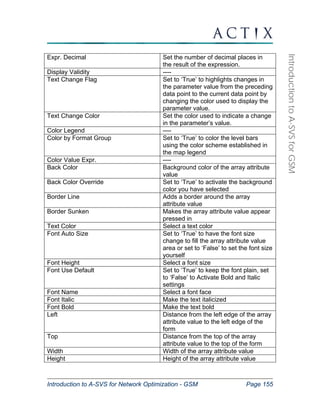
Directional 
arrows 
Introduction to A-SVS for Network Optimization - GSM Page 49 
Introduction to A-SVS for GSM 
The Direction Button 
The Direction button allows the user to display directional arrows on 
any drive-test map. These arrows indicate the direction of the drive test 
vehicle during collection. The Direction button is located on the Map 
Toolbar. 
Figure 26: Map with Directional Arrows Displayed 
Region Filtering 
The Region Filter can be used to filter data displayed on maps. It can 
be very helpful when trying to isolate data in one geographical area. 
1. From the Map Toolbar, click the Region Filter button. Three 
additional options will now appear on the map toolbar; including a 
Polygon drawing tool. The cursor will now appear as a cross-hair on 
the map. 
2. Draw the polygon over a certain map area by clicking on a series of 
points. The first click on the map starts the polygon. Drag the cursor
Introduction to A-SVS for Network Optimization - GSM Page 50 
Introduction to A-SVS for GSM 
to each corner of the desired region to filter and click the mouse 
once. To finish drawing the polygon, double-click near the starting 
point to establish a line between the last point and the first point. 
3. Draw any other polygons, as needed. 
4. To filter data, click the down-arrow next to Filter and select either 
Include or Exclude. “Include” is the default filter. [Note: Any 
additional attributes that are dragged onto a map using regional 
filtering will also be filtered]. 
5. To remove the filter, select Remove All from the map toolbar. This 
will delete all existing region filters in that map. Region filters in other 
map windows are unaffected. 
Figure 27: Region Filtering using "Include"
Introduction to A-SVS for Network Optimization - GSM Page 51 
Introduction to A-SVS for GSM 
Printing Maps 
A-SVS-DO1 features five different ways to obtain printable map outputs: 
Print using “Quick Print” 
Print using Map Layout Designer 
Copy to Clipboard 
Export Map to a different file format 
Export individual map layers to MapInfo 
The recommended method is the Quick Print. The Quick Print option 
bypasses the Map Layout Designer and prints the map with a legend in 
a fixed position. 
To print a map using the Quick Print option: 
1. Display data on a map in the workspace. 
2. Select the Print button from the map toolbar. 
3. Select the paper source, page orientation, and margin sizes. 
4. Use the Options button in the lower left hand corner of the Print 
Setup dialog to adjust map size, content, legend visibility, and 
scale. 
5. In the Print Setup dialog, select OK to print the map. 
The Map Layout Designer may be used to arrange the map and legend 
on the page, add a title, and preview the output. To print a map using the 
Map Layout Designer: 
1. Open a map with data in the workspace. 
2. Select the Layout button from the toolbar. 
3. Choose the page layout for the map and select OK to 
bring up the Map Layout Designer. 
4. Double-click on the Label box to change the title of the 
map. 
5. Move the label box and the map so that they are not 
overlapping. Resize the text box as necessary. With the 
Label Box selected, choose Properties from the Toolbar 
to change the label font.
Introduction to A-SVS for Network Optimization - GSM Page 52 
Introduction to A-SVS for GSM 
6. Move the legend so that it is not overlapping the map trail. 
Resize the legend as necessary. 
7. Select Print Preview from the Toolbar to determine what 
the printed page will look like. Close Print Preview to make 
any modifications necessary. 
8. Select Print to print the map. 
You can also print a map by copying it to the clipboard. 
1. Right-click on the map to be copied and select Copy to 
Clipboard. 
2. Paste the map into another application and use that 
application’s print function to print the map. 
A fourth option is to convert the map to a different file format and 
use a compatible program to print the output file. Analyzer 
supports the exporting of maps to the following formats: BMP, 
JPG, WMF, PNG, TIF, GIF, and PSD. 
1. Right-click on the map and choose Export Map. 
2. Select the desired file format. 
Finally, a fifth option is to export individual map layer(s) directly 
into MapInfo. To do this: 
a. From the map view, open the Layer Control dialog box. 
b. Select Export. 
c. Choose the layers to be exported. Browse to the 
appropriate destination folder. 
d. Click OK.
Introduction to A-SVS for Network Optimization - GSM Page 53 
Introduction to A-SVS for GSM 
Viewing Data on Charts 
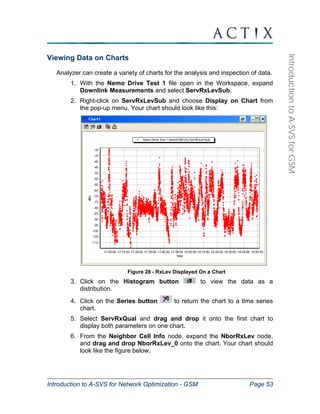
Analyzer can create a variety of charts for the analysis and inspection of data. 
1. With the Nemo Drive Test 1 file open in the Workspace, expand 
Downlink Measurements and select ServRxLevSub. 
2. Right-click on ServRxLevSub and choose Display on Chart from 
the pop-up menu. Your chart should look like this: 
Figure 28 - RxLev Displayed On a Chart 
3. Click on the Histogram button to view the data as a 
distribution. 
4. Click on the Series button to return the chart to a time series 
chart. 
5. Select ServRxQual and drag and drop it onto the first chart to 
display both parameters on one chart. 
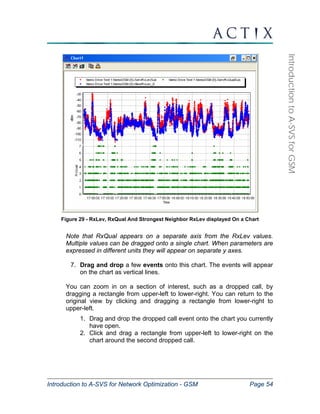
6. From the Neighbor Cell Info node, expand the NborRxLev node, 
and drag and drop NborRxLev_0 onto the chart. Your chart should 
look like the figure below.
Introduction to A-SVS for Network Optimization - GSM Page 54 
Introduction to A-SVS for GSM 
Figure 29 - RxLev, RxQual And Strongest Neighbor RxLev displayed On a Chart 
Note that RxQual appears on a separate axis from the RxLev values. 
Multiple values can be dragged onto a single chart. When parameters are 
expressed in different units they will appear on separate y axes. 
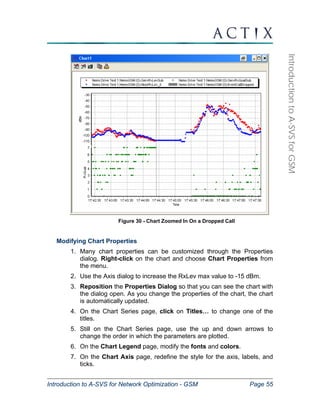
7. Drag and drop a few events onto this chart. The events will appear 
on the chart as vertical lines. 
You can zoom in on a section of interest, such as a dropped call, by 
dragging a rectangle from upper-left to lower-right. You can return to the 
original view by clicking and dragging a rectangle from lower-right to 
upper-left. 
1. Drag and drop the dropped call event onto the chart you currently 
have open. 
2. Click and drag a rectangle from upper-left to lower-right on the 
chart around the second dropped call.
Introduction to A-SVS for Network Optimization - GSM Page 55 
Introduction to A-SVS for GSM 
Figure 30 - Chart Zoomed In On a Dropped Call 
Modifying Chart Properties 
1. Many chart properties can be customized through the Properties 
dialog. Right-click on the chart and choose Chart Properties from 
the menu. 
2. Use the Axis dialog to increase the RxLev max value to -15 dBm. 
3. Reposition the Properties Dialog so that you can see the chart with 
the dialog open. As you change the properties of the chart, the chart 
is automatically updated. 
4. On the Chart Series page, click on Titles… to change one of the 
titles. 
5. Still on the Chart Series page, use the up and down arrows to 
change the order in which the parameters are plotted. 
6. On the Chart Legend page, modify the fonts and colors. 
7. On the Chart Axis page, redefine the style for the axis, labels, and 
ticks.
Introduction to A-SVS for Network Optimization - GSM Page 56 
Introduction to A-SVS for GSM 
8. Create a three-dimensional chart using the options on the Chart → 
3D page. 
9. Click on the Copy icon to place a copy of your chart on the 
clipboard. 
10. In Word or PowerPoint, click Edit → Paste to paste your chart into 
that application. 
11. In Analyzer, with the chart still open, create a map displaying the 
same data. Click to select data on either the map or the chart and 
notice that the views are synchronized. 
If you want to select a point on the map, click the Select button to activate 
the selection cursor.
Introduction to A-SVS for Network Optimization - GSM Page 57 
Introduction to A-SVS for GSM 
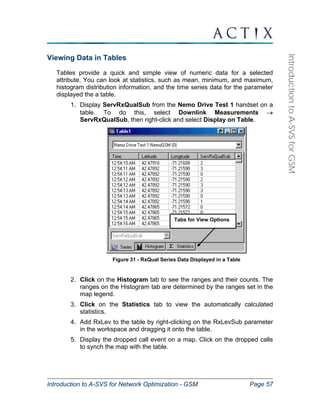
Viewing Data in Tables 
Tables provide a quick and simple view of numeric data for a selected 
attribute. You can look at statistics, such as mean, minimum, and maximum, 
histogram distribution information, and the time series data for the parameter 
displayed the a table. 
1. Display ServRxQualSub from the Nemo Drive Test 1 handset on a 
table. To do this, select Downlink Measurements → 
ServRxQualSub, then right-click and select Display on Table. 
Figure 31 - RxQual Series Data Displayed in a Table 
2. Click on the Histogram tab to see the ranges and their counts. The 
ranges on the Histogram tab are determined by the ranges set in the 
map legend. 
3. Click on the Statistics tab to view the automatically calculated 
statistics. 
4. Add RxLev to the table by right-clicking on the RxLevSub parameter 
in the workspace and dragging it onto the table. 
5. Display the dropped call event on a map. Click on the dropped calls 
to synch the map with the table. 
Tabs for View Options
Introduction to A-SVS for Network Optimization - GSM Page 58 
Introduction to A-SVS for GSM 
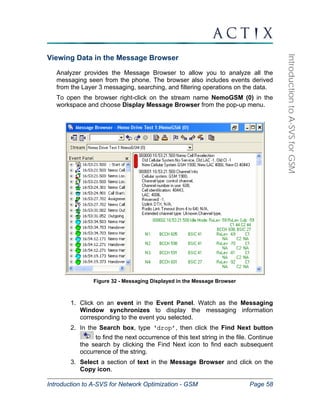
Viewing Data in the Message Browser 
Analyzer provides the Message Browser to allow you to analyze all the 
messaging seen from the phone. The browser also includes events derived 
from the Layer 3 messaging, searching, and filtering operations on the data. 
To open the browser right-click on the stream name NemoGSM (0) in the 
workspace and choose Display Message Browser from the pop-up menu. 
Figure 32 - Messaging Displayed in the Message Browser 
1. Click on an event in the Event Panel. Watch as the Messaging 
Window synchronizes to display the messaging information 
corresponding to the event you selected. 
2. In the Search box, type ‘drop’, then click the Find Next button 
to find the next occurrence of this text string in the file. Continue 
the search by clicking the Find Next icon to find each subsequent 
occurrence of the string. 
3. Select a section of text in the Message Browser and click on the 
Copy icon.
Introduction to A-SVS for Network Optimization - GSM Page 59 
Introduction to A-SVS for GSM 
4. Open Word and click Edit → Paste to paste the text into the current 
document. 
5. In Analyzer, click on the Properties button then on the Message 
Format tab, and investigate the results of checking some of the 
options. 
6. In the Properties dialog, click on the Message Format tab and 
modify the Font for the Message Browser. 
7. Investigate the use of bookmarks by selecting a subset of messages 
and marking them with the Toggle button and then using the adjacent 
Next and Previous Toggle buttons to step through them. 
As with the maps and charts, the message browser synchs with other 
Analyzer data views. To try this out, display a parameter, such as ServRxLev 
or ServRxQual, on a map or chart. Click on a point on the map or chart, and 
watch as the message browser scrolls to highlight the messaging 
corresponding to that point in time. If you click to synch the message browser 
with an event, it will point to the message whose receipt triggers that event.
Introduction to A-SVS for Network Optimization - GSM Page 60 
Introduction to A-SVS for GSM 
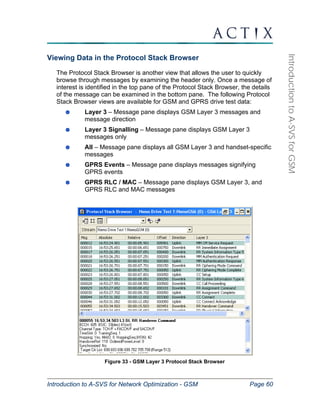
Viewing Data in the Protocol Stack Browser 
The Protocol Stack Browser is another view that allows the user to quickly 
browse through messages by examining the header only. Once a message of 
interest is identified in the top pane of the Protocol Stack Browser, the details 
of the message can be examined in the bottom pane. The following Protocol 
Stack Browser views are available for GSM and GPRS drive test data: 
Layer 3 – Message pane displays GSM Layer 3 messages and 
message direction 
Layer 3 Signalling – Message pane displays GSM Layer 3 
messages only 
All – Message pane displays all GSM Layer 3 and handset-specific 
messages 
GPRS Events – Message pane displays messages signifying 
GPRS events 
GPRS RLC / MAC – Message pane displays GSM Layer 3, and 
GPRS RLC and MAC messages 
Figure 33 - GSM Layer 3 Protocol Stack Browser
Introduction to A-SVS for Network Optimization - GSM Page 61 
Introduction to A-SVS for GSM 
Open the Layer 3 Protocol Stack Browser view for the Nemo Drive Test 1 
sample file: 
1. Right-click on the NemoGSM (0) stream in the workspace and choose 
Protocol Stack Browser → GSM Layer 3 from the pop-up menu. 
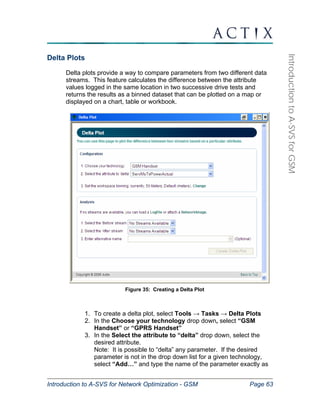
2. Click on a message header from the series in the top portion of the 
Browser Window and notice the complete message displayed in the 
bottom pane for the message you selected. 
3. In the Search box, type ‘CC Release’, then click the Find Next 
button to find the next occurrence of this text string in the file. 
Continue the search by clicking the Find Next icon to find each 
subsequent occurrence of the string. 
4. Select the All Rows button at the top of the Protocol Stack Browser to 
view all messages including Layer 3 and handset-specific messages. 
As with the maps and charts, the Protocol Stack Browser synchronizes with 
other data views. To try this out, display a parameter, such as 
ServRxLevSub on a map. Click on a point on the map and watch as the 
Protocol Stack Browser scrolls to highlight the message in the top pane and 
display the complete message contents in the bottom pane.
Introduction to A-SVS for Network Optimization - GSM Page 62 
Introduction to A-SVS for GSM 
Viewing Data on Workbooks 
The Workbook feature allows you to manipulate data within a Microsoft Excel 
spreadsheet environment, provided that you have Excel installed on your 
computer. You can display the data in charts, produce reports, and save and 
share your work. If you just want to browse numerical data, you may find 
Analyzer’s table feature easier to use. If you are looking to save your results 
or do more comprehensive formatting, a workbook is the best choice. 
1. Select Downlink Measurements → ServRxQualSub, then right-click 
and select Display on Workbook. 
Notice the series data being displayed in Excel with time, latitude, 
and longitude. 
Figure 34 - RxQual Displayed in a Workbook 
2. Click on the Histogram tab to view the ranges and counts. 
3. Click on the Statistics tab to see the automatically calculated 
statistics.
Introduction to A-SVS for Network Optimization - GSM Page 63 
Introduction to A-SVS for GSM 
Delta Plots 
Delta plots provide a way to compare parameters from two different data 
streams. This feature calculates the difference between the attribute 
values logged in the same location in two successive drive tests and 
returns the results as a binned dataset that can be plotted on a map or 
displayed on a chart, table or workbook. 
Figure 35: Creating a Delta Plot 
1. To create a delta plot, select Tools → Tasks → Delta Plots 
2. In the Choose your technology drop down, select “GSM 
Handset” or “GPRS Handset” 
3. In the Select the attribute to “delta” drop down, select the 
desired attribute. 
Note: It is possible to “delta” any parameter. If the desired 
parameter is not in the drop down list for a given technology, 
select “Add…” and type the name of the parameter exactly as
Introduction to A-SVS for Network Optimization - GSM Page 64 
Introduction to A-SVS for GSM 
it appears in the Attribute Explorer. Press “Enter” to reactivate 
the page. 
4. Select “Click Here” on the Binning line to enter the Preferences 
dialog. Change the binning settings to: 
a. Binning Mode = Location 
b. Projection = Default (meters) [Scroll up from default entry 
to find this option] 
c. X size = 50 
d. Y size = 50 
e. Unit = Meters 
Figure 36: Setting the Binning for Delta Plot Creation 
5. Select the “Before” stream 
6. Select the “After” stream 
7. Enter an alternative name for the delta stream (if desired). 
Press “Enter” when done to reactivate the task page 
8. Click the “Create Delta Plot” button 
The delta value is calculated by subtracting the “After” stream from the 
“Before” stream. Once the delta plot has been created, a map will appear 
containing the two original streams and the delta value between the two 
streams.
Introduction to A-SVS for Network Optimization - GSM Page 65 
Introduction to A-SVS for GSM 
Figure 37: Delta Plot Display 
It is also possible to display the results of the binned delta analysis on a chart, 
table or workbook. To do this, right-click on the binned delta analysis and 
select the desired data view.
Play Speed 
Reverse Step Back Stop 
Introduction to A-SVS for Network Optimization - GSM Page 66 
Introduction to A-SVS for GSM 
The Replay Tool 
The replay tool allows you to sequentially view data points in the files you are 
analyzing. Resembling the controls of a VCR, you can move forward or 
backward, automatically or manually advancing through the data. 
You can move through data displayed on a chart, map, or table. The stream 
selection box allows you to choose which stream to watch. It will display all 
open logfiles, whether or not you have a parameter from the stream 
displayed. 
1. Display RxLev from NemoGSM (0) on a map, then drag the 
dropped call event onto the same map. 
2. Display the dropped call, RxQual, RxLev, and ServBCCH on a 
table. 
3. Use the Window menu to tile the map and table horizontally. 
4. To access the replay tool, select Tools → Display Replay. 
Figure 38 - The Replay Tool 
5. Making sure that the NemoGSM (0) stream is selected in the replay 
tool, select a point on the map, near the beginning of the drive. 
6. Click on the Step Forward button to move to the next point on the 
drive. 
7. Notice that the selection box on the map moves to the next data point 
in the drive. The table has also updated by highlighting the relevant 
data. 
8. Experiment with the remaining buttons to see how they interact with 
the rest of the views. 
Play 
Stream Selection 
Step Forward
Introduction to A-SVS for Network Optimization - GSM Page 67 
Introduction to A-SVS for GSM 
Docking the Replay Tool 
You may find it more convenient to position the Replay Tool under the 
Workspace Browser. The procedure for doing this is called docking. 
1. Click on the left-most of the four buttons at the upper right-hand side of 
the Replay Tool . If there are only three buttons, minimize and then 
restore the Replay Tool to make the fourth button appear. 
2. The Replay Tool will now show up along the right side of the 
Workspace Browser. To move it under the Workspace Browser, click 
on the thin gray bar at the top of the Replay Tool and drag it to the far 
left side of your screen.
Introduction to A-SVS for Network Optimization - GSM Page 68 
Introduction to A-SVS for GSM 
Viewing Data on Stateforms 
Actix StateForms allow you to view multiple performance metrics 
simultaneously. Used in conjunction with the replay tool, maps, tables, and 
charts, you can quickly ascertain the values of several optimization 
parameters for problem identification. 
Using Preconfigured StateForms 
A number of preconfigured GSM, GPRS and EGPRS StateForms enable the 
user to quickly identify and troubleshoot important network events. 
View the GSM Current Channel form for the Nemo Drive Test 1 sample file: 
1. Right-click on the stream name NemoGSM(0) in the workspace and 
choose Display Form → GSM Current Channel. Forms can also be 
selected from the View → Forms option on the main menu. 
Figure 39: Select GSM Current Channel Form 
2. In general, when selecting a form, make sure that the form that you 
have selected applies to the type of data you want to analyze. For 
example, do not select the GSM CW Scan chart for a logfile containing 
handset data.
Stream Selector 
Introduction to A-SVS for Network Optimization - GSM Page 69 
Introduction to A-SVS for GSM 
3. If the Stream Selector is not visible, right-click on the form and select 
Stream Selector. The Stream Selector drop-down will appear. Use 
the drop-down list to select the stream you wish to view data for. If you 
are not seeing information in the forms, verify that the right data stream 
is selected. 
Figure 40: GSM Current Channel Form with Stream Selector Visible 
4. Forms with measurement views like the GSM Current Channel form 
or the GSM Call Events form may be best viewed when docked on the 
side of the screen as seen in the figure below: 
Figure 41 - GSM Current Channel Form Docked in Workspace
Introduction to A-SVS for Network Optimization - GSM Page 70 
Introduction to A-SVS for GSM 
To dock a form on the left side of the workspace, bring up the form and 
click the docking button (to the left of the minimize button). Click the 
gray horizontal line at the top of the form, drag over the bottom section of 
the Workspace Browser, and release. Once docked like in the view 
above, you can adjust the top and right-hand borders to allow for more 
viewing space in the platform. 
5. Forms with chart views like the GSM Event Navigator or the GSM 
RxLev Measurement Chart may be best viewed when docked at the 
bottom of the screen as shown below. 
Figure 42 - GSM Event Navigator Form Docked in Workspace 
To dock a form at the bottom of the workspace, bring up the form and 
use the docking button (to the left of the minimize button) to dock it next 
the Workspace Browser. Then, making sure that the right border of the 
form does not stretch past the midpoint of the entire Analyzer viewing 
platform, drag the thin gray line of the form to the bottom right side of the 
screen so that it is completely on the left half of the viewing platform. 
Once docked like in the view above, you can adjust the top border to 
allow for more viewing space in the platform.
Introduction to A-SVS for Network Optimization - GSM Page 71 
Introduction to A-SVS for GSM 
The preconfigured forms available for GSM drive test data are: 
GSM Call Events 
GSM Channel Data 
GSM Channel Info 
GSM Distant Server 
GSM Handset 
GSM Hopping 
GSM Current Channel 
GSM Event Navigator 
GSM Neighbor Table 
GSM Neighbor Chart 
GSM Neighbors 
GSM Neighbors with Distance 
GSM Serving + Neighbors 
GSM Serving + Neighbor Info 
GSM Radio Parameters 
GSM RxLev Measurement Chart 
GSM Scan Chart 
GSM CW Scan 
GSM Scanner Top 3 
The preconfigured forms available for GPRS drive test data are: 
GPRS Data Session 
GPRS Data Analysis Chart 
GPRS Data Timeslots 
GPRS Event Navigator 
GPRS PDP Context 
GPRS Radio Chart 
GPRS Status
Introduction to A-SVS for Network Optimization - GSM Page 72 
Introduction to A-SVS for GSM 
GPRS Throughput (DL) 
GPRS Throughput (UL) 
The preconfigured forms available for EGPRS drive test data are: 
EGPRS BEP Charts 
EGPRS Current Channel 
EGPRS Data Events 
EGPRS Data Session Parameters 
EGPRS Data Session 
EGPRS Downlink Analysis Chart 
EGPRS Status 
EGPRS Summary 
EGPRS Throughput Charts 
EGPRS Uplink Analysis Chart 
Preconfigured forms can be edited to meet your individual analysis needs. 
The following sections describe the modification of existing forms, and the 
creation of new forms using the Stateforms Editor.
Sheet Selector/ 
File Options 
Toolbar 
Introduction to A-SVS for Network Optimization - GSM Page 73 
Introduction to A-SVS for GSM 
Viewing Custom Forms with the StateForms Editor 
The StateForms Editor allows you to view custom forms, modify existing 
forms, and build new forms from scratch. The components of the 
StateForms Editor window are shown in the figure below. 
Figure 43 - The StateForms Editor with Sheet Selector and Options Toolbar Visible 
1. From the Tools menu, select StateForms Editor. 
Note: If the generic GSM handset form does not launch, right-click on 
the blank StateForms box and select Open File. Browse to the 
C:Program FilesActixAnalyzerStateforms directory and open 
the file called gsm handset.axl. 
2. Once loaded, make sure the appropriate stream is selected in the 
StateForms stream selection box. In this case, with the Nemo Drive 
Test 1.dt1 file open, select the NemoGSM(0) stream. 
Note: If the stream selection box is not visible, right-click on the 
StateForms box and select Stream Selector. The stream selection 
box will appear. 
3. The selected stream must correspond to data currently displayed on 
another Analyzer view (map, chart, table or message browser). In 
this case, display ServRxLevSub on a table. 
4. Select any point on a map, chart, or table and notice that the 
contents of the form will update to reflect the state of the network at 
the point you selected.
StateForms Design 
ToolBar 
Attribute Window 
Introduction to A-SVS for Network Optimization - GSM Page 74 
Introduction to A-SVS for GSM 
Modifying an Existing StateForms File 
You can use an existing StateForms file as it is, or you can make 
modifications to it. Suppose the GSM handset file has almost everything 
you would like to see, but that you are also interested in the timing 
advance. To modify the StateForms display: 
1. If you do not already have the StateForms file displayed, click Tools 
StateForms Editor. Click Open File and choose the gsm 
handset.axl file. 
2. Click on the Toggle Design Mode button on the StateForms 
File Options Toolbar. 
Note: If the File Options Toolbar is not visible, right-click on the form 
area and choose Show Stream Selector. 
3. The StateForms window now shows the design view: The attribute 
window will be displayed, showing all of the attributes that can be set 
for the selected object and the Design Mode toolbar will be displayed, 
showing all of the types of objects that can be added to a form along 
the options for manipulating objects already on the form. 
Figure 44 - StateForms Window in Design Mode 
The buttons on the StateForms toolbar are, from left to right, Delete, Cut, 
Copy, Paste, Toggle Design Mode, Select, Label, Attribute Value, Array 
Attribute Value, Line Chart, Scan Chart, and Group Box. 
Delete – Removes an object from the form. Using the delete key on 
your keyboard will not work. 
Cut – Removes an object from the form and puts it on the clipboard.
Introduction to A-SVS for Network Optimization - GSM Page 75 
Introduction to A-SVS for GSM 
Copy – Copies an object to the clipboard. 
Paste – Places a copy of the object on the clipboard on the upper-left 
corner of the form. 
Toggle Design Mode – To exit the design mode and return to the 
view mode, click the Toggle Design Mode button. 
Select – To put the cursor into select mode to allow you to select an 
object on the form. 
Label – Click and drag a rectangle, then type your text into the 
Caption field in the attribute window. 
Attribute Value – Click and drag a rectangle then choose an 
attribute from the list. The attribute value can be displayed as a text 
value or on a scale bar. In addition to being able to display parameter 
values, expression values can be shown. 
Array Attribute Value – Click and drag to define a table. In the 
attribute window, specify the number of rows and columns your table 
will have. For the attribute corresponding to this table, select a 
parameter that is collected as an array, such as Neighbor Cell Info → 
NborRxLev. 
Time Chart – Click and drag to define the chart area. One or more 
parameters can be displayed on a line chart to see how the values 
vary across the drive. 
Scan Chart – Click and drag to define the chart area. This type of 
chart is used to display information like signal levels from neighbor or 
scanner information in bar chart form. 
Group Box – Used to visually group attributes on your form that 
belong together, click and drag to define a rectangle. 
On the GSM handset form currently open, we will add timing advance and 
serving cell distance, with serving cell distance displayed in miles instead 
of meters. 
1. Click on the Toggle Design Mode button to open the StateForms file 
in design mode if you are not in design mode already. 
2. Hold down the CTRL key and select the RxLev and RxQual meters, 
as well as the labels for those meters. With these items selected, 
click the Delete button. 
3. Add the ‘Timing Advance’ label by clicking on the Label button. 
Click and drag the rectangle where you would like the label to 
appear.
Introduction to A-SVS for Network Optimization - GSM Page 76 
Introduction to A-SVS for GSM 
4. Select the label object, and modify the Caption in the Attribute 
Window to read ‘Timing Advance’. If all of the text does not fit in the 
label, expand the label object by dragging a corner handle. 
5. For Auto Size Font, choose False. 
6. To create the timing advance attribute, click the Attribute Value 
button and drag a rectangle to the right of the timing advance label 
object. 
7. Select the timing advance attribute object and click on the box 
next to the Attribute field in the Attribute Window. Use the Attribute 
Picker to select GSM → Dedicated Radio Link → 
ServTimingAdvanceActual. 
8. For the Bar Color, choose the same color as the background of 
your form. 
9. For Use Value to Color, choose 0) None. 
10. For Font Auto Size, choose False. 
11. To add the information about serving cell distance, create a label 
whose caption is ‘Serving Cell Distance’. You can do this by 
creating a label from scratch or by copying and pasting an existing 
label. Note that pasted objects always appear in the upper-left corner 
of the form. 
12. For the Bar Color, choose the same color as the background of 
your form. 
13. For Use Value to Color, choose 0) None. 
14. For Font Auto Size, choose False. 
15. For the Expression, enter ‘ServingCellDistance/1609.344’. 
16. For the Expr. Decimals, enter 2. 
17. Click on the Save button to save the changes you have made. 
18. Click on the Toggle Design Mode button to return to the View Mode. 
Notice that the Stateform now incorporates the changes that have 
been made.
New Timing Advance 
and Serving Cell 
Distance Parameters 
Introduction to A-SVS for Network Optimization - GSM Page 77 
Introduction to A-SVS for GSM 
Figure 45 - StateForm Modified to Include Timing Advance Parameter 
Creating Your Own StateForms File 
Several sample StateForms are provided by Actix. You can also design 
your own forms from scratch, or modify an existing form to better meet 
your needs. You can start a new StateForms file or you can add a sheet to 
an existing file. We will create a new file for this example. 
Our form will look like this: 
Figure 46 - New StateForms File 
If you do not have the StateForms window open, click Tools → 
StateForms Editor. 
1. To start a new StateForms file, click the New File button .
Introduction to A-SVS for Network Optimization - GSM Page 78 
Introduction to A-SVS for GSM 
2. To begin adding objects to the StateForms sheet, click the Toggle 
Design Mode button to open the sheet in Design Mode. 
3. Add the RxLev label by clicking the Label button. Click and drag the 
rectangle. 
4. Select the label object and make these modifications in Attribute 
Window: 
Caption: RxLev 
Autosize Font: False 
Font Height: 10 
5. Repeat Steps 3 and 4 for the RxQual label, setting the caption to 
‘RxQual’. 
6. To create the Attribute Bar for RxLev, click the Attribute Value 
button and drag a rectangle to the right of the RxLev label object. 
7. Select the RxLev Attribute Value object and make the following 
modifications in Attribute Window: 
Specify Min+Max: True 
Bar Range Max: -50 
Bar Range Min: -100 
Bar Color: Use the pallet to pick blue 
Show Min Text: True 
Show Max Text: True 
Use Value to Color: 3) Value Bar 
Attribute: GSM → Downlink Measurements → ServRxLevSub 
Font Auto Size: False 
Font Height: 10 
Extent Right: True 
Extent Bottom: True 
8. For the RxQual attribute value, click the Attribute Bar button and drag 
a rectangle to the right of the RxQual Attribute object. 
9. Select the RxQual Attribute Bar object and make the following 
changes in the Attribute Window: 
Specify Min+Max: True 
Bar Range Max: 7
Introduction to A-SVS for Network Optimization - GSM Page 79 
Introduction to A-SVS for GSM 
Bar Range Min: 0 
Bar Color: Use the pallet to pick purple 
Show Min Text: True 
Show Max Text: True 
Use Value to Color: 3) Value Bar 
Attribute: GSM → Downlink Measurements → 
ServRxQualSub 
Font Auto Size: False 
Font Height: 10 
Extent Right: True 
Extent Bottom: True 
10. To add the Group Box object, click the Group Box button and click 
and drag a rectangle around the other objects on the form. 
11. Select the Group Box object and make the following modifications 
in the Attribute Window: 
Caption: Network Parameters 
Text Color: Use the pallet to select dark blue 
Font Auto Size: False 
Font Height: 12 
Font Use Default: False 
Font Bold: True 
12. Click the Save As button and save the StateForms file in the 
Stateforms directory and call it Training StateForms.axl. 
13. Return to the View Mode by clicking the Toggle Design View button. 
14. Test your new StateForms file by displaying a parameter from the 
NemoGSM(0) stream on a map, selecting that stream in the 
StateForms window, then selecting a point on the map.
Introduction to A-SVS for Network Optimization - GSM Page 80 
Introduction to A-SVS for GSM 
Uplink Data Analysis 
Uplink data is as important as downlink data to the overall heath of a wireless 
network. Because uplink data is collected at the base station, without the benefit 
of associated GPS data, it is not possible to view uplink parameters such as 
Uplink RxLev and Uplink RxQual on a map. 
Analyzer supports GSM call trace data from most major base station equipment 
vendors. Call trace data by itself may be displayed on an Analyzer table, chart, 
workbook, or message browser. When merged with drive test data collected at 
the same time as the call trace, GPS coordinates contained in the drive test file 
are associated to data points from the call trace. This procedure allows the 
display of uplink data on a map, and allows the engineer to obtain a picture of the 
uplink performance of the network. 
In this section, you will look for uplink problems on the sample network using call 
trace and drive test data. 
Exploring Call Trace Data 
Call trace data may be opened in Analyzer using the same method as opening 
drive test files. Simply use the Open Logfile button and browse to find the files of 
interest. 
1. Load the following call trace files into the Analyzer workspace. The logfiles 
can be found in the C:Program FilesActixAnalyzerDataFiles folder. 
Ericsson MTR 1.txt 
Ericsson MTR 2.txt 
2. Expand the Ericsson MTR 1 data file and explore the contents. Display a 
parameter on a table. Notice that the file includes downlink and uplink 
parameter values, but does not contain location data for each parameter. 
3. Display the parameter ULRxQualFull from the Uplink Measurements group 
on a chart. Though it is easy to see when the areas of poor uplink RxQual 
occurred, there is no way to know where in the network these areas are 
located.
Introduction to A-SVS for Network Optimization - GSM Page 81 
Introduction to A-SVS for GSM 
Superstreaming Call Trace and Drive Test Data 
Analyzer allows you to synchronize data from the different data sources it 
supports. The functionality supports a collection method where drive test and 
switch data are collected simultaneously on a cluster of cells of interest. It 
aligns the information in the files based on a parameter that was collected by 
both the drive test and switch trace devices. This allows you to plot uplink 
information on a map, or to plot the difference between uplink and downlink 
parameters on a map. The process is called superstreaming. 
In this example, a parameter common to the drive test and call trace files is 
specified in order to merge on. Files may also be merged on time, as long as 
the base station and drive test equipment times are synchronized. 
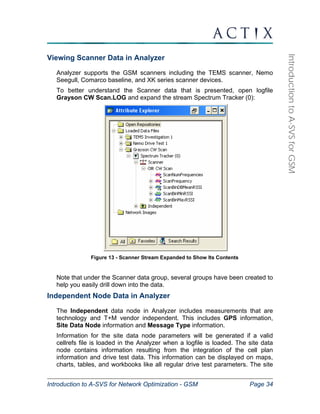
1. Load the drive test and the switch data files from the CD into the 
Workspace: 
Drive test: Nemo Drive Test 1.dt1 
Call trace: Ericsson MTR 1.txt 
2. Select Tools → Create Superstream. 
3. Change the name of the superstream from the default of 
SuperStream001 to Uplink and Downlink Data. 
4. In the SuperStreaming dialog, check the Nemo Drive Test 1 (drive 
test) and Ericsson MTR 1 (switch file) streams. 
5. Click the Settings button to display the Merge Method options. 
6. Select Correlated Parameters as the merge method. 
7. Highlight the Nemo Drive Test 1 stream. Use the attribute picker 
next to Correlated Parameters to select GSM → Downlink 
Measurements → ServRxQualSub as the correlating parameter for 
the Nemo file. The attribute picker is the button with the right-arrow 
icon . Used throughout Analyzer, an attribute picker allows you to 
select the Analyzer parameter of interest without the risk of mistyping 
the parameter name. 
8. Highlight the Ericsson MTR 1 stream. Use the attribute picker to 
select GSM → Downlink Measurements → ServRxQualSub as the 
correlating parameter for the Ericsson file. 
9. Click OK to create the superstream. 
Note: In the Superstreaming dialog box, the parameter that you associate 
with a stream of one type (i.e. .DT1, .TXT) will appear in the Attribute
Introduction to A-SVS for Network Optimization - GSM Page 82 
Introduction to A-SVS for GSM 
column for all streams of that type. However, only streams with check 
marks will be merged into the resulting superstream. 
10. When Analyzer has finished creating the superstream, it will appear 
in the Workspace: . You can perform analyses on 
the Superstream using the map, chart, message browser, and table 
features discussed earlier. 
Display ULRxQualSub from the Uplink Measurements group of the 
newly created superstream on the map. Notice how easy it is to 
locate areas containing poor uplink quality! These trouble spots are 
caused by the phone’s inability to communicate back to the base 
station, and may be attributed to a mobile failing to increase its 
transmit power when required or to excessive path loss between the 
phone and the base station.
Introduction to A-SVS for Network Optimization - GSM Page 83 
Introduction to A-SVS for GSM 
Merging Multiple Drive Files in the Workspace 
Analyzer’s superstream mechanism may be used to merge multiple files 
collected on the same link (i.e. drive test or call trace). Superstreaming multiple 
drive test files is desirable when you require one-click functionality for displaying 
the same parameter from multiple streams on any Analyzer view, or when 
aggregate statistics on multiple drives are required. Superstreaming creates a 
pointer to files already open in the workspace and does not create any new files. 
Superstreams may be saved in workspaces, as long as all component files are 
saved in the same workspace. 
To create a superstream containing several drive test files: 
1. Ensure that the following files are loaded in the Analyzer workspace: 
Network Drive 1.dt1 
Network Drive 2.dt1 
Network Drive 3.dt1 
2. Select Tools → Create Superstream. 
3. Name the superstream Merged Handset Data. 
4. In the SuperStreaming dialog, check the Network Drive 1, Network 
Drive 2, and Network Drive 3 streams. 
5. Use Timestamps is the default Merge Method. Click OK in the 
SuperStreaming dialog to create the superstream merged using 
timestamps. 
When Analyzer has finished creating the superstream, it will appear in the 
Workspace: . You can perform analyses on the superstream 
using the map, chart, message browser, and query features discussed earlier.
Introduction to A-SVS for Network Optimization - GSM Page 84 
Introduction to A-SVS for GSM 
The Network Image 
Frequently, optimization engineers are asked to provide a complete network 
overview for management, customer service, and planning purposes. A complete 
network drive may consist of a large number of data files from different sources, 
that when combined include a very large amount of data. All of the parameters, 
messaging, and other information available from a logfile may be helpful when 
performing an in-depth analysis, but when you are interested only in general 
information about the state of your network, this information may not be worth the 
time required to load and manipulate it. 
Actix Analyzer allows you to create a composite database consisting of multiple 
drives that is much smaller than the sum of the individual drive files. This is 
accomplished in Analyzer using the Network Image feature. Network Images 
extract the most commonly used network parameters and store them in an 
external file (*.dat). This is useful when you are performing a system-wide 
analysis or benchmarking activity. Because only key parameters are saved into 
the Network Image file, this file is much smaller than the sum of its component 
files. 
A network image populated with data is saved as a separate, smaller file from the 
original logfile. The original logfile is not altered in the creation of a network 
image repository. 
The data contained in a network image file differs from normal logfiles, in that the 
image file contains only the parameters specified and is binned according to the 
image definition. Network image files are pre-configured by Actix. Please contact 
Actix technical support for any specific requests for network image templates. 
Use a Pre-Configured Template to Create a New Network 
Image 
Assume you were asked to combine four logfiles representing a day’s worth 
of driving by four different engineers. We will create a network image to 
consolidate the data into one reasonably sized file: 
1. Create a network image by selecting Network Image → Create Network 
Image from the main Analyzer menu. 
2. For the name, enter ‘Cluster Level Data’. 
3. Select the GSM → Handset → Location Binned (5 sec) Image, then 
click OK. This will create a network image of the data sets that is binned 
based on location with a grid size of three arc seconds.
Introduction to A-SVS for Network Optimization - GSM Page 85 
Introduction to A-SVS for GSM 
Figure 47 - Creating a Network Image 
4. In the Save dialog, save the file in a convenient location. 
Your workspace will update after creating the network image. Browse the 
workspace and investigate the new template called Network Drive. This 
template is currently an empty shell that will be populated with data 
extracted from logfiles. 
Figure 48 - Workspace Showing the Network Image
Introduction to A-SVS for Network Optimization - GSM Page 86 
Introduction to A-SVS for GSM 
Batch Load Files Into the Network Image 
The Network Image that you just created is nothing more than an empty 
directory structure. You must now add data from log files into this structure. 
Files do not need to be open in the workspace in order to be added to the 
Network Image. 
1. To load files into the network image, right-click on the Network Drive 
network image in the workspace and select Batch Load Files. 
2. In the resulting dialog, select the following files located in C:Program 
FilesActixAnalyzerData Files (Note: Unlike with the superstream, 
these files DO NOT need to be open in the workspace). 
3. Click Open to begin processing the files. 
4. A Load Results report, like the one shown below, will appear once 
processing is complete. Select OK to close the report. 
Figure 49 - Analyzer Dialog Showing That File Processing is Complete
Introduction to A-SVS for Network Optimization - GSM Page 87 
Introduction to A-SVS for GSM 
Display Data for the Entire Network 
Many logfiles contain data for more than one device. Network image 
templates, such as the time binned template used in this example, can 
accommodate multiple data streams collected under a single logfile. 
1. Expand the Cluster Level Data Network Image. Notice that key 
optimization parameters in the Serving Cell Parameters, Downlink 
Measurements, Neighbor Cell Info, Dedicated Radio Link, and Event 
Data groups are included in the network image. 
2. Using standard Analyzer actions, display some parameters on charts, 
maps, and tables. 
Note that you can process scanner and handset data into a single network 
image or create a separate network image for scanner data, using the 
templates supplied with your Analyzer installation. 
Start a New Day – Attaching a Network Image 
Saving multiple files into one Network Image will allow a significantly faster 
load time than when loading each file individually. Demonstrate the faster 
load time by starting a new workspace and attaching the network image. 
1. Create a new workspace by selecting File → New Workspace from 
the main Analyzer toolbar. 
2. Attach the previously created network image by selecting Network 
Image → Attach Network Image. 
3. In the resulting dialog, browse and select the Cluster Level Data 
Network Image. 
4. Select Open to attach to the network image. The workspace will 
update to reflect the change. Notice how quickly the network image 
attaches! 
5. Expand the Network Drive. Display some parameters on Charts, Maps, 
and Tables. 
Key optimization parameters from three separate files have been combined 
into a single, smaller file that loads into Analyzer much faster than the original 
files.
Introduction to A-SVS for Network Optimization - GSM Page 88 
Introduction to A-SVS for GSM 
Create a Custom Network Image Template 
Some pre-configured Network Image templates are packaged with Actix 
solutions. It is also possible to create custom Network Image templates 
within the Analyzer workspace. This section describes the creation of custom 
Network Image templates using the Network Image Template Wizard. 
To create a custom Network Image template, start the Network Image 
Template Wizard by selecting Network Image → Network Image Template 
Wizard from the main menu1. Complete each of the steps in the Wizard: 
• Step 1 – Create a New Template / Open an Existing Template: 
o To create a new template, click Next to continue. 
o To import and modify an existing template, click Open. Note 
that only templates created using the Wizard are fully 
supported. Older templates created by hand will be imported 
but may not behave as expected. In this case, a warning 
message will be displayed. 
Figure 50 – Create a New Template / Open an Existing Template 
1 If you plan to include any Queries in your custom Network Image template, ensure that the 
Queries are available in the workspace before beginning this procedure.
Introduction to A-SVS for Network Optimization - GSM Page 89 
Introduction to A-SVS for GSM 
• Step 2 – Choose Your Devices: 
o You may want to process different data streams in different 
ways. For example, you may want to extract different attributes 
for handset and scanner data captured in the same logfile. You 
can define a meaningful Device Name and specify a Filter to 
uniquely identify each device within a logfile. When populating 
the Network Image, only data streams with names containing 
the Filter text will be processed into each device. 
o If there are logfiles loaded into the workspace, the streams in 
those files will be displayed in the ‘Currently Loaded Devices’ 
panel on the left: 
Figure 51 – Choose Your Devices 
o Click the Add button to add a new device:
Introduction to A-SVS for Network Optimization - GSM Page 90 
Introduction to A-SVS for GSM 
Figure 52 - Add Device Name Dialog 
o Enter the Device Name and the related Filter that identifies the 
stream of interest within the logfile. The Device Name is a label 
that has meaning to the user. The software determines whether 
data from a stream should be loaded into the Device based on 
whether the Filter text matches any text in the data stream 
name. In this example, the Filter 1) uniquely identifies the 
handset stream in the file, while using an identifier that is 
common to many types of logfiles. If the Filter field is left empty, 
data from all streams will be loaded into the Device. 
o Click OK to add the Device to the Device List. 
o A Network Image template may contain multiple devices. Once 
all the Devices have been entered, click Next to continue. 
Figure 53 - Devices Added to the Device List
Introduction to A-SVS for Network Optimization - GSM Page 91 
Introduction to A-SVS for GSM 
• Step 3 – Choose Your Attributes: 
o Select a Device from the panel on the right, and then use the 
Add button to select the required attributes from the Attribute 
Picker panel on the left. 
o If you select an array attribute (i.e. 
ScanSortSigLevel_by_SigLevel[]), a dialog will prompt you for 
the range of indices. Enter the start and end values and click 
OK. 
o In addition to standard analysis parameters, we recommend 
adding the Independent → FileName parameter to each 
Device in a Network Image. FileName can be used to trace 
data points in the Network Image to the original source file. This 
method is used to perform detailed analysis on problems 
spotted in the high level Network Image. 
o Attributes are assigned to one Device at a time. To duplicate 
the attributes selected for one Device into another Device, 
select the Device with the required attributes and click Copy. 
Then select the second Device and click Paste. 
o Once you have added all required attributes, click Next to 
continue. 
Figure 54 – Choose Your Attributes
Introduction to A-SVS for Network Optimization - GSM Page 92 
Introduction to A-SVS for GSM 
• Step 4 – Choose Settings For Your Devices: 
o To create a binned dataset, ensure the Binned checkbox is 
enabled and choose the appropriate Binning Settings. We 
recommend the following Binning Settings for Network Images: 
ƒ Time Binning – 3 second or larger bins 
ƒ Location Binning – 50 x 50 meter or larger bins 
o To create a histogram of the data, check the Histogram box. 
o To create a statistical summary of the data, check the Statistics 
box. 
o Note that Binning Settings are assigned to one Device at a time. 
Repeat this process for each Device. 
o Click Next to continue. 
Figure 55 – Binning Settings Dialog 
• Step 5 – Choose Your Queries: 
o Note that only queries available in the workspace can be added. 
o Select a Query from the left pane. 
o Select a Device from the right pane. 
o Click Add to use the selected Query in the selected Device. 
o Continue until all the required Queries have been added to the 
appropriate Devices. 
o Click Next to Continue.
Introduction to A-SVS for Network Optimization - GSM Page 93 
Introduction to A-SVS for GSM 
Figure 56 - Choose Your Queries 
• Step 5 – Confirm Your Selection: 
o This window summarizes the contents of the Network Image 
template. 
o After reviewing the contents, click Finish to open the Save As 
dialog. 
o The Network Image template must be saved in C:Program 
FilesActixAnalyzerBinNetworkImageDefns or a subfolder. 
Saving in this location ensures that the template will be 
available as a selection in the Create Network Image dialog 
box. Enter a filename and click Save.
Introduction to A-SVS for Network Optimization - GSM Page 94 
Introduction to A-SVS for GSM 
Figure 57 - Confirm Your Selection 
After saving the new Network Image template in the BinNetworkImageDefns 
folder, the template will be available in the Create Network Image dialog. You 
can now create and populate a Network Image repository using your custom 
template!
Introduction to A-SVS for Network Optimization - GSM Page 95 
Introduction to A-SVS for GSM 
Analyzer Queries and Filters 
You can create customized analyses within the Analyzer. You may want to 
highlight potential problem areas, or test for common symptoms of bad radio link 
quality for the purpose of speeding up the analysis of data. Your customized 
analysis, called a query, can be saved in a Workspace and reused for future 
drive data. The queries can be created, accessed, and edited in the Workspace 
through the Analysis Manager. 
Queries are a means of searching and filtering data based on events and 
thresholds you define. Queries operate on binned data and are written using 
Boolean expressions and arithmetic operations containing data parameters from 
one or more data streams. Analyzer supports six types of query and filter 
analyses: 
Filter Analysis 
Binned Query Analysis 
Crosstab Query Analysis 
Statistic Analysis 
Histogram Analysis 
Event Query Analysis 
Analyzer includes the ability to use queries to assist in the detection, correction, 
and presentation of network problems. You can save any or all of the analyses 
you create to use later and share with coworkers. These analyses can be saved 
in individual files or into a single file. In Analyzer, files of analyses have the AQF 
extension. 
All custom analyses can be saved for future use through the Analysis 
Manager: 
Select Tools → Analysis Manager 
In the Analysis Manager, select the Existing Analysis tab 
Select any queries to save and click the Export button 
Browse to a folder that you wish to save your query in. Analyzer’s 
default structure provides the C:Program 
FilesActixAnalyzerQueries folder for an easy place to store 
queries. 
Name the *.aqf file Training_Class_Queries. All queries created 
during training may be stored in the same file. 
To import the queries into a new Analyzer session, go to the 
Existing Analysis tab of the Analysis Manager and select the Import 
button. Open the saved *.aqf query file.
Introduction to A-SVS for Network Optimization - GSM Page 96 
Introduction to A-SVS for GSM 
Filter Analysis 
You can create a filter that highlights those points that have RxQual greater 
than or equal to 4 to identify all the locations on the drive with poor quality of 
service. 
A filter analysis tests data on a single criterion and passes the data if the 
criterion is met. Follow the steps to create a new filter: 
1. From the Nemo Drive Test 1 data stream, display ServRxQualSub on a 
map. 
2. Right-click on the Nemo Drive Test 1 data stream and select Filter → 
Create a New Filter. 
3. For the Filter Name, enter ‘PoorRxQual’. 
4. For the expression, choose the ServRxQualSub from the attribute 
picker. Access the attribute picker by selecting the right arrow icon . 
5. For the operation, choose >=. 
6. For the Threshold, enter ‘4’. 
Figure 58 - Filter Wizard 
7. Click OK to create the filter. Analyzer will automatically apply the filter to 
any information already displayed in the workspace. 
8. Confirm that the query was created by going to Tools → Analysis 
Manager and clicking on the Existing Analyses tab. The filter should be 
under the Filters category.
Introduction to A-SVS for Network Optimization - GSM Page 97 
Introduction to A-SVS for GSM 
9. Add the ServRxLev and ServBCCH parameters to the map. Note that the 
data for all parameters, not just RxQual, is filtered. The points you see 
now are the values of RxLev and BCCH when RxQual was greater than or 
equal to 4. 
10. To remove a filter, select the stream in the workspace, right-click on it, and 
uncheck the tick mark against the filter. 
11. To edit a query once it is created, select Tools → Analysis Manager, and 
select the Existing Analyses tab. Highlight the analysis you wish to edit 
and press the Edit button. All query fields will be available for editing. 
12. Save the query to a file called Training_Class_Queries.aqf. Select Tools 
→ Analysis Manager, and select the Existing Analyses tab. Highlight 
the analysis (or analyses) you wish to save and press the Export button. 
Browse to a folder you wish to save your query in and click Save. All of 
the selected queries will be saved to a single file with a *.aqf extension. 
Note that the same filter will work on any GSM handset file that contains the 
ServRxQualSub parameter. 
Repeat the exercise above to create a filter for good signal strength. Assume 
that good signal strength is indicated by ServRxLevSub greater than or equal 
to –90 dB. 
The Filter dialog should look like this: 
Figure 59 - Good RxLev Filter Wizard 
Investigate the AND and OR operators when using these two filters. What is 
indicated by good signal strength and poor call quality? The following figure 
shows the BCCH parameter from the Nemo Drive Test 1 handset stream 
with both the Poor RxQual and the Good RxLev filters applied.
Introduction to A-SVS for Network Optimization - GSM Page 98 
Introduction to A-SVS for GSM 
Figure 60 - BCCH Filtered for Poor RxQual and Good RxLev 
You can also use the filter function to determine which locations are being 
served by distant cells. We will use a threshold of 6000 meters for this filter. 
The parameter we are interested in for this analysis is Independent → Site 
Data Node → ServingCellDistance. The Filter Wizard screen should look 
like this: 
Figure 61 - Filter Wizard For Creating the Distant Server Analysis
Introduction to A-SVS for Network Optimization - GSM Page 99 
Introduction to A-SVS for GSM 
You can apply this filter to the Nemo Drive Test 1 handset and display 
ServRxLevSub on a map. There are only a few points served by distant 
sectors. You can zoom in on these points, then use the Select cursor to show 
the lines to cells for each point. That map would look like this: 
Figure 62 - Distant Server Filter Results With Lines To Cells Displayed 
Save all of the filters you have created to the Training_Class_Queries.aqf 
file.
Introduction to A-SVS for Network Optimization - GSM Page 100 
Introduction to A-SVS for GSM 
Binned Query / Custom Analysis Query 
The Binned Query allows you to define a new parameter based on existing 
parameters, using functions and inequalities. The results of a binned query 
can be displayed on a map, chart, table, or workbook. 
ServingCellDistance in Miles 
By default, Analyzer displays the serving cell distance in meters. A simple, yet 
very useful example of a binned query is the conversion of the serving cell 
distance from meters to miles. 
Create the ServingCellDistance in Miles query using the Analysis Manager: 
1. Select Tools → Analysis Manager. 
2. Select the Binned Query icon in the dialog and click on New. 
3. For the Description, enter ‘ServingCellDistance in Miles’. 
Figure 63 - Creating the ServingCellDistance in Miles Query 
4. In the parameters box, find the serving cell distance under 
Independent → Site Data Node → ServingCellDistance and double-click 
on it to add it to the expression. 
5. At the end of the text in the Expression Builder, type in ‘/1609.344’. 
6. Set the Format to Float. The easiest way to do this is to select the 
Format drop down dialog and start typing Float in the window.
Introduction to A-SVS for Network Optimization - GSM Page 101 
Introduction to A-SVS for GSM 
7. Click OK to create the query. 
8. Click OK again to close the Analysis Manager. 
9. The query will appear in the Queries group under every data stream in 
the workspace. Under the handset stream, expand the Queries → 
Binned Queries group. 
10. Right-click on the ServingCellDistance in Miles query and choose 
Display on Map to display the query results on a map. 
Dragging Handover Query 
Occasionally in a GSM network, handovers do not occur as quickly as they 
should. This condition occurs in locations where the strongest neighbor is 
seen at a level that is at least 6-8 dBm stronger than the server. When the 
neighbor is significantly stronger than the server, the handover should have 
taken place, and the condition is known as a “dragging handover”. This 
condition may be indicative of a sector that propagates outside of its intended 
footprint, and can result in interference and poor perceived call quality when 
frequency reuse plans get tight. 
Create the Dragging Handovers ? query to detect locations that are 
suffering from the dragging handoff condition. The query will detect locations 
where the strongest neighbor is at least 8 dBm stronger than the server. 
Create this query using the Analysis Manager: 
1. Select Tools → Analysis Manager. 
2. Select the Binned Query icon in the dialog and click on New. 
3. For the Description, enter ‘Dragging Handovers?’. 
Figure 64 - Binned Query Wizard
Introduction to A-SVS for Network Optimization - GSM Page 102 
Introduction to A-SVS for GSM 
We will create a custom parameter that identifies locations where the RxLev 
for any neighbor is more than 8 dB greater than the RxLev of the serving 
sector. 
The Expression is: (array_max(NborRxLev[])-8)>ServRxLevSub 
4. In the Expression Builder, type ‘(‘. 
5. From the available functions, double-click on the array_max function. This 
function will parse an array and select the largest value in it. 
6. Click to select the <<attribute[]>> placeholder in the Expression Builder. 
In the Parameters pane select GSM → Neighbor Cell Info → NborRxLev 
and double-click on it to add it to the expression. 
7. At the end of the text in the Expression Builder, type in ‘-8)>’. 
8. In the attribute pane, go to GSM → Downlink Measurements → 
ServRxLevSub and double-click to add it to the expression. 
9. Set the Format to Boolean. The easiest way to do this is to select the 
Format drop down dialog and start typing Boolean in the window. 
10. Click OK to create the query. 
11. Click OK again to close the Analysis Manager. 
12. The query will appear in a new Queries group under every data stream in 
the workspace. Under the Nemo Drive Test 1 handset stream, expand 
the Queries → Binned Queries group. 
13. Right-click on the Dragging Handovers ? query and choose Display on 
Map to display the query results on a map.
Introduction to A-SVS for Network Optimization - GSM Page 103 
Introduction to A-SVS for GSM 
Figure 65 - Results of the Dragging Handovers Query Displayed On a Map 
Determining the locations of dragging handovers in the network may be 
interesting, but this data is not useful unless you know which frequencies 
are causing the problem. Once the problem BCCHs are identified, you can 
perform adjustments to the network to resolve the problems. 
A custom stateorm may be used in conjunction with the query results the 
help determine the cause for the dragging handovers. Synchronize the 
GSM Neighbors stateform with the map to investigate some of the areas 
suffering from dragging handovers. Refer to the StateForms section for 
instructions on using Analyzer StateForms. 
Figure 66 - GSM Neighbors StateForm
Introduction to A-SVS for Network Optimization - GSM Page 104 
Introduction to A-SVS for GSM 
Crosstab Query – Sort by Site and Sector 
The crosstab query is used to group data and display statistics for each 
group. The groups can be sorted, and a query can contain several options 
for grouping data. This example will have the Serving Site and Serving 
Sector as the grouping options, and the mean ServRxLevSub, mean 
ServRxQualSub, and number of dropped calls as the statistics to display 
for each group. When the query is completed and the results are 
displayed on the statistics explorer, it will look like this: 
Figure 67 - Results of Crosstab Query on the Statistics Explorer
Introduction to A-SVS for Network Optimization - GSM Page 105 
Introduction to A-SVS for GSM 
To create the crosstab query: 
1. Select Tools → Analysis Manager. 
2. Select the Crosstab Query icon and click on New. 
3. Name the query “Sort by Site and Sector”. 
4. Click on the ‘New Dimension’ button. The query dimension allows you to 
group and order your results using the attribute you select. Use the 
attribute chooser to select Independent → Site Data Node → 
ServingCellID to add the serving site as the first dimension. Use the 
attribute chooser again to select Independent → Site Data Node → 
ServingSectorID to add the serving sector as the second dimension. 
5. The query statistics are the results that you would like to include for each 
dimension. The parameters that you choose will be displayed as the 
columns in the statistics explorer. The statistics that we will include in this 
query are the mean ServRxLevSub, the mean ServRxQualSub, and the 
number of dropped calls. All of these statistics will be available for the 
complete drive, for each serving site and sector. Specific parameters 
relating to each statistic are included in the table below. 
a. Click on the New Statistic button to launch the Statistic Window. 
b. Enter the Statistic name. 
c. Use the attribute chooser to select the statistic of interest. 
d. Select the method to use to calculate the statistic. 
e. Click OK when finished with the Statistic Window. 
Statistic Name Expression Method of Calculation 
Mean ServRxLevSub ServRxLevSub Mean 
Mean ServRxQualSub ServRxQualSub Mean 
# Dropped Calls EventCallDropped Count 
6. Once completed, click OK in all other active dialogs to complete the query. 
Be sure to save the Sort by Site and Sector crosstab query, in addition to the 
other queries you’ve created, in your Training_Class_Queries.aqf file.
Introduction to A-SVS for Network Optimization - GSM Page 106 
Introduction to A-SVS for GSM 
Figure 68 - Specifying the Dimensions and Statistics for the Crosstab Query 
Display the Crosstab Query Results 
Once created, the crosstab query results can be displayed in the Statistics 
Explorer by right-clicking on the query in the workspace, and selecting 
Display in Statistics Explorer. The Statistics Explorer will launch and the 
results can be viewed, sorted by serving channel and color code. The queries 
can also be displayed in Excel workbooks. 
Run the crosstab query on the Nemo Drive Test 1 handset stream. 
Filter the Crosstab Query Results 
The Filter button on the Statistics Explorer may be used to quickly filter query 
results in the Stats Explorer and in any other Analyzer view. In this case, it 
may be useful to view data for only one serving site, such as Site 95. 
1. View ServRxLevSub from the Nemo Drive Test 1 handset stream 
on a map. Display the EventCallDropped event on the same map.
Introduction to A-SVS for Network Optimization - GSM Page 107 
Introduction to A-SVS for GSM 
2. Tile the map and the Statistics Explorer vertically in the workspace by 
selecting Window → Tile Vertically. 
3. In the Statistics Explorer, select the row for Site 95. 
4. With the row for Site 95 selected, press the Filter button in the 
Statistics Explorer. Notice that only data points served by this site 
remain in the Statistics Explorer and on the map. 
5. To remove filtering, click the Filter button again. The filter will be 
unapplied from both the map and the Statistics Explorer.
Introduction to A-SVS for Network Optimization - GSM Page 108 
Introduction to A-SVS for GSM 
Event Query - Dropped Call Window 
The Event Query allows you to extract key performance statistics for a user-defined 
time or message window before or after a defined event like a 
handover failure or dropped call. Viewing the window surrounding an event 
can provide insight into whether a pattern exists among undesirable events, 
such as multiple handover failures or drops on the same cell, or multiple 
drops due to low coverage. 
We will create an Event Query to return statistics in a five-second window for 
each dropped call in the file 
1. Select Tools → Analysis Manager. 
2. Select the Event Query icon in the dialog and click on New. 
3. For the Trigger Selection, use the attribute picker to select GSM → 
Event Data → EventCallDropped. The parameter will show up in the 
triggering window. 
Figure 69 - Setting Up the Event Query
Introduction to A-SVS for Network Optimization - GSM Page 109 
Introduction to A-SVS for GSM 
4. For the Window Range, choose Time Based and set the window to 
5,000 milliseconds before the event and 0 milliseconds after the event. 
5. Click Next. 
6. For the name of the query, enter ‘Dropped Call Window’. 
Figure 70 - Defining the Name, Dimensions, and Statistics For the Query 
7. To define a statistic to be displayed in the event window, click on the 
New Statistic button to launch the Statistic window. 
8. For the name, enter ‘Site ID’.
Introduction to A-SVS for Network Optimization - GSM Page 110 
Introduction to A-SVS for GSM 
Figure 71 - Choose a Calculation Method for Each Event Query Statistic 
9. Choose the Edit button below the line that reads “Enter the 
expression that should be calculated in your statistic:”. 
10. The Expression Builder will launch. Inside the top portion of the 
window, type State(). This State() function is required to ensure that 
the last valid value of the parameter persists. 
11. Click inside the parentheses of the State() function. In the Parameters 
area of the Expression Builder, expand the Independent → Site Data 
Node tree. Double-click on the ServingCellId parameter to insert it 
into the expression. 
12. Click OK to exit the Expression Builder.
Expression Method to Calculate 
State(ServingSectorID) Last Value 
State(ServBCCH) Last Value 
State(ServBSIC) Last Value 
ServRXLev Mean 
ServRxQual Mean 
State(NborBCCH[0]) Last Value 
NborRxLev[0] Mean 
Introduction to A-SVS for Network Optimization - GSM Page 111 
Introduction to A-SVS for GSM 
Figure 72 - Expression Builder for the Event Query 
13. In the Statistic window, select the method to calculate the statistic. In 
this case, select Last Value. Click OK when finished with the Statistic 
window. 
14. Repeat steps 7 through 13 above to define the following statistics 
(choose an appropriate name for each one). The statistics that do not 
require the use of the State() function can be picked using the 
Attribute Chooser instead of the Expression Builder. 
15. Once completed, click OK in all other active dialogs to complete the 
query.
Introduction to A-SVS for Network Optimization - GSM Page 112 
Introduction to A-SVS for GSM 
Displaying Event Queries 
Once created, the event query can be displayed in the Statistics Explorer by 
right-clicking on the query in the workspace, and selecting Display the 
Statistics Explorer. The Statistics Explorer will launch and the results can be 
viewed, sorted by the time of the event (in milliseconds). The queries can also 
be displayed in Excel workbooks. 
Run the event query on the Nemo Drive Test 1.dt1 handset stream. 
How many dropped calls occurred in this file? 
What appears to be the primary reason for the dropped call(s)? 
Figure 73 - Displaying the Results Of the Event Query
Statistic Analysis 
Introduction to A-SVS for Network Optimization - GSM Page 113 
Introduction to A-SVS for GSM 
The Statistic Analysis is used in conjunction with a binned query to generate 
statistics for the results of the query. We will use it to generate statistics for 
the ServingCellDistance in Miles binned query. 
Generate Statistics for a Binned Query 
1. Select Tools → Analysis Manager. 
2. Select the Statistic icon in the dialog and click on New. 
3. Enter ‘ServingCellDistance in Miles Stats’ in the Description field. 
4. Use the drop down list to select ServingCellDistance in Miles. 
5. Do not remove any data points. Click OK to create the analysis. 
6. Find the new statistic analysis under the Queries node. Right-click on it 
and display it on a table. 
7. Click on the statistics tab of the table to view the statistics for the 
ServingCellDistance in Miles query.
Introduction to A-SVS for Network Optimization - GSM Page 114 
Introduction to A-SVS for GSM 
Cell Site Configuration Using the Network Explorer 
The Network Explorer allows you to import network element data into Analyzer, 
creating a cell plan file called cellrefs.txt. It also lets you browse and edit this 
network information once it has been loaded into Analyzer. The Automatic 
Import feature provides an automated method of updating cell site information in 
Analyzer as changes are made to the network. 
This section describes how to import delimited data into Analyzer, and how to 
configure the Automatic Import tool. 
Importing Network Data 
The important thing to remember about Analyzer’s network data import 
process is that the process requires two files: 
1. A delimited text file that contains unformatted data arranged in tabular 
form, with one row for each individual sector in a network. 
2. A blank file, containing only Analyzer header information, to be populated 
with formatted data. 
Obtaining Site Data in Tabular Format 
In order to import cell site data from your own network, you will need to obtain 
a delimited text file containing the data listed in the table below. To maximize 
the benefit Analyzer can bring to GSM network analysis, the parameters listed 
in bold in the table on the following page are REQUIRED for cell data to 
function with logged data in the main workspace. All other parameters are 
optional. 
The data may come from a network database or a planning tool configuration 
file. As long as the data is in a tabular format with one row for each sector, 
Analyzer will be able to import the data.
Introduction to A-SVS for Network Optimization - GSM Page 115 
Introduction to A-SVS for GSM 
GSM Cell Site Parameters for Import: 
Parameter Analyzer Group Analyzer Name Purpose 
Site Name GSM_Site SiteName Text description of the Site for 
display on map. 
Site Number GSM_Site SiteID Numeric identifier for the site. 
Latitude GSM_Site Latitude Locates site icons on map. 
Longitude GSM_Site Longitude Locates site icons on map. 
Sector Number GSM_Cell Sector_ID Sector-specific information 
useful for display on maps (can 
be alpha or numeric) 
Azimuth GSM_Cell Azimuth Orients the sector icons on the 
map. 
Beamwidth GSM_Cell Beamwidth Governs the shape of the sector 
“wedge” icon to reflect the 
beamwidth of antenna deployed 
at the site. 
BCCH GSM_Cell BCCH Used for cell site identification 
and to calculate lines to cells. 
BSIC GSM_Cell BSIC Used for cell site identification 
and to calculate lines to cells. 
BSIC is the concatenation of the 
NCC and BCC values for a cell. 
CI GSM_Cell CI Used for cell site identification 
and to calculate lines to cells. 
This field must be numeric! 
Base Station Power GSM_Cell EIRP Base station power, for 
informational purposes only. 
MCC GSM_Cell MCC Mobile country code, for 
informational purposes only. 
MNC GSM_Cell MNC Mobile network code, for 
informational purposes only. 
LAC GSM_Cell LAC Location area code, for 
informational purposes only. 
BSC Name GSM_BSC BSCName BSC name, for use with A and Abis 
link data. 
BSC ID GSM_BSC ID BSC identity, for use with A and 
Abis link data. 
MSC Name GSM_MSC MSCName MSC name, for use with A and 
Abis link data. 
MSC ID GSM_MSC ID MSC identity, for use with A and 
Abis link data.
Introduction to A-SVS for Network Optimization - GSM Page 116 
Introduction to A-SVS for GSM 
Parameter Analyzer Group Analyzer Name Purpose 
Sector Display – 
Wildcard 
GSM_Cell Face_Display Use to color sectors on the map by 
a custom integer field. 
Sector Display – 
Wildcard 
GSM_Cell Azimuth_Display Use to color sectors on the map by 
a custom integer field. 
Sector Display – 
Wildcard 
GSM_Cell Phase_Display Use to color sectors on the map by 
a custom integer field. 
Routing Area Code GSM_Cell RAC Routing area code, for 
informational purposes only. 
Layer Type GSM_Cell LayerType Use this field to manage multiple 
cell layers to be displayed and 
hidden separately.
Introduction to A-SVS for Network Optimization - GSM Page 117 
Introduction to A-SVS for GSM 
The figure below is an example of a delimited GSM file that could be used to 
import a site list into Analyzer. Though the columns can be in any order for 
import into Analyzer, the figure shows all of the REQUIRED fields. 
Additionally, the Excel spreadsheet must be saved as a TEXT file for import 
into Analyzer. 
Figure 74 - GSM Cell Site Data Spreadsheet 
Guidelines for Formatting Tabular Data 
Although Analyzer does not require cell site data fields to be listed in a 
particular order, following these guidelines will provide the best results: 
1. The Site ID field must contain a unique value for each site location. 
Beware of non-unique Site ID's - that is, entries that have multiple sets of 
lats/longs for the same Site ID. Non-unique Site ID's will result in site 
markers appearing on the map without sector wedges. Site Names need 
not be unique - they are used for labeling purposes only. 
2. Position information must be accurate in order for Analyzer to display sites 
in the correct location on the map. Longitudes that have a 'West' notation 
should be represented as a negative decimal, as should latitudes with a 
'South' notation. Sites will appear skewed on the map if the latitude and 
longitude fields are transposed.
Introduction to A-SVS for Network Optimization - GSM Page 118 
Introduction to A-SVS for GSM 
Obtaining the File to be Populated With Formatted Data 
Before importing new cells into Analyzer, ensure that Analyzer is pointing to a 
valid cell site database. 
A valid cell site database is a text file in which the first line contains the 
text below: 
; #NetworkData – datafile 
Every Analyzer installation comes with a clean file called cellrefs.txt 
located in the directory called: 
C:Program FilesActixAnalyzerBinCellrefs 
The file to be populated need not be named “cellrefs.txt”. We recommend 
renaming this file with a meaningful name in order to prevent the file from 
being overwritten during reinstallation. 
To point the Analyzer to the file you wish to populate with the new cell site 
data, use the File Location line in the Tools → Preferences dialog. See the 
section on Loading Cell Site Data on page 19 for more details.
Introduction to A-SVS for Network Optimization - GSM Page 119 
Introduction to A-SVS for GSM 
Importing the Data 
Once you have obtained your cell site database in delimited format and 
pointed Analyzer to a valid cellrefs file, you are ready to open the Network 
Explorer and import the site information. 
1. To access the Network Explorer select Cells → Network Explorer 
Figure 75 - Network Explorer Window 
The Network Explorer display consists of two panels. The left panel contains 
a tree view of the network element data. The right panel shows details about 
relevant parameters for the current selection. If you have pointed Analyzer to 
a cellrefs file containing only header information, you will not see any cell site 
data at this time. 
2. On the toolbar select Import → Import From New Template to open the 
Import dialog. 
3. Select the appropriate network data file and click Open to display the 
Import Settings dialog.
Introduction to A-SVS for Network Optimization - GSM Page 120 
Introduction to A-SVS for GSM 
Figure 76 - Import Settings Dialog (Step 1 of 2) 
4. Give the Template a meaningful Template Name. 
5. Check the appropriate Delimiter. 
6. In most cases, the default information under the General Settings and 
Coordinate Information headers will apply. Adjust these settings if 
necessary. 
7. Click Next.
Introduction to A-SVS for Network Optimization - GSM Page 121 
Introduction to A-SVS for GSM 
Figure 77 - Settings (Step 2 of 2) – Assign GSM_Site Data 
8. Expand the GSM_Site data node. Click in the Column field next to the 
Site_Name parameter. Select the parameter name from your site 
database that corresponds to the Site_Name parameter. Repeat for each 
of the required fields in the GSM_Site data node, based on the table 
below: 
Field Mapping required for proper operation? 
Site_Name Optional, but this field is frequently used for 
the site label. 
SiteID Required, and this field must be unique for 
each site in the database. 
Latitude Required 
Longitude Required
Introduction to A-SVS for Network Optimization - GSM Page 122 
Introduction to A-SVS for GSM 
Figure 78 - Column Settings (Step 2 of 2) – Assign GSM_Cell Data 
9. Expand the GSM_Cell data node. Click in the Column field next to the 
Sector_ID parameter. Select the parameter name from your site 
database that corresponds to the Sector_ID parameter. Repeat for each 
of the required fields in the GSM_Cell data node, based on the table 
below: 
Field Required for proper operation? 
Sector_ID Required 
Azimuth Required 
Beamwidth Required 
EIRP Optional 
BCCH Required
Introduction to A-SVS for Network Optimization - GSM Page 123 
Introduction to A-SVS for GSM 
Field Required for proper operation? 
MCC Optional 
MNC Optional 
LAC Optional 
CI Required, and this field must be unique for 
each site in the database. 
BSIC Required 
Face_Display Optional, but map this field to the integer 
sector ID field (i.e. 1, 2, 3) in order to color 
sectors on the map by face number (i.e. 1 = 
red, 2 = blue, 3 = green). 
Azimuth_Display Optional, but map this field to the integer 
azimuth field in order to color sectors on the 
map by azimuth range. 
Phase_Display Optional, but map this field to a custom 
integer field to color sectors on the map by 
that field. An example of a custom field 
would be the phase of the site where: 
1 = On Air 
2 = Under Construction 
3 = Planned for Next Year 
RAC Optional 
LayerType Optional. Use this field to manage multiple 
cell layers. Cells can be displayed or 
hidden on the map by layer. 
10. Click Finish when all the columns have been assigned. If the current 
workspace contains existing site data, you will be asked whether you want 
to remove existing data before importing new data. Select Yes to 
overwrite existing data. Select No to append to existing data. 
11. If any errors occur during the import, a pop-up message will indicate that 
an error log has been created. The error log specifies the cause of each 
error encountered and can be found in: 
C:Program FilesActixAnalyzerBinCellrefsImportErrors.log
Introduction to A-SVS for Network Optimization - GSM Page 124 
Introduction to A-SVS for GSM 
12. Inspect the cell data in the Network Explorer by expanding the 
All_GSM_Site_Elements folder in the left-hand pane of the Network 
Explorer. 
13. Double-click on any site name in the right hand pane. The Name, Location 
and ID of the site will appear, as well as a folder containing GSM Cell 
Elements. Drill into the GSM Cell Elements folder and examine the 
values corresponding to each sector. 
14. To save the formatted site information, select the Save button. 
15. Close the Network Explorer by clicking the “X” at the upper right hand 
corner. 
16. After closing the Network Explorer, view a new map by selecting View → 
Display New Map. 
17. If cell icons do not appear on the map, right click on the GSM_Cell layer in 
the map legend at the left hand side of the map window. Select Zoom to 
Layer to zoom the map to the appropriate location. Be sure to close the 
map with the “X” at the upper right hand corner to save all changes to the 
map view.
Introduction to A-SVS for Network Optimization - GSM Page 125 
Introduction to A-SVS for GSM 
Figure 79 - Use Zoom to Layer to Locate Cells on Map
Introduction to A-SVS for Network Optimization - GSM Page 126 
Introduction to A-SVS for GSM 
Updating Cell Site Data 
There are two convenient ways to update cell plan information in Analyzer: 
Minor cell plan changes (a few azimuths, BCCHs, etc.) can be modified 
directly from the Network Explorer. Simply browse to find the site and 
sector of interest and double click on a single parameter to activate the 
text. Be sure to save the modifications before exiting the Network 
Explorer! 
If the cellplan file is updated (multiple sites added, complete frequency 
retune), use the Automatic Import feature to detect changes to an existing 
cell plan and import the updated cell site file into Analyzer. Instructions for 
using the Automatic Import feature follow. 
Automatic Import of Cell Site Data 
The Automatic Import feature detects changes to cell plan data and updates 
the configured site data every time Analyzer is opened. 
Figure 80 - Automatic Import Setup
Introduction to A-SVS for Network Optimization - GSM Page 127 
Introduction to A-SVS for GSM 
To use the Automatic Import feature: 
1. From the Analyzer main menu, select Tools → Preferences. 
2. Expand the Automatic Import option under Cellrefs and select the 
Enable Automatic Import option. 
3. Select the Automatic Import Input File. This is the text file that contains 
your delimited site data. 
4. Select the Automatic Import Template. Once a template has been 
created, a new Analyzer workspace must be started in order for that 
template to appear in this list. To use a template created on another 
computer, copy the template of interest from the C:Program 
FilesActixAnalyzerBinCellrefsTemplates directory to the same 
directory on your machine. 
5. Click OK to exit the Change Preferences dialog. A message will appear 
that Automatic Import has been enabled and that your currently loaded 
cellrefs will be overwritten the next time Analyzer is restarted. 
Once Automatic Import is configured, any changes to the Automatic Import Input 
File will be detected, and will be changed accordingly in your Analyzer cell site 
file each time Analyzer is opened.
Introduction to A-SVS for Network Optimization - GSM Page 128 
Introduction to A-SVS for GSM 
Reporting GSM Network Performance 
The reporting features in Analyzer allow you to create high-level management 
reports based on your data. Two different mechanisms exist for creating for 
producing integrated, polished reports that can be used to analyze high-level 
network statistics or communicate test results in a professional format: 
Application Packages are a technology-specific series of reports that are 
installed automatically with every Analyzer installation. Application 
Packs are typically used to obtain a high-level overview of call statistics. 
They can be used when a professional, formatted output is required, but 
time constraints do not allow for the creation of a custom template. 
Reports are user-definable formatted outputs that make use of Analyzer’s 
integration with Microsoft Excel. Reports may be included with an 
Analyzer installation (such as the GSM Training Materials), but are not 
always included. Reports, unlike Application Packs, allow for formatted 
outputs of multiple streams of data. Use Reports when generating 
outputs for multiple streams of data and when you want to design a 
custom formatted template from scratch. 
This section describes the use of both reporting mechanisms, including running 
Application Packs, running pre-defined Reports, and creating custom Reports. 
Application Packages 
Actix Analyzer v4.1 contains application packages specific to each mobile 
technology supported by the software. The application packs are a series of 
reports, each focusing on a particular aspect of mobile network optimization. 
The two packs currently available for GSM users are: 
DT Design Validation and Quick Analysis 
DT Handover Settings and Power Control 
Running Application Packs 
Once a data file is loaded, the application packages can be accessed in one 
of two ways: 
1. Through the Analysis menu on the main menu bar 
2. By right-clicking on the stream name in the Workspace Browser 
Note: The application packs require Analyzer to be pointing to a valid cellrefs 
file in order to function properly.
Cell Explorer 
Report Window 
Introduction to A-SVS for Network Optimization - GSM Page 129 
Introduction to A-SVS for GSM 
Once you have selected one of the Application Packs from the menu, an 
Application Pack window will appear. The window is divided into two panes. 
The top panel is referred to the Cell Explorer, and it contains a summary of 
major call events and statistics for the selected stream. Information in the cell 
explorer is organized by serving site and sector. 
The bottom pane is called the Report window and contains a list of available 
reports associated with the selected application pack. Once executed, the 
results of the reports can be saved, printed, and shown in their raw form in 
Microsoft Excel. 
Figure 81 - Report Options for the DT Design Validation and Quick Analysis
Introduction to A-SVS for Network Optimization - GSM Page 130 
Introduction to A-SVS for GSM 
DT Design Validation and Quick Analysis 
This application pack contains the following reports: 
1. Call Details - A summary of the number of occurrences of various 
messages and events 
2. Design Validation - Classifies data points as having good or bad 
design according to interference, quality, and dominance thresholds 
3. Measurement Charts - Charts showing the distributions for 
RxLevSub, RxSubQual, and TA 
4. Neighbor Level Single – Band - Percentage of samples where at 
least one neighbor is stronger than the serving cell and all neighbors 
within 5 dBm from the server for PDF and CDF in tables and graphs 
5. Neighbor Level - Dual Band - Shows percentage of band usage, 
intra/interband handover and neighbors with 5dBm of the server for 
PDF and CDF, as tables and graphs 
An example of the Call Details report output is shown below: 
Figure 82 - Call Details Report
Introduction to A-SVS for Network Optimization - GSM Page 131 
Introduction to A-SVS for GSM 
DT Handover Settings and Power Control 
This application pack contains the following reports: 
1. Handover Quality - Chart of quality measurements for the whole file, 
and for the five seconds before and after each handover 
2. Handover Level - Chart of the change in downlink received level due 
to handover, measured in five second windows before and after each 
handover 
3. Handover Interval - Chart showing the interval between handovers 
4. Handover Classification - Percentage breakdown between good and 
poor design, and breakdown poor design by class 
5. Power Distribution – Histogram of power, in dBm, by number of 
occurrences and includes the mean dBm 
6. Power Step Distribution – Histogram of power step changes, in dB 
7. Power Step Interval – Histogram of the time interval, in seconds, 
between power step changes 
The Handover Interval report is shown below: 
Figure 83 - Handover Interval Report
Introduction to A-SVS for Network Optimization - GSM Page 132 
Introduction to A-SVS for GSM 
Running a Pre-Defined Report 
Since Application Packs are built into the Analyzer, they may not exactly meet 
your team’s reporting requirements. Additionally, App Packs can only be run 
on a single stream of data. Analyzer Reports allow you to create custom 
reports using Microsoft Excel, and those reports may include data from 
multiple streams. Reports from multiple measurement sources allow you to 
compare data collected simultaneously or look at your network before and 
after making a change. 
In this section, you will populate a pre-defined Analyzer Report template that 
contains multiple data streams. In the next section, you will create a custom 
report from scratch. 
To run the pre-defined report: 
1. From the Analyzer main menu select Workbook → Open 
Workbook/Report. 
2. Navigate to C:Program FilesActixAnalyzerReports and Open the 
report called GSM Before and After Network Change.xls. 
3. Analyzer prompts you to select a data stream to replace the ‘before’ 
stream. Select the handset stream from Nemo Drive Test 1.dt1 and 
click OK. 
4. Analyzer then prompts you to select a second data stream. Select the 
handset stream from Nemo Drive Test 2.dt1 and click OK. 
5. Analyzer will generate the report and launch Excel. Expect for this to 
take a few moments. When this is complete, click on the Report tab in 
the Excel workbook and examine the formatted report. 
The output of the report is shown on the following page.
Introduction to A-SVS for Network Optimization - GSM Page 133 
Introduction to A-SVS for GSM 
Figure 84 - Results of the Before and After Network Change Report 
The Analyzer GSM Training Materials come with several pre-defined reports 
that can be run according to the steps above. These reports are: 
GSM Before and After Network Change – Presents key call statistics 
for two different data streams. 
GSM Cluster Optimization Report – Designed for use during 
integration of a new site or cluster. Compares actual statistics against 
pre-defined metrics. 
GSM RxLev and RxQual Report – Presents key performance 
statistics for RxLev and RxQual, including graphical representations.
Introduction to A-SVS for Network Optimization - GSM Page 134 
Introduction to A-SVS for GSM 
Creating a Custom Report 
Creating your own formatted report template is as easy as viewing the data 
you require on a workbook, and then formatting the report page using Excel. 
The objective of this section is to create a simple report, like the one shown 
below, to display a histogram distribution and statistics for the RxQualSub 
parameter. Since RxQual is the parameter that provides the best estimate of 
user-perceived voice quality, the value of this parameter throughout a network 
is of great importance. 
Figure 85 - RxQual Histogram and Statistics Report 
To create this report: 
1. Ensure that the Nemo Drive Test 1 file is loaded into the Workspace. 
2. Select the parameter ServRxQualSub from GSM → Downlink 
Measurements. Right-click on it and choose Display on Workbook. 
Excel will launch. The Workbook will contain three sheets, which can be 
accessed by clicking on the corresponding tab at the bottom sheet window.
Introduction to A-SVS for Network Optimization - GSM Page 135 
Introduction to A-SVS for GSM 
3. Click on any blank sheet in the workbook and rename the sheet 
“Report”. 
4. Click on the Histogram Formatted Data tab. Click and drag to define 
a window around the data set, including the column headers. 
5. Select the chart icon from the top menu bar of Excel: . 
6. The chart wizard will open: 
Figure 86 - Chart Wizard in Excel 
7. Select a simple column chart and follow the Wizard prompts and 
instructions. 
8. Click the Finish button in the chart wizard and a basic chart will be 
created. 
9. Cut and paste the new chart onto the “Report” sheet in the workbook 
or choose to have the chart inserted as an object on the Report sheet. 
10. To place the mean and standard deviation statistics in the table in your 
report, type “=” in the cell you would like to hold the value on the 
Report sheet. Then switch to the Statistic Formatted Data tab and 
select the cell containing the data you wish to add to your report. Press 
Enter after selecting that cell to create the reference. 
11. Add a title to the worksheet, position the histogram on the page, format 
a table around the statistics and add any other desired formatting.
Introduction to A-SVS for Network Optimization - GSM Page 136 
Introduction to A-SVS for GSM 
12. From the Excel main menu, select File → Save. Save the file in 
C:Program FilesActixAnalyzerReports folder and name it 
RxQual_Histogram_and_Statistics_Report. 
13. Close the Excel workbook. 
Running Your Report with New Data 
1. Ensure that the Nemo Drive Test 2 file is loaded into the Workspace. 
2. Select Workbook → Open Workbook to open the 
RxQual_Histogram_and_Statistics_Report saved previously to the 
C:Program FilesActixAnalyzerReports directory. 
3. A dialog will appear that prompts you to select a data stream(s): 
Figure 87 - Running the Report on New Data 
4. Select the Nemo Drive Test 2 handset stream and watch the 
formatted report regenerate for the new data.
Introduction to A-SVS for Network Optimization - GSM Page 137 
Introduction to A-SVS for GSM 
Where to Get More Help 
Help File 
Analyzer includes comprehensive online help, which can be accessed by 
clicking on Help menu on the main menu. The primary help documentation 
can be found under Help → Contents. You can look up information about a 
particular topic either by choosing an item from the index or by entering 
keywords and performing a search. 
Figure 88 - Actix Online Help Options
Introduction to A-SVS for Network Optimization - GSM Page 138 
Introduction to A-SVS for GSM 
Specific information, like the definition of engineering parameters, can be 
accessed by clicking on Help → Attribute Help. You can look up an item in 
the alphabetized list, or you can open the Attribute Help window, and then 
click on an item in the Workspace. 
Figure 89 - Highlighted Parameter and Corresponding Attribute Help Entry 
The contents of the Help window can be printed, stored under Favorites, and 
resized or minimized to enable side-by-side review as operations are 
performed in Analyzer.
Introduction to A-SVS for Network Optimization - GSM Page 139 
Introduction to A-SVS for GSM 
Technical Support 
Technical support is available by phone, email, and on the Actix Web site. 
Technical personnel are located in Reston, VA, USA, London UK, and 
Singapore to provide assistance. In the US technical support can be reached 
at: 
Phone: 1 (877) 72-ACTIX (toll free) 
1 (877) 722-2849 
Between the hours of 09:00-17:00 EST 
If you are calling outside of hours, please leave your contact information and 
a brief description of the nature of the call. 
Email: support@actix.com 
On the Web: www.actix.com/html/support.htm 
When contacting Actix Support please have your license key number and the 
software revision number you are using ready to speed up the resolution of 
your problem. The version number of the software is available by going to 
Help → About Analyzer. 
Figure 90 - About Analyzer Window
Introduction to A-SVS for Network Optimization - GSM Page 140 
Introduction to A-SVS for GSM 
Actix Web Site 
Our Web site is located at: www.actix.com and can be accessed directly from 
the Online Help menu under Visit the Actix Web site. In addition to containing 
information about Actix, the Analyzer, and other products, it contains further 
application modules for Analyzer for common optimization tasks, and sections 
on Frequently Asked Questions. 
Actix frequently improves the Analyzer with incremental updates to the 
software as further test and measurement vendors’ formats integrated into the 
tool or updated in accordance with new versions of phones or infrastructure. 
To confirm you are using the most current version of the software please 
check under the Help → About Analyzer menu and compare that with the 
current release cited on the Web site. Upgrades can be downloaded from the 
web providing the support and maintenance contract purchased with the 
software is still current. If you have any questions please contact our support 
staff. 
Contact Your Instructor 
The objective of this training session is to provide all attendees with the 
knowledge and desire to use Analyzer on returning from the course. To 
confirm the training has met your expectations you are invited to complete a 
post training survey and highlight any aspect of the course that could be 
improved or did not meet your expectations. Unless you specifically decline, 
the instructor may contact you within six weeks of this course to follow up and 
discuss further any questions you have. 
Additional copies of this manual are available from Actix support or from your 
instructor 
More Advanced Training 
Actix offers a range of training courses designed to improve the 
understanding, proficiency and productivity of engineers using Actix Analyzer 
for network optimization and performance in the fast paced world of wireless 
communications. 
For more information, or to 
book any of these 
courses, please contact 
your instructor or sales 
manager at: 
Actix Inc (Sales), 
12012 Sunset Hills Rd, Ste 910 
Reston, VA 20190, USA 
Phone: (703) 707-4777 
Email: sales@actix.com 
Fax: (703) 707-4778 On the Web: www.actix.com
Introduction to A-SVS for Network Optimization - GSM Page 141 
Introduction to A-SVS for GSM 
Appendix A – GSM Event Definitions 
Event Definition 
Call Completed For GSM log files that contain air interface messaging, a Call 
Completed event is triggered if the following criteria occur: 
• Outgoing Call Setup OK or Incoming Call Setup 
OK 
• Followed by RR: Channel Release with 
Cause=Normal 
Call Dropped For GSM log files that contain air interface messaging, a Call 
Dropped event is triggered if the following criteria occur: 
• Outgoing Call Setup OK or Incoming Call Setup 
OK 
• Not followed by RR: Channel Release with Cause 
= Normal 
• Followed by a transition to idle mode 
Handover OK Contains geographically referenced occurrences of all 
successful handoff events. 
For LCC GSM, it defines a successful handover and is 
obtained from the RR Handover Complete message. 
For Grayson GSM and compatible log files, a HandoffOK 
event is triggered if the following occurs: 
• Requirement: CC: Handover Command 
• Not Followed By: A transition to idle mode 
• Followed By: CC: Handover Complete 
Handover Fail Contains geographically referenced occurrences for all 
handoff failures. 
For Grayson and compatible GSM log files, a handoff failure 
event is triggered if the following sequence of messages 
occurs: 
• First Requirement: CC: Handover Command 
• Not Followed By: A transition to idle mode 
• Followed By: CC: Handover Failure 
Location Update OK Contains geographically referenced points where a location 
update occurred successfully. 
Location Update Fail Contains geographically referenced points where a location 
update failed.
Introduction to A-SVS for Network Optimization - GSM Page 142 
Introduction to A-SVS for GSM 
Event Definition 
Assignment OK Contains geographically referenced points where a traffic 
channel/slot was assigned. 
Assignment Fail Contains geographically referenced points where a traffic 
channel/slot assignment failed. 
Incoming Call OK An incoming call initiation event is triggered if the following 
sequence of messages occurs: 
• DL CC: Setup 
• UL CC: Alerting 
Incoming Call Setup Fail An incoming call setup failure is triggered if the following 
sequence of messages occurs: 
• CC: Setup 
• Followed by CC: Call Confirmed 
• Followed by a transition back to idle mode 
Outgoing Call OK A successful mobile origination is triggered if the following 
requirements are met: 
• UL CC: Setup 
• DL CC: Alerting 
Outgoing Call Setup Fail An outgoing initiation failure is triggered if the following 
sequence of messages occurs: 
• CC: Setup 
• Not followed by CC: Call Confirmed 
• Followed by a transition back to idle mode
Introduction to A-SVS for Network Optimization - GSM Page 143 
Introduction to A-SVS for GSM 
Appendix B – GPRS Optimization Parameters 
As GPRS network become more prevalent, GSM performance engineers will 
become responsible for ensuring the integrity of these data networks. Although 
GPRS networks share radio resources with GSM network, the analysis and 
optimization procedures for these two types of networks are not the same. 
GPRS network drive tests must be designed to capture the aspect of the network 
of interest. When analyzing GPRS drive test data, the parameters of interest are 
different than when analyzing GSM drive test data. This document provides 
some suggestions for the design of GPRS drive test scenarios, and describes 
areas of interest when analyzing this data with Actix A-Solutions. 
GPRS Test Design 
Different tests may be designed for testing different aspects of GPRS network 
performance: 
• Throughput analysis 
o The purpose of this test is to determine the GPRS data rate over the 
air interface and for the end user application. 
o FTP uploads and downloads provide the maximum channel usage 
over a continuous time period, providing a good picture of maximum 
throughput attainable. 
o FTP test files should be large enough to provide a good test case, but 
small enough to avoid being affected by uncontrollable variables. Ideal 
file sizes are 300 kb for download testing and 100 kb per upload 
testing. Zipped files are ideal, as they contain compressed data that 
will not be subject to very much extra compression during 
transmission. 
o The FTP server ideally should be located within the GPRS network on 
the Gi interface. Locating the server within the GPRS network 
eliminates internet-related variables for testing purposes. 
o Stationary testing is preferable over mobile testing to reduce the effect 
of cell updates on throughput. Ideally, the test should be conducted in 
an area of strong radio coverage. 
• Latency and signaling analysis 
o The purpose of this test is to verify the GPRS message sequences, 
and the time between key GPRS events. This type of test might be 
used to verify the operation of new network equipment. 
o Ping is a good application for this type of analysis based on its 
relatively simple command structure and concrete timing expectations.
Introduction to A-SVS for Network Optimization - GSM Page 144 
Introduction to A-SVS for GSM 
Typical ping delay over GPRS is 750 ms. 
o An IP sniffer such as Ethereal may be used to view communication 
between the client computer and the server at the IP level (as opposed 
to communication between the mobile and the server seen from the 
GPRS handset). 
• Analysis of the effects of the RF environment on the GPRS network 
o The purpose of this test is to determine how well the GPRS data 
network operates in the existing GSM radio environment. 
o Stationary testing in areas of high potential usage is recommended to 
analyze GPRS behavior with typical RF conditions. 
o Mobile testing on highways or commuter transit routes is 
recommended for testing the effects of cell updates and mobility on the 
GPRS network. In a GPRS network, cell updates are initiated by the 
mobile which breaks the connection with the abandoned cell before 
reselecting a new cell. A cell update typically results in 3-5 seconds of 
down time before communication with the new cell is established. 
GPRS Data Analysis 
Once GPRS data has been collected, various parameters can be used to 
analyze the performance of the network. Each parameter described here can be 
viewed using the Actix Analyzer platform, provided the parameter has been 
collected by the collection equipment. 
• Throughput – GPRS logfiles contain throughput values collected within the 
GPRS network and at the application level. RLC Throughput and 
Application Throughput are the most commonly used for analysis of GPRS 
networks. 
o RLC Throughput (Radio Link Control) provides data rate for the 
logical link between the mobile and the PCU and can be found in the 
GSM → GPRS Data → Vendor Specific group. RLC throughput 
provides the best indication of data transfer over the air interface. 
o LLC Throughput (Logical Link Control) provides the data rate 
between the mobile and the SGSN and can be found in the GSM → 
GPRS Data → Vendor Specific group. 
o TCP Throughput provides the data rate on the logical link maintaining 
flow and congestion control between the two communicating 
computers. TCP throughput can be found in the Data Testing → 
Protocol Measurements group. 
o Application Throughput most closely approximates the end user 
experience and can be found in the Data Testing → Application
Introduction to A-SVS for Network Optimization - GSM Page 145 
Introduction to A-SVS for GSM 
Measurements group. Target application throughput for GPRS is 11- 
13 kbps per timeslot for Coding Scheme 2 (CS 2). 
Figure 91 - Uplink RLC and Application Throughput 
• Timeslot Usage – The more timeslots allocated to a GPRS data session, the 
higher the resulting throughput. Timeslots may be allocated based on data 
rate requested and network congestion. Check timeslot usage with the 
parameters in the GSM → GPRS Data → GPRS RMAC → Dedicated Radio 
Link group. 
• Coding Scheme Usage – GPRS relies on four different coding schemes to 
provide an appropriate balance between error correction and maximum data 
rate. CS 1 provides substantial error correction, resulting in a lower maximum 
data rate. CS 4 provides virtually no error correction and the highest 
maximum data rate, but should only be used in areas where RF conditions 
are excellent to avoid losing packets. CS usage information can be found in 
the GSM → GPRS Data → GPRS RMAC → Dedicated Radio Link group. 
• GPRS Radio Conditions – The best indicators of GPRS radio conditions are 
RLC_DL_BLER and RLC_UL_Retransmissions, both of which can be 
found in the GSM → GPRS Data → Vendor Specific group. RLC_DL_BLER 
indicates the percentage of corrupt blocks received that cannot be decoded 
by the mobile. RLC_UL_Retransmissions indicates unacknowledged blocks 
sent by the mobile that must be resent. High RCL_DL_BLER or 
RLC_UL_Retransmission values typically result in lower throughput.
Diminished 
throughput 
and high BLER 
Introduction to A-SVS for Network Optimization - GSM Page 146 
Introduction to A-SVS for GSM 
Figure 92 - RLC DL Throughput and BLER 
• Cell Updates – In GPRS networks, cell updates are controlled by the handset 
rather than by the network. The handset measures and updates the serving 
cell based on local radio conditions. Because the connection with the 
abandoned cell is broken before the connection is resumed with the target 
cell, there is a 3-5 second break in data transfer during a cell update. Use the 
ServCI parameter in the GSM → Serving Cell Parameters group to 
determine whether multiple cell updates are affecting GPRS throughput. 
• TFI and TBF – Timeslots are shared between GPRS users. Each GPRS user 
is granted a Temporary Flow Identity (TFI), Temporary Block Flow (TBF) on 
the uplink and on the downlink. Each data transmission in a timeslot includes 
a TFI indicating to which mobile the data corresponds. During a constant 
stream of data (i.e. FTP download), the mobile will keep the same TFI. During 
sporadic transmit or receive activity, the mobile will constantly release and be 
allocated new TFIs. During sporadic activity, TFIs will be assigned in 
consecutive numerical order if no other users are on the cell. TFI numbers will 
jump if there are multiple users on the cell. GPRS performance will suffer the 
more users share the same resources.
Bursty TFI during 
bursty download 
activity 
Introduction to A-SVS for Network Optimization - GSM Page 147 
Introduction to A-SVS for GSM 
Figure 93 - File Download Throughput and TFI 
• GPRS Signaling – All GPRS signaling can be accessed via the Analyzer 
message browser or Protocol Stack Browser. Knowledge of protocol signaling 
can help to identify and pinpoint network-based problems. Protocol analyzer 
traces on the Gb link may be used to see whether a problem is more 
widespread than just the test mobile. 
o RLC-based Protocols provide communication between the mobile 
and the PCU. The RLC layer ensures that the mobile has sufficient 
resources to communicate on the radio link. RLC messages and 
procedures include Channel Request, Immediate Assignment, Acks & 
Nacks, and presence messaging. 
o LLC-based Protocols provide communication between the mobile 
and the SGSN. LLC procedures include mobile attach messaging, 
PDP context activation, and acknowledgement of the mobile on the 
network. 
• TCP Behavior – TCP is in place to maintain a problem-free connection 
between two computers via a system of sequence numbers and 
acknowledgements. The sequence numbers and acknowledgements can be 
examined in an IP sniffer file such as Ethereal. TCP behavior analysis is a 
good place to start if RF conditions and RLC throughput looks good, but 
application throughput is poor. Some potential TCP problems are:
Introduction to A-SVS for Network Optimization - GSM Page 148 
Introduction to A-SVS for GSM 
o Missing Packets - TCP behavior causes the receiver to acknowledge 
packets with the number of the next expected packet. If the receiver 
misses a packet it will acknowledge the number of the missing packet, 
even as other packets are sent and received, until the missing packet 
is finally received. 
o Receive Buffer Size Window – The receive buffer size window, or 
RWIN setting, defines how many packets can be sent out by the 
sender without receiving an acknowledgement from the receiver. If the 
RWIN setting is too small, the sender may hold data and reduce 
throughput while waiting for earlier packets to be acknowledged.
Introduction to A-SVS for Network Optimization - GSM Page 149 
Introduction to A-SVS for GSM 
Appendix C – StateForms Attributes 
There are six types of objects that can be placed on a StateForms sheet. In 
addition, the sheet itself has attributes which can be set. Below is a list of the 
attributes associated with the sheet and with the Label, Attribute Value, and 
Array Attribute Value objects. 
Sheet Attributes – To access the sheet properties, click on any part of the sheet 
that is not occupied by an object. 
Attribute Function 
Sheet Width Set the width of the StateForms sheet 
Sheet Height Set the height of the StateForms sheet 
Auto Scale When set to ‘True’ the size of the objects on the sheet will 
scale up or down to fill the sheet as the sheet window size is 
changed 
Background Set the background color of the sheet 
Grid Size Set the spacing for the design mode grid of dots 
Snap to Grid Set to ‘True’ to automatically align the top left corner of the 
object with the design grid 
Label Attributes 
Attribute Function 
Caption The text that will be displayed in the 
label 
Back Color Background color of the label 
Back Color Override Set to ‘True’ to activate the 
background color you have selected 
Border Line Adds a border around the label 
Border Sunken Makes the label appear pressed in 
Text Color Select a text color 
Font Auto Size Set to ‘True’ to have the font size 
change to fill the label area or set to 
‘False’ to set the font size yourself 
Font Height Select a font size 
Font Use Default Set to ‘True’ to keep the font plain, set 
to ‘False’ to Activate Bold and Italic 
settings 
Font Name Select a font face 
Font Italic Make the text italicized 
Font Bold Make the text bold
Introduction to A-SVS for Network Optimization - GSM Page 150 
Introduction to A-SVS for GSM 
Left Distance from the left edge of the 
label to the left edge of the form 
Top Distance from the top of the label to 
the top of the form 
Width Width of the label 
Height Height of the label 
Extent Right Set to ‘True’ to make the contents of 
the label scale as the form size is 
changed in View Mode. 
Extent Bottom Set to ‘True’ to make the contents of 
the label scale as the form size is 
changed in View Mode. 
Attribute Value – The attribute value 
Attribute Function 
Specify Min+Max Set to ‘True’ to specify the minimum 
and maximum values when the 
attribute value object is used as an 
attribute value bar 
Bar Range Min Set the minimum value for the attribute 
value bar 
Bar Range Max Set the maximum value for the attribute 
value bar 
Bar Color Set the color that will fill the attribute 
bar as the parameter value changes 
Use Value Color 0) None – used when you want to 
displayed the attribute value as 
text without a color behind it. 
1) Text – used to display the 
parameter value as text rather 
than a level bar. 
2) Background – used to fill in the 
entire attribute value bar in with 
the bar color. 
3) Value Bar – Use this setting to 
fill the attribute value bar in with 
the bar color to indicate the level 
of the parameter value. 
Show Value Text Set to ‘True’ to display the parameter 
value as text
Introduction to A-SVS for Network Optimization - GSM Page 151 
Introduction to A-SVS for GSM 
Show Min Text Set to ‘True’ to display the text showing 
the minimum value of the attribute level 
bar 
Show Max Text Set to ‘True’ to display the text showing 
the maximum value of the attribute 
level bar 
Show Minor Ticks Set to ‘True’ to display the divisions 
you would like to divide the attribute 
level bar into 
Show Major Ticks Set to ‘True’ to display the subdivisions 
you would like to divide the attribute 
level bar into 
Minor Tick Spacing Set the size of the divisions into which 
you would like to divide the attribute 
level bar. 
Major Tick Spacing Set the size of the subdivisions into 
which you would like to divide the 
attribute level bar. 
Attribute Use the Analyzer tree of parameters to 
select the attribute whose value you 
would like to display. 
Attr. Array Index For parameters that are arrays, enter 
the index of the array element whose 
value you would like to display. 
Attr. Value Hold Holds the last valid value of the 
parameter until a new valid value is 
collected. 
Expression To display an expression instead of a 
straight parameter value, type the 
expression here as it would appear in 
the Binned Query expression builder. 
Expr Format Group Select the format group for the 
expression you are using 
Expr. Fmt. Mode 0) Normal – 
1) No Default – 
2) Append Units – Use to display 
the units that correspond to the 
expression when a format group 
for the expression has been set. 
3) Convert Units – 
Expr. Decimals Set the number of decimal places in 
the result of the expression.
Introduction to A-SVS for Network Optimization - GSM Page 152 
Introduction to A-SVS for GSM 
Display Validity ---- 
Text Change Flag Set to ‘True’ to highlights changes in 
the parameter value from the preceding 
data point to the current data point by 
changing the color used to display the 
parameter value. 
Text Change Color Set the color used to indicate a change 
in the parameter’s value. 
Color Legend ---- 
Color by Format Group Set to ‘True’ to color the level bars 
using the color scheme established in 
the map legend 
Color Value Expr. ---- 
Back Color Background color of the attribute value 
Back Color Override Set to ‘True’ to activate the background 
color you have selected 
Border Line Adds a border around the attribute 
value 
Border Sunken Makes the attribute value appear 
pressed in 
Text Color Select a text color 
Font Auto Size Set to ‘True’ to have the font size 
change to fill the array value area or 
set to ‘False’ to set the font size 
yourself 
Font Height Select a font size 
Font Use Default Set to ‘True’ to keep the font plain, set 
to ‘False’ to Activate Bold and Italic 
settings 
Font Name Select a font face 
Font Italic Make the text italicized 
Font Bold Make the text bold 
Left Distance from the left edge of the 
attribute value to the left edge of the 
form 
Top Distance from the top of the attribute 
value to the top of the form 
Width Width of the attribute value 
Height Height of the attribute value 
Extent Bottom Set to ‘True’ to make the contents of 
the attribute value scale as the form 
size is changed in View Mode.
Introduction to A-SVS for Network Optimization - GSM Page 153 
Introduction to A-SVS for GSM 
Extent Right Set to ‘True’ to make the contents of 
the attribute value scale as the form 
size is changed in View Mode. 
Array Attribute Value 
Attribute Function 
Array Columns Number of columns in the array 
attribute value matrix 
Array Rows Number of rows in the array attribute 
value matrix 
Array Base Offset To begin displaying parameter values 
starting at a location in the array other 
than its beginning, specify the index of 
the first array element you would like to 
display. 
Specify Min+Max Set to ‘True’ to specify the minimum 
and maximum values when the 
attribute value object is used as an 
attribute value bar 
Bar Range Min Set the minimum value for the attribute 
value bar 
Bar Range Max Set the maximum value for the attribute 
value bar 
Bar Color Set the color that will fill the attribute 
bar as the parameter value changes 
Use Value Color 1) None – used when you want to 
displayed the attribute value as 
text without a color behind it. 
2) Text – used to display the 
parameter value as text rather 
than a level bar. 
3) Background – used to fill in the 
entire attribute value bar in with 
the bar color. 
4) Value Bar – Use this setting to 
fill the attribute value bar in with 
the bar color to indicate the level 
of the parameter value. 
Show Value Text Set to ‘True’ to display the parameter 
value as text
Introduction to A-SVS for Network Optimization - GSM Page 154 
Introduction to A-SVS for GSM 
Show Min Text Set to ‘True’ to display the text showing 
the minimum value of the attribute level 
bar 
Show Max Text Set to ‘True’ to display the text showing 
the maximum value of the attribute 
level bar 
Show Minor Ticks Set to ‘True’ to display the divisions 
you would like to divide the attribute 
level bar into 
Show Major Ticks Set to ‘True’ to display the subdivisions 
you would like to divide the attribute 
level bar into 
Minor Tick Spacing Set the size of the divisions into which 
you would like to divide the attribute 
level bar. 
Major Tick Spacing Set the size of the subdivisions into 
which you would like to divide the 
attribute level bar. 
Attribute Use the Analyzer tree of parameters to 
select the attribute whose value you 
would like to display. 
Attr. Value Hold Holds the last valid value of the 
parameter until a new valid value is 
collected. 
Expression If you would like to display the value of 
an expression instead of a simple 
parameter, enter the expression here 
as it would appear in the expression 
builder 
Expr. Format Group If you are using an expression, select 
the format group for the expression to 
be displayed 
Expr. Frmt. Mode Select the format group for the 
expression you are using 
Expr. Mode 0) Normal – 
1) No Default – 
2) Append Units – Use to display 
the units that correspond to the 
expression when a format group 
for the expression has been set. 
3) Convert Units –
Introduction to A-SVS for Network Optimization - GSM Page 155 
Introduction to A-SVS for GSM 
Expr. Decimal Set the number of decimal places in 
the result of the expression. 
Display Validity ---- 
Text Change Flag Set to ‘True’ to highlights changes in 
the parameter value from the preceding 
data point to the current data point by 
changing the color used to display the 
parameter value. 
Text Change Color Set the color used to indicate a change 
in the parameter’s value. 
Color Legend ---- 
Color by Format Group Set to ‘True’ to color the level bars 
using the color scheme established in 
the map legend 
Color Value Expr. ---- 
Back Color Background color of the array attribute 
value 
Back Color Override Set to ‘True’ to activate the background 
color you have selected 
Border Line Adds a border around the array 
attribute value 
Border Sunken Makes the array attribute value appear 
pressed in 
Text Color Select a text color 
Font Auto Size Set to ‘True’ to have the font size 
change to fill the array attribute value 
area or set to ‘False’ to set the font size 
yourself 
Font Height Select a font size 
Font Use Default Set to ‘True’ to keep the font plain, set 
to ‘False’ to Activate Bold and Italic 
settings 
Font Name Select a font face 
Font Italic Make the text italicized 
Font Bold Make the text bold 
Left Distance from the left edge of the array 
attribute value to the left edge of the 
form 
Top Distance from the top of the array 
attribute value to the top of the form 
Width Width of the array attribute value 
Height Height of the array attribute value
Introduction to A-SVS for Network Optimization - GSM Page 156 
Introduction to A-SVS for GSM 
Extent Bottom Set to ‘True’ to make the contents of 
the array attribute value scale as the 
form size is changed in View Mode. 
Extent Right Set to ‘True’ to make the contents of 
the array attribute value scale as the 
form size is changed in View Mode.

Actix analyzer training_manual_for_gsm

  • 2.
    Introduction to A-SVSfor Network Optimization - GSM Page 2 Introduction to A-SVS for GSM Introduction.........................................................................................................6 Scope of the Course..........................................................................................6 Who Should Attend Analyzer Training?.............................................................6 Prerequisites .....................................................................................................7 Topics to Be Covered........................................................................................8 Introduction to Actix Analyzer............................................................................9 Analyzer’s Key Features .................................................................................10 What’s New in A-SVS Version 1.6....................................................................11 Technology Enhancements.............................................................................11 Data Visualization............................................................................................11 Licensing .........................................................................................................12 Getting Started With Analyzer .........................................................................13 Starting Analyzer .............................................................................................13 Configuring Analyzer .......................................................................................15 Configuring Analyzer .......................................................................................15 Setting up Maps .......................................................................................15 More Pan and Zoom Options ..........................................................................19 Map Scale and Coordinates.....................................................................20 Loading Cell Site Data .............................................................................20 Displaying Site Labels..............................................................................21 Coloring Sectors on the Map...........................................................................23 Viewing Cell Site Information ...................................................................26 Searching for Cells ......................................................................................27 Data Aggregation (Binning) .............................................................................29 Exploring the Workspace.................................................................................31 Loading Files...................................................................................................31 Viewing Scanner Data in Analyzer ..................................................................34 Independent Node Data in Analyzer................................................................34 Searching for Attributes...................................................................................36 The Favorites Group .......................................................................................36 Sharing Favorites.........................................................................................37 Viewing Data in Analyzer .................................................................................38 Viewing Data on Maps ....................................................................................38 Modifying Legend Ranges........................................................................39 The Map Offset Tool ................................................................................40 Creating a Multi-Dimensional Map Stream...............................................42 Lines to Cells and Cell History .................................................................43 Displaying Data Values as Text on Maps.................................................45 The Direction Button ....................................................................................49 Region Filtering............................................................................................49 Printing Maps...............................................................................................51 Viewing Data on Charts...................................................................................53 Modifying Chart Properties.......................................................................55 Viewing Data in Tables....................................................................................57
  • 3.
    Introduction to A-SVSfor Network Optimization - GSM Page 3 Introduction to A-SVS for GSM Viewing Data in the Message Browser............................................................58 Viewing Data in the Protocol Stack Browser ...................................................60 Viewing Data on Workbooks ...........................................................................62 Delta Plots.......................................................................................................63 The Replay Tool ..............................................................................................66 Docking the Replay Tool ..........................................................................67 Viewing Data on Stateforms............................................................................68 Using Preconfigured StateForms .............................................................68 Viewing Custom Forms with the StateForms Editor .................................73 Modifying an Existing StateForms File .....................................................74 Creating Your Own StateForms File ........................................................77 Uplink Data Analysis ........................................................................................80 Exploring Call Trace Data ...............................................................................80 Superstreaming Call Trace and Drive Test Data .............................................81 Merging Multiple Drive Files in the Workspace..............................................83 The Network Image...........................................................................................84 Use a Pre-Configured Template to Create a New Network Image..................84 Batch Load Files Into the Network Image........................................................86 Display Data for the Entire Network ................................................................87 Start a New Day – Attaching a Network Image ...............................................87 Create a Custom Network Image Template ....................................................88 Analyzer Queries and Filters ...........................................................................95 Filter Analysis ..................................................................................................96 Binned Query / Custom Analysis Query ........................................................100 ServingCellDistance in Miles..................................................................100 Dragging Handover Query .....................................................................101 Crosstab Query – Sort by Site and Sector ....................................................104 Display the Crosstab Query Results ......................................................106 Filter the Crosstab Query Results ..........................................................106 Event Query - Dropped Call Window.............................................................108 Displaying Event Queries.......................................................................112 Statistic Analysis ...........................................................................................113 Generate Statistics for a Binned Query..................................................113 Cell Site Configuration Using the Network Explorer ...................................114 Importing Network Data.................................................................................114 Obtaining Site Data in Tabular Format...................................................114 Guidelines for Formatting Tabular Data .................................................117 Obtaining the File to be Populated With Formatted Data .......................118 Importing the Data..................................................................................119 Updating Cell Site Data .................................................................................126 Automatic Import of Cell Site Data .........................................................126 Reporting GSM Network Performance..........................................................128 Application Packages ....................................................................................128 Running Application Packs.....................................................................128
  • 4.
    Introduction to A-SVSfor Network Optimization - GSM Page 4 Introduction to A-SVS for GSM DT Design Validation and Quick Analysis ..............................................130 DT Handover Settings and Power Control .............................................131 Running a Pre-Defined Report ......................................................................132 Creating a Custom Report.............................................................................134 Running Your Report with New Data .....................................................136 Where to Get More Help .................................................................................137 Help File ........................................................................................................137 Technical Support .........................................................................................139 Actix Web Site ...............................................................................................140 Contact Your Instructor .................................................................................140 More Advanced Training ...............................................................................140 Appendix A – GSM Event Definitions............................................................141 Appendix B – GPRS Optimization Parameters.............................................143 GPRS Test Design ........................................................................................143 GPRS Data Analysis .....................................................................................144 Appendix C – StateForms Attributes ............................................................149
  • 5.
    Introduction to A-SVSfor Network Optimization - GSM Page 5 Introduction to A-SVS for GSM Actix Analyzer Sales 12012 Sunset Hills Rd Suite 910 Reston, VA 20190 Telephone: (703) 707-4777 Fax: (703) 707-4778 Web Site: http://www.actix.com Email: sales@actix.com Document Revision 2.0, December 2004 For Actix A-SVS-GP1 Version 1.6 Course: NTII All contents of this document are the property of Actix Inc and are provided for informational purposes only. The information in this document is subject to change without notice. Actix will not be held liable for technical or editorial omissions made herein, and will not be held liable for incidental, consequential, or other similar damages resulting from the use of its products. Copyright © Actix Inc. 2002, All Rights Reserved
  • 6.
    Introduction to A-SVSfor Network Optimization - GSM Page 6 Introduction to A-SVS for GSM Introduction Scope of the Course Introduction to Analyzer for Network Optimization provides a comprehensive overview of Actix Analyzer – Service Verification Solution (‘Analyzer’). Our goal is to give new users an understanding of what Analyzer can do and how it can help them improve the quality of service for their network subscribers. This course is led by experienced instructors. These instructors are experts in using Analyzer to increase productivity and are familiar with the challenges faced by engineers working in cellular/PCS environments. Class size is limited to ensure that everyone receives extensive one on one instruction. Participants are given ample opportunity to ask questions relevant to their particular optimization needs. Upon completing the course, participants will be able to put what they learned in the class to work to identify and solve real network problems. Introduction to Analyzer for Network Optimization begins with a high-level presentation of the Analyzer interface and its capabilities. We will then cover how Analyzer can be customized to tailor existing optimization processes to the specific needs of the participants. Who Should Attend Analyzer Training? Engineers responsible for enhancing cellular performance and implementing wireless system optimization System Performance Engineers responsible for measuring and quantifying network quality relative to competitors and/or established benchmarks Engineers looking to further understand the application of drive test, call trace and protocol data in optimizing networks Experienced technicians involved in field optimization Anyone looking to maximize the return on their investment in Actix Analyzer
  • 7.
    Introduction to A-SVSfor Network Optimization - GSM Page 7 Introduction to A-SVS for GSM Prerequisites Familiarity with network infrastructure and operation of the air interface A general understanding of drive test and call trace collection and post-processing methodology and advantages and limitations of each dataset Access to Actix Analyzer software Basic computer literacy, including familiarity with Windows and MS Office applications A computer running either Windows XP or Windows 2000 operating system. Windows XP is recommended for optimal performance. Also, the computer should meet the minimal hardware requirements outlined below: Hardware Optimal Performance Minimal Performance Processor: P4 2.6 GHz Pentium II 440 MHz Memory (RAM) 1 GB 256 MB Disk Space 60+ GB Available 1 GB Available CD-ROM Drive -To install the application- One Parallel or USB -For Single-User Hardware Key- Port Monitor 1280x1024x64k color resolution or higher 1024x768x256 color resolution Other Mouse and Keyboard In addition to the hardware requirements listed above, Analyzer performs best when the Windows Virtual Memory Paging size is set to between 1000 and 1500 MB. The method for setting this parameter varies by operating system. Please consult your OS help for specific instructions regarding this parameter.
  • 8.
    Introduction to A-SVSfor Network Optimization - GSM Page 8 Introduction to A-SVS for GSM Topics to Be Covered Configuring your Analyzer workspace including map, cell site, and parameter configuration in order to display your geographic area and network cell plan Viewing data in a variety of ways to gain insight into possible network problems Diagnosing and solving quality of service problems with drive test and switch data Using pre-defined and custom analyses to analyze data and devise tailored optimization solutions Identifying the impact of wide area network optimization changes in terms of quality of service using advanced features that allow Analyzer to be tailored to integrate seamlessly into developed optimization processes and procedures Using some of the latest task-oriented application packages and their supporting engineering notes, which highlight how Analyzer can be used to fine-tune network performance and further enhance quality of service Using the Help options and maximizing the benefit of technical support
  • 9.
    Introduction to A-SVSfor Network Optimization - GSM Page 9 Introduction to A-SVS for GSM Introduction to Actix Analyzer Mobile phone network operators strive to maximize the capacity and quality of their networks in order to ensure customer satisfaction and increase revenues. The collection and analysis of network performance metrics forms a large part of this effort. There are many sources of performance data available, including field-test equipment, scanners, and call traces. Actix Analyzer provides the ideal solution for your network optimization problems. It supports a wide range of file formats and provides you with a straightforward user interface. Actix Analyzer is a post-processing tool for the top-down optimization of wireless networks. Actix supports a wide variety of collection file formats, including: Drive Test Collection Tools, including Ericsson TEMS, Nemo TOM, Comarco Baseline, Xtel, Grayson Invex, Xplor, Dingli, and Ascom Q-voice. Switch (Mobile Traffic Records) Traces, including Ericsson MTR, and Nokia Online Protocol Analyzers on the A, Abis, and Gb interfaces for GSM/GPRS networks including Tektronix K1205, Ocean, and Nethawk.
  • 10.
    Introduction to A-SVSfor Network Optimization - GSM Page 10 Introduction to A-SVS for GSM Analyzer’s Key Features Supports most of the industry standard file formats for drive-test, OMC-R traces, and A, Gb, and Abis traces Easy-to-understand Windows user interface means information can be interpreted quickly Data may be queried on user-defined criteria and filtered accordingly Access to high-level statistical information and detailed engineering parameters Analyses may be run quickly using pre-defined report templates The most commonly requested analyses and calculations are carried out automatically Drive test and call trace files may be combined to link forward and reverse link data Interface with Excel allows detailed statistical and mathematical analysis of any data set The Network Image feature enables aggregation of large volumes of drive test data into one file, including only key parameters, resulting in a much smaller file
  • 11.
    Introduction to A-SVSfor Network Optimization - GSM Page 11 Introduction to A-SVS for GSM What’s New in A-SVS Version 1.6 Technology Enhancements AMR Measurements – Adaptive multi-rate (AMR) parameters available for analysis include Setup Parameters and Frame Measurements. AMR measurements are currently available for the TEMS, Invex 3G and XTel data collection formats. GPRS and EDGE Protocols - A-SVS supports the analysis of GPRS and EDGE networks. GPRS parameters are available for all major collection vendors. EDGE support is currently available for Nemo, and will soon be available for TEMS and XTel. Data testing measurements provide technology independent data protocol metrics provided by wireless data collection equipment. E-GSM Improvements – A-SVS v1.6 provides improved support for extended GSM band test and measurement (T+M) devices. Data Visualization Preconfigured StateForms - A number of preconfigured GSM and GPRS StateForms enable the user to quickly identify and troubleshoot important network events. Protocol Stack Browser – The Protocol Stack Browser allows the user to quickly browse through messages by examining the header only. Once a message of interest is identified in the top pane of the Protocol Stack Browser, the details of the message can be examined in the bottom pane. Cell Site Configuration – The Network Explorer has been updated to ease the cell site configuration process. The Auto Import feature is available to automatically update the cellrefs file with changes to network data. The Display Cell Data view provides easy access to network data details within the workspace. Search for Attributes – It is now possible to search for specific attributes within the tree structure of all open data streams within the Workspace Explorer. The results of the search will be displayed in the new “Search Results” tab. Region Filtering - A filtering mechanism has been implemented at the map layer level. This feature allows for one or more polygons of any desired size and shape to be drawn on a map. Data can then be filtered either inside or outside this defined region.
  • 12.
    Introduction to A-SVSfor Network Optimization - GSM Page 12 Introduction to A-SVS for GSM Direction Button – It is now possible to display directional arrows on any drive-test map. These arrows indicate the direction of the drive test vehicle during collection. Licensing Several licensing options are available to meet the varied needs of different customers. Stand-alone Configurations – Users from the same customer will be able to readily interchange hardware keys without the inconvenience of having to move, copy, or replace license files. Commutable Network Configurations – The Actix customer who uses the Analyzer in a commutable network configuration will now have more flexibility in configuring the use of licenses to support usage in the office and in the field.
  • 13.
    Actix Folder AnalyzerShortcut Start Button Introduction to A-SVS for Network Optimization - GSM Page 13 Introduction to A-SVS for GSM Getting Started With Analyzer Starting Analyzer As with any Windows application, you can start Analyzer in several ways. When you install Analyzer, a folder is created from the Start button that contains a shortcut for Analyzer. To use this shortcut to start Analyzer, select Start → Programs → Actix → Analyzer. Note: If you would like to add an Analyzer shortcut to your desktop, right-click on the Analyzer item on the start menu and choose Create Shortcut. It will appear on the desktop. Figure 1 - Starting Analyzer Using the Shortcut on the Start Menu
  • 14.
    Introduction to A-SVSfor Network Optimization - GSM Page 14 Introduction to A-SVS for GSM After starting Analyzer, the splash screen is displayed while the application loads. A blank Analyzer workspace then opens: Figure 2 - An Empty Workspace in Analyzer Workspace Toolbar Main Menu
  • 15.
    Current Layers LayerOptions Layer Properties Layer Reorder Introduction to A-SVS for Network Optimization - GSM Page 15 Introduction to A-SVS for GSM Configuring Analyzer Before you can begin analyzing data, there are a few configuration matters to attend to. In order to obtain some geographical reference points for your log files, you will need to load some MapInfo maps and point Analyzer to a valid, applicable cell site database, known in Analyzer as a “cellrefs” file. Setting up Maps This section shows you how to load MapInfo tabular (.tab) data to present data analyses on map backdrops. 1. Open a new map by selecting View → Display new Map 2. Click on the Maximize icon to maximize the Map window. 3. In the Map Window, click on the Layers icon: . 4. The Layer Control Dialog will open: Figure 3 - The Layer Control Dialog 5. In the Layer Control dialog, click Add to open the Open Layer dialog. 6. Select or type in the name of a MapInfo Map (*.tab) file, then click Open. In class, the map file we will open is Maesseh.tab, which can be found in: C:Program FilesActixAnalyzerMapFilesMaesse
  • 16.
    Introduction to A-SVSfor Network Optimization - GSM Page 16 Introduction to A-SVS for GSM MapInfo layers are named according to the geographic location of the data (usually abbreviated US state name and county name), and by the type of data contained in the file. The following table lists some of the common abbreviations used for MapInfo data types: Suffix Layer Type Y1 RtHwy010_Top Y2 RtHwy010_Bot X1 IntShld010 X2 IntShld1040 Pc Cultural Points Pn Natural Points Pm Municipal Points R Railroads H Highways S Streets Wr Water (rivers) Wb Water (bodies of water) Lm Landmarks Cb City Boundary Mc Minor Civic Division Cy County Other MapInfo layers: Voting District, Native American Lands, Sub-MCD, State level tables (school districts and elevation contours) For example, the MapInfo layer named Maesseh.tab contains highway-level data for Essex County, Massachusetts. 7. You may want to modify the layer properties by selecting the layer and choosing the various options within the Layer Control Dialog: A. Properties → Labels: Use the Label Properties dialog to show, hide, or modify map labels. To turn off labels (recommended to improve map load time), uncheck both the Display within range box. Check boxes also are also available to Allow Overlapped Text and Allow Duplicated Text. The label font can be controlled through the Label Style button.
  • 17.
    Introduction to A-SVSfor Network Optimization - GSM Page 17 Introduction to A-SVS for GSM The label position and label offset can be modified at the bottom right corner of the dialog. Select OK to exit the Label Properties dialog. B. Properties → Display: Use the Display Properties dialog to control the display features of the map layer. Override the default vector coloring by checking Override Style and modifying the Layer Style. Select OK to exit the Display Properties dialog. C. Reorder → Up and Reorder → Down: Use the Reorder buttons to change the ordering of the layers. Moving map layers toward the bottom layer is recommended to set them as a backdrop for displaying cell site data and logfile parameters. Layer Accessibility: To display a layer, check the box next to the layer name under the eye icon . To make a layer selectable, check the box next to the layer name under the arrow icon . To make a layer writeable, check the box next to the layer name under the pencil icon . Layers → Remove: Use the Remove button to remove a map layer from the workspace. 8. In addition to the Essex County highway layer, open the Middlesex and Suffolk County highway layers and modify their labels and visibility as in Step 7. 9. After modifying any desired layer properties, close the Layer Control dialog with the Close button and changes will take effect.
  • 18.
    Map Toolbar Introductionto A-SVS for Network Optimization - GSM Page 18 Introduction to A-SVS for GSM Figure 4 - MapInfo Layer for Essex County Highways Displayed on a Map 9. Pan the map viewing area to the new map by right-clicking in the map area, then choosing Zoom → Go to Layer and selecting the map layer you just added. 10. Reorder the map layers using the Up and Down buttons on the Map Layer dialog to improve the appearance of the map 11. Right-click on the map and choose Zoom → Zoom In from the pop-up menu or click on the Zoom In button on the Map toolbar. 12. Click and drag a rectangle around a small area of interest on the map. Return the cursor to the passive mode by clicking on the Select button. 13. To return to the previous view, right-click on the map and choose Zoom →Previous View. 14. For some detailed layers, like the street layers, you can control at what degree of magnification they become visible. This helps to eliminate cluttered map displays. In the case of the highway layer, you can control the point at which the highway names and highway numbers become visible on the map. In the Map Layers, select the highway layer, and use the Properties Display dialog to set the Display within Zoom levels 0-10 miles. For the highway numbers, use the Properties Labels to set the visible range to 0-3 miles. Investigate the impact of your changes.
  • 19.
    Introduction to A-SVSfor Network Optimization - GSM Page 19 Introduction to A-SVS for GSM More Pan and Zoom Options The pop-up menu in the Map window offers a variety of convenient pan and zoom options. Previous View – Right-click in the map and select Zoom → Previous View. Returns to the last zoom setting by undoing the last zoom operation. View Entire Map – Right-click in the map and select Zoom → View Entire Map. Zooms out to show the entire map area you have defined. Panning – Right-click in the map and select Tool → Pan. The cursor will change to a hand symbol. Click and drag to move the map in the viewing pane. Centering – Right-click in the map and select Tool → Center, then click on a point in the map window. The map will pan with the point you selected as the center. Measuring Distances on the Map – Right-click in the map and select Tool → Distance. Click the first point of the two you would like to measure the distance between, and then drag the cursor to the second point. Notice that the distance is displayed next to the cursor and is continuously updated as you drag. The units are not displayed, so if you are not sure what the current units setting is, check under Map Units → Distance, changing the unit type if appropriate. Other Mapping Options Copy to Clipboard allows the current map to be pasted into other MS applications for reporting and presentation Export Map - allows the map to be saved to many common graphical formats for viewing outside Analyzer Zoom to Map Scale - permits the user to display the map based on common map scales. This may be useful if it is desired to overlay printed maps from Analyzer over other maps or coverage predictions New Raster - allows the importation of raster images for use as backdrops. One application of this would be to bring in raster maps of coverage predictions from a planning tool for visual inspection of predicted against measured coverage. Note: When you are finished panning and zooming, and have the map showing the area you are interested in, remember to return the cursor to the passive mode by clicking on the Select button on the map toolbar.
  • 20.
    Introduction to A-SVSfor Network Optimization - GSM Page 20 Introduction to A-SVS for GSM Map Scale and Coordinates By default, the map scale will appear in the lower left corner of the map window. In addition, the latitude and longitude coordinates of the cursor can be displayed. To turn the scale on or off, right-click on the map area and click to check or uncheck Show Scale. To show or hide the cursor coordinates, right-click on the map area and click to check or uncheck Show Lat/Long. Loading Cell Site Data In order to display cell sites in Analyzer, and integrate cell site data with real-time measurements, a formatted database must exist containing location and configuration data for each cell site. In Analyzer, we refer to this file as the ‘cellrefs’ file, although it can have any name. Later in the course, we will show you how to format your own data for recognition by Analyzer. For now, we will point Analyzer to a pre-formatted cellrefs file, and then display the sites on the map. Follow these steps to point Analyzer to a formatted cell site file: 1. From the main menu, select Tools → Preferences. 2. In the Change Preferences dialog, on the File Location line, double-click on the name of the current cellrefs file. 3. In the Open dialog, navigate to the cellrefs file you would like to use and select Open. In class the file we will use is called ‘Training GSM Cellrefs.txt’ which has been installed in the following location: C:Program FilesActixAnalyzerBinCellrefs 4. Click OK to close the Preferences dialog. 5. A message box will be displayed saying that the new cellrefs file takes effect when a new workspace is loaded. Click OK to close the message box. Analyzer loads cells upon opening Analyzer or starting a new workspace. From the Main Menu, choose File → New Workspace to create a new workspace. At this point, there is no need to save the current workspace. 6. In the new workspace, click View →Display New Map. By default the cell sites are now visible:
  • 21.
    Introduction to A-SVSfor Network Optimization - GSM Page 21 Introduction to A-SVS for GSM Figure 5 - Map with Cell Sites Displayed Displaying Site Labels By default, site and cell labels will be displayed on the map. You can leave the labels as they are, modify the way they are displayed, or turn them off entirely. The site labels are displayed independently of cell labels. This allows you to display Site Name or Site ID in addition to or instead of BCCH, Azimuth, or Beamwidth. In Analyzer, “sectors” are called “cells” based on the European terminology. The following instructions specify first site labeling, then cell labeling: 1. In the Layer Control dialog box, select the site layer (named GSM_Site-Site_Name) 2. Under the Properties heading in the Layer Control dialog, press the Labels button.
  • 22.
    Introduction to A-SVSfor Network Optimization - GSM Page 22 Introduction to A-SVS for GSM 3. The MapInfo-style Label Properties box will appear. Verify that each of the following options is checked: Show Allow overlapped text (recommended) Hide adjacent duplicate text (optional) 4. In the Label Properties box, use the drop down Data Field menu to determine the label format to display. Currently, there are two label formats from which to choose: The Site_Name (default) shows only the site name. The Key Field label shows only the site ID. 5. If you wish to offset the label from the cell site symbol, use the options in the Position box in the Label Properties dialog. 6. If you wish to change the font of the labels, use the Label Style button in the Properties dialog. 7. Select OK to exit the Label Properties dialog. The Site Labels have been formatted. Next, format the Cell Labels: 1. In the Layer Control dialog box, select the cell layer, which is named GSM_Cell-BCCH-Beamwidth 2. Under the Properties heading in the Layer Control dialog, press the Labels button 3. The MapInfo-style Label Properties box will appear. Verify that each of the following boxes is checked: Show Allow overlapped text (recommended) Hide adjacent duplicate text (optional) 4. In the Label Properties box, use the drop down Data Field menu to determine the label format to display. All GSM_Cell parameters are available as options for labeling. BCCH is a popular labeling option, as it allows you to quickly identify the BCCH frequency on each sector. 5. If you want to offset the label from the cell site symbol, use the options in the Position box in the Label Properties dialog. 6. If you want to change the font of the labels, use the Label Style button in the Properties dialog.
  • 23.
    Introduction to A-SVSfor Network Optimization - GSM Page 23 Introduction to A-SVS for GSM 7. Click OK in the Label Properties dialog, and then OK in the Layers dialog to apply the labels. Figure 6 - Formatted Cell and Site Labels Coloring Sectors on the Map By default, sectors are colored by BCCH on the map. To color the sectors according to a different field (i.e. Sector_ID, to color sectors by face), or to make all sectors the same color: 1. Click the Cell Sites button at the top of the map. 2. In the Series drop-down, choose GSM_Cell. 3. Use the Cell Color drop-down to choose the field to color by. To make all sectors the same color, specify an unused field (i.e. MCC). To color sectors by face (i.e. 1 = red, 2 = yellow, 3 = blue), choose Sector_ID. 4. Click OK to exit the Sites / Cell Properties dialog.
  • 24.
    Introduction to A-SVSfor Network Optimization - GSM Page 24 Introduction to A-SVS for GSM 5. Site coloring will appear as specified. To modify face colors, expand the GSM_Cell parameter in the legend. Right-click on individual ranges and choose Selected Range’s Style to modify colors. Figure 7 - Sites / Cell Properties Dialog Note that the sector need not be colored and labelled by the same parameter. The figure below shows sectors colored by Sector_ID and labelled with the BCCH. Use the Layer Control dialog to adjust labelling as desired.
  • 25.
    Introduction to A-SVSfor Network Optimization - GSM Page 25 Introduction to A-SVS for GSM Figure 8 - Sectors Colored by Sector_ID on Map
  • 26.
    Introduction to A-SVSfor Network Optimization - GSM Page 26 Introduction to A-SVS for GSM Viewing Cell Site Information A cell’s Azimuth, Beamwidth and Sector ID can be obtained by running the mouse over a sector on the map. To obtain more detailed information on each site or sector: 1. Display site data of interest on the map. 2. From the main menu, select Cells → Display Cell Data. 3. From the main menu, select Window → Tile Horizontally or Window → Tile Vertically. 4. Click on a sector wedge or site dot on the map. Details about that sector or site will appear in the Display Cell Data window. Figure 9 - Display Cell Data Window
  • 27.
    Introduction to A-SVSfor Network Optimization - GSM Page 27 Introduction to A-SVS for GSM Searching for Cells Search for Cells provides a mechanism for locating specific cell sites based on user-defined search criteria. To conduct a search: 1. Display site data of interest on the map. 2. From the main menu, select Cells → Search for Cells. 3. From the main menu, select Window → Tile Horizontally or Window → Tile Vertically to arrange the CellRefs Search dialog and the map in the workspace. 4. Ensure that GSM is visible in the Technology drop-down. 5. Use the Add, Edit and Delete buttons to modify search criteria. 6. Click the Search Now button to show in the Results window all matching cell sites from the current cellrefs file. Figure 10 - CellRefs Search Dialog
  • 28.
    Introduction to A-SVSfor Network Optimization - GSM Page 28 Introduction to A-SVS for GSM 7. From the Results window, select a row to highlight and center the corresponding sector on the map. 8. Click the Highlight All button to highlight all matching sectors on the map. Figure 11 - Map Highlighting All Sectors Meeting Search Criteria
  • 29.
    Introduction to A-SVSfor Network Optimization - GSM Page 29 Introduction to A-SVS for GSM Data Aggregation (Binning) Analyzer aggregates data into groups called bins in order to provide a reasonable number of data points from a computing and analysis perspective. The aggregation method used to create one bin from many data points depends on the type of parameter. For example measurement parameters, such as RxLev and RxQual, are binned by averaging all component measurements into one data point. For network state parameters, such as ServBCCH and ServBSIC, a bin is given the most frequently occurring value in the component measurements. Events, such as Dropped Calls and Handovers are binned by the number of events occurring within the component measurements. There are four modes for determining how to divide data into bins: ƒ Time-based binning ƒ Distance binning ƒ Message binning ƒ Location binning Time-based binning combines data in the time domain using a user-specified duration for the bin. The speed of travel during logging will affect how many log files you see in a certain area. The diagram below looks at a one-second bin. Distance binning combines data into bins corresponding to the distance traveled by the test mobile. This mode is commonly used for drive test analyses when viewing on a map to ensure plot points are evenly spaced.
  • 30.
    Grid (not seen)Drive Routes All points in this box will be binned together to produce one plot point Introduction to A-SVS for Network Optimization - GSM Page 30 Introduction to A-SVS for GSM Message binning sets the number of messages to average equal to 1. Each message is placed into its own bin with the net result of no averaging of the data. Message binning should not be set to any value other than 1. Location binning - analogous to overlaying a spatial grid on top of the data with a user-definable granularity. This can be used when examining several drive files crossing over the same geographic area. This method is often used for SuperStreams. To set the binning mode 1 In the Tools → Preferences dialog, click on the ‘+’ next to Binning to expand it 2 Set the binning mode for maps, charts, and reports to Time based. 3 Highlight the time field and set the Time to 1000 ms.
  • 31.
    Introduction to A-SVSfor Network Optimization - GSM Page 31 Introduction to A-SVS for GSM Exploring the Workspace Loading Files Now that you are more familiar with the Analyzer environment, we will move on to some of the basic viewing options for drive test data. 1. Load the following drive test files by selecting File → Open Logfile or by clicking the Open Logfile icon: . These files are located in the C:Documents and SettingsAll UsersApplication DataActixAnalyzerDataFiles directory: Nemo Drive Test 1.dt1 TEMS Investigation 1.log 2. Expand the file tree in the workspace and select the NemoGSM (0) stream from the Nemo Drive Test 1 file. 3. Expand the layers under the NemoGSM (0) stream, then expand the GSM node and examine each data group and parameter, as shown in Figure 7. Figure 12 - Expanded Workspace Showing Data Groups and Parameters
  • 32.
    Introduction to A-SVSfor Network Optimization - GSM Page 32 Introduction to A-SVS for GSM Upon loading a GSM data file, note that several data groups are created for each device contained in the file. To see these data groups, open any log file contained in the training package. The following data groups are created under the GSM node: Statistics Data – Information about handover interval and duration Serving Cell Parameters – Information about the serving cell identity, serving BCCH, and BSIC. Target Cell Info – Information about the target cell for a handoff including BCCH and BSIC. Dedicated Radio Link – Once a call has been established, parameters that are associated with the cell serving the call are contained here. Device Info – Information about the specifications of the mobile making the call. Downlink Measurements – Serving RxLev and RxQual measurements made by the mobile, which are also broken out by ARFCN. Neighbor Cell Info – BCCH, BSIC, and RxLev for each neighbor. In addition, all neighbor measurements are broken out by channel number. Event Data – Call events triggered by Layer 3 messaging or registered by the drive test vendor’s equipment. If an event is not present in the tree, it did not occur in the file. GPRS Measurements – Metrics associated with GPRS data calls, including throughput, coding scheme, channel usage, TBF information and events can be found here. AMR Measurements – Call setup and inband signaling measurements extracted from AMR-enabled handsets are contained in this group. Vendor Specific – Measurements that are specific to the particular collection device used. Specific events registered by the T+M vendors’ hardware not derived from layer 3 messaging by Analyzer are included here. The Data Testing node in a GPRS or EDGE handset stream provides data parameters that are not specific to the air interface. Under the Data Testing node, the following groups may be found: Application Measurements – Find instantaneous application layer throughput here. This is the value that most closely approximates the end user’s experience. Protocol Measurements – This group contains throughput values for each layer in the IP stack. This group contains statistics for the IP, PPP, TCP, ICMP and RLP2 layers.
  • 33.
    Introduction to A-SVSfor Network Optimization - GSM Page 33 Introduction to A-SVS for GSM • IP (Internet Protocol) provides a connectionless addressing scheme of packets, or datagrams, to be delivered in a packet-switched data network. • TCP (Transmission Control Protocol) establishes a virtual connection between a source and a destination in a data network. • PPP (Point to Point Protocol) serves primarily to provide some security to datagrams in the IP network. • ICMP (Internet Control Message Protocol) supports error, control and informational messages within the data network. Task Settings – This group contains task identifiers including Task_Id, Task_Name and Task_Key. Task Summary – This group contains application level parameters summarizing the entire task. Ping Statistics – This group contains metrics for any ping session within the logfile. Application Statistics – This group contains the number of bytes transmitted by the data application. Connection – This group contains details for data connections activated within the logfile. HTTP Statistics – This group contains metrics for any HTTP session within the logfile. Right-click on several of the parameters under each group and note that they can be displayed on tables, maps, charts, and in workbooks.
  • 34.
    Introduction to A-SVSfor Network Optimization - GSM Page 34 Introduction to A-SVS for GSM Viewing Scanner Data in Analyzer Analyzer supports the GSM scanners including the TEMS scanner, Nemo Seegull, Comarco baseline, and XK series scanner devices. To better understand the Scanner data that is presented, open logfile Grayson CW Scan.LOG and expand the stream Spectrum Tracker (0): Figure 13 - Scanner Stream Expanded to Show Its Contents Note that under the Scanner data group, several groups have been created to help you easily drill down into the data. Independent Node Data in Analyzer The Independent data node in Analyzer includes measurements that are technology and T+M vendor independent. This includes GPS information, Site Data Node information and Message Type information. Information for the site data node parameters will be generated if a valid cellrefs file is loaded in the Analyzer when a logfile is loaded. The site data node contains information resulting from the integration of the cell plan information and drive test data. This information can be displayed on maps, charts, tables, and workbooks like all regular drive test parameters. The site
  • 35.
    Introduction to A-SVSfor Network Optimization - GSM Page 35 Introduction to A-SVS for GSM data node information appears in the workspace similar to the illustration below. Figure 14 - Expanded Site Data Node in the Workspace The Site Data Node contains the parameters listed below: ServingCellDistance – The distance between each point on the drive and the current serving cellsite ServingCellLat – The latitude of the serving cellsite at each point along the drive route ServingCellLon – The longitude of the serving cellsite at each point along the drive route ServingCellID/SectorID – The alphanumeric identity from the cellrefs file of the serving site name and sector name. This data can be viewed on a table synchronized to a map to eliminate the need to look up channel/color code information to determine the serving cell at each point on the drive NeighborCellDistance/Lat/Long/CellID/SectorID - The same information as above for each neighbor position along the drive.
  • 36.
    Introduction to A-SVSfor Network Optimization - GSM Page 36 Introduction to A-SVS for GSM Searching for Attributes With such a high number of attributes (or parameters) available for analysis, it can become quite tedious to locate the exact attribute that one might need. The “Search for Attributes” feature allows a user to search the parameter trees of all open data streams within the Workspace Explorer. The results of the search will be displayed in the Search Results tab of the Workspace Explorer. 1. From the main toolbar, select Tools → Find Attribute. The search panel will open as part of the Workspace Explorer window. 2. In the Find What field, type some text that is part of the required attribute. 3. Select the Stream in which to search for the attribute. The default is set to <All Streams>. 4. Select either of the Settings options – if desired. 5. Select the Direction in which to search. 6. Click Find Next or Find All. 7. When finished, click Done. The search panel will close. However, all of the results will remain visible in the Search Results tab. The Favorites Group Having access to all of the parameters within a logfile in the Workspace is sometimes not necessary and it can make finding key parameters more difficult. Analyzer allows for the identification of a subset of parameters that need to be accessed regularly by placing them in a Favorites Group. This group can be viewed by clicking on the Favorites tab in the Workspace. Try setting the following favorites for GSM parameters based on drive test measurements of “Nemo Drive Test 1”: 1. In the workspace, click to select the ServRxLevSub parameter from the Downlink Measurements group, then right-click on it and choose Add to Favorites from the pop-up menu. 2. Under Downlink Measurements, find ServRxQualSub and add it to Favorites. 3. Under Events, find CallDropped and HandoverOK and add them to Favorites. 4. Under Serving Cell Parameters, find ServBCCH and add it to Favorites.
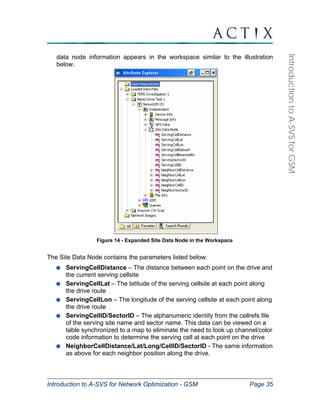
  • 37.
    Favorites Tab Introductionto A-SVS for Network Optimization - GSM Page 37 Introduction to A-SVS for GSM 5. In the Workspace, click on the Favorites tab . A tree view of the items you added is displayed. You can easily move between All and Favorites as necessary. Figure 15 - Workspace Showing the Favorites Parameters Displayed 6. The parameters that you define as Favorites will be available on the Favorites tab for any data file open in the workspace that contains those parameters, as well as for any new files opened that contain the specified parameters. 7. To remove a parameter from favorites, select the parameter. Right-click on it and choose ‘Remove Favorite.’ Sharing Favorites Favorites can be shared among users. Favorites are saved in the Favorites.dat file located in the C:Documents and SettingsAll UsersApplication DataActix AnalyzerBinXMLFiles directory. To share Favorites with another user, copy the Favorites.dat file to the same directory on the desired machine. The user of that machine will then have access to those Favorites each time Analyzer is launched.
  • 38.
    Introduction to A-SVSfor Network Optimization - GSM Page 38 Introduction to A-SVS for GSM Viewing Data in Analyzer In Analyzer, data can be viewed in a variety of ways to facilitate easy analysis. You can plot parameters on maps and display them on charts, tables, and in workbooks. Viewing Data on Maps There are two options for viewing data on maps: To view any parameter on a new map: Right-click on the parameter of interest in the Workspace Browser and select Display on Map. To view a parameter on a map already open in the workspace: Click and drag the parameter of interest onto a map already open in the workspace. 1. Display the serving cell signal level for the handset stream NemoGSM (0) on the map from the file Nemo Drive Test 1. First, select Downlink Measurements → ServRxLevSub. Then right-click and select Display on Map. Figure 16 - RxLevSub Displayed On a Map
  • 39.
    Introduction to A-SVSfor Network Optimization - GSM Page 39 Introduction to A-SVS for GSM Notice that the legend appears to the left of the map. The count for each range is in parentheses to the right of the range. 2. If you would like to display a second parameter, you have two options: You can add the second parameter to the same map as the first by clicking on the second parameter in the Workspace Browser and dragging it onto the original map. You can display each parameter on a separate map by right-clicking on the second parameter in the Workspace Browser and choosing Display on Map. Modifying Legend Ranges 1. Select the ServRxLevSub stream in the Map Legend window and right-click on it. Choose the Modify ranges option to change the number of legend ranges and some of the range boundaries. Figure 17 - Modify Ranges Dialog For RxLevSub
  • 40.
    Introduction to A-SVSfor Network Optimization - GSM Page 40 Introduction to A-SVS for GSM 2. Delete ranges you don’t need by selecting them one at a time and pressing the Remove button. 3. To edit an existing range to match your network thresholds, select and type in the new maximum or minimum and click on the Update button to register the changes. 4. To add a new range, type the maximum and minimum in the spaces provided and click on the Add button. 5. If at any time you want to back out of all of the changes you have made, click on the Cancel button. Note: The ranges set for the map are also used for grouping data for histograms in workbooks and the histogram tab on tables. Changes made to the ranges on the map legend will also be made to these other views. 6. Modify the colors of each range to match your network schema from within the Modify Ranges dialog by selecting the range, clicking on the Selected button in the Set Colors box, and picking a new color from the palette. Note: These changes to the ranges are saved automatically. One file is created for each parameter range. These files are located in C:Documents and SettingsAll UsersApplication DataActixAnalyzerBinFormatGroupsUserSettings. This file can be copied and shared with other members of your team. 7. To accept the changes you have made to the legend settings, click OK. 8. After clicking OK, you will be presented with the Selected Legend box. To overwrite the existing default legend range settings with your new settings, click OK. To keep your default legend range settings as they are and add your new legend settings as an alternate set of legend ranges, type in a name for the new set of ranges, then click OK. The Map Offset Tool 1. To add the RxQual from the handset to the current map, select Downlink Measurements → ServRxQualSub. Drag the selected parameter onto the map. The RxQual is drawn directly on top of the RxLev trail. 2. Click on the Layers button on the map toolbar to open the layers dialog.
  • 41.
    RxQual Stream RxLevStream Introduction to A-SVS for Network Optimization - GSM Page 41 Introduction to A-SVS for GSM 3. Select the ServRxQualSub layer and click on the Offset button. You can use the Offset box to enter an amount to move the RxQual in the x and y directions. 4. If you prefer, you can use the Offset Tool instead of entering specific x and y offsets. a. To use the Offset Tool to offset RxQual from RxLev, click on the Layers button to get into the Layer Control Dialog. b. Click on the Offset Tool button. Your cursor will change from an arrow to a ‘+’. c. Click any where on the map. Your cursor will stay at ‘+’ and will now have a dotted line connecting it to the point you just clicked. d. The dotted line indicated by how much the ServRxQualSub layer will be shifted. Click on a second point to complete the offset. 5. You can return a layer to its original position by manually setting the x and y offsets to zero or by clicking on the Reset button in the Map Offset Tool. Figure 18 - Map of RxLev and RxQual Data Visibility Check Boxes
  • 42.
    Introduction to A-SVSfor Network Optimization - GSM Page 42 Introduction to A-SVS for GSM 6. Turn layer visibility on and off by clicking the layer’s checkbox in the legend. Creating a Multi-Dimensional Map Stream You can create a two-dimensional map by dragging two parameters onto a map, then dragging one on top of the other in the legend. This will replace the two data streams with one composite stream. The color of the points in the resulting stream will be determined by the value of the stream that was dragged and the size of the points is determined by the value of the other stream. 1. Close the current map. 2. Display ServRxLevSub and ServRxQualSub on a map. 3. In the legend, drag the RxLev layer on top of the RxQual layer in the legend. The points will be colored by RxLev with their size determined by RxQual. Figure 19 - Multi-Dimensional Map Trail 4. A third dimension can be added to the plot. You can set the symbol type to denote the value of the third parameter. 5. Drag the ServBCCH from the Serving Cell Parameters group onto the map.
  • 43.
    Lines to NeighborCells Introduction to A-SVS for Network Optimization - GSM Page 43 Introduction to A-SVS for GSM 6. In the legend, drag ServBCCH on top of the ServRxLev and ServRxQual multi-dimensional stream. Note that the new plot shows color corresponding to RxLev, symbol size based on RxQual and symbol type denoting serving BCCH. The legend information is automatically updated when multi-dimensional plots are created. 7. Remove the multi-dimensional layer through the Layers dialog by selecting it and clicking the Delete button. Note: Separate legend ranges exist for each parameter for the size, symbol, and color ranges. For example, you may choose to display ServRSSISub divided into five ranges when it is viewed by color, and only two ranges when viewing it by size. Lines to Cells and Cell History With a cell plan loaded, lines from each location on the drive route to their corresponding serving cell and neighbor cells will be drawn. Set the map cursor in the Select mode and click on any point on the drive route. Figure 20 - Map Showing Lines to Cells Line to Serving Cell
  • 44.
    Introduction to A-SVSfor Network Optimization - GSM Page 44 Introduction to A-SVS for GSM You can view the serving or neighbor cells for more than one point on the map by clicking on the Area Select button on the map toolbar and choosing one of the options now available on the toolbar, either Select Box, Select Radius, or Polygon Select. In addition to viewing serving and neighbor cells for an individual point data point or a subset of the data, a Cell History plot can be drawn. This plot shows the line to the serving cell for each point on the drive route. 1. To create this type of plot, click on the Layers button on the map toolbar. 2. Select the ‘GSM_Cell-Beamwidth’ layer. 3. Select Properties → Lines to access the dialog below: Figure 21 - Line Layer Properties Dialog 4. Select the All datapoints option for the Lines draw mode. 5. For the Color lines with, choose ServBCCH. 6. For Label lines with, choose None.
  • 45.
    Introduction to A-SVSfor Network Optimization - GSM Page 45 Introduction to A-SVS for GSM Figure 22 - Map Showing Lines to Serving Cell For Each Point Displaying Data Values as Text on Maps The values for one or more parameters can be displayed as text on the map. This can be used to display the serving cell number value or serving site identity name adjacent to the drive route. All the options are controlled through the Label Properties dialog accessed from the Map Layers for the layer under observation. 1. Drag RxLevSub, RxQualSub, and ServBCCH onto the map. 2. Move ServBCCH below the RxLev and RxQual layers in the Map Layer dialog. 3. Move the RxLev layer between the RxQual and BCCH layers. 4. With the BCCH layer selected, click on the Label button to see the dialog box below:
  • 46.
    Introduction to A-SVSfor Network Optimization - GSM Page 46 Introduction to A-SVS for GSM Figure 23 - Label Properties Dialog The settings on this dialog are as follows: Data Data Field – Select this option to display the parameter value next to the data point. Formatted Field – Select this option to display the parameter name and value next to the data point. Visibility Show – Controls whether or not the labels appear on the map. Allow Overlapped Text – Use this option to draw all labels, even if they overlap partially or fully. Hide adjacent duplicate text – Controls whether each adjacent bin with the same data value has a label displayed. Disable this feature for
  • 47.
    Introduction to A-SVSfor Network Optimization - GSM Page 47 Introduction to A-SVS for GSM parameters like Serving Channel Number or Site ID where the point of interest is where a change occurred. Display within range – Use this option for layers like maps or cell sites when you would like to see the values when zoomed in close to the area but the labels clutter then viewing area when zoomed farther out. Styles Label style – This button opens the Text Style box. From this box you can modify the font face, size, background color, and text effects for the label text. Figure 24 - Text Style Box Position Across the line – Used with Lines to Cells layers, choose this option to have the labels drawn in the direction of the line to cell. Along the line – Used with Lines to Cells layers, choose this option to have the labels drawn horizontally, across the line to cell. Vertical – Draws label from left to right. Horizontal – Rotates the label 90 degrees. Alignment – Choose Left, Center, or Right. Label X offset – Set the vertical distance from the label to its data point. Label Y offset – Set the horizontal distance from the label to its data point.
  • 48.
    Introduction to A-SVSfor Network Optimization - GSM Page 48 Introduction to A-SVS for GSM 5. For the ServBCCH layer, Data Field. For visibility, check Show and Allow overlapped text. For the position, set Label X offset to -10 and Label Y offset to 5. 6. In the Layer Control dialog, select the RxLev. Select the Data Field option. For visibility, check Show and Allow overlapped text. For the position, set Label X offset to 10 and Label Y offset to -15. Figure 25 - Map with Labels Displayed and Formatted For RxLev and ServBCCH
  • 49.
    Direction button Directional arrows Introduction to A-SVS for Network Optimization - GSM Page 49 Introduction to A-SVS for GSM The Direction Button The Direction button allows the user to display directional arrows on any drive-test map. These arrows indicate the direction of the drive test vehicle during collection. The Direction button is located on the Map Toolbar. Figure 26: Map with Directional Arrows Displayed Region Filtering The Region Filter can be used to filter data displayed on maps. It can be very helpful when trying to isolate data in one geographical area. 1. From the Map Toolbar, click the Region Filter button. Three additional options will now appear on the map toolbar; including a Polygon drawing tool. The cursor will now appear as a cross-hair on the map. 2. Draw the polygon over a certain map area by clicking on a series of points. The first click on the map starts the polygon. Drag the cursor
  • 50.
    Introduction to A-SVSfor Network Optimization - GSM Page 50 Introduction to A-SVS for GSM to each corner of the desired region to filter and click the mouse once. To finish drawing the polygon, double-click near the starting point to establish a line between the last point and the first point. 3. Draw any other polygons, as needed. 4. To filter data, click the down-arrow next to Filter and select either Include or Exclude. “Include” is the default filter. [Note: Any additional attributes that are dragged onto a map using regional filtering will also be filtered]. 5. To remove the filter, select Remove All from the map toolbar. This will delete all existing region filters in that map. Region filters in other map windows are unaffected. Figure 27: Region Filtering using "Include"
  • 51.
    Introduction to A-SVSfor Network Optimization - GSM Page 51 Introduction to A-SVS for GSM Printing Maps A-SVS-DO1 features five different ways to obtain printable map outputs: Print using “Quick Print” Print using Map Layout Designer Copy to Clipboard Export Map to a different file format Export individual map layers to MapInfo The recommended method is the Quick Print. The Quick Print option bypasses the Map Layout Designer and prints the map with a legend in a fixed position. To print a map using the Quick Print option: 1. Display data on a map in the workspace. 2. Select the Print button from the map toolbar. 3. Select the paper source, page orientation, and margin sizes. 4. Use the Options button in the lower left hand corner of the Print Setup dialog to adjust map size, content, legend visibility, and scale. 5. In the Print Setup dialog, select OK to print the map. The Map Layout Designer may be used to arrange the map and legend on the page, add a title, and preview the output. To print a map using the Map Layout Designer: 1. Open a map with data in the workspace. 2. Select the Layout button from the toolbar. 3. Choose the page layout for the map and select OK to bring up the Map Layout Designer. 4. Double-click on the Label box to change the title of the map. 5. Move the label box and the map so that they are not overlapping. Resize the text box as necessary. With the Label Box selected, choose Properties from the Toolbar to change the label font.
  • 52.
    Introduction to A-SVSfor Network Optimization - GSM Page 52 Introduction to A-SVS for GSM 6. Move the legend so that it is not overlapping the map trail. Resize the legend as necessary. 7. Select Print Preview from the Toolbar to determine what the printed page will look like. Close Print Preview to make any modifications necessary. 8. Select Print to print the map. You can also print a map by copying it to the clipboard. 1. Right-click on the map to be copied and select Copy to Clipboard. 2. Paste the map into another application and use that application’s print function to print the map. A fourth option is to convert the map to a different file format and use a compatible program to print the output file. Analyzer supports the exporting of maps to the following formats: BMP, JPG, WMF, PNG, TIF, GIF, and PSD. 1. Right-click on the map and choose Export Map. 2. Select the desired file format. Finally, a fifth option is to export individual map layer(s) directly into MapInfo. To do this: a. From the map view, open the Layer Control dialog box. b. Select Export. c. Choose the layers to be exported. Browse to the appropriate destination folder. d. Click OK.
  • 53.
    Introduction to A-SVSfor Network Optimization - GSM Page 53 Introduction to A-SVS for GSM Viewing Data on Charts Analyzer can create a variety of charts for the analysis and inspection of data. 1. With the Nemo Drive Test 1 file open in the Workspace, expand Downlink Measurements and select ServRxLevSub. 2. Right-click on ServRxLevSub and choose Display on Chart from the pop-up menu. Your chart should look like this: Figure 28 - RxLev Displayed On a Chart 3. Click on the Histogram button to view the data as a distribution. 4. Click on the Series button to return the chart to a time series chart. 5. Select ServRxQual and drag and drop it onto the first chart to display both parameters on one chart. 6. From the Neighbor Cell Info node, expand the NborRxLev node, and drag and drop NborRxLev_0 onto the chart. Your chart should look like the figure below.
  • 54.
    Introduction to A-SVSfor Network Optimization - GSM Page 54 Introduction to A-SVS for GSM Figure 29 - RxLev, RxQual And Strongest Neighbor RxLev displayed On a Chart Note that RxQual appears on a separate axis from the RxLev values. Multiple values can be dragged onto a single chart. When parameters are expressed in different units they will appear on separate y axes. 7. Drag and drop a few events onto this chart. The events will appear on the chart as vertical lines. You can zoom in on a section of interest, such as a dropped call, by dragging a rectangle from upper-left to lower-right. You can return to the original view by clicking and dragging a rectangle from lower-right to upper-left. 1. Drag and drop the dropped call event onto the chart you currently have open. 2. Click and drag a rectangle from upper-left to lower-right on the chart around the second dropped call.
  • 55.
    Introduction to A-SVSfor Network Optimization - GSM Page 55 Introduction to A-SVS for GSM Figure 30 - Chart Zoomed In On a Dropped Call Modifying Chart Properties 1. Many chart properties can be customized through the Properties dialog. Right-click on the chart and choose Chart Properties from the menu. 2. Use the Axis dialog to increase the RxLev max value to -15 dBm. 3. Reposition the Properties Dialog so that you can see the chart with the dialog open. As you change the properties of the chart, the chart is automatically updated. 4. On the Chart Series page, click on Titles… to change one of the titles. 5. Still on the Chart Series page, use the up and down arrows to change the order in which the parameters are plotted. 6. On the Chart Legend page, modify the fonts and colors. 7. On the Chart Axis page, redefine the style for the axis, labels, and ticks.
  • 56.
    Introduction to A-SVSfor Network Optimization - GSM Page 56 Introduction to A-SVS for GSM 8. Create a three-dimensional chart using the options on the Chart → 3D page. 9. Click on the Copy icon to place a copy of your chart on the clipboard. 10. In Word or PowerPoint, click Edit → Paste to paste your chart into that application. 11. In Analyzer, with the chart still open, create a map displaying the same data. Click to select data on either the map or the chart and notice that the views are synchronized. If you want to select a point on the map, click the Select button to activate the selection cursor.
  • 57.
    Introduction to A-SVSfor Network Optimization - GSM Page 57 Introduction to A-SVS for GSM Viewing Data in Tables Tables provide a quick and simple view of numeric data for a selected attribute. You can look at statistics, such as mean, minimum, and maximum, histogram distribution information, and the time series data for the parameter displayed the a table. 1. Display ServRxQualSub from the Nemo Drive Test 1 handset on a table. To do this, select Downlink Measurements → ServRxQualSub, then right-click and select Display on Table. Figure 31 - RxQual Series Data Displayed in a Table 2. Click on the Histogram tab to see the ranges and their counts. The ranges on the Histogram tab are determined by the ranges set in the map legend. 3. Click on the Statistics tab to view the automatically calculated statistics. 4. Add RxLev to the table by right-clicking on the RxLevSub parameter in the workspace and dragging it onto the table. 5. Display the dropped call event on a map. Click on the dropped calls to synch the map with the table. Tabs for View Options
  • 58.
    Introduction to A-SVSfor Network Optimization - GSM Page 58 Introduction to A-SVS for GSM Viewing Data in the Message Browser Analyzer provides the Message Browser to allow you to analyze all the messaging seen from the phone. The browser also includes events derived from the Layer 3 messaging, searching, and filtering operations on the data. To open the browser right-click on the stream name NemoGSM (0) in the workspace and choose Display Message Browser from the pop-up menu. Figure 32 - Messaging Displayed in the Message Browser 1. Click on an event in the Event Panel. Watch as the Messaging Window synchronizes to display the messaging information corresponding to the event you selected. 2. In the Search box, type ‘drop’, then click the Find Next button to find the next occurrence of this text string in the file. Continue the search by clicking the Find Next icon to find each subsequent occurrence of the string. 3. Select a section of text in the Message Browser and click on the Copy icon.
  • 59.
    Introduction to A-SVSfor Network Optimization - GSM Page 59 Introduction to A-SVS for GSM 4. Open Word and click Edit → Paste to paste the text into the current document. 5. In Analyzer, click on the Properties button then on the Message Format tab, and investigate the results of checking some of the options. 6. In the Properties dialog, click on the Message Format tab and modify the Font for the Message Browser. 7. Investigate the use of bookmarks by selecting a subset of messages and marking them with the Toggle button and then using the adjacent Next and Previous Toggle buttons to step through them. As with the maps and charts, the message browser synchs with other Analyzer data views. To try this out, display a parameter, such as ServRxLev or ServRxQual, on a map or chart. Click on a point on the map or chart, and watch as the message browser scrolls to highlight the messaging corresponding to that point in time. If you click to synch the message browser with an event, it will point to the message whose receipt triggers that event.
  • 60.
    Introduction to A-SVSfor Network Optimization - GSM Page 60 Introduction to A-SVS for GSM Viewing Data in the Protocol Stack Browser The Protocol Stack Browser is another view that allows the user to quickly browse through messages by examining the header only. Once a message of interest is identified in the top pane of the Protocol Stack Browser, the details of the message can be examined in the bottom pane. The following Protocol Stack Browser views are available for GSM and GPRS drive test data: Layer 3 – Message pane displays GSM Layer 3 messages and message direction Layer 3 Signalling – Message pane displays GSM Layer 3 messages only All – Message pane displays all GSM Layer 3 and handset-specific messages GPRS Events – Message pane displays messages signifying GPRS events GPRS RLC / MAC – Message pane displays GSM Layer 3, and GPRS RLC and MAC messages Figure 33 - GSM Layer 3 Protocol Stack Browser
  • 61.
    Introduction to A-SVSfor Network Optimization - GSM Page 61 Introduction to A-SVS for GSM Open the Layer 3 Protocol Stack Browser view for the Nemo Drive Test 1 sample file: 1. Right-click on the NemoGSM (0) stream in the workspace and choose Protocol Stack Browser → GSM Layer 3 from the pop-up menu. 2. Click on a message header from the series in the top portion of the Browser Window and notice the complete message displayed in the bottom pane for the message you selected. 3. In the Search box, type ‘CC Release’, then click the Find Next button to find the next occurrence of this text string in the file. Continue the search by clicking the Find Next icon to find each subsequent occurrence of the string. 4. Select the All Rows button at the top of the Protocol Stack Browser to view all messages including Layer 3 and handset-specific messages. As with the maps and charts, the Protocol Stack Browser synchronizes with other data views. To try this out, display a parameter, such as ServRxLevSub on a map. Click on a point on the map and watch as the Protocol Stack Browser scrolls to highlight the message in the top pane and display the complete message contents in the bottom pane.
  • 62.
    Introduction to A-SVSfor Network Optimization - GSM Page 62 Introduction to A-SVS for GSM Viewing Data on Workbooks The Workbook feature allows you to manipulate data within a Microsoft Excel spreadsheet environment, provided that you have Excel installed on your computer. You can display the data in charts, produce reports, and save and share your work. If you just want to browse numerical data, you may find Analyzer’s table feature easier to use. If you are looking to save your results or do more comprehensive formatting, a workbook is the best choice. 1. Select Downlink Measurements → ServRxQualSub, then right-click and select Display on Workbook. Notice the series data being displayed in Excel with time, latitude, and longitude. Figure 34 - RxQual Displayed in a Workbook 2. Click on the Histogram tab to view the ranges and counts. 3. Click on the Statistics tab to see the automatically calculated statistics.
  • 63.
    Introduction to A-SVSfor Network Optimization - GSM Page 63 Introduction to A-SVS for GSM Delta Plots Delta plots provide a way to compare parameters from two different data streams. This feature calculates the difference between the attribute values logged in the same location in two successive drive tests and returns the results as a binned dataset that can be plotted on a map or displayed on a chart, table or workbook. Figure 35: Creating a Delta Plot 1. To create a delta plot, select Tools → Tasks → Delta Plots 2. In the Choose your technology drop down, select “GSM Handset” or “GPRS Handset” 3. In the Select the attribute to “delta” drop down, select the desired attribute. Note: It is possible to “delta” any parameter. If the desired parameter is not in the drop down list for a given technology, select “Add…” and type the name of the parameter exactly as
  • 64.
    Introduction to A-SVSfor Network Optimization - GSM Page 64 Introduction to A-SVS for GSM it appears in the Attribute Explorer. Press “Enter” to reactivate the page. 4. Select “Click Here” on the Binning line to enter the Preferences dialog. Change the binning settings to: a. Binning Mode = Location b. Projection = Default (meters) [Scroll up from default entry to find this option] c. X size = 50 d. Y size = 50 e. Unit = Meters Figure 36: Setting the Binning for Delta Plot Creation 5. Select the “Before” stream 6. Select the “After” stream 7. Enter an alternative name for the delta stream (if desired). Press “Enter” when done to reactivate the task page 8. Click the “Create Delta Plot” button The delta value is calculated by subtracting the “After” stream from the “Before” stream. Once the delta plot has been created, a map will appear containing the two original streams and the delta value between the two streams.
  • 65.
    Introduction to A-SVSfor Network Optimization - GSM Page 65 Introduction to A-SVS for GSM Figure 37: Delta Plot Display It is also possible to display the results of the binned delta analysis on a chart, table or workbook. To do this, right-click on the binned delta analysis and select the desired data view.
  • 66.
    Play Speed ReverseStep Back Stop Introduction to A-SVS for Network Optimization - GSM Page 66 Introduction to A-SVS for GSM The Replay Tool The replay tool allows you to sequentially view data points in the files you are analyzing. Resembling the controls of a VCR, you can move forward or backward, automatically or manually advancing through the data. You can move through data displayed on a chart, map, or table. The stream selection box allows you to choose which stream to watch. It will display all open logfiles, whether or not you have a parameter from the stream displayed. 1. Display RxLev from NemoGSM (0) on a map, then drag the dropped call event onto the same map. 2. Display the dropped call, RxQual, RxLev, and ServBCCH on a table. 3. Use the Window menu to tile the map and table horizontally. 4. To access the replay tool, select Tools → Display Replay. Figure 38 - The Replay Tool 5. Making sure that the NemoGSM (0) stream is selected in the replay tool, select a point on the map, near the beginning of the drive. 6. Click on the Step Forward button to move to the next point on the drive. 7. Notice that the selection box on the map moves to the next data point in the drive. The table has also updated by highlighting the relevant data. 8. Experiment with the remaining buttons to see how they interact with the rest of the views. Play Stream Selection Step Forward
  • 67.
    Introduction to A-SVSfor Network Optimization - GSM Page 67 Introduction to A-SVS for GSM Docking the Replay Tool You may find it more convenient to position the Replay Tool under the Workspace Browser. The procedure for doing this is called docking. 1. Click on the left-most of the four buttons at the upper right-hand side of the Replay Tool . If there are only three buttons, minimize and then restore the Replay Tool to make the fourth button appear. 2. The Replay Tool will now show up along the right side of the Workspace Browser. To move it under the Workspace Browser, click on the thin gray bar at the top of the Replay Tool and drag it to the far left side of your screen.
  • 68.
    Introduction to A-SVSfor Network Optimization - GSM Page 68 Introduction to A-SVS for GSM Viewing Data on Stateforms Actix StateForms allow you to view multiple performance metrics simultaneously. Used in conjunction with the replay tool, maps, tables, and charts, you can quickly ascertain the values of several optimization parameters for problem identification. Using Preconfigured StateForms A number of preconfigured GSM, GPRS and EGPRS StateForms enable the user to quickly identify and troubleshoot important network events. View the GSM Current Channel form for the Nemo Drive Test 1 sample file: 1. Right-click on the stream name NemoGSM(0) in the workspace and choose Display Form → GSM Current Channel. Forms can also be selected from the View → Forms option on the main menu. Figure 39: Select GSM Current Channel Form 2. In general, when selecting a form, make sure that the form that you have selected applies to the type of data you want to analyze. For example, do not select the GSM CW Scan chart for a logfile containing handset data.
  • 69.
    Stream Selector Introductionto A-SVS for Network Optimization - GSM Page 69 Introduction to A-SVS for GSM 3. If the Stream Selector is not visible, right-click on the form and select Stream Selector. The Stream Selector drop-down will appear. Use the drop-down list to select the stream you wish to view data for. If you are not seeing information in the forms, verify that the right data stream is selected. Figure 40: GSM Current Channel Form with Stream Selector Visible 4. Forms with measurement views like the GSM Current Channel form or the GSM Call Events form may be best viewed when docked on the side of the screen as seen in the figure below: Figure 41 - GSM Current Channel Form Docked in Workspace
  • 70.
    Introduction to A-SVSfor Network Optimization - GSM Page 70 Introduction to A-SVS for GSM To dock a form on the left side of the workspace, bring up the form and click the docking button (to the left of the minimize button). Click the gray horizontal line at the top of the form, drag over the bottom section of the Workspace Browser, and release. Once docked like in the view above, you can adjust the top and right-hand borders to allow for more viewing space in the platform. 5. Forms with chart views like the GSM Event Navigator or the GSM RxLev Measurement Chart may be best viewed when docked at the bottom of the screen as shown below. Figure 42 - GSM Event Navigator Form Docked in Workspace To dock a form at the bottom of the workspace, bring up the form and use the docking button (to the left of the minimize button) to dock it next the Workspace Browser. Then, making sure that the right border of the form does not stretch past the midpoint of the entire Analyzer viewing platform, drag the thin gray line of the form to the bottom right side of the screen so that it is completely on the left half of the viewing platform. Once docked like in the view above, you can adjust the top border to allow for more viewing space in the platform.
  • 71.
    Introduction to A-SVSfor Network Optimization - GSM Page 71 Introduction to A-SVS for GSM The preconfigured forms available for GSM drive test data are: GSM Call Events GSM Channel Data GSM Channel Info GSM Distant Server GSM Handset GSM Hopping GSM Current Channel GSM Event Navigator GSM Neighbor Table GSM Neighbor Chart GSM Neighbors GSM Neighbors with Distance GSM Serving + Neighbors GSM Serving + Neighbor Info GSM Radio Parameters GSM RxLev Measurement Chart GSM Scan Chart GSM CW Scan GSM Scanner Top 3 The preconfigured forms available for GPRS drive test data are: GPRS Data Session GPRS Data Analysis Chart GPRS Data Timeslots GPRS Event Navigator GPRS PDP Context GPRS Radio Chart GPRS Status
  • 72.
    Introduction to A-SVSfor Network Optimization - GSM Page 72 Introduction to A-SVS for GSM GPRS Throughput (DL) GPRS Throughput (UL) The preconfigured forms available for EGPRS drive test data are: EGPRS BEP Charts EGPRS Current Channel EGPRS Data Events EGPRS Data Session Parameters EGPRS Data Session EGPRS Downlink Analysis Chart EGPRS Status EGPRS Summary EGPRS Throughput Charts EGPRS Uplink Analysis Chart Preconfigured forms can be edited to meet your individual analysis needs. The following sections describe the modification of existing forms, and the creation of new forms using the Stateforms Editor.
  • 73.
    Sheet Selector/ FileOptions Toolbar Introduction to A-SVS for Network Optimization - GSM Page 73 Introduction to A-SVS for GSM Viewing Custom Forms with the StateForms Editor The StateForms Editor allows you to view custom forms, modify existing forms, and build new forms from scratch. The components of the StateForms Editor window are shown in the figure below. Figure 43 - The StateForms Editor with Sheet Selector and Options Toolbar Visible 1. From the Tools menu, select StateForms Editor. Note: If the generic GSM handset form does not launch, right-click on the blank StateForms box and select Open File. Browse to the C:Program FilesActixAnalyzerStateforms directory and open the file called gsm handset.axl. 2. Once loaded, make sure the appropriate stream is selected in the StateForms stream selection box. In this case, with the Nemo Drive Test 1.dt1 file open, select the NemoGSM(0) stream. Note: If the stream selection box is not visible, right-click on the StateForms box and select Stream Selector. The stream selection box will appear. 3. The selected stream must correspond to data currently displayed on another Analyzer view (map, chart, table or message browser). In this case, display ServRxLevSub on a table. 4. Select any point on a map, chart, or table and notice that the contents of the form will update to reflect the state of the network at the point you selected.
  • 74.
    StateForms Design ToolBar Attribute Window Introduction to A-SVS for Network Optimization - GSM Page 74 Introduction to A-SVS for GSM Modifying an Existing StateForms File You can use an existing StateForms file as it is, or you can make modifications to it. Suppose the GSM handset file has almost everything you would like to see, but that you are also interested in the timing advance. To modify the StateForms display: 1. If you do not already have the StateForms file displayed, click Tools StateForms Editor. Click Open File and choose the gsm handset.axl file. 2. Click on the Toggle Design Mode button on the StateForms File Options Toolbar. Note: If the File Options Toolbar is not visible, right-click on the form area and choose Show Stream Selector. 3. The StateForms window now shows the design view: The attribute window will be displayed, showing all of the attributes that can be set for the selected object and the Design Mode toolbar will be displayed, showing all of the types of objects that can be added to a form along the options for manipulating objects already on the form. Figure 44 - StateForms Window in Design Mode The buttons on the StateForms toolbar are, from left to right, Delete, Cut, Copy, Paste, Toggle Design Mode, Select, Label, Attribute Value, Array Attribute Value, Line Chart, Scan Chart, and Group Box. Delete – Removes an object from the form. Using the delete key on your keyboard will not work. Cut – Removes an object from the form and puts it on the clipboard.
  • 75.
    Introduction to A-SVSfor Network Optimization - GSM Page 75 Introduction to A-SVS for GSM Copy – Copies an object to the clipboard. Paste – Places a copy of the object on the clipboard on the upper-left corner of the form. Toggle Design Mode – To exit the design mode and return to the view mode, click the Toggle Design Mode button. Select – To put the cursor into select mode to allow you to select an object on the form. Label – Click and drag a rectangle, then type your text into the Caption field in the attribute window. Attribute Value – Click and drag a rectangle then choose an attribute from the list. The attribute value can be displayed as a text value or on a scale bar. In addition to being able to display parameter values, expression values can be shown. Array Attribute Value – Click and drag to define a table. In the attribute window, specify the number of rows and columns your table will have. For the attribute corresponding to this table, select a parameter that is collected as an array, such as Neighbor Cell Info → NborRxLev. Time Chart – Click and drag to define the chart area. One or more parameters can be displayed on a line chart to see how the values vary across the drive. Scan Chart – Click and drag to define the chart area. This type of chart is used to display information like signal levels from neighbor or scanner information in bar chart form. Group Box – Used to visually group attributes on your form that belong together, click and drag to define a rectangle. On the GSM handset form currently open, we will add timing advance and serving cell distance, with serving cell distance displayed in miles instead of meters. 1. Click on the Toggle Design Mode button to open the StateForms file in design mode if you are not in design mode already. 2. Hold down the CTRL key and select the RxLev and RxQual meters, as well as the labels for those meters. With these items selected, click the Delete button. 3. Add the ‘Timing Advance’ label by clicking on the Label button. Click and drag the rectangle where you would like the label to appear.
  • 76.
    Introduction to A-SVSfor Network Optimization - GSM Page 76 Introduction to A-SVS for GSM 4. Select the label object, and modify the Caption in the Attribute Window to read ‘Timing Advance’. If all of the text does not fit in the label, expand the label object by dragging a corner handle. 5. For Auto Size Font, choose False. 6. To create the timing advance attribute, click the Attribute Value button and drag a rectangle to the right of the timing advance label object. 7. Select the timing advance attribute object and click on the box next to the Attribute field in the Attribute Window. Use the Attribute Picker to select GSM → Dedicated Radio Link → ServTimingAdvanceActual. 8. For the Bar Color, choose the same color as the background of your form. 9. For Use Value to Color, choose 0) None. 10. For Font Auto Size, choose False. 11. To add the information about serving cell distance, create a label whose caption is ‘Serving Cell Distance’. You can do this by creating a label from scratch or by copying and pasting an existing label. Note that pasted objects always appear in the upper-left corner of the form. 12. For the Bar Color, choose the same color as the background of your form. 13. For Use Value to Color, choose 0) None. 14. For Font Auto Size, choose False. 15. For the Expression, enter ‘ServingCellDistance/1609.344’. 16. For the Expr. Decimals, enter 2. 17. Click on the Save button to save the changes you have made. 18. Click on the Toggle Design Mode button to return to the View Mode. Notice that the Stateform now incorporates the changes that have been made.
  • 77.
    New Timing Advance and Serving Cell Distance Parameters Introduction to A-SVS for Network Optimization - GSM Page 77 Introduction to A-SVS for GSM Figure 45 - StateForm Modified to Include Timing Advance Parameter Creating Your Own StateForms File Several sample StateForms are provided by Actix. You can also design your own forms from scratch, or modify an existing form to better meet your needs. You can start a new StateForms file or you can add a sheet to an existing file. We will create a new file for this example. Our form will look like this: Figure 46 - New StateForms File If you do not have the StateForms window open, click Tools → StateForms Editor. 1. To start a new StateForms file, click the New File button .
  • 78.
    Introduction to A-SVSfor Network Optimization - GSM Page 78 Introduction to A-SVS for GSM 2. To begin adding objects to the StateForms sheet, click the Toggle Design Mode button to open the sheet in Design Mode. 3. Add the RxLev label by clicking the Label button. Click and drag the rectangle. 4. Select the label object and make these modifications in Attribute Window: Caption: RxLev Autosize Font: False Font Height: 10 5. Repeat Steps 3 and 4 for the RxQual label, setting the caption to ‘RxQual’. 6. To create the Attribute Bar for RxLev, click the Attribute Value button and drag a rectangle to the right of the RxLev label object. 7. Select the RxLev Attribute Value object and make the following modifications in Attribute Window: Specify Min+Max: True Bar Range Max: -50 Bar Range Min: -100 Bar Color: Use the pallet to pick blue Show Min Text: True Show Max Text: True Use Value to Color: 3) Value Bar Attribute: GSM → Downlink Measurements → ServRxLevSub Font Auto Size: False Font Height: 10 Extent Right: True Extent Bottom: True 8. For the RxQual attribute value, click the Attribute Bar button and drag a rectangle to the right of the RxQual Attribute object. 9. Select the RxQual Attribute Bar object and make the following changes in the Attribute Window: Specify Min+Max: True Bar Range Max: 7
  • 79.
    Introduction to A-SVSfor Network Optimization - GSM Page 79 Introduction to A-SVS for GSM Bar Range Min: 0 Bar Color: Use the pallet to pick purple Show Min Text: True Show Max Text: True Use Value to Color: 3) Value Bar Attribute: GSM → Downlink Measurements → ServRxQualSub Font Auto Size: False Font Height: 10 Extent Right: True Extent Bottom: True 10. To add the Group Box object, click the Group Box button and click and drag a rectangle around the other objects on the form. 11. Select the Group Box object and make the following modifications in the Attribute Window: Caption: Network Parameters Text Color: Use the pallet to select dark blue Font Auto Size: False Font Height: 12 Font Use Default: False Font Bold: True 12. Click the Save As button and save the StateForms file in the Stateforms directory and call it Training StateForms.axl. 13. Return to the View Mode by clicking the Toggle Design View button. 14. Test your new StateForms file by displaying a parameter from the NemoGSM(0) stream on a map, selecting that stream in the StateForms window, then selecting a point on the map.
  • 80.
    Introduction to A-SVSfor Network Optimization - GSM Page 80 Introduction to A-SVS for GSM Uplink Data Analysis Uplink data is as important as downlink data to the overall heath of a wireless network. Because uplink data is collected at the base station, without the benefit of associated GPS data, it is not possible to view uplink parameters such as Uplink RxLev and Uplink RxQual on a map. Analyzer supports GSM call trace data from most major base station equipment vendors. Call trace data by itself may be displayed on an Analyzer table, chart, workbook, or message browser. When merged with drive test data collected at the same time as the call trace, GPS coordinates contained in the drive test file are associated to data points from the call trace. This procedure allows the display of uplink data on a map, and allows the engineer to obtain a picture of the uplink performance of the network. In this section, you will look for uplink problems on the sample network using call trace and drive test data. Exploring Call Trace Data Call trace data may be opened in Analyzer using the same method as opening drive test files. Simply use the Open Logfile button and browse to find the files of interest. 1. Load the following call trace files into the Analyzer workspace. The logfiles can be found in the C:Program FilesActixAnalyzerDataFiles folder. Ericsson MTR 1.txt Ericsson MTR 2.txt 2. Expand the Ericsson MTR 1 data file and explore the contents. Display a parameter on a table. Notice that the file includes downlink and uplink parameter values, but does not contain location data for each parameter. 3. Display the parameter ULRxQualFull from the Uplink Measurements group on a chart. Though it is easy to see when the areas of poor uplink RxQual occurred, there is no way to know where in the network these areas are located.
  • 81.
    Introduction to A-SVSfor Network Optimization - GSM Page 81 Introduction to A-SVS for GSM Superstreaming Call Trace and Drive Test Data Analyzer allows you to synchronize data from the different data sources it supports. The functionality supports a collection method where drive test and switch data are collected simultaneously on a cluster of cells of interest. It aligns the information in the files based on a parameter that was collected by both the drive test and switch trace devices. This allows you to plot uplink information on a map, or to plot the difference between uplink and downlink parameters on a map. The process is called superstreaming. In this example, a parameter common to the drive test and call trace files is specified in order to merge on. Files may also be merged on time, as long as the base station and drive test equipment times are synchronized. 1. Load the drive test and the switch data files from the CD into the Workspace: Drive test: Nemo Drive Test 1.dt1 Call trace: Ericsson MTR 1.txt 2. Select Tools → Create Superstream. 3. Change the name of the superstream from the default of SuperStream001 to Uplink and Downlink Data. 4. In the SuperStreaming dialog, check the Nemo Drive Test 1 (drive test) and Ericsson MTR 1 (switch file) streams. 5. Click the Settings button to display the Merge Method options. 6. Select Correlated Parameters as the merge method. 7. Highlight the Nemo Drive Test 1 stream. Use the attribute picker next to Correlated Parameters to select GSM → Downlink Measurements → ServRxQualSub as the correlating parameter for the Nemo file. The attribute picker is the button with the right-arrow icon . Used throughout Analyzer, an attribute picker allows you to select the Analyzer parameter of interest without the risk of mistyping the parameter name. 8. Highlight the Ericsson MTR 1 stream. Use the attribute picker to select GSM → Downlink Measurements → ServRxQualSub as the correlating parameter for the Ericsson file. 9. Click OK to create the superstream. Note: In the Superstreaming dialog box, the parameter that you associate with a stream of one type (i.e. .DT1, .TXT) will appear in the Attribute

  • 82.
    Introduction to A-SVSfor Network Optimization - GSM Page 82 Introduction to A-SVS for GSM column for all streams of that type. However, only streams with check marks will be merged into the resulting superstream. 10. When Analyzer has finished creating the superstream, it will appear in the Workspace: . You can perform analyses on the Superstream using the map, chart, message browser, and table features discussed earlier. Display ULRxQualSub from the Uplink Measurements group of the newly created superstream on the map. Notice how easy it is to locate areas containing poor uplink quality! These trouble spots are caused by the phone’s inability to communicate back to the base station, and may be attributed to a mobile failing to increase its transmit power when required or to excessive path loss between the phone and the base station.
  • 83.
    Introduction to A-SVSfor Network Optimization - GSM Page 83 Introduction to A-SVS for GSM Merging Multiple Drive Files in the Workspace Analyzer’s superstream mechanism may be used to merge multiple files collected on the same link (i.e. drive test or call trace). Superstreaming multiple drive test files is desirable when you require one-click functionality for displaying the same parameter from multiple streams on any Analyzer view, or when aggregate statistics on multiple drives are required. Superstreaming creates a pointer to files already open in the workspace and does not create any new files. Superstreams may be saved in workspaces, as long as all component files are saved in the same workspace. To create a superstream containing several drive test files: 1. Ensure that the following files are loaded in the Analyzer workspace: Network Drive 1.dt1 Network Drive 2.dt1 Network Drive 3.dt1 2. Select Tools → Create Superstream. 3. Name the superstream Merged Handset Data. 4. In the SuperStreaming dialog, check the Network Drive 1, Network Drive 2, and Network Drive 3 streams. 5. Use Timestamps is the default Merge Method. Click OK in the SuperStreaming dialog to create the superstream merged using timestamps. When Analyzer has finished creating the superstream, it will appear in the Workspace: . You can perform analyses on the superstream using the map, chart, message browser, and query features discussed earlier.
  • 84.
    Introduction to A-SVSfor Network Optimization - GSM Page 84 Introduction to A-SVS for GSM The Network Image Frequently, optimization engineers are asked to provide a complete network overview for management, customer service, and planning purposes. A complete network drive may consist of a large number of data files from different sources, that when combined include a very large amount of data. All of the parameters, messaging, and other information available from a logfile may be helpful when performing an in-depth analysis, but when you are interested only in general information about the state of your network, this information may not be worth the time required to load and manipulate it. Actix Analyzer allows you to create a composite database consisting of multiple drives that is much smaller than the sum of the individual drive files. This is accomplished in Analyzer using the Network Image feature. Network Images extract the most commonly used network parameters and store them in an external file (*.dat). This is useful when you are performing a system-wide analysis or benchmarking activity. Because only key parameters are saved into the Network Image file, this file is much smaller than the sum of its component files. A network image populated with data is saved as a separate, smaller file from the original logfile. The original logfile is not altered in the creation of a network image repository. The data contained in a network image file differs from normal logfiles, in that the image file contains only the parameters specified and is binned according to the image definition. Network image files are pre-configured by Actix. Please contact Actix technical support for any specific requests for network image templates. Use a Pre-Configured Template to Create a New Network Image Assume you were asked to combine four logfiles representing a day’s worth of driving by four different engineers. We will create a network image to consolidate the data into one reasonably sized file: 1. Create a network image by selecting Network Image → Create Network Image from the main Analyzer menu. 2. For the name, enter ‘Cluster Level Data’. 3. Select the GSM → Handset → Location Binned (5 sec) Image, then click OK. This will create a network image of the data sets that is binned based on location with a grid size of three arc seconds.
  • 85.
    Introduction to A-SVSfor Network Optimization - GSM Page 85 Introduction to A-SVS for GSM Figure 47 - Creating a Network Image 4. In the Save dialog, save the file in a convenient location. Your workspace will update after creating the network image. Browse the workspace and investigate the new template called Network Drive. This template is currently an empty shell that will be populated with data extracted from logfiles. Figure 48 - Workspace Showing the Network Image
  • 86.
    Introduction to A-SVSfor Network Optimization - GSM Page 86 Introduction to A-SVS for GSM Batch Load Files Into the Network Image The Network Image that you just created is nothing more than an empty directory structure. You must now add data from log files into this structure. Files do not need to be open in the workspace in order to be added to the Network Image. 1. To load files into the network image, right-click on the Network Drive network image in the workspace and select Batch Load Files. 2. In the resulting dialog, select the following files located in C:Program FilesActixAnalyzerData Files (Note: Unlike with the superstream, these files DO NOT need to be open in the workspace). 3. Click Open to begin processing the files. 4. A Load Results report, like the one shown below, will appear once processing is complete. Select OK to close the report. Figure 49 - Analyzer Dialog Showing That File Processing is Complete
  • 87.
    Introduction to A-SVSfor Network Optimization - GSM Page 87 Introduction to A-SVS for GSM Display Data for the Entire Network Many logfiles contain data for more than one device. Network image templates, such as the time binned template used in this example, can accommodate multiple data streams collected under a single logfile. 1. Expand the Cluster Level Data Network Image. Notice that key optimization parameters in the Serving Cell Parameters, Downlink Measurements, Neighbor Cell Info, Dedicated Radio Link, and Event Data groups are included in the network image. 2. Using standard Analyzer actions, display some parameters on charts, maps, and tables. Note that you can process scanner and handset data into a single network image or create a separate network image for scanner data, using the templates supplied with your Analyzer installation. Start a New Day – Attaching a Network Image Saving multiple files into one Network Image will allow a significantly faster load time than when loading each file individually. Demonstrate the faster load time by starting a new workspace and attaching the network image. 1. Create a new workspace by selecting File → New Workspace from the main Analyzer toolbar. 2. Attach the previously created network image by selecting Network Image → Attach Network Image. 3. In the resulting dialog, browse and select the Cluster Level Data Network Image. 4. Select Open to attach to the network image. The workspace will update to reflect the change. Notice how quickly the network image attaches! 5. Expand the Network Drive. Display some parameters on Charts, Maps, and Tables. Key optimization parameters from three separate files have been combined into a single, smaller file that loads into Analyzer much faster than the original files.
  • 88.
    Introduction to A-SVSfor Network Optimization - GSM Page 88 Introduction to A-SVS for GSM Create a Custom Network Image Template Some pre-configured Network Image templates are packaged with Actix solutions. It is also possible to create custom Network Image templates within the Analyzer workspace. This section describes the creation of custom Network Image templates using the Network Image Template Wizard. To create a custom Network Image template, start the Network Image Template Wizard by selecting Network Image → Network Image Template Wizard from the main menu1. Complete each of the steps in the Wizard: • Step 1 – Create a New Template / Open an Existing Template: o To create a new template, click Next to continue. o To import and modify an existing template, click Open. Note that only templates created using the Wizard are fully supported. Older templates created by hand will be imported but may not behave as expected. In this case, a warning message will be displayed. Figure 50 – Create a New Template / Open an Existing Template 1 If you plan to include any Queries in your custom Network Image template, ensure that the Queries are available in the workspace before beginning this procedure.
  • 89.
    Introduction to A-SVSfor Network Optimization - GSM Page 89 Introduction to A-SVS for GSM • Step 2 – Choose Your Devices: o You may want to process different data streams in different ways. For example, you may want to extract different attributes for handset and scanner data captured in the same logfile. You can define a meaningful Device Name and specify a Filter to uniquely identify each device within a logfile. When populating the Network Image, only data streams with names containing the Filter text will be processed into each device. o If there are logfiles loaded into the workspace, the streams in those files will be displayed in the ‘Currently Loaded Devices’ panel on the left: Figure 51 – Choose Your Devices o Click the Add button to add a new device:
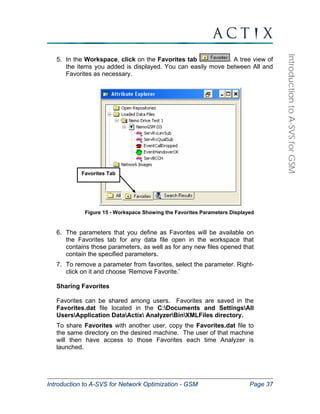
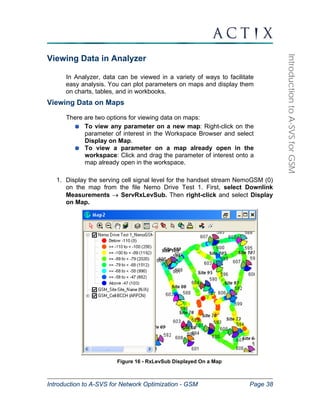
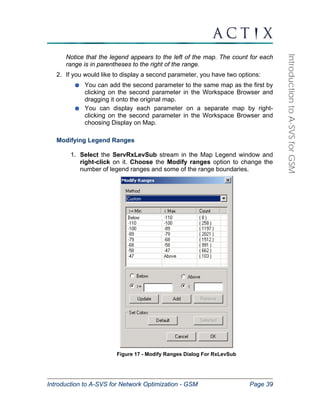
  • 90.
    Introduction to A-SVSfor Network Optimization - GSM Page 90 Introduction to A-SVS for GSM Figure 52 - Add Device Name Dialog o Enter the Device Name and the related Filter that identifies the stream of interest within the logfile. The Device Name is a label that has meaning to the user. The software determines whether data from a stream should be loaded into the Device based on whether the Filter text matches any text in the data stream name. In this example, the Filter 1) uniquely identifies the handset stream in the file, while using an identifier that is common to many types of logfiles. If the Filter field is left empty, data from all streams will be loaded into the Device. o Click OK to add the Device to the Device List. o A Network Image template may contain multiple devices. Once all the Devices have been entered, click Next to continue. Figure 53 - Devices Added to the Device List
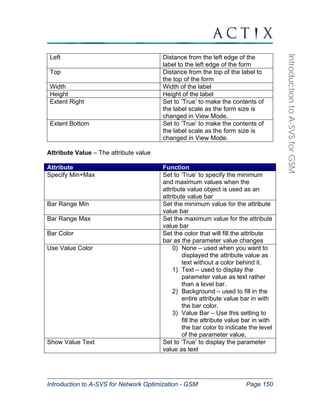
  • 91.
    Introduction to A-SVSfor Network Optimization - GSM Page 91 Introduction to A-SVS for GSM • Step 3 – Choose Your Attributes: o Select a Device from the panel on the right, and then use the Add button to select the required attributes from the Attribute Picker panel on the left. o If you select an array attribute (i.e. ScanSortSigLevel_by_SigLevel[]), a dialog will prompt you for the range of indices. Enter the start and end values and click OK. o In addition to standard analysis parameters, we recommend adding the Independent → FileName parameter to each Device in a Network Image. FileName can be used to trace data points in the Network Image to the original source file. This method is used to perform detailed analysis on problems spotted in the high level Network Image. o Attributes are assigned to one Device at a time. To duplicate the attributes selected for one Device into another Device, select the Device with the required attributes and click Copy. Then select the second Device and click Paste. o Once you have added all required attributes, click Next to continue. Figure 54 – Choose Your Attributes
  • 92.
    Introduction to A-SVSfor Network Optimization - GSM Page 92 Introduction to A-SVS for GSM • Step 4 – Choose Settings For Your Devices: o To create a binned dataset, ensure the Binned checkbox is enabled and choose the appropriate Binning Settings. We recommend the following Binning Settings for Network Images: ƒ Time Binning – 3 second or larger bins ƒ Location Binning – 50 x 50 meter or larger bins o To create a histogram of the data, check the Histogram box. o To create a statistical summary of the data, check the Statistics box. o Note that Binning Settings are assigned to one Device at a time. Repeat this process for each Device. o Click Next to continue. Figure 55 – Binning Settings Dialog • Step 5 – Choose Your Queries: o Note that only queries available in the workspace can be added. o Select a Query from the left pane. o Select a Device from the right pane. o Click Add to use the selected Query in the selected Device. o Continue until all the required Queries have been added to the appropriate Devices. o Click Next to Continue.
  • 93.
    Introduction to A-SVSfor Network Optimization - GSM Page 93 Introduction to A-SVS for GSM Figure 56 - Choose Your Queries • Step 5 – Confirm Your Selection: o This window summarizes the contents of the Network Image template. o After reviewing the contents, click Finish to open the Save As dialog. o The Network Image template must be saved in C:Program FilesActixAnalyzerBinNetworkImageDefns or a subfolder. Saving in this location ensures that the template will be available as a selection in the Create Network Image dialog box. Enter a filename and click Save.
  • 94.
    Introduction to A-SVSfor Network Optimization - GSM Page 94 Introduction to A-SVS for GSM Figure 57 - Confirm Your Selection After saving the new Network Image template in the BinNetworkImageDefns folder, the template will be available in the Create Network Image dialog. You can now create and populate a Network Image repository using your custom template!
  • 95.
    Introduction to A-SVSfor Network Optimization - GSM Page 95 Introduction to A-SVS for GSM Analyzer Queries and Filters You can create customized analyses within the Analyzer. You may want to highlight potential problem areas, or test for common symptoms of bad radio link quality for the purpose of speeding up the analysis of data. Your customized analysis, called a query, can be saved in a Workspace and reused for future drive data. The queries can be created, accessed, and edited in the Workspace through the Analysis Manager. Queries are a means of searching and filtering data based on events and thresholds you define. Queries operate on binned data and are written using Boolean expressions and arithmetic operations containing data parameters from one or more data streams. Analyzer supports six types of query and filter analyses: Filter Analysis Binned Query Analysis Crosstab Query Analysis Statistic Analysis Histogram Analysis Event Query Analysis Analyzer includes the ability to use queries to assist in the detection, correction, and presentation of network problems. You can save any or all of the analyses you create to use later and share with coworkers. These analyses can be saved in individual files or into a single file. In Analyzer, files of analyses have the AQF extension. All custom analyses can be saved for future use through the Analysis Manager: Select Tools → Analysis Manager In the Analysis Manager, select the Existing Analysis tab Select any queries to save and click the Export button Browse to a folder that you wish to save your query in. Analyzer’s default structure provides the C:Program FilesActixAnalyzerQueries folder for an easy place to store queries. Name the *.aqf file Training_Class_Queries. All queries created during training may be stored in the same file. To import the queries into a new Analyzer session, go to the Existing Analysis tab of the Analysis Manager and select the Import button. Open the saved *.aqf query file.
  • 96.
    Introduction to A-SVSfor Network Optimization - GSM Page 96 Introduction to A-SVS for GSM Filter Analysis You can create a filter that highlights those points that have RxQual greater than or equal to 4 to identify all the locations on the drive with poor quality of service. A filter analysis tests data on a single criterion and passes the data if the criterion is met. Follow the steps to create a new filter: 1. From the Nemo Drive Test 1 data stream, display ServRxQualSub on a map. 2. Right-click on the Nemo Drive Test 1 data stream and select Filter → Create a New Filter. 3. For the Filter Name, enter ‘PoorRxQual’. 4. For the expression, choose the ServRxQualSub from the attribute picker. Access the attribute picker by selecting the right arrow icon . 5. For the operation, choose >=. 6. For the Threshold, enter ‘4’. Figure 58 - Filter Wizard 7. Click OK to create the filter. Analyzer will automatically apply the filter to any information already displayed in the workspace. 8. Confirm that the query was created by going to Tools → Analysis Manager and clicking on the Existing Analyses tab. The filter should be under the Filters category.
  • 97.
    Introduction to A-SVSfor Network Optimization - GSM Page 97 Introduction to A-SVS for GSM 9. Add the ServRxLev and ServBCCH parameters to the map. Note that the data for all parameters, not just RxQual, is filtered. The points you see now are the values of RxLev and BCCH when RxQual was greater than or equal to 4. 10. To remove a filter, select the stream in the workspace, right-click on it, and uncheck the tick mark against the filter. 11. To edit a query once it is created, select Tools → Analysis Manager, and select the Existing Analyses tab. Highlight the analysis you wish to edit and press the Edit button. All query fields will be available for editing. 12. Save the query to a file called Training_Class_Queries.aqf. Select Tools → Analysis Manager, and select the Existing Analyses tab. Highlight the analysis (or analyses) you wish to save and press the Export button. Browse to a folder you wish to save your query in and click Save. All of the selected queries will be saved to a single file with a *.aqf extension. Note that the same filter will work on any GSM handset file that contains the ServRxQualSub parameter. Repeat the exercise above to create a filter for good signal strength. Assume that good signal strength is indicated by ServRxLevSub greater than or equal to –90 dB. The Filter dialog should look like this: Figure 59 - Good RxLev Filter Wizard Investigate the AND and OR operators when using these two filters. What is indicated by good signal strength and poor call quality? The following figure shows the BCCH parameter from the Nemo Drive Test 1 handset stream with both the Poor RxQual and the Good RxLev filters applied.
  • 98.
    Introduction to A-SVSfor Network Optimization - GSM Page 98 Introduction to A-SVS for GSM Figure 60 - BCCH Filtered for Poor RxQual and Good RxLev You can also use the filter function to determine which locations are being served by distant cells. We will use a threshold of 6000 meters for this filter. The parameter we are interested in for this analysis is Independent → Site Data Node → ServingCellDistance. The Filter Wizard screen should look like this: Figure 61 - Filter Wizard For Creating the Distant Server Analysis
  • 99.
    Introduction to A-SVSfor Network Optimization - GSM Page 99 Introduction to A-SVS for GSM You can apply this filter to the Nemo Drive Test 1 handset and display ServRxLevSub on a map. There are only a few points served by distant sectors. You can zoom in on these points, then use the Select cursor to show the lines to cells for each point. That map would look like this: Figure 62 - Distant Server Filter Results With Lines To Cells Displayed Save all of the filters you have created to the Training_Class_Queries.aqf file.
  • 100.
    Introduction to A-SVSfor Network Optimization - GSM Page 100 Introduction to A-SVS for GSM Binned Query / Custom Analysis Query The Binned Query allows you to define a new parameter based on existing parameters, using functions and inequalities. The results of a binned query can be displayed on a map, chart, table, or workbook. ServingCellDistance in Miles By default, Analyzer displays the serving cell distance in meters. A simple, yet very useful example of a binned query is the conversion of the serving cell distance from meters to miles. Create the ServingCellDistance in Miles query using the Analysis Manager: 1. Select Tools → Analysis Manager. 2. Select the Binned Query icon in the dialog and click on New. 3. For the Description, enter ‘ServingCellDistance in Miles’. Figure 63 - Creating the ServingCellDistance in Miles Query 4. In the parameters box, find the serving cell distance under Independent → Site Data Node → ServingCellDistance and double-click on it to add it to the expression. 5. At the end of the text in the Expression Builder, type in ‘/1609.344’. 6. Set the Format to Float. The easiest way to do this is to select the Format drop down dialog and start typing Float in the window.
  • 101.
    Introduction to A-SVSfor Network Optimization - GSM Page 101 Introduction to A-SVS for GSM 7. Click OK to create the query. 8. Click OK again to close the Analysis Manager. 9. The query will appear in the Queries group under every data stream in the workspace. Under the handset stream, expand the Queries → Binned Queries group. 10. Right-click on the ServingCellDistance in Miles query and choose Display on Map to display the query results on a map. Dragging Handover Query Occasionally in a GSM network, handovers do not occur as quickly as they should. This condition occurs in locations where the strongest neighbor is seen at a level that is at least 6-8 dBm stronger than the server. When the neighbor is significantly stronger than the server, the handover should have taken place, and the condition is known as a “dragging handover”. This condition may be indicative of a sector that propagates outside of its intended footprint, and can result in interference and poor perceived call quality when frequency reuse plans get tight. Create the Dragging Handovers ? query to detect locations that are suffering from the dragging handoff condition. The query will detect locations where the strongest neighbor is at least 8 dBm stronger than the server. Create this query using the Analysis Manager: 1. Select Tools → Analysis Manager. 2. Select the Binned Query icon in the dialog and click on New. 3. For the Description, enter ‘Dragging Handovers?’. Figure 64 - Binned Query Wizard
  • 102.
    Introduction to A-SVSfor Network Optimization - GSM Page 102 Introduction to A-SVS for GSM We will create a custom parameter that identifies locations where the RxLev for any neighbor is more than 8 dB greater than the RxLev of the serving sector. The Expression is: (array_max(NborRxLev[])-8)>ServRxLevSub 4. In the Expression Builder, type ‘(‘. 5. From the available functions, double-click on the array_max function. This function will parse an array and select the largest value in it. 6. Click to select the <<attribute[]>> placeholder in the Expression Builder. In the Parameters pane select GSM → Neighbor Cell Info → NborRxLev and double-click on it to add it to the expression. 7. At the end of the text in the Expression Builder, type in ‘-8)>’. 8. In the attribute pane, go to GSM → Downlink Measurements → ServRxLevSub and double-click to add it to the expression. 9. Set the Format to Boolean. The easiest way to do this is to select the Format drop down dialog and start typing Boolean in the window. 10. Click OK to create the query. 11. Click OK again to close the Analysis Manager. 12. The query will appear in a new Queries group under every data stream in the workspace. Under the Nemo Drive Test 1 handset stream, expand the Queries → Binned Queries group. 13. Right-click on the Dragging Handovers ? query and choose Display on Map to display the query results on a map.
  • 103.
    Introduction to A-SVSfor Network Optimization - GSM Page 103 Introduction to A-SVS for GSM Figure 65 - Results of the Dragging Handovers Query Displayed On a Map Determining the locations of dragging handovers in the network may be interesting, but this data is not useful unless you know which frequencies are causing the problem. Once the problem BCCHs are identified, you can perform adjustments to the network to resolve the problems. A custom stateorm may be used in conjunction with the query results the help determine the cause for the dragging handovers. Synchronize the GSM Neighbors stateform with the map to investigate some of the areas suffering from dragging handovers. Refer to the StateForms section for instructions on using Analyzer StateForms. Figure 66 - GSM Neighbors StateForm
  • 104.
    Introduction to A-SVSfor Network Optimization - GSM Page 104 Introduction to A-SVS for GSM Crosstab Query – Sort by Site and Sector The crosstab query is used to group data and display statistics for each group. The groups can be sorted, and a query can contain several options for grouping data. This example will have the Serving Site and Serving Sector as the grouping options, and the mean ServRxLevSub, mean ServRxQualSub, and number of dropped calls as the statistics to display for each group. When the query is completed and the results are displayed on the statistics explorer, it will look like this: Figure 67 - Results of Crosstab Query on the Statistics Explorer
  • 105.
    Introduction to A-SVSfor Network Optimization - GSM Page 105 Introduction to A-SVS for GSM To create the crosstab query: 1. Select Tools → Analysis Manager. 2. Select the Crosstab Query icon and click on New. 3. Name the query “Sort by Site and Sector”. 4. Click on the ‘New Dimension’ button. The query dimension allows you to group and order your results using the attribute you select. Use the attribute chooser to select Independent → Site Data Node → ServingCellID to add the serving site as the first dimension. Use the attribute chooser again to select Independent → Site Data Node → ServingSectorID to add the serving sector as the second dimension. 5. The query statistics are the results that you would like to include for each dimension. The parameters that you choose will be displayed as the columns in the statistics explorer. The statistics that we will include in this query are the mean ServRxLevSub, the mean ServRxQualSub, and the number of dropped calls. All of these statistics will be available for the complete drive, for each serving site and sector. Specific parameters relating to each statistic are included in the table below. a. Click on the New Statistic button to launch the Statistic Window. b. Enter the Statistic name. c. Use the attribute chooser to select the statistic of interest. d. Select the method to use to calculate the statistic. e. Click OK when finished with the Statistic Window. Statistic Name Expression Method of Calculation Mean ServRxLevSub ServRxLevSub Mean Mean ServRxQualSub ServRxQualSub Mean # Dropped Calls EventCallDropped Count 6. Once completed, click OK in all other active dialogs to complete the query. Be sure to save the Sort by Site and Sector crosstab query, in addition to the other queries you’ve created, in your Training_Class_Queries.aqf file.
  • 106.
    Introduction to A-SVSfor Network Optimization - GSM Page 106 Introduction to A-SVS for GSM Figure 68 - Specifying the Dimensions and Statistics for the Crosstab Query Display the Crosstab Query Results Once created, the crosstab query results can be displayed in the Statistics Explorer by right-clicking on the query in the workspace, and selecting Display in Statistics Explorer. The Statistics Explorer will launch and the results can be viewed, sorted by serving channel and color code. The queries can also be displayed in Excel workbooks. Run the crosstab query on the Nemo Drive Test 1 handset stream. Filter the Crosstab Query Results The Filter button on the Statistics Explorer may be used to quickly filter query results in the Stats Explorer and in any other Analyzer view. In this case, it may be useful to view data for only one serving site, such as Site 95. 1. View ServRxLevSub from the Nemo Drive Test 1 handset stream on a map. Display the EventCallDropped event on the same map.
  • 107.
    Introduction to A-SVSfor Network Optimization - GSM Page 107 Introduction to A-SVS for GSM 2. Tile the map and the Statistics Explorer vertically in the workspace by selecting Window → Tile Vertically. 3. In the Statistics Explorer, select the row for Site 95. 4. With the row for Site 95 selected, press the Filter button in the Statistics Explorer. Notice that only data points served by this site remain in the Statistics Explorer and on the map. 5. To remove filtering, click the Filter button again. The filter will be unapplied from both the map and the Statistics Explorer.
  • 108.
    Introduction to A-SVSfor Network Optimization - GSM Page 108 Introduction to A-SVS for GSM Event Query - Dropped Call Window The Event Query allows you to extract key performance statistics for a user-defined time or message window before or after a defined event like a handover failure or dropped call. Viewing the window surrounding an event can provide insight into whether a pattern exists among undesirable events, such as multiple handover failures or drops on the same cell, or multiple drops due to low coverage. We will create an Event Query to return statistics in a five-second window for each dropped call in the file 1. Select Tools → Analysis Manager. 2. Select the Event Query icon in the dialog and click on New. 3. For the Trigger Selection, use the attribute picker to select GSM → Event Data → EventCallDropped. The parameter will show up in the triggering window. Figure 69 - Setting Up the Event Query
  • 109.
    Introduction to A-SVSfor Network Optimization - GSM Page 109 Introduction to A-SVS for GSM 4. For the Window Range, choose Time Based and set the window to 5,000 milliseconds before the event and 0 milliseconds after the event. 5. Click Next. 6. For the name of the query, enter ‘Dropped Call Window’. Figure 70 - Defining the Name, Dimensions, and Statistics For the Query 7. To define a statistic to be displayed in the event window, click on the New Statistic button to launch the Statistic window. 8. For the name, enter ‘Site ID’.
  • 110.
    Introduction to A-SVSfor Network Optimization - GSM Page 110 Introduction to A-SVS for GSM Figure 71 - Choose a Calculation Method for Each Event Query Statistic 9. Choose the Edit button below the line that reads “Enter the expression that should be calculated in your statistic:”. 10. The Expression Builder will launch. Inside the top portion of the window, type State(). This State() function is required to ensure that the last valid value of the parameter persists. 11. Click inside the parentheses of the State() function. In the Parameters area of the Expression Builder, expand the Independent → Site Data Node tree. Double-click on the ServingCellId parameter to insert it into the expression. 12. Click OK to exit the Expression Builder.
  • 111.
    Expression Method toCalculate State(ServingSectorID) Last Value State(ServBCCH) Last Value State(ServBSIC) Last Value ServRXLev Mean ServRxQual Mean State(NborBCCH[0]) Last Value NborRxLev[0] Mean Introduction to A-SVS for Network Optimization - GSM Page 111 Introduction to A-SVS for GSM Figure 72 - Expression Builder for the Event Query 13. In the Statistic window, select the method to calculate the statistic. In this case, select Last Value. Click OK when finished with the Statistic window. 14. Repeat steps 7 through 13 above to define the following statistics (choose an appropriate name for each one). The statistics that do not require the use of the State() function can be picked using the Attribute Chooser instead of the Expression Builder. 15. Once completed, click OK in all other active dialogs to complete the query.
  • 112.
    Introduction to A-SVSfor Network Optimization - GSM Page 112 Introduction to A-SVS for GSM Displaying Event Queries Once created, the event query can be displayed in the Statistics Explorer by right-clicking on the query in the workspace, and selecting Display the Statistics Explorer. The Statistics Explorer will launch and the results can be viewed, sorted by the time of the event (in milliseconds). The queries can also be displayed in Excel workbooks. Run the event query on the Nemo Drive Test 1.dt1 handset stream. How many dropped calls occurred in this file? What appears to be the primary reason for the dropped call(s)? Figure 73 - Displaying the Results Of the Event Query
  • 113.
    Statistic Analysis Introductionto A-SVS for Network Optimization - GSM Page 113 Introduction to A-SVS for GSM The Statistic Analysis is used in conjunction with a binned query to generate statistics for the results of the query. We will use it to generate statistics for the ServingCellDistance in Miles binned query. Generate Statistics for a Binned Query 1. Select Tools → Analysis Manager. 2. Select the Statistic icon in the dialog and click on New. 3. Enter ‘ServingCellDistance in Miles Stats’ in the Description field. 4. Use the drop down list to select ServingCellDistance in Miles. 5. Do not remove any data points. Click OK to create the analysis. 6. Find the new statistic analysis under the Queries node. Right-click on it and display it on a table. 7. Click on the statistics tab of the table to view the statistics for the ServingCellDistance in Miles query.
  • 114.
    Introduction to A-SVSfor Network Optimization - GSM Page 114 Introduction to A-SVS for GSM Cell Site Configuration Using the Network Explorer The Network Explorer allows you to import network element data into Analyzer, creating a cell plan file called cellrefs.txt. It also lets you browse and edit this network information once it has been loaded into Analyzer. The Automatic Import feature provides an automated method of updating cell site information in Analyzer as changes are made to the network. This section describes how to import delimited data into Analyzer, and how to configure the Automatic Import tool. Importing Network Data The important thing to remember about Analyzer’s network data import process is that the process requires two files: 1. A delimited text file that contains unformatted data arranged in tabular form, with one row for each individual sector in a network. 2. A blank file, containing only Analyzer header information, to be populated with formatted data. Obtaining Site Data in Tabular Format In order to import cell site data from your own network, you will need to obtain a delimited text file containing the data listed in the table below. To maximize the benefit Analyzer can bring to GSM network analysis, the parameters listed in bold in the table on the following page are REQUIRED for cell data to function with logged data in the main workspace. All other parameters are optional. The data may come from a network database or a planning tool configuration file. As long as the data is in a tabular format with one row for each sector, Analyzer will be able to import the data.
  • 115.
    Introduction to A-SVSfor Network Optimization - GSM Page 115 Introduction to A-SVS for GSM GSM Cell Site Parameters for Import: Parameter Analyzer Group Analyzer Name Purpose Site Name GSM_Site SiteName Text description of the Site for display on map. Site Number GSM_Site SiteID Numeric identifier for the site. Latitude GSM_Site Latitude Locates site icons on map. Longitude GSM_Site Longitude Locates site icons on map. Sector Number GSM_Cell Sector_ID Sector-specific information useful for display on maps (can be alpha or numeric) Azimuth GSM_Cell Azimuth Orients the sector icons on the map. Beamwidth GSM_Cell Beamwidth Governs the shape of the sector “wedge” icon to reflect the beamwidth of antenna deployed at the site. BCCH GSM_Cell BCCH Used for cell site identification and to calculate lines to cells. BSIC GSM_Cell BSIC Used for cell site identification and to calculate lines to cells. BSIC is the concatenation of the NCC and BCC values for a cell. CI GSM_Cell CI Used for cell site identification and to calculate lines to cells. This field must be numeric! Base Station Power GSM_Cell EIRP Base station power, for informational purposes only. MCC GSM_Cell MCC Mobile country code, for informational purposes only. MNC GSM_Cell MNC Mobile network code, for informational purposes only. LAC GSM_Cell LAC Location area code, for informational purposes only. BSC Name GSM_BSC BSCName BSC name, for use with A and Abis link data. BSC ID GSM_BSC ID BSC identity, for use with A and Abis link data. MSC Name GSM_MSC MSCName MSC name, for use with A and Abis link data. MSC ID GSM_MSC ID MSC identity, for use with A and Abis link data.
  • 116.
    Introduction to A-SVSfor Network Optimization - GSM Page 116 Introduction to A-SVS for GSM Parameter Analyzer Group Analyzer Name Purpose Sector Display – Wildcard GSM_Cell Face_Display Use to color sectors on the map by a custom integer field. Sector Display – Wildcard GSM_Cell Azimuth_Display Use to color sectors on the map by a custom integer field. Sector Display – Wildcard GSM_Cell Phase_Display Use to color sectors on the map by a custom integer field. Routing Area Code GSM_Cell RAC Routing area code, for informational purposes only. Layer Type GSM_Cell LayerType Use this field to manage multiple cell layers to be displayed and hidden separately.
  • 117.
    Introduction to A-SVSfor Network Optimization - GSM Page 117 Introduction to A-SVS for GSM The figure below is an example of a delimited GSM file that could be used to import a site list into Analyzer. Though the columns can be in any order for import into Analyzer, the figure shows all of the REQUIRED fields. Additionally, the Excel spreadsheet must be saved as a TEXT file for import into Analyzer. Figure 74 - GSM Cell Site Data Spreadsheet Guidelines for Formatting Tabular Data Although Analyzer does not require cell site data fields to be listed in a particular order, following these guidelines will provide the best results: 1. The Site ID field must contain a unique value for each site location. Beware of non-unique Site ID's - that is, entries that have multiple sets of lats/longs for the same Site ID. Non-unique Site ID's will result in site markers appearing on the map without sector wedges. Site Names need not be unique - they are used for labeling purposes only. 2. Position information must be accurate in order for Analyzer to display sites in the correct location on the map. Longitudes that have a 'West' notation should be represented as a negative decimal, as should latitudes with a 'South' notation. Sites will appear skewed on the map if the latitude and longitude fields are transposed.
  • 118.
    Introduction to A-SVSfor Network Optimization - GSM Page 118 Introduction to A-SVS for GSM Obtaining the File to be Populated With Formatted Data Before importing new cells into Analyzer, ensure that Analyzer is pointing to a valid cell site database. A valid cell site database is a text file in which the first line contains the text below: ; #NetworkData – datafile Every Analyzer installation comes with a clean file called cellrefs.txt located in the directory called: C:Program FilesActixAnalyzerBinCellrefs The file to be populated need not be named “cellrefs.txt”. We recommend renaming this file with a meaningful name in order to prevent the file from being overwritten during reinstallation. To point the Analyzer to the file you wish to populate with the new cell site data, use the File Location line in the Tools → Preferences dialog. See the section on Loading Cell Site Data on page 19 for more details.
  • 119.
    Introduction to A-SVSfor Network Optimization - GSM Page 119 Introduction to A-SVS for GSM Importing the Data Once you have obtained your cell site database in delimited format and pointed Analyzer to a valid cellrefs file, you are ready to open the Network Explorer and import the site information. 1. To access the Network Explorer select Cells → Network Explorer Figure 75 - Network Explorer Window The Network Explorer display consists of two panels. The left panel contains a tree view of the network element data. The right panel shows details about relevant parameters for the current selection. If you have pointed Analyzer to a cellrefs file containing only header information, you will not see any cell site data at this time. 2. On the toolbar select Import → Import From New Template to open the Import dialog. 3. Select the appropriate network data file and click Open to display the Import Settings dialog.
  • 120.
    Introduction to A-SVSfor Network Optimization - GSM Page 120 Introduction to A-SVS for GSM Figure 76 - Import Settings Dialog (Step 1 of 2) 4. Give the Template a meaningful Template Name. 5. Check the appropriate Delimiter. 6. In most cases, the default information under the General Settings and Coordinate Information headers will apply. Adjust these settings if necessary. 7. Click Next.
  • 121.
    Introduction to A-SVSfor Network Optimization - GSM Page 121 Introduction to A-SVS for GSM Figure 77 - Settings (Step 2 of 2) – Assign GSM_Site Data 8. Expand the GSM_Site data node. Click in the Column field next to the Site_Name parameter. Select the parameter name from your site database that corresponds to the Site_Name parameter. Repeat for each of the required fields in the GSM_Site data node, based on the table below: Field Mapping required for proper operation? Site_Name Optional, but this field is frequently used for the site label. SiteID Required, and this field must be unique for each site in the database. Latitude Required Longitude Required
  • 122.
    Introduction to A-SVSfor Network Optimization - GSM Page 122 Introduction to A-SVS for GSM Figure 78 - Column Settings (Step 2 of 2) – Assign GSM_Cell Data 9. Expand the GSM_Cell data node. Click in the Column field next to the Sector_ID parameter. Select the parameter name from your site database that corresponds to the Sector_ID parameter. Repeat for each of the required fields in the GSM_Cell data node, based on the table below: Field Required for proper operation? Sector_ID Required Azimuth Required Beamwidth Required EIRP Optional BCCH Required
  • 123.
    Introduction to A-SVSfor Network Optimization - GSM Page 123 Introduction to A-SVS for GSM Field Required for proper operation? MCC Optional MNC Optional LAC Optional CI Required, and this field must be unique for each site in the database. BSIC Required Face_Display Optional, but map this field to the integer sector ID field (i.e. 1, 2, 3) in order to color sectors on the map by face number (i.e. 1 = red, 2 = blue, 3 = green). Azimuth_Display Optional, but map this field to the integer azimuth field in order to color sectors on the map by azimuth range. Phase_Display Optional, but map this field to a custom integer field to color sectors on the map by that field. An example of a custom field would be the phase of the site where: 1 = On Air 2 = Under Construction 3 = Planned for Next Year RAC Optional LayerType Optional. Use this field to manage multiple cell layers. Cells can be displayed or hidden on the map by layer. 10. Click Finish when all the columns have been assigned. If the current workspace contains existing site data, you will be asked whether you want to remove existing data before importing new data. Select Yes to overwrite existing data. Select No to append to existing data. 11. If any errors occur during the import, a pop-up message will indicate that an error log has been created. The error log specifies the cause of each error encountered and can be found in: C:Program FilesActixAnalyzerBinCellrefsImportErrors.log
  • 124.
    Introduction to A-SVSfor Network Optimization - GSM Page 124 Introduction to A-SVS for GSM 12. Inspect the cell data in the Network Explorer by expanding the All_GSM_Site_Elements folder in the left-hand pane of the Network Explorer. 13. Double-click on any site name in the right hand pane. The Name, Location and ID of the site will appear, as well as a folder containing GSM Cell Elements. Drill into the GSM Cell Elements folder and examine the values corresponding to each sector. 14. To save the formatted site information, select the Save button. 15. Close the Network Explorer by clicking the “X” at the upper right hand corner. 16. After closing the Network Explorer, view a new map by selecting View → Display New Map. 17. If cell icons do not appear on the map, right click on the GSM_Cell layer in the map legend at the left hand side of the map window. Select Zoom to Layer to zoom the map to the appropriate location. Be sure to close the map with the “X” at the upper right hand corner to save all changes to the map view.
  • 125.
    Introduction to A-SVSfor Network Optimization - GSM Page 125 Introduction to A-SVS for GSM Figure 79 - Use Zoom to Layer to Locate Cells on Map
  • 126.
    Introduction to A-SVSfor Network Optimization - GSM Page 126 Introduction to A-SVS for GSM Updating Cell Site Data There are two convenient ways to update cell plan information in Analyzer: Minor cell plan changes (a few azimuths, BCCHs, etc.) can be modified directly from the Network Explorer. Simply browse to find the site and sector of interest and double click on a single parameter to activate the text. Be sure to save the modifications before exiting the Network Explorer! If the cellplan file is updated (multiple sites added, complete frequency retune), use the Automatic Import feature to detect changes to an existing cell plan and import the updated cell site file into Analyzer. Instructions for using the Automatic Import feature follow. Automatic Import of Cell Site Data The Automatic Import feature detects changes to cell plan data and updates the configured site data every time Analyzer is opened. Figure 80 - Automatic Import Setup
  • 127.
    Introduction to A-SVSfor Network Optimization - GSM Page 127 Introduction to A-SVS for GSM To use the Automatic Import feature: 1. From the Analyzer main menu, select Tools → Preferences. 2. Expand the Automatic Import option under Cellrefs and select the Enable Automatic Import option. 3. Select the Automatic Import Input File. This is the text file that contains your delimited site data. 4. Select the Automatic Import Template. Once a template has been created, a new Analyzer workspace must be started in order for that template to appear in this list. To use a template created on another computer, copy the template of interest from the C:Program FilesActixAnalyzerBinCellrefsTemplates directory to the same directory on your machine. 5. Click OK to exit the Change Preferences dialog. A message will appear that Automatic Import has been enabled and that your currently loaded cellrefs will be overwritten the next time Analyzer is restarted. Once Automatic Import is configured, any changes to the Automatic Import Input File will be detected, and will be changed accordingly in your Analyzer cell site file each time Analyzer is opened.
  • 128.
    Introduction to A-SVSfor Network Optimization - GSM Page 128 Introduction to A-SVS for GSM Reporting GSM Network Performance The reporting features in Analyzer allow you to create high-level management reports based on your data. Two different mechanisms exist for creating for producing integrated, polished reports that can be used to analyze high-level network statistics or communicate test results in a professional format: Application Packages are a technology-specific series of reports that are installed automatically with every Analyzer installation. Application Packs are typically used to obtain a high-level overview of call statistics. They can be used when a professional, formatted output is required, but time constraints do not allow for the creation of a custom template. Reports are user-definable formatted outputs that make use of Analyzer’s integration with Microsoft Excel. Reports may be included with an Analyzer installation (such as the GSM Training Materials), but are not always included. Reports, unlike Application Packs, allow for formatted outputs of multiple streams of data. Use Reports when generating outputs for multiple streams of data and when you want to design a custom formatted template from scratch. This section describes the use of both reporting mechanisms, including running Application Packs, running pre-defined Reports, and creating custom Reports. Application Packages Actix Analyzer v4.1 contains application packages specific to each mobile technology supported by the software. The application packs are a series of reports, each focusing on a particular aspect of mobile network optimization. The two packs currently available for GSM users are: DT Design Validation and Quick Analysis DT Handover Settings and Power Control Running Application Packs Once a data file is loaded, the application packages can be accessed in one of two ways: 1. Through the Analysis menu on the main menu bar 2. By right-clicking on the stream name in the Workspace Browser Note: The application packs require Analyzer to be pointing to a valid cellrefs file in order to function properly.
  • 129.
    Cell Explorer ReportWindow Introduction to A-SVS for Network Optimization - GSM Page 129 Introduction to A-SVS for GSM Once you have selected one of the Application Packs from the menu, an Application Pack window will appear. The window is divided into two panes. The top panel is referred to the Cell Explorer, and it contains a summary of major call events and statistics for the selected stream. Information in the cell explorer is organized by serving site and sector. The bottom pane is called the Report window and contains a list of available reports associated with the selected application pack. Once executed, the results of the reports can be saved, printed, and shown in their raw form in Microsoft Excel. Figure 81 - Report Options for the DT Design Validation and Quick Analysis
  • 130.
    Introduction to A-SVSfor Network Optimization - GSM Page 130 Introduction to A-SVS for GSM DT Design Validation and Quick Analysis This application pack contains the following reports: 1. Call Details - A summary of the number of occurrences of various messages and events 2. Design Validation - Classifies data points as having good or bad design according to interference, quality, and dominance thresholds 3. Measurement Charts - Charts showing the distributions for RxLevSub, RxSubQual, and TA 4. Neighbor Level Single – Band - Percentage of samples where at least one neighbor is stronger than the serving cell and all neighbors within 5 dBm from the server for PDF and CDF in tables and graphs 5. Neighbor Level - Dual Band - Shows percentage of band usage, intra/interband handover and neighbors with 5dBm of the server for PDF and CDF, as tables and graphs An example of the Call Details report output is shown below: Figure 82 - Call Details Report
  • 131.
    Introduction to A-SVSfor Network Optimization - GSM Page 131 Introduction to A-SVS for GSM DT Handover Settings and Power Control This application pack contains the following reports: 1. Handover Quality - Chart of quality measurements for the whole file, and for the five seconds before and after each handover 2. Handover Level - Chart of the change in downlink received level due to handover, measured in five second windows before and after each handover 3. Handover Interval - Chart showing the interval between handovers 4. Handover Classification - Percentage breakdown between good and poor design, and breakdown poor design by class 5. Power Distribution – Histogram of power, in dBm, by number of occurrences and includes the mean dBm 6. Power Step Distribution – Histogram of power step changes, in dB 7. Power Step Interval – Histogram of the time interval, in seconds, between power step changes The Handover Interval report is shown below: Figure 83 - Handover Interval Report
  • 132.
    Introduction to A-SVSfor Network Optimization - GSM Page 132 Introduction to A-SVS for GSM Running a Pre-Defined Report Since Application Packs are built into the Analyzer, they may not exactly meet your team’s reporting requirements. Additionally, App Packs can only be run on a single stream of data. Analyzer Reports allow you to create custom reports using Microsoft Excel, and those reports may include data from multiple streams. Reports from multiple measurement sources allow you to compare data collected simultaneously or look at your network before and after making a change. In this section, you will populate a pre-defined Analyzer Report template that contains multiple data streams. In the next section, you will create a custom report from scratch. To run the pre-defined report: 1. From the Analyzer main menu select Workbook → Open Workbook/Report. 2. Navigate to C:Program FilesActixAnalyzerReports and Open the report called GSM Before and After Network Change.xls. 3. Analyzer prompts you to select a data stream to replace the ‘before’ stream. Select the handset stream from Nemo Drive Test 1.dt1 and click OK. 4. Analyzer then prompts you to select a second data stream. Select the handset stream from Nemo Drive Test 2.dt1 and click OK. 5. Analyzer will generate the report and launch Excel. Expect for this to take a few moments. When this is complete, click on the Report tab in the Excel workbook and examine the formatted report. The output of the report is shown on the following page.
  • 133.
    Introduction to A-SVSfor Network Optimization - GSM Page 133 Introduction to A-SVS for GSM Figure 84 - Results of the Before and After Network Change Report The Analyzer GSM Training Materials come with several pre-defined reports that can be run according to the steps above. These reports are: GSM Before and After Network Change – Presents key call statistics for two different data streams. GSM Cluster Optimization Report – Designed for use during integration of a new site or cluster. Compares actual statistics against pre-defined metrics. GSM RxLev and RxQual Report – Presents key performance statistics for RxLev and RxQual, including graphical representations.
  • 134.
    Introduction to A-SVSfor Network Optimization - GSM Page 134 Introduction to A-SVS for GSM Creating a Custom Report Creating your own formatted report template is as easy as viewing the data you require on a workbook, and then formatting the report page using Excel. The objective of this section is to create a simple report, like the one shown below, to display a histogram distribution and statistics for the RxQualSub parameter. Since RxQual is the parameter that provides the best estimate of user-perceived voice quality, the value of this parameter throughout a network is of great importance. Figure 85 - RxQual Histogram and Statistics Report To create this report: 1. Ensure that the Nemo Drive Test 1 file is loaded into the Workspace. 2. Select the parameter ServRxQualSub from GSM → Downlink Measurements. Right-click on it and choose Display on Workbook. Excel will launch. The Workbook will contain three sheets, which can be accessed by clicking on the corresponding tab at the bottom sheet window.
  • 135.
    Introduction to A-SVSfor Network Optimization - GSM Page 135 Introduction to A-SVS for GSM 3. Click on any blank sheet in the workbook and rename the sheet “Report”. 4. Click on the Histogram Formatted Data tab. Click and drag to define a window around the data set, including the column headers. 5. Select the chart icon from the top menu bar of Excel: . 6. The chart wizard will open: Figure 86 - Chart Wizard in Excel 7. Select a simple column chart and follow the Wizard prompts and instructions. 8. Click the Finish button in the chart wizard and a basic chart will be created. 9. Cut and paste the new chart onto the “Report” sheet in the workbook or choose to have the chart inserted as an object on the Report sheet. 10. To place the mean and standard deviation statistics in the table in your report, type “=” in the cell you would like to hold the value on the Report sheet. Then switch to the Statistic Formatted Data tab and select the cell containing the data you wish to add to your report. Press Enter after selecting that cell to create the reference. 11. Add a title to the worksheet, position the histogram on the page, format a table around the statistics and add any other desired formatting.
  • 136.
    Introduction to A-SVSfor Network Optimization - GSM Page 136 Introduction to A-SVS for GSM 12. From the Excel main menu, select File → Save. Save the file in C:Program FilesActixAnalyzerReports folder and name it RxQual_Histogram_and_Statistics_Report. 13. Close the Excel workbook. Running Your Report with New Data 1. Ensure that the Nemo Drive Test 2 file is loaded into the Workspace. 2. Select Workbook → Open Workbook to open the RxQual_Histogram_and_Statistics_Report saved previously to the C:Program FilesActixAnalyzerReports directory. 3. A dialog will appear that prompts you to select a data stream(s): Figure 87 - Running the Report on New Data 4. Select the Nemo Drive Test 2 handset stream and watch the formatted report regenerate for the new data.
  • 137.
    Introduction to A-SVSfor Network Optimization - GSM Page 137 Introduction to A-SVS for GSM Where to Get More Help Help File Analyzer includes comprehensive online help, which can be accessed by clicking on Help menu on the main menu. The primary help documentation can be found under Help → Contents. You can look up information about a particular topic either by choosing an item from the index or by entering keywords and performing a search. Figure 88 - Actix Online Help Options
  • 138.
    Introduction to A-SVSfor Network Optimization - GSM Page 138 Introduction to A-SVS for GSM Specific information, like the definition of engineering parameters, can be accessed by clicking on Help → Attribute Help. You can look up an item in the alphabetized list, or you can open the Attribute Help window, and then click on an item in the Workspace. Figure 89 - Highlighted Parameter and Corresponding Attribute Help Entry The contents of the Help window can be printed, stored under Favorites, and resized or minimized to enable side-by-side review as operations are performed in Analyzer.
  • 139.
    Introduction to A-SVSfor Network Optimization - GSM Page 139 Introduction to A-SVS for GSM Technical Support Technical support is available by phone, email, and on the Actix Web site. Technical personnel are located in Reston, VA, USA, London UK, and Singapore to provide assistance. In the US technical support can be reached at: Phone: 1 (877) 72-ACTIX (toll free) 1 (877) 722-2849 Between the hours of 09:00-17:00 EST If you are calling outside of hours, please leave your contact information and a brief description of the nature of the call. Email: support@actix.com On the Web: www.actix.com/html/support.htm When contacting Actix Support please have your license key number and the software revision number you are using ready to speed up the resolution of your problem. The version number of the software is available by going to Help → About Analyzer. Figure 90 - About Analyzer Window
  • 140.
    Introduction to A-SVSfor Network Optimization - GSM Page 140 Introduction to A-SVS for GSM Actix Web Site Our Web site is located at: www.actix.com and can be accessed directly from the Online Help menu under Visit the Actix Web site. In addition to containing information about Actix, the Analyzer, and other products, it contains further application modules for Analyzer for common optimization tasks, and sections on Frequently Asked Questions. Actix frequently improves the Analyzer with incremental updates to the software as further test and measurement vendors’ formats integrated into the tool or updated in accordance with new versions of phones or infrastructure. To confirm you are using the most current version of the software please check under the Help → About Analyzer menu and compare that with the current release cited on the Web site. Upgrades can be downloaded from the web providing the support and maintenance contract purchased with the software is still current. If you have any questions please contact our support staff. Contact Your Instructor The objective of this training session is to provide all attendees with the knowledge and desire to use Analyzer on returning from the course. To confirm the training has met your expectations you are invited to complete a post training survey and highlight any aspect of the course that could be improved or did not meet your expectations. Unless you specifically decline, the instructor may contact you within six weeks of this course to follow up and discuss further any questions you have. Additional copies of this manual are available from Actix support or from your instructor More Advanced Training Actix offers a range of training courses designed to improve the understanding, proficiency and productivity of engineers using Actix Analyzer for network optimization and performance in the fast paced world of wireless communications. For more information, or to book any of these courses, please contact your instructor or sales manager at: Actix Inc (Sales), 12012 Sunset Hills Rd, Ste 910 Reston, VA 20190, USA Phone: (703) 707-4777 Email: sales@actix.com Fax: (703) 707-4778 On the Web: www.actix.com
  • 141.
    Introduction to A-SVSfor Network Optimization - GSM Page 141 Introduction to A-SVS for GSM Appendix A – GSM Event Definitions Event Definition Call Completed For GSM log files that contain air interface messaging, a Call Completed event is triggered if the following criteria occur: • Outgoing Call Setup OK or Incoming Call Setup OK • Followed by RR: Channel Release with Cause=Normal Call Dropped For GSM log files that contain air interface messaging, a Call Dropped event is triggered if the following criteria occur: • Outgoing Call Setup OK or Incoming Call Setup OK • Not followed by RR: Channel Release with Cause = Normal • Followed by a transition to idle mode Handover OK Contains geographically referenced occurrences of all successful handoff events. For LCC GSM, it defines a successful handover and is obtained from the RR Handover Complete message. For Grayson GSM and compatible log files, a HandoffOK event is triggered if the following occurs: • Requirement: CC: Handover Command • Not Followed By: A transition to idle mode • Followed By: CC: Handover Complete Handover Fail Contains geographically referenced occurrences for all handoff failures. For Grayson and compatible GSM log files, a handoff failure event is triggered if the following sequence of messages occurs: • First Requirement: CC: Handover Command • Not Followed By: A transition to idle mode • Followed By: CC: Handover Failure Location Update OK Contains geographically referenced points where a location update occurred successfully. Location Update Fail Contains geographically referenced points where a location update failed.
  • 142.
    Introduction to A-SVSfor Network Optimization - GSM Page 142 Introduction to A-SVS for GSM Event Definition Assignment OK Contains geographically referenced points where a traffic channel/slot was assigned. Assignment Fail Contains geographically referenced points where a traffic channel/slot assignment failed. Incoming Call OK An incoming call initiation event is triggered if the following sequence of messages occurs: • DL CC: Setup • UL CC: Alerting Incoming Call Setup Fail An incoming call setup failure is triggered if the following sequence of messages occurs: • CC: Setup • Followed by CC: Call Confirmed • Followed by a transition back to idle mode Outgoing Call OK A successful mobile origination is triggered if the following requirements are met: • UL CC: Setup • DL CC: Alerting Outgoing Call Setup Fail An outgoing initiation failure is triggered if the following sequence of messages occurs: • CC: Setup • Not followed by CC: Call Confirmed • Followed by a transition back to idle mode
  • 143.
    Introduction to A-SVSfor Network Optimization - GSM Page 143 Introduction to A-SVS for GSM Appendix B – GPRS Optimization Parameters As GPRS network become more prevalent, GSM performance engineers will become responsible for ensuring the integrity of these data networks. Although GPRS networks share radio resources with GSM network, the analysis and optimization procedures for these two types of networks are not the same. GPRS network drive tests must be designed to capture the aspect of the network of interest. When analyzing GPRS drive test data, the parameters of interest are different than when analyzing GSM drive test data. This document provides some suggestions for the design of GPRS drive test scenarios, and describes areas of interest when analyzing this data with Actix A-Solutions. GPRS Test Design Different tests may be designed for testing different aspects of GPRS network performance: • Throughput analysis o The purpose of this test is to determine the GPRS data rate over the air interface and for the end user application. o FTP uploads and downloads provide the maximum channel usage over a continuous time period, providing a good picture of maximum throughput attainable. o FTP test files should be large enough to provide a good test case, but small enough to avoid being affected by uncontrollable variables. Ideal file sizes are 300 kb for download testing and 100 kb per upload testing. Zipped files are ideal, as they contain compressed data that will not be subject to very much extra compression during transmission. o The FTP server ideally should be located within the GPRS network on the Gi interface. Locating the server within the GPRS network eliminates internet-related variables for testing purposes. o Stationary testing is preferable over mobile testing to reduce the effect of cell updates on throughput. Ideally, the test should be conducted in an area of strong radio coverage. • Latency and signaling analysis o The purpose of this test is to verify the GPRS message sequences, and the time between key GPRS events. This type of test might be used to verify the operation of new network equipment. o Ping is a good application for this type of analysis based on its relatively simple command structure and concrete timing expectations.
  • 144.
    Introduction to A-SVSfor Network Optimization - GSM Page 144 Introduction to A-SVS for GSM Typical ping delay over GPRS is 750 ms. o An IP sniffer such as Ethereal may be used to view communication between the client computer and the server at the IP level (as opposed to communication between the mobile and the server seen from the GPRS handset). • Analysis of the effects of the RF environment on the GPRS network o The purpose of this test is to determine how well the GPRS data network operates in the existing GSM radio environment. o Stationary testing in areas of high potential usage is recommended to analyze GPRS behavior with typical RF conditions. o Mobile testing on highways or commuter transit routes is recommended for testing the effects of cell updates and mobility on the GPRS network. In a GPRS network, cell updates are initiated by the mobile which breaks the connection with the abandoned cell before reselecting a new cell. A cell update typically results in 3-5 seconds of down time before communication with the new cell is established. GPRS Data Analysis Once GPRS data has been collected, various parameters can be used to analyze the performance of the network. Each parameter described here can be viewed using the Actix Analyzer platform, provided the parameter has been collected by the collection equipment. • Throughput – GPRS logfiles contain throughput values collected within the GPRS network and at the application level. RLC Throughput and Application Throughput are the most commonly used for analysis of GPRS networks. o RLC Throughput (Radio Link Control) provides data rate for the logical link between the mobile and the PCU and can be found in the GSM → GPRS Data → Vendor Specific group. RLC throughput provides the best indication of data transfer over the air interface. o LLC Throughput (Logical Link Control) provides the data rate between the mobile and the SGSN and can be found in the GSM → GPRS Data → Vendor Specific group. o TCP Throughput provides the data rate on the logical link maintaining flow and congestion control between the two communicating computers. TCP throughput can be found in the Data Testing → Protocol Measurements group. o Application Throughput most closely approximates the end user experience and can be found in the Data Testing → Application
  • 145.
    Introduction to A-SVSfor Network Optimization - GSM Page 145 Introduction to A-SVS for GSM Measurements group. Target application throughput for GPRS is 11- 13 kbps per timeslot for Coding Scheme 2 (CS 2). Figure 91 - Uplink RLC and Application Throughput • Timeslot Usage – The more timeslots allocated to a GPRS data session, the higher the resulting throughput. Timeslots may be allocated based on data rate requested and network congestion. Check timeslot usage with the parameters in the GSM → GPRS Data → GPRS RMAC → Dedicated Radio Link group. • Coding Scheme Usage – GPRS relies on four different coding schemes to provide an appropriate balance between error correction and maximum data rate. CS 1 provides substantial error correction, resulting in a lower maximum data rate. CS 4 provides virtually no error correction and the highest maximum data rate, but should only be used in areas where RF conditions are excellent to avoid losing packets. CS usage information can be found in the GSM → GPRS Data → GPRS RMAC → Dedicated Radio Link group. • GPRS Radio Conditions – The best indicators of GPRS radio conditions are RLC_DL_BLER and RLC_UL_Retransmissions, both of which can be found in the GSM → GPRS Data → Vendor Specific group. RLC_DL_BLER indicates the percentage of corrupt blocks received that cannot be decoded by the mobile. RLC_UL_Retransmissions indicates unacknowledged blocks sent by the mobile that must be resent. High RCL_DL_BLER or RLC_UL_Retransmission values typically result in lower throughput.
  • 146.
    Diminished throughput andhigh BLER Introduction to A-SVS for Network Optimization - GSM Page 146 Introduction to A-SVS for GSM Figure 92 - RLC DL Throughput and BLER • Cell Updates – In GPRS networks, cell updates are controlled by the handset rather than by the network. The handset measures and updates the serving cell based on local radio conditions. Because the connection with the abandoned cell is broken before the connection is resumed with the target cell, there is a 3-5 second break in data transfer during a cell update. Use the ServCI parameter in the GSM → Serving Cell Parameters group to determine whether multiple cell updates are affecting GPRS throughput. • TFI and TBF – Timeslots are shared between GPRS users. Each GPRS user is granted a Temporary Flow Identity (TFI), Temporary Block Flow (TBF) on the uplink and on the downlink. Each data transmission in a timeslot includes a TFI indicating to which mobile the data corresponds. During a constant stream of data (i.e. FTP download), the mobile will keep the same TFI. During sporadic transmit or receive activity, the mobile will constantly release and be allocated new TFIs. During sporadic activity, TFIs will be assigned in consecutive numerical order if no other users are on the cell. TFI numbers will jump if there are multiple users on the cell. GPRS performance will suffer the more users share the same resources.
  • 147.
    Bursty TFI during bursty download activity Introduction to A-SVS for Network Optimization - GSM Page 147 Introduction to A-SVS for GSM Figure 93 - File Download Throughput and TFI • GPRS Signaling – All GPRS signaling can be accessed via the Analyzer message browser or Protocol Stack Browser. Knowledge of protocol signaling can help to identify and pinpoint network-based problems. Protocol analyzer traces on the Gb link may be used to see whether a problem is more widespread than just the test mobile. o RLC-based Protocols provide communication between the mobile and the PCU. The RLC layer ensures that the mobile has sufficient resources to communicate on the radio link. RLC messages and procedures include Channel Request, Immediate Assignment, Acks & Nacks, and presence messaging. o LLC-based Protocols provide communication between the mobile and the SGSN. LLC procedures include mobile attach messaging, PDP context activation, and acknowledgement of the mobile on the network. • TCP Behavior – TCP is in place to maintain a problem-free connection between two computers via a system of sequence numbers and acknowledgements. The sequence numbers and acknowledgements can be examined in an IP sniffer file such as Ethereal. TCP behavior analysis is a good place to start if RF conditions and RLC throughput looks good, but application throughput is poor. Some potential TCP problems are:
  • 148.
    Introduction to A-SVSfor Network Optimization - GSM Page 148 Introduction to A-SVS for GSM o Missing Packets - TCP behavior causes the receiver to acknowledge packets with the number of the next expected packet. If the receiver misses a packet it will acknowledge the number of the missing packet, even as other packets are sent and received, until the missing packet is finally received. o Receive Buffer Size Window – The receive buffer size window, or RWIN setting, defines how many packets can be sent out by the sender without receiving an acknowledgement from the receiver. If the RWIN setting is too small, the sender may hold data and reduce throughput while waiting for earlier packets to be acknowledged.
  • 149.
    Introduction to A-SVSfor Network Optimization - GSM Page 149 Introduction to A-SVS for GSM Appendix C – StateForms Attributes There are six types of objects that can be placed on a StateForms sheet. In addition, the sheet itself has attributes which can be set. Below is a list of the attributes associated with the sheet and with the Label, Attribute Value, and Array Attribute Value objects. Sheet Attributes – To access the sheet properties, click on any part of the sheet that is not occupied by an object. Attribute Function Sheet Width Set the width of the StateForms sheet Sheet Height Set the height of the StateForms sheet Auto Scale When set to ‘True’ the size of the objects on the sheet will scale up or down to fill the sheet as the sheet window size is changed Background Set the background color of the sheet Grid Size Set the spacing for the design mode grid of dots Snap to Grid Set to ‘True’ to automatically align the top left corner of the object with the design grid Label Attributes Attribute Function Caption The text that will be displayed in the label Back Color Background color of the label Back Color Override Set to ‘True’ to activate the background color you have selected Border Line Adds a border around the label Border Sunken Makes the label appear pressed in Text Color Select a text color Font Auto Size Set to ‘True’ to have the font size change to fill the label area or set to ‘False’ to set the font size yourself Font Height Select a font size Font Use Default Set to ‘True’ to keep the font plain, set to ‘False’ to Activate Bold and Italic settings Font Name Select a font face Font Italic Make the text italicized Font Bold Make the text bold
  • 150.
    Introduction to A-SVSfor Network Optimization - GSM Page 150 Introduction to A-SVS for GSM Left Distance from the left edge of the label to the left edge of the form Top Distance from the top of the label to the top of the form Width Width of the label Height Height of the label Extent Right Set to ‘True’ to make the contents of the label scale as the form size is changed in View Mode. Extent Bottom Set to ‘True’ to make the contents of the label scale as the form size is changed in View Mode. Attribute Value – The attribute value Attribute Function Specify Min+Max Set to ‘True’ to specify the minimum and maximum values when the attribute value object is used as an attribute value bar Bar Range Min Set the minimum value for the attribute value bar Bar Range Max Set the maximum value for the attribute value bar Bar Color Set the color that will fill the attribute bar as the parameter value changes Use Value Color 0) None – used when you want to displayed the attribute value as text without a color behind it. 1) Text – used to display the parameter value as text rather than a level bar. 2) Background – used to fill in the entire attribute value bar in with the bar color. 3) Value Bar – Use this setting to fill the attribute value bar in with the bar color to indicate the level of the parameter value. Show Value Text Set to ‘True’ to display the parameter value as text
  • 151.
    Introduction to A-SVSfor Network Optimization - GSM Page 151 Introduction to A-SVS for GSM Show Min Text Set to ‘True’ to display the text showing the minimum value of the attribute level bar Show Max Text Set to ‘True’ to display the text showing the maximum value of the attribute level bar Show Minor Ticks Set to ‘True’ to display the divisions you would like to divide the attribute level bar into Show Major Ticks Set to ‘True’ to display the subdivisions you would like to divide the attribute level bar into Minor Tick Spacing Set the size of the divisions into which you would like to divide the attribute level bar. Major Tick Spacing Set the size of the subdivisions into which you would like to divide the attribute level bar. Attribute Use the Analyzer tree of parameters to select the attribute whose value you would like to display. Attr. Array Index For parameters that are arrays, enter the index of the array element whose value you would like to display. Attr. Value Hold Holds the last valid value of the parameter until a new valid value is collected. Expression To display an expression instead of a straight parameter value, type the expression here as it would appear in the Binned Query expression builder. Expr Format Group Select the format group for the expression you are using Expr. Fmt. Mode 0) Normal – 1) No Default – 2) Append Units – Use to display the units that correspond to the expression when a format group for the expression has been set. 3) Convert Units – Expr. Decimals Set the number of decimal places in the result of the expression.
  • 152.
    Introduction to A-SVSfor Network Optimization - GSM Page 152 Introduction to A-SVS for GSM Display Validity ---- Text Change Flag Set to ‘True’ to highlights changes in the parameter value from the preceding data point to the current data point by changing the color used to display the parameter value. Text Change Color Set the color used to indicate a change in the parameter’s value. Color Legend ---- Color by Format Group Set to ‘True’ to color the level bars using the color scheme established in the map legend Color Value Expr. ---- Back Color Background color of the attribute value Back Color Override Set to ‘True’ to activate the background color you have selected Border Line Adds a border around the attribute value Border Sunken Makes the attribute value appear pressed in Text Color Select a text color Font Auto Size Set to ‘True’ to have the font size change to fill the array value area or set to ‘False’ to set the font size yourself Font Height Select a font size Font Use Default Set to ‘True’ to keep the font plain, set to ‘False’ to Activate Bold and Italic settings Font Name Select a font face Font Italic Make the text italicized Font Bold Make the text bold Left Distance from the left edge of the attribute value to the left edge of the form Top Distance from the top of the attribute value to the top of the form Width Width of the attribute value Height Height of the attribute value Extent Bottom Set to ‘True’ to make the contents of the attribute value scale as the form size is changed in View Mode.
  • 153.
    Introduction to A-SVSfor Network Optimization - GSM Page 153 Introduction to A-SVS for GSM Extent Right Set to ‘True’ to make the contents of the attribute value scale as the form size is changed in View Mode. Array Attribute Value Attribute Function Array Columns Number of columns in the array attribute value matrix Array Rows Number of rows in the array attribute value matrix Array Base Offset To begin displaying parameter values starting at a location in the array other than its beginning, specify the index of the first array element you would like to display. Specify Min+Max Set to ‘True’ to specify the minimum and maximum values when the attribute value object is used as an attribute value bar Bar Range Min Set the minimum value for the attribute value bar Bar Range Max Set the maximum value for the attribute value bar Bar Color Set the color that will fill the attribute bar as the parameter value changes Use Value Color 1) None – used when you want to displayed the attribute value as text without a color behind it. 2) Text – used to display the parameter value as text rather than a level bar. 3) Background – used to fill in the entire attribute value bar in with the bar color. 4) Value Bar – Use this setting to fill the attribute value bar in with the bar color to indicate the level of the parameter value. Show Value Text Set to ‘True’ to display the parameter value as text
  • 154.
    Introduction to A-SVSfor Network Optimization - GSM Page 154 Introduction to A-SVS for GSM Show Min Text Set to ‘True’ to display the text showing the minimum value of the attribute level bar Show Max Text Set to ‘True’ to display the text showing the maximum value of the attribute level bar Show Minor Ticks Set to ‘True’ to display the divisions you would like to divide the attribute level bar into Show Major Ticks Set to ‘True’ to display the subdivisions you would like to divide the attribute level bar into Minor Tick Spacing Set the size of the divisions into which you would like to divide the attribute level bar. Major Tick Spacing Set the size of the subdivisions into which you would like to divide the attribute level bar. Attribute Use the Analyzer tree of parameters to select the attribute whose value you would like to display. Attr. Value Hold Holds the last valid value of the parameter until a new valid value is collected. Expression If you would like to display the value of an expression instead of a simple parameter, enter the expression here as it would appear in the expression builder Expr. Format Group If you are using an expression, select the format group for the expression to be displayed Expr. Frmt. Mode Select the format group for the expression you are using Expr. Mode 0) Normal – 1) No Default – 2) Append Units – Use to display the units that correspond to the expression when a format group for the expression has been set. 3) Convert Units –
  • 155.
    Introduction to A-SVSfor Network Optimization - GSM Page 155 Introduction to A-SVS for GSM Expr. Decimal Set the number of decimal places in the result of the expression. Display Validity ---- Text Change Flag Set to ‘True’ to highlights changes in the parameter value from the preceding data point to the current data point by changing the color used to display the parameter value. Text Change Color Set the color used to indicate a change in the parameter’s value. Color Legend ---- Color by Format Group Set to ‘True’ to color the level bars using the color scheme established in the map legend Color Value Expr. ---- Back Color Background color of the array attribute value Back Color Override Set to ‘True’ to activate the background color you have selected Border Line Adds a border around the array attribute value Border Sunken Makes the array attribute value appear pressed in Text Color Select a text color Font Auto Size Set to ‘True’ to have the font size change to fill the array attribute value area or set to ‘False’ to set the font size yourself Font Height Select a font size Font Use Default Set to ‘True’ to keep the font plain, set to ‘False’ to Activate Bold and Italic settings Font Name Select a font face Font Italic Make the text italicized Font Bold Make the text bold Left Distance from the left edge of the array attribute value to the left edge of the form Top Distance from the top of the array attribute value to the top of the form Width Width of the array attribute value Height Height of the array attribute value
  • 156.
    Introduction to A-SVSfor Network Optimization - GSM Page 156 Introduction to A-SVS for GSM Extent Bottom Set to ‘True’ to make the contents of the array attribute value scale as the form size is changed in View Mode. Extent Right Set to ‘True’ to make the contents of the array attribute value scale as the form size is changed in View Mode.