Troubleshooting and Optim izing
UMTS Netw ork
Actix Education Services
April 2006
Troubleshooting and Optimizing UMTS Network Workshop 2
All contents of this document are the property of Actix and are provided for information
purposes only. The information in this document is subject to change without notice.
Actix will not be held liable for technical or editorial omissions made herein, and will not
be held liable for incidental, consequential or other similar damages resulting from the
use of its products.
Copyright © Actix 2006. All Rights Reserved
Troubleshooting and Optimizing UMTS Network Workshop 3
Contents
INTRODUCTION ........................................................................................................................................5
SCOPE OF THE COURSE................................................................................................................................. 5
WHO SHOULD ATTEND THIS TRAINING COURSE?..........................................................................................6
PREREQUISITES............................................................................................................................................6
TOPICS TO BE COVERED ...............................................................................................................................7
CHAPTER 1..................................................................................................................................................9
INTRODUCTION TO NETWORK DEPLOYMENT...............................................................................................9
CHAPTER 2................................................................................................................................................ 11
SCANNER THRESHOLDS, PREFERENCE & ATTRIBUTES .............................................................................. 11
UE THRESHOLDS, PREFERENCE & ATTRIBUTES ........................................................................................ 15
ATTRIBUTES .............................................................................................................................................. 23
EXERCISE 1: EXAM YOUR OWN DATA (ATTRIBUTES) ............................................................................... 31
CHAPTER 3................................................................................................................................................ 32
SITE AND CLUSTER INTEGRATION ............................................................................................................. 32
INTEGRATION PRE-REQUISITES ................................................................................................................. 33
CHAPTER 4................................................................................................................................................ 36
SITE INTEGRATION .................................................................................................................................... 36
POST PROCESSING AND ANALYSIS USING ACTIX SOFTWARE .................................................................... 38
EXAMPLE: HOW TO DETERMINE HARDWARE PROBLEM OR CROSSFEEDER DURING SITE INTEGRATION? . 39
EXERCISE 2: SITE INTEGRATION ................................................................................................................ 46
CHAPTER 5................................................................................................................................................ 47
CLUSTER INTEGRATION ............................................................................................................................. 47
FIRST DRIVE TEST: SC SCAN AND DEDICATED MODE ................................................................................ 49
IMPORTANT CRITERIA FOR CLUSTER INTEGRATION .................................................................................. 52
MISSING NEIGHBOURS ............................................................................................................................... 58
MISSING NEIGHBOURS ATTRIBUTES.......................................................................................................... 69
SCANNER BASED NETWORK ROLLOUT ANALYSES: NEIGHBOUR LIST ANALYSIS..................................... 71
INTERFERENCE FACTOR (F FACTOR) ......................................................................................................... 74
F FACTOR REPORT..................................................................................................................................... 77
EXAMPLE: COVERAGE ANALYSIS .............................................................................................................. 78
EXAMPLE: CPICH POLLUTION ANALYSIS ................................................................................................. 80
SECOND DRIVE TEST: DEDICATED MODE WITH SC SCANNING ................................................................. 83
TYPES OF DROPS (RADIO AND NON-RADIO RELATED):............................................................................. 86
EXAMPLE: DROPPED CALL ANALYSIS ....................................................................................................... 89
EXAMPLE: CALL SETUP FAILURE ANALYSIS ............................................................................................. 91
EXIT CRITERION DRIVE TEST .................................................................................................................... 93
EXERCISE 3: CLUSTER INTEGRATION......................................................................................................... 96
SITE INTEGRATION IN INTEGRATED CLUSTER............................................................................................. 97
CHAPTER 6................................................................................................................................................ 98
CELL RESELECTION ................................................................................................................................... 98
RESELECTION CRITERIA ............................................................................................................................ 99
MEASUREMENT RULES............................................................................................................................ 100
INTRA FREQUENCY SOFT HANDOVER...................................................................................................... 101
HANDOVER ATTRIBUTES AND RELATED EVENTS .................................................................................... 105
Troubleshooting and Optimizing UMTS Network Workshop 4
HANDOFF ANALYSIS................................................................................................................................ 108
EXERCISE 4: HANDOVER ......................................................................................................................... 111
CHAPTER 7.............................................................................................................................................. 112
REPORT.................................................................................................................................................... 112
EXERCISE 5: SINGLE FILE REPORT TEMPLATE......................................................................................... 113
WHERE TO GET MORE HELP............................................................................................................ 116
HELP FILE................................................................................................................................................ 116
TECHNICAL SUPPORT............................................................................................................................... 118
APPENDIX A UMTS EVENT DEFINITIONS .................................................................................. 119
Troubleshooting and Optimizing UMTS Network Workshop 5
Introduction
Scope of the course
Troubleshooting and Optimizing UMTS Network workshop provides a
comprehensive overview of the integration and radio optimisation procedure
for WCDMA networks making use of the Actix Analyzer. Our goal is to give
new users an understanding of what Analyzer can do and how it can help
them improve the quality of service for their network subscribers. Advanced
users will be introduced to Analyzer features they may not know about and
to new network applications that can be performed using Analyzer. The
instructors for this course are experts in optimising 3G networks and are
familiar with the challenges faced by engineers using measurement and post-
processing software.
Class size is limited to ensure that everyone receives extensive one on one
instruction. Participants are given ample opportunity to ask questions
relevant to their particular optimization needs. Upon completing the course,
participants will be able to use what they learned in class to identify and
solve real network problems.
Troubleshooting and Optimizing UMTS Network workshop begins with a high-
level presentation of the Analyzer interface and its capabilities. We will then
cover how Analyzer can be customized to tailor existing optimization
processes to the specific needs of the participants. We will try to establish
procedures and create Analyzer customized solutions for these procedures
Troubleshooting and Optimizing UMTS Network Workshop 6
Who should attend this training course?
Engineers responsible for enhancing cellular performance and
implementing wireless system optimization.
System Performance Engineers responsible for measuring and
quantifying network quality relative to competitors and/or
established benchmarks.
Engineers looking to further understand the application of drive
test, call trace and protocol data in optimizing networks.
Experienced technicians involved in field optimization.
Anyone looking to maximize the return on investment in Actix
software.
Prerequisites
Familiarity with network infrastructure and operation of the air
interface.
A general understanding of drive test and call trace collection
and post-processing methodology and advantages/limitations
with each dataset.
Access to Actix software.
Basic computer literacy, including familiarity with Windows and
MS Office applications.
Troubleshooting and Optimizing UMTS Network Workshop 7
A computer meeting optimal (or at least minimum)
requirements:
Hardware Optimal
Performance
Minimal
Performance
Processor: P4 2.6 GHz Pentium II 440 MHz
Memory (RAM) 1 GB 256 MB
Disk Space 60+ GB Available 1 GB Available
Monitor 1280x1024
64k colour resolution
1024x768
256 colour resolution
CD-ROM drive To install the application
One parallel port For single-use hardware key
Mouse and keyboard Yes
In addition to the hardware requirements listed above, the Actix
platform performs best when the Windows Virtual Memory Paging size
is set to between 1000 and 1500 MB. The method for setting this
parameter varies by operating system. Please consult your OS help for
specific instructions regarding this parameter.
Topics to be covered
Configuring your workspace, including map, cell site, and
parameter configuration in order to display your geographic
area and network cell plan.
Viewing data in a variety of ways to gain insight into possible
network problems.
Diagnosing and solving quality of service problems with drive
test and switch data.
Using pre-defined and custom analyses to analyze data and
devise tailored optimization solutions.
Troubleshooting and Optimizing UMTS Network Workshop 8
Identifying the impact of wide area network optimization
changes in terms of Quality of Service, using advanced features
to develop optimization process and procedures.
Using some of the latest engineering processes, which highlight
how to fine tune network performance and further enhance
quality of service.
Using the Help options and maximizing the benefit of technical
support.
Troubleshooting and Optimizing UMTS Network Workshop 9
Chapter 1
Introduction to Network Deployment
The common practice for Network Deployment is shown below:
Service Definition and
QoS Requirements
Link budget
establishment and
Nominal design
Deployment activities
(site acquisition, civil
works, installation etc)
KPI Definition and
Tracking
Ongoing optimization
Design Validation Site and Cluster
Integration
= Ongoing Optimization of
Growing and mature network
Troubleshooting and Optimizing UMTS Network Workshop 10
Network Design Validation
Design validation is executed on the first cluster(s) of a new area
where 3G is deployed. The aim of the validation is to approve the
link budget and eventually to change or update that link budget
with some radio engineering measurement quantities which can be
typical for a certain region.
Site Integration
Site integration is performed to test how well Node B is functioning,
hardware (e.g. installation of aerials and cabling), and software
(e.g. correct parameters downloaded and connection with RNC
functions). A drive test can be conducted where scanner and trace
mobile are used to verify if node B is functioning well.
Cluster Integration
Cluster integration is performed to maximize the coverage in the
cluster with the available sites. When performing on an unloaded
network, cluster integration is coverage based. After the initial
tuning (cluster integration), ongoing optimization tasks, such as
Dedicated Drive Test (dedicated mode with SC scanning) will be
performed. The network deployment activities will deal with real
traffic KPI s, and trouble tickets will be raised if necessary.
Ongoing Optimization
The ongoing optimization is performed on the growing and mature
network to assure best quality of the network. Tracking and
defining the optimum KPIs will be the key tasks in fine tuning and
optimizing the network. If a new site or cluster is required, the site
and cluster integration phases will be repeated.
Troubleshooting and Optimizing UMTS Network Workshop 11
Chapter 2
Scanner Thresholds, Preference & Attributes
Thresholds are user-definable values that can be used as constants in event
detection and queries. For example: Uu_Scan_Poor_RSCP_Threshold
defines the minimum value which the RSCP signal is considered to be poor.
This threshold has a default value of -95 dBm, but users can change this to
any other value. Using a threshold (rather than a hard-coded value) in
queries and event diagrams makes it is easy to adjust them for individual
requirements.
Tools Display Thresholds UMTS Scan_Coverage
Scanner Thresholds
Uu_Scan_PilotPollutionThreshold (Scanner Pilot Pollution)
Recommended value is -15 dB and value should vary between -10 and
-18 dB. By changing this threshold value, it will directly affect the
Uu_Scan_PilotPollution attribute.
Uu_Scan_TooManyServersThreshold (Scanner Too Many Server
Event)
Recommended value is 5 dB and value should vary between 1 and 10
dB. By changing this threshold value, it will directly affect the
Uu_Scan_TooManyServers attribute.
Troubleshooting and Optimizing UMTS Network Workshop 12
Scanner Attributes (Coverage Related Events)
Uu_Scan_PilotPollution (Pilot Pollution)
Actix Software s event detection allows you to visualize pilot pollution
on a map with drive test scanner data. The pilot pollution event occurs
when 4 or more pilots with Ec/Io greater than
Uu_PilotPollutionThreshold are can be seen.
Uu_Scan_TooManyServer (Too Many Servers)
Due to UMTS uses relative levels to evaluate additions/removals to the
active set. Actix Software has a different event that allows the
engineer to visualize pilot pollution relative to the best server. The
Too Many Servers event behaves similarly like the pilot pollution
event except with relative levels. The event occurs when 4 or more
pilots with Ec/No within Uu_Scan_TooManyServersThreshold dB of
the best server (CPICH_Scan_EcIo_SortedBy_EcIo [0]).
Other Information Attributes (Emulated Active Set Module)
EventCellAddition
EventCellRemoval
EcIo_in_ActiveSet
EcIo_in_MonitoredSet
CPICH Pollution Analysis and Handoff Analysis are both based on a
calculated Active Set, which is determined by the Emulated Active Set
module. The Emulated Active Set module implements the 3GPP
handoff algorithm and uses scanner Ec/Io measurements in
conjunction with user-specific 3GPP handoff thresholds to emulate the
Active Set at each point along a drive test.
Troubleshooting and Optimizing UMTS Network Workshop 13
A sample set of scanner data for three SCs with individual colour and
vertical lines indicating transitions of pilots into and out of the Active
Set is shown below:
Using Scanner Ec/Io measurements to implement 3GPP handoff algorithms
for the Active Set
Scanner Preferences
The WCDMA options within the General Settings group in the Tool
Preferences dialog control the simulated active set feature. When this
feature is selected, Analyzer calculates a UMTS simulated active set from
the scanner data, as it envisages the handset would see it. You can
configure the simulated active set and specify the maximum size of the
simulated active set in the range 1 8. The simulated active set feature was
useful in the early days of WCDMA technology, when logging devices were
not readily available. Now that they are available, you may want to turn off
the feature.
Troubleshooting and Optimizing UMTS Network Workshop 14
Setting 3GPP handoff algorithm attributes including Reporting Range:
Hysteresis Event and Time to Trigger Event
The parameters depicted in the picture are based on the WCDMA events
defined in the 3GPP TR 25.922 V4.1.0 (2001-09) Radio Resource
Management Strategies specification.
Max. Active Set Size (up to 8) specifies the maximum size of the Active
Set (1-8).
Disable active set simulation.
Select this check box to turn off the active set simulation feature. This will
usually give faster file loading times and will mean that the lines to cells
feature in the map will be based on the measured SC (if it's available)
rather than the simulated active set. This option is off (deselected) by
default.
Troubleshooting and Optimizing UMTS Network Workshop 15
UE Thresholds, Preference & Attributes
UE Thresholds
Tools Display Thresholds UMTS UE_Coverage
Uu_EcNoInterferenceThreshold (System Interference)
Recommended value is -15 dB and value should vary between -10 and
-18 dB.
Uu_RSCP_InterferenceThreshold (System Interference)
Recommended value is -80 dBm and value should vary between -60
and -90 dBm
Uu_Poor_EcNoThreshold (Coverage Limited, Poor Downlink and
Poor Uplink Coverage)
Recommended value is -15 dB and value should vary between -10 and
-18 dB
Uu_Poor_RSCP_Threshold (Coverage Limited, Poor Downlink and
Poor Uplink Coverage)
Recommended value is -95 dBm and value should vary between -85
and -105 dBm
Uu_HighUE_TxPower (Poor Uplink Coverage)
Recommended value is 15 dBm and value should vary between 0 and
25 dBm
Uu_LowUE_TxPower (Poor Downlink Coverage)
Recommended value is -15 dBm and value should vary between 0 and
-30 dBm
Uu_CoverageLimitedUE_TxPowerThreshold (Coverage Limited)
Recommended value is 10 dBm and value should vary between 0 and
25 dBm
Troubleshooting and Optimizing UMTS Network Workshop 16
Uu_PilotPollutionThreshold (Pilot Pollution)
Recommended value is -15 dB and value should vary between -10 and
-18 dB
Uu_CallSetupFailure_Num_RRCConnReq (Call Setup Failure
event)
Recommended value is 3 and value should vary between 1 and 5
Uu_CallSetupFailure_TimeDelay (Call Setup Failure event)
Recommended value is 2 and value should vary between 1 and 45
seconds
Uu_TooManyServersThreshold (Too Many Server event)
Recommended value is 5 dB and value should vary between 1 and 10
dB
Uu_t309_wait_timer (CellChangeOrderfromUTRAN process)
Recommended value is 5000ms (5Sec) and value should vary between
5000 and 10000.
Uu_ReEstablishment_wait_timer (Reestablishment process)
Recommended value is 0ms and value should vary between 0 and
15000
Note: Zero = disables this feature.
Uu_wait_timer_complete (Change Reconfig process)
Recomended value is 8000ms (8Sec) and value should vary between 0
and 15000
Note: Zero = disables this feature.
Troubleshooting and Optimizing UMTS Network Workshop 17
UE Attributes (Coverage Related Events)
Uu_SystemInterference (System Interference)
The system interference event occurs when the
CPICH_EcNo_in_ActiveSet is less than Uu_EcNoInterferenceThreshold
(in dB) and the CPICH_RSCP_in_ActiveSet is greater than
Uu_RSCP_InterferenceThreshold (in dBm).
Example of system interference before a dropped call
Uu_PoorUL_Coverage (Poor Uplink Coverage)
The poor uplink coverage event occurs when the
CPICH_EcNo_in_ActiveSet is greater than Uu_Poor_EcNoThreshold and
the CPICH_RSCP_in_ActiveSet is greater than
Uu_Poor_RSCP_Threshold and UeTransmittedPower is greater than
Uu_HighUE_TxPower threshold.
Example of poor uplink coverage before a dropped call
Troubleshooting and Optimizing UMTS Network Workshop 18
Uu_PoorDL_Coverage (Poor Downlink Coverage)
The poor downlink coverage event occurs when the
CPICH_EcNo_in_ActiveSet is less than Uu_Poor_EcNoThreshold and
the CPICH_RSCP_in_ActiveSet is less than Uu_Poor_RSCP_Threshold
and the UeTransmittedPower is less than Uu_LowUE_TxPower
threshold.
Example of poor downlink coverage before a dropped call
Uu_CoverageLimited (Coverage Limited)
The coverage limited event occurs when the CPICH_EcNo_in_ActiveSet
is less than Uu_Poor_EcNoThreshold and the
CPICH_RSCP_in_ActiveSet is less than Uu_Poor_RSCP_Threshold and
the UeTransmittedPower is greater than
Uu_CoverageLimitedUE_TxPowerThreshold.
Example of coverage limited problem before a dropped call
Troubleshooting and Optimizing UMTS Network Workshop 19
Uu_PilotPollution (Pilot Pollution)
Actix Software s event detection allows you to visualize pilot pollution
on a map with drive test data. The pilot pollution event occurs when 4
or more pilots with Ec/No greater than Uu_PilotPollutionThreshold are
in the active or monitored set.
Look at each SC and try to find out what is the best way to optimize
the area. See the training document for a full detailed description on
optimization techniques.
Example of pilot pollution before a dropped call
Troubleshooting and Optimizing UMTS Network Workshop 20
Uu_TooManyServer (Too Many Servers)
Due to UMTS uses relative levels to evaluate additions/removals to the
active set, RVS has a different event that allows the engineer to
visualize pilot pollution relative to the best server. The Too Many
Servers event acts like the pilot pollution event except with relative
levels. The event occurs when 4 or more pilots with Ec/No within
Uu_TooManyServersThreshold dB of the best server
(Uu_ActiveSet_EcNo_0) are in the active or monitored set.
Look at each SC and try to find out what is the best way to optimize
the area. See the training document for a full detailed description on
optimization techniques.
Example of too many servers around a dropped call
Troubleshooting and Optimizing UMTS Network Workshop 21
UE Attributes (System Related Events)
Uu_HandoverProblem (Handover Problems)
Actix Software s event detection allows you to visualize handover
problems on a map with drive test data. The handover problem event
works as follows:
o Event detection looks for a dropped call or call setup failure
o It counts the number of times when the first best SC in the
Monitored set is stronger than the first best SC in the Active set,
within an 8-second window leading up to the drop.
o If that number is greater than the number of times the Active
set is stronger than the Monitored set, it sets a Handover
problem (assuming we have no Active set update messages)
Example of handover problems before a dropped call
Troubleshooting and Optimizing UMTS Network Workshop 22
Uu_MissingNeighbour (Missing Neighbours)
Actix Software s event detection allows you to visualize missing
neighbour on a map with drive test data. The missing neighbour event
occurs when a particular SC is not in the neighbour list and forces the
call to drop.
The following procedure is followed to trigger the event:
o When the drop call occurs, a specific function looks for the next
origination and gets the value of the new SC in the active set. If
the new SC is different from the SC s in the active set before the
call dropped, the function looks for the last neighbour list before
the call dropped. If that same neighbour list does not contain
the new SC, it is a possible missing neighbour.
So, in other words:
o If (SC in active set after drop call) <> (SC s in active set before
drop call and Neighbour list before drop call) then missing
neighbour
o Of course, in this case, the engineer needs to understand the
coverage issues. If the new SC is not meant to cover the specific
area, optimization is probably the best solution and the engineer
should not add the specific neighbour.
Example of missing neighbour before a dropped call
Troubleshooting and Optimizing UMTS Network Workshop 23
Attributes
It is important to differentiate between the scanner and UE attributes. Upon
loading a UMTS data file, several data groups are created for each device
contained in the file.
The UE (Samsung Mobile in above example) provides real measured values,
while the scanner (Agilent in above example) provides measurements from
all scanned SCs. The active and monitored set information in the following
example are simulated, based on thresholds which are set in the
Tools preferences.
Different UE s provides different Attributes. Some provides trace mobiles log
data such as BLER, but others don t. The presented attributes under the UE
group are the ones provided by the UE manufacturer. Note that the UE call
trace attributes sometimes do not contain what you expect.
For example: The Samsung mobile gives attributes on monitored, detected
and active set count. These are not totally correct by just taken from the
amount of measurements in the uplink measurement report.
Troubleshooting and Optimizing UMTS Network Workshop 24
Example
Example below shows that measurements obtained from an uplink
measurement report might not be always correct. A measurement report
gives measurement information on all detected SC of the combined
neighbour list.
Screenshot below shows that the attribute is not giving the expected data.
On the measurement point the active set count is 6 (impossible).
The following tips should be considered when measuring the network:
Always use the same trace mobiles
Make sure all attributes you use contain the information you want
Filter out the non-diagnostic attributes or attributes which are
meaningless to you
Troubleshooting and Optimizing UMTS Network Workshop 25
UMTS Handset Data Groups in Actix Software
Upon loading a UMTS handset file, note that several data
groups are created. These data groups are common in
Analyzer to all UMTS handset files, regardless of data
collection vendor. Each group will appear as long as at least
one parameter within that group was collected by the device.
The following data groups are created under the UMTS node:
Downlink Measurements
This group contains Uu interface
measurements reported by the mobile.
Pilot Measurements
This group contains signal
strength measurements for
individual SCs detected within the
logfile.
Dedicated Radio Link
Once a call has been established,
parameters that are associated
with the SCs serving the call,
such as Handoff State, are
contained here.
Troubleshooting and Optimizing UMTS Network Workshop 26
Uu_RRC
Radio Resource Control is the protocol
layer governing air interface
communication within the UMTS
network. Parameters associated with
protocol messaging can be found in this
group.
Event Data
Call events triggered by the current state
of the UMTS mobile. If an event is not
present in the tree, it did not occur in the
file. This group also contains events with
user-definable thresholds, such as
Uu_PilotPollution and
Uu_CoverageLimited.
Statistics Data
This group contains statistics calculated based on UMTS protocol messaging,
including Call Duration and timing components of Call Setup Time.
Vendor Specific
This group contains parameters
unique to a specific type of data
collection equipment.
Rake Finger Measurements This
group (Qualcomm chipset handsets
only) provides individual finger
measurements, including multi-
path measurements for the same
SC.
Troubleshooting and Optimizing UMTS Network Workshop 27
UMTS Scanner Data Groups in Actix Software
Due to the nature of the coding scheme in a UMTS system, scanner data is
an invaluable tool for detecting problems in the network. Because SCs are
reused across a UMTS network with a much lower frequency than in an
FDMA/TDMA network, each SC scan can be directly linked to a particular
site or sector in the network.
The following data groups are created under the scanner stream:
Other
This group contains scanner
measurements concerning RSSI, Chip
Offset, Carrier Error and the Scan
Code Group.
Nth Best
This node contains ranked
measurements for EcNo, RSCP, SC
and PathLoss. Within each group, the
0 element contains the best
performing data. For example,
CPICH_Scan_EcIo_SortedBy_EcNo_0
gives the strongest EcNo of all SCs
scanned.
Ec/Io
This group contains the interference-
to-chip-energy measurements
organized by various dimensions.
RSCP
This group contains the Received Signal Code Power organized by various
dimensions.
Delay
Find the CPICH Scan Delay Spread for each SC in this group.
Troubleshooting and Optimizing UMTS Network Workshop 28
Pilot Measurements
Find the CPICH PathLoss for each SC in
this group.
Active Set
This group contains simulated Active
Set measurements based on scanner
data and the user-defined WCDMA
settings in the
Tools Preferences dialog.
Monitored Set
This group contains simulated Monitored Set measurements based on
scanner data and the user-defined WCDMA settings in the
Tools Preferences dialog.
Event Data
Events in this group are based on the simulated Active Set and Monitored Set
SCs based on scanner data and user defined thresholds set under WCDMA in
the Tools Preferences dialog.
Troubleshooting and Optimizing UMTS Network Workshop 29
Technology- Independent Data
Under the Independent folder, you may find some technology independent
parameters decoded in Actix Software such as GPS measurements, device-
specific data, and internal Analyzer messages:
GPS Data
This group contains mobile longitude, latitude,
distance traveled, and speed.
Message Info
The date and time for the start of the data stream can
be found in this group. This information is useful
when building report templates.
Site Data Node
If a cell site database is being used in the Analyzer,
the software will automatically calculate these
measurements that take both the drive and the cell
site information into account. Some of the
measurements contained here are:
ServingCellDistance
Distance (in meters) to the serving sector
NeighborCellDistance
Distance(in meters), to non-primary serving
sectors
Troubleshooting and Optimizing UMTS Network Workshop 30
File Info
In this node find label and timestamp
information for the logfile under investigation.
Device Info
This group contains settings for the mobile
device on which data is logged.
Vendor Specific
Vendor Specific measurements may be grouped here or under the UMTS
node. In either case, this group provides measurements specific to the
particular collection device used.
Troubleshooting and Optimizing UMTS Network Workshop 31
Exercise 1: Exam Your Own Data (Attributes)
Exam these attributes from your UE and scanner logfiles by displaying them
on a map, tables or charts:
Exam the attributes from the UE and scanner
Find out the interaction between the values under tab Nth best and
Ec/Io
Troubleshooting and Optimizing UMTS Network Workshop 32
Chapter 3
Site and Cluster Integration
This chapter explains what the radio engineering tasks are and the tests to
be performed during site and cluster integration. This includes the phase
between site commissioning and site for commercial use. This RF
intervention (initial tuning and optimization) happens after the design part
and before the ongoing optimization phase:
Site Integration
Site integration is performed to test the well functioning of the Node B,
hardware (e.g. installation of aerials and cabling), and software (e.g.
correct parameters downloaded, connection with RNC functioning).
Cluster Integration
Cluster integration is performed to maximize the coverage in the cluster
with the available sites.
Cluster integration is coverage based and as such it is performed in an
unloaded network.
After cluster integration (initial tuning), ongoing optimization tasks will be
performed. These actions are based upon (real) traffic KPI s and eventually
trouble tickets.
If a new site is needed, the steps in site integration will be repeated.
Detailed Radio
Design using
Planning Tool
Software
Initial Tuning and
Optimization:
Site and Cluster
I ntegration
Performance
Engineering
and Ongoing
Optimization
Troubleshooting and Optimizing UMTS Network Workshop 33
Integration Pre-Requisites
Before you start to integrate a site or/and a cluster, the following roll-out
procedure should be performed and make sure the site and integration
information documentation is available. This section elaborates how a site
and cluster is integrated (from the beginning to the end of roll-out process).
It also defines the integration pre-requisites and how the integration is
triggered or performed.
1. Roll- out Procedure
The following definitions and requirements should be taken into account in
the roll-out procedure:
a) Cluster definition
Cluster definition is performed at the stage of network design and according
to the rules and thresholds coming from the link budget analysis. In general
clusters will contain between 15 and 20 sites.
b) Radio Site definition
This step is taken place before the site construction begins. The radio
engineer will define the initial site configuration and decide on the followings:
Node B type
Sector definition
Antenna type per sector
Azimuths and tilts per sector
Initial CPICH power setting
Antenna heights and cable lengths
Additional radio equipment (boosters, MHA, combiners, etc)
The site will be constructed and implemented according to these definitions.
It is important to keep track of this information and check the integrated site
against these site definitions.
Troubleshooting and Optimizing UMTS Network Workshop 34
c) Data build
The RF part of the data build can be prepared just after the installation and
measurement of the radio chain of the site. In this stage the following data
needs to be prepared for each cell:
Scrambling Code (from planning tool )
Cell Id (from local rule)
Local Cell Id (can be equal to Cell Id)
SAC (service area code) (can be equal to Cell Id)
LAC (location area code)
RAC (routing area code)
CPICH power (set to 30dBm at TMA level per default)
Cable loss (from installation measurements)
2. Site and Cluster Integration Information Documents
Before you start to integrate a site and cluster, the following documentation
should be available on the cluster:
a) Simulation results on final design of the cluster (all sites in
nominal plan):
CPICH RSCP
CPICH Ec/Io
Pilot Pollution
Overlap
b) Simulation results on detailed design:
CPICH RSCP
CPICH Ec/Io
Pilot Pollution
Overlap
c) Simulation results on individual sites:
CPICH RSCP
d) Initial 3G-3G neighbour plan:
performed in planning tool according to local neighbour
planning guidelines
At this point, the design will be pre-optimized for coverage. It is clear that
the design will not completely fulfill the coverage objectives of the cluster if
not all planned sites are ready for integration. These simulations will help
you (RF engineer) to detect trouble areas in the cluster where you should
be focus on during cluster integration.
Troubleshooting and Optimizing UMTS Network Workshop 35
Trigger for site integration
The trigger for site integration can be given site per site after installation.
Site integration process, as described further in this training course will
lead to cluster integration.
Trigger for cluster integration
The trigger for cluster integration is given on a per cluster basis. Cluster
integration can start when all sites in cluster for which detailed design is
performed which have had a successful site integration. Any site reaching
the status of ready to build , but not previously included in the frozen
detailed design, will only be considered in a later phase when it is decided
to retune the cluster (see later).
Troubleshooting and Optimizing UMTS Network Workshop 36
Drive Tests
Chapter 4
Site Integration
Purpose of Drive Test
When a single site or a new site is integrated, it is important to
complete the I&C tests (on-line commissioning tests mainly). This
verification shall be done by performing some drive tests around each
site clockwise and anti-clockwise at 25-35 percent of the expected cell
range (50m 100m in build up area). A scanner and a trace mobile are
used to verify if Node B is functioning well.
Traces are collected from the scanner and the mobiles using any
measurement data collection tool.
First analysis is done live on the measurement trace tool. Post
processing is done with Analyzer by an optimization engineer.
The purpose of the site verification is NOT to propose optimization
changes for the aerial system or to propose new parameter settings.
At this stage, the neighbour planning is not complete and the cluster is
not completely build.
Troubleshooting and Optimizing UMTS Network Workshop 37
Site I ntegration Procedure
A) Node B installation check
The purpose of Node B Installation check is to ensure the Node
B is installed and integrated correctly. The focus will be on the
following points:
Node B up and running; NO ALARMS
Feeders connected correctly
Antenna clearance OK
B) Drive test procedure
Choose position in the middle of cell 1 (main beam of antenna)
at max 100m (in car or outdoor).
Start up UE and scanner logging tool and start logfile
Setup CS voice call or CS video call to test number
Go (drive) to middle of cell 2, clockwise and check:
o SHO functionality (link addition and link removal)
o CPICH RSCP (should be > -70 dBm when outdoor; in the
middle of the main beam of the antenna; and line of site.
o UE TX pwr (should remain below 0 dBm all the time when
outdoor, )
o Cell ID (should be the planned one for the SC
Terminate CS call and setup new call
Go to cell 3 and verify identical parameters
Stop and restart CS call and go to cell 1 while checking the
same parameters
Redo the procedure counter clockwise but with continuous call
Setup PS call (ftp download of 10 Mb file) and drive clockwise
route
Troubleshooting and Optimizing UMTS Network Workshop 38
Post Processing and Analysis Using Actix Software
With all the information gathered during the drive test, we can now using
Actix Software to analyze the following information to determine if any
hardware problem or installation issues occur:
SHO functionality (RL addition and deletion in both directions)
Call setup on each cell
Normal output power behaviour (roughly)
Crossed feeders (through SC) and correct identifier parameters
(Cell ID)
Antenna orientation
PS throughput
MHA functionality
The following information mentioned above can be obtained by
examining and analyzing the attributes using Actix Software.
1. All Radio Information (RF Condition)
Active Set
RSCP (Scanner and UE)
EcIo (Scanner and UE)
UE TxPower
2. Call Event
CS Event
PS Event
3 . MHA Malfunction
Conclude if Malfunction is due to high UL Tx Power
4. Site Integration Report
If all the attributes is OK, the site is considered verified and can be
included in the cluster optimization phase. Follow by that, a site
integration report should be created with the following information:
Test result summary
Coverage plots of each cell
Parameter summary
Troubleshooting and Optimizing UMTS Network Workshop 39
Example:
How to Determine Hardware Problem or Crossfeeder
During Site Integration?
The following example demonstrates how to determine hardware problem
or crossfeeder during site integration. After taking the measurements from
a site integration drive test, the optimization engineer will check the
measured data for the following conditions:
1. RF Condition
a) Active Set
By examining the Active Set attributes, you can find out the answers
of the following questions:
Are the correct Scrambling codes implemented on each cell
compared with the data fill values?
Are all intra-site SHO working, i.e. active set updates in both
directions: addition and deletion?
Screen Layout of Active Set (UE and Scanner) and Tx Power
Troubleshooting and Optimizing UMTS Network Workshop 40
Good Practice: Screen layouts are very useful to have an immediate view of
how well a site is functioning. The screen shots from previous page shows:
Information to look for Attribute
Site environment & parameter Display new map to view all available
sites
Active set size, simulated from
scanner
Uu_SimulatedActiveSet_EcIo_0;
Uu_SimulatedActiveSet_Count
(if you want to know the count)
Active set size from UE Uu_ActiveSet_EcN0
UL Tx power UE_TxPow
b) RSCP (scanner/mobile) for all SC of Node B
By displaying the Serving SC information (from UE and Scanner) on maps,
you can quickly determine if any cross feeder (where dominant SC not in its
supposed best server area) occurs. By displaying the EcIo and RSCP
information from scanner, you ll obtain an overview of the quality and
coverage of your network.
Screen Layout of RSCP and EcIo of UE and Scanner
Troubleshooting and Optimizing UMTS Network Workshop 41
The screenshot from the previous page shows:
Information to look for Attribute
Serving SC from UE Uu_ActiveSet_SC_0
Best SC from Scanner CPICH_Scan_RSCP_For_SC_xxx
Best EcIo from scanner CPICH_Scan_EcIo_SortedBy_EcIo_0
Best RSCP from scanner CPICH_Scan_RSCP_SortedBy_EcIo_0
Things to be considered:
Is the CPICH RSCP a normal value?
Should it be better than -70 dBm, close to the site (< 150m)
and outdoor?
Is the CPICH Ec/Io a normal value?
Should it be better than -8 dB, close to the site (< 150m) and
outdoor?
c) Ec/Io (scanner/mobile) for all SC of Node
By displaying the EcIo information from UE and scanner, you ll obtain
an overview of the quality of your network. (See example above).
Thing to be considered:
Is the CPICH Ec/Io a normal value?
Should it be better than -8 dB if it is close to the site (< 150m)
and outdoor?
d) UE TX power
By displaying the UE TxPower information on a map, it will quickly and
easily detect any hardware or installation issue on the downlink path
(from Power Amplifier to antenna positioning). The view immediately
shows that there are problems with this site.
Thing to be considered:
Is the UE Tx Power a normal value?
Should it be less than 0 dBm if it is close to the site (< 150m)
and outdoor.
Note: If there are some points above 0 dBm, it may be a mobile
issue or an issue on the Uplink path.
Troubleshooting and Optimizing UMTS Network Workshop 42
2. Call events
By displaying the Call Events attributes, such as outgoing call, drop call, and
call setup failures, you can obtain the following information:
Call Setup Status
PS Throughput
CrossFeeder
If issues occur, it is possibly come from the Node B (hardware) or from the
CS core side.
Information to look for Attribute
Serving SC from UE Uu_ActiveSet_SC_0
Out Going Call OK Uu_OutgoingCall_OK
Call Setup Failure Uu_CallSetup_Failure
Drop Calls Uu_CallDropped
Troubleshooting and Optimizing UMTS Network Workshop 43
a) Can we setup a CS call on all cells?
To check if a call was successfully done on each sector and soft handover
from one sector to another one was good, this is done using the message
logging information, checking if call setup and active set update were
successful in CS and in PS.
b) PS throughput
Do we have a normal throughput under good radio conditions and low
load? Is it better than 90% of maximum RAB (currently 90% of 384 kbps
is 350 kbps)?
Any throughput that is lower than this may come from issues on mobile /
laptop configuration, or issues on the PS side.
c) Crossed feeders
A typical problem that can be, and must be detected at this stage is the
crossedfeeder problem.
A SC (scrambling code) plot with the designated SC per cell indicated on
the antenna is sufficient to detect the problem.
Troubleshooting and Optimizing UMTS Network Workshop 44
3. MHA malfunction
A MHA (TMA) malfunction will cause a very high uplink UE Tx Pwr on one cell.
If the high TX power occurs on all cells of a Node B, it is more likely the
Digital radio modulation (CE) unit has a malfunction. In the example below
you can see this last phenomenon.
A simple verification on the UL and DL coupling loss gives you an indication
of the correctly applied UL Tx Pwr:
Formulae:
Coupling Loss Downlink (CL DL)
CL DL = CPICH Tx Pwr at AE (30 dBm) CPICH RSCP
Coupling Loss Uplink (CL UL)
CL UL = UE Tx Pwr sensitivity at MHA input in unloaded condition (±
-120 dBm)
If |CL UL CL DL| > 8dB
For most measurement points over the service area of the cell, the
MHA functionality needs to be checked. This criteria can be checked
with the Analyzer tool.
Troubleshooting and Optimizing UMTS Network Workshop 45
Example
The map below shows you the result of UE TxPower = 0 based on the
criteria mentioned in the previous page. This means there is no problem.
4. Site Integration Report
If all these parameters are OK, the site is considered as verified and can be
included in the cluster optimization phase. Followed by that, a site integration
report should be generated. The report should contain the following
information:
Test result summary
Coverage plots of each cell
Parameter summary
Troubleshooting and Optimizing UMTS Network Workshop 46
Exercise 2 : Site Integration
Exam your own data
Load you own logfile
Define views you want to see and create a screen layout.
Make report on and save as report template if necessary.
Troubleshooting and Optimizing UMTS Network Workshop 47
Chapter 5
Cluster Integration
Procedure
Troubleshooting and Optimizing UMTS Network Workshop 48
Drive test definition
Due to the unique nature of each cluster that is defined, it is not possible to
put a strict definition on how to plan the drive test route. However, some
useful guidelines can be considered as follows:
Soft Handoff Boundaries
Because cluster testing is important in optimising the handover boundaries, it
is necessary to ensure the drive test route will have the potential to handoff
between each cell and each site. Looking at simulation estimations of where
soft and softer handoff is predicted can help carry this out. If an RNC
boundary falls inside a cluster, this boundary should be taken into account
and drive tested intensively.
Weak Coverage Areas
It is essential to establish how the air interface performs in areas of predicted
weak coverage. Using results gathered from the test measurement
equipment will allow the user to establish what causes the weak coverage in
a particular area and understand what steps can be taken to improve the
situation.
Pilot Non-Dominance Areas
The presence of several pilots at a similar level in a particular location can
lead to pilot pollution. Areas of pilot pollution can be estimated using the RF
planning tool and the person defining the drive test routes can ensure that
these areas are tested thoroughly. The scanning receiver will allow the user
to measure the received Ec/Io of many pilots (independent of the Ec/Io
threshold) and corrective actions can be taken.
High Traffic Areas
When carrying out loaded tests, it is imperative that the user includes areas
of potential high traffic in the drive test route definition. This will then allow
the user to analyse the drive test data and estimate what limitations of the
air interface may have in these potentially high traffic areas. For cluster
integration purposes only unloaded drive tests will be performed. This
unloaded drive test of the tuned radio network will serve as a reference for
any drivetest in loaded conditions which can be performed at later stages of
the network development.
As mentioned, it is necessary for the person defining the drive test routes to
carry this task out in conjunction with viewing various simulation plots from
the radio-planning tool.
Troubleshooting and Optimizing UMTS Network Workshop 49
First Drive Test: SC scan and dedicated mode
Drive Test 1:
Unloaded scan test
& Dedicated CS
Troubleshooting and Optimizing UMTS Network Workshop 50
The unloaded scan test is intended to show the basic RF
performance in the best-case scenario of the cluster, i.e. when the
cells portray a minimal load. A test measurement system (which
normally consists of a scanning receiver, location receiver and
associated software) is used for this task. Analyzing the results on
the downlink is straightforward using the software supplied with the
measurement system and at this stage the only needed
information. We run in parallel with the scanner a UE in dedicated
mode (CS 64 videophony, because this is the most limiting service
in uplink) in order to detect missing neighbours at this stage. UE
and scanner are connected to external (outdoor) antennas.
The basic RF performance mentioned above includes:
Identification of Coverage Holes
Determining handoff regions and neighbour relations
Detecting areas of multiple pilot coverage (pilot pollution)
Detecting cell overlap
The following radio quality indicators need to be measured and as
such be included in the log mask of the measurement equipment:
P-CPICH Ec/Io Strongest Pilot
P-CPICH Ec/Io for best N pilots
(above a certain threshold Ec /Io, e.g. 15dB)
RSCP
RSSI (Io)
P-SCH Ec/Io
S-SCH Ec/Io
Delay Spread
The outcome of the drivetest provides he RF engineer the
opportunity to check the coverage quality of the CPICH. Based on
this check, he/she will be able to decide what to be changed. The
changes include:
Antenna Type: If the chosen antenna cannot fulfil the
coverage objectives of the cell
Antenna Azimuth: If the coverage objectives are not met in a
certain area or if the cell induces too much interference along a
street (canyon effect)
Antenna Tilt: If a coverage problem occurs at cell boarder:
Below threshold: up tilt
Too much above threshold: down tilt
Troubleshooting and Optimizing UMTS Network Workshop 51
Preference is given to adapt electrical tilt above mechanical tilt. Only in
special cases mechanical tilt is preferred.
The optimization changes should result in an increase of the number of
measurement points with good coverage. This good coverage means that the
following conditions are fulfilled for the measurement point:
Criteria DU Area Urban SU Deep
Indoor
SU Indoor
Daylight
Best CPICH RSCP > -82 dBm -82 dBm -83 dBm -90 dBm
Best CPICH Ec/Io > -8 dB -8 dB -8 dB -8 dB
4th
best CPICH
RSCP <
Best CPICH
RSCP -8dB
Best CPICH
RSCP -8dB
best CPICH
RSCP -8dB
best CPICH
RSCP -8dB
2nd
best CPICH
RSCP <
-71 dBm -71 dBm -72 dBm -79 dBm
Troubleshooting and Optimizing UMTS Network Workshop 52
Important Criteria for Cluster Integration
There are four important criteria for best practice while performing a cluster
integration drive test:
Criteria 1: Optimizing UL Coverage
Criteria 2: Optimizing DL Coverage
Criteria 3: Avoiding Pilot Pollution
Criteria 4: Avoiding Cell Overlap
The first two criteria are the pilot coverage criteria including slow fading
losses. They are drawn from the link budget calculation. Bear in mind that
these pilot coverage criteria give the uplink coverage indication for the
limiting service for the morphology only when CPICH power settings are set
to its default values:
30 dBm at antenna entrance
The third criteria is taken from the pilot pollution criteria and defined for
3G radio design.
The fourth criteria is taken from the cell overlap criteria.
The measurement conditions for pilot pollution and cell overlap cannot be
taken immediately from the measurement but can be calculated using Actix
Software. The plots and queries that need to be visualized, and examples of
the reports that can be drawn from a drivetest, can be generated
automatically (see the following pages).
In this stage, apart from fulfilling the above mentioned criterion as much as
possible, we should try to minimize interference induced or caused in
neighbour cells. For this purpose we will visualize the CPICH RSCP per SC.
From this plot we will detect any unnecessary coverage outside the area
where the SC is dominant. Action should be undertaken to avoid
overshooting and unnecessary leaking into neighbour cells.
Troubleshooting and Optimizing UMTS Network Workshop 53
Criteria 1: Optimizing UL Coverage
The map above is a combination of different drive tests in the same cluster.
The attribute CPICH_Scan_RSCP_Sortedby_EcIo_0 is dragged and
dropped different times on the map view.
Best practice:
The better solution is to create a super stream of all files from one cluster
and perform the analysis on the super stream.
In this map, we only have problems of UL coverage outside the cluster and in
the centre of the 3 sites. The next necessary step is to find out where we
have the dominant servers. We can do this by displaying the
CPICH_Scan_SC_Sortedby_EcIo_0 attribute on the map to find out the
dominance areas.
Troubleshooting and Optimizing UMTS Network Workshop 54
Troubleshooting and Optimizing UMTS Network Workshop 55
Criteria 2: Optimizing DL coverage
Not much problem for the example above, only some degraded downlink
quality at the edge of the cluster. This is due to edge of coverage.
Troubleshooting and Optimizing UMTS Network Workshop 56
Criteria 3: Avoiding pilot pollution
In order to detect pilot pollution, the following criterion needs to be checked:
Number of
[Best CPICH Ec/Io - CPICH Ec/Io 2 x SHO_ w indow ] 4
All measurement points fulfilling the criterion above suffer from pilot pollution
and optimization changes need to be undertaken. The possible solution for
pilot pollution can be:
Up tilt the antenna providing the best server in the area in order to
improve the CPICH RSCP
Down tilt the antennas from interfering cells and as such reduce the
RSSI.
Change azimuth from antennas in order to create a dominant server in
the polluted area.
In the following graph you can detect an area of pilot pollution. The next step
in this case would be to detect which of the surrounding sites is covering the
area and to try to limit the amount of servers through up- and down tilting.
That comes down to creating 1 or 2 dominant servers.
Troubleshooting and Optimizing UMTS Network Workshop 57
Criteria 4: Avoiding cell overlap
In order to detect cell overlap, the following criteria need to be checked if
3 rd
best CPICH RSCP > -71 dBm
For measurement points where the criterion is fulfilled, we need to adopt
more down tilt in order to reduce the CPICH RSCP. As such mutual
interference will be reduced in the neighbour cells and we will have a more
stable system.
In the example above, there is only some coverage overlap on area were the
sites are built very close to each other. By applying the appropriate tilt and
azimuth, you can avoid this problem.
Troubleshooting and Optimizing UMTS Network Workshop 58
Missing neighbours
Missing Neighbour Analysis is a fundamental aspect to WCDMA network
optimisation. It should be performed as part of the rollout phase of a network
to construct and/or optimise the adjacency lists of each cell; and throughout
the life of the network as changes to traffic and tilt affect the coverage
pattern and interference interaction between the cells.
Missing Neighbour Analysis in Actix RVS solution has been designed to allow
engineers to generate a list of suggested Missing Neighbours and allow
engineers to visualise the suggested cells on a map. Full control of the
suggestion criteria is included to allow for changes in clutter, terrain and
rollout phase of the network. These suggestion criteria are described as
follows:
WCD Neighbour List Settings: Tools > Preferences
These criteria are applied to the scanned signal measurements to build a
suggested list of cells. Only cells which satisfy all criteria are included in the
final list of suggested Missing Neighbours.
Troubleshooting and Optimizing UMTS Network Workshop 59
Preference Settings Description
Criteria Default
Value
Description
Troubleshooting and Optimizing UMTS Network Workshop 60
Missing Neighbours Example
The following example explains how the Missing Neighbours are calculated:
Example Scanner Measurement drive.
SC 103 on Site 1 is the strongest signal at point X
In this example, at point X , SC 103 is the Nth_Best SC
(CPICH_Scan_SC_SortedBy_EcIo_0). The closest cell to point X is at Site
11
. Its adjacency list includes 101, 102, 201 and 202. At point X , the
scanned list is as follows:
S
At point X , the strongest signal is SC 103 is at -5dBm.
Applying the Reporting Range of 5dB creates a short-list of SC 202,
302, 203, 402 and 301 (greater than -10dBm). The signals from SC
101 and 303 are too weak to be considered.
1
Note: The scanner reports SC numbers, so Actix RVS selects the closest cell to the drive
route at that time, with a matching SC.
Troubleshooting and Optimizing UMTS Network Workshop 61
SC 202 is already defined as a neighbour of SC 103, so this is
eliminated too, leaving us with a suggested list of 203, 302, 402 and
301.
Applying the intersite distance threshold, SC 402 is over 5Km away
from SC 103, so it is removed from the suggested list, leaving us with
SC 203, 302 and 301.
The angle between the point X and the azimuth of the SC s is now
analysed. To be considered, the azimuth must fall with +/- 90 degrees
of the line-of-sight vector from the point X to that site. To allow for the
spread of beamwidth, half the beamwidth is added/subtracted to the
azimuth to give extra tolerance of angle.
Example of angle to site threshold for validation of SC 203, 302 and 302
When half the beamwidth is added/subtracted (depending on whether the
azimuth is to the left or right of the vector connecting the scanner point and
the cell) to the azimuth of the cell, the final criteria is applied to the cell. If
the angle of the cell then falls within the angle setting in Tools
Preferences the cell will be included in the suggested list.
In the example above, SC 302 is included as a Missing Neighbour. The
azimuth of SC 301 was originally outside our 90 threshold, but when
subtracting half its beamwidth, it falls within our acceptable range so is
therefore included as a Missing Neighbour. The azimuth of SC 203 + half its
beamwidth still does not fall within our 90 threshold, so it is not included in
the list.
Troubleshooting and Optimizing UMTS Network Workshop 62
Our final list of Missing Neighbours is then 301 and 302. Due to the fact that
SC 302 has a stronger EcIo value than SC 301 at point X , the Missing
Neighbours at point X are as follows:
Missing_Neighbours_0 = 302
Missing_Neighbours_1 = 301
..relative to CPICH_Scan_SC_SortedBy_EcIo_0 = 103 at point X .
This is repeated for all points in the scanned drivetest route, creating an
array of SC s at each point, sorted by their EcIo value, which satisfy the
selection criteria and are not currently defined as a neighbour of the
Nth_Best_0 cell at that time.
If the Only use Nth Best cell option is disabled, not only the Nth_Best cell will
be considered. Using the principle that if cell A and cell B are within 5dB, and
cell A and cell C are within 5dB, the relationship between cell B and cell C
should be analysed too. This obviously increases where processing is needed
at each point, and is recommended for neighbour list optimisation of more
mature networks.
Once the final list of suggested Missing Neighbours has been compiled, the
results can be viewed in two ways: through the Accelerated Network
Rollout Analysis pack report (Neighbour List Recommendations), and
also by visualising them on the map/chart/table.
Troubleshooting and Optimizing UMTS Network Workshop 63
Neighbour List Recommendations report
Once this report has been run from the ANR analysis pack, the recommended
additions/ removals / retentions are presented in a tabular format as follows:
In this example, SC 110 (Site123-a) was the Nth_Best measurement for
5000 samples during the scanner measurement. It s current adjacency list
includes SC 112 and 113. While SC 111 was the Nth_Best cells, there were
1250 samples of SC 200, 500 samples for SC 112 and only 5 samples for SC
113 (sorted by % samples).
SC 200 is not already in the adjacency list for SC 110, all criteria have been
met for this cell, so it is suggested as a Missing Neighbour.
SC 112 was scanned enough times to recommend to be kept in the
adjacency list.
SC 113 (at the same site as SC 112, 3.5Km away from SC 110) was only
scanned 5 times, so it has been recommended to be removed.
NOTE:
It is important to drive enough routes and collect enough data to ensure
these cell suggestions are statistically valid.
Troubleshooting and Optimizing UMTS Network Workshop 64
Missing and Removal Neighbour attributes
In the workspace explorer, a new grouping has been introduced.
Neighbour Analysis containing 2 sorted lists, for Missing Neighbour
suggestions and Removal suggestions.
Workspace Explorer showing new Neighbour Analysis group
The lists are sorted by signal strength and contain the SC values of the cells
in the list at each point in the scanned drivetest. The strongest Missing
Neighbour (Missing_Neighbour_0) should be analysed first, as it could
potentially be the strongest pollution source at that time.
Drag the parameter onto the map and open the Top 10 Scan Measurements
stateform (optionally dock it to under the Workspace Explorer). The legend of
the map gives you the list of SCs that were the strongest Missing Neighbour
at any point in the drive. The most frequent SC should be targeted first, and
by selecting any point in the map, the stateform will synchronise to show the
top 10 scanned measurements giving the Nth_Best SC at the top of the list2
.
A decision needs to be made whether to add this suggested Missing
Neighbour SC into the adjacency list of the Nth_Best SC.
2
In the case of repeated SC values, the closest cell with a matching SC to the Nth_Best_0 cell
will be selected.
Troubleshooting and Optimizing UMTS Network Workshop 65
Screenshot of Nth_Best SC (CPICH_Scan_SC_SortedBy_EcIo_0) plotted on
the map. Missing_Neighbours_0 is added to the map, and synchronised to
the Top 10 Scan Measurements stateform. The Display Cell Data view shows
the adjacency list of cell exam ple01 8 4 c (SC 242).
Once all the strongest Missing Neighbours have been analysed, the next
strongest signal should be analysed. Following this process with ensure that
the most important Missing Neighbours are analysed first.
The same SC could appear as a Missing Neighbour for multiple Nth_Best
cells, so it may be easier to create a Crosstab query with two dimensions:
Missing_Neighbours_0 and Nth_Best_0, to give all occurrences of the
combinations. This list can then be filtered from the Statistics Explorer to
filter the map view for single SC combinations individually.
Troubleshooting and Optimizing UMTS Network Workshop 66
Screenshot showing validation of intersite distance between Nth-Best SC
242 at site Example0184 and Missing Neighbour 202 at site Example0199.
The map s distance tool has been used and the distance 1.7046Km is
underlined.
Troubleshooting and Optimizing UMTS Network Workshop 67
Dropped Call Analysis due to Missing Neighbours
Neighbour list analysis can also be used verify the reason behind a dropped
call. This method uses the process of combining the scanner and UE together
and checking the Active and Monitored Sets for the UE against the scanned
measurements at the point of a dropped call.
Screenshot showing synchronised scanner and handset traces, indicating
Missing Neighbour 202 (and differences between best scanned SC 242 and
Active Set SC 338.
This requires the scanner and UE traces to be collected at the same time,
and for the resulting collection files to be superstreamed together (and
correcting any time offset between the collection devices). See the online
Help for instructions on superstreaming using Time Offsets. Once the files
have been combined, parameters such as the UTRA_UE_CarrierRSSI and
the Uu_CallDropped event can be dragged onto the map. By opening the
UE Missing Neighbours stateform for the superstream and synchronising it
with dropped call, the top 10 scanned measurements can be visually
compared to the Active and Monitored sets for the UE at the time.
Troubleshooting and Optimizing UMTS Network Workshop 68
Screenshot showing how dropped calls from the handset can be viewed with
the Missing Neighbour attributes when the scanner and handset are
synchronised. Here the Active Set and Monitored Set SC s are at very low
RSCP values, and poor EcNo too. The scanner detected 3 other SCs, and a
missing neighbour just before the drop.
This allows the engineer to understand whether the UE had dropped a call
due to a missing neighbour not being defined in the cell s adjacency list, or
whether it was a handset problem, resulting in a neighbour that had already
been defined not being added to the Monitored Set, and therefore never
being able to be added to the Active Set.
Troubleshooting and Optimizing UMTS Network Workshop 69
Missing Neighbours Attributes
Uu_MissingNeighbour (Missing Neighbours)
Actix Software s event detection allows you to visualize missing
neighbour on a map with drive test data. The missing neighbour event
occurs when a particular SC is not in the neighbour list and forces the
call to drop. The following procedure is followed to trigger the event.
When the drop call occurs, a specific function looks for the next
origination and gets the value of the new SC in the active set. If the
new SC is different from the SC s in the active set before the call
dropped, the function looks for the last neighbour list before the call
dropped. If that same neighbour list does not contain the new SC, it is
a possible missing neighbour.
So, in other words:
o If (SC in active set after drop call) <> (SC s in active set before
drop call and Neighbour list before drop call) then missing
neighbour
o In this case, the engineer needs to understand the coverage
issues. If the new SC is not meant to cover the specific area,
optimization is probably the best solution and the engineer
should not add the specific neighbour.
Example of missing neighbour before a dropped call
Troubleshooting and Optimizing UMTS Network Workshop 70
Uu_UE_NbrList, Uu_UE_NbrListCount (UMTS Neighbour List)
These attributes are generated from Measurement Control signaling
within file. The Measurement Control messages are sent from the
network to the UE during a RRC connection. They can contain the list
of the available neighbours (Scrambling codes) a UE should consider in
it s measurement procedures. The first of these Measurement Control
messages usually is the setup Mode, meanwhile the concessive ones
are modify mode (i.e. changing the list).
After the RRC connection procedure the algorithm, considers the first
Measurement Control message to be the Setup and builds up an
internal array of Scrambling Code with their corresponding index
numbers (from attributes
Uu_RRC_NewIntraFreqCell_intraFreqCellID and
Uu_RRC_PrimaryCPICH_Info_primaryScramblingCode). This
information is then used to populate attributes Uu_UE_NbrList and
Uu_UE_NbrListCount (i.e. the number of SCs in the array).
Concessive Measurement Control messages then modify this list, this
continues until a new RRC Setup procedure is detected at which point
the array is reset.
Note:
If there are any missing Measurement Control messages, this
neighbour list will become out of sync with the true neighbour list
being measured by the UE.
Troubleshooting and Optimizing UMTS Network Workshop 71
Scanner Based Network Rollout Analyses:
Neighbour List Analysis
The Neighbour List Analysis provides an automated approach for generating
optimal neighbour lists and overcoming major service degrading problems
such as missing neighbours.
The key components of the neighbor list module are:
Generation of recommendations for optimal neighbor list settings
based on UMTS/WCDMA scanner drive test data.
Integration with Network Element Database to audit existing neighbor
lists and suggest changes, and to correlate non-unique measured data
attributes such as Scrambling Code with unique identifiers such as
Sector ID.
The Neighbor List Module implements the following algorithm:
Ec/Io measurements below a noise floor are filtered out of the data set
before analysis.
User definable binning is used to reduce the number of measurement
points in each bin to create one value per bin optionally, no binning
at all can be applied and the analysis will run on the full data set.
At each point along the drive test, a list of prospective neighbors is
accumulated. If a neighbor signal is within a user-definable threshold
of the best server in the active set, then it is considered as a potential
neighbor.
Using the geographic information in the log file and the SC, the
network element database is searched to identify the Sector and Cell
IDs of the SC.
Once all the bins in the log file have been compiled into the
symmetrical matrix, the results are compared against actual neighbor
lists contained in the network element database and the following are
calculated:
o A list of sector IDs included in the matrix, but not the actual
neighbor list.
o A list of sector IDs included in the actual list, but not the matrix.
Troubleshooting and Optimizing UMTS Network Workshop 72
Figure 1 - Neighbor List Analysis Example
In the figure above, Cell A is the best server by CPICH Ec/Io. Cells B and C
are within a user-specified threshold of Cell A's are Ec/Io, and so are counted
as potential neighbors of A. Cell D is not within the required threshold and
so is not counted as a prospective neighbor, nor is Cell E which did not have
a measurable signal contribution at this point in the drive test.
Here is a sample symmetric prospective neighbor array using sector IDs A, B,
C and D:
A B C D
A N/A 10 2 15
B 10 N/A 40 0
C 2 40 N/A 12
D 15 0 12 N/A
The limitations of this algorithm are:
Results are only produced in areas that have been tested, so the test
areas should be carefully considered before removing any Sectors from
the neighbor lists.
Drive test do not necessarily emulate the radio environment
encountered by pedestrian and in-building users; however, walk tests
and in-building test may be included in the analysis as desired.
C
Neighbour 2
Troubleshooting and Optimizing UMTS Network Workshop 73
Perform the following steps to access the Neighbour List Recommendations
report:
Step Action
1 Ensure that a suitable UMTS scanner file and corresponding
Network Element Database are loaded in the workspace.
2 Configuration parameters for this analysis can be set by selecting
Tools Preferences WCDMA Neighbour List. The
configuration preferences include the reporting range, maximum
list size, addition and removal thresholds and minimum number of
samples to include a server in the analysis.
3 From the main menu, select Analysis UMTS Accelerated
Network Rollout.
4 Double-click on the Neighbour List Recommendations report
icon in the lower pane of the Application Pack.
If there is no cell site database corresponding to the current dataset, or if the
current cell site database does not contain neighbor list information, the
report will work, though the results in the Cell , Site and Action
columns will be invalid.
Figure 2 - Neighbor List Recommendations Report Output
Troubleshooting and Optimizing UMTS Network Workshop 74
Interference Factor (F Factor)
The DL interference factor (also known as F factor) for a mobile
station is the ratio of received power from external cells over the
received power of the serving cell. This factor mainly depends on the
relative position of the mobile in the cell, the relative load of the
neighbouring cells, the morphology of the environment and the degree
of optimization of the network.
The DL interference factor has a great impact on the required transmit
power per service for one particular user. As such we need to limit as
much as possible this value of F in the cell and particularly at the cell
edge. In the below is given a distribution of F on an optimized network
in a suburban environment.
SU F_DL
23.1
16.7
12.2
9.8
8.2
7.2
5.7
4.3
3.4
2.6
6.6
26.7
16.5
11.9
9.6
7.9
6.7
5.1
4.0
3.1
2.4
6.1
33.0
16.5
11.0
8.9
7.3
6.0
4.5
3.5
2.6
2.0
4.6
0
10
20
30
40
50
Co
verag
e
0<
FD
L
(iin
ter
/
iin
tra)<
=
0,2
Co
verag
e
0,2<
FD
L
(iin
ter
/
iin
tra)<
=
0,4
Co
verag
e
0,4<
FD
L
(iin
ter
/
iin
tra)<
=
0,6
Co
verag
e
0,6
<
FD
L
(iin
ter
/
iin
tra)<
=
0,8
Co
verag
e
0,8
<
FD
L
(iin
ter
/
iin
tra)<
=
1,0
Co
verag
e
1
<
FD
L
(iin
ter
/
iin
tra)<
=
1,2
Co
verag
e
1,2
<
FD
L
(iin
ter
/
iin
tra)<
=
1,4
Co
verag
e
1,4
<
FD
L
(iin
ter
/
iin
tra)<
=
1,6
Co
verag
e
1,6
<
FD
L
(iin
ter
/
iin
tra)<
=
1,8
Co
verag
e
1,8
<
FD
L
(iin
ter
/
iin
tra)<
=
2
Co
verag
e
FD
L
(iin
ter
/
iin
tra)>
2
F_DLcoveragepercentage
H6 5 V6 T0
H6 5 V6 T2
H6 5 V6 T4
Area with too much interference
The graph above shows the F factor on a map and indicates areas
where we have too much interference. In this example, F factor is
smaller than 2 covers 95% of the area.
Troubleshooting and Optimizing UMTS Network Workshop 75
The F factor is also an indication of pilot pollution, where the higher
the F factor is, the more the coverage quality will suffer from an
increased load.
Troubleshooting and Optimizing UMTS Network Workshop 76
DL Interference factor versus path loss
The graph below shows a typical representation of the F factor versus the cell
edge, expressed as a ratio of path loss i.e. the path loss of mobile position
over the max permissible path loss at cell edge.
Note: F factor will be equal to 2 when the mobile station is at the cell edge.
Relation between interference factor F and fraction of
path loss (path loss/path loss at cell edge)
y = 0.0023e
6.7541x
0
1
1
2
2
3
3
4
4
0.40 0.60 0.80 1.00 1.20
Fraction DL PL
F
F
Expon. (F)
F Factor vs. Path Loss
Troubleshooting and Optimizing UMTS Network Workshop 77
F Factor Report
0
1
2
3
4
5
6
7
8
-88.5
-91.5
-94.5
-97.5
-100.5
-103.5
-106.5
-109.5
-112.5
-115.5
-118.5
-121.5
-124.5
-127.5
-130.5
-133.5
-136.5
-139.5
-142.5
-145.5
-148.5
-151.5
-154.5
-157.5
-160.5
-163.5
-166.5
-169.5
-172.5
-175.5
-178.5
Path Loss (dB) in 3dB steps
Ffactor
-25
-20
-15
-10
-5
0
EcIo
F Factor Report
This graph is produced by the F Factor report. It shows the distribution of
EcIo and F factor for different values of the pathloss. It gives us a signature
for a certain area or cell and will give us visual information if a certain area is
well-optimised or not.
You can open this report at:
Workbook Open Workbook/Report F_Factor Report.xls
Troubleshooting and Optimizing UMTS Network Workshop 78
Example: Coverage Analysis
Objective
The objective of this example is to find out bad pilot coverage areas within
the network. We will then determine whether the problem is localized, and
the effect that the problem is having on the network quality.
Attributes
Uu_ActiveSet_RSCP_0
Uu_CallDropped
Uu_IncomingCallSetupFail
Uu_OutgoingCallSetupFail
Uu_Trch_DownlinkBlerAgg
CPICH_AllSets_UE_RSCP_For_SC
Stateforms
UMTS UE Active Set + Monitor Set
Queries
Poor Mobile Receive Power, or
Low Mobile Receive Power
(Condition: Uu_ActiveSet_RSCP_0 < -95dBm)
Screen Layout
UMTS Coverage Analysis
Flirst click on the stream name, then click on
Layouts UMTS UMTS Coverage Analysis
Troubleshooting and Optimizing UMTS Network Workshop 79
Coverage Analysis Procedure
Step Action
1 Superstream logfiles.
2
Display Uu_ActiveSet_RSCP_0, Uu_CallDropped,
Uu_IncomingCallSetupFail and Uu_OutgoingCallSetupFail on
the map.
3
Display Uu_ActiveSet_RSCP_0, Uu_TrCh_DownlinkBlerAgg,
and ServingCellDistance on a table.
4
Apply Poor Mobile Receive Power or Low Mobile Receive
Power.
5
Find and investigate further area with poor coverage and drop
calls.
6
Use distance tool to find sites that provides adequate coverage
to this region.
7 Un-apply filter and close all open windows.
8
Display Pilot Measurement
CPICH_AllSets_UE_RSCP_For_SC for the three sectors that
would be expected to provide coverage in problem area.
9 Investigate further to conclude your findings.
Troubleshooting and Optimizing UMTS Network Workshop 80
Example: CPICH Pollution Analysis
The CPICH or Pilot Pollution Analysis uses an Simulated Active Set to
estimate which pilots would have been actively demodulated by the UE,
and then detects other pilots above a user-definable threshold that cause
excessive interference. Please see the Simulated Active Set section for
more details on how the Active Set is estimated based on WCDMA
scanner measurements.
The pilot pollution algorithm has these components:
Ec/Io measurements below a noise floor are filtered out of the
data set prior to analysis.
User definable binning is used to reduce the number of
measurement points in each bin to create one value per bin
optionally, no binning at all can be applied and the analysis will
run on the full data set.
At each point along the drive test, CPICH Ec/Io data for each
Scrambling Code is used to assign SCs to an Active Set or a
Pollution Set (please see the Simulated Active Set section for
more details).
The Pollution Set consists of all SCs that are not in the Active
Set, and have a CPICH Ec/Io within a user specified pollution
threshold of the strongest CPICH Ec/Io in the Active Set.
Using the geographic information in the log file and the SC, the
network element database is searched to identify the Sector and
Cell IDs of the SC.
A pollution array is created in memory which records the
number of times each sector ID is seen as a source of pilot
pollution.
All bins in the log file are then processed into the pollution
matrix.
Troubleshooting and Optimizing UMTS Network Workshop 81
Figure 3 - CPICH Pollution Analysis Example
In the example above, Cells A, B and C are part of the Active Set, as
determined by the Simulated Active Set module. Cell D has a CPICH Ec/Io
within a user-specified pollution threshold of the Active Set s best server
Ec/Io, and so is counted as a contributer to pilot pollution at this point in the
drive test. Cell E has a CPICH Ec/Io that is not within this threshold and so is
not a pollution source.
Shown below is a sample pollution array indicating the number of points at
which each sector caused pilot pollution for sector IDs A, B, C and D:
Sector ID Pollution
Count
A 0
B 150
C 45
D 12
Results are presented in the Pilot Pollution Analysis application report. In
addition, Pilot Pollution may be geographically analyzed for each SC by
accessing the Pollution_for_SC attribute in the workspace view.
A
Active Set
Troubleshooting and Optimizing UMTS Network Workshop 82
Perform the following steps to access the Pilot Pollution Analysis report:
Step Action
1 Ensure that a suitable UMTS scanner file and corresponding
Network Element Database are loaded in the workspace.
2 From the main menu, select Analysis UMTS Accelerated
Network Rollout.
3 Double-click on the Pilot Pollution Analysis report icon in the
lower pane of the Application Pack.
4 Double-click on the Pilot Pollution Analysis report icon in the
lower pane of the Application Pack.
5 Enter the Pilot Pollution Margin (dB). This margin is used to
determine which pilots in the monitored set are within close
proximity to the strongest pilot in the active set.
As shown below, the Pilot Pollution Analysis Report indicates the worst
interferers sorted by Scrambling Code:
Figure 4 - Pilot Pollution Analysis Report Output
Troubleshooting and Optimizing UMTS Network Workshop 83
Second Drive Test: Dedicated Mode with SC Scanning
Drive Test 2:
Dedicated Mode with
SC Scanning
Troubleshooting and Optimizing UMTS Network Workshop 84
Dedicated Drive Test
The dedicated drive test is performed to check radio conditions in
dedicated mode. For this test, two UE traces in dedicated mode will be
logged, in parallel with a scan drive test. A call trace will be launched
on both UEs in order to log uplink information and UE related Iub and
Iu messaging. The two UEs will call each other, the mobile originating
call will have automated call setup and release sequences. The
measurement setup is identical as the first drive test (with external
antennas). The configuration is as follows:
UE 1
o video call (voice call if not possible) mobile originating
o 90 seconds call
o 10 seconds guard before new call is set up
UE 2
o Video call mobile terminating
The following results will be checked against the requirements:
Criteria DU Area Urban Sub-Urban
UE 1 Tx pwr < -2 dBm -2 dBm -2 dBm
UE 1 BLER < 1% 1% 1%
UE 2 Tx pwr < -2 dBm -2 dBm -2 dBm
UE 2 BLER < 1% 1% 1%
Apart from the coverage criteria, the dropped calls will be analyzed.
The cluster integration is successful when no dropped calls are due
to radio quality. Note that this is only applicable when the cluster is
fully built. If radio drops are a consequence of a missing site (and the
site is in the final design), they cannot be a blocking point for cluster
integration at this point.
Analyzing dropped calls to determine the cause can be done using
Analyzer, which enables to see decoded RRC messages. A dropped call
usually occurs during an abnormal behaviour in one of the following
procedures:
call setup CS and PS
call clearing
soft handoff
If a call drops the messaging before the drop should be checked and
compared with the normal messaging sequences.
Troubleshooting and Optimizing UMTS Network Workshop 85
In order to find the cause for a dropped call, we should approach the
problem in a structured way and always look at the different possible
causes in the same way. Actix Software has many ways to endorse
this procedure, and one of them is displaying the results on the
Statistic Explorer. The sequence to check were the cause for dropping
is can be as follows:
Import and run Drop Analysis Crosstab Query to obtain the
information mention below:
a) Active Set CPICH Ec/Io (and CPICH RSCP)
I nformation to look for If Yes, check if
Ec/Io below the threshold? Out of coverage DL?
High F factor? Due to pilot pollution?
Low F factor and good RSCP? Due to load
Ec/Io below the monitored set? Failed handover?
Ec/Io below the scanned best SC? Missing neighbour?
RSCP below 115 dBm? Out of coverage UL
b) DL BLER
Information to look for If Yes
When DL BLER > 10% Start of DL channel limitation
When DL BLER > 50% DL channel lost
c) RRC Messages
Information to look for If Yes
Synchronize RRC message flow with
drop
Check last seconds messaging
Normal termination with cause? Check cause
Measurement reports Due to Failed HO?
During active set update Radio synchronization
Troubleshooting and Optimizing UMTS Network Workshop 86
Types of Drops (Radio and Non-Radio Related) :
The typical types of radio drops are due to the following problems:
Missing Neighbours
Low RSCP or Low Ec/Io
UE Tx Power
The other types of non- radio related drops are due to the following
problems:
Mobile Issue
Core Network Issue
Types of Radio Drops Examples:
1. Missing neighbour
See Dropped Call Analysis due to Missing Neighbours in pg 67.
2. Low RSCP or Low Ec/Io
Low RSCP is mainly when there is no server in the area, while low
Ec/Io is when there is no dominant server with a good quality. They
may be combined as in this example:
Call Dropped due to Low CPICH and Low RSCP
Troubleshooting and Optimizing UMTS Network Workshop 87
The example shows a drop due to low CPICH RSCP. Further analysis
will show that on this point, the situation could be avoided by
optimising the cell with SC100.
In this case there is no other way to optimize this area than adding a
new site, as no other antenna change will improve the situation. Else
low RSCP can be improve by up tilt, and low Ec/Io by giving only one
sector dominant in the area where the drop occurs.
3. UE TX power
No example from pre-launch. This will hardly ever happen since the
measurements are taken out door, while our design is done for indoor
coverage. The only possible occurrence of this problem is where we
drive outside 3G coverage areas. This will only happen during the exit
criterion drive test.
Troubleshooting and Optimizing UMTS Network Workshop 88
Types of Non-Radio Related Drops Examples:
Non-radio related drop example
The reason of call drop in the example above is not very clear, but the BLER
goes up to 100% and the serving cells are not the obvious ones. A downlink
power limitation is probably the reason for this.
1. Mobile Issue
CM service abort, pegged as a drop, but coming from a cancellation on
mobile side
2. Core Network Issue
Disconnect received as there are a temporary unavailability from the
CS side.
Troubleshooting and Optimizing UMTS Network Workshop 89
Example: Dropped Call Analysis
Objective
The objective of this example is to analyze each dropped call (10 seconds
before and 5 seconds after) and report a possible diagnosis.
Attributes
Uu_ActiveSet_SC_0
Uu_IncomingCallOK
Uu_OutgoingCallOK
Uu_CallDropped
CPICH_AllSets_UE_RSCP_For_SC
Stateform
UMTS UE Active + Monitor Set
Queries
UMTS Call Statistics query shows which File/Sector/Cell/Call ID that
contains the drop call. Which one should we look at?
Dropped Call Analysis query shows event and what causes the drop
Troubleshooting and Optimizing UMTS Network Workshop 90
Dropped Call Analysis Procedure
Step Action
1 Superstream logfiles.
2
Display Drop Analysis crosstab query or drop call related query
on Statistic Explorer to obtain the following information:
Drop Call
RSSI
BLER
3
Exam and further investigate the result (i.e: Check out which File
contains the drop call).
4
Close Statistic Explorer and open the problematic file.
Superstream them if there are more than 1 file.
5
Display Uu_ActiveSet_SC_0, Uu_IncomingCallOK,
Uu_OutgoingCallOK, and Uu_CallDropped on the map. Display
the relevant attributes on tables and chart if necessary.
6 Zoom in on the Call Dropped event.
7
Display UMTS UE Active + Monitored Set stateform.
Note: Make sure the stateform is synchronized with the map.
8 Display the Direction arrow to verify the drive test route
direction.
9
If necessary, select a data point shortly before the start of the call,
and use the Replay Tool to step toward the drop.
10
Observe the information displayed on the stateform as the drop
approaches.
11
Display Pilot Measurement
CPICH_AllSets_UE_RSCP_For_SC for the three sectors that
would be expected to provide coverage in problem area.
12 Investigate further to conclude your findings.
Troubleshooting and Optimizing UMTS Network Workshop 91
Example: Call Setup Failure Analysis
Objective
The objective of this example is to investigate the call setup failure based on
the layer 3 messaging for call setup procedures.
Attributes
Uu_IncomingCallSetupFail
Uu_OutgoingCallSetupFail
Uu_ActiveSet_SC_0
Uu_ActiveSet_EcNo_0
UE_TxPow
Stateform
N/A
Queries
UMTS Call Setup Statistic, or
UMTS Call Setup Failure Analysis
Application Packs
UMTS Call Setup Analysis
Troubleshooting and Optimizing UMTS Network Workshop 92
Call Setup Failure Analysis Procedure
Step Action
1 Superstream logfiles.
2
Display Call Setup Statistic by File Name crosstab query or
Call Setup Failure on Statistic Explorer to obtain the call setup
information.
3
Exam and further investigate the result (i.e: Check out which File
contains the call setup failures).
4
Close Statistic Explorer and open the problematic file.
Superstream them if there are more than 1 file.
5
Run UMTS Call Setup Analysis Application Pack to learn the
additional information about the call setup failure events by
sorting the data by Failed MOC Setups.
6
In the same Application Pack, run the Call Setup Status report to
find out the reasons why the call failed.
7
Switch back to the UMTS Call Setup Analysis Application Pack
window.
8
In the same Application Pack, run the Call Sequence Outcome
report to find out the procedures carried out during the call setup
phase for each call on the drive route.
9
Display Uu_InComingCallSetupFail,
Uu_OutgoingCallSetupFail, Uu_ActiveSet_RSCP_0, and
Uu_ActiveSet_EcNo_0 on the chart.
10
Display Protocol Stack Browser (UMTS Radio Interface view)
and synchronize with the chart
11
Observe if any unusual event such as if a mobile sends a CM
Service Abort immediately after the CM Service Request; or
any repeated Connection Request.
12
Display UE_TxPow on the same chart and synchronize with the
call setup failure.
13 Investigate further to conclude your findings.
Troubleshooting and Optimizing UMTS Network Workshop 93
Exit Criterion Drive Test
In order to have a clear view on the performance of the cluster a third
session of drive tests is organized. The aim of the exit criterion is to
give us a quality indication on:
the border of the cluster and interaction with neighbour clusters
3G 2G mobility
status of cluster (KPI s)
Accessibility
Drive tests executed for the exit criterion need to fulfil different
requirements than those performed for the first 2 drive tests in the
FN8c procedure:
Routes don t need to be extreme dense, but should be nicely
spread over the cluster. One route inside 3G coverage and a
second one on the boarders of 3G-2G coverage.
One route need to be defined on cluster borders in order to
check HO planning in between clusters
Drive tests are taken in car (UEs and scanner)
Troubleshooting and Optimizing UMTS Network Workshop 94
Drive Tests
For best practise, it is recommended to perform two different drive
tests using the same pre-defined route:
Drive test 1:
Within 3G coverage, focus on CR (setup, maintain and clear)
Within the 3G coverage area, with existing scenario (in-car,
route density etc) suitable
o UE1 - DL 4Mb file
o UE2 - Accessibility CS-PS-CS (if not possible, separate CS
and PS for different UEs)
CS calls; 10 sec call and release with 5 sec guard
PS calls; webpage attach and release with
Metrics
o UE1 - DL Throughput (average), for successful calls
o DL CR (call success rate, = Call setup, maintained and
cleared)
o UE2 - CR (call success rate, = Call setup, maintained and
cleared)
Targets
o CR UE1 > 96%
o CR UE2 > 98%
Drive test 2
o UE 1: CS voice short call: 10 sec call and release with 5
sec guard
o UE 2: PS file download: 10 sec call and release with 5 sec
guard
o The following statistics are taken from the drive tests:
CS call setup success rate
PS call setup success rate
Troubleshooting and Optimizing UMTS Network Workshop 95
Cluster Integration Report
In Actix Software, you can open the pre-defined report UMTS Cluster
Acceptance App Pack (Application Pack) from Analysis UMTS
Cluster Acceptance App Pack to obtain the following information:
1. Coverage plots from the planning tool
2. General description of the cluster with description of missing
sites etc
3. The tools used and the references of the drive tests
4. Plots before (1st
drive) and after (2nd
drive) of
a. Drive Test Route
b. CPICH best EcIo
c. RSCP best
d. Pilot pollution
e. Cell overlap
f. Individual site problems like overshooting, missing
neighbours, etc
5. Statistics on the 4 criteria before and after
6. All implemented network changes
7. Analysis of remaining dropped calls
Troubleshooting and Optimizing UMTS Network Workshop 96
Exercise 3 : Cluster Integration
Exam your own data
Load logfile and check 4 criteria using Actix Software
o Create query if necessary or run an application package/report if
necessary.
o Are there other ways to detect pilot pollution?
o Study the dropped calls
Load logfile with Troubleshooter and evaluate different approach.
(if you have a Troubleshooter license)
Troubleshooting and Optimizing UMTS Network Workshop 97
Site Integration in integrated cluster
When a site needs to be integrated in a cluster an adapted process
needs to be followed. Since the site was not part of the detailed
planning of the cluster, optimization changes will be needed on
multiple cells within the cluster (or neighbour cluster). Before retuning
the cluster, individual site integration needs to be performed. Before
doing so ensure that:
Planned SC is OK and as such no SC reuse in and around the
cluster
Planned frequency is NOT the frequency of the macro layer
which is on air.
Radio configuration and radio parameters are pre-optimized for
interworking with the cluster.
The site integration will be performed as described earlier, with the
following additions:
A complete cell drive test is performed; meaning all streets in
the cell from close range until out of coverage . As such the
coverage footprint will be detected and this will be used for
cluster re-tuning.
Post-processing of data is mandatory since it will be used for
tuning the Node B in question and all cells bordering the
optimized coverage footprint of the cells.
When preparing the optimization changes of the new Node B and the
surrounding cells, try to achieve the following:
Equal cell ranges, meaning the equal power boundary is in the
middle of the two Node B s. To do so the integration drive test
needs to projected on top of the reference drive test of the
cluster
Prepare neighbour relations and prepare deletion of existing
neighbour relations
All optimization changes need to be performed at the same
time. At this moment the frequency of the site needs to be
changed to the frequency of the macro-layer. As soon as
possible a complete drive test needs to be performed of check if
the site is successfully inter-working with neighbour sites and
eventually further optimize the cluster.
Troubleshooting and Optimizing UMTS Network Workshop 98
Chapter 6
Cell Reselection
What is cell reselection?
Cell reselection is the procedure where the UE reselects the cell from
which he reads the BCCH. This happens in idle mode, but also in cell
FACH and cell/URA PCH mode.
In idle mode, the cell reselection can be detected through the decoding
of a new BCCH. In cell PCH and cell FACH state, the reselection can be
noticed by an RRC cell update message. The transitions from those
states to idle mode and back can be detected by the following RRC
messages:
Physical channel reconfiguration
Transport channel reconfiguration
RRC connection release
Troubleshooting and Optimizing UMTS Network Workshop 99
Reselection Criteria
Cell is suitable if this condition is fulfilled:
S-Criterion for FDD cells: Srxlev > 0 AND Squal > 0
Where:
Squal = Qqualmeas - Qqualmin
Srxlev = Qrxlevmeas - Qrxlevmin - Pcompensation
Parameter Description
Squal Cell Selection quality value (dB)
Applicable only for FDD cells.
Srxlev Cell Selection RX level value (dB)
Qqualmeas Measured cell quality value. The quality of the
received signal expressed in CPICH Ec/N0 (dB)
for FDD cells. CPICH Ec/N0 shall be averaged.
Applicable only for FDD cells.
Qrxlevmeas Measured cell RX level value. This is received
signal, CPICH RSCP for FDD cells (dBm) and P-
CCPCH RSCP for TDD cells (dBm).
Qqualmin Minimum required quality level in the cell (dB).
Applicable only for FDD cells.
Qrxlevmin Minimum required RX level in the cell (dBm)
Pcompensation max(UE_TXPWR_MAX_RACH P_MAX, 0) (dB)
UE_TXPWR_MAX_RA_CH Maximum TX power level an UE may use when
accessing the cell on RACH (read in system
information) (dBm)
P_MAX Maximum RF output power of the UE (dBm)
Troubleshooting and Optimizing UMTS Network Workshop 100
In order to perform cell reselection UE, measures and ranks the neighbour
cells. For each type of neighbour cells (Intra freq, inter-freq, Inter-RAT)
thresholds are definable. Measurements of neighbour cells will be triggered if
these thresholds are reached.
(Re-) Selected cell is a suitable cell (fulfils the S criterion) and is the best
ranked cell (has the highest R). The UE shall however reselect the new cell,
only if the following conditions are met:
The new cell is better ranked than the serving cell during a time
interval Treselection
More than 1 second has elapsed since the UE has camped on the
current serving cell
In the below mentioned ranking criteria the following naming convention
applies:
s indicates the serving cell
n indicates the candidate cell
Measurement Rules
If Squal > Sintrasearch,
UE need not perform intra-frequency measurements.
If Squal <= Sintrasearch,
perform intra-frequency measurements.
If Sintrasearch,
is not sent for serving cell, perform intra-frequency measurements
Reselect highest ranked if access not restricted: R-Criterion
Rs = Qmeas,s + Qhysts
Rn = Qmeas,n Qoffsets,n
Troubleshooting and Optimizing UMTS Network Workshop 101
Intra Frequency Soft Handover
Handover
While moving from one cell to another, the best server conditions change and
there is a need to redirect the mobile to a new serving base station. Unlike in
GSM, WCDMA takes advantage of the time where the received signal
strength of different pilot channels is within a certain window.
During this time the mobile is connected to different serving base stations,
this is called soft handover (softer if the serving cells are from the same
Node B). In the case of soft handover the RNC performs selective combining
on all the active links. This gives a typical gain of 4dB (2 links) or 5 dB (3
links), depending on the fading conditions. In the case of softer handover,
the signals are rake processed in the Node B, and the gain is slightly higher.
The following terminology is used to indicate the handover state of the
mobile:
Active Set
The cells in the active set form a soft handover connection to the Ue
Monitored Set
The monitored set is the list of cells that the UE continuously
measures, but which pilots are not strong enough to be added to the
active set.
This is the same set as the so-called neighbour list.
Remaining Set
Is the set of all the other scrambling codes in use, which are not in the
active or the monitored set
This name is not frequently used, only for planning purposes.
You can obtain the Intra-Freq handover information by displaying the UMTS
Handover Analysis (Intra Freq) screen layout from
Layouts UMTS UMTS Handover Analysis (Intra Freq)
Troubleshooting and Optimizing UMTS Network Workshop 102
Handover Events
The following events and thresholds are in use in the WCDMA handover
algorithm:
Radio Link Addition
Event 1A
If Pilot Ec/Io > Best Pilot Ec/Io reporting range + hysteresis 1A for a
period of t and the active set is not full, the cell is added to the active
set.
Radio Link Removal
Event 1B
If Pilot Ec/Io < Best Pilot Ec/Io reporting range hysteresis 1B for a
period of t, then the cell is removed from the active set.
Combined Radio Link Addition and Removal
Event 1C
If the active set is full and Best candidate Pilot Ec/Io > Worst Pilot Ec/Io +
hysteresis 1C for a period of t, then the weakest cell in the active cell is
replaced by the strongest candidate cell.
These are the basic, standardised handover events and they are UE triggered
event. As for other, more complicated handover algorithms will be vendor
dependant and you can make use of the available measurement report data
to obtain the information you need.
Troubleshooting and Optimizing UMTS Network Workshop 103
UE Measurement reports
Depending on the handover type (MEHO or NEHO), different measurement
reporting criteria can be used. These measurement reports give the
necessary information to the RNC (NEHO) or UE (MEHO) to trigger a
handover, but they also allow the RF engineer to understand the behaviour of
the UE/network in certain conditions (load, location). Measurements done by
the UE are collectable during drive tests, whereas Node B measurements
have to be found in the Iub traces.
In a UE report, the following Ies are included to identify the neighbours; P-
CPICH information, UTRA RF channel number (for IF measurement reports),
BCCH freq (for GSM IS measurement report).
Event triggered Intra-Freq measurement report
Event 1A: P-CPICH enters the reporting range
Event 1B: P-CPICH leaves the reporting range
Event 1C: non active P-CPICH becomes better than an active one
Event 1D: Change of best cell (affects the reporting range, but not
the active set)
Event 1E: P-CPICH becomes better than an absolute threshold plus
optional hyst.
Event 1F: P-CPICH becomes worse than an absolute threshold minus
optional hyst.
Periodic Intra-Frequency measurement report
Event triggered measurement reports typically cause an active set update. If
for one or another reason (hardware, software resources) this update cannot
take place. The UE will switch to periodic reporting until, the HO took place,
the conditions are no longer fulfilled or it has reached the maximum number
of periodic measurement reports.
Inter-Frequency Intersystem Measurement Report
They are always periodic and the way of using the measurements in
handover algorithms is not part of the standard.
Troubleshooting and Optimizing UMTS Network Workshop 104
UE Internal measurements
The UE internal measurements can be divided in two groups:
measurements to indicate the status of the mobile TX power
measurements to indicate the UE TX RX time difference
The first group of measurements can be used by the RNC to trigger inter-
RNC or system handover. The second group is used to adjust the downlink
DPCH air interface timing, when the difference ion time between the UE
uplink DPCCH/DPDCH frame transmission and the first significant path of the
downlink DPCH frame from a measured active set cell becomes too large.
Event 6A: UE TX power becomes larger than an absolute threshold
Event 6B: UE TX power becomes less than an absolute threshold
Event 6C: UE TX power reaches its minimum value (-50 dBm)
Event 6D: UE TX power reaches its maximum value (21 dBm)
Event 6E: UE RSSI reaches the UE s dynamic receiver range
Event 6F: UE Rx Tx time difference for a radio link included in the
active set becomes larger than an absolute threshold
Event 6G: UE Rx Tx time difference for a radio link included in the
active set becomes less than an absolute threshold
Troubleshooting and Optimizing UMTS Network Workshop 105
Handover Attributes and Related Events
Uu_HandoffOK ( Handoff OK)
ActiveSetUpdate message
(Uu_RRC_MsgType == ActiveSetUpdate)
ActiveSetUpdateComplete message
(Uu_RRC_MsgType == ActiveSetUpdateComplete)
Note:
This attribute is only incremented if the RRC event Diagram is in the RRC
Connected State.
Uu_HandoffFail (Handoff Failure)
ActiveSetUpdate message (Uu_RRC_MsgType ==
ActiveSetUpdate)
ActiveSetUpdateFailure message (Uu_RRC_MsgType ==
ActiveSetUpdateFailure)
Note:
This attribute is only incremented if the RRC event Diagram is in the
RRC Connected State.
Uu_Handover_toGSM (Handover to GSM event OK)
HandoverfromUTRANcommand
Uu_RRC_MsgType == HandoverfromUTRANcommand-GSM
And then
GSM_Um_Msg_Type == RR Handover Complete
OR
GSM_Um_Msg_Type == RR Measurement Report for 10
concessive message
CellChangeOrderfromUTRAN
Uu_RRC_MsgType == CellChangeOrderfromUTRAN
And then
GSM_Um_Msg_Type == RR Channel Request
OR
GSM_Um_Msg_Type == RR Immediate Assignment
OR
GSM_Um_Msg_Type == RR Immediate Assignment Extended
Note:
One of the above must be received before the expiry of the timer
Uu_t309_wait_timer
Troubleshooting and Optimizing UMTS Network Workshop 106
Uu_Handover_toGSM_Failure (Handover to GSM event Failure)
HandoverfromUTRANcommand
Uu_RRC_MsgType == HandoverfromUTRANcommand-GSM
And then
Uu_RRC_MsgType == HandoverFromUTRANFailure
OR
Any GSM or UMTS BCCH messages.
OR
GSM_Um_Msg_Type == RR Channel Request
OR
Uu_RRC_MsgType == RRC Connection Request
CellChangeOrderfromUTRAN
Uu_RRC_MsgType == CellChangeOrderfromUTRAN
And then
Uu_RRC_MsgType == CellChangeOrderFromUTRANFailure
OR
Any UMTS BCCH messages.
OR
Timer Expiry, which is configured by threshold
Uu_T309_Wait_Timer
OR
Uu_RRC_MsgType == RRC Connection Request
Uu_Handover_toUTRAN (Handover to UMTS event)
Uu_RRC_MsgType == HandovertoUTRANcomplete
Note:
If a call is completed in GSM mode (after the handover from UTRAN
to GSM), the call event will appear in the GSM section of the
Workspace Explorer window.
Uu_IRAT_Reselection3G2G, Uu_IRAT_Reselection2G3G
(IRAT Reselection)
If a device is determined to be idle, and system information from the
other technology is seen then there will be an event to indicate there has
been a technology change.
Uu_CellReselection (Cell Reselection)
If a device is determined to be in Cell Fach and there is a server cell
change, then there will be a event to indicate there has been a Cell
reselection.
Troubleshooting and Optimizing UMTS Network Workshop 107
Uu_IFHO_OK (Inter-Freq Handover Event OK)
This attributes indicates that a UE has performed an Inter-Freq handover
successfully.
Uu_IFHO_Failure (Inter-Freq Handover Event Failure)
This attributes indicates that a UE has performed an Inter-Freq handover
failure.
Uu_UE_HandoffState (UE Handoff State)
The handoff state algorithm has the following components:
The Active Set information from the Handset
Using the geographic information in the log file and the SC, the network
element database is searched to identify the Sector and Cell IDs of the SC
Handoff state is calculated by determining the configuration of the sectors
in the Active Set
Troubleshooting and Optimizing UMTS Network Workshop 108
Handoff Analysis
The Handoff Analysis module uses the Simulated Active Set to determine the
handoff state at each point along a drive test. Statistics on handoff state
may then be calculated and presented in a report format. Excessive handoff
state reduces capacity and increases infrastructure costs for a given traffic
level. Please see the Simulated Active Set section for more details on how
the Active Set is estimated based on WCDMA scanner measurements.
The handoff state algorithm has the following components:
The Active Set of pilots is determined using the Simulated Active Set
module.
Using the geographic information in the log file and the SC, the
network element database is searched to identify the Sector and Cell
IDs of the SC.
Handoff state is calculated by determining the configuration of the
sectors in the Active Set.
All bins in the log file are then processed into the handoff state
matrix.
Reports showing the percentage of handoff state for each sector and for the
total drive test may then be calculated.
Troubleshooting and Optimizing UMTS Network Workshop 109
The Handoff State Analysis examines Sector IDs involved in call at a given
drive test point and determines which of the above states applies, based on
UMTS scanner data:
Figure 5 - Handoff State Descriptions
Perform the following steps to access the Handoff Analysis report:
Step Action
1 Ensure that a suitable UMTS scanner file and corresponding
Network Element Database are loaded in the workspace.
2 From the main menu, select Analysis UMTS Accelerated
Network Rollout.
3 Double-click on the Handoff Analysis report icon in the lower
pane of the Application Pack.
Troubleshooting and Optimizing UMTS Network Workshop 110
The populated Handoff Analysis report will look like this:
Figure 6 - Handoff Analysis Report Output
Troubleshooting and Optimizing UMTS Network Workshop 111
Exercise 4 : Handover
Exam Your Own Data
Load logfile and select handover scenario
Display on graph the quality indicators per cell
Display handover triggers
How can they be influenced (which parameters)
Study missing neighbours
Do we automatically add missing neighbours to the neighbour list?
Troubleshooting and Optimizing UMTS Network Workshop 112
Chapter 7
Report
Creating Reports
You may want to create high-level management reports based on your
collected data. You can print from map and chart windows, but the Workbook
function (using Microsoft Excel ) allows you to collate these views and
perform other data analysis functions to produce an integrated, polished
report.
Actix makes the creation of user-definable report templates effortless, by
allowing users to have a direct access to MS Excel. The easiest way to get
data into reports is to use the right-mouse selection Display on Workbook,
which automatically displays three types of datasets in Excel: series data,
statistical data, and histogram data.
Note: Series data always takes the longest to re-generate as a template.
Troubleshooting and Optimizing UMTS Network Workshop 113
Exercise 5: Single File Report Template
Objective
The objective of this exercise is to create a report template that will return
KPIs from one file. Create a report template from existing parameters and
queries which can be run on any file. This will return the total number of
dropped calls, a histogram of the handoff state, the average call setup time,
mean (linear) RSCP for the strongest SC in the Active Set and total call
duration for all calls in the whole file.
Procedure
Step Action
1 Choose and load a log file.
2 Based on the requirement, this report can be separated into
existing KPIs and new KPIs (new queries).
Existing KPIs:
Average call setup time
(Uu_TimeBetweenRRC_REQandCallStart)
Total Dropped Call (Uu_CallDropped)
New KPIs:
HandOff State Histogram
Mean(linear) RSCP from the strongest Active Set SC
Total Call duration for the whole file
The Handoff State is an attribute (Dedicated Radio Link
Uu_UE_HandOffState) that you can drag and drop to a
workbook to obtain an automatic histogram view of data.
Somehow, we are trying to create a generic report template to be
run on other files. To use the automatic view, the legends will be
controlled through the format group of the parameter and may
filter out ranges not found in the file. For this reason, we need to
force the number of ranges used in the histogram through a
query.
3 Display the call setup time parameter
Uu_TimeBetweenRRC_REQandCallStart (from the
UMTS Statistics Data data group) on a workbook.
Troubleshooting and Optimizing UMTS Network Workshop 114
Step Action
4 Keep the workbook open. Switch back to Actix Software and
display the Uu_CallDropped (from UMTS Event Data Call
data group) on the existing workbook (active workbook).
Notice how all three views from these two attributes have been added
to the workbook (Series, Histogram and S.tatistic Formatted Data
tabs).
5 Save your workbook
6 To create new query, goto Analysis Manager (ctrl-A)
7 Create a histogram query using the Uu_UE_HandoffState
parameter, and creating discrete values from 0 (inclusive) to 6
(inclusive).
8 Create a crosstab query with FileName from the Attribute
Picker( ) as the dimension, and add 2 new statistics for:
Mean (linear) of Uu_ActiveSet_RSCP[0] formatted as
WCDMA RSCP, and
Sum of Uu_CallDuration formatted as Time.
9 Save your query into the workspace and check the results are
accurate.
10 Open the report template through the Workbook Open
Workbook/Report menu option, and choose to run it on your log
file.
11 Right-click on Queries folder, find your new query and display it on
the existing workbook. It will be added to a new sheet called
Crosstab Formatted Data.
12 These tabs will contain the results from whatever file you run the
report template on. Open Sheet 1 and create your KPI statistics
here as follows (see next page):
Troubleshooting and Optimizing UMTS Network Workshop 115
Step Action
13 Now go back into the all other sheets and delete the raw data
from row 2 downwards. This cleans the report template so that it
can be run on any other file, of varying size.
14 Save your report template.
15 Open another log file and run the report template on this file as
you did in step 10. Compare the results.
Holding Time or Mean Time Between
Failures = call duration / drops (roughly)
From Crosstab
results
From Statistics
results
From Histogram results
Troubleshooting and Optimizing UMTS Network Workshop 116
Where to Get More Help
Help File
Analyzer includes comprehensive online help, which can be accessed
by clicking on Help menu on the main menu. The primary help
documentation can be found under Help Contents. You can look
up information about a particular topic either by choosing an item
from the index or by entering keywords and performing a search.
Actix Online Help Showing Search Results For cellrefs
Specific information, like the definition of engineering parameters, can
be accessed by clicking on Help Show Context Help. You can look
up an item in the alphabetized list, or you can open the Context Help
window, then click on an item in the Workspace.
Key
Word
Search
Result
Troubleshooting and Optimizing UMTS Network Workshop 117
Highlighted Item in the Workspace and the Corresponding Entry in Attribute Help
The contents of the Help window can be printed, stored under
Favorites, and resized or minimized to enable side-by-side review as
operations are performed in Analyzer.
Selected
Attribute
Attribute
Definition
Troubleshooting and Optimizing UMTS Network Workshop 118
Technical Support
Technical support is available by phone, email, and on the Actix Web site.
Technical personnel are located in London UK, USA, and Singapore to provide
assistance. In the EMEA technical support can be reached at:
Phone : +44 (02) 8735 6300
Email : EMEAsupport@actix.com or support@actix.com
Web (Extranet): www.myactix.com
MyActix (Extranet)
If you would like to obtain the latest information of the software release,
problem reporting, support issues, access to our self-study modules or
Knowledge Base, please register yourself at http://www.myActix.com
Click on Release tab to download the latest release of Actix Software
Click on News tab Self-Study Module News Items to download
all the self-study recordings (in WebEx and Flash)
Click on Analyzer Knowledge Base to access information from
Knowledge Base.
Troubleshooting and Optimizing UMTS Network Workshop 119
Appendix A UMTS Event Definitions
Event Data Call Events
Call Event Name Triggering Sequence
Uu_OutgoingCallOK Uu_RRC_MsgType == RRC Connection Request
(1)
with
Uu_RRC_RRCConnectionRequest_establishmentCause equals
any of the following:
*RRC_OriginatingConversationalCall
*RRC_OriginatingStreamingCall
*RRC_OriginatingInteractiveCall
*RRC_OriginatingBackgroundCall
*RRC_OriginatingSubscribedTrafficCall
*RRC_Registration
Uu_RRC_MsgType == RRC Connection Setup
(1)
Uu_RRC_MsgType == RRC Connection Setup Complete
(1)
GSM_Um_Msg_Type == MM CM Service Request
GSM_Um_Msg_Type == MM Authentication Request
(*)
GSM_Um_Msg_Type == MM Authentication Response
(*)
Uu_RRC_MsgType == Security Mode Command
(*)
Uu_RRC_MsgType == Security Mode Complete
(*)
GSM_Um_Msg_Type == CC Setup
(*)
GSM_Um_Msg_Type == CC Call Proceeding
(*)
Uu_RRC_MsgType == Radio Bearer Setup
(*)
Uu_RRC_MsgType == Radio Bearer Setup Complete
(*)
GSM_Um_Msg_Type == CC Connect
(*)
GSM_Um_Msg_Type == CC Alerting OR CC Connect
Acknowledge
(1)
At least one of those messages (RRC Connection Request, Setup or
Complete) needs to be present to initiate the call setup
(*)
The messages with the symbol star are usually present but not
mandatory
Uu_IncomingCallOK Uu_RRC_MsgType == PagingType1 with
Uu_RRC_PagingRecord_cn_Identity_pagingCause equals any of
the following:
*TerminatingConversationalCall
*TerminatingStreamingCall
*TerminatingInteractiveCall
*TerminatingBackgroundCall
Uu_RRC_MsgType == RRC Connection Request
(2)
with
Uu_RRC_RRCConnectionRequest_establishmentCause equals
any of the following:
Troubleshooting and Optimizing UMTS Network Workshop 120
Call Event Name Triggering Sequence
*TerminatingConversationalCall
*TerminatingStreamingCall
*TerminatingInteractiveCall
*TerminatingBackgroundCall
Uu_RRC_MsgType == RRC Connection Setup
(2)
Uu_RRC_MsgType == RRC Connection Setup Complete
(2)
GSM_Um_Msg_Type == RR Paging response
GSM_Um_Msg_Type == MM Authentication Request
(*)
GSM_Um_Msg_Type == MM Authentication Response
(*)
Uu_RRC_MsgType == Security Mode Command
(*)
Uu_RRC_MsgType == Security Mode Complete
(*)
GSM_Um_Msg_Type == CC Setup
(*)
GSM_Um_Msg_Type == CC Call Proceeding
(*)
Uu_RRC_MsgType == Radio Bearer Setup
(*)
Uu_RRC_MsgType == Radio Bearer Setup Complete
(*)
GSM_Um_Msg_Type == CC Connect
(*)
GSM_Um_Msg_Type == CC Alerting OR CC Connect
Acknowledge
(2)
At least one of those messages (RRC Connection Request, Setup or
Complete) needs to be present to initiate the call setup. Paging type 1
message is required for an incoming call.
(1)
At least one of those messages (RRC Connection Request, Setup or
Complete) needs to be present to initiate the call setup
(*)
The messages with the symbol star are usually present but not
mandatory
Uu_OutgoingCallSetupFail Uu_RRC_MsgType == RRC Connection Request with
Uu_RRC_RRCConnectionRequest_establishmentCause equals
any of the following:
*RRC_OriginatingConversationalCall
*RRC_OriginatingStreamingCall
*RRC_OriginatingInteractiveCall
*RRC_OriginatingBackgroundCall
*RRC_OriginatingSubscribedTrafficCall
*RRC_Registration
Then any of the following options:
*Uu_RRC_MsgType == RRC Connection Reject or
*Uu_RRC_MsgType == RRC Connection Setup
*Uu_RRC_MsgType == RRC Connection Release or
*Any BCCH messages during the call setup
Troubleshooting and Optimizing UMTS Network Workshop 121
Call Event Name Triggering Sequence
Uu_IncomingCallSetupFail Uu_RRC_MsgType == PagingType1 with
Uu_RRC_PagingRecord_cn_Identity_pagingCause equals any of
the following:
*TerminatingConversationalCall
*TerminatingStreamingCall
*TerminatingInteractiveCall
*TerminatingBackgroundCall
Uu_RRC_MsgType == RRC Connection Request with
Uu_RRC_RRCConnectionRequest_establishmentCause equals
any of the following:
*TerminatingConversationalCall
*TerminatingStreamingCall
*TerminatingInteractiveCall
*TerminatingBackgroundCall
Then any of the following options:
*Uu_RRC_MsgType == RRC Connection Reject or
*Uu_RRC_MsgType == RRC Connection Setup
*Uu_RRC_MsgType == RRC Connection Release or
*Any BCCH messages during the call setup
Uu_CallCompleted When in Call (Outgoing Call Ok or Incoming Call Ok), you get one
of the following messages:
*GSM_Um_Msg_Type == CC Disconnect or
*GSM_Um_Msg_Type == CC Release Complete or
*GSM_Um_Msg_Type == CC Release
And any of the above messages with a normal cause for ending
the call (CauseCodeCC is equal or less than 31)
Uu_CallDropped When in Call (Outgoing Call Ok or Incoming Call Ok), you get any
of the following options:
Any BCCH Message or
Uu_RRC_MsgType == RRC Connection Release AND Release
Cause is not Normal or
One of the following messages:
*(GSM_Um_Msg_Type == CC Disconnect) OR
*(GSM_Um_Msg_Type == CC Release Complete) OR
*(GSM_Um_Msg_Type == CC Release)
*AND any of the above messages with NOT a normal cause for
ending the call (CauseCodeCC is greater than 31)
Uu_LocationUpdateOK GSM_Um_Msg_Type == MM Location Updating Request
GSM_Um_Msg_Type == MM Location Updating Accept
Uu_LocationUpdateFail GSM_Um_Msg_Type == MM Location Updating Request
Troubleshooting and Optimizing UMTS Network Workshop 122
Call Event Name Triggering Sequence
GSM_Um_Msg_Type == MM Location Updating Reject
Event Data RRC Events
RRC Event Name Triggering Sequence
Uu_OutgoingRRC_ConnectionOK Uu_RRC_MsgType == RRC Connection Request with
Uu_RRC_RRCConnectionRequest_establishmentCause equals
any of the following:
*RRC_OriginatingConversationalCall
*RRC_OriginatingStreamingCall
*RRC_OriginatingInteractiveCall
*RRC_OriginatingBackgroundCall
*RRC_OriginatingSubscribedTrafficCall
*RRC_Registration
Uu_RRC_MsgType == RRC Connection Setup
Uu_RRC_MsgType == RRC Connection Setup Complete
Uu_IncomingRRC_ConnectionOK Uu_RRC_MsgType == RRC Connection Request with
Uu_RRC_RRCConnectionRequest_establishmentCause equals
any of the following:
*TerminatingConversationalCall
*TerminatingStreamingCall
*TerminatingInteractiveCall
*TerminatingBackgroundCall
Uu_RRC_MsgType == RRC Connection Setup
Uu_RRC_MsgType == RRC Connection Setup Complete
Troubleshooting and Optimizing UMTS Network Workshop 123
Event Data RAB Events
RAB Event Name Triggering Sequence
Uu_RadioBearerSetupOK RAB Setup message
Followed by RAB Setup Complete
Uu_RadioBearerSetupFail RAB Setup message
Followed by RAB Setup Failure
Uu_RadioBearerReleaseOK RAB Release message
Followed by RAB Release Complete
Uu_RadioBearerReleaseFail RAB Release message
Followed by RAB Release Failure
Event Data Coverage Events
All Coverage Events which make use of thresholds may be customized by the
user in the Tools Display Thresholds menu.
Coverage Event Name Triggering Condition(s)
Uu_PilotPollution 4 or more pilots detected above Uu_PilotPollutionThreshold
Uu_TooManyServers 4 or more pilots are detected within X dB of the server, threshold X is set
by the user as Uu_TooManyServersThreshold
Uu_System_Interference CPICH_EcNo_in_ActiveSet < Uu_EcNoInterferenceThreshold and
CPICH_RSCP_in_ActiveSet > Uu_RSCP_InterferenceThreshold
Uu_Coverage_Limited CPICH_EcNo_in_ActiveSet < Uu_Poor_EcNoThreshold and
CPICH_RSCP_in_ActiveSet < Uu_Poor_RSCP_Threshold and
UeTransmittedPower > Uu_CoverageLimitedUE_TxPowerThreshold
Uu_PoorDL_Coverage CPICH_EcNo_in_ActiveSet < Uu_Poor_EcNo_Threshold and
CPICH_RSCP_in_ActiveSet < Uu_Poor_RSCP_Threshold and
UeTransmittedPower < Uu_LowUE_TxPower_Threhold
Uu_PoorUL_Coverage CPICH_EcNo_in_ActiveSet > Uu_Poor_EcNoThreshold and
CPICH_RSCP_in_ActiveSet > Uu_Poor_RSCP_Threshold and
UeTransmittedPower > Uu_HighUE_TxPower_Threshold
Troubleshooting and Optimizing UMTS Network Workshop 124
Coverage Event Name Triggering Condition(s)
Uu_HandoverProblem This event monitors the Ec/No of Monitored Set SCs with the Ec/No of
Active Set SCs in an 8 second window prior to each dropped call. The
Uu_HandoverProblem event is pegged if the Monitored Set SCs are
stronger than the Active Set SCs more often than the Active Set SCs are
stronger than the Monited Set SCs.
Uu_MissingNeighbor SC in Active Set after drop is not in Active Set before drop and
SC in Active Set after drop is not in Neighbor List before drop
Event Data Handoff Events
Handoff Event Name Triggering Sequence
Uu_HandoffOK ActiveSetUpdate message (Uu_RRC_MsgType == ActiveSetUpdate)
ActiveSetUpdateComplete message (Uu_RRC_MsgType ==
ActiveSetUpdateComplete)
Uu_HandoffFail ActiveSetUpdate message (Uu_RRC_MsgType == ActiveSetUpdate)
ActiveSetUpdateFailure message (Uu_RRC_MsgType ==
ActiveSetUpdateFailure)

actix-troubleshooting-and-optimizing-umts-network

  • 1.
    Troubleshooting and Optimizing UMTS Netw ork Actix Education Services April 2006
  • 2.
    Troubleshooting and OptimizingUMTS Network Workshop 2 All contents of this document are the property of Actix and are provided for information purposes only. The information in this document is subject to change without notice. Actix will not be held liable for technical or editorial omissions made herein, and will not be held liable for incidental, consequential or other similar damages resulting from the use of its products. Copyright © Actix 2006. All Rights Reserved
  • 3.
    Troubleshooting and OptimizingUMTS Network Workshop 3 Contents INTRODUCTION ........................................................................................................................................5 SCOPE OF THE COURSE................................................................................................................................. 5 WHO SHOULD ATTEND THIS TRAINING COURSE?..........................................................................................6 PREREQUISITES............................................................................................................................................6 TOPICS TO BE COVERED ...............................................................................................................................7 CHAPTER 1..................................................................................................................................................9 INTRODUCTION TO NETWORK DEPLOYMENT...............................................................................................9 CHAPTER 2................................................................................................................................................ 11 SCANNER THRESHOLDS, PREFERENCE & ATTRIBUTES .............................................................................. 11 UE THRESHOLDS, PREFERENCE & ATTRIBUTES ........................................................................................ 15 ATTRIBUTES .............................................................................................................................................. 23 EXERCISE 1: EXAM YOUR OWN DATA (ATTRIBUTES) ............................................................................... 31 CHAPTER 3................................................................................................................................................ 32 SITE AND CLUSTER INTEGRATION ............................................................................................................. 32 INTEGRATION PRE-REQUISITES ................................................................................................................. 33 CHAPTER 4................................................................................................................................................ 36 SITE INTEGRATION .................................................................................................................................... 36 POST PROCESSING AND ANALYSIS USING ACTIX SOFTWARE .................................................................... 38 EXAMPLE: HOW TO DETERMINE HARDWARE PROBLEM OR CROSSFEEDER DURING SITE INTEGRATION? . 39 EXERCISE 2: SITE INTEGRATION ................................................................................................................ 46 CHAPTER 5................................................................................................................................................ 47 CLUSTER INTEGRATION ............................................................................................................................. 47 FIRST DRIVE TEST: SC SCAN AND DEDICATED MODE ................................................................................ 49 IMPORTANT CRITERIA FOR CLUSTER INTEGRATION .................................................................................. 52 MISSING NEIGHBOURS ............................................................................................................................... 58 MISSING NEIGHBOURS ATTRIBUTES.......................................................................................................... 69 SCANNER BASED NETWORK ROLLOUT ANALYSES: NEIGHBOUR LIST ANALYSIS..................................... 71 INTERFERENCE FACTOR (F FACTOR) ......................................................................................................... 74 F FACTOR REPORT..................................................................................................................................... 77 EXAMPLE: COVERAGE ANALYSIS .............................................................................................................. 78 EXAMPLE: CPICH POLLUTION ANALYSIS ................................................................................................. 80 SECOND DRIVE TEST: DEDICATED MODE WITH SC SCANNING ................................................................. 83 TYPES OF DROPS (RADIO AND NON-RADIO RELATED):............................................................................. 86 EXAMPLE: DROPPED CALL ANALYSIS ....................................................................................................... 89 EXAMPLE: CALL SETUP FAILURE ANALYSIS ............................................................................................. 91 EXIT CRITERION DRIVE TEST .................................................................................................................... 93 EXERCISE 3: CLUSTER INTEGRATION......................................................................................................... 96 SITE INTEGRATION IN INTEGRATED CLUSTER............................................................................................. 97 CHAPTER 6................................................................................................................................................ 98 CELL RESELECTION ................................................................................................................................... 98 RESELECTION CRITERIA ............................................................................................................................ 99 MEASUREMENT RULES............................................................................................................................ 100 INTRA FREQUENCY SOFT HANDOVER...................................................................................................... 101 HANDOVER ATTRIBUTES AND RELATED EVENTS .................................................................................... 105
  • 4.
    Troubleshooting and OptimizingUMTS Network Workshop 4 HANDOFF ANALYSIS................................................................................................................................ 108 EXERCISE 4: HANDOVER ......................................................................................................................... 111 CHAPTER 7.............................................................................................................................................. 112 REPORT.................................................................................................................................................... 112 EXERCISE 5: SINGLE FILE REPORT TEMPLATE......................................................................................... 113 WHERE TO GET MORE HELP............................................................................................................ 116 HELP FILE................................................................................................................................................ 116 TECHNICAL SUPPORT............................................................................................................................... 118 APPENDIX A UMTS EVENT DEFINITIONS .................................................................................. 119
  • 5.
    Troubleshooting and OptimizingUMTS Network Workshop 5 Introduction Scope of the course Troubleshooting and Optimizing UMTS Network workshop provides a comprehensive overview of the integration and radio optimisation procedure for WCDMA networks making use of the Actix Analyzer. Our goal is to give new users an understanding of what Analyzer can do and how it can help them improve the quality of service for their network subscribers. Advanced users will be introduced to Analyzer features they may not know about and to new network applications that can be performed using Analyzer. The instructors for this course are experts in optimising 3G networks and are familiar with the challenges faced by engineers using measurement and post- processing software. Class size is limited to ensure that everyone receives extensive one on one instruction. Participants are given ample opportunity to ask questions relevant to their particular optimization needs. Upon completing the course, participants will be able to use what they learned in class to identify and solve real network problems. Troubleshooting and Optimizing UMTS Network workshop begins with a high- level presentation of the Analyzer interface and its capabilities. We will then cover how Analyzer can be customized to tailor existing optimization processes to the specific needs of the participants. We will try to establish procedures and create Analyzer customized solutions for these procedures
  • 6.
    Troubleshooting and OptimizingUMTS Network Workshop 6 Who should attend this training course? Engineers responsible for enhancing cellular performance and implementing wireless system optimization. System Performance Engineers responsible for measuring and quantifying network quality relative to competitors and/or established benchmarks. Engineers looking to further understand the application of drive test, call trace and protocol data in optimizing networks. Experienced technicians involved in field optimization. Anyone looking to maximize the return on investment in Actix software. Prerequisites Familiarity with network infrastructure and operation of the air interface. A general understanding of drive test and call trace collection and post-processing methodology and advantages/limitations with each dataset. Access to Actix software. Basic computer literacy, including familiarity with Windows and MS Office applications.
  • 7.
    Troubleshooting and OptimizingUMTS Network Workshop 7 A computer meeting optimal (or at least minimum) requirements: Hardware Optimal Performance Minimal Performance Processor: P4 2.6 GHz Pentium II 440 MHz Memory (RAM) 1 GB 256 MB Disk Space 60+ GB Available 1 GB Available Monitor 1280x1024 64k colour resolution 1024x768 256 colour resolution CD-ROM drive To install the application One parallel port For single-use hardware key Mouse and keyboard Yes In addition to the hardware requirements listed above, the Actix platform performs best when the Windows Virtual Memory Paging size is set to between 1000 and 1500 MB. The method for setting this parameter varies by operating system. Please consult your OS help for specific instructions regarding this parameter. Topics to be covered Configuring your workspace, including map, cell site, and parameter configuration in order to display your geographic area and network cell plan. Viewing data in a variety of ways to gain insight into possible network problems. Diagnosing and solving quality of service problems with drive test and switch data. Using pre-defined and custom analyses to analyze data and devise tailored optimization solutions.
  • 8.
    Troubleshooting and OptimizingUMTS Network Workshop 8 Identifying the impact of wide area network optimization changes in terms of Quality of Service, using advanced features to develop optimization process and procedures. Using some of the latest engineering processes, which highlight how to fine tune network performance and further enhance quality of service. Using the Help options and maximizing the benefit of technical support.
  • 9.
    Troubleshooting and OptimizingUMTS Network Workshop 9 Chapter 1 Introduction to Network Deployment The common practice for Network Deployment is shown below: Service Definition and QoS Requirements Link budget establishment and Nominal design Deployment activities (site acquisition, civil works, installation etc) KPI Definition and Tracking Ongoing optimization Design Validation Site and Cluster Integration = Ongoing Optimization of Growing and mature network
  • 10.
    Troubleshooting and OptimizingUMTS Network Workshop 10 Network Design Validation Design validation is executed on the first cluster(s) of a new area where 3G is deployed. The aim of the validation is to approve the link budget and eventually to change or update that link budget with some radio engineering measurement quantities which can be typical for a certain region. Site Integration Site integration is performed to test how well Node B is functioning, hardware (e.g. installation of aerials and cabling), and software (e.g. correct parameters downloaded and connection with RNC functions). A drive test can be conducted where scanner and trace mobile are used to verify if node B is functioning well. Cluster Integration Cluster integration is performed to maximize the coverage in the cluster with the available sites. When performing on an unloaded network, cluster integration is coverage based. After the initial tuning (cluster integration), ongoing optimization tasks, such as Dedicated Drive Test (dedicated mode with SC scanning) will be performed. The network deployment activities will deal with real traffic KPI s, and trouble tickets will be raised if necessary. Ongoing Optimization The ongoing optimization is performed on the growing and mature network to assure best quality of the network. Tracking and defining the optimum KPIs will be the key tasks in fine tuning and optimizing the network. If a new site or cluster is required, the site and cluster integration phases will be repeated.
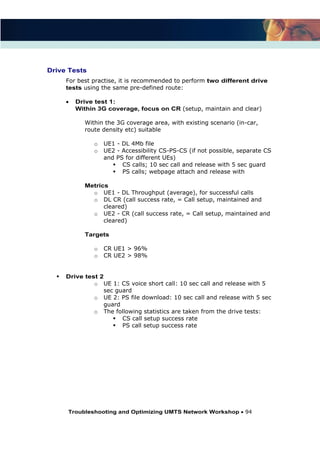
  • 11.
    Troubleshooting and OptimizingUMTS Network Workshop 11 Chapter 2 Scanner Thresholds, Preference & Attributes Thresholds are user-definable values that can be used as constants in event detection and queries. For example: Uu_Scan_Poor_RSCP_Threshold defines the minimum value which the RSCP signal is considered to be poor. This threshold has a default value of -95 dBm, but users can change this to any other value. Using a threshold (rather than a hard-coded value) in queries and event diagrams makes it is easy to adjust them for individual requirements. Tools Display Thresholds UMTS Scan_Coverage Scanner Thresholds Uu_Scan_PilotPollutionThreshold (Scanner Pilot Pollution) Recommended value is -15 dB and value should vary between -10 and -18 dB. By changing this threshold value, it will directly affect the Uu_Scan_PilotPollution attribute. Uu_Scan_TooManyServersThreshold (Scanner Too Many Server Event) Recommended value is 5 dB and value should vary between 1 and 10 dB. By changing this threshold value, it will directly affect the Uu_Scan_TooManyServers attribute.
  • 12.
    Troubleshooting and OptimizingUMTS Network Workshop 12 Scanner Attributes (Coverage Related Events) Uu_Scan_PilotPollution (Pilot Pollution) Actix Software s event detection allows you to visualize pilot pollution on a map with drive test scanner data. The pilot pollution event occurs when 4 or more pilots with Ec/Io greater than Uu_PilotPollutionThreshold are can be seen. Uu_Scan_TooManyServer (Too Many Servers) Due to UMTS uses relative levels to evaluate additions/removals to the active set. Actix Software has a different event that allows the engineer to visualize pilot pollution relative to the best server. The Too Many Servers event behaves similarly like the pilot pollution event except with relative levels. The event occurs when 4 or more pilots with Ec/No within Uu_Scan_TooManyServersThreshold dB of the best server (CPICH_Scan_EcIo_SortedBy_EcIo [0]). Other Information Attributes (Emulated Active Set Module) EventCellAddition EventCellRemoval EcIo_in_ActiveSet EcIo_in_MonitoredSet CPICH Pollution Analysis and Handoff Analysis are both based on a calculated Active Set, which is determined by the Emulated Active Set module. The Emulated Active Set module implements the 3GPP handoff algorithm and uses scanner Ec/Io measurements in conjunction with user-specific 3GPP handoff thresholds to emulate the Active Set at each point along a drive test.
  • 13.
    Troubleshooting and OptimizingUMTS Network Workshop 13 A sample set of scanner data for three SCs with individual colour and vertical lines indicating transitions of pilots into and out of the Active Set is shown below: Using Scanner Ec/Io measurements to implement 3GPP handoff algorithms for the Active Set Scanner Preferences The WCDMA options within the General Settings group in the Tool Preferences dialog control the simulated active set feature. When this feature is selected, Analyzer calculates a UMTS simulated active set from the scanner data, as it envisages the handset would see it. You can configure the simulated active set and specify the maximum size of the simulated active set in the range 1 8. The simulated active set feature was useful in the early days of WCDMA technology, when logging devices were not readily available. Now that they are available, you may want to turn off the feature.
  • 14.
    Troubleshooting and OptimizingUMTS Network Workshop 14 Setting 3GPP handoff algorithm attributes including Reporting Range: Hysteresis Event and Time to Trigger Event The parameters depicted in the picture are based on the WCDMA events defined in the 3GPP TR 25.922 V4.1.0 (2001-09) Radio Resource Management Strategies specification. Max. Active Set Size (up to 8) specifies the maximum size of the Active Set (1-8). Disable active set simulation. Select this check box to turn off the active set simulation feature. This will usually give faster file loading times and will mean that the lines to cells feature in the map will be based on the measured SC (if it's available) rather than the simulated active set. This option is off (deselected) by default.
  • 15.
    Troubleshooting and OptimizingUMTS Network Workshop 15 UE Thresholds, Preference & Attributes UE Thresholds Tools Display Thresholds UMTS UE_Coverage Uu_EcNoInterferenceThreshold (System Interference) Recommended value is -15 dB and value should vary between -10 and -18 dB. Uu_RSCP_InterferenceThreshold (System Interference) Recommended value is -80 dBm and value should vary between -60 and -90 dBm Uu_Poor_EcNoThreshold (Coverage Limited, Poor Downlink and Poor Uplink Coverage) Recommended value is -15 dB and value should vary between -10 and -18 dB Uu_Poor_RSCP_Threshold (Coverage Limited, Poor Downlink and Poor Uplink Coverage) Recommended value is -95 dBm and value should vary between -85 and -105 dBm Uu_HighUE_TxPower (Poor Uplink Coverage) Recommended value is 15 dBm and value should vary between 0 and 25 dBm Uu_LowUE_TxPower (Poor Downlink Coverage) Recommended value is -15 dBm and value should vary between 0 and -30 dBm Uu_CoverageLimitedUE_TxPowerThreshold (Coverage Limited) Recommended value is 10 dBm and value should vary between 0 and 25 dBm
  • 16.
    Troubleshooting and OptimizingUMTS Network Workshop 16 Uu_PilotPollutionThreshold (Pilot Pollution) Recommended value is -15 dB and value should vary between -10 and -18 dB Uu_CallSetupFailure_Num_RRCConnReq (Call Setup Failure event) Recommended value is 3 and value should vary between 1 and 5 Uu_CallSetupFailure_TimeDelay (Call Setup Failure event) Recommended value is 2 and value should vary between 1 and 45 seconds Uu_TooManyServersThreshold (Too Many Server event) Recommended value is 5 dB and value should vary between 1 and 10 dB Uu_t309_wait_timer (CellChangeOrderfromUTRAN process) Recommended value is 5000ms (5Sec) and value should vary between 5000 and 10000. Uu_ReEstablishment_wait_timer (Reestablishment process) Recommended value is 0ms and value should vary between 0 and 15000 Note: Zero = disables this feature. Uu_wait_timer_complete (Change Reconfig process) Recomended value is 8000ms (8Sec) and value should vary between 0 and 15000 Note: Zero = disables this feature.
  • 17.
    Troubleshooting and OptimizingUMTS Network Workshop 17 UE Attributes (Coverage Related Events) Uu_SystemInterference (System Interference) The system interference event occurs when the CPICH_EcNo_in_ActiveSet is less than Uu_EcNoInterferenceThreshold (in dB) and the CPICH_RSCP_in_ActiveSet is greater than Uu_RSCP_InterferenceThreshold (in dBm). Example of system interference before a dropped call Uu_PoorUL_Coverage (Poor Uplink Coverage) The poor uplink coverage event occurs when the CPICH_EcNo_in_ActiveSet is greater than Uu_Poor_EcNoThreshold and the CPICH_RSCP_in_ActiveSet is greater than Uu_Poor_RSCP_Threshold and UeTransmittedPower is greater than Uu_HighUE_TxPower threshold. Example of poor uplink coverage before a dropped call
  • 18.
    Troubleshooting and OptimizingUMTS Network Workshop 18 Uu_PoorDL_Coverage (Poor Downlink Coverage) The poor downlink coverage event occurs when the CPICH_EcNo_in_ActiveSet is less than Uu_Poor_EcNoThreshold and the CPICH_RSCP_in_ActiveSet is less than Uu_Poor_RSCP_Threshold and the UeTransmittedPower is less than Uu_LowUE_TxPower threshold. Example of poor downlink coverage before a dropped call Uu_CoverageLimited (Coverage Limited) The coverage limited event occurs when the CPICH_EcNo_in_ActiveSet is less than Uu_Poor_EcNoThreshold and the CPICH_RSCP_in_ActiveSet is less than Uu_Poor_RSCP_Threshold and the UeTransmittedPower is greater than Uu_CoverageLimitedUE_TxPowerThreshold. Example of coverage limited problem before a dropped call
  • 19.
    Troubleshooting and OptimizingUMTS Network Workshop 19 Uu_PilotPollution (Pilot Pollution) Actix Software s event detection allows you to visualize pilot pollution on a map with drive test data. The pilot pollution event occurs when 4 or more pilots with Ec/No greater than Uu_PilotPollutionThreshold are in the active or monitored set. Look at each SC and try to find out what is the best way to optimize the area. See the training document for a full detailed description on optimization techniques. Example of pilot pollution before a dropped call
  • 20.
    Troubleshooting and OptimizingUMTS Network Workshop 20 Uu_TooManyServer (Too Many Servers) Due to UMTS uses relative levels to evaluate additions/removals to the active set, RVS has a different event that allows the engineer to visualize pilot pollution relative to the best server. The Too Many Servers event acts like the pilot pollution event except with relative levels. The event occurs when 4 or more pilots with Ec/No within Uu_TooManyServersThreshold dB of the best server (Uu_ActiveSet_EcNo_0) are in the active or monitored set. Look at each SC and try to find out what is the best way to optimize the area. See the training document for a full detailed description on optimization techniques. Example of too many servers around a dropped call
  • 21.
    Troubleshooting and OptimizingUMTS Network Workshop 21 UE Attributes (System Related Events) Uu_HandoverProblem (Handover Problems) Actix Software s event detection allows you to visualize handover problems on a map with drive test data. The handover problem event works as follows: o Event detection looks for a dropped call or call setup failure o It counts the number of times when the first best SC in the Monitored set is stronger than the first best SC in the Active set, within an 8-second window leading up to the drop. o If that number is greater than the number of times the Active set is stronger than the Monitored set, it sets a Handover problem (assuming we have no Active set update messages) Example of handover problems before a dropped call
  • 22.
    Troubleshooting and OptimizingUMTS Network Workshop 22 Uu_MissingNeighbour (Missing Neighbours) Actix Software s event detection allows you to visualize missing neighbour on a map with drive test data. The missing neighbour event occurs when a particular SC is not in the neighbour list and forces the call to drop. The following procedure is followed to trigger the event: o When the drop call occurs, a specific function looks for the next origination and gets the value of the new SC in the active set. If the new SC is different from the SC s in the active set before the call dropped, the function looks for the last neighbour list before the call dropped. If that same neighbour list does not contain the new SC, it is a possible missing neighbour. So, in other words: o If (SC in active set after drop call) <> (SC s in active set before drop call and Neighbour list before drop call) then missing neighbour o Of course, in this case, the engineer needs to understand the coverage issues. If the new SC is not meant to cover the specific area, optimization is probably the best solution and the engineer should not add the specific neighbour. Example of missing neighbour before a dropped call
  • 23.
    Troubleshooting and OptimizingUMTS Network Workshop 23 Attributes It is important to differentiate between the scanner and UE attributes. Upon loading a UMTS data file, several data groups are created for each device contained in the file. The UE (Samsung Mobile in above example) provides real measured values, while the scanner (Agilent in above example) provides measurements from all scanned SCs. The active and monitored set information in the following example are simulated, based on thresholds which are set in the Tools preferences. Different UE s provides different Attributes. Some provides trace mobiles log data such as BLER, but others don t. The presented attributes under the UE group are the ones provided by the UE manufacturer. Note that the UE call trace attributes sometimes do not contain what you expect. For example: The Samsung mobile gives attributes on monitored, detected and active set count. These are not totally correct by just taken from the amount of measurements in the uplink measurement report.
  • 24.
    Troubleshooting and OptimizingUMTS Network Workshop 24 Example Example below shows that measurements obtained from an uplink measurement report might not be always correct. A measurement report gives measurement information on all detected SC of the combined neighbour list. Screenshot below shows that the attribute is not giving the expected data. On the measurement point the active set count is 6 (impossible). The following tips should be considered when measuring the network: Always use the same trace mobiles Make sure all attributes you use contain the information you want Filter out the non-diagnostic attributes or attributes which are meaningless to you
  • 25.
    Troubleshooting and OptimizingUMTS Network Workshop 25 UMTS Handset Data Groups in Actix Software Upon loading a UMTS handset file, note that several data groups are created. These data groups are common in Analyzer to all UMTS handset files, regardless of data collection vendor. Each group will appear as long as at least one parameter within that group was collected by the device. The following data groups are created under the UMTS node: Downlink Measurements This group contains Uu interface measurements reported by the mobile. Pilot Measurements This group contains signal strength measurements for individual SCs detected within the logfile. Dedicated Radio Link Once a call has been established, parameters that are associated with the SCs serving the call, such as Handoff State, are contained here.
  • 26.
    Troubleshooting and OptimizingUMTS Network Workshop 26 Uu_RRC Radio Resource Control is the protocol layer governing air interface communication within the UMTS network. Parameters associated with protocol messaging can be found in this group. Event Data Call events triggered by the current state of the UMTS mobile. If an event is not present in the tree, it did not occur in the file. This group also contains events with user-definable thresholds, such as Uu_PilotPollution and Uu_CoverageLimited. Statistics Data This group contains statistics calculated based on UMTS protocol messaging, including Call Duration and timing components of Call Setup Time. Vendor Specific This group contains parameters unique to a specific type of data collection equipment. Rake Finger Measurements This group (Qualcomm chipset handsets only) provides individual finger measurements, including multi- path measurements for the same SC.
  • 27.
    Troubleshooting and OptimizingUMTS Network Workshop 27 UMTS Scanner Data Groups in Actix Software Due to the nature of the coding scheme in a UMTS system, scanner data is an invaluable tool for detecting problems in the network. Because SCs are reused across a UMTS network with a much lower frequency than in an FDMA/TDMA network, each SC scan can be directly linked to a particular site or sector in the network. The following data groups are created under the scanner stream: Other This group contains scanner measurements concerning RSSI, Chip Offset, Carrier Error and the Scan Code Group. Nth Best This node contains ranked measurements for EcNo, RSCP, SC and PathLoss. Within each group, the 0 element contains the best performing data. For example, CPICH_Scan_EcIo_SortedBy_EcNo_0 gives the strongest EcNo of all SCs scanned. Ec/Io This group contains the interference- to-chip-energy measurements organized by various dimensions. RSCP This group contains the Received Signal Code Power organized by various dimensions. Delay Find the CPICH Scan Delay Spread for each SC in this group.
  • 28.
    Troubleshooting and OptimizingUMTS Network Workshop 28 Pilot Measurements Find the CPICH PathLoss for each SC in this group. Active Set This group contains simulated Active Set measurements based on scanner data and the user-defined WCDMA settings in the Tools Preferences dialog. Monitored Set This group contains simulated Monitored Set measurements based on scanner data and the user-defined WCDMA settings in the Tools Preferences dialog. Event Data Events in this group are based on the simulated Active Set and Monitored Set SCs based on scanner data and user defined thresholds set under WCDMA in the Tools Preferences dialog.
  • 29.
    Troubleshooting and OptimizingUMTS Network Workshop 29 Technology- Independent Data Under the Independent folder, you may find some technology independent parameters decoded in Actix Software such as GPS measurements, device- specific data, and internal Analyzer messages: GPS Data This group contains mobile longitude, latitude, distance traveled, and speed. Message Info The date and time for the start of the data stream can be found in this group. This information is useful when building report templates. Site Data Node If a cell site database is being used in the Analyzer, the software will automatically calculate these measurements that take both the drive and the cell site information into account. Some of the measurements contained here are: ServingCellDistance Distance (in meters) to the serving sector NeighborCellDistance Distance(in meters), to non-primary serving sectors
  • 30.
    Troubleshooting and OptimizingUMTS Network Workshop 30 File Info In this node find label and timestamp information for the logfile under investigation. Device Info This group contains settings for the mobile device on which data is logged. Vendor Specific Vendor Specific measurements may be grouped here or under the UMTS node. In either case, this group provides measurements specific to the particular collection device used.
  • 31.
    Troubleshooting and OptimizingUMTS Network Workshop 31 Exercise 1: Exam Your Own Data (Attributes) Exam these attributes from your UE and scanner logfiles by displaying them on a map, tables or charts: Exam the attributes from the UE and scanner Find out the interaction between the values under tab Nth best and Ec/Io
  • 32.
    Troubleshooting and OptimizingUMTS Network Workshop 32 Chapter 3 Site and Cluster Integration This chapter explains what the radio engineering tasks are and the tests to be performed during site and cluster integration. This includes the phase between site commissioning and site for commercial use. This RF intervention (initial tuning and optimization) happens after the design part and before the ongoing optimization phase: Site Integration Site integration is performed to test the well functioning of the Node B, hardware (e.g. installation of aerials and cabling), and software (e.g. correct parameters downloaded, connection with RNC functioning). Cluster Integration Cluster integration is performed to maximize the coverage in the cluster with the available sites. Cluster integration is coverage based and as such it is performed in an unloaded network. After cluster integration (initial tuning), ongoing optimization tasks will be performed. These actions are based upon (real) traffic KPI s and eventually trouble tickets. If a new site is needed, the steps in site integration will be repeated. Detailed Radio Design using Planning Tool Software Initial Tuning and Optimization: Site and Cluster I ntegration Performance Engineering and Ongoing Optimization
  • 33.
    Troubleshooting and OptimizingUMTS Network Workshop 33 Integration Pre-Requisites Before you start to integrate a site or/and a cluster, the following roll-out procedure should be performed and make sure the site and integration information documentation is available. This section elaborates how a site and cluster is integrated (from the beginning to the end of roll-out process). It also defines the integration pre-requisites and how the integration is triggered or performed. 1. Roll- out Procedure The following definitions and requirements should be taken into account in the roll-out procedure: a) Cluster definition Cluster definition is performed at the stage of network design and according to the rules and thresholds coming from the link budget analysis. In general clusters will contain between 15 and 20 sites. b) Radio Site definition This step is taken place before the site construction begins. The radio engineer will define the initial site configuration and decide on the followings: Node B type Sector definition Antenna type per sector Azimuths and tilts per sector Initial CPICH power setting Antenna heights and cable lengths Additional radio equipment (boosters, MHA, combiners, etc) The site will be constructed and implemented according to these definitions. It is important to keep track of this information and check the integrated site against these site definitions.
  • 34.
    Troubleshooting and OptimizingUMTS Network Workshop 34 c) Data build The RF part of the data build can be prepared just after the installation and measurement of the radio chain of the site. In this stage the following data needs to be prepared for each cell: Scrambling Code (from planning tool ) Cell Id (from local rule) Local Cell Id (can be equal to Cell Id) SAC (service area code) (can be equal to Cell Id) LAC (location area code) RAC (routing area code) CPICH power (set to 30dBm at TMA level per default) Cable loss (from installation measurements) 2. Site and Cluster Integration Information Documents Before you start to integrate a site and cluster, the following documentation should be available on the cluster: a) Simulation results on final design of the cluster (all sites in nominal plan): CPICH RSCP CPICH Ec/Io Pilot Pollution Overlap b) Simulation results on detailed design: CPICH RSCP CPICH Ec/Io Pilot Pollution Overlap c) Simulation results on individual sites: CPICH RSCP d) Initial 3G-3G neighbour plan: performed in planning tool according to local neighbour planning guidelines At this point, the design will be pre-optimized for coverage. It is clear that the design will not completely fulfill the coverage objectives of the cluster if not all planned sites are ready for integration. These simulations will help you (RF engineer) to detect trouble areas in the cluster where you should be focus on during cluster integration.
  • 35.
    Troubleshooting and OptimizingUMTS Network Workshop 35 Trigger for site integration The trigger for site integration can be given site per site after installation. Site integration process, as described further in this training course will lead to cluster integration. Trigger for cluster integration The trigger for cluster integration is given on a per cluster basis. Cluster integration can start when all sites in cluster for which detailed design is performed which have had a successful site integration. Any site reaching the status of ready to build , but not previously included in the frozen detailed design, will only be considered in a later phase when it is decided to retune the cluster (see later).
  • 36.
    Troubleshooting and OptimizingUMTS Network Workshop 36 Drive Tests Chapter 4 Site Integration Purpose of Drive Test When a single site or a new site is integrated, it is important to complete the I&C tests (on-line commissioning tests mainly). This verification shall be done by performing some drive tests around each site clockwise and anti-clockwise at 25-35 percent of the expected cell range (50m 100m in build up area). A scanner and a trace mobile are used to verify if Node B is functioning well. Traces are collected from the scanner and the mobiles using any measurement data collection tool. First analysis is done live on the measurement trace tool. Post processing is done with Analyzer by an optimization engineer. The purpose of the site verification is NOT to propose optimization changes for the aerial system or to propose new parameter settings. At this stage, the neighbour planning is not complete and the cluster is not completely build.
  • 37.
    Troubleshooting and OptimizingUMTS Network Workshop 37 Site I ntegration Procedure A) Node B installation check The purpose of Node B Installation check is to ensure the Node B is installed and integrated correctly. The focus will be on the following points: Node B up and running; NO ALARMS Feeders connected correctly Antenna clearance OK B) Drive test procedure Choose position in the middle of cell 1 (main beam of antenna) at max 100m (in car or outdoor). Start up UE and scanner logging tool and start logfile Setup CS voice call or CS video call to test number Go (drive) to middle of cell 2, clockwise and check: o SHO functionality (link addition and link removal) o CPICH RSCP (should be > -70 dBm when outdoor; in the middle of the main beam of the antenna; and line of site. o UE TX pwr (should remain below 0 dBm all the time when outdoor, ) o Cell ID (should be the planned one for the SC Terminate CS call and setup new call Go to cell 3 and verify identical parameters Stop and restart CS call and go to cell 1 while checking the same parameters Redo the procedure counter clockwise but with continuous call Setup PS call (ftp download of 10 Mb file) and drive clockwise route
  • 38.
    Troubleshooting and OptimizingUMTS Network Workshop 38 Post Processing and Analysis Using Actix Software With all the information gathered during the drive test, we can now using Actix Software to analyze the following information to determine if any hardware problem or installation issues occur: SHO functionality (RL addition and deletion in both directions) Call setup on each cell Normal output power behaviour (roughly) Crossed feeders (through SC) and correct identifier parameters (Cell ID) Antenna orientation PS throughput MHA functionality The following information mentioned above can be obtained by examining and analyzing the attributes using Actix Software. 1. All Radio Information (RF Condition) Active Set RSCP (Scanner and UE) EcIo (Scanner and UE) UE TxPower 2. Call Event CS Event PS Event 3 . MHA Malfunction Conclude if Malfunction is due to high UL Tx Power 4. Site Integration Report If all the attributes is OK, the site is considered verified and can be included in the cluster optimization phase. Follow by that, a site integration report should be created with the following information: Test result summary Coverage plots of each cell Parameter summary
  • 39.
    Troubleshooting and OptimizingUMTS Network Workshop 39 Example: How to Determine Hardware Problem or Crossfeeder During Site Integration? The following example demonstrates how to determine hardware problem or crossfeeder during site integration. After taking the measurements from a site integration drive test, the optimization engineer will check the measured data for the following conditions: 1. RF Condition a) Active Set By examining the Active Set attributes, you can find out the answers of the following questions: Are the correct Scrambling codes implemented on each cell compared with the data fill values? Are all intra-site SHO working, i.e. active set updates in both directions: addition and deletion? Screen Layout of Active Set (UE and Scanner) and Tx Power
  • 40.
    Troubleshooting and OptimizingUMTS Network Workshop 40 Good Practice: Screen layouts are very useful to have an immediate view of how well a site is functioning. The screen shots from previous page shows: Information to look for Attribute Site environment & parameter Display new map to view all available sites Active set size, simulated from scanner Uu_SimulatedActiveSet_EcIo_0; Uu_SimulatedActiveSet_Count (if you want to know the count) Active set size from UE Uu_ActiveSet_EcN0 UL Tx power UE_TxPow b) RSCP (scanner/mobile) for all SC of Node B By displaying the Serving SC information (from UE and Scanner) on maps, you can quickly determine if any cross feeder (where dominant SC not in its supposed best server area) occurs. By displaying the EcIo and RSCP information from scanner, you ll obtain an overview of the quality and coverage of your network. Screen Layout of RSCP and EcIo of UE and Scanner
  • 41.
    Troubleshooting and OptimizingUMTS Network Workshop 41 The screenshot from the previous page shows: Information to look for Attribute Serving SC from UE Uu_ActiveSet_SC_0 Best SC from Scanner CPICH_Scan_RSCP_For_SC_xxx Best EcIo from scanner CPICH_Scan_EcIo_SortedBy_EcIo_0 Best RSCP from scanner CPICH_Scan_RSCP_SortedBy_EcIo_0 Things to be considered: Is the CPICH RSCP a normal value? Should it be better than -70 dBm, close to the site (< 150m) and outdoor? Is the CPICH Ec/Io a normal value? Should it be better than -8 dB, close to the site (< 150m) and outdoor? c) Ec/Io (scanner/mobile) for all SC of Node By displaying the EcIo information from UE and scanner, you ll obtain an overview of the quality of your network. (See example above). Thing to be considered: Is the CPICH Ec/Io a normal value? Should it be better than -8 dB if it is close to the site (< 150m) and outdoor? d) UE TX power By displaying the UE TxPower information on a map, it will quickly and easily detect any hardware or installation issue on the downlink path (from Power Amplifier to antenna positioning). The view immediately shows that there are problems with this site. Thing to be considered: Is the UE Tx Power a normal value? Should it be less than 0 dBm if it is close to the site (< 150m) and outdoor. Note: If there are some points above 0 dBm, it may be a mobile issue or an issue on the Uplink path.
  • 42.
    Troubleshooting and OptimizingUMTS Network Workshop 42 2. Call events By displaying the Call Events attributes, such as outgoing call, drop call, and call setup failures, you can obtain the following information: Call Setup Status PS Throughput CrossFeeder If issues occur, it is possibly come from the Node B (hardware) or from the CS core side. Information to look for Attribute Serving SC from UE Uu_ActiveSet_SC_0 Out Going Call OK Uu_OutgoingCall_OK Call Setup Failure Uu_CallSetup_Failure Drop Calls Uu_CallDropped
  • 43.
    Troubleshooting and OptimizingUMTS Network Workshop 43 a) Can we setup a CS call on all cells? To check if a call was successfully done on each sector and soft handover from one sector to another one was good, this is done using the message logging information, checking if call setup and active set update were successful in CS and in PS. b) PS throughput Do we have a normal throughput under good radio conditions and low load? Is it better than 90% of maximum RAB (currently 90% of 384 kbps is 350 kbps)? Any throughput that is lower than this may come from issues on mobile / laptop configuration, or issues on the PS side. c) Crossed feeders A typical problem that can be, and must be detected at this stage is the crossedfeeder problem. A SC (scrambling code) plot with the designated SC per cell indicated on the antenna is sufficient to detect the problem.
  • 44.
    Troubleshooting and OptimizingUMTS Network Workshop 44 3. MHA malfunction A MHA (TMA) malfunction will cause a very high uplink UE Tx Pwr on one cell. If the high TX power occurs on all cells of a Node B, it is more likely the Digital radio modulation (CE) unit has a malfunction. In the example below you can see this last phenomenon. A simple verification on the UL and DL coupling loss gives you an indication of the correctly applied UL Tx Pwr: Formulae: Coupling Loss Downlink (CL DL) CL DL = CPICH Tx Pwr at AE (30 dBm) CPICH RSCP Coupling Loss Uplink (CL UL) CL UL = UE Tx Pwr sensitivity at MHA input in unloaded condition (± -120 dBm) If |CL UL CL DL| > 8dB For most measurement points over the service area of the cell, the MHA functionality needs to be checked. This criteria can be checked with the Analyzer tool.
  • 45.
    Troubleshooting and OptimizingUMTS Network Workshop 45 Example The map below shows you the result of UE TxPower = 0 based on the criteria mentioned in the previous page. This means there is no problem. 4. Site Integration Report If all these parameters are OK, the site is considered as verified and can be included in the cluster optimization phase. Followed by that, a site integration report should be generated. The report should contain the following information: Test result summary Coverage plots of each cell Parameter summary
  • 46.
    Troubleshooting and OptimizingUMTS Network Workshop 46 Exercise 2 : Site Integration Exam your own data Load you own logfile Define views you want to see and create a screen layout. Make report on and save as report template if necessary.
  • 47.
    Troubleshooting and OptimizingUMTS Network Workshop 47 Chapter 5 Cluster Integration Procedure
  • 48.
    Troubleshooting and OptimizingUMTS Network Workshop 48 Drive test definition Due to the unique nature of each cluster that is defined, it is not possible to put a strict definition on how to plan the drive test route. However, some useful guidelines can be considered as follows: Soft Handoff Boundaries Because cluster testing is important in optimising the handover boundaries, it is necessary to ensure the drive test route will have the potential to handoff between each cell and each site. Looking at simulation estimations of where soft and softer handoff is predicted can help carry this out. If an RNC boundary falls inside a cluster, this boundary should be taken into account and drive tested intensively. Weak Coverage Areas It is essential to establish how the air interface performs in areas of predicted weak coverage. Using results gathered from the test measurement equipment will allow the user to establish what causes the weak coverage in a particular area and understand what steps can be taken to improve the situation. Pilot Non-Dominance Areas The presence of several pilots at a similar level in a particular location can lead to pilot pollution. Areas of pilot pollution can be estimated using the RF planning tool and the person defining the drive test routes can ensure that these areas are tested thoroughly. The scanning receiver will allow the user to measure the received Ec/Io of many pilots (independent of the Ec/Io threshold) and corrective actions can be taken. High Traffic Areas When carrying out loaded tests, it is imperative that the user includes areas of potential high traffic in the drive test route definition. This will then allow the user to analyse the drive test data and estimate what limitations of the air interface may have in these potentially high traffic areas. For cluster integration purposes only unloaded drive tests will be performed. This unloaded drive test of the tuned radio network will serve as a reference for any drivetest in loaded conditions which can be performed at later stages of the network development. As mentioned, it is necessary for the person defining the drive test routes to carry this task out in conjunction with viewing various simulation plots from the radio-planning tool.
  • 49.
    Troubleshooting and OptimizingUMTS Network Workshop 49 First Drive Test: SC scan and dedicated mode Drive Test 1: Unloaded scan test & Dedicated CS
  • 50.
    Troubleshooting and OptimizingUMTS Network Workshop 50 The unloaded scan test is intended to show the basic RF performance in the best-case scenario of the cluster, i.e. when the cells portray a minimal load. A test measurement system (which normally consists of a scanning receiver, location receiver and associated software) is used for this task. Analyzing the results on the downlink is straightforward using the software supplied with the measurement system and at this stage the only needed information. We run in parallel with the scanner a UE in dedicated mode (CS 64 videophony, because this is the most limiting service in uplink) in order to detect missing neighbours at this stage. UE and scanner are connected to external (outdoor) antennas. The basic RF performance mentioned above includes: Identification of Coverage Holes Determining handoff regions and neighbour relations Detecting areas of multiple pilot coverage (pilot pollution) Detecting cell overlap The following radio quality indicators need to be measured and as such be included in the log mask of the measurement equipment: P-CPICH Ec/Io Strongest Pilot P-CPICH Ec/Io for best N pilots (above a certain threshold Ec /Io, e.g. 15dB) RSCP RSSI (Io) P-SCH Ec/Io S-SCH Ec/Io Delay Spread The outcome of the drivetest provides he RF engineer the opportunity to check the coverage quality of the CPICH. Based on this check, he/she will be able to decide what to be changed. The changes include: Antenna Type: If the chosen antenna cannot fulfil the coverage objectives of the cell Antenna Azimuth: If the coverage objectives are not met in a certain area or if the cell induces too much interference along a street (canyon effect) Antenna Tilt: If a coverage problem occurs at cell boarder: Below threshold: up tilt Too much above threshold: down tilt
  • 51.
    Troubleshooting and OptimizingUMTS Network Workshop 51 Preference is given to adapt electrical tilt above mechanical tilt. Only in special cases mechanical tilt is preferred. The optimization changes should result in an increase of the number of measurement points with good coverage. This good coverage means that the following conditions are fulfilled for the measurement point: Criteria DU Area Urban SU Deep Indoor SU Indoor Daylight Best CPICH RSCP > -82 dBm -82 dBm -83 dBm -90 dBm Best CPICH Ec/Io > -8 dB -8 dB -8 dB -8 dB 4th best CPICH RSCP < Best CPICH RSCP -8dB Best CPICH RSCP -8dB best CPICH RSCP -8dB best CPICH RSCP -8dB 2nd best CPICH RSCP < -71 dBm -71 dBm -72 dBm -79 dBm
  • 52.
    Troubleshooting and OptimizingUMTS Network Workshop 52 Important Criteria for Cluster Integration There are four important criteria for best practice while performing a cluster integration drive test: Criteria 1: Optimizing UL Coverage Criteria 2: Optimizing DL Coverage Criteria 3: Avoiding Pilot Pollution Criteria 4: Avoiding Cell Overlap The first two criteria are the pilot coverage criteria including slow fading losses. They are drawn from the link budget calculation. Bear in mind that these pilot coverage criteria give the uplink coverage indication for the limiting service for the morphology only when CPICH power settings are set to its default values: 30 dBm at antenna entrance The third criteria is taken from the pilot pollution criteria and defined for 3G radio design. The fourth criteria is taken from the cell overlap criteria. The measurement conditions for pilot pollution and cell overlap cannot be taken immediately from the measurement but can be calculated using Actix Software. The plots and queries that need to be visualized, and examples of the reports that can be drawn from a drivetest, can be generated automatically (see the following pages). In this stage, apart from fulfilling the above mentioned criterion as much as possible, we should try to minimize interference induced or caused in neighbour cells. For this purpose we will visualize the CPICH RSCP per SC. From this plot we will detect any unnecessary coverage outside the area where the SC is dominant. Action should be undertaken to avoid overshooting and unnecessary leaking into neighbour cells.
  • 53.
    Troubleshooting and OptimizingUMTS Network Workshop 53 Criteria 1: Optimizing UL Coverage The map above is a combination of different drive tests in the same cluster. The attribute CPICH_Scan_RSCP_Sortedby_EcIo_0 is dragged and dropped different times on the map view. Best practice: The better solution is to create a super stream of all files from one cluster and perform the analysis on the super stream. In this map, we only have problems of UL coverage outside the cluster and in the centre of the 3 sites. The next necessary step is to find out where we have the dominant servers. We can do this by displaying the CPICH_Scan_SC_Sortedby_EcIo_0 attribute on the map to find out the dominance areas.
  • 54.
    Troubleshooting and OptimizingUMTS Network Workshop 54
  • 55.
    Troubleshooting and OptimizingUMTS Network Workshop 55 Criteria 2: Optimizing DL coverage Not much problem for the example above, only some degraded downlink quality at the edge of the cluster. This is due to edge of coverage.
  • 56.
    Troubleshooting and OptimizingUMTS Network Workshop 56 Criteria 3: Avoiding pilot pollution In order to detect pilot pollution, the following criterion needs to be checked: Number of [Best CPICH Ec/Io - CPICH Ec/Io 2 x SHO_ w indow ] 4 All measurement points fulfilling the criterion above suffer from pilot pollution and optimization changes need to be undertaken. The possible solution for pilot pollution can be: Up tilt the antenna providing the best server in the area in order to improve the CPICH RSCP Down tilt the antennas from interfering cells and as such reduce the RSSI. Change azimuth from antennas in order to create a dominant server in the polluted area. In the following graph you can detect an area of pilot pollution. The next step in this case would be to detect which of the surrounding sites is covering the area and to try to limit the amount of servers through up- and down tilting. That comes down to creating 1 or 2 dominant servers.
  • 57.
    Troubleshooting and OptimizingUMTS Network Workshop 57 Criteria 4: Avoiding cell overlap In order to detect cell overlap, the following criteria need to be checked if 3 rd best CPICH RSCP > -71 dBm For measurement points where the criterion is fulfilled, we need to adopt more down tilt in order to reduce the CPICH RSCP. As such mutual interference will be reduced in the neighbour cells and we will have a more stable system. In the example above, there is only some coverage overlap on area were the sites are built very close to each other. By applying the appropriate tilt and azimuth, you can avoid this problem.
  • 58.
    Troubleshooting and OptimizingUMTS Network Workshop 58 Missing neighbours Missing Neighbour Analysis is a fundamental aspect to WCDMA network optimisation. It should be performed as part of the rollout phase of a network to construct and/or optimise the adjacency lists of each cell; and throughout the life of the network as changes to traffic and tilt affect the coverage pattern and interference interaction between the cells. Missing Neighbour Analysis in Actix RVS solution has been designed to allow engineers to generate a list of suggested Missing Neighbours and allow engineers to visualise the suggested cells on a map. Full control of the suggestion criteria is included to allow for changes in clutter, terrain and rollout phase of the network. These suggestion criteria are described as follows: WCD Neighbour List Settings: Tools > Preferences These criteria are applied to the scanned signal measurements to build a suggested list of cells. Only cells which satisfy all criteria are included in the final list of suggested Missing Neighbours.
  • 59.
    Troubleshooting and OptimizingUMTS Network Workshop 59 Preference Settings Description Criteria Default Value Description
  • 60.
    Troubleshooting and OptimizingUMTS Network Workshop 60 Missing Neighbours Example The following example explains how the Missing Neighbours are calculated: Example Scanner Measurement drive. SC 103 on Site 1 is the strongest signal at point X In this example, at point X , SC 103 is the Nth_Best SC (CPICH_Scan_SC_SortedBy_EcIo_0). The closest cell to point X is at Site 11 . Its adjacency list includes 101, 102, 201 and 202. At point X , the scanned list is as follows: S At point X , the strongest signal is SC 103 is at -5dBm. Applying the Reporting Range of 5dB creates a short-list of SC 202, 302, 203, 402 and 301 (greater than -10dBm). The signals from SC 101 and 303 are too weak to be considered. 1 Note: The scanner reports SC numbers, so Actix RVS selects the closest cell to the drive route at that time, with a matching SC.
  • 61.
    Troubleshooting and OptimizingUMTS Network Workshop 61 SC 202 is already defined as a neighbour of SC 103, so this is eliminated too, leaving us with a suggested list of 203, 302, 402 and 301. Applying the intersite distance threshold, SC 402 is over 5Km away from SC 103, so it is removed from the suggested list, leaving us with SC 203, 302 and 301. The angle between the point X and the azimuth of the SC s is now analysed. To be considered, the azimuth must fall with +/- 90 degrees of the line-of-sight vector from the point X to that site. To allow for the spread of beamwidth, half the beamwidth is added/subtracted to the azimuth to give extra tolerance of angle. Example of angle to site threshold for validation of SC 203, 302 and 302 When half the beamwidth is added/subtracted (depending on whether the azimuth is to the left or right of the vector connecting the scanner point and the cell) to the azimuth of the cell, the final criteria is applied to the cell. If the angle of the cell then falls within the angle setting in Tools Preferences the cell will be included in the suggested list. In the example above, SC 302 is included as a Missing Neighbour. The azimuth of SC 301 was originally outside our 90 threshold, but when subtracting half its beamwidth, it falls within our acceptable range so is therefore included as a Missing Neighbour. The azimuth of SC 203 + half its beamwidth still does not fall within our 90 threshold, so it is not included in the list.
  • 62.
    Troubleshooting and OptimizingUMTS Network Workshop 62 Our final list of Missing Neighbours is then 301 and 302. Due to the fact that SC 302 has a stronger EcIo value than SC 301 at point X , the Missing Neighbours at point X are as follows: Missing_Neighbours_0 = 302 Missing_Neighbours_1 = 301 ..relative to CPICH_Scan_SC_SortedBy_EcIo_0 = 103 at point X . This is repeated for all points in the scanned drivetest route, creating an array of SC s at each point, sorted by their EcIo value, which satisfy the selection criteria and are not currently defined as a neighbour of the Nth_Best_0 cell at that time. If the Only use Nth Best cell option is disabled, not only the Nth_Best cell will be considered. Using the principle that if cell A and cell B are within 5dB, and cell A and cell C are within 5dB, the relationship between cell B and cell C should be analysed too. This obviously increases where processing is needed at each point, and is recommended for neighbour list optimisation of more mature networks. Once the final list of suggested Missing Neighbours has been compiled, the results can be viewed in two ways: through the Accelerated Network Rollout Analysis pack report (Neighbour List Recommendations), and also by visualising them on the map/chart/table.
  • 63.
    Troubleshooting and OptimizingUMTS Network Workshop 63 Neighbour List Recommendations report Once this report has been run from the ANR analysis pack, the recommended additions/ removals / retentions are presented in a tabular format as follows: In this example, SC 110 (Site123-a) was the Nth_Best measurement for 5000 samples during the scanner measurement. It s current adjacency list includes SC 112 and 113. While SC 111 was the Nth_Best cells, there were 1250 samples of SC 200, 500 samples for SC 112 and only 5 samples for SC 113 (sorted by % samples). SC 200 is not already in the adjacency list for SC 110, all criteria have been met for this cell, so it is suggested as a Missing Neighbour. SC 112 was scanned enough times to recommend to be kept in the adjacency list. SC 113 (at the same site as SC 112, 3.5Km away from SC 110) was only scanned 5 times, so it has been recommended to be removed. NOTE: It is important to drive enough routes and collect enough data to ensure these cell suggestions are statistically valid.
  • 64.
    Troubleshooting and OptimizingUMTS Network Workshop 64 Missing and Removal Neighbour attributes In the workspace explorer, a new grouping has been introduced. Neighbour Analysis containing 2 sorted lists, for Missing Neighbour suggestions and Removal suggestions. Workspace Explorer showing new Neighbour Analysis group The lists are sorted by signal strength and contain the SC values of the cells in the list at each point in the scanned drivetest. The strongest Missing Neighbour (Missing_Neighbour_0) should be analysed first, as it could potentially be the strongest pollution source at that time. Drag the parameter onto the map and open the Top 10 Scan Measurements stateform (optionally dock it to under the Workspace Explorer). The legend of the map gives you the list of SCs that were the strongest Missing Neighbour at any point in the drive. The most frequent SC should be targeted first, and by selecting any point in the map, the stateform will synchronise to show the top 10 scanned measurements giving the Nth_Best SC at the top of the list2 . A decision needs to be made whether to add this suggested Missing Neighbour SC into the adjacency list of the Nth_Best SC. 2 In the case of repeated SC values, the closest cell with a matching SC to the Nth_Best_0 cell will be selected.
  • 65.
    Troubleshooting and OptimizingUMTS Network Workshop 65 Screenshot of Nth_Best SC (CPICH_Scan_SC_SortedBy_EcIo_0) plotted on the map. Missing_Neighbours_0 is added to the map, and synchronised to the Top 10 Scan Measurements stateform. The Display Cell Data view shows the adjacency list of cell exam ple01 8 4 c (SC 242). Once all the strongest Missing Neighbours have been analysed, the next strongest signal should be analysed. Following this process with ensure that the most important Missing Neighbours are analysed first. The same SC could appear as a Missing Neighbour for multiple Nth_Best cells, so it may be easier to create a Crosstab query with two dimensions: Missing_Neighbours_0 and Nth_Best_0, to give all occurrences of the combinations. This list can then be filtered from the Statistics Explorer to filter the map view for single SC combinations individually.
  • 66.
    Troubleshooting and OptimizingUMTS Network Workshop 66 Screenshot showing validation of intersite distance between Nth-Best SC 242 at site Example0184 and Missing Neighbour 202 at site Example0199. The map s distance tool has been used and the distance 1.7046Km is underlined.
  • 67.
    Troubleshooting and OptimizingUMTS Network Workshop 67 Dropped Call Analysis due to Missing Neighbours Neighbour list analysis can also be used verify the reason behind a dropped call. This method uses the process of combining the scanner and UE together and checking the Active and Monitored Sets for the UE against the scanned measurements at the point of a dropped call. Screenshot showing synchronised scanner and handset traces, indicating Missing Neighbour 202 (and differences between best scanned SC 242 and Active Set SC 338. This requires the scanner and UE traces to be collected at the same time, and for the resulting collection files to be superstreamed together (and correcting any time offset between the collection devices). See the online Help for instructions on superstreaming using Time Offsets. Once the files have been combined, parameters such as the UTRA_UE_CarrierRSSI and the Uu_CallDropped event can be dragged onto the map. By opening the UE Missing Neighbours stateform for the superstream and synchronising it with dropped call, the top 10 scanned measurements can be visually compared to the Active and Monitored sets for the UE at the time.
  • 68.
    Troubleshooting and OptimizingUMTS Network Workshop 68 Screenshot showing how dropped calls from the handset can be viewed with the Missing Neighbour attributes when the scanner and handset are synchronised. Here the Active Set and Monitored Set SC s are at very low RSCP values, and poor EcNo too. The scanner detected 3 other SCs, and a missing neighbour just before the drop. This allows the engineer to understand whether the UE had dropped a call due to a missing neighbour not being defined in the cell s adjacency list, or whether it was a handset problem, resulting in a neighbour that had already been defined not being added to the Monitored Set, and therefore never being able to be added to the Active Set.
  • 69.
    Troubleshooting and OptimizingUMTS Network Workshop 69 Missing Neighbours Attributes Uu_MissingNeighbour (Missing Neighbours) Actix Software s event detection allows you to visualize missing neighbour on a map with drive test data. The missing neighbour event occurs when a particular SC is not in the neighbour list and forces the call to drop. The following procedure is followed to trigger the event. When the drop call occurs, a specific function looks for the next origination and gets the value of the new SC in the active set. If the new SC is different from the SC s in the active set before the call dropped, the function looks for the last neighbour list before the call dropped. If that same neighbour list does not contain the new SC, it is a possible missing neighbour. So, in other words: o If (SC in active set after drop call) <> (SC s in active set before drop call and Neighbour list before drop call) then missing neighbour o In this case, the engineer needs to understand the coverage issues. If the new SC is not meant to cover the specific area, optimization is probably the best solution and the engineer should not add the specific neighbour. Example of missing neighbour before a dropped call
  • 70.
    Troubleshooting and OptimizingUMTS Network Workshop 70 Uu_UE_NbrList, Uu_UE_NbrListCount (UMTS Neighbour List) These attributes are generated from Measurement Control signaling within file. The Measurement Control messages are sent from the network to the UE during a RRC connection. They can contain the list of the available neighbours (Scrambling codes) a UE should consider in it s measurement procedures. The first of these Measurement Control messages usually is the setup Mode, meanwhile the concessive ones are modify mode (i.e. changing the list). After the RRC connection procedure the algorithm, considers the first Measurement Control message to be the Setup and builds up an internal array of Scrambling Code with their corresponding index numbers (from attributes Uu_RRC_NewIntraFreqCell_intraFreqCellID and Uu_RRC_PrimaryCPICH_Info_primaryScramblingCode). This information is then used to populate attributes Uu_UE_NbrList and Uu_UE_NbrListCount (i.e. the number of SCs in the array). Concessive Measurement Control messages then modify this list, this continues until a new RRC Setup procedure is detected at which point the array is reset. Note: If there are any missing Measurement Control messages, this neighbour list will become out of sync with the true neighbour list being measured by the UE.
  • 71.
    Troubleshooting and OptimizingUMTS Network Workshop 71 Scanner Based Network Rollout Analyses: Neighbour List Analysis The Neighbour List Analysis provides an automated approach for generating optimal neighbour lists and overcoming major service degrading problems such as missing neighbours. The key components of the neighbor list module are: Generation of recommendations for optimal neighbor list settings based on UMTS/WCDMA scanner drive test data. Integration with Network Element Database to audit existing neighbor lists and suggest changes, and to correlate non-unique measured data attributes such as Scrambling Code with unique identifiers such as Sector ID. The Neighbor List Module implements the following algorithm: Ec/Io measurements below a noise floor are filtered out of the data set before analysis. User definable binning is used to reduce the number of measurement points in each bin to create one value per bin optionally, no binning at all can be applied and the analysis will run on the full data set. At each point along the drive test, a list of prospective neighbors is accumulated. If a neighbor signal is within a user-definable threshold of the best server in the active set, then it is considered as a potential neighbor. Using the geographic information in the log file and the SC, the network element database is searched to identify the Sector and Cell IDs of the SC. Once all the bins in the log file have been compiled into the symmetrical matrix, the results are compared against actual neighbor lists contained in the network element database and the following are calculated: o A list of sector IDs included in the matrix, but not the actual neighbor list. o A list of sector IDs included in the actual list, but not the matrix.
  • 72.
    Troubleshooting and OptimizingUMTS Network Workshop 72 Figure 1 - Neighbor List Analysis Example In the figure above, Cell A is the best server by CPICH Ec/Io. Cells B and C are within a user-specified threshold of Cell A's are Ec/Io, and so are counted as potential neighbors of A. Cell D is not within the required threshold and so is not counted as a prospective neighbor, nor is Cell E which did not have a measurable signal contribution at this point in the drive test. Here is a sample symmetric prospective neighbor array using sector IDs A, B, C and D: A B C D A N/A 10 2 15 B 10 N/A 40 0 C 2 40 N/A 12 D 15 0 12 N/A The limitations of this algorithm are: Results are only produced in areas that have been tested, so the test areas should be carefully considered before removing any Sectors from the neighbor lists. Drive test do not necessarily emulate the radio environment encountered by pedestrian and in-building users; however, walk tests and in-building test may be included in the analysis as desired. C Neighbour 2
  • 73.
    Troubleshooting and OptimizingUMTS Network Workshop 73 Perform the following steps to access the Neighbour List Recommendations report: Step Action 1 Ensure that a suitable UMTS scanner file and corresponding Network Element Database are loaded in the workspace. 2 Configuration parameters for this analysis can be set by selecting Tools Preferences WCDMA Neighbour List. The configuration preferences include the reporting range, maximum list size, addition and removal thresholds and minimum number of samples to include a server in the analysis. 3 From the main menu, select Analysis UMTS Accelerated Network Rollout. 4 Double-click on the Neighbour List Recommendations report icon in the lower pane of the Application Pack. If there is no cell site database corresponding to the current dataset, or if the current cell site database does not contain neighbor list information, the report will work, though the results in the Cell , Site and Action columns will be invalid. Figure 2 - Neighbor List Recommendations Report Output
  • 74.
    Troubleshooting and OptimizingUMTS Network Workshop 74 Interference Factor (F Factor) The DL interference factor (also known as F factor) for a mobile station is the ratio of received power from external cells over the received power of the serving cell. This factor mainly depends on the relative position of the mobile in the cell, the relative load of the neighbouring cells, the morphology of the environment and the degree of optimization of the network. The DL interference factor has a great impact on the required transmit power per service for one particular user. As such we need to limit as much as possible this value of F in the cell and particularly at the cell edge. In the below is given a distribution of F on an optimized network in a suburban environment. SU F_DL 23.1 16.7 12.2 9.8 8.2 7.2 5.7 4.3 3.4 2.6 6.6 26.7 16.5 11.9 9.6 7.9 6.7 5.1 4.0 3.1 2.4 6.1 33.0 16.5 11.0 8.9 7.3 6.0 4.5 3.5 2.6 2.0 4.6 0 10 20 30 40 50 Co verag e 0< FD L (iin ter / iin tra)< = 0,2 Co verag e 0,2< FD L (iin ter / iin tra)< = 0,4 Co verag e 0,4< FD L (iin ter / iin tra)< = 0,6 Co verag e 0,6 < FD L (iin ter / iin tra)< = 0,8 Co verag e 0,8 < FD L (iin ter / iin tra)< = 1,0 Co verag e 1 < FD L (iin ter / iin tra)< = 1,2 Co verag e 1,2 < FD L (iin ter / iin tra)< = 1,4 Co verag e 1,4 < FD L (iin ter / iin tra)< = 1,6 Co verag e 1,6 < FD L (iin ter / iin tra)< = 1,8 Co verag e 1,8 < FD L (iin ter / iin tra)< = 2 Co verag e FD L (iin ter / iin tra)> 2 F_DLcoveragepercentage H6 5 V6 T0 H6 5 V6 T2 H6 5 V6 T4 Area with too much interference The graph above shows the F factor on a map and indicates areas where we have too much interference. In this example, F factor is smaller than 2 covers 95% of the area.
  • 75.
    Troubleshooting and OptimizingUMTS Network Workshop 75 The F factor is also an indication of pilot pollution, where the higher the F factor is, the more the coverage quality will suffer from an increased load.
  • 76.
    Troubleshooting and OptimizingUMTS Network Workshop 76 DL Interference factor versus path loss The graph below shows a typical representation of the F factor versus the cell edge, expressed as a ratio of path loss i.e. the path loss of mobile position over the max permissible path loss at cell edge. Note: F factor will be equal to 2 when the mobile station is at the cell edge. Relation between interference factor F and fraction of path loss (path loss/path loss at cell edge) y = 0.0023e 6.7541x 0 1 1 2 2 3 3 4 4 0.40 0.60 0.80 1.00 1.20 Fraction DL PL F F Expon. (F) F Factor vs. Path Loss
  • 77.
    Troubleshooting and OptimizingUMTS Network Workshop 77 F Factor Report 0 1 2 3 4 5 6 7 8 -88.5 -91.5 -94.5 -97.5 -100.5 -103.5 -106.5 -109.5 -112.5 -115.5 -118.5 -121.5 -124.5 -127.5 -130.5 -133.5 -136.5 -139.5 -142.5 -145.5 -148.5 -151.5 -154.5 -157.5 -160.5 -163.5 -166.5 -169.5 -172.5 -175.5 -178.5 Path Loss (dB) in 3dB steps Ffactor -25 -20 -15 -10 -5 0 EcIo F Factor Report This graph is produced by the F Factor report. It shows the distribution of EcIo and F factor for different values of the pathloss. It gives us a signature for a certain area or cell and will give us visual information if a certain area is well-optimised or not. You can open this report at: Workbook Open Workbook/Report F_Factor Report.xls
  • 78.
    Troubleshooting and OptimizingUMTS Network Workshop 78 Example: Coverage Analysis Objective The objective of this example is to find out bad pilot coverage areas within the network. We will then determine whether the problem is localized, and the effect that the problem is having on the network quality. Attributes Uu_ActiveSet_RSCP_0 Uu_CallDropped Uu_IncomingCallSetupFail Uu_OutgoingCallSetupFail Uu_Trch_DownlinkBlerAgg CPICH_AllSets_UE_RSCP_For_SC Stateforms UMTS UE Active Set + Monitor Set Queries Poor Mobile Receive Power, or Low Mobile Receive Power (Condition: Uu_ActiveSet_RSCP_0 < -95dBm) Screen Layout UMTS Coverage Analysis Flirst click on the stream name, then click on Layouts UMTS UMTS Coverage Analysis
  • 79.
    Troubleshooting and OptimizingUMTS Network Workshop 79 Coverage Analysis Procedure Step Action 1 Superstream logfiles. 2 Display Uu_ActiveSet_RSCP_0, Uu_CallDropped, Uu_IncomingCallSetupFail and Uu_OutgoingCallSetupFail on the map. 3 Display Uu_ActiveSet_RSCP_0, Uu_TrCh_DownlinkBlerAgg, and ServingCellDistance on a table. 4 Apply Poor Mobile Receive Power or Low Mobile Receive Power. 5 Find and investigate further area with poor coverage and drop calls. 6 Use distance tool to find sites that provides adequate coverage to this region. 7 Un-apply filter and close all open windows. 8 Display Pilot Measurement CPICH_AllSets_UE_RSCP_For_SC for the three sectors that would be expected to provide coverage in problem area. 9 Investigate further to conclude your findings.
  • 80.
    Troubleshooting and OptimizingUMTS Network Workshop 80 Example: CPICH Pollution Analysis The CPICH or Pilot Pollution Analysis uses an Simulated Active Set to estimate which pilots would have been actively demodulated by the UE, and then detects other pilots above a user-definable threshold that cause excessive interference. Please see the Simulated Active Set section for more details on how the Active Set is estimated based on WCDMA scanner measurements. The pilot pollution algorithm has these components: Ec/Io measurements below a noise floor are filtered out of the data set prior to analysis. User definable binning is used to reduce the number of measurement points in each bin to create one value per bin optionally, no binning at all can be applied and the analysis will run on the full data set. At each point along the drive test, CPICH Ec/Io data for each Scrambling Code is used to assign SCs to an Active Set or a Pollution Set (please see the Simulated Active Set section for more details). The Pollution Set consists of all SCs that are not in the Active Set, and have a CPICH Ec/Io within a user specified pollution threshold of the strongest CPICH Ec/Io in the Active Set. Using the geographic information in the log file and the SC, the network element database is searched to identify the Sector and Cell IDs of the SC. A pollution array is created in memory which records the number of times each sector ID is seen as a source of pilot pollution. All bins in the log file are then processed into the pollution matrix.
  • 81.
    Troubleshooting and OptimizingUMTS Network Workshop 81 Figure 3 - CPICH Pollution Analysis Example In the example above, Cells A, B and C are part of the Active Set, as determined by the Simulated Active Set module. Cell D has a CPICH Ec/Io within a user-specified pollution threshold of the Active Set s best server Ec/Io, and so is counted as a contributer to pilot pollution at this point in the drive test. Cell E has a CPICH Ec/Io that is not within this threshold and so is not a pollution source. Shown below is a sample pollution array indicating the number of points at which each sector caused pilot pollution for sector IDs A, B, C and D: Sector ID Pollution Count A 0 B 150 C 45 D 12 Results are presented in the Pilot Pollution Analysis application report. In addition, Pilot Pollution may be geographically analyzed for each SC by accessing the Pollution_for_SC attribute in the workspace view. A Active Set
  • 82.
    Troubleshooting and OptimizingUMTS Network Workshop 82 Perform the following steps to access the Pilot Pollution Analysis report: Step Action 1 Ensure that a suitable UMTS scanner file and corresponding Network Element Database are loaded in the workspace. 2 From the main menu, select Analysis UMTS Accelerated Network Rollout. 3 Double-click on the Pilot Pollution Analysis report icon in the lower pane of the Application Pack. 4 Double-click on the Pilot Pollution Analysis report icon in the lower pane of the Application Pack. 5 Enter the Pilot Pollution Margin (dB). This margin is used to determine which pilots in the monitored set are within close proximity to the strongest pilot in the active set. As shown below, the Pilot Pollution Analysis Report indicates the worst interferers sorted by Scrambling Code: Figure 4 - Pilot Pollution Analysis Report Output
  • 83.
    Troubleshooting and OptimizingUMTS Network Workshop 83 Second Drive Test: Dedicated Mode with SC Scanning Drive Test 2: Dedicated Mode with SC Scanning
  • 84.
    Troubleshooting and OptimizingUMTS Network Workshop 84 Dedicated Drive Test The dedicated drive test is performed to check radio conditions in dedicated mode. For this test, two UE traces in dedicated mode will be logged, in parallel with a scan drive test. A call trace will be launched on both UEs in order to log uplink information and UE related Iub and Iu messaging. The two UEs will call each other, the mobile originating call will have automated call setup and release sequences. The measurement setup is identical as the first drive test (with external antennas). The configuration is as follows: UE 1 o video call (voice call if not possible) mobile originating o 90 seconds call o 10 seconds guard before new call is set up UE 2 o Video call mobile terminating The following results will be checked against the requirements: Criteria DU Area Urban Sub-Urban UE 1 Tx pwr < -2 dBm -2 dBm -2 dBm UE 1 BLER < 1% 1% 1% UE 2 Tx pwr < -2 dBm -2 dBm -2 dBm UE 2 BLER < 1% 1% 1% Apart from the coverage criteria, the dropped calls will be analyzed. The cluster integration is successful when no dropped calls are due to radio quality. Note that this is only applicable when the cluster is fully built. If radio drops are a consequence of a missing site (and the site is in the final design), they cannot be a blocking point for cluster integration at this point. Analyzing dropped calls to determine the cause can be done using Analyzer, which enables to see decoded RRC messages. A dropped call usually occurs during an abnormal behaviour in one of the following procedures: call setup CS and PS call clearing soft handoff If a call drops the messaging before the drop should be checked and compared with the normal messaging sequences.
  • 85.
    Troubleshooting and OptimizingUMTS Network Workshop 85 In order to find the cause for a dropped call, we should approach the problem in a structured way and always look at the different possible causes in the same way. Actix Software has many ways to endorse this procedure, and one of them is displaying the results on the Statistic Explorer. The sequence to check were the cause for dropping is can be as follows: Import and run Drop Analysis Crosstab Query to obtain the information mention below: a) Active Set CPICH Ec/Io (and CPICH RSCP) I nformation to look for If Yes, check if Ec/Io below the threshold? Out of coverage DL? High F factor? Due to pilot pollution? Low F factor and good RSCP? Due to load Ec/Io below the monitored set? Failed handover? Ec/Io below the scanned best SC? Missing neighbour? RSCP below 115 dBm? Out of coverage UL b) DL BLER Information to look for If Yes When DL BLER > 10% Start of DL channel limitation When DL BLER > 50% DL channel lost c) RRC Messages Information to look for If Yes Synchronize RRC message flow with drop Check last seconds messaging Normal termination with cause? Check cause Measurement reports Due to Failed HO? During active set update Radio synchronization
  • 86.
    Troubleshooting and OptimizingUMTS Network Workshop 86 Types of Drops (Radio and Non-Radio Related) : The typical types of radio drops are due to the following problems: Missing Neighbours Low RSCP or Low Ec/Io UE Tx Power The other types of non- radio related drops are due to the following problems: Mobile Issue Core Network Issue Types of Radio Drops Examples: 1. Missing neighbour See Dropped Call Analysis due to Missing Neighbours in pg 67. 2. Low RSCP or Low Ec/Io Low RSCP is mainly when there is no server in the area, while low Ec/Io is when there is no dominant server with a good quality. They may be combined as in this example: Call Dropped due to Low CPICH and Low RSCP
  • 87.
    Troubleshooting and OptimizingUMTS Network Workshop 87 The example shows a drop due to low CPICH RSCP. Further analysis will show that on this point, the situation could be avoided by optimising the cell with SC100. In this case there is no other way to optimize this area than adding a new site, as no other antenna change will improve the situation. Else low RSCP can be improve by up tilt, and low Ec/Io by giving only one sector dominant in the area where the drop occurs. 3. UE TX power No example from pre-launch. This will hardly ever happen since the measurements are taken out door, while our design is done for indoor coverage. The only possible occurrence of this problem is where we drive outside 3G coverage areas. This will only happen during the exit criterion drive test.
  • 88.
    Troubleshooting and OptimizingUMTS Network Workshop 88 Types of Non-Radio Related Drops Examples: Non-radio related drop example The reason of call drop in the example above is not very clear, but the BLER goes up to 100% and the serving cells are not the obvious ones. A downlink power limitation is probably the reason for this. 1. Mobile Issue CM service abort, pegged as a drop, but coming from a cancellation on mobile side 2. Core Network Issue Disconnect received as there are a temporary unavailability from the CS side.
  • 89.
    Troubleshooting and OptimizingUMTS Network Workshop 89 Example: Dropped Call Analysis Objective The objective of this example is to analyze each dropped call (10 seconds before and 5 seconds after) and report a possible diagnosis. Attributes Uu_ActiveSet_SC_0 Uu_IncomingCallOK Uu_OutgoingCallOK Uu_CallDropped CPICH_AllSets_UE_RSCP_For_SC Stateform UMTS UE Active + Monitor Set Queries UMTS Call Statistics query shows which File/Sector/Cell/Call ID that contains the drop call. Which one should we look at? Dropped Call Analysis query shows event and what causes the drop
  • 90.
    Troubleshooting and OptimizingUMTS Network Workshop 90 Dropped Call Analysis Procedure Step Action 1 Superstream logfiles. 2 Display Drop Analysis crosstab query or drop call related query on Statistic Explorer to obtain the following information: Drop Call RSSI BLER 3 Exam and further investigate the result (i.e: Check out which File contains the drop call). 4 Close Statistic Explorer and open the problematic file. Superstream them if there are more than 1 file. 5 Display Uu_ActiveSet_SC_0, Uu_IncomingCallOK, Uu_OutgoingCallOK, and Uu_CallDropped on the map. Display the relevant attributes on tables and chart if necessary. 6 Zoom in on the Call Dropped event. 7 Display UMTS UE Active + Monitored Set stateform. Note: Make sure the stateform is synchronized with the map. 8 Display the Direction arrow to verify the drive test route direction. 9 If necessary, select a data point shortly before the start of the call, and use the Replay Tool to step toward the drop. 10 Observe the information displayed on the stateform as the drop approaches. 11 Display Pilot Measurement CPICH_AllSets_UE_RSCP_For_SC for the three sectors that would be expected to provide coverage in problem area. 12 Investigate further to conclude your findings.
  • 91.
    Troubleshooting and OptimizingUMTS Network Workshop 91 Example: Call Setup Failure Analysis Objective The objective of this example is to investigate the call setup failure based on the layer 3 messaging for call setup procedures. Attributes Uu_IncomingCallSetupFail Uu_OutgoingCallSetupFail Uu_ActiveSet_SC_0 Uu_ActiveSet_EcNo_0 UE_TxPow Stateform N/A Queries UMTS Call Setup Statistic, or UMTS Call Setup Failure Analysis Application Packs UMTS Call Setup Analysis
  • 92.
    Troubleshooting and OptimizingUMTS Network Workshop 92 Call Setup Failure Analysis Procedure Step Action 1 Superstream logfiles. 2 Display Call Setup Statistic by File Name crosstab query or Call Setup Failure on Statistic Explorer to obtain the call setup information. 3 Exam and further investigate the result (i.e: Check out which File contains the call setup failures). 4 Close Statistic Explorer and open the problematic file. Superstream them if there are more than 1 file. 5 Run UMTS Call Setup Analysis Application Pack to learn the additional information about the call setup failure events by sorting the data by Failed MOC Setups. 6 In the same Application Pack, run the Call Setup Status report to find out the reasons why the call failed. 7 Switch back to the UMTS Call Setup Analysis Application Pack window. 8 In the same Application Pack, run the Call Sequence Outcome report to find out the procedures carried out during the call setup phase for each call on the drive route. 9 Display Uu_InComingCallSetupFail, Uu_OutgoingCallSetupFail, Uu_ActiveSet_RSCP_0, and Uu_ActiveSet_EcNo_0 on the chart. 10 Display Protocol Stack Browser (UMTS Radio Interface view) and synchronize with the chart 11 Observe if any unusual event such as if a mobile sends a CM Service Abort immediately after the CM Service Request; or any repeated Connection Request. 12 Display UE_TxPow on the same chart and synchronize with the call setup failure. 13 Investigate further to conclude your findings.
  • 93.
    Troubleshooting and OptimizingUMTS Network Workshop 93 Exit Criterion Drive Test In order to have a clear view on the performance of the cluster a third session of drive tests is organized. The aim of the exit criterion is to give us a quality indication on: the border of the cluster and interaction with neighbour clusters 3G 2G mobility status of cluster (KPI s) Accessibility Drive tests executed for the exit criterion need to fulfil different requirements than those performed for the first 2 drive tests in the FN8c procedure: Routes don t need to be extreme dense, but should be nicely spread over the cluster. One route inside 3G coverage and a second one on the boarders of 3G-2G coverage. One route need to be defined on cluster borders in order to check HO planning in between clusters Drive tests are taken in car (UEs and scanner)
  • 94.
    Troubleshooting and OptimizingUMTS Network Workshop 94 Drive Tests For best practise, it is recommended to perform two different drive tests using the same pre-defined route: Drive test 1: Within 3G coverage, focus on CR (setup, maintain and clear) Within the 3G coverage area, with existing scenario (in-car, route density etc) suitable o UE1 - DL 4Mb file o UE2 - Accessibility CS-PS-CS (if not possible, separate CS and PS for different UEs) CS calls; 10 sec call and release with 5 sec guard PS calls; webpage attach and release with Metrics o UE1 - DL Throughput (average), for successful calls o DL CR (call success rate, = Call setup, maintained and cleared) o UE2 - CR (call success rate, = Call setup, maintained and cleared) Targets o CR UE1 > 96% o CR UE2 > 98% Drive test 2 o UE 1: CS voice short call: 10 sec call and release with 5 sec guard o UE 2: PS file download: 10 sec call and release with 5 sec guard o The following statistics are taken from the drive tests: CS call setup success rate PS call setup success rate
  • 95.
    Troubleshooting and OptimizingUMTS Network Workshop 95 Cluster Integration Report In Actix Software, you can open the pre-defined report UMTS Cluster Acceptance App Pack (Application Pack) from Analysis UMTS Cluster Acceptance App Pack to obtain the following information: 1. Coverage plots from the planning tool 2. General description of the cluster with description of missing sites etc 3. The tools used and the references of the drive tests 4. Plots before (1st drive) and after (2nd drive) of a. Drive Test Route b. CPICH best EcIo c. RSCP best d. Pilot pollution e. Cell overlap f. Individual site problems like overshooting, missing neighbours, etc 5. Statistics on the 4 criteria before and after 6. All implemented network changes 7. Analysis of remaining dropped calls
  • 96.
    Troubleshooting and OptimizingUMTS Network Workshop 96 Exercise 3 : Cluster Integration Exam your own data Load logfile and check 4 criteria using Actix Software o Create query if necessary or run an application package/report if necessary. o Are there other ways to detect pilot pollution? o Study the dropped calls Load logfile with Troubleshooter and evaluate different approach. (if you have a Troubleshooter license)
  • 97.
    Troubleshooting and OptimizingUMTS Network Workshop 97 Site Integration in integrated cluster When a site needs to be integrated in a cluster an adapted process needs to be followed. Since the site was not part of the detailed planning of the cluster, optimization changes will be needed on multiple cells within the cluster (or neighbour cluster). Before retuning the cluster, individual site integration needs to be performed. Before doing so ensure that: Planned SC is OK and as such no SC reuse in and around the cluster Planned frequency is NOT the frequency of the macro layer which is on air. Radio configuration and radio parameters are pre-optimized for interworking with the cluster. The site integration will be performed as described earlier, with the following additions: A complete cell drive test is performed; meaning all streets in the cell from close range until out of coverage . As such the coverage footprint will be detected and this will be used for cluster re-tuning. Post-processing of data is mandatory since it will be used for tuning the Node B in question and all cells bordering the optimized coverage footprint of the cells. When preparing the optimization changes of the new Node B and the surrounding cells, try to achieve the following: Equal cell ranges, meaning the equal power boundary is in the middle of the two Node B s. To do so the integration drive test needs to projected on top of the reference drive test of the cluster Prepare neighbour relations and prepare deletion of existing neighbour relations All optimization changes need to be performed at the same time. At this moment the frequency of the site needs to be changed to the frequency of the macro-layer. As soon as possible a complete drive test needs to be performed of check if the site is successfully inter-working with neighbour sites and eventually further optimize the cluster.
  • 98.
    Troubleshooting and OptimizingUMTS Network Workshop 98 Chapter 6 Cell Reselection What is cell reselection? Cell reselection is the procedure where the UE reselects the cell from which he reads the BCCH. This happens in idle mode, but also in cell FACH and cell/URA PCH mode. In idle mode, the cell reselection can be detected through the decoding of a new BCCH. In cell PCH and cell FACH state, the reselection can be noticed by an RRC cell update message. The transitions from those states to idle mode and back can be detected by the following RRC messages: Physical channel reconfiguration Transport channel reconfiguration RRC connection release
  • 99.
    Troubleshooting and OptimizingUMTS Network Workshop 99 Reselection Criteria Cell is suitable if this condition is fulfilled: S-Criterion for FDD cells: Srxlev > 0 AND Squal > 0 Where: Squal = Qqualmeas - Qqualmin Srxlev = Qrxlevmeas - Qrxlevmin - Pcompensation Parameter Description Squal Cell Selection quality value (dB) Applicable only for FDD cells. Srxlev Cell Selection RX level value (dB) Qqualmeas Measured cell quality value. The quality of the received signal expressed in CPICH Ec/N0 (dB) for FDD cells. CPICH Ec/N0 shall be averaged. Applicable only for FDD cells. Qrxlevmeas Measured cell RX level value. This is received signal, CPICH RSCP for FDD cells (dBm) and P- CCPCH RSCP for TDD cells (dBm). Qqualmin Minimum required quality level in the cell (dB). Applicable only for FDD cells. Qrxlevmin Minimum required RX level in the cell (dBm) Pcompensation max(UE_TXPWR_MAX_RACH P_MAX, 0) (dB) UE_TXPWR_MAX_RA_CH Maximum TX power level an UE may use when accessing the cell on RACH (read in system information) (dBm) P_MAX Maximum RF output power of the UE (dBm)
  • 100.
    Troubleshooting and OptimizingUMTS Network Workshop 100 In order to perform cell reselection UE, measures and ranks the neighbour cells. For each type of neighbour cells (Intra freq, inter-freq, Inter-RAT) thresholds are definable. Measurements of neighbour cells will be triggered if these thresholds are reached. (Re-) Selected cell is a suitable cell (fulfils the S criterion) and is the best ranked cell (has the highest R). The UE shall however reselect the new cell, only if the following conditions are met: The new cell is better ranked than the serving cell during a time interval Treselection More than 1 second has elapsed since the UE has camped on the current serving cell In the below mentioned ranking criteria the following naming convention applies: s indicates the serving cell n indicates the candidate cell Measurement Rules If Squal > Sintrasearch, UE need not perform intra-frequency measurements. If Squal <= Sintrasearch, perform intra-frequency measurements. If Sintrasearch, is not sent for serving cell, perform intra-frequency measurements Reselect highest ranked if access not restricted: R-Criterion Rs = Qmeas,s + Qhysts Rn = Qmeas,n Qoffsets,n
  • 101.
    Troubleshooting and OptimizingUMTS Network Workshop 101 Intra Frequency Soft Handover Handover While moving from one cell to another, the best server conditions change and there is a need to redirect the mobile to a new serving base station. Unlike in GSM, WCDMA takes advantage of the time where the received signal strength of different pilot channels is within a certain window. During this time the mobile is connected to different serving base stations, this is called soft handover (softer if the serving cells are from the same Node B). In the case of soft handover the RNC performs selective combining on all the active links. This gives a typical gain of 4dB (2 links) or 5 dB (3 links), depending on the fading conditions. In the case of softer handover, the signals are rake processed in the Node B, and the gain is slightly higher. The following terminology is used to indicate the handover state of the mobile: Active Set The cells in the active set form a soft handover connection to the Ue Monitored Set The monitored set is the list of cells that the UE continuously measures, but which pilots are not strong enough to be added to the active set. This is the same set as the so-called neighbour list. Remaining Set Is the set of all the other scrambling codes in use, which are not in the active or the monitored set This name is not frequently used, only for planning purposes. You can obtain the Intra-Freq handover information by displaying the UMTS Handover Analysis (Intra Freq) screen layout from Layouts UMTS UMTS Handover Analysis (Intra Freq)
  • 102.
    Troubleshooting and OptimizingUMTS Network Workshop 102 Handover Events The following events and thresholds are in use in the WCDMA handover algorithm: Radio Link Addition Event 1A If Pilot Ec/Io > Best Pilot Ec/Io reporting range + hysteresis 1A for a period of t and the active set is not full, the cell is added to the active set. Radio Link Removal Event 1B If Pilot Ec/Io < Best Pilot Ec/Io reporting range hysteresis 1B for a period of t, then the cell is removed from the active set. Combined Radio Link Addition and Removal Event 1C If the active set is full and Best candidate Pilot Ec/Io > Worst Pilot Ec/Io + hysteresis 1C for a period of t, then the weakest cell in the active cell is replaced by the strongest candidate cell. These are the basic, standardised handover events and they are UE triggered event. As for other, more complicated handover algorithms will be vendor dependant and you can make use of the available measurement report data to obtain the information you need.
  • 103.
    Troubleshooting and OptimizingUMTS Network Workshop 103 UE Measurement reports Depending on the handover type (MEHO or NEHO), different measurement reporting criteria can be used. These measurement reports give the necessary information to the RNC (NEHO) or UE (MEHO) to trigger a handover, but they also allow the RF engineer to understand the behaviour of the UE/network in certain conditions (load, location). Measurements done by the UE are collectable during drive tests, whereas Node B measurements have to be found in the Iub traces. In a UE report, the following Ies are included to identify the neighbours; P- CPICH information, UTRA RF channel number (for IF measurement reports), BCCH freq (for GSM IS measurement report). Event triggered Intra-Freq measurement report Event 1A: P-CPICH enters the reporting range Event 1B: P-CPICH leaves the reporting range Event 1C: non active P-CPICH becomes better than an active one Event 1D: Change of best cell (affects the reporting range, but not the active set) Event 1E: P-CPICH becomes better than an absolute threshold plus optional hyst. Event 1F: P-CPICH becomes worse than an absolute threshold minus optional hyst. Periodic Intra-Frequency measurement report Event triggered measurement reports typically cause an active set update. If for one or another reason (hardware, software resources) this update cannot take place. The UE will switch to periodic reporting until, the HO took place, the conditions are no longer fulfilled or it has reached the maximum number of periodic measurement reports. Inter-Frequency Intersystem Measurement Report They are always periodic and the way of using the measurements in handover algorithms is not part of the standard.
  • 104.
    Troubleshooting and OptimizingUMTS Network Workshop 104 UE Internal measurements The UE internal measurements can be divided in two groups: measurements to indicate the status of the mobile TX power measurements to indicate the UE TX RX time difference The first group of measurements can be used by the RNC to trigger inter- RNC or system handover. The second group is used to adjust the downlink DPCH air interface timing, when the difference ion time between the UE uplink DPCCH/DPDCH frame transmission and the first significant path of the downlink DPCH frame from a measured active set cell becomes too large. Event 6A: UE TX power becomes larger than an absolute threshold Event 6B: UE TX power becomes less than an absolute threshold Event 6C: UE TX power reaches its minimum value (-50 dBm) Event 6D: UE TX power reaches its maximum value (21 dBm) Event 6E: UE RSSI reaches the UE s dynamic receiver range Event 6F: UE Rx Tx time difference for a radio link included in the active set becomes larger than an absolute threshold Event 6G: UE Rx Tx time difference for a radio link included in the active set becomes less than an absolute threshold
  • 105.
    Troubleshooting and OptimizingUMTS Network Workshop 105 Handover Attributes and Related Events Uu_HandoffOK ( Handoff OK) ActiveSetUpdate message (Uu_RRC_MsgType == ActiveSetUpdate) ActiveSetUpdateComplete message (Uu_RRC_MsgType == ActiveSetUpdateComplete) Note: This attribute is only incremented if the RRC event Diagram is in the RRC Connected State. Uu_HandoffFail (Handoff Failure) ActiveSetUpdate message (Uu_RRC_MsgType == ActiveSetUpdate) ActiveSetUpdateFailure message (Uu_RRC_MsgType == ActiveSetUpdateFailure) Note: This attribute is only incremented if the RRC event Diagram is in the RRC Connected State. Uu_Handover_toGSM (Handover to GSM event OK) HandoverfromUTRANcommand Uu_RRC_MsgType == HandoverfromUTRANcommand-GSM And then GSM_Um_Msg_Type == RR Handover Complete OR GSM_Um_Msg_Type == RR Measurement Report for 10 concessive message CellChangeOrderfromUTRAN Uu_RRC_MsgType == CellChangeOrderfromUTRAN And then GSM_Um_Msg_Type == RR Channel Request OR GSM_Um_Msg_Type == RR Immediate Assignment OR GSM_Um_Msg_Type == RR Immediate Assignment Extended Note: One of the above must be received before the expiry of the timer Uu_t309_wait_timer
  • 106.
    Troubleshooting and OptimizingUMTS Network Workshop 106 Uu_Handover_toGSM_Failure (Handover to GSM event Failure) HandoverfromUTRANcommand Uu_RRC_MsgType == HandoverfromUTRANcommand-GSM And then Uu_RRC_MsgType == HandoverFromUTRANFailure OR Any GSM or UMTS BCCH messages. OR GSM_Um_Msg_Type == RR Channel Request OR Uu_RRC_MsgType == RRC Connection Request CellChangeOrderfromUTRAN Uu_RRC_MsgType == CellChangeOrderfromUTRAN And then Uu_RRC_MsgType == CellChangeOrderFromUTRANFailure OR Any UMTS BCCH messages. OR Timer Expiry, which is configured by threshold Uu_T309_Wait_Timer OR Uu_RRC_MsgType == RRC Connection Request Uu_Handover_toUTRAN (Handover to UMTS event) Uu_RRC_MsgType == HandovertoUTRANcomplete Note: If a call is completed in GSM mode (after the handover from UTRAN to GSM), the call event will appear in the GSM section of the Workspace Explorer window. Uu_IRAT_Reselection3G2G, Uu_IRAT_Reselection2G3G (IRAT Reselection) If a device is determined to be idle, and system information from the other technology is seen then there will be an event to indicate there has been a technology change. Uu_CellReselection (Cell Reselection) If a device is determined to be in Cell Fach and there is a server cell change, then there will be a event to indicate there has been a Cell reselection.
  • 107.
    Troubleshooting and OptimizingUMTS Network Workshop 107 Uu_IFHO_OK (Inter-Freq Handover Event OK) This attributes indicates that a UE has performed an Inter-Freq handover successfully. Uu_IFHO_Failure (Inter-Freq Handover Event Failure) This attributes indicates that a UE has performed an Inter-Freq handover failure. Uu_UE_HandoffState (UE Handoff State) The handoff state algorithm has the following components: The Active Set information from the Handset Using the geographic information in the log file and the SC, the network element database is searched to identify the Sector and Cell IDs of the SC Handoff state is calculated by determining the configuration of the sectors in the Active Set
  • 108.
    Troubleshooting and OptimizingUMTS Network Workshop 108 Handoff Analysis The Handoff Analysis module uses the Simulated Active Set to determine the handoff state at each point along a drive test. Statistics on handoff state may then be calculated and presented in a report format. Excessive handoff state reduces capacity and increases infrastructure costs for a given traffic level. Please see the Simulated Active Set section for more details on how the Active Set is estimated based on WCDMA scanner measurements. The handoff state algorithm has the following components: The Active Set of pilots is determined using the Simulated Active Set module. Using the geographic information in the log file and the SC, the network element database is searched to identify the Sector and Cell IDs of the SC. Handoff state is calculated by determining the configuration of the sectors in the Active Set. All bins in the log file are then processed into the handoff state matrix. Reports showing the percentage of handoff state for each sector and for the total drive test may then be calculated.
  • 109.
    Troubleshooting and OptimizingUMTS Network Workshop 109 The Handoff State Analysis examines Sector IDs involved in call at a given drive test point and determines which of the above states applies, based on UMTS scanner data: Figure 5 - Handoff State Descriptions Perform the following steps to access the Handoff Analysis report: Step Action 1 Ensure that a suitable UMTS scanner file and corresponding Network Element Database are loaded in the workspace. 2 From the main menu, select Analysis UMTS Accelerated Network Rollout. 3 Double-click on the Handoff Analysis report icon in the lower pane of the Application Pack.
  • 110.
    Troubleshooting and OptimizingUMTS Network Workshop 110 The populated Handoff Analysis report will look like this: Figure 6 - Handoff Analysis Report Output
  • 111.
    Troubleshooting and OptimizingUMTS Network Workshop 111 Exercise 4 : Handover Exam Your Own Data Load logfile and select handover scenario Display on graph the quality indicators per cell Display handover triggers How can they be influenced (which parameters) Study missing neighbours Do we automatically add missing neighbours to the neighbour list?
  • 112.
    Troubleshooting and OptimizingUMTS Network Workshop 112 Chapter 7 Report Creating Reports You may want to create high-level management reports based on your collected data. You can print from map and chart windows, but the Workbook function (using Microsoft Excel ) allows you to collate these views and perform other data analysis functions to produce an integrated, polished report. Actix makes the creation of user-definable report templates effortless, by allowing users to have a direct access to MS Excel. The easiest way to get data into reports is to use the right-mouse selection Display on Workbook, which automatically displays three types of datasets in Excel: series data, statistical data, and histogram data. Note: Series data always takes the longest to re-generate as a template.
  • 113.
    Troubleshooting and OptimizingUMTS Network Workshop 113 Exercise 5: Single File Report Template Objective The objective of this exercise is to create a report template that will return KPIs from one file. Create a report template from existing parameters and queries which can be run on any file. This will return the total number of dropped calls, a histogram of the handoff state, the average call setup time, mean (linear) RSCP for the strongest SC in the Active Set and total call duration for all calls in the whole file. Procedure Step Action 1 Choose and load a log file. 2 Based on the requirement, this report can be separated into existing KPIs and new KPIs (new queries). Existing KPIs: Average call setup time (Uu_TimeBetweenRRC_REQandCallStart) Total Dropped Call (Uu_CallDropped) New KPIs: HandOff State Histogram Mean(linear) RSCP from the strongest Active Set SC Total Call duration for the whole file The Handoff State is an attribute (Dedicated Radio Link Uu_UE_HandOffState) that you can drag and drop to a workbook to obtain an automatic histogram view of data. Somehow, we are trying to create a generic report template to be run on other files. To use the automatic view, the legends will be controlled through the format group of the parameter and may filter out ranges not found in the file. For this reason, we need to force the number of ranges used in the histogram through a query. 3 Display the call setup time parameter Uu_TimeBetweenRRC_REQandCallStart (from the UMTS Statistics Data data group) on a workbook.
  • 114.
    Troubleshooting and OptimizingUMTS Network Workshop 114 Step Action 4 Keep the workbook open. Switch back to Actix Software and display the Uu_CallDropped (from UMTS Event Data Call data group) on the existing workbook (active workbook). Notice how all three views from these two attributes have been added to the workbook (Series, Histogram and S.tatistic Formatted Data tabs). 5 Save your workbook 6 To create new query, goto Analysis Manager (ctrl-A) 7 Create a histogram query using the Uu_UE_HandoffState parameter, and creating discrete values from 0 (inclusive) to 6 (inclusive). 8 Create a crosstab query with FileName from the Attribute Picker( ) as the dimension, and add 2 new statistics for: Mean (linear) of Uu_ActiveSet_RSCP[0] formatted as WCDMA RSCP, and Sum of Uu_CallDuration formatted as Time. 9 Save your query into the workspace and check the results are accurate. 10 Open the report template through the Workbook Open Workbook/Report menu option, and choose to run it on your log file. 11 Right-click on Queries folder, find your new query and display it on the existing workbook. It will be added to a new sheet called Crosstab Formatted Data. 12 These tabs will contain the results from whatever file you run the report template on. Open Sheet 1 and create your KPI statistics here as follows (see next page):
  • 115.
    Troubleshooting and OptimizingUMTS Network Workshop 115 Step Action 13 Now go back into the all other sheets and delete the raw data from row 2 downwards. This cleans the report template so that it can be run on any other file, of varying size. 14 Save your report template. 15 Open another log file and run the report template on this file as you did in step 10. Compare the results. Holding Time or Mean Time Between Failures = call duration / drops (roughly) From Crosstab results From Statistics results From Histogram results
  • 116.
    Troubleshooting and OptimizingUMTS Network Workshop 116 Where to Get More Help Help File Analyzer includes comprehensive online help, which can be accessed by clicking on Help menu on the main menu. The primary help documentation can be found under Help Contents. You can look up information about a particular topic either by choosing an item from the index or by entering keywords and performing a search. Actix Online Help Showing Search Results For cellrefs Specific information, like the definition of engineering parameters, can be accessed by clicking on Help Show Context Help. You can look up an item in the alphabetized list, or you can open the Context Help window, then click on an item in the Workspace. Key Word Search Result
  • 117.
    Troubleshooting and OptimizingUMTS Network Workshop 117 Highlighted Item in the Workspace and the Corresponding Entry in Attribute Help The contents of the Help window can be printed, stored under Favorites, and resized or minimized to enable side-by-side review as operations are performed in Analyzer. Selected Attribute Attribute Definition
  • 118.
    Troubleshooting and OptimizingUMTS Network Workshop 118 Technical Support Technical support is available by phone, email, and on the Actix Web site. Technical personnel are located in London UK, USA, and Singapore to provide assistance. In the EMEA technical support can be reached at: Phone : +44 (02) 8735 6300 Email : EMEAsupport@actix.com or support@actix.com Web (Extranet): www.myactix.com MyActix (Extranet) If you would like to obtain the latest information of the software release, problem reporting, support issues, access to our self-study modules or Knowledge Base, please register yourself at http://www.myActix.com Click on Release tab to download the latest release of Actix Software Click on News tab Self-Study Module News Items to download all the self-study recordings (in WebEx and Flash) Click on Analyzer Knowledge Base to access information from Knowledge Base.
  • 119.
    Troubleshooting and OptimizingUMTS Network Workshop 119 Appendix A UMTS Event Definitions Event Data Call Events Call Event Name Triggering Sequence Uu_OutgoingCallOK Uu_RRC_MsgType == RRC Connection Request (1) with Uu_RRC_RRCConnectionRequest_establishmentCause equals any of the following: *RRC_OriginatingConversationalCall *RRC_OriginatingStreamingCall *RRC_OriginatingInteractiveCall *RRC_OriginatingBackgroundCall *RRC_OriginatingSubscribedTrafficCall *RRC_Registration Uu_RRC_MsgType == RRC Connection Setup (1) Uu_RRC_MsgType == RRC Connection Setup Complete (1) GSM_Um_Msg_Type == MM CM Service Request GSM_Um_Msg_Type == MM Authentication Request (*) GSM_Um_Msg_Type == MM Authentication Response (*) Uu_RRC_MsgType == Security Mode Command (*) Uu_RRC_MsgType == Security Mode Complete (*) GSM_Um_Msg_Type == CC Setup (*) GSM_Um_Msg_Type == CC Call Proceeding (*) Uu_RRC_MsgType == Radio Bearer Setup (*) Uu_RRC_MsgType == Radio Bearer Setup Complete (*) GSM_Um_Msg_Type == CC Connect (*) GSM_Um_Msg_Type == CC Alerting OR CC Connect Acknowledge (1) At least one of those messages (RRC Connection Request, Setup or Complete) needs to be present to initiate the call setup (*) The messages with the symbol star are usually present but not mandatory Uu_IncomingCallOK Uu_RRC_MsgType == PagingType1 with Uu_RRC_PagingRecord_cn_Identity_pagingCause equals any of the following: *TerminatingConversationalCall *TerminatingStreamingCall *TerminatingInteractiveCall *TerminatingBackgroundCall Uu_RRC_MsgType == RRC Connection Request (2) with Uu_RRC_RRCConnectionRequest_establishmentCause equals any of the following:
  • 120.
    Troubleshooting and OptimizingUMTS Network Workshop 120 Call Event Name Triggering Sequence *TerminatingConversationalCall *TerminatingStreamingCall *TerminatingInteractiveCall *TerminatingBackgroundCall Uu_RRC_MsgType == RRC Connection Setup (2) Uu_RRC_MsgType == RRC Connection Setup Complete (2) GSM_Um_Msg_Type == RR Paging response GSM_Um_Msg_Type == MM Authentication Request (*) GSM_Um_Msg_Type == MM Authentication Response (*) Uu_RRC_MsgType == Security Mode Command (*) Uu_RRC_MsgType == Security Mode Complete (*) GSM_Um_Msg_Type == CC Setup (*) GSM_Um_Msg_Type == CC Call Proceeding (*) Uu_RRC_MsgType == Radio Bearer Setup (*) Uu_RRC_MsgType == Radio Bearer Setup Complete (*) GSM_Um_Msg_Type == CC Connect (*) GSM_Um_Msg_Type == CC Alerting OR CC Connect Acknowledge (2) At least one of those messages (RRC Connection Request, Setup or Complete) needs to be present to initiate the call setup. Paging type 1 message is required for an incoming call. (1) At least one of those messages (RRC Connection Request, Setup or Complete) needs to be present to initiate the call setup (*) The messages with the symbol star are usually present but not mandatory Uu_OutgoingCallSetupFail Uu_RRC_MsgType == RRC Connection Request with Uu_RRC_RRCConnectionRequest_establishmentCause equals any of the following: *RRC_OriginatingConversationalCall *RRC_OriginatingStreamingCall *RRC_OriginatingInteractiveCall *RRC_OriginatingBackgroundCall *RRC_OriginatingSubscribedTrafficCall *RRC_Registration Then any of the following options: *Uu_RRC_MsgType == RRC Connection Reject or *Uu_RRC_MsgType == RRC Connection Setup *Uu_RRC_MsgType == RRC Connection Release or *Any BCCH messages during the call setup
  • 121.
    Troubleshooting and OptimizingUMTS Network Workshop 121 Call Event Name Triggering Sequence Uu_IncomingCallSetupFail Uu_RRC_MsgType == PagingType1 with Uu_RRC_PagingRecord_cn_Identity_pagingCause equals any of the following: *TerminatingConversationalCall *TerminatingStreamingCall *TerminatingInteractiveCall *TerminatingBackgroundCall Uu_RRC_MsgType == RRC Connection Request with Uu_RRC_RRCConnectionRequest_establishmentCause equals any of the following: *TerminatingConversationalCall *TerminatingStreamingCall *TerminatingInteractiveCall *TerminatingBackgroundCall Then any of the following options: *Uu_RRC_MsgType == RRC Connection Reject or *Uu_RRC_MsgType == RRC Connection Setup *Uu_RRC_MsgType == RRC Connection Release or *Any BCCH messages during the call setup Uu_CallCompleted When in Call (Outgoing Call Ok or Incoming Call Ok), you get one of the following messages: *GSM_Um_Msg_Type == CC Disconnect or *GSM_Um_Msg_Type == CC Release Complete or *GSM_Um_Msg_Type == CC Release And any of the above messages with a normal cause for ending the call (CauseCodeCC is equal or less than 31) Uu_CallDropped When in Call (Outgoing Call Ok or Incoming Call Ok), you get any of the following options: Any BCCH Message or Uu_RRC_MsgType == RRC Connection Release AND Release Cause is not Normal or One of the following messages: *(GSM_Um_Msg_Type == CC Disconnect) OR *(GSM_Um_Msg_Type == CC Release Complete) OR *(GSM_Um_Msg_Type == CC Release) *AND any of the above messages with NOT a normal cause for ending the call (CauseCodeCC is greater than 31) Uu_LocationUpdateOK GSM_Um_Msg_Type == MM Location Updating Request GSM_Um_Msg_Type == MM Location Updating Accept Uu_LocationUpdateFail GSM_Um_Msg_Type == MM Location Updating Request
  • 122.
    Troubleshooting and OptimizingUMTS Network Workshop 122 Call Event Name Triggering Sequence GSM_Um_Msg_Type == MM Location Updating Reject Event Data RRC Events RRC Event Name Triggering Sequence Uu_OutgoingRRC_ConnectionOK Uu_RRC_MsgType == RRC Connection Request with Uu_RRC_RRCConnectionRequest_establishmentCause equals any of the following: *RRC_OriginatingConversationalCall *RRC_OriginatingStreamingCall *RRC_OriginatingInteractiveCall *RRC_OriginatingBackgroundCall *RRC_OriginatingSubscribedTrafficCall *RRC_Registration Uu_RRC_MsgType == RRC Connection Setup Uu_RRC_MsgType == RRC Connection Setup Complete Uu_IncomingRRC_ConnectionOK Uu_RRC_MsgType == RRC Connection Request with Uu_RRC_RRCConnectionRequest_establishmentCause equals any of the following: *TerminatingConversationalCall *TerminatingStreamingCall *TerminatingInteractiveCall *TerminatingBackgroundCall Uu_RRC_MsgType == RRC Connection Setup Uu_RRC_MsgType == RRC Connection Setup Complete
  • 123.
    Troubleshooting and OptimizingUMTS Network Workshop 123 Event Data RAB Events RAB Event Name Triggering Sequence Uu_RadioBearerSetupOK RAB Setup message Followed by RAB Setup Complete Uu_RadioBearerSetupFail RAB Setup message Followed by RAB Setup Failure Uu_RadioBearerReleaseOK RAB Release message Followed by RAB Release Complete Uu_RadioBearerReleaseFail RAB Release message Followed by RAB Release Failure Event Data Coverage Events All Coverage Events which make use of thresholds may be customized by the user in the Tools Display Thresholds menu. Coverage Event Name Triggering Condition(s) Uu_PilotPollution 4 or more pilots detected above Uu_PilotPollutionThreshold Uu_TooManyServers 4 or more pilots are detected within X dB of the server, threshold X is set by the user as Uu_TooManyServersThreshold Uu_System_Interference CPICH_EcNo_in_ActiveSet < Uu_EcNoInterferenceThreshold and CPICH_RSCP_in_ActiveSet > Uu_RSCP_InterferenceThreshold Uu_Coverage_Limited CPICH_EcNo_in_ActiveSet < Uu_Poor_EcNoThreshold and CPICH_RSCP_in_ActiveSet < Uu_Poor_RSCP_Threshold and UeTransmittedPower > Uu_CoverageLimitedUE_TxPowerThreshold Uu_PoorDL_Coverage CPICH_EcNo_in_ActiveSet < Uu_Poor_EcNo_Threshold and CPICH_RSCP_in_ActiveSet < Uu_Poor_RSCP_Threshold and UeTransmittedPower < Uu_LowUE_TxPower_Threhold Uu_PoorUL_Coverage CPICH_EcNo_in_ActiveSet > Uu_Poor_EcNoThreshold and CPICH_RSCP_in_ActiveSet > Uu_Poor_RSCP_Threshold and UeTransmittedPower > Uu_HighUE_TxPower_Threshold
  • 124.
    Troubleshooting and OptimizingUMTS Network Workshop 124 Coverage Event Name Triggering Condition(s) Uu_HandoverProblem This event monitors the Ec/No of Monitored Set SCs with the Ec/No of Active Set SCs in an 8 second window prior to each dropped call. The Uu_HandoverProblem event is pegged if the Monitored Set SCs are stronger than the Active Set SCs more often than the Active Set SCs are stronger than the Monited Set SCs. Uu_MissingNeighbor SC in Active Set after drop is not in Active Set before drop and SC in Active Set after drop is not in Neighbor List before drop Event Data Handoff Events Handoff Event Name Triggering Sequence Uu_HandoffOK ActiveSetUpdate message (Uu_RRC_MsgType == ActiveSetUpdate) ActiveSetUpdateComplete message (Uu_RRC_MsgType == ActiveSetUpdateComplete) Uu_HandoffFail ActiveSetUpdate message (Uu_RRC_MsgType == ActiveSetUpdate) ActiveSetUpdateFailure message (Uu_RRC_MsgType == ActiveSetUpdateFailure)