University of Dayton Fall 2015 - Page 1
Template for Creating an Accessible Electronic Syllabus
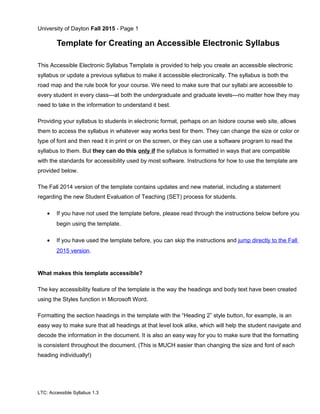
This Accessible Electronic Syllabus Template is provided to help you create an accessible electronic
syllabus or update a previous syllabus to make it accessible electronically. The syllabus is both the
road map and the rule book for your course. We need to make sure that our syllabi are accessible to
every student in every class—at both the undergraduate and graduate levels—no matter how they may
need to take in the information to understand it best.
Providing your syllabus to students in electronic format, perhaps on an Isidore course web site, allows
them to access the syllabus in whatever way works best for them. They can change the size or color or
type of font and then read it in print or on the screen, or they can use a software program to read the
syllabus to them. But they can do this only if the syllabus is formatted in ways that are compatible
with the standards for accessibility used by most software. Instructions for how to use the template are
provided below.
The Fall 2014 version of the template contains updates and new material, including a statement
regarding the new Student Evaluation of Teaching (SET) process for students.
• If you have not used the template before, please read through the instructions below before you
begin using the template.
• If you have used the template before, you can skip the instructions and jump directly to the Fall
2015 version.
What makes this template accessible?
The key accessibility feature of the template is the way the headings and body text have been created
using the Styles function in Microsoft Word.
Formatting the section headings in the template with the “Heading 2” style button, for example, is an
easy way to make sure that all headings at that level look alike, which will help the student navigate and
decode the information in the document. It is also an easy way for you to make sure that the formatting
is consistent throughout the document. (This is MUCH easier than changing the size and font of each
heading individually!)
LTC: Accessible Syllabus 1.3
University of Dayton Fall 2015 - Page 2
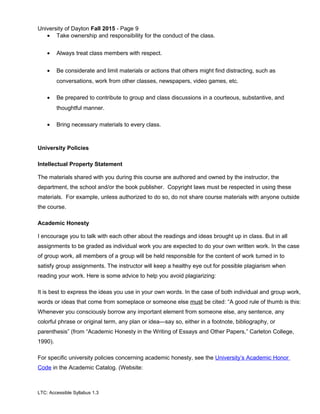
More importantly, when you use a style button to format various sections of text (different levels of
headings, body text, emphasis, etc.), each section is given an electronic tag naming its style. Then
when a student accesses the document using screen reading software (which reads the document out
loud), the software also reads the tags, thereby helping the listener understand the structure of the
document and the information contained in it. Try to imagine making sense of a document without
being able to see how it’s organized, and you’ll appreciate how crucial this is.
For more information on Styles in Microsoft Word:
• Consult the online Word Help feature from within Word
• Read any of the commercially available manuals on Word
• Use the online tutorials at https://www.atomiclearning.com/highed/login/udayton. Log in with
your UD username and password. Click on “Search” in the navigation bar at the top of the
screen, then on “Assistive Technology” in the pull down box labeled “Topics”. Click O in the
alphabetical index, and find tutorials on creating accessible documents in various versions of
Office.
The links below will provide more information on creating accessible content in Microsoft Word
or html:
• http://www.webaim.org/techniques/word/
• http://www.webaim.org/techniques/fonts/
• http://www.webaim.org/techniques/textlayout/
The links below will provide more information on web accessibility standards (also useful for
creating course content in Office applications):
• http://www.webaim.org/standards/wcag/checklist
LTC: Accessible Syllabus 1.3
University of Dayton Fall 2015 - Page 3
How to use the Accessible Online Syllabus Template to Create or Update Your Syllabus
This template contains a variety of elements that might be used in a course syllabus and examples of
what those entries might look like. There are two simple methods to enter your own content into the
syllabus template.
Direct Input Method
1. Save the template on your computer. Create a copy and rename the copy for your course.
Follow the steps below in your course copy of the template.
2. Delete the first three pages (these instructions) and any elements that do not apply to your
course.
3. Highlight any text that you want to change (either heading or body) and type directly over it. Text
in the template will be replaced with yours, and the formatting will remain.
4. Make sure you have replaced all blue sections in the template with your own content or deleted
the sections you do not want to include in your syllabus. To return all text to black, Select All
(using Control+A) then use the following key commands: Alt-H, FC, A. You can also select a
font color on the Home Tab of Microsoft 2007 by using the down arrow next to the A with a color
below it as seen here:
Note: If you wish to use colored text in your electronic syllabus, remember that it is not a good idea to
convey important information in red or green because of the high incidence of color blindness related to
these two colors.
LTC: Accessible Syllabus 1.3
University of Dayton Fall 2015 - Page 4
Copy and Paste Method
You can transfer text from your previous syllabus to this template with the Copy and Paste functions in
Word.
1. Save this template on your computer. Create a copy and rename the copy for your course.
Follow the steps below in your course copy of the template.
2. Delete the first three pages (these instructions) and any elements that do not apply to your
course.
3. Open both your previous syllabus and this syllabus file in Word.
4. In your previous syllabus, copy the text that you want to transfer.
5. In the template, highlight the corresponding text that you want to replace.
6. Paste your copied text over the highlighted text in the new template.
7. A Paste function icon will appear next to the copied text.
8. Click on the downward arrow in this icon and choose the “Match Destination Formatting”
option in the pop down list.
9. The Style and Formatting of the pasted text will conform to that of the template.
10. Make sure you have replaced all blue sections in the template with your own content or
deleted the sections you do not want to include in your syllabus. To return all text to black,
Select All (using Control+A) then use the following key commands: Alt-H, FC, A. You can
also select a font color on the Home Tab of Microsoft 2007 by using the down arrow next to
the A with a color below it as seen here:
LTC: Accessible Syllabus 1.3
University of Dayton Fall 2015 - Page 5
If you wish to use colored text in your electronic syllabus, remember that it is not a good idea to convey
important information in red or green because of the high incidence of color blindness related to these
two colors.
If you have questions about using this template or want to add other material to your syllabus but aren’t
sure how to keep it accessible, please contact the LTC’s Office of Learning Resources at 937-229-
2066 (phone) or via 937-229-2059 (TTY for deaf hard of hearing).
When you are finished creating your syllabus using the template, delete these 3 instruction pages from
the file if you haven’t already. You should then have a clean syllabus starting with the title of your
course.
Other supports for accessible documents
The University of Dayton's Office of Learning Resources has provided software that can assist with
accessibility of documents. This software, SensusAccess, allows University of Dayton faculty to upload
documents which are then saved in a format that is accessible to students with disabilities. Faculty can
access this self-service alternative format option via the OLR website
http://www.udayton.edu/ltc/learningresources/index.php#alternativeformats.
LTC: Accessible Syllabus 1.3
University of Dayton Fall 2015 - Page 6
Course Title
Course Number, Section Number, Semester & Year
Course Information
Class Days/Time: (Days and time)
Classroom: (Building and room number)
Pre/Co-Requisites: (If none, delete this row)
Instructor: (Your name)
Office Location: (Building and room number)
Telephone Number: (area code) (telephone number)
Email Address: (Your email address)
Office Hours: (Day, time, place)
Course Web Page
All course materials such as the syllabus, major assignments, and handouts can be found on the
course web site located at (Insert course website address). If you have any problems accessing the
site, please contact me immediately.
Course Description
(Insert course description here.)
Library Liaison
(Insert the name, email address, and other relevant information of your liaison for students with library
research questions here.)
Overall Course Goals or Objectives
(Insert goals and objectives here. Speak directly to the student.)
LTC: Accessible Syllabus 1.3
University of Dayton Fall 2015 - Page 7
Student Learning Outcomes
(Outcomes should be specific and measurable)
Upon successful completion of this course, you will be able to:
(insert learning objective)
Required Texts/Readings/Equipment
Textbook/s
(Insert the complete textbook citation/s here including the ISBN. Indicate where to purchase. )
Other Readings
(Insert the list of any additional readings here. Indicate how to access these readings.)
Other equipment / materials requirements
(Include as necessary: e.g. if students need a VHS tape for recording, specific software to do
homework, etc.)
Technology Requirements for this Course
(Example: This course requires the use of a notebook computer that complies with the hardware
specifications that were communicated to you by the Admissions Office. This course will require your
use of the software applications in __________ (example Office 2013, etc). It is your responsibility to
ensure you have a working computer with the required software installed and functional for this course.
Details regarding your technical support options have been communicated to you by UDit. Training
resources for using UD software can be found at http://training.udayton.edu.)
Assignments and Grading Policy
(Insert brief descriptions of the number and types of assignments here, and indicate how each
assignment is aligned with course learning outcomes. Include general information about due dates and
specific information about assignment weights.
LTC: Accessible Syllabus 1.3
University of Dayton Fall 2015 - Page 8
(Specify grading policies including how grades are determined, what grades are possible, whether extra
credit is available, what the policy is for late or missed work, and what constitutes a passing grade for
the course. Include the date of the final exam/s. If you grade on participation, indicate how participation
will be assessed. Remember that “If attendance is used as a grading component, the instructor is
obligated to clarify his/her classroom policy regarding absences in writing in the syllabus provided
during the first full week of the semester” according to the University of Dayton’s Academic Senate
Policy 87-5.
(In addition, in reference to final exams, please remember that “When a student has three or more
final examinations scheduled for the same day, faculty are encouraged to accommodate the
individual student on an alternative day agreeable to both the student and the instructor. The
student must make the request by the last scheduled class meeting. When a student with a
disability has two or more final exams scheduled for the same day, faculty are encouraged to
accommodate the individual student on an alternative day agreeable to both the student and the
instructor which may include use of an alternative testing site. The student must make the
request by the last scheduled class meeting,” according to the University of Dayton’s Academic
Senate Policy I-03-10 and amendment. See the university’s Final Exam Policy <
http://catalog.udayton.edu/undergraduate/generalinformation/academicinformation/finalexampo
licy/>.)
Classroom Protocol
(Insert your expectations for participation, attendance, arrival times, behavior, safety, cell phone use;
etc. See examples below.)
All electronic devices including cell phones must be turned off and should not be visible at any time
during class unless specifically directed by the instructor.
Notebook computers may be used in class for taking notes and specified in-class activities, not for
instant messaging, email or other distractions unless otherwise instructed.
All email messages will be sent to you via your UD Mail (Google) Account, so you should be in the habit
of checking that account every day or you should ensure that Google Apps forwards messages to
another account of your choice. To verify your email address, visit http://porches.udayton.edu.
In addition, as a student in this class, you are expected to:
LTC: Accessible Syllabus 1.3
University of Dayton Fall 2015 - Page 9
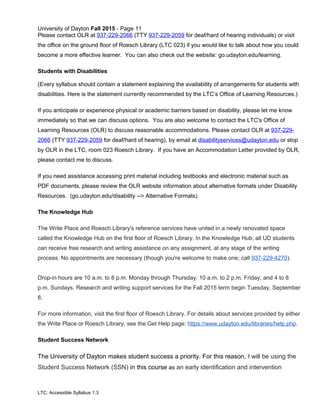
• Take ownership and responsibility for the conduct of the class.
• Always treat class members with respect.
• Be considerate and limit materials or actions that others might find distracting, such as
conversations, work from other classes, newspapers, video games, etc.
• Be prepared to contribute to group and class discussions in a courteous, substantive, and
thoughtful manner.
• Bring necessary materials to every class.
University Policies
Intellectual Property Statement
The materials shared with you during this course are authored and owned by the instructor, the
department, the school and/or the book publisher. Copyright laws must be respected in using these
materials. For example, unless authorized to do so, do not share course materials with anyone outside
the course.
Academic Honesty
I encourage you to talk with each other about the readings and ideas brought up in class. But in all
assignments to be graded as individual work you are expected to do your own written work. In the case
of group work, all members of a group will be held responsible for the content of work turned in to
satisfy group assignments. The instructor will keep a healthy eye out for possible plagiarism when
reading your work. Here is some advice to help you avoid plagiarizing:
It is best to express the ideas you use in your own words. In the case of both individual and group work,
words or ideas that come from someplace or someone else must be cited: “A good rule of thumb is this:
Whenever you consciously borrow any important element from someone else, any sentence, any
colorful phrase or original term, any plan or idea—say so, either in a footnote, bibliography, or
parenthesis” (from “Academic Honesty in the Writing of Essays and Other Papers,” Carleton College,
1990).
For specific university policies concerning academic honesty, see the University’s Academic Honor
Code in the Academic Catalog. (Website:
LTC: Accessible Syllabus 1.3
University of Dayton Fall 2015 - Page 10
http://catalog.udayton.edu/undergraduate/generalinformation/academicinformation/theacademichonorc
ode/)
Dropping the Course
You are responsible for understanding the university’s policies and procedures regarding withdrawing
from courses. You should also be aware of the current deadlines and penalties for dropping classes.
Information on withdrawal from courses is available in the Academic Catalog under Grades and
Scholarship. You may also want to speak with your academic advisor or the Deans Office from your
college or school. (Website:
http://catalog.udayton.edu/undergraduate/generalinformation/academicinformation/gradesandscholarsh
ip/)
Student Evaluation of Teaching
The university will ask for your anonymous feedback regarding instruction in this course through the
online Student Evaluation of Teaching (SET) as your candid, respectful opinions and constructive
suggestions have an impact on the quality of teaching at UD. Instructions for how to complete SET will
be sent to your UD email account toward the end of the semester, and I may give you additional
instructions (for example, whether you will complete SET in the classroom). If you encounter technical
problems accessing SET, contact the UDit Help Desk at 937-229-3888 or HelpDesk@udayton.edu. To
learn more about SET, visit go.udayton.edu/set.
University Services
It is the University’s goal that learning experiences be as accessible as possible. Your learning in this
course is important to me, and I want you to be aware of existing supports on campus which are
available to all university students.
Support for Your Learning in This Course
The Ryan C. Harris Learning Teaching Center's Office of Learning Resources (OLR) is a learning
resource for students, parents, faculty, and staff at the University of Dayton. OLR offers a wide variety
of information and services to help everyone become a successful learner. Peruse the web site, attend
one of our offerings, or contact our office and meet with a staff member -- however you look at it, OLR
is Your Partner in Learning!
LTC: Accessible Syllabus 1.3
University of Dayton Fall 2015 - Page 11
Please contact OLR at 937-229-2066 (TTY 937-229-2059 for deaf/hard of hearing individuals) or visit
the office on the ground floor of Roesch Library (LTC 023) if you would like to talk about how you could
become a more effective learner. You can also check out the website: go.udayton.edu/learning.
Students with Disabilities
(Every syllabus should contain a statement explaining the availability of arrangements for students with
disabilities. Here is the statement currently recommended by the LTC’s Office of Learning Resources.)
If you anticipate or experience physical or academic barriers based on disability, please let me know
immediately so that we can discuss options. You are also welcome to contact the LTC's Office of
Learning Resources (OLR) to discuss reasonable accommodations. Please contact OLR at 937-229-
2066 (TTY 937-229-2059 for deaf/hard of hearing), by email at disabilityservices@udayton.edu or stop
by OLR in the LTC, room 023 Roesch Library. If you have an Accommodation Letter provided by OLR,
please contact me to discuss.
If you need assistance accessing print material including textbooks and electronic material such as
PDF documents, please review the OLR website information about alternative formats under Disability
Resources. (go.udayton.edu/disability --> Alternative Formats)
The Knowledge Hub
The Write Place and Roesch Library's reference services have united in a newly renovated space
called the Knowledge Hub on the first floor of Roesch Library. In the Knowledge Hub, all UD students
can receive free research and writing assistance on any assignment, at any stage of the writing
process. No appointments are necessary (though you're welcome to make one; call 937-229-4270).
Drop-in hours are 10 a.m. to 8 p.m. Monday through Thursday; 10 a.m. to 2 p.m. Friday; and 4 to 8
p.m. Sundays. Research and writing support services for the Fall 2015 term begin Tuesday, September
8.
For more information, visit the first floor of Roesch Library. For details about services provided by either
the Write Place or Roesch Library, see the Get Help page: https://www.udayton.edu/libraries/help.php.
Student Success Network
The University of Dayton makes student success a priority. For this reason, I will be using the
Student Success Network (SSN) in this course as an early identification and intervention
LTC: Accessible Syllabus 1.3
University of Dayton Fall 2015 - Page 12
system designed to enable students’ academic success and graduation. If I notice that you are
struggling with issues such as attendance, class participation, or assignment/test performance,
I may choose to send notification through SSN in order to put you in touch with appropriate
campus resources. These referrals are designed to maximize your chances for success at the
University, not as punishment, so please respond to any communications you may receive
from me, your Academic Advisor, your Dean’s Office, or other campus offices regarding your
academic progress in this course.
For more information about the Student Success Network, visit the resource web page at
https://www.udayton.edu/success/student_success_network/index.php.
LTC: Accessible Syllabus 1.3
University of Dayton Fall 2015 - Page 13
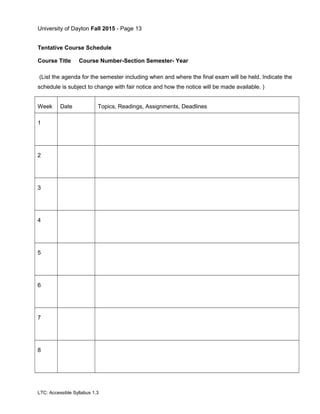
Tentative Course Schedule
Course Title Course Number-Section Semester- Year
(List the agenda for the semester including when and where the final exam will be held. Indicate the
schedule is subject to change with fair notice and how the notice will be made available. )
Week Date Topics, Readings, Assignments, Deadlines
1
2
3
4
5
6
7
8
LTC: Accessible Syllabus 1.3
University of Dayton Fall 2015 - Page 14
Week Date Topics, Readings, Assignments, Deadlines
9
10
11
12
13
14
15
16
Final
Exam
Venue and time
LTC: Accessible Syllabus 1.3

Accessible syllabus (1)

  • 1.
    University of DaytonFall 2015 - Page 1 Template for Creating an Accessible Electronic Syllabus This Accessible Electronic Syllabus Template is provided to help you create an accessible electronic syllabus or update a previous syllabus to make it accessible electronically. The syllabus is both the road map and the rule book for your course. We need to make sure that our syllabi are accessible to every student in every class—at both the undergraduate and graduate levels—no matter how they may need to take in the information to understand it best. Providing your syllabus to students in electronic format, perhaps on an Isidore course web site, allows them to access the syllabus in whatever way works best for them. They can change the size or color or type of font and then read it in print or on the screen, or they can use a software program to read the syllabus to them. But they can do this only if the syllabus is formatted in ways that are compatible with the standards for accessibility used by most software. Instructions for how to use the template are provided below. The Fall 2014 version of the template contains updates and new material, including a statement regarding the new Student Evaluation of Teaching (SET) process for students. • If you have not used the template before, please read through the instructions below before you begin using the template. • If you have used the template before, you can skip the instructions and jump directly to the Fall 2015 version. What makes this template accessible? The key accessibility feature of the template is the way the headings and body text have been created using the Styles function in Microsoft Word. Formatting the section headings in the template with the “Heading 2” style button, for example, is an easy way to make sure that all headings at that level look alike, which will help the student navigate and decode the information in the document. It is also an easy way for you to make sure that the formatting is consistent throughout the document. (This is MUCH easier than changing the size and font of each heading individually!) LTC: Accessible Syllabus 1.3
  • 2.
    University of DaytonFall 2015 - Page 2 More importantly, when you use a style button to format various sections of text (different levels of headings, body text, emphasis, etc.), each section is given an electronic tag naming its style. Then when a student accesses the document using screen reading software (which reads the document out loud), the software also reads the tags, thereby helping the listener understand the structure of the document and the information contained in it. Try to imagine making sense of a document without being able to see how it’s organized, and you’ll appreciate how crucial this is. For more information on Styles in Microsoft Word: • Consult the online Word Help feature from within Word • Read any of the commercially available manuals on Word • Use the online tutorials at https://www.atomiclearning.com/highed/login/udayton. Log in with your UD username and password. Click on “Search” in the navigation bar at the top of the screen, then on “Assistive Technology” in the pull down box labeled “Topics”. Click O in the alphabetical index, and find tutorials on creating accessible documents in various versions of Office. The links below will provide more information on creating accessible content in Microsoft Word or html: • http://www.webaim.org/techniques/word/ • http://www.webaim.org/techniques/fonts/ • http://www.webaim.org/techniques/textlayout/ The links below will provide more information on web accessibility standards (also useful for creating course content in Office applications): • http://www.webaim.org/standards/wcag/checklist LTC: Accessible Syllabus 1.3
  • 3.
    University of DaytonFall 2015 - Page 3 How to use the Accessible Online Syllabus Template to Create or Update Your Syllabus This template contains a variety of elements that might be used in a course syllabus and examples of what those entries might look like. There are two simple methods to enter your own content into the syllabus template. Direct Input Method 1. Save the template on your computer. Create a copy and rename the copy for your course. Follow the steps below in your course copy of the template. 2. Delete the first three pages (these instructions) and any elements that do not apply to your course. 3. Highlight any text that you want to change (either heading or body) and type directly over it. Text in the template will be replaced with yours, and the formatting will remain. 4. Make sure you have replaced all blue sections in the template with your own content or deleted the sections you do not want to include in your syllabus. To return all text to black, Select All (using Control+A) then use the following key commands: Alt-H, FC, A. You can also select a font color on the Home Tab of Microsoft 2007 by using the down arrow next to the A with a color below it as seen here: Note: If you wish to use colored text in your electronic syllabus, remember that it is not a good idea to convey important information in red or green because of the high incidence of color blindness related to these two colors. LTC: Accessible Syllabus 1.3
  • 4.
    University of DaytonFall 2015 - Page 4 Copy and Paste Method You can transfer text from your previous syllabus to this template with the Copy and Paste functions in Word. 1. Save this template on your computer. Create a copy and rename the copy for your course. Follow the steps below in your course copy of the template. 2. Delete the first three pages (these instructions) and any elements that do not apply to your course. 3. Open both your previous syllabus and this syllabus file in Word. 4. In your previous syllabus, copy the text that you want to transfer. 5. In the template, highlight the corresponding text that you want to replace. 6. Paste your copied text over the highlighted text in the new template. 7. A Paste function icon will appear next to the copied text. 8. Click on the downward arrow in this icon and choose the “Match Destination Formatting” option in the pop down list. 9. The Style and Formatting of the pasted text will conform to that of the template. 10. Make sure you have replaced all blue sections in the template with your own content or deleted the sections you do not want to include in your syllabus. To return all text to black, Select All (using Control+A) then use the following key commands: Alt-H, FC, A. You can also select a font color on the Home Tab of Microsoft 2007 by using the down arrow next to the A with a color below it as seen here: LTC: Accessible Syllabus 1.3
  • 5.
    University of DaytonFall 2015 - Page 5 If you wish to use colored text in your electronic syllabus, remember that it is not a good idea to convey important information in red or green because of the high incidence of color blindness related to these two colors. If you have questions about using this template or want to add other material to your syllabus but aren’t sure how to keep it accessible, please contact the LTC’s Office of Learning Resources at 937-229- 2066 (phone) or via 937-229-2059 (TTY for deaf hard of hearing). When you are finished creating your syllabus using the template, delete these 3 instruction pages from the file if you haven’t already. You should then have a clean syllabus starting with the title of your course. Other supports for accessible documents The University of Dayton's Office of Learning Resources has provided software that can assist with accessibility of documents. This software, SensusAccess, allows University of Dayton faculty to upload documents which are then saved in a format that is accessible to students with disabilities. Faculty can access this self-service alternative format option via the OLR website http://www.udayton.edu/ltc/learningresources/index.php#alternativeformats. LTC: Accessible Syllabus 1.3
  • 6.
    University of DaytonFall 2015 - Page 6 Course Title Course Number, Section Number, Semester & Year Course Information Class Days/Time: (Days and time) Classroom: (Building and room number) Pre/Co-Requisites: (If none, delete this row) Instructor: (Your name) Office Location: (Building and room number) Telephone Number: (area code) (telephone number) Email Address: (Your email address) Office Hours: (Day, time, place) Course Web Page All course materials such as the syllabus, major assignments, and handouts can be found on the course web site located at (Insert course website address). If you have any problems accessing the site, please contact me immediately. Course Description (Insert course description here.) Library Liaison (Insert the name, email address, and other relevant information of your liaison for students with library research questions here.) Overall Course Goals or Objectives (Insert goals and objectives here. Speak directly to the student.) LTC: Accessible Syllabus 1.3
  • 7.
    University of DaytonFall 2015 - Page 7 Student Learning Outcomes (Outcomes should be specific and measurable) Upon successful completion of this course, you will be able to: (insert learning objective) (insert learning objective) Required Texts/Readings/Equipment Textbook/s (Insert the complete textbook citation/s here including the ISBN. Indicate where to purchase. ) Other Readings (Insert the list of any additional readings here. Indicate how to access these readings.) Other equipment / materials requirements (Include as necessary: e.g. if students need a VHS tape for recording, specific software to do homework, etc.) Technology Requirements for this Course (Example: This course requires the use of a notebook computer that complies with the hardware specifications that were communicated to you by the Admissions Office. This course will require your use of the software applications in __________ (example Office 2013, etc). It is your responsibility to ensure you have a working computer with the required software installed and functional for this course. Details regarding your technical support options have been communicated to you by UDit. Training resources for using UD software can be found at http://training.udayton.edu.) Assignments and Grading Policy (Insert brief descriptions of the number and types of assignments here, and indicate how each assignment is aligned with course learning outcomes. Include general information about due dates and specific information about assignment weights. LTC: Accessible Syllabus 1.3
  • 8.
    University of DaytonFall 2015 - Page 8 (Specify grading policies including how grades are determined, what grades are possible, whether extra credit is available, what the policy is for late or missed work, and what constitutes a passing grade for the course. Include the date of the final exam/s. If you grade on participation, indicate how participation will be assessed. Remember that “If attendance is used as a grading component, the instructor is obligated to clarify his/her classroom policy regarding absences in writing in the syllabus provided during the first full week of the semester” according to the University of Dayton’s Academic Senate Policy 87-5. (In addition, in reference to final exams, please remember that “When a student has three or more final examinations scheduled for the same day, faculty are encouraged to accommodate the individual student on an alternative day agreeable to both the student and the instructor. The student must make the request by the last scheduled class meeting. When a student with a disability has two or more final exams scheduled for the same day, faculty are encouraged to accommodate the individual student on an alternative day agreeable to both the student and the instructor which may include use of an alternative testing site. The student must make the request by the last scheduled class meeting,” according to the University of Dayton’s Academic Senate Policy I-03-10 and amendment. See the university’s Final Exam Policy < http://catalog.udayton.edu/undergraduate/generalinformation/academicinformation/finalexampo licy/>.) Classroom Protocol (Insert your expectations for participation, attendance, arrival times, behavior, safety, cell phone use; etc. See examples below.) All electronic devices including cell phones must be turned off and should not be visible at any time during class unless specifically directed by the instructor. Notebook computers may be used in class for taking notes and specified in-class activities, not for instant messaging, email or other distractions unless otherwise instructed. All email messages will be sent to you via your UD Mail (Google) Account, so you should be in the habit of checking that account every day or you should ensure that Google Apps forwards messages to another account of your choice. To verify your email address, visit http://porches.udayton.edu. In addition, as a student in this class, you are expected to: LTC: Accessible Syllabus 1.3
  • 9.
    University of DaytonFall 2015 - Page 9 • Take ownership and responsibility for the conduct of the class. • Always treat class members with respect. • Be considerate and limit materials or actions that others might find distracting, such as conversations, work from other classes, newspapers, video games, etc. • Be prepared to contribute to group and class discussions in a courteous, substantive, and thoughtful manner. • Bring necessary materials to every class. University Policies Intellectual Property Statement The materials shared with you during this course are authored and owned by the instructor, the department, the school and/or the book publisher. Copyright laws must be respected in using these materials. For example, unless authorized to do so, do not share course materials with anyone outside the course. Academic Honesty I encourage you to talk with each other about the readings and ideas brought up in class. But in all assignments to be graded as individual work you are expected to do your own written work. In the case of group work, all members of a group will be held responsible for the content of work turned in to satisfy group assignments. The instructor will keep a healthy eye out for possible plagiarism when reading your work. Here is some advice to help you avoid plagiarizing: It is best to express the ideas you use in your own words. In the case of both individual and group work, words or ideas that come from someplace or someone else must be cited: “A good rule of thumb is this: Whenever you consciously borrow any important element from someone else, any sentence, any colorful phrase or original term, any plan or idea—say so, either in a footnote, bibliography, or parenthesis” (from “Academic Honesty in the Writing of Essays and Other Papers,” Carleton College, 1990). For specific university policies concerning academic honesty, see the University’s Academic Honor Code in the Academic Catalog. (Website: LTC: Accessible Syllabus 1.3
  • 10.
    University of DaytonFall 2015 - Page 10 http://catalog.udayton.edu/undergraduate/generalinformation/academicinformation/theacademichonorc ode/) Dropping the Course You are responsible for understanding the university’s policies and procedures regarding withdrawing from courses. You should also be aware of the current deadlines and penalties for dropping classes. Information on withdrawal from courses is available in the Academic Catalog under Grades and Scholarship. You may also want to speak with your academic advisor or the Deans Office from your college or school. (Website: http://catalog.udayton.edu/undergraduate/generalinformation/academicinformation/gradesandscholarsh ip/) Student Evaluation of Teaching The university will ask for your anonymous feedback regarding instruction in this course through the online Student Evaluation of Teaching (SET) as your candid, respectful opinions and constructive suggestions have an impact on the quality of teaching at UD. Instructions for how to complete SET will be sent to your UD email account toward the end of the semester, and I may give you additional instructions (for example, whether you will complete SET in the classroom). If you encounter technical problems accessing SET, contact the UDit Help Desk at 937-229-3888 or HelpDesk@udayton.edu. To learn more about SET, visit go.udayton.edu/set. University Services It is the University’s goal that learning experiences be as accessible as possible. Your learning in this course is important to me, and I want you to be aware of existing supports on campus which are available to all university students. Support for Your Learning in This Course The Ryan C. Harris Learning Teaching Center's Office of Learning Resources (OLR) is a learning resource for students, parents, faculty, and staff at the University of Dayton. OLR offers a wide variety of information and services to help everyone become a successful learner. Peruse the web site, attend one of our offerings, or contact our office and meet with a staff member -- however you look at it, OLR is Your Partner in Learning! LTC: Accessible Syllabus 1.3
  • 11.
    University of DaytonFall 2015 - Page 11 Please contact OLR at 937-229-2066 (TTY 937-229-2059 for deaf/hard of hearing individuals) or visit the office on the ground floor of Roesch Library (LTC 023) if you would like to talk about how you could become a more effective learner. You can also check out the website: go.udayton.edu/learning. Students with Disabilities (Every syllabus should contain a statement explaining the availability of arrangements for students with disabilities. Here is the statement currently recommended by the LTC’s Office of Learning Resources.) If you anticipate or experience physical or academic barriers based on disability, please let me know immediately so that we can discuss options. You are also welcome to contact the LTC's Office of Learning Resources (OLR) to discuss reasonable accommodations. Please contact OLR at 937-229- 2066 (TTY 937-229-2059 for deaf/hard of hearing), by email at disabilityservices@udayton.edu or stop by OLR in the LTC, room 023 Roesch Library. If you have an Accommodation Letter provided by OLR, please contact me to discuss. If you need assistance accessing print material including textbooks and electronic material such as PDF documents, please review the OLR website information about alternative formats under Disability Resources. (go.udayton.edu/disability --> Alternative Formats) The Knowledge Hub The Write Place and Roesch Library's reference services have united in a newly renovated space called the Knowledge Hub on the first floor of Roesch Library. In the Knowledge Hub, all UD students can receive free research and writing assistance on any assignment, at any stage of the writing process. No appointments are necessary (though you're welcome to make one; call 937-229-4270). Drop-in hours are 10 a.m. to 8 p.m. Monday through Thursday; 10 a.m. to 2 p.m. Friday; and 4 to 8 p.m. Sundays. Research and writing support services for the Fall 2015 term begin Tuesday, September 8. For more information, visit the first floor of Roesch Library. For details about services provided by either the Write Place or Roesch Library, see the Get Help page: https://www.udayton.edu/libraries/help.php. Student Success Network The University of Dayton makes student success a priority. For this reason, I will be using the Student Success Network (SSN) in this course as an early identification and intervention LTC: Accessible Syllabus 1.3
  • 12.
    University of DaytonFall 2015 - Page 12 system designed to enable students’ academic success and graduation. If I notice that you are struggling with issues such as attendance, class participation, or assignment/test performance, I may choose to send notification through SSN in order to put you in touch with appropriate campus resources. These referrals are designed to maximize your chances for success at the University, not as punishment, so please respond to any communications you may receive from me, your Academic Advisor, your Dean’s Office, or other campus offices regarding your academic progress in this course. For more information about the Student Success Network, visit the resource web page at https://www.udayton.edu/success/student_success_network/index.php. LTC: Accessible Syllabus 1.3
  • 13.
    University of DaytonFall 2015 - Page 13 Tentative Course Schedule Course Title Course Number-Section Semester- Year (List the agenda for the semester including when and where the final exam will be held. Indicate the schedule is subject to change with fair notice and how the notice will be made available. ) Week Date Topics, Readings, Assignments, Deadlines 1 2 3 4 5 6 7 8 LTC: Accessible Syllabus 1.3
  • 14.
    University of DaytonFall 2015 - Page 14 Week Date Topics, Readings, Assignments, Deadlines 9 10 11 12 13 14 15 16 Final Exam Venue and time LTC: Accessible Syllabus 1.3