React Native
Building first scenes
Contents
1. Introduction
2. Building first scenes
3. Navigation/Swiping
4. Performance/Animations
5. Sockets/Push notifications/Building application/Send to market
6. ?
A bit of React
Component
export default class scrollView extends Component {
constructor() {}
render() {
return (<Text>Muffin</Text>)
}
}
AppRegistry.registerComponent('scrollView', () => scrollView);
Import modules
import React, { Component } from 'react';
import {
AppRegistry,
StyleSheet,
Text,
View
...
} from 'react-native';
Styles
const styles = StyleSheet.create({
container: {
flex: 1,
justifyContent: 'center',
alignItems: 'center',
backgroundColor: '#F5FCFF',
},
});
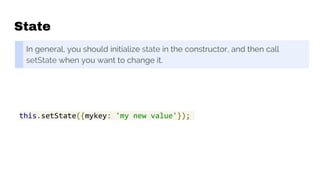
State
In general, you should initialize state in the constructor, and then call
setState when you want to change it.
this.setState({mykey: 'my new value'});
Props
Most components can be customized when they are created, with different
parameters. These creation parameters are called props.
<Image source={pic} style={{width: 193, height: 110}}/>
File Structure
import React, { Component } from 'react';
import { AppRegistry, StyleSheet, Text, View, ...} from 'react-native';
export default class scrollView extends Component {
constructor() {}
render() {
return (<Text style={[styles.container]}>Muffin</Text>)
}
}
const styles = StyleSheet.create({
container: {
flex: 1,
backgroundColor: '#F5FCFF',
},
});
AppRegistry.registerComponent('scrollView', () => scrollView);
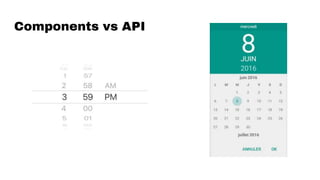
Components vs API
Networking
fetch('https://mywebsite.com/mydata.json')
Customize fetch
fetch('https://mywebsite.com/endpoint/', {
method: 'POST',
headers: {
'Accept': 'application/json',
'Content-Type': 'application/json',
},
body: JSON.stringify({
firstParam: 'yourValue',
secondParam: 'yourOtherValue',
})
})
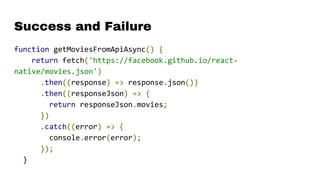
Success and Failure
function getMoviesFromApiAsync() {
return fetch('https://facebook.github.io/react-
native/movies.json')
.then((response) => response.json())
.then((responseJson) => {
return responseJson.movies;
})
.catch((error) => {
console.error(error);
});
}
Other possible options
1. Frisbee
2. axios
3. XMLHttpRequest
Caveats
By default, iOS will block any request that's not encrypted using SSL. If
you need to fetch from a cleartext URL (one that begins with http) you will
first need to add an App Transport Security exception. If you know ahead
of time what domains you will need access to, it is more secure to add
exceptions just for those domains; if the domains are not known until
runtime you can disable ATS completely. Note however that from January
2017, Apple's App Store review will require reasonable justification for
disabling ATS. See Apple's documentation for more information.
Info.plist
<key>NSAppTransportSecurity</key>
<dict>
<key>NSExceptionDomains</key>
<dict>
<key>localhost</key>
<dict>
<key>NSTemporaryExceptionAllowsInsecureHTTPLoads</key>
<true/>
</dict>
</dict>
</dict>
Mobile components
Necessary items
Lists
Images
Maps
Navigation
Button (Touchable items)
Text
Inputs (Checkbox, Slider, Option, TextInput)
Camera
Components correspondence
<span> <Text>
<div> <View>
<ul> <ScrollView>
<img> <Image>
<button> <Button>
Screen API
Dimensions API
Pixel Ratio
Dimensions API
1. set()
2. get()
var {height, width} = Dimensions.get('window');
Pixel Ratio
var image = getImage({
width: PixelRatio.getPixelSizeForLayoutSize(200),
height: PixelRatio.getPixelSizeForLayoutSize(100),
});
<Image source={image} style={{width: 200, height: 100}} />
General components
View
<View style={{flexDirection: 'row', height: 100, padding: 20}}>
<View style={{backgroundColor: 'blue', flex: 0.3}} />
<View style={{backgroundColor: 'red', flex: 0.5}} />
<Text>Hello World!</Text>
</View>
Accesibility
VoiceOver (iOS)
TalkBack (Android)
Scroll View
render() {
return(
<ScrollView>
<Text style={{fontSize:96}}>Scroll me plz</Text>
<Image source={require('./img/favicon.png')} />
</ScrollView>
)
}
Problems
Memory usage
Performance
Renders all at once
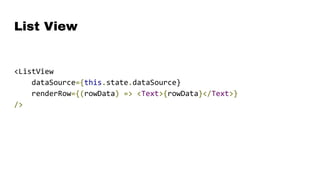
List View
<ListView
dataSource={this.state.dataSource}
renderRow={(rowData) => <Text>{rowData}</Text>}
/>
Data to pass
const ds = new ListView.DataSource({
rowHasChanged: (r1, r2) => r1 !== r2
});
this.state = {
dataSource: ds.cloneWithRows([
'John', 'Joel', 'James', 'Jimmy', 'Jackson', 'Jillian'
])
};
Interaction components
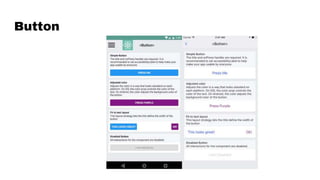
Button
Properties and methods
1. color
2. onPress()
3. title
Customizations
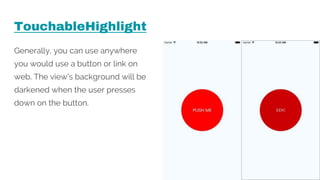
TouchableHighlight
Generally, you can use anywhere
you would use a button or link on
web. The view's background will be
darkened when the user presses
down on the button.
TouchableNativeFeedback
You may consider using on
Android to display ink surface
reaction ripples that respond to
the user's touch.
TouchableOpacity
can be used to provide feedback by
reducing the opacity of the button,
allowing the background to be seen
through while the user is pressing down.
TouchableWithoutFeedback
If you need to handle a tap
gesture but you don't want any
feedback to be displayed, use.
Image
<Image
style={{width: 50, height: 50}}
source={{uri: this.state.data.results[0].picture.large}}
/>
Backround image
return (
<Image source={...}>
<Text>Inside</Text>
</Image>
);
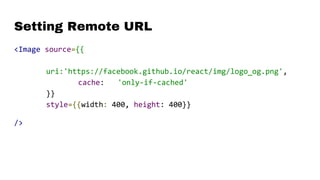
Setting Remote URL
<Image source={{
uri:'https://facebook.github.io/react/img/logo_og.png',
cache: 'only-if-cached'
}}
style={{width: 400, height: 400}}
/>
Working with
<input />
Input types
Checkbox
Slider
TextInput
RadioButton
Select (Picker?)
Checkbox
<Switch
onValueChange={(value) => this.setState({trueSwitchIsOn:
value})}
value={this.state.trueSwitchIsOn}
/>
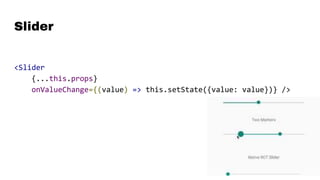
Slider
<Slider
{...this.props}
onValueChange={(value) => this.setState({value: value})} />
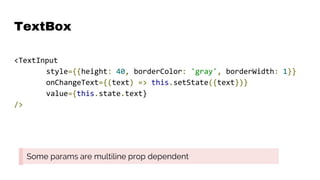
TextBox
<TextInput
style={{height: 40, borderColor: 'gray', borderWidth: 1}}
onChangeText={(text) => this.setState({text})}
value={this.state.text}
/>
Some params are multiline prop dependent
Select
<Picker
selectedValue={this.state.language}
onValueChange={(lang) => this.setState({language: lang})}>
<Picker.Item label="Java" value="java" />
<Picker.Item label="JavaScript" value="js" />
</Picker>
Properties
Mode (dialog, dropdown) [Android]
ItemStyle (iOS)
Radio
So what?
https://github.com/pressly/react-native-radio-button-classic
https://github.com/moschan/react-native-simple-radio-button
At last we have a solution!
http://react-native-material-design.github.io/components/radio-button
Complex components
Date pickers
iOS (Module)
<DatePickerIOS
date={this.state.date}
mode="datetime"
timeZoneOffsetInMinutes={this.state.timeZoneOffsetInHours
* 60}
onDateChange={this.onDateChange}
/>
Options
Date
MinimumDate
MaximumDate
MinuteInterval
Mode (date, time, datetime)
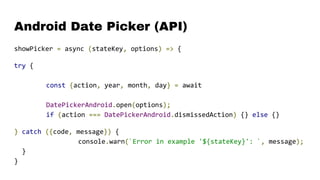
Android Date Picker (API)
showPicker = async (stateKey, options) => {
try {
const {action, year, month, day} = await
DatePickerAndroid.open(options);
if (action === DatePickerAndroid.dismissedAction) {} else {}
} catch ({code, message}) {
console.warn(`Error in example '${stateKey}': `, message);
}
}
Options
Date
MinDate
MaxDate
Mode (spinner, calendar, default)
MapView
return (
<MapView
style={{height: 200, margin: 40}}
showsUserLocation={true}
/>
);
Was...
Deprecated since January 2017...
Thanks to...
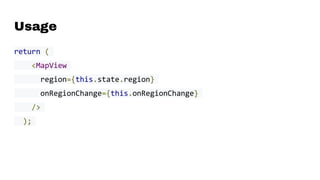
Usage
return (
<MapView
region={this.state.region}
onRegionChange={this.onRegionChange}
/>
);
AirBnB examples
API key
Including native modules
Linking
$ react-native link
AndroidManifest.xml
<uses-permission android:name="android.permission.CAMERA" />
<uses-permission
android:name="android.permission.WRITE_EXTERNAL_STORAGE"/>
<meta-data android:name="com.google.android.geo.API_KEY"
android:value="AAAAAAAAAAAAAAAAAAAAAAAAAAAAA"/>
Build.gradle
dependencies {
compile project(':react-native-image-picker')
compile project(':react-native-maps')
compile fileTree(dir: "libs", include: ["*.jar"])
compile "com.android.support:appcompat-v7:23.0.1"
compile "com.facebook.react:react-native:+" // From
node_modules
}
Main Appplication.java
@Override
protected List<ReactPackage> getPackages() {
return Arrays.<ReactPackage>asList(
new MainReactPackage(),
new ImagePickerPackage(),
new MapsPackage()
);
}
Gradle-wrapper.properties
distributionBase=GRADLE_USER_HOME
distributionPath=wrapper/dists
zipStoreBase=GRADLE_USER_HOME
zipStorePath=wrapper/dists
distributionUrl=https://services.gradle.org/distributions/gradle-
2.14.1-all.zip
Geolocation
getCurrentPosition()
watchPosition()
Other useful API
and components
Activity indicator
<ActivityIndicator
animating={this.state.animating}
style={[styles.centering, {height: 80}]}
size="large"
/>
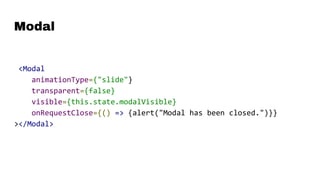
Modal
<Modal
animationType={"slide"}
transparent={false}
visible={this.state.modalVisible}
onRequestClose={() => {alert("Modal has been closed.")}}
></Modal>
ClipBoard
_setClipboardContent = async () => {
Clipboard.setString('Hello World');
try {
var content = await Clipboard.getString();
this.setState({content});
} catch (e) {
this.setState({content:e.message});
}
};
Toast
Let’s code
_onPress(){
ToastAndroid.show('This is a toast with short duration',
ToastAndroid.SHORT)
}
Params
SHORT / LONG
TOP / BOTTOM / CENTER
Working with
camera
CameraRoll
CameraRoll provides access to the local camera roll / gallery. Before using
this you must link the RCTCameraRoll library.
SaveToCameraRoll()
getPhotos()
React Native Image Picker
Questions?
Sources
https://bitbucket.org/RusinkaBogdan/react-native-
components/commits/all
Fin
To be continued...

Academy PRO: React native - building first scenes