















FIVE QUICK WINS
to Wow Your Office
What is a
quick win?
QUICK WINS ARE:
‣  Minimal or no cost
‣  Low risk
‣  Narrow and focused in scope
‣  Implementable within 60-90 days
‣  Eliminating unnecessary steps from a process
‣  Redesigning forms
‣  Changing inefficient procedures
‣  Starting to use available features that haven’t
been implemented yet
POTENTIAL QUICK WINS
Here are five quick wins that
are available out of the box in
Laserfiche Avante and Rio.
QUICK WIN #1
Saved Column Profiles
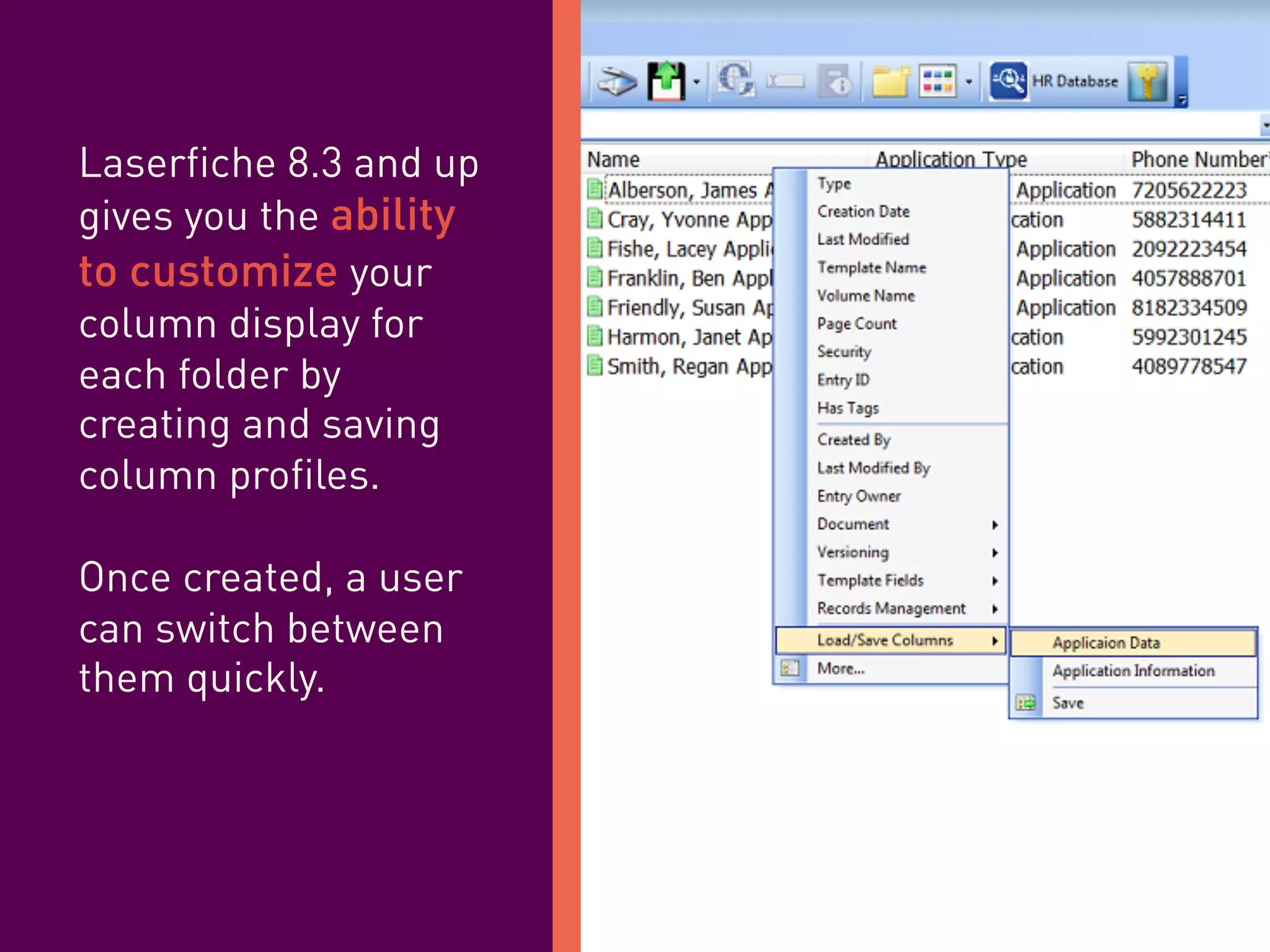
Laserfiche 8.3 and up
gives you the ability
to customize your
column display for
each folder by
creating and saving
column profiles.
Once created, a user
can switch between
them quickly.
Why is this
useful?
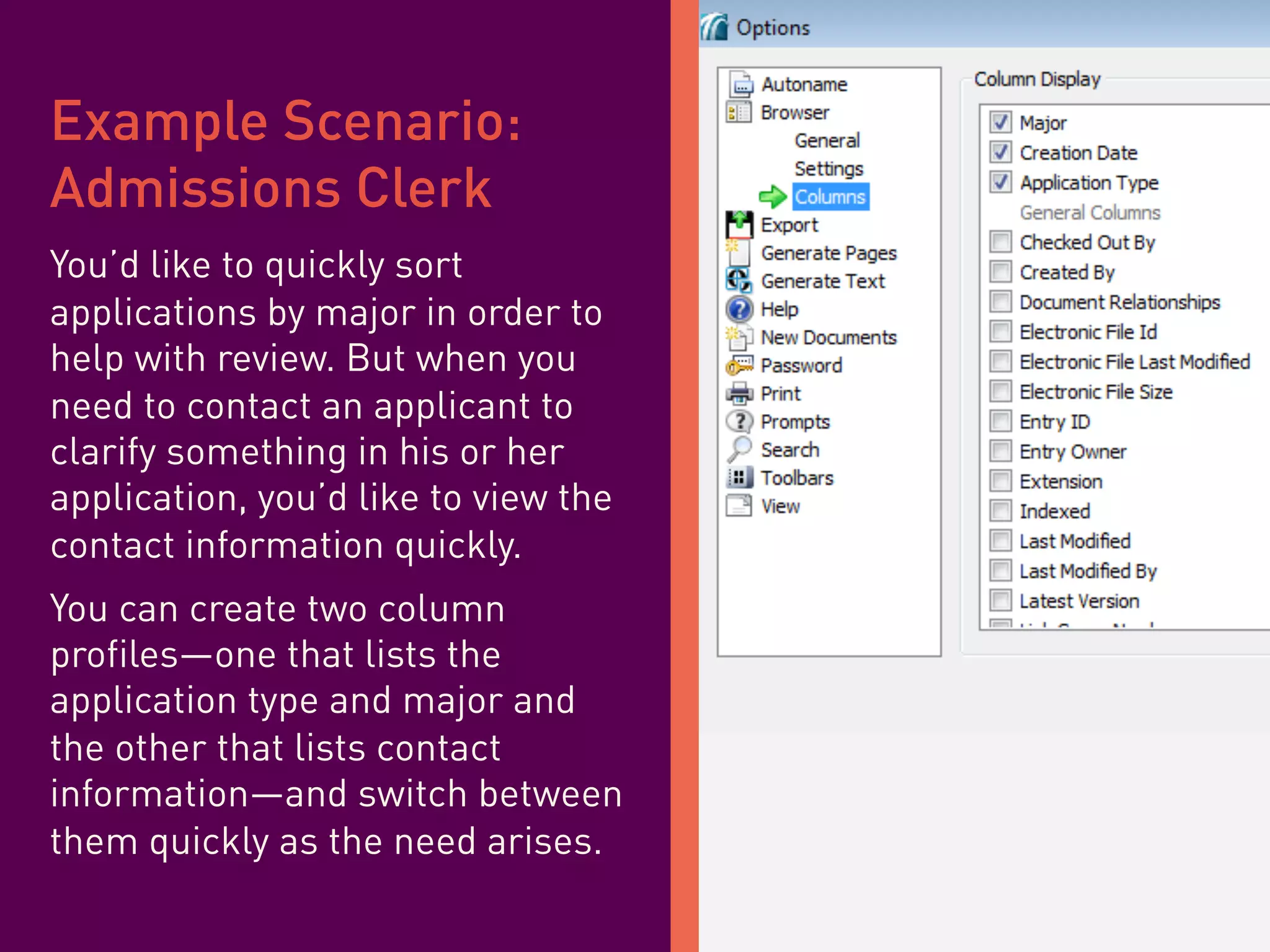
Example Scenario:
Admissions Clerk
You’d like to quickly sort
applications by major in order to
help with review. But when you
need to contact an applicant to
clarify something in his or her
application, you’d like to view the
contact information quickly.
You can create two column
profiles—one that lists the
application type and major and
the other that lists contact
information—and switch between
them quickly as the need arises.
Get step-by-step
instructions
Learn how to do this yourself
on the Solution Exchange!
Click Here
QUICK WIN #2
Saved Searches
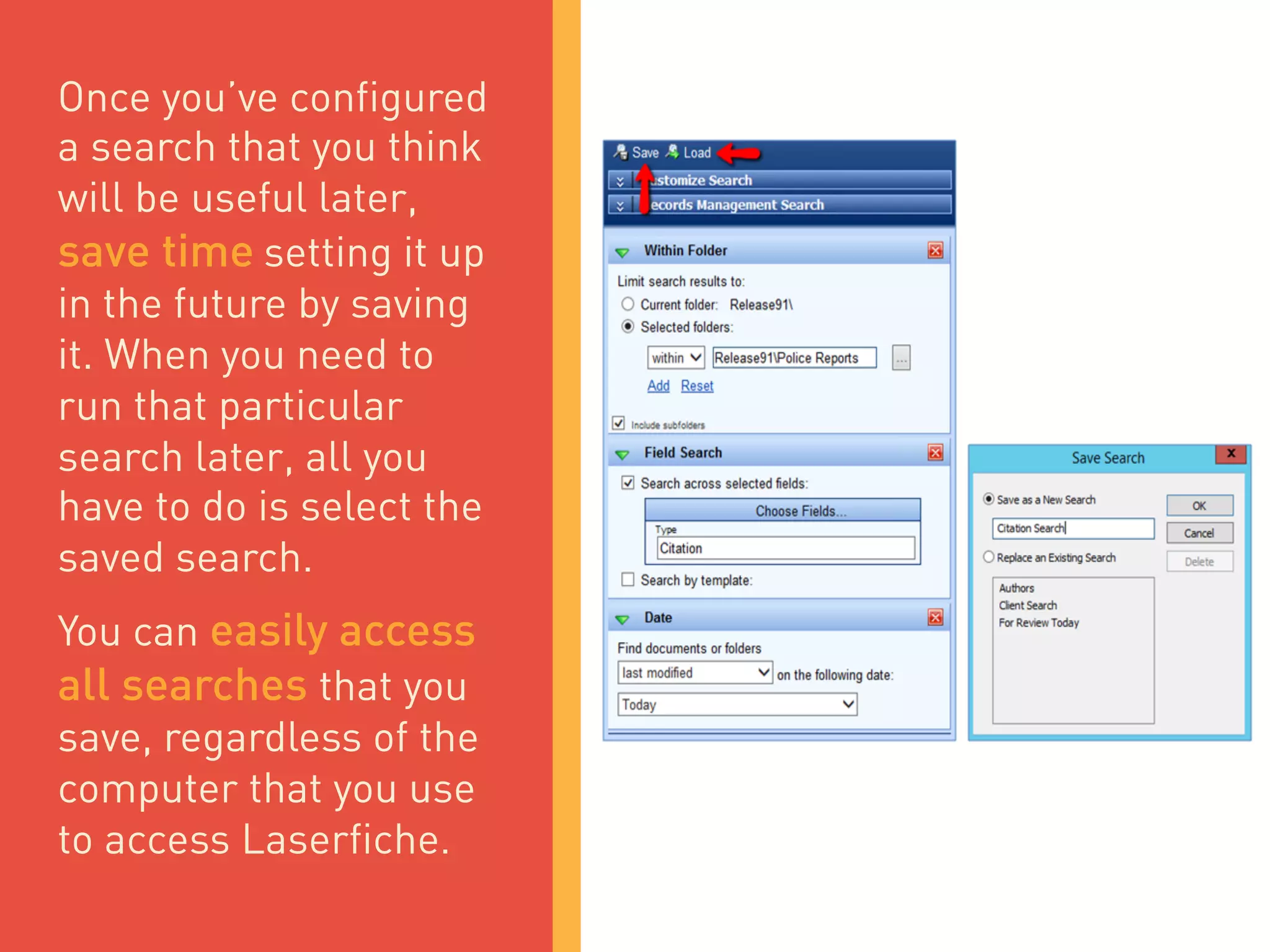
Once you’ve configured
a search that you think
will be useful later,
save time setting it up
in the future by saving
it. When you need to
run that particular
search later, all you
have to do is select the
saved search.
You can easily access
all searches that you
save, regardless of the
computer that you use
to access Laserfiche.
Why is this
useful?
Example Scenario:
City Clerk
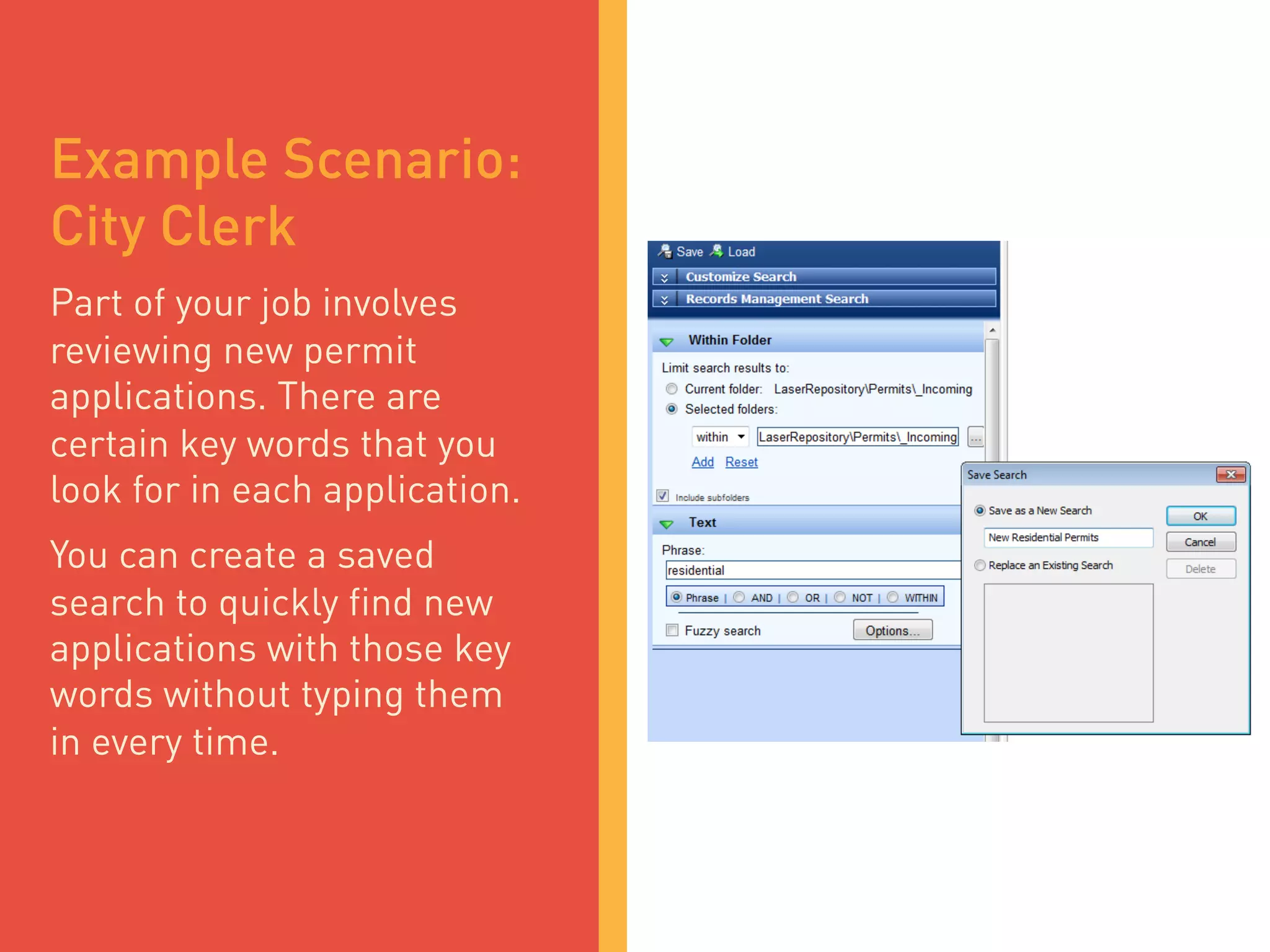
Part of your job involves
reviewing new permit
applications. There are
certain key words that you
look for in each application.
You can create a saved
search to quickly find new
applications with those key
words without typing them
in every time.
Get step-by-step
instructions
Learn how to do this yourself
on the Solution Exchange!
Click Here
QUICK WIN #3
Custom Quick Searches
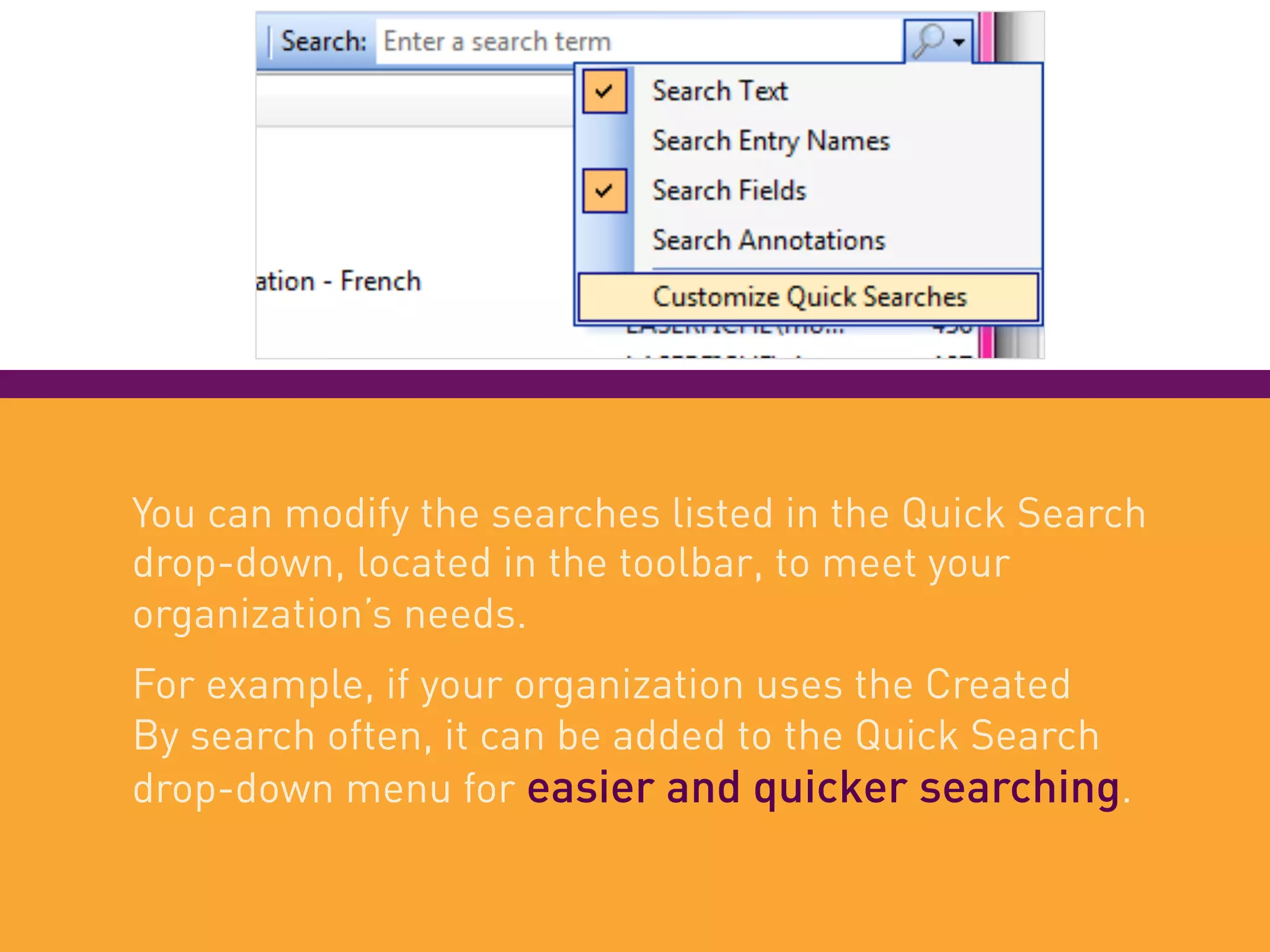
You can modify the searches listed in the Quick Search
drop-down, located in the toolbar, to meet your
organization’s needs.
For example, if your organization uses the Created
By search often, it can be added to the Quick Search
drop-down menu for easier and quicker searching.
Any search type that can be
configured using advanced
syntax can be created as a
custom quick search.
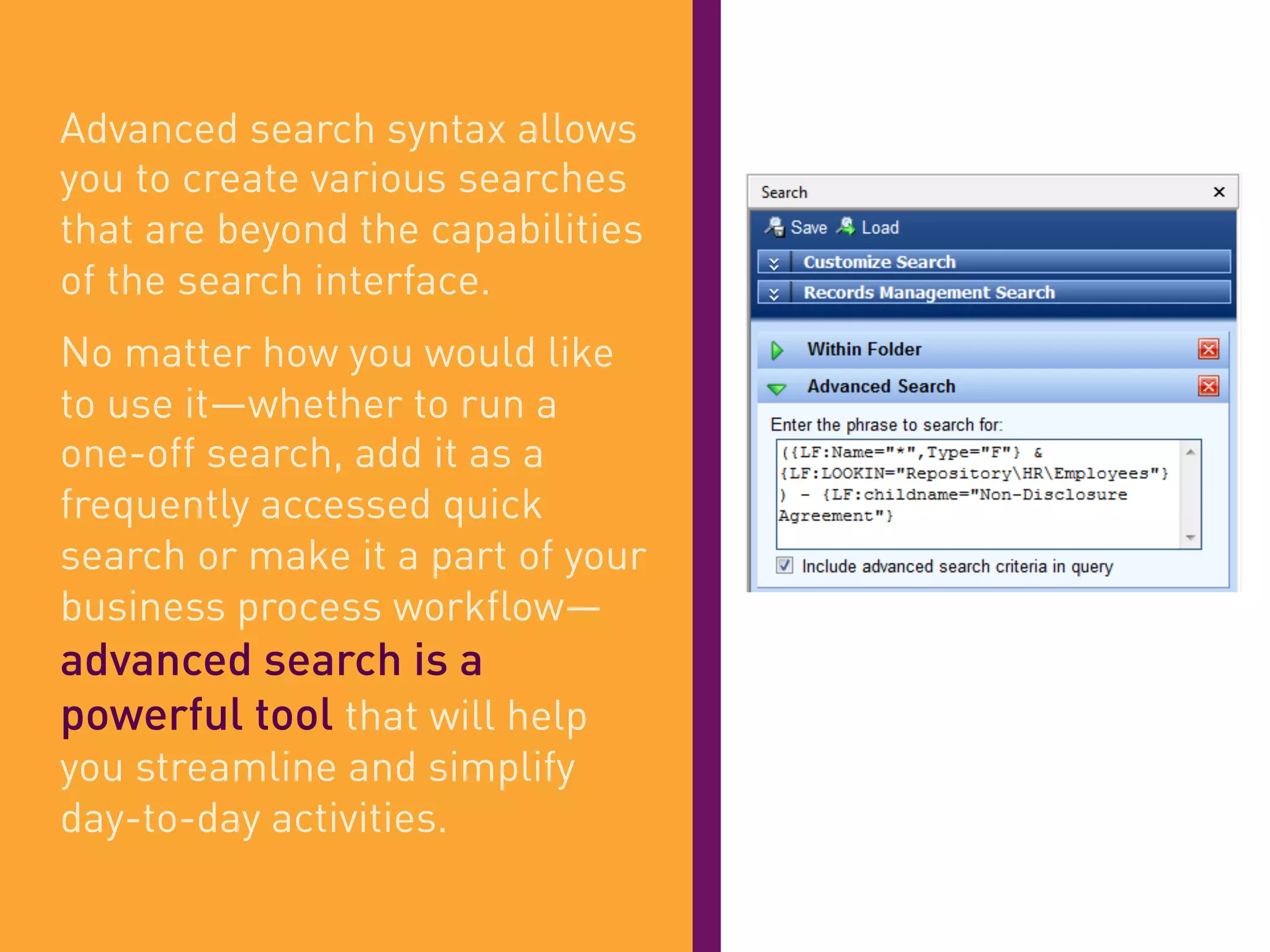
Advanced search syntax allows
you to create various searches
that are beyond the capabilities
of the search interface.
No matter how you would like
to use it—whether to run a
one-off search, add it as a
frequently accessed quick
search or make it a part of your
business process workflow—
advanced search is a
powerful tool that will help
you streamline and simplify
day-to-day activities.
Why is this
useful?
Example Scenario:
Compliance Officer
As Compliance Officer in a
financial company, you need to
make sure each employee has
filled out and submitted a
Non-Disclosure Agreement.
You can use advanced search
syntax to find all subfolders within
the main “Employees” folder that
do not contain a document named
Non-Disclosure Agreement.
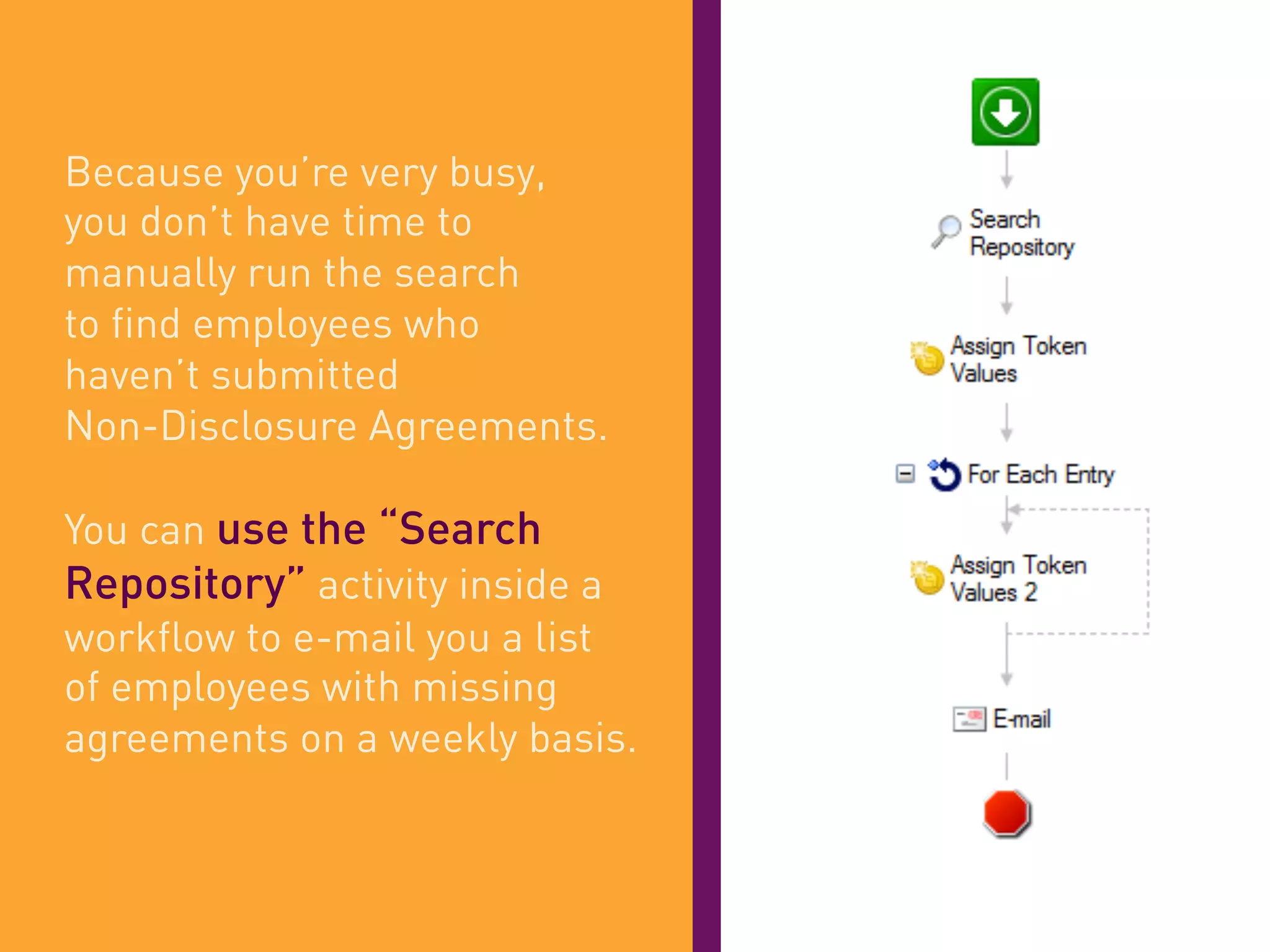
Because you’re very busy,
you don’t have time to
manually run the search
to find employees who
haven’t submitted
Non-Disclosure Agreements.
You can use the “Search
Repository” activity inside a
workflow to e-mail you a list
of employees with missing
agreements on a weekly basis.
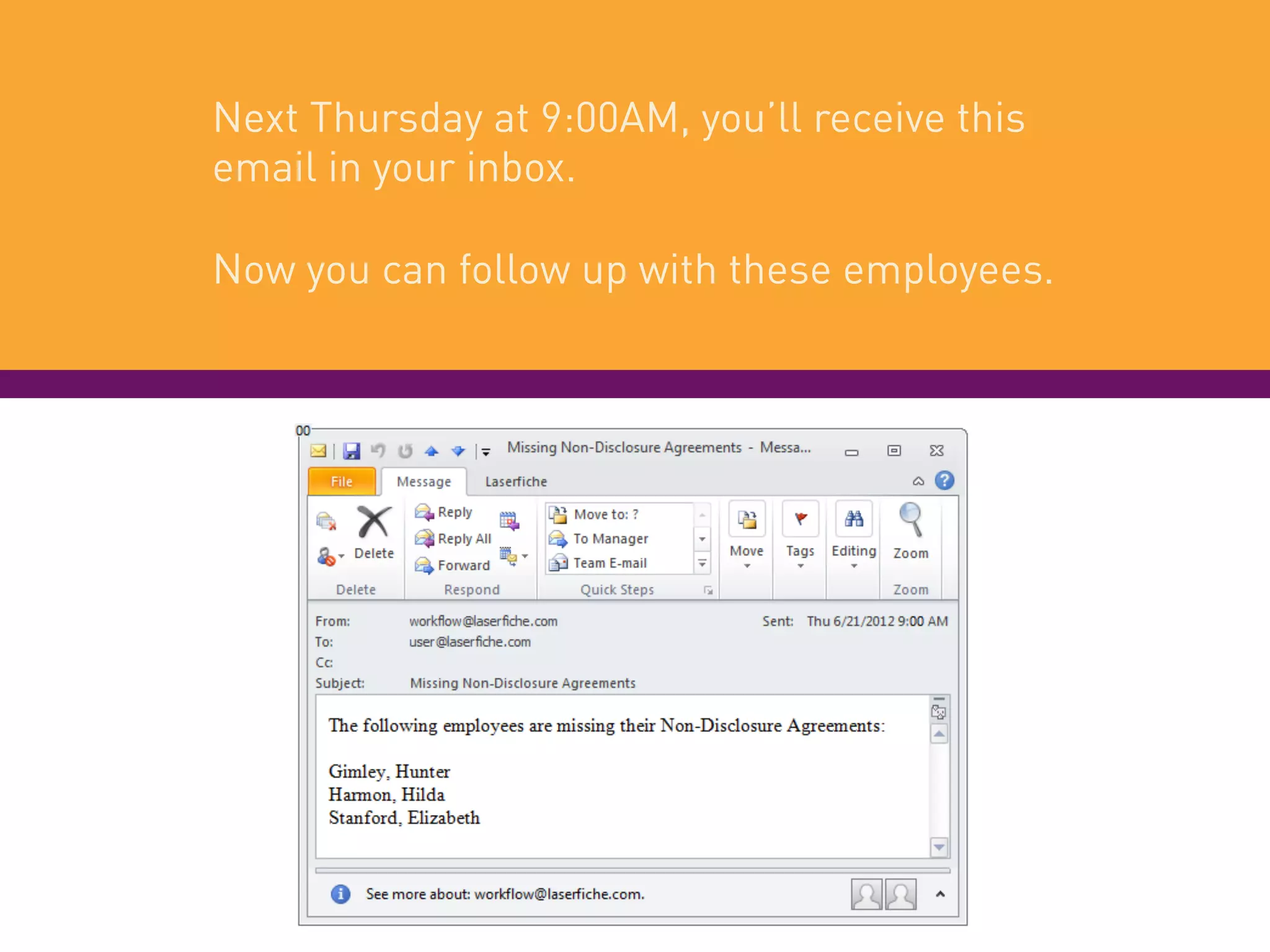
Next Thursday at 9:00AM, you’ll receive this
email in your inbox.
Now you can follow up with these employees.
Get step-by-step
instructions
Learn how to do this yourself
on the Solution Exchange!
Click Here
QUICK WIN #4
Custom Shortcuts
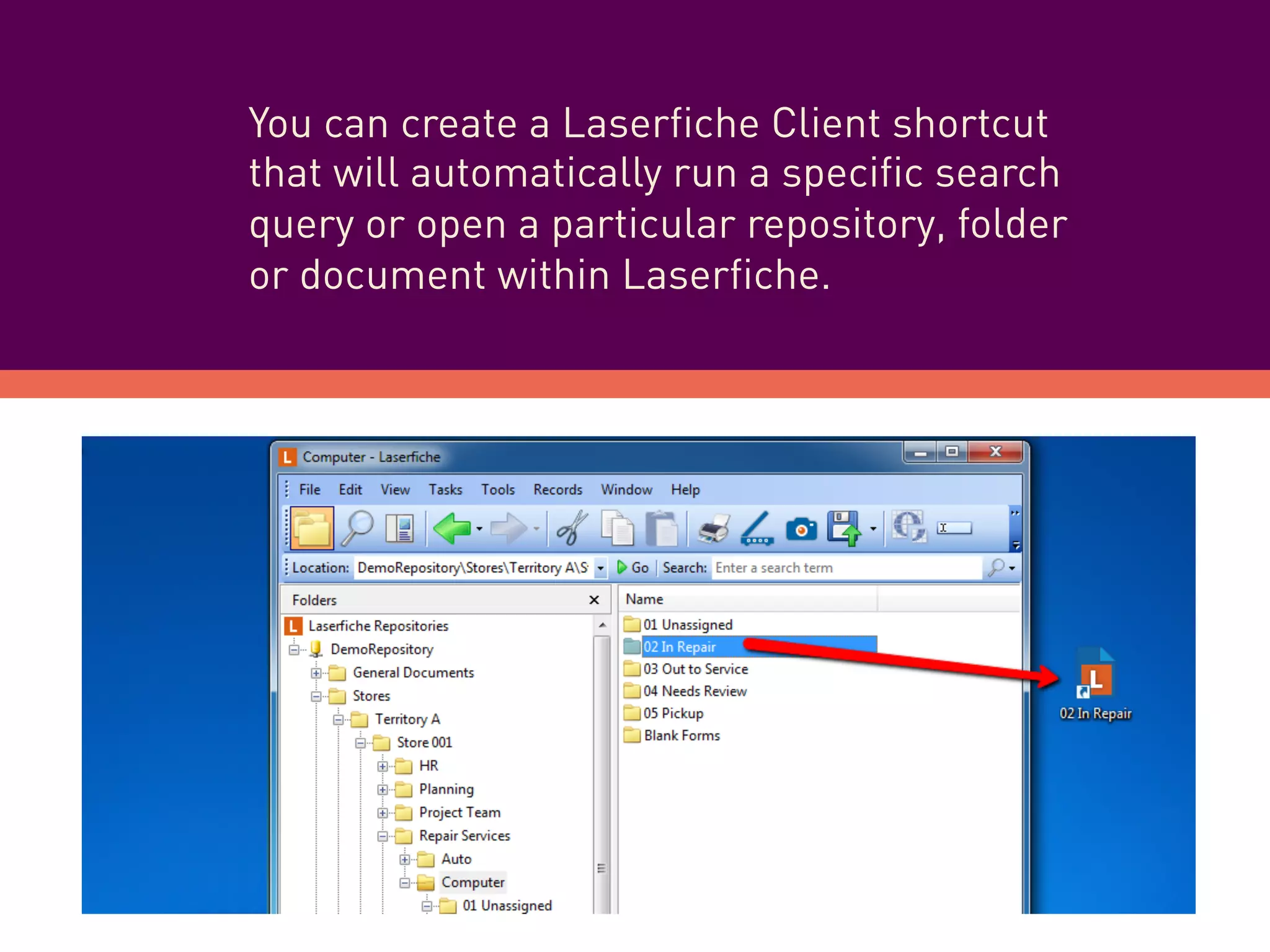
You can create a Laserfiche Client shortcut
that will automatically run a specific search
query or open a particular repository, folder
or document within Laserfiche.
Why is this
useful?
i	
  
Example Scenario:
Admissions Clerk
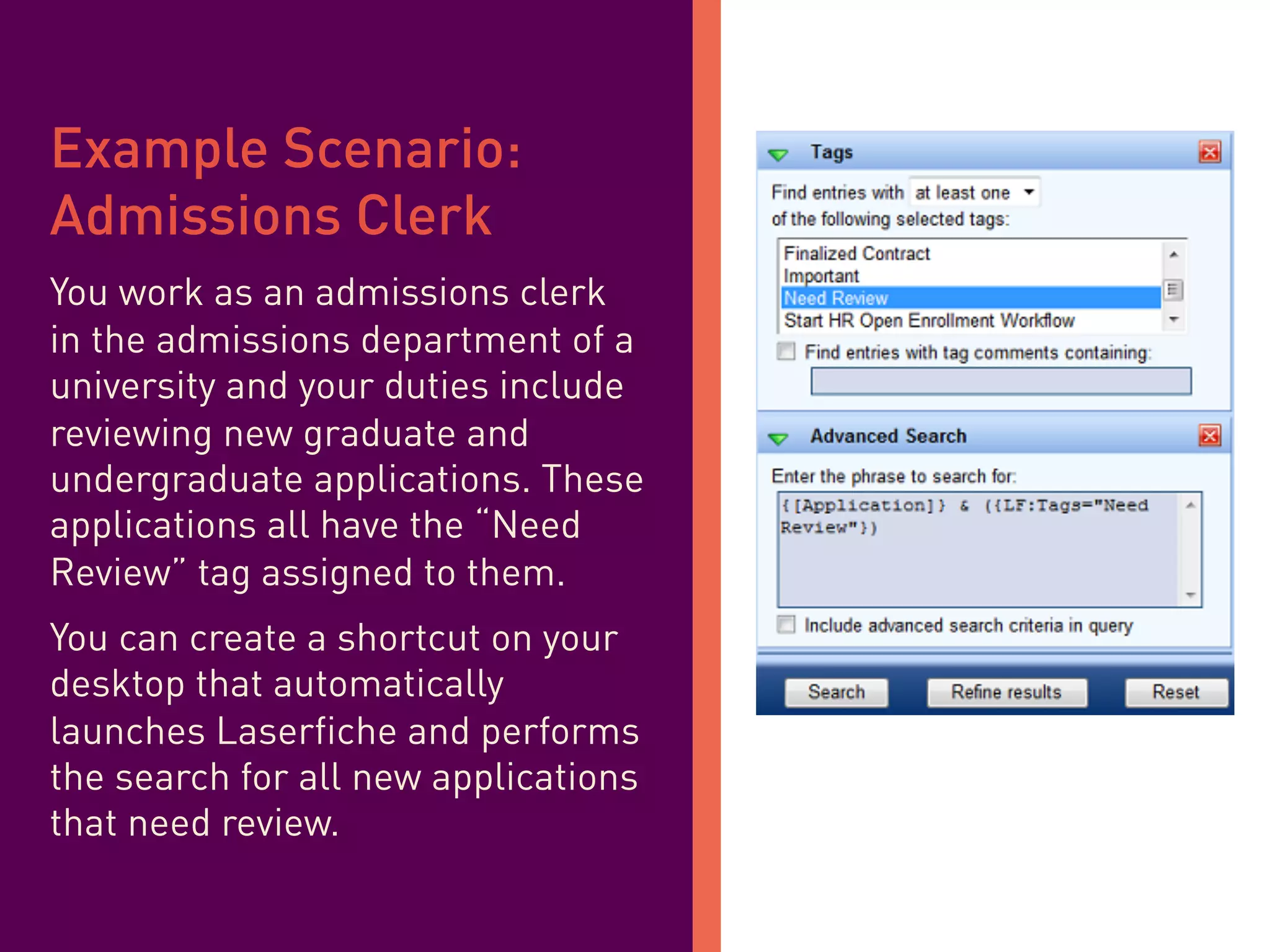
You work as an admissions clerk
in the admissions department of a
university and your duties include
reviewing new graduate and
undergraduate applications. These
applications all have the “Need
Review” tag assigned to them.
You can create a shortcut on your
desktop that automatically
launches Laserfiche and performs
the search for all new applications
that need review.
Get step-by-step
instructions
Learn how to do this yourself
on the Solution Exchange!
Click Here
QUICK WIN #5
The Laserfiche-Microsoft
Office Integration
Laserfiche’s integration
with Microsoft Office
allows you to...
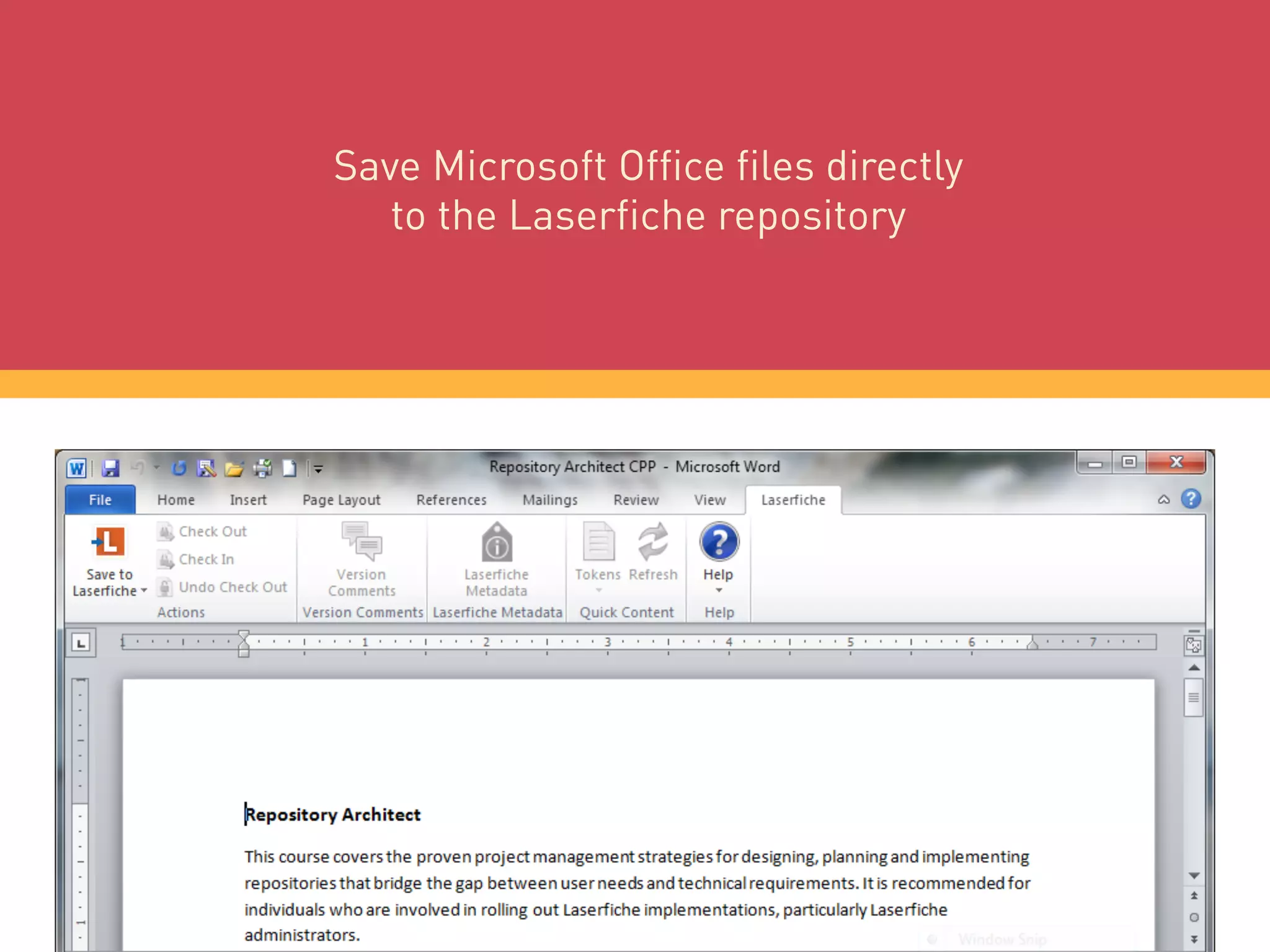
Save Microsoft Office files directly
to the Laserfiche repository
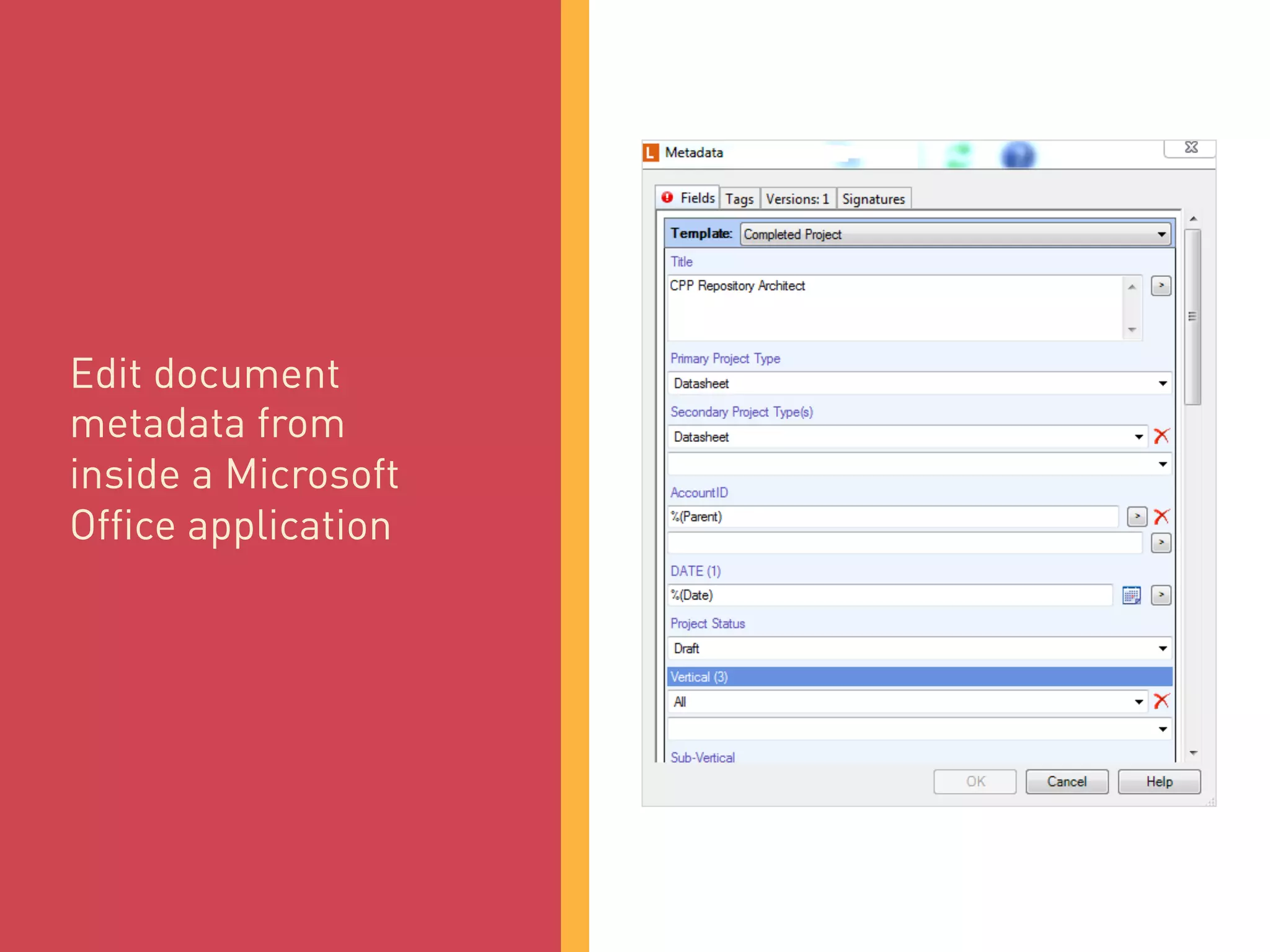
Edit document
metadata from
inside a Microsoft
Office application
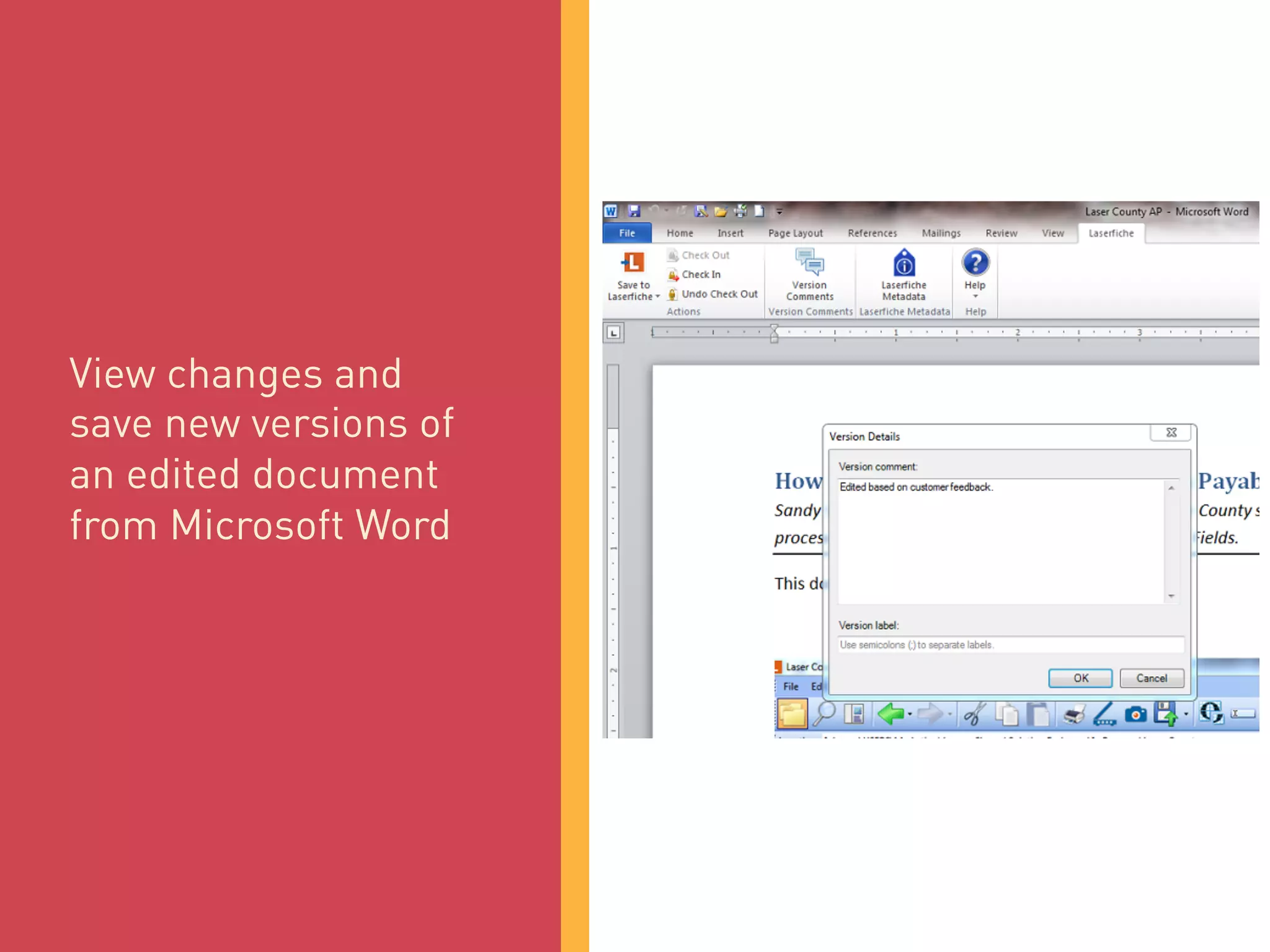
View changes and
save new versions of
an edited document
from Microsoft Word
Save emails in Laserfiche
directly from Microsoft Outlook
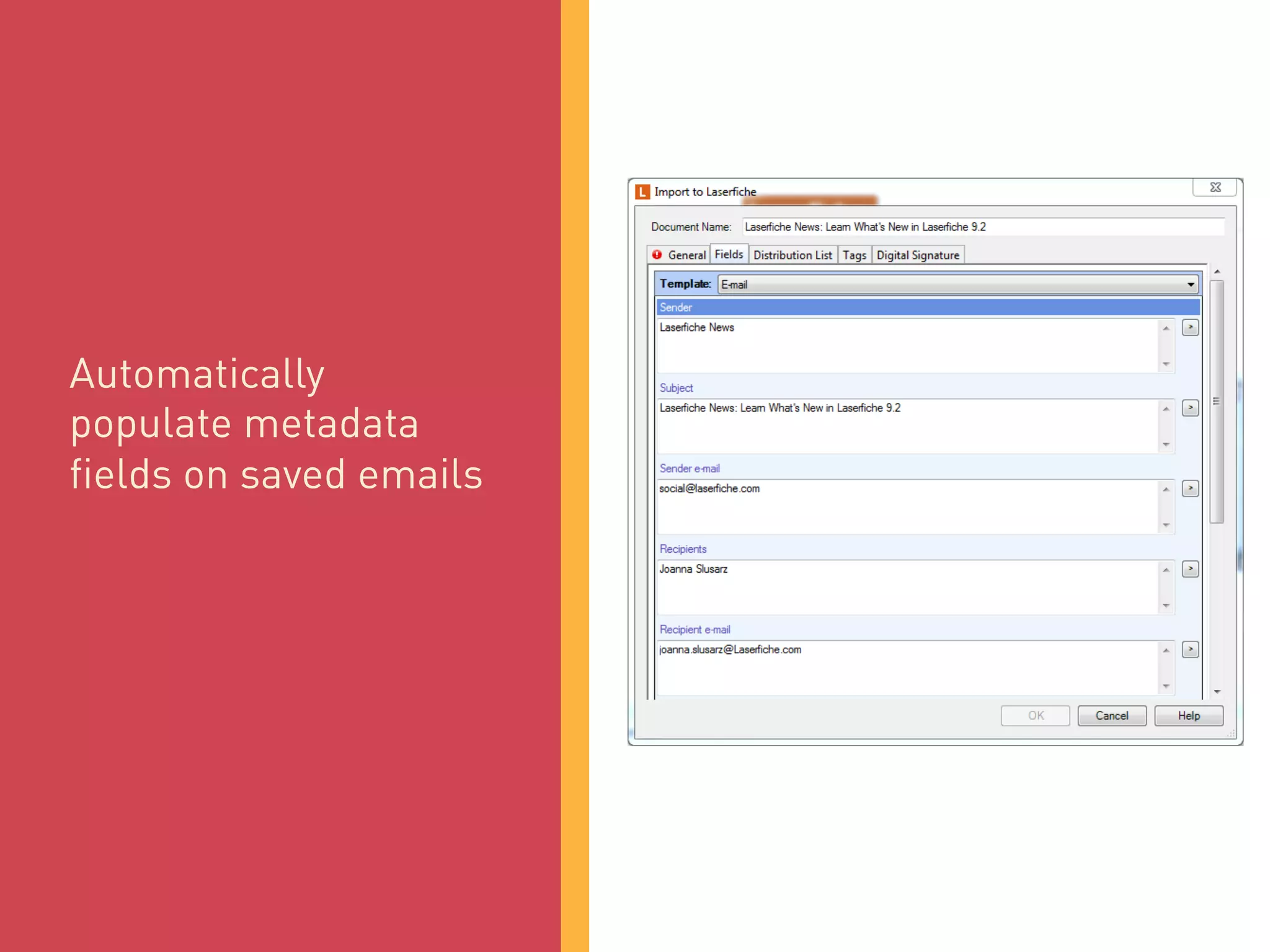
Automatically
populate metadata
fields on saved emails
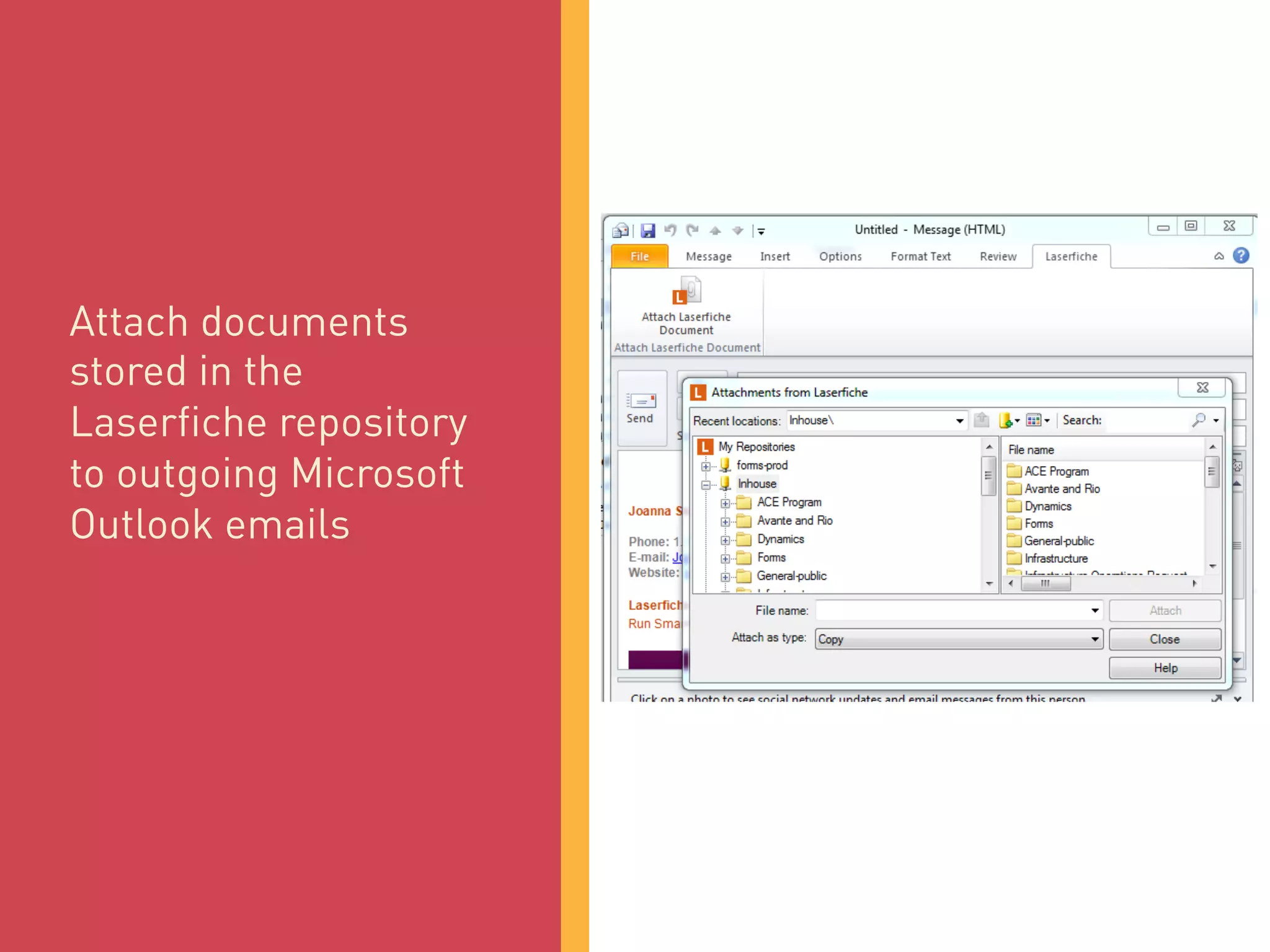
Attach documents
stored in the
Laserfiche repository
to outgoing Microsoft
Outlook emails
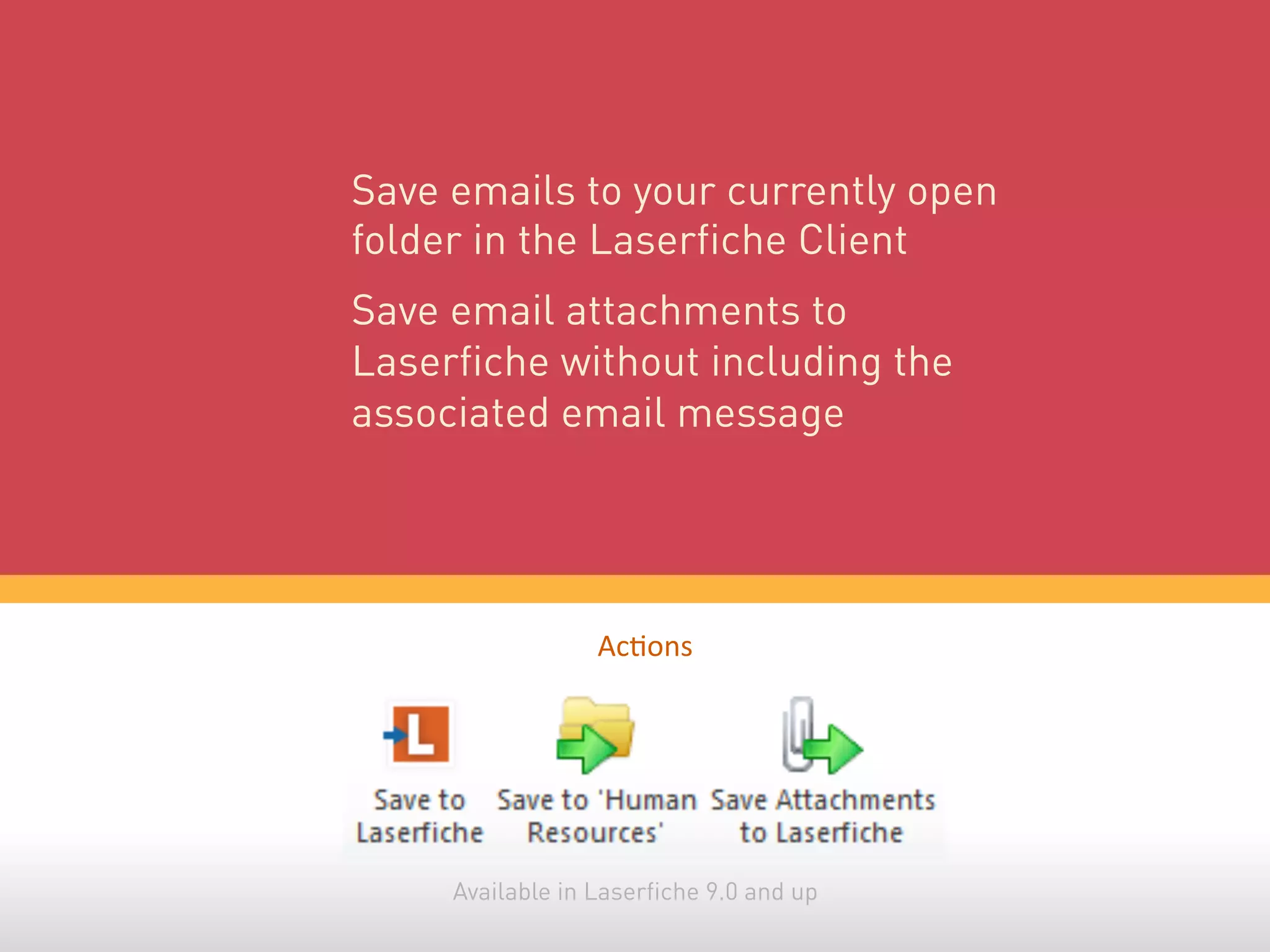
Save emails to your currently open
folder in the Laserfiche Client
Save email attachments to
Laserfiche without including the
associated email message
Ac%ons	
  
Available in Laserfiche 9.0 and up
Get step-by-step
instructions
Learn how to do this yourself
on the Solution Exchange!
Click Here
Taking Advantage
of Your Wins
Remember…
Quick wins are useless if
no one knows about them.
Measure and report the benefits of your
wins so stakeholders are aware of what
you’ve quickly achieved.
TAKEAWAYS
‣  Quick wins can help onboard new
departments or users.
‣  When you are project planning, have
a healthy mix of quick wins and
strategic projects.
Most importantly, what
seems small to you may be
huge to someone else.
THANKS
for reading!

5 Quick Wins to Wow Your Office

  • 1.
    FIVE QUICK WINS toWow Your Office
  • 2.
  • 3.
    QUICK WINS ARE: ‣ Minimal or no cost ‣  Low risk ‣  Narrow and focused in scope ‣  Implementable within 60-90 days
  • 4.
    ‣  Eliminating unnecessarysteps from a process ‣  Redesigning forms ‣  Changing inefficient procedures ‣  Starting to use available features that haven’t been implemented yet POTENTIAL QUICK WINS
  • 5.
    Here are fivequick wins that are available out of the box in Laserfiche Avante and Rio.
  • 6.
    QUICK WIN #1 SavedColumn Profiles
  • 7.
    Laserfiche 8.3 andup gives you the ability to customize your column display for each folder by creating and saving column profiles. Once created, a user can switch between them quickly.
  • 8.
  • 9.
    Example Scenario: Admissions Clerk You’dlike to quickly sort applications by major in order to help with review. But when you need to contact an applicant to clarify something in his or her application, you’d like to view the contact information quickly. You can create two column profiles—one that lists the application type and major and the other that lists contact information—and switch between them quickly as the need arises.
  • 10.
    Get step-by-step instructions Learn howto do this yourself on the Solution Exchange! Click Here
  • 11.
  • 12.
    Once you’ve configured asearch that you think will be useful later, save time setting it up in the future by saving it. When you need to run that particular search later, all you have to do is select the saved search. You can easily access all searches that you save, regardless of the computer that you use to access Laserfiche.
  • 13.
  • 14.
    Example Scenario: City Clerk Partof your job involves reviewing new permit applications. There are certain key words that you look for in each application. You can create a saved search to quickly find new applications with those key words without typing them in every time.
  • 15.
    Get step-by-step instructions Learn howto do this yourself on the Solution Exchange! Click Here
  • 16.
    QUICK WIN #3 CustomQuick Searches
  • 17.
    You can modifythe searches listed in the Quick Search drop-down, located in the toolbar, to meet your organization’s needs. For example, if your organization uses the Created By search often, it can be added to the Quick Search drop-down menu for easier and quicker searching.
  • 18.
    Any search typethat can be configured using advanced syntax can be created as a custom quick search.
  • 19.
    Advanced search syntaxallows you to create various searches that are beyond the capabilities of the search interface. No matter how you would like to use it—whether to run a one-off search, add it as a frequently accessed quick search or make it a part of your business process workflow— advanced search is a powerful tool that will help you streamline and simplify day-to-day activities.
  • 20.
  • 21.
    Example Scenario: Compliance Officer AsCompliance Officer in a financial company, you need to make sure each employee has filled out and submitted a Non-Disclosure Agreement. You can use advanced search syntax to find all subfolders within the main “Employees” folder that do not contain a document named Non-Disclosure Agreement.
  • 22.
    Because you’re verybusy, you don’t have time to manually run the search to find employees who haven’t submitted Non-Disclosure Agreements. You can use the “Search Repository” activity inside a workflow to e-mail you a list of employees with missing agreements on a weekly basis.
  • 23.
    Next Thursday at9:00AM, you’ll receive this email in your inbox. Now you can follow up with these employees.
  • 24.
    Get step-by-step instructions Learn howto do this yourself on the Solution Exchange! Click Here
  • 25.
  • 26.
    You can createa Laserfiche Client shortcut that will automatically run a specific search query or open a particular repository, folder or document within Laserfiche.
  • 27.
  • 28.
    i   Example Scenario: AdmissionsClerk You work as an admissions clerk in the admissions department of a university and your duties include reviewing new graduate and undergraduate applications. These applications all have the “Need Review” tag assigned to them. You can create a shortcut on your desktop that automatically launches Laserfiche and performs the search for all new applications that need review.
  • 29.
    Get step-by-step instructions Learn howto do this yourself on the Solution Exchange! Click Here
  • 30.
    QUICK WIN #5 TheLaserfiche-Microsoft Office Integration
  • 31.
  • 32.
    Save Microsoft Officefiles directly to the Laserfiche repository
  • 33.
    Edit document metadata from insidea Microsoft Office application
  • 34.
    View changes and savenew versions of an edited document from Microsoft Word
  • 35.
    Save emails inLaserfiche directly from Microsoft Outlook
  • 36.
  • 37.
    Attach documents stored inthe Laserfiche repository to outgoing Microsoft Outlook emails
  • 38.
    Save emails toyour currently open folder in the Laserfiche Client Save email attachments to Laserfiche without including the associated email message Ac%ons   Available in Laserfiche 9.0 and up
  • 39.
    Get step-by-step instructions Learn howto do this yourself on the Solution Exchange! Click Here
  • 40.
  • 41.
  • 42.
    Quick wins areuseless if no one knows about them. Measure and report the benefits of your wins so stakeholders are aware of what you’ve quickly achieved.
  • 43.
    TAKEAWAYS ‣  Quick winscan help onboard new departments or users. ‣  When you are project planning, have a healthy mix of quick wins and strategic projects.
  • 44.
    Most importantly, what seemssmall to you may be huge to someone else.
  • 45.