UNIX
What isUnix?
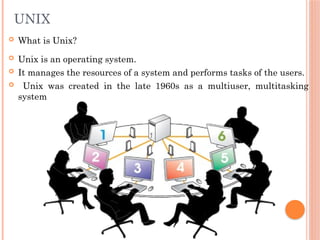
Unix is an operating system.
It manages the resources of a system and performs tasks of the users.
Unix was created in the late 1960s as a multiuser, multitasking
system
3.
INTRODUCTION CONTD…
Unixis designed for multiple users
Multiple users may have multiple tasks running
simultaneously.
We shall use a Linux OS preferably Ubuntu
Linux works on the kernel of Unix
Linux is developed by user contributions
Several flavors : Red Hat, Ubuntu, Fedora, Debian etc.
ARCHITECTURE CONTD…
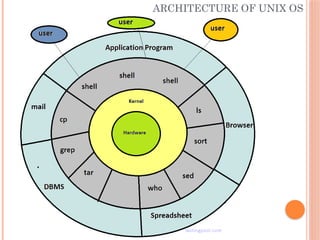
Kernel− The kernel is the heart of the operating
system.
It interacts with the hardware and most of the tasks like
memory management, task scheduling and file
management, etc.
Shell − The shell is the utility that processes user
requests.
When you type in a command at your terminal, the shell
interprets the command and calls the program that you
want.
The shell uses standard syntax for all commands. C
7.
ARCHITECTURE CONTD…
Commands− There are various commands which you
can make use of in your day to day activities.
cp, mv, cat and grep, etc. are few examples of
commands
There are over 250 standard commands plus numerous
others provided through 3rd
party software.
All the commands come along with various options.
Files and Directories − All the data of Unix is
organized into files.
All files are then organized into directories. These
KERNEL ARCHITECTURE
Userprograms can invoke operating system services
either directly or through library programs.
The system call interface is the boundary with the user
and allows higher-level software to gain access to specific
kernel functions. At the other end, the operating system
contains primitive routines that interact directly with
the hardware.
Between these two interfaces, the system is divided into
two main parts, one concerned with process control and
the other concerned with file management and I/O.
10.
KERNEL ARCHITECTURE CONTD…
The process control subsystem is responsible for memory
management, the scheduling and dispatching of
processes, and the synchronization and inter-process
communication of processes.
The file system exchanges data between memory and
external devices either as a stream of characters or in
blocks. To achieve this, a variety of device drivers are
used.
For block-oriented transfers, a disk cache approach is
used: a system buffer in main memory is interposed
between the user address space and the external device.
11.
FEATURES OF UNIX
Multiuser: A multi-user Operating system allows more
than one user to share the same computer system at the
same time.
Multi Tasking: More than one program can be run at a
time. The main concept of multitasking is maximum
utilizing CPU resources
Open System: The UNIX is open source code i.e Any
user can modified Unix open source code according there
ideas and requirements
12.
FEATURES OF UNIXCONTD…
Security: One of the most valued advantages of linux
over the other plat forms lies with the high security
levels it ensures.
UNIX/LINUX has given two levels of securities.
System level Security: Its controlled by system
Administrator.
File level Security: Its controlled by owner of the file.
13.
FEATURES OF UNIXCONTD…
Portability: Portability means Independent of
hardware & processors
Communication: The main concept of communication
facility Exchanging of information or files form one user
account to other user account.
Programming Facility: UNIX o/s provides shell. Shell
works like a programming language. It provides
commands and keywords.
Help facility : It is the beautiful feature of UNIX/
LINUX Operating systems. Don’t know the information
about given command just go through the help line.
14.
INTERNAL & EXTERNALCOMMANDS
The UNIX system is command-based i.e things happen
because of the commands that you key in.
They are grouped into two categories
Internal Commands : Commands which are built into
the shell.
For all the shell built-in commands, execution of the
same is fast in the sense that the shell doesn’t have to
search the given path for them in the PATH variable and
also no process needs to be spawned for executing it.
Examples: cd, fg etc.
15.
INTRODUCTION CONTD…
ExternalCommands : Commands which aren’t built
into the shell. When an external command has to be
executed, the shell looks for its path given in PATH
variable and also a new process has to be spawned and
the command gets executed.
They are usually located in /bin or /usr/bin. For example,
when you execute the “cat” command, which usually is at
/usr/bin, the executable /usr/bin/cat gets executed.
Examples: ls, cat etc.
16.
BASIC UNIX COMMANDS
pwd : stands for print working directory / present
working directory
It prints the path of the working directory, starting from
the root.
Example: $ pwd
cd: change directory , This command is used to change
the current working directory
cd without any parameter takes you to your home
directory, with a given path takes you to the directory
given in parameter
Example: $ cd or, $ cd /xx/yy/zz
17.
BASIC UNIX COMMANDSCONTD…
mkdir : mkdir command (make directory) in UNIX
allows users to create directories or folders
The mkdir command can create multiple directories
To create a directory in UNIX or Linux using the mkdir
command pass the name of directory to the mkdir
command. e.g. $ mkdir mydirectory
To create multiple directories in UNIX or Linux using
the mkdir command pass the names of directories to be
created to the mkdir command. The names of directories
should be separated by spaces. e.g.
$ mkdir mydirectory1 mydirectory2 mydirectory3
18.
BASIC UNIX COMMANDSCONTD…
ls : This command is used for listing the contents of a
directory or directories given to it via standard input.
e.g. dir1 dir2 file1 file2 …….
It writes results to standard output.
The ls command supports showing a variety of
information about files, sorting on a range of options and
recursive listing.
ls -a: list all files including hidden files.
E.g. . .. .hfile dir1 dir2 file1 file2 ……
19.
BASIC UNIX COMMANDSCONTD…
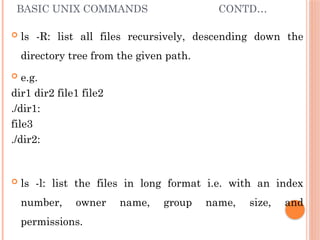
ls -R: list all files recursively, descending down the
directory tree from the given path.
e.g.
dir1 dir2 file1 file2
./dir1:
file3
./dir2:
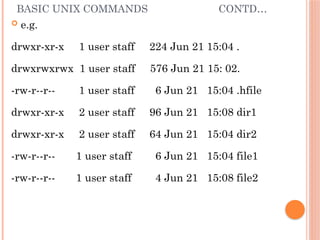
ls -l: list the files in long format i.e. with an index
number, owner name, group name, size, and
permissions.
20.
BASIC UNIX COMMANDSCONTD…
e.g.
drwxr-xr-x 1 user staff 224 Jun 21 15:04 .
drwxrwxrwx 1 user staff 576 Jun 21 15: 02.
-rw-r--r-- 1 user staff 6 Jun 21 15:04 .hfile
drwxr-xr-x 2 user staff 96 Jun 21 15:08 dir1
drwxr-xr-x 2 user staff 64 Jun 21 15:04 dir2
-rw-r--r-- 1 user staff 6 Jun 21 15:04 file1
-rw-r--r-- 1 user staff 4 Jun 21 15:08 file2
21.
BASIC UNIX COMMANDSCONTD…
ls -i: list the files along with their index number.
ls -s: list the files along with their size.
ls -t: sort the list by time of modification, with the
newest at the top.
ls -S: sort the list by size, with the largest at the top.
22.
INTRODUCTION CONTD…
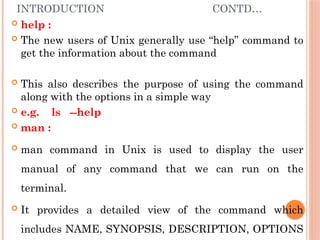
help:
The new users of Unix generally use “help” command to
get the information about the command
This also describes the purpose of using the command
along with the options in a simple way
e.g. ls --help
man :
man command in Unix is used to display the user
manual of any command that we can run on the
terminal.
It provides a detailed view of the command which
includes NAME, SYNOPSIS, DESCRIPTION, OPTIONS
23.
GENERAL PURPOSE COMMANDS
cal
If a user wants a quick view of calendar in Linux
terminal, cal is used. By default, cal command shows
current month calendar as output.
To display the calendar of a specific month or a whole
year.
cal January 2020
cal 08 2000 : Shows calendar of selected month and year.
cal jan 2020 : shows the calander of January 2020
cal 2020 : Shows the whole calendar of the year.
cal 2020 | more : But year may not be visible in the
24.
GENERAL PURPOSE COMMANDSCONTD…
date :
date command is used to display the system date and
time.
By default the date command displays the date in the
time zone on which unix/linux operating system is
configured.
You can also change the format, default is month-date
year format
date “+%d-%m-%Y”
The format specifiers are :
%D: Display date as mm/dd/yy.
25.
GENERAL PURPOSE COMMANDSCONTD…
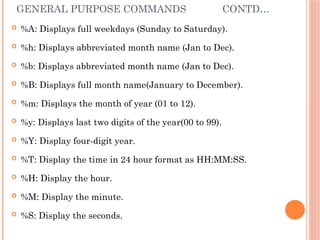
%A: Displays full weekdays (Sunday to Saturday).
%h: Displays abbreviated month name (Jan to Dec).
%b: Displays abbreviated month name (Jan to Dec).
%B: Displays full month name(January to December).
%m: Displays the month of year (01 to 12).
%y: Displays last two digits of the year(00 to 99).
%Y: Display four-digit year.
%T: Display the time in 24 hour format as HH:MM:SS.
%H: Display the hour.
%M: Display the minute.
%S: Display the seconds.
26.
GENERAL PURPOSE COMMANDSCONTD…
echo :
echo command in Unix is used to display line of text/string that
are passed as an argument
echo “Sharda University”
b : it removes all the spaces in between the text
Example : echo -e " Sharda bUniversity "
n : this option creates new line from where it is used.
Example : echo -e " Sharda nUniversity "
t : this option is used to create horizontal tab spaces.
Example : echo -e " Sharda tUniversity "
v : this option is used to create vertical tab spaces.
Example : echo -e " Sharda vUniversity "
a : alert return with backspace interpretor ‘-e‘ to have sound
alert.
27.
GENERAL PURPOSE COMMANDSCONTD…
bc:
bc command is used for command line calculator.
It is similar to basic calculator by using which we can
do basic mathematical calculations.
The bc command supports the following features:
Arithmetic operators
Increment or Decrement operators
Assignment operators
Comparison or Relational operators
Logical or Boolean operators
Math functions
Conditional statements
Iterative statements
28.
GENERAL PURPOSE COMMANDSCONTD…
Arithmetic Operators
Example: $ echo "12+5" | bc Output : 17
$ echo "10^2" | bc Output : 100
How to store the result of complete operation in
variable?
Example:
$ x=`echo "12+5" | bc`
$ echo $x Output:17
29.
GENERAL PURPOSE COMMANDSCONTD…
Assignment Operators
The list of assignments operators supported are:
var = value : Assign the vale to the variable
var += value : similar to var = var + value
var -= value : similar to var = var – value
var *= value : similar to var = var * value
var /= value : similar to var = var / value
var ^= value : similar to var = var ^ value
var %= value : similar to var = var % value
Examples:
$ echo "var=10;var" | bc Output: 10
$ echo "var=10;var^=2;var" | bc Output: 100
30.
GENERAL PURPOSE COMMANDSCONTD…
How to store the result of complete operation in
variable?
Example: $ x=`echo "var=500;var%=7;var" | bc`
$ echo $x Output:3
Explanation: Stores the result of 500 modulo 7 i.e.
remainder of 500/7 in variable x and then display
variable x as $x.
Increment Operators
There are 2 kinds of increment operators:
++var : Pre increment operator, variable is increased
first and then result of variable is stored.
var++ : Post increment operator, result of the variable
is used first and then variable is incremented.
Examples: $ echo "var=10;++var" | bc Output: 11
31.
GENERAL PURPOSE COMMANDSCONTD…
Decrement Operators
There are 2 kinds of decrement operators:
– – var : Pre decrement operator, variable is decreased
first and then result of variable is stored.
var – – : Post decrement operator, result of the variable
is used first and then variable is decremented.
Examples: $ echo "var=10;--var" | bc Output: 9
Explanation: Variable is decreased first and then result
of variable is stored.
$ echo "var=10;var--" | bc Output: 10
Explanation: Result of the variable is used first and
then variable is decremented.
32.
GENERAL PURPOSE COMMANDSCONTD…
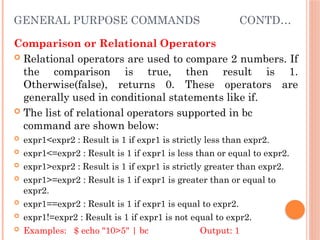
Comparison or Relational Operators
Relational operators are used to compare 2 numbers. If
the comparison is true, then result is 1.
Otherwise(false), returns 0. These operators are
generally used in conditional statements like if.
The list of relational operators supported in bc
command are shown below:
expr1<expr2 : Result is 1 if expr1 is strictly less than expr2.
expr1<=expr2 : Result is 1 if expr1 is less than or equal to expr2.
expr1>expr2 : Result is 1 if expr1 is strictly greater than expr2.
expr1>=expr2 : Result is 1 if expr1 is greater than or equal to
expr2.
expr1==expr2 : Result is 1 if expr1 is equal to expr2.
expr1!=expr2 : Result is 1 if expr1 is not equal to expr2.
Examples: $ echo "10>5" | bc Output: 1
33.
GENERAL PURPOSE COMMANDSCONTD…
Logical or Boolean Operators
Logical operators are mostly used in conditional
statements. The result of the logical operators is either
1(TRUE) or 0(FALSE).
expr1 && expr2 : Result is 1 if both expressions are non-
zero.
expr1 || expr2 : Result is 1 if either expression is non-
zero.
! expr : Result is 1 if expr is 0 and vice-versa.
Examples: $ echo "10 && 5" | bc Output: 1
$ echo "0 || 0" | bc Output: 0
$ echo "! 0" | bc Output: 1
34.
GENERAL PURPOSE COMMANDSCONTD…
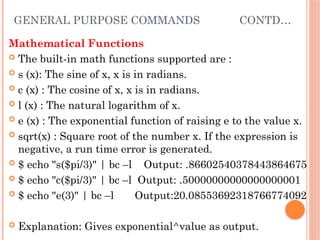
Mathematical Functions
The built-in math functions supported are :
s (x): The sine of x, x is in radians.
c (x) : The cosine of x, x is in radians.
l (x) : The natural logarithm of x.
e (x) : The exponential function of raising e to the value x.
sqrt(x) : Square root of the number x. If the expression is
negative, a run time error is generated.
$ echo "s($pi/3)" | bc –l Output: .86602540378443864675
$ echo "c($pi/3)" | bc –l Output: .50000000000000000001
$ echo "e(3)" | bc –l Output:20.08553692318766774092
Explanation: Gives exponential^value as output.
35.
GENERAL PURPOSE COMMANDSCONTD…
In addition to the math functions, the following functions
are also supported :
length(x) : returns the number of digits in x.
read() : Reads the number from the standard input.
scale(expression) : The value of the scale function is the
number of digits after the decimal point in the expression.
ibase and obase define the conversion base for input and output
numbers. The default for both input and output is base 10.
last (an extension) is a variable that has the value of the last
printed number.
Examples:
$ echo $pi Output: 3.14159265358979323844
$ echo "scale($pi)" | bc –l Output: 20
Explanation: Gives the number of digits after decimal
point in value of “pi” calculated in previous example.
36.
GENERAL PURPOSE COMMANDSCONTD…
$ echo "l(e(1))" | bc -l
Output: .99999999999999999999
Explanation: Gives natural logarithm of the value i.e.
w.r.t. base ‘e’.
$ echo "obase=2;15" | bc –l Output: 1111
Explanation: Convert Decimal to Binary.
$ echo "obase=8;9" | bc –l Output: 11
Explanation: Convert Decimal to Octal.
$ echo "ibase=2;1111" | bc –l Output: 15
Explanation: Convert Binary to Decimal.
$ echo "ibase=2;obase=8;10" | bc –l Output: 2
37.
GENERAL PURPOSE COMMANDSCONTD…
Conditional Statements
Conditional Statements are used to take decisions and
execute statements based on these decisions. bc
command supports the if condition.
Syntax: if(condition) {statements} else {statemnts}
Example:
$ echo 'n=8;m=10;if(n>m) print "n is greater" else print
"m is greater" ' | bc -l
Output: m is greater
38.
GENERAL PURPOSE COMMANDSCONTD…
Iterative statements
bc command supports the for loop and while loop for
doing iterations.
Syntax:
for(assignment; condition; updation)
{ statements.....
.......
}
OR
while(condition)
{
statements.....
}
GENERAL PURPOSE COMMANDSCONTD…
script
script command in Unix is used to make typescript or
record all the terminal activities. After executing the
script command it starts recording everything printed
on the screen including the inputs and outputs until
exit.
By default, all the terminal information is saved in the
file typescript , if no argument is given.
Syntax: script [options] [file]
In order to stop the typescript, we just need to execute
exit command and script will stop the capturing
41.
GENERAL PURPOSE COMMANDSCONTD…
passwd:
passwd command in Unix is used to change the user
account passwords.
who:
who command is used to find out the information
about logged in users
whoami : your user name
who –u : all the users logged into the system
who –a : logged in users with time and date
42.
GENERAL PURPOSE COMMANDSCONTD…
tty:
Unix operating system represents everything in a file
system, the hardware devices that we attach are also
represented as a file.
The tty command basically prints the file name of the
terminal connected to standard input.
tty represents teletype, but popularly known as a
terminal
stty :
shows the settings of teletype
43.
PROCESS BASICS
Wheneveryou issue a command in Unix, it creates, or
starts, a new process. When you tried out the ls
command to list the directory contents, you started a
process. A process, in simple terms, is an instance of a
running program.
The operating system tracks processes through a
number known as the pid or the process ID. Each
process in the system has a unique pid.
Pids eventually repeat because all the possible
numbers are used up and the next pid rolls or starts
over. At any point of time, no two processes with the
same pid exist in the system because it is the pid that
Unix uses to track each process.
44.
PROCESS BASICS CONTD…
Foreground Processes
By default, every process that you start runs in the
foreground. It gets its input from the keyboard and
sends its output to the screen.
A program runs in the foreground and if it is time-
consuming, no other commands can run because the
prompt would not be available until the program
finishes processing and comes out.
Background Processes
A background process runs without being connected to
your keyboard. If the background process requires any
keyboard input, it waits.
45.
GENERAL PURPOSE COMMANDSCONTD…
The advantage of running a process in the background
is that you can run other commands; you do not have to
wait until it completes to start another!
The simplest way to start a background process is to
add an ampersand (&) at the end of the command.
$ls ch*.doc &
This displays all those files the names of which start
with ch and end with .doc −
ch01-1.doc ch010.doc ch02.doc ch03-2.doc
ch04-1.doc ch040.doc ch05.doc ch06-2.doc
ch01-2.doc ch02-1.doc
46.
GENERAL PURPOSE COMMANDSCONTD…
Listing Running Processes
It is easy to see your own processes by running the ps
(process status) command as follows −
$ps
PID TTY TIME CMD
18358 ttyp3 00:00:00 sh
18361 ttyp3 00:01:31 abiword
18789 ttyp3 00:00:00 ps
One of the most commonly used flags for ps is the -f ( f
for full) option, which provides more information
$ps -f
47.
GENERAL PURPOSE COMMANDSCONTD…
Stopping Processes
Ending a process can be done in several different ways.
Often, from a console-based command, sending a CTRL
+ C keystroke (the default interrupt character) will exit
the command. This works when the process is running
in the foreground mode.
If a process is running in the background, you should
get its Job ID using the ps command. After that, you
can use the kill command to kill the process as follows
−
$ps -f
UID PID PPID C STIME TTY TIME CMD
sharda 6738 3662 0 10:23:03 pts/6 0:00 first_one
sharda 6739 3662 0 10:22:54 pts/6 0:00 second_one
48.
GENERAL PURPOSE COMMANDSCONTD…
Parent and Child Processes
Each unix process has two ID numbers assigned to it: The
Process ID (pid) and the Parent process ID (ppid). Each user
process in the system has a parent process.
Most of the commands that you run have the shell as their
parent. Check the ps -f example where this command listed
both the process ID and the parent process ID.
Zombie and Orphan Processes
Normally, when a child process is killed, the parent process is
updated via a SIGCHLD signal. Then the parent can do some
other task or restart a new child as needed. However,
sometimes the parent process is killed before its child is killed.
In this case, the "parent of all processes," the init process,
becomes the new PPID (parent process ID). In some cases,
49.
GENERAL PURPOSE COMMANDSCONTD…
When a process is killed, a ps listing may still show the
process with a Z state. This is a zombie or defunct
process. The process is dead and not being used. These
processes are different from the orphan processes. They
have completed execution but still find an entry in the
process table.
nice
To set the priority of a process we can use nice
command
The priority ranges from -20 to 19
-20 is the most prior process
nice -n -20 ./test.sh
To set the priority of a running process, use renice
50.
GENERAL PURPOSE COMMANDSCONTD…
kill
To terminate a process, use kill command
kill 6567
6567 is the process id of the process
51.
UNIX FILE SYSTEM
Unix file system is a logical method of organizing and
storing large amounts of information in a way that
makes it easy to manage. A file is a smallest unit in
which the information is stored. Unix file system has
several important features. All data in Unix is
organized into files. All files are organized into
directories. These directories are organized into a tree-
like structure called the file system.
Files in Unix System are organized into multi-level
hierarchy structure known as a directory tree. At the
very top of the file system is a directory called “root”
which is represented by a “/”. All other files are
“descendants” of root.
52.
FILE PERMISSION
Fileownership is an important component of Unix that
provides a secure method for storing files. Every file in
Unix has the following attributes −
Owner permissions − The owner's permissions
determine what actions the owner of the file can
perform on the file.
Group permissions − The group's permissions
determine what actions a user, who is a member of the
group that a file belongs to, can perform on the file.
Other (world) permissions − The permissions for
others indicate what action all other users can perform
on the file.
53.
FILE PERMISSION CONTD…
The permissions are broken into groups of threes, and
each position in the group denotes a specific
permission, in this order: read (r), write (w), execute (x)
−
The first three characters (2-4) represent the
permissions for the file's owner. For example, -rwxr-
xr-- represents that the owner has read (r), write (w)
and execute (x) permission.
The second group of three characters (5-7) consists of
the permissions for the group to which the file belongs.
For example, -rwxr-xr-- represents that the group has
read (r) and execute (x) permission, but no write
permission.
The last group of three characters (8-10) represents the
permissions for everyone else. For example, -rwxr-
54.
FILE HANDLING COMMANDS
Cat(concatenate) command is very frequently used in
Unix. It reads data from the file and gives their content
as output. It helps us to create, view, concatenate files.
So let us see some frequently used cat commands.
To view a single file: $ cat filename
To view multiple files: $ cat file1 file2
Create a file : $ cat > newfile
55.
CONTD…
touch :
The touch command is a standard command used in
UNIX/Linux operating system which is used to create,
change and modify timestamps of a file. Basically,
there are two different commands to create a file in the
Linux system which is as follows:
touch command: It is used to create a file without
any content. The file created using touch command is
empty. This command can be used when the user
doesn’t have data to store at the time of file creation.
Syntax:
touch file_name
56.
CONTD…
cp:
cpstands for copy. This command is used to copy files
or group of files or directory. It creates an exact image
of a file on a disk with different file name. cp command
require at least two filenames in its arguments.
$ cp Src_file Dest_file
57.
CONTD…
rm:
rmstands for remove here. rm command is used to
remove objects such as files, directories, symbolic links
and so on from the file system like UNIX. To be more
precise, rm removes references to objects from the
filesystem, where those objects might have had
multiple references (for example, a file with two
different names). By default, it does not remove
directories.
This command normally works silently and you should
be very careful while running rm command because
once you delete the files then you are not able to
recover the contents of files and directories.
$ rm a.txt
58.
CONTD…
mv :
mv stands for move. mv is used to move one or more
files or directories from one place to another in file
system like UNIX. It has two distinct functions:
(i) It rename a file or folder. $ mv a.txt b.txt
(ii) It moves group of files to different directory.
No additional space is consumed on a disk during
renaming. This command normally works
silently means no prompt for confirmation. Example
59.
CONTD…
more :
more command is used to view the text files in the command
prompt, displaying one screen at a time in case the file is large (For
example log files). The more command also allows the user do scroll
up and down through the page. The syntax along with options and
command is as follows. Another application of more is to use it with
some other command after a pipe. When the output is large, we can
use more command to see output one by one.
-d : Use this command in order to help the user to navigate. It
displays “[Press space to continue, ‘q’ to quit.]” and displays “[Press
‘h’ for instructions.]” when wrong key is pressed.
more –d sample.txt
60.
CONTD…
less :
Less command is linux utility which can be used to
read contents of text file one page(one screen) per time.
It has faster access because if file is large, it don’t
access complete file, but access it page by page.
For example, if it’s a large file and you are reading it
using any text editor, then the complete file will be
loaded to main memory, but less command don’t load
entire file, but load it part by part, which makes it
faster.
less filename
61.
CONTD…
lp :
lp command arranges for the files specified by the Files parameter
and their associated information (called a request) to be printed by a
line printer. If you do not specify a value for the Files parameter, the
lp command accepts standard input. The file name - (dash) represents
standard input and can be specified on the command line in addition
to files. The lp command sends the requests in the order specified. If
the job is submitted to a local print queue, the lp command displays
the following to standard output: Job number is: nnn where nnn is the
assigned job number. To suppress the job number use the -s flag.
To print the /etc/motd file on printer lp0 attached to device dlp0,
enter:
$ lp /etc/motd
To print 30 copies of the /etc/motd file using a copy of the file, and to notify the user
62.
CONTD…
cmp :
cmp command in Linux/UNIX is used to compare the
two files byte by byte and helps you to find out whether
the two files are identical or not.
When cmp is used for comparison between two files, it
reports the location of the first mismatch to the screen
if difference is found and if no difference is found i.e the
files compared are identical.
cmp displays no message and simply returns the
prompt if the the files compared are identical.
$ cmp file1.txt file2.txt
63.
CONTD…
diff :
diff stands for difference. This command is used to
display the differences in the files by comparing the files
line by line. Unlike its fellow members, cmp and comm,
it tells us which lines in one file have is to be changed to
make the two files identical.
The important thing to remember is that diff uses
certain special symbols and instructions that are
required to make two files identical. It tells you the
instructions on how to change the first file to make it
match the second file.
$ diff File1 File2
64.
CONTD…
comm :
Before 'comm' can be used, the input files must be sorted using the
collating sequence specified by the 'LC_COLLATE' locale, with
trailing newlines significant. If an input file ends in a non-newline
character, a newline is silently appended. The 'sort' command
with no options always outputs a file that is suitable input to
'comm'. With no options, 'comm' produces three column output.
Column one contains lines unique to FILE1, column two contains
lines unique to FILE2, and column three contains lines common to
both files. Columns are separated by a single TAB character.
The options -1, -2, and -3 suppress printing of the corresponding
columns. Unlike some other comparison utilities, 'comm' has an
exit status that does not depend on the result of the comparison.
Upon normal completion 'comm' produces an exit code of zero. If
there is an error it exits with nonzero status.
65.
CONTD…
OPTIONS
-1suppress lines unique to file1.
-2 suppress lines unique to file2.
-3 suppress lines that appear in both files.
EXAMPLES
Show the lines unique to words.txt
$ cat words.txt
Apple
Banana
Orange
India
US
Canada
$ cat countries.txt
India
US
Canada
66.
CONTD…
$ comm-23 < (sort words.txt | uniq) < (sort
countries.txt | uniq)
Apple
Banana
Orange
Show the lines common to words.txt and countries.txt.
$ comm -12 < (sort words.txt | uniq) < (sort
countries.txt | uniq)
India
US
Canada
67.
CONTD…
gzip :
gzip command compresses files. Each single file is
compressed into a single file. The compressed file
consists of a GNU zip header and deflated data.
If given a file as an argument, gzip compresses the file,
adds a “.gz” suffix, and deletes the original file. With no
arguments, gzip compresses the standard input and
writes the compressed file to standard output.
$ gzip mytext.txt
68.
zip :
ZIP is a compression and file packaging utility for Unix. Each file is
stored in single .zip {.zip-filename} file with the extension .zip.
zip is used to compress the files to reduce file size and also used as file
package utility. zip is available in many operating systems like unix,
linux, windows etc.
If you have a limited bandwidth between two servers and want to
transfer the files faster, then zip the files and transfer.
The zip program puts one or more compressed files into a single zip
archive, along with information about the files (name, path, date, time
of last modification, protection, and check information to verify file
integrity). An entire directory structure can be packed into a zip
archive with a single command.
Compression ratios of 2:1 to 3:1 are common for text files. zip has one
compression method (deflation) and can also store files without
compression. zip automatically chooses the better of the two for each
file to be compressed.
The program is useful for packaging a set of files for distribution; for
archiving files; and for saving disk space by temporarily compressing
unused files or directories.
69.
Difference betweenGzip and zip command in Unix and when to
use which command
ZIP and GZIP are two very popular methods of compressing files, in order
to save space, or to reduce the amount of time needed to transmit the files
across the network, or internet.
In general, GZIP is much better compared to ZIP, in terms of compression,
especially when compressing a huge number of files.
The common practice with GZIP, is to archive all the files into a single
tarball before compression. In ZIP files, the individual files are compressed
and then added to the archive.
When you want to pull a single file from a ZIP, it is simply extracted, then
decompressed. With GZIP, the whole file needs to be decompressed before
you can extract the file you want from the archive.
When pulling a 1MB file from a 10GB archive, it is quite clear that it
would take a lot longer in GZIP, than in ZIP.
GZIP’s disadvantage in how it operates, is also responsible for GZIP’s
advantage. Since the compression algorithm in GZIP compresses one large
file instead of multiple smaller ones, it can take advantage of the
redundancy in the files to reduce the file size even further.
If you archive and compress 10 identical files with ZIP and GZIP, the ZIP
file would be over 10 times bigger than the resulting GZIP file.
70.
gunzip :
gunzip takes a list of files on its command line and replaces each file
whose name ends with .gz, -gz, .z, -z, _z or .Z and which begins with
the correct magic number with an uncompressed file without the
original extension. gunzip also recognizes the special
extensions .tgz and .taz as shorthands
for .tar.gz and .tar.Z respectively. When compressing, gzip uses
the .tgz extension if necessary instead of truncating a file with
a .tar extension.
gunzip can currently decompress files created by gzip, zip, compress,
compress -H or pack. The detection of the input format is automatic.
When using the first two formats, gunzip checks a 32 bit CRC.
For pack, gunzip checks the uncompressed length. The
standard compress format was not designed to allow consistency
checks. However gunzip is sometimes able to detect a bad .Z file. If
you get an error when uncompressing a .Z file, do not assume that the
.Z file is correct simply because the standard uncompress does not
complain. This generally means that the standard uncompress does
not check its input, and happily generates garbage output. The SCO
compress -H format (lzh compression method) does not include a CRC
71.
CONTD…
unzip :
unzip will list, test, or extract files from a ZIP archive,
commonly found on MS-DOS systems. The default
behavior (with no options) is to extract into the current
directory (and subdirectories below it) all files from the
specified ZIP archive. A companion program, zip(1L),
creates ZIP archives; both programs are compatible
with archives created by
PKWARE’s PKZIP and PKUNZIP for MS-DOS, but in
many cases the program options or default behaviors
72.
CONTD…
tar :
The Linux ‘tar’ stands for tape archive, is used to
create Archive and extract the Archive files. tar
command in Linux is one of the important command
which provides archiving functionality in Linux. We
can use Linux tar command to create compressed or
uncompressed Archive files and also maintain and
modify them.
An Archive file is a file that is composed of one or more
files along with metadata. Archive files are used to
collect multiple data files together into a single file for
easier portability and storage, or simply to compress
files to use less storage space.
73.
CONTD…
Examples:
1.Creating an uncompressed tar Archive using option -
cvf : This command creates a tar file called file.tar
which is the Archive of all .c files in current directory.
$ tar cvf file.tar *.c
2. Extracting files from Archive using option -xvf : This
command extracts files from Archives.
$ tar xvf file.tar
END OF UNIT-1
















![GENERAL PURPOSE COMMANDS CONTD…
script
script command in Unix is used to make typescript or
record all the terminal activities. After executing the
script command it starts recording everything printed
on the screen including the inputs and outputs until
exit.
By default, all the terminal information is saved in the
file typescript , if no argument is given.
Syntax: script [options] [file]
In order to stop the typescript, we just need to execute
exit command and script will stop the capturing](https://image.slidesharecdn.com/465330485-unix-basic-commands-250724044205-4e7f6030/85/465330485-Unix-basic-commands-opera-pptx-40-320.jpg)





![CONTD…
more :
more command is used to view the text files in the command
prompt, displaying one screen at a time in case the file is large (For
example log files). The more command also allows the user do scroll
up and down through the page. The syntax along with options and
command is as follows. Another application of more is to use it with
some other command after a pipe. When the output is large, we can
use more command to see output one by one.
-d : Use this command in order to help the user to navigate. It
displays “[Press space to continue, ‘q’ to quit.]” and displays “[Press
‘h’ for instructions.]” when wrong key is pressed.
more –d sample.txt](https://image.slidesharecdn.com/465330485-unix-basic-commands-250724044205-4e7f6030/85/465330485-Unix-basic-commands-opera-pptx-59-320.jpg)
















![Unix environment [autosaved]](https://cdn.slidesharecdn.com/ss_thumbnails/unixenvironmentautosaved-151015111256-lva1-app6892-thumbnail.jpg?width=640&height=640&fit=bounds)

![Unix environment [autosaved]](https://cdn.slidesharecdn.com/ss_thumbnails/unixenvironmentautosaved-151015111303-lva1-app6892-thumbnail.jpg?width=640&height=640&fit=bounds)


