Yarmouth  High School 2009 MAcBook Rollout Welcome to the
Agenda Why new Macbooks? What’s new? Caring for your MacBook Rollout procedures Set up your MacBook
What’s new? A LOT of Applications Math Type Dreamweaver and Flash Suite Alice and Scratch Open Office and iWork Noteshare iPhoto ‘09 and iMovie ‘09 Plus LOTS more! Camera iTunes remains the same iChat is still on it Faster airport connection
What’s Different? These computers are Bigger.  Before picking them up they need to be put to sleep properly. They CANNOT go in Backpacks. The case is new, you may add a strap to carry it easier. You cannot change the backGround, but you can make a sticky note and put a picture on it that covers the background. Help is Always available in the computer lab. You can also work in the lab during study hall.
What’s Different? With the intel processor, the battery tends to run down quickly if you are  using many apps at once,  using iTunes,  Playing Games, or watching movies.  (the last 2 aren’t OK in school) Be sure you don’t let the battery run all the way out. Batteries for exchange are not available until Wednesday. If you have an emergency situation, come see us in the lab.
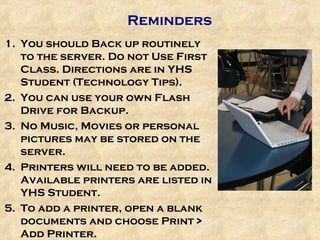
Reminders You should Back up routinely to the server. Do not Use First Class. Directions are in YHS Student (Technology Tips).  You can use your own Flash Drive for Backup. No Music, Movies or personal pictures may be stored on the server. Printers will need to be added. Available printers are listed in YHS Student.  To add a printer, open a blank documents and choose Print > Add Printer.
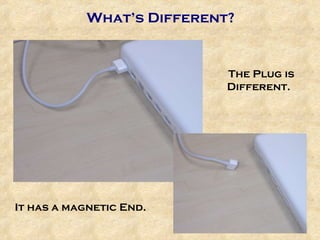
What’s Different? The Plug is Different.  It has a magnetic End.
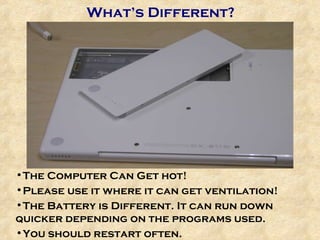
What’s Different? The Computer Can Get hot!  Please use it where it can get ventilation! The Battery is Different. It can run down quicker depending on the programs used. You should restart often.
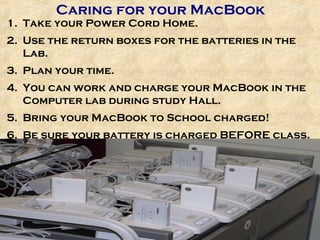
Caring for your MacBook Take your Power Cord Home. Use the return boxes for the batteries in the Lab. Plan your time. You can work and charge your MacBook in the Computer lab during study Hall. Bring your MacBook to School charged! Be sure your battery is charged BEFORE class.
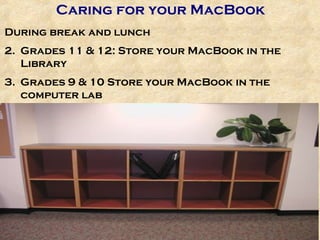
Caring for your MacBook During break and lunch Grades 11 & 12: Store your MacBook in the Library Grades 9 & 10 Store your MacBook in the computer lab
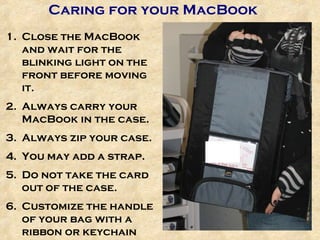
Caring for your MacBook Close the MacBook and wait for the blinking light on the front before moving it. Always carry your MacBook in the case. Always zip your case. You may add a strap. Do not take the card out of the case. Customize the handle of your bag with a ribbon or keychain
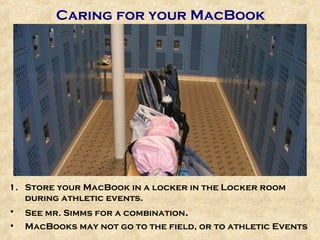
Caring for your MacBook Store your MacBook in a locker in the Locker room during athletic events.  See mr. Simms for a combination . MacBooks may not go to the field, or to athletic Events
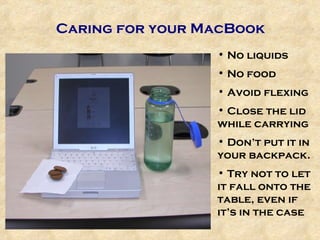
Caring for your MacBook No liquids No food Avoid flexing Close the lid while carrying Don’t put it in your backpack. Try not to let it fall onto the table, even if it’s in the case
Mr. Hall  and  Questions? 2009 MacBook Rollout
The Rollout Computers will be passed out to you in advisor groups.  The following slide will have directions of what to do next. If you have turned in your permission forms you may exit with your computer. Please go to the library to store it before lunch. If you did not turn in your payment and/or permission slip,  at the end of the rollout, return your computer to Mrs. Crawford.  If you need a computer for class today, your teacher will need to let Mrs. Crawford know.  Return your computer to the lab at the end of the period.  If you have a study hall, you may work in the computer lab. You may take your computer home as soon as we have a permission slip and payment.
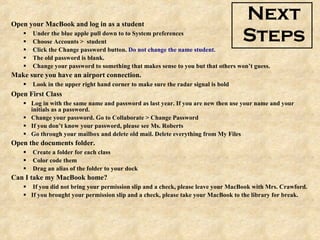
Next Steps Open your MacBook and log in as a student Under the blue apple pull down to to System preferences Choose Accounts >  student Click the Change password button.  Do not change the name student.   The old password is blank.  Change your password to something that makes sense to you but that others won’t guess. Make sure you have an airport connection. Look in the upper right hand corner to make sure the radar signal is bold Open First Class Log in with the same name and password as last year. If you are new then use your name and your initials as a password.  Change your password. Go to Collaborate > Change Password If you don’t know your password, please see Ms. Roberts Go through your mailbox and delete old mail. Delete everything from My Files Open the documents folder. Create a folder for each class Color code them Drag an alias of the folder to your dock Can I take my MacBook home? If you did not bring your permission slip and a check, please leave your MacBook with Mrs. Crawford. If you brought your permission slip and a check, please take your MacBook to the library for break.

2009 MacBook Rollout

  • 1.
    Yarmouth HighSchool 2009 MAcBook Rollout Welcome to the
  • 2.
    Agenda Why newMacbooks? What’s new? Caring for your MacBook Rollout procedures Set up your MacBook
  • 3.
    What’s new? ALOT of Applications Math Type Dreamweaver and Flash Suite Alice and Scratch Open Office and iWork Noteshare iPhoto ‘09 and iMovie ‘09 Plus LOTS more! Camera iTunes remains the same iChat is still on it Faster airport connection
  • 4.
    What’s Different? Thesecomputers are Bigger. Before picking them up they need to be put to sleep properly. They CANNOT go in Backpacks. The case is new, you may add a strap to carry it easier. You cannot change the backGround, but you can make a sticky note and put a picture on it that covers the background. Help is Always available in the computer lab. You can also work in the lab during study hall.
  • 5.
    What’s Different? Withthe intel processor, the battery tends to run down quickly if you are using many apps at once, using iTunes, Playing Games, or watching movies. (the last 2 aren’t OK in school) Be sure you don’t let the battery run all the way out. Batteries for exchange are not available until Wednesday. If you have an emergency situation, come see us in the lab.
  • 6.
    Reminders You shouldBack up routinely to the server. Do not Use First Class. Directions are in YHS Student (Technology Tips). You can use your own Flash Drive for Backup. No Music, Movies or personal pictures may be stored on the server. Printers will need to be added. Available printers are listed in YHS Student. To add a printer, open a blank documents and choose Print > Add Printer.
  • 7.
    What’s Different? ThePlug is Different. It has a magnetic End.
  • 8.
    What’s Different? TheComputer Can Get hot! Please use it where it can get ventilation! The Battery is Different. It can run down quicker depending on the programs used. You should restart often.
  • 9.
    Caring for yourMacBook Take your Power Cord Home. Use the return boxes for the batteries in the Lab. Plan your time. You can work and charge your MacBook in the Computer lab during study Hall. Bring your MacBook to School charged! Be sure your battery is charged BEFORE class.
  • 10.
    Caring for yourMacBook During break and lunch Grades 11 & 12: Store your MacBook in the Library Grades 9 & 10 Store your MacBook in the computer lab
  • 11.
    Caring for yourMacBook Close the MacBook and wait for the blinking light on the front before moving it. Always carry your MacBook in the case. Always zip your case. You may add a strap. Do not take the card out of the case. Customize the handle of your bag with a ribbon or keychain
  • 12.
    Caring for yourMacBook Store your MacBook in a locker in the Locker room during athletic events. See mr. Simms for a combination . MacBooks may not go to the field, or to athletic Events
  • 13.
    Caring for yourMacBook No liquids No food Avoid flexing Close the lid while carrying Don’t put it in your backpack. Try not to let it fall onto the table, even if it’s in the case
  • 14.
    Mr. Hall and Questions? 2009 MacBook Rollout
  • 15.
    The Rollout Computerswill be passed out to you in advisor groups. The following slide will have directions of what to do next. If you have turned in your permission forms you may exit with your computer. Please go to the library to store it before lunch. If you did not turn in your payment and/or permission slip, at the end of the rollout, return your computer to Mrs. Crawford. If you need a computer for class today, your teacher will need to let Mrs. Crawford know. Return your computer to the lab at the end of the period. If you have a study hall, you may work in the computer lab. You may take your computer home as soon as we have a permission slip and payment.
  • 16.
    Next Steps Openyour MacBook and log in as a student Under the blue apple pull down to to System preferences Choose Accounts > student Click the Change password button. Do not change the name student. The old password is blank. Change your password to something that makes sense to you but that others won’t guess. Make sure you have an airport connection. Look in the upper right hand corner to make sure the radar signal is bold Open First Class Log in with the same name and password as last year. If you are new then use your name and your initials as a password. Change your password. Go to Collaborate > Change Password If you don’t know your password, please see Ms. Roberts Go through your mailbox and delete old mail. Delete everything from My Files Open the documents folder. Create a folder for each class Color code them Drag an alias of the folder to your dock Can I take my MacBook home? If you did not bring your permission slip and a check, please leave your MacBook with Mrs. Crawford. If you brought your permission slip and a check, please take your MacBook to the library for break.