iPhotoCourse.com Photography Tutorials


Adobe Photoshop Tutorial - Dodge and Burn Using Curves
              for Monochrome Images
Lightroom – Recover Highlights, Overexposure, and Colors from RAW


Legal Disclaimers, Copyrights, and End User Rights
This document can be re-shared provided that no alteration has been made to this original
article.

Originally published at http://www.iphotocourse.com/photoshop-dodge-and-burn-using-
curves-for-monochrome-images/

You may not claim this article or modify this article for republication or distribution.

Copyright Notices
2010-2012 iphotocourse.com - All Rights Reserved

No portion of iphotocourse.com or its associated sites may be reprinted or modified in any
form without prior consent.


                            ©Copyright 2012 • David L. Tong • http://www.iphotocourse.com

                                                                                             2
Lightroom – Recover Highlights, Overexposure, and Colors from RAW

Table of Contents
iPhotoCourse.com Photography Tutorials ..................................................... 1

Adobe Photoshop Tutorial - Dodge and Burn Using Curves for Monochrome Images... 1

Legal Disclaimers, Copyrights, and End User Rights ................................. 2
    Copyright Notices .................................................................................................................. 2

Impress the World With Your Monochrome Images Using These Dodge &
Burn Techniques ................................................................................. 4


                                     ©Copyright 2012 • David L. Tong • http://www.iphotocourse.com

                                                                                                                                     3
Lightroom – Recover Highlights, Overexposure, and Colors from RAW


Impress the World With Your Monochrome Images
Using These Dodge & Burn Techniques
While there are many methods to convert colored images to monochrome, the initial result is hardly
satisfying. Much like traditional black and white film images, the images usually require some darkroom
magic to bring out the best in those images, the same can be said with digital images.


The most common art to master is to learn how to dodge and burn your monochrome images to create
stunning contrast and tonality. Adobe Photoshop and Adobe Lightroom both allow you to perform
dodge and burn enhancement but Photoshop offers more control and customization.


If there’s a digital image that deserves some time for post-processing, it will be monochrome images.
Digital image files allow you to have infinitely-variable fine-tuning with instant image feedback, which is
a far more flexible way to create monochrome magic compared to a chemical darkroom.


For this tutorial, we’ll be using Curves Adjustment Layers for dodge and burn adjustments. As I’ve
mentioned previously, there are many ways to do this, but for this tutorial, we’ll be using two curve
adjustment layers, which offers a lot of flexibility for adjustments.


As I’ve mentioned previously in our Lightroom monochrome conversion article, the key to a good
monochrome image is to choose the right photo to begin with. Some images are just better in color,
while others are just screaming to be devoid of color, in time, you’ll have a feel for which image works
best for monochrome.


Let’s get started.


                               ©Copyright 2012 • David L. Tong • http://www.iphotocourse.com

                                                                                                        4
Lightroom – Recover Highlights, Overexposure, and Colors from RAW
Workflow for Stunning Monochrome Images


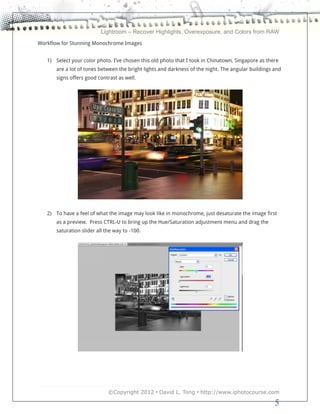
   1) Select your color photo. I’ve chosen this old photo that I took in Chinatown, Singapore as there
       are a lot of tones between the bright lights and darkness of the night. The angular buildings and
       signs offers good contrast as well.


   2) To have a feel of what the image may look like in monochrome, just desaturate the image first
       as a preview. Press CTRL-U to bring up the Hue/Saturation adjustment menu and drag the
       saturation slider all the way to -100.


                              ©Copyright 2012 • David L. Tong • http://www.iphotocourse.com

                                                                                                     5
Lightroom – Recover Highlights, Overexposure, and Colors from RAW


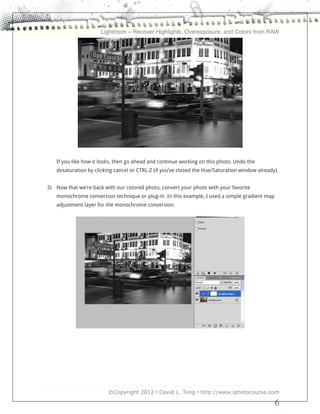
   If you like how it looks, then go ahead and continue working on this photo. Undo the
   desaturation by clicking cancel or CTRL-Z (if you’ve closed the Hue/Saturation window already).


3) Now that we’re back with our colored photo, convert your photo with your favorite
   monochrome conversion technique or plug-in. In this example, I used a simple gradient map
   adjustment layer for the monochrome conversion.


                         ©Copyright 2012 • David L. Tong • http://www.iphotocourse.com

                                                                                                6
Lightroom – Recover Highlights, Overexposure, and Colors from RAW
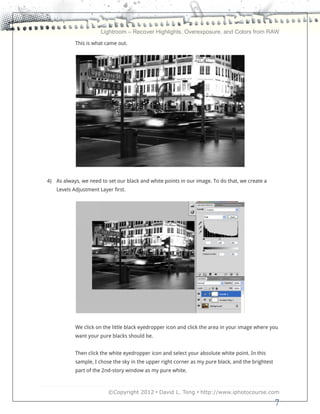
           This is what came out.


4) As always, we need to set our black and white points in our image. To do that, we create a
   Levels Adjustment Layer first.


           We click on the little black eyedropper icon and click the area in your image where you
           want your pure blacks should be.


           Then click the white eyedropper icon and select your absolute white point. In this
           sample, I chose the sky in the upper right corner as my pure black, and the brightest
           part of the 2nd-story window as my pure white.


                         ©Copyright 2012 • David L. Tong • http://www.iphotocourse.com

                                                                                                   7
Lightroom – Recover Highlights, Overexposure, and Colors from RAW
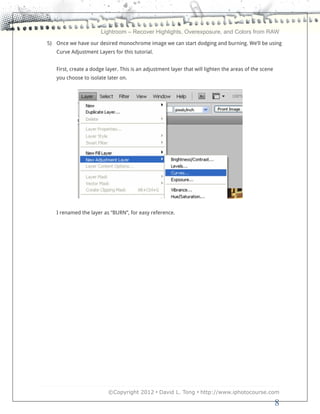
5) Once we have our desired monochrome image we can start dodging and burning. We’ll be using
   Curve Adjustment Layers for this tutorial.


   First, create a dodge layer. This is an adjustment layer that will lighten the areas of the scene
   you choose to isolate later on.


   I renamed the layer as “BURN”, for easy reference.


                          ©Copyright 2012 • David L. Tong • http://www.iphotocourse.com

                                                                                                       8
Lightroom – Recover Highlights, Overexposure, and Colors from RAW


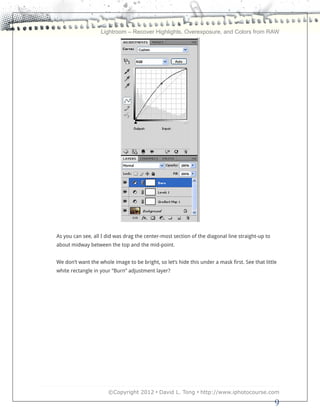
As you can see, all I did was drag the center-most section of the diagonal line straight-up to
about midway between the top and the mid-point.


We don’t want the whole image to be bright, so let’s hide this under a mask first. See that little
white rectangle in your “Burn” adjustment layer?


                      ©Copyright 2012 • David L. Tong • http://www.iphotocourse.com

                                                                                                 9
Lightroom – Recover Highlights, Overexposure, and Colors from RAW
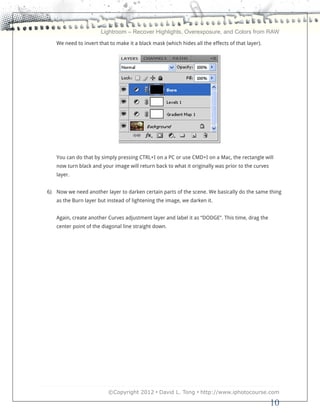
   We need to invert that to make it a black mask (which hides all the effects of that layer).


   You can do that by simply pressing CTRL+I on a PC or use CMD+I on a Mac, the rectangle will
   now turn black and your image will return back to what it originally was prior to the curves
   layer.


6) Now we need another layer to darken certain parts of the scene. We basically do the same thing
   as the Burn layer but instead of lightening the image, we darken it.


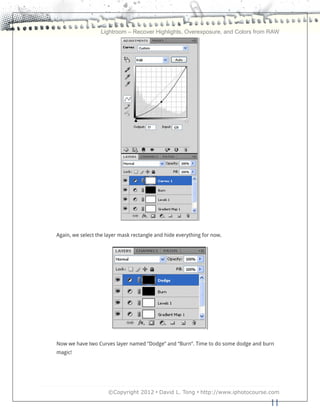
   Again, create another Curves adjustment layer and label it as “DODGE”. This time, drag the
   center point of the diagonal line straight down.


                         ©Copyright 2012 • David L. Tong • http://www.iphotocourse.com

                                                                                                  10
Lightroom – Recover Highlights, Overexposure, and Colors from RAW


Again, we select the layer mask rectangle and hide everything for now.


Now we have two Curves layer named “Dodge” and “Burn”. Time to do some dodge and burn
magic!


                     ©Copyright 2012 • David L. Tong • http://www.iphotocourse.com

                                                                                   11
Lightroom – Recover Highlights, Overexposure, and Colors from RAW
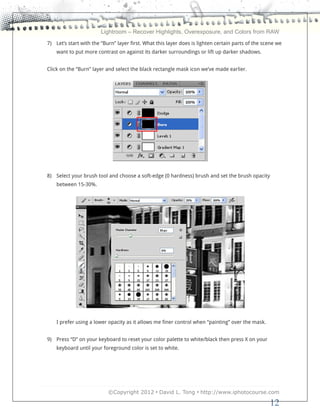
7) Let’s start with the “Burn” layer first. What this layer does is lighten certain parts of the scene we
    want to put more contrast on against its darker surroundings or lift up darker shadows.


Click on the “Burn” layer and select the black rectangle mask icon we’ve made earlier.


8) Select your brush tool and choose a soft-edge (0 hardness) brush and set the brush opacity
    between 15-30%.


    I prefer using a lower opacity as it allows me finer control when “painting” over the mask.


9) Press “D” on your keyboard to reset your color palette to white/black then press X on your
    keyboard until your foreground color is set to white.


                           ©Copyright 2012 • David L. Tong • http://www.iphotocourse.com

                                                                                                   12
Lightroom – Recover Highlights, Overexposure, and Colors from RAW


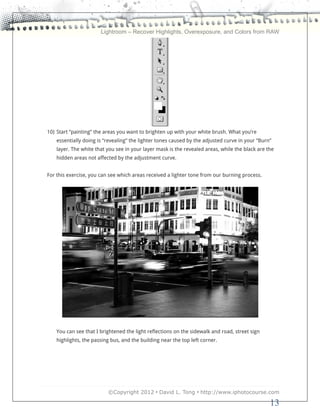
10) Start “painting” the areas you want to brighten up with your white brush. What you’re
    essentially doing is “revealing” the lighter tones caused by the adjusted curve in your “Burn”
    layer. The white that you see in your layer mask is the revealed areas, while the black are the
    hidden areas not affected by the adjustment curve.


For this exercise, you can see which areas received a lighter tone from our burning process.


    You can see that I brightened the light reflections on the sidewalk and road, street sign
    highlights, the passing bus, and the building near the top left corner.


                          ©Copyright 2012 • David L. Tong • http://www.iphotocourse.com

                                                                                                 13
Lightroom – Recover Highlights, Overexposure, and Colors from RAW
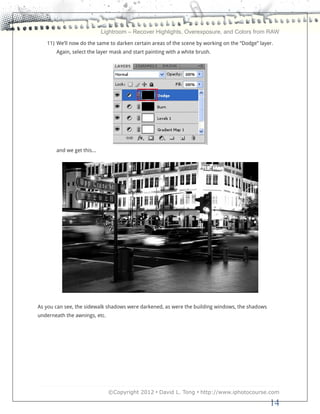
   11) We’ll now do the same to darken certain areas of the scene by working on the “Dodge” layer.
       Again, select the layer mask and start painting with a white brush.


       and we get this…


As you can see, the sidewalk shadows were darkened, as were the building windows, the shadows
underneath the awnings, etc.


                               ©Copyright 2012 • David L. Tong • http://www.iphotocourse.com

                                                                                                14
Lightroom – Recover Highlights, Overexposure, and Colors from RAW
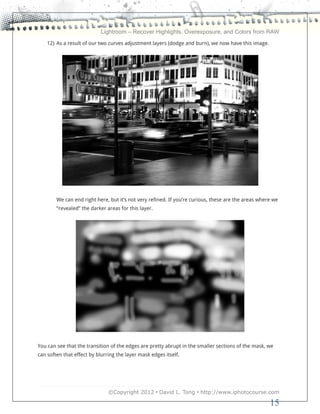
    12) As a result of our two curves adjustment layers (dodge and burn), we now have this image.


        We can end right here, but it’s not very refined. If you’re curious, these are the areas where we
        “revealed” the darker areas for this layer.


You can see that the transition of the edges are pretty abrupt in the smaller sections of the mask, we
can soften that effect by blurring the layer mask edges itself.


                               ©Copyright 2012 • David L. Tong • http://www.iphotocourse.com

                                                                                                     15
Lightroom – Recover Highlights, Overexposure, and Colors from RAW
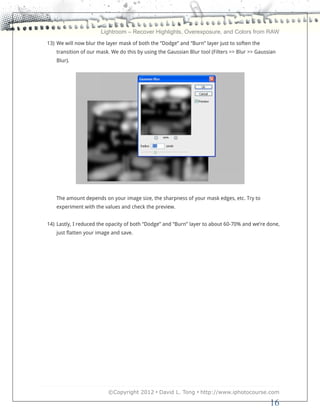
13) We will now blur the layer mask of both the “Dodge” and “Burn” layer just to soften the
    transition of our mask. We do this by using the Gaussian Blur tool (Filters >> Blur >> Gaussian
    Blur).


    The amount depends on your image size, the sharpness of your mask edges, etc. Try to
    experiment with the values and check the preview.


14) Lastly, I reduced the opacity of both “Dodge” and “Burn” layer to about 60-70% and we’re done,
    just flatten your image and save.


                          ©Copyright 2012 • David L. Tong • http://www.iphotocourse.com

                                                                                                16
Lightroom – Recover Highlights, Overexposure, and Colors from RAW
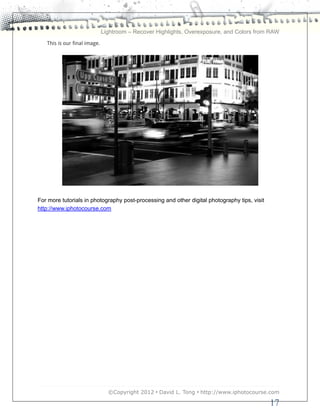
   This is our final image.


For more tutorials in photography post-processing and other digital photography tips, visit
http://www.iphotocourse.com


                                ©Copyright 2012 • David L. Tong • http://www.iphotocourse.com

                                                                                              17

Adobe Photoshop Black and White Digital Photograph Conversion Using Curves

  • 1.
    iPhotoCourse.com Photography Tutorials AdobePhotoshop Tutorial - Dodge and Burn Using Curves for Monochrome Images
  • 2.
    Lightroom – RecoverHighlights, Overexposure, and Colors from RAW Legal Disclaimers, Copyrights, and End User Rights This document can be re-shared provided that no alteration has been made to this original article. Originally published at http://www.iphotocourse.com/photoshop-dodge-and-burn-using- curves-for-monochrome-images/ You may not claim this article or modify this article for republication or distribution. Copyright Notices 2010-2012 iphotocourse.com - All Rights Reserved No portion of iphotocourse.com or its associated sites may be reprinted or modified in any form without prior consent. ©Copyright 2012 • David L. Tong • http://www.iphotocourse.com 2
  • 3.
    Lightroom – RecoverHighlights, Overexposure, and Colors from RAW Table of Contents iPhotoCourse.com Photography Tutorials ..................................................... 1 Adobe Photoshop Tutorial - Dodge and Burn Using Curves for Monochrome Images... 1 Legal Disclaimers, Copyrights, and End User Rights ................................. 2 Copyright Notices .................................................................................................................. 2 Impress the World With Your Monochrome Images Using These Dodge & Burn Techniques ................................................................................. 4 ©Copyright 2012 • David L. Tong • http://www.iphotocourse.com 3
  • 4.
    Lightroom – RecoverHighlights, Overexposure, and Colors from RAW Impress the World With Your Monochrome Images Using These Dodge & Burn Techniques While there are many methods to convert colored images to monochrome, the initial result is hardly satisfying. Much like traditional black and white film images, the images usually require some darkroom magic to bring out the best in those images, the same can be said with digital images. The most common art to master is to learn how to dodge and burn your monochrome images to create stunning contrast and tonality. Adobe Photoshop and Adobe Lightroom both allow you to perform dodge and burn enhancement but Photoshop offers more control and customization. If there’s a digital image that deserves some time for post-processing, it will be monochrome images. Digital image files allow you to have infinitely-variable fine-tuning with instant image feedback, which is a far more flexible way to create monochrome magic compared to a chemical darkroom. For this tutorial, we’ll be using Curves Adjustment Layers for dodge and burn adjustments. As I’ve mentioned previously, there are many ways to do this, but for this tutorial, we’ll be using two curve adjustment layers, which offers a lot of flexibility for adjustments. As I’ve mentioned previously in our Lightroom monochrome conversion article, the key to a good monochrome image is to choose the right photo to begin with. Some images are just better in color, while others are just screaming to be devoid of color, in time, you’ll have a feel for which image works best for monochrome. Let’s get started. ©Copyright 2012 • David L. Tong • http://www.iphotocourse.com 4
  • 5.
    Lightroom – RecoverHighlights, Overexposure, and Colors from RAW Workflow for Stunning Monochrome Images 1) Select your color photo. I’ve chosen this old photo that I took in Chinatown, Singapore as there are a lot of tones between the bright lights and darkness of the night. The angular buildings and signs offers good contrast as well. 2) To have a feel of what the image may look like in monochrome, just desaturate the image first as a preview. Press CTRL-U to bring up the Hue/Saturation adjustment menu and drag the saturation slider all the way to -100. ©Copyright 2012 • David L. Tong • http://www.iphotocourse.com 5
  • 6.
    Lightroom – RecoverHighlights, Overexposure, and Colors from RAW If you like how it looks, then go ahead and continue working on this photo. Undo the desaturation by clicking cancel or CTRL-Z (if you’ve closed the Hue/Saturation window already). 3) Now that we’re back with our colored photo, convert your photo with your favorite monochrome conversion technique or plug-in. In this example, I used a simple gradient map adjustment layer for the monochrome conversion. ©Copyright 2012 • David L. Tong • http://www.iphotocourse.com 6
  • 7.
    Lightroom – RecoverHighlights, Overexposure, and Colors from RAW This is what came out. 4) As always, we need to set our black and white points in our image. To do that, we create a Levels Adjustment Layer first. We click on the little black eyedropper icon and click the area in your image where you want your pure blacks should be. Then click the white eyedropper icon and select your absolute white point. In this sample, I chose the sky in the upper right corner as my pure black, and the brightest part of the 2nd-story window as my pure white. ©Copyright 2012 • David L. Tong • http://www.iphotocourse.com 7
  • 8.
    Lightroom – RecoverHighlights, Overexposure, and Colors from RAW 5) Once we have our desired monochrome image we can start dodging and burning. We’ll be using Curve Adjustment Layers for this tutorial. First, create a dodge layer. This is an adjustment layer that will lighten the areas of the scene you choose to isolate later on. I renamed the layer as “BURN”, for easy reference. ©Copyright 2012 • David L. Tong • http://www.iphotocourse.com 8
  • 9.
    Lightroom – RecoverHighlights, Overexposure, and Colors from RAW As you can see, all I did was drag the center-most section of the diagonal line straight-up to about midway between the top and the mid-point. We don’t want the whole image to be bright, so let’s hide this under a mask first. See that little white rectangle in your “Burn” adjustment layer? ©Copyright 2012 • David L. Tong • http://www.iphotocourse.com 9
  • 10.
    Lightroom – RecoverHighlights, Overexposure, and Colors from RAW We need to invert that to make it a black mask (which hides all the effects of that layer). You can do that by simply pressing CTRL+I on a PC or use CMD+I on a Mac, the rectangle will now turn black and your image will return back to what it originally was prior to the curves layer. 6) Now we need another layer to darken certain parts of the scene. We basically do the same thing as the Burn layer but instead of lightening the image, we darken it. Again, create another Curves adjustment layer and label it as “DODGE”. This time, drag the center point of the diagonal line straight down. ©Copyright 2012 • David L. Tong • http://www.iphotocourse.com 10
  • 11.
    Lightroom – RecoverHighlights, Overexposure, and Colors from RAW Again, we select the layer mask rectangle and hide everything for now. Now we have two Curves layer named “Dodge” and “Burn”. Time to do some dodge and burn magic! ©Copyright 2012 • David L. Tong • http://www.iphotocourse.com 11
  • 12.
    Lightroom – RecoverHighlights, Overexposure, and Colors from RAW 7) Let’s start with the “Burn” layer first. What this layer does is lighten certain parts of the scene we want to put more contrast on against its darker surroundings or lift up darker shadows. Click on the “Burn” layer and select the black rectangle mask icon we’ve made earlier. 8) Select your brush tool and choose a soft-edge (0 hardness) brush and set the brush opacity between 15-30%. I prefer using a lower opacity as it allows me finer control when “painting” over the mask. 9) Press “D” on your keyboard to reset your color palette to white/black then press X on your keyboard until your foreground color is set to white. ©Copyright 2012 • David L. Tong • http://www.iphotocourse.com 12
  • 13.
    Lightroom – RecoverHighlights, Overexposure, and Colors from RAW 10) Start “painting” the areas you want to brighten up with your white brush. What you’re essentially doing is “revealing” the lighter tones caused by the adjusted curve in your “Burn” layer. The white that you see in your layer mask is the revealed areas, while the black are the hidden areas not affected by the adjustment curve. For this exercise, you can see which areas received a lighter tone from our burning process. You can see that I brightened the light reflections on the sidewalk and road, street sign highlights, the passing bus, and the building near the top left corner. ©Copyright 2012 • David L. Tong • http://www.iphotocourse.com 13
  • 14.
    Lightroom – RecoverHighlights, Overexposure, and Colors from RAW 11) We’ll now do the same to darken certain areas of the scene by working on the “Dodge” layer. Again, select the layer mask and start painting with a white brush. and we get this… As you can see, the sidewalk shadows were darkened, as were the building windows, the shadows underneath the awnings, etc. ©Copyright 2012 • David L. Tong • http://www.iphotocourse.com 14
  • 15.
    Lightroom – RecoverHighlights, Overexposure, and Colors from RAW 12) As a result of our two curves adjustment layers (dodge and burn), we now have this image. We can end right here, but it’s not very refined. If you’re curious, these are the areas where we “revealed” the darker areas for this layer. You can see that the transition of the edges are pretty abrupt in the smaller sections of the mask, we can soften that effect by blurring the layer mask edges itself. ©Copyright 2012 • David L. Tong • http://www.iphotocourse.com 15
  • 16.
    Lightroom – RecoverHighlights, Overexposure, and Colors from RAW 13) We will now blur the layer mask of both the “Dodge” and “Burn” layer just to soften the transition of our mask. We do this by using the Gaussian Blur tool (Filters >> Blur >> Gaussian Blur). The amount depends on your image size, the sharpness of your mask edges, etc. Try to experiment with the values and check the preview. 14) Lastly, I reduced the opacity of both “Dodge” and “Burn” layer to about 60-70% and we’re done, just flatten your image and save. ©Copyright 2012 • David L. Tong • http://www.iphotocourse.com 16
  • 17.
    Lightroom – RecoverHighlights, Overexposure, and Colors from RAW This is our final image. For more tutorials in photography post-processing and other digital photography tips, visit http://www.iphotocourse.com ©Copyright 2012 • David L. Tong • http://www.iphotocourse.com 17