Page 1
Basic VRAY Tutorial
2006/08/01 04:24:24 ‫ب‬
.
‫ظ‬
http://www.joepizzini.com/VRAY/Tutorial.htm
Basic Techniques For Vray Advanced
This tutorial is intended to get you started using Vray. If you find something that you think I
need to change please email me.
Here are some other sites with Vray tutorials that I find useful:
www.chaosgroup.com/support (you will have to register) click on "V-ray docs" and open the Help
Index.
www.aversis.be
www.vray.info
www.evermotion.org
VRAY Forums
Click on a link to jump to that section or start on section one below.
1. Exterior Lighting
2. Environment Adjustments
3. Night Scene
4. VRAY Light Material
5. Color Bleeding
6. VRAY Toon
7. Interior Lighting
8. HDRI Lighting
9. Basic Material Settings
10. VRAY Displacement
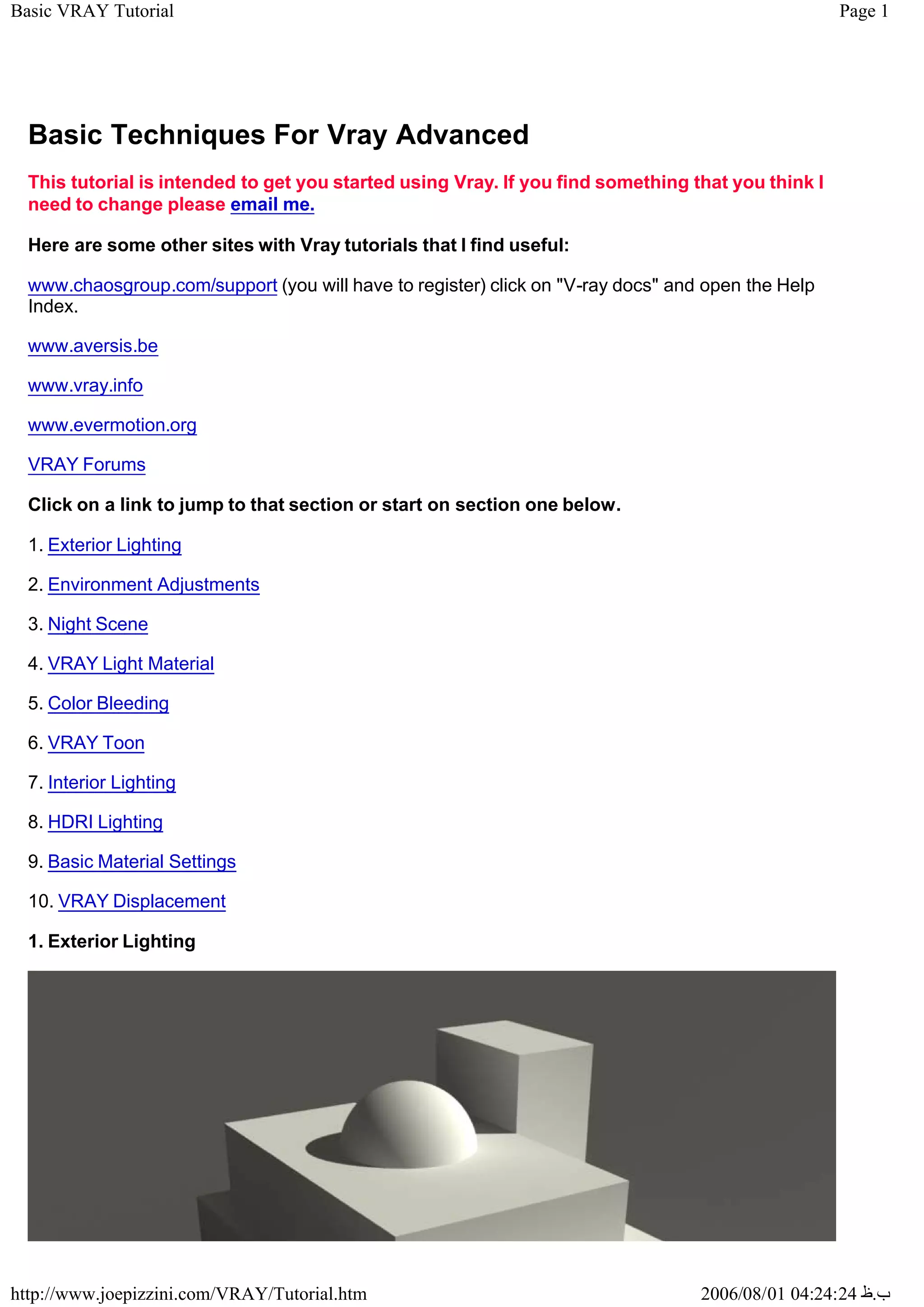
1. Exterior Lighting
Page 2
Basic VRAY Tutorial
2006/08/01 04:24:24 ‫ب‬
.
‫ظ‬
http://www.joepizzini.com/VRAY/Tutorial.htm
_
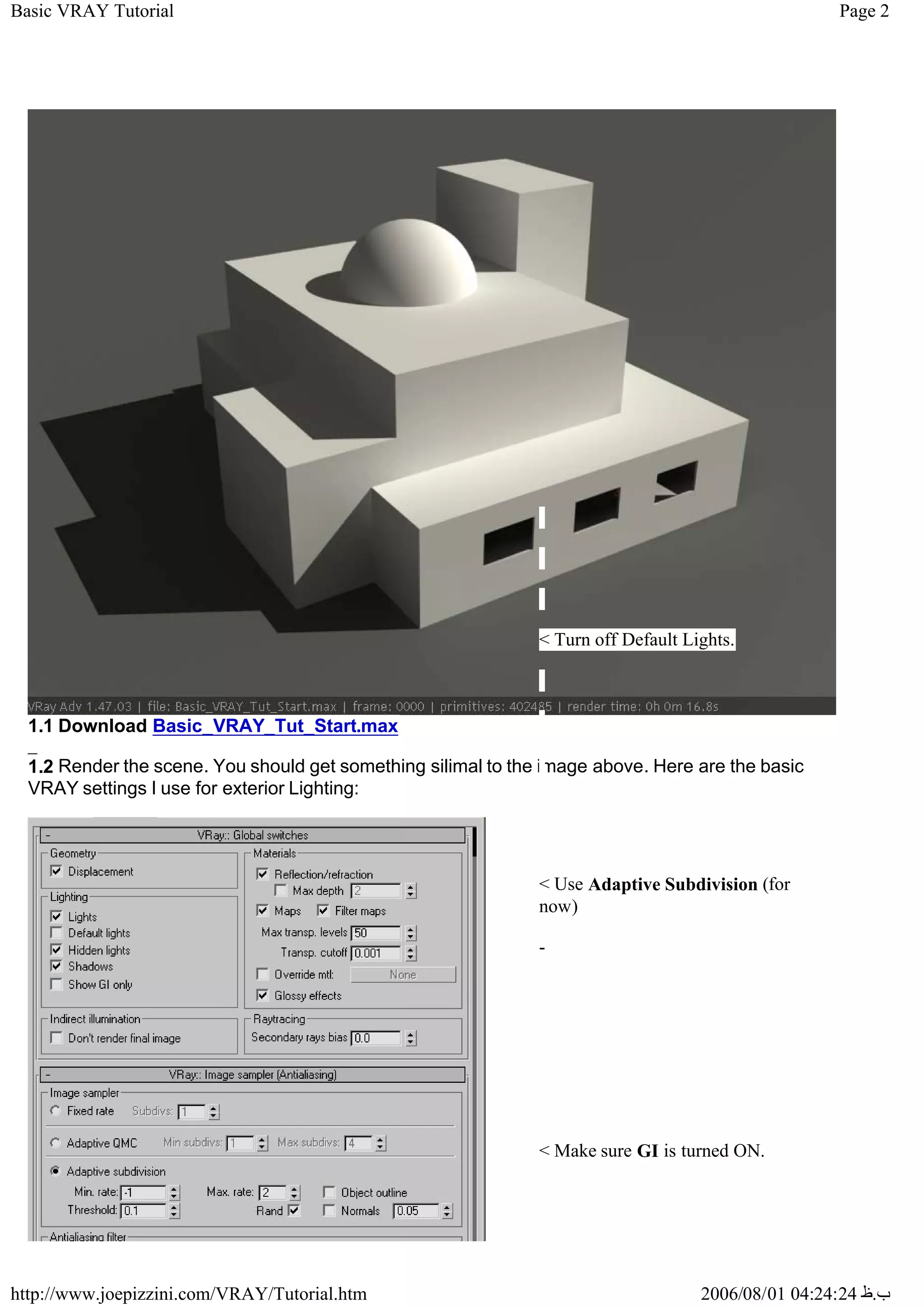
1.1 Download Basic_VRAY_Tut_Start.max
1.2 Render the scene. You should get something silimal to the image above. Here are the basic
VRAY settings I use for exterior Lighting:
< Turn off Default Lights.
< Use Adaptive Subdivision (for
now)
-
< Make sure GI is turned ON.
Page 3
Basic VRAY Tutorial
2006/08/01 04:24:24 ‫ب‬
.
‫ظ‬
http://www.joepizzini.com/VRAY/Tutorial.htm
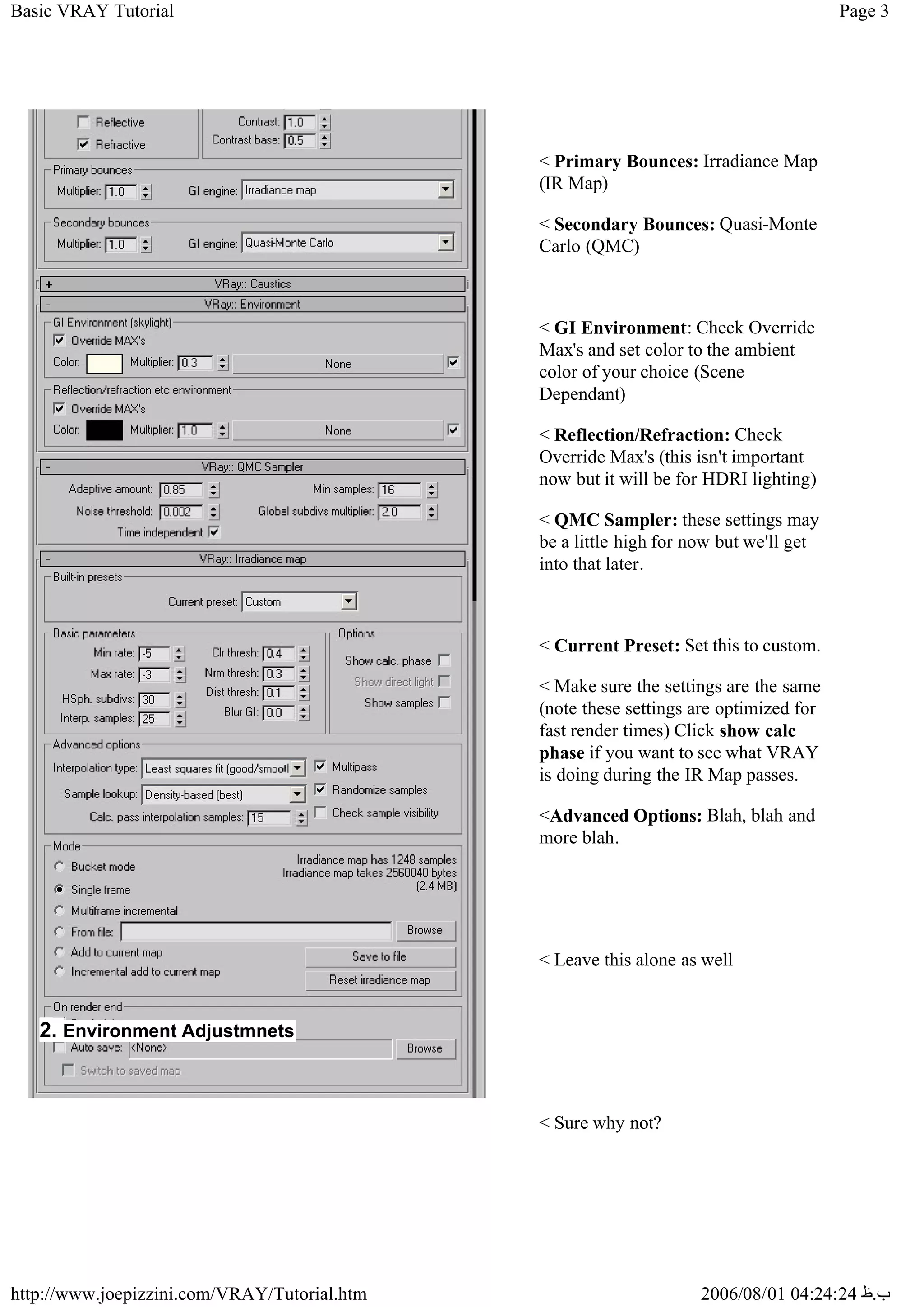
< Primary Bounces: Irradiance Map
(IR Map)
< Secondary Bounces: Quasi-Monte
Carlo (QMC)
< GI Environment: Check Override
Max's and set color to the ambient
color of your choice (Scene
Dependant)
< Reflection/Refraction: Check
Override Max's (this isn't important
now but it will be for HDRI lighting)
< QMC Sampler: these settings may
be a little high for now but we'll get
into that later.
< Current Preset: Set this to custom.
< Make sure the settings are the same
(note these settings are optimized for
fast render times) Click show calc
phase if you want to see what VRAY
is doing during the IR Map passes.
<Advanced Options: Blah, blah and
more blah.
< Leave this alone as well
< Sure why not?
2. Environment Adjustmnets
Page 4
Basic VRAY Tutorial
2006/08/01 04:24:24 ‫ب‬
.
‫ظ‬
http://www.joepizzini.com/VRAY/Tutorial.htm
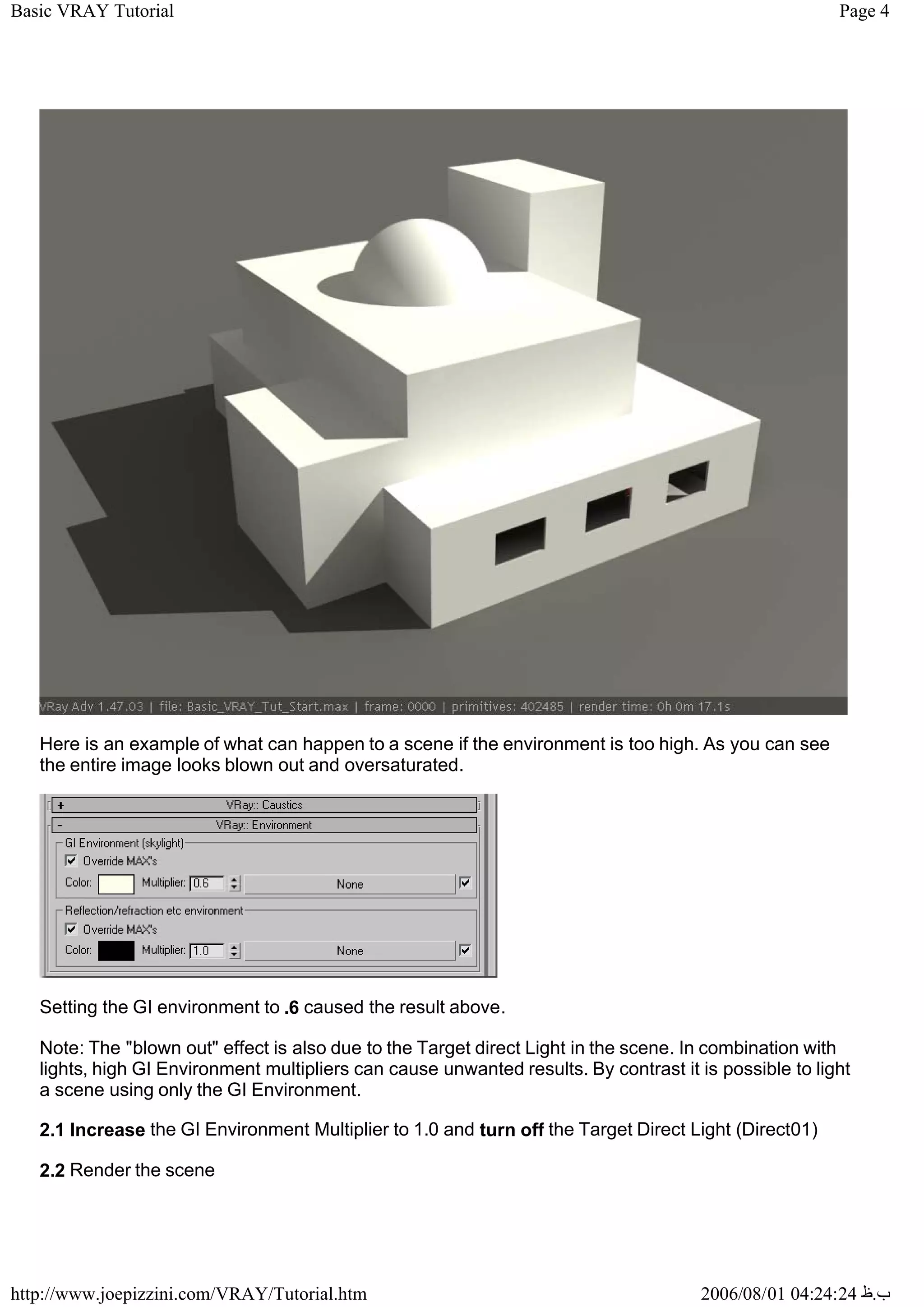
Here is an example of what can happen to a scene if the environment is too high. As you can see
the entire image looks blown out and oversaturated.
Setting the GI environment to .6 caused the result above.
Note: The "blown out" effect is also due to the Target direct Light in the scene. In combination with
lights, high GI Environment multipliers can cause unwanted results. By contrast it is possible to light
a scene using only the GI Environment.
2.1 Increase the GI Environment Multiplier to 1.0 and turn off the Target Direct Light (Direct01)
2.2 Render the scene
Page 5
Basic VRAY Tutorial
2006/08/01 04:24:24 ‫ب‬
.
‫ظ‬
http://www.joepizzini.com/VRAY/Tutorial.htm
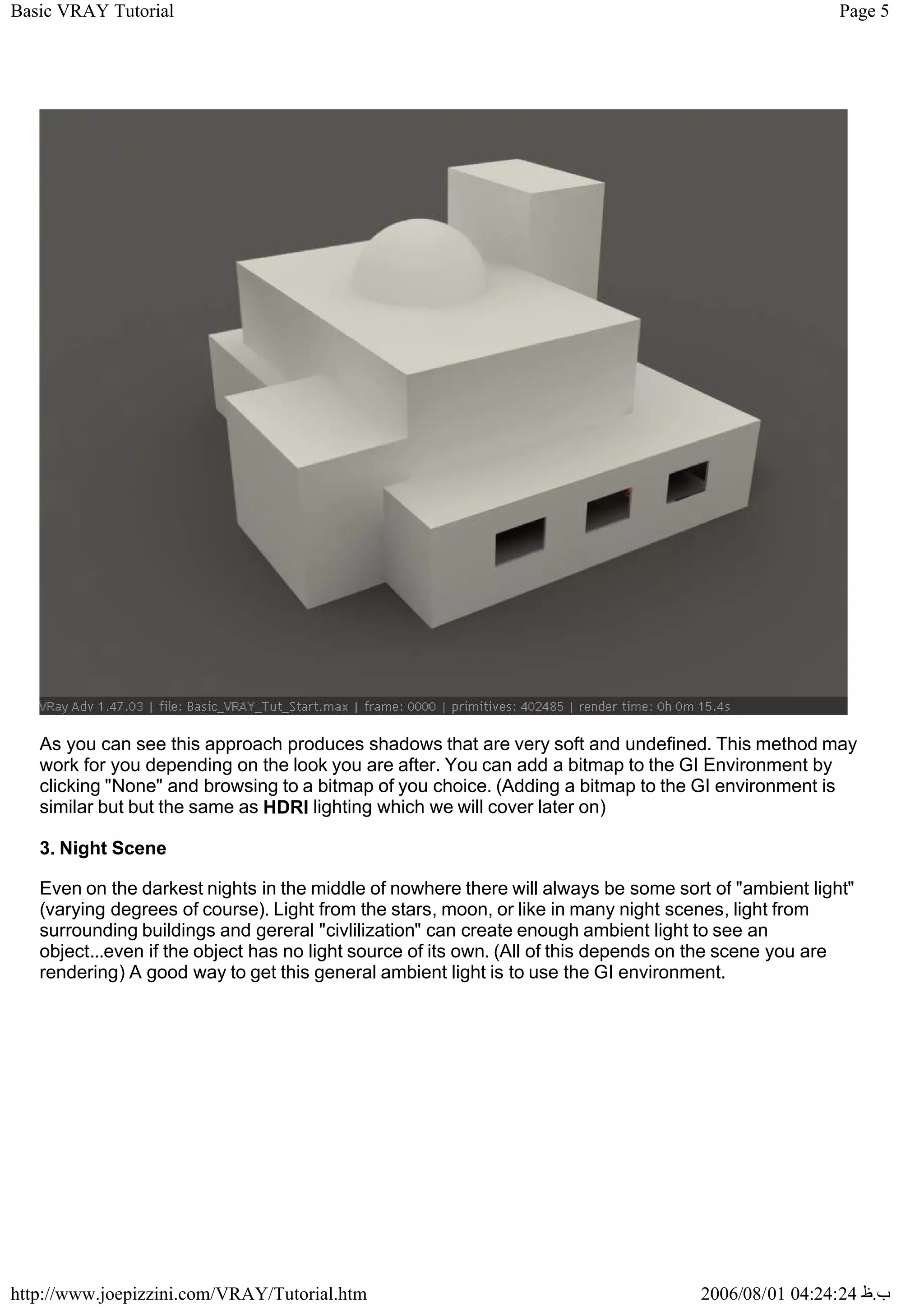
As you can see this approach produces shadows that are very soft and undefined. This method may
work for you depending on the look you are after. You can add a bitmap to the GI Environment by
clicking "None" and browsing to a bitmap of you choice. (Adding a bitmap to the GI environment is
similar but but the same as HDRI lighting which we will cover later on)
3. Night Scene
Even on the darkest nights in the middle of nowhere there will always be some sort of "ambient light"
(varying degrees of course). Light from the stars, moon, or like in many night scenes, light from
surrounding buildings and gereral "civlilization" can create enough ambient light to see an
object...even if the object has no light source of its own. (All of this depends on the scene you are
rendering) A good way to get this general ambient light is to use the GI environment.
Page 6
Basic VRAY Tutorial
2006/08/01 04:24:24 ‫ب‬
.
‫ظ‬
http://www.joepizzini.com/VRAY/Tutorial.htm
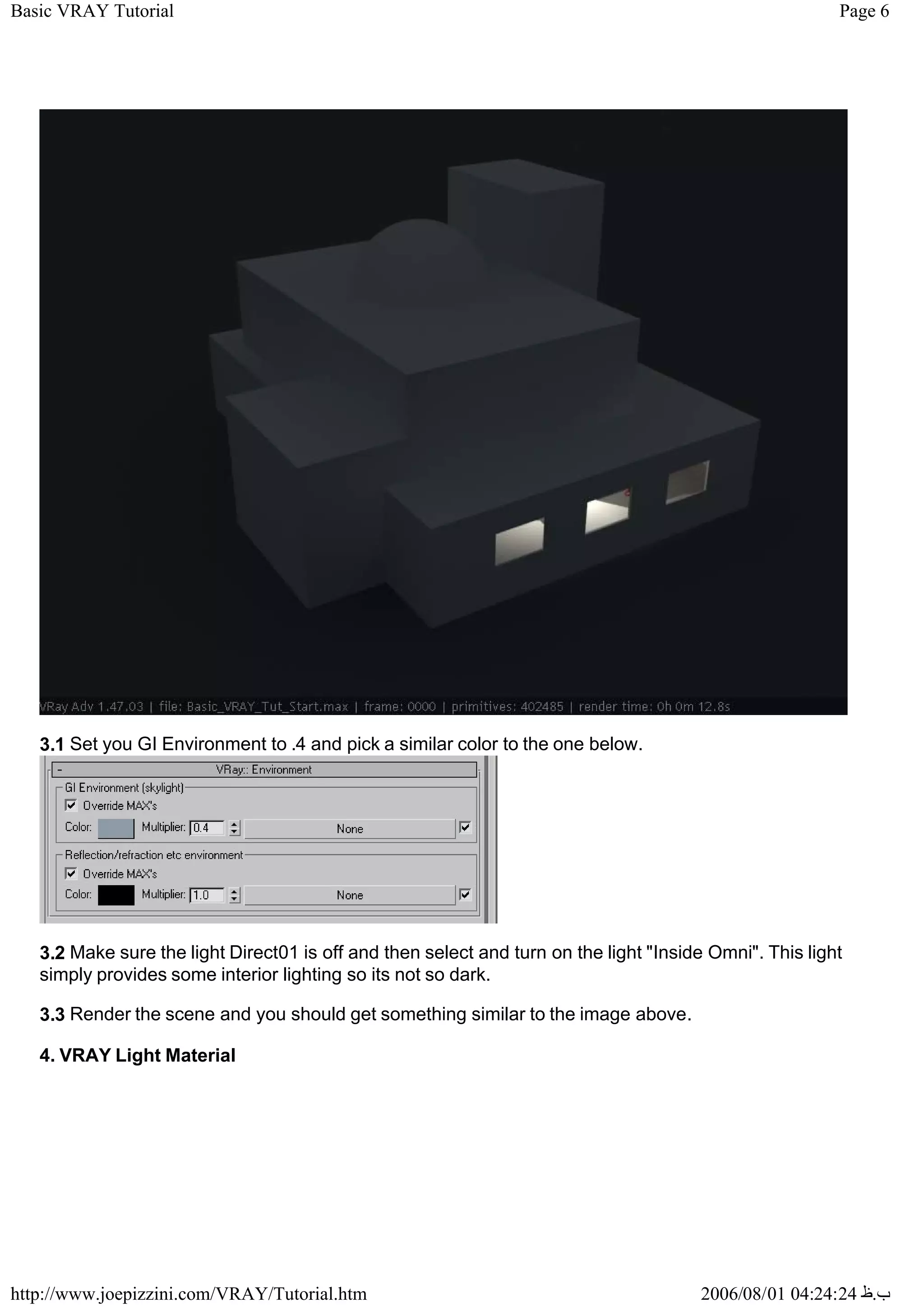
3.1 Set you GI Environment to .4 and pick a similar color to the one below.
3.2 Make sure the light Direct01 is off and then select and turn on the light "Inside Omni". This light
simply provides some interior lighting so its not so dark.
3.3 Render the scene and you should get something similar to the image above.
4. VRAY Light Material
Page 7
Basic VRAY Tutorial
2006/08/01 04:24:24 ‫ب‬
.
‫ظ‬
http://www.joepizzini.com/VRAY/Tutorial.htm
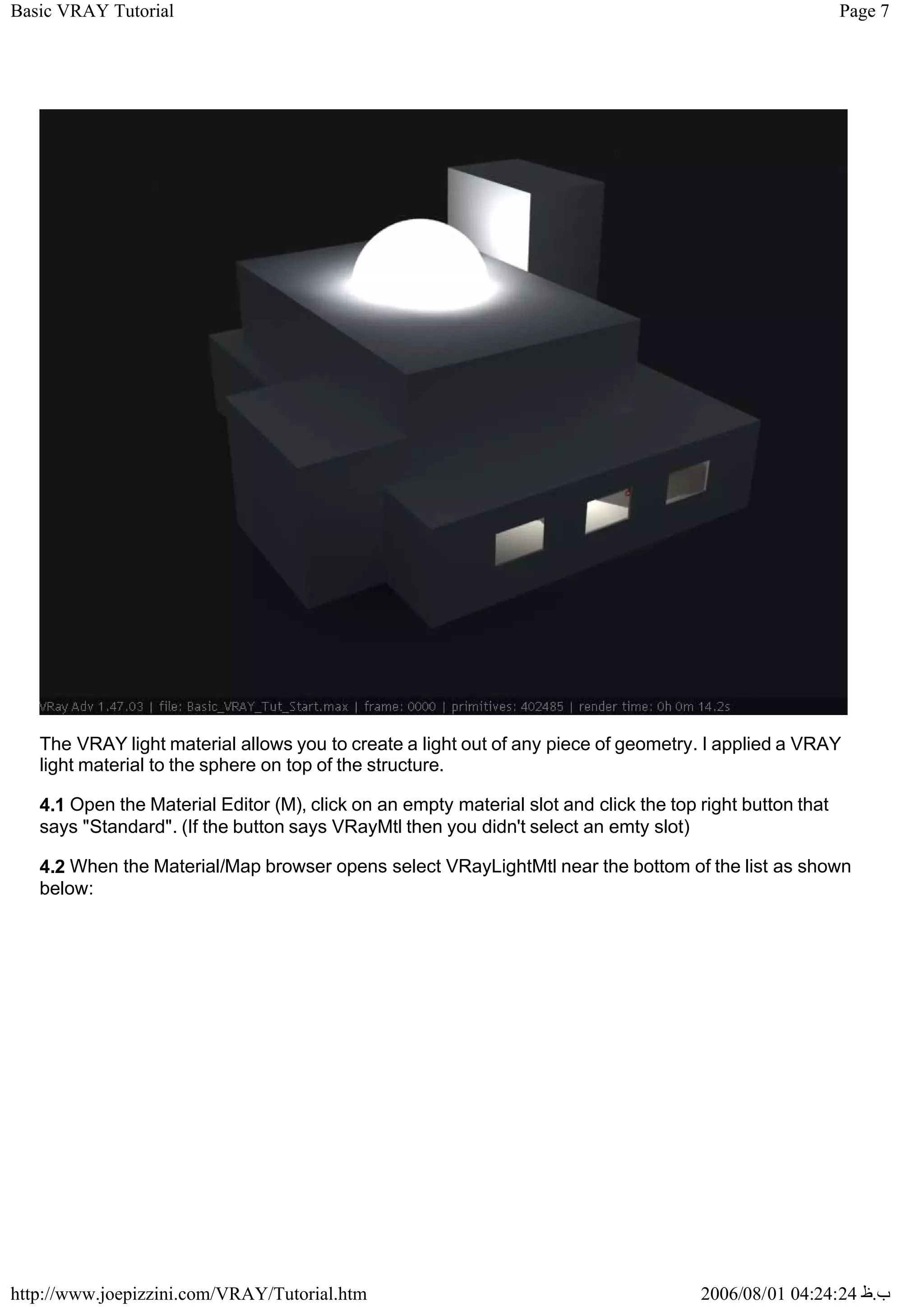
The VRAY light material allows you to create a light out of any piece of geometry. I applied a VRAY
light material to the sphere on top of the structure.
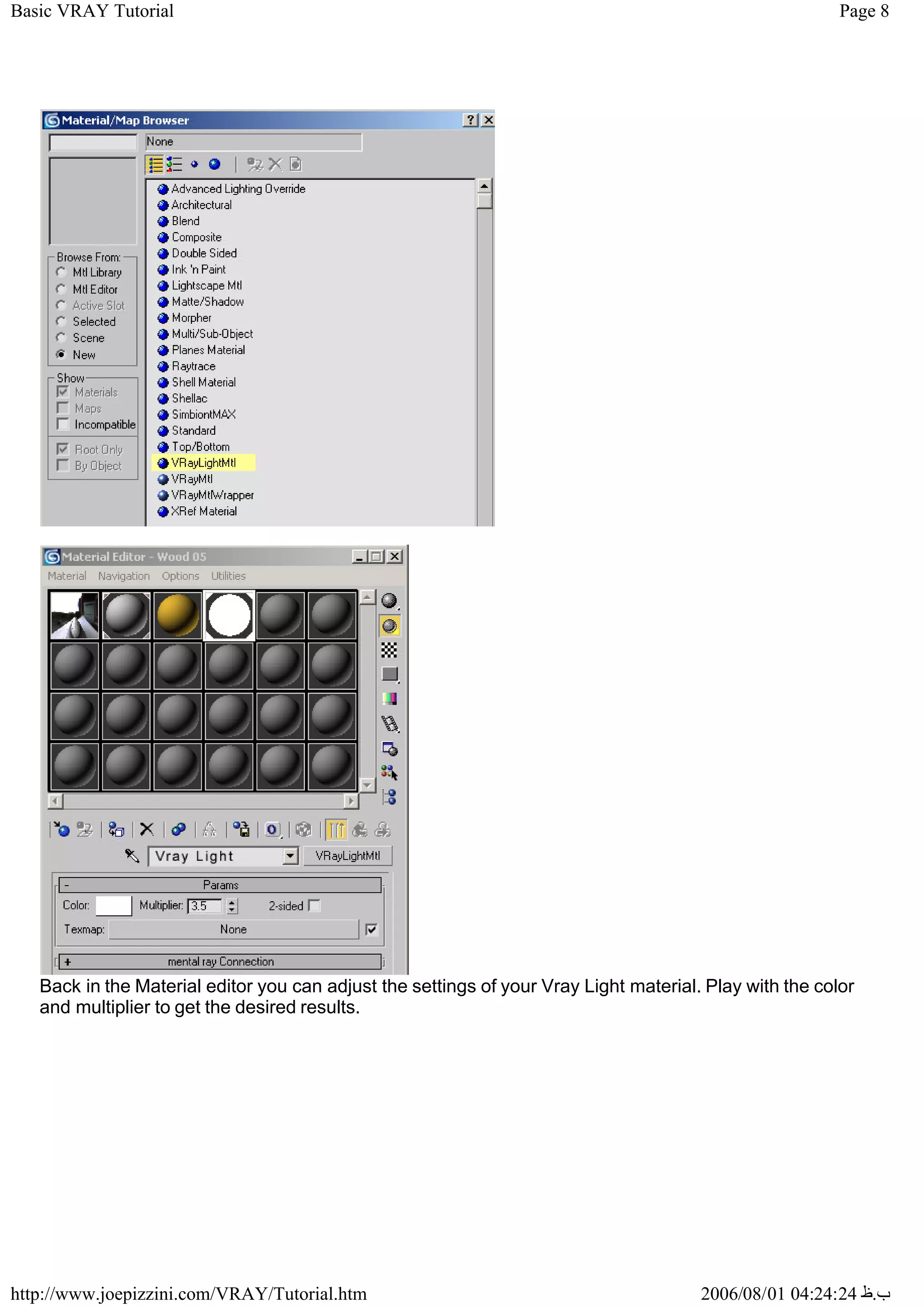
4.1 Open the Material Editor (M), click on an empty material slot and click the top right button that
says "Standard". (If the button says VRayMtl then you didn't select an emty slot)
4.2 When the Material/Map browser opens select VRayLightMtl near the bottom of the list as shown
below:
Page 8
Basic VRAY Tutorial
2006/08/01 04:24:24 ‫ب‬
.
‫ظ‬
http://www.joepizzini.com/VRAY/Tutorial.htm
Back in the Material editor you can adjust the settings of your Vray Light material. Play with the color
and multiplier to get the desired results.
Page 9
Basic VRAY Tutorial
2006/08/01 04:24:24 ‫ب‬
.
‫ظ‬
http://www.joepizzini.com/VRAY/Tutorial.htm
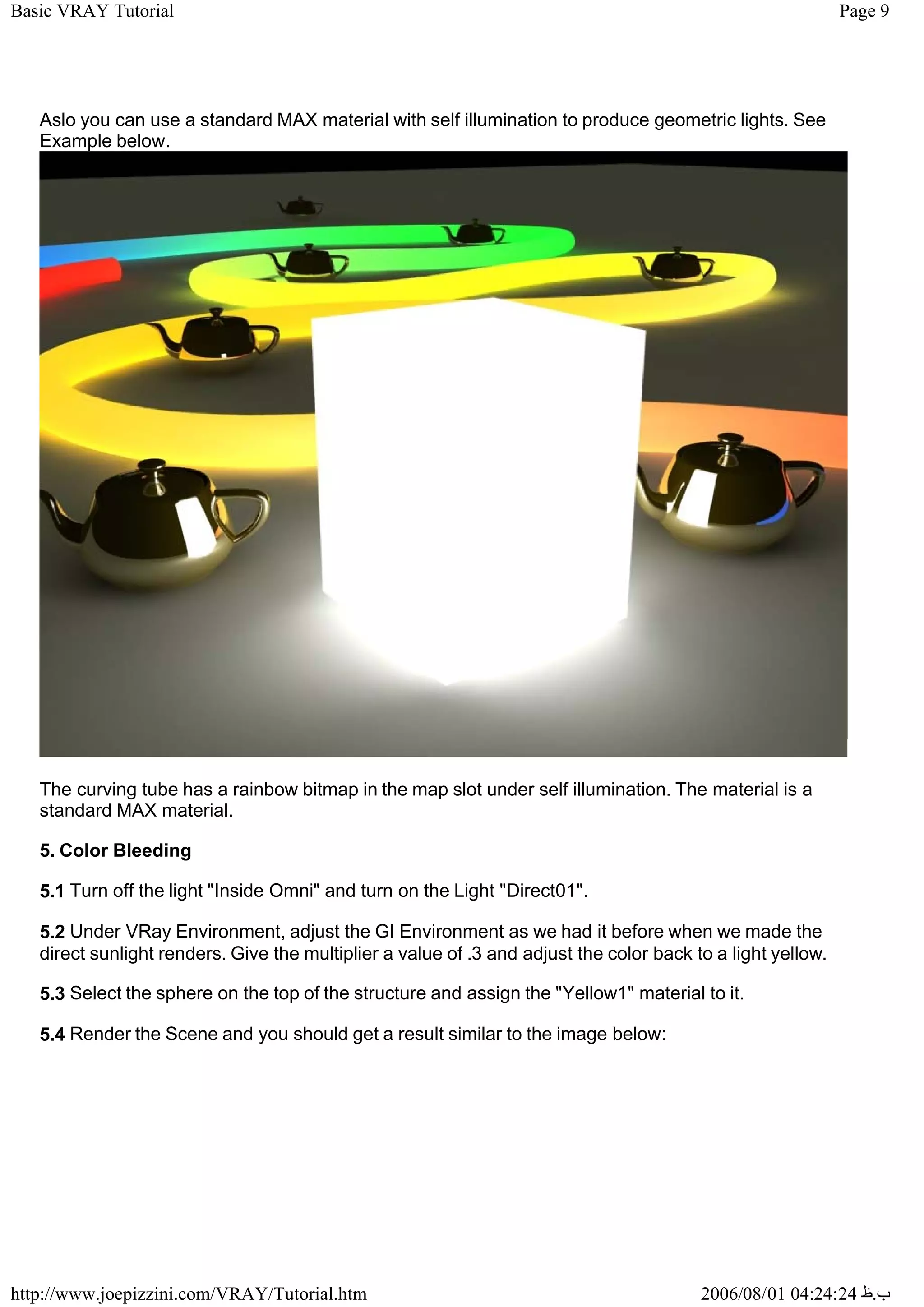
Aslo you can use a standard MAX material with self illumination to produce geometric lights. See
Example below.
The curving tube has a rainbow bitmap in the map slot under self illumination. The material is a
standard MAX material.
5. Color Bleeding
5.1 Turn off the light "Inside Omni" and turn on the Light "Direct01".
5.2 Under VRay Environment, adjust the GI Environment as we had it before when we made the
direct sunlight renders. Give the multiplier a value of .3 and adjust the color back to a light yellow.
5.3 Select the sphere on the top of the structure and assign the "Yellow1" material to it.
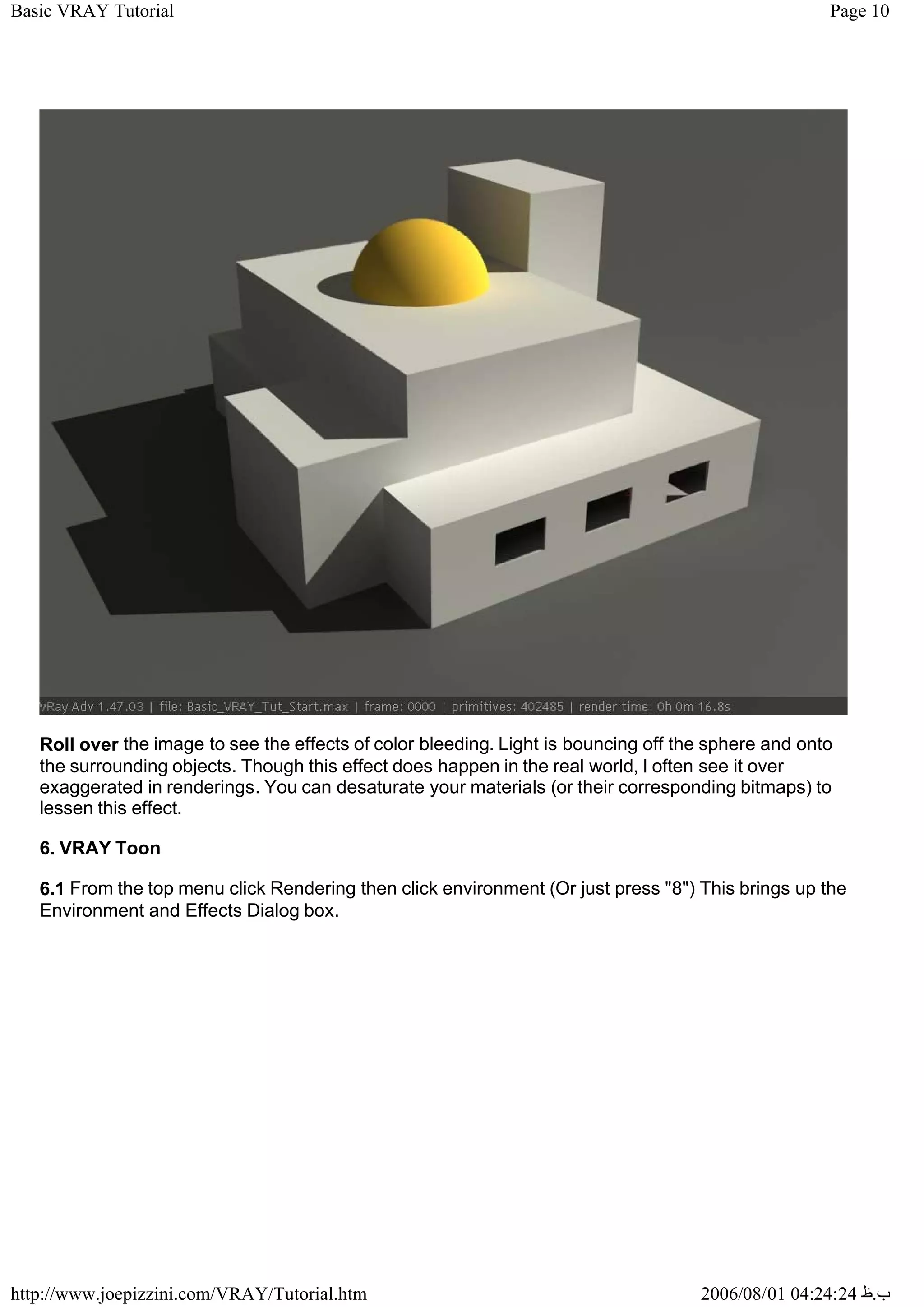
5.4 Render the Scene and you should get a result similar to the image below:
Page 10
Basic VRAY Tutorial
2006/08/01 04:24:24 ‫ب‬
.
‫ظ‬
http://www.joepizzini.com/VRAY/Tutorial.htm
Roll over the image to see the effects of color bleeding. Light is bouncing off the sphere and onto
the surrounding objects. Though this effect does happen in the real world, I often see it over
exaggerated in renderings. You can desaturate your materials (or their corresponding bitmaps) to
lessen this effect.
6. VRAY Toon
6.1 From the top menu click Rendering then click environment (Or just press "8") This brings up the
Environment and Effects Dialog box.
Page 11
Basic VRAY Tutorial
2006/08/01 04:24:24 ‫ب‬
.
‫ظ‬
http://www.joepizzini.com/VRAY/Tutorial.htm
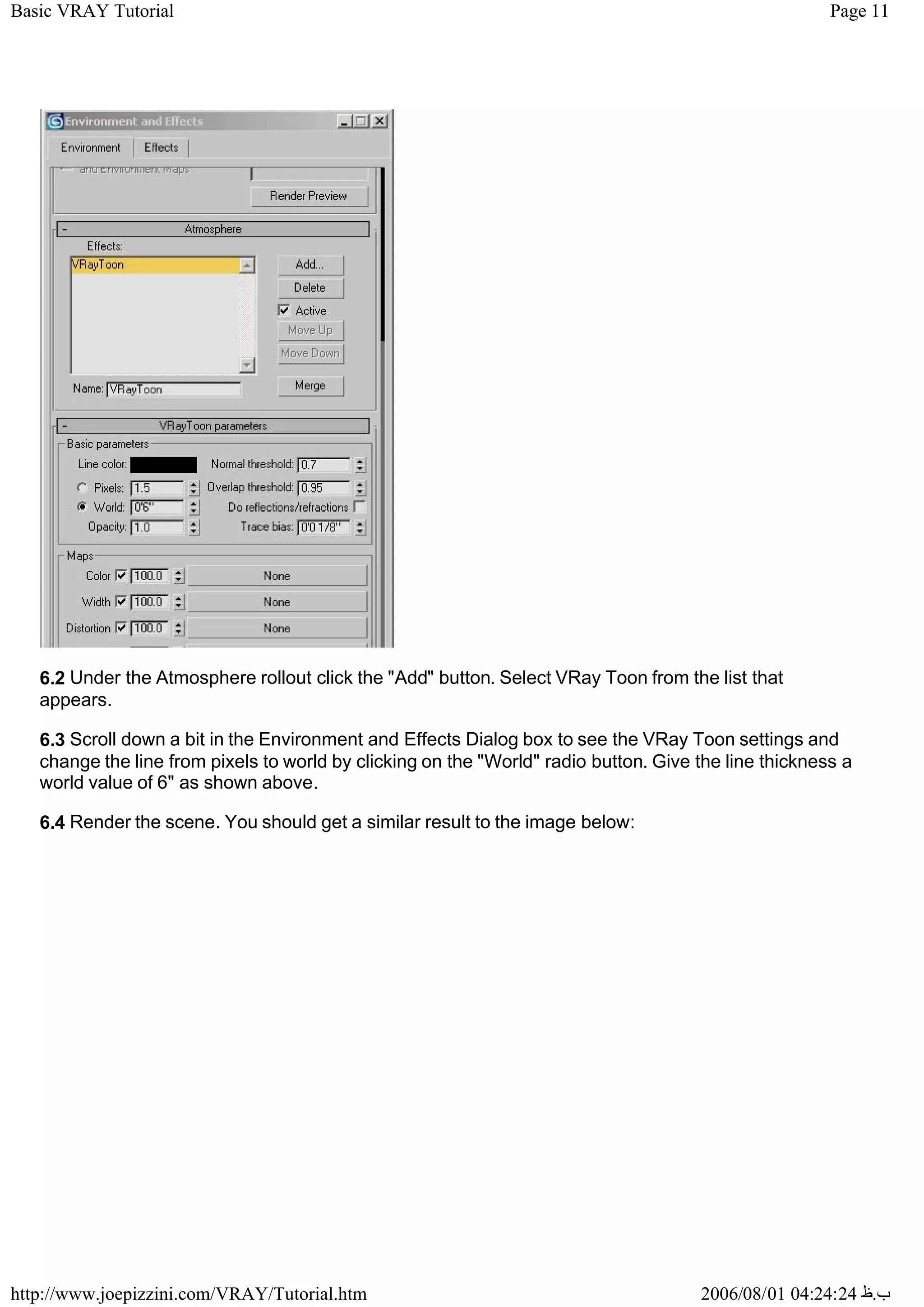
6.2 Under the Atmosphere rollout click the "Add" button. Select VRay Toon from the list that
appears.
6.3 Scroll down a bit in the Environment and Effects Dialog box to see the VRay Toon settings and
change the line from pixels to world by clicking on the "World" radio button. Give the line thickness a
world value of 6" as shown above.
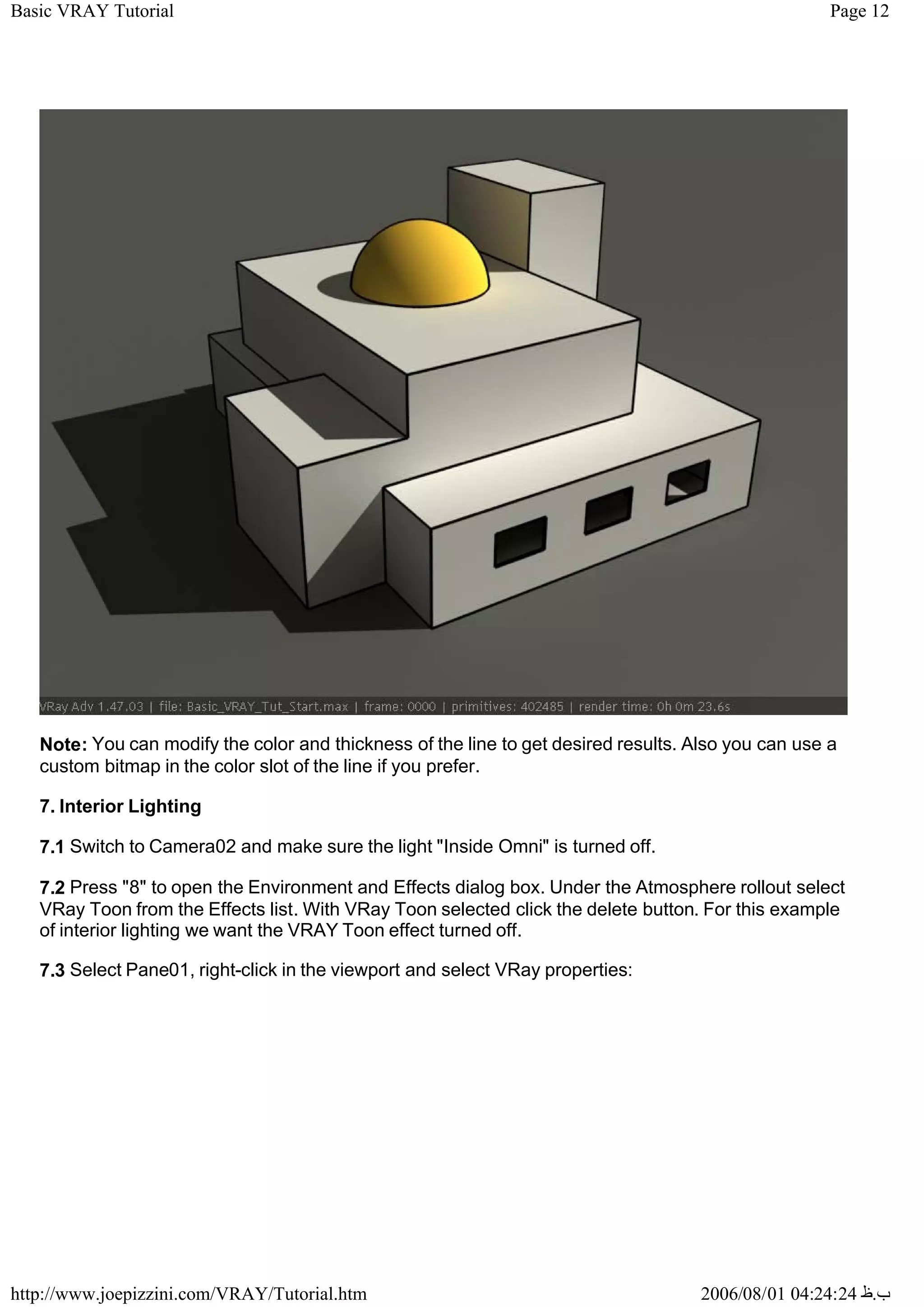
6.4 Render the scene. You should get a similar result to the image below:
Page 12
Basic VRAY Tutorial
2006/08/01 04:24:24 ‫ب‬
.
‫ظ‬
http://www.joepizzini.com/VRAY/Tutorial.htm
Note: You can modify the color and thickness of the line to get desired results. Also you can use a
custom bitmap in the color slot of the line if you prefer.
7. Interior Lighting
7.1 Switch to Camera02 and make sure the light "Inside Omni" is turned off.
7.2 Press "8" to open the Environment and Effects dialog box. Under the Atmosphere rollout select
VRay Toon from the Effects list. With VRay Toon selected click the delete button. For this example
of interior lighting we want the VRAY Toon effect turned off.
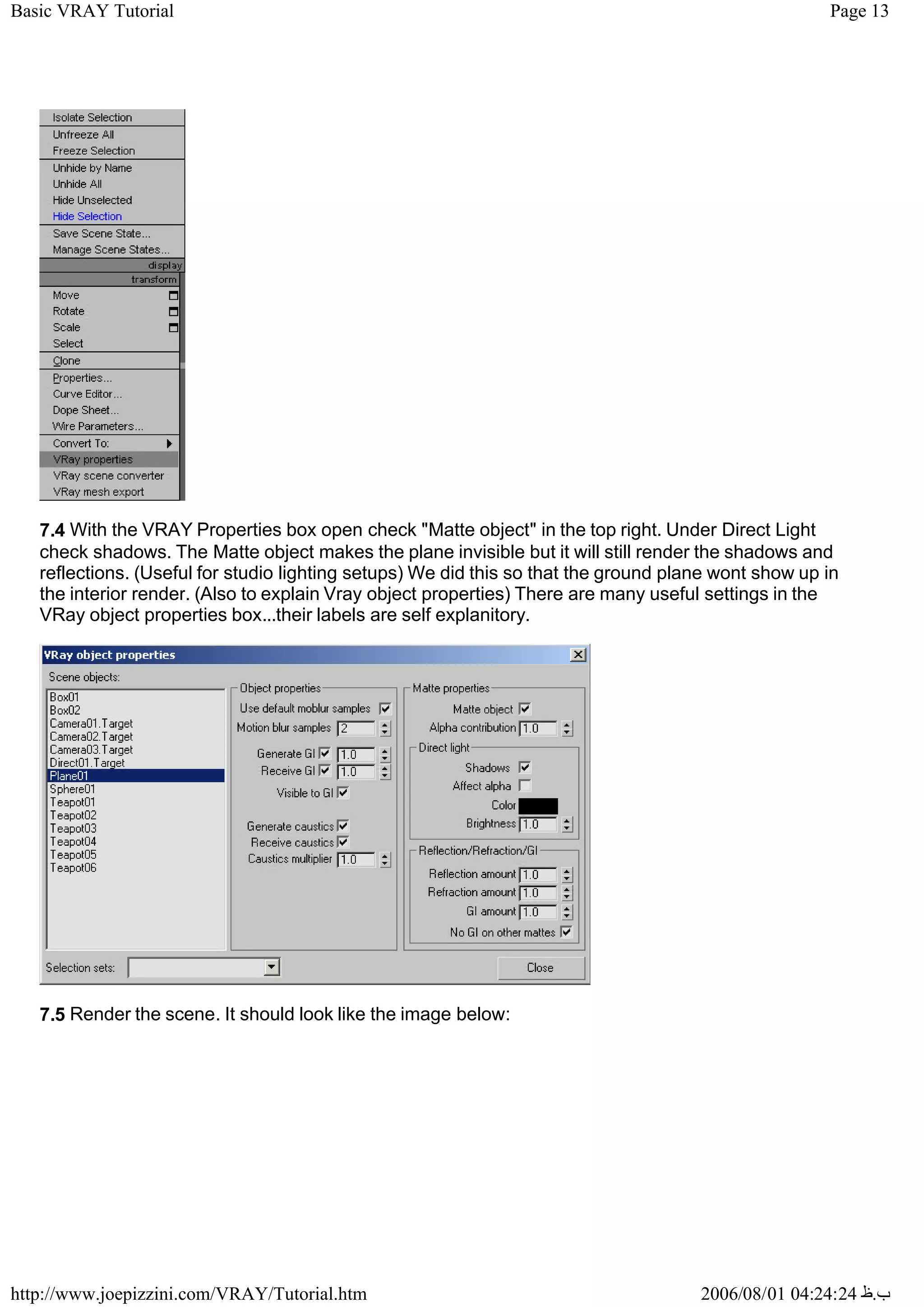
7.3 Select Pane01, right-click in the viewport and select VRay properties:
Page 13
Basic VRAY Tutorial
2006/08/01 04:24:24 ‫ب‬
.
‫ظ‬
http://www.joepizzini.com/VRAY/Tutorial.htm
7.4 With the VRAY Properties box open check "Matte object" in the top right. Under Direct Light
check shadows. The Matte object makes the plane invisible but it will still render the shadows and
reflections. (Useful for studio lighting setups) We did this so that the ground plane wont show up in
the interior render. (Also to explain Vray object properties) There are many useful settings in the
VRay object properties box...their labels are self explanitory.
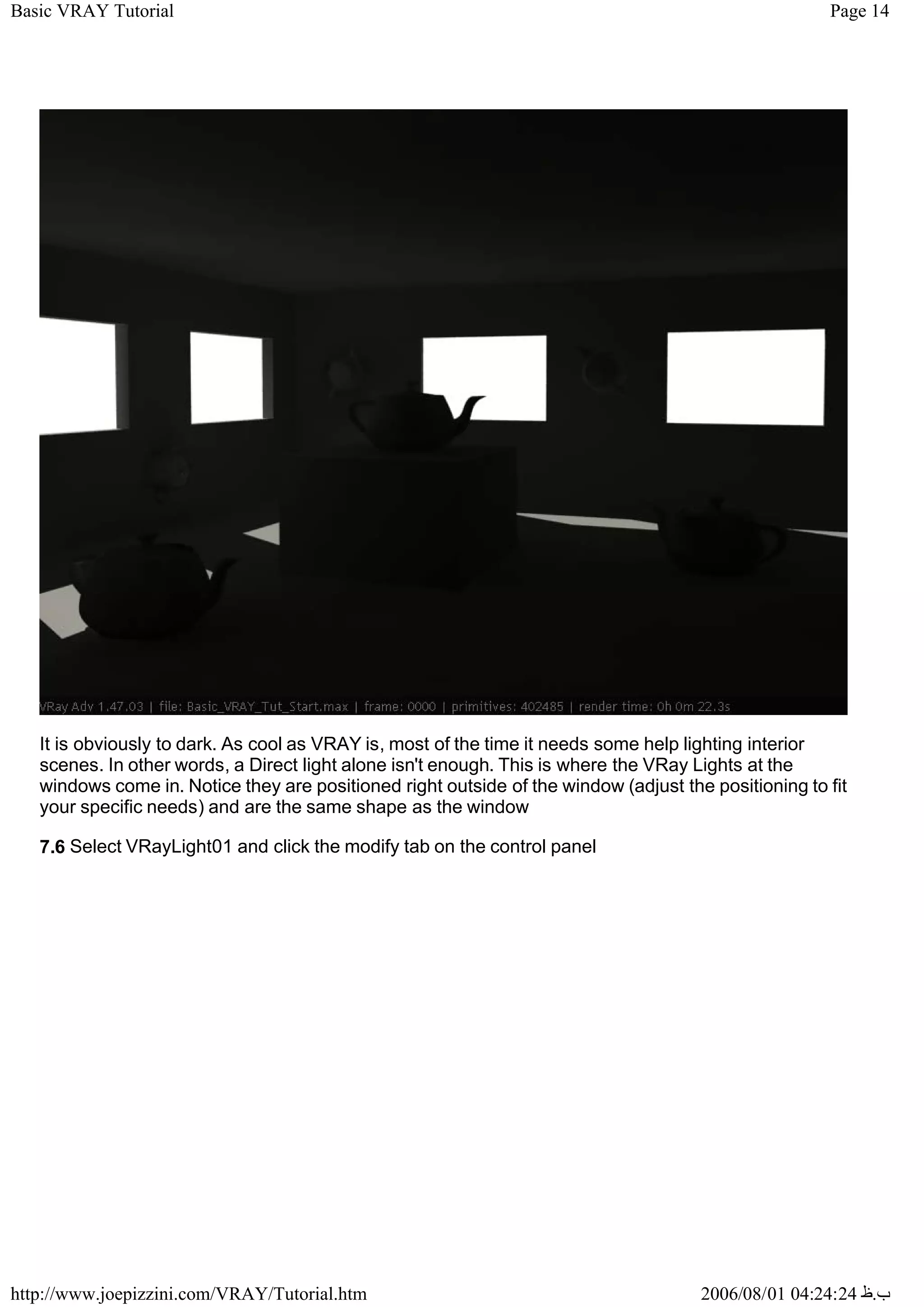
7.5 Render the scene. It should look like the image below:
Page 14
Basic VRAY Tutorial
2006/08/01 04:24:24 ‫ب‬
.
‫ظ‬
http://www.joepizzini.com/VRAY/Tutorial.htm
It is obviously to dark. As cool as VRAY is, most of the time it needs some help lighting interior
scenes. In other words, a Direct light alone isn't enough. This is where the VRay Lights at the
windows come in. Notice they are positioned right outside of the window (adjust the positioning to fit
your specific needs) and are the same shape as the window
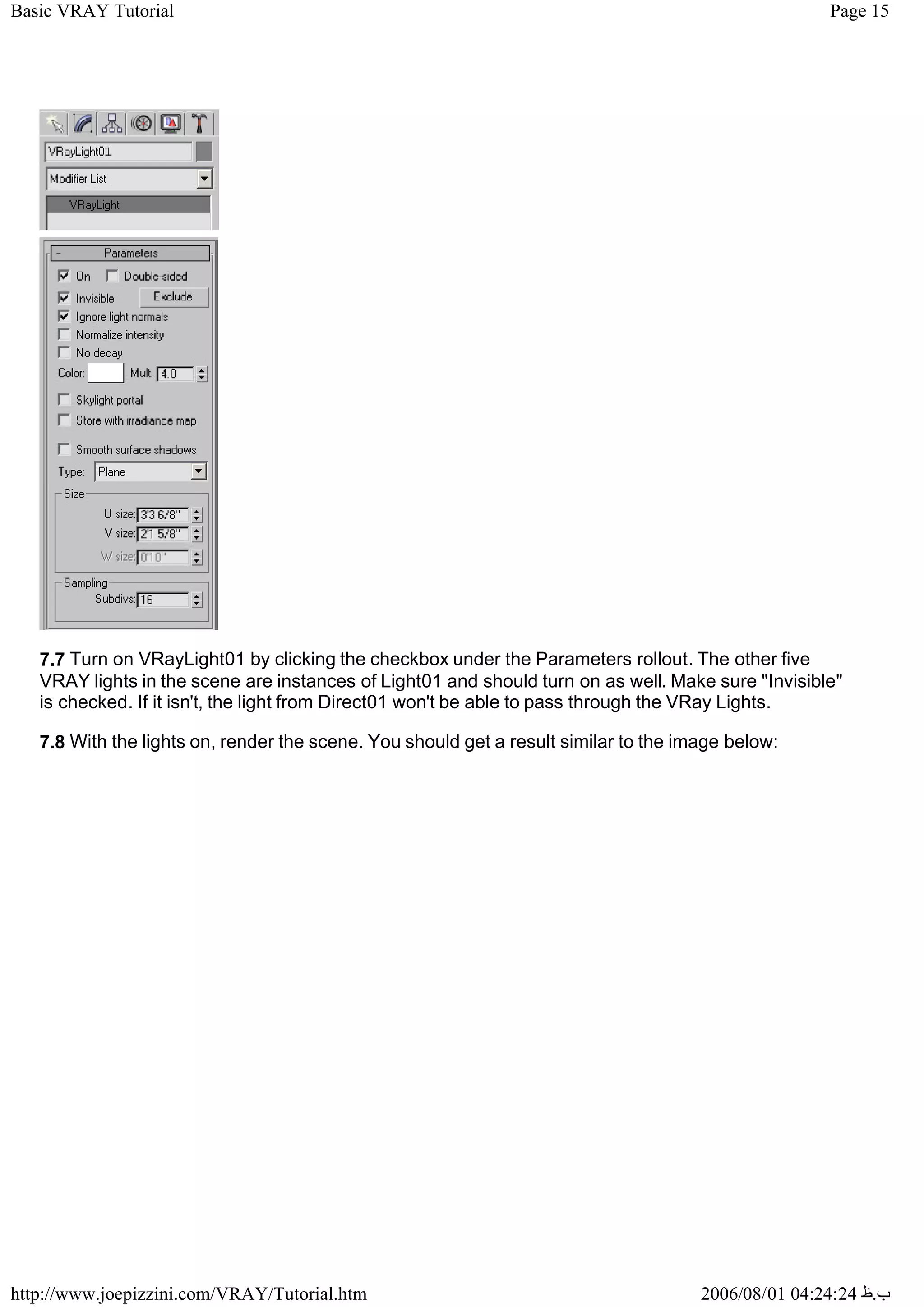
7.6 Select VRayLight01 and click the modify tab on the control panel
Page 15
Basic VRAY Tutorial
2006/08/01 04:24:24 ‫ب‬
.
‫ظ‬
http://www.joepizzini.com/VRAY/Tutorial.htm
7.7 Turn on VRayLight01 by clicking the checkbox under the Parameters rollout. The other five
VRAY lights in the scene are instances of Light01 and should turn on as well. Make sure "Invisible"
is checked. If it isn't, the light from Direct01 won't be able to pass through the VRay Lights.
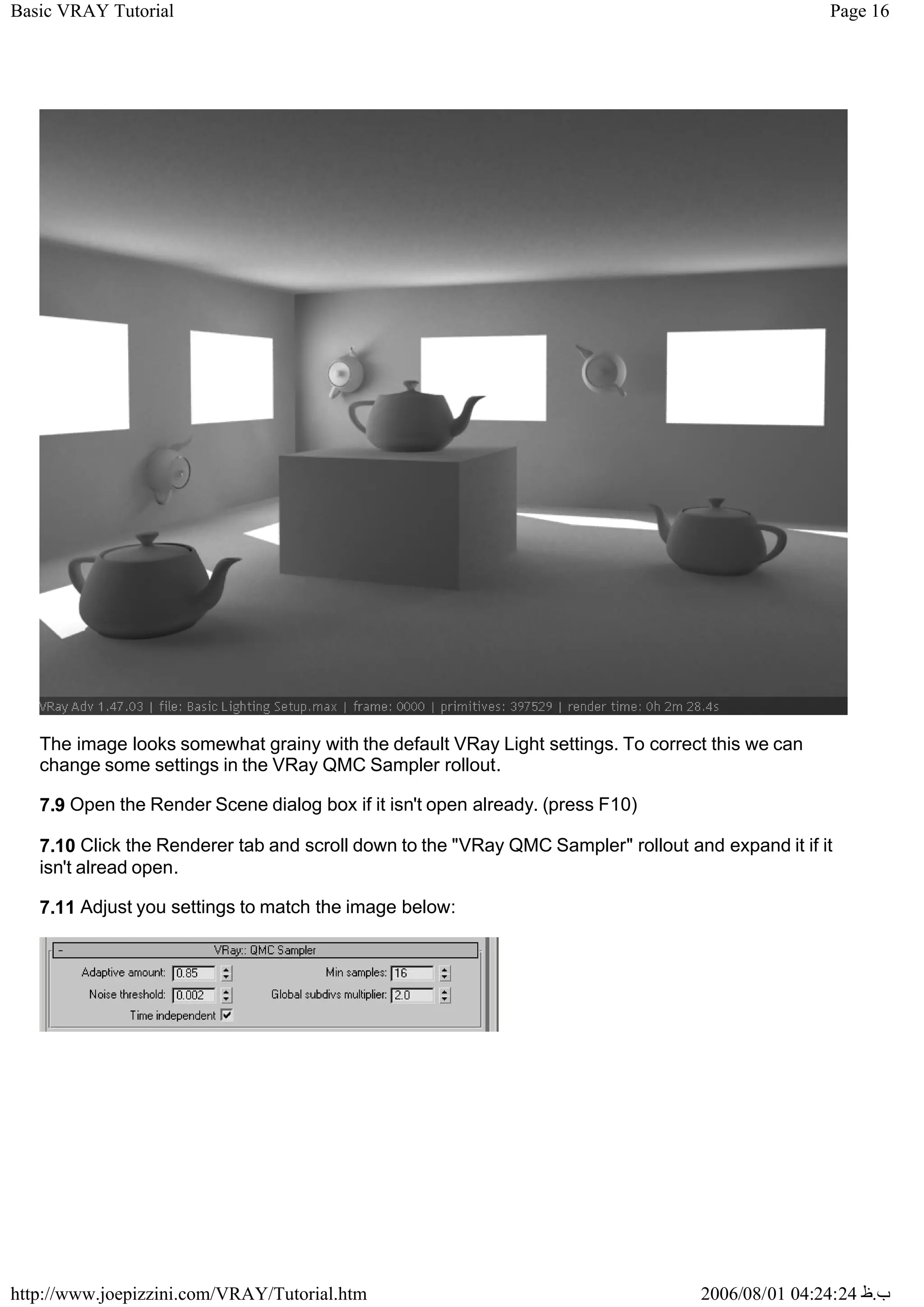
7.8 With the lights on, render the scene. You should get a result similar to the image below:
Page 16
Basic VRAY Tutorial
2006/08/01 04:24:24 ‫ب‬
.
‫ظ‬
http://www.joepizzini.com/VRAY/Tutorial.htm
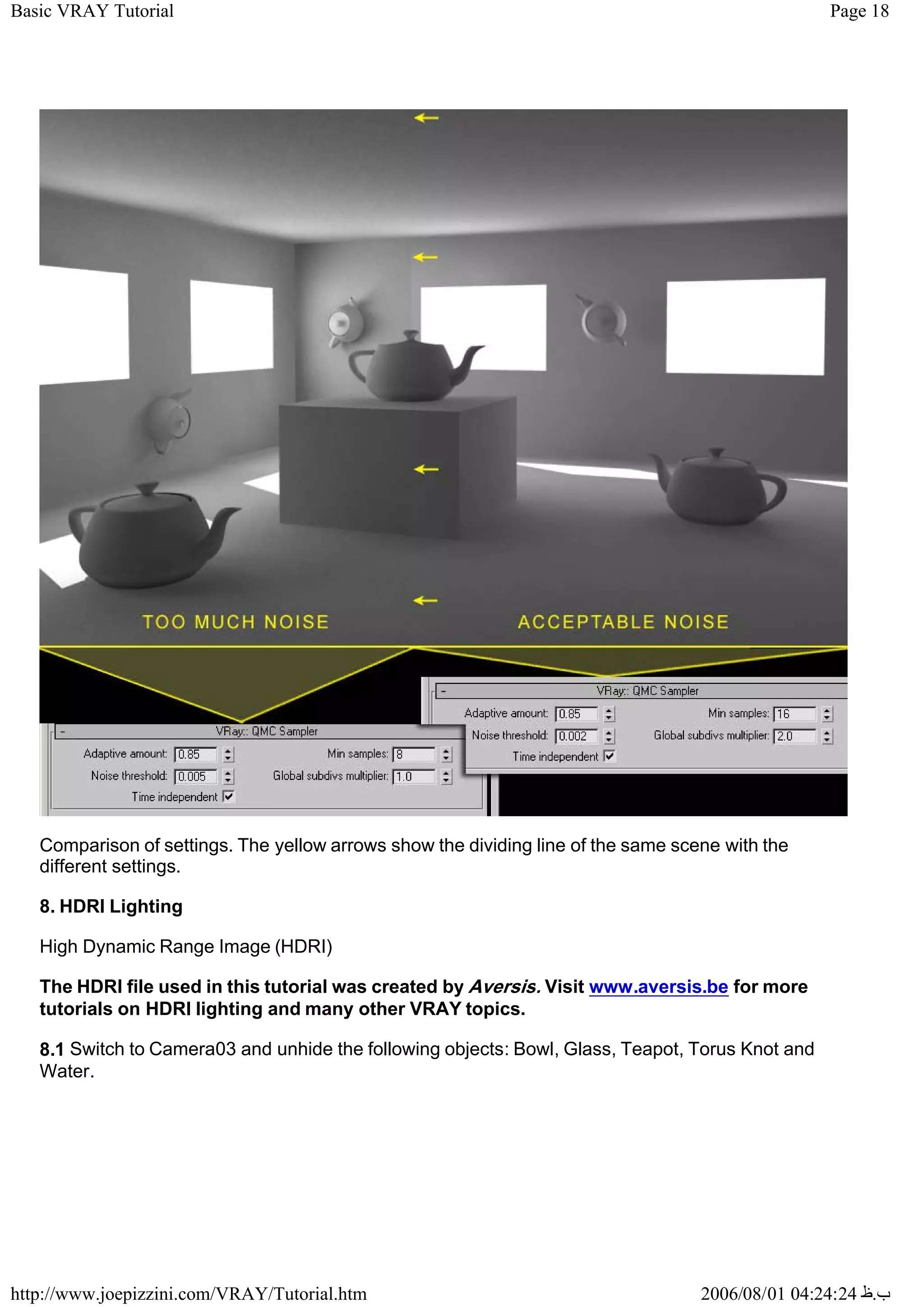
The image looks somewhat grainy with the default VRay Light settings. To correct this we can
change some settings in the VRay QMC Sampler rollout.
7.9 Open the Render Scene dialog box if it isn't open already. (press F10)
7.10 Click the Renderer tab and scroll down to the "VRay QMC Sampler" rollout and expand it if it
isn't alread open.
7.11 Adjust you settings to match the image below:
Page 17
Basic VRAY Tutorial
2006/08/01 04:24:24 ‫ب‬
.
‫ظ‬
http://www.joepizzini.com/VRAY/Tutorial.htm
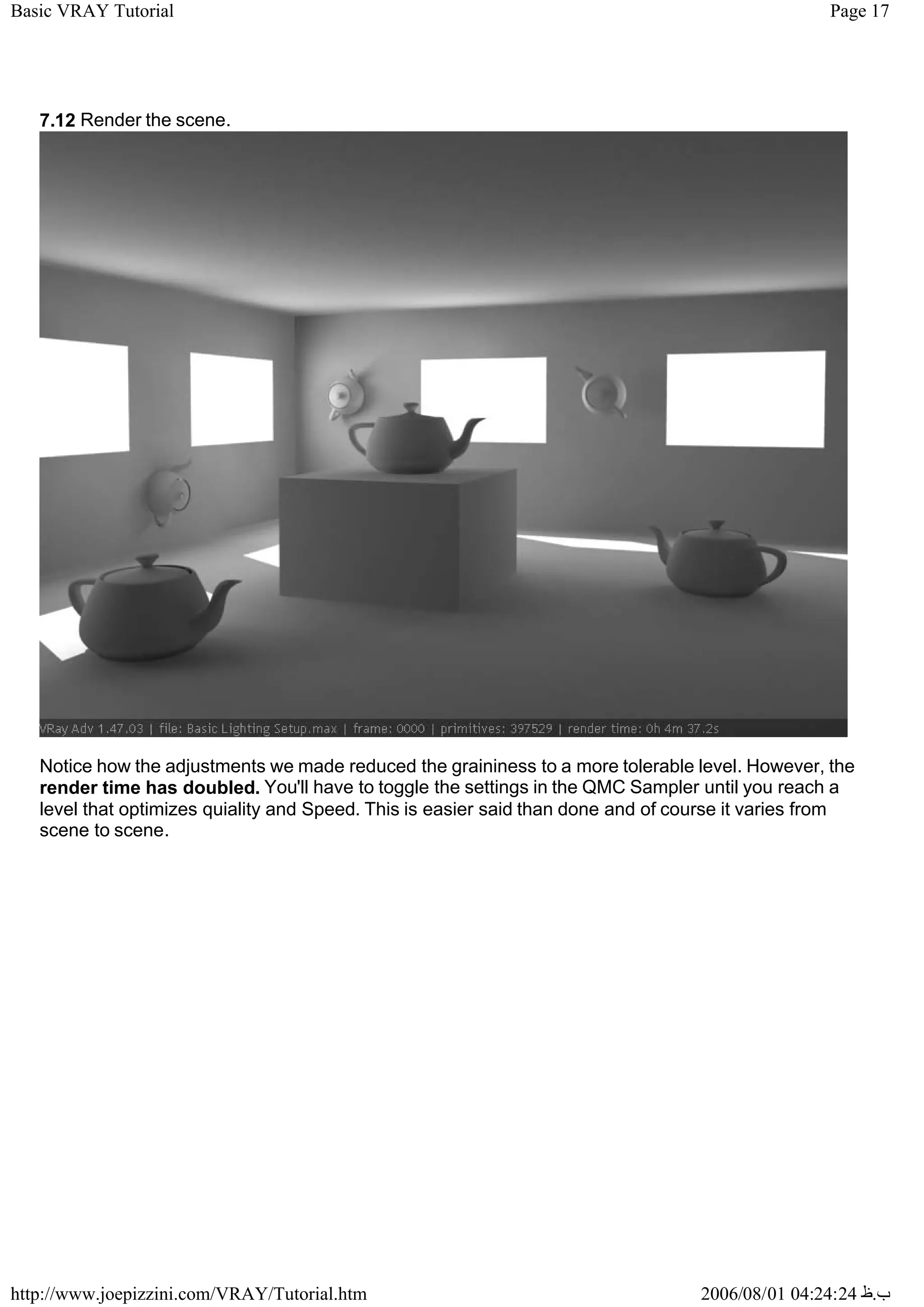
7.12 Render the scene.
Notice how the adjustments we made reduced the graininess to a more tolerable level. However, the
render time has doubled. You'll have to toggle the settings in the QMC Sampler until you reach a
level that optimizes quiality and Speed. This is easier said than done and of course it varies from
scene to scene.
Page 18
Basic VRAY Tutorial
2006/08/01 04:24:24 ‫ب‬
.
‫ظ‬
http://www.joepizzini.com/VRAY/Tutorial.htm
Comparison of settings. The yellow arrows show the dividing line of the same scene with the
different settings.
8. HDRI Lighting
High Dynamic Range Image (HDRI)
The HDRI file used in this tutorial was created by Aversis. Visit www.aversis.be for more
tutorials on HDRI lighting and many other VRAY topics.
8.1 Switch to Camera03 and unhide the following objects: Bowl, Glass, Teapot, Torus Knot and
Water.
Page 19
Basic VRAY Tutorial
2006/08/01 04:24:24 ‫ب‬
.
‫ظ‬
http://www.joepizzini.com/VRAY/Tutorial.htm
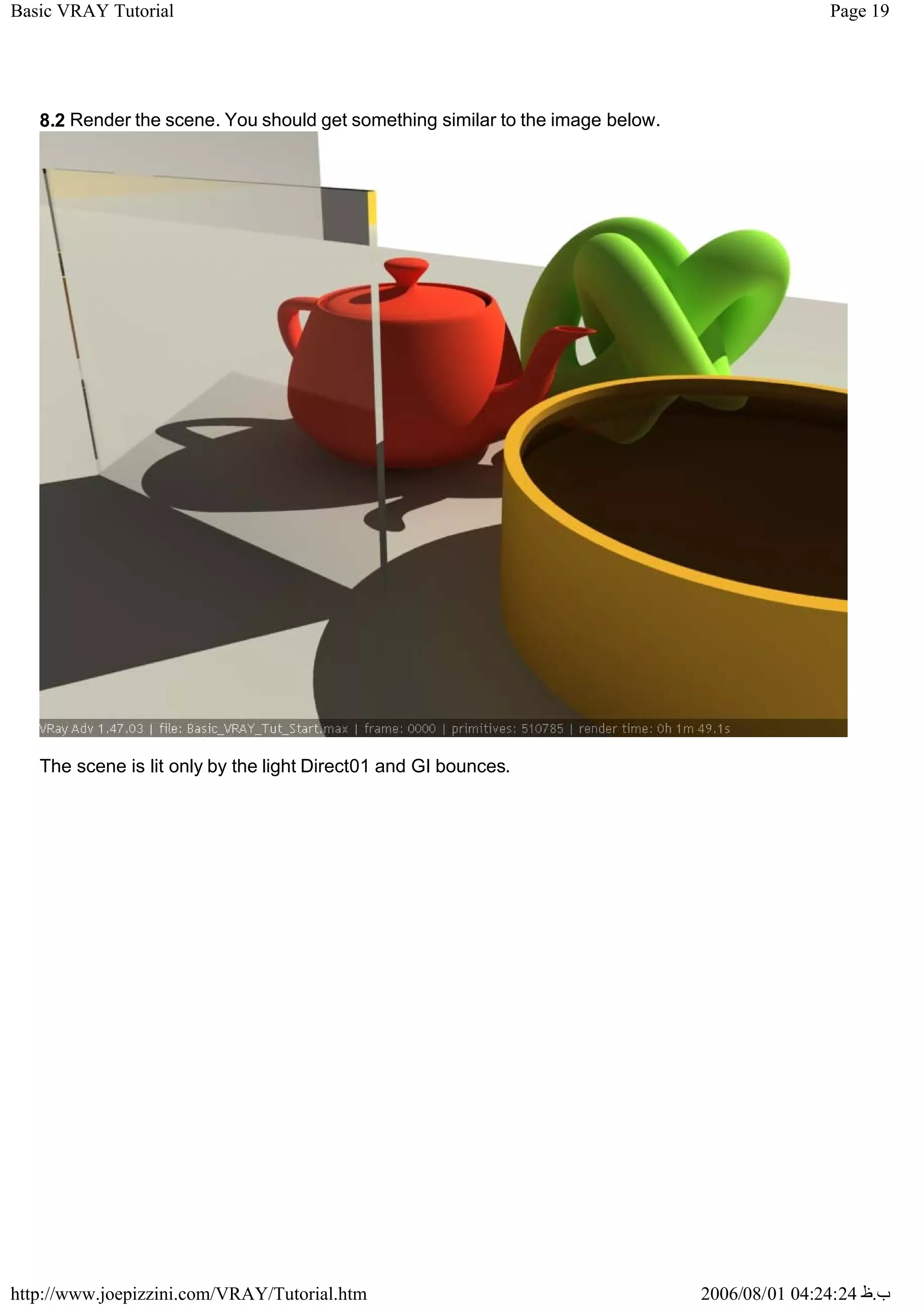
8.2 Render the scene. You should get something similar to the image below.
The scene is lit only by the light Direct01 and GI bounces.
Page 20
Basic VRAY Tutorial
2006/08/01 04:24:24 ‫ب‬
.
‫ظ‬
http://www.joepizzini.com/VRAY/Tutorial.htm
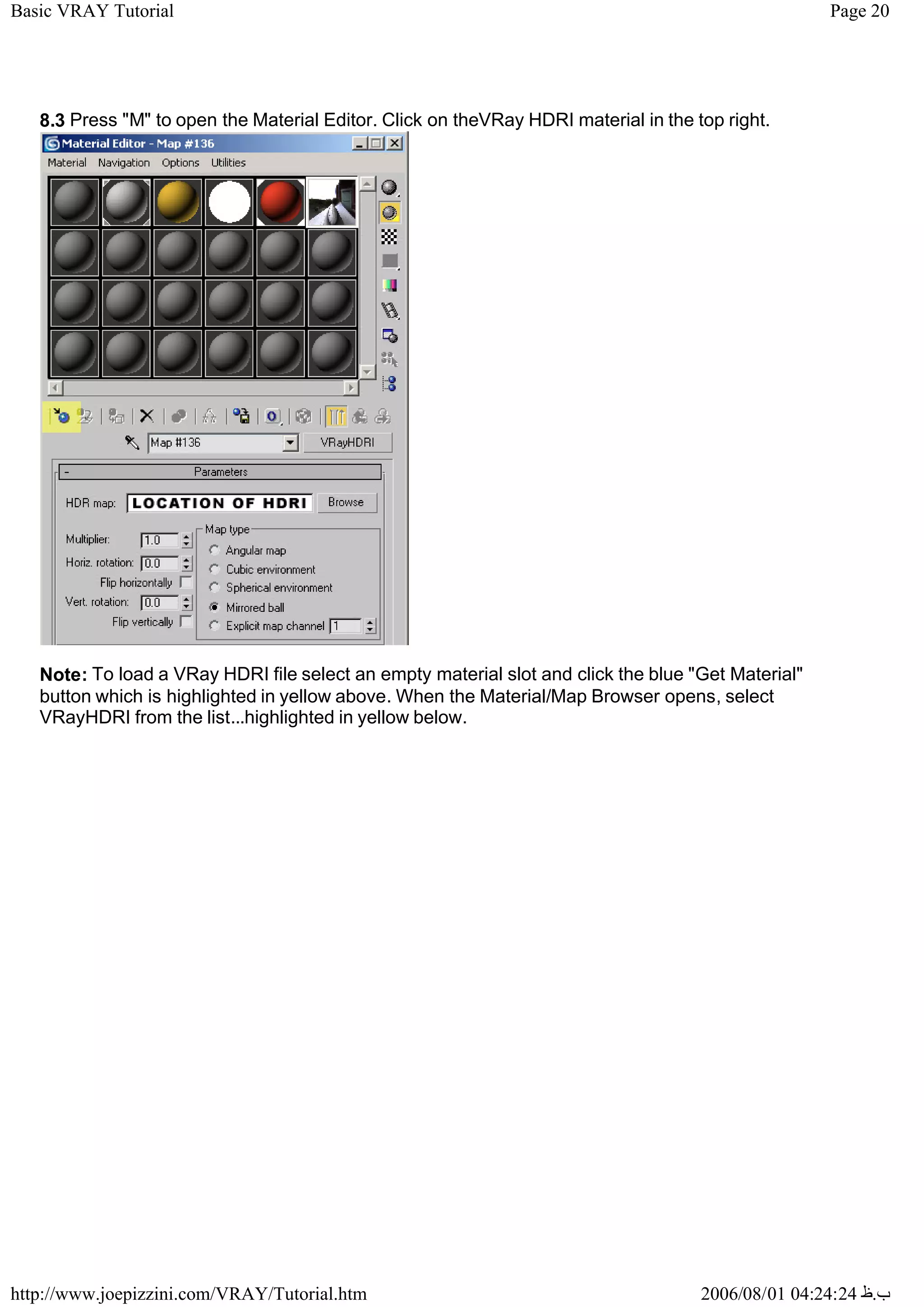
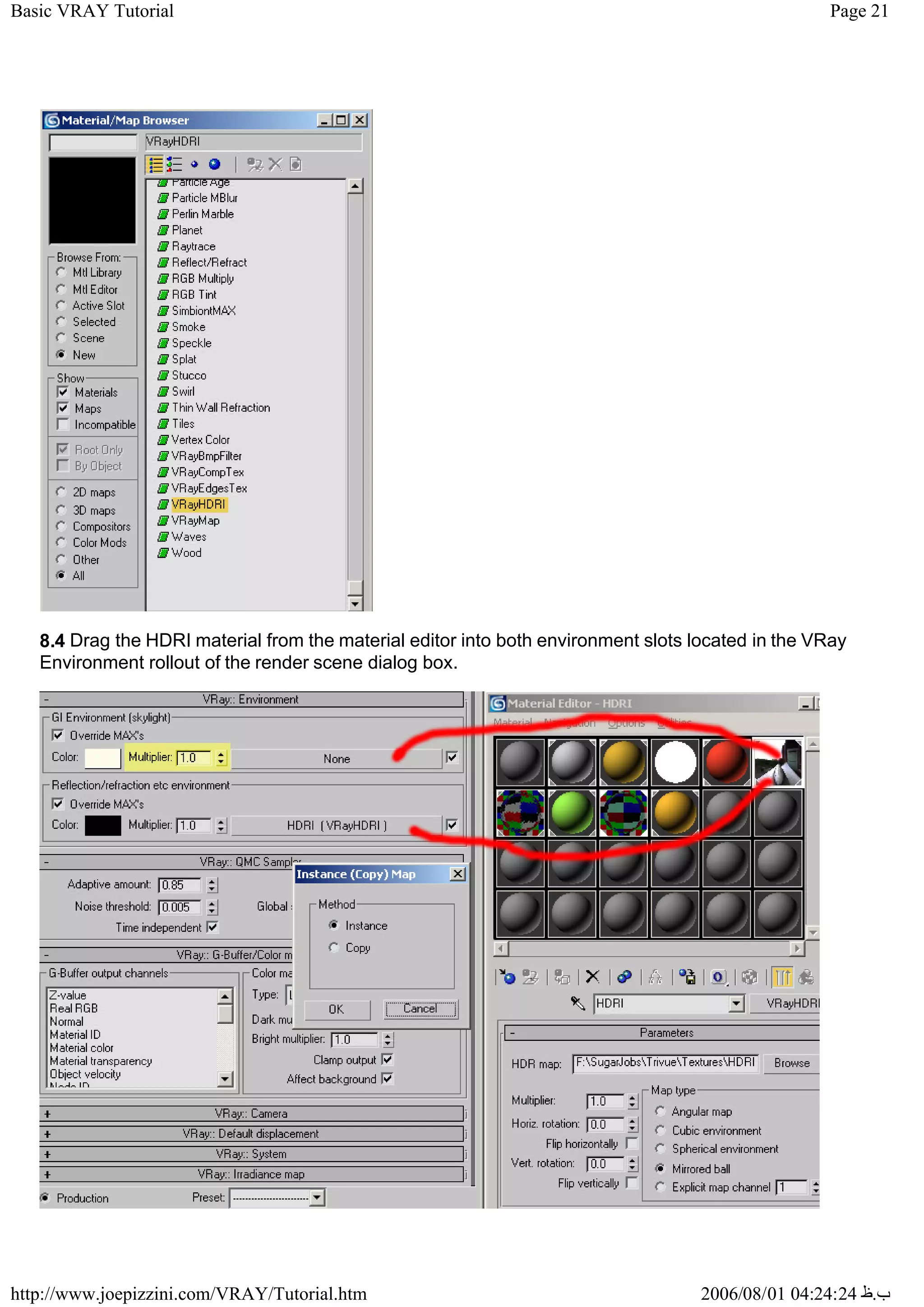
8.3 Press "M" to open the Material Editor. Click on theVRay HDRI material in the top right.
Note: To load a VRay HDRI file select an empty material slot and click the blue "Get Material"
button which is highlighted in yellow above. When the Material/Map Browser opens, select
VRayHDRI from the list...highlighted in yellow below.
Page 21
Basic VRAY Tutorial
2006/08/01 04:24:24 ‫ب‬
.
‫ظ‬
http://www.joepizzini.com/VRAY/Tutorial.htm
8.4 Drag the HDRI material from the material editor into both environment slots located in the VRay
Environment rollout of the render scene dialog box.
Page 22
Basic VRAY Tutorial
2006/08/01 04:24:24 ‫ب‬
.
‫ظ‬
http://www.joepizzini.com/VRAY/Tutorial.htm
Choose instance when promted and click ok.
8.5 Before we render the scene we need to turn off the light Direct01 and make sure that the GI
Environment multiplier is set to 1 (highlighted in yellow above) . Since the only thing lighting the
scene will be the HDRI light, the GI Environment multiplier needs to be higher. Note: You can, for
example, use a direct light (sunlight) in conjunction with HDRI lighting. But, its a good idea to have
one more powerful than the other to avoid burnt out images (see section 2) Make sure your HDRI
parameters are the same as the image above. (play with the settings later)
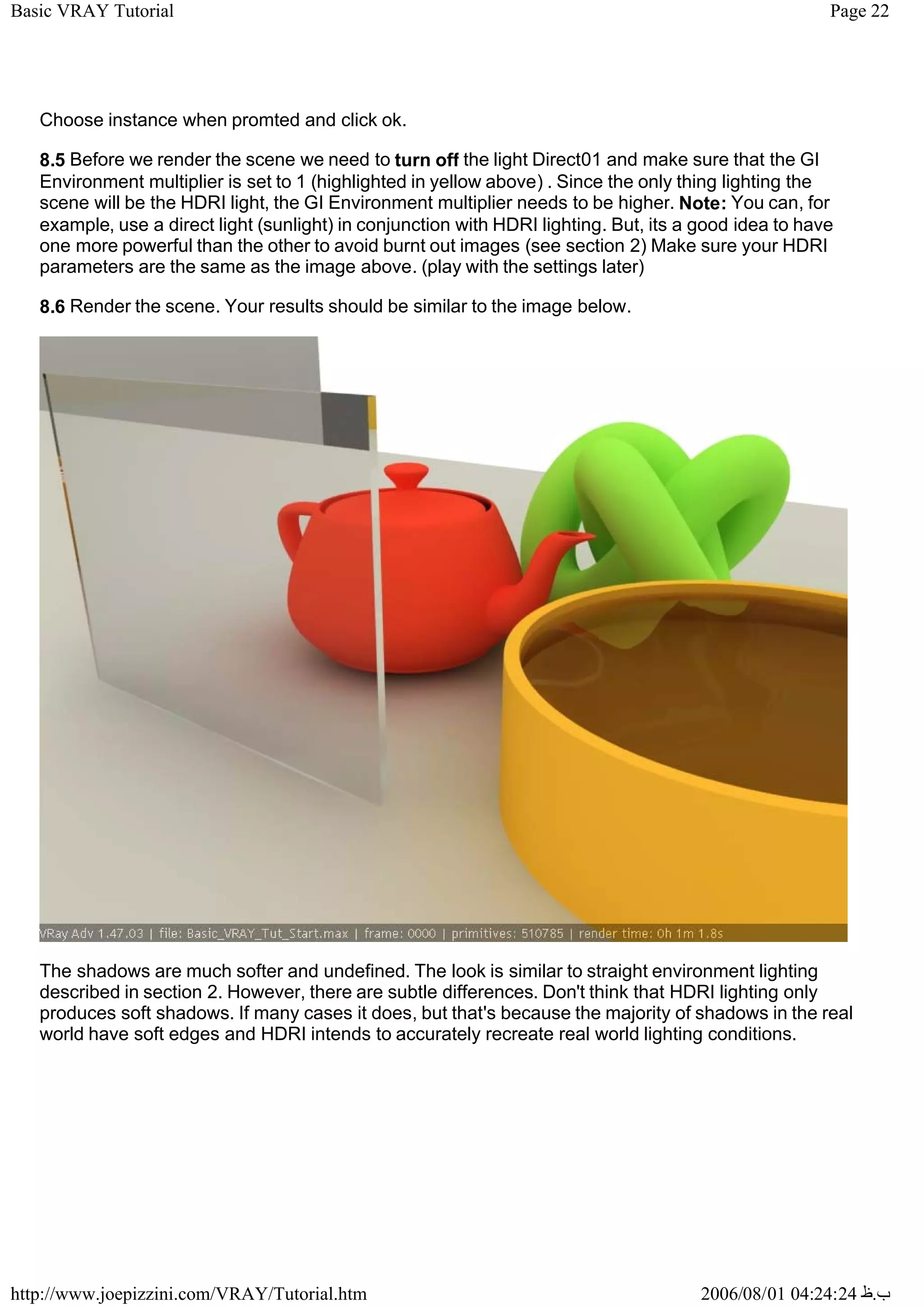
8.6 Render the scene. Your results should be similar to the image below.
The shadows are much softer and undefined. The look is similar to straight environment lighting
described in section 2. However, there are subtle differences. Don't think that HDRI lighting only
produces soft shadows. If many cases it does, but that's because the majority of shadows in the real
world have soft edges and HDRI intends to accurately recreate real world lighting conditions.
Page 23
Basic VRAY Tutorial
2006/08/01 04:24:24 ‫ب‬
.
‫ظ‬
http://www.joepizzini.com/VRAY/Tutorial.htm
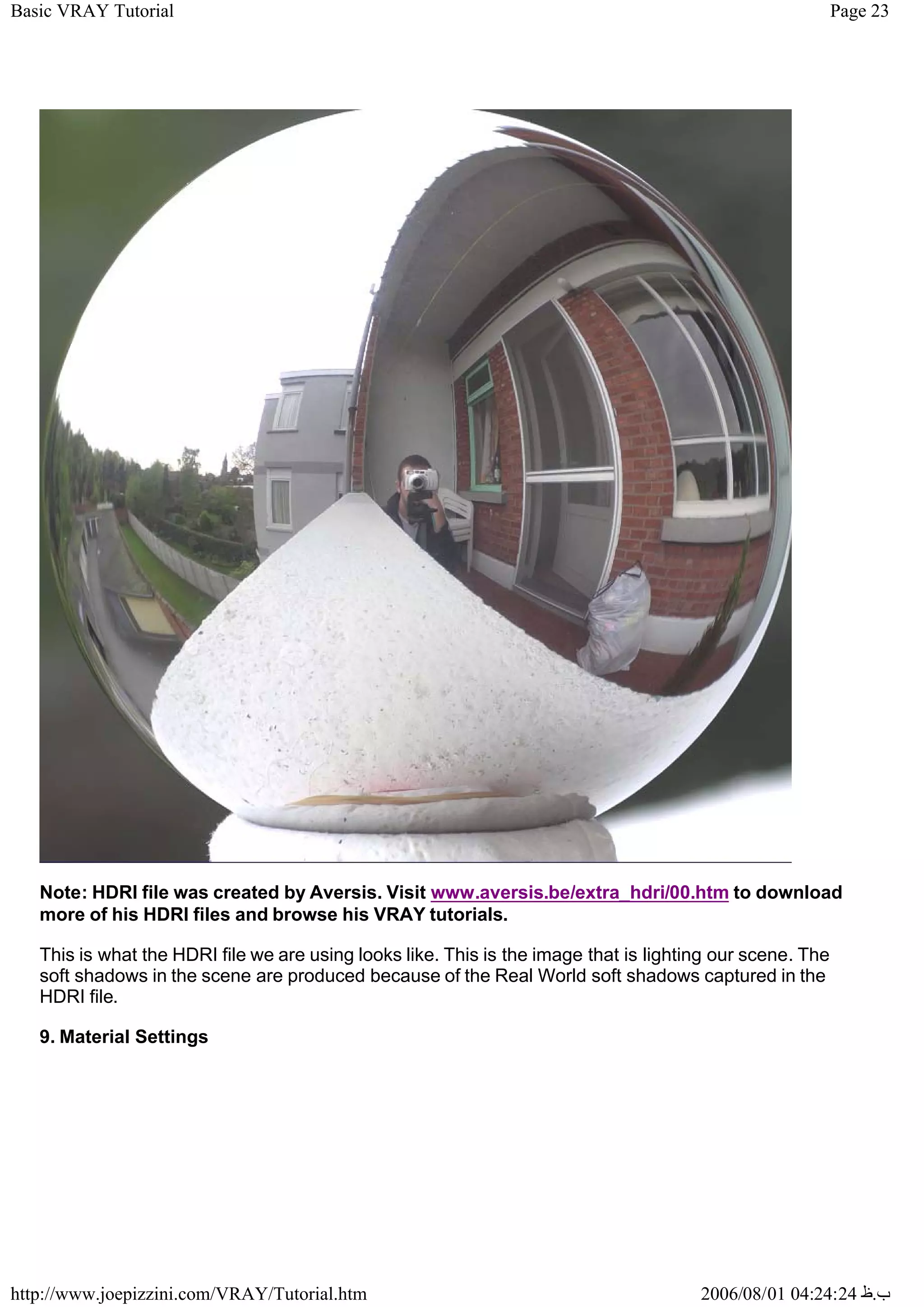
Note: HDRI file was created by Aversis. Visit www.aversis.be/extra_hdri/00.htm to download
more of his HDRI files and browse his VRAY tutorials.
This is what the HDRI file we are using looks like. This is the image that is lighting our scene. The
soft shadows in the scene are produced because of the Real World soft shadows captured in the
HDRI file.
9. Material Settings
Page 24
Basic VRAY Tutorial
2006/08/01 04:24:24 ‫ب‬
.
‫ظ‬
http://www.joepizzini.com/VRAY/Tutorial.htm
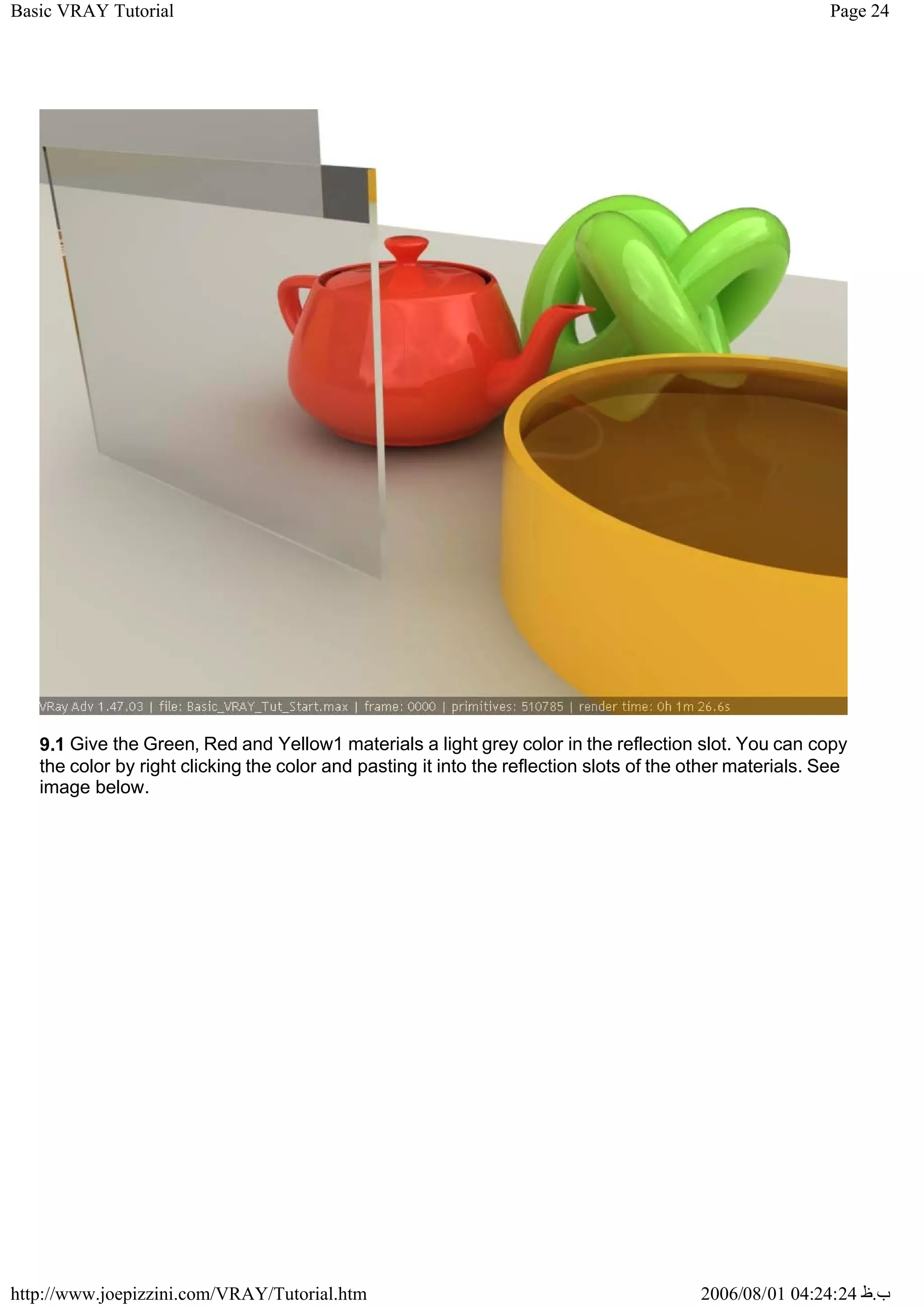
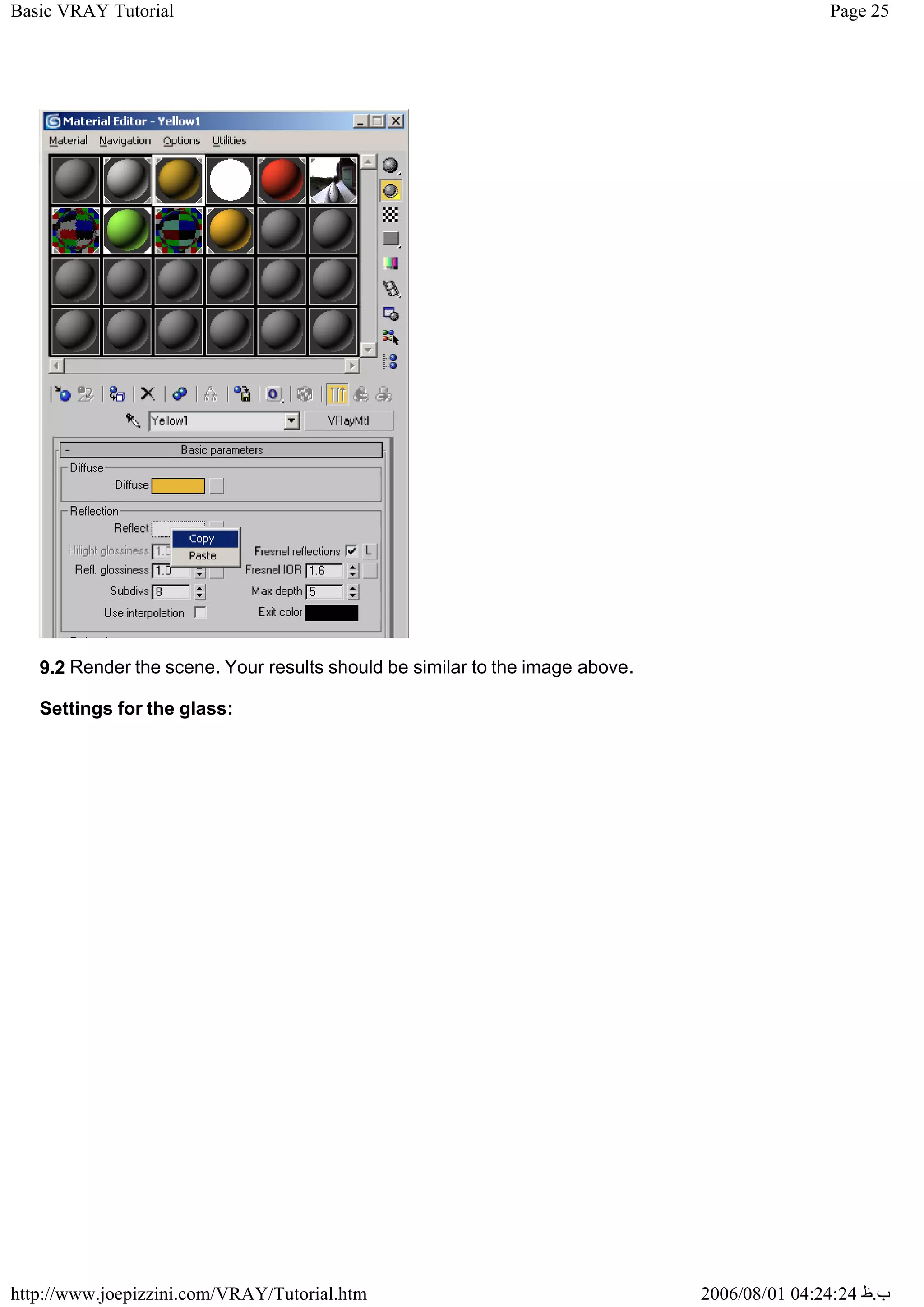
9.1 Give the Green, Red and Yellow1 materials a light grey color in the reflection slot. You can copy
the color by right clicking the color and pasting it into the reflection slots of the other materials. See
image below.
Page 25
Basic VRAY Tutorial
2006/08/01 04:24:24 ‫ب‬
.
‫ظ‬
http://www.joepizzini.com/VRAY/Tutorial.htm
9.2 Render the scene. Your results should be similar to the image above.
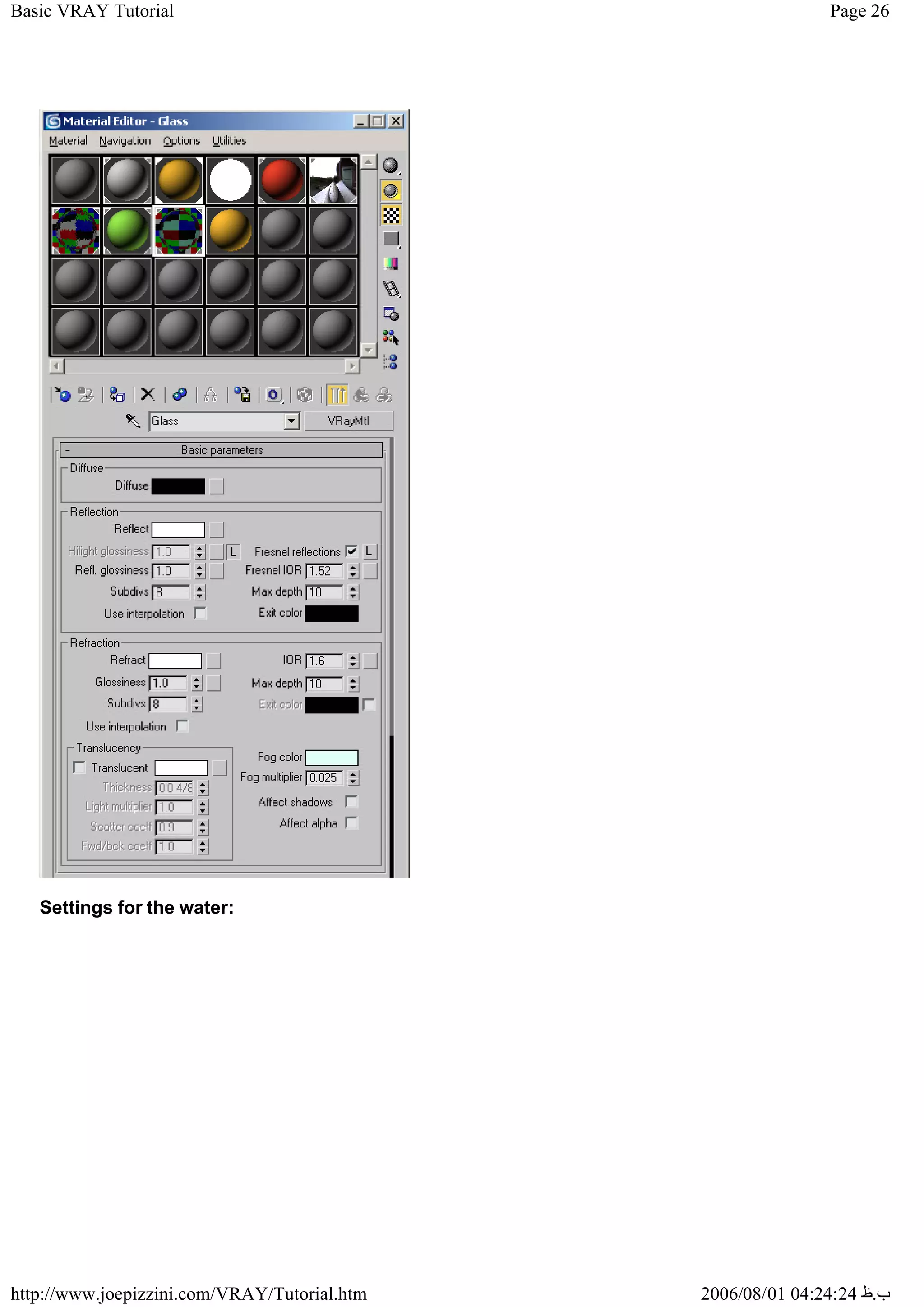
Settings for the glass:
Page 26
Basic VRAY Tutorial
2006/08/01 04:24:24 ‫ب‬
.
‫ظ‬
http://www.joepizzini.com/VRAY/Tutorial.htm
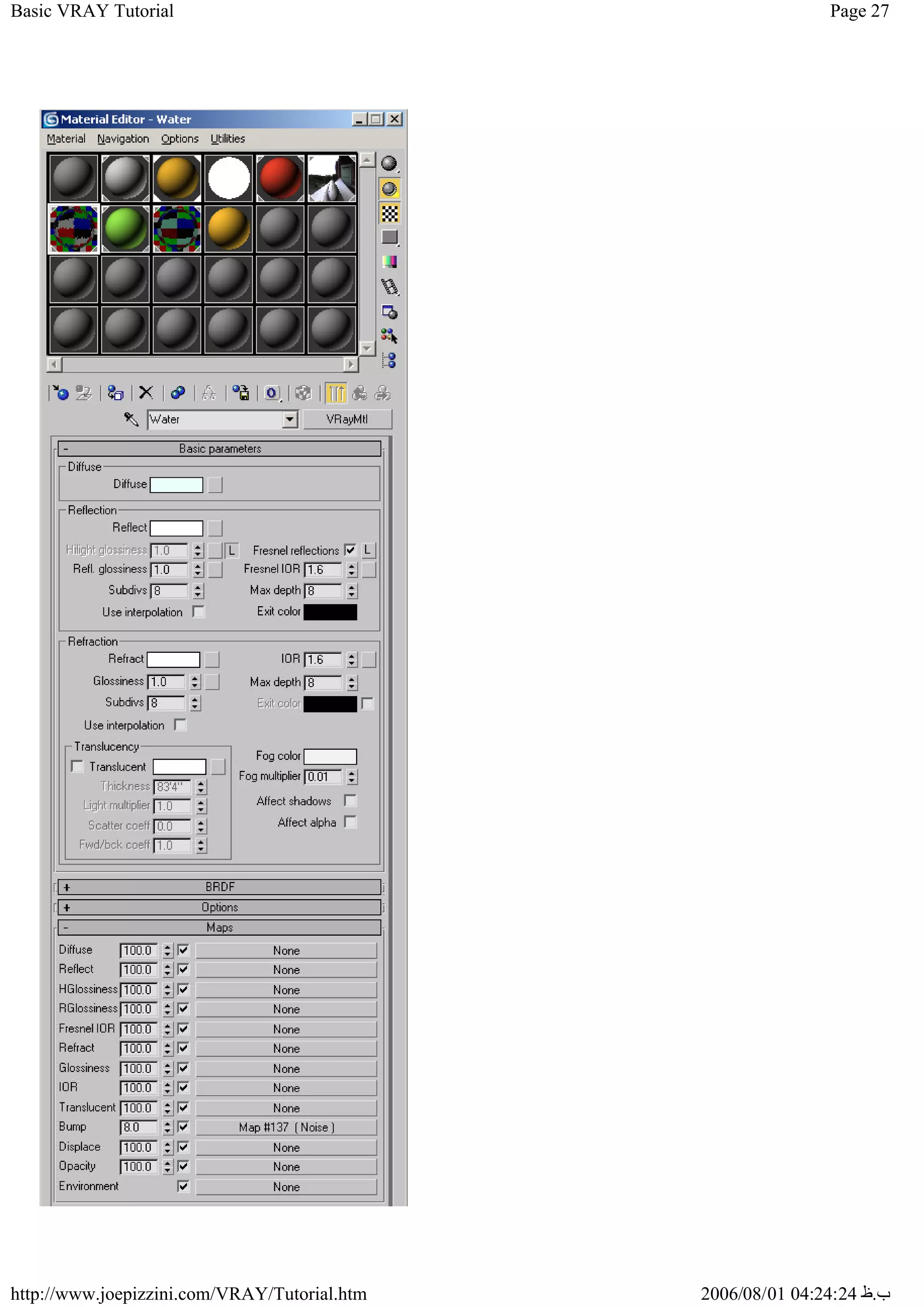
Settings for the water:
Page 27
Basic VRAY Tutorial
2006/08/01 04:24:24 ‫ب‬
.
‫ظ‬
http://www.joepizzini.com/VRAY/Tutorial.htm
Page 28
Basic VRAY Tutorial
2006/08/01 04:24:24 ‫ب‬
.
‫ظ‬
http://www.joepizzini.com/VRAY/Tutorial.htm
Note: I used the turbulance noise preset but use what you think will work best for your situation. You
can animate the bump amount to create a ripple effect in animations.
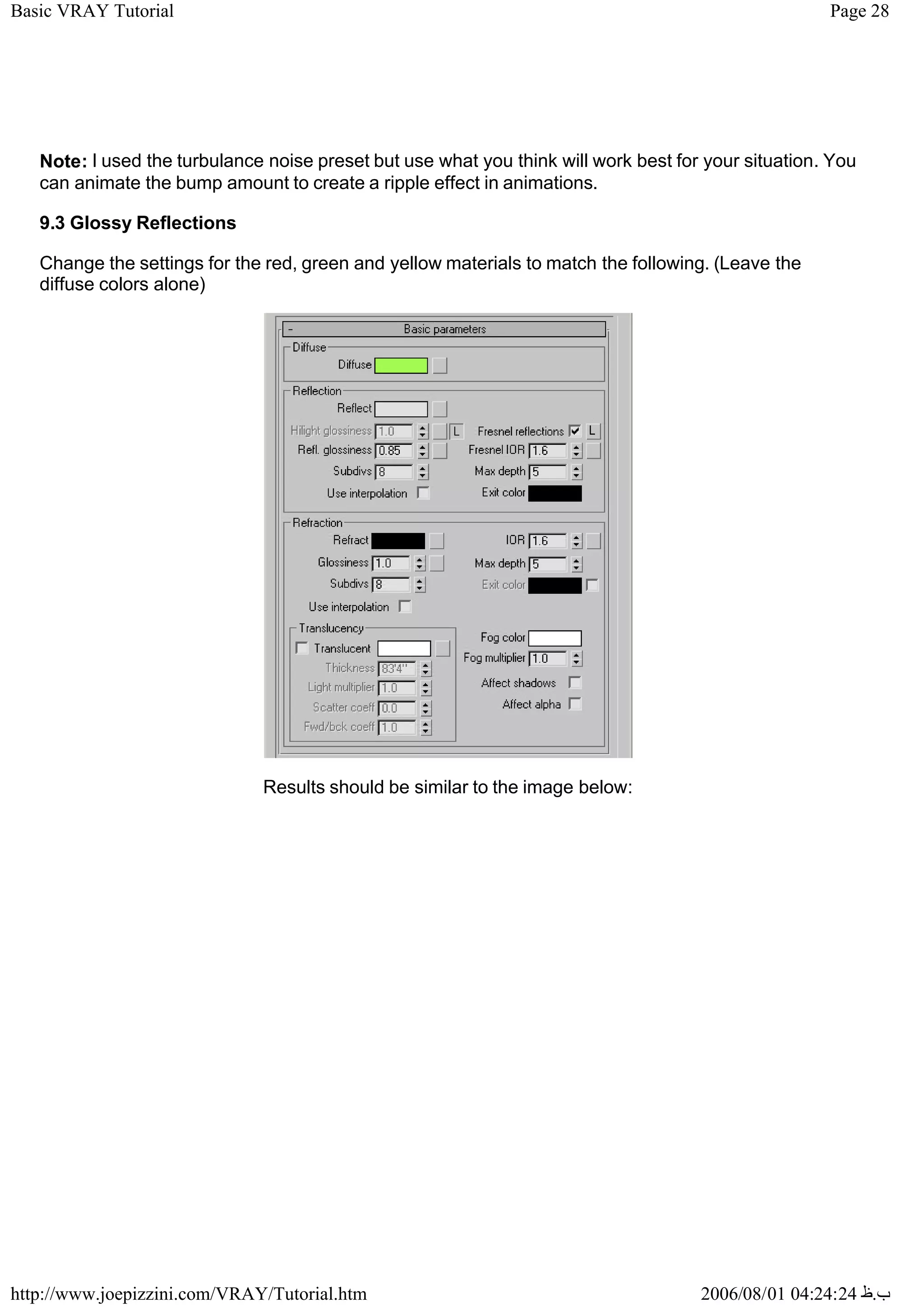
9.3 Glossy Reflections
Change the settings for the red, green and yellow materials to match the following. (Leave the
diffuse colors alone)
Results should be similar to the image below:
Page 29
Basic VRAY Tutorial
2006/08/01 04:24:24 ‫ب‬
.
‫ظ‬
http://www.joepizzini.com/VRAY/Tutorial.htm
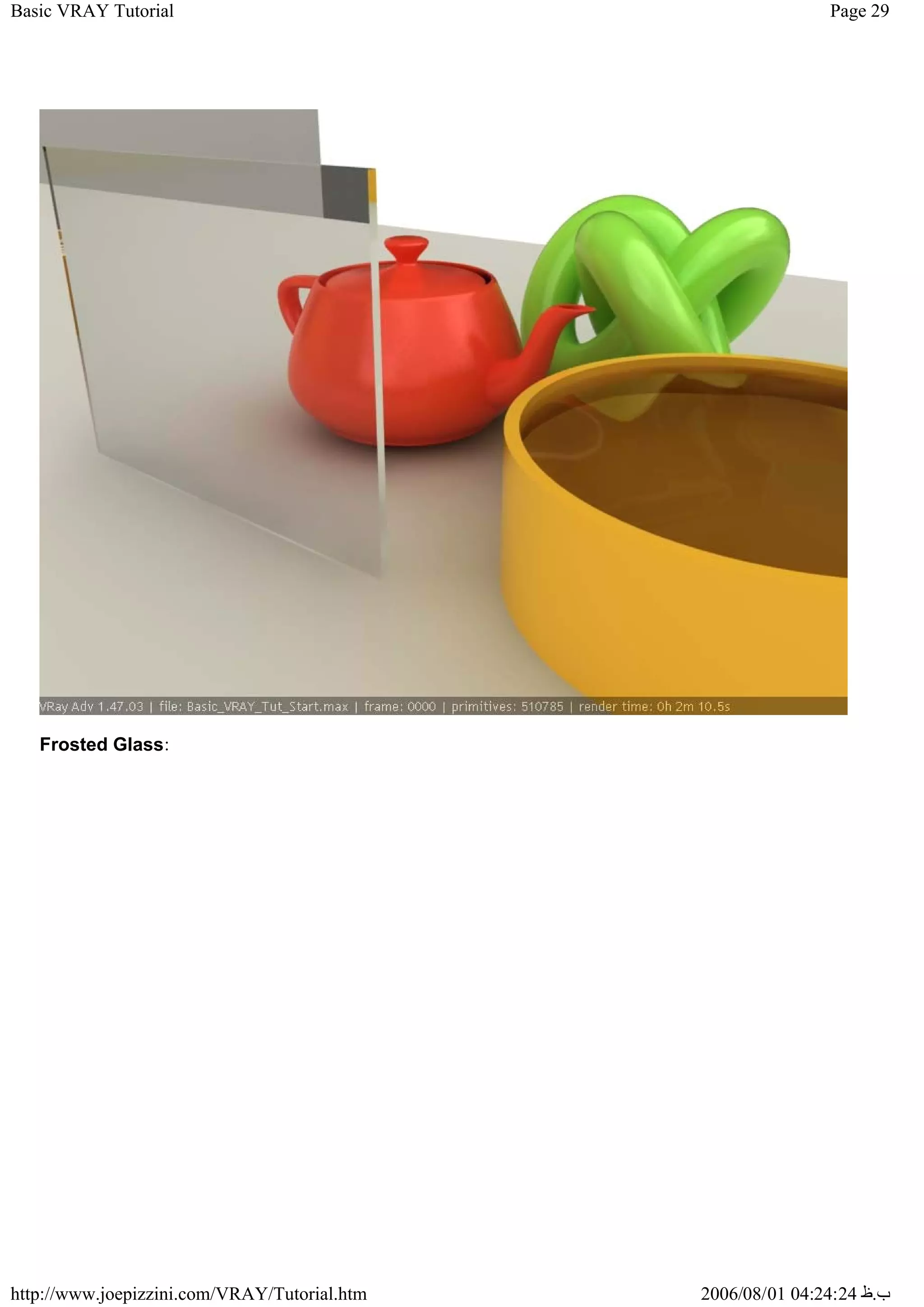
Frosted Glass:
Page 30
Basic VRAY Tutorial
2006/08/01 04:24:24 ‫ب‬
.
‫ظ‬
http://www.joepizzini.com/VRAY/Tutorial.htm
Page 31
Basic VRAY Tutorial
2006/08/01 04:24:24 ‫ب‬
.
‫ظ‬
http://www.joepizzini.com/VRAY/Tutorial.htm
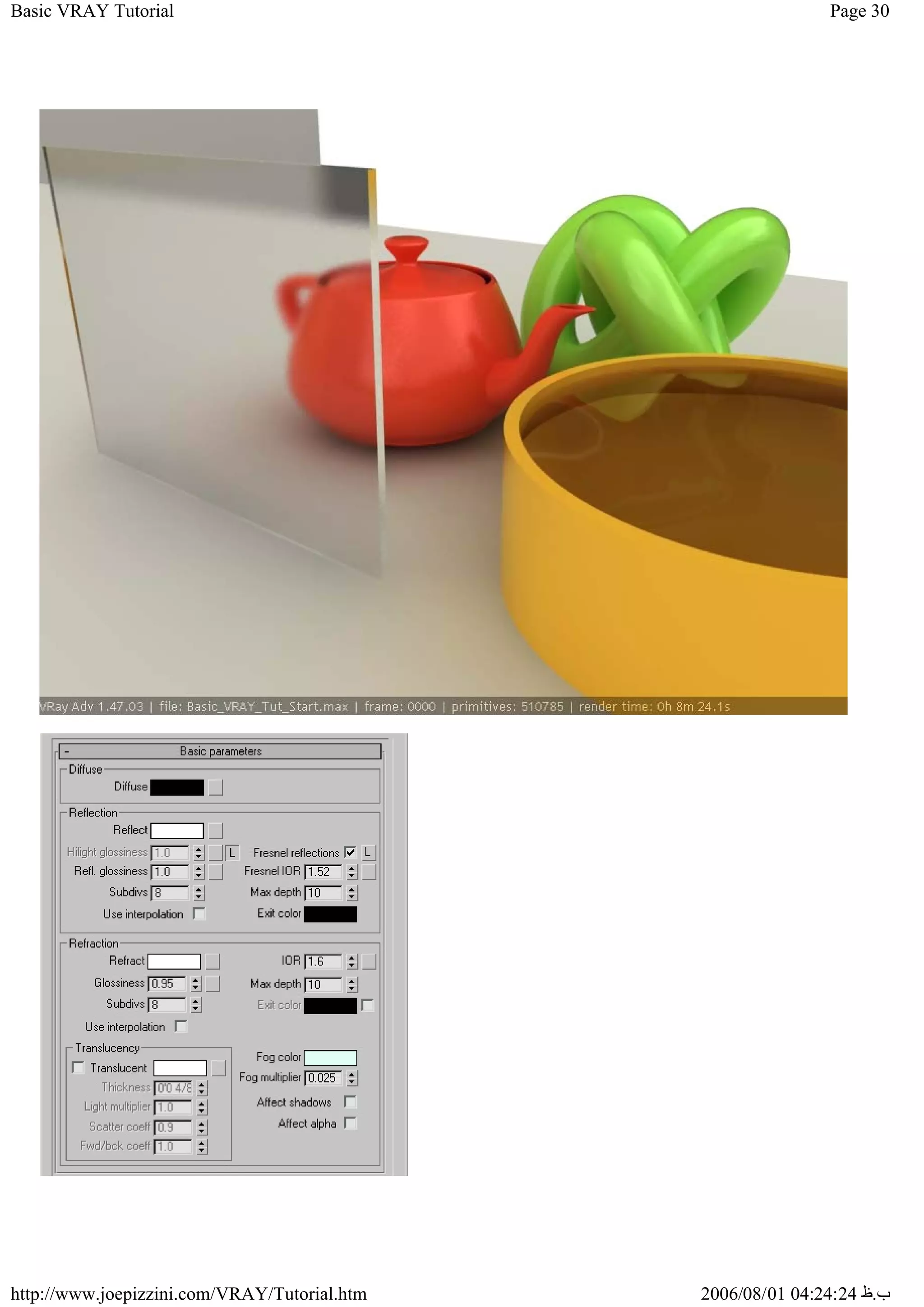
The refraction glossies has been lowered to.95. I find this to be a little counter intuitive, but to
increase glossieness you have to lower the spinner.
Note the increase in render time. For animations you might want to find another way to achieve this
effect. Remember we are still using Basic render settings. Our custom Irradiance Map (IR
Map) is setup for quick rendering. Higher quality IR maps will and higher output resolutions
will significantly increase render times. That being said I have managed to render animations
with moving objects using these "low" custom IR map settings without any noticable "flickering"
The flickering problem....well thats a whole other tutorial in itself.
10. VRAY Displacement
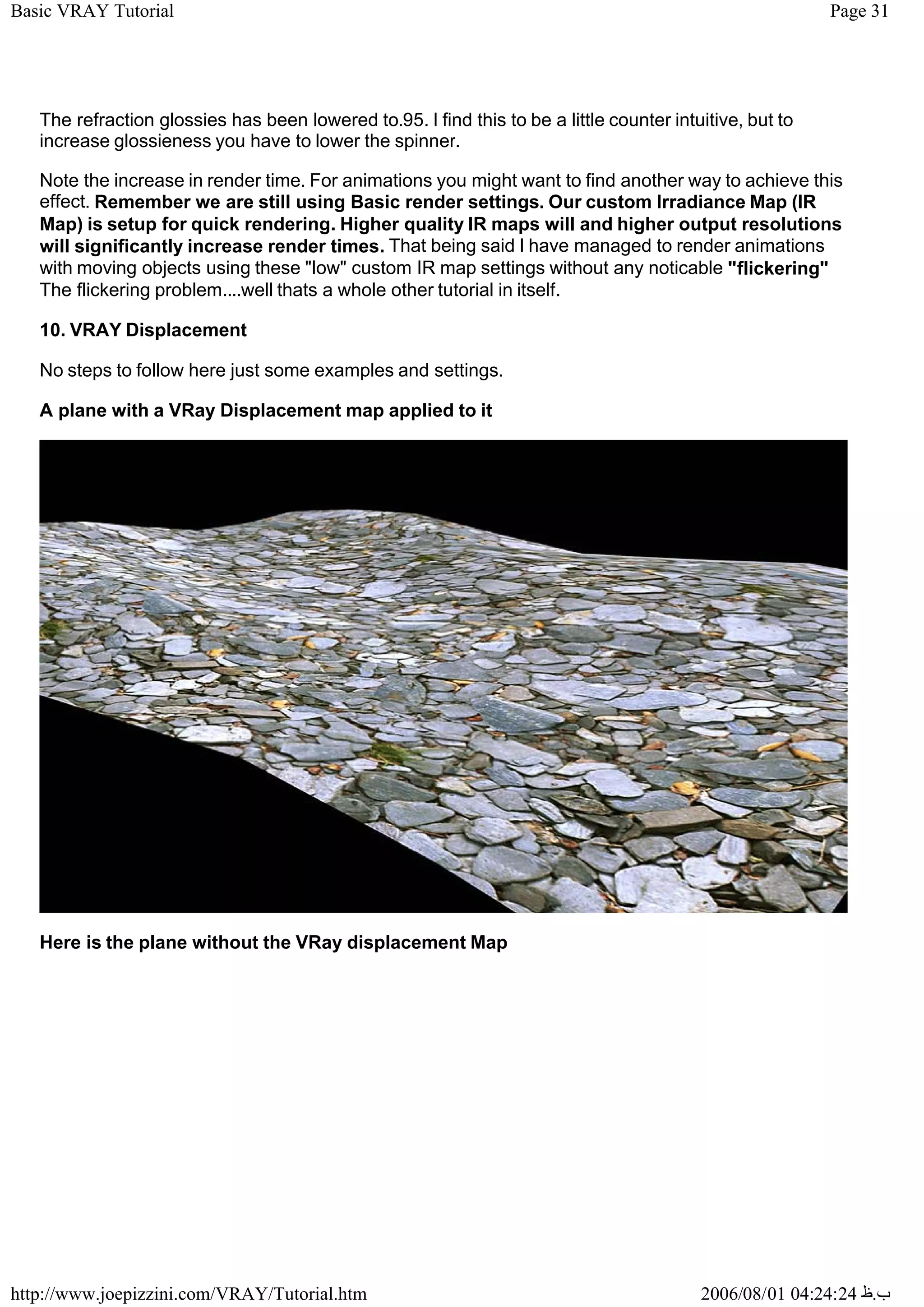
No steps to follow here just some examples and settings.
A plane with a VRay Displacement map applied to it
Here is the plane without the VRay displacement Map
Page 32
Basic VRAY Tutorial
2006/08/01 04:24:24 ‫ب‬
.
‫ظ‬
http://www.joepizzini.com/VRAY/Tutorial.htm
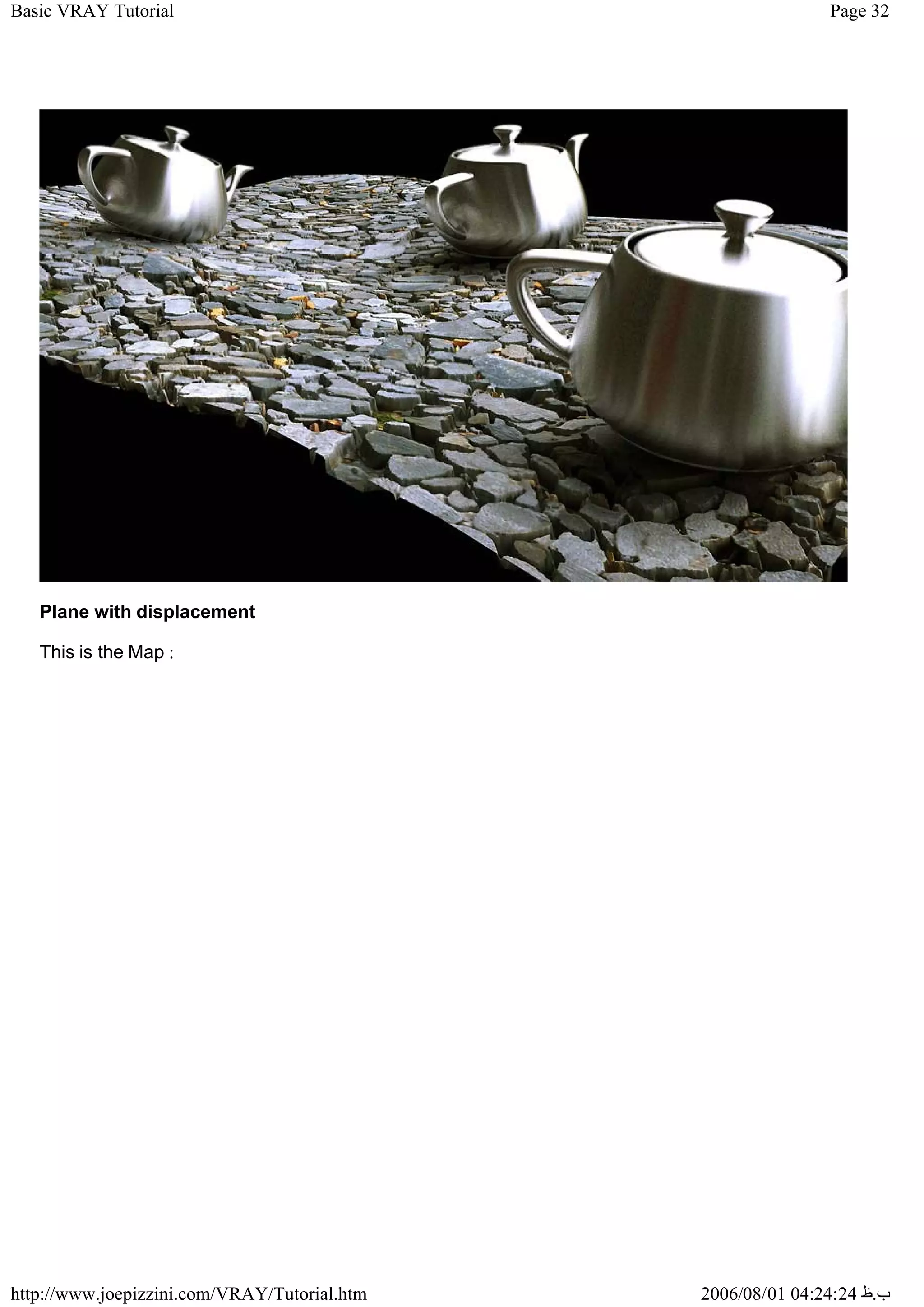
Plane with displacement
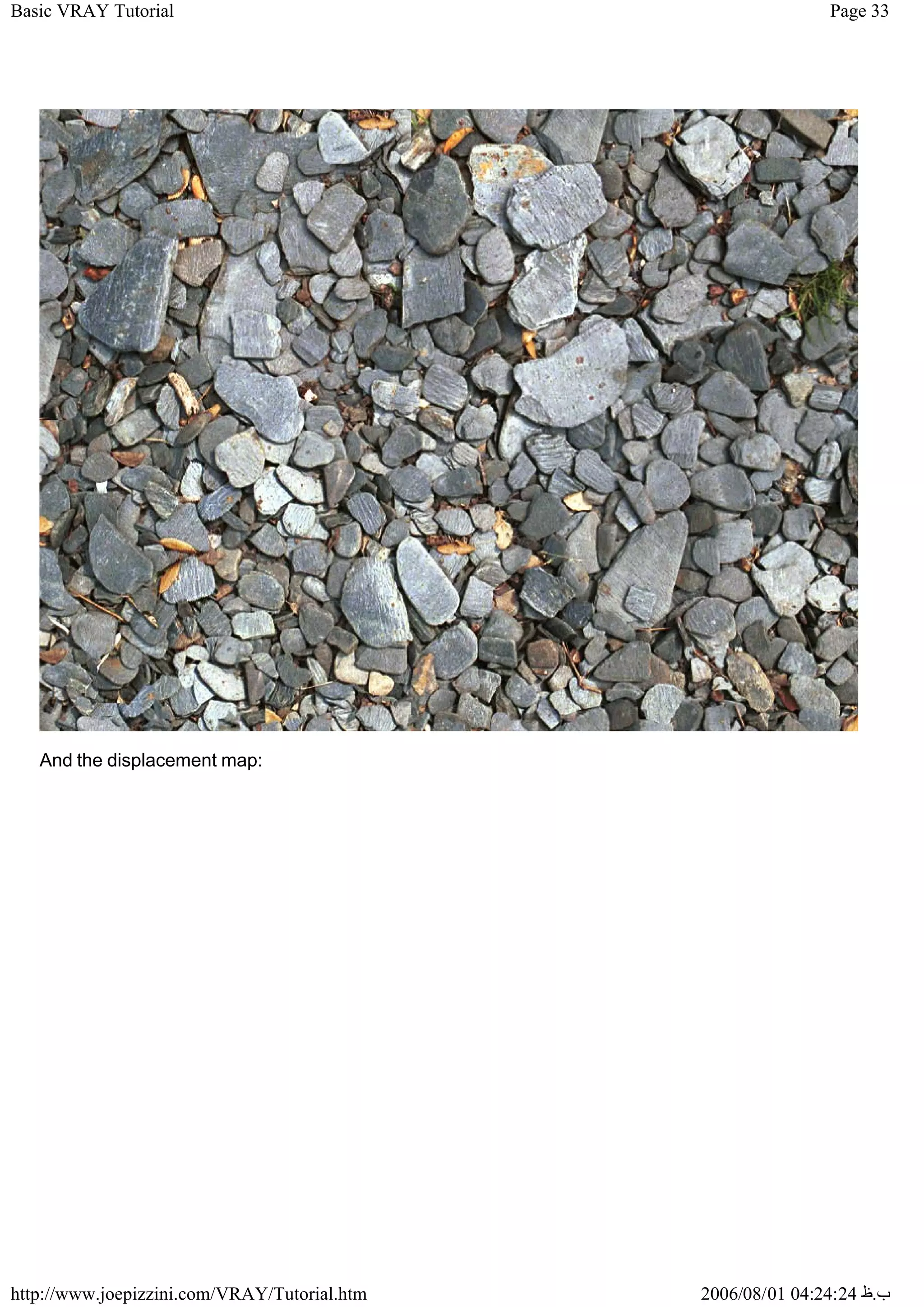
This is the Map :
Page 33
Basic VRAY Tutorial
2006/08/01 04:24:24 ‫ب‬
.
‫ظ‬
http://www.joepizzini.com/VRAY/Tutorial.htm
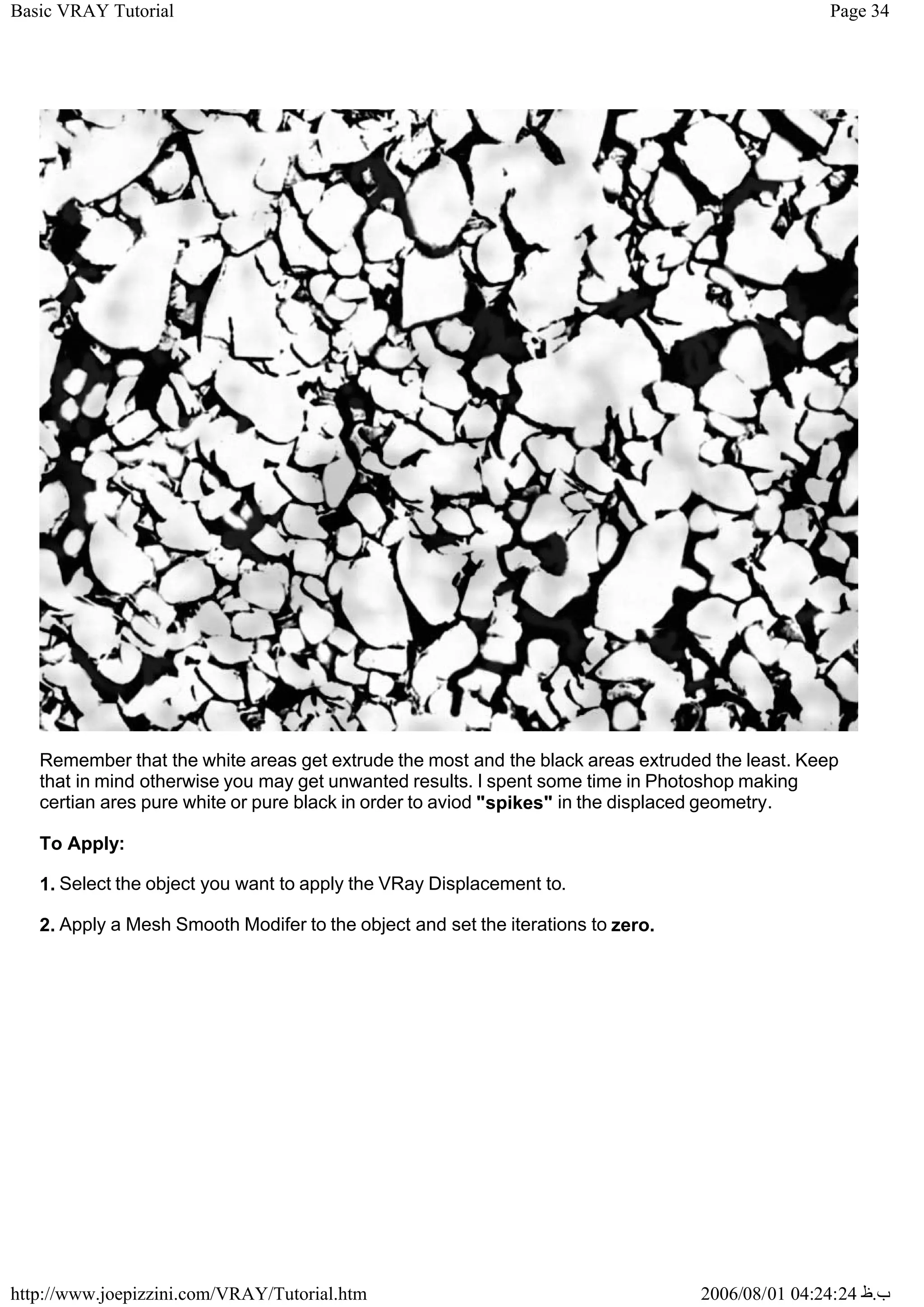
And the displacement map:
Page 34
Basic VRAY Tutorial
2006/08/01 04:24:24 ‫ب‬
.
‫ظ‬
http://www.joepizzini.com/VRAY/Tutorial.htm
Remember that the white areas get extrude the most and the black areas extruded the least. Keep
that in mind otherwise you may get unwanted results. I spent some time in Photoshop making
certian ares pure white or pure black in order to aviod "spikes" in the displaced geometry.
To Apply:
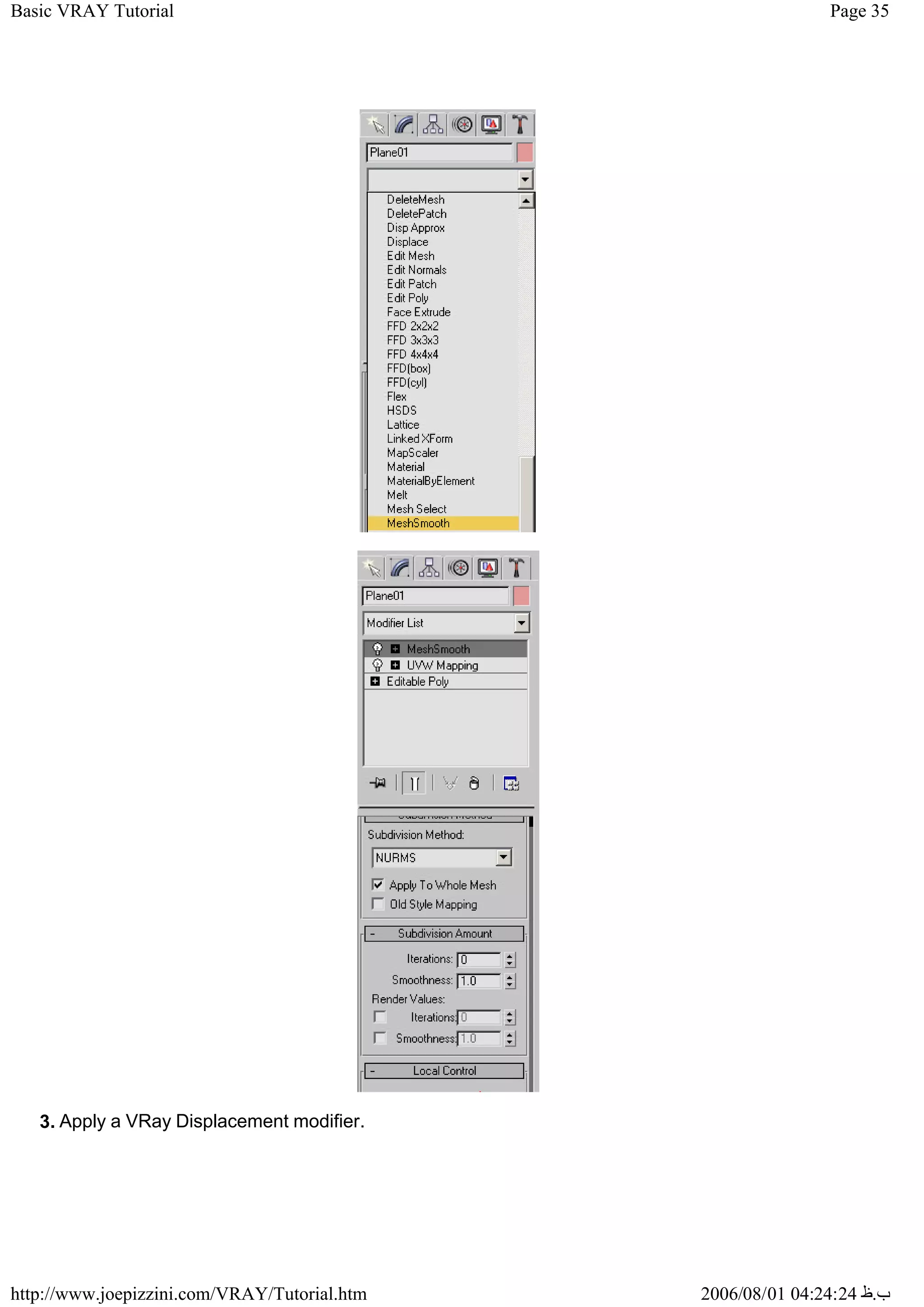
1. Select the object you want to apply the VRay Displacement to.
2. Apply a Mesh Smooth Modifer to the object and set the iterations to zero.
Page 35
Basic VRAY Tutorial
2006/08/01 04:24:24 ‫ب‬
.
‫ظ‬
http://www.joepizzini.com/VRAY/Tutorial.htm
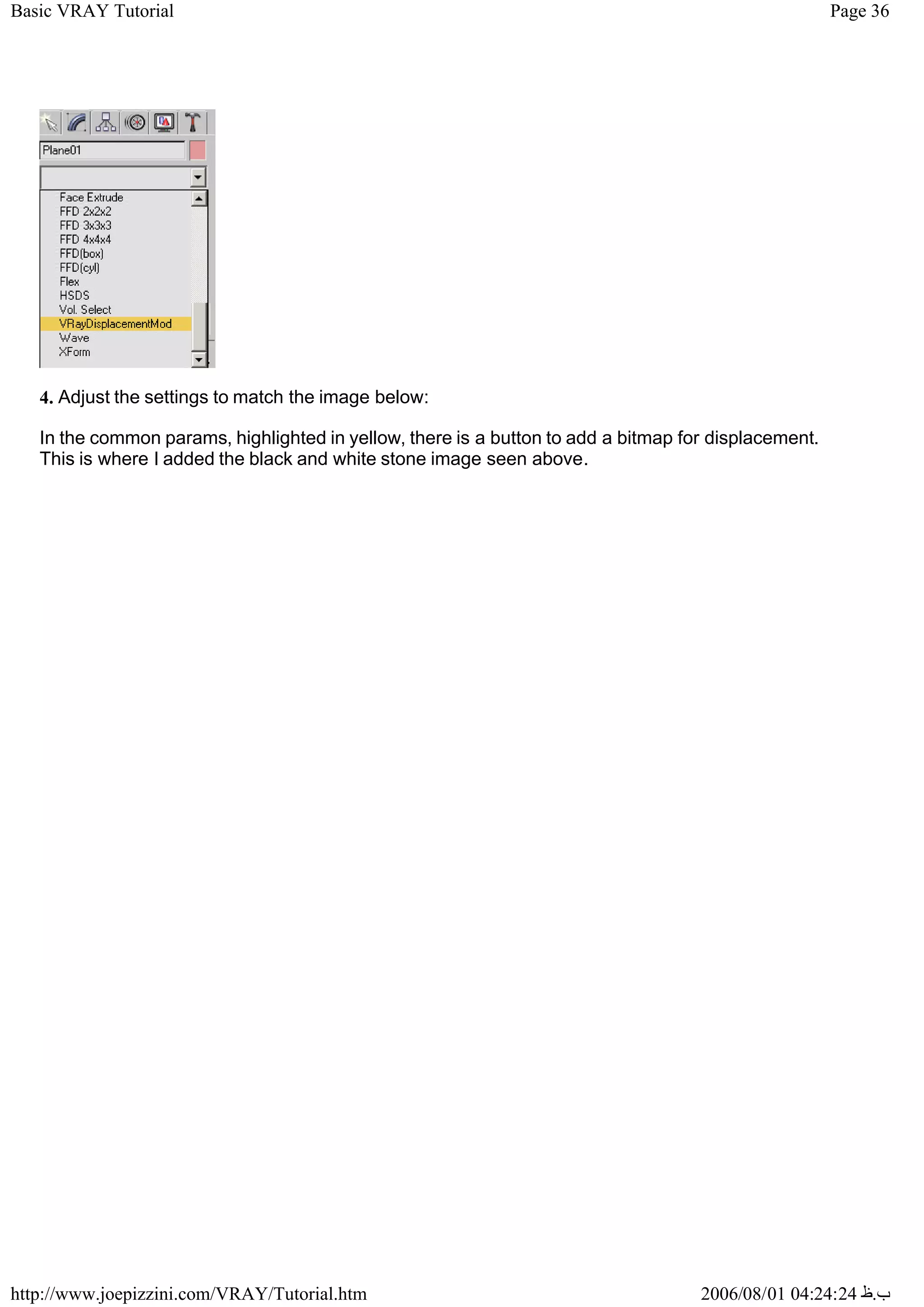
3. Apply a VRay Displacement modifier.
Page 36
Basic VRAY Tutorial
2006/08/01 04:24:24 ‫ب‬
.
‫ظ‬
http://www.joepizzini.com/VRAY/Tutorial.htm
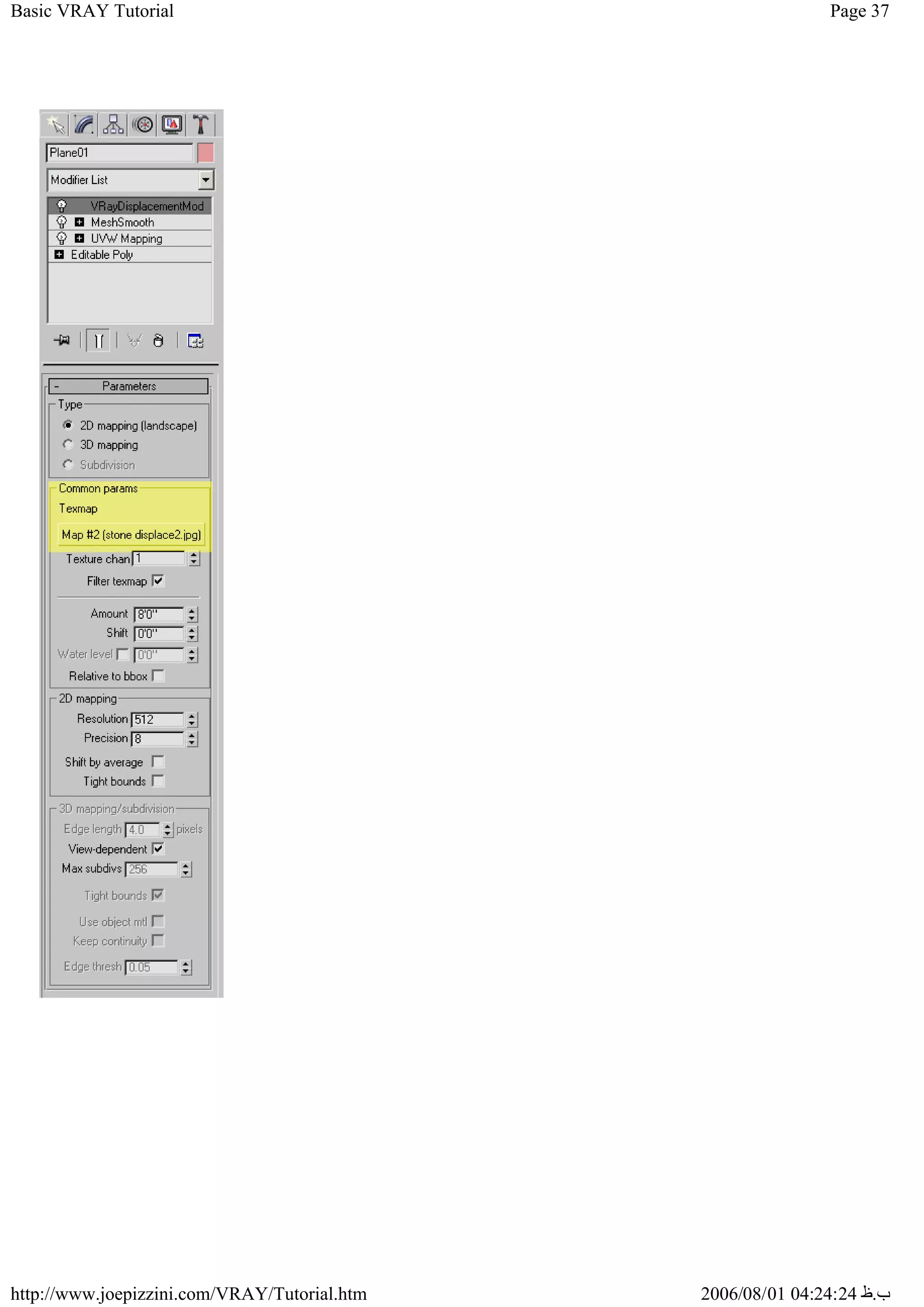
4. Adjust the settings to match the image below:
In the common params, highlighted in yellow, there is a button to add a bitmap for displacement.
This is where I added the black and white stone image seen above.
Page 37
Basic VRAY Tutorial
2006/08/01 04:24:24 ‫ب‬
.
‫ظ‬
http://www.joepizzini.com/VRAY/Tutorial.htm

Basic vray tutorial

  • 1.
    Page 1 Basic VRAYTutorial 2006/08/01 04:24:24 ‫ب‬ . ‫ظ‬ http://www.joepizzini.com/VRAY/Tutorial.htm Basic Techniques For Vray Advanced This tutorial is intended to get you started using Vray. If you find something that you think I need to change please email me. Here are some other sites with Vray tutorials that I find useful: www.chaosgroup.com/support (you will have to register) click on "V-ray docs" and open the Help Index. www.aversis.be www.vray.info www.evermotion.org VRAY Forums Click on a link to jump to that section or start on section one below. 1. Exterior Lighting 2. Environment Adjustments 3. Night Scene 4. VRAY Light Material 5. Color Bleeding 6. VRAY Toon 7. Interior Lighting 8. HDRI Lighting 9. Basic Material Settings 10. VRAY Displacement 1. Exterior Lighting
  • 2.
    Page 2 Basic VRAYTutorial 2006/08/01 04:24:24 ‫ب‬ . ‫ظ‬ http://www.joepizzini.com/VRAY/Tutorial.htm _ 1.1 Download Basic_VRAY_Tut_Start.max 1.2 Render the scene. You should get something silimal to the image above. Here are the basic VRAY settings I use for exterior Lighting: < Turn off Default Lights. < Use Adaptive Subdivision (for now) - < Make sure GI is turned ON.
  • 3.
    Page 3 Basic VRAYTutorial 2006/08/01 04:24:24 ‫ب‬ . ‫ظ‬ http://www.joepizzini.com/VRAY/Tutorial.htm < Primary Bounces: Irradiance Map (IR Map) < Secondary Bounces: Quasi-Monte Carlo (QMC) < GI Environment: Check Override Max's and set color to the ambient color of your choice (Scene Dependant) < Reflection/Refraction: Check Override Max's (this isn't important now but it will be for HDRI lighting) < QMC Sampler: these settings may be a little high for now but we'll get into that later. < Current Preset: Set this to custom. < Make sure the settings are the same (note these settings are optimized for fast render times) Click show calc phase if you want to see what VRAY is doing during the IR Map passes. <Advanced Options: Blah, blah and more blah. < Leave this alone as well < Sure why not? 2. Environment Adjustmnets
  • 4.
    Page 4 Basic VRAYTutorial 2006/08/01 04:24:24 ‫ب‬ . ‫ظ‬ http://www.joepizzini.com/VRAY/Tutorial.htm Here is an example of what can happen to a scene if the environment is too high. As you can see the entire image looks blown out and oversaturated. Setting the GI environment to .6 caused the result above. Note: The "blown out" effect is also due to the Target direct Light in the scene. In combination with lights, high GI Environment multipliers can cause unwanted results. By contrast it is possible to light a scene using only the GI Environment. 2.1 Increase the GI Environment Multiplier to 1.0 and turn off the Target Direct Light (Direct01) 2.2 Render the scene
  • 5.
    Page 5 Basic VRAYTutorial 2006/08/01 04:24:24 ‫ب‬ . ‫ظ‬ http://www.joepizzini.com/VRAY/Tutorial.htm As you can see this approach produces shadows that are very soft and undefined. This method may work for you depending on the look you are after. You can add a bitmap to the GI Environment by clicking "None" and browsing to a bitmap of you choice. (Adding a bitmap to the GI environment is similar but but the same as HDRI lighting which we will cover later on) 3. Night Scene Even on the darkest nights in the middle of nowhere there will always be some sort of "ambient light" (varying degrees of course). Light from the stars, moon, or like in many night scenes, light from surrounding buildings and gereral "civlilization" can create enough ambient light to see an object...even if the object has no light source of its own. (All of this depends on the scene you are rendering) A good way to get this general ambient light is to use the GI environment.
  • 6.
    Page 6 Basic VRAYTutorial 2006/08/01 04:24:24 ‫ب‬ . ‫ظ‬ http://www.joepizzini.com/VRAY/Tutorial.htm 3.1 Set you GI Environment to .4 and pick a similar color to the one below. 3.2 Make sure the light Direct01 is off and then select and turn on the light "Inside Omni". This light simply provides some interior lighting so its not so dark. 3.3 Render the scene and you should get something similar to the image above. 4. VRAY Light Material
  • 7.
    Page 7 Basic VRAYTutorial 2006/08/01 04:24:24 ‫ب‬ . ‫ظ‬ http://www.joepizzini.com/VRAY/Tutorial.htm The VRAY light material allows you to create a light out of any piece of geometry. I applied a VRAY light material to the sphere on top of the structure. 4.1 Open the Material Editor (M), click on an empty material slot and click the top right button that says "Standard". (If the button says VRayMtl then you didn't select an emty slot) 4.2 When the Material/Map browser opens select VRayLightMtl near the bottom of the list as shown below:
  • 8.
    Page 8 Basic VRAYTutorial 2006/08/01 04:24:24 ‫ب‬ . ‫ظ‬ http://www.joepizzini.com/VRAY/Tutorial.htm Back in the Material editor you can adjust the settings of your Vray Light material. Play with the color and multiplier to get the desired results.
  • 9.
    Page 9 Basic VRAYTutorial 2006/08/01 04:24:24 ‫ب‬ . ‫ظ‬ http://www.joepizzini.com/VRAY/Tutorial.htm Aslo you can use a standard MAX material with self illumination to produce geometric lights. See Example below. The curving tube has a rainbow bitmap in the map slot under self illumination. The material is a standard MAX material. 5. Color Bleeding 5.1 Turn off the light "Inside Omni" and turn on the Light "Direct01". 5.2 Under VRay Environment, adjust the GI Environment as we had it before when we made the direct sunlight renders. Give the multiplier a value of .3 and adjust the color back to a light yellow. 5.3 Select the sphere on the top of the structure and assign the "Yellow1" material to it. 5.4 Render the Scene and you should get a result similar to the image below:
  • 10.
    Page 10 Basic VRAYTutorial 2006/08/01 04:24:24 ‫ب‬ . ‫ظ‬ http://www.joepizzini.com/VRAY/Tutorial.htm Roll over the image to see the effects of color bleeding. Light is bouncing off the sphere and onto the surrounding objects. Though this effect does happen in the real world, I often see it over exaggerated in renderings. You can desaturate your materials (or their corresponding bitmaps) to lessen this effect. 6. VRAY Toon 6.1 From the top menu click Rendering then click environment (Or just press "8") This brings up the Environment and Effects Dialog box.
  • 11.
    Page 11 Basic VRAYTutorial 2006/08/01 04:24:24 ‫ب‬ . ‫ظ‬ http://www.joepizzini.com/VRAY/Tutorial.htm 6.2 Under the Atmosphere rollout click the "Add" button. Select VRay Toon from the list that appears. 6.3 Scroll down a bit in the Environment and Effects Dialog box to see the VRay Toon settings and change the line from pixels to world by clicking on the "World" radio button. Give the line thickness a world value of 6" as shown above. 6.4 Render the scene. You should get a similar result to the image below:
  • 12.
    Page 12 Basic VRAYTutorial 2006/08/01 04:24:24 ‫ب‬ . ‫ظ‬ http://www.joepizzini.com/VRAY/Tutorial.htm Note: You can modify the color and thickness of the line to get desired results. Also you can use a custom bitmap in the color slot of the line if you prefer. 7. Interior Lighting 7.1 Switch to Camera02 and make sure the light "Inside Omni" is turned off. 7.2 Press "8" to open the Environment and Effects dialog box. Under the Atmosphere rollout select VRay Toon from the Effects list. With VRay Toon selected click the delete button. For this example of interior lighting we want the VRAY Toon effect turned off. 7.3 Select Pane01, right-click in the viewport and select VRay properties:
  • 13.
    Page 13 Basic VRAYTutorial 2006/08/01 04:24:24 ‫ب‬ . ‫ظ‬ http://www.joepizzini.com/VRAY/Tutorial.htm 7.4 With the VRAY Properties box open check "Matte object" in the top right. Under Direct Light check shadows. The Matte object makes the plane invisible but it will still render the shadows and reflections. (Useful for studio lighting setups) We did this so that the ground plane wont show up in the interior render. (Also to explain Vray object properties) There are many useful settings in the VRay object properties box...their labels are self explanitory. 7.5 Render the scene. It should look like the image below:
  • 14.
    Page 14 Basic VRAYTutorial 2006/08/01 04:24:24 ‫ب‬ . ‫ظ‬ http://www.joepizzini.com/VRAY/Tutorial.htm It is obviously to dark. As cool as VRAY is, most of the time it needs some help lighting interior scenes. In other words, a Direct light alone isn't enough. This is where the VRay Lights at the windows come in. Notice they are positioned right outside of the window (adjust the positioning to fit your specific needs) and are the same shape as the window 7.6 Select VRayLight01 and click the modify tab on the control panel
  • 15.
    Page 15 Basic VRAYTutorial 2006/08/01 04:24:24 ‫ب‬ . ‫ظ‬ http://www.joepizzini.com/VRAY/Tutorial.htm 7.7 Turn on VRayLight01 by clicking the checkbox under the Parameters rollout. The other five VRAY lights in the scene are instances of Light01 and should turn on as well. Make sure "Invisible" is checked. If it isn't, the light from Direct01 won't be able to pass through the VRay Lights. 7.8 With the lights on, render the scene. You should get a result similar to the image below:
  • 16.
    Page 16 Basic VRAYTutorial 2006/08/01 04:24:24 ‫ب‬ . ‫ظ‬ http://www.joepizzini.com/VRAY/Tutorial.htm The image looks somewhat grainy with the default VRay Light settings. To correct this we can change some settings in the VRay QMC Sampler rollout. 7.9 Open the Render Scene dialog box if it isn't open already. (press F10) 7.10 Click the Renderer tab and scroll down to the "VRay QMC Sampler" rollout and expand it if it isn't alread open. 7.11 Adjust you settings to match the image below:
  • 17.
    Page 17 Basic VRAYTutorial 2006/08/01 04:24:24 ‫ب‬ . ‫ظ‬ http://www.joepizzini.com/VRAY/Tutorial.htm 7.12 Render the scene. Notice how the adjustments we made reduced the graininess to a more tolerable level. However, the render time has doubled. You'll have to toggle the settings in the QMC Sampler until you reach a level that optimizes quiality and Speed. This is easier said than done and of course it varies from scene to scene.
  • 18.
    Page 18 Basic VRAYTutorial 2006/08/01 04:24:24 ‫ب‬ . ‫ظ‬ http://www.joepizzini.com/VRAY/Tutorial.htm Comparison of settings. The yellow arrows show the dividing line of the same scene with the different settings. 8. HDRI Lighting High Dynamic Range Image (HDRI) The HDRI file used in this tutorial was created by Aversis. Visit www.aversis.be for more tutorials on HDRI lighting and many other VRAY topics. 8.1 Switch to Camera03 and unhide the following objects: Bowl, Glass, Teapot, Torus Knot and Water.
  • 19.
    Page 19 Basic VRAYTutorial 2006/08/01 04:24:24 ‫ب‬ . ‫ظ‬ http://www.joepizzini.com/VRAY/Tutorial.htm 8.2 Render the scene. You should get something similar to the image below. The scene is lit only by the light Direct01 and GI bounces.
  • 20.
    Page 20 Basic VRAYTutorial 2006/08/01 04:24:24 ‫ب‬ . ‫ظ‬ http://www.joepizzini.com/VRAY/Tutorial.htm 8.3 Press "M" to open the Material Editor. Click on theVRay HDRI material in the top right. Note: To load a VRay HDRI file select an empty material slot and click the blue "Get Material" button which is highlighted in yellow above. When the Material/Map Browser opens, select VRayHDRI from the list...highlighted in yellow below.
  • 21.
    Page 21 Basic VRAYTutorial 2006/08/01 04:24:24 ‫ب‬ . ‫ظ‬ http://www.joepizzini.com/VRAY/Tutorial.htm 8.4 Drag the HDRI material from the material editor into both environment slots located in the VRay Environment rollout of the render scene dialog box.
  • 22.
    Page 22 Basic VRAYTutorial 2006/08/01 04:24:24 ‫ب‬ . ‫ظ‬ http://www.joepizzini.com/VRAY/Tutorial.htm Choose instance when promted and click ok. 8.5 Before we render the scene we need to turn off the light Direct01 and make sure that the GI Environment multiplier is set to 1 (highlighted in yellow above) . Since the only thing lighting the scene will be the HDRI light, the GI Environment multiplier needs to be higher. Note: You can, for example, use a direct light (sunlight) in conjunction with HDRI lighting. But, its a good idea to have one more powerful than the other to avoid burnt out images (see section 2) Make sure your HDRI parameters are the same as the image above. (play with the settings later) 8.6 Render the scene. Your results should be similar to the image below. The shadows are much softer and undefined. The look is similar to straight environment lighting described in section 2. However, there are subtle differences. Don't think that HDRI lighting only produces soft shadows. If many cases it does, but that's because the majority of shadows in the real world have soft edges and HDRI intends to accurately recreate real world lighting conditions.
  • 23.
    Page 23 Basic VRAYTutorial 2006/08/01 04:24:24 ‫ب‬ . ‫ظ‬ http://www.joepizzini.com/VRAY/Tutorial.htm Note: HDRI file was created by Aversis. Visit www.aversis.be/extra_hdri/00.htm to download more of his HDRI files and browse his VRAY tutorials. This is what the HDRI file we are using looks like. This is the image that is lighting our scene. The soft shadows in the scene are produced because of the Real World soft shadows captured in the HDRI file. 9. Material Settings
  • 24.
    Page 24 Basic VRAYTutorial 2006/08/01 04:24:24 ‫ب‬ . ‫ظ‬ http://www.joepizzini.com/VRAY/Tutorial.htm 9.1 Give the Green, Red and Yellow1 materials a light grey color in the reflection slot. You can copy the color by right clicking the color and pasting it into the reflection slots of the other materials. See image below.
  • 25.
    Page 25 Basic VRAYTutorial 2006/08/01 04:24:24 ‫ب‬ . ‫ظ‬ http://www.joepizzini.com/VRAY/Tutorial.htm 9.2 Render the scene. Your results should be similar to the image above. Settings for the glass:
  • 26.
    Page 26 Basic VRAYTutorial 2006/08/01 04:24:24 ‫ب‬ . ‫ظ‬ http://www.joepizzini.com/VRAY/Tutorial.htm Settings for the water:
  • 27.
    Page 27 Basic VRAYTutorial 2006/08/01 04:24:24 ‫ب‬ . ‫ظ‬ http://www.joepizzini.com/VRAY/Tutorial.htm
  • 28.
    Page 28 Basic VRAYTutorial 2006/08/01 04:24:24 ‫ب‬ . ‫ظ‬ http://www.joepizzini.com/VRAY/Tutorial.htm Note: I used the turbulance noise preset but use what you think will work best for your situation. You can animate the bump amount to create a ripple effect in animations. 9.3 Glossy Reflections Change the settings for the red, green and yellow materials to match the following. (Leave the diffuse colors alone) Results should be similar to the image below:
  • 29.
    Page 29 Basic VRAYTutorial 2006/08/01 04:24:24 ‫ب‬ . ‫ظ‬ http://www.joepizzini.com/VRAY/Tutorial.htm Frosted Glass:
  • 30.
    Page 30 Basic VRAYTutorial 2006/08/01 04:24:24 ‫ب‬ . ‫ظ‬ http://www.joepizzini.com/VRAY/Tutorial.htm
  • 31.
    Page 31 Basic VRAYTutorial 2006/08/01 04:24:24 ‫ب‬ . ‫ظ‬ http://www.joepizzini.com/VRAY/Tutorial.htm The refraction glossies has been lowered to.95. I find this to be a little counter intuitive, but to increase glossieness you have to lower the spinner. Note the increase in render time. For animations you might want to find another way to achieve this effect. Remember we are still using Basic render settings. Our custom Irradiance Map (IR Map) is setup for quick rendering. Higher quality IR maps will and higher output resolutions will significantly increase render times. That being said I have managed to render animations with moving objects using these "low" custom IR map settings without any noticable "flickering" The flickering problem....well thats a whole other tutorial in itself. 10. VRAY Displacement No steps to follow here just some examples and settings. A plane with a VRay Displacement map applied to it Here is the plane without the VRay displacement Map
  • 32.
    Page 32 Basic VRAYTutorial 2006/08/01 04:24:24 ‫ب‬ . ‫ظ‬ http://www.joepizzini.com/VRAY/Tutorial.htm Plane with displacement This is the Map :
  • 33.
    Page 33 Basic VRAYTutorial 2006/08/01 04:24:24 ‫ب‬ . ‫ظ‬ http://www.joepizzini.com/VRAY/Tutorial.htm And the displacement map:
  • 34.
    Page 34 Basic VRAYTutorial 2006/08/01 04:24:24 ‫ب‬ . ‫ظ‬ http://www.joepizzini.com/VRAY/Tutorial.htm Remember that the white areas get extrude the most and the black areas extruded the least. Keep that in mind otherwise you may get unwanted results. I spent some time in Photoshop making certian ares pure white or pure black in order to aviod "spikes" in the displaced geometry. To Apply: 1. Select the object you want to apply the VRay Displacement to. 2. Apply a Mesh Smooth Modifer to the object and set the iterations to zero.
  • 35.
    Page 35 Basic VRAYTutorial 2006/08/01 04:24:24 ‫ب‬ . ‫ظ‬ http://www.joepizzini.com/VRAY/Tutorial.htm 3. Apply a VRay Displacement modifier.
  • 36.
    Page 36 Basic VRAYTutorial 2006/08/01 04:24:24 ‫ب‬ . ‫ظ‬ http://www.joepizzini.com/VRAY/Tutorial.htm 4. Adjust the settings to match the image below: In the common params, highlighted in yellow, there is a button to add a bitmap for displacement. This is where I added the black and white stone image seen above.
  • 37.
    Page 37 Basic VRAYTutorial 2006/08/01 04:24:24 ‫ب‬ . ‫ظ‬ http://www.joepizzini.com/VRAY/Tutorial.htm